
Presentations Using L A TEX
|
|
|
- Susanna Shaw
- 10 years ago
- Views:
Transcription
1 Presentations Using L A TEX The Beamer Class Amber M. Smith Department of Mathematics University of Utah GSAC Colloquium September 4, 2007

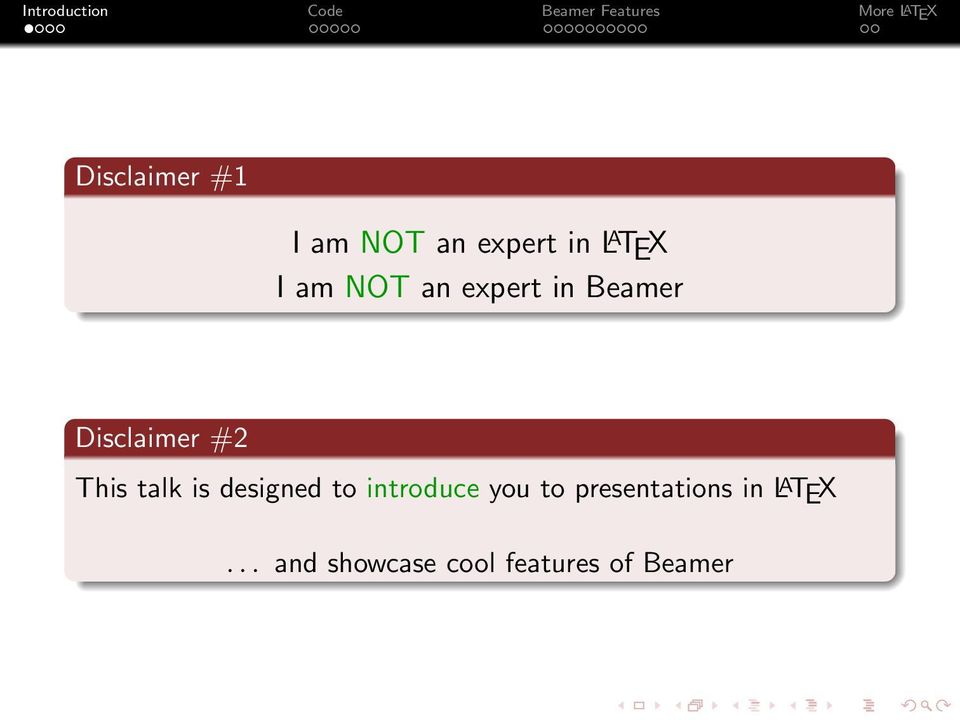
2 Disclaimer #1 I am NOT an expert in L A TEX I am NOT an expert in Beamer Disclaimer #2 This talk is designed to introduce you to presentations in L A TEX... and showcase cool features of Beamer
3 Why Use L A TEX for Presentations (and everything else)? especially for mathematics Because Microsoft SUCKS! U 2 u t 2 = c 2 2 u Z e x = 1 0 y (x,y) x X Z Y Y q p g X f Z X h nπx f (x) = a o + a n cos L n=1 ( 1 if x < 0 Ψ(x) = x 2 if x 0 4 z. w + b n sin u... y x. nπx i L

4 For the Pure Mathematicians... L A TEX can DRAW cool diagrams! f x y g x y

5 Why Use the Beamer Class? Pros 1 More bells & whistles than the Prosper class 2 Directly supported by pdflatex can still use latex2e, dvips, ps2pdf (HAVE to when using pstricks) 3 Rich overlay & transition effects 4 Navigational bars & symbols 5 Outputs: screen, handouts, notes, etc. 6 Customizable Cons 1 Isn t what you see is what you get

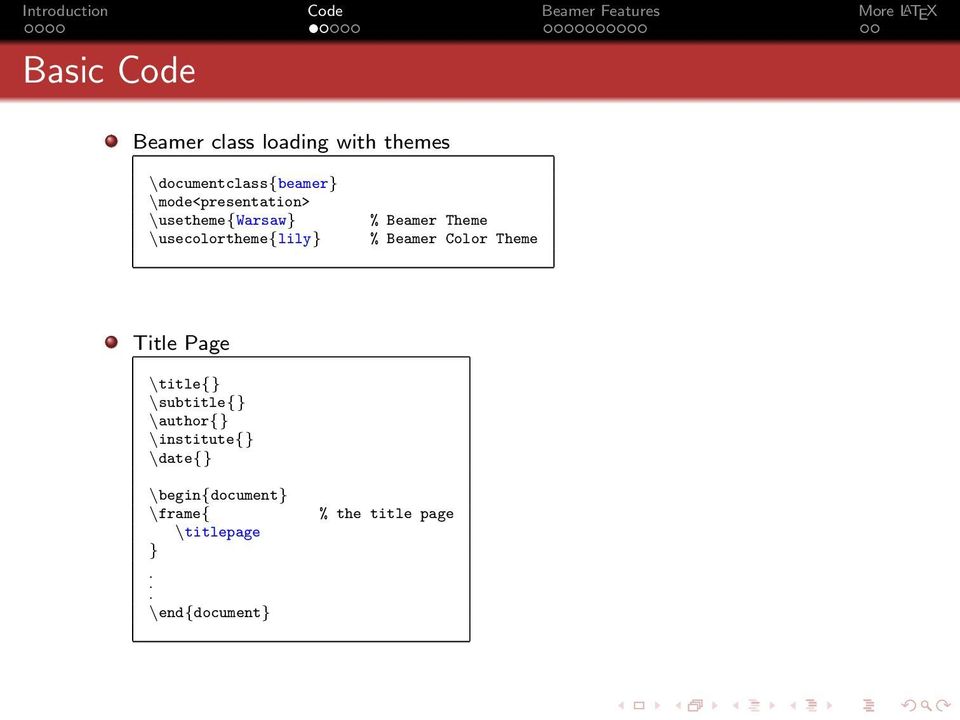
6 Basic Code Beamer class loading with themes \documentclass{beamer} \mode<presentation> \usetheme{warsaw} \usecolortheme{lily} % Beamer Theme % Beamer Color Theme Title Page \title{} \subtitle{} \author{} \institute{} \date{} \begin{document} \frame{ \titlepage }. \end{document} % the title page
7 More Code Slides \section{} \subsection{} \frame[options ]{ \frametitle{}... slide contents... } Many features you want to use require you to load packages, such as: \usepackage{amsmath} \usepackage{graphicx} \usepackage{subfigure} \usepackage{multimedia} % for math AMS fonts % to include figures % to have figures in figures % to include movies

8 Themes Five Theme Categories 1 Presentation (the slide template) 2 Color (color scheme for slide template) 3 Font 4 Inner (how you want bullets, boxes, etc. to look) 5 Outer (how you want the top/bottom of frames to look) if you don t like the default of the Presentation Theme Example \documentclass[compress, red]{beamer} \usetheme{warsaw} \usecolortheme{lily} \useoutertheme[subsection=false]{smoothbars} \useinnertheme{rectangles} % Beamer Theme % Beamer Color Theme % Beamer Outer Theme % Beamer Inner Theme

9 Beamer Options Examples [compress]: makes all navigation bars as small as possible default: uncompressed [red]: changes color scheme to red default for beamer theme Warsaw: blue [subsection=false]: removes an extra bar above slide title stating the subsection title default: true
![to red default for beamer theme Warsaw: blue [subsection=false]:](/docs-images/45/6120919/images/page_9.jpg "removes an extra bar above slide title stating the subsection title")
10 Using Color * Beamer automatically loads xcolor * Predefined colors: red, blue, green, cyan, magenta, yellow, black, darkgray, gray, lightgray, orange, violet, purple, & brown To define new colors: \xdefinecolor{darkgreen}{rgb}{0,0.35,0}: my new color is dark green \xdefinecolor{purpleish}{cmyk}{0.75,0.75,0,0}: color is purple-ish Or substitute colors: \colorlet{newred}{red!60!black}: my new color is dark red

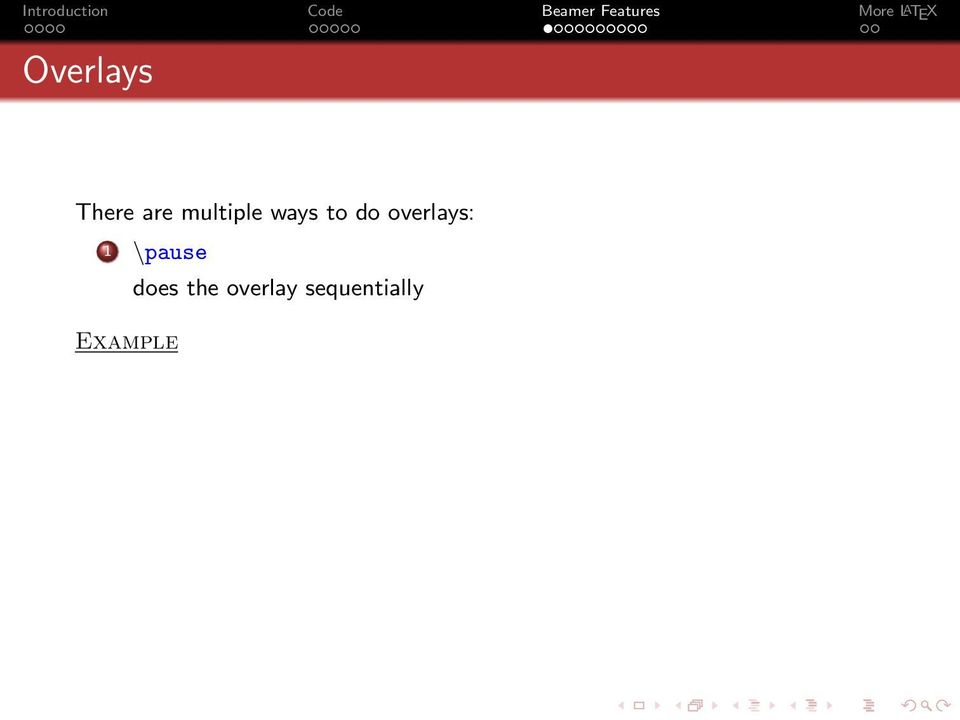
11 Overlays There are multiple ways to do overlays: 1 \pause does the overlay sequentially Example
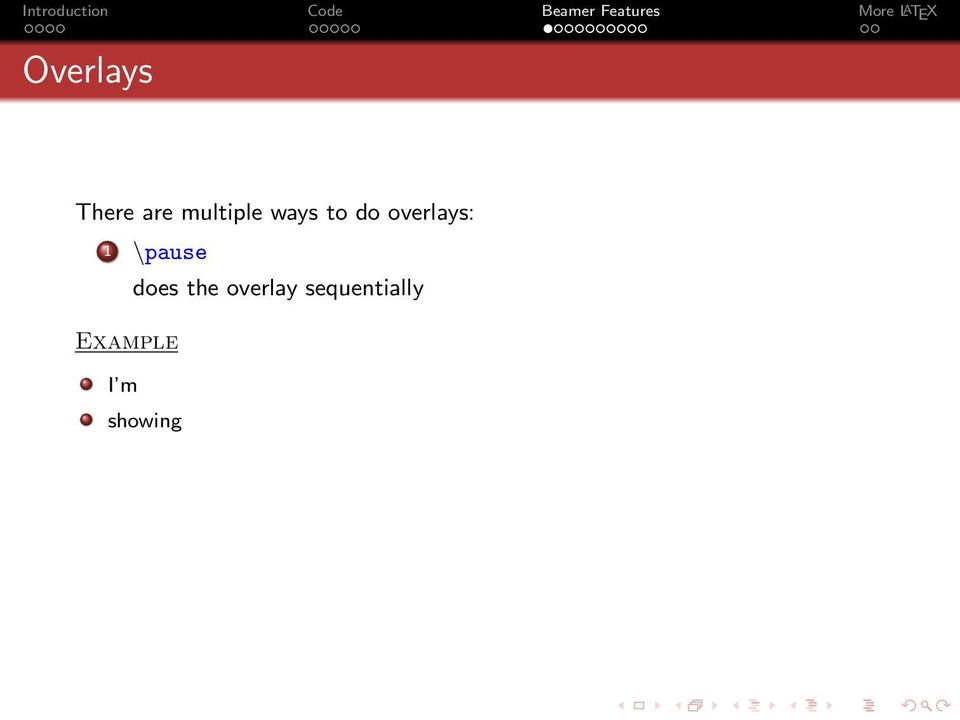
12 Overlays There are multiple ways to do overlays: 1 \pause does the overlay sequentially Example I m showing
13 Overlays There are multiple ways to do overlays: 1 \pause does the overlay sequentially Example I m showing you pause

14 Overlays There are multiple ways to do overlays: 1 \pause does the overlay sequentially Example I m showing you pause \begin{itemize} \item I m \item showing \pause \item you \item \textit{pause} \pause \end{itemize}

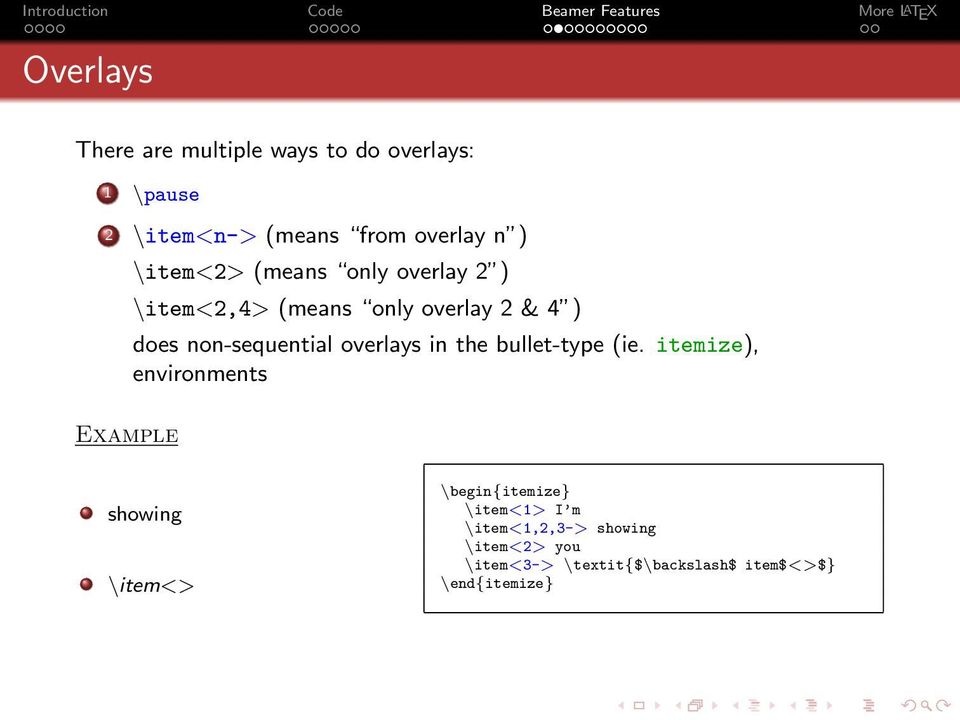
15 Overlays There are multiple ways to do overlays: 1 \pause 2 \item<n-> (means from overlay n ) Example I m \item<2> (means only overlay 2 ) \item<2,4> (means only overlay 2 & 4 ) does non-sequential overlays in the bullet-type (ie. itemize), environments showing

16 Overlays There are multiple ways to do overlays: 1 \pause 2 \item<n-> (means from overlay n ) Example \item<2> (means only overlay 2 ) \item<2,4> (means only overlay 2 & 4 ) does non-sequential overlays in the bullet-type (ie. itemize), environments showing you

17 Overlays There are multiple ways to do overlays: 1 \pause 2 \item<n-> (means from overlay n ) Example \item<2> (means only overlay 2 ) \item<2,4> (means only overlay 2 & 4 ) does non-sequential overlays in the bullet-type (ie. itemize), environments showing \item<>

18 Overlays There are multiple ways to do overlays: 1 \pause 2 \item<n-> (means from overlay n ) Example \item<2> (means only overlay 2 ) \item<2,4> (means only overlay 2 & 4 ) does non-sequential overlays in the bullet-type (ie. itemize), environments showing \item<> \begin{itemize} \item<1> I m \item<1,2,3-> showing \item<2> you \item<3-> \textit{$\backslash$ item$<>$} \end{itemize}
19 Overlays There are multiple ways to do overlays: 1 \pause 2 \item<n-> 3 \onslide<n-> non-sequential overlays in any environment! Example I m

20 Overlays There are multiple ways to do overlays: 1 \pause 2 \item<n-> 3 \onslide<n-> non-sequential overlays in any environment! Example I m showing

21 Overlays There are multiple ways to do overlays: 1 \pause 2 \item<n-> 3 \onslide<n-> non-sequential overlays in any environment! Example I m showing you
22 Overlays There are multiple ways to do overlays: 1 \pause 2 \item<n-> 3 \onslide<n-> non-sequential overlays in any environment! Example I m showing you \onslide<>
23 Overlays There are multiple ways to do overlays: 1 \pause 2 \item<n-> 3 \onslide<n-> non-sequential overlays in any environment! Example I m showing you \onslide<> \begin{itemize} \item I m \onslide<2> showing \item \onslide<3-> showing \onslide<3> you \item \onslide<4-> you \item \textit{$\backslash$ onslide$<>$} \end{itemize}
24 Overlays There are multiple ways to do overlays: 1 \pause 2 \item<n-> 3 \onslide<n-> 4 Replace 5 Highlighting \only<n>{... }: successive \uncover<n>{... }: shows at n \invisible<n>{... }: hides at n \alt<n>{at n}{not at n}: 2 alternatives \temporal<n>{before}{at n}{after}: 3 alternatives overprint & overlayarea environments \item<+- alert+>
25 Overlays There are multiple ways to do overlays: 1 \pause 2 \item<n-> 3 \onslide<n-> 4 Replace 5 Highlighting \only<n>{... }: successive \uncover<n>{... }: shows at n \invisible<n>{... }: hides at n \alt<n>{at n}{not at n}: 2 alternatives \temporal<n>{before}{at n}{after}: 3 alternatives overprint & overlayarea environments \item<+- alert+> \item<2->\alert<n>{stuff}
26 Overlays There are multiple ways to do overlays: 1 \pause 2 \item<n-> 3 \onslide<n-> 4 Replace 5 Highlighting \only<n>{... }: successive \uncover<n>{... }: shows at n \invisible<n>{... }: hides at n \alt<n>{at n}{not at n}: 2 alternatives \temporal<n>{before}{at n}{after}: 3 alternatives overprint & overlayarea environments \item<+- alert+> \item<2->\alert<n>{stuff} \item<2->\alt<3>{\color{green} stuff}{\color{red} stuff}
27 Overlays There are multiple ways to do overlays: 1 \pause 2 \item<n-> 3 \onslide<n-> 4 Replace 5 Highlighting \only<n>{... }: successive \uncover<n>{... }: shows at n \invisible<n>{... }: hides at n \alt<n>{at n}{not at n}: 2 alternatives \temporal<n>{before}{at n}{after}: 3 alternatives overprint & overlayarea environments \item<+- alert+> \item<2->\alert<n>{stuff} \item<2->\alt<3>{\color{green} stuff}{\color{red} stuff}
28 Transition Effects * This slide uses transparent overlays: * \setbeamercovered{transparent} Text Animation: \animate, \animatevalue, etc. can do timed overlays, etc. Slide Transitions: Seven options: Blinds, Box, Dissolve, Glitter, Replace, Split, Wipe Examples Dissolve:\transdissolve Glitter: \transglitter[direction=90] Split (2 vertical lines sweep outward): \transsplitverticalout
29 Transition Effects * This slide uses transparent overlays: * \setbeamercovered{transparent} Text Animation: \animate, \animatevalue, etc. can do timed overlays, etc. Slide Transitions: Seven options: Blinds, Box, Dissolve, Glitter, Replace, Split, Wipe Examples Dissolve:\transdissolve Glitter: \transglitter[direction=90] Split (2 vertical lines sweep outward): \transsplitverticalout
30 Transition Effects * This slide uses transparent overlays: * \setbeamercovered{transparent} Text Animation: \animate, \animatevalue, etc. can do timed overlays, etc. Slide Transitions: Seven options: Blinds, Box, Dissolve, Glitter, Replace, Split, Wipe Examples Dissolve:\transdissolve Glitter: \transglitter[direction=90] Split (2 vertical lines sweep outward): \transsplitverticalout
31 Figures Standard L A TEX figure environment can be used. Using the graphicx package: doesn t support all figures types: easy fix: make ALL figures pdfs (eg. convert eps using epstopdf ) \begin{figure} \includegraphics[width=\columnwidth]{myprettyfigure} \end{figure} can also use \pgfimage \pgfimage[height=4cm]{myprettyfigure} * NOTICE that you don t have to specify the file type *
32 Figures - Zooming You can zoom into portions of your figures \framezoom< 1 >< 2 >[border](0cm, 3.5cm)(2.75cm, 1cm) \framezoom< 1 >< 3 >[border](3cm, 3.5cm)(1cm, 1cm) \pgfimage[height=4cm]{ambersmice}
33 Figures - Zooming
34 Figures - Zooming
35 Movies \usepackage{multimedia}. \frame{ \movie[height=1.125in,width=1.5in,poster]{}{chemotaxis.mov} } * \movie[options ]{text, picture, etc to click on }{name of movie } * Should support all major movie types:.avi,.mov, etc. Problems: make sure Acrobat has the correct plug-ins!!! Does NOT work on Linux/Unix systems?!?! * You may need to use the externalviewer option
36 Using Columns The column environment is extremely useful! allows you to add as many columns as you want can put multiple column environments on any page \begin{columns}[t] \column{0.25\textwidth}... contents... \column{0.5\textwidth}... contents... \column{0.25\textwidth}... contents... \end{columns}
37 Theorems, etc. The theorem, proof, block, example, definition, etc. environments: For theorems/proofs Theorem Write your fantastic theorem here... \begin{theorem} Write your fantastic \\ theorem here $\dots$ \end{theorem} Summary Or to highlight points: Beamer is cool! \begin{block}{summary} \begin{itemize} \item Beamer is cool! \end{itemize} \end{block}
38 Fragile Environments & Hyperlinks Fragile Environments You CANNOT use verbatim without specifying it in the frame options: \frame[containsverbatim]{ \frametitle{} \begin{verbatim}... contents... \end{verbatim} }
39 Fragile Environments & Hyperlinks Fragile Environments You CANNOT use verbatim without specifying it in the frame options: \frame[containsverbatim]{ \frametitle{} \begin{verbatim}... contents... \end{verbatim} } Hyperlinks & Buttons: You can create buttons to jump around your talk: Jump to Theorem #1 You need to put a label on the slide: \frame[label=myverbatim]{ OR, \label{theorem1} To create the button: \usepackage{hyperref} \frame{ \hyperlink{theorem1}{\beamergotobutton{jump to Theorem \#1}} \hypertarget{theorem1}{} }
40 And, Finally... Other useful things: Drawing diagrams * xypic: draws the diagrams I showed at beginning * the L A TEX picture environment * pstricks: can t use pdflatex with this Logo in the footer: * put \logo{name} in preamble * puts logo in bottom right corner References * Beamer Users Guide: * Google: if you think Beamer should be able to do it, Google it.
The beamer Class: a L A TEX Presentation System
 : a L A TEX Presentation System 1 1 Department of Mathematics Michigan State University East Lansing, MI USA [email protected] June 16, 2010 Outline 1 Preamble Items 2 Basics of Frames and Slides \pause
LAT E X Programming: Beamer Presentations
 L A T E X Programming: Beamer Presentations University of California, Berkeley November 16, 2009 Benefits Benefits Drawbacks Professional looking presentations Written in L A T E X Nice overlay effects
A Guide to Using Beamer
 A Guide to Using Beamer Michelle Cylwa Introduction Beamer is an excellent way of making a presentation using LaTeX. The user programs the code similar to making a normal LaTeX document. Once compiled
Fun with Beamer. ...and HAPPY BIRTHDAY SHAWN! Tina Li, Thomas Graul, and Niranjan Balachandar. June 29, 2016
 Fun with Beamer...and HAPPY BIRTHDAY SHAWN! Tina Li, Thomas Graul, and Niranjan Balachandar June 29, 2016 Table of Contents 1 Intro to Beamer About Beamer Basic Structure 2 : Lists, Graphics, Tables 3
TU/ePDFScreen. Presentations, Slides and Posters Marko Boon. 25th May 2004 1/27. / department of mathematics and computer science
 TU/ePDFScreen Presentations, Slides and Posters Marko Boon 25th May 2004 1/27 1. Introduction TU/ePDFScreen is a L A TEX package that you can use to create presentations, without having to use Powerpoint.
Microsoft Power Point 2007: The Basics
 Creating a presentation in Microsoft PowerPoint involves starting with a basic design; adding new slides and content, choosing layouts; modifying slide design; and creating effects such as animated slide
PANTONE Solid to Process
 PANTONE Solid to Process PANTONE C:0 M:0 Y:100 K:0 Proc. Yellow PC PANTONE C:0 M:0 Y:51 K:0 100 PC PANTONE C:0 M:2 Y:69 K:0 106 PC PANTONE C:0 M:100 Y:0 K:0 Proc. Magen. PC PANTONE C:0 M:0 Y:79 K:0 101
Department of Mathematics and Computer Science Eastern Illinois University 600 Lincoln Avenue Charleston, IL 61920 3099
 The PracTEX Journal TPJ 2005 No 04, 2005-10-20 Article revision 2005-10-25 Beamer by Example Andrew Mertz and William Slough Email Address Abstract [email protected], cfwas@eiu. edu Department of Mathematics
How To Color Print
 Pantone Matching System Color Chart PMS Colors Used For Printing Use this guide to assist your color selection and specification process. This chart is a reference guide only. Pantone colors on computer
PowerPoint 2007 Basics Website: http://etc.usf.edu/te/
 Website: http://etc.usf.edu/te/ PowerPoint is the presentation program included in the Microsoft Office suite. With PowerPoint, you can create engaging presentations that can be presented in person, online,
Tabla de conversión Pantone a NCS (Natural Color System)
 Tabla de conversión Pantone a NCS (Natural Color System) PANTONE NCS (más parecido) PANTONE NCS (más parecido) Pantone Yellow C NCS 0580-Y Pantone 3985C NCS 3060-G80Y Pantone Yellow U NCS 0580-Y Pantone
Advanced Presentation Features and Animation
 There are three features that you should remember as you work within PowerPoint 2007: the Microsoft Office Button, the Quick Access Toolbar, and the Ribbon. The function of these features will be more
Introduction to Microsoft PowerPoint
 Introduction to Microsoft PowerPoint By the end of class, students should be able to: Identify parts of the work area. Create a new presentation using PowerPoint s design templates. Navigate around a presentation.
EDIT202 PowerPoint Lab Assignment Guidelines
 EDIT202 PowerPoint Lab Assignment Guidelines 1. Create a folder named LABSEC-CCID-PowerPoint. 2. Download the PowerPoint-Sample.avi video file from the course WebCT/Moodle site and save it into your newly
What is Beamer?! Introduction to Beamer Beamer is a LATEX class for creating slides for presentations. Commands for Header and the Title Page
 Beamer 101 1/33 Beamer 101 2/33 Introduction to Beamer Beamer is a LATEX class for creating slides for presentations Steven G. Wicker Winston Salem, NC [email protected] Updated September 2014 SG Wicker
PowerPoint 2013: Basic Skills
 PowerPoint 2013: Basic Skills Information Technology September 1, 2014 1 P a g e Getting Started There are a variety of ways to start using PowerPoint software. You can click on a shortcut on your desktop
MICROSOFT OFFICE ACCESS 2007 - NEW FEATURES
 MICROSOFT OFFICE 2007 MICROSOFT OFFICE ACCESS 2007 - NEW FEATURES Exploring Access Creating and Working with Tables Finding and Filtering Data Working with Queries and Recordsets Working with Forms Working
Publisher 2010 Cheat Sheet
 April 20, 2012 Publisher 2010 Cheat Sheet Toolbar customize click on arrow and then check the ones you want a shortcut for File Tab (has new, open save, print, and shows recent documents, and has choices
Pantone Matching System Color Chart PMS Colors Used For Printing
 Pantone Matching System Color Chart PMS Colors Used For Printing Use this guide to assist your color selection and specification process. This chart is a reference guide only. Pantone colors on computer
CREATE A WEB PAGE WITH LINKS TO DOCUMENTS USING MICROSOFT WORD 2007
 CREATE A WEB PAGE WITH LINKS TO DOCUMENTS USING MICROSOFT WORD 2007 For Denise Harrison s College Writing Course students Table of Contents Before you Start: Create documents, Create a Folder, Save documents
Joomla Article Advanced Topics: Table Layouts
 Joomla Article Advanced Topics: Table Layouts An HTML Table allows you to arrange data text, images, links, etc., into rows and columns of cells. If you are familiar with spreadsheets, you will understand
Maximizing the Use of Slide Masters to Make Global Changes in PowerPoint
 Maximizing the Use of Slide Masters to Make Global Changes in PowerPoint This document provides instructions for using slide masters in Microsoft PowerPoint. Slide masters allow you to make a change just
Word 2007 WOWS of Word Office 2007 brings a whole new basket of bells and whistles for our enjoyment. The whistles turn to wows.
 WOWS of Word Office brings a whole new basket of bells and whistles for our enjoyment. The whistles turn to wows. [email protected] Templates Click on the Office Button PDF and select New. You can now change
Personal Portfolios on Blackboard
 Personal Portfolios on Blackboard This handout has four parts: 1. Creating Personal Portfolios p. 2-11 2. Creating Personal Artifacts p. 12-17 3. Sharing Personal Portfolios p. 18-22 4. Downloading Personal
Final Software Tools and Services for Traders
 Final Software Tools and Services for Traders TPO and Volume Profile Chart for NinjaTrader Trial Period The software gives you a 7-day free evaluation period starting after loading and first running the
Table of Contents. What is ProSite? What is Behance? How do ProSite & Behance work together? Get Started in 6 Easy Steps.
 The Beginners Guide Table of Contents 03 04 05 06 34 35 What is ProSite? What is Behance? How do ProSite & Behance work together? Get Started in 6 Easy Steps See Live Examples Need More Help? What is ProSite?
Microsoft PowerPoint 2010 Templates and Slide Masters (Level 3)
 IT Services Microsoft PowerPoint 2010 Templates and Slide Masters (Level 3) Contents Introduction... 1 Installed Templates and Themes... 2 University of Reading Templates... 3 Further Templates and Presentations...
Ofgem Carbon Savings Community Obligation (CSCO) Eligibility System
 Ofgem Carbon Savings Community Obligation (CSCO) Eligibility System User Guide 2015 Page 1 Table of Contents Carbon Savings Community Obligation... 3 Carbon Savings Community Obligation (CSCO) System...
Virtual Exhibit 5.0 requires that you have PastPerfect version 5.0 or higher with the MultiMedia and Virtual Exhibit Upgrades.
 28 VIRTUAL EXHIBIT Virtual Exhibit (VE) is the instant Web exhibit creation tool for PastPerfect Museum Software. Virtual Exhibit converts selected collection records and images from PastPerfect to HTML
Adobe InDesign Creative Cloud
 Adobe InDesign Creative Cloud Beginning Layout and Design November, 2013 1 General guidelines InDesign creates links to media rather than copies so -Keep all text and graphics in one folder -Save the InDesign
Create A Google Site. Introduction to Sites. Create, format, and customize a site. Adapted from:
 Create A Google Site Adapted from: http://edutraining.googleapps.com/training-home/module-5-sites Introduction to Sites Google Sites is an online application that makes creating a class, school, or project
Beamer Class well nice
 November 17, 2006 Table of contents 1 Subsection no.1.1 2 Lists I Lists II 3 Tables 4 blocs 5 split screen Pictures joining picture and lists Title Subsection no.1.1 Each frame should have a title. Subsection
PowerPoint 2013 Basics of Creating a PowerPoint Presentation
 Revision 4 (01-31-2014) PowerPoint 2013 Basics of Creating a PowerPoint Presentation MICROSOFT POWERPOINT PowerPoint is software that lets you create visual presentations. PowerPoint presentations are
Intermediate PowerPoint
 Intermediate PowerPoint Charts and Templates By: Jim Waddell Last modified: January 2002 Topics to be covered: Creating Charts 2 Creating the chart. 2 Line Charts and Scatter Plots 4 Making a Line Chart.
ireview Template Manual
 ireview Template Manual Contents Template Overview... 2 Main features... 2 Template Installation... 3 Installation Steps... 3 Upgrading ireview... 3 Template Parameters... 4 Module Positions... 6 Module
The very basic basics of PowerPoint XP
 The very basic basics of PowerPoint XP TO START The above window automatically shows when you first start PowerPoint. At this point, there are several options to consider when you start: 1) Do you want
How To Change Your Site On Drupal Cloud On A Pcode On A Microsoft Powerstone On A Macbook Or Ipad (For Free) On A Freebie (For A Free Download) On An Ipad Or Ipa (For
 How-to Guide: MIT DLC Drupal Cloud Theme This guide will show you how to take your initial Drupal Cloud site... and turn it into something more like this, using the MIT DLC Drupal Cloud theme. See this
Making a Web Page with Microsoft Publisher 2003
 Making a Web Page with Microsoft Publisher 2003 The first thing to consider when making a Web page or a Web site is the architecture of the site. How many pages will you have and how will they link to
2. How to Use SMART Board as a Projector and Whiteboard
 Page 1 Smart Board Getting Started Smart Board is an interactive whiteboard developed by SMART Technologies that combines the capabilities of a data projector and a white board. Use the SMART Board to
Lession: 2 Animation Tool: Synfig Card or Page based Icon and Event based Time based Pencil: Synfig Studio: Getting Started: Toolbox Canvas Panels
 Lession: 2 Animation Tool: Synfig In previous chapter we learn Multimedia and basic building block of multimedia. To create a multimedia presentation using these building blocks we need application programs
Microsoft PowerPoint 2010 Handout
 Microsoft PowerPoint 2010 Handout PowerPoint is a presentation software program that is part of the Microsoft Office package. This program helps you to enhance your oral presentation and keep the audience
WEB MAPPING TOOL DOCUMENTATION
 ENTERPRISE ZONES RE DESIGNATION WEB MAPPING TOOL DOCUMENTATION January 26, 2015 COVER PAGE TABLE OF CONTENTS INTRODUCTION 1 APPLICATION LAYOUT 2 WEB MAP NAVIGATION 3 LOCATION SEARCH 4 MAP LEGEND 5 BASEMAP
Microsoft SharePoint 2010 End User Quick Reference Card
 Microsoft SharePoint 2010 End User Quick Reference Card Microsoft SharePoint 2010 brings together the people, documents, information, and ideas of the University into a customizable workspace where everyone
Microsoft Access 2007 Introduction
 Microsoft Access 2007 Introduction Access is the database management system in Microsoft Office. A database is an organized collection of facts about a particular subject. Examples of databases are an
Unit One: Create and Format PowerPoint Lesson 1- Create/Prepare
 POWERPOINT 2013 Computer/PowerPoint Concepts Internet Safety Review Digital Filing Email Cloud Pre Checklist Completion Digital Filing Unit One: Create and Format PowerPoint Lesson 1- Create/Prepare Planning
Microsoft Word 2010 Prepared by Computing Services at the Eastman School of Music July 2010
 Microsoft Word 2010 Prepared by Computing Services at the Eastman School of Music July 2010 Contents Microsoft Office Interface... 4 File Ribbon Tab... 5 Microsoft Office Quick Access Toolbar... 6 Appearance
Movie Maker 2 Beginning
 Movie Maker 2 Beginning Quick Overview...3 Preparing a Folder...3 Collecting Resources...3 Pictures...4 Screen Resolution...4 Starting Windows Movie Maker...4 Which Version?...4 Windows Movie Maker 2 Window...4
Add a custom a color scheme
 The Page Design Ribbon About color schemes and font schemes Color schemes are sets of colors designed to look complement one another. Similarly, font schemes are sets of complementary fonts that are used
SMART Ink 1.5. Windows operating systems. Scan the following QR code to view the SMART Ink Help on your smart phone or other mobile device.
 SMART Ink 1.5 Windows operating systems User s guide Scan the following QR code to view the SMART Ink Help on your smart phone or other mobile device. Trademark notice SMART Ink, SMART Notebook, SMART
PowerPoint 2013 Basics for Windows Training Objective
 PowerPoint 2013 Basics for Windows PowerPoint 2013 Basics for Windows Training Objective To learn the tools and features to get started using PowerPoint more efficiently and effectively. What you can expect
Microsoft Office PowerPoint 2007 Basics Workshop
 Microsoft Office PowerPoint 2007 Basics Workshop Created & Hosted by: Hagop (Jack) Hadjinian I.A., Information Technology Course Contents Overview: Get set with the basics Lesson 1: Create your slides
The main imovie window is divided into six major parts.
 The main imovie window is divided into six major parts. 1. Project Drag clips to the project area to create a timeline 2. Preview Window Displays a preview of your video 3. Toolbar Contains a variety of
Beamer Class well nice
 Section no.1 May 3, 2007 Table of contents Section no.1 1 Section no.1 Subsection no.1.1 2 Lists I Lists II 3 Tables 4 blocs 5 split screen Pictures joining picture and lists pictures which need more space
PANTONE Coated Color Reference
 Coated The color names and numbers displayed in this book represent names and numbers from its copyrighted MATCHING SYSTEM Color names have been abbreviated to save space. This chart shows solid name within
DATA VALIDATION and CONDITIONAL FORMATTING
 DATA VALIDATION and CONDITIONAL FORMATTING Data validation to allow / disallow certain types of data to be entered within a spreadsheet Using Data Validation to choose a value for a cell from a dropdown
Tips on Beamer, TikZ and BibTeX
 Fei Ye 1 and Moshe Cohen 2 1,2 Department of Mathematics Bar-Ilan University March 28, 2012 1 The preamble Frames Some tips 2 A simple template More basic examples foreach allows for some inline coding
Microsoft Office 2010: Introductory Q&As PowerPoint Chapter 1
 Microsoft Office 2010: Introductory Q&As PowerPoint Chapter 1 Are the themes displayed in a specific order? (PPT 6) Yes. They are arranged in alphabetical order running from left to right. If you point
Microsoft Access 2010 handout
 Microsoft Access 2010 handout Access 2010 is a relational database program you can use to create and manage large quantities of data. You can use Access to manage anything from a home inventory to a giant
Google Docs Basics Website: http://etc.usf.edu/te/
 Website: http://etc.usf.edu/te/ Google Docs is a free web-based office suite that allows you to store documents online so you can access them from any computer with an internet connection. With Google
To download the latest version of TurboTick Pro go to http://www.turnkeybroker.com/download/turbotickpro/publish.html
 TurboTick PRO manual version 1.211 updated 12.7.2011 Getting started in TurboTick Pro TurboTick Pro is an advanced trading platform built for the active trader. With easy-to-use customizable screens, integrated
Page 1. 1.0 Create and Manage a Presentation 1.1 Create a Presentation Pages Where Covered
 Page 1 Study Guide for MOS Objectives in Microsoft PowerPoint 2013 Illustrated 1.0 Create and Manage a Presentation 1.1 Create a Presentation creating blank presentations 6 creating presentations using
Message from Marketing & Creative Services
 Web Style Guide September 2013 Message from Marketing & Creative Services 2 Campus Community Members: The University of West Florida web presence is one of the most valuable assets we have as an institution.
1. Three-Color Light. Introduction to Three-Color Light. Chapter 1. Adding Color Pigments. Difference Between Pigments and Light. Adding Color Light
 1. Three-Color Light Chapter 1 Introduction to Three-Color Light Many of us were taught at a young age that the primary colors are red, yellow, and blue. Our early experiences with color mixing were blending
Preparing a Slide Show for Presentation
 In this chapter Find out why it s important to put finishing touches on a slide show Learn how to use the slide sorter Explore the use of slide transitions Learn how to change slide color schemes and backgrounds
Basic Excel Handbook
 2 5 2 7 1 1 0 4 3 9 8 1 Basic Excel Handbook Version 3.6 May 6, 2008 Contents Contents... 1 Part I: Background Information...3 About This Handbook... 4 Excel Terminology... 5 Excel Terminology (cont.)...
Google Sites: Creating, editing, and sharing a site
 Google Sites: Creating, editing, and sharing a site Google Sites is an application that makes building a website for your organization as easy as editing a document. With Google Sites, teams can quickly
Dreamweaver and Fireworks MX Integration Brian Hogan
 Dreamweaver and Fireworks MX Integration Brian Hogan This tutorial will take you through the necessary steps to create a template-based web site using Macromedia Dreamweaver and Macromedia Fireworks. The
Power Point 2003 Table of Contents
 Power Point 2003 Table of Contents Creating a Presentation... 2 Selecting Background and Format for Slide... 3 Creating the Title Slide... 4 Adding a New Slide... 5 Types of Text for a Slide: Taken from
PowerPoint. PowerPoint. Creating Presentations
 PowerPoint PowerPoint Creating Presentations Microsoft Office 2010 Contents: When/if things go wrong... 4 Help... 4 Preparing a Presentation... 5 Starting PowerPoint and Creating a Presentation... 6 Creating
A very minimal introduction to TikZ
 A very minimal introduction to TikZ Jacques Crémer Toulouse School of Economics [email protected] March 11, 2011 Contents 1 Introduction 3 2 Setting up a picture 3 3 Drawing lines and curves 4 3.1
paragraph(s). The bottom mark is for all following lines in that paragraph. The rectangle below the marks moves both marks at the same time.
 MS Word, Part 3 & 4 Office 2007 Line Numbering Sometimes it can be helpful to have every line numbered. That way, if someone else is reviewing your document they can tell you exactly which lines they have
o Text-to-Speech and Text-to-Speech Tracking Enhanced Accessibility Mode) o Toolbar Buttons
 Ohio s State Tests English Language Arts and Mathematics Sample Items Science and Social Studies Practice Tests and Released Items Guidance Document Updated Dec. 28, 2015 This document covers the following
Table Of Contents. Table Of Contents
 Table Of Contents Table Of Contents Basics Calibration Function Buttons Mouse Operations Whiteboard Pen Variations Normal Pen Intelli-Pen Text Recognition Search text in Google Search text in Wikipedia
Instructions for Creating a Poster for Arts and Humanities Research Day Using PowerPoint
 Instructions for Creating a Poster for Arts and Humanities Research Day Using PowerPoint While it is, of course, possible to create a Research Day poster using a graphics editing programme such as Adobe
INTRODUCTION TO COMPUTER CONCEPTS CSIT 100 LAB: MICROSOFT POWERPOINT
 INTRODUCTION TO COMPUTER CONCEPTS CSIT 100 LAB: MICROSOFT POWERPOINT Starting PowerPoint 1. Click the Start button 2. Click on Microsoft Office PowerPoint on the Programs menu. If you don t see it there,
Microsoft Office PowerPoint 2007. Lyon County Schools
 Microsoft Office PowerPoint 2007 Lyon County Schools Accessing 2007 Programs Button When you open any of the 2007 Microsoft Office programs, you ll notice THE button (with the Microsoft logo on it). The
WP-Client Documentation. Version 2.7.1
 WP-Client Documentation Version 2.7.1 Written by Will Sloan Last Revised: 7/17/2012 Table of Contents Clients Menu... 3 Client List... 3 Import Clients... 3 Add Clients... 4 Private Messaging... 5 Allowing
Interactive Voting System. www.ivsystem.nl. IVS-Basic IVS-Professional 4.4
 Interactive Voting System www.ivsystem.nl IVS-Basic IVS-Professional 4.4 Manual IVS-Basic 4.4 IVS-Professional 4.4 1213 Interactive Voting System The Interactive Voting System (IVS ) is an interactive
Making Visio Diagrams Come Alive with Data
 Making Visio Diagrams Come Alive with Data An Information Commons Workshop Making Visio Diagrams Come Alive with Data Page Workshop Why Add Data to A Diagram? Here are comparisons of a flow chart with
HOW TO LINK AND PRESENT A 4D MODEL USING NAVISWORKS. Timo Hartmann [email protected]
 Technical Paper #1 HOW TO LINK AND PRESENT A 4D MODEL USING NAVISWORKS Timo Hartmann [email protected] COPYRIGHT 2009 VISICO Center, University of Twente [email protected] How to link and present
Microsoft Word Track Changes
 Microsoft Word Track Changes This document is provided for your information only. You SHOULD NOT upload a document into imedris that contains tracked changes. You can choose to use track changes for your
Green = 0,255,0 (Target Color for E.L. Gray Construction) CIELAB RGB Simulation Result for E.L. Gray Match (43,215,35) Equal Luminance Gray for Green
 Red = 255,0,0 (Target Color for E.L. Gray Construction) CIELAB RGB Simulation Result for E.L. Gray Match (184,27,26) Equal Luminance Gray for Red = 255,0,0 (147,147,147) Mean of Observer Matches to Red=255
Microsoft Word defaults to left justified (aligned) paragraphs. This means that new lines automatically line up with the left margin.
 Microsoft Word Part 2 Office 2007 Microsoft Word 2007 Part 2 Alignment Microsoft Word defaults to left justified (aligned) paragraphs. This means that new lines automatically line up with the left margin.
After you complete the survey, compare what you saw on the survey to the actual questions listed below:
 Creating a Basic Survey Using Qualtrics Clayton State University has purchased a campus license to Qualtrics. Both faculty and students can use Qualtrics to create surveys that contain many different types
MICROSOFT POWERPOINT STEP BY STEP GUIDE
 IGCSE ICT SECTION 16 PRESENTATION AUTHORING MICROSOFT POWERPOINT STEP BY STEP GUIDE Mark Nicholls ICT Lounge Page 1 Contents Importing text to create slides Page 4 Manually creating slides.. Page 5 Removing
Manual. OIRE Escuela de Profesiones de la Salud. Power Point 2007
 Power Point 2007 Manual OIRE Escuela de Profesiones de la Salud Power Point 2007 2008 The New Power Point Interface PowerPoint is currently the most common software used for making visual aids for presentations.
Themes and Templates Manual FOR ADVANCED USERS
 Manual FOR ADVANCED USERS Table of Contents Introduction... 3 Key Information... 3 Portal Structure... 4 Portal Structure: Template... 5 Overview... 5 1) Editing a Portal Template... 6 2) Adding a Portal
Microsoft PowerPoint 2010
 Microsoft PowerPoint 2010 Starting PowerPoint... 2 PowerPoint Window Properties... 2 The Ribbon... 3 Default Tabs... 3 Contextual Tabs... 3 Minimizing and Restoring the Ribbon... 4 The Backstage View...
PaperlessPrinter. Version 3.0. User s Manual
 Version 3.0 User s Manual The User s Manual is Copyright 2003 RAREFIND ENGINEERING INNOVATIONS All Rights Reserved. 1 of 77 Table of Contents 1. 2. 3. 4. 5. Overview...3 Introduction...3 Installation...4
Print Services User Guide
 Print Services User Guide Understanding Artwork for Print 1 Preferred Formats: Preferred formats should contain only vector-based graphics and text, and/or high-resolution images. Low resolution images
Fireworks CS4 Tutorial Part 1: Intro
 Fireworks CS4 Tutorial Part 1: Intro This Adobe Fireworks CS4 Tutorial will help you familiarize yourself with this image editing software and help you create a layout for a website. Fireworks CS4 is the
PowerPoint 2007: Basics Learning Guide
 PowerPoint 2007: Basics Learning Guide What s a PowerPoint Slide? PowerPoint presentations are composed of slides, just like conventional presentations. Like a 35mm film-based slide, each PowerPoint slide
Microsoft Office PowerPoint 2003. Creating a new presentation from a design template. Creating a new presentation from a design template
 Microsoft Office PowerPoint 2003 Tutorial 2 Applying and Modifying Text and Graphic Objects 1 Creating a new presentation from a design template Click File on the menu bar, and then click New Click the