
Avaya 1600 Series IP Deskphones Installation and Maintenance Guide Release 1.3.6
|
|
|
- Susan Watkins
- 10 years ago
- Views:
Transcription
1 Avaya 1600 Series IP Deskphones Installation and Maintenance Guide Release Issue 6 August 2014

2 2014 Avaya Inc. All Rights Reserved. Notice While reasonable efforts were made to ensure that the information in this document was complete and accurate at the time of printing, Avaya Inc. can assume no liability for any errors. Changes and corrections to the information in this document may be incorporated in future releases. For full legal page information, please see the complete document, Avaya Legal Page for Hardware Documentation, Document number To locate this document on our Web site, simply go to and search for the document number in the search box. Documentation disclaimer Avaya Inc. is not responsible for any modifications, additions, or deletions to the original published version of this documentation unless such modifications, additions, or deletions were performed by Avaya. Customer and/or End User agree to indemnify and hold harmless Avaya, Avaya's agents, servants and employees against all claims, lawsuits, demands and judgments arising out of, or in connection with, subsequent modifications, additions or deletions to this documentation to the extent made by the Customer or End User. Link disclaimer Avaya Inc. is not responsible for the contents or reliability of any linked Web sites referenced elsewhere within this documentation, and Avaya does not necessarily endorse the products, services, or information described or offered within them. We cannot guarantee that these links will work all of the time and we have no control over the availability of the linked pages. Warranty Avaya Inc. provides a limited warranty on this product. Refer to your sales agreement to establish the terms of the limited warranty. In addition, Avaya s standard warranty language, as well as information regarding support for this product, while under warranty, is available through the following Web site: Copyright Except where expressly stated otherwise, the Product is protected by copyright and other laws respecting proprietary rights. Unauthorized reproduction, transfer, and or use can be a criminal, as well as a civil, offense under the applicable law. Avaya support Avaya provides a deskphone number for you to use to report problems or to ask questions about your product. The support deskphone number is in the United States. For additional support deskphone numbers, see the Avaya Web site: Software License USE OR INSTALLATION OF THE PRODUCT INDICATES THE END USER S ACCEPTANCE OF THE TERMS SET FORTH HEREIN AND THE GENERAL LICENSE TERMS AVAILABLE ON THE AVAYA WEBSITE AT support.avaya.com/licenseinfo/ ( GENERAL LICENSE TERMS ). IF YOU DO NOT WISH TO BE BOUND BY THESE TERMS, YOU MUST RETURN THE PRODUCT(S) TO THE POINT OF PURCHASE WITHIN TEN (10) DAYS OF DELIVERY FOR A REFUND OR CREDIT. Avaya grants End User a license within the scope of the license types described below. The applicable number of licenses and units of capacity for which the license is granted will be one (1), unless a different number of licenses or units of capacity is specified in the Documentation or other materials available to End User. Designated Processor means a single stand-alone computing device. Server means a Designated Processor that hosts a software application to be accessed by multiple users. Software means the computer programs in object code, originally licensed by Avaya and ultimately utilized by End User, whether as stand-alone Products or pre-installed on Hardware. Hardware means the standard hardware Products, originally sold by Avaya and ultimately utilized by End User. License Type(s): Designated System(s) License (DS). End User may install and use each copy of the Software on only one Designated Processor, unless a different number of Designated Processors is indicated in the Documentation or other materials available to End User. Avaya may require the Designated Processor(s) to be identified by type, serial number, feature key, location or other specific designation, or to be provided by End User to Avaya through electronic means established by Avaya specifically for this purpose. Third-party Components Certain software programs or portions thereof included in the Product may contain software distributed under third party agreements ( Third Party Components ), which may contain terms that expand or limit rights to use certain portions of the Product ( Third Party Terms ). Information identifying Third Party Components and the Third Party Terms that apply to them is available on Avaya s Web site at: Interference Using a cell, mobile, or GSM deskphone, or a two-way radio in close proximity to an Avaya IP Deskphone might cause interference. Security See to locate and/or report known vulnerabilities in Avaya products. See to locate the latest software patches and upgrades. For information about secure configuration of equipment and mitigation of toll fraud threats, see the Avaya Toll Fraud and Security Handbook at

3 Contents Chapter 1: Introduction About This Guide Intended Audience Document Organization Other Documentation Customer Support Chapter 2: 1600 Series IP Deskphone Installation Introduction IP Deskphone Models Software Pre-Installation Checklist Assembling the 1600 Series IP Deskphone Powering the 1600 Series IP Deskphone Dynamic Addressing Process Unnamed Registration Printing Button Labels Chapter 3: Local Administrative Options Introduction Entering Data for Administrative Options About Local Administrative Procedures Set the 802.1X Operational Mode Change the DOT1X Mode Value Change the DOT1XSTAT Mode Value Pre-Installation Checklist for Static Addressing Static Addressing Installation Disable/Enable Automatic Gain Control Manually Setting the DHCP Client Hardware Address Clear Procedure Disable/Enable Debug Mode Group Identifier Interface Control Disable/Enable Event Logging Logoff Reset System Values Restart the Deskphone Issue 6 August

4 Contents Signaling Protocol Identifier Site-Specific Option Number Setting Self-Test Procedure Chapter 4: Maintaining 1600 Series IP Deskphones Introduction Downloading Software Upgrades Download File Content Download Procedure Contents of the Settings File Downloading Language Files Downloading Font Files for 1600 Series International Deskphones The GROUP System Value Chapter 5: Troubleshooting Guidelines Introduction Error Conditions DTMF Tones Power Interruption The View Administrative Option Installation Error and Status Messages Operational Errors and Status Messages Appendix A: Restart Scenarios Scenarios for the Restart Process Restart the Deskphone Boot File Needs to be Upgraded Latest Boot File Loaded/No Application File or Application File Needs to be Upgraded Latest Boot File and System-Specific Application File Already Loaded Appendix B: Glossary of Terms Terms Used in This Guide Appendix C: Related Documentation IETF Documents ITU Documents ISO/IEC, ANSI/IEEE Documents Series IP Deskphone Installation and Maintenance Guide

5 Contents Index Issue 6 August

6 Contents Series IP Deskphone Installation and Maintenance Guide

7 Chapter 1: Introduction About This Guide This guide describes how to install and maintain the 1600 Series IP Deskphone product line and troubleshoot deskphone problems. The 1600 Series IP Deskphone product line supports only the H.323 signaling protocol and work with Avaya Aura Communication Manager Release 3.0 or later call servers and Avaya Aura Communication Manager Branch Release 1.1 or later call servers. (Avaya Aura Communication Manager was formerly known as Avaya Distributed Office.) Unless otherwise indicated, generic references in this document to a server can apply to DEFINITY servers, MultiVantage servers, Avaya Aura Communication Manager media servers, or Avaya Aura Communication Manager Branch systems. Any reference to HTTP in this guide applies equally to HTTPS. Intended Audience This document is intended for personnel who install and administer the 1600 Series IP Deskphones. CAUTION:! CAUTION: Avaya does not support many of the products mentioned in this document. Take care to ensure that there is adequate technical support available for the servers involved, including, but not necessarily limited to, HTTP, HTTPS, and DHCP servers. If the servers are not functioning correctly, the IP Deskphones might not be able to operate correctly. Issue 6 August

8 Introduction Document Organization The guide contains the following sections: Chapter 1: Introduction Chapter 2: 1600 Series IP Deskphone Installation Chapter 3: Local Administrative Options Chapter 4: Maintaining 1600 Series IP Deskphones Chapter 5: Troubleshooting Guidelines Appendix A: Restart Scenarios Appendix B: Glossary of Terms Appendix C: Related Documentation Provides an overview of this guide. Describes the equipment and resources required to properly install and operate the 1600 Series IP Deskphones. Provides instructions on installing the deskphones out of the box. Describes how to set local administrative options, if requested by the system or LAN administrator. Describes maintenance actions like downloading deskphone software from the Avaya support Web site and customizing system values. Describes error conditions and messages that might occur during the installation of the 1600 Series IP Deskphones. Explains the different scenarios possible for the sequence of the restart process. Provides a glossary of terms used in this document or which are generally applicable to 1600 Series IP Deskphones. Provides references to external documents that relate to telephony in general, and can provide additional information about specific aspects of the deskphones. Other Documentation See the Avaya support site at for 1600 Series IP Deskphone technical and end user documentation. The following documents are available for the 1600 Series IP Deskphones: Avaya 1600 Series IP Deskphones Installation and Maintenance Guide, Document Number Avaya one-x Deskphone Value Edition 1600 Series IP Deskphone Pre-Installation Checklist, Document Number Avaya one-x Deskphone Value Edition 1600 Series IP Deskphone Safety Instructions, Document Number Avaya one-x Deskphone Value Edition 1600 Series IP Deskphones BM32 Button Module Installation and Safety Instructions, Document Number Series IP Deskphone Installation and Maintenance Guide

9 Customer Support Avaya one-x Deskphone Value Edition 9600 Series IP Deskphone Application Programmer Interface (API) Guide, Document Number Avaya 1600 Series IP Deskphones Deskphone Administrator Guide, Document Number Avaya 1603/1603SW/1603-I/1603SW-I IP Deskphone User Guide, Document Number Avaya 1608/1608-I IP Deskphone User Guide, Document Number Avaya 1616/1616-I IP Deskphone User Guide, Document Number Avaya one-x Deskphone Value Edition 1600 Series IP Deskphones BM32 Button Module User Guide, Document Number Avaya one-x Deskphone Value Edition 1603 IP Deskphone Wall Mount Instructions, Document Number Avaya one-x Deskphone Value Edition 1608/1616 IP Deskphone Wall Mount Instructions, Document Number Avaya 1603/1603SW/1603-I/1603SW-I IP Deskphone Quick Reference, Document Number Avaya 1608/1608-I IP Deskphone Quick Reference, Document Number Avaya 1616/1616-I IP Deskphone Quick Reference, Document Number See Appendix C: Related Documentation for a list of non-avaya documents, such as those published by the Internet Engineering Task Force (IETF) and International Telecommunication Union (ITU). Customer Support For 1600 Series IP Deskphone support, call the Avaya support number provided to you by your Avaya representative or Avaya reseller. Information about Avaya products can be obtained at the following URL: Issue 6 August
10 Introduction Series IP Deskphone Installation and Maintenance Guide

11 Chapter 2: 1600 Series IP Deskphone Installation Introduction The 1600 Series IP Deskphone product line uses Internet Protocol (IP) technology with Ethernet interfaces. The IP deskphones supplement the existing Avaya IP Solutions platform. The 1600 Series IP Deskphones support DHCP and HTTP/HTTPS over IPv4/UDP which enhance the administration and servicing of the deskphones. These deskphones use DHCP to obtain dynamic IP addresses, HTTP or HTTPS to download customized settings for the deskphones, and HTTP only to download the new software version. The 1603SW, 1603SW-I, 1608, 1608-I, 1616, and 1616-I IP Deskphones provide the ability to have one IP connection on the desktop for both a deskphone set and a PC using an Ethernet switch. The 1603 and 1603-I IP Deskphone do not provide a secondary Ethernet connection for a PC. In compliance with Australian law, the following information is provided: This equipment shall be installed and maintained by trained service personnel. All the input/output ports are classified as Safety Extra Low Voltage (SELV, in the meaning of IEC 60950). To maintain safety compliance when connecting the equipment electrically to other equipment, the interconnecting circuits shall be selected to provide continued conformance of clause 2.3 for SELV circuits (generally, double/reinforced insulation to 240Vac rms to any primary/mains circuitry and 120Vac rms to any telecommunications network circuitry). To ensure that these conditions are adhered to, interconnect the equipment only with the already approved/certified equipment. Issue 6 August

12 1600 Series IP Deskphone Installation IP Deskphone Models There are seven deskphone set models and a button module currently defined in the 1600 Series IP Deskphone family: Model Call Appearance/ Line Appearance/ Feature Buttons Display Size 1603 IP Deskphone 3 2 row by 16 column display 1603SW IP Deskphone 3 2 row by 16 column display 1603-I IP Deskphone 3 2 row by 16 column display 1603SW-I IP Deskphone 3 2 row by 16 column display 1608 IP Deskphone 8 3 row by 24 column display 1608-I IP Deskphone 8 3 row by 24 column display 1616 IP Deskphone 16 4 row by 24 column display 1616-I IP Deskphone 16 4 row by 24 column display BM32 Button Module 32 No display If the extension number of an incoming call is longer than 7 digits, the phone displays the called ID and time, but not date. The 1603SW, 1603SW-I, 1608, 1608-I, 1616, and 1616-I deskphones have an internal Ethernet switch that allows the deskphone and a PC to share the same LAN connection, if appropriate. Thus, these 1600 models do not need, or work with, the 30A switched hub interface. When you connect your computer to the 10/100 Ethernet port on the 1608 IP Deskphones, you might experience a delay in the throughput in situation when the data traffic is high. For troubleshooting, see Slow computer response during high data traffic This document describes the installation of these deskphones and post-installation maintenance issues. For details about using the features provided by the deskphones, see the user documentation for each deskphone. For information about desk or wall mounting any of the 1600 Series IP Deskphones, see the instructions boxed with the deskphone. Wall or desk mount instructions are also available on the Avaya support Web site Series IP Deskphone Installation and Maintenance Guide

13 Pre-Installation Checklist Software As shipped from the factory, the 1600 Series IP Deskphone may not contain the most up-to-date software for registration and operation. When the deskphone is first plugged in, a software download from an HTTP server might be initiated. The software download gives the deskphone upgraded functionality. For subsequent downloads of software upgrades, the Avaya Media Server provides the capability for a remote restart of the IP deskphone. As a consequence of restarting, the deskphone automatically restarts reboot procedures which result in a download if new software is available. Chapter 4: Maintaining 1600 Series IP Deskphones covers downloading new software releases. Pre-Installation Checklist Before plugging in the 1600 Series IP Deskphone, verify that all the following requirements are met. Failure to do so prevents the deskphone from working properly and can have a negative impact on the network. Print copies of this checklist for each server and IP deskphone. Verify These Network Requirements 1. Ensure that the LAN uses Ethernet Category 5e cabling running the IPv4 version of Internet Protocol. 2. Avaya Aura Communication Manager Release 3.0 or later software supports the 1600 Series IP Deskphones, aliased as 4600 Series IP Deskphones. Specifically, all of the 1603 models should be aliased as a 4610, all of the 1608 models should be aliased as a 4610, and all of the 1616 models should be aliased as a Avaya Aura Communication Manager Release 5.2 or later software provides native support for the 1600 Series IP Deskphones (that is, you do not have to alias the deskphones). Avaya Aura Communication Manager Branch provides native support for the 1600 Series IP Deskphones. 3. For Avaya Aura Communication Manager, the following circuit packs are installed on the switch: TN2602 or TN2302 IP Media Processor circuit pack. Sites with a TN2302 IP Media Processor circuit pack are strongly encouraged to install a TN2602 circuit pack to benefit from the increased capacity. TN799B, C, or D Control-LAN (CLAN) circuit pack. Important:! Important: IP deskphone firmware Release 1.0 or greater requires TN799C V3 or greater CLAN circuit pack(s). For more information, see the Avaya Aura Communication Manager Software and Firmware Compatibility Matrix on the Avaya support Web site Issue 6 August

14 1600 Series IP Deskphone Installation Verify These Network Requirements (continued) 4. For Avaya Aura Communication Manager, the Avaya Media Server is configured correctly, as described in the Avaya 1600 Series IP Deskphones Administrator Guide and Avaya Aura Communication Manager documentation. Both documents are available at For Avaya Aura Communication Branch, see the Avaya Aura Communication Manager Branch Device Manager online help. 5. The DHCP server and application are administered as described in the Avaya 1600 Series IP Deskphones Administrator Guide. 6. The HTTP server and application are administered as described in the Avaya 1600 Series IP Deskphones Administrator Guide. 7. The upgrade script and application files from the Avaya Support Web site, are loaded correctly on the HTTP/HTTPS server. 8. If applicable, the DNS server is administered as described in the Avaya 1600 Series IP Deskphones Administrator Guide. Notes: - Any or all of the server applications mentioned in items 5-8 can be co-resident on the same hardware, subject to the specific restrictions of each individual application. - See the Avaya 1600 Series IP Deskphones Administrator Guide for more information about: administering other network equipment, administering applications like firewalls, and information about topics like port utilization. Requirements to Verify for Each IP Deskphone 9. You have an extension number and an Avaya Aura Communication Manager or Avaya Aura Communication Manager Branch security code (password) for each applicable IP deskphone. If your call server supports unnamed registration, and the deskphone settings file allows unnamed registration, you do not need to provide an extension or password for the deskphone. However, if you do not provide an extension or password, the deskphone will have very limited deskphone functionality. (For information, see Unnamed Registration on page 17.) 10. A Category 5e LAN jack is available at each deskphone site. 11. Electrical power is provided to each deskphone by a Deskphone Power Module (DC power jack) (must be ordered separately). For Power over Ethernet input connection, use only with UL Listed I.T.E. equipment with Power over Ethernet output. If the LAN will supply IEEE-standard power to the deskphone, no power module is required for 1608, 1608-I, 1616, and 1616-I deskphones. For the 1603 and 1603-I deskphones, you will need to use the Power over Ethernet adapter if the LAN will supply IEEE-standard power to the deskphone. (See Connection Jacks with Power over Ethernet on a 1603/1603-I IP Deskphone on page 7.) Category 5e modular line cord is available for the connection between the IP deskphone and the PC, if applicable Series IP Deskphone Installation and Maintenance Guide

15 Assembling the 1600 Series IP Deskphone 13. Verify that the 1600 Series IP Deskphone package includes the following components: 1 deskphone set with stand. 1 handset capable of transmitting and receiving 7KHz audio. 1 H4DU 9-foot long (when extended) 4-conductor coiled handset cord, plugged into the deskphone and the handset "x11" sheet of labels 1600 Series IP Deskphone Safety Instructions Series IP Deskphone Quick Reference. You will need 1 Category 5 modular line cord for the connection from the IP deskphone to the Ethernet wall jack. For sites using headsets, the 1608 IP Deskphone and the 1616 IP Deskphone support only the HIS headset cords. The 1603 IP Deskphone does not support headsets. Assembling the 1600 Series IP Deskphone CAUTION:! CAUTION: Be careful to use the correct jack when plugging in the deskphone. The jacks are located on the back of the deskphone housing and are flanked by icons to represent their correct use. Powering the 1600 Series IP Deskphone All 1600 Series IP Deskphones can be locally powered with the Avaya approved IP deskphone power adapter (DC power jack), available separately. The DC output rating is 5 VDC, 2A. In addition, the deskphones support IEEE 802.3af-standard power over Ethernet. (you must use a power over Ethernet adapter with the 1603 IP deskphone.) Before installing a 1600 Series IP Deskphone, verify with the LAN administrator whether the LAN supports IEEE 802.3af, and if so, whether the deskphone should be powered locally or by means of the LAN. The 1616/1616-I IP Deskphone can support one BM32 when powered by PoE. If you use a second or third button module, you must use the Avaya approved external auxiliary 5V power adapter for the 1616/1616-I IP Deskphone. The auxiliary power supply can support up to three BM32 button modules. Issue 6 August

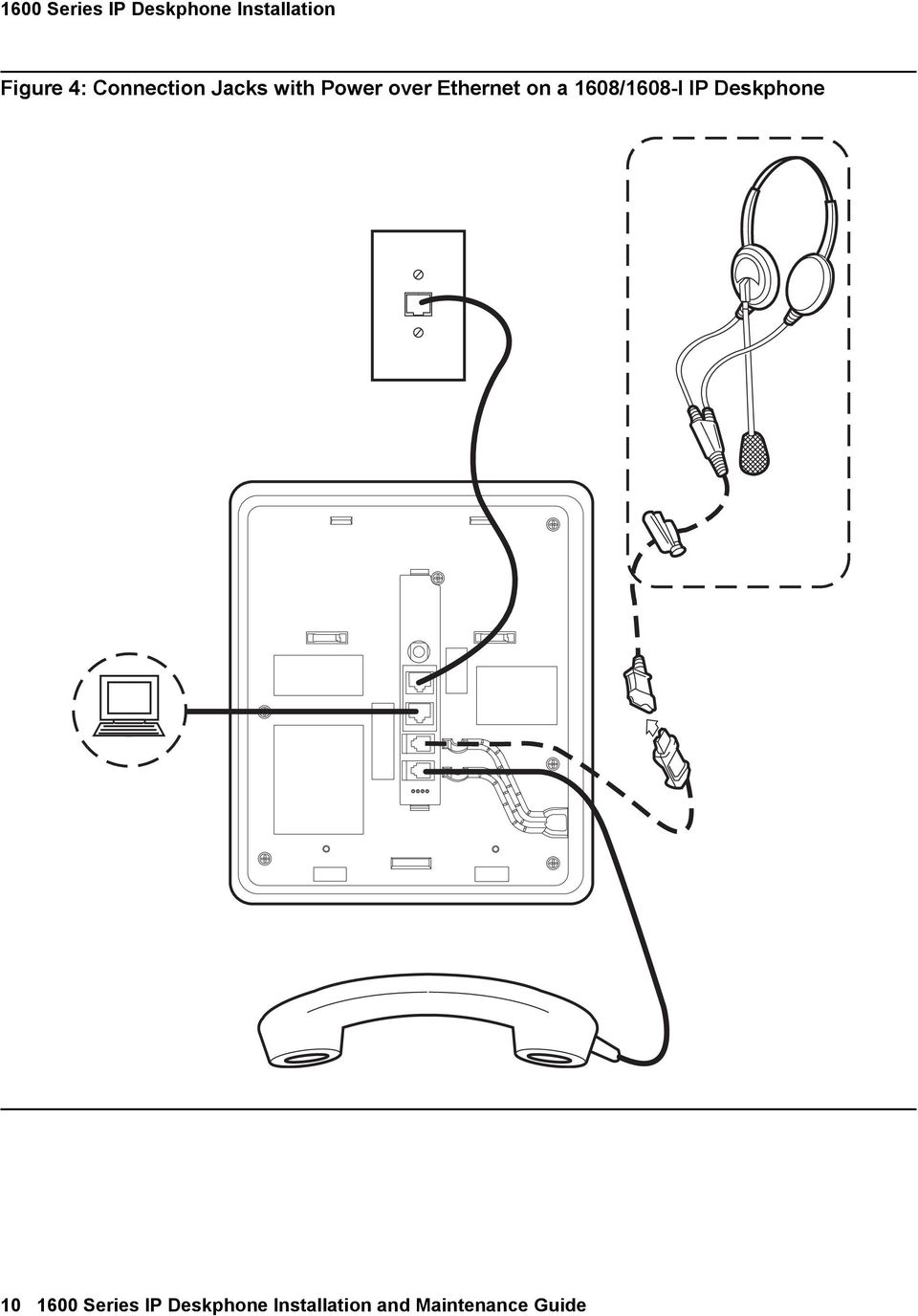
16 1600 Series IP Deskphone Installation The last step in assembling the 1600 Series IP Deskphone must be applying power. Apply power either by plugging the power cord into the power source (local powering) or plugging the modular line cord into the Ethernet wall jack (IEEE powering). Do not use the 1151 power adapter with these deskphones. For Brazilian user when using the 5V power adapter: For the user s safety and to avoid electric shock, this equipment must be connected to a grounded (three pin) electrical network power outlet according to Standard NBR ABNT Este equipamento deve ser conectado obrigatoriamente em tomada de rede de energia eletrica que possua aterramento (tres pinos), conforme a Norma NBR ABNT 5410, visando a seguranca dos usuarios contra choques eletricos.! CAUTION: CAUTION: Failure to connect the proper cables with the proper jacks might result in an outage in part of your network. Figure 1, Figure 2, Figure 3, Figure 4, Figure 5, Figure 6, and Figure 7 provide illustrations to connect cords to jacks on 1600 Series IP Deskphones. Use the illustrations and associated procedures as appropriate for deskphone assembly. IP Deskphone Model: See: 1603 Figure 1 and Figure I Figure 1 and Figure SW/1603SW-I Figure Figure 4 and Figure I Figure 4 and Figure Figure 6 and Figure I Figure 6 and Figure Series IP Deskphone Installation and Maintenance Guide

17 Assembling the 1600 Series IP Deskphone Figure 1: Connection Jacks with Power over Ethernet on a 1603/1603-I IP Deskphone Issue 6 August

18 1600 Series IP Deskphone Installation Figure 2: Connection Jacks with Local Power on a 1603/1603-I IP Deskphone Series IP Deskphone Installation and Maintenance Guide

19 Assembling the 1600 Series IP Deskphone Figure 3: Connection Jacks on a 1603SW/1603SW-I IP Deskphone Issue 6 August

20 1600 Series IP Deskphone Installation Figure 4: Connection Jacks with Power over Ethernet on a 1608/1608-I IP Deskphone Series IP Deskphone Installation and Maintenance Guide
21 Assembling the 1600 Series IP Deskphone Figure 5: Connection Jacks with Local Power on a 1608/1608-I IP Deskphone Issue 6 August
22 1600 Series IP Deskphone Installation Figure 6: Connection Jacks with Power over Ethernet on a 1616/1616-I IP Deskphone The BM32 Button Module shown in the lower left corner can also be attached to the deskphone with the connector packaged with the module Series IP Deskphone Installation and Maintenance Guide
23 Assembling the 1600 Series IP Deskphone Figure 7: Connection Jacks with Local Power on a 1616/1616-I IP Deskphone The BM32 Button Module shown in the lower left corner can also be attached to the deskphone with the connector packaged with the module. Issue 6 August
24 1600 Series IP Deskphone Installation 1. Plug one end of the first Cat5e ethernet cable into the Ethernet jack of the PC and the other end into the secondary Ethernet jack on the 1600 Series IP Deskphone, if appropriate. 2. Plug one end of the second Cat5e ethernet cable into the Ethernet jack on the 1600 Series IP Deskphone. Plug the other end of this cord into the Ethernet wall jack. If the deskphone is to be IEEE-powered, do not proceed to Step If the deskphone is to be powered locally, plug the power cord into the 1600 Series IP Deskphone and the power cord into the wall socket. Dynamic Addressing Process Before starting this process you must have an extension number for the IP deskphone and the Avaya Aura Communication Manager security code (password) for that extension, unless the deskphone will use unnamed registration. For more information, see Unnamed Registration on page 17. Any reference to the HTTP server applies equally to an HTTPS server. The following description of the process of installing the IP deskphones assumes that the process is executed successfully. Only an initial out of the box installation is described. For errors that might be encountered during the process and the messages displayed, see Chapter 5: Troubleshooting Guidelines. When you plug the IP Deskphone set into the Ethernet wall jack and apply power, if applicable, the following process takes place. If the application has already been downloaded, the whole process takes approximately 1 to 2 minutes after the deskphone is plugged in. For software upgrades, including the boot file and application file download, the process might take 5-10 minutes. The duration is based on LAN loading, how many deskphones are being installed at once, and similar factors. Do not unplug the power cord during the download process. 1. The deskphone activates the Ethernet line interface, the PC Ethernet jack, and dial pad input to allow the invocation of procedures. The activation occurs as soon as possible after power-up or a reset. The deskphone displays the speed of the Ethernet interface in Mbps, that is, 10 or 100. The message No Ethernet displays until the software determines whether the interface is 10 Mbps or 100 Mbps Series IP Deskphone Installation and Maintenance Guide
25 Dynamic Addressing Process The Ethernet speed indicated is the LAN interface speed for both the deskphone and any attached PC, assuming the administrator has not disabled the latter interface by a PHY2STAT setting. 2. The IP deskphone sends a request to the DHCP server and invokes the DHCP process. One of the following messages display: DHCP: s secs * to program DHCP: s secs VLAN ID = n DHCP: s secs where s is the number of seconds that have elapsed since DHCP was invoked. The message on the left appears if 802.1Q tagging is off and access to local programming procedures is not disabled or restricted. (See Chapter 3: Local Administrative Options for specifics.) The middle message appears if 802.1Q tagging is on and access to local programming procedures is disabled or restricted. If the left and middle messages alternate every two seconds, 802.1Q tagging is on. When both messages alternate, access to local programming procedures is not disabled or restricted. Finally, the message on the right appears if 802.1Q tagging is off and access to local programming procedures is disabled or restricted. 3. The DHCP server provides IP addresses for the following hardware: The IP deskphone The HTTP/HTTPS server The TN799C or D Control-LAN (CLAN) circuit pack on the media server 4. Using the list of gateway IP addresses provided by the DHCP server, the deskphone performs a router check. The deskphone cycles through the gateway IP addresses with ARPs or pings until it receives a response. When the router is located, the HTTP/HTTPS process starts. 5. While the IP deskphone connects to the HTTP/HTTPS server, the deskphone displays the following message: ipadd where n is the number of the IP address obtained from the HTTP/HTTPS server and ipadd is the IP address. 6. When connected, the deskphone looks for an upgrade script file. Issue 6 August
26 1600 Series IP Deskphone Installation 7. The HTTP/HTTPS server identifies and sends an upgrade script. The IP Deskphone sends the GET message multiple times till the HTTP server responds. At each instance, all IP deskphones display the following message: HTTP: n uri where, n is the number of HTTP requests sent by the deskphone and uri is the URI of the current HTTP request. Important:! Important: The maximum length of the URI filename string in the GET statement is 31 characters. 8. While the upgrade script file is being downloaded, all IP deskphones display the following message: sc etag where n is the number of the IP address obtained from the HTTP server, sc is the status code of the HTTP response and etag is the value of the ETag header. 9. While the application file is saved in flash memory, all IP deskphones display the following message: Saving to flash 1%, 1 secs with the percentage of the file and the number of elapsed seconds incremented as the application file is stored in flash memory. 10. The deskphone contacts the Avaya Media Server and attempts to log in. All IP deskphones display the following prompts for an extension: Enter Extension EXT= #=OK Series IP Deskphone Installation and Maintenance Guide
27 Unnamed Registration 11. Enter a new extension and press OK. To register the deskphone without the extension or password (unnamed), press only OK or make no entry and wait 60 seconds. Unnamed registration is the capability to register a deskphone with the call server without entry of an extension or password. The UNNAMEDSTAT parameter must be set to enable unnamed registration. Deskphones registered unnamed have limited functionality. For more information, see Unnamed Registration. All IP deskphones display the following prompt for a password: Login Enter Password Enter Password and press Enter or OK 12. Enter the password and press OK. To register the deskphone without the extension or password (unnamed), press OK or make no entry and wait 60 seconds. 13. The extension is visible as you enter it but the password displays as asterisks. The system determines whether the extension is in use. 14. Successful completion of this process produces a dial tone when the Speaker button is pressed or the handset is lifted. The IP deskphone was installed successfully. Unnamed Registration Unnamed registration is a capability an IP deskphone can have to register with a call server, and receive limited service, without requiring an extension and password entry. Typical environments where this functionality is useful include: Hot-desking environments where there is a period of time between one user logging out and another user logging in on the same deskphone. Using the Avaya Softphone application in road warrior mode, which allows a traveller to invoke the telephony features and functionality by taking over the office deskphone extension. This takeover unregisters the office deskphone. In both examples, the user unregisters the deskphone by logging off or by taking the office deskphone extension over to another deskphone. Without unnamed registration, the deskphone in the first example will just wait for an extension and password entry and the deskphone in the second example will continue attempting to register at regular intervals. The downside of a deskphone being unregistered is that no one can use the deskphone, for example, to report a building emergency like a fire. Issue 6 August
28 1600 Series IP Deskphone Installation Unnamed registration allows the deskphone to register without an extension and password. Because there is no extension, telephony functionality is limited, specifically: The user has only one call appearance, and hence, cannot transfer or conference calls. The user has no administered feature buttons, and cannot invoke on-hook dialing. Extension-based information, like a given user s Contacts data or Option settings are not available. The user is limited to the calling capability administered for PSA (Personal Station Access) on the call server, for example, access to an emergency number. Unless otherwise disabled, the deskphone automatically attempts to register unnamed if no action is taken on the deskphone Extension entry screen within 60 seconds. Initiating any ID or password entry disables and prevents unnamed registration from occurring. Unnamed registration is ignored after any dialpad entry. Administrators can disable unnamed registration by appropriately administering the system parameter UNNAMEDSTAT, as indicated in Chapter 7 of the Avaya 1600 Series IP Deskphones Administrator Guide. Unnamed registration appears to the end user like Avaya Aura Communication Manager TTI Mode, and is similar from an administration perspective. For more information about TTI, see your Avaya Aura Communication Manager documentation. Printing Button Labels You can download software from that enables you to print button labels for the 1600 series deskphones. To download this software, perform the following steps: 1. Using your web browser, go to 2. Click DESI downloads. 3. Download the appropriate application. If you are using Avaya Aura Communication Manager Branch, you can export the button settings from Avaya Aura Communication Manager Branch Device Manager and import the settings into the DESI application. For more information, see the Avaya Aura Communication Manager Branch Device Manager online help Series IP Deskphone Installation and Maintenance Guide
29 Chapter 3: Local Administrative Options Introduction After you have successfully installed an IP Deskphone, you might be instructed to administer one of the options described in this chapter. CAUTION: You can modify the settings file to set parameters for IP deskphones that download their upgrade script and application files from the same HTTP server. See Chapter 4: Maintaining 1600 Series IP Deskphones and 1600 Series IP Deskphone Scripts and Application Files in Chapter 4 of the Avaya 1600 Series IP Deskphones Administrator Guide.! CAUTION: Perform these procedures only if instructed to do so by the system or LAN administrator. Static administration of these options causes upgrades to work differently than if they are administered dynamically. Values assigned to options in static administration are not changed by upgrade scripts. These values remain stored in the deskphone until either: - a new boot file is downloaded, or - the IP deskphone is reset, as indicated in Reset System Values on page 20. Use these option-setting procedures only with static addressing and, as always, only if instructed by the system or LAN administrator. Do not use these option-setting procedures if you are using DHCP. DHCP is the Dynamic Addressing Process, as indicated in Dynamic Addressing Process on page 14. Entering Data for Administrative Options This section applies to all 1600 Series IP Deskphones and describes how to enter data for administrative options. 1. Invoke all local procedures by pressing the Mute button, up to 7 numeric dial pad buttons, and the # button. A 6-second timeout is in effect between button presses after pressing the Mute button. If you do not press a valid button within 6 seconds of pressing the previous button, the collected digits are discarded. In this case, no administrative option is invoked. Issue 6 August
30 Local Administrative Options 2. Attempts to enter invalid data are rejected, and the deskphone emits an error beep. 3. If you enter a numeric digit for a value or for an IP address or subnet mask field after entering only a zero, the new digit replaces the zero. 4. Press the # button to go to the next step. 5. To backspace, press the leftmost softkey. When you press the applicable button or key to backspace, the most recently entered digit or period is erased from the display. The cursor remains in the erased character s former position. 6. If PROCPSWD is administered as indicated in Chapter 7 of the Avaya 1600 Series IP Deskphones Administrator Guide, you must type the Local Procedure password after pressing Mute and before pressing the code for your given local programming option. If PROCSTAT has been administered to 1, you will not be able to invoke any administrative options other than V I E W. About Local Administrative Procedures Local administrative procedures allow you to customize the 1600 Series IP Deskphone installation for your specific operating environment. This section provides a description of each local administrative option covered in this guide, with references to the pages on which the option appears. Unless otherwise prohibited by administration, the user can view but not change most of the parameters associated with Local Administrative procedures. For more information about this option, see the applicable user guides. Local Programming Option Code See Set 802.1X operational mode X ( ) Set the 802.1X Operational Mode on page 3. Static addressing A D D R ( ) Static Addressing Installation on page 7. Automatic Gain Control A G C (2 4 2) Disable/Enable Automatic Gain Control on page 9. DHCP chaddr field value C H A D D R ( ) Manually Setting the DHCP Client Hardware Address on page 12. Clear values to factory defaults C L E A R ( ) Clear Procedure on page 13. Enable/disable Debug Mode D E B U G ( ) Disable/Enable Debug Mode on page Series IP Deskphone Installation and Maintenance Guide
31 Set the 802.1X Operational Mode Local Programming Option Code See Group Identifier G R O U P ( ) Group Identifier on page 15. Interface Control I N T (4 6 8) Interface Control on page 16. Event Logging L O G (5 6 4) Disable/Enable Event Logging on page 18. Reset the deskphone R E S E T ( ) Reset System Values on page 20. Restart the deskphone R E S E T ( ) Restart the Deskphone on page 21. Signaling protocol identifier (not applicable to Release 1.0) S I G (7 4 4) Signaling Protocol Identifier on page 22. Site-Specific Option number S S O N ( ) Site-Specific Option Number Setting on page 23. Test the deskphone T E S T ( ) Self-Test Procedure on page 24. View current parameter values and file names V I E W ( ) The View Administrative Option on page 2. Unless otherwise prohibited using administration, the user can view but not change most of the parameters associated with Local Administrative Procedures. For more information about this option, see the applicable user guide(s). Set the 802.1X Operational Mode Use the following procedure to set or change the operational mode. 1. While the deskphone is on-hook and idle, press the following sequence of keys on the faceplate of the deskphone: Mute # (Mute x #) Issue 6 August
32 Local Administrative Options Press the Mute button momentarily. Do not press this button while pressing other keys/ buttons. After entry of the command sequence, the following text displays: where the setting is the current value of the system value DOT1X (802.1X Supplicant Mode), defined as: Pass-thru mode if setting = 0 P-t w/logoff (pass-thru with Logoff) mode if setting = 1 Supplicant mode without pass-thru or p-t w/logoff if setting = 2 2. Perform one of the following steps: If you want to change the DOT1X mode value, go to Change the DOT1X Mode Value on page X=setting *=change #=OK If you want to change the DOT1XSTAT mode value go to Change the DOT1XSTAT Mode Value on page 5. Change the DOT1X Mode Value Use the following procedure to change the DOT1X mode value. 1. To change the mode value, press *. Depending on the current value, the next sequential valid mode value is selected and displayed as the setting. For example, if the current value is pass-thru (0), pressing * changes the value to 1 (p-t w/logoff). ("p-t w/logoff" stands for "pass-thru with Logoff".) If the current value is Supplicant mode (2), pressing * changes the value to 0 (pass-thru). If a value different from the current 802.1X value is entered, the following text displays left-justified at the top of the display: Save new value? *=no #=yes 2. Press the * button to terminate the procedure, or the # button to save the new value. If you press the # button, the deskphone displays the following text: New value being saved The deskphone saves the new value Series IP Deskphone Installation and Maintenance Guide
33 Pre-Installation Checklist for Static Addressing Change the DOT1XSTAT Mode Value Use the following procedure to change the DOT1XSTAT mode value. 1. Press #. The following text displays: Supplicant=setting *=change #=OK where the setting is the current value of the system value DOT1XSTAT (802.1X Supplicant Mode), defined as: Disabled if setting = 0 Unicast only if setting = 1 Unicast/multicast if setting = 2 2. To change the mode value, press *. Depending on the current value, the next sequential valid mode value is selected and displayed as the setting. For example, if the current value is Disabled (0), pressing * changes the value to 1 (Unicast only). If the current value is Unicast/multicast mode (2), pressing * changes the value to 0 (Disabled). If a value different from the current 802.1X value is entered, the following text displays left-justified at the top of the display: Save new value? *=no #=yes 3. Press the * button to terminate the procedure, or the # button to save the new value. If you press the # button, the deskphone displays the following text: New value being saved The deskphone saves the new value. Pre-Installation Checklist for Static Addressing Before performing static addressing, verify that all the requirements listed in the Verify These Network Requirements section of the Pre-Installation Checklist are met. You do not have to consider item 4. on page 3, as it refers to the DHCP server. In addition, you must have the values for the following parameters. Failure to do so can cause data entry errors that prevent the deskphone from working. Issue 6 August
34 Local Administrative Options Such errors can also have a negative impact on your network. Print copies of this checklist for each subnet. 1. The IP address of the media server. 2. The transport layer port number of the address of the Management Complex (media server/gatekeeper). Although this can be a value between 0 and 65535, the default value is Do not change this value unless it conflicts with an existing port assignment. 3. The IP address of the gateway/router. 4. The IP netmask. 5. The IP address of the HTTP server Series IP Deskphone Installation and Maintenance Guide
35 Static Addressing Installation Static Addressing Installation The usual way to assign IP addresses to IP Deskphones is the automatic method described in Dynamic Addressing Process on page 14. There might be times, however, when manual assignment of IP addresses is desired. CAUTION:! CAUTION: Static addressing is necessary when a DHCP server is unavailable. Because of the increased opportunities for text entry errors associated with static addressing, we very strongly recommend that a DHCP server be installed and static addressing avoided. Use the following procedure to invoke manual address information programming. 1. Start manual address programming by performing one of the following steps: a. During normal DHCP processing, press the * key while * to program displays during the DHCP process. or b. While the deskphone is on-hook and idle, press the following sequence of keys on the faceplate of the deskphone: Mute # (Mute A D D R #) Press the Mute button momentarily. Do not press this button while pressing other keys/ buttons. The deskphone displays: Phone=nnn.nnn.nnn.nnn New=_ where nnn.nnn.nnn.nnn is the current IP address system value of the deskphone. 2. Enter the deskphone s IP address followed by the # button. The deskphone displays: CallSv=nnn.nnn.nnn.nnn New=_ where nnn.nnn.nnn.nnn is the current system value of the media server/gatekeeper IP address. Issue 6 August
36 Local Administrative Options 3. Enter the Call server IP address followed by the # button. The deskphone displays: Router=nnn.nnn.nnn.nnn New=_ where nnn.nnn.nnn.nnn is the current system value of the gateway/router IP address. 4. Enter the Gateway router IP address followed by the # button. The deskphone displays: Mask=nnn.nnn.nnn.nnn New=_ where nnn.nnn.nnn.nnn is the current system value of the IP netmask. 5. Enter the IP netmask followed by the # button. The deskphone displays: FileSv=nnn.nnn.nnn.nnn New=_ where nnn.nnn.nnn.nnn is the current system value of the HTTP/HTTPS server IP address. 6. Enter the File server followed by the # button. The deskphone displays one of the following texts, depending on the current setting of the system parameter NVL2Q (802.1Q): If NVL2Q is 0: 802.1Q=auto *=change #=OK If NVL2Q is 1: 802.1Q=on *=change #=OK If NVL2Q is 2: 802.1Q=off *=change #=OK 7. Press * to change 802.1Q to the next sequential value. For example, if the current value is 0 (auto) pressing * changes it to 1 (on) and if the current value is 2 (off), pressing * changes it to 0 (auto). The display is updated to show the current status of 802.1Q Series IP Deskphone Installation and Maintenance Guide
37 Disable/Enable Automatic Gain Control 8. Press the # button to continue the procedure without changing the displayed status of 802.1Q The deskphone displays the following text: VLAN ID=dddd New=_ where dddd is the current system value of the VLAN ID. 9. Enter a valid value between 0 and 4094 for the new value of the VLAN ID. The deskphone displays the following message: VLAN test=ddd New=_ where ddd is the number of seconds to wait for the DHCPOFFER on a non-zero VLAN. 10. Enter a valid value between 0 and 999 for the new value of the DHCPOFFER wait period. The deskphone displays: Save new values? *=no #=yes 11. Press the # button to save the new values you entered. The deskphone displays: New values being saved Once the new values are stored, the deskphone is reset. If a new boot program is downloaded from the HTTP server after you enter static addressing information, you must reenter your static addressing information. Disable/Enable Automatic Gain Control Use the following procedure to turn automatic gain control for the handset, headset, and/or the Speaker on or off. The user can potentially override the AGC local procedure settings, as described in the deskphone user guide. If overridden, the backup file stores the AGC value(s) set by the user and ignores any setting established using this local procedure. Issue 6 August
38 Local Administrative Options 1. While the deskphone is on-hook and idle, press the following sequence of keys on the faceplate of the deskphone: Mute # (Mute A G C #) Press the Mute button momentarily. Do not press this button while pressing other keys/ buttons. 2. After entry of the command sequence, one of the following displays, based on the current value of the system value AGCHAND: If AGCHAND = 1: If AGCHAND = 0: Handset AGC=on 0=off #=OK Handset AGC=off 1=on #=OK 3. To change the AGC Handset value from On to Off, press 0. To change the AGC Handset value from Off to On, press 1. If the deskphone has a Headset interface one of the following displays, based on the current value of the system value AGCHEAD: If AGCHEAD = 1: If AGCHEAD = 0: Headset AGC=on 0=off #=OK Headset AGC=off 1=on #=OK If the deskphone does not have a headset interface, proceed to Step To change the AGC Headset value from On to Off, press 0. To change the AGC Headset value from Off to On, press 1. One of the following displays, based on the current value of the system value AGCSPKR: If AGCSPKR = 1: If AGCSPKR = 0: Speaker AGC=on 0=off #=OK Speaker AGC=off 1=on #=OK Series IP Deskphone Installation and Maintenance Guide
39 Disable/Enable Automatic Gain Control 5. To change the AGC Speaker value from On to Off, press 0. To change the AGC Speaker value from Off to On, press 1. If a value different from the current AGCHAND value and/or the current AGCHEAD value and/or the current AGCSPKR value is entered, the following text displays left-justified at the top of the display: Save new value? *=no #=yes 6. Press the * button to terminate the procedure, or the # button to save the new value(s). If you press the # button, the deskphone displays the following text: New value being saved The deskphone saves the new value(s). Issue 6 August
40 Local Administrative Options Manually Setting the DHCP Client Hardware Address Use this procedure to manually set or change the Client Hardware Address, if you use static addressing rather than DHCP. 1. While the deskphone is on-hook and idle, press the following sequence of keys on the deskphone s faceplate: Mute # (Mute C H A D D R #) Press the Mute button momentarily. Do not press this button while pressing other keys/ buttons. The deskphone displays the following text left-justified at the top of the display: chaddr=ddd New= where ddd is the value of NVCHADDR, the system variable for the DHCP Client Hardware Address. 2. To change the Client Hardware Address value, enter a valid client hardware address. This value is usually the MAC address, which DHCP then converts to an integer preceded by zeroes. For all IP deskphones, if a value different from the current value of NVCHADDR is entered, the following text displays left-justified at the top of the display: Save new value? *=no #=yes 3. Press the * button to terminate the procedure, or the # button to save the new value. If you press the # button, the deskphone displays the following text: New value being saved The deskphone saves the new value Series IP Deskphone Installation and Maintenance Guide
41 Clear Procedure Clear Procedure Sometimes, you might want to remove all administered values, user-specified data, and option settings. Essentially, you want to return a deskphone to its initial clean slate or out of the box condition. This is usually done when passing a deskphone to a new, dedicated user when the user s L O G O F F option is not sufficient. For example, a new user is assigned the same extension, but requires different permissions than the previous user. The C L E A R option erases all administered data static programming, file server and call server programming, and user settings including Contact button labels and locally programmed Feature button labels, and restores all such data to default values. The C L E A R option does not affect the software load itself. If you have upgraded the deskphone, the deskphone retains the latest software. Once you have cleared a deskphone, you can administer it normally.! CAUTION: CAUTION: This procedure erases all administered data, without any possibility of recovering the data. Use the following procedure to clear the deskphone of its administrative, user-assigned and options values. 1. While the deskphone is on-hook and idle, press the following sequence of keys on the faceplate of the deskphone: Mute # (Mute C L E A R #) Press the Mute button momentarily. Do not press this button while pressing other keys/ buttons. The following text displays left-justified at the top of the display: Clear all values? *=no #=yes 2. If you do not want to clear all values, press * (no) to terminate the procedure and retain the current values. A screen displays the following prompt on the top line: Are you sure? *=no #=yes Issue 6 August
42 Local Administrative Options 3. Press the * button to terminate the procedure without clearing the values. Press the # button to clear all values to their initial default values. A confirmation tone sounds and the following text displays left-justified at the top of the display: Clearing values. The deskphone is cleared to its out of the box state. Disable/Enable Debug Mode Use the following procedure to turn the debug mode for the button module serial port on or off. 1. While the deskphone is on-hook and idle, press the following sequence of keys on the faceplate of the deskphone: Mute # (Mute D E B U G #) Press the Mute button momentarily. Do not press this button while pressing other keys/ buttons. 2. After entry of the command sequence, the following displays, based on the current value of the system value NVDEBUG: If NVDEBUG = 1: If NVDEBUG = 0: Debug mode=on 0=off #=OK Debug mode=off 1=on #=OK If a value different from the current NVDEBUG value is entered, the following text displays left-justified at the top of the display: Save new value? *=no #=yes 3. Press the * button to terminate the procedure, or the # button to save the new value. If you press the # button, the deskphone displays the following text: New value being saved The deskphone saves the new value Series IP Deskphone Installation and Maintenance Guide
43 Group Identifier Group Identifier Use the following procedure to set or change the Group Identifier. Perform this procedure only if the LAN Administrator instructs you to do so. For more information about groups, see The GROUP System Value on page 5. While the deskphone is on-hook and idle, press the following sequence of keys on the faceplate of the deskphone: Mute (Mute G R O U P) Press the Mute button momentarily. Do not press this button while pressing other keys/ buttons. The following text displays left-justified at the top of the display: Group=ddd New=_ where ddd is the Group value. 1. Enter a valid Group value (0-999). If a value different from the current Group value is entered, the following text displays left-justified at the top of the display: Save new value? *=no #=yes 2. Press the * button to terminate the procedure, or the # button to save the new value. If you press the # button, the following text displays: New value being saved The new value is saved and the user interface is restored to its previous state. Issue 6 August
44 Local Administrative Options Interface Control Use the following procedure to set or change the interface control value. 1. While the deskphone is on-hook and idle, press the following sequence of keys on the faceplate of the deskphone: Mute # (Mute I N T #) Press the Mute button momentarily. Do not press this button while pressing other keys/ buttons. 2. After entry of the command sequence, deskphones with an internal Ethernet switch display the following text, depending on the current interface control value: PHY1=status *=change #=OK where status is the value of PHY1STAT, defined as: Status is auto when PHY1STAT = 1 Status is 10Mbps HDX when PHY1STAT = 2 Status is 10Mbps FDX when PHY1STAT = 3 Status is 100Mbps HDX when PHY1STAT = 4 Status is 100Mbps FDX when PHY1STAT = 5 3. To change the PHY1 value, press *. Depending on the current value, the next sequential valid PHY1 value is selected and displayed as the status. For example, if the current value is 10Mbps HDX (2), pressing * changes the value to 3 (10Mbps FDX) Series IP Deskphone Installation and Maintenance Guide
45 Interface Control 4. Press the * button to terminate the procedure, or the # button to save the new value. If you press the # button, the following text displays: PHY2=status *=change #=OK where status is the value of PHY2STAT, defined as: Status is disabled when PHY2STAT = 0 Status is auto when PHY2STAT = 1 Status is 10Mbps HDX when PHY2STAT = 2 Status is 10Mbps FDX when PHY2STAT = 3 Status is 100Mbps HDX when PHY2STAT = 4 Status is 100Mbps FDX when PHY2STAT = 5 5. To change the PHY2 value, press *. Depending on the current value, the next sequential valid PHY2 value is selected and displayed as the status. For example, if the current value is 10Mbps HDX (2), pressing * changes the value to 3 (10Mbps FDX). The following text displays left-justified at the top of the display: Save new value? *=no #=yes 6. Press the * button to terminate the procedure, or the # button to save the new values. If you press the # button, the following text displays. New value being saved The new values are saved and a restart occurs automatically. The user interface is restored to its previous state. Issue 6 August
46 Local Administrative Options Disable/Enable Event Logging Use the following procedure to enable or disable logging of system events. 1. While the deskphone is on-hook and idle, press the following sequence of keys on the faceplate of the deskphone: Mute # (Mute L O G #) Press the Mute button momentarily. Do not press this button while pressing other keys/ buttons. 2. After entry of the command sequence, the deskphone displays the following text, depending on the current value of the system parameter NVLOGSTAT: Log=status *=change #=OK where status is the type of logging indicated by the NVLOGSTAT value, defined as: Status is disabled when NVLOGSTAT = 0 Status is emergencies when NVLOGSTAT = 1 Status is alerts when NVLOGSTAT = 2 Status is critical when NVLOGSTAT = 3 Status is errors when NVLOGSTAT = 4 Status is warnings when NVLOGSTAT = 5 Status is notices when NVLOGSTAT = 6 Status is information when NVLOGSTAT = 7 Status is debug when NVLOGSTAT = 8 3. To change the logging status, press *. Depending on the current value, the next sequential valid NVLOGSTAT value is selected and displayed as the status. For example, if the current value is alerts (2), pressing * changes the value to 3 (critical). If the current value is debug (8), pressing * changes the value to 0 (disabled). If a value different from the current NVLOGSTAT value is entered, the following text displays left-justified at the top of the display: Save new value? *=no #=yes Series IP Deskphone Installation and Maintenance Guide
47 Logoff 4. Press the * button to terminate the procedure, or the # button to save the new value. If you press the # button, the deskphone displays the following text: New value being saved The deskphone saves the new value. Logoff Use the following procedure to log off a deskphone. CAUTION:! CAUTION: Once a deskphone is logged off, a password and extension might be needed to log back on. 1. While the deskphone is on-hook and idle, press the following sequence of keys on the faceplate of the deskphone: Mute # (Mute L O G O F F #) Press the Mute button momentarily. Do not press this button while pressing other keys/ buttons. 2. After entry of the command sequence, the deskphone unregisters from the call server. The deskphone display (and button module display, if applicable) clears, then displays the following prompt for subsequent login: Enter Extension EXT= #=OK Issue 6 August
48 Local Administrative Options Reset System Values Use the following procedure to reset all system values and system initialization values except AUTH and NVAUTH to the default values. It also resets the 802.1X identity and password to the default values. CAUTION:! CAUTION: This procedure erases all static information except the extension number and password, without any possibility of recovering the data. 1. While the deskphone is on-hook and idle, press the following sequence of keys on the faceplate of the deskphone: Mute # (Mute R E S E T #) Press the Mute button momentarily. Do not press this button while pressing other keys/ buttons. The IP deskphones display the following text left-justified at the top of the display: Reset values? *=no #=yes CAUTION:! CAUTION: As soon as you press the # button, all static information except the extension number and password will be erased, without any possibility of recovering the data. 2. If you do not want to reset the system values, press * (no) and proceed to Step 4. The following prompt displays on the top line: Are you sure? *=no #=yes 3. Press the * button to continue without resetting the values and proceed to Step 4. Or, press the # button to reset values to their defaults. All deskphones display the following text left-justified at the top of the display while the system values are reset to defaults: Resetting values. The deskphone resets from the beginning of registration, which takes a few minutes Series IP Deskphone Installation and Maintenance Guide
49 Restart the Deskphone 4. If you do not reset the deskphone, the deskphone displays the following prompt: Restart phone? *=no #=yes 5. Press the * key to terminate the procedure without restarting the deskphone. Otherwise, press # and perform the following Restart procedure. Restart the Deskphone Use the following procedure to restart the deskphone. 1. While the deskphone is on-hook and idle, press the following sequence of keys on the faceplate of the deskphone: Mute # (Mute R E S E T #) Press the Mute button momentarily. Do not press this button while pressing other keys/ buttons. The IP deskphones display the following text left-justified at the top of the display: Reset values? *=no #=yes 2. Press the # button to reset values to their defaults, or * to continue a restart without resetting the values to their defaults. The deskphones display the following text left-justified at the top of the display while the system values are reset to defaults: Resetting values. Once you press the * button to restart without resetting the values, the following prompt displays on all IP deskphones: Restart phone? *=no #=yes 3. Press the * key to terminate the procedure without restarting the deskphone. Press the # key to restart the deskphone. The remainder of the procedure depends on the status of the boot and application files. See Appendix A: Restart Scenarios. Issue 6 August
50 Local Administrative Options Signaling Protocol Identifier This procedure is provided for future use only, and is not currently applicable to Release 1.0. Use the following procedure to set or change the Signaling Protocol Identifier. A valid SIG Protocol Identifier is either 0 (default), 1 (H.323), or 2 (SIP). Perform this procedure only if the LAN Administrator instructs you to do so. 1. While the deskphone is on-hook and idle, press the following sequence of keys on the faceplate of the deskphone: Mute (Mute S I G) Press the Mute button momentarily. Do not press this button while pressing other keys/ buttons. The deskphone displays the following text left-justified at the top of the display: SIG=protocol *=change #=OK where protocol is the deskphone s signaling protocol (H.323, SIP, or default) corresponding to the numeric identifier (1, 2, or 0). 2. To change the SIG value, press *. Depending on the current value, the next sequential valid SIG value is selected and displayed as the protocol. I.e., if the current value is SIP (2), pressing * changes the value to 0 (default). If the current value is H.323 (1), pressing * changes the value to 2 (SIP). If a value different from the current Group value is entered, the deskphone displays the following text left-justified at the top of the display: Save new value? *=no #=yes 3. Press the * button to terminate the procedure, or the # button to save the new value. If you press the # button, the deskphone displays the following text: New value being saved The new value is saved. All deskphones display the following text left-justified at the top of the display: Restart phone? *=no #=yes Series IP Deskphone Installation and Maintenance Guide
51 Site-Specific Option Number Setting 4. Press the * (asterisk) key to terminate the procedure without restarting the deskphone. Press the # (pound) key to restart the deskphone. The remainder of this procedure depends on the status of the boot and application files. See Appendix A: Restart Scenarios. Site-Specific Option Number Setting! CAUTION: CAUTION: Do not perform this procedure if you are using static addressing. Perform this procedure only if you are using DHCP and the LAN administrator instructs you to do this. Use the following procedure to set the Site-Specific Option Number (SSON). 1. While the deskphone is on-hook and idle, press the following sequence of keys on the faceplate of the deskphone: Mute # (Mute S S O N #) Press the Mute button momentarily. Do not press this button while pressing other keys/ buttons. The deskphone displays the following text left-justified at the top of the display: SSON=ddd New=_ where ddd is the value of SSON. 2. Enter a valid value between 128 and 254 for the SSON. For all IP deskphones, if a value different from the current SSON value is entered, the following text displays left-justified at the top of the display: Save new value? *=no #=yes 3. Press the * button to terminate the procedure, or the # button to save the new value. If you press the # button, the deskphone displays the following text: New value being saved The deskphone saves the new value, and restores the user interface to its previous state. Issue 6 August
52 Local Administrative Options Self-Test Procedure 1600 Series IP Deskphones store two software code images in reprogrammable non-volatile memory. The primary image, called the big app must be running to perform a self-test. The backup image, called the little app does not support the self-test. For self-testing, use the following procedure: 1. To invoke 1600 Series IP Deskphone self-test procedures, press the following sequence of keys on the faceplate of the deskphone: Mute # (Mute T E S T #) Press the Mute button momentarily. Do not press this button while pressing other keys/ buttons. All deskphones show the following text, left-justified at the top of the display, for 1 second after self-test is invoked: Self test #=end A block character with all pixels on then displays in all display character locations for 5 seconds. Display of the block character helps to find bad display pixels. The deskphone displays one of the following: If self-test passes: Self test passed #=end If self-test fails: Self test failed #=end 2. To terminate the self-test, press the # button on the dial pad at any time. Doing so generates a confirmation tone, and returns the user interface to its previous state Series IP Deskphone Installation and Maintenance Guide
53 Chapter 4: Maintaining 1600 Series IP Deskphones Introduction This chapter covers the maintaining the 1600 Series IP Deskphones, for example, downloading a new deskphone software version from the Avaya support Web site. Note that the recommended configuration is the latest call server software and the latest IP Deskphone firmware. Downloading Software Upgrades The software releases containing the files needed to operate the 1600 Series IP Deskphones are bundled together in a self-extracting executable file you download to your file server from the Avaya support Web site at: The self-extracting executable file comes in both zipped and unzipped format. Currently, you have one bundle to download. That bundle contains: An upgrade script file and a settings file, which allow you to upgrade to new software releases and new functionality without having to replace IP deskphones. Application files for all current 1600 Series IP Deskphones. Other useful information such as a ReadMe file and a settings file template to customize parameters and settings. Download File Content Two configuration files on the file server are important to understand. Other files are needed when the Avaya IP Deskphones need an upgrade. The important files are: An upgrade script file, which tells the IP deskphone whether the deskphone needs to upgrade software. The Avaya IP Deskphones attempt to read this file whenever they reset. The upgrade script file is also used to point to the settings file. The settings file contains the option settings that enable, disable, or otherwise customize the settings you might need to tailor the Avaya IP Deskphones for your enterprise. You can use one settings file for all your Avaya IP Deskphones including the 1600 Series IP Deskphone, 9600 Series IP Deskphones, and 4600 Series IP Deskphones. Issue 6 August
54 Maintaining 1600 Series IP Deskphones In addition to the upgrade script and settings files, you need the latest binary code used in the Avaya IP Deskphones. Download Procedure The Avaya-provided upgrade script files and the binaries included in the zip files upgrade the Avaya IP Deskphones. You should not need to modify them. It is essential that all the binary files be together on the file server. When downloading a new release onto a file server with an existing release already on it, we recommend that you: Stop the file server. Back up all the current file server directories as applicable. Copy your 46xxsettings.txt file to a backup location. Remove all the files in the download directory. This ensures that you do not have an inappropriate binary or configuration file on the server. The only system values that can be used in the Conditional statement are: BOOTNAME, GROUP, and SIG. Download the self-extracting executable file, or the corresponding zip file. Extract all the files. Copy your 46xxsettings.txt file back into the download directory. Check the Readme files for release-specific information. Modify the 46xxsettings.txt file as desired. Restart the HTTP/HTTPS server. Reset your Avaya IP Deskphones. You can download a default upgrade script file, sometimes called merely the script file, from This file allows the deskphone to use default settings for customer-definable options. Of course, these settings can also be changed with DHCP or in some cases, from the deskphone s dialpad itself. However, you might want to open the default file and administer the options to add useful functionality to your Avaya IP Deskphones. This file must reside in the same directory as the upgrade script file, and must be called 46xxsettings.scr or 46xxsettings.txt. The Avaya IP Deskphones can operate without this file. Most Windows systems interpret the file extension *.scr as a screen saver. The 4600 IP Deskphones originally used *.scr to indicate a script file. We highly recommend that the settings file have the extension *.txt. The settings file can include any of the five types of statements, one per line: Comments, which are statements with a # character in the first column. Tags, which are comments that have exactly one space character after the initial #, followed by a text string with no spaces Series IP Deskphone Installation and Maintenance Guide
55 Downloading Software Upgrades Goto commands, of the form GOTO tag. Goto commands cause the deskphone to continue interpreting the settings file at the next line after a # tag statement. If no such statement exists, the rest of the settings file is ignored. Conditionals, of the form IF $name SEQ string GOTO tag. Conditionals cause the Goto command to be processed if the value of name is a case-insensitive equivalent to string. If no such name exists, the entire conditional is ignored. SET commands, of the form SET parameter_name value. Invalid values cause the specified value to be ignored for the associated parameter_name so the default or previously administered value is retained. All values must be text strings, even if the value itself is numeric, a dotted decimal IP address, etc. Enclose all data in quotation marks for proper interpretation. The Avaya-provided upgrade script file includes lines that tell the deskphone to GET 46xxsettings.scr and 46xxsettings.txt. These lines cause the deskphone to use HTTP/HTTPS to attempt to download the file specified in the GET command. If the file is obtained, its contents are interpreted as an additional script file. That is how your settings are changed from the default settings. If the file cannot be obtained, the deskphone continues processing the upgrade script file. The upgrade script file is processed so that if there is no 46xxsettings.scr file, the deskphone looks for a 46xxsettings.txt file. If the settings file is successfully obtained but does not include any setting changes the deskphone stops using HTTP. This happens when you initially download the script file template from the Avaya support Web site, before you make any changes. When the settings file contains no setting changes, the deskphone does not go back to the upgrade script file. You can change the settings file name, if desired, as long as you also edit the corresponding GET command in the upgrade script file. However, we encourage you not to alter the Avaya-provided upgrade script file. If Avaya changes the upgrade script file in the future, any changes you have made will be lost. We strongly encourage you to use the 46xxsettings file to customize your settings instead. For more details on customizing your settings file, see Contents of the Settings File on page 4. Issue 6 August
56 Maintaining 1600 Series IP Deskphones Contents of the Settings File After checking the application software, the 1600 Series IP Deskphone looks for a 46xxsettings file. This optional file is under your control and is where you can identify non-default option settings, application-specific parameters, etc. You can download a template for this file from the Avaya support Web site. An example of what the file could look like follows. The following is intended only as a simple example. Your settings will vary from the settings shown. This sample assumes specification of a DNS Server, turning off enhanced local dialing, and a Web Browser. SET DNSSRVR dnsexample.yourco.com SET ENDIALSTAT 0 SET WMLHOME SET WMLPROXY See Chapter 7 in the Avaya 1600 Series IP Deskphones Administrator Guide for details about specific values. You need only specify settings that vary from defaults, although specifying defaults is harmless. Downloading Language Files Language files must be stored in the same location as the 46xxsettings file or under the HTTP Server directory, defined using the SET HTTPDIR_HTTP server directory path command. You can download a new language file version only if the filename differs from the language file previously downloaded. Alternately, you can remove the old language file using an empty SET LANGxFILE command in the 46xxsettings file before downloading a language file with the same filename. Downloading Font Files for 1600 Series International Deskphones The font file must be stored in the same location as the 46xxsettings file or under the HTTP Server directory, defined using the SET HTTPDIR_HTTP server directory path command. You can download a new font tile version only if the filename differs from the font file previously downloaded. Alternately, you can remove the old font file using an empty SET FONTFILE command in the 46xxsettings file before downloading a font file with the same filename Series IP Deskphone Installation and Maintenance Guide
57 The GROUP System Value The GROUP System Value You might have different communities of end users, all of which have the same model deskphone, but which require different administered settings. For example, you might want to restrict Call Center agents from being able to Logoff, which might be an essential capability for hot-desking associates. We provide examples of the group settings for each of these situations later in this section. The simplest way to separate groups of users is to associate each of them with a number. Use the GROUP system value for this purpose. The GROUP system value cannot be set in the 46xxsettings file. The GROUP system value can only be set on a deskphone-by-deskphone basis. To do so, first identify which deskphones are associated with which group, and designate a number for each group. The number can be any integer from 0 to 999, with 0 as the default, meaning your largest group would be assigned as Group 0. Then, at each non-default deskphone, instruct the installer or end-user to invoke the GROUP Local (dialpad) Administrative procedure as specified in Chapter 3: Local Administrative Options and specify which GROUP number to use. Once the GROUP assignments are in place, edit the configuration file to allow each deskphone of the appropriate group to download its proper settings. Here is an illustration of a possible settings file for the example of a Call Center with hot-desking associates at the same location: IF $GROUP SEQ 1 goto CALLCENTER IF $GROUP SEQ 2 goto HOTDESK {specify settings unique to Group 0} goto END # CALLCENTER {specify settings unique to Group 1} goto END # HOTDESK {specify settings unique to Group 2} # END {specify settings common to all Groups} Issue 6 August
58 Maintaining 1600 Series IP Deskphones Series IP Deskphone Installation and Maintenance Guide
59 Chapter 5: Troubleshooting Guidelines Introduction This chapter describes problems that might occur during both installation and normal operation of the 1600 Series IP Deskphone and possible ways of resolving these problems. This chapter contains the following sections: Descriptions of error conditions and methods for resolving them. The use of the V I E W option to view system values. Error and status messages, and methods for resolving them. Error Conditions There are three areas where installers can troubleshoot problems before seeking assistance from the system or LAN administrator: 1. Check both the power and Ethernet wiring for the following conditions: Whether all components are plugged in correctly. Check LAN connectivity in both directions to all servers - DHCP, HTTP, HTTPS, Avaya Aura Communication Manager or Avaya Aura Communication Manager Branch. If the deskphone is supposed to be powered from the LAN, ensure that the LAN is properly administered and is compliant with IEEE 803.3af. 2. If you are using static addressing: Use the View command to find the names of the files being used and verify that these filenames match those on the HTTP/HTTPS server. See The View Administrative Option on page 2 for more information. Check the Avaya Web site to verify whether the correct files are being used. Use the ADDR option to verify IP addresses. See Static Addressing Installation on page 7 for information. 3. If the 1600 Series IP Deskphone is not communicating with the system (DHCP, HTTP, or Avaya Media Server), make a note of the last message displayed, as described in Table 2 and/or Table 3. Consult the system administrator. 4. If you expect the deskphone to be IEEE-powered, verify with the LAN administrator that IEEE power is indeed supported on the LAN. Issue 6 August
60 Troubleshooting Guidelines Slow computer response during high data traffic When you connect your computer to the 10/100 Ethernet port on the 1608 IP Deskphones, you might experience a delay in the throughput during high data traffic. Upgrade to the firmware release R1.2 available on support.avaya.com. A 10/100 capable device can connect to the 10/100 protocol and communicate on 10/ 100 networks. The actual throughput might vary according to the setup. DTMF Tones H.323 deskphones do not send DTMF tones to non-h.323 deskphones. The failure to hear DTMF tones sent by a far-end 1600 Series IP Deskphone does not require any action on the user s part. The TN2302AP board does not pass in-band DTMF tones. Power Interruption If power to a 1600 Series IP Deskphone is interrupted while the deskphone is saving the application file, the HTTP/HTTPS application can stop responding. If this occurs, restart the HTTP/HTTPS server. The View Administrative Option If you are using static addressing and encounter problems, use the following procedure to verify the current values of system parameters and file versions. Unless otherwise prevented using administration, the user can view but not change most of the parameters associated with Local Administrative Procedures. For more information about this option, see the applicable user guide(s). If the View Network Information option is not available due to being disabled by administration, use the ADDR option to view IP addresses. See Static Addressing Installation in Chapter 3: Local Administrative Options. The IP addresses might have been entered incorrectly. Verify whether you were provided with correct IP addresses Series IP Deskphone Installation and Maintenance Guide
61 The View Administrative Option 1. While the deskphone is on-hook and idle, press the following sequence of keys on the faceplate of the deskphone: Mute # (Mute V I E W #) Press the Mute button momentarily. Do not press this key while pressing other keys. The following text displays left-justified at the top of the display: View settings *=next #=exit 2. Press the * button at any time during viewing to display the next name and system value pair or filename from Table 1. The first pair returns after the last pair displays. Values that cannot display on one line wrap to the next line. Press the # button at any time during viewing to terminate the procedure and restore the user interface to its previous state. The names and values display in the following order: Table 1: Parameter Values Name System Value Format Model 16ccDccc Up to 8 ASCII characters: MODEL value. Phone SN cccccccccccccccccc Deskphone Serial Number, up to 18 ASCII characters. PWB SN cccccccccccccccccc Printed Wiring Board (circuit board) Serial Number, up to 18 ASCII characters. Applies only to 16xx IP Deskphones that have a software-readable PWB serial number and comcode. PWB comcode nnnnnnnnn 9 ASCII numeric characters. Applies only to 16xx IP Deskphones that have a software-readable PWB serial number and comcode. MAC address hh:hh:hh:hh:hh:hh Each octet of the MAC address displays as a pair of hexadecimal numbers. L2 tagging ccccccccc Up to 9 ASCII characters: on if NVL2Q = 1 off if NVL2Q = 2 auto: on if NVL2Q = 0 and 802.1Q tagging is on auto: off if NVL2Q = 0 and 802.1Q tagging is off 1 of 3 Issue 6 August
62 Troubleshooting Guidelines Table 1: Parameter Values (continued) Name System Value Format VLAN ID cccc Up to 4 ASCII characters. Value is L2QVLAN if 802.1Q tagging is on or none of 802.1Q tagging is off. IP address nnn.nnn.nnn.nnn Up to 15 ASCII characters: IPADD value. Subnet mask nnn.nnn.nnn.nnn Up to 15 ASCII characters: NETMASK value. Router nnn.nnn.nnn.nnn Up to 15 ASCII characters: the IP address of the router in use. File server nnn.nnn.nnn.nnn.nnnnn Up to 21 ASCII characters: IP address and port of last file server used successfully during initialization or if no file server was used successfully. Call server nnn.nnn.nnn.nnn.nnnnn Up to 21 ASCII characters: IP address and port of the call server currently in use, otherwise X If DOT1X = 0 If DOT1X = 1 If DOT1X = 2 pass-thru mode. p-t w/logoff (pass-thru with Logoff). Supplicant mode. Group nnn Up to 3 ASCII numeric characters: GROUP value. Protocol: cccccccc filename.ext cccccccc Ethernet bootcodename Up to 8 ASCII characters, currently only H to 32 ASCII characters. The name of the primary ("big app") image file currently stored in the deskphone (endptappinuse). 2 to 7 ASCII characters, either 100Mbps, 10Mbps, or No depending on the current speed of the Ethernet line interface. 1 to 32 ASCII characters. The name of the backup ("little app") image file currently stored in the deskphone (endptbootname). Button Module 1 cccccccccccccc Up to 14 ASCII characters. The version identifier of the software in the Button Module, if applicable. 2 of Series IP Deskphone Installation and Maintenance Guide
63 The View Administrative Option Table 1: Parameter Values (continued) Name System Value Format Button Module 2 cccccccccccccc Up to 14 ASCII characters. The version identifier of the software in the Button Module, if applicable. Button Module 3 cccccccccccccc Up to 14 ASCII characters. The version identifier of the software in the Button Module, if applicable. 3 of 3 Issue 6 August
64 Troubleshooting Guidelines Installation Error and Status Messages The 1600 Series IP Deskphones issue messages in English only. The IP deskphones also display messages from the switch, which can issue messages in the local language outside the United States. The 1600 Series IP Deskphones issue messages in the currently selected language, or if the deskphone is logged off, in the language specified by the LANGSYS parameter value. If English is not the selected language, the deskphone displays messages in English only when they are associated with local procedures, for example, MUTE V I E W. Most of the messages in Table 2 display only for about 30 seconds, and then the deskphone resets. The most common exception is Extension in Use, which requires manual intervention. Table 2: Possible Error and Status Messages During Installation of 1600 Series IP Deskphones Message Cause/Resolution 802.1X Failure CAUSE: Incorrect credentials provided for authentication or not provided at all. RESOLUTION: Follow the display prompts and reenter the 802.1X ID and password. Address CAUSE: The deskphone has detected an IP address conflict. Conflict RESOLUTION: Verify administration to identify duplicate IP address(es). Bad FileSv Address Bad Router? Call Error Contacting call server... CAUSE: The HTTP/HTTPS server IP address in the IP deskphone s memory is all zeroes. RESOLUTION: Depending on the specific requirements of your network, this may not be an error. If appropriate, either administer the DHCP server with the proper address of the HTTP/HTTPS server, or administer the deskphone locally using the ADDR option. The ADDR option is explained in Chapter 3: Local Administrative Options. CAUSE: The deskphone cannot find a router based on the information in the DHCP file for GIPADD. RESOLUTION: Use static addressing to specify a router address, or change administration on DHCP, as indicated in the 1600 Series IP Deskphone Administrator Guide. CAUSE: The user was on a call when the connection to the gatekeeper went down, perhaps due to a network outage or a gatekeeper problem. The deskphone attempted to automatically register with the same, or another, gatekeeper, but the responding gatekeeper had no record of the call. RESOLUTION: Wait for the call to end, and if the deskphone does not automatically register, restart the deskphone. CAUSE: The deskphone has rebooted successfully and is moving on to attempt to register with the call server. RESOLUTION: Allow the deskphone to continue. 1 of Series IP Deskphone Installation and Maintenance Guide
65 Installation Error and Status Messages Table 2: Possible Error and Status Messages During Installation of 1600 Series IP Deskphones (continued) Message DHCP: CONFLICT * to program Discover aaa.bbb.ccc.ddd Discovering... EEPROM error, repair required Emergency Option Extension Error Extension in Use Finding router... Cause/Resolution CAUSE: At least one of the IP address offered by the DHCP server conflicts with another address. RESOLUTION: Review DHCP server administration to identify duplicate IP address(es). CAUSE: The deskphone is attempting to find a call server, and the user is allowed to view IP addresses. RESOLUTION: If this message appears for more than a few seconds, verify with the LAN Administrator that a DHCP server is appropriately administered on the network. If there is not supposed to be a DHCP server, you must break into the Discovering process and use static addressing. See Static Addressing Installation on page 7. To break into the Discovering process, press the # button, and when you see the 100Mbs or 10Mbs message, quickly press the * (asterisk) button. CAUSE: The 16xx deskphone is attempting to find a call server and the user is not allowed to view IP addresses. RESOLUTION: If this message appears for more than a few seconds, verify with the LAN Administrator that a DHCP server is appropriately administered on the network. If there is not supposed to be a DHCP server, you must break into the Discovering process and use static addressing. See Static Addressing Installation on page 7. To break into the Discovering process, press the # button, and when you see the "1000Mbps", 100Mbps or 10Mbps message, quickly press the * (asterisk) button. CAUSE: Downloaded application file was not downloaded or saved correctly. RESOLUTION: The deskphone automatically resets and attempts to re-initialize. CAUSE: Incompatible emergency option. RESOLUTION: This should never happen. Contact Avaya. CAUSE: The call server does not recognize the extension entered. RESOLUTION: Confirm the extension is correct and is correctly administered on the switch. Then try registration again, taking particular care to enter the extension accurately. CAUSE: The call server detects an extension conflict with an existing set or Softphone. RESOLUTION: You can force the current deskphone to register, and thereby disconnect the other user, by pressing #. The 1600 Series IP Deskphone prompts you again for the extension and password. If you enter the same extension and password, you are asked to confirm that you want to unregister the original user. Press # to unregister the original user and to register the current deskphone. Then press * to reset the deskphone and enter a different extension and password. CAUSE: The deskphone is proceeding through boot-up. RESOLUTION: Allow the deskphone to continue. 2 of 4 Issue 6 August
66 Troubleshooting Guidelines Table 2: Possible Error and Status Messages During Installation of 1600 Series IP Deskphones (continued) Message Gatekeeper Error Gateway Error Incompatible Invalid file IP Address Error License Error Limit Error NAPT Error Network connectivity has been lost. Trying to reestablish... No Ethernet Cause/Resolution CAUSE: The gatekeeper rejects the registration attempt for an unspecified reason. RESOLUTION: Review gatekeeper/call server administrations, including IP network parameters. CAUSE: DEFINITY Release 8.4 does not have an H.323 station extension for this deskphone. RESOLUTION: On the station administration screen, ensure the DCP set being aliased for this IP deskphone has an H.323 station extension administered, in accordance with switch administration instructions. Since the 1600 Series IP Deskphones are not supported on DEFINITY Release 8.4, you must upgrade to a release that does support these deskphones. CAUSE: This release of the call server does not support the current version of the IP deskphone. RESOLUTION: Upgrade to the current version of Avaya Aura Communication Manager (3.1 or later) software. CAUSE: The deskphone does not have sufficient room to store the downloaded file. RESOLUTION: Verify the proper filename is administered in the script file, and that the proper application file is located in the appropriate location on the HTTP/HTTPS server. CAUSE: The gatekeeper reports an invalid IP address. RESOLUTION: This should never happen. Contact Avaya. CAUSE: The call server does not support IP telephony. RESOLUTION: Contact Avaya to upgrade your license. CAUSE: The call server has reached its limit of IP stations. RESOLUTION: Unregister deskphones not in use, or contact Avaya to upgrade your license. CAUSE: A device between the deskphone and the call server is invoking Network Address Port Translation, which the 1600 Series IP Deskphones do not support. RESOLUTION: Contact the System Administrator to remove or re-administer the device. CAUSE: The deskphone has detected a loss of signal on the Ethernet interface lasting longer than about one second. RESOLUTION: Check power and cabling. CAUSE: When first plugged in, the IP deskphone is unable to communicate with the Ethernet. RESOLUTION: Verify the connection to the Ethernet jack, verify the jack is Category 5, verify power is applied on the LAN to that jack, etc. 3 of Series IP Deskphone Installation and Maintenance Guide
67 Installation Error and Status Messages Table 2: Possible Error and Status Messages During Installation of 1600 Series IP Deskphones (continued) Message Packet Error Password Error Request Error Restarting... Subnet conflict System busy System Error Undefined Error Updating: DO NOT UNPLUG THE deskphone Wrong Set Type Cause/Resolution CAUSE: Protocol timeout error. RESOLUTION: Reenter the correct extension and password. If the condition persists, contact the System Administrator. CAUSE: The call server does not recognize the password entered. RESOLUTION: Confirm the password is correct, then try registration again, taking particular care to enter the password accurately. CAUSE: The gatekeeper believes the deskphone s registration request is improperly formatted. RESOLUTION: The deskphone will automatically attempt to register with the next gatekeeper on its list. If the problem persists, reboot the deskphone. CAUSE: The deskphone is in the initial stage of rebooting. RESOLUTION: Allow the deskphone to continue. CAUSE: The deskphone is not on the same VLAN subnet as the router. RESOLUTION: Administer an IP address on the deskphone using Static Addressing Installation, or administer network equipment to administer the deskphone appropriately. CAUSE: Most likely, the number of IP endpoints on the call server is already at maximum, Less likely, network resource is unavailable. RESOLUTION: The deskphone was attempting to access a network resource (DHCP server, HTTP server, or the call server) and was not successful. Check the resource being called upon for its availability. If the resource appears operational and properly linked to the network, verify that addressing is accurate and that a communication path exists in both directions between the deskphone and the resource. CAUSE: The call server has an unspecified problem. RESOLUTION: Consult your Avaya Media Server administration and troubleshooting documentation. CAUSE: The call server has rejected registration for an unspecified reason. RESOLUTION: Consult your Avaya Media Server administration and troubleshooting documentation. CAUSE: The deskphone is updating its software image. RESOLUTION: Allow the deskphone to continue. CAUSE: The call server does not recognize the set type. RESOLUTION: Ensure the call server is properly administered to expect the appropriate deskphone for the IP address and extension. 4 of 4 Issue 6 August
68 Troubleshooting Guidelines Operational Errors and Status Messages Table 3 identifies some of the possible operational problems that might be encountered after successful 1600 Series IP Deskphone installation. The user guide for a specific deskphone model also contains troubleshooting for users having problems with specific IP deskphone applications. Most of the problems reported by 1600 Series IP Deskphone users are not likely to be problems with the deskphone itself. Problems are more likely LAN-based, where Quality of Service, server administration, and other issues can impact end-user perception of IP deskphone performance. Table 3: Operational Error Conditions for 1600 Series IP Deskphones Condition The deskphone continually reboots, or reboots continuously about every 15 minutes. The message light on the deskphone turns on and off intermittently, but the deskphone never registers. The deskphone stops working in the middle of a call, AND no lights are lit on the deskphone and the display is not lit. AND power to the deskphone is fine (and the deskphone might have gone through the restarting sequence). Cause/Resolution CAUSE: The deskphone cannot find the call server. RESOLUTION: Ensure that MCIPADD is administered either manually or through DHCP or HTTP, as appropriate. CAUSE: This might be a firmware fault because the MAC address in memory is corrupted. RESOLUTION: Return the deskphone to Avaya for repair. CAUSE: This is a hardware fault. RESOLUTION: The deskphone must be returned to Avaya for repair. CAUSE: Loss of power. RESOLUTION: Check the connections between the deskphone, the power supply, and the power jack. For example, verify that either static addressing was not used or that any changes to static addresses were entered correctly. CAUSE: Loss of path to Avaya Media Server, DHCP Lease expired, or DHCP server not available when deskphone attempts to renegotiate DHCP lease. RESOLUTION: As above. 1 of Series IP Deskphone Installation and Maintenance Guide
69 Operational Errors and Status Messages Table 3: Operational Error Conditions for 1600 Series IP Deskphones (continued) Condition The deskphone was working, but does not work now, AND no lights are lit on the deskphone and the display is not lit. AND power to the deskphone is fine, but there is no dial tone. The display might show System Busy. AND the deskphone was recently moved. AND the network was recently changed to upgrade or replace servers, re-administer the Avaya Media Server, add or change NAT, etc. Cause/Resolution CAUSE: Loss of power. RESOLUTION: Check the connections between the deskphone, the power supply, and the power jack. CAUSE: Loss of communication with the call server. RESOLUTION: Check LAN continuity from the call server to the deskphone using ARP or trace-route and from the deskphone to the call server by invoking a Feature button. Verify that LAN administration has not changed for the Gatekeeper, TN 2302AP boards, or the LAN equipment (routers, servers, etc.) between the switch and the deskphone. Verify no one changed the deskphone settings locally using the VIEW and ADDR codes, as described earlier in this guide. Verify the deskphone volume is set high enough. Finally, conduct a self-test. CAUSE: Loss of communication with the call server. RESOLUTION: As above, but pay particular attention to the possibility that the deskphone is being routed to a different DHCP server, or even a different call server switch. If so, the new server or switch might need to be administered to support the deskphone. CAUSE: Loss of communication with the call server. RESOLUTION: As above. 2 of 6 Issue 6 August
70 Troubleshooting Guidelines Table 3: Operational Error Conditions for 1600 Series IP Deskphones (continued) Condition The deskphone works, but the audio quality is poor, specifically: the user hears echo when speaking on a handset. the user hears echo on a headset, but not on a handset. the user is on Speaker and hears no echo, but the far-end hears echo. the user experiences sudden silences such as gaps in speech, or static, clipped or garbled speech, etc. the user hears fluctuations in the volume level which are worse when the Speaker is on, or at the beginning of a call, or when a call goes from no one talking abruptly to a loud voice. The deskphone works properly except for the Speaker. Cause/Resolution CAUSE: Echo from digital-to-analog conversion on your Avaya Media Server trunk. RESOLUTION: Verify which trunk is causing the echo, and swap the trunk s Trunk Termination parameter on the call server. CAUSE: Improper headset adapter. RESOLUTION: Replace adapter with Avaya s M12LU or 3412-HIC adapters. We recommend the M12LU, since it supports Automatic Gain Control. CAUSE: Room acoustics. RESOLUTION: Ensure that there are six inches or so of blank space to the right of the deskphone. If that is insufficient, use the handset. CAUSE: Jitter, delay, dropped packets, etc. RESOLUTION: You can have the user provide diagnostic data by invoking the Network Information feature under the A (Avaya) button on the deskphone. One or more Quality of Service (QoS) features should be implemented in the network as covered in Chapter 3: Local Administrative Options. CAUSE: Improper non-category 5 wiring. RESOLUTION: Replace non-category 5 wiring with Category 5 wiring. CAUSE: The user has changed the Automatic Gain Control (AGC) or environmental acoustics are not consistent with the current audio settings. RESOLUTION: Try different on/off settings for the AGCHAND, AGCHEAD, and AGCSPKR parameters. CAUSE: The Speaker was turned off at the call server. RESOLUTION: Administer the call server to allow that station s Speaker to operate. If that does not work, do a self-test on the deskphone, as explained in the Self-Test Procedure on page of Series IP Deskphone Installation and Maintenance Guide
71 Operational Errors and Status Messages Table 3: Operational Error Conditions for 1600 Series IP Deskphones (continued) Condition The deskphone works properly, except incoming DTMF tones are not received. The deskphone works properly, except sidetone DTMF is not heard. Hands-Free Answer (HFA) is administered but the deskphone did not automatically answer a call. The HTTP/HTTPS script file and settings file are ignored (not being used by the deskphone). The HTTP/HTTPS script file is ignored or not used by the deskphone, AND the HTTP/ HTTPS server is a LINUX or UNIX system. AND deskphone administration recently changed. Cause/Resolution CAUSE: The TN2302AP board does not pass in-band DTMF tones. RESOLUTION: None; the board is operating as designed. CAUSE: call server suppresses sidetone DTMF. RESOLUTION: On call server administration, on the Change-System-Parameters screen, enable On-Hook Dialing. If the user has Hands-Free Answer (HFA), answers a call using the Speaker and switches to the handset, pressing dialpad buttons does not send DTMF tones. This is a known bug, and the only current resolution is to disable HFA. CAUSE: HFA only works if the deskphone is idle. A second call is ignored if it comes in while a call is in progress, including ringing before the first call is answered. RESOLUTION: None. CAUSE: The system value AUTH is set to 1 (HTTPS required) but no valid address is specified in TLSSRVR. RESOLUTION: Change AUTH to 0 (zero), or enter a valid address for TLSSRVR. CAUSE: The deskphone expects lines of the script file to terminate with a <Carriage Return> <Line Feed>. Some UNIX applications only terminate lines with <Line Feed>. Editing the script file with a UNIX-based editor can strip <Carriage Return>s from the file. Doing so causes the entire file to be treated as a comment, and thus be ignored. RESOLUTION: Edit the script file with a Windows -based editor, or another editor that does not strip out the <Carriage Return>. CAUSE: UNIX and LINUX systems use case-sensitive addressing and file labels. RESOLUTION: Verify the file names and path in the script file are accurately specified. CAUSE: The 16xxupgrade.txt file was edited incorrectly, renamed, etc. RESOLUTION: Download a clean copy of the 16xxupgrade.txt file from the Avaya support Web site at and do not edit or rename it. Customize or change only the 46xxsettings file, as discussed in Chapter 4: Maintaining 1600 Series IP Deskphones. 4 of 6 Issue 6 August
72 Troubleshooting Guidelines Table 3: Operational Error Conditions for 1600 Series IP Deskphones (continued) Condition Some settings in the settings file are being ignored while other settings are being used properly. Some settings in the settings file are being ignored while other settings are being used properly, AND the setting being ignored is one or more of the AGC settings. Deskphone power is interrupted while the deskphone is saving the application file and the HTTP/HTTPS application stops responding. The user indicates an application or option is not available. User data disappeared when the user logged off one deskphone and logged into another deskphone. Cause/Resolution CAUSE: Improper settings file administration. RESOLUTION: Verify that customized settings are correctly spelled and formatted. CAUSE: The user changed the AGC setting(s), which were placed in the backup/restore file of the user. RESOLUTION: The user can reset the AGC value(s) back to the desired setting(s), or the backup file can be edited to delete the custom AGC settings. CAUSE: The HTTP/HTTPS server stops responding if power is interrupted while a deskphone is saving the application file. RESOLUTION: Restart the HTTP/HTTPS server, as applicable. CAUSE: The 46xxsettings script file is not pointed to accurately, or is not properly administered to allow the application. RESOLUTION: Assuming the user is meant to have that application, verify the 46xxsettings script file is properly specified for your system, including case if your file server is UNIX or LINUX, and extension. Then, verify all the relevant parameters indicated in Table 7 of the Avaya 1600 Series IP Deskphones Administrator Guide are accurately specified in the 46xxsettings file. CAUSE: The second deskphone is unable to access the backup file. RESOLUTION: Verify that the first deskphone created a backup file by checking that the appropriate administration was done in accordance with Chapter 7 of the Avaya 1600 Series IP Deskphones Administrator Guide. Then verify that the second deskphone is administered to retrieve data from the same location as the first deskphone. Again, check that the appropriate administration was done in accordance with Chapter 7 of the Avaya 1600 Series IP Deskphones Administrator Guide. Finally, verify that the HTTP server on which the backup file is located is operational and accessible from the second deskphone. 5 of Series IP Deskphone Installation and Maintenance Guide
73 Operational Errors and Status Messages Table 3: Operational Error Conditions for 1600 Series IP Deskphones (continued) Condition The user reports BM32 buttons are not labeled when they should be. The user reports personalized labels cannot be placed on the BM32 buttons, AND the user has tried using the Program AD button feature. AND the user has tried using the Personalize Labels option on the deskphone. Cause/Resolution CAUSE: Improper administration on the call server. RESOLUTION: Verify correct administration. CAUSE: Improper administration on the call server. RESOLUTION: Verify correct administration. CAUSE: The user has been pressing the BM32 button to indicate which button to relabel. RESOLUTION: Relabeling is not supported on the BM32. 6 of 6 Issue 6 August
74 Troubleshooting Guidelines Series IP Deskphone Installation and Maintenance Guide
75 Appendix A: Restart Scenarios Scenarios for the Restart Process The sequence of the restart process depends on the status of the boot and application files. This appendix explains the different scenarios possible. The file names used in this appendix are examples only. Your particular file names are likely to be different. Restart the Deskphone Use the following procedure to restart the deskphone. 1. While the deskphone is on-hook and idle, press the following sequence of keys on the faceplate of the deskphone: Mute # (Mute R E S E T #) Press the Mute button momentarily. Do not press this key while pressing other keys. The following text displays left-justified at the top of the display: Reset values? *=no #=yes 2. Press the # button to continue the procedure. The following text displays left-justified at the top of the display while the system values are reset to defaults: Resetting values. Once you press the * button to restart without resetting the values, the following prompt displays: Restart phone? *=no #=yes Issue 6 August
76 Restart Scenarios 3. Press the * key to terminate the procedure without restarting the deskphone. Press the # key to restart the deskphone. The remainder of the procedure depends on the status of the boot and application files: If this condition applies: Boot File Needs to be Upgraded Latest Boot File Loaded/No Application File or Application File Needs to be Upgraded Latest Boot File and System-Specific Application File Already Loaded See: Boot File Needs to be Upgraded on page 3. Latest Boot File Loaded/No Application File or Application File Needs to be Upgraded on page 6. Latest Boot File and System-Specific Application File Already Loaded on page Series IP Deskphone Installation and Maintenance Guide
77 Scenarios for the Restart Process Boot File Needs to be Upgraded The deskphone automatically downloads an upgraded boot file if applicable. In this case, these messages appear: The deskphone displays: Restarting... While the hardware is being initialized, the deskphone displays: Initializing While either the application file if there is one or the boot code is uncompressed into RAM, the deskphone displays: Loading: 5 secs replboot_v3.app 4084KB This message counts the seconds as the application file (replboot_v3.app in this example) is being written into RAM. When control is passed to the software that was just loaded, the following messages display: Starting... Updating boot code... DO NOT UNPLUG THE PHONE! This message continues while the new boot code is being written into RAM. The deskphone displays the speed of the Ethernet interface in Mbps, that is, 0, 10, or 100. The message No Ethernet displays until the software determines whether the interface is 10 Mbps or 100 Mbps. Issue 6 August
78 Restart Scenarios The Ethernet speed indicated is the LAN interface speed for both the deskphone and any attached PC, assuming the administrator has not disabled the latter interface through the PHY2STAT setting. The software determines whether sufficient IP address information was downloaded. In this scenario, it is discovered that sufficient information has not been downloaded. The following message displays while the DHCP process is invoked: DHCP: 0 secs * to program The number of elapsed seconds is incremented once per second, until DHCP successfully completes. While the IP Deskphone establishes a TCP connection to the HTTP server, the deskphone displays the following message: ipadd where n is the number of the IP address obtained from the HTTP server and ipadd is the IP address. The following message displays while the HTTP process is invoked: HTTP: n uri The number increments once per second, until the HTTP server responds. While the upgrade script file is being downloaded, all IP deskphones display the following message: sc etag where n is the number of the IP address obtained from the HTTP server, sc is the status code of the HTTP response and etag is the value of the ETag header. The script file is processed. The software determines that the deskphone s boot code file name (BOOTNAME) is not the latest version. APPNAME is set to the name of an application file to Series IP Deskphone Installation and Maintenance Guide
79 Scenarios for the Restart Process replace the boot code. The following message displays while the application file is downloaded into RAM: app_filename n KB received where n is the number of KBs downloaded. The following message displays while the application file is stored in flash memory: Saving to flash n%, x secs where n is the percentage of the file stored, and x is the number of elapsed seconds. This usually takes longer than the file download. The following message displays while the deskphone is reset so the application file can be executed: Restarting... While the boot code is rewritten, the deskphone displays: Updating... n%, x secs where n is the percentage of boot code rewritten and x is the number of elapsed seconds during rewriting. When the new boot code is successfully written into the flash memory, the application corrupts its own checksum stored in flash. The application then resets the deskphone so the latest system-specific application file can be downloaded. Continue with the next procedure. Issue 6 August
80 Restart Scenarios Latest Boot File Loaded/No Application File or Application File Needs to be Upgraded This procedure occurs with normal application file upgrades. The deskphone displays: Restarting... The deskphone detects and displays the speed of the Ethernet interface in Mbps, that is, 0, 10, or 100. The message No Ethernet displays until the software determines whether the interface is 10 Mbps or 100 Mbps Series IP Deskphone Installation and Maintenance Guide
81 Scenarios for the Restart Process The Ethernet speed indicated is the LAN interface speed for both the deskphone and any attached PC. The software determines whether sufficient IP address information was downloaded. In this scenario, it is discovered that sufficient information has not been downloaded. The following message displays while the DHCP process is invoked: DHCP: 0 secs * to program The number of elapsed seconds is incremented once per second, until DHCP successfully completes. While the IP deskphone establishes a TCP connection to the HTTP server, the deskphone displays the following message: ipadd where n is the number of the IP address obtained from the HTTP server and ipadd is the IP address. The following message displays while the HTTP process is invoked: HTTP: n uri The number increments once per second, until the HTTP server responds. While the upgrade script file is being downloaded from the HTTP server, all IP deskphones display the following message: sc etag where n is the number of the IP address obtained from the HTTP server, sc is the status code of the HTTP response and etag is the value of the ETag header. The script file is processed. The software determines that the name of the boot code file in the deskphone (BOOTNAME) is not the latest version. APPNAME is set to the name of an application Issue 6 August
82 Restart Scenarios file to replace the boot code. The following message displays while the application file is downloaded into RAM: app_filename n KB received where n is the number of KBs downloaded. The following message displays while the application file is stored in flash memory: Saving to flash n%, x secs where n is the percentage of the file that was stored, and x is the number of elapsed seconds. This usually takes longer than the file s download. The deskphone is reset so the new system-specific application file can be executed. Continue with the next procedure. Latest Boot File and System-Specific Application File Already Loaded This happens with normal resets. The deskphone displays: Restarting... The deskphone detects and displays the speed of the Ethernet interface in Mbps, that is, 0, 10, or 100. The message No Ethernet displays until the software determines whether the interface is 10 Mbps or 100 Mbps Series IP Deskphone Installation and Maintenance Guide
83 Scenarios for the Restart Process The Ethernet speed indicated is the LAN interface speed for both the deskphone and any attached PC. The software determines whether sufficient IP address information was downloaded. In this scenario, it is discovered that sufficient information has not been downloaded. The following message displays while the DHCP process is invoked: DHCP: 0 secs * to program The number of elapsed seconds is incremented once per second, until DHCP successfully completes. While the IP deskphone establishes a TCP connection to the HTTP server, the deskphone displays the following message: ipadd where n is the number of the IP address obtained from the HTTP server and ipadd is the IP address. The following message displays while the HTTP process is invoked: HTTP: n uri The number increments once per second, until the HTTP server responds. While the upgrade script file is being downloaded from the HTTP server, all IP deskphones display the following message: sc etag where n is the number of the IP address obtained from the HTTP server, sc is the status code of the HTTP response and etag is the value of the ETag header. The script file is processed. The software determines that the name of the boot code file in the deskphone (BOOTNAME) is the latest version, and the name of the application file in the deskphone is the same as APPNAME. System-specific registration with the Avaya media server is invoked. When registration finishes, a dial tone is available on the deskphone. Issue 6 August
84 Restart Scenarios Series IP Deskphone Installation and Maintenance Guide
85 Appendix B: Glossary of Terms Terms Used in This Guide 802.1P 802.1Q defines a layer 2 frame structure that supports VLAN identification and a QoS 802.1Q mechanism usually referred to as 802.1P X Authentication method for a protocol requiring a network device to authenticate with a back-end Authentication Server before gaining network access. Applicable 1600 Series IP Deskphones support IEEE 802.1X for pass-through and for Supplicant operation with the EAP-MD5 authentication method. ARP Address Resolution Protocol, used, for example, to verify that the IP address provided by the DHCP server is not in use by another IP Deskphone. CLAN Control LAN, type of Gatekeeper circuit pack. DHCP Dynamic Host Configuration Protocol, an IETF protocol used to automate IP address allocation and management. DiffServ Differentiated Services, an IP-based QoS mechanism. DNS Domain Name System, an IETF standard for ASCII strings to represent IP addresses. The Domain Name System (DNS) is a distributed Internet directory service. DNS is used mostly to translate between domain names and IP addresses. Avaya 1600 Series IP Deskphones can use DNS to resolve names into IP addresses. In DHCP, TFTP, and HTTP files, DNS names can be used wherever IP addresses were available as long as a valid DNS server is identified first. Gatekeeper H.323 application that performs essential control, administrative, and managerial functions in the media server. Sometimes called CLAN in Avaya documents. H.323 A TCP/IP-based protocol for VoIP signaling. HTTP Hypertext Transfer Protocol, used to request and transmit pages on the World Wide Web. HTTPS A secure version of HTTP. IETF Internet Engineering Task Force, the organization that produces standards for communications on the internet. LAN Local Area Network. MAC Media Access Control, ID of an endpoint. QoS Quality of Service, used to refer to several mechanisms intended to improve audio quality over packet-based networks. Unnamed Registration with Avaya Aura Communication Manager by an IP deskphone with no Registration TLS Unnamed Registration VLAN VoIP extension. Allows limited outgoing calling. Transport Layer Security, an enhancement of Secure Sockets Layer (SSL). TLS is compatible with SSL 3.0 and allows for privacy and data integrity between two communicating applications. Registration with Avaya Aura Communication Manager by an IP deskphone with no extension. Allows limited outgoing calling. Virtual LAN. Voice over IP, a class of technology for sending audio data and signaling over LANs. Issue 6 August
86 Glossary of Terms Series IP Deskphone Installation and Maintenance Guide
87 Appendix C: Related Documentation IETF Documents The following documents provide standards relevant to IP Telephony and are available for free from the IETF Web site: Requirements for Internet Hosts - Communication Layers, October 1989, by R. Braden (STD 3: RFC 1122) Requirements for Internet Hosts - Application and Support, October 1989, by R. Braden (STD 3: RFC 1123) Internet Protocol (IP), September 1981, by Information Sciences Institute (STD 5: RFC 791), as amended by Internet Standard Subnetting Procedure, August 1985, by J. Mogul and J. Postel (STD 5: RFC 950) Broadcasting Internet Datagrams, October 1984, by J. Mogul (STD 5: RFC 919) Broadcasting Internet Datagrams in the Presence of Subnets, October 1984, by J. Mogul (STD 5: RFC 922) User Datagram Protocol (UDP), August 28, 1980, by J. Postel (STD 6: RFC 768) Transmission Control Protocol (TCP), September 1981, by Information Sciences Institute (STD 7: RFC 793) Domain Names - Concepts and Facilities (DNS), November, 1987, by P. Mockapetris (STD 13: RFC 1034) Domain Names - Implementation and Specification (DNS), November 1987, by P. Mockapetris (STD 13: RFC 1035) An Ethernet Address Resolution Protocol (ARP), November 1982, by David C. Plummer (STD 37: RFC 826) Dynamic Host Configuration Protocol (DHCP), March 1997, by R. Droms (RFC 2131) DHCP Options and BOOTP Vendor Extensions, March 1997, by S. Alexander and R. Droms (RFC 2132) RTP: A Transport Protocol for Real-Time Applications (RTP/RTCP), January 1996, by H. Schulzrinne, S. Casner, R. Frederick, V. Jacobson (RFC 1889) Definition of the Differentiated Services Field (DS Field) in the IPv4 and IPv6 Headers, (DIFFSRV), December 1998, by K. Nichols, S. Blake, F. Baker and D. Black (RFC 2474) Management Information Base for Network Management of TCP/IP Internets: MIB-II, March 1991, edited by K. McCloghrie and M. Rose (RFC 1213) Issue 6 August
88 Related Documentation SNMPv2 Management Information Base for the Internet Protocol using SMIv2, November 1996, edited by K. McCloghrie (RFC 2011) Structure of Management Information Version 2 (SMIv2), April 1999, edited by K. McCloghrie, D. Perkins, and J. Schoenwaelder (RFC 2578) Resource ReSerVation Protocol VI, September 1997, by R. Braden, L. Zhang, S. Berson, S. Herzog, and S. Jamin (RFC 2205) The TLS Protocol Version 1.0, January 1999, by T. Dierks and C. Allen (RFC 2246) ITU Documents The following documents are available for a fee from the ITU Web site: Recommendation G.711, Pulse Code Modulation (PCM) of Voice Frequencies, November 1988 Recommendation G.722, 7 khz Audio-Coding within 64 kbit/s, November 1988 Recommendation G.729, Coding of speech at 8 kbit/s using Conjugate-Structure Algebraic-Code-Excited Linear-Prediction (CS-ACELP), March 1996 Annex A to Recommendation G.729: Reduced complexity 8 kbit/s CS-ACELP speech codec, November 1996 Annex B to Recommendation G.729: A silence compression scheme for G.729 optimized for terminals conforming to Recommendation V.70, November 1996 Recommendation H.225.0, Call signalling protocols and media stream packetization for packet-based multimedia communications systems, February 1998 Recommendation H.245, Control protocol for multimedia communication, February 1998 Recommendation H.323, Packet-based multimedia communications systems, February Series IP Deskphone Installation and Maintenance Guide
89 ISO/IEC, ANSI/IEEE Documents The following documents are available for a fee from the ISO/IEC standards Web site: International Standard ISO/IEC :1998 ANSI/IEEE Std 802.2, 1998 Edition, Information technology - Telecommunications and information exchange between systems - Local and metropolitan area networks- Specific requirements- Part 2: Logical Link Control ISO/IEC : 1998 ANSI/IEEE Std 802.1D, 1998 Edition, Information technology- Telecommunications and information exchange between systems- Local and metropolitan area networks- Common specifications- Part 3: Media Access Control (MAC) Bridges IEEE Std 802.1Q-1998, IEEE Standards for Local and Metropolitan Area Networks: Virtual Bridged Local Area Networks IEEE Std 802.3af-2003, IEEE Standard for Information technology- Telecommunications and information exchange between systems- Local and metropolitan area networks- Specific requirements- Part 3: Carrier Sense Multiple Access with Collision Detection (CSMA/CD) Access Method and Physical Layer Specifications- Amendment: Data Terminal Equipment (DTE) Power via Media Dependent Interface (MDI) Issue 6 August
90 Related Documentation Series IP Deskphone Installation and Maintenance Guide
91 Index Index Numerical 1600 Series IP Telephone Assembling the Installation Models Powering the Requirements Restart Series IP Telephones Maintenance X Operational Mode, Setting the A About This Guide ADDR Option Administrative Options Entering Data for Local AGC ANSI/IEEE Documents Assembling the 1600 Series IP Telephone Automatic Gain Control, Disable/Enable B Boot File, upgrading the button labels C Clear Procedure Client Hardware Address Connection Jacks for 1603 Series IP Telephones.. 7, 8 Connection Jacks for 1608 Series IP Telephones. 10, 11 Connection Jacks for 1616 Series IP Telephones.12, 13 Contents of the Settings File Customer Support D Debug Procedure DHCP Client Hardware Address Disable Automatic Gain Control (AGC) Disable Event Logging Document Organization Download File Content Download Procedure Downloading Language Files Downloading Software Upgrades DTMF Tones Dynamic Addressing Process E Enable Automatic Gain Control (AGC) Enable Event Logging Entering Data for Administrative Options Error and Status Messages, Installation Error Conditions Event Logging F Font Files, Downloading from G Glossary of Terms Group Identifier GROUP System Value I IEC/ISO Documents IEEE/ANSI Documents IETF Documents Installation Intended Audience, for this document Interface Control IP Telephone Models ISO/IEC, ANSI/IEEE Documents ITU Documents L Language Files, Downloading Local Administrative Options Local Administrative Procedures, About LOG Procedure Logoff Procedure Avaya - Proprietary. Use pursuant to the terms of your signed agreement or Avaya policy. DRAFT - August 04, :22 PM 1600 Series IP Deskphone Installation and Maintenance Guide August
92 Index M Maintaining 1600 Series IP Telephones O Operational Errors and Status Messages Other Documentation P Parameter Values Power Interruption Powering the 1600 Series IP Telephone Pre-Installation Checklist Pre-Installation Checklist for Static Addressing R Related Documentation Requirements, for each IP Telephone Reset Boot File and System-Specific Application File Already Loaded Boot File Loaded/No Application File or Application File Needs to be Upgraded Boot File Needs to be Upgraded Reset System Values Restart Process, Scenarios for the Restart Scenarios Restart the Telephone TEST Procedure Troubleshooting DTMF Tones Error Conditions Guidelines for Installation Error and Status Messages Operational Errors and Status Messages Parameter Values Power Interruption VIEW Administrative Option U Unnamed Registration Upgrade Application File Boot File V VIEW Administrative Option S Scenarios for the Restart Process Self-Test Settings File, Contents SIG Procedure Signaling Protocol Identifier Site-Specific Option Number Setting Software Software Upgrades, Downloading SSON Procedure Static Addressing Installation Pre-Installation Checklist System Parameter Values, troubleshooting System Values, Reset T Technical Support Terms, Glossary of Avaya - Proprietary. Use pursuant to the terms of your signed agreement or Avaya policy. DRAFT - August 04, :22 PM 1600 Series IP Deskphone Installation and Maintenance Guide August
93 Index Avaya - Proprietary. Use pursuant to the terms of your signed agreement or Avaya policy. DRAFT - August 04, :22 PM 1600 Series IP Deskphone Installation and Maintenance Guide August
94 Index Avaya - Proprietary. Use pursuant to the terms of your signed agreement or Avaya policy. DRAFT - August 04, :22 PM 1600 Series IP Deskphone Installation and Maintenance Guide August
95 Index Avaya - Proprietary. Use pursuant to the terms of your signed agreement or Avaya policy. DRAFT - August 04, :22 PM 1600 Series IP Deskphone Installation and Maintenance Guide August
96 Index Avaya - Proprietary. Use pursuant to the terms of your signed agreement or Avaya policy. DRAFT - August 04, :22 PM 1600 Series IP Deskphone Installation and Maintenance Guide August
97 Index Avaya - Proprietary. Use pursuant to the terms of your signed agreement or Avaya policy. DRAFT - August 04, :22 PM 1600 Series IP Deskphone Installation and Maintenance Guide August
98 Index Avaya - Proprietary. Use pursuant to the terms of your signed agreement or Avaya policy. DRAFT - August 04, :22 PM 1600 Series IP Deskphone Installation and Maintenance Guide August
99 Index Avaya - Proprietary. Use pursuant to the terms of your signed agreement or Avaya policy. DRAFT - August 04, :22 PM 1600 Series IP Deskphone Installation and Maintenance Guide August
100 Index Avaya - Proprietary. Use pursuant to the terms of your signed agreement or Avaya policy. DRAFT - August 04, :22 PM 1600 Series IP Deskphone Installation and Maintenance Guide August
Avaya one-x Deskphone Edition for 9600 Series IP Telephones Installation and Maintenance Guide Release 3.1
 Avaya one-x Deskphone Edition for 9600 Series IP Telephones Installation and Maintenance Guide Release 3.1 16-300694 Issue 7 November 2009 2009 Avaya Inc. All Rights Reserved. Notice While reasonable efforts
Avaya 1400 Series Digital Deskphones for Avaya Aura Communication Manager Installation and Maintenance Guide Release 1.0
 Avaya 1400 Series Digital Deskphones for Avaya Aura Communication Manager Installation and Maintenance Guide Release 1.0 16-603143 Issue 1 May 2010 2010 Avaya Inc. All Rights Reserved. Notice While reasonable
4600 Series IP Telephone Installation Guide
 4600 Series IP Telephone Installation Guide 555-233-128 Issue 4 August 2006 2006 Avaya Inc. All Rights Reserved. Notice While reasonable efforts were made to ensure that the information in this document
Avaya one-x Deskphone Edition for SBM24 Button Module User Guide
 Avaya one-x Deskphone Edition for SBM24 Button Module User Guide 16-300701 Issue 2 January 2007 2007 Avaya Inc. All Rights Reserved. Notice While reasonable efforts were made to ensure that the information
Installing and maintaining Avaya B189 Conference IP Phone
 Installing and maintaining Avaya B189 Conference IP Phone Release 1.0 16-604293 Issue 1 January 2014 2013 Avaya Inc. All Rights Reserved. Notice While reasonable efforts have been made to ensure that the
Avaya 1608/1608-I IP Deskphone User Guide
 Avaya 1608/1608-I IP Deskphone User Guide 16-601446 Issue 2 February 2010 2009 Avaya Inc. All Rights Reserved. Notice While reasonable efforts were made to ensure that the information in this document
Avaya 1616/1616-I IP Deskphone User Guide
 Avaya 1616/1616-I IP Deskphone User Guide 16-601448 Issue 2 February 2010 2009 Avaya Inc. All Rights Reserved. Notice While reasonable efforts were made to ensure that the information in this document
Avaya 9400 Series Digital Deskphones for Avaya Aura Communication Manager Installation and Maintenance Guide Release 1.0
 Avaya 9400 Series Digital Deskphones for Avaya Aura Communication Manager Installation and Maintenance Guide Release 1.0 16-603533 Issue 1 August 2011 2011 Avaya Inc. All Rights Reserved. Notice While
Using Avaya B189 Conference IP Phone
 Using Avaya B189 Conference IP Phone Release 1.0 16-604295 Issue 1 January 2014 2013 Avaya Inc. All Rights Reserved. Notice While reasonable efforts have been made to ensure that the information in this
Administering Communication Manager for Avaya one-x Agent
 Administering Communication Manager for Avaya one-x Agent Release 2.0 November 2009 2009 Avaya Inc. All Rights Reserved. Notice While reasonable efforts were made to ensure that the information in this
Avaya one-x Deskphone Edition for 9630/9630G IP Telephone User Guide
 Avaya one-x Deskphone Edition for 9630/9630G IP Telephone User Guide 16-300700 Issue 3 May 2007 Contents Contents Notices... 5 Introduction to the 9630/9630G IP Telephone... 7 Overview... 7 Scrolling and
Avaya one-x Deskphone Edition for 9620 IP Telephone User Guide
 Avaya one-x Deskphone Edition for 9620 IP Telephone User Guide 16-300699 Issue 3 January 2007 Contents Contents Notices... 5 Introduction to the 9620 IP Telephone... 7 Overview... 7 About Scrolling and
Avaya one-x Deskphone Edition for 9640 IP Telephone User Guide
 Avaya one-x Deskphone Edition for 9640 IP Telephone User Guide 16-600910 Issue 1 January 2007 Contents Contents Notices... 5 Introduction to the 9640 IP Telephone... 7 Overview... 7 About Scrolling and
Avaya Aura Contact Center Integration with salesforce.com for Access to Knowledge Management
 Avaya Aura Contact Center Integration with salesforce.com for Access to Knowledge Management August 2010 2010 Avaya Inc. All Rights Reserved. Notice While reasonable efforts were made to ensure that the
How To Use Avaya For Free
 1403 Phone User Guide 15-601013 Issue 02c - (01 April 2011) 2011 AVAYA All Rights Reserved. Notice While reasonable efforts were made to ensure that the information in this document was complete and accurate
Avaya 9400 Series Digital Deskphone User Guide for Avaya Aura Communication Manager
 Avaya 9400 Series Digital Deskphone User Guide for Avaya Aura Communication Manager 16-603535 Issue 1 August 2011 2011 Avaya Inc. All Rights Reserved. Notice While reasonable efforts have been made to
4690 IP Conference Telephone. Release 2.0 User s Guide
 4690 IP Conference Telephone Release 2.0 User s Guide 555-233-787 Issue 2.0 February 2006 2006 Avaya Inc. All Rights Reserved. Notice While reasonable efforts were made to ensure that the information in
Avaya 1408 and 1416 Telephones - connected to Integral Enterprise - User Guide
 Avaya 1408 and 1416 Telephones - connected to Integral Enterprise - User Guide 16-603463 Issue 1.09 January 2010 2009 Avaya Inc. All Rights Reserved. Notice While reasonable efforts were made to ensure
Avaya one-x Deskphone Edition for 9630/9630G IP Telephone User Guide
 Avaya one-x Deskphone Edition for 9630/9630G IP Telephone User Guide 16-300700 Issue 4 May 2008 Contents Contents Notices...5 Introduction to the 9630/9630G IP Telephone...7 Overview...7 Scrolling and
Administering Avaya one-x Agent with Central Management
 Administering Avaya one-x Agent with Central Management Release 2.0 November 2009 2009 Avaya Inc. All Rights Reserved. Notice While reasonable efforts were made to ensure that the information in this document
IP Office IP Office Softphone Installation
 Softphone Installation - Issue 1a - (15 March 2010) 2010 AVAYA All Rights Reserved. Notices While reasonable efforts have been made to ensure that the information in this document is complete and accurate
Setting Up the Cisco Unified IP Phone
 CHAPTER 3 This chapter includes the following topics, which help you install the Cisco Unified IP Phone on an IP telephony network: Before You Begin, page 3-1 Understanding the Cisco Unified IP Phone 7962G
IP Office Avaya Radvision Interoperation Notes
 Avaya Radvision Interoperation Notes Issue 1d (02 October 2012) 2012 AVAYA All Rights Reserved. Notices While reasonable efforts have been made to ensure that the information in this document is complete
IP Office. 1403 Phone User Guide. 15-601013 Issue 04a - (16 January 2015)
 1403 Phone User Guide 15-601013 Issue 04a - (16 January 2015) 2015 AVAYA All Rights Reserved. Notice While reasonable efforts have been made to ensure that the information in this document is complete
Setting Up the Cisco IP Phone
 CHAPTER 3 This chapter includes this following topics, which help you install the Cisco IP Phone on an IP telephony network: Before You Begin, page 3-1 Installing the Cisco IP Phone, page 3-6 Adjusting
NetComm V90 VoIP Phone Quick Start Guide Draft Release 0.1
 NetComm V90 VoIP Phone Quick Start Guide Draft Release 0.1 Copyright NetComm Ltd Overview NetComm V90 SIP VoIP Phone User Guide Table of Contents Overview... 3 V90 VoIP Phone Specification...4 Shipping
Avaya one-x Deskphone Edition for 9650 and 9650C IP Telephone User Guide
 Avaya one-x Deskphone Edition for 9650 and 9650C IP Telephone User Guide 16-600911 Issue 5 March 2012 2012 Avaya Inc. All Rights Reserved. Notice While reasonable efforts have been made to ensure that
IP Office Essential Edition IP Office Essential Edition - Quick Version Phone Based Administration
 - Quick Version Phone Based Administration - Issue 3d - (31 May 2011) 2011 AVAYA All Rights Reserved. Notices While reasonable efforts have been made to ensure that the information in this document is
IP Office one-x Portal for IP Office User Guide
 one-x Portal for User Guide 15-601131 Issue 02d - (29 April 2010) 2010 AVAYA All Rights Reserved. Notice While reasonable efforts were made to ensure that the information in this document was complete
VoIP Zone Controller: 4-Port Audio Out Operations Guide
 The IP Endpoint Company VoIP Zone Controller: 4-Port Audio Out Operations Guide SiP Compliant 010881 Document Part #930109D for Firmware Version 1.0.6 CyberData Corporation 3 Justin Court Monterey, CA
IP Office SIP Extension Support
 SIP Extension Support - Issue 1b - (05 August 2009) 2009 AVAYA All Rights Reserved. Notice While reasonable efforts were made to ensure that the information in this document was complete and accurate at
How To Use An Ip Phone With A Sim Sim Sims 2 (Iphone) Or Ip Phone (Ip Phone) With A Microsoft Ip Phone 2 (Ipphone) With An Ipro (Ipro) Or Sims 1 (Ip
 Thomson Telecom S.A.S with a capital of 130 037 460 RCS 390 546 059 Copyright THOMSON 2005 All rights reserved 09/2005-1 www.speedtouchpartner.com ST2030 TM SIP European Community Declaration of Conformity
DPH-140S SIP Phone Quick User Guide
 DPH-140S SIP Phone Quick User Guide Version 1.0 TABLE OF CONTENTS 1.0 INTRODUCTION... 1 2.0 PACKAGE CONTENT... 1 3.0 LIST OF FIGURES... 2 4.0 SUMMARY OF KEY FUNCTIONS... 3 5.0 CONNECTING THE IP PHONE...
IP Office 3.2 2402 and 5402 User Guide
 IP Office 3.2 2402 and 5402 User Guide [15-601075] Issue [11] (5 June 2006) 2006 Avaya Inc. All Rights Reserved. Notice While reasonable efforts were made to ensure that the information in this document
3.5 EXTERNAL NETWORK HDD. User s Manual
 3.5 EXTERNAL NETWORK HDD User s Manual Table of Content Before You Use Key Features H/W Installation Illustration of Product LED Definition NETWORK HDD Assembly Setup the Network HDD Home Disk Utility
IP Office 3.2 Phone Manager User Guide
 IP Office 3.2 Phone Manager User Guide 15-600988 Issue 14b (14 th June 2006) 2006 Avaya Inc. All Rights Reserved. Introduction Notice While reasonable efforts were made to ensure that the information in
Setting Up the Cisco Unified IP Phones
 CHAPTER 3 This chapter includes the following topics, which help you install the Cisco Unified IP Phones on an IP telephony network: Before You Begin, page 3-1 Understanding the Cisco Unified IP Phone
Avaya one-x Quick Edition Release 1.0.0 Telephone User Guide
 Avaya one-x Quick Edition Release 1.0.0 Telephone User Guide 16-600795 Release 1.0.0 March 2006 Issue 1 2006 Avaya Inc. All Rights Reserved. Notice While reasonable efforts were made to ensure that the
IP Office IP Office Mode Mailbox User Guide
 IP Office 15-601131 Issue 9 (23 May 2006) 2006 Avaya Inc. All Rights Reserved. Notice While reasonable efforts were made to ensure that the information in this document was complete and accurate at the
How To Program A Talkswitch Phone On A Cell Phone On An Ip Phone On Your Ip Phone (For A Sim Sim) On A Pc Or Ip Phone For A Sim Phone On Iphone Or Ipro (For An Ipro) On
 TALKSWITCH DOCUMENTATION ADDING IP PHONES TO TALKSWITCH RELEASE 6.50 CT.TS005.008104 ANSWERS WITH INTELLIGENCE COPYRIGHT INFORMATION Copyright 2011 Fortinet, Inc. All rights reserved. Fortinet, FortiGate,
Avaya one-x Deskphone H.323 9608 and 9611G User Guide
 Avaya one-x Deskphone H.323 9608 and 9611G User Guide Release 6.2 16-603593 Issue 3 February 2012 2012 Avaya Inc. All Rights Reserved. Notice While reasonable efforts have been made to ensure that the
SOYO G668 VOIP IP PHONE USER MANUAL
 SOYO G668 VOIP IP PHONE USER MANUAL Inglos Networks Industrial Global Solutions Teléfono: +1 (585) 217-9864, Fax: + 1 (585) 872-9627, Email: [email protected] Table of Content SAFETY INFORMATION... 1 INTRODUCTION...
P160S SIP Phone Quick User Guide
 P160S SIP Phone Quick User Guide Version 2.2 TABLE OF CONTENTS 1.0 INTRODUCTION... 1 2.0 PACKAGE CONTENT... 1 3.0 LIST OF FIGURES... 2 4.0 SUMMARY OF KEY FUNCTIONS... 3 5.0 CONNECTING THE IP PHONE... 4
How To Use A 9640/9640G Deskphone
 Avaya one-x Deskphone H.323 for 9640 and 9640G IP Deskphone User Guide 3.2 16-601503 8.0 January 2013 2013 Avaya Inc. All Rights Reserved. Notice While reasonable efforts have been made to ensure that
Using Avaya Aura Messaging
 Using Avaya Aura Messaging 6.0 November 2011 2010 Avaya Inc. All Rights Reserved. Notice While reasonable efforts have been made to ensure that the information in this document is complete and accurate
Avaya one-x Deskphone Edition for 9600 Series IP Telephones Administrator Guide Release 3.1
 Avaya one-x Deskphone Edition for 9600 Series IP Telephones Administrator Guide Release 3.1 16-300698 Issue 7 November 2009 2009 Avaya Inc. All Rights Reserved. Notice While reasonable efforts were made
Accessing and Managing Utility Server
 Accessing and Managing Utility Server Release 6.0 03-603628 Issue 1.0 June 2010 2010 Avaya Inc. All Rights Reserved. Notice While reasonable efforts have been made to ensure that the information in this
Avaya one-x Deskphone SIP for 9608/9611G IP Telephone User Guide
 Avaya one-x Deskphone SIP for 9608/9611G IP Telephone User Guide 16-603595 Issue 1 August 2012 2012 Avaya Inc. All Rights Reserved. Notice While reasonable efforts have been made to ensure that the information
Avaya 2033 IP Conference Phone User Guide. Avaya Business Communications Manager
 Avaya 2033 IP Conference Phone User Guide Avaya Business Communications Manager Document Status: Standard Document Number: NN40050-102 Document Version: 04.01 Date: May 2010 2010 Avaya Inc. All Rights
Avaya one-x Deskphone H.323 for 9630 and 9630G IP Deskphone User Guide
 Avaya one-x Deskphone H.323 for 9630 and 9630G IP Deskphone User Guide 3.2 16-300700 9.0 January 2013 2013 Avaya Inc. All Rights Reserved. Notice While reasonable efforts have been made to ensure that
4622SW IP Telephone User Guide
 4622SW IP Telephone User Guide 16-300297 Issue 4 November 2006 2006 Avaya Inc. All Rights Reserved. Notice While reasonable efforts were made to ensure that the information in this document was complete
Avaya one-x Deskphone Edition for 9600 Series IP Telephones Administrator Guide Release 3.2
 Avaya one-x Deskphone Edition for 9600 Series IP Telephones Administrator Guide Release 3.2 16-300698 Issue 9 January 2013 2013 Avaya Inc. All Rights Reserved. Notice While reasonable efforts were made
IP Office 8.1 Using Voicemail Pro in Intuity Mode
 Using Voicemail Pro in Intuity Mode 15-601066 Issue 13a - (12 June 2012) 2012 AVAYA All Rights Reserved. Notices While reasonable efforts have been made to ensure that the information in this document
Avaya one-x Deskphone H.323 for 9620, 9620C, and 9620L IP Deskphone User Guide
 Avaya one-x Deskphone H.323 for 9620, 9620C, and 9620L IP Deskphone User Guide 3.2 16-300699 9.0 January 2013 2013 Avaya Inc. All Rights Reserved. Notice While reasonable efforts have been made to ensure
IP Office Embedded Voicemail Mailbox User Guide
 Embedded Voicemail Mailbox User Guide 15-604067 Issue 07b - (15 May 2010) 2010 AVAYA All Rights Reserved. Notices While reasonable efforts have been made to ensure that the information in this document
Avaya one-x Quick Edition Release 3.0.0 Telephone User Guide
 Avaya one-x Quick Edition Release 3.0.0 Telephone User Guide 16-601411 Release 3.0.0 November 2006 Issue 1 2006 Avaya Inc. All Rights Reserved. Notice While reasonable efforts were made to ensure that
Phone Adapter. with 2 Ports for Voice-over-IP. Installation and Troubleshooting Guide. Model No. PAP2 Ver. 2. Voice
 Phone Adapter with 2 Ports for Voice-over-IP Voice Installation and Troubleshooting Guide Model No. PAP2 Ver. 2 Copyright and Trademarks Specifications are subject to change without notice. Linksys is
Avaya one-x Deskphone SIP for 9620 IP Telephone User Guide
 Avaya one-x Deskphone SIP for 9620 IP Telephone User Guide 16-601945 Issue 2 December 2007 Contents Contents Notices...5 Introduction to the 9620 SIP IP Telephone...7 Overview...7 Scrolling and Navigation...8
IP Office 2402/5402 Phone User Guide
 2402/5402 Phone User Guide 15-601075 Issue 05a - (16 July 2009) 2009 AVAYA All Rights Reserved. Notice While reasonable efforts were made to ensure that the information in this document was complete and
Management Software. Web Browser User s Guide AT-S106. For the AT-GS950/48 Gigabit Ethernet Smart Switch. Version 1.0.0. 613-001339 Rev.
 Management Software AT-S106 Web Browser User s Guide For the AT-GS950/48 Gigabit Ethernet Smart Switch Version 1.0.0 613-001339 Rev. A Copyright 2010 Allied Telesis, Inc. All rights reserved. No part of
IP Office Release 7.0 IP Office Embedded Voicemail User Guide
 IP Office Embedded Voicemail User Guide 15-604067 Issue 09a - (21 February 2011) 2011 AVAYA All Rights Reserved. Notices While reasonable efforts have been made to ensure that the information in this document
Welcome. Unleash Your Phone
 User Manual Welcome Unleash Your Phone For assistance with installation or troubleshooting common problems, please refer to this User Manual or Quick Installation Guide. Please visit www.vonage.com/vta
Ethernet Radio Configuration Guide
 Ethernet Radio Configuration Guide for Gateway, Endpoint, and Repeater Radio Units April 20, 2015 Customer Service 1-866-294-5847 Baseline Inc. www.baselinesystems.com Phone 208-323-1634 FAX 208-323-1834
Using Avaya one-x Agent
 Using Avaya one-x Agent Release 2.0 November 2009 2009 Avaya Inc. All Rights Reserved. Notice While reasonable efforts were made to ensure that the information in this document was complete and accurate
IP Office Basic Edition IP Office Basic Edition - Quick Mode Phone Based Administration
 - Quick Mode Phone Based Administration - Issue 4c - (28 November 2011) 2011 AVAYA All Rights Reserved. Notices While reasonable efforts have been made to ensure that the information in this document is
4625SW IP Telephone User Guide
 4625SW IP Telephone User Guide 16-300306 Issue 3 November 2006 2006 Avaya Inc. All Rights Reserved. Notice While reasonable efforts were made to ensure that the information in this document was complete
Avaya one-x Mobile Installation Guide
 Avaya one-x Mobile Installation Guide 18-602135 Issue 1 November 2007 2007 Avaya Inc. All Rights Reserved. Notice While reasonable efforts were made to ensure that the information in this document was
Using Avaya 9608/9608G/9611G IP Deskphones SIP
 Using Avaya 9608/9608G/9611G IP Deskphones SIP Release 6.3.1 Issue 2 January 2014 2013 Avaya Inc. All Rights Reserved. Notice While reasonable efforts have been made to ensure that the information in this
LG 8820 IP Phone. User Guide. for Bell Aliant Call Servers
 LG 8820 IP Phone User Guide for Bell Aliant Call Servers Please read this guide carefully before operating your set. Retain this guide for future reference. 1 Regulatory and Safety Notices 1. Radio Frequency
Linksys Gateway SPA2100-SU Manual
 Linksys Gateway SPA2100-SU Manual Manuel de l'utilisateur Table of Contents Looking for Basic Setup Instructions?... 3 Most Recent Version of this Manual... 3 Advanced Setup Instructions... 4 Wiring Your
How To Use An Avaya Deskphone
 Avaya one-x Deskphone H.323 9608 and 9611G User Guide Release 6.2 Service Pack 4 16-603593 Issue 6 April 2013 2013 Avaya Inc. All Rights Reserved. Notice While reasonable efforts have been made to ensure
Auto Attendant Setup & Operation
 SCS 4.0 Auto Attendant Setup & Operation Task Based Guide Copyright 2010 Avaya Inc. All Rights Reserved. Notices While reasonable efforts have been made to ensure that the information in this document
GXP-2020 6-line SIP Enterprise Phone Quick Installation Guide
 1 GXP-2020 6-line SIP Enterprise Phone Quick Installation Guide WARNING: Please DO NOT power cycle the GXP-2020 when LED lights are flashing during system boot up or firmware upgrade. You may corrupt firmware
P-2024. Quick Start Guide. VoIP Analog Telephone Adaptor DEFAULT LOGIN. IP Address http://192.168.5.1 Password 1234. Version 3.60 7/2007 Edition 1
 P-2024 VoIP Analog Telephone Adaptor Quick Start Guide Version 3.60 7/2007 Edition 1 DEFAULT LOGIN IP Address http://192.168.5.1 Password 1234 Copyright 2007. All rights reserved. Overview Use your P-2024
Avaya one-x Deskphone H.323 9608/9611G User Guide
 Avaya one-x Deskphone H.323 9608/9611G User Guide 16-603593 Issue 1 August 2010 2010 Avaya Inc. All Rights Reserved. Notice While reasonable efforts have been made to ensure that the information in this
IP Office Analog Phone User Guide
 Analog Phone User Guide 15-601073 Issue 05a - (06 September 2008) 2008 AVAYA All Rights Reserved. Notice While reasonable efforts were made to ensure that the information in this document was complete
Avaya Identity Engines Ignition Server Release: 8.0 2013 Avaya Inc. All Rights Reserved.
 / 8.0.1 Ignition Server Release: 8.0 2013 Avaya Inc. All Rights Reserved. Notices While reasonable efforts have been made to ensure that the information in this document is complete and accurate at the
Turn on all of your network devices and then check to see if the LEDs on the Access Point display normally as the diagram below describes.
 Connect to the Access Point with the Ethernet cable or via wireless. The default SSID of the Access Point is TP-LINK_ XXXXXX. The XXXXXX is the last 6 characters of the Access Point s MAC address. Plug
Avaya Microsoft Lync Integration User Guide for IP Office
 Avaya Microsoft Lync Integration User Guide for IP Office Release 8.1 02-604138, 01.01 December 2012 2012 Avaya Inc. All Rights Reserved. Notice While reasonable efforts have been made to ensure that the
Configuring the Avaya B179 SIP Conference Phone with Avaya Aura Communication Manager and Avaya Aura Session Manager Issue 1.0
 Avaya Solution & Interoperability Test Lab Configuring the Avaya B179 SIP Conference Phone with Avaya Aura Communication Manager and Avaya Aura Session Manager Issue 1.0 Abstract These Application Notes
Wireless VoIP Phone User s Manual
 Wireless VoIP Phone User s Manual Table of Contents Chapter 1 Overview of the WiFi phone... 5 1.1 Front Panel and Keypad...5 1.2 Removing and Installing the Battery...7 1.3 Charging the WIFI PHONE...8
Wireless Router Setup Manual
 Wireless Router Setup Manual NETGEAR, Inc. 4500 Great America Parkway Santa Clara, CA 95054 USA 208-10082-02 2006-04 2006 by NETGEAR, Inc. All rights reserved. Trademarks NETGEAR is a trademark of Netgear,
Ultra Thin Client TC-401 TC-402. Users s Guide
 Ultra Thin Client TC-401 TC-402 Users s Guide CONTENT 1. OVERVIEW... 3 1.1 HARDWARE SPECIFICATION... 3 1.2 SOFTWARE OVERVIEW... 4 1.3 HARDWARE OVERVIEW...5 1.4 NETWORK CONNECTION... 7 2. INSTALLING THE
Cisco SPA302D Mobility Enhanced Cordless Handset
 USER GUIDE Cisco SPA30D Mobility Enhanced Cordless Handset Contents Chapter 1: Getting Started 1 Overview 1 Understanding Your Cisco SPA30D Cisco SPA30D Display Screen 4 Turning the Handset On and Off
M7208 Telephone User Guide
 M7208 Telephone User Guide - Issue 02a - (03 October 2011) 2011 AVAYA All Rights Reserved. Notices While reasonable efforts have been made to ensure that the information in this document is complete and
ON HOLD ANNOUNCER. Once you receive your audio announcer, check the packaging to ensure that all of the following items are enclosed:
 ON HOLD ANNOUNCER The is a high quality digital on-hold announcer. It is designed to be attached to a 100BASE-T Ethernet network to receive audio production updates via the Internet. These instructions
Avaya Aura Session Manager Overview
 Avaya Aura Session Manager Overview 03-603323, Issue 1 Release 1.1 May 2009 2009 Avaya Inc. All Rights Reserved. Notices While reasonable efforts were made to ensure that the information in this document
Note: these functions are available if service provider supports them.
 Key Feature New Feature Remote Maintenance: phone can be diagnosed and configured by remote. Zero Config: automated provisioning and software upgrading even through firewall/nat. Centralized Management:
Debugging Network Communications. 1 Check the Network Cabling
 Debugging Network Communications Situation: you have a computer and your NetBurner device on a network, but you cannot communicate between the two. This application note provides a set of debugging steps
DVG-2101SP VoIP Telephone Adapter
 This product can be set up using any current web browser, i.e., Internet Explorer 6 or Netscape Navigator 6.2.3. DVG-2101SP VoIP Telephone Adapter Before You Begin 1. If you purchased this VoIP Telephone
IP Office 4602/5602 Phone User Guide
 4602/5602 Phone User Guide 15-601076 Issue 04d - (12 December 2008) 2008 AVAYA All Rights Reserved. Notice While reasonable efforts were made to ensure that the information in this document was complete
Ethernet. Customer Provided Equipment Configuring the Ethernet port.
 Installing the RDSP-3000A-NIST Master Clock. Ethernet Connect the RJ-45 connector to a TCP/IP network. Equipment The following equipment comes with the clock system: RDSP-3000A-NIST Master Clock Module.
Centrex IP Client Manager Series 2.4 Etherset Installation Guide and User Manual
 NN10027-113 Centrex IP Client Manager Series 2.4 Centrex IP Client Manager Version 1.8 August 2002 ii Version 1.8 August 2002 iii Centrex IP Client Manager Series 2.4 Etherset Installation Guide and User
CPEi 800/825 Series. User Manual. * Please see the Introduction Section
 CPEi 800/825 Series User Manual * Please see the Introduction Section Contents Introduction...iii Chapter 1: CPEi 800/825 User Guide Overview... 1-1 Powerful Features in a Single Unit... 1-2 Front of the
LifeSize Networker Installation Guide
 LifeSize Networker Installation Guide November 2008 Copyright Notice 2006-2008 LifeSize Communications Inc, and its licensors. All rights reserved. LifeSize Communications has made every effort to ensure
AP6511 First Time Configuration Procedure
 AP6511 First Time Configuration Procedure Recommended Minimum Configuration Steps From the factory, all of the 6511 AP s should be configured with a shadow IP that starts with 169.254.xxx.xxx with the
SSL-VPN 200 Getting Started Guide
 Secure Remote Access Solutions APPLIANCES SonicWALL SSL-VPN Series SSL-VPN 200 Getting Started Guide SonicWALL SSL-VPN 200 Appliance Getting Started Guide Thank you for your purchase of the SonicWALL SSL-VPN
4620/4620SW/4621SW IP Telephone User Guide
 4620/4620SW/4621SW IP Telephone User Guide 555-233-781 Issue 3 April 2006 2006 Avaya Inc. All Rights Reserved. Notice While reasonable efforts were made to ensure that the information in this document
RIU-IP Remote IP Interface User Guide
 RIU-IP Remote IP Interface User Guide JK Audio Introduction The RIU-IP is a remote control interface designed for use with the JK Audio innkeeper 1x/1rx, innkeeper 2 or innkeeper 4 digital hybrids. This