
Avaya one-x Deskphone Edition for 9650 and 9650C IP Telephone User Guide
|
|
|
- Shanon Smith
- 10 years ago
- Views:
Transcription
1 Avaya one-x Deskphone Edition for 9650 and 9650C IP Telephone User Guide Issue 5 March 2012

2 2012 Avaya Inc. All Rights Reserved. Notice While reasonable efforts have been made to ensure that the information in this document is complete and accurate at the time of printing, Avaya assumes no liability for any errors. Avaya reserves the right to make changes and corrections to the information in this document without the obligation to notify any person or organization of such changes. Note Using a cell, mobile, or GSM phone, or a two-way radio in close proximity to an Avaya IP telephone might cause interference. Documentation disclaimer Documentation means information published by Avaya in varying mediums which may include product information, operating instructions and performance specifications that Avaya generally makes available to users of its products. Documentation does not include marketing materials. Avaya shall not be responsible for any modifications, additions, or deletions to the original published version of documentation unless such modifications, additions, or deletions were performed by Avaya. End User agrees to indemnify and hold harmless Avaya, Avaya's agents, servants and employees against all claims, lawsuits, demands and judgments arising out of, or in connection with, subsequent modifications, additions or deletions to this documentation, to the extent made by End User. Link disclaimer Avaya is not responsible for the contents or reliability of any linked Web sites referenced within this site or documentation provided by Avaya. Avaya is not responsible for the accuracy of any information, statement or content provided on these sites and does not necessarily endorse the products, services, or information described or offered within them. Avaya does not guarantee that these links will work all the time and has no control over the availability of the linked pages. Warranty Avaya provides a limited warranty on its Hardware and Software ( Product(s) ). Refer to your sales agreement to establish the terms of the limited warranty. In addition, Avaya s standard warranty language, as well as information regarding support for this Product while under warranty is available to Avaya customers and other parties through the Avaya Support Web site: Please note that if you acquired the Product(s) from an authorized Avaya reseller outside of the United States and Canada, the warranty is provided to you by said Avaya reseller and not by Avaya. Licenses THE SOFTWARE LICENSE TERMS AVAILABLE ON THE AVAYA WEBSITE, ARE APPLICABLE TO ANYONE WHO DOWNLOADS, USES AND/OR INSTALLS AVAYA SOFTWARE, PURCHASED FROM AVAYA INC., ANY AVAYA AFFILIATE, OR AN AUTHORIZED AVAYA RESELLER (AS APPLICABLE) UNDER A COMMERCIAL AGREEMENT WITH AVAYA OR AN AUTHORIZED AVAYA RESELLER. UNLESS OTHERWISE AGREED TO BY AVAYA IN WRITING, AVAYA DOES NOT EXTEND THIS LICENSE IF THE SOFTWARE WAS OBTAINED FROM ANYONE OTHER THAN AVAYA, AN AVAYA AFFILIATE OR AN AVAYA AUTHORIZED RESELLER; AVAYA RESERVES THE RIGHT TO TAKE LEGAL ACTION AGAINST YOU AND ANYONE ELSE USING OR SELLING THE SOFTWARE WITHOUT A LICENSE. BY INSTALLING, DOWNLOADING OR USING THE SOFTWARE, OR AUTHORIZING OTHERS TO DO SO, YOU, ON BEHALF OF YOURSELF AND THE ENTITY FOR WHOM YOU ARE INSTALLING, DOWNLOADING OR USING THE SOFTWARE (HEREINAFTER REFERRED TO INTERCHANGEABLY AS YOU AND END USER ), AGREE TO THESE TERMS AND CONDITIONS AND CREATE A BINDING CONTRACT BETWEEN YOU AND AVAYA INC. OR THE APPLICABLE AVAYA AFFILIATE ( AVAYA ). Avaya grants End User a license within the scope of the license types described below. The applicable number of licenses and units of capacity for which the license is granted will be one (1), unless a different number of licenses or units of capacity is specified in the Documentation or other materials available to End User. Designated Processor means a single stand-alone computing device. Server means a Designated Processor that hosts a software application to be accessed by multiple users. Software means the computer programs in object code, originally licensed by Avaya and ultimately utilized by End User, whether as stand-alone Products or pre-installed on Hardware. Hardware means the standard hardware originally sold by Avaya and ultimately utilized by End User. License types Designated System(s) License (DS). End User may install and use each copy of the Software on only one Designated Processor, unless a different number of Designated Processors is indicated in the Documentation or other materials available to End User. Avaya may require the Designated Processor(s) to be identified by type, serial number, feature key, location or other specific designation, or to be provided by End User to Avaya through electronic means established by Avaya specifically for this purpose. Shrinkwrap License (SR). Customer may install and use the Software in accordance with the terms and conditions of the applicable license agreements, such as shrinkwrap or clickthrough license accompanying or applicable to the Software ( Shrinkwrap License ). (see Third-party Components for more information). Copyright Except where expressly stated otherwise, no use should be made of materials on this site, the Documentation, Software, or Hardware provided by Avaya. All content on this site, the documentation and the Product provided by Avaya including the selection, arrangement and design of the content is owned either by Avaya or its licensors and is protected by copyright and other intellectual property laws including the sui generis rights relating to the protection of databases. You may not modify, copy, reproduce, republish, upload, post, transmit or distribute in any way any content, in whole or in part, including any code and software unless expressly authorized by Avaya. Unauthorized reproduction, transmission, dissemination, storage, and or use without the express written consent of Avaya can be a criminal, as well as a civil offense under the applicable law. Third-party components Certain software programs or portions thereof included in the Product may contain software distributed under third party agreements ( Third Party Components ), which may contain terms that expand or limit rights to use certain portions of the Product ( Third Party Terms ). Information regarding distributed Linux OS source code (for those Products that have distributed the Linux OS source code), and identifying the copyright holders of the Third Party Components and the Third Party Terms that apply to them is available on the Avaya Support Web site: Preventing Toll Fraud Toll fraud is the unauthorized use of your telecommunications system by an unauthorized party (for example, a person who is not a corporate employee, agent, subcontractor, or is not working on your company's behalf). Be aware that there can be a risk of Toll Fraud associated with your system and that, if Toll Fraud occurs, it can result in substantial additional charges for your telecommunications services. Avaya Toll Fraud Intervention If you suspect that you are being victimized by Toll Fraud and you need technical assistance or support, call Technical Service Center Toll Fraud Intervention Hotline at for the United States and Canada. For additional support telephone numbers, see the Avaya Support Web site: Suspected security 2 Avaya one-x Deskphone Edition for 9650 and 9650C IP Telephone User Guide March 2012 Comments? [email protected]

3 vulnerabilities with Avaya products should be reported to Avaya by sending mail to: Trademarks All non-avaya trademarks are the property of their respective owners, and Linux is a registered trademark of Linus Torvalds. Downloading Documentation For the most current versions of Documentation, see the Avaya Support Web site: Contact Avaya Support See the Avaya Support Web site: for product notices and articles, or to report a problem with your Avaya product. For a list of support telephone numbers and contact addresses, go to the Avaya Support Web site: scroll to the bottom of the page, and select Contact Avaya Support. FCC/Industry Canada Radiation Exposure Statement This device complies with the FCC's and Industry Canada's RF radiation exposure limits set forth for the general population (uncontrolled environment) and must not be co-located or operated in conjunction with any other antenna or transmitter. Warning The handset receiver contains magnetic devices that can attract small metallic objects. Care should be taken to avoid personal injury. Avaya one-x Deskphone Edition for 9650 and 9650C IP Telephone User Guide March

4 4 Avaya one-x Deskphone Edition for 9650 and 9650C IP Telephone User Guide March 2012 Comments?

5 Contents Chapter 1: Introduction to the 9650/9650C Deskphone... 7 Overview... 7 About application buttons, navigation and softkeys Aux buttons About icons Telephone stand Chapter 2: Avaya Menu Options & Settings Setting Go To Phone Screen on Calling Setting Go To Phone Screen on Ringing Setting Go To Phone Screen on Answer Changing the voice dialing setting Changing the voice dialing language Setting redial options Displaying call timers Configuring visual alerts Setting the audio path Setting contact names to display during calls Adjusting the brightness or contrast of the display Turning button click sounds on and off Turning error tones on or off Turning large text on or off Changing the ring pattern Changing the display language Personalizing button labels Setting dialing options Selecting handset audio equalization Browser Accessing your browser Chapter 3: About Features Accessing the Features menu Calling a person from the directory Configuring simultaneous ringing for multiple phones using EC Chapter 4: Answering and making a call Answering a call Answering a Call to a Bridged Extension Sending an incoming call directly to voic Ignoring an incoming call Putting a call on hold Making a call Making an emergency call Clearing a number Redialing a number Using voice dialing Avaya one-x Deskphone Edition for 9650 and 9650C IP Telephone User Guide March

6 Calling a person from the contacts list Calling a person from the call log Making a call using edit dialing Chapter 5: Muting a call Chapter 6: Transferring a call Chapter 7: About forwarding calls Send All Calls Forwarding calls Chapter 8: Using the conference feature Setting up a conference call Adding a person on hold to a conference call Putting a conference call on hold Muting a person on a conference call Dropping the last participant from a conference call Dropping a person from a conference call Chapter 9: Aux Buttons and Bridged Lines Answering a call on a bridged line Joining a call on a bridged line Making an outgoing call on a bridged line Chapter 10: Using the contacts feature Viewing a contact's details Adding a new contact Editing a contact Deleting a contact Chapter 11: Using USB Flash Drives with your phone Adding contacts from an external file to your contacts list Overwriting contacts list with an external file Copying your contacts list to a USB flash drive Temporarily using a USB contacts list Using pictures from your USB device as a screensaver Chapter 12: Call Log Viewing the call log Viewing Call Log details Adding an entry from the call log to your contacts list Removing an entry from the Call Log Clearing all entries from the call log Turning off call logging Chapter 13: Receiving your messages Logging into your voice mail Chapter 14: About Logging In and Logging Out Logging in to your deskphone extension Logging in as a guest user Logging out of your deskphone extension Index Avaya one-x Deskphone Edition for 9650 and 9650C IP Telephone User Guide March 2012

7 Chapter 1: Introduction to the 9650/9650C Deskphone Your deskphone provides many features, including a 16 auxiliary (Aux) buttons to help you manage calls to bridged lines and additional deskphone features, a Call Log, a Contacts list, an integrated WML browser, a menu of options and settings, and access to your voic . You can also attach up to three button modules to your deskphone, to expand the available number of call appearances and features; multiple button modules must all be the same type and model. The 9650C has a color display, but is otherwise essentially the same as the All the functions and features described in this user guide might not be available on your deskphone. If you find that a function or feature is not available, please contact your system administrator. Overview Avaya one-x Deskphone Edition for 9650 and 9650C IP Telephone User Guide March

8 Introduction to the 9650/9650C Deskphone The following table provides button/feature descriptions for the 9650/9650C deskphone. USB Port Top Line Name Description Insert a USB device (also called a memory stick, thumb drive, or flash drive) to transfer contacts between your phone and an external data source; see Importing and Exporting Contacts using USB Devices on page 51 for more information. You can also recharge some batterypowered devices by using a USB cable to connect the device to your deskphone's USB port. The Top Line shows status information such as the time and date, error indications and missed calls. 8 Avaya one-x Deskphone Edition for 9650 and 9650C IP Telephone User Guide March 2012 Comments? [email protected]

9 Overview Name Prompt Line Call Appearances Lines Softkeys and Softkey Labels Aux Shift Aux Buttons Message Navigation Arrows OK Phone Contacts Call Log Avaya Menu Volume Mute Description View the prompt line to see helpful information, such as when you can use the right or left navigation arrows to view alternate screens or menus. The number of lines available to make or receive calls (call appearances) depend on how your system is administered. Press the line button to initiate or answer a call. The line buttons with integrated LEDs show which lines are in use and correspond to the lines on the display. Press the line button to select that line. Lines also indicate if a feature is enabled or disabled in the Feature view. Use the softkeys to act on objects displayed on the screen. The softkey labels show you the action that each key produces. The labels and the actions vary depending on the object that is selected. Use the Aux Shift button to move between one page of eight Aux buttons to the next page of eight Aux buttons. This button lights to indicate a call is active or on hold on the page of Aux buttons not currently displayed. Use the eight auxiliary (Aux) buttons to access up to 16 additional lines, or for advanced features such as Bridged lines, Call Forwarding, Speed Dial, and Abbreviated Dial buttons. Use the Aux Shift button to switch between the first page of eight buttons to the next page of eight buttons and back. The integrated LEDs indicate lines or features in use. White Aux button labels appear in the last two display rows. Press the Message button to connect directly to your voic system. Use the right and left navigation arrows to navigate between menus or to move the cursor during text input. Use the up and down navigation arrows to move from one line to another. Press the OK button for a shortcut to an action. For example, when you select a call log entry, pressing OK dials the number. Press Phone to view and manage your calls. Press Contacts to view the entries in your Contacts list. Press Call Log to view the history of your outgoing, incoming, and missed calls. Press Avaya Menu to configure options and settings, access the browser, log out, or view network information. Press Volume to adjust the volume of the handset, headset, speaker, and ringer. Press Mute to mute a call in progress. To take a call off mute, press Mute again. Avaya one-x Deskphone Edition for 9650 and 9650C IP Telephone User Guide March

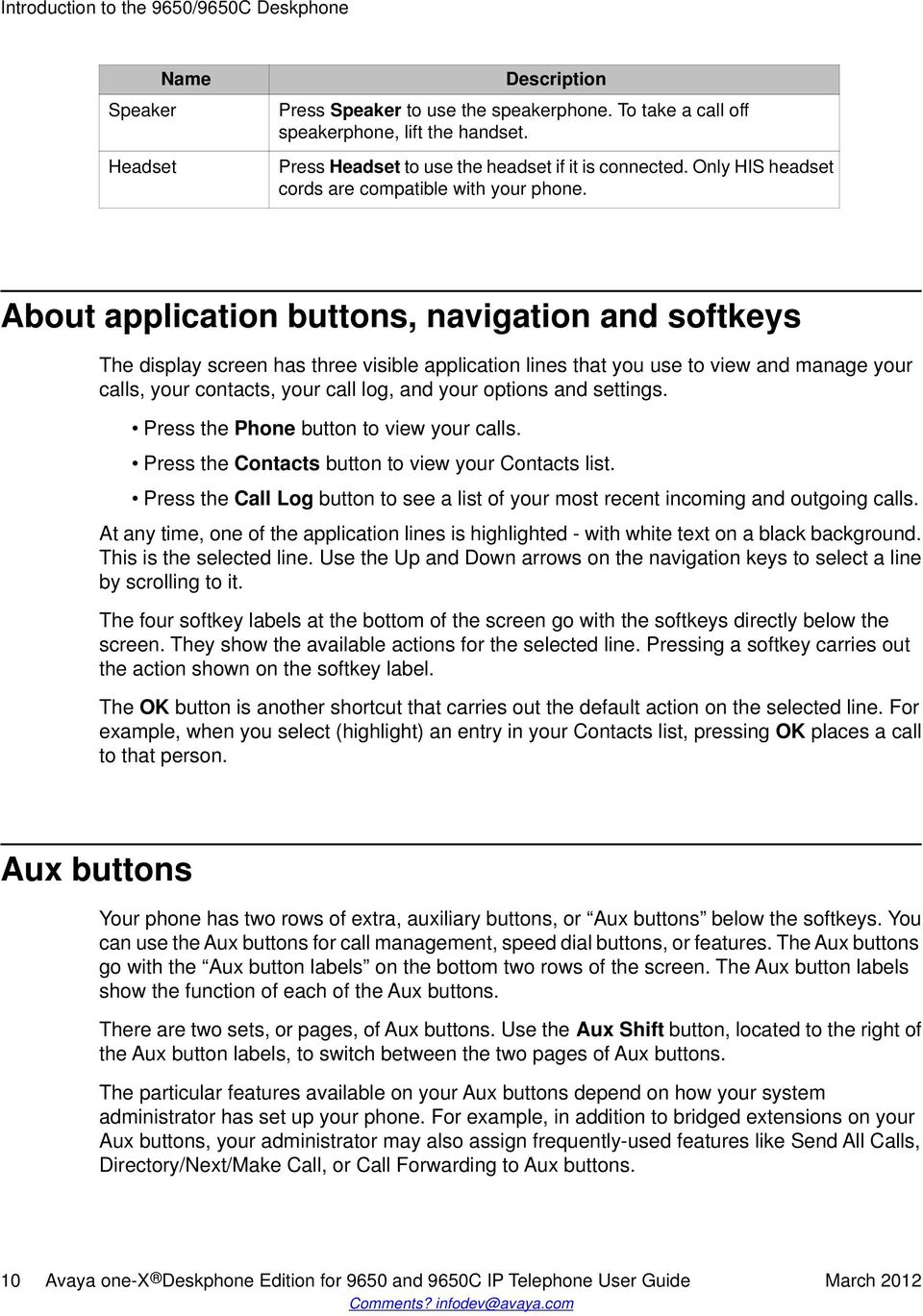
10 Introduction to the 9650/9650C Deskphone Speaker Headset Name Description Press Speaker to use the speakerphone. To take a call off speakerphone, lift the handset. Press Headset to use the headset if it is connected. Only HIS headset cords are compatible with your phone. About application buttons, navigation and softkeys The display screen has three visible application lines that you use to view and manage your calls, your contacts, your call log, and your options and settings. Press the Phone button to view your calls. Press the Contacts button to view your Contacts list. Press the Call Log button to see a list of your most recent incoming and outgoing calls. At any time, one of the application lines is highlighted - with white text on a black background. This is the selected line. Use the Up and Down arrows on the navigation keys to select a line by scrolling to it. The four softkey labels at the bottom of the screen go with the softkeys directly below the screen. They show the available actions for the selected line. Pressing a softkey carries out the action shown on the softkey label. The OK button is another shortcut that carries out the default action on the selected line. For example, when you select (highlight) an entry in your Contacts list, pressing OK places a call to that person. Aux buttons Your phone has two rows of extra, auxiliary buttons, or Aux buttons below the softkeys. You can use the Aux buttons for call management, speed dial buttons, or features. The Aux buttons go with the Aux button labels on the bottom two rows of the screen. The Aux button labels show the function of each of the Aux buttons. There are two sets, or pages, of Aux buttons. Use the Aux Shift button, located to the right of the Aux button labels, to switch between the two pages of Aux buttons. The particular features available on your Aux buttons depend on how your system administrator has set up your phone. For example, in addition to bridged extensions on your Aux buttons, your administrator may also assign frequently-used features like Send All Calls, Directory/Next/Make Call, or Call Forwarding to Aux buttons. 10 Avaya one-x Deskphone Edition for 9650 and 9650C IP Telephone User Guide March 2012 Comments? [email protected]
11 About icons Each Aux button has an LED, which is illuminated if a call appearance or feature assigned to that button is active. The Aux Shift button also has an LED, which is illuminated if there is a call on one of the Aux buttons on the alternate, "hidden" page. About icons The icons in the following table indicate the state of a call, navigation choices, or the status of a team member whose presence you are tracking. Icon Description Indicates a missed call on your phone Incoming call; indicates you have answered this call. Outgoing call; indicates you have made this call. Indicates that EC500 has been activated. Incoming call is alerting. Call is active. Call is on hold. Your calls are being forwarded. Conference is active. Conference is on hold. Use the Right or Left navigation arrow to see additional pages/screens/options. Scroll left for other options. Scroll right for other options. Scroll up or down when there is more information than can display in the application area. End of a list; scroll up to see choices. Beginning of a list; scroll down to see choices. The call in progress is muted. Avaya one-x Deskphone Edition for 9650 and 9650C IP Telephone User Guide March

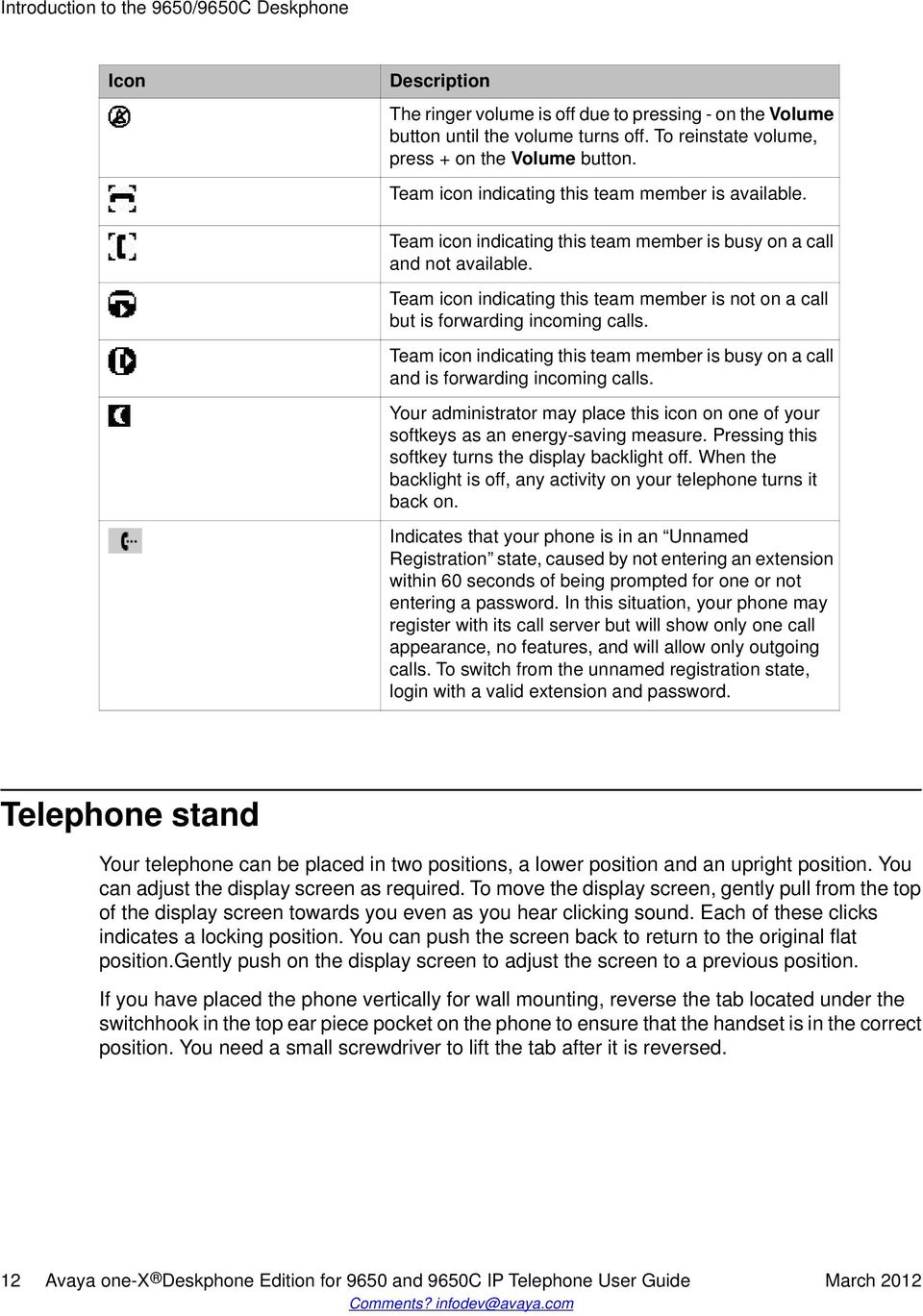
12 Introduction to the 9650/9650C Deskphone Icon Description The ringer volume is off due to pressing - on the Volume button until the volume turns off. To reinstate volume, press + on the Volume button. Team icon indicating this team member is available. Team icon indicating this team member is busy on a call and not available. Team icon indicating this team member is not on a call but is forwarding incoming calls. Team icon indicating this team member is busy on a call and is forwarding incoming calls. Your administrator may place this icon on one of your softkeys as an energy-saving measure. Pressing this softkey turns the display backlight off. When the backlight is off, any activity on your telephone turns it back on. Indicates that your phone is in an Unnamed Registration state, caused by not entering an extension within 60 seconds of being prompted for one or not entering a password. In this situation, your phone may register with its call server but will show only one call appearance, no features, and will allow only outgoing calls. To switch from the unnamed registration state, login with a valid extension and password. Telephone stand Your telephone can be placed in two positions, a lower position and an upright position. You can adjust the display screen as required. To move the display screen, gently pull from the top of the display screen towards you even as you hear clicking sound. Each of these clicks indicates a locking position. You can push the screen back to return to the original flat position.gently push on the display screen to adjust the screen to a previous position. If you have placed the phone vertically for wall mounting, reverse the tab located under the switchhook in the top ear piece pocket on the phone to ensure that the handset is in the correct position. You need a small screwdriver to lift the tab after it is reversed. 12 Avaya one-x Deskphone Edition for 9650 and 9650C IP Telephone User Guide March 2012 Comments? [email protected]
13 Chapter 2: Avaya Menu You can use the Avaya Menu to adjust and customize options and settings for your telephone, access additional Web-based applications, get information about your phone and network settings, and log out. When you press the Avaya Menu button, you see one of the following menus, depending on how your administrator has set up your system and on the applications available to you: Note: The menus and sub-menus that appear depend on how your extension was administered. Some options or sub-menus may not be available. Contact your System Administrator if you have any questions. > Options & Settings > Browser > Network Information > VPN Settings > Guest Login > Log Out > About Avaya one-x > My Pictures Sample Menu 1 Sample Menu 2 > Your 1st Web Application > Phone Settings > Log Out > About Avaya one-x > My Pictures Note: On menus with WML applications, select Phone Settings to access the standard telephone Options & Settings menu. Options & Settings or Phone Settings, if your menu is customized,lets you change your call settings, personalize button labels, adjust brightness and contrast, select your ringing pattern, and more. See Options & Settings on page 14 for more information. The Browser menu contains additional web-based applications. (If no web applications are available for your phone, the Browser menu is not shown.) About Avaya one-x provides the release number of your telephone software. Guest Login lets you log in to a phone to which you are not normally assigned, to access your own contacts and features. Log Out lets you sign off the phone, to protect your settings or to allow another user to log in. Log out does not display unless your phone (and any associated button module) is in an idle state. My Pictures lets you use pictures from a USB device as your telephone screensaver, but is only available on those deskphones with a USB interface. Avaya one-x Deskphone Edition for 9650 and 9650C IP Telephone User Guide March

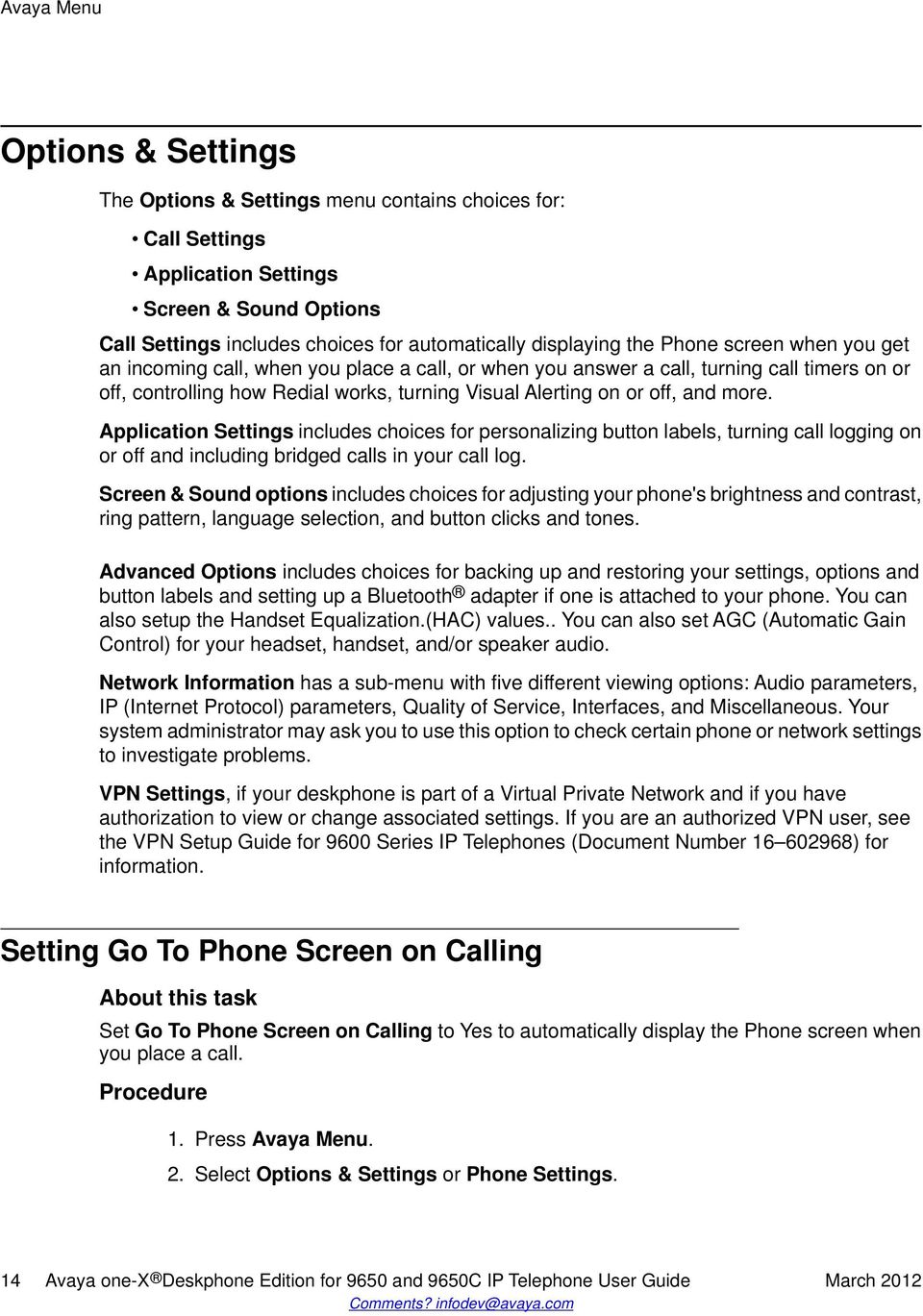
14 Avaya Menu Options & Settings The Options & Settings menu contains choices for: Call Settings Application Settings Screen & Sound Options Call Settings includes choices for automatically displaying the Phone screen when you get an incoming call, when you place a call, or when you answer a call, turning call timers on or off, controlling how Redial works, turning Visual Alerting on or off, and more. Application Settings includes choices for personalizing button labels, turning call logging on or off and including bridged calls in your call log. Screen & Sound options includes choices for adjusting your phone's brightness and contrast, ring pattern, language selection, and button clicks and tones. Advanced Options includes choices for backing up and restoring your settings, options and button labels and setting up a Bluetooth adapter if one is attached to your phone. You can also setup the Handset Equalization.(HAC) values.. You can also set AGC (Automatic Gain Control) for your headset, handset, and/or speaker audio. Network Information has a sub-menu with five different viewing options: Audio parameters, IP (Internet Protocol) parameters, Quality of Service, Interfaces, and Miscellaneous. Your system administrator may ask you to use this option to check certain phone or network settings to investigate problems. VPN Settings, if your deskphone is part of a Virtual Private Network and if you have authorization to view or change associated settings. If you are an authorized VPN user, see the VPN Setup Guide for 9600 Series IP Telephones (Document Number ) for information. Setting Go To Phone Screen on Calling Set Go To Phone Screen on Calling to Yes to automatically display the Phone screen when you place a call. 1. Press Avaya Menu. 2. Select Options & Settings or Phone Settings. 14 Avaya one-x Deskphone Edition for 9650 and 9650C IP Telephone User Guide March 2012 Comments? [email protected]
15 Options & Settings 3. Press Select or OK. 4. Select Call Settings. 5. Press Select or OK. 6. Select Go To Phone Screen on Calling. 7. Press Change or OK to set the option to Yes or No, depending on the current setting. 8. Press Save. Setting Go To Phone Screen on Ringing Set Go To Phone Screen on Ringing to Yes to automatically display the Phone screen when you get an incoming call. 1. Press Avaya Menu. 2. Select Options & Settings or Phone Settings. 3. Press Select or OK. 4. Select Call Settings. 5. Press Select or OK. 6. Select Go to Phone Screen on Ringing. 7. Press Change or OK to set the option to Yes or No. 8. Press Save. Setting Go To Phone Screen on Answer Set the Go To Phone Screen on Answer option to Yes to automatically display the Phone screen when you answer a call. 1. Press Avaya Menu. 2. Select Options & Settings or Phone Settings. Avaya one-x Deskphone Edition for 9650 and 9650C IP Telephone User Guide March

16 Avaya Menu 3. Press Select or OK. 4. Select Call Settings. 5. Press Select or OK. 6. Select Go to Phone Screen on Answer. 7. Press Change or OK to set the option to Yes or No, depending on the current setting. 8. Press Save. Changing the voice dialing setting Note: The Voice Dialing option is available only if it is enabled through the settings file. 1. Press Avaya Menu. 2. Select Options & Settings or Phone Settings. 3. Press Select or OK. 4. Select Call Settings. 5. Press Select or OK. 6. Select Voice Dialing. 7. Press Change or OK to set the option to on or off. Voice-initiated dialing is set to on by default. 8. Press Save. Changing the voice dialing language 1. Press Avaya Menu. 2. Select Options & Settings or Phone Settings. 3. Press Select or OK. 16 Avaya one-x Deskphone Edition for 9650 and 9650C IP Telephone User Guide March 2012 Comments?

17 Options & Settings 4. Select Call Settings. 5. Select Voice Dialing Language. 6. Press Change or OK. 7. Select the language you will speak to search for and dial your contacts. 8. Press Select or OK. 9. Press Yes to confirm the selected language. Setting redial options To display a list of the last numbers you dialed, or to dial the last number you dialed, you can use the Redial option. 1. Press Avaya Menu. 2. Select Options & Settings or Phone Settings. 3. Press Select or OK. 4. Select Call Settings. 5. Press Select or OK. 6. Select Redial. 7. Press Change or OK to toggle between One Number and List. 8. Press Save. Displaying call timers You can set your call settings to display the duration of calls. You can turn the call timer display on or off. 1. Press Avaya Menu. 2. Select Options & Settings or Phone Settings. 3. Press Select or OK. Avaya one-x Deskphone Edition for 9650 and 9650C IP Telephone User Guide March

18 Avaya Menu 4. Select Call Settings. 5. Press Select or OK. 6. Select Display Call Timers. 7. Press Change or OK to change the setting. 8. Press Save. Configuring visual alerts When the Visual Alerting option is turned on, incoming calls cause the LED in the top right corner of the phone to flash. You can turn Visual Alerting on or off. 1. Press Avaya Menu. 2. Select Options & Settings or Phone Settings. 3. Press Select or OK. 4. Select Call Settings. 5. Press Select or OK. 6. Select Visual Alerting. 7. Press Change or OK to turn Visual Alerting on or off. 8. Press Save. Setting the audio path You can set your phone to go off-hook on the Speaker or the Headset when you make an onhook call.if your system administrator has set up auto-answer, incoming calls are also answered on the default audio path you designate here. This setting also determines whether the Voice Dialing feature gets its input from the Speaker or the Headset. 1. Press Avaya Menu. 2. Select Options & Settings or Phone Settings. 3. Press Select or OK. 18 Avaya one-x Deskphone Edition for 9650 and 9650C IP Telephone User Guide March 2012 Comments?

19 Options & Settings 4. Select Call Settings. 5. Press Select or OK. 6. Select Audio Path. 7. Press Change or OK to change the Speaker or Headset setting. If the audio path is set to Headset and your headset uses switchhook control (typically true for wireless headsets), the Voice Dialing feature cannot receive input from the headset. 8. Press Save. Setting contact names to display during calls You can set your phone to show the contact's name rather than the calling party name for an incoming or answered call, a transferred call, or conference call when a calling or called party number matches a number on your Contacts list. 1. Press Avaya Menu. 2. Select Options & Settings or Phone Settings. 3. Press Select or OK. 4. Select Call Settings. 5. Press Select or OK. 6. Select Pair Contacts to Calls. 7. Press Change or OK to change the setting to On or Off. 8. Press Save. Adjusting the brightness or contrast of the display 1. Press Avaya Menu. 2. Select Options & Settings or Phone Settings. 3. Press Select or OK. 4. Select Screen & Sound Options. Avaya one-x Deskphone Edition for 9650 and 9650C IP Telephone User Guide March

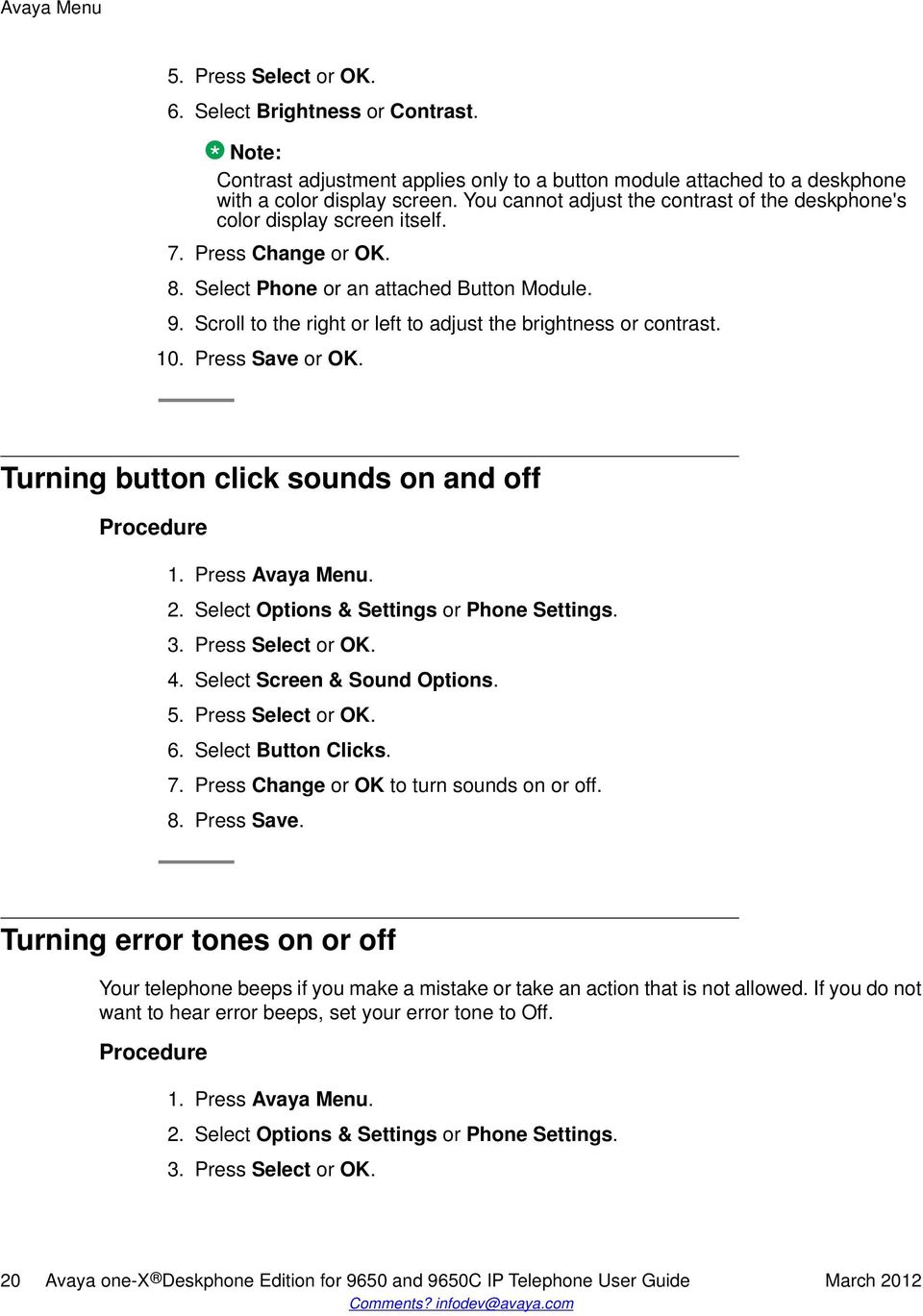
20 Avaya Menu 5. Press Select or OK. 6. Select Brightness or Contrast. Note: Contrast adjustment applies only to a button module attached to a deskphone with a color display screen. You cannot adjust the contrast of the deskphone's color display screen itself. 7. Press Change or OK. 8. Select Phone or an attached Button Module. 9. Scroll to the right or left to adjust the brightness or contrast. 10. Press Save or OK. Turning button click sounds on and off 1. Press Avaya Menu. 2. Select Options & Settings or Phone Settings. 3. Press Select or OK. 4. Select Screen & Sound Options. 5. Press Select or OK. 6. Select Button Clicks. 7. Press Change or OK to turn sounds on or off. 8. Press Save. Turning error tones on or off Your telephone beeps if you make a mistake or take an action that is not allowed. If you do not want to hear error beeps, set your error tone to Off. 1. Press Avaya Menu. 2. Select Options & Settings or Phone Settings. 3. Press Select or OK. 20 Avaya one-x Deskphone Edition for 9650 and 9650C IP Telephone User Guide March 2012 Comments? [email protected]
21 Options & Settings 4. Select Screen & Sound Options. 5. Press Select or OK. 6. Select Error Tones. 7. Press Change or OK to turn error tones on or off. 8. Press Save. Turning large text on or off Use this procedure to increase the font size that the deskphone displays. Note: This feature is available only for the English fonts. 1. Press Avaya Menu. 2. Select Options & Settings or Phone Settings. 3. Press Select or OK. 4. Select Screen & Sound Options. 5. Press Select or OK. 6. Select Text Size. Note: The Text Size option is available only if it is enabled through the settings file. 7. Press Change or OK to change the text size. If the screen width is set to Half, the Text size option would not be available. In this case, if you prefer a split screen, you must turn off large text. 8. Press Save. Changing the ring pattern 1. Press Avaya Menu. 2. Select Options & Settings or Phone Settings. Avaya one-x Deskphone Edition for 9650 and 9650C IP Telephone User Guide March
22 Avaya Menu 3. Select Screen & Sound Options. 4. Press Select or OK. 5. Scroll to and select Personalized Ringing. Two ring tone categories are available Classic or Alternate. Each category contains eight distinctive ring patterns. The ring tone currently selected displays on the status line and a list of all eight ring tones within that category displays with a checkmark next to the pattern currently selected. The first softkey indicates the other ring tone category, to allow you to switch between categories. 6. Select a displayed ring pattern, or press the alternate ring tone category softkey (labeled either Alternate or Classic) to select from the eight alternative ring patterns. Tip: Use the Alternate/Classic softkey to toggle between the two sets of patterns. 7. If necessary, scroll through the patterns and select one. After selecting a pattern, press OK to listen to it. 8. Repeat the last step until you find the ring pattern you want. 9. Press Save to make it your ring pattern. Changing the display language 1. Press Avaya Menu. 2. Select Options & Settings or Phone Settings. 3. Press Select or OK. 4. Select Screen & Sound Options. 5. Press Select or OK. 6. Select Language. 7. Select a display language. 8. Press Select or OK. 9. Press Yes to confirm the selected language. 22 Avaya one-x Deskphone Edition for 9650 and 9650C IP Telephone User Guide March 2012 Comments? [email protected]
23 Options & Settings Personalizing button labels You can change the labels that are displayed for your extensions, features, and abbreviated dial or speed dial buttons. For example, you can change the label for your extension to "My Line." If you have a button module attached to your deskphone, you can change any of those labels as well; for example, you can change a Help Desk extension to read Help Desk. 1. Press Avaya Menu. 2. Select Options & Settings or Phone Settings. 3. Press Select or OK. 4. Select Application Settings. 5. Press Select or OK. 6. Select Personalize Labels Press Change or OK. 8. Select the label you want to edit. If the label you want to edit is on the Features menu, scroll right to access the Features menu, and select the label you want to edit. 9. Press Edit. 10. Edit the label using up to 13 characters. Press More then Clear to clear all text fields and start over. 11. Press Save or OK. 12. You may revert back to the default button labels by selecting Avaya Menu > Options & Settings > Application Settings > Restore Default Button Labels and pressing Default. Setting dialing options Your phone has two dialing options. You can dial as you normally would, for example, pick up the handset, get a dial tone, and dial the number you want (off-hook dialing). Or, you can set "edit dialing" which mimics how you dial a call on a cell phone - you can enter all or part of the number, backspace to correct a digit if needed, and when ready, initiate the dialing process using a softkey. Avaya one-x Deskphone Edition for 9650 and 9650C IP Telephone User Guide March
24 Avaya Menu Note: Edit dialing may not be available to you, depending on how your system is administered. 1. Press Avaya Menu. 2. Select Options & Settings or Phone Settings. 3. Press Select or OK. 4. Select Call Settings. 5. Press Select or OK. 6. Select Edit Dialing. If your telephone does not display this option, your administrator has not made this feature available. 7. Press Change or OK to change the setting to On (Enabled) or Off (Disabled). When on-hook dialing is in effect, dialpad (edit dial) searches are not available. 8. Press Save. Selecting handset audio equalization For most people, this option is not relevant. For certain people with hearing difficulties, however, this option can change the audio characteristics of the deskphone and make it easier to hear the far end. 1. Press Avaya Menu. 2. Select Options & Settings. 3. Select Advanced Options. 4. Navigate to Handset Equalization. 5. Press Change. 6. Select the setting you want by pressing the button against the setting.default will be standard audio performance unless otherwise modified by your administrator. Audio Opt. is standard audio performance, regardless of what your administrator has chosen. HAC Opt. is Hearing Aid Compatibility performance. 7. Press Save. 24 Avaya one-x Deskphone Edition for 9650 and 9650C IP Telephone User Guide March 2012 Comments?
25 Browser Browser Your deskphone includes WML Web browser capability to use additional applications. The applications available through the Web browser vary depending on how your system administrator has configured your deskphone. If you have any questions, contact your system administrator. Access the browser through the Avaya Menu. If you do not see the Browser option on the Avaya Menu, Web applications are not available for your deskphone. Accessing your browser 1. Press Avaya Menu. 2. Press Browser or OK. Avaya one-x Deskphone Edition for 9650 and 9650C IP Telephone User Guide March
26 Avaya Menu 26 Avaya one-x Deskphone Edition for 9650 and 9650C IP Telephone User Guide March 2012 Comments?
27 Chapter 3: About Features This chapter describes the features of your deskphone. Your administrator might have set up your deskphone with the features and the call appearances on one screen. Your administrator may assign specific features you use frequently to your Aux buttons. The Features menu gives you access to Speed Dial buttons and advanced telephony features, such as Directory, Abbreviated Dial, and Call Forwarding. Using the Directory, you can dial other users on your system. You can use Send All Calls and Call Forward features to forward incoming calls to other numbers. When you enable the EC500, you can forward calls from your desk phone to your cell phone. The Forward menu also lists all the forwarding features. The features available depend on what your administrator has assigned to your phone. In addition to the Features menu, your administrator might also provide selected features on softkeys on the call appearance (Phone) screen. For more information about what features and options are available for your extension, contact your system administrator. Accessing the Features menu From the Phone screen, use the navigation button and scroll to the right side to access the Features menu. For models with LEDs, the LED next to the feature name indicates if the feature is currently on or off. If the light is on, the feature is on. To return to the main Phone screen, press Phone or scroll to the left. Calling a person from the directory If your system administrator has set up a corporate directory and has made this feature available to you, you can dial other users in your system by name. 1. From the Phone screen, scroll right to access the Features menu, select Directory, and press Select or OK. Or, press the Directory Aux button. Avaya one-x Deskphone Edition for 9650 and 9650C IP Telephone User Guide March
28 About Features 2. Use the dialpad keys to start spelling the last name of the person you want to call. Press each dialpad key once for each corresponding letter. For example, for Hill, press 4,4,5,5. 3. Select Next Aux button to view the next name alphabetically in the directory, if necessary. 4. Press OK or enter the next letter. 5. Select the Make Call Aux button when you see the name you want. 6. Press OK to dial the call. Configuring simultaneous ringing for multiple phones using EC500 Using the EC500 feature, you can program your deskphone in such a way that the deskphone and your cell phone rings simultaneously when there is an incoming call. With this feature, you can answer office calls while you are away from your desk. The system administrator has to add your cell phone number and program the desk phone. 1. From the Phone screen, scroll right to access the Features menu. 2. Select EC Press OK to turn simultaneous ringing on or off. 28 Avaya one-x Deskphone Edition for 9650 and 9650C IP Telephone User Guide March 2012 Comments? [email protected]
29 Chapter 4: Answering and making a call Answering a call When you receive an incoming call, the phone selects the incoming call automatically. However, if you are already on a call or if you receive more than one incoming call at a time, you may need to select the call you want to answer manually. If you do not have the Go to Phone on Ringing option enabled, you must press Phone to choose a line or view call options. Note: If your telephone is administered with non-typical settings, you may experience call handling differences from the steps described here. Also, note that the phone will auto-scroll in certain instances to present you with significant incoming calls. Answer an incoming call in one of the following ways: If you are not on another call, lift the handset or press the line button next to the incoming call, press Speaker, OK, or Answer to answer the call using the speakerphone, or press Headset to answer using the headset. If you are on another call and the telephone does not automatically display the incoming call, from the Phone screen scroll to the line with the incoming call and press Answer or OK. If you are on another call and the telephone does automatically display the incoming call, you can press Ans Hold to automatically put the first call on Hold when you answer the new call. Alternately, you can press Ans Drop to automatically drop the first call when you answer the new call. To quickly move to the top of your call appearance list to answer an incoming call on your primary line, from the Phone screen press the Phone button. You can then press the line for the incoming call or scroll to it. To automatically display the Phone screen whenever you receive an incoming call, set the Go to Phone Screen on Ringing option to Yes. See Setting the Go to Phone Screen on ringing option on page 0. Avaya one-x Deskphone Edition for 9650 and 9650C IP Telephone User Guide March
30 Answering and making a call Answering a Call to a Bridged Extension If an Aux button flashes, press that button or press the Answer softkey. If the Aux Shift button is lit, the incoming call is on the "hidden" page of Aux buttons. In this case, press Aux Shift to view the hidden page, then press the flashing Aux button of the incoming call. Sending an incoming call directly to voic Press To Vmail to send an incoming call directly to voic . Ignoring an incoming call Press Ignore to turn off the ringer for an incoming call Putting a call on hold 1. Press Phone to view the main Phone screen, if necessary. 2. If you are not active on the line you want to put on hold, select that line. 3. Press Hold. Note: The phone might display a hold timer when you put a call on hold.for more information, see Configuring call timers on page Avaya one-x Deskphone Edition for 9650 and 9650C IP Telephone User Guide March 2012 Comments? [email protected]
31 Making a call 4. Press Resume or the line button of the held call to retrieve the call. Making a call Use the Phone screen to view and manage calls. Press Phone to view the main Phone screen at any time. When the Phone screen is displayed, press Phone to move to the top of the call appearance list. 1. Lift the handset, or press Speaker or Headset (if applicable) or a line button for an available line. If you have more than three call appearances, for example, if you use bridged appearances to monitor another extension, use the Aux buttons to get to the line you want. 2. Dial the number you want to call. Making an emergency call You do not have to be logged in to make an emergency call. If emergency calling was set up by your system administrator, the Phone screen has an Emergency softkey to immediately connect you with a preset emergency services number. Your system administrator can configure the PHNMOREEMERGNUMS parameter in the settings file for your extension with ten additional emergency numbers. If a user dials any one of the specified emergency numbers, the deskphone will handle the call as an emergency call even if the telephone is in the locked or unregistered state. Avaya recommends that for phones connected to SES, only one emergency number should be defined. For use with third-party gateways, refer the relevant Application Notes for necessary provisioning to enable the configuration. 1. Press the Emerg. softkey. 2. Some call servers will call back to confirm the emergency status. The phone automatically answers the incoming call on the Speaker by going off hook. Avaya one-x Deskphone Edition for 9650 and 9650C IP Telephone User Guide March
32 Answering and making a call 3. To end the emergency call, press the Drop softkey or press the Speaker button. Clearing a number Press Clear to erase all dialed digits and enter a new number. Redialing a number 1. From the Phone screen, press Redial. The last number is redialed or a list of the most recent numbers that you have dialed appears from which you can select a number to redial. For information in redial settings, see Setting Redial Options on page If you are working with a redial list, scroll to the number you want to call and press Call or OK. Your system administrator can disable Redial functionality. Using voice dialing You can say a name to search for and call any contact when voice dialing is set to on. You can optionally add a qualifier like "at home" or "mobile" with the name to get to a specific number for the contact. The first two times you use voice dialing, a help screen displays to assist you in using this feature. 1. Press Contacts. If Voice dialing is enabled, a Voice softkey displays. 2. If no tone is generated or if no green bar appears next to the Voice softkey, press Voice again to restart voice dialing. Note: To make voice-initiated dialing available each time you access your contacts, see Changing the voice dialing setting on page 16. To change the language you want 32 Avaya one-x Deskphone Edition for 9650 and 9650C IP Telephone User Guide March 2012 Comments? [email protected]
33 Making a call to use for voice dialing commands, see Changing the voice dialing language on page Within a few seconds or as soon as you hear the tone, say the name of the person you want to call. You can say the name in first name, last name order even if the name is displayed as last name, first name order (and separated by a comma) in your Contacts list. You can add a qualifier, for example, at home, at office, mobile phone, cell phone, or say one of the contact number types (Home, Work, Mobile) with the name. For example, to reach Sam Jones at his primary number you can simply say Sam Jones. To reach Sam Jones at home, you might say Call Sam Jones at home. Note: If you don't add a qualifier and multiple numbers exist for that contact, the telephone always dials the first number listed. 4. When one or more contacts display: Press Call or OK or the applicable line button to dial the highlighted number, or scroll to select (highlight) a different number, then press Call or OK or the line button. Press Details to view the contact details associated with the highlighted entry, or select (highlight) a different entry, then press Details. If none of the matches represent the contact/number you want, press Retry and repeat the voice-initiated dialing command from Step 3. Press Cancel to exit voice dialing and return to the main contacts screen. Calling a person from the contacts list You can call a contact in your contacts list by touching the name in the list. You can find a name by scrolling to it, or by using the search box. Use the dialpad keys to enter the first few letters of the name and the screen will scroll to the first match in your list. 1. Press the Contacts button. 2. Select the person or primary number you want to call. To call a non-primary number, select the person, press Details, then select the desired number. 3. Locate the contact you want to call by typing the name of the person as listed. For example, if you added John Smith to your contacts List as Smith, John, start typing his last name rather than his first name. Each time you press the dialpad, the Avaya one-x Deskphone Edition for 9650 and 9650C IP Telephone User Guide March
34 Answering and making a call list display shifts to match your input. Alternately, you can scroll up or down to locate the contact. 4. Press Call or OK. Calling a person from the call log 1. Press the Call Log button. 2. Scroll to the left or right to view a separate list of all calls, missed (unanswered) calls, answered calls, or outgoing calls. 3. Scroll up or down to select the person or number you want to call. 4. Select the person or number you want to call. 5. Press the Call softkey or the OK button. Depending on how your phone is administered, returning a Missed Call may result in that call history entry being deleted when the call goes through. Making a call using edit dialing Before you begin Your system administrator has to authorize this function. To set up edit dialing, see Setting dialing options on page 23. Using Edit dialing feature, you can edit the number before actually dialing by using the Bksp softkey. Using the Bksp softkey, you can edit the number before actually dialing it. 1. From the Phone screen, enter the number you want to call. 2. To edit the number, press the Bksp softkey to erase the previous character, one character at a time. To remove the entire number, press Clear. 3. Press Call or OK. 34 Avaya one-x Deskphone Edition for 9650 and 9650C IP Telephone User Guide March 2012 Comments? [email protected]
35 Chapter 5: Muting a call While on a call, you can mute the microphone of your phone so that the other party cannot hear you. You can configure your deskphone to alert you if your dekphone is on mute. The alert can be an audible beep and a visible indication on the top line of your deskphone. 1. Press Mute during a call so that the other person on the call cannot hear you. 2. Press Mute again to unmute the call. Note: If a call is on mute and you switch between the handset, headset, or speakerphone, the mute is turned off. When the call is muted, the Mute button light is on and the top line displays the Mute icon. Avaya one-x Deskphone Edition for 9650 and 9650C IP Telephone User Guide March
36 Muting a call 36 Avaya one-x Deskphone Edition for 9650 and 9650C IP Telephone User Guide March 2012 Comments? [email protected]
37 Chapter 6: Transferring a call 1. From the Phone screen, if the call to be transferred is not already active (highlighted), select the line on which the call to be transferred appears. Select the call you want to transfer by pressing the line button or Aux button or by scrolling to the call. 2. Press Transfer. 3. Dial the telephone number, or call the person from the Contacts list, or call the person from the Call Log list. 4. If unattended transfers have been administered, you can hang up now if you do not want to announce the call. Otherwise, press Complete or OK. Avaya one-x Deskphone Edition for 9650 and 9650C IP Telephone User Guide March
38 Transferring a call 38 Avaya one-x Deskphone Edition for 9650 and 9650C IP Telephone User Guide March 2012 Comments? [email protected]
39 Chapter 7: About forwarding calls You can forward your incoming calls to another number or to voice mail. If call forwarding is turned on, a Forwarding icon appears on the top line of your display screen. If call forwarding is turned on, a Forwarding icon appears on the top line of the display screen and the Aux button(s) with forwarding features is steadily lit. When the Forward button light is on, one or more of the forwarding features are active. The forwarding features available on your phone depend on the options your system administrator has set. For more information about the options available on your extension, contact your system administrator. Send All Calls When Send All Calls (SAC) feature is on, your incoming calls go directly to a predefined coverage number, typically your voic . Incoming calls ring once at your extension and then go directly to a number which is set by your system administrator. If the SAC feature is administered on your phone, a Send All softkey appears on the Phone screen for idle calls.if the SAC feature is administered on your phone, a Send All softkey appears on the Phone screen for idle calls an Aux button label displays Send All. Pressing the Send All Aux button turns Send All Calls on and the label shows a checkmark. If it is already on, pressing the Send All Aux button turns it off and the checkmark no longer appears. You can also turn Send All Calls on or off by using the telephone Features list. 1. Select Send All Calls. 2. Press Select or OK to turn Send All Calls on or off. Forwarding calls Your phone might have several forwarding features. Call forwarding is assigned to an Aux button.you can either set a number to forward calls, or turn off call forwarding if the feature is already on. The features are also listed on the Forwarding features menu. Avaya one-x Deskphone Edition for 9650 and 9650C IP Telephone User Guide March
40 About forwarding calls 1. Select the forwarding feature you want to activate. 2. Enter the number to which you want to forward your calls as the destination. and the associated LED lights. 3. Press Select or OK to turn the call forwarding feature off if it is already on. 40 Avaya one-x Deskphone Edition for 9650 and 9650C IP Telephone User Guide March 2012 Comments?
41 Chapter 8: Using the conference feature You can use conference calls to speak with people from different locations on the same call. Additional conferencing options may be available through Expanded Meet-Me Conferencing. Contact your system administrator for more information about this feature. Setting up a conference call 1. From the Phone screen, select your active call. 2. Press Conf. 3. Dial the telephone number, or call the person from the Contacts list, or call the person from the Call Log list. 4. When the person answers, press Join or OK to add the person to the existing call. 5. Press Add and repeat these steps to add another person to the conference call. Adding a person on hold to a conference call 1. From the Phone screen, select your active call. If it is not highlighted, press the line button or Aux button or scroll to it. 2. Press Conf, or Add if you are already in a conference. 3. Select the call on hold that you want to add to the conference. 4. Press Resume or the line button or the Aux button or OK to take the call off hold. 5. Press Join to add the person to the conference call. Avaya one-x Deskphone Edition for 9650 and 9650C IP Telephone User Guide March
42 Using the conference feature Putting a conference call on hold When you put a conference call on hold, the other parties can still talk to each other. 1. Press Hold during a conference call. 2. Press Resume or OK to resume the conference call. Muting a person on a conference call You may be able to silence a person on a conference call using the Silence softkey. The individual muting feature is not available on all systems. If you do not see Silence softkey when you choose a person, you cannot mute that person. 1. From the Phone screen, select the line of the person you want to mute during a conference call. 2. Press Details. 3. Press Silence. 4. Press Silence again to take the person off mute. Dropping the last participant from a conference call Note: This feature is applicable only for a conference call of the AST 1 type. 1. From the Phone screen, select your active call. 42 Avaya one-x Deskphone Edition for 9650 and 9650C IP Telephone User Guide March 2012 Comments? [email protected]
43 Dropping a person from a conference call 2. Press Drop once the conference is up. The telephone drops the last added person from the conference. Dropping a person from a conference call This feature is not available on all systems. 1. From the Phone screen, select your active call. 2. Press Details. 3. Select the person you want to drop. 4. Press Drop. Avaya one-x Deskphone Edition for 9650 and 9650C IP Telephone User Guide March
44 Using the conference feature 44 Avaya one-x Deskphone Edition for 9650 and 9650C IP Telephone User Guide March 2012 Comments?
45 Chapter 9: Aux Buttons and Bridged Lines You can use the Aux buttons to monitor and manage extensions other than your own. Other people's extensions that you manage from your phone are called bridged lines. If an Aux button is associated with a bridged line, you can press the Aux button to select it as you would with a regular call appearance. Whenever you need to access a bridged line just press the corresponding Aux button. If a line is on Hold, pressing the Aux button resumes the call. If a line is ringing, pressing the Aux button answers the call. If your boss or someone else for whom you have a bridged extension is on the line (Aux button LED is lighted), you can press that Aux button to join the call. For example, when the bridged extension is in use, and you get an incoming call to that same line, you can conference the caller into the existing call. The icon on the Aux button label for a bridged call appearance shows the status of that call appearance. An idle call icon means that there is no current call on that line. An in-use bridged call icon means that the owner of the line is using it. Use the Aux button for anything you need to do with a bridged line - to answer a call, to resume a call on hold, or to join an existing call. Use the Aux button LED and the icon on the Aux button label to view the status of a bridged line. Answering a call on a bridged line Answering a call on a bridged line is the same as a call on a primary line. If the ringing line is selected, you can answer by picking up the handset or by pressing Speaker or Headset or Answer. 1. If an Aux button flashes, press that button or press the Answer softkey. If the Aux Shift button is lit, the incoming call is on the "hidden" page of Aux buttons. In this case, press Aux Shift to view the hidden page, then press the flashing Aux button of the incoming call. 2. Select the bridged call that you want to answer. The ringing line is selected automatically. If you are on another call when a call comes in to a bridged line, you have to select the ringing line. Avaya one-x Deskphone Edition for 9650 and 9650C IP Telephone User Guide March
46 Aux Buttons and Bridged Lines 3. Press Answer. Joining a call on a bridged line You can join an existing call on a bridged line. 1. Select the bridged call in progress that you want to join. 2. Press Bridge. Making an outgoing call on a bridged line When you make a call on a bridged line, you are using another telephone user s line. The caller ID associated with the call you are making may show the call as coming from you or coming from the person whose line you are using. If you have any questions about how the name or extension displays to the person you are calling, contact your system administrator. 1. Select the bridged line you want to use. 2. Press OK to get a dial tone. 3. Dial the telephone number, or call the person from the Contacts list, or call the person from the Call Log History list. 46 Avaya one-x Deskphone Edition for 9650 and 9650C IP Telephone User Guide March 2012 Comments? [email protected]
47 Chapter 10: Using the contacts feature You can save up to 250 names and up to 3 telephone numbers per name. You can use voice dialing to speak the contact name; see Using voice dialing on page 32 for information. You can also import or export a Contact list using a USB device; see Importing and Exporting Contacts using USB Flash Drives on page 51 for information. Note: When you press the Contacts button you may not see all the functionality described in this chapter. This would be because your system administrator has disabled changes to Contacts. Viewing a contact's details 1. Press Contacts. 2. Select the contact you want to view. 3. Press Details to see the information available for that contact. Selecting Details is the only way to dial a second or third number for a contact. 4. Press the appropriate softkey to call or edit this contact, delete this contact, or return to the Contacts screen. Adding a new contact You can add up to three numbers for a contact. 1. Press Contacts. 2. Press New if this is your first contact list entry, or press More then New if you already have entries in your contact list. 3. Enter the name using the dialpad. Avaya one-x Deskphone Edition for 9650 and 9650C IP Telephone User Guide March
48 Using the contacts feature Press the number key that corresponds to the letter or number you want to enter until the letter or number is displayed. If the characters are on the same key, pause before entering the next character. To enter a space, press 0. Enter remaining letters or numbers. To delete the last character, press the Bksp softkey. Note: If you want to remove a letter, number, space, or symbol that is in the middle of the text you entered, use the left and right navigation arrows to place your cursor after the character you want to remove. Once your cursor is in the correct position, press the Bksp softkey to remove the character to the left of the cursor. Press More > Abc to change between upper and lower case letters or to enter numbers. Press ABC again to cycle through the options (Abc/123/abc/ABC) until the type you want to use is displayed. Press More > Symbols to enter characters that are not on your dialpad. Select the symbol you want to use. Press OK to select the symbol. Press Clear to delete all text and start over. 4. Select the next field. 5. Enter the number. 6. Select the next field. 7. Select the type of number entered (general, work, mobile, home). 8. Press Primary if applicable. The primary number is the one that will always display without having to go into contact details. 9. If you have another number for this contact, select the next field and repeat from step 5. You can add up to two additional numbers for this contact, but you can designate only one number as primary. 10. Press Save or OK. 48 Avaya one-x Deskphone Edition for 9650 and 9650C IP Telephone User Guide March 2012 Comments? [email protected]
49 Editing a contact Editing a contact 1. Press Contacts. 2. Search for and select the contact you want to edit. 3. Press More > Edit. 4. Choose the field you want to edit. 5. Use the dialpad and softkeys to make changes to the contact information. 6. Press Save or OK. Deleting a contact 1. Press Contacts. 2. Select the contact you want to delete. 3. Press More > Delete. 4. Press Delete to confirm or Cancel to cancel. 5. Touch Delete again to confirm or Cancel to cancel the deletion. Avaya one-x Deskphone Edition for 9650 and 9650C IP Telephone User Guide March
50 Using the contacts feature 50 Avaya one-x Deskphone Edition for 9650 and 9650C IP Telephone User Guide March 2012 Comments?
51 Chapter 11: Using USB Flash Drives with your phone You can use Universal Serial Bus (USB) flash drive if your deskphone has a USB interface and you have the permission of the administrator. When you log into your phone from a remote location, you can use the USB flash drive to add contacts to your Contacts list from an or other PC software program, and use the pictures from the device as screensaver on your phone. Avaya offers a PC application Avaya one-x Deskphone USB Companion to help set up your USB device phone options. Your administrator has certain setup responsibilities and can then help you determine the options that are available to you and how to use the tool to set them up. Additionally, your administrator may provide you with a USB device with a pre-programmed Extension and Password in it, or may provide you with a PC-based tool for putting this information on a USB device. You can then use the USB device to log in to the administered Extension and Password automatically, from any telephone in your system. Note: USB Login: If you have automatic USB login capability, the only Contacts you can see are those on the USB device. When you use the USB login, the Log Out menu option is not available to you. The only way you can log your phone out is by removing the USB device. If you insert the flash drive into the USB jack, the phone displays either a list of USB actions or options, a message that your phone does not support the device, or a message that the phone does not have adequate power to support the device. Power supply to the USB interface depends on the administration settings and on how the phone is powered. The phone supports USB drives with FAT or FAT32 file systems and does not support USB drives with NTFS file systems and multiple LUNs. Adding contacts from an external file to your contacts list Use a USB flash drive to add contacts from an external file to your contacts list. The contacts list can contain only 250 entries. Contact files merged or written to the phone's contacts list must be in a specific format. One way to ensure that the file is in the proper format is to export your the Contacts list of your deskphone to your USB device, which automatically creates a properly formatted file. Avaya also provides a spreadsheet tool that uses macros to convert your Outlook contacts into the Contacts format the phone uses. For information on this tool, search for Avaya one-x USB Companion on the Avaya support site at support. Avaya one-x Deskphone Edition for 9650 and 9650C IP Telephone User Guide March
52 Using USB Flash Drives with your phone Note: If your administrator has made a special application available that allows you to log in to your phone via a USB device, and you log in that way, the only Contacts you can see are those on the USB device itself. 1. Plug the USB device into the jack near the top left edge of your phone. 2. Press Select or OK to select Merge file and phone contacts. The Merge option is shown only when both the USB file and the phone have contacts. 3. The contacts are merged automatically. When complete, review the statistics displayed, which show the number of entries, duplicates, and any errors. 4. Press Save or OK to write the merged Contacts list back to the USB device and return to the list of contacts/usb actions or press Exit to return to the list of contacts/ USB actions without writing the merged file to the USB device. Note: If you attempt to merge more than the maximum 250 entries, the phone displays a List Full screen. You can then either save the first 250 entries or cancel the merging process without transferring the contents to the deskphone. Overwriting contacts list with an external file Use a USB flash drive to replace your entire contacts list with the contacts from an external file. Contacts that you are copying from an external file must have a name and at least one number but not more than three numbers with associated types. If associated types are not provided, the type will be considered as general type. Your system administrator can provide detailed format information about external data source files. 1. Plug the USB flash drive into the jack near the top left edge of your phone. 2. Scroll down to Replace phone contacts with file. 3. Press Select or OK. 4. Review the statistics displayed, which show the number of valid and invalid entries, and if applicable, the number of entries that exceed the 250 contact phone limit. 52 Avaya one-x Deskphone Edition for 9650 and 9650C IP Telephone User Guide March 2012 Comments? [email protected]
53 Copying your contacts list to a USB flash drive 5. Press Save or OK to overwrite and replace your contacts list with the file on your USB device or Cancel to cancel the replacement and retain your current contact list. Copying your contacts list to a USB flash drive You can copy your entire contact list from your phone to a USB flash drive for protecting data or using in an external software program. If the USB flash drive already contains a contact file, you must first confirm that you want to replace that file. 1. Plug the USB flash drive into the jack near the top left edge of your phone. 2. Scroll down to Write file with phone contacts. 3. Press Select or OK. 4. If your USB device currently has a contacts file, press Save or OK to confirm that you want to overwrite that file with the telephone's contact list. Temporarily using a USB contacts list If the USB flash drive is attached to the phone, you can use the contacts file on the drive instead of the contact list of your phone. For example, copy your contacts list to your USB flash drive and take the device with you while traveling. If you have access to a 9600 Series guest phone with the latest telephone software at another site, you can attach the USB flash drive and use your contacts list. 1. Plug the USB flash drive with the contacts file you want to use into the jack near the top left edge of your phone. 2. Scroll down to Use contacts file while present. 3. Press Select or OK. 4. Press OK to access the contacts list on your USB flash drive. Avaya one-x Deskphone Edition for 9650 and 9650C IP Telephone User Guide March
54 Using USB Flash Drives with your phone Any changes or updates you make to your contacts list while the USB device is connected affect only the temporary file on the USB device, and not your regular telephone contacts list. Using pictures from your USB device as a screensaver If your USB device has a top level directory named \Pictures or another picture directory that is properly administered, you can use pictures in that directory as your phone's screensaver. Each picture displays for 5 seconds unless you specify a different value (from 5 seconds to 999 seconds). The maximum allowable height and width for each picture is 240 x 320 pixels. A picture file must be in JPEG (.jpg or.jpeg) format. Your administrator can help you set up this feature. Your administrator can also disable this feature, in which case the My Pictures option will not appear on the Avaya Menu. In addition to the features described in the Introduction to this chapter on page 51 the Avaya one-x Deskphone USB Companion application includes a utility program to convert your pictures to the correct format. 1. Plug the USB device into the jack near the top left edge of your phone. 2. On the phone, press the Avaya Menu button. 3. Select My Pictures to immediately begin displaying the pictures from your USB picture directory on the phone and then whenever the screen display times out after the administered idle period. Note: If you disconnect the USB device from the telephone, the standard screensaver replaces your pictures after the designated idle period. 54 Avaya one-x Deskphone Edition for 9650 and 9650C IP Telephone User Guide March 2012 Comments? [email protected]
55 Chapter 12: Call Log The History screen provides a list of recent calls, with information about call disposition such as missed, answered, or outgoing with the caller name and number, call time, and call duration. Note: The caller number is displayed only if available. Call History also shows bridged calls and the number of missed calls from a given calling number. If you are a member of a call pickup group, any calls you picked up for another person or you missed and were answered by someone else in your pickup group are shown with a Forwarding icon. Using this feature, you can review details of the type of call pickup. When you have one or more missed calls, the Call Log button illuminates and the Missed Calls icon and the top line displays the number of missed calls. To call a person listed in your Call History, see Calling a person from the call history on page 34. Viewing the call log 1. Press Call Log. You can go to the top of the list by pressing Call LogHistory again. 2. Scroll to the right or left to view separate lists of answered, outgoing, or missed calls. Note: Depending on how your system is administered, a Missed Call counter might appear next to a missed call showing the number of missed calls you have from that person. Note: When contacts whose presence you have set up to track have called you, the applicable presence icon displays along with their call information. See About icons on page 11 for a description of the icons. 3. Scroll up or down to view the entries on the list. Avaya one-x Deskphone Edition for 9650 and 9650C IP Telephone User Guide March
56 Call Log Viewing Call Log details 1. Press Call Log. 2. Select the number you want to view. 3. Press Details. Note: To see details of other calls, scroll up or down. If you are logging bridged calls as well as your own, bridged call details are identified by either CALL FOR: (calls made to the bridged line) or CALLED FROM: (calls made from the bridged line) preceding the applicable number. To log/not log bridged calls, see Turning off call logging on page Press Back to return to the list view. Adding an entry from the call log to your contacts list 1. Press Call Log. 2. Select the number you want to add to your Contacts list. 3. Press +Contact. 4. Edit the name and telephone number, if necessary. 5. Press Save. Removing an entry from the Call Log 1. Press Call Log. 56 Avaya one-x Deskphone Edition for 9650 and 9650C IP Telephone User Guide March 2012 Comments?
57 Clearing all entries from the call log 2. Select the number you want to delete. 3. Press More > Delete. 4. Press More then Delete. 5. Press Yes to confirm, or press No if you do not want to delete it. Clearing all entries from the call log Clearing all entries from the call log deletes all of the entries for the specific list you are viewing. For example, if you are viewing the Outgoing calls list, only outgoing calls are deleted. However, if you are viewing the All Calls list, pressing Clear All deletes all calls. 1. Press Call Log. 2. Select the list you want to delete. 3. Press Clear All or OK to confirm or press Cancel if you do not want to clear all. Turning off call logging You can turn call logging on or off. If you have bridged call appearances on your phone, you can choose whether or not to include calls to your bridged lines in your call log. 1. Press Avaya Menu. 2. Select Options & Settings or Phone Settings. 3. Press Select or OK. 4. Select Application Settings. 5. Press Select or OK. 6. Select the type of call logging you want to turn off. To turn off logging your calls, select Log Calls. To turn logging of bridged lines on or off, select Log Bridged Calls. 7. Press Change or OK to turn call logging on or off. Avaya one-x Deskphone Edition for 9650 and 9650C IP Telephone User Guide March
58 Call Log 8. Press Save. 58 Avaya one-x Deskphone Edition for 9650 and 9650C IP Telephone User Guide March 2012 Comments?
59 Chapter 13: Receiving your messages Press the Message button to connect directly to your voice mail system. The lit Message button and a red light on the upper right-hand corner of your deskphone indicate when you have messages waiting. You can use this feature only if your administrator has enabled this feature. If you have any questions, contact your system administrator. Logging into your voice mail 1. To log in to your voice mail, press the Message button. 2. Follow the voice prompts from your voice mail system. Avaya one-x Deskphone Edition for 9650 and 9650C IP Telephone User Guide March
60 Receiving your messages 60 Avaya one-x Deskphone Edition for 9650 and 9650C IP Telephone User Guide March 2012 Comments?
61 Chapter 14: About Logging In and Logging Out If you share a deskphone with other users, you should log in and log out to maintain your preferences, call information, and options. Log out to prevent unauthorized use of your deskphone during your absence. Note: Depending on how your phone is administered, for example, whether Call Log backup is enabled or disabled, Call Log information might be lost when you log your extension out. Your administrator might provide you with a USB device with a pre-programmed Extension and Password, or may provide you with a PC-based tool for transferring this information on a USB device. This device will enable you to use the USB device to log in to the administered Extension and Password automatically, from any deskphone in your system. Contact your administrator for details. If you log in with the USB Login option, the only way to log out is by removing the USB device from the phone connection. Note: When you use the USB Login, the only Contacts you can see are the Contacts on the USB device. See Importing and Exporting Contacts using USB Flash Drives on page 51 for more information. Logging in to your deskphone extension Log in from the initial screen when it prompts you for your extension. 1. Enter your extension. 2. Press Enter or OK. 3. Enter your password. 4. Press Enter or OK. Avaya one-x Deskphone Edition for 9650 and 9650C IP Telephone User Guide March
62 About Logging In and Logging Out Logging in as a guest user Log in to another phone as a guest to retain the features and functionality of your own phone. For example, if you are temporarily using a visitor's office telephone but want to have your Contacts list available. The phone must be on hook to select this feature. 1. Press Avaya Menu. 2. Select Guest Login. 3. Enter your extension number. 4. Press Enter or OK. 5. Enter your password. 6. Press Enter or OK. 7. Scroll left or right to select the expected amount of time (1 to 12 hours) you will use this phone. You can log out as a guest at any time despite the duration you select. 8. Press Enter or OK. Logging out of your deskphone extension 1. Press Avaya Menu. 2. Scroll down and select Log Out. 3. Press Log Out or OK. 4. Press Log Out to confirm. 62 Avaya one-x Deskphone Edition for 9650 and 9650C IP Telephone User Guide March 2012 Comments? [email protected]
63 Index A Application buttons...10 Softkeys...10 Applications...47 contacts...47 audio path...18 on-hook...18 Aux buttons...10, 45 and bridged lines...45 Avaya Menu...13, 14, 21 about...13 options...14 text size...21 B bridged call appearance...46 joining...46 Bridged Calls...45 answering...45 bridged lines...45 Browser...25 accessing...25 Browser, WML...25 button click sounds...20 configuring...20 Button labels...23 personalizing...23 Button labels, restoring to default labels...23 C Call history log...55 about...55 call log...55, 57 turning off...57 viewing...55 Call log...34 calling a person...34 Call Log...56, 57 clearing entries...57 removing an entry...56 viewing details...56 Call Settings...16 changing voice dialing language...16 changing voice dialing setting...16 Call Timers...17 displaying...17 Calling a person...34 from the call log...34 calling a person from the contacts list...33 calling, using voice dialing...32 Clearing a number...32 Conference calls...41, 42 about...41 dropping a participant...42 muting a person...42 putting a call on hold...42 setting up...41 Conference Calls...41, 43 adding a person on hold...41 dropping a person...43 contacts...19, 32, 33, 47, 49, 56 adding from the Call Log...56 calling a person...33 deleting...49 editing...49 name display during calls...19 searching...32 selecting...47 Contacts...47, using temporary USB files...53 about...47 adding a new contact...47 copying to USB flash drive...53 importing or exporting via USB flash drives...51 merging USB files with...51 Copying contacts list to USB file...53 coverage...39 D Dialing Options...23 setting...23 directory, calling a person...27 display...19 adjusting brightness...19 adjusting contrast...19 E Edit dialing...23, 34 Avaya one-x Deskphone Edition for 9650 and 9650C IP Telephone User Guide March
64 Emergency call...31 Error tones...20 turning off...20 F Features...27 about...27 accessing...27 Flash drives...51 forwarding...39 a call...39 Forwarding calls...39 about...39 G Go To Phone Screen on answer...15 setting...15 Go To Phone Screen on calling...14 setting...14 Go To Phone Screen Options on ringing...15 setting...15 Guest login...61 H Handset...24 audio equalization...24 History...55 of calls...55 Hold...30, 42 putting a call on hold...30 putting a conference call on hold...42 I Icons in telephone display...11 about...11 Incoming call...30 ignoring...30 incoming calls...37, 39 forwarding...39 sending to coverage...39 transferring...37 Incoming calls...28, 29 answering...29 directing to multiple telephones...28 Incoming Calls...30 answering...30 Bridged Line...30 L sending directly to voic Language...16, 22 changing...22 changing voice dialing...16 legal notices...2 Logging in as a guest...62 Logging in to your deskphone...61 Logging in to your deskphone extension...61 Logging out of your deskphone extension...61 Login as a guest user...61 M Memory sticks...51 Messages...59 receiving...59 muting calls...35 N navigation...10 O On-hook dialing...23 Options & Settings...14, 15, 17, 18, 21 23, 57 about...14 call logging...57 changing language...22 changing ring pattern...21 configuring visual alerts...18 go to phone screen on answering...15 go to phone screen on ringing...15 phone screen on calling...14 redial settings...17 Setting dialing options...23 outgoing calls...31, 46 making a call...31 making a call on a bridged line...46 Outgoing calls...32 redialing a number...32 Outgoing Calls...34 edit dialing a number...34 P Phone Screen Options on calling Avaya one-x Deskphone Edition for 9650 and 9650C IP Telephone User Guide March 2012
65 setting...14 Phone Settings...14 about...14 Pictures...54 from USB files as a screensaver...54 R Redial...32 redial options...17 setting...17 replacing contacts list with an external file...52 Ring Pattern...21 changing...21 S Screensaver...54 from USB pictures...54 SENDALL...39 T Telephone display icons...11 about...11 Telephone stand...12 about...12 text size...21 turning off...21 Thumb drives...51 Transfer...37 U USB files...51, 53, 54 merging with contacts list...51 pictures...54 USB flash drives...51 working with...51 V Visual Alerts...18 configuring...18 Voice dialing...16 changing setting...16 Voice mail, logging in...59 Avaya one-x Deskphone Edition for 9650 and 9650C IP Telephone User Guide March
66
How To Use A 9640/9640G Deskphone
 Avaya one-x Deskphone H.323 for 9640 and 9640G IP Deskphone User Guide 3.2 16-601503 8.0 January 2013 2013 Avaya Inc. All Rights Reserved. Notice While reasonable efforts have been made to ensure that
Avaya one-x Deskphone H.323 for 9630 and 9630G IP Deskphone User Guide
 Avaya one-x Deskphone H.323 for 9630 and 9630G IP Deskphone User Guide 3.2 16-300700 9.0 January 2013 2013 Avaya Inc. All Rights Reserved. Notice While reasonable efforts have been made to ensure that
Avaya one-x Deskphone H.323 for 9620, 9620C, and 9620L IP Deskphone User Guide
 Avaya one-x Deskphone H.323 for 9620, 9620C, and 9620L IP Deskphone User Guide 3.2 16-300699 9.0 January 2013 2013 Avaya Inc. All Rights Reserved. Notice While reasonable efforts have been made to ensure
Avaya one-x Deskphone Edition for 9620 IP Telephone User Guide
 Avaya one-x Deskphone Edition for 9620 IP Telephone User Guide 16-300699 Issue 3 January 2007 Contents Contents Notices... 5 Introduction to the 9620 IP Telephone... 7 Overview... 7 About Scrolling and
Avaya one-x Deskphone Edition for 9640 IP Telephone User Guide
 Avaya one-x Deskphone Edition for 9640 IP Telephone User Guide 16-600910 Issue 1 January 2007 Contents Contents Notices... 5 Introduction to the 9640 IP Telephone... 7 Overview... 7 About Scrolling and
Avaya one-x Deskphone Edition for 9630/9630G IP Telephone User Guide
 Avaya one-x Deskphone Edition for 9630/9630G IP Telephone User Guide 16-300700 Issue 3 May 2007 Contents Contents Notices... 5 Introduction to the 9630/9630G IP Telephone... 7 Overview... 7 Scrolling and
Avaya one-x Deskphone Edition for 9630/9630G IP Telephone User Guide
 Avaya one-x Deskphone Edition for 9630/9630G IP Telephone User Guide 16-300700 Issue 4 May 2008 Contents Contents Notices...5 Introduction to the 9630/9630G IP Telephone...7 Overview...7 Scrolling and
Avaya 1616/1616-I IP Deskphone User Guide
 Avaya 1616/1616-I IP Deskphone User Guide 16-601448 Issue 2 February 2010 2009 Avaya Inc. All Rights Reserved. Notice While reasonable efforts were made to ensure that the information in this document
Avaya 1608/1608-I IP Deskphone User Guide
 Avaya 1608/1608-I IP Deskphone User Guide 16-601446 Issue 2 February 2010 2009 Avaya Inc. All Rights Reserved. Notice While reasonable efforts were made to ensure that the information in this document
Avaya one-x Deskphone H.323 9608 and 9611G User Guide
 Avaya one-x Deskphone H.323 9608 and 9611G User Guide Release 6.2 16-603593 Issue 3 February 2012 2012 Avaya Inc. All Rights Reserved. Notice While reasonable efforts have been made to ensure that the
Avaya one-x Deskphone Edition 9620 IP Telephone User Guide for University of North Dakota users
 Avaya one-x Deskphone Edition 9620 IP Telephone User Guide for University of North Dakota users 16-300699 Issue 5 February 2009 1 9620 User Guide 2 9620 User Guide Blank Page Contents Chapter 1: Introduction
Avaya 9400 Series Digital Deskphone User Guide for Avaya Aura Communication Manager
 Avaya 9400 Series Digital Deskphone User Guide for Avaya Aura Communication Manager 16-603535 Issue 1 August 2011 2011 Avaya Inc. All Rights Reserved. Notice While reasonable efforts have been made to
Avaya one-x Deskphone H.323 9608/9611G User Guide
 Avaya one-x Deskphone H.323 9608/9611G User Guide 16-603593 Issue 1 August 2010 2010 Avaya Inc. All Rights Reserved. Notice While reasonable efforts have been made to ensure that the information in this
How To Use An Avaya Deskphone
 Avaya one-x Deskphone H.323 9608 and 9611G User Guide Release 6.2 Service Pack 4 16-603593 Issue 6 April 2013 2013 Avaya Inc. All Rights Reserved. Notice While reasonable efforts have been made to ensure
IP Office. 1403 Phone User Guide. 15-601013 Issue 04a - (16 January 2015)
 1403 Phone User Guide 15-601013 Issue 04a - (16 January 2015) 2015 AVAYA All Rights Reserved. Notice While reasonable efforts have been made to ensure that the information in this document is complete
Using Avaya B189 Conference IP Phone
 Using Avaya B189 Conference IP Phone Release 1.0 16-604295 Issue 1 January 2014 2013 Avaya Inc. All Rights Reserved. Notice While reasonable efforts have been made to ensure that the information in this
Avaya one-x Deskphone SIP for 9608/9611G IP Telephone User Guide
 Avaya one-x Deskphone SIP for 9608/9611G IP Telephone User Guide 16-603595 Issue 1 August 2012 2012 Avaya Inc. All Rights Reserved. Notice While reasonable efforts have been made to ensure that the information
Avaya 9650 IP Telephone End User Guide
 Avaya 9650 IP Telephone End User Guide 9650 IP Telephone End User Guide 1 P age Table of Contents About Your Telephone... 3 9650 IP Telephone Button/Feature Descriptions... 3 About Application Buttons,
Using Avaya 9601 IP Deskphone SIP
 Using Avaya 9601 IP Deskphone SIP Release 6.4 June 2014 2014 Avaya Inc. All Rights Reserved. Notice While reasonable efforts have been made to ensure that the information in this document is complete and
How To Use A 9608 Phone On A Cell Phone On Sim Sims 2 (Satellite) On A Sims 3 (Cell Phone) On An Iphone Or Ipad Or Ipa 2 (Cellphone) On Sims 4
 AVAYA 9608 SIP DESKPHONE INSTRUCTIONS MESSAGE WAITING INDICATOR YOUR PHONE 9608 PHONE INSTRUCTIONS If there are messages in your Avaya Voice Mailbox, the light on the top right corner of your telephone
Using Avaya Aura Messaging
 Using Avaya Aura Messaging 6.0 November 2011 2010 Avaya Inc. All Rights Reserved. Notice While reasonable efforts have been made to ensure that the information in this document is complete and accurate
Using Avaya 9608/9608G/9611G IP Deskphones SIP
 Using Avaya 9608/9608G/9611G IP Deskphones SIP Release 6.3.1 Issue 2 January 2014 2013 Avaya Inc. All Rights Reserved. Notice While reasonable efforts have been made to ensure that the information in this
Avaya Microsoft Lync Integration User Guide for IP Office
 Avaya Microsoft Lync Integration User Guide for IP Office Release 8.1 02-604138, 01.01 December 2012 2012 Avaya Inc. All Rights Reserved. Notice While reasonable efforts have been made to ensure that the
Avaya one-x Deskphone SIP for 9620 IP Telephone User Guide
 Avaya one-x Deskphone SIP for 9620 IP Telephone User Guide 16-601945 Issue 2 December 2007 Contents Contents Notices...5 Introduction to the 9620 SIP IP Telephone...7 Overview...7 Scrolling and Navigation...8
Avaya one-x Deskphone SIP for 9630/9630G IP Telephone User Guide
 Avaya one-x Deskphone SIP for 9630/9630G IP Telephone User Guide 16-601946 Issue 4 November 2009 Notice While reasonable efforts were made to ensure that the information in this document was complete and
Avaya 2033 IP Conference Phone User Guide. Avaya Business Communications Manager
 Avaya 2033 IP Conference Phone User Guide Avaya Business Communications Manager Document Status: Standard Document Number: NN40050-102 Document Version: 04.01 Date: May 2010 2010 Avaya Inc. All Rights
Avaya one-x Deskphone Edition for SBM24 Button Module User Guide
 Avaya one-x Deskphone Edition for SBM24 Button Module User Guide 16-300701 Issue 2 January 2007 2007 Avaya Inc. All Rights Reserved. Notice While reasonable efforts were made to ensure that the information
AVAYA 9608 & 9611G IP DESKPHONE INSTRUCTIONS
 AVAYA 9608 & 9611G IP DESKPHONE INSTRUCTIONS 1 MESSAGE WAITING INDICATOR PHONE DISPLAY NAVIGATION ARROWS and the OK BUTTON PHONE BUTTON MESSAGE BUTTON CONTACTS HISTORY HOME HEADSET SPEAKER VOLUME BUTTON
IP Office 8.1 Using Voicemail Pro in Intuity Mode
 Using Voicemail Pro in Intuity Mode 15-601066 Issue 13a - (12 June 2012) 2012 AVAYA All Rights Reserved. Notices While reasonable efforts have been made to ensure that the information in this document
AVAYA 9608/9611G SIP DESKPHONE INSTRUCTIONS
 AVAYA 9608/9611G SIP DESKPHONE INSTRUCTIONS MESSAGE WAITING INDICATOR PHONE DISPLAY NAVIGATION ARROWS and the OK BUTTON PHONE BUTTON MESSAGE BUTTON CONTACTS HISTORY HOME HEADSET SPEAKER VOLUME BUTTON MUTE
Using Avaya 9608, 9608G, and 9611G IP Deskphone H.323
 Using Avaya 9608, 9608G, and 9611G IP Deskphone H.323 Release 6.4 16-603593 Issue 9 June 2014 2014 Avaya Inc. All Rights Reserved. Notice While reasonable efforts have been made to ensure that the information
Avaya one-x Deskphone SIP 9621G/ 9641G user guide for 9600 Series IP deskphones
 Avaya one-x Deskphone SIP 9621G/ 9641G user guide for 9600 Series IP deskphones 16-603596 Issue 1 August 2012 2012 Avaya Inc. All Rights Reserved. Notice While reasonable efforts have been made to ensure
How To Use An Afaaya One-X Deskphone
 Avaya one-x Deskphone H.323 9621G/ 9641G User Guide 16-603594 Issue 1 May 2010 2010 Avaya Inc. All Rights Reserved. Notice While reasonable efforts have been made to ensure that the information in this
IP Office Platform. Avaya IP Office Platform Embedded Voicemail User Guide (IP Office Mode) 15-604067 Issue 15b - (22 January 2015)
 Avaya Embedded Voicemail User Guide (IP Office Mode) 15-604067 Issue 15b - (22 January 2015) 2015 AVAYA All Rights Reserved. Notice While reasonable efforts have been made to ensure that the information
Avaya one-x Deskphone H.323 9621G and 9641G User Guide
 Avaya one-x Deskphone H.323 9621G and 9641G User Guide Release 6.2 16-603594 Issue 2 February 2012 2012 Avaya Inc. All Rights Reserved. Notice While reasonable efforts have been made to ensure that the
IP Office Embedded Voicemail Mailbox User Guide
 Embedded Voicemail Mailbox User Guide 15-604067 Issue 07b - (15 May 2010) 2010 AVAYA All Rights Reserved. Notices While reasonable efforts have been made to ensure that the information in this document
Using Avaya 9608/9608G/9611G IP Deskphones SIP
 Using Avaya 9608/9608G/9611G IP Deskphones SIP Release 6.4 June 2014 2014 Avaya Inc. All Rights Reserved. Notice While reasonable efforts have been made to ensure that the information in this document
Avaya Engagement Assistant Web Portal Administration
 Avaya Engagement Assistant Web Portal Administration Release 3.0 April 2015 2014-2015, Avaya, Inc. All Rights Reserved. Notice While reasonable efforts have been made to ensure that the information in
How To Use Avaya For Free
 1403 Phone User Guide 15-601013 Issue 02c - (01 April 2011) 2011 AVAYA All Rights Reserved. Notice While reasonable efforts were made to ensure that the information in this document was complete and accurate
IP Office Release 7.0 IP Office Embedded Voicemail User Guide
 IP Office Embedded Voicemail User Guide 15-604067 Issue 09a - (21 February 2011) 2011 AVAYA All Rights Reserved. Notices While reasonable efforts have been made to ensure that the information in this document
Avaya one-x Deskphone SIP for 9608/9611G IP Telephone User Guide
 Avaya one-x Deskphone SIP for 9608/9611G IP Telephone User Guide 16-603595 Issue 1 September 2010 2010 Avaya Inc. All Rights Reserved. Notice While reasonable efforts have been made to ensure that the
IP Office Essential Edition IP Office Essential Edition - Quick Version Phone Based Administration
 - Quick Version Phone Based Administration - Issue 3d - (31 May 2011) 2011 AVAYA All Rights Reserved. Notices While reasonable efforts have been made to ensure that the information in this document is
9608/9611 IP Phone User Guide
 CTI INSIGHT www.cons ol tech.com 9608/9611 IP Phone User Guide Answering and Making Calls Placing a call Lift the handset and dial the number. Answering a call Lift the handset If you are using a headset,
IP Office 9600 Series Phone User Guide
 9600 Series Phone User Guide Issue 03e - (28 March 2011) 2011 AVAYA All Rights Reserved. Notices While reasonable efforts have been made to ensure that the information in this document is complete and
Avaya 9630 IP Telephone End User Guide
 Avaya 9630 IP Telephone End User Guide 9630 IP Telephone End User Guide 1 P age Table of Contents About Your Telephone... 3 9630 IP Telephone Button/Feature Descriptions... 3 Scrolling and Navigation...
Avaya Extension to Cellular User Guide Avaya Aura TM Communication Manager Release 6.0
 Avaya Extension to Cellular User Guide Avaya Aura TM Communication Manager Release 6.0 210-100-700 Issue 14 June 2010 2010 Avaya Inc. All Rights Reserved. Notice While reasonable efforts have been made
Avaya 9400 Series Digital Deskphone User Guide for Avaya Aura Communication Manager
 Avaya 9400 Series Digital Deskphone User Guide for Avaya Aura Communication Manager 16-603535 Issue 2 February 2016 2011-2016, Avaya, Inc. All Rights Reserved. Notice While reasonable efforts have been
Avaya 1408 and 1416 Telephones - connected to Integral Enterprise - User Guide
 Avaya 1408 and 1416 Telephones - connected to Integral Enterprise - User Guide 16-603463 Issue 1.09 January 2010 2009 Avaya Inc. All Rights Reserved. Notice While reasonable efforts were made to ensure
M7208 Telephone User Guide
 M7208 Telephone User Guide - Issue 02a - (03 October 2011) 2011 AVAYA All Rights Reserved. Notices While reasonable efforts have been made to ensure that the information in this document is complete and
IP Office. T7000 Telephone User Guide. - Issue 02d - (25 June 2014)
 T7000 Telephone User Guide - Issue 02d - (25 June 2014) 2014 AVAYA All Rights Reserved. Notice While reasonable efforts have been made to ensure that the information in this document is complete and accurate
IP Office Contact Center Contact Recorder Configuration Task Based Guide
 IP Office Contact Center Contact Recorder Configuration Task Based Guide Release 9.0.3 Issue 1.01 10 2014 Legal 2014 Avaya Inc. All Rights Reserved. Notice While reasonable efforts have been made to ensure
IP Office IP Office Softphone Installation
 Softphone Installation - Issue 1a - (15 March 2010) 2010 AVAYA All Rights Reserved. Notices While reasonable efforts have been made to ensure that the information in this document is complete and accurate
Avaya 9508 Series Digital Deskphone - User Guide for Integral 5
 Avaya 9508 Series Digital Deskphone - User Guide for Integral 5 16-603553 Issue 1 March 2011 2011 Avaya Inc. All Rights Reserved. Notice While reasonable efforts have been made to ensure that the information
IP Office. T7208 Telephone User Guide. - Issue 02d - (25 June 2014)
 T7208 Telephone User Guide - Issue 02d - (25 June 2014) 2014 AVAYA All Rights Reserved. Notice While reasonable efforts have been made to ensure that the information in this document is complete and accurate
IP Office Basic Edition IP Office Basic Edition - Quick Mode 1400 Series Phone User Guide
 - Quick Mode 1400 Series Phone User Guide - Issue 6b - (23 November 2011) 2011 AVAYA All Rights Reserved. Notices While reasonable efforts have been made to ensure that the information in this document
IP Office Essential Edition IP Office Essential Edition - PARTNER Version 1400 Series Phone User Guide
 - PARTNER Version 1400 Series Phone User Guide - Issue 5a - (25 October 2011) 2011 AVAYA All Rights Reserved. Notices While reasonable efforts have been made to ensure that the information in this document
IP Office 9600 Series User Guide
 Issue 05d - (05 April 2012) 2012 AVAYA All Rights Reserved. Notices While reasonable efforts have been made to ensure that the information in this document is complete and accurate at the time of printing,
IP Office. T7100 Telephone User Guide. - Issue 02d - (25 June 2014)
 T7100 Telephone User Guide - Issue 02d - (25 June 2014) 2014 AVAYA All Rights Reserved. Notice While reasonable efforts have been made to ensure that the information in this document is complete and accurate
4625SW IP Telephone User Guide
 4625SW IP Telephone User Guide 16-300306 Issue 3 November 2006 2006 Avaya Inc. All Rights Reserved. Notice While reasonable efforts were made to ensure that the information in this document was complete
M7324 Telephone User Guide
 M7324 Telephone User Guide - Issue 02a - (03 October 2011) 2011 AVAYA All Rights Reserved. Notices While reasonable efforts have been made to ensure that the information in this document is complete and
IP Office 9.0. 1408/1416 Phone User Guide. 15-601040 Issue 07h - (10 April 2014)
 15-601040 Issue 07h - (10 April 2014) 2014 AVAYA All Rights Reserved. Notice While reasonable efforts have been made to ensure that the information in this document is complete and accurate at the time
Using Avaya Aura Messaging
 Using Avaya Aura Messaging Release 6.2 Issue 2.1 February 2013 2013 Avaya Inc. All Rights Reserved. Notice While reasonable efforts have been made to ensure that the information in this document is complete
4622SW IP Telephone User Guide
 4622SW IP Telephone User Guide 16-300297 Issue 4 November 2006 2006 Avaya Inc. All Rights Reserved. Notice While reasonable efforts were made to ensure that the information in this document was complete
Avaya IP Telephone How To: Basic use and features
 Avaya IP Telephone How To: Basic use and features How To: Page Log in & out of the phone 2 Use the Call Log feature 3 Use the Contacts feature 5 Use the Message feature 6 Use the Directory feature 6 Make
IP Office Platform 9.1
 15-601040 Issue 09i - (07 August 2015) 2015 AVAYA All Rights Reserved. Notice While reasonable efforts have been made to ensure that the information in this document is complete and accurate at the time
T7316E Telephone User Guide
 T7316E Telephone User Guide - Issue 02a - (03 October 2011) 2011 AVAYA All Rights Reserved. Notices While reasonable efforts have been made to ensure that the information in this document is complete and
IP Office one-x Portal for IP Office User Guide
 one-x Portal for User Guide 15-601131 Issue 02d - (29 April 2010) 2010 AVAYA All Rights Reserved. Notice While reasonable efforts were made to ensure that the information in this document was complete
Avaya Identity Engines Ignition Server Release: 8.0 2013 Avaya Inc. All Rights Reserved.
 / 8.0.1 Ignition Server Release: 8.0 2013 Avaya Inc. All Rights Reserved. Notices While reasonable efforts have been made to ensure that the information in this document is complete and accurate at the
IP Office Platform 9.1
 9500 Series User Guide Issue 10m - (05 February 2016) 2016 AVAYA All Rights Reserved. Notice While reasonable efforts have been made to ensure that the information in this document is complete and accurate
IP Office Basic Edition IP Office Basic Edition - Quick Mode Phone Based Administration
 - Quick Mode Phone Based Administration - Issue 4c - (28 November 2011) 2011 AVAYA All Rights Reserved. Notices While reasonable efforts have been made to ensure that the information in this document is
IP Office 7.0 one-x Portal for IP Office User Guide
 one-x Portal for IP Office User Guide 15-601131 Issue 04b - (21 February 2011) 2011 AVAYA All Rights Reserved. Notices While reasonable efforts have been made to ensure that the information in this document
IP Office Platform 9.1
 15-601040 Issue 09k - (24 August 2015) 2015 AVAYA All Rights Reserved. Notice While reasonable efforts have been made to ensure that the information in this document is complete and accurate at the time
IP Office Avaya Radvision Interoperation Notes
 Avaya Radvision Interoperation Notes Issue 1d (02 October 2012) 2012 AVAYA All Rights Reserved. Notices While reasonable efforts have been made to ensure that the information in this document is complete
IP Office 9.0. 9600 Series User Guide. Issue 08c - (06 November 2015)
 Issue 08c - (06 November 2015) 2015 AVAYA All Rights Reserved. Notice While reasonable efforts have been made to ensure that the information in this document is complete and accurate at the time of printing,
4610SW IP Telephone User Guide
 4610SW IP Telephone User Guide 555-233-784 Issue 3 April 2006 2006 Avaya Inc. All Rights Reserved. Notice While reasonable efforts were made to ensure that the information in this document was complete
4620/4620SW/4621SW IP Telephone User Guide
 4620/4620SW/4621SW IP Telephone User Guide 555-233-781 Issue 3 April 2006 2006 Avaya Inc. All Rights Reserved. Notice While reasonable efforts were made to ensure that the information in this document
Auto Attendant Setup & Operation
 SCS 4.0 Auto Attendant Setup & Operation Task Based Guide Copyright 2010 Avaya Inc. All Rights Reserved. Notices While reasonable efforts have been made to ensure that the information in this document
Using Avaya Communicator for Microsoft Lync 2010 on IP Office Platform
 Using Avaya Communicator for Microsoft Lync 2010 on IP Office Platform Release 9.1 02-604138 Issue 3 May 2015 2015 Avaya Inc. All Rights Reserved. Notice While reasonable efforts have been made to ensure
4690 IP Conference Telephone. Release 2.0 User s Guide
 4690 IP Conference Telephone Release 2.0 User s Guide 555-233-787 Issue 2.0 February 2006 2006 Avaya Inc. All Rights Reserved. Notice While reasonable efforts were made to ensure that the information in
IP Office. M7310 Telephone User Guide. - Issue 02d - (25 June 2014)
 M7310 Telephone User Guide - Issue 02d - (25 June 2014) 2014 AVAYA All Rights Reserved. Notice While reasonable efforts have been made to ensure that the information in this document is complete and accurate
Overview of Avaya Aura System Platform
 Overview of Avaya Aura System Platform Release 6.3 Issue 5 June 2015 2015 Avaya Inc. All Rights Reserved. Notices While reasonable efforts have been made to ensure that the information in this document
Avaya 1400 Series Digital Deskphones for Avaya Aura Communication Manager Installation and Maintenance Guide Release 1.0
 Avaya 1400 Series Digital Deskphones for Avaya Aura Communication Manager Installation and Maintenance Guide Release 1.0 16-603143 Issue 1 May 2010 2010 Avaya Inc. All Rights Reserved. Notice While reasonable
Avaya one-x Quick Edition Release 3.0.0 Telephone User Guide
 Avaya one-x Quick Edition Release 3.0.0 Telephone User Guide 16-601411 Release 3.0.0 November 2006 Issue 1 2006 Avaya Inc. All Rights Reserved. Notice While reasonable efforts were made to ensure that
TABLE: The 2420 Telephone Components
 2420 Telephone TABLE: The 2420 Telephone Components 1. Display, Call Appearance and Feature buttons: Call Appearance Keys allow the user to handle multiple calls and the display shows call information.
Administering Avaya one-x Agent with Central Management
 Administering Avaya one-x Agent with Central Management Release 2.0 November 2009 2009 Avaya Inc. All Rights Reserved. Notice While reasonable efforts were made to ensure that the information in this document
IP Office Basic Edition Norstar Mode T7316E Phone User Guide
 Norstar Mode T7316E Phone User Guide - Issue 4a - (14 June 2012) 2012 AVAYA All Rights Reserved. Notices While reasonable efforts have been made to ensure that the information in this document is complete
IP Office 4602/5602 Phone User Guide
 4602/5602 Phone User Guide 15-601076 Issue 04d - (12 December 2008) 2008 AVAYA All Rights Reserved. Notice While reasonable efforts were made to ensure that the information in this document was complete
4620/4620SW/4621SW IP Telephone User Guide
 4620/4620SW/4621SW IP Telephone User Guide 555-233-781 Issue 4 November 2006 2006 Avaya Inc. All Rights Reserved. Notice While reasonable efforts were made to ensure that the information in this document
IP Office 3.2 2402 and 5402 User Guide
 IP Office 3.2 2402 and 5402 User Guide [15-601075] Issue [11] (5 June 2006) 2006 Avaya Inc. All Rights Reserved. Notice While reasonable efforts were made to ensure that the information in this document
Using Avaya Communicator for Windows on IP Office
 Using Avaya Communicator for Windows on IP Office Release 9.1.2 April 2015 2014-2015 All Rights Reserved. Notice While reasonable efforts have been made to ensure that the information in this document
IP Office 2402/5402 Phone User Guide
 2402/5402 Phone User Guide 15-601075 Issue 05a - (16 July 2009) 2009 AVAYA All Rights Reserved. Notice While reasonable efforts were made to ensure that the information in this document was complete and
BCM Rls 6.0. Remote Access. Task Based Guide
 BCM Rls 6.0 Remote Access Task Based Guide Copyright 2010 Avaya Inc. All Rights Reserved. Notices While reasonable efforts have been made to ensure that the information in this document is complete and
IP Office Basic Edition Quick Mode M7310 Phone User Guide
 Quick Mode M7310 Phone User Guide - Issue 4a - (14 June 2012) 2012 AVAYA All Rights Reserved. Notices While reasonable efforts have been made to ensure that the information in this document is complete
IP Office Basic Edition Quick Mode M7324 Phone User Guide
 Quick Mode M7324 Phone User Guide - Issue 4a - (14 June 2012) 2012 AVAYA All Rights Reserved. Notices While reasonable efforts have been made to ensure that the information in this document is complete
IP Office 4610/5610 Phone User Guide
 4610/5610 Phone User Guide 15-601124 Issue 05a - (16 July 2009) 2009 AVAYA All Rights Reserved. Notice While reasonable efforts were made to ensure that the information in this document was complete and
Telephone and Voicemail instructions Revised: 8/3/2015. Musom Help Desk: 304 691 1748 [email protected]
 Telephone and Voicemail instructions Revised: 8/3/2015 Musom Help Desk: 304 691 1748 [email protected] Phone and Voicemail Tips Dialing an Outside Line: Dial 9 to get an outside line, and then the
Avaya Microsoft Lync Integration User Guide for Avaya CS 1000 and Cisco Unified Communication Manager
 Avaya Microsoft Lync Integration User Guide for Avaya CS 1000 and Cisco Unified Communication Manager Release 6.2.1 NN10850-042 Issue 01.02 March 2013 2013 Avaya Inc. All Rights Reserved. Notice While
IP Office Analog Phone User Guide
 Analog Phone User Guide 15-601073 Issue 05a - (06 September 2008) 2008 AVAYA All Rights Reserved. Notice While reasonable efforts were made to ensure that the information in this document was complete