
PAIRING THE LI4278 TO A TABLET INSTRUCTION GUIDE
|
|
|
- Sabrina Crawford
- 10 years ago
- Views:
Transcription
1 PAIRING THE LI4278 TO A TABLET INSTRUCTION GUIDE

2 TECHNOLOGY SHOULD WORK TOGETHER. In an effort to increase productivity and improve efficiencies, businesses continue to adopt consumer products for use in various enterprise applications. Motorola is making it easier than ever for our customers to leverage the superior decode capability of our enterprise grade, secure Bluetooth enabled cordless scanners and couple them with consumer-based devices. The LI4278 Cordless Linear Imager offers many advantages when used as an auxiliary scanner for your tablet. Excellent 1D scanning performance delivers superior scanning speed, motion and angular tolerance, and a wide data capture range that most embedded cameras just can t compete with in scan intensive situations ios Virtual Keyboard Toggle let s you easily switch between scanning barcodes and entering data on the virtual keyboard Bluetooth v2.1 Provides improved security, performance, energy management and simple pairing over the Bluetooth wireless connection Built for all day everyday use survives multiple 6 foot drops to concrete and has superior battery power management that lasts well beyond a single shift in the highest usage profiles Motorola is committed to working with our enterprise partners and customers on a wide variety of devices to help them be their best in the moments that matter. PAGE 2

3 PAIRING THE LI4278 TO ios FOLLOW THESE 10 EASY STEPS: 1 Set LI4278 Factory Defaults LI The following barcodes must be scanned before attempting to pair the scanner to the Apple device. Note: This feature is only available with LI4278 firmware PAABIS R00 or higher. ipad PAGE 3

4 PAIRING THE LI4278 TO ios 3 Select Settings from the ipad Desktop: 4 Turn Bluetooth On: 5 Choose LI4278 from available Bluetooth devices. The serial number of the device assists in identifying the correct device: 6 Tap the LI4278 to select it. The ipad automatically connects to the linear imager. The scanner emits a short low beep followed by a short high beep indicating the successful connection. PAGE 4

5 PAIRING THE LI4278 TO ios 7 The device is now connected to the ipad as a 8 Tap the white + in the upper right to start a keyboard device. Test it in an application that new Note. accepts keyboard input, such as Notes. 9 Scan a barcode. It is displayed in the Note: A quick double-pull of the scanner trigger will open or close the virtual keyboard. 10 PAGE 5

6 PAIRING THE LI4278 TO ANDROID FOLLOW THESE 6 EASY STEPS: 1 The following barcodes must be scanned before attempting to pair the scanner to the Android device. LI4278 Android Tablet PAGE 6

7 PAIRING THE LI4278 TO ANDROID 2 Under Settings, select Wireless Networks. Turn Bluetooth on. 3 Select Search for Devices. From Available Devices, select the LI4278. The serial number of the scanner assists in identifying the correct device. PAGE 7

8 PAIRING THE LI4278 TO ANDROID 4 A pin code is issued. Scan the pin code followed by End of Message using the Alpha- Numeric Keyboard barcodes. When the pin is complete the scanner emits a short low beep followed by a short high beep indicating the successful connection. PAGE 8

9 PAIRING THE LI4278 TO ANDROID 5 The device is now connected and is ready to 6 Test the scanner in any application capable of scan when it is listed under Paired Devices. accepting keyboard input. PAGE 9

10 PAIRING THE LI4278 TO WINDOWS 8 FOLLOW THESE 9 EASY STEPS: 1 The following barcodes must be scanned before attempting to pair the scanner to the Windows device. LI4278 Windows 8.1 Tablet PAGE 10

11 PAIRING THE LI4278 TO WINDOWS 8 2 Select Settings from the Desktop: 3 Select Change PC settings: 4 Select Wireless. Turn Bluetooth On: 5 Select Devices, and then Add a device: PAGE 11

12 PAIRING THE LI4278 TO WINDOWS 8 6 Scanner is displayed in Devices. Select the LI4278 from the list of devices displayed. The serial number of the scanner assists in identifying the correct device. 7 A pin code is issued. Scan the pin code followed by End of Message using the Alpha- Numeric Keyboard barcodes. When the pin is complete the scanner emits a short low beep followed by a short high beep indicating the successful connection. PAGE 12

13 PAIRING THE LI4278 TO WINDOWS 8 PAGE 13
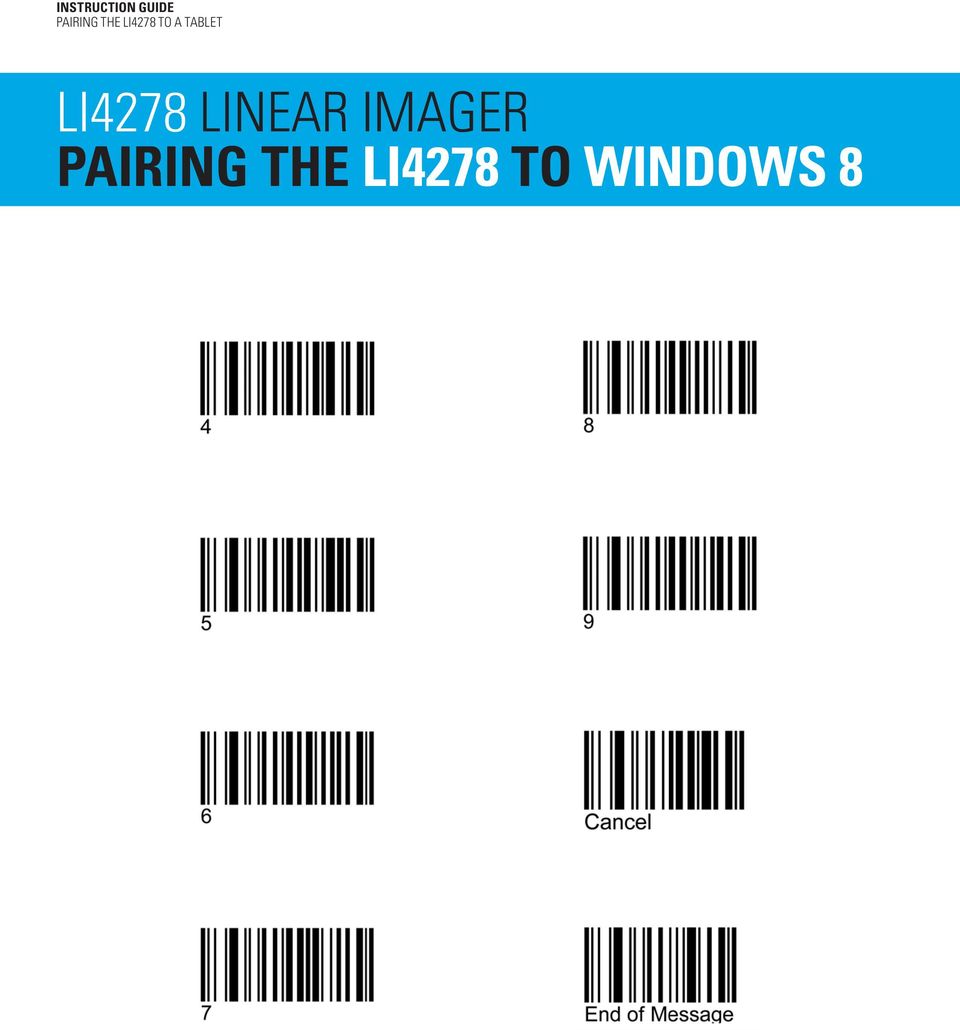
14 PAIRING THE LI4278 TO WINDOWS 8 8 The device is now connected and is ready to scan when it is listed under Devices. Test the scanner in any application capable of accepting keyboard input, such as OneNote. Tapping the keyboard icon in the lower right corner brings up the tablet s keyboard. 9 Part number: GUIDE-LI4278-TABLET. Printed in USA 08/14. MOTOROLA, MOTO, MOTOROLA SOLUTIONS and the Stylized M Logo are trademarks or registered trademarks of Motorola Trademark Holdings, LLC and are used under license. All other trademarks are the property of their respective owners Motorola Solutions, Inc. All rights reserved.

INTEGRATION GUIDE. Bluetooth Connection Instructions for CR2300/CR2600/CR3600 VERSION 03 RELEASE DATE: MARCH 2016
 INTEGRATION GUIDE Bluetooth Connection Instructions for CR2300/CR2600/CR3600 VERSION 03 RELEASE DATE: MARCH 2016 Apple is a trademarks of Apple Inc., registered in the U.S. and other countries. Windows
QUICK START GUIDE Bluetooth Cordless Hand Scanner (CHS)
 QUICK START GUIDE Bluetooth Cordless Hand Scanner (CHS) 1D Imager Models CHS 7Ci, 7Di, 7DiRx LED Trigger button Power button (also for ios Keyboard Pop-up) Model shown: CHS 7Di This document pertains to
because we care MS910 Wireless Barcode Scanner Quick Guide Full user s manual is available on the enclosed CD. Version 1.2 400947G
 because we care MS910 Wireless Barcode Scanner Quick Guide Full user s manual is available on the enclosed CD. Version 1.2 400947G because we care OUT OF THE BOX INTRODUCTION 2. Trigger 3. LED Indicator
Pogo> User Guide. for iphone, ipad and ipod touch
 Pogo> User Guide for iphone, ipad and ipod touch Introduction to Pogo> This document provides detailed information on how best to use the Pogo> application to benefit your business. The intention is to
User Guide. for Card Reader and Payment Application
 User Guide for Card Reader and Payment Application Introduction to Pogo> This document provides detailed information on how best to use the Pogo> application to benefit your business. The intention is
Connecting a Bluetooth Scanner to your Android Device
 Connecting a Bluetooth Scanner to your Android Device Chapter 1: CT 20/30... 1 Chapter 2: Motorola Symbol CS3070... 2 Chapter 3: Socket Mobile 7Ci... 3 Chapter 4: Opticon 2002/2005... 5 Chapter 5: Scanfob
STEELSERIES FREE MOBILE WIRELESS CONTROLLER USER GUIDE
 STEELSERIES FREE MOBILE WIRELESS CONTROLLER USER GUIDE INTRODUCTION Thank you for choosing the SteelSeries Free Mobile Controller! This controller is designed by SteelSeries, a dedicated manufacturer of
M Series Quick Start Guide
 M Series Quick Start Guide Thanks for you use Generalscan all series barocde scanner product! Please be sure to read this quick start guide before you use our product in first time. Optimal Scanning Distance
Mobile Asset Tracker
 Introduction Book Systems, Inc. provides the Mobile Asset Tracker (MAT) application for Apple iphone, ipod touch, ipad, and ipad mini devices and Android devices so that Booktracks users can circulate
SalesPad Mobile Usage Guide. Contents. A software product created by SalesPad Solutions Copyright 2004-2012 www.salespad.net
 SalesPad Mobile Usage Guide A software product created by SalesPad Solutions Copyright 2004-2012 www.salespad.net Contents SalesPad Mobile... 1 Usage Guide... 1 Overview... 4 Installation... 4 Android...
Nokia. udirect 2 Bluetooth pairing guide. Pairing and connecting udirect 2 with your Nokia cellular phone
 Nokia with your Nokia cellular phone Charge and turn on both cellular phone and udirect 2. Turning on Nokia Bluetooth Find the connectivity settings of your phone. With most Nokia models the following
Targus Bluetooth Keyboard for Tablets
 1 BLUETOOTH KEYBOARD for Tablets 410-2153-001B / AKB33US 1 YEAR LIMITED WARRANTY: We pride ourselves on the quality of our products. For complete warranty details and a list of our worldwide offices, please
Manual. Start accepting card payments with payleven
 Manual Start accepting card payments with payleven The Chip & PIN card reader Top Magnetic stripe card reader Front Bluetooth symbol Battery life 0-button (pairing button) Cancel Back Confirmation Bottom
How to set-up kubi video
 How to set-up kubi video Connecting Your Tablet Controlling KUBI Remotely 1. Securely attach the base to KUBI using the D-ring tripod Screw 2. Turn your KUBI on 3. Make sure the tablet Wi-Fi or 4G is connected
ReSound Control App. Where to get ReSound Control
 ANDROID APP ON ReSound Control App Where to get ReSound Control ReSound Control is free to download. On your mobile device, do one of two things: - Go to App Store or Google Play and search for ReSound
HANDS-FREE BLUETOOTH CONTROLLER for SMART READY TABLETS AND COMPUTERS
 HANDS-FREE BLUETOOTH CONTROLLER for SMART READY TABLETS AND COMPUTERS Operating Manual 2 CONTENTS Before Turning on Your PED... 4 Power... 5 ON... 5 OFF... 5 Modes... 6 Changing the MODE... 7 Connecting
CT20 Barcode Scanner User Manual
 CT20 Barcode Scanner User Manual IMPORTANT NOTICE Safety Precaution * DO NOT disassemble the scanner, or place foreign matter into the scanner cause a short circuit or circuit damage. * DO NOT expose the
Important Bluetooth. and Software Considerations for Wireless Barcode Scanner Deployments
 Important Bluetooth and Software Considerations for Wireless Barcode Scanner Deployments By LEN OTT, Chief Technical Officer, Socket Mobile, Inc. February 2011 Before deploying a Bluetooth barcode scanner,
INSTOCK for Android. This document describes how to:
 INSTOCK for Android This user guide describes how to use the TireCheck INSTOCK app on the Android platform. The INSTOCK app enables you to track and manage tire stock efficiently and effectively. This
MobileMerchant Application Guide
 MobileMerchant Application Guide United Kingdom Ireland Version 6 Android: Google Play is a trademark of Google Inc. Apple: Apple, the Apple logo, iphone and ipad are trademarks of Apple Inc., registered
Socket Bluetooth Cordless Hand Scanner (CHS) 7Xi and 7XiRx. 2D and 1D Barcode Scanners. User s Guide
 Socket Bluetooth Cordless Hand Scanner (CHS) 7Xi and 7XiRx 2D and 1D Barcode Scanners User s Guide 1/2013 Document # 6410-00233 O COPYRIGHT NOTICE Copyright 2010-2013 Socket Mobile, Inc. All rights reserved.
AXON Mobile for Android Devices User Manual
 AXON Mobile for Android Devices User Manual IMPORTANT SAFETY INSTRUCTIONS. Read all warnings and instructions. Save these instructions. For the most current product warnings and instructions, go to www.taser.com.
Using the Jive for ios App
 Using the Jive for ios App TOC 2 Contents App Overview...3 System Requirements... 4 Release Notes...5 Which Version Am I Using?... 6 Connecting to Your Community... 11 Getting Started...12 Using Your Inbox...13
Connecting Your Device to a Wireless Network
 Connecting Your Device to a Wireless Network This manual is designed to be a tutorial for our customers seeking to connect their electronic devices to their home Internet network. This manual will include
SwannSecure Monitoring System
 EN SwannSecure Monitoring System Wi-Fi Connections Quick Setup Guide Welcome! Lets get started. QWIFISS130814E Swann Communications 2014 1 INTRODUCTION 1 2 3 4 By default, the SwannSecure Monitoring System
Bluetooth HID Profile
 RN-WIFLYCR-UM-.01 RN-HID-UM Bluetooth HID Profile 2012 Roving Networks. All rights reserved. Version 1.0r 1/17/2012 USER MANUAL www.rovingnetworks.com 1 OVERVIEW Roving Networks Bluetooth modules support
Socket Bluetooth Cordless Hand Scanner (CHS) 1D Imager Models 7Ci, 7Di, 7DiRx. User s Guide
 Socket Bluetooth Cordless Hand Scanner (CHS) 1D Imager Models 7Ci, 7Di, 7DiRx User s Guide 4/2014 Document# 6410-00343 C Copyright 2014 Socket Mobile, Inc. All rights reserved. COPYRIGHT NOTICE Socket,
Zebra Link-OS Environment Version 2.0
 Zebra Link-OS Environment Version 2.0 To meet changing expectations and growing demands for devices that are mobile, intelligent and connected to the Cloud, Zebra Technologies has created a new software
CipherConnect is ready for purchase and downloadable via the Windows Marketplace for Mobile. Go on-line and browse the market for the applications:
 Prior to Use of Download to Windows Mobile Phones is a COM-to-key utility designed for CipherLab cordless scanners (156x and 166x) to work as an input device for the Windows Mobile phone, enabling intensive
BT-105 Transceiver Product Family. Includes DIGIT and ATFS-2. User Manual
 BT-105 Transceiver Product Family Includes DIGIT and ATFS-2 User Manual Table of Contents BT-105... 4 Description... 4 Setup and Pairing... 5 Resetting the Pairing... 5 Turning off the BT-105... 6 Modes...
CS3000 SERIES SCANNER PRODUCT REFERENCE GUIDE
 CS3000 SERIES SCANNER PRODUCT REFERENCE GUIDE CS3000 SERIES SCANNER PRODUCT REFERENCE GUIDE 72E-136088-04 Revision A February 2013 ii CS3000 Series Scanner Product Reference Guide 2013 Motorola Solutions,
Tutorial for Android users *with the CONNECTED WATCH App
 Tutorial for Android users *with the CONNECTED WATCH App 8 July 2014 Table of Contents 1. How to use the watch 2. How to pair the watch to your device 1. Step 1: Prepare your watch for pairing 2. Step
The easy way to accept EFTPOS, Visa and MasterCard payments on the spot. Mobile Users... 2. Charging your PayClip. 2. Downloading the PayClip app.
 PayClip User Guide The easy way to accept EFTPOS, Visa and MasterCard payments on the spot. Contents Getting started made easy 2 Information for Merchants....................................................2
PROFESSIONAL DIGITAL TWO-WAY RADIO MOTOTRBO ANYWHERE. for ios USER GUIDE
 PROFESSIONAL DIGITAL TWO-WAY RADIO MOTOTRBO ANYWHERE for ios USER GUIDE MOTOROLA, MOTO, MOTOROLA SOLUTIONS, MOTOTRBO and the Stylized M logo are trademarks or registered trademarks of Motorola Trademark
The Swivl Solution. Uses. Swivl User Guide. Swivl is more than just video capture, it is a 3-part solution.
 The Swivl Solution Swivl is more than just video capture, it is a 3-part solution. Swivl Robot Swivl Capture App Swivl Cloud The Swivl Robot works with any tablet device and follows the movement of the
Using OfficeMate/ExamWRITER on an Apple ipad. October 2013
 Using OfficeMate/ExamWRITER on an Apple ipad October 2013 Limitation of Liability and Damages The information contained herein is subject to change without notice and is provided "as-is" without warranty
METROLOGIC INSTRUMENTS, INC. Area Imaging Bar Code Supplemental Configuration Guide
 METROLOGIC INSTRUMENTS, INC. Area Imaging Bar Code Supplemental Configuration Guide Copyright 2007 by Metrologic Instruments, Inc. All rights reserved. No part of this work may be reproduced, transmitted,
Mobile Print/Scan Guide for Brother iprint&scan
 Mobile Print/Scan Guide for Brother iprint&scan Version I ENG Definitions of notes We use the following icon throughout this user s guide: Notes tell you how you should respond to a situation that may
SMART PHONES. A review based on Android from Samsung Apple IPhones will have very similar operational characteristics
 SMART PHONES A review based on Android from Samsung Apple IPhones will have very similar operational characteristics Compelling reasons to own one Some are now low cost May cost less than a new battery
B&SC Office 365 Email
 B&SC Office 365 Email Microsoft Office 365 In its continuous efforts to provide the highest quality student experience, Bryant & Stratton College is giving students access to a new tool for accessing email.
Application Note. Connecting the TracKing-1 using Bluetooth
 Application Note Connecting the TracKing-1 using Bluetooth This Application note describes how to establish a Bluetooth connection between the TracKing-1 and various devices. It also explains the various
Amcrest 960H DVR Quick Start Guide
 Amcrest 960H DVR Quick Start Guide Welcome Thank you for purchasing our Amcrest 960H DVR! This quick start guide will help you become familiar with our DVR in a very short time. Before installation and
HP Point of Sale (POS) Peripherals Configuration Guide 2D Imaging / Linear / Presentation Scanner
 HP Point of Sale (POS) Peripherals Configuration Guide 2D Imaging / Linear / Presentation Scanner Document Version 3.42 December 2011 1 Copyright 2007-2011 Hewlett-Packard Development Company, L.P. The
How to connect your D210 using Bluetooth. How to connect your D210 using GPRS (SIM Card)
 D210 En User Guide Content 3 Introduction 3 Scope 3 Related Documentation 4 Internet Connectivity 4 Using D210 with Mobile Phone 5 Using D210 with wireless (Wi-Fi) router 6 Using D210 with GPRS (requires
Insert the Product into a device (e.g. digital still camera) which is compatible with SDHC memory cards.
 Initial Settings from smartphone Initial Settings from Android smartphone/tablet PC 1. Turn on the Product Insert the Product into a device (e.g. digital still camera) which is compatible with SDHC memory
UNIVERSAL BLUETOOTH KEYBOARD CASE FOR TABLETS 7-8 INCHES
 UNIVERSAL BLUETOOTH KEYBOARD CASE FOR TABLETS 7-8 INCHES Quick Installation Guide 86280 INSTRUCTION ICONS WARNNING: situation that could cause injury to yourself or others Caution: situation that could
APPENDIX E COMMAND BARCODES
 APPENDIX E COMMAND BARCODES Scan command barcode(s) to quickly configure the Socket Bluetooth Cordless Hand Scanner v3 (1D laser versions). By default, the CHS is in HID mode as a Keyboard device. IMPORTANT!
Enterprise Analytics. (Also known as Pyramid Analytics or BI Office) Mobile Device Support
 Enterprise Analytics (Also known as Pyramid Analytics or BI Office) Mobile Device Support Mobile Device Support Overview Enterprise Analytics provides mobile support for ios, Android and Windows Phone.
Guide for Setting Up Your Multi-Factor Authentication Account and Using Multi-Factor Authentication. Mobile App Activation
 Guide for Setting Up Your Multi-Factor Authentication Account and Using Multi-Factor Authentication Mobile App Activation Before you can activate the mobile app you must download it. You can have up to
Smarter Balanced Assessment Consortium:
 Smarter Balanced Assessment Consortium: For the Spring 2014 Field Test Administration Updated March 26, 2014 Prepared by the American Institutes for Research Smarter Balanced Assessment Consortium, 2014
Connecting a Metrologic MS9535 to a USB BT Adapter (Client Mode)
 Connecting a Metrologic MS9535 to a USB BT Adapter (Client Mode) I. Scope This document will provide a brief description of how to connect the Metrologic MS9535-5 scanner to a USB Bluetooth Adapter in
Mobile App Frequently Asked Questions
 Mobile App Frequently Asked Questions Basics 1. What can I do with AAFCU s Mobile App? AAFCU s Mobile App makes your everyday banking activities easy and convenient. Here's what we offer: Pay bills Transfer
HOBOmobile User s Guide Android
 HOBOmobile User s Guide Android Onset Computer Corporation 470 MacArthur Blvd. Bourne, MA 02532 www.onsetcomp.com Mailing Address: P.O. Box 3450 Pocasset, MA 02559 3450 Phone: 1 800 LOGGERS (1 800 564
Akin Gump Strauss Hauer & Feld LLP Remote Access Resources (DUO)
 Akin Gump Strauss Hauer & Feld LLP Remote Access Resources (DUO) Firm Laptop Windows Home PC Mac Computer Apple ipad Android Devices Exit akingump.com 2015 Akin Gump Strauss Hauer & Feld LLP Check Point
ExpoBadge Mobile App User Guide
 ExpoBadge Mobile App User Guide ExpoLeads Mobile is an application that can be used to scan, qualify and survey attendees at events and trade shows using smart phones or tablets. It is compatible with
Quick Start Guide. Indoor. Your unique camera ID is:
 Quick Start Guide Indoor Your unique camera ID is: Welcome to Y-cam HomeMonitor Combining professional wireless internet cameras and a secure online account, HomeMonitor allows you to tap in to your home
AXON Mobile for ios Devices User Manual
 AXON Mobile for ios Devices User Manual IMPORTANT SAFETY INSTRUCTIONS. Read all warnings and instructions. Save these instructions. For the most current product warnings and instructions, go to www.taser.com.
1-800-566-6940. www.swremote.com MOBILE INVENTORY USER S MANUAL REV: 122607. Copyright 2008 SWRemote, LLC. - All Rights Reserved.
 MOBILE INVENTORY USER S MANUAL REV: 122607 TABLE OF CONTENTS PAGE 1 1 1 2 2 3 4 4 4 5 5-7 6 7 8-9 8 9 10-11 11 11 12-13 13 13 14-15 14 15 16 16 TITLE/DESCRIPTION Getting Started Mobile Inventory Overview
Windows 10.1 Tablet (UB-15MS10 and UB-15MS10SA) FAQ December 2014
 Windows 10.1 Tablet (UB-15MS10 and UB-15MS10SA) FAQ December 2014 Navigation... 2 Question 1: What are charms used for?... 2 Question 2: How do I navigate while using a mouse or trackpad?... 3 Question
How to Remotely Track Any Lost Smartphone, Tablet, or PC
 How to Remotely Track Any Lost Smartphone, Tablet, or PC Whether your device was stolen or simply lost, you can remotely track, lock, and wipe it. Don t wait until you ve l hardware to think about this
Quick Start Guide: ios and Android Iridium GO! App
 Quick Start Guide: ios and Android Iridium GO! App Wi-Fi connectivity Your smartphone or tablet device MUST be connected via Wi-Fi to Iridium GO! (ex. Iridium-06088 ) in order for the Iridium GO! application
How to switch Wi-Fi on and off at your router and connected devices
 How to switch Wi-Fi on and off at your router and connected devices www.safespace.net.nz 1. Firstly you need to know the IP address of your router. This is often 192.168.1.254 but can be another address.
Frequently Asked Questions. Troubleshooting
 Frequently Asked Questions & Troubleshooting What is DisplayNote? DisplayNote is versatile, multi-platform, collaboration and annotation software, combining both the presentation aspects of interactive
Hi, let s get started. Sound Rise Wireless Speaker & Alarm Clock
 Hi, let s get started. Sound Rise Wireless Speaker & Alarm Clock Welcome to your new Sound Rise! We created Sound Rise for music lovers like you. Start the day with your favorite tunes, rock out while
JOIKUSPOT PREMIUM USER GUIDE. Contents
 JOIKUSPOT PREMIUM USER GUIDE Contents 1. Installation... 2 2. Starting the application... 3 3. Setting up Security and other adjustable features... 6 4. Connecting your Laptop to internet via JoikuSpot
Madi, The Little Paper Pantry
 Madi, The Little Paper Pantry In this guide: Getting started Applying for PayPal Here Logging in to the app Setting up your business profile Setting up an item list Your card reader Your card reader Your
User's Guide. [Home Network] app. Model No.
![User's Guide. [Home Network] app. Model No.](/thumbs/26/8329814.jpg "User's Guide. [Home Network] app. Model No.") User's Guide [Home Network] app Model No. Table of Contents Table of Contents 1 Welcome to the Panasonic Home Network System!...5 1.1 What is the Panasonic Home Network System?...5 1.2 What can I use it
User's Guide [Home Network] app Model No. Table of Contents Table of Contents 1 Welcome to the Panasonic Home Network System!...5 1.1 What is the Panasonic Home Network System?...5 1.2 What can I use it
Wi-Fi Connection Guide (Windows)
 P3PC-5672-01ENZ0 Wi-Fi Connection Guide (Windows) Contents About This Manual... 3 Trademarks...4 Manufacturer...5 Arrow Symbols in This Manual...6 Screen Examples in This Manual...7 For Windows 8.1 or
Mobile Print/Scan Guide for Brother iprint&scan
 Mobile Print/Scan Guide for Brother iprint&scan Version K ENG Definitions of notes We use the following note style throughout this user s guide: specifies the operating environment, conditions for installation,
KANGAROO MOBILE DESKTOP USER GUIDE
 KANGAROO MOBILE DESKTOP USER GUIDE Copyright InFocus Corporation., 2015. All rights reserved. This document contains information proprietary to InFocus Corporation, hereinafter InFocus. Use or disclosure
Quick Start Guide. Business Wireless Gateway. WiFi Devices. Model Number: DPC3939B. Business Wireless Gateway
 Business Wireless Gateway Model Number: DPC3939B Quick Start Guide WiFi Devices Business Wireless Gateway Set up your Private and Public WiFi networks About the Business Wireless Gateway Model Number:
How to connect your D200 using Bluetooth. How to connect your D200 using GPRS (SIM Card)
 D200 En User Guide Content 3 Introduction 3 Scope 3 Related Documentation 4 Internet Connectivity 4 Using D200 with Mobile Phone 5 Using D200 with wireless (Wi-Fi) router 6 Using D200 with GPRS (requires
Understanding barcodes. www.brightpearl.com/ca101
 Understanding barcodes This ebook gives an overview of product codes, barcodes, scanners and describes where barcode management could fit in your business. www.brightpearl.com/ca0 to Understanding barcodes
TMCT-10 Barcode Scanner User Manual. 102, 5661-99 St. Edmonton, AB T6E 3N8 Ph. 780.988.0215 Fax 780.988.0465
 TMCT-10 Barcode Scanner User Manual 102, 5661-99 St. Edmonton, AB T6E 3N8 Ph. 780.988.0215 Fax 780.988.0465 IMPORTANT NOTICE Safety Precaution * DO NOT disassemble the scanner, or place foreign matter
Tablet PC User Manual
 Tablet PC User Manual Please read all instructions carefully before use to get the most out of your Time2Touch Tablet PC. The design and features are subject to change without notice. Contents Important
Remote MasterMind 3.0. Mobile Device & Bar Code Scanner Management Solution
 3.0 Mobile Device & Bar Code Scanner Management Solution is Honeywell s 3.0 You have mobility and bar code scanning devices in locations all across your enterprise. They are constantly on the move or situated
Mobile Print/Scan Guide for Brother iprint&scan
 Mobile Print/Scan Guide for Brother iprint&scan Version G ENG Definitions of notes We use the following icon throughout this user s guide: Notes tell you how you should respond to a situation that may
User Manual. Ver 1.0. Solutions for the Digital Life
 Model #: User Manual Ver 1.0 Solutions for the Digital Life Table of Contents Getting Started 3 Introduction 3 Package Contents 3 System Requirements 3 Installing the Receiver 5 Connecting the Receiver
TelkomInternet APN Device Settings
 TelkomInternet APN Device Settings Page 2 of 32 1. Telkom Devices 1.1. Huawei Mobile WiFi E5330 setting Switch the device on Connect the device using the USB cable Using your web browser, go to http://192.168.8.1
User Manual. Updated for igrill 2.7.1 and ios 7
 User Manual Updated for igrill 2.7.1 and ios 7 Table of Contents 1. Getting Started... 3 2. Quick Start Instructions... 4 3. igrill Instructions... 5 3.1 Batteries... 5 3.2 Probes... 5 3.3 Fahrenheit or
Mobility with Eye-Fi Scanning Guide
 Mobility with Eye-Fi Scanning Guide Scan and Transfer Images Wirelessly with Eye-Fi This document is to be used in addition to the scanner s user guide located on the installation disc. The instructions
BTX180 Wireless Bluetooth Speaker
 BTX180 Wireless Bluetooth Speaker User Manual 2012 Kinivo LLC. All rights reserved. Kinivo is a trademark of Kinivo LLC. Bluetooth word mark and the Bluetooth logo are registered trademarks of Bluetooth
USEFUL HINTS & TIPS ALCATEL ONE TOUCH 993. better BUSINESS
 USEFUL HINTS & TIPS ALCATEL ONE TOUCH 993 We really value your feedback on this useful hints & tips guide. If you feel anything is missing, or anything could be made clearer, please send your feedback
How to Connect to UCO s Wireless Network on an Android Device
 How to Connect to UCO s Wireless Network on an Android Device These instructions will work for most Android devices, including phones and tablet devices. The only issue you may run into is some of the
Otium Gear S Smart Watch User Guide Please read the manual before use. * For further information, please visit www.otiumobile.com
 Otium Gear S Smart Watch User Guide Please read the manual before use. * For further information, please visit www.otiumobile.com 1 About this manual You can use this Gear S as a companion device to some
BTEC First Diploma for IT. Scheme of Work for Computer Systems unit 3 (10 credit unit)
 BTEC First Diploma for IT Scheme of Work for Computer Systems unit 3 (10 credit unit) Overview On completion of this unit a learner should: 1 Know the of 4 Be able to. Num of hours Teaching topic Delivery
BlackVue Cloud App Overview...3. Getting Started...6. Basic Menu Screens...15. BlackVue Cloud...24. BlackVue Wi-Fi...40. Internal Memory...
 Table of Contents BlackVue Cloud App Overview...3 Key Functions When Cloud is Connected...4 Key Functions When Wi-Fi Connection is Made...4 Key Features of Internal Memory...4 Supported Devices...5 Getting
Vehicle Monitoring Quick Reference Guide
 Vehicle Monitoring Quick Reference Guide Powered by Delphi Welcome You re about to experience a powerful device that will deliver a new level of convenience and peace of mind with your vehicle. When combined
Remote Desktop Solution, (RDS), replacing CITRIX Home Access
 Remote Desktop Solution, (RDS), replacing CITRIX Home Access RDS Applications on a Computer Overview RDS has replaced citrix for remote access at home for College staff and pupils. This does not replace
Sophos Mobile Control user help. Product version: 6.1
 Sophos Mobile Control user help Product version: 6.1 Document date: May 2016 Contents 1 About this help...4 2 About Sophos Mobile Control...5 3 Login to the Self Service Portal...6 3.1 First login...6
Microsoft Office for Mobile Devices (iphone, Windows Phone, Android Phone or ipad)
 Microsoft Office for Mobile Devices (iphone, Windows Phone, Android Phone or ipad) 1. Open the App store on the device you wish to install Microsoft Office for Mobile on. From the App store, search for
Night Owl 8 channel DVR system with HDMI output, 960H recording and a Free Night Owl Pro App with Owl Scan (No Hard Drive Included)
 Night Owl 8 channel DVR system with HDMI output, 960H recording and a Free Night Owl Pro App with Owl Scan (No Hard Drive Included) Night Owl s PE-DVR8 is an advanced 8 channel 960H Security DVR. The DVR
Thank you for purchasing the Mobile WiFi. This Mobile WiFi brings you a high speed wireless network connection.
 Quick Start Thank you for purchasing the Mobile WiFi. This Mobile WiFi brings you a high speed wireless network connection. This document will help you understand your Mobile WiFi so you can start using
Quick Start Guide. PC, Mac, Android & ios
 Quick Start Guide PC, Mac, Android & ios Installation for PC Please refer to the Trend Micro website for detailed system requirements. If you encounter difficulties while installing or activating this
Quick Guide: ixpand Transfer
 Quick Guide: ixpand Transfer ixpand Transfer is Android application for SanDisk ixpand Flash Drive. This application enables you to back up your contacts, photos and videos in your Android smartphone or
FAQ for Transformer TF201
 FAQ for Transformer TF201 Managing files... 2 How do I access my data stored in microsd, SD card and USB device?... 2 How do I move the selected file to another folder?... 2 How do I copy and paste the