
User Guide TouchDown Version June 2012
|
|
|
- Alexandrina Peters
- 10 years ago
- Views:
Transcription
1 User Guide 2012 NitroDesk Inc. All Rights Reserved. Unauthorized reproduction prohibited. TouchDown Version June 2012

2

3 Table of Contents Main Screen 3 Main Screen 3 Button Bar 4 Status Area 5 Main Screen Menu Headers 7 Compose 8 Menu 11 Working with 14 Options 17 Calendar 21 Day and Week View 21 Month View 22 Agenda View 23 Calendar Menu 23 Calendar Options 27 Contacts 29 Selecting the Contacts Folder to Sync 29 Copying to the Phone Book 29 Keeping Contacts Updated 30 Syncing Additional Contact Fields and Contact Photos 30 Contacts Menu 31 Other Contact Shortcuts 33 Tasks 35 Open Task Screen 37 Create/Edit Task Screen 37 Table of Contents i
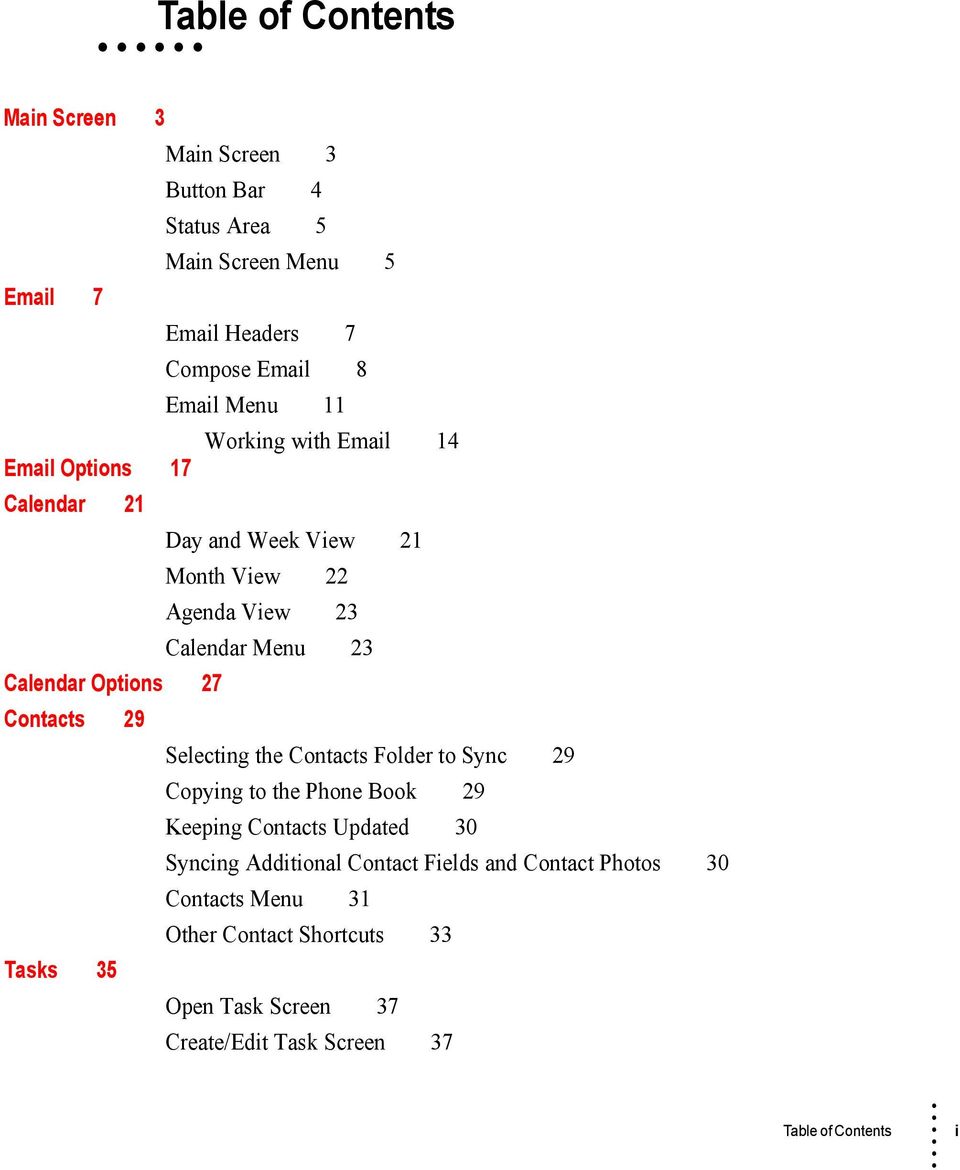
4 Notes 39 Advanced Settings 41 Checking Frequency 41 s to Synchronize 42 Appointments to Synchronize 43 ActiveSync Device Type String 43 Body Style 44 Select Theme 44 Options 45 View Text size 48 Download Size 49 Copy To Phone As 49 Selected Folders 49 Additional Options 50 Refresh Folders 50 Choose Folders 51 Alerts 51 Appointment Alerts 52 Reminders 52 Client Certs 53 Peak Times 53 Manage Rules 55 Remote Kill 57 Security Policies 59 Backup/Restore Settings 59 Categories 60 Out of Office 61 S/MIME Options 62 Signature 64 Export Settings 64 Quick Replies 65 Mobile Forms 65 Notification Settings 66 Settings Menu 68 ii Table of Contents
5 Chapter 1 Introduction This document describes the user facing functionality of TouchDown for Android devices. It is intended as a guide to the different functions of the application as well as a guide to help you perform common operations with the application. Installation and configuration of TouchDown is covered in a separate document. Refer to the Installation and Configuration Guide for more information. NOTE: This document assumes that you have TouchDown installed, configured and activated for full operation. 1
6 2 Chapter 1
7 Chapter 2 Main Screen Once you have the program installed and your account configured, you can start TouchDown by going to the home screen of the device, and tapping the TouchDown icon. Main Screen When TouchDown starts, the Main screen is displayed. FIGURE 1. TouchDown Main Screen 3
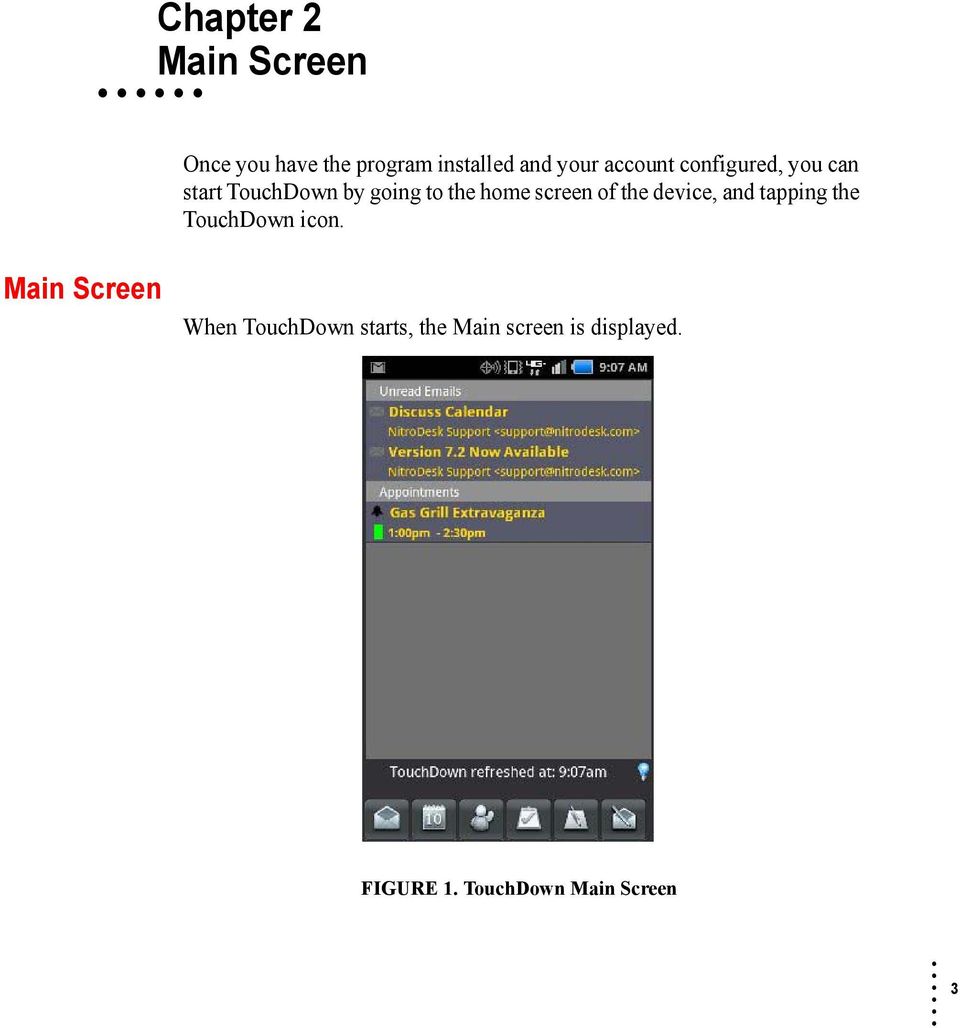
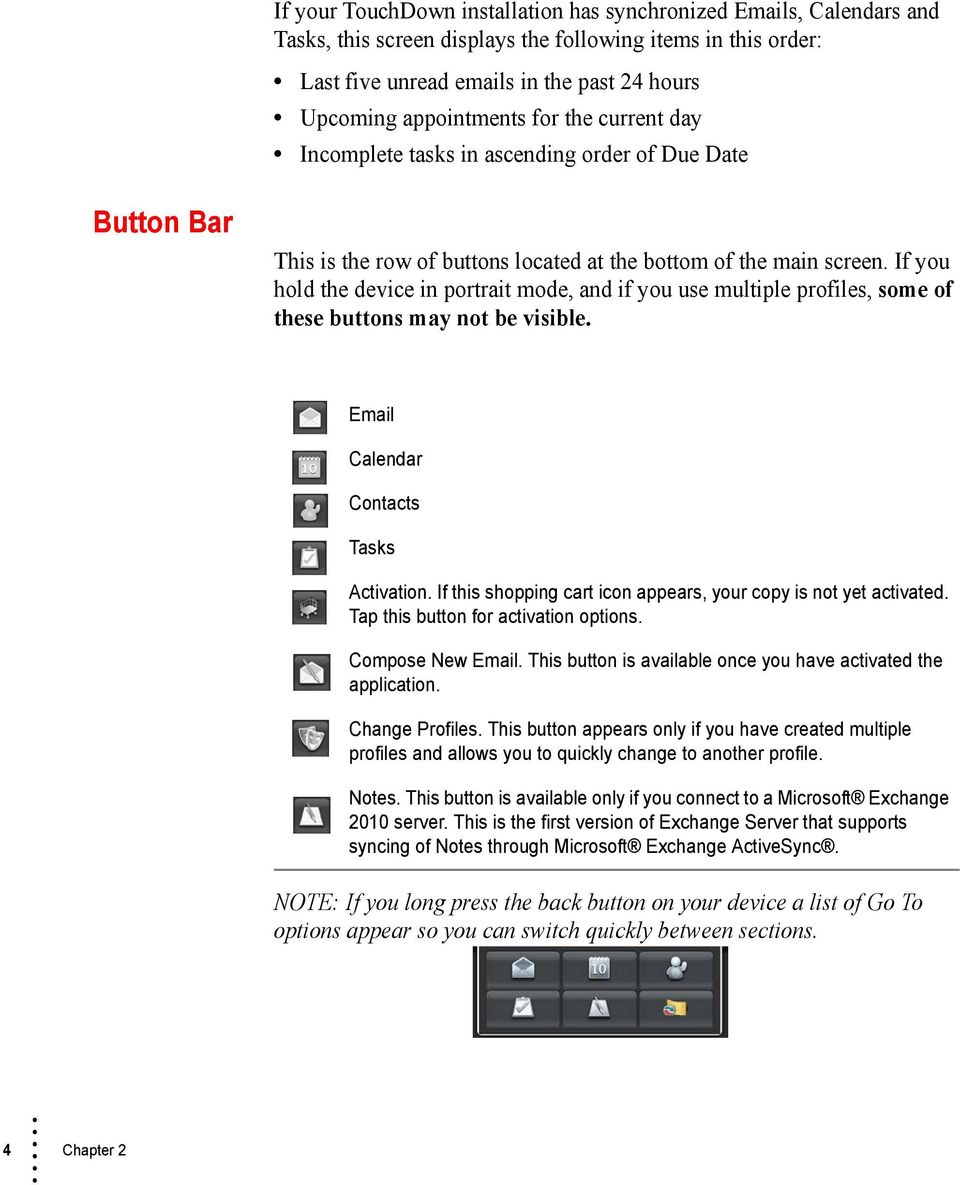
8 If your TouchDown installation has synchronized s, Calendars and Tasks, this screen displays the following items in this order: Last five unread s in the past 24 hours Upcoming appointments for the current day Incomplete tasks in ascending order of Due Date Button Bar This is the row of buttons located at the bottom of the main screen. If you hold the device in portrait mode, and if you use multiple profiles, some of these buttons may not be visible. Calendar Contacts Tasks Activation. If this shopping cart icon appears, your copy is not yet activated. Tap this button for activation options. Compose New . This button is available once you have activated the application. Change Profiles. This button appears only if you have created multiple profiles and allows you to quickly change to another profile. Notes. This button is available only if you connect to a Microsoft Exchange 2010 server. This is the first version of Exchange Server that supports syncing of Notes through Microsoft Exchange ActiveSync. NOTE: If you long press the back button on your device a list of Go To options appear so you can switch quickly between sections. 4 Chapter 2
9 Status Area The area, just to the left of the status light bulb, displays the various status messages that are generated during TouchDown s operations. For example, you can see what items are being processed during a sync in this area. FIGURE 2. Status Message To the right of the status area, an indicator light bulb displays the status of Push . The following defines each light bulb color: Push is not enabled, has been temporarily suspended, or the configuration does not support Push Push is listening for changes Sync is in process Main Screen Menu While on the TouchDown Main screen, tap the Menu button on the device to access the options described below. SYNC will sync all folders ( , Calendar, Contacts, Tasks and Notes). DISABLE or ENABLE PUSH will either disable or enable Push . When Push is disabled, you can only sync manually. See Sync. CHANGE PIN will reset the PIN. If your Exchange Server does not require you to use a PIN to log into TouchDown, this button is grayed out. Main Screen 5

10 DIAGNOSTICS logs recent activities in TouchDown and is a helpful troubleshooting tool. You can the log to [email protected] for help in troubleshooting the problem you may be having with the application. SETTINGS takes you to the Settings screen. The following Menu options are available by tapping the More button. ABOUT displays the version of TouchDown you have installed on your device and if the license is valid. SEARCH offers a shortcut to search for all data currently synced to the device. You can search as you type for s, Appointments, Contacts and Tasks. CLEAN QUEUE is useful if an was unable to be sent. If items are stuck in the queue and preventing a sync, try cleaning the queue to clear any pending synchronization operations. Any unsent items will be lost unless you save each item as a draft. OUTBOUND shows a list of s that failed to send or are in-flight. You can open and edit and try to send again or discard the message. PROFILES allows you to create or edit multiple Exchange Server profiles to be used with TouchDown. You can sync as many profiles with TouchDown as your device can support. However, only one account will be active at any time (pushing or polling). To create a new profile, 1 Tap Menu, More, Profiles on the Main screen. 2 Tap Add Profile and Type Profile Name. Tap OK. 3 Long press on any profile to manage options, such as moving the profile data to SD card. Once you create a new profile, a new button allow you to quickly switch profiles. in the home screen will CHECK FOR UPDATES is available if you are currently running a beta version of TouchDown. 6 Chapter 2

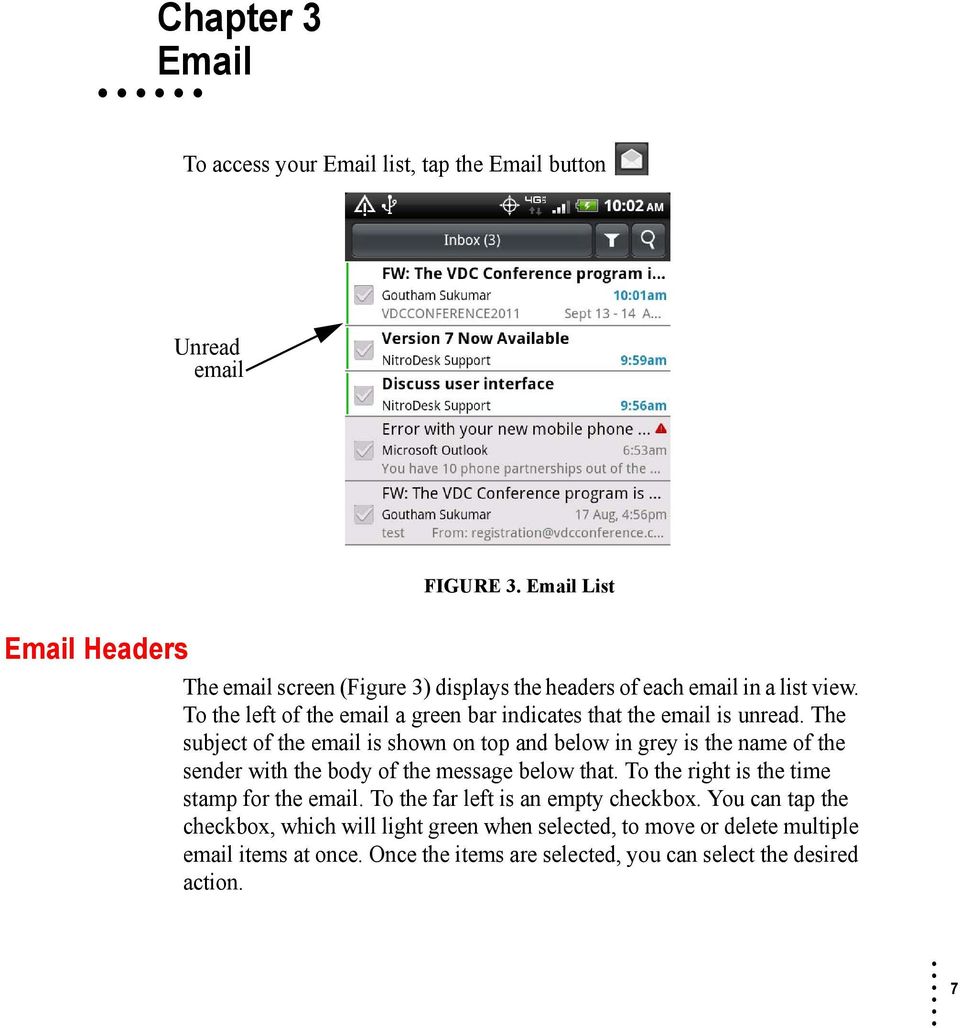
11 Chapter 3 To access your list, tap the button Unread Headers FIGURE 3. List The screen (Figure 3) displays the headers of each in a list view. To the left of the a green bar indicates that the is unread. The subject of the is shown on top and below in grey is the name of the sender with the body of the message below that. To the right is the time stamp for the . To the far left is an empty checkbox. You can tap the checkbox, which will light green when selected, to move or delete multiple items at once. Once the items are selected, you can select the desired action. 7
12 The following buttons are available. Mark Read Move To Delete Mark Unread Mark as Junk Compose Delete Mark Unread Mark Read Move To FIGURE 4. Quick Buttons Mark As Junk (A Junk folder must be detected for this button to be available) If you selected Confirm move to Junk in the Options screen a confirmation box will appear asking if you want to move the to the Junk folder. Swiping left on an will open it in conversation chat mode. COMPOSE will bring up the compose screen to create a new . There are four tabs: FIGURE 5. Tabs 8 Chapter 3

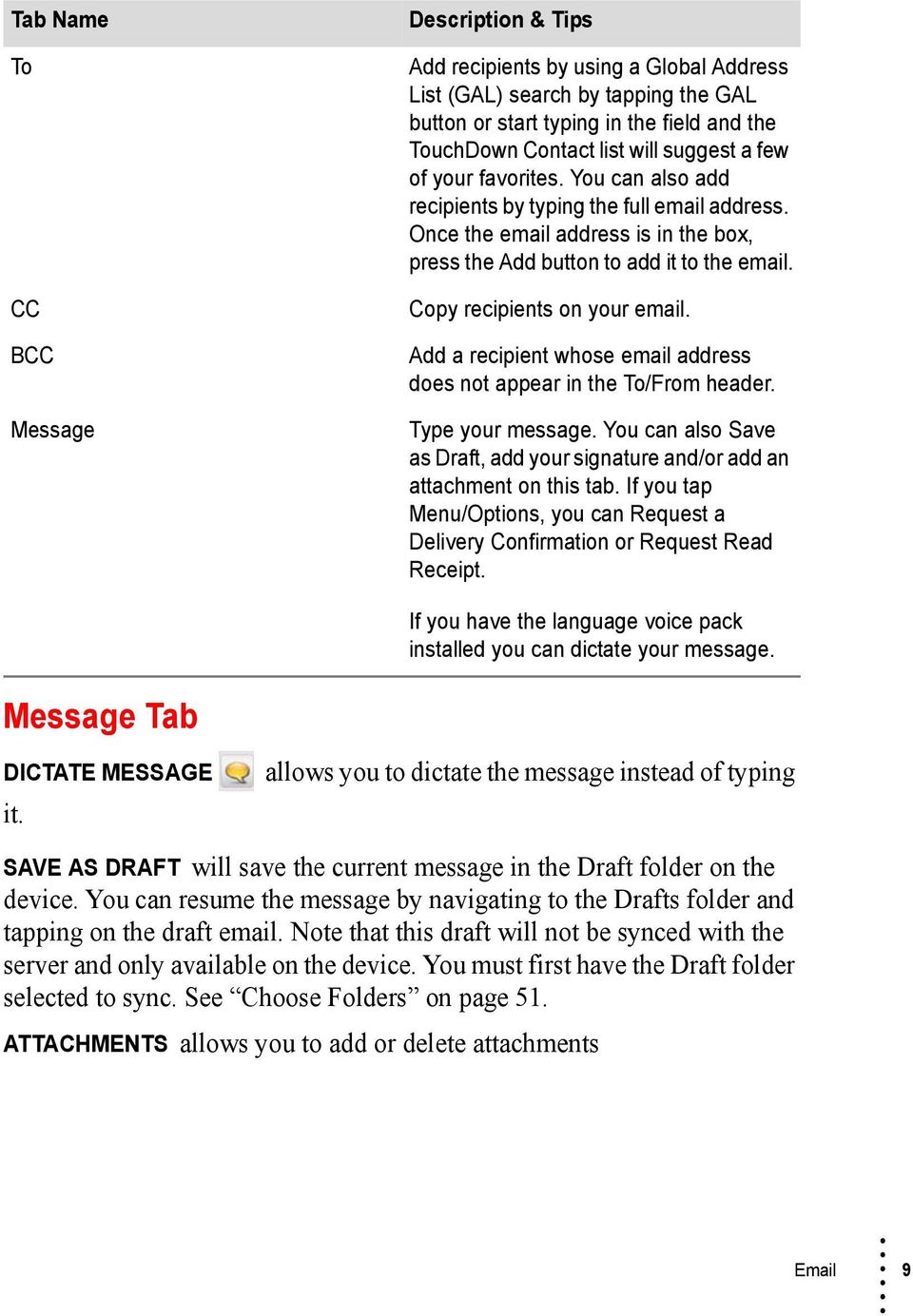
13 Tab Name To CC BCC Message Description & Tips Add recipients by using a Global Address List (GAL) search by tapping the GAL button or start typing in the field and the TouchDown Contact list will suggest a few of your favorites. You can also add recipients by typing the full address. Once the address is in the box, press the Add button to add it to the . Copy recipients on your . Add a recipient whose address does not appear in the To/From header. Type your message. You can also Save as Draft, add your signature and/or add an attachment on this tab. If you tap Menu/Options, you can Request a Delivery Confirmation or Request Read Receipt. Message Tab DICTATE MESSAGE it. If you have the language voice pack installed you can dictate your message. allows you to dictate the message instead of typing SAVE AS DRAFT will save the current message in the Draft folder on the device. You can resume the message by navigating to the Drafts folder and tapping on the draft . Note that this draft will not be synced with the server and only available on the device. You must first have the Draft folder selected to sync. See Choose Folders on page 51. ATTACHMENTS allows you to add or delete attachments 9
14 SD Card Add Gallery Delete FIGURE 6. Working with Attachments in Messages NOTE: TouchDown will resize images down to 1K and reduce image quality for smaller file sizes. SIGNATURE allows you to add or remove the signature to the bottom of the REPLY-TO allows you to select a different reply-to address for that message. NOTE: If this option is not available, you must add an address in the Account tab. To add a reply-to address in the Account tab, 1 Open TouchDown. The Main screen is displayed. 2 Tap Menu button and select Settings. The Account tab is displayed. 3 Add a reply-to address in the Reply-To addresses box. To add more than one separate by commas. 4 Tap Save at the bottom of the screen. The following Menu options are available by tapping the Menu button on the device. SEND will send the message DISCARD cancels the current message and exits to previous screen IMPORTANCE allows you set the importance of the to low, normal or high 10 Chapter 3

15 The following Menu options are available by tapping the Menu button on the device and tapping Options. REQUEST DELIVERY CONFIRMATION will report when an has been delivered to an . REQUEST READ RECEIPT will report when an has been read. NOTE: Read receipts cannot be suppressed in TouchDown. SET PERMISSIONS will set permissions. DOWNLOAD RIGHTS TEMPLATES will download the rights templates. SIGN MESSAGE will allow you sign the message with your digital certificate If S/MIME is configured correctly. ENCRYPT MESSAGE will allow you to encrypt the message so that only the recipients can view the message. Note that this requires the public key of the recipient to be available to the application. Menu COMPOSE will bring up the compose screen to create a new . SYNC will immediately check the server to request any changes and to report any changes you may have made from your device. DELETE the from TouchDown. Unless you have Don t delete s on server checked in the TouchDown Advanced settings (See Page 46), the will also be moved to the deleted folder in Outlook. You can sync your deleted items folder to keep track of these items. MARK READ / UNREAD changes the status as read if it is unread, or unread if it has been read. MOVE TO will open up a list of folders to select where to move the . A plus sign may be located to the right of some folders. This symbol can be used to expand the folder. NOTE: If the folder you want is not listed, make sure you have a check next to Allow to move to any folder in Options (See Page 18). 11

16 The following Menu options are available by tapping the More button. FILTER will display a pop-up window to select an option to filter your list. The following options are available: All Unread Flagged With Attachments Conversations High Importance Unflagged Tap the option to select it. The current option will display a green light on the right. Only one filter can be applied at a time. SORT allows you to sort by: Date (Ascending or Descending) Sender (Ascending or Descending) Subject (Ascending or Descending) Size (Ascending or Descending) SEARCH allows you to search for any s synced on the device. The search is performed as you type in the keyword. NOTE: If Require Encryption is enabled for security policies this option is not functional. 12 Chapter 3
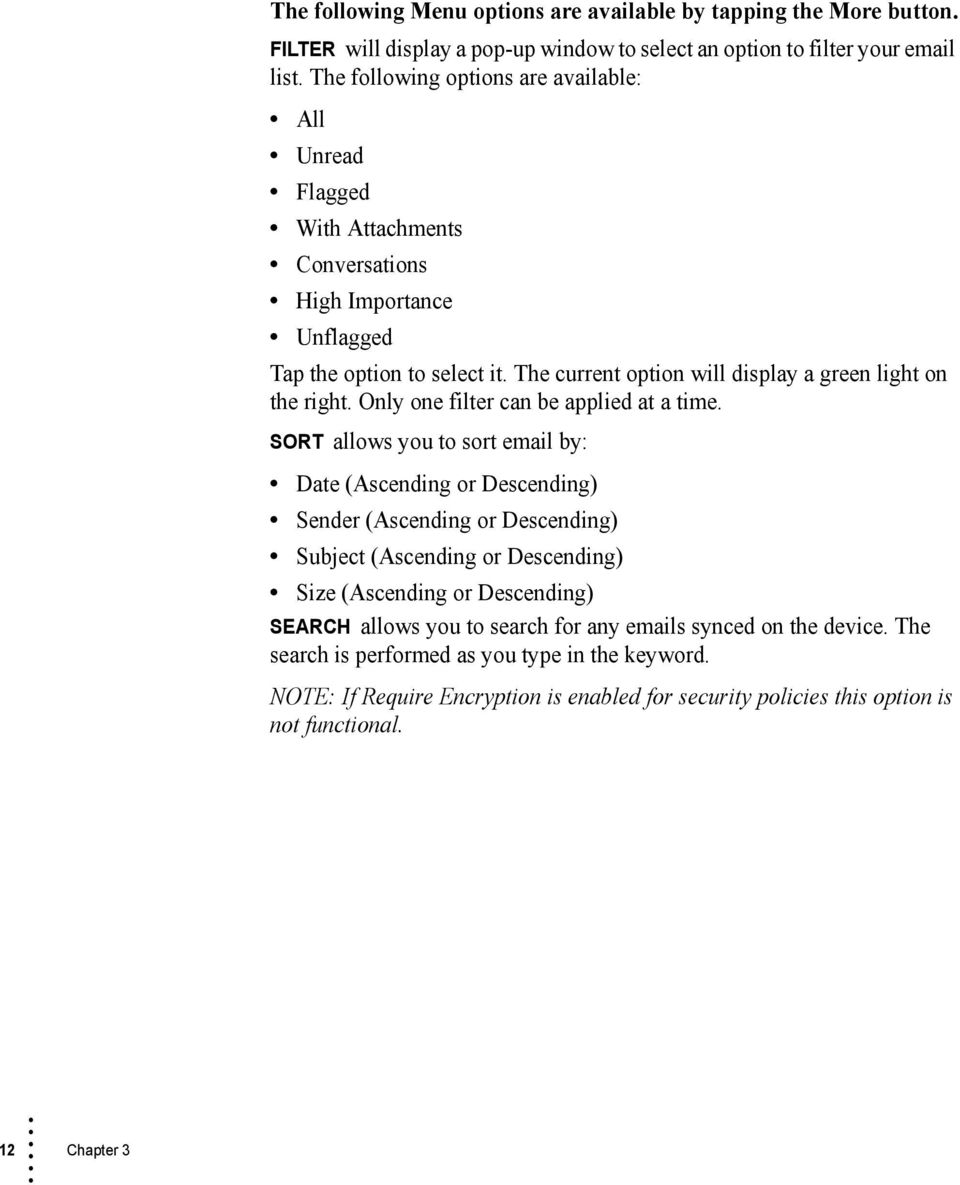
17 SERVER SEARCH allows you to search for any items on the server, whether they are synced to the device or not. NOTE: This will work with Exchange Server 2007 with ActiveSync or later. FIGURE 7. Server Search MARK ALL READ marks all items in the list as Read. MARK UNREAD marks all selected items in the list as Unread. SELECT ALL & UNSELECT ALL selects or unselects all s in the list. FETCH ALL allows you to enter the number of days you want to refresh the list with items from the past. OPTIONS See Chapter 4, Options on page 17 for more details. CHOOSE FOLDERS lets you select the folders to synchronize. 13
18 Working with The following options are available by long pressing on an . QUICK REPLY... pulls up a list of replies to use. See Quick Replies on page 65 for help working with Quick Replies. SPEAK your message. If you have the language voice pack installed you can listen to your message. MARK AS READ marks the as Read. MARK AS UNREAD marks the as Unread. DELETE the from TouchDown. Unless you have Don t delete s on server checked in the TouchDown Advanced settings (See Page 46), the will also be moved to the deleted folder in Outlook. MOVE TO JUNK moves the to the Junk folder. The Junk folder must be detected for this to be available. MOVE will open up a list of folders to select where to move the . A plus sign may be located to the right of some folders. This symbol can be used to expand the folder. REPLY will reply to sender. REPLY ALL will reply to the sender and all recipients. FORWARD will forward the . MAKE TASK... will create a task using the as the subject and description. See Create/Edit Task Screen on page 37. MAKE EVENT... will create an event using the as the subject and description. FLAG FOR FOLLOW UP flags the for follow up. The following options are available when reading an . COMPOSE NEW will bring up the compose screen to create a new . DELETE the from TouchDown. Unless you have Don t delete s on server checked in the TouchDown Advanced settings (See Page 46), the will also be moved to the deleted folder in Outlook. REPLY will reply to sender. 14 Chapter 3
19 REPLY ALL will reply to the sender and all recipients. FORWARD will forward the . The following Menu options are available by tapping the More button. MOVE TO will open up a list of folders to select where to move the . A plus sign may be located to the right of some folders. This symbol can be used to expand the folder. MARK AS READ marks the as Read. MARK AS UNREAD marks the as Unread. PRINT will print the from your device. NOTE: You must have the Breezy app installed to use the print option. For more information how to download, install and use the Breezy app, visit OPTIONS See Chapter 4, Options on page 17 for more details. REFETCH downloads the in text mode. MAKE TASK will create a task using the as the subject and description. See Create/Edit Task Screen on page 37. MAKE EVENT will create an event using the as the subject and description. 15

20 16 Chapter 3
21 Chapter 4 Options This chapter describes how you can customize options. To access options, 1 While in TouchDown, open the list. 2 Tap the Menu button on the device. 3 Select More. 4 Tap Options. The following options are available. FIGURE 8. Options 17
22 MULTI-SELECTORS ON LIST will display a check box on the left side of each message in the list. You can select a message by tapping the box. Once s are selected, you can perform operations like Delete, Mark Read, Mark Unread and Move to Folder on all the selected items by tapping the Menu button on the device and selecting the option from the menu that is displayed. SHOW SUMMARY displays the first line of the body in addition to the subject and sender. HIGHLIGHT SENDER IN LIST makes the name of the sender of any larger and bold as opposed to the subject. SEARCH AS YOU TYPE will search for messages using the Menu/Search option in the list view. The messages will be filtered according to your search string as you type it in. If this option is not selected, you must tap the green arrow next to the search string to perform the search. FETCH EMBEDDED IMAGES automatically downloads and displays embedded images within s. This options requires Exchange ActiveSync connection mode with HTML s enabled. ALLOW MOVE TO ANY FOLDER allows you to move messages to folders that you have not selected for synchronization. If this is not selected, you can only move s to folders that you are already synchronizing. HIGHLIGHT UNREAD S displays unread messages in bold. Read items in the list will appear grey. PREVIEW IMAGE ATTACHMENTS will display a sample thumbnail of image attachments after downloading. ALWAYS EXPAND FOLDERS displays all folders in folder list. CONFIRM DELETES will prompt you to confirm that you want to delete the each time you tap Delete. CONFIRM SEND BUTTON ON COMPOSE will prompt you to confirm that you want to send an each time you tap Send. CONFIRM MOVE TO FOLDERS will prompt you to confirm that you want to move an each time you tap Move To. CONFIRM MOVE TO JUNK pop up a confirmation box asking if you want to move the to the Junk folder. 18 Chapter 4
23 OPEN AS CONVERSATION always opens the as conversation. SHOW PLAIN TEXT S IN WEB VIEW enables you to pinch/zoom as well as copy text from plain text s. MESSAGE VIEWING TOOLBAR allows you to control if the toolbar is shown at the bottom when viewing an . The following options are available: Option Show Hide Toggle on Shake Description Toolbar will be shown Toolbar will not be shown Toolbar will be toggled on and off when you shake the device while viewing a message AFTER DELETE GO TO lets you select the action after deleting an . The following choices are available. Option List Next Previous Description Go to the list Open the next in the list. If none, go back to the list view Go to the previous in the list. If none, go back to the list view TOOLBAR BUTTONS allows you to choose the buttons that appear at the bottom of the screen when you view an . The following buttons are available. Respond/Reply Forward Move Delete Reply All Mark Unread Junk FIGURE 9. Toolbar Buttons Options 19
24 Delete Respond The respond button was created in an attempt to save space on the toolbar. The Reply, Reply All and Forward buttons can be used to replace the respond button. Reply Reply All Forward Mark Unread Move Junk 20 Chapter 4
25 Chapter 5 Calendar Day and Week View This chapter describes the different calendar views available. To access your Calendar, tap the Calendar button The Day and Week views allow you to swipe left or right to view days or weeks in the past or future. FIGURE 10. Day and Week View 21
26 Month View The Month view is an overall look at the selected month of appointments. Swiping left or right will display past and future months. TouchDown s default setting is to sync 2 weeks of past appointments. If you want to change the default, see Appointments to Synchronize on page 43. Tapping on a day will list the appointment for that day. FIGURE 11. Month View 22 Chapter 5
27 Agenda View The Agenda view displays a condensed look at the upcoming events and tasks. A swiping motion will move you through future dates. The title of the event, time, date and location are shown in a list view similar to the screen. Most items can be accessed for view or edit by tapping or long pressing on each event or task. You can choose to view only appointments and remove tasks from the Agenda view. To change the setting, see page 28. Agenda View Agenda View with Calendar Calendar Menu FIGURE 12. Agenda View The calendar menu displays the separate view options as previously discussed and the following additional options: Calendar 23
28 REFRESH removes all items from the TouchDown calendar and repopulates the list with the items from your Microsoft Exchange Server. A refresh will permanently delete changes made on the device if they have not yet synced to the server and repopulates with only the data that is available on the Exchange Server. This is different from a Sync command in that a Sync will check the server for changes and also report changes made from the device to the server. The following Menu options are available by tapping the More button. NEW EVENT will open the Create Event screen. Choose this option to create your event or meeting. On this the screen you can invite attendees using the Global Address List (GAL). Once an attendee is selected, you can tap Menu, Availability to review free/busy information if your Exchange Server supports retrieval of Free/Busy information. FIGURE 13. New Event Screen SEARCH allows you to search events synced to the device. TODAY will take you to today s date on the calendar. GO TO DATE allows you to find a specific date on the calendar and view that day. 24 Chapter 5
29 OPTIONS See Calendar Options on page 27 for a description of calendar options. To create an appointment, 1 Long press the space on the time and day for the event and tap Add Event. - or - 2 Tap the Add button. 3 Fill out the appointment information and tap Create. To create an appointment importing icalendar (.ics) file, 1 Open the with the.ics attachment and download. 2 Open the.ics attachment. 3 Fill out the appointment information and tap Create. Calendar 25
30 26 Chapter 5
31 Chapter 6 Calendar Options This chapter describes how you can customize calendar options. To access Calendar options, 1 While in TouchDown, open the calendar. 2 Tap the Menu button on the device. 3 Select More. 4 Tap Options. The following Calendar options are available. FIGURE 14. Calendar Options 27
32 ALL-DAY EVENTS AT 12:00 AM is a legacy option and is not relevant in the current version of TouchDown. ALL-DAY EVENTS IN WIDGET will display all-day events in the TouchDown Calendar widgets. AGENDA VIEW SHOWS UPCOMING ONLY displays only appointments that have not already passed for the current day in the TouchDown Agenda view. CUSTOM WEEK VIEW enables two additional options. When selected, you can change the Week starts on and Week ends on options to select the start and end dates for the week. Selecting a custom week start and end day will change the way the Week view is shown. ENABLE RESOURCES FIELD gives you the ability to specify a resource field when creating new meetings. You may use the resources field to specify non-attendees such as conference room resources or equipment that are addressable using an address. SHOW TASKS IN AGENDA VIEW displays the tasks in the Agenda view. OVERDUE TASKS IN AGENDA VIEW displays overdue tasks in the Agenda view. DEFAULT REMINDER automatically places the same reminder length for each new event. DEFAULT PRIVACY automatically places the same privacy status for each new event. DEFAULT STATUS automatically places the same availability status for each new event. CALENDAR VIEW ZOOM option lets you display the Day and Week views in larger size and fonts. The recommended zoom size for high resolution devices is 150%. WORK HOURS START AND END option lets you specify the start and end of your working day. Working times are shown in a slightly different color in the Day and Week views. 28 Chapter 6
33 Chapter 7 Contacts This chapter describes how to work with Contacts. Selecting the Contacts Folder to Sync The Contacts Folder should be automatically selected. If your contacts are not appearing on the TouchDown Contacts screen, then make sure that the Contacts folder is selected. To select the Contacts folder, 1 Open TouchDown. The Main screen displayed 2 Tap Menu button and select Settings. 3 Tap Advanced Settings tab. 4 Scroll down and tap the Choose Folders button. 5 Tap the Contacts folder. 6 Tap OK to save changes. 7 Scroll down and tap Save. The contacts should begin to load automatically. TouchDown does not limit how many contacts you can sync. Very large contacts lists can take several hours to sync the first time. Allow the device plenty of time to do the initial contact sync. Copying to the Phone Book Android comes with a built in phone book database, sometimes called Contacts, other times referred to as People. This is the database where applications such as Voice Dialer and Caller ID search for known contacts. 29
34 By default, the contacts downloaded by TouchDown reside in its own internal database. This means by default your Exchange Server contacts may not appear in the device s native contacts application. 30 Chapter 7 To get your contacts populated into the device phone book, 1 To access your TouchDown Contacts list, tap the Contacts button 2 Tap the Menu button on your device. 3 Tap More. 4 Tap Copy to Phone. 5 Tap Yes to start the copy. This will take each contact and add it to a special group/account named TouchDown-Exchange in the native phone book. If you make a change to a contact in TouchDown or Outlook, the changes are automatically updated in the phone book. See Keeping Contacts Updated. To import vcard (.vcf) contacts, 1 Open the with the.vcf attachment and download. 2 Open the.vcf attachment. 3 Complete action using TouchDown and Save contact. Keeping Contacts Updated Once you copy the contacts from TouchDown to the phone book, you can enable Update Contact Changes to Phone setting in TouchDown so that information changed on the Exchange Server will automatically reflect in the device phone book. See Chapter 10, Advanced Settings on page 46 for help in enabling this option. Once this is done, any changes made to Microsoft Outlook contacts will automatically be reflected in the native phone book. Syncing Additional Contact Fields and Contact Photos Additional contact fields such as birthday or spouse are only supported if you are connected in ActiveSync mode. The sync of contact photos is also dependent on an ActiveSync connection mode.
35 Contacts Menu To access Contacts options, 1 While in TouchDown, open Contacts. 2 Tap the Menu button on the device. The TouchDown Contacts menu displays the following options: NEW takes you to the Create New Contact screen. FIGURE 15. New Contact Screen Contacts 31
36 SEARCH allows you to search the TouchDown Contacts. FILTERS allows you to filter your contact list by contact folder or by category. SORT allows you to sort contacts in the list by: None Category (ascending) Category (descending) Company (ascending) Company (descending) Display Name (ascending) Display Name (descending) First Name (ascending) First Name (descending) Last Name (ascending) Last Name (descending) You can choose up to three options. GLOBAL ADDRESS SEARCH allows you to do a contact search on your Exchange Global Contacts List. The following Menu options are available by tapping the More button. REFRESH ALL removes all Contacts from the TouchDown Contacts list and repopulates the list with the Contacts from your server. A refresh will permanently delete changes made on the device if they have not yet synced to the server and repopulates the device with only the data that is available on the server. This is different from a Sync command in that a Sync will check the server for changes and also report changes made from the device to the server. This feature is useful if the syncing of contacts was stopped before completion. Often this will resolve any errors with the auto-fill feature while composing s. COPY TO PHONE See Copying to the Phone Book on page Chapter 7
37 Other Contact Shortcuts CALL LOG IMPORT allows you to choose one contact at a time from the phone book call log to add to your Exchange Server contacts. A long press of any TouchDown contact will display the following list of options: Open Edit Delete Categorize (Requires Microsoft Exchange ActiveSync ) Call Send Text Send Add to Phone Create Meeting Find s Find Events Contacts 33
38 34 Chapter 7
39 Chapter 8 Tasks This chapter describes how to work with Tasks. FIGURE 16. Active Tasks Screen To access Tasks options, 1 While in TouchDown, open Tasks. 2 Tap the Menu button on the device. The following Tasks options are available. NEW will open up the Create New Task screen. SEARCH allows you to do a keyword search through the Task list. 35
40 FILTER helps you organize your Task list. You can filter by Folder, Category or by the following statuses: All Completed Pending Overdue Active Due Today Next Seven Days No Due Date With Due Date Today and Overdue SORT allows you to sort Tasks in the list by: None Category (ascending) Category (descending) Subject (ascending) Subject (descending) Start Date (ascending) Start Date (descending) Due Ascending Importance (ascending) Importance (descending) You can choose up to three options at once. REFRESH removes all Tasks from the TouchDown Task list and repopulates the list with the Tasks from server. A refresh will permanently delete changes made on the device if they have not yet synced to the server and repopulates with only the data that is available on the server. This is different from a Sync command in that a Sync will check the server for changes and also report changes made from the device to the server. 36 Chapter 8
41 Open Task Screen The Open Task screen has its own menu of options near the top of the page. Previous Task Next Task Mark as Complete Edit Task Apply Category Requires ActiveSync Delete Task Create/Edit Task Screen FIGURE 17. Open Task Screen The Task Create screen offers the following fields: Subject Bounded Checkbox (If left unchecked, the Task will not have a start and due date. This can affect sorting and filtering. If checked, the start and due dates will need to be specified each time) Reminder (If left unchecked, a reminder will not sound for this Task. If checked, you will need to specify the time and date of each Task reminder) Importance Sensitivity Select Folder Create Categories Cancel Description Tasks 37
42 FIGURE 18. New Task Screen At the bottom of this screen, tap Create to create the new Task. You can also choose Categories for the Task, or you can Cancel creating the task. 38 Chapter 8
43 Chapter 9 Notes The Notes button is available only if you connect to a Microsoft Exchange 2010 or newer server. Exchange 2010 is the first version that supports syncing of Notes through Microsoft Exchange ActiveSync. FIGURE 19. Notes Screen 39
44 To access Notes, 1 While in TouchDown, open Notes. 2 Tap the Menu button on the device. The Notes menu is comprised of four options: NEW will open the Create/Edit Note screen. SEARCH allows you to do a keyword search through the notes list. SORT allows you to sort Notes in the list by: None Category (ascending) Category (descending) Subject (ascending) Subject (descending) Updated Time Ascending Updated Time Descending You can choose up to three options at once. REFRESH removes all Notes from the TouchDown Notes list and repopulates the list with the Notes from your Microsoft Exchange Server. A refresh will permanently delete changes made on the device if they have not yet synced to the server and repopulates with only the data that is available on the Exchange Server. This is different from a Sync command in that a Sync will check the server for changes and also report changes made from the device to the server. 40 Chapter 9
45 Chapter 10 Advanced Settings This chapter describes how to configure Advanced settings. To access Advanced Settings, 1 Open TouchDown. The Main screen displayed. 2 Tap Menu button and select Settings. 3 Tap the Advanced Settings tab. Checking Frequency NOTE: You must tap Save at the bottom of the screen to apply any changes you have made in the Advanced Settings Menu. You can set the checking frequency to check for s. FIGURE 20. Checking Frequency 41
46 AS ITEMS ARRIVE (PUSH) is available if you connect to the server using Microsoft Exchange ActiveSync mode. If this is turned on, any new s or changes appearing on the server will be downloaded almost immediately to the device. This provides real time notification of new s and other changes. POLLING INTERVAL (MINUTES and HOURS) specifies the interval that TouchDown will query the server for changes in the selected folders. The following choices are available: Every minute Every 5 minutes Every 10 minutes Every 15 minutes Every 30 minutes Every hour Every 2 hours Every 4 hours Custom NOTE: Setting too low a value can have an adverse effect on battery life. 15 minutes is recommended and has been found to be a good trade off with battery life. ENABLE PUSH periodically contacts the server to check for new s or other changes. If this option is turned on, the option Polling Interval (minutes) is enabled. You have to set a value for the polling interval. Even if the device is asleep, having this enabled will cause it to connect to the server periodically and download any available changes. POLL DURING OFF-PEAK TIMES periodically polls for changes even during off-peak times. See Peak Times on page 53 for settings. s to Synchronize This entry specifies how many days of past s TouchDown keeps on the device. The default is 3 days. Setting too large a value can potentially slow down some operations if you have a lot of s stored on the device. 42 Chapter 10
47 The following choices are available: 1 day 3 days 1 week 2 weeks 1 month All Custom Only the ActiveSync connection mode will fetch s from earlier days on initialization. Other modes will fetch s that arrive after initial configuration. In all cases, TouchDown will delete s on the device that are older than the specified history to conserve space. Appointments to Synchronize This entry specifies how many days of appointments TouchDown keeps on the device. The default is 2 weeks. Appointments from the past will only be visible after you ve begun synch appointments with TouchDown. The following choices are available: 2 weeks 1 month 3 months 6 months All Selecting All for appointments, just as with s, will cause your database to increase in size and can affect the speed and performance of the TouchDown application. ActiveSync Device Type String Do not change this from the default TouchDown unless you are sure you know what you re doing! Advanced Settings 43
48 Body Style This is a field that lets you specify different fonts, sizes, colors and styles to be used when composing new messages in HTML mode. This string follows a certain formatting rule, and you should make sure that the changes you make to this string are only made to the fields that are described below. The default for this string is font-family:arial, Helvetica, sans-serif;font-size:small The general format is as follows: font-family:<font_name>;font-size:<font_size> <FONT_NAME> can be replaced with a sequence of valid font names separated by commas. <FONT_SIZE> can be replaced with a font size. Valid values include the following: small x-small xx-small large x-large xx-large NNpt where NN is a point size. (For example 10pt) Select Theme This is a field that lets you change the color scheme. Tap the down arrow on the drop down box to select a different theme. The default theme, basic, matches the original version 7 theme. 44 Chapter 10
49 Options FIGURE 21. Advanced Options NOTIFY ON SUCCESSFUL POLLING will generate a notification whenever TouchDown performs a successful sync of data from the server. NOTIFY ON POLLING FAILURE will generate a notification to be generated whenever a refresh of data fails. NOTIFY ON PASSWORD FAILURE will send a notification when an incorrect password is entered once every minute. NOTIFY ON NEW MAIL will generate a notification whenever TouchDown receives one or more new messages from the server. This applies to both Push as well as Polling. Deselecting this option is a way to turn off all notifications. See Alerts on page 51 to customize the notification. ENABLE APPOINTMENT REMINDERS will cause appointment reminders to display the notification configured for reminders. The exact type of notification can be customized by tapping the Appointment Alerts button. See Appointment Alerts on page 52. SHOW S ON STARTUP will open your list when you start TouchDown. Advanced Settings 45
50 ENABLE HTML will download and display s in HTML format. DON T DELETE S ON SERVER allows you to delete s on the device and will not remove them from the server. DON T MARK READ ON SERVER allows you to read s or mark them as read/unread on the device but will not mark them as read/unread on the server. UPDATE CONTACT CHANGES TO PHONE detects a contact change on the server and makes the change to the contact in the native phone book application on the device. DEFER SERVER UPDATES postpones updates until the next scheduled refresh time or until the next time a change is reported from the server or until the next time you perform more time critical operations such as sending an . DISABLE SMARTREPLIES and SMARTFORWARDS should not be checked except in certain conditions where your server may not be allowing SmartReplies and SmartForwards. SmartReplies and SmartForwards are a command in Microsoft Exchange ActiveSync which lets the device send the reply/forward text that you enter and attach to the original message. ALWAYS BCC MYSELF adds your configured address to the BCC of all outgoing s you send. MANUAL SYNC WHEN ROAMING will not perform any automatic syncing if you are roaming on a network. Both push as well as automatic polling will be suppressed. NORMALIZE PHONE NUMBERS makes contacts retrieved from the server phone numbers changed to make the following replacements: X and x, and ext. will be replaced by a ; P and p will be replaced with a ; W and w will be replaced with a, This is useful if you have phone numbers that contain post-dial sequences that need to be correctly interpreted. 46 Chapter 10
51 EXCLUDE ATTACHMENTS FROM GALLERY will ensure that attachments such as images and music that you download through TouchDown are not scanned by the Android Gallery application when it scans the SD card for media files. APPOINTMENT REMINDERS AT NON-PEAK TIMES will remind you of an appointment even if the appointment occurs during off hours or if the reminder itself is only set to occur during the off hours. ALERTS AT NON-PEAK TIMES will alert you of an even if the is received during off hours. INCLUDE PHONE CONTACTS IN PICKLIST will offer contacts from the Android Phone Book as contact options for new or SMS items. CLEAN SD CARD ON REMOTE WIPE will remove any attachments it has downloaded to the SD card upon remote wipe. NOTE: NitroDesk cannot be held responsible if an attachment viewer was used to view an attachment downloaded by TouchDown and did not store the file in a secure manner available for remote wipe. Contact the provider of your attachment viewing application if you have additional questions about this issue. FILTERED TASKS ON HOME SCREEN AND WIDGETS will display Tasks in the home screen window and on the Task Widget filtered just as they are on the TouchDown Tasks Screen. DISABLE TABLET MODE (TABLETS ONLY) will not automatically switch to tablet mode even if it has detected that TouchDown is working on a tablet. This option is specifically for tablet users who prefer the classic TouchDown view. USE SYSTEM BACKGROUND DATA SETTING will honor your preferences in the Android operating system if you have decided to turn off Background data in Android device settings under the Accounts & Sync heading. Advanced Settings 47
52 View Text size ENABLE SMS SYNC will synchronize text messages as s. This option is available only when connecting to a Microsoft Exchange 2010 server. When this option is checked, TouchDown will listen to the Exchange server to synchronize text messages which are sent through Microsoft Outlook When a text message is sent by the Exchange server to the device, TouchDown will send out text messages through the device's SMS application. Also, when this is enabled, TouchDown will intercept SMS messages received on the device and place it in the inbox of the Exchange account. PUSH IN BATTERY SAVER MODE periodically contacts the server to check for new s or other changes even if the device is in battery saver mode. When turned on, TouchDown tries to enlist for push notifications from the server with very long timeouts. While this may result in battery savings, it may also increase chances of occasional delays in receiving messages under some network conditions. DISABLE TILT TO SCROLL will disable the ability to scroll when you tilt the device. By default, when viewing an message, TouchDown enables scrolling within the message by quickly tilting the device forward or backward when the phone is equipped with a gyroscope. Turning this flag on will cause TouchDown to disable the tilt to scroll feature. SHOW COMPACT PIN SCREEN displays a compact PIN screen. This option lets you select the text size to use when viewing messages. You can set this to one of five different levels: Smallest Smaller Normal Larger Largest 48 Chapter 10
53 Download Size Copy To Phone As This is the size of the messages to download from the server during synchronization. Zimbra users should set this to a value less than or equal to 10 Kilobytes or less. If the being downloaded is larger than the value specified here, when viewing the a new button at the bottom of the view will let you download the remaining portion of the message. The following values are available: No Body 4 KB 5 KB 7 KB 10 KB 20 KB 50 KB 100 KB Full s This option allows you to decide if you want to copy your TouchDown Exchange contacts to the phone book as: First MI Last Last First MI FileAs Selected Folders This list displays the folders that you have selected to synchronize with the server. This is for display purposes only. To choose the folders see Choose Folders on page 51. To refresh the list of folders from the server see Refresh Folders on page 50. Advanced Settings 49
54 Additional Options FIGURE 22. Advanced Options Refresh Folders Tapping this button will refresh the list of folders from the server. This will get any changes you have made to the folder hierarchy, and make them available in the dialog. 50 Chapter 10
55 Choose Folders Before TouchDown can synchronize data from the server, you must select the folders to synchronize. You can tap any folder to toggle the selected state. When selected for synchronizing, the icon for the folder will display a blue refresh indicator. FIGURE 23. Choose Folders NOTE: TouchDown does not support the Outbox folder for synchronization. Alerts Tapping this button will let you customize the nature of alerting you receive when you receive a new message. See Notification Settings on page 66 for more details about notification configuration. Advanced Settings 51
56 Appointment Alerts Tapping this button will let you customize the alert you receive when an appointment reminder is due. See Notification Settings on page 66 for more details about notification configuration. Reminders This option pops up a dialog box where you can choose to enable or disable repeat reminders for appointments. NO REPEAT REMINDERS will turn off repeat reminders. Appointment reminders will not repeat once snoozed or dismissed. REPEAT REMINDERS will repeat reminders until you dismiss from the reminder window that opens up when you go into the TouchDown calendar or when you view the reminder by pulling down the notification bar. FIGURE 24. Event Reminders 52 Chapter 10
57 Client Certs This option lets you import a client certificate to the device, which will be used by TouchDown to authenticate with the server. NOTE: This is only for digital client certificates and not for server certificates. Peak Times This feature allows you to specify the times during which you want TouchDown to check for new or other changes on the server. Using this feature, you can specify the peak times for each day of the week. Peak Time is the time during which TouchDown either periodically polls for , or enables Push. Outside of peak times, TouchDown will minimize checking for new messages or other changes. There are still times when refreshes may happen outside peak times, for example if you compose or reply to a message, this can cause a refresh to happen. However, under such circumstances, TouchDown will never play a notification if new messages are detected. FIGURE 25. Peak Times Settings Advanced Settings 53
58 In the above screen, as you select each day of the week, the dark box on the right side updates to reflect the peak times specification for that day. There you can change the following fields to specify the peak time. When you are done, tap the OK button at the bottom to save the settings or tap the Cancel button to close the dialog without saving the settings. RANGE will enable the Starts and Ends buttons to be enabled, letting you specify a start time and end time for the specification. ALL DAY should be selected when you want the specification to be active for the entire day. NONE lets you specify that no time is specified for the selected day. NON-PEAK means that the times or range you specify above it refers to nonpeak times. That is the time during which you don t want to check for changes. Here are some examples of how you can set peak times, EXAMPLE 1 Check for changes from 9:00 am to 9:00 pm Range: ON Starts: 9.00 AM Ends: 9.00 PM Non-Peak: OFF EXAMPLE 2 Inactive from 9:00 am to 9:00 pm Range: ON Starts: 9.00 AM Ends: 9.00 PM Non-Peak: ON EXAMPLE 3 Inactive all day All-Day: ON Non-Peak: OFF 54 Chapter 10
59 Manage Rules Rules based notification is a feature in TouchDown which enables you to specify rules to apply to incoming messages and configure different notifications based on the content and characteristics of the incoming message. Tap the Manage Rules button to add, change and delete the rules that control custom notifications. FIGURE 26. Manage Rules In the Manage Rules screen, you can create a new Rule by tapping the New Rule button. You can also edit, delete or move the order of rules by tapping and holding on any specific rule that you have already created. Advanced Settings 55
60 When you create a New Rule, or choose to edit an existing rule, the Create/Edit Rule editor opens up, and looks as follows. FIGURE 27. Create or Edit Rule MESSAGE RULE NAME is the name of the Rule. Once a rule has been specified you also have to specify the properties of the notification to be sent when a message that matches the rule is detected. See Notification Settings on page 66 for information of how to specify the Notification properties. In general, whenever incoming messages are scanned for rules, the notification of the first rule that matches a message will be used. NOTE: Once a message matches a rule, additional rules are not checked. The following describes the Message Rule Type parameters: ARRIVES AT FOLDER is sent when the message being inspected has arrived at a folder that you have specified. If you select this rule type, you must additionally tap the Choose Folder button to select the folder that should cause the notification to be sent. 56 Chapter 10
61 CONTAINS STRING / ADDRESS lets you specify a string to look for in one of several fields of the message. A message will cause this rule to be sent when the string you specify is found in any of the fields you have selected. You should additionally select the fields you want to check in and the substring you want to check for. The fields can be one of the following: From To CC Subject Body The string you enter can be any non-empty string. You can filter for specific users as in [email protected] or domains as in company.com You can specify multiple search strings by using the (OR) && (AND) characters between each formula. IMPORTANCE lets you specify message importance and cause custom alerting to happen when a message of the selected importance arrives. The following are available in the drop down box, NOTIFY See Notification Settings on page 66 for help in configuring the Custom Notification section. SET COLOR sets the color of the . BOTH sends a notification and sets color. Remote Kill TouchDown allows you to perform a remote wipe by sending an with a user-specified Kill Code in the subject of the . You can specify the Kill Code in the settings. Once a Kill Code is set, TouchDown will perform a remote wipe on receipt of the that contains the Kill Code in the subject line, prefixed by TDKILL:. Advanced Settings 57
62 FIGURE 28. Remote Kill Screen REMOTE KILL CODE is displayed in the subject line. WIPE CONFIRMATION SMS is the number used for wipe confirmation. If you specify an SMS number in this field, TouchDown will send an SMS to this number when it is remote wiped. PASSWORD will confirm your account password. NOTE: In order to change the other fields on this screen, you must enter your Exchange password here. This is to prevent someone from setting the kill code without your knowledge. 58 Chapter 10
63 Security Policies This feature allows you to view the security policies that have been applied to your device by the administrator on the server. These policies cannot be modified or overridden on the device. FIGURE 29. Security Policies Backup/Restore Settings Tapping the Backup Settings button will enable you to backup a copy of your settings on to the SD card. This will only make a backup of the settings that you have used to connect to your server. If for some reason you need to reconfigure TouchDown to work with the same server, you can later tap the Restore Settings button. That will restore the settings and attempt to resynchronize your data with the device. Advanced Settings 59
64 Categories NOTE: Only available with Microsoft Exchange ActiveSync This option lets you choose colors for each of the categories that are applicable to contacts, events and tasks. When you tap the Categories button, the following screen opens up. FIGURE 30. Categories Screen When you tap a category you can move the sliders corresponding to Red Green and Blue components to set any color you wish. Once set, all items tagged with that category will display with the specified color. NOTE: TouchDown receives category information from Items containing those categories. Therefore, some categories may not appear until at least one item associated with each category is synced. Also, ActiveSync does not provide color information for each category, so you will have to manually set your favorite colors here to match what you have in Outlook. Tap on Cleanup to remove categories that are unused by any objects. 60 Chapter 10
65 Out of Office Starting with Microsoft Exchange 2007 server, you can use this option to set and clear Out Of Office messages for your account. When you select this option, the following dialog opens up. Out of Office (Disabled) Out of Office (Enabled) FIGURE 31. Out of Office Screen DISABLE OOF turns off out of office responses. ENABLE OOF sends an out of office message. In this view you can select separate messages for sending to recipients within your organization (Internal OOF Message) and those outside your organization (External OOF Message). Advanced Settings 61
66 SCHEDULED OOF sends messages according to a schedule you specify. You can specify the dates and times when OOF should start and end. FIGURE 32. Scheduled Out of Office Screen S/MIME Options S/MIME (Secure/Multipurpose Internet Mail Extensions) is a standard for public key encryption and signing of MIME data. SIGN OUTGOING MESSAGES BY DEFAULT enables signing on all outgoing s. CHECK CERTIFICATE REVOCATION checks to see if the status of the certificate is set to revoked. If this box is checked, when validating certificates on signed messages, TouchDown will also send a request to the server to check for certificate revocation. 62 Chapter 10
67 PROMPT FOR PIN BEFORE USAGE prompts for private key before looking up certificate. If this box is checked, TouchDown will request a PIN before the S/MIME certificate is used to sign an outgoing message or to decrypt an incoming encrypted message. The following fields will have to be filled: Option Current PIN Confirm Your PIN PIN Timeout Description Enter a numeric PIN here (this is not the same as the device PIN used to access the application). Confirm the PIN by entering it again here. Enter a time out in minutes here. TouchDown will retain your S/MIME PIN only for the number of minutes specified, after which you may be prompted again for using the certificate. To add certificates, 1 Go to the Advanced tab in TouchDown settings, tap the S/MIME Options button. 2 Go to the Certificates tab and tap Add. 3 Long press on the cert and select to use it for signing and encryption. 4 Tap OK. At this point, if you open an encrypted message it will dynamically get and decrypt with your cert every time you attempt to view it. To send an encrypted, signed (or both) message, 1 While composing an , tap Menu/Options. 2 Select Sign Message and Encrypt Message options. You can do this individually or select in the settings to enable Sign Outgoing Messages by Default for every message. If you want to send out encrypted messages, you must have the public cert for each party to whom you address it. Advanced Settings 63
68 To get the certificate from another user, there are two ways. If you receive a signed message from another person, you can tap the key on top of the message to validate the certificate. Once validated, this public key is cached against his address and will be used automatically for encryption. If no public certificate is found, TouchDown will display an error box when sending. There you have an option to attempt fetching the public key for the other party. TouchDown will ask the Global Address List (GAL) for the public key of the recipient. If it is found in the GAL, tap send again, TouchDown will send it. Signature This field lets you change the signature that is appended to all outgoing messages that you send, including replies and forwards. HTML SIGNATURE allows you to enter HTML code signatures with a variety of fonts, colors, styles etc. TEXT SIGNATURE adds a plain text signature. NOTE: You can only edit the default signature after you have purchased and activated your copy of TouchDown. Export Settings This option lets you export a.pcf file with all the settings required to connect to your server, except for your credentials (user id and password). 64 Chapter 10
69 Quick Replies This option lets you work with quick reply entries. You can create, edit and change the location of the quick reply. To edit or delete a response, 1 Long press on the quick reply you want to edit or delete. The following choices are available: Edit Delete Move to top Move to bottom Move up Move down 2 Select edit to edit the message or delete to remove it from the list of available replies. To change the location of the message select from the Move options. To create a new response, 1 Tap New Response... 2 Enter in the response text. 3 Tap OK. Mobile Forms This selection allows you to work with installed forms on the device. To delete an installed form long-press on the form. Advanced Settings 65
70 Notification Settings This screen specifies the settings for notifications and may appear when you choose to edit notification settings for Alerts, Appointment Alerts, or when specifying custom notifications using the Manage Rules option. FIGURE 33. Notification Settings Options 66 Chapter 10
71 On this pop-up window, you can choose to set the following options for notifications: NO NOTIFICATION will not notify you for the event you are specifying notifications for. USE SYSTEM SETTINGS will use the system configured notification sound and light options. It may also vibrate the device. CUSTOMIZE SETTINGS customizes the notification using the following options: Option Speak Notification NOTE: This option applies only to alerts for s, and not for appointment alerts. Enable Lights NOTE: You must tap OK at the bottom of the screen to apply any changes you have made. Nag Until Cancelled Vibrate Play Sound Description This will display an additional field where you can enter a custom message to read out when the notification is sent. The default custom message for speech is Message from %from%. %subject%. You can replace it with any string you would like the device to speak. %from% will be replaced by the senders name and %subject% will be replaced by the actual subject of the which is received. Sets the color of the notification light to flash. Note that the lights and colors may not work on all devices. The sound will be played until you pull down the notification bar on the top of the device screen. Enables vibration. Plays the system notification sound, or a custom notification sound. Advanced Settings 67
72 Option Custom Sound NOTE: Custom sounds are not available on all devices. Description Lets you specify the notification sound. By default the drop list beneath it should display the system sounds available. If you have sound files on an SD card, you can type in the path to the files in the Sound Folder entry, but make sure to prefix the path with /sdcard/, as in /sdcard/myfolder/mysubfolder. Once you type in the path, the list of available sounds will be populated in the Select Sound list. Settings Menu To access Advanced Settings options, 1 Open TouchDown. The Main screen displayed. 2 Tap Menu button on the device and select Settings. 3 Tap the Advanced Settings tab. 4 Tap the Menu button on the device. The following options are available to help you manage your TouchDown account. SAVE will save any changes you have made in the Settings menu. WIPE DATA gives you two choices: Wipe removes all information from your TouchDown account. If you have multiple profiles only the currently selected profile will be affected. This will remove the TouchDown account from your Android device and take you back to the initial Welcome screen to do a first configuration. ReSynchronize will clean up the database to a more compact size and then resync the data as if this was a new configuration. This option will help save space but also preserves the configuration settings. BACKUP DATABASE allows you to backup the database securely onto the SD card. This saves time when reconfiguring their TouchDown account as data (such as the Contacts list) can take a long time to load on an initial sync, especially if you sync a large amount of data. It is recommended that you 68 Chapter 10
73 backup your data only when the configuration is working consistently and reliably. It is not recommended for you to backup a database that may have already been corrupted. RESTORE DATABASE allows you to restore a TouchDown database from a previously successful configuration. COMPACT DATABASE allows you to run a compaction tool on the database to reclaim holes, in effect shrinking the size of the database file. This option allows you to conserve space while not actually resyncing the data as the Wipe Data ReSynchronize option would do. Advanced Settings 69
74 2012 NitroDesk Inc. All Rights Reserved. Unauthorized reproduction prohibited. TouchDown Version June Chapter 10
Legal Notice. Documentation version:.4
 Documentation version:.4 Legal Notice Copyright 2014 Symantec Corporation. All rights reserved. Symantec, the Symantec Logo, and the Checkmark Logo are trademarks or registered trademarks of Symantec Corporation
Default Policy Settings ZENworks Mobile Management 2.7.x
 www.novell.com/documentation Default Policy Settings ZENworks Mobile Management 2.7.x August 2013 Legal Notices Novell, Inc., makes no representations or warranties with respect to the contents or use
Microsoft Outlook 2010
 Microsoft Outlook 2010 Prepared by Computing Services at the Eastman School of Music July 2010 Contents Microsoft Office Interface... 4 File Ribbon Tab... 5 Microsoft Office Quick Access Toolbar... 6 Appearance
Microsoft Outlook 2010. Reference Guide for Lotus Notes Users
 Microsoft Outlook 2010 Reference Guide for Lotus Notes Users ContentsWelcome to Office Outlook 2010... 2 Mail... 3 Viewing Messages... 4 Working with Messages... 7 Responding to Messages... 11 Organizing
Vodafone Email Plus. User Guide for Windows Mobile
 Vodafone Email Plus User Guide for Windows Mobile 1 Table of Contents 1 INTRODUCTION... 4 2 INSTALLING VODAFONE EMAIL PLUS... 4 2.1 SETUP BY USING THE VODAFONE EMAIL PLUS ICON...5 2.2 SETUP BY DOWNLOADING
Microsoft Outlook 2013 -And- Outlook Web App (OWA) Using Office 365
 1 C H A P T E R Microsoft Outlook 2013 -And- Outlook Web App (OWA) Using Office 365 1 MICROSOFT OUTLOOK 2013 AND OUTLOOK WEB ACCESS (OWA) Table of Contents Chapter 1: Signing Into the Microsoft Email System...
Kerio Connect. Kerio Connect Client. Kerio Technologies
 Kerio Connect Kerio Connect Client Kerio Technologies 2015 Kerio Technologies s.r.o. Contents Kerio Connect Client.......................................................... 10 Kerio Connect Client.....................................................
Module One: Getting Started... 6. Opening Outlook... 6. Setting Up Outlook for the First Time... 7. Understanding the Interface...
 2 CONTENTS Module One: Getting Started... 6 Opening Outlook... 6 Setting Up Outlook for the First Time... 7 Understanding the Interface...12 Using Backstage View...14 Viewing Your Inbox...15 Closing Outlook...17
Outlook Email. User Guide IS TRAINING CENTER. 833 Chestnut St, Suite 600. Philadelphia, PA 19107 215-503-7500
 Outlook Email User Guide IS TRAINING CENTER 833 Chestnut St, Suite 600 Philadelphia, PA 19107 215-503-7500 This page intentionally left blank. TABLE OF CONTENTS Getting Started... 3 Opening Outlook...
Outlook. Getting Started Outlook vs. Outlook Express Setting up a profile Outlook Today screen Navigation Pane
 Outlook Getting Started Outlook vs. Outlook Express Setting up a profile Outlook Today screen Navigation Pane Composing & Sending Email Reading & Sending Mail Messages Set message options Organizing Items
Outlook 2010 Essentials
 Outlook 2010 Essentials Training Manual SD35 Langley Page 1 TABLE OF CONTENTS Module One: Opening and Logging in to Outlook...1 Opening Outlook... 1 Understanding the Interface... 2 Using Backstage View...
Core Essentials. Outlook 2010. Module 1. Diocese of St. Petersburg Office of Training [email protected]
 Core Essentials Outlook 2010 Module 1 Diocese of St. Petersburg Office of Training [email protected] TABLE OF CONTENTS Topic One: Getting Started... 1 Workshop Objectives... 2 Topic Two: Opening and Closing
RemoSync Business Email Features - Android
 Supported Accounts using Microsoft Exchange ActiveSync (EAS) protocols Sync 1. Microsoft Exchange 2003 / 2007 / 2010 Email, Calendar & Tasks, Contacts. 2. Lotus Notes 8.5.1 and later versions - Email,
Microsoft Outlook 2010 Part 1: Introduction to Outlook
 CALIFORNIA STATE UNIVERSITY, LOS ANGELES INFORMATION TECHNOLOGY SERVICES Microsoft Outlook 2010 Part 1: Introduction to Outlook Spring 2012, Version 1.0 Table of Contents Introduction...3 Starting the
Lotus Notes Client Version 8.5 Reference Guide
 Lotus Notes Client Version 8.5 Reference Guide rev. 11/19/2009 1 Lotus Notes Client Version 8.5 Reference Guide Accessing the Lotus Notes Client From your desktop, double click the Lotus Notes icon. Logging
Basics of Microsoft Outlook/Email. Microsoft Outlook
 Basics of Microsoft Outlook/Email Microsoft Outlook Workshop Outline for Improve Your Outlook Microsoft Outlook Contents Starting the application... 3 The Outlook 2010 window... 3 Expanding and minimizing
Microsoft Outlook 2013 Part 1: Introduction to Outlook
 CALIFORNIA STATE UNIVERSITY, LOS ANGELES INFORMATION TECHNOLOGY SERVICES Microsoft Outlook 2013 Part 1: Introduction to Outlook Fall 2014, Version 1.0 Table of Contents Introduction...3 Starting Outlook...3
Using Outlook WebAccess
 Using Outlook WebAccess Outlook Toolbars - Terminology Update all folders New Move/Copy Reply Forward Check for New Messages Help Show/Hide Folders Delete Reply to All Show/Hide Reading Pain Search Address
Microsoft Outlook 2010 Part 1: Introduction to Outlook
 CALIFORNIA STATE UNIVERSITY, LOS ANGELES INFORMATION TECHNOLOGY SERVICES Microsoft Outlook 2010 Part 1: Introduction to Outlook Spring 2015, Version 1.4 Table of Contents Introduction...3 Starting Outlook...3
Microsoft Outlook 2003 Basic Guide
 Microsoft Outlook 2003 Basic Guide Table of Contents Introduction... 2 Getting Help... 2 Exploring Outlook... 3 Drop-Down Menus... 3 Navigation Pane... 4 Folder Pane... 7 Reading Pane... 7 Toolbars...
Outlook Web Access (OWA) User Guide
 Outlook Web Access (OWA) User Guide September 2010 TABLE OF CONTENTS TABLE OF CONTENTS... 2 1.0 INTRODUCTION... 4 1.1 OUTLOOK WEB ACCESS SECURITY CONSIDERATIONS... 4 2.0 GETTING STARTED... 5 2.1 LOGGING
OWA - Outlook Web App
 OWA - Outlook Web App Olathe Public Schools 0 Page MS Outlook Web App OPS Technology Department Last Revised: May 1, 2011 Table of Contents MS Outlook Web App... 1 How to Access the MS Outlook Web App...
Welcome to MaxMobile. Introduction. System Requirements. MaxMobile 10.5 for Windows Mobile Pocket PC
 MaxMobile 10.5 for Windows Mobile Pocket PC Welcome to MaxMobile Introduction MaxMobile 10.5 for Windows Mobile Pocket PC provides you with a way to take your customer information on the road. You can
Microsoft Office 365 Outlook Web App (OWA)
 CALIFORNIA STATE UNIVERSITY, LOS ANGELES INFORMATION TECHNOLOGY SERVICES Microsoft Office 365 Outlook Web App (OWA) Spring 2013, Version 1.0 Table of Contents Introduction...3 Signing In...3 Navigation
Henrico County Public Schools
 Henrico County Public Schools Presents: The New Web Based E-Mail Solution DRAFT Table of Contents Table of Contents...2 Logging Into Outlook Web Access...4 Overview..5 Navigating the Outlook Components...5
Outlook Web App McKinney ISD 5/27/2011
 Outlook Web App McKinney ISD 5/27/2011 Outlook Web App Tutorial Outlook Web Access allows you to gain access to your messages, calendars, contacts, tasks and public folders from any computer with internet
BCSD WebMail Documentation
 BCSD WebMail Documentation Outlook Web Access is available to all BCSD account holders! Outlook Web Access provides Webbased access to your e-mail, your calendar, your contacts, and the global address
Student Office 365 Outlook Web App OWA Quick Guide. Getting you up to speed quickly.
 Student Office 365 Outlook Web App OWA Quick Guide Getting you up to speed quickly. Information Services 9-5-2014 Contents Logging into the CWU Student Outlook Web App... 3 Getting Started with Office
AT&T Toggle. 4/23/2014 Page i
 Page i Go Ahead Bring Your Own Device to Work... 1 Requirements... 1 1: AT&T Toggle Overview... 1 Personal Icon... 2 ToggleHub... 2 AT&T Toggle Browser... 2 Downloads... 2 Data Usage App... 3 Media...
For detailed information on these options and more, please read the appropriately titled topic in this help document.
 Introduction to Webmail Webmail allows you to perform a variety of e-mail related tasks, such as viewing, composing, and sending e-mail messages. Individuals who have used e-mail clients and word processors
Microsoft Office 365 Outlook Web App (OWA)
 CALIFORNIA STATE UNIVERSITY, LOS ANGELES INFORMATION TECHNOLOGY SERVICES Microsoft Office 365 Outlook Web App (OWA) Winter 2015, Version 2.0 Table of Contents Introduction...3 Logging In...3 Navigation
CITY OF BURLINGTON PUBLIC SCHOOLS MICROSOFT EXCHANGE 2010 OUTLOOK WEB APP USERS GUIDE
 CITY OF BURLINGTON PUBLIC SCHOOLS MICROSOFT EXCHANGE 2010 OUTLOOK WEB APP USERS GUIDE INTRODUCTION You can access your email account from any workstation at your school using Outlook Web Access (OWA),
MeritMail User Guide ZCS 8.0
 MeritMail User Guide ZCS 8.0 August 2012 Table of Contents 1 Setting Up Your Account................................... 11 Using Advanced and Standard Versions....................... 11 Signing In and
Email. Help Documentation. This document was auto-created from web content and is subject to change at any time. Copyright (c) 2013 SmarterTools Inc.
 Help Documentation This document was auto-created from web content and is subject to change at any time. Copyright (c) 2013 SmarterTools Inc. Email Email Overview SmarterMail users can send and receive
Microsoft Outlook Web App Quick Reference Card
 Microsoft Outlook Web App Quick Reference Card Accessing Outlook Web App You can access your mailbox through any browser that supports HTML 3.2 and ECMA. To access your mailbox, enter your OWA web address/url
Email at Bradford - Outlook
 This document provides guidance for staff using Office 365 with Microsoft Outlook 2010 for email at the University of Bradford. The University of Bradford retains copyright for this material, which may
Outlook Web App OWA. Let s take a look at the new features and functionality available on OWA. Feature & Functionality Description User experience
 Outlook Web App OWA Let s take a look at the new features and functionality available on OWA. Feature & Functionality Description User experience Logon Screen User logon screen for Outlook Web App (OWA)
Web Mail Guide... Error! Bookmark not defined. 1 Introduction to Web Mail... 4. 2 Your Web Mail Home Page... 5. 3 Using the Inbox...
 Powered by Table of Contents Web Mail Guide... Error! Bookmark not defined. 1 Introduction to Web Mail... 4 1.1 Requirements... 4 1.2 Recommendations for using Web Mail... 4 1.3 Accessing your Web Mail...
Training Manual. Version 6
 Training Manual TABLE OF CONTENTS A. E-MAIL... 4 A.1 INBOX... 8 A.1.1 Create New Message... 8 A.1.1.1 Add Attachments to an E-mail Message... 11 A.1.1.2 Insert Picture into an E-mail Message... 12 A.1.1.3
To install ZCO. Once you have the above information and the ZCO.msi installation file, use the following instructions to install ZCO.
 How to Install and Use Zimbra Connector for Outlook The Zimbra Connector for Outlook (ZCO) provides real time two-way synchronization of email messages, folders including the Chats folder, tags, contacts,
Using Webmail. Technical Manual: User Guide. Document Updated: 1/07. The Webmail Window. Displaying and Hiding the Full Header.
 Using Webmail Technical Manual: User Guide The Webmail Window To save an attachment: 1. Click once on the attachment name. Or, if there are multiple attachments, click the Save icon to save all attachments
Zipit Chat. Functional Specification / User Manual
 Zipit Chat Functional Specification / User Manual 1 Table of Contents 1. Zipit Chat Overview... 4 How to download... 4 Supported version... 4 2. Functionalities... 4 Get Started... 4 Login... 7 Payment
Grapevine Mail User Guide
 Grapevine Mail User Guide Table of Contents Accessing Grapevine Mail...2 How to access the Mail portal... 2 How to login... 2 Grapevine Mail user guide... 5 Copying your contacts to the new Grapevine Mail
Using Webmail. Document Updated: 11/10. Technical Manual: User Guide. The Webmail Window. Logging In to Webmail. Displaying and Hiding the Full Header
 Using Webmail Technical Manual: User Guide Webmail is supported in the following browsers: Windows Internet Explorer 6, Internet Explorer 7, Firefox 2, and Firefox 3 Mac OSX Safari 2, Safari 3, Firefox
STAFF MAIL. User Guide. Please see the next page for an important note
 STAFF MAIL User Guide Please see the next page for an important note Important note: This user guide was written to support the use of the original Staffmail system. A newly rewritten version is in preparation
Webmail Instruction Guide
 Webmail Instruction Guide This document is setup to guide your through the use of the many features of our Webmail system. You may either visit www.safeaccess.com or webmail.safeaccess.com to login with
Microsoft Outlook 2011 The Essentials
 Microsoft Outlook 2011 The Essentials Training User Guide Sue Pejic Training Coordinator Information Technology Services Email : [email protected] Mobile : 0419 891 113 Table of Contents Overview Outlook
Email -- Reading and Printing Email
 Email -- Reading and Printing Email Checking for New Email By default, webmail checks for new email automatically. If you want to manually check for new email, click the Check Email button. Or, click the
Outlook Web Access (OWA) 2010 Email Cheat Sheet
 June 9, 2014 Outlook Web Access (OWA) 2010 Email Cheat Sheet Outlook Web Access 2010 allows you to gain access to your messages, calendars, contacts, tasks and public folders from any computer with internet
Zimbra Connector for Outlook User Guide. Release 6.0
 Zimbra Connector for Outlook User Guide Release 6.0 Network Edition August 2010 Legal Notices Copyright 2005-2010 Zimbra, Inc. All rights reserved. Zimbra and the Zimbra logo are trademarks of Zimbra.
New Features in Outlook Web Access
 New Features in Feature and functionality Logon Screen Navigation Description User logon screen for Navigation in resembles navigation in Microsoft Office Outlook 2007. Drag-and-Drop Move items by dragging
Outlook Web Access Tutorial
 1 Outlook Web Access Tutorial Outlook Web Access 2010 allows you to gain access to your messages, calendars, contacts, tasks and public folders from any computer with internet access. How to access your
CITS. Windows & Macintosh Zimbra Calendar 5.0. Computing and Information Technology Services. Revised 8/21/2008
 Windows & Macintosh Zimbra Calendar 5.0 CITS Computing and Information Technology Services Sunday Monday Tuesday Wednesday Thursday Friday Saturday 1 2 3 4 5 6 7 8 9 10 11 12 13 14 15 16 17 18 19 20 21
Zimbra Connector for Microsoft Outlook User Guide 7.1
 Zimbra Connector for Microsoft Outlook User Guide 7.1 March 2011 Legal Notices Copyright 2005-2011 VMware, Inc. All rights reserved. This product is protected by U.S. and international copyright and intellectual
USING MICROSOFT OUTLOOK 2013
 USING MICROSOFT OUTLOOK 2013 Staff Development Technology 0 P a g e TABLE OF CONTENTS Outlook 2013 Ribbon... 1 Viewing Inbox... 1 Background Color and Themes... 2 INBOX... 3 Reading Pane... 3 Turn off/on
Secure Work Space for Android. User Guide
 User Guide Published: 2015-10-07 SWD-20151007211003333 Contents... 4 About Secure Work Space for BES12...4 About Work Space Manager for BES12... 4 Switch between your personal space and work space... 4
Bare Bones Guide to Using Outlook 2010 for Email
 Bare Bones Guide to Using Outlook 2010 for Email July 10, 2013 Alternative Format Statement This publication is available in alternative media upon request. Statement of Non-Discrimination The Pennsylvania
Using Microsoft Office 2013: Outlook. Gerry Kruyer
 Using Microsoft Office 2013: Outlook Table of Contents Outlook 2013 Ribbon... 4 Viewing Inbox... 4 Folders... 4 Home Tab... 5 Background Colour and Themes... 5 Inbox... 6 Reading Pane... 6 Turn off/on
MICROSOFT OUTLOOK 2010
 MICROSOFT OUTLOOK 2010 George W. Rumsey Computer Resource Center 1525 East 53rd, Suite 906 Chicago, IL 60615 (773) 955-4455 www.computer-resource.com [email protected] What Is Outlook?... 1 Folders... 2
Outlook XP Email Only
 Outlook XP Email Only Table of Contents OUTLOOK XP EMAIL 5 HOW EMAIL WORKS: 5 POP AND SMTP: 5 TO SET UP THE POP AND SMTP ADDRESSES: 6 TO SET THE DELIVERY PROPERTY: 8 STARTING OUTLOOK: 10 THE OUTLOOK BAR:
Outlook Web App OWA Quick Guide. Getting you up to speed quickly.
 Outlook Web App OWA Quick Guide Getting you up to speed quickly. Information Services 8-1-2014 Contents Exploring the OWA (Outlook Web App) User Interface... 2 Getting Started... 2 Mail... 6 Creating and
Microsoft Outlook Web Access Overview
 Microsoft Outlook Web Access Overview Table of contents Logging on to Outlook Web Access... 3 The sections of Outlook Web Access... 4 The Inbox Toolbar... 4 How to sections... 5 Email Basics... 5 Use the
This handout, along with additional supporting Outlook handouts, and other information can be found at www.med.wayne.edu/msis/somputing/email.
 Outlook Web Access Introduction Users who are away from their computers, as well as users who share a computer, can take advantage of Outlook Web Access to access your account on SOM's Exchange Server
Oracle Beehive. Using Windows Mobile Device Release 2 (2.0.1.7)
 Oracle Beehive Using Windows Mobile Device Release 2 (2.0.1.7) E28326-01 July 2012 Document updated July, 2012 This document describes how to access Oracle Beehive from your Windows Mobile device using
Focus On echalk Email. Introduction. In This Guide. Contents:
 Focus On echalk Email Introduction Email can be very useful in a school setting. For instance, instead of writing out a memo and delivering it to everyone s mailbox in the main office, you can simply send
MICROSOFT OUTLOOK 2010 READ, ORGANIZE, SEND AND RESPONSE E-MAILS
 MICROSOFT OUTLOOK 2010 READ, ORGANIZE, SEND AND RESPONSE E-MAILS Last Edited: 2012-07-09 1 Read Emails... 4 Find the inbox... 4 Change new incoming e-mail notification options... 5 Read email... 6 Change
Outlook Web Access (OWA) - Using Calendar and Email on the Web
 Outlook Web Access (OWA) - Using Calendar and Email on the Web You can access OWA through a web browser on any computer connected to the internet. This guide is intended to help with the most common tasks
The online email environment
 The online email environment These are the options for the selected application. Navigation Pane is comprised of a folders list and oneclick access to your Inbox, Calendar, Contacts, and Tasks folders
Zimbra Connector for Outlook User Guide. Release 6.0
 Zimbra Connector for Outlook User Guide Release 6.0 Network Edition August 2009 Legal Notices Copyright 2009. Yahoo! Inc. All rights reserved. Zimbra is a trademark of Yahoo!. No part of this document
Microsoft Outlook. KNOW HOW: Outlook. Using. Guide for using E-mail, Contacts, Personal Distribution Lists, Signatures and Archives
 Trust Library Services http://www.mtwlibrary.nhs.uk http://mtwweb/cgt/library/default.htm http://mtwlibrary.blogspot.com KNOW HOW: Outlook Using Microsoft Outlook Guide for using E-mail, Contacts, Personal
Cloud. Hosted Exchange Administration Manual
 Cloud Hosted Exchange Administration Manual Table of Contents Table of Contents... 1 Table of Figures... 4 1 Preface... 6 2 Telesystem Hosted Exchange Administrative Portal... 7 3 Hosted Exchange Service...
Cisco WebEx Mail User's Guide
 Cisco WebEx Mail User's Guide Copyright 1997-2009 Cisco Systems, Inc. and/or its affiliated entities. All rights reserved. WEBEX, CISCO, Cisco WebEx, the CISCO logo, and the Cisco WebEx logo are trademarks
Catholic Archdiocese of Atlanta Outlook 2003 Training
 Catholic Archdiocese of Atlanta Outlook 2003 Training Information Technology Department of the Archdiocese of Atlanta Table of Contents BARRACUDA SPAM FILTER... 3 WHAT IS THE SPAM FILTER MS OUTLOOK PLUG-IN?...
Configuring, Customizing, and Troubleshooting Outlook Express
 3 Configuring, Customizing, and Troubleshooting Outlook Express............................................... Terms you ll need to understand: Outlook Express Newsgroups Address book Email Preview pane
Introduction to IMAP Email with Outlook 2003
 Introduction to IMAP Email with Outlook 2003 Version 4 August 2006 Massachusetts Institute of Technology Outlook 2003 Eudora Feature Comparison Eudora Outlook Page Mailboxes Mailbox Folders p. 4, 5, 10,
Microsoft Office Outlook 2013
 Microsoft Office Outlook 2013 Navigating the Outlook Interface The Components of the Outlook 2013 Interface Component Title bar Quick Access Toolbar The ribbon Ribbon tabs Folder pane Content pane Sort
Outlook Web Access User Guide
 Table of Contents Title Page How to login...3 Create a new message/send attachment...5 Remove the reading pane...10 Calendar functions...11 Distribution lists...11 Contacts list...13 Tasks...18 Options...19
Windows Mobile from Vodafone
 Windows Mobile from Vodafone 1 Getting Started 2 1.1 Introduction 2 1.2 Conditions 2 1.3 Compatible devices for Windows Mobile solution 2 1.4 Device Configuration 2 1.4.1 Automatic device configuration
Outlook 2010. Mail, Calendar, Contacts, Notes & Tasks. User Guide
 User Guide Outlook 2010 Mail, Calendar, Contacts, Notes & Tasks IT Training (818) 677-1700 [email protected] www.csun.edu/it/training CSUN IT Training YouTube Channel http://www.youtube.com/user/csuninfotech
Using Webmail. Document Updated: 9/08. Technical Manual: User Guide. The Webmail Window. Displaying and Hiding the Full Header.
 Using Webmail Technical Manual: User Guide Webmail is supported in the following browsers: Windows Internet Explorer 6, Internet Explorer 7, Firefox 2, and Firefox 3 Mac OSX Safari 2, Safari 3, Firefox
ABOUT THIS COURSE... 3 ABOUT THIS MANUAL... 4 LESSON 1: PERSONALIZING YOUR EMAIL... 5
 Table of Contents ABOUT THIS COURSE... 3 ABOUT THIS MANUAL... 4 LESSON 1: PERSONALIZING YOUR EMAIL... 5 TOPIC 1A: APPLY STATIONERY AND THEMES... 6 Apply Stationery and Themes... 6 TOPIC 1B: CREATE A CUSTOM
Webmail 6.0 User guide
 Webmail 6.0 User guide Table of Contents Overview...4 What is WebMail 6.0?...4 Login to WebMail 6.0...4 The WebMail 6.0 Main Screen...5 Main Menu...6 Secondary Menu...6 Feature Details...6 Home...7 1)
Welcome to NETVIGATOR Email
 About NETVIGATOR Email Welcome to NETVIGATOR Email NETVIGATOR Email service is a full-featured messaging and collaboration application offering reliable, high-performance email, contact lists, calendaring,
Outlook 2011 Window. [Day], [Work Week], [Full [Home]. Schedule and plan: Click the [New
![Outlook 2011 Window. [Day], [Work Week], [Full [Home]. Schedule and plan: Click the [New](/thumbs/27/11891778.jpg "Outlook 2011 Window. [Day], [Work Week], [Full [Home]. Schedule and plan: Click the [New") MS Outlook 2011 Quick Reference for Macintosh The Ribbon consists a series of tabs giving access to buttons, menus, and dialog boxes in various groups to facilitate locating the tools required for a particular
MS Outlook 2011 Quick Reference for Macintosh The Ribbon consists a series of tabs giving access to buttons, menus, and dialog boxes in various groups to facilitate locating the tools required for a particular
If you encounter difficulty or need further assistance the Archdiocesan help desk can be reached at (410) 547-5305, option 1. Email Access Methods:
 ArchMail (www.archbalt.org/archmail) is a centrally hosted email system for the employees of the Archdiocese. To simplify employee access multiple methods for accessing email have been established. This
Department of Information Technology. Microsoft Outlook 2013. Outlook 101 Basic Functions
 Department of Information Technology Microsoft Outlook 2013 Outlook 101 Basic Functions August 2013 Outlook 101_Basic Functions070713.doc Outlook 101: Basic Functions Page 2 Table of Contents Table of
MS OUTLOOK 2007 E-MAIL
 MS OUTLOOK 2007 E-MAIL CREATE, SEND, READ, AND RESPOND TO E-MAIL MESSAGES An e-mail address consists of a user ID and a host name, separated by the @ symbol (userid@host name). You can SEND AND RECEIVE
Entourage - an Introduction to E-mail
 Entourage - an Introduction to E-mail Version 2004 for Macintosh Table of Contents What is Entourage Starting Entourage The Navigation Pane Getting Help Creating and Sending a Message Using the UI Exchange
Welcome to MaxMobile. Introduction. System Requirements
 MaxMobile 10.5 for Windows Mobile Smartphone Welcome to MaxMobile Introduction MaxMobile 10.5 for Windows Mobile Smartphone provides you with a way to take your customer information on the road. You can
User Guide for the VersaMail Application
 User Guide for the VersaMail Application Copyright and Trademark 2004 palmone, Inc. All rights reserved. palmone, HotSync, the HotSync logo, Palm, Palm OS, the Palm logo, and VersaMail are among the trademarks
700 Fox Glen Barrington, Illinois 60010 ph: [847] 842-9570 fx: [847] 842-0190 www.excaltech.com [email protected]. Webmail System User Guide
![700 Fox Glen Barrington, Illinois 60010 ph: [847] 842-9570 fx: [847] 842-0190 www.excaltech.com support@excaltech.com. Webmail System User Guide](/thumbs/28/12481810.jpg "700 Fox Glen Barrington, Illinois 60010 ph: [847] 842-9570 fx: [847] 842-0190 www.excaltech.com support@excaltech.com. Webmail System User Guide") 700 Fox Glen Barrington, Illinois 60010 ph: [847] 842-9570 fx: [847] 842-0190 www.excaltech.com [email protected] Webmail System User Guide Last Updated November 14, 2013 -2- Table of Contents Welcome
700 Fox Glen Barrington, Illinois 60010 ph: [847] 842-9570 fx: [847] 842-0190 www.excaltech.com [email protected] Webmail System User Guide Last Updated November 14, 2013 -2- Table of Contents Welcome
Outlook 2007 - Exchange
 Information Technology MS Office Outlook 2007 Users Guide Outlook 2007 - Exchange Mail, Calendar, Contacts, Notes & Tasks Folders IT Training & Development 677-1700 [email protected] TABLE OF CONTENTS
Outlook 2013 ~ e Mail Quick Tips
 The Ribbon: Home tab New Email to send a new mail New Items to send a new mail, a new appointment, a new meeting, a new contact, a new task, a new Lync Meeting Ignore to ignore a request Clean Up to clean
Using Your New Webmail
 Using Your New Webmail Table of Contents Composing a New Message... 2 Adding Attachments to a Message... 4 Inserting a Hyperlink... 6 Searching For Messages... 8 Downloading Email from a POP3 Account...
Microsoft Outlook 2010 The Essentials
 2010 The Essentials Training User Guide Sue Pejic Training Coordinator Information Technology Services Email : [email protected] Mobile : 0419 891 113 Table of Contents What is Outlook?... 4 The Ribbon...
Outlook Live Basics. for Students
 Outlook Live Basics for Students 2 Outlook Live for Support Staff Outlook Live for Support Staff 3 Getting Started... 6 Signing into your Outlook Account... 6 Migrating your Account... 8 Address Book...
WHAT S NEW IN OUTLOOK 2010 & HOW TO CUSTOMIZE IT
 WHAT S NEW IN OUTLOOK 2010 & HOW TO CUSTOMIZE IT THE RIBBON... 2 CONTEXTUAL TABS... 4 THE FILE TAB... 4 DIALOG BOXES... 5 MINIMIZING THE RIBBON... 5 CUSTOMIZING THE RIBBON... 6 CUSTOMIZING THE QUICK ACCESS
Zimbra Connector for Microsoft Outlook User Guide. Network Edition 7.0
 Zimbra Connector for Microsoft Outlook User Guide Network Edition 7.0 February 2011 Legal Notices Copyright 2005-2011 VMware, Inc. All rights reserved. This product is protected by U.S. and international
Exchange Web Services [EWS] support in The Bat! v7
![Exchange Web Services [EWS] support in The Bat! v7](/thumbs/27/10409180.jpg "Exchange Web Services [EWS] support in The Bat! v7") Exchange Web Services [EWS] support in The Bat! v7 User Guide for TBBETA 7/17/2015 Page 1 of 17 Contents EWS support in The Bat! version 7... 2 New Wizard: Creating a new account... 2 Step 1... 2 Step
Exchange Web Services [EWS] support in The Bat! v7 User Guide for TBBETA 7/17/2015 Page 1 of 17 Contents EWS support in The Bat! version 7... 2 New Wizard: Creating a new account... 2 Step 1... 2 Step