
Outlook Web Access User Guide
|
|
|
- Brian Gilmore
- 10 years ago
- Views:
Transcription
1

2 Table of Contents Title Page How to login...3 Create a new message/send attachment...5 Remove the reading pane...10 Calendar functions...11 Distribution lists...11 Contacts list...13 Tasks...18 Options...19 Out of Office Assistant...19 Messaging Options...19 Reading Pane Security...20 Spelling Options...20 Privacy June Appearance...21 Date & Time formats...21 Calendar Options...21 Reminder Options...21 Contact Options...21 Password...21 Recover Deleted Items...21 Public Folders...22 Rules...23 Page 2 of 24

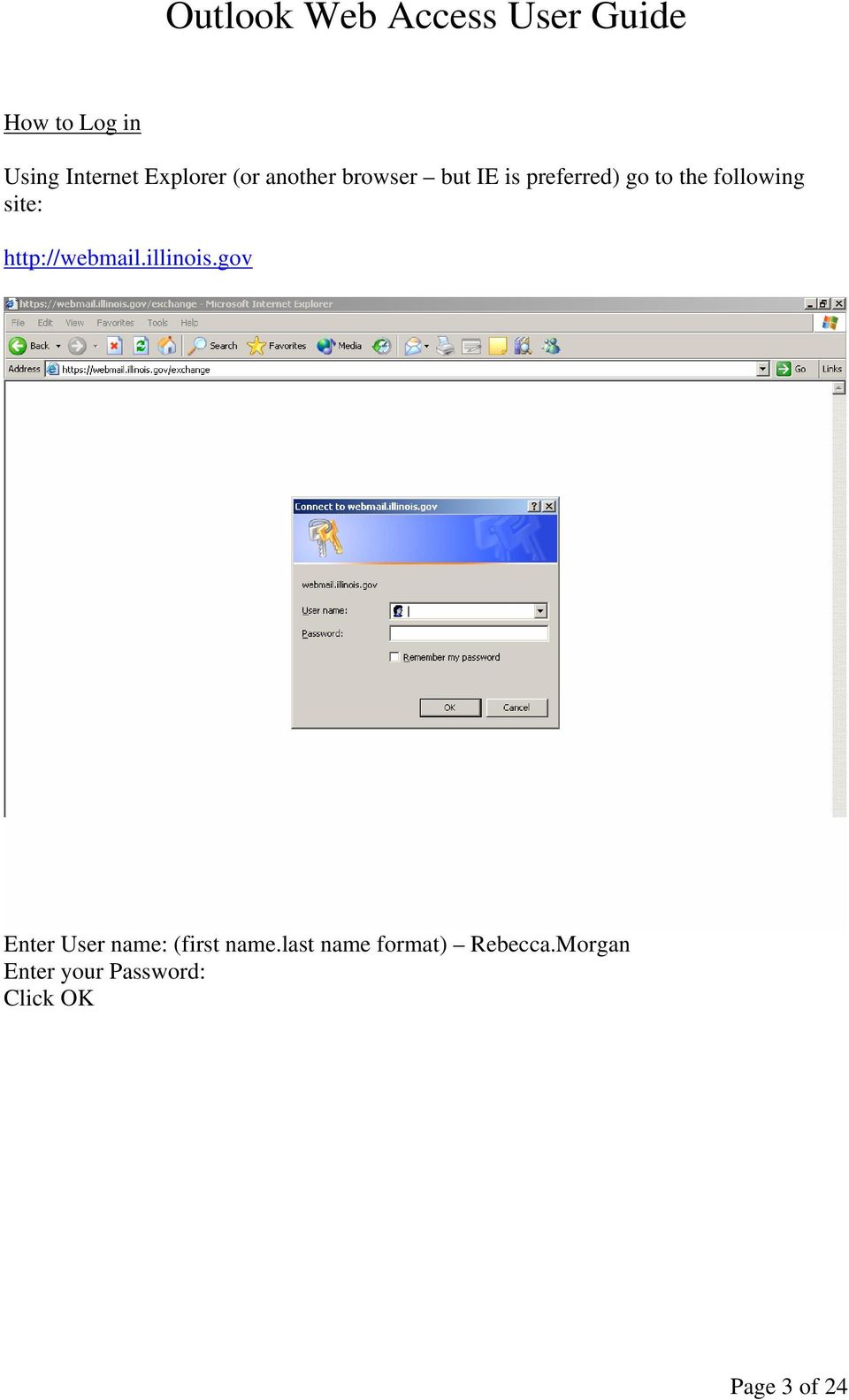
3 How to Log in Using Internet Explorer (or another browser but IE is preferred) go to the following site: Enter User name: (first name.last name format) Rebecca.Morgan Enter your Password: Click OK Page 3 of 24
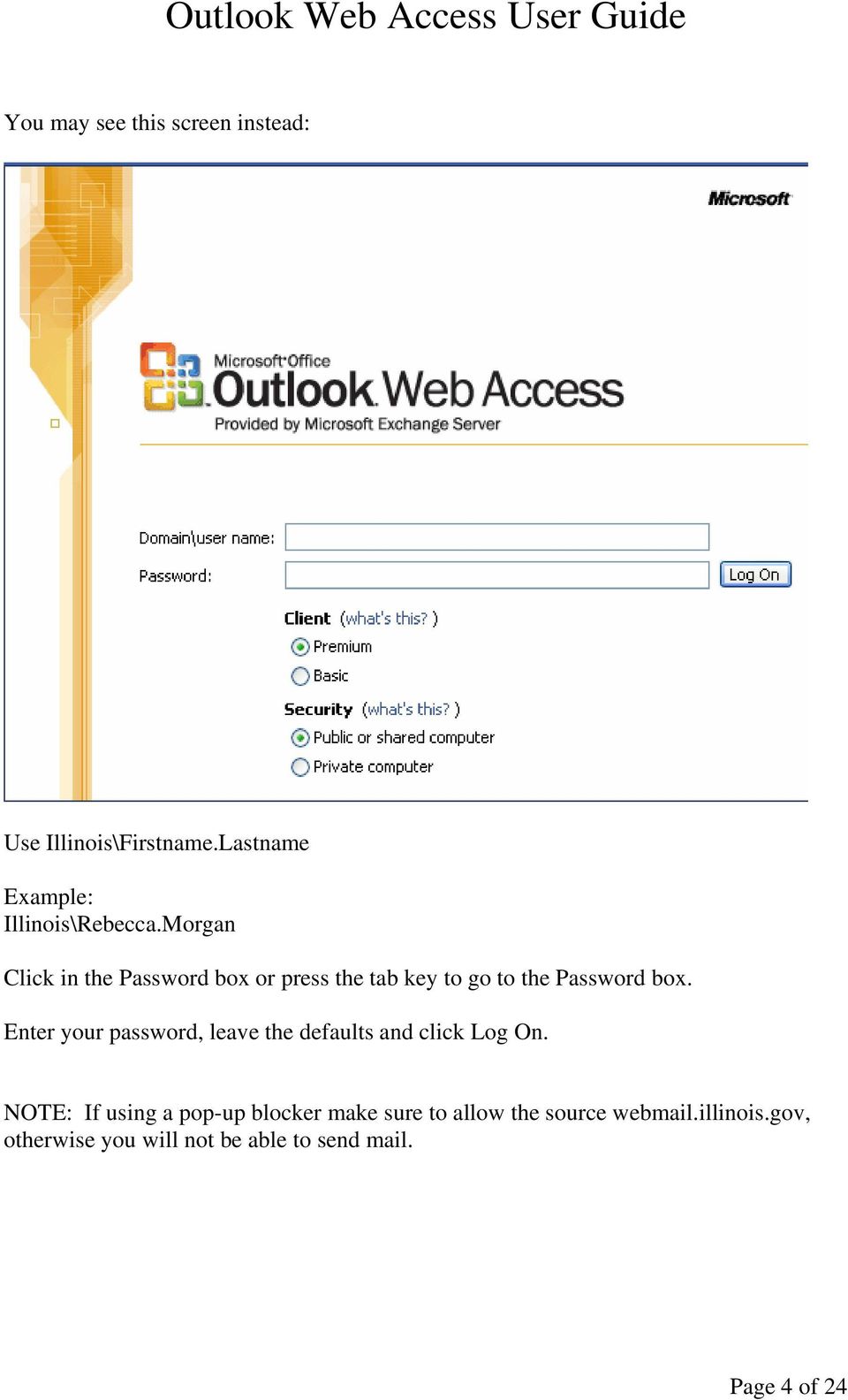
4 You may see this screen instead: Use Illinois\Firstname.Lastname Example: Illinois\Rebecca.Morgan Click in the Password box or press the tab key to go to the Password box. Enter your password, leave the defaults and click Log On. NOTE: If using a pop-up blocker make sure to allow the source webmail.illinois.gov, otherwise you will not be able to send mail. Page 4 of 24
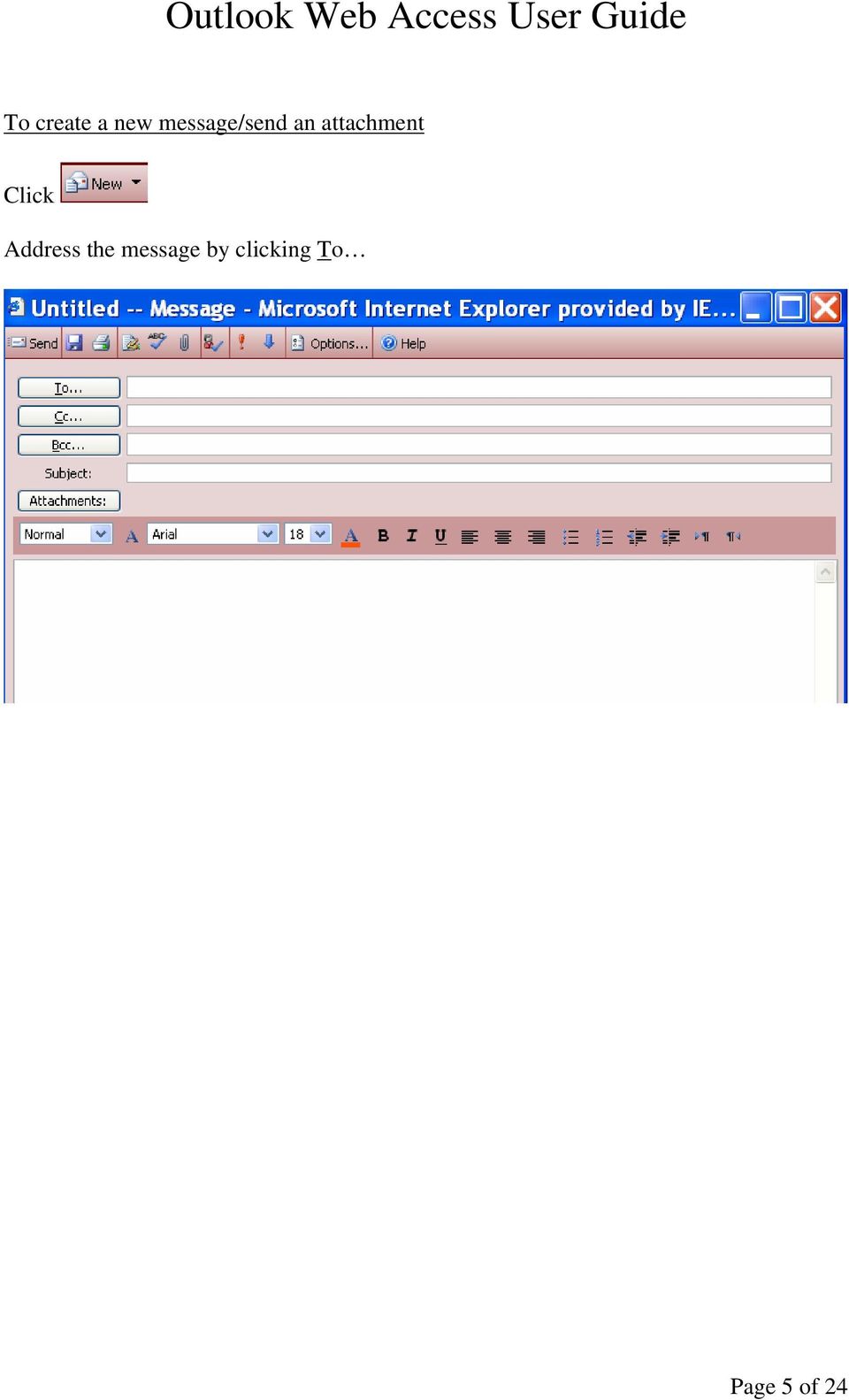
5 To create a new message/send an attachment Click Address the message by clicking To Page 5 of 24
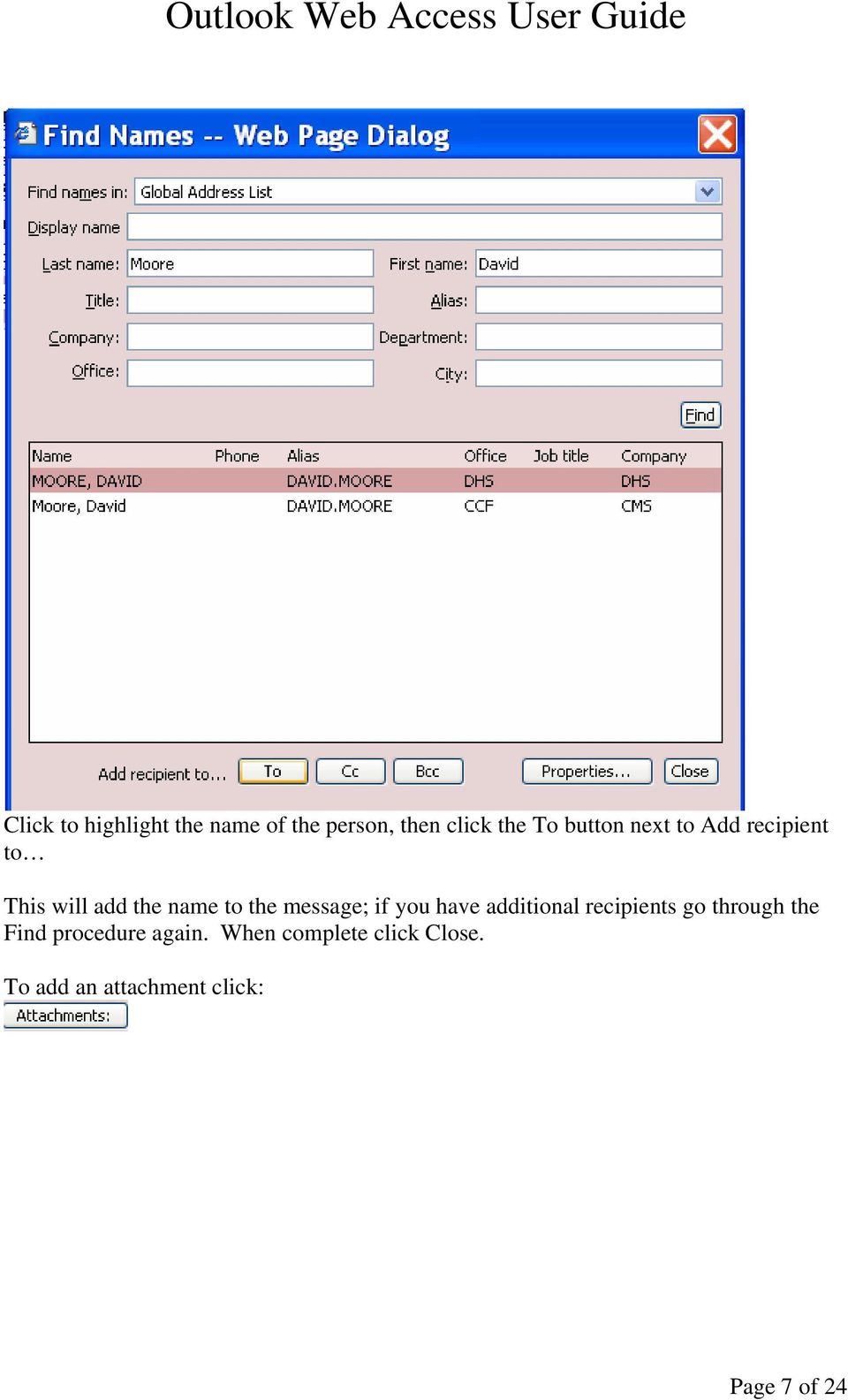
6 Type in the Last name and the First name of the person you want to address the message to and click Find. Page 6 of 24
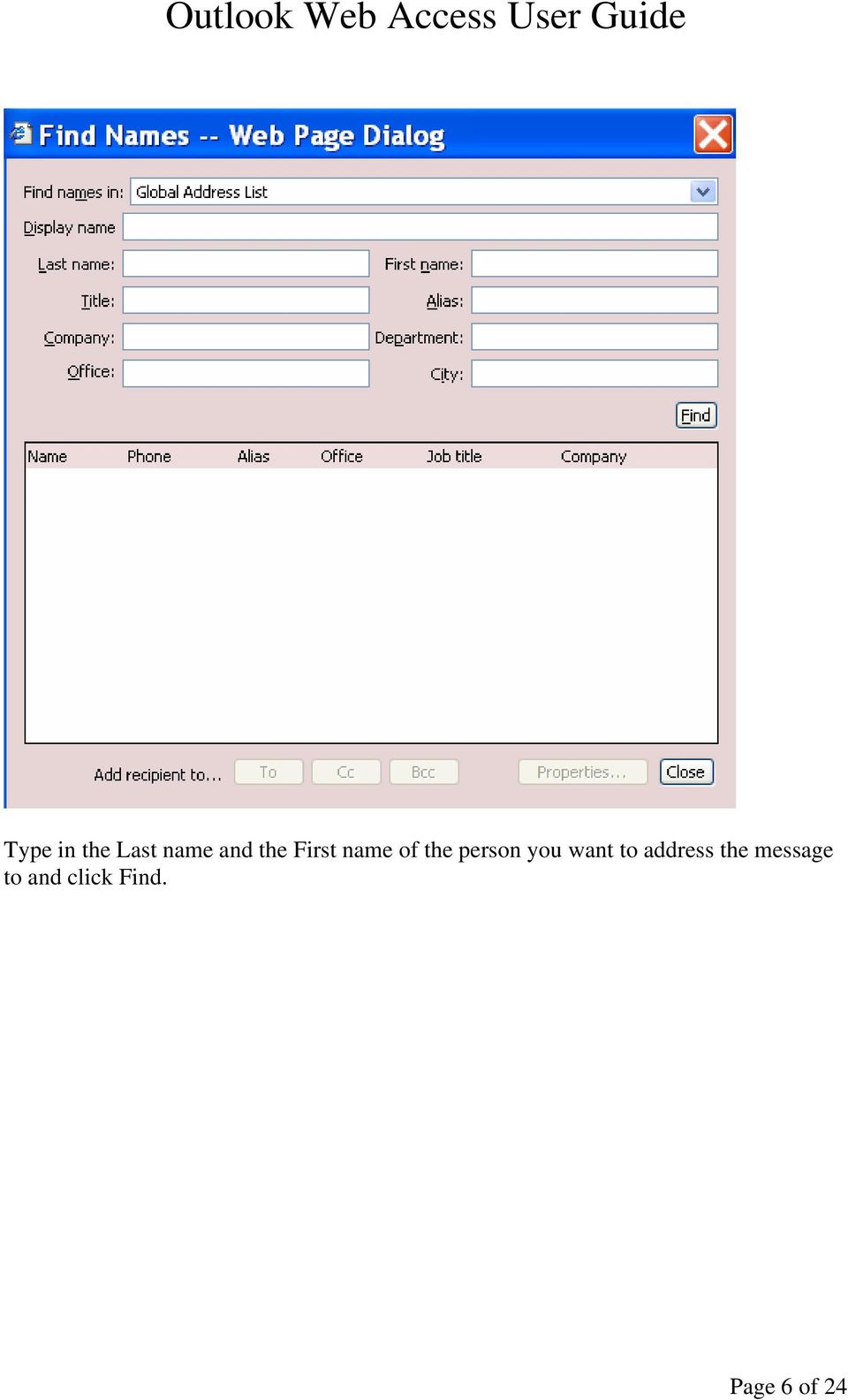
7 Click to highlight the name of the person, then click the To button next to Add recipient to This will add the name to the message; if you have additional recipients go through the Find procedure again. When complete click Close. To add an attachment click: Page 7 of 24
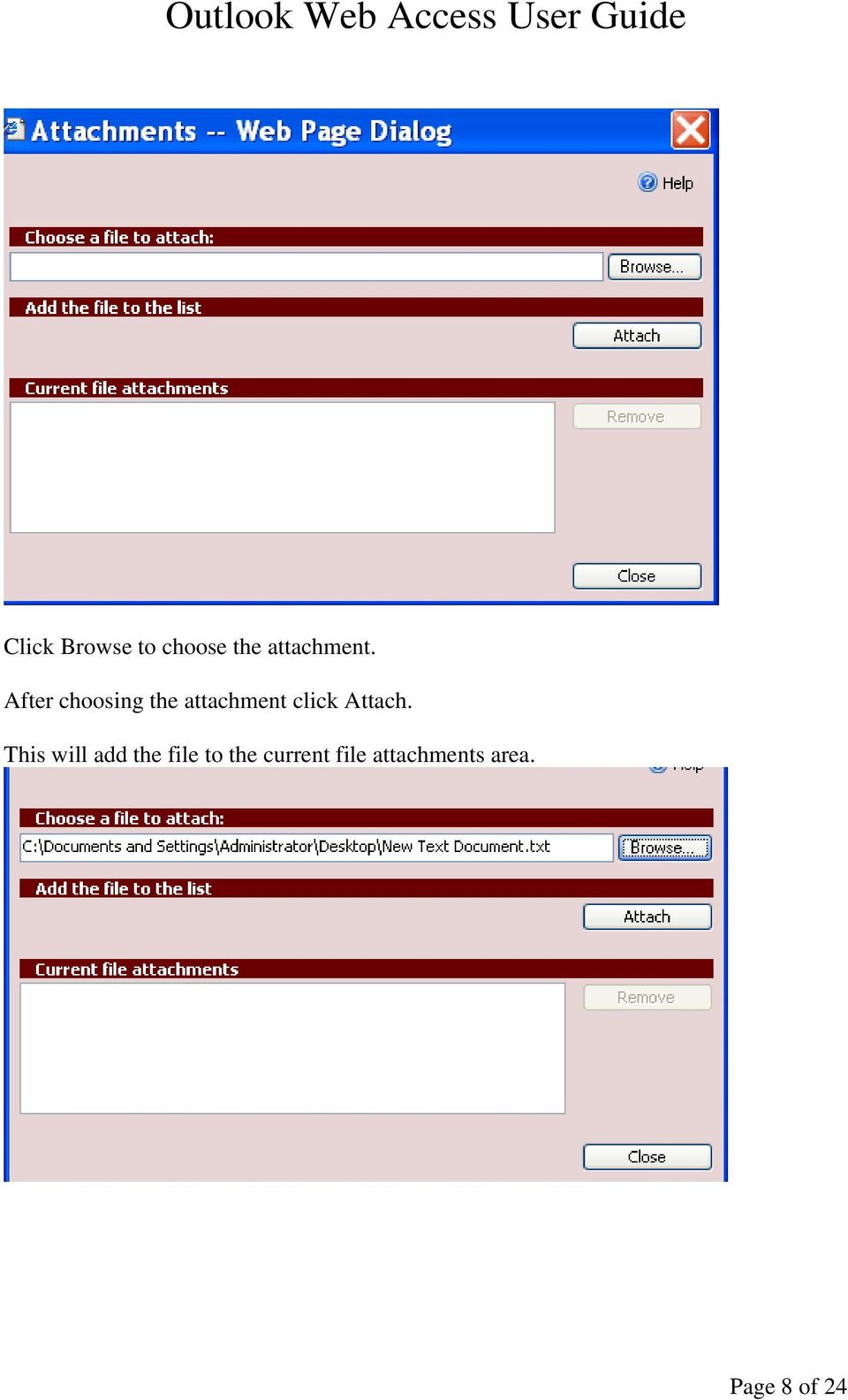
8 Click Browse to choose the attachment. After choosing the attachment click Attach. This will add the file to the current file attachments area. Page 8 of 24
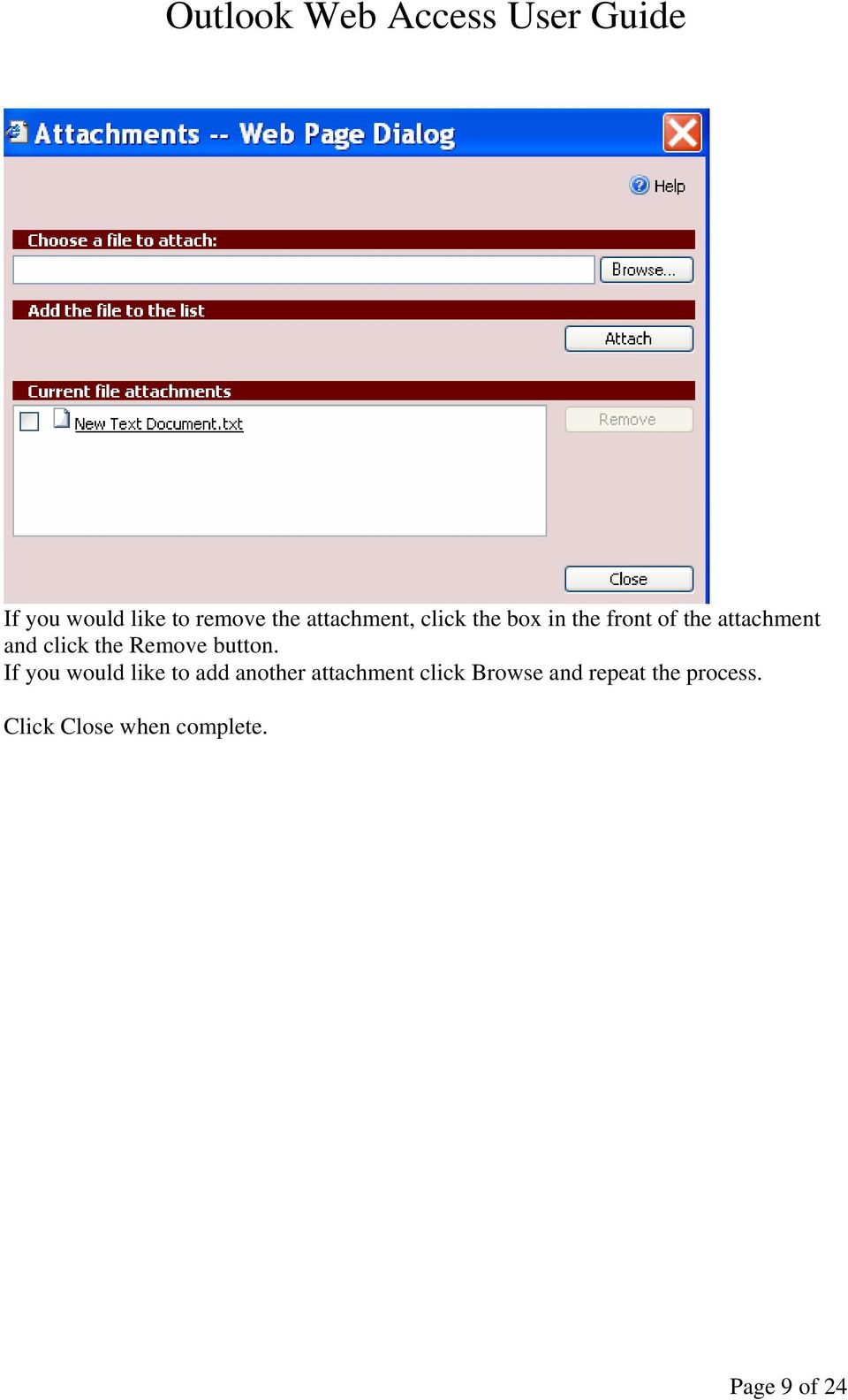
9 If you would like to remove the attachment, click the box in the front of the attachment and click the Remove button. If you would like to add another attachment click Browse and repeat the process. Click Close when complete. Page 9 of 24
10 Reading Pane To remove the second column click a list of options: in the group of icons above. This will display Click Off. This will remove the reading pane window or you can move it around to the right or the bottom. Page 10 of 24

11 Calendar You can view your calendar items, create a message, appointment, contact, distribution list, task, folder and view your reminders. To Create a distribution list Click New Click Distribution List Type in a name that describes the list (i.e. planning group) Click Find Names Page 11 of 24
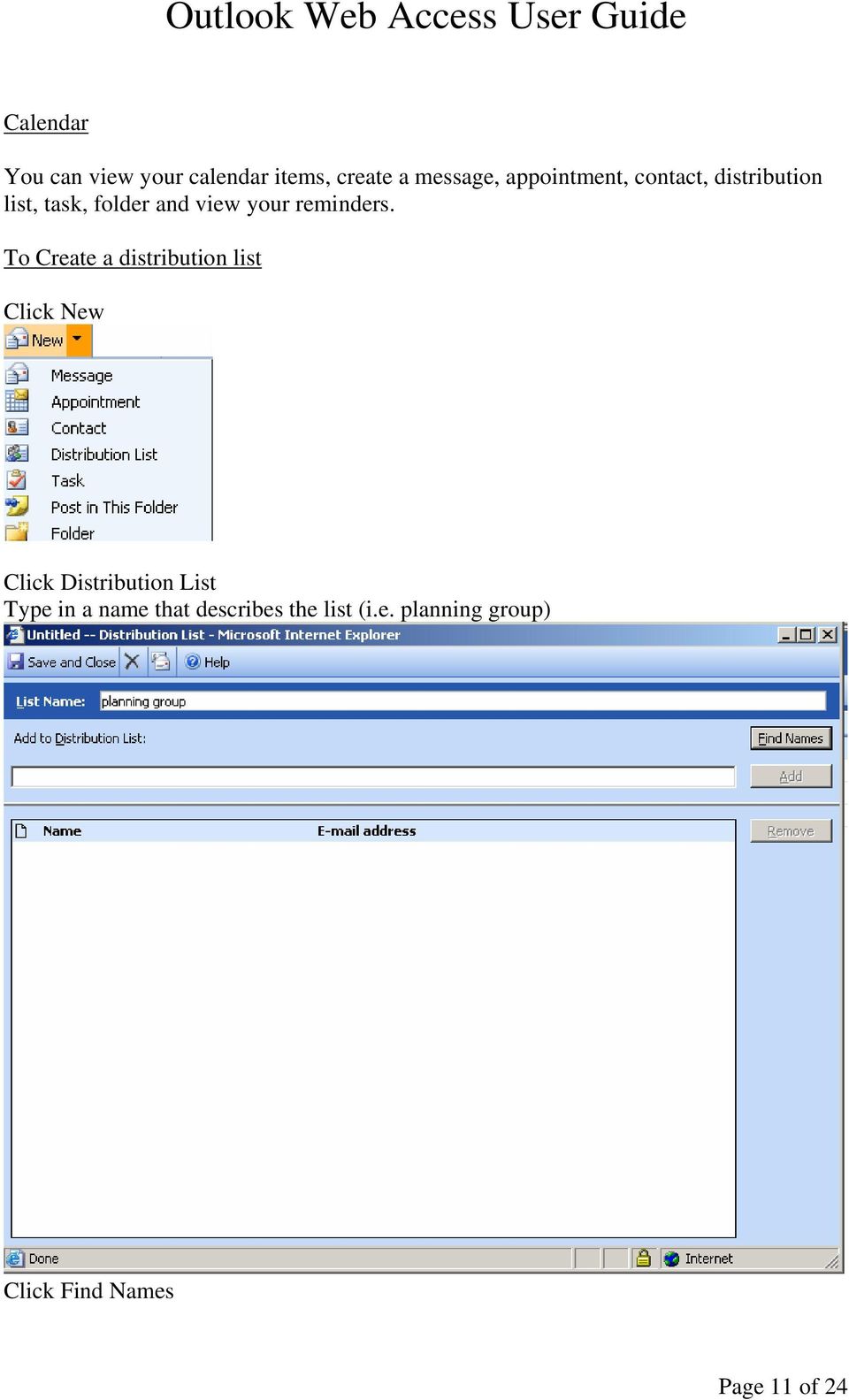
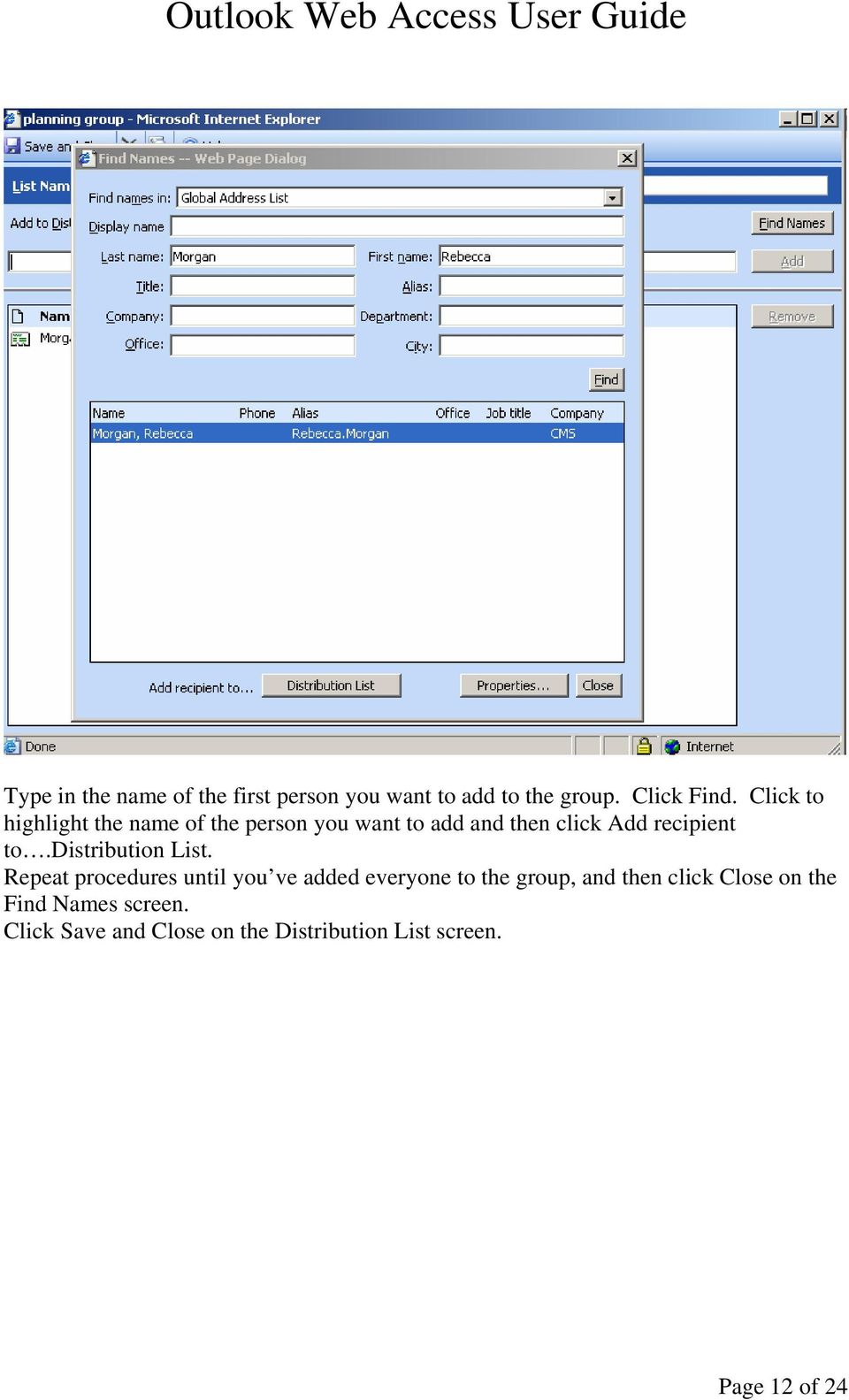
12 Type in the name of the first person you want to add to the group. Click Find. Click to highlight the name of the person you want to add and then click Add recipient to.distribution List. Repeat procedures until you ve added everyone to the group, and then click Close on the Find Names screen. Click Save and Close on the Distribution List screen. Page 12 of 24
13 You can view your distribution lists in your Contacts folder the view on the contacts folder by clicking the arrow beside Contacts:. You can change Contacts Click Contacts Click Address Book The Global Address List (GAL) and Contacts lists will not be displayed. Type in the name you would like to address a message or add to your contacts list. Page 13 of 24

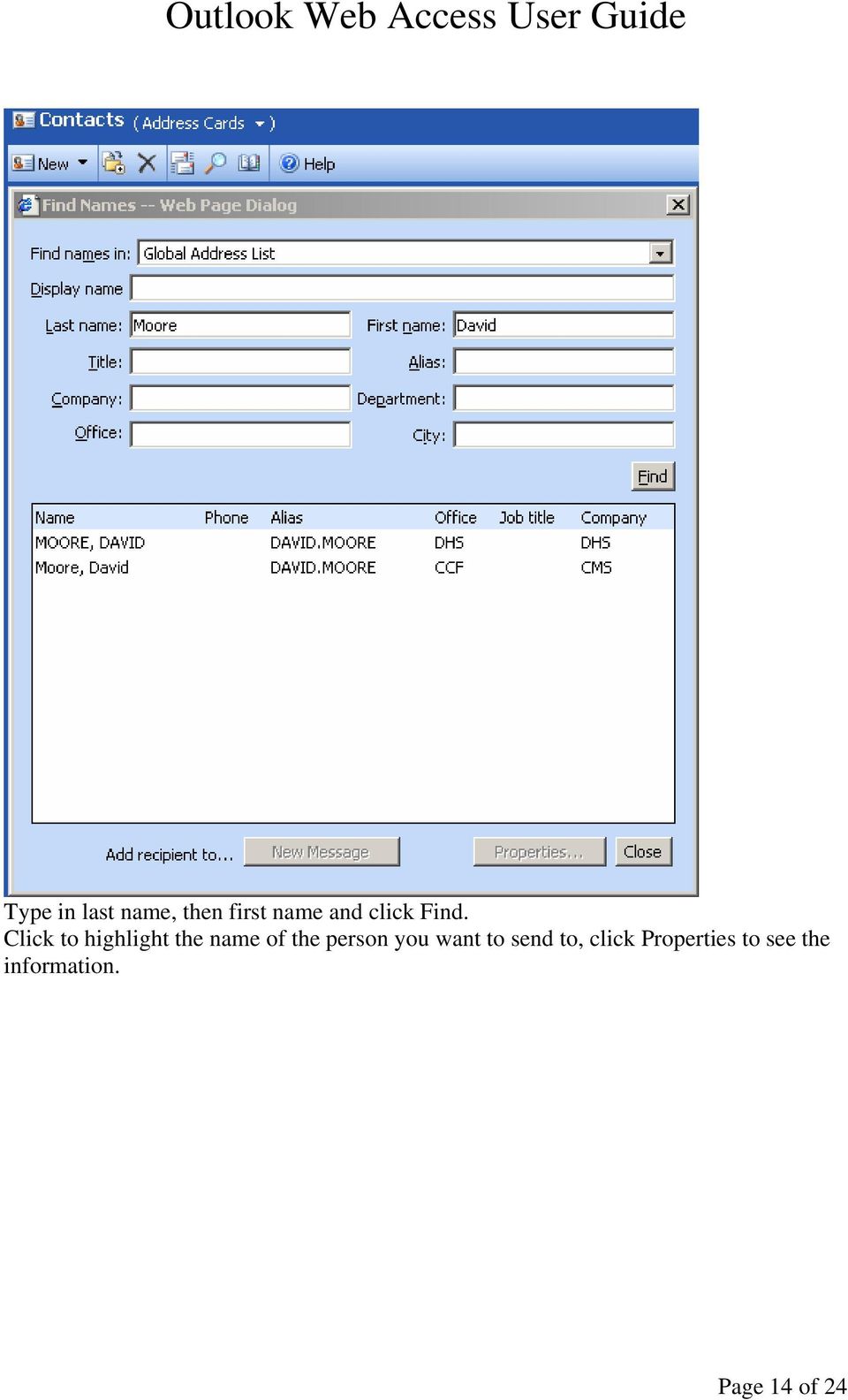
14 Type in last name, then first name and click Find. Click to highlight the name of the person you want to send to, click Properties to see the information. Page 14 of 24
15 Click Add to Contacts if you want to add this person to your contacts list. It MAY prompt you to log into Outlook again. Page 15 of 24

16 If prompted again type in your user name (first name/last name format) Rebecca.Morgan and type in your password and click OK. If not, then go to the next step. Page 16 of 24

17 The Contact details will appear. Click Save and Close and the entry will be added to your contacts list. You can close the Contacts window or choose to send the person an by clicking New Message. Page 17 of 24

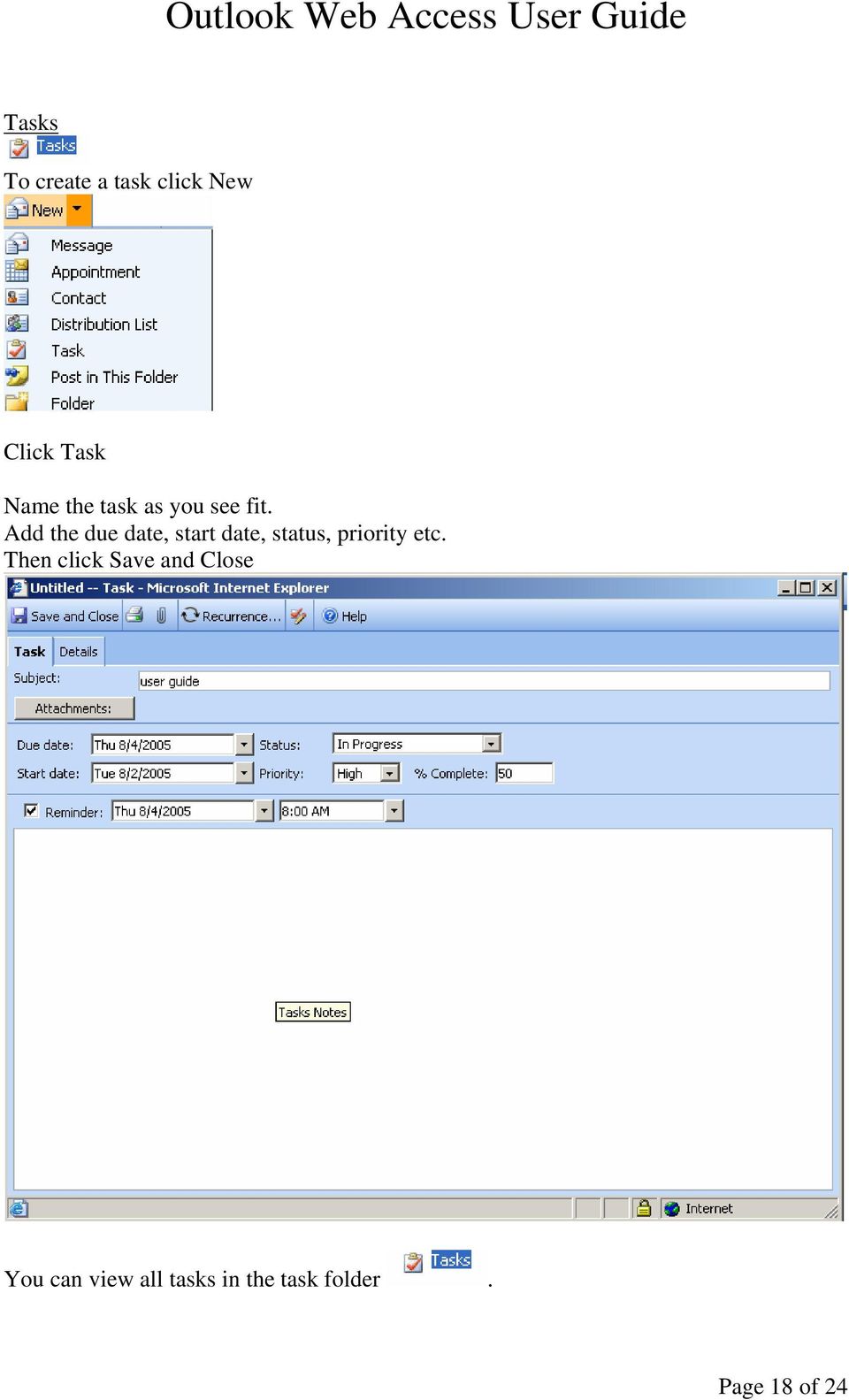
18 Tasks To create a task click New Click Task Name the task as you see fit. Add the due date, start date, status, priority etc. Then click Save and Close You can view all tasks in the task folder. Page 18 of 24
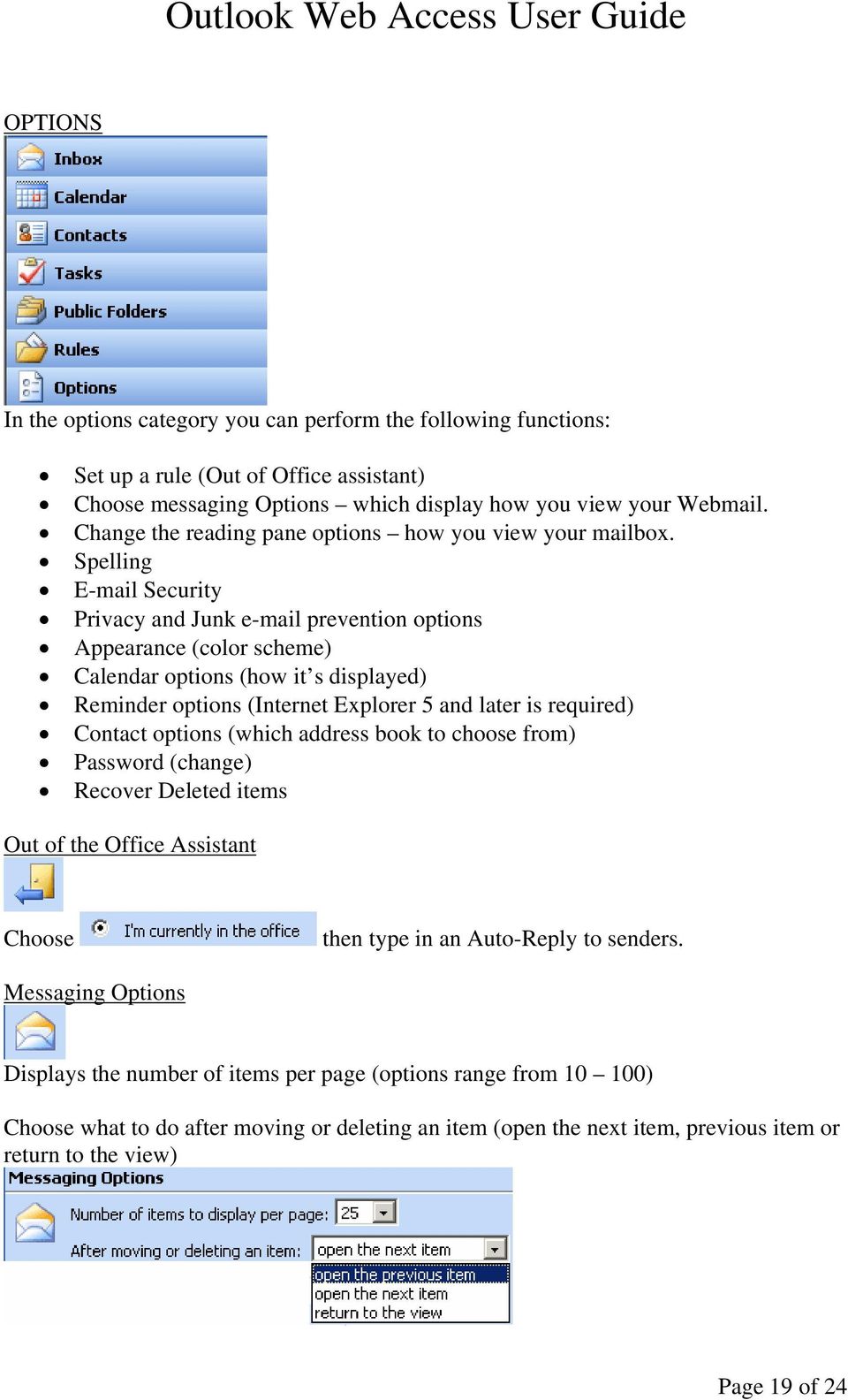
19 OPTIONS In the options category you can perform the following functions: Set up a rule (Out of Office assistant) Choose messaging Options which display how you view your Webmail. Change the reading pane options how you view your mailbox. Spelling Security Privacy and Junk prevention options Appearance (color scheme) Calendar options (how it s displayed) Reminder options (Internet Explorer 5 and later is required) Contact options (which address book to choose from) Password (change) Recover Deleted items Out of the Office Assistant Choose then type in an Auto-Reply to senders. Messaging Options Displays the number of items per page (options range from ) Choose what to do after moving or deleting an item (open the next item, previous item or return to the view) Page 19 of 24
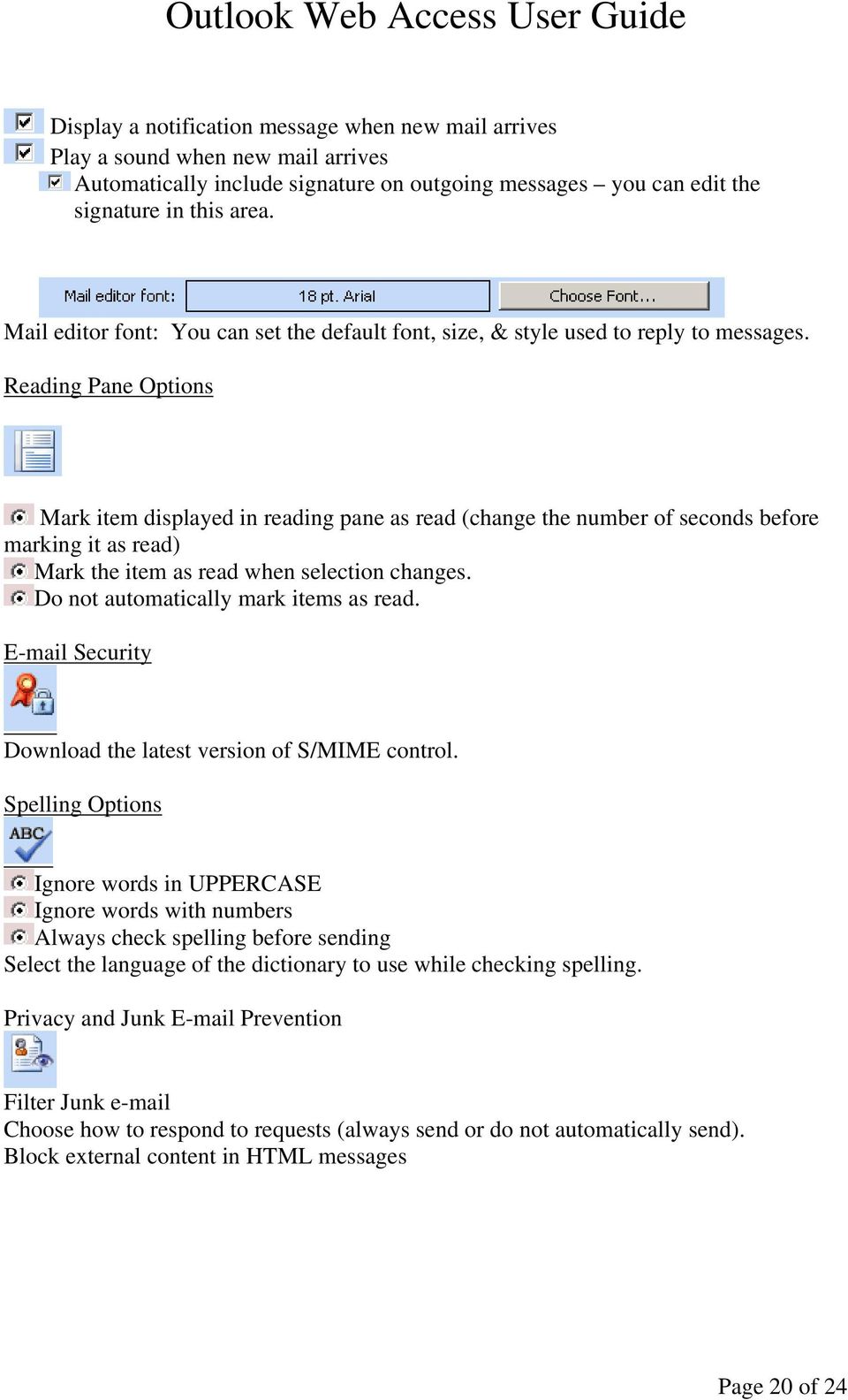
20 Display a notification message when new mail arrives Play a sound when new mail arrives Automatically include signature on outgoing messages you can edit the signature in this area. Mail editor font: You can set the default font, size, & style used to reply to messages. Reading Pane Options Mark item displayed in reading pane as read (change the number of seconds before marking it as read) Mark the item as read when selection changes. Do not automatically mark items as read. Security Download the latest version of S/MIME control. Spelling Options Ignore words in UPPERCASE Ignore words with numbers Always check spelling before sending Select the language of the dictionary to use while checking spelling. Privacy and Junk Prevention Filter Junk Choose how to respond to requests (always send or do not automatically send). Block external content in HTML messages Page 20 of 24
21 Appearance Select the color scheme. Date and Time Formats Style and Time zone options Calendar options Week, day start/end time, first week of the year. Reminder options Note: must have IE 5 or later Enables reminders for calendar items, tasks and choose to play a sound when reminder is due change default time (options range from 5 min 2 days) Contact Options Check names first in Global address list or contacts Password Change your password here. You will need to enter the domain (Illinois.gov), old password and new password (following the password guidelines in the PIM Standards & Policies guide. Recover Deleted Items You can view the items you deleted from your trash. Page 21 of 24
22 Public Folders Public folders are an easy and effective way to collect, organize, and share information with other people in your workgroup or organization. You can use public folders to share files or post information on an electronic bulletin board. You can also use them to store items, such as calendars and contacts, which are shared by two or more people. Public folders, which are stored on Microsoft Exchange Server computers, are created and designed by administrators and other people in your organization who have the appropriate access permissions. These access permissions determine who can view, create, and modify items in the folders. Anyone who uses your server can read and post items to your server's public folders and to public folders on other servers. Note Depending on the server where a particular public folder resides, you may be prompted for security credentials, such as a password, when you try to open that folder. To open a public folder 1. Click Public Folders. Microsoft Office Outlook Web Access displays the public folder tree in its own browser window. 2. Click the plus sign next to Public Folders to expand the display of your organization's public folders. Click the plus sign next to a folder to view additional folders nested within it. 3. To open the public folder, click it. The messages posted to that folder are displayed in the adjacent viewing area. Page 22 of 24
23 Rules You can manage your messages by using rules to automatically perform actions on incoming messages. After you create a rule, Microsoft Office Outlook Web Access applies the rule to messages that arrive in your Inbox. For example, you can automatically forward all messages sent by an individual to your manager when they arrive in your Inbox. Notes: A rule in gray type can't be modified by Outlook Web Access because its conditions can't be interpreted or it doesn't specify an action. A rule in red type contains an error related to the folder you want the rule to move or copy the message to. Select the rule, click Modify, and then correct the rule. To create a rule: 1. Click Rules. 2. In the Rules screen, click New. 3. In the Rule Name box, type a name for the rule if you want to give the rule a specific name. If you leave this box blank, Outlook Web Access will generate a name from the rule criteria you specify (for example, "Sent only to me"). 4. In the Edit Rule dialog box, specify any or all of the following conditions: o To base the rule on who sent the message, type the alias or address of the user name or distribution list in the From field contains box. To find the person or distribution list in your organization's address book or your contacts, click Address Book. o To base the rule on words in the subject of the message, type the words in the Subject contains box. o To base the rule on the importance setting of the message, select the importance in the Importance is menu. o To base the rule on who the message was sent to, type the alias or address of the user name or distribution list in the People or Distribution List box. Separate two or more entries with a semicolon (;). To find the Page 23 of 24
24 person or distribution list in your organization's address book or your contacts, click Address Book. o To base the rule on messages that are sent only to you, select the Sent only to me check box. 5. Specify what to do with the message if it meets the conditions you set in step 4: o To move the message to a folder, select Move it to the specified folder, click specified, and then select the appropriate folder in the Move/Copy Item dialog box. o To copy the message to a folder, select Copy it to the specified folder, click specified, and then select the appropriate folder in the Move/Copy Item dialog box. o o To delete the message, select Delete it. To forward the message to someone, select Forward it to, and then type the alias or address of the person or distribution list in the adjacent box. Separate two or more entries with a semicolon (;). To find the person or distribution list in your organization's address book or your contacts, click Address Book kept in your Inbox. 6. Click Save and Close.. By default, a copy of the forwarded message is You can also create a quick auto-reply rule by choosing Options (See Options section page 11) Out of the office assistant. Click I m currently out of the office and type in your auto reply. Click Save and Close to save your auto-reply. Page 24 of 24
Using Outlook WebAccess
 Using Outlook WebAccess Outlook Toolbars - Terminology Update all folders New Move/Copy Reply Forward Check for New Messages Help Show/Hide Folders Delete Reply to All Show/Hide Reading Pain Search Address
Outlook Web Access End User Guide
 Outlook Web Access End User Guide Page 0 Outlook Web Access is an online, limited version of an Outlook client which can be used to access an exchange account from a web browser, without having an Outlook
BCSD WebMail Documentation
 BCSD WebMail Documentation Outlook Web Access is available to all BCSD account holders! Outlook Web Access provides Webbased access to your e-mail, your calendar, your contacts, and the global address
The online email environment
 The online email environment These are the options for the selected application. Navigation Pane is comprised of a folders list and oneclick access to your Inbox, Calendar, Contacts, and Tasks folders
Outlook Web Access. PRECEDED by v\
 Outlook Web Access Logging in to OWA (Outlook Web Access) from Home 1. Login page http://mail.vernonct.org/exchange 2. To avoid these steps each time you login, you can add the login page to your favorites.
Outlook Web Access (OWA) with Exchange Server 2007 (Windows version)
 Outlook Web Access (OWA) with Exchange Server 2007 (Windows version) 1. Login into your Baylor email account via a web browser such as Internet Explorer, Fire Fox, or Netscape. The web URL is still http://mail.baylor.edu/
Outlook Web Access (OWA) User Guide
 Outlook Web Access (OWA) User Guide September 2010 TABLE OF CONTENTS TABLE OF CONTENTS... 2 1.0 INTRODUCTION... 4 1.1 OUTLOOK WEB ACCESS SECURITY CONSIDERATIONS... 4 2.0 GETTING STARTED... 5 2.1 LOGGING
New Features in Outlook Web Access
 New Features in Feature and functionality Logon Screen Navigation Description User logon screen for Navigation in resembles navigation in Microsoft Office Outlook 2007. Drag-and-Drop Move items by dragging
Outlook Web App McKinney ISD 5/27/2011
 Outlook Web App McKinney ISD 5/27/2011 Outlook Web App Tutorial Outlook Web Access allows you to gain access to your messages, calendars, contacts, tasks and public folders from any computer with internet
Email -- Reading and Printing Email
 Email -- Reading and Printing Email Checking for New Email By default, webmail checks for new email automatically. If you want to manually check for new email, click the Check Email button. Or, click the
Changes to Skillnet Group Emails. Outlook and Outlook Express Users
 Changes to Skillnet Group Emails Skillnet Group emails are moving from the current provider to our own exchange mail server. This will mean that you will have a much improved web-mail system and almost
Using Webmail. Document Updated: 11/10. Technical Manual: User Guide. The Webmail Window. Logging In to Webmail. Displaying and Hiding the Full Header
 Using Webmail Technical Manual: User Guide Webmail is supported in the following browsers: Windows Internet Explorer 6, Internet Explorer 7, Firefox 2, and Firefox 3 Mac OSX Safari 2, Safari 3, Firefox
Using Webmail. Document Updated: 9/08. Technical Manual: User Guide. The Webmail Window. Displaying and Hiding the Full Header.
 Using Webmail Technical Manual: User Guide Webmail is supported in the following browsers: Windows Internet Explorer 6, Internet Explorer 7, Firefox 2, and Firefox 3 Mac OSX Safari 2, Safari 3, Firefox
Outlook Web Access Tipsheets
 You can use a Web browser to access your Outlook mailbox from any computer with an Internet connection. You can use Outlook Web Access with Microsoft Internet Explorer, Mozilla Firefox and many other browsers.
Outlook Web App OWA. Let s take a look at the new features and functionality available on OWA. Feature & Functionality Description User experience
 Outlook Web App OWA Let s take a look at the new features and functionality available on OWA. Feature & Functionality Description User experience Logon Screen User logon screen for Outlook Web App (OWA)
USING OUTLOOK WEB ACCESS
 USING OUTLOOK WEB ACCESS 17 March 2009, Version 1.0 WHAT IS OUTLOOK WEB ACCESS? Outlook Web Access (OWA) is a webmail service of Microsoft Exchange Server. The web interface of Outlook Web Access resembles
Outlook Web Access (OWA) for Staff
 Outlook Web Access (OWA) for Staff Note:The full version runs on Internet Explorer (IE) and the Light version runs on all other browsers (Firefox, Safari, Chrome etc). Web access URL / note the s after
CITY OF BURLINGTON PUBLIC SCHOOLS MICROSOFT EXCHANGE 2010 OUTLOOK WEB APP USERS GUIDE
 CITY OF BURLINGTON PUBLIC SCHOOLS MICROSOFT EXCHANGE 2010 OUTLOOK WEB APP USERS GUIDE INTRODUCTION You can access your email account from any workstation at your school using Outlook Web Access (OWA),
Using Webmail. Technical Manual: User Guide. Document Updated: 1/07. The Webmail Window. Displaying and Hiding the Full Header.
 Using Webmail Technical Manual: User Guide The Webmail Window To save an attachment: 1. Click once on the attachment name. Or, if there are multiple attachments, click the Save icon to save all attachments
RSCCD REMOTE PORTAL TABLE OF CONTENTS: Technology Requirements NOTE
 RSCCD REMOTE PORTAL The RSCCD Remote Portal allows employees to access their RSCCD Email (via Outlook Web Access), Department (Public) Folders, Personal (H Drive) Folder, and the District Intranet from
Outlook 2013 ~ e Mail Quick Tips
 The Ribbon: Home tab New Email to send a new mail New Items to send a new mail, a new appointment, a new meeting, a new contact, a new task, a new Lync Meeting Ignore to ignore a request Clean Up to clean
Connecting to LUA s webmail
 Connecting to LUA s webmail Effective immediately, the Company has enhanced employee remote access to email (Outlook). By utilizing almost any browser you will have access to your Company e-mail as well
https://mail.wheelock.edu
 The Wheelock College Guide to Understanding Microsoft Outlook Web Access Maintained by: Wheelock College Department of Information Technology Version 1.1 June 2006 https://mail.wheelock.edu This document
How is Webmail Different than Microsoft Outlook (or other e-mail program)?
 What is Webmail? Webmail (also called Outlook Web Access) is Internet-based software which allows you to access your Hartwick e-mail account from any computer that is connected to the Internet. How is
Outlook Web Access E-mail
 Outlook Web Access E-mail A. Accessing the mailbox via the Internet 1. Open your browser Firebox or Internet Explorer 2. In the URL address location box, key mail.asbury.edu for students and mail2.asbury.edu
Faculty & Staff Guide for Outlook Web App (OWA) Prepared by Information Technology Division Lehman College July 11, 2013
 im Faculty & Staff Guide for Outlook Web App (OWA) Prepared by Information Technology Division Lehman College July 11, 2013 Lehman College, CUNY 1 Information Technology Division Table of Contents Introduction...
Henrico County Public Schools
 Henrico County Public Schools Presents: The New Web Based E-Mail Solution DRAFT Table of Contents Table of Contents...2 Logging Into Outlook Web Access...4 Overview..5 Navigating the Outlook Components...5
O UTLOOK 2003 HELP SHEET MAIL. Opening the program. Mail
 O UTLOOK 2003 HELP SHEET MAIL Opening the program At Work Double-click the icon on your desktop. Or click the Start button. If this icon is displayed, click on it. If it is not displayed, click Start,
Outlook Live Basics. for Students
 Outlook Live Basics for Students 2 Outlook Live for Support Staff Outlook Live for Support Staff 3 Getting Started... 6 Signing into your Outlook Account... 6 Migrating your Account... 8 Address Book...
OWA - Outlook Web App
 OWA - Outlook Web App Olathe Public Schools 0 Page MS Outlook Web App OPS Technology Department Last Revised: May 1, 2011 Table of Contents MS Outlook Web App... 1 How to Access the MS Outlook Web App...
Outlook Web Access (OWA) 2010 Email Cheat Sheet
 June 9, 2014 Outlook Web Access (OWA) 2010 Email Cheat Sheet Outlook Web Access 2010 allows you to gain access to your messages, calendars, contacts, tasks and public folders from any computer with internet
Webmail User Guide. The Webmail Window. Logging In to Webmail. Displaying and Hiding the Full Header. Printing an Email. Composing a New Email
 Webmail User Guide Rev: November, 2012 Webmail is supported in the following browsers: Windows Internet Explorer 6, Internet Explorer 7, Firefox 2, and Firefox 3 Mac OSX Safari 2, Safari 3, Firefox 2,
Outlook 2007 - Exchange
 Information Technology MS Office Outlook 2007 Users Guide Outlook 2007 - Exchange Mail, Calendar, Contacts, Notes & Tasks Folders IT Training & Development 677-1700 [email protected] TABLE OF CONTENTS
Webmail Instruction Guide
 Webmail Instruction Guide This document is setup to guide your through the use of the many features of our Webmail system. You may either visit www.safeaccess.com or webmail.safeaccess.com to login with
Using Outlook web access.
 Pages: 1 of 10 Using Outlook web access. Introduction...2 Accessing Webmail...2 Client Options...2 Premium Client Features...3 Initial Screen Premium Client...3 Similarities to Outlook Client...4 Inbox
Microsoft Outlook Web App (OWA)
 im Microsoft Outlook Web App (OWA) CSULB 1 Information Technology Services CSULB 2 Information Technology Services Table of Contents Introduction... 4 Logging In... 4 The OWA Interface... 5 Feature Differences...
Outlook 2010. Mail, Calendar, Contacts, Notes & Tasks. User Guide
 User Guide Outlook 2010 Mail, Calendar, Contacts, Notes & Tasks IT Training (818) 677-1700 [email protected] www.csun.edu/it/training CSUN IT Training YouTube Channel http://www.youtube.com/user/csuninfotech
Entourage - an Introduction to E-mail
 Entourage - an Introduction to E-mail Version 2004 for Macintosh Table of Contents What is Entourage Starting Entourage The Navigation Pane Getting Help Creating and Sending a Message Using the UI Exchange
How to access your email via Outlook Web Access
 How to access your email via Outlook Web Access 1) Open your internet browser and type in the following address: www.law.miami.edu * Aol users must minimize their browser and use Internet Explorer 6.0+
Accessing your e-mail using a web browser
 Accessing your e-mail using a web browser The web address for the PTS e-mail site is. http://mailserver.pts.edu Type that web address in the address bar and press . The screen below appears Next,
GroupWise Web Access 8.0
 GroupWise Web Access 8.0 How to check your email via the Internet For More Information, please contact: Administrative Office of the Courts Technology Help Desk (615) 532 9503 or (800) 448-7980 Table of
Outlook Web Access An Introductory Guide
 Outlook Web Access An Introductory Guide IT Training & Assessment Unit, Queen s University Belfast 1 Contents Logging on... 3 Email... 3 Compose a Message... 4 Saving an Email Attachment... 5 Saving a
Beginners Guide. Entourage 2004
 Beginners Guide to Entourage 2004 Table of Contents Computer Services Introduction... 2 New e-mail service at NUI, Galway... 2 Online Documentation... 2 The Entourage Window... 3 Creating a Signature File...
Microsoft Outlook Web Access Overview
 Microsoft Outlook Web Access Overview Table of contents Logging on to Outlook Web Access... 3 The sections of Outlook Web Access... 4 The Inbox Toolbar... 4 How to sections... 5 Email Basics... 5 Use the
MICROSOFT OUTLOOK 2010 READ, ORGANIZE, SEND AND RESPONSE E-MAILS
 MICROSOFT OUTLOOK 2010 READ, ORGANIZE, SEND AND RESPONSE E-MAILS Last Edited: 2012-07-09 1 Read Emails... 4 Find the inbox... 4 Change new incoming e-mail notification options... 5 Read email... 6 Change
Outlook Web Access Tutorial
 1 Outlook Web Access Tutorial Outlook Web Access 2010 allows you to gain access to your messages, calendars, contacts, tasks and public folders from any computer with internet access. How to access your
MICROSOFT OUTLOOK 2011 SEND AND RESPOND TO E-MAILS
 MICROSOFT OUTLOOK 2011 SEND AND RESPOND TO E-MAILS Lasted Edited: 2012-07-10 1 Send E-mail... 3 Create a new message... 3 Change the signature in the e-mail body,... 4 Change the sending out e-mail account...
Google Apps Migration
 Academic Technology Services Google Apps Migration Getting Started 1 Table of Contents How to Use This Guide... 4 How to Get Help... 4 Login to Google Apps:... 5 Import Data from Microsoft Outlook:...
Microsoft Outlook Web App Quick Reference Card
 Microsoft Outlook Web App Quick Reference Card Accessing Outlook Web App You can access your mailbox through any browser that supports HTML 3.2 and ECMA. To access your mailbox, enter your OWA web address/url
Training Manual. Version 6
 Training Manual TABLE OF CONTENTS A. E-MAIL... 4 A.1 INBOX... 8 A.1.1 Create New Message... 8 A.1.1.1 Add Attachments to an E-mail Message... 11 A.1.1.2 Insert Picture into an E-mail Message... 12 A.1.1.3
OWA User Guide. Table of Contents
 OWA User Guide Table of Contents 1. Basic Functionality of Outlook Web Access... 2 How to Login to Outlook Web Access (OWA)... 2 Change Password... 3 Mail... 3 Composing Mail... 5 Attachments - Web Ready
Archiving Your Mail in Outlook 2007
 About Archiving Archiving Your Mail in Outlook 2007 All messages, contact information, calendars and other data you create in Microsoft Outlook 2007 are kept in your mailbox on the Exchange (FIUmail) server.
Turn on or off the Out of Office Assistant
 Turn on or off the Out of Office Assistant The Tools menu appears on the main Outlook window. The main window is the same window that appears when you start Outlook and includes the File, Edit, View, Go,
Outlook Web Access (OWA)
 Outlook Web Access (OWA) Note:The full version runs on Internet Explorer (IE) and the Light version runs on all other browsers (Firefox, Safari, Chrome etc). Web access URL https://mail.student.gla.ac.uk/
Sign in to Outlook Web App
 Getting Started with Outlook Web App Sign in to Outlook Web App Sign in to Outlook Web App Go to Microsoft Online Services webpage at https://login.microsoftonline.com/ 1. Login with your UTHSC email address
Outlook Web Access (OWA or WebMail) Frequently Asked Questions
 Outlook Web Access (OWA or WebMail) Frequently Asked Questions If you are a part-time staff member, adjunct faculty member, or Villanova student, you will access your Villanova email using a program called
EMAIL QUICK START GUIDE
 IT Services Microsoft Outlook 2010 EMAIL QUICK START GUIDE Contents What is Outlook?...2 Quick Guide to Email...2 Create a new e-mail message...2 Forward or reply to an e-mail message...2 Creating new
Using Outlook Web App
 Using Outlook Web App About Outlook Web App Using a web browser and the Internet, Outlook Web App (OWA) provides access to your Exchange mailbox from anywhere in the world at any time. Outlook Web App
700 Fox Glen Barrington, Illinois 60010 ph: [847] 842-9570 fx: [847] 842-0190 www.excaltech.com [email protected]. Webmail System User Guide
![700 Fox Glen Barrington, Illinois 60010 ph: [847] 842-9570 fx: [847] 842-0190 www.excaltech.com support@excaltech.com. Webmail System User Guide](/thumbs/28/12481810.jpg "700 Fox Glen Barrington, Illinois 60010 ph: [847] 842-9570 fx: [847] 842-0190 www.excaltech.com support@excaltech.com. Webmail System User Guide") 700 Fox Glen Barrington, Illinois 60010 ph: [847] 842-9570 fx: [847] 842-0190 www.excaltech.com [email protected] Webmail System User Guide Last Updated November 14, 2013 -2- Table of Contents Welcome
700 Fox Glen Barrington, Illinois 60010 ph: [847] 842-9570 fx: [847] 842-0190 www.excaltech.com [email protected] Webmail System User Guide Last Updated November 14, 2013 -2- Table of Contents Welcome
Outlook Web Access -User Guides-
 Nilai University College (Nilai Education Sdn. Bhd) Outlook Web Access -User Guides- Prepared By IT Department (Infrastructure Team) VERSION: 1.0 All rights reserved. This document is a proprietary product
Microsoft Outlook 2013 -And- Outlook Web App (OWA) Using Office 365
 1 C H A P T E R Microsoft Outlook 2013 -And- Outlook Web App (OWA) Using Office 365 1 MICROSOFT OUTLOOK 2013 AND OUTLOOK WEB ACCESS (OWA) Table of Contents Chapter 1: Signing Into the Microsoft Email System...
Outlook Web App OWA Quick Guide. Getting you up to speed quickly.
 Outlook Web App OWA Quick Guide Getting you up to speed quickly. Information Services 8-1-2014 Contents Exploring the OWA (Outlook Web App) User Interface... 2 Getting Started... 2 Mail... 6 Creating and
Student Office 365 Outlook Web App OWA Quick Guide. Getting you up to speed quickly.
 Student Office 365 Outlook Web App OWA Quick Guide Getting you up to speed quickly. Information Services 9-5-2014 Contents Logging into the CWU Student Outlook Web App... 3 Getting Started with Office
Outlook 2013 ~ Advanced
 Mail Using Categories 1. Select the message that for the category. 2. Select the appropriate category. 3. The category color displays next to the message. Renaming Categories 1. Select a message. 2. Select
Microsoft Outlook 2010. Reference Guide for Lotus Notes Users
 Microsoft Outlook 2010 Reference Guide for Lotus Notes Users ContentsWelcome to Office Outlook 2010... 2 Mail... 3 Viewing Messages... 4 Working with Messages... 7 Responding to Messages... 11 Organizing
How to access your email from WORK & HOME
 How to access your email from WORK & HOME 1. Open your browser and go to the district website by typing in the following address: http://www.islandtrees.org 2. Click on Staff Resources 3. Click on the
Outlook 2010 Desk Reference Guide
 Outlook 2010 Desk Reference Guide Version 1.0 Developed by OR/WA IRM Please remember to print back-to-back. July 12, 2011 Microsoft Outlook 2010 This document has been developed by OR/WA IRM staff to provide
Email User Manual. [Outlook Web App 2013]
![Email User Manual. [Outlook Web App 2013]](/thumbs/30/14055838.jpg "Email User Manual. [Outlook Web App 2013]") [Outlook Web App 2013] Central Information Systems Division March 2014 Table of Contents 1. To Login... 4 2. To Logout... 5 3. Change Password... 5 4. Email Messaging... 6 4.1 Create a New Mail... 6 4.2
[Outlook Web App 2013] Central Information Systems Division March 2014 Table of Contents 1. To Login... 4 2. To Logout... 5 3. Change Password... 5 4. Email Messaging... 6 4.1 Create a New Mail... 6 4.2
Office Outlook web access Reference Guide
 U TO R E XC H A N G E : C a l e n d a r i n g a n d e m a i l u p g r a d e w i t h M i c r o s o f t E xc h a n g e Office Outlook web access Reference Guide To log in, go to owa.utoronto.ca. You will
User manual VU-Mail Webmail Outlook Web App februari 2010
 VU University Amsterdam University Centre IT User manual VU-Mail Webmail Outlook Web App februari 2010 This document describes how to access and configure VU Webmail (Outlook Web App). 1. Index 1. Index
Outlook Web App The Basics
 Outlook Web App (OWA) is accessible from any compatible web browser, on or off campus. It is available to all users of the UR Exchange 2010 email service. These basic instructions will get you started.
Outlook. Getting Started Outlook vs. Outlook Express Setting up a profile Outlook Today screen Navigation Pane
 Outlook Getting Started Outlook vs. Outlook Express Setting up a profile Outlook Today screen Navigation Pane Composing & Sending Email Reading & Sending Mail Messages Set message options Organizing Items
GroupWise to Outlook: How Do I?
 Group- Wise GroupWise to Outlook: How Do I? Outlook Function Function How to Proxy Delegate From the File tab, click Account Settings and then Delegate Access from the drop-down menu. In the Delegates
Focus On echalk Email. Introduction. In This Guide. Contents:
 Focus On echalk Email Introduction Email can be very useful in a school setting. For instance, instead of writing out a memo and delivering it to everyone s mailbox in the main office, you can simply send
CONTENTS. Introduction... 3. Outlook at a glance... 3. Configure Outlook 2010 on-campus... 3. Creating Folders... 4. Sorting Emails...
 OFFICE OF INFORMATION TECHNOLOGY Academic Technology Unit Microsoft Outlook 2010 Basics Workbook CONTENTS Introduction... 3 Outlook at a glance... 3 Configure Outlook 2010 on-campus... 3 Creating Folders...
For example, within General Settings, you can change the default language from English to Spanish and change the size of the text that is displayed.
 Atlantic Broadband s free Webmail service makes it easy to read and send email using just a web browser from any computer. This quick reference guide will help you get the most out of Webmail with useful
Outlook Web Application (OWA) Basic Training
 Outlook Web Application (OWA) Basic Training Requirements to use OWA Full Version: You must use at least version 7 of Internet Explorer, Safari on Mac, and Firefox 3.X (these two achieve 99 percent feature
Email at Bradford - Outlook
 This document provides guidance for staff using Office 365 with Microsoft Outlook 2010 for email at the University of Bradford. The University of Bradford retains copyright for this material, which may
Microsoft Outlook Web Access Handbook
 Microsoft Outlook Web Access Handbook Introduction Outlook Web access allows you to use a web browser (Internet Explorer or Firefox) to read your email, send email, and check your online calendar. This
ABOUT THIS COURSE... 3 ABOUT THIS MANUAL... 4 LESSON 1: PERSONALIZING YOUR EMAIL... 5
 Table of Contents ABOUT THIS COURSE... 3 ABOUT THIS MANUAL... 4 LESSON 1: PERSONALIZING YOUR EMAIL... 5 TOPIC 1A: APPLY STATIONERY AND THEMES... 6 Apply Stationery and Themes... 6 TOPIC 1B: CREATE A CUSTOM
Table of Contents Chapter 1 INTRODUCTION TO MAILENABLE SOFTWARE... 3 MailEnable Webmail Introduction MailEnable Requirements and Getting Started
 Webmail User Manual Table of Contents Chapter 1 INTRODUCTION TO MAILENABLE SOFTWARE... 3 MailEnable Webmail Introduction MailEnable Requirements and Getting Started Chapter 2 MAILENABLE KEY FEATURES OVERVIEW...
GUIDEWIRE. Introduction to Using WebMail. macrobatix. Learn how to: august 2008
 macrobatix GUIDEWIRE august 2008 Introduction to Using WebMail Learn how to: Manage Your Inbox Compose a Message Activate Spam Filter Modify Spam Settings Check Held Messages *To download the complete
User Guide for Kelani Mail
 User Guide for Kelani Mail Table of Contents Log in to Kelani Mail 1 Using Kelani Mail 1 Changing Password 2 Using Mail Application 3 Using email system folders 3 Managing Your Mail 4 Using your Junk folder
Archiving Your Mail in Outlook 2010
 About Archiving Archiving Your Mail in Outlook 2010 All messages, contact information, calendars and other data you create in Microsoft Outlook 2010 are kept in your mailbox on the Exchange server. But
Outlook 2010 basics quick reference sheet
 Outlook 2010 basics Microsoft Outlook 2010 is the world s leading personal information management and communications application. Outlook 2010 delivers complete e-mail, contact, calendar, and task functionality.
ZIMBRA LAYOUT. Keyboard Shortcuts Hitting G and the beginning letter of any of the tabs will instantly take you to that tab
 TABS ZIMBRA LAYOUT Overview Pane TABS Mail Inbox, compose new Address Book contacts (university contacts do not show up in book; however, they will show up in search) Calendar appointments (can be shared)
To successfully initialize Microsoft Outlook (Outlook) the first time, email settings need to be verified.
 TO: UAN CLIENTS FROM: UAN STAFF DATE: OCTOBER 8, 2008 SUBJECT: Steps for Initial Setup of Microsoft Outlook To successfully initialize Microsoft Outlook (Outlook) the first time, email settings need to
Open OWA by going to https://anywhere.exchserver.net/owa. Provide your user name and password.
 Introduction... 2 Mailbox... 3 Calendar... 4 Contacts... 4 Options... 5 Sign out... 6 Requirements... 6 SaskTel Hosted Email & Collaboration - Hosted Exchange Outlook Web App (OWA) User Guide 1 With Outlook
Microsoft Outlook 2003 Basic Guide
 Microsoft Outlook 2003 Basic Guide Table of Contents Introduction... 2 Getting Help... 2 Exploring Outlook... 3 Drop-Down Menus... 3 Navigation Pane... 4 Folder Pane... 7 Reading Pane... 7 Toolbars...
Bare Bones Guide to Using Outlook 2010 for Email
 Bare Bones Guide to Using Outlook 2010 for Email July 10, 2013 Alternative Format Statement This publication is available in alternative media upon request. Statement of Non-Discrimination The Pennsylvania
E-mail Handbook Index
 E-Mail Handbook E-mail Handbook Index Web-Based E-Mail... 1 What is Web-Based E-mail?... 1 Logging in to your web based e-mail account... 1 Changing the password... 1 Main E-mail Screen (Menu, View Mail,
Microsoft Outlook 2011 The Essentials
 Microsoft Outlook 2011 The Essentials Training User Guide Sue Pejic Training Coordinator Information Technology Services Email : [email protected] Mobile : 0419 891 113 Table of Contents Overview Outlook
Vodafone Text Centre User Guide for Microsoft Outlook
 Vodafone Text Centre User Guide for Microsoft Outlook 1 Contents Introduction 1 System requirements 2 Installation 3 The installation guide 3 First use 5 Send a message 8 Select recipient 8 Enter the message
WHAT S NEW IN OUTLOOK 2010 & HOW TO CUSTOMIZE IT
 WHAT S NEW IN OUTLOOK 2010 & HOW TO CUSTOMIZE IT THE RIBBON... 2 CONTEXTUAL TABS... 4 THE FILE TAB... 4 DIALOG BOXES... 5 MINIMIZING THE RIBBON... 5 CUSTOMIZING THE RIBBON... 6 CUSTOMIZING THE QUICK ACCESS
The LSUHSC N.O. Email Archive
 The LSUHSC N.O. Email Archive Introduction The LSUHSC N.O. email archive permanently retains a copy of all email items sent and received by LSUHSC N.O. Academic email users. Email items will be accessible
Email. Help Documentation. This document was auto-created from web content and is subject to change at any time. Copyright (c) 2013 SmarterTools Inc.
 Help Documentation This document was auto-created from web content and is subject to change at any time. Copyright (c) 2013 SmarterTools Inc. Email Email Overview SmarterMail users can send and receive
Table of Contents. Page 3
 Welcome to Exchange Mail Customer Full Name Your e-mail is now being delivered and stored on the new Exchange server. Your new e-mail address is @rit.edu. This is the e-mail address that you should give