
OPERATING INSTRUCTIONS
|
|
|
- Noreen Crawford
- 9 years ago
- Views:
Transcription
1 I NSTALLATION PRECAUTIONS OPERATING INSTRUCTIONS MODEL : L-10 ELF 1. Any changes or modifications in construction of this device which are not expressly approved by the party responsible for compliance could avoid the user s authority to operate the equipment. 2. GRAPHICAL SYMBOLS EXPLANATION CAUTION RISK OF ELECTRIC SHOCK DO NOT OPEN. CAUTION : TO REDUCE THE RISK OF ELECTRIC SHOCK, DO NOT REMOVE COVER(OR BACK) NO PARTS INSIDE. REFER SERVICING TO QUALIFIED SERVICE PERSONNEL. This lightning flash with arrowhead symbol, within an equilateral triangle is intended to alert the user of the presence of uninsulated "dangerous voltage" within the product's enclosure that may be of sufficient magnitude to constitute a risk of electric shock to persons. The exclamation point within an equilateral triangle is intended to alert the user of the presence of important operating and maintenance (Servicing) instructions in the literature accompanying the appliance. 3. Use only DC18 ~ 32V, AC 25 ~ 35V source from a CSA Certified / UL Approved Class 2 power Supply suitable for use in Healthcare Facilities. 4. INSTALLATION AND CONNECTION Installation of the television receiver must be performed by the qualified service personnel only. Mount the television receiver to the support arm and connect the external coaxial cable to the coaxial cable of support arm for power source and TV signal. 5. CLEANING Clean the exterior of your equipment by removing dust with lint-free cloth. For the further cleaning, use soft cloth or paper towel dampened with water. CAUTION: To avoid damage to the surface of the equipment, do not use abrasive or chemical cleaning agents. About this user s guide BEFORE USING TELEVISION RECEIVER, READ AND OBSERVE ALL OF THIS OWNER S MANUAL This user's Guide identifies the features of the L-10 ELF television and describes how to program the television using the infrared hand unit. "THESE INSTRUCTIONS ARE FOR L-10 ELF TV's THAT ARE NOT COMPUTER CONTROLLED" Programming is the process of selecting from among the many features of the L-10 ELF. It is also the process of adding and removing channels from the six service levels this TV provides. Please read through this guide carefully, with a L-10 ELF TV in front of you, as you begin the process of learning how to program these televisions. Also keep the guide handy, so you can refer to it, for future programming changes. The information in this guide describes each of the main SETUP MENU items: Rental: (service level), Picture, Sound, Channel Set up, Features, Blocking and Language. It also describes how you can access and change the features within these menu options. To get ready, turn the TV on and press the SETUP button on the infrared hand unit and the SETUP MENU will appear on the TV. Before installing TV's in the hospital, please obtain and read the instructions for attaching the TV to the support arm. These instructions are not part of this guide and should be obtained from the TV rental service provider. Part No
2 About this user s guide About the L-10 ELF television THE CONTENTS Installation Precautions About the L-10 ELF television About service levels About the infrared hand unit About programming the L-10 ELF How do I select a TV service level? The L-10 ELF is a 10 inch, 125 channel, television, designed specifically for use in hospitals. It provides for six service levels: Free, Locked, Basic Unpaid, Basic Paid, Premium 1, Premium 2. One coaxial cable provides the TV with low voltage AC or DC power and a TV signal. The signal source for the television is cable (CATV) or a TV antenna. In most hospitals, the source of the signal is cable. Programming screens and rental instructions come in three languages: Spanish, French and English. L-10 ELF Television How do I adjust the quality of the TV picture? How do i adjust the guality of the TV sound? How do I change the setup of the channels? How do I change the features of the TV? How do I operate the V-chip? How do I change the language in menu and programming options? What if Safeguards
3 About the L-10 ELF television About service levels In the easy to clean, membrane control panel, on the lower front of the TV, there are 11 large, easy to read, buttons. Either the patient or the TV representative can use the 5 buttons on the right side, to turn the TV on and off, change channels and raise or lower the sound. These functions can be controlled as well, with the infrared hand unit. The far right side of this panel responds to the infrared beam produced when you press the buttons on the hand held infrared unit. On the left side of the membrane control panel, the Menu button and the Enter button makes it easy for patients to rent the television or "self rent", as it is called, when the TV representative is not present. The other 4 buttons, on the left side of the panel, become active when the L-10 TV is operated as part of a computerized system. Patients can then use these buttons to select from the menu options that appear on the TV. The infrared hand unit lets the TV representative manage the special features of the L-10, such as levels of service, channel groupings and selections and as well change the quality of the picture, features and choice of language. EARPHONE Jack The EARPHONE Jack is in the lower left corner. Insert an ear piece or head set and the sound comes only from this device. Closed Captioning : When available, captions (CC) may be displayed on a selected channel by pressing the ENTER/CC button on the front panel of thetelevision or on the remote control unit. By continuing to press the ENTER/CC button four different selections can be made. Caption 1, Caption 2, Text 1, Text 2. Once you choose a Caption leave it in that selection unless you know there is something available in one of the other options. Once selection is made it is remembered until you change it. To turn off captions continue pressing the ENTER/CC button until the OFF position is reached. TV's are generally programmed for the required service levels before they are installed in a hospital. When you replace TV's or when channel numbers change, reprogramming is needed. The most common service levels used are levels 1 to 4. Premium 1 and/or Premium 2 Service Levels are used when "pay per view" movies or events or when movie channels are offered at an extra charge. 1. Free Service Level The Free Service Level lets patients watch hospital education and information channels, without renting the television. The channels over which education and information are broadcast must be programmed into this level of service. Entertainment channels are not generally included and therefore are not programmed into this Free Service Level. 2. Locked Service Level The Locked Service Level does not let the patient, "self rent" and when a patient tries to do so, this message appears. The free channels, over which education and information are broadcast, must be programmed into this service level so that the non paying viewer can watch the free education and information channels. For Additional Service Please Contact TV Representative Locked service makes it possible to cut off rental, to those who continue to "self rent" and then refuse to pay for this rental service. 5 6
4 About service levels About the infrared (IR) hand unit 3. Basic Unpaid Service Level When a patient "self rents", the TV automatically goes to the Basic Unpaid Service Level. All the entertainment channels available in the hospital, as well as the education and information channels must be programmed into this service level. This confirms that the TV is rented but the rental fee is not paid. 4. Basic Paid Service Level When you collect the rental fee and press the PAID button on the infrared hand unit, the TV automatically changes to the Basic Paid Service Level. The Basic Paid and the Basic Unpaid Service Levels should be assigned the same group of channels (channelmap). This confirms that the TV is rented and the rental fee is paid. The infrared unit is hand held and produces an infrared beam that you cannot see. This beam travels in a straight line, much like the light beam from a flashlight. The infrared hand unit operates with two "AA" cell batteries. In some hospitals, the patient may have the option of using an infrared hand unit that has fewer buttons than the unit used by the TV representative. With their infrared hand unit, patients can self rent, change channels and volume levels but they are not able to select or change the special features of the L-10. The TV representative can perform all the patients' functions and can also select and change the special features that the L-10 ELF TV offers. Infrared Hand Held Unit 5. Premium 1 Service Level This level of service is available only when special services such as "pay per view" movies or events or movie channels are offered at an additional cost to the basic service level. The Premium 1 Service Level is usually made available to patients who have rented and paid for the basic service level. 6. Premium 2 Service Level This service level, when provided, is in addition to Premium 1. Premium 2 Service Level must include its own selected channel(s) as well as the channel(s) programmed in Premium 1 Service Level. The Premium 2 Service Level is usually only made available to patients who have the Basic Paid Service Level and the Premium 1 Service Level. IN NON-RENTAL ACCOUNTS, TV MUST BE PROGRAMMED IN THE BASIC UNPAID OR BASIC PAID SERVICE LEVEL. THIS WILL DISABLE THE SELF RENT FEATURE. For the TV representative For the patient 7 8
5 About the infrared (IR) hand unit About programming the L-10 ELF How to use the infrared hand unit : Hold the IR unit flat in the palm of your hand, with the buttons up. Stand about the length of your arm, back from the television. Point the infrared hand unit directly at the lower, right corner of the front control panel on the television. This is important. A misdirected infrared beam can change programming on a nearby television. Make the selection on the infrared hand unit by pressing and releasing the button(s) quickly. The FREE, PAID, LOCKED buttons work even when the TV is turned off. How to install and change batteries in the infrared hand unit : Press down on the ridged area of the battery cover and slide it off. Install 2 "AA" batteries in the battery holder. Make sure to match the + end of each battery to the + end in the battery holder. Replace the battery cover and turn the remote over. Infrared Hand Unit (back view) Installing New Batteries Programming is the process of selecting options from the special features of the L-10 TV. Programming includes selecting entertainment channels, as well as educational and information channels and assigning these to different service levels. TV's are programmed before they are installed in a hospital; however, when TV's are replaced or the channel numbers change, reprogramming is needed. Make these programming changes with the infrared hand unit. How do I program the L-10 ELF? 1. Turn the TV on. To do this, point the infrared (IR) hand unit at the lower right corner of the television and press the POWER button. A small light emitting diode beside the POWER button on the TV "lights up" when the TV is on. You can also turn the TV on by pressing the POWER button on the TV control panel. 2. Press SETUP. The main SETUP MENU appears on the TV screen. 3. Press the CHANNEL (CH ) button on the infrared hand unit until your menu selection is highlighted. 4. Press the VOLUME (VOL ) button to accept the selection or to change the option. When you have completed a selection, press SETUP on the infrared hand held unit to return to the previous menu selection. Continue to Press SETUP until the TV program appears. SETUP MENU Rental: Free Picture Sound Channel Setup Features Blocking Language: English + - To Change Main SETUP MENU 9 10
6 HHow do I select a TV service level? How do I select a TV service level? 1. Press SETUP on the infrared hand unit. 2. Press CH to select Rental: service level 3. Press VOL to change the Rental: service level. Basic Unpaid - The TV automatically goes to this service level when the TV is "self rented". When the rental fee is paid, simply press the PAID button on the infrared hand unit. SETUP MENU Rental: Free Picture Sound Channel Setup Features Blocking Language: English + - To Change Locked - Choose VOL Locked Service Level or simply press the LOCKED button on the infrared hand unit to block the "self rent" feature. If a viewer tries to "self rent", this message appears on the TV. For Additional Service Please Contact TV Representative. Free - Choose VOL Free or press the FREE button on the infrared hand unit to make the channels programmed in this service level, available to the patient, free of charge. Main SETUP MENU Basic Paid - Choose VOL Basic Paid or simply press the PAID button on the infrared hand unit when the patient pays the rental fee for the basic rental service level. Confirms that the rental fee is paid and the Basic Paid Service Level is activated. Premium 1 - Choose VOL Premium 1, to rent this service level to patients also renting the Basic Paid Service Level. The channels programmed in the Premium 1 Service Level would normally include the same channels (channel map) that is programmed in the Basic Paid Service Level. Premium 2 - Choose VOL Premium 2 to rent this service level. The channels programmed in the Premium 2 Service Level would normally include the same channels (channel map) that are programmed in the Premium 1 Service Level
7 How do I select a TV service level? "Self rent" is a valuable feature of the L-10 ELF television. Patients have the option of enjoying entertainment programming when a TV representative is not available to carry out the rental transaction. The "self rent" feature is available when Free is the selected service level and channels are assigned to the Rental: Basic Unpaid option. How does a patient "self rent"? To "self rent", patients press the MENU button on the control panel of the TV or press the MENU button on the infrared hand unit. This message appears on the TV screen: When the patient presses ENTER, either on the infrared hand unit or on the control panel of the L-10 TV, the service level automatically changes from Rental: Free to Rental: Basic Unpaid. Confirm Rental Press enter to confirm your rental. Press any other button to cancel. How do I select a TV service level? When a patient chooses to rent both the Basic and a Premium Service Level: Press SETUP. Select Channel Setup. Select Assign channel maps. Identify the number of the map assigned to the Basic Paid Service Level. Identify which channels are included in this map. Select the channel map for the selected Premium option. Add the channels from the Basic Paid Service Level to the selected Premium Service Level, channel map, using the Autoprogram or the Add/Delete function. Select the Premium service from the service level selections. Press SETUP to return to TV programming. Channel CH to be sure that the channels from the Basic Paid Service Level and selected Premium Service Level are available to the viewer. From self rent to Rental: Basic Paid When you collect the rental fee, press Paid on the infrared hand unit or Press SETUP Select CH Rental: service levels Press VOL to change the level of service to Basic Paid
8 How do I adjust the quality of the TV picture? How do I adjust the quality of the TV sound? Contrast - Select CH Contrast to adjust the overall contrast of the picture. Hold down the VOL+ button to increase or the VOL- button to reduce contrast. Brightness - Select CH Brightness to adjust the brightness of the picture. Hold down VOL+ to increase or the VOL- to reduce brightness. Sharpness - Select CH Sharpness to adjust the overall sharpness of the picture. Hold down VOL+ to increase or VOL- to decrease the sharpness. Color - Select CH Color to adjust the amount of color in the picture. Hold down VOL+ to increase or VOL- to reduce the color. Tint - Select CH Tint to adjust the color of the flesh tones. Hold down VOL+ button to increase or VOL- to reduce skin color. To adjust the quality of the TV sound Press SETUP on the infrared hand unit. 2. Press CH to select Sound. 3. Press VOL to accept this selection. 4. Press CH to select a Sound option. 5. Press VOL to adjust the selected Sound option. To adjust any of the Sound options, hold down VOL+ to increase and VOL- to decrease the adjustment. The sliding color bar that appears on the screen increases and decreases as adjustments are made. So does the number (from 0 to 100) that appears above the bar. Generally, the standard point on the bar or about 50 is a good level. SETUP MENU Rental: Free Picture Sound Channel Setup Features Blocking Language: English Main SETUP MENU Adjusting Sound Quality Sound Bass 50 Treble 50 Balance 0 Mts Stereo 15 16
9 How do I adjust the quality of the TV sound? How do I change the set up of the channels? Bass - Select CH Bass to adjust the amount of bass in the sound. Hold down VOL+ to increase or the VOL- button to reduce bass. Treble - Select CH Treble to adjust the amount of treble in the sound. Hold down VOL+ to increase or the VOL- to reduce treble. Balance - Select CH Balance to adjust the balance in the sound. Hold down VOL+ to increase right volume, and hold down VOL- to increase left volume. Mts - Select CH Mts to adjust the mts of the sound. Hold down VOL+, the selection will change in the order Stereo - Sap - Mono. NOTES: Reception of Sereo or SAP broadcast information is of course dependent on a television station actually broadcasting such material. Not all stations do, and some stations only broadcast Stereo/SAP material during part of the day. If the L-10 ELF is set to STEREO and no stereo signal is being broadcast, a MONO signal will automatically be received. 1. Press SETUP on the infrared hand unit. 2. Select CH Channel Setup. 3. Press VOL to accept this selection. 4. Press CH to select a Channel Setup option. Antenna : CATV/TV - Select CH Antenna: to change the source of the TV signal. Choose VOL CATV (cable TV), when cable is the signal source. When an antenna is the signal source, choose TV. In almost all hospitals, cable is the source of the signal. SETUP MENU Rental: Free Picture Sound Channel Setup Features Blocking Language: English CATV Install Main SETUP MENU The chart below is typical of many cable channel allocations. A-8 A-5 A-4 A-3 A-2 A-1 A B C D E F G H I J K L M N O P Q R S T U V W W 1 W 2 W 3 W 4 W 5 W 6 W 7 W 8 W 9 W W 11 W 12 W 13 W 14 W 15 W 16 W 17 W 18 W 19 W 20 W 21 W 22 W 23 W 24 W 25 W 26 W 27 W 28 W W 30 W 31 W 32 W 33 W 34 W 35 W 36 W 37 W 38 W 39 W 40 W 41 W 42 W 43 W 44 W 45 W 46 W 47 W W 49 W 50 W 51 W 52 W 53 W 54 W 55 W 56 W 57 W 58 W 59 W 60 W 61 W 62 W 63 W 64 W 65 W 66 W W 68 W 69 W 70 W 71 W 72 W 73 W 74 W 75 W 76 W 77 W 78 W 79 W 80 W 81 W 82 W 83 W NOTE TO CATV SYSTEM INSTALLER This reminder is provided to call the CATV system installer s attention to article of the NEC that provides guidelines for proper grounding and, in particular, specifies that cable ground shall be connected to the grounding system of the building, as close to the point of cable entry as practical. Assign channel maps - A channel map is the method of organizing channels in different service levels. When a map does not contain any channels, the word "empty" appears beside it. Before you identify which channel map should go with which service level, you must know which channels, the map contains. It is easiest to keep a written list of the map number and the channels assigned to it. To identify which channels are included in a channel map... Select CH ADD/Delete channels. Press VOL to accept the selection. Select CH the desired map. Press VOL to accept the selection. Add/Delete channels for the selected Map #. Press CH to change channels. When + appears before the channel number, this channel is included in the selected Map. When - appears before the channel number, this channel is not included
10 How do I change the set up of the channels? How do I change the set up of the channels? To assign a channel map... Select CH Assign channel maps to program the channel selection with the appropriate level of service. Press VOL to accept this selection. Press CH to select this level of service. Press VOL to assign a map by number to the selected service level. Continue to press VOL until the desired map number has been assigned. When an empty channel map is assigned to an available service level, any attempt to access this service level produces this message. When a service level is not used, assign it an empty channel map. No Channels Available. Please Contact TV Representative. To autoprogram channel maps... Select CH Autoprogram to quickly add several channels to a selected map. Tune to the first channel that you wish to select in this process. Channels are added or removed either by pressing CH or by entering the number of the desired channel, using the digit keys on the infrared hand unit. Press VOL to accept the selection. Press CH to select the map. The word "empty" appears beside any map to which channels are not assigned. Press VOL. Autoprogram and the channel number appears on the TV screen. Press CH to begin adding channels. Channels, above the channel number to which the TV is currently tuned, will be added, one by one. To stop autoprogramming, press VOL. If you choose not to automatically add any channels to the map, press VOL and return to the previous menu. To clear map... Select CH Clear map to automatically remove all channels from a map. Press VOL to accept this selection. Press CH to select the map to be cleared. Press VOL. The channels are removed from the map after a short pause and the word "empty" appears beside the selected map. To Add/Delete channels Select CH Add/Delete channels to add/remove channels, one at a time. Press VOL to accept this selection. Press CH to select a map. Press VOL. The message, Add/Delete channels with the map number appears on the TV screen. Press VOL + to add the channel to the selected map. When + appears beside the channel number, it confirms that this channel has been added. Press VOL- to remove the channel from the selected map. When - appears beside the channel number, it confirms that this channel has been removed. Fine tune - Select CH FineTune to adjust the TV signal. Hold down VOL+ to make the signal stronger or VOL- to make the signal weaker. The suggested level of fine tuning is generally close to 0. Video Mode - Select CH Video Mode to change the source of the TV or Video, PC Press VOL+ to accept this selection. Whenever this VOL+ button is pressed. TV VIDEO PC 19 20
11 How do I change the features of the TV? How do I change the features of the TV? To change the Features of the TV 1. Press SETUP on the infrared hand unit. 2. Press CH to select Features. 3. Press VOL to accept this selection. 4. Press CH to select a Features option. 5. Press VOL to change the selected Features option. SETUP MENU Rental: Free Picture Sound Channel Setup F e a t u r e s Blocking Language: English Marquee Main SETUP MENU A Marquee channel is a message or promotional channel. The content is on the selected channel before the TV is installed in the hospital. The messages are used to inform viewers and to advertise services. When a Marquee channel is programmed to a selected service level, it is always the first channel to appear when the TV is turned on. To assign a Marquee channel to a level of service... Select CH Marquee. Press VOL to accept this selection. Press CH to select a service level. Enter the number of the Marquee channel on the digit keys of the infrared hand unit, to assign it to this selected service level. The channel number now appears beside the selected rental service and the TV tunes to this channel as confirmation of the selection. To turn off the Marquee channel, enter channel 0. Speaker When the speaker is turned off, viewers can hear the TV only with an ear phone or a head set. The speaker may be turned on in some levels of service and turned off in others. To turn the speaker on and off... Select CH Speaker. Press VOL to accept this selection. Press CH to select a service level. Press VOL to turn the speaker off or on. Remember, if you connect a head set or ear phones to the EARPHONE jack, you will only hear through this listening device, even when the speaker is on. The TV will display this reminder, "ear phone only" for a few seconds after a channel change to indicate the speaker is not available. Once the listening device is removed from the ear phone jack, the sound will come from the TV speaker, providing the speaker has been programmed "ON" in that service level. Volume Limit When a patient increases the volume either by pressing VOL+ on the infrared hand unit or on the control panel of the TV, the audio level will not increase beyond the setting of the volume limit. To change the volume limit... Select CH Volume Limit to control the limit of the sound that the TV can produce. Press VOL to accept this selection. A sliding color bar appears on the screen and increases or decreases as you make changes. So does the number (from 0 to 100) above the bar. When the TV operates at the maximum sound limit, the number showing is 100. Hold down VOL- to reduce the maximum sound limit. Hold down VOL+ to increase, up to 100, the maximum sound limit
12 How do I change the features of the TV? How do I operate the V-chip? Rental The Rental option, provides three ways to "self rent". If Rental: Menu is selected, patients start the rental process by pressing the MENU button on the TV control panel or on the infrared hand unit. If Rental: Earpiece is selected, the self rent process begins when an ear phone or head set is inserted into the EARPHONE jack on the front of the TV. Selecting Rental: Ear and Menu makes it possible to self rent using either one of the options. To change the "self rent" options... Select CH Rental to change these "self rent" options. Press VOL to select either Menu or Earpiece or Ear and Menu. Computer: Off/On The L-10 Television can be programmed and controlled by a computer system or a quick programming device. Set the computer to "on", even when the TV does not have a computer module installed. Background: off/on The background color for the menu and programming screens is either off or on. To change the background off/on... Select (CH ) Background: Press VOL to make the selection change. CALLING UP THE BLOCKING MENU 1. Press SETUP on the infrared hand unit. 2. Press CH / to select Blocking. 3. Press VOL +/- to accept this selection. 4. The BLOCKING MENU will appear. SETUP MENU Rental: Free Picture Sound Channel Setup Features B l o c k i n g Language: English MOTION PICTURE RATING BLOCKING MOTION PICTURE CANADIAN ENGLISH CANADIAN FRENCH BLOCK This procedure allows parents to block programs which contain MOTION PICTURE ratings that they consider inappropriate see next page for Motion Picture ratings. 1. Press VOL +, CH / button and select the rating which you wish to block. 2. Press VOL + button. VIEW changes to LOCK 3. To change the rating, press CH / button and select N/A, and then press VOL+ button. OFF MOTION PICTURE N / A G PG PG-13 R NC-17 X V I E W VIEW VIEW VIEW VIEW VIEW VIEW 23 24
13 How do I operate the V-chip? How do I operate the V-chip? MOTION PICTURE RATING. RATING REMARKS N/A (No rating) Not rated or not applicable program movie has not been rated or ratings do not apply. G (General audience) All ages admitted PG (Parental guidance suggested) PG-13 (Parents strongly cautioned) R (Restricted) NC-17 (No one 17 and under admitted) X (Adults only) NOTE Some material may not be suitable for children. Some material may be inappropriate for children under 13. Under 17 requires accompanying parent or adult guardian. You do not need to block each MOTION PICTURE rating individually. For example, if you block movies with an R (restricted) rating, the V-chip will automatically block NC-17 and X rated movies. In the same manner, passing (unblocking) the PG-13 rating would automatically pass PG and G rated movies. RATING This procedure allows parents to block programs which contain TV Parental guide ratings that they consider inappropriate. Content labels are designed to indicate specific contents of TV programs within each TV Parental Guide rating. For example, if a program is rated TV-Y7 but has strong Fantasy Violence content, the program will be labeled as TV-Y7-FV. The TV Parental Guide menu allows you to block all -FV labeled programs while viewing all regular TV-Y7 programs. NOTE: Each rating has a different set of content labels that you can choose to block or view. Labels that show ---- cannot be changed within the selected rating. Refer to the rating and content label guides on the following pages. 1. Press VOL +, CH / button and select the rating which you wish to block. 2. Press VOL + BLOCKING in the center column changes to magenta, and VIEW will change to LOCK. 3. Press CH / to select the content label you want to block. Press VOL + to switch the selected label between VIEW and LOCK. 4. When you have finished setting the TV parental guide ratings, press MENU button repeatedly to return to TV screen. NONE TV-Y BLOCKING VIEW TV-Y7 FANTASY V VIEW TV-G VIOLENCE ---- TV-PG SEXUAL ---- TV-14 LANGUAGE ---- TV-MA DIALOG
14 How do I operate the V-chip? How do I operate the V-chip? NONE: TV-Y(All Children): Not rated or not applicable program. Important note: You have the ability to block all programs which are not rated, but you should be aware that such blocking may have unintended consequences. For example, the following types of non-rated programming might be blocked: emergency bulletins, news, weather, religion, sports, politics, local, unrated old movies, etc. N O N E VIEW TV-Y BLOCKING TV-Y7 FANTASY V TV-G VIOLENCE TV-PG SEXUAL TV-14 LANGUAGE TV-MA DIALOG This rating is designed to be appropriate for all children. Whether animated or live-action, the themes and elements in this program are specifically designed for a very young audience, including children from ages 2~6. All content labels are blocked. NONE T V - Y BLOCKING VIEW TV-Y7 FANTASY V ---- TV-G VIOLENCE ---- TV-PG SEXUAL ---- TV-14 LANGUAGE ---- TV-MA DIALOG ---- TV-Y7 (FV;Directed to older children): This program is designed for children age 7 and above. It may be more appropriate for children who have acquired the developmental skills needed to distinguish between make-believe and reality. Themes and elements in this program may include mild fantasy violence or comedic violence that may frighten children under the age of 7. Therefore, parents may wish to consider the suitability of this program for their very young children. NOTE NONE TV-Y BLOCKING VIEW TV-Y7 FANTASY V VIEW TV-G VIOLENCE ---- TV-PG SEXUAL ---- TV-14 LANGUAGE ---- TV-MA DIALOG ---- For those program where fantasy violence may be more intense or more combative than other programs in this category may be designated TV-Y7-FV
15 How do I operate the V-chip? How do I operate the V-chip? TV-G (General audience): Most parents would find this rating suitable for all ages. Although this rating does not signify a program designed specifically for children, most parents may let younger children watch TV-G programs unattended. It contains little or no violence, no strong language and little or no sexual dialogue or situations. NONE TV-Y BLOCKING VIEW TV-Y7 FANTASY V ---- T V - G VIOLENCE ---- TV-PG SEXUAL ---- TV-14 LANGUAGE ---- TV-MA DIALOG ---- TV-PG (D/L/S/V: Parental guidance suggested): This rating contains material that parents may find unsuitable for younger children. Many parents may want to watch it with their younger children. The theme itself may call for parental guidance and/or the program contains one or more of the following: Moderate violence (V), some sexual situations (S), infrequent coarse language (L), or some suggestive dialogue (D). NONE TV-Y BLOCKING VIEW TV-Y7 FANTASY V ---- TV-G VIOLENCE VIEW T V - P G SEXUAL VIEW TV-14 LANGUAGE VIEW TV-MA DIALOG VIEW TV-14 (D/L/S/V: Parental caution recommended): This rating contains some material that many parents would find unsuitable for children under 14 years of age. Parents are strongly urged to exercise great care in monitoring the programs and are cautioned against letting children under the age of 14 watch unattended. TV-14 rated progams contain one or more of the following: Intense violence (V), intense sexual situations (S), strong coarse language (L), or intensely suggestive dialogue (D). NONE TV-Y BLOCKING VIEW TV-Y7 FANTASY V ---- TV-G VIOLENCE VIEW TV-PG SEXUAL VIEW T V LANGUAGE VIEW TV-MA DIALOG VIEW TV-MA (L/S/V: Mature audience only): This rating is specifically designed to be viewed by adults and therefore may be unsuitable for children under 17. TV-MA rated programs contain one or more of the following: Graphic violence (V), explicit sexual activity (S), or crude indecent language (L). NONE TV-Y BLOCKING VIEW TV-Y7 FANTASY V ---- TV-G VIOLENCE VIEW TV-PG SEXUAL VIEW TV-14 LANGUAGE VIEW T V - M A DIALOG
16 How do I operate the V-chip? How do I operate the V-chip? CONTENT LABELS TV Parental Guidelines may have one or more letters added to the basic rating to let parents know when a show contains higher levels of potentially, offensive material. Note that the content label should be considered in light of its associated rating. For example, a "V" is likely to designate considerably more intense violence when associated with a TV-MA rated program than when it is associated with a TV-PG rated program. V Violence D Suggestive dialogue S Sexual situations FV Fantasy violence L Coarse or crude indecent language CANADIAN ENGLISH RATING CANADIAN ENGLISH RATING RATING REMARKS E Exempt C Children C8+ Children eight years and older G General programming, suitable for all audience PG Parental Guidance 14+ Viewers 14 years and older 18+ Adult Programming CANADIAN ENGLISH E VIEW C VIEW C8+ VIEW G VIEW PG VIEW 14+ VIEW 18+ VIEW NOTE You do not need to block each TV parental guide rating individually. The TV-Y and TV-Y7 ratings are handled as a group, and the TV-G, TV-PG, TV- 14, and TV-MA Ratings are handled as a group. For example, if you choose a program with a TV-14 rating, the V-chip will automatically also block TV-MA rated programs. In the same manner, passing (unblocking) the TV-MA rating would automatically also pass TV-14 rated programs. Also note that you have the option of passing or blocking programs based on their content label (D,L,S,V,FV) without necessarily blocking all programs that carry a specific rating. For example, you may pass some TV-PG programs, but not those which also carry a "V"(moderate violence) content label. In this case, the V-chip would automatically block TV-14 and TV-MA rated programs which carry the "V". CANADIAN FRENCH RATING CANADIAN FRENCH RATING RATING REMARKS E Exempt G General 8ANS+ Children eight years and older 13ANS+ Viewers 13 years and older 16ANS+ Viewers 16 years and older 18ANS+ Adult Programming CANADIAN FRENCH E VIEW G VIEW 8ANS+ VIEW 13ANS+ VIEW 16ANS+ VIEW 18ANS+ VIEW 31 32
17 How do I operate the V-chip? How do I change the language? TO ACTIVATE V-CHIP FUNCTION BLOCK 1. Press SETUP on the infrared hand unit. 2. Select CH Blocking. 3. Press VOL+ button to set BLOCK ON. BLOCKING MOTION PICTURE CANADIAN ENGLISH CANADIAN FRENCH BLOCK + - To Change O N To select either English, Spanish or French in the programming screens and rental instructions... Select CH Language: English Press VOL to select Spanish. Press again to select French. Press again to return to English. SETUP MENU Rental: Free Picture Sound Channel Setup Features Blocking L a n g u a g e : E n g l i s h Main SETUP MENU 33 34
18 W hat if S AFEGUARDS The "self rent" feature is not available. Make sure that Rental: Free is the selected rental service level. The only channels being broadcast are All other channels are snowy. Make sure that in Channel Setup: Antenna: CATV is selected, not TV. The sound is too low and the VOL+ doesn't make it loud enough. Check the Volume Limit. If it is lower than 100, raise the limit. Access Features: Volume Limit to make the change. When I rent the Basic Paid Service Level, the patient is unable to receive the channels included in the Free Service Level. All channels programmed in the Free Service Level must be programmed in the Basic Paid Service Level, as well. The patient who rents can watch the channels in both these service levels. Access Channel Set up to make this change. CAUTION PLEASE READ AND OBSERVE ALL WARNINGS AND INSTRUCTIONS CONTAINED IN THIS SAFEGUARDS AND THOSE ON YOUR TELEVISION. RETAIN THIS INSTRUCTIONS FOR REFERENCE. Electrical energy can perform many useful functions. This unit has been engineered and manufactured to assure your personal safety. However, improper use can result in potential electrical shock or fire hazards. In order not to defeat the safe-guards incorporated on this receiver, observe the following basic rules for its installation, use and servicing. Your television is fully transistorized and does not contain any user serviceable components. Removal of the cabinet cover may expose you to dangerous voltages. Refer all servicing to qualified service personnel. 1. Read all of these instructions. 2. Save these instruction for later use. 3. Disconnect this television receiver from power source before cleaning. Do not use liquid cleaners or aerosol cleaners. Use a damp cloth for cleaning. 4. Do not use attachments not recommended by the television receiver manufacturer as they may result in the risk of fire, electric shock, or injury to persons. 5. Do not use this television receiver near water for example, near washbowl, laundary tub, in a wet basement, or the like. 6. Do not place this television receiver on an unstable cart, stand or table. This television receiver may fall, causing serious injury to a child or an adult, and serious damage to the appliance. Use only with a fixing mechanism arm, recommended by the manufacturer. The mounting of television receiver should follow the manufacturer's instructions, and should use a mounting kit appliance by the manufacturer. 7. An appiance and cart combination should be moved with care. Quick stops, excessive force, and uneven surfaces may cause the appliance and cart combination to overturn. 8. Slots and openings in the cabinet and the back or bottom are provided for ventilation, and to insure reliable operation of the television receiver and to protect it from overheating, these openings must not be blocked or covered. The openings should never be blocked by placing the television receiver on a bed sofa or similar surface. This television receiver should never be placed near or over radiator or heat registor. This television receiver should not be placed in a built-in installation such as a bookcase unless proper ventilation is provided
19 S AFEGUARDS 9. This television receiver should be operated only from the type of power source indicated on the marking label. 10. Follow all warnings and instructions marked on the television receiver. 11. Never push objects of any kind into this television receiver through cabinet slots as they may touch dangerous voltage points or short out parts that could result in a fire or electric shock. Never spill liquid of any kind on the television receiver. 12. Do not attempt to service this television receiver yourself as opening or removing covers may expose you to dangerous voltage or other hazards. Refer all servicing to qualified service personnel. 13. Disconnect this television receiver from power source and refer servicing to qualified service personnel under the following conditions. a. If liquid has been spilled into the television receiver. b. If the television receiver has been exposed to rain or water. c. If the television receiver. does not operate normally by following the operating instructions. Adjust only those controls that are covered by the operating instructions as improper adjustment of other controls may result in damage and will often require extensive work by a qualified technician to restore the television receiver. to normal operation. d. If the television receiver. has been dropped or the cabinet has been damaged. e. When the television receiver exhibits a distinct change in performance - this indicates a need for service. 14. When replacement parts are required, be sure the service technician has used replacement parts specified by the manufacturer that have the same characteristics as the original part. Unauthorized substitutions may result in fire, electric shock, or injuey to persons. 15. Upon completion of any service or repairs to this television receiver, ask the service technician to perform routine safety checks to determine that the television is in safe operating condition. 37
UNDERSTANDING THE TV RATINGS AND PARENTAL CONTROLS
 UNDERSTANDING THE TV RATINGS AND PARENTAL CONTROLS ABOUT THE TV RATINGS AND PARENTAL CONTROLS With an increasing number of TV channels and programs coming into our homes each day, it can be hard for parents
Navigating Your Way Through The TV Parental Guidelines and V-Chip
 Navigating Your Way Through The Parental Guidelines and V-Chip Y Y7 G PG 14 MA Table of Contents Introduction...1 Understanding the Ratings...2 The Content Labels...3 Everything You Need to Know...4 About
TV Watch. Television Tools. for Parents101. www.televisionwatch.org
 It s the start of a new school year, and you ve worked hard to make sure your kids are ready for it. They ve done all their summer reading and the backpacks are filled with school supplies. You ve been
Daily use. Never use alcohol or other solvents to clean any part of the loudspeakers!
 BeoLab 6002 Guide WARNING: To reduce the risk of fire or electric shock, do not expose this appliance to rain or moisture. Do not expose this equip ment to dripping or splashing and ensure that no objects
FUTURE CALL PICTURE CARE PHONE MODEL: FC-1007 USER MANUAL
 FUTURE CALL PICTURE CARE PHONE MODEL: FC-1007 USER MANUAL Please follow instructions for repairing if any otherwise do not alter or repair any parts of device except specified. IMPORTANT SAFETY INSTRUCTIONS
safe tv. easy as 1-2-3. the tv watch guide to the tv ratings and parental controls
 www.televisionwatch.org safe tv. easy as 1-2-3. the tv watch guide to the tv ratings and parental controls Like most parents, you re probably concerned about what your kids are watching on. Well there
Movie Cube N150H. User s Manual
 Movie Cube N150H User s Manual (v1.0) TABLE OF CONTENTS 1. Main Features... 4 1.1 Front panel... 4 1.2 Back panel... 4 2. Remote Control... 5 3. Welcome Page... 6 4. Installation Guide... 6 5. Program...
PR-D9W. GB Version 1
 PR-D9W Version 1 Table of contents Important safety instructions... 2-3 Introduction... 4 Controls... 5-8 Using your weather alert radio for the first time... 9 Operating your radio Search tuning AM/FM...
IMPORTANT SAFETY INSTRUCTIONS
 IMPORTANT SAFETY INSTRUCTIONS Before you install or use the apparatus, you must read and understand these Important Safety Instructions. At all times when using the apparatus you must follow these Important
Evolution Digital HD Set-Top Box Important Safety Instructions
 Evolution Digital HD Set-Top Box Important Safety Instructions 1. Read these instructions. 2. Keep these instructions. 3. Heed all warnings. 4. Follow all instructions. 5. Do not use this apparatus near
CAUTION RISK OF ELECTRIC SHOCK NO NOT OPEN
 Evolution Digital HD Set-Top Box Important Safety Instructions 1. Read these instructions. 2. Keep these instructions. 3. Heed all warnings. 4. Follow all instructions. 5. Do not use this apparatus near
CAUTION RISK OF ELECTRIC SHOCK DO NOT OPEN
 BeoLab 4 Guide CAUTION RISK OF ELECTRIC SHOCK DO NOT OPEN CAUTION: To reduce the risk of electric shock, do not remove cover (or back). No User-serviceable parts inside. Refer servicing to qualified service
When you switch off your system, or mute the sound, the red indicator light appears immediately, indicating that the subwoofer is not in use.
 BeoLab 11 Guide WARNING: To reduce the risk of fire or electric shock, do not expose this appliance to rain or moisture. Do not expose this equip ment to dripping or splashing and ensure that no objects
HOME THEATER SYSTEM. Instruction Manual. Model ASR150. Please read the instruction manual carefully before using your unit.
 SURROUND SOUND HOME THEATER SYSTEM Instruction Manual Model ASR150 Please read the instruction manual carefully before using your unit. For support visit : www.1800customersupport.com GENERAL TABLE OF
CAUTION RISK OF ELECTRIC SHOCK DO NOT OPEN
 BeoLab 7-6 Guide CAUTION RISK OF ELECTRIC SHOCK DO NOT OPEN CAUTION: To reduce the risk of electric shock, do not remove cover (or back). No User-serviceable parts inside. Refer servicing to qualified
AM/FM ALARM CLOCK RADIO
 AM/FM ALARM CLOCK RADIO Instruction Manual JL-206 Please read this manual carefully before operating and save it for future reference. Have a question? Please visit http:// INTRODUCTION Thank you for purchasing
Panasonic. Proprietary Telephone for Electronic Modular Switching System MODEL NO. KX-17030. Illustrated Model: White 1
 Panasonic Proprietary Telephone for Electronic Modular Switching System MODEL NO. KX-17030 Illustrated Model: White 1 KX-T7030 is compatible with all of the Panasonic Electronic Modular Switching Systems
Digital TV. Connected. ADB Set Top Box Instructional Manual. 328 W Main St New Auburn, WI 54757 Phone (715)237-2605 Web: www.citizens-tel.
 Digital ADB Set Top Box Instructional Manual Digital powered by Celect Communications Connected Your pathway to the world 328 W Main St New Auburn, WI 54757 Phone (715)237-2605 Web: www.citizens-tel.net
ANI-9005. Instruction Manual DIGITAL INDOOR/OUTDOOR TV ANTENNA OMNI-DIRECTIONAL WITH AMPLIFIER INTRODUCTION:
 INTRODUCTION: This is a specially designed new concept antenna for digital indoor, outdoor analogue, and terrestrial HDTV broadcasting reception. It is the best solution for home reception and digital
INSTRUCTION MANUAL PLEASE READ ALL THE INSTRUCTIONS COMPLETELY BEFORE USE AND SAVE THIS MANUAL FOR FUTURE REFERENCE
 INSTRUCTION MANUAL PLEASE READ ALL THE INSTRUCTIONS COMPLETELY BEFORE USE AND SAVE THIS MANUAL FOR FUTURE REFERENCE m Before Use Please read IMPORTANT SAFETY INSTRUCTIONS on page 10 before use. It is important
Doorbell Intercom Security System
 Doorbell Intercom Security System POWER IN USE OFF A B C LOCK CALL TALK Installation Guide Model WHDB-301 EXPLANATION OF GRAPHIC WARNING SYMBOLS This symbol is intended to alert the user to the presence
Home Gateway. User s Installation Guide. In This Guide
 Explorer 4250 Home Gateway User s Installation Guide In This Guide Safety Information... 2 Safety First... 6 Explorer eclub... 6 Explorer 4250 Home Gateway Serial Number... 6 What s On the Front Panel?...
VAST TV. Enjoy watching the channels you love.
 VAST TV Vast is committed to providing you with quality advanced broadband services at a great value. Choose from a variety of TV packages and enjoy more entertainment with Vast OnDemand, digital music
Digital Photo Picture Frame. Operation Manual
 Digital Photo Picture Frame Operation Manual 20070309 CONGRATULATIONS on your purchase of a Polaroid 7 LCD Digital Photo Picture Frame. Please read carefully and follow all warnings and instructions in
Intercom and Music System Bluetooth Player Operation & User s Guide. DMC System Master with DMCBT Bluetooth Player
 Intercom and Music System Bluetooth Player Operation & User s Guide DMC System Master with DMCBT Bluetooth Player Safety Warnings CAUTION RISK OF ELECTRIC SHOCK DO NOT OPEN CAUTION: TO REDUCE THE RISK
THE NEW GENERATION IN TECHNOLOGY. NI-3103A Alarm Clock w/fm Radio ipod & iphone Docking. Operating Instructions
 THE NEW GENERATION IN TECHNOLOGY NI-3103A Alarm Clock w/fm Radio ipod & iphone Docking Operating Instructions Table of Contents Important Safeguards... 3 Parts... 6 Controls... 6 To Set Up... 7 ipod/iphone
BIG GAMES HOME VIDEO ARCADE ASSEMBLY INSTRUCTIONS
 TM BIG GAMES HOME VIDEO ARCADE ASSEMBLY INSTRUCTIONS IN-HOME ASSEMBLY OF YOUR BIGGAMES HOME VIDEO ARCADE MAY BE AVAILABLE IN YOUR AREA FOR AN ADDITIONAL CHARGE. FOR INFORMATION, PLEASE CALL (800) 749-4345.
Digital Satellite Receiver
 USER GUIDE Digital Satellite Receiver Models DSR207, DSR317, DSR505, and DSR530 CONTENTS IMPORTANT SAFETY INSTRUCTIONS...1 DSR BASICS SYMBOLS/ICONS...6 Front Panel...6 Back Panel...7 CONNECTING YOUR DSR...10
The Bouncer Bluetooth Stereo Speaker
 The Bouncer Bluetooth Stereo Speaker 1 Welcome to JLab! Thank you for purchasing The Bouncer Bluetooth Speaker! Enjoy your music wirelessly from any smartphone, tablet, laptop, or other Bluetooth enabled
HD udta Quick-Start Guide
 HD udta Quick-Start Guide Vyve Broadband HD Set-Top Box Important Safety Instructions 1. Read these instructions. 2. Keep these instructions. 3. Heed all warnings. 4. Follow all instructions. 5. Do not
Set Top Box User Guide. Global Reach with a Local Touch
 Set Top Box User Guide Global Reach with a Local Touch Table of Contents REMOTE SET UP 3 SET TOP BOX DIAGRAM 4 SET TOP BOX SETTINGS 5 TURN ON/OFF 5 TV INPUT SETTINGS 5 ADJUSTING THE VOLUME 5 RESETTING
DAR-101. GB Version 1
 DAR-101 Version 1 Table of contents Important security notice... 2-3 Introduction... 4 Controls and connections... 5-9 Battery operation... 10 Using the AC adaptor / Charging the batteries... 11 Setting
VAST TV. Enjoy watching the channels you love.
 VAST TV Vast is committed to providing you with quality advanced broadband services at a great value. Choose from a variety of TV packages and enjoy more entertainment with Vast OnDemand, digital music
DAB Radio. Instruction Manual L55DAB10
 DAB Radio Instruction Manual L55DAB10 L55DAB10_IB_110810_Zell.indd 1 L55DAB10_IB_110810_Zell.indd 2 Contents Unpacking...5 Product Overview...6 Top View... 6 Rear View... 6 Power Source...7 Battery Power...
Single Day Alarm Clock with. Bluetooth and USB Play-through
 Single Day Alarm Clock with Bluetooth and USB Play-through MODEL : BSC 200 READ THIS INSTRUCTION MANUAL BEFORE OPERATING THE APPLIANCE. SAVE THIS MANUAL FOR FUTURE REFERENCE. TABLE OF CONTENTS IMPORTANT
XPanel V2. Remote Control Panel. User Manual. XILICA Audio Design
 XPanel V2 Remote Control Panel User Manual XILICA Audio Design Important Safety Instructions 1. READ THESE INSTRUCTIONS All the safety and operating instructions should be read before the product is operated.
Userʼs Manual. 7 Color LCD TV & Monitor V7000
 Userʼs Manual 7 Color LCD TV & Monitor V7000 Dear Customers Thank you for purchasing the ikan V7000 7 LCD TFT Monitor. This product employs new integrate circuitry, and a high quality TFT LCD panel. It
Big Button Plus 20200
 Big Button Plus 20200 Congratulations on your selection of the Big Button Plus 20200 from Northwestern Bell Phones. This quality telephone, like all Genuine BELL products, has been designed to give you
DAB Adapter 2+ Dear Customer,
 Dear Customer, Quality has always been our driving force and founding Argon Audio is a natural extension of this philosophy. We have 20 years' experience in creating and specifying high quality products,
DAB2+ Dear Customer, Congratulations with your new Argon DAB2+
 Dear Customer, Quality has always been our driving force and founding Argon Audio is a natural extension of this philosophy. We have 20 years' experience in creating and specifying high quality products,
Fiber-TV. Connected. Instructional Manual. 328 W Main St New Auburn, WI 54757 Phone (715)237-2605 Web: www.citizens-connected.com
 Fiber- Instructional Manual Fiber- powered by Celect Communications Connected Your pathway to the world 328 W Main St New Auburn, WI 54757 Phone (715)237-2605 Web: www.citizens-connected.com Table of Contents
IMPORTANT SAFETY INSTRUCTIONS
 Contents Important Safety Instructions.. 1 Location of Controls 4 Remote Control Unit 5 Connections... 7 Install Guide. 9 Basic Functions 10 Volume Control 10 Select Channel. 10 Signal Strength.... 11
RCR-22 AM/MW 2 bands Digital Clock Radio instruction manual
 RCR-22 AM/MW 2 bands Digital Clock Radio instruction manual Important safety instructions 1. Read and understand all safety and operating instructions before the radio is operated. 2. Retain instruction:
CAUTION RISK OF ELECTRIC SHOCK DO NOT OPEN
 BeoLab 4000 Guide CAUTION RISK OF ELECTRIC SHOCK DO NOT OPEN CAUTION: To reduce the risk of electric shock, do not remove cover (or back). No User-serviceable parts inside. Refer servicing to qualified
Instruction Manual. 5.1 Power Amplified Home Theatre Speaker System w/ Remote Control DSS-200
 R Instruction Manual DSS-200 R 5.1 Power Amplified Home Theatre Speaker System w/ Remote Control Read this manual carefully to get the excellent acoustics from this unit. SPECIFICATIONS SAFETY INFORMATION
BOSE. Link AL8 HOMEWIDE WIRELESS AUDIO LINK
 BOSE Link AL8 HOMEWIDE WIRELESS AUDIO LINK Français English SAFETY INFORMATION Please read this owner s guide Please take the time to follow the instructions in this owner s guide carefully. It will help
12-Volt 10-Amp Regulated Power Supply
 22-506.fm Page 1 Friday, August 6, 1999 12:55 PM Cat. No. 22-506 OWNER S MANUAL Please read before using this equipment. 12-Volt 10-Amp Regulated Power Supply 22-506.fm Page 2 Friday, August 6, 1999 12:55
24 Wide Screen LED Monitor with HDMI
 24 Wide Screen LED Monitor with HDMI USER MANUAL L24LE11B_MANUAL_EN_R1 Please read this manual carefully before using, and keep it for future reference. TABLE OF CONTENTS GETTING STARTED Monitor Stand
LF-IRX. Limited Warranty LF-IRX. Remote Control Extender OWNER S MANUAL
 Limited Warranty OWNER S MANUAL Audiovox Corporation (Audiovox) warrants this product against defects in materials or workmanship for one (1) year from the date of purchase. During this period, this product
AM / FM Tuner + RDS. Model: TU-101. www.pulse-audio.co.uk
 AM / FM Tuner + RDS Model: TU-101 www.pulse-audio.co.uk 1 Safety Information The lightning bolt within a triangle is intended to alert the user to the presence of dangerous voltage levels within the product
DAB+ / FM Tuner Model: TU-201
 DAB+ / FM Tuner Model: TU-201 Instruction Manual www.pulse-audio.co.uk 1 Safety Information The lightning bolt within a triangle is intended to alert the user to the presence of dangerous voltage levels
Connecting the TM. Explorer 8300 Digital Video Recorder
 Connecting the TM Explorer 8300 Digital Video Recorder Notice for CATV Installers CATV Installers Notice If you are a CATV installer, read the information in the box below. Note to CATV System Installer
BeoLab 1. User s guide
 BeoLab 1 User s guide Legal notice: CAUTION RISK OF ELECTRIC SHOCK DO NOT OPEN CAUTION: To reduce the risk of electric shock, do not remove cover (or back). No User-serviceable parts inside. Refer servicing
55" 1080p LED Television PLED5529A-B
 PROSCAN 55" 1080p LED Television PLED5529A-B Contents Contents Caution Safety Information Unit and Accessories 2 3 4 Introduction 5-9 1. Front View 5 2. Rear View 6 3. Instruction for Wall Mount 7 4.
9 COLOR TV / MONITOR DC OPERATION WITH REMOTE CONTROL AVT-988 OPERATING INSTRUCTIONS SPECIFICALLY DESIGNED FOR THE VAN AND RV INDUSTRIES
 9 COLOR TV / MONITOR DC OPERATION WITH REMOTE CONTROL AVT-988 OPERATING INSTRUCTIONS SPECIFICALLY DESIGNED FOR THE VAN AND RV INDUSTRIES RECOMMENDED GUIDELINES FOR THE USE OF A VIDEO MONITOR IN A MOTOR
TABLE OF CONTENTS QUICK START... 1 DIAGRAM OF THE DIGITAL PHOTO FRAME... 2 KEYPAD BUTTON FUNCTIONS... 3 REMOTE CONTROL FUNCTIONS..
 TABLE OF CONTENTS QUICK START........ 1 DIAGRAM OF THE DIGITAL PHOTO FRAME... 2 KEYPAD BUTTON FUNCTIONS..... 3 REMOTE CONTROL FUNCTIONS..4 DIGITAL PHOTO FRAME NAVIGATION........5 OSD MENU FUNCTIONS..6
Welcome to FOXTEL Digital!... 1 Your FOXTEL Digital set-top unit... 1 Updates to your digital set-top unit... 1 Getting in touch with FOXTEL...
 Welcome to FOXTEL Digital!......... 1 Your FOXTEL Digital set-top unit...... 1 Updates to your digital set-top unit..... 1 Getting in touch with FOXTEL........ 1 For your safety.................... 2 Getting
Using the System ORDER YOUR BELL EXPRESSVU PROGRAMMING. Page 3-1
 Using the System ORDER YOUR BELL EXPRESSVU PROGRAMMING This procedure notifies the Bell ExpressVu Customer Service Call Centre that your system is on-line and installed. You need to have your services
Active Monitor Box McCrypt S.T.E.V.E. 15. Order No. 30 17 06
 Active Monitor Box McCrypt S.T.E.V.E. 15 Order No. 30 17 06 1 McCrypt Active Monitor 15 Introduction Dear Customer, Thank you for purchasing this McCrypt Active Monitor. You have chosen a quality product
COMPANION 20 MULTIMEDIA SPEAKER SYSTEM. Owner s Guide Guía de usuario Notice d utilisation
 COMPANION 20 MULTIMEDIA SPEAKER SYSTEM Owner s Guide Guía de usuario Notice d utilisation Safety and Regulatory Information Please read this owner s guide Please take the time to follow the instructions
ReadyNet Easy Jack 2 Voice/Data and Data Only Owner s Manual PX-211d and PX-211v
 ReadyNet Easy Jack 2 Voice/Data and Data Only Owner s Manual PX-211d and PX-211v Phonex Broadband Corporation dba ReadyNet 6952 High Tech Drive Midvale, Utah 84047 801.566.0100 Phone 801.566.0880 Fax www.readynetsolutions.com
2 series II COMPANION MULTIMEDIA SPEAKERS
 COMPANION MULTIMEDIA SPEAKERS Quick Setup Guide and Safety Information GuÍa rápida de instalación y información de seguridad Notice de montage et informations relatives à la sécurité 2 series II For additional
Video Cassette Player
 3-862-516-11 (1) Video Cassette Player Operating Instructions Owner s record The model and serial numbers are located at the rear of the unit. Record these numbers in the spaces provided below. Refer to
LIFESTYLE V35/V25 HOME ENTERTAINMENT SYSTEMS T20/ T10 HOME THEATER SYSTEMS. Setup Guide Guía de instalación Guide d'installation
 LIFESTYLE LIFESTYLE V35/V25 HOME ENTERTAINMENT SYSTEMS T20/ T10 HOME THEATER SYSTEMS Setup Guide Guía de instalación Guide d'installation TAB 8 TAB 7 TAB 6 TAB 5 TAB 4 TAB 3 TAB 2 English SAFETY INFORMATION
Owner s Instruction Manual. 2500/2554 Telephones Message Waiting
 Owner s Instruction Manual 2500/2554 Telephones Message Waiting THANK YOU FOR PURCHASING THIS TELEPHONE We want you to know all about your new telephone, how to install it, the features it provides, and
esata External Storage
 esata External Storage Operation Manual DA-ES110 Before reading this manual This operation manual contains basic instruction on installing and using esata External Storage, an IDIS product. Users who are
SOUNDDOCK DIGITAL MUSIC SYSTEM. Owner s Guide Guía de usuario Notice d utilisation
 SOUNDDOCK DIGITAL MUSIC SYSTEM Owner s Guide Guía de usuario Notice d utilisation TAB 8 TAB 7 TAB 6 TAB 5 TAB 4 TAB 3 TAB 2 English IMPORTANT SAFETY INSTRUCTIONS Please read this owner s guide Please take
B100. single-line business telephone
 users guide B100 single-line business telephone B100 TELEPHONE DIAGRAM TABLE OF CONTENTS 1) FEATURES......2 1.1 FLASH 1.2 LAST NUMBER REDIAL 1.3 MUTE 1.4 HANDSET VOLUME CONTROL 1.5 DATA PORT 1.6 HEARING
PORTABLE ALARM CLOCK. Dual Alarm. FM Radio. Wake-up Sounds. USB Phone Charger G-1CR
 G-BUZZ PORTABLE ALARM CLOCK Dual Alarm FM Radio Wake-up Sounds USB Phone Charger G-1CR Welcome Alarm clocks can be boring. Get ready to shake things up with your new G-BUZZ. Slap the snooze for more ZZZ
COLOR TFT LCD MONITOR. User Manual
 COLOR TFT LCD MONITOR User Manual GENERAL INFORMATION Thank you for choosing our TFT LCD(liquid crystal display) monitor. This product employs integrate circuits, low power consumption, and no radiation
COMPANION 2 Series II MULTIMEDIA SPEAKERS
 COMPANION 2 Series II MULTIMEDIA SPEAKERS Owner s Guide Guia del usuario Notice d utilisation Français English SAFETY INFORMATION Please read this owner s guide Please take the time to follow the instructions
15-INCH TFT-LCD MONITOR
 15-INCH TFT-LCD MONITOR 15RTV INSTRUCTION MANUAL Please read this manual thoroughly before use, and keep it handy for future reference. SAFETY INSTRUCTION.2-3 CAUTIONS....4 FCC RF INTERFERENCE STATEMENT.5
MODEL NPB-252 PORTABLE CD MP3 RADIO PLAYER
 MODEL NPB-252 PORTABLE CD MP3 RADIO PLAYER PLEASE READ THIS USER MANUAL COMPLETELY BEFORE OPERATING THIS UNIT AND RETAIN THIS BOOKLET FOR FUTURE REFERENCE. WARNING TO PREVENT FIRE OR SHOCK HAZARD, DO NOT
DCT 2000. User Guide CURSOR CHANNEL POWER GUIDE INFO MENU A/B SELECT
 POWER DCT 2000 User Guide CURSOR MESSAGES REMOTE CHANNEL A/B POWER GUIDE FO MENU SELECT A/B CAUTION RISK OF ELECTRIC SHOCK DO NOT OPEN CAUTION: TO REDUCE THE RISK OF ELECTRIC SHOCK, DO NOT REMOVE COVER
MPA-101. WARNING: Improper installation could result in damage to the amplifier and/or speakers. Read all instructions before installation.
 MPA-101 WARNING: Improper installation could result in damage to the amplifier and/or speakers. Read all instructions before installation. The lightning flash with arrowhead, within an equilateral triangle,
Jarv Nmotion BTHL-201 Bluetooth Stereo Earbuds Users Guide
 Jarv Nmotion BTHL-201 Bluetooth Stereo Earbuds Users Guide Features: Bluetooth wireless technology Comfortable lightweight in-ear design with detachable sports ear hooks for added support High Definition
USER GUIDE MANUAL DCT700. One-way Application
 USER GUIDE MANUAL DCT700 One-way Application CAUTION: CAUTION RISK OF ELECTRIC SHOCK TO REDUCE THE RISK OF ELECTRIC SHOCK, DO NOT REMOVE COVER (OR BACK). NO USER-SERVICEABLE PARTS INSIDE. REFER SERVICING
Jarv Joggerz BT-301 Bluetooth Stereo Headphones Users Guide
 Jarv Joggerz BT-301 Bluetooth Stereo Headphones Users Guide Features: Bluetooth Wireless technology Compact design fits in the palm of your hand and weighs less than 2 oz. Comfortable Behind the Neck design
SET-TOP USER GUIDE SET-TOP USER GUIDE
 SET-TOP USER GUIDE SET-TOP USER GUIDE If you have more questions about your service, go to ArmstrongOneWire.com or call Customer Support at 1.877.277.5711. Table of contents WELCOME TO ARMSTRONG TELEVISION
Connecting the. Explorer 1850 TM Digital Home Communications Terminal
 Connecting the Explorer 1850 TM Digital Home Communications Terminal Notice for CATV Installers Notice for CATV Installers: If you are a CATV installer, read the information in the box below. Note to CATV
SDM-190M. User Guide
 SDM-190M User Guide High Resolution Stereoscopic 3D Monitor TRUE3Di CONTENTS Parts Included... 3 Button Function description... 5 Installation guide... 7 Stereoscopic driver installation guide... 17 Quadro
Prescott. CD Alarm Clock Radio INSTRUCTION MANUAL
 1215205 Prescott CD Alarm Clock Radio INSTRUCTION MANUAL Important Safety Instructions CAUTION RISK OF ELECTRIC SHOCK DO NOT OPEN The lightning flash with arrowhead symbol, within an equilateral triangle
INSTRUCTION MANUAL MODEL PCD-88
 INSTRUCTION MANUAL MODEL PCD-88 CLOSED CAPTION DECODER LINK ELECTRONICS, INC. 2137 Rust Avenue Cape Girardeau, Missouri 63703 Phone: 573-334-4433 Fax: 573-334-9255 e-mail: sales @ linkelectronics.com website:
Tuning Band * DTV-Signal. Auto Ch Search Add On Ch Search Manual Ch Set Channel Labels. Menu Language *
 SETUP MENUS - SETUP Press MENU to enter the SETUP menu. In the SETUP menu, select TUNING BAND. Select AIR to scan all available channels from antenna or CABLE, CABLE HRC, CABLE IRC or CABLE AUTO to scan
DTA100. Digital Transport Adapter. Quick Start Guide. Downloaded from www.manualslib.com manuals search engine
 DTA100 Digital Transport Adapter Quick Start Guide Before You Begin READ THIS FIRST Connecting Your DTA100 1. Connect the DTA100 to your cable service. Connect the coaxial cable from your wall outlet to
RC930 Manual 6/10/99 1:23 PM Page 1. Wireless Modem Jack
 RC930 Manual 6/10/99 1:23 PM Page 1 Wireless Modem Jack Table of Contents Safety Precautions...1 Important Notes...4 Getting Started...5 System Installation...5 Connecting to Computer...6 Trouble Shooting...7
user s manual Battery Case model #: SPB3200 Battery Case Charger for Samsung Galaxy S 4
 user s manual model #: SPB3200 Charger for Samsung Galaxy S 4 What s Included Unpack the battery case and make sure all accessories are put aside so they will not be lost. hello. USB to Micro USB Cable
Contents of the Guide
 BeoCenter 1 Guide Contents of the Guide 3 The following is an index to the contents of the separate Reference book with page references: How to set up BeoCenter 1, 4 Connect your TV cables, 5 Connect
mini box User s Manual
 mini box User s Manual Version. Updated: 0/0/4 04 Cox Communications, Inc. Table of Contents Chapter : Introduction... About This Manual... Chapter : Installing & Activating Your mini box... 4 Connecting
BeoLab 7-1 BeoLab 7-2. Guide
 BeoLab 7-1 BeoLab 7-2 Guide CAUTION: To reduce the risk of electric shock, do not remove cover (or back). No User-serviceable parts inside. Refer servicing to qualified service personnel. WARNING: To prevent
The Parts of the System
 2 The Parts of the System THE RECEIVER THE RECEIVER FRONT PANEL Power Light This green light on the receiver front panel lights up when the receiver is turned ON. This light flashes when the receiver memory
Digital Cable TV. User Guide
 Digital Cable TV User Guide T a b l e o f C o n T e n T s DVR and Set-Top Box Basics............... 2 Remote Playback Controls................ 4 What s on TV.......................... 6 Using the OK Button..................
How To Use A Sata Dsa Hard Disk Storage System
 EXTERNAL RAID STORAGE OF HDDS INSTRUCTION MANUAL CAUTION RISK OF ELECTRIC SHOCK CAUTION TO REDUCE THE RISK OF ELECTRIC SHOCK, DO NOT OPEN COVER. NO USER SERVICEABLE PARTS INSIDE. REFER SERVICING TO QUALIFIED
INSTRUCTION MANUAL PLEASE READ ALL THE INSTRUCTIONS COMPLETELY BEFORE USE AND SAVE THIS MANUAL FOR FUTURE REFERENCE
 INSTRUCTION MANUAL PLEASE READ ALL THE INSTRUCTIONS COMPLETELY BEFORE USE Ver. 2.0 AND SAVE THIS MANUAL FOR FUTURE REFERENCE Table of Contents Unpacking... 3 About the CCRadio-EP... 4 Quick Start Guide...
Installation and Operation Guide
 Video Intercom System Door Station Installation and Operation Guide Model No. VL-GC002A Thank you for purchasing a Panasonic Door Station. Please read this Installation and Operation Guide before using
Panasonic. With Speaker Phone. Proprietary Telephone for Electronic Modular Switching System MODEL NO. KX-T7020. Illustrated Model: White
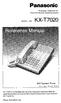 Panasonic Proprietary Telephone for Electronic Modular Switching System MODEL NO. KX-T7020 With Speaker Phone Illustrated Model: White KX-T7020 is compatible with all of the Panasonic Electronic Modular
ATTENTION RISQUE D ÉLECTROCUTION! NE PAS OUVRIR!
 Quick Start Guide ATTENTION RISQUE D ÉLECTROCUTION! NE PAS OUVRIR! CAUTION: TO REDUCE THE RISK OF ELECTRIC SHOCK, DO NOT REMOVE COVER (OR BACK). NO USER-SERVICEABLE PARTS INSIDE. REFER SER- VICING TO QUALIFIED
DX-395. FM/AM/SW1/SW2 PLL Synthesized Receiver OWNER S MANUAL. Cat. No. 20-225. Please read before using this equipment.
 20-225.fm Page 1 Wednesday, August 4, 1999 10:07 AM Cat. No. 20-225 OWNER S MANUAL Please read before using this equipment. DX-395 FM/AM/SW1/SW2 PLL Synthesized Receiver 20-225.fm Page 2 Wednesday, August
POWER MUTE TV/CATV PICTURE TV VIDEO COMP. PC WIDE PIP POP DIGEST - + ZOOM WINDOW DISP V-CHIP C.C. MTS R G Y B. TT INDEX Sub-Page MIX REVEAL HOLD MENU
 MUTE TV/CATV PICTURE MENU SWAP TV VIDEO COMP. PC AUTO SOUND WIDE PIP POP DIGEST - + ZOOM WINDOW DISP V-CHIP C.C. MTS R G Y B TT INDEX Sub-Page MIX HOLD VOL- REVEAL SLEEP CH+ ENTER SKIP POWER VOL+ 32 LCD