
/ PRO-405 User s Guide Desktop Radio Scanner
|
|
|
- Archibald Hodges
- 9 years ago
- Views:
Transcription
1 / PRO-405 User s Guide Desktop Radio Scanner Thank you for purchasing your Desktop Radio Scanner from RadioShack. Please read this user s guide before installing, setting up, and using your new scanner
2 Contents Contents Package Contents...4 Features...4 Understanding Your Scanner... 6 Channel Storage Banks... 6 Service Banks... 6 Preprogrammed Service Bank Frequencies... 7 Marine... 7 Fire/Police... 8 Aircraft... 9 Ham Amateur Radio... 9 FM Broadcast... 9 Weather Channels... 9 Understanding the Keypad Understanding the Display Additional Display Messages Sub Bank Messages Setup...14 Powering Your Scanner AC Power Vehicle Power Connecting the Antenna Connecting an Outdoor Antenna Connecting Headphones Connecting an Extension Speaker Basic Operation...16 Turning on the Scanner and Setting Squelch Programming Known Frequencies into Channels Searching for Active Frequencies Tune Search Service Bank Search Storing Found Frequencies into Channels Scanning the Stored Channels Turning Channel-Storage Banks On and Off Monitoring a Stored Channel Clearing a Stored Channel Listening to the Marine Bank Weather Features...20 Listening to a Weather Channel Weather Alerts Receiving All Weather Alerts
3 Receiving Alerts for Specific Areas Testing the Weather Alert and Beep Tone Skywarn Setting Delay Locking Out Channels and Frequencies Reviewing and Removing Lock-outs Using Priority Turning the Key Tone On and Off Advanced Operation...25 Cloning the Programmed Data Programming with a Personal Computer Initializing the Scanner Preprogrammed Frequencies Preprogrammed Frequency Banks Additional Information...31 Troubleshooting Birdie Frequencies Scanning Legally Care Specifications Service and Repair FCC Notice Limited Warranty Contents
4 Package Contents Scanner Antenna AC Adapter User s Guide Quick Start Guide Features Features Your new PRO-405 Desktop Scanner lets you scan conventional transmissions and is preprogrammed with search banks of the most common frequencies used by public service agencies. Service Banks are accessed by pressing a onetouch search key no complicated programming required. Your new scanner gives you direct access to over 26,000 frequencies, including those used by police and fire departments, FM broadcast, ambulance services, aircraft, and amateur radio services. Your PRO-405 scanner also has these special features: Service Banks easily locate types of calls by searching preprogrammed frequencies in separate marine, fire/police, aircraft, ham, FM broadcast, and weather banks. Display Backlight makes the display easy to read in low-light situations. Lock-out Function skip over specified channels or frequencies when scanning or searching. Ten Channel-Storage Banks group and store 20 channels in each bank (200 total channels). Tune tune to new and unlisted frequencies starting from a specified frequency. SAME/FIPS Weather Alert displays the weather event and sounds an alert for the specific cities or counties you choose. Memory Backup frequencies remain stored in memory for an extended time even without power. Scan Delay delays scanning for two seconds before moving to another channel in order to hear replies. Priority Channel set the scanner to check one channel every two seconds while scanning. 4
5 Data Cloning transfer the programmed data to another PRO-405 scanner. Real-time Signal Strength Indicator shows relative strength of received signals. Liquid-Crystal Display (LCD) easy to view and change programming information. Telescopic Antenna provides good reception of strong local signals. You can also connect an external antenna for improved reception of distant or weak signals. Your PRO-405 scanner can receive these bands: Frequency Range Types of Transmissions MHz 10-Meter Ham, VHF Lo, 6-Meter Ham MHz FM Broadcast MHz Aircraft MHz Military Land Mobile, 2-Meter Ham, VHF Hi MHz UHF Aircraft, Federal Government, 70-cm Ham, UHF Standard, UHF T n Note: See Specifications on page 32 for more information about frequency steps. Features 5
6 Features Understanding Your Scanner Once you understand a few simple terms used in this manual and familiarize yourself with your scanner s features, you can put the scanner to work for you. Simply determine the type of communications you want to receive, then set the scanner to scan them. A frequency is the receiving signal location (expressed in khz or MHz). To find active frequencies, use the search function or consult an online resource such as When you find a frequency, you can store it into a programmable memory location called a channel, which is grouped with other channels in a channelstorage bank. You can then scan the channel-storage banks to see if there is activity on the frequencies stored there. Each time the scanner finds an active frequency, it stays on that channel until the transmission ends. Channel Storage Banks To make it easier to identify and select the channels you want to listen to, your scanner divides the channels into 10 banks (1 to 10) with 20 channels each, for a total of 200 channels. You can use each channel-storage bank to group frequencies, such as those used by the police department, fire department, ambulance services, or aircraft. For example, you could program the frequencies used by your local police department starting with Channel 1 (the first channel in bank 1) and program the fire department frequencies starting with Channel 21 (the first channel in bank 2). Service Banks The scanner is preprogrammed with the frequencies allocated to marine, fire/ police, aircraft, ham radio, FM broadcast and weather services. This is handy for quickly finding active frequencies instead of searching through an entire bank (see Service Bank Search on page 17).
7 Preprogrammed Service Bank Frequencies Marine Channel Frequency (MHz) Channel Frequency (MHz) / / / / / / / / / / / Features n Note: Both frequencies (transmission and reception) are shown for marine channels used for duplex transmission.
8 Fire/Police Features Group Frequency Range (MHz) Step (khz)
9 Aircraft Group Frequency Range (MHz) Step (khz) Ham Amateur Radio Group Frequency Range (MHz) Step (khz) Features FM Broadcast Frequency Range (MHz) Step (khz) Weather Channels Channel Frequency (MHz)
10 Features Understanding the Keypad POWER Turn scanner on and off. MAR (Marine) Search the preprogrammed marine bank. VOLUME Adjust volume. FD/PD (Fire Dept/Police Dept) Search the preprogrammed fire/police bank. SQUELCH - Turn counterclockwise to listen to a weak or distant station. - Turn clockwise to cut out weak transmissions. / (Weather / Skywarn) - Search the seven preprogrammed weather channels. - Press and hold to jump to the Skywarn channel (channel 200). You must first program your local Skywarn frequency into channel 200 (see page 22). HAM Search the preprogrammed amateur radio bank. AIR (Aircraft) Search the preprogrammed aircraft bank. FM Broadcast Search FM radio stations. 10
11 SCAN / MAN (Manual) - Enter Scan mode to scan programmed channels. - Enter Manual mode to stop scanning, directly enter a channel number, or monitor a single channel. / DELAY - Input a decimal point when entering frequencies. - Program a two-second delay for the selected channel. ENT (Enter) Complete the entry of frequencies. ed Select the direction for searching and scanning. L/O / L/O RVW - Lock-out selected channels or frequencies. - Review locked-out frequencies. PRI / ALERT - Enable and disable the priority feature. - Enable and disable SAME standby mode when monitoring a weather channel. TUNE / CLEAR - Enter Tune search. - Clear an incorrect entry. PSE (Pause) Stop and restart a search or tune. PGM Program frequencies into channels. 11 Features Input a number when entering frequencies and selecting banks (0 selects bank 10). - The number range above the keys (1 20, 21 40, 41-60, etc.) indicates the channels stored in that bank.
12 Understanding the Display Row 1 Row 2 Row 3 Features Row 1 Skywarn channel active. FD/PD Searching the fire/police bank. BANK Appears with numbers (1 10) to indicate the scan bank. The bar under the bank number shows banks that are turned on for scanning. AIR Searching the aircraft bank. HAM Searching the amateur radio bank. Row 2 WX Searching weather channels. FM radio Searching for FM radio stations. 000 Channel number the scanner is tuned to. CH Appears with channel number (1 200) or P (priority channel) Frequency the scanner is tuned to. MAR Searching the marine bank. L/0 A locked out channel/frequency is manually selected or reviewed. Row 3 ed (Up/Down) Search or scan direction. PRI Priority feature is active. S Signal meter; bars indicate strength of signal. MAN Manual mode. SCAN Scan mode. SRCH Searching a service bank. PGM Program mode. DLY Two-second delay is active. 12
13 Additional Display Messages ALL CH L-out All channels locked out during scan or marine band search. b X Ch-FULL All displayed bank channels are full. b X StorE Frequency programmed into displayed bank s channel. CLOnE Clone mode. -dupl- Frequency is already stored in another channel. Error Entry error. FLo ALL- CL All the locked-out frequencies removed during a FD/PD, AIRCRAFT, or HAM bank search. L-r Review the locked-out frequencies. L-O Fr-FULL Maximum of 50 frequencies already locked out. off tone Key tone deactivated. On tone Key tone activated. P Scanner is tuned to the priority channel. -t- Tune mode. Features Sub Bank Messages Lo VHF Sub-bank 1 of the fire/police bank. Hi VHF Sub-bank 2 of the fire/police bank. UHF Sub-bank 3 of the fire/police bank. 10 M Sub-bank 1 of the HAM bank. 6 M Sub-bank 2 of the HAM bank. 2 M Sub-bank 3 of the HAM bank. 70CM Sub-bank 4 of the HAM bank. 13
14 Setup Powering Your Scanner You can power your scanner using with AC power using the supplied AC adapter or from your vehicle using an optional DC adapter (not supplied). Setup AC Power 1. Connect the supplied adapter to the scanner s DC 9V jack. 2. Plug the adapter into a standard household power socket. 3. To disconnect, unplug the adapter from the power source first. w Caution: To avoid injury, do not connect the adapter to a ceiling outlet. Vehicle Power 1. Connect a 9V, 400mA DC CLA adapter (not supplied), to the scanner s DC 9V jack. 2. Plug the adapter into your vehicle s power port. 3. To disconnect, unplug the adapter from the power source first. n Notes: If the scanner does not work properly after connecting it to power, try resetting it (see Initializing the Scanner on page 26). If you are powering from your vehicle s power port and your vehicle s engine is running, you might hear electrical noise from the engine. This is normal when using a CLA adapter. The problem can be remedied by connecting directly to the vehicle fuse box. w Caution: You must use a Class 2 power source that supplies 9V DC and delivers at least 400mA. Its center tip must be set to positive and its plug must fit the scanner s DC 9V jack. Using an adapter that does not meet these specifications could damage the scanner or the adapter. 14
15 Connecting the Antenna To attach the supplied telescopic antenna: 1. Insert the antenna in the hole on the top of the scanner. 2. Turn the antenna clockwise to tighten. Connecting an Outdoor Antenna To connect an external antenna, follow the installation instructions supplied with the antenna. Use 50-ohm coaxial cable to connect your scanner to the outdoor antenna. For lengths between 50 and 100 feet, use RG-8X low-loss dielectric coaxial cable. For lengths over 100 feet, use RG8. You also may need a BNC adapter (available at your local RadioShack store). w Warning: Use extreme caution when installing or removing an outdoor antenna. If the antenna starts to fall, let it go! It could contact overhead power lines. If the antenna touches a power line, touching the antenna, mast, cable, or guy wires can cause electrocution and death. Call the power company to remove the antenna. DO NOT attempt to do so yourself. Connecting Headphones For private listening, you can plug Çinch (3.5 mm) mini-plug earphones or headphones (not supplied), into the HEADPHONE jack on the back of the scanner. This automatically disconnects the internal speaker. Setup Listening Safely Do not wear headphones, earphones, or earbuds while operating a motor vehicle or riding a bicycle. This can create a traffic hazard and could be illegal in some areas. To protect your hearing, follow these guidelines: Do not listen at high volume levels. Extended high-volume listening can lead to permanent hearing loss. Set the volume to the lowest setting. Then turn on your audio device and adjust the volume to a comfortable level. Avoid increasing the volume. Your ears will adapt to the volume level, so a level that does not cause discomfort could still damage your hearing. Connecting an Extension Speaker In a noisy area, an amplified extension speaker (available from your local RadioShack store or might provide more comfortable listening. Plug the speaker cable s Ç inch (3.5 mm) miniplug into your scanner s HEADPHONE jack. n Note: Use an amplified speaker with this scanner. Non-amplified speakers do not provide sufficient volume for comfortable listening. 15
16 Basic Operation Turning on the Scanner and Setting Squelch 1. Turn SQUELCH counterclockwise until the indicator points to MIN before you turn on the scanner. 2. Slide POWER to ON. A welcome message appears. After about 3 seconds, you might hear a hissing sound. Adjust VOLUME to a comfortable listening level. 3. Turn SQUELCH clockwise, just until the hissing sound stops. To perform a quick check of scanner operation, press. If you are near a NOAA weather station, you should hear weather information. n Notes: Make sure the scanner s antenna is connected before you turn it on. To listen to a weak or distant station, turn SQUELCH counterclockwise. If reception is poor, turn SQUELCH clockwise to cut out weak transmissions. If SQUELCH is adjusted so you always hear a hissing sound, the scanner will not scan or search properly. Basic Operation Programming Known Frequencies into Channels 1. Press PGM. PGM appears. Enter the channel number (1 200) where you want to store a frequency, then press PGM again. 2. Use the number keys and to enter the frequency (including the decimal point). 3. Press ENT to store the frequency into the channel. 4. To program the next channel in sequence, press PGM and repeat Steps 2 and 3. n Notes: If you made a mistake entering the frequency, Error appears and the scanner beeps three times when you press ENT. Start again from Step 2. Your scanner automatically rounds the entered frequency down to the closest valid frequency. For example, if you enter a frequency of , your scanner accepts it as If you entered a frequency that is already stored in another channel, the scanner beeps three times and displays -dupl- (duplicate) and the lowest channel number where the frequency is already stored. Press ENT if you still want to store the frequency. Press TUNE/CLEAR to cancel. Press /DELAY to set a two-second delay on this channel. The scanner stores this setting in the channel. 16
17 If you do not have a list of frequencies in your area, use a Tune search or a Service Bank search to find transmissions. Or refer to an online resource such as Searching for Active Frequencies Tune Search During a tune search, the scanner tunes up or down starting from a frequency you specify. 1. Press TUNE. The display alternates between PSE and t. 2. If you want to change the starting frequency, enter a new frequency and press ENT. 3. Press PSE to start tune search. t appears on the display. 4. To change the tuning direction, press e or d. n Notes: Press /Delay to turn the two-second delay feature on and off. Press PSE to pause searching. Press PSE again to resume. Service Bank Search Your scanner contains groups of preset frequencies called Service Banks. You can search for marine, fire/police, aircraft, ham, FM, and weather transmissions even if you do not know the specific frequencies that are used in your area. Then you can store the frequencies you find into the scanner s channels (except for weather and marine banks, which are already stored as channels). 1. Press,,,,, or. MAr, FIrE POLICE, AIr, HAM, FM, or WEAtHEr appears respectively. After about two seconds, the service search starts. 2. To search for another active frequency in the selected bank, press e or d. See Preprogrammed Service Bank Frequencies on page 7 for a list of the frequencies. n Notes: Press /Delay to turn the two-second delay feature on and off. Press L/O to lock-out a frequency (except Weather band). Press PSE to pause searching. Press PSE again to resume. To reverse the search direction at any time, press e or d. If necessary, you can select search groups using the number keys. The frequencies in the scanner s Service Banks are preset. You cannot change them. Basic Operation 17
18 Storing Found Frequencies into Channels Once you find interesting frequencies during a Tune or Service Bank search, you can store them in the scanner s channel-storage banks. 1. Press ENT when you find a frequency. The bank number and StorE appear. 2. If you want to change banks, enter the new bank number. 3. Press ENT to store the frequency. The channel and frequency flash twice. To cancel the operation, press TUNE/CLEAR. n Notes: The frequency is automatically stored in the first empty channel of the selected bank. If the scanner displays -dupl-, the frequency is already stored in another channel. Press ENT if you want to continue storing the frequency. Press TUNE/CLEAR to cancel. If there are no empty channels in the bank, Ch-FULL appears. You can select another bank or clear some channels in the current bank (see Clearing a Stored Channel on page 19). If the scanner displays -dupl- or CH-FULL, you can store another channel location by pressing PGM. The channel number flashes and (or previous frequency) appears. Press the desired channel number then press ENT. Repeat if needed. Press ENT again when an empty channel is found. Basic Operation Scanning the Stored Channels Press SCAN/MAN until SCAN appears to continuously scan through all channels with stored frequencies. If the scanner finds an active frequency, it stops and displays that channel and frequency number, then it automatically begins scanning again when the transmission on that frequency ends. n Notes: Press e or d to reverse the scanning direction. Press /DELAY to set the scanner to remain on the current channel for two seconds after the transmission ends. To set the scanner to remain on the current channel, even after the transmission stops, press SCAN/MAN at any time during the transmission so MAN appears and SCAN disappears (see Monitoring a Stored Channel on page 19). Press L/O to lock-out a channel. 18
19 Turning Channel-Storage Banks On and Off To turn a channel-storage bank on or off, press the bank s number key (1 0, using 0 for bank 10) during scanning. The channel-storage banks are on when they have a bar underneath them and off when no bar appears underneath them. n Notes: The scanner does not scan any of the channels within the banks you have turned off. You cannot turn off all banks; there must be at least one active bank. You can manually select any channel in a bank, even if the bank is turned off. When you turn on a bank during scanning, the scanner moves to the selected bank and scans it. If no transmission is found, the scanner continues to scan through all selected banks. Monitoring a Stored Channel You can continuously monitor a specific channel without scanning. This could be useful if you hear a transmission on a channel and do not want to miss any details, even though there might be periods of silence. 1. Press SCAN/MAN until MAN appears. 2. Enter the channel number (1 200). 3. Press SCAN/MAN again. Clearing a Stored Channel To remove a frequency stored in a channel. 1. Press SCAN/MAN to stop scanning. 2. Press the number keys to enter the channel number (1 200). 3. Press PGM. PGM appears. 4. Press 0 then ENT. The frequency number changes to to indicate the channel is cleared. 5. To clear another channel, use the number keys to enter that channel number then press PGM again. Or, repeatedly press PGM until the desired channel number appears. Repeat Step 4. Basic Operation 19
20 Listening to the Marine Bank 1. Press to search the marine bank. MAr appears for about two seconds, then the scanner starts searching from marine channel 16. To change the search direction, press e or d. 2. Press PSE to stop searching. SRCH disappears and MAN appears. To change the channel manually, press e or d. To select a channel directly, enter the two-digit channel number. See Marine Service Bank on page 7 for a list of channels. To lock-out a frequency, press L/O. 3. Press PSE again to restart the marine bank search. Weather Features The FCC (Federal Communications Commission) has allocated channels for use by the National Oceanic and Atmospheric Administration (NOAA). Regulatory agencies in other countries have also allocated channels for use by their weather reporting agencies. The NOAA and your local weather reporting agency broadcast the local forecast and regional weather information on one or more of these channels. Basic Operation Listening to a Weather Channel Press to hear your local forecast and regional weather information. WEAthEr appears for about two seconds, then the scanner starts searching the weather bank. Press PSE to stop searching the channels. SRCH disappears and MAN appears. To change the channel manually, press e or d. n Note: Your scanner incorporates weather alert as one of its features and is an extremely sensitive high quality receiver on the weather frequencies. However, the included antenna is optimized for general purpose scanning. If you use this scanner as your only means for receiving weather alerts, please make sure you are receiving a clear signal on the antenna or switch to an external antenna that gives you clear reception of a local NOAA weather broadcast. 20
21 Weather Alerts Receiving All Weather Alerts To program the scanner to search for weather alerts every two seconds, set a weather channel as the priority channel. 1. Press. 2. Select the weather channel you want to set as the priority channel. 3. Press and hold ENT then PRI/ALERT. P ChAnnEL displays momentarily. Then PCH flashes and (or the previously-stored frequency) appears. 4. Press ENT to store the priority channel. The display flashes twice. Press TUNE/CLEAR to cancel. 5. Press PRI/ALERT during scanning or searching to turn on the priority feature. PRI appears. If the scanner detects a 1050 Hz weather alert tone on the programmed channel, the scanner sounds the alert tone and ALErt flashes. Press any key to turn off the alarm. Receiving Alerts for Specific Areas About SAME Signals The National Weather Service precedes each weather alert with a digitally encoded SAME (Specific Area Message Encoding) signal, then a 1050 Hz tone. The SAME signal includes a FIPS (Federal Information Processing Standard) code and an event code that corresponds with the type of alert being sent. The FIPS code format is: Subdivisions State County 0-9 (0=entire area) (00=all states) XXX (000=all counties) Example: (0=All; 48=Texas; 439=Tarrant County) Basic Operation A current list of FIPS codes is located at SAME Standby Mode In SAME Standby mode, your scanner monitors weather channels for SAME alerts for up to seven areas you specify by entering the FIPS codes. To program your scanner for SAME Standby mode: 1. Press. 2. Press PGM to access the FIPS code entry mode. 21
22 3. Use e or d to select the desired FIPS code storage location. 4. Use the number keys to enter the FIPS code, then press ENT to store the code. 5. Repeat steps 3-4 for all the FIPS codes that you wish to store. 6. Press to exit FIPS code entry mode. The scanner displays F showing that FIPS codes are enabled. 7. Press PRI/ALERT to initiate SAME Standby mode. The scanner displays F [1-7]CH StAndby. Basic Operation The scanner will monitor weather channels for alerts with matching FIPS codes. To exit SAME Standby mode, press PRI/ALERT again. n Notes: Press L/O during step 4 to lock-out FIPS entries; L/0 appears in the display. Press L/O again to enable FIPS entries; L/0 disappears. If you do not enter any FIPS codes, or if your FIPS codes are locked out, when you enter SAME Standby mode the scanner receives alerts and warning messages for all receivable areas. The scanner sounds an alert when it receives the SAME code. To stop the alert and ready the scanner to receive a new alert signal, press any key. If you do not stop the alert within five minutes, the alert stops and the scanner beeps every ten seconds. If the scanner receives a new weather alert after five minutes, it sounds the new alert. Testing the Weather Alert and Beep Tone 1. To test the weather alert, press and hold ENT for more than 2 seconds while F [1-7]CH StAndby appears on the display. The display indicates the type of message, and the scanner sounds an alert or series of beeps. The beeps automatically change every 3 seconds. 2. Press any key to stop testing. Skywarn Many areas of the country have amateur radio repeaters that have been designated as Skywarn repeaters. During times of severe weather, these repeaters are used to relay reports of severe weather directly to meteorologists at a local National Weather Service forecast office. Using the Skywarn feature in your scanner, you can easily jump to your local Skywarn frequency and monitor these reports, in many cases hearing about severe weather in your area instantly as it occurs. 1. Before using this feature, you must program the Skywarn frequency into channel 200 (see Programming Known Frequencies into Channels on page 16). 22
23 2. To activate Skywarn, press and hold / for about two seconds. 3. The scanner jumps to channel 200 and displays. n Note: If no frequency is programmed in the Skywarn channel, No ProG appears. Refer to to find Skywarn frequencies in your area. Setting Delay To avoid missing a reply in conversations, a two-second delay is automatically set for each channel. The scanner stops for two seconds after a transmission ends before it resumes scanning or searching. DLY appears on the display when the delay function is active. To turn delay on: If the scanner is scanning and stops on an active channel, quickly press /DELAY before it resumes. If the desired channel is not selected, manually select the channel, then press /DELAY. If the scanner is searching, press /DELAY. DLY appears and the scanner adds a two-second delay to every transmission it stops on in that bank. To turn delay off: Press /DELAY while the scanner is monitoring a channel or frequency. DLY disappears. Locking Out Channels and Frequencies You can increase the scanning or search speed by locking out channels or frequencies that have a continuous transmission, such as control channels, weather channels, or birdie frequencies. Basic Operation Press L/O when the scanner stops on a channel or frequency while scanning or searching. The scanner locks out the channel/frequency then continues scanning/searching. To manually lock-out a channel, select the channel then press L/O. L/0 appears in the display. n Notes: Your scanner automatically locks out empty channels. You can still manually select locked-out channels. You can lock-out a maximum of 50 frequencies during a search. If you try to lock-out more, L-O Fr-FULL appears. 23
24 Reviewing and Removing Lock-outs Stored Channels 1. Hold down L/O/L/O RV W for about two seconds while in manual operation. The scanner pulls up a list of locked out channels. 2. Repeatedly press and hold L/O/L/O RV W to show the next locked out channel. If an error beep sounds, there are no locked out channels. 3. To remove the lock-out, press L/O/L/O RV W until L/0 disappears. Marine Service Bank 1. Press PSE during the Marine Service Bank search. 2. Hold down L/O/L/O RV W for about two seconds. The scanner pulls up a list of locked out channels. 3. Repeatedly press and hold L/O/L/O RV W to show the next locked out channel. If an error beep sounds, there are no locked out channels. 4. To remove the lock-out, press L/O/L/O RV W until L/0 disappears. Basic Operation Other Service Banks 1. Hold down L/O/L/O RV W for about two seconds during a Service Bank search. 2. Press e or d repeatedly to scroll through the list of locked-out frequencies. L-r and L/0 appear in the display. 3. Press L/O/L/O RV W to remove the lock-out. The list scrolls to the next locked-out frequency. n Notes: When you reach the highest locked-out frequency, the scanner beeps twice and rolls to the lowest locked-out frequency. If the Service Bank has no locked-out frequencies, EMPty appears. Removing Lock-outs from All Frequencies in a Service Bank 1. Hold down L/O/L/O RV W for about two seconds during a Service Bank search. L-r appears. 2. While holding down TUNE/CLEAR, press L/O/L/O RV W. FLo ALL CL appears for about two seconds. Then the display alternates with YES ---Ent and No --CLEAr. 3. Press ENT. L-r EMPty appears. The scanner clears lock-outs from all frequencies in the Service Bank. 24
25 Using Priority The priority feature sets the scanner to check one channel every two seconds while scanning. You can program one frequency into the priority channel. 1. Press PGM, then press PRI/ALERT. PCH and (or the previously stored frequency) appear. 2. Enter the frequency you want stored in the priority channel, then press ENT. 3. To turn on the priority feature, press PRI/ALERT during scanning or searching. PRI appears. The scanner checks the priority channel every two seconds and stays on the channel if there is activity. To turn off the priority feature, press PRI/ALERT. PRI disappears. To program a weather channel as the priority channel, see Receiving All Weather Alerts on page 21. Turning the Key Tone On and Off The scanner is preset to sound a tone each time you press one of its keys. To turn the key tone on and off: 1. If the scanner is on, turn it off then back on again. 2. WELCOME SCAnnInG receiver appears. 3. While the welcome message is on the screen, press 1 to turn on the key tone or press 2 to turn it off. Advanced Operation Cloning the Programmed Data You can transfer the programmed data to and from a PRO-405 scanner using an optional connecting cable with Ç-inch (3.5mm) stereo phone plugs on both ends (available from your local RadioShack store or 1. Turn on both scanners. 2. Connect the connecting cable to each scanner s PC/IF jack. CLOnE and UP to SEnd appears. 3. Press e on the host scanner. 4. SEndInG appears at the host scanner. To exit clone mode after the data transfer is complete, remove the cable. No ConnEct appears if you try to connect to another model scanner. The PRO- 405 does not clone with other scanner models. Advanced Operation 25
26 Programming with a Personal Computer You can upload or download programmed data to or from a PC using a USB cable available from your local RadioShack store or The application software is available online. Use a search engine to find scanner programming software. Follow instructions in the software package to upload and download data. Initializing the Scanner If the scanner s display locks up or does not work properly after you connect a power source, you might need to initialize the scanner. n Important: This procedure clears all information you stored in the scanner s memory. Only initialize the scanner when you are sure the scanner is not working properly. 1. Turn off the scanner, then turn it on again. WELCOME SCAnnInG receiver appears. 2. Press 0, then press 1 while the welcome message is on the screen. InItIAL appears for about two seconds, then YES Ent and No CLEAr appear alternately. 3. Press ENT. WAIt appears for about two seconds. n Note: Do not turn off the scanner until the initialization is complete. When the initialization is complete, 1CH appears on the display. Advanced Operation Preprogrammed Frequencies Your scanner has 153 preprogrammed frequencies in the ROM. You can load them into Channels 1 to Turn off the scanner and then turn it on again. 2. While WELCOME message appears, press PGM. 3. Load Fr appears, then YES Ent and No CLEAr appear alternately. 4. Press ENT to load frequencies or press CLEAR to cancel. 26
27 Preprogrammed Frequency Banks Bank 1 BANK 2 Channel Frequency (MHz) Channel Frequency (MHz) Advanced Operation 27
28 Channel Bank 3 Frequency (MHz) Channel BANK 4 Frequency (MHz) Advanced Operation 28
29 BANK 5 BANK 6 Channel Frequency (MHz) Channel Frequency (MHz) Advanced Operation 29
30 BANK 7 BANK 8 Advanced Operation Channel Frequency (MHz) Channel Frequency (MHz)
31 Additional Information Troubleshooting The scanner is not working at all. The AC or DC adapter might not be connected. Be sure the adapter s barrel plug is fully inserted into the DC 9V jack. The center tip of the adapter s barrel plug must be set to positive. The scanner does not receive any stations or reception is poor. An antenna is not connected or is connected incorrectly. Be sure an antenna is properly connected to the scanner. Reception may be blocked by walls or other obstructions. Try moving to a different area. The scanner is on but does not scan. The squelch might not be adjusted correctly. Turn SQUELCH clockwise. Only one channel or no channels are stored. Store frequencies into more than one channel. The keypad does not work. The scanner might need to be reset or initialized. Turn the scanner off then on again, or initialize the scanner (see Initializing the Scanner on page 26). While scanning, the scanner locks on frequencies that have an unclear transmission. Some frequencies programmed into the scanner might be the same as birdie frequencies. Avoid programming birdie frequencies or only listen to them manually. Birdie Frequencies Every scanner has birdie frequencies. Birdies are signals created inside the scanner s receiver, which may interfere with transmissions on the same frequencies. If you program one of these frequencies, you hear only noise on that frequency. If the interference is not severe, you might be able to turn Squelch clockwise to omit the birdie. To find the birdies in your scanner: 1. Disconnect the antenna and move it away from the scanner. Make sure that no other nearby radio or TV sets are turned on near the scanner. 2. Use the Tune to search every frequency range from its lowest frequency to the highest. Occasionally, the searching will stop as if it has found a signal, often without any sound. This is a birdie. 3. Make a list of all the birdies in your scanner for future reference. 31 Additional Info
32 Scanning Legally Your scanner covers frequencies used by many different groups including police and fire departments, ambulance services, government agencies, private companies, amateur radio services, military operations, pager services, and wireline (telephone and telegraph) service providers. It is legal to listen to almost every transmission your scanner can receive. However, there are some transmissions you should never intentionally listen to. These include: Telephone conversations (cellular, cordless, or other private means of telephone signal transmission) Pager transmissions Any scrambled or encrypted transmissions According to the Electronic Communications Privacy Act (ECPA), as amended, you are subject to fines and possible imprisonment for intentionally listening to, using, or divulging the contents of such a transmission unless you have the consent of a party to the communication (unless such activity is otherwise illegal). This scanner is designed to prevent reception of illegal transmissions, in compliance with the law which requires that scanners be manufactured in such a way as to not be easily modifiable to pick up those transmissions. Do not open your scanner s case to make any modifications that could allow it to pick up transmissions that are not legal to listen to. Doing so could subject you to legal penalties. In some areas, mobile use of this scanner is unlawful or requires a permit. Check the laws in your area. We encourage responsible, legal scanner use. Care Your scanner is not waterproof. Do not expose it to rain, moisture, or extremely high humidity. If the scanner gets wet, wipe it dry immediately. Use and store the scanner only in normal temperature environments. Handle the scanner carefully; do not drop it. Keep the scanner away from dust and dirt, and wipe it with a damp cloth occasionally to keep it looking new. Additional Info Specifications Frequency Coverage MHz... (5 khz steps)/fm MHz...(100 khz steps)/wfm MHz...(8.33 khz steps)/am MHz... (12.5 khz steps)/fm MHz... (5 khz steps)/fm 32
33 MHz... (12.5 khz steps)/fm MHz... (5 khz steps)/fm MHz... (12.5 khz steps)/fm MHz... (12.5 khz steps)/fm Sensitivity (S+N)/N 20 db MHz uv MHz ((S+N)/N 30 db) uv MHz uv MHz uv MHz uv Spurious Rejection MHz)...50 db Selectivity ±8 khz/±17khz (FM/AM)... -6dB/-50dB ±80kHz/±180kHz (WFM)... -6dB/-50dB Search Speed... Up to 80 Steps/Sec Scan Speed...Up to 40 Channels/Sec Delay Time... 2 Seconds IF Frequencies 1st IF MHz 2nd IF khz IF Interference Ratio (10.7 MHz)...70 db at 154 MHz Squelch Sensitivity Threshold (FM/AM)... Less than 0.5 uv Threshold (WFM)... Less than 1.0 uv Tight (FM)...(S + N)/N 25 db Tight (WFM)...(S+N)/N 60 db Tight (AM)...(S+N)/N 20 db Antenna Impedance...50 Ohms Audio Output Power (10% THD) W Nominal Built-In Speaker... 3 Inches (77 mm), 8 Ohms Operating Temperature...32 to 110 F (0 to 43 C) Power Requirements... 9V AC Adapter (supplied)... 9V DC Adapter (not supplied) Dimensions (HWD)... 8 ¼ x 6 Ê x 2 È In...(210 x 175 x 60 mm) Weight (without antenna) oz (700 g) Specifications and depictions are subject to change and improvement without notice. Actual product may vary from the images found in this document. 33 Additional Info
34 Service and Repair If your scanner is not performing as it should, take it to your local RadioShack store for assistance. To locate your nearest RadioShack, use the store locator feature on RadioShack s website ( or call The Shack ( ) and follow the menu options. Modifying or tampering with the scanner s internal components can cause a malfunction and might invalidate its warranty and void your FCC authorization to operate it. FCC Notice This equipment has been tested and found to comply with the limits for a scanning receiver, pursuant to Part 15 of the FCC Rules. These limits are designed to provide reasonable protection against harmful interference in a residential installation. This equipment generates, uses and can radiate radio frequency energy and, if not installed and used in accordance with the instructions, may cause harmful interference to radio communications. However, there is no guarantee that interference will not occur in a particular installation. If this equipment does cause harmful interference to radio or television reception, which can be determined by turning the equipment off and on, the user is encouraged to try to correct the interference by one or more of the following measures: Reorient or relocate the receiving antenna. Increase the separation between the equipment and receiver. Connect the equipment into an outlet on a circuit different from that to which the receiver is connected. This device complies with part 15 of the FCC Rules. Operation is subject to the following two conditions: (1) This device may not cause harmful interference, and (2) this device must accept any interference received, including interference that may cause undesired operation. Additional Info Limited Warranty RadioShack warrants this product against defects in materials and workmanship under normal use by the original purchaser for one (1) year after the date of purchase from a RadioShack-owned store or an authorized RadioShack franchisee or dealer. RADIOSHACK MAKES NO OTHER EXPRESS WARRANTIES. This warranty does not cover: (a) damage or failure caused by or attributable to abuse, misuse, failure to follow instructions, improper installation or maintenance, alteration, accident, Acts of God (such as floods or lightning), or excess voltage or current; (b) improper or incorrectly performed repairs by persons who are not a RadioShack Authorized Service Facility; (c) consumables such as fuses or batteries; (d) ordinary wear and tear or cosmetic damage; (e) transportation, shipping or insurance costs; (f) costs of product removal, installation, set-up service, adjustment or reinstallation; and (g) claims by persons other than the original purchaser. 34
35 Should a problem occur that is covered by this warranty, take the product and the RadioShack sales receipt as proof of purchase date to any RadioShack store in the U.S. RadioShack will, at its option, unless otherwise provided by law: (a) repair the product without charge for parts and labor; (b) replace the product with the same or a comparable product; or (c) refund the purchase price. All replaced parts and products, and products on which a refund is made, become the property of RadioShack. New or reconditioned parts and products may be used in the performance of warranty service. Repaired or replaced parts and products are warranted for the remainder of the original warranty period. You will be charged for repair or replacement of the product made after the expiration of the warranty period. RADIOSHACK EXPRESSLY DISCLAIMS ALL WARRANTIES AND CONDITIONS NOT STATED IN THIS LIMITED WARRANTY. ANY IMPLIED WARRANTIES THAT MAY BE IMPOSED BY LAW, INCLUDING THE IMPLIED WARRANTY OF MERCHANTABILITY AND, IF APPLICABLE, THE IMPLIED WARRANTY OF FITNESS FOR A PARTICULAR PURPOSE, SHALL EXPIRE ON THE EXPIRATION OF THE STATED WARRANTY PERIOD. EXCEPT AS DESCRIBED ABOVE, RADIOSHACK SHALL HAVE NO LIABILITY OR RESPONSIBILITY TO THE PURCHASER OF THE PRODUCT OR ANY OTHER PERSON OR ENTITY WITH RESPECT TO ANY LIABILITY, LOSS OR DAMAGE CAUSED DIRECTLY OR INDIRECTLY BY USE OR PERFORMANCE OF THE PRODUCT OR ARISING OUT OF ANY BREACH OF THIS WARRANTY, INCLUDING, BUT NOT LIMITED TO, ANY DAMAGES RESULTING FROM INCONVENIENCE AND ANY LOSS OF TIME, DATA, PROPERTY, REVENUE, OR PROFIT AND ANY INDIRECT, SPECIAL, INCIDENTAL, OR CONSEQUEN- TIAL DAMAGES, EVEN IF RADIOSHACK HAS BEEN ADVISED OF THE POSSIBILITY OF SUCH DAMAGES. Some States do not allow limitations on how long an implied warranty lasts or the exclusion or limitation of incidental or consequential damages, so the above limitations or exclusions may not apply to you. This warranty gives you specific legal rights, and you may also have other rights which vary from State to State. You may contact RadioShack at: RadioShack Customer Relations 300 RadioShack Circle, Fort Worth, TX /08 35 Additional Info
36 Protect the environment by recyclying your used electronics. Go to E-CyclingCentral.com to find an electronic recycling center near you RadioShack Corporation. All rights reserved. RadioShack and RadioShack.com are trademarks used by RadioShack Corporation. 07A09 Printed in China GR-09D /PRO-405
Weather Radio Alarm Clock
 1200093 User s Guide Weather Radio Alarm Clock Thank you for purchasing your Weather Radio Alarm Clock from RadioShack. Please read this user s guide before installing, setting up, and using your new weather
How To Use A Scanner On A Pc Or Macbook 2 (For Pc) With A Pager Or Ipa (For Macbook) With An Ipa 2 (Femalese) With The Pager 2 (Powerline) With
 PRO-2046 Programmable 100-Channel Mobile Scanner (200-0149) Introduction Your new RadioShack PRO-2046 Programmable 100-Channel Mobile Scanner lets you in on all the action! This scanner gives you direct
Portable Multiband Radio (120-0456A) Features Faxback Doc. # 56400
 (120-0456A) Features Faxback Doc. # 56400 Your RadioShack Portable Multiband Radio is an all-in-one radio system designed to provide high-quality sound. the multi-band tuner lets you listen to the radio,
Wireless Indoor/ Outdoor Thermometer
 Wireless Indoor/ Outdoor Thermometer Owner s Manual Please read before using this equipment. ˆ Contents FCC Information... 3 FCC Declaration of Conformity... 5 Preparation... 5 Installing Batteries...
20-427 PRO-2054 300 channel mobile/base scanner
 20-427 PRO-2054 300 channel mobile/base scanner Please read this user s guide before installing, setting up and using your new product www.radioshack.com Thank you for purchasing your PRO-2054 300 channel
DX-395. FM/AM/SW1/SW2 PLL Synthesized Receiver OWNER S MANUAL. Cat. No. 20-225. Please read before using this equipment.
 20-225.fm Page 1 Wednesday, August 4, 1999 10:07 AM Cat. No. 20-225 OWNER S MANUAL Please read before using this equipment. DX-395 FM/AM/SW1/SW2 PLL Synthesized Receiver 20-225.fm Page 2 Wednesday, August
AM/FM Portable Radio
 Cat. No. 12-798 OWNER S MANUAL Please read before using this equipment. AM/FM Portable Radio with Dual Time, Single Alarm FEATURES Your Optimus AM/FM Portable Radio is designed for your active lifestyle.
Mini Power Bank and Charger
 Mini Power Bank and Charger Owner s Manual Please read before using this equipment. Your charger is ETL listed to UL standards and meets all applicable FCC standards. WARNING: To reduce the risk of fire
AE 55 H 50-Channel Portable Scanner
 AE 55 H 50-Channel Portable Scanner TEIL 3 SCAN MANUAL BAND LIGHT MON 1 2 3 4 5 6 7 8 9 CLEAR PGM DELAY L/OUT 0 E AE55H 50 KANAL SCANNER OWNER S MANUAL OWNER S MANUAL AE55H 50-Channel Portable Scanner
900 MHz Lightweight Wireless Stereo Headphones
 33-1165.fm Page 1 Tuesday, August 10, 1999 10:50 AM Cat. No. 33-1165 OWNER S MANUAL Please read before using this equipment. 900 MHz Lightweight Wireless Stereo Headphones 33-1165.fm Page 2 Tuesday, August
AM/FM PLL Clock/Table Radio
 12-1632.fm Page 1 Wednesday, May 10, 2000 10:57 AM Cat. No. 12-1632 OWNER S MANUAL Please read before using this equipment. AM/FM PLL Clock/Table Radio 12-1632.fm Page 2 Wednesday, May 10, 2000 10:57 AM
7 High-Resolution Digital Photo Frame
 TM 16-1003 User s Guide 7 High-Resolution Digital Photo Frame One demo photo included, as illustrated Please read this user s guide before using your new photo frame. Package contents Photo Frame AC Adapter
Portavision-50 AM/FM/TV1/TV2 Portable Radio (120-0687) Features Faxback Doc. #
 (120-0687) Features Faxback Doc. # Your Portavision-50 AM/FM/TV1/TV2 Portable Radio lets you hear your favorite television shows wherever you go. Set it on your desk, or take it with you in your car to
CB Receive with Channel Display - you can scan CB transmissions, displaying the channel number as you scan them.
 PRO-2066 150-Channel Mobile Trunking Scanner (200-0195) Features Faxback Doc. # 49848 INTRODUCTION Your new RadioShack PRO-2066 150-Channel Mobile Trunking Scanner is one of a new generation of scanners
AM/FM Emergency Weather Radio/Light With Hand Crank Back-Up Power
 VEC173 ONE YEAR LIMITED WARRANTY PROGRAM This limited warranty program is the only one that applies to this product, and it sets forth all the responsibilities of Vector Manufacturing, regarding this product.
AM/FM Pocket Radio with Mono Earphone
 12-789.fm Page 1 Wednesday, July 7, 1999 11:13 AM Cat. No. 12-789 AM/FM Pocket Radio with Mono Earphone Your Radio Shack AM/FM Pocket Radio with Mono Earphone is designed for your active lifestyle. Its
USB Scrolling Optical Mini Mouse
 USB Scrolling Optical Mini Mouse Owner s Manual Please read before using this equipment. ˆ Contents Features... 3 System Requirements... 4 FCC Declaration of Conformity... 5 The FCC Wants You to Know...
OPERATIONS MANUAL BC80 XLT SCANNER
 OPERATIONS MANUAL BC80 XLT SCANNER 34 Somerset Avenue Pleasantville, NJ 08232 (609) 272-0022 Fax (609) 272-0846 www.racingelectronics.com 2 3 Precautions Before you use this scanner, please read and observe
DR-83 90-Minute Digital Recorder
 DR-83 90-Minute Digital Recorder Owner s Manual Please read before using this equipment. ˆ Contents Features... 5 Preparation... 7 Installing Batteries... 7 Setting the Clock... 8 Connecting Earphones...
AM/FM Aircraft Radio (120-0615) Features Faxback Doc. # 17253
 (120-0615) Features Faxback Doc. # 17253 The Radio Shack AM/FM Aircraft Radio is ideal for aviation enthusiasts - you can monitor transmissions between pilots and other planes or air traffic control facilities.
7-Channel Portable SAME Weatheradio
 7-Channel Portable SAME Weatheradio with Alert Owner s Manual Please read before using this equipment. ˆ Contents Features... 5 How Your Radio Works... 6 Weather Alerts... 7 New Alert Types... 8 Understanding
Security Auto Dialer. Owner s Manual. Please read before using this equipment.
 Security Auto Dialer Owner s Manual Please read before using this equipment. ˆ Contents Features... 2 FCC Statement... 3 Lightning... 3 A Quick Look at Your Auto Dialer... 4 Installation... 5 Selecting
Color LCD TV with AM/FM Radio
 16-3054.auto.fm Page 1 Thursday, August 19, 1999 3:00 PM Color LCD TV with AM/FM Radio EAR VOLUME BRIGHT TV OFF RADIO Switch Built-In Telescoping Rod Antenna TUNING FM AM TUNING Dial FM VHF AM UHF Switch
2GB MP3 Player USER GUIDE
 DO NOT FORMAT UNIT under FAT. 2GB MP3 Player USER GUIDE Jazwares, Inc. 2010 CONTENTS Please read the instructions along with the MP3 Player carefully before you use it, so that you can operate it conveniently.
AM/FM Stereo Portable Radio (120-0732) Features Faxback Doc. # 19744
 (120-0732) Features Faxback Doc. # 19744 The Radio Shack AM/FM Stereo Portable Radio is a mini-stereo system that is perfect for your active lifestyle. The easy to use controls make it simple to select
Bluetooth Audio Receiver GDI-BTPB300. Quick Start Guide
 Bluetooth Audio Receiver GDI-BTPB300 Quick Start Guide 1. Before You Start Using Your 3play Bluetooth Audio Receiver Important Safety Instructions and Warnings Please read this user guide carefully before
All Hazards Weather Alert Radio WR-100
 All Hazards Weather Alert Radio WR-100 Owner s Manual Quick Start Instructions: Please see pg. 5 for important buttons and controls 1. Place 3 AAA alkaline batteries (not supplied) into the compartment
ITC-BTTN Cellular Bluetooth Gateway. Owner s Manual 1
 ITC-BTTN Cellular Bluetooth Gateway Owner s Manual 1 2 Table of Contents Introduction...3 Package Contents...3 XLink Connections Diagram...4 Setup...5 Pairing your Bluetooth Cell Phone to the XLink...6
Table of Contents Function Keys of Your RF Remote Control Quick Setup Guide Advanced Features Setup Troubleshooting
 Congratulations on your purchase of the AT&T U-verse TV Point Anywhere RF Remote Control. This product has been designed to provide many unique and convenient features to enhance your AT&T U-verse experience.
NFC Communication Tray Model: HHX-IT3-Z
 INSTRUCTION MANUAL NFC Communication Tray Model: HHX-IT3-Z ENGLISH CONTENTS Introduction...3 Important safety information...4 Know your unit...6 Transferring data to the PC...7 Care and maintenance...8
Wireless Phone Jack System
 43-160.fm Page 1 Thursday, August 12, 1999 2:25 PM Cat. No. 43-160 OWNER S MANUAL Please read before using this equipment. Wireless Phone Jack System 43-160.fm Page 2 Thursday, August 12, 1999 2:25 PM
PR-D9W. GB Version 1
 PR-D9W Version 1 Table of contents Important safety instructions... 2-3 Introduction... 4 Controls... 5-8 Using your weather alert radio for the first time... 9 Operating your radio Search tuning AM/FM...
Model: 308-1412 Manual DC: 080215 WIRELESS COLOR FORECAST STATION
 Model: 308-1412 Manual DC: 080215 WIRELESS COLOR FORECAST STATION FRONT VIEW SENSOR TX141TH-Bv2 LED TX Sensor Battery Cover Sensor Battery Compartment 2 AA Buttons Battery Compartment 3 AAA BACK VIEW Battery
Fit Clip Plus Portable Media Player
 Fit Clip Plus Portable Media Player User Guide BL 8GB Thank you for purchasing a Fit Clip Plus Portable Media Player! To get the most out of your Fit Clip Plus, please read this entire user guide carefully.
THE NEW GENERATION IN TECHNOLOGY. NI-3103A Alarm Clock w/fm Radio ipod & iphone Docking. Operating Instructions
 THE NEW GENERATION IN TECHNOLOGY NI-3103A Alarm Clock w/fm Radio ipod & iphone Docking Operating Instructions Table of Contents Important Safeguards... 3 Parts... 6 Controls... 6 To Set Up... 7 ipod/iphone
Visit our Website at. www.bc780xlt.com BC780XLT. 500-Channel Trunk Tracking Scanner TRUNK TRACKER III
 Visit our Website at www.bc780xlt.com BC780XLT TRUNK TRACKER III 500-Channel Trunk Tracking Scanner Introduction The BC780XLT is a state-of-the-art radio with TrunkTracking and automatic scanning capabilities.
Intelli-Time Alarm Clock model 13027
 Instruction Manual Intelli-Time Alarm Clock model 13027 CONTENTS Unpacking Instructions... 2 Package Contents... 2 Product Registration... 2 Features & Benefits... 3 Clock Setup... 4 Intelli-Time Clock...
Jarv Joggerz BT-301 Bluetooth Stereo Headphones Users Guide
 Jarv Joggerz BT-301 Bluetooth Stereo Headphones Users Guide Features: Bluetooth Wireless technology Compact design fits in the palm of your hand and weighs less than 2 oz. Comfortable Behind the Neck design
3. Enter the first five digits of desired frequency (2 2 5 0 0 for 225.000 MHz).
 Simplified Directions 1. Install the batteries. 2. Turn the unit on (rotate volume knob clockwise). 3. Enter the first five digits of desired frequency (2 2 5 0 0 for 225.000 MHz). 4. Listen. Table of
Comfort Contego User Manual
 Comfort Contego User Manual Please read the User Manual before using this product. Comfort Contego T900 Transmitter English Comfort Contego R900 Receiver DO NOT USE the COMFORT CONTEGO if you have a PACEMAKER
Indoor/Outdoor Color Camera with Built-in 2.4 GHz Wireless Transmitter, plus X10 controlled power supply, and Video Receiver.
 Indoor/Outdoor Color Camera with Built-in 2.4 GHz Wireless Transmitter, plus X10 controlled power supply, and Video Receiver. OWNER'S MANUAL VR36A XC18A XM13A MODEL VK69A (INCLUDES XC18A CAMERA, XM13A
Portable Handheld NWR-SAME Weatheradio 12-259
 www.radioshack.com SM OWNER S MANUAL Please read before using this equipment. Thank you for buying the RadioShack Portable Handheld NWR-Same Weatheradio. It uses Specific Area Message Encoding (SAME) circuitry
12-Volt 10-Amp Regulated Power Supply
 22-506.fm Page 1 Friday, August 6, 1999 12:55 PM Cat. No. 22-506 OWNER S MANUAL Please read before using this equipment. 12-Volt 10-Amp Regulated Power Supply 22-506.fm Page 2 Friday, August 6, 1999 12:55
user s manual Battery Case model #: SPB3200 Battery Case Charger for Samsung Galaxy S 4
 user s manual model #: SPB3200 Charger for Samsung Galaxy S 4 What s Included Unpack the battery case and make sure all accessories are put aside so they will not be lost. hello. USB to Micro USB Cable
AM / FM Tuner + RDS. Model: TU-101. www.pulse-audio.co.uk
 AM / FM Tuner + RDS Model: TU-101 www.pulse-audio.co.uk 1 Safety Information The lightning bolt within a triangle is intended to alert the user to the presence of dangerous voltage levels within the product
Owner s Manual Please read before using this equipment. 4-Channel Stereo Mixer
 Owner s Manual Please read before using this equipment. 4-Channel Stereo Mixer ˆ Features Your RadioShack 4-Channel Stereo Mixer is a sophisticated desktop control center, perfect for mixing sound on four
Contents. Product Code -------------------------------------------------------15. Page 1
 Contents Important Safety Instructions -------------------------------------2 BT HP01 --------------------------------------------------------------4 BT HP01 Anatomy ---------------------------------------------------5
All Hazards Weather Alert Radio
 All Hazards Weather Alert Radio WR-300 Owner s Manual Quick Start Instructions: Please see pg. 5 for important buttons and controls. 1. Place 4 AA batteries (not supplied) into the compartment on the underside
Digital Radio/DAB+/FM RDS digital clock radio with dual alarm Operating instruction
 381SE1D-A Digital Radio/DAB+/FM RDS digital clock radio with dual alarm Operating instruction GB Contents Controls... 2-3 Using the clock radio for the first time... 4 Operating your clock radio... 5 Selecting
Cat 20-527 PRO-97 1,000 Channel Triple Trunking Hand Held Scanner
 Cat 20-527 PRO-97 1,000 Channel Triple Trunking Hand Held Scanner Please read this user s guide before installing, setting up and using your new product www.radioshack.com Contents Thank you for purchasing
DR 70 Portable Digital DAB+ and FM Radio Receiver User Manual English Please read carefully before using this product
 DR 70 Portable Digital DAB+ and FM Radio Receiver User Manual Please read carefully before using this product 15 1 Table of Contents 1 Table of Contents... 16 2 Safety Instructions:... 17 3 Specification:...
20-496 PRO-2096 Digital Trunking Mobile/Base Scanner
 20-496 PRO-2096 Digital Trunking Mobile/Base Scanner Please read this user s guide before installing, setting up and using your new product www.radioshack.com Contents Thank you for purchasing your Pro-2096
Alarm Clock USER GUIDE
 Alarm Clock USER GUIDE Jazwares, Inc. 2012 CONTENTS Please read the instructions along with the Alarm Clock carefully before you use it, so that you can operate it conveniently. WELCOME & Warnings Page
SP1790JK 900MHz Wireless Indoor/Outdoor Speakers. User Manual INTRODUCTION FEATURES IMPORTANT SAFETY INFORMATION
 SP1790JK 900MHz Wireless Indoor/Outdoor Speakers INTRODUCTION This 900 MHz digital hybrid wireless speaker system uses the latest wireless technology that enables you to enjoy music and TV sound anywhere
Kinivo 301BN HDMI Switch
 Kinivo 301BN HDMI Switch User Manual 2012 Kinivo LLC. All rights reserved. Kinivo is a trademark of Kinivo LLC. Bluetooth word mark and the Bluetooth logo are registered trademarks of Bluetooth SIG. All
User manual. Your best protection against theft and loss. (Android) Made for
 User manual Made for Your best protection against theft and loss (Android) Warranty SCOPE OF THE WARRANTY Subject to legal provisions, the responsibility of SECU4 under this warranty is limited to the
Jarv Nmotion BTHL-201 Bluetooth Stereo Earbuds Users Guide
 Jarv Nmotion BTHL-201 Bluetooth Stereo Earbuds Users Guide Features: Bluetooth wireless technology Comfortable lightweight in-ear design with detachable sports ear hooks for added support High Definition
Model 70A00-1. GSM Cellular Communications Center
 Home Automation, Inc. Model 70A00-1 GSM Cellular Communications Center Operation Manual Document Number 70I00-1 Rev A August, 2009 Contents Description... 1 Use with security systems...1 Everyday use...2
Business Audio System: Music & Messaging MP3 Player. by Grace Digital Audio. User Guide. Model No. GDI-USBM10
 Business Audio System: Music & Messaging MP3 Player by Grace Digital Audio User Guide Model No. GDI-USBM10 User Guide Contents Introduction 2 Safety & General Use Information 2 Features 3 Set Up & Operation
ER102. Emergency Crank Weather Radio Owner s Manual. www.midlandradio.com
 ER102 Emergency Crank Weather Radio Owner s Manual Table of Contents Welcome to the World of Midland Electronics Major ER102 Features ER102 Controls and Functions ER102 Power Sources - Built-in Rechargeble
Stereo Bluetooth In-Car FM Transmitter. Owner s Manual. Model BTC008
 Stereo Bluetooth In-Car FM Transmitter Owner s Manual Model BTC008 Thank you for choosing the Alva FM transmitter Model BTC008. Please read this user s manual carefully before use. Features Play Smartphone
User and Installation Guide
 Connect the AC adapter with the amplifier BEFORE plugging the AC adapter into an outlet to avoid spark generation! User and Installation Guide BlueFIDELITYTM Bluetooth Audio Amplifier Model 300 Contents
User Guide for the Wireless Headset (HS-11W) 9235346 Issue 1
 User Guide for the Wireless Headset (HS-11W) 9235346 Issue 1 DECLARATION OF CONFORMITY We, NOKIA CORPORATION declare under our sole responsibility that the product HS-11W is in conformity with the provisions
Important Safety Instructions
 PR-D7 GB Revision 1 Important Safety Instructions 1. Read these instructions. 2. Keep these instructions. 3. Heed all warnings. 4. Follow all instructions. 5. Do not use this apparatus near water. 6. Clean
PIR-1 Owner s Manual
 PIR-1 Owner s Manual PIR-1 Owner s Manual 2010 Universal Remote Control, Inc. The information in this manual is copyright protected. No part of this manual may be copied or reproduced in any form without
Owner's Manual STEREO EARPHONES WITH BLUETOOTH WIRELESS TECHNOLOGY. Model: CBH515-OD PLEASE READ BEFORE OPERATING THIS EQUIPMENT.
 Size: 148.5(W) x 210(H)mm (A5) STEREO EARPHONES WITH BLUETOOTH WIRELESS TECHNOLOGY Owner's Manual PLEASE READ BEFORE OPERATING THIS EQUIPMENT. Model: CBH515-OD FCC INFORMATION: This equipment has been
PC Tab Security System INSTRUCTION MANUAL
 PC Tab Security System INSTRUCTION MANUAL This manual is intended as a Quick Start manual covering the basic functions that have been enabled on the alarm panel. The alarm panel is capable of extensive
Alarm Clock USER GUIDE
 Alarm Clock USER GUIDE Jazwares, Inc. 2010 1 CONTENTS Please read the instructions along with the alarm clock carefully before you use it, so that you can operate it conveniently. WELCOME, Safety Tips
PORTABLE ALARM CLOCK. Dual Alarm. FM Radio. Wake-up Sounds. USB Phone Charger G-1CR
 G-BUZZ PORTABLE ALARM CLOCK Dual Alarm FM Radio Wake-up Sounds USB Phone Charger G-1CR Welcome Alarm clocks can be boring. Get ready to shake things up with your new G-BUZZ. Slap the snooze for more ZZZ
INSTRUCTION MANUAL PLEASE READ ALL THE INSTRUCTIONS COMPLETELY BEFORE USE AND SAVE THIS MANUAL FOR FUTURE REFERENCE
 INSTRUCTION MANUAL PLEASE READ ALL THE INSTRUCTIONS COMPLETELY BEFORE USE AND SAVE THIS MANUAL FOR FUTURE REFERENCE m Before Use Please read IMPORTANT SAFETY INSTRUCTIONS on page 10 before use. It is important
VOIP Business Phone User Guide
 VOIP Business Phone User Guide Model 25630/25600 MGCP Please read this manual before operating the product for the first time. Interference Information This device complies with Part 15 of the FCC Rules.
Pocket DAB & FM Radio with Speaker
 Pocket DAB & FM Radio with Speaker P MODEL: GDPRDAB USER MANUAL 1 Welcome 2 Your DAB Digital Radio 2.1 In The Box 2.2 Front View 2.3 Rear View 3 Quick Setup 3.1 Power On and Autoscan 3.2 Changing DAB Stations
Atomic Alarm Clock model 13131W2
 Instruction Manual Atomic Alarm Clock model 13131W2 CONTENTS Unpacking Instructions... 2 Package Contents... 2 Product Registration... 2 Features & Benefits... 3 Clock Setup... 4 Atomic Clock... 5 Set
4.3-inch Back-Up Camera
 TM 4.-inch Back-Up Camera Model No.: PKC0BU4 Owner s Manual and Warranty Information Read these instructions completely before using this product. Retain this Owner s Manual for future reference. INTRODUCTION
INSTRUCTION MANUAL PLEASE READ ALL THE INSTRUCTIONS COMPLETELY BEFORE USE AND SAVE THIS MANUAL FOR FUTURE REFERENCE
 INSTRUCTION MANUAL PLEASE READ ALL THE INSTRUCTIONS COMPLETELY BEFORE USE Ver. 2.0 AND SAVE THIS MANUAL FOR FUTURE REFERENCE Table of Contents Unpacking... 3 About the CCRadio-EP... 4 Quick Start Guide...
ANT1750F Multi-Directional Slim Digital Antenna / Antena multidireccional plana para interiores / Antenne numérique mince multidirectionnelle
 Multi-Directional Slim Digital Antenna / Antena multidireccional plana para interiores / Antenne numérique mince multidirectionnelle User s Guide / Guía del Usuario / Guide de l utilisateur FCC Statement
AE 72 H. Scanning Receiver
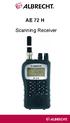 AE 72 H Scanning Receiver 1 AE72H Controls and Display Antenna (See Connecting the Antenna on Page 12) Headphone Jack Squelch Volume Display Keypad DC 6V Jack Power 2 Contents AE72H Controls and Display...2
BTX180 Wireless Bluetooth Speaker
 BTX180 Wireless Bluetooth Speaker User Manual 2012 Kinivo LLC. All rights reserved. Kinivo is a trademark of Kinivo LLC. Bluetooth word mark and the Bluetooth logo are registered trademarks of Bluetooth
3.5 mm Audio Jack. Manual innoxplore ix B24 A2DP Stereo Bluetooth Audio Adapter Dongle 3.5mm Audio Jack [ix B24] Contents
![3.5 mm Audio Jack. Manual innoxplore ix B24 A2DP Stereo Bluetooth Audio Adapter Dongle 3.5mm Audio Jack [ix B24] Contents](/thumbs/40/20932712.jpg "3.5 mm Audio Jack. Manual innoxplore ix B24 A2DP Stereo Bluetooth Audio Adapter Dongle 3.5mm Audio Jack [ix B24] Contents") 3.5 mm Audio Jack Manual innoxplore ix B24 A2DP Stereo Bluetooth Audio Adapter Dongle 3.5mm Audio Jack [ix B24] Contents 1 Safety Information.. 2 1.1. Electronic Devices 2 1.2 Aircraft..2 1.3 Medical Instruments..2
3.5 mm Audio Jack Manual innoxplore ix B24 A2DP Stereo Bluetooth Audio Adapter Dongle 3.5mm Audio Jack [ix B24] Contents 1 Safety Information.. 2 1.1. Electronic Devices 2 1.2 Aircraft..2 1.3 Medical Instruments..2
Bluetooth Wireless Headphones
 Bluetooth Wireless Headphones Pro sound. Hands-free calls. Table of contents Cautions and Warnings................................................... 2 FCC Information.........................................................
H203D 中文 GB Version 1
 H203D 中 GB文 Version 1 Contents Installing batteries... 4 Using the AC adapter (not supplied)... 5 Setting the clock... 6-7 Updating your radio - DAB... 8 Selecting a station - DAB... 9 Secondary services
Wolverine 35mm Film to Digital Converter. Model F2D USER MANUAL
 Wolverine 35mm Film to Digital Converter Model F2D USER MANUAL Version 1.01 December 2008 TABLE OF CONTENTS DESCRIPTION PAGE Table of Contents 1 Before Using the F2D Converter 3 FCC Certifications 3 Warning
LF-IRX. Limited Warranty LF-IRX. Remote Control Extender OWNER S MANUAL
 Limited Warranty OWNER S MANUAL Audiovox Corporation (Audiovox) warrants this product against defects in materials or workmanship for one (1) year from the date of purchase. During this period, this product
ATS-505. GB Version 1
 ATS-505 GB Version 1 Control Locations Power/Sleep Power On/off/Alarm off/sleep function Display Switch between radio frequency and time while radio is power on Mode Mode set up (please see below mode
Passive Infrared Sensor Alarm
 49-329.fm Page 1 Wednesday, August 18, 1999 4:23 PM Cat. No. 49-329 OWNER S MANUAL Please read before using this equipment. Passive Infrared Sensor Alarm with Keychain Remote 49-329.fm Page 2 Wednesday,
DAB & FM RADIO Installation Manual
 Size: 105x145mm 105g copper paper DAB & FM RADIO Installation Manual Model: 10798 10799 10800 10801 Thank you for purchasing this AGK DAB/FM radio. Please read the instructions and warnings carefully before
Conference Phone UserÕs Manual. Part No. 54-2070-01R1 Printed in Korea. 2002 Bogen Communications, Inc.
 Part No. 54-2070-01R1 Printed in Korea. 2002 Bogen Communications, Inc. UserÕs Manual Notice Every effort was made to ensure that the information in this guide was complete and accurate at the time of
2013 VTech Printed in China 91-009656-000 US
 Rechargeable Power Pack User s Manual 2013 VTech Printed in China 91-009656-000 US INTRODUCTION The Rechargeable Power Pack makes it easier than ever to keep the InnoTab 3 or InnoTab 3S charged and ready
INSTRUCTION MANUAL PC5OO WITH PC5OORK KEYPAD
 INSTRUCTION MANUAL PC5OO WITH PC5OORK KEYPAD TABLE OF CONTENTS SYSTEM INFORMATION 2 INTRODUCTION 3 Test Your System Regularly...3 Important Notice...3 Glossary...3 BASIC OPERATION 4 Arming Your System...4
RADIO CONTROLLED DIGITAL CLOCK MODELS 88905 / 88906
 RADIO CONTROLLED DIGITAL CLOCK MODELS 88905 / 88906 QUICK SETUP GUIDE IMPORTANT! INSTALL BATTERIES IN THE OUTDOOR TRANSMITTER BEFORE INSTALLING BATTERIES IN THE RADIO-CONTROLLED CLOCK. ALKALINE BATTERIES
DAB+/FM/AM Digital Radio
 DAB+/FM/AM Digital Radio TR82DAB Instruction Book Toll Free Warranty and Service: 1800 509 394 The Gold Technical Support Line: 1902 215 259 (Charges will apply at $2.95 per minute for gold technical support
2-Line Professional Digital Answering Machine
 2-Line Professional Digital Answering Machine Owner s Manual Please read before using this equipment. ˆ Contents Contents... 2 Important Information... 3 Features... 5 Preparation... 6 Connecting to the
Model: 616-146v2 Quick Setup Guide DC: 071015 Atomic Projection Alarm with Indoor and Outdoor Temperature
 Model: 616-146v2 Quick Setup Guide DC: 071015 Atomic Projection Alarm with Indoor and Outdoor Temperature Snooze/Backlight BUTTONS Time, Alarm with Snooze, & Calendar Projection Arm Rotates 180 Indoor/Outdoor
Digital Telephone Answering Device
 43-3801.fm Page 1 Friday, April 21, 2000 9:25 AM Cat. No. 43-3801 OWNER S MANUAL Please read before using this equipment. Digital Telephone Answering Device with Day/Time Voice Stamp 43-3801.fm Page 2
High Power Receiver CR-W400U Operating Instructions
 High Power Receiver CR-W400U Operating Instructions Please read these instructions carefully before using this product and save this manual for future use. Panasonic welcomes you to our ever growing family