
Cable-Free USB Hub User Manual
|
|
|
- Dennis Robinson
- 9 years ago
- Views:
Transcription
1 Cable-Free USB Hub User Manual FU0

2 Table of Contents. Introduction... Features... System Requirements... Package Includes... Technical Specifications.... Installation.... Operation...0. Troubleshooting...8. Technical Specifications.... Information...

3 Introduction Figure : USB Dongle Figure : Wireless Hub

4 Introduction Features Wireless connectivity through USB for printers, cameras, scanners, and other devices to your computer, from up to 0 ft. away Reduced cable clutter Data-transfer speeds of up to 80Mbps for USB.0 devices Ports for linking up to high- or low-speed devices with your computer Belkin Lifetime Warranty System Requirements For PC Users Pentium processor-based computer with Hi-Speed USB.0 port available Windows XP with Service Pack Package Includes Cable-Free USB Hub Cable-Free USB Dongle Power Adapter Installation CD User Manual

5 Introduction Belkin unleashes USB. Congratulations and thank you for purchasing the Belkin Cable-Free USB Hub. This revolutionary product lets you connect all your USB devices to your computer wirelessly. Now you can print, play music, scan, download photos, and burn CDs from anywhere in the room, from up to 0 feet away, without the hassle of connecting cables. The Hub is easy to use and gives you the freedom to roam and stay connected. Please review this User Manual carefully so that you are sure to get the most from your Cable-Free USB Hub.

6 Introduction Technical Specifications Upstream Ports: Downstream Ports: Per-Port Voltage: V Per-Port Current: 00mA Power Mode: Self Operating Temperature: to 0 F ( to 0 C) Storage Temperature: - to 0 F (-0 to 0 C) Power Supply: Output: V,.mA Plug Size:.mm Plug Polarity: Center-pin positive Main-Power-LED Color Definitions Green: Constant on when V DC is applied Port-Status-LED Color Definitions Green: Blinks rapidly to indicate Rx/Tx traffic

7 Introduction Certifications FCC Humidity % to 9% non-condensing Chipset Wisair Ports USB A Indicator-Light Status Individual-status LED for each downstream port Power LED Power Supply V Operating Range Up to 0 ft.

8 Installation The following diagram illustrates the basic steps in connecting and getting started with the dongle. Note: Do not attach the USB dongle before the host drivers are installed. Step Install software and drivers from the included CD-ROM. Step Connect the USB Dongle to the PC and approve the multiple-driver installation. Step Connect the included power adapter to the Cable-Free USB Hub. Step Open the Wireless Hub utility from the system tray and register the product ID number found on the bottom of the Hub. Then, approve the final driver installation on the PC. Step Connect USB peripherals to the Cable-Free USB Hub.

9 Installation After you install the software and drivers, connect the dongle to a free USB.0 port on your computer. The Windows Hardware Installation Wizard automatically registers the corresponding drivers. Note: If a previous installation of USB drivers already exists in your PC, uninstall the previous version using the uninstall utility (select Start > Programs > Belkin > ). Install the USB Drivers and Software Ensure that your PC system hardware and software are both operational.. Insert the Belkin driver-installation CD. a. After a few moments, the setup application should appear on your computer screen. b. If the setup application does not appear, double-click on My Computer, then click on your CD-ROM-drive icon. This will load the setup application s main page.. Click the Install Driver button.. The InstallShield Wizard starts.. When the Device Driver Installation Wizard appears, click Next to install the device drivers.. Click Finish.. Click Finish again to exit the Wizard. 7

10 Installation Connecting the USB Dongle. Place the Hub no more than three feet from the dongle.. Power OFF the Hub and disconnect it from all USB devices (e.g., cameras, hard drives, scanners).. Ensure that the dongle and Hub are facing each other.. Connect the USB dongle to the PC s high-speed USB port. The system will automatically detect and complete installation of the drivers for the connected dongle.. Restart your computer. Connecting the Hub. Ensure that the Hub is switched OFF.. Place the Hub within three feet from the dongle. Ensure that the two units are facing each other.. Connect the power adapter to the Hub. Check that the LEDs light.. To complete installation of the final driver, follow the instructions for the registration of the product ID number in the section Registration (Pairing), on page of this User Manual.. Restart your computer. To verify a successful installation, run the Windows Device Manager utility ( Start > Run > devmgmt.msc ) and verify that it recognizes the new drivers that were installed. You should see the following names: UWB Dongle Control, USB Composite Device, UWB Dongle over USB, and Wireless Hub Device. 8

11 Installation Uninstalling the Software If you need to uninstall the software, you can do so by using the automatic uninstaller or by using the Windows Control Panel > Add or Remove Programs utility. To uninstall the software:. Detach the dongle from the USB port of the PC.. Select Uninstall Wireless Hub from Start > Programs > Wireless Hub. OR. Use the Windows Control Panel > Add or Remove Programs utility under Wireless Hub. 9

12 Operation Status Indication When the Belkin Connection Manager is up, the Belkin icon displays in the Windows System Tray. The color of the icon indicates the current activity state, as follows: Icon Color Enabled (yellow icon) Status USB dongle is connected to the computer (dongle is enabled, no wireless connection is detected) Connected (green icon) A wireless connection is established with the Hub Disabled (red icon) USB dongle is disabled (and no connection available) 0

13 Operation Configuration Properties The dongle Hardware Properties screen provides direct access to the dongle hardware configuration. To open the Properties screen, right-click on the Belkin icon and select Properties from the context menu. The following table explains the properties that can be configured or viewed: Property Connection Status Operating State Description Signal Strength 0 00% Transmit Rate Select Channel Select Current Channel Cable-Free USB Hub Details Product ID# Register/Un-Register Disabled/Disconnected/ Connected Auto/80/00/0/00/0/0.7/ 80/.Mbps Auto-Detect /A/B/C/D/E (see Table : Wireless channel selection) A/B/C/D/E (see Table : Wireless channel selection Enables the registration of the Cable-Free USB Hub product ID number in order to allow association/connection Registers (associates) or un-registers (disassociates) the Cable-Free USB Hub of the given product ID number

14 Operation Property Dongle Status Reset Disable/Enable Packets Sent/Packets Received Dongle Details Description Product ID Firmware Version Driver Version Description Resets the connection/ disassociates Cable-Free USB Hub and restarts scanning Turns off dongle to save PHY power Packets sent (by dongle) Packets received (from Hub) Belkin Cable-Free USB dongle (HWA) Unique hardware identification number Host-firmware version Belkin PC-driver version

15 Operation Table : Wireless channel selection Belkin Channel Name TFC Channel Band Search Pattern A TFC F F F F F F B TFC F F F F F F C TFC F F F F F F D TFC F F F F F F E TFC7 F F F F F F Figure : Cable-Free USB Hub Connection Status screen

16 Operation Pairing and Association/Connection Once the Hub is powered up and completes its initialization, it is ready for association. First-time association occurs after manually registering the product ID number of the Hub with the PC. This is also called pairing the two entities. After the first-time connection/association, future association is handled automatically, so that no user intervention is necessary. Registration (Pairing) To register the product ID number:. Open the Cable-Free USB Hub Connection Status screen (double-click the CM tray icon).. In the Cable-Free USB Hub Details (Pairing) section, enter the product ID number found on the bottom of the Hub. (There are six pairs of character/digit combinations in the product ID.). Press Register to finalize the registration/pairing. Once the product ID number is accepted, the product ID numbers are displayed as read-only, and the button is labeled Un-Register.

17 Operation. Following registration/pairing, association/connection is established, and a tool tip is displayed in the System Tray area showing the product ID number and a message that the Hub is connected with the PC as shown in the image below.. Check the Operating State field in the Cable-Free USB Hub Connection Status screen to see if the status changes from Disconnected to Connected. Automatic Association After the first manual association, the same Hub is automatically associated to the same computer whenever the Hub operates within range. To associate to another Hub, you must manually un-register the previous Hub by pressing Un-Register, which causes the Hub to disassociate from the computer.

18 Operation Changing Association/Registration (Pairing) To change the association/registration from one Hub to another:. In the Hub Connection Status screen, click Un-Register.. Enter the product ID number of the Hub to which you want to associate and press Register.. A tool tip is displayed in the System Tray area, containing the product ID and a message that the Hub is now connected with the PC.. Check the Operating State field to see if the status changes from Disconnected to Connected.

19 Operation Closing the Connection Manager Application To shut down the Connection Manager:. Right-click the tray icon and select Exit.. Click Yes to confirm that you want to shut down the application. Maintenance The following sections provide maintenance information and troubleshooting advice. 7

20 Troubleshooting Dongle LED Indicator Traffic Figure : Dongle LED Indicator Traffic: Flashes green when packets are received. Hub LED Indicators Association/Traffic Power Figure : Cable-Free USB Hub LED Indicators Power: Constant on when V DC is applied. Association with Dongle/Traffic Indicator: Blinks slowly when a new device is connected to the Hub; blinks rapidly to indicate Rx/Tx traffic with your peripheral device. 8

21 Troubleshooting Channel Busy If the user selects a specific channel (frequency range) and the dongle (after scanning) finds it cannot be the master on that channel, an information message window will display automatically. This is the result of more than one dongle present in the same range. Figure : Channel-busy message To resolve this conflict, select a different channel or Auto Detect in the Connection Manager Properties screen of one of the dongles. Support for USB Classes Audio devices ( USB Audio class) and some webcams ( USB Video class), which have isochronous end points, are not supported by the Hub. Wireless Link Out of Range If you are experiencing frequent wireless-link breaks, the Hub may be out of range the solution is to shorten the range between the dongle and Hub. 9
22 Troubleshooting Extended or External Wired USB Hub Connections If you are connecting the dongle to a PC via an external wired USB hub, we recommend that you: Apply external power to the wired USB hub. Do not use the external hub during initial connect and driver installation. 0
23 Troubleshooting Reading Software and Firmware Versions In order to ensure that you are working with the latest version of software and hardware, you can check the versions of each component as follows: Belkin application In Control Panel > Add or Remove Programs > Cable-Free USB Hub > Click here for support information for the automatically installed application. PC host drivers version Right-click the tray icon, and select Properties. Read the Driver Version field in the Cable-Free USB Dongle Details section. Cable-Free USB dongle firmware version Right-click the tray icon, and select Properties. Read the Firmware version field in the Cable-Free USB Dongle Details section. Cable-Free USB Hub firmware version Use a serial connector to connect via HyperTerminal application and view the firmware version in the command prompt of the Cable-Free USB Hub.
24 Technical Specifications Model Number HWA Cable-Free USB dongle DWA -port Cable-Free USB Hub UWB Chipset Belkin MAC/BB chip, Belkin 0 RF chip Operational Range Up to 0 to 0 ft. (0 to 0m) PHY Data Rate Up to 80Mbps (automatically or manually selected) Frequency Range.GHz to.8ghz; supporting sub-bands, 8MHz each RF Modulation Type Multiband OFDM Max. Output Power 80µW (-. dbm/mhz max.) Max. Power Consumption HWA.7W (0mA VDC from USB port) DWA W VDC from external power supply) USB End-Point Types Bulk in/out, Interrupt, Control Number of End Points end points USB Power Drive Powers up to USB external devices VDC each) USB Association Type Host GUI-based association LED Indicators Power, Association, Traffic PCB Size HWA by 9mm DWA 8 by 9mm
25 Technical Specifications Antenna HWA UWB on-board omnidirectional antenna DWA UWB internal omnidirectional antennas Operating Temperature Range C to 0 C Operational Humidity 0 9% PHY Compliance Complies with WiMedia PHY spec. rev..0 FCC Compliance Complies with FCC CFR 7 Part subpart F; UWB intentional radiation USB Hub Compliance Complies with USB.0/. OS Compliance Microsoft Windows XP SP; Windows Plug-and-Playcompliant Coexistence Coexists with standard WiMedia devices Coexistence with co-located additional dongles or UWB systems (FFI, TFI schemes)
26 Information FCC Statement DECLARATION OF CONFORMITY WITH FCC RULES FOR ELECTROMAGNETIC COMPATIBILITY We, Belkin International, Inc., of 0 West Walnut Street, Compton, CA 900, declare under our sole responsibility that the product: FU0 to which this declaration relates: Complies with Part of the FCC Rules. Operation is subject to the following two conditions: () this device may not cause harmful interference, and () this device must accept any interference received, including interference that may cause undesired operation. This equipment may only be operated indoors. Operation outdoors is in violation of 7 U.S.C. 0 and could subject the operator to serious legal penalties. CE Declaration of Conformity We, Belkin International, Inc., declare under our sole responsibility that the FU0, to which this declaration relates, is in conformity with Generic Emissions Standard EN0:998 Class B, EN008-, and with Generic Immunity Standard EN008-:99. Belkin International, Inc., Limited Lifetime Product Warranty What this warranty covers. Belkin International, Inc., warrants to the original purchaser of this Belkin product that the product shall be free of defects in design, assembly, material, or workmanship. What the period of coverage is. Belkin International, Inc., warrants the Belkin product for the lifetime of the product. What will we do to correct problems? Product Warranty. Belkin will repair or replace, at its option, any defective product free of charge (except for shipping charges for the product).
27 Information What is not covered by this warranty? All above warranties are null and void if the Belkin product is not provided to Belkin International, Inc., for inspection upon Belkin s request at the sole expense of the purchaser, or if Belkin International, Inc., determines that the Belkin product has been improperly installed, altered in any way, or tampered with. The Belkin Product Warranty does not protect against acts of God (other than lightning) such as flood, earthquake, war, vandalism, theft, normal-use wear and tear, erosion, depletion, obsolescence, abuse, damage due to low voltage disturbances (i.e. brownouts or sags), non-authorized program, or system equipment modification or alteration. How to get service. To get service for your Belkin product you must take the following steps:. Contact Belkin International, Inc., at 0 W. Walnut St., Compton CA 900, Attn: Customer Service, or call (800)--, within days of the Occurrence. Be prepared to provide the following information: a. The part number of the Belkin product. b. Where you purchased the product. c. When you purchased the product. d. Copy of original receipt.. Your Belkin Customer Service Representative will then instruct you on how to forward your receipt and Belkin product and how to proceed with your claim. Belkin International, Inc., reserves the right to review the damaged Belkin product. All costs of shipping the Belkin product to Belkin International, Inc., for inspection shall be borne solely by the purchaser. If Belkin determines, in its sole discretion, that it is impractical to ship the damaged equipment to Belkin International, Inc., Belkin may designate, in its sole discretion, an equipment repair facility to inspect and estimate the cost to repair such equipment. The cost, if any, of shipping the equipment to and from such repair facility and of such estimate shall be borne solely by the purchaser. Damaged equipment must remain available for inspection until the claim is finalized. Whenever claims are settled, Belkin International, Inc., reserves the right to be subrogated under any existing insurance policies the purchaser may have. How state law relates to the warranty. THIS WARRANTY CONTAINS THE SOLE WARRANTY OF BELKIN INTERNATIONAL, INC., THERE ARE NO OTHER WARRANTIES, EXPRESSED OR, EXCEPT AS REQUIRED BY LAW, IMPLIED, INCLUDING THE IMPLIED WARRANTY OR CONDITION OF QUALITY, MERCHANTABILITY OR FITNESS FOR A PARTICULAR PURPOSE, AND SUCH IMPLIED WARRANTIES, IF ANY, ARE LIMITED IN DURATION TO THE TERM OF THIS WARRANTY.
28 Information Some states do not allow limitations on how long an implied warranty lasts, so the above limitations may not apply to you. IN NO EVENT SHALL BELKIN INTERNATIONAL, INC., BE LIABLE FOR INCIDENTAL, SPECIAL, DIRECT, INDIRECT, CONSEQUENTIAL OR MULTIPLE DAMAGES SUCH AS, BUT NOT LIMITED TO, LOST BUSINESS OR PROFITS ARISING OUT OF THE SALE OR USE OF ANY BELKIN PRODUCT, EVEN IF ADVISED OF THE POSSIBILITY OF SUCH DAMAGES. This warranty gives you specific legal rights, and you may also have other rights, which may vary from state to state. Some states do not allow the exclusion or limitation of incidental, consequential, or other damages, so the above limitations may not apply to you.
29 Cable-Free USB Hub Belkin Tech Support US: , ext , ext. UK: Australia: 800 New Zealand: 0800 Europe: Belkin International, Inc. 0 West Walnut Street Los Angeles, CA 900, USA fax Belkin Ltd. Express Business Park, Shipton Way Rushden, NN0 GL, United Kingdom + (0) (0) fax Belkin B.V. Boeing Avenue 9 PH Schiphol-Rijk, The Netherlands + (0) (0) 0 79 fax Belkin Ltd. Pioneer Avenue Tuggerah Business Park Tuggerah, NSW 9, Australia + (0) (0) fax 007 Belkin International, Inc. All rights reserved. All trade names are registered trademarks of respective manufacturers listed. Windows and Microsoft are either registered trademarks or trademarks of Microsoft Corporation in the United States and/or other countries. P7-A
User Manual USB Plus Hub. Introduction
 User Manual USB Plus Hub Introduction Table of Contents Introduction Features...1 Package Contents...2 Technical Specifications...2 Installation...3 Information...5 Introduction Congratulations and thank
User Manual F5U302. Belkin B.V. Boeing Avenue 333 1119 PH Schiphol-Rijk, The Netherlands +31 (0) 20 654 7300 +31 (0) 20 654 7349 fax
 Wireless USB Hub Wireless USB Hub Belkin Tech Support US: 0-898-00, ext. 800--, ext. UK: 08 07 77 87 Australia: 800 New Zealand: 0800 Singapore: 800 790 Europe: www.belkin.com/support Belkin International,
FireWire 800 ExpressCard User Manual
 FireWire 800 ExpressCard User Manual FU Table of Contents. Introduction... Benefits... System Requirements... Package Contents.... Software Setup.... Hardware Installation.... Verifying Proper Installation....
Network USB Hub. F5L009ea
 Network USB Hub EN FR de nl es it FL009ea 6uk_FL009uk_mnl.indd /6/08 ::07 AM Table of Contents 6uk_FL009uk_mnl.indd /6/08 ::07 AM Introduction Congratulations and thank you for purchasing the Network USB
Laptop Power Adapter for home/office User Manual
 Laptop Power Adapter for home/office User Manual Introduction Congratulations and thank you for purchasing the Laptop Power Adapter for home/office from Belkin. This new Adapter provides a single source
KVM Switch P74242-D. Belkin B.V. Boeing Avenue 333 1119 PH Schiphol-Rijk, The Netherlands +31 (0) 20 654 7300 +31 (0) 20 654 7349 fax. Belkin Ltd.
 KVM Switch Belkin Tech Support US: 310-898-1100, ext. 2263 800-223-5546, ext. 2263 UK: 0845 607 77 87 Australia: 1800 235 546 New Zealand: 0800 235 546 Singapore: 800 616 1790 Europe: www.belkin.com/support
HDBase T HDMI Over Cat5e Wall Plate
 HDBase T HDMI Over Cat5e Wall Plate 1.0 Disclaimer The purchase and usage of Belkin HDBase T HDMI Over Cat5e Wall Plate is for indoor application only. Belkin HDBase T HDMI Over Cat5e Wall Plate should
USB Peripheral Switch Share a USB device with up to four computers
 Belkin Corporation 501 West Walnut Street Compton CA 90220 USA Tel: 310.898.1100 Fax: 310.898.1111 Belkin Components, Ltd. Express Business Park Shipton Way Rushden NN10 6GL United Kingdom Tel: +44 (0)
Hi-Speed USB 2.0 7-Port Hub Connect up to 7 Hi-Speed USB 2.0 or USB 1.1 devices
 P74387ea_F5U237ea_uk 09-09-2003 10:07 Page 1 En Hi-Speed USB 2.0 7-Port Hub Connect up to 7 Hi-Speed USB 2.0 or USB 1.1 devices Fr De Nl Es It User Manual F5U237ea P74387ea_F5U237ea_uk 09-09-2003 10:07
USB 2.0 Hi-Speed 4-Port Hub User Manual
 USB 2.0 Hi-Speed 4-Port Hub User Manual P73965 F5U224 Introduction Please read this manual thoroughly and follow the procedures to prevent any damage to the 4-Port USB 2.0 Hub and/or to the connected
Hi-Speed USB 2.0 4-Port TetraHub Connect multiple-speed USB devices at maximum bandwidth
 P74395ea_F5U231ea_uk 05-09-2003 14:51 Page 1 En Hi-Speed USB 2.0 4-Port TetraHub Connect multiple-speed USB devices at maximum bandwidth Fr De Nl Es It User Manual F5U231ea P74395ea_F5U231ea_uk 05-09-2003
Belkin USB 2.0 Dual-Port PCI Card
 Belkin USB 2.0 Dual-Port PCI Card P73941 F5U219 Introduction Welcome to Belkin USB 2.0! Thank you for purchasing the Belkin USB 2.0 Dual-Port PCI Card (the PCI Card). Now you can upgrade your computer
TV ADAPTER FOR INTEL WIRELESS DISPLAY SCREENCAST. User Manual. F7D4501 8820-00810 Rev. A01
 TV ADAPTER FOR INTEL WIRELESS DISPLAY SCREENCAST User Manual F7D4501 8820-00810 Rev. A01 Table Of Contents Getting Started... 1 Introduction...1 What s in the Box?...2 What s not in the Box?...2 What Else
P73881_F5U142_man.qxd 11/27/01 8:50 AM Page 1. Belkin Dual USB Media Reader/Writer for Compact Flash & Smart Media
 P73881_F5U142_man.qxd 11/27/01 8:50 AM Page 1 Belkin Dual USB Media Reader/Writer for Compact Flash & Smart Media P73881 F5U142 P73881_F5U142_man.qxd 11/27/01 8:50 AM Page 1 Introduction Thank you for
Wireless Keyboard & Optical Mouse. User Manual
 Wireless Keyboard & Optical Mouse User Manual Table of Contents Introduction... 1 Software Compatibility... 1 Product Features... 2 Quick Installation Setup for PS/2 Connections (PC-only)... 5 Quick Installation
Wireless Keyboard and Optical Mouse Bundle
 Wireless Keyboard and Optical Mouse Bundle Enjoy the freedom of wireless optical precision User Manual F8E832-BNDL TABLE OF CONTENTS Introduction....................................1 Compatible Equipment............................2
Conserve Valet Smart USB Charging Station. User Guide
 Conserve Valet Smart USB Charging Station User Guide A charger left plugged into the wall can still draw power even when no device is attached. The Conserve Valet Smart USB Charging Station charges up
Conserve Insight Energy Use Monitor. User Guide
 Conserve Insight Energy Use Monitor User Guide Find out how much energy your devices really use including watts, the cost of operation, and the amount of carbon dioxide (CO 2 ) produced in generating the
Hi-Speed USB 2.0 Media Reader & Writer with 3-Port Hub
 Hi-Speed USB.0 Media Reader & Writer with -Port Hub Transfer data and connect USB peripherals with one device User Manual F5U7ea Table of Contents Introduction... Reader Features... Hub Features... Hub
4 Port Hub User Manual
 P73153/F5U101/US/man.qxd 1/7/00 5:16 PM Page 1 4 Port Hub User Manual P73153 F5U101 P73153/F5U101/US/man.qxd 1/7/00 5:16 PM Page 2 P73153/F5U101/US/man.qxd 1/7/00 5:16 PM Page 1 Introduction Please read
Conserve Socket Power Timer. User Guide
 Conserve Socket Power Timer User Guide A device left plugged in but not in use can still draw power. The Conserve Socket Power Timer automatically shuts off power after the time interval you select so
User Guide. Soft-Touch TM Bluetooth Laser Mouse N2953
 Soft-Touch TM Bluetooth Laser Mouse 410-XXXXXXXXXXX 1 YEAR LIMITED WARRANTY: We pride ourselves on the quality of our products. For complete warranty details and a list of our worldwide offices, please
USB2VGA. Instruction Manual. USB to VGA Adapter. USB 2.0 to VGA External Multi Monitor Video Adapter
 USB to VGA Adapter USB2VGA Instruction Manual USB 2.0 to VGA External Multi Monitor Video Adapter FCC Compliance Statement This equipment has been tested and found to comply with the limits for a Class
User Manual TuneCast Auto for ipod
 User Manual TuneCast Auto for ipod Introduction Congratulations and thank you for purchasing the innovative TuneCast Auto from Belkin. This product is designed to power, charge, and transmit audio from
n52te USER MANUAL CONFIGURING n52te Software Installation 1. Insert the n52te Installation CD into your PC s CD/DVD drive.
 n52te USER MANUAL CONFIGURING n52te Software Installation 1. Insert the n52te Installation CD into your PC s CD/DVD drive. 2. The software should start automatically. If it does not, click the Start button
USB-2.0 Mobile Mini Hub USER S GUIDE. Making Your Mobile Life Easier. Making Your Mobile Life Easier.
 USB-2.0 Mobile Mini Hub Making Your Mobile Life Easier. Visit our Web site at: www.targus.com Features and specifications are subject to change without notice. 2002 Targus Corp. 400-0093-001A USER S GUIDE
How To Connect A Port Replicator With An Ethernet To A Usb Port From A Usb Device
 USB Mobile Port Replicator with Ethernet NOTEBOOK COMPUTER MOBILE PORT REPLICATOR User s Guide INTRODUCTION Congratulations on your purchase of the Targus USB Mobile Port Replicator with Ethernet! It is
Wireless Mouse USER GUIDE. for Mac. www.targus.com/us/formac ONE YEAR LIMITED WARRANTY N2953
 AMW43US / 410-1514-001C N2953 www.targus.com/us/formac 2008 Manufactured or imported by Targus Group International, Inc. (for U.S. sales: 1211 North Miller Street, Anaheim, CA 92806 USA, for Australia
Wireless USB Adapter Set
 Wireless USB Adapter Set User guide v2 www.olidata.com/wusb Table of contents 1 Introduction... 2 1.1 Package contents... 2 1.2 System requirements... 3 1.3 Installation steps in short... 3 2 Software
User Guide USB 2.0 LAPTOP DOCKING STATION WITH VIDEO N2953
 USB 2.0 LAPTOP DOCKING STATION WITH VIDEO 410-1864-001B / ACP51US 1 YEAR LIMITED WARRANTY: We pride ourselves on the quality of our products. For complete warranty details and a list of our worldwide offices,
USER GUIDE WIRELESS USB TO AUDIO KIT. Model: 29594
 USER GUIDE WIRELESS USB TO AUDIO KIT Model: 29594 1 TABLE OF CONTENTS Introduction...2 Features...3 System Requirements...4 Package Contents...5 Device Overview Wireless USB Host Adapter...6 Wireless Audio
INSTALL GUIDE Making Your Mobile Life Easier.
 Targus USB Bluetooth Adapter Making Your Mobile Life Easier. Visit our Web site at: www.targus.com Features and specifications are subject to change without notice 2005 Targus Group International, Inc.
Belkin USB Media Reader/Writer Manual
 P73880_F5U140-man.qxd 11/27/01 8:52 AM Page 1 Belkin USB Media Reader/Writer Manual P73880 F5U140 F5U141 F5U143 P73880_F5U140-man.qxd 11/27/01 8:52 AM Page 1 Introduction Thank you for purchasing a Belkin
Smart TV Link 4 Port. User Manual. 8820nt00867uk Rev. A00. english
 Smart TV Link 4 Port F7D4550 User Manual 8820nt00867uk Rev. A00 english Table Of Contents Getting Started.... 1 What s in the Box...1 How to Set It Up...2 Where to Place Your Smart TV Link 4 Port...3 Getting
MACTek Corporation. USB HART Interface. Users Manual
 MACTek Corporation USB HART Interface DM01003100AA February, 2003 LIMITED WARRANTY VIATOR Interface for HART MACTek Corporation warrants this Interface and all of its component against defects in materials
VGA Adapter for Macintosh computers
 P72551-A_F3H1381-manual.qxd 3/10/03 3:56 PM Page 2 Belkin Corporation 501 West Walnut Street Compton CA 90220 USA Tel: 310.898.1100 Fax: 310.898.1111 VGA Adapter for Macintosh computers Belkin Components,
File Share Cable USER GUIDE. for Mac. www.targus.com/us/formac ONE YEAR LIMITED WARRANTY N2953
 N2953 USER GUIDE ACC9602US / 410-1486-001A www.targus.com/us/formac 2008 Manufactured or imported by Targus Group International, Inc. (for U.S. sales: 1211 North Miller Street, Anaheim, CA 92806 USA, for
PCI USB 2.0 Card. 3 Port PCI USB 2.0 Card PCI330USB2. Instruction Manual. Actual product my vary from photo
 PCI USB 2.0 Card 3 Port PCI USB 2.0 Card PCI330USB2 Instruction Manual Actual product my vary from photo FCC Compliance Statement This equipment has been tested and found to comply with the limits for
Wireless USB Adapter Set
 Wireless USB Adapter Set User guide v2.2 www.olidata.com/wusb Table of contents 1 Introduction... 2 1.1 Package contents... 2 1.2 System requirements... 3 1.3 Installation steps in short... 3 2 Software
P73474-F5U006-UNV-AM-man.qxd 9/18/00 10:10 AM Page 1
 P73474-F5U006-UNV-AM-man.qxd 9/18/00 10:10 AM Page 1 En 4-Port USB PCI Card User Manual Guide d utilisation de la carte PCI USB à quatre ports Manual de usuario para la tarjeta PCI USB de 4 puertos Placa
USB 3.0 to HDMI Adapter with 3-Port USB 3.0 Hub USB 3.0 to VGA Adapter with 3-Port USB 3.0 Hub
 USB 3.0 to HDMI Adapter with 3-Port USB 3.0 Hub USB 3.0 to VGA Adapter with 3-Port USB 3.0 Hub USB32HDEH3 / USB32VGAEH3 *actual product may vary from photos DE: Bedienungsanleitung - de.startech.com FR:
Residential Gateway (RG) Battery Backup REV B
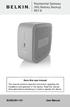 Residential Gateway (RG) Battery Backup REV B Save this user manual This manual contains important instructions regarding the installation and operation of this device. Read this manual thoroughly before
BLUETOOTH USER MANUAL USB ADAPTER F8T001
 BLUETOOTH USER MANUAL USB ADAPTER F8T001 TABLE OF CONTENTS Introduction.................................................................. 2 Product Features...............................................................
User Guide. BLUETOOTH WIRELESS KEYBOARD for ipad
 BLUETOOTH WIRELESS KEYBOARD for ipad 410-2119-001A / AKB32US 1 YEAR LIMITED WARRANTY: We pride ourselves on the quality of our products. For complete warranty details and a list of our worldwide offices,
EZ-USB 2.0 CardBus Card
 EZ-USB 2.0 CardBus Card User Manual www.apricorn.com Table of Contents Introduction...... 1 Installation....... 2-3 Drivers (Windows XP & Windows 2000).. 4 Drivers (Windows 98, 98SE, ME)... 5 Attaching
Laser Wireless Rechargeable Mouse. User s Manual
 Laser Wireless Rechargeable Mouse Model #: LM8000WR User s Manual Rev. 060801 User s Record: To provide quality customer service and technical support, it is suggested that you keep the following information
2 Port USB Keyboard Mouse Switch Cable with File Transfer for PC and Mac
 2 Port USB Keyboard Mouse Switch Cable with File Transfer for PC and Mac SVKMS2 *actual product may vary from photos DE: Bedienungsanleitung - de.startech.com FR: Guide de l'utilisateur - fr.startech.com
Instruction Guide. 4 Port Laptop-Sized USB 2.0 Mini Hub ST4200MINI. The Professionals Source For Hard-to-Find Computer Parts
 USB 2.0 HUB 4 Port Laptop-Sized USB 2.0 Mini Hub ST4200MINI Instruction Guide * Actual product may vary from photo The Professionals Source For Hard-to-Find Computer Parts FCC COMPLIANCE STATEMENT This
Targus USB Port Adapter USER S GUIDE. Making Your Mobile Life Easier. Making Your Mobile Life Easier.
 Targus USB Port Adapter Making Your Mobile Life Easier. Visit our Web site at: www.targus.com Features and specifications are subject to change without notice. 2002 Targus Corp. 400-0066-001A USER S GUIDE
LabelWriter. Print Server. User Guide
 LabelWriter Print Server User Guide Copyright 2010 Sanford, L.P. All rights reserved. 08/10 No part of this document or the software may be reproduced or transmitted in any form or by any means or translated
USB to RS-422/485 Serial Adapter (ID-SC0911-S1/SC0A11-S1) User s Manual
 USB to RS-422/485 Serial Adapter (ID-SC0911-S1/SC0A11-S1) User s Manual 1 Copyright Statement No part of this publication may be reproduced in any form by any means without the prior written permission.
Wi-Fi Camera with Night Vision NETCAM. User Manual. F7D7601V1 8820-01175 Rev. B00
 Wi-Fi Camera with Night Vision NETCAM User Manual F7D7601V1 8820-01175 Rev. B00 TABLE OF CONTENTS Getting Started... 1 What s in the Box....1 Initial Setup...1 Set Up Your Camera Wirelessly Through Your
USB to VGA Adapter USB2VGAE2. Instruction Manual. USB 2.0 to VGA Multi Monitor External Video Adapter
 USB to VGA Adapter USB2VGAE2 Instruction Manual USB 2.0 to VGA Multi Monitor External Video Adapter *Please ensure that the driver installation is complete prior to the physical installation of the USB
USB Serial Adapter ICUSB232SM3. Instruction Manual. 1-Port 3ft USB to RS232 DB9 Serial Adapter Cable
 ICUSB232SM3 Instruction Manual USB Serial Adapter 1-Port 3ft USB to RS232 DB9 Serial Adapter Cable Manual Revision:07/25/2011 For the most up-to-date information, please visit www.startech.com FCC Compliance
PCI Express USB Card. PCI Express 4 Port USB 2.0 card PEX400USB2. Instruction Manual. Actual product may vary from photo
 PCI Express USB Card PCI Express 4 Port USB 2.0 card PEX400USB2 Actual product may vary from photo FCC Compliance Statement This equipment has been tested and found to comply with the limits for a Class
Regulatory Compliance. IC Certification. FCC Certification. Declaration of Conformity
 VP6495 Regulatory Compliance This device complies with Part 15 of the FCC Rules. Operation is subject to the following two conditions: (1) This device may not cause harmful interference, and (2) This device
A6210 WiFi USB Adapter 802.11ac USB 3.0 Dual Band User Manual
 802.11ac USB 3.0 Dual Band User Manual August 2014 202-11373-01 350 East Plumeria Drive San Jose, CA 95134 USA Support Thank you for selecting NETGEAR products. After installing your device, locate the
Duplex ID Card & License Scanner. User Guide
 Duplex ID Card & License Scanner User Guide CE Conformity and FCC Statement This equipment has been tested and found to comply with the limits of the European Council Directive on the approximation of
USB 2.0 4-Port Extender Kit
 USB 2.0 4-Port Extender Kit 500072 MuxLab Inc. 2014 94-000760-A / SE-000760-A Table of Contents 1. Introduction... 2 2. Features... 2 3. Specifications... 2 4. Package Contents... 3 5. Physical Diagram...
3.5 External Hard Drive Enclosure
 UNI3510U2E / UNI3510U2EGB UNI3510U2EB / UNI3510UEBGB Instruction Manual 3.5 External Hard Drive Enclosure 3.5 esata/usb 2.0 to IDE/SATA External Hard Drive Enclosure with One-Touch Backup FCC Compliance
User manual. Your best protection against theft and loss. (Android) Made for
 User manual Made for Your best protection against theft and loss (Android) Warranty SCOPE OF THE WARRANTY Subject to legal provisions, the responsibility of SECU4 under this warranty is limited to the
FireWire 800 + Hi-Speed USB Combo Quick Installation Guide
 FireWire 800 + Hi-Speed USB Combo Quick Installation Guide Introducing the FireWire 800 + Hi-Speed USB Combo The FireWire 800+Hi-Speed USB Combo features the latest technology in FireWire 800 and USB 2.0.
PCI USB 2.0 Card PCI225USB PCI225USB_LP PCI425USB PCI625USB2I. Instruction Manual. Actual product may vary from photo
 PCI USB 2.0 Card 2 Port High-Speed USB 2.0 PCI Card 2 Port High-Speed USB 2.0 Low-Profile PCI Card 4 Port High-Speed USB 2.0 PCI Card 6 Port High-Speed USB 2.0 PCI Card PCI225USB PCI225USB_LP PCI425USB
PL-2303 (Chip Rev H, HX, X) USB to Serial Adapter Windows Driver Installer Manual
 PL-2303 (Chip Rev H, HX, X) USB to Serial Adapter Windows Driver Installer Manual For Windows 98/ME/2000/XP/Vista/7 Release Version 1.3 (2/4/2010) Contents Introduction Features & Specifications System
USB 2.0 VGA ADAPTER USER MANUAL
 USB 2.0 VGA ADAPTER USER MANUAL CONTENTS INTRODUCTION... 3 FEATURES... 3 SYSTEM REQUIREMENTS... 3 PACKAGE CONTENTS... 3 SUPPORTED COMMON DISPLAY RESOLUTION... 4 TECHNICAL SPECIFICATIONS... 4 INSTALLATION
USB VoIP Phone Adapter. User s Manual
 USB VoIP Phone Adapter User s Manual FCC Certifications This Equipment has been tested and found to comply with the limits for a Class B digital device, pursuant to part 15 and part 68 of the FCC Rules.
Targus Bluetooth Keyboard for Tablets
 1 BLUETOOTH KEYBOARD for Tablets 410-2153-001B / AKB33US 1 YEAR LIMITED WARRANTY: We pride ourselves on the quality of our products. For complete warranty details and a list of our worldwide offices, please
Surf. wireless router User Manual. F7D2301au 8820au00372
 Surf wireless router User Manual F7D2301au 8820au00372 Table Of Contents Getting Started... 1 What s in the Box...1 Initial Setup...1 Advanced Tools & Settings... 6 The Belkin Router Manager...7 Manual
Targus Wireless Remote Presenter USER S GUIDE. Making Your Mobile Life Easier. Making Your Mobile Life Easier.
 Targus Wireless Remote Presenter Making Your Mobile Life Easier. Visit our Web site at: www.targus.com Features and specifications are subject to change without notice. 2003 Targus Corp. 400-0110-001B
USB 2.0 to 10/100Mbps Ethernet Adapter UE-9521. User Manual
 USB 2.0 to 10/100Mbps Ethernet Adapter UE-9521 User Manual 1 Copyright Copyright 2004 by PLANET Technology Corp. All rights reserved. No part of this publication may be reproduced, transmitted, transcribed,
IDE ATA/133 Controller
 IDE ATA/133 Controller 2 Port PCI ATA-133 IDE Adapter Card PCIIDE2 Actual product may vary from photo FCC Compliance Statement This equipment has been tested and found to comply with the limits for a Class
N600 WiFi USB Adapter
 Model WNDA3100v3 User Manual December 2014 202-11470-01 350 East Plumeria Drive San Jose, CA 95134 USA Support Thank you for selecting NETGEAR products. After installing your device, locate the serial
5-Port Gigabit Switch 8-Port Gigabit Switch
 5-Port Gigabit Switch 8-Port Gigabit Switch Belkin Tech Support US: 877-736-5771 310-898-1100 ext. 2263 Europe: 00 800 223 55 460 Australia: 1800 235 546 New Zealand: 0800 235 546 Singapore: 800 616 1790
Quick 1.3MP WebCam with Night Vision
 Quick 1.3MP WebCam with Night Vision Model #: WC1100BLU, WC1200RED WC1300BLK, WC1400YLW User s Manual PID # 031362/3/4/5-109281 Rev. 100524 All brand name and trademarks are the property of their respective
How To Use An Imclean Dad (Dvd) With A Car Or Car (Dcd) On A Computer Or Car
 IMclean Manual Note: Before you start, Please Fill out the enclosed disclosure form send to Drew Technologies LIMITED WARRANTY Drew Technologies, Inc. guarantees that every IMClean device as well as included
USB 3.0 to HDMI Video Adapter with USB Hub Port
 USB 3.0 to HDMI Video Adapter with USB Hub Port USB32HDEH *actual product may vary from photos DE: Bedienungsanleitung - de.startech.com FR: Guide de l'utilisateur - fr.startech.com ES: Guía del usuario
USER GUIDE AC2400. DUAL BAND GIGABIT Wi Fi ROUTER. Model# E8350
 USER GUIDE AC2400 DUAL BAND GIGABIT Wi Fi ROUTER Model# E8350 Table of Contents Product overview E8350..................................... 1 Setting Up Your E-Series Router Where to find more help.........................
Bluetooth Wireless USB Printer Adapter
 Bluetooth Wireless USB Printer Adapter Connect to your USB printer wirelessly from your PDA or notebook User Manual F8T031 TABLE OF CONTENTS Introduction.............................................. 2
Installation Guide Wireless 4-Port USB Sharing Station. GUWIP204 Part No. M1172-a
 Installation Guide Wireless 4-Port USB Sharing Station 1 GUWIP204 Part No. M1172-a 2011 IOGEAR. All Rights Reserved. PKG-M1172-a IOGEAR, the IOGEAR logo, MiniView, VSE are trademarks or registered trademarks
Bluetooth Wireless USB Adapter. User Manual (GBU211 / GBU311)
 Bluetooth Wireless USB Adapter User Manual (GBU211 / GBU311) Welcome Thank you for purchasing one of the most feature-rich Bluetooth to USB adapters available. IOGEAR s Bluetooth to USB adapters are first-rate
ExpressCard USB 3.0 Controller Adapter Card
 ECUSB3S2 Instruction Manual ExpressCard USB 3.0 Controller Adapter Card 2-Port ExpressCard SuperSpeed USB 3.0 Controller Adapter Card FCC Compliance Statement This equipment has been tested and found to
USB 2.0 Peripheral Switch USER MANUAL US221A / US421A
 USB 2.0 Peripheral Switch USER MANUAL US221A / US421A FCC Information This equipment has been tested and found to comply with the limits for a Class B digital device, pursuant to Part 15 of the FCC Rules.
User Guide. Cordless Optical Mouse N2953
 Cordless Optical Mouse 410-XXXXXXXXXXX 1 YEAR LIMITED WARRANTY: We pride ourselves on the quality of our products. For complete warranty details and a list of our worldwide offices, please visit www.targus.com.
3.5 esata USB 2.0 to IDE SATA External Hard Drive Enclosure
 3.5 esata USB 2.0 to IDE SATA External Hard Drive Enclosure UNI3510U2EB UNI3510UEBEU UNI3510UEBGB *actual product may vary from photos DE: Bedienungsanleitung - de.startech.com FR: Guide de l'utilisateur
1789 Norwood Avenue Itasca, Illinois 60143-1095 630-893-1600 Customer Service: 1-800-945-4545 http://www.fellowes.com
 1789 Norwood Avenue Itasca, Illinois 60143-1095 630-893-1600 Customer Service: 1-800-945-4545 http://www.fellowes.com Australia Tullamarine, Vic. Benelux Vianen, NL Canada Markham, Ont. France Rennes,
2.5/3.5 SATA HDD Docking Station
 SATADOCKU2 SATADOCKU2E SATADOCK22UE 2.5/3.5 SATA HDD Docking Station FCC Compliance Statement This equipment has been tested and found to comply with the limits for a Class B digital device, pursuant to
WUA-0605 300Mbps Wireless USB Network Adapter
 WUA-0605 300Mbps Wireless USB Network Adapter User Manual V1.0 Certification FCC CE FCC Statement This equipment has been tested and found to comply with the limits for a Class B digital device, pursuant
TV ADAPTER FOR INTEL WIRELESS DISPLAY SCREENCAST. User Manual. F7D4501 8820ed00810. English
 TV ADAPTER FOR INTEL WIRELESS DISPLAY SCREENCAST User Manual F7D4501 8820ed00810 English Table Of Contents Getting Started... 1 Introduction...1 What s in the Box?...2 What s not in the Box?...2 What Else
1 Port FTDI USB to RS232 Null Modem Adapter
 1 Port FTDI USB to RS232 Null Modem Adapter ICUSB232FTN *actual product may vary from photos DE: Bedienungsanleitung - de.startech.com FR: Guide de l'utilisateur - fr.startech.com ES: Guía del usuario
user manual IH-W350DB IH-W351DW MyLife webcam pro 5.0 megapixel max resolution
 IH-W350DB IH-W351DW MyLife webcam pro 5.0 megapixel max resolution Congratulations on the purchase of your new MyLife webcam pro. This product comes with a limited lifetime warranty. Before using your
2 Port PCI to IDE Controller Card
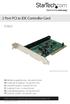 2 Port PCI to IDE Controller Card PCIIDE2 *actual product may vary from photos DE: Bedienungsanleitung - de.startech.com FR: Guide de l'utilisateur - fr.startech.com ES: Guía del usuario - es.startech.com