
Pre-OCONUS travel File (PRO-File) Step-by-step instruction
|
|
|
- Harry Lamb
- 9 years ago
- Views:
Transcription
1 Pre-OCONUS travel File (PRO-File) Step-by-step instruction 14 FEB

2 HQDA Guidance All personnel traveling OCONUS are required to complete a DD Form 1833 (ISOPREP). Army personnel will use the Pre-OCONUS travel File (PRO-File) fulfill this requirement. This applies to all military, Army Civilian, and contractor personnel supporting Army forces. Army forces under the Operational Control of USASOC or USSOCOM are exempt from this requirement and will follow USSOCOM guidance to meet the pre-deployment requirement. 2

3 PRO-File Survey All data entered into PRO-File Survey is removed from the NIPR and transferred to the SIPR Joint Personnel Recovery Agency (JPRA) Personnel Recovery Mission Software (PRMS) site. The only information that remains on the NIPR PRO-File site is: Date submitted and duration of submission Grade, last name, first name and middle initial Completion status and date Certificate and record numbers Once transferred, the data is used to populate a digital DD Form 1833 (ISOPREP) on PRMS SIPRnet. PRO-File is the only approved means for Army personnel to fulfill the digital ISOPREP requirement on Unclassified systems. 3

4 Task All Soldiers, Civilians, and Army Contractors will complete a PRO-File survey prior to traveling OCONUS in any official status. 4
5 Conditions A PC running Microsoft Windows (Gov or personal) with internet access Windows XP Internet Explorer 6.0 Windows XP Internet Explorer 7.0 Windows Vista Internet Explorer 7.0 Many users have used Firefox 3 or Windows Vista Internet Explorer 8.0 with no reported problems. Valid AKO username and password Two digital photographs (see slides 10 and 11 for acceptable photographs) A computer printer to print completion certificate (recommended, but not required) 5

6 Standard Given a laptop with internet access and 30 minutes of uninterrupted computing time, individual will complete a PRO-File survey by providing data in all mandatory fields, to include photo upload, and completing a minimum of four questions in at least four of the background question sections. 6

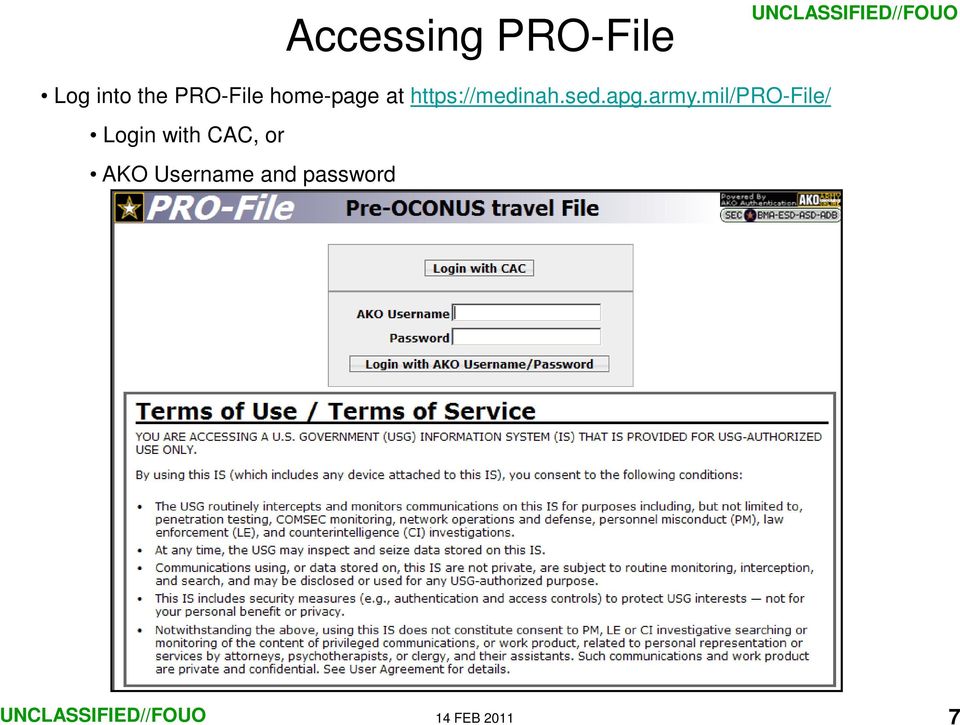
7 Accessing PRO-File Log into the PRO-File home-page at Login with CAC, or AKO Username and password 7
8 Data Entry If this is your first visit to the PRO-File site, review the privacy/security policy When ready, click to proceed with survey If you have previously completed a PRO-File survey you can retrieve and print your certificate (see slide 20) In the privacy/security section you will find answers to many common questions about the security of this system, and a copy of the privacy act statement pertaining to this program. 8

9 Data Entry This is the privacy/security section Government Civilian employees and Contractors note: Disclosure is mandatory for all deploying civilians IAW Army G-3/5/7 guidance (June 2005) Mandatory fields are marked with a red asterisk (*) the form can not be submitted unless they are all filled-in. Fields marked with a blue tilde (~) provide vital information and should be completed to the best of their ability. 9

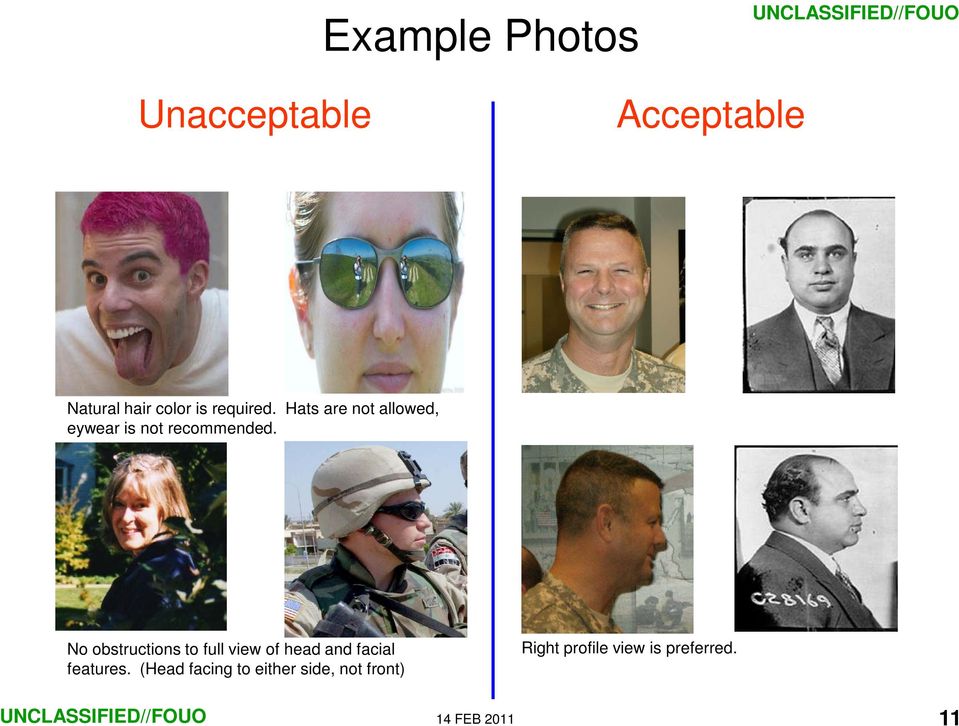
10 Photo file criteria: Photo file types: png, gif, bmp, jpg, or jpeg Max file size: 200Kb Pixel Minimum: 200x200 pixels Data Entry Front-facing photo can be any full-face picture which depicts a chest-up view and natural hair color. Hats or sunglasses are not acceptable. Prescription eyewear should not be worn. Profile-view photo can be any sideview photo which clearly displays facial features and natural hair style and color. Hats or sunglasses are not acceptable. Prescription eyewear should not be worn. Photos should present a predominant view of the head without obstruction and be less than one year old. 10

11 Example Photos Unacceptable Acceptable Natural hair color is required. Hats are not allowed, eywear is not recommended. No obstructions to full view of head and facial features. (Head facing to either side, not front) Right profile view is preferred. 11
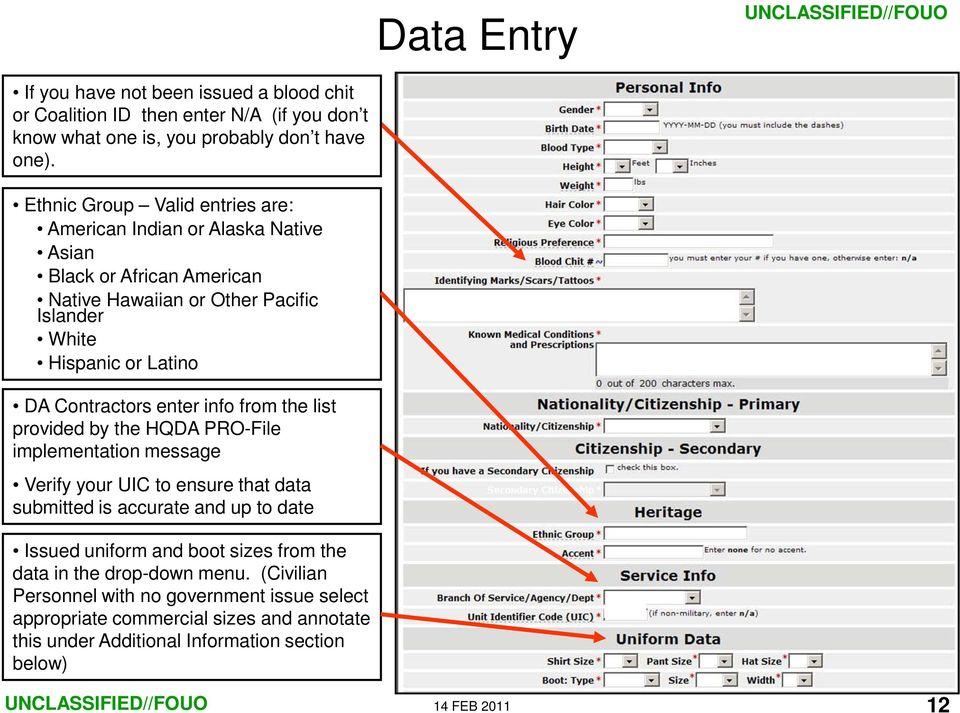
12 Data Entry If you have not been issued a blood chit or Coalition ID then enter N/A (if you don t know what one is, you probably don t have one). Ethnic Group Valid entries are: American Indian or Alaska Native Asian Black or African American Native Hawaiian or Other Pacific Islander White Hispanic or Latino DA Contractors enter info from the list provided by the HQDA PRO-File implementation message Verify your UIC to ensure that data submitted is accurate and up to date Issued uniform and boot sizes from the data in the drop-down menu. (Civilian Personnel with no government issue select appropriate commercial sizes and annotate this under Additional Information section below) 12
13 Data Entry SERE (Survival Evasion Resistance & Escape) Training: High/Medium Risk of Isolation Training if applicable Authentication Number (user develops their own) 4 digits No sequences of three or four digits (NOT:1234,1239,9871) No zeros. No duplicate digits (NOT:5113) NOT last four of your SSN Primary Language refers to the primary language spoken for duty purposes in current assignment when communicating with other DoD employees and personnel 13

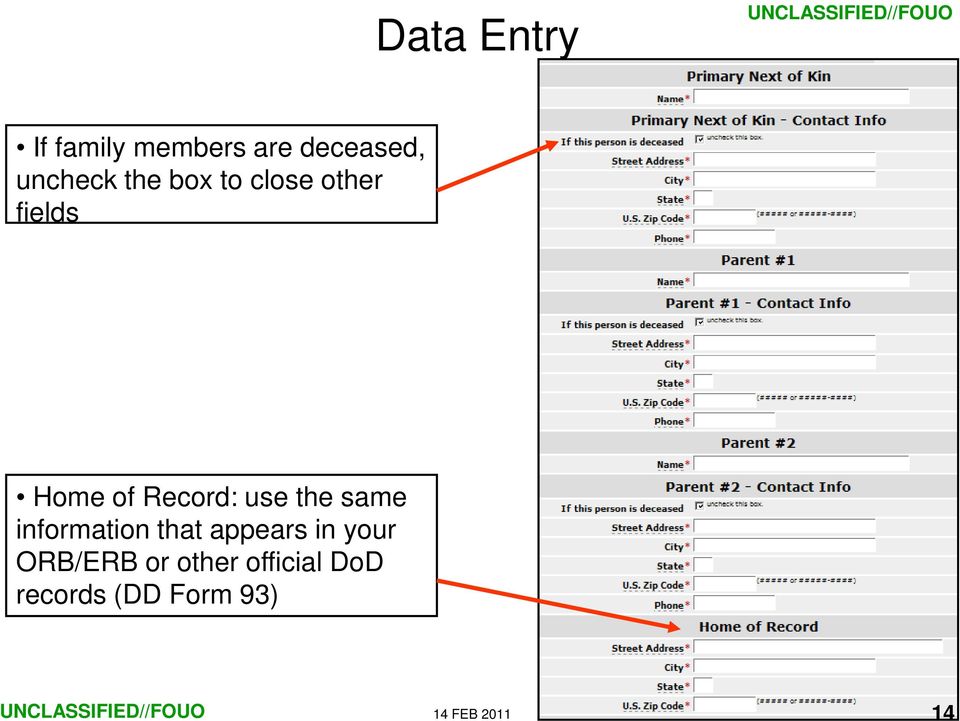
14 Data Entry If family members are deceased, uncheck the box to close other fields Home of Record: use the same information that appears in your ORB/ERB or other official DoD records (DD Form 93) 14
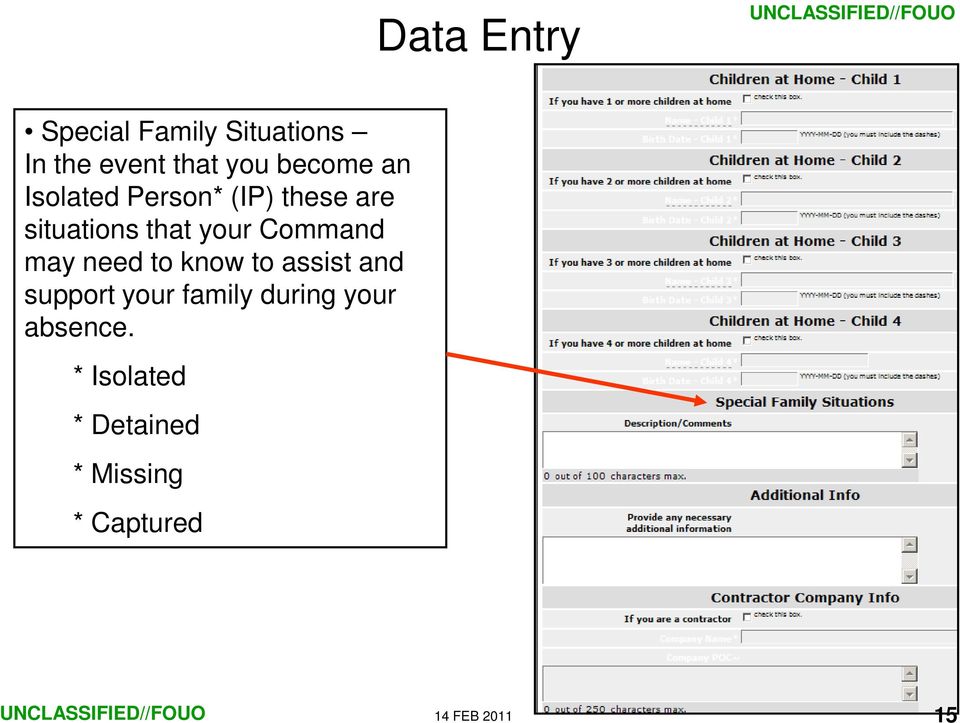
15 Data Entry Special Family Situations In the event that you become an Isolated Person* (IP) these are situations that your Command may need to know to assist and support your family during your absence. * Isolated * Detained * Missing * Captured 15
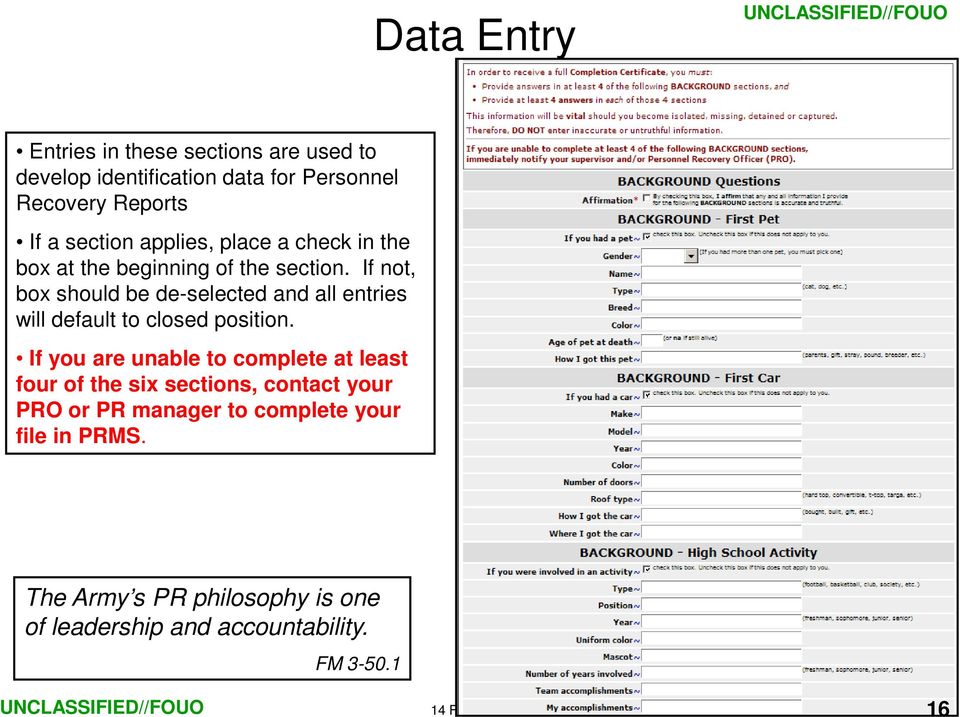
16 Data Entry Entries in these sections are used to develop identification data for Personnel Recovery Reports If a section applies, place a check in the box at the beginning of the section. If not, box should be de-selected and all entries will default to closed position. If you are unable to complete at least four of the six sections, contact your PRO or PR manager to complete your file in PRMS. The Army s PR philosophy is one of leadership and accountability. FM
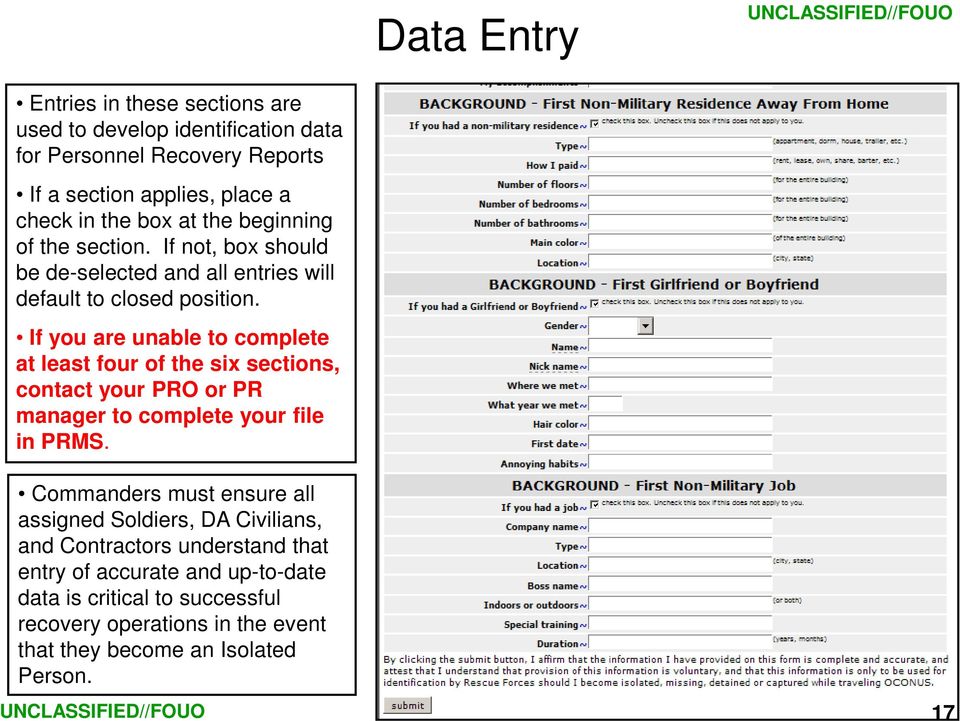
17 Data Entry Entries in these sections are used to develop identification data for Personnel Recovery Reports If a section applies, place a check in the box at the beginning of the section. If not, box should be de-selected and all entries will default to closed position. If you are unable to complete at least four of the six sections, contact your PRO or PR manager to complete your file in PRMS. Commanders must ensure all assigned Soldiers, DA Civilians, and Contractors understand that entry of accurate and up-to-date data is critical to successful recovery operations in the event that they become an Isolated Person. 17
18 Data Entry If data is incomplete or improperly formatted, the program will display an alert and allow the user to correct deficiencies. 18

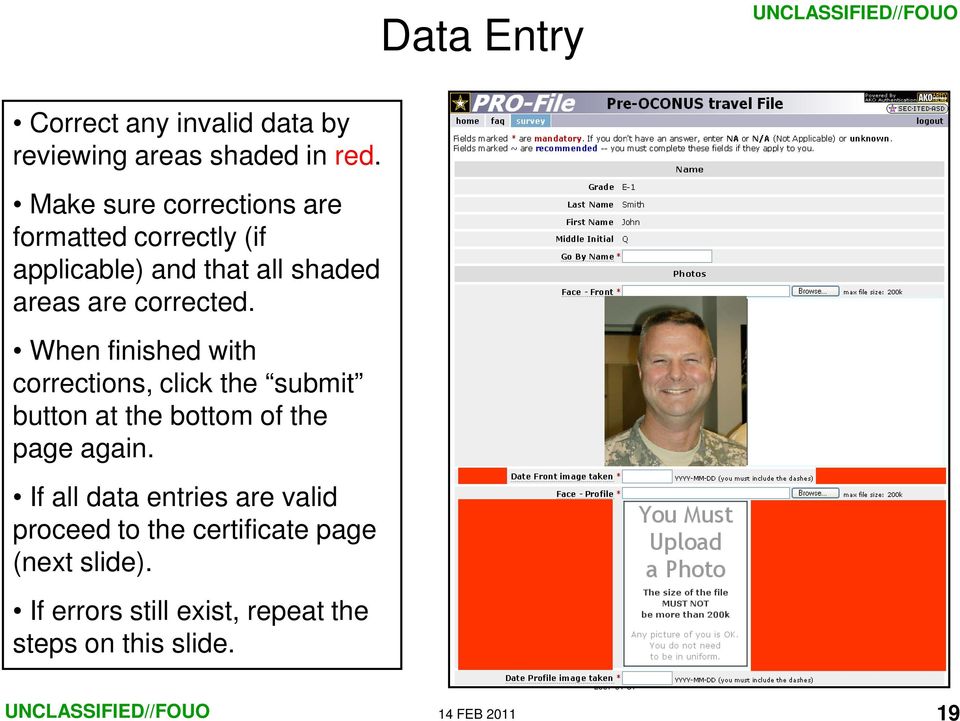
19 Data Entry Correct any invalid data by reviewing areas shaded in red. Make sure corrections are formatted correctly (if applicable) and that all shaded areas are corrected. Pedro When finished with corrections, click the submit button at the bottom of the page again. If all data entries are valid proceed to the certificate page (next slide). If errors still exist, repeat the steps on this slide
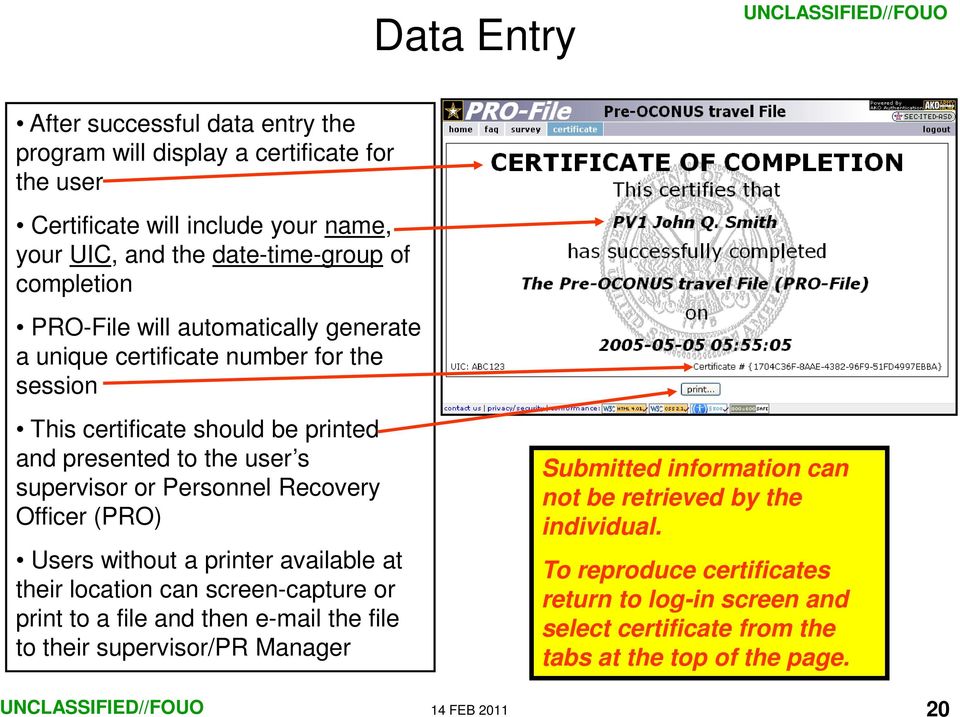
20 Data Entry After successful data entry the program will display a certificate for the user Certificate will include your name, your UIC, and the date-time-group of completion PRO-File will automatically generate a unique certificate number for the session This certificate should be printed and presented to the user s supervisor or Personnel Recovery Officer (PRO) Users without a printer available at their location can screen-capture or print to a file and then the file to their supervisor/pr Manager Submitted information can not be retrieved by the individual. To reproduce certificates return to log-in screen and select certificate from the tabs at the top of the page. 20
21 PRO-File Manager Search A variety of searches may be performed Search functions are available to all users E-6 and above Searches will only return results for those people that have entered a survey There is no information about users that have not yet used the system. 21
22 PRO-File Manager Search Results The results can be sorted by clicking on any column header The column that determines the sorting is indicated by a down or up triangle The dur (duration) column shows approximately how long the user took to complete the survey, in hours:minutes The Completion column indicates how many Background Sections the user completed, with Full indicating they completed 4 or more sections. Any user that is not listed as Full must submit a new survey, or complete the information using SIPRNet PRMS Note: searches will only return results for those people that have entered a survey there is no information about users that have not yet used the system. Note that this is the only information stored on the PRO-File system. All other survey data is stored on the PRMS system. 22
23 Frequently Asked Questions I only have 90 training days left until my unit deploys why should I shift focus to filling out online surveys when my Soldiers should be conducting tactical training? Your Soldiers can complete the survey at home, on leave, or from a local internet café. PRO-File was developed with your command s time management in mind so that you can continue with your training plans without significant impact. Where did the requirement for PRO-File come from, and who authorized the program? ALARACT (HQDA Updated Guidance for Personnel Recovery Mission Software(PRMS) and PRE-OCONUS Travel File(PRO-FILE).pdf) Completion of ISOPREPs has been a pre-deployment requirement since the beginning of the Global War on Terror. PRO-File was developed to make it easier to meet this requirement and standardize the format across the force. Authorization came from the Chief of Staff of the Army, through the Army G-3/5/7 to increase Personnel Recovery capability. 23
24 Frequently Asked Questions I am a tactical commander with thousands of troops to manage. What benefit does my command receive from participation in the PRO-File program? First and foremost your command will no longer have to spend additional time and effort to manage the classified ISOPREP forms which the PRO-File program will replace. The new system automates the entire process. This gives back time to your Soldiers for training and preparation for their METL tasks. PRO-File is also the first tool for this purpose available to every Soldier, regardless of security clearance or duty assignment, that can be completed at home or in their barracks. Also, use of PRO-File and PRMS enhances the capability to successfully recover your Soldiers regardless of their geographic location or OPCON/TACON status. 24
25 Frequently Asked Questions If I allow my Soldier s to do this on their off-time, how will I track their completion for pre-deployment? Your PRO or PR staff-section has the ability to track, by-name, who in your command has or has not completed a survey within a five minute window of accuracy. Each Soldier also receives a completion certificate. All users, E-6 and above, can search for completion certificates I am a civilian. Do I have to complete the survey? At this time, survey completion is required by HQDA for all DA/DoD Civilians and DA/DoD Contractors accompanying forces overseas. (Army G-3/5/7 guidance June 2005) I don t have a digital photo. Can I submit my survey without one? You must provide digital photographs for the survey. Current photographs are critical for recovery forces to positively identify you if you are isolated. 25
26 Frequently Asked Questions What if my information changes, or I realize that I made a mistake on my survey? You have two options to correct information provided to PRO-File. You can visit the survey site and complete a new survey. The more preferred method is to visit your PRO who can access and update your survey information in PRMS on the SIPRnet. What can I do if I receive an error when I submit my survey? Each error message will automatically be reported to the PRO-File system administrator. Follow the provided link; they will assist you in completing your survey. Non-technical issues or general questions dealing with command guidance and PR programs should be addressed to your chain of command. 26
27 Frequently Asked Questions I have completed the survey and printed my certificate. Now what do I do? Keep a copy of your certificate for your records. Provide a copy to your immediate supervisor or your Personnel Recovery Officer (PRO). You can return to the site any time to print a copy of your certificate. How often will I have to complete the PRO-File survey? You should only have to complete the survey one time during your military career. The data must be reviewed and/or updated periodically in PRMS. The period of time your file remains valid is dependent on Combatant Commander policy guidance. 27
AKO Account Registration and ISOPREP Instructions
 AKO Account Registration and ISOPREP Instructions G-3/5/7 - G3-SOD (PR) Access AKO online at this web address Click here to register for an account 03 July 2007 G-3/5/7 - G3-SOD (PR) Click here to register
UNITED STATES ARMY RESERVE COMMAND. User Guide for ARAMP
 UNITED STATES ARMY RESERVE COMMAND User Guide for ARAMP (Army Reserve Account Maintenance and Provisioning) Document: User Guide for ARAMP Nov. 13 2008 Date: Nov 13, 2006 Table 1: Version History Version
Supplier Management System User Guide
 Supplier Management System User Guide Copyright 2007-2010 by CVM Solutions LLC. All Rights Reserved. The material contained in this document is proprietary data and is the intellectual property of CVM
POST SCHOOL EXAMINATIONS
 The Kenya National Examinations Council POST SCHOOL EXAMINATIONS TECHNICAL AND BUSINESS (BTEP & BMGT) EXAMINATIONS USER MANUAL FOR CANDIDATES ONLINE REGISTRATION FEBRUARY 2014 Table of Contents 1.0. ACCESSING
PowerSchool Parent Portal User Guide. PowerSchool 7.x Student Information System
 PowerSchool 7.x Student Information System Released December 2011 Document Owner: Documentation Services This edition applies to Release 7.1 of the [product name] software and to all subsequent releases
JROTC Unit Management System (JUMS) User s Guide
 JROTC Unit Management System (JUMS) User s Guide 1 March 2016 Summary of Changes JUMS User Guide This revision, dated 1 March 2016 o Updates Chapter 3, paragraph 3-2, Import New Cadets from a File into
Joint Knowledge Online (JKO) Learning Management System (LMS) NIPRNET User Account Instructions. Accessing the JKO NIPRNET LMS
 Accessing the JKO NIPRNET LMS The NIPRNET instance of the Joint Knowledge Online (JKO) Learning Management System (LMS) is available to any holder of a Common Access Card (CAC) and to existing LMS users
Bangor University: Applicant Guide
 Bangor University: Applicant Guide Contents This guide provides an introduction on how to complete and submit an application for jobs advertised on the jobs.bangor.ac.uk website. Where are jobs advertised?
Grants Management System Online Instructions for Grant Applicants Greater Twin Cities United Way. March 2012
 Grants Management System Online Instructions for Grant Applicants Greater Twin Cities United Way March 2012 Contents SECTION 1: PREPARE YOUR APPLICATION TEAM... 2 SECTION 2: LOGIN TO THE ONLINE SYSTEM...
PassKey Manager. Schoolwires Centricity
 Schoolwires Centricity Table of Contents Introduction... 1 What Provides... 1 What Does Not Provide... 1 Definitions for... 1 Manage PassKeys in Site Manager... 2 Access... 2 Create PassKeys... 2 Create
AvMed s Physician-to- Physician Referral Program
 AvMed s Physician-to- Physician Referral Program Quick Reference Guide For Primary Care Physicians 1 P age Introduction Primary Care Physicians (PCPs) play a critical role in the health of our Medicare
Navigate to the Legacy website at: http://www.legacy-christian.com
 Legacy Christian Academy Online Student Information System QUICK START TUTORIAL Sycamore Education is an interactive web-based application that allows parents to view a range of information about their
Appointment Scheduler
 Appointment Scheduler User s Guide While every attempt is made to ensure both accuracy and completeness of information included in this document, errors can occur, and updates or improvements may be implemented
Customer Relationship Management (CRM) Creating and Tracking Your Cases
 General Instructions This step-by-step instruction document addresses the process for creating and tracking Customer Relationship Management (CRM) cases for yourself that are listed in your Support Summary
EMMA Application v. 4.9 User Manual
 EMMA Application v. 4.9 User Manual Prepared by: HP/DMDC 1600 N. Beauregard Street Alexandria, VA 22311 Abstract This guide describes how to use the EMMA system, which allows users to provision for required
Webmail User Guide. The Webmail Window. Logging In to Webmail. Displaying and Hiding the Full Header. Printing an Email. Composing a New Email
 Webmail User Guide Rev: November, 2012 Webmail is supported in the following browsers: Windows Internet Explorer 6, Internet Explorer 7, Firefox 2, and Firefox 3 Mac OSX Safari 2, Safari 3, Firefox 2,
The PTA s new membership website database and dues reporting system
 M3 The PTA s new membership website database and dues reporting system State Level Actions from Task Menu M3 CAPABILITIES The State must authorize a user to have access to M3. The State s authorized users
Wimba Pronto. Version 3.1. Administrator Guide
 Wimba Pronto Version 3.1 Administrator Guide Wimba Pronto 3.1 Administrator Guide Overview 1 Accessing the Wimba Pronto Administration Interface 2 Managing Multiple Institutions 3 General Features 4 Configuring
AIR FORCE RESERVE USER HANDBOOK. Prepared by KYLOC Version 1.0
 AIR FORCE RESERVE USER HANDBOOK Prepared by KYLOC Version 1.0 Table of Contents Purpose/Summary... 2 Accessing the Air Force Reserve Site... 3 Logging In... 3 Order Placer Processes... 4 Individual Order...
How to Publish Your Smart Card Certificates Using Outlook 2010
 How to Publish Your Smart Card Certificates Using Outlook 2010 To send or receive (and read) digitally signed or encrypted email messages with colleagues at NIH, you must first publish your PIV certificate
KNPC esourcing Portal. Getting Started - Registration & Authentication. KNPC esourcing Registration & Authentication
 Getting Started - Registration & Authentication Supplier Registration & Authentication Process Any new Supplier (Local or International) who wishes to get Prequalified or participate in Tenders run by
How to Create a Facebook Page for Pro Contractors
 Set Up a Personal Page First Facebook requires you to set up a personal page/ account prior to setting up a business page (even if you never use your personal page.) Click here to access Facebook. Once
Information System Army Volunteer Corps Volunteer User Guide
 Volunteer Management Information System Army Volunteer Corps Volunteer User Guide May 2014 Notice This manual and all of the information contained herein are confidential and proprietary to U.S. Army Family
City of De Pere. Halogen How To Guide
 City of De Pere Halogen How To Guide Page1 (revised 12/14/2015) Halogen Performance Management website address: https://global.hgncloud.com/cityofdepere/welcome.jsp The following steps take place to complete
The Federal Job Search - A "Three - Step Process
 USAJOBS, the federal government's official job search web site provides access to vacancy announcements from all federal government agencies. USAJOBS is updated every business day from a database of numerous
Quick Reference Guide Course Homepage Management (Faculty)
 Quick Reference Guide Course Homepage Management (Faculty) Table of Contents View Faculty Schedule... 3 Print Faculty Schedule... 3 Create Course Homepage... 3 Add a New Activity to the Course Homepage...
CYBER AWARENESS TRAINING REQUIREMENTS
 CYBER AWARENESS TRAINING REQUIREMENTS Anyone with a NIPR or SIPR account (or requesting an account), MUST complete the following cyber awareness training upon initial request, and annually thereafter.
Registration Process Security Guidelines and Requirements
 You are about to register yourself and/or other persons for an event organized by the World Economic Forum. Please carefully read the following security guidelines and requirements before proceeding with
Setting Up and Using the Funambol Outlook Plug-in v7
 Setting Up and Using the Funambol Outlook Plug-in v7 Contents Introduction.......................................... 2 Requirements for Plug-In Use........................... 2 Installing the Funambol
GUIDE TO USING GRADUATE APPLICANT SELF- SERVICE
 GUIDE TO USING GRADUATE APPLICANT SELF- SERVICE Version 2 Last Updated: 21/10/2015 2015/16 Contents: Contents Contents:... 1 Introduction:... 2 Section 1: Logging In:... 3 Section 2: Overview:... 4 2(a):
Off-Campus Employer JobX Training Guide
 Off-Campus Employer JobX Training Guide Student Employment Services Training Topics: 1. Introduction 2. Login 3. Add a job 4. Edit a job 5. Review on-line applications 6. Send Hiring Correspondence to
CM HOST CM CardTransporter Fuel Communication and Management Software 10.10.06 Software version up to 3.1
 CM HOST CM CardTransporter Fuel Communication and Management Software 10.10.06 Software version up to 3.1 CM Host Manual For CardMaster Fuel Control www.cardlockvending.com customers call 888-487-5040
FACULTY & STAFF RESOURCES
 CLASS ROSTERS and GRADES 8/23/10 This document provides information related to on-line services for faculty. Many, but not all, functions can now be done on-line instead of by using paper forms. You will
Administrative Features
 My Profile and User Manager These tools allow you to manage user information assigned to your account. Log into your Workopolis Employer Account. Under the My Account Settings menu, select either: My Profile
IWUF ONLINE REGISTRATION MANAGEMENT SYSTEM USERS GUIDE
 IWUF ONLINE REGISTRATION MANAGEMENT SYSTEM USERS GUIDE INTRODUCTION The IWUF Online Registration Management System has been created for use by all IWUF member federations when registering for IWUF championships,
elevy User Guide For Financial Institutions
 elevy User Guide For Financial Institutions Contents Registration & Accessing Your Bank Levy Account... 3 New User Registration... 3 Accessing elevy... 6 Processing Levy Orders... 9 Making No Funds Levy
Welcome to PowerClaim Net Services!
 Welcome to PowerClaim Net Services! PowerClaim Net Services provides a convenient means to manage your claims over the internet and provides detailed reporting services. You can access PowerClaim Net Services
i -CEN S USER S Manual 2007. 08. 13.
 i -CEN S i -CEN'S USER S Manual 2007. 08. 13. i -CEN S Table of Contents Overview of i-cen S software... 4 1 Introduction of i-cen S... 4 2 Key Features... 5 3 Key Benefits... 5 4 System Specification...
Faculty Introduction to Self-Service
 Faculty Introduction to Self-Service This user guide focuses on how faculty members can use Self-Service to access and update their information. Using a Web browser, faculty members can enter student grades,
UCB erequest IIS Requestor - Quick Reference Guide
 UCB erequest - CONTENTS 1 INTRODUCTION... 3 2 HOW TO REGISTER AND LOG-IN... 3 2.1 REGISTER TO RECEIVE AN EXTERNAL REQUESTOR USER ID AND PASSWORD... 3 2.2 LOGIN WITH USER ID AND PASSWORD... 5 3 HOW TO SUBMIT
OneDrive for Business User Guide
 OneDrive for Business User Guide Contents About OneDrive for Business and Office 365... 2 Storing University Information in the Cloud... 2 Signing in... 2 The Office 365 Interface... 3 The OneDrive for
Step-by-Step DBS E- Application Process
 Step-by-Step DBS E- Application Process The following guidance has been put together as an in depth guide from start to finish of how to obtain a DBS disclosure via the RFU s E-Application system. This
Add and Edit Listings
 Add and Edit Listings About Add/Edit... 2 Add Listing... 4 Edit Worksheet... 9 Edit Listing... 11 Edit a Listing s Map Location... 12 Status Change... 13 Clone Existing Listing... 14 Upload Photos... 15
Testing and Accommodation Enhancements
 Testing and Accommodation Enhancements CECAS users will notice that a set of changes to the CECAS production (live) site have occurred. The changes are: Child Demographics screen has been updated to contain
Residence Life & Housing Student Staff Employment Application Guide
 Residence Life & Housing Student Staff Employment Application Guide Hello! This is a quick step-by-step guide for using our online application process for either the RA or GHD positions. If you have any
Industrial Security Facilities Database (ISFD) Job Aid. December 2014
 Industrial Security Facilities Database (ISFD) Job Aid December 2014 Page 2 Table of Contents Introduction Logging into ISFD Navigating ISFD Changing Passwords Update My Info Request for Information Submit
Hatco Lead Management System: http://hatco.scangroup.net/
 Hatco Lead Management System User Guide General Notes: The Hatco Lead Management System (HLMS) is designed to work with modern web browsers, such as Internet Explorer 9 or newer, Firefox, Chrome & Safari.
EVENT REGISTRATION UPLOADER DOCUMENTATION
 August 8, 2012 EVENT REGISTRATION UPLOADER DOCUMENTATION The Purpose To aid in generating more accurate reporting for engagement, event data needs to be entered into Griffin. The Event Registration Uploader
Attention. Save, print and read this information. This document will provide insight on issues that will help you through the course.
 Attention Save, print and read this information. This document will provide insight on issues that will help you through the course. You can download this document to your mobile device by following the
Wireless Network Configuration Guide
 CIT Table of Contents Introduction... 1 General Wireless Settings... 1 1. Windows XP Wireless Configuration... 2 2. Windows XP Intel Pro Wireless Tool... 7 3. Windows Vista Using the Windows Wireless Tools...
Distributed Authoring Addendum Uploading Digital Assets
 Distributed Authoring Addendum Uploading Digital Assets This document pertains to uploading the following digital assets to be used on your website: 1 PDFs 2 Images 3 MS Word, Excel or PowerPoint documents
Online CPD Tracking System User Manual
 Online CPD Tracking System User Manual Table of Contents Overview... 1 Courses and Seminars... 4 Participation... 6 Presentations, Papers, and Research... 8 CPD Summary... 9 Personal Information... 11
Affiliated Provider Billing/Coding
 Affiliated Provider Billing/Coding ED BILLING USING FIRSTNET Table of Contents Affiliated Provider ED Billing...2 icentra FirstNet...2 Accessing FirstNet...2 To access FirstNet:...2 Checking In as a Provider...2
The Cancer Institute NSW Grants Management System User Guide
 The Cancer Institute NSW Grants Management User Guide Version 1.1 12 February 2016 Contents 1. Registration 2 2. Login to the Institute s GMS 3 3. Forgot password 3 4. The home page 4 5. Creating a profile
State of Florida eportal. Law Firm Administrator Documentation
 State of Florida eportal Law Firm Administrator Documentation Prepared by: Florida Association of Court Clerks 6/6/2011 Table of Contents State of Florida eportal... 1 Introduction... 3 Logging in to the
TWAIN Driver Reference Guide
 TWAIN Driver Reference Guide Version 1.0 9/2/2005 Copyright 2003-2005 by Xerox Corporation. All rights reserved. XEROX is registered trademark of XEROX. Other product names used in this document may be
To Begin Customize Office
 To Begin Customize Office Each of us needs to set up a work environment that is comfortable and meets our individual needs. As you work with Office 2007, you may choose to modify the options that are available.
Sign in. Select Search Committee View
 Applicant Tracking for Search Committees Thank you for agreeing to serve on a search committee at Youngstown State University. The following information will enable you to utilize our online applicant
Akita International University Online Application System. Usage Manual
 Akita International University Online Application System Usage Manual Please Check the Following Before You Begin To Access the System: Ensure you are using one of the following Operating Systems (OS)
User Guide for Patients
 User Guide for Patients Creating a My Health Online Account Before you can create a My Health Online account you must register for this service at your GP practice. Your practice will provide you with
Reporting Student Progress and Achievement
 Reporting Student Progress and Achievement CompassLearning Odyssey Manager takes pride in the quality of its product content. However, technical inaccuracies, typographical errors, and editorial omissions
UCIT Office of Information Security Standard Operation Procedure: HIPAA Privacy and Security Basics Training
 UCIT Office of Information Security Standard Operation Procedure: HIPAA Privacy and Security Basics Training How to Complete HIPAA Training Readership: UC Program Coordinators Summary: Step-by-step procedure
Student Progress Center Instructions. 1. Navigating to the Student Progress Center. 2. Logging in to an Existing Account. 3. Creating a New Account
 Student Progress Center Instructions The Student Progress Center has a new look. Click on the links below for instructions on how to navigate to our website, create an account, and use the Student Progress
The Customer s Guide to DPS
 The Customer s Guide to DPS Filing a Claim Things to keep in mind when filing your claim Loss or damage to an item should be reported to the TSP, via DPS within 75 days of the date of delivery. Note: You
MULTIFUNCTIONAL DIGITAL COLOR SYSTEMS / MULTIFUNCTIONAL DIGITAL SYSTEMS. Remote Scan driver Help
 MULTIFUNCTIONAL DIGITAL COLOR SYSTEMS / MULTIFUNCTIONAL DIGITAL SYSTEMS Remote Scan driver Help 2012, 2013 TOSHIBA TEC CORPORATION All rights reserved Under the copyright laws, this manual cannot be reproduced
Pure1 Manage User Guide
 User Guide 11/2015 Contents Overview... 2 Pure1 Manage Navigation... 3 Pure1 Manage - Arrays Page... 5 Card View... 5 Expanded Card View... 7 List View... 10 Pure1 Manage Replication Page... 11 Pure1
User Guide for Patients
 User Guide for Patients Creating a My Health Online Account Before you can create a My Health Online account you must register for this service at your GP practice. Your practice will provide you with
User Guide. Lombard Risk esupport Client Portal. 11 January 2013
 User Guide \ Lombard Risk esupport Client Portal 11 January 2013 Copyright 2005-2011 Lombard Risk Compliance Limited All rights reserved. Confidential Information Copyright in and ownership of this document
Resource database input tool: Create new resource or a new event process
 Financial Consumer Agency of Canada Agence de la consommation en matière financière du Canada Resource database input tool: Create new resource or a new event process The Financial Consumer Agency of Canada
Scanning in Windows XP: Basics Learning guide
 Scanning in Windows XP: Basics Learning guide If you have ever wanted to scan documents and images on different scanners in your department, you've probably faced the difficulties that arise from needing
Once you have obtained a username and password you must open one of the compatible web browsers and go to the following address to begin:
 CONTENT MANAGER GUIDELINES Content Manager is a web-based application created by Scala that allows users to have the media they upload be sent out to individual players in many locations. It includes many
ACT State Testing Online Services Tutorial
 ACT State Testing Online Services Tutorial Back-up Test Supervisor Version Released July, 2009 2009 by ACT, Inc., All rights reserved. Back-up Test Supervisor Online Profile Form Introduction The Back-up
Employer Portal User Guide Last Updated: October 2015
 Employer Portal User Guide Last Updated: October 2015 San Francisco City Option PO Box 194367 San Francisco, CA 94119-4367 Phone: 1(415) 615-4492 Fax: 1(415) 615-4392 Email: [email protected]
Netigate User Guide. Setup... 2. Introduction... 5. Questions... 6. Text box... 7. Text area... 9. Radio buttons...10. Radio buttons Weighted...
 Netigate User Guide Setup... 2 Introduction... 5 Questions... 6 Text box... 7 Text area... 9 Radio buttons...10 Radio buttons Weighted...12 Check box...13 Drop-down...15 Matrix...17 Matrix Weighted...18
Florida Department of Environmental Protection Office of Technology and Information Services
 Florida Department of Environmental Protection Office of Technology and Information Services Industrial and Domestic Wastewater EzDMR (Discharge Monitoring Reporting) External User s Guide Prepared by:
Setting Up and Using the Funambol Outlook Sync Client v8.0
 Setting Up and Using the Funambol Outlook Sync Client v8.0 Contents Introduction.......................................... 2 Requirements........................................ 2 Installing the Funambol
Xerox Multifunction Devices. Verify Device Settings via the Configuration Report
 Xerox Multifunction Devices Customer Tips March 15, 2007 This document applies to these Xerox products: X WC 4150 X WCP 32/40 X WCP 35/45/55 X WCP 65/75/90 X WCP 165/175 X WCP 232/238 X WCP 245/255 X WCP
Online registration process for Foundation Programme
 Online registration process for Foundation Programme (Please note that before proceeding for online registration, you need to have the soft copy of the following documents for uploading the same on the
Using an Edline Gradebook. EGP Teacher Guide
 Using an Edline Gradebook EGP Teacher Guide Table of Contents Introduction...3 Setup...3 Get the Gradebook Web Plugin... 3 Using Your Web Gradebook... 4 Using the Web Gradebook on a Shared Computer...
SuccessMaker Learning Management System User s Guide Release 1.0
 SuccessMaker Learning Management System User s Guide Release 1.0 Copyright 2007 2008 Pearson Education, Inc. or its affiliates Copyright 2007 2008 Pearson Education, Inc. or its affiliates. All rights
E-LEARNING STUDENT S MANUAL
 E-LEARNING STUDENT S MANUAL By Williams College E-Learning is the College s Online Learning Environment, designed to enhance your learning experience by providing access to online course materials, activities,
OUTLOOK WEB ACCESS (OWA) AND SSL VPN HOME USERS MANUAL
 United States Army Special Operations Command (USASOC) Special Operations Forces Information Technology Enterprise Contracts (SITEC) OUTLOOK WEB ACCESS (OWA) AND SSL VPN HOME USERS MANUAL Prepared by:
Revision History. Profile, Images to Details Planning, Resubmission Feedback/Comments. 1.4 22 nd July 2013
 Revision History Revision Date Comment 1.0 15 th January 2013 1 st Edition 1.1 18 th January 2013 Update on Other Researchers 1.2 22 th January 2013 Account Registration and Miscellaneous updates. 1.3
User s Guide & Resource Manual. In partnership with
 User s Guide & Resource Manual In partnership with Table of Contents Introduction: Senior Corps and VolunteerMatch 5 Why partner with VolunteerMatch? 5 Why should I include VolunteerMatch in my volunteer
Patch Manager. Overview. LabTech
 Patch Manager PATCH MANAGER 1 Overview... 1 Using the Patch Manager... 7 Using the Patch Manager for Groups... 8 Ignoring Patches... 11 Denying Patches... 12 Removing Patch Approvals from Groups... 12
NACCAS CRM Owner Screen Updates
 NACCAS CRM Owner Screen Updates Changes have been made to the owner screen in the NACCAS CRM. When you next login you will see a series of tabs that look like this: When each tab is expanded, you will
Training Guide. Atlas Pro Learning Management System. for the. (NIPRnet)
 Training Guide for the Atlas Pro Learning Management System (NIPRnet) Prepared by JKDDC Joint Management Office: Mr. Mike Barnum Knowledge Services Plans and April 2009 Implementation J757-203-6164 OINT
Yale Software Library http://www.yale.edu/software/
 e/ Yale Software Library http://www.yale.edu/software/ For assistance contact the ITS Help Desk 785-3200, 432-9000, [email protected] Remote Desktop General overview With Remote Desktop, you get full access
Online Test Monitor Certification Course 2014-2015 Transcript
 Online Test Monitor Certification Course 2014-2015 Transcript Slide # Slide 1 Slide 2 Slide 3 Slide 4 Slide 5 Slide 6 Slide 7 Minnesota Assessments Test Security Training for Districts and Schools Welcome
Sabal Trust Company. WebLink User Guide
 If you are having any difficulty or need any help with these changes or the new configuration, please call your Relationship Manager Sabal Trust Company WebLink User Guide Table of Contents WELCOME TO
Trainer's guide to the PTS e-learning system
 Trainer's guide to the PTS e-learning system Overview of process As a trainer, you will be able to log in to the e-learning system and check your learners' progress through the PTS course. You will need
Web Conference Manager
 Web Conference Manager Reference Guide Table of Contents 1. Introduction to GTB Web Conferencing... 1 2. System Requirements... 2 3. Web Conferencing Host... 3 Accessing the server... 3 Testing your system...
Erasmus Charter for Higher Education
 Erasmus Charter for Higher Education How to complete and submit an application for accreditation Version 1 2 March 2015 TABLE OF CONTENTS Technical requirements... 3 Overview of the application process...
BabyWare Imperial PC Software
 Overview (see page 1) Things You Should Know (see page 1) Getting Started (see page 2) Licenses and Registration (see page 6) Usernames Passwords and Login (see page 7) BabyWare Imperial PC Software Overview
Appointment Schedule and Online Messaging Help Guide
 Appointment Schedule and Online Messaging Help Guide 1. Accessing your appointment schedule 2. Understanding the icons 3. Exclusions 4. Requesting meetings 5. Cancelling pending meeting requests 6. Accepting
Online Registrations and Awards System User Guidance
 Online Registrations and Awards System User Guidance Including: Qualifications Unit Achievement Gateway Quality Assured Provision Functional Skills and Access to Higher Education Gateway Qualifications