
eportfolio Learner Tutorial
|
|
|
- Andrea Brooks
- 9 years ago
- Views:
Transcription
1 eportfolio Learner Tutorial What s in this tutorial? 1. How to sign up for an Digital On-Ramps account and eportfolio. 2. How to upload your content and add content to portfolios. 3. How to share your eportfolio. 1. How to Create a New Account By choosing to sign up for a Digital On-Ramps account, you are taking the first big step in career and academic development. Now you need to create a new account in order to access the eportfolio. If you have not received a registration link, please contact us at [email protected]. Signing Up 1. Fill out your first and last name. 2. Fill in your and choose a unique password. 3. Fill in all other fields. Fields marked with a red star are required to be filled out in order to sign up. 4. Click Sign Up After signing up, you should receive a confirmation from Digital On-Ramps. You will automatically be taken to your eportfolio after signing up. Signing In There will come a time where you need to sign into your account after the initial sign up. Follow these simple steps to sign back into your Digital On-Ramps account. 1. Go to our website at 2. Click eportfolio login at the top of the page. 3. Enter the and password you provided when signing up. 4. Click Sign In You can also recover your password if you have forgotten it via a link on the sign in page. After signing in, you will be taken to your eportfolio.

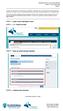
2 Signing Up for your Digital On-Ramps Account Signing Into your Digital On-Ramps Account

3 2. How to Upload Your Content Welcome to your brand new eportfolio! This is the main page, where you can easily upload content and access all content you have already uploaded. Uploading Content Let s add some content to your portfolio! The first thing you should do is create a resume if you don t have one already, create a cover letter, and gather up all your work samples. Examples of

4 work samples include writing samples, videos, and images that either highlight your talent in these areas or showcase documentation of you doing work. 1. Click on Create New Content 2. Input the appropriate information. Note: fields marked with a red star are required. For the status field, you have the option of making this content either active or inactive. Active content is content that is available and can be placed into eportfolios, while inactive content is not available and can not be placed into eportfolios. 3. Upload your content via files or links. You can upload content in two ways. You can copy and paste a link to your content, an example being a video from YouTube or a GoogleDoc, or you can upload files directly from your computer, such as a pdf.

5 When you click Upload Content a box will appear where you can choose your preferred method of uploading. 4. Click Save and you re done! You ll then be redirected to a content overview page where you can add this content to portfolios, edit, or delete the content. Creating an eportfolio 1. Now you have to create an eportfolio to house all of your content! To make a new portfolio, go to the menu on the left hand side of the page and click Create New eportfolio.

6 2. Input the appropriate information, the fields with the red stars are required to be filled out. An eportfolio can be one of three statuses: active allows you to share your eportfolio, inactive does not allow you to share your eportfolio, while draft does not allow you to share your eportfolio but lets you see how it would look if you did share it. Let s go ahead and set our eportfolio to draft for now. Note: You can create as many eportfolios as you want. You can add different content to different eportfolios and tailor them to certain positions. Adding Content to eportfolios 1. Now return to all of your content via the menu on the left. You will notice that the category Resume now has 1 item in it. That is the resume you uploaded earlier and can now be added to an eportfolio if you set it s status as active.

7 2. Let s go ahead and add this resume to your eportfolio. Click on the resume category. You ll be redirected to a page where you can view all the content you have uploaded to this category. From this page you can also add new content to the category. 3. Click on the resume that you have already loaded and you ll be redirected to the content overview page that we saw before.

8 4. Click on the green My eportfolios button at the bottom. A box will appear where you can select which eportfolios you would like to add this resume to. 5. After you have selected the eportfolio, click ok. This content is now in your selected portfolio! 3. Sharing your eportfolio After you have uploaded all of your content, it is time to share your eportfolio! 1. Go to your draft eportfolios via the menu on the left. 2. You ll be redirected to all of your current draft eportfolios. Click on the eportfolio you wish to share and you will be redirected to a portfolio overview page.

9 3. Click on the portfolio name and you will be redirected to another portfolio overview page that specific to the portfolio you picked to view. From this page you will see several things concerning your portfolio. First you ll see the general info about your portfolio, such as name, status, description, and a link to your eportfolio which we will us in just a minute. You can view and edit all the content that is currently in the portfolio as well as add new content. 4. Click on edit and you will be taken to an Edit My eportfolio page. Change the status to active and you are ready to share. 5. In order to share your portfolio, you will need to copy the link provided. 6. Once you have copied the link, you can paste it in word documents, social media posts, s, on your website, etc. by right clicking and choosing paste. Now you can send your link! Whoever clicks on the link will be redirected to your eportfolio and all the content that you have uploaded!

10

For technical assistance our webmaster can be reached at [email protected].
 Welcome Thank you for your interest in ArSHA.org s job listing boards. We ve made a number of changes and improvements to our job listings, including the following enhancements: You can now create an account
Navigating Through My Account Page 1
 Navigating Through My Account Page 1 Although there are many ways to navigate within the My Account application, this tutorial will provide basic navigation to the most popular functions. TABLE OF CONTENTS
Online Application Tutorial for MCCCD Jobs
 Online Application Tutorial for MCCCD Jobs Overview After reviewing this tutorial, you will be able to use the system to: 1. Learn about job opportunities at MCCCD. 2. Attach documents and complete an
Website for online application/self service is: https://ess.countyofdane.com
 Login with your county login and password. Website for online application/self service is: https://ess.countyofdane.com 1 Step 2. You must open a posting below and click to continue the application process
Online Employment Application Guide
 Online Employment Application Guide This guide describes how to apply for jobs using the LA Careers website. The process consists of the following steps: Create an Account Find Jobs Apply for a Job Create
How To Use Turna 4Europe Online Education And Training Programmes Online (Eu)
 Carries your information globally USER MANUAL v.2.0 2 TABLE OF CONTENTS TABLE OF CONTENTS... 2 LIST OF FIGURES... 3 1. PURPOSE... 4 2. TURNA... 4 3. TURNA USER INTERFACE... 4 3.1 TURNA Login Page... 4
Student Registration Instructions
 Student Registration Instructions Before you begin, you will need a 10-character Class Code and a 20-character ALEKS Access Code. If you do not have an access code, you can purchase one during this registration
Moodle eportfolio User Guide
 For Faculty and Portfolio Administrators: Moodle eportfolio User Guide The eportfolio block can be added to individual courses using the Add a Block functionality. To do this use the following steps: 1)
JPIA s Training Department Introduces Prosperity Learning Management System. User s Guide for Students
 JPIA s Training Department Introduces Prosperity Learning Management System User s Guide for Students TOPIC PAGE # Home Page 2 Class Calendar 3 Log In 4 View Classes by Location and Name 6 View Classes
American Amicable Group
 American Amicable Group Mobile Application Training Tutorial Mobile Application Overview Ensures applications are in good order Eliminate incomplete applications and missing forms Reduce processing delays
understanding MyAccount
 understanding MyAccount https://myaccount.fuelbroadband.co.uk Contents 1. How to Log in to MyAccount 2 2. What can you do from the welcome page of MyAccount? 4 3. Understanding My Bill 5 4. My Alerts 7
Supplier Management System User Guide
 Supplier Management System User Guide Copyright 2007-2010 by CVM Solutions LLC. All Rights Reserved. The material contained in this document is proprietary data and is the intellectual property of CVM
Online Certification Portfolio
 Online Certification Portfolio Welcome to the Online Certification Portfolio system. This document will provide you with an overview of how to navigate the site, submit your Continuing Professional Education
AVDC Document Management System Getting Started
 Page 1 of 7 AVDC Document Management System Getting Started Login Upon entering the AVDC document management system (http://www.avdc-dms.org/dms/ or via the link on the AVDC web site Home page), the initial
Merchant Portal Guide. TradeRoute Copyright 2014. All Rights Reserved.
 Merchant Portal Guide TradeRoute Copyright 2014. All Rights Reserved. TradeRoute Merchant Portal User Manual Table of Contents TradeRoute Merchant Account Portal Login Instructions... 3-4 Recovering your
Setting up an account and logging in using Design & Print Online. Opening a saved project
 Setting up an account and logging in using Design & Print Online Opening a saved project 1 of 7 Account Set-Up & Login 1. On the Design and Print Online home page click on the Click to start Design & Print
APA On-Line Fellows Application Platform Instructions for Endorsers
 APA On-Line Fellows Application Platform Instructions for Endorsers Introduction... 2 Steps to Completing an Endorsement... 2 Step 1: Access Application Link... 2 Step 2: Log In to myapa... 2 Step 3: View
-CONTINUE ON NEXT PAGE
 Page 1 Thank you for taking part in the s Stepping Out to Cure Scleroderma! We appreciate your support of our mission. Here are some instructions to help you send an email message from your Participant
welcome to my Randstad web timesheets!
 welcome to my Randstad web timesheets! In addition to viewing bookings and payslips, your my Randstad web portal now also has an easy to use timesheet section, to enter and submit your shift, break, allowance,
Navigating the Online Application
 Navigating the Online Application I. Logging on to the Online Application To log on to the online application follow the instructions in Accessing the Online Application II. Main Menu On first logging
Welcome to the Brookdale Community College Online Employment System Applicant Tutorial
 Welcome to the Brookdale Community College Online Employment System Applicant Tutorial Online Employment System Training for Brookdale Community College Applicants This presentation will take approximately
QUICK GUIDE TO THE PORT STEPHENS COUNCIL CONTRACTOR MANAGEMENT SYSTEM
 QUICK GUIDE TO THE PORT STEPHENS COUNCIL CONTRACTOR MANAGEMENT SYSTEM Port Stephens Council uses two separate systems to gather contractor information. These two systems are CIMS and SitePass, and require
Note: you will need speakers or headphones in order to hear the narration, but there is a Closed Captioning option.
 Security Awareness Training Program In collaboration with the DAS Bureau of Enterprise Systems and Technology (BEST), DDS has implemented a web-based training program called SANS Securing the Human in
1. Go to ArizOTA.org, and select Employer Registration from the OT Jobs drop down menu:
 Welcome Thank you for your interest in ArizOTA.org s Job Advertisement feature. We ve made many changes and improvements to our job listings, including the following enhancements: You can now create an
Thera Band Academy Speaker Database. Users Manual 2/2008
 Thera Band Academy Speaker Database Users Manual 2/2008 2008 The Hygenic Corporation. THERA-BAND, the Color Pyramid, the Associated Colors and BIOFREEZE are all trademarks of The Hygenic Corporation. Unauthorized
The Cancer Institute NSW Grants Management System User Guide
 The Cancer Institute NSW Grants Management User Guide Version 1.1 12 February 2016 Contents 1. Registration 2 2. Login to the Institute s GMS 3 3. Forgot password 3 4. The home page 4 5. Creating a profile
Surplus Lines Online User Guide
 Surplus Lines Online User Guide Missouri Department of Insurance, Financial Institutions and Professional Registration Contents Summary... 1 Site Address... 1 Account Management... 2 Account Registration...
Creating an eportfolio Using Google Sites
 Creating an eportfolio Using Google Sites What is an eportfolio? A collection of digital files (artifacts) that are shared electronically for the purpose of reflection, comment and evaluation. It s quite
Contents LOGIN. Order an Official Transcript National Student Clearinghouse Tutorial Page 1 of 9
 National Student Clearinghouse Tutorial Page 1 of 9 Contents LOGIN... 1 ENTER PERSONAL INFORMATION... 2 SELECT RECIPIENT... 4 ENTER RECIPIENT DETAILS... 4 REVIEW ORDER... 5 PAYMENT PROCESS... 6 SIGN PAPERLESS
Access to McDermott Supplier Registration System
 Access to McDermott Supplier Registration System McDermott supplier registration system can be access at McDermott s home page at http://www.mcdermott.com under Suppliers link or you can directly access
eportfolio Student Guide
 Overview...2 The eportfolio...2 Folio Thinking...2 Collecting...2 Selecting...2 Reflecting...3 Connecting...3 Collecting...4 Adding Files to Resources...4 Public Files...5 Organizing Resource Files...6
Managing Payment Information
 Managing Payment Information Online Payment functionality allows the ability to register, modify and delete payment methods. These tools enable a transaction to occur and provide users with the ability
User Guide for External Candidates
 User Guide for External Candidates Release 13A Canada Mortgage and Housing Corporation August 2013 Developed for CMHC by: Remi R. Paquette Revised by: Kristen Provost Document Version: 1.0 Table of Contents
Your Archiving Service
 It s as simple as 1, 2, 3 This email archiving setup guide provides you with easy to follow instructions on how to setup your new archiving service as well as how to create archiving users and assign archiving
ClickView Digital Signage User Manual
 ClickView Digital Signage User Manual Table of Contents 1. What is ClickView Digital Signage?... 3 2. Where do I find ClickView Digital Signage?... 3 2.1. To find ClickView Digital Signage... 3 3. How
Schools CPD Online General User Guide Contents
 Schools CPD Online General User Guide Contents New user?...2 Access the Site...6 Managing your account in My CPD...8 Searching for events...14 Making a Booking on an Event...20 Tracking events you are
State Grant Information Technology Application
 The makes grant information accessible to EPA Personnel, OMB, and State agencies. Grant pages contain general information as well as electronic copies of workplans and progress reports. The information
Customer Portal User Manual. 2012 Scott Logic Limited. All rights reserve. 2013 Scott Logic Limited. All rights reserved
 Customer Portal User Manual 2012 Scott Logic Limited. All rights reserve Contents Introduction... 2 How should I use it?... 2 How do I login?... 2 How can I change my password?... 3 How can I find out
Dynamic Content for Executive Recruitment Firm
 Dynamic Content for Executive Recruitment Firm Added dynamic functionality to existing static HTML site for a Philadelphia-area firm specializing in executive recruitment for the healthcare industry. This
Contents. Summary. Site Address. Account Management MISSOURI DEPARTMENT OF INSURANCE, FINANCIAL INSTITUTIONS AND PROFESSIONAL REGISTRATION
 Contents Summary... 1 Site Address... 1 Account Management... 1 Account Registration... 2 Registration Process... 2 Contact Information Updates... 2 Reporting... 3 Product Liability Form... 4 Product Liability
GRANT APPLICANT TUTORIAL
 GRANT APPLICANT TUTORIAL Foundant Grant Lifecycle Manager This document is designed to provide grant applicants with instructions for use of the Delta Dental of Oklahoma Oral Health Foundation (DDOK-OHF)
How do I enroll in the password portal?
 The self-serve portal is designed to allow you to change your password and unlock your locked account even if you have forgotten your password. You must enroll for this service to be able to use it. You
WordPress 101 Tutorial
 WordPress 0 Tutorial This document is meant to give a general overview of the content management functionality of the Word- Press Content Management System. The intention is to cover the basics (what you
The site also provides self-guided product demonstrations, basic service information and support contact information.
 USER GUIDE TCC Online Getting Started TCC Online is a free service that makes it quicker and more convenient for you to access all of your conferencing services. From a single point of entry you ll be
TTUHSC Online Contract Accounts Receivable
 TTUHSC Online Contract Accounts Receivable The Contracts Accounts Receivable system is a component of the Contracting Website which contains the systems noted below: Contract Database Contract Accounts
User Guide for Patients
 User Guide for Patients Creating a My Health Online Account Before you can create a My Health Online account you must register for this service at your GP practice. Your practice will provide you with
Welcome to the Charter Challenge Discussion Board
 Welcome to the Charter Challenge Discussion Board 1. First, Let s Create a User Account To login to the discussion board for the first time, you will need to create a username and password. (Please be
External Account Creation and Upload Instructions for the Local Government (LG) Audit Report Collection System
 External Account Creation and Upload Instructions for the Local Government (LG) Audit Report Collection System In order to submit data for any Department of Audits and Accounts (DOAA) web application,
How to Apply for Employment Opportunities
 How to Apply for Employment Opportunities Viewing job postings Visit www.stcatharines.ca and click on the Employment Opportunities button. Our Careers page will then be displayed. On the Careers page there
Online Job Application Guide
 Instructions for the First-Time User 1. Go to www.mspb.ms.gov 2. Click on Job Seekers 3. Under MSPB Career Center, Click on Job Openings Important Notes for Applicants: When applying online, each applicant
The PTA s new membership website database and dues reporting system
 M3 The PTA s new membership website database and dues reporting system State Level Actions from Task Menu M3 CAPABILITIES The State must authorize a user to have access to M3. The State s authorized users
Virtual Career Fair (VCF) Employer Guide Quick Start
 Virtual Career Fair (VCF) Employer Guide Quick Start Employers By clicking on Employers on the VCF home page, you will be taken to the event Directory. From here you will find logos for the various Featured
L T A O N L I N E R E C R U I T M E N T
 L T A O N L I N E R E C R U I T M E N T When you click on this webpath - http://recruitment.lta.com.fj/linkrm, the following screen will appear: You will have to click on Register, as circled red so that
Once you have obtained a username and password you must open one of the compatible web browsers and go to the following address to begin:
 CONTENT MANAGER GUIDELINES Content Manager is a web-based application created by Scala that allows users to have the media they upload be sent out to individual players in many locations. It includes many
User s Guide: Archiving Work from an LMS PROJECT SHARE
 User s Guide: Archiving Work from an LMS PROJECT SHARE Table of Contents Courses... 2 Groups... 8 eportfolio... 10 File Manager... 14 Institution Administrators... 15 Page 1 The Epsilen learning management
Center for Careers, Life, and Service (CLS) Online Application Tutorial
 Center for Careers, Life, and Service (CLS) Online Application Tutorial 1. Many CLS experiential opportunities applications (including GRINNELLINK internships, the Externship Program, Summer internship
Applying for Archive Service Accreditation: Using the online application system
 Applying for Archive Service Accreditation: Using the online application system 1 Archive Service Accreditation online application system: user guide Table of Contents 1 Registering on the online application
Self-Generation Incentive Program. Online Application Database Tutorial
 Self-Generation Incentive Program Online Application Database Tutorial New Applicant Registration If you haven t already registered with the site, you will need to request an account by filling out the
MEETINGONE ONLINE ACCOUNT MANAGEMENT PORTAL ACCOUNT ADMIN USER GUIDE
 MEETINGONE ONLINE ACCOUNT MANAGEMENT PORTAL ACCOUNT ADMIN USER GUIDE CONTENTS Description of Roles... 4 How to Login... 4 Select a Role... 5 Overview of Tabs... 6 Home Tab... 7 Account Profile Tab... 7
How to create database in GlycomcsPortal?
 How to create database in GlycomcsPortal? 1. Log- in Log in through Log in 2. Submit Content Click Submit Content on the menu. 3. Choose Database Choose Database as a type of entry you desire to create.
Outlook Plugin. What is MangoApps for Outlook?
 MangoApps for Outlook Plugin Windows - MangoApps for Windows is a single app that integrates Messenger, Outlook and Office Plugins into one unit and combines it with the secure, robust document management
Managing Food Service Payment Information
 Managing Food Service Payment Information Registering Payment Information Modifying Payment Information Viewing Online Payment History PATH: Portal > Payments Online Payment functionality allows the ability
!"#$ Stonington Public Schools Parents Guide for InfoSnap Online Enrollment. for Returning. Students. August. Online Enrollment.
 Stonington Public Schools Parents Guide for InfoSnap Online Enrollment for Returning Students August!"#$ Explains how to complete Returning Student Enrollment forms Online through the PowerSchool Parent
Social Work Portfolio Help Guide. Table of Contents. (click anything from the list below to skip to the correct information)
 Social Work Portfolio Help Guide Table of Contents (click anything from the list below to skip to the correct information) Steps to creating your Social Work portfolio Security settings for your portfolio
ASSESSMENT GENERATOR TUTORIAL CREATING ASSESSMENTS SIMPLE TYPE ASSESSMENT
 ASSESSMENT GENERATOR TUTORIAL CREATING ASSESSMENTS SIMPLE TYPE ASSESSMENT We recommend that you first create a Category to file your first assessment under. See the Categories Tutorial. 1. From Your Home
HOW TO SET UP AN ACCOUNT AND POST A JOB OR INTERNSHIP ON SYMPLICITY Chaminade Career Services Manager
 HOW TO SET UP AN ACCOUNT AND POST A JOB OR INTERNSHIP ON SYMPLICITY Chaminade Career Services Manager Start at http://www.chaminade.edu/careers Click on the link for Employers, then click on Symplicity
What is FTH 2.0? replacement for
 Free Toast Host 2.0 What is FTH 2.0? FreeToastHost 2.0 is the replacement for FreeToastHost 1.0. It is not a competitor of FTH, or a alternative for FTH. It is a complete rebuild using the latest web
Register as a New User
 ed Internet Browsers Getting Started Register as a New User 1. From http://connect.att.jobs, click Log In under Returning Job Seekers. 2. On the Login page, click New User. 3. On the New User Registration
Helpful Links 8 Helpful Documents 8 Writing History 9 Pending Peer Reviews 9 Navigation Tabs 10 Changing Courses 10
 V7.30.15 2014 GETTING STARTED Table of Contents Welcome to WPP Online 3 WPP Online Welcome Page 3 Logging in to WPP Online 4 Changing your Password 5 Accessing your Courses 7 Selecting a Course 7 The Course
Applicant User Guide. SaskPolytech Recruiting and Onboarding System (SROS) Version 2.0 (January 2015) Human Resources
 Applicant User Guide SaskPolytech Recruiting and Onboarding System (SROS) Version 2.0 (January 2015) Human Resources Table of Contents 1. Get ready... 2 1.1 Need to know information... 3 2. Access the
Process: Self Service
 How Do I Login to the Online Vendor Self-Service Application? 1. Using the information provided in the email sent to the primary Contact: Navigate to the URL for the application, the PeopleSoft Sign In
Nurse and Midwifery Career Long eportfolio summary guides: 1) Key functions: Getting started, logging on and moving around
 Nurse and Midwifery Career Long eportfolio summary guides: 1) Key functions: Getting started, logging on and moving around Getting started In order to log on to the eportfolio you will need your username
Constant Contact User Manual
 Constant Contact User Manual TIP: Check out Constant Contact s video tutorial on how to develop an email campaign: http://tinyurl. com/3nvrv7l How to use this guide To use this guide, you must first be
QUICK START FOR COURSES: USING BASIC COURSE SITE FEATURES
 collab.virginia.edu UVACOLLAB QUICK START FOR COURSES: USING BASIC COURSE SITE FEATURES UVaCollab Quick Start Series [email protected] Revised 5/20/2015 Quick Start for Courses Overview... 4
Global Recruitment Management System Candidate Quick Reference Guide. Version 2.0 June 2014
 Global Recruitment Management System Candidate Quick Reference Guide Version.0 June 01 1358A01 (03/13) ZCA Introduction In line with Zurich s vision to become the best global insurer as measured by our
2) Log in using the Email Address and Password provided in your confirmation email
 Welcome to HR Classroom! The following will show you how to use your HR Classroom admin account, including setting up Training Groups, inserting Policies, and generating Trainee Reports. 1) Logging into
Taulia Supplier Portal User Guide
 Taulia Supplier Portal User Guide Version 2.1 Taulia Inc. Taulia GmbH 201 Mission Street, Ste. 900 Gladbacher Strasse 74 San Francisco, CA 94105 Phone +1 (415) 376 8280 40219 Düsseldorf Germany Fax +1
NCRU Learning Center User Guide. Student Guide to Navigating the NCRU Learning Management System
 Student Guide to Navigating the NCRU Learning Management System We are very pleased to announce the National Church Residences University s Learning Center is ready for roll out. It is our hope that students
USA STAFFING: FREQUENTLY ASKED QUESTIONS (FAQS)
 USA STAFFING: FREQUENTLY ASKED QUESTIONS (FAQS) NBR QUESTION ANSWER 1 Two different systems, USAJOBS and USA STAFFING, are involved in the application process. What is the difference between the two sites?
GRS Advantage Website User Reference Guide
 GRS Advantage Website User Reference Guide This document describes how to use the GRS Advantage Website. Table of Contents GRS Advantage Website... 2 Accessing the Website... 2 Requesting Access to the
External e-recruit FAQs
 External e-recruit FAQs Contents Login, User ID, and Password... 3 Q: How do I apply for positions within Capital Health?... 3 Q: What is E-Recruit?... 3 Q: How do I access E-Recruit?... 3 Q: How do I
Orange County Government Careers Guide
 Orange County Government Careers Guide View Job Posting Description and Apply Online For External Applicant Instructions below are for applicants that have already registered. 1. Enter your Email Addr
Personal Portfolios on Blackboard
 Personal Portfolios on Blackboard This handout has four parts: 1. Creating Personal Portfolios p. 2-11 2. Creating Personal Artifacts p. 12-17 3. Sharing Personal Portfolios p. 18-22 4. Downloading Personal
You can access the FAMIS portal by going to the main FAU home web page, clicking on the Faculty & Staff tab, and under Forms & Requests, clicking on
 You can access the FAMIS portal by going to the main FAU home web page, clicking on the Faculty & Staff tab, and under Forms & Requests, clicking on Work Order. You will be directed to the Work Control
Welcome to Log on to Learn
 Welcome to Log on to Learn You ve just begun membership of the premier web based software training service. You will now enjoy access to everything that Log on to Learn has to offer. This short guide will
Quick Guide for Panels Application Website
 Welcome to the Panels Application website This quick guide will cover: v v v v v The login page The Dashboard and navigating your way around the website Completing and submitting an online panel application
SMARTWORKS Online Ordering Process for FHS Medical Records Forms
 In cooperation with SMARTWORKS Online Ordering Process for FHS Medical Records Forms To request a login or seek assistance: Debbie Finel in Health Information Management (253) 426-6534 Fax # (253)426-4057
General Walkthrough Training Documentation. Office of Communications and Marketing. Drupal CMS
 General Walkthrough Training Documentation Office of Communications and Marketing Drupal CMS Updated 11.10.15 As a Content Editor, it is important to recognize and understand the following features: Once
Table of Contents. 1 Access to Awards Website 2. 2 Wine Registration Home Page 3. 3 Login 4. 4 Creating New User Account 4
 Table of Contents 1 Access to Awards Website 2 2 Wine Registration Home Page 3 3 Login 4 4 Creating New User Account 4 5 Authorizing a New User to a Company 6 6 Enter and Edit Wines 8 7 Searching for a
STEPS TO REGISTER YOUR PROFILE AND BOOK THE COUPON
 STEPS TO REGISTER YOUR PROFILE AND BOOK THE COUPON 1. Registering with Sabarimala Virtual Q Portal A user can register into the site after a few easy steps. A user needs to register with the site to be