
PolNav Navigation Software
|
|
|
- Kevin McDonald
- 9 years ago
- Views:
Transcription
1 PolNav Navigation Software User s Manual Version 2008 R5.0 For use with PC/PDA/Personal Navigators

2 Polstar Technologies, Inc. Tel: Fax: Address: 5F-1 No.28 Taiyuan St, Jhubei City, Hsinchu County 30288, Taiwan Copyright 2008 Polstar Technologies, Inc. All rights reserved. Polstar, The RoadMentor Series, PolNav, The Polstar Logo are registered trademarks of Polstar Technologies, Inc. in Taiwan and/or other countries. All other trademarks, registered trademarks, trade names and service marks are properties of their respective owners No part of this user manual may be reproduced or transmitted by any means, for any purpose other than for the user s own use, without the prior written consent of Polstar Technologies, Inc. This document is subject to change without notice. You must read the warnings and the disclaimer at the back of this manual prior to using PolNav. ii

3 Contents 1. INTRODUCTION INSTALLATION AND HARDWARE SETUP SOFTWARE INSTALLATION Map code Registration Device ID Device ID HARDWARE CONFIGURATION (PC/PDA ONLY) GETTING STARTED WITH GPS NAVIGATION AND POLNAV USER INTERFACE MAIN MENU MAP SCREEN Functions Map Displays Map Displays ZOOM IN/ZOOM OUT PANNING (BROWSING THE MAP) LOCATION MENU NAVIGATION SCREEN FREE RUN SCREEN FINDING DESTINATIONS BY ADDRESS-CITY/POSTAL CODE FIRST BY POINTS-OF-INTEREST (POI) BY RECENT DESTINATIONS BY GPS COORDINATES ENTERING INFORMATION SEARCHING IN DIFFERENT COUNTRIES BY PHOTO ADVANCED ROUTING FEATURES MAKING DETOURS ADDING INTERMEDIATE WAYPOINTS CHANGING THE END DESTINATION SETTING STARTING LOCATIONS/CLEARING ROUTES/SETTING SIMULATED STARTING LOCATIONS ROUTE SIMULATION CHANGING ROUTING OPTIONS ROUTE MANAGEMENT ROUTE INFORMATION TURN LIST ITINERARY LIST MANAGING FAVOURITES, ITINERARIES AND TRAILS MY FAVOURITES MY ITINERARY MY TRAIL CLEAR DATA CONFIGURING THE POLNAV GENERAL SETTINGS VOLUME...34 iii

4 9.1.3 Language Unit Time Zone Guidance ADVANCED SETTINGS Safe Mode Speed Alert POI Icon Factory Default ROUTE OPTIONS General INFORMATION GPS STATISTICS MAP ABOUT GPS SETTINGS DISCLAIMER IMPORTANT MESSAGES...46 iv

5 1. Introduction Congratulations on purchasing the Polstar PolNav Navigation Software. PolNav is a state of the art navigation software designed to make your journey more efficient and productive. PolNav offers the following features to make travelling and navigating through your neighbourhood easier: Dynamic route calculation Set and manage multiple waypoints en route to your destination with ease Powerful and convenient address search (Postal code/street search) Accurate moving map display Turn-by-turn voice instructions and mini maps Voice output engine Comprehensive and detailed map and Points-of-Interest (POI) database Easy to use and intuitive interface Space efficient Compatible with PC, PDA and Personal Navigator Packages. Polstar would like to thank you again for purchasing PolNav, and hope that it will assist you in your travels in the many years to come. For the latest news and updates, product support, and information regarding Polstar s range of GPS products, please visit Polstar s website at 1

6 2. Installation and Hardware Setup 2.1 Software Installation To run the software legally, the user has to get a license key by registration process. The license key is encrypted by the combination of the device ID, which could be your SD card ID, and a map code. Also, please note that the license key is per map region. Each map region has its own map code, and thus you should have different license key for each map region. E.g. the map codes for BeNeLux, Germany and Taiwan could be BeNeLux@2008, Germany@2008 and Taiwan@2006, respectively. If the software you have is not equipped with legal map licenses, the security warning pages will pop up to remind you of finishing the process to have legal licenses at the beginning of running PolNav Map code As explained above, the license key is encrypted by the combination of the device ID and the map code. To know your map code, enter Main Menu, choose Info ->Map. As shown above, each entry has an icon, indicating if the corresponding map is legal or not, a map code and the date code. As an example, the first two illustrates the region Australia has a map code and the region Austria/Switzerland has a map code Australia@ Registration The software may not run with full functionalities and successfully if the map data is not with legal license. The license key is calculated based on map code and device ID. If you have not a legal license of map data, you will be warned by the message Unregistered map(s) found! at the moment you run the software as below. Press OK to check the illegal map data you use, where a forbidden icon are shown below. 2

7 To get a license key, you need to send the Device ID and the map code to the original distributor to request a legal license key to that map data once you have paid for it. It would be strongly recommended to register your personal information to the server of the original distributor once you have the license key in case you need to retrieve the map data due to the SD card corrupted. After having the license key for that map region, simply press Register button in Map Info page to finish the activation process as shown below. 3

8 2.1.3 Device ID To know your Device ID, entering Main Menu ->Info ->About 2.2 Hardware Configuration (PC/PDA Only) After installing PolNav on your PC/PDA, please ensure your GPS hardware has been correctly setup. For instructions on GPS hardware setup, please refer to your GPS hardware manual. You will only need to do this once. Once the GPS hardware has been setup, please take note of the Port Settings for your GPS. You will need this to configure the settings in PolNav. Press the Settings in the Main Menu and then press GPS Port. Now change the COM Port and Baud Rate to the given values. 4

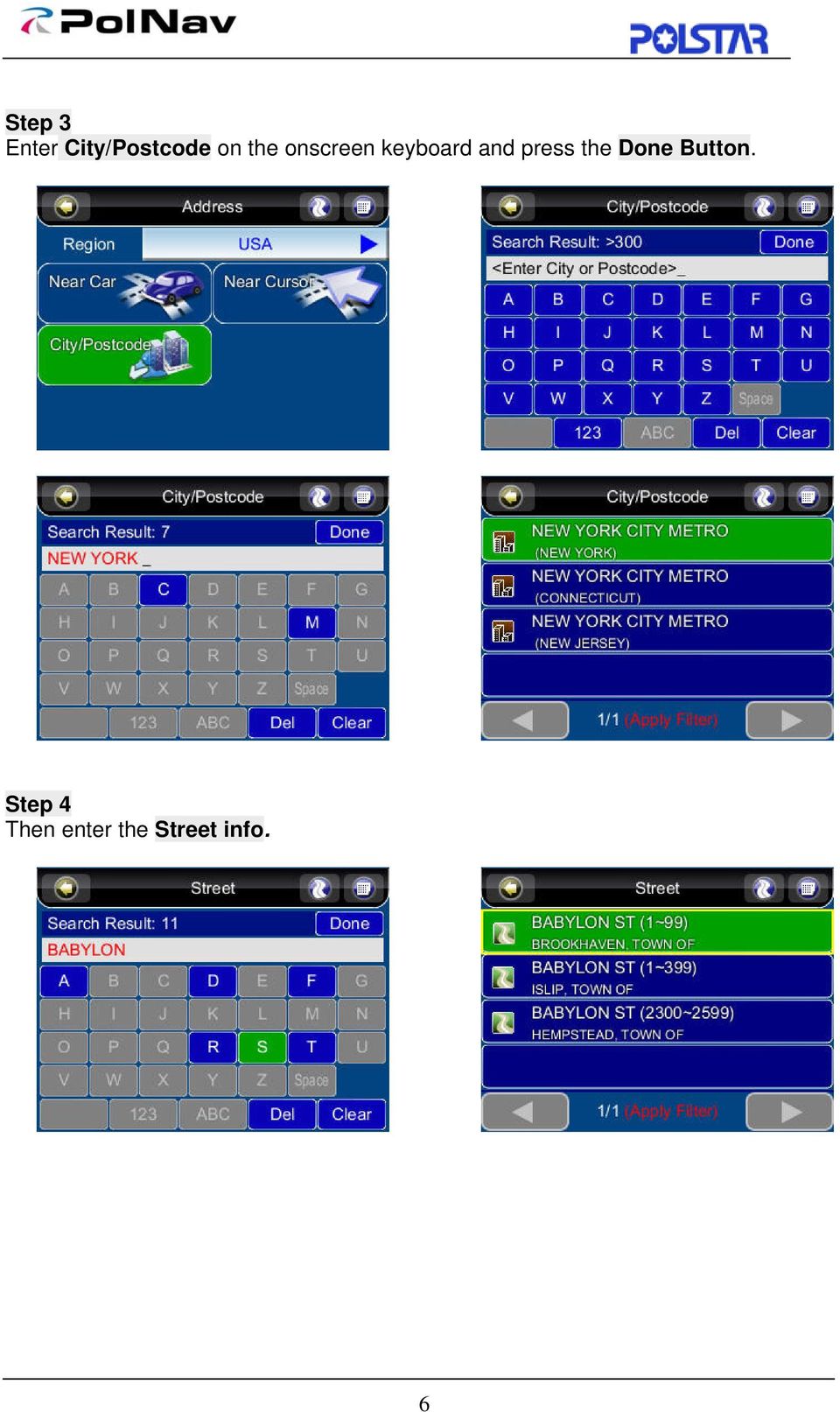
9 3. Getting Started With GPS Navigation and PolNav This tutorial will get you started on using PolNav for navigation. Before you start, you should ensure that the software has been installed and the necessary hardware configured. Instructions for installation and configuration can be found in the Hardware Configuration Section of this manual. Step 1 Start PolNav and wait for your GPS receiver to obtain a position fix. Press the center area on the touch screen to obtain the Main Menu, and press the Find Button in the Menu. If you do not have a GPS fix, or want to simulate a route, select a starting location first using this tutorial up to Step 5, then select a destination using this tutorial a second time. Step 2 Press the Address Button in the Find Menu, the press the City/PostCode Button once you are in the Address Menu. Press the Region Name Tab to switch the country. 5

10 Step 3 Enter City/Postcode on the onscreen keyboard and press the Done Button. Step 4 Then enter the Street info. 6
11 then press the Go To Button in the Street Center Menu to begin navigation. PolNav will calculate a route to the destination from your current location when you have a GPS fix. If you are selecting a starting location for simulation, press the Set Start Button (Demo) Button, and then return to Step 1 to find a destination and press the Go To Button once the destination has been found. This will calculate a route from your starting location to your destination. Step 5 You can begin using your GPS system if you have a GPS fix. If you do not have a GPS fix, you can use the Demo feature to simulate the route to your destination using Route > Start Demo. You can now drive to your destination, and you will be guided by voice commands at every turn and the Navigation Screen. For more information about advanced functions, please read the rest of this manual. Map screen Navigation screen 7

12 4. User Interface 4.1 Main Menu The Main Menu provides access to PolNav s many features. You can access the Main Menu by pressing any where in the map screen. The following features can be accessed from the Main Menu. Find: Search for a destination Map: Return to the map screen or Navigation/Free run screen Route: Access the current route, itinerary, statistics and map information Settings: Configure system and routing settings and manage favourites list Info: Display GPS, driving information (Statistics) and information about PolNav version. My Data: Maintain user specific information like Favourite, Itinerary, and Trail etc. Exit: Exit PolNav All submenus contain the following features on the top panel at the top of the screen: Back Button: Return to the previous screen Map Button: Return to the Map Screen or Navigation/Free run screen Menu Button: Return to the Main Menu 8

13 4.2 Map Screen The Map Screen displays a map of your current location, as well as displaying nearby POIs and information. You can also use it as an electronic map. When in Navigation/Free Run Screen, by panning the map, you can enter the Map Screen. Note that if you re using Heading-up in Navigation/Free Run Screen, then the Map Screen will follow the orientation. By click the North Indicator, the Map Screen will change to North-up. Once in North-up, it can t return to Heading-up. Map screen Map screen (heading up) The following features can also be accessed from the Map Screen Functions Return to Car Position (Navigation / Free Run Screen) Change volume Zoom out Highlighted selected location (road or POI) Hide information bar Access the Main Menu Orient map to North-up Nearby POI Zoom in Map Scale Information about the selected location 9

14 4.2.2 Map Displays : Starting Point : Waypoint : Destination : Next Turn : Turn : Selected Point of Interest : Point of Interest : Selected Location : Selected Street : Current Location/GPS Fix Location 10

15 4.3 Zoom In/Zoom Out You can change the scale of the electronic map by pressing the Zoom In/Zoom Out buttons. If you have a position fix, it will zoom in/out on your current location. If you are in panning mode, it will zoom in/out on the selected location marked by the red dot. Note: Local streets will not be displayed at large map scales. At large map scales, only the main roads and freeways will be displayed. To view them you must increase the map scale by zooming in. 4.4 Panning (Browsing the map) You can browse different areas of the map in the map screen by dragging the map. Simply hold your finger down on the screen and drag it in the opposite direction. 11

16 4.5 Location Menu You can select locations (POI Icons) or streets on the map by pressing the icon or location and pressing the Street/Place Information Panel. The Location Menu will then appear. The Location Menu will also appear when you select a location from the Find Menu. Nearby: Displays a list of nearby POIs or streets. Save As: Save the location as your Favorite. Info: Information about the selected location. Set Start: Set the starting point for route planning/simulation. Go To: Set the destination for route planning. Add Via: Add intermediate waypoint in route to your destination.. 12

17 4.6 Navigation Screen The Navigation Screen will appear whenever a route has been set. It is basically a Map Screen with additional information about the route, such as distance until next turn, travel time, and estimated time at arrival. The screen will be centred on your current location (when you have a GPS fix, or else simulation will move at a constant velocity). To exit the Guidance Screen, simply pan the map. To return to the Guidance Screen, press the Car Position : Current Turn Manoeuvre (Press to repeat voice instructions) 2: Distance to Current Turn 3: Maneuver at Next Turn 4: Instruction for Current Turn (Press to Access Turn List) 5: Sign Post 6: Guidance symbol: Switch between 2D North-up, 2D Heading-up, 3D Head-up views. In R5.0, there is a new feature to indicate the destination (Red Arrow) and Special Location (Dark Green Arrow). Please refer Section 8.1 My Favorite 7: Car position: Green (GPS signal good) Orange (GPS signal weak) Red (GPS signal lost) Gray (Simulation) 8. PIP (Picture in Picture) 9: If the sign shows in Green color, you could switch between Current Speed / Current time. If the sign shows in Red color, it means you re over the setting speed limit. Users could click on the sign to switch to speed limit options. Please refer Section : Switch between Current Street / Current Town (Press to alternate) 11. Estimated Time at Arrival 12. Total Time Remaining 13. Total Distance Remaining 13

18 4.7 Free Run Screen The Free Run Screen will appear whenever a route has NOT been set. It is basically a Map Screen with additional information about the current road/city you re driving on, and driving speed. The screen will be centred on your current location (when you have a GPS fix). To exit the Free Run Screen, simply pan the map. To return to the Free Run Screen, press the Car Position. 14

19 5. Finding Destinations PolNav offers many methods to search for a particular destination. This is useful as you can pinpoint the search locations and minimising your search time. Once a destination has been found, the Location Menu will appear, and PolNav will calculate a route to the chosen destination when you press the Go To Button or the Add Via Button. You can also use the Find Menu to set a Starting Point for route simulation, as explained in the Getting Started Tutorial. 5.1 By Address-City/Postal Code First Main Menu ->Find ->Address ->City/Postcode Enter the city name of postal code using the onscreen keyboard. You can also enter a key word if you are unsure of the location as PolNav will list all possible locations with that key word. Once you have found the destination, PolNav will load the Location Menu. 15

20 16

21 5.2 By Points-of-Interest (POI) Main Menu ->Find ->POI -> Around City You can search for POIs in a city or region. Points of Interest are local landmarks or interesting places, and are represented by icons on the Map Screen. To simplify searches, POI has been categorized. Once you have found the destination, PolNav will load the Location Menu. 17
22 18
23 Main Menu ->Find ->POI ->All Cities You can search for any POI within a country. Once you have found the destination, PolNav will load the Location Menu. 19
24 Main Menu ->Find ->POI ->Near Car List maximum 300 POIs within 50 kilometers from your current location. Once you have found the destination, PolNav will load the Location Menu. Main Menu ->Find ->POI ->Near Cursor List maximum 300 POIs within 50 kilometers from the cursor. Once you have found the destination, PolNav will load the Location Menu. 20
25 5.3 By Recent Destinations Main Menu ->Find ->Recent PolNav stores and lists the 50 destinations that were previously in sequential order for convenience should you decide to revisit the same place in the future. 5.4 By GPS Coordinates Main Menu ->Find ->Coordinates You can enter GPS coordinates of a location if it is known. The following notation is used to input latitude and longitude coordinates: E and N
26 5.5 Entering Information When performing searches, you will be prompted with the onscreen keyboard to enter keywords for the search. You can alternate between alphabetical letters (ABC) and numbers/symbols (123) by pressing the Switch Button. 5.6 Searching in Different Countries If you want to change the country you are searching, press the Country Name Tab when in one of the Submenus of the Find Menu: Note: Before you can search for places in a country, you must have the map of the region. PolNav lists all the maps you have installed in the Country List, so if the country is not listed, it means that you either don t have the map for that country, or that the map for that country has not been installed. Note: You can perform international searches and calculate international routes if you have the maps of the relevant countries. 22
27 5.7 By Photo Main Menu ->Find ->Photo PolNav could use JPEG/EXIF file to get the location. EXIF (EXchangeable Image File) data could save the information in the JPEG file when taking the picture by digital camera. If the JPEG photo does not include the coordinate data, PolNav will not adapt it and the OK button will not be allowed to press. PS. To choose the folder which contains the GPS photos, you could press the.. (at the top left) and then could go to upper directory. 23
28 6. Advanced Routing Features 6.1 Making Detours Route ->Turn List ->Select the street or location ->Detour The route is recalculated to take a detour around the location or street. 24
29 6.2 Adding Intermediate Waypoints Map Screen ->Select a location ->Location Menu ->Add Via Or Main Menu ->Find ->Find a destination ->Location Menu ->Add Via You can add additional waypoints en route to your destination by using the Add Via Button. Simply find a destination using the Find Menu or by selecting it from the Map Screen. Once in the Location Menu, press the Add Via Button. This location will be placed between your starting/current and final destination. For multiple waypoints, they are added in sequential order for convenience. You can manage the list of intermediate waypoints using the Itinerary List. 25
30 6.3 Changing the End Destination Map Screen ->Select a location ->Location Menu ->Go To ->Extend Or Main Menu ->Find ->Find a destination ->Location Menu ->Go To ->Extend You can add a new destination to the end of your route list using this method. Map Screen ->Select a location ->Location Menu ->Go To ->Replace Or Main Menu ->Find ->Find a destination ->Location Menu ->Go To ->Replace The Replace button replaces the end destination with the one you have just selected. All waypoints between the starting/current location and the end location will remain the same. 6.4 Setting Starting Locations/Clearing Routes/Setting Simulated Starting Locations By either selecting a location in the map screen or from Find menu, PolNav will enter Location menu, in which you can set a start point for simulation purpose. If you would like to plan a new route to a destination, you can use the Reset function to delete the current route from memory. This works for both simulation and actual GPS navigation. You can also use this function to select a new starting location for simulation. If you are clearing a route then setting a new starting point, you need to do this twice. 26
31 6.5 Route Simulation PolNav allows you to simulate the route to your destination without the need for GPS fixes. Simply set a starting point and a destination point and intermediate waypoints if needed. Instructions on selecting starting points/destinations can be found in the Getting Started Section and the Find Menu. 6.6 Changing Routing Options Please refer to the Route Settings Section, under the Configuring the PolNav Section of this Manual. (Please refer Section 9.3 Routing Options) 27
32 7. Route Management 7.1 Route information Main Menu ->Route ->Detail It includes information such as the distance remaining until next waypoint, travel time and arrival time. 7.2 Turn List Main Menu ->Route ->Turn List The Turn List is a list of all corners and roundabouts (turns) you will pass on the way to your destination. To view a turn, press its panel on the Turn List. This will load a map showing the location of the turn. 28
33 7.3 Itinerary List Map Screen ->Route ->Itinerary The Itinerary List is a list of user defined intermediate waypoints you can set on the way to your destination. Press the Change Button, you delete waypoints or adjust the sequence of the waypoints. To add waypoints, press the Add Button. 29
34 8. Managing Favourites, Itineraries and Trails 8.1 My Favourites Main Menu ->My Data ->My Favourite You can edit your Favourite destinations by accessing the My Favourites Menu. You can add the places of Favourites. In R5.0, there is a new feature to set a Special Location, for example MECCA. When navigating, you will see a dark green arrow in the Guidance symbol range. You could enable it from Favorite. The red arrow is indicating the destination. 30
35 8.2 My Itinerary Main Menu ->My Data ->My Itinerary You can retrieve a planned itinerary by pressing Load Button. After having a loaded itinerary (current itinerary), you can add, edit or save the itinerary. If a route already exists before you retrieve an itinerary, a warning message will be shown. 8.3 My Trail Main Menu ->My Data ->My Trail You can show a trail on the map screen by pressing Show Button. Show/Hide is toggled. Trail settings allow you to record and name the travel tracks/routes you have taken to your destination when you have a valid GPS fix for future reference. You can save these and load (display) them at a later date. This is particular useful for off-road situations where no route can be calculated to your destination. Only one trail can be displayed at any time. 31
36 8.4 Clear Data Main Menu ->My Data ->Clear Data You can clear the data you have saved here. 32
37 9. Configuring the PolNav To change the software settings, press the Settings button on the Main Menu. PolNav offers a high degree of personalisation settings, as well as normal system settings. You can access these settings from the Main Menu ->Settings Menu. 9.1 General Settings Main Menu ->Settings ->General 33
38 9.1.1 Volume Main Menu ->Settings ->General ->Sound You can adjust the volume of the voice prompts and sound effects here, as well as enabling sound/disabling sound Display Options Main Menu ->Settings ->General Settings ->Display The Display Menu allows you to change the display features used by PolNav. You can adjust the colour scheme to suit your current lighting conditions for ease of visibility, the 3D view angle and font size. The Automatic Colour Scheme Mode changes the colour scheme automatically at sunrise and sunset each day. 34
39 In R5.0, there is a new feature to enable the 3D Landmark (optional). There are three options :OFF Less or More. 3D LandMark (enable) 3D LandMark (disable) Language Main Menu ->Settings ->General ->Language The Language Menu allows you to change the Settings of PolNav for use in different countries. You can change the Text and Voice prompts used by PolNav. 35
40 9.1.4 Unit Main Menu ->Settings ->General ->Unit The Unit Menu allows you to change Unit Settings of PolNav for use in different countries. You can change the measuring units (distance) and time settings Time Zone Main Menu ->Settings ->General Settings ->Time Zone The Time Zone Menu allows you to adjust the time displayed by PolNav for the area or country you are currently in. This is useful if you are in a country that adopts daylight saving. 36
41 9.1.6 Guidance Main Menu ->Settings ->General ->Guidance The Guidance Menu allows you to adjust the Map Orientation, Auto Zoom, Approaching View, Turn PIP. 37
42 9.2 Advanced Settings Main Menu ->Settings ->Advanced Safe Mode Main Menu ->Settings ->Advanced ->Safe Mode By enabling Safe mode, the touch screen function will be disabled when the vehicle speed is above 40km/hr. This is to prevent drivers from operation of navigation devices. The touch screen function will be normal once the vehicle speed is below 40km/hr. 38
43 9.2.2 Speed Alert Main Menu ->Settings ->Advanced ->Speed Alert You can enable speed alerts, which will warn you when you exceed the speed alert velocity. Note: The speed cameras sign will show when there are speed cameras in front of the car. The speed camera alert will warn you when the speed camera is approaching along the road. You will hear two Beep sound when it is approaching; then you will hear one Don sound when you deviate from the speed camera. If you are over speed limit, you ll read the red speed in the bottom right corner and will keep hearing the warning Beep sound. This function could be enable or disabled. 39
44 9.2.3 POI Icon Main Menu ->Settings ->Advanced ->POI Icon You can reveal, hide all or just some POI icons for ease of visibility on the Map Screen. Select the icons you wish to have displayed or hidden on the Map Screen, then press the Done Button Factory Default Main Menu ->Settings ->Advanced ->Factory Default If you would like to change the settings you have set, you could restore the Factory Default Settings and restart again. 40
45 9.3 Route Options Main Menu -> Route ->Route Options General Main Menu -> Route ->Route Options Route options take your preferences into account when calculating the route to your destination. It is affected by the following parameters, which you can set: Vehicle Type: Car, Bicycle, Walker can be selected. Routing Method: Shorter (distance), Faster (time), Economic (heuristic) routing algorithm can be applied. Avoid Highway: Highway won t be considered as route solutions. Avoid Minor Road: Minor roads in communities or paved for walker won t be considered as route solutions. Ignore Traffic Rule: one-way or manoeuvre traffic rules won t be considered as route solutions. Avoid Toll Roads: the route won t take roads with tollbooth as solutions. Avoid Ferry: ferry won t be considered as route solutions. To select or deselect a parameter, press the relevant panel on the screen. Once selected, it will be highlighted by a check. 41
46 10. Information Main Menu -> Info The Information Menu gives you information about your route, itineraries, destinations, locations and maps GPS Access information about satellite coverage, current time, longitude, latitude, altitude, quality of the signals received and the status. 42
47 10.2 Statistics Access information about your current location, heading, velocity, time, etc Map Access information about the maps your PolNav is using, and what maps you have available. Maps are required before you can navigate the area. Note you should have the license key to use the map data. 43
48 10.4 About Access information about PolNav, version number, memory usage etc. 44
49 11. GPS Settings The GPS screen contains information about the current satellite coverage, current time, longitude, latitude, altitude, quality of the signals received and the status of the GPS receiver. To access the GPS Information page, press the Main Menu ->Info ->. GPS Button (Please refer Section 10.1) For the setting of the GPS Port and Baud Rate, please go to the Main Menu ->Setting ->GPS Port to set the GPS Port and Baud Rate. Choose Auto to auto-detect the COM Port and Baud Rate. ] When you run PolNav for the first time on your machine, you need to configure your GPS settings. For more information, please read your GPS hardware instructions, and the Hardware Setup section from this manual. Normally, you will only need to configure your GPS hardware once. 45
50 12. Disclaimer Polstar Technologies, Inc. takes no responsibility for any use of this product that may result in law violation and/or accidents leading to personal injuries and/or property damage. It is the user s own responsibility to operate the product in a prudent manner that will comply with the law. Polstar will take no responsibility for the consequences caused by inaccurate satellite transmissions. The Government of the United States of America is solely responsible for the accuracy and maintenance of the GPS system. 13. Important Messages Warning: Do not operate PolNav and a vehicle simultaneously as this is very dangerous. The vehicle must be parked prior to operating PolNav. It is your sole responsibility to operate PolNav and the vehicle in a prudent manner. Misusing PolNav may result in accidents and may lead to injuries and/or property damage. Only a passenger should operate PolNav while the vehicle is in motion. Caution: Do not use PolNav as a medium to generate precise readings of altitude, direction, distance, location or topography. PolNav must only be used as a navigational aid. Any information generated from PolNav must only be used as reference. Caution: Although every attempt has been made to ensure the accuracy of the maps and the data used by PolNav, the location of points of interest, transportation networks, etc may change over time without notice therefore rendering the data obsolete. Therefore it is essential that you check the actual surroundings with PolNav s maps in order to confirm that you are at the exact destination. Caution: PolNav cannot guarantee that any parts of the planned route will be dangerous, closed to traffic, or restricted to certain types of vehicles or is congested. Therefore it is your responsibility to determine the safety of the suggested route and to ignore any illegal or unsafe routes. 46
TomTom App for Android Reference Guide
 TomTom App for Android Reference Guide Contents Getting started 5 Start TomTom App for Android... 5 Updating your TomTom App for Android... 5 Map updates... 5 GPS reception... 6 Planning a route 7 Planning
User Guide Sygic. Sygic
 Sygic 1 Thank you for choosing Sygic nagivation software. This manual will guide you through our navigation software. When using this manual you will learn how to operate basic functions and setting options
TomTom App for Android Reference Guide
 TomTom App for Android Reference Guide Contents Getting started 5 Start TomTom App for Android... 5 Updating your TomTom App for Android... 5 Map updates... 6 GPS reception... 6 Planning a route 7 Planning
To start using your phone as a navigation device, tap the TomTom button in the Windows Mobile start menu.
 TomTom NAVIGATOR 1. Before you start... Before you start... Setting up To start using your phone as a navigation device, tap the TomTom button in the Windows Mobile start menu. To set up your navigation
Contents. Introduction... Shorthand... Tappable Items... Arrows... The Basics: Finding and Navigating to a Destination
 Contents Introduction... Shorthand... Tappable Items... Arrows... The Basics: Finding and Navigating to a Destination Simple Search and Navigation... Part 1. Getting Started Touch Gestures... Using Touch
What s in the box. TomTom XL. EasyPort TM mount. Car Charger. Documentation pack. USB cable
 TomTom XL 1. What s in the box What s in the box TomTom XL EasyPort TM mount Car Charger Documentation pack USB cable 2 2. Getting started Getting started Install your TomTom XL in your car following the
Nav-Cam 7000 TripMaster Software User Guide
 Nav-Cam 7000 TripMaster Software User Guide 1 Contents INSTALLATION... 2 IN-VEHICLE INSTALLATION... 3 TRIPMASTER MAIN MENU... 4 Follow Map... 4 Drive To... 5 PLAN ROUTE... 5 Browse Map... 5 Select Place
User Manual igo primo
 User Manual igo primo Navigation software for the igo primo UK English July 2012, ver. 2.0 Thank you for choosing the igo primo as your navigator. Start using igo primo right away. This document is the
User Manual igo primo
 User Manual igo primo Navigation software for the igo primo UK English August 2011, ver. 2.0 Thank you for choosing the igo primo as your navigator. Read the Quick Start Guide first and start using your
Getting Started 5. Start TomTom App... 5 Updating your TomTom App... 5 GPS reception... 5. Planning a Route 6
 TomTom App Contents Getting Started 5 Start TomTom App... 5 Updating your TomTom App... 5 GPS reception... 5 Planning a Route 6 Planning a route... 6 Route summary... 7 Sharing your route... 7 Other destination
Chapter 1 What s in the box
 TomTom ONE Chapter 1 What s in the box What s in the box a Your TomTom ONE A Touchscreen B Charging LED C On/off button D Speaker E External antenna connector F Memory card slot G USB connector b Windscreen
INA-W910R Owner s Manual
 INA-W910R Owner s Manual Navigation Software for INA-W910R UK English February 2011, Version 1.0 Thank you for choosing the Alpine INA-W910R as your navigator. Start using your device right away. This
Multimedia Navigation Philadelphia 835
 www.blaupunkt.com Multimedia Navigation Philadelphia 835 Operating instructions Navigation Thank you for choosing our product as your navigator. Start using Blaupunkt Navigation right away. This document
Thank you for choosing the PNA as your in-car navigator. Read the Quick Start Guide first and start using the PNA right away. This document is the
 Thank you for choosing the PNA as your in-car navigator. Read the Quick Start Guide first and start using the PNA right away. This document is the detailed description of the navigation software. You can
User Manual igo primo
 User Manual igo primo Navigation software UK English May 2010, ver. 1.0 Thank you for choosing our product as your navigator. Read the Quick Start Guide first and start using your device right away. This
igo Primo User Manual
 igo Primo User Manual OE Replacement Media units Navigation software for car-vision UK & FlyAudio UK UK English December 2012, ver. 1.2a Thank you for choosing our product as your navigator. Read the Quick
TomTom Navigation app for iphone/ipad Reference Guide
 TomTom Navigation app for iphone/ipad Reference Guide Contents Getting Started 6 Start TomTom Navigation app for iphone/ipad... 6 Updating your TomTom Navigation app for iphone/ipad... 6 Sharing information
BE-ON-ROAD 3.9 USER GUIDE
 BE-ON-ROAD 3.9 USER GUIDE i Contents 1. SYSTEM REQUIREMENTS... 4 1.1. SUPPORTED OPERATING SYSTEMS... 4 1.2. HARDWARE REQUIREMENTS... 4 2. INSTALLATION... 4 2.1. INSTALLATION USING GOOGLE PLAY STORE (ANDROID)...
User Guide Wisepilot. Wisepilot 3.5
 User Guide Wisepilot Wisepilot 3.5 CONTENT 1. INTRODUCTION 3 2. GENERAL APPLICATION STRUCTURE AND FUNCTIONALITY 4 2.1 USER INTERFACE 4 2.2 BASIC APPLICATION MODEL 5 3. MAIN MENU 6 3.1 FIND 6 3.2 FAVOURITES
Verizon Wireless Field Force Manager Device User Guide
 Verizon Wireless Field Force Manager Device User Guide Verizon Wireless Field Force Manager Device User Guide Table of Contents General Information...4 System requirements...4 Privacy and mobility...4
TomTom ONE. EasyPort TM mount. Car Charger. RDS-TMC Traffic Receiver* Documentation pack. USB cable. * Not included with all products.
 TomTom ONE 1. What s in the box What s in the box TomTom ONE EasyPort TM mount Car Charger RDS-TMC Traffic Receiver* Documentation pack USB cable * Not included with all products. 2 2. Getting started
Field Manager Mobile Worker User Guide for RIM BlackBerry 1
 Vodafone Field Manager Mobile Worker User Guide for RIM BlackBerry APPLICATION REQUIREMENTS Supported devices listed here o http://support.vodafonefieldmanager.com Application requires 600 KB of application
A Charging LED B Touchscreen C On/Off button D Speaker E External antenna connector F USB connector G RDS-TMC connector H Memory card slot
 TomTom ONE XL 1. What s in the box What s in the box a Your TomTom ONE XL A B C D E F G H A Charging LED B Touchscreen C On/Off button D Speaker E External antenna connector F USB connector G RDS-TMC connector
>> smart cross connect Users Guide. November 2014.
 >> smart cross connect Users Guide November 2014. >> Table of Contents 1 Overview 1.1 Getting Around 1.2 Pairing your smart with smart cross connect 2 In-Car Mode 2.1 Car Info 2.2 Navigation 2.2.1 Addresses
Table of Contents. Welcome to CoPilot Truck 4 Driving Screen 4 Driving Menu 5
 v9 User Guide Table of Contents Welcome to CoPilot Truck 4 Driving Screen 4 Driving Menu 5 GO TO MENU 6 Address 6 My Places 7 Points of Interest 11 Contact 12 Browse Map 13 PhotoNav 13 Coordinates 14 ROUTE
Mazda NB1 Reference Guide
 Mazda NB1 Reference Guide Contents Read me first 7 Switching on and off... 7 Setting up... 7 GPS reception... 7 Device not starting... 7 Take care of your device... 8 More information... 8 The memory card
BE-ON-ROAD 3.7 USER GUIDE
 BE-ON-ROAD 3.7 USER GUIDE i Contents 1. SYSTEM REQUIREMENTS... 4 1.1. SUPPORTED OPERATING SYSTEMS... 4 1.2. HARDWARE REQUIREMENTS... 4 2. INSTALLATION... 5 2.1. INSTALLATION USING BE-ON-ROAD WIZARD...
2006 Cadillac Escalade, Escalade ESV and Escalade EXT Navigation System M
 2006 Cadillac Escalade, Escalade ESV and Escalade EXT Navigation System M Overview... 1-1 Overview... 1-2 Features and Controls... 2-1 Features and Controls... 2-2 Navigation Audio System... 3-1 Navigation
MapQuest Navigator User Manual
 MapQuest Navigator User Manual Legal Notice This guide and the information it contains belongs solely to MapQuest, Inc. and Telmap Ltd. The guide and the software products described therein are furnished
GPS Tracking Software Training and User Manual
 GPS Tracking Software Training and User Manual Table of Contents Introduction... 4 Login Page... 4 Dashboard... 4 Create Group... 5 Edit Group... 6 Group Editor... 6 Add New Vehicle... 7 Configure Tracking...
Tap this button on your iphone to start the TomTom app.
 TomTom app 1. Getting started Getting started Tap this button on your iphone to start the TomTom app. The language used for buttons and menus in the TomTom app is the same as the language you selected
F-Series Desktop User Manual F20. English - Europe/New Zealand
 F-Series Desktop User Manual F20 en English - Europe/New Zealand Contents Key to icons and text...3 What is F-Series Desktop?...4 How do I install F-Series Desktop onto my computer?...4 How do I subscribe
Internet Explorer 7. Getting Started The Internet Explorer Window. Tabs NEW! Working with the Tab Row. Microsoft QUICK Source
 Microsoft QUICK Source Internet Explorer 7 Getting Started The Internet Explorer Window u v w x y { Using the Command Bar The Command Bar contains shortcut buttons for Internet Explorer tools. To expand
5. Tutorial. Starting FlashCut CNC
 FlashCut CNC Section 5 Tutorial 259 5. Tutorial Starting FlashCut CNC To start FlashCut CNC, click on the Start button, select Programs, select FlashCut CNC 4, then select the FlashCut CNC 4 icon. A dialog
mapping software user s manual
 mapping software user s manual Copyright 2004-2005 Garmin Ltd. or its subsidiaries Garmin International, Inc. 1200 E. 151 st Street, Olathe, Kansas 66062 U.S.A. Tel. 913/397.8200 or 800/800.1020 Fax. 913/397.8282
RDM+ Remote Desktop for Android. Getting Started Guide
 RDM+ Remote Desktop for Android Getting Started Guide RDM+ (Remote Desktop for Mobiles) is a remote control tool that offers you the ability to connect to your desktop or laptop computer from Android device
nüvi 1400 series quick start manual
 nüvi 1400 series quick start manual for use with these nüvi models: 1410, 1490 2009 Garmin Ltd. or its subsidiaries April 2009 190-01073-01 Rev. A Printed in Taiwan Looking at Your nüvi See the Important
Installation and initial configuration of UI View32, with PMap Server 7 and Precision Mapping Streets and Traveler 8.0 on Microsoft Vista
 Installation and initial configuration of UI View32, with PMap Server 7 and Precision Mapping Streets and Traveler 8.0 on Microsoft Vista Background: UI View is considered one of the best Automated Position
Omatics User s Guide
 Omatics User s Guide Web Interface V2.1 User s Guide Table of Contents I. Introduction... 2 II. The Omatics Interface... 3 III. Omatics Functionality... 4 A. Launching Omatics... 4 B. Viewing current vehicle
Back-up Server DOC-OEMSPP-S/2014-BUS-EN-10/12/13
 Back-up Server DOC-OEMSPP-S/2014-BUS-EN-10/12/13 The information contained in this guide is not of a contractual nature and may be subject to change without prior notice. The software described in this
Bluetooth GPS with Navigation Software. Software Quick Start Guide (GBGPS201)
 Bluetooth GPS with Navigation Software Software Quick Start Guide (GBGPS201) 2004 IOGEAR. All Rights Reserved. PKG-M0129QS-SW IOGEAR, the IOGEAR logo, MiniView, VSE are trademarks or registered trademarks
Xerox WorkCentre 6655 Color Multifunction Printer Control Panel
 Control Panel Available services can vary on your printer setup. For details about services and settings, see the User Guide. 3 4 5 Touch screen Menus 6 6 Alphanumeric keypad 7 Job controls 7 Services
User Guide for Windows 10
 User Guide for Windows 10 System requirements E10684 First Edition July 2015 To facilitate a smoother transition from your previous operating system, read the system requirements below before upgrading
WHAT S NEW IN WORD 2010 & HOW TO CUSTOMIZE IT
 WHAT S NEW IN WORD 2010 & HOW TO CUSTOMIZE IT The Ribbon... 2 Default Tabs... 2 Contextual Tabs... 2 Minimizing and Restoring the Ribbon... 3 Customizing the Ribbon... 3 A New Graphic Interface... 5 Live
Lenovo Miix 2 8. User Guide. Read the safety notices and important tips in the included manuals before using your computer.
 Lenovo Miix 2 8 User Guide Read the safety notices and important tips in the included manuals before using your computer. Notes Before using the product, be sure to read Lenovo Safety and General Information
Verizon Wireless Field Force Manager. Windows Mobile Devices
 Verizon Wireless Field Force Manager User Guide for Windows Mobile Devices Verizon Wireless Field Force Manager User Guide for Windows Mobile Devices Table of Contents Application Requirements...3 Windows
Verizon Wireless Family Locator 4.9 User Guide Contents
 Verizon Wireless Family Locator.9 User Guide Contents Let s get started... Sign up, then activate phones!... Use the Activation Wizard... Set Up an Android... Set Up a BlackBerry... 6 Set Up a Feature...
To set up your navigation device, you need to answer a few questions by tapping the screen.
 TomTom 1. Before you start Before you start Switching on Follow the instructions at the start of this manual to dock your TomTom in your car stereo. Your TomTom can also be used without docking it in your
TM Online Storage: StorageSync
 TM Online Storage: StorageSync 1 Part A: Backup Your Profile 1: How to download and install StorageSync? Where to download StorageSync? You may download StorageSync from your e-storage account. Please
1. Installation Installation 1 2 3 4 2
 TomTom XXL 1. Installation Installation 1 2 3 4 2 5 6 5 6 + 7 2 SEC 8 1 2 3 3 1 2 3 180 4 5 4 2. What s in the box What s in the box a Your TomTom XXL b EasyPort TM mount c Car charger d USB cable e Documentation
WorldNav Software. User Guide. Table of Contents. WorldNav Navigation Software
 User Guide WorldNav Software All rights reserved. No parts of this work may be reproduced in any form or by any means - graphic, electronic, or mechanical, including photocopying, recording, taping, or
BLU Vivo 4.3 User Manual
 BLU Vivo 4.3 User Manual 1 Table of Contents Phone Safety Information... 3 Appearance and Key Functions... 4 Installation and Charging... 5 Phone Operation... 7 Communication... 10 Camera... 11 Gallery...
Model 288B Charge Plate Graphing Software Operators Guide
 Monroe Electronics, Inc. Model 288B Charge Plate Graphing Software Operators Guide P/N 0340175 288BGraph (80207) Software V2.01 100 Housel Ave PO Box 535 Lyndonville NY 14098 1-800-821-6001 585-765-2254
Windows XP Pro: Basics 1
 NORTHWEST MISSOURI STATE UNIVERSITY ONLINE USER S GUIDE 2004 Windows XP Pro: Basics 1 Getting on the Northwest Network Getting on the Northwest network is easy with a university-provided PC, which has
Mazda Navigation System NB1
 Mazda Navigation System NB1 Contents Read me first 6 Switching on and off... 6 Setting up... 6 GPS reception... 6 Device not starting... 6 Take care of your device... 6 The memory card 8 About your memory
Scan to PC Desktop: Image Retriever 5.2 for Xerox WorkCentre C2424
 Scan to PC Desktop: Image Retriever 5.2 for Xerox WorkCentre C2424 Scan to PC Desktop includes Image Retriever, which is designed to monitor a specified folder on a networked file server or local drive
COMSPHERE 6700 SERIES NETWORK MANAGEMENT SYSTEM
 COMSPHERE 6700 SERIES NETWORK MANAGEMENT SYSTEM SECURITY MANAGER FEATURE SUPPLEMENT Document No. 6700-A2-GB41-30 February 1998 Copyright 1998 Paradyne Corporation. All rights reserved. Printed in U.S.A.
CanWay User S Manual. 2012 December
 CanWay User S Manual 2012 December Contents Install CanWay.3 Read GPS Log From Device... 5 Clear Data Logger Memory... 10 Data Logger Configuration... 10 Track List Window... 12 TAB List Window... 12 Add
E7495. Notebook PC. User Guide for Windows 8
 E7495 Notebook PC User Guide for Windows 8 e7495_win8_user_guide.indd 1 8/13/12 2:47:52 PM Copyright Information No part of this manual, including the products and software described in it, may be reproduced,
Microsoft Dynamics GP. Audit Trails
 Microsoft Dynamics GP Audit Trails Copyright Copyright 2007 Microsoft Corporation. All rights reserved. Complying with all applicable copyright laws is the responsibility of the user. Without limiting
CX Series. Video Recording Server. Quick Start Guide CX784 / CX788 / CX7816. Version 1.05.00
 CX Series Video Recording Server CX784 / CX788 / CX7816 Quick Start Guide Version 1.05.00 Contents 1.Introduction...1 1.1.Packages Contents...1 1.2.Hardware Features...2 1.3.Functional Features...4 1.4.Hard
Intel Unite Solution. Standalone User Guide
 Intel Unite Solution Standalone User Guide Legal Disclaimers & Copyrights All information provided here is subject to change without notice. Contact your Intel representative to obtain the latest Intel
Getting Started with IntelleView POS Administrator Software
 Getting Started with IntelleView POS Administrator Software Administrator s Guide for Software Version 1.2 About this Guide This administrator s guide explains how to start using your IntelleView POS (IntelleView)
Oracle Beehive. Using Windows Mobile Device Release 2 (2.0.1.7)
 Oracle Beehive Using Windows Mobile Device Release 2 (2.0.1.7) E28326-01 July 2012 Document updated July, 2012 This document describes how to access Oracle Beehive from your Windows Mobile device using
DIGICLIENT 8.0 Remote Agent Software
 DIGICLIENT 8.0 Remote Agent Software MODEL: D17800 Series Instruction Manual English Version 1.0 Copyright 2007 Digimerge Technologies Inc Table of Contents Table of Contents About the DigiClient 8.0...
Planning and Managing Projects with Microsoft Project Professional 2013
 Slides Steps to Enter Duration: 1. In the Duration column of a task, enter a value, and press Enter on your keyboard Important Points: The default time unit is days, so when you enter 5, this becomes 5
Browsing and working with your files and folder is easy with Windows 7 s new look Windows Explorer.
 Getting Started with Windows 7 In Windows 7, the desktop has been given an overhaul and makeover to introduce a clean new look. While the basic functionality remains the same, there are a few new navigation
Business Portal for Microsoft Dynamics GP. Key Performance Indicators Release 10.0
 Business Portal for Microsoft Dynamics GP Key Performance Indicators Release 10.0 Copyright Copyright 2007 Microsoft Corporation. All rights reserved. Complying with all applicable copyright laws is the
ATX Document Manager. User Guide
 ATX Document Manager User Guide ATX DOCUMENT MANAGER User Guide 2010 CCH Small Firm Services. All rights reserved. 6 Mathis Drive NW Rome, GA 30165 No part of this manuscript may be copied, photocopied,
Sharing Software. Chapter 14
 Chapter 14 14 Sharing Software Sharing a tool, like a software application, works differently from sharing a document or presentation. When you share software during a meeting, a sharing window opens automatically
Using RAID Admin and Disk Utility
 Using RAID Admin and Disk Utility Xserve RAID Includes instructions for creating RAID arrays and monitoring Xserve RAID systems K Apple Computer, Inc. 2003 Apple Computer, Inc. All rights reserved. Under
Original BMW Accessories. The Ultimate Driving Machine. Operating Instructions. BMW Link
 Original BMW Accessories Operating Instructions The Ultimate Driving Machine BMW Link BMW Link Operating instructions Contents General information 4 Remarks on the operating instructions 4 Symbols used
Personal Call Manager User Guide. BCM Business Communications Manager
 Personal Call Manager User Guide BCM Business Communications Manager Document Status: Standard Document Version: 04.01 Document Number: NN40010-104 Date: August 2008 Copyright Nortel Networks 2005 2008
EnGIS Technologies, Inc. Navigation. User Manual. Version 1.9
 EnGIS Technologies, Inc. Navigation User Manual Version 1.9 CONTENTS 1. Connecting your Smartphone... 4 How BringGo Works... 4 iphone User... 5 Android Smartphone User... 6 2. Getting Started... 7 Navigation
Allworx OfficeSafe Operations Guide Release 6.0
 Allworx OfficeSafe Operations Guide Release 6.0 No part of this publication may be reproduced, stored in a retrieval system, or transmitted, in any form or by any means, electronic, mechanical, photocopy,
Apps for Android. Apps for iphone & ipad INS584-3
 Apps for iphone & ipad INS584-3 Apps for Android Android is a trademark of Google Inc. iphone is a trademark of Apple Inc., registered in the U.S. and other countries. ipad is a trademark of Apple Inc.,
GPSMAP 62 series quick start manual. For use with the GPSMAP 62, 62s, and 62st
 GPSMAP 62 series quick start manual For use with the GPSMAP 62, 62s, and 62st Getting Started warning See the Important Safety and Product Information guide in the product box for product warnings and
Connecting Software. CB Mobile CRM Windows Phone 8. User Manual
 CB Mobile CRM Windows Phone 8 User Manual Summary This document describes the Windows Phone 8 Mobile CRM app functionality and available features. The document is intended for end users as user manual
Chapter 1 What s in the box
 TomTom GO Chapter 1 What s in the box What s in the box a Your TomTom GO A Release button B Microphone C Charging light D On/off button E Light sensor F Reset button G Speaker H Memory card slot* b Windshield
GPSMAP 62 series quick start manual. For use with the GPSMAP 62, 62s, 62st, 62sc, and 62stc
 GPSMAP 62 series quick start manual For use with the GPSMAP 62, 62s, 62st, 62sc, and 62stc Getting Started warning See the Important Safety and Product Information guide in the product box for product
CONNECTIVITY QUICK START GUIDE
 CONNECTIVITY QUICK START GUIDE MZD-CONNECT 1 MZD-CONNECT INFOTAINMENT SYSTEM The MZD-Connect system is divided into five sections as displayed on the Home screen. The Home screen can be accessed at any
2006-2011, SHAPE Services www.shapeservices.com
 RDM+ Remote Desktop for Mobiles For Java-powered phones and Symbian OS devices 1. Installing RDM+ Client on a phone... 2 Internet connection... 2 2. Registration and trial... 3 3. Address book... 3 4.
How To Use An Easymp Network Projector On A Computer Or Network Projection On A Network Or Network On A Pc Or Mac Or Ipnet On A Laptop Or Ipro Or Ipo On A Powerbook On A Microsoft Computer On A Mini
 EasyMP Network Projection Operation Guide Contents 2 Before Use Functions of EasyMP Network Projection....................... 5 Sharing the Projector....................................................
QuickStart Guide. Concur Expense
 QuickStart Guide Concur Expense PROPRIETARY STATEMENT This document contains proprietary information and data that is the exclusive property of Concur Technologies, Inc, Redmond, Washington If you are
MiVoice Integration for Salesforce
 MiVoice Integration for Salesforce USER GUIDE MiVoice Integration for Salesforce User Guide, Version 1, April 2014. Part number 58014124 Mitel is a registered trademark of Mitel Networks Corporation. Salesforce
TestManager Administration Guide
 TestManager Administration Guide RedRat Ltd July 2015 For TestManager Version 4.57-1 - Contents 1. Introduction... 3 2. TestManager Setup Overview... 3 3. TestManager Roles... 4 4. Connection to the TestManager
VIVA 4G LTE Mini Router. Quick Start Guide
 VIVA 4G LTE Mini Router Quick Start Guide Thank you for choosing the VIVA 4G LTE Mini Router (hereinafter referred to as the E57) The supported functions and actual appearance are subject to the product
i -CEN S USER S Manual 2007. 08. 13.
 i -CEN S i -CEN'S USER S Manual 2007. 08. 13. i -CEN S Table of Contents Overview of i-cen S software... 4 1 Introduction of i-cen S... 4 2 Key Features... 5 3 Key Benefits... 5 4 System Specification...
Marco Polo Navigator 5 Manual
 Marco Polo Navigator 5 Manual Congratulations on purchasing a mobile navigation device with the new Marco Polo Navigator 5. With the Marco Polo Navigator, you have purchased a product which has been developed
U g CS for DJI Phantom 2 Vision+, Phantom 3 and Inspire 1
 U g CS for DJI Phantom 2 Vision+, Phantom 3 and Inspire 1 Copyright 2015, Smart Projects Holdings Ltd Contents Preface... 2 Drone connection and first run... 2 Before you begin... 2 First run... 2 Connecting
GPSMAP 62 series quick start manual. For use with the GPSMAP 62, 62s, 62st, 62sc, and 62stc
 GPSMAP 62 series quick start manual For use with the GPSMAP 62, 62s, 62st, 62sc, and 62stc Getting Started warning See the Important Safety and Product Information guide in the product box for product
This guide describes features that are common to most models. Some features may not be available on your tablet.
 User Guide Copyright 2013 Hewlett-Packard Development Company, L.P. Bluetooth is a trademark owned by its proprietor and used by Hewlett-Packard Company under license. Google is a trademark of Google Inc.
User s Manual for Fingerprint Door Control Software
 User s Manual for Fingerprint Door Control Software Foreword The naissance of F7 indicated that fingerprint reader enters into professional door control domain. That s why we developed this software to
Sprint Worldwide Services Guide
 Sprint Worldwide Services Guide HTC Touch Pro2 www.sprint.com 2009 Sprint. Sprint and the logo are trademarks of Sprint. Other marks are the property of their respective owners. Table of Contents Sprint
ivms-4500(windows Mobile) Mobile Client Software User Manual Version 1.0
 ivms-4500(windows Mobile) Mobile Client Software User Manual Version 1.0 Thank you for purchasing our product. This manual applies to ivms-4500 (Windows Mobile) mobile client software, please read it carefully
Vodafone PC SMS 2010. (Software version 4.7.1) User Manual
 Vodafone PC SMS 2010 (Software version 4.7.1) User Manual July 19, 2010 Table of contents 1. Introduction...4 1.1 System Requirements... 4 1.2 Reply-to-Inbox... 4 1.3 What s new?... 4 2. Installation...6
Thank you for choosing Huwei E589 4G Mobile WiFi
 Thank you for choosing Huwei E589 4G Mobile WiFi This guide briefly describes the functions of your Huawei E589 4G Mobile WiFi. For more details, see help on the web management page. See Accessing the