
SPEEDY. User Guide United Kingdom version UK-010 or higher
|
|
|
- Maximillian Gilmore
- 9 years ago
- Views:
Transcription
1 SPEEDY User Guide United Kingdom version UK-010 or higher BRICON nv Europark Oost 15c, 9100 Sint-Niklaas, Belgium. Tel: Fax: website: [email protected]

2 THE SPEEDY is intended for the electronic timing of racing pigeons. THE SPEEDY should only be used for the purpose that it is intended. Protect THE SPEEDY against liquid and extreme sunlight and temperatures. Modifications reserved. Speedy Security Security Seal Security is paramount to Bricon, and the Speedy employs a unique safe housing system which is sealed at production. A system can only be compromised if its electronic driving system is accessed, but the Speedy will not allow this without there being signs of damage to the housing. TNO reports prove the efficiency of this technique. Furthermore the Speedy has an additional visible security seal which can be found in the top right hand corner of the clock. This seal should remain intact and complete at all times. The Speedy therefore does not need any open screws or holographic seals which are open to abuse or argument. SPEEDY 2

3 Index: 1. Installation Foreword The Speedy system Assembly of the Bricon electronic timing system The Power supply Connecting additional antenna pads Numbering the antenna pads Preparation of the system Before you can clock Exploring the Speedy menu Antenna testing Installing the antennas Connecting and testing the system Speedy - a quick start Linking birds Browse pigeons Input/edit fanciers Clocking Racing in a club using a Bricon Club-Master Racing in a club using an alternative brand of club system Basketing Read out Other functions Printing Races Set date and time Racepoints Bricon Print Manager Unives Maintenance and service Technical data Frequently Asked Questions Declaration of conformity. 20 Page SPEEDY 3


4 1. Installation 1.1. Foreword. Thank you for your trust and confidence in BRICON. This manual will give a detailed explanation of the functions of your Speedy clock. We are confident that your Bricon electronic timing system will bring you much enjoyment The Speedy system. A Speedy pack contains: Speedy clock (ETS) 2. Speedy carrying bag 3. Wall holder 4. The power supply (12 volt transformer) 5. Connection cable (male-female) 6. End plug (only supplied for five pad systems) 7. Antenna pad with 1.8 metre integral cable Assembly of the Bricon electronic timing system. The assembly shown here is of a two antenna pad system. Male Female Male Female End Plug Not needed SPEEDY 4

5 1.4. The Power Supply. The standard power supply provided is a 12 volt 1500mA transformer with a three pin UK plug. This will give sufficient current for any Bricon system with one antenna pad. When multiple antenna pads are connected then an additional or larger power supply may be needed. The power consumption of the Speedy and the antenna pads can be found on each item and is expressed in milliamps (ma) where 1000mA equals 1 Amp of electrical current. Where possible, the power supply should be connected so as to supply the power into the centre of the system. After completion of the assembly of the system, the power should be connected and the red light on the Antenna connection box should light up red and the Speedy should start up Connecting additional antenna pads. Additional antenna pads can be connected to the system with a Bricon connection cable which has a 9-pin male connector on one end and a 9-pin female connector on the other end. The end plug should be fitted at the end of the line when a large number of pads are connected. The Speedy clock will operate with up to 4 antenna pads of any size connected. A Bricon antenna buffer must be fitted where 5 or more antenna pads are required to be connected together Numbering the antenna pads. When two or more antenna pads are connected in the same system, it is very important that each antenna is given its own internal identity. If two pads have the same identity number then at some stage there will be a data collision when the clocking information is sent to the Speedy and the system may cease to function. Each antenna pad retains its own identity number within its memory, and when purchased each antenna is pre-set as a number 1. When two or more antenna pads are connected each antenna pad must be programmed to have its own number between 1 and 4. The programming of each antenna pad should be carried out using the following procedure. (i). Ensure that the Speedy and each individual antenna are disconnected from one another. (ii). Connect the power supply directly into the bottom of the Speedy clock. (iii). When the Speedy menu appears on the display, press the right hand orange button until the Antenna Program icon is in the centre of the display and then press OK. (Iv). Press the right hand orange button until the required number appears (between 1 and 4). (v). Connect just one antenna pad to the Speedy clock and within a few seconds press OK. (vi). The programming has been successful only if the Speedy indicates Antenna Progr : nr OK (vii). If No Antenna Available appears, repeat the process ensuring that OK is pressed promptly. (viii). Disconnect the antenna pad from the Speedy and repeat the process for any additional pad. To confirm that the antenna pads have been numbered correctly, (a). Connect the antenna pads together in the full system. (b). Connect the Speedy clock and proceed to the Antenna Testing icon and press OK. (c). If for example, three antenna pads are connected then the Speedy display must indicate Testing with 03 Ant Line 1 indicates the number of different identities found, and line 2 the antenna numbers found. VERY IMPORTANT: If the numbers of antennas shown do not match the actual number of antenna pads connected, then two or more antenna pads may have the same internal number and the antenna programming has not been carried out correctly and must be repeated. SPEEDY 5

6 2. Preparation of the system 2.1. Before you can clock. Before you can time pigeons, you must go through the following steps: - If you have more than one antenna pad connected to the system, then you must have carried out the programming of the antenna pad numbers (see section 1.6). - After having programmed the antennas, the installation can then be completed by connecting the Speedy and the antennas pads to each other within the system (see section 1.3). - The ring numbers of the birds can then be linked to the electronic chip rings (see 3.1) Exploring the Speedy menu. After connecting the clock to the antennas, you can plug the power supply into the antenna connector, and the red power light will illuminate (A). After the start-up initialisation you will see the following screen display on the Speedy. Date Time A Speedy Software Version Antenna Connection Box Speedy Display The Speedy is very easy to use having only four navigation buttons on the keypad which completely control the functionality of the clock. The four keys are as follows - < PREVIOUS > This button is used for returning or decrement. < NEXT > This button is used for forwarding or to increment. < C > To stop an action, undo or to select No. < OK > To confirm an action, To continue an item or to select Yes. SPEEDY 6

7 The Speedy is menu driven. The complete functionality of Speedy is accessed through a menu-structure using 15 different items. All items are graphically presented by an icon, which are set up in order of frequent use. The icon that is required should be positioned in the centre of the Speedy display using the orange navigational buttons <PREVIOUS> and <NEXT> and then accessed by pressing the <OK> button. Listed below you will find each of the icons and its function. Clocking Races Basketing Read out Delete Antenna test Antenna prog. Print clocking Print overview Linking birds Browse pigeons Input/edit fancier Set date - time Betting Racepoints Please Note : By holding in the <C> button you can see a text explanation of the icon Antenna testing To test the detection quality of the antennas select the Antenna test icon and press <OK>. The Speedy clock will then carry out a search for connected antenna pads. The top line of the Speedy display will indicate how many different antenna numbers were found. The second line will indicate the actual antenna pad numbers that were found in the search. When you then hold a Bricon electronic chip over the antenna pad the Speedy will start beeping. This allows you to confirm that the antenna installation has been carried out correctly and the registration quality of the electronic chip is good. The Speedy should beep repeatedly if the electronic chip is held above the antenna at a height of 5 to 7 cm (2 to 3 inches). The antenna pad numbers found in the search Electronic chip number Testing with 02 Ant C5A43E27 The number of antenna pads found in the search. SPEEDY 7

8 2.4. Installing the antennas. Very Important : Metal should not be situated near the antenna pad (either underneath or above the pad). Metallic items, such as hinges or bars can give interference to the system, causing the system to malfunction. Interference can also be caused by electrical devices and electro-magnetic fields. As the signal will pass through most non-metallic materials, it is recommended to install the pad either above or beneath the loft entrance board (eg: plywood with a thickness of no more 15mm). It is important that air-flow is allowed to the pads to enable the cooling process to take place. The entrance hole to the loft must be at least 2 cm narrower than the width of the antenna pad. Bricon produce a range of antenna pads to meet the needs of any loft. There are four pad sizes available, the 1 field (163 mm wide), 2 field (282 mm), 4 field (482 mm) and 6 field (700 mm). Bricon antenna will record over the entire width of the pad and therefore tunnels are not needed. It is advisable however to slow down the bird before it steps onto the antenna. The base of the pad is the side bearing the label and pad number, and this should be installed face down. It is advised to install the pads at least 1 metre away from each other to avoid interference. NB: New generation pads (4 & 6 field model onwards) can be placed next to one another. Antenna positioned under the landing board and before the bob wires Front view Bob wires Landing board Clocking area Max. 11cm. Antenna pad Internal Top view Bob wires Loft wall External Landing board Antenna pad 5 cm gap The integral cable from antenna Clocking area In this set-up, install the antenna pad with the integral cable leading to the outside of the loft. SPEEDY 8


9 Antenna pad positioned inside of the loft entrance and behind the bob wire The integral cable Top view 5 cm gap Internal Antenna pad Loft wall External Bob wires Landing board Clocking area In this set-up, install the antenna pad with the integral cable leading to the inside of the loft. With tunnels Without tunnels Bob wires Bob wires Tunnel wall Pigeon entrance Tunnel wall Pigeon entrance With Bricon antenna pads a tunnel over the antenna pad is not necessary, this being because of the unique way in which the electro-magnetic fields within a Bricon antenna overlap each other. Pigeon entrance Having to place a tunnel over the pad and entrance will in most circumstances prove to be a major disadvantage, with pigeons crowding into the entrance area resulting in jams and delays in the timing of the birds. SPEEDY 9

10 Clocking many pigeons on one antenna If it is necessary to clock many pigeons on one antenna pad at the same time, it is advisable to install the antenna pad as follows. Bob wires Landing board open Antenna Min 15cm. On the landing board, you should build an area which is lower, under which the antenna pad is then installed. The pigeons then step onto the antenna pad one by one and not all at the same time and as a result the registration of the birds is optimised. Another method giving similar results is to build a raised area. This raised area is also needed if you have a landing board made from zinc, as metal causes interference to the antenna. The raised area should be a maximum 10cm higher than the base, and the board a maximum thickness of 15mm. Bob wires Max 10cm high Landing board Antenna You may find it more convenient to purchase a specially designed entrance. If you choose this solution we recommend the Futura (designed by Bricon and produced by the companies Demster and Haspeslagh in Belgium). Attention : It is recommended that care is taken to ensure that the positioning of the antenna complies fully with the rules and regulations of the relevant governing body. SPEEDY 10

11 2.5. Connecting and testing the system. After programming the antennas pads (see section 1.6) and installing the antenna system within the loft (see section 1.3), the power supply can then be connected to the system. The Speedy clock can be connected either prior to or after the connection of the power supply. Each of the lights on the antenna connection boxes will illuminate red. If this fails to occur than there is a problem with the power supply or the cable connections. Speedy clock (Female) Connection cable (male) Connection cable (female) Antenna connection (male) Firmly push the Speedy into its wall holder. The Speedy will be activated automatically provided there are pigeons linked within its database. On powering up, as part of its initialisation process the Speedy carries out a search for the connection of antenna pads. If the search successfully finds an antenna, then the Speedy will start up in Clocking mode and is ready to record birds. NB : If there are no antenna pads connected or if the search indicates that the system is not ready to record birds then the Speedy will start up showing its main icon menu. To return to the main menu, simply press the <C> button. For security reasons and also to aid the fanciers ease of use, if a race is basketed and active on the Speedy then it can not be taken out of clocking mode. NB : Care should be taken that the Speedy is fully pushed into the wall holder to ensure a good connection. Avoid having any debris sitting within the wall holder or overtightening the connection cable into the base of the holder. SPEEDY 11

12 3. Speedy - a quick start First of all it is important to read all of the instructions regarding installation and use before starting. Once all hardware installations are completed, the Speedy will be activated from the moment that the clock contains fancier and pigeon-data. To enter pigeon and fancier data please refer to the following sections Input/edit fancier - (section 3.3) 3.1. Linking birds. Linking birds - (section 3.1) There are two ways to enter birds into the Speedy: - Using the Bricon Club-Master with the club-software BRICON CLUB EDITOR. (NB : This is the method that should be used by members of the NEHU). - Using the Speedy and a loft antenna pad explained in the box below. Navigate in the menu to the Linking Birds icon and press <OK>. Hold the electronic-ring over the antenna. Upon reading the chip-ring, the Speedy will beep and a blank life ring-number will appear on the display. The first letter or number can be found with the orange buttons <PREVIOUS> or <NEXT>. When the required letter/number appears under the ^ pointer, confirm by pressing <OK> and move on to the next letter or number. After entering the final number, the sex of the pigeon can be entered using the orange button <NEXT> selecting H for a hen and a blank space for a cock. Confirm with <OK>. A second display will then appear, where four characters are available in which to enter the colour of the pigeon. On completion of the details, Speedy will request that the linkage is confirmed by pressing <OK> or cancelled with <C>. By repeating the procedure the next pigeon can be entered. This function is blocked when races are active on the Speedy. Four characters are available for the country or union followed by the year of birth of the bird. Nine characters are available for the letter and ring number of the pigeon and it is recommended that the ring number is entered into the final character spaces, with the spaces used at the start. For example : For GB rings the following ring format should be used : GB(space)(space)-09- (space)(space)a(space)56789h NB: The space character can be found directly after the letter Z. NB : Do not use the dash character (-) anywhere in the number except either side of the year Browse pigeons. With this function you can browse through the database of pigeon linkages and also delete any ring-number not required. The <PREVIOUS> button moves backwards through the pigeon list whilst <NEXT> moves forward to find a pigeon. To delete a selected pigeon, press <OK> and the Speedy will ask for a confirmation before the pigeon can be deleted. Press <OK> to confirm and <C> to cancel the procedure. This function is blocked when races are active on the Speedy. SPEEDY 12

13 3.3. Input/Edit Fancier. There are two ways to enter a fancier(s) into the Speedy : - Through the Bricon Club-Master with the club-software BRICON CLUB EDITOR. (this enables you to enter the name, loft number and address). - or directly onto the Speedy clock as explained below. Move to Input/edit fancier and press <OK> to confirm. With the buttons <PREVIOUS> and <NEXT> you can scroll through the fancier list. Press <OK> to confirm if you want to modify or change the name of the fancier. An empty field of 20 characters appears. Using <PREVIOUS> and <NEXT> a letter can be found. Continue pressing until you find the correct letter and confirm with <OK>. The cursor moves to the right and you can repeat the action for the next letter. (NB : A space character can be found after the letter Z). On the second line you can add your official loft number. On completion of the details, Speedy will request confirmation by pressing <OK> or cancelling the action with <C> Clocking. Speedy detects for itself in which mode it should start-up. This will take a few seconds to initiate after power-up. When no loft antennas are connected, the main menu will appear after start-up. If Speedy detects that an antenna is connected it will start in clocking-mode with the display reading Clocking with xx Ant. unless previous clockings remain on the clock, in which case it will show the last bird recorded. For security reasons if there is an active race on the Speedy then it is impossible to leave clocking-mode. When there are no active races on the Speedy, pressing <C> deactivates clocking-mode and the main menu will appear. The orange buttons <PREVIOUS> and <NEXT> can then be used to scroll through the menu. Position the required icon in the centre of the display and confirm with <OK>. To record birds from a training flight, it is necessary to first delete the clockings of the previous training flight. To Delete : Select the Delete icon and confirm with <OK> and all clockings will be erased. NB: The clockings of active races or unclosed races will not be deleted. Clocking : Select the clocking icon and confirm with <OK> and Speedy will return to clocking mode for training flights. SPEEDY 13

14 The orange navigation buttons <PREVIOUS> and <NEXT> allow you to scroll through the clocking-list, enabling you to move backwards and forwards from the first to last pigeons. When a pigeon arrives the display automatically shows the latest clocking. By pressing the <OK> button the screen display will alternate between a large sized print display and a smaller sized but more detailed print display Racing in a club using a Bricon Club-Master. Refer to the BRICON CLUB-MASTER user guide for the instructions for basketing and read-out Racing in a club using an alternative brand of club system. (eg. Benzing, Tauris, Unikon etc) Basketing on an alternative club brand. The Speedy can be used with any brand of club-master unit that complies with the Unives 1.7 protocol. A club-master unit is a club-basketing antenna and a time signal master clock. Basketing : A Bricon unives cable is needed to connect the Speedy to the unives connection (or cable) of the master. After the start-up, the Speedy will show the Basketing icon. Confirm basketing by pressing the <OK> on the Speedy. SPEEDY 14

15 The display of the Speedy shows Choose Race: followed by a racepoint name or race number. (eg RA01). Select the required racepoint (or RA nr) by pressing the <PREVIOUS> and <NEXT> and confirm with the <OK>. A flight number 1 will then appear following the racepoint. If more than one race is being flown from that racepoint, select a higher flight number with <PREVIOUS> & <NEXT>. Press <OK> on the Speedy to confirm your choice. The Speedy will then synchronised itself against the time signal on the club basketing system and the first pigeon can then be race marked. Place the chip-ring of the pigeon to the club-antenna. You will hear a beep and the light on the antenna will blink. The ring-number of the pigeon will appear on the Speedy display for checking. After confirming that the ring number of the pigeon is correct, press <OK> to confirm its entry. The pigeon can then be basketed for the race. Repeat this process for each pigeon. When a pigeon-ring number has not been linked to the chip, the Speedy will indicate Pigeon not found and will request that an Emergency basket is carried out. Use <PREVIOUS> and <NEXT> to select the required pigeon ring number, pressing <OK> to confirm each letter or number. After also adding the colour, press <OK> to confirm the link. This action is explained in sect 3.1 on page 12 (Linking birds). To end the basketing process, press <C> on the Speedy and two basketing lists will be printed. The Speedy can then be disconnected from the club-unit. If additional basketing lists are required, repeat the basketing process for the race to re-activate the print command.. Speedy is now locked into clocking mode and is ready to time birds. All other functions on the Speedy are now unavailable. At the loft, simply fully push the Speedy into its wall holder. The Speedy should automatically start-up in clocking mode. Ensure that the Speedy shows Clocking with xx Ant. where xx is the number of pads that are connected in your system. NB : If the icon menu appears then in its search the Speedy has failed to find any antenna pads and will not record birds. SPEEDY 15

16 3.62. Read out on an alternative brand of club system. When the race is over, you must disconnect the Speedy from its wall holder. Return to the club and connect the Speedy to the club-system using the Bricon Unives cable. Select the Read out icon from the Speedy main menu and press <OK>. The Speedy displays Read Out and the first race name. Select this race or choose another race by pressing the <NEXT> or <PREVIOUS> and then confirm with <OK>. Synchronisation is then carried out automatically with the time signal on the club-antenna. Two copies of the clocking-list are then printed. Make sure that the necessary copies of the clocking list have been printed with the required information. After printing, the Speedy display shows : Close race If you wish to close the race then press <OK> and the race will become a status 7 race, meaning that the race is now ready and available for deletion. By pressing the <C> button, the race will become a status 3 meaning that the race remains open and active and the race data will stay secured, meaning that the pigeons within this race can not be entered into future races or training flights. After the race has been closed, the race must also be deleted from Speedy and the following routine should be used - Connect the power supply directly into the base of the Speedy with no antenna pads connected. Using the <NEXT> button proceed to the Delete icon. Press <OK> and all status 7 races will then be deleted. NB : If a race is not closed and deleted then the birds within that race will not be allowed to be basketed for any future race. If after deleting you wish to return to clocking mode for a training flight, proceed to the Clocking icon using the <PREVIOUS> button and press <OK> to confirm. SPEEDY 16

17 4.0 Other functions 4.1. Printing. The menu on the Speedy, gives two printout options - (a) Clocking List.- A report giving the full list of all birds timed. (b) Overview List. - A status report for each bird in the Speedy. To print the clocking list or overview list, the Speedy should be connected to the club system and any compatible printer Races. The Races icon can be used to view the active races. Navigate to the Races icon and press <OK> to view each of the active races held within the Speedy. The second line of each active race shows the club ID and race point followed by the date and time when race marked. For example: 1234EXET indicates the race is club ID 1234 from Exeter marked on 21st July at Each of the active races is given a status number. Status 1. The race has been basketed. Status 3. The race has been read out but not closed. Status 7. The race has been read out and closed. Press <OK> to scroll through any other races on the Speedy. Attention : Only active races showing status 7 can be deleted. If an active race is showing as status 3 when it was intended that it should have been showing as status 7, simply repeat the read out procedure and carry out the instructions correctly to close the race and turn it into a status 7 race. If no races are held on the Speedy, then the icon will merely blink for a split second before the menu is again displayed Set Date and Time. This icon enables you to set the date and time on the Speedy. Use the <NEXT> and <PREVIOUS> buttons to change a number and then the <OK> to confirm the selected number. However when race basketing, the Speedy will automatically synchronise with the time on the club master mother clock. This function is de-activated if a race is active on the Speedy. SPEEDY 17

18 4.4. Racepoints. The Speedy can hold up to 25 racepoints. The racepoints are numbered RA01 through to RA25. Names can be given to these numbers, by navigating to the racepoints icon with the <PREVIOUS> and <NEXT> buttons. Each racepoint can be given a name of up to 4 characters. Racepoint names should be entered into the Speedy for when race basketing on a non-bricon brand of club system. NB: When basketing with a Bricon Club-Master, the racepoint is selected from those entered onto the Master. 5. Bricon Print Manager. The Bricon Print Manager software package (including a USB cable) is an optional extra which enables the information on the Speedy to be transferred and saved onto a home computer. The full details of every clocking for each race or training flight on the Speedy will be saved, along with the linkage data of each and every bird held on the Speedy. This information can then be viewed and printed at any time. The package comprises of a Print Manager CD and a special USB cable. 6. Unives 1.7 The Speedy clock is fully compliant with the Unives 1.7 protocol. Operating in Unives 1.7, the Speedy clock can be used with any other brand of master system that also fully supports the Unives 1.7 protocol. The Unives compatibility protocol declares that the Yamaichi connection socket is the universally accepted connection between the ETS brands. To fully comply with the Unives protocol, Bricon will make available from its dealers, a Bricon Yamaichi Unives connection cable consisting of a Bricon 9 pin male connection plug at one end and a Yamaichi 4 pin male round connection plug at the other end. This connection cable should be placed directly into the Speedy clock with the Yamaichi plug then available for connecting to the unives socket of the variant brand of club master. 7. Maintenance and Service. Always keep your Speedy clean and do not allow the clock to be immersed in water or other liquids. Remove dirt from the Speedy with a lightly dampened cloth and do not use solvents. Should the Speedy clock need any repair, this must be carried out by Bricon. 8. Technical data. Maximum number of pigeons : 200 Maximum number of races : 8 Fanciers : 3 Maximum number of antennas : 4 Number of fields : 4 x 6 fields With buffers added - max number of antennas : 64 Maximum cable length : 150 metres SPEEDY 18

19 9. Frequently Asked Questions. Q. Where can I look to check that I have correctly entered my name into the Speedy? A. When on the menu, if you hold down the <C>, then both your name and icon name will appear. Q. Is there another power source that I can use rather than mains electricity to power my system? A. Yes, as it uses 12 volt power you can also use a battery with a Bricon battery connection cable. Q. At times I suffer from electricity power cuts. What can I do to give cover in these circumstances? A. Either obtain a battery cable and 12 volt battery as a reserve, or utilise a Bricon back-up battery which will be charged-up from mains electricity but will take over if the mains power is disrupted. Q. I plan to have an additional antenna pad in a loft quite a distance away from my existing loft. A. It is advised to give this pad its own separate power supply, as when you send power along a long cable (20 metres+) then the voltage levels may fall below that required for the pad. Q. I plug in my Speedy and the clock lights up, but after the search it fails to go into clocking mode. A. The Speedy may not have been pushed in all the way. The first part of the push only powers the clock. Check that there isn t something in the wall holder stopping the clock from going fully in. Q. When linking birds directly onto the Speedy with the loft antenna, what ring format should I use? A. The number should be entered in the format of 4 characters for the country or union id, followed by the year (eg. -09-) and then a further 9 characters for the letters and numbers (see sect 3.1). Q. How can I find out how many birds are linked to electronic chip rings within the Speedy memory? A. During the start-up procedures of the Speedy the number will appear next to the word busy. Q. After connecting my Speedy before the race birds return home, how can I test my system? A. Hold two un-linked chip rings over the antenna pad, one ring alternating on the pad with the other. Q. Waiting for race birds to return, I have noticed that there are already birds recorded on the clock. A. The clock will time any bird that has access to the pad, thus birds not raced will record as trainers. Q. Of the birds timed on the clock, how can I find out how many are racers and how many trainers? A. When in detailed view, the bottom line of the Speedy display will show the numbers, with for example T 15 R 12 indicates that there are a total of 15 birds timed, of which 12 are race birds. Q. I wish to have more than 4 antenna pads connected together in my system. What do I need? A. When 5 or more antenna pads are required, then a Bricon antenna buffer must be fitted. A single antenna buffer will enable up to 19 pads to be used. The power must also be given consideration. Q. I need to be at two club headquarters at the same time. Can I use two Speedys to achieve this? A. Yes, two Speedy clocks can be used on the same antenna pad system using a Bricon split cable. Each Speedy should hold the same ring data and each must be returned to the club that set it. Q. How can I continue to record birds after having left for the club HQ with my Speedy clock? A. The Bricon Plus will take over from the Speedy and continue to record whilst the Speedy is away. Q. Why is my Speedy clock showing a time variation against correct, when I basket for a race? A. An old race remains active on the clock for which the internal time is being maintained. Delete all races from the Speedy and it will then be able to synchronise itself with the master time signal. Q. I will be racing with my Speedy, with basketing taking place on an alternative brand of master. A. You will need your Bricon unives cable and also have the racepoint pre-entered into the Speedy. Q. How can I check that my club has deleted the race from my Speedy clock? A. Insert the power into the bottom of the Speedy, and go to the races icon (the 2nd icon ~ flag 1-2). Press the <OK> and if there is a race on the clock, the screen will display it (see section 4.2). For your own question answered - please contact Mark Palmer on or [email protected] SPEEDY 19


20 Declaration of conformity Directive 1999//5/EC (R&TTE) BRICON nv Europark Oost 15C, 9100 Sint-Niklaas Belgium Loft antenna 1V-XXxxx Loft antenna 2V-XXxxx Loft antenna 4V-XXxxx Loft antenna 6V-XXxxx We declare on our own responsibility, that the product mentioned below to which this declaration relates, conforms with the essential requirements and with other relevant provisions of the R&TTE directive (1999/5/EC). Article : Type : Loft Antenna BRICON 1V(163mm), 2V(282mm), 4V(482mm), 6V(700mm). Reader for transponders (125kHz). In agreement with  3 of R&TTE- the directive. Health and Safety  3 (1) a: Applied standard: EN 60950:1992+A1+A2:1993+A3:1997+A11:1997 EMC 3(1)b: Applied standard: EN / Radio frequency spectrum  3 (2) Applied standard: EN V1.1/ Technical file is available at the offices of the manufacturer. BRICON nv, Europark Oost 15C, Sint-Niklaas, Belgium. Place and date of expenditure: Sint-Niklaas, Responsible for the manufacturer: Ivan Baetens Delegated director. Francis Nolmans Delegated director. SPEEDY 20

Drayton Digistat +2RF/+3RF
 /+3RF Programmable Room Thermostat Wireless Model: RF700/22090 Model: RF701/22092 Power Supply: Battery - Thermostat Mains - Digistat SCR Invensys Controls Europe Customer Service Tel: 0845 130 5522 Customer
A Guide for Club Secretaries and Clock Setters Assignment & Marking
 A Guide for Club Secretaries and Clock Setters Assignment & Marking Using the UNIKON Universal Club System UK & ROI Only 16th March 2009 Contents ❶ Setting up the Club System 3 How to connect the System
Getting to Know Xsight... 3. Home Screen and Everyday Use... 9. Settings... 11. PC Setup... 17. 2 www.oneforall.com
 User Manual English English Getting to Know Xsight........................................ 3 Unpacking and Setting Up Xsight............................................................. 3 Using Xsight
IN-OUT Thermometer with Cable Free Sensor and Clock
 IN-OUT Thermometer with Cable Free Sensor and Clock MODEL: RAR232 USER'S MANUAL INTRODUCTION Congratulations on your purchase of the RAR232 In-Out Thermometer with 433MHz cable free sensor and calendar
User guide. T250i. This is the Internet version of the User's guide. Print only for private use.
 User guide T250i Congratulations on your purchase of the Sony Ericsson T250i. For additional phone content, go to www.sonyericsson.com/fun. Register now to get free online storage and special offers at
EZ DUPE DVD/CD Duplicator
 EZ DUPE DVD/CD Duplicator User s Manual Version 3.0 0 TABLE OF CONTENTS Introduction 2 Setup 11 LCD Front Panel Overview 2 o Auto Start Time 11 Menu Overview 3-5 o Display Mode 12 Functions 6 o Button
4-Port Pocket. USB KVM Switch with USB 2.0 Hub
 4-Port Pocket USB KVM Switch with USB 2.0 Hub Manual - 1 - Index 1. INTRODUCTION... 3 1.1 FEATURES... 3 1.2 PHYSICAL DIAGRAM... 4 1.3 PACKAGE CONTENTS... 4 2. SPECIFICATIONS... 5 2.1 ERAL... 5 2.2 LED
Requirements for electronic recording systems 2006/7
 Requirements for electronic recording systems 2006/7 The list of requirements below is a summary of the requirements drawn up by the Dutch Homing Pigeon Fanciers Organisation (NPO) for the approval of
CD/DVD Disc Duplicator Controller
 CD/DVD Disc Duplicator Controller USERS MANUAL Introduction Features Model & Specification Control Panel Menu Overview Operation Guide 1. Copy 2. Test 3. Copy & Verify 4. Copy & compare 5. Verify 6. Compare
FCC COMPLIANCE STATEMENT FOR AMERICAN USERS
 FCC COMPLIANCE STATEMENT FOR AMERICAN USERS This equipment has been tested and found to comply with the limits for a CLASS A digital device, pursuant to Part 15 of the FCC Rules. These limits are designed
Before you start. How to use this Guide Use this Key to identify what a button or status display looks like in an instruction sequence.
 BeoCom 6000 Guide Before you start 3 This Guide contains instructions in how to use the BeoCom 6000 handset with either a BeoLine ISDN, a BeoLine PSTN or a BeoCom 6000 base. ISDN or PSTN? ISDN and PSTN
Step By Step Guide To Setting Up Your System
 www.kenwood-electronics.co.uk/vw Kenwood Navigation Systems DNX525DAB Keep up-to-date with the latest software by registering today. Registrate your system on Kenwood s website to receive notifications
Weather Direct Displays show Lost Forecast (blank boxes in the picture icons)
 Weather Direct Displays show Lost Forecast (blank boxes in the picture icons) Many routine events can cause a Lost Forecast situation. Examples include: Power outage Change batteries Internet down in your
MAGICAR M871A. Car alarm with two-way remote User s guide
 MAGICAR M871A Car alarm with two-way remote User s guide EN MAGICAR M871A Car alarm with two-way remote User s guide TABLE OF CONTENTS Table of contents...2 1. Important notice...4 2. Introduction...4
Configuring the Siemens TC35 modems for use with the MI2292
 Configuring the Siemens TC35 modems for use with the MI2292 The following instruction describe how to set up GSM communication between an MI2292 Power Quality Analyser Plus and a computer 1. Equipment
4.3-inch Back-Up Camera
 TM 4.-inch Back-Up Camera Model No.: PKC0BU4 Owner s Manual and Warranty Information Read these instructions completely before using this product. Retain this Owner s Manual for future reference. INTRODUCTION
SATA Blu-ray/DVD/CD Duplicator Controller
 SATA Blu-ray/DVD/CD Duplicator Controller TM User Manual Version 1.70 TABLE OF CONTENTS Introduction 1 Setup 13 Image Manager 16 Specifications 1 o Power on Time 13 o Select Image 16 LCD Front Panel Overview
Receiver and Remote Controls
 9242_4_Ch2_eng 6/11/07 9:29 AM Page 1 2 Receiver and Remote Controls ABOUT YOUR SATELLITE RECEIVER This chapter helps you get to know your remote control, which lets you use all the functions of your receiver.
E&P HYDRAULICS Remote control EPRC-01 Level System Camper
 USER S GUIDE E&P HYDRAULICS Remote control EPRC-01 Level System Camper 1 Copyright 2012, E&P Hydraulics This manual is copyrighted, with all rights reserved. Under the copyright laws, this may not, in
Get started. Issue 1
 Get started Issue 1 2008 Nokia. All rights reserved. Nokia, Nokia Connecting People, Nseries, N85, Navi, and Nokia Care are trademarks or registered trademarks of Nokia Corporation. Other product and company
Electric Landing Gear controllers and sequencer LGC12 / LGC 13C
 Electric Landing Gear controllers and sequencer LGC12 / LGC 13C Users Guide. Torrent d en Puig, 31. 08358, Arenys de Munt, Barcelona,Catalonia,Spain E-mail: [email protected]. Fax: +34 933 969 743 web: www.xicoy.com
CelluLine CGW-TS GSM Cellular Gateway. Installation and Programming Manual
 CelluLine CGW-TS GSM Cellular Gateway Installation and Programming Manual CelluLine CGW-TS GSM Cellular Gateway Installation and Programming Manual CGWTS-M001A Version 1, Release 1, December 2004 NOTICE
GETTING TO KNOW YOUR PRE-PAID TELSTRA WI-FI 4G
 GETTING TO KNOW YOUR PRE-PAID TELSTRA WI-FI 4G LET S GET THIS SHOW ON THE ROAD You must be excited about your brand new Pre-Paid Telstra Wi-Fi 4G. This guide will help you get connected as quickly and
DAB1001. Wireless Digital Radio Interface. Installation & User Guide
 DAB1001 Wireless Digital Radio Interface Installation & User Guide Contents Contents... 2 Introduction... 3 Contents of Package... 4 Installation... 5 Product Overview... 5 Installation Procedure... 5
How to connect your D200 using Bluetooth. How to connect your D200 using GPRS (SIM Card)
 D200 En User Guide Content 3 Introduction 3 Scope 3 Related Documentation 4 Internet Connectivity 4 Using D200 with Mobile Phone 5 Using D200 with wireless (Wi-Fi) router 6 Using D200 with GPRS (requires
Athena. User s Manual Version 1.0e. 1 to 3 targets 1 to 7 targets 1 to 11 targets. CD/DVD Duplicator Controller
 Athena User s Manual Version 1.0e 1 to 3 targets 1 to 7 targets 1 to 11 targets CD/DVD Duplicator Controller CONTENTS 1. INTRODUCTION.. 2 2. Features.. 2 3. Specifications.. 3 4. Hardware Installation
TIME BOX BIOMETRIC TECHNICAL INSTRUCTIONS AND QUICK START GUIDE IT IS RECOMMENDED TO READ THIS MANUAL BEFORE OPERATING THE SYSTEM
 TIME BOX BIOMETRIC TECHNICAL INSTRUCTIONS AND QUICK START GUIDE IT IS RECOMMENDED TO READ THIS MANUAL BEFORE OPERATING THE SYSTEM BODET Software B.P. 402 Boulevard du Cormier F-49302 CHOLET Cedex www.bodet.com
125 8880 telstra.com/ppmbb visit a telstra store or partner GETTING TO KNOW YOUR
 FOR MORE INFORMATIoN: 125 8880 telstra.com/ppmbb visit a telstra store or partner GETTING TO KNOW YOUR Telstra PRE-paid 4G wi-fi LET S GET THIS SHOW ON THE ROad WHAT S INSIDE Your Telstra Pre-Paid 4G Wi-Fi
Table of Contents Function Keys of Your RF Remote Control Quick Setup Guide Advanced Features Setup Troubleshooting
 Congratulations on your purchase of the AT&T U-verse TV Point Anywhere RF Remote Control. This product has been designed to provide many unique and convenient features to enhance your AT&T U-verse experience.
ABOUT YOUR SATELLITE RECEIVER
 2 Satellite Receiver ABOUT YOUR SATELLITE RECEIVER This chapter gives you an overview and a description of your satellite receiver. SATELLITE RECEIVER OVERVIEW SINGLE AND DUAL MODES REMOTE CONTROL SATELLITE
User guide. Stereo Bluetooth Headset SBH50
 User guide Stereo Bluetooth Headset SBH50 Contents Stereo Bluetooth Headset User guide...3 Introduction...4 Function overview...4 Hardware overview...4 Status icon overview...5 Basics...6 Charging the
Taurus Super-S3 LCM. Dual-Bay RAID Storage Enclosure for two 3.5-inch Serial ATA Hard Drives. User Manual March 31, 2014 v1.2 www.akitio.
 Dual-Bay RAID Storage Enclosure for two 3.5-inch Serial ATA Hard Drives User Manual March 31, 2014 v1.2 www.akitio.com EN Table of Contents Table of Contents 1 Introduction... 1 1.1 Technical Specifications...
PK-01. Standalone door control module. SATEL sp. z o.o. ul. Schuberta 79 80-172 Gdańsk POLAND tel. + 48 58 320 94 00
 Standalone door control module PK-01 Firmware version 1.00 pk-01_en 06/12 SATEL sp. z o.o. ul. Schuberta 79 80-172 Gdańsk POLAND tel. + 48 58 320 94 00 [email protected] www.satel.eu WARNINGS Read carefully
EVC40 EMERGENCY VOICE COMMUNICATION SYSTEM
 EVC40 EMERGENCY VOICE COMMUNICATION SYSTEM INSTALLATION MANUAL Protec Fire Detection PLC, Protec House, Churchill Way, Nelson, Lancashire, BB9 6RT. Telephone: +44 (0) 1282 717171 Fax: +44 (0) 1282 717273
Stove Guard Kit User Manual
 Stove Guard Kit User Manual Innohome improves the Safety of your Home. inno home www.innohome.com Stove Guard Kit User Manual Stove Guard Kit User Manual Congratulations! You now own one of the most intelligent
RFID Logger Software User Manual Rev 1.0
 RFID Logger Software User Manual Rev 1.0 Table of Contents 1. System Overview... 2 2. Installation... 2 3. USB RFID Interface Box... 3 4. Operation... 4 4.1. Start Up... 4 4.2. Menu overview... 4 4.2.1.
Keep it Simple Timing
 Keep it Simple Timing Support... 1 Introduction... 2 Turn On and Go... 3 Start Clock for Orienteering... 3 Pre Start Clock for Orienteering... 3 Real Time / Finish Clock... 3 Timer Clock... 4 Configuring
EPSON USB/Parallel Adapter User s Guide
 EPSON USB/Parallel Adapter User s Guide EPSON Stylus COLOR 440 EPSON Stylus COLOR 800 EPSON Stylus COLOR 600 EPSON Stylus COLOR 850 EPSON Stylus COLOR 640 EPSON Stylus COLOR 1520 EPSON Stylus Photo EX
BW-500 BED WEIGHER USER MANUAL
 BW-500 BED WEIGHER USER MANUAL 0 1 TABLE OF CONTENTS SPECIFICATION... 3 Equipment... 4 INSTALLING WEIGH BEAM... 5 PREPARATION FOR MEASUREMENT... 6 DP3800 Indicator... 8 POWER SUPPLY... 8 PANEL... 9 KEY
MADRIX NEO Quick Start Guide & User Manual
 MADRIX NEO Quick Start Guide & User Manual 4 th Edition, Last Update: March 2011 Thank You for Purchasing MADRIX NEO Please read this manual carefully and thoroughly before using the MADRIX NEO. Make sure
GETTING TO KNOW YOUR TELSTRA PRE-PAID 3G USB + WI-FI
 FOR MORE INFORMATION CALL 125 8880 or FROM A NON-TELSTRA PHONE, CALL 13 2200 AND SAY PRE-PAID VISIT telstra.com/ppmbb VISIT A TELSTRA STORE OR PARTNER GETTING TO KNOW YOUR TELSTRA PRE-PAID 3G USB + WI-FI
Fused Spur Time Switch
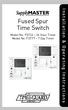 Fused Spur Time Switch Model No. FST24 24 Hour Timer Model No. FST77 7 Day Timer Installation & Operating Instructions 1. General Information Illuminated screen Sets programmes Sets time and date Reset
LG 8820 IP Phone. User Guide. for Bell Aliant Call Servers
 LG 8820 IP Phone User Guide for Bell Aliant Call Servers Please read this guide carefully before operating your set. Retain this guide for future reference. 1 Regulatory and Safety Notices 1. Radio Frequency
GSM Autodialer Professional GJD700 Speech & Text Autodialer
 Text Edit message GSM Autodialer Professional GJD700 Speech & Text Autodialer Introduction The GSM Autodialer Professional works in conjunction with standard alarm systems and makes use of your preferred
GSM Alarm System User Manual
 GSM Alarm System User Manual For a better understanding of this product, please read this user manual thoroughly before using it. Quick Guider After getting this alarm system, you need to do the following
Connecting to the Internet
 Connecting to the Internet Connecting the Gateway to the Internet Configuration of TCP/IP Protocol Installing the USB Drivers Connecting Ethernet Network Devices Connecting USB Network Devices Connecting
How To Set Up A Smart Card Programmer With Titan 2.2.2 (Titan) And Titan 2.3 (Tok) (Tonga) (Powerbook) (Smart Card) (Programmer) (S
 Smart Card Programmer TS0870P: Installation Guide Overview The TS0870P Smart Card Programmer programs user cards for use with the TS0870 Smart Card Reader. Using TITAN management software, cards are programmed
Quick Reference Guide
 Welcome to BT Business Total Broadband Quick Reference Guide Follow the steps in this Quick Reference Guide to set up and start using your new BT Business Total Broadband service. The CD will help you
Automated Inventory System
 Automated Inventory System User Manual Developed by USDA Food and Nutrition Service June 2009 (Incomplete) Table of Contents Welcome Menu Client Services Report System Inventory System Operations Tailgate
Hotline 0800 068 5949
 Optimum M4230 Quick reference guide Description of functions Thermal printer paper compartment Hotline 0800 068 5949 Direct selection function keys Direct selection function keys Battery charge status
Daisy Chain Series DVD/CD Duplicator System
 Daisy Chain Series DVD/CD Duplicator System User s Manual v2.0 0 TABLE OF CONTENTS Daisy Chain Series DVD/CD Duplicator Introduction 1 Features 2 Specification & Content of the box 3 Installation & Setup
Point of View Mobii 10 Tegra Tablet. Notice... 2
 TABLE OF CONTENTS Notice... 2 1.0 Preface... 2 2.0 Getting to know the basics... 4 3.0 How to Start... 7 3.1 Home Shell... 7 3.1.1 Home Shell > Widgets (Search RSS Weather)... 8 3.1.2 Home Shell > Widgets,
REMOTE TERMOMETER TE 219 LED USER MANUAL
 INTRODUCTION REMOTE TERMOMETER TE 219 LED USER MANUAL Thank you for purchasing this unit with indoor thermometer, wireless thermometer sensor and radiocontrolled clock. This device is also equipped with
The phone key, which starts and ends a call. The phone number is prefaced by 1: or 2:, which indicates the line currently in use.
 BeoCom 1 Guide Before you start 3 This Guide contains instructions in how to use the BeoCom 1 handset with a BeoLine base on the Public Switched Telephone Network (PSTN). How to use this Guide The following
Desktop Programmer (DTP)
 INSTALLATION Desktop Programmer (DTP) Keypads & Readers Contents Set up the System...1 RCI DTP Contents...1 Install the System...2 Initialize the Program...2 Initialize the Door Locks...3 Add a User...4
BUSINESS COMMUNICATIONS DIVISION. IP4100 SIP DECT User Guide
 BUSINESS COMMUNICATIONS DIVISION IP4100 SIP DECT User Guide TOSHIBA IP4100 DECT HANDSET END USER GUIDE FEATURES Toshiba IP4100 DECT Handset Features 2.0 inch colour TFT back-lit display Li-ion battery
Transmitter Speed. Instructions for use Betriebsanleitung Mode d emploi Instrucciones para el uso Istruzioni per l uso
 Transmitter Speed 1 9 3 5 0 Instructions for use Betriebsanleitung Mode d emploi Instrucciones para el uso Istruzioni per l uso E L S Tr a n s m i t t e r S p e e d M a n u a l 0 2. 0 2. 2 0 1 0 / / 7
Using the enclosed installation diagram, drill three holes in the wall with the lower hole 1150mm from the floor.
 Terminal Installation When choosing the location of the terminal, care should be taken to select an area with consistent light levels throughout the day and avoid areas where the unit may be subjected
TYXIA. *2702178_Rev.1* Installation and User Guide. Wireless receiver. TYXIA RF 642-1 channel
 Installation and User Guide TYXIA Wireless receiver TYXIA RF 642-1 channel DELTA DORE Bonnemain - 35270 COMBOURG - France E-mail : [email protected] Unit compliant with the requirements of directives:
TOYOTA TECHNICAL. An example of a tire pressure monitor valve sub-assembly. This mounts to a drop area in the wheel.
 TOYOTA TIRE PRESSURE WARNING SYSTEM Toyota uses various tire pressure warning systems. Here, we ll discuss the system featured on the 2006 Land Cruiser. Combination meter warning reset switch warning reset
Creatix 802.11g Adapter CTX405 V.1/V.2 User Manual
 Creatix 802.11g Adapter CTX405 V.1/V.2 User Manual 1 Safety instructions for Creatix 802.11g Adapter This equipment has been designed and tested in accordance with the requirements of Standard EN60950.
Standard Operating Procedure
 Standard Operating Procedure Equipment / Procedure: Filename: Assessor s name & date: Reviewer s name & date: Cosmed K4 2012.1201SOP_cosmed_K4 Richard Metcalfe, December 2012 Tom Nightingale, December
Original Assembly Guide
 TCT Multipurpose Single Bevel Sliding Compound Mitre Saw Original Assembly Guide Read instructions before assembling this tool. Table of Contents GB Assembly Guide Read instructions before assembling this
3. Enter the first five digits of desired frequency (2 2 5 0 0 for 225.000 MHz).
 Simplified Directions 1. Install the batteries. 2. Turn the unit on (rotate volume knob clockwise). 3. Enter the first five digits of desired frequency (2 2 5 0 0 for 225.000 MHz). 4. Listen. Table of
Wolverine 35mm Film to Digital Converter. Model F2D USER MANUAL
 Wolverine 35mm Film to Digital Converter Model F2D USER MANUAL Version 1.01 December 2008 TABLE OF CONTENTS DESCRIPTION PAGE Table of Contents 1 Before Using the F2D Converter 3 FCC Certifications 3 Warning
LCD Display. Function keys. Stand. Adapter socket
 433 MHz RADIO CONTROLLED PROJECTION ALARM CLOCK Instructions manual INTRODUCTION: Congratulations on purchasing this innovative 433MHz Projection alarm clock which displays indoor temperature and humidity
1 Technical Description Lokal-200PC
 1 Technical Description Lokal-200PC 1.1 Overview laptop with in-built accummulator USB connection correlator box internal power supply laptop (if the device has been supplied by F.A.S.T.) BNC aerial connection
Instruction manual. testo easyheat Configuration and Analysis software
 Instruction manual testo easyheat Configuration and Analysis software en 2 General Information General Information This documentation includes important information about the features and application of
Wireless Keyboard & Optical Mouse. User Manual
 Wireless Keyboard & Optical Mouse User Manual Table of Contents Introduction... 1 Software Compatibility... 1 Product Features... 2 Quick Installation Setup for PS/2 Connections (PC-only)... 5 Quick Installation
ADSL Modem Installation Guide. Model # 36R515 Part # 030-300108 Rev. D Revision Date 12/2000. ADSL Modem Installation Guide
 ADSL Modem Installation Guide Model # 36R515 Part # 030-300108 Rev. D Revision Date 12/2000 ADSL Modem Installation Guide Installation Instructions Westell ADSL Modem 1. Package Inspection and Contents...2
User Manual Color video door phone
 User Manual Color video door phone CDV-70KM Thank you for purchasing COMMAX products. Please carefully read this User s Guide (in particular, precautions for safety) before using a product and follow instructions
HDTV Anywhere USER MANUAL 3. 20672/ 20140710 HDTV Anywhere ALL RIGHTS RESERVED MARMITEK
 HDTV Anywhere USER MANUAL 3 20672/ 20140710 HDTV Anywhere ALL RIGHTS RESERVED MARMITEK 2 MARMITEK SAFETY WARNINGS To prevent short circuits, this product should only be used inside and only in dry spaces.
Vectron POS Mini II. User manual
 Vectron Systems Vectron POS Mini II User manual Your Vectron dealer Stamp Date: 25.10.2012 2012 by Vectron Systems AG Subject to error and technical modification Manufacturer Vectron Systems AG Willy-Brandt-Weg
2GB MP3 Player USER GUIDE
 DO NOT FORMAT UNIT under FAT. 2GB MP3 Player USER GUIDE Jazwares, Inc. 2010 CONTENTS Please read the instructions along with the MP3 Player carefully before you use it, so that you can operate it conveniently.
DASHBOARD SOFTWARE Ver 1.2.2
 POCKET USER GUIDE DASHBOARD SOFTWARE Ver 1.2.2 1 Thank you for purchasing the ASK Controls GPRS Quad Switch, it represents the very latest in remote switching technology to allow control of multiple circuits,
SYSTEM 4C. C R H Electronics Design
 SYSTEM 4C C R H Electronics Design SYSTEM 4C All in one modular 4 axis CNC drive board By C R Harding Specifications Main PCB & Input PCB Available with up to 4 Axis X, Y, Z, A outputs. Independent 25
BLU Vivo 4.3 User Manual
 BLU Vivo 4.3 User Manual 1 Table of Contents Phone Safety Information... 3 Appearance and Key Functions... 4 Installation and Charging... 5 Phone Operation... 7 Communication... 10 Camera... 11 Gallery...
Quick start: Energy Switch EU
 Technical specifications Normal operating voltage Quick start: Energy Switch EU 230Vac/50Hz Recommended max. load 3000W 600W Frequency range Wireless range Energy measurement 868.42 MHz 30~100 meters in
LDG DTS-4/4R Desktop Coaxial Switch / Remote
 LDG DTS-4/4R Desktop Coaxial Switch / Remote LDG Electronics 1445 Parran Road, PO Box 48 St. Leonard MD 20685-2903 USA Phone: 410-586-2177 Fax: 410-586-8475 [email protected] www.ldgelectronics.com
ViviCam 25 Digital Camera User s Manual
 ViviCam 25 Digital Camera User s Manual 2010 Sakar International, Inc. All rights reserved. Windows and the Windows logo are registered trademarks of Microsoft Corporation. All other trademarks are the
B890 4G LTE Smart Hub Getting Started Guide
 B890 4G LTE Smart Hub Getting Started Guide HUAWEI TECHNOLOGIES CO., LTD. Thank You for Purchasing the B890 4G LTE Smart Hub! Before You Begin What s in the Box : 1. B890 4G LTE Smart Hub 2. Power adapter
DVR GUIDE. Using your DVR/Multi-Room DVR. 1-866-WAVE-123 wavebroadband.com
 DVR GUIDE Using your DVR/Multi-Room DVR 1-866-WAVE-123 wavebroadband.com Table of Contents Control Live TV... 4 Playback Controls... 5 Remote Control Arrow Buttons... 5 Status Bar... 5 Pause... 6 Rewind...
INSTALLATION MANUAL XM3 Reader
 INSTALLATION MANUAL XM3 Reader Conditions Transactions, deliveries et cetera will be according to the general terms of delivery as deposited at the Chamber of Commerce at Meppel, The Netherlands. Registration
7 High-Resolution Digital Photo Frame
 TM 16-1003 User s Guide 7 High-Resolution Digital Photo Frame One demo photo included, as illustrated Please read this user s guide before using your new photo frame. Package contents Photo Frame AC Adapter
Section 1: Introduction... 2. Section 2: igolf Neo... 9. Section 3: igolf Neo Sync... 19. Section 4: Appendices... 26
 Table of Contents Section 1: Introduction... 2 Welcome Important Information igolf.com Package Contents Additional Requirements igolf Neo Features Battery Information Keypad Function Start Up Section 2:
Working with Tables: How to use tables in OpenOffice.org Writer
 Working with Tables: How to use tables in OpenOffice.org Writer Title: Working with Tables: How to use tables in OpenOffice.org Writer Version: 1.0 First edition: January 2005 First English edition: January
IEEE 802.11b WLAN PC Card
 IEEE 802.11b WLAN PC Card User s Guide Version: 1.3 August 2001 Please install the Utility/Driver first before inserting the PCMCIA Card. FCC Class B Radio Frequency Interference Statement The manufacturer
GETTING TO KNOW YOUR 4G USB
 GETTING TO KNOW YOUR Telstra Pre-paid 4G USB LET S GET THIS SHOW ON THE ROAD WHAT S INSIDE Your Telstra Pre-Paid 4G USB has been tested to the highest standards to deliver you the best possible coverage
System pro M DT1-IK DT1-IK/24V DT1-IK/DCF DT2-IK 2CSM204275R0611 2CSM204285R0611 2CSM204295R0611 2CSM204325R0611
 DT1-IK 2CSM204275R0611 DT1-IK/24V 2CSM204285R0611 DT1-IK/DCF 2CSM204295R0611 DT2-IK 2CSM204325R0611 System pro M GB -1- WEEKLY DIGITAL TIME SWITCH + PROGRAMMING KEY I -11- INTERRUTTORE ORARIO DIGITALE
M O D U L E - 7 E Model CS-Caliprompter Operator s Manual
 O P E R A T I O N S A N D P R O C E D U R E S F O R C S - C A L I P R O M P T E R A N D A C C E S S O R I E S Model CS-Caliprompter Visual screen display allows easy step-by-step operation On-site programming
Network Interface Panel User s Guide NPD4747-01 EN
 User s Guide NPD4747-01 EN Contents Contents Copyright and Trademarks Safety Instructions Important Safety Instructions... 4 Cautions and Notes... 4 Getting to Know Your Network Interface Panel Package
Pad. Quick Start Guide
 Pad Quick Start Guide Copyright 2008 Mimio Congratulations on your mimio Pad purchase! mimio Pad is a 4 GHz wireless pad. To configure mimio Pad for use, install the mimio Studio software and plug the
QUICK START GUIDE. Aleratec 1:3 Blu-ray/DVD/CD LightScribe Duplicator SA. Part No. 260201
 QUICK START GUIDE Aleratec 1:3 Blu-ray/DVD/CD LightScribe Duplicator SA Part No. 260201 Welcome! Congratulations on your purchase of an Aleratec 1:3 Blu-ray/DVD/CD LightScribe Duplicator SA, considered
19 LED Tube Controller ORDERCODE 41003
 19 LED Tube Controller ORDERCODE 41003 Congratulations! You have bought a great, innovative product from Showtec. The Showtec 19 LED Tube Controller brings excitement to any venue. Whether you want simple
In-Car Digital Radio Adaptor User Guide
 S1000-DAB In-Car Digital Radio Adaptor User Guide Table of Content INTRODUCTION... 1 CONTENTS OF PACKAGE... 2 INSTALLATION...3 OVERVIEW OF CONTROLS AND CONNECTORS... 5 STARTING UP THE SYSTEM... 7 USING
GETTING TO KNOW YOUR TELSTRA PRE-PAID 3G WI-FI
 GETTING TO KNOW YOUR TELSTRA PRE-PAID 3G WI-FI LET S GET THIS SHOW ON THE ROAD You must be excited about your brand new Telstra Pre-Paid 3G Wi-Fi. This guide will help you get connected as quickly and
Radio BMR100 INSTRUCTION MANUAL. ENGLISH (Original instructions)
 ENGLISH (Original instructions) INSTRUCTION MANUAL Radio BMR00 WARNING: For your personal safety, READ and UNDERSTAND before using. SAVE THESE INSTRUCTIONS FOR FUTURE REFERENCE. Symbols The following show
iloq S10 Locking Service User's Guide
 iloq S10 Locking Service User's Guide INTRODUCTION This document is a user's guide to the iloq Manager program. It covers all the basic tasks of locking system maintenance, including maintenance of locking
Point of view HDMI Smart TV dongle Mini RF Keyboard
 Point of view HDMI Smart TV dongle Mini RF Keyboard English Contents Contents... 1 General notices for use... 2 Disclaimer... 2 Box Contents... 2 1. HDMI TV dongle... 3 1.1. Product display... 3 1.2. Instructions
GSM HOME SECURITY SYSTEM
 Cell /Mobile phone home security system GSM HOME SECURITY SYSTEM Model : GSM-120 TABLE OF CONTENTS 1. FEATURES... 1 2. APPLICATION... 2 3. SPECIFICATIONS... 3 4. FRONT PANEL & LAYOUT DESCRIPTION...6 5.