
ENGLISH. User Guide LG-D MFL (1.0)
|
|
|
- Jonathan Johnston
- 9 years ago
- Views:
Transcription
1 ENGLISH User Guide LG-D686 MFL (1.0)
2 Product Registration Program Dear LG Mobile customer, You are entitled for one year warranty on this model. For automatic registration, One SMS containing the IMEI no. of your phone will be automatically sent to LG servers. In return you will get one year warranty from the date of purchase at any authorized LG Mobile Service center. We assure the information will be kept confidential and used for internal purpose only. LG Electronics India Pvt. Ltd. does not have any revenue sharing with any cellphone operators for proceeds from SMS of automatic registration. Disposal of your old appliance 1 When this crossed-out wheeled bin symbol is attached to a product it means the product is covered by the e-waste (Management and Handling) Rules, All electrical and electronic products should be disposed of separately from the municipal waste stream via designated collection facilities appointed by the government or the local authorities. 3 The correct disposal of your old appliance will help prevent potential negative consequences for the environment and human health. 4 For more detailed information about disposal of your old appliance, please contact your city office, waste disposal service or the shop where you purchased the product. 5 This product does not contain any of the hazardous substances as specified in the rule 13 (1) and (2) of the e-waste (Management and Handling) Rules, 2011.
3 ENGLISH User Guide Screen displays and illustrations may differ from those you see on actual phone. Some of the contents of this guide may not apply to your phone, depending on the software and your service provider. All information in this document is subject to change without notice. This handset is not suitable for people who have a visual impairment due to the touch screen keyboard. Copyright 2013 LG Electronics, Inc. All rights reserved. LG and the LG logo are registered trademarks of LG Group and its related entities. All other trademarks are the property of their respective owners. Google, Google Maps, Gmail, YouTube, Hangouts and Play Store are trademarks of Google, Inc.
4 2 Table of contents Guidelines for safe and efficient use...5 Important notice...13 Getting to know your phone...19 Phone overview...19 Installing the SIM card and battery...22 Charging your phone...25 Using the memory card...26 Locking and unlocking the screen...28 KnockOn...28 Your Home screen...29 Touch Screen tips...29 Home screen...30 Customizing the Home screen...30 Returning to recently-used applications..31 Notifications...31 Swipe down for notifications & settings..32 Quick Settings...32 Indicator icons on the Status Bar...33 On-screen keyboard...35 Entering accented letters...35 Menu Map...36 Google account setup...40 Connecting to Networks and Devices...41 Wi-Fi...41 Connecting to Wi-Fi networks...41 Turning Wi-Fi on and connecting to a Wi-Fi network...41 Bluetooth...42 Sharing your phone's data connection...43 Wi-Fi Direct...45 Using SmartShare...45 PC connections with a USB cable...48 Calls...49 Making a call...49 Calling your contacts...49 Answering and rejecting a call...49 Adjusting the in-call volume...50 Making a second call...50 Viewing your call logs...50 Call settings...51 Contacts...52 Searching for a contact...52 Adding a new contact...52 Favorite contacts...52 Creating a group...53 Messaging...54 Sending a message...54 Threaded box...55 Changing your message settings Managing an account...56 Working with account folders...56 Composing and sending Camera...58 Getting to know the viewfinder...58
5 Using the advanced settings...59 Taking a quick photo...60 Once you've taken a photo...61 Viewing your saved photos...62 Video camera...63 Getting to know the viewfinder...63 Using the advanced settings...64 Recording a quick video...64 After recording a video...65 Watching your saved videos...65 Adjusting the volume when viewing a video...65 Function...66 QuickMemo...66 Using the QuickMemo options...67 Viewing the saved QuickMemo...67 QuickTranslator...68 QuickRemote...69 VuTalk...70 Registering VuTalk...70 LG SmartWorld...71 How to Get to LG SmartWorld from Your Phone...71 How to use LG SmartWorld...71 Multimedia...73 Gallery...73 Viewing pictures...73 Playing videos...74 Editing photos...74 Deleting photos/videos...74 Setting as wallpaper...74 Videos...75 Playing a video...75 Music...76 Add music files to your phone...76 Transfer music using Media sync (MTP).76 Playing a song...76 Utilities...79 Setting your alarm...79 Using your calculator...79 Adding an event to your calendar...79 Voice Recorder...80 Recording a sound or voice...80 Sending the voice recording...80 FM Radio...80 Task Manager...81 Tasks...81 Polaris Viewer LG Backup...82 About backing up and restoring smart phone data...82 Backup your smart phone data...83 Scheduling automatic backups...83 Restoring smart phone data...83 Google Voice Search...84 Downloads...85 The Web...86 Internet
6 Table of contents Using the Web toolbar...86 Viewing webpages...86 Opening a page...87 Searching the web by voice...87 Bookmarks...87 History...87 Using Popup Browser...87 Chrome...88 Viewing webpages...88 Opening a page...88 Syncing with other devices...88 Settings...89 Access the Settings menu...89 WIRELESS & NETWORKS...89 DEVICE...92 PERSONAL...94 SYSTEM...95 PC software (LG PC Suite)...97 Troubleshooting FAQ Phone software update Phone software update About this user guide About this user guide Trademarks DivX Dolby Digital Plus Accessories
7 Guidelines for safe and efficient use Please read these simple guidelines. Not following these guidelines may be dangerous or illegal. Should a fault occur, a software tool is built into your device that will gather a fault log. This tool gathers only data specific to the fault, such as signal strength, cell ID position in sudden call drop and applications loaded. The log is used only to help determine the cause of the fault. These logs are encrypted and can only be accessed by an authorized LG Repair centre should you need to return your device for repair. Exposure to radio frequency energy Radio wave exposure and Specific Absorption Rate (SAR) information. This mobile phone model LG-D686 has been designed to comply with applicable safety requirements for exposure to radio waves. These requirements are based on scientific guidelines that include safety margins designed to assure the safety of all persons, regardless of age and health. The radio wave exposure guidelines employ a unit of measurement known as the Specific Absorption Rate (SAR). Tests for SAR are conducted using standardised methods with the phone transmitting at its highest certified power level in all used frequency bands. While there may be differences between the SAR levels of various LG phone models, they are all designed to meet the relevant guidelines for exposure to radio waves. The SAR limit recommended by the International Commission on Non-Ionizing Radiation Protection (ICNIRP) is 2 W/kg averaged over 10g of tissue. The highest SAR value for this model phone tested for use at the ear is W/kg (1g) and when worn on the body is 1.30 W/Kg (1g), which is 100% compliant with Indian Standards and Safe. This device meets RF exposure guidelines when used either in the normal use position against the ear or when positioned at least 1.5 cm away from the body. When a carry case, belt clip or holder is used for body-worn operation, it should not contain metal and should position the product at least 1.5 cm away from your body. 5
8 6 Guidelines for safe and efficient use In order to transmit data files or messages, this device requires a quality connection to the network. In some cases, transmission of data files or messages may be delayed until such a connection is available. Ensure the above separation distance instructions are followed until the transmission is completed. Product care and maintenance WARNING Only use batteries, chargers and accessories approved for use with this particular phone model. The use of any other types may invalidate any approval or warranty applying to the phone and may be dangerous. Do not disassemble this unit. Take it to a qualified service technician when repair work is required. Repairs under warranty, at LG's discretion, may include replacement parts or boards that are either new or reconditioned, provided that they have functionality equal to that of the parts being replaced. Keep away from electrical appliances such as TVs, radios and personal computers. The unit should be kept away from heat sources such as radiators or cookers. Do not drop. Do not subject this unit to mechanical vibration or shock. Switch off the phone in any area where you are required to by special regulations. For example, do not use your phone in hospitals as it may affect sensitive medical equipment. Do not handle the phone with wet hands while it is being charged. It may cause an electric shock and can seriously damage your phone. Do not charge a handset near flammable material as the handset can become hot and create a fire hazard. Use a dry cloth to clean the exterior of the unit (do not use solvents such as benzene,
9 thinner or alcohol). Do not charge the phone when it is on soft furnishings. The phone should be charged in a well ventilated area. Do not subject this unit to excessive smoke or dust. Do not keep the phone next to credit cards or transport tickets; it can affect the information on the magnetic strips. Do not tap the screen with a sharp object as it may damage the phone. Do not expose the phone to liquid or moisture. Use accessories like earphones cautiously. Do not touch the antenna unnecessarily. Do not use, touch or attempt to remove or fix broken, chipped or cracked glass. Damage to the glass display due to abuse or misuse is not covered under the warranty. Your phone is an electronic device that generates heat during normal operation. Extremely prolonged, direct skin contact in the absence of adequate ventilation may result in discomfort or minor burns. Therefore, use care when handling your phone during or immediately after operation. If your phone gets wet, immediately unplug it to dry off completely. Do not attempt to accelerate the drying process with an external heating source, such as an oven, microwave or hair dryer. The liquid in your wet phone, changes the color of the product label inside your phone. Damage to your device as a result of exposure to liquid is not covered under your warranty. Efficient phone operation Electronics devices All mobile phones may receive interference, which could affect performance. Do not use your mobile phone near medical equipment without requesting permission. Avoid placing the phone over pacemakers, for example, in your breast 7
10 pocket. Some hearing aids might be disturbed by mobile phones. Minor interference may affect TVs, radios, PCs etc. Use your phone in temperatures between 0ºC and 40ºC, if possible. Exposing your phone to extremely low or high temperatures may result in damage, malfunction, or even explosion. 8 Guidelines for safe and efficient use Precautions Use a wireless hands-free system (headphone, headset) with a low power Bluetooth emitter. Keep your calls short or send text message (SMS) instead. This advice applies especially to children, adolescents and pregnant women. Use the cell phone in good quality network signal. People having active medical implants should preferably keep the cell phone at least 15cm away from the implant Road safety Check the laws and regulations on the use of mobile phones in the area when you drive. Do not use a hand-held phone while driving. Give full attention to driving. Pull off the road and park before making or answering a call if driving conditions so require. RF energy may affect some electronic systems in your vehicle such as car stereos and safety equipment. When your vehicle is equipped with an air bag, do not obstruct with installed or portable wireless equipment. It can cause the air bag to fail or cause serious injury
11 due to improper performance. If you are listening to music whilst out and about, please ensure that the volume is at a reasonable level so that you are aware of your surroundings. This is of particular importance when near roads. Avoid damage to your hearing To prevent possible hearing damage, do not listen at high volume levels for long periods. Damage to your hearing can occur if you are exposed to loud sound for long periods of time. We therefore recommend that you do not turn on or off the handset close to your ear. We also recommend that music and call volumes are set to a reasonable level. When using headphones, turn the volume down if you cannot hear the people speaking near you, or if the person sitting next to you can hear what you are listening to. NOTE: Excessive sound pressure from earphones and headphones can cause hearing loss Glass Parts Some parts of your mobile device are made of glass. This glass could break if your mobile device is dropped on a hard surface or receives a substantial impact. If the glass breaks, do not touch or attempt to remove it. Stop using your mobile device until the glass is replaced by an authorised service provider. Blasting area Do not use the phone where blasting is in progress. Observe restrictions and follow any regulations or rules. 9
12 10 Guidelines for safe and efficient use Potentially explosive atmospheres Do not use your phone at a refueling point. Do not use near fuel or chemicals. Do not transport or store flammable gas, liquid or explosives in the same compartment of your vehicle as your mobile phone or accessories. In aircraft Wireless devices can cause interference in aircraft. Turn your mobile phone off before boarding any aircraft. Do not use it on the ground without permission from the crew. Children Keep the phone in a safe place out of the reach of small children. It includes small parts which may cause a choking hazard if detached. Emergency calls Emergency calls may not be available on all mobile networks. Therefore you should never depend solely on your phone for emergency calls. Check with your local service provider. Battery information and care You do not need to completely discharge the battery before recharging. Unlike other battery systems, there is no memory effect that could compromise the battery's performance. Use only LG batteries and chargers. LG chargers are designed to maximise the
13 battery life. Do not disassemble or short-circuit the battery. Replace the battery when it no longer provides acceptable performance. The battery pack may be recharged hundreds of times before it needs replacing. Recharge the battery if it has not been used for a long time to maximise usability. Do not expose the battery charger to direct sunlight or use it in high humidity, such as in the bathroom. Do not leave the battery in hot or cold places, as this may deteriorate battery performance. There is risk of explosion if the battery is replaced with an incorrect type. Dispose of used batteries according to the manufacturer's instructions. Please recycle when possible. Do not dispose as household waste. If you need to replace the battery, take it to the nearest authorised LG Electronics service point or dealer for assistance. Always unplug the charger from the wall socket after the phone is fully charged to save unnecessary power consumption of the charger. Actual battery life will depend on network configuration, product settings, usage patterns, battery and environmental conditions. Make sure that no sharp-edged items such as animal s teeth or nails, come into contact with the battery. This could cause a fire. Access to latest firmware releases, new software functions and improvements. Update your smartphone without a PC. Select Software update. Update your smartphone by connecting it to your PC. For more information about using this function, please visit or select country and language. 11
14 12 DECLARATION OF CONFORMITY Hereby, LG Electronics declares that this LG-D686 product is in compliance with the essential requirements and other relevant provisions of Directive 1999/5/EC. A copy of the Declaration of Conformity can be found at
15 Important notice Please read this before you start using your phone! Please check to see whether any problems you encountered with your phone are described in this section before taking the phone in for service or calling a service representative. 1. Phone memory When there is less than 10% of space available in your phone memory, your phone cannot receive new messages. You need to check your phone memory and delete some data, such as applications or messages, to make more memory available. To uninstall applications: 1 Touch > Apps tab > Settings > Apps from the DEVICE. 2 Once all applications appear, scroll to and select the application you want to uninstall. 3 Touch Uninstall. 2. Optimizing battery life Extend your battery's life between charges by turning off features that you don't need to having running constantly in the background. You can monitor how applications and system resources consume battery power. Extending your phone's battery life: Turn off radio communications when you are not using. If you are not using Wi-Fi, Bluetooth or GPS, turn them off. Reduce screen brightness and set a shorter screen timeout. Turn off automatic syncing for Gmail, Calendar, Contacts and other applications. Some applications you have downloaded may reduce battery power. 13
16 To check the battery power level: Touch > Apps tab > Settings > About phone from the SYSTEM > Common tab > Battery. The battery status (charging or discharging) and battery level (percentage charged) is displayed at the top of the screen. To monitor and control how battery power is being used: Touch > Apps tab > Settings > About phone from the SYSTEM > Common tab > Battery > Battery use. Battery usage time is displayed on the screen. It tells you how long it has been since you last connected your phone to a power source or, if currently connected, how long the phone was last running on battery power. The screen shows the applications or services using battery power, listed in order from the greatest to smallest amount used. 3. Before installing an open source application and OS WARNING If you install and use an OS other than the one provided by the manufacturer it may cause your phone to malfunction. In addition, your phone will no longer be covered by the warranty. WARNING To protect your phone and personal data, only download applications from trusted sources, such as Play Store. If there are improperly installed applications on your phone, the phone may not work normally or a serious error may occur. You must uninstall those applications and all associated data and settings from the phone. 14
17 Important notice 4. Using an unlock pattern Set an unlock pattern to secure your phone. Touch > Apps tab > Settings > Lock screen from DEVICE > Select screen lock > Pattern. This opens a screen that will guide you through how to draw a screen unlock pattern. You have to create a Backup PIN as a safety measure in case you forget your unlock pattern. Caution: Create a Google account before setting an unlock pattern and remember the Backup PIN you created when creating your pattern lock. WARNING Precautions to take when using pattern lock. It is very important to remember the unlock pattern you set. You will not be able to access your phone if you use an incorrect pattern 5 times. You have 5 opportunities to enter your unlock pattern, PIN or password. If you have used all 5 opportunities, you can try again after 30 seconds. When you can t recall your unlock Pattern, PIN or Password: < If you have forgotten your pattern > If you logged in to your Google account on the phone but failed to enter the correct pattern 5 times, touch the Forgot pattern? button at the bottom of the screen. You are then required to log in with your Google Account or you have to enter the Backup PIN which you entered when creating your Pattern Lock. If you have not created a Google account on the phone or you forgot Backup PIN, you have to perform a hard reset. < If you have forgotten your PIN or Password > If you forget your PIN or Password, you will need to perform a hard reset. Caution: If you perform a hard reset, all user applications and user data will be deleted. 15
18 NOTE: If you have not logged into your Google Account and have forgotten your Unlock Pattern, you will need to enter your Backup PIN. 5. Using the Hard Reset (Factory Reset) If your phone does not restore to its original condition, use a Hard Reset (Factory Reset) to initialize it. 1 Power off your Phone. 2 Press and hold the Power/Lock key + Volume Down key. 3 After a few seconds, FACTORY HARD RESET screen will appear, Now release all keys. 4 The phone will allow you to select the factory reset function in the Android system recovery utility. 5 Press the Power/Lock key and your phone will be restored to its factory settings. To cancel, press any other key. WARNING If you perform a Hard Reset, all user applications, user data and DRM licenses will be deleted. Please remember to backup any important data before performing a Hard Reset Opening and switching applications Multi-tasking is easy with Android because you can keep more than one application running at the same time. There is no need to quit an application before opening another one. Use and switch between several open applications. Android manages each application, stopping and starting them as needed to ensure that idle applications don't consume resources unnecessarily.
19 Important notice To stop applications: 1 Touch > Apps tab > Settings > Apps from DEVICE > RUNNING. 2 Scroll and touch the desired application and touch Stop to stop it. NOTE: For multitasking, Touch and hold Home key to move to another app while using an app. This does not stop the previous app running in the background on the device. Make sure to touch the Back key to exit an app after using it. 7. Transferring music, photos and videos using Media sync (MTP) 1 Touch > Apps tab > Settings > Storage from the DEVICE to check out the storage media. 2 Connect the phone to your PC using the USB cable. 3 A USB connection type list will appear on your phone screen, Select the Media sync (MTP) option. 4 Open the memory folder on your PC. You can view the mass storage content on your PC and transfer the files. 8. Hold your phone upright Hold your cell phone vertically, as you would a regular phone. Your phone has an internal antenna. Be careful not to scratch or damage the back of the phone, as this may affect performance. When making/receiving calls or sending/receiving data, avoid holding the lower part of the phone where the antenna is located. Doing so may affect call quality. 17
20 9. When the screen freezes If the screen freezes or the phone does not respond when you try to operate it: Press and hold the Power/Lock key for 10 seconds to turn your phone off. If it still does not work, please contact the service center. 18
21 Getting to know your phone Phone overview Earpiece Proximity Sensor Front Camera Lens Power/Lock Key Switch your phone on/off by pressing and holding this key. Short press to lock/unlock the screen. Touch screen Back Key Return to the previous screen. Exit an app after using it. Home Key Return to the Home screen from any screen. Dual SIM Key Choose which SIM card you re going to use. Menu Key Check what options are available. 19
22 NOTE: Proximity sensor When receiving and making calls, the proximity sensor automatically turns the backlight off and locks the touch screen by sensing when the phone is near your ear. This extends battery life and prevents you from unintentionally activating the touch screen during calls. WARNING Placing a heavy object on the phone or sitting on it can damage the LCD and touch screen functions. Do not cover the LCD proximity sensor with protective film. This could cause the sensor to malfunction. Volume keys On the Home screen: Controls ringer volume During a call: Control your earpiece volume When playing a track: Controls volume continuously QuickButton Key Power/Lock Key Earphone Jack IR LED Microphone Rubberdium Pen Speaker Charger/USB port Microphone 20
23 Getting to know your phone Back Cover Camera lens Flash microsd Card Slot SIM card slots Battery 21
24 Installing the SIM card and battery Before you can start exploring your new phone, you'll need to set it up. To insert the SIM card and battery: 1 To remove the back cover, hold the phone firmly in one hand. With your other hand, lift off the back cover as shown in figure. 22
25 Getting to know your phone 2 Slide the SIM cards into its respective slots as shown in the figure. Make sure the gold contact area on the SIM card is facing downwards. 3 Insert the battery into place by aligning the gold contacts on the phone and the battery and pressing it down until it clicks into place. 23
26 24 4 Align the battery cover over the battery compartment and press it down until it clicks into place.
27 Getting to know your phone Charging your phone Charge the battery before using it for the first time. Use the charger to charge the battery. A computer can be also used to charge the device by connecting them via the USB cable. WARNING Use only LG-approved chargers, batteries, and cables. When using unapproved chargers or cables, it may cause battery charging delay or pop up the message regarding slow charging. Or, unapproved chargers or cables can cause the battery to explode or damage the device, which are not covered by the warranty. The charger connector is at the bottom of the phone. Insert the charger and plug it into an electrical outlet. NOTE: The battery must be fully charged initially to improve battery lifetime. Do not open the battery cover while your phone is charging. 25
28 Using the memory card Your phone supports the use of microsd TM or microsdhc TM memory cards of up to 32 GB capacity. These memory cards are specifically designed for mobile phones and other ultra-small devices and are ideal for storing media-rich files such as music, programs, videos, and photographs for use with your phone. To insert a memory card: Insert the memory card into the slot. Make sure the gold contact area of Memory card is facing downwards. To safely remove the memory card: Touch > Apps tab > Settings > Storage from the DEVICE > Unmount SD card > OK. NOTE: Use only compatible memory cards with your phone. Using incompatible memory cards may damage the card and data stored on the card, as well as the phone. As the device uses FAT32, the maximum size for any given file is 4 GB. 26
29 Getting to know your phone WARNING Do not insert or remove the memory card when the phone is on. Doing so may damage the memory card as well as your phone, and the data stored on the memory card may become corrupt. To format the memory card: Your memory card may already be formatted. If it isn't, you must format it before you can use it. NOTE: All files on your memory card are deleted when it is formatted. 1 Touch to open the application list. 2 Scroll and touch Settings > Storage from the DEVICE tab. 3 Touch Unmount SD card and touch OK to confirm. 4 Touch Erase SD card > Erase SD card > Erase everything. 5 If you have set a pattern lock, input the pattern lock then select Erase everything. NOTE: If there is content on your memory card, the folder structure may be different after formatting, as all the files will have been deleted. 27
30 Locking and unlocking the screen If you do not use the phone for a while, the screen will be automatically turned off and locked. This helps to prevent accidental touches and saves battery power. When you are not using the phone, press the Power/Lock key to lock your phone. If there are any programs running when you lock your screen, they may be still running in Lock mode. It is recommended that you exit all programs before entering Lock mode to avoid unnecessary charges (e.g. phone calls, web access and data communications). To wake up your phone, press the Power/Lock key. The Lock screen will appear. Touch and slide the Lock screen in any direction to unlock your Home screen. The last screen you viewed will open. KnockON You can lock or unlock the screen by just double-tap. To activate KnockON feature 1 From the Home Screen, Touch >Settings > Display > KnockON. 2 Place a checkmark on KnockON. Double-tap the center screen quickly to unlock the screen. To lock the screen, double tap the status bar in any screen (except on the camera viewfinder) or empty area on the Home screen. NOTE: When turning the screen on, make sure you do not cover the proximity sensor. Doing so will turn the screen off immediately after turning it on in order to prevent abnormal turning on in your pocket or bag. 28
31 Your Home screen Touch Screen tips Here are some tips on how to navigate on your phone. Tap or touch A single finger tap selects items, links, shortcuts and letters on the on-screen keyboard. Touch and hold Touch and hold an item on the screen by touching it and not lifting your finger until an action occurs. For example, to open a contact's available options, touch and hold the contact in the Contacts list until the context menu opens. Drag Touch and hold an item for a moment and then, without lifting your finger, move your finger on the screen until you reach the target position. You can drag items on the Home screen to reposition them. Swipe or slide To swipe or slide, quickly move your finger across the surface of the screen, without pausing when you first touch it (so you don t drag an item instead). For example, you can slide the screen up or down to scroll through a list, or browse through the different Home screens by swiping from left to right (and vice versa). Double-tap Double-tap to zoom on a webpage or a map. For example, quickly double-tap a section of a webpage to adjust that section to fit the width of the screen. You can also double-tap to zoom in and out while viewing the picture. Pinch-to-Zoom Use your index finger and thumb in a pinching or spreading motion to zoom in or out when using the browser or Maps, or when browsing pictures. Rotate the screen From many applications and menus, the orientation of the screen adjusts to the device's physical orientation. NOTE: To select an item, touch the center of the icon. Do not press too hard; the touch screen is sensitive enough to pick up a light, yet firm touch. Use the tip of your finger to touch the option you want. Be careful not to touch any other keys. 29
32 Home screen Simply swipe your finger to the left or right to view the panels. You can customize each panel with apps, downloads, widgets and wallpapers. NOTE: Some screen images may be different depending on your phone provider. On your Home screen, you can view menu icons at the bottom of the screen. Menu icons provide easy, one-touch access to the functions you use the most. Touch the Phone icon to bring up the touch screen dialpad to make a call. Touch the Contacts icon to open your contacts. Touch the Messaging icon to access the messaging menu. This is where you can create a new message. Touch the Internet icon to browse the Internet. Touch the Apps icon at the bottom of the screen. This displays all of your installed applications. To open any application, simply touch the icon in the applications list. Customizing the Home screen You can customize your Home screen by adding apps, downloads, widgets or changing wallpapers. For more convenience using your phone, add your favorite apps and widgets to the Home screen. To add items on your Home screen: 1 Touch and hold the empty part of the Home screen. 2 In the Add Mode menu, select the item you wish to add. You will then see this added item on the Home screen. 3 Drag it to the desired location and lift your finger. To remove an item from the Home screen: Home screen > touch and hold the icon you want to remove > drag it to 30
33 Your Home screen TIP! To add an application icon to the Home screen from the Apps menu, touch and hold the application you want to add. TIP! Using folders You can combine several app icons in a folder. Drop one app icon over another one on a Home screen, and the two icons will be combined. Returning to recently-used applications 1 Touch and hold the Home key. The screen displays a pop-up containing the icons of applications you used recently. 2 Touch an icon to open the application. Or touch the Back key to return to your previous screen. Notifications Notifications alert you to the arrival of new messages, calendar events, and alarms, as well as to ongoing events, such as video downloads. From the notifications panel, you can view your phone s current status and pending notifications. When a notification arrives, its icon appears at the top of the screen. Icons for pending notifications appear on the left, and system icons showing things like Wi-Fi or bat tery strength on the right. NOTE: The available options may vary depending on the region or service provider. 31
34 Pending notifications Bluetooth, Wi-Fi & battery status Swipe down for notifications & settings Swipe down from the status bar to open the notifications panel. To close the notifications panel, swipe up the bar that is at the bottom of the screen. Quick Settings Use Quick Settings to easily toggle function settings like Wi-Fi, manage Screen timeout and more. For Quick Settings, swipe down from the status bar to open the notifications panel and swipe or touch for your desired setting. To rearrange Quick Setting items on the notification panel Touch. You can then check and rearrange items on the notification panel. 32
35 Your Home screen NOTE: When long pressing icon at the top of the screen, will go to Settings directly. Indicator icons on the Status Bar Indicator icons appear on the status bar at the top of the screen to report missed calls, new messages, calendar events, device status and more. The icons displayed at the top of the screen provide information about the status of the device. The icons listed in the table below are some of the most common ones. Icon Description Icon Description No SIM card Vibrate mode No signal Battery fully charged Airplane mode Battery is charging Connected to a Wi-Fi network Downloading data Wired headset Uploading data Call in progress GPS is acquiring Call hold Receiving location data from GPS Speakerphone Data is syncing Missed call New Gmail Bluetooth is on New Hangouts message 33
36 Icon Description Icon Description System warning Alarm is set New voic Ringer is silenced Wireless storage is on Power saver is on Song is playing Phone is connected to PC via USB cable or USB tethering is active Portable Wi-Fi hotspot is active Both USB tethering and portable hotspot are active VPN is ON Quiet mode is activated New message NOTE: The icons location in the status bar may differ according to the function or service. 34
37 Your Home screen On-screen keyboard You can enter text using the on-screen keyboard. The on-screen keyboard appears automatically on the screen when you need to enter text. To manually display the keyboard, simply touch a text field where you want to enter text. Using the keypad & entering text Tap once to capitalize the next letter you type. Double-tap for all caps. Tap to switch to the numbers and symbols keyboard. Touch and hold this icon, to select voice input or Handwriting or select Keyboard settings. Tap to enter a space. Tap to create a new line. Tap to delete the previous character. Entering accented letters When you select French or Spanish as the text entry language, you can enter special French or Spanish characters (e.g. "á"). For example, to input "á", touch and hold the "a" key until the zoom-in key grows bigger and displays characters from different languages. Then select the special character you want. 35
38 Menu Map Icon Description Icon Description Alarm/Clock Touch to access the Alarm/ Clock menu. Camera Touch to open camera viewfinder. Application Manager Calculator Touch to view more recommended applications for your device. Touch to perform basic arithmetic calculations such as addition, subtraction, multiplication, division and etc. Calendar Contacts To keep track of your appointment and creates meeting requests. Touch to open your contacts. You can also create new contact and edit existing ones. Cell Broadcast Touch to use the Cell broadcast message service. Dictionary Touch to access dictionaries on your Phone. Chrome Touch to browse fast with the Chrome web browser. Downloads Touch to view your downloaded items. E- Mail Touch to access the menu. You can check your received and create new . Guest mode Guest Mode,A function designed for owner who give their handset to their children or other people to use. Facebook Tap to open Facebook Social Networking App. FM Radio Touch to listen to your favourite Radio stations. Google Settings Touch to change the Google settings. File Manager Touch to browse files and folders stored on your device. 36
39 Menu Map Icon Description Icon Description Gmail Use Google's web-based service on your phone. Google Touch to use Google search on your phone. Google + Touch to use Google's Social Network Service. Internet Touch to access web browser. Hangouts Hangouts gives you quick access to chat or place video calls with individuals or groups. Gallery To view, organise and sort picture and video files on your device. Hungama Tap to listen to latest bollywood songs,& Download mp3s online including Regional and International Music. LG Backup Application backup and restores information on current phone incase of data loss or replacement. Maps Touch to get, turn-by-turn GPS navigation for driving, walking and public transit directions. Messaging Touch to access the Messaging app,you can create a new SMS or MMS. Memo Tap on Memo to view or add memos. Messenger Touch to use Google's Social Network Service. Music Touch to use the Music Player directly. Opera Mini Touch to access opera mini browser Phone Touch to bring up the touch dialing pad, which lets you to make a call. Play Books Touch and easily personalize your reading experience with Google Play Books. 37
40 Icon Description Icon Description Play Games Google Play Games lets you discover new games, track achievements and scores, and play with friends around the world. Quick Remote QuickRemote turns your phone into a Universal Remote for your phone home TV,cable box,audio,dvd,bluray, air conditioner and projector. Play Movies Touch to watch movies using Google Play Movies. Play Store Touch to access Play Store, search and download applications or games. Polaris Viewer 4 Polaris Office allows you to view various types of Documents. Quick Translator Touch to get the real-time translation anywhere and anytime. Remote Call Service Remote Call is a remote support solution. Settings Touch to adjust general settings of your phone. Safety Care Safety Care provides you services such as Emergency call forwarding, Phone nonusage notice and My location notice. Smartshare SmartShare provides you with a better way to enjoy multimedia contents with other DLNA (Digital Living Network Alliance) enabled devices SmartWorld Touch to open LG Smart World Application, to download applications. Task Manager Touch Task Manager to stop running applications 38
41 Menu Map Icon Description Icon Description Software Update Twitter Touch Software Update to check for software updates. Tap to open Twitter Social Networking App. Tasks Videos Touch to create task, revise it and delete it in MS outlook or MS Office Outlook Web Access Touch to play all of your favourite videos. Voice Recorder Weather Touch to record voice memos or other audio files. Tap weather to know current weather status. Voice Search YouTube Touch to search in web using voice. Use online video streaming service that allows you to review videos uploaded by others. 39
42 Google account setup When you first turn on your phone, you have the opportunity to activate the network, to sign into your Google Account and select how you want to use certain Google services. To set up your Google account: Sign into a Google Account from the prompted set-up screen. OR Touch > Apps tab > select a Google application, such as Gmail > select New to create a new account. If you have a Google account, touch Existing, enter your address and password, then touch. Once you have set up your Google account on your phone, your phone automatically synchronizes with your Google account on the Web. Your contacts, Gmail messages, Calendar events and other information from these applications and services on the Web are synchronized with your phone. (This will depend on your synchronization settings.) After signing in, you can use Gmail and take advantage of Google services on your phone. 40
43 Connecting to Networks and Devices Wi-Fi With Wi-Fi, you can use high-speed Internet access within the coverage of the wireless access point (AP). Enjoy wireless Internet using Wi-Fi, without extra charges. Connecting to Wi-Fi networks To use Wi-Fi on your phone, you need to access a wireless access point or hotspot. Some access points are open and you can simply connect to them. Others are hidden or use security features; you must configure your phone to be able to connect to them. Turn off Wi-Fi when you're not using it to extend the life of your battery. NOTE: If you are out of the Wi-Fi zone or have set Wi-Fi to OFF, additional charges may be applied by your mobile operator for mobile data use. Turning Wi-Fi on and connecting to a Wi-Fi network 1 Touch > Apps tab > Settings > Wi-Fi from the WIRELESS & NETWORKS tab. 2 Set Wi-Fi to ON to turn it on and start scanning for available Wi-Fi networks. 3 Tap the Wi-Fi menu again to see a list of active and in-range Wi-Fi networks. Secured networks are indicated by a lock icon. 4 Touch a network to connect to it. If the network is secured, you are prompted to enter a password or other credentials. (Ask your network administrator for details) 5 The status bar displays icons that indicate Wi-Fi status. 41
44 Bluetooth You can use Bluetooth to send data by running a corresponding application, but not from the Bluetooth menu as on most other mobile phones. NOTE: LG is not responsible for the loss, interception or misuse of data sent or received via the Bluetooth wireless feature. Always ensure that you share and receive data with devices that are trusted and properly secured. If there are obstacles between the devices, the operating distance may be reduced. Some devices, especially those that are not tested or approved by Bluetooth SIG, may be incompatible with your device. Turning on Bluetooth and pairing up your phone with a Bluetooth device You must pair your device with another device before you connect to it. 1 Touch > Apps tab > Settings > set Bluetooth to ON from the WIRELESS & NETWORKS tab. 2 Tap the Bluetooth menu again. You will see the option to make your phone visible and option to search devices. Now tap Search for devices to view the devices in the Bluetooth Range. 3 Choose the device you want to pair with from the list. Once the paring is successful, your device will connect to the other device. NOTE: Some devices, especially headsets or hands-free car kits, may have a fixed Bluetooth PIN, such as If the other device has a PIN, you will be asked to enter it. 42
45 Connecting to Networks and Devices Send data using the Bluetooth wireless feature 1 Select a file or item, such as a contact, calendar event or media file, from an appropriate application or from Downloads. 2 Select the option for sending data via Bluetooth. NOTE: The method for selecting an option may vary by data type. 3 Search for and pair with a Bluetooth-enabled device. Receive data using the Bluetooth wireless feature 1 Touch > Apps tab > Settings > set Bluetooth to ON and touch to be visible on other devices. NOTE: To select the length of time that your device will be visible, touch > Visibility timeout. 2 Select Accept to confirm that you are willing to receive data from the device. Sharing your phone's data connection USB tethering and portable Wi-Fi hotspot are great features when there are no wireless connections available. You can share your phone's mobile data connection with a single computer via a USB cable (USB tethering). You can also share your phone's data connection with more than one device at a time by turning your phone into a portable Wi-Fi hotspot. When your phone is sharing its data connection, an icon appears in the status bar and as an ongoing notification in the notifications drawer. For the latest information about tethering and portable hotspots, including supported operating systems and other details, visit 43
46 To change Portable Wi-Fi hotspot settings 1 Touch > Apps tab > Settings > Tethering & networks from the WIRELESS & NETWORKS tab > Portable Wi-Fi hotspot > choose options that you want to adjust. TIP! If your computer is running Windows 7 or a recent distribution of some flavours of Linux (such as Ubuntu), you will not usually need to prepare your computer for tethering. But, if you are running an earlier version of Windows or another operating system, you may need to prepare your computer to establish a network connection via USB. For the most current information about which operating systems support USB tethering and how to configure them, visit To rename or secure your portable hotspot You can change the name of your phone's Wi-Fi network name (SSID) and secure its Wi-Fi network. 1 On the Home screen, touch > Apps tab > Settings. 2 Touch Tethering & networks from the WIRELESS & NETWORKS tab and select Portable Wi-Fi hotspot. 3 Ensure that Portable Wi-Fi hotspot is checked. 4 Touch Set up Wi-Fi hotspot. The Set up Wi-Fi hotspot dialogue box will open. You can change the Network SSID (name) that other computers see when scanning for Wi-Fi networks. You can also touch the Security menu to configure the network with Wi-Fi Protected Access 2 (WPA2) security using a pre-shared key (PSK). If you touch the WPA2 PSK security option, a password field is added to the Set up Wi-Fi hotspot dialogue box. If you enter a password, you will need to enter that password when you connect to the phone's hotspot with a computer or other device. You can set Open in the Security menu to remove security from your Wi-Fi network. 44
47 Connecting to Networks and Devices 5 Touch Save. ATTENTION! If you set the security option as Open, you cannot prevent unauthorised usage of online services by other people and additional charges may be incurred. To avoid unauthorized usage, you are advised to keep the security option active. Wi-Fi Direct Wi-Fi Direct supports a direct connection between Wi-Fi enabled devices without an access point. Due to the high battery usage of Wi-Fi direct, it is recommended that you plug your phone into a power outlet while using the Wi-Fi Direct feature. To turn on Wi-Fi Direct: 1 Tap the Menu Key > System settings > Wi-Fi. 2 Tap the Menu Key > Wi-Fi Direct. 3 Select a device to connect with from the scanned device list. Using SmartShare SmartShare uses DLNA (Digital Living Network Alliance) technology to share digital content through a wireless network. Both devices must be DLNA certified to support this feature. To turn SmartShare on and allow sharing contents. 1 From the Home screen, touch Apps > SmartShare. 2 Touch the Menu Key > Settings. 3 Touch Contents share to allow your device to be detected by other devices. Select Sharing requests if you would like to select how to accept sharing requests from other devices. Choose from Always accept, Always ask, and Always deny. Touch Receive files if you would like to allow the other devices to upload media files to my phone. 45
48 NOTE: Make sure that the microsd card is correctly mounted and the Receive files option in the Settings menu is checked. 4 Touch Shared contents to checkmark the types of content you would like to share. Choose from Photos, Videos and Music. 5 SmartShare is now activated and ready to share contents. To control your renderer devices Let your renderer device (e.g., TV) play multimedia contents from your remote content library (e.g., PC). 46 NOTE: Make sure that the DLNA functionality of your devices is properly configured (e.g., TV and PC). 1 Touch the Apps > SmartShare. 2 Touch the Player icon and select the device from the renderer device list. 3 Touch the Library icon and select the device of the remote content library. 4 You can browse the content library. 5 Touch and hold a content thumbnail and touch Play or touch the Menu Key > Play. To share contents from your phone to your renderer device (e.g. TV) NOTE: Make sure that your renderer device is properly configured. 1 While playing your music using the Music application, touch tab / on the Title area. : Select the device on network : Currently, the content is being shared through SmartShare. 2 Select the device from renderer lists to play the files. NOTE: Follow the similar steps to use the Gallery, Video Player or Polaris Viewer 4 to share contents.
49 Connecting to Networks and Devices NOTICE: Check that your device is connected with your home network using Wi-Fi connection to use this application. Some DLNA enabled devices (e.g. TV) support only the DMP feature of DLNA and will not appear in the renderer device list. Your device might not be able to play some contents. To download contents from the remote content library 1 Touch the Apps > SmartShare. 2 Touch the Library button and select the device of the remote content library. 3 You can browse the content library. 4 Touch and hold a content thumbnail and then touch Download or touch the Menu key > Download. NOTICE: Some contents are not supported. To upload contents to the remote content library 1 Touch the Apps > SmartShare. 2 Touch the Library icon and select My phone. 3 You can browse the local content library to find the content(s) you want. 4 Touch and hold a content thumbnail and then touch Upload or touch the Menu Key > Upload. 5 Select the device of the remote content library to be uploaded. NOTICE: Some DLNA enabled devices do not support the DMS upload functionality and will not upload files. Some contents are not supported. 47
50 PC connections with a USB cable Learn to connect your device to a PC with a USB cable in USB connection modes. Transferring music, photos and videos using the USB mass storage mode 1 Connect your phone to a PC using a USB cable. 2 If you haven't installed the LG Android Platform Driver on your PC, you will need to manually change the settings. Choose System settings > PC connection > USB Connection type, then select Media sync (MTP). 3 You can now view the mass storage content on your PC and transfer the files. Synchronize with Windows Media Player Ensure that Windows Media Player is installed on your PC. 1 Use the USB cable to connect the phone to a PC on which Windows Media Player has been installed. 2 Select the Media sync (MTP) option. When connected, a pop-up window will appear on the PC. 3 Open Windows Media Player to synchronize music files. 4 Edit or enter your device s name in the pop-up window (if necessary). 5 Select and drag the music files you want to the sync list. 6 Start synchronization. The following requirements must be satisfied to synchronize with Windows Media Player. Items Requirement OS Microsoft Windows XP SP2, Vista or higher Window Media Player version Windows Media Player 10 or higher If the Windows Media Player version is lower than 10, install version 10 or higher. 48
51 Calls Making a call 1 Touch to open the keypad. 2 Enter the number using the keypad. To delete a digit, touch the. 3 Touch to make a call. 4 To end a call, touch the End icon. TIP! To enter "+" to make international calls, touch and hold. Calling your contacts 1 Touch to open your contacts. 2 Scroll through the contact list or enter the first few letters of the contact you want to call by touching Search contacts. 3 In the list, touch you want to call. Answering and rejecting a call When you receive a call in Lock state, swipe the in any direction to Answer the incoming call. Swipe the in any direction to Decline an incoming call. Swipe the Decline with message icon from the bottom if you want to send a message. TIP! Decline with message You can send a message quickly using this function. This is useful if you need to reject a call with message during a meeting. 49
52 Adjusting the in-call volume To adjust the in-call volume during a call, use the Volume up and down keys on the lefthand side of the phone. Making a second call 1 During your first call, touch Menu key > Add call and dial the number. You can also go to the recently dialled numbers list by touching or can search contacts by touching and selecting the contact you want to call. 2 Touch to make the call. 3 Both calls are displayed on the call screen. Your initial call is locked and put on hold. 4 Touch the displayed number to toggle between calls. Or touch Merge calls to start a conference call. 5 To end active calls, touch End or touch the Home key and slide the notification bar down and select the End call icon. NOTE: You are charged for each call you make. Viewing your call logs On the Home screen, touch and choose the Call logs tab. View a complete list of all dialled, received and missed calls. TIP! Touch any call log entry to view the date, time and duration of the call. Touch the Menu key, then touch Delete all to delete all the recorded items. 50
53 Calls Call settings You can configure phone call settings such as call forwarding, as well as other special features offered by your carrier. 1 On the Home screen, touch. 2 Touch. 3 Tap Call settings and choose the options that you wish to adjust. 51
54 Contacts Add contacts to your phone and synchronize them with the contacts in your Google account or other accounts that support contact syncing. Searching for a contact On the Home screen 1 Touch to open your contacts. 2 Touch Search contacts and enter the contact name using the keyboard. Adding a new contact 1 Touch, enter the new contact's number, then touch the Menu key. Touch Add to Contacts > Create new contact. 2 If you want to add a picture to the new contact, touch the image area. Choose from Take photo or Select from Gallery. 3 Select the contact type by touching. 4 Touch a category of contact information and enter the details about your contact. 5 Touch Save. Favorite contacts You can classify frequently called contacts as favorites. Adding a contact to your favorites 1 Touch to open your contacts. 2 Touch a contact to view its details. 3 Touch the star to the right corner of the contact's name. The star will turn yellow color. 52
55 Contacts Removing a contact from your favorites list 1 Touch to open your contacts. 2 Touch the tab, and choose a contact to view its details. 3 Touch the yellow color star at the right corner of the contact's name. The star turns grey color and the contact is removed from your favorites. Creating a group 1 Touch to open your contacts. 2 Touch Groups and touch the Menu key. Select New group. 3 Enter a name for the new group. You can also set a ringtone for the newly created group. 4 Touch Save to save the group. NOTE: If you delete a group, the contacts assigned to that group will not be lost. They will remain in your contacts. 53
56 Messaging Your phone combines SMS and MMS into one intuitive, easy-to-use menu. Sending a message 1 Touch on the Home screen and touch to open a blank message. 2 Enter a contact name or contact number in the To field. As you enter the contact name, matching contacts will appear. You can touch a suggested recipient. You can add more than one contact. NOTE: You will be charged for a text message for every person you send the message to. 3 Touch the Message via SIM1/SIM2 field and begin composing your message. 4 Touch to open the Options menu. Choose from Quick message, Insert smiley, Schedule sending, Add subject and Discard. TIP! You can touch the message. icon to attach the file you want to share with your 5 Touch Send to send your message. 6 Responses will appear on the screen. As you view and send additional messages, a message thread is created. WARNING: The 160-character limit may vary from country to country, depending on the language and how the SMS is coded. If an image, video or audio file is added to an SMS message, it is automatically converted into an MMS message and you are charged accordingly. 54
57 Messaging Threaded box Messages (SMS, MMS) exchanged with another party can be displayed in chronological order so that you can conveniently see an overview of your conversation. Changing your message settings Your phone message settings are pre-defined, so you can send messages immediately. You can change the settings according to your preferences. Touch the Messaging icon on the Home screen, touch and then tap Settings. 55
58 You can use the application to read s from services like Gmail. The application supports the following account types: POP3, IMAP and Exchange. Your service provider or system administrator can provide you with the account settings you need. Managing an account The first time you open the application, a set-up wizard opens to help you to set up an account. After the initial set-up, displays the contents of your inbox. To add another account: Touch > Apps tab > >touch > Settings >. To change an accounts or folders: Touch > Apps tab > > action bar. To delete an account: Touch > Apps tab > > touch > Settings > touch > touch an account you want to delete > Remove > select Yes. Working with account folders Touch > Apps tab > , touch and select Folders. Each account has an Inbox, Outbox, Sent and Drafts folder. Depending on the features supported by your account's service provider, you may have additional folders. 56
59 Composing and sending To compose and send a message 1 While in the application, touch the. 2 Enter an address for the message's intended recipient. As you enter text, matching addresses will be proposed from your Contacts. Separate multiple addresses using semicolons. 3 Touch the to add a Cc/Bcc and Touch to attach files, if required. 4 Enter the text of the message. 5 Touch. TIP! When a new arrives in your Inbox, you will be notified by a sound or vibration. 57
60 Camera To open the Camera application, tap Camera Getting to know the viewfinder on the Home screen. Flash Choose from Off,On,Auto. Swap camera Switch between the rear facing camera lens and the front facing camera lens. Shot mode Choose from Normal, Panorama, Continuous shot, Beauty shot, Sports or Night. Settings Touch this icon to open the settings menu. Mode Touch and slide down this icon to switch to video mode. Taking a photo Gallery Touch to view the last photo you captured. This enables you to access your gallery and view saved photos while in camera mode. NOTE: Please ensure the camera lens is clean before taking pictures. 58
61 Camera Using the advanced settings In the viewfinder, tap to open the advanced options. You can change the camera settings by scrolling through the list. After selecting the option, tap the Back key. To take a photo, say one of the following words : Cheese, Smile, Whisky, Kimchi or LG. Defines and controls the amount of sunlight entering the photo. The ISO rating determines the sensitivity of the camera's light sensor. The higher the ISO, the more sensitive the camera. This is useful in darker conditions when you cannot use the flash. Improves color quality in various lighting conditions. Applies artistic effects to your pictures. Sets a delay after the capture button is pressed. This is ideal if you want to be in the photo. Activate this to use your phone's location-based services. Take pictures wherever you are and tag them with the location. If you upload tagged pictures to a blog that supports Geotagging, you can see the pictures displayed on a map. NOTE: This function is only available when the GPS function is active. Selects a shutter sound. Select storage to save photos Set the Volume Key whether to use for the capture or zoom. Opens the help guide to know how a function operates. 59
62 Restores all camera default settings. TIP! When you exit the camera, some settings return to their defaults, such as white balance, color effect and timer. Check these before you take your next photo. The setting menu is superimposed over the viewfinder, so when you change photo color or quality elements, you will see a preview of the changed image behind the Settings menu. Taking a quick photo 1 Open the Camera application. 2 Holding the phone horizontally, point the lens towards the subject you want to photograph. 3 A focus box will appear in the center of the viewfinder screen. You can also tap anywhere on the screen to focus on that spot. 4 When the focus box turns green, the camera has focused on your subject. 5 Touch to capture the photo. 60
63 Camera Once you've taken a photo Touch to view the last photo you took. Touch to share your photo using the SmartShare function. Touch to take another photo immediately. Touch to send your photo to others or share it via social network services. Touch to delete the photo. TIP! If you have an SNS account and set it up on your phone, you can share your photo with your SNS community. NOTE: Additional charges may apply when MMS messages are downloaded while roaming. Touch the Menu key to open all advanced options. Set image as Touch to use the photo as a Contact photo, Home screen wallpaper or Lock screen wallpaper. Move Touch to move the photo to another place. Copy Touch to copy the selected photo and save it to another album. Rename Touch to edit the name of the selected photo. Rotate left/right To rotate left or right. Crop Crop your photo. Move your finger across the screen to select the area to be cropped. Edit View and edit the photo. Slideshow Automatically shows you the images in the current folder one after the other. 61
64 Details View more information about the content. Viewing your saved photos You can access your saved photos when in camera mode. Just tap the Gallery icon and your Gallery will be displayed. To view more photos, scroll left or right. To zoom in or out, double-tap the screen or place two fingers and spread them apart (move your fingers closer together to zoom out). 62
65 Video camera Getting to know the viewfinder Flash Choose from Off,On,Auto. Swap camera Switch between the rear facing camera lens and the front facing camera lens. Settings Touch this icon to open the settings menu. Mode Touch and slide up this icon to switch to camera mode. Start recording Gallery Touch to view the last video you recorded. This enables you to access your gallery and view your saved videos while in video mode. TIP! When recording a video, place two fingers on the screen and pinch to use the Zoom function. 63
66 64 Using the advanced settings Using the viewfinder, touch to open all the advanced options. Tap to set the size (in pixels) of the video you are recording. Improves color quality in various lighting conditions. Applies artistic effects to your pictures. Activate this to use your phone's location-based services. Select storage to save videos. Set the Volume Key whether to use for the record or zoom. Opens the help guide to know how a function operates. Restores all video camera default settings. Defines and controls of the amount of sunlight entering the lens. Slide the brightness indicator along the bar towards - for a lower brightness video or towards + for a higher brightness video. Recording a quick video 1 Open the Camera application and touch the Video mode button. 2 The video camera viewfinder appears on the screen. 3 Holding the phone, point the lens towards the subject you wish to capture in your video. 4 Touch once to start recording. 5 A red light will appear at the top left corner of the viewfinder with a timer showing the length of the video. 6 Touch on the screen to stop recording.
67 Video camera TIP! Touch to pause during recording a video. After recording a video Touch to veiw the last video you took. Touch to share your video using the SmartShare function. Touch to record another video immediately. Touch to send your video to others or share it via social network services. Touch to delete the video. NOTE: Additional charges may apply when MMS messages are downloaded while roaming. Watching your saved videos In the viewfinder, tap >. Adjusting the volume when viewing a video To adjust the volume of a video while it is playing, use the volume keys on the left side of the phone. 65
68 Function QuickMemo Use the QuickMemo to practically and efficiently create memos during a call, with a saved picture or on the current phone screen. 1 Enter the QuickMemo screen by pressing QuickButton Key on the screen you want to capture. OR OR Touch and slide the status bar downward and touch. 2 Select the desired menu option from Pen type, Color, Eraser and create a memo. 66
69 Function 3 Touch in the Edit menu to save the memo with the current screen. NOTE: Please use a fingertip or Rubberdium pen while using the QuickMemo. Do not use your fingernail. Using the QuickMemo options You can easily use the QuickMenu options when using the QuickMemo. Touch to keep the current memo on the screen and use the phone simultaneously. Selects whether to use the background screen or not. Undo or Redo. Selects the pen type and the colour. Erases the memo that you created. Touch to send your memo to others or share it via social network services. Touch to save the memo with the current screen. Viewing the saved QuickMemo Touch Gallery and select the QuickMemo album. 67
70 QuickTranslator Simply aim the camera of your smart phone at the foreign sentence you want to understand. You can get the real-time translation anywhere and anytime. You can buy additional dictionaries for offline translation from the Google Play Store. Home language. Destination language. Translation of word. Translation of sentence. Translation of block. Flash. 1 Touch > Apps tab > QuickTranslator. 2 Touch Word, Line or Block. 3 Touch and select the desired language. 4 Hold the phone toward the subject you want to translate for a few seconds. NOTE: Only one dictionary is provided free of charge. Additional dictionaries must be purchased. Please select from the list below the dictionary you would like to install as your complimentary dictionary. NOTE: There may be a difference in the rate of recognization depending on the size, font, color, brightness and angle of the letters that need to be translated. 68
71 Function QuickRemote QuickRemote turns your phone into a Universal Remote for your home TV and Set top box. OR 1 Touch > Apps tab > QuickRemote > touch. OR Touch and slide the status bar downwards and touch > ADD DEVICES. 2 Select the type and brand of device, then follow the on-screen instructions to configure the device(s). 3 Touch and slide the status bar downwards and use QuickRemote features. 69
72 Touch the Menu key to select Edit remote name, Move remote, Delete remote, Edit room, Settings and Help. NOTE: The QuickRemote operates the same way as an ordinary remote control infrared (IR) signals. Be careful not to cover the infrared sensor at the top of the phone when you use the QuickRemote function. This function may not be supported depending on the model, the manufacturer or service company. VuTalk Use the Vutalk to create notebook contents using real-time interactive handwriting and shared emotional conversations. NOTE: Additional charges may be applied for data services when using VuTalk. Connect a device preloaded available VuTalk feature to use VuTalk. You can use only VuTalk when connecting data network, furthermore during a call. Please be careful that the screen may be locked, if you input nothing for a period of time. Registering VuTalk 1 From the Home screen, tap. 2 Tap and agree terms and conditions. Once you register the VuTalk service, you can set up tapping > VuTalk settings. 70
73 Function LG SmartWorld LG SmartWorld offers an assortment of exciting content - games, applications, wallpaper and ringtones - giving LG phone users the chance to enjoy richer "Mobile Life" experiences. How to Get to LG SmartWorld from Your Phone 1 Touch > Apps tab > tap the icon to access LG SmartWorld. 2 Tap Sign in and enter ID/PW for LG SmartWorld. If you have not signed up yet, tap Register to receive your LG SmartWorld membership. 3 Download the content you want. NOTE: What if there is no icon? 1 Using a mobile Web browser, access LG SmartWorld ( and select your country. 2 Download the LG SmartWorld App. 3 Run and install the downloaded file. 4 Access LG SmartWorld by tapping the icon. How to use LG SmartWorld Participate in monthly LG SmartWorld promotions. Search content. Find content by category (e.g. Games, Education, Entertainment etc). List of downloaded/to-be updated content. Try the easy "Menu" buttons to find what you re looking for fast. Apps for you Recommended content based on your previous choices. Settings Set Profile and Display. Sign in Set your ID and Password. 71
74 Try other useful functions as well. (Content Detail screen) NOTE: LG SmartWorld may not be available from all carriers or in all countries. 72
75 Multimedia Gallery You can store multimedia files in internal memory for easy access to all your multimedia files. Use this application to view multimedia files like pictures and videos. 1 Touch > Apps tab > Gallery. You can manage and share all your image and video files with Gallery. NOTE: Some file formats are not supported, depending on the software installed on the device. Some files may not play properly, depending on how they are encoded. Viewing pictures Launching Gallery displays your available folders. When another application, such as , saves a picture, the download folder is automatically created to contain the picture. Likewise, capturing a screenshot automatically creates the Screenshots folder. Select a folder to open it. Pictures are displayed by creation date in a folder. Select a picture to view it full screen. Scroll left or right to view the next or previous image. Zooming in and out Use one of the following methods to zoom in on an image: Double-tap anywhere to zoom in. Spread two fingers apart on any place to zoom in. Pinch to zoom out, or double-tap to return. 73
76 Playing videos Video files show the icon in the preview. Select a video to watch it and tap. The Videos application will launch. Editing photos When viewing an photo, tap the Menu key and use the advanced editing options. Slideshow: start a slideshow with the images in the current folder. Deleting photos/videos Use one of the following methods: In a folder, tap and select photos/videos by ticking, and then tap on Delete. When viewing a photo/video, tap. Setting as wallpaper When viewing a photo, touch the Menu key wallpaper or to assign it to a contact. > Set image as to set the image as NOTE: Some file formats are not supported, depending on the device software. If the file size exceeds the available memory, an error can occur when you open files. 74
77 Multimedia Videos Your phone has a built-in video player that lets you play all of your favorite videos. To access the video player, touch > Apps tab > Videos. Playing a video 1 Touch > Apps tab > Videos. 2 Select the video you want to play. Touch to pause video playback. Touch to resume video playback. Touch to go 10 seconds forward. Touch to go 10 seconds backward. Touch to manage the video volume. Touch to change the ratio of the video screen. Touch to use the QSlide. Touch to share your video via the SmartShare function. Touch to lock a video screen. To change the volume while watching a video, press the up and down volume keys on the left-hand side of the phone. Touch and hold a video in the list. The Share, Trim, Delete and Details options will be displayed. 75
78 Music Your phone has a built-in music player that lets you play all your favorite tracks. To access the music player, touch > Apps tab > Music. Add music files to your phone Start by transferring music files to your phone: Transfer music using Media sync (MTP). Download from the wireless Web. Synchronize your phone to a computer. Receive files via Bluetooth. Transfer music using Media sync (MTP) 1 Connect the phone to your PC using the USB cable. 2 Select the Media sync (MTP) option. Your phone will appear as another hard drive on your computer. Click on the drive to view it. Copy the files from your PC to the drive folder. 3 When you re finished transferring files, swipe down on the Status Bar and touch USB connected > Charge only. You may now safely unplug your device. Playing a song 1 Touch > Apps tab > Music. 2 Touch Songs. 3 Select the song you want to play. Touch to find the files with YouTube Touch to share your music via SmartShare function. Touch to set shuffle mode 76
79 Multimedia Touch to set repeat mode Touch to manage the music volume Touch to pause playback Touch to resume playback Touch to skip to the next track on the album or in the playlist Touch to go back to the beginning of the song. Touch twice to return to the previous song Touch to set the favorites Touch to see the current playlist To change the volume while listening to music, press the up and down volume keys on the left-hand side of the phone. Touch and hold any song in the list. The Play, Add to playlist, Share, Set as ringtone, Delete, Details and Search options will be displayed. NOTE: Some file formats are not supported, depending on the device software. If the file size exceeds the available memory, an error can occur when you open files. 77
80 78 NOTE: Music file copyrights may be protected by international treaties and national copyright laws. Therefore, it may be necessary to obtain permission or a licence to reproduce or copy music. In some countries, national laws prohibit private copying of copyrighted material. Before downloading or copying the file, check the national laws of the relevant country concerning the use of such material.
81 Utilities Setting your alarm 1 Touch > Apps tab > Alarm/Clock >. 2 After you set the alarm, your phone lets you know how much time is left before the alarm will go off. 3 Set Repeat, Snooze duration, Vibration, Alarm sound, Alarm volume, Auto app starter, Puzzle lock and Memo. Touch Save. NOTE: To change alarm settings in the alarm list screen, touch the Menu key and select Settings. Using your calculator 1 Touch > Apps tab > Calculator. 2 Touch the number keys to enter numbers. 3 For simple calculations, touch the function you want to perform (+,, x or ) followed by =. 4 For more complex calculations, slide to left then choose sin, cos, tan, log etc. 5 To check the history, tap the icon. Adding an event to your calendar 1 Touch > Apps tab > Calendar. 2 On the screen, you can find the different view types for the Calendar (Day, Week, Month, Agenda). 3 Tap on the date for which you wish to add an event and touch. 4 Touch Event name and enter the event name. 5 Touch Location and enter the location. Check the date and enter the time you wish your event to start and finish. 79
82 80 6 If you wish to repeat the alarm, set REPEAT and set REMINDERS, if necessary. 7 If you wish to add memo to your event, touch. 8 Touch Save to save the event in the calendar. Voice Recorder Use the voice recorder to record voice memos or other audio files. Recording a sound or voice 1 Touch > the Apps tab and select Voice recorder. 2 Touch to begin recording. 3 Touch to end the recording. 4 Touch to listen to the recording. NOTE: Touch to access your album. You can listen to the saved recording. The available recording time may differ from actual recording time. Sending the voice recording 1 Once you have finished recording, you can send the audio clip by touching. 2 Choose from Bluetooth, , Gmail, Memo, Messaging or SmartShare Beam. When you select , Gmail, Memo or Messaging the voice recording is added to the message. You may then write and send the message as you usually would. FM Radio Your device has a built-in FM Radio so you can tune in to your favourite stations and listen on the go. NOTE: You need to use your headphones to listen to the radio. Insert it into the headphone jack.
83 Utilities Task Manager You can manage your applications using Task Manager. You can easily check the number of applications that are currently running and shut down certain applications. Tasks This task can be synchronized with MS Exchange account. You can create task, revise it and delete it in MS outlook or MS Office Outlook Web Access. To Synchronize MS Exchange 1 From the Home Screen, Touch > Settings. 2 Touch Accounts & sync > ADD ACCOUNT. 3 Touch Microsoft Exchange to create address and Password. 4 Make sure if you checkmark Sync task. Polaris Viewer 4 Polaris Viewer 4 is a professional mobile office solution that lets users conveniently view various types of office documents, including Word, Excel and PowerPoint files, anywhere or anytime, using their mobile devices. Touch > Apps tab > Polaris Viewer 4. Viewing files Mobile users can now easily view a wide variety of file types, including Microsoft Office documents and Adobe PDF, right on their mobile devices. When viewing documents using Polaris Viewer 4, the objects and layout remain the same as in the original documents. 81
84 LG Backup About backing up and restoring smart phone data It is recommended that you regularly create and save a backup file on the internal storage, especially before updating any software. Maintaining a current backup file in storage memory may allow you to recover smart phone data if your smart phone is lost, stolen, or corrupted by an unforeseen issue. This Backup application is supported between LG smart phones, other S/W versions or OSs. As a result so, when you buy the new LG smart phone, you can backup the current Your phone data to your new phone. If you have preloaded Backup application on your smart phone, you can backup and restore most of your smart phone data, LG home screen, Personal data, LG Applications, Settings and Downloaded applications.using this application you may: Perform a manual backup of your smart phone data. Schedule automatic backups of your smart phone data. Restore your smart phone data. NOTE: Please note that the Backup function does not support the backup of User data & Media data (Picture/Video/Music). Please backup those files using the Media sync (MTP). Connect your phone to your computer using a USB cable and touch Media sync (MTP). WARNING To protect against unexpected shutoff during backup or restore operations, due to insufficient battery power, you should always keep your battery fully charged. 82
85 Utilities Backup your smart phone data 1 Touch > Apps tab > LG Backup > Manual backup > Internal storage or SD card. 2 Touch New backup to enter a name for your backup file and select Next. 3 Select the check box next to the item you want to backup and select Backup to backup. 4 When all selected files have been backed up, you will see the message Backup complete. Scheduling automatic backups You can also program automatic backups for the data on your smart phone according to your schedule setting. To do this, complete the following steps: 1 Touch > Apps tab > LG Backup > Auto-backup. 2 On the Backup Location screen, touch Internal storage or SD card. 3 Enter a name for your backup file and select Next. 4 Select the check box next to the data you want to backup, and select Next. 5 From the list, select how often you want to backup your device data and settings, and select Done to finish the schedule set. Restoring smart phone data NOTE: All files that are stored on your smart phone are deleted before the backup file is restored. 1 Touch > Apps tab > LG Backup > Restore. 2 On the Restore screen, select a backup file that contains the data you wish to restore. 3 Select the check box next to the item you wish to restore and select Restore to restore it to your phone. 83
86 NOTE: Please note that your phone data will be overwritten with the content of your backup. 4 If the backup file is encrypted, type the password that you created to encrypt it. 5 When all selected files have been restored, the phone will automatically be restart. NOTE: You can set Enable encryption to encrypt your backup files for extra protection. Touch from the Backup screen, and enter a password and hint in case you forgot your password. Once you have set up a password, you need to enter it every time you want to do backup/restore. Google+ Use this application to stay connected with people via Google s social network service. Touch > Apps tab > Google+. NOTE: This application may not be available depending on the region or service provider. Voice Search Use this application to search webpages using voice. 1 Touch > Apps tab > Voice Search. 2 Say a keyword or phrase when Speak now appears on the screen. Select one of the suggested keywords that appear. NOTE: This application may not be available depending on the region or service provider. 84
87 Utilities Downloads Use this application to see what files have been downloaded through the applications. Touch > Apps tab > Downloads. NOTE: This application may not be available depending on the region or service provider. 85
88 The Web Internet Use this application to browse the Internet. Browser gives you a fast, full-color world of games, music, news, sports, entertainment and much more, right on your mobile phone wherever you are and whatever you enjoy. NOTE: Additional charges apply when connecting to these services and downloading content. Check data charges with your network provider. 1 Touch > Apps tab > Internet. Using the Web toolbar Touch and hold the Web toolbar and slide it upwards with your finger to open. Touch to go back one page. Touch to go forward one page, to the page you connected to after the current one. This is the opposite of what happens when you touch the Back key, which takes you to the previous page. Touch to go to the Home page. Touch to add a new window. Touch to access bookmarks. Viewing webpages Tap the address field, enter the web address and tap Go. 86
89 The Web Opening a page To go to new page, tap To go to another webpage, tap, scroll up or down, and tap the page to select it. Searching the web by voice Tap the address field, tap, speak a keyword, and then select one of the suggested keywords that appear. NOTE: This feature may not be available depending on the region or service provider. Bookmarks To bookmark the current webpage, touch > Save to bookmarks > OK. To open a bookmarked webpage, tap and select one. History Tap > History to open a webpage from the list of recently-visited webpages. To clear the history, tap Menu key Clear all history. Using Popup Browser Use this feature to access the Internet without closing the current application. While viewing content, such as contacts or notes that include web addresses, select a web address, and then tap Popup Browser to open the pop-up browser. Tap and drag the browser to move it to another location. To view the browser in full screen, tap. To close the browser, tap. 87
90 Chrome Use Chrome to search for information and browse webpages. 1 Touch > Apps tab > Chrome. NOTE: This application may not be available, depending on your region and service provider. Viewing webpages Tap the Address field, and then enter a web address or search criteria. Opening a page To go to a new page, tab New tab. To go to another webpage, tap, scroll up or down and tap the page to select it. Syncing with other devices Sync open tabs and bookmarks to use with Chrome on another device when you are logged in with the same Google account. To view open tabs on other devices, tap Menu key Other devices. Select a webpage to open. To add bookmarks, tap. 88
91 Settings Access the Settings menu 1 On the Home screen, touch > Apps tab > Settings. or On the Home screen, touch > System settings. 2 Select a setting category and select an option. WIRELESS & NETWORKS Here, you can manage Wi-Fi and Bluetooth. You can also set up mobile networks and switch to airplane mode. < Dual SIM > You can choose which SIM card you re going to use between manually or automatically. Cost save mode Every contact is added along with assigned SIM when adding in phone book. During Calling, matching operator SIM is identified and the operation is completed using the matching operator SIM. This makes possible to use benefit from using same operator. To use Cost save mode feature,make sure the feature is Checked [Settings > Dual SIM > Cost save mode] NOTE: Cost save mode doesn t work during in-call. < Wi-Fi > Wi-Fi Turns on Wi-Fi to connect to available Wi-Fi networks. TIP! How to obtain the MAC address To set up a connection in some wireless networks with MAC filters, you may need to enter the MAC address of your phone in the router. You can find the MAC address in the following user interface: touch Apps tab > Settings > Wi-Fi > > Advanced > MAC address. 89
92 90 < Bluetooth > Turn the Bluetooth wireless feature on or off to use Bluetooth. < Data usage > Displays the data usage and set mobile data usage limit. < Call > Configure phone call settings such as call forwarding and other special features offered by your carrier. < SIM1 or SIM2 tab > Fixed dialing numbers Turn on and compile a list of numbers that can be called from your phone. You ll need your PIN2, which is available from your operator. Only numbers within the fixed dial list can be called using that SIM. Voic Allows you to select your carrier s voic service. Call forwarding Choose whether to divert all calls when the line is busy, when there is no answer or when you have no signal. Call barring Lock incoming, outgoing or international calls. Call duration View the duration of calls including Last call, All calls, Dialled calls and Received calls. Additional settings Allows you to change the following settings: Caller ID: Choose whether to display your number in an outgoing call. Call waiting: If call waiting is activated, the handset will notify you of an incoming call while you are on a call (depending on your network provider). < Common tab > Smart Forward You can receive SIM2 calls if you are busy on SIM1 and vice versa. Incoming call pop-up Display incoming call pop-up when using Camera and Videos. Call reject Allows you to set the call reject function. Choose from Call reject mode or Reject calls from. Decline with message When you want to reject a call, you can send a quick message using this function. This is useful if you need to reject a call during a meeting.
93 Settings Connection vibration Vibrates your phone when the other party answers the call. Privacy keeper Hides the caller name and number for an incoming call. Power button ends call Pressing Power/Lock key allows you to end call instead of turning off screen. Save unknown numbers Save unknown numbers to contacts after a call. < Share & Connect > SmartShare Beam Enable to receive files from LG phones. Wireless storage Share files with computer via Wi-Fi. < Tethering & networks > Airplane mode After switching to Airplane mode, all wireless connections are disabled. Portable Wi-Fi hotspot Allows you to share mobile network via Wi-Fi and you can configure portable Wi-Fi hotspot settings. Bluetooth tethering Allows you to share Internet connection via Bluetooth. VPN Displays the list of Virtual Private Networks (VPNs) that you've previously configured. Allows you to add different types of VPNs. Mobile networks Set options for data roaming, network mode & operators, access point names (APNs) etc. NOTE: You must set a lock screen PIN or password before you can use credential storage. 91
94 92 DEVICE < Sound > Quiet mode Disable notification including call and message to focus on private time effectively. Sound profile Choose the Sound, either Vibrate only or Silent. Volumes Manage the volume of Phone ringtone, Notification sound, Touch feedback & system, Music, video, games and other media. Ringtone with vibration Vibration feedback for calls. SIM1 phone ringtone Allows you to set your SIM1 incoming call ringtone. SIM2 phone ringtone Allows you to set your SIM2 incoming call ringtone. SIM1 notification sound Allows you to set your SIM1 notification sound. SIM2 notification sound Allows you to set your SIM2 notification sound. SIM1 incoming call vibration Allows you to set your SIM1 incoming call vibration. SIM2 incoming call vibration Allows you to set your SIM2 incoming call vibration. Dial pad touch tones Allows you to set the phone to play tones when using the dialpad to dial numbers. Touch sounds Allows you to set your phone to play a sound when you making a screen selection. Screen lock sound Allows you to set your phone to play a sound when locking and unlocking the screen. < Display > Brightness Adjust the screen brightness. Screen timeout Set the time for screen timeout. KnockON- Checkmark to enable KnockON to turn the screen on and off. Quickly double-tap center screen to turn it on. Double-tap the Status Bar, an empty area on the Home screen, or the Lock screen to turn the screen off. Auto-rotate screen Set to switch orientation automatically when you rotate the
95 Settings phone. Font type Change the type of display font. Font size Change the size of the display font. < Home screen > Set the Select Home,Theme, Screen swipe effect, Wallpaper, Scroll screens circularly or Portrait view only. Select Home backup & restore to Backup/Restore Home screen settings,theme. < Lock screen > Select screen lock Set a screen lock type to secure your phone. Opens a set of screens that guide you through drawing a screen unlock pattern. Set None, Swipe, Face Unlock, Pattern, PIN or Password. If you have enabled a Pattern lock type when you turn on your phone or wake up the screen, you will be asked to draw your unlock pattern to unlock the screen. Wallpaper Select the wallpaper for your lock screen from Gallery or Wallpaper gallery. Clocks & shortcuts Customize clocks & shortcuts on the lock screen. Hidden pattern Show pattern dots when tapping on the screen. Owner info Show owner info on the lock screen. Lock timer Set the lock time after screen timeout. Power button instantly locks Set the screen lock when the power button is pressed. Make pattern visible Shows Lock pattern when drawing on the screen. <One-handed operation> Dial keypad Press the arrow to adjust the position of dial keypad left or right. LG keyboard Flick the keyboard or press the arrow to adjust the position of LG keyboard left of right. Lock screen Press the arrow to adjust the position of the PIN left or right. < Storage > 93
96 94 PHONE STORAGE View the internal storage usage. SD CARD Check total available SD card space. Touch Unmount SD card for safe removal. Erase SD card if you want to delete all data from the SD card. < Battery > Battery Information Check battery usage level and battery use details. Battery percentage Display battery percentage on indicator. Power saver Manage the battery for the power saving items. Power saver tips Tips for how to extend battery life. < Apps > View and manage your applications. PERSONAL < Accounts & sync > Permits applications to synchronize data in the background, whether or not you are actively working in them. Deselecting this setting can save battery power and lower (but not eliminate) data usage. < Location access > Access to my location If you select Google's location service, your phone determines your approximate location using Wi-Fi and mobile networks. When you select this option, you're asked whether you consent to allowing Google to use your location when providing these services. GPS satellites If you select GPS satellites, your phone determines your location to street-level accuracy. Wi-Fi & mobile network location Lets apps use data from sources such as Wi-Fi and mobile networks to determine your approximate location. < Security > Set up SIM card lock Set up SIM card lock or change the SIM card PIN. Password typing visible Show the last character of the hidden password as you
97 Settings type. Phone administrators View or deactivate phone administrators. Unknown sources Default setting to install non-play store applications. Trusted credentials Display trusted CA certificates. Install from storage Choose to install encrypted certificates. Clear credentials Remove all certificates. < Language & input > Use the Language & input settings to select the language for the text on your phone and to configure the on-screen keyboard, including words you've added to its dictionary. < Backup & reset > Change the settings for managing your settings and data. Backup my data Set to backup your settings and application data to the Google server. Backup account Set to backup your account. Automatic restore Set to restore your settings and application data when the applications are reinstalled on your device. Factory data reset Reset your settings to the factory default values and delete all your data. If you reset the phone this way, you are prompted to re-enter the same information as when you first started Android. SYSTEM < QuickButton > Select apps you wish to get quick access to using QuickButton. < Date & time > Use Date & time settings to set how dates will be displayed. You can also use these settings to set your own time and time zone rather than obtaining the current time from the mobile network. 95
98 < Accessibility > Use the Accessibility settings to configure accessibility plug-ins you have installed on your phone. NOTE: Requires additional plug-ins to become selectable. < PC connection > USB connection type Set the desired mode: Charge only, Media sync (MTP), USB tethering, LG software or Camera (PTP). Ask on connection Ask in USB connection mode when connecting to a computer. Help Help for USB connection type. PC Suite Receive Wi-Fi connection request from PC. Help Help for LG software. < Developer options > Keep in mind that turning on these developer settings may result in irregular device behavior. The developer options are recommended only for advanced users. < About phone > View legal information and check your phone status and software version. 96
99 PC software (LG PC Suite) "LG PC Suite" PC software is a program that helps you connect your device to a PC via a USB cable and Wi-Fi. Once connected, you can use the functions of your device from your PC. With your "LG PC Suite" PC Software, You Can... Manage and play your media contents (music, movie, picture) on your PC. Send multimedia contents to your device. Synchronizes data (schedules, contacts, bookmarks) in your device and PC. Backup the applications in your device. Update the softwares in your device. Backup and restore the device data. Play multimedia contents of your device from your PC. Backup and create and edit the memos in your device NOTE: You can use the Help menu from the application to find out how to use your "LG PC Suite" PC software. Installing "LG PC Suite" PC Software "LG PC Suite" PC software can be downloaded from the webpage of LG. 1 Go to and select a country of your choice. 2 Go to Support > MOBILE SUPPORT > LG Mobile Phones > Select the Model or Go to Support > Mobile > Select the Model. 3 Click PC SYNC from MANUALS & DOWNLOAD and click DOWNLOAD to download "LG PC Suite" PC software. 97
100 System Requirements for "LG PC Suite" PC software OS: Windows XP (Service pack 3) 32bit, Windows Vista, Windows 7, Windows 8 CPU: 1 GHz or higher processors Memory: 512 MB or higher RAMs Graphic card: 1024 x 768 resolution, 32 bit color or higher HDD: 500 MB or more free hard disk space (More free hard disk space may be needed depending on the volume of data stored.) Required software: LG integrated drivers, Windows Media Player 10 or later NOTE: LG Integrated USB Driver LG integrated USB driver is required to connect an LG device and PC and installed automatically when you install "LG PC Suite" PC software application. Synchronizing your Device to a PC Data from your device and PC can be synchronized easily with "LG PC Suite" PC software for your convenience. Contacts, schedules and bookmarks can be synchronized. The procedure is as follows: 1 Connect your device to PC. (Use a USB cable or Wi-Fi connection.) 2 The USB connection type will appear, then select LG software. 3 After connection, run the program and select the device section from the category on the left side of the screen. 4 Click Personal information to select. 5 Select the checkbox of contents to synchronize and click the Sync button. NOTE: To synchronize your phone with your PC using the USB cable, you need to install LG PC Suite onto your PC. Please refer to previous pages to install LG PC Suite. 98
101 PC software (LG PC Suite) Moving contacts from your Old Device to your New Device 1 Export your contacts as a CSV file from your old device to your PC using a PC sync program. 2 Install "LG PC Suite" on the PC first. Run the program and connect your Android mobile phone to the PC using a USB cable. 3 On the top menu, select Device > Import to device > Import contacts. 4 A popup window to select the file type and a file to import will appear. 5 On the popup, click the Select a file and Windows Explorer will appear. 6 Select the contacts file to import in Windows Explorer and click the Open. 7 Click OK. 8 A Field mapping popup to link the contacts in your device and new contacts data will appear. 9 If there is a conflict between the data in your PC contacts and device contacts, make the necessary selections or modifications in LG PC Suite. 10 Click OK. 99
102 Phone software update Phone software update LG Mobile phone software update from the Internet For more information about using this function, please visit or select your country and language. This feature allows you to conveniently update the firmware on your phone to a newer version from the Internet without needing to visit a service center. This feature will only be available if and when LG makes a newer firmware version available for your device. Because the mobile phone firmware update requires the user's full attention for the duration of the update process, please make sure you check all instructions and notes that appear at each step before proceeding. Please note that removing the USB data cable during the upgrade may seriously damage your mobile phone. NOTE: LG reserves the right to make firmware updates available only for selected models at its own discretion and does not guarantee the availability of the newer version of the firmware for all handset models. LG Mobile Phone software update via Over-the-Air (OTA) This feature allows you to conveniently update your phone's software to a newer version via OTA, without connecting using a USB data cable. This feature will only be available if and when LG makes a newer firmware version available for your device. You should first check the software version on your mobile phone: Settings > About phone > Common tab > Software update > Check now for update. 100
103 Phone software update NOTE: Your personal data from internal phone storage including information about your Google account and any other accounts, your system/ application data and settings, any downloaded applications and your DRM licence might be lost in the process of updating your phone's software. Therefore, LG recommends that you backup your personal data before updating your phone's software. LG does not take responsibility for any loss of personal data. NOTE: This feature depends on your network service provider, region and country. 101
104 102 About this user guide About this user guide Before using your device, please carefully read this manual. This will ensure that you use your phone safely and correctly. Some of the images and screenshots provided in this guide may appear differently on your phone. Your content may differ from the final product, or from software supplied by service providers or carriers, This content may be subject to change without prior notice. For the latest version of this manual, please visit the LG website at Your phone's applications and their functions may vary by country, region, or hardware specifications. LG cannot be held liable for any performance issues resulting from the use of applications developed by providers other than LG. LG cannot be held liable for performance or incompatibility issues resulting from edited registry settings being edited or operating system software being modified. Any attempt to customize your operating system may cause the device or its applications to not work as they should. Software, audio, wallpaper, images, and other media supplied with your device are licensed for limited use. If you extract and use these materials for commercial or other purposes is, you may be infringing copyright laws. As a user, you are fully are entirely responsible for the illegal use of media. Additional charges may be applied for data services, such as messaging, uploading and downloading, auto-syncing, or using location services. To avoid additional charges, select a data plan to is suitable for your needs. Contact your service provider to obtain additional details. Trademarks LG and the LG logo are registered trademarks of LG Electronics. All other trademarks and copyrights are the property of their respective owners.
105 About this user guide DivX ABOUT DIVX VIDEO: DivX is a digital video format created by DivX, LLC, a subsidiary of Rovi Corporation. This is an official DivX Certified device that has passed rigorous testing to verify that it plays DivX video. Visit divx.com for more information and software tools to convert your files into DivX videos. ABOUT DIVX VIDEO-ON-DEMAND: This DivX Certified device must be registered in order to play purchased DivX Video-on-Demand (VOD) movies. To obtain your registration code, locate the DivX VOD section in your device setup menu. Go to vod. divx.com for more information on how to complete your registration. DivX Certified to play DivX video up to 640x480, including premium content. DivX, DivX Certified and associated logos are trademarks of Rovi Corporation or its subsidiaries and are used under license. Covered by one or more of the following U.S. patents: 7,295,673; 7,460,668; 7,515,710; 7,519,274 Dolby Digital Plus Manufactured under license from Dolby Laboratories. Dolby, Dolby Digital Plus, and the double-d symbol are trademarks of Dolby Laboratories. Notice: Open Source Software To obtain the corresponding source code under GPL, LGPL, MPL and other open source licences, please visit All referred licence terms, disclaimers and notices are available for download with the source code. 103
106 Accessories These accessories are available for use with the your phone. (Items described below may be optional.) Travel adaptor Stereo headset Quick Start Guide Data cable Battery NOTE: Always use genuine LG accessories. Failure to do this may void your warranty. Accessories may vary in different regions. 104
107 Troubleshooting This chapter lists some problems you might encounter when using your phone. Some problems require you to call your service provider, but most are easy to fix yourself. Message Possible causes Possible corrective measures SIM card error No network connection/ Dropped network Codes do not match There is no SIM card in the phone or it is inserted incorrectly. Signal is weak or you are outside the carrier network. Operator applied new services. To change a security code, you will need to confirm the new code by re-entering it. The two codes you have entered do not match. Make sure that the SIM card is correctly inserted. Move toward a window or into an open area. Check the network operator coverage map. Check whether the SIM card is more than 6~12 months old. If so, change your SIM card at your network provider's nearest branch. Contact your service provider. If you forget the code, contact your service provider. 105
108 Message Possible causes Possible corrective measures No applications can be set Calls not available Phone cannot be switched on Not supported by service provider or registration required. Dialling error New SIM card inserted. Pre-paid charge limit reached. On/Off key pressed too briefly. Battery is not charged. Contact your service provider. New network not authorized. Check for new restrictions. Contact service provider or reset limit with PIN2. Press the On/Off key for at least two seconds. Charge battery. Check the charging indicator on the display. 106
109 Troubleshooting Message Possible causes Possible corrective measures Charging error Number not allowed Impossible to receive / send SMS & photos Files do not open Battery is not charged. Outside temperature is too hot or cold. Contact problem No voltage Charger defective Wrong charger The Fixed dialling number function is on. Memory full Unsupported file format Charge battery. Make sure phone is charging at a normal temperature. Check the charger and its connection to the phone. Plug the charger into a different socket. Replace the charger. Use only original LG accessories. Check the Settings menu and turn the function off. Delete some messages from your phone. Check the supported file formats. 107
110 Message Possible causes Possible corrective measures The screen does not turn on when I receive a call. No sound Proximity sensor problem Vibration mode If you use a protection tape or case, make sure it has not covered the area around the proximity sensor. Make sure that the area around the proximity sensor is clean. Check the settings status in the sound menu to make sure you are not in vibration or silent mode. Hangs up or freezes Intermittent software problem Try to perform a software update via the website. 108
111 FAQ Category Sub- Category BT Bluetooth Devices BT Bluetooth Headset Question What are the functions available via Bluetooth If my Bluetooth headset is connected, can I listen to my music through my 3.5 mm wired headphones? Answer You can connect a Bluetooth audio device such as a Stereo/Mono headset or Car Kit. Also, when the FTP server is connected to a compatible device, you can share content stored on the storage media. When a Bluetooth headset is connected, all system sounds are played over the Bluetooth headset. Then you are connected the wired headset, all system sounds are played over the wired headset. As a result, you will be able to listen with the last connected device. Data Contacts Backup How can I backup Contacts? The Contacts data can be synchronized between your phone and Gmail. Data Synchronization Data Synchronization Is it possible to set up one-way sync with Gmail? Is it possible to synchronize all folders? Only two-way synchronization is available. The Inbox is automatically synchronized. You can view other folders by Touching the Menu Key and select Folders to choose a folder. 109
112 110 Category Sub- Category Google Service Gmail Log-In Google Service Google Account Phone Function Phone Function Ringtone Phone Function Message Time Phone Function Navigation Phone Function Synchronisation Question Do I have to log into Gmail whenever I want to access Gmail? Is it possible to filter s? What happens when I execute another application while writing an ? Is there a file size limitation for when I want to use an. MP3 file as a ring tone? My phone does not display the time of receipt for messages older than 24 hrs. How can I change this? Is it possible to install another navigation application on my phone? Is it possible to synchronize my contacts from all my accounts? Answer Once you have logged into Gmail, no need to log into Gmail again. No, filtering is not supported via the phone. Your will automatically be saved as a draft. There is no file size limitation. You will only be able to see the times for messages received the same day. Any application that is available at Android Market and is compatible with the hardware can be installed and used. Only Gmail and MS Exchange server (company server) contacts can be synchronized.
113 FAQ Category Sub- Category Phone Function Wait and Pause Phone Function Security Question Is it possible to save a contact with Wait and Pause in the numbers? What are the phone s security functions? Answer If you transferred a contact with the W & P functions saved into the number, you will not be able to use those features. You will need to re-save each number. How to save with Wait and Pause: 1. From the Home screen, touch the Phone icon. 2. Dial the number, then touch the Menu Key. 3. Touch Add 2-sec pause or Add wait. You are able to set the phone to require that an Unlock Pattern be entered before the phone can be accessed or used. 111
114 Category Sub- Category Phone Function Unlock Pattern Question How do I create the Unlock Pattern? Answer 1. From the Home screen, touch the Menu Key. 2. Touch System settings > Lock screen. 3. Touch Select screen lock > Pattern. The first time you do this, a short tutorial about creating an Unlock Pattern will appear. 4. Set up by drawing your pattern once, and once again for confirmation. Precautions to take when using the pattern lock. It is very important to remember the unlock pattern you set. You will not be able to access your phone if you use an incorrect pattern five times. You have five chances to enter your unlock pattern, PIN or password. If you have used all 5 opportunities, you can try again after 30 seconds. (Or, if you preset the backup PIN, you can use the backup PIN code to unlock the pattern.) 112
115 FAQ Category Sub- Category Phone Function Unlock Pattern Phone Function Memory Phone Function Language Support Question What should I do if I forget the unlock pattern and I didn t create my Google account on the phone? Will I know when my memory is full? Is it possible to change my phone's language? Answer If you have forgotten your pattern: If you logged into your Google account on the phone but failed to enter the correct pattern 5 times, touch the forgot pattern button. You are then required to log in with your Google account to unlock your phone. If you have not created a Google account on the phone or you have forgotten it, you will have to perform a hard reset. Caution: If you perform a factory reset, all user applications and user data will be deleted. Please remember to backup any important data before performing a factory reset. Yes, you will receive a notification. The phone has multilingual capabilities. To change the language: 1. From the Home screen, touch the Menu Key and touch System settings. 2. Touch Language & input and Select desired language from language. 113
116 Category Sub- Category Phone Function VPN Phone Function Screen time out Phone Function Wi-Fi & mobile network Phone Function Home screen Question How do I set up a VPN? My screen turns off after only 15 seconds. How can I change the amount of time for the backlight to turn off? When Wi-Fi and mobile network are both available, which service will my phone use? Is it possible to remove an application from the Home screen? Answer VPN access configuration is different for each company. To configure VPN access from your phone, you must obtain the details from your company s network administrator. 1. From the Home screen, touch the Menu Key. 2. Touch System settings > Display. 3. Under Display settings, touch Screen timeout. 4. Touch the preferred screen backlight timeout time. When using data, your phone may default to the Wi-Fi connection (if Wi-Fi connectivity on your phone is set to On). However, there will be no notification when your phone switches from one to the other. To know which data connection is being used, view the mobile network or Wi-Fi icon at the top of your screen. Yes. Just touch and hold the icon until the dustbin icon appears at the top and center of the screen. Then, without lifting your finger, drag the icon to the trash can. 114
117 FAQ Category Sub- Category Phone Function Application Phone Function Charger Phone Function Alarm Phone Function Alarm Phone Function Alarm Question I downloaded an application and it causes a lot of errors. How do I remove it? Is it possible to charge my phone using a USB data cable without installing the necessary USB driver? Can I use music files for my alarm? Will my alarm be audible or will it go off if the phone is turned off? If my ringer volume is set to Off or Vibrate, will I hear my alarm? Answer 1. From the Home screen, touch the Menu Key. 2. Touch System settings > Apps from Device > DOWNLOADED. 3. Touch the application, then touch Uninstall. Yes, the phone will be charged by the USB cable regardless of whether the necessary drivers are installed or not. Yes, When you set up an Alarm you can use a Music file as Alarm sound. 1. Add new Alarm 2. From the Set alarm setting screen, tap Alarm sound then choose Music tap on desired Music file. No, this is not supported. Your alarm is programmed to be audible even in these scenarios. 115
118 Category Sub- Category Recovery Solution Hard Reset (Factory Reset) Question How can I perform a factory reset if I can t access the phone s setting menu? Answer If your phone does not restore to its original condition, use a hard reset (factory reset) to initialize it. 116
119 Customer Information Center For any query related to the after sales service and customer support please contact us at below details CALL CENTER (Toll Free) (Send SMS) [email protected] 117
120
BLU Vivo 4.3 User Manual
 BLU Vivo 4.3 User Manual 1 Table of Contents Phone Safety Information... 3 Appearance and Key Functions... 4 Installation and Charging... 5 Phone Operation... 7 Communication... 10 Camera... 11 Gallery...
ENGLISH. User Guide LG-E410I. www.lg.com MFL67794514 (1.0)
 ENGLISH User Guide LG-E410I MFL67794514 (1.0) www.lg.com ENGLISH User Guide Screen displays and illustrations may differ from those you see on an actual phone. Some of the contents of this guide may not
ENGLISH. User Guide LG-E410I. www.lg.com MFL67794514 (1.0)
 ENGLISH User Guide LG-E410I MFL67794514 (1.0) www.lg.com ENGLISH User Guide Screen displays and illustrations may differ from those you see on an actual phone. Some of the contents of this guide may not
ENGLISH. User Guide LG-P875. www.lg.com MFL67867306 (1.0)
 ENGLISH User Guide LG-P875 MFL67867306 (1.0) www.lg.com ENGLISH User Guide Screen displays and illustrations may differ from those you see on actual phone. Some of the contents of this guide may not apply
ENGLISH. User Guide LG-D855. www.lg.com MFL68500505 (1.0)
 ENGLISH User Guide LG-D855 MFL68500505 (1.0) www.lg.com ENGLISH User Guide 4G LTE* ready * Please check with your network operator if 4G LTE is available on your USIM Screen displays and illustrations
ENGLISH. User Guide LG L39C. www.lg.com MFL67940201 (1.0)
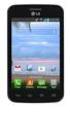 ENGLISH User Guide LG L39C MFL67940201 (1.0) www.lg.com ENGLISH User Guide Screen displays and illustrations may differ from those you see on actual phone. Some of the contents of this guide may not apply
ENGLISH. User Guide. LG-D405n. www.lg.com MFL68143323 (1.0)
 ENGLISH User Guide LG-D405n MFL68143323 (1.0) www.lg.com ENGLISH User Guide Screen displays and illustrations may differ from those you see on actual phone. Some of the contents of this guide may not
ENGLISH. User Guide. www.lg.com MFL68320401 (1.0)
 ENGLISH User Guide MFL68320401 (1.0) www.lg.com English LG Optimus L90 User Guide Screen displays and illustrations may differ from those you see on the actual phone. Some of the contents of this guide
Point of View SmartTV HDMI 210 dongle - Android 4.2. General notices for use... 2 Disclaimer... 2 Box Contents... 2
 Table of Contents General notices for use... 2 Disclaimer... 2 Box Contents... 2 1.0 Product basics... 3 1.1 Connecting your device for the first time... 3 1.2 Connections... 4 1.3 Using the remote control
Android Mobile Phone User Manual
 Android Mobile Phone User Manual The manual is applicable for the Grand X mobile phone. Contents Let s get started... 1 Getting to know your phone... 2 Screen control... 2 Open and switch applications...
User Guide. Orion Pro X500. www.poshmobile.com
 User Guide Orion Pro X500 www.poshmobile.com 1 Introduction... 3 2 Safety & Notice... 4 3 Start to use... 5 3.1 Touch & type... 5 3.2 Assemble & charge... 5 3.2.1 Switch On and Off... 6 3.2.2 Unlock SIM
7 Mini Tablet User Guide
 7 Mini Tablet User Guide MODEL NUMBER: Powered by SYTABBL7 Wireless Mobile Internet Tablet Getting to Know Your New Tablet: Front View: Back View: Side Angle View: MENU MENU Power Key ON/OFF, Back Button
Content Get Started... 3 Insert SIM card and Memory Card...3 Charging the Battery or Connect to a Computer...4 PAD Overview...
 Content Get Started... 3 Insert SIM card and Memory Card...3 Charging the Battery or Connect to a Computer...4 PAD Overview... 5 Locking and Unlocking the Screen...6 Basic Operation... 7 Switch on/off...
SW10. User Guide. Smart Watch. Please read the manual before use.
 SW10 Smart Watch User Guide www. ScinexUSA.com Please read the manual before use. 1 About this manual You can use this Watch as a companion device to most Android and IOS mobile devices. This user manual
This guide describes features that are common to most models. Some features may not be available on your tablet.
 User Guide Copyright 2014 Hewlett-Packard Development Company, L.P. Bluetooth is a trademark owned by its proprietor and used by Hewlett-Packard Company under license. SD Logo is a trademark of its proprietor.
Otium Gear S Smart Watch User Guide Please read the manual before use. * For further information, please visit www.otiumobile.com
 Otium Gear S Smart Watch User Guide Please read the manual before use. * For further information, please visit www.otiumobile.com 1 About this manual You can use this Gear S as a companion device to some
ENGLISH. User Guide LG L41C. www.lg.com MFL68524301 (1.0)
 ENGLISH User Guide LG L41C MFL68524301 (1.0) www.lg.com ENGLISH User Guide Screen displays and illustrations may differ from those you see on actual phone. Some of the contents of this guide may not apply
Tablet PC User Manual
 Tablet PC User Manual Please read all instructions carefully before use to get the most out of your Time2Touch Tablet PC. The design and features are subject to change without notice. Contents Important
Point of View Mobii 925 - Android 4.2 Tablet PC. General notices for use... 2 Disclaimer... 2 Box Contents... 2
 Table of Contents General notices for use... 2 Disclaimer... 2 Box Contents... 2 1.0 Product basics... 3 1.1 Buttons and connections... 3 1.2 Start up and shut down... 3 2.0 Introduction to Google Android
User Guide. Memo S580. www.poshmobile.com
 User Guide Memo S580 www.poshmobile.com Welcome to POSH S580 Memo Quick Guide S580 is designed with Android system, support dual Sim and dual stand-by. Except for the standard communication function, it
Point of View ProTab 3XXL IPS - Android 4.0 Tablet PC. Contents... 1 General notices for use... 2 Disclaimer... 2 Box Contents...
 Point of View ProTab 3XXL IPS - Android 4.0 Tablet PC English Contents Contents... 1 General notices for use... 2 Disclaimer... 2 Box Contents... 2 1.0 Product basics... 3 1.1 Buttons and connections...
User Guide. Usuario. User Guide MFL67696901 (1.0) MW. This booklet is printed with soy ink. Printed in Mexico
 User Guide User Guía Guide del Usuario This booklet is made from 60% post-consumer recycled paper. This booklet is printed with soy ink. Printed in Mexico User Guide MFL67696901 (1.0) MW Copyright 2013
Point of View SmartTV-500 Center - Android 4.2. General notices for use...2 Disclaimer...2 Box Contents...2
 Point of View SmartTV-500 Center - Android 4.2 English Table of Contents General notices for use...2 Disclaimer...2 Box Contents...2 1.0 Product basics...3 1.1 Buttons and connections... 3 1.2 Connecting
ENGLISH. User Guide LG-E405 P/N : MFL67584312 (1.1) www.lg.com
 ENGLISH User Guide LG-E405 P/N : MFL67584312 (1.1) www.lg.com English LG-E405 User Guide This guide helps you get started using your phone. If you need more information, please visit www.lg.com. Some
This guide describes features that are common to most models. Some features may not be available on your tablet.
 User Guide Copyright 2013 Hewlett-Packard Development Company, L.P. Bluetooth is a trademark owned by its proprietor and used by Hewlett-Packard Company under license. Google is a trademark of Google Inc.
125 8880 telstra.com/ppmbb visit a telstra store or partner GETTING TO KNOW YOUR
 FOR MORE INFORMATIoN: 125 8880 telstra.com/ppmbb visit a telstra store or partner GETTING TO KNOW YOUR Telstra PRE-paid 4G wi-fi LET S GET THIS SHOW ON THE ROad WHAT S INSIDE Your Telstra Pre-Paid 4G Wi-Fi
GETTING TO KNOW YOUR PRE-PAID TELSTRA WI-FI 4G
 GETTING TO KNOW YOUR PRE-PAID TELSTRA WI-FI 4G LET S GET THIS SHOW ON THE ROAD You must be excited about your brand new Pre-Paid Telstra Wi-Fi 4G. This guide will help you get connected as quickly and
TABLE OF CONTENTS YOUR PHONE 3
 TABLE OF CONTENTS 3 Front View Features 3 Bottom View 4 Side by Side View 5 Cool Apps 6 SIM Card 7 Memory Card 11 Battery 13 Power 15 Making a Call 16 Sending a Message 16 Home Screen 18 Ringtone 24 Volume
Android Dongle. User Manual TL869
 Android Dongle User Manual TL869 2 User Manual Android TV Dongle Before using the product, please read this manual thoroughly. The specifications and software in this manual are subject to change without
Get started. Issue 1
 Get started Issue 1 2008 Nokia. All rights reserved. Nokia, Nokia Connecting People, Nseries, N85, Navi, and Nokia Care are trademarks or registered trademarks of Nokia Corporation. Other product and company
How To Use An Easypad On A Pc Or Macbook Or Ipad (For Pc)
 User Guide Congratulations on your new EasyPad 1000. Please follow the instructions in this manual carefully. Statement: If the final version of this product has any differences from the description of
LG Venice User Guide ENGLISH
 LG Venice User Guide ENGLISH 2 Contents Getting to know your phone...5 Your Home screen... 14 Google account setup... 21 Connecting to Networks and Devices... 22 Calls... 26 Contacts... 28 Messaging...
User Manual I1010Q16DCZ
 User Manual I1010Q16DCZ Explanation, Note and Warning *Explanation: important information, which can help you better use your tablet PC. *Note: indicates that not observing the content may result in hardware
User Manual 9.7 Tablet Android 4.0
 User Manual 9.7 Tablet Android 4.0 1 Welcome...3 Important Notices...3 Keys and Functions...4 I. Getting Started...5 1.1 Turn on/off...5 1.1.1 Turn on...5 1.1.2 Turn off...5 1.2 Lock/unlock the screen
10 Magni Tablet User Guide
 10 Magni Tablet User Guide MODEL NUMBER: Wireless Mobile Internet Tablet Powered by SYTAB10ST Top View Front View Bottom View Side View SYTAB10ST Getting to Know Your New Tablet: MINI Micro SD Micro SD
Quick Start Guide. U.S. Cellular Customer Service 1-888-944-9400
 Quick Start Guide U.S. Cellular Customer Service 1-888-944-9400 2 LEGAL INFORMATION Copyright 2016 ZTE CORPORATION. All rights reserved. No part of this publication may be quoted, reproduced, translated
GETTING TO KNOW YOUR TELSTRA PRE-PAID 3G WI-FI
 GETTING TO KNOW YOUR TELSTRA PRE-PAID 3G WI-FI LET S GET THIS SHOW ON THE ROAD You must be excited about your brand new Telstra Pre-Paid 3G Wi-Fi. This guide will help you get connected as quickly and
User Guide. Usuario. Guía del. User Guide MFL68663401 (1.0) ME. This booklet is printed with soy ink. Printed in Mexico
 This booklet is made from 98% post-consumer recycled paper. This booklet is printed with soy ink. Printed in Mexico User Guide Guía del Usuario User Guide MFL68663401 (1.0) ME Important Customer Information
February 23, 2011 AUG-3.0-100 Android mobile technology platform 3.0. Android User s Guide
 1 Android 3.0 User s Guide February 23, 2011 Android mobile technology platform 3.0 2 Legal Copyright 2011 Google Inc. All rights reserved. Google, the stylized Google logo, Android, the stylized Android
HTC Hotline Support: 1866-449-8358 7 days a week 8am EST to 1am EST. Your HTC Desire 601 User guide
 HTC Hotline Support: 1866-449-8358 7 days a week 8am EST to 1am EST Your HTC Desire 601 User guide 21 Phone setup and transfer Home screen Your Home screen is where you make HTC Desire 601 your own. After
Quick Start Guide. U.S. Cellular Customer Service: 1-888-944-9400
 Quick Start Guide U.S. Cellular Customer Service: 1-888-944-9400 Getting to Know Your Tablet Microphone Camera Lens Infrared Sensor Power/Lock Key Volume Up/Down Keys Touch Screen Micro USB Charging Port
User Guide Microsoft Screen Sharing for Lumia Phones (HD-10)
 User Guide Microsoft Screen Sharing for Lumia Phones (HD-10) Issue 1.1 EN-US User Guide Microsoft Screen Sharing for Lumia Phones (HD-10) Contents Safety 3 About your accessory 4 Keys and parts 5 Connect
User Guide. Welcome to HUAWEI
 User Guide Welcome to HUAWEI Contents Introduction.................................... 1 Installation..................................... 2 Keys and Functions.................................. 2 Installation..........................................
www.lg.com MFL68599701 (1.0)
 User Guide All screen shots in this guide are simulated. Actual displays and the color of the tablet may vary. Some of the contents in this manual may differ from your tablet depending on the software
Fit Clip Plus Portable Media Player
 Fit Clip Plus Portable Media Player User Guide BL 8GB Thank you for purchasing a Fit Clip Plus Portable Media Player! To get the most out of your Fit Clip Plus, please read this entire user guide carefully.
Nokia Bluetooth Stereo Headset BH-221
 Nokia Bluetooth Stereo Headset BH-221 Issue 2.0 2 Introduction About your headset With the Nokia Bluetooth Stereo Headset BH-221, you can handle calls hands-free, enjoy your favourite music, and listen
FOR MORE INFORMATION. 125 8880 or from a non-telstra phone 13 2200 and say pre-paid telstra.com/ppmbb visit a telstra store or partner
 FOR MORE INFORMATION 125 8880 or from a non-telstra phone 13 2200 and say pre-paid telstra.com/ppmbb visit a telstra store or partner getting to know your telstra pre-paid 4G WI-FI (760S) LET S GET THIS
ZTE GRAND X Plus User Manual
 ZTE GRAND X Plus User Manual 1 About This Manual Thank you for choosing this ZTE mobile device. In order to keep your device in its best condition, please read this manual and keep it for future reference.
GLOBAL. The world s local mobile phone. Quick Start Guide
 GLOBAL The world s local mobile phone Quick Start Guide 1 SAR This mobile phone meets applicable national SAR limits of 2.0 W/Kg. The specific maximum SAR values can be found in the SAR information section
V9A Light User Manual
 V9A Light User Manual 1 Table of Content Getting Started...25 Taking a Glance at Your Light... 25 Over view... 25 Key Definition... 26 Starting Up... 26 Install the SIM/USIM Card/ microsd Card/ Battery...
Back, start, and search key... 3. Lock the keys and screen... 6. Unlock the keys and screen... 7. Set the keys and screen to lock automatically...
 Userguide Nokia Lumia 620 Table of Contents Keys and parts... 3 Back, start, and search key... 3 How to Insert a SIM card... 4 First start-up... 6 Switching Phone ON and OFF... 6 Switch the phone on...
ZTE Blade V Quick Start Guide
 ZTE Blade V Quick Start Guide LEGAL INFORMATION Copyright 2013 ZTE CORPORATION. All rights reserved. No part of this publication may be quoted, reproduced, translated or used in any form or by any means,
ENGLISH. LG-K350n. www.lg.com MFL69473801 (1.0)
 ENGLISH User Guide LG-K350n MFL69473801 (1.0) www.lg.com About this user guide ENGLISH Thank you for choosing LG. Please carefully read this user guide before using the device for the first time to ensure
Your HTC Amaze 4G User guide
 Your HTC Amaze 4G User guide 2 Contents Contents Getting started Inside the box 8 HTC Amaze 4G 8 Back cover 10 SIM card 12 Storage card 13 Battery 14 Switching the power on or off 16 Setting up HTC Amaze
GETTING TO KNOW YOUR TELSTRA PRE-PAID 3G USB + WI-FI
 FOR MORE INFORMATION CALL 125 8880 or FROM A NON-TELSTRA PHONE, CALL 13 2200 AND SAY PRE-PAID VISIT telstra.com/ppmbb VISIT A TELSTRA STORE OR PARTNER GETTING TO KNOW YOUR TELSTRA PRE-PAID 3G USB + WI-FI
This guide describes features that are common to most models. Some features may not be available on your tablet.
 User Guide Copyright 2013 Hewlett-Packard Development Company, L.P. Bluetooth is a trademark owned by its proprietor and used by Hewlett-Packard Company under license. Google, Android, AdWords, Gmail,
Your HTC Merge. User guide
 Your HTC Merge User guide Before you do anything else, please read this Charge the battery The battery in your phone hasn t been charged yet. While your phone is charging, it s important that you do not
User Guide Lumia 950. Issue 1.0 EN
 User Guide Lumia 950 Issue 1.0 EN Keys and parts 1 Main camera 2 Loudspeaker 3 Audio connector 4 Front camera 5 Earpiece 6 Volume keys 7 Power/Lock key 8 Camera key 9 Charger connector 10 Microphone 2015
Your HTC Sensation 4G User guide
 Your HTC Sensation 4G User guide 2 Contents Contents Getting started HTC Sensation 4G 8 Back cover 10 SIM card 11 Storage card 12 Battery 13 Switching the power on or off 15 Setting up HTC Sensation 4G
May 20, 2011 AUG-2.3.4-106 Android mobile technology platform 2.3.4. Android 2.3.4 User s Guide
 May 20, 2011 Android mobile technology platform 2.3.4 Android 2.3.4 User s Guide 2 Legal Copyright 2010 Google Inc. All rights reserved. Google, the stylized Google logo, Android, the stylized Android
User Guide C 12 M 100 Y 36 K 0
 User Guide Welcome to GreatCall! Thank you for choosing the Jitterbug Touch3. We ve made it easy for you to stay connected to friends and family with the simplicity of GreatCall. Additionally, our service
M3 User Manual Tablet Android 4.1
 M3 User Manual Tablet Android 4.1 Welcome... 2 Important Notices... 3 Keys and Functions... 4 I. Getting Started... 5 1.1 Turn on/off...5 1.1.1 Turn on... 5 1.1.2 Turn off... 5 1.2 Lock/unlock the screen
Your HTC Rezound with Beats Audio User guide
 Your HTC Rezound with Beats Audio User guide 2 Contents Contents Getting started Inside the box 9 HTC Rezound with Beats Audio 9 Back cover 11 SIM card 12 Storage card 13 Battery 15 Switching the power
HTC Wildfire S. User Manual
 HTC Wildfire S User Manual 2 Contents Contents Getting started Inside the box 8 HTC Wildfire S 8 Back cover 10 Storage card 11 Battery 12 Switching the power on or off 13 Finger gestures 14 Ways of getting
User guide. Xperia M 1904/C1905
 User guide Xperia M 1904/C1905 Contents Getting started...6 Android what and why?...6 Overview...6 Assembly...7 Turning the device on and off...9 Locking and unlocking the screen...9 Setup guide...10 Accounts
Your Phone This section introduces you to the hardware of the device.
 Your Phone This section introduces you to the hardware of the device. No. Items Functions 1 Earphone jack 2 Strap hole 3 LED / Speaker Use a headset for hands-free conversation or listening to music. It
ENGLISH ESPAÑOL. User Guide QUEST LTE
 ENGLISH ESPAÑOL User Guide QUEST LTE MFL67866101 (1.0) ENGLISH QUEST LTE All materials in this guide including, without limitation, the design, the text, and any marks are the property of LG Electronics,
User guide. Xperia E1
 User guide Xperia E1 D2004/D2005 Contents Getting started...6 Overview...6 Assembly...7 Starting your device for the first time...8 Why do I need a Google account?...9 Charging your device...9 Learning
User guide. Xperia M4 Aqua Dual E2312/E2333/E2363
 User guide Xperia M4 Aqua Dual E2312/E2333/E2363 Contents Getting started... 6 About this User guide... 6 Overview... 6 Assembly... 7 Starting your device for the first time...8 Why do I need a Google
YOGA TABLET 8. User Guide V1.0. Please read the safety precautions and important notes in the supplied manual before use.
 YOGA TABLET 8 User Guide V1.0 Please read the safety precautions and important notes in the supplied manual before use. Chapter 01 YOGA TABLET 8 Overview 1-1 Appearance 1-2 Buttons 1-3 Turning On/Off Your
Contents. New features. Getting started. Entertainment. Transferring data. Managing your phone. Tools
 User Guide Contents New features 1 Read before use 1 Unlocking with fingerprint 3 Safe 3 All focus mode 4 Taking photos from the timeline album screen 5 Scanning a QR code 6 Protecting your privacy Getting
Your HTC Inspire 4G. User guide
 Your HTC Inspire 4G User guide 2 Conventions used in this guide In this user guide, we use the following symbols to indicate useful and important information: This is a note. A note often gives additional
Your HTC Hero S User guide
 Your HTC Hero S User guide 2 Contents Contents Getting started Inside the box 8 HTC Hero S 8 Bottom cover 10 Battery compartment door 11 Storage card 12 Battery 13 Switching the power on or off 15 Finger
User guide. Xperia C3 Dual D2502
 User guide Xperia C3 Dual D2502 Contents Getting started... 7 About this User guide... 7 Overview... 7 Assembly... 8 Starting your device for the first time...10 Why do I need a Google account?...10 Charging
Your HTC Velocity 4G User guide
 Your HTC Velocity 4G User guide 2 Contents Contents Getting started Inside the box 8 HTC Velocity 4G 8 Back cover 10 SIM card 12 Storage card 13 Battery 14 Switching the power on or off 16 Entering your
ENGLISH USER GUIDE. LG-H340n. www.lg.com MFL69020501 (1.0)
 ENGLISH USER GUIDE LG-H340n MFL69020501 (1.0) www.lg.com User Guide ENGLISH Some content and illustrations may differ from your device depending on the region, service provider, software version, or OS
HTC Desire 526G+ dual sim. User guide
 HTC Desire 526G+ dual sim User guide 2 Contents Contents Unboxing HTC Desire 526G+ dual sim 8 Back cover 9 Dual micro SIM cards 11 Storage card 12 Battery 13 Switching the power on or off 14 Setting up
ENGLISH. User Guide. www.lg.com MFL67855101 (1.0)
 ENGLISH User Guide MFL67855101 (1.0) www.lg.com Important Customer Information 1 WARNING: This product contains chemicals known to the State of California to cause cancer and birth defects or other reproductive
User Guide Microsoft Screen Sharing for Lumia Phones (HD-10)
 User Guide Microsoft Screen Sharing for Lumia Phones (HD-10) Issue 1.1 EN User Guide Microsoft Screen Sharing for Lumia Phones (HD-10) Contents Safety 3 About your accessory 4 Keys and parts 5 Connect
Vodafone Smart ultra 6. User Manual
 User manual VF-995N Vodafone Smart ultra 6 User Manual 1 1. Getting started 7 1.1 Getting to know your phone... 7 1.2 Knowing the keys... 8 1.3 Installing your nano-sim card... 9 1.4 Installing an optional
Nokia USB Modem. Issue 1.1
 Nokia USB Modem Issue 1.1 2 Contents About your USB modem 3 Get started 3 Parts 3 Insert the SIM card 4 Insert a memory card 4 Install the connection manager 6 Uninstall from your computer 6 Internet connection
Your HTC Sensation XE with Beats Audio User guide
 Your HTC Sensation XE with Beats Audio User guide 2 Contents Contents Getting started Inside the box 8 HTC Sensation XE with Beats Audio 8 Back cover 10 SIM card 11 Storage card 12 Battery 13 Switching
User guide. Xperia L C2105/C2104
 User guide Xperia L C2105/C2104 Contents Xperia L User guide...6 Getting started...7 About this User guide...7 What is Android?...7 Phone overview...7 Assembly...8 Turning the device on and off...9 Screen
Contents Contents... 1 About Android... 7 Applications... 7 Your phone... 8 Getting started... 11 Touch screen & keys... 13
 Contents Contents... 1 About Android... 7 Applications... 7 Your phone... 8 Getting started... 11 Touch screen & keys... 13 Touch tips... 13 Zooming tips... 14 Rotate the screen... 14 Key tips... 14 Home
Table Of Contents. Thank You...3 Package Contents...3 Features...4
 Â Table of Contents Thank You...3 Package Contents...3 Features...4 GeTTinG To know The internet TableT...5 About the Touchscreen...8 Protective Film...8 Touchscreen Actions...8 About the Orientation Sensor...9
 Table of Contents Thank You...3 Package Contents...3 Features...4 GeTTinG To know The internet TableT...5 About the Touchscreen...8 Protective Film...8 Touchscreen Actions...8 About the Orientation Sensor...9
INQ CLOUD TOUCH USER GUIDE
 INQ CLOUD TOUCH USER GUIDE OVERVIEW THE BASICS The Basics overview Your phone Remove the back cover Insert SIM, microsd & battery Charge the battery Power on/off First-time setup Lock & unlock your screen
user manual It is important to read this user manual prior to using your new product for the first time.
 user manual Thank you for purchasing an Acoustic Research product. We pride ourselves on the quality and reliability of all our electronic products. For service or repairing, please contact the authorized
User manual TAB-10C010-232
 User manual TAB-10C010-232 Congratulations on the purchase of your new tablet! This manual contains important safety and operating information in order to prevent accidents! Please read this manual thoroughly