
GEONAV 5. User and Installation Guide
|
|
|
- Theodore Jordan
- 9 years ago
- Views:
Transcription
1 GEONAV 5 E User and Installation Guide 1

2 READ THIS WARNING BEFORE USING THE GEONAV 5 WARNING! THE ELECTRONIC CHART IS AN AID TO NAVIGATION DESIGNED TO FACILITATE THE USE OF AUTHORIZED GOVERNMENT CHARTS, NOT TO REPLACE THEM. ONLY OFFICIAL GOVERNMENT CHARTS AND NOTICES TO MARINERS CONTAIN ALL INFORMATION NEEDED FOR THE SAFETY OF NAVIGATION AND, AS ALWAYS, THE CAPTAIN IS RESPONSIBLE FOR THEIR PROPER USE. The use of the GEONAV 5 implies knowledge and acceptance of this warning by the user. 3

3 Characteristics CHARACTERISTICS New compact design Self contained GPS Plotter system (Plotter + GPS receiver + Antenna) Built-in world map 32 bit RISC processor Upgradable software Monochrome transflective Liquid Crystal Display (LCD) 5 with high visibility under sunlight Compatible with NAVIONICS Nav-Chart cartridges Input voltage: from 9.8 to 18 VDC, with reverse polarity and overvoltage protection Splash-proof, specifically designed for open boats Low power consumption: 2.5 W Weight: approx. 0.7 kg Size: 141 x 157 x 42.5 mm 4

4 Operating temperature: 0 to 60 C, humidity 93% Storage temperature: -20 to 70 C, humidity 93% High sensitivity GPS receiver Satellite acquisition time 2 minutes (cold) 15 minutes (first fix) GPS position accuracy: 15 m (with S.A. disabled) CE standard compliant Quick-locking bracket Accessories Mounting bracket for fixed installation on boat Rubber gasket and drilling template for panel mounting Removable bracket with high strength suction cup for installation on cars Power supply cable and car lighter plug User guide Carrying case Protective cover Memory 1 route 5 waypoints 5

5 Introduction INTRODUCTION The GEONAV 5 is a graphic GPS plotter that displays your boat s current position with respect to an electronic chart. The GEONAV 5 can use up to 12 satellites simultaneously. By using a GEONAV 5 and a NAVIONICS electronic chart you will never get lost even in bad weather conditions such as fog or rain because your plotter will always display where you are and where your are heading to! The ROUTE function will allow you to plan a trip. NAVIONICS chart cartridges are available for all busy boating areas around the world and can be used in addition to your official paper charts. NAVIONICS chart cartridges are available from NAVIONICS authorized dealers and outlets around the world. See your local marine electronics dealer for more information. The GEONAV 5 unit is equipped with accessories for installation in your boat and car. The GEONAV 5 can be used also for land applications: the GPS receiver and the new NAVIONICS land charts will allow displaying easily your position with respect to the most popular roads and city names. The installation of the GEONAV 5 in your car takes only a few seconds: just position the plotter on the dashboard with the proper bracket and fix the suction cup to the front window, then connect the power cable to the lighter. Enjoy your trip! 6

6 Should any new function be available in the future, the software of your GEONAV 5 can be updated in a very short time. See your local marine electronics dealer for more information. 7

7 Installation and Precautions INSTALLATION AND PRECAUTIONS When installed on a boat, in order to avoid electromagnetic interference, the GEONAV unit must be positioned at least 0.35 m away from a magnetic compass or a flux-gate sensor, such as those used on autopilots and remote electronic compasses. The GEONAV is water resistant, but not waterproof. It is essential that the rubber cover on the lower side of the unit is firmly inserted in the cartridge slot; the rubber cover should be removed only when the Nav-Chart has to be inserted or replaced and, in this case, the unit must be perfectly dry. To avoid continuous exposure to water, a protective cover is supplied with the GEONAV: the cover should always be used when the unit is turned off, in order to protect the unit from direct sunlight and water. For best satellites reception, mount your unit outside in an open area to allow the best sky visibility to the built-in antenna located on the upper side of the instrument. If the instrument is installed so as to permit full horizon visibility, the best performance will be ensured. Panel mounting A drilling template is supplied with the plotter to properly locate holes and areas that have to be cut out of the instrument panel. A neoprene adhesive gasket is supplied with the unit and must be applied to the rear of the plotter to avoid moisture penetration and to reduce vibrations. Mounting screws must be 4 mm in diameter and maximum 5 mm in length, plus the thickness of the instrument panel. 8

8 We advise you against tightening the screws too much, in order not to break the screw seats. Fixed installation The plotter may be mounted on any surface using the mounting bracket provided with the unit (see figure below). Use the 4 flat-head screws (5mm in diameter) to fix the bracket on to the desired mounting surface. The bracket does not allow any left or right rotation, therefore make sure that the unit is properly installed for the best viewing angle. If you wish to connect the power cable directly to the boat s battery, cut the car lighter adapter off; we recommend that you install a 1A fuse between the power source and the plotter to protect the instruments against overvoltage and/or overcurrent. Since the unit has no start pushbutton, make sure that the unit is supplied by a line controlled from the switchboard or separate switch. If you make use of the car lighter plug, remember to unplug the adapter after use so as to switch the unit off. 9

9 Installation and Precautions Car installation To allow an easy installation on your car, the GEONAV is supplied with an additional bracket that ends with a suction cup. When the unit is installed, make sure that your car front window has enough space to allow proper road visibility. Installation procedure is the following: 1. Locate a flat surface on the window that allows you to position the bracket base on the dashboard as well as allows the internal GPS to have the best sky visibility (the GPS needs to track satellites, hence needs to be able to see the sky). 2. Clean the entire front window area you wish to use for unit installation. Use a good window cleaner and paper towels and dry the area completely. 3. Verify that the GEONAV does not interfere with levers, airbags and other car facilities. 4. Push the lever back on the suction cup. 5. Place the suction cup firmly on the clean, flat glass surface and push the lever forward to adhere to the glass. 6. Make sure that the unit is firmly secured and correctly positioned and that it will not fall off the window. This step is very important to ensure safe operation while driving. Test the connection between the unit and the window several times after installation and during use. 7. Place the mounting bracket on top of the dashboard and orientate the plotter to the best position for the internal GPS antenna. 8. Plug the power cord into the lighter adapter. 10

10 Connections CONNECTIONS The figure shows colors and polarity of the car lighter adapter. The adapter has a little lamp (LED) that turns on if the car is correctly providing the bracket with power. If the lamp is off: verify that 12V voltage is available from the lighter plug; verify that the adapter internal fuse works; open the adapter and check the fuse. If the fuse is broken, replace it with a fuse with the same electrical features. DO NOT USE ANY BY-PASS CIRCUIT. The fuse guarantees that the special protection circuit inside the plotter works properly under accidental short circuits, polarity inversion and overvoltage. If you have to remove the lighter adapter, the internal connections are the following: red (or white) + (+ 12V) black - (ground) 11

11 Cartridge Installation CARTRIDGE INSTALLATION Remove the rubber cover located in the unit s lower side and slide the Nav-Chart cartridge into the slot. Install the cartridge into the plotter. Replace the rubber cover with a light pressure and check that it is inserted correctly to avoid any water infiltration. 12

12 Keyboard KEYBOARD ZOOM +/ZOOM - Increases/decreases the chart range CURSOR Moves the manual cursor across the screen. Switches from Navigation mode to Manual mode. Selects the options from menus and submenus. At start-up, adjusts the screen contrast. ENT When a setup/edit window is shown, confirms the operation. Navigation mode: accesses the menu. Cursor mode: inserts a waypoint CLR Navigation mode: deletes the whole route. Cursor mode: deletes the waypoint pointed by the cursor or enters the Navigation mode if no waypoint is pointed by the cursor. 13

13 Diagnostic DIAGNOSTIC The GEONAV has a diagnostic program to verify its correct performance, once the installation has been made, and detect problems that may occur during the use of the unit. To access this program, turn the unit on by keeping any key pressed excepting CLR. The GEONAV will perform automatically a test of the entire system; as soon as the memory test has been performed, the program allows verifying whether each key works properly. Keep the CLR key pressed for 3 seconds to exit, otherwise go on with testing keys. The diagnostic program allows verifying the correct connection between the GPS receiver and the unit. The position sensor should be operating and should transmit NMEA 0183 messages. If the receiver is working, a string of NMEA messages will be dispayed; this indicates that the entire system is working correctly. Press ENT to freeze the messages on the screen. Press CLR to exit the diagnostic program. ATTENTION: to perform a memory reset, switch the unit on holding the CLR key pressed. This operation allows deleting all the data saved by the GEONAV so far and resetting it. 14

14 NAVIONICS Electronic Charts NAVIONICS ELECTRONIC CHARTS The GEONAV includes a built-in world map that allows zooming from 4,096 down to 512 NM. Additional cartographic details relevant to the specific area of navigation are available by NAVIONICS Seamless Nav-Chart cartridges. When a cartridge is present, a small square will show the area covered by the chart. Positioning the cursor inside the square and then decreasing the range with the ZOOM+ key, the details of the area covered by the chart will be displayed. Generally the maximum detail level is obtained in the port plans and can reach 1/8 nautical mile (the smallest point on screen is equivalent to 1 m approx.) depending on cartridge type and coverage. NAVIONICS charts contain the following main symbols: PORT SERVICES LIMITS & RESTRICTED AREAS NATURE OF SEABED DEPTH CONTOURS NAVIGATIONAL AID: LIGHTS SHIPWRECKS & INFORMATION CABLES & PIPELINE OBSTRUCTIONS SPOT SOUNDINGS 15

15 NAVIONICS Electronic Charts To increase the map detail, press ZOOM+. To decrease the map detail, press ZOOM-. How to display bathymetric lines Enter the Navigation mode (see next chapter), then press ENT until the menu bar is displayed, select SET, then enable the options desired using the CURSOR key. How to display navaids Positioning the manual cursor on the navaid symbol, a window will display the relevant characteristic. ABBREVIATIONS FOR LIGHT ABBREVIATIONS FOR COLOUR AL alternating AM amber F fixed B black FLL fixed and flashing BL blue FL (...) group flashing G green FL single flashing OR orange IQ interrupted quick R red OC single-occulting VL violet OC (...) composite group occulting W white Q continuous group Y yellow ABBREVIATIONS FOR PERIOD ABBREVIATIONS FOR RANGE..S xx seconds..m xx nautical miles 16

16 How to display port services Position the manual cursor on the icon relevant to the selected marina; when pressing ENT, a window will list all the services available in that port. Select the service desired from the list by pressing the CURSOR key. Port services are identified by the following icons: Health and first aid services Tourist services and shops Engine, boat, electronic and other repairs Customer services Water Fuel Information and authorities 17

17 Functional Characteristics FUNCTIONAL CHARACTERISTICS This chapter summarizes the most commonly used functions of the GEONAV and also gives a brief description of the terms that will appear in the following pages. Additional terms and acronyms can be found in the Glossary section at the end of this manual. Navigation mode (Automatic, AUTO) The GEONAV goes to Navigation mode as soon as the internal GPS receiver sends a valid fix; when in Navigation mode, the manual cursor is not displayed. This mode is also referenced to as automatic because the unit automatically updates the boat s position on the screen. Cursor mode (Manual, MAN) When in Cursor mode, the manual cursor is displayed. It is possible to edit a route, display navaid information, access the menu, etc. By pressing the CURSOR key, the unit switches from Cursor mode to Navigation mode and the screen will be centered with respect to the manual cursor. To return to Navigation mode, press CLR. Autozoom With the Autozoom function always enabled, the GEONAV will always display automatically the boat s position and the target waypoint at the best available chart range. Therefore, this function is enabled only if at least one waypoint is present. 18

18 Screen amplifier This function, always enabled, redraws the chart if the boat s speed is greater than 3 knots so as to maintain 2/3rds of the screen ahead of the boat. This function is enabled only if no waypoint is present. without screen amplifier with screen amplifier Chart rotation Charts are traditionally displayed in north-up mode. This, however, does not correspond to reality. For example, when traveling southwards, the chart shows, on the right side of the boat, what is on the left side in reality and vice versa. The Chart Rotation function allows rotating the electronic chart displayed according to the plotted route (COG - Course Over Ground) as detected by the GPS receiver. Since the COG value varies continuously, a filter has been inserted to prevent the chart from bouncing. not rotated rotated 19

19 Functional Characteristics To activate the Chart Rotation function, enter the Navigation mode, press ENT to display the menu, select SET, then CHART ROTATION and ON. A message will prompt the user to select the requested maximum range before activating the chart rotation. Local time By this function the user can enter local time instead of Greenwich time (GMT) supplied by the GPS receiver. To enter local time, enter the Navigation mode, then press ENT till the main menu bar is displayed; by using the CURSOR key, select SET, TIME and then LOC. A window will allow entering local time by the CURSOR key. Press ENT to confirm the operation. To cancel the visualization of local time, enter the Navigation mode, then press ENT till the main menu bar is displayed; select SET, TIME and then GMT. Contrast Enter the Navigation mode and press ENT till the menu bar is displayed, then select CONTRAST and adjust the contrast with the CURSOR key. The contrast can be adjusted at start-up (when the initial WARNING message is shown) or when the satellite window is displayed; press the CURSOR key and adjust the contrast by the arrows. Track The Track function allows displaying the route actually followed by the boat (during the latest hour approximately); the route is represented by a dashed line. To enable or disable the Track, press ENT repeatedly until the menu bar is shown. Press CURSOR to select the SET option, and the TRACK item, then to enable or disable the function. Press ENT or CLR to confirm the operation and exit. 20

20 Operation OPERATION At start-up the GEONAV will display one page containing a message warning the user that the electronic chart is an aid to navigation designed to facilitate the use of authorized government charts, not to replace them. Adjust the contrast by pressing the CURSOR key. Press ENT to continue; the GEONAV will display the GPS information window until a valid fix is received, then switch automatically to cartography visualization. 21

21 Navigation Window NAVIGATION WINDOW This window is activated automatically as soon as the GPS receiver has computed the boat s position. Speed, course and chart range are displayed at the bottom of the screen. The screen scale indicates the rounded off distance between the instrument s center and top side. By using the ZOOM key, the chart detail level can be increased, thus accessing the NAVIONICS cartography data. To switch from Cursor mode to Navigation mode, press the CLR key. If a route is plotted on the screen, the window will display the following information: speed time to arrive to the target waypoint range to the target waypoint In this case, the current route leg is displayed by a thicker line and the target waypoint highlighted by a dark circle. 22
22 Manual Mode MANUAL MODE By pressing the CURSOR key, the GEONAV switches to Cursor mode where the user is allowed to move freely around the seamless world of NAVIONICS cartography. In Cursor mode, the screen will always be centered with respect to the manual cursor; the window at the bottom of the screen displays the following data: distance from boat s position to manual cursor bearing from boat s position to manual cursor chart range About 1 minute after the last key has been pressed, the GEONAV goes back automatically to Navigation mode. 23
23 Menu MENU To access the menu bar, enter the Navigation mode and press ENT. The bar allows selecting from the following functions: PORT: to select a port where to insert a waypoint. NEAR: to select a class of port services, to search for the nearest services at a given moment. CONTRAST: to adjust the screen contrast. SET: to activate/deactivate/modify the plotter s setup. CHART ROTAT. (ON/OFF) Enables/disables the chart rotation function. DEPTH <= 5m (ON/OFF) Enables/disables the display of depth contours below or equal to 5 meters. DEPTH >= 10m (ON/OFF) Enables/disables the display of depth contours above or equal to 10 meters. TRACK (ON/OFF) Enables/disables the Track function. SET TIME (LOC/GMT) Allows setting local time. DIST. UNIT (NM/KM/MI) Allows selecting distance units (nautical miles, kilometers or statutory miles). DEPTH UNIT (M/FT/FA) Allows selecting depth units (meters, feet or fathoms). LANGUAGE (EN/FR/ES/DE/IT/DK/SV/NL/SU/NO) Allows selecting the language (English, French, Spanish, German, Italian, Danish, Swedish, Dutch, Finnish or Norwegian). 24
24 Satellite Window SATELLITE WINDOW This window is displayed at start-up and can be recalled by pressing repeatedly the ENT key; the satellite window displays how many and which satellites are being tracked by the GEONAV built-in GPS receiver. The outer circle represents the horizon, the inner one identifies a 45 elevation in relation to the horizon and the central circle points to the zenith. The numbers within small squares indicate the satellite. As soon as a satellite is tracked by the GPS receiver, the number within the square is displayed in reverse. The bar indicators on the left identify the signal quality (the longer the bar, the higher the signal quality). Additional information: Day, month, year and local time (at first start-up the GEONAV is initialized to the Greenwich Time) Boat s position (or latest valid fix if the GPS is still searching for satellites) Data on current satellite situation (number and fix) Odometer and altitude 25
25 Satellite Window Latitude and longitude relevant to the boat s position are displayed as soon as three satellites are tracked and a 2D fix is available. The altitude value is available only if four satellites are tracked and a 3D fix is performed. As soon as a valid fix is available, the GEONAV will automatically switch to Navigation mode and display the boat s position at the best chart range available; the window at the bottom of the screen will indicate the boat s course and speed as well as the chart range. Since the GPS receiver is initialized in Italy, the time to get the first fix will depend on the areas you want to navigate; within the Mediterranean Sea the GEONAV is supposed to get the first fix in less than 12 minutes, in other areas of the world it can take up to 30 minutes. Once the unit gets the first fix, the time for the following fixes is a few minutes. 26
26 Route ROUTE The GEONAV can manage navigation along a planned route. The figure shows a route displayed by the GEONAV. 1 - Boat s position The boat s position is displayed according to the data received from the GPS receiver. 2 - Leg Route segment between 2 waypoints. 3 - Waypoint The waypoint is identified by a circle and a number. The GEONAV will display the Proximity to Waypoint message to warn the user that in about 25 seconds he is about to approach the next target waypoint. The message End of Trip is displayed when the user is about to reach the last waypoint of the route. The first waypoint is identified by the symbol X. The target waypoint (the next point the boat is navigating to) is identified by a black circle with the relevant number shown in reverse. 27
27 Route 4 - Heading Vector This vector displays the boat s current route. 5 - Cursor It allows moving the manual cursor across the screen; the relevant geographical coordinates (latitude and longitude) are displayed in two small windows. When the GEONAV switches to Navigation mode, the manual cursor disappears. How to create a route To create a route, insert at least one waypoint taking the boat s current position as a starting point. To insert the waypoint at any time, press the CURSOR key and position the cursor at the desired coordinates, or use the search options available from the menu (see the following pages). The route will be initially composed by a leg that connects the boat s position to the target waypoint selected. If you wish to enter additional waypoints, repeat the operation; once the selection is made, the new waypoint will be added to the existing route. To insert, move or delete waypoints (e.g. to go round obstacles or change the route plan), activate the route editing function (see the following pages). NOTE:when turned off, the GEONAV saves automatically the current route and retrieves it as it is turned on again. 28
28 Route to the manual cursor position Press the CURSOR key to switch to Manual mode, position the cursor where a waypoint is to be inserted and then press the ENT key. The GEONAV will insert a new waypoint in the cursor position and a new leg will be added to the existing route; if no waypoint had been previously entered, the leg will be connected to the boat s position. The GEONAV will automatically activate the Autozoom function as soon as it switches to Navigation mode. Route to a port Enter the Navigation mode (by pressing the CLR key if in Cursor mode), then press the ENT key and select the PORT option with the CURSOR key. The GEONAV will display the port catalog (the latest 6 ports used will be highlighted at the top of the screen) and allow selecting the port. Select a port by the CURSOR key and confirm by ENT. 29
29 Route The GEONAV will insert a waypoint in the port position, append the new leg to the existing route (if no route is present, the leg will connect the waypoint to the boat s position) and move to Navigation mode, automatically activating the Autozoom function. Route to the nearest service NOTE: this option is available only with NAVIONICS cartridges that include the Port Service feature. Enter the Navigation mode (by pressing the CLR key if in Cursor mode), press the ENT key and select NEAR by the CURSOR key; the GEONAV will display the port service catalog and allow selecting the service. Select the desired service, then press ENT to confirm or CLR to exit. The GEONAV will display the 3 ports with the selected service, nearest to the boat s position; by using the CURSOR key, highlight one port at a time and check the relevant distance and time to arrive (estimated on the current boat s speed). Press ENT to confirm the selection. 30
30 The GEONAV will insert a waypoint in the port position and delete automatically the existing route, then go back to Navigation mode activating automatically the Autozoom function. How to delete the whole route In Navigation mode, it is possible to delete the whole route by pressing the CLR key. Press ENT to confirm or CLR to abort the operation. In Cursor mode, it is necessary to keep the CLR key pressed for more than 3 seconds (if the key is kept pressed for a shorter time, the GEONAV will go back to Navigation mode). How to edit a route in Cursor mode It is often necessary to delete a single waypoint or modify its position; the GEONAV allows performing these operations in a very simple way and by way of few keys. Deleting a route segment Position the cursor exactly on the segment to delete with the CURSOR key, then press CLR to confirm. Deleting a waypoint in a plotted route Position the cursor exactly on the waypoint to delete with the CURSOR key, then press CLR to confirm. 31
31 Route Moving a waypoint in the plotted route Position the cursor on the waypoint to move with the CURSOR key, press ENT to pick the waypoint up, drag the cursor to the new position and press ENT to drop the waypoint. Inserting a new waypoint in the plotted route Position the cursor exactly on the route segment to edit, then press ENT to insert the waypoint. Now drag the new waypoint exactly where desired with the CURSOR key, then press ENT to confirm. 32
32 Use with Land Cartography READ THIS WARNING BEFORE USING THE GEONAV 5 WARNING! THE CHART PLOTTER, WHEN INSTALLED IN A VEHICLE, MUST NOT OBSTRUCT THE DRIVER S VIEW, AND THE UNIT MUST NOT BE USED BY THE DRIVER, OR DISTRACT THE DRIVER S ATTENTION, WHILE THE VEHICLE IS IN MOTION. The use of the GEONAV 5 implies the knowledge and acceptance of this warning by the user. 33
33 Use with Land Cartography USE WITH LAND CARTOGRAPHY The GEONAV is now a valuable instrument also when used and installed in a car: the GPS receiver and the new NAVIONICS land charts will allow displaying easily your position with respect to the most popular roads and city. The installation of the GEONAV in your car will take you only a few seconds: just position the plotter on the dashboard with the proper bracket and fix the suction cup to the front window, then connect the power cable to the lighter. Enjoy your trip! When a land cartridge is inserted into the unit, the GEONAV will automatically set in land mode: all the major functions will not change with respect to the marine mode and you can still plot a route and activate all the functions as in marine mode. 34
34 SETUP menu The SETUP menu will display some new options: OTHER ROADS (ON/OFF) Enables/disables the display of secondary roads. ROAD NAMES (ON/OFF) Enables/disables the display of road names. CITY NAMES (ON/OFF) Enables/disables the display of city names. DIST. UNIT (NM/KM/MI) Allows selecting the distance unit; the unit selected in land mode is independent of the one selected in marine mode. 35
35 Use with Land Cartography How to display road names This function is equivalent to the display of navaid characteristics when the GEONAV is used with nautical charts. To display a road name, position the manual cursor on the road symbol (a small diamond): a window will display the relevant name. How to search for a city This function, equivalent to the port search, is enabled by the CITY option in the main menu. It allows finding the geographical position of any city, town or village belonging to the area covered by the land chart. 36
36 Troubleshooting TROUBLESHOOTING The GEONAV does not turn on Make sure that the unit is powered with voltage between 10 and 18 VDC. Check the polarity of power supply. The GEONAV does not get any valid satellite fix Make sure that no metal obstacle is positioned around the unit acting as a shield for the GEONAV antenna. If after 40 minutes the GEONAV does not get a valid fix, then turn the unit off and on again. The GEONAV screen gets dark after a long exposure to direct sunlight Adjust the contrast. The GEONAV does not respond to any key Turn the unit off, then on again; if the problem continues, erase the memory by turning the unit on while keeping the CLR key pressed. This operation will delete all the data (route and setting) previously saved in memory. 37
37 Glossary GLOSSARY Azimuth - The angle from the horizon to a satellite or other object. Bearing (BRG) - Compass direction (0 360 ) from the boat s position to destination. COG - Course Over Ground Direction of movement relative to the ground. Coordinates - Description of position in terms of latitude and longitude. Fix - Geographical position computed by the GPS. GMT - Greenwich Mean Time (GMT) (Universal Time). GPS - Global Positioning System The constellation of navigation satellites that orbit the earth transmit precise time and position information. A GPS receiver uses this information to triangulate a position fix. Each GPS satellite transmits its precise location and the time when the transmission started. A GPS receiver acquires the signal and measures the interval between transmission and reception to determine the distance between the receiver and the satellite. Once the receiver has computed the range for at least 3 satellites, the boat s position can be determined. Heading - The direction the boat is moving to. Leg - A segment of a route between waypoints. SOG - Speed Over Ground Boat s speed with respect to the earth. Waypoint - A significant position in the route (often where a turn is made). 38
38 Table of Contents TABLE OF CONTENTS CHARACTERISTICS... 4 INTRODUCTION... 6 INSTALLATION AND PRECAUTIONS... 8 CONNECTIONS CARTRIDGE INSTALLATION KEYBOARD DIAGNOSTIC NAVIONICS ELECTRONIC CHARTS FUNCTIONAL CHARACTERISTICS OPERATION NAVIGATION WINDOW MANUAL MODE MENU SATELLITE WINDOW ROUTE USE WITH LAND CARTOGRAPHY TROUBLESHOOTING GLOSSARY
GO7. Getting Started ENGLISH. simrad-yachting.com
 GO7 Getting Started ENGLISH simrad-yachting.com GO7 Getting Started 3 4 GO7 Getting Started Contents 7 Introduction 7 The Home page 8 Application pages 9 Integration of 3 rd party devices 9 GoFree wireless
GPSMAP 78 series. quick start manual. for use with the GPSMAP 78, GPSMAP 78s, and GPSMAP 78sc
 GPSMAP 78 series quick start manual for use with the GPSMAP 78, GPSMAP 78s, and GPSMAP 78sc Getting Started warning See the Important Safety and Product Information guide in the product box for product
Digital Photo Picture Frame. Operation Manual
 Digital Photo Picture Frame Operation Manual 20070309 CONGRATULATIONS on your purchase of a Polaroid 7 LCD Digital Photo Picture Frame. Please read carefully and follow all warnings and instructions in
English... 2 Español... 41 Português... 79
 TRACKER 5500, 5500i 5100 and 5100i C H A R T P L O T T E R S Installation and Operation Manual English... 2 Español... 41 Português...79 TRACKER 5100i TRACKER 5500 www.navman.com TRACKER 5100 TRACKER 5500i
GPSMAP 62 series quick start manual. For use with the GPSMAP 62, 62s, 62st, 62sc, and 62stc
 GPSMAP 62 series quick start manual For use with the GPSMAP 62, 62s, 62st, 62sc, and 62stc Getting Started warning See the Important Safety and Product Information guide in the product box for product
4.3-inch Back-Up Camera
 TM 4.-inch Back-Up Camera Model No.: PKC0BU4 Owner s Manual and Warranty Information Read these instructions completely before using this product. Retain this Owner s Manual for future reference. INTRODUCTION
INSTALLATION AND OPERATION INSTRUCTIONS
 TM Eagle Explorer INSTALLATION AND OPERATION INSTRUCTIONS TM 1 Copyright 1996 Eagle Electronics All rights reserved. Eagle Explorer is a trademark of Eagle Electronics Eagle is a registered trademark of
CONTENTS USING THE LIGHTS KEY...31 NETWORK ALARMS...32 FAULT AND ERROR MESSAGES...33
 CONTENTS GENERAL INTRODUCTION TO B&G NETWORK... 2 INTRODUCTION TO NETWORK QUAD... 3 EXAMPLE SYSTEMS USING NETWORK QUAD... 4 SELECTING THE DISPLAY MODE... 5 USING THE SPEED KEY... 6 CALIBRATION AND OPERATING
Installation and Operation Manual NAVMAN
 Tracker 5505/5605 Pilot 3380 C H A RA TU PT LO OP T I TL E O R T Installation and Operation Manual w w w. n a v m a n. c o m NAVMAN ! CAUTION IMPORTANT SAFETY INFORMATION! WARNING Please read carefully
Dear Customer, Yours sincerely, Jean Pierre MAQUAIRE C.E.O
 Dear Customer, Thank you for choosing the MLR FX312 GPS or the MLR FX412 DGPS Navigator. We are confident it will give you many years of excellent service and you will enjoy exploring the numerous functions
HP ProDisplay P19A LED Backlit Monitor. User Guide
 HP ProDisplay P19A LED Backlit Monitor User Guide 2013 Hewlett-Packard Development Company, L.P. The only warranties for HP products and services are set forth in the express warranty statements accompanying
GPSMAP 62 series quick start manual. For use with the GPSMAP 62, 62s, and 62st
 GPSMAP 62 series quick start manual For use with the GPSMAP 62, 62s, and 62st Getting Started warning See the Important Safety and Product Information guide in the product box for product warnings and
IN-OUT Thermometer with Cable Free Sensor and Clock
 IN-OUT Thermometer with Cable Free Sensor and Clock MODEL: RAR232 USER'S MANUAL INTRODUCTION Congratulations on your purchase of the RAR232 In-Out Thermometer with 433MHz cable free sensor and calendar
GPSMAP 62 series quick start manual. For use with the GPSMAP 62, 62s, 62st, 62sc, and 62stc
 GPSMAP 62 series quick start manual For use with the GPSMAP 62, 62s, 62st, 62sc, and 62stc Getting Started warning See the Important Safety and Product Information guide in the product box for product
Mirror Mount Video Monitor/Recorder with Front and Rear View Night Cameras PLCMDVR5
 Mirror Mount Video Monitor/Recorder with Front and Rear View Night Cameras PLCMDVR5 www.pyleaudio.com Instruction Manual Installation and Connection: 1. Please disconnect your car battery. 2. In the contents
HDS Gen2 RTM 4.0 software update
 HDS Gen2 RTM 4.0 software update The HDS RTM 4.0 software update enables autopilot control of outboard motors and includes features for Jeppesen 4D charts. Outboard motor autopilot To use outboard autopilot
BLU Vivo 4.3 User Manual
 BLU Vivo 4.3 User Manual 1 Table of Contents Phone Safety Information... 3 Appearance and Key Functions... 4 Installation and Charging... 5 Phone Operation... 7 Communication... 10 Camera... 11 Gallery...
ELECTRONIC LOGGING DEVICE. User Manual
 ELECTRONIC LOGGING DEVICE User Manual Installing Your HD 100 > Installation Instructions Installing your HD 100 can take as little as 10 minutes. Installation instructions are provided here, as well as
e-4 AWT07MLED 7 Q TFT LCD MONITOR (LED Backlighted) USER MANUAL
 Thank you for purchasing our product. Please read this User s Manual before using the product. Change without Notice AWT07MLED 7 Q TFT LCD MONITOR (LED Backlighted) USER MANUAL e-4 SAFETY PRECAUTIONS Federal
INSTALLATION AND OPERATION INSTRUCTIONS
 LMS-350A INSTALLATION AND OPERATION INSTRUCTIONS IMPORTANT! YOU MUST HAVE THE OPTIONAL LGC-1 GPS MODULE ATTACHED TO THE LMS-350A TO USE THE POSITION AND NAVIGATION FEA- TURES ON THIS PRODUCT. WARNING!
Manual. Simrad StructureScan LSS-1 Sonar Module. English
 Manual Simrad StructureScan LSS-1 Sonar Module English www.simrad-yachting.com A brand by Navico - Leader in Marine Electronics Disclaimer As Navico is continuously improving this product, we retain the
FCC COMPLIANCE STATEMENT FOR AMERICAN USERS
 FCC COMPLIANCE STATEMENT FOR AMERICAN USERS This equipment has been tested and found to comply with the limits for a CLASS A digital device, pursuant to Part 15 of the FCC Rules. These limits are designed
245YDS 3 9:30AM P4 USER GUIDE
 3 P4 USER GUIDE TABLE OF CONTENTS Thank You for Choosing Swami Sport...2 Warranty...2 Registration...2 1. General Description of Hardware...3 1.1 Device Layout...3 1.2 Accessories List...3 1.3 Charging
StructureScan HD Module. Installation Guide ENGLISH. www.bandg.com www.simrad-yachting.com www.lowrance.com
 StructureScan HD Module Installation Guide ENGLISH www.bandg.com www.simrad-yachting.com www.lowrance.com Disclaimer As Navico is continuously improving this product, we retain the right to make changes
S320. Contents. Page. Components 3. Quick Start Guide 4. Settings 6. Brightness. Volume. Language. Calibrate the screen. Power save.
 User manual S320 Contents Page S320 Components 3 Quick Start Guide 4 Settings 6 Brightness Volume Language Calibrate the screen Power save Information Picture Satellite Navigation & GPS Speed Trap locator
MAINTENANCE & TROUBLESHOOTING
 MAINTENANCE & TROUBLESHOOTING This section describes how to: clean the lens replace the projection lamp replace the batteries in the remote use the security lock feature troubleshoot the projector Cleaning
TRACKER950. Installation and Operation Manual. English...4 Français...44. www.navman.com NAVMAN
 TRACKER950 C H A R T P L O T T E R Installation and Operation Manual English...4 Français...44 www.navman.com NAVMAN Contents 1 Introduction... 6 1-1 Care... 6 1-2 C-MAP chart cartridges... 7 1-3 Removing
User Guide TL-SG1016D 16-Port Gigabit Switch TL-SG1024D 24-Port Gigabit Switch
 User Guide TL-SG1016D 16-Port Gigabit Switch TL-SG1024D 24-Port Gigabit Switch Rev: 1.1.0 7106503251 COPYRIGHT & TRADEMARKS Specifications are subject to change without notice. is a registered trademark
COLOR TFT LCD MONITOR. User Manual
 COLOR TFT LCD MONITOR User Manual GENERAL INFORMATION Thank you for choosing our TFT LCD(liquid crystal display) monitor. This product employs integrate circuits, low power consumption, and no radiation
Garmin GNC 300XL Pilot s Quick Reference Guide ---------------------------------------------------------------
 Garmin GNC 300XL Pilot s Quick Reference Guide --------------------------------------------------------------- CURSOR/ DATA ENTRY Cursor control: The cursor key is used to activate the cursor in the comm
INSTALLING A/C ADAPTER
 WS 6502 INTRODUCTION 1. SNOOZE/LIGHT BUTTON 2. BASE 3. ALM SET BUTTON 4. + / C/F BUTTON 5. HISTORY BUTTON 6. MODE BUTTON 7. CHANNEL BUTTON 8. - / RCC BUTTON 9. MAX/MIN BUTTON 10. BATTERY COMPARTMENT 11.
Renewable Energy Monitor User Manual And Software Reference Guide. [email protected] (979) 703-1925
 Renewable Energy Monitor User Manual And Software Reference Guide [email protected] (979) 703-1925 1 Introducing the Horizon Renewable Energy Monitor The Renewable Energy Monitor is an educational
LMU-5000. Hardware and Installation Guide
 LMU-5000 Hardware and Installation Guide Plan The Installation Verify Power, Ground and Ignition. Be sure to check each source (power, ground and ignition) to ensure that the proper signaling exists. This
Video Baby Monitor System. User Guide
 Video Baby Monitor System User Guide What s inside Welcome!... 2 Getting started... 3 Tour of the system... 7 Everyday use...13 Cameras... 14 Motion/Alerts... 18 Recording... 21 Playing Back Pictures and
User Manual EN FR DE
 User Manual EN FR DE for Terratrip GeoTrip IT ES PT Version V1.1, 06/02/13 User Manuals available at www.terratrip.com/manuals.htm Index. Page : Features... 3 1.0 Probe Selection:... 3 1.1 GPS receiver:...
MapQuest Navigator User Manual
 MapQuest Navigator User Manual Legal Notice This guide and the information it contains belongs solely to MapQuest, Inc. and Telmap Ltd. The guide and the software products described therein are furnished
nüvi 1400 series quick start manual
 nüvi 1400 series quick start manual for use with these nüvi models: 1410, 1490 2009 Garmin Ltd. or its subsidiaries April 2009 190-01073-01 Rev. A Printed in Taiwan Looking at Your nüvi See the Important
USER MANUAL V5.0 ST100
 GPS Vehicle Tracker USER MANUAL V5.0 ST100 Updated on 15 September 2009-1 - Contents 1 Product Overview 3 2 For Your Safety 3 3 ST100 Parameters 3 4 Getting Started 4 4.1 Hardware and Accessories 4 4.2
TABLE OF CONTENTS QUICK START... 1 DIAGRAM OF THE DIGITAL PHOTO FRAME... 2 KEYPAD BUTTON FUNCTIONS... 3 REMOTE CONTROL FUNCTIONS..
 TABLE OF CONTENTS QUICK START........ 1 DIAGRAM OF THE DIGITAL PHOTO FRAME... 2 KEYPAD BUTTON FUNCTIONS..... 3 REMOTE CONTROL FUNCTIONS..4 DIGITAL PHOTO FRAME NAVIGATION........5 OSD MENU FUNCTIONS..6
12 Volt 30 Amp Digital Solar Charge Controller
 12 Volt 30 Amp Digital Solar Charge Controller User s Manual WARNING Read carefully and understand all INSTRUCTIONS before operating. Failure to follow the safety rules and other basic safety precautions
owner s manual EDGE 200 GPS-ENABLED CYCLING COMPUTER December 2012 190-01368-00_0B Printed in Taiwan
 EDGE 200 GPS-ENABLED CYCLING COMPUTER owner s manual December 2012 190-01368-00_0B Printed in Taiwan Getting Started warning Always consult your physician before you begin or modify any exercise program.
Traditional Sonar and DSI Sonar Installation
 Traditional Sonar and DSI Sonar Installation This document covers the installation of the transducer and display unit installation, which includes connecting the unit to power and installing the unit on
MAINTENANCE & TROUBLESHOOTING
 MAINTENANCE & TROUBLESHOOTING This section describes how to: clean the lens clean the fan intake filter replace the projection lamp replace the batteries in the remote control use the Kensington lock feature
Table of Contents. I. Working Directions...2. II. System Introduction...3. III. Wiring Installation...4. 1. Product Parts List...
 TTS 300 GPS Vehicle Tracker Hardware Installation Manual Table of Contents I. Working Directions...2 II. System Introduction...3 III. Wiring Installation...4 1. Product Parts List... 4 2. Precaution before
LCD Drawer User Manual
 LCD Drawer User Manual - 1 - This manual, covering various aspects of the equipment such as installation, setup and installation, will help you make full use of this LCD KVM Drawer. Please read this manual
Start Here USB. (802.11) (Ethernet)
 Start Here 1 USB 802.11 Ethernet USB cable users: Do not connect the USB cable until Section A. USB A USB Wireless (802.11) or wired (Ethernet) network users : you must follow the instructions in this
Nav-Cam 7000 TripMaster Software User Guide
 Nav-Cam 7000 TripMaster Software User Guide 1 Contents INSTALLATION... 2 IN-VEHICLE INSTALLATION... 3 TRIPMASTER MAIN MENU... 4 Follow Map... 4 Drive To... 5 PLAN ROUTE... 5 Browse Map... 5 Select Place
What s in the box. TomTom XL. EasyPort TM mount. Car Charger. Documentation pack. USB cable
 TomTom XL 1. What s in the box What s in the box TomTom XL EasyPort TM mount Car Charger Documentation pack USB cable 2 2. Getting started Getting started Install your TomTom XL in your car following the
Drayton Digistat +2RF/+3RF
 /+3RF Programmable Room Thermostat Wireless Model: RF700/22090 Model: RF701/22092 Power Supply: Battery - Thermostat Mains - Digistat SCR Invensys Controls Europe Customer Service Tel: 0845 130 5522 Customer
G-100/200 Operation & Installation
 G-100/200 Operation & Installation 2 Contents 7 Installation 15 Getting Started 16 GPS Mode Setup 18 Wheel Sensor Mode Setup 20 Fuel Calibration 23 Basic Operation 24 Telemetery Screen 27 Entering a Distance
UB1 AIR CONDITIONING UNIT INSTALLATION INSTRUCTIONS
 UB1 AIR CONDITIONING UNIT INSTALLATION INSTRUCTIONS INSTALLATION INSTRUCTIONS: Carefully read these instructions before installing your new air-conditioner. AUSTRALIAN AUTOMOTIVE AIR AL00500054E 1 Table
Before installation it is important to know what parts you have and what the capabilities of these parts are.
 INSTALLATION GUIDE Before installation it is important to know what parts you have and what the capabilities of these parts are. The Recon XZT is the smallest and most powerful gauge of its kind. With
Trek Sensor 2.0 Cycling Computer Owners Manual. Precautions. Main Unit/Accessories
 Trek Sensor 2.0 Cycling Computer Owners Manual Congratulations and thank you for purchasing your Trek Cycling Computer. Before operation please read this instruction manual carefully and retain it for
Part 1 Product introduction 2. Part 2 Features 3. Part 3 Safety notes 4. Part 4 Quick user s guide 5. Part 5 Operation notes 7
 Table of contents Part 1 Product introduction 2 Part 2 Features 3 Part 3 Safety notes 4 Part 4 Quick user s guide 5 Part 5 Operation notes 7 Part 6 USB driver installation guide 9 Part 7 Connecting with
SIMRAD GN33 GPS Navigator
 INSTRUCTION MANUAL SIMRAD GN33 GPS Navigator 183-2700-702 06351.33 English Note! Insert or remove C-MAP cartridges ONLY through CHART menu or when unit is off. All electronic navigation equipment is subject
MoTeC USA GPS. Part # M GPS BL Available in 10 Hz or 20 Hz. USER MANUAL Version 1.4
 MoTeC USA GPS Part # M GPS BL Available in 10 Hz or 20 Hz. USER MANUAL Version 1.4 MoTeC USA GPS Copyright Motec Systems USA 2008 The information in this document is subject to change without notice. While
Approach S3 Owner s Manual
 Approach S3 Owner s Manual December 2012 190-01467-00_0C Printed in Taiwan All rights reserved. Under the copyright laws, this manual may not be copied, in whole or in part, without the written consent
USER INSTRUCTIONS FOR GET PORTABLE 12k BTU AIR CONDITIONER MODEL No. GPACU12HR
 USER INSTRUCTIONS FOR GET PORTABLE 12k BTU AIR CONDITIONER MODEL No. GPACU12HR CONTENTS Introduction Safety Notes Identification of parts Installation instructions Operation instructions Maintenance Troubleshooting
FG MOISTURE MONITOR Installation & Operation Manual
 FG MOISTURE MONITOR Installation & Operation Manual Issue 3.0 7/20/10 1 Contents SERVICE AND TECHNICAL SUPPORT... 2 INSTALLATION:... 3 MOISTURE SENSOR INSTALLATION:... 3 SENSOR CONNECTOR:... 5 MONITOR
RL HW / RL HW+ / RL HGW / RL HV / RL HVPW/RL HVPW-G
 Auto-Levelling Rotary Laser Level RL HW / RL HW+ / RL HGW / RL HV / RL HVPW/RL HVPW-G 77-496 / 77-429 / 77-439 / 77-497 / 77-427/ 77-441 Please read these instructions before operating the product Auto-Levelling
User Installation Guide
 Careline Alarm User Installation Guide 1.1 IMPORTANT INFORMATION The user s telephone MUST BE connected to the Reach TEL socket - a double adapter on the incoming line must not be used. If the user has
ExStik TM ph Waterproof Meters
 User Guide ExStik TM ph Waterproof Meters Models PH100 & PH110 Patent Pending ExStik TM Description Front Panel Controls 1. Battery compartment cap 2. LCD Display 3. MODE / HOLD button 4. CAL / RECALL
Senses SV series industrial monitor user manual
 Industrial Monitors Senses SV series Senses SV19 / SV17 User manual (Issue A) Part No: 85090084 Page 1 of 25 Copyright Copyright 2008 Amplicon Liveline Ltd. All rights reserved. This publication, including
PowerView Model PV1000. Operations Manual. 00-02-0619 01-22-08 Section 78
 PowerView Model PV1000 Operations Manual 00-02-0619 01-22-08 Section 78 In order to consistently bring you the highest quality, full featured products, we reserve the right to change our specifications
Wolverine 35mm Film to Digital Converter. Model F2D USER MANUAL
 Wolverine 35mm Film to Digital Converter Model F2D USER MANUAL Version 1.01 December 2008 TABLE OF CONTENTS DESCRIPTION PAGE Table of Contents 1 Before Using the F2D Converter 3 FCC Certifications 3 Warning
MAKING MODERN LIVING POSSIBLE. living connect. Installation and User Guide. Danfoss Heating Solutions
 MAKING MODERN LIVING POSSIBLE living connect Installation and User Guide Danfoss Heating Solutions 2 living connect Thank you for buying a Danfoss product Danfoss Heating Solutions 3 Contents 1. System
FC6 FOOT CONTROLLER OWNER S MANUAL
 FC6 FOOT CONTROLLER OWNER S MANUAL Congratulations and thank you for purchasing the KORG FC6 Foot Controller. To get the most out of this advanced instrument (?) for the longest possible time, we recommend
Nokia Bluetooth Headset BH-800 User Guide. 9246974 Issue 2
 Nokia Bluetooth Headset BH-800 User Guide 9246974 Issue 2 DECLARATION OF CONFORMITY We, NOKIA CORPORATION declare under our sole responsibility that the product HS-24W is in conformity with the provisions
EDGE 800. quick start manual TOUCHSCREEN GPS-ENABLED BIKE COMPUTER
 EDGE 800 quick start manual TOUCHSCREEN GPS-ENABLED BIKE COMPUTER 2010 Garmin Ltd. or its subsidiaries All rights reserved. Except as expressly provided herein, no part of this manual may be reproduced,
T55003. TPMS Tool Manual 1. T55003 INTRODUCTION 2. KEYPAD SUMMARY AND FUNCTIONS
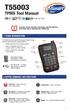 T55003 TPMS Tool Manual To ensure correct operation and service, read the following instructions before operating the T55003 Tool. 1. T55003 INTRODUCTION The T55003 interacts with the tire pressure sensor
ELITE Ti Getting Started
 ELITE Ti Getting Started ENGLISH lowrance.com Contents 7 Introduction 7 Front controls 8 The Home page 9 Application pages 11 Basic operation 11 System Controls dialog 11 Turning the system on and off
MCOM VEHICLE TRACKING SYSTEM MANUAL
 2015 MCOM VEHICLE TRACKING SYSTEM MANUAL Vehicle Tracking System allows the Department to track, trace and monitor their vehicles in real time using GSM / GPRS technology. It sends the location address,
Chapter 1 What s in the box
 TomTom ONE Chapter 1 What s in the box What s in the box a Your TomTom ONE A Touchscreen B Charging LED C On/off button D Speaker E External antenna connector F Memory card slot G USB connector b Windscreen
Wireless Indoor/ Outdoor Thermometer
 Wireless Indoor/ Outdoor Thermometer Owner s Manual Please read before using this equipment. ˆ Contents FCC Information... 3 FCC Declaration of Conformity... 5 Preparation... 5 Installing Batteries...
HP ProDisplay P17A LED Backlit Monitor. User Guide
 HP ProDisplay P17A LED Backlit Monitor User Guide 2013 Hewlett-Packard Development Company, L.P. Microsoft, Windows, and Windows Vista are either trademarks or registered trademarks of Microsoft Corporation
Networkfleet 3500 Product Line Installation Guide
 Networkfleet 3500 Product Line Installation Guide Light/Medium Duty (L3500) Heavy Duty (H3500) Universal (U3500) www.networkcar.com/fleet Customer Care: (866) 227-7323 [email protected] Table
GENUINE PARTS INSTALLATION INSTRUCTIONS
 GENUINE PARTS INSTALLATION INSTRUCTIONS DESCRIPTION: Illuminated Kick Plate APPLICATION: Rogue (2011) PART NUMBER: 999G6 GX010 KIT CONTENTS: Item A B C G H QTY 1 1 1 D 1 E 1 F 3 15 6 Description Kick Plate,
BBWX1 Satellite Weather Receiver. Installation and Maintenance Guide
 BBWX1 Satellite Weather Receiver Installation and Maintenance Guide Rev FUSA 15JUL2007 Table of Contents Safety Precautions 3 Disclaimer. 3 Contents of Package. 4 Tools Required..4 Installation General
Targus Wireless RF Mouse USER S GUIDE. Making Your Mobile Life Easier.
 Targus Wireless RF Mouse Visit our Web site at: www.targus.com Features and specifications are subject to change without notice. 2004 Targus Group International and Targus, Inc.. 400-0111-001B USER S GUIDE
GPS Vehicle Tracker (GPS+GSM+GPRS) User Manual For GT02 (Version 1.2)
 GPS Vehicle Tracker (GPS+GSM+GPRS) User Manual For GT02 (Version 1.2) UVI Group Corporation 11C, HaiYue Building, HuiJing Garden, Nanshan Technology Park, Shenzhen, China Tel: +86-755-83315079 Mobile:
HP Pavilion All-in-One MS200 series PC. Upgrading and Servicing Guide. Printed in
 HP Pavilion All-in-One MS200 series PC *579907-001* *579907-001* Printed in Upgrading and Servicing Guide Replacing a Wireless Keyboard or Mouse...2 Before You Begin... 2 Replacing the Keyboard or Mouse...
5X, Mark 5X, Mark 5X Pro & Elite 4X
 Elite 5X, Mark 5X, Mark 5X Pro & Elite 4X Installation & Operation manual Operation manual Copyright 2011 Navico All rights reserved. Lowrance and Navico are registered trademarks of Navico. Navico may
Wireless Home Security Alarm System AM 500
 Wireless Home Security Alarm System AM 500 12 MONTH GUARANTEE Installation & Operating Instructions INTRODUCTION The AM500 is a simple self-contained alarm system. It protects the home by sounding a siren
User Guide. Vehicle Diagnostics by Delphi
 User Guide Vehicle Diagnostics by Delphi Table Of Contents Welcome...9 Is My Vehicle Compatible?...9 Equipment Overview...10 Package Contents...10 System Requirements...11 Installation Requirements...11
16/32 Channel 1U Rack Mount CCTV Power Supply
 16/32 Channel 1U Rack Mount CCTV Power Supply Manual PH-A3224-GUQ Shown 16-Channel 32-Channel PTC PH-A1612-PUQ PH-A3224-PUQ Glass Fuse PH-A1612-GUQ PH-A3224-GUQ Industrial design 12 Amp 3 Amps per channel
Operating Manual Color Changing Fountains
 Operating Manual Color Changing Fountains 1-877-80-PONDS www.atlanticwatergardens.com Introduction Thank you for purchasing Atlantic s Color Changing Fountains overflowing features that glow from within.
SP AF 300mm F/2.8 LD [IF] for Canon (Model 360EE)
![SP AF 300mm F/2.8 LD [IF] for Canon (Model 360EE)](/thumbs/40/21493790.jpg "SP AF 300mm F/2.8 LD [IF] for Canon (Model 360EE)") SP AF 300mm F/2.8 LD [IF] for Canon (Model 360EE) We greatly appreciate your purchase of this Tamron lens. The Tamron SP AF 300mm F/2.8 LD [IF] is a fast telephoto lens developed for Canon AF single-reflex
SP AF 300mm F/2.8 LD [IF] for Canon (Model 360EE) We greatly appreciate your purchase of this Tamron lens. The Tamron SP AF 300mm F/2.8 LD [IF] is a fast telephoto lens developed for Canon AF single-reflex
TomTom App for Android Reference Guide
 TomTom App for Android Reference Guide Contents Getting started 5 Start TomTom App for Android... 5 Updating your TomTom App for Android... 5 Map updates... 5 GPS reception... 6 Planning a route 7 Planning
UPGRADING AND SERVICING GUIDE
 UPGRADING AND SERVICING GUIDE HPTouchSmart 610 PC Computer features may vary by model. Removing and Replacing a CD/DVD Drive...2 Removing the CD/DVD Drive... 2 Installing a New CD/DVD Drive... 5 Removing
Electronically Controlled Air Suspension (ECAS) for Trucks
 $2.50 Electronically Controlled Air Suspension (ECAS) for Trucks Maintenance Manual No. 36 Issued 7-99 ECAS System for 6 x 2 and 6 x 4 Vehicles with Rear Air Suspensions Service Notes Service Notes This
Using the Garmin etrex 10 GPS
 Using the Garmin etrex 10 GPS Topic 1: Getting started... 2 1. What is Garmin etrex 10 GPS?... 2 2. About this guide... 2 Topic 2: Getting to know your etrex 10... 3 1. Buttons and components... 3 2. Getting
Leaf River Outdoor Products Vibrashine, Inc. P.O. Box 557 Taylorsville, MS 39168 (601) 785-9854 FAX (601) 785-9874 www.vibrashine.
 MULTI-CARD PICTURE VIEWER Model PV-2.5 Leaf River Outdoor Products Vibrashine, Inc. P.O. Box 557 Taylorsville, MS 39168 (601) 785-9854 FAX (601) 785-9874 www.vibrashine.com 2 THANKS and WELCOME What does
GPS Vehicle Tracker (GPS+GSM+GPRS) User Manual (Version 1.2)
 GPS Vehicle Tracker (GPS+GSM+GPRS) User Manual (Version 1.2) Please read this manual carefully before attempting installation and online activation. Pictures are for indication and illustration purposes
RACEAIR REMOTE PAGER SYSTEM
 Computech Systems, Inc. 301-884-5712 30071 Business Center Dr. Charlotte Hall, MD 20622 RACEAIR REMOTE PAGER SYSTEM TM Introduction: Computech s RaceAir Remote Competition Weather Station with the Data
Table of Contents. Use. Troubleshooting. Setup. Welcome. 11 How to arm/disarm system/camera(s) 19 Sync Module setup issues. 3 Installing the Blink app
 User Guide Table of Contents Welcome Setup Use Troubleshooting 2 What s in the box 2 What you need 3 Installing the Blink app 4 Setting up the Sync Module 5 Connecting the Sync Module to Your Wi-Fi 7 Adding
TomTom ONE. EasyPort TM mount. Car Charger. RDS-TMC Traffic Receiver* Documentation pack. USB cable. * Not included with all products.
 TomTom ONE 1. What s in the box What s in the box TomTom ONE EasyPort TM mount Car Charger RDS-TMC Traffic Receiver* Documentation pack USB cable * Not included with all products. 2 2. Getting started
EDGE 800. quick start manual TOUCHSCREEN GPS-ENABLED BIKE COMPUTER
 EDGE 800 quick start manual TOUCHSCREEN GPS-ENABLED BIKE COMPUTER 2010 2012 Garmin Ltd. or its subsidiaries All rights reserved. Except as expressly provided herein, no part of this manual may be reproduced,