
Antenna Rotator System
|
|
|
- Bruce Lucas
- 9 years ago
- Views:
Transcription
1 Antenna Rotator System RCI-USB Reference Manual September/2011 Rev 1.3c

2 Introduction Thank you for purchasing the ARS RCI-USB Interface. Presently, the ARS System provides the most powerful highest performance and lowest cost universal rotor interface available anywhere in the world. It can be connected into any rotor providing 10 bits ADC resolution (2 ^ 10 = 1024 states). It can work with any azimuth rotor or azimuth & elevation rotor and a large list of control and tracking programs are also supported. Moreover it will convert your rotor into the latest technology automated rotor tracking system available. It s very important that you read this manual carefully. Failure to understand the contents of the manual could lead to damaging the rotor or the RCI-USB circuit board through incorrect wiring. Remember that the time you spend reading the manual and understanding how the system works and how the RCI-USB board will interface with your rotor could save you time and money by avoiding an incorrect installation. If any questions occur when reading the manual, please contact us. Our goal is to provide you will a state of the art antenna tracking system. The ARS System has been developed to operate with most rotators available at the market. If you don't find your rotor mentioned in the Quick Start Guide, again you should contact us. We will provide assistance to help you successfully connect your rotor to the RCI-USB circuit board. It is certain that no changes will be required in the RCI-USB circuit design. This board is the product of design evolution of previous RCI-SE circuits beginning in A major enhancement with the current ARS System is the use of a USB port instead a traditional LPT port. The board is not powered by the USB port from your computer. It requires a 12-14Vdc from a power supply. When connected to the computer and a VDC regulated power supply, and the proper driver installed, a virtual COM Port will be added to your computer. The RCI- USB firmware will emulate a Yaesu GS232A interface. Any 3 rd party program that supports a Yaesu rotator will be able to control the board. Additionally, you may use a supplied program called ARSVCOM that will control the board and allow adjustment and configuration of the RCI-USB product in an attractive package. Setup & Hardware Reference Manual: RCI-USB PCB Page 2

3 About this manual The manual is divided into several parts. It covers the installation and configuration of the ARS System hardware and software on your computer. Another manual, the "Quick Installation Guide" is also supplied. It provides information on connecting your RCI-USB board to many popular rotors. Please be sure to properly install and configure the hardware and software as described in this manual. Once this is completed, you may continue with the Quick Installation Guide. After reading the manual, if you have questions or concerns, please contact Interlanco Communications. You may check our website or reach us by . We are committed to helping you achieve a successful implementation of the ARS System. Address: Interlanco Comunicaciones Attn:. Pablo García - EA4TX Albasanz º Derecha Madrid - SPAIN [email protected] Web: Setup & Hardware Reference Manual: RCI-USB PCB Page 3


4 Part 1 Driver Installation for the RCI-USB Plug your board into a USB Port and wait for Windows to begin. It will guide you through the driver installation process. When asked Can Windows connect to Windows Update to search for Windows? Select, No, not this time. Click next to continue. Select Install from Removable Media (Supplied). Click next. Setup & Hardware Reference Manual: RCI-USB PCB Page 4


5 The driver is included in the CD-Rom. Once you finish the installation process, a COM Port will be added Now determine if the port was added correctly and verify the COM Port number assigned by the system: 1) Go to the Device Manager: Windows XP/Vista/Win7 -> Start -> Control Panel -> System -> Hardware -> Device Manager Windows 2000/2003 -> Start -> Settings -> Control Panel -> System -> Hardware -> Device Manager 2) Click plus (+) next to Ports 3) If the device is installed properly, you will see USB to UART (COMx). Note that x is the number of the COM Port. Any program that needs to communicate with the RCI-USB Board (logger, satellite tracking, etc) needs to use the new this COMx port. Setup & Hardware Reference Manual: RCI-USB PCB Page 5

6 1.1 Port reassignment If you need to change the port assigned: 1) Go to Device Manager: Windows XP/Vista/Win7 -> Start -> Control Panel -> System -> Hardware -> Device Manager Windows 2000/2003 -> Start -> Settings -> Control Panel -> System -> Hardware -> Device Manager 2) Right click on the USB to UART. Click properties. 3) Click on the Port Settings tab and then click the Advanced button. 4) Pull down the scrollbar on the bottom left side. You will see several COM ports listed. Select one that doesn't say "in use" next to it. Then click "OK". 5) Click OK again. Notice that the device will now appear on the previously unassigned port you just selected. Verify this by closing Device Manager and selecting it again. 6) Close device manager. 7) This process is illustrated on the following page. Setup & Hardware Reference Manual: RCI-USB PCB Page 6


7 Setup & Hardware Reference Manual: RCI-USB PCB Page 7

8 Part 2 RCI-USB circuit Setup The RCI-USB circuit fulfils the two following objectives: It reads the current antenna position by means of an incorporated A/D converter. It controls the movement of the rotor. For an azimuth rotor, this would be right or CW and left or CCW. This is accomplished through relays using the data obtained from the A/D converter. The RCI-USB has the following connectors: J1: The azimuth antenna rotation is controlled by means of this connector. It is attached to 3 relays on the RCI-USB Board. One of the relays provided (AUX) is able to control a brake. J2: Similar than J1, J2 is used for elevation control. J3: Power input. Connection point for the required Vdc regulated power supply. Correct polarity is required. J4: Input to the A/D converters for the azimuth & elevation rotators. This input is used to read the antenna position. This point will be connected in parallel with the wires attached to the rotor s potentiometer enabling the readout of the antenna position. X1: USB Port. LCD: IDC connector used to attach the LCD. KBD: IDC connector used by the Keyboard. The following image is the RCI-USB circuit schematic allowing easy location of the different connectors: Setup & Hardware Reference Manual: RCI-USB PCB Page 8

9 2.1 Connector J1: Azimuth Relay connections The RCI-USB has two relays to control the Azimuth movement: right (CW) or left (CCW). An additional relay (AUX), located between them may be used to control a brake in rotators requiring a braking function. These relays are 2 position with 2 circuit switches. Each circuit supports 5A at 220V. One of the two circuits of each relay is already wired and attached to its connector as it appears in the following image. RIGHT relay AUX relay LEFT relay In this manual, the 9 terminals of this connector will be called J1-1, J1-2,J1-3, J1-4, J1-5, J1-6, J1-7, J1-8 and J1-9. In de-energised position, J1-2 is switched to J1-1. When it s activated, J1-2 is switched to J1-3. In de-energised position, J1-5 is switched to J1-4. When it s activated, J1-5 is switched to J1-6. In de-energised position, J1-8 is switched to J1-7. When it s activated, J1-8 is switched to J1-9. Relay OFF Relay ON Right/CW J1-2 to J1-1 J1-2 to J1-3 AUX J1-5 to J1-4 J1-5 to J1-6 Left/CCW J1-8 to J1-7 J1-8 to J1-9 This first circuit (available at J1) will be used to control movement to the right or left. If necessary, the second circuit can be used to make a second electric circuit active on the rotor. It is silk-screen printed on the circuit board. It is next to the relays and identified with the following references: A B C D E F G H I Setup & Hardware Reference Manual: RCI-USB PCB Page 9

10 Switching is similar to J1. The de-energised positions are: B to A E to D H to G And the energised positions remain switched: B to C E to F H to I Relay OFF Relay ON Right/CW B - A B - C AUX E - D E - F Left/CCW H - G H - I Setup & Hardware Reference Manual: RCI-USB PCB Page 10

11 2.2 Connector J2: Elevation Relay connections In addition to the 3 azimuth relays, the RCI-USB Board includes 2 relays for elevation control if an elevation rotor is present. Relay OFF Relay ON UP J2-2 to J2-1 J2-2 to J2-3 Down J2-5 to J1-4 J2-5 to J2-6 The extra second circuit is also available: Relay OFF Relay ON UP DOWN Up relay Down relay Setup & Hardware Reference Manual: RCI-USB PCB Page 11

12 2.3 Connector J3: Power input The RCI-USB Board must be powered at Vdc. Note the polarity. Incorrect polarity can damage the board. J3-1 is the positive terminal. J3-2 is the negative terminal. Note: Although the CPU and some parts of the RCI-USB could be powered from the USB, it requires an external power supply. Some components as the replays requires a 12Vdc. Remember to connect this J3 terminal into a 12-14Vdc power supply. Setup & Hardware Reference Manual: RCI-USB PCB Page 12

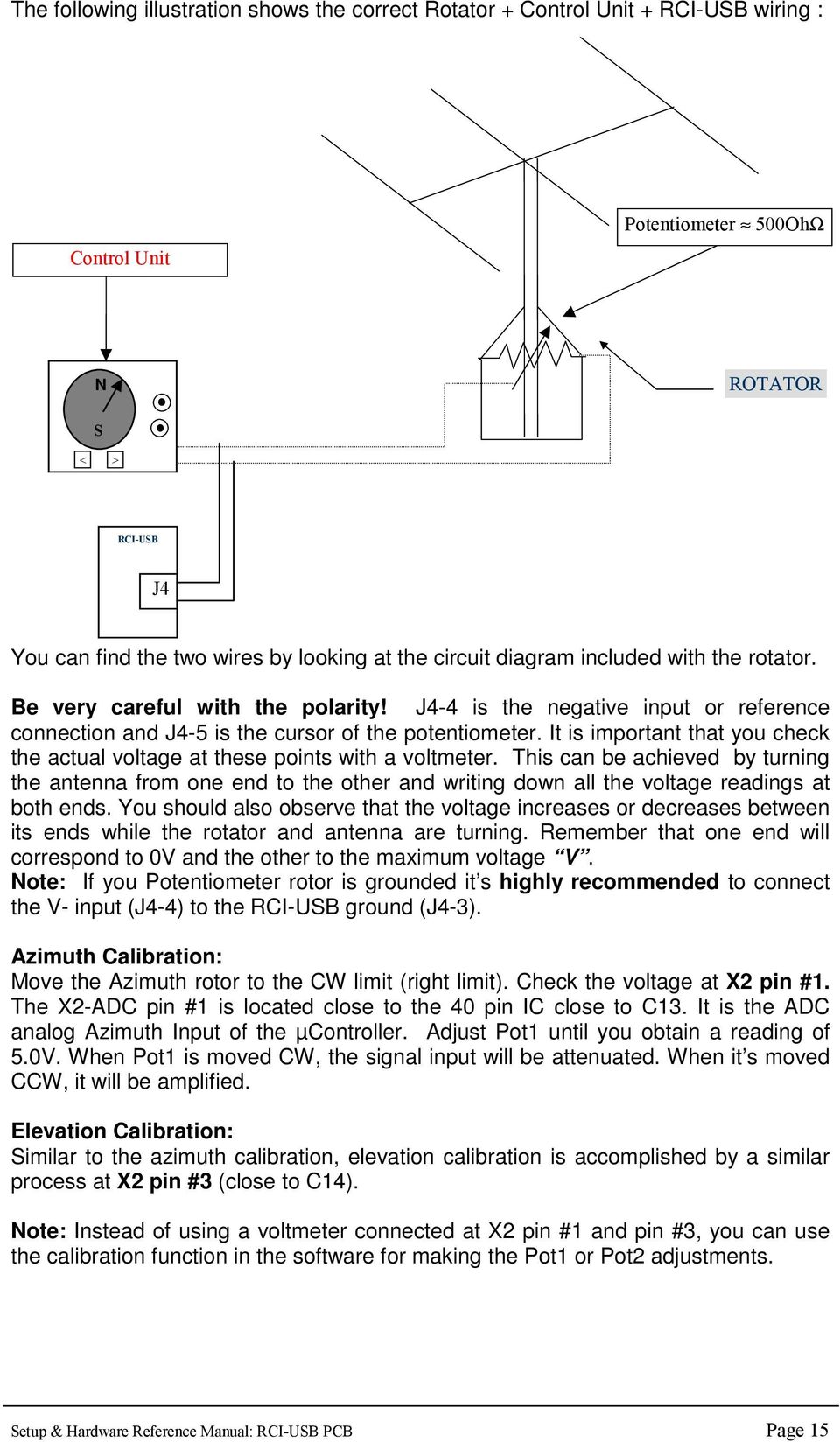
13 2.4 Connectors J4: Operation of the ADC The Analog-to-Digital converter (ADC) allows the computer to determine the direction the rotor and antenna are pointing. To enable, connect the two wires attached to the azimuth (or elev.) rotator s potentiometer to J4. Most rotors use a similar system to read the position in the control unit. The illustration below offers an overview of this operation: Control Unit Potentiometer 500Ohms N S < > Cable to the Rotator V ROTATOR Inside the rotator there is a potentiometer engaged with the antenna mast axis. The voltage feedback changes when the antenna is turned. The existent voltage will change at both ends of the rotation cycle. Normally this will be 0 V at one end (CCW). The other end will show the maximum value in the rotation cycle. It will be called V. This value depends on each model of rotator optimized for a specific rotor by the manufacturer. A 500 Ohms linear potentiometer is normally used. As examples, voltage V in a HAM-IV rotor is 12V, in the Kenpro KR-600RC or YAESU G-2000 it is -3.6V. In some rotors the value is 5V. Again this depends on the individual rotor. It is very important to know the voltage V provided by your rotator. This voltage V may not be specified in the manufacturer s documentation so it must be checked with a voltmeter for correct operation of the ARS System. If the Pot is Grounded, you can connect the V- Input at J4 (J4-4 for Azimuth and J4-1 for Elevation) to Ground at J4-3. As the RCI-USB board must obtain the voltage feedback from the external Pot, the two wires that join the control unit with the rotator (the one from the cursor of the potentiometer and the other from the ground or reference) must be connected in parallel with the J4 terminals (J4-4 & J4-5). Remember that J4-1 & J4-2 are only used in elevation rotators. By this method, the RCI-USB board can read the voltage present at the rotator potentiometer and thus calculate the beam direction. The A/D converter has 10 bits resolution. This equates to 1024 possible values. For example, if the maximum rotation is 360 degrees, a positional resolution of 0.35 degrees is possible. This capability will be more than adequate for most applications. Setup & Hardware Reference Manual: RCI-USB PCB Page 13

14 Unfortunately as previously discussed, not all rotors have a standard voltage value for V. The A/D converter accepts 5V as maximum voltage. To obtain the maximum digital output level, the signal from the rotor will have to either be attenuated or amplified. Again this will depend on the individual rotor. In the previous example we found that a HAM-IV or T2X rotator gives 12V when it is fully turned clockwise (CW limit). Therefore voltage from the rotor will have to be attenuated to 5 V by adjusting Pot1. In other examples mentioned, rotators like the Kenpro KR-600RC or YAESU G-2000 may show a maximum voltage that is negative (-3.6V). Therefore the signal to the RCI-USB board will have to be amplified to avoid losing resolution in the converter. Polarity will also change from negative to positive. The is also accomplished by adjusting the gain at Pot1. The RCI-USB has a potentiometer for each input providing all of these adjustments: Azimuth input: Pot1 adjusts the Gain/Attenuation between 3-24V. Elevation input: Pot2 adjusts the Gain/Attenuation between 3-24V. Even though your rotator may appear in Part 3 in this manual, it is highly recommended that you check the data with your own rotor by means of a voltmeter. The insertion of the RCI-USB in parallel between the Rotor and the Control Unit should not cause any error or modification in the readout of the original instrument. The RCI-USB circuit presents high impedance at the J4 input. Setup & Hardware Reference Manual: RCI-USB PCB Page 14

15 The following illustration shows the correct Rotator + Control Unit + RCI-USB wiring : Control Unit Potentiometer 500OhΩ N ROTATOR S < > RCI-USB J4 You can find the two wires by looking at the circuit diagram included with the rotator. Be very careful with the polarity! J4-4 is the negative input or reference connection and J4-5 is the cursor of the potentiometer. It is important that you check the actual voltage at these points with a voltmeter. This can be achieved by turning the antenna from one end to the other and writing down all the voltage readings at both ends. You should also observe that the voltage increases or decreases between its ends while the rotator and antenna are turning. Remember that one end will correspond to 0V and the other to the maximum voltage V. Note: If you Potentiometer rotor is grounded it s highly recommended to connect the V- input (J4-4) to the RCI-USB ground (J4-3). Azimuth Calibration: Move the Azimuth rotor to the CW limit (right limit). Check the voltage at X2 pin #1. The X2-ADC pin #1 is located close to the 40 pin IC close to C13. It is the ADC analog Azimuth Input of the µcontroller. Adjust Pot1 until you obtain a reading of 5.0V. When Pot1 is moved CW, the signal input will be attenuated. When it s moved CCW, it will be amplified. Elevation Calibration: Similar to the azimuth calibration, elevation calibration is accomplished by a similar process at X2 pin #3 (close to C14). Note: Instead of using a voltmeter connected at X2 pin #1 and pin #3, you can use the calibration function in the software for making the Pot1 or Pot2 adjustments. Setup & Hardware Reference Manual: RCI-USB PCB Page 15
16 2.4.1 PCB Description J4 is the Voltage feedback Input. In most cases, this Input is referenced to ground, so V- should be connected to GND. From left to right the inputs are: J4-1: Elevation V- J4-2: Elevation V+ J4-3: Ground Reference J4-4: Azimuth V- J4-5: Azimuth V+ Note: Most rotors are referenced to ground, so J4-1 (V-) and J4-4 (V-) must be wired to J4-3. Setup & Hardware Reference Manual: RCI-USB PCB Page 16

17 When positive the Voltage feedback that the external rotor provides will be connected to the V+ input. The reference voltage that normally is Ground will be connected to the V- input. Remember that most rotors are referenced to a real ground and it is highly recommended to connect the V- input to the Ground reference. Example for Azimuth rotors referenced to Ground: Positive Potentiometer Feedback J4-5 Negative Potentiometer Feedback J4-4 If the Negative is referenced to Ground, connect J4-4 to J4-3. Once connected, there is a Pot that can be adjusted for correct input to the RCI-USB ADC input: Azimuth Input Adjustment: POT1: will adjust the Gain of the Amplifier. CCW movement will attenuate the input voltage while CW movement will increase the input voltage. You can additionally use the ARSVCOM software calibration procedure to read the maximum ADC value. While doing this, use a screwdriver to adjust POT1. Of course you can place a voltmeter at point X2-1, and adjust the POT1 in the same manner until the voltmeter displays 5V. This adjustment must be done when the rotor is placed at the CW (Right limit). Elevation Input Adjustment: POT2: The procedure to calibrate the Elevation Gain at POT2 is the same as the Azimuth calibration with POT1. Setup & Hardware Reference Manual: RCI-USB PCB Page 17

18 2.5 X1 Point, Led point The RCI-USB includes at the X1 connector, a check point for each relay: - Left, Aux and Right - Down and Up The pins available at the X1 socket can be connected with 5 Led s. However a 470 Ohms resistor must be inserted. Those points will supply 0V when not activated and 5V when each pin is activated. The common point for each Led is wired with the ground at the RCI-USB PCB. X1 Pin assignment: X1-1: GND X1-2: Up relay X1-3: Down relay X1-4: CW/Right relay X1-5: Aux relay X1-6: CW/Left relay Setup & Hardware Reference Manual: RCI-USB PCB Page 18

19 2.6 LCD Socket and contrast adjustment The RCI-USB can handle a 16x2 LCD display. This connector is used to attach the LCD module to the RCI-USB. VR1 can be used to adjust the LCD contrast. There is an optional PCB that you can order with the unit. This RCI-USB LCD supports a 16x2 LCD and 4 bush buttons. This module is always included when the ARS is ordered with the enclosure. Optional RCI-USB LCD board Setup & Hardware Reference Manual: RCI-USB PCB Page 19


20 2.7 KBD Socket The RCI-USB includes a connector labeled KBD. This allows 4 buttons to be used for manual control of the RCI-USB. There are 4 inputs plus common signal available at the KBD socket. The 5 pins used this IDC (10 pins) are: KBD-2: +5Vdc (common) KBD-4: Manual Left/CCW control. KBD-6: Manual Right/CW control. KBD-8: Manual Down control. KBD-10: Manual Up control. Note: Pins 1, 3, 5, 7 and 9 are unassigned. If you connect: KBD-4 to KBD-2, the Left/CCW movement will be activated. KBD-6 to KBD-2, the Right/CW movement will be activated. KBD-8 to KBD-2, the Down movement will be activated. KBD-10 to KBD-2, the Up movement will be activated. Note: When the RCI-USB LCD board is ordered, a ribbon cable will connect those 4 buttons into this KBD socket. This module is always included when the ARS is ordered with the enclosure. Setup & Hardware Reference Manual: RCI-USB PCB Page 20

21 Part 3 Working with the RCI-USB Once you have wired the RCI-USB board with your rotor and the driver is installed, now you can begin to control the interface. There are 2 ways you can interact with the product: COM Port: this port is automatically created each time the PC detect the RCI- USB 4 Keypad: F1, F2, F3 & F4 3.1 COM Port: Via the COM port the user or a 3 rd part program can send and receive commands to/from the RCI-USB. The manual: RCI-USB Commands describe all commands that are supported. Some of them are commands for configuring and calibrate the interface. Some other are used for controlling the appointing. Basically a satellite tracking program or a logging program will use only those commands for control the appointing. IMPORTANT NOTE: The RCI-USB emulates a Yaesu GS232A interface, so any program that supports this tracker interface with work with it. 3.2 Keypad: F1, F2, F3 & F4 If you have ordered the RCI-USB LCD optional PCB, you have an additional board with a 16x2 LCD and 4 buttons, that are labeled as: F1: Which control the Left/CCW movement F2: Which control the Right/CW movement F3: Which control the Up movement F4: Which control the Down movement So pressing those buttons you can control manually the motors. If you own an Azimuth model, the Up/Down buttons are not required, so in this case, those buttons are assigned as PRESET control. So pressing F3/F4 you can change the preset and after a idle period, the RCI-USB will start the appointing into that preset value. Remember that you can cancel an appointing at any time, just press F1 or F2, and it will stop. Setup & Hardware Reference Manual: RCI-USB PCB Page 21
22 3.3 Special Keypad options If some buttons (individual or combined) are pressed meanwhile the RCI-USB is energized, we can get some extra functions. A.- Bootloader F1 Some time ago, the only option for upgrade a microcontroller with a new firmware (code) was to request a new chip from the manufacturer. As you can imagine this is a slow and expensive method. A bootloader is an option for loading a new firmware into the microcontroller and the RCI-USB includes it. You can enabled the bootloader code, by pressing F1 button during the power on. So, as simple as pressing F1 and power on the RCI-USB. Immediately you can release F1. The bootloader will be enabled. Now you need a program that helps you to send the new firmware (hex file) into the microcontroller. You can use Hyperterminal (send the firmware as a text file) or use the RCI_Load program, included on the CD-ROM. So locate inside the CD-ROM the directory Teleloader, and run the setup.exe, and the RCI_Load will be installed on your computer. B.- Absolute Mode F2 The Absolute mode is enabled if F2 button is pressed during the power on of the RCI-USB. The absolute mode allows to: Disabled the watchdog limits Display on the LCD the ADC value (0-1022) By default, the RCI-USB includes a watchdog and if it detects that the rotator has reach one of their limits (CCW/Left or CW/Right on Azimuth; Up or Down on Elevation) the relay which control the movement in that direction is disabled. Imagine that the RCI-USB reads ADC = 0, so it suppose that the motor is at the CCW/Left limit. So the CCW Relay will be disabled. The Absolute mode disables this feature, so you can move any relay. This option is useful when you have done a wrong calibration and you don t want a factory default configuration. C.- Factory default configuration F3 + F4 If you want to load the default configuration, you must press F3 and F4 (both buttons at the same time) and power on the unit. Immediately the default configuration will be restore. Setup & Hardware Reference Manual: RCI-USB PCB Page 22
23 Specifications J1: AZIMUTH RELAY CONNECTOR 3 x Relay: 2 circuits, 5A at 220V. J2: ELEVATION RELAY CONNECTOR 2 x Relay: 2 circuits, 5A at 220V. J3: POWER CONNECTOR Input voltage: 12-14V Power consumption (Standby): <200mA with LCD or < 110mA w/o LCD Power consumption with relays switched on : <250mA with LCD or < 160mA w/o LCD J4 INPUTS J4-5 & J4-4 are the azimuth rotor feedback input. It is adjusted by means of Pot1 (Gain control). J4-2 & J4-1 are the elevation rotor feedback input. It is adjusted by means of Pot2 (Gain control). Input signals between +/-3 to +/--24V can be regulated by means of Pot1 or Pot2. CONNECTOR X1: USB socket. CIRCUIT DIMENSIONS 12cm x 12cm x 3,5cm 4.7inch x 4.7inch x.8inch (Deep, Wide, High) (Deep, Wide, High) Setup & Hardware Reference Manual: RCI-USB PCB Page 23
24 Notes [The remainder of this page has been left intentionally blank] Setup & Hardware Reference Manual: RCI-USB PCB Page 24
25 Index Introduction... 2 About this manual... 3 Driver Installation for the RCI-USB Port reassignment... 6 RCI-USB circuit Setup Connector J1: Azimuth Relay connections Connector J2: Elevation Relay connections Connector J3: Power input Connectors J4: Operation of the ADC PCB Description X1 Point, Led point LCD Socket and contrast adjustment KBD Socket Working with the RCI-USB COM Port: Keypad: F1, F2, F3 & F Special Keypad options A.- Bootloader F B.- Absolute Mode F C.- Factory default configuration F3 + F Specifications Notes Index Setup & Hardware Reference Manual: RCI-USB PCB Page 25
Schematic & Parts List: PIC16F688 Satellite Tracker & Rotor Controller
 Fox Delta Amateur Radio Projects & Kits FD- ST1 Schematic & Parts List: PIC16F688 Satellite Tracker & Rotor Controller Introduction to Satellite Antenna Tracking: The ST1 kit/project was designed as an
Schematic & Parts List: PIC16F688 Satellite Tracker & Rotor Controller
 Fox Delta Amateur Radio Projects & Kits FD- ST1 Schematic & Parts List: PIC16F688 Satellite Tracker & Rotor Controller Introduction to Satellite Antenna Tracking: In view to encourage radio amateurs and
Tech Info Document: PIC16F84A LCD Satellite Antenna Tracking Interface
 Fox Delta Amateur Radio Projects & Kits FD- ST3 Tech Info Document: PIC16F84A LCD Satellite Antenna Tracking Interface Preview: When ST1 was made available in kits, hundreds of Radio Amateurs took interest.
MANUAL FOR RX700 LR and NR
 MANUAL FOR RX700 LR and NR 2013, November 11 Revision/ updates Date, updates, and person Revision 1.2 03-12-2013, By Patrick M Affected pages, ETC ALL Content Revision/ updates... 1 Preface... 2 Technical
Transmitter Interface Program
 Transmitter Interface Program Operational Manual Version 3.0.4 1 Overview The transmitter interface software allows you to adjust configuration settings of your Max solid state transmitters. The following
Troubleshooting and Diagnostics
 Troubleshooting and Diagnostics The troubleshooting and diagnostics guide provides instructions to assist in tracking down the source of many basic controller installation problems. If there is a problem
DMX-K-DRV. Integrated Step Motor Driver + (Basic Controller) Manual
 DMX-K-DRV Integrated Step Motor Driver + (Basic Controller) Manual DMX-K-DRV Manual page 1 rev 1.33 COPYRIGHT 2007 ARCUS, ALL RIGHTS RESERVED First edition, June 2007 ARCUS TECHNOLOGY copyrights this document.
[F/T] [5] [KHz] [AMP] [3] [V] 4 ) To set DC offset to -2.5V press the following keys [OFS] [+/-] [2] [.] [5] [V]
![[F/T] [5] [KHz] [AMP] [3] [V] 4 ) To set DC offset to -2.5V press the following keys [OFS] [+/-] [2] [.] [5] [V]](/thumbs/40/20623504.jpg "[F/T] [5] [KHz] [AMP] [3] [V] 4 ) To set DC offset to -2.5V press the following keys [OFS] [+/-] [2] [.] [5] [V]") FG085 minidds Function Generator Manual of Operation Applicable Models: 08501, 08501K, 08502K, 08503, 08503K Applicable Firmware Version: 1 ) 113-08501-100 or later (for U5) 2 ) 113-08502-030 or later
FG085 minidds Function Generator Manual of Operation Applicable Models: 08501, 08501K, 08502K, 08503, 08503K Applicable Firmware Version: 1 ) 113-08501-100 or later (for U5) 2 ) 113-08502-030 or later
Programming and Using the Courier V.Everything Modem for Remote Operation of DDF6000
 Programming and Using the Courier V.Everything Modem for Remote Operation of DDF6000 1.0 Introduction A Technical Application Note from Doppler System July 5, 1999 Version 3.x of the DDF6000, running version
Troubleshooting and Diagnostics
 Troubleshooting and Diagnostics The troubleshooting and diagnostics guide provides instructions to assist in tracking down the source of many basic controller installation problems. If there is a problem
ProCod. User Manual. Programming software for TWK - Encoders Series CRF and DAF CRF 11069 DE 08 / 10
 Programming software for TWK - Encoders Series CRF and DAF CRF 11069 DE 08 / 10 User Manual ProCod TWK-ELEKTRONIK GmbH D-40041 Düsseldorf PB. 10 50 63 T. 02 11/96117-0 F. 02 11/96117-99 e-mail: [email protected]
User's Guide. Integrating Sound Level Datalogger. Model 407780. Introduction
 User's Guide 99 Washington Street Melrose, MA 02176 Phone 781-665-1400 Toll Free 1-800-517-8431 Visit us at www.testequipmentdepot.com Back to the Extech 407780 Product Page Integrating Sound Level Datalogger
PRODUCTIVITY THROUGH INNOVATION 600 CONTROL DIRECT DRIVE TECHNICAL/OPERATION MANUAL
 Rev. D PRODUCTIVITY THROUGH INNOVATION 600 CONTROL DIRECT DRIVE TECHNICAL/OPERATION MANUAL 10 BORIGHT AVENUE, KENILWORTH NEW JERSEY 07033 TELEPHONE: 800-524-0273 FAX: 908-686-9317 TABLE OF CONTENTS Page
1. SAFETY INFORMATION
 RS-232 Sound Level Meter 72-860A INSTRUCTION MANUAL www.tenma.com 1. SAFETY INFORMATION Read the following safety information carefully before attempting to operate or service the meter. Use the meter
SYSTEM 45. C R H Electronics Design
 SYSTEM 45 C R H Electronics Design SYSTEM 45 All in one modular 4 axis CNC drive board By C R Harding Specifications Main PCB & Input PCB Available with up to 4 Axis X, Y, Z, & A outputs. Independent 25
RIGtalk. Revision 5. Owner s Manual 2012.
 RIGtalk Revision 5 Owner s Manual 2012 www.westmountainradio.com 1020 Spring City Drive Waukesha, WI 53186 262-522-6503 [email protected] 2012 West Mountain Radio, All rights reserved. All trademarks
Bluetooth to Serial Adapter
 Bluetooth to Serial Adapter Third Edition, Oct 2007 Version 3.0 771-BTS1009C3-001 Contents 1.0 Features....P.2 2.0 Package Content....P.2 3.0 Hard Drives Requirement.P.2 4.0 Specifications.P.3 5.0 Pin
How to setup a serial Bluetooth adapter Master Guide
 How to setup a serial Bluetooth adapter Master Guide Nordfield.com Our serial Bluetooth adapters part UCBT232B and UCBT232EXA can be setup and paired using a Bluetooth management software called BlueSoleil
Kit 106. 50 Watt Audio Amplifier
 Kit 106 50 Watt Audio Amplifier T his kit is based on an amazing IC amplifier module from ST Electronics, the TDA7294 It is intended for use as a high quality audio class AB amplifier in hi-fi applications
KTA-223 Arduino Compatible Relay Controller
 8 Relay Outputs 5A 250VAC 4 Opto-Isolated Inputs 5-30VDC 3 Analog Inputs (10 bit) Connections via Pluggable Screw Terminals 0-5V or 0-20mA Analog Inputs, Jumper Selectable 5A Relay Switching Power Indicator
Creating a Project with PSoC Designer
 Creating a Project with PSoC Designer PSoC Designer is two tools in one. It combines a full featured integrated development environment (IDE) with a powerful visual programming interface. The two tools
Six-servo Robot Arm. DAGU Hi-Tech Electronic Co., LTD www.arexx.com.cn. Six-servo Robot Arm
 Six-servo Robot Arm 1 1, Introduction 1.1, Function Briefing Servo robot, as the name suggests, is the six servo motor-driven robot arm. Since the arm has a few joints, we can imagine, our human arm, in
ET-BASE AVR ATmega64/128
 ET-BASE AVR ATmega64/128 ET-BASE AVR ATmega64/128 which is a Board Microcontroller AVR family from ATMEL uses MCU No.ATmega64 and ATmega128 64PIN. Board ET-BASE AVR ATmega64/128 uses MCU s resources on
TX3 Series TELEPHONE ACCESS SYSTEMS. Configurator Quick Start. Version 2.2 Mircom Copyright 2014 LT-973
 TX3 Series TELEPHONE ACCESS SYSTEMS Configurator Quick Start Version 2.2 Mircom Copyright 2014 LT-973 Copyright 2014 Mircom Inc. All rights reserved. Mircom Configurator Software Guide v.2.2 for Windows
In-System Programmer USER MANUAL RN-ISP-UM RN-WIFLYCR-UM-.01. www.rovingnetworks.com 1
 RN-WIFLYCR-UM-.01 RN-ISP-UM In-System Programmer 2012 Roving Networks. All rights reserved. Version 1.1 1/19/2012 USER MANUAL www.rovingnetworks.com 1 OVERVIEW You use Roving Networks In-System-Programmer
SYSTEM 4C. C R H Electronics Design
 SYSTEM 4C C R H Electronics Design SYSTEM 4C All in one modular 4 axis CNC drive board By C R Harding Specifications Main PCB & Input PCB Available with up to 4 Axis X, Y, Z, A outputs. Independent 25
M68EVB908QL4 Development Board for Motorola MC68HC908QL4
 M68EVB908QL4 Development Board for Motorola MC68HC908QL4! Axiom Manufacturing 2813 Industrial Lane Garland, TX 75041 Email: [email protected] Web: http://www.axman.com! CONTENTS CAUTIONARY NOTES...3 TERMINOLOGY...3
LEN s.r.l. Via S. Andrea di Rovereto 33 c.s. 16043 CHIAVARI (GE) Tel. +39 0185 318444 - Fax +39 0185 472835 mailto: [email protected] url: http//www.len.
 MA511 General Index 1 INTRODUCTION... 3 1.1 HARDWARE FEATURES:... 4 2 INTERFACE... 5 2.1 KEYBOARD... 6 2.2 POWER ON... 7 2.3 POWER OFF... 7 2.4 DETECTOR CONNECTION... 7 2.5 DETECTOR SUBSTITUTION...7 3
UPS PIco. to be used with. Raspberry Pi B+, A+, B, and A. HAT Compliant. Raspberry Pi is a trademark of the Raspberry Pi Foundation
 UPS PIco Uninterruptible Power Supply with Peripherals and I 2 C control Interface to be used with Raspberry Pi B+, A+, B, and A HAT Compliant Raspberry Pi is a trademark of the Raspberry Pi Foundation
RS232C < - > RS485 CONVERTER S MANUAL. Model: LD15U. Phone: 91-79-4002 4896 / 97 / 98 (M) 0-98253-50221 www.interfaceproducts.info
 RS232C < - > RS485 CONVERTER S MANUAL Model: LD15U INTRODUCTION Milestone s model LD-15U is a RS232 to RS 485 converter is designed for highspeed data transmission between computer system and or peripherals
ABB Drives. User s Manual HTL Encoder Interface FEN-31
 ABB Drives User s Manual HTL Encoder Interface FEN-31 HTL Encoder Interface FEN-31 User s Manual 3AUA0000031044 Rev B EN EFFECTIVE: 2010-04-06 2010 ABB Oy. All Rights Reserved. 5 Safety instructions
RPLIDAR. Low Cost 360 degree 2D Laser Scanner (LIDAR) System Development Kit User Manual. 2014-2 Rev.1
 RPLIDAR Low Cost 360 degree 2D Laser Scanner (LIDAR) Development Kit User Manual 2014-2 Rev.1 Team Contents: 1. OVERVIEW... 2 ITEMS IN DEVELOPMENT KIT... 2 RPLIDAR... 2 USB ADAPTER... 3 2. CONNECTION AND
QUICK START GUIDE. SG2 Client - Programming Software SG2 Series Programmable Logic Relay
 QUICK START GUIDE SG2 Client - Programming Software SG2 Series Programmable Logic Relay SG2 Client Programming Software T he SG2 Client software is the program editor for the SG2 Series Programmable Logic
- 35mA Standby, 60-100mA Speaking. - 30 pre-defined phrases with up to 1925 total characters.
 Contents: 1) SPE030 speech synthesizer module 2) Programming adapter kit (pcb, 2 connectors, battery clip) Also required (for programming) : 4.5V battery pack AXE026 PICAXE download cable Specification:
SLC 5/05 Processors Firmware/Operating System ControlFLASH Upgrade
 Installation Instructions SLC 5/05 Processors Firmware/Operating System ControlFLASH Upgrade Catalog Numbers 1747-DU501 Topic Page System Requirements 3 Install ControlFLASH 3 Prior to Running ControlFLASH
Designing VM2 Application Boards
 Designing VM2 Application Boards This document lists some things to consider when designing a custom application board for the VM2 embedded controller. It is intended to complement the VM2 Datasheet. A
EMBEDDED ACCESS CONTROL Hardware Installation Guide
 EMBEDDED ACCESS CONTROL Hardware Installation Guide Lenel goentry Hardware Installation Guide, product version 1.00. This guide is item number DOC- ENHW-ENU, revision 1.003, April 2009 Copyright 2009 Lenel
Config software for D2 systems USER S MANUAL
 DT-CONFIG SOFTWARE Config software for D2 systems USER S MANUAL CONTENTS 1. Introductions ------------------------------------------------------------------- 3 2. System Requirement and Connection ----------------------------------------
SPROG II User Guide 1. SPROG II DCC Decoder Programmer User Guide
 SPROG II User Guide 1 SPROG II DCC Decoder Programmer User Guide Firmware version 2.x December 2007 SPROG II User Guide 2 Table of Contents Introduction... 4 Requirements... 4 Requirements... 4 Features...
Bluetooth + USB 16 Servo Controller [RKI-1005 & RKI-1205]
![Bluetooth + USB 16 Servo Controller [RKI-1005 & RKI-1205]](/thumbs/40/21161302.jpg "Bluetooth + USB 16 Servo Controller [RKI-1005 & RKI-1205]") Bluetooth + USB 16 Servo Controller [RKI-1005 & RKI-1205] Users Manual Robokits India [email protected] http://www.robokitsworld.com Page 1 Bluetooth + USB 16 Servo Controller is used to control up to
Bluetooth + USB 16 Servo Controller [RKI-1005 & RKI-1205] Users Manual Robokits India [email protected] http://www.robokitsworld.com Page 1 Bluetooth + USB 16 Servo Controller is used to control up to
5. Tutorial. Starting FlashCut CNC
 FlashCut CNC Section 5 Tutorial 259 5. Tutorial Starting FlashCut CNC To start FlashCut CNC, click on the Start button, select Programs, select FlashCut CNC 4, then select the FlashCut CNC 4 icon. A dialog
How to connect to a Class II router using a mobile-phone data cable specifically for Solwise & Safecom routers
 USB to router s serial port How to connect to a Class II router using a mobile-phone data cable specifically for Solwise & Safecom routers by Neo at RouterTech.Org Introduction Routers based on the AR7RD/AR7WRD
Warnings: This manual is intended to guide a technicians or customers who would like to repair DBL's
 DBL's Service Manual Warnings: This manual is intended to guide a technicians or customers who would like to repair DBL's devices (GoIP, SIM Bank, FXS/FXO gateways) at his/her own risk. DBL SHALL NOT be
Using the VEX Cortex with ROBOTC
 Using the VEX Cortex with ROBOTC This document is a guide for downloading and running programs on the VEX Cortex using ROBOTC for Cortex 2.3 BETA. It is broken into four sections: Prerequisites, Downloading
DSO138 oscilloscope program upgrade method
 DSO138 oscilloscope program upgrade method Applicable models: 13801K, 13802K Program upgrade Principle The DSO138 is a SCM STM32F103C8 internal oscilloscope that is preinstalled with a flash bootloader,
Four/Five Axis TB6560 CNC Driver Users Manual
 Four/Five Axis TB6560 CNC Driver Users Manual Revision 2.0. Oct. 16. 2009 1 Content 1. GENERAL INFORMATION... 3 1.1. Scope... 3 1.2. General Description... 3 1.3. Key Features... 3 2. Descriptions of 4/5-AXIS
Quick Installation. A Series of Intelligent Bar Code Reader with NeuroFuzzy Decoding. Quick Installation
 Quick Installation A Series of Intelligent Bar Code Reader with NeuroFuzzy Decoding This chapter intends to get your new FuzzyScan scanner working with your existing system within minutes. General instructions
PLC training panel (Twido version)
 PLC training panel (Twido version) User manual Name School of Trades Produced by: GJR October 2012 Colour leaves: 9 BW leaves: 2 Cover colour: White Cover image: G.J.Rogerson Acknowledgments: Much of the
How To Use An Ams 5812 Pressure Sensor With A Usb Starter Kit
 User Guide USB Starter Kit AMS 5812 Phone:+49 (0)6131/91 0730-0 Fax: +49 (0)6131/91 073-30 Internet: E Mail: [email protected] Analog Microelectronics GmbH An der Fahrt 13, D 55124 Mainz May 2012 - Rev.
Joule Thief 3.0 Kit. June 2012, Rev 1 1 http://www.easternvoltageresearch.com Joule Thief 3.0
 Kit Instruction Manual Eastern Voltage Research, LLC June 2012, Rev 1 1 http://www.easternvoltageresearch.com HIGH BRIGHTNESS LED THIS KIT USES A 1W CREE, HIGH BRIGHTNESS LED. DO NOT STARE AT THIS (OR
MFC7840W Windows Network Connection Repair Instructions
 Difficulty printing from your PC can occur for various reasons. The most common reason a networked Brother machine may stop printing, is because the connection between the computer and the Brother machine
SB-1000 Link-All-3.0 USB Radio interface Operating Manual CG Antenna Co. Ltd.
 CG Antenna SB-1000 Link-All-3.0 USB Radio interface Operating Manual CG Antenna Co. Ltd. Shanghai, China - 1 - http://www.cgantenna.com FEATURES Connect your computer with USB port. No need serial or parallel
DIAL-UP DATA. User s Guide
 DIAL-UP DATA User s Guide Iridium Satellite LLC Rev. 5; January 1, 2003 DIAL-UP DATA SERVICE--------------------------------------------------------------------------------------- TABLE OF CONTENTS 1 Dial-Up
PM1122 INT DIGITAL INTERFACE REMOTE
 PM1122 INT DIGITAL INTERFACE REMOTE PM1122 INT front panel description: 1. Clear wireless remotes knob: push this button for more than 2 seconds to clear the list of all assigned wireless remote settings
Tutorial for MPLAB Starter Kit for PIC18F
 Tutorial for MPLAB Starter Kit for PIC18F 2006 Microchip Technology Incorporated. All Rights Reserved. WebSeminar Title Slide 1 Welcome to the tutorial for the MPLAB Starter Kit for PIC18F. My name is
Servo Info and Centering
 Info and Centering A servo is a mechanical motorized device that can be instructed to move the output shaft attached to a servo wheel or arm to a specified position. Inside the servo box is a DC motor
How to use the OMEGALOG software with the OM-SQ2010/SQ2020/SQ2040 Data Loggers.
 How to use the OMEGALOG software with the OM-SQ2010/SQ2020/SQ2040 Data Loggers. OMEGALOG Help Page 2 Connecting Your Data Logger Page 2 Logger Set-up Page 3 Download Data Page 8 Export Data Page 11 Downloading
Troubleshooting Tips Lifestyle SA-2 & SA-3 Amplifier. Troubleshooting Tips
 Troubleshooting Tips Lifestyle SA-2 & SA-3 Amplifier Refer to the Lifestyle SA-2 & SA-3 Amplifier service manuals, part number 271720 for schematics, PCB layouts and parts lists. Preventative Repair Measures
OPERATION MANUAL VALVE CHECKER G040-123
 OPERATION MANUAL VALVE CHECKER AUSTRALIA PTY. LTD. L:\DWG_NO\DOCUMENT\MANUALS\Word File\A OPERATION MANUAL CN 20.4.99 VALVE CHECKER 1 of 20 CONTENTS Chapter Title Page 1. Description 3 2. Specification
WinLIN Setup and Operation:
 Frequently Asked Questions about the 07551-Series Masterflex L/S Computer-Compatible drives and about the Masterflex WinLIN Linkable Instrument Control Software (07551-70) WinLIN Setup and Operation: Will
Installation of USB Virtual COM. Version 1.02
 Installation of USB Virtual COM Version 1.02 RELEASE NOTES Version Date Notes 1.02 May 13, 2014 Modified: Install USB Virtual COM Drivers files on CD updated 1.01 Dec. 10, 2009 Supports driver for Windows
Electronic Rotary Table Divider V2.1 Construction
 Electronic Rotary Table Divider V2.1 Construction 2006,2013 Steve Ward ([email protected]) Legal: All documents, code, schematics, firmware etc are offered as an aid to the experienced constructor
ETHERNET WEATHER STATION CONNECTIONS Application Note 33
 ETHERNET WEATHER STATION CONNECTIONS Application Note 33 With WeatherLink and a Device Server INTRODUCTION It is possible to substitute an Ethernet connection for the direct USB or serial connection that
T0118 T2118 T3118. Instruction Manual
 Programmable indoor transmitter of temperature T0118 Programmable indoor transmitter of atmospheric pressure T2118 Programmable indoor transmitter of temperature, relative humidity and other derived humidity
AN2680 Application note
 Application note Fan speed controller based on STDS75 or STLM75 digital temperature sensor and ST72651AR6 MCU Introduction This application note describes the method of defining the system for regulating
Alpha 10 SERVICE MANUAL. Downloaded from www.cbradio.nl. MAX 10 Meter Amateur Transceiver AM/FM/CW/SSB 6 BAND PROGRAMMABLE MODEL AM-1000.
 Alpha 10 MAX 10 Meter Amateur Transceiver MODEL AM-1000 AM/FM/CW/SSB 6 BAND PROGRAMMABLE SERVICE MANUAL Downloaded from www.cbradio.nl Cover Page LOUDER TALKBACK MOD Alpha 10 Max - Model AM-1000 4.7K Resistor
To perform Ethernet setup and communication verification, first perform RS232 setup and communication verification:
 PURPOSE Verify that communication is established for the following products programming option (488.2 compliant, SCPI only): DCS - M9C & DCS M130, DLM M9E & DLM-M9G & DLM M130, DHP - M9D, P series, SG,
RS485 Adapters. User Manual October 26, 2008 V1.02 Copyright Light O Rama, Inc. 2006, 2007, 2008 SC485 USB485B USB485 USB485-ISO
 SC485 USB485B USB485 USB485-ISO User Manual October 26, 2008 V1.02 Copyright Light O Rama, Inc. 2006, 2007, 2008 This page intentionally blank Table of Contents Introduction... 4 What s in the Box... 5
Supplemental User Guide
 Supplemental User Guide SUPPLEMENTAL GUIDE FOR UPDATG FIRMWARE ON Z-MAX TM LIGHTG CONTROL RELAY PANELS WITH MASTER CONTROL MODULE Software revision.00 an up LIT-ZMAXS-00 Rev A, August 2004 Technical Services:
Mobile Satellite Solutions. A WiWorld Partner SATELLITE TV ANTENNA CONTROLLER RFM-1000/1100 TECHNICAL MANUAL STOW SEARCH
 Mobile Satellite Solutions A WiWorld Partner SATELLITE TV ANTENNA CONTROLLER RFM-1000/1100 TECHNICAL MANUAL SEARCH STOW Ver. 1 June 2012 WARNING Make all electrical and coax connections from the controller
QUICK START GUIDE FOR DEMONSTRATION CIRCUIT 956 24-BIT DIFFERENTIAL ADC WITH I2C LTC2485 DESCRIPTION
 LTC2485 DESCRIPTION Demonstration circuit 956 features the LTC2485, a 24-Bit high performance Σ analog-to-digital converter (ADC). The LTC2485 features 2ppm linearity, 0.5µV offset, and 600nV RMS noise.
Testing Data Radio Modem with Serial Port Tool V1.20
 Testing Data Radio Modem with Serial Port Tool V1.20 This document demonstrates how to test the communication of data radio modem with tool Advanced Serial Port Monitor from AGG Software and USB board.
Three Axis TB6560 CNC Driver Users Manual
 Three Axis TB6560 CNC Driver Users Manual Revision 2.0 Oct. 16. 2009 1 Content 1. GENERAL INFORMATION... 3 1.1. Scope... 3 1.2. General Description... 3 2. Descriptions of 3-AXIS CNC Board... 3 2.1. Photo
Install Device Drivers and Toolkit for Windows 7
 Install Device Drivers and Toolkit for Windows 7 The USB driver is required for all installations to assure that the computer communicates with the digitizer. Note: Installation instructions for Windows
SKP16C62P Tutorial 1 Software Development Process using HEW. Renesas Technology America Inc.
 SKP16C62P Tutorial 1 Software Development Process using HEW Renesas Technology America Inc. 1 Overview The following tutorial is a brief introduction on how to develop and debug programs using HEW (Highperformance
Renewable Energy Monitor User Manual And Software Reference Guide. [email protected] (979) 703-1925
 Renewable Energy Monitor User Manual And Software Reference Guide [email protected] (979) 703-1925 1 Introducing the Horizon Renewable Energy Monitor The Renewable Energy Monitor is an educational
CHAPTER 11: Flip Flops
 CHAPTER 11: Flip Flops In this chapter, you will be building the part of the circuit that controls the command sequencing. The required circuit must operate the counter and the memory chip. When the teach
PHD User Manual. Table of Contents
 Table of Contents Overview...2 Install PHD Software...3 Connect PHD Equipment...5 Connect Sensor to the PHD Programmer...6 Run PHD Application...7 Verify Parameters and Program Sensor...10 View Output
SB-2000 USB Radio Interface Operating Manual CG Antenna Co. Ltd.
 CG Antenna SB-2000 USB Radio Interface Operating Manual CG Antenna Co. Ltd. Shanghai, China FEATURES Connect your computer with USB port. No need serial or parallel port. Most of Radio programs are built
US-122L/US-144 Release Notes
 US-122L/US-144 Release Notes Updates Always ensure that you are running the latest driver software and US-122L or US-144 firmware by visiting TASCAM s web site (http://www.tascam.com). Important Notice
IP SERIAL DEVICE SERVER
 IP SERIAL DEVICE SERVER ( 1 / 2 / 4 serial port ) Installation guide And User manual Version 1.0 1Introduction... 5 1.1Direct IP mode...5 1.2Virtual COM mode...5 1.3Paired mode...6 1.4Heart beat... 6
8 Channel Status Input Panel model SIP-8
 Description The Sine Systems model SIP-8 Status Input Panel is to be used with the RFC-1/B Remote Facilities Controller. It consists of a long PC board mounted on a 1.75 inch (1U) rack panel. The SIP-8
SHENZHEN JUNSI ELECTRONIC CO.,LTD
 Cell Voltage Monitor&Logger USER S MANUAL SHENZHEN JUNSI ELECTRONIC CO.,LTD Thank you for purchasing the. Please read the entire User s Manual completely and attentively as it contains a wide variety of
A L ERT. Quick Start With
 A L ERT Quick Start With I NSTAL L ATION To launch the installation of Micromedia Solution, insert the installation CD-ROM in the CD/DVD drive. If the installation program does not start automatically
STIM202 Evaluation Kit
 Table of contents: 1 FEATURES... 2 2 GENERAL DESCRIPTIONS AND SYSTEM CONTENTS... 2 3 SYSTEM REQUIREMENTS... 2 4 GETTING STARTED... 3 4.1 INSTALLATION OF NI-SERIAL CABLE ASSEMBLY DRIVER... 3 4.2 INSTALLATION
product. Please read this instruction before setup your VenomXTM.
 Tuact Corp. Ltd. TM Venom X mouse controller combo Setup Software Instruction Thank you for purchasing our VenomXTM product. Please read this instruction before setup your VenomXTM. Introduction Venom
Measuring Resistance Using Digital I/O
 Measuring Resistance Using Digital I/O Using a Microcontroller for Measuring Resistance Without using an ADC. Copyright 2011 John Main http://www.best-microcontroller-projects.com Page 1 of 10 Table of
Arduino Lab 1 - The Voltage Divider
 Arduino Lab 1 - The Voltage Divider 1. Introduction In this lab, we will endanger a cute animal, create a portal to another dimension, and invent a new genre of music. Along the way, we will learn about
Configure Inverter output for two utility settings, (1)120V/60Hz, (2)220V/50Hz
 HV Solar Inverter System GUI Overview January 2012 TMS320C2000 Systems Applications Collateral The HV Solar Inverter System GUI provides a simple interface to evaluate some of the functionalities of the
FTDI VCP DRIVER (free) (WIN/MAC/LINUX) http://www.ftdichip.com/drivers/vcp.htm
 002 - CONNECTING THE PRINTER Now that you have an idea what 3D printing entails, we can continue and connect the printer to your computer. First make sure you have a computer with a decent amount of RAM
Digital I/O: OUTPUT: Basic, Count, Count+, Smart+
 Digital I/O: OUTPUT: Basic, Count, Count+, Smart+ The digital I/O option port in the 4-Series provides us with 4 optically isolated inputs and 4 optically isolated outputs. All power is supplied externally.
RN-131-PICTAIL & RN-171-PICTAIL Web-Server Demo Application
 RN-131-PICTAIL & RN-171-PICTAIL Web-Server Demo Application 2012 Roving Networks. All rights reserved. RN-131/171-PICTAIL-UM Version 1.0 1/8/2013 OVERVIEW The RN-131 and RN-171 WiFly radio modules are
Model 288B Charge Plate Graphing Software Operators Guide
 Monroe Electronics, Inc. Model 288B Charge Plate Graphing Software Operators Guide P/N 0340175 288BGraph (80207) Software V2.01 100 Housel Ave PO Box 535 Lyndonville NY 14098 1-800-821-6001 585-765-2254
How to read this guide
 How to read this guide The following shows the symbols used in this Quick start guide with descriptions and examples. Symbol Description Example P oint Reference Caution [ ] This symbol explains information
UDG1000 Hach PCX2200 Serial Port Input Driver configuration
 UDG1000 Hach PCX2200 Serial Port Input Driver configuration Introduction: The UDG1000 Hach PCX2200 Serial Port Input Driver is used to collect data from one or more daisy-chained Hach 2200 PCX Particle
Secure Ethernet Gateway SEG-1 and SEG-M for IEI Access Systems Installation Manual
 Secure Ethernet Gateway SEG-1 and SEG-M for IEI Access Systems Installation Manual Section 1: Introduction SECURITY WARNING: New SEG's shipped after April 2008 will have Telnet setup option enabled by
Data Acquisition Module with I2C interface «I2C-FLEXEL» User s Guide
 Data Acquisition Module with I2C interface «I2C-FLEXEL» User s Guide Sensors LCD Real Time Clock/ Calendar DC Motors Buzzer LED dimming Relay control I2C-FLEXEL PS2 Keyboards Servo Motors IR Remote Control
TCP/IP MODULE CA-ETHR-A INSTALLATION MANUAL
 TCP/IP MODULE CA-ETHR-A INSTALLATION MANUAL w w w. c d v g r o u p. c o m CA-ETHR-A: TCP/IP Module Installation Manual Page Table of Contents Introduction...5 Hardware Components... 6 Technical Specifications...
SPID Azimuth Antenna rotator Type: BIG-RAK/HR
 WWW.RFHAMDESIGN.COM SPID Azimuth Antenna rotator Type: BIG-RAK/HR SPID BIG-RAK/HR MD-02 Rotor Controller Type BIG-RAK/HR is a 1 engine rotor system (Azimuth) and delivered including: BIG-RAK/HR rotor 0.2