
SAP BusinessObjects Web Intelligence Rich Client Users Guide SAP BusinessObjects Business Intelligence Suite 4.0 Feature Pack 3
|
|
|
- Justin Sharp
- 9 years ago
- Views:
Transcription
1 SAP BusinessObjects Web Intelligence Rich Client Users Guide SAP BusinessObjects Business Intelligence Suite 4.0 Feature Pack 3

2 Copyright 2011 SAP AG. All rights reserved.sap, R/3, SAP NetWeaver, Duet, PartnerEdge, ByDesign, SAP BusinessObjects Explorer, StreamWork, and other SAP products and services mentioned herein as well as their respective logos are trademarks or registered trademarks of SAP AG in Germany and other countries.business Objects and the Business Objects logo, BusinessObjects, Crystal Reports, Crystal Decisions, Web Intelligence, Xcelsius, and other Business Objects products and services mentioned herein as well as their respective logos are trademarks or registered trademarks of Business Objects Software Ltd. Business Objects is an SAP company.sybase and Adaptive Server, ianywhere, Sybase 365, SQL Anywhere, and other Sybase products and services mentioned herein as well as their respective logos are trademarks or registered trademarks of Sybase, Inc. Sybase is an SAP company. All other product and service names mentioned are the trademarks of their respective companies. Data contained in this document serves informational purposes only. National product specifications may vary.these materials are subject to change without notice. These materials are provided by SAP AG and its affiliated companies ("SAP Group") for informational purposes only, without representation or warranty of any kind, and SAP Group shall not be liable for errors or omissions with respect to the materials. The only warranties for SAP Group products and services are those that are set forth in the express warranty statements accompanying such products and services, if any. Nothing herein should be construed as constituting an additional warranty.

3 Contents Chapter 1 About this users guide...19 Chapter 2 About Web Intelligence...21 Chapter 3 Application structure...23 Chapter Setting up and using Web Intelligence Rich Client...27 Installing the desktop interface...27 To install the desktop interface from the BI launch pad...27 To install Web Intelligence Rich Client from the SAP BusinessObjects Enterprise CD...27 Availability of online help...28 Quick Launch button...28 Connection modes...28 About connection security rights and working locally...29 Connected mode...29 Offline mode...32 Standalone mode...33 Defining the Proxy Settings...34 Setting the interface and document locales...34 The Product locale...35 The Document locale...35 The Preferred Viewing locale...36 To associate a locale with a document permanently...36 To set viewing preferences...37 To change your password...37 Working with universes in the Rich Client interface...37 Universe security in Web Intelligence Rich Client...37 Working with universes in Connected mode...38 Working with universes in Offline mode...38 Working with universes in Standalone mode...39 To select a default universe

4 Contents Chapter Working with documents on the desktop...41 To select default folders for local documents and universes...41 To create a document by building a query...41 To create a blank document...41 To open a document from the repository...42 Sending documents...42 To send a document by mail...42 To send a document to another user...42 To send a document by FTP...43 Saving documents...43 To save a document in the corporate repository (with the Java interface or Rich Client)...43 To save a document as an Excel spreadsheet (with the Java interface or Rich Client )...44 To save a document as PDF (with the Java interface or Rich Client)...45 To save document data as CSV (with the Java interface or Rich Client)...45 Setting document properties...46 To display and set document properties...48 Chapter Returning data using queries...49 Queries defined...49 Queries defined...49 Classes and subclasses...50 Analysis dimension...50 Dimension...50 Attribute...50 Hierarchy...51 Level object...51 Member...52 Named set...52 Calculated member...52 Measure...53 Building and working with queries...53 Hierarchical and non-hierarchical queries...53 Building queries on universes...56 Building queries based on BEx queries...75 Building queries on local data sources...87 Building queries on web services...89 Building queries on Advanced Analysis views...95 Working with multiple queries...96 Managing queries

5 Contents To sort query results To preview query results Displaying data from an added query To interrupt a query To remove a query To duplicate a query Changing the data source of a query Chapter Refreshing Web Intelligence documents based on PDP / CDP data sources from the BI launch pad Points to consider before refreshing a document from BI launch pad Chapter Filtering data using query filters Query filters defined Query filters and report filters compared Structure of query filters Query filter and prompt operators Types of query filter Predefined query filters Quick filters Custom query filters Combining query filters Filtering hierarchical queries How levels filter hierarchical queries How measures filter hierarchical queries Chapter Filtering data using prompts Prompts defined Merged prompts Hierarchical prompts Query filter and prompt operators List of operators Restrictions on filter operators To build a new prompt To select an existing prompt To remove a prompt Defining how prompts display Combining prompts Combining prompts with query filters To change the order of prompts

6 Contents Chapter Using combined queries Combined queries defined Uses of combined queries How combined queries are generated To build a combined query Combined query structure To return a list of years and reservation years based on the number of guests Combined query precedence Nesting combined queries To set the order of precedence of combined queries Chapter Filtering data using subqueries Subqueries defined To build a subquery To find out which customers bought a service that had previously been reserved in Q1 of 2003, and how much revenue have they generated Subquery parameters Chapter Ranking data using database ranking Database ranking defined Database ranking parameters To create a database ranking To rank the top 10 employees by salary in each department Chapter Working with reports Hierarchical and non-hierarchical data Working with non-hierarchical data Working with hierarchical data Finding text To find text in a report Viewing modes Viewing modes defined To switch between viewing modes Folding and unfolding report data To fold and unfold report data To redisplay all hidden content in a report Printing reports To print reports

7 Contents Chapter Displaying data in tables Overview of tables Table types Vertical table Horizontal table Cross tables Forms Creating and editing tables To create a table by dragging objects onto a report To create a table by selecting a template To apply a different template to a table with Turn Into To add table rows or columns To remove table rows or columns To move a row or column To swap a row or column To clear cell contents from a table To remove a table To copy a table Formatting tables and table cells To select a background color for the table or cells To define alternate row and column colors for a table To insert an image or skin in a table To format table or cell borders To format text in table cells To set cell height and width To copy formatting using the Format Painter To set the position of a table or chart on the report page To layer tables and cells To merge table cells Controlling the display of tables To show or hide tables, rows or columns To redisplay hidden tables, cells or sections To hide dimensions in tables To redisplay hidden dimensions To avoid duplicate row aggregation To show or hide table headers and footers To start tables on a new report page To display object names in headers on cross tables To avoid page breaks in tables To repeat table headers or footers on report pages

8 Contents Chapter Displaying data in free-standing cells Free-standing cells defined To insert a free-standing cell in a report To hide free-standing cells To redisplay hidden tables, cells or sections To copy a free-standing cell Chapter Organizing data with sections, breaks and sorts Using sections to group data Grouping information with sections Applying filters to sections To create a section from a column To create a section from a dimension Creating sections from a hierarchy Creating subsections To remove a section cell or section To set the page layout of a section To hide sections To redisplay hidden tables, cells or sections To define colors and images in a section Using breaks Breaks defined Breaks compared to sections Applying breaks to hierarchies Default sort order in breaks To insert a break To remove a break To manage breaks Break properties Using sorts to organize data Sorting the results displayed on reports Sorting hierarchical data To insert a sort To remove a sort To manage sorts Chapter Formatting numbers and dates Predefined and custom formats Predefined formats

9 Contents Custom formats To format a number as a currency Chapter Displaying data in charts Creating charts Opening charts created with Web Intelligence 3.x Chart types Bar charts Box plot charts Column charts Line charts Area charts Tree map charts Pie charts Heat map charts Point charts Radar charts Tag cloud charts Waterfall charts Adding, copying and removing charts To add a chart to a report Chart feeding: Binding objects to a chart To apply a chart style To copy a chart To remove a chart Changing the chart type To change the chart type by using Turn Into Turning Hierarchical queries into charts To switch between bars, lines and surfaces Positioning and sizing charts To set the position of a table or chart on the report page To position a chart in relation to another chart or table To resize a chart Formatting charts Formatting chart areas To format a chart Formulas in chart elements Warning icons in charts To insert and format a chart title To display a chart with a 3D look Assigning colors to charts

10 Contents To add background colors to a chart To modify chart borders To format the Plot Area background To hide the floor of a 3D chart To show and format chart legend To avoid page breaks in charts To manage stacking options To assign axis labels in data values To format axis label text, borders, and background To format the axis grid To format axis values, numbers and text To show a specific range of axis values Linear and logarithmic axis scales Displaying and formatting chart data Chapter Filtering report data Report filters defined Query filters and report filters compared Report filter operators Equal To operator Not Equal To operator Different From operator Greater Than operator Greater Than Or Equal To operator Less Than operator Less Than Or Equal To operator Between operator Not Between operator In List operator Not In List operator Is Null operator Is Not Null operator Types of report filter To create, edit and delete standard report filters To select values from a list To create simple report filters Chapter Filtering data with prompts To supply values for prompts To select values from a list

11 Contents Chapter Filtering data using input controls Input controls defined Using input controls with hierarchical data To add an input control To edit an input control To highlight input control dependencies To organize input controls To view the input controls map Using tables and charts as input controls To define a table or chart as an input control To filter data using input controls Chapter Enhancing reports with calculations, formulas and variables Calculations, formulas and variables Working with standard calculations To insert a standard calculation in a table or cross table To remove a standard calculation Working with formulas To enter a formula by typing To build a formula using the Formula Editor Working with variables To create a variable To edit a variable To delete a variable To rename a variable Chapter Drilling on report data Drill defined Scope of analysis To set the scope of analysis Drill paths and hierarchies Setting drill options To set drill options in the BI launch pad To set drill options in Web Intelligence Rich Client Drill options explained Prompt when drill requires additional data option Synchronize drill on report blocks option Hide drill toolbar option Start drill session on existing report option

12 Contents Start drill session on a duplicate report option To switch to drill mode Retrieving more levels of data to the report To drill out of the scope of analysis To choose a drill path when more than one is available To take a drill snapshot Drilling on dimensions in tables and sections Drilling down Drilling up Drilling by Drilling on measures in tables and sections To drill down on a measure value To drill up on a measure value Synchronizing drill across multiple tables and charts Drilling on charts Drilling on dimensions via chart axes Drilling on measures in charts Drilling on axis legends Using filters when you drill To change a filter value on the Drill toolbar To add or remove a drill filter Saving reports with drill filters Refreshing data in a drilled report with prompts Drilling with query drill Query drill defined Chapter Merging data from dimensions and hierarchies Merging defined Merging data providers based on keys Choosing which data to merge Merged dimension example Merging hierarchies Merging different types of object Forcing merged calculations with the ForceMerge function Creating, editing and deleting merged objects To merge details, dimensions, or hierarchies To merge dimensions automatically To edit merged objects To delete merged objects Understanding the effects of merged data Synchronizing data providers with different aggregation levels

13 Contents Attributes and merged dimensions Incompatible objects and merged dimensions Filtering merged dimensions Drilling on merged dimensions Extending the values returned by merged dimensions Chapter Ranking report data Ranking data Rankings and sorts Tied rankings Ranking parameters Example of a ranking Ranking and data order Ranking workflows To create a ranking Ranking examples Chapter Highlighting data using conditional formatting Conditions in conditional formatting To build a conditional formatting rule To set the format displayed by a conditional formatting rule To apply conditional formatting To manage conditional formatting rules Using formulas to create advanced conditional formatting rules Chapter Tracking changes in data Tracking changes in your data Types of data change Data tracking modes Automatic data tracking mode Manual data tracking mode To activate data tracking Displaying changed data To display changed data Configuring the appearance of changed data How changed data is displayed in blocks How changed data is displayed in reports with merged dimensions How changed data is displayed in sections How changed data is displayed in blocks with breaks How changed data is displayed in charts

14 Contents Data tracking restrictions Data tracking and drill Data tracking and Refresh on Open Using the formula language to track changed data The RefValue function The RefValueDate function The RefValueUserResponse function Building formulas using the RefValue function Changed data and the calculation context Chapter Sharing content with other applications Publishing content as web services To publish a report block as a web service To identify duplicate content To publish prompts To define the web service To save and publish a web service Viewing and managing published content To view and manage published content To test published content Importing and converting QaaWS (Query as a Web Service) queries To publish a QaaWS query BI service structure GetReportBlock_blockname Drill_blockname BI Services output parameters Sample BI service return data BI service WSDL definition Chapter Linking to other documents Linking to other documents Cell text defined as a hyperlink A hyperlink associated with a cell A link to another document in the CMS Working with hyperlinks To link to another document from a hyperlink To edit a hyperlink To delete a hyperlink Formatting hyperlink colors Linking report elements in a document

15 Contents Chapter Formatting your reports using Cascading Style Sheets Style sheets explained Using the style in documents Modifying the document default style Modifying and using the standard default style Web Intelligence CSS syntax Elements Properties Units Style and 3.x documents Web Intelligence CSS restrictions Chapter Creating a corporate palette for charts About corporate palettes Corporate palette configuration file syntax To define a corporate palette for charts Chapter Web Intelligence Error Messages Web Intelligence (WIJ) Error Messages You need to use the Formula Editor to create a formula. (Error: WIJ 10000) You cannot create a variable that has the same name as an existing document object. Give the new variable a different name. (Error: WIJ 10001) You cannot position this report component in relation to a block, cell, or section that is positioned relative to this report component. Select a different block, cell or section in the dropdown list or unselect the Relative To option. (WIJ 10500) Web Intelligence requires the Java Runtime Environment (JRE) 1.4.2_01. The currently installed JRE is {0}. Contact your administrator to upgrade to 1.4.2_01 or select the [default VM] entry in the [Java Plug-in Control Panel], if you already have the required version installed. (WIJ 11111) An error occurred while the document was being decoded. Try to open the document in the BI Launch Pad, or contact your administrator for further information. ( WIJ 20000) An unexpected problem occurred when during document refresh and open. The data source has been modified or deleted, or a prompt on the document has no value selected. (WIJ 20001).385 Unexpected error. If you cannot reconnect to the server, close your session and start again. (WIJ 20002) Unable to get the first page of the current report.\ncheck the validity of your report. (ERR WIJ 20003) The current query contains unresolvable objects. The query will be updated (WIJ 20004) The current request has returned corrupted data. Contact your administrator for further information ( WIJ 20005)

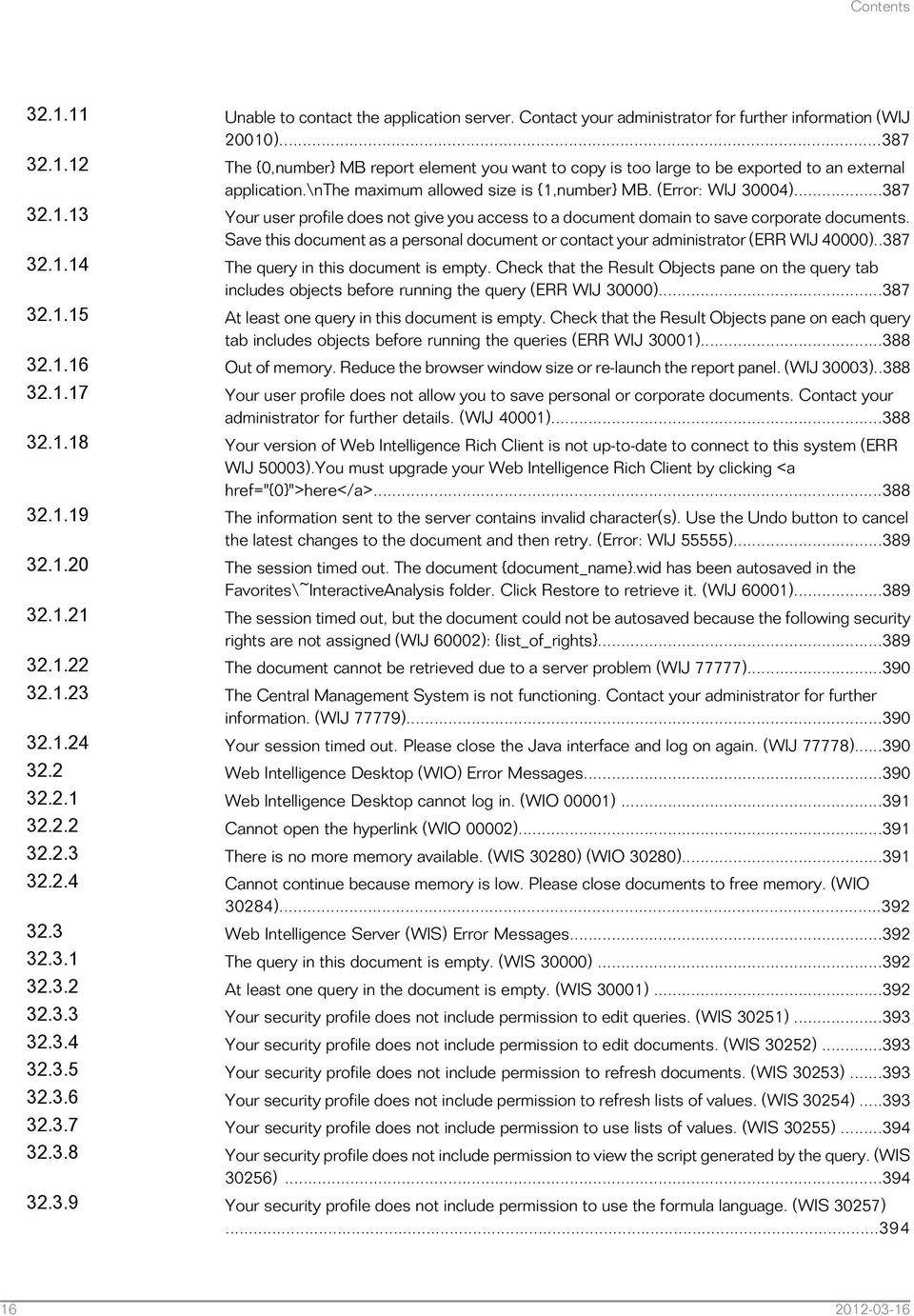
16 Contents Unable to contact the application server. Contact your administrator for further information (WIJ 20010) The {0,number} MB report element you want to copy is too large to be exported to an external application.\nthe maximum allowed size is {1,number} MB. (Error: WIJ 30004) Your user profile does not give you access to a document domain to save corporate documents. Save this document as a personal document or contact your administrator (ERR WIJ 40000)..387 The query in this document is empty. Check that the Result Objects pane on the query tab includes objects before running the query (ERR WIJ 30000) At least one query in this document is empty. Check that the Result Objects pane on each query tab includes objects before running the queries (ERR WIJ 30001) Out of memory. Reduce the browser window size or re-launch the report panel. (WIJ 30003)..388 Your user profile does not allow you to save personal or corporate documents. Contact your administrator for further details. (WIJ 40001) Your version of Web Intelligence Rich Client is not up-to-date to connect to this system (ERR WIJ 50003).You must upgrade your Web Intelligence Rich Client by clicking <a href="{0}">here</a> The information sent to the server contains invalid character(s). Use the Undo button to cancel the latest changes to the document and then retry. (Error: WIJ 55555) The session timed out. The document {document_name}.wid has been autosaved in the Favorites\~InteractiveAnalysis folder. Click Restore to retrieve it. (WIJ 60001) The session timed out, but the document could not be autosaved because the following security rights are not assigned (WIJ 60002): {list_of_rights} The document cannot be retrieved due to a server problem (WIJ 77777) The Central Management System is not functioning. Contact your administrator for further information. (WIJ 77779) Your session timed out. Please close the Java interface and log on again. (WIJ 77778) Web Intelligence Desktop (WIO) Error Messages Web Intelligence Desktop cannot log in. (WIO 00001) Cannot open the hyperlink (WIO 00002) There is no more memory available. (WIS 30280) (WIO 30280) Cannot continue because memory is low. Please close documents to free memory. (WIO 30284) Web Intelligence Server (WIS) Error Messages The query in this document is empty. (WIS 30000) At least one query in the document is empty. (WIS 30001) Your security profile does not include permission to edit queries. (WIS 30251) Your security profile does not include permission to edit documents. (WIS 30252) Your security profile does not include permission to refresh documents. (WIS 30253) Your security profile does not include permission to refresh lists of values. (WIS 30254) Your security profile does not include permission to use lists of values. (WIS 30255) Your security profile does not include permission to view the script generated by the query. (WIS 30256) Your security profile does not include permission to use the formula language. (WIS 30257)
17 Contents Your security profile does not include permission to perform drill analysis. (WIS 30258) Your security profile does not include permission to extend the scope of analysis. (WIS 30259) An internal error occurred while calling the {api_name} API. (WIS 30270) The document is too large to be processed by the server. (WIS 30271) The document is too large to be processed by the server. (WIS 30272) The query or report could not be generated.(wis 30351) A query with this name already exists. (WIS 30371) The Web Intelligence server memory is full. Log off and try to connect later. If the problem persists, contact your administrator. (Error: ERR_WIS_30280) (WIS 30280) The Web Intelligence server is busy. Save any pending change and try again later. If the problem persists, contact your administrator. (Error: ERR_WIS_30284) (WIS 30284) The Web Intelligence server is running out of memory, your document has been closed. If the problem persists, contact your administrator. (Error: ERR_WIS_30285) (WIS 30285) You cannot edit this document because the query property option "Allow other users to edit the query" was not enabled when the document was created. (WIS 30381) An internal error has been generated by the WIQT. (WIS 30551) Your WIQT session has reached timeout. Log out and log in again to the BI launch pad. (WIS 30553) No more WIQT servers are available. The maximum number of concurrent users is already logged in. (WIS 30554) Your security profile does not include permission to save documents as corporate documents or to send documents using the BI launch pad. (WIS 30555) A corporate document with this name already exists. Your security profile does not include permission to delete corporate documents created by other users. (WIS 30556) There is no document with this name in the repository. Specify a different document name. (WIS 30557) Cannot perform the intended action on this document. (WIS 30650) The server failed to load the XML document. (WIS 30751) The XML file for this document cannot be opened. Contact your administrator. (WIS 30752) An error occurred while parsing the XML document. Contact your administrator. (WIS 30753) The Web Intelligence 2.x document could not be migrated. (WIS 30761) This document cannot be migrated. The query and report of the original Web Intelligence 2.x document are not synchronized. Try to refresh and save the original document; then attempt migration again. (WIS 30762) The Web Intelligence 2.x document could not be migrated, because the WIQT module returned an error. Contact your administrator. (WIS 30763) Your user profile does not provide you with access to a document domain to save corporate documents. Save this document as a personal document or contact your administrator. (WIS 40000) Web Intelligence Desktop HTML Interface (WIH) Error Messages The document could not be saved. (WIH 00014)

18 Contents The session timed out. The document {document_name}.wid has been autosaved in the Favorites\~WebIntelligence folder. Click Restore to retrieve it. (WIH 00015) The session timed out, but the document could not be autosaved because the following security rights are not assigned (WIH 00016): {list_of_rights} ReportEngine Web Intelligence (RWI) Error Messages RWI RWI RWI RWI RWI RWI Custom Data Source (CDS) Framework Error Messages Custom Data Source User Interface Framework error messages Web Services Custom Data Source Plugin error messages Custom Data Source Framework error messages Appendix A More Information Index

19 About this users guide About this users guide This user guide describes the Web Intelligence Rich Client application. The Web Intelligence Java and HTML applications are described in the SAP BusinessObjects Web Intelligence Users Guide. 19

20 About this users guide 20

21 About Web Intelligence About Web Intelligence You perform data analysis with SAP BusinessObjects Web Intelligence by creating reports based on data you want to analyze, or by opening pre-existing documents. Depending on your license and security rights, you can then analyze the data in your reports by, for example, filtering, drilling down to reveal more details, merging data from different data sources, displaying data in charts, or adding formulas. Data comes from universes, which organize data from relational or OLAP databases into objects or hierarchies, from personal data providers such as Microsoft Excel or CSV files, from BEx queries based on SAP Info Cubes, from web services, or from Advanced Analysis workspaces. You build data providers to retrieve data from these data sources and you create reports from the data in data providers. You can also connect to the HANA (SAP High-Performance Analytical Appliance) data source to take advantage of the benefits of in-memory computing. You can use the Java or HTML interface of SAP BusinessObjects Web Intelligence to perform data analysis from the BI launch pad. Which interface is launched depends on your Preferences settings in the BI launch pad. You can also use Web Intelligence Rich Client to perform data analysis. Web Intelligence Rich Client allows you to work locally without a connection to a repository. Additional information is available in the SAP BusinessObjects Web Intelligence Rich Client User's Guide. Note: When you have launched the desktop tool once and closed it, the quick start icon is available in the toolbar. This quick start icon allows you to launch the desktop tool rapidly. About the three Web Intelligence interfaces There are three different interfaces available for creating and editing queries, and creating and editing documents, and creating, editing, and refreshing reports: 21
22 About Web Intelligence Table 2-1: The three Web Intelligence interfaces Interface Web Rich Internet Application Web Intelligence Rich Client Description Also referred to as the DHTML interface. You launch this via the BI launch pad. Depending in your rights, you can do the following: Create and edit queries based on 'no data source',.unx, and.unv universes (but not on BEx queries). Create, edit and refresh all types of reports. Note: In 4.0 SP02, it was not possible to create queries. It was only possible to work with documents and reports. Also referred to as the Java applet. You launch this via the BI launch pad. Depending on your permissions, you can do the following: Create and edit queries based on 'no data source',.unx and.unv universes, BEx queries, Analysis views (Advanced Analysis workspaces), and Text sources. Create, edit and refresh all types of reports. You download and install this via the BI launch pad. Depending on your permissions, you can do the following: Create queries based on 'no data source',.unx and.unv universes, BEx queries, Analysis Views (Advanced Analysis workspaces), and Text sources. Create, edit and refresh all types of reports. 22
23 Application structure Application structure The application has the following components: Component Description The main toolbar You use the main toolbar to open, save and print documents, track data changes and display the report outline. The main toolbar appears in the File tab when the application is in Design mode. Toolboxes You work with data providers and perform report design and analysis tasks using the toolboxes. Toolboxes appear at the top of the application in Data and Design mode only. In Data mode, only those toolboxes related to working with data providers are active. 23
24 Application structure Component Description The Left Panel groups several panes that provide different views of the current document. Refer to the table below to see which panes are available in the different modes. The Document Summary provides an overview of the document properties. The Available Objects pane lists the data providers and objects available for inclusion in reports. Note: The Web interface (DHTML mode) does not display formulas in this panel. Left Panel The Input Controls pane allows you to add and edit input controls applied to the document. User Prompt Input The Document Structure and Filters pane displays the structure of the document in a tree view, and displays filters applied to different report elements. Note: The Web interface (DHTML mode) does not display filters in this pane. If you want to use filters, use the Rich Internet Application (Java applet). (Rich Internet Application mode only) The Navigation Map pane lists all the reports in a document. This pane is the same as the Report Map in HTML mode. (Web mode only) The Report Map pane lists all the reports in a document. This pane is the same as the Navigation Map in Rich Internet Application mode. The Web Services Publisher pane lists the BI Services published from the document. The Data pane appears in Data mode only and allows you to navigate the data providers in a document. File and Properties tabs Report Panel Status Bar The FIle and Properties tabs are available in Design and Data mode only. The File tab contains the main file menu tools. The Properties tab allows you to set View, Document, and Application properties. The "Report Panel" displays the report. The "Status Bar" appears beneath the repory and allows you to perform actions such as activating data tracking or changing the display mode. It can be activated and deactivated in the View menu of the Properties tab. 24
25 Application structure The tabs available in the left panel depend on your choice of interface: Rich Internet Application (the Java applet mode), Web (HTML mode), or Desktop (Web Intelligence Rich Client): Rich Rich Rich Pane RIA Data RIA Design RIA Reading Web Design Web Reading Client Data Client Design Client Reading Document Summary No Yes Yes Yes Yes Yes Yes Navigation Map Yes Yes Report Map Yes Yes Yes Yes Input Controls Yes Yes Yes Yes Yes Yes User Prompt Input Yes Yes Available Objects Yes Yes Yes Document Structure and Filters Yes Yes Yes Web Service Publisher Yes Yes Data pane Yes Yes 25
26 Application structure 26
27 Setting up and using Web Intelligence Rich Client Setting up and using Web Intelligence Rich Client 4.1 Installing the desktop interface To install the desktop interface from the BI launch pad 1. Log into the BI launch pad. 2. Click Preferences. 3. Click Web Intelligence. 4. Click Desktop (installation required) in the Modify section. 5. Click Save and Close. Web Intelligence Rich Client is downloaded to your computer and launched when you launch the application from the BI launch pad. Due to the file size, this process might take a few minutes. Note: If you install Web Intelligence Rich Client from the BI launch pad, the online help system is not installed to your local computer. If you work in Connected mode, Web Intelligence Rich Client displays help pages stored on the server. If you work in Offline or Standalone mode, help pages are not available. Related Topics Connection modes To install Web Intelligence Rich Client from the SAP BusinessObjects Enterprise CD See the SAP BusinessObjects Business Intelligence platform 4.0 Installation Guide for full installation instructions. 27
28 Setting up and using Web Intelligence Rich Client Availability of online help If you install Web Intelligence Rich Client from the BI launch pad, the online help system is not installed to your local computer. This has the following effect on the avaliability of the online help: If you work in Connected mode, Web Intelligence Rich Client displays help pages stored on the server. If you work in Standalone mode, help pages are not diplayed if the BI launch pad is running. If you work in Offline mode, help pages are not available. You can make help available by specifying a local folder or a URL where Web Intelligence Rich Client can access the help To specify the folder or URL for online help 1. Select Options from the main menu to display the "User Preferences" dialog box. 2. Select the General tab. 3. Click Browse next to Help and select a folder. You can also type a URL as the location of the online help Quick Launch button The first time you open and close a.wid document, the quick launch function becomes available. The Quick Launch button is visible in the lower right of the main pane. When you use this button to launch the application, rapidly. 4.2 Connection modes You can use Web Intelligence Rich Client in three connection modes: Connected, Offline, or Standalone. 28
29 Setting up and using Web Intelligence Rich Client About connection security rights and working locally Connection objects have an additional security right called "Download connection locally". When the "Download connection locally" security right is granted to connection objects: Local refresh is performed locally if the middleware is correctly installed and set up. When the security right is denied : No local refresh is executed. The Refresh is delegated to server side. Query creation & modification is possible only for queries not using secured connection. When working with a document from XI4.0 or earlier, save the document and reopen it: the security right will be correctly applied. Note: The administrator must define the security associated with the Connection, e.g. define who can download locally the (sensitive) connection information. This security option has the following effects: No connection information transit to the client side (extra secure mode). Limited Offline mode: It is not possible to refresh locally. In Offline mode: You can open, view and modify a report, but you cannot refresh a report offline, or modify or edit the query. Note: When working with multiple queries in a document: The refresh action works for the non-secured connection(s) only. A warning is displayed when at least one query is using a secured connection Connected mode In Connected mode, you work while connected to a CMS. You can work with documents on the CMS or with local secured or unsecured documents. According to your security rights in the CMS, you can do the following: import documents from the CMS import universes from the CMS open local documents create documents edit documents refresh documents save documents locally export documents to the CMS 29
30 Setting up and using Web Intelligence Rich Client Security in Connected mode When you work with documents in Connected mode, the security rights of your user account are applied by the CMS. Connecting to the CMS in Connected mode There are two ways of launching Web Intelligence Rich Client, and each connects to the CMS differently: When you launch from the BI launch pad, Web Intelligence Rich Client connects to the CMS within the same BI launch pad session, so no login is required. Communication with the CMS goes through HTTP to an application server, which reroutes the calls to the CMS and repository. No local middleware is required. When you launch locally, by logging in to Web Intelligence Rich Client through the Windows Start menu or by double-clicking WID document, Web Intelligence Rich Client connects to the CMS in client-server mode using the OCA/CORBA framework of the Enterprise SDK. You need the appropriate database middleware on your local machine. Note: In order to connect to an Essbase OLAP data source from SAP BusinessObjects OLAP products including universe design tool, Web Intelligence Rich Client and Web Intelligence, ensure that Essbase Client middleware is properly installed and configured on machines hosting those SAP BusinessObjects OLAP products. Specifically, ensure that Essbase Client environment variables ARBORPATH and ESSBASEPATH are created and set as Windows system environment variables (as opposed to Windows user environment variables). Related Topics To work in Connected mode locally To work in Connected mode from the BI launch pad To work in Connected mode from the BI launch pad In Connected mode, security is handled by the CMS. You work with reports as you do when working in the BI launch pad. You do not need database middleware on your local machine when you launch in Connected mode from the BI launch pad. 1. Log into the BI launch pad. 2. Click Preferences at the top of the BI portal to display the "Preferences" dialog box. 3. Select "Web Intelligence" in the dialog box. 4. In the Modify section, select Desktop. 5. Click Save and Close. 6. Click the Documents tab. 7. Right-click a document and select Modify. Web Intelligence Rich Client is launched on your computer in Connected mode. If it is not yet installed on your computer, it is installed from the BI launch pad. 30
31 Setting up and using Web Intelligence Rich Client If Web Intelligence Rich Client was already running on your computer, launching from the BI launch pad opens a new instance of the application. The document is not opened in the application instance that was already open. Related Topics Connection modes To work in Connected mode locally To launch the desktop interface in Connected mode locally, the desktop interface must be installed on your computer. You must have already connected at least once to the CMS you want to work with using the desktop interface from the BI launch pad. You need to have the middleware required to connect to the CMS installed on your computer. In Connected mode, security is handled by the CMS. You work with reports in the desktop interface as you do from with the BI launch pad. 1. Launch the desktop interface. 2. Click Web Intelligence > Login as An icon shows what kind of connection was used for the last connection with the CMS: An icon of a desktop computer means the desktop interface last connected to this CMS in client-server mode (local launch from the client computer). The name of the CMS is the server name. An icon of a globe means the desktop interface last connected to this CMS in HTTP mode from the BI launch pad. The name of the CMS is the full name of the connected cluster. 3. Enter a valid user name and password. 4. Select an authentication mode from the list. Do not choose Standalone if you want to work in Connected mode. When you choose Standalone authentication you work in Standalone mode, with no CMS connection. 5. Make sure the Use in Offline Mode option is not selected. 6. Click Log In. The desktop interface is launched in Connected mode. If the desktop interface was already running on your computer, launching it again opens a new instance of the application. Related Topics Connection modes 31
32 Setting up and using Web Intelligence Rich Client Offline mode In Offline mode, you are not connected to a CMS but CMS security still applies. You can work with local documents and universes that are secured by the CMS you select at login, or with unsecured local documents and universes. You can do the following: open local documents create documents (requires local universe and local connection server) edit documents refresh documents (requires local universe and local connection server) save documents locally In Offline mode, you cannot import documents from or export documents to a CMS. Security in Offline mode When you connect to a CMS in Connected mode, your security rights in that CMS are downloaded to your computer. Each document and universe downloaded from a CMS contains within it an access control list identifying groups and users that have access rights to the document. In Offline mode, CMS security rights are applied by matching the access rights for the document or universe against the locally stored security file. For example, if a document was downloaded from a CMS to your local machine, and you do not have the right to open the document in the CMS from which it was downloaded, you cannot open the document on your local machine. If the security settings on objects do not allow working in offline mode, those objects cannot be included when the document is used later. Before you can work in Offline mode with documents or universes secured by a CMS, you must first have connected to that CMS at least once in Connected mode. This allows downloading of the CMS security information to your local machine, and the display of the CMS as a choice in the System list on the login page. You can then log in in Offline mode and work with no CMS connection because the CMS security information is readable from the local file. When working in Offline mode, you must have the appropriate universes and database middleware installed on your machine to be able to create or refresh documents. If you do not, you can still open, edit, and save documents locally as long as you have the appropriate security rights. The security information for a CMS is stored in a local security information file with the LSI extension. One computer can store LSI files for multiple CMSs To work in Offline mode You must have already connected at least once to the CMS from which the document you want to work was exported, by launching the desktop interface from within the BI launch pad and opening the document in it. 32
33 Setting up and using Web Intelligence Rich Client 1. Launch the desktop interface. 2. Select Open on the menu and select a document exported from the CMS whose security details are stored on your local machine. The "User Identification" dialog box appears. 3. Select the CMS from the System list. 4. Type your username and password. 5. Select the authentification method from the Authentification list. 6. Select Use in Offline mode. 7. Click Log On To select default folders for local documents and universes You can select a folder where local documents and universes are stored by default on your local machine. 1. In Design mode, click Application in the Properties tab. 2. Select the General tab. 3. Click Browse next to User documents and select the folder for documents. 4. Click Browse next to Universes and select the folder for universes Standalone mode In Standalone mode, you are not connected to a CMS and no security is enforced. You can work with local, unsecured documents and universes only. You can do the following: open documents create documents edit documents refresh documents save documents locally You cannot import documents from or export documents to a CMS. The middleware required to create and refresh local, unsecured documents with local, unsecured universes must be installed on the computer on which you run Web Intelligence Rich Client. 33
34 Setting up and using Web Intelligence Rich Client To work in Standalone mode Any middleware required to work with unsecured documents and universes must be installed on your computer. 1. Launch the desktop interface. 2. Select Open from the menu, navigate to and double-click the Web Intelligence (WID) document you want to open in Standalone mode. 3. In the User Identification dialog box that appears, select Standalone from the Authentification list Defining the Proxy Settings You define the proxy settings when you use an internet proxy server to access any URLs or images in your reports. You do not need to define these settings for images that are embedded in a report. Check the settings on your internet browser to obtain the information required to define your proxy settings. To define the proxy settings, perform the steps below: 1. In the "User Preferences" dialog, click the "Proxy" tab. 2. Define your "Http Proxy Host". 3. Define the "Http Proxy Port". 4. Define your "Https Host and Port Settings", or select Same as Http Proxy. 5. Click OK to save the settings and close the dialog. 4.3 Setting the interface and document locales Locales determine the appearance of the application interface (for example, menu items and button text) and data (for example, date and number formatting). There are three locales: Locale Product Locale Document Locale Description The locale of the Web Intelligence interface The locale of the data currently contained in the document 34
35 Setting up and using Web Intelligence Rich Client Locale Preferred Viewing Locale Description The preferred locale for displaying document data The locale settings determine how the locales interact to display document data The Product locale The product locale is used to display the user interface (for example, menu items and button text). Note: The GetLocale function returns the Product Locale To set the Product locale in Web Intelligence Rich Client 1. Select Options from the main application menu to display the "User Preferences" dialog box. 2. Select the Locale tab. 3. Choose the Product locale from the Product locale list The Document locale The Document locale formats the data in documents. For example, the Document locale determines the display of dates and numbers. By default, the browser locale is used. A user can permanently associate the current Document locale with a document by saving the document with the Permanent Regional Formatting option selected. Once a document has been saved with the option selected, the settings are ignored and the document data is always formatted using the saved Document Locale. This applies to all users, not just the user who selected the Permanent Regional Formatting option. Note: The GetContentLocale function returns the Document locale. Related Topics To associate a locale with a document permanently 35
36 Setting up and using Web Intelligence Rich Client The Preferred Viewing locale The Preferred Viewing locale is a user's preferred locale for displaying document data. The Document locale becomes the user's Preferred Viewing locale when the BI launch pad settings give the Preferred Viewing locale priority. If the locale settings give the user's Preferred Viewing locale priority through the Use the Preferred Viewing Locale to format the data setting, the Document locale is set to the Preferred Viewing locale when the user opens a document. When the user saves the document, this Document locale is saved with the document. If the settings do not give the user's Preferred Viewing locale priority, the data is formatted according to the Document locale saved with the document. When a user creates a document, the user's Preferred Viewing locale is always assigned as the initial Document locale, whether or not the locale settings give the Preferred Viewing locale priority. Note: The GetPreferredViewingLocale function returns the Preferred Viewing locale. The GetLocalized function also uses the Preferred Viewing locale to display translated strings To set the Preferred Viewing locale 1. Select Options from the main application menu to display the "User Preferences" dialog box. 2. Select the Locale tab. 3. Select the Preferred Viewing locale from the Preferred viewing locale list To associate a locale with a document permanently 1. In Design mode, click Document on the Properties tab in the left panel to display the "Document Summary" dialog box. 2. Select Permanent regional formatting. 3. Click OK. 4. Save the document. 36
37 Setting up and using Web Intelligence Rich Client 4.4 To set viewing preferences 1. In Design mode, click Application on the Properties tab to display the "User Preferences" dialog box. 2. Select the Viewing tab. 3. Select the measurement unit for report display in the Measurement unit section. 4. Select Show grid to display a grid for the alignment of report elements. 5. Select Snap to grid to align report elements to the grid automatically. 6. Set the value in Grid spacing to set the amount of space between the lines in the grid. 4.5 To change your password You can only change your password if you are in client-server connection mode: you must have launched your Web Intelligence Rich Client session locally rather than from the BI launch pad. 1. Select Preferences from the BI launch pad toolbar. 2. Select Change Password. 3. Type your current password in the Old Password box. 4. Type your new password in the New Password box. 5. Type your new password again in the Confirm New Password box. Your password is changed to the new password. 4.6 Working with universes in the Rich Client interface Universe security in Web Intelligence Rich Client Universe security in Connected mode When you work with Web Intelligence Rich Client in Connected mode, you access CMS universes remotely. The CMS applies the security rights directly, in the same way as when you access universes from the BI launch pad. 37
38 Setting up and using Web Intelligence Rich Client In Connected mode, you cannot access local, CMS-secured universes. You must access the CMS universes remotely. Universe security in Offline mode To create or refresh a report in Offline mode, you must have first connected to the CMS in Connected mode. When you work in Connected mode with a CMS, a local security information (LSI) file is downloaded to your computer containing your security rights to the resources in the CMS. When you try to create or refresh a report in Offline mode, you can use: locally installed universes that are not secured by the CMS locally installed universes which you are authorized to access, as verified by the LSI file You cannot access universes on the CMS remotely, because in Offline mode you are working without a CMS connection. Note that you need to have a Connection Server installed on the computer where you use Web Intelligence Rich Client in order to create or refresh documents in Offline mode. Universe security in Standalone mode In Standalone mode, you work with no security and no connection to the CMS. You can work with unsecured, locally installed universes only. The middleware required to create and refresh local, unsecured documents with local, unsecured universes must be installed on the computer where you use Web Intelligence Rich Client Working with universes in Connected mode When you perform desktop data analysis in Connected mode, you access CMS universes remotely. The CMS applies the security rights directly, exactly as if you were performing data analysis from the BI launch pad. In Connected mode, you cannot access local, CMS-secured universes. You must access the CMS universes remotely Working with universes in Offline mode To create or refresh a report in Offline mode, you must have first connected to the CMS in Connected mode. When you work in Connected mode with a CMS, a local security information (LSI) file is downloaded to your computer containing your security rights to the resources in the CMS. When you try to create or refresh a report in Offline mode, you can use: locally installed universes that are not secured by the CMS 38
39 Setting up and using Web Intelligence Rich Client locally installed universes which you are authorized to access, as verified by the LSI file You cannot access universes on the CMS remotely, because in Offline mode you are working without a CMS connection. Note that you need to have a Connection Server installed on the computer where you perform desktop data analysis in order to create or refresh documents in Offline mode Working with universes in Standalone mode In Standalone mode, you work with no security and no connection to the CMS. You can work with unsecured, locally installed universes only. The middleware required to create and refresh local, unsecured documents with local, unsecured universes must be installed on the computer where you perform desktop analysis. When you copy the universe file locally, it should be saved in the following folder: <install_path>\sap BusinessObjects\SAP BusinessObjects Enterprise XI 4.0\Universes To select a default universe 1. Select Options from the menu in the top-right corner next to the Help menu to display the "Options" dialog box. 2. Select the General tab. 3. Select Default universe: in the Select default universe section. 4. Click Browse to open the "Universe" dialog box, select the universe and click Select. 39
40 Setting up and using Web Intelligence Rich Client 40
41 Working with documents on the desktop Working with documents on the desktop 5.1 To select default folders for local documents and universes You can select a folder where local documents and universes are stored by default on your local machine. 1. In Design mode, click Application in the Properties tab. 2. Select the General tab. 3. Click Browse next to User documents and select the folder for documents. 4. Click Browse next to Universes and select the folder for universes. 5.2 To create a document by building a query 1. ClickData Access > Data Providers > New and select the data source for the query. 2. Build and run the query. 5.3 To create a blank document You can create a blank document and then add data to it later from queries. 1. Launch the desktop interface. 2. Click New on the toolbar, then select No Data Source to create a blank document. You can build a query in the document later to retrieve data to the document. Related Topics To create a document by building a query 41
42 Working with documents on the desktop 5.4 To open a document from the repository 1. Click Open on the main toolbar. 2. Click My Enterprise on the left of the dialog box. 3. Log on to the repository. 4. Browse the repository and select the document. When a document is set to refresh its data on opening (when the Refresh on open document property is selected), the document displays the latest information. Note: The Refresh on open option is dependent on two CMS settings (document and user-related security settings): "Check automatic refresh on open" in the CMC/Application/Webi/Properties and the "Disable automatic refresh on open" in the CMC/Application/user security settings. If the property Check automatic refresh on open security setting is ENABLED/checked in CMC/Application/Webi/Properties and in the CMC/Application/user security settings, the security right Disable automatic refresh on open is DISABLED for this user, then even if the document is not set as being Refresh on open, it will still be refreshed on opening. 5.5 Sending documents To send a document by mail 1. Select the document you want to send. 2. Click Send on the toolbar and select Fill in the information and type a message if required. 4. Click Send To send a document to another user 1. Select the file you want to send. 2. Click Send on the toolbar and select BI Inbox. 42
43 Working with documents on the desktop 3. Select the users or groups to which you want to send the document from the list of users and groups. 4. Click Automatically generated to send the document with an automatically-generated name. 5. Click Specific name and type the name in the box to send if you want to name the document. 6. Click Shortcut to send a shortcut to the document or Copy to send a copy of the document. 7. Click Send To send a document by FTP You have a document open in Web Intelligence and you have the required permissions to send files via FTP. If you do not have the permissions, the "Send to FTP" dialog will not display. You want to transfer the current document via FTP. 1. Save the document before sending. 2. Click the Mail icon in the toolbar and select Send to Ftp. 3. Type the host name in the Host box. 4. Type the port in the Port box. 5. Type the username and password in the User Name and Password boxes. 6. Type the account in the Account box. 7. Type the directory in the Directory box. 8. Click Automatically generated to send the document with an automatically-generated name. 9. Click Specific name and type the name in the box to send if you want to name the document. 10. Click Send. 5.6 Saving documents To save a document in the corporate repository (with the Java interface or Rich Client) You are using the Java interface to perform this action. 1. Click the arrow next to Save on the toolbar in the File tab and select Save As to display the "Save As" dialog box. 2. Select the corporate repository on the left of the dialog box. 43
44 Working with documents on the desktop 3. If you are using the desktop interface, you can save to any available corporate repository by selecting My Enterprise on the left of the dialog box, then logging in to the repository. 4. Click Folders or Categories to display the repository by folders or by categories. 5. In the File Name box, type the name of the document. 6. Click Advanced to display additional document options. The additional options are always displayed in the desktop interface. 7. Type a description of the document in the Description box. 8. Type keywords that you or other users can use to search for the document in the future in the Keywords box. 9. Select Refresh on open to refresh the document each time it is opened. 10. Select Permanent regional formatting to preserve the document regional formatting with the document. 11. Select Remove document security to remove all document security and make the document accessible in Standalone mode (desktop interface only). 12. Select Save for all users to ensure the document is not locked by the current user (desktop interface only). 13. Click OK. Note: If the property Check automatic refresh on open security setting is ENABLED/checked in CMC/Application/Webi/Properties and in the CMC/Application/user security settings, the security right Disable automatic refresh on open is DISABLED for this user, then even if the document is not set as being Refresh on open, it will still be refreshed on opening. The document is saved in the corporate repository To save a document as an Excel spreadsheet (with the Java interface or Rich Client ) You are using the Java interface to perform this action. You can set formatting preferences when saving as Excel. This is done separately, see the related links below. Note: The table cell formatting Read content as HTML is not supported when exporting a document or report as pdf. Any table cells with this setting will appear blank in the generated pdf. To obtain the content in pdf, unselect this property. Right-click in the table cell, select Format Cell, and in the Display section of the General tab, change the "Read contents as" to some other value than HTML. The setting is applied to the entire column. 1. Click the arrow next to Save on the toolbar in the File tab and select Save As to display the "Save As" dialog box. 2. Select My Computer, My Desktop, or My Documents on the left of the dialog box and navigate to the folder where you want to save the document. 3. Select Excel or Excel 2007 from the Files of Type list. 44
45 Working with documents on the desktop Each Excel 2007 worksheet can contain up to 1 million rows of exported data. If you save to Excel rather than Excel 2007, each 65,000 rows of exported data start on a new worksheet. 4. Select the reports you want to save as Excel or select Select All to save all reports Each report within the document is saved as separate worksheet within the Excel file if you chose to save the entire document to Excel. 5. Select Prioritize the formatting of the documents to match the layout and formatting of the document as closely as possible in the Excel file. (As a trade-off, this option does not exploit the data processing features of Excel to the same extent.) 6. Select Prioritize easy data processing in Excel to avoid merging multiple cells into Excel cells as much as possible to exploit the data processing features of Excel. 7. Click Save. In Web Intelligence, all charts are automatically converted to images in Excel. You can use the exported data to create your own chart using the functionality of Excel To save a document as PDF (with the Java interface or Rich Client) You are using Web Intelligence Rich Client or the Java interface to perform this action. Note: The table cell formatting Read content as HTML is not supported when exporting a document or report as pdf. Any table cells with this setting will appear blank in the generated pdf. To obtain the content in pdf, unselect this property. Right-click in the table cell, select Format Cell, and in the Display section of the General tab, change the "Read contents as" to some other value than HTML. The setting is applied to the entire column. 1. Click the arrow next to Save on the toolbar in the File tab and select Save As to display the "Save As" dialog box. 2. Select My Computer, My Desktop, or My Documents on the left of the dialog box and navigate to the folder where you want to save the document. 3. In the Files of Type field, select PDF. 4. Select Export current report as > PDF to save the current report as PDF. When a report contains charts and images, you can optimize the size of the exported document by choosing the 96 dpi size. This can be useful for online publishing. 5. Select Select reports to select reports to save, then select the reports from the list, or select Current report to save the current report and select the pages you want to save. 6. Click Save To save document data as CSV (with the Java interface or Rich Client) 45
46 Working with documents on the desktop You are using the Java interface in Design or Data mode to perform this action. Saving to CSV only saves the raw data from the cube. 1. In Design or Data mode, select the query whose data you want to save as CSV and selectdata Access > Tools > Export Data. 2. Click on the file name. 3. Choose the text qualifier, column delimiter and character set in the dialog box. 4. Select Set as default values if you want the options you chose in the previous step to be the default options when you save to CSV. 5. Click Save. 5.7 Setting document properties The following table lists the document properties that you can view and/or set in the "Document Summary" pane: Property Title Type Author Creation date Description Keywords Enhanced viewing Description The name of the document in the BI launch pad. This is displayed above the general properties and cannot be edited. The type of document. The creator of the document. The date the document was created. Optional information that describes the document. Optional keywords that can be used to search for the document in the BI launch pad. When this option is checked, the appearance of reports is optimized for onscreen viewing. 46
47 Working with documents on the desktop Property Description Automatically refreshes the results in reports with the latest data from the database each time the document is opened. Refresh on Open Permanent regional formatting Use query drill Hide warning icons in chart Enable query stripping Auto-merge dimensions Default setting = When Refresh on open is selected, data tracking does not display the difference between the data prior to the refresh and the data after the refresh. Data after the refresh is treated as new data because the refresh purges the document. Formats the document according to the format locale with which it was saved. Drills in query drill mode. Hides warning icons in order to enhance readability. Generates queries that only use objects that contribute to the reports in which they are used. Each time a query is refreshed, non-contributing objects are ignored. Only relevant data is retrieved from the data provider. This feature enhances performance. Automatically merges dimensions with the same name and from the same universe. You see the merged dimension in the list of available objects with the dimensions merged within it below. Merged dimensions are the mechanism for synchronizing data from different data providers. 47
48 Working with documents on the desktop Property Description Extends values of merged dimensions. Merged dimensions are the mechanism for synchronizing data from different data providers. This controls the results when a table contains synchronized data. Extend merged dimension values When selected, if a table contains a dimension used in a merge, this dimension returns the value of its query plus the values of the other dimensions merged from other data providers for which there is an object in the table. When this is not selected, if a table contains a dimension used in a merge, this dimension returns the value of its query. Change Default Style (not available in the Web interface) You can change the default style for the document when working in the Rich Internet Application interface. You can import a new style or export the current style. Note: You can set Web Intelligence to refresh automatically on opening the document without enabling Refresh on open in the Document Properties by using the Central Management Console to unselect the security right "Disable Automatic Refresh on Open for all documents". Related Topics Merging defined Query drill defined To display and set document properties You have a document opened with the interface in Design mode. 1. Click Document on the Properties tab to display the "Document Summary" dialog box. 2. View or ddit the properties in the dialog box as described above. 3. Click OK when you have finished. 48
49 Returning data using queries Returning data using queries 6.1 Queries defined Queries defined When you create a document or add new data to a document, you use queries to retrieve data from a data source to the document. You build queries using a "Query Panel", and the type of query panel depends on the data source of the query. Depending on the interface, on the interface you are using, you can create queries based on universes, which represent data in relational or OLAP databases as objects, on local data sources such as text files or Microsoft Excel files, on SAP Info Cubes in a SAP BW Business Warehouse by using BEx queries, on Pioneer data sources or on web services. You run the query to return data in a report which you can then analyze further by, for example, filtering or ranking its data. Measures are common to all queries. Measures return data, often numeric, that is calculated based on the other objects in the query (dimensions or hierarchies). Queries based on universes can be hierarchical or non-hierarchical. Non-hierarchical queries organize data in dimensions which have no hierarchical relationship. For example, a query containing a customer dimension and a revenue measure calculates revenue per customer. Hierarchies organize data into hierarchical relationships. For example, a geographical hierarchy can contain data about countries, states and cities (different levels of the hierarchy). A query containing a geographical hierarchy and a revenue measure calculates revenue at the different levels of the hierarchy (country, state, city). Whether a universe query is hierarchical or non-hierarchical depends on the database from which the universe retrieves its data. Note: You cannot build queries using the Web interface (the DHTML interface): the "Query Panel" is not available. 49
50 Returning data using queries Classes and subclasses Objects are grouped into folders called classes. Each class can also contain one or more subclasses. Subclasses contain objects that are a further subcategory of the objects in the upper level of the class. The role of classes is to organize the objects into logical groups. When you create queries on the universe, classes help you to find the objects that represent the information that you want to use in a query Analysis dimension An analysis dimension contains a collection of related hierarchies. Analysis dimensions do not appear as result objects in queries. If you select an analysis dimension, its default hierarchy appears in the query. Analysis dimensions appear as follows: Dimension A dimension represents non-hierarchical data that can provide the basis for analysis in a report. Dimensions typically retrieve character-type data, for example; customer names, resort names, or dates. A query containing the [Customer] dimension and the [Revenue] measure, for example, returns the revenue generated by each customer. Dimensions produce non-hierarchical columns in the result set generated by the query. In hierarchical data sources, hierarchies are based on dimensions. Hierarchies appear beneath the dimensions on which they are based in the list of available objects. You can include the dimension in the query to return non-hierarchical data, or one or more of its associated hierarchies to return hierarchical data Attribute 50
51 Returning data using queries An attribute provides descriptive data about a dimension or hierarchy. For example, Age can be an attribute of the Customer dimension. Attributes must have a one-to-one relationship with their associated dimension. Each value of a dimension object can have only one associated value of any attribute. In the above example, each Customer value can have only one associated value in the Age detail object. If, due to incorrect universe design, a detail object tries to return multiple values for one dimension value, its cell displays the #MULTIVALUE error message. Attributes appear as follows: Note: For.unv universes (created with the universe design tool), attributes are referred to as details, and apply to relational data sources Hierarchy A hierarchy is a set of data members arranged in levels or parent-child relationships. For example, a [Geography] hierarchy might contain the [Country], [State] and [City] levels. Hierarchies produce hierarchical columns in the result set produced by the query. You can expand the items in the hierarchy to explore its data. For example, you can expand the [California] level in a [Geography] hierarchy to explore data related to California. You can select which members appear in the result set by using the Member Selector. In hierarchical data sources, hierarchies are associated with a dimension and appear beneath the dimension with which they are associated in the list of available objects Level object A level is a set of members in a hierarchy at the same distance from the root of the hierarchy. For example, [City] might be a level in a [Geography] hierarchy which contains members such as [Los Angeles] and [San Francisco]. Levels produce flat columns in the result set generated by the query. For example, a query containing the [Country] level and [Revenue] objects produces a result such as the following: Country US Revenue 10,123,121 51
52 Returning data using queries Country France Germany UK Revenue 8,232,231 7,342,342 9,343,092 Not all hierarchies contain levels. Levels are not available in hierarchies in BEx queries. Levels appear as follows: Related Topics BEx queries defined Member A member is an individual data item in a hierarchy. For example, the [Geography] hierarchy can contain members such as [France] at the [Country] level, or [Las Vegas] (at the [City] level). You select individual members from a hierarchy for inclusion in the query result if you do not want to include all members in the hierarchy. You can also define a named set containing a set of members Named set A named set is a named expression that returns a set of members. Named sets can be defined in OLAP databases, or in universes based on relational or OLAP databases Calculated member Calculated members are members returned by an MDX expression. MDX is the language used to access hierarchical data in OLAP databases. The administrator of an OLAP database can create calculated members that are available to MDX queries that access the database. 52
53 Returning data using queries Calculated members appear as follows: Measure Measures retrieve data, usually numeric, that is the result of calculations on data in the database. For example, Revenue is the calculation of the number of items sold multiplied by item price. Measures are often located in a Measures class. By default, measures are calculated by aggregating detailed values returned from the database. Smart measures are a special kind of measure that are calculated by the database itself and returned by the query already aggregated. In certain situations, smart measures impact the way in which calculations are displayed. For more information on smart measures, see the Using functions, formulas and calculations in Web Intelligence guide. Measures return results based on the objects with which they are associated in a query. For example, a query containing the [Customer] dimension and [Revenue] measure returns revenue by customer. A query containing the [Geography] hierarchy and [Revenue] measure returns revenue calculated for all the different aggregations possible in the hierarchy. Measure objects appear as follows: 6.2 Building and working with queries Hierarchical and non-hierarchical queries Non-hierarchical queries defined Non-hierarchical queries are universe-based queries that do not include objects that organize data hierarchically. You build a non-hierarchical query using dimensions, attributes and measures. Dimensions represent business objects such as customers or cities. Measures derive results, usually numerical, 53
54 Returning data using queries from the dimensions you include in the query. For example, a query containing the [Customer] dimension and the [Revenue] measure returns revenue by customer. Non-hierarchical queries produce result sets in which dimensions are not related. Each object in the query produces one flat column in the result set. Non-hierarchical queries do not include the following objects: hierarchies, levels, members or named sets. Related Topics To build a query on a universe Hierarchical queries defined A hierarchical query contains at least one hierarchy object. You have the option to build hierarchical queries on universes that support hierarchical data, or on BEx queries which access SAP Info Queries directly. Hierarchical data can come from relational or OLAP databases, depending on how the universe structures the data. Note: For a relational Data Source, it is not a true hierarchy but a navigational path. You can include hierarchies either as result or filter objects. When you build a hierarchical query, the query panel provides you with additional features for working with hierarchical data. For example, if you include a hierarchy as a result object, you have the ability to choose members from the hierarchy to appear in the result. These hierarchical features are not available when you build a query on non-hierarchical data. The exact features available in the hierarchical query panel also depend on the source of the hierarchical data you are accessing. The result set generated by a hierarchical query allows you to perform hierarchical data analysis. Each hierarchy object in the query produces a hierarchical column in the report. You can expand members to reveal their child members; for example, you can expand the [US] member to reveal US states in a [Geography] hierarchy. Measures in the block are aggregated depending on the member with which they are associated. For example, a hierarchical query containing the [Customers] hierarchy and the [Unit Sales] and [Store Cost] measures gives the following result set: Customers All Customers Unit Sales 364,707 Store Cost 371,579 US 276, ,555 CA 45,506 67,999 54
55 Returning data using queries Customers Unit Sales Store Cost OR 32,104 56,700 Albany 10,324 12,325 Related Topics Hierarchical member selection in BEx queries Using contexts in BEx queries Including multiple hierarchies in a query When you combine multiple hierachies in a query, the query returns results for all the combinations of members in the different hierarchies. Example: Including two hierarchies in a query You have two hierarchies, [Gender] (containing the members [All], [Male] and [Female]) and [Customer Geography]. Combined in a query with a measure, the two hierarchies give the following result: Customer Geography Gender All Gender Internet Sales Amount $29,358,677 All Customers Female $10,000,000 Male All Gender $19,358,677 $2,644,017 France Female $1,058,677 Pierre Alain Male All Gender Female All Gender Female $1,285,340 $1,249 $1,249 $1,155 $1,155 55
56 Returning data using queries Building queries on universes Universes defined Universes present data from relational or OLAP data sources as collections of related objects. Universes contain two types of data: Data Type Relational Hierarchical Description Relational data organizes data as a collection of related objects (dimensions, details and measures). You combine universe objects in a query which you run to generate a report. For example, a query containing the Customer dimension and the Revenue measure generates a report showing revenue generated by customer. Hierarchical data organizes data hierarchically as members in related hierarchies. For example, a Geography hierarchy can contain levels showing countries, states and cities. A query built on the Geography hierarchy and Revenue measure generates a report showing revenue generated at different levels of the hierarchy (revenue by country, by state and by city). The query automatically calculates the revenue values at different levels of the hierarchy. The features available in the query panel you use to build a query on a universe are determined by the data in the universe. For example, the hierachical query panel allows you to select data members from a hierarchy To select a default universe You can select a default universe for universe-based queries. When the user creates a new document, the Select a universe dialog will show the default universe as selected. 1. In the BI launch pad, click Preferences. 2. Click Preferences in the left pane of the dialog box to display the list of preferences, then select Web Intelligence from the list. 3. Click Browse beneath Select a default universe and browse to the universe you want to select as the default. 4. Select a universe and click OK at the bottom of the pane. 56
57 Returning data using queries 5. Click Save and Close. 6. You must Log Off and then Log On for the change to take effect. When you create a new document based on a universe, when you choose the data source, the new default data source is selected. You can select a different data source if required To build a query on a universe 1. Click Data. The Data Manager displays all the queries available in the document. 2. Select Data Providers > New > From Universe 3. Select the universe on which you want to create a document (then click Select if you are using the Web Intelligence Rich Client). The query panel opens. 4. Select the objects you want to include in the query and drag them to the Result Objects pane. To add all the objects in the class, drag the class to the Result Objects pane. 5. Repeat the previous step until the query contains all the objects you want to include. 6. Click Sort on the Result Objects toolbar and use the "Sort" dialog box to sort the query result. 7. Select the objects on which you want to define query filters and drag them to the Query Filters pane. To create a quick filter on an object, select the object in the Result Objects pane then click Add Quick Filter at the top right of the pane. 8. Set the scope of analysis and other query properties. 9. To remove an object from the Result Objects or Query Filters panes, click Remove at the top right corner of the pane. 10. To remove all objects from the Result Objects or Query Filters panes, click Remove All at the top right corner of the pane. 11. Click Run Query to run the query. Note: If a document is created with two data providers (Queries) based on same source (universe), when you change the source of one of the queries, the source of the other data provider is not changed. Related Topics To preview query results Non-hierarchical queries defined To sort query results 57
58 Returning data using queries Selecting members of a hierarchy When you use a hierarchy in a query, you use the Member Selector to select members of the hierarchy to appear in the report generated from the query result set. After you have selected members, they appear below the hierarchy object in the query panel. You can select members explicitly, or implicitly through functions. For example, you can explicitly select the [California] and [Los Angeles] members of the [Geography] hierarchy. You can select the child members of the [US] member (to give US states). You can also select the members included in a named set, for example Top Cities by Revenue, to include the cities that generate the most revenue. Related Topics Overview of the Member Selector Member selection and hierarchical filtering compared Member selection and hierarchical filtering compared When you filter members in a query filter, you also impact measure aggregation. This is different from member selection in the Member Selector, which does not impact measures. Example: Member selection and hierarchical filtering In this example you have the following data: Customer Geography All Customers Internet Sales Amount $29,358, France $2,644, Hauts de Seine Seine (Paris) $263, $539, Germany $2.894, Brandenburg Hessen $119, $794, If you select only the France-related members in the Member Selector, the measure value for All Customers is not impacted: 58
59 Returning data using queries Customer Geography All Customers Internet Sales Amount $29,358, France $2,644, Hauts de Seine Seine (Paris) $263, $539, If you filter the Germany and its child members using a query filter, the All Customers measure is affected because the German figures no longer appear in the aggregation: Customer Geography All Customers Internet Sales Amount $26,464, France $2,644, Hauts de Seine Seine (Paris) $263, $539, Related Topics Selecting members of a hierarchy Overview of the Member Selector You use the Member Selector to visualize and select members in a hierarchy. You can work with members explicitly, or with sets of members given, for example, by functions, named sets or hierarchy levels. You can also use the Member Selector to define prompts, which allow users to select which members they wish to include in a hierarchy when they run the query. You launch the Member Selector from hierarchy objects that you include in queries in the query panel. The following table describes the tabs available in the Member Selector. Tab Members Description The Members tab displays the members arranged hierarchically. Calculated members appear at the position in the hierarchy defined by the administrator. 59
60 Returning data using queries Tab Metadata Prompts Description The Metadata tab shows the hierarchy levels (if the hierarchy supports levels), named sets and calculated members. The Prompts allows you to defer member selection until the query is run by displaying a prompt that allows the users to select members. Note: The "Query Panel" displays the technical name and the Business Name of objects or hierarchy objects. The Technical Name is the name that identifies the object in addition to its Business Name. Technical Names are not localized whereas Business Names are localized. For example, a Business name would be 'Customer', and the Technical Name could be Z_CUSTOMER. Related Topics Selecting members of a hierarchy To select hierarchy members You have launched the query panel and there is at least one hierarchy object available for inclusion in the query. 1. Add the hierarchy object to the Result Objects pane in the query panel. 2. Click the arrow to the right of the hierarchy object to launch the Member Selector. 3. Use the Member Selector to select members for incusion in the query. 4. Close the Member Selector. The selected members appear below the hierarchy object in the Result Objects pane. When you run the query, only those members are included in the query result. Note: If you do not select members, the default member for the hierarchy (defined in the database) is used in the query result. If no default member is defined, the top-level member is used Showing the selected hierarchy members The Query Panel indicates which members are selected To select hierarchy members explicitly You have launched the query panel, selected a hierarchy object and launched the Member Selector. 1. Click Members to display the hierarchy members. 2. Select the members by clicking the check-box next to the member in the hierarchy display. The members appear in the list of selected members in the Member Selector. 60
61 Returning data using queries 3. To select all members in the hierarchy, click All Members at the top of the hierarchy. This option is useful when you want to include all members even if the hierarchy structure changes in the future. 4. Close the Member Selector The members you selected appear below the hierarchy object in the query panel. Related Topics To select hierarchy members Hierarchical member selection in BEx queries Use the "Query Panel""Member Selector" to select members of a hierarchy for your query. The following hierarchy illustrates member selection behavior in BEx queries. World EMEA North America Asia PAC South America Europe Middle East Africa Asia Pacific Australia Philippines New Zealand Rule Example When you select a member of a hierarchy at a given level. All of the parent members in the hierarchy are selected. The root is always selected. It is not possible to select one specific level. 61
62 Returning data using queries Rule Example If you deselect a member when its parent member is already selected, all child members of the parent are also deselected. If Pacific and all its child members are already selected and you deselect Australia, Philippines and New Zealand are also deselected. The following member selections appear: Europe Pacific If you select a member when some of its child members are already selected, all child members are selected. If Europe is selected and you select EMEA, Middle East and Africa are also selected. The following member selections appear: EMEA Children of EMEA If you select a member when descendant members are already selected, all children of the member, and all siblings of the selected descendant members are also selected. If you select Asia PAC when Australia was already selected, Asia, Pacific (children of Asia PAC) and Philippines and New Zealand (siblings of Australia) are also selected. The following member selections appear: Asia PAC Children of Asia PAC Pacific Children of Pacific If you select a member when descendant members are already selected, all children of the member, and all siblings of the selected descendant members are also selected. If you select Asia PAC when Australia was already selected, Asia, Pacific (children of Asia PAC) and Philippines and New Zealand (siblings of Australia) are also selected. The following member selections appear: Asia PAC Children of Asia PAC Pacific Children of Pacific Related Topics Restrictions when using BEx queries About selecting hierarchy members to a specified depth Hierarchical member selection in BEx queries Using contexts in BEx queries 62
63 Returning data using queries About hierarchy node variables in BEx queries When a prompt is present on a characteristic of a hierarchy node in a BEx query, this is referred to as a hierarchy node variable. When this occurs, the member selection function is disabled for that hierarchy. The prompt related to the hierarchy node variable displays at run time To select hierarchy members using functions You have launched the query panel, selected a hierarchy object and launched the Member Selector. 1. Click Members to display the hierarchy members. 2. Right-click the member to which you want to apply a function. The menu displays the following options: Option Description Adds all child members of the member to the list of selected members.. The members immediately below the selected member are its children. Children The members apppear as Children of [selected member] in the list. Note: You cannot include children and descendants of the same member. If you had already selected Descendants before selecting Children, the descendants are removed from the list and replaced by children. Adds all descendant members of the member to the list of selected members. All members below the selected member in the hierarchy are its descendants. Descendants The members apppear as Descendants of [selected member] in the list. Note: You cannot include children and descendants of the same member. If you had already selected Children before selecting Descendants, the children are removed from the list and replaced by descendants 63
64 Returning data using queries Option Description Adds the parent member of the member to the list of selected members The member immediately above the selected member is its parent. Parent The member appears as Parent of [select ed member] in the list. Note: You cannot include the parent and ancestors of the same member. If you had already selected Ancestors before selecting Parent, the ancestors are removed from the list and replaced by the parent. The Parent function is not available in BEx queries. Adds the ancestor members of the member to the list of selected members. All members above the selected member in the hierarchy are its ancestors. Ancestors The members appear as Ancestors of [selected member] in the list. You cannot include the ancestors and parent of the same member in the list. If you had already selected Parent before selecting Ancestors, the parent is removed from the list and replaced by the ancestors. The Ancestors function is not available in BEx queries. Adds the selected member and its sibling members to the list of selected members. Siblings All members at the same level as the selected member and that share the same parent are its siblings. The members appear as Siblings of [selected member] in the list. The Siblings function is not available in BEx queries. 64
65 Returning data using queries 3. Close the Member Selector. The selected members appear below the hierarchy object in the Result Objects pane. When you run the query, only those members are included in the query result. Related Topics To select hierarchy members About level-based member selection You can select members by level in the Metadata pane of the Query Panel. You can select members based on level and depth in the hierarchy About selecting hierarchy members to a specified depth In the "Query Panel", you can select all members of a hierarchy to a specified depth. All members of the selected hierarchy until the specified depth are displayed in the report When a hierarchy variable is defined on a characteristic When a hierarchy variable is defined on a characteristic, only one default hierarchy is displayed in the Query Panel's universe outline To select hierachy members from a level You have launched the query panel, selected a hierarchy object that supports levels and launched the Member Selector. You can select all the members at a level in the hierarchy if the hierarchy is organized into levels. Note: Not all hierarchies are organized into levels. 1. Click Metadata to display the hierarchy levels. 2. Select the levels whose members you want to include. The members appear as All members of the [selected level] level in the list. 3. Close the Member Selector. The selected members appear below the hierarchy object in the Result Objects pane. When you run the query, only those members are included in the query result. Related Topics To select hierarchy members 65
66 Returning data using queries To select calculated members You have launched the query panel, selected a hierarchy object, launched the Member Selector, and the database on which your universe is based supports calculated members. 1. Click Metadata and select the calculated member, or click Members and select the calculated member from the hierarchy. The position of the calculated member in the hierarchy is determined by the administrator. You cannot apply functions (for example Children or Parent) to a caculated member. 2. Select the calculated member from the list of calculated members. 3. Close the Member Selector. The selected members appear below the hierarchy object in the Result Objects pane. When you run the query, only those members are included in the query result. Related Topics To select hierarchy members Calculated member To select named sets You have launched the query panel, selected a hierarchy object and launched the Member Selector. 1. Click Metadata. 2. Select the named set from within the Named Sets folder. 3. Close the Member Selector. The selected members appear below the hierarchy object in the Result Objects pane. When you run the query, only those members are included in the query result. Note: You can also include a named set by selecting it in from the list of available query objects. Named sets appear beneath the analysis dimension containing the hierarchy with which they are associated. When you select a named set, its parent hierarchy is included as a result object and the named set appears as a member selection beneath the hierarchy object To exclude hierarchy members You have launched the query panel, selected a hierarchy object and launched the Member Selector. 1. Select the members or member sets that you want to exclude. 2. Click Exclude next to the selected members. 3. Close the Member Selector. The excluded members appear below the hierarchy object in the Result Objects pane. When you run the query, these members are excluded from the hierarchy. Note: You cannot exclude members in BEx queries. 66
67 Returning data using queries To search for members You have launched the query panel, selected a hierarchy object and launched the Member Selector. You can search a hierarchy for specific members using the Member Selector. Note: The search is always performed on the entire hierarchy stored in the database, rather than only on the members already retrieved by the Member Selector. 1. Click Members. 2. Click the search button at the bottom right of the member display to launch the "Search" dialog box. 3. Type your search text in the "Search pattern" box. You can use wildcards in the search. Wildcard *? Description Replaces any string of characters Replaces any individual character 4. Click Search in Text to search the display text of the members, or Search in Key to search their database keys To build prompts for selecting members You have launched the query panel, selected a hierarchy object and launched the Member Selector. You can defer member selection until the query is run. When you do so, the user is prompted to select members when they run the query. Note: Selection in member prompts is restricted to explicit selection of members. The user cannot select members using functions such as Ancestors or Parent. The rules about selecting members using functions apply here. Refer to the link at the bottom of this topic. 1. Click Prompts. 2. Click Enable Parameter to enable member selection when the query is run. You cannot access the other tabs in the Member Selector when this option is selected. 3. Type the prompt text in the Prompt Text box. 4. Click Keep last values selected if you want the prompt to select the previously-chosen values by default when it is displayed. 5. Click Set default values, click Edit and select the default values if you want the prompt to select default values when it is displayed. 6. Close the Member Selector The prompt text appears beneath the hierarchy in the query panel. 67
68 Returning data using queries Related Topics To select hierarchy members using functions Resolving ambiguous queries Ambiguous queries defined An ambiguous query is a query that contains one or more objects that can potentially return two different types of information. In a universe, certain dimensions may have values that are used for two different purposes in the database. For example, the [Country] dimension in the query below can return two types of information: Customers and the country in which they spent their vacation. Customers and the country for which they have made their reservation. The role that Country plays in this query is ambiguous. A country can be either the country where a vacation was sold, or a country where a vacation is reserved. One is existing information (sales), and the other is future information (reservations). To avoid ambiguities in a query, the universe designer identifies the different ways that objects can be used in the universe, and implements restrictions on how these objects can be combined. These restrictions are called contexts Contexts defined A context is a defined group of objects that share a common business purpose. This business purpose is usually the type of information that these related objects represent. For example, a sales context is a grouping of all the objects that can be used to create sales queries. A reservations context is a grouping of all the objects that can be used in reservation queries. Contexts are defined in the universe by the universe designer. You can combine any objects within the same context to create a query. You can also combine objects in different contexts. If you use an object that is common multiple contexts in a query and it is not possible to determine the best context that fits all the other objects in the query, you are prompted to choose the context to apply To choose a context when you run a query When you create a query or refresh a report, you may be asked to choose a context before the query can run. Contexts are set up in a universe to avoid ambiguous queries. You need to choose a context each time you run the query if the Reset contexts on refresh query property is selected. You will also need to choose contexts if you select the Clear contexts option in the query properties. 68
69 Returning data using queries 1. Run the query containing multiple contexts. The "Select a Context" dialog box appears. 2. Select the context in the "Select a Context" dialog box To reset contexts when a query is refreshed The query panel is open. 1. Click Query properties on the query panel toolbar to display the "Query Properties" dialog box. 2. Select Reset contexts on refresh To clear contexts from a query The query panel is open. 1. Click Query properties on the query panel toolbar to display the "Query Properties" dialog box. 2. Click Clear contexts Scope of analysis The scope of analysis for a query is extra data that you can retrieve from the database to give more details on the results returned by each of the objects in a query. This extra data does not appear in the initial result report, but it remains available in the data cube, so you can pull this data into the report to allow you to access more details at any time. This process of refining the data to lower levels of detail is called drilling down on an object. Note: This option in the Query Panel is only available for relational unx universes and not for OLAP. In the universe, the scope of analysis corresponds to the hierarchical levels below the object selected for a query. For example, a scope of analysis of one level down for the object Year, would include the object Quarter, which appears immediately under Year. You can set this level when you build a query. It allows objects lower down the hierarchy to be included in the query, without them appearing in the Results Objects pane. The hierarchies in a universe allow you to choose your scope of analysis, and correspondingly the level of drill available. You can also create a custom scope of analysis by selecting specific dimensions to be included in the scope. Note: You cannot set the scope of analysis when working in query drill mode because this drill mode modifies the scope dynamically in response to drill actions. 69
70 Returning data using queries Levels of scope of analysis You can set the following levels for scope of analysis: Level None One level down Two levels down Three levels down Custom Description Only the objects that appear in the Results Objects pane are included in the query. For each object in the Result Objects pane, one, two, or three objects lower down the hierarchy tree are included in the query. The data from these objects is stored in the cube until you add them to the document. All objects added manually to the Scope of Analysis panel are included in the query. Including a scope of analysis in a document increases the document size significantly. This is because the data necessary for the scope you specify is saved with the document, even though it is not visible in the reports unless you start drill mode and drill down to the data to display the corresponding values. In order to minimize the size of documents and optimize performance, include a scope of analysis only in documents where you are certain that users will need to drill To set the scope of analysis 1. Click the Show/Hide Scope of Analysis Pane button so that it appears pressed in. The Scope of Analysis panel appears at the bottom of the Result Objects pane. The default scope of analysis is None. Each dimension in the Result Objects pane appears in the Scope of Analysis pane. 2. Click the down arrow in the Scope of Analysis drop-down list box. 3. Select a level for the scope of analysis. The level appears in the list box and the dimensions that are hierarchically below each dimension in the Result Objects pane appear in the Scope of Analysis pane. 4. If you want to add selected dimensions to the scope of analysis or create a custom scope of analysis, select dimensions in the Query Manager and drag them across to the Scope of Analysis panel. 70
71 Returning data using queries Viewing the script generated by a query When you build a query, the query generates SQL or MDX script behind the scenes to run against the database to return the query result. SQL is the query language understood by all relational databases. MDX is the query language understood by OLAP databases. You can view and edit the SQL generated by the query. You can view MDX queries but you cannot edit them. Note: You cannot view the script of queries that call database stored procedures To view and edit the generated script Note: You cannot edit the query SQL when the query contains optional prompts. Edit the query to remove the optional prompts before attempting to edit the SQL. 1. Click SQL on the query toolbar to display the "SQL Viewer" dialog box. When SQL is not editable, values supplied in response to prompts appear directly in the query. For example, if "UK" was supplied in response to a prompt on [Country], a line similar to Resort_country.country In ('UK') appears in the query. If no value has yet been supplied for the prompt, the Web Intelligence syntax for prompts (described below) appears in the query. 2. Click Use custom SQL to make the generated SQL editable. When you make the SQL editable, the Web Intelligence syntax for prompts appears in the query. For example, a line similar to Resort_Country.country Country:','A','Resort\Country', Mono,Free,Persistent,,User:0) appears in the query. 3. Click Validate after editing the script to check that your edits are valid. 4. Click Copy to copy the script to the clipboard. This option is not available in the Web interface. 5. Click Print to print the script. This option is not available in the Web interface Restricting the amount of data returned by queries 71
72 Returning data using queries To restrict the amount of data returned by a query The query panel is open. You can restrict the amount of data returned by queries by setting the maximum number of rows a query can return, using a sampled result set, choosing whether to retrieve empty rows, and choosing whether to retrieve duplicate rows. Table 6-13: How you can restrict the amount of data returned by a query Function Retrieving duplicate rows Returning sample result sets Retrieving/excluding empty rows Available in Relational.unx, OLAP, but not available in BEx queries. Available in relational.unx, but not available in OLAP.unx or BEx queries. Available in OLAP.unx only. Not available in BEx queries. 1. Click Query properties on the query panel toolbar to display the "Query Properties" dialog box. 2. To exclude duplicate rows, make sure that Retrieve duplicate rows is not selected (this option is not available in BEx queries). 3. To select a maximum numbers of rows for retrieval, select Max rows retrieved and set maximum number of rows to be retrieved. 4. To return a sample result set, click Sample result set. To use fixed sampling, click Fixed. Sampling is not available in BEx queries. The Fixed option is visible, but not activated if this option is not supported by your data source. 5. To exclude empty rows from the result, make sure that Retrieve empty rows is not selected. Related Topics Retrieve empty rows query property Retrieve duplicate rows query property Sample result set query property Max rows retrieved query property Max rows retrieved query property The Max rows retrieved query property determines the maximum number of rows of data that are displayed when a query is run. If you only need a certain amount of data, you can set this value to limit the number of rows of data in your document. Max rows retrieved is applied at the database level if the database supports it. If not, rows are discarded after retrieval from the database. 72
73 Returning data using queries Max rows retrieved does not distinguish between levels in hierarchical data. If Max rows retrieved is set to 3, the data in the first table below is truncated as in the second table. Customers US CA OR Unit Sales 276,773 45,506 32,104 Store Cost 234,555 67,999 56,700 Albany 10,324 12,325 Customers US CA OR Unit Sales 276,773 45,506 32,104 Store Cost 234,555 67,999 56,700 The Sample result set query property also applies a restriction on the number of rows in the query, but at the database level. If you set Max rows retrieved to 2000 and Sample result set to 1000, the query retrieves a maximum of 1000 rows only. This setting can be overridden by the limits set by your administrator in your security profile. For example, if you set the Max rows retrieved setting to 400 rows, but your security profile limits you to 200 rows, only 200 rows of data will be retrieved when you run the query. Related Topics Sample result set query property Sample result set query property The Sample result set property determines the maximum number of rows that a query returns. This restriction is applied at the database level, in the generated script that is used to return the data. Note: The sample Result set option in the Query Panel is only available for relational unx universes, and not for OLAP.unx universes or BEx queries. The Fixed option uses fixed sampling. At each data refresh, the query returns the same rows. If you do not set the Fixed option, the sampling is random. At each data refresh, the query returns a different set of sampled rows. Sample result set is more efficient than the Max rows retrieved property, which discards rows beyond the maximum limit only after retrieving all the rows in the query. 73
74 Returning data using queries Not all databases support sampling. If it is not supported, the option is deactivated. Similarly, the Fixed option may not be supported by certain databases - in which case the Fixed option is deactivated. Sampling is not available in BEx queries or OLAP.unx universes. Related Topics Max rows retrieved query property BEx queries defined Retrieve duplicate rows query property In a database, the same data may be repeated over many rows. You can choose to have these repeated rows returned in a query, or to have only unique rows returned. This option is not available in BEx queries, or if it is not supported by the underlying database. Related Topics BEx queries defined Retrieve empty rows query property The return non-empty rows only query property returns rows only when they contain data. This property is available only in universes based on OLAP data sources To set the maximum amount of time a query can run The query panel is open. Note: This feature is not availale for BEx queries. 1. Click Query properties on the query panel toolbar to display the "Query Properties" dialog box. 2. Select Max retrieval time and enter the amount of time in seconds To allow other users to edit queries The query panel is open. 74
75 Returning data using queries By default, queries can by edited only by the user who created them. You can give other users with the necessary rights the ability to edit queries. 1. Click Query properties on the query panel toolbar to display the "Query Properties" dialog box. 2. Click Allow all users to edit queries Building queries based on BEx queries About BEx queries BEx queries (Business Exchange queries) are queries created by SAP BEx Query Designer, based on SAP Info Cubes in a SAP NetWeaver Business Warehouse (SAP NetWeaver BW). BEx queries retrieve the metadata from the data source. You use Web Intelligence to connect to a BEx query by using a BICS (BI Consumer services) connection, and retrieve data via the BEx query for reporting purposes. Web Intelligence automatically maps data from the BEx query to hierarchies, attributes, dimensions and measures as in universe-based hierarchical queries. Direct access on a SAP BEx query (through a BICS connection) does not allow you to rename, modify or add metadata.you do not create a universe for BEx queries. Note the following points about using BEx queries: You can only access BEx queries that have the flag "Allow External Access to the Query" is enabled. The object mapping is not all equivalent, refer to the equivalents and restrictions pages to ensure that the queries can be used correctly. Note: You can create, edit and refresh documents and reports based on BEx queries using Web Intelligence"Rich Internet Application" interface (the Java applet), or Web Intelligence Rich Client, but you can only use the Web Intelligence"Web" interface (DHTML mode) to view and refresh documents, not edit them BEx queries defined BEx queries are queries created from a different tool, they are based on SAP Info Cubes in a SAP BW Business Warehouse. Web Intelligence automatically maps data from the BEx query to hierarchies, attributes, dimensions and measures as in universe-based hierarchical queries. You do not create a universe for BEx queries. You use Web Intelligence to connect to a BEx query by using a BICS (BI Consumer Services) connection. The resulting micro cube is represented in the Available Objects Pane as a tree of objects, but uses a subset of the features available in universe-based hierarchical queries. For example, the Siblings, Parent and Ancestor member functions are not available in the "Member Selector" in BEx queries. These restrictions are noted in the documentation relating to the features. 75
76 Returning data using queries Note: Web Intelligence can create a document on a BEx query only when the BEx query connection authentication is pre-defined. Prompted authentication mode is not supported on the BEx query at document creation. Related Topics To create a new query based on a BEx query Supported BEx query metadata The following NetWeaver BW metadata features are supported: Metadata in BEx query Characteristics (including Time and Unit) Hierarchies Basic Key Figures Navigational Attributes Display Attributes Calculated Key Figures/Formulas Restricted Key Figures Custom Structures Variables Supported Yes Yes Yes Yes Yes Yes Yes Yes Yes The metadata types are mapped to Universe objects that can be used to build your queries and run reports. The datamapping is as follows: Table 6-16: How BEx query metadata is mapped This BEx query metadata Characteristic Hierarchy Hierarchy level Attribute Characteristic properties (Key, Caption, Short description, Medium description, long description) is mapped to this Web Intelligence 4.x object Dimension Hierarchy N/A (levels are displayed in the Member Selector) Attribute Attribute 76
77 Returning data using queries This BEx query metadata Key figure without unit/currency Key figure with unit/currency is mapped to this Web Intelligence 4.x object Measure (numeric) Property formatted value (string) Measure (numeric) Property unit/currency (string) Property formatted value (string) Restrictions when using BEx queries Note: The administrator must ensure that the BEx query complies with reporting restrictions described in the table below. BEx query feature Linked nodes Lower level nodes Decimal number Variable orders Number of objects allowed in a query Variables dependent on compound characteristics and the parent object Row/Column display as hierarchy Variables on default values Web Intelligence restriction Linked nodes are not displayed. Lower level nodes are always shown after the main node. The BEx query decimal number definition is not consumed in Web Intelligence. Use the formatted value instead if you need to keep the exact decimal setting in your report. You can also apply the decimal setting in the table and chart of your report. Variables are displayed with respect to the variable dependency (less dependent first) rather than the order defined in the BEx query. Do not use more than 50 objects in a BEx query, otherwise an error occurs. When there are dependencies between variables in compound characteristics and their parent, the dependencies are not guaranteed. It is not possible to show an overall hierarchy out of an axis hierarchy. The characteristics, hierarchies, and key figures that make up the hierarchy are retained. Do not define variables on default values in BEx queries. The variables will be prompted without an effect on the BEx query. Instead, define the default value in the filter. 77
78 Returning data using queries BEx query feature Filters as default values Expand to level Query exceptions Complex selection Zero suppression Query default layout Position of lower level nodes Local calculations ("Rank", "Minimum"...) Result rows Formula with calculation Hierarchical measure structures Conditions Web Intelligence restriction Not supported, these are removed from the BEx query. The filter will be ignored, or, if a variable is used, the variable prompt will display, but the user response is ignored. Move any restriction based on a variable into the filter zone in order for it to be taken into account for reporting. By default, hierarchies are not expanded to a given level. Level00 is always the default level. To reproduce this behavior, expand the table and chart in the report, then save the document. These are not taken into account in Web Intelligence. Apply conditional formatting in Web Intelligence instead. When a variable is defined to support the complex selection, there is no equivalent. This is limited to range selection. Rows of zero values are not removed from the result table. Default positions of characteristics in Rows / Columns are not reproduced. These are always below the upper levels. The key figures on which the local calculation are defined are removed from the BEx query. Avoid the use of these, prefer the equivalent calculation function in the report. It is recommended to rely on Web Intelligence summaries instead. It is recommended to avoid Formula with calculation depending on the layout ( Percentage share of result ) that are not supported. You can use equivalent calculation function in the Web Intelligence report. Hierarchical measure structures are displayed as a flat list of measures. Do not use conditions. When the query is run, the conditions 'if present in the query) are not applied. 78
79 Returning data using queries BEx query feature Measures A hierarchy Attributes Web Intelligence restriction Cannot be used in filters. Cannot be used in the result set and in filters at the same time. Cannot be used in the result set and in filters at the same time About accessing BEx queries In order to access BEx queries, the following conditions must be met: You can only access BEx queries that have the flag "Allow External Access to the Query" is enabled. You must have the appropriate security rights to access and use the BEx queries for reporting. To define the connection, you can use the CMC to define the connection, or you can use the information design tool to publish the connection to the CMC. The simplest method is to use the CMC To enable access to BEx queries BEx queries can only be accessed by other tools including Web Intelligence if the BEx Query property "Allow External Access to the Query" is enabled. You must do the following or ask your administrator to perform the task below. 1. In the BEx Query Designer, select the query that you want to access with Web Intelligence. 2. In the Properties pane, select Advanced, and ensure that "Allow External Access to the Query" is selected. 3. Save the query. 4. Repeat the above steps for all BEx queries that you want to make available to Web Intelligence. Web Intelligence can access these BEx queries To define a BICS connection with the CMC You can connect to BEx queries via BICS connections that have been created and saved in the CMC. You have the appropriate rights to use the CMC. To connect to a BEx query, you can define a BICS connection in the information design tool. You can define a connection to a single BEx query or to an InfoProvider containing several BEx queries. 1. In the CMC console, Login to the CMC. 2. Choose "OLAP connection". 3. Define a new connection. In the New Connection window, in the Provider dialog, select "SAP NetWeaver Business Warehouse". 79
80 Returning data using queries 4. Enter the connection information and your system details. 5. Save the connection To define a BICS connection to a BEx query in the information design tool To connect to a BEx query, you can define a BICS connection in the information design tool. You can define a connection to a single BEx query or to an InfoProvider containing several BEx queries. 1. In the information design tool, use the New OLAP Connection wizard to define an OLAP connection and choose the SAP NetWeaver BW SAP BICS Client middleware driver. 2. Publish the connection to a repository where it can be accessed by Web Intellignce. Use the New OLAP Connection wizard to define an OLAP connection. You can now use Web Intelligence to select the connection and connect to the BEx query Building a Web Intelligence query on a BEx query The following section describes how to build a Web Intelligence query based on a BEx query data source Hierarchical queries defined A hierarchical query contains at least one hierarchy object. You have the option to build hierarchical queries on universes that support hierarchical data, or on BEx queries which access SAP Info Queries directly. Hierarchical data can come from relational or OLAP databases, depending on how the universe structures the data. Note: For a relational Data Source, it is not a true hierarchy but a navigational path. You can include hierarchies either as result or filter objects. When you build a hierarchical query, the query panel provides you with additional features for working with hierarchical data. For example, if you include a hierarchy as a result object, you have the ability to choose members from the hierarchy to appear in the result. These hierarchical features are not available when you build a query on non-hierarchical data. The exact features available in the hierarchical query panel also depend on the source of the hierarchical data you are accessing. The result set generated by a hierarchical query allows you to perform hierarchical data analysis. Each hierarchy object in the query produces a hierarchical column in the report. You can expand members to reveal their child members; for example, you can expand the [US] member to reveal US states in a [Geography] hierarchy. Measures in the block are aggregated depending on the member with which they are associated. For example, a hierarchical query containing the [Customers] hierarchy and the [Unit Sales] and [Store Cost] measures gives the following result set: 80
81 Returning data using queries Customers All Customers Unit Sales 364,707 Store Cost 371,579 US 276, ,555 CA OR 45,506 32,104 67,999 56,700 Albany 10,324 12,325 Related Topics Hierarchical member selection in BEx queries Using contexts in BEx queries About building a query based on a BEx query When you have connected to your BEx query, Web Intelligence maps the BEx query metadata to the Web Intelligence query objects. You use the "Query Panel" to select the appropriate objects to build your query. You can add filters and prompts in the same way as you create queries on universes, but there are restrictions in certain situations, refer to the section Restrictions when using BEx queries. Related Topics Restrictions when using BEx queries About selecting hierarchy members to a specified depth Hierarchical member selection in BEx queries Using contexts in BEx queries To create a new query based on a BEx query To access the BEx query, the BEx query must have the flag "Allow External Access to the Query" enabled. 1. In Design mode, click New > Bex to display the "Select a BW BEx Query" dialog box. 2. Select the appropriate BICS connection from the pane on the left of the dialog box. 3. Select the BEx query in the right pane and click OK. When a BICS connection is based on an InfoCube, there may be several BEx queries available. The Query Panel appears, displaying the objects in the query as hierarchies, dimensions and attributes. If you cannot see the BEx query that you want to use, use the BEx Query Designer to ensure that the "Allow External Access to the Query" property is tagged in the query. 4. Build the query and query filters using the available objects. 81
82 Returning data using queries Note: You cannot filter on result objects in BEx queries. Note: If the BEx query you connected to is designed to include an SAP server-side variable, you can change the value of the variable in the "Query Panel" - click the Set Variable button and in the Custom Hierarchy Variable dialog, select a new variable from the available List of Values About the scaling factor in BEx queries When a BEx query contains measures that are mapped from scaled key figures, the factor of scaling on the measure is displayed in the resulting report. When the scaling factor is changed for the key figure, this change is reflected in the report when the report is refreshed. The scaling factor is displayed for the measure name in the report, and for the measure attribute in the "Query Panel" About hierarchy node variables in BEx queries When a prompt is present on a characteristic of a hierarchy node in a BEx query, this is referred to as a hierarchy node variable. When this occurs, the member selection function is disabled for that hierarchy. The prompt related to the hierarchy node variable displays at run time Hierarchical member selection in BEx queries Use the "Query Panel""Member Selector" to select members of a hierarchy for your query. The following hierarchy illustrates member selection behavior in BEx queries. World EMEA North America Asia PAC South America Europe Middle East Africa Asia Pacific Australia Philippines New Zealand 82
83 Returning data using queries Rule Example When you select a member of a hierarchy at a given level. All of the parent members in the hierarchy are selected. The root is always selected. It is not possible to select one specific level. If you deselect a member when its parent member is already selected, all child members of the parent are also deselected. If Pacific and all its child members are already selected and you deselect Australia, Philippines and New Zealand are also deselected. The following member selections appear: Europe Pacific If you select a member when some of its child members are already selected, all child members are selected. If Europe is selected and you select EMEA, Middle East and Africa are also selected. The following member selections appear: EMEA Children of EMEA If you select a member when descendant members are already selected, all children of the member, and all siblings of the selected descendant members are also selected. If you select Asia PAC when Australia was already selected, Asia, Pacific (children of Asia PAC) and Philippines and New Zealand (siblings of Australia) are also selected. The following member selections appear: Asia PAC Children of Asia PAC Pacific Children of Pacific If you select a member when descendant members are already selected, all children of the member, and all siblings of the selected descendant members are also selected. If you select Asia PAC when Australia was already selected, Asia, Pacific (children of Asia PAC) and Philippines and New Zealand (siblings of Australia) are also selected. The following member selections appear: Asia PAC Children of Asia PAC Pacific Children of Pacific Related Topics Restrictions when using BEx queries 83
84 Returning data using queries About selecting hierarchy members to a specified depth Hierarchical member selection in BEx queries Using contexts in BEx queries To select hierarchy members using functions You have launched the query panel, selected a hierarchy object and launched the Member Selector. 1. Click Members to display the hierarchy members. 2. Right-click the member to which you want to apply a function. The menu displays the following options: Option Description Adds all child members of the member to the list of selected members.. The members immediately below the selected member are its children. Children The members apppear as Children of [selected member] in the list. Note: You cannot include children and descendants of the same member. If you had already selected Descendants before selecting Children, the descendants are removed from the list and replaced by children. Adds all descendant members of the member to the list of selected members. All members below the selected member in the hierarchy are its descendants. Descendants The members apppear as Descendants of [selected member] in the list. Note: You cannot include children and descendants of the same member. If you had already selected Children before selecting Descendants, the children are removed from the list and replaced by descendants 84
85 Returning data using queries Option Description Parent The Parent function is not available in BEx queries. Ancestors The Ancestors function is not available in BEx queries. Siblings The Siblings function is not available in BEx queries. Descendents until Named Level Use the list of level names to choose the level. Descendents until Choose the number of levels that you want to include in the selection. 3. Close the Member Selector. The selected members appear below the hierarchy object in the Result Objects pane. When you run the query, only those members are included in the query result. Note: You cannot exclude hierarchy members in BEx queries. Related Topics To select hierarchy members Notes about using calculated members in BEx queries For specific restrictions concerning calculated members, refer to the topic Restrictions when using BEx queries. Related Topics Restrictions when using BEx queries About selecting hierarchy members to a specified depth Hierarchical member selection in BEx queries Using contexts in BEx queries To search for members You have launched the query panel, selected a hierarchy object and launched the Member Selector. 85
86 Returning data using queries You can search a hierarchy for specific members using the Member Selector. Note: The search is always performed on the entire hierarchy stored in the database, rather than only on the members already retrieved by the Member Selector. 1. Click Members. 2. Click the search button at the bottom right of the member display to launch the "Search" dialog box. 3. Type your search text in the "Search pattern" box. You can use wildcards in the search. Wildcard *? Description Replaces any string of characters Replaces any individual character 4. Click Search in Text to search the display text of the members, or Search in Key to search their database keys. To build prompts for selecting members You have launched the query panel, selected a hierarchy object and launched the Member Selector. You can defer member selection until the query is run. When you do so, the user is prompted to select members when they run the query. Note: Selection in member prompts is restricted to explicit selection of members. The user cannot select members using functions such as Ancestors or Parent. The rules about selecting members using functions apply here. Refer to the link at the bottom of this topic. 1. Click Prompts. 2. Click Enable Parameter to enable member selection when the query is run. You cannot access the other tabs in the Member Selector when this option is selected. 3. Type the prompt text in the Prompt Text box. 4. Click Keep last values selected if you want the prompt to select the previously-chosen values by default when it is displayed. 5. Click Set default values, click Edit and select the default values if you want the prompt to select default values when it is displayed. 6. Close the Member Selector The prompt text appears beneath the hierarchy in the query panel. Related Topics To select hierarchy members using functions 86
87 Returning data using queries Using contexts in BEx queries A context is a defined group of objects that share a common business purpose. This business purpose is usually the type of information that these related objects represent. For example, a sales context is a grouping of all the objects that can be used to create sales queries. A reservations context is a grouping of all the objects that can be used in reservation queries. Contexts are defined in the universe by the universe designer. You can combine any objects within the same context to create a query. You can also combine objects in different contexts. If you use an object that is common multiple contexts in a query and it is not possible to determine the best context that fits all the other objects in the query, you are prompted to choose the context to apply. Related Topics Restrictions when using BEx queries About selecting hierarchy members to a specified depth Hierarchical member selection in BEx queries Changing the data source for BEx queries You can change the data source for a document based on a BEx query in the following way: Table 6-22: Changing the data source Original data source A BEx query A BEx query Change to... A.unv universe on an OLAP source Another BEx query When you change the source, the Query Panel automatically starts. You must edit the query accordingly Building queries on local data sources To build a query on a text file 1. Click More next to Select a text file as a data source on the initial screen ordata Access > Data Providers > New > From Text in Data or Design mode. 87
88 Returning data using queries 2. Click Browse in the dialog box and select the text file. 3. Set the options to import data from the file. 4. Click Next. The query panel opens and displays the data in the text file as report objects. 5. Click Run Query to create a report based on the data from the text file. Related Topics Text data source options Text data source options You can set the following options when you choose a text file as a local data source. You can edit the options later by clicking Edit Settings in the Query Definition pane in the Query Panel. Option Data Separator Text delimeter First row contains column names Locale Charset Date format Description The character that separates the data relating to each result object. Tabulation - data is tab-separated Space - data is separated by spaces Character - data is separated by the character you specify The character that encloses the data relating to each result object. Double quote - data is enclosed in double quotes Single quote - data is enclosed in single quotes None - data is not enclosed The first row in each column supplies the name of the column. The locale of the data in the text file. (For example, if the locale is French (France), commas in numbers are interpreted as indicating decimals because decimals contain commas in French). The character set used by the text file The date format to use in the report To build a query on an Excel file 1. Click More next to Select an Excel spreadsheet as a data source on the initial screen or Data Access > Data Providers > New > From Excel in Data or Design mode. 2. Click Browse in the dialog box and select the text file. 3. Set the options to import data from the file. 88
89 Returning data using queries 4. Click Next. The query panel opens and displays the data in the Excel file as report objects. 5. Click Run Query to create a report based on the data from the Excel file. Related Topics Excel data source options Excel data source options You can set the following options when you choose an Excel file as a local data source. You can edit the options later by clicking Edit Settings in the Query Definition pane in the Query Panel. Option Sheet Name Field selection - All fields Field selection - Range Definition Field selection - Range Name First row contains column names Description The name of the worksheet containing the data All data in the worksheet is treated as query data The data in the specified range is treated as query data The data in the named range is treated as query data The first row in the range supplies the names of the result objects To edit a query based on a local data source 1. In Design or Data mode, select Data Access > Data Providers > Edit. 2. Edit the query in the Query Properties pane. If you select a different file containing source data in the Source Path box, the structure of the new file must match the structure of the existing file. 3. Edit the options for importing data from the file by clicking Edit Settings in the Query Definition pane Building queries on web services 89
90 Returning data using queries To build a query on a web service You can build queries that use Document as a Web Service (DaaWS) or any generic web service as a data source. 1. Launch the desktop client. 2. Click More next to Select a web service as a data source on the initial screen or Data Access > Data Providers > New > From Web Service in Data or Design mode. 3. Supply the details of the web service. (See the link at the bottom of this topic for more information.) Web Services Data Source Web Services plug-in enables you to create a Web Intelligence document by using Document as a Web Service (DaaWS) as a data source. Although this plug-in is developed for DaaWS consumption, it can also be used for generic Web Service with the following properties: SOAP 1.1 WSDL 1.0 Document and RPC literal Public WSDLs The consumption of generic web services is restricted with the following restrictions: Does not support schemas with cyclic references Does not support nested imports, only one level of imports is supported Does not support the attribute elements in an XML schema Does not support schemas referring to specific platforms like Microsoft or Java types like: maps, objects and so on. Note: For infomation on how to develop, configure, and deploy Custom Data Provider Plug-in, see the Custom Data Provider Plug-in Developer Guide Prerequisite for Using Web Service Plug-in Before you use the Web Service Plug-in to create a Web Intelligence document, ensure you have a DaaWS or a generic web service WSDL as input to the Web Service plug-in. DaaWS exposes a set of report part contents as a web service that can be called within and outside of Web Intelligence clients. For more information on creating a DaaWS WSDL, see the related topic below. Related Topics Publishing content as web services 90
91 Returning data using queries Proxy settings for Web Service Plug-in When using internet proxy server to access any URLs or WSDLs through Web Service Plug-in, the proxy settings must be updated in the net.properties file located at: <BOBJ_INST_DIR>/SAP BusinessObjects Enterprise XI 4.0/win32_x86/jdk/jre6/lib with the following information: Provide the values for the following HTTP parameters: http.proxyhost= <http proxy hostname> http.proxyport=<http proxy port number> http.nonproxyhosts=<http hosts for which proxy is not required> Where: proxyhost is the name of the proxy server. For example, proxy.mydomain.com proxyport is the port number to use. By default, the value is 80. nonproxyhosts is list of hostnames separated by ' ' which can be accessed directly within the network, ignoring the proxy server. The default value is: localhost & Provide the following values for HTTPS parameters: https.proxyhost=<http proxy hostname> https.proxyport=<http proxy port number> where, proxyhost is the name of the proxy server. For example, proxy.mydomain.com proxyport is the port number to use. By default the value is 443. The HTTPS protocol handlers use the http nonproxyhosts list. Note: The.pac files are not supported. You have to explicitly configure the proxy server in the proxy settings Selecting a Web Service WSDL as the Data Source To select a web service as the data source, perform the following steps: 1. From Choose a data source to create a new document pane, click Web Services. The "Select a data source" screen appears. 2. Enter the web service URL in the Source field, and click Submit. The "Select Web Service details" screen appears Providing Service Details To provide service details, perform the following steps: 1. In the "Select Web Service details" window, select the service name from the "Service Name" drop-down list. 2. From the "Port Name" drop-down list, select the port name. 91
92 Returning data using queries 3. From the "Operation Name" drop-down list, select the operation name Providing Message Details for DaaWS For DaaWS WSDL data sources, you must specify the following information while providing message details: Authentication information WSDL parameters for the Web Intelligence component Authentication information In SSO authentication, the session ID of the Web Intelligence session is used for authentication. When you log onto Web Intelligence using Windows NT or Standalone authentication mode, the SSO option is disabled. Hence, you must enter the login credentials to access the web service. When logging into Web Intelligence using any other authentication modes, you can either provide login and password information or use the SSO authentication mode to access web services. Note: The SSO authentication is supported only if the Web Intelligence Rich Client is connected to the CMS on which the web service is deployed. Otherwise, you must provide login credentials to access the web service. If the Web Intelligence Rich Client is connected to a different CMS, you cannot refresh the documents created by using SSO authentication. WSDL parameters for Web Intelligence component WSDL parameters for Web Intelligence component are the properties whose values determine the data represented in the Web Intelligence document to be created. For more information about the DaaWS WSDL parameters, see the related topic below. Related Topics BI service structure Providing Authentication Details To enable SSO authentication, you must select the SSO Enabled check box. If you select the SSO Enabled check box, the login and password fields are disabled. To provide authentication details without using SSO authentication, perform the following steps: 1. Ensure that the SSO Enabled option is not selected. 2. In the Message Details panel, select login, enter the user name in the "Enter Value" text box, and click Apply. 3. In the Message Details panel, select password, enter the password in the "Enter Value" text box, and click Apply. 92
93 Returning data using queries Using multi-value prompts in queries for a web service You can use prompts in the same way as normal queries, except when you want to use multiple values for a prompt. To use multiple values for prompts in BI Services, duplicate the query prompt entries by doing a contextual click on the appropriate field, select Duplicate, then complete the index value (=1) and the new value of copied prompt. When the query runs, the user will be required to answer two prompts rather than entering two values for a single prompt. Setting report filters To set the report filter for GetReportBlock operation, perform the following steps: 1. In the Message Details pane, click + to expand the dimension on which filter has to be applied. 2. Select value, enter the value in the Enter a Value field, and click Apply. 3. Select operator, and select a value from the Select a Value drop-down list. Note: Specify the value and operator only for the dimensions to which you want to apply the filter. 4. Click Next >. Note: You can use the Reset button to remove the value for each field in the Message Details pane. The Reset All button can be used to remove the values for all the fields in the Message Details pane. Related Topics Adding a Node Copying a Node Deleting a Node Setting drill filters In the drill block, you can specify the filter and drill path values to retrieve the drilled data. To specify the filter and drill path values, perform the following steps: 1. In the filter node, perform the following steps to filter data for any object: a. Select dimension, enter the name of the dimension on which you want to filter data in the Enter the Value field, and click Apply. b. Select value, enter the value of the dimension in the Enter the Value field, and click Apply. c. Select operator, and select the value from the Select a Value drop-down list. Note: For INLIST and NOT_INLIST operators, you must specify multiple values with a comma-separated list. 2. In the drillpath node, perform the following steps to retrieve the drilled data: 93
94 Returning data using queries a. Select drilloperation, and select a value for the drill operation from the Select a Value drop-down list. The supported drill operations are UP and DOWN. b. Select value, enter the value of the dimension in the Enter a Value field, and click Apply. c. Select from, enter the name of the dimension in the Enter a Value field, and click Apply. 3. Click Next >. The "Query Panel" appears. Note: You can use the Reset button to modify the value and the operator for each dimension, and Reset All button to modify the values and the operators for all the dimensions. Related Topics Adding a Node Copying a Node Deleting a Node Adding a Node A node can refer to a filter or a drillpath. You add new nodes if you want to add more drill conditions or more filter conditions on the same dimension. In case of filters, these conditions refer to AND joins. To add a new filter or a drillpath, right-click the parent filter or drillpath node, and select the Add option. A new filter or drillpath node is created. Copying a Node A node can refer to a filter or a drillpath. To copy a filter or a drillpath node, right-click the child filter or drillpath node, and select the Copy option. A filter or drillpath node is copied with the existing values to its parent node. Deleting a Node A node can refer to a filter or a drillpath. To delete a filter or a drillpath node, right-click the child filter or drillpath node, and select the Delete option. The node is deleted from its parent node. Note: You can delete nodes only if they have been created by using the Add or Copy option. You cannot delete the original instance of a filter obtained from the WSDL Setting filters for the Generic Web Service To set filters for the generic web service, perform the following steps: 94
95 Returning data using queries 1. In the "Input Message" panel, select the input field, enter the value in the Enter a Value field, and click Apply. 2. In the "Output Message" panel, select the output fields, and click Next >. You must select at least one field in the "Output Message" panel. To select multiple fields in the "Output Message" panel, press the Control key, and select the fields. The "Query Panel" is displayed with the data sample Editing and Running a Query You can edit the following query parameters: Object Properties: You can edit the object properties such as name, qualification, type, aggregate function, and aggregate dimension. Query Properties: You can edit query properties such as name, source URL, refreshable, and editable. Query Definition: You can edit the query definition by clicking Edit settings. To run a new query, verify the objects and sample data that appear in the "Query Panel" window, and click Run Query. A new report is displayed. Note: If you edit the source URL in the "Query Panel" window, ensure that the new WSDL has the same structure as the WSDL that was used earlier. For information on creating Custom Data Provider plug-in, see the Custom Data Provider Plug-in Developer Guide Building queries on Advanced Analysis views SAP BusinessObjects Analysis defined SAP BusinessObjects Analysis is an OLAP analysis tool that allows users to interactively define analyses to explore data in OLAP data sources. Users can export data in their analyses as Analysis Views, for use in other applications including SAP BusinessObjects Web Intelligence. You can build queries on Analysis Views to analyse their data in Web Intelligence documents. The data in the Analysis View appears in the query panel as report objects such as hierarchies, dimensions and attributes. 95
96 Returning data using queries Note: Analysis Views with custom objects are not supported. Only analysis views coming directly from NetWeaver BW are supported To build a query on an Analysis View Note: You cannot build a query on an analysis view with the Web interface (DHTML client). 1. In Design or Data mode, select Data Access > New > From Analysis View to display the "Select an Analysis View" dialog box. 2. Select the folder containing the Analysis View in the Folders pane. 3. Select the Analysis View in the right pane. The Query Panel appears, displaying the data in the Analysis View as report objects. 4. Click Run to run the query Working with multiple queries Using multiple queries You can include one or multiple queries in a document. These queries can be based on any supported data source. For example, you can include product sales data and customer data in the same document. In this case, your corporate data for product line sales is available on one universe and data on customers is available on another universe. You want to present product line sales results and information on customer age groups in the same report. To do this, you create a single document that includes two queries; one query on each universe. You can then include and format results from both queries on the same report. Defining multiple queries in a single document is necessary when the data you want to include in a document is available in multiple data sources, or when you want to create several differently-focused queries on the same data source. You can define multiple queries when you build a new document or add more queries to an existing document. You can present the information from all of the queries on a single report or on multiple reports in the same document. 96
97 Returning data using queries Multiple queries, combined queries and synchronized queries compared Multiple queries can be related in a document in different ways. Basic multiple queries draw unrelated data from different sources. Synchronized queries relate the data from different queries around a dimension that contains data common to both queries. These dimensions are called merged dimensions. You merge dimensions after you have created and run your multiple queries. Combined queries are a special kind of query. Combined queries generate SQL containing the UNION, INTERSECT and MINUS operators (if the database supports them) or simulate the effect of these operators. Combined queries allow you to answer complex business questions that are difficult to formulate using standard queries. Note: This option is not accessible for OLAP databases or for.unx relational databases. It is available for.unv relational universes only Managing queries To switch to Data mode Note: Data mode is not available in the Web interface (DHTML client). Click Data on the top right menu. The Data pane appears with the document selected. All the data providers appear in a list to the right of the Data pane. The list displays information about the data provider such as the number or rows in contains and its last refresh date. 97
98 Returning data using queries Managing queries with the Data Manager You can use the Data Manager to view, explore and manage all the queries in a document. It consists of a Data pane that you use to explore the queries, and a list display that changes depending on the selection in the Data pane. You use the Data Manager by switching to Data view. In Data view, the toolboxes in the Data Access group only are available To view and filter the data in a data provider 1. Switch to Data mode to display the Data Manager. 2. Select the data provider in the Data pane. The data in the objects in the data provider appears in a list to the right of the data pane, with one column for each object. Note: If the data provider contains multiple contexts or grouping sets, they appear in a drop-down list at the top right of the list pane. Each context or grouping set appears as Result n. Select a context or grouping set from the list to display its data. 3. To filter the data, click the arrow on a column header and select a value from the drop-down list, or select Custom and define a custom filter. A custom filter contains a filter operators and values that you select from the list of values or type directly. The number of values you can specify depends on the operator). The custom filters are as follows: Operator is anything is does not equal is in is not in is empty is not empty begins with Description The data is not filtered The data is equal to a single value (equivalent to selecting a single value from the drop-down list) The data is not equal to a single value (all values apart from that value are displayed) The data is in a list of values (the selected values only are displayed) The data is not in a list of values (all values apart from the selected values are displayed) Only rows with empty values are displayed Only rows with non-empty values are displayed Only rows that begin with the text you type are displayed 98
99 Returning data using queries Operator ends with contains does not contain Description Only rows that end with the text you type are displayed Only rows that contain the text you type are displayed Only rows that do not contain the text you type are displated The data is filtered based on the values you specified. The filter also restricts the display in the other column. For example, if you filter the column showing the Customer dimension to show three values only, the Order Amount column displays only the values that correspond to the remaining Customer values To manage queries using the Data Manager You can view, explore and manage all the queries in a document using the Data Manager. The Data Manager lists all the queries and allows you to perform actions such as renaming a query or changing the source of the data on which a query is based. 1. To display the Data Manager, click Data on the main toolbar. All the queries providing data to the document appear in a list, the Left Pane contains a Data tab only that lists all the objects in the selected query, and only the toolbox items relevant to managing queries are enabled. 2. To edit a query, right-click the query and in the contextual menu, select Edit. The query panel for the query you selected appears. 3. To purge a query of data, right-click the query and in the contextual menu, select Purge from the menu. 4. To rename a query, right-click the query and in the contextual menu, select Rename, then type the new name. 5. To change the data source of a query, right-click the query and in the contextual menu, select Change Source* For detailed information on changing the data source of a query, see the link at the bottom of this topic. * When using an Excel data source in Web Intelligence Rich Client, the Tools -> Change Source options are not available: Open the "Query Panel", and in the "Query Properties" tab, use the Source Path menu to select a different source file. Related Topics Changing the data source of a query 99
100 Returning data using queries To set the key dates of queries If one or more of the queries in the document contains a key date, you can set the key dates. 1. Select Data Access > Data Providers > Keydates. 2. Select Use the default date for all queries to set each query to its default key date. 3. Select Set date for all queries and choose the date to specify a key date for all queries. 4. Select Prompt users when refreshing data to display a prompt for the key date whenever a query containing a key date is refreshed To sort query results The query panel is open. You can sort the results returned by a query. The sorts are added directly to the script generated by the query and the database returns the query results already sorted. For example, sorts added to queries that generate SQL appear in the ORDER BY clause of the generated SQL. Note: Sorting is not available in queries based on OLAP data sources. 1. Click Sort on the Result Objects toolbar to display the "Sort" dialog box. 2. Click Insert sort object and select the object in the "Select an Object" dialog box that displays to add a sort on an object. 3. Select the sort direction from the Sort type list. 4. Repeat the previous steps to add additional sorts to the query. 5. Select an object and click Delete selection to remove a sort from the query, or click Delete All to remove all sorts from the query. 6. Click OK to close the "Sorts" dialog box. The sorts are added to the script generated by the query To preview query results You have defined the result objects and filter objects in the query panel. 100
101 Returning data using queries You can preview the results of a query in the Data Preview pane in the query panel. Click Show/Hide Data Preview Pane on the query panel toolbar to display the Data Preview pane Displaying data from an added query When a query is not the first query in the document, you need to specify in the "New Query" box how its data will be displayed. Option Insert a table in a new report Insert a table in the current report Include the result objects in the document without generating a table Description Display the data on a new report in the document Display the data on the currently selected report in a new table Include the data in the document without displaying the data on a report. (You can add the objects returned by the query to the report later.) To interrupt a query You can interrupt a query before all the data is returned to the document. When you interrupt a query, only partial data is returned to the document. The values displayed in the document do not accurately reflect the definition in the query. When you interrupt data retrieval, you have a choice of which data to display. Note: In the Web interface, when you cancel a query that is running, the Web interface returns to the precedent state of the document, and does not propose the option to interrupt data retrieval. 1. On the "Waiting - Refresh Data" dialog box, click Cancel. The "Interrupt Data Retrieval" dialog box appears. 2. Select one of the options on the "Interrupt Data Retrieval" dialog box. 101
102 Returning data using queries Option Restore the results from the previous data retrieval Purge all data from the document Return the partial results Description Restores the values to the document that were retrieved the last time the query was run. The values displayed will not be the most up to data information available on the database. You can run the query later to return the up to date values from the database Displays the document empty of values. The structure and formatting of the document is retained. You can run the query later to return the up to date values from the database Displays the new values retrieved so far in the appropriate parts of the document. The rest of the document will display the values retrieved the last time the query was run To remove a query 1. Select the query you want to remove by right-clicking the appropriate Query tab. 2. Click Remove To duplicate a query You must run the query first before you are allowed to duplicate the query. If you want to build a different query on a universe already included in the document, you can duplicate the existing query on that universe and then modify it, instead of starting from scratch. 1. Select the query you want to duplicate by right-clicking the appropriate Query tab at the bottom of the report panel. 2. Select Duplicate Changing the data source of a query You can change the data source of a query. This is useful, for example, when you want to develop a document on a universe in a test environment, then change to a universe in a production environment. 102
103 Returning data using queries You can change the source of the data by mapping objects to different objects in the same query or in a different query. It is not possible to change between all data sources. The following table lists the possible changes (from a source to a target): Target Source UNV universe UNX universe on relational data source UNX universe on OLAP data source Personal data provider (CSV, Excel) BEx query Advanced Analysis view UNV universe Change possible Change possible Change possible Change possible UNX universe on relational data source Change possible Change possible Change possible UNX universe on OLAP data source Change possible Change possible Change possible Personal data provider (CSV, Excel) Change possible* BEx query Change possible Advanced Analysis view Change possible * See the first note below concerning changing the data source for Excel files with Web Intelligence Rich Client. When you choose the query whose data source you want to change, you are presented only with those data sources to which a change is possible. You can change the data source in the Java applet or Web Intelligence Rich Client only. In Web Intelligence Rich Client, you also have the option to change the data source of queries based on personal data files such as Excel files (see the first note below). 103
104 Returning data using queries Note: When using an Excel data source in Web Intelligence Rich Client, the Tools -> Change Source options are not available: Open the "Query Panel", and in the "Query Properties" tab, use the Source Path menu to select a different source file. Note: When a report contains two queries based on the same universe, you can change the data provider for one of the queries from a universe to a BEx query. When the source for a query is a universe (.unv file), you can change the source to a BEx query. You must remap objects to their corresponding object type in the new source To change the data source of a query You change the data source on which a query is based by identifying the objects in the new data source that are the equivalents of the objects in the current data source. Where possible, source and target objects are mapped by default based on their name, object type, data type and location in the data source. Note: You cannot map query filter objects. You can change mappings manually, or create mappings manually for objects that could not be mapped by default. 1. Click Data to display the Data Manager and list the data providers in the document. 2. Right-click the query whose source you want to change and select Change Source. When using an Excel data source in Web Intelligence Rich Client, the Tools -> Change Source options are not available: Open the "Query Panel", and in the "Query Properties" tab, use the Source Path menu to select a different source file. 3. Select Choose an existing data source from the document to select a target data source that is already used in the document, or Specify a new data source, then specify the data source from the list, to choose a different data source. It is not possible to change between all types of data sources. The lists display only those data sources to which a change from the current data source is possible. 4. Click Next. The source and target objects appear in default mappings. If the data sources contain hierarchical data, all objects in the hierarchy appear beneath their parent hierarchy. 5. For each object pair that you want to map manually, click... to display the "Map Object" dialog box. 6. Use the "Map Object" dialog box to choose which object in the new universe replaces the object in the current universe. Objects are mapped by default based on the object type, data type, name and path in the source and target data sources. You can accept the default mapping or choose your own mapping. 104
105 Returning data using queries If no default mapping is possible, the object appears as Remove result object in the target data source. If you do not select an object from the new data source, the unmapped object is removed from the query when you change the data source. If the removed object is the filtered object or rank-based object in a database ranking, the application displays a warning message. If you decide to remove the objects, the objects are removed from the ranking or sub-query. If the removed object is the filtering object in a query on query filter, the application displays a warning message. If you remove the object, the query on query filter is removed. 7. Click Finish to change the data source. 105
106 Returning data using queries 106
107 Refreshing Web Intelligence documents based on PDP / CDP data sources from the BI launch pad Refreshing Web Intelligence documents based on PDP / CDP data sources from the BI launch pad You can refresh Web Intelligence documents created from Personal data sources such as text, excel files and from Custom data sources such as Web Services from the BI launch pad. To manage the refresh option of a Web Intelligence document created using text or excel file, you must edit the RefreshOnServer parameter in the registry with one of the following values: NO or DISABLE - to disable refresh option YES or ENABLE - to enable refresh on server option and use the data source files from the Server_Path. If the data source path is not specified in the Server_Path, then the data source is taken from the original source location (location of data source from where the Web Intelligence document is created). By default, the RefreshOnServer parameter is set to ENABLE. ALLOW_USE_WINDOWS_SHARE - to enable refresh option from Windows shared location/unc Path. As a fallback mechanism, if the source could not be reached then the source is looked up in the Server_Path. Note: Server_Path is a registry parameter which specifies the path of the personal data sources on the server. By default, the Server_Path folder is not created during installation. You must manually create the Server_Path folder. You can also change the Server_Path value in the registry by editing the Server_Path parameter. The RefreshOnServer registry parameter is not applicable for custom data sources. For File based custom data sources, plug-in is free to implement the data source look-up / fallback mechanism. On Windows platforms, you must edit the RefreshOnServer parameter found at the following location in the registry: Text: [HKEY_LOCAL_MACHINE]\SOFTWARE\SAP BusinessObjects\Suite XI 4.0\default\Web Intelligence\Calculator\PDP\TXT Excel: [HKEY_LOCAL_MACHINE]\SOFTWARE\SAP BusinessObjects\Suite XI 4.0\default\Web Intelligence\Calculator\PDP\XLS To modify the value of Server_Path parameter, you must edit the Server_Path entry located at: [HKEY_LOCAL_MACHINE\SOFTWARE\SAP BusinessObjects\Suite XI 4.0\default\Web Intelligence\Calculator\PDP By default, the value of Server_Path parameter is <SAP_BOBJ_INST_DIR>\PersonalDPFiles>. On UNIX platforms, to manage the refresh option of a document created using Text and Excel personal data sources, you must edit the RefreshOnServer parameter with the YES/ENABLE or NO/DISABLE value in the.registry file. The default value of RefreshOnServer parameter is ENABLE. You can find the.registry file in the following locations: 107
108 Refreshing Web Intelligence documents based on PDP / CDP data sources from the BI launch pad Text: <SAP_BOBJ_INST_DIR>/sap_bobj/data/.bobj/registry/64/software/sap businessobjects/suite xi 4.0/default/webintelligence/calculator/pdp/txt Excel: <SAP_BOBJ_INST_DIR>/sap_bobj/data/.bobj/registry/64/software/sap businessobjects/suite xi 4.0/default/webintelligence/calculator/pdp/xls To modify the value of Server_Path parameter, you must edit the.registry file located at: <SAP_ BOBJ_INST_DIR>/sap_bobj/data/.bobj/registry/64/software/sap businessob jects/suite xi 4.0/default/webintelligence/calculator/pdp/ By default, the value of Server_Path parameter is home/<username>/<sap_bobj_inst_dir>/per sonaldpfiles. Example: Refreshing Web Intelligence documents based on Excel datasource Scenario A: User A creates a Web Intelligence document using Web Intelligence Rich Client from an excel datasource located at C:\xyz.xls. The user exports this document to the repository. Now, the user wants to view and refresh the document using BI Launchpad where Web Intelligence Server is installed on a different machine. To refresh the document, perform the steps: 1. Place xyz.xls in the C:\ directory on the server machine. 2. Place xyz.xls under a pre-defined path on server - the default server path is <INST_DIR>\Business Objects\PersonalDPFiles. You can change this path by changing the value of Server_Path in the registry ([HKEY_LOCAL_MACHINE]\SOFTWARE\Business Objects\Suite 12.0\default\WebIntelligence\Calculator\PDP]) Scenario B: User B creates a Web Intelligence document using Web Intelligence Rich Client from an excel datasource located in the UNC Path: \\MySharedLocation\MYXLSFILEs\xyz.xls To refresh the document, the user must either place the data source under Server_Path as mentioned in the Scenario A above or set the value of RefreshOnServer parameter to ALLOW_USE_WINDOWS_SHARE. This value indicates to enable refresh on Windows shared locations. However, there is a fallback mechanism to the Server_Path location if the UNC Path is not accessible from the Server. Note: The above example applies for Text data source also. The Server Intelligence Agent (SIA) must be managed by a valid user authentication in the network domain. SIA is managed using local system account. Hence, if you are in the Scenario B mentioned above and the service is not able to access the shared location of your excel file, even if you are able to access the file through start > Run > \\MySharedLocation\MYXLSFILEs; in such cases, you can either start the SIA through the credentials which has access to the shared location or put the file in the Server_Path. 108
109 Refreshing Web Intelligence documents based on PDP / CDP data sources from the BI launch pad 7.1 Points to consider before refreshing a document from BI launch pad Before refreshing a document from BI launch pad, ensure that the following points are taken care: If the requirement is not to use UNC (Universal Naming Convention) path even if it is the original location of the data source, then the data source file must be located on the SAP BusinessObjects Enterprise server at the Server_Path. If the SAP BusinessObjects Enterprise server is clustered, then each and every cluster must be updated with the same copy of the data source file. If the requirement is to enable the use of UNC paths, then the Server Intelligence Agent (SIA) should be managed with a user account which has an access to the network domain. In usual installations, the SIA uses the local system account; this is not recommended because the UNC paths may not be accessible with such accounts. To manage the SIA with a particular account (username/password), perform the following steps: 1. Launch the Central Configuration Manager (CCM). 2. Stop SIA. 3. Right-click SIA, and click on Properties. 4. In the Properties tab, under Log On As, if the System Account option is selected, unselect it, and enter the user and password credentials. 5. Click Apply, and OK. 6. Start SIA. Note: This is applicable only for Windows. For refreshing a document based on generic WS, update the net.properties file located at: <SAP_BOBJ_INST_DIR>\SAP BusinessObjects Enterprise XI 4.0\win64_x64\sapjvm\jre\lib (For UNIX, <BOBJ_INST_DIR>/sap_bobj/enter prise_xi40/<platform>_x64/sapjvm/jre/lib) with the following lines: http.proxyhost=<http proxy hostname> http.proxyport=<http proxy port number> http.nonproxyhosts=localhost where, proxyhost is the name of the proxy server. For example, proxy.mydomain.com. proxyport is the port number to use. By default value is 80. nonproxyhosts is a ' ' separated list of hostnames which should be accessed directly, ignoring the proxy server. By default the value is localhost & Provide the following values for HTTPS parameters: https.proxyhost=<http proxy hostname> https.proxyport=<http proxy port number> where, proxyhost is the name of the proxy server. For example, proxy.mydomain.com 109
110 Refreshing Web Intelligence documents based on PDP / CDP data sources from the BI launch pad proxyport is the port number to use. By default value is 443. The HTTPS protocol handlers uses the http nonproxyhosts list. 110
111 Filtering data using query filters Filtering data using query filters 8.1 Query filters defined You limit the data returned to the document by applying filters when you define the query. Using query filters enables you to secure the data that you don t want specific user groups to see and limits the size of the documents that are stored on your network. When you run the query on the document data, the query returns only the values that meet the query filter definitions. Query filters limit the data returned to a document. They retrieve a sub-set of the data from the database and return the corresponding values to the document. You define filters to match business questions. For example, you can filter the Year dimension to view only sales revenue for Year 2003; or filter the Annual Income dimension to view only customers whose annual income is equal to or greater than $1.5M. Query filters allow you to: retrieve only the data you need to answer a specific business question hide the data you don t want specific users to see when they access the document minimize the quantity of data returned to the document to optimize performance Example: In Q4 2002, which stores in my sales region gained margins above $130K? As Regional Marketing Manager for Texas, you are only interested in analyzing margins for Texas, but the sales universe includes data US-wide. In addition, you only want to view information for stores where margins reached over your 4Q 2002 quarterly target figure: $130K. To create a document with only the information you need, you apply a filter on the State, Year, and Quarter dimensions and a filter on the Margin measure: Year Equal to 2002 AND Quarter Equal to Q4 State Equal to Texas Margin Greater than or equal to To avoid displaying the filtered values Texas, 2002, and Q4 in the table columns Year, Quarter, and State, you exclude the Year, Quarter, and State objects from the Result Objects pane. When you generate the report, the report values correspond to Texas stores with 4Q 2002 margins greater than or equal to $130K: 111
112 Filtering data using query filters Store name e-fashion Houston e-fashion Houston Leighton Sales Revenue 307, ,232 Margin 133, , Query filters and report filters compared You can apply filters at two levels within a document: query filters these filters are defined on the query; they limit the data retrieved from the data source and returned to the document. report filters these filters limit the values displayed on reports, tables, charts, sections within the document, but they don t modify the data that is retrieved from the data source; they simply hide values at the report level. 8.3 Structure of query filters Query filters have the following structure: filtered object, operator, operand. In the filter [Country] InList (US;France), the [Country] dimension is the filtered object, InList is the operator, and the list of values (US;France) is the operand. The filter removes all values of [Country] other than US and France from the query result. 112
113 Filtering data using query filters Table 8-3: Query filter components Component Description The filtered object is the objects whose values are filtered. Dimensions, attributes, measures, hierarchies and levels can be used as filtered objects. Filtered object Operator Operand With the exception of BEx queries, the filtered object is not required to appear as a result object in the query. For example, a query that contains the [Customer] and [Revenue] objects can filter on the [Region] object. If the filter is [Region] Equal To "South West", the query returns only those customers in the South West region. The operator is used to compare the filtered object with the operand. For example, the Equal To operator retains only those values of the filtered object that correspond exactly to the value of the operand. The operand supplies the value or values used to filter the filtered object. The next table describes the operand types. Table 8-4: Operand types Operand type Description Constant The constant operand is used to type values directly. For example, you can use a constant to type "France" into the filter [Country] Equal To France. The operand cannot be a constant if the filtered object is a hierarchy, unless the hierarchy is used in conjunction with the Matches pattern or Different from pattern operator. List of Values The List of Values operand is used to select values from the list associated with the filtered object. For example, if the filtered object is [City], you can use List of Values to select one or more of the cities associated with the object. 113
114 Filtering data using query filters Operand type Description Prompt A prompt is a dynamic filter that is answered when the query is refreshed. You can select an object from the universe to filter the filtered object against its values. Universe object Note: You cannot select a universe object as an operand on some OLAP data sources or the filtered object is a hierarchy. Result from another query You can compare the filtered object against the values returned by another query. Related Topics BEx queries defined Query filter and prompt operators List of operators Equal To operator Use the Equal to operator to obtain data equal to a value. For example, to return data for the US only, create the filter "County Equal To US" Not Equal To operator Use the Not Equal To operator to obtain data not equal to a value. For example, to return data for all countries except the US create the filter "County Not Equal To US". 114
115 Filtering data using query filters Note: This operator cannot be used for OLAP unx universe parent-child hierarchies, or for BEx queries Greater Than operator Use the Greater Than operator to retrieve data greater than a value. For example, to retrieve data for customers aged over 60, create the filter "[Customer Age] Greater than 60". Note: This operator cannot be used for OLAP unx universe parent-child hierarchies, or for BEx queries Greater Than Or Equal To operator Use the Greater Than Or Equal To operator to retrieve data greater than or equal to a value. For example, to retrieve data for revenue starting from $1.5M, create the filter "[Revenue] Greater than or equal to ". Note: This operator cannot be used for OLAP unx universe parent-child hierarchies, or for BEx hierarchies Less Than operator Use the Less Than operator to retrieve data lower than a value. For example, to retrieve data for exam grades lower than 40, create the filter "[Exam Grade] Less Than 40". Note: This operator cannot be used for OLAP unx universes, and hierarchies in filters, or for hierarchies in BEx queries Less Than Or Equal To operator Use the Less Than Or Equal To operator to retrieve data less than or equal to a value. For example, to retrieve data for customers whose age is 30 or less, create the filter "[Age] Less Than Or Equal To 30". Note: This operator cannot be used for OLAP unx universes and hierarchies in filters, or for hierarchies in BEx queries Between operator Use the Between operator to retrieve data between and including two values. 115
116 Filtering data using query filters For example, to retrieve data for weeks starting at week 25 and finishing at 36 (including week 25 and week 36), create the filter "[Week] Between 25 and 36". Note: This operator cannot be used for OLAP unx universe and for BEx hierarchies in filters Not Between operator Use the Not Between operator to retrieve data outside the range of two values. For example; to retrieve data for all the weeks of the year, except for and not including weeks 25 through 36, create the filter "[Week] Not between 25 and 36". Note: This operator cannot be used for OLAP unx universe and for BEx hierarchies in filters In List operator Use the In List operator to retrieve data corresponding to values in a list of values. For example, to retrieve data for the US, UK and Japan only, create the filter [Country] In List ("US";"UK";"Japan"). When used in a query filter with a hierarchical list of values (either from a dimension associated with a hierarchical list of values or a hierarchy object), In List allows selection of multiple members from any levels of the hierarchy. For example, a prompt on the [Geography] hierarchy using the In List operator allows selection of [Paris] at the City level and [Canada] at the Country level in the prompt. When used in a report filter, In List produces a flat list of values Not In List operator Use the Not In List operator to retrieve data that does not correspond to multiple values. For example, if you do not want to retrieve data for the US, UK and Japan, create the filter [Country] Not In ("US";"UK";"Japan"). When used with a hierarchical list of values (either from a dimension associated with a hierarchical list of values, a hierarchy object or a level object), In List allows selection of multiple members from any levels of the hierarchy. For example, a prompt on the [Geography] hierarchy using the Not In List operator allows selection of [Paris] at the City level and [Canada] at the Country level in the prompt. Note: This operator can only be used in certain types of hierarchies - for example, it can be used in level-based hierarchies Matches Pattern operator Use the Matches Pattern operator to retrieve data that includes a specific string or part of a string. 116
117 Filtering data using query filters For example, to retrieve customers whose date of birth is 1972, create the filter [DOB] Matches Pattern "72". Note: This operator cannot be used for BEx hierarchies Different From Pattern operator Use the Different From Pattern operator to return data that doesn't include a specific string. For example, to retrieve customers whose date of birth is not 1972, create the filter [DOB] Different From Pattern '72'. Note: This operator cannot be used for BEx or OLAP unx universe parent-based hierarchies Both operator Use the Both operator to retrieve data that corresponds to two values. For example, to retrieve customers who have both a fixed and a mobile telephone, create the filter [Account Type] Both 'Fixed' And 'Mobile'. Note: This operator is not supported for filters based on hierarchy objects, or in universes based on OLAP data sources Except operator Use the Except operator to retrieve data that corresponds to one value and excludes another. For example, to retrieve customers who have a fixed telephone and do not have a mobile telephone, create the filter [Account Type] 'Fixed' Except 'Mobile'. The Except operator is more restrictive than Different From or Not In List. For example, a report that returns customers and that includes the filter [Lines] Different From 'Accessories' excludes all sales records where the item sold is part of the 'Accessories' line. If the same customer has purchased Accessories and non-accessories items, the customer still appears in the report, but their spending total includes only non-accessories sales. If the filter is [Lines] Except 'Accessories', only customers who have bought no accessories are included in the report. Note: This operator is not supported in universes based on OLAP data sources. Related Topics Not In List operator Different From operator 117
118 Filtering data using query filters Restrictions on filter operators The following table lists the restrictions on prompt and filter operators based on the filtered object and query type. Object Level-based hierarchy Parent-child hierarchy Hierarchy in BEx query Available filters Equal To, Not Equal To, In List, Not In List, Matches Pattern, Different From Pattern Equal To, In List, Matches Pattern Equal To, In List 8.4 Types of query filter You can create the following types of query filter: predefined filters created by your administrator custom filters you define on the query quick filters - a simplified form of custom filter for simple filters prompts you define these dynamic filters to display a question or a list of values so you or other users can select different filter value(s) at each run query You can mix different types of filters on a single query Predefined query filters Predefined filters make the specific data you most typically need for reports permanently available. They are created by an administrator and saved with the universe. Predefined filters often contain complex expressions that require a detailed knowledge of the database structure. Including predefined filters on the universe means you don t need to create the same custom filters every time you create a new document based on the same universe. You cannot view the component parts of predefined filters or edit predefined filters. 118
119 Filtering data using query filters To select a predefined query filter Double-click the predefined filter or drag it to the Query Filters pane. When you run the query, the data corresponding to the query filters you selected is returned to the report Quick filters Quick filters allow you to quickly define the values you want to retrieve for a specific result object without launching the Filter Editor. By default, Quick filters use the Equal to operator if you select a single value or the In List operator if you select multiple values. For example: If you select the [Payment Status] dimension and the value unpaid? you create the filter: [Payment Status] Equal to unpaid? If you select the [Country] dimension and the values US, Japan, Germany, you create the filter: [Country] In list US;Japan;Germany? Note: Quick filters are not available in Bex queries. Related Topics BEx queries defined To create or remove a quick filter 1. Select the object you want to filter. 2. Click Add Quick Filter at the top right corner of the Result Objects pane. The List of Values dialog box appears. The values for the selected object are listed. 3. Select the values you want to retrieve from the database. For example, to filter the query for values in Q1, select the [Quarter] dimension, then select Q1 from the list of values. 4. Click OK The new filter appears on the Query Filters pane. 119
120 Filtering data using query filters 5. To remove the filter, select it in the Query Filters pane and press the Delete key Custom query filters You create custom query filters to limit document data to information corresponding to: a specific business question the business information needs of a specific group of users For example, you can create custom filters to retrieve sales results data for specific dates, products, or services, or to view customer information only for customers who are high wage earners or who live in a particular region To add and remove custom query filters 1. Select the object you want to filter and drag it to the Query Filters pane. The query filter appears in outline in the Query Filters pane. 2. Click the arrow next to the default operator (In List) and select the query operator from the list of operators. 3. Click the arrow on the right of the query filter and select the type of filter you want to apply: Constant, Value(s) from List, Prompt, Object from this query, Result from another query, Result from another query (Any), Result from another query (All). 120
121 Filtering data using query filters Option Constant Value(s) from list Prompt Object from this query Result from another query Description You compare the object against a constant value to filter the query result. You compare the object against values from a list of values to filter the query result. If the filtered object is a dimension, attribute or measure, you can select any of the values of the object. If the filtered object is a hierarchy, you can select any members of the hierarchy. If the filtered object is a level, you can select any member from the level. You create a filter which requires the user to supply filter values on data refresh. You compare the object against the values returned by an object from in the same query. You compare the object against the values returned by an object from another query (the filtering query) to filter the query result. 4. Type/select the constant, list of values or object you want to include in the filter. 5. To remove the filter, select it and click the Delete key, or click Remove at the top right corner of the Query Filters pane. To remove all filters, click Remove All at the top right corner of the Query Filters pane To select values from a list In a query, values in a list of values can appear either as a single-column list, a multicolumn list, or a hierarchy, depending on the object. In a multicolumn list, additional columns provide related values to the main value. In a hierarchical list, values appear in a hierarchical relationship. In a report, values appear in a flat list without multiple columns. 1. If the list of values does not display when the dialog box opens, refresh the list, or search the list to retrieve values. (See later in this topic for details of searching lists of values.) Some list of values require an initial search to display values because the list is too large to be loaded in full. 2. If the list of values is divided into ranges, use the control above the list to navigate through the ranges. Some large lists of values are divided into ranges to reduce the amount of data retrieved from the database. When you select a range, the list displays the values in that range. 121
122 Filtering data using query filters 3. If the list of values depends on other lists of values, specify the dependent values first in the prompt dialog box that displays. A list of values can be dependent on other lists of values, for example when it is part of a hierarchical list of values. For example, if the list of values contains cities, and the City object is part of the hierarchy Country > Region > City, you need to specify values for country and region first to filter the list of cities. Note: Dependent lists of values appear in queries only. They do not appear when you are selecting from a list of values in a report. When you first display the list of values, you see the Prompt dialog box that you use to specify the dependent values. Once you have specified the dependent values, you can select the values from the filtered list. 4. To display the value keys, click Show/hide key values. Some lists of values contain key values, which are unique values that can be used to identify values with the same display value. If the list of values contains multiple columns, only the key of the filtering column is displayed. 5. To search for values in the list, type the search text in the box below the list and select the Match case, Search in keys or Search on database option. 122
123 Filtering data using query filters Option Match case Description The search is case-sensitive. This option is not available when the Search in keys or Search on database options are selected. Search in keys The search uses unique value keys rather than display values. This option is available only on lists of values that support key values. Search on database The search inclues all values stored in the database rather than being restricted to the values loaded into the list It improves search accuracy but reduces search speed. This option is available only on lists of values that support database searches. Database searching improves search accuracy at the cost of performance. It is useful when not all values in the list of values were retrieved. This can happen when the total number of values in the list exceeds the Max rows retrieved query property. Database searching is particularly useful when the list of values is hierarchical because values are loaded from the database only in response to their parent value being expanded in the hierarchy. For example, in a geographical hierarchy, the child values of the California value (cities in California) are not loaded from the database until the value is expanded. If the option is selected, the search includes these items even when the California value has not been expanded. The search includes all ranges if the list of values is divided into ranges. In search patterns, the '*' wildcard represents any string of characters and the '?' wildcard represents any single character. For example, the value "March" can be returned by the search patterns "M*" or "Mar?h". To include the "*" and "?" characters literally rather than as wildcards, precede them with "\" in the search pattern. 6. Type values from the list directly (if the list supports direct data entry) or select values from the list. Related Topics Max rows retrieved query property Filtering a query on values returned from another query 123
124 Filtering data using query filters You can filter a query on values returned from another query. For example, if you want to return results for all the countries in Query 1 that have a corresponding country in Query 2, you can filter the [Query 1].[Country] object on the values of the [Query 2].[Country] object. The filtered query must be in a universe based on a relational (RDBMS) data source. The query that supplies the filtering values (filtering query) can be based on a relational, OLAP or local data source. When you are building a query on a query, the filtering query does not appear in the list of queries that can be used as filtering queries until it has been run or saved. The filtering query is not refreshed when you refresh the filtered query. The query filter can filter against all or any of the values returned by the filtering query. The supported combinations of operator and filter mode appear in the table below. If you do not choose an operator from the table, the Result from another query menu item is not available. Operator Equal To Not Equal To Greater Than Greater Than or Equal To Greater Than Greater Than or Equal To Less Than Less Than or Equal To Filter mode Any All Any All Any Description Keep values in the filtered query that are equal to any value returned by the filtering query. Keep values in the filtered query that are different from all the values returned by the filtering query. Keep values in the filtered query that are greater than/greater than or equal to any of the values in the filtering query. In other words, keep values in the filtered query that are greater than/greater than or equal to the minimum value returned by the filtering query. Keep values in the filtered query that are greater than all of the values in the filtering query. In other words, keep values in the filtered query that are greater than/greater than or equal to the maximum value returned by the filtering query. Keep values in the filtered query that are less than/less than or equal to any of the values in the filtering query. In other words, keep values in the filtered query that are less than/less than or equal to the maximum value returned by the filtering query. 124
125 Filtering data using query filters Operator Less Than Less Than or Equal To InList Not InList Filter mode All Any Any Description Keep values in the filtered query that are less than/less than or equal to any of the values in the filtering query. In other words, keep values in the filtered query that are less than/less than or equal to the minimum value returned by the filtering query. Keep values in the filtered query that are equal to any value in the list of values returned by the filtering query. Keep values in the filtered query that are not equal to any of the values in the list of values returned by the filtering query Combining query filters Combining query filters Typical business questions require you to retrieve information that matches more than one criteria. For example, if you are analyzing customer services data, you will most likely want to focus on customers for a specific time period and also for a specific region, and probably also for a specific level of customer service contract. You can retrieve data that answers several criteria like this by combining filters in the same query. Example: Analyze sales revenue this year at stores where the floor size is over 4,000 square feet and sales revenue figures are equal to or less than $1.5M In this example, you are an operations manager for a retail chain. You want to analyze information about the large retail stores in your chain that are making less than the sales revenue figure your company has set as the target. To do this you add a predefined filter on the [Year] dimension to specify that you only want to retrieve values for this year. Then you create a second filter on the [Sales Floor Size] dimension to specify that you only want to retrieve data for stores where the floor size is greater than 4,000 square feet. After this, you create a third filter on the [Sales Revenue] measure to specify that you only want to retrieve data for stores where the sales revenue figures are equal to or less than $1.5M. Finally, you combine these three filters with the And operator: 125
126 Filtering data using query filters Last Year AND Sales Floor Size Group Greater than or equal to: 4000 Sales Revenue Less than 1,500,000 When you run the query, only data for stores that satisfy all three criteria will be returned to the report. Related Topics To combine query filters Nesting query filters To combine query filters 1. Create the filters and add them to the Query Filters pane. Filters are combined by default with the And operator. 2. Click the operator or click the arrow next to the operator checkbox and select the other operator to toggle between AND and OR. Note: Some OLAP data sources do not support the OR operator. Related Topics Combining query filters Nesting query filters Nesting query filters allows you to create more complex filter conditions than is possible when you combine filters at the same level. When you nest filters, you set the order in which they are evaluated. For example, you can return the data given by two query filters joined in an OR relationship (where either one filter condition or the other is true) and then further restrict this data by applying another filter to it. In this case, the two filters in an OR relationship are nested, then compared with the other filter in an AND relationship. The following example illustrates this: 126
127 Filtering data using query filters Example: List all sales made in Japan either in Q4 or where the revenue was greater than To answer this question you create the following nested query filter: Country Equal To Japan AND OR Quarter Equal To Q4 Revenue Greater Than This combination of query filters first returns sales data where the sale was made in Q4 or the revenue was greater than , then restricts this data further by returning only those sales made in Japan. Related Topics To nest query filters Combining query filters To nest query filters 1. Drag and drop a report object onto an existing query filter. A query filter outline on the report object appears in a nested AND relationship with the existing query filter. 2. Define the new query filter. Related Topics Nesting query filters Combining query filters 8.5 Filtering hierarchical queries 127
128 Filtering data using query filters How levels filter hierarchical queries A level used as a query filter removes the specified members from the level and all their child members from the hierarchy. The filter also impacts measure aggregation. Example: Filtering on a level You have the following data, on which the level filter [Country] Not Equal To Germany is applied. (You apply the filter by dragging the [Country] level to the Query Filters pane in the Query Panel, selecting the Not Equal To operator and selecting "Germany" from the list of values of the level). Customer Geography All Customers Internet Sales Amount $29,358, France $2,644, Hauts de Seine Seine (Paris) $263, $539, Germany $2.894, Brandenburg Hessen $119, $794, After filtering, the data appears as follows: Customer Geography All Customers Internet Sales Amount $26,464, France $2,644, Hauts de Seine Seine (Paris) $263, $539, When the filter is applied, Germany and all descendant members are filtered from the hierarchy. The value of [Internet Sales Amount] for All Customers is also reduced because the value for Germany is no longer part of the aggregation. 128
129 Filtering data using query filters How measures filter hierarchical queries A filter on a measure applies to all levels in a hierarchy and does not impact measure aggregation in the filtered result. Example: Filtering on a measure You have the following data, to which you apply the filter [Internet Sales Amount] Greater Than 500,000. Customer Geography All Customers Internet Sales Amount $29,358, France $2,644, Hauts de Seine Seine (Paris) $263, $539, Germany $2.894, Brandenburg Hessen $119, $794, The filtered data appears as follows: Customer Geography All Customers Internet Sales Amount $29,358, France $2,644, Seine (Paris) $539, Germany $2.894, Hessen $794, The filter is applied to all members, irrespective of their level in the hierarchy, and the aggregated measures are not impacted by the removal of the filtered members. (For example, the All Customers amount remains at $29,358,677.22). 129
130 Filtering data using query filters 130
131 Filtering data using prompts Filtering data using prompts 9.1 Prompts defined A prompt is a special type of query filter. It is a dynamic filter that displays a question every time you refresh the data in a document. You answer prompts by either typing or selecting the values you want to view before you refresh the data. The query then retrieves only the values you specified from the database and returns those values to the reports within the document. Prompts allow multiple users viewing a single document to specify a different sub-set of the database information and display it in the same report tables and charts. Prompts also reduce the time it takes for the data to be retrieved from the database. A prompt contains the following elements: a filtered object an operator a message For example, to prompt users to select a specific year, you define a prompt on the [Year] dimension: Year Equal To ("Which year?) In this prompt, the filtered object is [Year], the operator is Equal To, and the prompt message is "Which year?". You can define prompts on dimensions, measures, attributes, hierarchies and levels. For example, you can filter the [Year] dimension to return values for a specific year, filter the [Sales Revenue] measure to return values for a range of revenue figures, or filter the [Geography] hierarchy to return members from the hierarchy. Note: In Web Intelligence Rich Client, or the Rich Internet Application interface, for OLAP unx universes, when filtering on measures, you can only type a constant. In Web Intelligence Rich Client, or the Rich Internet Application interface, you cannot add measures or detail objects in the filter panel for BEx queries You can create multiple prompts, related by the AND or OR operators, in the same query. You can also nest prompts. When the user runs a query, the prompts are displayed. Note: On BEx queries and OLAP unx universes, you can only use the AND operator. 131
132 Filtering data using prompts Prompts appear in the script generated by the query as either the value supplied in response to the prompt or as special prompt syntax. For example, a prompt on [Country] can appear in generated SQL as Resort_Country.country Country:','A', 'Resort\Country', Mono,Free,Persistent,,User:0) or as Resort_country.country In ('UK') Prompts can be optional. You are not obliged to supply values for optional prompts. If you do not supply a value, the prompt is ignored. You can create your own prompts or select from prompts already defined in the universe Merged prompts When a document contains multiple data providers, any prompts that include objects with the same data type, operators of the same operator type, and that use the same prompt text are merged. When all the data providers are refreshed, a single prompt message appears for such prompts. The List of Values displayed by the merged prompt is the list associated with the object in the prompt that has the most display property constraints Hierarchical prompts The following objects display their lists of values hierarchically in a prompt: Hierarchies Levels Dimensions associated with a hierarchical list of values A hierarchical list of values appears in tree form. You can navigate up and down the tree to the items you want. Depending on the filter operator in the prompt, you can select items from different levels of the list of values, or at the lowest level only. 9.2 Query filter and prompt operators 132
133 Filtering data using prompts List of operators Equal To operator Use the Equal to operator to obtain data equal to a value. For example, to return data for the US only, create the filter "County Equal To US" Not Equal To operator Use the Not Equal To operator to obtain data not equal to a value. For example, to return data for all countries except the US create the filter "County Not Equal To US". Note: This operator cannot be used for OLAP unx universe parent-child hierarchies, or for BEx queries Greater Than operator Use the Greater Than operator to retrieve data greater than a value. For example, to retrieve data for customers aged over 60, create the filter "[Customer Age] Greater than 60". Note: This operator cannot be used for OLAP unx universe parent-child hierarchies, or for BEx queries Greater Than Or Equal To operator Use the Greater Than Or Equal To operator to retrieve data greater than or equal to a value. 133
134 Filtering data using prompts For example, to retrieve data for revenue starting from $1.5M, create the filter "[Revenue] Greater than or equal to ". Note: This operator cannot be used for OLAP unx universe parent-child hierarchies, or for BEx hierarchies Less Than operator Use the Less Than operator to retrieve data lower than a value. For example, to retrieve data for exam grades lower than 40, create the filter "[Exam Grade] Less Than 40". Note: This operator cannot be used for OLAP unx universes, and hierarchies in filters, or for hierarchies in BEx queries Less Than Or Equal To operator Use the Less Than Or Equal To operator to retrieve data less than or equal to a value. For example, to retrieve data for customers whose age is 30 or less, create the filter "[Age] Less Than Or Equal To 30". Note: This operator cannot be used for OLAP unx universes and hierarchies in filters, or for hierarchies in BEx queries Between operator Use the Between operator to retrieve data between and including two values. For example, to retrieve data for weeks starting at week 25 and finishing at 36 (including week 25 and week 36), create the filter "[Week] Between 25 and 36". Note: This operator cannot be used for OLAP unx universe and for BEx hierarchies in filters. 134
135 Filtering data using prompts Not Between operator Use the Not Between operator to retrieve data outside the range of two values. For example; to retrieve data for all the weeks of the year, except for and not including weeks 25 through 36, create the filter "[Week] Not between 25 and 36". Note: This operator cannot be used for OLAP unx universe and for BEx hierarchies in filters In List operator Use the In List operator to retrieve data corresponding to values in a list of values. For example, to retrieve data for the US, UK and Japan only, create the filter [Country] In List ("US";"UK";"Japan"). When used in a query filter with a hierarchical list of values (either from a dimension associated with a hierarchical list of values or a hierarchy object), In List allows selection of multiple members from any levels of the hierarchy. For example, a prompt on the [Geography] hierarchy using the In List operator allows selection of [Paris] at the City level and [Canada] at the Country level in the prompt. When used in a report filter, In List produces a flat list of values Not In List operator Use the Not In List operator to retrieve data that does not correspond to multiple values. For example, if you do not want to retrieve data for the US, UK and Japan, create the filter [Country] Not In ("US";"UK";"Japan"). When used with a hierarchical list of values (either from a dimension associated with a hierarchical list of values, a hierarchy object or a level object), In List allows selection of multiple members from any levels of the hierarchy. For example, a prompt on the [Geography] hierarchy using the Not In List operator allows selection of [Paris] at the City level and [Canada] at the Country level in the prompt. Note: This operator can only be used in certain types of hierarchies - for example, it can be used in level-based hierarchies. 135
136 Filtering data using prompts Matches Pattern operator Use the Matches Pattern operator to retrieve data that includes a specific string or part of a string. For example, to retrieve customers whose date of birth is 1972, create the filter [DOB] Matches Pattern "72". Note: This operator cannot be used for BEx hierarchies Different From Pattern operator Use the Different From Pattern operator to return data that doesn't include a specific string. For example, to retrieve customers whose date of birth is not 1972, create the filter [DOB] Different From Pattern '72'. Note: This operator cannot be used for BEx or OLAP unx universe parent-based hierarchies Both operator Use the Both operator to retrieve data that corresponds to two values. For example, to retrieve customers who have both a fixed and a mobile telephone, create the filter [Account Type] Both 'Fixed' And 'Mobile'. Note: This operator is not supported for filters based on hierarchy objects, or in universes based on OLAP data sources Except operator Use the Except operator to retrieve data that corresponds to one value and excludes another. 136
137 Filtering data using prompts For example, to retrieve customers who have a fixed telephone and do not have a mobile telephone, create the filter [Account Type] 'Fixed' Except 'Mobile'. The Except operator is more restrictive than Different From or Not In List. For example, a report that returns customers and that includes the filter [Lines] Different From 'Accessories' excludes all sales records where the item sold is part of the 'Accessories' line. If the same customer has purchased Accessories and non-accessories items, the customer still appears in the report, but their spending total includes only non-accessories sales. If the filter is [Lines] Except 'Accessories', only customers who have bought no accessories are included in the report. Note: This operator is not supported in universes based on OLAP data sources. Related Topics Not In List operator Different From operator Restrictions on filter operators The following table lists the restrictions on prompt and filter operators based on the filtered object and query type. Object Level-based hierarchy Parent-child hierarchy Hierarchy in BEx query Available filters Equal To, Not Equal To, In List, Not In List, Matches Pattern, Different From Pattern Equal To, In List, Matches Pattern Equal To, In List 9.3 To build a new prompt 1. Drag the object you want to filter with a prompt and drop it onto the Query Filters pane. The query filter appears in outline in the Query Filters pane. The outline shows the filtered object, the operator and the type of filter applied to the object. (By default the filter is a constant.) 137
138 Filtering data using prompts 2. Select the filter operator from the list. Note: The list of available operators depends on the type of filtered object. 3. Click the arrow at the right of the outline query filter and select Prompt from the menu to filter the object using a prompt. Note: If the document contains multiple data providers, and there is already a prompt that includes objects with the same data type, operators of the same operator type, and that uses the same prompt text as the new prompt, a warning displays telling you that the two prompts will be merged. This means that whenever all the data providers are refreshed, a single prompt message will appear for the two prompts. The Prompt dialog box appears. 4. If the Prompt with list of Values prompt properties is unchecked, type the prompt text (for example "Enter a City") in the Prompt text box. 5. Click Prompt with list of values to allow the user to select from a list of values when answering the prompt. The option is selected by default if the filtered object has an associated list of values in the universe. The option is selected by default and cannot be deselected if the filtered object is a hierarchy. Do not select this option if the filtered object is a date and you want users to see a popup calendar to select the date. 6. In the dialog box Parameter properties, click Select only from list to restrict the user choice to values selectable from the list. The option is selected by default if the filtered object has an associated list of values in the universe, and cannot be deselected if the filtered object is a hierarchy. Do not select this option if the filtered object is a date and you want users to see a popup calendar to select the date. 7. In the dialog box Parameter properties, select Keep last values selected to ensure that, by default, the prompt selects the values the user selected the last time they answered the prompt. The option is selected by default if the filtered object has an associated list of values in the universe, and cannot be deselected if the filtered object is a hierarchy. 8. In the dialog box Parameter properties, click Set default values if you want the prompt to select values by default when it displays, and type a value in the Type a value box, or click... and select default values in the List of Values dialog box. Note: This button is disabled if the filtered object has no associated list of values. 9. In the dialog box Parameter properties, select Optional prompt to make the prompt optional. If the user does not supply a value for an optional prompt, the prompt is ignored. 10. Click the icon next to the text box and use the dialog box that appears to set the prompt properties. The prompt appears at each document refresh. 138
139 Filtering data using prompts Related Topics Defining how prompts display Merged prompts 9.4 To select an existing prompt You can select from pre-existing prompts to add to a query. Only pre-existing prompts that are compatible with the object you are filtering are displayed, 1. Drag the object on which you want to apply a prompt and drop it onto the Query Filters pane. The query filter appears in outline in the Query Filters pane. 2. Click the arrow at the right of the Query Filter and select Prompt from the menu. 3. Click Select from universe, select an existing prompt and click OK. The list displays only those universe prompts that are compatible with the object you are filtering. For example, the filtered object and the universe prompt must have the same data type. 9.5 To remove a prompt Select the prompt in the Query Filters pane and click the Delete key. 9.6 Defining how prompts display By default, prompts display a box and a list of values. You answer the prompt by either typing the value(s) in the box or by selecting value(s) from the list. You can modify how prompts display by checking one, some, or all of the following options (these options are available in the dialog box Parameter properties): If you want the prompt to display... the list of values associated with the filtered dimension, measure, or detail, (useful when you...) want to view all the values for the object and then select from those values then... leave the option selected by default: Prompt with List of Values 139
140 Filtering data using prompts If you want the prompt to display... the value(s) specified the last time the prompt was answered (users can select a different value(s)), the value(s) you specify as the default (users can select a different value(s)), a list of values from which users select a value(s), (useful when you...) often reselect the same value(s) when you refresh the document, but want the ability to select a different value when necessary, such as the name of the current month almost always reselect the same value(s) when you refresh the document, but want the ability to select a different value when necessary, such as the number for the current year prevent users from typing a value that might not exist on the database then... select the option: Keep last values selected select the option: Set default value(s) select the option: Select only from List To make the prompt optional, select Optional prompt. You are not obliged to specify a value for the prompt, in which case it is ignored. Note: If the prompt is for a date, the users will see the popup calendar and a list of values. If you want users to see the popup calendar in order to select the date(s) then unselect Prompt with List of Values 9.7 Combining prompts Combining multiple prompts on a single query enables you to filter the data returned to the document so that each person viewing the reports sees only the information relevant to their business need. For example, you can combine the following three prompts on a Customer Accounts document: Which customer? Which account? Which calendar period: from? to? This enables each accounts manager viewing the document to view report values for a specific customer account during a specific period. You combine prompts in the same way that you combine query filters. 140
141 Filtering data using prompts Combining prompts with query filters Combining prompts and filters on a single query enables you decide the values for some of the selected objects on the query using filters and allow users to decide the values of other selected objects using prompts. For example, if you combine the following filters and prompts on a HR document: [Year] Equal to This Year [Job title] Not equal to Senior Executive Which employee? Users viewing the document can choose which employee they view information for, but they can only view data for the current year and they can t view data for senior executives. 9.8 To change the order of prompts The query panel is open. 1. Click Query properties on the query panel toolbar. 2. Select the prompt you want to move up or down in the prompt order in the Prompt Order box, then press the Up or Down arrow next to the box. 141
142 Filtering data using prompts 142
143 Using combined queries Using combined queries 10.1 Combined queries defined A combined query is a group of queries that work together to return a single result. You can combine queries in three relationships: union intersect minus A UNION query takes all the data from both queries, eliminates duplicate rows, and builds a combined data set. An INTERSECT query returns the data that is common to both queries. A MINUS query returns the data in the first query that does not appear in the second. Note: You cannot combine BEx queries or OLAP queries. Example: Union, intersect and minus queries In this example you have two queries that return lists of countries as shown in the following table: Query Query 1 Query 2 Values US; UK; Germany; France US; Spain The different types of combined query return the following values: Combination type UNION INTERSECT MINUS Values US; UK; Germany; France;Spain US; UK; Germany; France 143
144 Using combined queries Related Topics BEx queries defined 10.2 Uses of combined queries Combined queries allow you to answer questions that are otherwise difficult or impossible to frame in standard query. Example: Return a data set using a combined query The Island Resorts Marketing sample universe contains the dimension Year, which returns guests who have already stayed in a resort, and Reservation Year, which returns guests who have reserved to stay in the future. Because of the structure of the database and universe, these objects are incompatible, which means that you cannot include them in the same block in a report. What if you want to return a single list of years that includes those years where more than n guests stayed in a resort and those years where more than n guests reserved to stay in a resort? You can do this using a combined query, as follows: Query Query 1 Returns Years where more than n guests stayed in a resort UNION Query 2 Years where more than n guests reserved to stay in a resort The union between these two queries returns the list of years that you want How combined queries are generated If your database supports the type of combination in your query, combined queries work at the database level: they alter the query submitted to the database. They do so by generating query script containing UNION, INTERSECT and MINUS operators. If your database does not support the type of combination in your query, the combination occurs after data retrieval. Multiple queries return data to the report and this data is then resolved into the same result generated by a database-level combined query. 144
145 Using combined queries 10.4 To build a combined query 1. Create an initial query in the query panel. 2. Click the Add a Combined Query icon on the toolbar to display the Combined Queries panel beneath the list of query objects. The Combined Queries panel shows the current query. You can change the query name by clicking the query in the panel, selecting Edit Name from the menu, then typing a new name in the Name box in the dialog box that appears. 3. Click Add a query to add another query. The second query appears in the Combined Queries pane and is: Combined with the original query in a UNION relationship. Named Combined Query #n. 4. To switch to a query, click it in the Combined Queries pane. 5. To delete a query select it in the Combined Queries pane and press the Delete key, or drag and drop the query to the universe outline. 6. To change the combination type, double-click on the operator. The operator moves through the sequence UNION, MINUS, INTERSECT. 7. Build each query within the combined query as you build any normal query. 8. Click Run Query Combined query structure The queries within a combined query must return the same number of objects of the same data type and the objects must be in the same order. You cannot combine queries when the number of objects in the query results and the data types of those objects are not identical. For example, you cannot combine a query than returns Year with a query that returns Year and Revenue, and you cannot combine a query that returns Year with a query that returns Revenue. You must also pay attention to the semantics of your combined queries. While it is possible to combine a query that returns Year with a query that returns Region if both dimensions are of the same data type, the result - a mixed list of years and regions - is unlikely to be meaningful. Typically, if your first query contains a Year dimension, your second query also contains a dimension that returns a list of years To return a list of years and reservation years based on the number of guests 145
146 Using combined queries You want to build a query that returns a list of years consisting of years where more than n guests stayed in a resort and years where more than n guests reserved to stay in a resort. The object you are filtering on must also be in the "Result Objects" pane. 1. Select the Island Resorts Marketing universe in the list of universes to open the Query Panel. 2. Drag the Year, Number of Guests, and Future Guests objects to the Result Objects pane. 3. Drag the Number of Guests object to the Query Filters pane and create a report filter that restricts Number of Guests to greater than n. 4. Click Combined Query. The Combined Query pane appears in the bottom left of the Query panel with the two queries joined by UNION. 5. Click on the second query and remove the Year and Number of Guests objects. 6. Drag the Reservation Year object to the Result Objects pane. 7. Drag the Future Guests object to the Query Filters pane and create a report filter that restricts the future guests to greater than n. 8. Click Run Query. The query returns the combined list of years and reservation years Combined query precedence The order of execution in a combined query is crucial in determining the final result. In the simplest form of combined query you combine two or more queries in a relationship as follows: Query 1 INTERSECTION Query 2 Query 3 In such a case, the first result to be calculated is the intersection between Combined Query n and Combined Query n + 1. The next result is the intersection between the first result and the result of Combined Query n + 2. Query execution continues in this way through all the queries in the relationship. This gives the following result for the above example: Query Query 1 Query 2 INTERSECTION of 1 and 2 Data US; UK; France; Germany US; France; Finland US; France 146
147 Using combined queries Query Query 3 Final INTERSECTION Data US; Spain US Nesting combined queries By default, each time you add a combined query, it is combined at the initial combination level with existing queries. Each added query extends the list of combined queries. If you add Query 3 to Query 1 and Query 2, which are already combined in a UNION relationship, you get the following result: Query 1 UNION Query 2 Query 3 You can also nest combined queries in complex, multi-level relationships to control the order of execution, as in the following example, which combines the result of Query 1 MINUS Query 2 in an INTERSECT relationship with Query 3. MINUS Combined Query 1 INTERSECT Combined Query 2 Query 3 Query groups are processed from right to left and from top to bottom within each group. (Higher-precedence groups, such as the MINUS group in the above example, appear indented to the right.) In the above example the first query to be calculated is the MINUS query. The result of the MINUS query is then combined in an INTERSECT query with Query 3. Query Query 1 Query 2 Query 1 MINUS Query 2 Result US; UK; Spain; Germany Germany US; UK; Spain 147
148 Using combined queries Query Query 3 Result US; Spain; Finland (Query 1 MINUS Query 2) INTERSECT US; Spain Query 3 Note: If your database directly supports the type of combined query you wish to execute, the script generated from the query contains the combination operators directly. In this case the order of precedence depends on the order of precedence defined in the database. See your database administrator for more details To set the order of precedence of combined queries 1. Build the queries you want to organize in the Combined Queries panel. 2. To nest a pair of queries, click on the "add new combined query node" button in order to create a new combined query node, then drag and drop a query on to the query with which you want to associate the nested pair. The new combined query node is by default a UNION relationship. 3. Continue adding queries to the nested group by dragging and dropping them on to the space between any two queries already in the group. 4. To create further nested groups within an existing higher-precedence group, repeat the previous two steps. 5. Click the combination operators of all the groups in the query to change them as required. Related Topics To build a combined query 148
149 Filtering data using subqueries Filtering data using subqueries 11.1 Subqueries defined A subquery is a more flexible kind of query filter that allows you to restrict values in more sophisticated ways than is possible with a ordinary query filters. Subqueries are more powerful than ordinary query filters for the following reasons: They allow you to compare the values of the object whose values are used to restrict the query with values from other objects. They allow you to restrict the values returned by the subquery with a WHERE clause. They allow you to pose complex questions that are difficult or impossible to formulate with simple query filters. For example: what is the list of customers and their associated revenue where the customer purchased a service that had previously been reserved (by any customer) in Q1 of 2003? Subqueries work by modifying the SQL that is generated to retrieve the query data. The SQL contains a subquery that restricts the data returned by an outer query. SQL is the query language supported by all relational databases (RDBMS), although each database has its own syntax. For more information on SQL subqueries, see any book on SQL. Note: Subqueries are not supported in all databases. If they are not supported, the option to build subqueries does not appear in the query panel. You can build subqueries using dimensions, attributes and measures only. You cannot build subqueries using hierarchical objects. Related Topics To build a subquery Subquery parameters 11.2 To build a subquery 1. Add the objects that you want to appear in the query to the Result Objects pane. 149
150 Filtering data using subqueries 2. Select the object in the Result Objects pane that you want to filter with a subquery and click Add a subquery at the top right of the Query Filters pane. The subquery outline appears in the Query Filters pane. By default the object you selected appears as the Filter object and Filter By object. 3. To add a WHERE condition to the subquery, drag a report object to the area of the subquery below the Drop an object here boxes. 4. To add a WHERE condition to the subquery, drag a report object to the area of the subquery below the Drop an object here boxes. You can use an existing subquery or standard query filter as a WHERE condition in a subquery. To do so, drag and drop the existing filter or subquery to the area of the subquery below the Drop an object here boxes. To copy rather than move the existing filter to the WHERE condition, hold down the Control key while dragging and dropping. In this case the existing filter remains in its initial place and becomes part of the WHERE condition of the subquery. 5. Select the operator and values used to filter the object in the WHERE condition. 6. Click Subquery to add an additional subquery to the query filter. In addition to linking subqueries in AND or OR relationships, you can nest them (create subqueries within subqueries) by dragging an existing subquery to the area beneath the Drop an object here boxes. In this case the inner subquery becomes part of the WHERE condition of the outer subquery. To copy rather than move the subquery to the WHERE condition, hold down the Control key while dragging and dropping. In this case the second subquery remains at the same level as the first, and becomes part of the WHERE clause of the first. By default the two subqueries are linked in an AND relationship. Click the AND operator to toggle between AND and OR. 7. To nest a subquery (create a subquery within a subquery), drag an existing subquery to the area beneath the Drop an object here boxes. To copy rather than move the subquery to the WHERE condition, hold down the Control key while dragging and dropping. In this case the second subquery remains at the same level as the first, and becomes part of the WHERE clause of the first The inner subquery becomes part of the WHERE condition of the outer subquery. Related Topics Subqueries defined To find out which customers bought a service that had previously been reserved in Q1 of 2003, and how much revenue have they generated Subquery parameters 11.3 To find out which customers bought a service that had previously been reserved in Q1 of 2003, and how much revenue have they generated The query panel is open. 150
151 Filtering data using subqueries 1. Drag the Customer and Revenue objects to the Result Objects pane of the Query Panel. 2. Select the Service object. 3. Click Subquery. The subquery outline appears in the Query Filters pane. Note: The selected object appears in both boxes in the subquery outline. You often use the same object in both boxes, although this is not required. If the objects do not return any common values, the subquery returns no values, and the query therefore returns no values. 4. Drag the Reservation Year object to the area of the subquery outline beneath the Service objects to add a WHERE condition on the Reservation Year object. 5. Set the Reservation Year condition operator to Equal To. 6. Type FY2003 in the Type a constant box. 7. Drag the Reservation Quarter object to the area of the subquery outline beneath the Service objects to add the Reservation Quarter object to the WHERE condition. 8. Set the Reservation Quarter condition operator to Equal To. 9. Type Q1 in the Type a constant box. 10. Click Run Query to run the query Subquery parameters A subquery or set of subqueries contains the following parameters: Parameter Description Filter Object(s) The object whose values are used to filter the result objects. You can include more than one Filter Object. If you do, the values of the objects you select are concatenated. Filter By Object(s) The object that determines which Filter Object values the subquery returns. You can include more than one Filter By object. If you do, the values of the objects you select are concatenated. 151
152 Filtering data using subqueries Parameter Description The operator that specifies the relationship between the Filter object and the Filter By object. Operator Because of database restrictions you cannot use certain combinations of operators and Filter By objects together. For example, if you use the Equal To operator with a Filter By object that returns multiple values, the database rejects the SQL because this type of subquery requires the Filter By object to return one value only. In cases where the generated SQL is rejected by the database, you see an error message showing the error description returned by the database WHERE condition (optional) An additional condition that constrains the list of values of the Filter By object. You can use ordinary report objects, predefined conditions or existing query filters (including subqueries) in the WHERE condition. If there is more than one subquery, this operator determines the relationship between the subqueries. Relationship operator AND - the conditions in all of the subqueries must be satisfied. OR - the conditions in any one of the subqueries must be satisfied. 152
153 Ranking data using database ranking Ranking data using database ranking 12.1 Database ranking defined When you rank data you sort and filter it according to ranking criteria. You can return unranked data from a database, then rank it in your report. Database ranking allows you to rank data at the database level, so that the data returned by the query is already ranked. Database ranking has the following advantages: Ranking data can be processing-intensive. By ranking at the database level you allow the server, which is typically far more powerful than the client machine, to perform this processing. Pre-ranking data reduces the amount of data retrieved across the network and stored in your document. Database ranking works by modifying the script generated by the query. If the database on which your query is based does not support ranking, the option to build a ranking is not available in the query panel. Note: You cannot include hierarchical objects in database rankings. Related Topics Ranking data 12.2 Database ranking parameters A database ranking is available in the Query Filters pane of the Query Panel. The following table describes the parameters from left to right in the ranking: 153
154 Ranking data using database ranking Parameter Ranking direction and type Number of records /percentage Ranked dimension Based on Ranked by (optional) Where condition (optional) Description Top - ranks the first [number of records] values of the ranked dimension in descending order. Bottom - ranks the first [number of values] values of the ranked dimension in ascending order. Top% - ranks the first [number of records] percent of the values of the ranked dimension in descending order. Bottom% - ranks the first [number of records] percent of the values of the ranked dimension in descending order. The number of records (for example, the top 10) or the percentage of records (for example, the bottom 10%) to return in the ranking The dimension used in the ranking. For example, if the dimension is Region and the ranking is Top 10, the ranking returns the top 10 regions. The measure by which the dimension is ranked. For example, if the measure is Revenue and the dimension is Region, the ranking orders regions by the amount of revenue they generate Dimension that specifies additional calculation context for the ranking. For example, if the ranking dimension is Region, the measure is Revenue and the Ranked by dimension is Country, the regions are ranked by revenue within each country. Additional restriction on the values returned in the ranking that appears below the other parameters. For example, a ranking of regions with a condition that restricts Country to USA" ranks only those regions in the USA To create a database ranking 1. Add the objects that you want to appear in your query to the Result Objects pane of the query panel. 2. Click Add ranking on the toolbar at the top of the Query Filters pane. 154
155 Ranking data using database ranking The ranking outline appears in the Query Filters pane. Note: The Add ranking button is disabled if your database does not support ranking. 3. Select the ranking direction and type (Top, Top%, Bottom, Bottom%). 4. Type the number of records (if you selected Top or Bottom) or percentage of recrods (if you selected Top% or Bottom%) you want the ranking to return in next box. You can specify a prompt instead of a constant by clicking on the arrow next to the number and selecting Prompt. When you select a prompt the user must enter the ranking number when the query is run. 5. Drag the ranking dimension to the box to the left of the Based on box. 6. Drag the measure on which you want to base the ranking to the Based on box. 7. Drag the dimension that provides the calculation context for the measure to the Ranked by box. This dimension is optional. To display the Ranked by box, click the arrow to the right of the Based on measure. 8. Drag any dimensions that you want to include in the WHERE restriction to the area at the bottom of the ranking. 9. Click Run Query. Related Topics Subqueries defined 12.4 To rank the top 10 employees by salary in each department The query panel is open. 1. Drag the Department, Employee Name, and Salary objects to the Report Objects pane within the Query Panel 2. Click Add ranking at the top of the Query Filters pane. An outline database rank is added to the Query Filters pane. 3. Rank the top 10 employees in descending order by setting the ranking direction/type to Top, and the number of records to 10 in the box next to Top. 4. Rank employees by dragging the Employee Name object to the box to the right of the number of records. 5. Base the ranking of employees on salary by dragging the Salary object to the Based on box. 6. Click the arrow next to the Based on measure if the Ranked by box is not already visible to display the Ranked by box. 7. Rank employees based on salary by department by dragging and dropping the Department object to the Ranked by box. 8. Run the query to return the ranking. 155
156 Ranking data using database ranking 156
157 Working with reports Working with reports 13.1 Hierarchical and non-hierarchical data Depending on their data source, reports can contain non-hierarchical or hierarchical data. Non-hierarchical and hierarchical data behaves differently and you work with it in different ways Working with non-hierarchical data Non-hierarchical data has no parent-child relationships. A dimension is an example of a non-hierarchical object. For example, the [Country and ][City] dimensions, displayed in a table, display their values as follows: Country US US France France City New York Atlanta Paris Rennes Although the data has a hierarchical relationship (for example, "New York" and "Atlanta" are child values of "US", the data appears in non-hierarchical columns and the parent-child relationship is not expressed in the data structure. You can analyze non-hierarchical data in many ways in your reports, for example by sorting or filtering it Working with hierarchical data 157
158 Working with reports Hierarchical data organizes data in parent-child relationships, and you can use these relationships to navigate and analyze the data and the results returned by related measures. Measures associated with hierarchies are aggregated based on the position of the data in the hierarchy. For example, the [Revenue] measure calculates total revenue for [San Diego] and total revenue for [California] (at a less detailed level of aggregation) when associated with a [Geography] hierarchy. Navigating the hierarchy allows you to explore different measure values at different levels of the hierarchy. How hierarchical data appears and behaves depends on the report element that contains it. Related Topics Working with non-hierarchical data Restrictions concerning reporting with hierachical data The table below lists the restrictions that apply when reporting on hierarchical data. These restrictions are repeated in the appropriate sections in this guide. Table 13-2: Restrictions when reporting with hierarchies The limitation concerns... Description BEx query measures BEx query measure: the measure which aggregates with sum function and without exception of aggregation, aggregates in sum in Web Intelligence. The other types of measure aggregation are delegated. Break on measure or detail A break is always associated with the sort on the object where it is applied. For this reason, any hierarchy in the table the where break applies, the hierarchy becomes flat. The user can remove the break on the underlying object to restore the hierarchy. 158
159 Working with reports The limitation concerns... Description Delegated measure aggregation returns #TOREFRESH, when the required aggregation is not available in the query. The user has to refresh the document to get the new level of aggregation. This occurs for example when using the filter bar when the user selects a value before all value and vice versa when selecting all value before a selected value. Delegated measure aggregation Delegated measure aggregation returns #unavailable if it is asked in the context of a formula on a dimension, or multivalued filter on dimension not in the context of the aggregation of the measure. This occurs for example when defining a URL on top of a dimension in a table where there is a delegated measure. In that case it is recommended to create a variable on top of the URL formula as a detail of the original dimension and include (but hide) the original dimension in the block. Drilling There is no drill-replace capability on objects from a BEx query (there is no navigation path). There is no query drill on OLAP.unx sources. Symmetric-Asymmetric expand/collapse: when the user is doing collapse/expand on a hierarchy that is to the right of another hierarchy, the system is doing an asymmetric collapse/expand: the collapse/expand action is done only for the selected member for a given member on the hierarchy on the left. The user can explicitly ask for a symmetric collapse/expand, in that case the action is done for any instances of the selected member (for all the members of the hierarchy on the left). Expand/Collapse The system is doing symmetric collapse expand by default on a hierarchy that is at the right of a dimension (in that case default collapse/expand and symmetric collapse/expand is producing the same result). Collapse-expand on hierarchy which is changing on refresh (hierarchy node variable, prompted member selection, modification at the cube level), may be blocked after a refresh from the preview from the query panel. In that case, the user can drag and drop the hierarchy again in the column to recover from that situation. 159
160 Working with reports The limitation concerns... Description A report/table filter where there is a hierarchy may remove rows without respecting the hierarchy structure. For this reason, a filter can remove a parent node currently expanded and but keep leaves or nodes collapsed. To avoid returning an empty table in this case the system automatically expands the hierarchy in the block to shows the resulting members. Filtering on hierarchies A filter can remove an intermediary node of a hierarchy. In that case, the user cannot access to the next level of member from the parent node with a simple expand action. To see the descendant of the parent node, the user can do an expand all. It is not possible to filter on a merge object based on hierarchy. Filter bar (drill bar ): when filtering through the filter bar on a hierarchy, selecting a node that is not shown in the table because it is collapsed, the table is shown empty. The user can do an expand all to see all the value. Filtering from the filter bar is filtering on the caption (even for OLAP business objects that have a key). Flattening hierarchies When a hierarchy is flattened: when a hierarchy becomes flat the system shows all the members of the hierarchy at the same level like for a dimension without using + - to navigate and without contextual menu collapse/expand. 160
161 Working with reports The limitation concerns... Description It is not possible to filter on a merged object based on a hierarchy. Merged objects Merged object with hierarchy: a merge object based on a hierarchy cannot be directly used in the report. This is because in some case where the original hierarchy as conflicting hierarchy structure (a member A is descendant of another member B, whereas in the other hierarchy the member A is ancestor of member B) the system cannot build a merge hierarchy. In that case the system prevents form dragging the merge object. In case of the user build a formula using the merge object the system returns #SYNTAX. The user can use directly the original hierarchy instead in the report. Merge on key for OLAP business object: the data synchronization of the same object from the same source (cube or BEx query) is based on the internal key of the value of these objects. In the other case it is based on the caption. The order of an OLAP dimension member in a report LOV (filter bar, input control) are ordered ascending in lexicographical order. OLAP Filtering on OLAP object from the filter UI filter based on the key of the given object. Filtering from input control on OLAP dimension is filtering on caption. Filtering on a hierarchy is filtering on key. Query stripping Query stripping is available for.unv, OLAP, and BEx query sources. For other type sources it is not available. Ranking on hierarchical data in a table A ranking on a table where there is a hierarchy does not take into account the hierarchy structure of the data. For this reason, any hierarchy in a table where the user defines a ranking becomes flat. 161
162 Working with reports The limitation concerns... Description Sorting Sorting & hierarchy: sorting a hierarchy (and dimension from OLAP sources) is based on the order of the member in the underlying system (it is based on the source ordinal called natural order, but not lexicographical order like for other type of business object). The sort on hierarchy is respecting the structure of the hierarchy, it is sorting sibling members at a given level. Sorting on a measure does not preserve the order of member within a hierarchy in the same table; For this reason the system is showing the hierarchy flat in a table where the user apply a sort on measure. Variables Variable (formula) on hierarchy: a formula based on a hierarchy is always resulting in flat value list (no hierarchical data) Working with hierarchical data in tables Hierarchies appear in tables as hierarchical columns. A hierarchical column displays the hierarchy in parent-child relationships. You can explore the hierarchy by expanding and collapsing its values. Example: The following table displays the [Product] hierarchy and the [Revenue] measure: Product Grocery Revenue 203,124 Baking Goods Beverages Breads 100,101 54,345 48,678 The measure displays the total revenue for the corresponding value in the hierarchy. For example, the total revenue for Grocery products is 203,124. You can find more information about Beverages by clicking on the [Beverages] member: 162
163 Working with reports Product Grocery Revenue 203,124 Baking Goods Beverages 100,101 54,345 Soft Drinks Soda Milk 10,100 20,200 24,045 Breads 48,678 When you expand the member, the Revenue column also displays the measure values associated with diffferent kinds of beverage Hierarchical data in cross tables Hierarchical data behaves similarly in cross table to how it behaves in tables. If an axis of the crosstab is based on a hierarchy, you can click a data item to expand it. Example: Hierarchical data in a cross table The following crosstab has the [Time] hierarchy on the vertical axis and the [Product] hierarchy on the horizontal axis. Time Grocery 203, , ,444 If you click the [Grocery] item, it expands to display its child items and displays the corresponding measure values.. 163
164 Working with reports Time Grocery Baking Goods Beverages Bread ,570 67,000 81, ,000 98, , , ,000 93, Exploring hierarchies To expand and collapse all the hierarchies in a table You can expand all the hierarchies in a table to show all possible combinations of hierarchy members. 1. To expand all the hierarchies in a table, right-click anywhere in the table and select Hierachical Navigation > All > Expand All Hierarchies. 2. To collapse all the hierarchies in a table, right-click anywhere in the table and select Hierachical Navigation > All > Collapse All Hierarchies Exploring a hierarchy asymmetrically Asymmetric exploration is the way you explore a hierarchy by default when you click on members to expand or contract them. When you explore a hierarchy asymmetrically, your expand and collapse actions are applied only to the current value of the other dimensions that appear to the left of the explored hierarchy. Example: Asymmetric exploration A table contains the [Product] dimension and the [Geography] hierarchy. Product Grocery Beverages Geography California California Revenue 540, ,300 If you expand the [California] member to display cities in California in the first row of the table, the expansion applies only to the currrent value (Grocery) of the [Product] dimension. 164
165 Working with reports Product Geography California Revenue 540,000 Grocery Los Angeles San Diego San Francisco 320, , ,000 Beverages California 453,300 To explore a hierarchy asymmetrically 1. To expand the child members of a member, click the member, or right-click and select Expand Children from the menu. The hierarchy expands only for the current value of the dimensions or hierarchies to the left of the expanded hierarchy in the table. 2. To expand all descendant members of a member, click the member, or right-click and select Expand Descendants. The hierarchy collapses only for the current value of the dimensions or hierarchies to the left of the expanded hierarchy in the table. 3. To collapse the child members of a member, click the expanded member, or right-click and select Collapse Children The hierarchy collapses only for the current value of the dimensions or hierarchies to the left of the collapsed hierarchy in the table Exploring a hierarchy symmetrically When you explore a hierarchy symmetrically, your expand and collapse actions are applied in relation to all values of the other hiearchies or dimensions that appear to the left of the explored hierarchy in the table. Example: Symmetric exploration A table contains the [Product] dimension and the [Geography] hierarchy. Product Grocery Beverages Geography California California Revenue 540, ,
166 Working with reports If you expand the [California] member on the first row to display cities in California, the expansion applies to both values of the [Product] dimension. Product Geography California Revenue 540,000 Grocery Los Angeles San Diego San Francisco 320, , ,000 California 453,300 Beverages Los Angeles San Diego San Francisco 120, , ,300 To explore a hierarchy symmetrically 1. To expand the child items of a member, right-click the member and selecthierarchical Navigation > Symmetric > Expand Children. The hierarchy expands for all values of the dimensions or hierarchies to the left of the expanded hierarchy in the table. 2. To expand all descendant items of a member, right-click the member and select Hierarchical Navigation > Symmetric > Expand Descendants. The hierarchy expands for all values of the dimensions or hierarchies to the left of the expanded hierarchy in the table. 3. To collapse the child members of a member, right-click the member and select Hierarchical Navigation > Symmetric > Collapse Children The hierarchy collapses for all values of the dimensions or hierarchies to the left of the collapsed hierarchy in the table Changing the drill focus of a hierarchy You can change the drill focus when exploring hierarchies. When you change the drill focus you filter out the parent member and all members at and above its level when expanding it. Changing the drill focus is useful when creating charts on hierarchical data. Because measure values associated with parent members are more aggregated than their child members, it is difficult to display them on the same chart axis using the same scale. By removing the parent member, it is possible to display the values for the child members using the same scale. 166
167 Working with reports Example: Drilling down on a hierarchy You have the following data in a table: Time Revenue 29,358, ,242,323 45,320,243 When you drill down on the [2010] member, you see the following display: Time Q1 Q2 Q3 Q4 Revenue 12,500,650 14,353,231 8,342,231 10,124,131 The year members, with values that are much larger than the measure values of the quarter members, do not appear in the display. To change the drill focus of a hierarchy 1. To drill down on a hierarchy, in the Web interface, right-click the member you want to expand and select Start Drill > Drill down to. a. In the Rich Internet Application interface, right-click the member you want to expand and select Start Drill > Drill 2. To drill up on a hierarchy, right-click any child member of a member you previously drilled down on and select Drill Focus > Drill Up Aggregating hierarchical data How hierarchical data is aggregated Hierarchical measure data is aggregated differently depending on whether the method of aggregation is default or explicit. The aggregation logic is based on the following rules: Data sets used for aggregation: 167
168 Working with reports 1. When there is a hierarchy in a measure context the measure values for the root members of the hierarchy are aggregated - this is by default (the Aggregate() mechanism is not explicitly declared). 2. For explicit types (sum, max, min), the hierarchical nature of the data is ignored. All the visible data is aggregated, including data that has already been aggregated (parent members already aggregated). Sensitivity to the collapse/expand status. 1. Explicit aggregation only aggregates visible data, except when the set expression is used for a specific hierarchy, then an aggregation is performed on the objects defined in the set expression. 2. Default aggregation including the aggregate() function is not sensitive to the state of the collapse/expand. Default aggregation With default aggregation (including Aggregate() function), we do a non-redundant aggregation (no double-counting). Default aggregation uses the default aggregation function for the data in the hierarchy. If you include a measure in a cell without specifiying an aggregation function, or if you use the Aggre gate function, the measure is calculated using the default aggregation function. Default aggregation uses the rolled-up values returned by the database - in other words, it is compatible with the aggregated values returned by the database. Default values are calculated by applying the default aggregation function to all the root values in the hierarchy. This means that default aggregation does not count values more than once except in situations where the same value appears beneath different root items in a hierarchy. (In the example below, the root items are [Drink] and [Food] and no items appear beneath both root items.) Example: Default aggregation You place [Unit Sales] in a free-standing cell in a report that contains the hierarchy below. The default aggregation function is Sum; as a result, the value in the free-standing cell is 43,791 (24, ,194). The application returns a value by applying the default aggregation function to the root values of the hierarchy. Product Drink Unit Sales 24,597 Alcoholic Beverages Beverages 6,838 13,573 Food 19,194 Baked Goods 7,
169 Working with reports Explicit aggregation With explicit aggregation (excluding Aggregate() function), we do a redundant aggregation (without caring of parent-child relation). Explicit aggregation includes a specific aggregation function (for example Sum) directly in a formula. In explicit aggregation, the application references the visual state of the hierarchy. As a result, values can be counted more than once, and the result of calculations can change depending on whether an item is expanded or collapsed. If the same value is included more than once in an explicit aggregation, it can be counted more than once depending on the visual state of the hierarchy. For example, if an item is expanded, and an explicit aggregation references both the item and one if its child items, the value of the child item is counted twice in the calculation. Related Topics Examples of default and explicit aggregation Examples of default and explicit aggregation Example: Default and explicit aggregation You have a hierarchy with the following data and the hierarchy appears fully expanded in a report: Product Drink Unit Sales 24,597 Alcoholic Beverages Beverages 6,838 13,573 Food 19,194 Baked Goods 7,870 Placed in the table footer, [Unit Sales] returns 43,791. This default aggregation returns the total aggregated value of the measure (24, ,194). Placed in a table footer, Sum(Unit Sales]) returns This explicit aggregation counts every visible value in the hierarchy (24, , , , ,870). The explicit aggregation Sum([Unit Sales];[Product]&[Drink].children) returns 20,411 (6, ,573) because [Drink] is expanded. The explicit aggregation Sum([Unit Sales];{[Product]&[Drink];[Product]&[Bever ages]}) returns (24, ,573). The value for [Beverages] appears twice in the calculation because [Drinks] is expanded. 169
170 Working with reports The default aggregation Aggregate([Unit Sales];{[Product]&[Drink];[Product].[Bev erages]}) returns 24,597. The value for [Beverages] does not appear twice in the calculation. If you collapse the [Drink] node in the report, the calculations are as follows: [Unit Sales] returns 43,791. The default aggregation is not affected by the change in display. Sum([Unit Sales]) returns 51,661 (24, , ,870). The explicit aggregation uses all the visible values to return the value. Sum([Unit Sales];[Product].&[Drink].children) returns a non-null value even though the child members of [Drink] are not visible. Sum([Unit Sales];{[Product].&[Drink];[Product].&[Beverages]}) returns 38,170 because [Beverages] is not visible. The explicit aggregation uses visible values only. Aggregate([Unit Sales];{[Product].&[Drink];[Product].&[Beverages]}) returns 24,597. The default aggregation is not affected by the change in display Finding text To find text in a report 1. Click Find on the bottom toolbar to display the Find bar beneath the reports. 2. Type the text you want to find in the Find box. 3. Click the arrow next to the box and select Match case to perform a case-sensitive search, or Ignore case. 4. If the text occurs more than once, click Next or Previous to highlight other occurences of the text, or Highlight all to highlight all occurences of the text Viewing modes Viewing modes defined 170
171 Working with reports You can view reports in different modes depending on how you want to work with data and how you want the data to appear Page mode Page mode displays the page layout of reports, including page margins, headers, and footers. Use Page mode when you want to fine-tune the formatting of tables and charts and the layout of report pages Setting the report size in Page mode You can set a report size to a specific percentage, or to a specific number of pages in its height and width. For example, if you set a report to be one page tall, all elements on the report are re-organized to fit on one horizontal page. Setting the report size overrides all other settings that control the page layout of a report. For example, if you have a report with three sections and the report is set to start each section on a new page, the report still contains one page only if the report is set to be one page tall. The report size setting takes effect in Page mode only. To set the report size 1. In Design mode, select the Page Setup tab. 2. Select the report width in the Width box and the height in the Height box, or set the report size as a percentage in the Scale box. If you define a percentage, the width and height are calculated automatically Quick Display mode Quick Display mode is the default display mode. It is a pagination mode that is based on the data, rather than the physical size of report pages. Quick Display mode displays just the tables, reports, and free standing cells in reports and displays a maximum number of records vertically and horizontally, depending on the Quick Display settings. Quick Display mode also specifies the minimum page width and height and the amount of padding around the edges of the report. Because Quick display mode restricts the number of horizontal and vertical rows, a report might not contain all possible data. Use Quick Display mode when you want to focus on analyzing results, add calculations or formulas, or add breaks or sorts to tables to organize results. 171
172 Working with reports The Quick Display mode properties are configurable either by your administrator, or directly in the application. Property Maximum vertical records Maximum horizontal records Minimum page width Minimum page height Right padding Bottom padding Vertical records per page Horizontal records per page Configuration Administrator Administrator Administrator Administrator Administrator Administrator Application Application Notes Impacts horizontal tables and crosstabs only Horizontal tables are never cut vertically The number of rows in a horizontal table is ignored in vertical records calculation Impacts vertical tables, forms and crosstabs only The number of rows in a vertical table is ignored in horizontal records calculation Other notes: Table headers and footers do not count as rows. Free standing cells and charts do not count as rows. Section cells do not count as rows when the section is not empty. Sections cells count as vertical rows when the section is empty. The Avoid Page Break in Block option has no effect in Quick Display mode To change Quick Display mode settings You can change the number of horizontal and vertical records per page in Quick Display mode. 1. Right-click the report and select Format Report to display the "Format Report" dialog box. 2. Select the General tab. 3. Select the number of horizontal and vertical records per page in the Page Content (Quick Display mode only) section To switch between viewing modes 172
173 Working with reports 1. To display a report in Quick Display mode, click Quick Display on the status bar. 2. To display a report in Page mode, click Page on the status bar Folding and unfolding report data You can hide and display report data by folding and unfolding the display of different report elements. You can fold and unfold sections, breaks and tables. Data is concealed and displayed in different ways depending on the report element. Report element Section Table or break Result When a section is folded, section details are hidden and free cells only are displayed. In Reading mode, you can fold and unfold sections with the DHTML viewer (web viewer), the Java Applet (Rich internet application), and Web Intelligence Rich Client. When a table or break is folded, the rows are concealed and headers and footers only are displayed. (Tables must have headers and footers to be folded and unfolded.) Vertical tables, horizontal tables and cross tables can be folded and unfolded. In Reading mode, you can fold and unfold sections with the Java Applet (Rich internet application) and Web Intelligence Rich Client. You cannot fold and unfold tables with the DHTML viewer (web viewer) To fold and unfold report data You can fold and unfold data in Reading and Design mode by activating the Outline. 1. In Reading mode, select Outline on the toolbar to display the Fold/Unfold bar to the top and left of the report. With the DHTML viewer, you can fold and unfold sections only in Reading mode. With Web Intelligence Rich Client and the Java Applet (Rich internet application), you can can fold and unfold sections and tables while in Reading mode. 2. In Design mode, select Analysis > Interact > Outline to display the Fold/Unfold bar to the top and left of the report. 173
174 Working with reports 3. Use the +/- icons on the bar, which correspond to and are aligned with individual report elements, to fold and unfold specific report elements. 4. Use the icons at the bottom left or upper right of the bar to fold and unfold all instances of a type of report element To redisplay all hidden content in a report You can hide tables, cells and sections in reports. Right-click the report containing hidden content and click Show All Hidden Content Printing reports You print documents report-by-report. You can print one or multiple reports from a single document. Reports are printed from left to right, and then top to bottom. If a report is wider than the width of the paper size defined in the Report Page Layout, page breaks are inserted. The paper size and page orientation for printing can be different from the paper size and page orientation set for the reports when you view them in the in the Java or desktop interface. This enables users using different printers to specify the appropriate layout when they print. You print documents directly from the Java and desktop interfaces. When you print from the HTML interface, you export the document to a PDF file that you can then print To print reports 1. Click Print on the File tab. If you are using the HTML interface, the "File Download" dialog box appears. If you are using the Java or desktop interface, the "Print" dialog box appears. 2. Choose your printing options and print the report. 174
175 Displaying data in tables Displaying data in tables 14.1 Overview of tables When you create a new document and run the query the first time to display the results, the document contains a report that includes the query results in a vertical table. You can do the following Modify how the table is organized Remove or add data Insert other rows or columns Change the table type to display the results differently Turn the table into a chart to display the results differently Insert other tables 14.2 Table types Vertical table Vertical tables display header cells at the top of the table and the corresponding data in columns. By default, the header cells display the names of the dimensions, details, and measures included in the table. The body cells display the corresponding values. 175
176 Displaying data in tables Horizontal table Horizontal tables display header cells at the left of the table and the corresponding data in rows. By default, the header cells display the names of the dimensions, details, and measures included in the table. The body cells display the corresponding values Cross tables Cross tables display values for dimensions across the top axis and on the left axis. The body displays the values of a measure that correspond to the cross-section of the dimensions. For example, this cross table displays values for [Quarter] across the top axis and displays values for [State] on the left axis. The body displays values that [Sales Revenue] for each quarter in each state. 176
177 Displaying data in tables You can include multiple dimensions in cross tables. For example, this crosstable displays two dimensions. The values for the [Sales Revenue] measure are values each state by quarter for each line. When you create cross tables that include a dimension(s) in the body, the body cell values are calculated according to a multi-dimensional data model. The values displayed in the body are calculated according to all of the coordinates on the table axes, whether or not there is a row for the specific coordinate in the data Forms Forms are useful in your report if you want to display detailed information per customer, product, or partner. For example, a form is a useful way of displaying individual customer records with information such as the customer account, name, address, and so on. Forms are also useful for formatting address labels for envelopes Creating and editing tables 177
178 Displaying data in tables To create a table by dragging objects onto a report You have already selected a data source and created a query for the document you are working with. You are working with a report and want to insert a table in the report. You use the available objects that were created when you created your queries. 1. In Design mode, click Available Objects to the left of the report to display the "Available Objects" screen in the Left Pane. 2. Select an object or objects and drag and drop them to an empty part of the report. When you release the cursor the objects appear as columns in a vertical table. 3. To add another object or objects to the table, drag them onto an existing table. To add a column to the left of an existing column, drag the object to the left of the column. To add a column to the right of an existing column, drag the object to the right of the column. To replace an existing column, drag the object to the middle of the column To create a table by selecting a template 1. Click Design > Structure only to switch to Structure mode. Working in Structure mode allows you to define and preview the new table without requesting the server to apply each of your modifications. 2. Click Report Elements > Tables > Define Vertical Table/Define Horizontal Table/Define Cross Table/Define Form. 3. Click the report at the position where you want the table to appear. The "Insert Report Element" dialog box appears. 4. To add table components (column, rows or body cells) depending on whether you are building a vertical, horizontal or cross table or a form, click + to the right of an existing component in the right pane of the dialog box, then select the object to associate with the column, row or body cell from the drop-down list. Note: You can associate a formula rather than a report object with the component by clicking the arrow next to the component, selecting Edit Formula and defining the formula in the "Formula Editor". 5. To delete a table component, click the arrow to its right and select Delete from the menu. 6. When you have finished defining the table, select Design > With Data to populate it with data. 178
179 Displaying data in tables To apply a different template to a table with Turn Into You can turn a table into a different format or into a chart.use the right-click option Turn Table Into, or you can select the table or chart style from the "Tools" section of the "Report Elements" tab. 1. Right-click the table you want to reformat, then select Turn Table Into to display the "Turn Into" dialog box. 2. Choose the new table type or chart type. 3. Click OK to close the dialog box. If you turned a table with a unicode font to a chart, the font is not retained if unicode is not defined as your default font for charts. You need to format the chart with the unicode font. Contact your administrator for further information To add table rows or columns 1. Select a cell in the column or row next to which you want to insert another column or row. 2. Right-click and select Insert > Insert row above/insert row below/insert column on left/insert column on right, or select Report Element > Table Layout > Insert > Insert row above/insert row below/insert column on left/insert column on right 3. Drag an object from the Available Objects pane on the Left Pane to the empty column or row you inserted To remove table rows or columns 1. Right-click the table column or row you want to remove and select Delete from the menu. 2. Select Row or Column. 3. Click OK To move a row or column Drag the selected column or row and drop it before or after another column or row on the table. When you drag a row or column, the column or row header displays next to your pointer. 179
180 Displaying data in tables To swap a row or column Drag the selected column or row onto the column or row with which you want to make the swap To clear cell contents from a table You can clear cell contents and then use the empty cells to display images, hyperlinks, formulas, or text you type. You can clear the following types of cell in a table: header cells you can clear each header cell separately footer cells you can clear each footer cell separately related body cells when you clear one body cell, you automatically clear all of the body cells in the same column or row of the table 1. To select the cell you want to clear, click the cell. The cell borders are highlighted. 2. Right-click the selected cell and click Clear contents To remove a table 1. To select the table you want to remove, click the top edge of the table. A gray border appears around the table. 2. Press the Delete key, or right-click the selected table and select Delete from the shortcut menu To copy a table You can copy and paste tables within a report or into external applications such as Microsoft Word and Excel. You cannot copy tables from one Web Intelligence instance to another. 1. Select the table, right-click and select Copy on the menu. 2. To paste the table to another part of the report, right-click where you want the table to appear and click Paste on the menu. 180
181 Displaying data in tables 3. To paste the table into another application, paste the contents of the clipboard from within the other application. You can also copy a table into another application by dragging and dropping the table directly into the open document in the target application. The table appears as a picture in the open document if pasted to another application Formatting tables and table cells To select a background color for the table or cells You can set the background color for a table or its cells. When the background color of cells are defined (even as white), they take precedence over the table background color. If you try to apply a background color to all of a table, and the cells remain white, make sure that the celsl are not set with a white background. 1. Select the table or cell, right-click, then select Format Table or Format Cell. 2. Select the Appearance tab on the dialog box. 3. Click the radio button next to the color palette icon to the right of the No color option. 4. Click the arrow next to the color palette icon to display the palette. 5. Select the color using the palette. 6. Click OK To define alternate row and column colors for a table 1. Select the table, right-click, then select Format Table. 2. Select the Appearance tab in the dialog box. 3. In the Alternate Color section, set the frequency with which you want the alternate color to appear for the alternate row color in the combo box next to Frequency. 4. Click the arrow next to Color and select the color using the color palette. 5. Click OK. 181
182 Displaying data in tables To insert an image or skin in a table 1. Select the table, right-click, then select Format Table. 2. Select the Appearance tab in the dialog box. 3. To display a skin, select Skin then select the skin from the list. When you apply a skin to a table, ensure that the horizontal or vertical padding value is greater than 0.00, otherwise the skin will not be displayed. 4. To reference an image using a URL, select Image from URL then type the URL. To access an image on the corporate server, type the image name. The application inserts boimg:// when you click Apply. To access an image file directly, click Image from file, then click Browse to browse to the file. 5. If you chose to reference an image file, use the Display and Position lists to determine how the image appears. 6. Click OK to close the dialog box. 7. To remove the image or pattern, select None for the pattern To format table or cell borders 1. Right-click the table or cell, then select Format Table or Format Cell from the shortcut menu. 2. Select the Border tab. 3. Use the controls in the tab to set the border styles and colors To format text in table cells 1. Select the cells whose text you want to format. (To select multiple columns or cells, select the first column or cell, hold down the Ctrl key, then continue selecting columns or cells.) If you select a cell in a column, all cells in the column are selected. 2. Format the text in the selected cells using the Format Cell > Font toolbox. 3. Select the font, style, size and effects, as required. 4. Click OK. 182
183 Displaying data in tables To set cell height and width You can define the height and width of cells by using drag and drop or specifying the size of cells in the "Format Cell" dialog box box. If you want to hide cell contents on reports, you can set the cell width to 0.1 cm so that the cell width can be modified to display the cell contents later. 1. Drag the cell borders until the cell is the height and width you want, or: 2. Select the cells you want to change, right-click and select "Format Cell". 3. Select the General tab. 4. Set the cell height and width. 5. If you want to set the cell to autofit, select Autofit width to content and/or Autofit height to content and set the minimum width and height. Some functions are incompatible with AutoFit cells. If you place any of these functions in an AutoFit cell, the function returns the #RECURSIVE error message. You can also set AutoFit cell width and height by double-clicking the cell borders. To set AutoFit cell width, double-click the right border of the cell To set AutoFit cell height, double-click the bottom border of the cell AutoFit retains the current cell size as the minimum size and enlarges the cell size, if the string that the cell contains is larger than the minimum size specified. Note: Documents that contain tables with the cell size set to AutoFit, take longer to display than documents where tables contain cells with a fixed cell width and cell height. Auto-Height and Auto-Width properties don't work correctly when Read Cell Content is set to HTML in a Web Intelligence report Effects of autofit and wrap text The following table lists the effects of the autofit and wrap text features, when used separately and in combination: 183
184 Displaying data in tables Feature Wrap text Autofit width Autofit height Autofit width + autofit height Wrap text + autofit width Wrap text + autofit height Wrap text + autofit height + autofit width Effect Text is wrapped at the end of the cell. Cell width is adjusted to display all the text. Cell height is adjusted to display all the text. Cell width and height is adjusted to display all the text Cell width is adjusted to accomodate the longest word. Because the cell height is not adjusted to the number of lines of text, text might be truncated vertically. Cell height is adjusted to accommodate the number of lines of text created by the wrap text. Because the cell width is not adjusted to the longest word, text might be truncated horizontally. Cell height and width is adjusted to the text and there is no horizontal or vertical truncation To copy formatting using the Format Painter You can quickly apply the formatting from a report, table or cell to other reports, tables or cells using the Format Painter. The Format Painter tool is available in the "Tools" section of the "Formatting" tab. The formatting options applied depend on the objects you choose as the source and target. In general, only properties that affect the visual formatting (for example font style, background color) are applied. Properties that affect the display of data (for example, table properties such as "Avoid duplicate row aggregation" property) are not applied. 1. Select the report, table or cell whose formatting you want to apply. 2. Click the Format Painter to apply the formatting once, or double-click to apply the formatting multiple times. The Format Painter is in the Format > Tools toolbox. 3. Click the report, table or cell to which you want to apply the formatting. If you single-clicked the Format Painter, it is deactivated. If you double-clicked the Format Painter, it remains activated. 4. If you double-clicked, click the Format Painter again or press Esc to cancel the formatting operation. (You can do this before applying the formatting for the first time if you decide to abandon the formatting operation.) 184
185 Displaying data in tables To set the position of a table or chart on the report page Below are the directions for positioning a table or chart on a report page. You can also reach the same Layout box by either Report Elements > Position > Align or by right clicking the table or chart and selecting Align. 1. Select the border of the table or chart, right-click and select Format Table... or Format Chart Select Layout. 3. Use the controls in the Position section to set the position of the table or chart in relation to other report elements To layer tables and cells Layering determines how tables and cells appear when they occupy the same space in a report. An object further forward in the layering order appears over an object further backward in the layering order. 1. Select the table or cell whose layer you want to set. 2. Right-click, click Order and click the layering option. Option Bring to front Send to back Bring forward Send backward Description Make the table or cell the first object in the layering order. Make the table or cell the last object in the layering order. Bring the table or cell one layer forward in the layering order. Send the table or cell one layer backward in the layering order To merge table cells 1. Select the cells you want to merge by holding down the Ctrl button and clicking the cells. 2. Keep the Ctrl button pressed, right-click and select Merge. When you merge cells the merged cell contains the data from the first cell you selected only. Data from all the other cells is lost. 185
186 Displaying data in tables 14.5 Controlling the display of tables To show or hide tables, rows or columns Sometimes tables or specific rows and columns display no values. For example, if a sales of a specific product are discontinued, table rows or columns that normally show results for that product appear empty. By default, these empty rows, columns, or tables are displayed. You can choose to display or hide them. When a table or element is hidden, its name is italicized in grey in the "Document Structure" and Filters pane. You can also display and hide tables based on the result of a formula. 1. Select the table, right-click and select Format Table. 2. Select the General tab. 3. Select Hide always to hide the table. 4. Select Hide when empty to hide the table when it is empty. 5. Select Hide when following formula is true and type a formula in the box to hide the table when the formula is true. 6. Select Show rows with all empty measure values to display rows with empty measure values. 7. Select Show rows with empty dimension values to display rows with empty dimension values. 8. If the table is a cross table, click Show rows/columns with empty dimension values to display rows/columns with empty dimension values To redisplay hidden tables, cells or sections Tables, cells and sections can be hidden unconditionally, if they contain no data, or based on the result of a formula. You can redisplay these tables. To show all hidden elements in a report: right-click in the report and select Show all hidden content. You can also do the following: 1. Select the hidden table, free-standing cell or section in the Document Structure and Filters tab in the Left Pane, or select the hidden report object in the table in which it is displayed. 2. Right-click and select Hide > Show. 186
187 Displaying data in tables To hide dimensions in tables 1. In Design mode, select the column containing the dimension. 2. Select Report Elements > Behaviors > Hide > Hide Dimension to hide the dimension To redisplay hidden dimensions 1. In Design mode, select the table containing the hidden dimensions. 2. Select Report Elements > Behaviors > Hide > Show Hidden Dimensions to redisplay the dimensions. 3. If the hidden dimensions were the only objects in the table, right-click the table in the Document Structure and FIlters pane of the Left Pane and select Hide > Show Hidden Dimensions To avoid duplicate row aggregation When rows contain duplicate data, measure values are aggregated by default. You can choose not to aggregate measure values in this situation. 1. Select the table, right-click and select Format Table. 2. Select the General tab. 3. Select Avoid duplicate row aggregation To show or hide table headers and footers 1. Select the table, right-click and select Format Table to display the "Format Table" dialog box. 2. Select the General tab. 3. Select Table headers to display the headers. 4. Select Table footers to display the footers. Note: In a cross table the options are Show top header, Show left header, Show bottom footer, Show right footer. 187
188 Displaying data in tables To start tables on a new report page 1. Select the table, right-click and select Format Table. 2. Select the Layout tab. 3. Select Start on a new page in the Vertical or Horizontal panes. The Horizontal and Vertical panes refer to the table axes To display object names in headers on cross tables 1. Select the table, right-click and select Format Table. 2. Select the General tab. 3. Click Show object names to display the object names in additional headers on the cross table To avoid page breaks in tables 1. Select the table, right-click and select Format Table. 2. Select the Layout tab. 3. Select Avoid page breaks in table in the Vertical or Horizontal panes. The Horizontal and Vertical panes refer to the table axes To repeat table headers or footers on report pages 1. Select the table, right-click and select Format Table. 2. Select the Layout tab. 3. Select Repeat header on every page or Repeat footer on every page in the Vertical or Horizontal panes. The Horizontal and Vertical panes refer to the table axes. 188
189 Displaying data in free-standing cells Displaying data in free-standing cells 15.1 Free-standing cells defined Free-standing cells are single cells that stand alone in a report. You can place any text or formula in a blank free-standing cell, or you can use pre-defined free standing cells that display specific information. The available free-standing cells are listed below. Formula and Text Cells: Blank Cell - Empty cell in which you can enter any text or formula. Drill Filters - Uses the DrillFilters function to display details of the drill filters applied to the report. Last Refresh Date - Uses the LastExecutionDate function to display the last date when the document was refreshed. Document Name - Uses the DocumentName function to display the document name. Query Summary - Uses the QuerySummary function to display details of the queries in the document. Prompt Summary - Uses the PromptSummary function to display details of the prompts in the document. Report Filter Summary - Uses the ReportFilterSummary function to display the report filters applied to the report. Page Number Cells: Page Number - Uses the Page function to display the number of pages in the report. Page Number/Total Pages - Uses the Page and NumberOfPages functions to display the current page number and the total number of pages in the report. Total Number of Pages - Uses the NumberOfPages function to display the total number of pages in the report. For more information on the functions used in free-standing cells, see the Using Functions, Formulas and Calculations in Web Intelligence guide, or see the online help To insert a free-standing cell in a report You must be in Design mode to insert a free-standing cell. 189
190 Displaying data in free-standing cells 1. SelectReport Element > Cell > Blank to insert a blank cell. 2. SelectReport Element > Cell > Pre-Defined and select from the list of cells to insert a pre-defined cell. 3. Place your mouse over the part of the report where you want to insert the cell and click the left mouse button. 4. If you inserted a blank cell, type the text or formula of the cell in the Formula box in the Analysis menu. 5. To delete the cell, select it and click the Delete button To hide free-standing cells You can hide free-standing cells unconditionally, when they are empty, or based on the result of a formula. 1. Right-click the free-standing cell and click Format Cell to display the "Format Cell" dialog box. 2. Select the General tab. 3. To hide the cell unconditionally, select Hide always. 4. To hide the cell when it is empty, select Hide when empty. 5. To hide the cell based on the result of a formula, click Hide when the following formula is true and type the formula in the box To redisplay hidden tables, cells or sections Tables, cells and sections can be hidden unconditionally, if they contain no data, or based on the result of a formula. You can redisplay these tables. To show all hidden elements in a report: right-click in the report and select Show all hidden content. You can also do the following: 1. Select the hidden table, free-standing cell or section in the Document Structure and Filters tab in the Left Pane, or select the hidden report object in the table in which it is displayed. 2. Right-click and select Hide > Show To copy a free-standing cell You can copy and paste free-standing cells within a report or into external applications such as Microsoft Word and Excel. You cannot copy free-standing cells from one application instance to another. 1. Select the free-standing cell, then click Copy on the toolbar. 190
191 Displaying data in free-standing cells 2. To paste the free-standing cell to another part of the report, right-click where you want the free-standing cell to appear and click Paste on the menu. 3. To paste the free-standing cell into another application, paste the contents of the clipboard from within the application. You can also copy a free-standing cell into another application by dragging and dropping the free-standing cell directly into the open document in the target application. The free-standing cell appears as a picture in the open document if pasted to another application. 191
192 Displaying data in free-standing cells 192
193 Organizing data with sections, breaks and sorts Organizing data with sections, breaks and sorts 16.1 Using sections to group data Grouping information with sections Sections allow you to split report information into smaller, more comprehensible parts. Example: Grouping quarterly revenue results into sections on a report You are the regional sales manager in Texas. You receive a report showing 2003 annual revenue for stores in your region, broken down by cities and quarters. City Austin Austin Austin Austin Dallas Dallas Dallas Dallas Houston Houston Houston Houston Quarter Q1 Q2 Q3 Q4 Q1 Q2 Q3 Q4 Q1 Q2 Q3 Q4 Sales revenue
194 Organizing data with sections, breaks and sorts To make a comparison of the results for each city per quarter, you set [Quarter] as a section value. The report is broken up into four separate sections by quarter. Q1 City Austin Dallas Houston Sales revenue Q2 City Austin Dallas Houston Sales revenue Q3 City Austin Dallas Houston Sales revenue Q4 City Austin Dallas Houston Sales revenue You can create a single section or include multiple sections with subsections in a report. You can also remove and reposition sections within a report. You can create a section from one of two sources: 194
195 Organizing data with sections, breaks and sorts on a dimension already displayed on a table or chart: right-click teh dimension and select Set as section. on a dimension included in the document but not displayed on a table or chart You cannot create a section with a measure object Applying filters to sections You can apply section filters based on the values in the section header or on values that appear within the section. Applying a section filter to the section header If you have a report with a section on [Country], the filter [Country] = "US" filters out all sections on countries other than the US. Applying a section filter to the section data If you have a report with a section on [Region] and you apply the filter [Product]="Drinks" to the section, the report contains all sections that contain the product "Drinks". In this case, the sections remaining in the report contain products other than drinks if these products were sold in these regions. This is because the section filter retains regions in which drinks were sold, but does not exclude other products from the data in the section. In other words, the filter is based on the data in the section, but applied indirectly to the data in the section header To create a section from a column Right-click the column you want to define as a section and click Set as Section To create a section from a dimension 1. Select Report Elements > Section > Insert Section. 2. Click on the report at the position where you want to insert the section. 3. Select the dimension in the dialog box that appears and click OK to insert the section. 195
196 Organizing data with sections, breaks and sorts Creating sections from a hierarchy If you create a section on a hierarchy, each member of the hierarchy becomes a section header. You can expand sections in the same way as you expand members in a column in a table. You have a report that displays the following data: Customer Geography All Customers Gender Male Female Internet Sales Amount ,342 Australia Canada France Male Female Male Female Male Female 34,342 45,464 12,232 14,242 17,343 18,001 If you create a section on [Customer Geography], the report initially appears as follows: All Customers Gender Male Female Internet Sales Amount ,342 If you expand the section header, the report appears as follows: All Customers Gender Male Internet Sales Amount
197 Organizing data with sections, breaks and sorts Gender Female Internet Sales Amount 254,342 Australia Gender Male Female Internet Sales Amount 34,342 45,464 Canada Gender Male Female Internet Sales Amount 12,232 14,242 France Gender Male Female Internet Sales Amount 17,343 18, Creating subsections You can create a report containing sections within sections (subsections) by creating a section within an existing section. 197
198 Organizing data with sections, breaks and sorts To remove a section cell or section Right-click the section cell and select Delete > Cell Only to delete the section cell, or Delete > Section and Cell to delete the section and the cell To set the page layout of a section 1. Right-click the section and select Format Section from the menu. 2. Select the Layout tab in the dialog box. 3. Select Start on a new page to start each section on a new page. 4. Select Avoid page breaks to avoid page breaks in the section. 5. Select Repeat on every page to repeat the section header on every page To hide sections 1. Select the section. 2. Select Report Elements > Behaviors > Hide to hide the section. 3. Select Report Elements > Behaviors > Hide When Empty to hide the section when it is empty. 4. Select Report Elements > Behaviors > Hide When, select Hide when the following formula is true, and type a formula in the box to hide the section when the formula is true. The formula must return a boolean value (True or False) To redisplay hidden tables, cells or sections Tables, cells and sections can be hidden unconditionally, if they contain no data, or based on the result of a formula. You can redisplay these tables. To show all hidden elements in a report: right-click in the report and select Show all hidden content. You can also do the following: 1. Select the hidden table, free-standing cell or section in the Document Structure and Filters tab in the Left Pane, or select the hidden report object in the table in which it is displayed. 2. Right-click and select Hide > Show. 198
199 Organizing data with sections, breaks and sorts To define colors and images in a section 1. Right-click the section and select Format Section. 2. Click the Appearance tab in the dialog box. 3. Define the colors and images using the controls in the Appearance tab Using breaks Breaks defined A break is a division within a block in which data is grouped according to a selected dimension, detail, or measure into self contained sections. These sections are represented as smaller tables within the same block of data. You use breaks to display all the data for each unique value of an object in separate parts. Using breaks has two main advantages: You can more efficiently organize how your data is represented. You can display subtotals. You can display sub-aggregations Breaks compared to sections A section breaks up the data into multiple free-standing cells called section headers. Each section header contains one value for a dimension, with a block of data that corresponds to the dimension value. A break divides the data up within one block. One column contains the values for a dimension, detail, or measure, which are repeated for each other row of values in the block. 199
200 Organizing data with sections, breaks and sorts Applying breaks to hierarchies When you apply a break to a hierarchy, the break occurs on all hierarchy members at all levels. Example: A break applied to a hierarchy You have a report displaying the following data: Customer ALL USA CA Gender F M F M F M Unit Sales 131, , , ,215 36,759 37,989 If you apply a break to the [Customer] hierarchy, the display appears as follows. The break is applied on each member of [Customer]. Customer ALL Gender F M Unit Sales 131, ,215 ALL 269,802 Customer USA Gender F M Unit Sales 131, ,215 USA 269,
201 Organizing data with sections, breaks and sorts Customer CA CA Gender F M Unit Sales 36,759 37,989 74, Default sort order in breaks When you insert a break on an object, the values for the object are automatically sorted in ascending order as follows: If the values are numeric, the lowest value appears in the first row of the table, the highest in the last row. If the values are alphabetical characters, then the values are sorted in alphabetical order from top to bottom. You can change this sort order at any time. You can set multiple breaks and set a sort priority on each break, so that you control how the data is displayed when you insert multiple breaks across several dimensions details, or measures To insert a break Note: You cannot insert breaks in Form tables. You must be in Design mode to add breaks. 1. Select the column on which you want to apply the break. 2. Select Analysis > Display > Break > Add Break. The table is divided into as many mini tables as there are unique values in the column. Each mini table has a footer. Related Topics To manage breaks 201
202 Organizing data with sections, breaks and sorts To remove a break You must be in Design mode to remove breaks. 1. Select the column on which the break is defined. 2. Select Analysis > Display > Break > Remove Break. The Remove Break menu item is not available if the column does not have a break defined. 3. To remove all breaks, select any column in the table and select Analysis > Display > Break > Remove All Breaks. The Remove All Breaks menu item is not available if the table has no breaks defined To manage breaks You must be in Design mode to manage breaks. 1. Select any column in the table. 2. Select Analysis > Display > Break > Manage Breaks. The dialog box shows the breaks defined in the table. If the table is a crosstab, the dialog box shows the breaks on both the horizontal and vertical axes. Each break is represented by the dimension on which it is defined. The order in which the dimensions appear indicates the order in which the breaks are applied. 3. To change the priority of a break, select the dimension and click Up or Down to move the dimension in the break priority. 4. To add a break, click Add and select the dimension on which you want to apply the break. 5. To remove a break, select the dimension and click Remove. 6. To set the properties of a break, select the dimension and select the properties on the right of the dialog box. See the link at the bottom of this topic for more information on the break properties you can set. Related Topics Break properties Break properties 202
203 Organizing data with sections, breaks and sorts You can set the following properties of a break: Property Break header Break footer Apply sort Duplicate values: Display all Duplicate values: Display first Duplicate values: Merge Duplicate values: Repeat first on new page Start on a new page Avoid page breaks Repeat header on every page Repeat footer on every page Description Displays a header for each part of the table, crosstab, or form when you insert a break. This diplays a footer for each break in a section, including a footer after the last row for a table or column for a crosstab when you insert a break. When you apply a calculation to the data, the result is shown in the footer. Applies the default sort order to the values in the break. Displays all values in the break, even when they are duplicated. Displays the first value only when values are duplicated. Merges cells containing duplicate values and displays a single value over the merged cells. Displays the first value in a group of duplicate values at the beginning of the break and on each new page. Displays each part of the table or form created by a break on a new page. Where possible, keeps each break section on the same page. This option is not taken into account when a block is larger than one page. Repeats the header at the top of the table on every new page when a table goes over onto a new page. Repeats the footer at the bottom of the table on every new page when a table goes over onto a new page Using sorts to organize data 203
204 Organizing data with sections, breaks and sorts Sorting the results displayed on reports You can apply sorts to the values displayed in tables, sections and charts to organize the order in which values are displayed in a report. Default sorting is in the order of the dimensions from the left to the right of the result object. Note: When sorting in reports where the underlying query has already performed a sort, ensure that the sorted query dimension is first in the table on the report, otherwise you will lose the effect of the sorted dimension in the report. Alternatively, edit the query so that the sorted dimension is returned first. The following sort orders are available: Sort order Description Default This is sometimes referred to as the natural order. Depending on the type of data in the column or row, the results are sorted as follows: ascending numeric order for numeric data ascending chronological order for date Chronological order for months alphabetical order for alphanumeric data Ascending When selected, results are arranged in ascending order: The smallest value at the top of the column moving to the highest value at the bottom. For example: 100, 200, 300 or California, Colorado, Florida. Descending When selected, results are arranged in descending order: The highest value at the top of the column moving to the smallest value at the bottom. For example: 300, 200, 100 or Florida, Colorado, California. 204
205 Organizing data with sections, breaks and sorts Sort order Description You define your own sort order. Custom Order is available on dimensions and attributes. Note the following restrictions: Custom Order is not available on hierarchies, levels, and measures. It is not possible to manually add values to the Custom Order list. (For detail objects the field is active, but the values entered are not added to the list.) You cannot set the Custom Order in DHTML (Web mode) in modify mode. Custom Note: By default, the maximum number of values for dimensions are set to different values on the client and server. To avoid conflicts, it is recommended to set both to the same value. Server default value: 100 items (Maximum Custom Sort Size parameter in the WebIntelligence- ProcessingServer properties in the CMC) Client default value: 1000 items (WebiParamCustomSortMaxSize parameter in WebIContainer_ClientDescriptor.xml) Sorting hierarchical data Sorts apply on hierarchical data within each parent item in the hierarchy. Sorts do not break links between parent and child items. Example: Sorting hierarchical data The following table contains the [Product] hiearchy in an unsorted state: Product Grocery Baking Goods 205
206 Organizing data with sections, breaks and sorts Product Beverages Soft Drinks Milk Soda Breads After a descending sort is applied, the hierarchy appears as follows: Product Grocery Breads Beverages Soft Drinks Soda Milk Baking Goods The sort places grocery types in descending order and beverages in descending order in their parent item. The sorted beverages retain their hierarchical link with their parent item To insert a sort 1. Click Design to work in Design mode. 2. Select the column you want to sort. 3. Select Analysis > Display > Sort > Ascending/Descending to sort the column in ascending or descending order. 206
207 Organizing data with sections, breaks and sorts To remove a sort 1. Select the sorted column. 2. Select Analysis > Display > Sort > None. You can also select any column and select Analysis > Display > Sort > Remove All Sorts to remove all sorts from the table To manage sorts 1. Select the table or chart in which you want to manage sorts and select Analysis > Display > Sort > Manage Sorts. The dialog box displays the sorts applied to the table or chart. In a cross table, the sorts on both the horizontal and vertical axes are displayed. Each sort is represented by the name of the sorted dimension, and an arrow indicates the sort direction (ascending or descending). The order in which the sorted dimensions appear indicates the order in which the sorts are applied. 2. To change the priority of a sort, select the dimension and click Up or Down to move the dimension in the sort priority Note: You cannot change the priority of a sort if a sorted break is defined on the dimension. 3. To change the direction of a sort, double-click the dimension, or select it and select Ascending or Descending from the Order list. 4. To add a sort, click Add and select the dimension you want to sort from the list. 5. To remove a sort, select the dimension and click Remove. 6. To customize a sort by choosing your own sort order or adding values to the list of values to sort, click Values beneath Custom Order and define your custom sort. The Values button is disabled if the custom sort is not applicable. The custom order is applied to the entire document and not just the dimension in the selected block. 7. To reset a custom sort order to the standard sort order, select the dimension and click Reset. Note: The Reset button is disabled if the sort on the selected dimension is not customized. Refer to the table in the topic Sorting the results displayed on reports for the restrictions of the Custom Order option. Related Topics Sorting the results displayed on reports 207
208 Organizing data with sections, breaks and sorts 208
209 Formatting numbers and dates Formatting numbers and dates 17.1 Predefined and custom formats You can change how values display in specific cells or on chart axes. You do this by applying predefined formats available in the application or by creating your own custom formats. You can save your custom formats for reuse on multiple blocks and reports in the same document Predefined formats You can change how values display in specific cells or on chart axes. You do this by applying predefined formats or by creating your own custom formats. You can save your custom formats for reuse on multiple blocks and reports in the same document. The following predefined formats are available for cells: Format Default Number Currency Date/Time Boolean Description The format defined for the object on the universe. Formats for decimal or integer values. Formats for currency values. Date and time formats. Formats for true and false values. Related Topics To apply a custom number format to a cell To define a custom format 209
210 Formatting numbers and dates To apply a predefined format to a cell 1. Click Design to work in Design mode. 2. Select the cell. 3. ClickFormat > Numbers > Custom and select the format from the list Custom formats You can use the Custom format type to define a customized format for any cell. Note: You cannot apply custom formats to numbers in the Web interface (DHTML interface). The following table lists the strings you can use to create custom formats: Character(s) # 0, Display(s) The corresponding digit. If the number has less digits than the number of # characters used to specify the format, no leading zeros are inserted. The corresponding digit. If the number has less digits than the number of 0 characters used to specify the format, a leading zero(s) is inserted before the number. The grouping separator as defined by your locale. Example with the format #,##0 gives 12,345 (if your locale defines the grouping separator as a comma) or (if your locale defines the grouping separator as a space) 123 with the format #0,000 gives 0, with the format #,##0 gives 1,234,567 (if you locale defines the grouping separator as a comma) or (if your locale defines the grouping separator as a non-breaking space) 210
211 Formatting numbers and dates Character(s). [%]% % 1, 2, 3, a, b, c, $,, (and so on) [Red], [Blue], [Green], [Yellow], [Gray], [White], [Dark Red], [Dark Blue], [Dark Green] Day/date characters d dd ddd dddd Display(s) The decimal separator as defined by your locale. Displays a percentage sign (%) after the result and multiplies the result by 100. The % sign after the result, but does not multiply the result by 100. A non-breaking space ( ) The alphanumeric character. The value in the specified color. (day, date) The number of the day in the month with no leading zeros. If the date for day is less than two characters, the date displays without a zero before it. The number of the day with leading zeros. If the date for day is less than two characters, the date displays with a zero before it. The name of the day abbreviated. The first letter is capitalized. The name of the day in full. The first letter is capitalized. Example with the format #.#0 gives (if your locale defines the decimal separator as a period) or 12,34 (if your locale defines the decimal separator as a comma) with the format # ##0 gives with the format $#.#0 gives $ or with the format #,#0 gives 705, with the format #,##0[Red] gives 150 #,##0[Blue] gives 150 The first day of a month with the format d gives 1 The first day of a month with the format dd gives 01 Monday with the format ddd gives Mon Monday with the format dddd gives Monday 211
212 Formatting numbers and dates Character(s) dddd dd Calendar characters M MM mmm mmmm Display(s) The day of the week followed by a space and the number of the day. (month, year) The number of the month with no leading zeros. If the number for month is less than two characters, the number displays without a zero before it. The number of the month with leading zeros. If the number for month is less than two characters, the number displays with a zero before it. The name of the month abbreviated. The first letter is capitalized. The name of the month in full. The first letter is capitalized. Example Monday with the format dddd dd gives Monday 01 January with the format M gives '1' January with the format MM gives 01 January with the format mmm gives Jan January with the format mmmm gives January yy yyyy Time of day caracters hh:mm:ss a HH hh HH:mm The last two digits for year. All four digits for year. (hours, minutes, sec onds, am/pm) The hour with no leading zeros and the minutes and seconds with leading zeros. The a" character displays AM or PM after the time when available. The hour according to the 24- hour clock. The hour according to the 12- hour clock. The hour and minutes with leading zeros with the format yy gives with the format yyyy gives :05:03 with the format hh:mm:ss a gives 9:05:03 PM for English locale 21:00 with the format HH gives 21 21:00 with the format hh gives am with the format HH:mm gives 07:15 212
213 Formatting numbers and dates Character(s) HH:mm:ss mm:ss Display(s) The hour, minutes, and seconds with leading zeros. The minutes, and seconds with leading zeros. Example 7.15 am with the format HH:mm:ss gives 07:15:00 07:15:03 with the format mm:ss gives 15: To define a custom format 1. In Design mode, click Format > Numbers 2. Click Custom to display the "Custom Format" dialog box. 3. Select a format listed in the Properties pane, and then edit the selected format by typing additional characters in one or more text boxes. For example, if you want to create a custom format for Number values, type the custom format you want in the Positive, Negative, and Equal to Zero boxes. If you want to create a custom format for Boolean values, type the custom format you want in the True and False boxes. 4. Click Add. You cannot delete or edit custom formats. To change a custom format, you need to create a new custom format and apply the new format to the selected cells. Any custom formats not applied to cells in a document are deleted automatically when you end your session To apply a custom number format to a cell 1. Select the cells to which you want to apply the custom format. 2. Click Edit on the main menu To format a number as a currency 1. Click Design to work in Design mode. 2. Select the cell. 3. Click Format > Numbers > Currency and select the currency from the list. 213
214 Formatting numbers and dates 214
215 Displaying data in charts Displaying data in charts 18.1 Creating charts You can include one or multiple charts on the reports in a document. You can create a chart when you build a new document or insert charts into an existing document. Note: When you export a document that contains a chart to excel format, the chart is converted into an image. Related Topics To add a chart to a report Opening charts created with Web Intelligence 3.x This version of the software supports backward compatibility with Web Intelligence XI 3.x. Existing charts are converted automatically when you open them except that if you open an existing 3D chart, other than a 3D bar chart, it will be converted into a 3D bar chart Chart types A report displays results in a block. You can format the block as a specific type of chart. Note: 3D line, 3D area, and 3D surface are no longer provided in this version of the product. When any of these charts are present documents and reports that are migrated to 4.x, they are transformed into 3D bars. 215
216 Displaying data in charts Bar charts Bar charts display data in rectangular form horizontally. Bar charts are useful if you want to compare similar groups of data; for example, revenue from one time period to another. There are three types of bar charts: Bar: A chart constructed of horizontally-oriented rectangles. The lengths of rectangles are proportional to the values associated to different category items. Stacked bar chart: A chart constructed of horizontally-oriented stacked colored rectangles. The heights of the rectangles are proportional to the values associated to different category items. Rectangles are colored according to legend entries. 100% stacked bar chart: A chart with data displayed as parts of a whole (as percentages). A whole being a rectangle and a series being a subdivision of the rectangle Box plot charts A chart (also called a stock chart) that displays a five-number summary based on the distribution of a dataset: the maximum, the minimum, the first quartile, the third quartile, and the median. It can also show abnormal values called outliers Column charts Column charts display a series as a set of vertical bars that are grouped by category. Column charts are useful for showing data changes over a period of time or for illustrating comparisons among items. There are the following seven types of column charts: Column chart: A chart constructed of vertically-oriented rectangles. The heights of the rectangles are proportional to the values associated to different category items. Column chart with dual value axes: A chart with two value axes. It allows a part of a data series to be plotted against one axis and a part of the data series to be plotted against the other axis. Combined column and line chart: A chart displaying a combination of a column chart and a line chart. The chart types share the same value axis. Combined column and line chart with dual value axes: A chart displaying a combination of a column chart and a line chart. The chart types each have their own value axis. 216
217 Displaying data in charts Stacked column chart: A chart constructed of vertically-oriented stacked colored rectangles. The heights of rectangles are proportional to the values associated to different category items. Rectangles are colored according to legend entries. 100% stacked column chart: A chart with data displayed as parts of a whole (as percentages) with a whole being a column and a series being a subdivision of the column. If there is only one series in your chart, all the column bars will fit to 100% of the chart area. 3D column chart: A chart similar to a column chart with an added 3D dimension Line charts Line charts connect specific data values with lines, either horizontally or vertically. Line charts are useful if you want to show trends or changes in data over time. There are two types of line charts: There are two kinds of line charts: Line Chart: An XY chart that displays lines connecting plots. Value axis plot positions are expressed by analysis category items. The secondary value axis plot positions represent the associated values. Dual Line Chart: An XY chart with two axes displaying lines connecting plots. Category axis plot positions signify analysis category items. The value axis plot positions, on both axes, represent the associated values Area charts An area chart is an XY chart that displays a surface made up of a connection of plots Tree map charts A chart that displays values within nested rectangles that can be colored. The levels of nesting correspond to the level of hierarchical breakdown. The size of the rectangles and their color both express a set of values. 217
218 Displaying data in charts Pie charts Pie charts display data as segments of a whole. Pie charts are useful if you want to show how each part of your report data contributes to the total. You can only include one measure object in a simple pie chart or two in a pie chart with depth. If you have several measures in your report, you should choose another chart type. There are three types of pie charts: Pie chart: A circular chart made up of sectors. The area of the circle represents a whole, and the sectors of the circle represent the parts of a whole. Pie chart with variable slice depth: A circular chart made up of sectors. The area of the circle represents a whole, and the sectors of the circle represent the parts of a whole. The sectors may have some depth expressing a third value. Additionally, a donut chart can be displayed from a pie chart. It is similar to a pie chart, but with an empty center; it is ring shaped Heat map charts A chart that displays values that are represented by colors in a map using a category axis and optionally a second category axis. The colors of the rectangles are determined by a measure value Point charts There are four types of Point charts. Scatter charts are similar to line graphs, except that the data points are plotted without a line connecting them. Scatter charts are useful if you want to make a comparison between specific data points. There are two types of scatter charts. 218
219 Displaying data in charts Scatter Chart: An XY chart displaying plots. Plots are positioned with coordinates given by a pair of values. Each plot may have colored symbols representing the analysis category item associated with the values. Bubble Chart: A two-dimensional chart of points representing a collection of data. Extra variables are represented by the size of the points. Polar charts are XY charts displaying plots. Plots are positioned with coordinates given by a pair of values. Each plot may be sized according to extra values. There are also polar bubble charts. There are two kinds of bubble charts: Polar Scatter Plot: A chart with one radial axis and one angular axis, where each data point is represented with a symbol. Similar to a bubble chart, but without the sizing of points. Polar Bubble Chart: A two-dimensional chart with one radial axis and one angular axis of points representing a collection of data. Extra variables are represented by the size of the points Radar charts This chart (also known as a Spider chart) displays several axes starting from a unique origin and with a common scale. Each axis represents an analysis category item. Plots are directly placed on an axis according to the associated values. Plots can be linked by lines. Radar charts are useful if you want to look at several different factors related to one item. For example, you could use a radar chart to display revenue data for different services within a hotel. On one axis, you could display revenue for the rooms. On another you could display revenue for the restaurant, and so on Tag cloud charts A mono-dimensional visualization representing data as words where the word font size represents its relative weight in the dataset Waterfall charts Waterfall charts (also known as Bridge charts) display vertical bars. Each one of these bars starts at the level where the preceding bar ends, making the bars look as if they were floating. This type of chart is useful for showing how a measure increases or decreases, for representing positive or negative changes or for illustrating up and down effects. 219
220 Displaying data in charts There are two types of waterfall charts: Simple Waterfall chart: a chart generated from a flat dimension. Complex Waterfall chart: a chart generated from hierarchical data. Note that for subtotal management: Intermediate totals are generated from hierarchical treenodes only. To generate intermediate totals from a flat dimension, you have to use grouping. Intermediate totals (treenodes) are displayed as a waterfall. For feeding restriction: The category axis is limited to one dimension (or hierarchy). The value axis is limited to one measure. For color management: It is not possible to assign specific colors to initial values, totals, subtotals or positive/negative variations. Since only one color is used in the waterfall chart, no color legend is displayed Adding, copying and removing charts To add a chart to a report You must be in Design mode. If you are in Structure Only Design mode, all the charts will appear grayed out. There are three ways to add a chart to a report. 1. In the "Reports Elements" toolbox, drag and drop the chart you want into the report. Then drop the dimensions and measures you want into the chart from the "Available Objects" pane. The chart appears empty in light gray. This is sometimes called a ghost chart. You now know that you can feed the chart. 2. Using the right click contextual menu option, insert a chart by selecting Insert > Insert a Report Element. 3. Select the table you want to turn into a chart and then press Turn Table Into. Related Topics To feed a chart 220
221 Displaying data in charts Chart feeding: Binding objects to a chart The table explains the different elements for feeding a chart. Purpose Binding object to axes Defining series (*) Defining series size Conditional coloring (*) Feeds Value axes Category axes Region Color Region Shape (Radar & Point charts) Pie sector size / sector height TreeMap rectangle weight Bubble height / Bubble width Map rectangles TagCloud text zones Object type Measures Dimensions, Details or Measure Names Dimensions, Details or Measure Names Measures Measures (*) Optional To feed a chart You must be in Design mode. You must have already inserted a chart. There are two ways to feed a chart. 1. In the left-hand panel, select "Available Objects ". From the "Available Objects" pane, drag and drop the measures, dimensions, and/or details into the chart. They will automatically be dispatched to the relevant area. 2. Select the chart. Right click to display the contextual menu. Select Edit. The "Edit " dialog box appears displaying the values chosen. You can add, delete, reorder (move up, down, to the top, or to the bottom), or hide the values plus edit or create a formula. You have fed the chart. 221
222 Displaying data in charts Related Topics To format a chart To apply a chart style You must be in Design mode and have selected a chart. The best practice: Create a chart; feed it with all needed dimensions; apply the style, then change the settings to refine the chart format. If you modify setting before applying a template, you may alter your modifications if these settings are included in the template definition (the only way to get them back is to use Undo). A chart style is a group of settings stored within a source file. The chart style is used to manipulate a chart (at several levels - graphic, region, and property) before it is rendered. Chart styles allow charts to assembled using a set of predefined settings which include modern chart styles (such as anti-alias, gloss, and emboss). Adapted chart styles offer straightforward chart output customization with pre-settings and themes. They contain the group of settings for a chart including: layout - the settings that determine how each chart is displayed chart items (such as the title, the legend, the axes) chart location (for example, where chart items are placed, if they are visible) theme - the settings that determine how the chart looks color palettes, etc. textures (such as the texture of the background) shadows fonts Note: You can choose among pre-defined color palettes but cannot create your own in this version of the software. In the "Chart Style" toolbox, choose the first icon Chart Style to select: Flashy, Normal, or High Contrast style. The style is applied. Related Topics To format a chart To copy a chart 222
223 Displaying data in charts 1. Select the chart, right-click and select Copy on the menu. The chart is copied to the clipboard. 2. To paste the chart to another part of the report, right-click where you want the chart to appear then click Paste on the menu. 3. To paste the chart into another application, paste the contents of the clipboard from within the other application. You can also copy a chart into another application by dragging and dropping it directly into the open document in the target application. Within the same application, your copied chart will be dynamic. However, if the chart is pasted into another application, the chart appears as a picture. Related Topics To format a chart To remove a chart There are three ways to remove a chart. 1. Right-click the chart and click Delete. 2. Activate the "Document Structure and Filters" panel. Then right click on the chart name. Click Delete. 3. Select the chart. Then in the upper lefthand pane, click the delete icon. The chart has been deleted. Related Topics To format a chart 18.4 Changing the chart type To change the chart type by using Turn Into Note: It is also possible to transform individually bar series into lines or surface. 223
224 Displaying data in charts 1. Right-click the table or chart. 2. Select Turn Into. A number of shortcuts appear. To get a dialog box with all your options, select More Transformations... The "Turn Into" dialog box appears. 3. Click the chart category you want, then click a chart icon. 4. Click OK. The selected template is applied to the block and displays the data in the chart type you chose. Related Topics To format a chart Line charts Area charts Turning Hierarchical queries into charts You can turn a hierarchical query into a chart. Note: Best Practice: Hierarchical totals should not be displayed in Pies or Tag Cloud. In other charts, displaying the totals may generate scale distorsions, especially if the measure type is aggregative. To hide hierarchical totals, use levels for feeding or navigate within the table with the Drill Focus option or uncheck the option "Show parent nodes" in the Format Chart Dialog Box 'Chart Block > General). Use only one hierarchy to feed a Tree Map. Related Topics Hierarchical queries defined To change the chart type by using Turn Into To switch between bars, lines and surfaces You must be in Design mode. You must open the "Format Chart " dialog box. 1. Select the chart, right-click and select Format Chart. a. In the Web interface, select Chart Block > Region Type b. In the Rich Internet Application (Java applet), select Global > Region Type 2. For each measure, select the appropriate region type: Bars, Lines, or Surfaces. 224
225 Displaying data in charts 18.5 Positioning and sizing charts To set the position of a table or chart on the report page Below are the directions for positioning a table or chart on a report page. You can also reach the same Layout box by either Report Elements > Position > Align or by right clicking the table or chart and selecting Align. 1. Select the border of the table or chart, right-click and select Format Table... or Format Chart Select Layout. 3. Use the controls in the Position section to set the position of the table or chart in relation to other report elements To position a chart in relation to another chart or table If you have more than one block (table, chart, or form) in your report, you can use relative positioning. Relative positioning allows you to position a selected block (for example, a chart) in relation to other blocks in the report. If new data on the database modifies the size of the tables or charts, relative positioning ensures that the different tables and charts display correctly without overlapping each other. Below are the directions for positioning a table or chart on a report page. You can also reach the same Layout box by either Report Elements > Position > Align or by right clicking the table or chart and selecting Align. Note: If you position a chart in relation to another block (that is, a chart, table, or form), the position of the related block changes automatically, if you reposition the chart. 1. Right-click the chart and click Format. 2. Open the Page layout > Relative Position property group on the Properties tab. 3. Click... next to the Relative Position property to open the Relative Position dialog box. If the report does not contain multiple elements, the Relative Position dialog box is not available. 4. Select the distance of the upper left point of the chart in relation to another report element by entering - the number of pixels; the part of the other report element from which you want to measure the 225
226 Displaying data in charts pixels (in the first drop-down list); the report element from which you want to measure the pixels (in the second drop-down list). 5. Repeat this for the distance of the lower left point of the chart To resize a chart You can also resize the chart graphically using the mouse. 1. Right-click the chart and click Format Chart. 2. Open the General tab. 3. Type the chart width in the Width property and the height in the Height property. Related Topics To format a chart 18.6 Formatting charts Formatting chart areas You can format a chart area or a selected chart area (title, legend, axes, plot area, area title) and format it using the Format Toolbar To format a chart You must be in Design mode. There are several ways to format a chart. One way is given below. Alternatively, select the chart and then Report Elements > Chart Style > the last icon. How to access the "Format Chart " dialog box. 1. Right-click the chart and click Format Chart Select the chart area: Chart Block, Title, Legend, Chart Axis, or Plot Area. 226
227 Displaying data in charts If you have preselected a chart area before calling the dialog box, this area is displayed automatically without you having to navigate. 3. In Web Intelligence Rich Client, select the functional tab that you want to change in the left pane. In Web Intelligence, expand the tab of the chart area you want to format, then select the functional tab. 4. Change what you want. Then, click Apply if you want to see the changes before you close the dialog box. You may want to make some other changes before you close the dialog box. Otherwise, click OK if you want to save the changes and close the dialog box. You have formatted the chart Formulas in chart elements The following chart elements can use a formula: Chart title Legend title Axis titles Maximum and minimum values for axis scaling You can directly enter text in Custom Value or Fixed Value. Otherwise, you can use the Formula Editor. For more information on the functions used in free-standing cells, see the Using Functions, Formulas and Calculations in Web Intelligence guide, or see the online help Warning icons in charts There are four kinds of warning icons: General Warnings: icons are displayed on the top left corner of the chart Red X in a white background: impossible to generate the chart. (This could be due to a cache problem - try clearing temporary objects from cache. White X in a red circle: cannot find the image, the administrator should check load balancing settings and enable service monitoring as described in the Administrator's Guide. Yellow warning: e.g. dataset too large (technical limit of the server), need to refresh the dataset, other cube errors. Blue alert: limit for optimal rendering Error Prevention Warnings: Small yellow warning icon displayed on the data point (if warning icons are activated in the chart format options) the dataset is inconsistent with the chart parameters (e.g. pie chart with negative values, negative values for a logarithmic scale, inconsistent hierarchical values for a treemap.) 227
228 Displaying data in charts Rsstriction Definition Result Technical limits of the CVOM Server Max number of rows Defined by the administrator Default value = 50,000 Partial rendering of the dataset and warning icon and tooltip Limit for optimal rendering Calculated by CVOM based on the chart type and size Alert icon and tooltip with optimization guidelines To display warning icons in charts You must be in Design mode. You must open the "Format Chart " dialog box. 1. Select Chart Block. 2. Select General. 3. Check Show Warning Icons. The warning icons will now be displayed To insert and format a chart title You must be in Design mode. You must open the "Format Chart " dialog box. Information about the title can be changed in two places: In Chart Area > Chart block > Area Display, you can only display or hide the title, type a label for the title or use a formula, and modify/define the title position. In Select Chart Area > Title > Design, you can modify all the settings for the title. 1. Click Adjust Layout to see more options. For the chart title width and length, fixed is an absolute value and proportional is a percentage of the chart size. 2. For the border and background colors, you can select either a color and transperancy or define a gradient. If you choose a color, a slider appears for you to choose the transperancy value. 0% is transparent and 100% is opaque. Related Topics To format a chart 228
229 Displaying data in charts To display a chart with a 3D look You must be in Design mode. You must open the "Format Chart" dialog box. 1. Select the chart, right-click and select Format Chart. a. In the Web interface, select Chart Block > Palette Style Type b. In the Rich Internet Application (Java applet), select Global > Palette and Style 2. Select 3D look. Some types of bar charts (where bar display effects have been activated) do not look very attractive if they also use 3D look. Related Topics To format a chart Assigning colors to charts You can select a chart series or a legend item and assign it a color using the "Format" Toolbar. The color assignment is saved with the chart; you can reset all colors by applying a palette to the chart Rules for conservation at Turn Into: The dimension driving legend color (assigned to Region Color or Pie Selector Color) must be the same. The legend items must be the same (no adding or removing a dimension driving Region shape). Note: You cannot assign colors to dual value axis charts. The series selection feedback is not available in DHTML. The feedback on a selected chart instance is only available in Web Intelligence Rich Client and Applet To add background colors to a chart You must be in Design mode. You must open the "Format Chart" dialog box. 1. Select the chart, right-click and select Format Chart. a. In the Web interface, select Chart Block > Background b. In the Rich Internet Application (Java applet), select Global > Background 229
230 Displaying data in charts 2. Select either a color and transperancy or define a gradient. If you choose a color, a slider appears for you to choose the transperancy value. 0% is transparent and 100% is opaque. Related Topics To format a chart To modify chart borders You must be in Design mode. You must open the "Format Chart "dialog box. 1. Select the chart, right-click and select Format Chart. a. In the Web interface, select Chart Block > Border b. In the Rich Internet Application (Java applet), select Global > Border 2. Use the Border Editor to format the borders. Related Topics To format a chart To format the Plot Area background You must be in Design mode. You must open the "Format Chart " dialog box. The options available vary depending on the type of chart. There are two options for grid and background: Plain background Background color Grid color for vertical / horizontal grids (note that the grid options slightly differ depending on the chart type: no grid for pies, radial/concentric grid for radars and specific options, three grids for 3D chart) Striped background (no grid definition, but alternate colors). The striped background option may not be available depending on the chart type (e.g. Pies and 3D charts) 1. Select Chart Area > Plot Area > Background. 2. Adjust the Background color. 3. Select whether you want a gradient or not. Related Topics To format a chart 230
231 Displaying data in charts To format the axis grid To hide the floor of a 3D chart You must be in Design mode. You must open the "Format Chart " dialog box. 1. Select Chart Area > Plot Area > Background. 2. Change the Show Floor setting. Related Topics To format the Plot Area background To show and format chart legend You must be in Design mode. You must open the "Format Chart " dialog box. Information about the title can be changed in three places: In Chart Area > Chart block > Area Display, you can only display or hide the legend and the legend title. In Chart Area > Legend > Design, you can modify all the settings for the legend. In Chart Area > Legend > Title, you can format the legend title. 1. In the "Design" tab, you can make the legend visible or not, adjust the symbol size, postion and layout, group by dimension, adjust the text settings and border and background settings. 2. In the "Title" tab, you can choose show or hide the title of the legend, and choose Automatic Title or Custom Title. Custom Title allows you to define a formula to be used for the Legend title. Related Topics To format a chart Formulas in chart elements To avoid page breaks in charts You must be in Design mode. You must open the "Format Chart " dialog box. Open Chart Block > Layout, select Avoid page breaks in chart. It can be selected for both horizontal and vertical breaks. 231
232 Displaying data in charts Related Topics To format a chart To manage stacking options You must be in Design mode. You must open the "Format Chart " dialog box. Globally stacked means that the measures are also stacked. 100% stacked is transversal to the selected stacking mode. Because the stacking is done axis by axis, you can choose to stack some data and not other data. (for instance, stacking bars, but not lines.) 1. Select Value Axis > Design. 2. Under "Stacking", select "Unstacked", "Stacked Chart", or "Globally Stacked Chart" To assign axis labels in data values You must be in Design mode. You must open the "Format Chart " dialog box. 1. Select Chart block > Data Values. 2. Check Data label displaying mode. 3. Select the appropriate Data Type. 4. You can also change the other Data Value settings on this page. Related Topics To format a chart To show or hide data values To format axis label text, borders, and background You must be in Design mode. You must open the "Format Chart " dialog box. 1. Select Category Axis or Value Axis. 2. Select Design to make the axis visible. Under "Layout", you select whether to display axis, show labels, the orientation of the labels and other settings. 232
233 Displaying data in charts 3. Under "Color Options", select the axis color, grid color, grid background color, and the text options. Related Topics To format a chart To format the axis grid You must be in Design mode. You must open the "Format Chart " dialog box. 1. Select Category Axis > Design. 2. Under "Layout", select "Automatically Reduce Font Size of Labels displayed in grid". 3. Under "Color Options", select the "grid color" and "grid background color". Related Topics To format a chart To format axis values, numbers and text You must be in Design mode. You must open the "Format Chart " dialog box. 1. Select Category Axis or Value Axis. 2. Select Design to format axis values, numbers, and text. 3. Under General, you can select that the axis is visible. 4. Under "Layout", you can display the axis, show labels, change the orientation, adjust label, automatically reduce the font size of labels displayed in grid, reverse order on the category axis, set the axis label delete mode and show continuous axis layout. 5. Under "Color Options", you can set the axis color, grid color and grid background color. 6. Under "Text", you can choose the font and the text policy (wrap or truncate). 7. Under "Number""Format Pattern", select the pattern you want for your numbers. (This only appears where you have numbers.) Related Topics To format a chart 233
234 Displaying data in charts To show a specific range of axis values You must be in Design mode. You must open the "Format Chart " dialog box. Note: Overscaling - a specific display indicates that a bar is incomplete. (Its value is out of the axis Max/Min values.) 1. Select Value Axis, Design. 2. Under Scaling, enter the "Minimum Value" and the "Maximum Value". The application displays the minimum and/or maximum values you specified on the axis. Related Topics To format a chart Linear and logarithmic axis scales By default, the application displays the Value axis on charts as a linear scale. You can set the axis to a logarithmic scale. Logarithmic scales allow you to examine values that span many orders of magnitude without losing information on the smaller scales. In a linear scale, the axis markers are evenly spaced. Linear scales are based on addition. Consider, for example, the linear sequence: 1, 3, 5, 7, 9 To get the next number in the sequence, you add 2 to the previous number. Logarithmic scales are based on multiplication rather than addition. In a logarithmic scale, the steps increase or decrease in size. Logarithmic scales are based on multiplication (or division). Consider, for example, the logarithmic sequence: 2, 4, 8, 16, 32 To get the next number in the sequence, you multiply the previous number by 2. We can say that this sequence represents ``base 2.'' Consider the following sequence: 1, 10, 100, 1000, This sequence represents ``base 10,'' because you get the next term in the sequence by multiplying the previous term by
235 Displaying data in charts To display the Value Axis logarithmically You must be in Design mode. You must open the "Format Chart " dialog box. Note: If you have a negative data value, a warning icon appears, if you have activated the warning icons. 1. Select Value Axis > Design. 2. In "Axis Scaling", select Logarithmic. A logarithmic scale uniformly presents percent changes rather than point changes. In other words, the distance from 1 to 2 (100% increase) is the same as the distance from 2 to 4 (another 100% increase). Related Topics To format a chart Linear and logarithmic axis scales Displaying and formatting chart data To hide an empty chart You must be in Design mode. You must open the "Format Chart " dialog box. Sometimes charts display no values. For example, if sales of a specific product are discontinued, a chart that normally displays results for that product will appear empty. By default, the application displays such empty charts on reports. If wished, you set the application to hide charts whenever they are empty. 1. Select the Chart block > General tab. 2. Select Hide always to hide the chart. 3. Select Hide when empty to hide the chart when it is empty. 4. Select Hide when following formula is true and type a formula in the box to hide the chart when the formula is true. Related Topics To format a chart 235
236 Displaying data in charts To exclude rows containing zero values in tables and charts You must be in Design mode. You must open the "Format Chart " or Format table dialog box. Rows that contain zero values or sums that are zero can be suppressed from charts since the data may not be useful. You can include rows that contain measure values that are zero, or where any sum or measure values is zero, or both. When this option is disactivated, there will be no row in the table or item/detail in the chart. The zero values are suppressed. Sum is mostly used in crosstables. 1. Select the General tab. 2. In the Display section, unselect Show rows for which all measure values = 0 if you want to suppress measure values that are equal to zero. 3. In the Display section, unselect Show rows for which all sums of measure values = 0 if you want to suppress measure values where the sum of the measure values is zero. This option applies to crosstables. Your chart or table will exclude the selected data To specify a palette style for the chart data You must be in Design mode. You must open the "Format Chart " dialog box. Note: Dual axis charts use two color palettes. 1. Select the chart, right-click and select Format Chart. a. In the Web interface, select Chart Block > Palette Style b. In the Rich Internet Application (Java applet), select Global > Palette and Style 2. Select the Color Palette and the percent of transperancy. 3. Under "Marker", you can also choose symbols, symbol size, symbol palettes, border, border color. 4. Under "Chart Series Style", you can choose "Bar Effects". 5. Under "Light and Shadow Effects", you can select many light and shadow effects: offset, color, shadow, and 1-sided shadow. Related Topics To format a chart 236
237 Displaying data in charts To apply special effects to bar charts, pie charts, and bubble charts You must be in Design mode. You must open the "Format Chart " dialog box. 1. Select the chart, right-click and select Format Chart. a. In the Web interface, select Chart Block > Palette Style b. In the Rich Internet Application (Java applet), select Global > Palette and Style 2. In "Chart Series Style", you can select an effect. For pie charts, you can choose a texture and an effect To apply light and shadow effects You must be in Design mode. You must open the "Format Chart" dialog box. 1. Select the chart, right-click and select Format Chart. a. In the Web interface, select Chart Block > Palette Style b. In the Rich Internet Application (Java applet), select Global > Palette and Style 2. In "Light and Shadow effects", you can select an effect To manage measure-based coloring in Tree maps, Heat maps and Tag Cloud charts Associate a measure to the coloring method feed (Rectangle Color for maps, Tags Family for TagCloud). You must be in Design mode. You must open the "Format Chart " dialog box. The coloring method determines the color of rectangles or tags based on the value of a reference measure. There are four coloring methods available. Palette coloring: You can define the number of ranges and the colors are associated automatically based on the selected palette. You can also define range definition and the color for null or empty values. Gradient-based palette coloring: Additionally, for this coloring you can define a 2 or 3 color gradient associated to the ranges. Gradient-based palette coloring using measure polarity: Additionally, for this color you can define a 2 or 3 color gradient associated to Measure with Neutral Polarity. 237
238 Displaying data in charts Custom range coloring: You can define the ranges manually and associate the colors by either percentage or absolute value. 1. Select the chart, right-click and select Format Chart. a. In the Web interface, select Chart Block > Palette Style b. In the Rich Internet Application (Java applet), select Global > Palette and Style 2. Select a coloring method and define the number of color ranges. 3. If needed, define a range for the measure values and associate a color to out of range values. 4. Select a color for null or empty values. 5. Define the gradient for gradient methods or associate a color to each range for the custom method. For custom range coloring, define the Maximum and Minimum values of the color ranges. (It is automatic for other methods) To show or hide data values You must be in Design mode. You must open the "Format Chart " dialog box. 1. Select the chart, right-click and select Format Chart. a. In the Web interface, select Chart Block > Data Values b. In the Rich Internet Application (Java applet), select Global > Data Values 2. Select Data label displaying mode to show the data. 3. You can adjust the settings for various parameters, depending on the chart type. For instance for a pie chart, select the data type, the data position, border size, background color, etc. Related Topics To format a chart To format data markers You must be in Design mode. You must open the "Format Chart " dialog box. 1. Select the chart, right-click and select Format Chart. a. In the Web interface, select Chart Block > Palette Style b. In the Rich Internet Application (Java applet), select Global > Palette and Style 2. Under "Marker", you can select symbols, symbol size, symbol palettes, mono symbol, border, and border color. 238
239 Displaying data in charts Related Topics To format a chart 239
240 Displaying data in charts 240
241 Filtering report data Filtering report data 19.1 Report filters defined You can filter reports to limit the results that are displayed to specific information that interests you. For example, you can limit the displayed results to information for a specific customer or a sales period. The data you filter out remains in the document; it is simply not displayed in the report tables or charts. This means you can change or remove report filters in order to view the hidden values, without modifying the query behind the document. You can apply different filters to different parts of a report. For example, you can limit the results in the entire report to a specific product line and then limit results in a table or chart further to focus on results for a specific region or customer profile. To create a report filter, you need to specify three elements: a filtered object an operator filter values the report element to be filtered (the whole report, sections, or blocks) Related Topics Applying filters to sections 19.2 Query filters and report filters compared You can apply filters at two levels within a document: query filters these filters are defined on the query; they limit the data retrieved from the data source and returned to the document. report filters these filters limit the values displayed on reports, tables, charts, sections within the document, but they don t modify the data that is retrieved from the data source; they simply hide values at the report level. 241
242 Filtering report data 19.3 Report filter operators Equal To operator Use the Equal to operator to obtain data equal to a value. For example, to return data for the US only, create the filter "County Equal To US" Not Equal To operator Use the Not Equal To operator to obtain data not equal to a value. For example, to return data for all countries except the US create the filter "County Not Equal To US". Note: This operator cannot be used for OLAP unx universe parent-child hierarchies, or for BEx queries Different From operator Use the Different From operator to retrieve data different from a value. For example, to retrieve data for all quarters except Q4, create the filter [Quarter] Different From "Q4" Note: This operator is not available in Web Intelligence Rich Client Greater Than operator Use the Greater Than operator to retrieve data greater than a value. 242
243 Filtering report data For example, to retrieve data for customers aged over 60, create the filter "[Customer Age] Greater than 60". Note: This operator cannot be used for OLAP unx universe parent-child hierarchies, or for BEx queries Greater Than Or Equal To operator Use the Greater Than Or Equal To operator to retrieve data greater than or equal to a value. For example, to retrieve data for revenue starting from $1.5M, create the filter "[Revenue] Greater than or equal to ". Note: This operator cannot be used for OLAP unx universe parent-child hierarchies, or for BEx hierarchies Less Than operator Use the Less Than operator to retrieve data lower than a value. For example, to retrieve data for exam grades lower than 40, create the filter "[Exam Grade] Less Than 40". Note: This operator cannot be used for OLAP unx universes, and hierarchies in filters, or for hierarchies in BEx queries Less Than Or Equal To operator Use the Less Than Or Equal To operator to retrieve data less than or equal to a value. For example, to retrieve data for customers whose age is 30 or less, create the filter "[Age] Less Than Or Equal To 30". Note: This operator cannot be used for OLAP unx universes and hierarchies in filters, or for hierarchies in BEx queries. 243
244 Filtering report data Between operator Use the Between operator to retrieve data between and including two values. For example, to retrieve data for weeks starting at week 25 and finishing at 36 (including week 25 and week 36), create the filter "[Week] Between 25 and 36". Note: This operator cannot be used for OLAP unx universe and for BEx hierarchies in filters Not Between operator Use the Not Between operator to retrieve data outside the range of two values. For example; to retrieve data for all the weeks of the year, except for and not including weeks 25 through 36, create the filter "[Week] Not between 25 and 36". Note: This operator cannot be used for OLAP unx universe and for BEx hierarchies in filters In List operator Use the In List operator to retrieve data corresponding to values in a list of values. For example, to retrieve data for the US, UK and Japan only, create the filter [Country] In List ("US";"UK";"Japan"). When used in a query filter with a hierarchical list of values (either from a dimension associated with a hierarchical list of values or a hierarchy object), In List allows selection of multiple members from any levels of the hierarchy. For example, a prompt on the [Geography] hierarchy using the In List operator allows selection of [Paris] at the City level and [Canada] at the Country level in the prompt. When used in a report filter, In List produces a flat list of values Not In List operator 244
245 Filtering report data Use the Not In List operator to retrieve data that does not correspond to multiple values. For example, if you do not want to retrieve data for the US, UK and Japan, create the filter [Country] Not In ("US";"UK";"Japan"). When used with a hierarchical list of values (either from a dimension associated with a hierarchical list of values, a hierarchy object or a level object), In List allows selection of multiple members from any levels of the hierarchy. For example, a prompt on the [Geography] hierarchy using the Not In List operator allows selection of [Paris] at the City level and [Canada] at the Country level in the prompt. Note: This operator can only be used in certain types of hierarchies - for example, it can be used in level-based hierarchies Is Null operator Use the Is Null operator to retrieve data for which there are no values in the database. For example, to retrieve customers without children (the children column in the database has no value), create the filter [Children] Is Null Is Not Null operator Use the Is Not Null operator to return data for which there is a value in the database. For example, to return customers with children, create the filter [Children] Is not Null Types of report filter There are two types of report filter: Standard report filters. Standard report filters are the most flexible type of report filter. They can use any filter operator and can filter on single values or lists of values. Simple report filters. Simple report filters provide an easy way to create filters using the Equal To operator. They can filter on single values only. 245
246 Filtering report data 19.5 To create, edit and delete standard report filters 1. Select the report element you want to filter and select Filter > Add Filter. a. In the Rich Internet Application interface, select Analysis > Filters, then click on the Filter List box. 2. Click Add Filter on the dialog box to display the objects you can filter. 3. Select the objects you want to filter and click OK. If you selected more than one object the filtered objects appear in an AND relationship. Double-click the AND operator to change it to OR. 4. For each filter, select the filter operator from the list. 5. Type values directly in the box above the list of values of the object, or select values from the list and click > to add them to the list of filtered values on the right. The values you can type or select depend on the operator. For example, if you select the Equal To operator, you can type or select one value only. If the filtered object is a hierarchy, the values are displayed hierarchically. All members of the hierarchy are visible even if they are collapsed in the report. You must select hierarchy members from the hierarchy - you cannot type them manually. If the filtered object is a level, the values are displayed in a list. 6. Click OK to apply the report filter to the element. 7. To edit a report filter, select the report element and select Analysis > Filter > Edit Filter and edit the filter using the dialog box. 8. To delete a report filter, select the report element and select Analysis > Filter > Remove Filter To select values from a list In a query, values in a list of values can appear either as a single-column list, a multicolumn list, or a hierarchy, depending on the object. In a multicolumn list, additional columns provide related values to the main value. In a hierarchical list, values appear in a hierarchical relationship. In a report, values appear in a flat list without multiple columns. 1. If the list of values does not display when the dialog box opens, refresh the list, or search the list to retrieve values. (See later in this topic for details of searching lists of values.) Some list of values require an initial search to display values because the list is too large to be loaded in full. 2. If the list of values is divided into ranges, use the control above the list to navigate through the ranges. 246
247 Filtering report data Some large lists of values are divided into ranges to reduce the amount of data retrieved from the database. When you select a range, the list displays the values in that range. 3. If the list of values depends on other lists of values, specify the dependent values first in the prompt dialog box that displays. A list of values can be dependent on other lists of values, for example when it is part of a hierarchical list of values. For example, if the list of values contains cities, and the City object is part of the hierarchy Country > Region > City, you need to specify values for country and region first to filter the list of cities. Note: Dependent lists of values appear in queries only. They do not appear when you are selecting from a list of values in a report. When you first display the list of values, you see the Prompt dialog box that you use to specify the dependent values. Once you have specified the dependent values, you can select the values from the filtered list. 4. To display the value keys, click Show/hide key values. Some lists of values contain key values, which are unique values that can be used to identify values with the same display value. If the list of values contains multiple columns, only the key of the filtering column is displayed. 5. To search for values in the list, type the search text in the box below the list and select the Match case, Search in keys or Search on database option. 247
248 Filtering report data Option Match case Description The search is case-sensitive. This option is not available when the Search in keys or Search on database options are selected. Search in keys The search uses unique value keys rather than display values. This option is available only on lists of values that support key values. Search on database The search inclues all values stored in the database rather than being restricted to the values loaded into the list It improves search accuracy but reduces search speed. This option is available only on lists of values that support database searches. Database searching improves search accuracy at the cost of performance. It is useful when not all values in the list of values were retrieved. This can happen when the total number of values in the list exceeds the Max rows retrieved query property. Database searching is particularly useful when the list of values is hierarchical because values are loaded from the database only in response to their parent value being expanded in the hierarchy. For example, in a geographical hierarchy, the child values of the California value (cities in California) are not loaded from the database until the value is expanded. If the option is selected, the search includes these items even when the California value has not been expanded. The search includes all ranges if the list of values is divided into ranges. In search patterns, the '*' wildcard represents any string of characters and the '?' wildcard represents any single character. For example, the value "March" can be returned by the search patterns "M*" or "Mar?h". To include the "*" and "?" characters literally rather than as wildcards, precede them with "\" in the search pattern. 6. Type values from the list directly (if the list supports direct data entry) or select values from the list. Related Topics Max rows retrieved query property 19.6 To create simple report filters The Report Filter toolbar provides a quick method for adding simple report filters to reports. 248
249 Filtering report data Simple report filters have the form <report_object>=<value>. They can contain the "=" operator only and can filter on a single value only. For more complex filters, use standard report filters, which can contain any operator. Note: You also use the Report Filter toolbar when drilling on reports. In the context of Drill, the Report Filter toolbar is known as the Drill toolbar. 1. Click Interact > Filter Bar to display the toolbar. 2. Click the icon on the toolbar and select the object on which you want to filter from the menu. You can add multiple objects to the toolbar to create multiple filters. 3. Select the value on which you want to filter from the drop down list of values. The report is filtered on the value of the object you selected. For example, if you selected "US" from the list of values of the Country object, the report is filtered to exclude all rows where Country does not have the value "US". 4. To remove a filter, select it and click Remove. 249
250 Filtering report data 250
251 Filtering data with prompts Filtering data with prompts You can filter report data by supplying values for prompts. The "Prompts" dialog box displays a summary of all the defined prompts in the Prompt summary pane. You select the prompt you want to answer, and supply values in the Specify values for prompt pane of the dialog box. Depending on the prompt you select, you type values directly, or select values from a list. A list of values can contain display values only, or the display values and their corresponding database key values. Database key values are unique values used to identify the display value within the database. Lists of values can be organized hierarchically if the list was defined as a hierarchy by the universe designer, or the prompt is based on a hierarchy or level object. Lists of values can be split into ranges to improve performance. You can search or filter lists of values for easier access to the values you are interested in. Prompts can be optional or mandatory. If you do not supply a value for an optional prompt, the prompt is ignored. You must supply values for all mandatory prompts before you can filter the data by running the prompts. Prompts can depend on other prompts. For example, a prompt on a City object can be dependent on a prompt on a Region object. By supplying values to the Region prompt, you restrict the number of possible values of the City prompt. You can supply values for dependent prompts only when you have supplied values for all the prompts on which they depend. If you wish to supply values to dependent prompts of an optional prompt, you must supply values for the optional prompt 20.1 To supply values for prompts A prompt has already been defined in the "Filter" pane of the "Query Panel". 1. Refresh the data. 2. Select the prompt in the Prompts summary pane. 3. If the prompt has a list of values and the values are not displayed, click Refresh values to display them. (In this case, the list displays the text "To see the contents of the list, click Refresh Values.") 251
252 Filtering data with prompts If the prompt is dependent on other prompts, the list of values displays links to the dependent prompts. You must supply values for the dependent prompts before you can supply a value for the current prompt. Groups of dependent prompts appear in separate groups in the Prompt Summary pane. The values can appear as single values, in multiple columns (where the additional columns supply further information about the main filtering column), or hierarchically, depending on the prompt. If the list of values is too large to display all at once, the list is split into ranges and a box above the list of values displays the current range. You can scroll through the ranges to see all the values in the list. 4. Select values and click > to supply the values to the prompt, or type values directly if the prompt allows you to do so. You cannot type values directly if the list of values is hierarchical. If the prompt requires a date, you can select it from the calendar that appears on the right of the box where you select the value Note: SAP Key Dates appear as date prompts, with other prompts in the same data provider appearing as dependent prompts. 5. Repeat the previous step if the prompt allows you to select multiple values. If a prompt allows you to make multiple selections from a hierarchical list of values, you can select values at different levels of the hierarchy. If the prompt allows single values only, you can select values only from the bottom level of the hierarchy. If a prompt allows you to type values directly and allows multiple values, you can specify multiple values separated by ";", for example California;Nevada;Iowa. After you have typed or pasted the separated list, click the tooltip that says "Click here to interpret as multiple values." (If you click >, the list is interpreted as a single value.) 6. In the Web interface, click Run Query to run the query. a. In the Rich Internet Application, click OK to run the query The report data is filtered based on the selection you made. Related Topics To select values from a list 20.2 To select values from a list In a query, values in a list of values can appear either as a single-column list, a multicolumn list, or a hierarchy, depending on the object. In a multicolumn list, additional columns provide related values to the main value. In a hierarchical list, values appear in a hierarchical relationship. In a report, values appear in a flat list without multiple columns. 252
253 Filtering data with prompts 1. If the list of values does not display when the dialog box opens, refresh the list, or search the list to retrieve values. (See later in this topic for details of searching lists of values.) Some list of values require an initial search to display values because the list is too large to be loaded in full. 2. If the list of values is divided into ranges, use the control above the list to navigate through the ranges. Some large lists of values are divided into ranges to reduce the amount of data retrieved from the database. When you select a range, the list displays the values in that range. 3. If the list of values depends on other lists of values, specify the dependent values first in the prompt dialog box that displays. A list of values can be dependent on other lists of values, for example when it is part of a hierarchical list of values. For example, if the list of values contains cities, and the City object is part of the hierarchy Country > Region > City, you need to specify values for country and region first to filter the list of cities. Note: Dependent lists of values appear in queries only. They do not appear when you are selecting from a list of values in a report. When you first display the list of values, you see the Prompt dialog box that you use to specify the dependent values. Once you have specified the dependent values, you can select the values from the filtered list. 4. To display the value keys, click Show/hide key values. Some lists of values contain key values, which are unique values that can be used to identify values with the same display value. If the list of values contains multiple columns, only the key of the filtering column is displayed. 5. To search for values in the list, type the search text in the box below the list and select the Match case, Search in keys or Search on database option. 253
254 Filtering data with prompts Option Match case Description The search is case-sensitive. This option is not available when the Search in keys or Search on database options are selected. Search in keys The search uses unique value keys rather than display values. This option is available only on lists of values that support key values. Search on database The search inclues all values stored in the database rather than being restricted to the values loaded into the list It improves search accuracy but reduces search speed. This option is available only on lists of values that support database searches. Database searching improves search accuracy at the cost of performance. It is useful when not all values in the list of values were retrieved. This can happen when the total number of values in the list exceeds the Max rows retrieved query property. Database searching is particularly useful when the list of values is hierarchical because values are loaded from the database only in response to their parent value being expanded in the hierarchy. For example, in a geographical hierarchy, the child values of the California value (cities in California) are not loaded from the database until the value is expanded. If the option is selected, the search includes these items even when the California value has not been expanded. The search includes all ranges if the list of values is divided into ranges. In search patterns, the '*' wildcard represents any string of characters and the '?' wildcard represents any single character. For example, the value "March" can be returned by the search patterns "M*" or "Mar?h". To include the "*" and "?" characters literally rather than as wildcards, precede them with "\" in the search pattern. 6. Type values from the list directly (if the list supports direct data entry) or select values from the list. Related Topics Max rows retrieved query property 254
255 Filtering data using input controls Filtering data using input controls 21.1 Input controls defined Input controls provide a convenient, easily-accessible method for filtering and analyzing report data. You define input controls using standard windows controls such as text boxes and radio buttons. You associate these controls with report elements such as tables or section headers, and use the controls to filter the data in the report elements. When you select values in the input control, you filter the values in the associated report elements by the values you selected. You can also define tables and charts as input controls. When you select a value in the table or chart, you filter the values in the associated report elements by the values you selected. You can use input controls to analyze different scenarios by changing the value of variables. You define a variable with a constant value, then assign an input control, for example a slider, to the variable. You can then change the value of the variable using the slider control; if the variable is part of a formula, you can use the slider control to examine different formula results based on the variable value. Input controls are report-specific. They are grouped on the Input Controls tab on the Left Pane Using input controls with hierarchical data You can use input controls on hierarchical data. When you select a node of a hierarchy, you can select a single value and use the operator equal to, or you can select multiple values from a hierarchical tree list. When you select a hierarchical tree list, right-click on a member and select the member, the children, or the descendants of the hierarchy. The elements of the hierarchies that you select display in the report pane. Refer to the pdf version of the documentation for more information To add an input control You must have sufficient document modification rights and be in Design mode to add input controls. 255
256 Filtering data using input controls 1. Click Analysis > Filters > Controls > Define Control to display the "Select Report Object" screen. If you selected an entire table or chart before clicking Define Control, you can select Include objects from selected block only to restrict the list of objects in the wizard to the objects in the table or chart you selected. You can also select the type of input control directly from the list of controls under Analysis > Filters > Controls instead of selecting Define Control. Those controls not compatible with the data from the report element you selected are disabled. The control is automatically associated with the report object that supplies data to the selected report element and uses its default properties, and you move directly to selecting the report elements you want the input control to filter. 2. Select the report object to supply values for the input control, then click Next. 3. Select the input control type. The list of control types is determined by the data type of the report object. 4. Define the input control properties. The available properties are determined by the control type. Property Label Description List of values Use restricted list of values Description The name of the input control The description of the input control The list of values available in the input control. You can use all values of the report object on which the input control is based (the default) or define your own custom list of values. If you define a custom list of values for the report object, this setting filters the data in the report element you assign to the input control based on this list of values. Even when no values are selected in the input control, any values not in the restricted list are excluded from the report element filtered by the input control. For example, if an input control based on the Country dimension is restricted to the values "US" and "France", a table filtered by the input control shows data for US and France only, even when no value is selected in the input control. If you deselect Use restricted list of values, all values of Country appear in the table when no value is selected in the input control. Operator Default values Number of lines The operator that the input control uses to filter the associated report elements The default values that the input control uses to filter the associated report element The number of lines that the input control displays in the Input Control pane. For example a list of five radio buttons with Number of lines set to 3 displays three radio buttons only by default. You access the other two radio buttons by using the scrollbar. 256
257 Filtering data using input controls Property Minimum value Maximum value Increment Description The minimum numerical value you can select in the input control The maximum numerical value you can select in the input control The amount by which the input control increases/descreased a numerical value when you are choosing a value 5. Click Next to display the Assign Report Elements wizard step. 6. Select the report elements you want the input control to filter. Note: Each time you save a document, any input controls that have no associated report elements are removed. 7. Click Finish. The input control appears on the Input Controls pane To edit an input control 1. Select the Input Controls tab in the Left Pane. 2. Click Edit on the input control to display the Edit Input Control dialog box. 3. In the Web interface, edit the input control properties in the Properties tab. a. In the Rich Internet Application interface, edit the input control properties in the Control tab. 4. Edit the report elements associated with the input control on the Dependencies tab To highlight input control dependencies 1. Click the Input Controls tab. 2. In the Web interface, click Highlight dependencies on the input control. a. In the Rich Internet Application interface, click Show dependencies on the input control. The report elements associated with the input control are highlighted To organize input controls 1. Select the Input Controls tab. 257
258 Filtering data using input controls 2. Drag and drop input controls to move them up or down on the Input Controls pane. 3. Select an input control, then click Remove at the top of the control to remove it from the Input Controls pane To view the input controls map 1. Select the Input Controls tab. 2. Click Map at the top of the Input Controls tab Using tables and charts as input controls You can define tables and charts as input controls. Table- and chart-based input controls appear in the Input Controls panel in the same way as regular input controls, but you select values in the table or chart itself to filter the dependent report elements. When you select cells, columns or rows in tables, or clickable data areas in charts, the values in the associated report elements are filtered according to the values you selected. When you click on a table or chart-based control in the Input Controls panel, the table or chart used as an input control is highlighted. When a report is in drill mode, table- and chart-based input controls are disabled. They are re-enabled when drill mode is deactivated To define a table or chart as an input control 1. Select the table or chart, right-click and select Linking > Add Element Link. 2. Select All objects to define all the objects in the table or chart as the filtering objects, or select Single object and select the object to define a single object in the table or chart as the filtering object. Note: You can select dimensions only as filtering objects when you define a table or chart as an input control. 3. Click Next and type a name and a description for the input control. 4. Click Next and select the report elements to be filtered by the input control. 258
259 Filtering data using input controls Note: You cannot select the table or chart that you are defining as an input control from the list of report elements. 5. Click Finish. The table or chart input control appears in the Input Controls pane. When you click on Show Dependencies, the table or chart defined as the input control is highlighted. 6. To modify the way a table or chart filters other report elements, right-click the table or chart and select Linking > Edit Element Link. 7. To remove a link between a table or chart and other report elements, right-click the table or chart and select Linking > Remove. Related Topics To edit an input control 21.9 To filter data using input controls 1. Display the Input Controls pane by selecting the Input Controls tab in the Left Pane. Note: The input control displays the message No dependent report elements if the report elements filtered by the input control are no longer in the report. 2. Select values in the input control. The associated report elements are filtered based on the values you select. For example, if you select the "US" value of the [Country] dimension, the filter operator is Equal To, and there is a table associated with the input control,the table is filtered on the condition [Country] = "US". 3. To filter using a table or chart defined as an input control, select dimension values in the table (rows, columns or cells) or chart (clickable data areas). Note: Tables or charts defined as input controls can filter using dimension values only. In the Rich Internet Application interface, a warning message displays when you delete objects used by an input control. The input control shows the message The table or chart is not in the report if the table or chart is no longer in the report. The input control shows the message Filtering dimensions not available if the filtering dimensions are no longer in the table or chart. The input control becomes usable again if you add the dimensions to the table or chart. The input control shows the message Control not usuable while the report is in drill mode if the report is in drill mode. Drill mode must be turned off to make the input control usable. Table- and chart-based input controls are indicated by an icon in the top right-hand corner of the table or chart. Right-clicking the icon displays the following menu: 259
260 Filtering data using input controls Command Edit Highlight dependencies (Web interface) Show dependencies (Rich Internet Application interface) Reset Disable/Enable Description Edits the input control Highlights the report elements filtered by the input control Removes the filters applied by the input control Disables or enables the input control 4. To remove all filters applied by input controls, click Reset at the top of the Input Controls pane. 260
261 Enhancing reports with calculations, formulas and variables Enhancing reports with calculations, formulas and variables 22.1 Calculations, formulas and variables You can add calculations, formulas and variables (named formulas) to reports. For detailed information on the available calculations, see the Using Functions, Formulas and Calculations in Web Intellligence guide or the online help Working with standard calculations To insert a standard calculation in a table or cross table You must be in Design mode to insert calculations. You can insert standard calculations in tables or cross tables to make quick calculations on table data. For more information on the standard calculations, see the Using Functions, Formulas and Calculations in Web Intelligence guide or in the online help. You can insert multiple calculations in a table or cross table. When you apply two calculations to a table or crosstab, a footer is added for each calculation result. You insert multiple calculations in a table or cross table in the same way that you insert one calculation, but you repeat the procedure for as many calculations as you want to insert. 1. Click the table cell that contains the data you want to calculate. 2. Click Analysis > Functions and select the calculation you want to add, or double-click a cell to launch the "Formula Editor". You can repeat this step to add multiple calculations to the same column. A footer containing the result of the calculation is added below the column. 261
262 Enhancing reports with calculations, formulas and variables To remove a standard calculation 1. Right-click the cell that contains the calculation. 2. Select a cell in the row or column containing the calculation, right-click and select Delete from the menu. 3. In the dialog box, select Row to delete the row or Column to delete the column Working with formulas To enter a formula by typing You must be in Design mode to enter a formula. 1. Click View > Formula Bar in the left pane to display the Formula bar. 2. Type the formula in the Formula box and click Validate to validate it To build a formula using the Formula Editor 1. Select the cell where you want to enter the formula. 2. Select View > Formula Bar on the Properties tab to display the Formula Bar. 3. Click the Formula Editor icon on the Formula bar to display the Formula editor. 4. Build the formula using the Formula Editor Working with variables 262
263 Enhancing reports with calculations, formulas and variables To create a variable You must be in Design mode to create a variable from a formula. Note: If a cell is selected before you open the formula editor, the formula you create is assigned to the cell. 1. Click View > Formula bar in the Properties tab to display the Formula bar. 2. Click the Create Variable icon in the Formula Bar to display the Variable Editor. If the Formula box contained a formula, it appears in the Variable Editor. Otherwise, the Variable Editor is blank. 3. Type the variable name in the Name box. 4. Build the formula for the variable if it is not already displayed. 5. Select the variable type by selecting Dimension, Measure or Detail. 6. If you select Attribute, an "Associated Dimension" box appears. Click... next to the box to open the "Objects and Variables" dialog box and select the dimension you want to associate with the detail. 7. Click OK To edit a variable 1. Select the variable in the list of report variables on the Available Objects tab on the Left Panel. 2. Click the right mouse button and click Edit on the shortcut menu. The Variable Editor appears. 3. Edit the variable. 4. Click OK to save the new variable definition To delete a variable 1. Select the variable in the list of report variables on the Available Objects tab on the Left Panel. 2. Click the right mouse button and click Remove on the shortcut menu. 263
264 Enhancing reports with calculations, formulas and variables To rename a variable This action is possible in the Rich Internet Application and Desktop interfaces, but not in the Web interface. 1. Select the variable in the list of report variables on the "Available Objects" tab in the left panel. 2. Click the right mouse button and click Rename oin the shortcut menu. 3. Rename the variable and save it. 264
265 Drilling on report data Drilling on report data 23.1 Drill defined You use drill to analyze the results displayed in reports. Drilling on reports lets you look deeper into your data to discover the details behind a good or bad summary result displayed in tables, charts, or sections. Table 23-1: Restrictions Restriction Queries on BEx queries Queries on.unv and.unx universes Description You cannot use drillpath on BEx queries. Navigation path (previously called the drillpath) is replaced by the collapse/expand workflow on the real hierarchy. You can only drill on a.unv or.unx universe if the drill paths are already defined in the universe. Example: Why did sales of accessories, outwear, and overcoats rise in Q3? You work for a US national fashion retail chain, and are in charge of sales of accessories, outerwear and overcoat clothing lines in western states. You see that revenue is much higher for Q3 than the other quarters. To understand why, you drill down to look at the factors behind the result and you see that jewelry sales were much higher in July Scope of analysis The scope of analysis for a query is extra data that you can retrieve from the database to give more details on the results returned by each of the objects in a query. This extra data does not appear in the initial result report, but it remains available in the data cube, so you can pull this data into the report to allow you to access more details at any time. This process of refining the data to lower levels of detail is called drilling down on an object. 265
266 Drilling on report data Note: This option in the Query Panel is only available for relational unx universes and not for OLAP. In the universe, the scope of analysis corresponds to the hierarchical levels below the object selected for a query. For example, a scope of analysis of one level down for the object Year, would include the object Quarter, which appears immediately under Year. You can set this level when you build a query. It allows objects lower down the hierarchy to be included in the query, without them appearing in the Results Objects pane. The hierarchies in a universe allow you to choose your scope of analysis, and correspondingly the level of drill available. You can also create a custom scope of analysis by selecting specific dimensions to be included in the scope. Note: You cannot set the scope of analysis when working in query drill mode because this drill mode modifies the scope dynamically in response to drill actions Levels of scope of analysis You can set the following levels for scope of analysis: Level None One level down Two levels down Three levels down Custom Description Only the objects that appear in the Results Objects pane are included in the query. For each object in the Result Objects pane, one, two, or three objects lower down the hierarchy tree are included in the query. The data from these objects is stored in the cube until you add them to the document. All objects added manually to the Scope of Analysis panel are included in the query. Including a scope of analysis in a document increases the document size significantly. This is because the data necessary for the scope you specify is saved with the document, even though it is not visible in the reports unless you start drill mode and drill down to the data to display the corresponding values. In order to minimize the size of documents and optimize performance, include a scope of analysis only in documents where you are certain that users will need to drill To set the scope of analysis 266
267 Drilling on report data 1. Click Show/Hide Scope of Analysis Pane on the Query toolbar to display the Scope of Analysis pane. All the dimensions in the Result Objects pane appear in the Scope of Analysis pane. This corresponds to the default scope of analysis - None. (There are no additional levels available for analysis.) 2. Select the analysis level from the Scope level list at the top-right corner of the Scope of Analysis pane. The objects hierarchically below the objects in the Result Objects pane appear in the Scope of Analysis pane down to the number of levels you selected. 3. To add selected dimensions to the scope of analysis or create a custom scope of analysis, select dimensions in the Query Manager and drag them across to the Scope of Analysis pane Drill paths and hierarchies When you analyze data in drill mode, you move along a drill path. These paths are based on the dimension hierarchies set by the designer of the universe. Universe designers organize objects in classes in a hierarchy with the most summary objects at the top and the most detailed at the bottom. So if you want to make a high-level report, you know that your query should include objects at the top of the list. If you want to see more detailed information, you can then switch to Drill mode and drill down on each dimension value displayed in the reports. For example, if the data from [Quarter] did not sufficiently explain a result, you could drill down to [Month] or [Week], depending on how the universe designer set up the hierarchy. When you drill to a different level, measures, such as a [Revenue] or [Margin], are recalculated accordingly. Drill paths usually follow the same hierarchy order as the classes on a universe. For example, a class called Time typically includes the [Year] dimension at the top of the class, followed by the [Quarter], [Month], and [Week] dimensions. The hierarchies for drill within the Time hierarchy typically follow the same order, because users want to drill annual results to analyze details for quarter, month, and so on. However, the universe designer can also define custom hierarchies. Note: A dimension can belong to several hierarchies. When you drill a result on a dimension that belongs to more than one hierarchy, you must answer a prompt to select the drill path To view drill hierarchies 1. In Data or Design mode, click Data Access > Edit to edit the data provider in the Query Panel. 2. Select Display by Navigation Paths from the menu at the bottom left of the Query Panel. 267
268 Drilling on report data 23.2 Setting drill options Drilling on reports lets you look deeper into data to discover the details behind a good or bad summary result displayed on a table, chart, or section. Before you begin a drill session, you can set your drill options to specify how reports will change each time you drill. How you set the drill options depends on the interface you are using: BI launch pad Web Intelligence Rich Client To set drill options in the BI launch pad In the BI launch pad, click Preferences, click Web Intelligence to display the available options, then select the drill options under Drill options and Start drill session To set drill options in Web Intelligence Rich Client 1. Click Properties > Application to display the application properties dialog box. 2. In Web Intelligence Rich Client, click Tools, and select Options from the menu in the top-right corner next to the Help menu to display the "Options" dialog box, select the Drill tab, then select the drill options Drill options explained Prompt when drill requires additional data option When you drill the results displayed on a report, you may want to drill to higher- or lower-level information that isn t included in the scope of analysis for the document. A new query is required to retrieve this data. 268
269 Drilling on report data Since queries on large selections of data may take a long time to be completed, you can choose to be prompted with a message every time a new query is necessary. The prompt message asks you whether you want to run the additional query or not. In addition, the prompt lets you apply filters to the extra dimensions you include in the new query. This means you can restrict the size of the query to only the data necessary for your analysis. You need permission from your administrator to drill out of the scope of analysis during a drill session Synchronize drill on report blocks option When you select the Sychronize drill on all report blocks option, the display of all blocks changes to correspond with your drill actions. For example, if you drill down on a block from year to quarter, and your report also contains a chart showing data by year, the chart display also changes to display data by quarter. If you do not select the option, only the structure of the drilled block changes. Drill filters are applied to the whole report Hide drill toolbar option When you drill on a value displayed on a report, the Drill toolbar appears and displays the value on which you drilled. The value displayed on the toolbar filters the results displayed on the drilled report. For example, if you drill on year 2010, the results displayed on the drilled table are Q1, Q2, Q3, and Q4 for year This means that the quarterly values you drilled to are filtered by Note: The Drill toolbar allows you to select alternative values on the same level, in order to filter the results differently. For example, if you use the Drill toolbar illustrated above to select 2002," the results displayed on the drilled table would be Q1, Q2, Q3, and Q4 for year You can opt to hide the Drill toolbar when you start drill mode. The Drill toolbar is only useful if you want to select filters during your drill session Start drill session on existing report option When you select Start drill session on existing report, the current report becomes drillable when you start drill mode. When you end drill mode, the report displays the drilled values. 269
270 Drilling on report data Start drill session on a duplicate report option When you select Start drill on a duplicate report, you drill on a duplicate of the current report when working in drill mode. This allows you to compare the results of the original report with the results you discover during your drill analysis To switch to drill mode To start drilling on a report you either switch to Drill mode or, if the report is saved in Drill mode, drill directly. 1. Select the report you want to drill. 2. Click Analysis > Interact > Drill > Start Drill. Note: When you open a document that was saved in Drill mode, the document opens in Drill mode if you have the right to drill on documents. By default, a drill icon appears on the tab of the drillable report. Depending on the drill options you selected on Document Preferences page in the BI launch pad, either the selected report becomes drillable or a drillable duplicate of the selected report is created. Related Topics Start drill session on a duplicate report option 23.5 Retrieving more levels of data to the report When you are drilling a report, you may want to drill up or down to a dimension that lies outside the scope of analysis defined for the document. Returning the additional data requires running a new query that includes the additional dimensions you specify. This is called extending the scope of analysis. You can extend the scope of analysis during your drill sessions only if your security profile allows you to do so. Your security profile is controlled by your administrator. If your Drill options are not set to display the Extend the Scope of Analysis prompt message during drill, you will not be given the option to select filters if you drill beyond the data already available in the document. In this case, the new query runs automatically and returns data for all the values on the dimensions you are drilling. 270
271 Drilling on report data To drill out of the scope of analysis 1. Hold your mouse cursor over a dimension value that is at the end of the scope of analysis. A ToolTip informs you that a new query is necessary to return the additional data to the document. 2. Drill on the dimension. If your Drill options are set to prompt you when a drill action requires a new query, the "Extend the Scope of Analysis" dialog box appears. The dialog box lists the dimensions in the hierarchy above and below the drilled value. The dimensions already included in the document are checked. The dialog box also displays the filters that you can select to filter the new query. 3. Select the check boxes next to the dimensions you want to drill. 4. Select the check boxes next to the filters you want to use to filter the query. 5. Click OK. A new query returns the additional data to the document and the results for the dimension you drilled to appear on the table To choose a drill path when more than one is available A dimension can belong to multiple hierarchies. When you drill down on such a dimension value, it is not clear which drill path to follow. You must define the drill path. Note: If the dimension value you choose to drill on is the result of a previous drill, the drill path is already known. Therefore you do not need to select a drill path. 1. Drill on the dimension. The "Select Drill Path" dialog box appears. The dialog box lists the dimensions in the hierarchy above and below the drilled value. A check box appears next to each dimensions below the current dimension you are drilling, so that you can select which of these dimensions you want to retrieve from the database, in order to continue your drill action. The dialog box also displays the filters that you can select to filter the new query. 2. Select the path you want to drill. 3. Click OK. 271
272 Drilling on report data 23.7 To take a drill snapshot Selet Analysis > Interact > Drill > Snapshot Drilling on dimensions in tables and sections Dimensions typically represent character-type data, such as customer or business names, and dates. Calculations are based around the dimensions in a report. For example, if you create a report that calculates a region s total sales revenue for a given year, the Sales Revenue measure is calculated based on the two dimensions: State and Year. When you drill on a dimension to see the more data behind the displayed result, the sales revenue is calculated according to the values to which you drill. If you drill on Year in the above example, you display sales revenue by state and quarter, because Quarter is the next dimension in the time hierarchy below Year. Note: You cannot drill on detail objects Drilling down You drill down to see the lower-level data that makes up the summary results displayed on reports. This helps explain why high or low results occurred. Example: Using drill analysis to find out why sales decreased dramatically in 2003 In this example, you receive a report that shows sales revenue results for the accessories line at the efashion retail store. The following crosstab shows that the Accessories line decreased in To analyze more precisely when the decrease occurred, you drill down on the cell value 2003, to view the detailed data for each quarter. 272
273 Drilling on report data When you drill down on the cell value 2003, a filter appears in the Drill toolbar to show that the quarterly values you have drilled to are filtered for the year The drilled chart clearly shows that the problem arose in Q4 of To find out which of the of the categories within the Accessories line was responsible for the drop in revenue, you drill down again on the cell value Accessories. The drilled crosstab shows which categories were responsible for low revenue in Q4. Note: If you try to drill to a dimension that is already displayed in another column or row of the same table, the next available dimension in the drill path is displayed To drill down on a dimension value in a table or section cell 1. Verify you are in Drill mode 2. On a table or section cell, place your pointer over the dimension value on which you want to drill. A ToolTip appears, showing the next dimension in the drill path. If the drilled report includes dimensions from multiple data providers, the ToolTip displays the name of the query and the dimension for the value. 3. Click the value. The drilled table or section displays data one dimension level down. The Drill toolbar, at the top of the report, displays the values from which you drilled. These values filter the values displayed on the drilled table. 273
274 Drilling on report data Drilling up You drill up on a dimension value to see how the more detailed data aggregates to a higher-level result. For example, you may have drilled down on Year to examine data for each quarter. If you want to see how this data aggregates to yearly results, you can drill up. When you drill up on a dimension value, you move along the drill path from lower- to higher-level data. For example, you may have drilled down on [Year] to [Quarter]. If you drill up on [Quarter], you return to [Year]. You can only drill up on a dimension value if you have previously drilled down to that dimension, or you have defined the appropriate drill path in the scope of analysis To drill up on a dimension value 1. Verify you are in Drill mode. 2. On a table or section cell, right-click the dimension value on which you want to drill up, then on the shortcut menu click Drill up, or click the Drill Up icon next to the dimension value you want to drill up. If the table is a crosstab without headers that display the names of the dimensions on the table, then the Drill Up icon appears next to each value from which you can drill up. The report now displays data one dimension level up. The filters that filtered the value you drilled up from, are removed from the Drill toolbar Drilling by When you drill down or up, you move through a hierarchy one dimension at a time. However, you can get another view of the data by slicing it in a different way, and then look at the data in other hierarchies. To do this, you drill by the other dimensions that interest you. Note: You can only Drill by to a dimension that is included in the scope of analysis of the document. Example: Drilling by the Products hierarchy to slice sales revenue results by product You work as regional manager for California in a retail clothing store, and have been sent the following report that shows quarterly sales revenue by state: 274
275 Drilling on report data You are only interested in analyzing the results in the state of California. In addition, you want to analyze the sales revenue broken down by each product line you sell. To drill on California data, you place your pointer on the table cell that says California. If you drilled down now, however, you would drill to results for each city within California, because [City] is the dimension below [State]. Instead, you select Drill by from the drill menu and then you navigate through the dimensions on the Products hierarchy by selecting the sub-menus until you reach the [Lines] dimension. The drilled report displays the detailed sales revenue results for each product line sold in California. 275
276 Drilling on report data To drill by a dimension value 1. Verify you are in Drill mode. 2. On a table or section cell, right-click the dimension value you want to drill by. A shortcut menu appears, displaying the available drill paths. 3. Place your pointer on Drill by, then on the class to which you want to drill. 4. Click the dimension to which you want to drill. The report now displays data for the dimension to which you drilled Drilling on measures in tables and sections When you drill on a measure value, you drill one level down for each related dimension in the block, and you see the measure calculated for the displayed dimensions. Example: Drill on annual sales revenue results to see the breakdown by city and quarter For example, you drill down on the year 2003 sales revenue value for California, which is displayed on a crosstab that shows sales revenue by year and by state. 276
277 Drilling on report data The drilled report displays sales revenue by quarter (one level below Year) and by city (one level below State) for California To drill down on a measure value 1. Verify you are in Drill mode. 2. Place your pointer over the measure value on which you want to drill. A ToolTip appears, displaying the next dimension(s) in each related drill path 3. Click the measure value. Your report now displays data one dimension level down. The table headers display the names of the dimensions you drilled to and the drill up arrow, which indicates you can drill back up to the summary results if wished. The Drill toolbar displays the values that filter the results displayed on the drilled table or section To drill up on a measure value 1. Verify you are in Drill mode. 2. Right-click the measure value on which you want to drill up, then click the Drill up option on the shortcut menu, or click the Drill Up icon next to the measure value you want to analyze. The drilled table now displays data one dimension level up Synchronizing drill across multiple tables and charts A report can contain several tables or charts. The generic term used to refer to tables and charts in this guide is a block. There are two ways to drill on a report with multiple blocks: drill simultaneously on each block in the report the contains the drilled dimension drill on only the current block of data You set how drill is performed on reports with the Synchronize drill on report blocks option. If synchronize drilling across all blocks in a report, you drill on each block in the report containing that drilled dimension. The next dimension in the drill path replaces the previous dimension in all blocks in the report. 277
278 Drilling on report data If you do not synchronize drilling across all blocks in a report, the next dimension in the drill path replaces the previous dimension only in the current block in the report. Related Topics Synchronize drill on report blocks option Drilling on charts Drilling down, up, or by on a chart, provides you with a graphical explanation for why summary results are particularly high or low. You can drill on: dimensions by drilling on chart axes dimensions by drilling on the chart legend measures by drilling on the data bars or markers in the body of the chart You cannot Drill by dimensions on chart axes. However, you can Drill by dimensions on chart legends. Related Topics Drilling on axis legends Drilling on dimensions via chart axes On 2D charts, you can drill on dimensions via the X-Axis. On 3D charts, you can drill on dimensions via the X-Axis and the Z-Axis. Charts can contain one or multiple dimensions on a single axis. When an axis contains multiple dimensions, each possible combination of the dimension values appear on the axis (this is sometimes referred to as a cartesian product). When you drill on an axis value with multiple dimensions, the drilled results are filtered by both dimensions To drill on a chart axis 1. Verify you are in Drill mode. 2. Place your pointer over the dimension value on which you want to drill. 278
279 Drilling on report data 3. If you want to drill down on the dimension value, click the value. If you want to drill up on the dimension value, right-click the value then select Drill Up. If you want to drill down on the dimension value, right-click the value then select Drill Down. If you want to drill by the dimension value, right-click the value then select Drill By Note: Drill by is not available if the axis has multiple dimensions Drilling on measures in charts You can drill on the measures displayed on the following types of chart: bar charts by drilling on the bars line and radar line charts by drilling on the data markers pie chart by drilling on the segments When you drill on measures, the drill occurs on each dimension displayed on the chart axes. The new measure calculations displayed on the bars or data markers on the drilled chart, correspond to the lower- or higher-level dimensions to which you drilled. The chart axis labels display the names of the drilled dimensions. Example: Analyze detailed information for the sales revenue measure on a chart For example, this 3D bar chart displays values for the [State] dimension on the X-Axis and displays values for the [Lines] dimension on the Z-Axis. This means that the chart bars display values for sales revenue per state per line. As the example below shows, when you drill down on the bar for City Trousers" in California" you also drill down from [State] to [City] on the X-Axis and from [Lines] to [Category] on the Y-Axis. The drilled chart displays sales revenue per city per category for the City Trousers" clothing line. 279
280 Drilling on report data To drill on a measure in a chart 1. Verify you are in Drill mode. 2. Place your pointer on the measure value on which you want to drill. On charts, each measure is represented by a bar (on bar charts) or by a data marker (on a line charts and radar line charts). 3. If you want to drill down on the measure value, click the bar or data marker. If you want to drill up on the measure value, right-click the bar or data marker, and then click Drill up Restrictions when drilling measures on charts When you drill on charts that are not bar charts, the drill action might be performed only on certain dimensions instead of on all of the dimensions on the chart axes. When you drill on measures in the following chart types, the drill action is performed only on the values in the axis legend: area charts 2D, 3D, and stacked radar and scatter charts all types Note: You cannot drill on measures in 3D area charts Drilling on axis legends 280
281 Drilling on report data You can drill on charts via the chart legend whenever the legend lists the dimensions displayed on the chart. When the chart legend lists the measures displayed on the chart, drilling on the legend is not possible. Drilling on a legend is useful, if you are working with a pie chart, because the axis labels, which display the names of the dimensions represented by each pie segment, are not often displayed. Note: You can only Drill by on a chart legend, if there is a single dimension on the axis To drill on an axis legend 1. Verify you are in Drill mode. 2. Place your pointer over the value on which you want to drill. 3. To drill down the dimension value, click the color associated with the value. To drill up the dimension value, right-click the color associated with the value, then click Drill up ; or click the Drill Up icon. To drill by the dimension value, right-click the color associated with the value, then click Drill by Using filters when you drill When you drill on a dimension or measure value in a table or chart, the drilled results are filtered by the dimension or measure you drilled on. The filter is applied to all of the results displayed on the drilled report. Filters appear as list boxes in the Drill toolbar. Each list box contains the values associated with that filter. You select the data displayed in a table or chart by choosing the appropriate values from the list boxes. Note: You can also use the Drill toolbar outside Drill mode to quickly add simple report filters to reports. In this context the toolbar is known as the Report Filter toolbar. Example: Filtering drilled reports by different US states For example, if you drill down on a table cell displaying California" to view results for cities in California, you filter the values in the entire report for California and display results for California only in the report. By changing the value of each filter, you can then see data for other values on the drilled dimension. For example, you can select Colorado in the filter on State. 281
282 Drilling on report data Note: If the drilled report includes dimensions from multiple data providers, a ToolTip appears when you rest your cursor on the value displayed on the filter. The ToolTip displays the name of the query and the dimension for the value. Related Topics To create simple report filters To change a filter value on the Drill toolbar 1. Verify you are in Drill mode. 2. In the Drill toolbar, click the drop-down arrow relating to the dimension you want to filter. 3. Click the value you want To add or remove a drill filter 1. Verify you are in Drill mode. 2. Drag the dimension containing the values around which you want to filter your report and drop it onto the Drill toolbar. A list box for the new filter appears on the Drill toolbar. You can select a value from the list of values to filter the results displayed on the drilled table, chart, or report. 3. To remove a drill filter, drag the dimension away from the Drill toolbar Saving reports with drill filters When you save a document with reports in drill mode, filters generated during drill are saved with the document. When you open a document saved in drill mode, the Drill toolbar appears on the drilled reports and shows the filters generated during the last drill session. Note: Documents saved in drill mode take longer to open than documents saved in results mode. 282
283 Drilling on report data Refreshing data in a drilled report with prompts Some reports contain prompts. When you refresh the document, the prompts require you to specify the values you want to retrieve from the database and return to the reports in the document. For example, a prompt can require you to specify a year, for which you want to retrieve data. This drilled report shows values for Year 2003 the year selected for the prompt. If the drilled report is filtered for Year 2003, and you then refresh the document and select year 2002 to answer the prompt, the report displays results for 2002 instead of Drilling with query drill Query drill defined You can drill in query drill mode, which behaves differently from standard drill mode When you activate query drill, you drill by modifying the underlying query (adding and removing dimensions and query filters) in addition to applying drill filters. Example: Drilling down from month to week In this example, Month is the lowest dimension currently available in the query from a time hierarchy, and Week is the dimension immediately below it in the hierarchy. If you drill down on Month = January, three things happen: Week is added to the scope of analysis. A query filter restricts Month to "January". A drill filter is added to restrict Month to "January". If you drill up from Week to Month, the process is reversed: Week is removed from the scope of analysis. The query filter is removed. The drill filter is removed. Note: Drill filters are not strictly necessary in query drill mode. They are applied for consistency with standard drill mode. For example, the DrillFilters function returns the correct value in query drill mode because query drill applies drill filters to match the query filters. 283
284 Drilling on report data Using query drill You use query drill when your report contains aggregate measures calculated at the database level. It is designed in particular to provide a drill mode adapted to databases such as Oracle 9i OLAP, which contain aggregate functions which are not supported in Web Intelligence, or which cannot be accurately calculated in the report during a drill session. The kinds of aggregate functions that are candidates for drilling in query drill mode are: percentages, distinct counts, ranks, standard deviations and variances, running aggregates, lead and lag functions. Because query drill modifies the query at each drill operation, it ensures that these aggregates are recalculated by the server each time you drill. Query drill is also useful for reducing the amount of data stored locally during a drill session. Because query drill reduces the scope of analysis when you drill up, it purges unecessary data To activate query drill 1. Click Document on the Properties tab to display the Document Properties pane. 2. Select Use query drill. If your report already has a scope of analysis defined, you see a message telling you to clear the scope of analysis before activating query drill Drilling with query drill Drilling down with query drill When you drill down, query drill behaves similarly to standard drill at the point where the data moves outside the scope of analysis. A drilled dimension is filtered in query drill mode by adding a query filter in addition to a drill filter. For example, if you drill on Year=2001, you add a query filter to restrict the Year dimension to For this reason, the only value that appears in the drill toolbar for the drilled dimension is the value on which you drilled (in this case 2001). This is different from standard drill mode, in which all values of the dimension are visible in the toolbar. As a result, you cannot change filter values in query drill mode (for example, drill on Year=2001 then switch to Year=2003) as you can in standard drill mode. 284
285 Drilling on report data Because query drill automatically extends the scope of analysis, you can use it only if you have the right to drill outside the scope. See your administrator for more details Drilling up with query drill When you drill up, query drill removes dimensions from the query. For example, if you drill up from Month to Quarter, you remove Month from the query. This has two consequences: Query drill is incompatible with drill snapshots. You cannot drill up beyond any dimension that appears as one of the report objects. For example, if your report displays Year, Quarter and Revenue, you cannot drill up from Quarter to Year because this would remove quarter from the list of report objects. Related Topics Query drill and drill snapshots Query drill and drill snapshots Do not use drill snapshots when working in query drill mode, because query drill means that snapshots cannot be guaranteed to stay the same. In query drill mode, snapshots change when you drill up beyond a dimension that you included in a snapshot. Because the drill up removes the dimension from the underlying query, it also removes the dimension from the snapshot Query drill and other reports based on the same data provider If your document contains other reports that contain dimensions on which you drill in query drill mode, these reports are affected because the query drill modifies the dimensions they contain. You can avoid this (at the cost of retrieving duplicate data) by creating a new data provider and rebuilding the other report against it. Now when you drill in query drill mode, the other report remains unaffected. Example: Drilling on a dimension that appears in another report If you have two reports based on a query that contains Year, Quarter and Sales Revenue, and you use query drill to drill down to Year = 2001 on the first report, you also filter the data for Year in the second report to include 2001 only. 285
286 Drilling on report data 286
287 Merging data from dimensions and hierarchies Merging data from dimensions and hierarchies 24.1 Merging defined You can synchronize the data returned by different dimensions, hierarchies or attributes by creating merged objects which incorporate them. You merge data from different data providers. For example, if you have one data provider that contains detailed customer information and another data provider that contains sales data, you can synchronize the two data providers around the customer. When you merge data from the same data source (for example the same universe or Bex query), the merge is based on the internal ID of each data member. When you merge data from different data sources, the merge is based on the caption of each data member. For example, if you synchronize two [Geography] hierarchies, the data member [Los Angeles] is merged with [Los Angeles] through its internal ID when the hierarchies are based on the same data source. The members are merged on the caption "Los Angeles" when the hierarchies are in different data sources. In cases where merging is based on the caption, and different members with the same caption have different parent members, it is not possible to merge the members and the #MULTIVALUE error occurs. When a merged object contains a hierarchy, you cannot include it directly in a report, but you can still see synchronized hierarchical data by using the original hierarchies. If you include a merged object without hierarchies in a report, the object returns the #COMPUTATION error if hierarchies are subsequently added to it. Related Topics Merging hierarchies Merging data providers based on keys When you merge two data sources based on detail objects for a query based on BICS, the BEx query keys are mapped to details. In this way it is possible to merge data providers based on keys. Once merged, the attribute is used in the report in the same way as a dimension. 287
288 Merging data from dimensions and hierarchies 24.2 Choosing which data to merge You merge data when your report draws data from different but related sources. For example, you have a report showing revenue and sales targets. The report contains sections based on the year, and each section shows revenue and sales targets. If revenue and sales target data comes from two different data providers, it is not synchronized. You synchronize the data by merging the two data providers on the common dimension, Year. The only technical restriction imposed on merged dimensions is that they must be of the same data type. You can, for example, merge two dimensions containing character data. But it does not make sense to merge unrelated dimensions even when their data types are the same. For example, it does not make sense to merge a dimension containing customer names with a dimension containing sales regions. Merged dimensions often have the same name in both data sources, but this is not obligatory. It can make sense to merge dimensions with different names if they contain related data. To merge dimensions correctly you need to be aware of the semantics of the data (what the data refers to) in the different data sources. The dimension data types and names are an approximate guide only to dimensions suitability for merging Merged dimension example The following example with two data providers illustrates the effect of merging dimensions: Example: Merging City dimensions Data Provider 1: Country US US France France City New York Los Angeles Paris Toulouse Data Provider 2: 288
289 Merging data from dimensions and hierarchies City New York Los Angeles Paris Toulouse Revenue If you do not merge the City dimensions, you get the following result if you place the Country, City and Revenue objects in a table: Country US US France France City New York Los Angeles Paris Toulouse Revenue Because there is no link between the two data providers through a merged dimension, city revenues are not related to countries. The table shows the total revenue in data provider 2 against each Country/City pair. If you merge the City dimensions, you get the following result: Country US US France France City New York Los Angeles Paris Toulouse Revenue Merging hierarchies When you merge hierarchies, you cannot use the merged hierarchy in a report, but you can take advantage of the data synchronization by using the original hierarchies that make up the merged hierarchy. The data in the report takes the structure of the hierarchy you select. 289
290 Merging data from dimensions and hierarchies Example: Merged hierarchies You have two data sources, each using a hierarchy that you have merged into a merged object. Data provider 1 contains the following data: Product Sport Store Invoice 5401 Gym 4073 Bottoms Tops Weights Swimming 1328 Camping Tents Sleeping Bags Kitchen Equipment Electrical Data provider 2 contains the following data: Product Sport Units Ordered Gym 8814 Bottoms Tops Weights Swimming 4534 Camping If you use the first hierarchy in a report, the merged data is structured as follows: 290
291 Merging data from dimensions and hierarchies Product Sport Gym Store Invoice Units Ordered Bottoms Tops Weights Swimming Camping Tents Sleeping Bags Kitchen Equipment Electrical The child members of [Camping] appear in the hierarchy because they appear in the hierarchy you selected. The [Units Ordered] measure does not display values for these members because they do not exist in the second data source. If you select the second hierarchy, the merged data is structured as follows: Product Sport Store Invoice 5401 Units Ordered Gym Tops Bottoms Weights Swimming Camping The child members of [Camping] do not appear because they do not appear in the orignal hierarchy you selected. 291
292 Merging data from dimensions and hierarchies 24.5 Merging different types of object You can include dimensions, attributes and hierarchies in merged objects. You cannot include a merged object containing a hierarchy directly in a report, but you can include the objects that make up the merged object. The structure of the data that appears in the report depends on which object you chose. Example: Merging a dimension and a hierarchy You have two data sources, one containing a dimension and the other a hierarchy. Data provider 1 contains the [Country] dimension as follows: City Los Angeles San Francisco San Diego Stock Items Data provider 2 contains the [Geography] hierarchy as follows: Geography US Revenue California 6996 Los Angeles San Francisco San Diego You merge the dimension and hierarchy in a merged object. You cannot include the merged object in a report because it contains a hierarchy. If you include the [Country] dimension in a report, the data appears as follows: City Los Angeles San Francisco San Diego Stock Items Revenue
293 Merging data from dimensions and hierarchies If you place the [Geography] hierarchy in a report, the result is as follows: Product US Stock Items Revenue California 6996 Los Angeles San Francisco San Diego Forcing merged calculations with the ForceMerge function By default, calculations do not account for merged dimensions if the merged dimensions do not explicitly appear in the calculation context. Example: Calculating revenue with ForceMerge This example has two data providers as follows: Data Provider 1: Country US US France France City New York Los Angeles Paris Toulouse Data Provider 2: City New York Los Angeles Paris Revenue
294 Merging data from dimensions and hierarchies City Toulouse Revenue If you merge the City dimensions, then create a table with Country and Revenue, you get the following result: Country US US France France Revenue Because City, the merged dimension, does not appear in the table, it does not influence the calculation of the revenue. The the total revenue in the second data provider appears against each country. To display the correct result, replace Revenue in the second column with the formula Force Merge([Revenue]): City US US France France Revenue The relationship between countries and cities now influences the calculation of the revenue. Note: If Revenue is a smart measure in the above example, ForceMerge([Revenue]) returns #MULTIVALUE. This is because the grouping set (Country) does not exist for the Revenue measure. ForceMerge([smart_measure]) always returns #MULTIVALUE, unless by chance no aggregation is required to calculate the measure Creating, editing and deleting merged objects 294
295 Merging data from dimensions and hierarchies To merge details, dimensions, or hierarchies 1. In Design mode, click Variables > Merge. a. In the Rich Client, this option is availale through Data Access > Data Objects > Merge 2. Hold down the Ctrl key and select the dimensions or hierarchies you want to merge. 3. Click OK. You can view the merged object in the Available Objects pane of the Left Pane. The original hierarchies or dimensions that make up the merged object appear beneath it. You edit or remove the merged dimension or hierarchy in the Available Objects pane. Select the objects, right-click an select Merge. Related Topics To delete merged objects To edit merged objects To merge dimensions automatically You can merge dimensions automatically under the following circumstances: The dimensions have the same name The dimensions have the same data type The dimensions are in the same universe 1. With a document open in Design mode, click Document on the Properties tab to display the "Document Summary" dialog box. 2. Select Auto-merge dimensions To edit merged objects 1. Right-click the merged dimension in the Available Objects pane of the Left Panel then select Edit Properties on the menu to display the "Create Merged Dimension" dialog box. 2. Type the merged dimension name in the Merged Dimension Name in the Merged Dimension dialog box. 3. Type the description in the "Description" box. 295
296 Merging data from dimensions and hierarchies 4. Select the dimension that provides default properties for the merged dimension in the "Source Dimension" dialog box To delete merged objects 1. Select the merged dimension in the Available Objects section of the Left Panel. The Merge button at the top of the Left Panel becomes the Unmerge button when you select a merged dimension. 2. Click Unmerge Understanding the effects of merged data Merging data has implications for report results in certain situations. You need to understand these implications to work effectively with merged dimensions and synchronized data Synchronizing data providers with different aggregation levels You can synchronize data providers with different aggregation levels. This can have implications for the calculation of measures. Example: Synchronizing data providers with different aggregation levels In this example you have two data providers as follows: Customer Jones Jones Smith Year Revenue Customer Jones Number of sales
297 Merging data from dimensions and hierarchies Customer Smith Number of sales 10 If you merge the two data providers and the table properties Avoid duplicate rows aggregation and Show rows with empty dimension values are unchecked, the result is as follows: Customer Year Revenue Number of sales Jones Jones Smith It is not possible to determine the number of sales per year for customer Jones because the data provider that stores the number of sales does not break them down by year. Instead you see the total number of sales on each row. Note: Although the Number of Sales values are duplicated, if you add a standard calculation to the bottom of the column (for example a Sum or Average calculation), the result is correct. One way of adressing this issue is to add the dimensions to the second data provider that allow calculation to the appropriate level of data. If this is not possible, you must be aware of any situations where it is not possible to aggregate the data to the necessary level of detail Attributes and merged dimensions Attributes are associated with dimensions and provide additional information about the dimension. There must be a one-to-one relationship between dimensions and attributes (this means that an attribute can have one value only for each value of its associated dimension) and attribute objects are not taken into account when synchronizing data. The following example illustrates why this is necessary. Note: Some previous versions of SAP BusinessObjects Web Intelligence (Web Intelligence, Desktop Intelligence and BusinessObjects), allowed a one-to-many relationship between dimensions and attributes. If you migrate a report created using any of these products and the attribute contains multiple values, you see the #MULTIVALUE error in the attribute cell. Example: Synchronizing data providers with attributes In this example you have two data providers, and Address is an attribute of Customer: 297
298 Merging data from dimensions and hierarchies Customer John Paul Paul Address London Liverpool London Revenue Customer John Paul Telephone Number If you create a merged Customer dimension to synchronize the data providers, and Address can have more than one value for each customer, the result is ambiguous because there is no common value for data synchronization. In the example, Paul has addresses in Liverpool and London, which means that there is no unique Paul row for synchronization of Paul's telephone number. Paul has a different telephone number for each address, and we do not know which address to associate with the telephone number: Customer John Paul Address London #MULTIVALUE Telephone Number If the relationship between Customer and Address is one-to-one, Address can be ignored in the synchronization. This removes the ambiguity: Customer John Paul Address London Liverpool Telephone Number Incompatible objects and merged dimensions As a general rule, you cannot place dimensions from different data providers in the same table. This is to avoid Cartesian products (the display of all possible combinations of values from unrelated objects) or other ambiguous results, depending on the universe structure. 298
299 Merging data from dimensions and hierarchies You can always place measures from different data providers in a table. The measure calculation depends on what dimensions are available. For example, if you place a measure in a table that contains no dimensions from the same data provider as the measure, the calculation displays its total value in the table. You can place a merged dimension in a table as long as the table contains other dimensions from a data provider that participates in the merge. You can also place attributes from different data providers in a table, as long as the details are associated with dimensions that participate in a merged dimension. In certain situations, it can be valid to place a dimension from another data provider in a table, even when this is not allowed by the software. This occurs when the incompatible dimension has a one-to-one or one-to many relationship with a dimension already in the table. The important point is that there is only one value of the incompatible dimension associated with the dimension in the table (one-to-one). On the other hand, the same value of the incompatible dimension can be associated with multiple values of the dimension in the table (one-to-many). In the table below, the relationship between Address and Name conforms to these rules: Address has a one-to-one or one-to-many association with Name. There is no one-to-many association in the other direction, between Name and Address (one name with more than one address): Dimension in table (Name) John Paul George Incompatible dimension (Address) London London Liverpool In this case the universe design is incorrect - the incompatible dimension (Address) should be defined as a detail of the dimension in the table (Name). If you encouter this situation, see your administrator and ask for a redesign of the universe. If it is not practical to change the universe, create a variable at the report level. Define this variable as a detail, associate it with the dimension in the table, and supply the name of the incompatible dimension as the variable definition. The variable simply returns the same values as the incompatible dimension. Because it is defined as a detail of the dimension in the table, you can place it in the same table as the dimension Filtering merged dimensions Merging dimensions has implications for the application of filters. Note: You cannot apply a filter a on merged object containing hierarchies. 299
300 Merging data from dimensions and hierarchies Report filters and merged dimensions When you apply a report filter to a dimension that is part of a merged dimension, then the filter will impact all related blocks in the report that use the merged dimension. Example: When you have two queries with a common dimension that you have merged, and you have two tables in a report, each table with data coming from a different query, when you filter on the merged dimension in one query, the filter will also impact the corresponding dimension in the second query and therefore in the second table Section filters and merged dimensions When a dimension that is part of a merged dimension is set as a section header, any filter applied to the section also applies to blocks from synchronized data providers within the section Block filters and merged dimensions When you apply a block filter to a dimension that is part of a merged dimension, the filter is applied to the block. It is not applied to other data providers synchronized through the merged dimension Drilling on merged dimensions When you merge dimensions, the new merged dimension belongs to the hierarchies of all dimensions involved in the merge Extending the values returned by merged dimensions 300
301 Merging data from dimensions and hierarchies Synchronizing data providers exists in Desktop Intelligence/BusinessObjects but it does not involve the creation of a new merged dimension. BusinessObjects reports use the original dimensions that make up a merged dimension in Web Intelligence. You can use these original dimensions in an Web Intelligence report. When you place them in the report, it returns by default only those dimension values that have corresponding values in the data providers synchronized through the merge. You need to be aware of this when migrating reports from Desktop Intelligence and BusinessObjects because BusinessObjects/Desktop Intelligence behaves differently. Example: Web Intelligence and Desktop Intelligence/BusinessObjects behavior when dimensions are merged You have a report with the following data providers: Country of origin Germany Revenue 470 Country of origin Japan Revenue 499 If you include the Country of Origin dimension from Data Provider 1 and the Revenue measure from Data Provider 2 in the same block, you get the following result: Country of origin Revenue Germany The same block in Desktop Intelligence/BusinessObjects returns the following result: Country of origin Revenue Germany Japan 499 The block is different in Desktop Intelligence/BusinessObjects because BusinessObjects extends the values of the Country of Origin dimension through the values returned by the Revenue measure To extend dimension values 301
302 Merging data from dimensions and hierarchies 1. Right-click your report outside any blocks or charts and select Document Properties on the shortcut menu. The Document Properties pane appears on the right side of the report. 2. Check the Extend merged dimension values option. 302
303 Ranking report data Ranking report data 25.1 Ranking data Ranking allows you to isolate the top and bottom records in a set based on a variety of criteria. For example, if you have a block showing countries and associated revenues, ranking allows you to rank the data in the block to show the top 3 countries only, based on the revenue they generate. Ranking allows you to answer business questions such as: Which 3 regions generate the most revenue? Which are the bottom 10% of stores in terms of revenue generation? What is the group of the best-performing stores that generates a combined revenue of up to $10,000,000? You can rank data in many ways to answer these kinds of business questions. You can: rank the top and/or bottom n records by dimension (for example Country) based on the sum of a related measure (for example Revenue) rank the top and/or bottom n% of the total number of records by dimension based on the value of a related measure as a percentage of the total value of the measure rank the top and/or bottom n records by dimension based on the cumulative sum of a related measure rank the top and/or bottom n records by dimension based on the value of a related measure as a cumulative percentage of the total value of the measure 25.2 Rankings and sorts When you rank data, the data must be sorted to display the ranking. For example, if you rank the top 3 stores by revenue, the stores are sorted in descending order by revenue generated. Sorts applied to display rankings take precendence over sorts that you had previously applied to data. For example, if you had previously sorted the list of stores in alphabetical order, the ranking sort overrides the alphabetical sort. 303
304 Ranking report data 25.3 Tied rankings Tied rankings are assigned equal ranking values and subsequent ranking values are pushed back to compensate. This means that a bottom n ranking can return more than n records. Example: Top and bottom tied rankings The following table shows a tied top 3 ranking and a tied bottom 3 ranking. Dimension Measure Top 3 Ranking Bottom 3 Ranking A B C D Each ranking includes records up to and including rank 3. This results in the following result for a top 3 ranking: Dimension D C B Measure It results in the following result for a bottom 3 ranking: Dimension A B C D Measure
305 Ranking report data 25.4 Ranking parameters Parameter Description When the calculation mode is Count, the ranking returns the top/bottom n records based on the measure specified in the Based on parameter. For example, the top 3 countries by revenue generated, the bottom 3 year/quarter combinations by revenue generated. Top/bottom When the calculation mode is Percentage, the ranking returns the top/bottom n% of the total number of records based on the measure specified in the Based on parameter. For example, if there are 100 records and you rank the top 10%, the ranking returns the top 10 records. When the calculation mode is Cumulative Sum, the ranking returns the top/bottom records for which the cumulative sum of the measure specified in Based on does not exceed n. When the calculation mode is Cumulative Percentage, the ranking returns the top/bottom records for which the cumulative sum of the measure specified in Based on does not exceed n% of the total of the measure. When the calculation mode is Count - the number of records to retrieve based on the measure. When the calculation mode is Percentage - the percentage of records to retrieve based on the measure. n/n% When the calculation mode is Cumulative Sum - the cumulative sum that the measure must not pass. When the calculation mode is Cumulative Percentage - the cumulative sum of the measure, represented as a percentage of the total, that the measure must not pass. 305
306 Ranking report data Parameter Based on Ranked By Calculation mode Description The measure on which the ranking is based. The ranking dimension. If you specify a ranking dimension, the aggregated values of the Based on measure, calculated for the dimension, determine the ranking. If you do not specify this dimension, the values of the Based on measure calculated for all dimensions in the block determine the ranking. (In other words, the ranking returns the top/bottom X rows in the block based on the measure.) The type of calculation used to create the ranking. See the description of the Top/Bottom and n/n% parameters at the top of this table for more information Example of a ranking A table contains the following data: Year Quarter Q1 Q2 Q3 Q4 Q1 Q2 Q3 Q4 Q1 Q2 Q3 Revenue
307 Ranking report data Year 2008 Quarter Q4 Revenue 500 Total for Q1: 700 Total for Q2: 1100 Total for Q3: 1000 Total Q4: 1600 If you rank the top 2 of each Quarter based on Revenue, the ranking filters out all the rows for Q1 and Q3 because Q4 and Q2 have the highest aggregate revenues Ranking and data order You cannot rank on an object whose values depend on the data order. This is because the ranking changes the data order, which in turn changes the object data, which then requires recalculation of the ranking. The result is a circular dependency between the ranking and the object that cannot be resolved. If you create a rank on a measure whose values depend on the data order, for example a measure that that uses the Previous function or any of the running aggregate functions such as RunningSum, the #RANK error message appears in all cells in the block Ranking workflows There are two ways of ranking data. You can: create a ranking by using the interface use the Rank function to return a ranking value A ranking uses sorts and filters that are applied transparently according to the ranking you specify. For example, if you rank the top 3 countries in a block by revenue, you implicitly sort the countries in descending order by revenue, then filter the block to remove all countries other than the 3 with the highest revenue. Note: When you create a ranking using the interface, the Rank function is used behind the scenes to assign ranking values. 307
308 Ranking report data To create a ranking 1. Select the block that you want to rank. 2. Click Analysis > Add Ranking. The "Create Rank" dialog box appears 3. Click Top and select the number of records if you want to rank the highest records in the block. 4. Click Bottom and select the number of records if you want to rank the lowest records in the block. 5. Select the measure on which the ranking is based in the Based on list. 6. Click Ranked By and select the dimension on which the ranking is based if you want to rank by a particular dimension rather than by all dimensions in the block. 7. Select the rank calculation mode in the Calculation mode list. 8. Click OK Ranking examples In the following examples, you have a dimension, Region, and a measure, Revenue, which give the following values: Region South East South West North East North West Central Revenue % of Total Revenue 7% 13% 20% 24% 33% Example: Rank the top 3 regions by revenue generated To perform this ranking you set the following parameters: Parameter Top/Bottom n/n% Value Top 3 308
309 Ranking report data Parameter For Each Based on Calculation mode Value Region (or unspecified because region is the only dimension in the block and therefore the default ranking dimension) Revenue Count This ranking gives the following result: Region Central North West North East Revenue The implicit steps in calculating this ranking are: Sort the records in descending order Display the top 3 records Example: Rank the bottom 40% of regions by revenue To perform this ranking you set the following parameters: Parameter Top/Bottom n/n% For Each Based on Calculation mode Value Bottom 40% Region Revenue Percentage This ranking gives the following result: Region South East South West Revenue
310 Ranking report data The implicit steps in calculating this ranking are: Sorts the record in ascending order Work through the records until 40% of the total number of records are displayed Example: Rank the top regions whose cumulative revenue is less than or equal to 10,000,000 To perform this ranking you set the following parameters: Parameter Top/Bottom n/n% For Each Based on Calculation mode Value Top Region Revenue Cumulative sum This ranking gives the following result: Region Central North West Revenue The implicit steps in calculating this ranking are: Sort the records in descending order Work through the records until the record that causes the the cumulative total of the measure to pass 10,000,000 Include those records that do not cause the cumulative total to pass 10,000,000 Example: Rank the bottom regions whose cumulative revenue is less than or equal to 30% of the total revenue To perform this ranking you set the following parameters: Parameter Top/Bottom n/n% For Each Value Bottom 30% Region 310
311 Ranking report data Parameter Based on Calculation mode Value Revenue Cumulative percentage This ranking gives the following result: Region South East South West Revenue The implicit steps in calculating this ranking are: Sort the records in ascending order Work through the records until the record that causes the cumulative total of the measure, expressed as a percentage of the overall total of the measure, to exceed 30% Display those records that do not cause the cumulative percentage to pass 30% 311
312 Ranking report data 312
313 Highlighting data using conditional formatting Highlighting data using conditional formatting Conditional formatting enables you to highlight results or change formatting based on data. You can, for example, conditionally format results to highlight particularly high or low results with specific colors or with text comments, such as High Performer" or "Low Performer". You can apply conditional formatting to the following elements: Columns in a vertical table Rows in a horizontal table Cells in forms and cross-tables Section headers Free-standing cells You can apply up to 30 conditional formatting rules in a document. You can apply these rules to a maximum of 20 table columns or rows, free-standing cells, or section cells on the reports. You can apply up to 10 different rules on a single table column or row, free-standing cell, or section cell. You can define conditional formatting rules to activate the following formatting changes: text color, size and style cell border colors and style cell background display specific colors, images, or hyperlinks to web pages You can also define rules that display a text or formula, an image, or a hyperlink. In this case, the results that meet the condition defined in the rule will be replaced by the text or formula. Conditional formatting is dynamic. When you refresh reports with the latest data from the database, the rules highlight the new results accordingly. If you apply conditional formatting to a table row or column with a break, the rule is only activated when the value that meets the conditional rule appears on the first row of that break Conditions in conditional formatting Conditional formatting rules contain multiple conditions, allowing you to apply multiple formats depending on the data. Expressed in words, a conditional formatting rule operates as follows: If <Main Condition> is true, Apply <Main Format> ElseIf <Second Condition> is true, Apply <Second Format> ElseIf <Third Condition> is true, Apply <Third Format> ElseIf... Else Apply <Default Format> 313
314 Highlighting data using conditional formatting In the above example, if <Main Condition> is Sales Revenue > 100,000 and <Main Format> formats the text in blue, the conditional formatting displays the measure in blue whenever the Sales Revenue measure is greater than 100,000. If <Second Condition> is Sales Revenue < 10,000 and <Second Format> formats the text in red, the conditional formatting also displays the measure in red whenever its value is less than 10,000. Each condition can contain multiple tests, and all tests must return True for the conditional formatting to be applied. For example, a condition can test the values of the [Country] and [Resort] objects. Both objects must return the value specified in the test for the formatting to be applied To build a conditional formatting rule Note: This option is not available in Web mode. To create or edit conditional formatting, use the Rich Internet Application interface. You must be in Design mode to build a conditional formatting rule. 1. Select Analysis > Conditional > New Rule to display the Conditional Format Editor. 2. Type the rule name in the Rule name box. 3. Type the rule description in the Description box. 4. To make the rule act on the content of whichever cells the rule is applied to, select Cell contents in the Filtered object or cell box. You cannot define a rule on a cell containing a date or numeric type data (for example, a date or a calculation) because the application considers any value you type into the Value text box as a character string. 5. To make the rule act on the value of an object, click... next to the box and select the object from the list. 6. Select the operator from the Operator list. 7. Enter the value that triggers the formatting rule in the Operands box. To enter a value directly, type it in the box. To select a value from the list of values of the object you chose in the Filtered object or cell box, click... to the right of the Value box, click Select Value on the menu, then select the value in the "List of Values" dialog box. To select another object or variable as the value, click... to the right of the Value box, click Select Object or Variable on the menu, then select the object or variable in the "Objects and Variables" dialog box. To clear the Value box, click... to the right of the box, the select Empty on the menu. 8. To add an additional test within the condition, click + by the existing conditions, then then choose the filtered cell or object, operator and value as described above. 9. To remove a condition, click x in the top right corner of the Condition box. 314
315 Highlighting data using conditional formatting 10. To trigger the condition using a formula, click Fx at the top of the Condition box, then type the formula. Click Fx to the right of the formula box to display the Formula Editor, which you can use to build the formula if you wish. If you want your formula to return a text string, do not include quote marks before or after the text. For example, if you want the alerter to display OVERDUE, then type: OVERDUE. The formula must return True or False. True triggers the condition; False does not. For example, if the formula is RowIndex()=3, the conditional formatting appears on the fourth row of the table. 11. To add an additional condition to the rule, click + at the top left corner of the Condition box to display an Else Condition box., then define the conditions or build a formula as described above. You can add multiple Else conditions to a condition. 12. To set the format that appears when the rule is triggered, click Format then use the Conditional Format Display dialog box to set the format To set the format displayed by a conditional formatting rule Note that when you select Read content as: HTML, the two properties Autofit Width and Autofit Height do not work because the size of the HTML data in a cell cannot be decoded by the browser properly. The HTML content that is provided by the user is rendered by the browser directly. Our application does not modify the HTML code that is provided by the user to set the Width and Height. 1. Build the rule, then click Format in the "Conditional Format Editor" dialog box to display the "Conditional Format Display" dialog box. 2. To display text or a formula, select the Display tab and build the formula in the box. 3. To interpret the displayed text or formula as HTML, an image URL or a hyperlink, click Read content as, then select HTML, Image URL or Hyperlink from the list. 4. To change the number format, select the format from the Format Number list or click Custom and select the format from the "Format Number" dialog box. 5. To change the font style, click the Text tab, and define the font using the controls in the tab. 6. To change the background style, select the Background tab then define the background using the controls in the tab. 7. To change the border style, select the Border tab and define the border using the controls in the tab To apply conditional formatting You must be in Design mode to apply conditional formatting to a document. You can apply previously-defined conditional formatting rules to report elements. You can format the following report elements: Columns in a vertical table 315
316 Highlighting data using conditional formatting Rows in a horizontal table Cells in forms and cross-tables Section headers Free-standing cells 1. Select the report element you want to conditionally format. 2. Select Analysis > Conditional > Formatting Rules and check the rule you want to apply from the list To manage conditional formatting rules Note: Not possible in the Web interface. You must be in Design mode to manage conditional formatting rules. 1. Select Analysis > Conditional > Formatting Rules > Manage Rules to display the "Conditional Formats" dialog box. 2. To give a rule higher or lower priority in the list, select the rule and click the Up or Down button to the side of the list. Rules are applied from low priority up to high priority. 3. To duplicate a rule, select the rule and click Duplicate. 4. To remove a rule, select the rule and click Remove Using formulas to create advanced conditional formatting rules You can build advanced conditional formatting rules using the formula language rather than using the Filtered object or cell, Operator and Value choices offered by in the Conditional Formatting Editor. Example: Highlighting three ranges of quarterly sales revenue results calculated as percentages of the average sales revenue In this example, you build three rules to color-code sales revenues, depending on their relationship to the average sales revenue. The table includes results for three years, and this is the average to which you want to compare each sales revenue result calculated per quarter per product line. Using the Formula option in the Conditional Formatting Editor, you build the following rule, which contains three conditions The conditions are as follows: Condition: [Sales revenue] < ((Average([Sales revenue]) In Block) * 0.8) 316
317 Highlighting data using conditional formatting Else Condition: =[Sales revenue] < ((Average([Sales revenue]) In Block) * 1.2) Else Condition: =[Sales revenue] > ((Average([Sales revenue]) In Block) * 1.2) The formula you specify for each condition works as follows: The first condition applies when sales revenues are are < 0.8, or 80%, of the average. The second condition applies when sales revenues are < 1.2, or less than 120%, of the average. The third applies when sales revenue are > 1.2, or greater than 120%, of the average. You then use the "Conditional Format Display" dialog box to specify the conditional formatting you want displayed in report cells that meet one the conditions. You choose the following formatting: Report cells containing sales revenue that is less than 80% of the average revenue (the first condition) display the revenue in red. Report cells containing sales revenue that is less than 20% above the average revenue (the second condition) display the revenue in blue. Note that this condition covers values also covered by the first condtion. For example, if the average is 100, 79 is both less than 80% below the average and less than 20% above the average. In this case, the first condition takes precedence. Report cells containing sales revenue that is greater than 20% above the average revenue (the third condition) display the revenue in green. This formatting enables you to see at a glance which product lines are generating above average, below average, or close to average sales revenue. 317
318 Highlighting data using conditional formatting 318
319 Tracking changes in data Tracking changes in data 27.1 Tracking changes in your data To make informed and effective business intelligence decisions, you need to understand how the data on which you base those decisions changes over time.you can track and display data changes to help you focus your analysis on key areas and avoid wasting time exploring irrelevant data. When you track data changes, you select a particular data refresh as a reference point. This data is known as the reference data. When you activate data tracking, you see your data in relation to the reference data. Here are some examples of data tracking: If an outlet no longer appears in a list of the top outlets by sales, you see it as deleted from the list. You can use this information to investigate why the outlet is no longer a top performer. If sales have decreased in a region, data tracking displays the decrease. You can then drill down into the data for the region to understand why revenue is falling. In both these cases, data tracking makes the current data more meaningful by placing it in context with older data. Without this context it is much more difficult to identify trends. Note: Tracking data changes operates at document level and not report level. If a document contains several reports, the tracking will apply to all of the reports. The information in the Status Bar indicates the document level status. An asterisk on a report tab indicates that change tracking is activated on the report Types of data change You can track the following types of data change: Inserted data Deleted data Changed data Increased values Decreased values 319
320 Tracking changes in data You configure the display of these changes through the interface or the formula language. The formula language provides advanced users with additional power and flexibility in displaying and formatting changed data Data tracking modes Automatic data tracking mode In automatic data tracking mode, you always compare the current data with the data before the last refresh. This is achieved by automatically setting the current data as the reference data just before each refresh. The reference data is always one refresh behind the current data. Automatic data tracking is appropriate for scheduled documents when you want to compare the current data with the data before the last refresh Manual data tracking mode In manual data tracking mode, you select the reference data. You continue to use this data as a reference point until you update the reference point To activate data tracking 1. Click Track Changes on the status bar at the bottom of the window to display the "Data Tracking" dialog box. 2. Select the Data tab. 3. To compare the data with the last refresh, select Compare with last data refresh. When you select this option, the current data becomes the reference data after each data refresh. The report always shows the difference between the most recent data and the data before the last refresh. When this option is selected, the status bar displays Track changes: Auto-update. 320
321 Tracking changes in data 4. To compare the data with a specific data refresh, select Compare with data refresh from and select the date of the data refresh from the list. When you select this option, the data refresh you chose becomes the reference data. The report always shows the difference between the most recent data and the data refresh you chose. When this option is selected, the status bar displays Track changes: Fixed data. 5. Select the reports that you want to display data tracking from the Reports with data tracking shown list. 6. Click Refresh data now to refresh the data when the dialog box closes. 7. Click OK 27.5 Displaying changed data To display changed data You can choose whether to display changed data when data tracking is activated. 1. Activate data tracking. 2. Select Track > Show Changes (in Reading mode) or Analysis > Data Tracking > Show Changes (in Design mode) to display changed data. Select the option again to turn off the display of changed data. Related Topics Configuring the appearance of changed data To activate data tracking Configuring the appearance of changed data You can configure the appearance (font style, size and color) of changed data in your document. You can seperately configure the appearance of the following changes: Inserted, deleted dimensions and changed detail values Increased or decreased measure values 321
322 Tracking changes in data Measure values can also adopt the formatting of inserted or deleted dimension values. For example, if a dimension value disappears from a list of values in a block, and the block also shows a measure value for the dimension, both the dimension and measure values appear as deleted data. Your administrator defines the default appearance of changed data in the Central Management Server. When you configure the appearance of changed data locally, you override the CMS defaults To configure the appearance of changed data You must be in Design mode to configure the appearance of changed data. 1. Click Track Changes on the status bar at the bottom of the window to display the "Data Tracking" dialog box. 2. Select the Options tab. 3. Select each type of changed data you wish to display and click Format to specify how you want the changes to appear. Note: The Format buttons are visible only in Design mode. Related Topics Highlighting data using conditional formatting How changed data is displayed in blocks Example: Changed data in a simple block This example uses a document with a block showing [Country], [Year] and [Revenue]. The original data was as follows: Country France France Japan Poland Year Revenue
323 Tracking changes in data After a refresh, the data is as follows: Country France Japan Poland UK Year Revenue When data tracking is activated and data changes displayed, the block appears as follows: Country Year Revenue Formatting France [deleted data formatting on all cells] France [increased data formatting on Revenue cell] Japan [deleted data formatting on all cells] Japan [inserted data formatting on all cells] Poland [decreased data formatting on Revenue cell] UK [inserted data formatting on all cells] The rows showing revenue for France in 2003 and Japan in 2002 represent data that no longers exist after the refresh. The revenue for France in 2004 has increased. The revenue for Poland in 2002 has decreased. The rows showing revenue for Japan in 2003 and the UK in 2004 appeared after the refresh How changed data is displayed in reports with merged dimensions A dimension appears as changed only if all the dimensions that participate in the merge are changed. 323
324 Tracking changes in data Example: Changed data and merged dimensions In this example, Country is a merged dimension containing the Country dimensions from two data providers. Before data refresh, the data is as follows: Country (DP1) Revenue (DP1) Country (DP2) Sales (DP2) US US 5000 France 4000 UK 5000 UK 3000 Germany 1000 Germany 1000 After a data refresh, the data becomes: Country (DP1) Revenue (DP1) Country (DP2) Sales (DP2) US US 4000 France 4000 France 3000 UK 6000 UK 4000 Poland 2000 When displayed in a block with the merged Country dimension and data changes displayed, the data appears as follows: Country Revenue Sales Formatting US [decreased data formatting on Sales cell] France [inserted data formatting on Revenue cell] UK [increased data formatting on Revenue and Sales cells] Germany [deleted data formatting on all cells] Poland 2000 [inserted data formatting on Country and Revenue cells] 324
325 Tracking changes in data In the France row, France does not appear as inserted because a France row was not inserted in both data providers. Revenue appears as inserted because it is a new measure value after the data refresh. In the Poland row, Poland appears as inserted because it is a new dimension value after the data refresh How changed data is displayed in sections Example: Changed data in a report with sections In this example you have a document with a block showing [Country], [Year] and [Revenue]. The original data was as follows: Country France France Japan Poland US US Year Revenue After a refresh, the data is as follows: Country France Japan Poland UK Year Revenue If you create a section on [Country] and display data changes, the report appears as follows: France [no formatting] 325
326 Tracking changes in data Year Revenue Formatting [deleted data formatting on all cells] [increased data formatting on Revenue cell] Japan [no formatting] Year Revenue Formatting [deleted data formatting on all cells] [inserted data formatting on all cells] Poland [no formatting] Year 2002 Revenue 800 Formatting [decreased data formatting on Revenue cell] UK [inserted data formatting] Year 2004 Revenue 900 Formatting [inserted data formatting on all cells] The data appears in the section header in either of two ways, depending on the changes in the data in the section: If all the rows in the block in the section have changed in the same way, the section header is displayed with the same formatting as the rows. If the rows have changed in different ways, or only some rows have changed, the section header retains its default format How changed data is displayed in blocks with breaks 326
327 Tracking changes in data When a block contains a break and the Center value across break block property is set, the display of the centered value follows rules similar to those for section headers. If all the rows in the break have changed in the same way, the centered value is displayed with the same formatting as the rows. If the rows have changed in different ways, or only some rows have changed, the centered value retains the default formatting How changed data is displayed in charts When the data in a chart has changed, a changed data icon appears above the chart. When you click the icon, the chart changes to a table to allow you to see the details of the changes Data tracking restrictions If you change or purge a data provider, the report no longer displays changed data. If the data provider is changed, the current version of the document is no longer compatible with the reference version. If the data is cleared, the old data no longer exists for comparison. As a result, the following actions are incompatible with data tracking: Drill out of scope Query drill Deleting a query Any modification (including modifications to security rights) that changes the SQL generated by a data provider Purging the document When you perform any of these actions, the data history of the document is cleared because the actions are incompatible with the display of changed data. For example, if you modify a query, the data in the document changes because of the modification. Any comparison between this data and old data generated from a different query is misleading Data tracking and drill When you use query drill or drill out of scope, the data history is cleared because these actions change the data provider. This should not affect you because, when you start to drill, you have already identified 327
328 Tracking changes in data the data that requires further analysis. Data tracking has served its purpose and you can now continue with your data analysis Data tracking and Refresh on Open When a document is set to refresh its data on opening (when the Refresh on open document property is selected), data tracking does not display the difference between the data prior to the refresh and the data after the refresh. The data after the refresh is considered to be new data because the refresh purges the document. Note: The Refresh on open option is dependent on two CMS settings (document and user-related security settings): "Check automatic refresh on open" in the CMC/Application/Webi/Properties and the "Disable automatic refresh on open" in the CMC/Application/user security settings. If the property Check automatic refresh on open security setting is ENABLED/checked in CMC/Application/Webi/Properties and in the CMC/Application/user security settings, the security right Disable automatic refresh on open is DISABLED for this user, then even if the document is not set as being Refresh on open, it will still be refreshed on opening Using the formula language to track changed data When you use the interface to configure the display of changed data, the changes are tracked using special behind-the-scenes alerters. These special alerters do not appear in the list of standard alerters. The formula language allows you to build your own custom alerters for formatting data changes. You can also use the formula language to include special calculations based on data changes. For example, you can include a calculation to show the difference between the previous value and the current value of a measure The RefValue function The formula language provides access to changed data throught the RefValue function. This function gives the value of the reference data for a measure. If there is no reference data, the function returns null. For example, if the [Revenue] measure currently has the value 1000, and its reference value is 900, the formula RefValue([Revenue]) returns
329 Tracking changes in data The RefValueDate function The RefValueDate function returns the date of the reference data used for data tracking The RefValueUserResponse function The RefValueUserResponse function is used for tracking prompts and returns the value of the user response of the reference data (prompts) used for data tracking Building formulas using the RefValue function You can use the RefValue function to build formulas that give information about the current data in relation to the reference data. Example: Finding the difference between the reference value and the current value The following formula returns the difference between the reference value and the current value of the [Revenue] measure: =If(Not(IsNull([Revenue])) Or Not (IsNull(RefValue([Revenue]))); [Revenue]- RefValue([Revenue])) The following table shows data before a data refresh: Customer Johnson Smith Wilson Revenue After refresh, the data changes as follows: 329
330 Tracking changes in data Customer Johnson Smith Revenue Placed in a third column, the formula returns the following figures: Customer Johnson Smith Wilson Revenue Difference Changed data and the calculation context When data tracking is activated, data appears as changed only when the calculation context remains the same. For example, if a measure value changes because you change the calculation context of a block, the new value is not flagged as changed. Example: Changing the calculation context In this example you have a block showing [City], [Customer] and [Revenue] as follows: City San Francisco San Francisco Los Angeles Los Angeles Customer Smith Jones Wilson Harris Revenue If you remove [Customer] from the block, revenue is aggregated by city: 330
331 Tracking changes in data City San Francisco Los Angeles Customer The revenues do not appear as increased because the amount of revenue has not changed. Only the calculation context has changed - revenues are now aggregated by city only, giving higher figures. If, after a data refresh, Jones revenue falls to 1000 and Wilson s revenue rises to 4000, the data appears as follows: City San Francisco Los Angeles Customer The data appears as changed because, independently of the change of calculation context, the total revenue for San Francisco has decreased and the total revenue for Los Angeles has increased. 331
332 Tracking changes in data 332
333 Sharing content with other applications Sharing content with other applications 28.1 Publishing content as web services Note: You can only publish content as a web service in the "Rich Internet Application" (Java applet) interface and in Web Intelligence RIch Client. This feature is not available for the "Web" interface (DHTML mode). You can make Web Intelligence content available outside Web Intelligence documents by publishing report blocks (tables, charts or forms) as web services known as BI Services. Web services provide a standardized mechanism for sharing data between applications. You publish content to a server where other applications can access the web services that supply the content. Each web service can publish multiple blocks which are made available to web applications through functions that correspond to the blocks. For example, a table published as a web service can be included in a dashboard which can perform filtering and drilling operations on the table through the web service functions. The structure of a BI service is defined using using WSDL (Web Service Definition Language), the standard format for describing web services. Web applications interact with BI services (by passing parameters to them and receiving data in return) using SOAP, a standard protocol for exchanging structured information. Related Topics BI service structure To publish a report block as a web service You use the Publish Content wizard to publish a report block as a Web service. 1. Switch to Design, mode. 2. Select the table, chart or form you want to publish, right-click and select Publish as Web Service to display the Publish Content wizard. 3. Click Next to move to the first publishing step. 333
334 Sharing content with other applications Related Topics To identify duplicate content To identify duplicate content If the report block you are publishing as a web service has already been published, the Identify Duplicate Content screen of the Publish Content highlights the duplicated blocks. The duplicate block appears in bold beneath the web services that publish it. Click Next to move to the next step. Related Topics To define the web service To publish prompts Note: Note that for web services, to use multiple values in prompts, you must reproduce the prompt as many times as different responses are expected, and the user will be prompted for each response. 1. Select or unselect the prompts you want to include or exclude in the list of prompts. 2. Click Select all to select all prompts or Clear all to clear all prompts. 3. Click Next to move to the next step Publishing prompts in web services You use the Choose Prompts screen in the Publish Content wizard to choose which prompts to publish in the web service when the content you want to publish has related prompts. If you do not publish a prompt, the web service uses the prompt value supplied when the document was last refreshed and saved. For example, if a user answers "US" to a prompt on [Country], then saves the document, the web service filters data on [Country]="US" the next time it is called with the re fresh=true parameter. 334
335 Sharing content with other applications If a web service publishes prompts, web applications must supply values for the prompts in the custom data provider web service window if they call the web service with the refresh=true parameter. If the user does not enter values for the prompts, the last values entered are used To define the web service Before publishing a block as a Web service, you use the Define Published Content screen in the Publish Content wizard to name the table, make filters available on the block data, and select the server where the block will be published. Note: The Share report content for all consumers option below allows all web service consumers (sessions) get the report block content from the same (and single) instance of document. This option reduces memory load on the Processing server, and should be enabled when content is to be consumed by many concurrent users. Technically, the document is opened by the first consumer who sends a request for it, and is then consumed by any other consumer sending same request after on behalf of first user (i.e. using his authorization). Document security cannot therefore be applied with web service calls designed with this option. To avoid any conflicts, all consumers should be granted the permission to open the corresponding document. Users should also be granted permission to view/access data from the underlying data sources. Filtering and drilling from a web service are not compatible with the Share report content for all consumers option. The only way to filter Web Intelligence document data from web services is to use Section filters (i.e. Use a report section exposed as filters in the corresponding web service). 1. Type the name and description under which you want to publish the table in the Name and Description boxes. 2. Select Share report content for all consumers when you want all web service consumers (sessions) get the report block content from the same (and single) instance of document. When this option is selected, the Set Filters option is disabled. This command is disabled because consumers will not be able to use report filters (section filters being the only available way to filter content through mandatory input parameters. Section headers cannot be removed because corresponding web service parameters are mandatory input parameter, since sections are part of the report element structure. 3. Click Set Filters and select the objects you want to make available for filtering in the web service. 4. Select the server where you want to publish the content beneath Host server. 5. To add, remove or edit servers in the list of host servers, click Manage servers, then click Add, Edit or Remove and update the list of servers. 6. Click Next to move to the next step. Related Topics To publish prompts To save and publish a web service 335
336 Sharing content with other applications Making data available for filtering in a web service When you publish a report block as a web service, you can make report objects available that web applications can use to filter the data returned by the web service. For example, if you publish a table containing [Country], [Region] and [Revenue], you can make the [Country] dimension available as a filter. Web applications accessing the web service can then filter on the [Country] dimension. Filtering objects appear as FilterCondition parameters in the GetReportBlock_<block_name> function in the web service. You make objects available for filtering in the Define published content screen of the Publish Content wizard. The screen lists all the objects in the report and selects the objects in the block you are publishing by default. You can deselect these objects and select any object in the report to make it available as a filter. For example, you can make the [Country] dimension available as a filter when you publish a table containing the [Region] and [Revenue] objects if the [Country] dimension appears in the report. You can also choose not to make the [Region] and [Revenue] objects available as filters. You do not have to include any report objects as filters except for objects that appear in section headers. These appear selected and you cannot unselect them. If you publish a block in a section, by default the web service filters on the value of the section object corresponding to the block you selected. For example, if you have a report containing [Country], [Region] and [Revenue] with [Country] as the section header, and you publish the block in the section where [Country]="France", the web service uses "France" as the default value of [Country]. A web application accessing the web service can supply a different value for [Country] and the data returned by the web service changes to correspond with the filter. If you publish a block in a report containing report filters, the objects on which report filters are defined are selected by default in the screen. You can unselect these objects. If you publish the block without making the objects available as filters, the web service filters data according to the values of the report filters. If you make the objects available, web applications can apply the report filters using different values. Related Topics GetReportBlock_blockname To save and publish a web service You use the Publish new content or re-publish existing content as Web Service screen in the Publish Content wizard to save and publish the Web service to a host server. 1. To re-publish an existing web service, select the web service, click Publish. 336
337 Sharing content with other applications 2. To publish a new web service, select the folder where you want to publish the content and click Create to display the Publish Web Service dialog box. Note: Folders are optional, you publish to an existing web service or a new web service, and you can create folders in order to organize your work. Click New Folder to add a new folder. 3. Type the name of the web service in the Web service name box and the service description in the Description box. 4. Select the authentication method for the web service from the Authentication list. 5. Click OK to close the dialog box and save and publish the web service. 6. Choose the web service where you want to publish to. 7. Click Finish Viewing and managing published content You can browse the content published on different Web servers by using the Web Service Publisher pane. The Web Service Publisher pane also allows you to edit published Web services and import QaaWS (Query as a Web Service) queries, which you can then republish as Web Intelligence content To view and manage published content 1. In Design mode, display the Web Service Publisher pane by clicking on the Web Service Publisher icon of the left pane. 2. Select the server from the Host server list. 3. To add, remove or edit servers in the list of host servers, click Manage servers, then click Add, Edit or Remove and update the list of servers. 4. Select the Views icon and select the way you want the content to be organized from the menu. 337
338 Sharing content with other applications Option View by web service View by document and web service View by document and block Show Web Services queries Description Published content is organized as web service > block Published content is organized as a document > web service > block Published content is organized as a document > block > web service QaaWS (Query as a Web Service) queries appear below the published content. (QaaWS queries are stored in the same repository folder as BI services.) 5. To edit a published block, select the block and right-click Edit to launch the Publish Content wizard. 6. To delete published content, select the published block or the Web service and right-click Delete. 7. To rename a web service, select the web service, right-click Rename and type the new name. 8. To refresh the list of published content, click Refresh or right-click on a folder or web service and select Refresh list. 9. To search the list of web services, type the text you want to search for in the search box and select your search options from the menu at the left of the search box. Option Case sensitive Case insensitive Match from start Match anywhere Description Match case when searching Ignore case when searching Return only those web services or blocks whose name starts with the search text Return only those web services or blocks whose name contains the search text Related Topics Importing and converting QaaWS (Query as a Web Service) queries To publish a report block as a web service To test published content You can test published content and examine the structure of the Web service that publishes it. 1. Display the Web Service Publisher by using the Publish new content or re-publish existing content as Web Service screen in the Publish Content wizard. 2. Select the Web service you want to test and click Test. 338
339 Sharing content with other applications 3. Select the web service function you want to test from the Operation drop-down list. 4. Select the parameters and operators for which you want to specify values in the Input pane and type their values on the right of the pane beneath Value. 5. Click Send to call the web service with the values you specified. The data returned by the web service appears in the Server response pane. 6. Click Change to tree view/change to table view to toggle the web service data between a tree view and table format Importing and converting QaaWS (Query as a Web Service) queries You can import QaaWS queries and run them to produce a block that is inserted in a new report. When you import a QaaWS query, the application builds a query based on the structure of the QaaWS query, then runs this query and inserts the resulting block in a new report. The original QaaWS query is not modified. Because SAP BusinessObjects Web Intelligence does not support the publication of QaaWS queries directly, you can use this workflow to publish QaaWS queries as BI services by publishing the resulting block as a BI service. Note: There is no support for sorts defined on QaaWS queries. When you run the QaaWS query, any sorts it contains are lost To publish a QaaWS query 1. Open the Publish new content or re-publish existing content as Web Service screen in the Publish Content wizard by selecting Publish on the main toolbar. 2. Select View > Display QaaWS queries to display QaaWS queries. 3. Select the QaaWS query you want to import and click Import Web Service query. The QaaWS query is added to the document as a Web Intelligence query. A report tab is added with the same name as the QaaWS query. The report tab contains a table corresponding to the query objects. 4. Refresh the added query to display the web service query data. 5. Right-click the added table and select Publish as Web Service to publish the table as a web service. Related Topics To publish a report block as a web service 339
340 Sharing content with other applications 28.4 BI service structure External web applications access Web Intelligence content published as web services by calling two functions: GetReportBlock_blockname Drill_blockname In both these function calls, blockname is the name of the block as defined in the web service. Applications use the SOAP protocol to call the functions and receive the function output which they can then parse GetReportBlock_blockname Function name GetReportBlock_blockname Input parameters Name login password reportfilter prompt Description CMS login CMS password One or more report filters. See the table below for more information. Prompt values. See below for more information on LovIndexValue parameters Mandatory? Yes, unless sessionid or serialized Session is specified. Yes, unless sessionid or serialized Session is specified. Yes when the report block contains section entries; no otherwise. Blocks with sections therefore have a mix of mandatory and optional reportfilter parameters. Yes when refresh = true and the prompt is mandatory; no false otherwise. If you don't enter prompt value then the prompt takes the values previously defined. The consumption of web services having prompts in Web Intelligence does not mean that you will be prompted, you must enter prompt values in Custom Data Provider - Web Service window. 340
341 Sharing content with other applications Name closedocument endrow startrow Description Force document to be closed once the web service has replied with the requested content. This behavior helps in optimizing memory consumption on the server, as consumers can control how long documents are stored. Defines the last row number retrieved from the source. This parameter is used with the startrow parameter, to define the chunk size to retrieve in table output parameter (e.g. startrow = 10 / endrow= 55, will retrieve 46 rows between row n 10 and row n 55 included). The last row of a table has rank set equal to table size, any greater value is internally corrected to that number. Defines the first row number retrieved from the source. This parameter is used with the endrow parameter, to define the chunk size to retrieve in table output parameter (e.g. startrow = 10 / endrow= 55, will retrieve 46 rows between row n 10 and row n 55 included). First row of a table has is 1, any lower value is internally corrected to 1. Mandatory? Boolean, default value : false (by default document is kept open, when web service is replied). Values: false or true. Optional. If not declared, the entire table contents are retrieved. By default, the entire table contents are retrieved. Optional. If not declared, the entire table contents are retrieved. By default, the entire table contents are retrieved. resetstate refresh Retrieves data from the latest document instance. getfromlatestdocumentinstance getfromuserinstance Re-opens the document when the web service is called, resetting drills and filters. Forces document refresh. Retrieves data from user inbox if the document has been published. No - default value is false. No - default value is false. No - default value is true. No - default value is false. 341
342 Sharing content with other applications Name turnoutput- ToVTable sessionid serialized- Session Description Turns the output to a vertical table. Note: If the block is a chart it is always turned to a vertical table even if this parameter is set to false. Session token to avoid submitting login/password. Increases the session count when submitted. Serialized session to avoid submitting login/password. Does not increase the session count when submitted. Mandatory? No - default value is false. No. No. reportfilter parameter reportfilter parameters contain two elements: Name filtering_value filtering_operator Description The value used to filter the data The filter operator Values Any EQUAL (default) GREATER GREATER_OR_EQUAL LESS LESS_OR_EQUAL NOT_EQUAL INLIST NOT_INLIST Example of reportfilter parameter The filter [Country]="US" is specified as follows: <Country> <value>us</value> <operator>equal</operator> </Country> Output parameters Name table headers footers user documentation documentname lastrefreshdate Type TTable THeader TFooter string string string datetime Description Table cells Table headers Table footers Login used by the web service call The web service description supplied by the service designer The document name The date of the last document refresh 342
343 Sharing content with other applications Name creationdate creator isscheduled schedulestarttime scheduleendtime tabletype nbcolumns nblines Type datetime string boolean datetime datetime string int int Description The date the web service was created User name of the web service creator Specifies if document is scheduled The schedule start time if the document is scheduled The schedule end time if the document is scheduled The table type The number of columns in the output table The number of rows in the output table Related Topics Drill_blockname Sample BI service return data Drill_blockname Function name Drill_blockname Note: This web service call cannot be used when the document sharing option (Share report content for all consumers in the "Publish Content" wizard) is enabled (such methods will not be specified in web service WSDL file), an error will be returned to the consumer if called when this option is enabled. Input parameters The syntax of the Drill_<block_name> function is similar to GetReportBlock_<block_name>, with the following differences: there are no reportfilter parameters there are additional drillpath parameters there is an additional drillfilter parameters Name drillpath drillfilter Description Specifies a drill instruction Specifies a filter to apply when drilling Mandatory? Yes No Drillpath parameter drillpath parameters are of type DrillPath. They contain three elements: 343
344 Sharing content with other applications Name from value drilloperation Description The dimension to drill The value to drill on The type of drill operation Values Any Any UP DOWN Note: As well as single values (for example "Los Angeles"), value can pass definitions such as "All Cities". If the drill instruction is invalid, the web service returns the original table data. At the end of the drill hierarchy, the web services returns the last available values in the drill hierarchy. You can supply more than one drillpath parameter providing that the parameters do not refer to different levels in the same drill hierarchy. Drillfilter parameter drillpath parameters allow you to apply drill filters at the same time as drilling: Name dimension value operator Description The dimension to filter The value to filter on The filter operator Values Any. Any EQUAL GREATER GREATER_OR_EQUAL LESS LESS_OR_EQUAL NOT_EQUAL INLIST NOT_INLIST Note: As well as single values (for example "Los Angeles"), value can pass definitions such as "All Cities" If the drill instruction is invalid, the web service returns the original table data At the end of the drill hierarchy, the web services returns the last available values in the drill hierarchy You can supply more than one drillpath parameter providing that the parameters do not refer to different levels in the same drill hierarchy. Related Topics GetReportBlock_blockname BI Services output parameters The following table lists the output parameters returned by a BI Service: 344
345 Sharing content with other applications Name table headers footers user documentation documentname lastrefreshdate creationdate creator isscheduled schedulestarttime scheduleendtime tabletype nbcolumns nblines Type TTable THeader TFooter string string string datetime datetime string boolean datetime datetime string int int Description Table cells Table headers cells Table footers cells Login used by the web service call The web service description supplied by the service designer The document name The date of the last document refresh The date the web service was created User name of the web service creator Specifies if document is scheduled The schedule start time if the document is scheduled The schedule end time if the document is scheduled The table type The number of columns in the output table The number of rows in the output table Example of table parameter <table> <row>... </table> <cell xsi:type="xsd:string">australia</cell> <cell xsi:type="xsd:string">accommodation</cell> <cell xsi:type="xsd:string">bungalow</cell> <cell xsi:type="xsd:double">172980</cell> </row> <row> <cell xsi:type="xsd:string">australia</cell> <cell xsi:type="xsd:string">accommodation</cell> <cell xsi:type="xsd:string">hotel Room</cell> <cell xsi:type="xsd:double">345510</cell> </row> Example of headers parameter <headers> <row> </headers> Related Topics <cell xsi:type="xsd:string">country</cell> <cell xsi:type="xsd:string">service Line</cell> <cell xsi:type="xsd:string">service</cell> <cell xsi:type="xsd:string">revenue</cell> </row> Sample BI service return data 345
346 Sharing content with other applications Sample BI service return data Web services return data using SOAP. The following is a sample SOAP file returned by a web service: <soap:envelope xmlns:xsi=" <soap:body> <GetReportBlock_Block1BeachResponse xmlns="multidocmultiuniversesmultime"> <table> <row> <cell xsi:type="xsd:string">australia</cell> <cell xsi:type="xsd:string">accommodation</cell> <cell xsi:type="xsd:string">bungalow</cell> <cell xsi:type="xsd:double">172980</cell> </row> <row> <cell xsi:type="xsd:string">australia</cell> <cell xsi:type="xsd:string">accommodation</cell> <cell xsi:type="xsd:string">hotel Room</cell> <cell xsi:type="xsd:double">345510</cell> </row> <row> <cell xsi:type="xsd:string">australia</cell> <cell xsi:type="xsd:string">accommodation</cell> <cell xsi:type="xsd:string">hotel Suite</cell> <cell xsi:type="xsd:double">464850</cell> </row> <row> <cell xsi:type="xsd:string">australia</cell> <cell xsi:type="xsd:string">food & Drinks</cell> <cell xsi:type="xsd:string">fast Food</cell> <cell xsi:type="xsd:double">19530</cell> </row> <row> <cell xsi:type="xsd:string">australia</cell> <cell xsi:type="xsd:string">food & Drinks</cell> <cell xsi:type="xsd:string">poolside Bar</cell> <cell xsi:type="xsd:double">27073</cell> </row> <row> <cell xsi:type="xsd:string">australia</cell> <cell xsi:type="xsd:string">food & Drinks</cell> <cell xsi:type="xsd:string">restaurant</cell> <cell xsi:type="xsd:double">41160</cell> </row> <row> <cell xsi:type="xsd:string">australia</cell> <cell xsi:type="xsd:string">recreation</cell> <cell xsi:type="xsd:string">activities</cell> <cell xsi:type="xsd:double">59820</cell> </row> <row> <cell xsi:type="xsd:string">australia</cell> <cell xsi:type="xsd:string">recreation</cell> <cell xsi:type="xsd:string">excursion</cell> <cell xsi:type="xsd:double">113170</cell> </row> <row> <cell xsi:type="xsd:string">australia</cell> <cell xsi:type="xsd:string">recreation</cell> <cell xsi:type="xsd:string">sports</cell> <cell xsi:type="xsd:double">69575</cell> </row> <row> <cell xsi:type="xsd:string">australia</cell> <cell xsi:type="xsd:string">travels</cell> <cell xsi:type="xsd:string">car Rent</cell> <cell xsi:type="xsd:double">49160</cell> </row> <row> <cell xsi:type="xsd:string">australia</cell> <cell xsi:type="xsd:string">travels</cell> 346
347 Sharing content with other applications <cell xsi:type="xsd:string">travel Reservation</cell> <cell xsi:type="xsd:double">63300</cell> </row> <row> <cell xsi:type="xsd:string">france</cell> <cell xsi:type="xsd:string">accommodation</cell> <cell xsi:type="xsd:string">bungalow</cell> <cell xsi:type="xsd:double">126240</cell> </row> <row> <cell xsi:type="xsd:string">france</cell> <cell xsi:type="xsd:string">accommodation</cell> <cell xsi:type="xsd:string">hotel Room</cell> <cell xsi:type="xsd:double">116790</cell> </row> <row> <cell xsi:type="xsd:string">france</cell> <cell xsi:type="xsd:string">accommodation</cell> <cell xsi:type="xsd:string">hotel Suite</cell> <cell xsi:type="xsd:double">320220</cell> </row> <row> <cell xsi:type="xsd:string">france</cell> <cell xsi:type="xsd:string">food & Drinks</cell> <cell xsi:type="xsd:string">fast Food</cell> <cell xsi:type="xsd:double">28440</cell> </row> <row> <cell xsi:type="xsd:string">france</cell> <cell xsi:type="xsd:string">food & Drinks</cell> <cell xsi:type="xsd:string">poolside Bar</cell> <cell xsi:type="xsd:double">46320</cell> </row> <row> <cell xsi:type="xsd:string">france</cell> <cell xsi:type="xsd:string">food & Drinks</cell> <cell xsi:type="xsd:string">restaurant</cell> <cell xsi:type="xsd:double">32640</cell> </row> <row> <cell xsi:type="xsd:string">france</cell> <cell xsi:type="xsd:string">recreation</cell> <cell xsi:type="xsd:string">activities</cell> <cell xsi:type="xsd:double">9000</cell> </row> <row> <cell xsi:type="xsd:string">france</cell> <cell xsi:type="xsd:string">recreation</cell> <cell xsi:type="xsd:string">excursion</cell> <cell xsi:type="xsd:double">120050</cell> </row> <row> <cell xsi:type="xsd:string">france</cell> <cell xsi:type="xsd:string">recreation</cell> <cell xsi:type="xsd:string">sports</cell> <cell xsi:type="xsd:double">35720</cell> </row> <row> <cell xsi:type="xsd:string">nepal</cell> <cell xsi:type="xsd:string">accommodation</cell> <cell xsi:type="xsd:string">bungalow</cell> <cell xsi:type="xsd:double">323231</cell> </row> <row> <cell xsi:type="xsd:string">nepal</cell> <cell xsi:type="xsd:string">accommodation</cell> <cell xsi:type="xsd:string">hotel Room</cell> <cell xsi:type="xsd:double">330240</cell> </row> <row> <cell xsi:type="xsd:string">nepal</cell> <cell xsi:type="xsd:string">accommodation</cell> <cell xsi:type="xsd:string">hotel Suite</cell> <cell xsi:type="xsd:double">320754</cell> </row> <row> <cell xsi:type="xsd:string">nepal</cell> <cell xsi:type="xsd:string">food & Drinks</cell> <cell xsi:type="xsd:string">fast Food</cell> <cell xsi:type="xsd:double">32960</cell> 347
348 Sharing content with other applications </row> <row> <cell xsi:type="xsd:string">nepal</cell> <cell xsi:type="xsd:string">food & Drinks</cell> <cell xsi:type="xsd:string">poolside Bar</cell> <cell xsi:type="xsd:double">37915</cell> </row> <row> <cell xsi:type="xsd:string">nepal</cell> <cell xsi:type="xsd:string">food & Drinks</cell> <cell xsi:type="xsd:string">restaurant</cell> <cell xsi:type="xsd:double">32980</cell> </row> <row> <cell xsi:type="xsd:string">nepal</cell> <cell xsi:type="xsd:string">recreation</cell> <cell xsi:type="xsd:string">activities</cell> <cell xsi:type="xsd:double">78200</cell> </row> <row> <cell xsi:type="xsd:string">nepal</cell> <cell xsi:type="xsd:string">recreation</cell> <cell xsi:type="xsd:string">excursion</cell> <cell xsi:type="xsd:double">96440</cell> </row> <row> <cell xsi:type="xsd:string">nepal</cell> <cell xsi:type="xsd:string">recreation</cell> <cell xsi:type="xsd:string">sports</cell> <cell xsi:type="xsd:double">102720</cell> </row> <row> <cell xsi:type="xsd:string">nepal</cell> <cell xsi:type="xsd:string">travels</cell> <cell xsi:type="xsd:string">car Rent</cell> <cell xsi:type="xsd:double">56370</cell> </row> <row> <cell xsi:type="xsd:string">nepal</cell> <cell xsi:type="xsd:string">travels</cell> <cell xsi:type="xsd:string">travel Reservation</cell> <cell xsi:type="xsd:double">74495</cell> </row> <row> <cell xsi:type="xsd:string">us</cell> <cell xsi:type="xsd:string">accommodation</cell> <cell xsi:type="xsd:string">bungalow</cell> <cell xsi:type="xsd:double">368870</cell> </row> <row> <cell xsi:type="xsd:string">us</cell> <cell xsi:type="xsd:string">accommodation</cell> <cell xsi:type="xsd:string">hotel Room</cell> <cell xsi:type="xsd:double">746828</cell> </row> <row> <cell xsi:type="xsd:string">us</cell> <cell xsi:type="xsd:string">accommodation</cell> <cell xsi:type="xsd:string">hotel Suite</cell> <cell xsi:type="xsd:double">842046</cell> </row> <row> <cell xsi:type="xsd:string">us</cell> <cell xsi:type="xsd:string">food & Drinks</cell> <cell xsi:type="xsd:string">fast Food</cell> <cell xsi:type="xsd:double">66330</cell> </row> <row> <cell xsi:type="xsd:string">us</cell> <cell xsi:type="xsd:string">food & Drinks</cell> <cell xsi:type="xsd:string">poolside Bar</cell> <cell xsi:type="xsd:double">88508</cell> </row> <row> <cell xsi:type="xsd:string">us</cell> <cell xsi:type="xsd:string">food & Drinks</cell> <cell xsi:type="xsd:string">restaurant</cell> <cell xsi:type="xsd:double">331860</cell> </row> <row> 348
349 Sharing content with other applications <cell xsi:type="xsd:string">us</cell> <cell xsi:type="xsd:string">recreation</cell> <cell xsi:type="xsd:string">activities</cell> <cell xsi:type="xsd:double">207950</cell> </row> <row> <cell xsi:type="xsd:string">us</cell> <cell xsi:type="xsd:string">recreation</cell> <cell xsi:type="xsd:string">excursion</cell> <cell xsi:type="xsd:double">170305</cell> </row> <row> <cell xsi:type="xsd:string">us</cell> <cell xsi:type="xsd:string">recreation</cell> <cell xsi:type="xsd:string">sports</cell> <cell xsi:type="xsd:double">74060</cell> </row> <row> <cell xsi:type="xsd:string">us</cell> <cell xsi:type="xsd:string">travels</cell> <cell xsi:type="xsd:string">car Rent</cell> <cell xsi:type="xsd:double">34580</cell> </row> <row> <cell xsi:type="xsd:string">us</cell> <cell xsi:type="xsd:string">travels</cell> <cell xsi:type="xsd:string">travel Reservation</cell> <cell xsi:type="xsd:double">43200</cell> </row> </table> <headers> <row> <cell xsi:type="xsd:string">country</cell> <cell xsi:type="xsd:string">service Line</cell> <cell xsi:type="xsd:string">service</cell> <cell xsi:type="xsd:string">revenue</cell> </row> </headers> <footers /> <user>administrator</user> <documentation></documentation> <documentname>_daawsdivers1</documentname> <lastrefreshdate> t14:19:01.0</lastrefreshdate> <creationdate> t14:43:21.109</creationdate> <creator>administrator</creator> <isscheduled>false</isscheduled> <tabletype>vertical Table</tableType> <nbcolumns>4</nbcolumns> <nblines>42</nblines> </GetReportBlock_Block1BeachResponse> </soap:body></soap:envelope> BI service WSDL definition <?xml version="1.0" encoding="utf-16"?> <definitions xmlns:http=" xmlns:soap=" dl/soap/" xmlns:s=" xmlns:s0="zozo2" xmlns:tns1="dsws.businessobjects.com" targetnamespace="zozo2" xmlns=" name="biservices"> <types> <s:schema elementformdefault="qualified" targetnamespace="zozo2"> <s:simpletype name="operator"> <s:restriction base="s:string"> <s:enumeration value="equal" /> <s:enumeration value="greater" /> <s:enumeration value="greater_or_equal" /> <s:enumeration value="less" /> <s:enumeration value="less_or_equal" /> <s:enumeration value="not_equal" /> <s:enumeration value="inlist" /> <s:enumeration value="not_inlist" /> </s:restriction> </s:simpletype> 349
350 Sharing content with other applications <s:complextype name="filtercondition"> <s:sequence> <s:element name="value" type="s:string" /> <s:element name="operator" type="s0:operator" /> </s:sequence> </s:complextype> <s:complextype name="lovvalueindex"> <s:sequence> <s:element name="valueofprompt" type="s:string" /> <s:element name="index" type="s:string" /> </s:sequence> </s:complextype> <s:complextype name="drillfilter"> <s:sequence> <s:element name="dimension" type="s:string" /> <s:element name="value" type="s:string" /> <s:element name="operator" type="s0:operator" /> </s:sequence> </s:complextype> <s:element name="getreportblock_block1"> <s:complextype> <s:sequence> <s:element name="login" type="s:string" minoccurs="0" nillable="true" /> <s:element name="password" type="s:string" minoccurs="0" nillable="true" /> <s:element name="country" type="s0:filtercondition" /> <s:element name="resort" type="s0:filtercondition" minoccurs="0" maxoccurs="unbounded" nillable="true" /> <s:element name="service_line" type="s0:filtercondition" minoccurs="0" maxoccurs="unbounded" nillable="true" /> <s:element name="revenue" type="s0:filtercondition" minoccurs="0" maxoccurs="unbounded" nillable="true" /> <s:element name="enter_value_s for_country_" type="s0:lovvalueindex" minoccurs="0" maxoc curs="unbounded" nillable="true" /> <s:element name="resetstate" type="s:boolean" minoccurs="0" nillable="true" /> <s:element name="refresh" type="s:boolean" minoccurs="0" nillable="true" /> <s:element name="getfromlatestdocumentinstance" type="s:boolean" minoccurs="0" nill able="true" /> <s:element name="getfromuserinstance" type="s:boolean" minoccurs="0" nillable="true" /> <s:element name="turnoutputtovtable" type="s:boolean" minoccurs="0" nillable="true" /> </s:sequence> </s:complextype> </s:element> <s:element name="getreportblock_block1ff"> <s:complextype> <s:sequence> <s:element name="login" type="s:string" minoccurs="0" nillable="true" /> <s:element name="password" type="s:string" minoccurs="0" nillable="true" /> <s:element name="country" type="s0:filtercondition" minoccurs="0" maxoccurs="unbounded" nillable="true" /> <s:element name="resort" type="s0:filtercondition" minoccurs="0" maxoccurs="unbounded" nillable="true" /> <s:element name="service_line" type="s0:filtercondition" minoccurs="0" maxoccurs="unbounded" nillable="true" /> <s:element name="revenue" type="s0:filtercondition" minoccurs="0" maxoccurs="unbounded" nillable="true" /> <s:element name="enter_value_s for_country_" type="s0:lovvalueindex" minoccurs="0" maxoc curs="unbounded" nillable="true" /> <s:element name="resetstate" type="s:boolean" minoccurs="0" nillable="true" /> <s:element name="refresh" type="s:boolean" minoccurs="0" nillable="true" /> <s:element name="getfromlatestdocumentinstance" type="s:boolean" minoccurs="0" nill able="true" /> <s:element name="getfromuserinstance" type="s:boolean" minoccurs="0" nillable="true" /> <s:element name="turnoutputtovtable" type="s:boolean" minoccurs="0" nillable="true" /> </s:sequence> </s:complextype> </s:element> <s:element name="getreportblock_bloc1"> <s:complextype> <s:sequence> <s:element name="login" type="s:string" minoccurs="0" nillable="true" /> <s:element name="password" type="s:string" minoccurs="0" nillable="true" /> <s:element name="state" type="s0:filtercondition" minoccurs="0" maxoccurs="unbounded" nillable="true" /> <s:element name="city" type="s0:filtercondition" minoccurs="0" maxoccurs="unbounded" nill able="true" /> <s:element name="sales_revenue" type="s0:filtercondition" minoccurs="0" maxoccurs="unbounded" nillable="true" /> <s:element name="resetstate" type="s:boolean" minoccurs="0" nillable="true" /> <s:element name="refresh" type="s:boolean" minoccurs="0" nillable="true" /> <s:element name="getfromlatestdocumentinstance" type="s:boolean" minoccurs="0" nill 350
351 Sharing content with other applications able="true" /> <s:element name="getfromuserinstance" type="s:boolean" minoccurs="0" nillable="true" /> <s:element name="turnoutputtovtable" type="s:boolean" minoccurs="0" nillable="true" /> </s:sequence> </s:complextype> </s:element> <s:simpletype name="drilloperation"> <s:restriction base="s:string"> <s:enumeration value="up" /> <s:enumeration value="down" /> </s:restriction> </s:simpletype> <s:complextype name="drillpath"> <s:sequence> <s:element name="from" type="s:string" /> <s:element name="value" type="s:string" /> <s:element name="drilloperation" type="s0:drilloperation" /> </s:sequence> </s:complextype> <s:element name="drill_block1"> <s:complextype> <s:sequence> <s:element name="login" type="s:string" minoccurs="0" nillable="true" /> <s:element name="password" type="s:string" minoccurs="0" nillable="true" /> <s:element name="drillpath" type="s0:drillpath" minoccurs="0" maxoccurs="unbounded" nill able="true" /> <s:element name="filter" type="s0:drillfilter" minoccurs="0" maxoccurs="unbounded" nill able="true" /> <s:element name="enter_value_s for_country_" type="s0:lovvalueindex" minoccurs="0" maxoc curs="unbounded" nillable="true" /> <s:element name="resetstate" type="s:boolean" minoccurs="0" nillable="true" /> <s:element name="refresh" type="s:boolean" minoccurs="0" nillable="true" /> <s:element name="getfromlatestdocumentinstance" type="s:boolean" minoccurs="0" nill able="true" /> <s:element name="getfromuserinstance" type="s:boolean" minoccurs="0" nillable="true" /> <s:element name="turnoutputtovtable" type="s:boolean" minoccurs="0" nillable="true" /> </s:sequence> </s:complextype> </s:element> <s:element name="drill_block1ff"> <s:complextype> <s:sequence> <s:element name="login" type="s:string" minoccurs="0" nillable="true" /> <s:element name="password" type="s:string" minoccurs="0" nillable="true" /> <s:element name="drillpath" type="s0:drillpath" minoccurs="0" maxoccurs="unbounded" nill able="true" /> <s:element name="filter" type="s0:drillfilter" minoccurs="0" maxoccurs="unbounded" nill able="true" /> <s:element name="enter_value_s for_country_" type="s0:lovvalueindex" minoccurs="0" maxoc curs="unbounded" nillable="true" /> <s:element name="resetstate" type="s:boolean" minoccurs="0" nillable="true" /> <s:element name="refresh" type="s:boolean" minoccurs="0" nillable="true" /> <s:element name="getfromlatestdocumentinstance" type="s:boolean" minoccurs="0" nill able="true" /> <s:element name="getfromuserinstance" type="s:boolean" minoccurs="0" nillable="true" /> <s:element name="turnoutputtovtable" type="s:boolean" minoccurs="0" nillable="true" /> </s:sequence> </s:complextype> </s:element> <s:element name="drill_bloc1"> <s:complextype> <s:sequence> <s:element name="login" type="s:string" minoccurs="0" nillable="true" /> <s:element name="password" type="s:string" minoccurs="0" nillable="true" /> <s:element name="drillpath" type="s0:drillpath" minoccurs="0" maxoccurs="unbounded" nill able="true" /> <s:element name="filter" type="s0:drillfilter" minoccurs="0" maxoccurs="unbounded" nill able="true" /> <s:element name="resetstate" type="s:boolean" minoccurs="0" nillable="true" /> <s:element name="refresh" type="s:boolean" minoccurs="0" nillable="true" /> <s:element name="getfromlatestdocumentinstance" type="s:boolean" minoccurs="0" nill able="true" /> <s:element name="getfromuserinstance" type="s:boolean" minoccurs="0" nillable="true" /> <s:element name="turnoutputtovtable" type="s:boolean" minoccurs="0" nillable="true" /> </s:sequence> </s:complextype> </s:element> <s:complextype name="trow"> <s:sequence> <s:element name="cell" type="s:anytype" maxoccurs="unbounded" nillable="true" /> 351
352 Sharing content with other applications </s:sequence> </s:complextype> <s:complextype name="ttable"> <s:sequence> <s:element name="row" maxoccurs="unbounded" type="s0:trow" /> </s:sequence> </s:complextype> <s:complextype name="theader"> <s:sequence> <s:element name="row" maxoccurs="unbounded" type="s0:trow" /> </s:sequence> </s:complextype> <s:complextype name="tfooter"> <s:sequence> <s:element name="row" maxoccurs="unbounded" type="s0:trow" /> </s:sequence> </s:complextype> <s:element name="getreportblock_block1response"> <s:complextype> <s:sequence> <s:element name="table" type="s0:ttable" /> <s:element name="headers" type="s0:theader" /> <s:element name="footers" type="s0:tfooter" /> <s:element name="user" type="s:string" /> <s:element name="documentation" type="s:string" /> <s:element name="documentname" type="s:string" /> <s:element name="lastrefreshdate" type="s:datetime" /> <s:element name="creationdate" type="s:datetime" /> <s:element name="creator" type="s:string" /> <s:element name="isscheduled" type="s:boolean" /> <s:element name="schedulestarttime" type="s:datetime" /> <s:element name="scheduleendtime" type="s:datetime" /> <s:element name="tabletype" type="s:string" /> <s:element name="nbcolumns" type="s:int" /> <s:element name="nblines" type="s:int" /> </s:sequence> </s:complextype> </s:element> <s:element name="drill_block1response"> <s:complextype> <s:sequence> <s:element name="table" type="s0:ttable" /> <s:element name="headers" type="s0:theader" /> <s:element name="footers" type="s0:tfooter" /> <s:element name="user" type="s:string" /> <s:element name="documentation" type="s:string" /> <s:element name="documentname" type="s:string" /> <s:element name="lastrefreshdate" type="s:datetime" /> <s:element name="creationdate" type="s:datetime" /> <s:element name="creator" type="s:string" /> <s:element name="isscheduled" type="s:boolean" /> <s:element name="schedulestarttime" type="s:datetime" /> <s:element name="scheduleendtime" type="s:datetime" /> <s:element name="tabletype" type="s:string" /> <s:element name="nbcolumns" type="s:int" /> <s:element name="nblines" type="s:int" /> </s:sequence> </s:complextype> </s:element> <s:element name="getreportblock_block1ffresponse"> <s:complextype> <s:sequence> <s:element name="table" type="s0:ttable" /> <s:element name="headers" type="s0:theader" /> <s:element name="footers" type="s0:tfooter" /> <s:element name="user" type="s:string" /> <s:element name="documentation" type="s:string" /> <s:element name="documentname" type="s:string" /> <s:element name="lastrefreshdate" type="s:datetime" /> <s:element name="creationdate" type="s:datetime" /> <s:element name="creator" type="s:string" /> <s:element name="isscheduled" type="s:boolean" /> <s:element name="schedulestarttime" type="s:datetime" /> <s:element name="scheduleendtime" type="s:datetime" /> <s:element name="tabletype" type="s:string" /> <s:element name="nbcolumns" type="s:int" /> <s:element name="nblines" type="s:int" /> </s:sequence> </s:complextype> </s:element> 352
353 Sharing content with other applications <s:element name="drill_block1ffresponse"> <s:complextype> <s:sequence> <s:element name="table" type="s0:ttable" /> <s:element name="headers" type="s0:theader" /> <s:element name="footers" type="s0:tfooter" /> <s:element name="user" type="s:string" /> <s:element name="documentation" type="s:string" /> <s:element name="documentname" type="s:string" /> <s:element name="lastrefreshdate" type="s:datetime" /> <s:element name="creationdate" type="s:datetime" /> <s:element name="creator" type="s:string" /> <s:element name="isscheduled" type="s:boolean" /> <s:element name="schedulestarttime" type="s:datetime" /> <s:element name="scheduleendtime" type="s:datetime" /> <s:element name="tabletype" type="s:string" /> <s:element name="nbcolumns" type="s:int" /> <s:element name="nblines" type="s:int" /> </s:sequence> </s:complextype> </s:element> <s:element name="getreportblock_bloc1response"> <s:complextype> <s:sequence> <s:element name="table" type="s0:ttable" /> <s:element name="headers" type="s0:theader" /> <s:element name="footers" type="s0:tfooter" /> <s:element name="user" type="s:string" /> <s:element name="documentation" type="s:string" /> <s:element name="documentname" type="s:string" /> <s:element name="lastrefreshdate" type="s:datetime" /> <s:element name="creationdate" type="s:datetime" /> <s:element name="creator" type="s:string" /> <s:element name="isscheduled" type="s:boolean" /> <s:element name="schedulestarttime" type="s:datetime" /> <s:element name="scheduleendtime" type="s:datetime" /> <s:element name="tabletype" type="s:string" /> <s:element name="nbcolumns" type="s:int" /> <s:element name="nblines" type="s:int" /> </s:sequence> </s:complextype> </s:element> <s:element name="drill_bloc1response"> <s:complextype> <s:sequence> <s:element name="table" type="s0:ttable" /> <s:element name="headers" type="s0:theader" /> <s:element name="footers" type="s0:tfooter" /> <s:element name="user" type="s:string" /> <s:element name="documentation" type="s:string" /> <s:element name="documentname" type="s:string" /> <s:element name="lastrefreshdate" type="s:datetime" /> <s:element name="creationdate" type="s:datetime" /> <s:element name="creator" type="s:string" /> <s:element name="isscheduled" type="s:boolean" /> <s:element name="schedulestarttime" type="s:datetime" /> <s:element name="scheduleendtime" type="s:datetime" /> <s:element name="tabletype" type="s:string" /> <s:element name="nbcolumns" type="s:int" /> <s:element name="nblines" type="s:int" /> </s:sequence> </s:complextype> </s:element> <s:element name="qaawsheader"> <s:complextype> <s:sequence> <s:element name="sessionid" type="s:string" minoccurs="0" maxoccurs="1" nillable="true" /> <s:element name="serializedsession" type="s:string" minoccurs="0" maxoccurs="1" nill able="true" /> </s:sequence> </s:complextype> </s:element> </s:schema> </types> <message name="getreportblock_block1soapin"> <part name="parameters" element="s0:getreportblock_block1" /> <part name="request_header" element="s0:qaawsheader" /> </message> <message name="getreportblock_block1soapout"> 353
354 Sharing content with other applications <part name="parameters" element="s0:getreportblock_block1response" /> </message> <message name="drill_block1soapin"> <part name="parameters" element="s0:drill_block1" /> <part name="request_header" element="s0:qaawsheader" /> </message> <message name="drill_block1soapout"> <part name="parameters" element="s0:drill_block1response" /> </message> <message name="getreportblock_block1ffsoapin"> <part name="parameters" element="s0:getreportblock_block1ff" /> <part name="request_header" element="s0:qaawsheader" /> </message> <message name="getreportblock_block1ffsoapout"> <part name="parameters" element="s0:getreportblock_block1ffresponse" /> </message> <message name="drill_block1ffsoapin"> <part name="parameters" element="s0:drill_block1ff" /> <part name="request_header" element="s0:qaawsheader" /> </message> <message name="drill_block1ffsoapout"> <part name="parameters" element="s0:drill_block1ffresponse" /> </message> <message name="getreportblock_bloc1soapin"> <part name="parameters" element="s0:getreportblock_bloc1" /> <part name="request_header" element="s0:qaawsheader" /> </message> <message name="getreportblock_bloc1soapout"> <part name="parameters" element="s0:getreportblock_bloc1response" /> </message> <message name="drill_bloc1soapin"> <part name="parameters" element="s0:drill_bloc1" /> <part name="request_header" element="s0:qaawsheader" /> </message> <message name="drill_bloc1soapout"> <part name="parameters" element="s0:drill_bloc1response" /> </message> <porttype name="biservicessoap"> <operation name="getreportblock_block1"> <documentation /> <input message="s0:getreportblock_block1soapin" /> <output message="s0:getreportblock_block1soapout" /> </operation> <operation name="drill_block1"> <documentation /> <input message="s0:drill_block1soapin" /> <output message="s0:drill_block1soapout" /> </operation> <operation name="getreportblock_block1ff"> <documentation /> <input message="s0:getreportblock_block1ffsoapin" /> <output message="s0:getreportblock_block1ffsoapout" /> </operation> <operation name="drill_block1ff"> <documentation /> <input message="s0:drill_block1ffsoapin" /> <output message="s0:drill_block1ffsoapout" /> </operation> <operation name="getreportblock_bloc1"> <documentation /> <input message="s0:getreportblock_bloc1soapin" /> <output message="s0:getreportblock_bloc1soapout" /> </operation> <operation name="drill_bloc1"> <documentation /> <input message="s0:drill_bloc1soapin" /> <output message="s0:drill_bloc1soapout" /> </operation> </porttype> <binding name="biservicessoap" type="s0:biservicessoap"> <soap:binding transport=" style="document" /> <operation name="getreportblock_block1"> <documentation /> <soap:operation soapaction="zozo2/getreportblock_block1" style="document" /> <input> <soap:header message="s0:getreportblock_block1soapin" part="request_header" use="literal"> <soap:headerfault message="s0:getreportblock_block1soapin" part="request_header" use="literal" /> </soap:header> <soap:body use="literal" parts="parameters" /> 354
355 Sharing content with other applications </input> <output> <soap:body use="literal" /> </output> </operation> <operation name="drill_block1"> <documentation /> <soap:operation soapaction="zozo2/drill_block1" style="document" /> <input> <soap:header message="s0:drill_block1soapin" part="request_header" use="literal"> <soap:headerfault message="s0:drill_block1soapin" part="request_header" use="literal" /> </soap:header> <soap:body use="literal" parts="parameters" /> </input> <output> <soap:body use="literal" /> </output> </operation> <operation name="getreportblock_block1ff"> <documentation /> <soap:operation soapaction="zozo2/getreportblock_block1ff" style="document" /> <input> <soap:header message="s0:getreportblock_block1ffsoapin" part="request_header" use="literal"> <soap:headerfault message="s0:getreportblock_block1ffsoapin" part="request_header" use="lit eral" /> </soap:header> <soap:body use="literal" parts="parameters" /> </input> <output> <soap:body use="literal" /> </output> </operation> <operation name="drill_block1ff"> <documentation /> <soap:operation soapaction="zozo2/drill_block1ff" style="document" /> <input> <soap:header message="s0:drill_block1ffsoapin" part="request_header" use="literal"> <soap:headerfault message="s0:drill_block1ffsoapin" part="request_header" use="literal" /> </soap:header> <soap:body use="literal" parts="parameters" /> </input> <output> <soap:body use="literal" /> </output> </operation> <operation name="getreportblock_bloc1"> <documentation /> <soap:operation soapaction="zozo2/getreportblock_bloc1" style="document" /> <input> <soap:header message="s0:getreportblock_bloc1soapin" part="request_header" use="literal"> <soap:headerfault message="s0:getreportblock_bloc1soapin" part="request_header" use="literal" /> </soap:header> <soap:body use="literal" parts="parameters" /> </input> <output> <soap:body use="literal" /> </output> </operation> <operation name="drill_bloc1"> <documentation /> <soap:operation soapaction="zozo2/drill_bloc1" style="document" /> <input> <soap:header message="s0:drill_bloc1soapin" part="request_header" use="literal"> <soap:headerfault message="s0:drill_bloc1soapin" part="request_header" use="literal" /> </soap:header> <soap:body use="literal" parts="parameters" /> </input> <output> <soap:body use="literal" /> </output> </operation> </binding> <service name="zozo2"> <documentation /> <port name="biservicessoap" binding="s0:biservicessoap"> <soap:address location=" njm_fds4s0&authtype=secenterprise&locale=en_us&timeout=60" /> </port> 355
356 Sharing content with other applications </service> </definitions> 356
357 Linking to other documents Linking to other documents 29.1 Linking to other documents Document cells can be defined as hyperlinks. Hyperlinks in cells are similar to the hyperlinks found on the World Wide Web that allow you to open a different web page from the page you are currently viewing. When you click a cell that contains a hyperlink, the target document specified in the link opens. The target document can be another Web Intelligence document, a site on the world wide web, a PDF, Excel or Word document, or any resource accessible through a hyperlink. Hyperlinks can be either static or dynamic. A static hyperlink always links to the same document in the same way. A dynamic hyperlink can link differently depending on the data in the document containing the hyperlink. You can create different types of hyperlink: A cell where the cell text is the hyperlink text. A cell with an associated hyperlink. A link to another document in the CMS. Use the DHTML mode (Web mode) for this action. For target documents that refer to BEX queries,.unx universes, or.unv universes that contain prompts that use Index Awareness, there are additional parameters to set. When you create a link using the application interface, the link is defined using the OpenDocument syntax. If you wish, you can build links manually using OpenDocument. For detailed information on OpenDocument syntax, see the Viewing Documents using OpenDocument guide. As well as linking between documents, you can also link report elements in the same report by defining elements as input controls that filter the values in other report elements Cell text defined as a hyperlink When you define the text in a cell as a hyperlink, the cell text itself becomes the hyperlink text. For example, if you define a free-standing cell containing the text as a hyperlink, clicking on the cell takes you to the SAP web page. This method is best suited for static hyperlinks, where the text in the cell always remains the same and links to the same resource in the same way. 357
358 Linking to other documents Note: It is possible to make this type of hyperlink dynamic by using the formula language to change the cell text based on report data To define cell text as a hyperlink 1. Type the hyperlink text in the cell. 2. Right-click the cell and select Linking > Read Contents as Hyperlink A hyperlink associated with a cell When you associate a hyperlink with a cell, you define a hyperlink that links to the source document when the cell is clicked. The cell text itself is not the hyperlink. This is the recommended method for creating dynamic hyperlinks, for the following reasons: It is specially tailored for working with the parameters in dynamic hyperlinks. It shields you from the complexity of hyperlink syntax - you define your hyperlink using a graphical interface and the hyperlink syntax is generated and managed behind the scenes. It allows you to define hyperlink text that is different from the cell text To add a hyperlink to a cell 1. Select the cell and select, right-click and select Linking > Add Hyperlink to display the "Create Hyperlink" dialog box. 2. Select the Link to web page tab. 3. Type or paste the hyperlink text into the box. 4. Click Parse to extract the hyperlink parameters into the Customize URL parameters area (which is not visible until you click Parse). Dynamic hyperlinks contain parameters whose values can change. Parameters appear as name=value parts at the end of the hyperlink after the question mark. For example, the URL contains one parameter, reportname, whose value is products". 358
359 Linking to other documents After you click Parse, each parameter appears on a separate line with the parameter name on the left and the parameter value on the right. The static part of the hyperlink (the part without the parameters) appears in the Main section. 5. To supply data from formulas or variables as parameter values, click the arrow next to each parameter value and select an option. Option Build formula Select object Description You build a formula in the Formula Editor to supply the formula output as the parameter value. You choose the object from the list in the "Select Object" dialog box to supply its value as the parameter value. Note: When you modify a parameter, the full hyperlink syntax changes to reflect the modification in the box at the top of the screen. 6. To add or remove a parameter, modify the hyperlink syntax, then click Parse. Note: You cannot add or remove parameters directly in the parameter list in the Customize URL parameters area. You must modify the URL syntax directly. 7. Click the arrow next to Cell content to change the text displayed in the hyperlink cell and choose one of the options. Option Build formula Select object Description You build a formula in the Formula Editor to supply the formula output as the cell content. You choose the object from the list in the "Select Object" dialog box to supply its value as the cell content. 8. Type the tooltip text in the Tooltip box or build a dynamic tooltip by using the Build formula or Select variable options. Option Build formula Select object Description You build a formula in the Formula Editor to supply the formula output as the tooltip. You choose the object from the list in the "Select Object" dialog box to supply its value as the tooltip. The tooltip appears when you hover your mouse pointer over the cell containing the hyperlink. 9. Click the arrow next to Target window to define how the target URL appears. 359
360 Linking to other documents Option Current window New window Description The target URL replaces the document containing the hyperlink in the current window. The target URL opens in a new browser window A link to another document in the CMS You link to another document in the CMS using the "Create Hyperlink" dialog box. The link uses the OpenDocument function behind the scenes. The parameters passed to the function are determined by the choices you make in the dialog box. You can also work with the OpenDocument function directly by typing the syntax into a cell To link to another document in the CMS Use this option to link to another document. The Add Document Link is only available when a report is edited in DHTML mode (Web mode). It is not available in Applet mode (Rich Internet Application mode) or in Web Intelligence Rich Client. Note: When the target document refers to a.unx universe, a.unv universe containing an Index Awareness Prompt, or to a BEX query, there are additional objects to select. 1. Right-click the cell where you want to create the link and select Linking > Add Document Link from the menu to display the "Create Hyperlink" dialog box. 2. Select the Link to a document tab. 3. Click Browse and select the target document in the Choose Document dialog box, or type the document ID in the Document ID box. 4. Select the format of the target document from the Document Format list in the Customize the look and behavior of the hyperlink section. The format of the document determines which options are available when defining the link. For example, you cannot link to a report part in a PDF document. a. For a document referring to a BEX query, a.unx universe, or a.unv universe with a prompt that uses index awareness, in the "Document prompts" section, select the key. b. Click on the key drop-down box and select Build formulaand type =<objectname>.key() The object must not be a variable, and the object must have a key. c. Test that the <objectname>.key() returns the expected results. 360
361 Linking to other documents If the result does not return the key, ask the universe designer to provide help on how to obtain the key. 5. Select New window or Current window from the Target window list in the Customize the look and behavior of the hyperlink section to determine how the target document opens. Option New window Target window Description The document opens in a new browser window. The document opens in the current browser window and replaces the document containing the hyperlink. 6. Type the tooltip text in the Tooltip box in the Customize the look and behavior of the hyperlink section, or build a dynamic tooltip by using the Build formula or Select object options Option Build formula Select object Description You build a formula in the Formula Editor to supply the formula output as the tooltip. You choose the variable from the list in the "Select an Object" dialog box to supply its value as the tooltip. The tooltip appears when you hover your mouse pointer over the cell containing the hyperlink. 7. Click Use complete URL path to create hyperlink to ensure that the link uses the full URL path rather than a relative path from the current document. 8. Click Refresh on open if you want to refresh the data of the target document when the hyperlink is selected. 9. Click Link to document instance, then select an option from the drop down-list, to link to an instance of the selected document. 361
362 Linking to other documents Option Most recent Description The hyperlink opens the most recent instance. Note: You cannot specify parameter values in the hyperlink when you choose this option. Most recent - current user The hyperlink opens the most recent instance owned by the current user. Note: You cannot specify parameter values in the hyperlink when you choose this option. Most recent - matching prompt values The hyperlink opens the most recent instance whose prompt values correspond to the values passed by the hyperlink. This option is useful when you want to link to a large document that contains prompts. 10. Click Report name and select the name of the report to link to a specific report if you are linking to a Web Intelligence document. 11. Click Report part, then click Select and right-click the report part (for example a table), to link to a specific part of a report. 12. If you selected Report part, select Display report part only open the report part only in the target document, or Position at report part (full document available) to focus on the report part but display the whole report in the target document. 13. If the document contains prompts, for each prompt in the Document prompts section, select one of the following options from the drop-down list: Option Build formula Select object Prompt user at runtime Use document default Description You use the Formula Editor to build a formula to pass a value to the prompt. You select an object whose value is passed to the prompt. The user specifies a value for the prompt when they click the hyperlink. You configure the hyperlink to not pass a parameter to the target document, and the target document opens with the default value for the prompt. The default value is either the last value specified for the prompt, or the default specified in the document. 14. Choose Build Formula or Select Variable from the Cell content list to specify the content of the hyperlink cell. 362
363 Linking to other documents Option Build Formula Select Variable Description You build a formula in the Formula Editor to supply the formula output as the cell content. You choose a variable from the list in the "Select an Object" dialog box to supply its value as the cell content Document instances and values passed to prompts Hyperlinks supply values to prompts in the target document in two ways: by passing values directly to prompts, or by opening a document instance based on passed values. In the first case, the hyperlink feeds values directly to the prompts in the target document. In the second case, the link opens the document instance whose stored prompt values correspond to the values passed by the hyperlink. It is more efficient to choose a document instance based on passed parameters if the target document is large. Certain combinations of instance and parameter settings are incompatible or mutually dependent, as described in the following table: Instance setting Impact on parameter setting Most recent The hyperlink does not pass parameter values. All parameters are set to Use document default and cannot be modified. Most recent - current user The hyperlink does not pass parameter values. All parameters are set to Use document default and cannot be modified. Most recent - matching prompt values You must specify at least one parameter value. Without at least one specified value, the hyperlink returns an error when clicked. The error occurs because the hyperlink is designed to retrieve an instance based on parameter values, but no value is provided for comparison against the instance. 363
364 Linking to other documents Related Topics Linking to large documents Linking to large documents When the target document contains a large amount of data, it is more efficient to link to an instance than to open and retrieve the document with a passed parameter value. You can schedule and pre-retreive multiple instances with different parameter values. This allows the document to be scheduled and pre-retrieved in advance with different parameter values. When you click the hyperlink, the link opens the appropriate pre-retrieved instance rather than using the passed value to open the document and retrieve the data. Example: Linking to a large sales report In this example you link to a large sales report that retrieves sales by region. The report has a parameter that allows the user to select the region. There are four regions - North, South, East, and West. Your source document has a [Region] dimension. You do the following: Configure the hyperlink to pass the value of [Region] as a parameter Create four instances of the sales report, one for each value of [Region] Schedule these instances for pre-retrieval Configure the hyperlink to open the latest instance whose parameter value matches the value passed by the hyperlink Assuming that the document has a [Region] dimension, the settings are as follows: Link to document instance setting Most recent - matching prompt values Latest value match [Region] 29.2 Working with hyperlinks To link to another document from a hyperlink 364
365 Linking to other documents To link to another document from a hyperlink, the hyperlink must first have been created. 1. Hover your mouse pointer over the cell to display the tooltip if a tooltip is defined. Note: If you used the "Hyperlink" dialog box to define the link and the Formula Bar is displayed, the generated syntax of the hyperlink appears in the Formula Bar. Do not modify this syntax directly - use the "Hyperlink" dialog box if you need to update it. 2. Click the hyperlink to open the target document. Depending on how the hyperlink is configured, the target document opens in a new browser window, or it replaces the current document in the current browser window To edit a hyperlink 1. Right-click the cell containing the hyperlink and select Hyperlink > Edit from the menu to display the "Hyperlink" dialog box. 2. Edit the hyperlink using the "Hyperlink" dialog box To delete a hyperlink Select the cell containing the hyperlink and select Linking > Remove Formatting hyperlink colors You can define the colors used to display hyperlinks that have already been clicked (visited hyperlinks) and hyperlinks that have not been clicked (unvisited hyperlinks) To set hyperlink colors 1. Right-click a blank area on the report that contains hyperlinks and select Format Report on the menu. 2. Click the Appearance tab. 365
366 Linking to other documents 3. In the Hyperlink color section, click the arrows next to Visited and Unvisited, then either select a predefined color or click More colors to define a custom color. 4. Click OK Linking report elements in a document You can create links between report elements by defining a report element as an input control that filters the values in other report elements. For example, if you have a report containing two tables, you can filter the values in one table depening on the values seleced in the other. Related Topics Input controls defined Using tables and charts as input controls 366
367 Formatting your reports using Cascading Style Sheets Formatting your reports using Cascading Style Sheets 30.1 Style sheets explained Web Intelligence Cascading Style Sheets (CSS) define how to display your reports and determine the presentation of documents. You can edit the CSS to apply a specific style to the presentation of documents. You can export the file, modify the styles according to your needs and then import the file back. You can also distribute the style sheet to other users as a standard style. Note: The CSS style sheet does not control the color of charts. There is a separate file for defining corporate palettes for charts. Using a CSS allows you to: Define a company-wide style sheet in order to define standard settings (such as a company logo). Define different styles to present a specific type of information. For example, you can use one color for products sold, another color for expenses and another color for revenues. Create a style sheet in order to encode personal preferences. Personalize the presentation of the documents you create. Note: The Cascading Style Sheest are derived from the W3C CSS. In order to modify the CSS of your documents, you must be familiar with the CSS core syntax of the W3C. Related Topics About corporate palettes 30.2 Using the style in documents When you create a new report or a new report element in a Web Intelligence document, the formatting is entirely based on the default style. 367
368 Formatting your reports using Cascading Style Sheets If specific formatting is done on these elements by the user from the Context menu (Right-click > Format ), the modified properties overwite locally the values taken from the default style. To remove this specific formatting, go to Format > Clear Format Modifying the document default style The document default style is stored in a Cascading Style Sheet (CSS) file that is embedded into the document itself. You can modify the default style by exporting the CSS file. To export a CSS file go toproperties > Document > Change Default Style > Export Style. You can use any text editor to edit the CSS file. Once you have edited the CSS, save the file and import it to apply the changes. Note: You have to import the CSS file every time you edit it. To import a CSS file go toproperties > Document > Change Default Style > Import Style. The CSS file you import is applied to the report. Note: If the properties of an element have been set through the user interface (toolbox, context menu, dialog box), these properties are not affected by the CSS you import. To apply a CSS to an element that has already been formatted through the user interface, you have to clear its format. To clear the format of an element, select the element and go to Format > Clear Format. To clear the format of all the elements in a page, select the BODY and go to Format > Clear Format. Note: You have to clear the format of the HEADER and the FOOTER manually as they are not contained in the BODY. You can undo changes at any time by using the UNDO option. You can restore the default CSS at any time by going toproperties > Document > Reset standard Default Style Modifying and using the standard default style 368
369 Formatting your reports using Cascading Style Sheets The standard CSS file is named WebIDefaultStyleSheet.css and it is located in c:\program Files(x86)\SAP BusinessObjects Entreprise XI\images\WebIDefaultStyleSheet.css. When you create a new document or when you edit a Web Intelligence 3.X document for the first time, the standard CSS is taken and embedded into the Web Intelligence document to become the document style. This default style document diverges from the standard and can be locally modified. If you want to reset the document default style to the standard style, go to Properties > Document > Reset standard Default Style. The standard CSS will replace the previous CSS in the document. To publish a standard default file, you must have access to the../images/ folder of your servers and Web Intelligence Rich Client installations to put a new version of WebiDefaultStyleSheet.css Web Intelligence CSS syntax The Web Intelligence CSS conforms to the W3C CSS core syntax. However, the core syntax does not imply anything about property names, types and semantic. Web Intelligence CSS supports locale-specific style sheets. Related Topics W3C CSS core syntax Elements In order to modify the way your document is displayed, you have to modify the Web Intelligence CSS elements of the document. To modify an element, you have to modify its properties. This table shows the elements you can edit in the CSS file: Element REPORT PAGE_BODY PAGE_HEADER PAGE_FOOTER SECTION TABLE VTABLE Definition Tag that contains the report Tag that contains the page Tag that contains the area on top of the PAGE_BODY Tag that contains the area in the bottom of the PAGE_BODY Tag that contains an area inside the PAGE_BODY Tag that contains a table Tag that modifies a table vertically 369
370 Formatting your reports using Cascading Style Sheets Element HTABLE COLINFO ROWINFO CELL AXIS FORM XELEMENT BAG WOB Definition Tag that modifies the table horizontally Tag that contains the columns of a table Tag that contains tha rows of a table Tag that contains the cells of a table Tag that defines the relationship between the columns and rows of a table Tag that contains a form Tag that contains a graphic Tag that contains elements and places them relatively using X and Y Tag that contains elements and places them automatically Properties For many properties, Web Intelligence CSS uses the same names as the W3C CSS. However, some property names change and some are ignored. Example: Web Intelligence CSS uses the property min-width and the W3C CSS uses the property width. Both properties have the same use. Related Topics For CSS 2.1 For CSS Page related properties This table shows the properties that can be applied to the element REPORT: 370
371 Formatting your reports using Cascading Style Sheets Property name Numeric value page-formatdimensionheight Numeric value page-formatdimensionwidth Numeric value page-formatmargin-bottom Numeric value page-formatmargin-left Numeric value page-formatmargin-right Numeric value page-formatmargin-top page-formatorientation Numeric value page-recordshorizontal Numeric value page-recordsvertical Numeric value page-scalingfactor Description Height of page Width of page Size of the bottom margin of the page Size of the left margin of the page Size of the right margin of the page Size of the top margin of the page Orientation of page In 'quick display mode', specifies how many data records can be horizontally displayed before triggering a page break In 'quick display mode', specifies how many data records can be vertically displayed before triggering a page break Zoom percentage Default value portrait Value range land scape, portrait 371
372 Formatting your reports using Cascading Style Sheets Property name Description Default value Value range Numeric value page-scalingtall When this property is defined, the report will be scaled so that it fits in the given height 100 Numeric value page-scalingwide When this property is defined, the report will be scaled so that it fits in the given width 0 page-targetmode Pagination mode: quick display or not undefined unde fined, quick, all Report element properties This table shows the properties that you can edit to modify the Report elements: Property name Description Default value Value range autofitheight Specifies whether the height of the element can be adjusted to fit its content yes yes/no autofitwidth Specifies whether the width of the element can be adjusted to fit its content yes yes/no bookmark Specifies whether the element will be bookmarked no yes/no h-align Horizontal positioning of the element none none, top, center, bot tom hide Specifies whether the element is hidden no yes/no minheight Minimal height of the element 0 Numeric value min-width Minimal width of the element 0 Numeric value never-al ternate This property can be used to avoid the application of the alternate style on the element no yes/no paddingbottom How much space to put between the bottom border and the content of the element 0 Numeric value paddingleft How much space to put between the left border and the content of the element 0 Numeric value 372
373 Formatting your reports using Cascading Style Sheets Property name Description Default value Value range paddingright How much space to put between the right border and the content of the element 0 Numeric value paddingtop How much space to put between the top border and the content of the element 0 Numeric value structminheight Minimal height of the element when displayed in structure mode 900 Numeric value structmin-width Minimal width of the element when displayed in structure mode 4050 Numeric value v-align Vertical positioning of the element none none, top, center, bot tom These properties can be applied to the following elements: BAG WOB CELL VTABLE HTABLE XTABLE TABLE XELEMENT SECTION Formatting properties This table shows the properties that you can edit to modify the Formatting elements: 373
374 Formatting your reports using Cascading Style Sheets Property name Description Default value Value range backgroundcolor Color to be displayed in background # Any hexadecimal color Describes what will be displayed in background backgroundfill none color, bitmap, bitmapandcolor, skin, none Horizontal position of the background image background-halign center left, center, right backgroundimage Image to be displayed in background None Any image you want backgroundinner-height Inner height of background 0 Numeric value backgroundinner-width Inner width of background 0 Numeric value backgroundtype Determines how the background image will be laid out or repeated box box, tile, vtile, htile, stretch background-valign Vertical position of the background image center top, center, bottom border-bot tom-color Color of an element's bottom border # Any hexadecimal color border-bot tom-style Style of an element's bottom border none none, dashed, dot ted, double, plain border-bot tom-width Width of an element's bottom border 0 Numeric value border-leftcolor Color of an element's left border # Any hexadecimal color border-leftstyle Style of an element's left border none none, dashed, dot ted, double, plain border-leftwidth Width of an element's left border 0 Numeric value border-rightcolor Color of an element's right border # Any hexadecimal color border-rightstyle Style of an element's right border none none, dashed, dot ted, double, plain border-rightwidth Width of an element's right border 0 Numeric value 374
375 Formatting your reports using Cascading Style Sheets Property name Description Default value Value range border-topcolor Color of an element's top border # Any hexadecimal color border-topstyle Style of an element's top border none none, dashed, dot ted, double, plain border-topwidth Width of an element's top border 0 Numeric value color Foreground color # Any hexadecimal color default-dateh-align Default horizontal alignment when a date is being displayed right lleft, center, right, auto default-numer ic-h-align Default horizontal alignment when a numeric value is being displayed right left, center, right, auto default-texth-align Default horizontal alignment when a text is being displayed left left, center, right, auto font-family Name of font family default Webi supported fonts font-orienta tion Describes the orientation of the displayed text normal normal, hotel, 45D, 90D, 180D, 270D, 315D font-size Size of the displayed font 0 Numeric value in points (pt.) font-styleitalic Activates the italic font style no yes/no font-weightbold Activates the bold font style no yes/no text-align Horizontal alignment of the text left left, center, right, auto text-decora tion-linethrough Activates the line-through text decoration no yes/no text-decora tion-under line Activates the underline text decoration no yes/no text-v-align Vertical alignment of the text bottom top, center, bottom text-wrap Specifies whether the text may be wrapped no yes/no These properties can be applied to the following elements: BAG 375
376 Formatting your reports using Cascading Style Sheets WOB CELL VTABLE HTABLE XTABLE TABLE XELEMENT SECTION Spacing properties This table shows the properties that you can edit to modify the Spacing elements: Property name Description Default value Value range h-spacing Horizontal spacing of children 0 Numeric value v-spacing Vertical spacing of children 0 Numeric value These properties can be applied to the following elements: BAG WOB Hyperlink properties This table shows the properties that you can edit to modify the Hyperlink elements: 376
377 Formatting your reports using Cascading Style Sheets Property name Description Default value Value range active-col or Color of hyperlinks when they are being activated # Any hexadecimal color ahover-col or Color of hyperlinks when the user designates it (by a pointing device) # Any hexadecimal color link-color Color of hyperlinks #0000ff Any hexadecimal color visitedcolor Color of visited hyperlinks # Any hexadecimal color These properties can be applied to the following elements: BAG WOB CELL VTABLE HTABLE XTABLE TABLE XELEMENT SECTION Break properties This table shows the properties that can be applied to the element BREAK: Property name Description Default value Value range break-new page Reports always start on a new page false true/false breakonepage Reports start on a new page only if they do not fit in the current page true true/false Units When you assign a numeric value to the property font-size you can only use the unit "points" (pt). 377
378 Formatting your reports using Cascading Style Sheets Example: font-size : 14pt; When you assign a numeric value to any other dimension property, you can use centimeters (cm), inches (in) or "metric" (without any unit). Example: width : 1.0in; would be the same as width : 2.54cm; and the same as width : 3600; 30.6 Style and 3.x documents The Web Intelligence CSS replaces the old way of personalizing your documents. When you open a Web Intelligence 4.x document with a Web Intelligence 3.x format, the style of the document does not change, regardless of the style defined in the standard CSS. However, the style used while creating new report elements or during Turn into operations will come from the CSS. To set the default style defined by the report elements in the document, select the report elements and go to Format > Clear Format. The formatting of the selected objects will be cleared and the default style will be applied. The DefaultConfig.xml file used in the previous versions is obsolete. Here are some correspondances between the entries of Web Intelligence CSS and the obsolete entries of the DefaultConfig.xml file used in previous versions. WebI selector TABLE FORM SECTION CELL Corresponding entry in defaultconfig.xml table*table table*form Section*background freecell*default 30.7 Web Intelligence CSS restrictions The options Export Style, Import Style and Reset standard Default Style only work in the Web Intelligence Rich Client and the Web Intelligence applet. The Web Intelligence CSS does not define the style of the application (applet, DHTML). It is not possible to modify the style sheet of a document through the user interface (applet or DHTML). 378
379 Formatting your reports using Cascading Style Sheets The Web Intelligence CSS is not a document template: it does not define the default structure of documents. The Web Intelligence CSS does not accept ID selectors since users cannot manage objects IDs. 379
380 Formatting your reports using Cascading Style Sheets 380
381 Creating a corporate palette for charts Creating a corporate palette for charts 31.1 About corporate palettes You can define a corporate palette for charts so that your reports have the corporate style. The palette colors are defined in the configuration file called VisualizationConfig.xml. You can only define one corporate palette and the palette ID must not be changed. The default palette contains 32 defined colors. You can define more colors, but you must define at least two colors. You define a color by defining the strengths of red (R), green (G), blue (B), and the transparency (A). Example: <COLOR R="200" G="0" B="0" A="255" /> Related Topics To create a new query based on a BEx query 31.2 Corporate palette configuration file syntax The corporate chart palette configuration file VisualizationConfig.xml is in the C:\Program Files (x86)\sap BusinessObjects\SAP BusinessObjects Enterprise XI 4.0\images directory and contains the following elements: <?xml version="1.0" encoding="utf-8"?> <CONFIG> <!-- Rename this file to VisualizationConfig.xml which will activate a custom default palette. --> <!-- The following section allows to define a corporate palette which will be used by default in all new visualization. --> <!-- TOMCAT must be restarted after each modification of this file --> <PALETTES> <PALETTE ID="corporate"> <!-- Add a list of colors so as to define your palette (default palettes contains 32 colors): R for Red, G for Green, B for Blue and A for managing the transparency--> <!-- Each attributes must take an integer value from 0 to > <!-- The palette ID should not be changed. --> <COLOR R="200" G="0" B="0" A="255" /> <COLOR R="0" G="200" B="0" A="255" /> <COLOR R="0" G="0" B="200" A="255" /> 381
382 Creating a corporate palette for charts </CONFIG> <COLOR R="0" G="0" B="0" A="255" /> <COLOR R="200" G="200" B="200" A="255" /> <COLOR R="125" G="125" B="0" A="255" /> <COLOR R="0" G="125" B="125" A="255" /> <COLOR R="125" G="0" B="125" A="255" /> <COLOR R="200" G="0" B="0" A="255" /> <COLOR R="0" G="200" B="0" A="255" /> <COLOR R="0" G="0" B="200" A="255" /> <COLOR R="0" G="0" B="0" A="255" /> <COLOR R="200" G="200" B="200" A="255" /> <COLOR R="125" G="125" B="0" A="255" /> <COLOR R="0" G="125" B="125" A="255" /> <COLOR R="125" G="0" B="125" A="255" /> <COLOR R="200" G="0" B="0" A="255" /> <COLOR R="0" G="200" B="0" A="255" /> <COLOR R="0" G="0" B="200" A="255" /> <COLOR R="0" G="0" B="0" A="255" /> <COLOR R="200" G="200" B="200" A="255" /> <COLOR R="125" G="125" B="0" A="255" /> <COLOR R="0" G="125" B="125" A="255" /> <COLOR R="125" G="0" B="125" A="255" /> <COLOR R="200" G="0" B="0" A="255" /> <COLOR R="0" G="200" B="0" A="255" /> <COLOR R="0" G="0" B="200" A="255" /> <COLOR R="0" G="0" B="0" A="255" /> <COLOR R="200" G="200" B="200" A="255" /> <COLOR R="125" G="125" B="0" A="255" /> <COLOR R="0" G="125" B="125" A="255" /> <COLOR R="125" G="0" B="125" A="255" /> </PALETTE> </PALETTES> Related Topics To define a corporate palette for charts 31.3 To define a corporate palette for charts The Administrator can define a corporate palette using the following configuration file: VisualizationConfig.xml. This corporate palette will then be used as default for all new charts. 1. In the directory C:\Program Files (x86)\sap BusinessObjects\SAP BusinessObjects Enterprise XI 4.0\images, open the template file: VisualizationConfig.template.xml. 2. Define at least two colors, or edit the ones present in the template file. 3. Rename the file: VisualizationConfig.xml and save it in the same directory. 4. Restart TOMCAT. This corporate palette will be used as default for all new charts. Make sure there are no errors in the configuration file, otherwise the standard palette will be applied. Restart TOMCAT each time you modify this file. 382
383 Web Intelligence Error Messages Web Intelligence Error Messages Web Intelligence error messages include the following ranges and categories: Web Intelligence Java interface (WIJ) Error Messages Web Intelligence HTML interface (WIH) Error Messages Web Intelligence Desktop (WIO) Error Messages Web Intelligence Server (WIS) Error Messages Web Intelligence Report Engine (RWI) Error Messages 32.1 Web Intelligence (WIJ) Error Messages Web Intelligence Java interface error messages include the following: Range Category WIJ WIJ Web Intelligence Java interface You need to use the Formula Editor to create a formula. (Error: WIJ 10000) Cause You typed a formula into a cell using the Cell Properties panel instead of the Formula Editor. Action Launch the Formula Editor and define the formula in the Formula Definition pane. 383
384 Web Intelligence Error Messages You cannot create a variable that has the same name as an existing document object. Give the new variable a different name. (Error: WIJ 10001) Cause A single document cannot contain multiple objects or variables with the same name. Action To save a new variable, give the variable a name that is different from the objects and variables already included in the document. You cannot position this report component in relation to a block, cell, or section that is positioned relative to this report component. Select a different block, cell or section in the dropdown list or unselect the Relative To option. (WIJ 10500) Cause When you position a report component in relation to another report component that references the selected one, you create a circular attachment. Action Remove relative positioning, or select a different block, cell, or section for relative positioning. Web Intelligence requires the Java Runtime Environment (JRE) 1.4.2_01. The currently installed JRE is {0}. Contact your administrator to upgrade to 1.4.2_01 or select the [default VM] entry in the [Java Plug-in Control Panel], if you already have the required version installed. (WIJ 11111) Cause When you use the Java interface, a Java applet is installed on your local PC. The Java Runtime Environment 1.4.2_01 (or later version) needs to be installed and selected in order for the report panel to function. Action If Java Runtime Environment 1.4.2_01 (or later version) is already installed on your PC, then launch the Java Plugin Control panel. To do this: Select the Windows menu: Start > Settings > Control Panel. Double-click Java Plug-in. 384
385 Web Intelligence Error Messages On the Advanced tab, select Use Java Plug-in Default, then click Apply. Or Contact your administrator, and request help with installing Java Runtime Environment 1.4.2_01 (or later version). An error occurred while the document was being decoded. Try to open the document in the BI Launch Pad, or contact your administrator for further information. ( WIJ 20000) Cause Web Intelligence cannot decode and open the document in the Java Report Panel. Action Open the document in InfoView by clicking the document title where the document is listed on the InfoView Corporate Documents or Personal Documents page. If this does not work, see your administrator. An unexpected problem occurred when during document refresh and open. The data source has been modified or deleted, or a prompt on the document has no value selected. (WIJ 20001) Cause The document has the Refresh on open option selected. One or more of the following explanations can account for this error: The data source has been modified since the document was created. The data source has been deleted since the document was created. One or more prompts have no values selected. Action See your administrator. Unexpected error. If you cannot reconnect to the server, close your session and start again. (WIJ 20002) Cause The server may be down or your user session may be closed. 385
386 Web Intelligence Error Messages Action See your administrator. Unable to get the first page of the current report.\ncheck the validity of your report. (ERR WIJ 20003). Cause The report cannot be displayed because it contains structural errors. Action Do one of the following: View the report in Structure View and verify the report structure. For example, errors can be caused if report blocks overlap or if the structure of a table contains cells that create an asymmetrical table format. Modify the report structure appropriately. Contact your administrator and request them to search for structural anomalies in the report. The current query contains unresolvable objects. The query will be updated (WIJ 20004). Cause There are objects that cannot be resolved in the query. Action Check that the related objects have not been deleted from the data source. The current request has returned corrupted data. Contact your administrator for further information ( WIJ 20005). Cause The returned data is corrupted. This could be due to data source or network issues. Action Contact your administrator. 386
387 Web Intelligence Error Messages Unable to contact the application server. Contact your administrator for further information (WIJ 20010). Cause The application server could be down, or address different to the one expected. Action Contact your administrator. The {0,number} MB report element you want to copy is too large to be exported to an external application.\nthe maximum allowed size is {1,number} MB. (Error: WIJ 30004) Cause The report element you want to copy is too large to be copied. Action Do not attempt to copy the report element. Your user profile does not give you access to a document domain to save corporate documents. Save this document as a personal document or contact your administrator (ERR WIJ 40000). Cause You do not have the rights to save the document to the corporate repository. Action Save the document as a personal document or ask your administrator for the rights to save the document to the repository. The query in this document is empty. Check that the Result Objects pane on the query tab includes objects before running the query (ERR WIJ 30000). Cause The query does not contain any result objects. Action Edit the query and add result objects.. 387
388 Web Intelligence Error Messages At least one query in this document is empty. Check that the Result Objects pane on each query tab includes objects before running the queries (ERR WIJ 30001). Cause A query does not contain any result objects. Action Add the result objects to the empty query. Out of memory. Reduce the browser window size or re-launch the report panel. (WIJ 30003). Cause Your computer has run out of the memory. This may be because your browser window size is too large. Action Do one of the following: Reduce the size of the browser window. Relaunch the Java interface. Your user profile does not allow you to save personal or corporate documents. Contact your administrator for further details. (WIJ 40001) Cause Your user profile, defined by your administrator, does not allow you to save personal or corporate documents. Action If you think you need to be allowed to save personal documents and/or corporate documents to InfoView, contact your administrator to request they modify your security profile. Your version of Web Intelligence Rich Client is not up-to-date to connect to this system (ERR WIJ 50003).You must upgrade your Web Intelligence Rich Client by clicking <a href="{0}">here</a>. Cause Your version of Web Intelligence Rich Client is not recent enough to connect to the repository. 388
389 Web Intelligence Error Messages Action Upgrade your version of Web Intelligence Rich Client by following the link. The information sent to the server contains invalid character(s). Use the Undo button to cancel the latest changes to the document and then retry. (Error: WIJ 55555) Cause There is an error in the XML sent to the server by the application. Action Use the Undo feature to remove the erroneous modification made to the document, and then run the query or refresh the document again. The session timed out. The document {document_name}.wid has been autosaved in the Favorites\~InteractiveAnalysis folder. Click Restore to retrieve it. (WIJ 60001) Cause Due to a server timeout, the current document was autosaved in the Favorites\~InteractiveAnalysis folder. Action Click Restore to retrieve the autosaved document. If you cannot restore the document automatically, retrieve it manually from the folder. The name of the autosaved document is the original document name with an automatically-generated prefix and postfix. Retrieve the document from the autosave folder as quickly as possible. This folder is not a permanent storage location for autosaved documents. The session timed out, but the document could not be autosaved because the following security rights are not assigned (WIJ 60002): {list_of_rights} Cause The document could not be autosaved because you do not have some or all of the following security rights: Edit object Delete object 389
390 Web Intelligence Error Messages Add object Action Ask your administrator to assign you the appropriate security rights. The document cannot be retrieved due to a server problem (WIJ 77777). Cause The document cannot be retrieved because the server is down. Action See your administrator. The Central Management System is not functioning. Contact your administrator for further information. (WIJ 77779) Cause The Central Management System (CMS) is not running. Action Contact your administrator. Your session timed out. Please close the Java interface and log on again. (WIJ 77778) Cause You have remained logged in to the Bi launch pad without using the Java interface for longer than the maximum time allowed by the system. Action Log out and then log back into the BI launch pad to continue using the Java interface (you will lose any unsaved modifications you made previous to timeout). To increase the length of time you are allowed to remain logged in to the BI launch pad ask your administrator to increase your session timeout parameter Web Intelligence Desktop (WIO) Error Messages 390
391 Web Intelligence Error Messages Web Intelligence Desktop (Rich Client) error messages include the following: Range Category WIO WIS Web Intelligence Desktop Web Intelligence Desktop cannot log in. (WIO 00001) Cause The browser cache might be full under certain circumstances this can prevent Web Intelligence Desktop from logging in. Action Empty the browser cache if it is full. If Web Intelligence Desktop still cannot log in, see your administrator. Cannot open the hyperlink (WIO 00002). Cause The URL in the hyperlink is incorrectly constructed. The hyperlink references a document in a CMC. Documents in a CMC are not always accessible from Web Intelligence Desktop for two reasons: The hyperlink does not specify the name of the server hosting the document because the Use complete URL path to build document hyperlink setting is not selected. Incomplete URLs are invalid when used outside the BI launch pad. The hyperlink builds the complete URL, but the server specified in the URL is not accessible from the computer running Web Intelligence Rich Client. Action Correct the hyperlink or see your administrator for help. There is no more memory available. (WIS 30280) (WIO 30280) Cause Your system is out of memory. Action Close open documents to free memory. 391
392 Web Intelligence Error Messages Cannot continue because memory is low. Please close documents to free memory. (WIO 30284) Cause Your system memory is low. Action Close open documents to free memory Web Intelligence Server (WIS) Error Messages Web Intelligence Server error messages include the following: Range Category WIS WIS Web Intelligence Server The query in this document is empty. (WIS 30000) Cause No data is defined for this document. Action Add result objects to the query. At least one query in the document is empty. (WIS 30001) Cause No data is defined for at least one of the queries in this document. Action Add result objects to the query. 392
393 Web Intelligence Error Messages Your security profile does not include permission to edit queries. (WIS 30251) Cause You do not have the right to edit queries. Action Contact your administrator to request the ability to edit the queries in documents. Your security profile does not include permission to edit documents. (WIS 30252) Cause You do not have the right to edit documents. Action Contact your administrator and request the ability to edit documents. Your security profile does not include permission to refresh documents. (WIS 30253) Cause You do not have the right to refresh documents. Action Contact your administrator to request the ability to refresh documents. Your security profile does not include permission to refresh lists of values. (WIS 30254) Cause You do not have permission to refresh lists of values. Action Contact your administrator to request the ability to refresh lists of values in documents. 393
394 Web Intelligence Error Messages Your security profile does not include permission to use lists of values. (WIS 30255) Cause You do not have permission to use lists of values. Action Contact your administrator to request the ability to use lists of values in documents. Your security profile does not include permission to view the script generated by the query. (WIS 30256) Cause You do not have the permission to view the script generated by the query. Action Contact your administrator to request the ability to view the script in queries. Your security profile does not include permission to use the formula language. (WIS 30257) Cause You do not have permission to use the formula language or create variables. Action Contact your administrator to request the ability to use the formula language and create variables in documents. Your security profile does not include permission to perform drill analysis. (WIS 30258) Cause You do not have permission to perform drill analysis. Action Contact your administrator to request the ability to drill on reports. 394
395 Web Intelligence Error Messages Your security profile does not include permission to extend the scope of analysis. (WIS 30259) Cause You attempted to perform a drill operation outside the defined scope of analysis, and you do not have permission to drill outside the scope of analysis. Action Contact your administrator. An internal error occurred while calling the {api_name} API. (WIS 30270) Cause Information about the document or the data source is invalid or not available. Action Your administrator can trace the problem that caused the error by activating the tracking and verifying the trace associated with the API. The document is too large to be processed by the server. (WIS 30271) Cause When you view a document in Portable Document Format (PDF) or Microsoft Excel format, the server generates binary based output, which is then interpreted by your web browser. This error occurs if the size of the binary output is greater than the maximum size specified by your administrator for the server. Action Contact your administrator and ask them to increase the maximum size. The document is too large to be processed by the server. (WIS 30272) Cause When you view a document in HTML format, the server generates character-based output, which is then interpreted by your web browser. This error occurs if the size of the character output is greater than the maximum size specified by your administrator for the server. Action Ask your administrator to increase the maximum document size. 395
396 Web Intelligence Error Messages The query or report could not be generated.(wis 30351) Cause It was not possible to complete one or more of the steps required to define a query and generate a report. This is due to one of the following reasons: the document was not initialized the data source is not valid the query was not defined the query context was not defined at the universe level no values were specified for prompts at the universe level Action Contact your administrator and ask them to check the connection to the data source, and that the universe does not contain unspecified contexts and prompt values. A query with this name already exists. (WIS 30371) Cause Another query used in this document already has this name. Action Enter a different name for this query. The Web Intelligence server memory is full. Log off and try to connect later. If the problem persists, contact your administrator. (Error: ERR_WIS_30280) (WIS 30280) Cause The server memory is full. Action Try again later. If the problem persists, see your administrator. 396
397 Web Intelligence Error Messages The Web Intelligence server is busy. Save any pending change and try again later. If the problem persists, contact your administrator. (Error: ERR_WIS_30284) (WIS 30284) Cause The server is busy. Action Save any changes and try again later. If the problem persists, see your administrator. The Web Intelligence server is running out of memory, your document has been closed. If the problem persists, contact your administrator. (Error: ERR_WIS_30285) (WIS 30285) Cause The server memory is full. Action Try again later. If the problem persists, see your administrator. You cannot edit this document because the query property option "Allow other users to edit the query" was not enabled when the document was created. (WIS 30381) Cause The creator of the document did not select the query property option: "Allow other users to edit the query". Action Do one of the following: Ask the document creator to enable the option and re-save the document. Save a copy of the document as a personal document and then edit the query in the copy. An internal error has been generated by the WIQT. (WIS 30551) Cause An unexpected error occurred on the WIQT. 397
398 Web Intelligence Error Messages Action Contact your administrator. Your WIQT session has reached timeout. Log out and log in again to the BI launch pad. (WIS 30553) Cause You have remained logged into the BI launch pad without using Web Intelligence for longer than the maximum time allowed by the system. Action Log out and then log back into the BI launch pad (you will lose any unsaved modifications you made previous to timeout). To increase the length of time you are allowed to remain logged in to the BI launch pad, ask your administrator to increase your session timeout parameter. No more WIQT servers are available. The maximum number of concurrent users is already logged in. (WIS 30554) Cause The maximum number users are already logged in. Action Try again later, or ask your administrator to increase the maximum number of concurrent users. Your security profile does not include permission to save documents as corporate documents or to send documents using the BI launch pad. (WIS 30555) Cause Your security profile does not allow you to save documents as personal or corporate documents, or to schedule documents. Action Contact your administrator to request the ability to do the following: Save corporate documents Send documents to users in own groups Send documents to users in other groups 398
399 Web Intelligence Error Messages A corporate document with this name already exists. Your security profile does not include permission to delete corporate documents created by other users. (WIS 30556) Cause Your security profile does not allow you to overwrite existing corporate documents. Action Contact your administrator to request the ability to delete corporate documents saved by other users. There is no document with this name in the repository. Specify a different document name. (WIS 30557) Cause There is no document with this name in the repository for one of the following reasons: You have typed the document name incorrectly The document with this name has been deleted from the repository Action Check that you have entered the document correctly. Note: Deleted documents cannot be retrieved. Cannot perform the intended action on this document. (WIS 30650) Cause The server is unable to complete the current task because of lack of resources or access problems. Action Do one of the following: Close your session, log out of the BI launch pad then log in again. Ask your administrator to verify that your security profile allows you access to the corporate repository. 399
400 Web Intelligence Error Messages The server failed to load the XML document. (WIS 30751) Cause When you migrate a BusinessObjects document to Web Intelligence 6.x, an XML file is created that can be opened by the Web Intelligence Report Server. (The related module on the Administration Console is called the WIReportServer). In this case an unexpected error occurred on the Web Intelligence Report Server while migrating a document to Web Intelligence 6.x. Action Your administrator can trace the problem that caused this error by activating the tracking and verifying the trace associated with the WIReportServer. Contact your administrator with this information. The XML file for this document cannot be opened. Contact your administrator. (WIS 30752) Cause When you migrate a Desktop Intelligence document to Web Intelligence 6.x, an XML file is created that can be opened by the server. This error occurs when the XML file cannot be opened by the server, and so migration cannot be completed. There are two common causes: The XML is Read Only. The file path to the XML file is incorrect. Action Contact your administrator with this information. An error occurred while parsing the XML document. Contact your administrator. (WIS 30753) Cause When you migrate a Desktop Intelligence document to Web Intelligence 6.x, an XML file is created that can be opened by the server. This error occurs when the XML file contains structural anomalies that the server cannot interpret, and so migration cannot be completed. Action There are two possible actions that an administrator can take to solve this problem: Open the XML file with an XML editing tool and verify the structure of the document. Activate the tracking and verify the trace associated with the WIReportServer. 400
401 Web Intelligence Error Messages The Web Intelligence 2.x document could not be migrated. (WIS 30761) Cause An unexpected error occurred when trying to migrate a Web Intelligence 2.x document to the current document format. Action An administrator may be able to identify the cause of this error by activating the tracking and verifying the trace associated with the server. Contact your administrator with this information. This document cannot be migrated. The query and report of the original Web Intelligence 2.x document are not synchronized. Try to refresh and save the original document; then attempt migration again. (WIS 30762) Cause In the original Web Intelligence 2.x document, there is a discrepancy between the objects included in the query and the objects included in the report. This means that the server is unable to interpret the document correctly to migrate it to the current document format. Action To synchronize the data definition in the query and report of the original Web Intelligence 2.x document: 1. Use Web Intelligence 2.x to open the original document again. 2. Either run the query or refresh the document data. 3. Save the refreshed document. 4. Try to migrate the document again using the Migration Tool. If you do not have access to Web Intelligence 2.x or the Migration Tool, contact your administrator with this information. The Web Intelligence 2.x document could not be migrated, because the WIQT module returned an error. Contact your administrator. (WIS 30763) Cause The original Web Intelligence 2.x document could not be migrated to the current document format, due to an error generated by the WIQT process. Action Your administrator can trace the problem that caused this error by activating the tracking and verifying the trace associated with the WIQT. Contact your administrator with this information. 401
402 Web Intelligence Error Messages Your user profile does not provide you with access to a document domain to save corporate documents. Save this document as a personal document or contact your administrator. (WIS 40000) Cause Your user profile does not include permission to save documents to a corporate document domain in the repository. Action Do one of the following: Save the document as a personal document. Contact your administrator and request access to a corporate document domain Web Intelligence Desktop HTML Interface (WIH) Error Messages Web Intelligence Desktop HTML interface error messages include the following: Range Category WIH WIH Web Intelligence Desktop HTML interface The document could not be saved. (WIH 00014) Cause The document could not be saved to the repository. This error can occur for a number of reasons. For example: you do not have the security rights to the folder where you tried to save the document. Action See your administrator to determine why you could not save the document. 402
403 Web Intelligence Error Messages The session timed out. The document {document_name}.wid has been autosaved in the Favorites\~WebIntelligence folder. Click Restore to retrieve it. (WIH 00015) Cause Due to a server timeout, the current document was autosaved in the Favorites\~WebIntelligence folder. Action Click Restore to retrieve the autosaved document. If you cannot restore the document automatically, retrieve it manually from the folder. The name of the autosaved document is the original document name with an automatically-generated prefix and postfix. Retrieve the document from the autosave folder as quickly as possible. This folder is not a permanent storage location for autosaved documents. The session timed out, but the document could not be autosaved because the following security rights are not assigned (WIH 00016): {list_of_rights} Cause The document could not be autosaved because you do not have some or all of the following security rights: Edit object Delete object Add object Action Ask your administrator to assign you the appropriate security rights ReportEngine Web Intelligence (RWI) Error Messages ReportEngine Web Intelligence error messages include the following: 403
404 Web Intelligence Error Messages Range RWI RWI Category ReportEngine Web Intelligence RWI RWI User input is required for the prompt in the query. (RWI 00000) Cause The server requires prompt values in order to fulfill the request. Action Enter values for all mandatory prompts. User input is required to select an universe context for the query. (RWI 00001) Cause The server requires context(s) selection in order to fulfill the request. Action Supply context(s) choice. The argument cannot be null. (RWI 00010) Cause The specified argument is "null". Action Enter a non-null value for the argument. Invalid value: {0}. (RWI 00011) Cause The specified argument value is invalid. 404
405 Web Intelligence Error Messages Action Enter a valid value for the argument. The argument is out of range. (RWI 00012) Cause The specified argument value is not within the allowed range. Action Specify a value within the allowed range. Unable to retrieve the requested report part(s). Either the report part references are invalid, or the corresponding data does not exist anymore. (RWI 00013) Cause One or more report part references are invalid, or the corresponding data is not available. Action Ensure that you are using valid report part references. Subsequently, ensure that the requested data is available after refreshing the document's data providers. Cannot retrieve more than one report part simultaneously in DHTML output format. (RWI 00014) Cause You cannot retrieve more than one report part in DHTML output format simultaneously. Action Enter a single report part reference. Cannot turn off search mode for delegated search. (RWI 00015) Cause A list of values defined as "delegated" search cannot have search mode disabled. Action Before disabling the search mode, check if the list of values is defined as "delegated search". 405
406 Web Intelligence Error Messages One of the supplied OutputCacheEntry instances is invalid or not supported by the Web Intelligence server. (RWI 00016) Cause While preloading the server output cache, one or more output formats specified are invalid or unsupported. Action Ensure that the requested output formats are valid and supported. Could not read {0}bytes from the specified stream. (RWI 00017) Cause Upon upload of the resource into a document, the supplied data could not be read. Action Ensure that the specified parameters are correct and consistent. The Web Intelligence server returned an invalid XML output. Contact your administrator. (RWI 00200) Cause The server returned an invalid or incorrect XML output. Action Contact your technical support. Could not get page number. (RWI 00223) Cause The requested page could not be retrieved because of an invalid page number. Action Ensure that the requested page number is valid. 406
407 Web Intelligence Error Messages Cannot initialize Report Engine server. (RWI 00226) Cause Communication with the server could not be established. This may occur when attempting to create or open a document. Action Ensure that the server is installed correctly. Also, check if the server is started and enabled. Your Web Intelligence session is no longer valid because of a timeout. (RWI 00235) Cause The server session allocated to a particular document has been closed, either explicitly or because of a timeout. Action Ensure that the document has not been explicitly closed. Alternatively, increase the server session ttmeout value. To modify the server session timeout value: 1. Log on to the Business Intelligence platform Central Management Console (CMC). 2. Click on Servers. 3. Expand Server Categories, and click on Web Intelligence. 4. Under Server name, double-click on WebIntelligenceProcessingServer. The Properties window appears. 5. In Properties window, under Web Intelligence Processing Service, enter the value for Idle Connection Timeout. The Web Intelligence server cannot be reached. Contact your administrator. (RWI 00236) Cause An error occurred while attempting to communicate with the server. Action Contact the administrator to ensure that the server is enabled and running. Also, check for network problems. 407
408 Web Intelligence Error Messages Cannot write output stream. Contact your administrator. (RWI 00237) Cause An I/O error occurred when writing data in response to a view request. Action Contact the administrator to ensure that the specified destination parameter is valid. Connection failed. The server has reached the maximum number of simultaneous connections. (RWI 00239) Cause The maximum number of server connections allowed has been reached. Action Either raise the value of the maximum connections server parameter, or add another server instance. To modify the maximum connections value: 1. Log on to the Business Intelligence platform Central Management Console (CMC). 2. Click on Servers. 3. Expand Server Categories, and click on Web Intelligence. 4. Under Server name, double-click on WebIntelligenceProcessingServer. The Properties window appears. 5. In Properties window, under Web Intelligence Processing Service, enter the value for Maximum Connections. Your server version is incompatible with this client version. Contact your administrator. (RWI 00240) Cause The server does not support this SDK version. Action Contact the administrator to ensure that the server version is compatible with the client version. Cannot find an XML transformer. (RWI 00301) Cause Unable to instantiate the XSLT transformer used for XML to HTML transformation. 408
409 Web Intelligence Error Messages Action Try again later. Cannot create translet. (RWI 00309) Cause Unable to compile the XSLT stylesheet used for XML to HTML transformation. Action Try again later. Cannot get an output file for the document. (RWI 00314) Cause While serializing a document state, an error occurred. This might be due to insufficient memory or an I/O error. Action Ensure that there is sufficient memory available. Also, check for any webi.properties customization RWI RWI Cannot retrieve an XML parser ID. (RWI 00316) Cause An error occurred during XSLT transformation. This might be because you are requesting output in XML format using a client supplied stylesheet. Action Ensure that the specified XSLT stylesheet is correct. Cannot transform XML to HTML. (RWI 00317) Cause During XSLT transformation, an error occurred while requesting output in HTML. 409
410 Web Intelligence Error Messages Action Try again later. The Java Runtime Environment does not support UTF-8 encoding. (RWI 00321) Cause The JRE does not support UTF-8 encoding. Action Switch to a JRE that supports UTF-8 encoding. An error occurred while retrieving the document from the storage token. (RWI 00322) Cause An error occurred during document state deserialization. This might be due to insufficient memory or an I/O error. Action Ensure that there is sufficient memory available. Also check for any webi.properties customization. Cannot retrieve the document with the passed obsolete token. (RWI 00323) Cause An error occurred during document state deserialization. This might be caused by a storage token that identifies a document state, which is no longer available in the storage tokens stack. Action In the webi.properties file, increase the value of that the storage token is valid before using it. storage tokens stack size. Also, ensure Cannot retrieve the document with the passed malformed token. (RWI 00324) Cause An error occurred during document state deserialization. This might be due to an invalid storage token. 410
411 Web Intelligence Error Messages Action Specify a valid storage token. There are too many operands for the current operator. (RWI 00501) Cause For the current operator, the condition or filter has too many operands to be able to add a new one. Action Remove existing operands before attempting to add a new one. There are not enough operands for the current operator. (RWI 00502) Cause The condition or filter does not have enough operands with respect to the current operator. Action Add operand(s) to the condition or filter. Prompts are not supported on filters created at the report level. (RWI 00503) Cause Report filters do not support prompts. Only query conditions support prompts. Action Do not use prompts in report filters. You cannot modify operators and operands in predefined filters. (RWI 00504) Cause While using a pre-defined condition, you cannot specify an operator for a condition or filter. Action Ensure that the operator in the pre-defined condition does not have any filters or conditions. 411
412 Web Intelligence Error Messages LIKE and NOT_LIKE operators are allowed only on ObjectType.TEXT objects. (RWI 00506) Cause You attempted to use "LIKE" or "NOT_LIKE" operators for objects that are not of character type. Action When the object used in a filter is not of character type, ensure that you do not use the "LIKE" and "NOT_LIKE" operators. The specified operator cannot be applied to a document filter. (RWI 00507) Cause The specified operator cannot be used with report filters. It can be used only with query conditions. Action Do not use this operator when working with report filters. Web Intelligence is unable to attach a LOV (List of Values) to the prompt because the associated source object does not have a LOV. (RWI 00508) Cause Cannot use a list of values with the prompt being defined. This is because the object used in this condition does not contain a LOV. Action Before requesting the prompt to use the list of values, ensure that the object used within the condition has a defined list of values. There are incompatible data source objects in the filter condition comparison. (RWI 00509) Cause You have attempted to compare two objects of different types within a condition. Action Use objects of the same type. 412
413 Web Intelligence Error Messages Cannot create a report filter on a formula. (RWI 00511) Cause Formulas cannot be used as report filters. Only data providers and variable expressions can be used. Action Use a data provider or variable expression when defining a report filter. A percentage rank cannot have values greater than 100. (RWI 00512) Cause When you defined the percentage ranking, you chose a rank size that was greater than 100. Action Ensure that the rank size is less than 100. The expression is not available in the axis. (RWI 00602) Cause You have attempted to create a break, calculation, or sort using an expression that is not in the axis. Action Use an expression that is available in the axis. Only measure objects can be included on the y-axis. (RWI 00603) Cause You have attempted to add an expression to the axis, where the expression is not of measure type. Action Specify an expression of measure type. You cannot base a section on a measure. (RWI 00604) Cause A section cannot be based on an expression of measure type. 413
414 Web Intelligence Error Messages Action Do not use an expression of measure type as the basis for a section. You cannot add more than one expression to a section axis. (RWI 00605) Cause A section axis does not support more than one expression. Action Do not use several expressions in a section axis RWI RWI You cannot include a circular attachment in a document. (RWI 00606) Cause You have attempted to define a report attachment that causes a circular attachment. Action Define a report that does not generate a circular attachment. The expression is different from the table cell expression. (RWI 00607) Cause You have attempted to create a calculation on a table cell, specifying an expression different from the one contained in the table cell. Action Create a calculation table with the expression that is already defined in the table cell. You cannot copy a ReportElement object to an element in a different ReportElementContainer. (RWI 00608) Cause Report attachments can only be defined between report elements belonging to the same container. 414
415 Web Intelligence Error Messages Action Ensure that you are creating report attachments between report elements that belong to the same container. You cannot create a horizontal attachment on a section. (RWI 00609) Cause You have attempted to create a horizontal attachment in a section. Action Do not create horizontal attachments in a section, as sections cannot exceed the maximum allowed width. You cannot remove all rows and columns from the table body. The table must contain at least one row and column. (RWI 00610) Cause You have attempted to remove the last row or column in a table body. Action Ensure that the table contains at least one row and column. Dimension and detail objects only are allowed on this axis. (RWI 00611) Cause You have attempted to add an expression of incompatible type on an axis where only dimension and detail expression types are allowed. Action Specify an expression of compatible type. Additional objects cannot be added to the block axis based on the block shape. (RWI 00612) Cause Cannot add more expressions to the specified block axis. Action Do not add more expressions. 415
416 Web Intelligence Error Messages This report element cannot have a double side attachment. (RWI 00613) Cause A report element cannot be horizontally and vertically attached to two distinct report elements. Action Ensure that the report element is attached (horizontally and vertically) to the same report element. The table cell has been removed from its table. (RWI 00614) Cause You have attempted to use a table cell that has been removed from its containing table. Action You cannot use a table cell after it has been removed from its containing table. You cannot run an empty query. (RWI 00701) Cause You have attempted to run an empty query. Action Before running a query, add result objects to it. Cannot delete the last data provider. (RWI 00702) Cause You have attempted to delete the last data provider in a document. Action A document must contain at least one data provider. A data provider with this name already exists. (RWI 00703) Cause You have attempted to give a data provider a name that already exists in the document. 416
417 Web Intelligence Error Messages Action Every data provider within a document must have a unique name. Combined queries are incompatible with sampling mode activated. (RWI 00706) Cause Sampling cannot be used with combined queries. Action Do not use sampling with combined queries. Processing remove data source objects while there are only two data source expressions. (RWI 00800) Cause You have attempted to remove an expression from a synchronized dimension that contains only two expressions. Action Ensure that a synchronized dimension always contains at least two expressions. Cannot create a Link with a name that already exists ({0}). (RWI 00801) Cause You have attempted to create a synchronized dimension with a name that already exists. Action Provide a unique name for each synchronized dimension. Cannot update CustomSortLov with a new list of values more than the size supported by CustomSortLov. (RWI 00825) Cause You have attempted to update the list of values of a custom sort definition with more values than allowed. Action Ensure that the number of values in the list is within the specified custom sort range. 417
418 Web Intelligence Error Messages Cannot create CustomSortLov while Report Expression's Lov size is greater than the size supported by CustomSortLov. (RWI 00826) Cause You have attempted to create the list of values of a custom sort definition with more values than allowed. Action Ensure that the number of values in the list is within the specified custom sort range. {0} feature is not supported. (RWI 00850) Cause You have attempted to use a particular feature that is not supported in the current context. Action Before using this feature, ensure that it is supported Custom Data Source (CDS) Framework Error Messages Custom Data Source (CDS) Framework error messages include the following categories: Range Category CDS CDS Custom Data Source User Interface Framework error messages CDS CDS Web Services Custom Data Source Plugin error messages CDS CDS Custom Data Source Framework error messages Custom Data Source User Interface Framework error messages 418
419 Web Intelligence Error Messages The selected file extension is not correct. (CDS 00001) Cause The extension of the file is not as expected or is different from the previously selected file. Action Check whether the correct file is selected. Cannot access the file. (CDS 00002) Cause You have entered an incorrect file path. Action Check whether the correct path is entered. The file does not exist. (CDS 00003) Cause The file does not exist at the path specified. Action Check whether you have specified valid path and filename. The selected file is a directory. (CDS 00004) Cause The path entered points to a directory instead of a file. Action Enter the correct filename. Error in processing data source - There was an invalid operation for the plug-in. (CDS 00005) Cause The plugin is not able to retrieve all the data source parameters. 419
420 Web Intelligence Error Messages Action Check the logs and verify that the plug-in code is working properly. An error occurred in the user interface of the plug-in. (CDS 00006) Cause An error has occurred in the plug-in user interface. Action Check the logs and verify that the plug-in code is working properly. An error occurred while accessing the updated inputs. (CDS 00007) Cause An error occurred while accessing the data source parameters retrieved from the plug-in. Action Check the logs and verify that the plug-in code is working properly. An object with this name already exists. (CDS 00008) Cause Another object with this name exists. Action Change the name of the object to a unique value. The query with this name already exists. (CDS 00009) Cause Another query with this name exists. Action Change the name of the query to a unique value. 420
421 Web Intelligence Error Messages A problem was detected with the install. Please check and try again. (CDS 00010) Cause A problem was detected with the install. Action Check the installation setup. Refer to the documentation for more details. Error in processing data source. (CDS 00011) Cause A problem was detected while identifying the data source. Action Check the logs to get the detailed error message. The requested action could not be completed. (CDS 00012) Cause An error was detected. Action Check the logs to get the detailed error message. Could not retrieve plug-in display component. (CDS 00013) Cause A error occurred while retrieving the plug-in component. Action Check the logs to get the detailed error message. Verify that the plugin-in code is correct Web Services Custom Data Source Plugin error messages 421
422 Web Intelligence Error Messages An error occurred while processing the requested action. (CDS 10100) Cause An unexpected error occurred while processing the requested action. Action Contact your enterprise administrator. No selection made in Output Message panel. (CDS 10101) Cause User has not selected the field(s) for the query from the Output Message panel. Action Select the field(s) that need to be displayed in the report from the Output Message panel. An error occurred while invoking Web Service. {0}(CDS 10200) Cause An error occurred while invoking a web service. Action Contact your enterprise administrator. Error executing web service: "{0}" (CDS 10201) Cause The Web Service Endpoint could not be invoked because of incorrect input parameters. Action Enter the correct values while invoking the Web Service. An error occurred while instantiating the Web Service plugin. (CDS 10202) Cause The extension descriptor of the web service plug-in did not return the correct dstype. 422
423 Web Intelligence Error Messages Action Contact your administrator to fix the problem. Parsing Exception: The input WSDL type or structure is not supported. (CDS 10203) Cause The structure of the WSDL is not supported by Web Services Custom Data Source plug-in. Action Refer the documentation for supported WSDLs. WSDLs that refer to Microsoft's types namespace are not supported. (CDS 10204) Cause WSDLs that refer to namespace are not supported. Action Modify the WSDL or select the supported WSDL. WSDLs that have cyclical references are not supported. (CDS 10205) Cause WSDL type definitions contain cyclical references. Action Modify the WSDL or select the supported WSDL. WSDLs that do not have type definitions are not supported. (CDS 10206) Cause WSDL does not contain any type definitions in <types> tags. Action Modify the WSDL or select the supported WSDL. 423
424 Web Intelligence Error Messages Unable to send SOAP request as the target URL is malformed. (CDS 10207) Cause The SOAP action target URL mentioned for this service in the WSDL is malformed. Action Modify the WSDL or select another WSDL that is supported. WSDLs that use encoded messages are not supported. (CDS 10208) Cause The WSDL has operations that expect encoded messages. Action Modify the WSDL or select another WSDL that is supported. An error was detected while parsing the response. (CDS ) Cause An error was detected while parsing the response from server. Action Check the product logs to get the actual cause of error Custom Data Source Framework error messages Unable to create or update the Custom Data Provider : unable to retrieve information from the provided source. (CDS 15102) Cause An unexpected error occurred while trying to retrieve information from the provided source. Action Contact your administrator to resolve the error. 424
425 Web Intelligence Error Messages Unable to create or update the Custom Data Provider : unable to retrieve structure information from the provided source. (CDS 15103) Cause An unexpected error occurred while trying to retrieve the structure information from the provided source. Action Contact the plug-in support to verify that the plug-in is working properly. If the error is not resolved contact SAP support to resolve the error. Unable to create or update the Custom Data Provider : unable to build the iterator on the data set. (CDS 15104) Cause An unexpected error occurred while trying to build the iterator on the dataset. Action Contact the plug-in support to verify that the plug-in is working properly. If the error is not resolved contac support to resolve the error. Unable to create or update the Custom Data Provider : a problem was encountered in Data Source plug-in management and the requested action cannot be completed. (CDS 15106) Cause An unexpected error has occurred. Action Contact support to resolve the error. Unable to create or update the query on this file : the file "{filename}" does not exist in the file system. (CDS 15107) Cause The file does not exist at the specified location. Action Check whether the file path specified for source file is correct. 425
426 Web Intelligence Error Messages Unable to create or update the Custom Data Provider : the path is invalid. (CDS 15108) Cause The file path mentioned is incorrect. Action Check that the path specified for the source is correct. Unable to create or update the Custom Data Provider : invalid information retrieved while trying to get the structure. (CDS 15109) Cause An error occurred while trying to retrieve the structure information from the data provider. Action Contact the plug-in support to verify that the plug-in is working properly. If the error is not resolved, contact support to resolve the error. Unable to create or update the Custom Data Provider : could not find matching Data Source plug-in for this request. (CDS 15110) Cause An error occurred while trying to retrieve the plug-in information. Action Check that plug-in implementation returns required plug-in information correctly. Refer to documentation for information on configuring the plug-in. Unable to create or update the Custom Data Provider : could not instantiate matching Data Source plug-in for this request. (CDS 15111) Cause An error occurred while trying to instantiate the plug-in. Action Check that the plug-in details and MODULE-PATH in the plug-in MANIFEST file is correct. Refer to the documentation for information on configuring the plug-in. 426
427 Web Intelligence Error Messages Unable to create or update the Custom Data Provider : could not instantiate Data Source plug-in's Data Provider for this request. (CDS 15112) Cause An error occurred while trying to instantiate the Data Provider component of the plug-in extension. Action Contact the plug-in support to verify if the plug-in is working properly. Unable to create or update the Custom Data Provider : an error occurred while retrieving the data sampling. (CDS 15113) Cause An error occurred in the plug-in while trying to retrieve sample data from the data provider. Action Contact the plug-in support to verify if the plug-in is working properly. Unable to retrieve data from the Custom Data Provider : an error occurred while creating the data iterator. (CDS 15114) Cause An error occurred in the plug-in while trying to retrieve the data iterator. Action Contact the plug-in support to verify if the plug-in is working properly. Unable to retrieve data from the Custom Data Provider : an error occurred while fetching data through the iterator. (CDS 15115) Cause An error occurred in the plug-in while trying to fetch the data through the iterator. Action Contact the plug-in support to verify if the plug-in is working properly. 427
428 Web Intelligence Error Messages Unable to create or update the Custom Data Provider : unsupported object type was provided by the Data Source plug-in while trying to get the structure. (CDS 15116) Cause The plug-in has data types that are not supported. Action Refer to the documentation for the list of supported data types. Unable to create or update the Custom Data Provider : an internal error occurred while trying to open the session. (CDS 15117) Cause An error occurred in the plug-in while trying to open a session. Action Contact the plug-in support to verify if the plug-in is working properly. Unable to create or update the Custom Data Provider : the source in the provided path is protected. (CDS 15118) Cause The plug-in could not proceed as the source file provided is a password-protected file. Action Refer to the plug-in documentation. Unable to create or update the Custom Data Provider : the provided URL is invalid. (CDS 15119) Cause The plug-in could not proceed as the URL is invalid. Action Refer to the plug-in documentation. 428
429 Web Intelligence Error Messages Unable to create or update the Custom Data Provider : the provided URL cannot be found. (CDS 15120) Cause The plug-in could not proceed as the provided URL could not be found. Action Refer to the plug-in documentation. Unable to interact with the Custom Data Provider on the provided source. (CDS 15121) Cause An unexpected error has occurred. Action Contact support to resolve the error. A problem was encountered. The requested action cannot be completed. (CDS 15122) Cause An unexpected error has occurred. Action Contact support to resolve the error. 429
430 Web Intelligence Error Messages 430
431 More Information More Information Information Resource Location SAP product information SAP Help Portal Access the most up-to-date English documentation covering all SAP BusinessObjects products at the SAP Help Portal: (Business Intelligence) (Enterprise Performance Management) (Enterprise Information Management) Certain guides linked to from the SAP Help Portal are stored on the SAP Service Marketplace. Customers with a maintenance agreement have an authorized user ID to access this site. To obtain an ID, contact your customer support representative. To find a comprehensive list of product documentation in all supported languages, visit: SAP Support Portal The SAP Support Portal contains information about Customer Support programs and services. It also has links to a wide range of technical information and downloads. Customers with a maintenance agreement have an authorized user ID to access this site. To obtain an ID, contact your customer support representative. Developer resources SAP BusinessObjects articles on the SAP Community Network These articles were formerly known as technical papers. 431
432 More Information Information Resource Location Notes Forums on the SAP Community Network These notes were formerly known as Knowledge Base articles. Training From traditional classroom learning to targeted e-learning seminars, we can offer a training package to suit your learning needs and preferred learning style. Consulting Consultants can accompany you from the initial analysis stage to the delivery of your deployment project. Expertise is available in topics such as relational and multidimensional databases, connectivity, database design tools, and customized embedding technology. 432
433 Index #MULTVALUE error message and attributes 297 #RANK error message 307 #RECURSIVE error message 183 2D bar charts varying the data markers on 238 2D charts drilling on 278 2D line charts varying the data markers on 238 3D area charts restriction 215 3D chart hide floor 231 3D charts drilling on 278 3D line charts restriction 215 3D look applying to charts 229 3D surface charts incompatibility with drilling on measures 280 restriction 215 A about BEx queries 49, 75 accessing BEx queries 79 accessing BEx queries 79 accessing universes in Connected mode 37, 38 accessing universes in Offline mode 37, 38 accessing universes in Standalone mode 37, 39 activating conditional formatting rules 316 activating data tracking 320 activating query drill 284 added data tracking 319 adding a description to merged dimensions 295 adding breaks 202 adding charts to reports 220 adding columns to tables 179 adding conditional formatting rules 316 adding custom query filters 120 adding drill filters 282 adding input controls 255 adding rows to tables 179 adding sorts 207 adding titles to charts 228 aggregation avoiding for duplicate rows 187 explicit 169 hierarchical 167 alerters and data tracking 328 aligning elements on reports 37 ambiguous queries 68 analysis dimension defined 50 Analysis panel organizing input controls on 257 Analysis View 96 analyzing data using drill 265 ancestors 63 And operator 126 answering prompts 251 application modes 99 applying 3D look to charts 229 applying conditional formatting to cells tables or sections 313 applying custom formats 213 applying different templates to tables 179 applying formatting with the Format Painter 184 applying predefined formats 210 applying security in Connected mode 29 applying security in Offline mode 32 applying using values from another query 123 ascending sort order 204 associating hyperlinks with cells 358 associating lists of values with input controls 255, 257 associating report elements with input controls 255, 257 associating report objects with input controls 255, 257 attribute objects defined 51 relationship with dimensions and hierarchies 51 attributes and #MULTVALUE 297 attributes (continued) and merged dimensions 297 in BEx queries 77 relationship with dimensions 297 Auto-Merge Dimensions document option 46 Auto-Merge Dimensions document property 295 autofit height effect of with autofit width 183 effect of with wrap text 183 autofit height cell property 183 autofit width effect of with autofit height 183 effect of with wrap text 183 autofit width cell property 183 automatic data tracking mode 320 automatic dimension merging enabling 295 restrictions on 295 Average standard calculation inserting in tables 261 avoiding duplicate row aggregation 187 avoiding page breaks in breaks 202 avoiding page breaks in charts 231 avoiding page breaks in sections 198 avoiding page breaks in tables 188 axes displaying logarithmically 235 formatting labels on in charts 232 formatting numbers on 233 formatting text on 233 showing labels on charts 232 showing value ranges on 234 axes grid formattig on charts 233 hiding on charts 233 showing on charts 233 spacing 233 axis legends drilling on 280, 281 axis scales linear 234 logarithmic 234 B background color setting on charts 229 background colors selecting for tables
434 Index bar charts 216 drilling on measures in 279 bars drilling on in bar charts 279 Between operator 115, 134, 244 BEx queries about 49, 75 accessing 79 allowing external access for Web Intelligence 79 building on 81 calculated members in 85 changing the data source of 102, 104 connecting via BICS connection 80 connecting via SAP 79 definition of 75 hierarchical 54, 80 hierarchy node variables 63, 82 restrictions 77, 265 restrictions on member functions in 63 restrictions on member functions in hierarchies 84 restrictions on query property 'retrieve duplicate rows' 74 restrictions on result set sampling 73 retrieve duplicate rows restriction 74 scaling factor 82 selecting members in 61, 82, 87 supported metadata 76 BEx query new 81 server side variable 81 BEx query restrictions attributes 77 cannot filter result objects 81 changing sources 102 complex selection 77 conditions 77 decimal number 77 drillpath 265 expand to level 77 filters as default values 77 formula with calculation 77 hierarchical measure structures 77 hierarchy ancestors 84 hierarchy siblings 84 hiererchy parents 84 linked node variables 63, 82 linked nodes 77 local calculations 77 lower level nodes 77 BEx query restrictions (continued) max number of objects in a query 77 nodes 77 position of lower level nodes 77 query default layout 77 query exception 77 retrieving duplicate rows 74 row/column display as hierarchy 77 sample result set 73 variable orders 77 variables 77 variables dependencies 77 variables on default values 77 zero suppression 77 BI launch pad installing Web Intelligence Rich Client from 27 launching Web Intelligence from 21 launching Web Intelligence Rich Client in Connected mode from 30 saving documents in (Java interface) 43 selecting the default universe in 56 setting drill options in 268 setting locale options in 34 BI services 334 making data available for filtering in 336 testing 338 BI Services output parameters 344 BICS connection to BEx queries 80 BICS connection 75, 79 block filters and merged dimensions 300 blocks synchronizing drill on 269 boimg protocol displaying images using 182 displaying skins using 182 boolean formats custom 209, 210 predefined 209 boolean values formatting 209, 210 borders formatting on tables/cells 182 modifying on charts 230 Both operator 117, 136 boxplot charts 216 breaks adding 202 avoid page breaks in 202 centering values across 202 compared to sections 199 default sort order in 201, 202 defined 199 displaying subtotals using 199 effect on conditional formatting 313 inserting 201 organizing data with 199 prioritizing 202 removing 202 removing duplicate values from 202 repeating footers in 202 repeating headers in 202 repeating values on new page 202 setting properties of 202 showing break footers 202 showing break headers 202 starting on new page 202 Bring Forward layering option 185 Bring To Front layering option 185 building a subquery 149, 150 building advanced conditional formatting rules using formulas 316 building charts 215 building combined queries 145 building conditional formatting rules 314 building formulas using the Formula Editor 262 building member selection prompts 67, 86 building queries 57 building queries on BEx queries 81 building queries on Excel files 88 building queries on text files 87 Business Warehouse 49, 75, 76 BW 49, 75, 76 C calculated members defined 52 in BEx queries 85 selecting 66 calculation context and data tracking 330 calculations (local) in BEx queries 77 adding to reports 261 including merged dimensions in 293 removing standard calculations 262 standard
435 Index Cartesian product 298 CDS CDS CDS CDS CDS CDS CDS CDS CDS CDS CDS CDS CDS CDS CDS CDS CDS CDS CDS CDS CDS CDS CDS CDS CDS CDS CDS CDS CDS CDS CDS CDS CDS CDS CDS CDS CDS CDS CDS CDS CDS CDS CDS CDS CDS cell properties autofit height 183 autofit width 183 cells applying conditional formatting to 313 applying custom formats to 213 applying predefined formats to 210 associating hyperlinks with 358 clearing the contents of 180 cells (continued) conditionally formatting 315 defining text of as hyperlinks 357, 358 deleting from reports 189 effects of autofit height in 183 effects of autofit width in 183 effects of wrap text in 183 formatting 189 formatting as currency 213 formatting boolean values in 209 formatting borders 182 formatting currencies in 209 formatting dates in 209, 210 formatting numbers in 209, 210 formatting text in 182 free-standing 189 inserting in reports 189 layering 185 merging in tables 185 redisplaying hidden cells 186, 190, 198 removing section cells 198 setting height and width of 183 Center Value Across Break property and data tracking 327 centering values across breaks 202 Central Management Console (CMC) configuring Quick Display mode in 171 changed data and the Center Value Across Break property 327 display of in blocks with breaks 327 display of in charts 327 display of in merged dimensions 323 display of in sections 325 display of in tables 322 formatting 321, 322 changing the chart type 223 changing the data source of queries 102 changing the drill focus of hierarchies 166, 167 changing the drill hierarchy when drilling 274, 276 changing the order of prompts 141 changing the password 37 changing the query universe 104 changing the source of a query 99 changing the table type 179 changing variable values using input controls 255 character strings alphabetical order 201, 202 character strings (continued) default sort order on 201, 202 chart chart style 222 feeding 221 heat map 237 tag cloud 237 tree map 237 chart axes displaying logarithmically 235 drilling on 278 formatting labels on 232 formatting numbers on 233 formatting text on 233 showing labels on charts 232 showing value ranges on 234 chart axis scales linear 234 logarithmic 234 chart types changing 223 charts adding titles to 228 adding to reports 220 avoiding page breaks in 231 axis labels 216 bar charts 216 boxplot charts 216 building 215 changing the type of using Turn Into 223 charts spider charts 219 color palette 381, 382 copying to other applications 223 copying within reports 223 display of changed data in 327 displaying a hidden chart 235 displaying when empty 235 displaying with 3D look 229 displaying Y axes logarithmically 235 drilling on 278 drilling on axis legends 280, 281 drilling on chart axes 278 drilling on measures in 279, 280 fine-tuning the formatting of 171 formatting axis labels on 232 formatting axis values 233 formatting legends on 231 formatting the axes grid on 233 formatting the Plot Area background 230 formatting titles of 228 hiding the axes grid on 233 hiding when empty
436 Index charts (continued) inserting and formatting titles 228 light and shadow effects 237 limitations when saving as Excel (Java interface) 44 line charts 217 linear axis scales defined 234 logarithmic axis scales defined 234 modifying borders on 230 pie charts 218 point charts 218 publishing as web services 333 radar charts 219 removing 223 resizing 226 restrictions when drilling on measures in 280 setting the background color on 229 setting the position of 185, 225 setting the relative position of 225 showing a range of axis values 234 showing axis labels 232 showing axis labels on 232 showing legends on 231 showing or hiding values on 238 showing the axes grid on 233 special effects 237 specifying a palette style for data in 236 stacking options 232 striped background 230 switching between bars, lines, and surfaces 224 synchronizing drill across 277 types of 215 using as input controls 258 varying data markers on 238 VisualizationConfig.xml file 381, 382 children 63 choosing a drill path 271 choosing a query context 68 choosing which dimensions to merge 288 classes relationship with objects 50 role of 50 classic measures 53 clearing contexts from queries 69 clearing the contents of cells 180 CMC configuring Quick Display mode in 171 CMS and Local Security Information (LSI) files 32, 37, 38, 39 connecting to in Connected mode 29, 31 connecting to in Offline mode 32 linking to documents in 360 restrictions on importing documents from 33 working with documents in 29 color palette for charts 381, 382 colors defining for charts 381, 382 selecting alternate for rows/columns 181 selecting table background color 181 setting the background color on charts 229 specifying a palette style for chart data 236 columns adding to tables 179 conditionally formatting 315 creating sections from 195 hiding when empty 186 moving in tables 179 removing from tables 179 selecting alternate colors for 181 showing when empty 186 swapping in tables 180 combined queries and SQL 144 building 145 compared with multiple queries 97 compared with synchronized queries 97 defined 143 example of 146 how generated 144 how to structure 145 intersection 143 minus 143 precedence in 146, 147 setting precedence in 148 union 143 uses of 144 combining prompts 131, 140 combining prompts with query filters 141 combining query filters 126 example of 125 comma-separated values (CSV) saving documents as (Java interface) 46 complex selection in BEx queries 77 conditional formatting applying different formats to an object using 313 applying to data 315 conditions in 313 formatting data using 315 conditional formatting rules activating 316 adding 316 building 314 deactivating 316 duplicating 316 editing 316 prioritizing 316 removing 316 using formulas to create 316 conditionss in BEx queries 77 Connected mode accessing universes in 37, 38 applying security in 29, 30, 31 connecting to a CMS in 29 launching Web Intelligence Rich Client from the BI launch pad in 30 launching Web Intelligence Rich Client in 29 launching Web Intelligence Rich Client in locally 31 connecting to a CMS 29, 32 connecting to a CMS in Connected mode 30, 31 connection modes 28 Connection Server and Offline mode 37, 38 contexts and universes 68 choosing when running queries 68 clearing from queries 69 defined 68 in BEx queries 87 resetting on query refresh 69 copying charts to other applications 223 copying charts within reports 223 copying free-standing cells 190 copying query script to clipboard 71 copying tables to other applications 180 copying tables within reports 180 Count standard calculation inserting in tables 261 creating a database ranking 154 creating a prompt
437 Index creating an optional prompt 137 creating blank documents 41 creating charts 215 creating quick query filters 119 creating report filters 246 creating sections 195 creating sections from 195 creating simple report filters 248 creating subsections 195 creating subsections using table cells 197 creating tables using drag and drop 178 creating tables using table templates 178 creating variables from formulas 263 cross tables 176 crosstabs conditionally formatting 315 displaying object names in headers 188 drilling up in 274 inserting standard calculations in 261 working with hierarchical data in 163 CSV saving documents as (Java interface) 46 CSV files options when used as local data sources 89 currency formatting numbers as 213 currency formats custom 209, 210 predefined 209 currency values formatting 209, 210 custom date and time formats 209, 210 custom formats applying 213 defining 213 custom number formats 209, 210 custom query filters 118, 120 adding and removing 120 custom scope of analysis level 70, 266 custom sort order 204 customizing sorts 207 D data analyzing using drill 265 applying conditional formatting to 315 data (continued) changes to in charts 327 changes to in merged dimensions 323 changes to in sections 325 changes to in tables 322 comparing in bar charts 216 comparing in boxplot charts 216 displaying 173 displaying changes in 321 displaying date of last refresh 189 displaying in cross tables 176 displaying in forms 177 displaying in horizontal tables 176 displaying in vertical tables 175 displaying segments of 218 displaying trends over time in 217 displaying using the Preferred Viewing Locale 36 drilling down on 272 example of ranking at database level 155 examples of ranking at report level 308 examples of report-level ranking of 306 filtering at query level 112, 241 filtering at report level 112, 241 filtering using input controls 255, 259 filtering using report filters 241 filtering using simple report filters 248 filtering with drill filters 282 formatting changes to 321, 322 grouping with sections 193 hiding 173 hierarchical 157 highlighting ranges of using conditional formatting 316 highlighting using conditional formatting 313, 315 highlighting using conditional formatting rules 314 non-hierarchical 157 ranking at database level 153, 154 ranking at the report level 303 ranking using the interface 307, 308 ranking using the Rank function 307 refreshing 320 refreshing in drilled reports containing prompts 283 returning reference data using RefValue 328, 329 data (continued) returning the date of the reference data 329 returning the user response for the reference data 329 setting as reference data 319 sorting 204 specifying a palette style for data in 236 synchronizing from different sources 287 tracking changes to 319 tracking changes to using formulas 328 data manager 99 Data Manager managing queries with 98 setting key dates in 100 data markers drilling on in line charts 279 drilling on in radar line charts 279 Data mode managing queries in 99 switching to 97 data provider viewing the data in 98 data providers synchronizing with different aggregation levels 296 data source changing 102, 104 data tracking activating 320 and alerters 328 and charts 327 and merged dimensions 323 and sections 325 and table breaks 327 and tables 322 and the calculation context 330 and the Center Value Across Break property 327 automatic mode 320 defined 319 formatting changed data 321 incompatibility with drilling out of scope 327 incompatibility with purging documents 327 incompatibility with query drill 327 incompatibility with Refresh on Open property 328 incompatibility with SQL changes 327 manual mode
438 Index data tracking (continued) returning reference data using RefValue 328 types of data change 319 viewing whether activated 48 data tracking options Auto-update the reference data 320 Use the current data as reference data 320 database rankings advantages of 153 and SQL 153 creating 154 example of 155 parts of 153 databases and queries 71 sampling support in 73 date and time formats custom 209, 210 predefined 209 date and time values formatting 209 date prompts 139 dates and times formatting 209, 210 deactivating conditional formatting rules 316 decimal numbers in BEx queries 77 decreased data tracking 319 default sort order 204 in breaks 201, 202 on character strings 201, 202 on numeric values 201, 202 Default standard calculation inserting in tables 261 default universe 56 defining cell text as hyperlinks 357, 358 defining custom formats 213 defining filters for web services 335 defining how input controls filter data 255, 257 deleting columns from tables 179 deleting free-standing cells from reports 189 deleting hyperlinks 365 deleting merged dimensions 296 deleting report filters 246 deleting rows from tables 179 deleting tables 180 deleting variables 263 descendants 63 descending sort order 204 desktop interface setting drill options in 268 desktop Web Intelligence launching in Connected mode locally 31 detail objects relationship with dimensions 298 details selecting for merging 295 Different From operator 242 Different From Pattern operator 117, 136 dimension objects defined 50 dimensions adding a description to merged dimensions 295 choosing which dimensions to merge 288 creating sections from 195 deleting merged dimensions 296 displaying in cross tables 176 drilling by 276 drilling down on 273 drilling on 272 drilling on in charts 278, 279, 280 drilling on merged dimensions 300 drilling up on 274 extending merged values of 48 extending values returned by 301, 302 hiding 187 merged dimensions defined 287 merging automatically 48, 295 merging when attributes are associated 297 naming merged dimensions 295 ranking dimensions 153 redisplaying when hidden 187 restrictions on placing in tables 298 selecting for merging 295 understanding the effects of merging 296 dispaying report data 173 displaying added queries in documents 101 displaying changed data 320, 321 displaying charts when empty 235 displaying charts with 3D look 229 displaying data using the Preferred Viewing Locale 36 displaying default values in prompts 139 displaying footers 171 displaying headers 171 displaying images/skins in tables 182 displaying lists of values in prompts 139 displaying object names in crosstab headers 188 displaying page margins 171 displaying subtotals using breaks 199 displaying the current page number 189 displaying the document name 189 displaying the drill filters in a report 189 displaying the grid on reports 37 displaying the last refresh date 189 displaying Y axes logarithmically 235 document instances linking to in the CMS 360, 363 Document Locale defined 34, 35 document properties auto-merge dimensions 46, 295 editing 48 enhanced viewing mode 46 extend merged dimensions values 46 hide warning icons in charts 46 permanent regional formatting 46 query stripping 46 refresh on open 46 Refresh on Open 328 use query drill 46 DocumentName function 189 documents applying security to 29, 32 creating blank documents 41 displaying added queries in 101 displaying the names of 189 displaying the queries in 189 editing properties of 48 linking to large documents using hyperlinks 364 linking to using hyperlinks 357, 360, 365 opening from the repository 42 optimizing for on-screen viewing 48 permanently associating a locale with 48 permanently associating locales with 36 printing 174 Refresh on Open property 328 refreshing on open 48 saving as CSV (Java interface) 46 saving as Excel (Java interface) 44 saving as PDF (Java interface) 45 saving in drill mode
439 Index documents (continued) saving in the BI launch pad (Java interface) 43 selecting a default folder for 33, 41 selecting the default universe for 56 sending by FTP 43 sending by mail 42 sending to users 42 viewing the creation date of 48 viewing the creator of 48 viewing the description of 48 viewing the keywords associated with 48 viewing the locale of 48 viewing the name of 48 drill activating query drill 284 adding and removing drill filters 282 and data tracking 327 and drill paths 267 BEx query restriction 265 changing values on drill toolbar 282 choosing a drill path 271 defined 265 drill by 274, 276 drill filters 281 Drill toolbar 281 drilling down 272 drilling down on dimensions 273 drilling down on measures 277 drilling on axis legends 280, 281 drilling on chart axes 278 drilling on charts 278 drilling on dimensions 272 drilling on measures 276 drilling on measures in charts 280 drilling on merged dimensions 300 drilling out of scope 271 drilling up 274 drilling up on dimensions 274 drilling up on measures 277 hiding the drill toolbar 269 query drill defined 283 restrictions when drilling on charts 280 retrieving more levels of data 270 setting desktop drill options 268 setting drill options 268 setting options 268 starting 269 starting on duplicate report 270 switching to drill mode 270 synchronizing across charts 277 synchronizing across tables 277 synchronizing on blocks 269 drill (continued) taking drill snapshots 272 viewing drill hierarchies 267 drill by 276 drill filters 281 adding and removing 282 and drill down 272 and prompts 283 and query drill 283 changing on Drill toolbar 282 displaying 189 saving reports with 282 Drill Filters function 189 drill hierarchies and drill by 274 viewing 267 drill mode and input controls 258 and the scope of analysis 69, 265 switching to 270 drill options hide drill toolbar option 269 prompt for additional data option 268 setting 268 setting rich client drill options 268 start drill on duplicate report option 270 start drill on existing report option 269 synchronize drill on report blocks option 269 drill paths and universe hierarchies 267 choosing between 271 selecting 267 drill snapshots and query drill 285 incompatibility with query drill 285 taking 272 Drill toolbar 281 adding and removing filters on 282 changing filter values on 282 filters on during drill down 272 hiding 269 drill up using query drill 285 DrillFilters function 283 drilling by different hierarchies 274, 276 drilling down 272 drilling down on dimensions in sections 273 drilling down on dimensions in tables 273 drilling down on measures 277 drilling down using query drill 283, 284 drilling on axis legends in charts 280, 281 drilling on chart axes 278 drilling on charts 278 drilling on data 265 drilling on dimensions in sections 272 drilling on dimensions in tables 272 drilling on measures in charts 279, 280 drilling on measures in sections 276 drilling on measures in tables 276 drilling on merged dimensions 300 drilling out of scope 271 incompatibility with data tracking 327 drilling up 274 drilling up in crosstabs 274 drilling up on dimensions 274 drilling up on measures 277 drilling up using query drill 283, 285 drilling using query drill 283 duplicating conditional formatting rules 316 duplicating queries 102 E editing conditional formatting rules 316 editing document properties 48 editing hyperlinks 365 editing input controls 257 editing queries 99 editing query script 71 editing report filters 246 editing variables 263 effects of report filters on merged dimensions 300 empty charts displaying 235 hiding 235 Enhanced Viewing Mode document option 46 entering formulas by typing 262 Equal To operator 114, 119, 133, 242, 245 error messages #RANK 307 error messagest #RECURSIVE 183 example of a combined query 146 example of a database ranking 155 example of a subquery 150 example of merged dimensions 288 examples of report-level rankings 306,
440 Index Excel saving documents as (Java interface) 44 Excel files building queries on 88 Except operator 117, 136 excluding members from hierarchies 66 expand to level in BEx queries 77 explicit aggregation 169 exploring hierarchies asymmetrically 164, 165 exploring hierarchies symmetrically 165, 166 Extend merged dimensions values document option 46 extending merged dimension values 48 extending the scope of analysis 270 extending the values returned by 302 extending the values returned by merged dimensions 301, 302 F filltering data with drill filters 282 filter operators restrictions on 118, 137 filtering blocks containing merged dimensions 300 filtering data in queries 112, 241 filtering data in reports 112, 241 filtering data using input controls 255, 259 filtering data using simple report filters 248 filtering merged dimensions 299, 300 filtering queries on values from other queries 123 filtering sections 195, 300 filters add node 94 adding custom query filters 120 copy node 94 creating quick query filters 119 custom query filters 118 delete node 94 drill block 93 nesting query filters 127 predefined query filters 118 query filters defined 111 quick query filters 118 removing custom query filters 120 report block 93 report filters 241 filters (continued) report filters and merged dimensions 300 selecting a predefined query filter 119 filters as default values in BEx queries 77 fine-tuning the formatting of reports 171 fixed data sampling 73 footers displaying 171 repeating on every page 188 showing and hiding in tables 187 ForceMerge function example of 293 Format Painter applying formatting with 184 formats applying custom formats 213 applying predefined formats 210 defining custom formats 213 formatting a chart 226 applying with the Format Painter 184 chart formatting 226 formatting axis values on charts 233 formatting boolean values 209 formatting changed data 322 formatting chart axis labels 232 formatting chart legends 231 formatting chart titles 228 formatting currency values 209, 210 formatting data using conditional formatting 315 formatting dates and times 209 formatting decreased data 321 formatting free-standing cells 189 formatting increased data 321 formatting inserted data 321 formatting numbers 209 formatting numbers and dates 210 formatting removed data 321 formatting table and cell borders 182 formatting text in cells 182 formatting the axes grid on charts 233 formatting the Plot Area background 230 forms 177 conditionally formatting 315 Formula Editor building formulas using 262 formulas adding to reports 261 formulas (continued) building conditional formatting using 316 building using the Formula Editor 262 chart elements formulas 227 creating variables from 263 example using RefValue 329 in chart elements 227 typing 262 using to track data changes 328 free-standing cells 189 and section headers 199 applying conditional formatting to 313 copying as text 190 copying to other applications 190 copying within reports 190 deleting from reports 189 formatting 189 hiding 190 inserting in reports 189 restrictions on copying 190 FTP sending documents by 43 functions DocumentName 189 DrillFilters 189, 283 ForceMerge 293 GetContentLocale 35 GetLocale 35 GetPreferredViewingLocale 36 If 329 LastExecutionDate 189 NumberOfPages 189 Page 189 PromptSummary 189 QuerySummary 189 Rank 307 RefValue 328, 329 RefValueDate 329 RefValueUserResponse 329 ReportFilterSummary 189 using to select members of a hierarchy 63, 84 G GetContentLocale function 35 GetLocale function 35 GetPreferredViewingLocale function 36 Greater Than operator 115, 133, 242 Greater Than Or Equal To operator 115, 133,
441 Index grouping data with sections 193 H HANA 21 headers displaying 171 displaying object names in 188 repeating on every page 188 showing and hiding in tables 187 height setting on cells 183 heirarchies changing the drill focus of 167 hidden free-standing cells redisplaying 174 hidden sections redisplaying 174 hidden tables redisplaying 174 hide floor of a 3D chart 231 hiding dimensions 187 hiding empty columns 186 hiding empty rows 186 hiding empty tables 186 hiding footers in tables 187 hiding free-standing cells 190 hiding headers in tables 187 hiding report data 173 hiding sections 198 hiding the axes grid on charts 233 hiding the drill toolbar 269 hiding values on charts 238 hierachical members in BEx queries 61, 82 hierarches in BEx queries 77 hierarchical aggregation 167 hierarchical data 157 and crosstabs 163 in tables 162 reporting on 157 restrictions 158 sorting 205 hierarchical queries 54, 80 hierarchies changing the drill focus of 166 collapsing all 164 defined 51 examples of merging 289 excluding members from 66 expanding all 164 exploring asymmetrically 164, 165 exploring symmetrically 165, 166 including in queries 55 selecting members of 58, 60 hierarchies (continued) selecting members of explicitly 60 hierarchy node variables in BEx queries 63, 82 hierarchy objects 51 highlighting data ranges using conditional formatting 316 highlighting data using conditional formatting 313, 315 highlighting data using conditional formatting rules 314 highlighting input control dependencies 257 horizontal records per page restricting 171 horizontal tables 176 how prompts are merged 132 how to structure combined queries 145 Http host settings defining 34 hyperlinks associating with cells 358 defining cell text as 357, 358 deleting 365 editing 365 linking to document instances with 363 linking to documents with 365 linking to large documents with 364 passing values to prompts with 363 setting colors 365 I If function 329 images displaying from a URL 182 displaying in tables 182 displaying using boimg protocol 182 In List operator 116, 119, 135, 244 including database rankings in queries 153 including merged dimensions in calculations 293 including multiple hierarchies in queries 55 incompatible objects and merged dimensions 298 placing in tables 298 increased data tracking 319 input controls adding 255 associating lists of values with 255 input controls (continued) associating report elements with 255, 257 associating report objects with 255 changing variable values using 255 defined 255 editing 257 filtering data using 259 highlighting dependencies 257 organizing 257 removing 257 using charts as 258 using tables as 258 viewing the map of 258 inserting breaks in tables 201 inserting free-standing cells in reports 189 inserting sorts 206 inserting standard calculations in tables 261 installing Web Intelligence Rich Client 27 installing Web Intelligence Rich Client from the BI launch pad 27 interface locale setting 35 interrupting queries 101 intersection combined queries 143 Is Not Null operator 245 Is Null operator 245 K keys merging 287 L LastExecutionDate function 189 launching Web Intelligence Rich Client in Connected mode 30, 31 layering options Bring Forwards 185 Bring To Front 185 Send Backwards 185 Send To Back 185 layering tables and cells 185 Left Panel merging dimensions in 295 legends formatting on charts 231 showing on charts 231 Less Than operator 115, 134, 243 Less Than Or Equal To operator 115, 134,
442 Index levels selecting all members from 65 using in query filters 128 line charts 217 drilling on measures in 279 linear axis scales 234 linked nodes in BEx queries 77 linking report elements 366 linking to document instances using hyperlinks 363 linking to documents in the CMS 360 linking to documents using hyperlinks 357, 365 linking to large documents using hyperlinks 363, 364 list of values selecting from 121, 246, 252 lists of values associating with input controls 255, 257 displaying in prompts 139 restricting prompt responses to 139 local calculations in BEx queries 77 local data sources Excel file options 89 text file options 88 locales defined 34 Document Locale 34, 35 permanently associating documents with 48 permanently associating with documents 36 Preferred Viewing Locale 34, 36 Product Locale 34, 35 logarithmic axis scales 234 lower level nodes in BEx queries 77 LSI (Local Security Information) files 32 in Offline mode 32, 37, 38 M mail sending documents by 42 making query script editable 71 managing host servers for web services 335 managing published web services 337 managing queries 98, 99 manual data tracking mode 320 Matches Pattern operator 116, 136 Max Rows Retrieved query property compared to Sample Result Set property 72 Maximum standard calculation inserting in tables 261 measure objects defined 53 measures and query drill 284 displaying in cross tables 176 drilling down on 277 drilling on in charts 279, 280 drilling on in sections 276 drilling on in tables 276 drilling up on 277 formatting decreases in 321 formatting increases in 321 in BEx queries 77 restrictions on calculating 296 restrictions on drill in charts 280 restrictions on in pie charts 218 using in hierarchical query filters 129 Member Selector searching for members in 67, 85 selecting members using 60 working with 59 members and named sets 52 building prompts to select 67, 86 defined 52 exluding from hierarchies 66 in BEx queries 85 searching for in the Member Selector 67, 85 selecting all at a level 65 selecting calculated members 66 selecting explicitly in hierarchies 60 selecting from a hierarchy using functions 63, 84 selecting from hierarchies 60 selecting in BEx queries 61, 82 merged dimensions adding a description to 295 and attributes 297 and block filters 300 and incompatible objects 298 and section filters 300 auto-merge dimensions property value 46 choosing which dimensions to merge 288 defined 287 deleting 296 display of changed data in 323 merged dimensions (continued) drilling on 300 example of 288 extend merged dimensions values doument property 46 extending values returned by 301, 302 filtering 299, 300 including in calculations with ForceMerge 293 keys 287 merging automatically 295 naming 295 placing in tables 298 selecting default properties for 295 understanding the effects of 296 merging cells in tables 185 merging details 295 merging dimensions 295 merging dimensions automatically 48, 295 merging prompts 132 metadata supported in BEx queries 76 supported in InfoCubes 76 middleware and Offline mode 32 and Standalone mode 33, 37, 39 Minimum standard calculation inserting in tables 261 minus combined queries 143 modified data tracking 319 modifying chart borders 230 moving rows or columns in tables 179 multiple queries 96, 102 compared with combined queries 97 compared with synchronized queries 97 multiple reports and query drill 285 N named sets 52 defined 52 selecting 66 naming merged dimensions 295 nesting prompts 131 nesting query filters 126, 127 NetWeaver BW 49, 75 non-hierarchical data 157 working with 157 non-hierarchical queries 53 Not Between operator 116, 135,
443 Index Not Equal To operator 114, 133, 242 Not In List operator 116, 135, 245 number formats custom 209, 210 predefined 209 number of objects in BEx queries 77 NumberOfPages function 189 numbers formatting 209, 210 formatting as currency 213 formatting on chart axes 233 O objects applying formats to using conditional formatting 313 attribute 51 classic measure 53 dimension 50 displaying names of in crosstab headers 188 hierarchy 51 measure 53 relationship with classes 50 smart measure 53 Offline mode accessing universes in 37, 38 and Connection Server 37, 38 applying security in 37, 38 working in 32 Offlline mode applying security in 32 OLAP and query drill 284 online help selecting a default folder for 28 OpenDocument linking to documents using 360 operators And 126 Between 115, 134, 244 Both 117, 136 Different From 242 Different From Pattern 117, 136 Equal To 114, 119, 133, 242 Except 117, 136 Greater Than 115, 133, 242 Greater Than Or Equal To 115, 133, 243 In List 116, 119, 135, 244 Is Not Null 245 Is Null 245 Less Than 115, 134, 243 operators (continued) Less Than Or Equal To 115, 134, 243 Matches Pattern 116, 136 Not Between 116, 135, 244 Not Equal To 114, 133, 242 Not In List 116, 135, 245 Or 126 restrictions on 118, 137 optimizing documents for on-screen viewing 48 optional prompts and query script 71 creating 137 defined 131 Or operator 126 organizing data using breaks 199 organizing input controls 257 P page breaks avoiding in charts 231 avoiding in sections 198 avoiding in tables 188 Page function 189 page margins displaying 171 Page mode 173 defined 171 pages displaying the current page number 189 displaying the total number of 189 setting minimum height of 171 setting minimum width of 171 starting sections on new 198 parent 63 parts of a database ranking 153 parts of a report-level ranking 305 parts of a subquery 151 passing values to prompts in hyperlinks 363 password changing 37 PDF saving documents as (Java interface) 45 Percentage standard calculation inserting in tables 261 Permanent Regional Formatting document option 46 permanently associating a locale with documents 48 pie charts 218 drilling on measures in 279 point charts 218 Portable Document Format (PDF) saving documents as (Java interface) 45 position at lower level nodes in BEx queries 77 positioning sections 198 precedence in combined queries 146, 147 predefined boolean formats 209 predefined currency formats 209 predefined date and time formats 209 predefined formats applying 210 predefined number formats 209 predefined query filters 118 Preferred Viewing locale setting 36 Preferred Viewing Locale defined 34, 36 previewing query results 100 Previous function and report-level rankings 307 printing documents 174 printing reports 174 prioritizing breaks 202 prioritizing conditional formatting rules 316 prioritizing sorts 207 Product locale setting in Web Intelligence Rich Client 35 Product Locale defined 34, 35 prompt operators Between 115, 134, 244 Both 117, 136 Different From 242 Different From Pattern 117, 136 Equal To 114, 133, 242 Except 117, 136 Greater Than 115, 133, 242 Greater Than Or Equal To 115, 133, 243 In List 116, 135, 244 Less Than 115, 134, 243 Less Than Or Equal To 115, 134, 243 Matches Pattern 116, 136 Not Between 116, 135, 244 Not Equal To 114, 133, 242 Not In List 116, 135, 245 prompts answering 251 building member selection prompts 67,
444 Index prompts (continued) changing the order of 141 combining 140 combining with query filters 141 creating 137 defined 131 displaying a default value in 139 displaying a summary of 189 displaying lists of values in 139 displaying the previously-selected value in 139 merging 132 multiple values in web service 93 passing values to in hyperlinks 363 publishing in web services 334 refreshing data in reports containing 283 removing 139 restrictions on operators in 118, 137 PromptSummary function 189 Proxy settings defining 34 publishing prompts in 334 publishing prompts in web services 334 publishing QaaWS (Query as a Web Service 339 publishing QaaWS (Query as a Web Service) 339 publishing tables as web services 333 purging documents incompatibility with data tracking 327 purging queries 99 Q QaaWS publishing 339 queries about accessing BEx queries 79 about BEx queries 75 allowing access to BEx queries 79 ambiguous queries 68 Analysis View 96 and query contexts 68 and SQL 144 BEx 87 BEx queries 49 BEx queries defined 75 BEx queries supported metadata 76 BEx query restrictions 77 BICS connection to BEx query 80 building 57 queries (continued) building a subquery 149 building combined queries 145 building on BEx queries 81 building on Excel files 88 building on text files 87 calculated members in BEx queries 85 changing prompt order in 141 changing source 99 changing the data source of 102 changing the query universe 104 choosing contexts when running 68 clearing contexts from 69 combined queries defined 143 combining prompts in 140 connecting to BEx query via SAP 79 displaying a summary of 189 displaying added queries 101 duplicating 102 editing 99 editing script generated by 71 example of a subquery 150 example of combined query 146 example of database ranking in 155 filtering on values from other queries 123 giving access to 74 hierarchical 54, 80 turning into charts 224 hierarchy node variables in BEx queries 63, 82 how to structure combined queries 145 including database rankings in 153, 154 including multiple hierarchies in 55 interrupting 101 intersection combined queries 143 managing 99 managing with the Data Manager 98 minus combined queries 143 modification of in query drill mode 283 multiple queries 96, 102 multiple, combined and synchronized compared 97 non-hierarchical 53 parts of a subquery 151 precedence in combined queries 146, 147 previewing the results of 100 queries (continued) publishing QaaWS as web services 339 purging 99 query contexts defined 68 query filters defined 111 removing 102 renaming 99 restoring previous values to 101 Retrieve Duplicate Rows property 74 returning partial results from 101 running 57 Sample Result Set property 73 selecting members in BEx queries 61, 82, 87 setting combined query precedence 148 setting the key dates of 100 setting the maximum run time 74 sorting the results of 100 subqueries defined 149 union combined queries 143 uses of combined queries 144 viewing and editing script of 71 viewing script generated by 71 Query as a Web Service (QaaWS) publishing 339 query contexts 68 and universes 68 choosing 68 defined 68 query default layout in BEx queries 77 query drill activating 284 and drill snapshots 285 and the scope of analysis 284 compared to standard drill 283 defined 283 drilling down with 284 drilling up with 285 incompatibility with data tracking 327 incompatibility with drill snapshots 285 side effects of 285 when to use 284 query exceptions in BEx queries 77 query filter operators Between 115, 134, 244 Both 117, 136 Different From 242 Different From Pattern 117, 136 Equal To 114, 119, 133,
445 Index query filter operators (continued) Except 117, 136 Greater Than 115, 133, 242 Greater Than Or Equal To 115, 133, 243 In List 116, 119, 135, 244 Less Than 115, 134, 243 Less Than Or Equal To 115, 134, 243 Matches Pattern 116, 136 Not Between 116, 135, 244 Not Equal To 114, 133, 242 Not In List 116, 135, 245 query filters 123 adding complexity by nesting 126 adding custom query filters 120 combining 125, 126 combining with prompts 141 compared with report filters 112, 241 creating quick query filters 119 custom 118, 120 defined 111 filtering queries on values from other queries 123 nesting 126, 127 predefined 118 predefined query filters defined 118 quick filters 118 removing 119 removing custom query filters 120 selecting predefined 119 structure of 112 types of 118 using levels in 128 using measures in 129 query on query 123 query parameters object properties 95 query definition 95 query properties 95 query properties Max Rows Retrieved 72 Retrieve Duplicate Rows 74 Return Non-Empty Rows only 74 Sample Result Set 73 query script and optional prompts 71 copying to clipboard 71 making editable 71 validating 71 viewing and editing 71 Query toolbar setting the scope of analysis using 267 QuerySummary function 189 Quick Display mode 173 configuring in the CMC 171 defined 171 setting the number of horizontal records in 172 setting the number of vertical records in 172 quick filters defined 119 quick query filters 118 creating 119 quick report filters 245 R radar charts varying the data markers on 238 radar line charts drilling on measures in 279 random data sampling 73 Rank function and report-level rankings 307 ranking data at the database level 153, 154 ranking data at the report level 303, 308 ranking data using the interface 308 ranking examples 306 re-publishing web services 336 redisplaying hidden cells 186, 190, 198 redisplaying hidden content 174 redisplaying hidden dimensions 187 redisplaying hidden tables 186, 190, 198 reference data automatically updating with each refresh 320 returning the date of using RefValueDate 329 returning the user response of using RefValueUserResponse 329 returning using RefValue 328, 329 selecting manually 320 setting at a fixed date 320 setting for tracking data changes 319 Refresh on Open document option 46 Refresh on Open document property incompatibility with data tracking 328 refreshing documents on open 48 RefValue function 328 example of a formula using 329 RefValueDate function returning the reference date using 329 RefValueUserResponse function returning the reference date using 329 relational databases and queries 71 relative postion setting for charts 225 removed data tracking 319 removing breaks 202 removing charts from reports 223 removing columns from tables 179 removing conditional formatting rules 316 removing custom query filters 120 removing drill filters 282 removing duplicate values from breaks 202 removing input controls 257 removing prompts 139 removing queries 102 removing query filters 119 removing rows from tables 179 removing section cells 198 removing sections 198 removing sorts 207 removing standard calculations 262 removing tables 180 renaming queries 99 repeating break values on new page 202 repeating footers in breaks 202 repeating headers in breaks 202 repeating sections on new page 198 repeating table footers on every page 188 repeating table headers on every page 188 report elements associating with input controls 255, 257 conditionally formatting 315 creating links between 366 report filter operators Between 115, 134, 244 Different From 242 Equal To 114, 133, 242, 245 Greater Than 115, 133, 242 Greater Than Or Equal To 115, 133, 243 In List 116, 135, 244 Is Not Null 245 Is Null
446 Index report filter operators (continued) Less Than 115, 134, 243 Less Than Or Equal To 115, 134, 243 Not Between 116, 135, 244 Not Equal To 114, 133, 242 Not In List 116, 135, 245 Report Filter toolbar 248, 281 report filters compared with query filters 112, 241 creating 246 creating simple report filters 248 defined 241 deleting 246 editing 246 effects on merged dimensions 300 quick report filters 245 simple report filters 245 standard report filters 245 report fiters applying to sections 195 report objects associating with input controls 255 report-level rankings 303 and data order 307 and running aggregate functions 307 and sorts 303 and the #RANK error message 307 and the Previous function 307 and tied rankings 304 creating using the interface 307, 308 creating using the Rank function 307 examples of 306, 308 parts of 305 workflows for creating 307 ReportFilter function 189 reports adding calculations to 261 adding charts to 220 aligning elements in 37 applying filters to 241 copying charts within 223 copying free-standing cells within 190 creating a table using drag and drop 178 deleting free-standing cells from 189 displaying changed data in 320 displaying the current page number in 189 displaying the drill filters in 189 reports (continued) displaying the grid in 37 displaying the number of pages in 189 displaying the prompts in 189 displaying the queries in 189 duplicating 270 filtering using simple report filters 248 finding text in 170 fine-tuning the layout of 171 including charts in 215 inserting free-standing cells in 189 making drillable 269 printing 174 refreshing data in 283 removing charts from 223 removing tables from 180 restricting the number of rows in 171 restrictions concerning hierarchical data 158 saving with drill filters 282 setting chart positions in 185, 225 setting minimum page height of 171 setting minimum page width of 171 setting table positions in 185, 225 setting the grid spacing in 37 setting the measurement unit in 37 synchronizing data from different sources in 287 synchronizing keys from different sources in 287 repository opening documents from 42 resetting contexts on query refresh 69 resetting sorts 207 resizing charts 226 restoring previous values to queries 101 restricting horizontal records per page 171 restricting prompt responses 139 restricting rows at database level 73 restricting the number of rows in a query 72 restricting the number of rows in a report 171 restricting vertical records per page 171 restrictions BEx queries 77, 265 hierarchical data 158 restrictions on attributes 297 restrictions on automatic dimension merging 295 restrictions on calculating measures 296 restrictions on copying free-standing cells 190 restrictions on prompt operators 118, 137 restrictions when drilling on charts 280 result rows in BEx queries 77 Retrieve Duplicate Rows query property 74 retrieving a sample result set 72 retrieving duplicate rows 74 Return Non-Empty Rows Only query property 74 returning partial results from queries 101 row/column display in BEx queries 77 rows adding to tables 179 avoiding duplicate aggregation 187 conditionally formatting 315 hiding when empty 186 moving in tables 179 removing from tables 179 restricting number of at database level 72, 73 restricting number of at query level 72 restricting the number of in a report 171 retrieving duplicates 74 sampling at database level 73 selecting alternate colors for 181 showing when empty 186 showing/hiding with empty measure values 236 swapping in tables 180 running aggregate functions and report-level rankings 307 running queries 57 RWI RWI RWI RWI RWI RWI RWI RWI RWI RWI RWI RWI
447 Index RWI RWI RWI RWI RWI RWI RWI RWI RWI RWI RWI RWI RWI RWI RWI RWI RWI RWI RWI RWI RWI RWI RWI RWI RWI RWI RWI RWI RWI RWI RWI RWI RWI RWI RWI RWI RWI RWI RWI RWI RWI RWI RWI RWI RWI RWI RWI S Sample Result Set query property compared to Max Rows Retrieved property 73 sampling rows at database level 73 SAP BusinessObjects Analysis defined 95 SAP connection BEx queries 79 SAP NetWeaver BW 49, 75, 76 saving documents as CSV (Java interface) 46 saving documents as Excel (Java interface) 44 saving documents as PDF (Java interface) 45 saving documents in drill mode 282 saving documents in the BI Launch Pad (Java interface) 43 saving web services on a host server 336 scaling factor 82 scheduled documents and automatic data tracking mode 320 scope of analysis and drill mode 69, 265 and query drill 284 and universe hierarchies 69, 265 custom 70, 266 defined 69, 265 drilling out of 271 extending 270 impact on document size 70, 266 levels of 70, 266 setting 70, 267 searching for members 67, 85 section cells 199 section filters 195 and merged dimensions 300 sections applying conditional formatting to 313 applying filters to 195 avoiding page breaks in 198 compared to breaks 199 conditionally formatting 315 creating 195 creating subsections 197 defining colors and images in 199 display of changed data in 325 drilling down on dimensions in 273 drilling on dimensions in 272 drilling on measures in 276 filtering when section header is a merged dimension 300 grouping data with 193 hiding 198 positioning 198 removing 198 repeating on new pages 198 starting on new page 198 security applying in Connected mode 29 applying in Offline mode 32 incompatibility with Standalone mode 33 security profile and extending the scope of analysis 270 segments drilling on in pie charts 279 selecting a default folder for documents 33, 41 selecting a default folder for online help 28 selecting a default universe 39 selecting a predefined query filter 119 selecting alternate row/column colors 181 selecting calculated members 66 selecting default properties for merged dimensions 295 selecting details for merging 295 selecting dimensions for merging 295 selecting drill paths 267 selecting from a list of values 121, 246, 252 selecting host servers for web services 335 selecting members in BEx queries 61, 82 selecting members explicitly 60 selecting members from hierarchy levels 65 selecting members of a hierarchy 58 selecting members of a hierarchy using functions 63, 84 selecting named sets 66 selecting table background colors 181 Send Backwards layering option 185 Send To Back layering option 185 sending documents by FTP 43 sending documents by mail 42 sending documents to users 42 server side variable in BEx query 81 setting break properties 202 setting cell height and width 183 setting combined query precedence 148 setting data as reference data 319 setting desktop drill options 268 setting drill options 268 setting hyperlink colors 365 setting minimum page height 171 setting minimum page width
448 Index setting the background color on charts 229 setting the grid spacing on reports 37 setting the interface locale 35 setting the key dates of queries 100 setting the measurement unit on reports 37 setting the order of sorts 207 setting the position of tables or charts 185, 225 setting the Preferred Viewing locale 36 setting the Product locale 35 setting the relative postion of charts 225 setting the scope of analysis 70, 267 Settings Host and Proxy 34 show floor of a 3D chart 231 showing axis labels on charts 232 showing break footers 202 showing break headers 202 showing chart legends 231 showing empty columns 186 showing empty rows 186 showing empty tables 186 showing footers in tables 187 showing headers in tables 187 showing the axes grid on charts 233 showing value ranges on chart axes 234 showing values on charts 238 siblings 63 side effects of query drill 285 simple report filters 245, 248 skins displaying from a URL 182 displaying in tables 182 displaying using boimg protocol 182 smart measures 53 sort order ascending 204 custom 204 default 201, 202, 204 descending 204 sorting data 204 sorting hierarchical data 205 sorting query results 100 sorts adding 207 and QaaWS queries 339 and report-level rankings 303 customizing 207 inserting 206 prioritizing 207 removing 207 sorts (continued) resetting 207 setting the order of 207 types of 204 specifying a palette style for chart data 236 SQL and combined queries 144 and data tracking 327 and database ranking 153 and subqueries 149, 151 Standalone mode accessing universes in 37, 39 incompatibility of security with 33 middleware requirements in 33, 37, 39 working in 34 standard calculations 296 inserting in tables 261 removing 262 standard drill mode compared to query drill 283 standard report filters 245 Start menu launching Web Intelligence Rich Client from 29 starting breaks on new page 202 starting drill mode 269 starting sections on new page 198 starting tables on new page 188 structure of query filters 112 subclasses 50 subqueries and SQL 151 building 149 defined 149 example of 150 parts of 151 uses of 149 subsections creating 195 creating using table cells 197 subtotals displaying using breaks 199 Sum standard calculation inserting in tables 261 swapping rows or columns in tables 180 switching between viewing modes 173 switching to Data mode 97 switching to drill mode 270 synchronized queries compared with combined queries 97 compared with multiple queries 97 synchronizing data providers with different aggregation levels 296 synchronizing dimensions 287 synchronizing drill across charts 277 synchronizing drill across tables 277 T table breaks avoiding page breaks in 202 centering values across 202 compared to sections 199 default sort order in 201, 202 defined 199 displaying subtotals using 199 effect of on changed data 327 effect on conditional formatting 313 inserting 201 organizing data with 199 removing 202 removing duplicate values from 202 repeating footers in 202 repeating headers in 202 repeating values on new page 202 showing break footers 202 showing break headers 202 starting on new page 202 table cells clearing the contents of 180 formatting text in 182 merging 185 table footers repeating on every page 188 table headers repeating on every page 188 table properties Center Value Across Break 327 tables 273 adding breaks to 199 adding columns to 179 adding rows to 179 applying conditional formatting to 313 applying different templates to 179 avoiding page breaks in 188 avoing duplicate row aggregation in 187 clearing cell contents in 180 conditionally formatting 315 copying to other applications 180 copying within reports 180 creating using drag and drop 178 creating using table templates 178 cross tables 176 defined 175 defining alternate colors for
449 Index tables (continued) display of changed data in 322, 327 displaying images in 182 displaying skins in 182 drilling down on dimensions in 273 drilling on dimensions in 272 drilling on measures in 276 expanding and contracting all the hierarchies in 164 fine-tuning the formatting of 171 formatting borders 182 forms 177 hiding when empty 186 hierarchical data in 162 horizontal tables 176 identifying duplicates published as web services 334 inserting breaks in 201 inserting standard calculations in 261 layering 185 merging cells in 185 moving rows or columns in 179 publishing as web services 333 redisplaying hidden tables 186, 190, 198 removing 180 removing all sorts from 207 removing columns from 179 removing rows from 179 restrictions on dimensions in 298 selecting background color for 181 setting the position of 185, 225 showing when empty 186 showing/hiding with zero measure values 236 starting on new page 188 swapping rows or columns in 180 synchronizing drill across 277 tables charts from tables 179 turn into chart 179 using as input controls 258 vertical tables 175 taking drill snapshots 272 templates applying to tables 179 creating tables using 178 testing web services 338 text copying free-standing cells as 190 finding in reports 170 formatting in cells 182 formatting on chart axes 233 text files building queries on 87 options when used as local data sources 88 tied rankings 304 titles adding to charts 228 formatting on charts 228 toolbars Drill toolbar 269, 272, 281 Report Filter 248 Report Filter toolbar 281 tracking data changes 319 Turn Into changing the chart type using 223 changing the table type using 179 typing formulas 262 U understanding effects of merged dimensions 296 union combined queries 143 universe selecting default 39 universe hierarchies 267 and the scope of analysis 69, 265 universes accessing in Connected mode 37, 38 accessing in Offline mode 37, 38 accessing in Standalone mode 37, 39 and query contexts 68 changing the query universe 104 predefined query filters in 118 selecting default 56 unvisited hyperlinks setting the color of 365 Use Query Drill document option 46 users sending documents to 42 uses of combined queries 144 using charts as input controls 258 using formulas to track data changes 328 using tables as input controls 258 V validating query script 71 values formatting boolean 209, 210 formatting currency 209 formatting currnecy 210 formatting date and time 209, 210 values (continued) formatting number 209, 210 formatting on chart axes 233 hiding on charts 238 selecting from a list 121, 246, 252 showing on charts 238 showing ranges of on chart axes 234 variable orders in BEx queries 77 variables adding to reports 261 changing values of using input controls 255 creating from formulas 263 deleting 263 editing 263 in BEx queries 77 varying the data markers on charts 238 vertical records per page restricting 171 vertical tables 175 viewing drill hierarchies 267 viewing modes defined 171 Page mode 171, 173 Quick Display mode 171, 173 switching between 173 viewing published web services 337 viewing query script 71 viewing the input controls map 258 visited hyperlinks setting the color of 365 VisualizationConfig.xml color palette file 381, 382 W warning icons 227, 228 charts warning icons 227, 228 in charts 227, 228 Warning icons in charts document option 46 Web Intelligence launching from the BI launch pad 21 Web Intelligence Desktop defining the HTTP Host and Proxy settings 34 setting the Preferred Viewing Locale in 36 Web Intelligence document 90 Web Intelligence interface setting the locale of
450 Index Web Intelligence Rich Client changing the password for 37 connection modes 28 installing from the BI launch pad 27 installing from the CD 27 launching in Connected mode from the BI launch pad 30 setting the Product locale in 35 web service authentication SSO 92 Standalone 92 Windows NT 92 DaaWS 90 data source 91 filters 92, 94 generic 94 prompts - multiple values 93 service details 91 SOAP 90 WSDL 90 Web Service Plug-in 90 proxy settings 91 web services defining filters for 335 identifying duplicate tables published in 334 making data available for filtering in 336 managing host servers for 335 publishing charts as 333 publishing from host server 336 publishing prompts in 334 publishing tables as 333 re-publishing 336 saving on host server 336 selecting host servers for 335 testing 338 viewing and managing 337 when to use query drill 284 WHERE clause (SQL) and subqueries 149 width setting on cells 183 WIH WIH WIJ WIJ WIJ WIJ WIJ WIJ WIJ WIJ WIJ WIJ WIJ WIJ WIJ WIJ WIJ WIJ WIJ WIJ WIJ WIJ WIJ WIJ WIJ WIJ WIO WIO WIO WIO WIS WIS WIS WIS WIS WIS WIS WIS WIS WIS WIS WIS WIS WIS WIS WIS WIS WIS WIS WIS WIS WIS WIS WIS WIS WIS WIS WIS WIS WIS WIS WIS WIS WIS working in Offline mode 32 working in Standalone mode 34 working modes Connected 29 Connected mode 30, 31 Offline 32 Standalone 33 working with non-hierarchical data 157 working with the Member Selector 59 wrap text effect of with autofit height 183 effect of with autofit width 183 X X-Axis drilling on 278 Y Y axis displaying logarithmically 235 Y-Axis drilling on 278 Z zero measure values hiding 236 showing 236 zero suppression in BEx queries
SAP BusinessObjects Web Intelligence Users Guide SAP BusinessObjects Business Intelligence Suite 4.0 Feature Pack 3
 SAP BusinessObjects Web Intelligence Users Guide SAP BusinessObjects Business Intelligence Suite 4.0 Feature Pack 3 Copyright 2011 SAP AG. All rights reserved.sap, R/3, SAP NetWeaver, Duet, PartnerEdge,
Performing On-Report Analysis with SAP BusinessObjects Web Intelligence
 Performing On-Report Analysis with SAP BusinessObjects Web Intelligence SAP BusinessObjects XI 3.1 Service Pack 3 Copyright 2010 SAP AG. All rights reserved.sap, R/3, SAP NetWeaver, Duet, PartnerEdge,
SAP BusinessObjects Web Intelligence Users Guide SAP BusinessObjects Business Intelligence Suite 4.0 Support Package 5
 SAP BusinessObjects Web Intelligence Users Guide SAP BusinessObjects Business Intelligence Suite 4.0 Support Package 5 Copyright 2013 SAP AG or an SAP affiliate company. All rights reserved.no part of
Building reports using the Java Report Panel
 Building reports using the Java Report Panel BusinessObjects Enterprise XI 3.0 Copyright 2008 Business Objects. All rights reserved. Business Objects owns the following U.S. patents, which may cover products
Web Intelligence Rich Client User's Guide
 Web Intelligence Rich Client User's Guide Web Intelligence Rich Client User's Guide Copyright 2008 Business Objects. All rights reserved. Business Objects owns the following U.S. patents, which may cover
Information Design Tool User Guide SAP BusinessObjects Business Intelligence platform 4.0 Feature Pack 3
 Information Design Tool User Guide SAP BusinessObjects Business Intelligence platform 4.0 Feature Pack 3 Copyright 2012 SAP AG. All rights reserved.sap, R/3, SAP NetWeaver, Duet, PartnerEdge, ByDesign,
SAP BusinessObjects Business Intelligence Platform Document Version: 4.1 Support Package 5-2014-11-06. Business Intelligence Launch Pad User Guide
 SAP BusinessObjects Business Intelligence Platform Document Version: 4.1 Support Package 5-2014-11-06 Business Intelligence Launch Pad User Guide Table of Contents 1 Document history....7 2 Getting started
SAP BusinessObjects Query as a Web Service Designer SAP BusinessObjects Business Intelligence platform 4.0
 SAP BusinessObjects Query as a Web Service Designer SAP BusinessObjects Business Intelligence platform 4.0 Copyright 2011 SAP AG. All rights reserved.sap, R/3, SAP NetWeaver, Duet, PartnerEdge, ByDesign,
HP Storage Essentials Storage Resource Management Report Optimizer Software 6.0. Building Reports Using the Web Intelligence Java Report Panel
 HP Storage Essentials Storage Resource Management Report Optimizer Software 6.0 Building Reports Using the Web Intelligence Java Report Panel First edition: July 2008 Legal and notice information Copyright
SAP BusinessObjects Business Intelligence (BI) platform Document Version: 4.1, Support Package 3-2014-04-03. Report Conversion Tool Guide
 SAP BusinessObjects Business Intelligence (BI) platform Document Version: 4.1, Support Package 3-2014-04-03 Table of Contents 1 Report Conversion Tool Overview.... 4 1.1 What is the Report Conversion Tool?...4
Business Intelligence Launch Pad User Guide SAP BusinessObjects Business Intelligence Platform 4.1
 Business Intelligence Launch Pad User Guide SAP BusinessObjects Business Intelligence Platform 4.1 Copyright 2013 SAP AG or an SAP affiliate company. All rights reserved. No part of this publication may
BusinessObjects Enterprise InfoView User's Guide
 BusinessObjects Enterprise InfoView User's Guide BusinessObjects Enterprise XI 3.1 Copyright 2009 SAP BusinessObjects. All rights reserved. SAP BusinessObjects and its logos, BusinessObjects, Crystal Reports,
What's New in SAP BusinessObjects XI 3.1 Service Pack 5
 What's New in SAP BusinessObjects XI 3.1 Service Pack 5 SAP BusinessObjects XI 3.1 Service Pack 5 Copyright 2011 SAP AG. All rights reserved.sap, R/3, SAP NetWeaver, Duet, PartnerEdge, ByDesign, SAP BusinessObjects
Building reports with the SAP BusinessObjects Web Intelligence HTML Report Panel
 Building reports with the SAP BusinessObjects Web Intelligence HTML Report Panel SAP BusinessObjects XI 3.1 Service Pack 3 Copyright 2010 SAP AG. All rights reserved.sap, R/3, SAP NetWeaver, Duet, PartnerEdge,
Decision Support AITS University Administration. Web Intelligence Rich Client 4.1 User Guide
 Decision Support AITS University Administration Web Intelligence Rich Client 4.1 User Guide 2 P age Web Intelligence 4.1 User Guide Web Intelligence 4.1 User Guide Contents Getting Started in Web Intelligence
InfoView User s Guide. BusinessObjects Enterprise XI Release 2
 BusinessObjects Enterprise XI Release 2 InfoView User s Guide BusinessObjects Enterprise XI Release 2 Patents Trademarks Copyright Third-party contributors Business Objects owns the following U.S. patents,
Consumption of OData Services of Open Items Analytics Dashboard using SAP Predictive Analysis
 Consumption of OData Services of Open Items Analytics Dashboard using SAP Predictive Analysis (Version 1.17) For validation Document version 0.1 7/7/2014 Contents What is SAP Predictive Analytics?... 3
You need to have the required skills to unearth relevant data and analyze it in order to create professional reports.
 About the Tutorial Web Intelligence, the business intelligence reporting tool, is a part of SAP BusinessObjects product suite. This is a handy tool for business users for analytical and ad hoc reporting.
Business Objects Enterprise version 4.1. Report Viewing
 Business Objects Enterprise version 4.1 Note about Java: With earlier versions, the Java run-time was not needed for report viewing; but was needed for report writing. The default behavior in version 4.1
Live Office User Guide SAP BusinessObjects Business Intelligence platform 4.0 Feature Pack 3
 Live Office User Guide SAP BusinessObjects Business Intelligence platform 4.0 Feature Pack 3 Copyright 2011 SAP AG. All rights reserved.sap, R/3, SAP NetWeaver, Duet, PartnerEdge, ByDesign, SAP BusinessObjects
Dashboards and Presentation Design User Guide SAP BusinessObjects 4.0 Feature Pack 3
 Dashboards and Presentation Design User Guide SAP BusinessObjects 4.0 Feature Pack 3 Copyright 2011 SAP AG. All rights reserved.sap, R/3, SAP NetWeaver, Duet, PartnerEdge, ByDesign, SAP BusinessObjects
Taleo Enterprise. Taleo Reporting Getting Started with Business Objects XI3.1 - User Guide
 Taleo Enterprise Taleo Reporting XI3.1 - User Guide Feature Pack 12A January 27, 2012 Confidential Information and Notices Confidential Information The recipient of this document (hereafter referred to
BI 4.1 Quick Start Java User s Guide
 BI 4.1 Quick Start Java User s Guide BI 4.1 Quick Start Guide... 1 Introduction... 4 Logging in... 4 Home Screen... 5 Documents... 6 Preferences... 8 Web Intelligence... 12 Create a New Web Intelligence
Release Document Version: 1.4-2013-05-30. User Guide: SAP BusinessObjects Analysis, edition for Microsoft Office
 Release Document Version: 1.4-2013-05-30 User Guide: SAP BusinessObjects Analysis, edition for Microsoft Office Table of Contents 1 About this guide....6 1.1 Who should read this guide?....6 1.2 User profiles....6
SAP BusinessObjects Mobile User Guide SAP BusinessObjects Mobile 4.0.3
 SAP BusinessObjects Mobile User Guide SAP BusinessObjects Mobile 4.0.3 Copyright 2011 SAP AG. All rights reserved.sap, R/3, SAP NetWeaver, Duet, PartnerEdge, ByDesign, SAP BusinessObjects Explorer, StreamWork,
BI 4.1 Quick Start Guide
 BI 4.1 Quick Start Guide BI 4.1 Quick Start Guide... 1 Introduction... 4 Logging in... 4 Home Screen... 5 Documents... 6 Preferences... 8 Setting Up Preferences to Display Public Folders... 10 Web Intelligence...
How-to guide: Monitoring of standalone Hosts. This guide explains how you can enable monitoring for standalone hosts in SAP Solution Manager
 How-to guide: Monitoring of standalone Hosts This guide explains how you can enable monitoring for standalone hosts in SAP Solution Manager TABLE OF CONTENT 1 CREATE TECHNICAL SYSTEM FOR HOST... 3 2 MANAGED
SAP BusinessObjects Design Studio Document Version: 1.2-2013-11-12. What's New Guide: SAP BusinessObjects Design Studio
 SAP BusinessObjects Design Studio Document Version: 1.2-2013-11-12 What's New Guide: SAP BusinessObjects Design Studio Table of Contents 1 About This Guide....3 2 About the Documentation Set....4 3 New
SAP Crystal Reports for Enterprise Document Version: 4.0 Support Package 6-2013-04-30. SAP Crystal Reports for Enterprise User Guide
 SAP Crystal Reports for Enterprise Document Version: 4.0 Support Package 6-2013-04-30 Table of Contents 1 Document History.... 11 2 Introduction to SAP Crystal Reports for Enterprise....12 2.1 About Crystal
for Sage 100 ERP Business Insights Overview Document
 for Sage 100 ERP Business Insights Document 2012 Sage Software, Inc. All rights reserved. Sage Software, Sage Software logos, and the Sage Software product and service names mentioned herein are registered
SAP BusinessObjects Mobile for ios Document Version: 6.2.7 2015-08-20. Mobile BI Report Designer's Guide
 SAP BusinessObjects Mobile for ios Document Version: 6.2.7 2015-08-20 Content 1 About this Document....4 1.1 Target Readership....4 2 Introduction....5 2.1 Mobile Solution Overview.... 5 2.2 Know the SAP
Set Up Hortonworks Hadoop with SQL Anywhere
 Set Up Hortonworks Hadoop with SQL Anywhere TABLE OF CONTENTS 1 INTRODUCTION... 3 2 INSTALL HADOOP ENVIRONMENT... 3 3 SET UP WINDOWS ENVIRONMENT... 5 3.1 Install Hortonworks ODBC Driver... 5 3.2 ODBC Driver
Business Insight Report Authoring Getting Started Guide
 Business Insight Report Authoring Getting Started Guide Version: 6.6 Written by: Product Documentation, R&D Date: February 2011 ImageNow and CaptureNow are registered trademarks of Perceptive Software,
Web Intelligence User Guide
 Web Intelligence User Guide Office of Financial Management - Enterprise Reporting Services 4/11/2011 Table of Contents Chapter 1 - Overview... 1 Purpose... 1 Chapter 2 Logon Procedure... 3 Web Intelligence
LVS Troubleshooting Common issues and solutions
 LVS Troubleshooting Common issues and solutions www.sap.com TABLE OF CONTENT INSTALLATION... 3 No SQL Instance found... 3 Server reboots after LVS installs... 3 LVS Service does not start after update...
SAP BO 4.1 COURSE CONTENT
 Data warehousing/dimensional modeling/ SAP BW 7.0 Concepts 1. OLTP vs. OLAP 2. Types of OLAP 3. Multi Dimensional Modeling Of SAP BW 7.0 4. SAP BW 7.0 Cubes, DSO s,multi Providers, Infosets 5. Business
DCA. Document Control & Archiving USER S GUIDE
 DCA Document Control & Archiving USER S GUIDE Decision Management International, Inc. 1111 Third Street West Suite 250 Bradenton, FL 34205 Phone 800-530-0803 FAX 941-744-0314 www.dmius.com Copyright 2002,
Business Objects 4.1 Quick User Guide
 Business Objects 4.1 Quick User Guide Log into SCEIS Business Objects (BOBJ) 1. https://sceisreporting.sc.gov 2. Choose Windows AD for Authentication. 3. Enter your SCEIS User Name and Password: Home Screen
COGNOS Query Studio Ad Hoc Reporting
 COGNOS Query Studio Ad Hoc Reporting Copyright 2008, the California Institute of Technology. All rights reserved. This documentation contains proprietary information of the California Institute of Technology
Using SAP Crystal Reports with SAP Sybase SQL Anywhere
 Using SAP Crystal Reports with SAP Sybase SQL Anywhere TABLE OF CONTENTS INTRODUCTION... 3 REQUIREMENTS... 3 CONNECTING TO SQL ANYWHERE WITH CRYSTAL REPORTS... 4 CREATING A SIMPLE REPORT... 7 Adding Data
SAP BUSINESS OBJECT ANALYSIS FOR EXCEL DEVELOPER GUIDE
 STEP 1: Log on to Business Object Analysis for Excel. Path: Start All Programs SAP Business Intelligence Analysis for Microsoft Excel Click Microsoft Excel will appear Figure 1 STEP 2: Choose Microsoft
SAP Crystal Solutions. What s New in SAP Crystal Dashboard Design Create Superior Data Visualizations Faster with New Features
 SAP Crystal Solutions What s New in SAP Crystal Dashboard Design Create Superior Data Visualizations Faster with New Features CONTENT 4 Key Features of SAP Crystal Dashboard Design 4 New in SAP Crystal
Web Intelligence Report Conversion
 Report Conversion Contents Purpose of this Training Guide... 2 Exporting Reports to the Repository... 2 Opening a Remote Desktop Session... 5 Opening the Report Conversion Tool... 7 Converting Reports...
Extend the SAP FIORI app HCM Timesheet Approval
 SAP Web Integrated Development Environment How-To Guide Provided by Customer Experience Group Extend the SAP FIORI app HCM Timesheet Approval Applicable Releases: SAP Web Integrated Development Environment
ICIS Reporting User Manual for Business Intelligence 4.1. May 2014
 ICIS Reporting User Manual for Business Intelligence 4.1 May 2014 Table of Contents Business Objects Environment User Guide 1 What s New in BI 4.1?... 1 2 BI Launch Pad... 2 2.1 Access ICIS BI Launch Pad...
Open Items Analytics Dashboard System Configuration
 Author: Vijayakumar Udayakumar [email protected] Target Audience Developers Consultants For validation Document version 0.95 03/05/2013 Open Items Analytics Dashboard Scenario Overview Contents
HP Quality Center. Software Version: 10.00. Microsoft Word Add-in Guide
 HP Quality Center Software Version: 10.00 Microsoft Word Add-in Guide Document Release Date: February 2012 Software Release Date: January 2009 Legal Notices Warranty The only warranties for HP products
BusinessObjects User s Guide: Reporting Techniques and Formatting
 BusinessObjects User s Guide: Reporting Techniques and Formatting BusinessObjects 6.5 Windows 2 BusinessObjects User s Guide: Reporting Techniques and Formatting Copyright Trademarks Use restrictions Patents
Reporting and Analysis with SAP BusinessObjects
 Ingo Hilgefort Reporting and Analysis with SAP BusinessObjects Bonn Boston Contents at a Glance 1 Introduction to the SAP BusinessObjects Reporting and Analysis Tools... 19 2 Customer Requirements and
Business Warehouse Reporting Manual
 Business Warehouse Reporting Manual This page is intentionally left blank. Table of Contents The Reporting System -----------------------------------------------------------------------------------------------------------------------------
NETWORK PRINT MONITOR User Guide
 NETWORK PRINT MONITOR User Guide Legal Notes Unauthorized reproduction of all or part of this guide is prohibited. The information in this guide is subject to change without notice. We cannot be held liable
SAS BI Dashboard 4.3. User's Guide. SAS Documentation
 SAS BI Dashboard 4.3 User's Guide SAS Documentation The correct bibliographic citation for this manual is as follows: SAS Institute Inc. 2010. SAS BI Dashboard 4.3: User s Guide. Cary, NC: SAS Institute
Nintex Forms 2013 Help
 Nintex Forms 2013 Help Last updated: Friday, April 17, 2015 1 Administration and Configuration 1.1 Licensing settings 1.2 Activating Nintex Forms 1.3 Web Application activation settings 1.4 Manage device
Legal Notes. Regarding Trademarks. 2012 KYOCERA Document Solutions Inc.
 Legal Notes Unauthorized reproduction of all or part of this guide is prohibited. The information in this guide is subject to change without notice. We cannot be held liable for any problems arising from
Custom Reporting System User Guide
 Citibank Custom Reporting System User Guide April 2012 Version 8.1.1 Transaction Services Citibank Custom Reporting System User Guide Table of Contents Table of Contents User Guide Overview...2 Subscribe
Creating a Fiori Starter Application for sales order tracking
 SAP Web IDE How-To Guide Provided by Customer Experience Group Creating a Fiori Starter Application for sales order tracking Applicable Releases: SAP Web IDE 1.4 Version 2.0 - October 2014 Creating a Fiori
Participant Guide RP301: Ad Hoc Business Intelligence Reporting
 RP301: Ad Hoc Business Intelligence Reporting State of Kansas As of April 28, 2010 Final TABLE OF CONTENTS Course Overview... 4 Course Objectives... 4 Agenda... 4 Lesson 1: Reviewing the Data Warehouse...
COGNOS 8 Business Intelligence
 COGNOS 8 Business Intelligence QUERY STUDIO USER GUIDE Query Studio is the reporting tool for creating simple queries and reports in Cognos 8, the Web-based reporting solution. In Query Studio, you can
Information Design Tool User Guide SAP BusinessObjects Business Intelligence platform 4.0 Support Package 5
 Information Design Tool User Guide SAP BusinessObjects Business Intelligence platform 4.0 Support Package 5 Copyright 2012 SAP AG. All rights reserved.sap, R/3, SAP NetWeaver, Duet, PartnerEdge, ByDesign,
Business Objects Online training Contents SAP BUSINESS OBJECTS 4.0/XI 3.1. We provide online instructor led Business Objects Training.
 Business Objects Online training Contents SAP BUSINESS OBJECTS 4.0/XI 3.1 We provide online instructor led Business Objects Training. BUSINESS OBJECTS XI 3.1 TRAINING CONTENT: Oracle (Basics) Universe
Infoview XIR3. User Guide. 1 of 20
 Infoview XIR3 User Guide 1 of 20 1. WHAT IS INFOVIEW?...3 2. LOGGING IN TO INFOVIEW...4 3. NAVIGATING THE INFOVIEW ENVIRONMENT...5 3.1. Home Page... 5 3.2. The Header Panel... 5 3.3. Workspace Panel...
SAP BusinessObjects Enterprise Software Inventory Tool User's Guide
 SAP BusinessObjects Enterprise Software Inventory Tool User's Guide SAP BusinessObjects Enterprise XI 3.1 Service Pack 3 windows Copyright 2010 SAP AG. All rights reserved.sap, R/3, SAP NetWeaver, Duet,
Xerox 700 Digital Color Press with Integrated Fiery Color Server. Utilities
 Xerox 700 Digital Color Press with Integrated Fiery Color Server Utilities 2008 Electronics for Imaging, Inc. The information in this publication is covered under Legal Notices for this product. 45072726
How to Extend a Fiori Application: Purchase Order Approval
 SAP Web IDE How-To Guide Provided by Customer Experience Group How to Extend a Fiori Application: Purchase Order Approval Applicable Releases: SAP Web IDE 1.4 Version 2.0 - October 2014 Document History
Using Database Performance Warehouse to Monitor Microsoft SQL Server Report Content
 Using Database Performance Warehouse to Monitor Microsoft SQL Server Report Content Applies to: Enhancement Package 1 for SAP Solution Manager 7.0 (SP18) and Microsoft SQL Server databases. SAP Solution
BIGPOND ONLINE STORAGE USER GUIDE Issue 1.1.0-18 August 2005
 BIGPOND ONLINE STORAGE USER GUIDE Issue 1.1.0-18 August 2005 PLEASE NOTE: The contents of this publication, and any associated documentation provided to you, must not be disclosed to any third party without
SAP BusinessObjects Financial Consolidation Web User Guide
 SAP BusinessObjects Financial Consolidation Document Version: 10.0 Support Package 18 2016-02-19 SAP BusinessObjects Financial Consolidation Web User Guide Content 1 General user functions....12 1.1 To
Decision Support AITS University Administration. EDDIE 4.1 User Guide
 Decision Support AITS University Administration EDDIE 4.1 User Guide 2 P a g e EDDIE (BI Launch Pad) 4.1 User Guide Contents Introduction to EDDIE... 4 Log into EDDIE... 4 Overview of EDDIE Homepage...
MicroStrategy Desktop
 MicroStrategy Desktop Quick Start Guide MicroStrategy Desktop is designed to enable business professionals like you to explore data, simply and without needing direct support from IT. 1 Import data from
Hummingbird BI BI Query Queries User s Guide
 Hummingbird BI BI Query Queries User s Guide BI Query Queries User s Guide Version: 9.0.1 Part Number: 8697-2M February 2006 Hummingbird Ltd. 1 Sparks Avenue, Toronto, Ontario, Canada M2H 2W1 Tel: +1 416
IBM Information Server
 IBM Information Server Version 8 Release 1 IBM Information Server Administration Guide SC18-9929-01 IBM Information Server Version 8 Release 1 IBM Information Server Administration Guide SC18-9929-01
Crystal Reports Installation Guide
 Crystal Reports Installation Guide Version XI Infor Global Solutions, Inc. Copyright 2006 Infor IP Holdings C.V. and/or its affiliates or licensors. All rights reserved. The Infor word and design marks
Decision Support AITS University Administration. Web Intelligence 4.1 Reporting Basics
 Decision Support AITS University Administration Web Intelligence 4.1 Reporting Basics 2 Web Intelligence 4.1: Reporting Basics Appropriate Use and Security of Confidential and Sensitive Information Due
WatchDox Administrator's Guide. Application Version 3.7.5
 Application Version 3.7.5 Confidentiality This document contains confidential material that is proprietary WatchDox. The information and ideas herein may not be disclosed to any unauthorized individuals
IBM Unica emessage Version 8 Release 6 February 13, 2015. User's Guide
 IBM Unica emessage Version 8 Release 6 February 13, 2015 User's Guide Note Before using this information and the product it supports, read the information in Notices on page 403. This edition applies to
EA104 World Premiere of SAP BusinessObjects Design Studio. Eric Schemer, Senior Director Product Management, BI Clients, SAP AG October, 2013
 EA104 World Premiere of SAP BusinessObjects Design Studio Eric Schemer, Senior Director Product Management, BI Clients, SAP AG October, 2013 Disclaimer This presentation outlines our general product direction
ORACLE BUSINESS INTELLIGENCE WORKSHOP
 ORACLE BUSINESS INTELLIGENCE WORKSHOP Creating Interactive Dashboards and Using Oracle Business Intelligence Answers Purpose This tutorial shows you how to build, format, and customize Oracle Business
Google Docs Basics Website: http://etc.usf.edu/te/
 Website: http://etc.usf.edu/te/ Google Docs is a free web-based office suite that allows you to store documents online so you can access them from any computer with an internet connection. With Google
Using SQL Reporting Services with Amicus
 Using SQL Reporting Services with Amicus Applies to: Amicus Attorney Premium Edition 2011 SP1 Amicus Premium Billing 2011 Contents About SQL Server Reporting Services...2 What you need 2 Setting up SQL
Build Your First Web-based Report Using the SAS 9.2 Business Intelligence Clients
 Technical Paper Build Your First Web-based Report Using the SAS 9.2 Business Intelligence Clients A practical introduction to SAS Information Map Studio and SAS Web Report Studio for new and experienced
Hamline University Administrative Computing Page 1
 User Guide Banner Handout: BUSINESS OBJECTS ENTERPRISE (InfoView) Document: boxi31sp3-infoview.docx Created: 5/11/2011 1:24 PM by Chris Berry; Last Modified: 8/31/2011 1:53 PM Purpose:... 2 Introduction:...
HP Application Lifecycle Management
 HP Application Lifecycle Management Software Version: 11.00 Microsoft Word Add-in Guide Document Release Date: November 2010 Software Release Date: October 2010 Legal Notices Warranty The only warranties
Adobe Dreamweaver CC 14 Tutorial
 Adobe Dreamweaver CC 14 Tutorial GETTING STARTED This tutorial focuses on the basic steps involved in creating an attractive, functional website. In using this tutorial you will learn to design a site
BUSINESS OBJECTS XI WEB INTELLIGENCE
 BUSINESS OBJECTS XI WEB INTELLIGENCE SKW USER GUIDE (Skilled Knowledge Worker) North Carolina Community College Data Warehouse Last Saved: 3/31/10 9:40 AM Page 1 of 78 Contact Information Helpdesk If you
BIA and BO integration other performance management options Crystal Reports Basic: Fundamentals of Report Design
 SAP BO Training Content Overview System Set up and Administration SAP BO Integration Kit Installation & Configuration SAP BO integrated solution approach Server administration SAP Authorization administration
SA S P A BO B BJ B 4. 4 1. COURSE CONTENT 2015
 SAP BOBJ 4.1 COURSE CONTENT 2015 SAP Business Objects 4.1 Course Content SAP BI Launch Pad 4.1 SAP Business Objects Web Intelligence Web-Intelligence Rich Client (Desktop based tool) SAP Business Objects
Integration Option for Microsoft SharePoint Software Getting Started Guide SAP BusinessObjects 4.0 Support Package 4
 Integration Option for Microsoft SharePoint Software Getting Started Guide SAP BusinessObjects 4.0 Support Package 4 Copyright 2011 SAP AG. All rights reserved.sap, R/3, SAP NetWeaver, Duet, PartnerEdge,
Create and run apps on HANA Cloud in SAP Web IDE
 SAP Web IDE How-To Guide Provided by Customer Experience Group Create and run apps on HANA Cloud in SAP Web IDE Applicable Releases: SAP Web IDE 1.4 Version 2.0 - October 2014 Document History Document
BusinessObjects Planning Excel Analyst User Guide
 BusinessObjects Planning Excel Analyst User Guide BusinessObjects Planning Excel Analyst 5.2 Copyright Third-party contributors Copyright 2007 Business Objects. All rights reserved. Business Objects owns
BI 4.1 Quick Start Guide (for Online Report Users)
 BI 4.1 Quick Start Guide (for Online Report Users) Contents Introduction... 3 Logging in... 3 Home Screen... 4 Preferences... 6 Setting Up Preferences to Display Online Reporting Folders... 7 Running a
Elisabetta Zodeiko 2/25/2012
 PRINCETON UNIVERSITY Report Studio Introduction Elisabetta Zodeiko 2/25/2012 Report Studio Introduction pg. 1 Table of Contents 1. Report Studio Overview... 6 Course Overview... 7 Princeton Information
Application Designer Guide: Designing Analysis Applications SAP BusinessObjects Design Studio 1.0
 Application Designer Guide: Designing Analysis Applications SAP BusinessObjects Design Studio 1.0 Copyright 2012 SAP AG. All rights reserved.sap, R/3, SAP NetWeaver, Duet, PartnerEdge, ByDesign, SAP BusinessObjects
Agentry and SMP Metadata Performance Testing Guidelines for executing performance testing with Agentry and SAP Mobile Platform Metadata based
 Agentry and SMP Metadata Performance Testing Guidelines for executing performance testing with Agentry and SAP Mobile Platform Metadata based applications AGENTRY PERFORMANCE TESTING V 1.0 TABLE OF CONTENTS
EPM Performance Suite Profitability Administration & Security Guide
 BusinessObjects XI R2 11.20 EPM Performance Suite Profitability Administration & Security Guide BusinessObjects XI R2 11.20 Windows Patents Trademarks Copyright Third-party Contributors Business Objects
SAP BusinessObjects Business Intelligence platform Document Version: 4.1 Support Package 5-2014-11-06. Information Design Tool User Guide
 SAP BusinessObjects Business Intelligence platform Document Version: 4.1 Support Package 5-2014-11-06 Table of Contents 1 What's new in the....14 2 Getting started with the information design tool....18
email-lead Grabber Business 2010 User Guide
 email-lead Grabber Business 2010 User Guide Copyright and Trademark Information in this documentation is subject to change without notice. The software described in this manual is furnished under a license
Richmond SupportDesk Web Reports Module For Richmond SupportDesk v6.72. User Guide
 Richmond SupportDesk Web Reports Module For Richmond SupportDesk v6.72 User Guide Contents 1 Introduction... 4 2 Requirements... 5 3 Important Note for Customers Upgrading... 5 4 Installing the Web Reports
Symantec Enterprise Vault
 Symantec Enterprise Vault Guide for Microsoft Outlook 2003/2007 Users 10.0 Light Outlook Add-In Symantec Enterprise Vault: Guide for Microsoft Outlook 2003/2007 Users The software described in this book
JD Edwards EnterpriseOne Tools. 1 Understanding JD Edwards EnterpriseOne Business Intelligence Integration. 1.1 Oracle Business Intelligence
 JD Edwards EnterpriseOne Tools Embedded Business Intelligence for JD Edwards EnterpriseOne Release 8.98 Update 4 E21426-02 March 2011 This document provides instructions for using Form Design Aid to create