
Mail Merge (Microsoft Office 2010)
|
|
|
- Roberta Cameron
- 9 years ago
- Views:
Transcription
1 Mail Merge (Microsoft Office 2010) Microsoft Word s 2010 mail merge feature allows users to create one document, such as a customer appreciation letter, promotional letter, or an employee appreciation letter and send it to various recipients. This tutorial will focus on using the Mail Merge Wizard included in Microsoft Office 2010 to create a customer appreciation letter. 1. Click the Start Button located on the Windows taskbar. (bottom, left-hand corner of your computer s desktop or home screen) 2. Scroll down to find Microsoft Word Click to open the program. (The program is located within the Microsoft Office folder. Your screen should resemble the one below. 3. Click on the Mailings tab. In the Start Mail Merge group, click the down arrow next to the Start Mail Merge button. Click Step by Step Mail Merge Wizard. Once the Mail Merge task pane opens, make sure the Letters option is selected. 4. Click Next: Starting document.

2 5. Under Select Starting document, make sure Use current document is selected. (The displayed blank page is where you will prepare the master document.) Click Next: Select Recipients. 6. Under Select Recipients, choose the location where you have an available list of recipients. In this tutorial, select option three, Type a new list. However, if you have an available recipient list in either Microsoft Excel, or Microsoft Access, choose the first option and follow the on-screen instructions. If you have an Outlook Contact list, choose option two and follow the on-screen instructions. 7. After selecting Type a new list, click Create. 8. Enter information for up to four recipients. This is just so you can see how the Mail Merge feature works. For recipient 1, enter a title (Mr., Mrs., or Ms.), last name, first name, address line one, address line two, if applicable, city, state and zip code. For each additional entry, click the New Entry button. 9. Once you ve made your final entry, click OK. 10. You will be prompted to save your recipient list as a source file. Enter a name for your list in the File Name box and click the Save button. 11. Under step 3 of 6, click Next: Write your letter. 12. Under Write your letter, click Address block. Select the format in which you want your recipients names to appear in the address block of the letter. You can preview this information in the box on the right. Once you have selected a format, click OK. 13. Select Greeting line on the Mail Merge task pane. Choose a greeting line for the appreciation letter. Click the OK button. Refer to the following figure.

3 14. Notice that the placeholder for the Greeting line is placed next to the address block. Just click on the placeholder and press enter twice. On the Mail Merge task pane, under Step 4 of 6, select Next: Preview your letters. 15. You may have to adjust the line spacing for the recipient address block. On the Home tab, click the Line and Paragraph Spacing button in the Paragraph group. Select 1.0 for single spacing click on the Remove Space After Paragraph option. 16. You can begin typing and formatting your own customer appreciation letter or copying the one found below. 17. Once you have completed the letter, under Step 5 of 6, select Next: Complete the merge. 18. Click Print under the Mail Merge heading to print each individual letter. In the Merge to Printer box, make sure that All is selected and click OK. Follow the on-screen prompts to print your letters.

4 Creating Labels in Microsoft Word After completing the mail merge in the previous section, click the down arrow key on the Start Mail Merge button, located in the Start Mail Merge group. Click on Labels in the displayed menu. 2. In the Label Options window, select label information according to the types of labels you have. For this tutorial, click the down arrow next to the Label vendor box, scroll down and select Avery US Letter. Under Product number, select 5660 Easy Peel Address Labels. Click OK. 3. Click Address Block. Click OK once the Insert Address Block pop-up window appears. 4. Click OK in the Mail Merge pop-up window. 5. In the Mail Merge task pane, click on Address block. See the figure below.
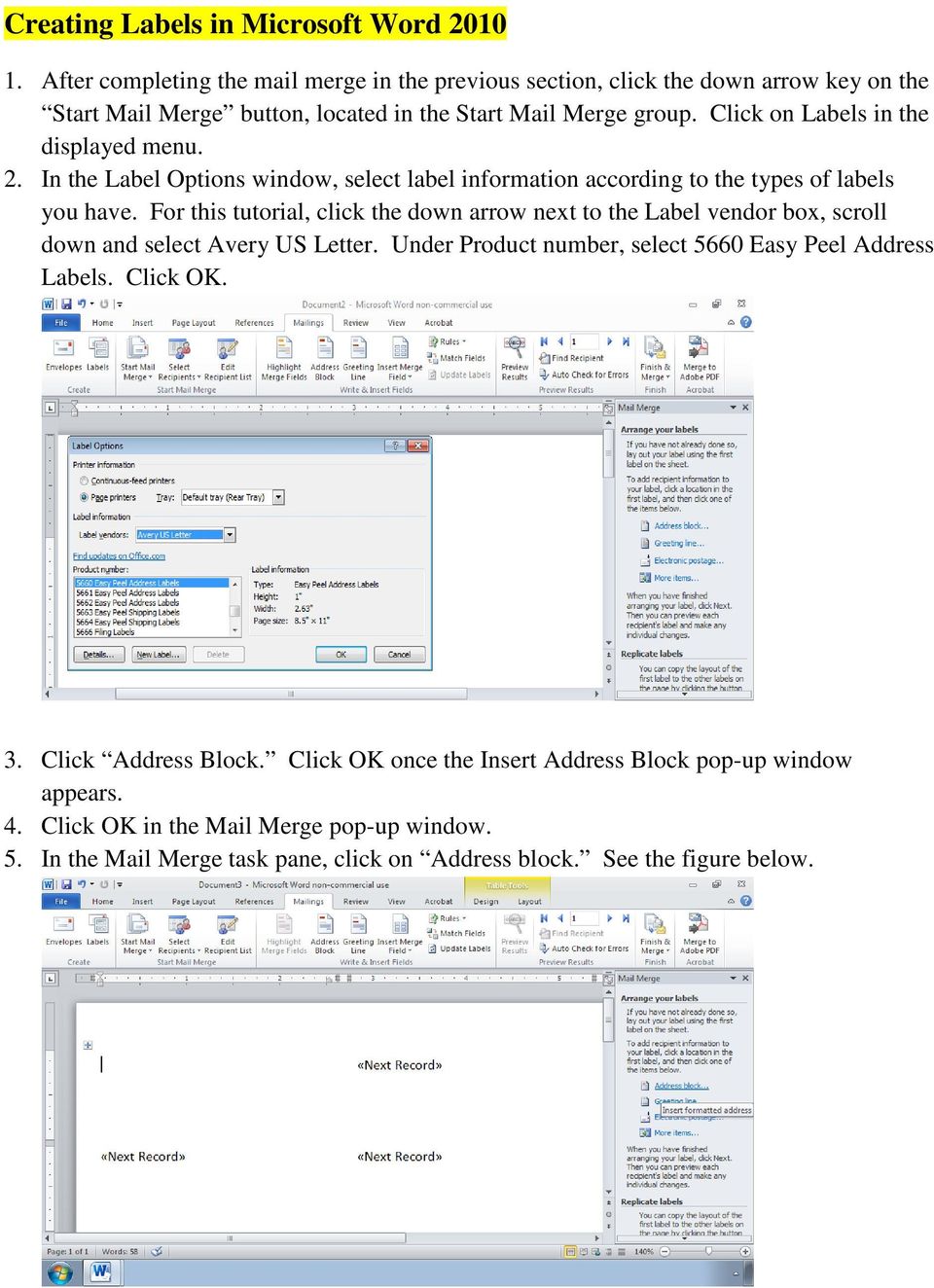
5 6. Click on Address block again to insert the formatted addresses. Click OK once the Insert Address Block window opens. 7. Click the Update all labels button. Under step 4 of 6, select Preview your labels. Your screen should resemble the following figure. 8. Click Next: Complete the Merge. Follow the on-screen instructions to print the mailing labels.

What is a Mail Merge?
 NDUS Training and Documentation What is a Mail Merge? A mail merge is generally used to personalize form letters, to produce mailing labels and for mass mailings. A mail merge can be very helpful if you
Mail Merge: Create Mailing Labels Using Excel Data and Filtering the Contents in the Data
 Mail Merge: Create Mailing Labels Using Excel Data and Filtering the Contents in the Data Prior to starting this, please save the.csv file that you exported as an excel file (example: xxxx.csv will now
Mail Merge Creating Mailing Labels 3/23/2011
 Creating Mailing Labels in Microsoft Word Address data in a Microsoft Excel file can be turned into mailing labels in Microsoft Word through a mail merge process. First, obtain or create an Excel spreadsheet
Microsoft Word 2007 - Mail Merge
 Microsoft Word 2007 - Mail Merge Mail merge is a tool which allows you to create form letters, mailing labels and envelopes by linking a main document to a set of data or data source. It is the process
Microsoft Word 2013: Mail Merge
 Microsoft Word 2013: Mail Merge Mail merge is a tool which allows you to create form letters, mailing labels and envelopes by linking a main document to a data source. It is the process of combining a
Create Mailing Labels Using Excel Data (Mail Merge)
 Create Mailing Labels Using Excel Data (Mail Merge) This quick guide will show you how to create mailing labels from an Excel spreadsheet. To print mailing labels, you ll import Excel spreadsheet data
The first thing to do is choose if you are creating a mail merge for printing or an e-mail merge for distribution over e-mail.
 Create a mail or e-mail merge Use mail or e-mail merge when you want to create a large number of documents that are mostly identical but include some unique information. For example, you can use mail merge
MICROSOFT WORD: MAIL MERGE
 SIU Medical Library / Department of Information and Communication Sciences MICROSOFT WORD: MAIL MERGE MICROSOFT WORD 2010 OVERVIEW Mail Merge allows you to automatically merge a list of variable information,
Avery Wizard: Using the wizard with Microsoft Word. This is a simple step-by-step guide showing how to use the Avery wizard in word
 Avery Wizard: Using the wizard with Microsoft Word This is a simple step-by-step guide showing how to use the Avery wizard in word Open up a blank document in Microsoft Word and click the Avery Tab at
Mastering Mail Merge. 2 Parts to a Mail Merge. Mail Merge Mailings Ribbon. Mailings Create Envelopes or Labels
 2 Parts to a Mail Merge 1. MS Word Document (Letter, Labels, Envelope, Name Badge, etc) 2. Data Source Excel Spreadsheet Access Database / query Other databases (SQL Server / Oracle) Type in New List Mail
Merging Labels, Letters, and Envelopes Word 2013
 Merging Labels, Letters, and Envelopes Word 2013 Merging... 1 Types of Merges... 1 The Merging Process... 2 Labels - A Page of the Same... 2 Labels - A Blank Page... 3 Creating Custom Labels... 3 Merged
Microsoft Access to Microsoft Word Performing a Mail Merge from an Access Query
 Microsoft Access to Microsoft Word Performing a Mail Merge from an Access Query Performing a Query in Access Before performing a mail merge, we need to set up a query with the necessary fields. Opening
Using Mail Merge in Microsoft Word 2003
 Using Mail Merge in Microsoft Word 2003 Mail Merge Created: 12 April 2005 Note: You should be competent in Microsoft Word before you attempt this Tutorial. Open Microsoft Word 2003 Beginning the Merge
MAIL MERGE TUTORIAL. (For Microsoft Word 2003-2007 on PC)
 MAIL MERGE TUTORIAL (For Microsoft Word 2003-2007 on PC) WHAT IS MAIL MERGE? It is a way of placing content from a spreadsheet, database, or table into a Microsoft Word document Mail merge is ideal for
To successfully initialize Microsoft Outlook (Outlook) the first time, email settings need to be verified.
 TO: UAN CLIENTS FROM: UAN STAFF DATE: OCTOBER 8, 2008 SUBJECT: Steps for Initial Setup of Microsoft Outlook To successfully initialize Microsoft Outlook (Outlook) the first time, email settings need to
Importing Contacts to Outlook
 Importing Contacts to Outlook 1. The first step is to create a file of your contacts from the National Chapter Database. 2. You create this file under Reporting, Multiple. You will follow steps 1 and 2
IT Quick Reference Guides Performing Mail Merges in Word 2010
 IT Quick Reference Guides Performing Mail Merges in Word 2010 Word Guides Mail merges are useful when you want to create form letters or other documents sent to or drawing information from multiple customers.
Mail Merge in Word. Workbook
 Mail Merge in Word Workbook Edition 3 December 2007 Mail Merge in Word Edition 3, December, 2007 Document Number: B.2.-WB.3468 iv Preface Preface The Mail Merge feature enables you to take information
Six Steps to Completing a Mail-Merge
 Six Steps to Completing a Mail-Merge Mail merging means to plug data from an address table into form letters, e-mail messages, envelopes, address labels, or a directory (a list or catalog, for example).
Mail Merges, Labels and Email Message Merges in Word 2007 Contents
 Mail Merges, Labels and Email Message Merges in Word 2007 Contents Introduction to Mail Merges... 2 Mail Merges Using the Mail Merge Wizard... 3 Creating the Main Document... 3 Selecting the Data Source...
TABLE OF CONTENTS I. MAIL MERGING...1 II. MAIL MERGE WIZARD...1 III. MAIL MERGE TOOLBAR...4 PRINTING LABELS AND ENVELOPES...4
 TABLE OF CONTENTS I. MAIL MERGING...1 II. MAIL MERGE WIZARD...1 1. CREATING A NEW LETTER AND DATA LIST...1 2. CREATING A NEW LETTER USING AN EXISTING DATA LIST...3 III. MAIL MERGE TOOLBAR...4 MERGING EXISTING
Create Mailing Labels from an Electronic File
 Create Mailing Labels from an Electronic File Microsoft Word 2002 (XP) Electronic data requests for mailing labels will be filled by providing the requester with a commadelimited text file. When you receive
Managing Contacts in Outlook
 Managing Contacts in Outlook This document provides instructions for creating contacts and distribution lists in Microsoft Outlook 2007. In addition, instructions for using contacts in a Microsoft Word
MAIL MERGE MADE EASY A STEP-BY-STEP GUIDE FOR LABELS OR EMAIL MERGES
 MAIL MERGE MADE EASY A STEP-BY-STEP GUIDE FOR LABELS OR EMAIL MERGES WHY MAIL MERGE? Labels: Mail merge in Office lets you convert your contact list data into a sheet of mailing labels, with complete control
Microsoft Outlook Introduction
 Microsoft Outlook Introduction Division of Information Technology February 2016 Contents Document Management History... 3 Introduction... 4 Getting Started... 4 Using MS Outlook... 4 What MS Outlook looks
Microsoft Office. Mail Merge in Microsoft Word
 Microsoft Office Mail Merge in Microsoft Word TABLE OF CONTENTS Microsoft Office... 1 Mail Merge in Microsoft Word... 1 CREATE THE SMS DATAFILE FOR EXPORT... 3 Add A Label Row To The Excel File... 3 Backup
Database Program Instructions
 Database Program Instructions 1) Start your Comparative Rating software by double-clicking the icon on your desktop. 2) Click on the button on the Comparative Rating Software Main Menu. 3) A message Loading
To export data formatted for Avery labels -
 Information used to create labels in the Client Data System (CDS) can be exported out of CDS and used to create labels in Microsoft Word, making it possible to customize the font style, size, and color.
Learning Services IT Guide. Access 2013
 Learning Services IT Guide Access 2013 Microsoft Access is a programme which allows you to store a lot of information easily in the form of a database. For example you could create a database which stored
S A G E P A S T E L P A R T N E R V E R S I O N 1 2 V e r s i o n 1 2. 1 T r a i n i n g M a n u a l L e s s o n 6
 V e r s i o n 1 2. 1 T r a i n i n g M a n u a l L e s s o n 6 [ Lesson 6 ] Advanced Functions: Utility Menu [ Learning Outcomes ] In this lesson, you are going to discover the Advanced Functions that
Advanced Word for Windows
 Advanced Word for Windows Version: 2002 Academic Computing Support Information Technology Services Tennessee Technological University September 2003 1. Opening Word for Windows In the PC labs, click on
Microsoft Word 2011: Create a Table of Contents
 Microsoft Word 2011: Create a Table of Contents Creating a Table of Contents for a document can be updated quickly any time you need to add or remove details for it will update page numbers for you. A
Mail Merge Tutorial (for Word 2003-2007) By Allison King Spring 2007 (updated Fall 2007)
 Mail Merge Tutorial (for Word 2003-2007) By Allison King Spring 2007 (updated Fall 2007) What is mail merge? You've probably heard it mentioned around the office or at an interview (especially for a temp
Instructions for Formatting APA Style Papers in Microsoft Word 2010
 Instructions for Formatting APA Style Papers in Microsoft Word 2010 To begin a Microsoft Word 2010 project, click on the Start bar in the lower left corner of the screen. Select All Programs and then find
LEGISLATOR DATABASE. September, 2012
 LEGISLATOR DATABASE September, 2012 1. INTRODUCTION 2. LIST OF QUERIES 3. FIELDS 4. QUERY DESCRIPTIONS 5. USING THE LEGISLATOR DATABASE QUERIES 6. DOWNLOADING THE LEGISLATOR DATABASE FROM THE CGA HOME
Mail Merge. Course Description. Objectives: Design a Main Document. Design a Data Source. Directories. Merge the Main Document with the Data
 Mail Merge Course Description The Mail Merge feature allows you to combine items from a data source into a document. This allows you to create form letters, mailing labels, envelopes, etc. You also have
Microsoft PowerPoint Tutorial
 Microsoft PowerPoint Tutorial Contents Starting MS PowerPoint... 1 The MS PowerPoint Window... 2 Title Bar...2 Office Button...3 Saving Your Work... 3 For the first time... 3 While you work... 3 Backing
Using an Automatic Back Up for Outlook 2003 and Outlook 2007 Personal Folders
 Using an Automatic Back Up for Outlook 2003 and Outlook 2007 Personal Folders Part 1 Install the Personal Folder Backup Utility Note: You should close Outlook and any other applications before installing
Microsoft Word 2010. Level 3
 Microsoft Word 2010 Level 3 1 Copyright 2010 KSU Dept. of Information Technology Services This document may be downloaded, printed, or copied for educational use without further permission of the Information
MICROSOFT OUTLOOK 2011 READ, SEARCH AND PRINT E-MAILS
 MICROSOFT OUTLOOK 2011 READ, SEARCH AND PRINT E-MAILS Lasted Edited: 2012-07-10 1 Find the Inbox... 3 Check for New Mail... 4 Manually check for new messages... 4 Change new incoming e-mail schedule options...
Word 2010: Mail Merge to Email with Attachments
 Word 2010: Mail Merge to Email with Attachments Table of Contents TO SEE THE SECTION FOR MACROS, YOU MUST TURN ON THE DEVELOPER TAB:... 2 SET REFERENCE IN VISUAL BASIC:... 2 CREATE THE MACRO TO USE WITHIN
OUTLOOK 2013 - GETTING STARTED
 OUTLOOK 2013 - GETTING STARTED Information Technology September 1, 2014 1 GETTING STARTED IN OUTLOOK 2013 Backstage View Ribbon Navigation Pane View Pane Navigation Bar Reading Pane 2 Backstage View contains
AUTO ARCHIVING. December, 6 th 2005
 AUTO ARCHIVING December, 6 th 2005 What is Auto Archiving? Archiving allows the user to keep their emails but not count them towards the set quota. By keeping emails archived, the quota will never be met
Using Mail Merge in Word 2007
 Using Mail Merge in Word 2007 Table of Contents USE MAIL MERGE TO CREATE AND PRINT LETTERS AND OTHER DOCUMENTS... 3 SET UP THE MAIN DOCUMENT... 3 CONNECT THE DOCUMENT TO A DATA SOURCE... 4 Choose a data
Using Word 2007 For Mail Merge
 Using Word 2007 For Mail Merge Introduction This document assumes that you are familiar with using Word for word processing, with the use of a computer keyboard and mouse and you have a working knowledge
TRIAL SOFTWARE GUIDE 1. PURPOSE OF THIS GUIDE 2. DOWNLOAD THE TRIALSOFTWARE 3. START WIDS 4. OPEN A SAMPLE COURSE, PROGRAM
 TRIAL SOFTWARE GUIDE Thank you for trying the WIDS software! We appreciate your interest and look forward to hearing from you. Please contact us at (800) 677-9437 if you have any questions about your trial
Use Mail Merge to create a form letter
 Use Mail Merge to create a form letter Suppose that you want to send a form letter to 1,000 different contacts. With the Mail Merge Manager, you can write one form letter, and then have Word merge each
SENDING E-MAILS WITH MAIL MERGE
 SENDING E-MAILS WITH MAIL MERGE You can use Mail Merge for Word and Outlook to create a brochure or newsletter and send it by e- mail to your Outlook contact list or to another address list, created in
Instructions: Using Mail Merge in Word to Send E mails via Outlook
 Instructions: Using Mail Merge in Word to Send E mails via Outlook The mail merge tool in Word can be used to quickly and easily send personalized e mails via your Outlook e mail application to individuals
Printing Solutions for Word 2013. Printing Solutions for Word 2010. Printing Solutions for Word 2007. Printing Solutions for Word 2003
 Printing Solutions for Word 2013 Printing Solutions for Word 2010 Printing Solutions for Word 2007 Printing Solutions for Word 2003 Printing solutions for Printers Word 2013 sure you have selected the
Using Mail Merge to Create Form Letters and Labels
 Using Mail Merge to Create Form Letters and Labels 1. Open the word document on your floppy: Practice letter 2. Go to Tools > Mail Merge. The Mail Merger Helper appears. We are going to create form letters,
3. Locate the different selections of Styles from the Home Tab, Styles Group
 Outlining in MS Word 2007 Microsoft Word 2007 provides users with an Outline View and Outlining toolbar, which allows us to create outlines. Outlines in Word are based on Styles. For instance if a line
OneNote 2016 Tutorial
 VIRGINIA TECH OneNote 2016 Tutorial Getting Started Guide Instructional Technology Team, College of Engineering Last Updated: Spring 2016 Email [email protected] if you need additional assistance after
Microsoft Word 2010 Prepared by Computing Services at the Eastman School of Music July 2010
 Microsoft Word 2010 Prepared by Computing Services at the Eastman School of Music July 2010 Contents Microsoft Office Interface... 4 File Ribbon Tab... 5 Microsoft Office Quick Access Toolbar... 6 Appearance
Outlook Web App (Online)... 3 Outlook 2013 (Desktop)... 16 Apple Mail Mobile Devices... 33 Android... 33 iphone... 40
 Webmail Tutorials Page 2 Table of Contents Outlook Web App (Online)... 3 How do I send an email?... 3 How do I create rules to manage my email?... 3 How do I forward email to my personal account?... 4
How to install and use the File Sharing Outlook Plugin
 How to install and use the File Sharing Outlook Plugin Thank you for purchasing Green House Data File Sharing. This guide will show you how to install and configure the Outlook Plugin on your desktop.
Windows XP Chinese Character Support Installation Instruction
 Windows XP Chinese Character Support Installation Instruction Windows XP has a utility to allow user to modify language sets for both multi-language input and viewing of foreign character sets. This document
Email Address Collector. - Tutorial -
 Email Address Collector - Tutorial - How to extract email addresses from mail folders 1. Open Email Address Collector Once the product is installed and your license is activated, you can start extracting
Maximizing the Use of Slide Masters to Make Global Changes in PowerPoint
 Maximizing the Use of Slide Masters to Make Global Changes in PowerPoint This document provides instructions for using slide masters in Microsoft PowerPoint. Slide masters allow you to make a change just
Report and Export Options
 Report and Export Options Report Options You can filter the results of any report by hitting the Options button You will be brought to the Report Options page We will concern ourselves with the bottom
Mail Merge Microsoft Word and Excel Queries Scott Kern Senior Consultant
 Mail Merge Microsoft Word and Excel Queries Scott Kern Senior Consultant What We ll Cover 1. Enabling database connections through Microsoft Excel 2. Accessing the data stored in the SQL Database via the
USING WORDPERFECT'S MERGE TO CREATE MAILING LABELS FROM A QUATTRO PRO SPREADSHEET FILE Click on a Step to move to the next Step
 USING WORDPERFECT'S MERGE TO CREATE MAILING LABELS FROM A QUATTRO PRO SPREADSHEET FILE Click on a Step to move to the next Step STEP 1: Create or use a Quattro Pro or Excel File. The first row must be
Outlook 2003 User Guide. April 15, 2004
 Outlook 2003 User Guide April 15, 2004 PURPOSE OF THE DOCUMENT... 2 NAVIGATE OUTLOOK...3 Toolbars... 3 Menu Toolbar... 4 Standard Toolbar... 5 Outlook Bar... 6 Navigation Pane... 7 USING THE MAIL OPTION...
Introduction to Microsoft Word 2003
 Introduction to Microsoft Word 2003 Sabeera Kulkarni Information Technology Lab School of Information University of Texas at Austin Fall 2004 1. Objective This tutorial is designed for users who are new
Customizing forms and writing QuickBooks Letters
 LESSON 15 Customizing forms and writing QuickBooks Letters 15 Lesson objectives, 398 Supporting materials, 398 Instructor preparation, 398 To start this lesson, 398 About QuickBooks forms, 399 Customizing
STUDENT MANUAL. Word 2013: Mail Merge and Macros. Towson University. Office of Technology Services. OTS Training
 STUDENT MANUAL Word 2013: Mail Merge and Macros Towson University Office of Technology Services OTS Training Word 2013: Mail Merge and Macros Word 2013: Mail Merge and Macros Part Number: 222777 Course
Microsoft Office Word 2013
 Microsoft Office Word 2013 Mail Merge and Creating Forms University Information Technology Services Training, Outreach & Learning Technologies Copyright 2014 KSU Department of University Information Technology
Microsoft Outlook 2003 Module 1
 Microsoft Outlook 200 Module 1 http://pds.hccfl.edu/pds Microsoft Outlook 200: Module 1 October 2006 2006 Hillsborough Community College - Professional Development Services Hillsborough Community College
Creating a New Excel Survey
 The purpose of this guide is to give you an overview of the Microsoft Office 365 Excel web application. Creating a New Excel Survey Log in to Office 365 using your student ID and password in the usual
Word 2007: Mail Merge Learning Guide
 Word 2007: Mail Merge Learning Guide Getting Started Mail merge techniques allow you to create a document which combines repetitive text elements with data drawn from an external data document. To perform
Microsoft Word 2010 Mail Merge (Level 3)
 IT Services Microsoft Word 2010 Mail Merge (Level 3) Contents Introduction...1 Creating a Data Set...2 Creating the Merge Document...2 The Mailings Tab...2 Modifying the List of Recipients...3 The Address
Instructions for Formatting MLA Style Papers in Microsoft Word 2010
 Instructions for Formatting MLA Style Papers in Microsoft Word 2010 To begin a Microsoft Word 2010 project, click on the Start bar in the lower left corner of the screen. Select All Programs and then find
Creating a table of contents quickly in Word
 Creating a table of contents quickly in Word This note shows you how to set up a table of contents that can be generated and updated quickly and easily, even for the longest and most complex documents.
Microsoft Outlook 2003 : Creating an Spam/Junk Mail Filter
 The University of Akron Microsoft Outlook 2003 : Creating an Spam/Junk Mail Filter Spam Filter Following are the steps for creating a Junk Mail folder and setting up the filter to move suspect materials
How to Mail Merge PDF Documents
 How to Mail Merge PDF Documents A step-by-step guide to creating personalized documents Table of Contents What is a mail merge?... 2 What do I need to start?... 2 Step 1: How to create a PDF document?...
Bates Gmail Labels, Filters, and Signatures
 Bates Gmail Labels, Filters, and Signatures Create and Apply Email Labels Use labels to categorize your messages. Labels are like folders, but with a twist: You can apply multiple labels to a message,
Document Revision Date: August 14, 2014. Create a New Data Protection Policy in the Symantec.cloud Management Portal
 Document Revision Date: August 14, 2014 Create a New Data Protection Policy in the Symantec.cloud Management Portal Create a New Data Protection Policy i Contents Configure Data Protection Settings in
OUTLOOK 2010 TIPS TABLE OF CONTENTS 1. SEND A BLIND CARBON COPY MARQUETTE UNIVERSITY IT SERVICES
 OUTLOOK 2010 TIPS TABLE OF CONTENTS 1.Send a Blind Carbon Copy... 1 2. Change the view of the Outlook window... 2 3. Use Out of Office Assistant... 2 4. Create Rules... 4 5. Use Autocomplete... 5 6. Request
Recalling A Sent Message in Outlook 2010
 Recall or replace an email message that you sent The recall feature in Microsoft Outlook tries to stop delivery and, optionally, replace an email message that you have already sent to another Microsoft
Presentations and PowerPoint
 V-1.1 PART V Presentations and PowerPoint V-1.2 Computer Fundamentals V-1.3 LESSON 1 Creating a Presentation After completing this lesson, you will be able to: Start Microsoft PowerPoint. Explore the PowerPoint
Getting Started with University Gmail
 Getting Started with University Gmail USER GUIDE V1.0 User Services IT Services University of Malta 2013 User Services IT Services University of Malta Msida MSD 2080 Malta May only be reproduced with permission
Using Microsoft Office XP Advanced Word Handout INFORMATION TECHNOLOGY SERVICES California State University, Los Angeles Version 1.
 Using Microsoft Office XP Advanced Word Handout INFORMATION TECHNOLOGY SERVICES California State University, Los Angeles Version 1.0 Spring 2004 Contents Advanced Microsoft Word XP... 3 Customizing Word
Gmail: Signatures, labels, and filters
 Gmail: Signatures, labels, and filters Here s how to set up your email signature, labels to organize your email (similar to folders), and filters to automate what happens to certain types of email. Create
Intro to Mail Merge. Contents: David Diskin for the University of the Pacific Center for Professional and Continuing Education. Word Mail Merge Wizard
 Intro to Mail Merge David Diskin for the University of the Pacific Center for Professional and Continuing Education Contents: Word Mail Merge Wizard Mail Merge Possibilities Labels Form Letters Directory
Introduction to Microsoft Access 2007
 Introduction to Microsoft Access 2007 Introduction A database is a collection of information that's related. Access allows you to manage your information in one database file. Within Access there are four
To add files to your email, first create the email. When you have opened a new email:
 Email attachments You can send files, folders and other items within an email along with the mail message itself. Items which have been added to emails are called attachments. Adding an attachment to an
MAIL MERGE USING WORD & EXCEL 2003
 MAIL MERGE USING WORD & EXCEL 2003 Open Excel. Create a database with the names for mailing labels & letters. Consider using the following fields as your column headings. Create the headings without spaces
Filtering Email with Microsoft Outlook
 Filtering Email with Microsoft Outlook Microsoft Outlook is an email client that can retrieve and send email from various types of mail servers. It includes some advanced functionality that allows you
Creating an Excel Database for a Mail Merge on a PC. Excel Spreadsheet Mail Merge. 0 of 8 Mail merge (PC)
 Creating an Excel Database for a Mail Merge on a PC Excel Spreadsheet Mail Merge 0 of 8 Creating an Excel Database for a Mail Merge on a PC 1. To create a database for a mail merge you will first need
Note: Before E-Z Mail can be installed; Microsoft Outlook or Lotus Notes must be installed on your system.
 Note: Before E-Z Mail can be installed; Microsoft Outlook or Lotus Notes must be installed on your system. Install E-Z Mail by using the E-Z Mail installation on the original CDS installation disk, or
Advanced Outlook Tutorials
 Advanced Outlook Tutorials Filtering: Create a filter to send email directly to a specific folder from a certain sender: 1. Right click on the sender s email. 2. Choose Rules. 3. Click on Create Rule.
Section 1: Ribbon Customization
 WHAT S NEW, COMMON FEATURES IN OFFICE 2010 2 Contents Section 1: Ribbon Customization... 4 Customizable Ribbon... 4 Section 2: File is back... 5 Info Tab... 5 Recent Documents Tab... 7 New Documents Tab...
Email Basics. a. Click the arrow to the right of the Options button, and then click Bcc.
 Email Basics Add CC or BCC You can display the Bcc box in all new messages that you compose. In a new message, do one of the following: 1. If Microsoft Word is your e-mail editor a. Click the arrow to
Microsoft Access 2000
 Microsoft Access 2000 Level 1 Region 4 Teaching, Learning and Technology Center Kaplan, LA Activity 1 Creating a Database 1. Open Microsoft Access 2000 a. Click on START, highlight Programs, point and
Outlook Web App (formerly known as Outlook Web Access)
 Outlook Web App (formerly known as Outlook Web Access) December 2013 Update to Email Beginning December 5 th, Microsoft will commence an upgrade of our email system. No action is required on the part of
Opening the FTD Document Center. Double-click the FTD Document Center icon on your Windows desktop.
 23 The allows you to create templates for email messages that you will send from FTD Mercury. You can create several different delivery confirmation templates, as well as email cover letters that can be
WHAT S NEW IN WORD 2010 & HOW TO CUSTOMIZE IT
 WHAT S NEW IN WORD 2010 & HOW TO CUSTOMIZE IT The Ribbon... 2 Default Tabs... 2 Contextual Tabs... 2 Minimizing and Restoring the Ribbon... 3 Customizing the Ribbon... 3 A New Graphic Interface... 5 Live