
Measuring behaviour recording and sampling rules
|
|
|
- Charleen Walton
- 9 years ago
- Views:
Transcription
1 1 Adfærdsbiologi øvelse 1 uge 50 Measuring behaviour recording and sampling rules 1. Introduction The study of animal behaviour aims at investigating 4 aspects of what animals do: functions, mechanisms, development and evolution. Whatever the aspect, studying animal behaviour implies: 1. asking a question, initially broad and later more refined as the behaviour is studied in detail 2. making preliminary observations from which one or more hypotheses can be formulated 3. making predictions (forudsigelser) from the hypotheses 4. choosing the appropriate measures of behaviour (adfærdsmål) to answer the questions and test the predictions 5. choosing the appropriate recording methods (registreringsmetoder) (sampling and recording rules) and recording medium (registreringsudstyr) that fit the measures chosen and the question asked 6. collecting the data 7. analysing the data to confirm or deny if the results fit the predictions 8. presenting the results to the scientific community in the form of reports, articles and seminars 9. asking new questions that stem from the new knowledge The first three steps require some basic knowledge of the phenomena and a good dose of curiosity, creativity and imagination. The questions, hypotheses and predictions can be formulated using a combination of basic observations and published information. This practical will cover steps 4. and 5., with some theoretical background, and then you will try steps 4. to 7. by observing and recording the behaviour of a pair of kittiwakes (rider) Rissa tridactyla on the nest from a video clip. You will also try all nine steps above in the other practicals of the course. 2. Measures of behaviour 2.1. Description of behaviour Behaviour can be described either in terms of its structure, i.e. its appearance and physical form (e.g. run bill along wing feathers ) or in term of its consequences, i.e. the effect of the behaviour on the environment, other individuals or the subject itself (e.g. preen fjerpleje ). Description of structure is usually preferable because it can be more accurate and repeatable, and because it is neutral. However, it may generate unnecessary detail. Description by consequences is often less detailed and therefore more practical, but caution should be used to avoid excessive interpretations and neutral terms should be preferred. Behaviour can also be described in terms of the spatial relation of the subject to the environment or other individuals (e.g. approach the mate or leave the nest ). Behaviour is a continuous stream of actions, and in order for it to be quantified and described we need to divide it in categories, which should be appropriate for the question asked, precisely defined, independent of one another and homogeneous. For some questions it will be necessary to look at details, often referred to as behaviour elements (adfærdselementer), e.g. 1) neck stretched obliquely upwards and forward, 2) wings slightly elevated and 3) long call in the black-headed gull (hættemåge) Larus ridibundus. For other questions it will only be relevant to consider more complex behaviour patterns

2 Adfærdsbiologi øvelse 1 uge 50 2 (adfærdsmønstre) which are combinations of behaviour elements, for instance long-calling in the black-headed gull that consists of the above mentioned 3 elements. For still other questions it would be sufficient to look at behaviour sequences (adfærdssekvenser), for instance the meeting ceremony in the black-headed gull that consists of a fixed sequence of 3 behaviour patterns starting with long-calling Measures Whatever the level of description (element, pattern or sequence) behaviours can be quantified using four basic types of measure: 1. Latency (latenstid) = time from some specified event (e.g. start of recording) to the onset of the first occurrence of the behaviour. 2. Frequency (hyppighed/frekvens) = number of occurrences of the behaviour per unit time 3. Duration (varighed) = length of time for which the behaviour lasts (total, average etc.) 4. Intensity (intensitet) = defined according to behaviour (e.g. loudness of the long-call in the black-headed gull, partly or fully raised head feathers in a jay (skovskade) Garrulus glandarius, or low and high intensity of fighting according to absence or presence of physical contact, respectively). Behaviours can be defined according to types which lie at the extremes of a duration scale: events and states. Events (begivenheder): behaviours of instantaneous to short duration, which are best described by their frequency (e.g. vocalisations). States (tilstande): behaviours of relatively long duration, which can be best described by their total or average duration (e.g. body postures or position in the environment). These categories are not strict, and events can also be described by duration if we re looking at a small time scale (e.g. duration of different vocalisation types), while states can be measured by frequency when measured over a large time scale (e.g. number of reproductive events in a season or in a lifetime). Events are often repeated rapidly in bouts (serier) that can be measured both by their duration and frequency. 3. Recording methods The rules for recording behaviour refer to who to watch, when and how. Sampling rules (observationsregler) define essentially who we watch (one or many individuals, or a particular behaviour). Recording rules (registreringsregler) define how we record the behaviour with respect to time Sampling rules There are four sampling rules to define who to watch: Ad libitum, focal animal, scan and behaviour sampling. Ad libitum sampling (ad libitum observationer): the recorder notes down all that is visible and seems relevant, without constraints on which animal to watch. This rule is very useful for preliminary observations, but does not yield homogeneous measures of behaviours and tends to overestimate the most common or conspicuous behaviours.

3 Adfærdsbiologi øvelse 1 uge 50 3 Focal animal sampling (fokaldyrs observationer): the recorder chooses one individual (or any other unit, e.g. a group of animals) and records all behaviours performed by the individual in a specified time window. This is probably the most common and most useful rule, but can be time consuming if many individuals need to be sampled. Scan sampling (skanning observationer) the recorder notes the behaviour of many individuals at once at regular time intervals. This rule normally limits the number of behavioural categories which can be used, since the time to note the behaviour of all individuals should be as short as possible. It also tends to overestimate conspicuous behaviours. Behaviour sampling (adfærdsobservationer) the observer notes all the occurrences of a specific behaviour, together with who is performing it. This method is used to quantify the occurrence of important rare behaviours Recording rules There are two ways to record behaviours with respect to time, continuous recording and time sampling (periodisk registrering), the latter divided in instantaneous and one-zero sampling. Unlike continuous recording, time sampling does not give exact frequencies and durations, only approximations of them. Time sampling is therefore only used when continuous recording is not possible, usually because too many behaviours occur too frequently. Continuous recording (kontinuerlig registrering) all occurrences of the behaviours are recorded, together with information about the time and duration of occurrence. This rule gives the most accurate estimate of frequencies, latencies and durations of behaviours and the records obtained contain the most information about the behaviour. Sequence recording (sekvensregistrering) is continuous recording without time information, i.e. this rule only gives frequencies and succession of behaviours. Instantaneous sampling (øjebliks registrering) the observation session is divided in short intervals (registrerings intervaller) by sample points (registrerings tidspnkter), and at each sample point the recorder notes if the behaviour is occurring. The measure obtained is the proportion of sample points in which the behaviour occurred. Instantaneous sampling, which is often used to quantify states, may give a good estimation of the total duration of a state if the intervals are short relative to the duration of the states. One-zero sampling (interval registrering) again the observation session is divided in short intervals, and at each sample point the recorder notes if the behaviour has occurred during the previous interval. The measure obtained is the proportion of sample intervals in which the behaviour occurred, which is not a true duration or a true frequency. Onezero sampling is mostly used to quantify events Recording media Behaviour may either be measured directly while it is performed, or later on (as in this practical) from audio and video recordings of the behaviour. The basic tools for recording behaviour, especially in the field, are pencil and paper. These are simple, cheap, flexible and reliable (no loss of data due to technical problems). The paper can be from simple white

4 Adfærdsbiologi øvelse 1 uge 50 4 notepaper to a complex and organised check sheet (observationsskema) where information is coded by means of letters and symbols. Though still being one of the most used, check sheets are time consuming since data has to first be collected and then quantified and stored in a way that it can be analysed (generally in a computer). There are more technologically advanced methods, which go from dictated verbal description, through automatic event recorders to computer software and hardware. Dictated verbal descriptions can be even more time consuming than check sheets, but have the advantage of not requiring the recorder to look away from the subjects observed. Automatic recorders tend to be simple but rather rigid machines, which record for example levers being pressed or motion in an enclosure. The computer nowadays offers the most flexible and efficient methods of recording, storing and analysing behaviour data. In most cases a computer is used as a sophisticated even/state recorder, operated by the observer, where data is entered through coded key presses, and then is output directly in a form ready for analysis. It also allows a more accurate measurement of time. Some simple and flexible event recording software has been adapted to handheld computers for use in field studies (but also for laboratory studies). You will be using this medium for this and other practicals in this course. The software is called FIT-System and runs on a Palm handheld computer. It essentially records the position (x-y coordinates) and time of tapping on the screen with the stylus. The user can then assign a definition to each portion of the screen, corresponding to the behaviour categories observed. During this and other practicals you will try the handheld computer recording medium in association with most of the behaviour measures, types and recording rules described here, by applying them to a video clip of nesting birds. 4. Collecting data 4.1. Kittiwakes Kittiwakes are colonial seabirds, relatives of gulls (måge), that nest in large colonies on steep cliffs at northern latitudes (e.g. Bulbjerg, Northern Jutland). Males and females are similar and share the care for the young at the nest, which contains on average 2 eggs/young. Adults provide food (mainly fish) and surveillance for the young for 5 to 7 weeks, males and females taking turns at the nest. They are very vocal and produce a number of different calls during both courtship and parental care. Courtship also takes place on cliffs Video You will watch and take measurements from a digitised video recording of a pair of kittiwakes on their nest within a colony. The video file is called kittiwakes.mpg and will be available on the desktop of the computers you will use, in the folder called Practical 1 Kittiwakes. The video will also be shown to all by the lecturer before you are divided in groups and assigned to the computers. The video lasts 3 min in which the birds will be performing a number of different behaviours, more or less conspicuous. You will have to watch the video, which can be eventually rewound if necessary, and collect data on the behaviours using the Palm handhelds (see instructions). All groups will have the same video to watch Behaviours When you first watch the video, it appears that the birds are not doing anything interesting. If you reviewed it a number of times you would start noticing some regular patterns and some potentially relevant details of the animals actions. You can try to identify some potentially interesting and quantifiable behaviour patterns yourselves. Each individual

5 Adfærdsbiologi øvelse 1 uge 50 5 performs certain movements, is present or absent at a certain point in time and interacts with the other individual. The behaviours you will have to measure, at least in the beginning, are: 1. leave nest/return to nest 2. bill open/bill closed 3. touch other bird with bill These behaviours can be quantified using the measures described above (latency, frequency and duration) and can be assigned to one of two categories, event or state. For example, behaviour 1 results in a state defined as bird present/absent and can be measured in terms of duration (e.g. total time present at the nest). You will assign the other behaviours to the appropriate categories and apply the appropriate measure. You will then use a sampling rule and a recording rule to collect the behaviours. You will use focal animal sampling by observing only the behaviour of one of the two birds for the whole length of the video (you choose which bird). You will also use continuous recording ( alloccurrences ) for all the behaviours, since the handheld is especially powerful for the application of such recording rule Data collection Once you have opened the video, follow these steps to start collecting the data: 1. Turn on the handheld computer assigned to your group by pressing on the green button on the bottom left corner. 2. Tap on the house icon on the screen to see all the software available on the handheld. Tap then on the icon called FIT. 3. The screen will show three buttons: Record, Send and Delete. Tap on the Record button. 4. Assign a file name by tapping on the ABC icon at the bottom left of the screen and then on the letters that appear on the screen. Use your initials as file name. 5. Turn off the handheld WITHOUT tapping on the OK button At this point you are ready to begin recording the behaviour of the birds. To do this you will need the screen cover sheet (provided) where the behaviours are specified. The screen cover of the handheld computers you are given will show 12 rectangles (buttons), 7 of which are already assigned to specific behaviours: START/STOP you will tap on the START button as soon as you start the video and on the STOP button at the end of the observation/video ARRIVE you will tap on this button when the focal bird arrives at the nest DEPART you will tap on this button when the focal bird leaves the nest OPEN you tap on this button when the focal bird opens its bill CLOSE TOUCH you tap on this button when it closes it again you will tap on this button when the bill of the focal bird touches the other individual. Put the screen cover sheet on the screen and turn the handheld on again. You are now ready to start recording the behaviours. Tap on OK on the screen. The program has now already started recording time. Start the video and tap on the START button as quickly as possible. Continue the recording until the end of the video. One member of the group can use the handheld and the others watch and announce the behaviours. If you still have time after having completed all the operations, you can use the remaining 5 buttons to define and measure other behaviours you believe to be interesting or relevant to a particular question.

6 Adfærdsbiologi øvelse 1 uge 50 6 Once you have collected the data on the handheld, you will transfer it to the computer and use the FIT Manager application to assign each group of points to the appropriate behaviour and to export the data to the Excel format Data extraction Once you have sampled the behaviour from the video you will first transfer the handheld data to a single folder on the computer: 1. Connect the handheld to the computer with the cable provided. 2. Tap on the house icon, tap on HotSync and wait until the files are copied to the computer. 3. Open the FIT-Manager software (icon on desktop). 4. Open your data file, which is found in the Palm Backup folder on the desktop. 5. Open the template file, which is found in the Practical 1 Kittiwakes folder on the desktop. Eventually adjust the position of the rectangles so that all data points are included. 6. Export the data to an Excel file, saving it with the same name as the original file in the folder called Kittiwake Data Folder Data analysis The file containing your data is now in Excel format and can be analysed to extract information on frequencies and durations of behaviours. To do this you will use the Analyse FIT application, that scans the data file for the behaviours, which can then be assigned to the appropriate category (event or state) and for which different measures can be chosen and calculated. Proceed as follows: 1. Start the Analyse-FIT software (icon on desktop). 2. Under the /File/ menu, select /Open folder/ and find the Kittiwake Data Folder, click OPEN and the click OK in the next window. You should see a list of behaviours on the left hand side of the program window. 3. Now you have to tell the program where to start and where to stop looking at the data in each file. In the Start tab at the right hand side of the window select Zero, in the Stop tab select Named behaviour and then pick STOP from the list of available behaviours. 4. Click on the Add State button and select from the list: arrive, depart in this order. Check the Total duration box and click OK. This tells the program to calculate the duration of the bird present/absent states. 5. Do the same for the other behaviours. According to whether they are states or events, use the Add State and Add Event buttons. 6. Click on Analyse Data. 7. Click on Show Output to view the results of the analysis. The first column contains the file name, the others the behaviour data. 8. Click on Save Output and save the file in the Practical 1 Kittiwakes folder using you first names as file name. You can open the new data file with Excel and take a look at the values you have extracted. If you were now to repeat this procedure for a number of different kittiwake pairs (e.g. 20 pairs in a colony), you would be able to perform some statistical analyses, for example on the relationship between different behaviours. If you had, for example, some pairs from a colony in Denmark and some from one in Scotland, you could compare the behaviours between the two populations.

7 Adfærdsbiologi øvelse 1 uge Discussion Once you have completed the measurement and analysis operations, you will be asked to think about and discuss with the other groups and with the lecturer or the assistants the issues that may have arisen during the practical, among which we suggest: 1. This practical can be considered as an exercise in preliminary observations of behaviour. What questions on kittiwake behaviour did the observations suggest to you, if you wanted to continue with a more detailed study? 2. What context (kontekst) do the measured behaviours represent (e.g. aggression, courtship, alarm)? 3. How strict are the definitions of event and state for the present behaviours? 4. What other behaviours could be measured, and are they events or states? 5. Have you observed sequences of behaviour patterns/elements that are repeated in the same, or almost the same, order every time they are performed? 6. Which other sampling and recording rules could have given interesting results if applied to this case? 7. Could you have obtained the same results using other recording media? 6. Literature Martin, P. & Bateson P Measuring behaviour. An introductory guide. 2. ed.. Cambridge University Press.

Help. F-Secure Online Backup
 Help F-Secure Online Backup F-Secure Online Backup Help... 3 Introduction... 3 What is F-Secure Online Backup?... 3 How does the program work?... 3 Using the service for the first time... 3 Activating
Intermediate PowerPoint
 Intermediate PowerPoint Charts and Templates By: Jim Waddell Last modified: January 2002 Topics to be covered: Creating Charts 2 Creating the chart. 2 Line Charts and Scatter Plots 4 Making a Line Chart.
Sample- for evaluation only. Advanced PowerPoint. TeachUcomp, Inc. A Presentation of TeachUcomp Incorporated. Copyright TeachUcomp, Inc.
 A Presentation of TeachUcomp Incorporated. Copyright TeachUcomp, Inc. 2010 Advanced PowerPoint TeachUcomp, Inc. it s all about you Copyright: Copyright 2010 by TeachUcomp, Inc. All rights reserved. This
SMART Board Menu. Full Reference Guide
 SMART Board Full Reference Guide Start-Up After entering Windows, click on the desktop icon SMART Board Tools. The SMART Board icon will appear in the system tray on the bottom right of the screen. Turn
Microsoft Office. Mail Merge in Microsoft Word
 Microsoft Office Mail Merge in Microsoft Word TABLE OF CONTENTS Microsoft Office... 1 Mail Merge in Microsoft Word... 1 CREATE THE SMS DATAFILE FOR EXPORT... 3 Add A Label Row To The Excel File... 3 Backup
EDIT202 PowerPoint Lab Assignment Guidelines
 EDIT202 PowerPoint Lab Assignment Guidelines 1. Create a folder named LABSEC-CCID-PowerPoint. 2. Download the PowerPoint-Sample.avi video file from the course WebCT/Moodle site and save it into your newly
Microsoft Windows Overview Desktop Parts
 Microsoft Windows Overview Desktop Parts Icon Shortcut Icon Window Title Bar Menu Bar Program name Scroll Bar File Wallpaper Folder Start Button Quick Launch Task Bar or Start Bar Time/Date function 1
Waves: Recording Sound Waves and Sound Wave Interference (Teacher s Guide)
 Waves: Recording Sound Waves and Sound Wave Interference (Teacher s Guide) OVERVIEW Students will measure a sound wave by placing the Ward s DataHub microphone near one tuning fork A440 (f=440hz). Then
Using WINK to create custom animated tutorials
 Using WINK to create custom animated tutorials A great way for students and teachers alike to learn how to use new software is to see it demonstrated and to reinforce the lesson by reviewing the demonstration.
Configuration Programme
 Configuration Programme Handbook Version 4.0 Index Introduction...3 Software Installation...4 The Configuration Programme...6 Options Menu...6 The Configurator... 8 General Settings...8 Telephone book...10
echo360 Lecture Capture An Introduction for Instructors
 echo360 Lecture Capture An Introduction for Instructors 2014 Table of Contents 1. Request a Lecture Capture 3 2. Scheduled Hardware Capture 4 Scheduled Hardware Capture - Continued 5 3. Scheduled Software
Creating trouble-free numbering in Microsoft Word
 Creating trouble-free numbering in Microsoft Word This note shows you how to create trouble-free chapter, section and paragraph numbering, as well as bulleted and numbered lists that look the way you want
Movie Maker 2 Beginning
 Movie Maker 2 Beginning Quick Overview...3 Preparing a Folder...3 Collecting Resources...3 Pictures...4 Screen Resolution...4 Starting Windows Movie Maker...4 Which Version?...4 Windows Movie Maker 2 Window...4
BASIC VIDEO EDITING: IMOVIE
 IMOVIE imovie comes with Apple Mac computers and lets you assemble audio, video and photos to create your own movies. This tip sheet was compiled using imovie 11 so you may notice some differences if using
ANIMAL BEHAVIOR LAB Sampling Methods, Data Collection, & Ethograms
 Background ANIMAL BEHAVIOR LAB Sampling Methods, Data Collection, & Ethograms A) Sampling Methods It is usually neither feasible nor necessary to record all behaviors of all animals of interest all the
Table Of Contents. iii
 Table Of Contents Quickstart... 1 Introduction... 1 Data administration... 1 The Toolbar... 2 Securities management... 3 Chart window structure... 4 Adding an indicator... 5 Chart drawings... 6 Saving
Autodesk Installation
 Autodesk Installation All of the Autodesk products install in a similar fashion. I have included some screenshots of what you can expect to see during the installations. The first thing you need to check,
System update procedure for Kurio 7 (For build number above 110)
 System update procedure for Kurio 7 (For build number above 110) IMPORTANT NOTE: Before starting the procedure, please check your current Android build number, that can be found as follows: exit the Kurio
BackupBuddy. Installation. Page 1 of 8
 Installation NOTE: Before installing the BackupBuddy application, please make sure to first install the Palm Desktop software as BackupBuddy utilizes the HotSync application which is installed with Palm
Digital Story Telling with Windows Movie Maker Step by step
 . PAGE 1 Superhighways 2013 CONTENTS Before you open Windows Movie Maker (WMM)... 3 Organising your digital assets... 3 Windows Live Photo Gallery... 3 Your First Project in WMM... 4 Adding Audio... 6
ivms-4200 Intelligent Video Management System Quick Start Guide
 ivms-4200 Intelligent Video Management System Quick Start Guide Notices The information in this documentation is subject to change without notice and does not represent any commitment on behalf of HIKVISION.
5. Tutorial. Starting FlashCut CNC
 FlashCut CNC Section 5 Tutorial 259 5. Tutorial Starting FlashCut CNC To start FlashCut CNC, click on the Start button, select Programs, select FlashCut CNC 4, then select the FlashCut CNC 4 icon. A dialog
Backing up with Windows 7
 Backing up your data should be a high priority; it is far too easy for computer failure to result in the loss of data. All hard drives will eventually fail, and (at the minimum) you should be prepared
Figure 3.5: Exporting SWF Files
 Li kewhatyou see? Buyt hebookat t hefocalbookst or e Fl ash + Af t eref f ect s Chr i sjackson ISBN 9780240810317 Flash Video (FLV) contains only rasterized images, not vector art. FLV files can be output
Video in Logger Pro. There are many ways to create and use video clips and still images in Logger Pro.
 Video in Logger Pro There are many ways to create and use video clips and still images in Logger Pro. Insert an existing video clip into a Logger Pro experiment. Supported file formats include.avi and.mov.
I. Create a New Project
 Judith Herb College of Education imovie 09 Tutorial Students in the Judith Herb College of Education are required to complete video projects in many classes as well as their student teaching. These videos
This guide provides step by step instructions for using the IMF elibrary Data - My Data area. In this guide, you ll learn how to:
 This guide provides step by step instructions for using the IMF elibrary Data - area. In this guide, you ll learn how to: Access your favorite and recently used data reports. Make sure you receive email
My ø Business User guide
 My ø Business User guide Contents Page 1 Contents Welcome to your My ø Business user guide. It s easy to use. Move your mouse over the page to get to the section you want. Click on the links at the top
SMART Board Tips & Tricks (version 9.0) Getting Started. SMART Tools vs. SMART Notebook software
 SMART Board Tips & Tricks (version 9.0) Getting Started SMART Tools vs. SMART Notebook software Click the SMART Board icon (in the system tray at the bottom right of your screen) to access the SMART Board
Creating an Animation using Windows Movie Maker
 Creating an Animation using Windows Movie Maker Previewing Sample Photographs Now that you have learned a little bit about the history of clay animation and you are familiar with how to use software to
einstruction CPS (Clicker) Instructions
 Two major approaches to run Clickers a. Anonymous b. Tracked Student picks any pad as s/he enters classroom; Student responds to question, but pad is not linked to student; Good for controversial questions,
Camtasia Studio. Creating Screen Videos
 Camtasia Studio Creating Screen Videos WORKSHOP DESCRIPTION... 1 Overview 1 Prerequisites 1 Objectives 1 INTRODUCTION... 1 WHY USE CAMTASIA STUDIO?... 2 WHERE CAN I GET CAMTASIA STUDIO?... 2 HOW TO USE
Petrel TIPS&TRICKS from SCM
 Petrel TIPS&TRICKS from SCM Knowledge Worth Sharing Histograms and SGS Modeling Histograms are used daily for interpretation, quality control, and modeling in Petrel. This TIPS&TRICKS document briefly
Guide to Using Outlook Calendar for Meeting Arrangements
 Guide to Using Outlook Calendar for Meeting Arrangements Using Outlook Calendar to arrange meetings and share information on availability across the university can help to save time on administration and
HOW TO ORGANIZE PICTURES
 Get started When you upload your pictures to Shutterfly, you can do much more than view them. Our workspace offers tools that let you quickly and easily organize your photos as well. We re going to show
Windows Live Movie Maker
 Windows Live Movie Maker What is Windows Live Movie Maker? Windows Live Movie Maker is available on all computers that have Windows 7. Teachers and students use Windows Live Movie Maker to turn videos
Welcome to Corel VideoStudio Pro X5
 Contents Welcome to Corel VideoStudio Pro X5............................ 2 New Features and Enhancements................................ 4 Getting to Know the Workspace.................................
I ntroduction. Accessing Microsoft PowerPoint. Anatomy of a PowerPoint Window
 Accessing Microsoft PowerPoint To access Microsoft PowerPoint from your home computer, you will probably either use the Start menu to select the program or double-click on an icon on the Desktop. To open
Call Recorder Quick CD Access System
 Call Recorder Quick CD Access System V4.0 VC2010 Contents 1 Call Recorder Quick CD Access System... 3 1.1 Install the software...4 1.2 Start...4 1.3 View recordings on CD...5 1.4 Create an archive on Hard
SHOOTING AND EDITING DIGITAL VIDEO. AHS Computing
 SHOOTING AND EDITING DIGITAL VIDEO AHS Computing Digital Video Capture, Edit, Deliver This presentation will guide you through a basic digital video workflow: Capture using a video recording device, arrange
Introduction To Microsoft Office PowerPoint 2007. Bob Booth July 2008 AP-PPT5
 Introduction To Microsoft Office PowerPoint 2007. Bob Booth July 2008 AP-PPT5 University of Sheffield Contents 1. INTRODUCTION... 3 2. GETTING STARTED... 4 2.1 STARTING POWERPOINT... 4 3. THE USER INTERFACE...
BSDI Advanced Fitness & Wellness Software
 BSDI Advanced Fitness & Wellness Software 6 Kellie Ct. Califon, NJ 07830 http://www.bsdi.cc SOFTWARE BACKUP/RESTORE INSTRUCTION SHEET This document will outline the steps necessary to take configure the
Spike Records Management System. Implementation & Operation Manual
 Spike Records Management System Implementation & Operation Manual Spike Records Management System: Implementation & Operation Manual Copyright 1997-2005 Economic Outlook Pty Ltd Table of Contents 1. Records
ACADEMIC TECHNOLOGY SUPPORT
 ACADEMIC TECHNOLOGY SUPPORT Tegrity: Getting Started with Lecture Capture (Last updated: 2/23/15) [email protected] 439-8611 www.etsu.edu/ats Table of Contents: Table of Contents:... 2 Overview... 1 Objectives...
Export the address book from the Blackberry handheld to MS Outlook 2003, using the synchronize utility in Blackberry Desktop Manager.
 Export the address book from the Blackberry handheld to MS Outlook 2003, using the synchronize utility in Blackberry Desktop Manager. Revised 2/25/07 Creating a New Contacts Folder in Outlook Open Outlook
VHS2DVD Wizard User's Manual
 VHS2DVD Wizard User's Manual Table of Contents 1. Installation Instructions a. Installation Package Contents b. Installation Instructions c. Setting Up the Computer for Video Capturing i. Adjust the Screen
Save and Restore Backups using itunes File
 Save and Restore Backups using itunes File Make and Export a Backup Access the Options On ipad, tap right-most button in the toolbar to access the Options. On iphone/ipod touch, tap the Views button (double
Automatic Integration into Olympus Transcription Via FTP
 Automatic Integration into Olympus Transcription Via FTP The following Guide demonstrates how to enable integration from the Hugo Dictation App via FTP into the Olympus Transcription Software The creation
Skype for Business 2015 - Online Meetings
 Skype for Business 2015 - Online Meetings Acknowledgement: Many thanks to the University of Aberdeen for providing us with this fact sheet and allowing us to amend it for use at the University of Leicester.
Experiment 5: Magnetic Fields of a Bar Magnet and of the Earth
 MASSACHUSETTS INSTITUTE OF TECHNOLOGY Department of Physics 8.02 Spring 2005 Experiment 5: Magnetic Fields of a Bar Magnet and of the Earth OBJECTIVES 1. To examine the magnetic field associated with a
Set Top Box User Guide. Global Reach with a Local Touch
 Set Top Box User Guide Global Reach with a Local Touch Table of Contents REMOTE SET UP 3 SET TOP BOX DIAGRAM 4 SET TOP BOX SETTINGS 5 TURN ON/OFF 5 TV INPUT SETTINGS 5 ADJUSTING THE VOLUME 5 RESETTING
DIGICLIENT 8.0 Remote Agent Software
 DIGICLIENT 8.0 Remote Agent Software MODEL: D17800 Series Instruction Manual English Version 1.0 Copyright 2007 Digimerge Technologies Inc Table of Contents Table of Contents About the DigiClient 8.0...
Making and Exporting a Backup
 Save and Restore Backups using itunes File Sharing on iphone/ipod touch Making and Exporting a Backup Hiding the keyboard Launch Proloquo4Text by tapping on its icon. If the keyboard is visible, tap the
Module 4 (Effect of Alcohol on Worms): Data Analysis
 Module 4 (Effect of Alcohol on Worms): Data Analysis Michael Dunn Capuchino High School Introduction In this exercise, you will first process the timelapse data you collected. Then, you will cull (remove)
Mobile Surveillance. User Manual
 Mobile Surveillance User Manual Contents 1 Network Configuration... 1 1.1 Access Device via WLAN... 1 1.2 Access Device via 3G Network... 1 2 By Phones with iphone OS... 2 2.1 Installation Instruction...
Animal Colors and Shapes Teacher s Guide
 Teacher s Guide Grade Level: K 2 Curriculum Focus: Math, Science Lesson Duration: 1 2 class periods Program Description Animals come in all colors, shapes, and sizes. Learn about the shapes animals have
Microsoft Excel 2013 Step-by-Step Exercises: PivotTables and PivotCharts: Exercise 1
 Microsoft Excel 2013 Step-by-Step Exercises: PivotTables and PivotCharts: Exercise 1 In this exercise you will learn how to: Create a new PivotTable Add fields to a PivotTable Format and rename PivotTable
Microsoft Word 2011: Create a Table of Contents
 Microsoft Word 2011: Create a Table of Contents Creating a Table of Contents for a document can be updated quickly any time you need to add or remove details for it will update page numbers for you. A
Windows Movie Maker 2012
 Windows Movie Maker 2012 Open Windows Movie Maker A shortcut for Movie Maker should be on the desktop, but if it is not, you can search for the program by touching the right edge of the screen and swiping
This workshop introduces the basics of using the EndNote software with Windows.
 Introduction to EndNote X7 for Windows This workshop introduces the basics of using the EndNote software with Windows. Contents Create an EndNote Library How to move/adjust the preview window Add references
Vodafone PC SMS 2010. (Software version 4.7.1) User Manual
 Vodafone PC SMS 2010 (Software version 4.7.1) User Manual July 19, 2010 Table of contents 1. Introduction...4 1.1 System Requirements... 4 1.2 Reply-to-Inbox... 4 1.3 What s new?... 4 2. Installation...6
Client Marketing: Sets
 Client Marketing Client Marketing: Sets Purpose Client Marketing Sets are used for selecting clients from the client records based on certain criteria you designate. Once the clients are selected, you
Export / Import using itunes File Sharing
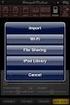 Export to itunes File Sharing Access Edit Mode Tap the pencil button on the bottom toolbar to access Edit Mode. Select a Button or a Folder Select to the button(s) you want to export/ import. A checkmark
HOW TO BURN A CD/DVD IN WINDOWS XP. Data Projects
 Page 1 HOW TO BURN A CD/DVD IN WINDOWS XP There are two ways to burn files to a CD or DVD using Windows XP: 1. Using Sonic RecordNow! Plus or 2. Using the Windows Explorer CD Burning with Sonic Recordnow!
My Mediasite and Desktop Recorder user manual
 My Mediasite and Desktop Recorder user manual To enable them to record knowledge clips (in the Do-It-Yourself studio) or their lectures and seminars, teachers have been given access to My Mediasite. My
CMU/SCS Computing Facilities. Microsoft Outlook 2010 Calendar Guide
 CMU/SCS Computing Facilities Microsoft Outlook 2010 Calendar Guide Table of Contents Opening Outlook... 2 Finding your Calendar... 2 Creating entries on your calendar... 2 Appointments... 2 Meetings...
Beginning PowerPoint: Hands-On Exercise (Windows XP) Regent University
 Beginning PowerPoint: Hands-On Exercise (Windows XP) 10/1/02 (Creation Date) 01/08/2004 Regent University The Center for Teaching & Learning 1 Beginning PowerPoint: Hands-On Exercise (Windows XP) 1. Open
RP Pocket PC Scanner Reference Manual For PPT8800
 RP Pocket PC Scanner Reference Manual For PPT8800 Table of Contents Overview...2 Installation...2 Setting up your Pocket PC...3 Terminal Services Client...6 Scanning Barcodes...8 Loading Scanner Sessions
Contents Welcome and introduction...3
 Quickstart Guide Contents Welcome and introduction...3 About the Stop Motion Pro Quickstart Guide...3 Before starting...4 Registration and unlocking...4 Task 1 - Make your first animation...5 Create a
Integrated Accounting System for Mac OS X
 Integrated Accounting System for Mac OS X Program version: 6.3 110401 2011 HansaWorld Ireland Limited, Dublin, Ireland Preface Standard Accounts is a powerful accounting system for Mac OS X. Text in square
1. Open EndNote - The first time you open EndNote, you may be asked whether you want to integrate with EndNote Web > select Cancel.
 Introduction to EndNote X7 for Macs This workshop introduces the basics of using the EndNote software with Macs. Contents Create an EndNote Library How to move/adjust the preview window Add references
Privacy guide. How to manage and protect your data. Instructions. Privacy guide
 How to manage and protect your data Instructions User Guide Copyright This User Guide is protected by Intellectual Property laws and copyright. Any reproduction, modification, representation, and/or publication
Capturing Material. Section 3
 Section 3 Capturing Material Duration: 60 minutes Capturing material is the process of creating media files from video or audio source material. This section describes how to capture material from different
HHC Compensation Module Training Document
 HHC Compensation Module Training Document CONTENTS 1. ICP Compensation Module Installation...3 2. Launch the compensation...6 3. Setup Survey Setup/Import Data Initial Setup...6 4. Exporting the Master
Teachers should read through the following activity ideas and make their own risk assessment for them before proceeding with them in the classroom.
 Mathematical games Teacher notes Teachers should read through the following activity ideas and make their own risk assessment for them before proceeding with them in the classroom. Aims: To use mathematics
POS-X Stock Manager User s Guide
 POS-X Stock Manager User s Guide Version 1.3 Copyright 2005 POS-X Inc. All rights reserved. POS-X.com 1-800-790-8657 1 POS-X Stock Manager User s Guide Stock Manager Version 1.1.67 POS-X Inc. Telephone:
ACTIVE TRADING WITH TRADESTATION AND THE STOCKSCORES STRATEGIES
 ACTIVE TRADING WITH TRADESTATION AND THE STOCKSCORES STRATEGIES WORKSPACE/DESKTOP LAYOUT There are infinite ways to set up your Tradestation layout; how you do it is a personal preference. The process
The tool also provides an overview of date criteria set against all items within your module.
 Date Management Tool What does it do? This tool allows tutors to view in one screen when items are available and change dates attached to more than one content item within a module at the same time. For
How to Make the Most of Excel Spreadsheets
 How to Make the Most of Excel Spreadsheets Analyzing data is often easier when it s in an Excel spreadsheet rather than a PDF for example, you can filter to view just a particular grade, sort to view which
Create a Poster Using Publisher
 Contents 1. Introduction 1. Starting Publisher 2. Create a Poster Template 5. Aligning your images and text 7. Apply a background 12. Add text to your poster 14. Add pictures to your poster 17. Add graphs
1. Central Monitoring System Software
 1. Central Monitoring System Software 1-1. General information CMS program is an application with which users not only watch and control remote DVRs, but also receive video/audio data or alarm signals
MARS STUDENT IMAGING PROJECT
 MARS STUDENT IMAGING PROJECT Data Analysis Practice Guide Mars Education Program Arizona State University Data Analysis Practice Guide This set of activities is designed to help you organize data you collect
Animations in Creo 3.0
 Animations in Creo 3.0 ME170 Part I. Introduction & Outline Animations provide useful demonstrations and analyses of a mechanism's motion. This document will present two ways to create a motion animation
Copyright 2002-2003 Kinoma Inc. All rights reserved.
 Kinoma Producer 2 Version 2.0 Copyright 2002-2003 Kinoma Inc. All rights reserved. Before using this software, please read the End User License Agreement that is supplied together with this software. http://www.kinoma.com
Video Baby Monitor System. User Guide
 Video Baby Monitor System User Guide What s inside Welcome!... 2 Getting started... 3 Tour of the system... 7 Everyday use...13 Cameras... 14 Motion/Alerts... 18 Recording... 21 Playing Back Pictures and
This web-based report provides information for single funds centers. The report can be run for one funds center or multiple single funds centers.
 Budget Status Report This web-based report provides information for single funds centers. The report can be run for one funds center or multiple single funds centers. The report includes the following
Using PowerPoint Short Course
 Using PowerPoint Short Course PowerPoint is a software package that enables you to create presentation slides. Your presentation can include Text and Bulleted points, Tables, Graphs even Flow charts. To
Lesson #10: Importing Yield Data
 Lesson #10: Importing Yield Data This lesson introduces students to the steps of importing harvest yield data from a Case IH yield monitor. Yield monitors provide the first level of precision agriculture.
University of Arkansas Libraries ArcGIS Desktop Tutorial. Section 4: Preparing Data for Analysis
 : Preparing Data for Analysis When a user acquires a particular data set of interest, it is rarely in the exact form that is needed during analysis. This tutorial describes how to change the data to make
USING WINDOWS MOVIE MAKER TO CREATE THE MOMENT BEHIND THE PHOTO STORY PART 1
 PART 1 Windows Movie Maker lets you assemble a range of video, pictures, and sound elements to create a story. It is an application that comes with most PC computers. This tip sheet was created using Windows
GroupWise Calendar GroupWise Task Lists GroupWise Reminder Notes Recurring Events Proxy Access Shared Folders
 GroupWise Calendar GroupWise Task Lists GroupWise Reminder Notes Recurring Events Proxy Access Shared Folders Table of Contents Calendar Overview...1 Different Calendar Views...1 Set Default View...1 Set
EPSON Stylus. Start Here
 EPSON Stylus C84 EPSON Stylus Start Here C84 CPD-16675R1 4043482-00 XXX 1 Unpack 1 Remove everything from the box. Paper support Printer Manual Power cord Ink cartridges CD-ROM 2 Remove all the blue tape
How To Use Ticket Validation Software On A Pc Or Mac Or Macbook Or Ipad (For Acedo) On A Computer Or Ipa (For An Ipa) On An Ipad Or Macintosh (For Macintosh) On Pc
 Ticket Validation Application System User s Guide Created by: 12-21-2011 Table of Contents Ticket Validation Application System Desktop Icon... 3 Prerequisites... 4 Ticket Validation Reporting... 5 Merchant
Click the Windows. Click the Office Trial icon to write letters or create a spreadsheet
 STARTERGUIDE Thank you! Thank you for your purchase! We want to make your experience a satisfying one, so we ve put together tips to help you get started with your Gateway computer. Contents We do Windows...
FACULTY GETTING STARTED WITH i>clicker2
 FACULTY GETTING STARTED WITH i>clicker2 Software The i>clicker software is completely packaged in a single folder and includes the i>clicker, i>grader, and searchable help files. The i>clicker software
Downloading Electro Scan Smartphone App From Google Play* * Previously known as The Android Market
 Downloading Electro Scan Smartphone App From Google Play* * Previously known as The Android Market Hello and Welcome to Electro Scan s Next Generation in Leak Detection Before you begin, please make sure
Getting the most from Contracts Finder
 Getting the most from Contracts Finder A guide for businesses and the public May 2012 What s in this guide What s this guide for?...2 What s on Contracts Finder...2 Searching for notices the basics...2
MSD IT High Compliance system Fact sheet
 MSD IT High Compliance system Fact sheet The MSD IT High Compliance system is a service for Clinical Trials Units (CTUs) and Medical Division Departments or Units who need to securely access critical applications,
Excel macros made easy
 IT Training Excel macros made easy Jane Barrett, IT Training & Engagement Team Information System Services Version 1.1 Scope Learning outcomes Understand the concept of what a macro is and what it does.