
Rochester Institute of Technology. Oracle Training: Performing Inquiries and Requesting Reports in the Oracle Applications
|
|
|
- Sheena Allen
- 9 years ago
- Views:
Transcription
1 Rochester Institute of Technology Oracle Training: Performing Inquiries and Requesting Reports in the Oracle Applications

2 Table of Contents Introduction Lesson 1: Lesson 2: Lesson 3: Lesson 4: Lesson 5: Appendix: Perform an Account Inquiry Request a FSG Report using Run Financial Statement Generator program Print a FSG Report on a Networked Printer Request a FSG Report using Publish FSG Report program Request and Print Standard Reports Oracle FSG Reports Item #1: How to Default Your Printer Name Item #2: Reprint Function Item #3: How to Schedule a Report 2
3 Introduction RIT employees are able to request financial information for their departments and projects from the Oracle Financial applications directly from their personal computers. Objectives: After taking this course, you will understand the process to follow when performing online account inquiries and requesting and printing reports within the Oracle General Ledger application. You will be able to use the general ledger to: Perform an on-line account inquiry Drill down to journal entry, accounts payable or accounts receivable subledger detail View the variance between actual and budgeted balances Request and print FSG (custom) reports (department or project statements) Request and print Oracle standard reports (detail reports) Send an notification informing another user that a report has been run Schedule a request (Appendix) Reprint function (Appendix) Default printer name (Appendix) Advantages of the Oracle Financial Applications The Oracle Financial Applications provide many benefits to you such as: Timely access to financial information for your department or project On line access to transactions Ability to request and print reports when you need them More control over your budget and financial activity Accounting Procedures Department and project managers or staff assistants monitor their actual expenditures as compared to their budgets and review transactions that occur in the general ledger. Various custom and standard reports are available within Oracle to assist departments with this task. As an Oracle user, you may perform account inquires to check an account balance or request reports on-line in the Oracle General Ledger and print them on your networked printer. Note: In order to perform any of the functions taught in this course, you must have access to a RIT-GL-Report & Inquiry responsibility within the Oracle General Ledger and you may only access information for the departments assigned to your responsibility. After attending this class, the Accounting Instructor will provide you a General Ledger Security Access Form to complete or you may download one from the 3
4 Controller s Office web page: Once Accounting receives the completed form back from you, approved by your supervisor, they will forward the information to ITS for processing. Accounting will contact you as soon as you have access to your new responsibility and provide you with additional information to help you use the Oracle Financial Applications. If, after taking this course, you have further questions about performing account inquiries or requesting and printing reports, please contact Accounting at ext , or send an to [email protected]. 4
5 Lesson 1: Perform an Account Inquiry The account inquiry function permits you to call up and view actual, budget, and encumbrance account balances for any of your 24-digit accounts. Account balance information changes throughout the month and is available to you on-line as soon as transactions are posted to the general ledger. At the end of this lesson, you will be able to perform an inquiry for a 24-digit general ledger account number. Performing an inquiry means you will be able to: Call up and examine the actual balances for this account number (Lesson 1A) View the details of each specific journal entry posted to the account number (Lesson 1B) View the variance between actual and budgeted balances for this account number (Lesson 1C) Objective: At the end of this lesson, you will be able to perform an actual on-line account inquiry in the Oracle RIT General Ledger application. Scenario Sam Doe, an employee in the College of Science, wants to check a balance on one of the 24-digit accounts in his department. As we follow the procedure for performing an on-line inquiry, Sam s actions will appear in italics. At each step, your instructor will lead you through the process by following the bulleted items that follow. Directions: Perform an On-line Inquiry Log onto the system now. Your instructor will also walk you through it. You can also reference the Navigating through the Oracle Applications training materials handed out by your instructor. All of the responsibilities assigned to this user will appear on the user s home page. From your list of responsibilities select the RIT GL COS RPT & INQ responsibility. Note: In order to access functions assigned to another responsibility, you must select that specific responsibility on the Responsibilities screen. 5
6 From the Inquiry menu listed to the right of the list of responsibilities, click on Account. 6

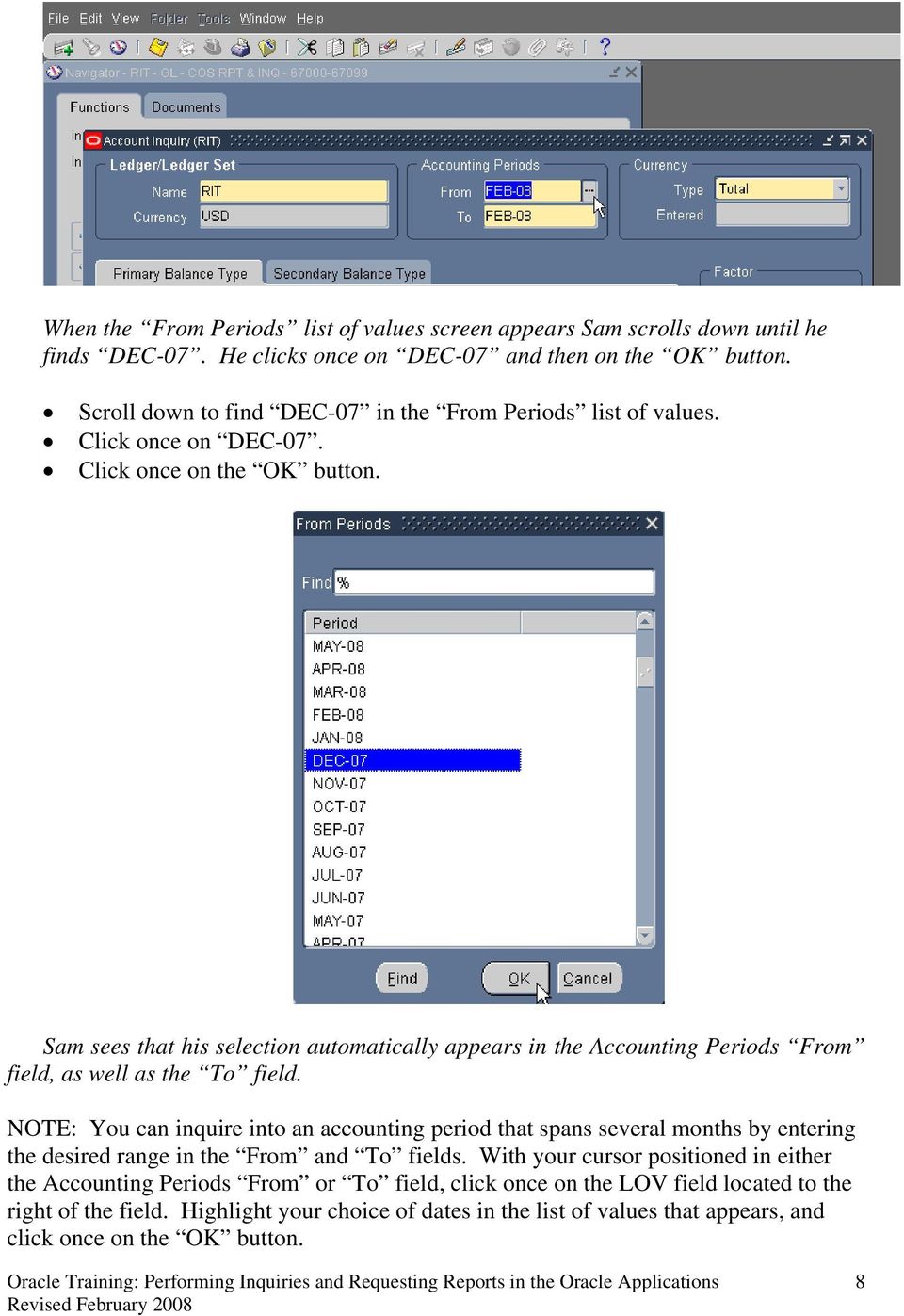
7 The Navigator RIT GL CO RPT & INQ screen will appear first. The Account Inquiry (RIT) window will open automatically on top of your Navigator screen. The Account Inquiry (RIT) form is used to access information about a specific 24-digit account number or a range of accounts within the user s responsibility for a specified period. Sam s cursor blinks in the Name field for the Ledger/Ledger Set section of the screen, which has automatically defaulted to RIT. Since the Ledger Name and Currency will always be RIT and USD, Sam presses the Tab key to move the cursor to the From field in the Accounting Periods section of the screen. The From field automatically displays the current open accounting period. However, he wants to check the actual balance on this account for the December 2007 period. He knows he can select the desired date by making his selection from the LOV (List of Values) to the right of the From field. He clicks once in the LOV field. Press the Tab key to move the cursor to the From field in the Accounting Periods section of the screen. Click once on the LOV field to the right of the From field. 7

8 When the From Periods list of values screen appears Sam scrolls down until he finds DEC-07. He clicks once on DEC-07 and then on the OK button. Scroll down to find DEC-07 in the From Periods list of values. Click once on DEC-07. Click once on the OK button. Sam sees that his selection automatically appears in the Accounting Periods From field, as well as the To field. NOTE: You can inquire into an accounting period that spans several months by entering the desired range in the From and To fields. With your cursor positioned in either the Accounting Periods From or To field, click once on the LOV field located to the right of the field. Highlight your choice of dates in the list of values that appears, and click once on the OK button. 8
9 Tabbing over to the next field, Sam sees a dotted outline boxing the Single Currency selection under the Currency portion of his screen. Press the Tab key once. Sam knows this dotted outline identifies the location of his cursor. Since he will always leave the default values in place for the Currency Type (Total), he presses the Tab key twice to arrive at the primary Balance Type portion of the screen. The dotted outline now appears around the word Actual, indicating the location of his cursor. Press the Tab key twice. There are three Balance Types to choose from: Actual, Budget and Encumbrance. In this class, we will cover the process for reviewing an Actual balance, since this is the option used most frequently. A brief summary of steps to follow in order to view a Budget balance and/or an Encumbrance balance is provided below. If you would like more information about Budget or Encumbrance Balances, please call Accounting at ext Actual Balance: The amount expended on a particular account line, for the selected period, at the time you are making your inquiry. Budget Balance: The amount of funds budgeted on a particular account line at the time you are making your inquiry. To make a Budget Inquiry, under Primary Balance Type select Budget. The cursor will automatically move to the blank Budget field. Use the LOV to the right of the Budget field to select the appropriate budget organization from the list of values that appears. Highlight your choice, click once on the OK button. 9

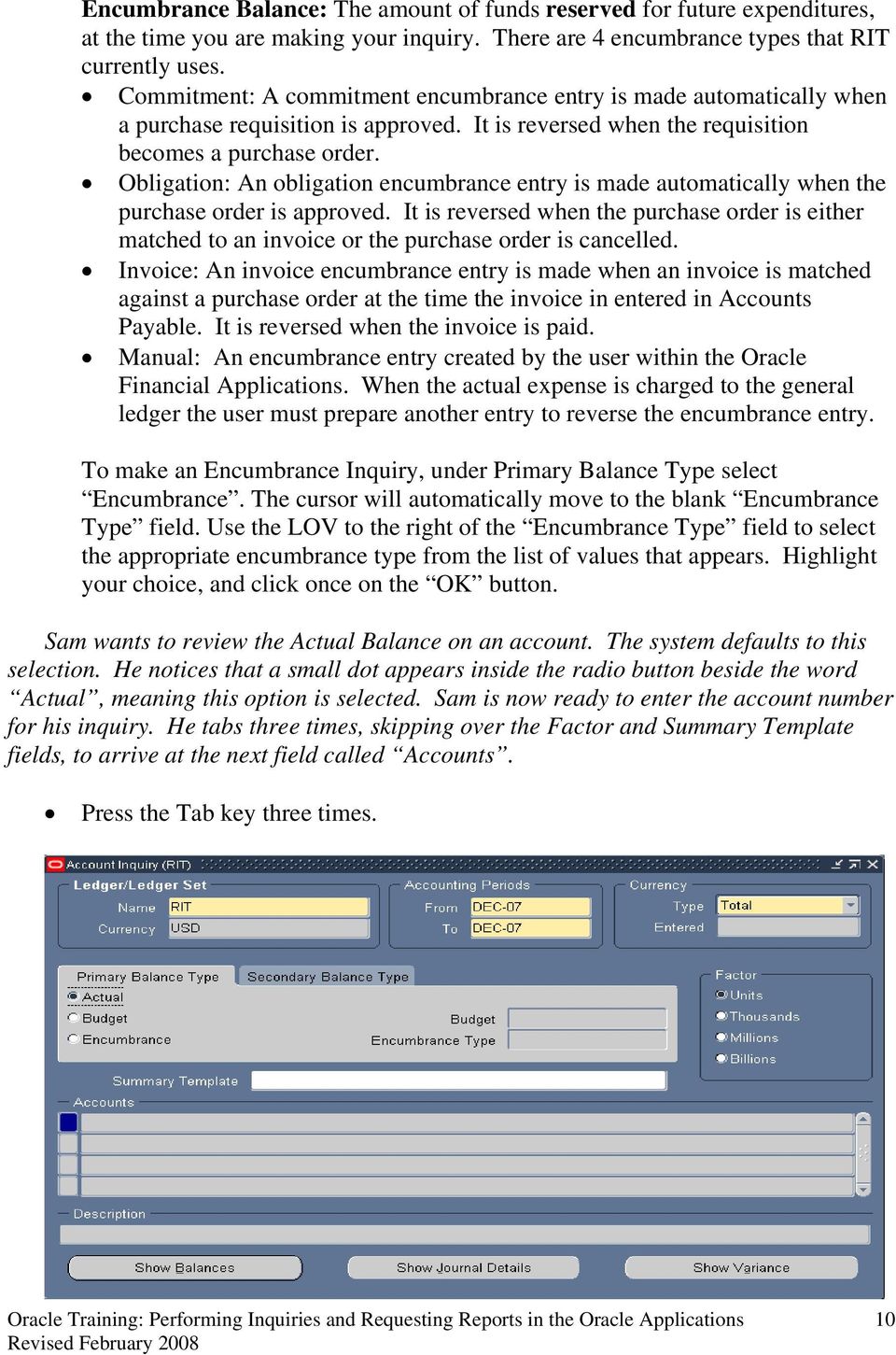
10 Encumbrance Balance: The amount of funds reserved for future expenditures, at the time you are making your inquiry. There are 4 encumbrance types that RIT currently uses. Commitment: A commitment encumbrance entry is made automatically when a purchase requisition is approved. It is reversed when the requisition becomes a purchase order. Obligation: An obligation encumbrance entry is made automatically when the purchase order is approved. It is reversed when the purchase order is either matched to an invoice or the purchase order is cancelled. Invoice: An invoice encumbrance entry is made when an invoice is matched against a purchase order at the time the invoice in entered in Accounts Payable. It is reversed when the invoice is paid. Manual: An encumbrance entry created by the user within the Oracle Financial Applications. When the actual expense is charged to the general ledger the user must prepare another entry to reverse the encumbrance entry. To make an Encumbrance Inquiry, under Primary Balance Type select Encumbrance. The cursor will automatically move to the blank Encumbrance Type field. Use the LOV to the right of the Encumbrance Type field to select the appropriate encumbrance type from the list of values that appears. Highlight your choice, and click once on the OK button. Sam wants to review the Actual Balance on an account. The system defaults to this selection. He notices that a small dot appears inside the radio button beside the word Actual, meaning this option is selected. Sam is now ready to enter the account number for his inquiry. He tabs three times, skipping over the Factor and Summary Template fields, to arrive at the next field called Accounts. Press the Tab key three times. 10
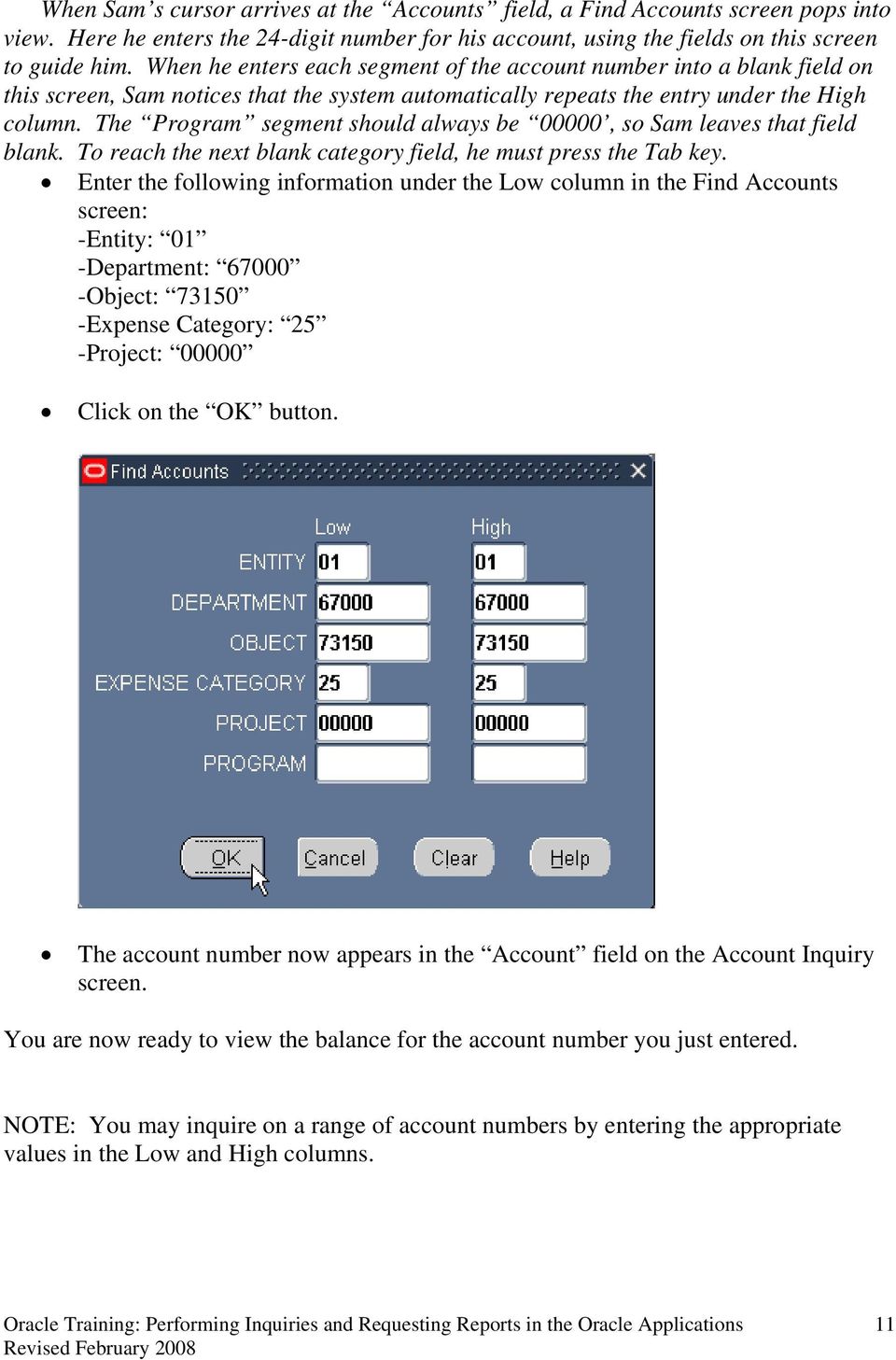
11 When Sam s cursor arrives at the Accounts field, a Find Accounts screen pops into view. Here he enters the 24-digit number for his account, using the fields on this screen to guide him. When he enters each segment of the account number into a blank field on this screen, Sam notices that the system automatically repeats the entry under the High column. The Program segment should always be 00000, so Sam leaves that field blank. To reach the next blank category field, he must press the Tab key. Enter the following information under the Low column in the Find Accounts screen: -Entity: 01 -Department: Object: Expense Category: 25 -Project: Click on the OK button. The account number now appears in the Account field on the Account Inquiry screen. You are now ready to view the balance for the account number you just entered. NOTE: You may inquire on a range of account numbers by entering the appropriate values in the Low and High columns. 11
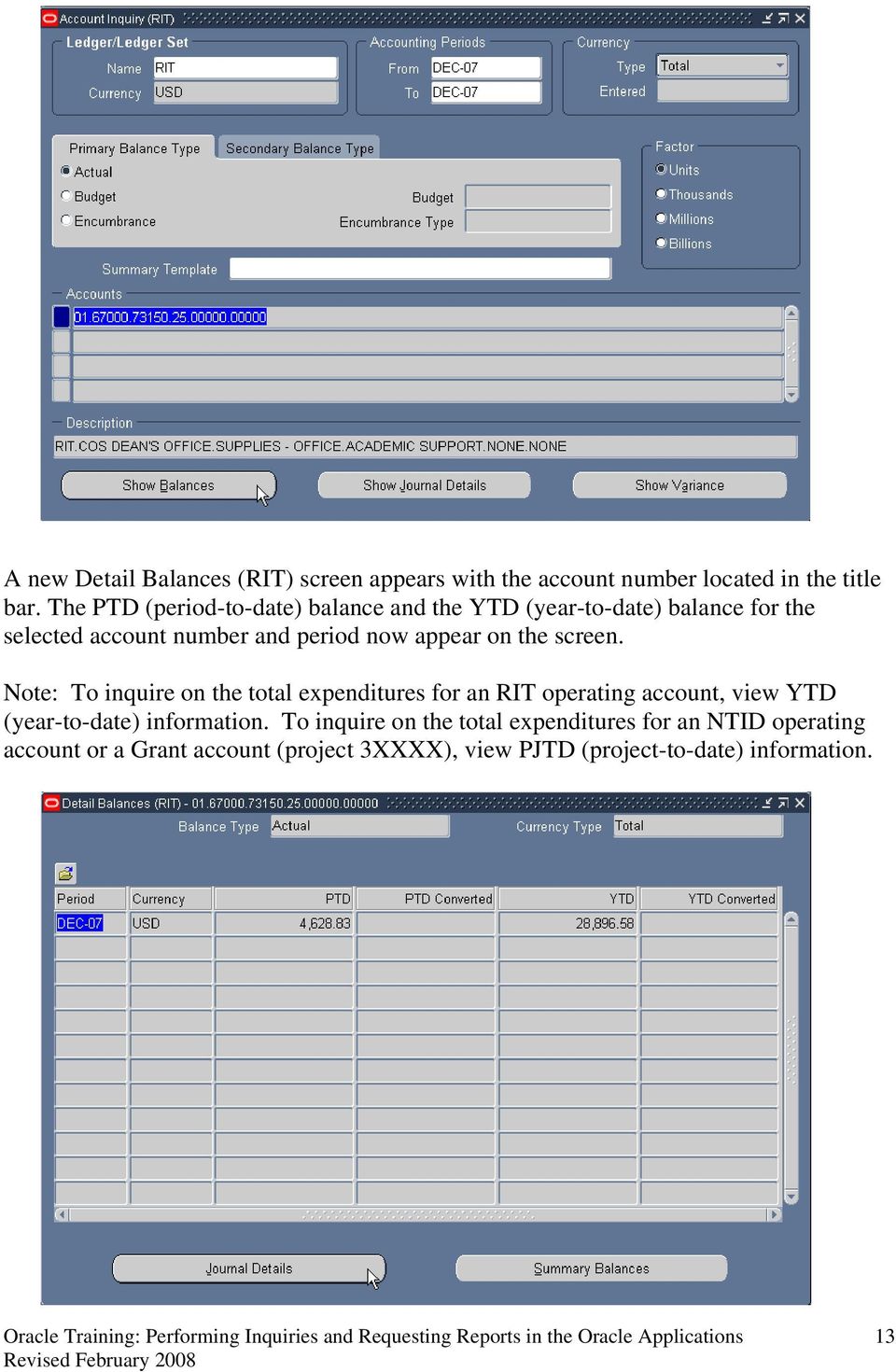
12 Lesson 1A: Show Balances The Show Balances feature displays the Period-To-Date (PTD) and Year-To-Date (YTD) balances for the account number and period range you just entered on the Account Inquiry screen. Objective At the end of this lesson, you will be able to call up and view an actual account balance, select additional fields to view and print the screen at your desktop printer. Scenario Sam wants to view the Dec-07 actual balance for the account he has selected. Directions: View Actual Account Balance From the Account Inquiry screen, Sam clicks once on the Show Balances button. Click once on the Show Balances button. 12

13 A new Detail Balances (RIT) screen appears with the account number located in the title bar. The PTD (period-to-date) balance and the YTD (year-to-date) balance for the selected account number and period now appear on the screen. Note: To inquire on the total expenditures for an RIT operating account, view YTD (year-to-date) information. To inquire on the total expenditures for an NTID operating account or a Grant account (project 3XXXX), view PJTD (project-to-date) information. 13
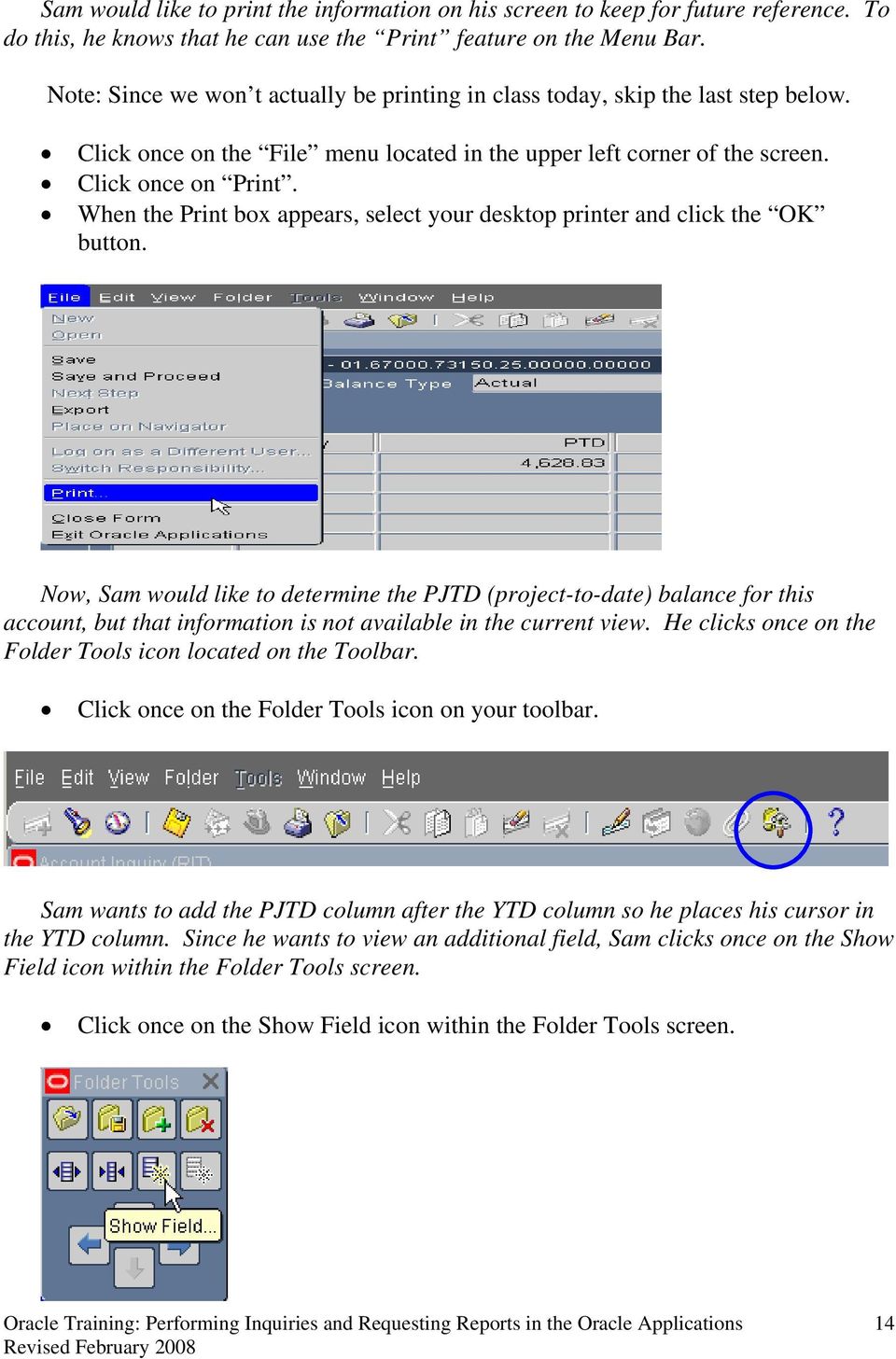
14 Sam would like to print the information on his screen to keep for future reference. To do this, he knows that he can use the Print feature on the Menu Bar. Note: Since we won t actually be printing in class today, skip the last step below. Click once on the File menu located in the upper left corner of the screen. Click once on Print. When the Print box appears, select your desktop printer and click the OK button. Now, Sam would like to determine the PJTD (project-to-date) balance for this account, but that information is not available in the current view. He clicks once on the Folder Tools icon located on the Toolbar. Click once on the Folder Tools icon on your toolbar. Sam wants to add the PJTD column after the YTD column so he places his cursor in the YTD column. Since he wants to view an additional field, Sam clicks once on the Show Field icon within the Folder Tools screen. Click once on the Show Field icon within the Folder Tools screen. 14
15 A drop-down menu of fields appears. Here Sam can select PJTD by clicking once on it and then clicking on the OK button. Click once on PJTD. Click once on the OK button. A PJTD column now appears on the screen after the YTD column. Sam knows he can expand the present view even further by using the scroll bar at the bottom of the screen. Instead he decides to return to the original view, so he clicks once on the Hide Field icon in the Folder Tools screen. 15

16 Click once on the Hide Field icon. The screen returns to its original view. Click once on the close box on the Folder Tools icon. Note: The National Technical Institute for the Deaf, a college within RIT, operates on a different fiscal year than RIT. (RIT s fiscal year is July through June. NTID s fiscal year is October through September.) In order to view balances for their fiscal year, NTID employees should use the PJTD balance option when making account inquiries. Call Accounting at ext to obtain more information about this process. You are now ready to review the individual journal entries that make up this account s PTD balance. Lesson 1B: View Journal Entry Details At this point in your inquiry, you may want to view the individual journal entries that make up the balance on the account. To do this, we will use another option on the Account Inquiry screen. Objective: At the end of this lesson, you will be able to call up and view journal detail for a particular balance. Scenario Sam is ready to review the specific journal entries for one of the items in the list of Balances. Directions: View a Journal Entry In the Detail Balances (RIT) screen, place your cursor on the line that you would like to select. Click once on the Journal Details button. 16

17 The Journals (RIT) screen appears, showing the journal entry lines for the period on the account number that Sam entered. In this example, one of the journal entries was generated from the Accounts Payable subledger. 17
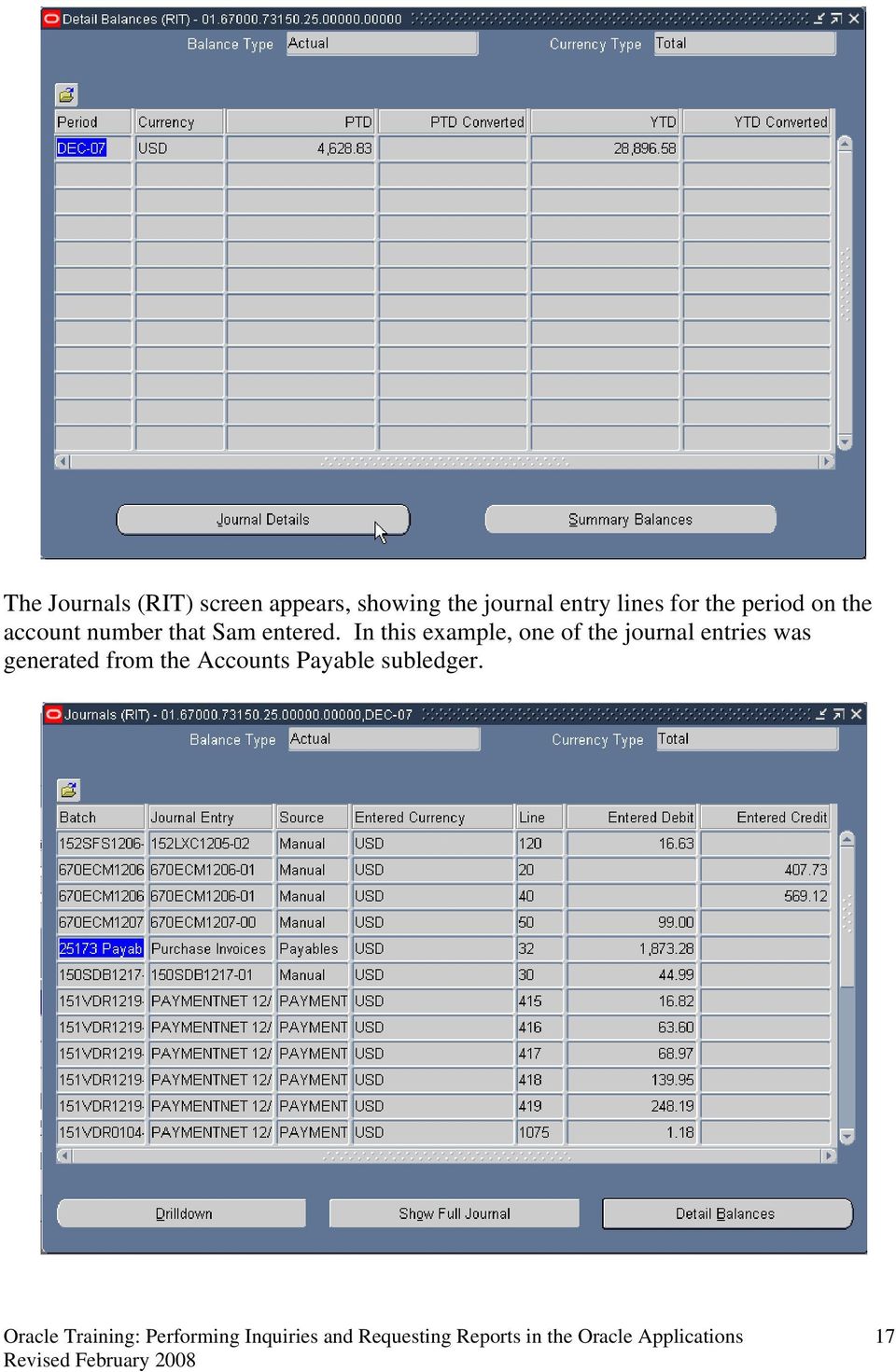
18 Journal batches generated from Accounts Payables or Purchasing will have a source of Payables. In order to view more information on Payables or Purchasing batches you would click on the Drilldown button. For all other types of journal batches you can obtain more information by clicking on the Show Full Journal button. In order to return to the previous screen, click on the Detail Balances button. Sam wants to know more about the first journal entry. He places his cursor in the first row and clicks on the Show Full Journal button. Place your cursor in the first row. Click on the Show Full Journal button. When viewing Journal details through Account Inquiry you will only be able to see the journal entry lines using account numbers that you have access to through your Reporting & Inquiry responsibility. The Journals (RIT) screen opens up and Sam can see the one line in the journal entry that he is allowed to see through his Reporting & Inquiry responsibility. If the journal entry had included more COS accounts he would have been able to see those as well. 18
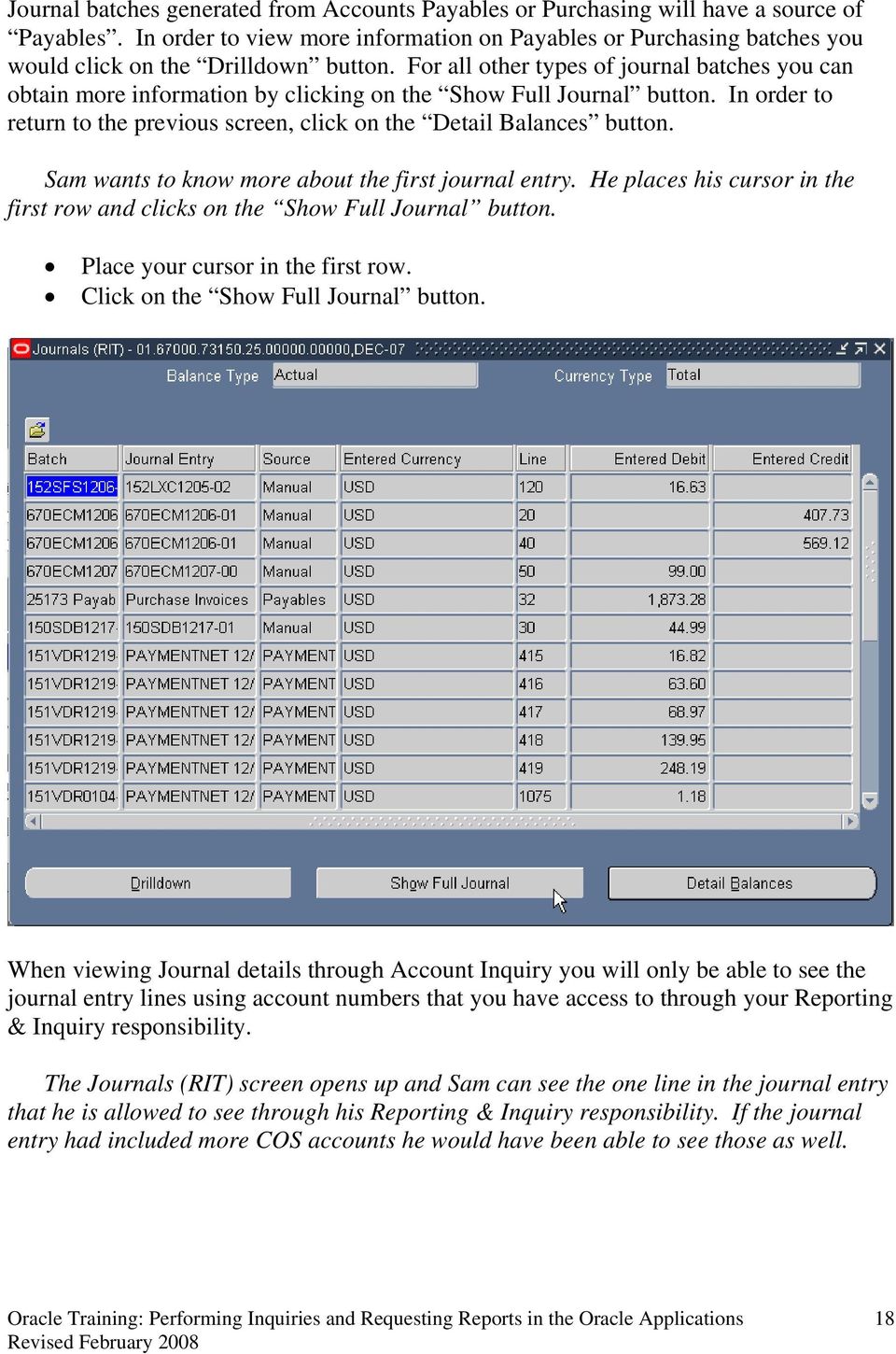
19 Sam wants to know which Oracle user originally entered the journal entry. He clicks on Help located on the Menu bar at the top of the screen and then clicks on Record History. Click once on Help on the menu bar at the top of the screen. Click once on Record History. Sam is able to view more information about the journal entry, including the Oracle user id of the individual who created it as well as the date it was created. He can also see when it was updated, and by whom. He clicks on the OK button to close this screen. Click on the OK button. 19

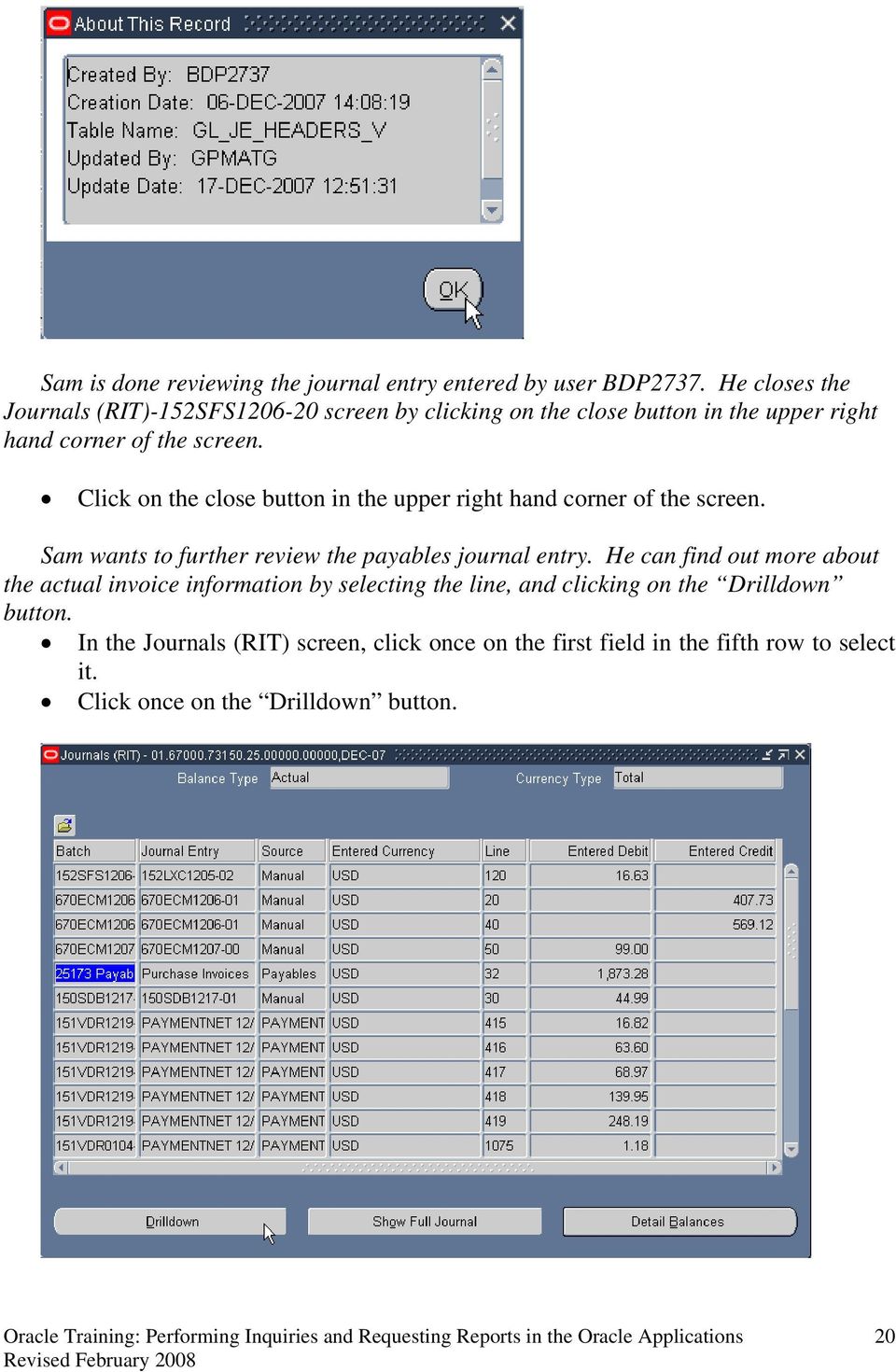
20 Sam is done reviewing the journal entry entered by user BDP2737. He closes the Journals (RIT)-152SFS screen by clicking on the close button in the upper right hand corner of the screen. Click on the close button in the upper right hand corner of the screen. Sam wants to further review the payables journal entry. He can find out more about the actual invoice information by selecting the line, and clicking on the Drilldown button. In the Journals (RIT) screen, click once on the first field in the fifth row to select it. Click once on the Drilldown button. 20
21 The Drilldown button takes you into the Accounts Payable Oracle application in order to view the invoice information. The View Journal Entry Lines screen opens in a browser window. This screen shows a line for each item included on the invoice and the amount paid for each item that add up to the total amount charged. From this screen you can choose to drilldown to the Invoice Workbench to view the Payables information, (Supplier, PO and Invoice number), detail behind a transaction, view the journal entry for a transaction or export the detail to Excel.. 21
22 On the View Journal Entry Lines screen Sam sees that the $1, that he drilled down on consists of payments for four items. Sam knows that in order to see a complete picture of this invoice payment he needs to get to the Invoice Workbench screen by selecting any of the Journal Entry lines at the bottom of the screen, and clicking on the View Transaction button. He clicks in the circle in the Select column for the first item and then clicks the View Transaction button. Select the circle in the Select column for the first journal entry line. Click on the View Transaction button. Sam sees that his browser window has changed to an Oracle e-business suite window. He knows that this screen is no longer necessary and can be closed. He clicks on the close button in the upper right hand corner of the screen. The Invoice Workbench form is displayed on his screen. After clicking on the View Transaction button, the Advanced Search screen is replaced by an Oracle e-business suite screen in your browser window. The browser window is no longer necessary and can be closed. In the background Oracle has opened up the Invoice Workbench form within the Applications. Close your browser window by clicking on the close button in the upper right hand corner. 22
23 In the upper section of the Invoice Workbench screen Sam can see that the Supplier name in the Trading Partner field is CDW GOVERNMENT INC, the Supplier number in the Supplier Num field is 5083, the Supplier Site is SUITE 1515, the Invoice date is 04-DEC-2007, and the Invoice number in the Invoice Num field is HQW2516. In the upper section of this screen you can see the Trading Partner, Supplier number, Supplier Site, Invoice date and the Invoice number. In the lower section of the Invoice Workbench screen there are six tabs that provide Invoice, Purchase Order and Payment information. On the General tab Sam sees that invoice has been paid in full, since the total Invoice amount of $1, matches the total amount paid. He clicks on the Lines tab to see what items were paid for on this invoice. 23
24 Click on the Lines tab. On the Lines tab Sam can find out the Purchase Order number, the Quantity ordered for each item, and by using the scroll bar, can scroll to the right to see the unit prices and item descriptions. 24
25 In order to retrieve the check number he clicks on the View Payments tab. Click on the View Payments tab. On the View Payments tab Sam is able to take note of the check number within the Document Num column. In order to see if the check has cleared the bank Sam clicks on the Payment Overview button. The Payment Overview screen opens. Click on the Payments Overview button. 25
26 On the Payments Overview screen Sam sees that the total amount for check number is $1, The payment included payments for two different invoices. He knows that the check has been cashed since there is an amount in the Cleared Amount field and a date in the Cleared Date field. Note: If the payment you are inquiring on is Electronic then the supplier s Address field on the Payment Overview screen will be blank. When Sam is done viewing the invoice information he closes the screens by clicking on the close buttons in the upper right hand corner of the screens. He is back on the Journals (RIT) screen. Sam wants to view the journal line description in this screen. He clicks on the Folder Tools icon on his toolbar, and clicks once on the Show Field icon. Click on the Folder Tools icon on your toolbar. Click once on the Show Field icon. A list of values appears. Since he would like to view the line description for the journals, Sam scrolls down to Line Description and clicks once. In the Show Field screen, click once on Line Description. Click once on the OK button. 26
27 A Line Description column now appears on the Journals (RIT) screen. To return to the Account Inquiry screen, click on the Close box in the upper right corner of the Journals (RIT) screen. 27
28 Summary of Steps to Perform an Account Inquiry: 1. Log on to the Oracle applications and select the RIT GL REPORT & INQUIRY responsibility from your list of responsibilities on your home page. 2. From the Inquiry menu listed to the right of the list of responsibilities, click on Account. 3. The Account Inquiry screen will appear, with the cursor blinking in the Name field of the Ledger/Ledger Set section. Press the tab key to move the cursor to the From field in the Accounting Periods section. The system will automatically display the current accounting period in both the From and To fields. If you would like to select a different accounting period, place your cursor in the field you would like to change. Click once on the LOV field to the right of the From and To fields. In the list of values that appears, click once to highlight your selection and click on the OK button. 4. The system will automatically fill in the values for Currency Type. Press the Tab key to arrive at the middle portion of your screen. 5. Actual is the default select under Primary Balance. Hit your Tab key (unless you would like to select another Balance Type). 6. Tab over the Factor and Summary Template fields on your screen, until you arrive at the Accounts area of the screen. 7. When the Find Accounts screen appears, enter your 24-digit account number in the Low column. If you would like to query a range of accounts, you can enter two different values in the High and Low columns in this screen. 8. Click on the OK button. This brings up the Account Inquiry (RIT) screen. 9. In order to review the balance on any of the accounts listed, click on the box next to the account number. 10. Click once on the Show Balances button. If the screen does not reflect all of the fields you are interested in viewing, click once on the Folder Tools icon on the Toolbar. Click once on the Show Field icon in the Folder Tools screen. Make your selection from the list of field values that appears by clicking once on it. Click on the OK button. To return to the original view, click once on the Hide Field icon on the Folder Tools screen. 11. To print the account balance screen, go to the Menu Bar. Click on File Click on Print When the Print screen appears, select your desktop printer and click on OK. 12. To review an individual journal that makes up the balance on the account, click once in the PTD column in the first row to select it. 13. Click once on the Journal Details button. This brings up the Journals (RIT) screen, listing all of the entries in the selected journal. 28
29 14. To view journal entry detail click on the Show Full Journal button to view the actual journal entry. 15. To view the history of this entry, click once on Help in the menu bar at the top of this screen. Select Record History and click on it. The Record History screen opens. Click on OK 16. In order to examine a specific invoice from Accounts Payable, click once on the first field in the row containing Payables Purchase Invoices in the Journals (RIT) screen to select it. 17. Click once on the Drilldown button to go into the View Journal Entry Lines screen which will open in a new browser window. 18. From this screen click on the View Journal Entry button to view the journal entry or the Export button to export the details on this screen to Excel. 19. Click on the View Transaction button to view the Invoice Workbench screen which provides you with transaction details such as Supplier, PO number, and Invoice number. The Oracle e-business suite browser window can be closed at this time. 20. In the upper section of the Invoice Workbench screen you can see the Supplier name, Supplier number, Supplier Site, Invoice date and the Invoice number. 21. In the lower section of the Invoice Workbench screen there are six tabs that provide Invoice, Purchase Order and Payment information. 22. Click on the Lines tab to see item descriptions and the Purchase order number. 23. Click on the View Payments tab and then the Payments Overview button. From the Payments Overview screen you can see whether the check has cleared the bank and on what date. 24. To return to the Account Inquiry screen from the Payables screens, click on the Close box in the upper right corner of each screen. Quick Review You have just learned the process to follow to review an account balance and find the journal details on-line in the general ledger. 29
30 Lesson 2: Request an FSG Report (Dept. Statement), using the Run Financial Statement Generator program The Oracle Financial Applications can be used to request various financial reports that you can view on your desktop or print at your networked printer. There are two different types of reports that you can request. FSG (custom) Reports (includes monthly department or project statements): These reports are designed to help you track your department s budget, revenues and expenditures over a period of time specified by you, usually one month. Since only summary balances are reflected on statements, they give managers a high-level view of their operating or project accounts. Standard Reports: These reports contain transaction detail to assist you with reconciling financial activity for your department or project. We will be learning about standard reports in lesson 4 of this course. Refer to the Appendix at the end of these materials for more information about FSG and Standard Reports available to Oracle users including report names, descriptions and the purpose of the each report. Objective At the end of this lesson, you will be able to request and print a department statement using the program Run Financial Statement Generator. You will also be able to run a department statement using the program Publish FSG Report which allows you to view your report in Excel. Scenario Sam would like to determine what expenditures were incurred last month and how much money is left in his department budget. He knows that the system will provide the total amounts, as long as the revenues and expenditures have been accurately entered and updated in the general ledger. He is ready to request a department statement. Directions: Request an FSG Report At the RIT GL COS RPT & INQ Navigator screen, make sure Reports is highlighted. Click on Open. 30
31 The Submit a New Request screen opens up asking Sam what type of request he wants to run, a Single Request or a Request Set, which is a pre-defined request made up of a set of reports. Since Sam only wants to run a department statement he makes sure Single Request is selected and clicks on the OK button Click the OK button. 31
32 The Submit Request screen opens. With the cursor blinking in the Name field within the Run this Request section, Sam clicks on the LOV field to the right of the Name field to present a list of reports that he has access to. Click on the LOV field to the right of the Name field. The Submit Request screen opens. With the cursor blinking in the Name field within the Run this Request section, Sam clicks on the LOV field to the right of the Name field to present a list of reports that he has access to. Sam knows that in order to request a department statement, which is an FSG report, and have it print to an Oracle networked printer he must run a program called Financial Statement Generator. Click on the LOV field to the right of the Name field. In the Reports screen that appears, click on Program-Run Financial Statement Generator. Click on the OK button. 32
33 33
34 When the Parameter screen appears, the Ledger field automatically defaults to RIT. Sam presses the Tab key once to go the Report field, where he can specify the type of report he wishes to run. He uses the LOV field located to the right of the Report field to make his selection. Click on the LOV field to the right of the Report field. The Report screen appears. Here Sam sees a list of the various types of reports he can request, along with a short description of what each contains. He knows that he wants to run a department statement. Since the list is very long, and Sam knows his report starts with RIT-, he types this in the Find field followed by a % sign, and clicks on the Find button. Type RIT-% in the Find field. Click on the Find button. 34
35 Note: Since NTID has a different fiscal year and budget organization than RIT, NTID departments use a different monthly statement. It is called the NTID Dept Stmt. NTID employees would select this report from the list rather than RIT Dept Statement. The following steps are the same regardless of the report selected. A reduced list of reports starting with RIT- appears. Sam selects the RIT-Dept Statement report and clicks the OK button. Select the RIT-Dept Statement report and click the OK button. The Parameters screen comes back into view. Sam sees that the Report field has been filled in, and that the Period field is now highlighted. He knows that the system defaults to the current open accounting period. However, he would like to review his department statement for the month of December He clicks on the LOV field to the right of the Period field and selects DEC-07 from the list of values that appears. With the Period field highlighted, click on the LOV field to the right of the Period field. A Period screen will appear. Use the scrollbar at the right of this screen to scroll down to DEC-07. Click on it to select it. Click on the OK button. 35
36 Sam sees he has returned to the Parameters screen, and that the selected date now fills the Period field. Sam knows that if he wants department statements for all of his departments he could skip the rest of the fields and click on the OK button at this point. However he only needs a department statement for department 67000, and in order to do this he needs to enter that department into the Segment Override field. NOTE: If you want to request department statements for all departments within your responsibility, tab past the Segment Override field. Security rules will allow you to run department statements for only those departments that you are authorized to access. Sam tabs over to the Segment Override field. As soon as his cursor reaches this field, the RIT Chart of Accounts dialog box pops into view. Press the Tab key twice. The Chart of Accounts dialog box will appear on your screen. 36
37 The system automatically fills in the ENTITY and PROGRAM fields. The cursor blinks in the Ledger field. Sam knows that the Ledger field can remain blank, he presses the Tab key twice to reach the DEPARTMENT field. Since Sam wants to run a statement for only one department within his responsibility, he enters in the Department field. Sam is requesting a department statement for an operating account therefore his project should be He enters into the Project field, and leaves the remaining fields blank. Press the Tab key twice. With your cursor blinking in the Department field in the Chart of Accounts screen, type Place your cursor or tab to the Project field, type Click on the OK button. Sam notices he has returned to the Parameters screen and the Segment Override field is filled in with the account he selected in the Chart of Accounts dialog box. The rest of the fields do not need to be changed. Sam clicks on the OK button. The remaining fields are not used. Click on the OK button. 37
38 You have now learned how to request a FSG report such as your Department Statement. In the next lesson you will learn how to print your report to your Oracle networked printer. 38
39 Summary of Steps to Request an FSG Report (Department Statement) 1. When the Submit Request screen opens the Single Request option will be automatically selected. Click the OK button. 2. The Submit Request screen will open. Click on the LOV field located to the right of the Name field. The Report screen comes into view. 3. Select the Program Run Financial Statement Generator from the list of values. 4. Click on the OK button. The Parameters screen will appear. 5. Press the Tab key once to get to the Report field. 6. With your cursor blinking in the Report field, click on the LOV field located to the right of the Report field. The Reports screen will appear. 7. Type RIT-% in the Find field and click on the Find button. 8. The Parameters screen will reappear, with the Period field highlighted. 9. The system automatically defaults to the current accounting period. If you would like to view your department statement for a different period: Making sure the Period field is highlighted, click on the LOV field to the right of the Period field. A Period screen will appear. Scroll down to view the desired period. Click on your selection. Click on the OK button to return to the Parameters screen. 10. Press the Tab key until the Chart of Accounts screen appears. Enter the department number in the DEPARTMENT field for the statement you wish to view using a project of To request statements for a range of departments, tab past the Segment Override field. 11. Click on the OK button. This returns you to the Parameters screen. 12. Click on the OK button. 13. You will return to the Submit Request screen. Quick Review You have just learned how to request a department statement for one department or a range of departments. You are now ready to print this statement on a networked printer. 39
40 Lesson 3: Print an FSG Report on a Networked Printer Once you have requested an FSG report using Program Run Financial Statement Generator, you can print it on a networked printer (that is set up to print Oracle reports), and view the output on your computer screen. Objective: At the end of this lesson, you will be able to view your report on your computer screen, e- mail a report notification automatically and print your department statement at your networked printer. Note: If there is a printer in your department that you would like to print Oracle reports on, call the ITS Help Desk at ext Scenario Sam has requested all of his department statements. He now wants to print copies to his networked printer, and send a notification to the Department Head via . He notices that the Submit Requests screen has come back into view. Sam clicks on the Options button within the Upon Completion section. The Upon Completion screen opens, here he can enter the number of copies he would like to print, which printer(s) he wants to print to, and who he wants report notifications to be sent to. Directions: Print an FSG Report Click on the Options button within the Upon Completion section. 40
41 NOTE: Refer to the Appendix Tip #4, to find out how to schedule a report in the At these Times section. In the Upon Completion screen the cursor automatically selects Save all Output Files. Sam places the cursor in the Name field within the Notify the following people: section. Here he clicks on the LOV field located to the right of the Name field. Click on the LOV field located to the right of the Name field in the Upon Completion screen. In the People screen that opens Sam enters the Department Head s last name in the Find field with a percent sign after it and clicks on the Find button. By querying on the last name Sam will be able to find the address attached to his HR record. Enter the name of the person and click on the Find button. 41
42 A reduced list of values appears and Sam selects the Department Head s name and clicks the OK button. The Department Head will receive an , which will include a URL for the report itself, and notifies him that the report has been run. Select the person s name and click on the OK button. The Department Head s name now appears in the Name field. Sam could add more employee s names to notify via but he is done for now. In the Print the Output To section the style defaults to A4. Sam knows his report will print correctly with this style. Since there are several printers in his building, Sam must indicate which printer his computer is hooked up to. He clicks once within the Printer field to position his cursor in the Printer field. Sam uses the LOV field to the right of the Printer field to locate and designate the correct printer. Click once within the Printer field to position your cursor in the Printer field. Click on the LOV field to the right of the Printer field. The Printers screen appears. 42
43 In order to reduce the list of printers, type prcto% in the Find field and click the Find button. The printer prcto01_app is the second one on the list. Click on it to select it. Click on the OK button. The system fills in the Printer field screen, and automatically tabs to the Copies field in the Upon Completion screen. Sam enters 1 to print 1 copy. Sam knows that if he wants to send his report to more than one printer he can add more printers in the Print the Output To: section, instead he clicks on the OK button. In the Copies field, enter the number of copies you would like to print. Note: We won t actually print in class today, therefore leave the default value in the Copies field at 0. Click on the OK button. 43
44 Sam has returned to the Submit Request screen. He sees that the Notify and Print to fields have automatically filled in. He clicks on the Submit button to submit his request and send it to the printer. Click on the Submit button. (Remember, since we left a 0 in the Copies field of the Options screen, we won t actually be printing our report). The Requests screen automatically opens with Sam s request id highlighted in blue. The Phase and Status columns allow Sam to view the phase and status of his job. When the Requests screen first opens the phase of his request is Pending, the status is Normal, and both are highlighted in green. At this point if Sam wanted to cancel his request or put it on hold he could click on the Cancel or Hold buttons. He updates the phase and status of his request by clicking on the Refresh Data button. Click on the Refresh Data button. 44
45 NOTE: The Cancel and Hold buttons are only active when a request has not yet completed. He sees that the request for the Program Run Financial Statement Generator has completed normally. Sam knows that when this program runs it generates a second request id, (usually the next request id number) which actually creates the report. When the request for the RIT- Dept Statement (Financial Statement Generator) completes with a status of Normal, he knows his job is done. If his job had completed in error it would have been highlighted in red. NOTE: Another way to refresh the data on your Requests screen is to hold down the Control key and press the F11 key. Sam wants to view his report online before he picks it up at the printer. He selects the second request id for the Financial Statement Generator and clicks on the View Output button. His report opens up on the screen for him to view. Select your second request id and click on the View Output button. 45
46 Sam s report opens up in a new browser window. Sam clicks on the maximize box in the upper right hand corner of the browser window to maximize the screen. When Sam is finished looking at his report on-line he clicks on the close box in the upper right corner of the browser window and returns to the Requests screen. Click on the maximize box in the new browser window to maximize the window. 46
47 Click on the close box in the browser window to close the window. Sam wants to submit a request for another report, but rather than return to the Navigator he simply clicks on the Submit a New Request button on the Requests screen. The Submit a New Request screen opens. Click on the Submit a New Request button. 47
48 Sam clicks on the OK button to select a single request. The Submit Request screen opens. Click on the OK button. Back on the Submit Request screen Sam decides to request a department statement for November, 2007 for the same department. He could use the LOV and select the department statement again, but he knows a quicker way. He clicks on the Copy button. The Prior Requests screen opens. Click on the Copy Button. 48
49 Sam wants to resubmit his last request for a department statement. He knows that by scrolling all the way over to the right he can see the request id s of his previous requests. Scroll over to the right side of the screen using the scroll bar at the bottom of the screen. Sam sees the request id he wants to copy. He makes sure it is selected and clicks on the OK button. Click the OK button. 49
50 All the fields on the Submit Request screen fill in with the values from the previous request. Sam wants to change the period for this report so he clicks in the Parameters field. The Parameters screen opens. Place your cursor in the Parameters field. Sam changes the period from DEC-07 to NOV-07 and clicks the OK button in the Parameters field to return to the Submit Request screen. All the other parameters remain the same. Click in the Period field. Click on the LOV field to the right of the Period field. Select NOV-07 and click the OK button. Click on the OK button in the Parameters field. 50
51 Sam is now ready to submit his request and view it in the Requests screen just like before. He clicks on the Submit button and goes to the Requests screen. NOTE: To view prior requests from the Navigator screen click on the View menu and select Requests. A Find Requests screen will open giving you the option to specify which request id you want to find or if you want to find all of your requests simply click the OK button. You can also change the order your requests display in the Requests screen by using the Order By field in the Find Requests screen. You can put them in order by Request ID, Name or by Requesting Start Date. 51
52 Summary of Steps to Print an FSG Report from a Networked Printer 1. In the Submit Request screen click on the Options button. 2. To send an notification place your cursor in the Name field within the Notify the following People: section on the Upon Completion screen. Click on the LOV field to the right of the Name field. Type the employee s last name and a percent sign in the Find field. Click on the Find button. Select the employee s name from the reduced list of values. Click on the OK button. Repeat for as many employees that you want to To select a printer and number of copies place your cursor in the Printer field within the Print the Output To: section on the Upon Completion screen. Click on the LOV field to the right of the Printer field. If you know the printer s name, type it in the Find field (or part of it with a percent sign). Click on the Find button. Select the printer s name from the reduced list of values. Click on the OK button. The cursor will automatically tab to the Copies field. Enter the number of copies you want to print. Repeat for as many printers as you need. 4. Click on the OK button. The Submit Requests screen reappears. 5. Click on the Submit button. 6. The Requests screen automatically opens with your request id highlighted in blue. 7. If the phase of your job is pending or running it will be highlighted in green until it is completed. If your job errors out it will be highlighted in red. 8. Follow along the row in which your request id appears to view its phase and status in the print queue. You must also check the request id for the Financial Statement Generator which is a second request generated by the first. This is the request that will create your report. 9. When the phase and status are Completed and Normal for the two jobs you can view the report online. Select the second request id and click on the View Output button. 10. To make your output screen larger click the maximize button in the upper right hand corner. 11. Use the scroll bar to scroll down and view the other pages in your report. 12. Close your output screen by clicking on the close box in the upper right corner. 13. You can submit a new request from the Requests screen by clicking on the Submit a New Request button. The Submit a New Request screen will open. 14. By clicking the OK button you will be taken to the Submit Request screen where you can create a new request or copy a previous request by clicking on the Copy button. 52
53 15. When you copy a previous request you can change the parameters (period, segment override, etc.) by clicking in the Parameters field. The parameters screen will open, allowing you to change the parameter values. 16. To view requests directly from the Navigator window click on the View menu and select Requests. 17. The Find Requests screen will open. From there you can enter a specific request id to find, or change the order in which your requests display. Click the OK button to go to the Requests screen. Quick Review You have just learned how to print an FSG report, (department statement), from a networked printer and view it online. Now you will learn how to request an FSG report using the Publish FSG Report program. 53
54 Lesson 4: Run an FSG Report using the Publish FSG Report program Another option available to you is to run your report using the program Publish FSG Report. This program gives you the ability to publish your reports to Excel. Sam wants to view his department statement in Excel, which allows him to use this data to create other reports. To do this he must run his report using the Publish FSG Report program. From the Requests screen he clicks on the Submit a New Request button. Click on the Submit a New Request button. In the Submit a New Request screen he selects Single Request and clicks the OK button. Select Single Request and click the OK button. 54
55 In the Submit Requests window click on the LOV field to the right of the Name field. In the Reports screen that appears, click on Program-Publish FSG Report. Click on the OK button. 55
56 Sam enters the RIT- Dept. Statement information in the Parameters window and clicks the OK button. Complete the Parameters window with the following information: o Report: RIT- Dept Statement o Period: DEC-07 o Segment Override: Dept:67000; project:00000 Click the OK button. The Submit Requests screen appears on your terminal. 56
57 Sam wants to view this report in Excel so he can use the data to create other reports. He clicks on the Options button within the Upon Completion section to change the report s format. Click on the Options button within the Upon Completion section. In the Upon Completion screen the cursor automatically selects Save all Output Files. Sam makes sure this option is checked in order to be able to view his report output. Sam places his cursor in the Format field within the Layout section. Here he clicks on the LOV field located to the right of the Format field. Place your cursor in the Format field in the Layout section of the Upon Completion screen. 57
58 Sam chooses Excel from the LOV and clicks on the OK button. The Format Type LOV screen opens, select Excel and click the OK button. The format type has changed from PDF to Excel. Sam knows that he cannot print to a networked printer using this program. He skips the Print Output To section and clicks on the OK button. Click on the OK button. 58
59 Back in the Submit Requests window, Sam is ready to submit his request. He clicks on the Submit button. Click on the Submit button. The Requests window opens up and Sam sees his Program Publish FSG Report request is in the first row with a phase of Pending. He clicks on the Refresh button to update the phase and status of his request. Click on the Refresh button. 59
60 Sam sees that the phase of his request has changed to Completed and his status is Normal. He is ready to view his report. He clicks on the View Output button. Click on the View Output button. A File Download window opens, asking Sam if he wants to open or save the file. He clicks on the Open button. Click on the Open button. 60
61 The report opens up in Excel within a new browser window. From the File menu s drop down list, Sam selects Save As. Click on File and select Save As from the drop down menu. He enters the name of the report in the File name field and selects Microsoft Office Excel Workbook from the Save as type field s LOV. He saves the report to his server and closes the browser window. He knows he can open it up in Excel and use it to create other reports. He can also format and print this report from Excel. 61
62 Summary of Steps to Request an FSG Report using the Publish FSG Report program 1. When the Submit Request screen opens the Single Request option will be automatically selected. Click the OK button. 2. The Submit Request screen will open. Click on the LOV field located to the right of the Name field. The Report screen comes into view. 3. Click on Program Publish FSG Report to be able to publish your report to Excel. 4. Click on the OK button. The Parameters screen will appear. 5. Press the Tab key once to get to the Report field. 6. With your cursor blinking in the Report field, click on the LOV field located to the right of the Report field. The Reports screen will appear. 7. Type RIT-% in the Find field and click on the Find button. 8. The Parameters screen will reappear, with the Period field highlighted. 9. The system automatically defaults to the current accounting period. If you would like to view your department statement for a different period: Making sure the Period field is highlighted, click on the LOV field to the right of the Period field. A Period screen will appear. Scroll down to view the desired period. Click on your selection. Click on the OK button to return to the Parameters screen. 10. Press the Tab key until the Chart of Accounts screen appears. Enter the department number in the DEPARTMENT field for the statement you wish to view using a project of To request statements for a range of departments, tab past the Segment Override field. 11. Click on the OK button. This returns you to the Parameters screen. 12. Click on the OK button. 13. Click on the Options button in the Upon Completion section to change the format of your report. 14. In the Upon Completion screen, place your cursor in the Format field in the Layout section. Select Excel from the drop down menu. 15. Click the OK button to return to the Submit Request screen. 16. Click the Submit button to submit your Publish FSG Report request. 17. Once your request has completed, click on the View Output button in the Requests screen. The report output will publish in Excel within a browser window. From here you can save the report to your server. Quick Review You have just learned how to run an FSG report using the Publish FSG Report program and publish it to Excel. Now you will learn how to request and print a Standard report. 62
63 Lesson 5: Request and Print Standard Reports There are two Oracle Standard Reports that are useful for reconciling your department or project financial activity. The RIT Account Analysis-(180 Char) report provides you with transaction detail by period. This report can be sorted by department or project, then by object code and then sent to your networked printer. There is a page break after each department or project, depending on the sort. The RIT Account Analysis - Subledger with AP report provides you with additional information about transactions processed in Accounts Payable. The transactions can be sorted by department or project, then by object code. This report can be viewed in PDF, HTML or Excel format. At the time this manual was printed, this report could not be sent to a networked printer for printing. It can be printed using the print function from the PDF, HTML or Excel windows. The report will page break base on the sort, department or project. Objective: At the end of this lesson, you will be able to request and print a RIT Account Analysis- (180 Char) report. Scenario Sam would like to request and view an Account Analysis report for his department in the College of Science. Directions: Request a Standard Report (RIT Account Analysis-(180 Char)) Beginning at the Navigator screen, click on Reports, and then on Open. Your instructor can help you if you need assistance. 63
64 The Submit a New Request screen opens up asking Sam what type of request he wants to run, a Single Request or a Request Set, which is a pre-defined request made up of a set of reports. Since Sam only wants to run an Account Analysis report, he makes sure Single Request is selected and clicks on the OK button Click the OK button. The Submit Request screen opens. With the cursor blinking in the Name field within the Run this Request section, Sam clicks on the LOV field to the right of the Name field to present a list of reports that he has access to. Click on the LOV field to the right of the Name field. 64
65 From the Reports screen he chooses the RIT Account Analysis-(180 Char) report. Making sure the RIT Account Analysis (180 Char) report is highlighted, click once on the OK button. The Parameters screen pops into view, with the Ledger Currency field highlighted. The first four fields have defaulted in. Sam presses the Tab key four times to tab to the Starting Period field. He uses the LOV field to make his selection. He clicks once on DEC-07 and then on the OK button. Press the Tab key four times. Click once on the LOV field located to the right of the Starting Period field. 65
66 Making sure DEC-07 is highlighted, click once on the OK button. Note: To run a report to show budget transaction detail, change the Balance Type field to B for budget. The cursor has automatically jumped to the Ending Period field. By clicking once on the LOV field to the right of the Ending Period field, the Ending Period screen appears, and Sam makes his selection. With your cursor positioned in the Ending Period field, click once on the LOV field to the right of the Ending Period field. In the Ending Period screen that appears, click on DEC-07 to select it, and click on the OK button. 66
67 The cursor has automatically moved to the Flexfield From field and a RIT Chart of Accounts screen opens. Sam wants to request the detail for his operating account for the month of December 2007 to back up the Department Statement he requested in the previous lesson. Therefore he enters the operating account range for department revenue and expenses. If unsure of a value he could use the LOV field to the right of the segment value fields. Because he already is familiar with the account range he types directly into the blank fields, and clicks the OK button. In the Chart of Accounts screen, enter the following values in the specified fields: Low High Entity: Department Object Expense Category Project Program Click on the OK button. 67
68 Sam has returned to the Parameters screen. Sam s cursor automatically jumped to the Order By field, which defaults to Account Segment. The next field is the Report By field which has defaulted to Department. This means the report will sort and page break by department number. If Sam was running this report for a range of project numbers he could change the Report By field to Project to have it sort and page break by project number instead. He clicks on the OK button to return to the Submit Requests screen. In the Parameters screen, click once on the OK button. From the Submit Requests screen, he is able set up his report to a networked printer just as he did with the department statement. At this point, you can submit your report directly to the network print queue. You would follow the steps for printing an FSG Report (department statement) in Lessons 3. 68
69 Lesson 4A: Request a Standard Report (RIT Account Analysis - Subledger with AP) Sam wants to see the Payables detail for the Dec-07 Payables transactions in his department. He opens up the Submit Requests window and selects the RIT Account Analysis Subledger with AP report from the LOV in the Name field. Following the same process you used to run a RIT Account Analysis (180 Char) report, open up the Submit Requests window. Click on the LOV in the Name field. Select the RIT Account Analysis Subledger with AP report. Click on the OK button. In the Parameters window Sam enters DEC-07 in the Period From and Period To fields. He presses the Tab key and the Chart of Accounts window opens up. In the Chart of Accounts window he enters his department number, 67000, the expense object code range, and his operating project, The Journal Source field defaults to Payables. Since he is only running this report for one department and one project he isn t concerned about the sort order. If he was running a report for multiple departments or projects he could change the First order by, Second order by or Third order by fields to have the report sort appropriately. He clicks the OK button to return to the Submit Request window. Below are the parameters to use when requesting an RIT Account Analysis - Subledger with AP. Since this report provides detail for payable transactions, by entering a source 69
70 of Payables you reduce the transactions to only those for which you need detail. For the non-payable transactions you can get your detail from the RIT Account Analysis (180 Char) report. Enter the parameters as seen in the picture below. Click the OK button. Sam is ready to choose the format he wants to use for this report. Unlike the RIT Account Analysis (180 Char) report, this report is viewed in PDF, HTML or Excel format. Sam clicks on the Options button in the Upon Completion section to select his report format. Click on the Options button. 70
71 In the Upon Completion window Sam makes sure that the Save all Output Files checkbox is checked. He clicks on the LOV field in the Format column of the Layout section. He knows that with the PDF format he won t need to adjust the margins or the layout. With the HTML and the Excel, he will have to do both. He decides to leave the format on PDF and clicks on the Cancel button. Click in the Format column of the Layout section. Click on the LOV field. Click the Cancel button. The PDF, HTML or Excel formats can be used to view and print this report. The right one to choose depends on personal preference and reporting needs. Sam will be using the print function from the PDF window to print his report so he skips the Print the Output To: section and clicks the OK button to return to the Submit Request window. Click the OK button in the Upon Completion window. 71
72 Sam is ready to submit his request. He clicks on the Submit button in the Submit Request window. Click on the Submit button. 72
73 When the Requests window opens, Sam clicks on the Refresh Data button to update the Phase of his report. Click the Refresh Data button. Once his report has completed successfully Sam clicks on the View Output button to view his report and print it from the PDF window. Click on the View Output button. 73
74 The report opens up in a new browser window in PDF format. Sam clicks on the printer icon on the PDF toolbar. Click on the printer icon on the PDF toolbar. The Printer screen opens. From here Sam selects a printer name and clicks the OK button. Select a printer name in the Name field and click the OK button. 74
75 Summary of Steps to Request and Print a Standard Report 1. In the Navigator screen, make sure Reports is highlighted. Click once on Open. This will bring up the Submit a New Request screen. 2. Press the OK button to request a single request and open the Submit Request screen. 3. Click once on the LOV field to the right of the Name field. The Reports screen appears. 4. Click once on your selection, choosing one of the reports in the list of values, in this case a RIT Account Analysis-(180 Char). 5. Click once on the OK button. The Parameters screen appears. 6. Press the Tab key four times to go to the Starting Period field. 7. With your cursor positioned in the Starting Period field, click once again on the LOV field to the right of the Starting Period field. 8. Click on the period you wish to start with. 9. Click on the OK button. 10. Repeat steps #7-9 for the Ending Period field. 11. Your cursor is now in the Flexfield From field and a RIT Chart of Accounts screen appears. Enter the values in each of the segment fields for low and high. 12. Click on the OK button. 13. Your cursor will move to the Order By field, which defaults to Account Segment. 14. The Report By field defaults to Department. If you want to have the report sort and page break by project number, select Project from the LOV. 15. Click on the OK button. You are returned to the Parameters screen. 16. Click on the OK button to return to the Submit Requests screen. 17. Click on the Options button to select a networked printer and number of copies. The RIT Account Analysis Subledger with AP report will not print from a networked printer. 18. If running the RIT Account Analysis Subledger with AP report you can change the report layout format by clicking on the Options button in the Submit Request window. 19. In the Layout section place your cursor in the Format column and click on the LOV field to select a PDF, HTML or Excel format. 20. Skip over the Print Output To: section and click on the OK button. Quick Review You have just learned how to request and print the RIT Account Analysis and RIT Account Analysis Subledger with AP reports. Use this same process to request other Oracle Standard Reports. Summary This ends the practice exercises. You have covered all of the options that should arise when you use Oracle Financial Applications to make an account inquiry and to request and print department or project statements and selected standard reports. If you have any questions, ask the instructor now. 75
76 Appendix: Oracle FSG Reports Report Name Description Purpose Current fiscal YTD & PTD Permanent & Working Budget, Encumbrance & Actual totals for revenue and expense categories in RIT operating accounts (project = 00000). a given point in time. RIT DEPT STATEMENT (USE FOR ALL RIT DEPARTMENTS WHEN PROJECT = 00000) CAPITAL EQUIPMENT STATEMENT (USE FOR ALL DEPARTMENTS WHEN PROJECT = 84200) YTD & PTD Encumbrance and Actual totals for Capital Equipment Accounts. To give department managers a high-level view of their current YTD RIT operating account expenditures as compared to their Permanent & Working budget at To give department managers a high-level view of their Capital Equipment account expenditures at a given point in time. RIT PLANT FD CAP- PROJ (USE FOR ALL DEPARTMENTS WHEN PROJECT = 83XXX) SPA GRANTS STATEMENT (USE FOR ALL DEPARTMENTS WHEN PROJECT = ) OTHER PROJECTS STATEMENT (USE FOR ALL DEPARTMENTS WHEN PROJECT = , EXCLUDING ) NTID DEPT STMT (USE FOR DEPARTMENTS , WHEN PROJECT > 02000) RIT AUX STMT (USE FOR ALL DEPARTMENTS WHEN PROJECT = 00000) AGENCY PROJECT STATMENT (USE FOR ALL DEPARTMENTS WHEN PROJECT = ) HIERARCHICAL REPORT (USE FOR ALL RIT DEPARTMENTS WHEN PROJECT = 00000) PTD, YTD & PJTD (project-todate), Actual totals for revenue and expense categories in Capital projects. PJTD & PTD Budget, Encumbrance, and Actual totals for Grant/Contract projects. YTD & PTD Budget, Encumbrance, and Actual totals for Special Projects, Designated Funds, Gifts, and Endowment Earnings projects. FY 2XXX YTD & PTD Budget, Encumbrance, and Actual totals for Revenue and Expense categories in NTID Operating accounts. Current fiscal YTD & PTD Permanent & Working Budget, Encumbrance & Actual totals for revenue and expense categories for Auxiliary Departments. Benefits and ITS charges are not broken out separately. YTD & PTD Budget, Encumbrance, and Actual totals for Agency Fund projects. YTD Budget and Actual totals by revenue and expenses for RIT operating accounts by college or division. To give department managers a high-level view of only their department s Capital project expenditures, not to be used with Physical Plant departments. To give Principal Investigators a high-level view of their grant/contract expenditures as compared to their budget at a given point in time. To give department managers a high-level view of their Special Projects, Designated Funds, Gifts and Endowment Earnings projects at a given point in time. To give NTID department managers a high-level view of their current YTD operating expenditures as compared to their budget at a given point in time. To give department managers a high-level view of their current YTD Auxiliary account expenditures as compared to their Permanent & Working budget at a given point in time. To give department managers a high-level view of their Agency Fund project expenditures at a given point in time. To give Deans and Division heads a high-level view of their RIT operating revenue and expense categories for departments reporting in their college or division. 76
77 Appendix: Oracle Standard Reports Report Name Description Purpose Detail of account activity by period, can be sorted by department or project, and then by object code. There is a page break after each department or project. etc. RIT Account Analysis-(180 Char) RIT Account Analysis - Subledger with AP General Ledger Detail Journals General Detail of payments made through Accounts Payable by period, sorted by department or project then by object code. There is a page break after each department or project depending on the sort order. Detail of account activity by period, including beginning and ending balance for each 24-digit account number. Detail of all journal entries within a batch in journal entry number order. To provide detail of transactions to assist with reconciliation of RIT and NTID department statements, and project statements including grants, gifts, capital, To provide additional information regarding payments made to suppliers including supplier name and invoice number. Expenditures included on this report are also included in the total expenditures on the Account Analysis identified by a Source of Payables. To provide detail information for asset and liability account reconciliations. To provide journal entry detail to assist with account reconciliations. Encumbrance Detail Report ITS Chargeback Employee Detail Report ITS Chargeback Student Detail Report Detail of encumbrance activity by a range of dates, for a range of accounts and vendors. ITS Chargeback detail including employee name, FTE and payroll date by account number. ITS Chargeback detail including student id, FTE and college program code by dept number. To provide encumbrance detail information to assist with account reconciliations. To provide detail information for ITS Chargebacks to assist with account reconciliations. To provide detail information for ITS Chargebacks to assist with account reconciliations. 77
78 Appendix TIP #1: How to Default Your Printer Name 1. In the Navigator screen double click on the Other menu option, and then on Profile. 2. Under the View / Query By Example menu click on Enter. 78
79 3. In the Profile Name field type Prin%. 4. Under the View / Query By Example menu click on Run. 79
80 5. Place the cursor in the first field in the User Value column. 6. Click on the List of Values field to the right of the User Value field. Select your Printer s name from the list. 80
81 7. Click on the Save icon on the tool bar to save the settings. 81
82 TIP #2: Reprint Function 1. Occasionally you may want to reprint a report that you recently requested. 2. In the Navigator screen click on the View menu and select Requests to go to the Requests screen. 3. When the Find Requests screen opens click the Find button. 82
83 4. In the Requests screen select the request id you want to reprint, click on the Tools menu and select Reprint. 5. The Republish and Reprint Request window will open in a new browser window. 83
84 6. If you selected a printer when you originally submitted this request, it will show in the Printer field. If not or if you want to change the printer click on the LOV button to the right of the Printer field. 7. The Search and Select: Printer window will open. In the Search section type in the first few letters of the printer name you want to find, and put a % sign after, then click on the Go button. 84
85 8. A list of printers will show in the Results section. Click in the Select column to the left of the printer name you want to select. Click on the Select button in the upper right hand corner of the screen. 9. In the Republish and Reprint Request window press the Tab key four times to tab to the Copies field. Enter the number of copies you want to print. 85
86 10. Click on the Apply button. 11. To confirm your reprint request, click on the OK button in the Republish section. 86
87 12. The Republish and Reprint Request window will not close automatically. Click on the Close Window link at the bottom of the page to close this window. 87
88 TIP #3: How to Schedule a Report 1. To schedule a report to run at a designated time click on the Schedule button in the Submit Request screen when requesting the report. 2. The Schedule screen will open giving you the option to run the job: As Soon as Possible right away Once You pick a date and time for the report to run only once. 88
89 Periodically Select a start and end date, how often you want the report rerun (monthly, weekly, daily, hourly or once every minute), and if you want the report to start at the same time as the previous one or at the time the previous one ended. If your request contains date parameters, you can choose "Increment date parameters each run" to have the value for that parameter be adjusted to match the resubmission interval. For example, if the value for the parameter is 25-DEC :00:00 and your interval is monthly, the parameter is adjusted to 25-JAN :00:00 for the next submission. On Specific Days You can pick multiple dates within a month or the same days every week for a designated time frame. 89
90 You can use a schedule that already exists by clicking on the Apply a Saved Schedule button and picking from a list of values to use a pre-defined schedule. 90
Rochester Institute of Technology. Oracle Training: Advanced Financial Application Training
 Rochester Institute of Technology Oracle Training: Advanced Financial Application Training Table of Contents Introduction Lesson 1: Lesson 2: Lesson 3: Lesson 4: Creating Journal Entries using Excel Account
Rochester Institute of Technology. Oracle Training: Preparing Journal Entries in the Oracle Applications
 Rochester Institute of Technology Oracle Training: Preparing Journal Entries in the Oracle Applications 1 Table of Contents Introduction Lesson 1: Lesson 2: Lesson 3: Lesson 4: Lesson 5: Lesson 6: Logging
At the end of this lesson, you will be able to create a Request Set to run all of your monthly statements and detail reports at one time.
 Request Set Creation You can use a Request Set to run all of your monthly reports at one time, such as your Department Statements, Project Statements and RIT Account Analysis reports. A Request Set allows
Downloading RIT Account Analysis Reports into Excel
 Downloading RIT Account Analysis Reports into Excel In the last lesson you learned how to access the Account Analysis detail and export it to Excel through the Account Analysis function. Another way to
Title: Payables-Invoice Inquiry Document ID: PAY0010
 Title: Payables-Invoice Inquiry Document ID: PAY0010 Replaces: Invoice Inquiry (External), AP331 Date Modified: 08/07/2014 Purpose: This procedure details how to perform an Invoice Inquiry in Oracle Payables
CORE Oklahoma. State of Oklahoma COR118 Accounts Payable Inquiry and Reporting Manual. Revised: October 1, 2007
 State of Oklahoma COR118 Accounts Payable Inquiry and Reporting Manual COR118 Accounts Payable Inquiry and Reporting Page 1 of 48 Authorized by: [_CORE_] Original Issue: [11/17/2003] Maintained by: [ Accounts
UW- Green Bay QuickBooks Accounts Receivable User Manual
 UW- Green Bay QuickBooks Accounts Receivable User Manual Table of Contents Topic Page Number Logging into QuickBooks 2 Changing your password. 3 Creating Invoices. 4 Customer Entry/Search. 5-7 Entering
Web Intelligence User Guide
 Web Intelligence User Guide Office of Financial Management - Enterprise Reporting Services 4/11/2011 Table of Contents Chapter 1 - Overview... 1 Purpose... 1 Chapter 2 Logon Procedure... 3 Web Intelligence
Education Solutions Development, Inc. APECS Navigation: Business Systems Getting Started Reference Guide
 Education Solutions Development, Inc. APECS Navigation: Business Systems Getting Started Reference Guide March 2013 Education Solutions Development, Inc. What s Inside The information in this reference
Steps for Entering an OnBase Purchase Requisition (PR)
 Steps for Entering an OnBase Purchase Requisition (PR) 1. Login to OnBase from BuzzIn. (or Click the Digital Purchase Order link on the InfoPath Forms page and skip to step 5) 2. Click on the drop down
SAP Business Intelligence (BI 7) Reporting Training. General Navigation. Created by the Budget Office Bloomsburg University 2/23/2012
 2012 SAP Business Intelligence (BI 7) Reporting Training General Navigation Created by the Budget Office Bloomsburg University 2/23/2012 1 Contents Business Intelligence 7.0 (BI) Reports... 4 BI Logon...
General Ledger and Fixed Assets January 12, 2011
 General Ledger and Fixed Assets January 12, 2011 2 General Ledger New and Changed Features Terminology Changes Journal Copy Account Replacement Account Inquiry Web ADI Journal Upload Web ADI Asset Upload
Oracle RIFANS. Rhode Island Financial/Accounting System. Agency Payables Version 12 Training Guide
 Oracle RIFANS Rhode Island Financial/Accounting System Agency Payables Version 12 Training Guide TABLE OF CONTENTS 1 Navigation... 3 1.1 Keyboard Shortcuts... 3 1.2 Toolbar Icons... 5 1.3 Navigation Notations...
University of Waterloo Financial Online Reporting Environment (FORE) Training Manual
 University of Waterloo Financial Online Reporting Environment (FORE) Training Manual Permission to use this document for non-commercial purposes, in original or modified form, is granted, provided that
Microsoft Dynamics GP. Not For Profit Accounting
 Microsoft Dynamics GP Not For Profit Accounting Copyright Copyright 2010 Microsoft. All rights reserved. Limitation of liability This document is provided as-is. Information and views expressed in this
JROTC Unit Management System (JUMS) User s Guide
 JROTC Unit Management System (JUMS) User s Guide 1 March 2016 Summary of Changes JUMS User Guide This revision, dated 1 March 2016 o Updates Chapter 3, paragraph 3-2, Import New Cadets from a File into
TheFinancialEdge. Journal Entry Guide
 TheFinancialEdge Journal Entry Guide 101811 2011 Blackbaud, Inc. This publication, or any part thereof, may not be reproduced or transmitted in any form or by any means, electronic, or mechanical, including
Module 7 Invoicing. Step by Step Guide PSA 2015. 7.1 Single project invoicing 7.2 Batch invoicing projects 7.3 Program invoicing 7.
 Step by Step Guide PSA 2015 Module 7 7.1 Single project invoicing 7.2 Batch invoicing projects 7.3 Program invoicing 7.4 Invoice approval PSA 2015 (Release 2.3.0.243) PSA 2015 Step by Step Guide is published
REP200 Using Query Manager to Create Ad Hoc Queries
 Using Query Manager to Create Ad Hoc Queries June 2013 Table of Contents USING QUERY MANAGER TO CREATE AD HOC QUERIES... 1 COURSE AUDIENCES AND PREREQUISITES...ERROR! BOOKMARK NOT DEFINED. LESSON 1: BASIC
Running a Financial Statement Generator (FSG) in EAS
 Running a Financial Statement Generator (FSG) in EAS FSGs are customized reports created by a limited number of employees across the university. Click on the GW GL responsibility. Under the Report Manager
Google Sites: Site Creation and Home Page Design
 Google Sites: Site Creation and Home Page Design This is the second tutorial in the Google Sites series. You should already have your site set up. You should know its URL and your Google Sites Login and
Invoice Approval Using the Accounts Payable Module in the Munis ERP System
 Fairbanks North Star Borough School District Invoice Approval Using the Accounts Payable Module in the Munis ERP System Prepared by: Accounting Services Department Version 9.1 Contents CHAPTER 1 - INTRODUCTION...
Self Service Banner Finance User Instructions
 Self Service Banner Finance User Instructions In order for users to understand the different features available in Self Service Banner, it is helpful to include a number of definitions for terms used throughout
Lawson Portal User s Manual
 Lawson Portal User s Manual Table of Contents 1. Lawson Portal FAQ s page 1 2. Login Page page 9 3. Portal Home Page page 10 4. Form Search (a) Search by form ID page 11 (b) Search by form description
Microsoft PowerPoint 2010
 Microsoft PowerPoint 2010 Starting PowerPoint... 2 PowerPoint Window Properties... 2 The Ribbon... 3 Default Tabs... 3 Contextual Tabs... 3 Minimizing and Restoring the Ribbon... 4 The Backstage View...
Computer Helper Publishing, Inc. 800-533-5227 www.churchwindows.com
 Training 2010 Financial to Accounting Transition Book 3: Transactions & Corrections Computer Helper Publishing, Inc. 800-533-5227 www.churchwindows.com Book 3 Transactions & Corrections Basic Transactions...
TRAVEL AND EXPENSE CENTER REPORTS
 TRAVEL AND EXPENSE CENTER REPORTS NOTE: This document is designed to be used online and has a number of embedded links to processes and additional information. We discourage the printing of manuals as
Expense Reports Training Document. Oracle iexpense
 Expense Reports Training Document Oracle iexpense Prepared by FSCP Solutions Inc. Table of Contents Create (Enter) Expense Reports...1 Approved Expense Report... 18 Rejected Expense Report... 19 Entering
Workflow Instructions Entering an Electronic Check Request
 2010 Workflow Instructions Entering an Electronic Check Request The Workflow Electronic Check Request process enables a user to create a payment request from his/her desktop and successfully route it to
Integrated Accounting System for Mac OS X
 Integrated Accounting System for Mac OS X Program version: 6.3 110401 2011 HansaWorld Ireland Limited, Dublin, Ireland Preface Standard Accounts is a powerful accounting system for Mac OS X. Text in square
Create a requisition for a job
 Create a requisition for a job This quick guide describes the key steps in creating a requisition for a new job posting and creating teams. Other resources for hiring administrators are available at http://www.uvic.ca/hr/services/home/hiring/index.php
Oracle E-Business Suite - Release 12 Oracle General Ledger Technology Course Material April-2009
 Oracle E-Business Suite - Release 12 Oracle General Ledger Technology Course Material April-2009 1 Contents 1. Introduction 2. Accounting Manager Setup 3. General Ledger -Key Setups 4. Journal Entry 5.
SAP Business Intelligence ( BI ) Financial and Budget Reporting. 7.0 Edition. (Best Seller At Least 43 copies Sold)
 SAP Business Intelligence ( BI ) Financial and Budget Reporting 7.0 Edition (Best Seller At Least 43 copies Sold) November 2011 Table of Contents Log In... 3 Initial Variable Screen... 5 Multiple / Single
ImageNow Document Management Created on Friday, October 01, 2010
 ImageNow Document Management Created on Friday, October 01, 2010 Table of Contents Training Guide ImageNow Document Management...1 Document Processing...1 Editing Document Keys Manually... 1 Using Annotations...
In this example, Mrs. Smith is looking to create graphs that represent the ethnic diversity of the 24 students in her 4 th grade class.
 Creating a Pie Graph Step-by-step directions In this example, Mrs. Smith is looking to create graphs that represent the ethnic diversity of the 24 students in her 4 th grade class. 1. Enter Data A. Open
End User Training Guide
 End User Training Guide October 2013 2005-2013 ExpenseWire LLC. All rights reserved. 1 expensewire.com Use of this user documentation is subject to the terms and conditions of the applicable End- User
efunds User Guide For School Office Employees
 efunds User Guide For School Office Employees Table of Contents Introduction & Login Procedure... 1 Welcome to efunds: Main Screen... 3 General Ledger... 3 Receive Money... 3 Pay Bills... 3 Bank Reconciliation...
Cognos Introduction to Cognos
 Cognos Introduction to Cognos Administration and Finance Information Systems Management TTAT Table of Contents What is Cognos?...1 Report Access..3 Accessing Cognos..6 Welcome Page.7 Access Reports...8
MODULE 2: SMARTLIST, REPORTS AND INQUIRIES
 MODULE 2: SMARTLIST, REPORTS AND INQUIRIES Module Overview SmartLists are used to access accounting data. Information, such as customer and vendor records can be accessed from key tables. The SmartList
Budget Process using PeopleSoft Financial 9.1
 Section 14 Budget 14.1 Budget Overview Each council must prepare a yearly operating budget and, in many cases, multiple budgets to respond to the needs of the council and the legal requirement to expend
Step One. Step Two. Step Three USING EXPORTED DATA IN MICROSOFT ACCESS (LAST REVISED: 12/10/2013)
 USING EXPORTED DATA IN MICROSOFT ACCESS (LAST REVISED: 12/10/2013) This guide was created to allow agencies to set up the e-data Tech Support project s Microsoft Access template. The steps below have been
The End of Month Closing process cuts off all sub-journal postings for the month and should be performed at the conclusion of each month.
 End of Month Closing The End of Month Closing process cuts off all sub-journal postings for the month and should be performed at the conclusion of each month. Closing the month involves up to five steps:
Fundamentals of Great Plains & Reporting Tools
 Fundamentals of Great Plains & Reporting Tools Accessing GP... 1 Accessing the terminal server... 1 Creating a shortcut to the Remote Desktop Connection command... 2 Configuration options for your terminal
Quest Web Parts for SharePoint
 Quest Web Parts for SharePoint Quest Web Parts for SharePoint enables you to build line-of-business applications on the SharePoint Platform while overcoming the limitations of SharePoint forms, lists,
MANAGER SELF SERVICE USER GUIDE
 MANAGER SELF SERVICE USER GUIDE FEBRUARY 2016 Contents Note: If using this guide electronically the contents are hyperlinked to each section. Introduction... 2 Using This Manual... 2 Signing in to Workday...
MICROSOFT OUTLOOK 2011 READ, SEARCH AND PRINT E-MAILS
 MICROSOFT OUTLOOK 2011 READ, SEARCH AND PRINT E-MAILS Lasted Edited: 2012-07-10 1 Find the Inbox... 3 Check for New Mail... 4 Manually check for new messages... 4 Change new incoming e-mail schedule options...
Enterprise Reporting Advanced Web Intelligence Training. Enterprise Reporting Services
 Enterprise Reporting Advanced Web Intelligence Training Enterprise Reporting Services Table of Contents Chapter Page 1 Overview 4 2 Web Intelligence Access 8 3 BI Launch Pad Navigation 12 4 Nested Query
Verified Volunteers. System User Guide 10/2014. For assistance while navigating through the system, please contact Client Services at:
 Verified Volunteers System User Guide 10/2014 For assistance while navigating through the system, please contact Client Services at: [email protected] - (855) 326-1860 - Option 1 Welcome to Verified
SAP Business Intelligence ( BI ) Financial and Budget Reporting. 2nd Edition. (Best Seller Over 1,000,000 copies sold)
 SAP Business Intelligence ( BI ) Financial and Budget Reporting 2nd Edition (Best Seller Over 1,000,000 copies sold) August 2009 Table of Contents Log In... 1 Initial Variable Screen... 4 Fund Center Hierarchy
Basic Pivot Tables. To begin your pivot table, choose Data, Pivot Table and Pivot Chart Report. 1 of 18
 Basic Pivot Tables Pivot tables summarize data in a quick and easy way. In your job, you could use pivot tables to summarize actual expenses by fund type by object or total amounts. Make sure you do not
Table of Contents. 1. Content Approval...1 EVALUATION COPY
 Table of Contents Table of Contents 1. Content Approval...1 Enabling Content Approval...1 Content Approval Workflows...4 Exercise 1: Enabling and Using SharePoint Content Approval...9 Exercise 2: Enabling
This web-based report provides information for single funds centers. The report can be run for one funds center or multiple single funds centers.
 Budget Status Report This web-based report provides information for single funds centers. The report can be run for one funds center or multiple single funds centers. The report includes the following
TheFinancialEdge. Configuration Guide for Accounts Payable
 TheFinancialEdge Configuration Guide for Accounts Payable 102312 2012 Blackbaud, Inc. This publication, or any part thereof, may not be reproduced or transmitted in any form or by any means, electronic,
Person Inquiry Screen
 Web-based SPAR Person Inquiry Screen Person Inquiry Screen Purpose The Person Inquiry Screen provides access to salary distribution for individuals by: - Individual s full name and employee number - Specific
CAMPUS FINANCIAL REPORTING Instruction Manual
 CAMPUS FINANCIAL REPORTING Instruction Manual Financial & Accounting Services August 21, 2014 Table of Contents Introduction 2 Data Sources 2 Report Security VPs, Budget Officers and Department Heads 3
An Introduction to Box.com
 An Introduction to Box.com Box is an online file sharing and cloud content management service and it provides features such as: Security controls Space Mobility Online collaboration Mobile access Version
Integrated Invoicing and Debt Management System for Mac OS X
 Integrated Invoicing and Debt Management System for Mac OS X Program version: 6.3 110401 2011 HansaWorld Ireland Limited, Dublin, Ireland Preface Standard Invoicing is a powerful invoicing and debt management
Project Management WalkThrough
 PRACTICE CS Project Management WalkThrough version 2009.x.x TL 21455 10/25/09 Copyright Information Text copyright 2004-2009 by Thomson Reuters/Tax & Accounting. All rights reserved. Video display images
MC Talent Management System. Goals Module Guidebook
 MC Talent Management System Goals Module Guidebook A. Signing On and Off of the System B. Employee Center Home Page - Left Pane - Center Pane - Right Pane C. Accessing and Creating the Goal Plan D. Navigating
History Explorer. View and Export Logged Print Job Information WHITE PAPER
 History Explorer View and Export Logged Print Job Information WHITE PAPER Contents Overview 3 Logging Information to the System Database 4 Logging Print Job Information from BarTender Designer 4 Logging
Introduction to Client Online. Factoring Guide
 Introduction to Client Online Factoring Guide Contents Introduction 3 Preparing for Go live 3 If you have any questions 4 Logging In 5 Welcome Screen 6 Navigation 7 Navigation continued 8 Viewing Your
Appendix A How to create a data-sharing lab
 Appendix A How to create a data-sharing lab Creating a lab involves completing five major steps: creating lists, then graphs, then the page for lab instructions, then adding forms to the lab instructions,
Business Portal for Microsoft Dynamics GP. Requisition Management User s Guide Release 10.0
 Business Portal for Microsoft Dynamics GP Requisition Management User s Guide Release 10.0 Copyright Copyright 2007 Microsoft Corporation. All rights reserved. Complying with all applicable copyright laws
NYS OCFS CMS Contractor Manual
 NYS OCFS CMS Contractor Manual C O N T E N T S CHAPTER 1... 1-1 Chapter 1: Introduction to the Contract Management System... 1-2 CHAPTER 2... 2-1 Accessing the Contract Management System... 2-2 Shortcuts
Cognos BI Getting Started
 Cognos BI Getting Started This document provides an overview of the IBM Cognos Business Intelligence report Consumer features beginning with how to access the tool. Supported Browsers Cognos BI 10.1 which
Creating a Participants Mailing and/or Contact List:
 Creating a Participants Mailing and/or Contact List: The Limited Query function allows a staff member to retrieve (query) certain information from the Mediated Services system. This information is from
Introduction to Microsoft Word 2003
 Introduction to Microsoft Word 2003 Sabeera Kulkarni Information Technology Lab School of Information University of Texas at Austin Fall 2004 1. Objective This tutorial is designed for users who are new
Instructions for Formatting APA Style Papers in Microsoft Word 2010
 Instructions for Formatting APA Style Papers in Microsoft Word 2010 To begin a Microsoft Word 2010 project, click on the Start bar in the lower left corner of the screen. Select All Programs and then find
Enterprise Accounting System (EAS) General Ledger Training- Overview
 Enterprise Accounting System (EAS) General Ledger Training- Overview EAS Help Desk (202) 994-4948 1 EAS General Ledger Training Agenda Overview How to Log-In Creating a Cash deposit Journal Creating a
SuccessFactors Learning: Scheduling Management
 SuccessFactors Learning: Scheduling Management Classroom Guide v 6.4 For SuccessFactors Learning v 6.4 Last Modified 08/30/2011 2011 SuccessFactors, Inc. All rights reserved. Execution is the Difference
State of Connecticut Core-CT Continuing Education Initiative. Introduction to eprocurement
 State of Connecticut Core-CT Continuing Education Initiative Introduction to eprocurement 1 Handout The handout has the same screen shots as the in-class presentation, but has been designed as a Step by
A Quick Tour of F9 1
 A Quick Tour of F9 1 Table of Contents I. A Quick Tour of F9... 3 1. Getting Started... 3 2. Quick Trial Balance... 7 3. A More Dynamic Table Report... 10 II. The Fundamental F9 Formula... 14 The GL Formula...
NYS OCFS CMS Manual CHAPTER 1...1-1 CHAPTER 2...2-1 CHAPTER 3...3-1 CHAPTER 4...4-1. Contract Management System
 NYS OCFS CMS Manual C O N T E N T S CHAPTER 1...1-1 Chapter 1: Introduction to the Contract Management System...1-2 Using the Contract Management System... 1-2 Accessing the Contract Management System...
Introduction to Word 2007
 Introduction to Word 2007 You will notice some obvious changes immediately after starting Word 2007. For starters, the top bar has a completely new look, consisting of new features, buttons and naming
Accounts Receivable Reference Guide
 Last Updated: March 7, 2009 About this Guide This Guide is for use by SedonaOffice customers only. This guide is not meant to serve as an operating or training manual, its purpose is to provide an overview
Job Streaming User Guide
 Job Streaming User Guide By TOPS Software, LLC Clearwater, Florida Document History Version Edition Date Document Software Trademark Copyright First Edition 08 2006 TOPS JS AA 3.2.1 The names of actual
Business Portal for Microsoft Dynamics GP. Key Performance Indicators Release 10.0
 Business Portal for Microsoft Dynamics GP Key Performance Indicators Release 10.0 Copyright Copyright 2007 Microsoft Corporation. All rights reserved. Complying with all applicable copyright laws is the
Bank Reconciliation: Improvements for the Shelby v5 Spring 2006 Release
 Bank Reconciliation: Improvements for the Shelby v5 Spring 2006 Release After loading the spring 2006 release, you will notice a few major improvements to the Bank Reconciliation module that will assist
Sage 300 ERP 2014. Tax Services User's Guide
 Sage 300 ERP 2014 Tax Services User's Guide This is a publication of Sage Software, Inc. Copyright 2014. Sage Software, Inc. All rights reserved. Sage, the Sage logos, and the Sage product and service
TheFinancialEdge. Configuration Guide for General Ledger
 TheFinancialEdge Configuration Guide for General Ledger 071012 2012 Blackbaud, Inc. This publication, or any part thereof, may not be reproduced or transmitted in any form or by any means, electronic,
DarwiNet Client Level
 DarwiNet Client Level Table Of Contents Welcome to the Help area for your online payroll system.... 1 Getting Started... 3 Welcome to the Help area for your online payroll system.... 3 Logging In... 4
Training Manual. Version 6
 Training Manual TABLE OF CONTENTS A. E-MAIL... 4 A.1 INBOX... 8 A.1.1 Create New Message... 8 A.1.1.1 Add Attachments to an E-mail Message... 11 A.1.1.2 Insert Picture into an E-mail Message... 12 A.1.1.3
EXCEL FINANCIAL USES
 EXCEL FINANCIAL USES Table of Contents Page LESSON 1: FINANCIAL DOCUMENTS...1 Worksheet Design...1 Selecting a Template...2 Adding Data to a Template...3 Modifying Templates...3 Saving a New Workbook as
North Dakota University System Accounts Payable Processes
 Accounts Payable Processes Voucher Post Pay Cycle Payment Post Training Manual 3130 Kilgore Road, Suite 400 Rancho Cordova, CA 95670 916.669.3720 www.maximus.com ACCOUNTS PAYABLE BATCH PROCESSES OVERVIEW...3
Microsoft Office. Mail Merge in Microsoft Word
 Microsoft Office Mail Merge in Microsoft Word TABLE OF CONTENTS Microsoft Office... 1 Mail Merge in Microsoft Word... 1 CREATE THE SMS DATAFILE FOR EXPORT... 3 Add A Label Row To The Excel File... 3 Backup
Chart of Accounts Management Window - Screenshot The Chart of Accounts Management window could also be referred to as the Accounting Management
 Chart of Accounts Management Window - Screenshot The Chart of Accounts Management window could also be referred to as the Accounting Management Window. This window can be used to navigate to general accounting
PULSE Dashboard Administrator Guide (Updated 2/19/15)
 PULSE Dashboard Administrator Guide (Updated 2/19/15) All functions described in this document may be performed from a workstation on the network with the exception of Updating the Pulse Dashboard Software
Cascade Server CMS Quick Start Guide
 Cascade Server CMS Quick Start Guide 1. How to log in 2. How to open page 3. How to edit a page 4. How to create a new page 5. How to publish a page 6. How to change settings to view publish status page
BEN Helps & P2P [PROCURE-TO. Presents. The Procure to Pay Life Cycle
 BEN Helps & P2P [PROCURE-TO TO-PAY] Presents The Procure to Pay Life Cycle 1 TABLE OF CONTENTS I. Purchase Orders [Creation Process] 4 II. Managing Invoice Holds... 9 III. Receipts 28 IV. Purchase Orders
Client Marketing: Sets
 Client Marketing Client Marketing: Sets Purpose Client Marketing Sets are used for selecting clients from the client records based on certain criteria you designate. Once the clients are selected, you
BIG LOTS VENDOR COMPLIANCE WEB PORTAL USER GUIDE - VENDOR 300 PHILLIPI RD. COLUMBUS, OH 43228
 BIG LOTS VENDOR COMPLIANCE WEB PORTAL USER GUIDE - VENDOR 300 PHILLIPI RD. COLUMBUS, OH 43228 Contents Getting Started...4 Tips for Using Actionable Intelligence... 4 Logging into Actionable Intelligence...
OBIEE Dashboard Reporting Reference Guide
 Oracle 12 Finance Training OBIEE Dashboard Reporting UK SBS Training Services Team Version Control Version Created Author Reviewer Signed Off 2.0 MAY-2014 M. Houghton D. Rees 19.06.14 Page ii Contents
DIIMS Records Classifier Guide
 DIIMS Records Classifier Guide Featuring Content Server 10 Second Edition, November 2012 Table of Contents Contents 1. DIIMS Overview... 3 1.1 An Overview of DIIMS within the GNWT... 3 1.1.1 Purpose of
Microsoft PowerPoint 2011
 Microsoft PowerPoint 2011 Starting PowerPoint... 2 Creating Slides in Your Presentation... 3 Beginning with the Title Slide... 3 Inserting a New Slide... 3 Adding an Image to a Slide... 4 Downloading Images
The Reporting Console
 Chapter 1 The Reporting Console This chapter provides a tour of the WebTrends Reporting Console and describes how you can use it to view WebTrends reports. It also provides information about how to customize
Chapter 15: Forms. User Guide. 1 P a g e
 User Guide Chapter 15 Forms Engine 1 P a g e Table of Contents Introduction... 3 Form Building Basics... 4 1) About Form Templates... 4 2) About Form Instances... 4 Key Information... 4 Accessing the Form
HIGHER EDUCATION. Voyager Project Banner Finance Report Manual
 HIGHER EDUCATION Voyager Project Banner Finance Report Manual Fall 2006 Confidential Business Information --------------------------------------------------------------------------------------------------------------------------------------------
TheFinancialEdge. Records Guide for Accounts Receivable
 TheFinancialEdge Records Guide for Accounts Receivable 102511 2011 Blackbaud, Inc. This publication, or any part thereof, may not be reproduced or transmitted in any form or by any means, electronic, or
Sage 300 ERP 2012. Bank Services User's Guide
 Sage 300 ERP 2012 Bank Services User's Guide This is a publication of Sage Software, Inc. Copyright 2014. Sage Software, Inc. All rights reserved. Sage, the Sage logos, and the Sage product and service