
USER GUIDE. Go!Control WIRELESS SECURITY SYSTEM. WARNING: OWNER S INSTRUCTION NOTICE Not to be removed by anyone except occupant
|
|
|
- Lee Knight
- 9 years ago
- Views:
Transcription
1 Go!Control USER GUIDE WIRELESS SECURITY SYSTEM WARNING: OWNER S INSTRUCTION NOTICE Not to be removed by anyone except occupant

2 CONTENTS System Overview Features Basic Operation Sensor Types/Zones Smoke, Heat, and Freeze Protection Burglary Protection User Codes Alarms Messages Trouble Alerts Wireless Sensors Control Panel Features Main Display Screens Home Screen Security Screen Arming Screen Menu Screen Status Screen Burglary Protection Sample Floor Plan Sensor Status Checking that All Sensors are Closed Viewing Each Sensor s Status Dealing with a sensor False Alarm Sensor Bypassing Stay Mode Entry Delay in Stay Mode Quick Exit in Stay Mode Silent Control in Stay Mode Arming to Stay Mode Away mode Exit and Entry Delays in Away Mode Exit Delay Restart Silent Control in Away Mode Quick Exit in Away Mode Auto Stay Mode Arming to Away Mode Disarming the System Disarming from Stay Mode Disarming from Away Mode If a Burglary Alarm Occurs Burglary Alarm Siren Alarm Memory Optional 2 Way Voice Communications...16 Key Fob Arming and Disarming Key Fob Arming to Stay Mode Key Fob Arming to Away Mode Key Fob Disarming Key Fob Emergency Key Fob Auxiliary Wireless Keypad Arming and Disarming Wireless Keypad Arming to Stay Mode Wireless Keypad Arming to Away Mode Wireless Keypad Disarming Smoke, Heat and Freeze Protection. 18 If the Alarm Sounds Recommended Fire Alarm Locations National Fire Protection Association Standard # Emergency Action Plan Emergency functions Hour Emergency Buttons System Trouble Alerts Trouble Alert Icon View the Current Trouble Alerts System Status Icons Status Icon Area Messaging System messages Displaying Messages Reading Messages Reading Confidential Messages Filtering Messages Remote Control by Telephone Telephone Remote Calling the System Controlling the System Remotely System Toolbox User management User Code Setup Adding a User Code User Code Access Schedules Recurring User Access Schedules Date User Access Schedule Date Range User Access Schedule Deleting User Access Schedule Changinga User Code Deleting a User Code Duress User Code Setup Secret Duress Button System History System Test Sensor Test Panel Test Telephone Test Cell Phone Test Chime Options Brightness/Volume Backlight Time out Display Cleaning Touch Screen Calibration Set Date and Time Display Firmware Version Installer Programmed Options Siren Run Time Sensor Trigger Limit Fire Horn Run Time Exit Delay Entry Delay Hour Emergency Functions Quick Arming Quick Bypass Quick Exit Auto Un bypas Auto Stay Key Fob Arm/Disarm Sound Key Fob Disarm After Sound Key Fob Options Wireless Keypad Emergency Keys Exit Delay Restart Cancel Display Cancel Time GIG Technologies Inc. All Rights Reserved. 1
3 Go!Control Wireless Security System User Guide Dialer Delay Way Voice Telephone Remote Control Answer Installer Specific Information Service Information Important Power Supply Notice Regulatory Information FCC Telephone Rules and Regulations FCC Part 68 Notice Alarm Dialing Equipment Wireless Product Notice FCC & Industry Canada Regulatory Information 46 Industry Canada Notice (for Canadian users) 46 Important Notice Alarm System Limitations Limited Warranty GIG Technologies Inc. All Rights Reserved.

4 SYSTEM OVERVIEW This system provides three forms of protection: burglary, fire, and emergency, depending on the options set by your installer. The system consists of the Control Panel with a color touch screen, wireless sensors that provide perimeter and interior burglary protection, and wireless smoke and carbon monoxide detectors. In addition, optional remote control key fobs, wireless panic buttons and keypads may have been provided or installed. The system monitors all protection zones and the system s status. The Control Panel displays monitoring information and controls the alarm siren. Your system may also have been setup to send alarm and status reports to a Central Station and has the capability for 2 way voice communications with the alarm monitoring operator. FEATURES Following is a list of standard features and options that can be included in your system. Ask your installer which options are available to you and check the boxes that apply. Stay and Away arming modes: Stay Mode arms the system perimeter only and is used typically at night when the premises are occupied. Away Mode arms the system perimeter and interior; it s used when the premises are unoccupied. 32 user unique 4 digit codes to operate the system: The system supports one Master User Code that can assign and maintain the other User Codes. One of the 32 User Codes functions as a Duress User Code. Controlling the system with this code gives the appearance of normal operation, but using it secretly sends a duress report to the Central Station to initiate a silent alarm call for help. Voice announcements from the Control Panel: The system has a vocabulary of descriptive words that can be assigned to sensors so each has a unique announcement such as front door or bedroom window if desired. Home automation with the built in Z Wave controller for remote controlling Z Wave enabled home appliances (optional feature). Alarm history with system event log: Each alarm and system alert is logged into the system s memory. These events can be displayed and reviewed at the Control Panel or remotely by the Central Station. Real time clock and calendar shows on the system s display and is used to time stamp items in the event log. NOTE: If installed in a commercial location, this Control Panel is intended for burglary protection only (and not for fire protection) and that burglary protection is limited to mercantile premises and not bank vaults. 2 way voice communication: After an alarm, the system can automatically connect with a Central Station operator so they can converse with people in the premises. Remote control of the system over the telephone. Remote control of the system using a Web enabled device through the Internet (requires cellular radio option). Three optional 24 hour emergency functions: Panic, Fire, and Emergency. These functions can be activated by buttons on the Control Panel, using wireless sensors, from the wireless keypad, or from portable pendant devices (such as the panic button remote) GIG Technologies Inc. All Rights Reserved. 3

5 Go!Control Wireless Security System User Guide BASIC OPERATION Following are general operational concepts that your system supports. Understanding these concepts will help you to use your security system to its fullest extent. Sensor Types/Zones The system s wireless sensors have been assigned to selected types (often called zones ). The sensor type determines how and when the system will react to a signal from the sensor. Some sensors are armed 24 hours a day, other sensors are only armed when the system is armed. Smoke, Heat, and Freeze Protection If wireless smoke, heat and freeze detectors have been installed in your system, they are armed 24 hours a day, They will sound an alarm when smoke is detected and can report the fire alarm to the Central Station. See "Smoke, Heat and Freeze Protection" on page 18 for emergency planning and evacuation information. Burglary Protection Burglary protection is provided by perimeter and interior sensors. When the system is armed in the Away Mode, both perimeter and interior sensors are armed and can trigger an alarm. When the system is armed in the Stay Mode, only the perimeter sensors are armed and can trigger an alarm. Both arming modes offer an Exit Delay that allows time to exit the premises without triggering the alarm. Upon re entry, an Entry Delay is enabled that allows you time to disarm the system. You can set sensors to sound a chime and/or a voice announcement when they are triggered. So you can monitor your doors and windows while the system is disarmed. User Codes The system installer has already programmed a Master User Code for your system. This code can be used to control the system as well as assign and change the other user codes. The Master User Code can also access several system setup settings in the User Toolbox. Alarms When an alarm occurs, the Control Panel s siren and an external siren (if installed) sounds for a preset time. During alarms and after disarming, the alarm history button displays all the alarms that have occurred, and which sensors were involved. The alarm history clears the next time the system is armed or can be cleared manually. Messages Your security system supports receiving messages from the Central Station. The messages can be about system upgrades, additional services, special regional weather alerts, etc. Trouble Alerts The system monitors itself for abnormal operating conditions and will alert you if trouble is detected. Trouble conditions can be reported to the Central Station. WIRELESS SENSORS Your security system comes with wireless sensors. Some sensors are visible, others may be hidden by doorjambs or where the sensor is mounted. Depending on your type of installation and how many sensors are installed with the Control Panel, sensors can include but are not limited to the following: Door/Window Sensor Glass Break Sensor CO Sensor Keyfob Motion Detector Smoke/Heat/Freeze Alarm Panic Button Remote Wireless Keypad and Wireless Touchscreen Keypad GIG Technologies Inc. All Rights Reserved.

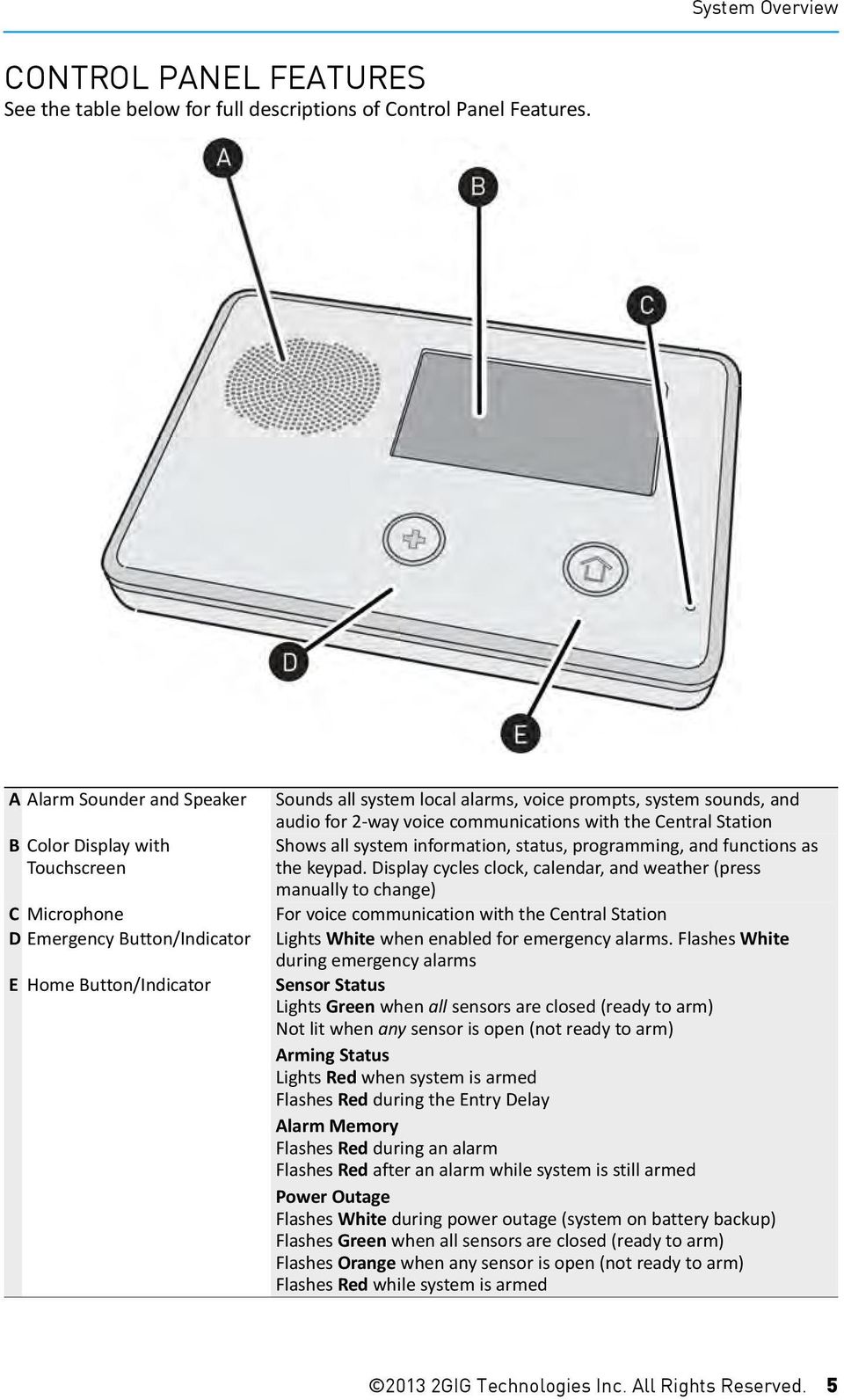
6 System Overview CONTROL PANEL FEATURES See the table below for full descriptions of Control Panel Features. A Alarm Sounder and Speaker B Color Display with Touchscreen C Microphone D Emergency Button/Indicator E Home Button/Indicator Sounds all system local alarms, voice prompts, system sounds, and audio for 2 way voice communications with the Central Station Shows all system information, status, programming, and functions as the keypad. Display cycles clock, calendar, and weather (press manually to change) For voice communication with the Central Station Lights White when enabled for emergency alarms. Flashes White during emergency alarms Sensor Status Lights Green when all sensors are closed (ready to arm) Not lit when any sensor is open (not ready to arm) Arming Status Lights Red when system is armed Flashes Red during the Entry Delay Alarm Memory Flashes Red during an alarm Flashes Red after an alarm while system is still armed Power Outage Flashes White during power outage (system on battery backup) Flashes Green when all sensors are closed (ready to arm) Flashes Orange when any sensor is open (not ready to arm) Flashes Red while system is armed GIG Technologies Inc. All Rights Reserved. 5
7 Go!Control Wireless Security System User Guide MAIN DISPLAY SCREENS The Control Panel is programmed and operated using the color touch screen display. The display shows various buttons, indicators, and text to guide and inform you. The top bar on the display shows the current system mode, scrolling text of any pending alerts, and system status icons. Home Screen The Home Screen shows system status with icons to indicate system conditions. It also displays the time and date. The Home Screen has Security, Services, Silent Control and Display Off buttons. system status and arming buttons for Stay and Away. Optional check boxes for Entry Delay and Silent Exit are displayed. Menu Screen The Menu Screen shows the system status across the top of the screen and 3 main buttons: The Arm button and Toolbox button are always displayed. If the emergency option is set, an Emergency button is also displayed. Chime and Voice check boxes are also displayed. TIP: Services is a system option for controlling Z Wave devices, if not active, the button is not displayed. Pressing the Control Panel s button displays the Home Screen. Security Screen The Security Screen shows the system status and offers 3 buttons for Arm, Menu, and Status. It also displays the time and date. If messages, alarms, or trouble alerts are pending, the Security Screen display buttons indicating the number pending. Status Screen The Status Screen lists system status and any alerts in a scrollable list displayed in log format. The date, time and nature of any alerts are listed in the displayed log. Arming Screen The Arming Screen is used to arm the security portion of the system. It displays the An option button for Silence is displayed and can be used to stop the voice announcement of the system status. Use the or arrows to scroll through the status messages GIG Technologies Inc. All Rights Reserved.

8 BURGLARY PROTECTION When your system was setup by your installer, wireless sensors were placed to monitor specific doors and windows. The installer selected these doors and windows as likely places where an unlawful intrusion might occur and could be detected. Each sensor was programmed to have the system react in a specific way. See Installer Programmed Options on page 38 for specifics about each sensor. Some sensor types such as smoke detectors, carbon monoxide detectors, panic buttons, etc. are always active and can trigger an alarm at any time. Other sensors on protected doors and windows are part of the burglary protection part of the system, and can be turned on or off. Turning on the burglary protection part of the security system is called Arming the System. The burglary protection part of the system can be armed in two modes: Stay Mode or Away Mode. SAMPLE FLOOR PLAN Refer to the floor plan below. It shows a typical residential installation and the various types of wireless sensors and their functions. A Front and side door sensors have Exit/Entry delay SMKE Smoke detector B Side and main garage door sensors have Exit/Entry delay CO Carbon monoxide detector CP Control panel GB Glass break sensor DW Door/window sensor PAD Wireless keypad PIR Motion detector ES External siren NOTE: This security system is in compliance with UL 681 (Burglar and Holdup Alarm Systems) and UL 827 (Central Station Alarm Services) GIG Technologies Inc. All Rights Reserved. 7

9 Go!Control Wireless Security System User Guide SENSOR STATUS The security system constantly monitors all of the sensors attached to the protected doors and windows in your home or business. The Control Panel knows if each door or window with sensors is open or closed. The open or closed condition of the protected doors and windows is called the sensor status. For maximum security, all the doors and windows on your premises should be closed when you leave the building. In some cases, such as when using the security system when you stay at home, you may want to leave some doors or windows open. The system recognizes bypasses to resolve the open doors or windows. See "Manually Bypassing or Un bypassing Sensors" on page 10. NOTE: Before you can arm the system, you must close or bypass all doors and windows with sensors. NOTE: If installed in a commercial location, this Control Panel is intended for burglary protection only (and not for fire protection) and that burglary protection is limited to mercantile premises and not bank vaults. CHECKING THAT ALL SENSORS ARE CLOSED In most cases, you will be arming the security system with all of the sensor protected doors and windows closed. The Control Panel provides easy ways to verify that all the sensorprotected doors and windows are closed before arming the system: The Home button lights green when all perimeter sensors are closed. The Home button is not lit if any perimeter sensor is open. Open interior sensors do not change this indication. The Security button on the display s Home Screen lights green when all perimeter sensors are closed. The Security button is lit orange if any perimeter sensor is open. Open interior sensors do not change this indication. The Arm button on the display s Security Screen and Menu Screen lights green when all perimeter sensors are closed. If any interior sensors are open (or when any motion detector is triggered), a house icon is displayed on the status bar. The Arm button is lit orange if any perimeter sensor is open GIG Technologies Inc. All Rights Reserved.

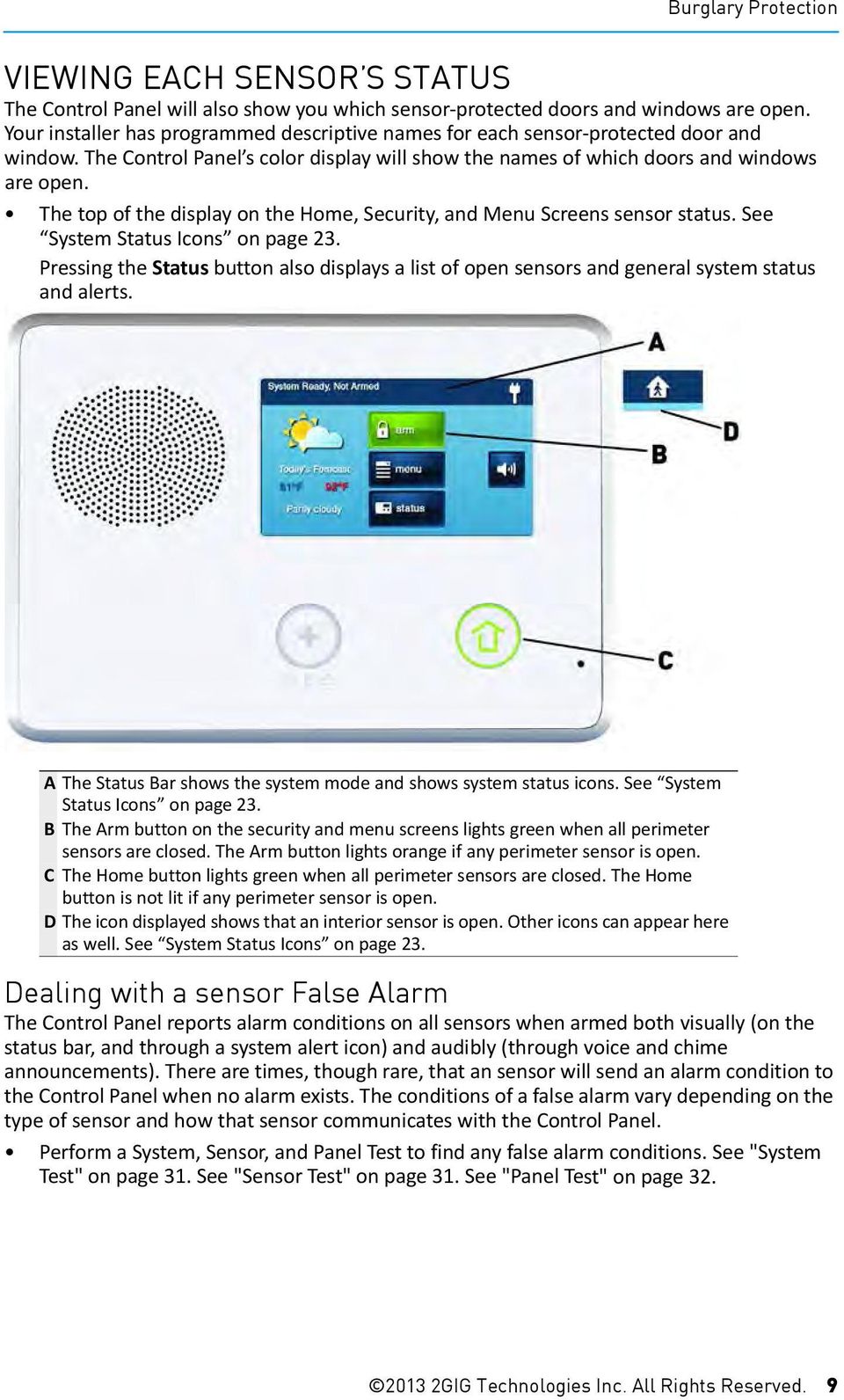
10 Burglary Protection VIEWING EACH SENSOR S STATUS The Control Panel will also show you which sensor protected doors and windows are open. Your installer has programmed descriptive names for each sensor protected door and window. The Control Panel s color display will show the names of which doors and windows are open. The top of the display on the Home, Security, and Menu Screens sensor status. See System Status Icons on page 23. Pressing the Status button also displays a list of open sensors and general system status and alerts. A The Status Bar shows the system mode and shows system status icons. See System Status Icons on page 23. B The Arm button on the security and menu screens lights green when all perimeter sensors are closed. The Arm button lights orange if any perimeter sensor is open. C The Home button lights green when all perimeter sensors are closed. The Home button is not lit if any perimeter sensor is open. D The icon displayed shows that an interior sensor is open. Other icons can appear here as well. See System Status Icons on page 23. Dealing with a sensor False Alarm The Control Panel reports alarm conditions on all sensors when armed both visually (on the status bar, and through a system alert icon) and audibly (through voice and chime announcements). There are times, though rare, that an sensor will send an alarm condition to the Control Panel when no alarm exists. The conditions of a false alarm vary depending on the type of sensor and how that sensor communicates with the Control Panel. Perform a System, Sensor, and Panel Test to find any false alarm conditions. See "System Test" on page 31. See "Sensor Test" on page 31. See "Panel Test" on page GIG Technologies Inc. All Rights Reserved. 9
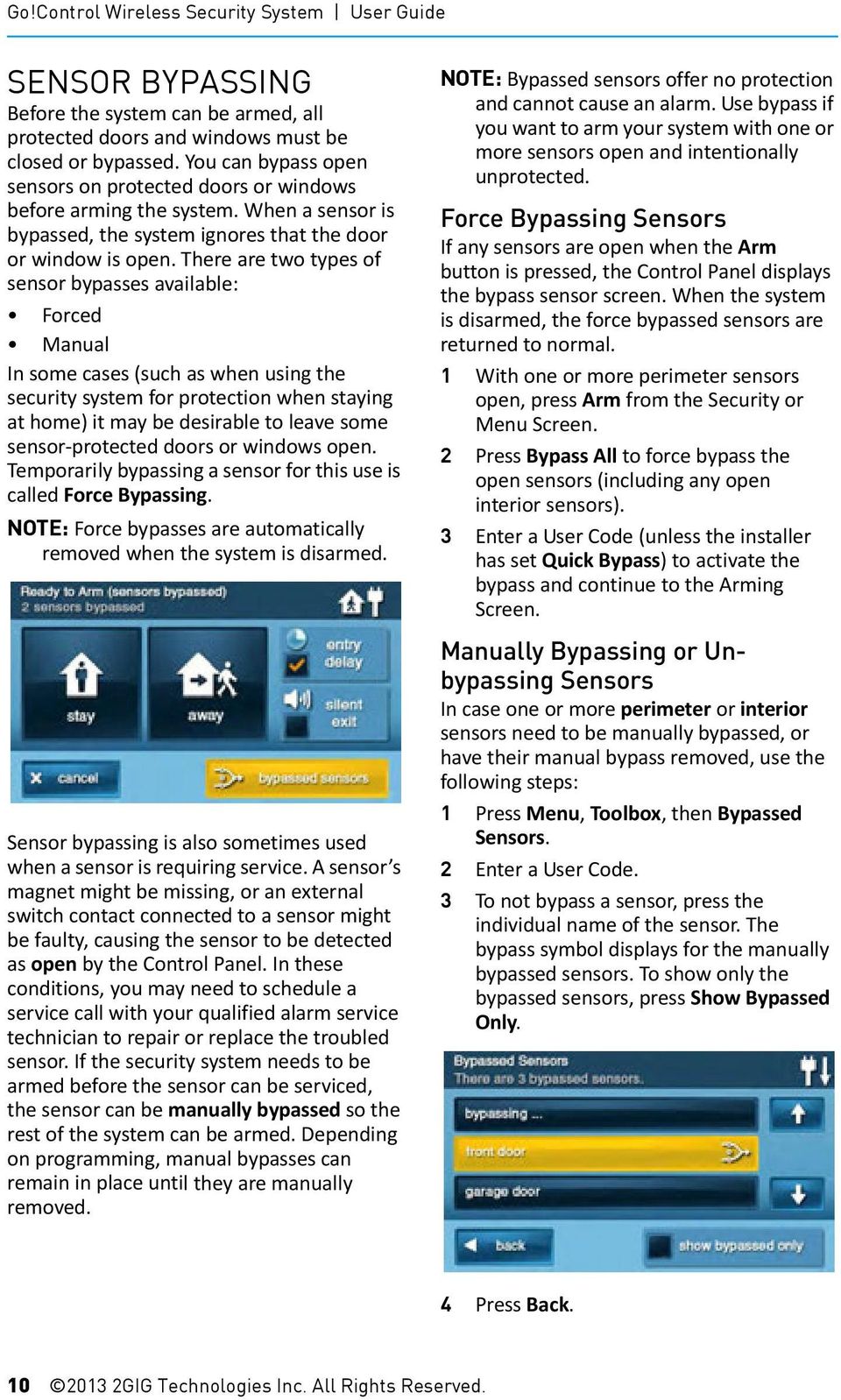
11 Go!Control Wireless Security System User Guide SENSOR BYPASSING Before the system can be armed, all protected doors and windows must be closed or bypassed. You can bypass open sensors on protected doors or windows before arming the system. When a sensor is bypassed, the system ignores that the door or window is open. There are two types of sensor bypasses available: Forced Manual In some cases (such as when using the security system for protection when staying at home) it may be desirable to leave some sensor protected doors or windows open. Temporarily bypassing a sensor for this use is called Force Bypassing. NOTE: Force bypasses are automatically removed when the system is disarmed. Sensor bypassing is also sometimes used when a sensor is requiring service. A sensor s magnet might be missing, or an external switch contact connected to a sensor might be faulty, causing the sensor to be detected as open by the Control Panel. In these conditions, you may need to schedule a service call with your qualified alarm service technician to repair or replace the troubled sensor. If the security system needs to be armed before the sensor can be serviced, the sensor can be manually bypassed so the rest of the system can be armed. Depending on programming, manual bypasses can remain in place until they are manually removed. NOTE: Bypassed sensors offer no protection and cannot cause an alarm. Use bypass if you want to arm your system with one or more sensors open and intentionally unprotected. Force Bypassing Sensors If any sensors are open when the Arm button is pressed, the Control Panel displays the bypass sensor screen. When the system is disarmed, the force bypassed sensors are returned to normal. 1 With one or more perimeter sensors open, press Arm from the Security or Menu Screen. 2 Press Bypass All to force bypass the open sensors (including any open interior sensors). 3 Enter a User Code (unless the installer has set Quick Bypass) to activate the bypass and continue to the Arming Screen. Manually Bypassing or Unbypassing Sensors In case one or more perimeter or interior sensors need to be manually bypassed, or have their manual bypass removed, use the following steps: 1 Press Menu, Toolbox, then Bypassed Sensors. 2 Enter a User Code. 3 To not bypass a sensor, press the individual name of the sensor. The bypass symbol displays for the manually bypassed sensors. To show only the bypassed sensors, press Show Bypassed Only. 4 Press Back GIG Technologies Inc. All Rights Reserved.
12 Burglary Protection STAY MODE Stay Mode is for arming the system when people are staying on the premises. Stay Mode arms the sensor protected perimeter doors and windows while not arming the interior motion sensors or other interior doors. This allows the premises to be occupied while the system is partially armed. Stay Mode is used mostly for arming the system during the evening hours after everyone is inside and no one is expected to enter or leave. When the system is armed in Stay Mode, you can move about the premises without triggering the burglary alarm. All the interior burglary protection is off. But, if a sensorprotected perimeter door or window is opened, an alarm occurs. opened. Un checking this option box removes the delayed alarm trigger from all sensor protected doors programmed for delay, causing those entrances to instantly trigger the alarm if they are opened in Stay Mode. Quick Exit in Stay Mode A programmable option, called Quick Exit may be displayed on the Security Screen while the system is armed in the Stay Mode. Pressing the Quick Exit button starts a timer to allow someone to exit or enter through a sensor protected door programmed for delay without having to disarm the entire system. When the delay timer runs out, the system returns to the normal Stay Mode. Entry Delay in Stay Mode Certain sensors, such as a door, can be setup by your installer to have a delay before triggering an alarm. This provides a way for an authorized person returning to enter using a predetermined door and disarm the system before an alarm is triggered. When arming the system in Stay Mode, an Entry Delay option check box is shown on the Control Panel s Arming Screen. Normally this option check box is checked, so the programmed delay doors allow time for disarming the system after the door is The Quick Exit option can be turned on or off by your installer, see "Installer Programmed Options" on page 38 to understand the options that have been programmed for your system. Silent Control in Stay Mode Three options for silencing the beeps and announcements are available when arming or disarming the system in Stay Mode. On the Control Panel s Home and Security Screens, a Silent Control button is displayed. On the Arming Screen, a Silent Exit check box is displayed. On the Exit Delay Screen, a Silence button is displayed. Selecting any of these options silences the Control Panel beeps and announcements, and when arming, selecting the option doubles the length of the Exit Delay GIG Technologies Inc. All Rights Reserved. 11

13 Burglary Protection Arming to Stay Mode Use Stay Mode to arm the system when anyone is at home. Stay Mode normally has an Entry Delay so a user with a User Code can re enter without causing an alarm. 1 Close all protected perimeter doors and windows before arming. 2 Verify that the button on the Control Panel is lit green indicating that the system is ready to arm. The Security button and Arm button on the display is green when all sensors are closed. NOTE: If you desire to arm the system quietly without sounding any announcements, press the button before performing the next steps: From the Arming Screen, select the Silent Exit check box. Or During exit delay press Silence. 3 From the Security Screen, or the Menu Screen, press Arm. If there are any open perimeter door or window sensors, the Bypass Screen appears. Close all the sensors displayed or press Bypass All to force bypass the displayed sensors. NOTE: Bypassed sensors do not trigger an alarm. (To bypass sensors, enter a User Code unless the installer has set the system for Quick Bypass). 4 On the Arming Screen, use the Entry Delay check box option in Stay Mode. If no one is expected to re enter, the system can be armed without an Entry Delay. All perimeter doors will trigger the alarm instantly. To arm with all exit/ entry perimeter doors as instant, uncheck the Entry Delay option button. 5 Press Stay to arm the system. NOTE: To arm the system, you may need to enter a User Code if your installer has turned off the system s Quick Arming feature. 6 The system will arm and shows the Exit Delay counting down. When the Exit Delay expires, the system is fully armed in the Stay Mode. AWAY MODE Away Mode is for arming the system when everyone is leaving the premises. Away Mode arms all sensor protected perimeter doors and windows, interior motion sensors, interior glass break sensors, and any other sensor protected interior doors. The premises must be unoccupied while the system is armed. Away Mode is typically used for arming the system during the daytime hours in a residential location, and non business hours in a commercial location. When the system is armed in Away Mode, you cannot move about the premises without triggering the burglary alarm (if the system is installed with interior motion detectors). An alarm also occurs if any sensor protected door or window is opened or glass breakage is detected (if glass breakage detectors are installed in your system). Exit and Entry Delays in Away Mode Certain sensors, such as a door, can be setup by your installer to have a delay before triggering an alarm. This provides a way for an authorized person to exit and reenter the premises without triggering an alarm. Exit Delay allows time to leave after arming the system. Entry Delay allows time to enter and disarm the system before an alarm is triggered GIG Technologies Inc. All Rights Reserved. 12

14 Go!Control Wireless Security System User Guide When arming the system in Away Mode, an Entry Delay check box is shown on the Arming Screen. By default, this option is checked, so the programmed delay doors allow time for disarming the system after the door is opened. If you un check this box, the delayed alarm trigger is removed from all sensor protected doors programmed for delay. Those entrances instantly trigger an alarm if they are opened in Away Mode. NOTE: With the Entry Delay disabled, you must remotely disarm the system with a wireless key fob before entering. Exit Delay Restart The Exit Delay Restart option extends the Exit Delay one time if you need to re enter the premises. With the Exit Delay Restart option, when you re enter the premises after you have left, but before the Exit Delay timer expires, will restart the Exit Delay timer, giving you the full length of time to leave again. TIP: The Exit Delay Restart option only works once, each time the system is armed. Silent Control in Away Mode Three options for silencing the beeps and announcements are available when arming or disarming the system in Away Mode. On the Control Panel s Home and Security Screens, a Silent Control button is displayed. On the Arming Screen, a Silent Exit check box is displayed. On the Exit Delay Screen, a Silence button is displayed. Selecting any of these options silences the Control Panel beeps and announcements, and when arming, selecting Silent Control doubles the length of the Exit Delay. Quick Exit in Away Mode A programmable option called Quick Exit may be displayed on the Security Screen while the system is armed in the Away Mode. Pressing the Quick Exit button starts a timer to allow someone to exit or enter through a sensor protected door programmed for delay without having to disarm the entire system. When the delay timer runs out, the system returns to the normal Away Mode. TIP: If interior sensors are installed in the system in certain areas, do not violate those sensors when using the Quick Exit feature in Away Mode. Auto Stay Mode The system may have been programmed by the installer for Auto Stay Mode. If this option is on and the system is armed in Away Mode, if an exit/entry delay sensor is not triggered before the Exit Delay expires (no one left the premises), the system automatically arms in Stay Mode instead of Away Mode. NOTE: Quick options can be turned on or off by your installer. Refer to "Installer Programmed Options" on page 38, to see which options have been set for your system. Arming to Away Mode Use the Away Mode to arm the system when everyone will be leaving the home. The Away Mode normally has an Entry Delay so someone with a User Code can re enter without causing an alarm. Interior and perimeter sensors are armed in the Away Mode. 1 Close all sensor protected doors and windows before arming. 2 Verify that the button on the Control Panel is lit green, indicating that the system is ready to arm. The Security GIG Technologies Inc. All Rights Reserved.

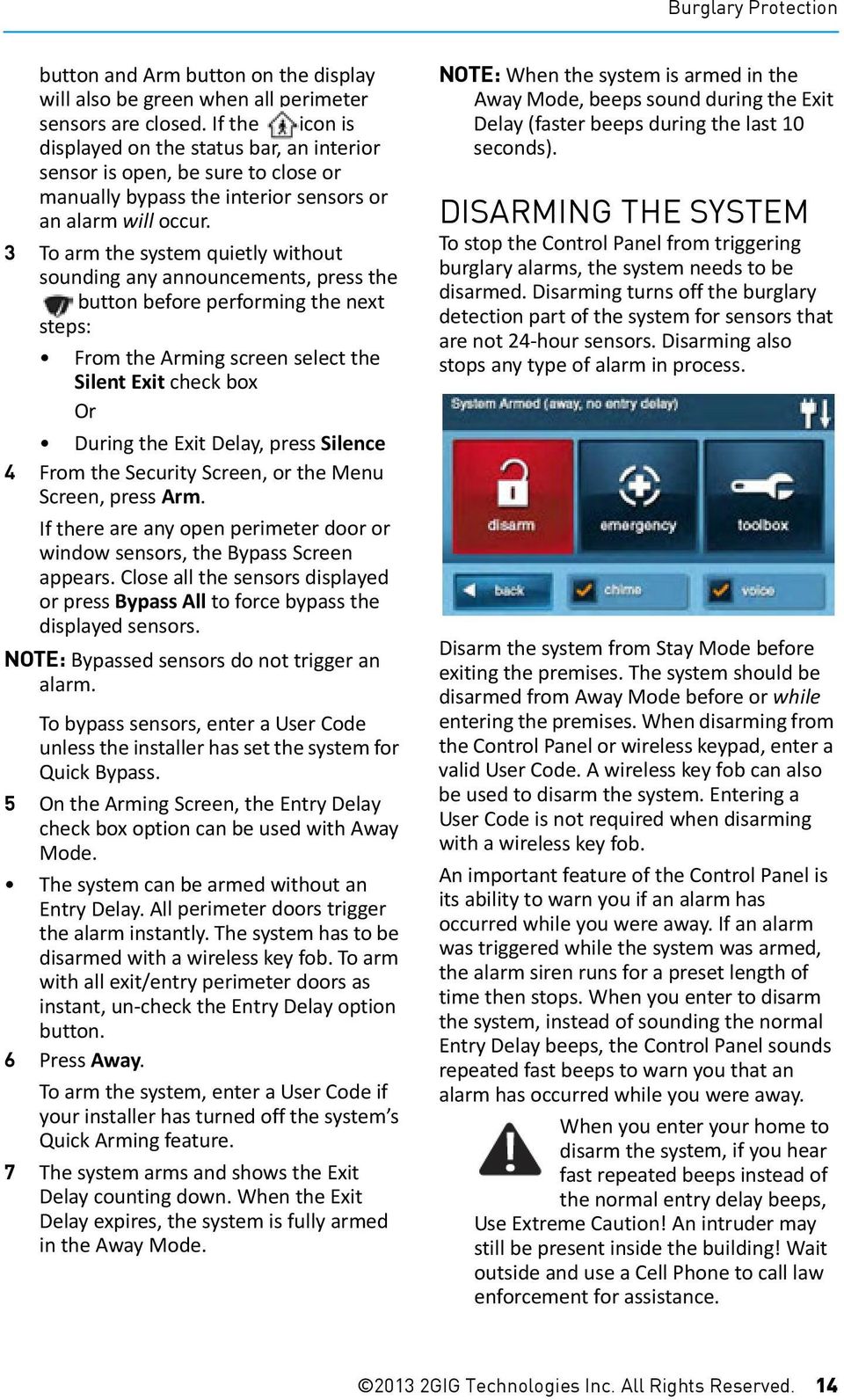
15 Burglary Protection button and Arm button on the display will also be green when all perimeter sensors are closed. If the icon is displayed on the status bar, an interior sensor is open, be sure to close or manually bypass the interior sensors or an alarm will occur. 3 To arm the system quietly without sounding any announcements, press the button before performing the next steps: From the Arming screen select the Silent Exit check box Or During the Exit Delay, press Silence 4 From the Security Screen, or the Menu Screen, press Arm. If there are any open perimeter door or window sensors, the Bypass Screen appears. Close all the sensors displayed or press Bypass All to force bypass the displayed sensors. NOTE: Bypassed sensors do not trigger an alarm. To bypass sensors, enter a User Code unless the installer has set the system for Quick Bypass. 5 On the Arming Screen, the Entry Delay check box option can be used with Away Mode. The system can be armed without an Entry Delay. All perimeter doors trigger the alarm instantly. The system has to be disarmed with a wireless key fob. To arm with all exit/entry perimeter doors as instant, un check the Entry Delay option button. 6 Press Away. To arm the system, enter a User Code if your installer has turned off the system s Quick Arming feature. 7 The system arms and shows the Exit Delay counting down. When the Exit Delay expires, the system is fully armed in the Away Mode. NOTE: When the system is armed in the Away Mode, beeps sound during the Exit Delay (faster beeps during the last 10 seconds). DISARMING THE SYSTEM To stop the Control Panel from triggering burglary alarms, the system needs to be disarmed. Disarming turns off the burglary detection part of the system for sensors that are not 24 hour sensors. Disarming also stops any type of alarm in process. Disarm the system from Stay Mode before exiting the premises. The system should be disarmed from Away Mode before or while entering the premises. When disarming from the Control Panel or wireless keypad, enter a valid User Code. A wireless key fob can also be used to disarm the system. Entering a User Code is not required when disarming with a wireless key fob. An important feature of the Control Panel is its ability to warn you if an alarm has occurred while you were away. If an alarm was triggered while the system was armed, the alarm siren runs for a preset length of time then stops. When you enter to disarm the system, instead of sounding the normal Entry Delay beeps, the Control Panel sounds repeated fast beeps to warn you that an alarm has occurred while you were away. When you enter your home to disarm the system, if you hear fast repeated beeps instead of the normal entry delay beeps, Use Extreme Caution! An intruder may still be present inside the building! Wait outside and use a Cell Phone to call law enforcement for assistance GIG Technologies Inc. All Rights Reserved. 14
16 Go!Control Wireless Security System User Guide Disarming from Stay Mode Disarm the system from Stay Mode before exiting the premises. 1 From the Security Screen, press for Silent Control. 2 From the Security Screen or the Menu Screen, press Disarm. This action displays the Disarm Code Screen. 3 The left side of the screen shows any events that have occurred while the system was armed. 4 Enter a valid User Code to disarm the system. In case you press a wrong key, the button erases the entire entry. Press if you decide to not disarm the system at this time. Disarming from Away Mode The system should be disarmed from Away Mode while entering the premises. 1 Enter the premises through a designated Entry Delay sensor protected door. 2 The Disarm Code Screen displays on the Control Panel and the Entry Delay beeps sound. The left side of the screen shows events that have occurred while the system was armed. 3 Enter a valid User Code to disarm the system. In case you press a wrong key, the button erases the entire entry. Delayed sensors start the Entry Delay to allow time to disarm the system. Instant sensors trigger the alarm right away. Most sensors trigger the alarm siren, some sensors may be set to trigger a silent alarm without sounding the siren. Burglary Alarm Siren If there is a burglary alarm tripped while the system is armed, the Control Panel sounds the alarm siren for a preset time (see "Installer Programmed Options" on page 38). After the time expires, the siren will stop sounding. The system limits the number of times a sensor can re trigger an alarm while the system is armed. The setting is one to six times per sensor, per arming period (see "Installer Programmed Options" on page 38). Alarm Memory If an alarm has occurred while the system was armed, the Disarm Screen shows the time and date of the alarm and the sensor(s) that triggered the alarm. After the system is disarmed, the Alarm Memory screen appears. The Alarm Memory Screen shows the sensor(s) that have caused the alarm. If more than one sensor has been triggered, the display shows the order in which the alarms occurred. IF A BURGLARY ALARM OCCURS If an armed sensor is tripped while the system is armed in the Stay or Away Mode, an alarm occurs and the siren sounds GIG Technologies Inc. All Rights Reserved.
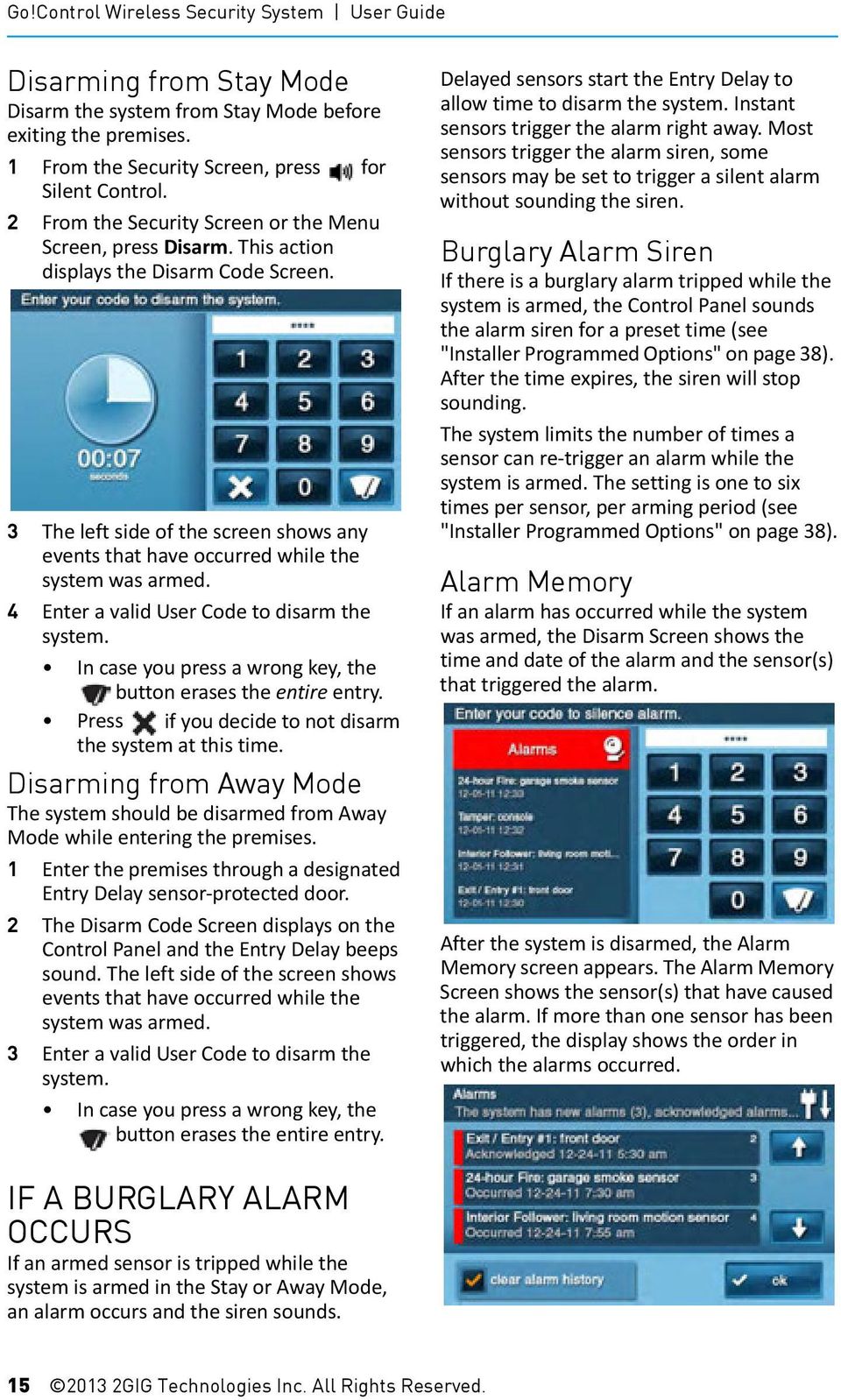
17 Burglary Protection The alarm memory automatically clears the next time the system is armed. You can also check the Clear Alarm History button and press Ok to manually clear the alarm memory (24 hour fire and CO sensors that are still violated remain in alarm memory). Optional 2-Way Voice Communications 2 way voice communications provides a method for alarm verification and can provide emergency assistance. The Control Panel contains a built in microphone that can monitor sounds around the area of the Control Panel. The built in microphone and speaker allows 2 way voice communications with a Central Station operator after an alarm. The operator can converse with people in the premises through the Control Panel s speaker and microphone. Your installer can set the system to use 2 way voice communications after an alarm and/or after a panic alarm is triggered. NOTE: If a panic alarm or sensor is set for a silent alarm, the operator can only listen and not be able to talk. This is for your protection. KEY FOB ARMING AND DISARMING Your system may be equipped with one or more wireless key fobs. Up to eight key fobs can be used to control the system remotely. Each key fob has four buttons and can perform five functions. A User Code is not required when arming or disarming the system with a wireless key fob. There are several key fob options that can be set by the installer. See "Installer Programmed Options" on page 38. Key Fob Arming to Stay Mode To arm the system to Stay Mode using a key fob, press the Stay button. NOTE: Depending on setup options, if there are open perimeter doors or windows, the system may not allow arming to Stay Mode with a wireless key fob. See "Installer Programmed Options" on page 38. Key Fob Arming to Away Mode To arm the system to Away Mode using a key fob, press the button. NOTE: Depending on setup options, if there are open perimeter doors or windows, the system may not allow arming to Away Mode with a wireless key fob. See Installer Programmed Options on page 38. Key Fob Disarming Using a key fob to disarm the system from Stay or Away Mode, press the Disarm button. NOTE: To use your key fob to disarm your system, this option must already be enabled by your installer. Key Fob Emergency To trigger an emergency alarm using a key fob, press the Away button and Disarm button at the same time for 5 seconds GIG Technologies Inc. All Rights Reserved. 16

18 Go!Control Wireless Security System User Guide NOTE: If an emergency alarm is triggered by a key fob, it cannot be stopped using the key fob Disarm button. The alarm must be canceled at the Control Panel. Key Fob Auxiliary To trigger the Control Panel s auxiliary output, press the Auxiliary button. If you use the Auxiliary button, the auxiliary output controls the... WIRELESS KEYPAD ARMING AND DISARMING Your system may be equipped with one or more wireless keypads. Up to four wireless keypads can be used to control the system remotely from the main Control Panel. Two types of wireless keypads are available. A wireless keypad without a screen, and the wireless touch screen keypad. The wireless touch screen keypad operates virtually the same as the Control Panel. Each standard wireless keypad has buttons for entering User Codes, Stay and Away mode buttons, and Fire and Police emergency buttons. Check the Installer Set Options section in this guide to verify which 24 hour Fire and Police emergency buttons have been enabled by the installer. Wireless Keypad Arming to Stay Mode 1 To arm the system to Stay Mode using a wireless keypad, enter a User Code. 2 Press the Stay button. 3 If Quick Arming has been programmed by your installer, just press the Stay button. If there are open perimeter doors or windows, the system does not allow Arming to Stay Mode with a wireless keypad. All open sensors must be bypassed at the Control Panel first. WIRELESS KEYPAD ARMING TO AWAY MODE 1 To arm the system to Away Mode using a wireless keypad, enter a User Code. 2 Press the Away button. 3 If Quick Arming has been programmed by your installer, just press the Away button NOTE: If there are open perimeter doors or windows, the system does not allow Arming to Away Mode with a wireless keypad. All open sensor protected doors and windows must either be closed or bypassed at the Control Panel before arming with a wireless keypad. Wireless Keypad Disarming To disarm the system from Stay or Away mode, enter a User Code. Wireless Keypad Fire Emergency To trigger a emergency fire alarm using a wireless keypad, press the Fire button for 2 seconds. NOTE: To use wireless keypad to trigger a fire alarm, this option must already be enabled by your installer. Wireless Keypad Police Emergency To trigger a emergency police alarm using a wireless keypad, press the Police button for 2 seconds. NOTE: To use wireless keypad to trigger a police alarm, this option must already be enabled by your installer GIG Technologies Inc. All Rights Reserved.
19 SMOKE, HEAT AND FREEZE PROTECTION Your system should be installed with Smoke, Heat, and Freeze Alarms as well as Carbon Monoxide Detectors as a part of an overall fire, heat, and gas protection system. Fire protection is active 24 hours a day, 365 days a year. In the event of a fire or poisonous CO gas emergency, the installed smoke or carbon monoxide detector automatically activates your security system. Not only will the fire alarm itself emit a loud sound, the Control Panel emits an intermittent and loud horn on an external sounder (if an external sounder has been installed). The fire alarm sound continues until the timer expires on the Fire Alarm or until you enter a User Code at the Control Panel. If the Alarm Sounds Get out and stay out. Never go back inside for people or pets. If you have to escape through smoke, get low and go under the smoke. Call the fire department from outside your home. Initiating a Fire Alarm Manually If you become aware of a fire emergency before your detectors sense a problem, do the following: 1 Yell FIRE! to alert everyone else. 2 Go the Control Panel and press the white lighted button, then from the touchscreen press and hold the Fire button for at least 2 seconds. This action triggers the fire alarm sounders and sirens. You can trigger the fire alarm from the wireless keypad by holding down the Fire button. Both of these actions causes the fire alarm sounders and sirens. 3 Evacuate all occupants from the premises and call your local Fire Department from a safe location outside your home. Fire Alarm Sounds Automatically If the fire alarm sirens are sounding, do the following: 1 If flames and smoke are present, yell Fire to alert everyone else. 2 Evacuate all occupants from the premises and call your local Fire Department from a safe location. OR 1 If no flames or smoke are apparent, investigate the possible causes of the alarm. 2 Go to the Control Panel and enter your User Code to stop the fire sounder and sirens. 3 Review the "Alarm Memory" on page 15 to determine which sensor caused the alarm. 4 Go to the sensor and look for a possible reason the sensor tripped. 5 Correct the condition that caused the detector to sense smoke or CO gas. Silencing a False Fire Alarm If the fire alarm is sounding due to a detector sensing burnt food or some other non emergency condition, do the following: 1 Silence the fire alarm sounder by entering your User Code. 2 Review the alarm memory to determine which sensor caused the alarm (See "Alarm Memory" on page 15). If the alarm restarts, there may still be smoke inside the detector s sensor. Re enter your User Code to stop the alarm from continuing to sound. 3 Fan the detector for 30 seconds to clear the detector s sensor chamber. 4 After the problem has been corrected, from the Alarm Memory screen, check Clear Alarm History, then press Ok. NOTE: You cannot clear Fire and CO sensors that are still violated from the Alarm Memory Screen. Only when the Fire Alarms and CO Detectors return to normal operation. 5 Carefully inspect your premises for fire, heat or gas if your Fire Alarms and CO Detectors remain in alarm state GIG Technologies Inc. All Rights Reserved.

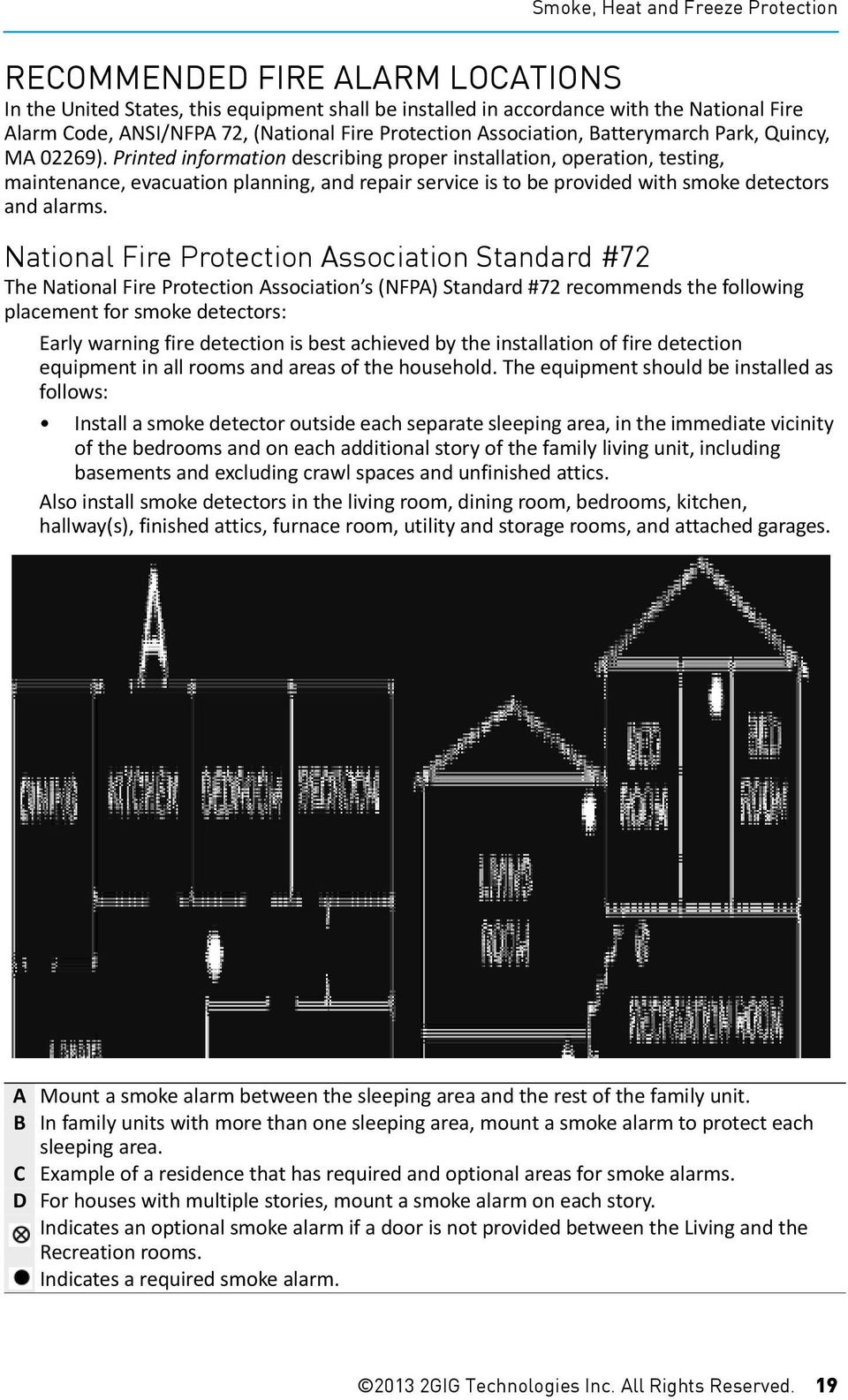
20 Smoke, Heat and Freeze Protection RECOMMENDED FIRE ALARM LOCATIONS In the United States, this equipment shall be installed in accordance with the National Fire Alarm Code, ANSI/NFPA 72, (National Fire Protection Association, Batterymarch Park, Quincy, MA 02269). Printed information describing proper installation, operation, testing, maintenance, evacuation planning, and repair service is to be provided with smoke detectors and alarms. National Fire Protection Association Standard #72 The National Fire Protection Association s (NFPA) Standard #72 recommends the following placement for smoke detectors: Early warning fire detection is best achieved by the installation of fire detection equipment in all rooms and areas of the household. The equipment should be installed as follows: Install a smoke detector outside each separate sleeping area, in the immediate vicinity of the bedrooms and on each additional story of the family living unit, including basements and excluding crawl spaces and unfinished attics. Also install smoke detectors in the living room, dining room, bedrooms, kitchen, hallway(s), finished attics, furnace room, utility and storage rooms, and attached garages. A Mount a smoke alarm between the sleeping area and the rest of the family unit. B In family units with more than one sleeping area, mount a smoke alarm to protect each sleeping area. C Example of a residence that has required and optional areas for smoke alarms. D For houses with multiple stories, mount a smoke alarm on each story. Indicates an optional smoke alarm if a door is not provided between the Living and the Recreation rooms. Indicates a required smoke alarm GIG Technologies Inc. All Rights Reserved. 19
21 Go!Control Wireless Security System User Guide Where NOT to Mount the Alarm Directly above a sink, cooker, stove or oven Do not locate alarm within 5 feet (1.5 m) of any cooking appliance Next to a door or window that would be affected by drafts (extractor fan or air vent) Outside In or below a cupboard Where air flow would be obstructed by curtains or furniture Where dirt or dust could collect and block the sensor Where it could be knocked, damaged, or inadvertently removed Fire warning equipment for residential occupancies are capable of protecting about 50% of the occupants in potentially fatal fires. Victims include the elderly, children, and the physically or mentally impaired. Victims include any person that cannot escape even when warned early enough that escape should be possible. For these people, other strategies such as protectionin place or assisted rescue or escape would be necessary. Studies show that Smoke/Heat/Freeze Alarms may not awaken all sleeping individuals. It is the responsibility of individuals in the household that are capable of assisting others to provide assistance to those who may not be awakened by the audible alarm or those who may be incapable of safely evacuating the area unassisted. A battery powered alarm must have the specific battery type installed, be in good condition, and be mounted properly. The use of alcohol or drugs may also impair the ability to hear the audible alarm. For maximum protection, ensure that an audible alarm is installed on every floor. Smoke/Heat Alarms only provide protection to the residence if smoke actually reaches the alarm. The Smoke/Heat Alarm is not a substitute for an insurance policy. Home owners and renters should have adequate insurance to protect their properties. EMERGENCY ACTION PLAN Establish and regularly practice a plan of escape with all members of your household in the event of fire. The National Fire Protection Association recommends the following steps: 1 Mount your detector or your interior or exterior sounders where they can be heard by all. 2 Determine two means of escape from each room. One path of escape should lead to the door that permits normal exit from the building. The other should be an alternate escape, such as a window, should the path to a door be impassable. Station an escape ladder at such windows if there is a long drop to the ground. 3 Sketch a floor plan of the building. Show windows, doors, stairs, and rooftops that can be used to escape. Indicate escape routes for each room. Keep these routes free from obstructions and post copies of the escape routes in every room. 4 Ensure that all bedroom doors are shut while you are asleep, preventing deadly smoke from entering while you escape. 5 Try the door. If the door is hot, check your alternate escape route. If the door is cool, open it cautiously. Be prepared to slam the door shut if smoke or heat rushes in. 6 When smoke is present, crawl on the ground. Do not walk upright, since smoke rises and may overcome you. Clearer air is near the floor. 7 Escape quickly, but don t panic. 8 Establish a place outdoors, away from your house, where everyone can meet and then take steps to contact the authorities and account for those missing. Choose someone to assure that nobody returns to the house many die going back GIG Technologies Inc. All Rights Reserved.
22 EMERGENCY FUNCTIONS 24-HOUR EMERGENCY BUTTONS Three 24 hour emergency functions are available on the Control Panel: Panic Fire Emergency You can activate emergency functions using the Control Panel as well as wireless sensors, wireless keypads or from portable pendant devices such as the panic button remote. The button displays the emergency screen. Just pressing the button does not trigger an alarm. During the installation, your installer programmed the emergency buttons that are displayed on the Emergency Screen. If, however, no emergency functions are available, an information screen displays. To see which emergency functions are available on your system, press the button. In the event of an emergency, press and hold the emergency button for at least 2 seconds to activate the alarm. A If emergency functions are available, the Emergency button is a solid white lighted button. B To display the Emergency Screen, press the Emergency button. C The Emergency Screen. D The Emergency Screen displays the emergency options that are available on your system. Panic The panic (or police) button sends an immediate panic report to the Central Station. During installation, the installer either set the system to sound the siren when the button is pressed, or to not sound the siren, but to trigger a silent alarm. Fire The Fire button send an immediate fire report to the Central Station. The Control Panel sounds the fire horn when the button is pressed. Emergency The emergency button sends an immediate report to the Central Station. The Control Panel sounds the siren when the emergency button is pressed GIG Technologies Inc. All Rights Reserved. 21
23 SYSTEM TROUBLE ALERTS The system continually polls wired sensors, wireless sensors and the Control Panel itself to ensure optimal operating conditions at all times. If trouble is detected, the system alerts you. The system monitors the following conditions among others: AC power to the Control Panel The telephone line (optional) The cell telephone connection (if used) The Control Panel s backup battery The sensor s batteries Sensor supervisory status (if used) External sounder connection Sensor radio reception and sensor tampering (sensor s case opened) when disarmed Control Panel tampering (panel s case opening) when disarmed (optional) Communication to the Central Station You have the option to have any or all trouble conditions reported to the Central Station. If a trouble condition exists, service your system immediately to ensure no lapse in service or protection. Trouble Alert Icon If the system detects trouble, it flashes the trouble alert icon on the Security Screen and sounds 6 alert beeps every minute. Scrolling text along the top of the display also describes the trouble condition. The trouble alert icon displays a number in the upper right corner that is the number of current trouble alerts. The trouble alert icon flashes until the trouble alerts are acknowledged, then it remains constantly lit until all the troubles are corrected. When all troubles are corrected, the icon disappears completely. View the Current Trouble Alerts 1 To display all current trouble alerts, press the Trouble Alert Icon. 2 View the listed trouble events. If there are more than 3 alerts, use the and arrows to scroll through the list. 3 After viewing the trouble events, press Ok to acknowledge. This action silences the alert beeps. Trouble Alert Beep Hold-off During the installation, as an option, the system can be programmed by your installer to suppress the trouble alert sounder from 10pm to 9am. Any trouble alerts will still be displayed and reported (if enabled), but the sounder does not beep during nighttime hours. Some trouble conditions may clear automatically while other trouble conditions may require service to correct. If a trouble condition still exists after 9am, the sounder beeps to indicate trouble. NOTE: Regardless of whether the trouble alert sounder is suppressed or not, every trouble condition is always displayed on the trouble alert list and recorded in the system history event log GIG Technologies Inc. All Rights Reserved.
24 System Trouble Alerts SYSTEM STATUS ICONS The top part of the Control Panel s display is the status area that shows the following: Current system mode Sensor status Current trouble alerts TIP: Special icons are used to visually show your system s current condition. Status Icon Area Test Mode Icon When the system is placed in System Test Mode, the test mode icon will flash in the status bar of the display during the testing. Remote Access Icon When the system is being remotely accessed by using an optional TS1 Wireless Keypad, the Remote Access Icon is displayed. AC Power Icon The AC power icon displays whether the Control Panel is receiving AC line power or not. Phone Line Failure Icon If the system detects a telephone line failure, the Phone Line Failure Icon is displayed. Radio Modem Icon If the system s optional Cell radio modem is installed, the cell radio icon is displayed on the status bar while the cell radio is being used to update software or add features. House Icon If an interior sensor is open (or a motion detector has just been activated) the status bar displays the House icon or Interior Sensor Open Icon. NOTE: During arming, the House Icon flashes as a warning. Backup Battery Status Icon If the Control Panel s backup battery tests low or exhausted, the Backup Battery Status Icon is displayed GIG Technologies Inc. All Rights Reserved. 23
25 MESSAGING SYSTEM MESSAGES Your security system supports receiving messages from the Central Station. The messages can be about system upgrades, additional services, special regional weather alerts, etc. The messages can be sent for all system users to read, or as confidential messages that only the Master User can read. Messages can be tagged by the sender in the following manner: Standard (blue message icon) Urgent (yellow message icon) Emergency Priority (red message icon) Up to 31 text messages can be stored in the Control Panel s memory. You can review them through the Control Panel s display. Displayed messages are sorted in the following manner: Type Date Alphabetically right corner. Urgent messages display a yellow message icon with an attention symbol in the upper right corner. Emergency messages display a red message icon with the bell symbol in the upper right corner. READING MESSAGES When a message icon appears on your Home Screen, do the following: 1 Press the message icon button. The message list displays. The status bar shows the number of messages in memory, number of unread, and number of priority messages. Unread messages display in bold. 2 Use the or arrows to scroll through the message list. 3 Press the message line itself to read the message. 4 Press Back to return to the message list, or press Delete to erase the message. NOTE: If you check the Mark Read box, the message remains on the message list (If you decide not to delete it), but it no longer displays in bold. 5 When deleting a message, a confirmation screen displays. Press Delete Message, or to return to the message, press Cancel. Displaying Messages When a message is sent to the Control Panel, 3 beeps sound and the message icon displays on the Security Screen. Standard messages display a blue message icon with a number of unread messages in the upper GIG Technologies Inc. All Rights Reserved.
26 Messaging READING CONFIDENTIAL MESSAGES NOTE: When a confidential message is sent to the Control Panel, only the Master User with the Master User Code can read the message. When a confidential message appears, the Master User should do the following: 1 Press the message line on the message list. If the message is a confidential message, the Code Entry Screen appears. 2 On the Code Entry Screen, Enter the Master User Code. Regular User Codes are not accepted. 1 To display the Message Filter Screen, press Filters. 2 Check or Un check the types of messages to display. To check all types of messages, press All. To return to the message list, press Back. The filters will reset when the following occurs: You select All Types Your message reviewing is over The system displays the Security Screen Sorting Messages To select the order in which messages are displayed on the message list, use the Message Sort Screen. 1 To display the Message Sort Screen, press Sorts. 3 View the displayed message. 4 As detailed in "Reading Messages" on page 24, either save or delete. Filtering Messages To select the type of messages that are displayed on the message list, use the Message Filter Screen. 2 To sort the messages, pick from the following options: Date received Date expired Alphabetically 3 To reverse the display order, check the Reverse box. 4 To list urgent messages first, check the Priority box. 5 To return to the message list, press Back. 6 When the message reviewing session is over, the sort options will reset GIG Technologies Inc. All Rights Reserved. 25
27 REMOTE CONTROL BY TELEPHONE TELEPHONE REMOTE You can control your system remotely using a standard telephone if your system was installed with a POTS module. Remote control is performed by calling the system and responding to spoken questions from the system. By pressing certain telephone keys, you can do the following: Arm the system Disarm the system Bypass sensors Query system status NOTE: At the time your system was installed, your installer needed to enable the optional remote control by telephone feature. Otherwise you will be unable to use the remote control by telephone feature. Calling the System During installation, your installer selects whether your system supports the remote telephone option or not. If this feature is enabled, the system requires you to call twice within 30 seconds before it answers your call. 1 Call the telephone number that the Control Panel is connected to. Wait for one or two rings, then hang up. 2 Within seconds, call the Control Panel again. The Control Panel answers the call. Controlling the System Remotely Talk to your dealer to see if your system was installed with the POTS module. Once you are connected with the system via the telephone, you can check on system status and remotely control the major functions. TIP: The announcements that the system plays over the telephone do not sound out of the Control Panel s speaker. 1 After the Control Panel answers, it s asks for your User Code. You have 15 seconds to enter your User Code using the telephone keys. If you don t enter a valid User Code in 15 seconds, the system disconnects the call. For security purposes, if 2 attempts using 2 telephone calls to enter a User Code within a 5 minute time frame fail to enter a valid code, the system disconnects and does not respond to telephone commands for 30 minutes. 2 After the system has accepted your User Code, it announces the system status, then announces the remote command options. The system waits up to 60 seconds for each remote command before automatically disconnecting. If you already know the remote command telephone key number, you can enter it before the command announcement finishes. Use the following telephone keys to control your system.: Press 1 Press 2 Press 3 Press 4 Press 5 Press 6 Press 7 Press 8 Press 9 Press # For System Status Report To Arm the System in Away Mode To Arm the System in Stay Mode To Disarm the system To turn on Auxiliary Output (if used) To turn off Auxiliary Output (if used) To stop System Status Report To Hang Up To Repeat the Command Menu To Bypass All Open Sensors and Arm the System NOTE: Remember to press 8 to hang up when you are finished remotely controlling the system. TIP: There is no Exit Delay when you remotely arm the system. TIP: The Auto Stay feature (if enabled) does not function when you remotely arm the system. Bypassing Sensors Remotely If there are open sensors when you try to arm the system remotely, the system announces the current status and asks: To bypass sensors and arm, press pound. 1 To bypass all open sensors and arm the system, press #. After the open sensors are bypassed, the system arms in the mode you selected and announces the system status to you GIG Technologies Inc. All Rights Reserved.
28 SYSTEM TOOLBOX USER MANAGEMENT The system installer has programmed a Master User Code for your system. This code can be used to control the system, as well as assign and change the other 31 User Codes and User Code access options. The Master User Code can also access several system setup settings in the Toolbox. NOTE: The other 31 User Codes are restricted from accessing settings in the Toolbox. User Code Setup IMPORTANT: Only the person with the Master User Code can add or change the other User Codes. To setup the User Codes, do the following: 1 From the Home Screen, press Security. 2 From the Security Screen, press Menu. 3 From the Menu Screen, press Toolbox. 4 Enter the Master User Code (the factory default setting is 1111). 5 On the Toolbox Screen (1 of 3), press User Management. 9 Enter the Code again to confirm the code and press Ok. 10 A confirmation screen appears. Press Ok. User Code Validity After the Confirmation Screen Appears and you click Ok, the User Codes Access Option Screen appears. The three options determine when the User Code that you just entered is valid. Select one of the three options: Always Never By Schedule Select Always to set this User Code to always be valid. Press Back. Select Never to set this User Code to never be valid. Press Back. Select By Schedule to set this User Code to be valid only for selected days and/or times. User Code Access Schedules You can setup User Codes with one or more Access Schedules. Access Schedules limit access to your system to people with User Codes such as maintenance personnel, service, or cleaning personnel. 6 The Users Management Screen displays 3 users at a me. Use the and arrows to scroll through the list. ADDING A USER CODE IMPORTANT: User Codes 0000 and 0001 are not permitted. 7 Press one of the Add User buttons. 8 Enter a four digit code for the new User Code and press Ok. Adding or Editing User Access Schedules 1 If you selected By Schedule for the User Code, the Edit Schedules button appears. 2 To select or edit an existing User Code Access Schedule, press Edit Schedules GIG Technologies Inc. All Rights Reserved. 27
29 Go!Control Wireless Security System User Guide You can also create a new user schedule from the Edit Schedule screen. 3 The User Access Schedules Screen displays all current schedules for the User Code. 4 To add a new schedule, press Add Schedule or to edit a schedule, press an existing schedule. 5 You can select 1 of 3 Schedule types: Recurring Date Date Range Recurring applies to the days of the week and time period that this User Code is valid. Date applies to a single specific date and time period that this User Code is valid. Date Range applies to a starting date, an ending date, and time period that this User Code is valid. Recurring User Access Schedules You can set up to 7 Access Schedules set for Always for each User Code. 1 For the schedule type, select Always. 2 To view the Always User Access Schedule Screen, press the calendar button. 3 Select the day(s) of the week that this User Code will be valid with the check boxes. 4 Press the left and right time buttons to set the starting and ending times that this User Code will be valid on the selected days of the week. 5 Press Ok to accept the schedule, or Cancel to return to the Schedule Type Screen. Date User Access Schedule 1 For the schedule type, select Date. 2 To view the Date User Access Schedule Screen, press the calendar button. 3 To set the only month, day, and year that this User Code is valid, press the date button. 4 Press the left and right time buttons to set the start and end times that this User Code is valid on that date. 5 Press Ok to accept the schedule, or Cancel to return to the Schedule Type Screen. Date Range User Access Schedule 1 For the Schedule type, select Date Range. 2 To view the Date Range User Access Screen, press the calendar button. 3 Press the first day button to set the month, day, and year that this User Code will first become valid. 4 Press the last day button to set the month, day, and year that this User Code will last be valid. 5 Press the left and right time buttons to set the starting and ending times that this User Code is valid during the date range. 6 To accept the schedule, press Ok or Cancel to return to the Schedule Type Screen. Deleting User Access Schedule 1 On the User Management Screen, select a User Code that displays the calendar schedule icon. 2 Press the Edit Schedules button GIG Technologies Inc. All Rights Reserved.
30 System Toolbox 3 On the User Access Schedules Screen, select the schedule to delete. 4 On the Schedule Type Screen press Delete. 5 A confirmation screen appears to verify that you really want to delete the User Access Schedule. If Ok, press Delete Schedule or press Cancel to return to the User Access Schedule Screen. 6 A second screen confirms that the schedule was deleted. Press Ok. 4 To confirm the User Code, enter the Pin again. Press Ok. 5 A confirmation screen appears, showing that the User Code was changed. Press Ok. Deleting a User Code 1 To delete a User Code from the User Management Screen, press the User button. 2 Press Delete. 3 A confirmation screen appears to verify that you really want to delete the User Code. If Ok, press Delete User or press Cancel to return to the User Codes Access Option Screen. 4 A confirmation screen appears displaying the User Code that was deleted. Press Ok. Changing a User Code 1 From the User Management Screen, press the User button to change the User Code. 2 Ensure that the currently selected User Code (or Pin number) appears, and press Change Pin. TIP: You can change the Master User Code, but you cannot delete it. 3 Enter a new four digit User Code (or Pin number) and press Ok. Duress User Code Setup The Duress User Code (User Code #8) initiates a silent alarm for help by secretly sending a Duress report to the Central Station. Use the Duress Code when someone is forcing you to operate your security system against your will. When you use the Duress Code, a silent report is immediately sent to the Central Station and they will dispatch help GIG Technologies Inc. All Rights Reserved. 29
31 Go!Control Wireless Security System User Guide Setting the Duress User Code 1 On the User Management Screen, press the User 8 (Duress) button. 2 A confirmation screen appears: Press Create Duress User. 3 Enter a four digit code for the new Duress User Code and press Ok. 4 To confirm the Duress User Code, enter the Code again and press Ok. 5 A confirmation screen appears. Press Ok. 6 The User 8 edit screen appears. To return to the User Management Screen, press Back. Secret Duress Button On the Home Screen, in the lower right corner, the system logo always appears. The system logo is the secret duress button. While Armed With the system armed, pressing the logo displays the standard disarm code entry screen. Use a valid User Code or a Duress User Code to disarm the system. The system disarms normally, but a silent duress report is sent to the Central Station and they will dispatch help. While Disarmed You can also use the secret duress button can also be used while the system is disarmed. Pressing the logo displays a code entry screen. Enter the Duress User Code and a silent duress report is sent to the Central Station and they will dispatch help. The system remains disarmed. SYSTEM HISTORY The Control Panel keeps a log of system events in the order in which they occur. Each event is marked with the date and time that the event occurred. To make reading the log easier, the system history display can be filtered to show selected events only. The events that can be filtered for the system history log display are: Arm or Disarm of the system Bypasses of sensors (force bypasses and manual bypasses) Alarms (alarms are displayed with a red stripe) Alerts (alerts are displayed with a yellow stripe) Some system events always display regardless of the filters selected. These events include: Walk test started or terminated. Programming mode started or terminated. To view the system history log, do the following: 1 From the Home Screen, press Security. 2 From the Security Screen, press Menu. 3 On the Menu Screen, press Toolbox. 4 Enter a valid User Code to access the toolbox. 5 From the Toolbox Screen (1 of 3), press System History. The log of system events appears. Use the and arrows to scroll through the log GIG Technologies Inc. All Rights Reserved.
32 System Toolbox 6 To choose the events to display, press Filters. 6 From the Toolbox Screen (1 of 3), press System Test. 7 Select the events to display with the check boxes. Press All to select all the check boxes, or None to clear all the check boxes. 8 Press Ok when finished. SYSTEM TEST Even though your security system is selfmonitoring, it is still important to regularly test the system manually. The System Test is used to test each of the sensors in the system. The Master User Code is required to test the system. While the system is in test mode, a T icon blinks on the upper right of the display. IMPORTANT: Test your Security System weekly to ensure continued protection and proper system operation. 1 To test the system, do the following: 2 From the Home Screen, press Security. 3 From the Security Screen, press Menu. 4 From the Menu Screen, press Toolbox. 5 To access system test, enter the Master User Code. Sensor Test When each sensor is tested, the Control Panel does the following: Beeps and announces the sensor s name Green bar lights on the display by the sensor name Signal bars light green to show the strength of that sensor s wireless signal NOTE: Start and stop test reports are sent to the Central Station. 1 From the list of sensors, choose each sensor (Use the and arrows to scroll through the list). 2 Go to each sensor listed, and trigger it. For door or window sensors, open and close the door or window. For motion detectors, stay out of the protected area for five minutes, then walk through the area. For portable sensors and wireless keypads, press a button. For smoke, CO, or glass break detectors, press the detector s test button. TIP: When a red bar is displayed for a sensor, it has failed GIG Technologies Inc. All Rights Reserved. 31
33 Go!Control Wireless Security System User Guide 3 When all sensors have been tested. A confirmation screen appears. Panel Test The panel test checks the Control Panel s indicators and sounder. 4 To access the Toolbox, enter the Master User Code. 5 Use the and arrows to select Toolbox Screen (3 of 3). 6 On the Toolbox Screen (3 of 3), press Telephone Test. 1 A list of panel tests appears on the Panel Test Screen. Use the and arrows to scroll through the list. 2 Press each test button and answer Yes or No to the test question. 3 Press Ok when all panel questions have been answered. A confirmation screen appears. 4 To exit System, Sensor, and Panel Testing, press Ok. Telephone Test If your security system is connected to your telephone line it can communicate with the Central Station using your telephone line. Your system can send its alarm messages and system trouble or status messages using the land based telephone system. You can also use the telephone connection for any 2 way audio communications with the Central Station. IMPORTANT: Test your Security System weekly to ensure continued protection and proper system operation. You can test the telephone connection using the Toolbox. 1 From the Home Screen, press Security. 2 From the Security Screen, press Menu. 3 From the Menu Screen, press Toolbox. 7 To begin the test enter the Master User Code again. The system displays the Telephone Test Status Screen. The top part of the screen shows each function that is being tested. 8 Use the and arrows to scroll through the status messages. The bottom part of the screen shows the results of each test. 9 If any tests fail, note what messages were displayed, and contact your alarm installer to troubleshoot your system. 10 After the testing is complete, press Ok to return to the Toolbox. Cell Phone Test If your security system is equipped with a built in cellular radio, it can communicate with the Central Station using it by sending its alarm messages and system trouble or status messages. You can also use the system s cellular radio for any 2 way audio communications with the Central Station GIG Technologies Inc. All Rights Reserved.
34 System Toolbox IMPORTANT: Test your Security System weekly to ensure continued protection and proper system operation. You can test the cellular radio connection using the Toolbox. 1 From the Home Screen, press Security. 2 From the Security Screen, press Menu. 3 From the Menu Screen, press Toolbox. 4 To access the Toolbox, enter the Master User Code. 5 To select the Toolbox Screen (3 of 3), use the and arrows. 6 On the Toolbox Screen (3 of 3), press Cell Phone Test. TIP: The chime and voice announcements only sound while the system is disarmed. At the time of installation, the installer programs each sensor s chime option. The person with the Master User Code can change the chime options for each sensor to further customize the system as desired. TIP: As a global system option, the chimes for all the system s sensors can be turned on or off using the Chime check box on the Menu Screen. 7 To begin the test enter the Master User Code again. The system displays the test status screen. The top part of the screen shows each function that is being tested. 8 Use the and arrows to scroll through the status messages. The bottom part of the screen shows the results of each test. 9 If any tests fail, note what messages were displayed, and contact your alarm installer to troubleshoot your system. 10 After the testing is complete, press Ok to return to the Toolbox. CHIME OPTIONS On doors and windows monitored by sensors, the system can sound a chime to announce that the door or window was opened. Sensors can also be set to have the Control Panel say the name of the opening. To setup the chime options individually for each sensor, do the following: 1 From the Home Screen, press Security. 2 From the Security Screen, press Menu. 3 Note the Chime and Voice check boxes on the Menu Screen. The Chime check box button is a toggle that turns the chimes on or off for all the system s sensors. The Voice check box button is a toggle that turns the voice announcements for the system s messages on or off (except alarm voice messages). 4 From the Menu Screen, press Toolbox. 5 Enter the Master User Code to access the toolbox. 6 From the Toolbox Screen (1 of 3), press Chime Setup. The Chime Setup Screen displays each of the installed sensors GIG Technologies Inc. All Rights Reserved. 33
35 Go!Control Wireless Security System User Guide that can chime and the option currently set for the sensor. 3 From the Menu Screen, press Toolbox. 4 Enter the Master User Code to access the toolbox. To change the sensor s chime options, press the sensor button. TIP: There are 14 chime options for each sensor. 7 Check the option that you want for the sensor, then press Ok. 8 When you are finished, press Back. Chime Options 1 Disabled 8 Ding dong with Voice #3 2 Voice Only 9 Ding ding 3 Ding dong #1 10 Ding ding with Voice 4 Ding dong with 11 Chime#1 Voice #1 5 Ding dong #2 12 Chime with Voice #1 6 Ding dong with 13 Chime#2 Voice #2 7 Ding dong #3 14 Chime with Voice #2 BRIGHTNESS/VOLUME You can adjust the brightness of the Control Panel s display and the volume of the system s speaker that is best suited to your installed system. To set the brightness and volume, do the following: 1 From the Home Screen, press Security. 2 From the Security Screen, press Menu. 5 From the Toolbox Screen (1 of 3) press Brightness/Volume. You can set the brightness using the top bar. Adjust the level from 1 to 12 using the buttons on each end of the bar. 6 You can set the speaker volume for the chimes and announcements on the bottom bar. Adjust the level from 1 to 12 using the buttons on each end of the bar. 7 The volume setting does not effect the alarm sounder volume. 8 When you are finished, press Ok. BACKLIGHT TIME-OUT The backlight time out sets the length of time that the display stays lit after use. You can adjust the backlight to 30 seconds, 1, 2, 5, or 10 minutes, or to always (to light the display at all times). NOTE: To conserve the Control Panel s backup battery, during an AC power failure, the display goes dark after 30 seconds regardless of this setting. To set the display backlight time, do the following: 1 From the Home Screen, press Security. 2 From the Security Screen, press Menu. 3 From the Menu Screen, press Toolbox. 4 To access the toolbox, enter a valid User Code. 5 From Toolbox Screen (1 of 3), press the arrow GIG Technologies Inc. All Rights Reserved.
36 System Toolbox 6 From the Toolbox Screen (2 of 3), press Backlight Time out. time. When the timer expires, the system returns to the Toolbox Screen. 7 Choose one of the display backlight times and press Ok. DISPLAY CLEANING There is a special option for the Control Panel that enables you to clean the touch screen display. The option locks the display for 30 seconds so it can be cleaned without sensing any button presses. Clean the display with a dry, soft cloth. To lock the display for cleaning, do the following: 1 From the Home Screen, press Security. 2 From the Security Screen, press Menu. 3 From the Menu Screen, press Toolbox. 4 To access the toolbox, enter a valid User Code. 5 From Toolbox Screen (1 of 3), press the arrow. 6 From the Toolbox Screen (2 of 3), press Clean Screen. 7 The Display Cleaning Screen appears for 30 seconds. It shows the time remaining. The touch screen is locked during this GIG Technologies Inc. All Rights Reserved. 35
37 Go!Control Wireless Security System User Guide TOUCH SCREEN CALIBRATION To calibrate the display, do the following: 1 From the Home Screen, press Security. 2 From the Security Screen, press Menu. 3 From the Menu Screen, press Toolbox. 4 To access the toolbox, enter a valid User Code. 5 From Toolbox Screen (1 of 3), press the arrow. 6 From the Toolbox Screen (2 of 3), press Calibrate Touch Screen. 7 The Touch Screen displays a cross on the screen. Touch the center of the cross. Repeat with the next 2 crosses that appear. SET DATE AND TIME The Control Panel has a built in clock and calendar. The Home Screen displays the time and date. The time and date are also used for the system history and event logs that store data on system events. NOTE: During installation, your installer can set the system to automatically adjust for daylight saving time if it s observed in your location. NOTE: The time and date are automatically set through the cellular radio by the Central Station if your Control Panel has a cellular radio installed. To set the date and time, do the following: 1 From the Home Screen, press Security. 2 From the Security Screen, press Menu. 3 From the Menu Screen, press Toolbox. 4 From Toolbox Screen (1 of 3), press the arrow. 5 From the Toolbox Screen (2 of 3), press Set Date or Set Time. 6 Use the and arrows to set the current date or time. Press Ok. 8 When calibration has been successful, a completion screen appears. To finish, press Ok. This action returns you to the Toolbox Screen. A confirmation screen showing the date and time set appears. Press Ok GIG Technologies Inc. All Rights Reserved.
38 System Toolbox DISPLAY FIRMWARE VERSION To troubleshoot your system, you can check the firmware version that has been installed. To display the firmware version, do the following: 1 From the Home Screen, press Security. 2 From the Security Screen, press Menu. 3 From the Menu Screen, press Toolbox. 4 From Toolbox Screen (1 of 3), press the arrow. 5 From Toolbox Screen (2 of 3), press Version. 6 When finished, press Back GIG Technologies Inc. All Rights Reserved. 37
39 INSTALLER PROGRAMMED OPTIONS The installer can program different options to customize the installation. The options listed below show the default settings and a check box or area to denote custom settings. Siren Run Time If there is a burglary, panic (police), or emergency alarm, the Control Panel sounds the siren for a preset time. After the time expires, the siren will stop sounding. (Auxiliary alarms run for an unlimited time.) 4 Minutes is the default, or the following: 8 Minutes 12 Minutes 16 Minutes Unlimited Sensor Trigger Limit The system limits the number of times a sensor can re trigger an alarm while the system is armed. The setting is 1 to 6 times per sensor, per arming period. 2 Triggers is the default, or the following: 1 Trigger 3 Triggers 4 Triggers 5 Triggers 6 Triggers Fire Horn Run Time If there is a fire or carbon monoxide alarm, the Control Panel sounds the fire alarm horn for a preset time. After the time expires, the fire alarm horn will stop sounding. 4 Minutes is the default, or the following: 8 Minutes 12 Minutes 16 Minutes Unlimited Exit Delay The Exit Delay begins immediately after arming the system. The delay gives you time to leave through the designated exit/entry door without setting off the alarm. During the Exit Delay beeps sound, and faster beeps sound during the last 10 seconds. NOTE: Arming remotely does not start an Exit Delay. 60 Seconds is the default, or For Door Entry Delay The Entry Delay begins when the designated entry/exit door is opened while the system is armed. The delay gives you time to disarm the system before triggering the alarm. You must enter a User Code on the Control Panel or Wireless Keypad before the Entry Delay time expires. During the Entry Delay, beeps sound to remind you to disarm the system. The system supports two different Entry Delays: Entry Delay #1 is for your primary entrance door 30 Seconds is the default, or For Door Entry Delay #2 is for a secondary entrance (such as a garage door) and is usually set longer to give you time to get to the keypad and disarm the system. 45 Seconds is the default, or For Door 24-Hour Emergency Functions Three 24 hour emergency functions: You can activate the Panic, Fire, and Emergency buttons on the Control Panel. The installer can set which emergency buttons on the Control Panel are active. Panic (Audible) Panic (Silent) Fire Emergency GIG Technologies Inc. All Rights Reserved. 38
40 Go!Control Wireless Security System User Guide Quick Arming Quick Arming allows you to arm your system without having to enter a User Code. When you press the Stay or Away button, the system will start to arm without requesting a User Code. Off On Quick Bypass Normally sensors that are open at the time the system is armed will require force bypassing by entering your User Code. The system can be set so a User Code is not required to bypass open sensors when the system is armed. Off On Quick Exit The Quick Exit option allows you to start the Exit Delay while the system is armed. This allows you to leave the premises without having to disarm and rearm the system. When the Quick Exit option is on, a Quick Exit button will display on the security screen. Press the button to start the Exit Delay. After Quick Exit, the system will fully re arm in the mode that it was in before (Stay or Away Mode). Off On Auto Un-bypass Normally, sensors manually bypassed with the User Toolbox will automatically have their bypasses removed when the system is disarmed. The system can be set so sensors that have been manually bypassed will stay bypassed until the bypass is manually removed Off On Auto Stay The Auto Stay option will change the arming mode if no one exits after arming the system in Away Mode. When the system is armed in the Away Mode the Exit Delay will begin. With the Auto Stay option on, if a designated exit/entry door does not open and close during the Exit Delay, the system will arm in the Stay Mode instead of the Away Mode. Off On Key Fob Arm/Disarm Sound The system can be set so when it s armed or disarmed by a wireless key fob, a beep will sound through the internal and external sounders to indicate that the key fob s signal was received. This helps in installations where the Control Panel is not visible or there are no other system status indications at the key fob s location. Off On Key Fob Disarm After Sound The system can be set so when it s disarmed with a wireless key fob after an alarm has occurred, a special series of beeps will sound through the internal and external sounders. This option serves as an alert to warn you to approach the premises with caution as an intruder may still be present. Off On IMPORTANT: The system can be set so when it s disarmed with a wireless key fob after an alarm has occurred, a special series of beeps will sound through the internal and external sounders. This option serves as an alert to warn you to approach the premises with caution as an intruder may still be present GIG Technologies Inc. All Rights Reserved.
41 Go!Control Wireless Security System User Guide Key Fob Options The installer selects which options are enabled for each key fob (1 8) used with the system. Refer to the table below for the options selected for your key fobs: Options Arm without Exit Delay Allow key fob disarming Enable key fob auxiliary key Options Auxiliary Alarm Audible Alarm Silent Panic Alarm Fire Alarm Emergency Keys Disabled Key Fob Arming Bypass Options Options All Key Pads Auto bypass all open perimeter sensors and un bypass a sensor if closed while the system is armed Auto bypass open perimeter sensors permanently while armed Allow key fob arming only when all perimeter sensors are closed Wireless Keypad Emergency Keys Each standard wireless keypad has Fire and Police emergency buttons that can be enabled or disabled for each keypad. Refer to the table below for options set for your keypads: Option Emergency Keys Enabled Emergency Keys Disabled Exit Delay Restart The Exit Delay Restart option will extend the Exit Delay one time if you need to re enter the premises. When the system is armed in the Away Mode or Stay Mode, the Exit Delay gives you time to leave without setting off the alarm. With the Exit Delay Restart option, re entering the premises after you have left, but before the Exit Delay timer expires, will restart the Exit Delay timer, giving you the full length of time to leave again. The restart option only works once, each time the system is armed. On Off Cancel Display A cancel message will be sent to the Central Station if the system is disarmed within a preset period of time after an alarm is triggered. The system can be set to display that a cancel report was sent, or for higher security, the system can be set not to display the cancel message. On Off Cancel Time To limit responses to false alarms, a cancel message will be sent to the Central Station if the system is disarmed within a preset period of time after an alarm is triggered. The alarm report is always sent, but it will be followed by a cancel report if you disarm the system within the preset time. This option helps the Central Station to determine whether you accidently caused the alarm or if the alarm report was caused by an intruder. It also lets the Central Station know that you have returned to the premises. Even if a cancel message is sent, the Central Station will verify the alarm and possibly dispatch help. The cancel message may be processed by the Central Station at a later time depending on system programming. 5 Minutes is the default, or Minutes Dialer Delay If an alarm occurs, the system will delay dialing for a short time to allow you to disarm the system in case the alarm was accidentally tripped. The dialer delay reduces nuisance traffic to the Central Station and can prevent receiving fines that GIG Technologies Inc. All Rights Reserved.
42 Go!Control Wireless Security System User Guide many cities impose when police respond to a false alarm. Your installer also can program the system for no dialer delay. NOTE: The dialer delay is also known as the abort window. It gives you time to disarm, but doesn t delay the siren from sounding. Disarming during the abort window can display a cancel message depending on the Cancel Display setting (see "Cancel Display" on page 40). 30 Seconds is the default, or Seconds 2-Way Voice The system can connect with a Central Station operator so they can converse with people on the premises after an alarm. The 2 way voice option allows communication to and from the Control Panel and the Central Station. 2 way voice communications will occur after the system has made its alarm report. Your installer sets which sensors can trigger the 2 way voice option. Off On Telephone Remote Control Answer Your installer selects whether your system supports the remote telephone option or not. If the telephone remote control answer option is turned on, the system will require calling it twice within 30 seconds for the Control Panel to answer the call. See "Controlling the System Remotely" on page 26. Off On GIG Technologies Inc. All Rights Reserved.
43 INSTALLER SPECIFIC INFORMATION User Codes Master User User 2 User 3 User 4 User 5 User 6 User 7 User 8 (Duress) User 9 User 10 User 11 User 12 User 13 User 14 User 15 User 16 User 17 User 18 User 19 User 20 User 21 User 22 User 23 User 24 User 25 User 26 User 27 User 28 User 29 User 30 User 31 User 32 IMPORTANT: If you have logged user codes here, to maintain security, keep this guide in a secure location! Sensor Zones Zone 1 Zone 2 Zone 3 Zone 4 Zone 5 Zone 6 Zone 7 Zone 8 Zone 9 Zone 10 Zone 11 Zone 12 Zone 13 Zone 14 Zone 15 Zone 16 Zone 17 Zone 18 Zone 19 Zone 20 Zone 21 Zone 22 Zone 23 Zone 24 Zone 25 Zone 26 Zone 27 Zone 28 Zone 29 Zone 30 Zone 31 Zone 32 Zone 33 Zone 34 Zone 35 Zone 36 Zone 37 Zone 38 Zone 39 Zone 40 Zone 41 Zone 42 Zone 43 Zone 44 Zone 45 Zone 46 Zone 47 Zone GIG Technologies Inc. All Rights Reserved.
44 SERVICE INFORMATION Your local Alarm dealer is the person best qualified to service your alarm system. Be sure to set up a routine service schedule with your local Alarm installer. THIS EQUIPMENT MUST BE CHECKED BY A QUALIFIED TECHNICIAN AT LEAST EVERY 3 YEARS. Important Power Supply Notice The Control Panel is powered by a plug in power supply. In case the power supply becomes unplugged, be sure to plug the power supply into an un switched receptacle. Do not connect the power supply to a receptacle controlled by a switch GIG Technologies Inc. All Rights Reserved. 43
45 REGULATORY INFORMATION FCC TELEPHONE RULES AND REGULATIONS The FCC requires that this alarm dialer system not make more than 15 repetitive dialing attempts to a single telephone number. There are no limitations when the calls are made sequentially to two or more alternative numbers, or when these calls are spaced 10 minutes apart to a single number. The FCC Rules and Regulations do not specify the re attempt period as this can vary for specific applications. When setting this period, take into consideration local, interstate, foreign and special network call completion characteristics, network processing time, a sufficient number of rings and busy/don t answer modes. FCC Part 68 Notice This equipment complies with Part 68 of the FCC rules and/or the requirements adopted by the Administrative Council for Terminal Attachments (ACTA). On the rear of this equipment is a label that contains, among other information, a telephone products identifier in the form FCC ID: EF4... or US: EF4... and ringer equivalence number (REN). If requested, this information must be provided to the telephone company. A plug and jack used to connect this equipment to the premises wiring and telephone network must comply with the applicable FCC Part 68 rules and requirements as adopted by the ACTA. If provided, a compliant telephone cord and modular plug is included with this product. The jacks and plugs are designed to be connected to a compatible modular jack that is also compliant. See the Install Guide for details. A ringer equivalence number code (REN) is used to determine the quantity of devices that may be connected to the telephone line. Excessive RENs on a telephone line may result in the devices not ringing in response to an incoming call. In most, but not all areas, the sum of the RENs should not exceed five (5.0). To be certain of the number of devices that may be connected to the line, as determined by the total RENs, contact the telephone company to determine the maximum REN for the calling area. For products approved after July 23, 2001, the REN for this product is part of the product identifier that has the format US: AAAEQ##TXXX. The digits represented by the ## are the REN without a decimal point (e.g., 03 is REN of 0.3). For earlier products, the REN is separately shown on the label. If this equipment causes harm to the telephone network, the telephone company will notify you in advance that temporary discontinuance of service may be required. But if advance notice is not practical, the telephone company will notify the customer as soon as possible. Also, you will be advised of your right to file a complaint with the FCC if you believe it is necessary. The telephone company may make changes in its facilities, equipment, operations or procedures that could affect the operation of the equipment. If this happens, the telephone company will provide advance notice in order for you to make the necessary modifications in order to maintain uninterrupted service. If trouble is experienced with this equipment, for repair and/or warranty information contact your installing alarm dealer for information or a return product authorization (RPA). If the trouble is causing harm to the telephone network, the telephone company may request you remove the equipment from the network until the problem is resolved. User repairs must not be made. Doing so voids warranty. This equipment must not be used on telephone company provided public coin service. Connection to party lines is subject to state tariffs. Contact your state public utility commission for information. This equipment is hearing compatible (HAC) to any HAC compatible attached handset telephones GIG Technologies Inc. All Rights Reserved.
46 Regulatory Information Alarm Dialing Equipment If your home has specially wired alarm equipment connected to the telephone line, ensure that the installation of any other nonalarm devices does not disable your alarm equipment. If you have questions about what will disable alarm equipment, consult your telephone company or a qualified installer. IMPORTANT: When programming emergency numbers or making test calls to emergency numbers remember the following: 1 Remain on the line and briefly explain to the dispatcher the reason for the call. 2 Perform such activities in the off peak hours, such as early mornings or later evenings. 3 Follow the central station operator s instructions for updated dialer programming, if re programming of the dialer is required. Alarm dialing equipment must be able to seize the telephone line and place a call in an emergency situation. It must be able to do this even if other equipment (telephone(s), answering system, computer modem, etc.) already has the telephone line in use. To do so, alarm dialing equipment must be connected to a properly installed RJ31X that is electrically in series with and ahead of all other equipment attached to the same telephone line. Proper installation is depicted in the figure on the previous page. If you have any questions concerning these instructions, you should consult your telephone company or a qualified installer about installing the RJ31X jack and alarm dialing equipment for you. Alarm Installation Notes to Installer For products equipped with an RJ31X jack the line seize feature shall be verified. Be certain the local telephone and incoming line connections are not reversed. These lines are not reversed if the alarm dialer can communicate with the central station. New Services Notes to User The installation and/or monitoring company shall be notified if new telephone service, e.g. DSL, is installed. WIRELESS PRODUCT NOTICE Radio controls provide a reliable communications link and fill an important need in portable wireless signaling; however, there are some limitations which must be observed. For U.S. installations only: The radios are required to comply with FCC Rules and Regulations as Part 15 devices. As such, they have limited transmitter power and therefore limited range. A receiver cannot respond to more than one transmitted signal at a time and may be GIG Technologies Inc. All Rights Reserved. 45
47 Go!Control Wireless Security System User Guide blocked by radio signals that occur on or near their operating frequencies, regardless of code settings. Unauthorized changes or modifications could void the user s authority to operate the equipment. Infrequently used radio links should be tested regularly to protect against undetected interference or fault. A general knowledge of radio and its vagaries should be gained prior to acting as a wholesale distributor or dealer, and these facts should be communicated to the end users. FCC & INDUSTRY CANADA REGULATORY INFORMATION NOTICE: Unauthorized changes or modifications could void the user s authority to operate the equipment. This device has been tested and found to comply with the limits for a Class B digital device, pursuant to Part 15 of FCC Rules and Industry Canada license exempt RSS standard(s). Operation is subject to the following two conditions: (1) This device may not cause harmful interference, and (2) this device must accept any interference received, including interference that may cause undesired operation of the device. Conformément à la réglementation d'industrie Canada, le présent émetteur radio peut fonctionner avec une antenne d'un type et d'un gain maximal (ou inférieur) approuvé pour l'émetteur par Industrie Canada. Dans le but de réduire les risques de brouillage radioélectrique à l'intention des autres utilisateurs, il faut choisir le type d'antenne et son gain de sorte que la puissance isotrope rayonnée équivalente (p.i.r.e.) ne dépasse pas l'intensité nécessaire à l'établissement d'une communication satisfaisante. Le présent appareil est conforme aux CNR d Industrie Canada applicables aux appareils radio exempts de licence. L exploitation est autorisée aux deux conditions suivantes: (1) l appareil ne doit pas produire de brouillage, et (2) l utilisateur de l appareil doit accepter tout brouillage radioélectrique subi, même si le brouillage est susceptible d en compromettre le fonctionnement. These limits are designed to provide reasonable protection against harmful interference in a residential installation. This equipment generates uses and can radiate radio frequency energy and if not installed and used in accordance with the instructions, may cause harmful interference to radio communications. However, there is no guarantee that interference will not occur in a particular installation. If this equipment does cause harmful interference to radio or television reception, which can be determined by turning the equipment off and on, the user is encouraged to try to correct the interference by one or more of the following measures: Reorient or relocate the receiving antenna. Increase the separation between the equipment and the receiver. Connect the equipment into an outlet on a circuit different from that to which the receiver is connected. Consult the dealer or an experienced radio/television technician for help. Industry Canada Notice (for Canadian users) The Industry Canada (IC) label identifies certified equipment. This certification means that the equipment meets certain telecommunications network protective, operational and safety requirements. The IC does not guarantee the equipment will operate to the user s satisfaction. Before installing this equipment, users should ensure that it is permissible to be connected to the facilities of the local telecommunications company. The equipment must also be installed using an acceptable method of connection. In some cases, the company s inside wiring associated with a single line individual service may be extended by means of a certified connector assembly (telephone GIG Technologies Inc. All Rights Reserved.
48 Regulatory Information extension cord). The customer should be aware that compliance with the above conditions may not prevent degradation of service in some situations. Repairs to certified equipment should be made by an authorized Canadian maintenance facility designated by the supplier. Any repairs or alterations made by the user to this equipment, or equipment malfunctions, may give the telecommunications company cause to request the user to disconnect the equipment. Users should ensure for their own protection that the electrical ground connections of the power utility, telephone lines and internal metallic water pipe system, if present, are connected together. This precaution may be particularly important in rural areas. CAUTION: Users should not attempt to make such connections on their own, but should contact the appropriate electric inspection authority, or electrician, as appropriate. The Ringer Equivalence Number (REN) is an indication of the maximum number of devices allowed to be connected to a telephone interface. The termination of an interface may consist of any combination of devices subject only to the requirement that the sum of the RENs of all the devices not exceed five. L indice d équivalence de la sonnerie (IES) sert à indiquer le nombre maximal de terminaux qui peuvent être raccordés à une interface téléphonique. La terminaison d une interface peut consister en une combinaison quelconque de dispositifs, à la seule condition que la somme d indices d équivalence de la sonnerie de tous les dispositifs n excède pas cinq. Refer to the equipment label for the unit s load number or REN number. This device complies with Industry Canada licenseexempt RSS standard(s). Operation is subject to the following two conditions: (1) this device may not cause interference, and (2) this device must accept any interference, including interference that may cause undesired operation of the device. NOTE: This security system is in compliance with UL 681 (Burglar and Holdup Alarm Systems) and UL 827 (Central Station Alarm Services) GIG Technologies Inc. All Rights Reserved. 47
49 IMPORTANT NOTICE ALARM SYSTEM LIMITATIONS This security system can not offer guaranteed protection against burglary, fire, or other emergencies. Any alarm system, whether commercial or residential, is subject to compromise or failure to warn for a variety of reasons. For example: Intruders may gain access through unprotected openings or have the technical sophistication to bypass an alarm sensor or disconnect an alarm warning device. Intrusion detectors (sensors) do not work without power. Battery operated devices do not work without batteries, with dead batteries, or if the batteries are not put in properly. Devices powered solely by AC do not work if their AC power supply is cut off for any reason, however briefly. Signals sent by wireless sensors may be blocked or reflected by metal before they reach the alarm Control Panel, even if the signal path has been recently checked during a weekly test. Blockage can occur if a metal object has been moved into the sensor s signal path. A user may not be able to reach a panic or emergency button quickly enough. Telephone lines needed to transmit alarm signals from a premises to a Central Station may be out of service or temporarily out of service. Telephone lines are also subject to compromise by sophisticated intruders. Even if the system responds to the emergency as intended, however, occupants may have insufficient time to protect themselves from the emergency situation. In the case of a monitored alarm system, authorities may not respond appropriately. Alarm warning devices such as sirens, bells or horns may not alert people or wake up sleepers if they are located on the other side of closed or partly open doors. If warning devices sound on a different level of the residence from the bedrooms, then they are less likely to waken or alert people inside the bedrooms. Even persons who are awake may not hear the warning if the alarm is muffled from a stereo, radio, air conditioner or other appliance, or by passing traffic. Finally, alarm warning devices, however loud, may not warn hearing impaired people or awaken deep sleepers. While smoke detectors have played a key role in reducing residential fire deaths in the United States, they may not activate or provide early warning for a variety of reasons in as many as 35% of all fires, according to data published by the Federal Emergency Management Agency. Some of the reasons smoke detectors used in conjunction with this system may not work are where smoke cannot reach the detectors, such as in chimneys, in walls, or roofs, or on the other side of closed doors. Smoke detectors may have been improperly installed and positioned. Smoke detectors may not sense fires that start where smoke cannot reach the detectors, such as in chimneys, in walls, or roofs, or on the other side of closed doors. Smoke detectors also may not sense a fire on another level of a residence or building. A second floor detector, for example, may not sense a first floor or basement fire. Moreover, smoke detectors have sensing limitations. No smoke detector can sense every kind of fire every time. In general, detectors may not always warn about fires caused by carelessness and safety hazards like smoking in bed, violent explosions, escaping gas, improper storage of flammable materials, overloaded electrical circuits, children playing with matches, or arson. Depending upon the nature of the fire and/or the locations of the smoke detectors, the detector, even if it operates as anticipated, may not provide GIG Technologies Inc. All Rights Reserved.
50 Important Notice sufficient warning to allow all occupants to escape in time to prevent injury or death. This equipment, like other electrical devices, is subject to component failure. Even though this equipment is designed to last as long as ten years, the electronic components could fail at any time. The most common cause of an alarm system not functioning when an intrusion or fire occurs is inadequate maintenance. Although, installing an alarm system may make homeowners eligible for lower insurance rates, an alarm system is not a substitute for insurance. Homeowners, property owners, and renters should continue to act prudently in protecting themselves and continue to insure their lives and property. Control Panel Operating temperature and Humidity Ranges For optimal performance, the Control Panel should be operated under the following conditions: Operating Temperature 0 C to 49 C (32 F to 120 F) Humidity 0 90% Non condensing GIG Technologies Inc. All Rights Reserved. 49
51 LIMITED WARRANTY This 2GIG Technologies product is warranted against defects in material and workmanship for twelve (12) months. This warranty extends only to wholesale customers who buy through 2GIG Technologies authorized distribution channels. 2GIG Technologies does not warrant this product to consumers. Consumers should inquire from their selling dealer as to the nature of the dealer s warranty, if any. There are no obligations or liabilities on the part of 2GIG Technologies for consequential damages arising out of or in connection with use or performance of this product or other indirect damages with respect to loss of property, revenue, or profit, or cost of removal, installation, or reinstallation. All implied warranties, including implied warranties for merchantability and implied warranties for fitness, are valid only until the warranty expires. This 2GIG Technologies Warranty is in lieu of all other warranties expressed or implied. For warranty service call your local alarm installation and service professional at the contact information shown on the back cover of this User Guide. For technical support in the USA and Canada (855 2GIG TECH ( ) For technical support outside of the USA and Canada: Contact your regional distributor Visit 2GIG.com for a list of distributors in your region GIG Technologies Inc. All Rights Reserved.
52 YOUR LOCAL ALARM INSTALLATION AND SERVICE PROFESSIONAL: PN: Rev. A Copyright GIG Technologies Inc. All Rights Reserved.
GC2 Panel User Guide
 GC2 Panel User Guide ENGLISH (International) WIRELESS SECURITY SYSTEM WARNING: OWNER S I NSTRUCTION NOTICE Not to be removed by anyone except occupant THIS PAGE INTENTIONALLY LEFT BLANK CONTENTS System
Go!Control Panel User Guide
 Go!Control Panel User Guide ENGLISH (International) WIRELESS SECURITY SYSTEM WARNING: OWNER S I NS TRUCTION NOTICE Not to be removed by anyone except occup ant CONTENTS System Overview..................
Wireless Security System
 Wireless Security System 2GIG-CNTRL2 (2GIG-CP2) User s Guide WARNING: Owner s Instruction Notice Not to be removed by anyone except occupant The Go!Control Security System Congratulations on your ownership
Wireless Security System
 Wireless Security System 2GIG-CP2 User s Guide WARNING: Owner s Instruction Notice Not to be removed by anyone except occupant The Go!Control Security System Congratulations on your ownership of a Go!Control
Wireless Security System
 Wireless Security System 2GIG-CNTRL2 Operation & User s Guide WARNING: Owner s Instruction Notice Not to be removed by anyone except occupant Technical Support 866-670-1591 www.2gig.com The GO!control
HILLS Series LED Code Pad User Manual
 HILLS Series LED Code Pad User Manual Not all features may be available on your system Check with your installer to find out which features are programmed Page 2 TABLE OF CONTENTS Code Pad Diagrams...2
www.ealarm.com.my P/N 5-051-371-00 Rev D
 System 236 System 236i P/N 5-051-371-00 Rev D Thank you for purchasing this C&K alarm system Your system is one of the most powerful and advanced alarm systems on the market today, designed to provide
FIRST ALERT INSTRUCTION MANUAL FOR FA 270 KEYPADS SECURITY SYSTEM
 FIRST ALERT INSTRUCTION MANUAL FOR FA 270 KEYPADS SECURITY SYSTEM Page 0 Table of Contents Introduction 1 System Basics.. 1 Burglary Protection.. 1 Fire Protection.. 1 Security Codes. 1 Zones and Partitions
HILLS Series LED Code Pad User Manual
 HILLS Series LED Code Pad User Manual Not all features may be available on your system Check with your installer to find out which features are programmed Page 2 TABLE OF CONTENTS Code Pad Diagrams...2
NetworX Series. NX- 4/8 Code Pad. User Manual (Australian Version)
 NetworX Series NX- 4/8 Code Pad User Manual (Australian Version) Table Of Contents Code Pad Diagram... Inside Front Glossary of Terms...2 Understanding the Code Pad lights...3 Code Pad Tones...4 Fully
SECURITY SYSTEM NOTES
 SECURITY SYSTEM NOTES Installing/Service Company For Service Call Central Station Duress Code FUNCTION CODES Function Code Controls Function EMERGENCY ACTIVATION KEYS (check if enabled) Fire Auxiliary
TABLE OF CONTENTS HOW TO AVOID FALSE ALARMS... 2
 TABLE OF CONTENTS HOW TO AVOID FALSE ALARMS... 2 THE BRINK S HOME SECURITY SYSTEM Equipment in the Standard Systems... 3 Optional Equipment... 4 Optional Features... 5 Description of the Keypad... 6 OPERATING
SECURITY SYSTEM NOTES. EMERGENCY ACTIVATION KEYS (check if enabled) PROGRAMMED FUNCTIONS
 SECURITY SYSTEM NOTES Installing/Service Company For Service Call Installation Date / / Central Station Duress Code EMERGENCY ACTIVATION KEYS (check if enabled) Fire Auxiliary Emergency Police PROGRAMMED
SECURITY SYSTEM NOTES
 SECURITY SYSTEM NOTES Installing/Service Company For Service Call Central Station Duress Code FUNCTION CODES Function Code Controls Function This system is is not partitioned. EMERGENCY ACTIVATION KEYS
NetworX NX-6V2. LED Keypad User Manual
 NetworX NX-6V2 LED Keypad User Manual POWER Light is on when AC power is present; flashes to indicate a low battery condition. ARMED Light is on when armed; off when disarmed; flashes to indicate a previous
TABLE OF CONTENTS HOW TO AVOID FALSE ALARMS... 1
 TABLE OF CONTENTS HOW TO AVOID FALSE ALARMS... 1 THE BRINK S HOME SECURITY SYSTEM Equipment in the Standard Systems... 2 Optional Equipment... 3 Description of the Keypad... 5 OPERATING THE BRINK S SYSTEM
LYNX Touch L7000 Series Security System
 LYNX Touch L7000 Series Security System User Guide 800-16084 12/13 Rev. A LYNX Touch L7000 Series Your Honeywell security system is designed for use with devices manufactured or approved by Honeywell for
SECURITY SYSTEM NOTES SPECIAL CODES AUXILIARY ARM / DISARM CODES ENTRY / EXIT DELAY TIMES ZONE DESCRIPTIONS
 SECURITY SYSTEM NOTES Installing/Service Company For Service Call SPECIAL CODES Master Code Duress Code "Quick Arm" Digit "Chime" Digit "Entry-Guard" Digit AUXILIARY ARM / DISARM CODES 02 12 22 03 13 23
SPECIAL CODES AUXILIARY CODES SYSTEM NOTES
 Installing/Service Company Monitoring Center SPECIAL CODES Master Code Duress Code AUXILIARY CODES "Quick Arm" " Chime" 08 02 09 03 10 04 11 05 12 06 13 07 14 SYSTEM NOTES Exit Delay Time Entry Delay Time
616, 626, 636 & 646 Keypads
 616, 626, 636 & 646 Keypads User s Manual TABLE OF CONTENTS 1.0 BASIC OPERATION...2 2.0 ACCESS CODES...4 3.0 ARMING & DISARMING...6 4.0 PANIC ZONES...13 5.0 KEY ACCESS PROGRAMMING.14 6.0 ADDITIONAL FEATURES...15
LYNX Touch L5200 Series Security System
 LYNX Touch L5200 Series Security System User Guide 800-16083V1 12/14 Rev. A LYNX Touch L5200 Series Your Honeywell security system is designed for use with devices manufactured or approved by Honeywell
SECURITY SYSTEM NOTES SPECIAL CODES. Security System Configuration
 Installing / Service Company: SECURITY SYSTEM NOTES For Service Call: Master Code SPECIAL CODES Duress Code Security System Configuration Auxiliary Code(s) Quick Arm" Digit: 2 9 3 10 4 11 5 12 6 13 7 14
IDS. Users Guide to Keypad Functions S E C U R I T Y MANUAL NO. 700-171-01B ISSUED AUG 2002 VERSION 1.18
 INHEP DIGITAL IDS S E C U R I T Y Users Guide to Keypad Functions MANUAL NO. 700-171-01B ISSUED AUG 2002 VERSION 1.18 Summary of Operation A rm/ disarm [#] + [USER CODE] Quick Quick Quick Away Arm Stay
LYNX Touch L5210 Series Security System
 LYNX Touch L5210 Series Security System User Guide 800-19975 12/14 Rev. A LYNX Touch L5210 Series Your Honeywell security system is designed for use with devices manufactured or approved by Honeywell for
SECURITY SYSTEM NOTES. Security System Configuration
 Installing / Service Company: For Service Call: SECURITY SYSTEM NOTES Security System Configuration Master Code: Auxiliary Code(s) 2 3 4 5 6 "Quick Arm" Digit: Exit Delay Time Auxiliary Exit Delay Time
GE Concord 4 Quick User Guide
 GE Concord 4 Quick User Guide GE Concord 4 Quick User Guide Page 1 Before Calling Is the keypad beeping? Press *. This will silence the beeping and let you know where the trouble is. Is there a flashing
Users Guide to Keypad Functions
 Users Guide to Keypad Functions MANUAL NO. 700-175-01J ISSUED JAN 2002 VERSION 1.41 Summary of Operation A rm/ disarm [#] + [USER CODE] Quick Quick Quick Panic Fire Medical Away Arm Stay Arm Stay Arm &
Security System User's Guide
 Security System User's Guide Security System Glossary As security system technology has evolved, a special jargon has developed. Some terms widely used within the industry are these: Arm and Disarm Your
LYNX Touch Security System
 LYNX Touch Security System User Guide 1:35 2 PM October 26, 2011 72 Mostly Sunny 68 F F Feels Like 71 Security Messages Automation 5-Day Forecast News Traffic 800-10615 1/12 Rev. A LYNX Touch L5100 Series
FA701 Series. User s Guide. K6249-2V2 5/09 Rev. A
 FA701 Series TouchCenter Keypads User s Guide K6249-2V2 5/09 Rev. A Table of Contents ABOUT THE TOUCHCENTER... 5 Introduction... 5 2 The TouchCenter Interface... 5 Navigating through the TouchCenter...
LYNX Touch Security System
 LYNX Touch Security System User Guide 800-10615V1 12/12 Rev. A LYNX Touch L5100 Series Your Honeywell security system is designed for use with devices manufactured or approved by Honeywell for use with
Simon XTi Quick Operation Guide
 Simon XTi Quick Operation Guide This is the Quick Operation Guide for the Simon XTi system (models 600-1054-95R-12 & 600-1054-95R-12-CN). The Simon XTi provides a graphical user interface for programming
SECURITY SYSTEM NOTES SPECIAL CODES ENTRY / EXIT DELAY TIMES ARM / DISARM CODES
 SECURITY SYSTEM NOTES Installing/Service Company For Service Call SPECIAL CODES "Chime" Digit 1 "Partial Arm" Digit 2 "Quick Arm" Digit 3 ENTRY / EXIT DELAY TIMES Exit Delay Time Entry Delay Time Secondary
Understanding the Code Pad lights...4. Code Pad tones...5. Fully arming the system On MODE...6. Fully arming the system - Quick Arm MODE...
 TABLE OF CONTENTS...Glossary of terms...2...code Pad Diagram...3 Understanding the Code Pad lights...4 Code Pad tones...5 Fully arming the system On MODE...6 Fully arming the system - Quick Arm MODE...6
XT30/XT50. User s Guide
 XT30/XT50 User s Guide Silencing an Alarm When the alarm bell or siren is sounding, enter your user code or present your card to a keypad or reader during the Status List display. All/Perimeter or Home/Sleep/Away
National Security Systems Inc (800)457-1999. Security System User's Guide
 National Security Systems Inc (800)457-1999 Security System User's Guide Security System Glossary As security system technology has evolved, a special jargon has developed. Some terms widely used within
Security System. User's Manual VISTA-20BAY. N7527-4 03/98 File No: S1632 SINCE 1946
 Security System User's Manual VISTA-20BAY SINCE 1946 N7527-4 03/98 File No: S1632 TABLE OF CONTENTS System Overview...4 General Information...4 Zones...4 Burglary Protection...4 Security Codes...5 Fire
GUIDE GETTING STARTED IMPORTANT SUPPORT RESOURCES
 IMPORTANT SUPPORT RESOURCES Subscriber Portal Go to https://portal.coxhomelife.com to log in to your account and manage your system features online. Online Support Go to www.cox.com/homelifesupport to
DESTINY OWNER S MANUAL
 DESTINY OWNER S MANUAL DESTINY You have made a wise decision to protect your family and property with the DESTINY Security System. The DESTINY has been designed to provide you with a maximum level of security
User Guide for the DS7060 Control/Communicator
 DS7060 User Guide Copyright 1996-97 Detection Systems, Inc. User Guide for the DS7060 Control/Communicator Copyright 1996-97 Detection Systems, Inc. Detection Systems, Inc., 130 Perinton Parkway, Fairport,
Lynx Plus Series Security System
 Lynx Plus Series Security System User Guide ARMED READY ESCAPE ADD OFF AWAY RECORD LIGHTS ON 1 2 3 VOLUME TEST PLAY 4 5 6 BYPASS 7 8 9 STAY DELETE AUX SELECT LIGHTS OFF 0 CODE CHIME STATUS NO DELAY FUNCTION
Security System Owner s Manual
 Security System Owner s Manual Interactive Technologies Inc. 2266 North 2nd Street North St. Paul, MN 55109 FCC Notices FCC Part 15 Information to the User Changes or modifications not expressly approved
SECURITY SYSTEM MANUAL
 SECURITY SYSTEM MANUAL CONTACT NUMBERS: Phase 3 Security 403-783-2199 Technical Difficulties, Account Updates, & Any Other Inquiries: Consolidated Monitoring 1-800-232-7290 False Alarms & Holiday Procedures
SECURITY SYSTEM NOTES AREA LISTINGS SPECIAL CODES ENTRY / EXIT DELAY TIMES ARM / DISARM CODES ZONE DESCRIPTIONS
 SECURITY SYSTEM NOTES Installing/Service Company For Service Call Area 1 Area 2 Area 3 AREA LISTINGS SPECIAL CODES "Quick Arm" Digit "Partial Arm" Digit "Chime" Digit ENTRY / EXIT DELAY TIMES Exit Delay
CONTENTS 4. HOW TO UNSET THE PANEL...7
 Pi-8 USER MANUAL CONTENTS 1. THE KEYPAD AND ITS OPERATION...3 1.1 DESCRIPTION OF THE KEYPAD LEDS... 3 1.1.1 READY LED (RED)...3 1.1.2 TAMPER LED (RED)...3 1.1.3 POWER LED (GREEN)...3 1.1.4 CIRCUIT LEDs
tattletale User Guide Consumer unit version 2.48 1 P a g e
 tattletale User Guide Consumer unit version 2.48 1 P a g e Contents Basic 1... 4 Base Unit Features... 4 Initial Setup... 4 Arming... 5 Disarming... 5 Quiet Button... 5 Settings... 5 Settings 2... 6 Quick
Simon XT User Manual. 600-1054-95R-11 and 600-1054-95R-11-CN P/N 466-2266-02 REV B ISS 13JAN11
 Simon XT User Manual 600-1054-95R-11 and 600-1054-95R-11-CN P/N 466-2266-02 REV B ISS 13JAN11 Copyright Trademarks and patents Manufacturer FCC compliance Contact information 2011 UTC Fire & Security.
Digiplex LCD Keypad DGP-641. User s Manual
 Digiplex LCD Keypad DGP-641 User s Manual 1.0 TABLE OF CONTENTS INTRODUCTION...6 1.1 Legend... 6 BASIC OPERATION... 7 2.1 Auditory Feedback (Beep Tones)... 8 2.2 Keypad Indicator Lights... 8 2.3 LCD Screen...
5HDG\*XDUG5 6HFXULW\6\VWHP 8VHU*XLGH K5481-1 8/00 OFF AWAY STAY AUX
 5HDG\*XDUG5 6HFXULW\6\VWHP OFF AWAY STAY AUX 8VHU*XLGH K5481-1 8/00 7$%/(2)&217(176 SYSTEM OVERVIEW...3 Features...3 General Operation...4 Quick View of System Functions...6 About the Master Keypad...7
Security System. User's Guide. Keypad
 Security System EN User's Guide Keypad Security System User's Guide This system includes a telephone line seizure feature. The system can be programmed to communicate with a central monitoring station
Security System. User Guide for the LED Command Center
 Security System User Guide for the LED Command Center MY SECURITY COMPANY IS: CALL BEFORE TEST: THIS SECURITY SYSTEM IS CONNECTED TO TELEPHONE NUMBER: THE SECURITY CONTROL PANEL IS CONNECTED TO THE PHONE
D1260/D1260B. Keypad. National Security Systems Inc (800)457-1999. Owner's Manual
 D1260/D1260B EN Owner's Manual Keypad National Security Systems Inc (800)457-1999 D1260/D1260B Owner's Manual This system includes a telephone line seizure feature. The system may be programmed to communicate
Destiny 4100. Destiny 4100. Owners Manual
 Destiny 4100 Destiny 4100 Owners Manual TABLE OF CONTENTS INTRODUCTION Control Panel...3 Detection Devices...3 Telephone Keypads...3 GLOSSARY... 4-5 LOCAL PHONE ACCESS Using Your Telephones As Keypads...6
Silencing an Alarm All/Perimeter or Home/Sleep/Away System What to do when a trouble tone is sounding
 Silencing an Alarm When the alarm bell or siren is sounding, enter your user code or present your card to a keypad or reader during the Status List display. All/Perimeter or Home/Sleep/Away System CANCEL
Simon XT V2 User Manual
 GE Security Simon XT V2 User Manual P/N 466-2266-01 REV A ISS 24FEB10 Copyright Disclaimer Trademarks and patents 2010 GE Security, Inc. This document may not be copied in whole or in part or otherwise
How To Use A Keypad On A Iphone Or Ipad (Awn) With A Security System On A Powerline (Apl) With An Alarm System On It (Aldeen) And A Power Button On It
 WARNING This manual contains information on limitations regarding product use and function and information on the limitations as to liability of the manufacturer. The entire manual should be carefully
SCORPION. micron security products
 SCORPION 4120 6020 & 8020 USER INSTRUCTIONS Thank you for purchasing a Quality Micron Security Alarm Controller. Micron product is manufactured to exacting quality standards. We understand the importance
GE Simon XT Quick User Guide
 GE Simon XT Quick User Guide GE Simon XT Quick User Guide Page 1 Before Calling Is the keypad beeping? Press STATUS. This will silence the beeping and let you know where the trouble is. Is there a flashing
USER'S MANUAL. N7527-1V2 Rev B 4/99
 USER'S MANUAL FA162C Security System N7527-1V2 Rev B 4/99 2 SYSTEM OVERVIEW... 4 General... 4 A Partitioned System... 4 Zones... 4 Burglary Protection... 5 Security Codes... 5 Fire Protection... 6 Alarms...
Using your LED Plus keypad
 Using your LED Plus keypad System 238 System 2316 System 238i System 2316i Part Number 5-051-372-00 Rev B Thank you for purchasing this C&K alarm system Your system is one of the most powerful and advanced
Safewatch QuickConnect
 Safewatch QuickConnect Security System User Guide ARMED READY OFF ESCAPE AWAY ADD STAY DELETE AUX 1 2 3 RECORD VOLUME PLAY 4 5 6 TEST 7 8 9 CODE 0 # BYPASS CHIME SELECT STATUS FUNCTION 07001-001-V1 K14853V2
LYNXR-2 Series Security System
 LYNXR-2 Series Security System User Guide ARMED READY OFF 1 2 3 ESCAPE RECORD VOLUME AWAY 4 5 6 PLAY ADD STAY LIGHTS ON TEST BYPASS 7 8 9 DELETE LIGHTS OFF CODE CHIME AUX 0 SELECT STATUS NO DELAY FUNCTION
Welcome to a whole new level of interactive home security
 Welcome to a whole new level of interactive home security User Manual TouchScreen Key Fob Keychain Remote Web Access Mobile Access ReadyHome User Manual Introducing a whole new level of security for the
VISTA-128FBP VISTA-250FBP Commercial Fire and Burglary Partitioned Security Systems with Scheduling
 VISTA-128FBP VISTA-250FBP Commercial Fire and Burglary Partitioned Security Systems with Scheduling User Guide K0377V2 7/09 Rev. C 2 TABLE OF CONTENTS SYSTEM OVERVIEW... 5 General... 5 A Partitioned System...
INSTRUCTION MANUAL PC255O
 INSTRUCTION MANUAL PC255O Canadian Department of Communications Notice NOTICE: The Canadian Department of Communications label identifies certified equipment. This certification means that the equipment
SECURITY & MONITORING QUICK GUIDE
 SECURITY & MONITORING QUICK GUIDE Now that you have your security system installed, use it regularly. Regular usage will increase your comfort with operating the system and reduce the likelihood of false
EVO48 EVO192. User Guide
 EVO48 EVO192 User Guide We hope this product performs to your complete satisfaction. Should you have any questions or comments, please visit www.paradox.com and send us your comments. Table of Contents
ADEMCO VISTA SERIES VISTA-20P / VISTA-20PSIA VISTA-15P / VISTA-15PSIA Security Systems
 ADEMCO VISTA SERIES VISTA-20P / VISTA-20PSIA VISTA-15P / VISTA-15PSIA Security Systems User Guide K5309-1V7 3/15 Rev A IMPORTANT! PROPER INTRUSION PROTECTION For proper intrusion coverage, sensors should
Power864. User s Guide. Now classified in accordance with ANSI/SIA CP-01-2000 (SIA-FAR)
 WARNING This manual contains information on limitations regarding product use and function and information on the limitations as to liability of the manufacturer. The entire manual should be carefully
System Manager s Manual
 LCD Keypad DGP2-641B / DGP2-641RB DGP2-641 / DGP2-641R System Manager s Manual Also includes Operating Instructions Table of Contents Introduction... 1 Legend... 1 Basic Operation... 1 Auditory Feedback
Welcome to Bell Aliant NextGen Home Security
 Quick Start Guide Welcome to Bell Aliant NextGen Home Security Congratulations! Your home is now protected by the most advanced security technology available. This guide is intended to familiarize you
Using your Alpha Plus keypad With your
 Using your Alpha Plus keypad With your q q q System 236 System 238 System 2316 q q q System 236i System 238i System 2316i Part Number 5-051-373-00 Rev B Thank you for purchasing this C&K alarm system Your
Using Your. Security System With Icon Keypad S5020, S5021, S5022
 Using Your Security System With Icon Keypad S5020, S5021, S5022 Contents 1 Overview Your Security System... 1 How Your Security System Works... 2 Your System's Programming... 3 Getting Used to Your System...
astec Integrated Alarm System USER GUIDE
 astec Integrated Alarm System USER GUIDE 020008599 CONTENTS Full Set, Part Set and Disarm 3 Instant Full Set 3 Part Set with exit time 4 Bell Test 4 Bypassing zones 4 Switch Lights on/off 4 Bypass (24
8VHU V*XLGH 6HFXULW\6\VWHPV (QWUHSUHQHXU(1 6HFXULW\0DQDJHU(1. Meets ADT Security Services Triple Standards Requirements:
 6DIHZDWFK3UR Š (1 (QWUHSUHQHXU(1 6HFXULW\0DQDJHU(1 6HFXULW\6\VWHPV 8VHU V*XLGH Meets ADT Security Services Triple Standards Requirements: C US LISTED Standards for Security and Fire Standard for False
User s Guide. Security Systems D220
 User s Guide Security Systems D220 Table of Contents About This User s Guide... 3 Introduction... 3 Security System Basics... 4 Controlled Points... 5 24-Hour Points... 6 Keypad Keys... 6 Keypad Lights...
Understanding Alarm Systems
 Understanding Alarm Systems A false alarm occurs when an alarm signal designed to elicit an immediate emergency Law Enforcement, Fire, or Medical response is activated, when in fact no emergency exists.
USER'S MANUAL. N7527-1V2 Rev B 4/99
 USER'S MANUAL FA162C Security System N7527-1V2 Rev B 4/99 2 SYSTEM OVERVIEW... 4 General... 4 A Partitioned System... 4 Zones... 4 Burglary Protection... 5 Security Codes... 5 Fire Protection... 6 Alarms...
System Manager s Manual for DGP-848 Systems
 LCD Keypad Module DGP2-641/DGP2-641R DGP2-641BL/DGP2-641RB System Manager s Manual for DGP-848 Systems Also includes Operating Instructions Table of Contents Introduction... 1 Legend... 1 Basic Operation...
GSM Alarm System User Manual
 GSM Alarm System User Manual For a better understanding of this product, please read this user manual thoroughly before using it. Quick Guider After getting this alarm system, you need to do the following
IDS X-Series User Manual 700-398-01D Issued July 2012
 1 2 Contents 1. Introduction to the IDS X-Series Panels... 7 2. Before Operating Your Alarm System... 7 3. Understanding the Keypad LEDs... 8 3.1 Viewing Data on an LED Keypad... 12 3.1.1 LED Status Indicators...
Your Ademco. Fir&Burglar Alarm System. LogiCenter INTRODUCTION: 1. _- ALARM DEVICE MANUFACTURING CO.
 Your Ademco LogiCenter Fir&Burglar Alarm System i INTRODUCTION: Your LogiCenter is designed to alert you in the event of either a forced entry into a protected area or signal an alarm if a fire alarm condition
ADEMCO LYNXR-EN Security System
 ADEMCO LYNXR-EN Security System User Guide ARMED READY OFF ESCAPE AWAY ADD STAY RECORD LIGHTS ON 1 2 3 VOLUME 4 5 6 TEST 7 8 9 PLAY BYPASS DELETE AUX SELECT LIGHTS OFF CODE CHIME 0 # STATUS NO DELAY FUNCTION
MANUAL. FA142C Security System. N7229 1V2 Rev B 4/99
 USER'S MANUAL FA142C Security System N7229 1V2 Rev B 4/99 SYSTEM OVERVIEW...3 General...3 Keypads...3 Zones...3 Burglary Protection...4 Fire Protection...4 Alarms...4 Memory of Alarm...4 Phone Access &
INSTRUCTION MANUAL LCD-6OO SECURITY STATION
 INSTRUCTION MANUAL 1993 Digital Security Controls Ltd. 1645 Flint Road, Downsview, Ontario, Canada M3J 2J6 Printed in Canada 29000144 R1 LCD-6OO SECURITY STATION Table of Contents Introduction 1 About
GSM ALARM SYSTEM USER MANUAL
 GSM ALARM SYSTEM USER MANUAL 1. Instruction The alarm system is based on GSM network. With a GSM SIM card, it can be used wherever you want and no need to connect any wire, which is convenient and easy
642 LCD Keypad User Manual
 642 LCD Keypad User Manual TABLE OF CONTENTS Introduction...3 Legend... 3 Basic Operation...5 Keypad Indicator Lights... 5 Visual Feedback... 5 Auditory Feedback... 6 Info List... 7 Access Codes...8 User
How to Use Your Moose Security System
 How to Use Your Moose Security System ZXLED8/ZXLED12 Control Station READY TROUBLE 1 2 3 4 5 6 7 8 FIRE 9 10 11 12 OFF CANCEL D AWAY STAY VIEW INFO ALM MEM EVENT LOG 1 2 3 BYPASS DELAY ARM CHIME 4 5 6
NetworX Series. NX-148E LCD Keypad. User Manual
 NetworX Series NX-148E LCD Keypad User Manual TABLE OF CONTENTS I. GLOSSARY OF TERMS... 3 II. UNDERSTANDING THE LIGHTS... 4 III. KEYPAD FUNCTIONS... 5 ARMING YOUR SYSTEM IN THE AWAY MODE... 5 MAKING YOUR
USER GUIDE. PowerMaster-10 G2 Fully supervised wireless alarm control system. www.visonic.com
 USER GUIDE PowerMaster-10 G2 Fully supervised wireless alarm control system www.visonic.com PowerMaster-10/30 G2 User's Guide Table of Contents 1. Introduction... 3 Preface... 3 Overview... 3 System Features...
Operating Guide. Alert 8D Version 8 Zone Controller Arrowhead Alarm Products Ltd
 8 Alert 8D Version 8 Zone Controller Arrowhead Alarm Products Ltd Operating Guide 20 1 Proudly Designed and Manufactured in New Zealand Installer Notes: Please contact your alarm installer if you require
XT30/XT50 U S E R G U I D E
 XT30/XT50 USER GUIDE Silencing an Alarm When the alarm bell or siren is sounding, enter your user code or present your card to a keypad or reader during the Status List display. All/Perimeter or Home/Sleep/Away
ATS Control Panel. User s Manual
 ATS Control Panel User s Manual ARITECH is a division of GE Interlogix BV COPYRIGHT 2004 GE Interlogix BV. All rights reserved. GE Interlogix BV grants the right to reprint this manual for internal use
New GSM Alarm System. User s Manual. Profile For a better understanding of this product, please read this user manual thoroughly before using it.
 New GSM Alarm System User s Manual Profile For a better understanding of this product, please read this user manual thoroughly before using it. Chapter 1. Features Chapter 2. Alarm Host Introduction Chapter
READY ARMED 2 AWAY 1 OFF 3 STAY B 5 TEST 6 C D MAX BYPASS 9 CHIME # 8 CODE INSTANT READY I I I I I I FA560 K4855V1 3/00
 ARMED MAX INSTANT READY READY R BYPASS R R )$& )$&&1 6HFXULW\6\VWHP A 1 OFF 2 AWAY 3 STAY B 4 5 TEST 6 C D 7 * FA560 8 CODE 0 9 CHIME # I I I I I I HEAT COOL BYPASS ACTIVE 8VHU*XLGH K4855V1 3/00 TABLE
PowerWave-8. Users Operating and Programming Guide Version 8.64. 8 zone Control panel Communicator
 ELECTRONIC ENGINEERING LTD. PowerWave-8 8 zone Control panel Communicator Users Operating and Programming Guide Version 8.64 P/N 7101261 Rev. C N.A July 2002 2 Contents Introduction...5 Meet the Crow Alarm