
Reference Manual , Rev BB August Rosemount Graphical Field Display.
|
|
|
- Amy Boone
- 9 years ago
- Views:
Transcription
1 Reference Manual Rosemount 2230 Graphical Field Display

2

3 Reference Manual Rosemount 2230 Rosemount 2230 Graphical Field Display NOTICE Read this manual before working with the product. For personal and system safety, and for optimum product performance, make sure you thoroughly understand the contents before installing, using, or maintaining this product. For equipment service or support needs, contact your local Emerson Process Management/Rosemount Tank Gauging representative. Spare Parts Any substitution of non-recognized spare parts may jeopardize safety. Repair, e.g. substitution of components etc, may also jeopardize safety and is under no circumstances allowed. Rosemount Tank Radar AB will not take any responsibility for faults, accidents, etc caused by non-recognized spare parts or any repair which is not made by Rosemount Tank Radar AB. Cover Photo: 2230_coverphoto_2.jpg

4

5 Reference Manual Rosemount 2230 Table of Contents SECTION 1 Introduction SECTION 2 Overview SECTION 3 Installation 1.1 Safety Messages Symbols Manual Overview Technical Documentation Product Recycling/ Disposal Packing Material Reuse and Recycling Energy recovery Introduction Components System Overview System Start-up Installation procedure Safety Messages Mechanical Installation Installation Considerations Mounting the Graphical Display Electrical Installation Cable/Conduit Entries Grounding Cable Selection Hazardous Areas Power Requirements The Tankbus Typical installations in FOUNDATION fieldbus systems Wiring LED signals and Reset Button Switches DIP Switches Ambient Temperature Table of Contents TOC-1

6 Rosemount 2230 Reference Manual SECTION 4 Configuration and Operation 4.1 Safety Messages Introduction The 2230 Graphical Field Display Configuration Tools Activity and Alarm Indication Start-Up Procedure Menu Tree The Main Menu The Select View Menu The Options Menu Variables Select Tanks Units for Display Toggle Time Language The Service Menu Status Custody Transfer View LCD Test LCD Contrast Restart Factory Settings About FOUNDATION Fieldbus Overview Block Operation Device Capabilities Link Active Scheduler Device Addressing Capabilities General Block Information Modes Factory Configuration Multiple Analog Output Blocks Configure the MAO Blocks Application Example Resource Block FEATURES and FEATURES_SEL MAX_NOTIFY Field Diagnostic Alerts Recommended Actions for Alerts Alarm Priority Field Communicator Menu Tree Configuration Using AMS Device Manager Starting the Guided Setup Manual Setup Alert Setup Alert Default Settings TOC-2 Table of Contents

7 Reference Manual Rosemount 2230 SECTION 5 Service and Troubleshooting APPENDIX A Reference Data APPENDIX B Product Certifications APPENDIX C FOUNDATION fieldbus Block Information 5.1 Safety Messages Service Status Information Viewing Input and Holding Registers Restarting the 2230 Display Device Error Signals Troubleshooting General Tankbus System Foundation Fieldbus System Device Errors Device Warnings Status Information Resource Block Transducer Block Alerts Viewing Active Alerts in AMS Recommended Actions Service Tools In AMS Service Tools Window Device Status Viewing Input/Holding Registers Reset/Restore Variables Simulation Active Alerts Write Protection A.1 Specifications A-1 A.2 Dimensional drawings a-3 A.3 Ordering Information A-4 B.1 Safety messages b-1 B.2 EU Conformity B-2 B.3 Hazardous Locations Certifications B-3 B.3.1 Factory Mutual US Approvals B-3 B.3.2 Factory Mutual Canadian Approvals B-4 B.3.3 European ATEX Directive Information B-5 B.3.4 IECEx Approval B-7 B.4 Approval Drawings B-8 C.1 Resource Block C-2 C.2 Register Transducer Block C-6 C.3 Main Transducer Block C-8 C.3.1 Diagnostic Device Alerts C-9 C.4 Display Transducer Block C-10 C.5 Multiple Analog Output Block C-13 C.6 Supported Units C-15 Table of Contents TOC-3

8 Rosemount 2230 Reference Manual TOC-4 Table of Contents

9 Reference Manual Rosemount 2230 Section 1 Introduction 1.1 Safety Messages page Symbols page Manual Overview page Technical Documentation page Product Recycling/ Disposal page Packing Material page SAFETY MESSAGES Procedures and instructions in this manual may require special precautions to ensure the safety of the personnel performing the operations. Information that raises potential safety issues is indicated by a warning symbol ( ). Refer to the safety messages listed at the beginning of each section before performing an operation preceded by this symbol. Failure to follow these installation guidelines could result in death or serious injury: Make sure only qualified personnel perform the installation. Use the equipment only as specified in this manual. Failure to do so may impair the protection provided by the equipment. Explosions could result in death or serious injury: Verify that the operating environment of the transmitter is consistent with the appropriate hazardous locations certifications. Before connecting a hand held communicator in an explosive atmosphere, make sure the instruments in the loop are installed in accordance with intrinsically safe or non-incendive field wiring practices. Do not remove the cover in explosive atmospheres when the circuit is alive. Substitution of components may impair Intrinsic Safety. To prevent ignition of flammable or combustible atmospheres, disconnect power before servicing. Electrical shock could cause death or serious injury. Use extreme caution when making contact with the leads and terminals. Any substitution of non-recognized parts may jeopardize safety. Repair, e.g. substitution of components etc., may also jeopardize safety and is under no circumstances allowed.

10 Rosemount 2230 Reference Manual 1.2 SYMBOLS The CE marking symbolizes the conformity of the product with the applicable European Community Directives. The EC-Type Examination Certificate is a statement of a Notified Certification Body declaring that this product meets the Essential Health and Safety Requirements of the ATEX directive. The FM APPROVED Mark indicates that the equipment is approved by FM Approvals according to applicable Approval Standards and is applicable for installation in hazardous locations. Protective Earth. Ground. External cabling must be approved for use in min. 75 C. 1-2 Section 1. Introduction

11 Reference Manual Rosemount MANUAL OVERVIEW Section 1:Introduction Manual overview Product recycling/disposal Packing material Section 2: Overview Introduction 2230 Components System Overview Getting started Installation Procedure Section 3: Installation Mounting considerations Mechanical installation Electrical installation LED signals and Reset button Switches Section 4: Configuration Menu tree Select View menu Options menu Service menu Foundation fieldbus information Section 5: Service and troubleshooting Service Troubleshooting Appendix A: Reference data Specifications Dimensional Drawings Ordering Information Appendix B: Product certifications EU Conformity FM US Approvals FM Canadian Approvals European ATEX Directive Information IECEx Approval Appendix C: Foundation Fieldbus Block Information Block parameters Supported units Section 1. Introduction 1-3

12 Rosemount 2230 Reference Manual 1.4 TECHNICAL DOCUMENTATION The Rosemount Tank Gauging System includes the following documents: Document Reference Number Rosemount Raptor System Data Sheet EN Rosemount 5900S Reference Manual Rosemount 2410 Reference Manual EN Rosemount 2240S Reference Manual Rosemount 2230 Reference Manual Rosemount Raptor System Configuration Manual EN Rosemount Raptor Wireless Tank Gauging System EN Reference Manual Rosemount 5300 Product Data Sheet Rosemount 5400 Product Data Sheet Rosemount 5300 Series Reference Manual Rosemount 5400 Series Reference Manual Rosemount TankMaster WinOpi Reference Manual EN Rosemount Raptor Installation Drawings 1-4 Section 1. Introduction

13 Reference Manual Rosemount PRODUCT RECYCLING/ DISPOSAL Recycling of equipment and packaging should be taken into consideration and disposed of in accordance with local and national legislation/regulations. The label below is put on Rosemount Tank Gauging products as a recommendation to customers if scrapping is considered. Recycling or disposal should be done following instructions for correct separation of materials when breaking up the units. Figure 1-1. A green label is placed on the housing SEPARATE STEEL & PLASTIC 1.6 PACKING MATERIAL Reuse and Recycling Rosemount Tank Radar AB is fully certified according to ISO environmental standards. By recycling the corrugated paperboard, or wooden boxes, used for shipping our products you can contribute to take care of the environment. Experience has shown that wooden boxes can be used several times for various purposes. After careful disassembly the wooden parts may be reused. Metal waste may be converted Energy recovery Products which have served their time may be divided into wood and metal components and the wood can be used as fuel in sufficient ovens. Due to its low moisture content (approximately 7%) this fuel has a higher calorific value than ordinary wood fuel (moisture content approximately 20%). When burning interior plywood the nitrogen in the adhesives may increase emissions of nitrogen oxides to the air 3-4 times more than when burning bark and splinter. NOTE! Landfill is not a recycling option and should be avoided. Section 1. Introduction 1-5

14 Rosemount 2230 Reference Manual 1-6 Section 1. Introduction

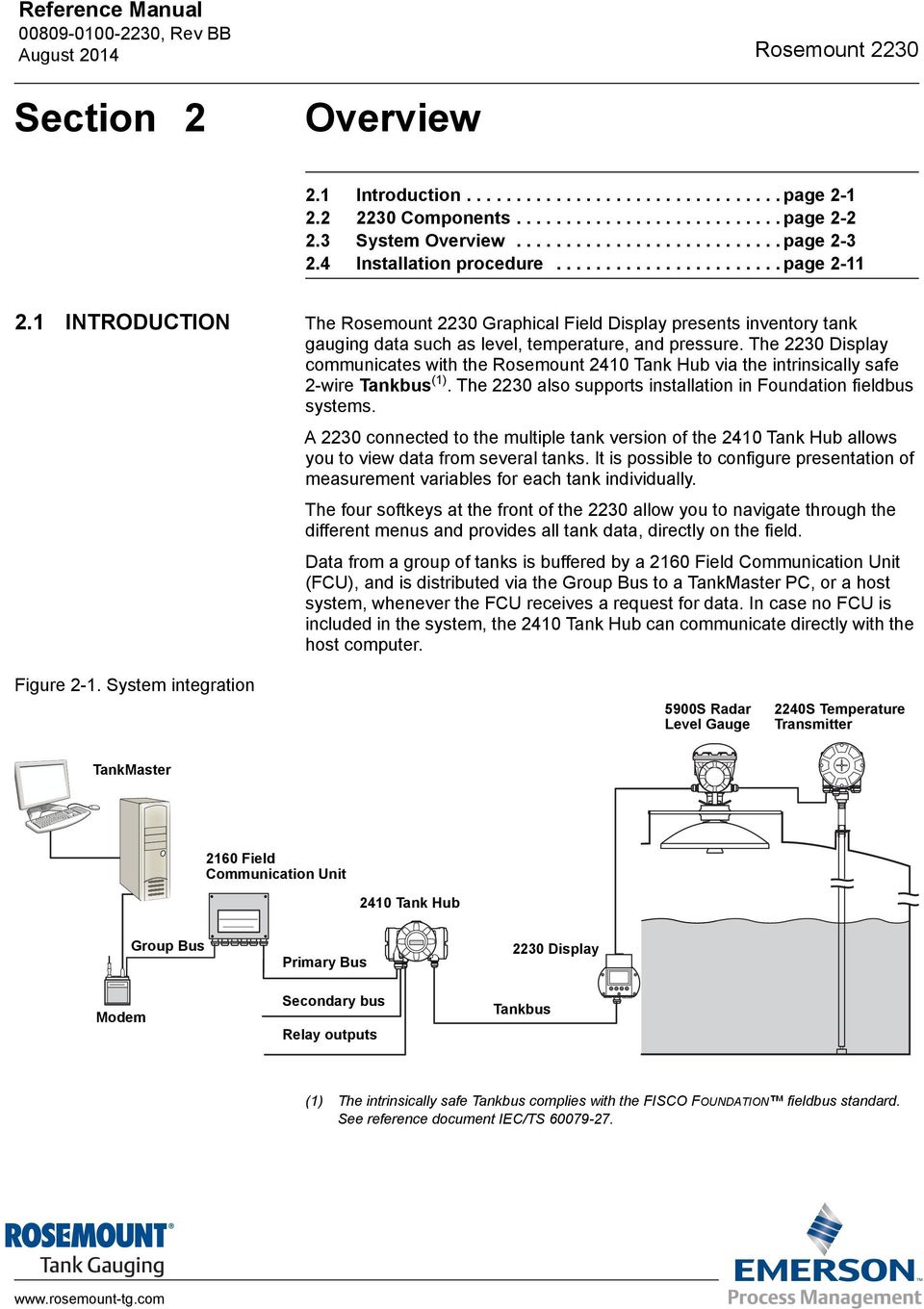
15 Reference Manual Rosemount 2230 Section 2 Overview 2.1 Introduction page Components page System Overview page Installation procedure page INTRODUCTION The Rosemount 2230 Graphical Field Display presents inventory tank gauging data such as level, temperature, and pressure. The 2230 Display communicates with the Rosemount 2410 Tank Hub via the intrinsically safe 2-wire Tankbus (1). The 2230 also supports installation in Foundation fieldbus systems. A 2230 connected to the multiple tank version of the 2410 Tank Hub allows you to view data from several tanks. It is possible to configure presentation of measurement variables for each tank individually. The four softkeys at the front of the 2230 allow you to navigate through the different menus and provides all tank data, directly on the field. Data from a group of tanks is buffered by a 2160 Field Communication Unit (FCU), and is distributed via the Group Bus to a TankMaster PC, or a host system, whenever the FCU receives a request for data. In case no FCU is included in the system, the 2410 Tank Hub can communicate directly with the host computer. Figure 2-1. System integration 5900S Radar Level Gauge 2240S Temperature Transmitter TankMaster 2160 Field Communication Unit 2410 Tank Hub Group Bus Primary Bus 2230 Display Modem Secondary bus Relay outputs Tankbus (1) The intrinsically safe Tankbus complies with the FISCO FOUNDATION fieldbus standard. See reference document IEC/TS
16 Rosemount 2230 Reference Manual COMPONENTS Figure 2-2. Rosemount 2230 components Weather protection lid (1) 2. Display 3. Menu 4. Soft keys 5. Activity indicator 6. Cover screw 7. Cable entries: two M20 x 1.5 and one M25 x 1.5 (optional: ½ - 14 NPT and ¾ - 14 NPT adapters) 8. Ground screw 9. Locking spring for weather protection (1) It is recommended that the lid is closed whenever possible to protect the LCD from exposure by ultraviolet radiation from the sun. 2-2 Section 2. Overview

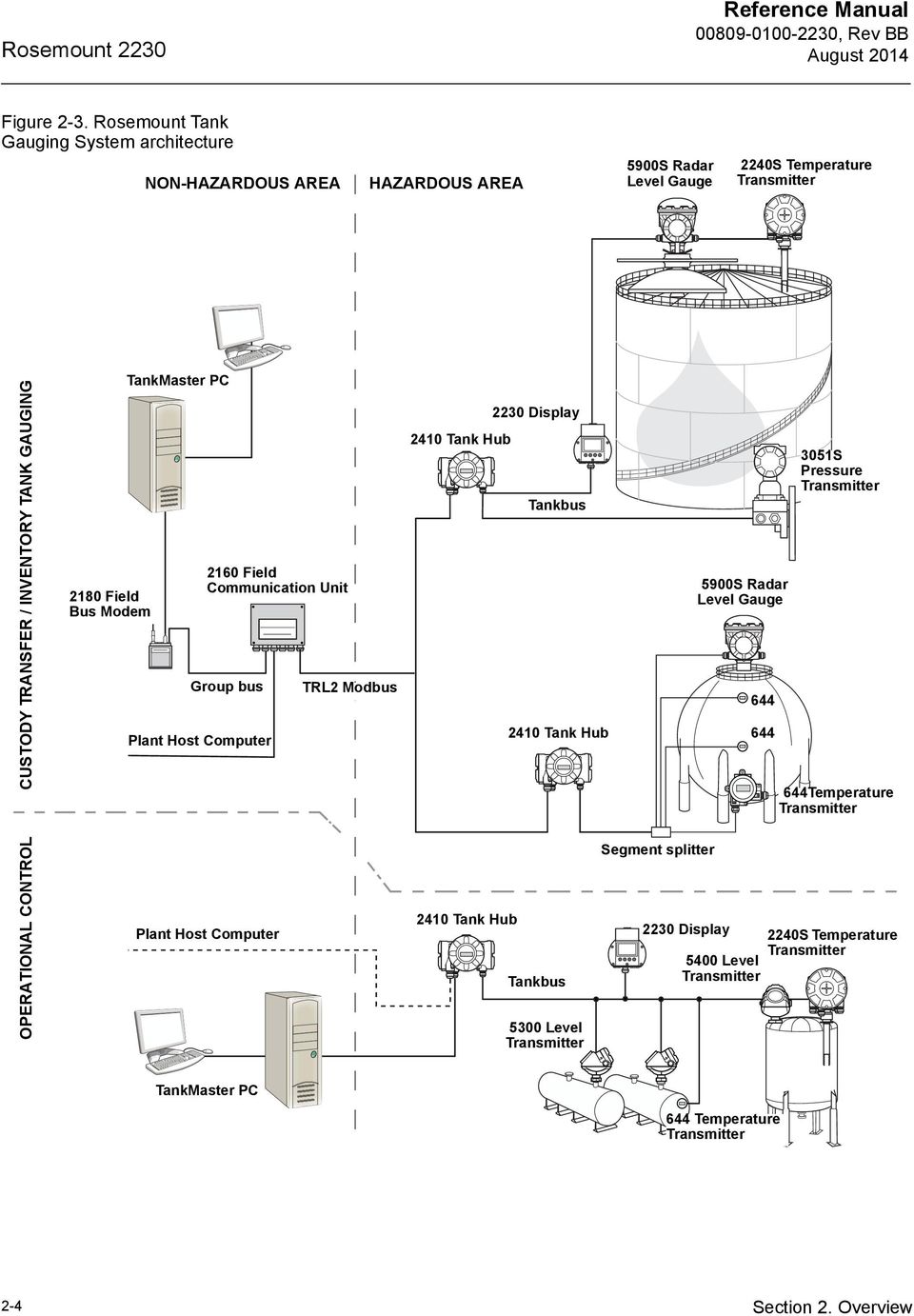
17 Reference Manual Rosemount SYSTEM OVERVIEW The Rosemount Tank Gauging state-of-the art inventory and custody transfer radar tank level gauging system is developed for a wide range of applications at refineries, tank farms and fuel depots, and fulfills the highest requirements on performance and safety. The field devices on the tank communicate over the intrinsically safe Tankbus. The Tankbus is based on a standardized fieldbus, the FISCO (1) FOUNDATION fieldbus, and allows integration of any device supporting that protocol. By utilizing a bus powered 2-wire intrinsically safe fieldbus the power consumption is minimized. The standardized fieldbus also enables integration of other vendors equipment on the tank. The Rosemount Tank Gauging product portfolio includes a wide range of components to build small or large customized tank gauging systems. The system includes various devices, such as radar level gauges, temperature transmitters, and pressure transmitters for complete inventory control. Such systems are easily expanded thanks to the modular design. The versatile Rosemount Tank Gauging system is compatible with, and can emulate, all major tank gauging systems. Moreover, the well-proven emulation capability enables step-by-step modernization of a tank farm, from level gauges to control room solutions. It is possible to replace old mechanical or servo gauges with modern Rosemount Tank Gauging gauges, without replacing the control system or field cabling. It is further possible to replace old HMI/SCADA-systems and field communication devices without replacing the old gauges. There is a distributed intelligence in the various system units which continuously collect and process measurement data and status information. When a request for information is received an immediate response is sent with updated information. The flexible Rosemount Tank Gauging system supports several combinations to achieve redundancy, from control room to the different field devices. Redundant network configuration can be achieved at all levels by doubling each unit and using multiple control room work stations. (1) See documents IEC and IEC/TS Section 2. Overview 2-3

18 Rosemount 2230 Reference Manual Figure 2-3. Rosemount Tank Gauging System architecture NON-HAZARDOUS AREA HAZARDOUS AREA 5900S Radar Level Gauge 2240S Temperature Transmitter CUSTODY TRANSFER / INVENTORY TANK GAUGING 2180 Field Bus Modem TankMaster PC 2160 Field Communication Unit Group bus Plant Host Computer TRL2 Modbus 2230 Display 2410 Tank Hub Tankbus 2410 Tank Hub 5900S Radar Level Gauge S Pressure Transmitter 644Temperature Transmitter OPERATIONAL CONTROL Plant Host Computer 2410 Tank Hub Tankbus 5300 Level Transmitter Segment splitter 2230 Display 2240S Temperature Transmitter 5400 Level Transmitter TankMaster PC 644 Temperature Transmitter 2-4 Section 2. Overview
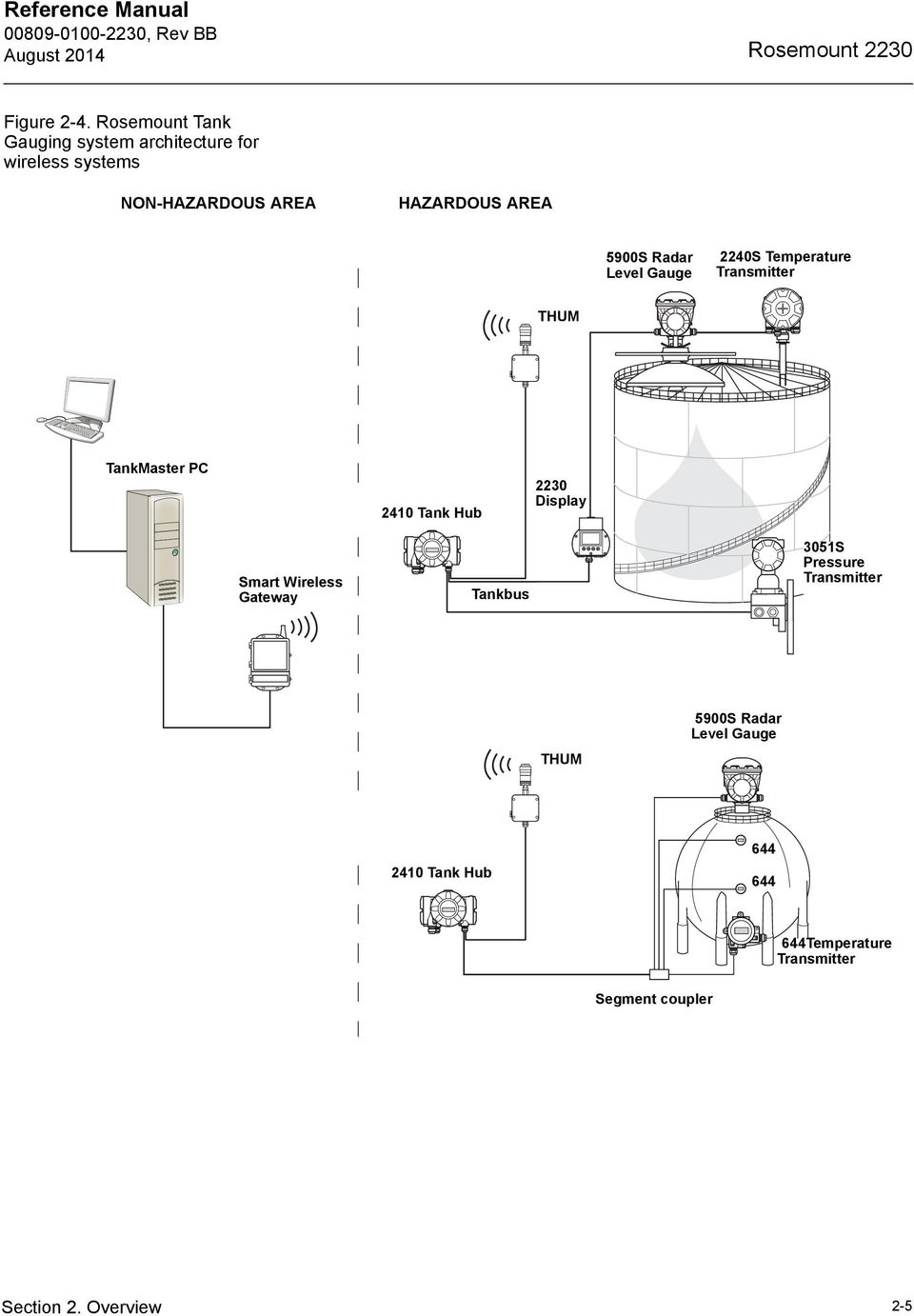
19 Reference Manual Rosemount 2230 Figure 2-4. Rosemount Tank Gauging system architecture for wireless systems NON-HAZARDOUS AREA HAZARDOUS AREA 5900S Radar Level Gauge 2240S Temperature Transmitter THUM TankMaster PC 2410 Tank Hub 2230 Display Smart Wireless Gateway Tankbus 3051S Pressure Transmitter THUM 5900S Radar Level Gauge 2410 Tank Hub Temperature Transmitter Segment coupler Section 2. Overview 2-5
20 Rosemount 2230 Reference Manual Figure 2-5. Rosemount Tank Gauging system architecture in a Foundation fieldbus network NON-HAZARDOUS AREA HAZARDOUS AREA 5900S Radar Level Gauge 2240S Temperature Transmitter 2230 Display CUSTODY TRANSFER INVENTORY TANK GAUGING FOUNDTION Fieldbus Power Supply 5900S Radar Level Gauge S Pressure Transmitter 644 Segment coupler OPERATIONAL CONTROL PC Segment coupler 644Temperature Transmitter 2-6 Section 2. Overview

21 Reference Manual Rosemount 2230 TankMaster HMI Software TankMaster is a powerful Windows-based Human Machine Interface (HMI) for complete tank inventory management. It provides configuration, service, set-up, inventory, and custody transfer functions for Rosemount Tank Gauging systems and other supported instruments. TankMaster is designed to be used in the Microsoft Windows XP and Vista environment providing easy access to measurement data from your Local Area Network. The TankMaster WinOpi program lets the operator monitor measured tank data. It includes alarm handling, batch reports, automatic report handling, historical data sampling as well as inventory calculations such as Volume, Observed Density and other parameters. A plant host computer can be connected for further processing of data. The TankMaster WinSetup program is a graphical user interface for installation, configuration and service of the different devices in the Rosemount Tank Gauging system. Rosemount 2160 Field Communication Unit The 2160 Field Communication Unit (FCU) is a data concentrator that continuously polls and stores data from field devices such as radar level gauges and temperature transmitters in a buffer memory. Whenever a request for data is received, the FCU can immediately send data from a group of tanks from the updated buffer memory. Rosemount 2410 Tank Hub The Rosemount 2410 Tank Hub acts as a power supply to the connected field devices in the hazardous area using the intrinsically safe Tankbus. The 2410 collects measurement data and status information from field devices on a tank. It has two external buses for communication with various host systems. There are two versions of the 2410 for single tank or multiple tanks operation. The 2410 multiple tanks version supports up to 10 tanks and 16 devices. With the Rosemount 5300 and 5400 level transmitters the 2410 supports up to 5 tanks. The 2410 is equipped with two relays which support configuration of up to 10 virtual relay functions allowing you to specify several source signals for each relay. The 2410 supports Intrinsically Safe (IS) and Non-Intrinsically Safe (Non-IS) analog 4-20 ma inputs/outputs. By connecting a Smart Wireless THUM Adapter to the IS HART 4-20 ma output, the 2410 is capable of wireless communication with a Smart Wireless Gateway in a WirelessHART network. Rosemount 5900S Radar Level Gauge The Rosemount 5900S Radar Level Gauge is an intelligent instrument for measuring the product level inside a tank. Different antennas can be used in order to meet the requirements of different applications. The 5900S can measure the level of almost any product, including bitumen, crude oil, refined products, aggressive chemicals, LPG and LNG. Section 2. Overview 2-7
22 Rosemount 2230 Reference Manual The Rosemount 5900S sends microwaves towards the surface of the product in the tank. The level is calculated based on the echo from the surface. No part of the 5900S is in actual contact with the product in the tank, and the antenna is the only part of the gauge that is exposed to the tank atmosphere. The 2-in-1 version of the 5900S Radar Level Gauge has two radar modules in the same transmitter housing allowing two independent level measurements using one antenna. Rosemount 5300 Guided Wave Radar The Rosemount 5300 is a premium 2-wire guided wave radar for level measurements on liquids, to be used in a wide range of medium accuracy applications under various tank conditions. Rosemount 5300 includes the 5301 for liquid level measurements and the 5302 for liquid level and interface measurements. Rosemount 5400 Radar Level Transmitter The Rosemount 5400 is a reliable 2-wire non-contact radar level transmitter for liquids, to be used in a wide range of medium accuracy applications under various tank conditions. Rosemount 2240S Multi-Input Temperature Transmitter The Rosemount 2240S Multi-input Temperature Transmitter can connect up to 16 temperature spot sensors and an integrated water level sensor. Rosemount 2230 Graphical Field Display The Rosemount 2230 Graphical Field Display presents inventory tank gauging data such as level, temperature, and pressure. The four softkeys allow you to navigate through the different menus to provide all tank data, directly in the field. The Rosemount 2230 supports up to 10 tanks. Up to three displays can be configured by using the TankMaster WinSetup configuration software. Rosemount 644 Temperature Transmitter The Rosemount 644 is used with single spot temperature sensors. Rosemount 3051S Pressure Transmitter The 3051S series consists of transmitters and flanges suitable for all kinds of applications, including crude oil tanks, pressurized tanks and tanks with / without floating roofs. By using a 3051S Pressure Transmitter near the bottom of the tank as a complement to a 5900S Radar Level Gauge, the density of the product can be calculated and presented. One or more pressure transmitters with different scalings can be used on the same tank to measure vapor and liquid pressure Rosemount 2180 Field Bus Modem The Rosemount 2180 field bus modem (FBM) is used for connecting a TankMaster PC to the TRL2 communication bus. The 2180 is connected to the PC using either the RS232 or the USB interface. 2-8 Section 2. Overview
23 Reference Manual Rosemount 2230 Rosemount Smart Wireless Gateway and Rosemount Smart Wireless THUM Adapter A THUM Adapter allows wireless communication between a 2410 Tank Hub and a Smart Wireless Gateway. The gateway is the network manager that provides an interface between field devices and the TankMaster inventory software or host / DCS systems. See the Raptor System Data Sheet (Document no en) for more information on the various devices and options. Section 2. Overview 2-9
24 Rosemount 2230 Reference Manual System Start-up The standard start-up procedure of a Rosemount Tank Gauging system that includes devices such as the 2160 Field Communication Unit, 2410 Tank Hub, 5900S Radar Level Gauge, and the 2240S Multi-input Temperature Transmitter can be summarized as follows: 1. Install the devices on the appropriate locations. 2. Assign Modbus addresses (1) for the Rosemount 2410 Tank Hub, for level gauges such as the 5900S Radar Level Gauge, and for auxiliary tank devices (ATD) such as the 2240S Multi-input Temperature Transmitter. The Modbus addresses will be stored in the built-in databases of the Rosemount 2410 Tank Hub and the Rosemount 2160 Field Communication Unit. 3. Verify that the total current consumption of devices connected to the Tankbus does not exceed 250 ma (2). In a Smart Wireless System the maximum current is 200 ma. 4. Wire the devices. Connect field devices to the Tankbus. Note! Devices must be configured in the tank database (1)(2) of the Rosemount 2410 Tank Hub in order to be able to communicate on the Tankbus. Connect the Rosemount 2410 Tank Hub to the Rosemount 2160 Field Communication Unit. Connect the Rosemount 2160 Field Communication Unit to the control room PC with TankMaster software. The 2160 may be connected via a Rosemount 2180 Field Bus Modem, or directly via RS 232 or RS Install the TankMaster software in the control room PC. 6. Configure the devices by using the TankMaster WinSetup configuration tool as described in the Rosemount Raptor System Configuration Manual (Document no EN). FOUNDATION Fieldbus To start up Rosemount Tank Gauging devices in a FOUNDATION fieldbus system: 1. Prepare the start-up by recording information that will be needed for configuration of various field devices as described in the Rosemount Raptor System Configuration manual. This may for example include tank geometry, antenna type, number of temperature elements and other configuration parameters. 2. Connect the field devices, such as the Rosemount 5900S Radar Level Gauge and the Rosemount 2240S Multi-input Temperature Transmitter, to the FOUNDATION fieldbus network. 3. Configure the field devices by using the AMS Device Manager. See the Reference Manual for the respective field device and the Rosemount Raptor System Configuration manual (Document No ) for more information on how to configure various Raptor devices. See section Technical Documentation on page 1-4 for a list of available documentation. (1) See the Rosemount Raptor System Configuration Manual (Document no ) for more information (2) See the Rosemount 2410 Tank Hub Reference Manual, Document No for more information 2-10 Section 2. Overview
25 Reference Manual Rosemount INSTALLATION PROCEDURE Follow these steps for proper installation of the Rosemount 2230 Graphical Field Display: 1. Review installation considerations ( Installation Considerations on page 3-2) 2. Mount the 2230 in a suitable location ( Mounting the Graphical Display on page 3-3) 3. Wire the 2230 ( Electrical Installation on page 3-6) 4. Power up the Configure the 2230 (Section 4: Configuration and Operation) Section 2. Overview 2-11
26 Rosemount 2230 Reference Manual 2-12 Section 2. Overview
27 Reference Manual Rosemount 2230 Section 3 Installation 3.1 Safety Messages page Mechanical Installation page Electrical Installation page LED signals and Reset Button page Switches page Ambient Temperature page SAFETY MESSAGES Procedures and instructions in this section may require special precautions to ensure the safety of the personnel performing the operations. Information that raises potential safety issues is indicated by a warning symbol ( ). Please refer to the following safety messages before performing an operation preceded by this symbol. Failure to follow safe installation and servicing guidelines could result in death or serious injury: Make sure only qualified personnel perform the installation. Use the equipment only as specified in this manual. Failure to do so may impair the protection provided by the equipment. Do not perform any service other than those contained in this manual unless you are qualified. Substitution of components may impair Intrinsic Safety. To prevent ignition of flammable or combustible atmospheres, disconnect power before servicing. Explosions could result in death or serious injury: Verify that the operating environment of the display is consistent with the appropriate hazardous locations certifications. Before connecting a hand held communicator in an explosive atmosphere, make sure the instruments in the loop are installed in accordance with intrinsically safe or non-incendive field wiring practices. Do not remove the device cover in explosive atmospheres when the circuit is alive. High voltage that may be present on leads could cause electrical shock: Avoid contact with leads and terminals. Make sure the main power to the Tank Hub is off and the lines to any other external power source are disconnected or not powered while wiring the device.
28 Rosemount 2230 Reference Manual 3.2 MECHANICAL INSTALLATION Installation Considerations The Rosemount 2230 Graphical Field Display can be installed either on the tank roof or at the foot of the tank for a flexible and convenient read-out of tank data. The 2230 is designed for mounting on a plate, on a wall, or on a pipe. The display is attached to the plate with four M4 screws. It is important to provide space for opening the weather protection lid which prevents degradation of the LCD display due to sunlight exposure. Consider the following when finding an appropriate location for the Rosemount 2230 Graphical Field Display: Mount the 2230 in a location where it is protected from excessive sun light. This will reduce exposure to ultra violet (UV) radiation and extend the life-time of the LCD. In case the 2230 can not be protected from sun light and UV radiation, it is recommended that the weather protection lid (see 2230 Components on page 2-2) is closed whenever the 2230 is not used. An optional weather protection is available as an alternative method to protect the When mounting the 2230 display ensure that sufficient space is provided for opening the lid, see Figure 3-1. Figure 3-1. Space required for opening the lid Weather protection (optional) 95 mm (3.7 in.) 3-2 Section 3. Installation
29 Reference Manual Rosemount Mounting the Graphical Display The Rosemount 2230 Graphical Field Display is designed for mounting on a plate, wall, or pipe. Mounting on a Plate The 2230 display can be mounted on a plate by attaching four M4 screws to the back of the display. To mount the 2230: 1. Drill four holes in the plate according to the hole pattern on the back of the 2230 display as illustrated in Figure Mount the 2230 on the plate using four M4 screws. Note that the M4 screws that are shipped with the 2230 display can be used as long as the plate thickness does not exceed 5 mm (0.2 in.). Figure 3-2. Mounting hole pattern 60 mm (2.4 in.) 68 mm (2.7 in.) Section 3. Installation 3-3
30 Rosemount 2230 Reference Manual Wall Mounting with Bracket The Rosemount 2230 Graphical Field Display can be mounted on a wall by using the optional mounting kit supplied by Rosemount Tank Gauging. 70 mm Ø 9 mm 1. Mount the bracket on the wall by using four M8 screws and flat washers. Note! Countersunk screws are not suitable. 94 mm 70 mm 94 mm Screw 2. Attach the mounting plate to the back of the 2230 housing. 3. Attach the 2230 display to the bracket on the wall and tighten the locking screw. Bracket Mounting plate 3-4 Section 3. Installation
31 Reference Manual Rosemount 2230 Pipe Mounting The 2230 can be mounted on pipes ranging from a diameter of 33 to 60 mm by using an optional mounting kit supplied by Rosemount Tank Gauging. Bracket 4 nuts and washers 1. Attach the bracket to the pipe. 2. Ensure that the 2230 is placed in a direction so that the display is clearly visible and wiring can be properly connected. 3. Tighten the nuts. Use moderate torque to ensure that the bracket does not break. 4. Attach the mounting plate to the back of the 2230 housing. 5. Attach the 2230 to the bracket by sliding it from the top downwards. Bracket Mounting plate Screw 6. Secure the 2230 to the bracket by tightening the locking screw. Section 3. Installation 3-5
32 Rosemount 2230 Reference Manual 3.3 ELECTRICAL INSTALLATION Cable/Conduit Entries The electronics housing has three entries, two M and one M (Optional: adapters for two ½ - 14 NPT and one ¾- NPT). Minifast and eurofast adapters are also available. The connections are made in accordance with local or plant electrical codes. Make sure that unused ports are properly sealed to prevent moisture or other contamination from entering the electronics housing. NOTE! Use a enclosed metal plug to seal the unused entry/entries. The plastic plugs mounted at delivery are not sufficient as seal! Grounding The housing should always be grounded in accordance with national and local electrical codes. Failure to do so may impair the protection provided by the equipment. The most effective grounding method is direct connection to earth ground with minimal impedance. There is an external grounding screw located at the bottom of the housing and an internal grounding screw located inside the housing, see Figure 3-3. The internal ground screw is identified by a ground symbol:. Figure 3-3. Grounding screws Internal ground External ground Cable diameter minimum 4 mm 2 NOTE! When grounding the display via threaded conduit, make sure the connection provides sufficient low impedance. 3-6 Section 3. Installation
33 Reference Manual Rosemount 2230 Grounding - FOUNDATION Fieldbus Signal wiring of the fieldbus segment must not be grounded. Grounding one of the signal wires will shut down the entire fieldbus segment. Shield Wire Connection To protect the fieldbus segment from noise, grounding techniques for shield wire usually require a single grounding point for shield wire to avoid creating a ground loop. The ground point is typically at the power supply (Rosemount 2410 Tank Hub). The Rosemount Tank Gauging devices are designed for daisy-chain connection of shield wiring in order to enable a continuous shield throughout the Tankbus network. The shield wire terminal in the 2230 is not connected to ground. It merely provides electrical continuity to daisy-chained Tankbus cables Cable Selection Use shielded twisted pair wiring for the Rosemount 2230 in order to comply with FISCO (1) requirements and EMC regulations. The cables must be approved for use in hazardous areas, where applicable. In the U.S. explosion-proof conduits may be used in the vicinity of the vessel. We recommend cable size 0.75 mm 2 (18 AWG) in order to facilitate wiring. Cables within the range 22 AWG to 16 AWG (0.5 t o1.5 mm²) can be used in order to minimize the voltage drop to the 2230 display. Tankbus cabling must be approved for use in minimum 85 C to match requirements for all devices in a Rosemount Tank Gauging system. The FISCO specification requires that cables for the Tankbus comply with the following parameters: Table 3-1. FISCO cable parameters Parameter Loop resistance Loop inductance Capacitance Maximum length of each spur cable Maximum length of each trunk cable Value 15 /km to 150 /km 0.4 mh/km to 1 mh/km 45 nf/km to 200 nf/km 60 m in apparatus class IIC and IIB 1000 m in apparatus class IIC and 1900 m in apparatus class IIB Hazardous Areas When the Rosemount 2230 is installed in a hazardous area, national and local regulations and specifications in applicable certificates must be observed, see Appendix B: Product Certifications Power Requirements The Rosemount 2230 is powered over the intrinsically safe Tankbus by the Rosemount 2410 Tank Hub. The 2410 feeds the intrinsically safe fieldbus segment by acting as a FISCO power supply on the Tankbus ( Vdc, polarity insensitive). The 2230 has a current consumption of 30 ma. See the Rosemount 2410 Reference Manual (Document no EN) for more information. When installed in a FOUNDATION fieldbus system, the Rosemount 2230 is powered by the FF segment with standard fieldbus power supplies. (1) See IEC and IEC/TS :2002. Section 3. Installation 3-7
34 Rosemount 2230 Reference Manual The Tankbus The Rosemount Tank Gauging system is easy to install and wire. Devices can be daisy-chained thus reducing the number of segment couplers. In a Rosemount Tank Gauging system devices communicate with a Rosemount 2410 Tank Hub via the intrinsically safe Tankbus. The Tankbus complies with the FISCO (1) FOUNDATION fieldbus standard. The Rosemount 2410 acts as power supply to the field devices on the Tankbus. Termination A terminator is needed at each end of a FOUNDATION Fieldbus network. Generally, one terminator is placed in the fieldbus power supply, and the other one in the last device in the fieldbus network. NOTE! Ensure that there are two terminators on the fieldbus. The Rosemount 2410 Tank Hub acts as power supply. Since the 2410 normally is the first device in the fieldbus segment, the built-in termination is enabled at factory. Other devices such as the Rosemount 5900S Radar Level Gauge, the Rosemount 2230 Graphical Field Display, and the Rosemount 2240S Multi-input Temperature Transmitter also have built-in terminators which can easily be enabled by inserting a jumper in the terminal block when necessary. Segment design When designing a FISCO fieldbus segment a few requirements need to be considered. Cabling has to comply with FISCO requirements as described in Cable Selection on page 3-7. You will also have to ensure that the total operating current of the connected field devices is within the output capability of the Rosemount 2410 Tank Hub. The 2410 is able to deliver 250 ma. In a Smart Wireless System the maximum current is 200 ma. Consequently, the number of field devices has to be considered so that the total current consumption is less than the available current. See section Power Budget in the Rosemount 2410 Reference Manual (Document No EN) for more information Another requirement is to ensure that all field devices have at least 9 V input voltage at their terminals. Therefore you will have to take into account the voltage drop in the fieldbus cables. Distances are normally quite short between the Rosemount 2410 Tank Hub and field devices on the tank. In many cases you can use existing cables as long as the FISCO requirements are fulfilled (see Cable Selection on page 3-7). See section The Tankbus in the Rosemount 2410 Reference Manual (Document no EN) for more information on segment design of a Rosemount Tank Gauging system. (1) FISCO=Fieldbus Intrinsically Safe Concept 3-8 Section 3. Installation
35 Reference Manual Rosemount Typical installations The example below in Figure 3-4 illustrates a system with terminators at both ends of the fieldbus segment as required in a FOUNDATION fieldbus system. In this case terminators are enabled in the Rosemount 2410 Tank Hub and a field device at the end of the network segment. Figure 3-4. Example of Tankbus connection for a single tank Tankbus length up to 1000 meter depending on number of devices and cable quality 2410 Tank Hub with intrinsically safe power supply, integrated power conditioner, and built-in terminator Built-in terminator Tankbus 2230 Display 5900S Radar Level Gauge 2240S Temperature Transmitter Built-in terminator enabled on the last device The maximum distance between the 2410 Tank Hub and the field devices on the tank depends on the number of devices connected to the Tankbus and the quality of cables. See chapter Electrical Installation in the Rosemount 2410 Reference Manual (Document no EN) for more information about cable selection, power budget, and the 2410 Tankbus. See also Typical Installations in the Rosemount 2410 Reference Manual (Document no EN) for more examples of how to install Rosemount Tank Gauging systems that include the 2410 Tank Hub. Section 3. Installation 3-9
36 Rosemount 2230 Reference Manual in FOUNDATION fieldbus systems The Rosemount 2230 Display supports the FOUNDATION fieldbus (FF) technology and lets you integrate a 2230 into an existing FF network. As long as the power supply meets certain requirements (see Figure 3-5 and Figure 3-6) the 2230 (1) will be able to operate as any other FF device. Figure 3-5. Example of an I.S. FOUNDATION fieldbus system 2230 Display 2240S Temperature Transmitter I.S. Power Supply FISCO/Entity compliant FM USA, FM Canada: AIS Class I, Division 1 ATEX and IECEx: Ex [ia], or Ex [ib] (FISCO) Ex [ia] (Entity) Trunk Segment Coupler 5900S Radar Level Gauge Ensure that the power supply is able to provide the total current needed for all the connected devices. See Power Requirements on page 3-7 for further information. Ensure that the 2230 and other devices connected to the FOUNDATION fieldbus (FF) system are compliant with the FISCO or Entity parameters of the power supply. Ensure that the short circuit protection of the Segment Coupler (2) matches the current consumption of the connected devices. Figure 3-6. Example of a Non-I.S. FOUNDATION fieldbus system SAFE AREA Non-I.S. Power Supply HAZARDOUS AREA Barrier 2230 Display 2240S Temperature Transmitter IS Trunk Segment Coupler FISCO/Entity compliant FM USA, FM Canada: AIS Class I, Division 1 ATEX and IECEx: Ex [ia], or Ex [ib] (FISCO) Ex [ia] (Entity) 5900S Radar Level Gauge (1) See Appendix B: Product Certifications for 2230 approval information (2) See the Rosemount 2410 Reference Manual (Document No EN) for more information on the Segment Coupler Section 3. Installation
37 Reference Manual Rosemount Wiring Use the following wiring procedure for the Rosemount 2230: 1. Unscrew and remove all screws at the front of the display. 2. Remove the cover carefully. Take care of the locking spring for the weather protection hatch, see 2230 Components on page 2-2. NOTE! Do not disconnect the cables between the display front and the circuit board. Ensure that the compartment is protected against water in case of rain. 3. Run the Tankbus cable through the gland. 4. Connect the Tankbus wires to the X2 and X3 terminals as illustrated in Figure 3-7 on page Ensure that the positive lead is connected to the terminal marked FB+ and the negative lead to the terminal marked FB-. 5. Connect the cable shield to the Shield Loop Through (X1) terminal. 6. If the 2230 display is the last device on the Tankbus, connect a jumper for the built-in termination. See The Tankbus on page 3-8 for more information on termination. 7. Replace the cover. Make sure that the sealing and the locking device for the weather protection hatch are placed in the correct positions. 8. Firmly tighten the screws on the front cover. NOTE! Ensure that o-rings and seats are in good condition prior to mounting the cover in order to maintain the specified level of ingress protection. The same requirements apply for cable inlets and outlets (or plugs). Cables must be properly attached to the cable glands. Section 3. Installation 3-11
38 Rosemount 2230 Reference Manual Figure cable connections Front cover Sealing X2: Tankbus (+) output X3: Tankbus (-) output Daisy-chain connection to other field devices (see page 3-13) Jumper for built-in termination Cable Shield X4: Tankbus terminator FB+ FB- Internal grounding X2: Tankbus FB+ input X3: Tankbus FB- input 3-12 Section 3. Installation
39 Reference Manual Rosemount 2230 Daisy-Chain Connection You may use the daisy-chain option in order to connect the Rosemount 2230 to other field devices on the Tankbus: 1. Unscrew and remove all six screws on the front of the Rosemount Remove the cover carefully. Take care of the locking device for the weather protection hatch. NOTE! Do not disconnect the cables between the display front and the circuit board. Figure 3-8. Daisy-chain wiring 2. Disconnect the termination jumper from the X3 terminal, see Figure 3-7 on page Run the new Tankbus cable into the 2230 compartment through a suitable gland. 4. Connect the outgoing Tankbus wires to the X2-out and X3-out terminals as shown in Figure 3-8. X2: out X1: Cable Shield X3: out 5. Connect the cable shield to the X1 terminal. 6. Replace the cover. Make sure the sealing and the locking device for the weather protection hatch are placed in the correct positions. 7. Firmly tighten the six screws on the front cover. Figure 3-9. Wiring diagram for Rosemount 2230 As illustrated in Figure 3-9 the Rosemount 2230 can be daisy-chained to other field devices via the Tankbus. Rosemount 2410 Rosemount 2230 Rosemount 5900S Rosemount 2240S Shield Wire connected at power supply Built-in terminator enabled on the last device Tankbus Section 3. Installation 3-13
40 Rosemount 2230 Reference Manual 3.4 LED SIGNALS AND RESET BUTTON The Rosemount 2230 has three LED signals that show communication and status. Figure LED Signals Reset button Status LED Tankbus Receive (yellow) Tankbus Transmit (green) Status LED Using different blinking sequences, the status LED indicates error codes. In normal operation the LED flashes every other second. When an error occurs, the LED flashes a sequence that corresponds to a code number followed by a five second pause. This sequence is continuously repeated (for more information see Device Error Signals on page 5-6). Communication LED:s Tankbus communication is indicated by a pair of LED:s, see Figure When you connect the Tankbus cables you can check the communication status with the LED:s. Reset Button You may use the Reset button to force a restart of the Rosemount 2230 display. Restarting the 2230 has the same effect as switching off and on the power supply. The Restart option will connect the Rosemount 2230 display to the Rosemount 2410 Tank Hub and perform start-up tests of software and hardware Section 3. Installation
41 Reference Manual Rosemount SWITCHES DIP Switches The Rosemount 2230 is equipped with four DIP switches as illustrated in Figure Figure DIP Switches The switches control the following settings: Table 3-2. Rosemount 2230 DIP Switches Number Name Description 1 Simulate Enables simulation for test of Field Diagnostics in open FF systems. 2 Write Protect Enables write protection of configuration data. 3 Spare Not used 4 Spare Not used NOTE! Manual configuration may override the switch setting. Simulate Switch The Simulate switch is used for simulation of Field Diagnostics conditions, useful when testing the alarm setup. Write Protect Switch The Write Protect switch can be used to protect the Rosemount 2230 from unintentional changes of the current configuration. See also Write Protection on page Section 3. Installation 3-15
42 Rosemount 2230 Reference Manual 3.6 AMBIENT TEMPERATURE The Rosemount 2230 is equipped with a temperature sensor for measuring ambient temperature. The temperature can be displayed on the field display and in the TankMaster software. The ambient temperature affects the readability and response time of the LCD. This is particularly notable in extremely cold weather. The 2230 automatically adjusts the LCD contrast based on the ambient temperature. The temperature sensor also controls the minimum toggle time used by the 2230 Display Section 3. Installation
43 Reference Manual Rosemount 2230 Section 4 Configuration and Operation 4.1 Safety Messages page Introduction page Menu Tree page The Main Menu page The Select View Menu page The Options Menu page The Service Menu page FOUNDATION Fieldbus Overview page Device Capabilities page General Block Information page Multiple Analog Output Blocks page Resource Block page Field Communicator Menu Tree page Configuration Using AMS Device Manager page Alert Setup page SAFETY MESSAGES Procedures and instructions in this section may require special precautions to ensure the safety of the personnel performing the operations. Information that raises potential safety issues is indicated by a warning symbol ( ). Please refer to the following safety messages before performing an operation preceded by this symbol. Failure to follow safe installation and servicing guidelines could result in death or serious injury: Make sure only qualified personnel perform the installation. Use the equipment only as specified in this manual. Failure to do so may impair the protection provided by the equipment. Do not perform any service other than those contained in this manual unless you are qualified.
44 Rosemount 2230 Reference Manual Explosions could result in death or serious injury: Verify that the operating environment of the display is consistent with the appropriate hazardous locations certifications. Before connecting a hand held communicator in an explosive atmosphere, make sure the instruments in the loop are installed in accordance with intrinsically safe or non-incendive field wiring practices. Do not remove the device cover in explosive atmospheres when the circuit is alive. 4-2 Section 4. Configuration and Operation
45 Reference Manual Rosemount INTRODUCTION This chapter provides information about configuration and operation of the Rosemount 2230 Graphical Field Display. For information on how to use TankMaster WinSetup to configure the 2230, see the Raptor System Configuration Manual (Document no en) The 2230 Graphical Field Display The Rosemount 2230 is a graphical display designed for viewing tank data in tough environments. It features adjustable LCD contrast, backlight, multi-language support, and communication failure indication. The Rosemount 2230 can be used in systems based on the Rosemount 2410 Tank Hub as well as in Foundation fieldbus networks. The 2230 automatically detects which kind of system it is connected to. The four softkeys allow you to navigate through the different menus and to select various functions for tank data viewing and service. Menu: opens the Main Menu with various options for configuration of the 2230 display. Pause: stops toggling the measurement variables until the Resume button is pressed. Down arrow : lets you scroll through the list of measurement variables and tanks. Status: lets you view the current status of the presented measurement variable. See also Status Information on page A symbol in the upper right-hand corner of the display indicates that the 2230 is operating and communicates on the Tankbus. Figure 4-1. The Rosemount 2230 display Weather protection lid Note! It is recommended that the lid is closed whenever possible to protect the LCD from exposure by ultraviolet radiation from the sun Display Activity indicator Softkey functions Softkeys The Rosemount 2230 is powered by the Tankbus (see Power Requirements on page 3-7). Section 4. Configuration and Operation 4-3
46 Rosemount 2230 Reference Manual Adjusting the display contrast The 2230 automatically adjusts display contrast to optimize for changes of ambient temperature. The contrast can be manually adjusted when further fine-tuning is desired. To increase the display contrast, press the two buttons on the right-hand side simultaneously. To decrease the contrast, press the two buttons on the left-hand side. It takes approximately 10 seconds to adjust from minimum to maximum contrast. The contrast can also be adjusted by using the Contrast service command: <Menu><Service><LCD Contrast> Configuration Tools Different tools are available for configuration of a Rosemount In Rosemount 2410 Tank Hub systems: Rosemount TankMaster Winsetup In FOUNDATION fieldbus systems: Rosemount 475 Field Communicator AMS Device Manager for FOUNDATION fieldbus systems FOUNDATION fieldbus hosts supporting DD4 TankMaster is an Emerson Process Management/Rosemount Tank Gauging inventory management software package for installation and configuration of tank gauging field devices. The WinSetup package provides you with powerful and easy-to-use tools for installation and configuration. See the Raptor System Configuration Manual (Document no EN) for more information on how to configure the 2230 Display by using TankMaster Winsetup. For DeltaV users, the DD can be found at For other hosts that use Device Descriptions (DD) and DD Methods for device configuration, the latest DD versions can be found on FOUNDATION S website at Section 4. Configuration and Operation
47 Reference Manual Rosemount Activity and Alarm Indication Figure 4-2. Simulated or manual value The Rosemount 2230 display shows a warning symbol for simulated or manual measurement values as illustrated in Figure 4-2 and Figure 4-3. Manual or simulated measurement values are indicated by an alarm symbol as shown in Figure 4-2. Alarm symbol Figure 4-3. Invalid value For invalid measurement data, the alarm symbol is displayed and no data appears in the measurement value field as illustrated in Figure 4-3. Invalid value Figure 4-4. Activity indicator The activity indicator spins continuously to indicate that the 2230 is operating normally. In case of a communication problem an alarm symbol is displayed instead. Activity indicator for normal operation Communication problems Section 4. Configuration and Operation 4-5
48 Rosemount 2230 Reference Manual Start-Up Procedure When the Rosemount 2230 display is powered on, a test of the LCD screen is performed. Figure 4-5. Test screen Test pattern After the LCD test is done the start-up screen will appear. Figure 4-6. Start-up screen Once the start-up procedure is finished the 2230 will return to the view that was used last time the 2230 was powered. Figure 4-7. View Mode 4-6 Section 4. Configuration and Operation
49 Reference Manual Rosemount MENU TREE The Rosemount 2230 lets you navigate in a menu structure as illustrated in Figure 4-8: Figure 4-8. Rosemount 2230 Menu Tree Section 4. Configuration and Operation 4-7
50 Rosemount 2230 Reference Manual 4.4 THE MAIN MENU In normal operation the Rosemount 2230 display is in View Mode and shows the current measurement values for the selected tanks. In case of an alarm, a graphical symbol appears on the screen. Figure 4-9. Rosemount 2230 Graphical Field Display in View Mode Press the Menu softkey to navigate to the Main Menu Figure The Main menu To navigate from View Mode to the Main Menu, press the Menu softkey on the left-hand side. The Main Menu includes the following options: Select View which lets you select the preferred view, see section The Select View Menu on page 4-9. Options which lets you select variables and tanks to display, as well as measurement units, toggle time, and language. See section The Options Menu on page Service which includes the functions Status, Custody Transfer View, LCD Test, Restart, and Factory Settings. It also includes the About option which shows the current software version. See section The Service Menu on page Section 4. Configuration and Operation
51 Reference Manual Rosemount THE SELECT VIEW MENU In the Select View menu, you can specify the number of measurement values to be displayed in View Mode. To configure the Select View menu: 1. In View Mode, press the <Menu> button to navigate to the Main menu. Figure The Main menu 2. Highlight the Select View menu item using the and softkeys. 3. Press the softkey. Figure The Select View menu 4. In the Select View Menu, use the up and down arrow softkeys to navigate to the desired option. 5. Press the <OK> softkey to select the desired option. The Rosemount 2230 returns to View Mode. For example, using the Two Values option will present a view as illustrated in Figure 4-13: Figure Example of display configuration with Two values Section 4. Configuration and Operation 4-9
52 Rosemount 2230 Reference Manual 4.6 THE OPTIONS MENU Figure The Main menu In the Options Menu, the following items are available for a Rosemount 2230 in a Rosemount 2410 Tank Hub system: Variables (1) Tanks (1) Units for Display Toggle Time Language To choose an item in the Options menu: 1. In View Mode, press the <Menu> button to open the Main menu: Figure The Options menu 2. Highlight the Options menu item by using the and softkeys. 3. Press the softkey. Figure The Options menu in a Foundation fieldbus system In Foundation fieldbus systems some options are not available. This is indicated as illustrated below: 4. In the Options Menu, use the up and down arrow softkeys to navigate to the desired menu item. 5. Press the softkey to continue to the selected menu. (1) Not available in Foundation fieldbus systems 4-10 Section 4. Configuration and Operation
53 Reference Manual Rosemount Variables In the Select Variables menu (1), you can choose which variables to present in View Mode. The following options are available: Tank Pos 1-10 (2) lets you configure a common set of variables to be presented for all tanks Tk Pos 1, 2, 3... lets you configure variables individually for each tank For a list of available variables see Table 4-1 on page Figure The Select Variables menu Select Variables Menu The Select Variables menu allows you to select variables to be displayed in View Mode. Option Tank Pos 1-10 can be used to specify a common set of variables to be used for all tanks connected to the same 2410 Tank Hub. In addition to this you can configure tanks individually by specifying a unique set of variables for each tank. Note that the individual configuration will be added to the configuration that is common for all tanks. For a list of selectable variables, see Table 4-1 on page To select variables: 1. In View Mode, press <Menu> <Options> <Variables>. Figure The Select Variables Custom option 2. Use the up and down arrow softkeys to navigate to the desired Tank Position item. 3. Press the <OK> softkey to continue to the Selected Variables list. 4. In the Select Variables list, choose the variables you wish to show in View Mode. 5. When finished, press <OK> to return to View Mode. (1) Not available in Foundation fieldbus systems (2) Tank Position refers to the position in the tank database for the 2410 Tank Hub. Section 4. Configuration and Operation 4-11
54 Rosemount 2230 Reference Manual Table 4-1. Selectable variables Variable Description Level Product level in the displayed tank. Ullage Ullage is the distance from the Tank Reference Point to the product surface. Level Rate How the product in the tank moves when emptying or filling the tank. Signal Strength The signal strength of the radar level gauge. Free Water Level The level of water in the bottom of the tank. Available when a water level sensor is connected to the tank. Vapor Pressure Measured vapor pressure. Liquid Pressure Measured liquid pressure. Air Pressure Measured air pressure in the tank. Ambient Temperature Air temperature outside the tank. Vapor Temperature Temperature of vapor inside the tank. Liquid Average Temperature Averagte temperature of the product in the tank. Tank Temperature Average temperature of the product and vapor in the tank. Temperature 1 To 16 Individual temperature of each selected temperature spot element. Observed Density Calculated density based on the product level and pressure. Reference Density Reference density as specified with the configuration tool. Flow rate Measured flow rate. Tot Obs Volume Total observed product volume in the tank. User defined 1 t o5 Custom measurement variable. Middle Pressure Measured pressure from transmitter P2. Tank Height Tank Reference Height Level Difference between two product levels. Bargraph Level Bargraph Ullage Product level presented in a bar graph. Ullage value presented in a bar graph. Select Variables in TankMaster WinSetup Variables to present in the View Mode can also be configured by using the TankMaster WinSetup configuration program. For more information see the Raptor System Configuration Manual (Document no en) Section 4. Configuration and Operation
55 Reference Manual Rosemount Select Tanks In the Select Tanks menu (1), you can specify which tanks to show in View Mode. The following items are available: Default which lets you view all tanks that are configured in the Tank Database of the 2410 Tank Hub All which displays all available tanks in View Mode Tank Pos 1-10 which lets you choose the tanks to present in View Mode Figure The Select Tanks menu Tank Position 1-10 The Tank Pos 1-10 menu lets you select which tanks to present in View Mode. Up to ten tanks can be displayed. Note that the tanks need to be configured in the tank database of the Rosemount 2410 Tank Hub (2). To select tanks: 1. In View Mode, press <Menu> <Options> <Select Tanks>: Figure The Select Tanks Custom option 2. Use the up and down arrow softkeys to navigate to the Tank Pos 1-10 menu item. 3. Press the <OK> softkey to continue to the list of tanks: 4. Use the up and down arrow softkeys to navigate to the desired tank. 5. Press the <On/Off> softkey to select the tank. 6. When finished, press the <OK> softkey to return to View Mode. (1) Not available in Foundation fieldbus systems (2) See the Rosemount 2410 Tank Hub Reference Manual (Document no en) Section 4. Configuration and Operation 4-13
56 Rosemount 2230 Reference Manual Units for Display In the Units for Display menu, you can see which measurement units that are used for the displayed variables. The available measurement units are listed in Table 4-2 on page To change measurement unit: 1. In View Mode, press <Menu> <Options> <Units for Display>: Figure The Units for Display menu Figure Select unit for Length 2. Use the up and down arrow softkeys to navigate to the desired variable menu item. In the example above, the Length variable was chosen. 3. Press the softkey to continue to the list of options for the selected variable. 4. Use the up and down arrow softkeys to navigate to the desired measurement unit. 5. Press the <OK> softkey to select the unit and return to the Units for Display list. See Table 4-2 for a list of available measurement units Section 4. Configuration and Operation
57 Reference Manual Rosemount 2230 Table 4-2. Available measurement units for the Rosemount 2230 Variable Auto Length Level rate Flow rate Volume Temperature Pressure Density Voltage Available Measurement Units When Auto is selected the unit that will appear on the display is controlled by the Multiple Analog Output Block configuration. See Configuration Using AMS Device Manager on page The following units are available for Level and Ullage: Millimeter Meter Feet Imperial 1/16 The following units are available for Level rate: Meter/second Meter/hour Feet/second Feet/hour The following units are available for Flow rate: Cubic meter/hour Barrel/hour US gallon/hour UK gallon/hour Liter/minute The following units are available for Volume: Cubic meter Barrel US gallon UK gallon Liter The following units are available for Temperature: Degrees Celsius Degrees Fahrenheit Kelvin The following units are available for Pressure: Bar Pascal Kilo pascal Atmosphere PSI Bar Absolute Bar Gauge PSI Absolute PSI Gauge The following units are available for Density: Kilogram/Cubic m Kilogram/Liter Degrees API Millivolt Section 4. Configuration and Operation 4-15
58 Rosemount 2230 Reference Manual Toggle Time The Toggle Time parameter specifies the time period that each value, or set of values, is presented on the display. To set the Toggle Time: 1. From View Mode, press <Menu> <Options> <Toggle Time>: Figure Set Toggle time 2. Use the up and down arrow softkeys to increase or decrease the Toggle Time. 3. Press the <OK>softkey to select the desired value and return to View Mode Language To set the display Language: 1. Use the up and down arrow softkeys and navigate to the preferred language option: Figure Set display language 2. Press the <OK> softkey to select the language and return to View Mode Section 4. Configuration and Operation
59 Reference Manual Rosemount THE SERVICE MENU In the Service Menu, the following items are available: Status Custody Transfer View (1) LCD Test LCD Contrast Restart Factory Settings (1) About To choose a Service menu item: 1. In View Mode, press the <Menu> button to open the Main menu: Figure Service option in the Main menu 2. Use the and softkeys to navigate to the Service option. 3. Press the softkey. Figure The Service menu 4. Use the up and down arrow softkeys to navigate to the desired menu item. 5. Press the softkey to continue to the selected menu. (1) Not available in Foundation fieldbus systems Section 4. Configuration and Operation 4-17
60 Rosemount 2230 Reference Manual Status The Status screen shows the current status of the Various error messages and warnings can be displayed in case of software or hardware malfunctions. See Troubleshooting on page 5-7 for more information. To view the current status information: 1. In the View Mode, press <Menu> <Service> <Status>: Figure Rosemount 2230 status 2. Press <Esc> to return to the Service menu. See Status Information on page 5-2 for information on various status messages Custody Transfer View The Custody Transfer view presents Level and Liquid Temperature for each tank. To open the Custody Transfer view: 1. In View Mode, press <Menu> <Service> <Custody Transfer>: Figure Custody Transfer view 2. Press the <Esc> softkey to return to View Mode. 3. Press the <Pause> softkey to pause the display toggling. 4. Press the down arrow softkey to display the next tank Section 4. Configuration and Operation
61 Reference Manual Rosemount LCD Test In the LCD test two checkered patterns will be displayed testing the whole display area. To open the LCD Test view: 1. In View Mode, press <Menu><Service><LCD Test>: Figure LCD test 2. After the test is completed, the display will return to normal View Mode LCD Contrast To adjust the LCD contrast: 1. In View Mode, press <Menu><Service><LCD Contrast>: Figure The LCD Contrast option 2. Use the up and down arrow softkeys to increase or decrease the LCD contrast. 3. Press the <OK>softkey to select the desired value and return to View Mode Section 4. Configuration and Operation 4-19
62 Rosemount 2230 Reference Manual Restart To restart the 2230: 1. In View Mode, press <Menu><Service>: Figure The Restart option 2. Choose the Restart option and press the softkey. The Restart option will perform start-up tests of software and hardware. In atankbus system it will connect the Rosemount 2230 Graphical Field Display to the Rosemount 2410 Tank Hub Factory Settings To restore the 2230 to factory settings: 1. In View Mode, press <Menu><Service>: Figure The Factory Settings option Figure Confirm Factory Settings 2. Choose the Factory Settings option and press the softkey. 3. Press the <OK> softkey to restore the 2230 to factory settings, or press the <Esc> softkey to cancel. 4. When the Rosemount 2230 is restored to factory settings, all user configuration will be lost Section 4. Configuration and Operation
63 Reference Manual Rosemount About To view the About information: 1. In View Mode, press <Menu><Service>. 2. Choose the About option and press the softkey. Figure Software revisions for Rosemount The About option will present the current software version and the 2230 serial number. 4. Press the <Esc> softkey to return to the Service menu. Section 4. Configuration and Operation 4-21
64 Rosemount 2230 Reference Manual 4.8 FOUNDATION FIELDBUS OVERVIEW This section provides a brief overview of FOUNDATION Fieldbus block operation with the Rosemount 2230 Graphical Field Display. For detailed information about FOUNDATION Fieldbus technology and function blocks used in the Rosemount 2230 Series, refer to Appendix C: Foundation fieldbus Block Information and the FOUNDATION Fieldbus Block Manual (Document No ) Block Operation Function blocks within the fieldbus device perform the various functions required for process control, such as analog input (AI) functions, as well as proportional-integral derivative (PID) functions. The standard function blocks provide a common structure for defining function block inputs, outputs, control parameters, events, alarms, and modes, and combining them into a process that can be implemented within a single device or over the fieldbus network. This simplifies the identification of characteristics that are common to function blocks. In addition to function blocks, fieldbus devices contain two other block types to support the function blocks; the Resource block and the Transducer block. Resource blocks contain the hardware specific characteristics associated with a device; they have no input or output parameters. The algorithm within a resource block monitors and controls the general operation of the physical device hardware. There is only one resource block defined for a device. Transducer blocks connect function blocks to local input/output functions. They read sensor hardware and write to effector (actuator) hardware. Resource Block The Resource block contains diagnostics, hardware, electronics, and mode handling information. There are no linkable inputs or outputs to the Resource Block. Main Transducer Block (TB1100) The Main Transducer Block contains parameters for configuration of the Rosemount 2230 Graphical Field Display. It contains device information including diagnostics and the ability to configure, set to factory defaults and restart the 2230 Display. Register Transducer Block (TB1200) The Register Transducer Block allows a service engineer to access all database registers in the device. Multiple Analog Output Block A Multiple Analog Output (MAO) Block accepts output values from field devices and assigns them to specified I/O channels in order to make them available for the display. Display Transducer Block (TB1300) The Display Transducer Block includes parameters for setup of the Rosemount 2230 Graphical Field Display for use in a Fieldbus system. It handles mapping of the MAO block inputs to the various field device outputs Section 4. Configuration and Operation
65 Reference Manual Rosemount DEVICE CAPABILITIES Link Active Scheduler Device Addressing The Rosemount 2230 can be designated to act as the backup Link Active Scheduler (LAS) in the event that the LAS is disconnected from the segment. As the backup LAS, the 2230 will take over the management of communications until the host is restored. The host system may provide a configuration tool specifically designed to designate a particular device as a backup LAS. Otherwise, this can be configured manually. Foundation fieldbus devices use addresses divided into four sub ranges as shown in Table 4-3. Table 4-3. Address Ranges for FOUNDATION fieldbus devices Address range (decimal) Address range (hexadecimal) Allocation 0 through through 0F Reserved. 16 through through F7 Permanent devices. Address range is subdivided into addresses that are LAS capable (lower end) and not LAS capable (upper end). 248 through 251 F8 through FB New or decommissioned devices 252 through 255 FC through FF Temporary ( visitor ) devices. Example: 375/475 communicator. The Link Active Scheduler device (LAS device) probes a list of addresses to allow devices to come online during normal operation. The LAS can "skip" probing certain addresses in the range to speed up how long it takes to detect new devices on the bus Capabilities Virtual Communication Relationship (VCRs) Table 4-4. VCR s Maximum number of VCR s 38 Number of client and server VCR s 20 Number of publisher VCR s 20 Number of subscribers VCR s 32 Number of source VCR s 2 Number of sink VCR s 0 Section 4. Configuration and Operation 4-23
66 Rosemount 2230 Reference Manual 4.10 GENERAL BLOCK INFORMATION Modes Changing Modes To change the operating mode, set the MODE_BLK.TARGET to the desired mode. After a short delay, the parameter MODE_BLOCK.ACTUAL should reflect the mode change if the block is operating properly. Permitted Modes It is possible to prevent unauthorized changes to the operating mode of a block. To do this, configure MODE_BLOCK.PERMITTED to allow only the desired operating modes. It is recommended to always select OOS as one of the permitted modes. Types of Modes For the procedures described in this manual, it will be helpful to understand the following modes: AUTO The functions performed by the block will execute. If the block has any outputs, these will continue to update. This is typically the normal operating mode. Out of Service (OOS) The functions performed by the block will not execute. If the block has any outputs, these will typically not update and the status of any values passed to downstream blocks will be BAD. To make some changes to the configuration of the block, change the mode of the block to OOS. When the changes are complete, change the mode back to AUTO. MAN In this mode, variables that are passed out of the block can be manually set for testing or override purposes. NOTE When an upstream block is set to OOS, this will impact the output status of all downstream blocks. The figure below describes the hierarchy of blocks: Resource Block Transducer Block Other function blocks 4-24 Section 4. Configuration and Operation
67 Reference Manual Rosemount Factory Configuration The following fixed configuration of function blocks is provided: Table 4-5. Available function blocks for the 2230 Function Block Index Default Tag Available Multiple Analog Output 1400 MAO_1400 Permanent Multiple Analog Output 1500 MAO_1500 Permanent Multiple Analog Output 1600 MAO_1600 Permanent Multiple Analog Output 1700 MAO_1700 Permanent 4.11 MULTIPLE ANALOG OUTPUT BLOCKS Configure the MAO Blocks To show input data from MAO blocks on the display, the 2230 needs to be configured by using FOUNDATION fieldbus parameters available in the Display Transducer Block (see Display Transducer Block on page C-10). The MAO Block is used for receiving measurement data from devices such as the Rosemount 5900S Radar Level Gauge. The Rosemount 2230 is supplied with four pre-configured MAO blocks according to Table 4-5 on page Each MAO block has eight inputs. Note that the CHANNEL parameter value has to be equal to 1 (auto) in order to provide data output from the MAO block. An example of a setup with a Rosemount 2230 receiving data from a Rosemount 5900S and a Rosemount 2240S is shown in Figure 4-35 on page Section 4. Configuration and Operation 4-25
68 Rosemount 2230 Reference Manual Application Example A 2230 Graphical Field Display configured for receiving level and temperature measurement data from devices such as the Rosemount 5900S Radar Level Gauge and the Rosemount 2240S Temperature Transmitter. Figure Example of a function block configuration for the Rosemount GRAPHICAL FIELD DISPLAY 2240S Temperature Transmitter MAI 1 (Temperature element 1-8) Output 1 Output 2 Output 3 Output 4 Output 5 Output 6 Output 7 Output 8 Input 1 Input 2 Input 3 Input 4 Input 5 Input 6 Input 7 Input 8 MAO 1 Channel MAO 1 Data AI 4 (Water Level) 5900S Radar Level Gauge AI 1 (Level) Out Out Input 1 Input 2 Input 3 Input 4 Input 5 Input 6 Input 7 Input 8 MAO 2 Channel MAO 2 Data AI 6 (Total Observed Volume) Out AI <n>=factory supplied Analog Input block no. <n> In the example above (Figure 4-35) a 2230 Graphical Field Display receives data from two field devices; a Rosemount 2240S Temperature Transmitter and a Rosemount 5900S Radar Level Gauge. Temperature from eight elements is output from the 2240S via the Multiple Analog Input Block 1 to the Multiple Analog Output Block 1 of the 2230 Display. Water Level is output from the 2240S via the Analog Input Block 4 to the Multiple Analog Output Block 2 of the 2230 Display. A 5900S outputs product Level and Total Observed Volume via Analog Input blocks 1 and 6 to the Multiple Analog Output Block 2 of the 2230 Display. For output of measurement data the 2230 Display can be configured by using the AMS Device Manager as described in Configuration Using AMS Device Manager on page Section 4. Configuration and Operation
69 Reference Manual Rosemount RESOURCE BLOCK FEATURES and FEATURES_SEL The FEATURES parameter is read only and defines which features are supported by the Below is a list of the FEATURES the 2230 supports. FEATURES_SEL is used to turn on any of the supported features that are found in the FEATURES parameter. The default setting of the Rosemount 2230 is HARD W LOCK. Choose one or more of the supported features if any. UNICODE All configurable string variables in the 2230, except tag names, are octet strings. Either ASCII or Unicode may be used. If the configuration device is generating Unicode octet strings, you must set the Unicode option bit. REPORTS The 2230 supports alert reports. The Reports option bit must be set in the features bit string to use this feature. Then, the transmitter will actively report alerts. If it is not set, the host must poll for alerts. MULTI-BIT ALARM The 2230 supports Multi-bit alarms. With the multi-bit option enabled each condition may send a message when it occurs and when it clears so that there is no masking of active conditions. SOFT W LOCK and HARD W LOCK Inputs to the security and write lock functions include the hardware security switch, the hardware and software write lock bits of the FEATURE_SEL parameter, and the WRITE_LOCK parameter. The WRITE_LOCK parameter prevents modification of parameters within the device except to clear the WRITE_LOCK parameter. During this time, the block will function normally updating inputs and outputs and executing algorithms. When the WRITE_LOCK condition is cleared, a WRITE_ALM alert is generated with a priority that corresponds to the WRITE_PRI parameter. The FEATURE_SEL parameter enables the user to select a hardware or software write lock or no write lock capability. To enable the hardware security function, enable the HARDW_LOCK bit in the FEATURE_SEL parameter. When this bit has been enabled the WRITE_LOCK parameter becomes read only and will reflect the state of the hardware switch. In order to enable the software write lock, the SOFTW_LOCK bit must be set in the FEATURE_SEL parameter. Once this bit is set, the WRITE_LOCK parameter may be set to Locked or Not Locked. Once the WRITE_LOCK parameter is set to Locked by the software lock, all user requested writes shall be rejected. Section 4. Configuration and Operation 4-27
70 Rosemount 2230 Reference Manual The following table displays all possible configurations of the WRITE_LOCK parameter. Table 4-6. Possible configuration of the WRITE_LOCK parameter. FEATURE_SEL HARDW_LOCK bit FEATURE_SEL SOFTW_LOCK bit SECURITY SWITCH WRITE_LOCK WRITE_LOCK Read/Write Write access to blocks 0 (off) 0 (off) NA 1 (unlocked) Read only All 0 (off) 1 (on) NA 1 (unlocked) Read/Write All 0 (off) 1 (on) NA 2 (locked) Read/Write Function Blocks Only 0 (off) 1 (on) NA 2 (locked) Read/Write None 1 (on) 0 (off) (1) 0 (unlocked) 1 (unlocked) Read only All 1 (on) 0 (off) 1 (locked) 2 (locked) Read only Function Blocks Only 1 (on) 0 (off) 1 (locked) 2 (locked) Read only None (1) The hardware and software write lock select bits are mutually exclusive and the hardware select has the highest priority. When the HARDW_LOCK bit if set to 1 (on), the SOFTW_LOCK bit is automatically set to 0 (off) and is read only MAX_NOTIFY The MAX_NOTIFY parameter value is the maximum number of alert reports that the resource can have sent without getting a confirmation, corresponding to the amount of buffer space available for alert messages. The number can be set lower, to control alert flooding, by adjusting the LIM_NOTIFY parameter value. If LIM_NOTIFY is set to zero, then no alerts are reported Section 4. Configuration and Operation
71 Reference Manual Rosemount Field Diagnostic Alerts The Resource Block acts as a coordinator for Field Diagnostic alerts. There are four alarm parameters (FD_FAIL_ALM, FD_OFFSPEC_ALM, FD_MAINT_ALM, and FD_CHECK_ALM) which contain information regarding some of the device errors which are detected by the transmitter software. There is a FD_RECOMMEN_ACT parameter which is used to display the recommended action text for the highest priority alarm. FD_FAIL_ALM has the highest priority followed by FD_OFFSPEC_ALM, FD_MAINT_ALM, and FD_CHECK_ALM which has the lowest priority. Failure Alarms A Failure alarm indicates a condition within a device that will make the device or some part of the device non-operational. This implies that the device is in need of repair and must be fixed immediately. There are five parameters associated with FD_FAIL_ALM specifically, they are described below. FD_FAIL_MAP This parameter contains a list of conditions in the device which makes the device non-operational that will cause an alarm to be sent. Below is a list of the conditions with the highest priority first. This priority is not the same as the FD_FAIL_PRI parameter described below. It is hard coded within the device and is not user configurable. 1. Electronics Failure - FF I/O Board 2. Internal Communication Failure 3. Electronics Failure - Main Board 4. Memory Failure - FF I/O Board 5. Database Error 6. Software Failure FD_FAIL_MASK This parameter will mask any of the failed conditions listed in FD_FAIL_MAP. A bit on means that the condition is masked out from alarming and being broadcast to the host through the alarm parameter. FD_FAIL_PRI Designates the alarming priority of the FD_FAIL_ALM, see Alarm Priority on page The default is 0 and the recommended values are between 8 and 15. FD_FAIL_ACTIVE This parameter displays which of the conditions is active. FD_FAIL_ALM Alarm indicating a condition within a device which makes the device non-operational. Section 4. Configuration and Operation 4-29
72 Rosemount 2230 Reference Manual Out of Specification Alarms An Out of Specification alarm indicates that the device operates out of the specified measurement range. If the condition is ignored, the device will eventually fail. There are five parameters associated with FD_OFFSPEC_ALM, they are described below. FD_OFFSPEC_MAP The FD_OFFSPEC_MAP parameter contains a list of conditions indicating that the device or some part of the device operates out of specification. Below is a list of the conditions with the highest priority first. This priority is not the same as the FD_OFFSPEC_PRI parameter described below. It is hard coded within the device and is not user configurable. Below is a list of the conditions: 1. Invalid Model Code 2. Internal Temperature Out of Limits 3. MAO Fault State Mode Enabled FD_OFFSPEC_MASK The FD_OFFSPEC_MASK parameter will mask any of the failed conditions listed in FD_OFFSPEC_MAP. A bit on means that the condition is masked out from alarming and being broadcast to the host through the alarm parameter. FD_OFFSPEC_PRI This parameter designates the alarming priority of the FD_OFFSPEC_ALM, see Alarm Priority on page The default is 0 and the recommended values are 3 to 7. FD_OFFSPEC_ACTIVE The FD_OFFSPEC_ACTIVE parameter displays which of the conditions is detected as active. FD_OFFSPEC_ALM An alarm indicating that the device operates out of the specified measurement range. If the condition is ignored, the device will eventually fail Section 4. Configuration and Operation
73 Reference Manual Rosemount 2230 Maintenance Alarms A Maintenance alarm indicates that the device or some part of the device needs maintenance soon. If the condition is ignored, the device will eventually fail. There are five parameters associated with FD_MAINT_ALM, they are described below. FD_MAINT_MAP The FD_MAINT_MAP parameter contains a list of conditions indicating that the device or some part of the device needs maintenance soon. The priority is not the same as the MAINT_PRI parameter described below. It is hard coded within the device and is not user configurable. Note that maintenance alarms are not enabled by default for the Rosemount FD_MAINT_MASK The FD_MAINT_MASK parameter will mask any of the failed conditions listed in FD_MAINT_MAP. A bit on means that the condition is masked out from alarming and being broadcast to the host through the alarm parameter. FD_MAINT_PRI FD_MAINT_PRI designates the alarming priority of the FD_MAINT_ALM, see Alarm Priority on page The default is 0 and the recommended values are 3 to 7. FD_MAINT_ACTIVE The FD_MAINT_ACTIVE parameter displays which of the conditions is active. FD_MAINT_ALM An alarm indicating that the device needs maintenance soon. If the condition is ignored, the device will eventually fail. Section 4. Configuration and Operation 4-31
74 Rosemount 2230 Reference Manual Function Check Alarms A Function Check alarm indicates that the device is temporary non-valid due to some activities, for example maintenance, on the device. There are five parameters associated with FD_CHECK_ALM, they are described below. FD_CHECK_MAP The FD_CHECK_MAP parameter contains a list of informative conditions that do not have a direct impact on the primary functions of the device. Below is a list of the conditions: 1. Check function FD_CHECK_MASK The FD_CHECK_MASK parameter will mask any of the failed conditions listed in FD_CHECK_MAP. A bit on means the condition is masked out from alarming and being broadcast to the host through the alarm parameter. FD_CHECK_PRI FD_CHECK_PRI designates the alarming priority of the FD_CHECK_ALM, see Alarm Priority on page The default is 0 and the recommended values are 1 or 2. FD_CHECK_ACTIVE The FD_CHECK_ACTIVE parameter displays which of the conditions is active. FD_CHECK_ALM FD_CHECK_ALM is an alarm indicating that the device output is temporary invalid due to on-going work on the device Recommended Actions for Alerts The FD_RECOMMEN_ACT and RECOMMENDED_ACTION parameters display text strings that will give a recommended course of action to take based on which type and which specific event of the alerts that is active (See Table 5-11 on page 5-16) Alarm Priority Alarms are grouped into five levels of priority: Table 4-7. Alarm level priority Priority Number Priority Description 0 The priority of an alarm condition changes to 0 after the condition that caused the alarm is corrected. 1 An alarm condition with a priority of 1 is recognized by the system, but is not reported to the operator. 2 An alarm condition with a priority of 2 is reported to the operator, but does not require operator attention (such as diagnostics and system alerts). 3-7 Alarm conditions of priority 3 to 7 are advisory alarms of increasing priority Alarm conditions of priority 8 to 15 are critical alarms of increasing priority Section 4. Configuration and Operation
75 Reference Manual Rosemount FIELD COMMUNICATOR MENU TREE The 2230 can be configured by using a 475 Field Communicator. The menu tree below shows the available options for configuration and service. Figure Field Communicator Menu Tree 1 Overview 2 Configure 3 Service Tools Device Status 2 Mode 3 Internal Temperature 4 Internal Temp Status 5 Display Setup 6 Device information 1 Guided Setup 2 Manual Setup 3 Alert Setup Identification 2 Revisions 3 Security 1 Display Setup 2 Manual Setup 3 Alert Setup 1 Device 2 MAO Block Mapping 3 Tank Name 4 Custom Parameters 5 Custom Units 6 Classic View 3 1 FF I/O Board Graphical Field Display 3 Suppressed 2230 Alerts 3 1 Alerts 2 Variables 3 Maintenance 4 Simulate No Active Alerts 2 Alerts Simulation Enabled 1 MAO Block 1 2 MAO Block 2 3 MAO Block 3 4 MAO Block Details 2 Reset/Restore 4 1 Alerts Section 4. Configuration and Operation 4-33
76 Rosemount 2230 Reference Manual 4.14 CONFIGURATION USING AMS DEVICE MANAGER Starting the Guided Setup The Rosemount 2230 Graphical Field Display supports DD Methods to facilitate device configuration. The following description shows how to use the AMS Device Manager application to configure the Rosemount 2230 in a FOUNDATION fieldbus system. Before starting the Guided Setup it is recommended to configure the Multiple Analog Output (MAO) blocks and connect them to appropriate tank process variables using Control Studio or a similar application. To configure the Rosemount 2230 in AMS: 1. From the Start menu; open the AMS Device Manager application. 2. Open the View>Device Explorer. 3. Click the right mouse button or double-click the desired device icon to open the list of menu options: Overview 4. Choose the Overview option Section 4. Configuration and Operation

77 Reference Manual Rosemount 2230 Device Status 5. The Overview window shows information about the current device status; Good or Bad. It also gives you access to more detailed information by pressing the Device Information button. 6. Select the Configure>Guided Setup option to open the Guided Setup window. Change Mode Guided Setup Configure Section 4. Configuration and Operation 4-35

78 Rosemount 2230 Reference Manual 7. Set the Display Transducer Block to Out Of Service (OOS) mode by clicking the Change button. 8. Now proceed with configuration of Multiple Analog Output (MAO) blocks by pressing the appropriate button; Multiple Analog Output Block (#). 9. The Multiple Analog Output Block window lets you map tanks and tank parameters from the Multiple Analog Output (MAO) block inputs 1-8 to the tanks and tank parameters in the 2230 Display Transducer block. This configuration is required in order to make the field device parameters available on the display output. See section Multiple Analog Output Blocks on page 4-25 for more information on MAO blocks. Note that MAO Block 1 to MAO Block 4 refer to index number 1400 to 1700 (MAO_ MAO_1700). See section Factory Configuration on page 4-25 for more information. For each tank you may not configure more than one Tank Parameter of a certain type. This means that for each tank you may specify one Level, one Liquid Temperature, etc. The Bar Graph Minimum and Maximum Value correspond to 0 % and 100 %, respectively. In case you don t want any bar graph to be displayed simply leave Minimum Value=0 and Maximum Value=0. Configure all inputs that are used for the MAO Block. Note that tank names can be configured in the Manual Setup window, see Manual Setup on page In case there is no tank parameter available that matches the output from a specific device in the fieldbus network, a custom parameter can be used instead. A custom parameter can be anything from any device in the network. Custom parameters can be configured in the Custom Parameters window as described below Section 4. Configuration and Operation

79 Reference Manual Rosemount Configure all the MAO Blocks that are used. Ensure that unused MAO block inputs are unconfigured, i.e. that there are no tank numbers or tank parameters configured for these inputs. 11. Click the Send button to store the current configuration in the device configuration database. 12. Once the MAO Block mapping is finished, you may proceed with configuration of custom parameters if needed. Return to the Guided Setup window and click the Custom Parameters button to open the Custom Parameters window. 13. The Custom Parameters window lets you specify names for various custom parameters: The Long Custom Parameter Name is used for the Single Value view and the Two Values View on the 2230 Display. It may be up to 20 characters long. The Short Custom Parameter Name is used for the Four Values View on the 2230 Display. It may be up to four characters long. 14. Click the Send button to store the current configuration in the device configuration database. 15. Proceed with configuration of custom units by clicking the Custom Units button. Section 4. Configuration and Operation 4-37

80 Rosemount 2230 Reference Manual 16. In the Custom Units window specify units for the various custom parameters. The unit label can be specified anyway you like. It does not need to be a standard unit such as metric or imperial units. 17. Click the Send button to store the current configuration in the device configuration database. 18. In case you wish to extend device configuration with options not available in the Guided Setup window, return to the Overview window, select the Configure>Manual Setup option, and choose the desired tab (see Manual Setup on page 4-39) Section 4. Configuration and Operation

81 Reference Manual Rosemount Manual Setup In case you wish to configure device options not available in the Guided Setup window, for example specifying tank names, you may use the Manual Setup option. To open Manual Setup: 1. Open the AMS Device Manager application. 2. In the Device Explorer, right-click or double-click the desired device icon to open the list of menu options (see Starting the Guided Setup on page 4-34). 3. Select the Configure>Manual Setup option. 4. Select the desired tab. Change Mode Manual Setup Configure 5. Set the device to Out Of Service (OOS) mode by clicking the Change button. 6. Choose the desired tab and configure the device. The various tabs gives you access to various configuration options such as block parameter mapping, configuration of custom parameters and units, as well as tank name specification. The Device tab lets you configure display units, display view and language. It also provides the option to write protect the 2230 (see Write Protection on page 5-25). 7. When configuration is finished, click the Apply button to store the current configuration in the device database. 8. Click the Change button to set the device to operating (Auto) mode. 9. Click the OK button to close the window. Section 4. Configuration and Operation 4-39
82 Rosemount 2230 Reference Manual 4.15 ALERT SETUP The Alert Setup window allows you to configure and enable/disable Alerts. For details on how to view active alerts see Viewing Active Alerts in AMS on page To open the Alert Setup window: 1. From the Start menu; open the AMS Device Manager application. 2. Open the View>Device Explorer. 3. Right-click or double-click the desired device icon to open the list of menu options. 4. Choose the Configure option. 5. Select the Alert Setup option Section 4. Configuration and Operation

83 Reference Manual Rosemount Select the desired tab (FF I/O Board or 2230 Graphical Field Display). 7. Configure alerts for the different error types. 8. You may change the configuration for each error type by selecting the appropriate check box to match your requirements. Note that it is possible to map an error condition to several alert categories if desired. For information on the default setup of error types and alerts (Failure, Maintenance, Out of Specification, and Function Check) see Alert Default Settings on page Note that when simulating alerts, only alerts which are setup according to the default configuration will be simulated, see section Alert Default Settings on page Once the configuration is finished, click the OK button to save the current alert setup. Section 4. Configuration and Operation 4-41
84 Rosemount 2230 Reference Manual Alert Default Settings The following default settings are used for the FF I/O Board and the 2230 Graphical Field Display. You may configure error types in a different way if you like. For example, the Internal Temperature Out of Limits error is configured as a Out of Specification alert for the 2230 by default. The Alert Setup window allows you to enable the alert as Failed or Function Check instead. FF I/O Board Table 4-8. Default Alert configuration for FF I/O Board Error type Default configuration Enabled / Disabled Check Function Function Check Enabled Electronics failure Main Board Failed alert Enabled Electronics failure FF I/O Board Failed alert Enabled Memory Failure FF I/O Board Failed alert Enabled Internal communication failure Failed alert Enabled 2230 Graphical Field Display Table 4-9. Default Alert configuration for 2230 Graphical Field Display Error type Default configuration Enabled / Disabled Database error Failed alert Enabled Internal Temperature Out of Limits Out of Specification alert Enabled Invalid Model Code Out of Specification alert Enabled MAO Fault State Mode Enabled Out of Specification alert Enabled Software failure Failed alert Enabled 4-42 Section 4. Configuration and Operation
85 Reference Manual Rosemount 2230 Section 5 Service and Troubleshooting 5.1 Safety Messages page Service page Troubleshooting page Resource Block page Transducer Block page Alerts page Service Tools In AMS page Write Protection page SAFETY MESSAGES Procedures and instructions in this section may require special precautions to ensure the safety of the personnel performing the operations. Information that raises potential safety issues is indicated by a warning symbol ( ). Please refer to the following safety messages before performing an operation preceded by this symbol. Failure to follow safe installation and servicing guidelines could result in death or serious injury: Make sure only qualified personnel perform the installation. Use the equipment only as specified in this manual. Failure to do so may impair the protection provided by the equipment. Do not perform any service other than those contained in this manual unless you are qualified. Explosions could result in death or serious injury: Verify that the operating environment of the display is consistent with the appropriate hazardous locations certifications. Before connecting a FF-based communicator in an explosive atmosphere, make sure the instruments in the loop are installed in accordance with intrinsically safe or non-incendive field wiring practices. Do not remove the device cover in explosive atmospheres when the circuit is alive.
86 Rosemount 2230 Reference Manual 5.2 SERVICE Status Information The Status screen lets you view the current status of the Rosemount To open the status information screen: 1. In the View Mode, press <Menu> <Service> <Status>: Figure 5-1. Rosemount 2230 status 2. Use the and softkeys to view the various status messages. 3. Press <Esc> to return to the Service menu. Various Status messages that may appear on the 2230 display are listed in Table 5-1: Table 5-1. Status Information Status Message Network Hardware Write Protect Internal Temperature Maximum Temperature Minimum Temperature Operation time Last restart 5-2 Section 5. Service and Troubleshooting

87 Reference Manual Rosemount Viewing Input and Holding Registers Measured data is continuously stored in the Rosemount 2230 Input Registers. They can be used for verifying that the Rosemount 2230 works properly and for advanced troubleshooting. The Holding Registers store various configuration parameters which are used to control the display presentation. By using the TankMaster WinSetup configuration tool most holding registers can be edited by simply typing a new value in the appropriate value input field. To view Input and Holding registers for the 2230 display: 1. Start the TankMaster WinSetup program 2. In the TankMaster WinSetup workspace window, click the right mouse button on the ATD device icon. The ATD device represents all the non-level devices such as the 2230 display. 3. Choose the View Input Registers (or View Holding Registers) option, or from the Service menu choose Devices > View Input / View Holding Registers. Section 5. Service and Troubleshooting 5-3

88 Rosemount 2230 Reference Manual 4. The Predefined option lists a basic selection of useful registers. 5. Choose the desired Start Register and enter the Number of Registers to read. 6. Click the Read button to update the Value column with the current register values. In FOUNDATION fieldbus systems you may view Holding/Input registers by using AMS Device Manager as described in Viewing Input/Holding Registers on page Section 5. Service and Troubleshooting
89 Reference Manual Rosemount Restarting the 2230 Display To restart the Rosemount 2230 choose one of the following options: choose the Restart option in the Service menu, see Restart on page 4-20 press the Reset button inside the display cover, see Figure 5-2 use the Restart command in TankMaster WinSetup (Right click>restart) in FOUNDATION fieldbus systems you may use the Service Tools/Restart option in AMS Device Manager In Tankbus systems the Restart option will connect the Rosemount 2230 Display to the Rosemount 2410 Tank Hub and perform start-up tests of software and hardware. Figure 5-2. Reset button Cover Reset button NOTE! Ensure that o-rings and seats are in good condition prior to mounting the cover in order to maintain the specified level of ingress protection. Cables must be properly attached to the cable glands. Section 5. Service and Troubleshooting 5-5
90 Rosemount 2230 Reference Manual Device Error Signals A Light Emitting Diode (LED) inside the 2230 cover is used for presentation of device status using different blinking sequences. Figure 5-3. Error signals Status LED Table 5-2. Status LED error codes In normal operation the LED flashes once every other second. When an error occurs, a sequence of LED flashes presents a code number followed by a five second pause. The flash sequence is continuously repeated. The following error codes can be presented by the LED: LED Status Code Error Type 0 RAM error 1 FPROM error 2 HREG error 3 SW error 4 Other memory error 9 Internal temperature error 11 Measurement error See Device Errors on page 5-10 for more information about the different error messages. Example Error code 3 is displayed as the following flash sequence: Time (seconds) NOTE! Only the first detected error is indicated. NOTE! Ensure that o-rings and seats are in good condition prior to mounting the cover in order to maintain the specified level of ingress protection. Cables must be properly attached to the cable glands. 5-6 Section 5. Service and Troubleshooting
91 Reference Manual Rosemount TROUBLESHOOTING Table 5-3 provides summarized maintenance and troubleshooting suggestions for the most common operating problems General This section covers problems which are not related to the type of system in which the Rosemount 2230 operates. Table 5-3. Troubleshooting chart for the 2230 display Symptom Possible cause Action No communication with the Rosemount 2230 The Status LED is blinking error codes Wiring Check that wires are properly connected to the terminals Check for dirty or defective terminals Check wire insulation for possible short circuits to ground Check that there are no multiple shield grounding points Check that the cable shield is grounded at the power supply end only Check that the cable shield is continuous throughout the fieldbus network Check that the shield inside the instrument housing does not come into contact with the housing Check that there is no water in conduits Use shielded twisted pair wiring Connect wiring with drip loops Cables are too long Check that the input voltage on the device terminal is 9 V or more Hardware failure Check the 2230 Display if other devices such as the 2410 Tank Hub are detected by the host system. In a FOUNDATION fieldbus system you can check the Device Live List to confirm that the host can detect other devices. Contact Emerson Process Management/Rosemount TankGauging service department Software failure Hardware errors Software errors Restart the Use for example the Restart command in TankMaster WinSetup. Restart all devices by disconnecting and connecting the power supply to the 2410 Tank Hub Contact Emerson Process Management/Rosemount TankGauging service department See Device Error Signals on page 5-6 Check Device Status information. See Status Information on page 5-2 and Viewing Input and Holding Registers on page 5-3) See Device Errors on page 5-10 Configuration can not be saved Write protection switch is set to the Check write protection switch on the 2230 ON position Invalid measurement data (--.---) Device failure Check the field devices for possible hardware or software failure Warning symbol appears in front of measurement value Nothing appears on the LCD display Simulation mode active No power supply FISCO fuse broken Contrast settings Stop simulation mode in WinSetup (open WinSetup Set Simulation Mode window and click the Stop button) Check status LED (see Device Error Signals on page 5-6). If Status LED does not light: check power on Tankbus wiring check FISCO fuse If Status LED lights: check contrast settings of the LCD display Section 5. Service and Troubleshooting 5-7
92 Rosemount 2230 Reference Manual Tankbus System This section covers systems with field devices connected to a Rosemount 2410 Tank Hub. Table 5-4. Troubleshooting chart for Tankbus related problems Symptom Possible cause Action No communication with the Rosemount 2230 Incorrect Tankbus termination Too many devices on the Tankbus Incorrect configuration of 2160 Field Communication Unit (FCU) Incorrect configuration of tank database in 2410 Tank Hub Connection to 2410 Tank Hub Check that there are two terminators on the Tankbus. Normally the built-in termination in the 2410 Tank Hub is enabled. Check that terminations are placed at both ends of the Tankbus Check that the total current consumption of the devices on the Tankbus is less than 250 ma. See the Rosemount 2410 Reference Manual (Document no en) for more information. Remove one or more devices from the Tankbus. The 2410 Tank Hub supports a single tank. The multiple tank version of the 2410 supports up to 10 tanks. Check the Modbus communication address specified for the ATD device that represents the 2230 display in the 2160 FCU Slave Database. For the single tank version, the ATD address is equal to the Modbus address of the 2410 Tank Hub itself. Check configuration of communication parameters for the FCU Fieldbus ports Check that the correct communication channel is selected See the Raptor System Configuration Manual (Document no EN) for more information on how to configure the 2160 FCU Check the 2410 tank database; ensure that the 2230 device is available and mapped to the right tank 2410 Tank Database; check that the ATD Modbus address is equal to the 2410 Temp Modbus address in the FCU Slave Database See the Raptor System Configuration Manual (Document no EN) for more information on how to configure the 2410 tank database Check wiring to the 2410 Tank Hub Check the 2410 Tank Hub; check the Error LED or the integral display for information 5-8 Section 5. Service and Troubleshooting
93 Reference Manual Rosemount 2230 Symptom (continued) Possible cause Action Activity indicator shows a warning symbol Configuration of communication protocol Field Bus Modem (FBM) Connection to 2160 FCU Communication failure In TankMaster WinSetup: open the Protocols folder and check that the protocol channel is enabled check the protocol channel configuration (right-click the protocol channel MbMaster icon, choose the Properties option, and check port, parameters, modem) Check that the FBM is connected to the right port on the control room PC Check that the FBM is connected to the right port on the 2160 Field Communication Unit (FCU) Check that the right field bus port on the 2160 FCU is connected to the Primary bus on the 2410 Tank Hub Check communication port LED:s inside the Field Communication Unit 2160 (FCU) Check that the 2230 is configured in the 2410 tank database. See the Raptor System Configuration Manual (Document no EN) for more information on how to configure the 2410 tank database Foundation Fieldbus System This section covers Rosemount Tank Gauging systems in FOUNDATION fieldbus networks. Table 5-5. Troubleshooting chart for Foundation Fieldbus related problems Symptom Possible cause Action No communication with the Rosemount 2230 Configuration can not be saved Activity indicator shows a warning symbol Wrong unit appears on the display Cannot commission the 2230 to Foundation fieldbus segment No temporary address available in the FOUNDATION fieldbus segment The device address is within a range that is not probed by the Link Active Scheduler (LAS) Missing or too many terminations Write protection switch is set to the ON position Software Write Protect is enabled Communication failure Out of Service (OOS) Incorrect configuration in AMS Device Manager. Measurement unit that was chosen in the Display Setup window does not match selected unit in the Manual Setup window Missing Device Description (DD) There is more than four new devices on the FOUNDATION fieldbus segment. Wait until a temporary address is available. Make sure that the device address is scanned by the LAS. Ensure that there are two terminations on the FOUNDATION fieldbus segment. Check write protection switch on the 2230 Disable software write protect. See Write Protection on page See No communication with the Rosemount 2230 Set the device to Auto mode Ensure that the Default option is selected for Unit in the Manual Setup window Add Rosemount 2230 DD to the FF host Section 5. Service and Troubleshooting 5-9
94 Rosemount 2230 Reference Manual Device Errors Table 5-6 shows a list of error messages for the Rosemount Detailed information about the different error types can be found in Input registers as shown in Table 5-6. Table 5-6. Device Errors Message Description Action RAM Error Input register no (1). The following bits indicate a serious RAM problem. Bit 0: RAM FPROM Error Input register no The following bits indicate a serious FPROM problem or wrong software versions loaded. Bit 0: Checksum Error Bit 4: Boot Checksum Bit 5: Boot Version (Invalid version number) Bit 6: Application Checksum Bit 7: Application Version (Invalid version number) Hreg Error Input register no The following bits indicate a serious Holding register problem. NOTE: the Holding register default values are used in case of an error. Bit 0: Checksum Error Bit 1: Limit Error. One or more Holding register is out of range. Bit 2: Version Error. Invalid SW version detected. Bit 3: HREG Read Error. Bit 4: HREG Write Error. Failed to program a cell in the EEPROM. Contact Emerson Process Management/Rosemount TankGauging service department. SW Error Input register no Bit 0: Undefined SW error. Bit 1: Task not running Bit 2: Out of stack space Bit 3: Unused RAM access. Bit 4: Divide by zero error Bit 5: Reset counter overflow Bit 15: Simulated SW error Other Memory Error Input register no Bit 0: NVRAM_Access Display Error Input register no Not used Modem Error Input register no Not used Internal Temperature Error Input register no Bit 0: Internal temperature out of range Bit 1: Communication error with temp chip Bit 2: Device error Contact Emerson Process Management/Rosemount TankGauging service department. Measurement Error Input register no Not used 5-10 Section 5. Service and Troubleshooting
95 Reference Manual Rosemount 2230 Message Description Action Configuration Error Input register no Bit 1: Unit Not Supported numhiddenerrors Input register no Number of hidden errors. numothererrors Input register no Number of other errors. Choose a supported measurement unit Contact Emerson Process Management/Rosemount TankGauging service department. (1) The register number refers to the internal Input Register of the 2230 database. Note that Input Register data from the 2230 display is temporarily stored in the Input Register database of the 2410 Tank Hub. The Input Registers presented in TankMaster WinSetup refer to the internal register area of the Therefore, for tank 1 you will have to add to the 2230 internal register number as given by Table 5-6 in order to find the register presented by WinSetup. For the second and third 2230 display you will have to add and 20000, respectively Device Warnings Device warnings are signaled in the Input Register Device Warnings. Warnings are less serious than errors. Detailed information about the different warning types can be found in Input registers Table 5-7. Device warnings Message Description Action RAM warning Input register no (1). The application software could not be started. Bit 0: Stack low FPROM warning Input register no Not used Hreg warning Input register no Bit 0: Default Holding register values used Other memory warning Input register no Not used Display warning Input register no Not used Modem warning Input register no Not used Other hardware warning Input register no Not used Measurement warning Input register no Not used ITEMP warning Input register no Bit 0: The internal temperature is out of range Software warning Input register no Bit 1: Stack low (less then 10% left of stack) Bit 2: Software startup Configuration warning Input register no Bit 11: Invalid Model Code String Bit 12: Invalid Model Code Contact Emerson Process Management/Rosemount TankGauging service department. Contact Emerson Process Management/Rosemount TankGauging service department. Contact Emerson Process Management/Rosemount TankGauging service department. (1) The register number refers to the internal Input Register of the 2230 database. The Input Registers presented in TankMaster WinSetup refer to the internal register area of the For tank 1 add to the 2230 internal register number as given by Table 5-7 in order to find the register presented by WinSetup. For the second and third 2230 display you will have to add and 20000, respectively. Section 5. Service and Troubleshooting 5-11
96 Rosemount 2230 Reference Manual Status Information Status information is available for each measurement variable via the Status button in the View menu. Status button Table 5-8. Status Information Status Description Action Invalid_TV_Value InvalidSourceConfig DataFrozen Saturated Low Saturated High Simulated Manual Value Approved Value Invalid Value Invalid source value. The source value (Tank Variable) is invalid due to one of the following reasons: Incorrect configuration Out of service in FF Incorrect configuration of measurement units Tank measurement variable not updated for a configurable time or the source data is frozen. Tank measurement variables is outside lower range or saturated. Tank measurement variables is outside upper range or saturated. The tank measurement variable is simulated. The tank measurement variable value is manual (constant). The tank measurement variable value is inside approval range and the device is write protected. The tank measurement variable value is invalid Section 5. Service and Troubleshooting
97 Reference Manual Rosemount RESOURCE BLOCK Table 5-9. Resource Block BLOCK_ERR messages Condition Name Block configuration error Simulate active Power up Out of Service Device Fault State Description Configuration Error is used to indicate that you have selected an item in FEATURES_SEL or CYCLE_SEL that was not set in FEATURES or CYCLE_TYPE, respectively This indicates that the simulation switch is in place. This is not an indication that the I/O blocks are using simulated data The actual mode is Out Of Service Set and cleared using SET_FSTATE and CLR_FSTATE 5.5 TRANSDUCER BLOCK Error conditions that may appear in the Transducer block. Table Transducer Block BLOCK_ERR messages Condition Name Other error Out of Service Description Set whenever XD_ERROR is non-zero. See also Service Tools In AMS on page The actual mode is out of service. Section 5. Service and Troubleshooting 5-13
98 Rosemount 2230 Reference Manual 5.6 ALERTS The AMS Device Manager lets you view active alerts. The alarm parameters FD_FAIL_ALM, FD_OFFSPEC_ALM, FD_MAINT_ALM, and FD_CHECK_ALM contain information regarding some of the device errors. Active error conditions are displayed in the FD_xxx_ACTIVE parameter and can easily be listed by using the Service Tools option in AMS. See Field Diagnostic Alerts on page 4-29 and Alert Setup on page 4-40 for more information on the different alert types Viewing Active Alerts in AMS 1. From the Start menu; open the AMS Device Manager application. 2. Open the View>Device Explorer. 3. Right-click or double-click the desired device icon to open the list of menu options: 4. Choose the Service Tools option. 5. In the Navigation Pane select the Alerts option Section 5. Service and Troubleshooting

99 Reference Manual Rosemount The Active Alerts tab shows the alerts that are currently active. All types of alerts can be shown; Failed, Maintenance, Out of Specification, and Check Function. A brief description of the error is presented as well as the recommended action. 7. Alerts are listed in order of priority beginning with Failed. By scrolling down you will see Out of Specification, Maintenance, and Function Check alerts as well. 8. Click the Device Status button (if available) to view a summary of active device information such as errors and warnings. The Device Status window shows Errors, Warnings, and Status information related to the 2230 display. Note that this window does not show active alerts. Section 5. Service and Troubleshooting 5-15
100 Rosemount 2230 Reference Manual Recommended Actions The FD_RECOMMEN_ACT and RECOMMENDED_ACTION parameters display text strings that will give a recommended course of action to take based on which type and which specific event of the alert that is active. Table 5-11 provides recommended actions for Field Diagnostic Alerts as given by the alert default setting for the Rosemount 2230 Display. Table Recommended actions for Field Diagnostics Alerts. Alert Type Description Recommended Action Failure Software Failure Database Error Memory Failure - FF I/O Board Electronics failure - Main Board Internal Communication Failure Electronics failure - FF I/O Board 1. Restart the device. 2. Load default database to the device and reconfigure the device. 3. Contact Rosemount Tank Gauging Service Department. 1. Restart the device. 2. Load default database to the device. 3. Reconfigure the device. 1. Perform a Factory Reset - FF I/O Board. 2. If error persists, it may indicate a faulty memory chip. Replace the transmitter head. Replace the device. 1. Restart the device 2. Replace the device. Replace the device. Out of Specification MAO Fault State Mode Enabled. One or several MAO blocks are configured with fault-state mode enabled. Internal Temperature Out of Limits Invalid Model Code Turn fault state mode off in MAO block Check ambient temperature at installation site Contact Rosemount Tank Gauging Service Department. Function Check Check Function. One or more Transducer Blocks are in Out of Service mode. Return transducer block to Auto mode 5-16 Section 5. Service and Troubleshooting

101 Reference Manual Rosemount SERVICE TOOLS IN AMS Service Tools Window AMS Device Manager supports a number of service functions for the 2230 display. To access the service tools: 1. Start AMS Device Manager and open the View >Device Explorer. 2. Right-click or double-click the desired 2230 device icon to open the list of menu options. 3. Choose Service Tools. Section 5. Service and Troubleshooting 5-17

102 Rosemount 2230 Reference Manual 4. In the Navigation Pane select the desired Service Tools option. The following Service Tool options are available: Table Service Tools options Service Tools Tabs Options Alerts Active Alerts Variables MAO Block 1-4 Internal Temperature Details Device Status Holding/Input Registers Maintenance Reset/Restore Restart Communication Factory Reset - Device Configuration Factory Reset - FF I/O Board Simulate Alerts 5-18 Section 5. Service and Troubleshooting

103 Reference Manual Rosemount Device Status To view the current device status: 1. In AMS Device Manager open Service Tools window as shown in section Service Tools Window on page In the Navigation Pane select the Maintenance option. 3. Select the Details tab. 4. Click the Device Status button. In the Device Status tab, the current status of the 2230 is grouped in separate categories. In the General pane check boxes indicate the current status of the 2230 Display. Section 5. Service and Troubleshooting 5-19

104 Rosemount 2230 Reference Manual Viewing Input/Holding Registers Measurement data is continuously updated in the Rosemount 2230 Input Registers. They can be used for verifying that the Rosemount 2230 works properly and for advanced troubleshooting. The Holding Registers store various configuration parameters which are used to control the display presentation. To view Input or Holding registers for a Rosemount 2230: 1. In AMS Device Manager open Service Tools as shown in Service Tools Window on page In the Navigation Pane select the Maintenance option. 3. Select the Details tab. 4. Click the Holding/Input Registers button Section 5. Service and Troubleshooting

105 Reference Manual Rosemount Select one of the tabs Holding Registers or Input Registers, depending on what type of register you are interested in. 6. Type a start value in the Start Holding/Input Register field, and click the Send button to view the current register values. WARNING! Writing to Holding registers may cause the device to change behavior. Make sure systems and people relying on data from the device are made aware of the changed conditions due to this action. Failure to do so could result in death, serious injury and/or property damage. Section 5. Service and Troubleshooting 5-21

106 Rosemount 2230 Reference Manual Reset/Restore The Service Tools/Maintenance option lets you restart the Rosemount 2230 Display if needed. You may also reset the 2230 to factory configuration: 1. In AMS Device Manager open Service Tools as shown in Service Tools Window on page In the Navigation Pane select the Maintenance option. 3. Select the Reset/Restore tab. 4. Click the desired button. You may choose between the following options: Restart communication - restarts the Foundation fieldbus communication Factory Reset - Device Configuration. This option will reset the device specific configuration to the factory settings. Factory Reset - FF I/O Board. This option will reset the Foundation fieldbus communication board to the factory configuration 5. Click the OK to close the window when finished Section 5. Service and Troubleshooting

107 Reference Manual Rosemount Variables The Service Tools/Variables option lets you view the current values of the Multiple Analog Output Block inputs as well as the Internal Temperature of the 2230 Display. To reset a Rosemount 2230 Display to factory configuration: 1. In AMS Device Manager open Service Tools as shown in Service Tools Window on page In the Navigation Pane select the Variables option. 3. View the desired variables by selecting the appropriate tab. For each MAO Block there is a button which lets you view all the inputs for the selected block: Section 5. Service and Troubleshooting 5-23

108 Rosemount 2230 Reference Manual Simulation The Service Tools/Maintenance option lets you simulate Field Diagnostics alerts. To start simulation: 1. Ensure that the Simulation switch is set to ON (see Write Protection on page 5-25). 2. In AMS Device Manager open Service Tools as shown in Service Tools Window on page In the Navigation Pane select the Simulate option. Simulate 4. Check the error conditions that you wish to simulate. 5. Click the Enable/Disable Alerts Simulation button to enable simulation of alerts. 6. Click the Send button to start simulation Active Alerts See Viewing Active Alerts in AMS on page Section 5. Service and Troubleshooting
109 Reference Manual Rosemount WRITE PROTECTION There are two write protection options available for the 2230 Display; hardware switch and software protection. Hardware Switch The Write Protect switch enables write protection of configuration data and FOUNDATION fieldbus parameters. The switch is located inside the cover of the 2230 Display as illustrated in Figure 5-4. Figure 5-4. Write Protect switch Write Protect switch Foundation Fieldbus In order to enable the hardware switch the HARDW_LOCK bit in the FEATURE_SEL parameter must be enabled. See FEATURES and FEATURES_SEL on page 4-27 for more information. Section 5. Service and Troubleshooting 5-25

110 Rosemount 2230 Reference Manual Software Write Protection in AMS When the Rosemount 2230 Display is used in FOUNDATION fieldbus systems it can be software write protected in order to prevent changes of the configuration database and FIELDBUS parameters. To enable software write protection: 1. Open the AMS Device Manager Software. 2. Select the Configure>Manual Setup option. 3. Select the Device tab. 4. Enable write protection by clicking the Write Protect Device button. When the 2230 is software write protected, the push buttons on the front of the 2230 housing can no longer be used to change device configuration. All holding registers and Fieldbus parameters will be protected. Write protection can be disabled at anytime by clicking the Write Protect Device button again. Manual Setup Configure 5-26 Section 5. Service and Troubleshooting
111 Reference Manual Rosemount 2230 Appendix A Reference Data A.1 Specifications page A-1 A.2 Dimensional drawings page A-3 A.3 Ordering Information page A-4 A.1 SPECIFICATIONS General Product Toggle time Language selection possibilities Variables to display Rosemount 2230 Graphical Field Display The time each value or set of values are shown on the display: 2-30 s English, French, German, Spanish, Italian, and Portuguese Level, level rate, ullage, signal strength, volume (TOV), liquid average temperature, 1-16 spot temperature, vapor average temperature, ambient temperature, free water level, vapor pressure, liquid pressure, air pressure, observed density, and flow rate Units to display Level, free water level, and ullage: meter, millimeter, feet, or imperial 1/16 Level rate: meter/second, meter/hour, feet/second, or feet/hour Flow rate: meter 3 /hour, liter/minute, feet 3 /hour, barrel/hour, or US gallon/hour Total Observed Volume (TOV): meter 3, liters, feet 3, barrel, or US gallon Temperature: F, C, or K. Pressure: psi, psia, psig, bar, bara, barg, atm, Pa, or kpa Density: kg/m 3, kg/liter, or API Signal strength: mv Hazardous location certifications and IS ATEX, FM-C, FM-US, and IECEx. parameters CE-mark Complies with applicable EU directives (EMC, ATEX) Ordinary location certification Complies with FM 3810:2005 and CSA: C22.2 No Electric Power supply Input voltage U i for FOUNDATION fieldbus: 9.0 to 17.5 VDC in FISCO applications 9.0 to 30 VDC in Entity applications IS parameters See Product Certifications on page B-1 Bus current draw 30 ma Display type Back-lit LCD monochrome display. 128x64 Start-up time 5 s Update rate New values to display once every two seconds Response time < 0.5 s from released button to new image Cable entry (1) (connection/glands) Three entries, two M and one M Optional: ½ - 14 NPT conduit / cable adapter Metal cable glands (½ - 14 NPT) 4-pin male Eurofast connector or A size Mini 4-pin male Minifast connector Tankbus cabling AWG mm 2 (22-16), shielded twisted pairs Built-in termination Yes (to be connected if required)
112 Rosemount 2230 Reference Manual FOUNDATION fieldbus characteristics Polarity sensitive No Quiescent current draw 30 ma Lift-off minimum voltage 9.0 VDC Device capacitance / inductance See Appendix B: Product Certifications Class (Basic or Link Master) Link Master (LAS) Number of available VCRs Maximum 38. Client and server=20, Publisher=20, Subscribers=20, Source=2, Sink=0. Links Maximum 32 Minimum slot time / maximum response delay 8 /5 /8 / minimum intermessage delay Blocks and Execution time 1 Resource block, 3 Transducer blocks (Main, Register, Display) 4 Multiple Analog Output (MAO) blocks: 15 ms, For more information, see the FOUNDATION fieldbus Blocks manual (document number ) Instantiation No Conforming FOUNDATION fieldbus ITK 6 Field Diagnostics support (NAMUR 107) Yes Action support wizards Write protect device, factory reset - device configuration, reset statistics, start/stop alerts simulation, restart communication Advanced diagnostics Software, memory/database, electronics, internal communication, configuration, model code, internal temperature, MAO fault state Mechanical Housing material Polyurethane-covered die-cast aluminum Dimensions (width x height x depth) 150 x 120 x 78 mm (5.9 x 4.7 x 3.1 in.) Weight 1.2 kg (2.6 lbs) Environment Ambient temperature -20 to 70 C (-4 to 158 F) Storage temperature -30 to 85 C (-22 to 185 F) Humidity 0-100% relative humidity, non-condensing Ingress protection IP 66 and 67 (Nema 4) Metrology sealing possibility Yes Write protect switch Yes (1) Make sure that unused ports are properly sealed to prevent moisture or other contamination from entering the electronics housing. Use the enclosed metal plug for this purpose. A-2 Appendix A. Reference Data
113 Reference Manual Rosemount 2230 A.2 DIMENSIONAL DRAWINGS Figure A-1. Dimensional drawings 78 mm (3.1 in.) Radius 95 mm (3.7 in.) 150 mm (5.9 in.) 120 mm (4.7 in.) Appendix A. Reference Data A-3
114 Rosemount 2230 Reference Manual A.3 ORDERING INFORMATION Model (Pos 1) Product Description Note 2230 Graphical Field Display Code (Pos 2) Default Language Note E English S Spanish G German F French P Portuguese I Italian C Chinese Code (Pos 3) Tankbus: Power and Communication Note F Bus powered 2-wire FOUNDATION fieldbus (IEC 61158) Code (Pos 4) Software Note S Standard Code (Pos 5) Hazardous Location Certification Note I1 ATEX Intrinsic Safety I2 Brazil Inmetro Intrinsic Safety I5 FM-US Intrinsic Safety I6 FM-Canada Intrinsic Safety I7 IECEx Intrinsic Safety KA ATEX Intrinsic Safety+FM-US Intrinsic Safety KC ATEX Intrinsic Safety+IECEx Intrinsic Safety KD FM-US Intrinsic Safety+FM-Canada Intrinsic Safety NA No Hazardous Location Certification Code (Pos 6) Custody Transfer Type Approval Note R OIML R85 E performance certification C (1) PTB Eich (German W&M) N NMi (the Netherlands W&M) 0 None Code (Pos 7) Housing Note A Standard enclosure Polyurethane-covered aluminium. IP 66/67 Code (Pos 8) Cable/Conduit Connections Note 1 1/2 14 NPT and 3/4-14 NPT Adapters Female thread. Includes 2 plugs and 3 adapters 2 M20 x 1.5 and M25 x 1.5 Female thread. Includes 2 plugs G Metal Cable Glands (M20 x 1.5 and M25 x 1.5) Min. temperature -20 C (-4 F). ATEX / IECEx Exe approved. Includes 2 plugs E Eurofast Male, M20 x 1.5 and M25 x plugs included M Minifast Male, M20 x 1.5 and M25 x plugs included Code (Pos 9) Mechanical Installation Note W Wall installation kit included P Mounting kit for both wall and pipe installation (1-2 in. vertical and horizontal pipes) Code Options none or multiple selections are possible Note ST Engraved SST tag plate Provide tag information in order Model Code Example: E F S I1 0 A 1 W - ST (1) Requires 5900S Radar Level Gauge and 2410 Tank Hub with corresponding Custody Transfer Type Approval A-4 Appendix A. Reference Data
115 Reference Manual Rosemount 2230 Appendix B Product Certifications B.1 Safety messages page B-1 B.2 EU Conformity page B-2 B.3 Hazardous Locations Certifications page B-3 B.4 Approval Drawings page B-8 B.1 SAFETY MESSAGES Procedures and instructions in this section may require special precautions to ensure the safety of the personnel performing the operations. Information that raises potential safety issues is indicated by a warning symbol ( ). Please refer to the following safety messages before performing an operation preceded by this symbol. Explosions could result in death or serious injury: Verify that the operating environment of the transmitter is consistent with the appropriate hazardous locations certifications. Before connecting a HART-based communicator in an explosive atmosphere, make sure the instruments in the loop are installed in accordance with intrinsically safe or non-incendive field wiring practices. Do not remove the transmitter cover in explosive atmospheres when the circuit is alive. Failure to follow safe installation and servicing guidelines could result in death or serious injury: Make sure the transmitter is installed by qualified personnel and in accordance with applicable code of practice. Use the equipment only as specified in this manual. Failure to do so may impair the protection provided by the equipment. Do not perform any service other than those contained in this manual unless you are qualified. Any substitution of non-recognized spare parts may jeopardize safety. Repair, for e.g. substitution of components etc. may also jeopardize safety and is under no circumstances allowed. To prevent ignition of flammable or combustible atmospheres, disconnect power before servicing.
116 Rosemount 2230 Reference Manual High voltage that may be present on leads could cause electrical shock: Avoid contact with leads and terminals. Make sure the mains power to the Radar Transmitter is off and the lines to any other external power source are disconnected or not powered while wiring the transmitter. Probes covered with plastic and/or with plastic discs may generate an ignition-capable level of electrostatic charge under certain extreme conditions. Therefore, when the probe is used in a potentially explosive atmosphere, appropriate measures must be taken to prevent electrostatic discharge. B.2 EU CONFORMITY The EC declaration of conformity for all applicable European directives for this product can be found on the Rosemount Tank Gauging web site at A hard copy may be obtained by contacting our local sales representative. B-2 Appendix B. Product Certifications
117 Reference Manual Rosemount 2230 B.3 HAZARDOUS LOCATIONS CERTIFICATIONS B.3.1 Factory Mutual US Approvals The Rosemount 2230 Graphical Field Displays that have the following labels attached have been certified to comply with the requirements of the approval agencies noted. Certificate of Compliance: Figure B-1. Factory Mutual Intrinsic Safety US Approval Label I5 FISCO Field Device (Fieldbus Terminals) Intrinsically Safe for Class I, II, III Division 1, Groups A, B, C, D, E, F and G Temperature Class T4, Ambient Temperature Limits: -50 C to +70 C Class I Zone 0 AEx ia IIC T4 (-50 C Ta +70 C) Ui=17.5V, Ii=380mA, Pi=5.32W, Ci=2.1nF, Li=1.1μH Entity (Fieldbus Terminals) Intrinsically Safe for Class I, II, III Division 1, Groups A, B, C, D, E, F and G Temperature Class T4, Ambient Temperature Limits: -50 C to +70 C Class I Zone 0 AEx ia IIC T4 (-50 C Ta +70 C) Ui=30V, Ii=300mA, Pi=1.3W, Ci=2.1nF, Li=1.1μH Install per Control Drawing Special Conditions of Use 1. The non-metallic parts incorporated in the enclosure of this equipment may generate an ignition-capable level of electrostatic charge. Therefore particularly when it is used for applications that specifically require Division 1 and Group II, Zone 0 located equipment, the equipment shall not be installed in a location where the external conditions are conducive to the build-up of electrostatic charge on such surfaces. Additionally, the equipment shall only be cleaned with a damp cloth. 2. The enclosure contains aluminum and is considered to present a potential risk of ignition by impact or friction. Care must be taken during installation and use to prevent impact or friction. 3. The associated apparatus through which the equipment is supplied shall provide galvanic isolation between the input and output of the associated apparatus. Appendix B. Product Certifications B-3
118 Rosemount 2230 Reference Manual B.3.2 Factory Mutual Canadian Approvals Certificate of Compliance: C. Figure B-2. Factory Mutual Intrinsic Safety Canadian Approval Label I6 FISCO Field Device (Fieldbus Terminals) Intrinsically Safe for Class I, II, III Division 1, Groups A, B, C, D, E, F and G Temperature Class T4, Ambient Temperature Limits: -50 C to +70 C Ex ia IIC Ui=17.5V, Ii=380mA, Pi=5.32W, Ci=2.1nF, Li=1.1μH Entity (Fieldbus Terminals) Intrinsically Safe for Class I, II, III Division 1, Groups A, B, C, D, E, F and G Temperature Class T4, Ambient Temperature Limits: -50 C to +70 C Ex ia IIC Ui=30V, Ii=300mA, Pi=1.3W, Ci=2.1nF, Li=1.1μH Install per Control Drawing Special Conditions of Use 1. The associated apparatus through which the equipment is supplied shall provide galvanic isolation between the input and output of the associated apparatus. B-4 Appendix B. Product Certifications
119 Reference Manual Rosemount 2230 B.3.3 European ATEX Directive Information The Rosemount 2230 Graphical Field Displays that have the following labels attached have been certified to comply with Directive 94/9/EC of the European Parliament and the Council as published in the Official Journal of the European Communities No. L 100/1 on 19-April Figure B-3. ATEX Intrinsic Safety Approval Label I1 The following information is provided as part of the label of the transmitter: Name and address of the manufacturer (Rosemount) CE Conformity Marking Model number Serial number of the device Year of construction ATEX EC-Type Examination Certificate Number FM10ATEX0046X Install per Control Drawing: FISCO Field Device (Fieldbus Terminals) Ex ia IIC T4 (-50 C Ta +70 C) Ui=17.5V, Ii=380mA, Pi=5.32W, Ci=2.1nF, Li=1.1μH Entity (Fieldbus Terminals) Ex ia IIC T4 (-50 C Ta +70 C) Ui=30V, Ii=300mA, Pi=1.3W, Ci=2.1nF, Li=1.1μH Appendix B. Product Certifications B-5
120 Rosemount 2230 Reference Manual Specific Conditions of Certification (X) 1. The non-metallic parts incorporated in the enclosure of this equipment may generate an ignition-capable level of electrostatic charge. Therefore particularly when it is used for applications that specifically require Group II, Zone 0 located equipment, the equipment shall not be installed in a location where the external conditions are conducive to the build-up of electrostatic charge on such surfaces. Additionally, the equipment shall only be cleaned with a damp cloth. 2. The enclosure contains aluminum and is considered to present a potential risk of ignition by impact or friction. Care must be taken during installation and use to prevent impact or friction. 3. The associated apparatus through which the equipment is supplied shall provide galvanic isolation between the input and output of the associated apparatus. B-6 Appendix B. Product Certifications
121 Reference Manual Rosemount 2230 B.3.4 IECEx Approval Figure B-4. IECEx Intrinsic Safety Approval Label I7 The following information is provided as part of the label of the transmitter: Name and address of the manufacturer (Rosemount) Model number Serial number of the device IECEx Certificate of Conformity Number IECEx FMG X Install per Control Drawing: FISCO Field Device (Fieldbus Terminals) Ex ia IIC Ga T4 (-50 C Ta +70 C) Ui=17.5V, Ii=380mA, Pi=5.32W, Ci=2.1nF, Li=1.1μH Entity (Fieldbus Terminals) Ex ia IIC Ga T4 (-50 C Ta +70 C) Ui=30V, Ii=300mA, Pi=1.3W, Ci=2.1nF, Li=1.1μH Specific Conditions of Certification (X) 1. The non-metallic parts incorporated in the enclosure of this equipment may generate an ignition-capable level of electrostatic charge. Therefore particularly when it is used for applications that specifically require Group II, Zone 0 located equipment, the equipment shall not be installed in a location where the external conditions are conducive to the build-up of electrostatic charge on such surfaces. Additionally, the equipment shall only be cleaned with a damp cloth. 2. The enclosure contains aluminum and is considered to present a potential risk of ignition by impact or friction. Care must be taken during installation and use to prevent impact or friction. 3. The associated apparatus through which the equipment is supplied shall provide galvanic isolation between the input and output of the associated apparatus. Appendix B. Product Certifications B-7
122 Rosemount 2230 Reference Manual B.4 APPROVAL DRAWINGS Follow the installation guidelines presented in Factory Mutual system control drawings in order to maintain certified ratings for installed devices. The following drawings are included in the documentation for the Rosemount 2230 Graphical Field Display: System Control Drawing for hazardous location installation of intrinsically safe FM approved apparatus. See the Manuals & Drawings CD ROM that is shipped with the 2230 Graphical Field Display for electronic copies of the system control drawings. Drawings are also available on the Rosemount Tank Gauging web site: B-8 Appendix B. Product Certifications
123 Reference Manual Appendix C FOUNDATION fieldbus Block Information Rosemount 2230 C.1 Resource Block page C-2 C.2 Register Transducer Block page C-6 C.3 Main Transducer Block page C-8 C.4 Display Transducer Block page C-10 C.5 Multiple Analog Output Block page C-13 C.6 Supported Units page C-15 Appendix C. FOUNDATION fieldbus Block Information C-1
124 Rosemount 2230 Reference Manual C.1 RESOURCE BLOCK This section contains information on the Resource Block of the Rosemount 2230S Graphical Field Display. The resource block defines the physical resources of the device. The resource block also handles functionality that is common across multiple blocks. The block has no linkable inputs or outputs. Table C-1. Resource Block Parameters Index Number Parameter Description 01 ST_REV The revision level of the static data associated with the function block. 02 TAG_DESC The user description of the intended application of the block. 03 STRATEGY The strategy field can be used to identify grouping of blocks. 04 ALERT_KEY The identification number of the plant unit. 05 MODE_BLK The actual, target, permitted, and normal modes of the block: Target: The mode to go to Actual: The mode the block is currently in Permitted: Allowed modes that target may take on Normal: Most common mode for actual 06 BLOCK_ERR This parameter reflects the error status associated with the hardware or software components associated with a block. It is a bit string, so that multiple errors may be shown. 07 RS_STATE State of the function block application state machine. 08 TEST_RW Read/write test parameter - used only for conformance testing. 09 DD_RESOURCE String identifying the tag of the resource which contains the Device Description for this resource. 10 MANUFAC_ID Manufacturer identification number used by an interface device to locate the DD file for the resource. 11 DEV_TYPE Manufacturer s model number associated with the resource - used by interface devices to locate the DD file for the resource. 12 DEV_REV Manufacturer revision number associated with the resource - used by an interface device to locate the DD file for the resource. 13 DD_REV Revision of the DD associated with the resource - used by an interface device to locate the DD file for the resource. The DD_REV specifies the minimum DD revision that is compatible with the device (within the same device revision). A vendor can release an updated DD with the DD_REVISION higher than the DD_REV. This allows a vendor to release an updated DD files set that will be compatible with an existing device revision in the field. The host can always load a higher DD_REVISION for a given DEV_REV/DEV_REVISION. As per Foundation requirement the DD_REV will always be GRANT_DENY Options for controlling access of host computers and local control panels to operating, tuning, and alarm parameters of the block. Not used by device. 15 HARD_TYPES The types of hardware available as channel numbers. 16 RESTART Allows a manual restart to be initiated. Several degrees of restart are possible. They are the following: 1 Run is the passive state of the parameter 2 Restart resource not used 3 Restart with defaults intended to reset parameters to default values, i.e. their value before any configuration was done 4 Restart processor does a warm start of CPU C-2 Appendix C. FOUNDATION fieldbus Block Information
125 Reference Manual Rosemount 2230 Index Number Parameter Description 17 FEATURES Used to show supported resource block options. The supported features are: HARD_WRITE_LOCK_SUPPORT SOFT_WRITE_LOCK_SUPPORT REPORT_SUPPORT UNICODE_SUPPORT MULTI_BIT ALARM FAULT_STATE_SUPPORT 18 FEATURES_SEL Used to select resource block options. 19 CYCLE_TYPE Identifies the block execution methods available for this resource. 20 CYCLE_SEL Used to select the block execution method for this resource. The Rosemount 2230 supports the following: Scheduled: Blocks are only executed based on the function block schedule. Block Execution: A block may be executed by linking to another blocks completion. 21 MIN_CYCLE_T Time duration of the shortest cycle interval of which the resource is capable. 22 MEMORY_SIZE Available configuration memory in the empty resource. To be checked before attempting a download. 23 NV_CYCLE_T Minimum time interval specified by the manufacturer for writing copies of NV parameters to non-volatile memory. Zero means it will never be automatically copied. At the end of NV_CYCLE_T, only those parameters which have changed need to be updated in NVRAM. 24 FREE_SPACE Percent of memory available for further configuration. Zero in a pre-configured device. 25 FREE_TIME Percent of the block processing time that is free to process additional blocks. 26 SHED_RCAS Time duration at which to give up on computer writes to function block RCas locations. Shed from RCas shall never happen when SHED_ROUT = 0 27 SHED_ROUT Time duration at which to give up on computer writes to function block ROut locations. Shed from ROut shall never happen when SHED_ROUT = 0 28 FAULT_STATE Condition set by loss of communication to an output block, fault promoted to an output block or physical contact. When FAIL_SAFE condition is set, then output function blocks will perform their FAIL_SAFE actions. 29 SET_FSTATE Allows the FAIL_SAFE condition to be manually initiated by selecting Set. 30 CLR_FSTATE Writing a Clear to this parameter will clear the device FAIL_SAFE if the field condition has cleared. 31 MAX_NOTIFY Maximum number of unconfirmed notify messages possible. 32 LIM_NOTIFY Maximum number of unconfirmed alert notify messages allowed. 33 CONFIRM_TIME The time the resource will wait for confirmation of receipt of a report before trying again. Retry will not happen when CONFIRM_TIME=0. 34 WRITE_LOCK When hardware write protection is selected, WRITE_LOCK becomes an indicator of the jumper setting and is unavailable for software write protection. When software write lock is selected, and WRITE_LOCK is set, no writings from anywhere else are allowed, except to clear WRITE_LOCK. Block input will continue to be updated. 35 UPDATE_EVT This alert is generated by any change to the static data. 36 BLOCK_ALM The block alarm is used for all configuration, hardware, connection failure or system problems in the block. The cause of the alarm is entered in the subcode field. The first alarm to become active will set the Active status in the Status parameter. As soon as the Unreported status is cleared by the alarm reporting task, another block alarm may be reported without clearing the Active status, if the subcode has changed. 37 ALARM_SUM The current alarm status, unacknowledged states, unreported states, and disabled states of the alarms associated with the function block. 38 ACK_OPTION Selection of whether alarms associated with the function block will be automatically acknowledged. 39 WRITE_PRI Priority of the alarm generated by clearing the write lock. 40 WRITE_ALM This alert is generated if the write lock parameter is cleared. 41 ITK_VER Major revision number of the inter operability test case used in certifying this device as interoperable. The format and range are controlled by the Fieldbus Foundation. Appendix C. FOUNDATION fieldbus Block Information C-3
126 Rosemount 2230 Reference Manual Index Number Parameter Description 42 FD_VER A parameter equal to the value of the major version of the Field Diagnostics specification that this device was designed to. 43 FD_FAIL_ACTIVE 44 FD_OFFSPEC_ACTIVE 45 FD_MAINT_ACTIVE 46 FD_CHECK_ACTIVE 47 FD_FAIL_MAP 48 FD_OFFSPEC_MAP 49 FD_MAINT_MAP 50 FD_CHECK_MAP This parameter reflects the error conditions that are being detected as active as selected for this category. It is a bit string, so that multiple conditions may be shown. This parameter maps conditions to be detected as active for this alarm category. Thus the same condition may be active in all, some, or none of the 4 alarm categories. 51 FD_FAIL_MASK This parameter allows the user to suppress any single or multiple conditions that are 52 FD_OFFSPEC_MASK active, in this category, from being broadcast to the host through the alarm parameter. A 53 FD_MAINT_MASK bit equal to 1 will mask i.e. inhibit the broadcast of a condition, and a bit equal to 0 will unmask i.e. allow broadcast of a condition. 54 FD_CHECK_MASK 55 FD_FAIL_ALM 56 FD_OFFSPEC_ALM 57 FD_MAINT_ALM 58 FD_CHECK_ALM 59 FD_FAIL_PRI 60 FD_OFFSPEC_PRI 61 FD_MAINT_PRI 62 FD_CHECK_PRI This parameter is used primarily to broadcast a change in the associated active conditions, which are not masked, for this alarm category to a Host System. This parameter allows the user to specify the priority of this alarm category. 63 FD_SIMULATE This parameter allows the conditions to be manually supplied when simulation is enabled. When simulation is disabled both the diagnostic simulate value and the diagnostic value tracks the actual conditions. The simulate jumper is required for simulation to be enabled and while simulation is enabled the recommended action will show that simulation is active. Elements: see Table C-2 on page C FD_RECOMMEN_ACT This parameter is a device enumerated summarization of the most severe condition or conditions detected. The DD help should describe by enumerated action, what should be done to alleviate the condition or conditions. 0 is defined as Not Initialized, 1 is defined as No Action Required, all others defined by manufacturer. 65 FD_EXTENDED_ACTIVE An optional parameter or parameters to allow the user finer detail on conditions causing an active condition in the FD_*_ACTIVE parameters. 66 FD_EXTENDED_MAP An optional parameter or parameters to allow the user finer control on enabling conditions contributing to the conditions in FD_*_ACTIVE parameters. 67 COMPATIBILITY_REV This parameter is used when replacing field devices. The correct value of this parameter is the DEV_REV value of the replaced device. 68 HARDWARE_REVISION Hardware revision. 69 SOFTWARE_REV Software revision of source code with resource block. 70 PD_TAG PD tag description of device. 71 DEV_STRING This is used to load new licensing into the device. The value can be written but will always read back with a value of DEV_OPTIONS Indicates which miscellaneous device licensing options are enabled. 73 OUTPUT_BOARD_SN Output board serial number. For the 2230 Display this is the same as Main Label Device ID which can be found on the main label that is attached to the housing. 74 FINAL_ASSY_NUM Final assembly number given by manufacturer. 75 DOWNLOAD_MODE Gives access to the boot block code for over-the-wire downloads. 0 = Uninitialized 1 = Run mode 2 = Download mode 76 HEALTH_INDEX Parameter representing the overall health of the device, 100 being perfect and 1 being non-functioning. The value is based on the active PWA alarms. C-4 Appendix C. FOUNDATION fieldbus Block Information
127 Reference Manual Rosemount 2230 Index Number Parameter Description 77 FAILED_PRI Designates the alarming priority of the FAILED_ALM and also used as switch b/w FD and legacy PWA. If value is greater than or equal to 1 then PWA alerts will be active in device else device will have FD alerts. 78 RECOMMENDED_ACTION Enumerated list of recommended actions displayed with a device alert. 79 FAILED_ALM Alarm indicating a failure within a device which makes the device non-operational. 80 MAINT_ALM Alarm indicating the device needs maintenance soon. If the condition is ignored, the device will eventually fail. 81 ADVISE_ALM Alarm indicating advisory alarms. These conditions do not have a direct impact on the process or device integrity. 82 FAILED_ENABLE Enabled FAILED_ALM alarm conditions. Corresponds bit for bit to the FAILED_ACTIVE. A bit on means that the corresponding alarm condition is enabled and will be detected. A bit off means the corresponding alarm condition is disabled and will not be detected. This parameter is the Read Only copy of FD_FAIL_MAP. 83 FAILED_MASK Mask of FAILED_ALM. Corresponds bit of bit to FAILED_ACTIVE. A bit on means that the condition is masked out from alarming. This parameter is the Read Only copy of FD_FAIL_MASK. 84 FAILED_ACTIVE Enumerated list of failure conditions within a device. All open bits are free to be used as appropriate for each specific device. This parameter is the Read Only copy of FD_FAIL_ACTIVE. 85 MAINT_PRI Designates the alarming priority of the MAINT_ALM 86 MAINT_ENABLE Enabled MAINT_ALM alarm conditions. Corresponds bit for bit to the MAINT_ACTIVE. A bit on means that the corresponding alarm condition is enabled and will be detected. A bit off means the corresponding alarm condition is disabled and will not be detected. This parameter is the Read Only copy of FD_OFFSPEC_MAP 87 MAINT_MASK Mask of MAINT_ALM. Corresponds bit of bit to MAINT_ACTIVE. A bit on means that the condition is masked out from alarming. This parameter is the Read Only copy of FD_OFFSPEC_MASK. 88 MAINT_ACTIVE Enumerated list of maintenance conditions within a device. This parameter is the Read Only copy of FD_OFFSPEC_ACTIVE. 89 ADVISE_PRI Designates the alarming priority of the ADVISE_ALM 90 ADVISE_ENABLE Enabled ADVISE_ALM alarm conditions. Corresponds bit for bit to the ADVISE_ACTIVE. A bit on means that the corresponding alarm condition is enabled and will be detected. A bit off means the corresponding alarm condition is disabled and will not be detected. This parameter is the Read Only copy of FD_MAINT_MASK & FD_CHECK_MASK. 91 ADVISE_MASK Mask of ADVISE_ALM. Corresponds bit by bit to ADVISE_ACTIVE. A bit on means that the condition is masked out from alarming. This parameter is the Read Only copy of FD_MAINT_MASK & FD_CHECK_MASK. 92 ADVISE_ACTIVE Enumerated list of advisory conditions within a device. All open bits are free to be used as appropriate for each specific device. This parameter is the Read Only copy of FD_MAINT_ACTIVE & FD_CHECK_ACTIVE. Table C-2. FD_SIMULATE elements 1 Diagnostic Simulate Value Bit string 4 Writable. Used for diagnostics when simulation is enabled 2 Diagnostic Value Bit string 4 Current diagnostics detected by the device. 3 Enable Unsigned 8 1 Enable/Disable simulation. Dynamic, so simulation will always be disabled after a device restart. Appendix C. FOUNDATION fieldbus Block Information C-5
128 Rosemount 2230 Reference Manual C.2 REGISTER TRANSDUCER BLOCK The Register Transducer Block (TB 1200) allows access to Database registers and Input registers of the Rosemount 2230 Graphical Field Display. This makes it possible to read a selected set of registers directly by accessing the memory location. The Register Transducer Block is only available with advanced service. Since the Register Transducer Block allows access to most registers in the 2230, which includes the registers set by the Methods and Configuration screens in the Level Transducer Block it should be handled with care and ONLY to be changed by trained and certified service personnel, or as guided by Emerson Process Management/Rosemount Tank Gauging support personnel. Table C-3. Register Transducer Block parameters Index Number Parameter Description 1 ST_REV The revision level of the static data associated with the function block. The revision value increments each time a static parameter value in the block is changed. 2 TAG_DESC The user description of the intended application of the block. 3 STRATEGY The strategy field can be used to identify grouping of blocks. This data is not checked or processed by the block. 4 ALERT_KEY The identification number of the plant unit. This information may be used in the host for sorting alarms, etc. 5 MODE_BLK The actual, target, permitted, and normal modes of the block. Target: The mode to go to Actual: The mode the block is currently in Permitted: Allowed modes that target may take on Normal: Most common mode for target 6 BLOCK_ERR This parameter reflects the error status associated with the hardware or software components associated with a block. It is a bit string, so that multiple errors may be shown. 7 UPDATE_EVT This alert is generated by any change to the static data 8 BLOCK_ALM The 2230 transducer block does not support update of BLOCK_ALM information, and it does not publish BLOCK_ALM on segment/ff bus. 9 TRANSDUCER_DIRECTORY Directory that specifies the number and starting indices of the transducers in the transducer block. 10 TRANSDUCER_TYPE Identifies the transducer. 11 XD_ERROR A transducer block alarm sub code. C-6 Appendix C. FOUNDATION fieldbus Block Information
129 Reference Manual Rosemount COLLECTION_DIRECTORY A directory that specifies the number, starting indices, and DD Item ID s of the data collections in each transducer within a transducer block. 13 TRANSDUCER_TYPE_VER 14 RB_PARAMETER INP_REG_n_TYPE Describes characteristics of input register n. Indicates requested value is displayed as a floating point (/ decimal) number INP_REG_n_FLOAT Input register n value, displayed as floating point number INP_REG_n_INT_DEC Input register n (=1 to 10) value, displayed as decimal number DB_REG_n_TYPE Describes characteristics of holding register n. Indicates requested value is displayed as a floating point (/ decimal) number DB_REG_n_FLOAT Holding register n value, displayed as floating point number. DB_REG_n_INT_DEC Holding register n (=1 to 10) value, displayed as decimal number. 75 RM_COMMAND Defines what action to perform; Read Input/Holding Register, Restart Device, Poll Program Complete. 76 RM_DATA 77 RM_STATUS 78 INP_SEARCH_START_NBR Input register search start number 79 DB_SEARCH_START_NBR Holding register search start number Appendix C. FOUNDATION fieldbus Block Information C-7
130 Rosemount 2230 Reference Manual C.3 MAIN TRANSDUCER BLOCK Table C-4. Main Transducer Block parameters The Main Transducer (TB1100) block contains parameters for configuration of the Rosemount 2230 Graphical Field Display. It contains device information including diagnostics and the ability to configure, set to factory defaults and restart the 2230 Display. Index Number Parameter Description 1 ST_REV The revision level of the static data associated with the function block. The revision value increments each time a static parameter value in the block is changed. 2 TAG_DESC The user description of the intended application of the block. 3 STRATEGY The strategy field can be used to identify grouping of blocks. This data is not checked or processed by the block. 4 ALERT_KEY The identification number of the plant unit. This information may be used in the host for sorting alarms, etc. 5 MODE_BLK The actual, target, permitted, and normal modes of the block. Target: The mode to go to Actual: The mode the block is currently in Permitted: Allowed modes that target may take on Normal: Most common mode for target 6 BLOCK_ERR This parameter reflects the error status associated with the hardware or software components associated with a block. It is a bit string, so that multiple errors may be shown. 7 UPDATE_EVT This alert is generated by any change to the static data. 8 BLOCK_ALM The 2230 transducer block does not support update of BLOCK_ALM information, and it does not publish BLOCK_ALM on segment/ff bus. 9 TRANSDUCER_DIRECTORY Directory that specifies the number and starting indices of the transducers in the transducer block. 10 TRANSDUCER_TYPE Identifies the transducer. 11 XD_ERROR A transducer block alarm subcode. Provides additional error codes related to transducer blocks. 12 COLLECTION_DIRECTORY A directory that specifies the number, starting indices, and DD Item ID s of the data collections in each transducer within a transducer block. 13 TRANSDUCER_TYPE_VER 14 HOUSING_TEMPERATURE Temperature inside device housing 15 HOUSING_TEMP_UNIT Measurement unit for temperature 16 ENV_DEVICE_MODE Restart/Reset Device to factory default 17 DIAGN_DEVICE_ALERT Tank Hub diagnostic information, see Table C-5 on page C DEVICE_VERSION_NUMBER Device software version number 19 DIAGN_REVISION Internal revision number 20 SERIAL_NO Main Label Device ID (serial number) 21 STATS_ATTEMPTS Internal communication attempts 22 STATS_FAILURES Internal communication failures 23 STATS_TIMEOUTS Internal communication timeouts 24 FF_WRITE_PROTECT FF write protect status. The device is write protected by a hardware switch. 25 P1451_SLAVE_STATS P1451 Slave Stats C-8 Appendix C. FOUNDATION fieldbus Block Information
131 Reference Manual Rosemount P1451_HOST_STATS P1451 Host Stats 27 SB_HEART_BEAT_CNT This number should be incrementing. It is an indication that the device is alive. 28 SLAVE_REQ_ID Slave request ID 29 DEVICE_COMMAND Device command 30 DEVICE_STATUS Sensor application device status 31 FF_SUPPORT_INFO 32 SENSOR_DIAGNOSTICS 33 MODEL_CODE Shows device model code 34 RAW_DISPLAY_DATA_1 Raw Display Data 35 RAW_DISPLAY_DATA_2 Raw Display Data 36 RAW_DISPLAY_DATA_3 Raw Display Data 37 RAW_DISPLAY_DATA_4 Raw Display Data 38 DEVICE_MODEL Shows device model 39 DISPLAY_LANGUAGE Select the preferred language to use for the display. If Default is selected then the language is determined by the model code. 40 DISPLAY_VIEW_MODE The preferred view is selected; Single Value, Two Values or Four Values. The Single Value view presents large-size digits, 25 mm. 41 DISPLAY_TOOGLE_TIME The time each value or set of values are shown on the display: 2-30 s. 42 CONNECTED_TANKS Connected tanks 43 DISPLAY_OPTIONS Display options 44 DISPLAY_UNIT_LENGTH Unit for all length parameters shown on display 45 DISPLAY_UNIT_VOLUME Unit for all volume parameters shown on display 46 DISPLAY_UNIT_TEMPERATURE Unit for all temperature parameters shown on display 47 DISPLAY_UNIT_LEVELRATE Unit for all level rate parameters shown on display 48 DISPLAY_UNIT_FLOW_RATE Unit for all level rate parameters shown on display 49 DISPLAY_UNIT_PRESSURE Unit for all level rate parameters shown on display 50 DISPLAY_UNIT_DENSITY Unit for all density parameters shown on display C.3.1 Diagnostic Device Alerts Table C-5 lists conditions reported in the DIAGN_DEVICE_ALERT parameter. Table C-5. Diagnostic Device Alerts Value Description No alarm active 0x Database error 0x Hardware error 0x Configuration error 0x Software error 0x Simulation mode 0x Write protected Appendix C. FOUNDATION fieldbus Block Information C-9
132 Rosemount 2230 Reference Manual C.4 DISPLAY TRANSDUCER BLOCK The Display Transducer block (TB 1300) includes parameters for setup of the 2230 Graphical Field Display for use in a FOUNDATION Fieldbus system. Table C-6. Display Transducer Block Index Number Parameter Description 1 ST_REV The revision level of the static data associated with the function block. The revision value increments each time a static parameter value in the block is changed. 2 TAG_DESC The user description of the intended application of the block. 3 STRATEGY The strategy field can be used to identify grouping of blocks. This data is not checked or processed by the block. 4 ALERT_KEY The identification number of the plant unit. This information may be used in the host for sorting alarms, etc. 5 MODE_BLK The actual, target, permitted, and normal modes of the block. Target: The mode to go to Actual: The mode the block is currently in Permitted: Allowed modes that target may take on Normal: Most common mode for target 6 BLOCK_ERR This parameter reflects the error status associated with the hardware or software components associated with a block. It is a bit string, so that multiple errors may be shown. 7 UPDATE_EVT This alert is generated by any change to the static data. 8 BLOCK_ALM The 2230 transducer block does not support update of BLOCK_ALM information, and it does not publish BLOCK_ALM on segment/ff bus. 9 TRANSDUCER_DIRECTORY Directory that specifies the number and starting indices of the transducers in the transducer block. 10 TRANSDUCER_TYPE Identifies the transducer. 11 TRANSDUCER_TYPE_VER 12 XD_ERROR A transducer block alarm subcode. Provides additional error codes related to transducer blocks. 13 COLLECTION_DIRECTORY A directory that specifies the number, starting indices, and DD Item ID s of the data collections in each transducer within a transducer block. 14 MAO_1_INPUT_1 TANK_NUMBER TANK_PARAMETER ENGINEERING_UNIT MIN_VALUE MAX_VALUE 15 MAO_1_INPUT_2 16 MAO_1_INPUT_3 17 MAO_1_INPUT_4 18 MAO_1_INPUT_5 19 MAO_1_INPUT_6 20 MAO_1_INPUT_7 21 MAO_1_INPUT_8 22 MAO_2_INPUT_1 23 MAO_2_INPUT_2 24 MAO_2_INPUT_3 C-10 Appendix C. FOUNDATION fieldbus Block Information
133 Reference Manual Rosemount MAO_2_INPUT_4 26 MAO_2_INPUT_5 27 MAO_2_INPUT_6 28 MAO_2_INPUT_7 29 MAO_2_INPUT_8 30 MAO_3_INPUT_1 31 MAO_3_INPUT_2 32 MAO_3_INPUT_3 33 MAO_3_INPUT_4 34 MAO_3_INPUT_5 35 MAO_3_INPUT_6 36 MAO_3_INPUT_7 37 MAO_3_INPUT_8 38 MAO_4_INPUT_1 39 MAO_4_INPUT_2 40 MAO_4_INPUT_3 41 MAO_4_INPUT_4 42 MAO_4_INPUT_5 43 MAO_4_INPUT_6 44 MAO_4_INPUT_7 45 MAO_4_INPUT_8 46 CUSTOM_TMV_1 Set the preferred name for the custom tank parameter 1 47 CUSTOM_TMV_1_SHORT Set the preferred short name for the custom tank parameter 1. The name can have maximum 4 characters. 48 CUSTOM_TMV_2 Set the preferred name for the custom tank parameter 2 49 CUSTOM_TMV_2_SHORT Set the preferred short name for the custom tank parameter 2. The name can have maximum 4 characters. 50 CUSTOM_TMV_3 Set the preferred name for the custom tank parameter 3 51 CUSTOM_TMV_3_SHORT Set the preferred short name for the custom tank parameter 3. The name can have maximum 4 characters. 52 CUSTOM_TMV_4 Set the preferred name for the custom tank parameter 4 53 CUSTOM_TMV_4_SHORT Set the preferred short name for the custom tank parameter 4. The name can have maximum 4 characters. 54 CUSTOM_TMV_5 Set the preferred name for the custom tank parameter 5 55 CUSTOM_TMV_5_SHORT Set the preferred short name for the custom tank parameter 5. The name can have maximum 4 characters. 56 CUSTOM_TMV_6 Set the preferred name for the custom tank parameter 6 57 CUSTOM_TMV_6_SHORT Set the preferred short name for the custom tank parameter 6. The name can have maximum 4 characters. 58 CUSTOM_TMV_7 Set the preferred name for the custom tank parameter CUSTOM_TMV_7_SHORT Set the preferred short name for the custom tank parameter 7. The name can have maximum 4 characters. 60 CUSTOM_TMV_8 Set the preferred name for the custom tank parameter 8 61 CUSTOM_TMV_8_SHORT Set the preferred short name for the custom tank parameter 8. The name can have maximum 4 characters. 62 CUSTOM_TMV_9 Set the preferred name for the custom tank parameter 9 63 CUSTOM_TMV_9_SHORT Set the preferred short name for the custom tank parameter 9. The name can have maximum 4 characters. 64 CUSTOM_TMV_10 Set the preferred name for the custom tank parameter CUSTOM_TMV_10_SHORT Set the preferred short name for the custom tank parameter 10. The name can have maximum 4 characters. 66 CUSTOM_UNIT_1 Set the preferred text to show on the display for custom unit 1. Appendix C. FOUNDATION fieldbus Block Information C-11
134 Rosemount 2230 Reference Manual 67 CUSTOM_UNIT_2 Set the preferred text to show on the display for custom unit CUSTOM_UNIT_3 Set the preferred text to show on the display for custom unit CUSTOM_UNIT_4 Set the preferred text to show on the display for custom unit CUSTOM_UNIT_5 Set the preferred text to show on the display for custom unit CUSTOM_UNIT_6 Set the preferred text to show on the display for custom unit CUSTOM_UNIT_7 Set the preferred text to show on the display for custom unit CUSTOM_UNIT_8 Set the preferred text to show on the display for custom unit CUSTOM_UNIT_9 Set the preferred text to show on the display for custom unit CUSTOM_UNIT_10 Set the preferred text to show on the display for custom unit TANK_NAME_1 Set the preferred name for tank number TANK_NAME_2 Set the preferred name for tank number TANK_NAME_3 Set the preferred name for tank number TANK_NAME_4 Set the preferred name for tank number TANK_NAME_5 Set the preferred name for tank number TANK_NAME_6 Set the preferred name for tank number TANK_NAME_7 Set the preferred name for tank number TANK_NAME_8 Set the preferred name for tank number TANK_NAME_9 Set the preferred name for tank number TANK_NAME_10 Set the preferred name for tank number 10. C-12 Appendix C. FOUNDATION fieldbus Block Information
135 Reference Manual Rosemount 2230 C.5 MULTIPLE ANALOG OUTPUT BLOCK The Multiple Analog Output Block (MAO_1400 to MAO_1700) accepts output values from field devices and assigns them to specified I/O channels in order to make them available for the display. Table C-7. Multiple Analog Output Block Index Number Parameter Description 1 ST_REV The revision level of the static data associated with the function block. The revision value increments each time a static parameter value in the block is changed. 2 TAG_DESC The user description of the intended application of the block. 3 STRATEGY The strategy field can be used to identify grouping of blocks. This data is not checked or processed by the block. 4 ALERT_KEY The identification number of the plant unit. This information may be used in the host for sorting alarms, etc. 5 MODE_BLK The actual, target, permitted, and normal modes of the block. Target: The mode to go to Actual: The mode the block is currently in Permitted: Allowed modes that target may take on Normal: Most common mode for target 6 BLOCK_ERR This parameter reflects the error status associated with the hardware or software components associated with a block. It is a bit string, so that multiple errors may be shown. 7 CHANNEL Defines the output that drives the field device. 8 IN_1 Numbered input parameter for multiple output function blocks 9 IN_2 Numbered input parameter for multiple output function blocks 10 IN_3 Numbered input parameter for multiple output function blocks 11 IN_4 Numbered input parameter for multiple output function blocks 12 IN_5 Numbered input parameter for multiple output function blocks 13 IN_6 Numbered input parameter for multiple output function blocks 14 IN_7 Numbered input parameter for multiple output function blocks 15 IN_8 Numbered input parameter for multiple output function blocks 16 MO_OPTS Options that the user may select to alter multiple output block processing. In case a Fault State option is set, the 2230 will send a Field Diagnostic alert. 17 FSTATE_TIME 18 FSTATE_VAL1 The preset analog value to use when failure occurs in IN_1. Ignored if the Fault state to value 1 in the MO_OPTS parameter is false. Appendix C. FOUNDATION fieldbus Block Information C-13
136 Rosemount 2230 Reference Manual 19 FSTATE_VAL2 The preset analog value to use when failure occurs in IN_2. Ignored if the Fault state to value 2 in the MO_OPTS parameter is false. 20 FSTATE_VAL3 The preset analog value to use when failure occurs in IN_3. Ignored if the Fault state to value 3 in the MO_OPTS parameter is false. 21 FSTATE_VAL4 The preset analog value to use when failure occurs in IN_4. Ignored if the Fault state to value 4 in the MO_OPTS parameter is false. 22 FSTATE_VAL5 The preset analog value to use when failure occurs in IN_5. Ignored if the Fault state to value 5 in the MO_OPTS parameter is false. 23 FSTATE_VAL6 The preset analog value to use when failure occurs in IN_6. Ignored if the Fault state to value 6 in the MO_OPTS parameter is false. 24 FSTATE_VAL7 The preset analog value to use when failure occurs in IN_7. Ignored if the Fault state to value 7 in the MO_OPTS parameter is false. 25 FSTATE_VAL8 The preset analog value to use when failure occurs in IN_8. Ignored if the Fault state to value 8 in the MO_OPTS parameter is false. 26 FSTATE_STATUS Shows which points are in fault state. 27 UPDATE_EVT This alert is generated by any change to the static data. 28 BLOCK_ALM The block alarm is used for all configuration, hardware, connection failure or system problems in the block. The cause of the alert is entered in the subcode field. The first alert to become active will set the Active status in the Status parameter. As soon as the Unreported status is cleared by the alert reporting task, another block alert may be reported without clearing the Active status, if the subcode has changed. C-14 Appendix C. FOUNDATION fieldbus Block Information
137 Reference Manual Rosemount 2230 C.6 SUPPORTED UNITS The 2230 Graphical Field Display supports the following units: Table C-8. Temperature DD Value Display Description 1000 K Kelvin 1001 C Degree Celsius 1002 F Degree Fahrenheit Table C-9. Length DD Value Display Description 1010 m Meter 1012 cm Centimeter 1013 mm Millimeter 1018 ft Feet Imp 16 Imperial 1/16 inch Table C-10. Volume DD Value Display Description 1034 m 3 Cubic meter 1038 L Liter 1043 ft 3 Cubic feet 1048 Gallon US gallon 1049 ImpGal Imperial gallon 1051 Bbl Barrel Table C-11. Level Rate ID Display Description 1061 m/s Meter / second 1063 m/h Meter / hour 1067 ft/s Feet / second 1073 ft/h Feet / hour Table C-12. Flow Rate ID Display Description 1349 m 3 /s Cubic meter / hour 1352 L/min Liter / minute 1364 gal/h US gallon / hour 1373 bbl/h Barrel / hour Appendix C. FOUNDATION fieldbus Block Information C-15
138 Rosemount 2230 Reference Manual Table C-13. Pressure ID Display Description 1130 Pa Pascal 1133 kpa Kilo Pascal 1137 Bar Bar 1140 atm Atmospheres 1141 psi Pounds / square inch 1142 psia Pounds / square inch (absolute) 1143 psig Pounds / square inch (gauge) 1590 bar G Bar Gauge relative 1597 bar A Bar Absolute C-16 Appendix C. FOUNDATION fieldbus Block Information
139 Reference Manual Rosemount 2230 Index Symbols Numerics 2160 Field Communication Unit Foundation fieldbus Tank Hub Field Communicator Menu Tree Guided Wave Radar Radar Level Transmitter S Radar Level Gauge A About About option Active alerts , 5-15 Activity indication Activity indicator Addresses Adjusting the Display Contrast Alarm indication Alarm symbol Alert Setup Alerts , 5-15 active default configuration default settings recommended actions view active Ambient temperature , 4-12 AMS Device Explorer 4-34, 4-39, 4-40 Service Tools.5-14, 5-17, 5-23, 5-24 write protect AMS Device Manager , 5-17, 5-19, , 5-22, 5-23, 5-24 software write protect Approval Drawings B-8 ATEX B-5 Auto B BLOCK_ERR Bracket C Cable Entries Parameters Selection Cable selection CE Marking Communication LED Configure manual setup Contrast , 4-19 Custody Transfer view D Daisy-chain Device Explorer , 4-39, 4-40, 5-14, Device Status , 5-19 Diagnostic device alert c-9 DIP switches Display Adjusting contrast Display contrast Display Transducer Block E Electrical installation Entity parameters External Cabling F Factory Mutual Canadian Approvals......B-4 US Approvals B-3 Factory Reset Factory settings FAIL_MAP FAILED_PRI Failure alarm Failure Alarms FCU FD_CHECK_ACTIVE FD_CHECK_ALM FD_CHECK_MAP FD_CHECK_MASK FD_CHECK_PRI FD_FAIL_ACTIVE FD_FAIL_ALM FD_FAIL_MAP FD_FAIL_MASK FD_FAIL_PRI FD_FAILED_ALARM FD_MAINT_ACTIVE FD_MAINT_ALM FD_MAINT_MAP FD_MAINT_MASK FD_MAINT_PRI FD_OFFSPEC_ACTIVE FD_OFFSPEC_ALM FD_OFFSPEC_MAP FD_OFFSPEC_MASK FD_OFFSPEC_PRI FD_RECOMMEN_ACT FEATURE_SEL parameter Field Communication Unit Field Communicator Menu Tree 4-33 Field Diagnostics alerts FISCO , 3-10 Cable parameters FM symbol Foundation Fieldbus Power requirements Foundation fieldbus , 3-10 Function Check alarm G Ground External Ground screw Grounding Screw Shield wire connection Guided Setup H HARD W LOCK HARDW_LOCK , 5-25 Hardware Switch Hazardous areas Hazardous Locations Certifications. B-3 Holding Registers , 5-20 Hole pattern
140 Rosemount 2230 Reference Manual I IECEx Approval B-7 Input mapping Input Registers , 5-20 Installation Electrical Mechanical Procedure Invalid measurement Invalid value L Language LAS LCD contrast , 4-4, 4-19 LCD test LED Communication Status LED Error Codes FPROM error HREG error Internal Temperature Error. 5-6 Measurement Error Other memory error RAM error SW error LED signals Link Active Scheduler M Main Label Device ID.... C-4, C-8 Main menu Options Select View Service Main Transducer Block Maintenance Maintenance alarm Maintenance option , 5-22 Manual Setup Manual value MAO MAO Block application example MAO Block Input Mapping window MAO blocks pre-configured Measurement units Auto Mechanical installation Menu Main Menu The Options Menu The Select View Menu Tree Menu Tree Mounting On plate Mounting kit MULTI-BIT ALARM Multiple Analog Output Multiple Analog Output (MAO) block 4-22 Multiple Analog Output Block N NPT O OFFSPEC_MAP Options Out Of Service Out of Specification alarm Out of Specification Alarms Overview window P Pipe Mounting PlantWeb Alerts Power Budget Power requirements Power supply Foundation fieldbus Product Certificates B-1 R Recommended Actions Recommended actions RECOMMENDED_ACTION RECOMMENDED_ACTION parameter Register Transducer Block Relay functions Relays REPORTS Reset button , 5-5 Reset/Restore Resource Block PlantWeb Alerts failed_alarms Restart , 4-20, 5-5, 5-22 Restart communication Restart option Restore to factory settings S Segment Coupler Select Tanks Select Variables Select View , 4-9 Service Service Tools 5-14, 5-17, 5-23, 5-24 Details Device Status Maintenance. 5-19, 5-20, 5-22 Registers Reset/Restore tab Simulate Variables Shield Loop Through Shield wire connection Simulate Simulate switch Simulated value SOFT W LOCK Softkeys SOFTW_LOCK Software version Software write protection Status , 5-2 Status LED Status messages Status screen , 5-2 Switches Simulate Write Protect Symbols T Tankbus , 3-11, 3-13 TankMaster Terminator , 3-12 Toggle Time U UNICODE Units Units for Display V Variables , 4-12 Custom Selectable TankMaster WinSetup Variables option VCR View Mode W Wall mounting Warning symbol WinOpi WinSetup Wiring Write protect Write Protect Device button Index-2
141 Reference Manual Rosemount 2230 Write Protect switch , 5-25 Write Protection WRITE_LOCK parameter X X1 terminal X2 and X3 terminals Index-3
142 Rosemount 2230 Reference Manual Index-4
143
144 Reference Manual Rosemount 2230 Rosemount and the Rosemount logotype are trademarks of Rosemount Inc. HART is a trademark of the HART Communication Foundation. PlantWeb is a trademark of one of the Emerson Process Management group of companies. AMS Suite is a trademark of Emerson Process Management. FOUNDATION is a trademark of the Fieldbus Foundation. VITON, and Kalrez are trademarks of DuPont Performance Elastomers. Hastelloy is a trademark of Haynes International. Monel is a trademark of International Nickel Co. All other marks are the property of their respective owners. Emerson Process Management Rosemount Tank Gauging Box SE Göteborg SWEDEN Tel (International): Fax (International): [email protected] Rosemount Tank Radar AB. All rights reserved.
Rosemount 5300 and 5400 Series Terminal Compartment Spare Part Instruction
 Manual Supplement Rosemount 5300 and 5400 Series Rosemount 5300 and 5400 Series Terminal Compartment Spare Part Instruction Introduction..................................... page S-1 Safety Messages.................................
R4D0-FB-IA* FieldBarrier. Features. Assembly. Function. Connection IN + - S OUT ... ... Spur 2. Spur 1. Zone 1. Zone 0
 FieldBarrier Features Assembly 8... 12 outputs Ex ia IIC, FISCO and Entity Advanced fault isolation and diagnostics at the spur FieldBarrier in Zone 1/Div. 2 Instruments in Zone 0...1/Div. 1 For FOUNDATION
Modular I/O System Analog and Digital Interface Modules
 OPERATING INSTRUCTIONS Modular I/O System Analog and Digital Interface Modules Installation Operation Maintenance Document Information Document ID Title: Operating Instructions Modular I/O System Part
Technical Data. General specifications Switching element function Rated operating distance s n 15 mm
 0102 Model Number Features Comfort series 15 mm flush Accessories MHW 01 Modular mounting bracket MH 04-2057B Mounting aid for VariKont and +U1+ Technical Data General specifications Switching element
Technical Data. Dimensions
 0102 Model Number Features 15 mm quasi flush Usable up to SIL2 acc. to IEC 61508 Accessories BF 30 Mounting flange, 30 mm V1-G-N-2M-PUR Female cordset, M12, 2-pin, NAMUR, PUR cable V1-W-N-2M-PUR Female
Instruction Manual. T3111 T3111L T3111P T3111Ex
 www.cometsystem.cz Instruction Manual T3111 T3111L T3111P T3111Ex Programmable transmitter of temperature, relative humidity and other calculated humidity values with external probe and 4-20 ma outputs
Duct Humidity Transmitter
 SDC-H Duct Humidity Transmitter Features Replaceable sensor element Humidity measurement for air ducts Minimum and maximum value memory 0 0V, 0 0mA or 0V, 4 0mA measuring signals selectable with jumpers
5-port / 8-port 10/100BaseTX Industrial Ethernet Switch User Manual
 5-port / 8-port 10/100BaseTX Industrial Ethernet Switch User Manual Content Overview... 1 Introduction... 1 Features... 3 Packing List... 4 Safety Precaution... 4 Hardware Description... 5 Front Panel...
Safety instructions VEGAFLEX FX8*(*).FC/ O****A/H*****
 Safety instructions VEGAFLEX FX8*(*).FC/ O****A/H***** FM 3046039 Class I Div 1, Groups A, B, C and D Class II Div 1, Groups E, F and G; Class III Class I, Zone 0, AEx ia IIC Ga, Ga/Gb, Gb Document ID:
Mobrey Ultrasonic. MSP900SH Level and MSP900FH Flow Transmitters. Product Data Sheet February 2015 IP2032, Rev BA
 Mobrey Ultrasonic MSP900SH Level and MSP900FH Flow Transmitters Product Data Sheet February 2015 IP2032, Rev BA Non-contacting measurement with no moving parts Fast and simple to install and configure
HMI display Installation Guide
 HMI display Installation Guide Product Description Specifications Important Information o Package Contents o Related Documents o Accessories Cautions and Warnings Mounting and Dimensions o BAC-DIS-ENC
Outdoor 33.6W Dual Port Passive Power-over-Ethernet Midspan For External Security Cameras and Wireless Access Points
 Outdoor 33.6W Dual Port Passive Power-over-Ethernet Midspan For External Security Cameras and Wireless Access Points Features SELV Compliant No Detection Passive Injector Gigabit Compatible Full Protection
33.6W Power over Ethernet Waterproof Adapter PoE Plus Single Port Injector for Outdoor Application
 33.6W Power over Ethernet Waterproof Adapter PoE Plus Single Port Injector for Outdoor Application Features Compliant with the IEEE802.3at Standard -40 to +60 C Temperature Range Diagnostic LEDs Full Protection
Model 3051 Pressure Transmitter with HART Protocol
 Model 3051 Pressure Transmitter with HART Protocol Start Step 1: Mount the Transmitter Step 2: Consider Housing Rotation Step 3: Set the Jumpers Step 4: Connect the Wiring and Power Up Step 5: Configure
Safety instructions VEGAPULS PS62/63/66/67/68.GI/RI(*)****** IECEx BVS 05.0008 Ex t IIIC T Da, Da/Db, Db IP 66
 Safety instructions VEGAPULS PS62/63/66/67/68.GI/RI(*)****** IECEx BVS 05.0008 Ex t IIIC T Da, Da/Db, Db IP 66 0044 37321 Contents 1 Area of applicability 4 2 General information 4 2.1 Zone 20 instruments
Explosion proof enclosures
 1 of 7 Explosion proof enclosures DE8 C 2 of 7 The Ex d enclosures are rugged and designed for harsh environment like: Oil and gas industry Chemical industry Pharmaceutical industry Agribusiness Without
High PoE Midspans NPD-6001A NPD-9501A. en Installation Manual
 High PoE Midspans NPD-6001A NPD-9501A en Installation Manual High PoE Midspans Table of Contents en 3 Table of contents 1 Safety 4 1.1 About this Manual 4 1.2 Legal Information 4 1.3 Safety Precautions
12 Volt 30 Amp Digital Solar Charge Controller
 12 Volt 30 Amp Digital Solar Charge Controller User s Manual WARNING Read carefully and understand all INSTRUCTIONS before operating. Failure to follow the safety rules and other basic safety precautions
OPL BASIC. Dosing System for Professional Laundry machines. Contents
 OPL BASIC Dosing System for Professional Laundry machines Contents 1 Getting Started. Page 2 2 Installation. Page 4 3 Set Up & Operation. Page 8 4 Maintenance & Accessories. Page 10 5 Troubleshooting Page
MCR1900 Media Converter 19-Slot Chassis
 MCR1900 Media Converter 19-Slot Chassis Installation Guide Part #5500304-11 Copyright Statement This document must not be reproduced in any way whatsoever, either printed or electronically, without the
IN-OUT Thermometer with Cable Free Sensor and Clock
 IN-OUT Thermometer with Cable Free Sensor and Clock MODEL: RAR232 USER'S MANUAL INTRODUCTION Congratulations on your purchase of the RAR232 In-Out Thermometer with 433MHz cable free sensor and calendar
Digital inductive conductivity transmitter
 Digital inductive conductivity transmitter Optimal solution for conductivity measurements in difficult fluids (polluted, dirty,...) PEEK/PPA version for CIP applications Large range of process connections
SELECTION, APPLICATION AND MAINTENANCE
 DIESEL PROTECTION SYSTEMS Automatic Diesel Engine Shut Down System for Safe Area Applications SELECTION, APPLICATION AND MAINTENANCE Series 300 Series 310 SYSTEM DESCRIPTION Suitable for attended engine
RMM2 Heat-Tracing Remote Monitoring Module for the Raychem NGC Control System Installation Instructions
 Heat-Tracing Remote Monitoring Module for the NGC Control System Installation Instructions Tools Required 3 mm slotted screwdriver 3/8 hex key (for -4X only) Approvals Nonhazardous locations Type NM LISTED
Operating Instructions
 Important information: These instructions contain safety information, read and follow them carefully. Dialight will not accept any responsibility for injury, damage or loss which may occur due to incorrect
SolarEdge. RS485 Expansion Kit Installation Guide. Version 1.0
 SolarEdge RS485 Expansion Kit Installation Guide Version 1.0 Disclaimers Disclaimers Important Notice Copyright SolarEdge Inc. All rights reserved. No part of this document may be reproduced, stored in
Safety Precautions WARNINGS
 Safety Precautions This guide contains a variety of safety markings related to the safe and correct operation of the USB Data Transfer Cable. Be sure to read this guide and any related manuals carefully
T7560A,B,C Digital Wall Module
 T7560A,B,C Digital Wall Module HONEYWELL EXCEL 5000 OPEN SYSTEM BEFORE INSTALLATION All wiring must comply with local electrical codes and ordinances or as specified on installation wiring diagrams. Digital
Mobile Data Power Model: MDP-25
 Mobile Data Power Model: MDP-25 Topic Section Features... 2 Operational Features Summary... 2 Back-up Battery Power Internal Charger Voltage Spike Protection RF Noise Filtering Warning of Imminent Loss
Technical Data. General specifications Switching element function Rated operating distance s n 5 mm
 0102 Model Number Features 5 mm flush Usable up to SIL 2 acc. to IEC 61508 Accessories EXG-18 Quick mounting bracket with dead stop BF 18 Mounting flange, 18 mm Technical Data specifications Switching
* DISCLAIMER: Contents. How to Use This Guide: COMMERCIAL INSTALL GUIDE 2
 COMMERCIAL INSTALL GUIDE 2 Contents How to Use This Guide: The first section of this guide is designed to assist you with the installation of your DECK Monitoring hardware. The revenue grade meter and
Daker DK 1, 2, 3 kva. Manuel d installation Installation manual. Part. LE05334AC-07/13-01 GF
 Daker DK 1, 2, 3 kva Manuel d installation Installation manual Part. LE05334AC-07/13-01 GF Daker DK 1, 2, 3 kva Index 1 Introduction 24 2 Conditions of use 24 3 LCD Panel 25 4 Installation 28 5 UPS communicator
RI-215A Operator s Manual. Part Number: 71-0045RK Revision 0 Released: 10/3/05
 RI-215A Operator s Manual Part Number: 71-0045RK Revision 0 Released: 10/3/05 Warranty RKI Instruments, Inc., warrants gas alarm equipment sold by us to be free from defects in materials and workmanship,
TECHNICAL WHITE PAPER INTRINSICALLY SAFE FIELDBUS IN HAZARDOUS AREAS
 TECHNICAL WHITE PAPER INTRINSICALLY SAFE FIELDBUS IN HAZARDOUS AREAS Decision Guidance for Intrinsically Safe Fieldbus Solutions Currently different solutions are available for intrinsically safe fieldbus
BBWX1 Satellite Weather Receiver. Installation and Maintenance Guide
 BBWX1 Satellite Weather Receiver Installation and Maintenance Guide Rev FUSA 15JUL2007 Table of Contents Safety Precautions 3 Disclaimer. 3 Contents of Package. 4 Tools Required..4 Installation General
Wireless Indoor/ Outdoor Thermometer
 Wireless Indoor/ Outdoor Thermometer Owner s Manual Please read before using this equipment. ˆ Contents FCC Information... 3 FCC Declaration of Conformity... 5 Preparation... 5 Installing Batteries...
P R O D U C T S P E C I F I C A T I O N MSA Ultima X Series Sensor/Transmitter Specification
 P R O D U C T S P E C I F I C A T I O N MSA Ultima X Series Sensor/Transmitter Specification 1.0 This specification details the attributes and operating characteristics of the MSA Ultima X Series sensors/transmitters.
DLP-PU/E Instruction Manual
 Instruction Manual BEFORE USING THE POWER SUPPLY UNIT Pay attention to all warnings and cautions before using the unit. Incorrect usage could lead to an electrical shock, damage to the unit or a fire hazard.
Tank Gauging & Inventory Management Solutions
 & Inventory Management Solutions Automation solutions for oil & gas, defense and aviation applications FuelsManager, Varec s industry-leading software is available in four editions: Standard, Professional,
Microcor Wireless Transmitter (MWT)
 Rohrback Cosasco Systems, Inc. Microcor Wireless Transmitter (MWT) Features: Highly Secure and Reliable Self Organizing Wireless Mesh Network High Resolution Metal Loss Measurement for all process environments
When any of the following symbols appear, read the associated information carefully. Symbol Meaning Description
 Samba OPLC SM35-J-R20 Installation Guide The Unitronics SM35-J-R20 offers the following onboard I/Os: 12 Digital Inputs, configurable via wiring to include: 1 HSC/Shaft-encoder Input, 2 Analog inputs (only
T0118 T2118 T3118. Instruction Manual
 Programmable indoor transmitter of temperature T0118 Programmable indoor transmitter of atmospheric pressure T2118 Programmable indoor transmitter of temperature, relative humidity and other derived humidity
NOTE: It is the responsibility of the installation organization to have only technically qualified personnel performing the installation.
 This quick start guide provides, basic installation information, drawings, first time power-on instructions, and short descriptions of key terms and concepts for installing the EntraGuard Platinum Telephone
Rosemount TankMaster So advanced that it s easy to use
 Rosemount TankMaster So advanced that it s easy to use The Emerson logo is a trademark and servicemark of Emerson Electric Co. Rosemount TankMaster is a trademark of Rosemount Tank Radar AB. IFIX is a
HP UPS R1500 Generation 3
 HP UPS R1500 Generation 3 Installation Instructions Part Number 650952-001 NOTE: The rating label on the device provides the class (A or B) of the equipment. Class B devices have a Federal Communications
Power Supply Guide Version 1.0 for D-Show
 Power Supply Guide Version 1.0 for D-Show Digidesign 2001 Junipero Serra Boulevard Daly City, CA 94014-3886 USA tel: 650 731 6300 fax: 650 731 6399 Technical Support (USA) tel: 650 731 6100 fax: 650 731
INSTALLATION AND OPERATING INSTRUCTIONS For Model GL1 Gate Locks
 Securitron Magnalock Corp. www.securitron.com ASSA ABLOY, the global leader Tel 800.624.5625 [email protected] in door opening solutions INSTALLATION AND OPERATING INSTRUCTIONS For Model GL1 Gate
RAY-MAX Integrated Solar Power Strip
 RAY-MAX Integrated Solar Power Strip 600008, 600009, 600010, 600208, 600209, 600210 Owner s Manual NEXTRONEX, INC. Revision Date: 10/27/14 Contents 1. Safety Instructions... 3 2. General Equipment Warnings...
Advantium 2 Plus Alarm
 ADI 9510-B Advantium 2 Plus Alarm INSTALLATION AND OPERATING INSTRUCTIONS Carefully Read These Instructions Before Operating Carefully Read These Controls Corporation of America 1501 Harpers Road Virginia
ProductDiscontinued. Rosemount 3095 MultiVariable Mass Flow Transmitter with HART or FOUNDATION Fieldbus Protocol
 Rosemount 3095 MultiVariable Mass Flow Transmitter with HART or FOUNDATION Fieldbus Protocol ProductDiscontinued www.rosemount.com Table of Contents Rosemount 3095 MultiVariable SECTION 1 Introduction
StructureScan HD Module. Installation Guide ENGLISH. www.bandg.com www.simrad-yachting.com www.lowrance.com
 StructureScan HD Module Installation Guide ENGLISH www.bandg.com www.simrad-yachting.com www.lowrance.com Disclaimer As Navico is continuously improving this product, we retain the right to make changes
ETC TWO STAGE ELECTRONIC TEMPERATURE CONTROL
 RANCO INSTALLATION INSTRUCTIONS ETC TWO STAGE ELECTRONIC TEMPERATURE CONTROL Relay Electrical Ratings PRODUCT DESCRIPTION The Ranco ETC is a microprocessor-based family of electronic temperature controls,
LevelOne IFE-0500 4-Port PoE + 1-Port TP Industrial Fast Ethernet Switch User Manual
 LevelOne IFE-0500 4-Port PoE + 1-Port TP Industrial Fast Ethernet Switch User Manual Ver. 1.0.0-0711 1 FCC Warning This Equipment has been tested and found to comply with the limits for a Class-A digital
DC400 Dispensing Cutoff System
 DC400 Dispensing Cutoff System DC404 and DC406 Installation Instructions Franklin Fueling Systems 3760 Marsh Rd. Madison, WI 53718 USA Tel: +1 608 838 8786 800 225 9787 Fax: +1 608 838 6433 www.franklinfueling.com
Drayton Digistat +2RF/+3RF
 /+3RF Programmable Room Thermostat Wireless Model: RF700/22090 Model: RF701/22092 Power Supply: Battery - Thermostat Mains - Digistat SCR Invensys Controls Europe Customer Service Tel: 0845 130 5522 Customer
INSTALLATION INSTRUCTIONS
 LIGHTING CONTROL PANELS 4 AND 8 RELAYS INSTALLATION INSTRUCTIONS INSTALLATION OVERVIEW The installation instructions contained in this document are provided as a guide for proper and reliable installation.
TraceTek TTDM Series Leak Detection and Location Modules Replacement Parts Installation Instructions
 TraceTek TTDM Series Leak Detection and Location Modules Replacement Parts Installation Instructions TRACETEK TraceTek TTDM Replacement Parts General Information These instructions detail the steps to
THE WORLD'S FIRST WIRELESS GUIDED WAVE RADAR
 THE WORLD'S FIRST WIRELESS GUIDED WAVE RADAR Level measurements where you need them, however remote "Research 80% indicates that nearly of production downtime is preventable..." Ian Nimmo, Founder of the
RAEGuard EC FGM-13XX
 RAEGuard EC FGM-13XX User s Guide P/N 033-4102-000 Rev B May 2007 - READ BEFORE OPERATING - This manual must be carefully read by all individuals who have or will have the responsibility of using, maintaining,
3DLevelScanner II TECHNICAL DATA SHEET
 TECHNICAL DATA SHEET Changing the market from level to volume APM`s 3DLevelScanner incorporates advanced technology for accurately measuring bulk solids and powder stored in silos and open bins of all
How To Control A Power Supply With A Mini Transmitter And Switch (Power Supply)
 transmitter (2 wire) / switch for continuous or On/Off Control Indication, monitoring, transmitting and continuous or On/Off control in one device Output signal 4...20 ma, 2-wire for continuous control
Siemens AG 2010. Fieldbus solutions with the SIMATIC PCS 7 distributed control system. Brochure April 2010 SIMATIC PCS 7. Answers for industry.
 Fieldbus solutions with the SIMATIC PCS 7 distributed control system Brochure April 2010 SIMATIC PCS 7 Answers for industry. Fieldbus solutions with SIMATIC PCS 7 OS multi-clients Engineering station Maintenance/
INSTALLATION OPERATION AND MAINTENANCE INSTRUCTIONS FOR EXHEAT INDUSTRIAL IMMERSION HEATERS (INCLUDING FLAMEPROOF)
 INSTALLATION OPERATION AND MAINTENANCE INSTRUCTIONS FOR EXHEAT INDUSTRIAL IMMERSION HEATERS (INCLUDING FLAMEPROOF) Please read these instructions thoroughly before installation and ensure they are passed
Wiser Panel Meter, Model Number WISERCTPM200 Installer s Guide
 Instruction Bulletin EAV85226 08/2014 Wiser Panel Meter, Model Number WISERCTPM200 Installer s Guide Retain for future use. Product Description Kit Contents The Wiser Panel Meter is for use in energy management
Installer s Guide WARNING: 18-GJ11D1-2. Ultraviolet (UV-C) Lamp Kit for 2-5 Ton Air Handlers HAZARDOUS VOLTAGE - DISCONNECT POWER BEFORE SERVICING
 Installer s Guide 18-GJ11D1-2 : Models: BAYUVCLK001-40 Watt, 2 Lamp NOTE: A BAYCC24VK01 can be installed for Series 8 Air Handlers to extend the life of the lamp. This accessory kit will disable the lamp
Manual. Simrad StructureScan LSS-1 Sonar Module. English
 Manual Simrad StructureScan LSS-1 Sonar Module English www.simrad-yachting.com A brand by Navico - Leader in Marine Electronics Disclaimer As Navico is continuously improving this product, we retain the
Cross-beam scanning system to detect slim objects. 100 mm 3.937 in
 891 Object Area Sensor General terms and conditions... F-17 Related Information Glossary of terms... P.1359~ Sensor selection guide...p.831~ General precautions... P.1405 PHOTO PHOTO Conforming to EMC
Ferrostat Speed Sensor Series DSF Explosion Proof Versions EEx
 Ferrostat Speed Sensor Series DSF Explosion Proof Versions EEx DSF..10.**.HV Ex ATEX Operating Instructions 374E-64368 Valid from lot nr. 0103 General Function Use in potentially explosive environment
AXIS T81B22 DC 30W Midspan
 INSTALLATION GUIDE AXIS T81B22 DC 30W Midspan ENGLISH About this Document This document includes instructions for installing AXIS T81B22 on your network. Previous experience of networking will be beneficial
Square D Clipsal DIN-Rail Four-Channel Auxiliary Input Unit
 Square D Clipsal DIN-Rail Four-Channel Auxiliary Input Unit SLCLE5504AUX for Use with Wired C-Bus Networks Instruction Bulletin Retain for future use. Square D Clipsal DIN-Rail Four-Channel Auxiliary Input
How To Wire Wireline Cable To A Cell Phone (New Zealand)
 Installation Guide EnerNOC Site Server - S2 Installation Guide - AUS, NZ v 1.7 EnerNOC New Zealand Limited 2 Collina Terrace PO Box 12-202 Thorndon Wellington NZ 6144 +64 4 909 7546 1 Table of Contents
A99B Series Temperature Sensors
 FANs 125, 121, 930, 930.5 Product/Technical Bulletin A99 Issue Date 0615 A99B Series Temperature s The A99B Series Temperature s are passive PTC (Positive Temperature Coefficient) sensors. The A99B sensors
Whale 3. User Manual and Installation Guide. DC Servo drive. Contents. 1. Safety, policy and warranty. 1.1. Safety notes. 1.2. Policy. 1.3. Warranty.
 Whale 3 DC Servo drive User Manual and Installation Guide Contents 1. Safety, policy and warranty. 1.1. Safety notes. 1.2. Policy. 1.3. Warranty. 2. Electric specifications. 2.1.Operation ranges. 3. Connections
Micro Motion Series 3000 MVD Transmitters and Controllers
 Instruction Manual P/N 20001266, Rev. CB October 2010 Micro Motion Series 3000 MVD Transmitters and Controllers Configuration and Use Manual 2010 Micro Motion, Inc. All rights reserved. The Micro Motion
DMP 331. Industrial Pressure Transmitter for Low Pressure. Stainless Steel Sensor
 DMP Industrial Pressure Transmitter for Low Pressure Stainless Steel Sensor accuracy according to IEC 60770: standard: 0.5 % FSO option: 0.5 / 0. % FSO from 0... 00 mbar up to 0... 40 bar Output signals
MOUNTING AND OPERATING INSTRUCTIONS
 MOUNTING AND OPERATING INSTRUCTIONS CF 51/55 1. Delivery CF 51/55-1 calculator with battery (optionally with mains power supply) - 1 wall mounting bracket - package with material for sealing, screws, wall
Short Range Wireless Switch System Handheld 8 Installation and Operations Guide
 Phone: (866) 701-1146 Fax: (425) 216-7558 www.remotecontroltech.com Short Range Wireless Switch System Handheld 8 Installation and Operations Guide Introduction... 2 Before Installation... 2 Receiver Installation...
OZW30. Central Unit SYNERGYR
 2 841 SYNERGYR Central Unit OZW30 Collects billing data from the apartments. Generates an image of each apartment's heat consumption and makes it available for readout. Acts on room temperature control
UM-X Field display for continous level sensors
 Technical Documentation Field display for continous level sensors 10/2007 Edition: 1 Item No.: 207120 FAFNIR GmbH Bahrenfelder Str. 19 D-22765 Hamburg Telephone: +49 (0)40-39 82 07-0 Fax: +49 (0)40-3 90
Your safety and the safety of others are very important.
 NATURAL GAS TO PROPANE CONVERSION KIT 090 INSTALLATION INSTRUCTIONS FOR ALTITUDES 0 -,00 FT. ONLY PROPANE CONVERSION KIT SAFETY... INSTALLATION REQUIREMENTS... Tools and Parts... LP Gas Requirements...
=============================== WARNING
 =============================== WARNING EXPLANATION OF GRAPHICAL SYMBOLS This symbol is intended to alert the user to the presence of unprotected dangerous voltage" within the product's enclosure that
Installation Instructions. Before Installation. Read these installation instructions carefully before commissioning the pressure transmitter.
 Installation Instructions Differential Air-pressure Transmitter Catalog Numbers 1414-IPZ10FODAA, 1414-IPZ10FNDAA, 1414-IPD10FNRAA, 1414-CPZ10FODAA, 1414-CPZ10FNDAA, 1414-CPD10PNRAA Topic Page Before Installation
PLC Control Unit for a CSM-C Steam Compact Clean Steam Generator
 3.635.5275.251 IM-P486-19 CH Issue 2 PLC Control Unit for a CSM-C Steam Compact Clean Steam Generator Installation, Start-up and Operation Manual 1. Safety information 2. General product information 3.
Tank Level Gauging, Safety Equipment & Inventory Management for Alcohol and Beverage Applications
 Tank Level Gauging, Safety Equipment & Inventory Management for Alcohol and Beverage Applications Beverage Wine Spirits Brewery 5911 Butterfield Road Hillside, IL 60162 P: 708-236-6000 F: 708-236-6006
key- precision Tecum cuil Ludere ipsae. Possem Precision level detection When space and price matter Pointek CLS 100
 Pointek CLS 100 Compact design and short insertion length. Ideal for constricted spaces and for small vessels or pipes up to 100 mm (4 ). Tecum cuil Ludere ipsae. Possem Precision level detection When
Generator Transfer Switch Model # HTS15-AUTO
 Generator Transfer Switch Model # HTS15-AUTO Congratulations on your purchase of our Single Circuit Generator Transfer Switch, We hope this meets and exceeds your expectations. If at anytime you have any
EX-TECH SAS CP/PB 150 EXPLOSIONPROOF MANUAL CALL POINT/ PUSH BOTTON TECHNICAL MANUAL
 PRODUCT NAME: CP/PB -150- EXPLOSION-PROOF-MANUAL CALL POINT/ PUSH BOTTON DOC NO.: EX-TECH SAS-12-CP-PB150-TM REV01 EXPLOSION-PROOF MANUAL CALL POINT/ PUSH BOTTON II 2GD EPL Gb, Db Ex d IIC T6, IP66 Ex
Terminal Boxes Series 8146
 Series > Enclosures in shock-resistant glass fibre reinforced polyester resin > basic enclosure sizes various heights > Fitted according to the customer's requirements > For terminals up to max. 00 mm
S-series Mass Connection Solutions
 DeltaV Distributed Control System Product Data Sheet March 2015 S-series Mass Connection Solutions Fast, easy and error-free cabinet wiring Modular design, improves reliability Lowers overall termination
Power Supply and Indicator Unit Type 5024-1. Fig. 1 Type 5024-1. Mounting and Operating Instructions EB 9539 EN
 Power Supply and Indicator Unit Type 5024-1 Fig. 1 Type 5024-1 Mounting and Operating Instructions EB 9539 EN Edition October 2003 Application 1 Application The Type 5024-1 Power Supply and Indicator Unit
Isolating Barriers for our sensors A5S1 in Ex-areas Series D461
 D46 Isolating Barriers for our sensors A5S1 in Ex-areas Series KEY FEATURES ATEX / IECEx certified, also approval for UL / CSA and EAC (Russia, Kazakhstan and Belarus Customs Union) Protection grade Ex
NC-12 Modbus Application
 NC-12 Modbus Application NC-12 1 Table of Contents 1 Table of Contents... 2 2 Glossary... 3 SCADA...3 3 NC-12 Modbus in general... 3 4 Entire system... 4 4.1 PFC to PC connection alternatives...4 4.1.1
Rousseau 10. User Guide
 Rousseau 10 User Guide Base station overview ➀ LED signals White, permanent light: - Base station ready, you can register a handset Slow flashing white light: - Paging call in progress - Active call (you
UniStream CPU-for-Panel
 UniStream CPU-for-Panel Installation Guide USC-P-B10 Unitronics UniStream platform comprises control devices that provide robust, flexible solutions for industrial automation. This guide provides basic
2 & 5-Wire Overfill Sensors
 2 & 5-Wire Overfill Sensors Optic overfill sensors detect the presence of liquid at a preset level. The new Civacon Universal 2 & 5-Wire Sensor is fully compatible with all our current Sensors and Monitors,
Technical Data. Dimensions
 0102 Model Number Features Comfort series 5 mm flush Usable up to SIL 2 acc. to IEC 61508 Accessories BF 18 Mounting flange, 18 mm EXG-18 Quick mounting bracket with dead stop Technical Data specifications
PD 100A. Printing data system
 PD 100A Printing data system Operating instructions ENGLISH IMPORTANT: Read these instructions carefully before installing and using the device; do not forget following all additional information. Keep
Technical Data. General specifications Switching element function Rated operating distance s n 4 mm
 0102 Model Number Features 4 mm non-flush Usable up to SIL 3 acc. to IEC 61508 Application Danger! In safety-related applications the sensor must be operated with a qualified fail safe interface from Pepperl+Fuchs,
EATS16 EATS16N. Installation and user manual ENGLISH. Copyright 2015 EATON All rights reserved.
 ENGLISH EATS6 EATS6N Installation and user manual Copyright 05 EATON All rights reserved. Service and suppt: Call your local service representative SAFETY INSTRUCTIONS SAVE THESE INSTRUCTIONS. This manual
M-series FOUNDATION Fieldbus I/O
 April 2013 Page 1 M-series FOUNDATION Fieldbus I/O Use DeltaV state-of-the-art FOUNDATION Fieldbus redundant I/O for your process control system Increases input/output Takes advantage of all smart device