
O 2 Pocket Hotspot. Your guide to getting started
|
|
|
- Jeffery Powell
- 9 years ago
- Views:
Transcription
1 O 2 Pocket Hotspot Your guide to getting started o2.co.uk Telefónica UK Limited, 260 Bath Road, Slough, Berks, SL1 4DX. Registered in England and Wales No That s also the address for our registered office. All the information s correct at the time of going to print, May ZTMF60QN 05/12.
2 What s O 2 Pocket Hotspot? O 2 Pocket Hotspot s a wireless hotspot you carry around with you. You can use it to get up to five gadgets online at the same time without any wires. You just need to top up the data at mbb.o2.co.uk before it runs out. If you re not happy with it We ve given you a 30-day Happiness Guarantee. So if you re unhappy with our O 2 Pocket Hotspot, we ll refund you the cost. Just return it within 30 days from when you bought it. How s your signal? If you re getting a weak signal, it could mean you re in an area with poor coverage. You can check your Mobile Wifi coverage at o2.co.uk/coveragechecker Contents What s in the box...1 Getting started...2 Charging the battery...4 Your O 2 Pocket Hotspot features...5 Connecting to an ipad, ipod Touch or iphone...6 Connecting on Android...7 Using WPS to connect your O 2 Pocket Hotspot...8 Connecting to a PC... 9 Getting connected Checking how much data you ve used How far will your data go? Pay & Go top ups USB mode...22 FAQs & help...32
3 What s in the box? O 2 Pocket Hotspot Battery Charger Getting started Putting in your sim and battery. 1. Use the thumb catch at the bottom of the Pocket Hotspot to open the battery cover. USB cable Quick start guide Forget me not card 2. Put the sim into the sim holder. 1 2
4 3. Push the battery in (like the picture). Make sure the battery connectors line up, and press the battery down into the case. Charging the battery You can charge your Pocket Hotspot from the mains or use the USB port on your computer - just connect it using the USB cable. A full battery lasts about four hours. Note: If it s been a while since you last used your Pocket Hotspot, you ll need to charge it up again. 4. Line the battery cover up and press gently to close the case. 3 4
5 Your O 2 Pocket Hotspot features Connecting to an ipad, ipod Touch or iphone Choose Settings, then Wi-Fi. Make sure your wifi is turned on. Then you ll see a list of networks. 1. Antenna connection (antenna not supplied). 2. LED screen Power hold the power button to switch the Pocket Hotspot on or off. You ll know it s on when the screen lights up. 4. Memory card slot for a microsd card. 5. WPS button (wifi protected setup for easy connection). 6. Charger and USB port. Note: If you hold down the WPS and power buttons at the same time, you ll change your Pocket Hotspot back to its original factory settings. That will mean losing any saved connections. 2. Choose your Pocket Hotspot s name you ll find it under your battery and on your Forget me not card, along with your password. You can also double click the WPS button and your Pocket Hotspot s name and password will appear on the LED screen. 3. Type in your password and click Join. 5 6
6 Connecting on Android To connect using wifi on your Android tablet or phone. 1. Check that wifi is turned on, on your tablet or phone. 2. Search for Wireless Networks. 3. Select your Pocket Hotspot s name from the list you ll find it under your battery and on your Forget me not card, along with your password. You can also double click the WPS button and your Pocket Hotspot s name and password will appear on the LED screen. 4. Type in your password and click Connect. Using WPS to connect your O 2 Pocket Hotspot Certain makes of mobile phone, tablet and computer are enabled with Wireless Protected Setup (WPS) if you are not sure if your device supports WPS refer to your manual. When you press the WPS button on your Pocket Hotspot and on the gadget you re trying to get online, they securely connect to each other. So you don t need to type in usernames or passwords. To connect: 1. Turn on your Pocket Hotspot. 2. Press and hold the WPS button on the Pocket Hotspot for three seconds you ll see WPS Active Waiting. 3. Turn on WPS on the gadget you want to connect with ( WPS Active Waiting will disappear). To turn off WPS, just press the button on your Pocket Hotspot again. 7 8
7 Connecting to a PC Windows 7 1. Click on the icon in your menu bar. 2. Choose your Pocket Hotspot s name you ll find it under your battery and on your Forget me not card, along with your password. You can also double click the WPS button and your Pocket Hotspot s name and password will appear on the LED screen. Click Connect. 3. Type in your password and click OK. Windows Vista To connect to a wireless network in Windows Vista, follow these steps: 1. Click Start. Windows XP 1. Right-click the wireless network connection icon in the notification area at the bottom right hand corner of your screen. 2. Click View Available Wireless Networks. 3. In Choose a Wireless Network list, choose your Pocket Hotspot s name - you ll find it under your battery and on the Forget me not card, along with your password. You can also double click the WPS button and your Pocket Hotspot s name and password will appear on the LED screen. Click Connect. 4. Type your password in the box labelled Network Key and then again underneath in the Confirm Network Key box. 5. Click Connect. 2. Click Connect to. 3. Choose your Pocket Hotspot s name you ll find it under your battery and on your Forget me not card, along with your password. You can also double click the WPS button and your Pocket Hotspot s name and password will appear on the LED screen. Click Connect. 9 10
8 Getting connected Once you are connected you will see this page when you open your internet browser. Checking how much data you ve used You can check how much data you ve used through the Mobile Wifi welcome page just click Check your balance now. Or you can do it on the Mobile Broadband Top Up site at mbb.o2.co.uk. Don t worry, going to either page won t cost you a penny. Here s how: 1. From the Mobile Wifi page choose Check your balance now. Or, go to mbb.o2.co.uk (you might want to bookmark it for when you need it again). From here, you ll be able to check your data, top up, and continue to the internet. It s a good idea to bookmark this page so you can top up easily if you run out of credit
9 2. Type in your mobile broadband number if it s not already there. You ll find it on the card you popped your sim out of (and on your dispatch note, if you bought it online). 4. You ll see your data balance and when it runs out. You might want to make a note of your mobile broadband number on the Forget me not card that came in your Pocket Hotspot box. That way, you ll always have it handy whenever you need it. 3. Click Let s Go
10 How far will your data go? Here s a rough guide of what each data allowance will get you. Single activity means doing just one thing. Mixed activity gives you an idea of how much you could do if you combined all these activities. If you re watching video clips (on YouTube for example) and movie/tv downloads, then you could use your data up quicker than what we ve listed opposite. It all depends on the length of the clip/download as well as the quality of the picture. And if you re sharing your O 2 Pocket Hotspot across gadgets or with friends, you ll use your data up quicker too. 1GB Single activity Mix Browsing 67 hours 11 hours s sent/received 100,000 16,000 (10KB per ) s s s sent/received with a photo attached 2, (500KB per ) s s Music downloads 100 songs 17 songs Watching YouTube 67 clips 11 clips Movie/TV downloads (not in HD) 4 hours 40 mins 2GB Single activity Mix Browsing 133 hours 22 hours s sent/received 200,000 33,000 (10KB per ) s s s sent/received with a photo attached 4, (500KB/ ) s s Music downloads 200 songs 33 songs Watching YouTube 133 clips 22 clips Movie/TV downloads (not in HD) 8 hours 80 mins 15 16
11 Pay & Go top ups Buying data If you bought a Starter Kit, you ll already have data. So you can start browsing straight away. Otherwise, you ll need to buy data before you can go online. You get different amounts of data and time with each package. It comes in daily or monthly allowances. When you use up your data, or your time runs out (whichever happens first), you ll need to buy more. You can run out of data before you run out of time. 1. From the Mobile Wifi page choose Top up Mobile Wifi and follow the steps. 2. Or go to mbb.o2.co.uk you might want to bookmark it for when you need it again. You can buy data with a UK registered Visa, MasterCard, Switch/Maestro or O 2 Money Card. 3. Type in your mobile broadband number if it s not already there. You ll find it on the card you popped your sim out of (and on your dispatch note, if you bought it online). You might want to make a note of your mobile broadband number on the Forget me not card that came in your O 2 Pocket Hotspot box. That way, you ll always have it handy whenever you need it. 4. Click Let s Go
12 5. Register your details and click Send PIN or click Skip. 7. Choose from our daily or monthly options, then click Buy now. 6. Click Buy data for yourself
13 8. Type in your card details. 9. C l i c k Submit transaction. If your bank uses extra security you ll need to type in your password. Just follow the on-screen instructions. USB mode: You can get online with a USB cable instead of using wifi. When you plug it in to a USB port on your PC or Mac, you ll have to follow some instructions on screen. Your PC will need: Windows XP (Service Pack 3), Windows Vista (Service Pack 2) or Windows 7 USB 2.0 socket 50MB of disk space 32-bit and 64-bit support WPA+WPA2 Security. Your Mac will need: Mac OS X 10.6 Snow Leopard or Mac OS X 10.7 Lion USB 2.0 socket 10. Click Continue. 11. And you re done. You ll need to disconnect before using the internet. Just turn your Pocket Hotspot off and on again. 50MB of disk space Intel Processor WPA+WPA2 Security. If you re using a work computer and don t have admin rights, you will need to speak to your IT department for help installing it
14 Connecting to a PC Once you ve connected your O 2 Pocket Hotspot to your computer with the USB cable: 1. Turn on your Pocket Hotspot. 2. Wait a few moments. If the AutoPlay window pops up on your computer, click Run AutoRun.exe. 3. The software will get ready to install. It could take a few minutes. 4. You will get a pop-up asking you to allow the program to make changes to the computer. Click OK. 5. Click Next to start installing. If it s taking more than a few minutes, you can do it manually by going to Start > (My) Computer. Right click on O2 Mobile Wifi and choose (Open) Autoplay
15 6. Choose where you would like to save the software (the default location is with your Program Files). Click Next. 7. Once it s done, click Finish. 8. The Mobile Wifi start page will appear. From here, you ll be able to check your data, top up and continue to the internet. Once you re done installing, you ll have a shortcut on your desktop, and in Start > Programmes. It ll be called O2 Mobile Wifi
16 Connecting to a Mac 4. Click Continue. Once you ve connected your O 2 Pocket Hotspot to your computer with the USB cable: 1. Turn on your Pocket Hotspot. 2. The O 2 Mobile Wifi icon will appear on your desktop, double-click it. 3. Double-click on O2 Mobile Wifi.mpkg to start. 5. The software will get ready to install. It could take a few minutes
17 6. Click Continue. 7. Click Install
18 8. If your Mac asks you for your admin name and password, type it in (this is usually the username and password you used when setting up your Mac for the first time). Click Install Software. 9. The software will start to install. You ll get a message when it s done. You may get a popup telling you a new network interface has been detected, if so click Cancel. FAQs & help What the symbols on your display mean Strength of your connection. What network you re connected to either 2G or 3G. Your Pocket Hotspot will connect to the internet automatically. You ll need to manually connect to the internet. You re using a roaming network for when you re connecting abroad. You have a new message. Whether your wifi is on or off, and how many gadgets you have connected (in this case 1). How much battery you have left. 10. Click Close to finish. 11. The Mobile Wifi start page will appear. From here, you ll be able to check your data, top up and continue to the internet. Putting in a microsd Card 1. Pull the microsd cover out of the card slot gently. 2. Put the microsd card into the slot. You ll hear a click when it locks in place. 3. Close the microsd cover. You can use a microsd card with your Pocket Hotspot to share files between connected gadgets over wifi, or for USB storage
19 Power saving Your Pocket Hotspot will go to sleep if you don t use it for ten minutes. The screen will turn off, and so will your connection. To wake your Pocket Hotspot up, press the Power button. If you re using the USB cable with your Pocket Hotspot, and don t connect anything to it within ten minutes, the wifi will turn off. Hold the WPS button for about three seconds to turn it back on again. Getting the best indoor 3G signal You ll get the best reception if you put your Pocket Hotspot near a window. Getting the best wireless range Plug your Pocket Hotspot into the mains charger to get the best wireless range. Overheating Your Pocket Hotspot can get too hot if you use it for a long time without a good flow of air around it. If it gets too hot, it ll switch off and disconnect from the network. Put it somewhere with a good air flow and restart it
20 Warranty, Safety and Regulatory Guide Please read before proceeding Warranty This product is warranted for 24 (Twenty Four) months from the date the device was originally purchased. Please ensure you keep your proof of purchase in a safe place. The warranty can only be used against presentation of your proof of purchase (receipt). The warranty is valid in the United Kingdom. For batteries and chargers, the warranty shall be 12 months from the date of original purchase. For support inquiries about ZTE products and services, you should first contact your retailer or Operator by phone or by visiting their website. For further enquiries, please contact [email protected] ZTE Customer Services can be reached at: Article 1 The manufacturer guarantees that the device will function with proper usage and maintenance according to the instructions of the manufacturer. The guarantee covers all device faults which came to be because of eventual errors in the material and/or the manufacturing of the device. Article 2 The warranty does not cover faults occurring because of unauthorised modifications to the software, mechanical damages, improper handling, and higher forces (lightning, fire, unsuitable voltage and polarities, traffic accidents, humidity, water and alike), batteries and consumable material including a) Damages caused by using the device in contravention of the manufacturer instructions and other documentation which is enclosed with the device as well as damages caused by using the device with non manufacturer approved devices b) Damages caused by accidents, improper and wrong usage, floods, fire, earthquakes and superficial damages which include but are not limited to scratches, dents, broken plastic and alike c) Damages caused by servicing (including upgrading and extension) by an unauthorised person as well as a fault of the device or any part of it if they are altered because of the change of the functionality or other properties without prior written authorisation of the manufacturer; d) Consumable parts other than in the case of damage brought on because of faults in the material or manufacturing; e) Impossibility of partial and/or complete usage of the device because of unauthorised modification of the software. Article 3 The manufacturer is obliged during the warranty, within a reasonable time frame, to remove all reported faults and defects of the device which have arisen through proper and regular use of the device, to repair the device in an authorised service centre or a replacement of the faulty device with the same but properly working device if a repair is not possible. Article 4 The warranty is invalidated if: the information from the proof of purchase (invoice) is erased or altered the information on the device (type, and serial number of the manufacturer) are erased or altered it is established that the device was opened by an unauthorised person. Faults or damages which are not covered by the warranty include: 1. Damages caused by intentional separation, opening or disassembling 2. Damages or faults with the operation caused by the removal and insertion of exterior and interior parts of the device 3. Damages caused by holes in the enclosure 4. Cracked glass or LCD because of misuse or accident caused by the user 5. Damages or faults caused by liquids 6. Damages or faults caused by liquid or dry chemical substances (such as gasoline, acids, corrosive material), dust, dirt and other foreign objects 7. Damages or faults caused by outside heat or fire (damage by interior heat is covered if it did not occur through an outside reason) 8. Superficial damages occurring through external reasons, including dents, shabbiness, scratches on the enclosure, discoloration, cracks, peeling or metal or plastic parts of the enclosure. You are advised to regularly make copies of your information and other contents on the device and to erase the same from the memory of the device before handing the device over to any relevant third party service agent. If you do not do this, the manufacturer is not responsible for the loss of information in the memory of the device to you or a third party. Limitation of Damages TO THE EXTENT PERMITTED BY APPLICABLE LAW, THIS LIMITED WARRANTY IS YOUR SOLE AND EXCLUSIVE REMEDY AGAINST ZTE AND ZTE S SOLE AND EXCLUSIVE LIABILITY IN RESPECT OF DEFECTS IN PRODUCT. HOWEVER, THIS LIMITED WARRANTY SHALL NOT EXCLUDE OR LIMIT ANY OF YOUR LEGAL (STATUTORY) RIGHTS UNDER THE APPLICABLE NATIONAL LAWS. TO THE EXTENT PERMITTED BY APPLICABLE LAW, ZTE DOES NOT ASSUME ANY LIABILITY FOR LOSS OF OR DAMAGE TO OR CORRUPTION OF DATA, FOR ANY LOSS OF PROFIT, LOSS OF USE OF PRODUCTS OR FUNCTIONALITY, LOSS OF BUSINESS, LOSS OF REVENUES OR LOSS OF ANTICIPATED PROFIT, INCREASED COST OR EXPENSES OR FOR ANY INDIRECT, OR SPECIAL OR CONSEQUENTIAL LOSS OR DAMAGE. TO THE EXTENT PERMITTED BY APPLICABLE LAW, ZTE S LIABILITY SHALL BE LIMITED TO THE PURCHASE VALUE OF THE PRODUCT. THE ABOVE LIMITATIONS SHALL NOT APPLY TO DEATH OR PERSONAL INJURY CAUSED BY DEFECT OF THE PRODUCT IN MATERIAL, DESIGN AND WORKMANSHIP. Important health and safety precautions When using this product, retain and follow all product safety and operating instructions. Observe all warnings in the operating instructions on the product. Handle the battery pack carefully Store the battery in a cool, ventilated place away from direct sunlight. All batteries have a limited life which becomes shorter and shorter the more you 35 36
21 recharge it. If charging fails several times, it s time for a replacement. Don t just throw your worn-out battery in the bin. Dispose of it in designated places according to specified regulations. Do not throw your worn-out battery into fire. It will ignite or explode. When you re installing the battery, be gentle. Pressing too hard can cause it to leak, overheat, explode or ignite. Do not disassemble or reassemble the battery. It may result in leakage, overheating, explosion or fire. If the battery becomes hot, deformed or discolored during the course of use, charging or storage, stop using it immediately and replace it. Keep the battery away from dampness or excessive moisture to prevent overheating, smoldering or erosion. Do not leave the battery in direct sunlight, in a vehicle or other high-temperature places. This may damage the product, overheat the battery or pose a risk to the vehicle & surroundings. Do not continuously charge the battery over 24 hours. Note: If the battery is damaged, avoid touching it. If your skin comes into contact with any of the materials inside the battery, flush it with lots of water and seek medical assistance if necessary. Avoid wet areas Never use the product in a wet area. Avoid heat This product should be placed away from heat sources such as radiators, stoves and other products that produce heat. Small children Do not leave your device and its accessories within the reach of small children or allow them to play with it. They could hurt themselves or others, or could accidentally damage the device. Your device contains small parts that may cause an injury or which could become detached and create a choking hazard. Original accessories There s a good reason for using only original accessories or ones authenticated by the manufacturer. Any others may affect the device s performance, violate your warranty provisions or breach national regulations. They could even cause injury. Cleaning and maintenance You alone are responsible for how you use your device and any consequences of its use so please maintain it with care. The following maintenance tips might help you extend the life of your device. Clean your device, battery and charger with a soft dry cloth Do not clean with harsh chemicals, cleaning solvents or aerosols Keep your device dry. Rain, moisture or any kind of liquid may corrupt the circuit. Do not touch your device with wet hands. This might cause electric shock. Keep your device in a dust free environment. Do not let your device get too hot. This may shorten its life, damage the battery, twist or melt some plastic parts. WEEE Notice The Directive on Waste Electrical and Electronic Equipment (WEEE) which entered into force as European law on 13th February 2003, resulted in a major change in the treatment of electrical equipment at end of life. 1. The WEEE logo (shown here on the left) means the product is covered by the European Directive 2002/96/CE. 2. This logo, if appearing on the device or its box, indicates that it must not be disposed of or dumped with general household waste. You are liable to dispose of all of your electronic or electrical waste equipment through your specified collection point for recycling of such hazardous waste. 3. The correct disposal of your device will ensure safety of human health and environment. For more information about electronic and electrical waste equipment disposal, recovery and collection points, please contact your local council, household waste disposal service, the store from where you purchased your device or manufacturer of the device. RoHS Compliance This product is in compliance with Directive 2002/95/EC of the European Parliament on the restriction of the use of hazardous substances in electrical and electronic equipment (RoHS) and its amendments with respect to the following substances: (1) Lead (Pb) (2) Mercury (Hg) (3) Cadmium (Cd) (4) Hexavalent Chromium (Cr (VI)) (5) Polybrominated biphenyls (PBB s) (6) Polybrominated diphenyl ethers (PBDE s) (Compliance is evidenced by written declaration from our suppliers, assuring that any potential trace contamination levels of the substances listed above are below the maximum level set by EU 2002/95/EC, or are exempt due to their application.) ZTE MF60 manufactured by ZTE CORPORATION, meets the requirements of EU 2002/95/EC
22 39
Connection Manager (V8.8) Your guide to getting started
 Connection Manager (V8.8) Your guide to getting started Contents Windows Setting up mobile broadband... 1 Mac Setting up mobile broadband...11 Ways to pay and help Pay & Go... 17 Buying internet access...
ø Mobile Broadband User Guide Pay & Go
 ø Mobile Broadband User Guide Pay & Go USB Modem E160 We re better, connected What s ø Mobile Broadband? ø Mobile Broadband lets you use the internet almost anywhere. And it includes connection to any
GETTING TO KNOW YOUR PRE-PAID TELSTRA WI-FI 4G
 GETTING TO KNOW YOUR PRE-PAID TELSTRA WI-FI 4G LET S GET THIS SHOW ON THE ROAD You must be excited about your brand new Pre-Paid Telstra Wi-Fi 4G. This guide will help you get connected as quickly and
GETTING TO KNOW YOUR TELSTRA PRE-PAID 3G WI-FI
 GETTING TO KNOW YOUR TELSTRA PRE-PAID 3G WI-FI LET S GET THIS SHOW ON THE ROAD You must be excited about your brand new Telstra Pre-Paid 3G Wi-Fi. This guide will help you get connected as quickly and
GETTING TO KNOW YOUR TELSTRA PRE-PAID 3G USB + WI-FI
 FOR MORE INFORMATION CALL 125 8880 or FROM A NON-TELSTRA PHONE, CALL 13 2200 AND SAY PRE-PAID VISIT telstra.com/ppmbb VISIT A TELSTRA STORE OR PARTNER GETTING TO KNOW YOUR TELSTRA PRE-PAID 3G USB + WI-FI
125 8880 telstra.com/ppmbb visit a telstra store or partner GETTING TO KNOW YOUR
 FOR MORE INFORMATIoN: 125 8880 telstra.com/ppmbb visit a telstra store or partner GETTING TO KNOW YOUR Telstra PRE-paid 4G wi-fi LET S GET THIS SHOW ON THE ROad WHAT S INSIDE Your Telstra Pre-Paid 4G Wi-Fi
Mobile broadband user guide X230D
 Mobile broadband user guide X230D 0682 o2.co.uk Telefónica UK Limited, 260 Bath Road, Slough, Berks, SL1 4DX. Registered in England and Wales No.1743099. That s also the address for our registered office.
Quick Reference Guide
 Welcome to BT Business Total Broadband Quick Reference Guide Follow the steps in this Quick Reference Guide to set up and start using your new BT Business Total Broadband service. The CD will help you
VIVA 4G LTE Mini Router. Quick Start Guide
 VIVA 4G LTE Mini Router Quick Start Guide Thank you for choosing the VIVA 4G LTE Mini Router (hereinafter referred to as the E57) The supported functions and actual appearance are subject to the product
FOR MORE INFORMATION. 125 8880 or from a non-telstra phone 13 2200 and say pre-paid telstra.com/ppmbb visit a telstra store or partner
 FOR MORE INFORMATION 125 8880 or from a non-telstra phone 13 2200 and say pre-paid telstra.com/ppmbb visit a telstra store or partner getting to know your telstra pre-paid 4G WI-FI (760S) LET S GET THIS
GETTING TO KNOW YOUR 4G USB
 GETTING TO KNOW YOUR Telstra Pre-paid 4G USB LET S GET THIS SHOW ON THE ROAD WHAT S INSIDE Your Telstra Pre-Paid 4G USB has been tested to the highest standards to deliver you the best possible coverage
3 WATT LED SPOTLIGHT Model No. SLM - 3801
 3 WATT LED SPOTLIGHT Model No. SLM - 3801 OWNER'S MANUAL Customer Service Tel: 1-800-268-3319 Superex Canada Ltd, Toronto,M2H 3B8 Made in China Table of Contents A). Important Safety Instructions B). Charging
Thank you for purchasing the Mobile WiFi. This Mobile WiFi brings you a high speed wireless network connection.
 Quick Start Thank you for purchasing the Mobile WiFi. This Mobile WiFi brings you a high speed wireless network connection. This document will help you understand your Mobile WiFi so you can start using
Quick Operation Guide DAB, DAB + und DMB USB Digital Receiver Albrecht DR 403
 Quick Operation Guide DAB, DAB + und DMB USB Digital Receiver Albrecht DR 403. 1 Note Thank you for purchasing the DAB/ DMB receiver. This Quick Guide is to guide you to the software installation of the
Thank you for purchasing the Mobile WiFi. This Mobile WiFi brings you a high speed wireless network connection.
 Quick Start Thank you for purchasing the Mobile WiFi. This Mobile WiFi brings you a high speed wireless network connection. This document will help you understand your Mobile WiFi so you can start using
User Manual. Product Model: MiTraveler 10C3. OS: Android 4.0
 User Manual Product Model: MiTraveler 10C3 OS: Android 4.0 Tablet of Contents Specifications.1 What s inside the box 2 Tablet Parts 2 Getting started...2 Connection to Internet..6 Task Bar..8 Install and
User Manual. Product Model: MiTraveler 7D-4A. OS: Android 4.0
 User Manual Product Model: MiTraveler 7D-4A OS: Android 4.0 Tablet of Contents Specifications.1 What s inside the box 2 Tablet Parts 2 Getting started...2 Connection to Internet..6 Task Bar..8 Install
Content Get Started... 3 Insert SIM card and Memory Card...3 Charging the Battery or Connect to a Computer...4 PAD Overview...
 Content Get Started... 3 Insert SIM card and Memory Card...3 Charging the Battery or Connect to a Computer...4 PAD Overview... 5 Locking and Unlocking the Screen...6 Basic Operation... 7 Switch on/off...
Technical Support. Trademarks
 Getting Started Technical Support Thank you for selecting NETGEAR products. After installing your device, locate the serial number on the label of your product and use it to register your product at https://my.netgear.com.
ViviCam 25 Digital Camera User s Manual
 ViviCam 25 Digital Camera User s Manual 2010 Sakar International, Inc. All rights reserved. Windows and the Windows logo are registered trademarks of Microsoft Corporation. All other trademarks are the
Thank you for purchasing the Mobile WiFi. This Mobile WiFi brings you a high speed wireless network connection.
 Quick Start Thank you for purchasing the Mobile WiFi. This Mobile WiFi brings you a high speed wireless network connection. This document will help you understand your Mobile WiFi so you can start using
BIGPOND ULTIMATE MOBILE BROADBAND WI-FI QUICK START GUIDE
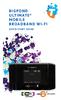 BIGPOND ULTIMATE MOBILE BROADBAND WI-FI QUICK START GUIDE WARNINGS AND SAFETY NOTICES Please read all the safety notices before using this device. The BigPond Ultimate Mobile Broadband Wi-Fi is designed
USB Modem User Guide ZTE MF823
 Need any help? Please visit www.bt.com/business/help/mobilebroadband Xxx BT Business Mobile Broadband USB Modem User Guide ZTE MF823 1 Contents Contents Quick Start Set-up / What s In Your Pack 3 Minimum
Thank you for choosing Huwei E589 4G Mobile WiFi
 Thank you for choosing Huwei E589 4G Mobile WiFi This guide briefly describes the functions of your Huawei E589 4G Mobile WiFi. For more details, see help on the web management page. See Accessing the
Huawei E5220 Mobile Hotspot User Guide Contents
 Huawei E5220 Mobile Hotspot User Guide Contents Getting to Know Your Mobile WiFi... 2 Application Scenarios... 2 Appearance... 2 Indicator... 2 SSID and Wireless Network Encryption Key... 2 Installing
Quick Reference Guide
 Welcome to BT Business Total Broadband Quick Reference Guide Read the information in this Quick Reference Guide to help you start using your new BT Business Total Broadband service powered by fibre. The
Getting started with
 PART NO. CMA113 MADE IN CHINA 1. Measuring CAT II 2. Max. voltage 250V ~ 3. Max. current 71 Amp Getting started with Electricity consumption monitoring single phase for homes and some smaller light commercial
Thank you for purchasing the Mobile Wi-Fi. This Mobile Wi-Fi brings you a high speed wireless network connection.
 Thank you for purchasing the Mobile Wi-Fi. This Mobile Wi-Fi brings you a high speed wireless network connection. This document will help you understand your Mobile Wi-Fi so you can start using it right
Thank you for purchasing the Huawei E5332 Mobile WiFi. This quick start guide will help you to get started right away.
 Thank you for purchasing the Huawei E5332 Mobile WiFi. This quick start guide will help you to get started right away. You can connect your Huawei E5332 to the internet through any WiFi enabled device
2GB MP3 Player USER GUIDE
 DO NOT FORMAT UNIT under FAT. 2GB MP3 Player USER GUIDE Jazwares, Inc. 2010 CONTENTS Please read the instructions along with the MP3 Player carefully before you use it, so that you can operate it conveniently.
Start Here. 3200 Series. All-in-One Printer. Print Copy Scan. Includes Information on the: ESP 3250 All-in-One Printer ESP 3260 All-in-One Printer
 Start Here All-in-One Printer 3200 Series MS SD/HC MMC Print Copy Scan Includes Information on the: ESP 3250 All-in-One Printer ESP 3260 All-in-One Printer Note: A USB 2.0 cable is required to connect
Thank you for choosing the HUAWEI EC5805 Wireless Modem (E5).
 Thank you for choosing the HUAWEI EC5805 Wireless Modem (E5). Note: Supported functions and actual appearance depend on the specific models you purchased. The following illustrations are provided for your
We reserve the right to make technical changes.
 User Guide External Hard Disk with USB 1.1/2.0 and IEEE 1394 connection Copyright 2003 All rights reserved. This manual is protected by Copyright. The Copyright is owned by Medion. Trademarks: MS-DOS and
WELCOME. Wireless Router 1 AC Charger 1 USB charging cable 1 Quick Start User Guide 1 Security Settings card 1
 WELCOME Thank you for choosing the Telstra ELITE Pre-Paid Mobile Wi-Fi. To get the most from your wireless router and to keep it in the best condition please read this manual thoroughly. The following
Point of view HDMI Smart TV dongle Mini RF Keyboard
 Point of view HDMI Smart TV dongle Mini RF Keyboard English Contents Contents... 1 General notices for use... 2 Disclaimer... 2 Box Contents... 2 1. HDMI TV dongle... 3 1.1. Product display... 3 1.2. Instructions
TPG MOBILE BROADBAND QUICK SETUP GUIDE
 TPG MOBILE BROADBAND QUICK SETUP GUIDE TPG USB E1762 Modem Thank you for choosing TPG Mobile Broadband and USB E1762 modem. This User Guide provides step by step instructions that will take you through
telstra.com/mbb 13 2200 visit a telstra store or partner GETTING TO KNOW YOUR TELSTRA WI-FI 4GX ADVANCED III
 telstra.com/mbb 13 2200 visit a telstra store or partner GETTING TO KNOW YOUR TELSTRA WI-FI 4GX ADVANCED III LET S GET THIS SHOW ON THE ROAD WHAT S INSIDE Your Telstra Wi-Fi 4GX Advanced III has been tested
LCD BacPac. User Manual + Warranty Info
 LCD BacPac User Manual + Warranty Info Firmware Update To determine if a firmware update is required, please follow these steps: With the camera fully charged, attach the LCD BacPac to camera and power
MF636 USB Modem. Quick Start User Guide
 -1- ZTE Rogers MF636 USB Modem Quick Start User Guide www.ztecanada.com ZTE Corporation, 2008. -2-1. Insert the SIM Card into the modem The SIM slot is located above the USB connector Before using the
Thank you for purchasing the Mobile WiFi. This Mobile WiFi brings you a high speed wireless network connection.
 Thank you for purchasing the Mobile WiFi. This Mobile WiFi brings you a high speed wireless network connection. This document will help you understand your Mobile WiFi so you can start using it right away.
AW10 All-in-One Printer
 START OK All-in-One Printer AW10 User Guide AW10 All-in-One Printer ADVENT AW10 All-in-One Printer Your ADVENT Printer combines ease of use and KODAK Color Technology to print crisp-looking documents and
WELCOME. Thank you for choosing the Boost Mobile Wi-Fi. To get the most from your
 WELCOME Thank you for choosing the Boost Mobile Wi-Fi. To get the most from your device and to keep it in the best condition please read this manual thoroughly. The following parts are supplied in the
CAUTION RISK OF ELECTRIC SHOCK DO NOT OPEN
 CAUTION RISK OF ELECTRIC SHOCK DO NOT OPEN TO REDUCE THE RISK OF ELECTRIC SHOCK, DO NOT REMOVE THE COVER. NO USER SERVICABLE PARTS INSIDE. REFER SERVICING TO QUALIFIED PERSONNEL. The lightning flash with
Nest Learning Thermostat Installation Guide. Installation step-by-step
 Nest Learning Thermostat Installation Guide Installation step-by-step Contents Compatibility. 3 In the box. 4 Before you start. 5 Choose an installation method. 6 Replacing an existing wired thermostat.
Your night vision. Operating Instructions CAMERA MODULE. with integral instant recording
 Your night vision Operating Instructions CAMERA MODULE with integral instant recording Camera Introduction Congratulations on the purchase of the NiteSite R-camera. The R-camera module is a retro-fit recording
Wi-Fi Router Huawei E5. User Guide
 Wi-Fi Router Huawei E5 User Guide 1 Content Modem Description Specification SW installation guide User manual Troubleshooting Terms 2 Modem Description Huawei E5830 HSDPA Wifi-router and a USB modem combined
GSM Alarm System User Manual
 GSM Alarm System User Manual For a better understanding of this product, please read this user manual thoroughly before using it. Quick Guider After getting this alarm system, you need to do the following
User Guide. Memo S580. www.poshmobile.com
 User Guide Memo S580 www.poshmobile.com Welcome to POSH S580 Memo Quick Guide S580 is designed with Android system, support dual Sim and dual stand-by. Except for the standard communication function, it
Getting started guide 3G Turbo Stick. 3G Novatel Wireless U760 USB modem
 Getting started guide 3G Turbo Stick 3G Novatel Wireless U760 USB modem Welcome Thank you for purchasing the 3G Novatel Wireless U760 USB modem from Bell. This two-in-one Turbo Stick with memory storage
User manual TAB-10C010-232
 User manual TAB-10C010-232 Congratulations on the purchase of your new tablet! This manual contains important safety and operating information in order to prevent accidents! Please read this manual thoroughly
Mobile Broadband Manager Guide Huawei E8278
 Mobile Broadband Manager Guide Huawei E8278 What s mobile broadband? Mobile broadband means you can surf the internet when you re out and about. 4G mobile broadband is the same but using our glorious 4G
4P359542-1H. Wireless LAN Connecting Adapter <BRP069A41> Installation Manual
 4P359542-1H Wireless LAN Connecting Adapter Installation Manual Wireless LAN Connecting Adapter Installation Manual Homepage: http://www.onlinecontroller.daikineurope.com For details
Introduction 1 The system 1 The meter 2 The display 3 The mode 3 The measurement 4 Coding the meter 4 How to obtain a drop of blood 6 Application of
 Introduction 1 The system 1 The meter 2 The display 3 The mode 3 The measurement 4 Coding the meter 4 How to obtain a drop of blood 6 Application of the blood 7 Procedure to test glucose 7 Procedure to
AIRCARD 310U QUICK START
 OPTUS Mobile BROADBAND AIRCARD 310U USB MODEM 02 Optus mobile BROADBAND AIRCARD 310U USB Modem QUICK START INSTALLATION GUIDE OPTUS Mobile BROADBAND AIRCARD 310U USB MODEM 02 Contents 01 Package Contents
15 Digital Photo Frame Instructional Manual
 15 Digital Photo Frame Instructional Manual aluratek.com mnl M10054 ADMPF315F Copyright 2011 Aluratek, Inc. All Rights Reserved. Table of Contents Frame Close-up... Remote Control Close-up... Package Contents...
Point of View Mobii 925 - Android 4.2 Tablet PC. General notices for use... 2 Disclaimer... 2 Box Contents... 2
 Table of Contents General notices for use... 2 Disclaimer... 2 Box Contents... 2 1.0 Product basics... 3 1.1 Buttons and connections... 3 1.2 Start up and shut down... 3 2.0 Introduction to Google Android
Contents. Business Everywhere user guide. 1. Introduction. 2. How to Install/Uninstall Business Everywhere. 3. The Business Everywhere interface
 Contents 1. Introduction 2. How to Install/Uninstall Business Everywhere 3. The Business Everywhere interface 4. Launching Business Everywhere 5. Connection 6. Business Everywhere management tools 7. Troubleshooting
Windows 10.1 Tablet (UB-15MS10 and UB-15MS10SA) FAQ December 2014
 Windows 10.1 Tablet (UB-15MS10 and UB-15MS10SA) FAQ December 2014 Navigation... 2 Question 1: What are charms used for?... 2 Question 2: How do I navigate while using a mouse or trackpad?... 3 Question
User Guide HUAWEI UML397. Welcome to HUAWEI
 User Guide HUAWEI UML397 Welcome to HUAWEI 1 Huawei UML397 4G LTE Wireless Modem User Manual CHAPTER 1 BEFORE USING YOUR UML397 WIRELESS MODEM ABOUT THIS USER MANUAL...4 WHAT S INSIDE THE PRODUCT PACKAGE...4
MF652 USB Modem User Guide
 MF652 USB Modem User Guide Connection Manager Software Guide... 2 Using your USB Modem... 4 Task bar information... 6 Using the SMS Interface... 7 Using the Phonebook... 9 Phonebook Notes:...10 Settings...11
English > 3 Warranty > 9
 Quick Guide English > 3 Warranty > 9 About tivizen Tivizen iplug is a fantastic easy to install & use digital free to air DVB-T/Freeview Tuner. Tivizen iplug does not require internet or 3G connection
Quickstart Guide Vodafone Mobile Wi-Fi R209-Z
 Quickstart Guide Vodafone Mobile Wi-Fi R209-Z Welcome to the world of mobile communications 1 Welcome 2 Device overview 3 Getting started 5 Mobile Wi-Fi Web app 6 Web app overview 7 Current network panel
Android Dongle. User Manual TL869
 Android Dongle User Manual TL869 2 User Manual Android TV Dongle Before using the product, please read this manual thoroughly. The specifications and software in this manual are subject to change without
Nokia Bluetooth Headset BH-607. Issue 2. 1
 Nokia Bluetooth Headset BH-607 2 3 1 4 5 6 7 8 9 11 10 Issue 2. 1 12 13 14 DECLARATION OF CONFORMITY Hereby, NOKIA CORPORATION declares that this BH-607 product is in compliance with the essential requirements
Business Audio System: Music & Messaging MP3 Player. by Grace Digital Audio. User Guide. Model No. GDI-USBM10
 Business Audio System: Music & Messaging MP3 Player by Grace Digital Audio User Guide Model No. GDI-USBM10 User Guide Contents Introduction 2 Safety & General Use Information 2 Features 3 Set Up & Operation
Tablet PC User Manual
 Tablet PC User Manual Please read all instructions carefully before use to get the most out of your Time2Touch Tablet PC. The design and features are subject to change without notice. Contents Important
Nokia Bluetooth Headset BH-110 User Guide
 Nokia Bluetooth Headset BH-110 User Guide Issue 1.0 2 Introduction About your headset With the Nokia Bluetooth BH-110 headset, you can handle calls hands-free, even when you are using two phones at the
USB Freeview TV Receiver
 DVB-T205 V3.0 August International Ltd United Kingdom Telephone: +44 (0) 845 250 0586 www.augustint.com USB Freeview TV Receiver Thank you for buying this August product. You may already be familiar with
Quick Start. is a trademark of ETSI.
 TM Quick Start is a trademark of ETSI. Thank you for purchasing the Mobile WiFi. This Mobile WiFi brings you a high speed wireless network connection. This document will help you understand your Mobile
User Guide. Your first steps to smart monitoring
 User Guide Your first steps to smart monitoring 2 3 Important safety and legal Information We have taken all measures to ensure the BabyPing Video Monitor meets the highest safety standards but it must
User Guide Vodafone Pocket WiFi Extreme. Designed by Vodafone
 User Guide Vodafone Pocket WiFi Extreme Designed by Vodafone Welcome to the world of mobile communications 1 Welcome 2 Device overview 3 Getting started: setup 4 Getting started: use 5 Pocket WiFi online
EnergySmart monitor user instructions
 EnergySmart monitor user instructions britishgas.co.uk/energysmart Your new EnergySmart monitor has arrived It s a great way to learn how to use less electricity and save money, and just one of the ways
WIRELESS BROADBAND. Self-Help Guide. MiFi Modem (MF60) PortaFi Modem (MF70)
 WIRELESS BROADBAND Self-Help Guide MiFi Modem (MF60) PortaFi Modem (MF70) contents understanding the LED light on the modem how to measure the current download and upload internet speeds how to manage
User Guide: Apple devices
 1 User Guide: Apple devices Your details You may need these details from time to time. So it can be handy to have them here. But if you do record them, make sure you keep this guide somewhere safe. Your
User Manual (English)
 User Manual (English) Table of Contents General Safety Information...2 Fueltank UNO Components...3 Charging the Fueltank UNO...4 Using the Fueltank UNO...5 Power Saving Mode...6 Checking the Fueltank UNO
BROADBAND. Mini WiFi Modem MF62. User Guide
 BROADBAND Mini WiFi Modem MF62 User Guide IS YOUR ACCOUNT ACTIVATED? Pre-Paid Customers First up, you need to activate your service: CLICK virginmobile.com.au/activate NB: You ll need a different internet
GETTING TO KNOW YOUR NEW TELSTRA MOBILE WI-FI 4G
 GETTING TO KNOW YOUR NEW TELSTRA MOBILE WI-FI 4G LET S GET THIS SHOW ON THE ROAD You must be excited about your brand new Telstra Mobile Wi-Fi 4G. This guide will help you get started as quickly and easily
A6210 WiFi USB Adapter 802.11ac USB 3.0 Dual Band User Manual
 802.11ac USB 3.0 Dual Band User Manual August 2014 202-11373-01 350 East Plumeria Drive San Jose, CA 95134 USA Support Thank you for selecting NETGEAR products. After installing your device, locate the
OPERATING MANUAL ASSEMBLY. Remote control docks magnetically. click. until it clicks and locks. REGISTER YOUR FREE 2 YEAR GUARANTEE TODAY
 OPERATING MANUAL ASSEMBLY Remote control docks magnetically. 1 2 Align the black arrows. click Then twist clockwise until it clicks and locks. YOUR FREE 2 YEAR GUARANTEE TODAY Controls 1. Power on 2. Thermostat
V660. Quick Start Guide. Dual-Mode Phone. Version 1.00 04/2007 Edition 1. Copyright 2007. All rights reserved
 V660 Dual-Mode Phone Quick Start Guide Version 1.00 04/2007 Edition 1 Copyright 2007. All rights reserved 1 Overview Your V660 provides standard cellphone functions, and adds WiFi connectivity. In the
4G Router User Manual V1.0
 4G Router User Manual V1.0 Thank you for purchasing the 4G LTE Mobile WiFi. This device brings you a high speed wireless network connection. This document will help you understand your Mobile WiFi so you
NFC Communication Tray Model: HHX-IT3-Z
 INSTRUCTION MANUAL NFC Communication Tray Model: HHX-IT3-Z ENGLISH CONTENTS Introduction...3 Important safety information...4 Know your unit...6 Transferring data to the PC...7 Care and maintenance...8
Wireless MIDI Interface
 Wireless MIDI Interface User Guide Version 1.1 Apr 22, 2014 Panda-Audio Ltd. www.panda-audio.com Product web site: www.pandamidi.com EU Directives on the Protection of the Environment RoHS This product
Point of View SmartTV HDMI 210 dongle - Android 4.2. General notices for use... 2 Disclaimer... 2 Box Contents... 2
 Table of Contents General notices for use... 2 Disclaimer... 2 Box Contents... 2 1.0 Product basics... 3 1.1 Connecting your device for the first time... 3 1.2 Connections... 4 1.3 Using the remote control
Thank you for choosing HUAWEI Mobile WiFi
 Thank you for choosing HUAWEI Mobile WiFi Supported functions and actual appearance depend on the specific models you purchased. The illustrations are provided for your reference only. For details about
User Guide Vodafone Pocket WiFi Pro. Designed by Vodafone
 User Guide Vodafone Pocket WiFi Pro Designed by Vodafone Welcome to the world of mobile communications 1 Welcome 2 Device overview 3 Getting started: setup 4 Getting started: use 5 Pocket WiFi online dashboard
User Guide Nokia Portable Wireless Charging Plate DC-50
 User Guide Nokia Portable Wireless Charging Plate DC-50 Issue 1.1 EN User Guide Nokia Portable Wireless Charging Plate DC-50 Contents For your safety 3 About your accessory 4 Keys and parts 5 Top up your
User manual. Your best protection against theft and loss. (Android) Made for
 User manual Made for Your best protection against theft and loss (Android) Warranty SCOPE OF THE WARRANTY Subject to legal provisions, the responsibility of SECU4 under this warranty is limited to the
User Guide. Overdrive Pro 3G/4G Mobile Hotspot. by Sierra Wireless. www.sprint.com
 User Guide Overdrive Pro 3G/4G Mobile Hotspot by Sierra Wireless www.sprint.com 2011 Sprint. SPRINT and the logo are trademarks of Sprint. Other marks are the property of their respective owners. 3/9/11
ECLIPSE MX. Motorized Fader Control Surface. Users Manual
 ECLIPSE MX Motorized Fader Control Surface Users Manual Eclipse MX is a trademark of JLCooper Electronics. All other brand names are the property of their respective owners. Eclipse MX User s Manual, First
Nokia Bluetooth Headset BH-118 User Guide
 Nokia Bluetooth Headset BH-118 User Guide Issue 1.1 2 Contents Introduction 3 About your headset 3 About Bluetooth connectivity 3 Get started 4 Keys and parts 4 Charge the battery 4 Switch the headset
SoftRAID 5 QUICK START GUIDE. for OWC ThunderBay
 SoftRAID 5 QUICK START GUIDE for OWC ThunderBay TABLE OF CONTENTS INTRODUCTION...1 1.1 MINIMUM SYSTEM REQUIREMENTS 1.2 FEATURES 1.3 ABOUT THIS MANUAL SYSTEM SETUP...2 2.1 GETTING STARTED 2.2 INITIALIZING,
SimpleTech FlashLink (USB Flash Card Reader/Writer) User Guide
 SimpleTech FlashLink (USB Flash Card Reader/Writer) User Guide Congratulations on purchasing the SimpleTech USB FlashLink Card Reader, the finest USB card reader available. The FlashLink Card Reader works
Nokia Bluetooth Headset BH-800 User Guide. 9246974 Issue 2
 Nokia Bluetooth Headset BH-800 User Guide 9246974 Issue 2 DECLARATION OF CONFORMITY We, NOKIA CORPORATION declare under our sole responsibility that the product HS-24W is in conformity with the provisions
Specifications. What s Inside The box
 Tablet of Contents Specifications.1 What s inside the box Tablet Parts Getting started... Connection to Internet..6 Task Bar..8 Install and Uninstall 9 Camera.10 HDMI.11 Trouble Shooting 11 Specifications
New GSM Alarm System. User s Manual. Profile For a better understanding of this product, please read this user manual thoroughly before using it.
 New GSM Alarm System User s Manual Profile For a better understanding of this product, please read this user manual thoroughly before using it. Chapter 1. Features Chapter 2. Alarm Host Introduction Chapter
Quickstart Guide Vodafone Mobile Wi-Fi R216-Z
 Quickstart Guide Vodafone Mobile Wi-Fi R216-Z Welcome to the world of mobile communications 1 Welcome 2 Device overview 3 Getting started 5 Mobile Wi-Fi Web app 6 Web app overview 7 Current network panel
Nokia Bluetooth Stereo Headset BH-221
 Nokia Bluetooth Stereo Headset BH-221 Issue 2.0 2 Introduction About your headset With the Nokia Bluetooth Stereo Headset BH-221, you can handle calls hands-free, enjoy your favourite music, and listen
Operating instructions in the back. www.blackanddecker.co.uk PD1020L
 Operating instructions in the back www.blackanddecker.co.uk PD1020L 2 ENGLISH (Original instructions) Intended use Your Black & Decker Dustbuster handheld vacuum cleaner has been designed for vacuum cleaning