
LOK-IT ENCRYPTED USB Administrator User Instructions
|
|
|
- Magnus Dennis
- 9 years ago
- Views:
Transcription
1 LOK-IT ENCRYPTED USB Administrator User Instructions LOK-IT USB Drives are supplied by the University to safely allow a method to transport data. They are not intended to be used for primary data storage. The LOK-IT drives are the property of the University of Texas at Arlington. Loss or theft of these devices should be reported to the Information Security Office at or [email protected]. Features LOK-IT USB drives is an encrypted drive that is protected by a 7 to 15 digit key entered on the USB s keypad. The USB functions equally well on Windows, Mac, Linux, as well as other systems. An Administrative Master PIN can be set to recover a user s data if the user forgets their PIN. PINS must be be between 7 and 15 digits and cannot contain repeating numbers ( , etc.) nor sequential numbers ( , etc). The LOK-IT USB drives will autolock when the drive is disconnected from the attached computer, or when it losses power. The drive contains a rechargable battery that is charged when inserted into a USB port. To prevent hacking and data loss, after 10 consecutive failed attempts to enter a PIN, the drive is wiped and all data will be lost. It is the user s responsibility to remember their PIN. The drive is NOT intended for primary storage. If an executive user forgets their PIN, OIT may have set a master PIN to recover data if the device has not had 10 failed attempts. Contact the ISO or your Department s ISA for assitance. Operating Your LOK-IT Secure Flash Drive with Master and User PINS The drive is shipped disabled (Factory Default State) and will remain disabled until a PIN is set. LOK-IT can be utilized without the Master PIN functionality. The University does not usually deploy the LOK-IT drives with a Master PIN set. I using a Master and User PIN, it is recommended (but not required) that
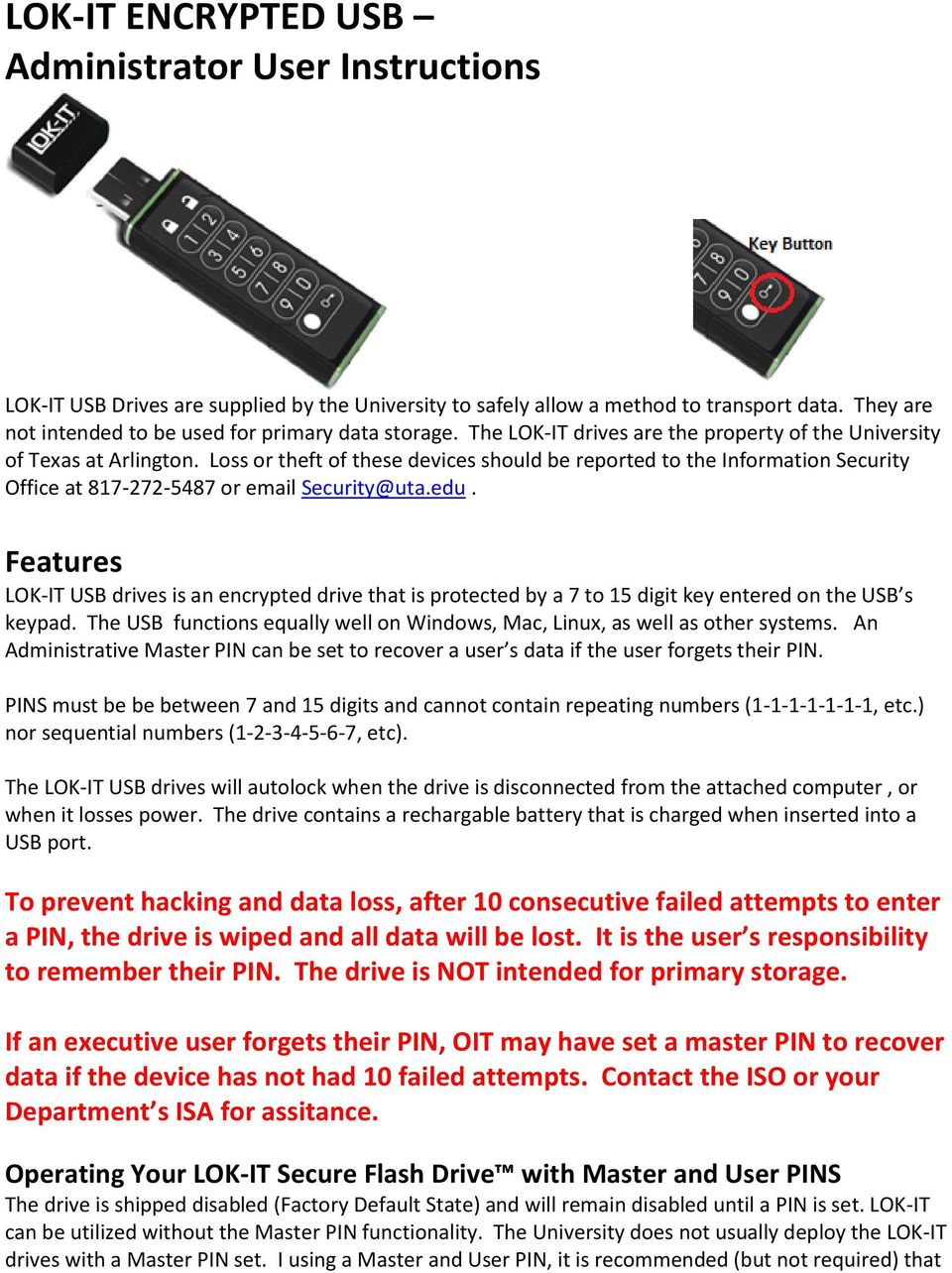
2 the Master PIN be set first. Once a Master PIN is set, it may be given to the User for setting the User PIN. It is necessary to set a User PIN in order for the User to begin using the drive. Once the User PIN has been set the drive is locked and will require entry of the correct PIN to unlock it. NOTE: In the event a User PIN is set first, a Master PIN may still be set but requires the drive first be unlocked with the User PIN. Visual Indicators RED LED 1. Red constant = Factory default state. Drive is locked. User PIN not set 2. Red blink = Drive is locked. User PIN set. GREEN LED 1. Green constant = Drive is connected to USB port and unlocked 2. Green single blink = Drive is unlocked in User Mode while powered by battery 3. Green double blink = Drive unlocked in Master Mode while powered by battery RED LED/GREEN LED 1. Red/green constant = Change of PIN initiated 2. Red/green single blink = Accepting User PIN input 3. Red/green double blink = Accepting Master PIN input 4. Red/green alternating blink = A PIN entry error has been made; retry PIN entry BLUE LED 1. Blue constant = Drive is unlocked and inserted into a powered USB port 2. Blue flicker = Drive is unlocked, inserted into a powered USB port and data transfer is occurring BLUE LED/RED LED 1. Blue blink/red blink = Drive has been inserted into a USB port while locked. The red LED will stop blinking. The blue LED continues to blink. Remove drive from port and enter PIN. NO LED All LED indicators off = Drive is in sleep mode Setting the Master PIN from the Default Factory State The Master PIN is clear upon customer delivery. To set a Master PIN from the Default Factory State: 1. Double press the KEY button holding the 2nd press for 3 seconds. The 1st and 2nd presses must be performed within 1/2 of a second. 2. When both red/green LED s illuminate, release the KEY button. a. If a Master PIN has already been set, an alternating red/green blink will be displayed. 3. Red/green LED s will blink once and remain lit for 10 seconds indicating accepting a Master PIN is initiated 4. Enter a Master PIN between 7 and 15 digits before the drive reverts to Sleep Mode 5. Press the KEY button


3 6. Both red/green LED s will double blink in unison for 10 seconds before reverting to Sleep Mode 7. Re-enter the Master PIN before the drive reverts to Sleep Mode 8. Press the KEY button 9. A green continuous double blink confirms the Master PIN is accepted 10. Insert the drive into the USB port. 11. Upon initial PIN setup a format operation is required. Follow on-screen prompts for formatting drive. Quick Format option is acceptable. This step will not be required after initial PIN setup or when changing the PIN. a. Select Format disk b. Enter Volume Label if desired c. Quick Format is acceptable d. Select Start to begin the format.

4 e. For MAC s select Initialize, select Partition, select the +, click Apply, then Partition to Format the drive It is recommended that users format with FAT32 or on a Windows PC if they envision using the USB on Mac s and Windows devices. 12. If a mistake is made entering the Master PIN an alternating red/green blink is displayed indicating an error has been made. Start over beginning at Step 1. Setting the Master PIN after a User PIN is Set The Master PIN is clear upon customer delivery. To set a Master PIN after a User PIN is Set: 1. To determine if a User PIN has been set, Press and hold the KEY button for 3 seconds. a. A red LED blink confirms a User PIN has been set. b. A constant red LED confirms a User PIN has not been set. c. If a User PIN has not been set follow the instructions for Setting the Master PIN from the Default Factory State in this Guide. 2. To set the Master PIN after a User Pin is Set, Unlock the drive by entering the User PIN (see How to Unlock Drive with the User PIN in this Guide) 3. With the drive unlocked, double press the KEY button holding the 2nd press for 3 seconds. The 1st and 2nd presses must be performed within 1/2 of a second. 4. When both red/green LED s illuminate, release the KEY button (If a Master PIN has already been set, an alternating red/green blink is displayed). 5. Red/green LED s will blink once and remain lit for 10 seconds indicating accepting a Master PIN is initiated 6. Enter a Master PIN between 7 and 15 digits before the drive reverts to Sleep Mode 7. Press the KEY button 8. Both red/green LED s will double blink in unison for 10 seconds before reverting to Sleep Mode. (If the red/green LED s single blink in unison, the drive is in User PIN change mode. Wait for the drive to enter sleep mode and start over beginning with Step 1) 9. Re-enter the Master PIN before the drive reverts to Sleep Mode 10. Press the KEY button 11. A green continuous double blink confirms the Master PIN is accepted 12. If a mistake is made entering the Master PIN an alternating red/green blink is displayed indicating an error has been made. Start over beginning at Step 1. Sleep Mode-If the drive reverts to Sleep Mode at anytime start over beginning at Step 1


5 How to Unlock Drive with the Master PIN Note - Whenever the drive is unlocked using the Master PIN the User PIN will be cleared and must be reset. Data stored on the drive remains intact. To unlock a drive using the Master PIN, and reset the User PIN: 1. Double press the KEY button holding the 2nd press for 1/2 second. a. If you hold the 2 nd press for longer than a ½ second, the drive will try to open in the User Pin unlock mode. 2. Red/green LED s will double blink in unison continuously for 10 seconds before reverting to Sleep Mode a. If the red/green LED s single blink in unison continuously, the drive is in User PIN unlock mode. Wait for the drive to enter sleep mode and start over beginning with Step Enter the Master PIN before the drive reverts to sleep mode 4. Press the KEY button 5. Green LED double blinks continuously to indicate the drive is unlocked in Master Mode a. If an incorrect PIN was entered the red LED will light indicating the drive is locked. Start over beginning at Step Connection to a USB port needs to be made with 30 seconds. a. If no connection is made within 30 seconds the drive will re-lock and enter Sleep Mode. b. Connect the drive to a USB port f. The drive should be available. If AutoPlay is allowed for windows you may see a popup window like the one pictured below. 7. When connected to USB port green and blue LED s will illuminate in a constant state. Drive is ready for use. 8. The User PIN will now need to be reset

6 How to Change the Master PIN Note - Whenever the drive is unlocked using the Master PIN the User PIN will be cleared and must be reset. Data stored on the drive remains intact. To Change the Master PIN: 1. Unlock the drive with the existing Master PIN (see How to Unlock Drive with the Master PIN in this Guide) 2. With the drive unlocked, double press the KEY button holding the 2nd press for 3 seconds. The 1st and 2nd presses must be performed within 1/2 of a second. 3. When both red/green LED s illuminate, release the KEY button 4. Red/green LED s will blink once and remain lit for 10 seconds indicating accepting a Master PIN is initiated 5. Enter a Master PIN between 7 and 15 digits before the drive reverts to Sleep Mode 6. Press the KEY button 7. Both red/green LED s will double blink in unison for 10 seconds before reverting to Sleep Mode 8. Re-enter the Master PIN before the drive reverts to Sleep Mode 9. Press the KEY button 10. A green continuous double blink confirms the Master PIN is accepted 11. If a mistake is made entering the Master PIN an alternating red/green blink is displayed indicating an error has been made. Start over beginning at Step The User PIN will now need to be reset Setting the User PIN The User PIN is clear upon delivery to the customer. To set a User PIN: 1. Depress and hold the KEY button for 3 seconds a. Only depress the KEY button Once, a double press will enter into the Administrator Master PIN menu. 2. When both red/green LED s illuminate, release the KEY button 3. Red/green LED s will blink once and remain lit for 10 seconds indicating accepting the User PIN is initiated. 4. Enter a User PIN between 7 and 15 digits before the drive reverts to sleep mode 5. Press the KEY button 6. Both red/green LED s will now single blink in unison for 10 seconds before reverting to sleep mode 7. Re-enter the User PIN 8. Press the KEY button 9. A continuous green single blink confirms the User PIN is accepted 10. You may then Insert the USB into a USB port, and your drive should be available a. It is not mandatory to insert the USB Drive b. If AutoPlay is allowed for windows you may see a pop-up window like the one pictured below..

7 11. If a mistake is made entering the User PIN an alternating red/green blink is displayed indicating an error has been made. Start over beginning at Step 1. Drive Format If the User PIN is set before the Master PIN, a drive format is required. How to Unlock Drive with the User PIN To Unlock the drive with the User PIN: 1. Press and release the KEY button 2. Red/green LED s will single blink in unison for 10 seconds before reverting to sleep mode 3. Enter User PIN before the drive reverts to sleep mode 4. Press the KEY button 5. Green LED will single blink to indicate the drive is unlocked a. If an incorrect PIN was entered, the red LED will light indicating the drive remains locked. Start over beginning at Step Connection to a USB port needs to be made within 30 seconds. a. If no connection is made within 30 seconds the drive will re-lock and enter sleep mode. b. Insert into a USB Port, and the drive should be available. c. If AutoPlay is allowed for windows you may see a pop-up window like the one pictured below.

8 7. When connected to a USB port the green and blue LED s will illuminate in a constant state indicating the drive is ready for use. How to Change User PIN To change your User PIN: 1. Unlock the drive with the existing User PIN (see previous section for instructions) 2. With the drive unlocked depress and hold the KEY button for 3 seconds 3. When both red/green LED s illuminate, release the KEY button 4. Red/green LED s will blink once and remain lit for 10 seconds indicating accepting the User PIN is initiated. 5. Enter a User PIN between 7 and 15 digits before the drive reverts to sleep mode 6. Press the KEY button 7. Both red/green LED s will now single blink in unison for 10 seconds before reverting to sleep mode 8. Re-enter the User PIN 9. Press the KEY button 10. A continuous green single blink confirms the User PIN is accepted 11. You may then Insert the USB into a USB port, and your drive should be available a. It is not mandatory to insert the USB Drive 12. If a mistake is made entering the User PIN an alternating red/green blink is displayed indicating an error has been made. Start over beginning at Step 1. How to Lock the Drive after Attaching to a USB Port 1. Disconnect drive from USB port 2. LED s will turn off 3. Drive auto-locks and enters sleep mode Activation from Sleep Mode 1. Press the KEY button (numeric keys will be ignored) 2. Red or green LED will illuminate to show the drive status a. Red = Locked b. Green = Unlocked How to Unlock Drive with a Dead Battery 1. Connect the drive to a USB port or extender cable. 2. Follow instructions in How to Unlock Drive.

9 Hacking Detection and Prevention After ten (10) consecutive unsuccessful PIN entry attempts to unlock the drive are detected, the following occurs: 1. The current encryption key is removed/zeroized. 2. Existing data becomes inaccessible 4. New User PIN must be set 5. Drive will require reformatting due to the creation of a new encryption key 6. Existing data is deleted Each time hacking is detected, the current encryption keys are zeroized and new PINs must be set. Resetting a new Master and User PINs will require a reformat of the drive due to the creation of new encryption keys which will delete all data on the drive. How to Recover Use of Drive Using the Master PIN (Forgotten User PIN) If the User has forgotten their PIN the Administrator can unlock the drive using their Master PIN. By entering the Master PIN, the User PIN will be cleared and must be reset. Data stored on the drive remains intact. How to Recover Use of The Drive (Forgotten User PIN) If the User PIN is unavailable, there is no way to recover data, unless you have made arrangements with the Information Security Office to set a Master PIN. If no Master PIN option has been set, the only option is to reformat your USB Drive and all data will be lost. To Reformat and Set a new UserPin, see Setting the User PIN section above. The use of the drive may be recovered by consecutively entering ten (10) incorrect PIN numbers which will activate the Hacking Detection and Prevention feature of the drive which will zeroize the encryption key and clear the user s PIN. Resetting of a New User PIN s after this, will require a reformat which will delete all stored data.

LOK-IT ENCRYPTED USB User Instructions
 LOK-IT ENCRYPTED USB User Instructions LOK-IT USB Drives are supplied by the University to safely allow a method to transport data. They are not intended to be used for primary data storage. The LOK-IT
Administrator User Instructions- Master PIN Usage
 Administrator User Instructions- Master PIN Usage LOK-IT USB Drives are supplied by the University as a method to safely transport data. They are not intended to be used for primary data storage. The LOK-IT
FLASH USB 2. 0. Introduction ENGLISH
 ENGLISH FLASH RED LED (LOCKED) GREEN LED (UNLOCKED) KEY BUTTON PIN KEYS BLUE LED (ACTIVITY) Introduction Thank you for purchasing the Corsair Your new Flash Padlock 2 is a 256-bit hardware encrypted USB
istar User Manual for Comsol USB Flash Drive
 istar User Manual for Comsol USB Flash Drive Format Utility Introduction Type of Format Quick: Full: Configure device only: Erase and check blocks at the same time. If there are any Bad blocks, mark them
Table of Contents. What is Brute Force Attack? 13 How does the diskashur protect against brute force attack? 13
 User s Manual Table of Contents About the istorage diskashur Secure Hard Drive 4 Package contents 4 istorage diskashur button panel 5 istorage diskashur - Getting Started 6 Before you begin 6 Connecting
PROGRAMMING & OPERATING INSTRUCTIONS CL5000 AUDIT TRAIL
 PROGRAMMING & OPERATING INSTRUCTIONS CL5000 AUDIT TRAIL 1 CODES AND OPERATION CODES The factory set Master Code is #1234. This should be changed immediately after installation (see Program 10). The Master
Thank you for choosing the HUAWEI EC5805 Wireless Modem (E5).
 Thank you for choosing the HUAWEI EC5805 Wireless Modem (E5). Note: Supported functions and actual appearance depend on the specific models you purchased. The following illustrations are provided for your
HDD Password Tool. User s Manual. English
 HDD Password Tool User s Manual English 1 Table of Contents Chapter 1: Introduction... 3 Trademarks... 3 Chapter 2: Required Operating System... 5 - HDD Password Tool for Windows... 5 - HDD Password Tool
USER MANUAL DataLocker Enterprise
 USER MANUAL DataLocker Enterprise ------------------------ March 2014 ------------------------ 1 Contents At a Glance Advanced 3 Introduction 17 Special features 5 About the Enterprise 19 Master admin
Schlage Wireless Locks User Guide
 Schlage Wireless Locks User Guide Contents Programming and User Codes... 2 Programming Code... 2 User Codes... 2 Turn Lock Feature... 2 Replacing the Batteries... 3 BE369 Deadbolt... 3 FE599 Lever Lock...
Thank you for purchasing the Huawei E5332 Mobile WiFi. This quick start guide will help you to get started right away.
 Thank you for purchasing the Huawei E5332 Mobile WiFi. This quick start guide will help you to get started right away. You can connect your Huawei E5332 to the internet through any WiFi enabled device
Desktop Programmer (DTP)
 INSTALLATION Desktop Programmer (DTP) Keypads & Readers Contents Set up the System...1 RCI DTP Contents...1 Install the System...2 Initialize the Program...2 Initialize the Door Locks...3 Add a User...4
Thank you for choosing HUAWEI Mobile WiFi
 Thank you for choosing HUAWEI Mobile WiFi Supported functions and actual appearance depend on the specific models you purchased. The illustrations are provided for your reference only. For details about
Keypad Locks User Guide
 23780042 Keypad Locks User Guide Keypad Deadbolt (BE365) Keypad Lock (FE575, FE595) Contents Keypad Deadbolt (BE365)... 2 Lock Parts...2 Standard Operation...2 Replacing the Battery...3 Emergency Key Override...3
DataTraveler Locker+ User Manual
 DataTraveler Locker+ User Manual Document No. 48008071-001.A02 DataTraveler Locker+ Page 1 of 22 Table of Contents About This Manual... 3 System Requirements... 3 Recommendations... 3 Setup (Windows Environment)...
Thank you for choosing Huwei E589 4G Mobile WiFi
 Thank you for choosing Huwei E589 4G Mobile WiFi This guide briefly describes the functions of your Huawei E589 4G Mobile WiFi. For more details, see help on the web management page. See Accessing the
Type Message Description Probable Cause Suggested Action. Fan in the system is not functioning or room temperature
 Table of Content Error Messages List... 2 Troubleshooting the Storage System... 3 I can t access the Manager... 3 I forgot the password for logging in to the Manager... 3 The users can t access the shared
Verbatim Secure Data USB Drive. User Guide. User Guide Version 2.0 All rights reserved
 Verbatim Secure Data USB Drive User Guide User Guide Version 2.0 All rights reserved Table of Contents Table of Contents... 2 1. Introduction to Verbatim Secure Data USB Drive... 3 2. System Requirements...
Operating Instructions - Recovery, Backup and Troubleshooting Guide
 Personal Computer Operating Instructions - Recovery, Backup and Troubleshooting Guide Please create your recovery discs immediately after setup. Please read this manual carefully before using your product.
Digital Photo Bank / Portable HDD Pan Ocean E350 User Manual
 Digital Photo Bank / Portable HDD Pan Ocean E350 User Manual Installing a hard disk 1. Power off the unit. 2. Remove the bottom cover from the unit by removing four screws. 3. Insert the 2.5 HDD to the
QUICK START GUIDE Bluetooth Cordless Hand Scanner (CHS)
 QUICK START GUIDE Bluetooth Cordless Hand Scanner (CHS) 1D Imager Models CHS 7Ci, 7Di, 7DiRx LED Trigger button Power button (also for ios Keyboard Pop-up) Model shown: CHS 7Di This document pertains to
Encrypt USB Drive to Protect Data
 Encrypt USB Drive to Protect Data Enable BitLocker on USB Flash Drives to Protect Data Encryption is an effective method of protecting data stored on portable devices such as USB flash drives and external
Hang Seng Business e-banking. New Security Device. Frequently Asked Questions
 Hang Seng Business e-banking New Security Device Frequently Asked Questions We are delighted to introduce a new Security Device with enhanced security and service on 27 May 2013. Existing Security Device
Imation LOCK User Manual
 Page: - 0 - Imation LOCK User Manual Security Application Program V2.0 - D Page: - 1 - Table of Contents A. Introduction... 2 B. General Description... 2 C. Features... 2 D. Before Using the Security Application
PGP Desktop Encrypting Removable Media. May 1 2012 Version 1.3
 PGP Desktop Encrypting Removable Media May 1 2012 Version 1.3 Table of Contents Introduction... 3 Installation Notes... 3 Encrypting Removable Media... 5 Adding and Deleting Users... 10 Changing a Passphrase...
USB FLASH DRIVE. User s Manual 1. INTRODUCTION...1 1.1. FEATURES...1 1.2. SPECIFICATIONS...2 1.3. PACKAGE CONTENTS...2 1.4. SYSTEM REQUIREMENTS...
 Table of Contents 1. INTRODUCTION...1 1.1. FEATURES...1 1.2. SPECIFICATIONS...2 1.3. PACKAGE CONTENTS...2 1.4. SYSTEM REQUIREMENTS...2 2. INSTALLATION PROCEDURE...3 2.1. INSTALL USB FLASH DRIVE ON WINDOWS
DataTraveler Vault - Privacy User Manual
 DataTraveler Vault - Privacy User Manual Document No. 48000012-001.A02 DataTraveler Vault - Privacy Page 1 of 29 Table of Contents About This Manual... 3 System Requirements... 3 Recommendations... 4 Setup
Huawei E5220 Mobile Hotspot User Guide Contents
 Huawei E5220 Mobile Hotspot User Guide Contents Getting to Know Your Mobile WiFi... 2 Application Scenarios... 2 Appearance... 2 Indicator... 2 SSID and Wireless Network Encryption Key... 2 Installing
Support Package Contents AC1600 WiFi VDSL/ADSL Ethernet cable Trademarks Modem Router Compliance Phone cable Modem router
 Support Thank you for purchasing this NETGEAR product. After installing your device, locate the serial number on the label of your product and use it to register your product at https://my.netgear.com.
PRODUCTIVITY THROUGH INNOVATION 600 CONTROL DIRECT DRIVE TECHNICAL/OPERATION MANUAL
 Rev. D PRODUCTIVITY THROUGH INNOVATION 600 CONTROL DIRECT DRIVE TECHNICAL/OPERATION MANUAL 10 BORIGHT AVENUE, KENILWORTH NEW JERSEY 07033 TELEPHONE: 800-524-0273 FAX: 908-686-9317 TABLE OF CONTENTS Page
Chapter 1 Installing the Gateway
 Chapter 1 Installing the Gateway This chapter describes how to set up the wireless voice gateway on your Local Area Network (LAN), connect to the Internet, and perform basic configuration. For information
VIVA 4G LTE Mini Router. Quick Start Guide
 VIVA 4G LTE Mini Router Quick Start Guide Thank you for choosing the VIVA 4G LTE Mini Router (hereinafter referred to as the E57) The supported functions and actual appearance are subject to the product
E-Pollbook Flash Drive Guide for BitLocker
 E-Pollbook Flash Drive Guide for BitLocker Michigan Department of State Bureau of Elections May 2016 1 E-Pollbook Flash Drive Guide for BitLocker - Table of Contents Introduction... 3 BitLocker... 3 Putting
Table of Contents. Rebit 5 Help
 Rebit 5 Help i Rebit 5 Help Table of Contents Getting Started... 1 Making the First Recovery Point... 1 Don't Forget to Create a Recovery Media... 1 Changing Backup Settings... 1 What Does Rebit 5 Do?...
BitLocker To Go User Guide
 BitLocker To Go User Guide 1. Introduction BitLocker To Go a new feature of Windows 7 is a full-disk encryption protection technology for removable storage devices that are connected to one of the USB
iloq P10S.10/20 Programming device User's Guide
 iloq P10S.10/20 Programming device User's Guide CONTENTS CONTENTS... 2 GENERAL... 3 USING THE PROGRAMMING DEVICE... 5 Starting the programming device... 5 Programming of locks... 5 Programming of keys...
ThinkPad USB Portable Secure Hard Drive User Guide
 ThinkPad USB Portable Secure Hard Drive User Guide Note Before installing the product, be sure to read the information in Lenovo Limited Warranty on page B-1 and Before you begin the installation on page
BitLocker to Go: Encryption for personal USB flash drives (Windows 7 and 8)
 BitLocker to Go: Encryption for personal USB flash drives (Windows 7 and 8) Encryption is an effective method of protecting data stored on portable devices such as USB flash drives and external hard drives.
ACCESS CONTROL SYSTEMS USER MANUAL
 Ritenergy Pro (Version 3.XX) ACCESS CONTROL SYSTEMS USER MANUAL 1 User Manual Ritenergy International, LLC TABLE OF CONTENTS RITENERGY PRO PROGRAMMING GUIDE 3 System Requirement 3 System Components 3 Basic
Hi-Speed USB Flash Disk User s Manual Guide
 Hi-Speed USB Flash Disk User s Manual Guide System Requirements Windows 98, ME, 2000, XP, Mac OS 10.1, Linux 2.4 or above AMD or Intel Pentium 133MHz or better based computer USB 1.1, USB 2.0 or higher
In order to enable BitLocker, your hard drive must be partitioned in a particular manner.
 ENABLE BITLOCKER ON WINDOWS VISTA - WITHOUT A TPM Requirements: You must be running Vista Enterprise or Vista Ultimate to enable BitLocker. Any other version of Vista is not compatible. It is recommended
Samsung Drive Manager FAQ
 Samsung Drive Manager FAQ Installation Q: My Samsung External Hard Drive is connected but nothing is happening. A: Check the USB cable connection. If your Samsung External Hard Drive is connected properly,
Thank you for choosing HUAWEI E5331 Mobile Wi-Fi
 Thank you for choosing HUAWEI E5331 Mobile Wi-Fi This guide briefly describes the functions of the E5331 Mobile Wi-Fi. Copyright Huawei Technologies Co., Ltd. 2012. All rights reserved. THIS DOCUMENT IS
2. To encrypt the drive for future use, click Yes (Fig 1, 2). This will start the encryption process.
 Dell Data Protection USB Drive Encryption Introduction To further protect PC s that have access to sensitive data, the Dell Data Protection (DDP) client detects and encrypts USB/Flash drives when they
NEED MORE HELP? PLEASE SEE OUR FAQ SECTION AT: www.zagg.com/faq
 NEED MORE HELP? PLEASE SEE OUR FAQ SECTION AT: www.zagg.com/faq WARRANTY REGISTRATION YOUR ZAGGkeys PRO /PROplus COMES WITH A 1 YEAR MANUFACTURER S WARRANTY. YOU MUST REGISTER YOUR ZAGGkeys PRO/PROplus
SECURE USB FLASH DRIVE. Non-Proprietary Security Policy
 SECURE USB FLASH DRIVE Non-Proprietary Security Policy FIPS 140-2 SECURITY POLICY VERSION 9 Page 1 of 10 Definitions and Acronyms AES Advanced Encryption Standard CBC Cipher Block Chaining CRC Cyclic Redundancy
Seagate Manager. User Guide. For Use With Your FreeAgent TM Drive. Seagate Manager User Guide for Use With Your FreeAgent Drive 1
 Seagate Manager User Guide For Use With Your FreeAgent TM Drive Seagate Manager User Guide for Use With Your FreeAgent Drive 1 Seagate Manager User Guide for Use With Your FreeAgent Drive Revision 1 2008
USB 2.0 3.5 External Hard Disk Drive
 USB 2.0 3.5 External Hard Disk Drive System Requirements Notebook or Desktop PC with USB2.0 or USB1.1 port. Windows 98SE/Me/2000, or Windows XP (Make sure the device driver for USB Host controller has
KEYPAD LOCK USERS MANUAL
 KEYPAD LOCK USERS MANUAL READ ALL INSTRUCTIONS CLOSELY PRIOR TO USE SAVE THESE INSTRUCTIONS CONTENTS Keypad Parts and Features 2 Programming the Master Code 3 Programming User Codes 4 Using Your Keypad
GETTING TO KNOW YOUR TELSTRA PRE-PAID 3G USB + WI-FI
 FOR MORE INFORMATION CALL 125 8880 or FROM A NON-TELSTRA PHONE, CALL 13 2200 AND SAY PRE-PAID VISIT telstra.com/ppmbb VISIT A TELSTRA STORE OR PARTNER GETTING TO KNOW YOUR TELSTRA PRE-PAID 3G USB + WI-FI
Thank you for purchasing the Mobile WiFi. This Mobile WiFi brings you a high speed wireless network connection.
 Quick Start Thank you for purchasing the Mobile WiFi. This Mobile WiFi brings you a high speed wireless network connection. This document will help you understand your Mobile WiFi so you can start using
Sierra Wireless AirCard Watcher Help for Mac OS X
 Sierra Wireless AirCard Watcher Help for Mac OS X Sierra Wireless AirCard Watcher allows you to manage and monitor the connection between your modem and the network. With Watcher, you can: Determine signal
AC-115 Compact Networked Single Door Controller. Installation and User Manual
 AC-115 Compact Networked Single Controller Installation and User Manual December 2007 Table of Contents Table of Contents 1. Introduction...5 1.1 Key Features... 6 1.2 Technical Specifications... 7 2.
Technical Support. Package Contents. CENTRIA WNDR4700/WNDR4720 Installation Guide
 Technical Support After installing your device, locate the serial number on the label of your product and use it to register your product at https://my.netgear.com. You must register your product before
NETVIGATOR Wireless Modem Setup Guide. (TG789Pvn)
 NETVIGATOR Wireless Modem Setup Guide (TG789Pvn) Configure the NETVIGATOR Wireless Modem Make sure that system meets the following requirement prior to NETVIGATOR Wireless Modem usage: - Subscribers who
CM HOST CM CardTransporter Fuel Communication and Management Software 10.10.06 Software version up to 3.1
 CM HOST CM CardTransporter Fuel Communication and Management Software 10.10.06 Software version up to 3.1 CM Host Manual For CardMaster Fuel Control www.cardlockvending.com customers call 888-487-5040
Smart Board Install Instructions
 Smart Board Install Instructions In order to use the Smart boards the following steps must be completed: 1. Install the Smart board Drivers and possibly Smart Notebook software on your computer (see below).
Fiery Clone Tool For Embedded Servers User Guide
 Fiery Clone Tool For Embedded Servers User Guide Fiery Clone Tool allows you to clone image files to a folder on a USB flash drive connected to the Fiery server. You can restore the image file to the Fiery
AXIS 205 Network Camera Quick Installation Guide
 AXIS 205 Quick Installation Guide Page 1 of 6 AXIS 205 Network Camera Quick Installation Guide Focus Ring Status Indicator (surrounding the focus ring) Serial number Network Indicator Control Button Power
User Manual. 2 Bay Docking Station
 FANTEC MR-CopyDU3 User Manual 2 Bay Docking Station With One Touch Backup (OTB) and Copy Function Hardware: PC and Notebooks, Macintosh USB 1.1, USB 2.0 or USB 3.0 interface Features: 2,5 or 3,5 SATA I,II,III
User Guide. G 4 Supreme. April 2010. AES 256 Encrypted USB Flash Drive. Prepared By: Md. Zakir Hosen
 G 4 Supreme AES 256 Encrypted USB Flash Drive User Guide April 2010 Copyright TwinMOS Technologies ME All Rights Reserved Product Introduction Thank you for your purchasing TwinMOS AES 256 Encryption USB
USB HSPA Modem. User Manual
 USB HSPA Modem User Manual Congratulations on your purchase of this USB HSPA Modem. The readme file helps you surf the Internet, send and receive SMS, manage contacts and use many other functions with
Quick Start. PowerLINE WiFi 1000 Models PL1000 and PLW1000
 Quick Start PowerLINE WiFi 1000 Models PL1000 and PLW1000 Package Contents In some regions, a resource CD is included with your product. 2 Get Started PowerLINE adapters give you an alternative way to
AC1200 WiFi Range Extender
 Model EX6200 User Manual February 2014 202-11298-01 350 East Plumeria Drive San Jose, CA 95134 USA Support Thank you for selecting NETGEAR products. After installing your device, locate the serial number
N300 WiFi Range Extender WN2000RPT User Manual
 N300 WiFi Range Extender WN2000RPT User Manual December 2013 202-11333-01 350 East Plumeria Drive San Jose, CA 95134 USA Support Thank you for selecting NETGEAR products. After installing your device,
Experience Next-Generation WiFi
 Do More Experience Next-Generation WiFi Your new WiFi extender supports the 802.11ac networking standard. This new standard offers better speed, improved reliability, and more range than older WiFi networking
How To Use An Easypad On A Pc Or Macbook Or Ipad (For Pc)
 User Guide Congratulations on your new EasyPad 1000. Please follow the instructions in this manual carefully. Statement: If the final version of this product has any differences from the description of
User Manual - Secure Lock Ware
 User Manual - Secure Lock Ware Drive Encryption System Ultra High Security - 256-bit Capable AES Encryption for Buffalo USB Hard Drives www.buffalotech.com v1.8 Table of Contents Introduction.................................
Contents Contents Contents Overview Charging your headset Wearing the headset Powering on the headset Connecting your headset for dictation
 1 Contents Contents Contents 2 Overview 3 Charging your headset 4 Wearing the headset 4 Powering on the headset 4 Connecting your headset for dictation 5 The adapter 5 Adjusting your computer's audio settings
MVS - Mini Video Speaker
 MVS - Mini Video Speaker Mini Clock Radio Night Vision Hidden Camera User Manual Spy Tec www.spytecinc.com GETTING STARTED Components Features Powering Up the Device Micro SD Memory Card for Data Storage
4G LTE router: MIFI-4G
 4G LTE router: MIFI-4G 1. Introduction MIFI-4G is a multi-function device: WIFI router & power bank. It support 3G/4G internet, WIFI repeater and Ethernet, support 10 users simultaneously. Any terminal
AC1600 Smart WiFi Router
 Trademarks NETGEAR, the NETGEAR logo, and Connect with Innovation are trademarks and/or registered trademarks of NETGEAR, Inc. and/or its subsidiaries in the United States and/or other countries. Information
The easy way to accept EFTPOS, Visa and MasterCard payments on the spot. Mobile Users... 2. Charging your PayClip. 2. Downloading the PayClip app.
 PayClip User Guide The easy way to accept EFTPOS, Visa and MasterCard payments on the spot. Contents Getting started made easy 2 Information for Merchants....................................................2
User Manual. Product Model: MiTraveler 10C3. OS: Android 4.0
 User Manual Product Model: MiTraveler 10C3 OS: Android 4.0 Tablet of Contents Specifications.1 What s inside the box 2 Tablet Parts 2 Getting started...2 Connection to Internet..6 Task Bar..8 Install and
A6210 WiFi USB Adapter 802.11ac USB 3.0 Dual Band User Manual
 802.11ac USB 3.0 Dual Band User Manual August 2014 202-11373-01 350 East Plumeria Drive San Jose, CA 95134 USA Support Thank you for selecting NETGEAR products. After installing your device, locate the
HOW TO TRANSFER FILES BETWEEN EEN IDL7000 PVR AND USB2 DEVICE
 HOW TO TRANSFER FILES BETWEEN EEN IDL7000 PVR AND USB2 DEVICE CONTENTS CONTENTS...2 FOREWORD...3 TRANSFERRING FILES BETWEEN IDL7000M PVR AND USB2 DEVICE...4 CONNECTING AN EXTERNAL USB2 DEVICE...4 COPYING
The Parts of the System
 2 The Parts of the System THE RECEIVER THE RECEIVER FRONT PANEL Power Light This green light on the receiver front panel lights up when the receiver is turned ON. This light flashes when the receiver memory
Instrument Software Update Instructions. Keysight X-Series Signal Analyzers (PXA/MXA/EXA/CXA) Upgrading an older version to A.12.
 Instrument Software Update Instructions Keysight X-Series Signal Analyzers (PXA/MXA/EXA/CXA) Purpose Upgrading an older version to A.12.09 and above The purpose of this document is to outline the instrument
Troubleshooting Guide
 Sprint Mobile Hotspot MiFi TM 2200 by Novatel Wireless Troubleshooting Guide If you are experiencing any issues with your MiFi 2200, please complete or validate the following before reviewing the rest
Cassette2CD Wizard User's Manual
 Cassette2CD Wizard User's Manual Table of Contents 1. Installation Instructions a. Connecting tape-deck to the computer b. Installing the Software 2. Using Cassette2CD Wizard a. Setting up and Testing
The Wireless LAN (Local Area Network) USB adapter can be operated in one of the two following networking configurations :
 SAGEM Wi-Fi 11g USB ADAPTER Quick Start Guide About this guide This Quick Start Guide describes how to install and operate your SAGEM Wi-Fi 11g USB ADAPTER. Please read this manual before you install the
BigPond Wi-Fi 4G Advanced II AirCard 790S User Manual
 AirCard 790S User Manual October 2014 202-11471-02 350 East Plumeria Drive San Jose, CA 95134 USA Support Contact your Internet service provider for technical support. Compliance For regulatory compliance
Samsung Drive Manager User Manual
 Samsung Drive Manager User Manual The contents of this manual are subject to change without notice. Companies, names and data used in examples are not actual companies, names or data unless otherwise noted.
LevelOne MUS-1001. 1GB Smart Flash. User Manual V1.0.0-0610
 LevelOne MUS-1001 1GB Smart Flash User Manual V1.0.0-0610 CONTENT CHAPTER 1 INTRODUCTION...4 1.1 About this Manual...4 1.2 Support Services...5 CHAPTER 2 PRODUCT OVERVIEW...6 2.1 Package Contents...6 2.2
Only smart people read the manual.
 Only smart people read the manual. Contents Getting Started... 1 Installing the FreeAgent Tools... 1 Using the FreeAgent Tools Icons... 9 Using the System Tray Icon... 10 Disconnecting the FreeAgent Drive...
SOFTWARE MANUAL. Please ensure that you read the instruction manual carefully before use. About software
 SOFTWARE MANUAL Please ensure that you read the instruction manual carefully before use Software Notes The attached software is a camera driver and image editing software tool for Windows. Under no circumstances
This Quick User Guide helps you install and get started with IRISCard Anywhere 5 and IRISCard Corporate 5 scanners.
 This Quick User Guide helps you install and get started with IRISCard Anywhere 5 and IRISCard Corporate 5 scanners. The software delivered with these scanners is: - Cardiris Pro 5 and Cardiris Corporate
ADDING and/or DELETING PIN NUMBERS (Plus other simple programming commands) in My DK-16 or DK-26 DIGITAL KEYPAD
 ADDING and/or DELETING PIN NUMBERS (Plus other simple programming commands) in My DK-16 or DK-26 DIGITAL KEYPAD A recurring call that we get here at Securitron Technical Support is from end users of our
INSTRUCTION MANUAL All-In-One GSM Home Alarm System SB-SP7200-GSM
 INSTRUCTION MANUAL All-In-One GSM Home Alarm System SB-SP7200-GSM Revised: August 28, 2014 PRODUCT REFERENCE MOUNTING ACCESSORIES PIR / MOTION DETECTION UNIT MAIN UNIT POWER ADAPTER MOUNTING ACCESSORIES
NetDisk & NetDisk Mini
 HANTZ + PARTNER The Upgrade Company! www.hantz.com Quick Install Guide For Windows 2000 / XP Software Version 2.3 NetDisk & NetDisk Mini Powered by Technology www.ximeta.de HANTZ + PARTNER The Upgrade
How To Set Up A Hard Drive With A Harddrive With A 2Gb Hard Drive (I386) And 2Gb Drive (Amd64) On A Hardrive (I219) (Iee) (Amd66) (Ai219
 1 Package Contents Device User manual Power adapter Power cord USB 2.0 Cable FireWire 800 Cable (IEEE1394.B) esata cable 2 Front View of the Device A Drive eject button B LED indicator C Front door panel
MOBILE INTERNET HUAWEI E220 3G USB MODEM
 MOBILE INTERNET HUAWEI E220 3G USB MODEM With this modem you can easily: Access the internet Send or receive text messages Manage contacts The E220 package box contains the following items: One E220 HSDPA
User Guide Software Version 2.1.0
 Intel Solid State Drive Firmware Update Tool User Guide Software Version 2.1.0 Order Number: 322570-007US Intel disclaims all express and implied warranties, including without limitation, the implied warranties
Weather Direct Displays show Lost Forecast (blank boxes in the picture icons)
 Weather Direct Displays show Lost Forecast (blank boxes in the picture icons) Many routine events can cause a Lost Forecast situation. Examples include: Power outage Change batteries Internet down in your
Bluetooth Version FUZZYSCAN FAMILY. Quick Start Guide WIRELESS SCANNER
 Bluetooth Version FUZZYSCAN FAMILY Quick Start Guide WIRELESS SCANNER Getting Familiar with Your FuzzyScan Thank you for choosing Cino FuzzyScan Bluetooth Cordless Image Scanner. Powered by the combination
User Manual ELECTRONIC KEYPAD LEVERSET WITH BLUETOOTH PROGRAMMING. ASSA ABLOY, the global leader in door opening solutions
 User Manual ELECTRONIC KEYPAD LEVERSET WITH BLUETOOTH PROGRAMMING ASSA ABLOY, the global leader in door opening solutions ELECTRONIC KEYPAD LEVERSET WITH BLUETOOTH PROGRAMMING Lever buttons Keyed Cylinder
Getting Started. rp5800, rp5700 and rp3000 Models
 Getting Started rp5800, rp5700 and rp3000 Models Copyright 2011 Hewlett-Packard Development Company, L.P. The information contained herein is subject to change without notice. Microsoft, Windows, and Windows
N600 WiFi USB Adapter
 Model WNDA3100v3 User Manual December 2014 202-11470-01 350 East Plumeria Drive San Jose, CA 95134 USA Support Thank you for selecting NETGEAR products. After installing your device, locate the serial
FreeAgent DockStar Network Adapter User Guide
 FreeAgent DockStar Network Adapter User Guide FreeAgent DockStar Network Adapter User Guide 2010 Seagate Technology LLC. All rights reserved. Seagate, Seagate Technology, the Wave logo, and FreeAgent are
SoundLAB Software Download Software from the Bogen website: www.bogen.com/software
 SPLM DIGITAL SOUND PRESSURE LEVEL METER SoundLAB Software INSTALLATION & INSTRUCTION MANUAL Download Software from the Bogen website: www.bogen.com/software Specifications are subject to change without