
«W3Schools Home Next Chapter» JavaScript is THE scripting language of the Web.
|
|
|
- Allyson Alexander
- 9 years ago
- Views:
Transcription
1 JS Basic JS HOME JS Introduction JS How To JS Where To JS Statements JS Comments JS Variables JS Operators JS Comparisons JS If...Else JS Switch JS Popup Boxes JS Functions JS For Loop JS While Loop JS Break Loops JS For...In JS Events JS Try...Catch JS Throw JS Special Text JS Guidelines JS Objects JS Objects Intro JS Advanced JS Browser JS Cookies JS Validation JS Animation JS Image Maps JS Timing JS Create Object JS Summary JS Objects Examples JS Browser Examples JS HTML DOM Examples JS Quiz JS Exam JS References JavaScript Tutorial «W3Schools Home Next Chapter» JavaScript is THE scripting language of the Web. JavaScript is used in millions of Web pages to add functionality, validate forms, detect browsers, and much more. Start learning JavaScript now! Examples in Each Chapter This JavaScript tutorial contains more than 200 examples! With our online editor, you can edit the JavaScript code, and click on a button to view the result. Example <html> <body> <script type="text/javascript"> document.write("this is my first JavaScript!"); </script> </body> </html> Try it yourself» Click on the "Try it Yourself" button to see how it works. JavaScript Examples Learn by 200 examples! With our editor, you can edit the source code, and click on a test button to view the result. JavaScript Examples Examples JavaScript Browser Objects Examples JavaScript HTML DOM Examples JavaScript Quiz Test Test your JavaScript skills at W3Schools! Start JavaScript Quiz! JavaScript References At W3Schools you will find a complete reference of all JavaScript objects, Browser objects, and the HTML DOM objects. Contains lot of examples! JavaScript Built-in objects Browser objects HTML DOM objects JavaScript Exam - Get Your Diploma! W3Schools' Online Certification Program The perfect solution for professionals who need to balance work, family, and career building. More than 5000 certificates already issued! The HTML Certificate documents your knowledge of HTML, XHTML, and CSS. The JavaScript Certificate documents your knowledge of JavaScript and HTML DOM. The XML Certificate documents your knowledge of XML, XML DOM and XSLT. The ASP Certificate documents your knowledge of ASP, SQL, and ADO. The PHP Certificate documents your knowledge of PHP and SQL (MySQL). «W3Schools Home Next Chapter»

2 JS Basic JS HOME JS Introduction JS How To JS Where To JS Statements JS Comments JS Variables JS Operators JS Comparisons JS If...Else JS Switch JS Popup Boxes JS Functions JS For Loop JS While Loop JS Break Loops JS For...In JS Events JS Try...Catch JS Throw JS Special Text JS Guidelines JS Objects JS Objects Intro JS Advanced JS Browser JS Cookies JS Validation JS Animation JS Image Maps JS Timing JS Create Object JS Summary JS Objects Examples JS Browser Examples JS HTML DOM Examples JS Quiz JS Exam JS References JavaScript Introduction JavaScript is the most popular scripting language on the internet, and works in all major browsers, such as Internet Explorer, Firefox, Chrome, Opera, and Safari. What You Should Already Know Before you continue you should have a basic understanding of the following: HTML / XHTML If you want to study these subjects first, find the tutorials on our Home page. What is JavaScript? JavaScript was designed to add interactivity to HTML pages JavaScript is a scripting language A scripting language is a lightweight programming language JavaScript is usually embedded directly into HTML pages JavaScript is an interpreted language (means that scripts execute without preliminary compilation) Everyone can use JavaScript without purchasing a license Are Java and JavaScript the same? NO! Java and JavaScript are two completely different languages in both concept and design! Java (developed by Sun Microsystems) is a powerful and much more complex programming language - in the same category as C and C++. What can a JavaScript do? JavaScript gives HTML designers a programming tool - HTML authors are normally not programmers, but JavaScript is a scripting language with a very simple syntax! Almost anyone can put small "snippets" of code into their HTML pages JavaScript can put dynamic text into an HTML page - A JavaScript statement like this: document.write("<h1>" + name + "</h1>") can write a variable text into an HTML page JavaScript can react to events - A JavaScript can be set to execute when something happens, like when a page has finished loading or when a user clicks on an HTML element JavaScript can read and write HTML elements - A JavaScript can read and change the content of an HTML element JavaScript can be used to validate data - A JavaScript can be used to validate form data before it is submitted to a server. This saves the server from extra processing JavaScript can be used to detect the visitor's browser - A JavaScript can be used to detect the visitor's browser, and - depending on the browser - load another page specifically designed for that browser JavaScript can be used to create cookies - A JavaScript can be used to store and retrieve information on the visitor's computer The Real Name is ECMAScript JavaScript's official name is ECMAScript. ECMAScript is developed and maintained by the ECMA organization. ECMA-262 is the official JavaScript standard. The language was invented by Brendan Eich at Netscape (with Navigator 2.0), and has appeared in all Netscape and Microsoft browsers since The development of ECMA-262 started in 1996, and the first edition of was adopted by the ECMA General Assembly in June The standard was approved as an international ISO (ISO/IEC 16262) standard in The development of the standard is still in progress.

3 JS Basic JS HOME JS Introduction JS How To JS Where To JS Statements JS Comments JS Variables JS Operators JS Comparisons JS If...Else JS Switch JS Popup Boxes JS Functions JS For Loop JS While Loop JS Break Loops JS For...In JS Events JS Try...Catch JS Throw JS Special Text JS Guidelines JS Objects JS Objects Intro JS Advanced JS Browser JS Cookies JS Validation JS Animation JS Image Maps JS Timing JS Create Object JS Summary JS Objects Examples JS Browser Examples JS HTML DOM Examples JS Quiz JS Exam JS References JavaScript How To The HTML <script> tag is used to insert a JavaScript into an HTML page. Put a JavaScript into an HTML page The example below shows how to use JavaScript to write text on a web page: Example <html> <body> <script type="text/javascript"> document.write("hello World!"); </script> </body> </html> Try it yourself» The example below shows how to add HTML tags to the JavaScript: Example <html> <body> <script type="text/javascript"> document.write("<h1>hello World!</h1>"); </script> </body> </html> Try it yourself» Example Explained To insert a JavaScript into an HTML page, we use the <script> tag. Inside the <script> tag we use the type attribute to define the scripting language. So, the <script type="text/javascript"> and </script> tells where the JavaScript starts and ends: <html> <body> <script type="text/javascript">... </script> </body> </html> The document.write command is a standard JavaScript command for writing output to a page. By entering the document.write command between the <script> and </script> tags, the browser will recognize it as a JavaScript command and execute the code line. In this case the browser will write Hello World! to the page: <html> <body> <script type="text/javascript"> document.write("hello World!"); </script> </body> </html> Note: If we had not entered the <script> tag, the browser would have treated the document.write ("Hello World!") command as pure text, and just write the entire line on the page. Try it yourself How to Handle Simple Browsers Browsers that do not support JavaScript, will display JavaScript as page content. To prevent them from doing this, and as a part of the JavaScript standard, the HTML comment tag should be used to "hide" the JavaScript. Just add an HTML comment tag <!-- before the first JavaScript statement, and a --> (end of comment) after the last JavaScript statement, like this: <html> <body> <script type="text/javascript"> <!-- document.write("hello World!"); //--> </script>

4 </body> </html> The two forward slashes at the end of comment line (//) is the JavaScript comment symbol. This prevents JavaScript from executing the --> tag.

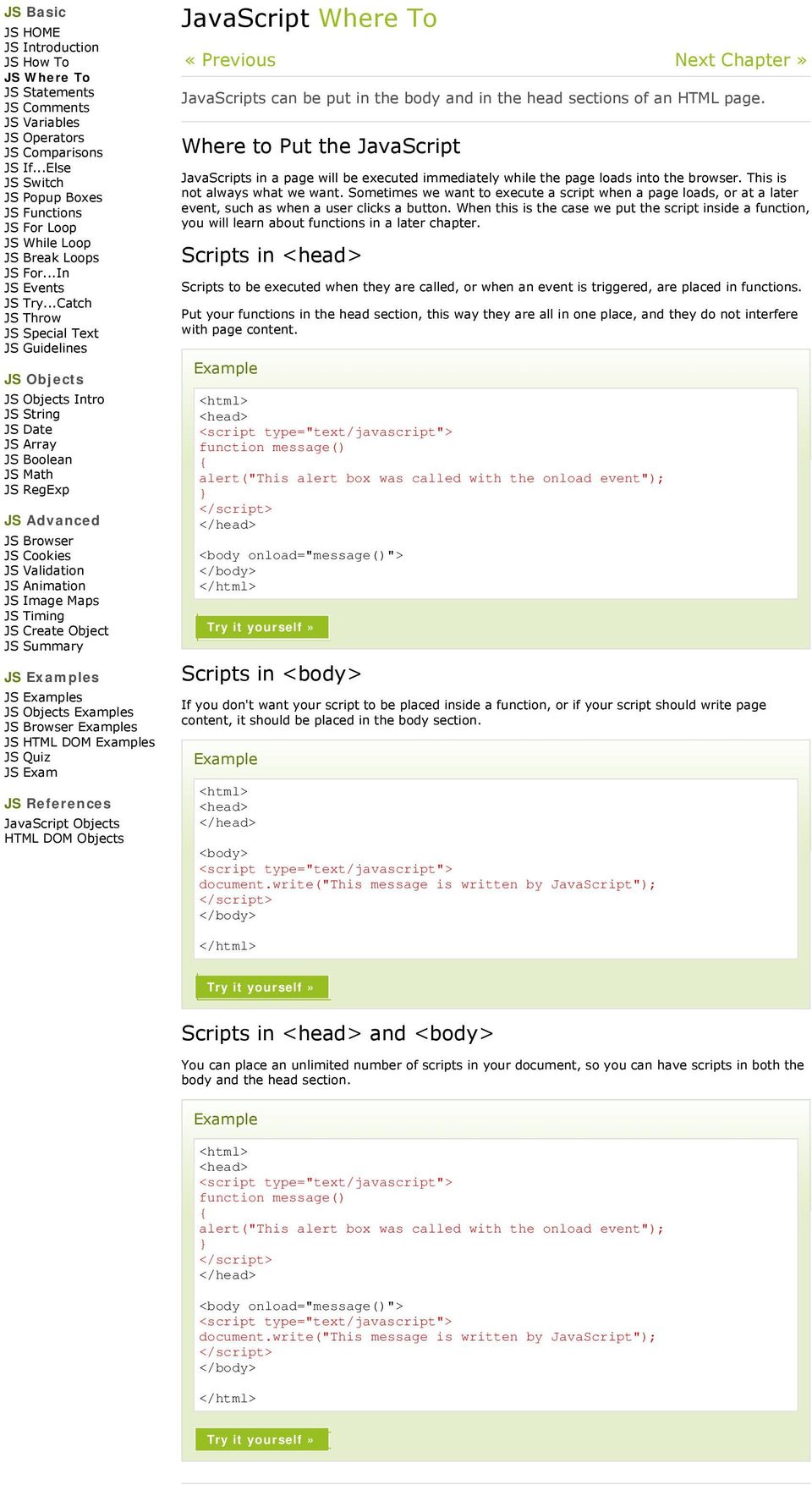
5 JS Basic JS HOME JS Introduction JS How To JS Where To JS Statements JS Comments JS Variables JS Operators JS Comparisons JS If...Else JS Switch JS Popup Boxes JS Functions JS For Loop JS While Loop JS Break Loops JS For...In JS Events JS Try...Catch JS Throw JS Special Text JS Guidelines JS Objects JS Objects Intro JS Advanced JS Browser JS Cookies JS Validation JS Animation JS Image Maps JS Timing JS Create Object JS Summary JS Objects Examples JS Browser Examples JS HTML DOM Examples JS Quiz JS Exam JS References JavaScript Where To JavaScripts can be put in the body and in the head sections of an HTML page. Where to Put the JavaScript JavaScripts in a page will be executed immediately while the page loads into the browser. This is not always what we want. Sometimes we want to execute a script when a page loads, or at a later event, such as when a user clicks a button. When this is the case we put the script inside a function, you will learn about functions in a later chapter. Scripts in <head> Scripts to be executed when they are called, or when an event is triggered, are placed in functions. Put your functions in the head section, this way they are all in one place, and they do not interfere with page content. Example <html> <head> <script type="text/javascript"> function message() alert("this alert box was called with the onload event"); </script> </head> <body onload="message()"> </body> </html> Try it yourself» Scripts in <body> If you don't want your script to be placed inside a function, or if your script should write page content, it should be placed in the body section. Example <html> <head> </head> <body> <script type="text/javascript"> document.write("this message is written by JavaScript"); </script> </body> </html> Try it yourself» Scripts in <head> and <body> You can place an unlimited number of scripts in your document, so you can have scripts in both the body and the head section. Example <html> <head> <script type="text/javascript"> function message() alert("this alert box was called with the onload event"); </script> </head> <body onload="message()"> <script type="text/javascript"> document.write("this message is written by JavaScript"); </script> </body> </html> Try it yourself»
6 Using an External JavaScript If you want to run the same JavaScript on several pages, without having to write the same script on every page, you can write a JavaScript in an external file. Save the external JavaScript file with a.js file extension. Note: The external script cannot contain the <script></script> tags! To use the external script, point to the.js file in the "src" attribute of the <script> tag: Example <html> <head> <script type="text/javascript" src="abc.js"></script> </head> <body> </body> </html> Try it yourself» Note: Remember to place the script exactly where you normally would write the script!

7 JS Basic JS HOME JS Introduction JS How To JS Where To JS Statements JS Comments JS Variables JS Operators JS Comparisons JS If...Else JS Switch JS Popup Boxes JS Functions JS For Loop JS While Loop JS Break Loops JS For...In JS Events JS Try...Catch JS Throw JS Special Text JS Guidelines JS Objects JS Objects Intro JS Advanced JS Browser JS Cookies JS Validation JS Animation JS Image Maps JS Timing JS Create Object JS Summary JS Objects Examples JS Browser Examples JS HTML DOM Examples JS Quiz JS Exam JS References JavaScript Statements JavaScript is a sequence of statements to be executed by the browser. JavaScript is Case Sensitive Unlike HTML, JavaScript is case sensitive - therefore watch your capitalization closely when you write JavaScript statements, create or call variables, objects and functions. JavaScript Statements A JavaScript statement is a command to a browser. The purpose of the command is to tell the browser what to do. This JavaScript statement tells the browser to write "Hello Dolly" to the web page: document.write("hello Dolly"); It is normal to add a semicolon at the end of each executable statement. Most people think this is a good programming practice, and most often you will see this in JavaScript examples on the web. The semicolon is optional (according to the JavaScript standard), and the browser is supposed to interpret the end of the line as the end of the statement. Because of this you will often see examples without the semicolon at the end. Note: Using semicolons makes it possible to write multiple statements on one line. JavaScript Code JavaScript code (or just JavaScript) is a sequence of JavaScript statements. Each statement is executed by the browser in the sequence they are written. This example will write a heading and two paragraphs to a web page: Example <script type="text/javascript"> document.write("<h1>this is a heading</h1>"); document.write("<p>this is a paragraph.</p>"); document.write("<p>this is another paragraph.</p>"); </script> Try it yourself» JavaScript Blocks JavaScript statements can be grouped together in blocks. Blocks start with a left curly bracket, and ends with a right curly bracket. The purpose of a block is to make the sequence of statements execute together. This example will write a heading and two paragraphs to a web page: Example <script type="text/javascript"> document.write("<h1>this is a heading</h1>"); document.write("<p>this is a paragraph.</p>"); document.write("<p>this is another paragraph.</p>"); </script> Try it yourself» The example above is not very useful. It just demonstrates the use of a block. Normally a block is used to group statements together in a function or in a condition (where a group of statements should be executed if a condition is met). You will learn more about functions and conditions in later chapters.

8 JS Basic JS HOME JS Introduction JS How To JS Where To JS Statements JS Comments JS Variables JS Operators JS Comparisons JS If...Else JS Switch JS Popup Boxes JS Functions JS For Loop JS While Loop JS Break Loops JS For...In JS Events JS Try...Catch JS Throw JS Special Text JS Guidelines JS Objects JS Objects Intro JS Advanced JS Browser JS Cookies JS Validation JS Animation JS Image Maps JS Timing JS Create Object JS Summary JS Objects Examples JS Browser Examples JS HTML DOM Examples JS Quiz JS Exam JS References JavaScript Comments JavaScript comments can be used to make the code more readable. JavaScript Comments Comments can be added to explain the JavaScript, or to make the code more readable. Single line comments start with //. The following example uses single line comments to explain the code: Example <script type="text/javascript"> // Write a heading document.write("<h1>this is a heading</h1>"); // Write two paragraphs: document.write("<p>this is a paragraph.</p>"); document.write("<p>this is another paragraph.</p>"); </script> Try it yourself» JavaScript Multi-Line Comments Multi line comments start with /* and end with */. The following example uses a multi line comment to explain the code: Example <script type="text/javascript"> /* The code below will write one heading and two paragraphs */ document.write("<h1>this is a heading</h1>"); document.write("<p>this is a paragraph.</p>"); document.write("<p>this is another paragraph.</p>"); </script> Try it yourself» Using Comments to Prevent Execution In the following example the comment is used to prevent the execution of a single code line (can be suitable for debugging): Example <script type="text/javascript"> //document.write("<h1>this is a heading</h1>"); document.write("<p>this is a paragraph.</p>"); document.write("<p>this is another paragraph.</p>"); </script> Try it yourself» In the following example the comment is used to prevent the execution of a code block (can be suitable for debugging): Example <script type="text/javascript"> /* document.write("<h1>this is a heading</h1>"); document.write("<p>this is a paragraph.</p>"); document.write("<p>this is another paragraph.</p>"); */ </script> Try it yourself» Using Comments at the End of a Line In the following example the comment is placed at the end of a code line:

9 Example <script type="text/javascript"> document.write("hello"); // Write "Hello" document.write(" Dolly!"); // Write " Dolly!" </script> Try it yourself»

10 JS Basic JS HOME JS Introduction JS How To JS Where To JS Statements JS Comments JS Variables JS Operators JS Comparisons JS If...Else JS Switch JS Popup Boxes JS Functions JS For Loop JS While Loop JS Break Loops JS For...In JS Events JS Try...Catch JS Throw JS Special Text JS Guidelines JS Objects JS Objects Intro JS Advanced JS Browser JS Cookies JS Validation JS Animation JS Image Maps JS Timing JS Create Object JS Summary JS Objects Examples JS Browser Examples JS HTML DOM Examples JS Quiz JS Exam JS References JavaScript Variables Variables are "containers" for storing information. Do You Remember Algebra From School? Do you remember algebra from school? x=5, y=6, z=x+y Do you remember that a letter (like x) could be used to hold a value (like 5), and that you could use the information above to calculate the value of z to be 11? These letters are called variables, and variables can be used to hold values (x=5) or expressions (z=x+y). JavaScript Variables As with algebra, JavaScript variables are used to hold values or expressions. A variable can have a short name, like x, or a more descriptive name, like carname. Rules for JavaScript variable names: Variable names are case sensitive (y and Y are two different variables) Variable names must begin with a letter or the underscore character Note: Because JavaScript is case-sensitive, variable names are case-sensitive. Example A variable's value can change during the execution of a script. You can refer to a variable by its name to display or change its value. This example will show you how Declaring (Creating) JavaScript Variables Creating variables in JavaScript is most often referred to as "declaring" variables. You can declare JavaScript variables with the var statement: var x; var carname; After the declaration shown above, the variables are empty (they have no values yet). However, you can also assign values to the variables when you declare them: var x=5; var carname="volvo"; After the execution of the statements above, the variable x will hold the value 5, and carname will hold the value Volvo. Note: When you assign a text value to a variable, use quotes around the value. Assigning Values to Undeclared JavaScript Variables If you assign values to variables that have not yet been declared, the variables will automatically be declared. These statements: x=5; carname="volvo"; have the same effect as: var x=5; var carname="volvo"; Redeclaring JavaScript Variables If you redeclare a JavaScript variable, it will not lose its original value. var x=5; var x; After the execution of the statements above, the variable x will still have the value of 5. The value of x is not reset (or cleared) when you redeclare it. JavaScript Arithmetic As with algebra, you can do arithmetic operations with JavaScript variables:

11 y=x-5; z=y+5; You will learn more about the operators that can be used in the next chapter of this tutorial.

12 JS Basic JS HOME JS Introduction JS How To JS Where To JS Statements JS Comments JS Variables JS Operators JS Comparisons JS If...Else JS Switch JS Popup Boxes JS Functions JS For Loop JS While Loop JS Break Loops JS For...In JS Events JS Try...Catch JS Throw JS Special Text JS Guidelines JS Objects JS Objects Intro JS Advanced JS Browser JS Cookies JS Validation JS Animation JS Image Maps JS Timing JS Create Object JS Summary JS Objects Examples JS Browser Examples JS HTML DOM Examples JS Quiz JS Exam JS References JavaScript Operators = is used to assign values. + is used to add values. The assignment operator = is used to assign values to JavaScript variables. The arithmetic operator + is used to add values together. y=5; z=2; x=y+z; The value of x, after the execution of the statements above is 7. JavaScript Arithmetic Operators Arithmetic operators are used to perform arithmetic between variables and/or values. Given that y=5, the table below explains the arithmetic operators: Operator Description Example Result + Addition x=y+2 x=7 - Subtraction x=y-2 x=3 * Multiplication x=y*2 x=10 / Division x=y/2 x=2.5 % Modulus (division remainder) x=y%2 x=1 ++ Increment x=++y x=6 -- Decrement x=--y x=4 JavaScript Assignment Operators Assignment operators are used to assign values to JavaScript variables. Given that x=10 and y=5, the table below explains the assignment operators: Operator Example Same As Result = x=y x=5 += x+=y x=x+y x=15 -= x-=y x=x-y x=5 *= x*=y x=x*y x=50 /= x/=y x=x/y x=2 %= x%=y x=x%y x=0 The + Operator Used on Strings The + operator can also be used to add string variables or text values together. To add two or more string variables together, use the + operator. txt1="what a very"; txt2="nice day"; txt3=txt1+txt2; After the execution of the statements above, the variable txt3 contains "What a verynice day". To add a space between the two strings, insert a space into one of the strings: txt1="what a very "; txt2="nice day"; txt3=txt1+txt2; or insert a space into the expression: txt1="what a very"; txt2="nice day"; txt3=txt1+" "+txt2; After the execution of the statements above, the variable txt3 contains: "What a very nice day" Adding Strings and Numbers The rule is: If you add a number and a string, the result will be a string!

13 Example x=5+5; document.write(x); x="5"+"5"; document.write(x); x=5+"5"; document.write(x); x="5"+5; document.write(x); Try it yourself»

14 JS Basic JS HOME JS Introduction JS How To JS Where To JS Statements JS Comments JS Variables JS Operators JS Comparisons JS If...Else JS Switch JS Popup Boxes JS Functions JS For Loop JS While Loop JS Break Loops JS For...In JS Events JS Try...Catch JS Throw JS Special Text JS Guidelines JS Objects JS Objects Intro JS Advanced JS Browser JS Cookies JS Validation JS Animation JS Image Maps JS Timing JS Create Object JS Summary JS Objects Examples JS Browser Examples JS HTML DOM Examples JS Quiz JS Exam JS References JavaScript Comparison and Logical Operators Comparison and Logical operators are used to test for true or false. Comparison Operators Comparison operators are used in logical statements to determine equality or difference between variables or values. Given that x=5, the table below explains the comparison operators: Operator Description Example == is equal to x==8 is false === is exactly equal to (value and type) x===5 is true x==="5" is false!= is not equal x!=8 is true > is greater than x>8 is false < is less than x<8 is true >= is greater than or equal to x>=8 is false <= is less than or equal to x<=8 is true How Can it be Used Comparison operators can be used in conditional statements to compare values and take action depending on the result: if (age<18) document.write("too young"); You will learn more about the use of conditional statements in the next chapter of this tutorial. Logical Operators Logical operators are used to determine the logic between variables or values. Given that x=6 and y=3, the table below explains the logical operators: Operator Description Example && and (x < 10 && y > 1) is true or (x==5 y==5) is false! not!(x==y) is true Conditional Operator JavaScript also contains a conditional operator that assigns a value to a variable based on some condition. Syntax variablename=(condition)?value1:value2 Example greeting=(visitor=="pres")?"dear President ":"Dear "; If the variable visitor has the value of "PRES", then the variable greeting will be assigned the value "Dear President " else it will be assigned "Dear".

15 JS Basic JS HOME JS Introduction JS How To JS Where To JS Statements JS Comments JS Variables JS Operators JS Comparisons JS If...Else JS Switch JS Popup Boxes JS Functions JS For Loop JS While Loop JS Break Loops JS For...In JS Events JS Try...Catch JS Throw JS Special Text JS Guidelines JS Objects JS Objects Intro JS Advanced JS Browser JS Cookies JS Validation JS Animation JS Image Maps JS Timing JS Create Object JS Summary JS Objects Examples JS Browser Examples JS HTML DOM Examples JS Quiz JS Exam JS References JavaScript If...Else Statements Conditional statements are used to perform different actions based on different conditions. Conditional Statements Very often when you write code, you want to perform different actions for different decisions. You can use conditional statements in your code to do this. In JavaScript we have the following conditional statements: if statement - use this statement to execute some code only if a specified condition is true if...else statement - use this statement to execute some code if the condition is true and another code if the condition is false if...else if...else statement - use this statement to select one of many blocks of code to be executed switch statement - use this statement to select one of many blocks of code to be executed If Statement Use the if statement to execute some code only if a specified condition is true. Syntax if (condition) code to be executed if condition is true Note that if is written in lowercase letters. Using uppercase letters (IF) will generate a JavaScript error! Example <script type="text/javascript"> //Write a "Good morning" greeting if //the time is less than 10 var d=new Date(); var time=d.gethours(); if (time<10) document.write("<b>good morning</b>"); </script> Try it yourself» Notice that there is no..else.. in this syntax. You tell the browser to execute some code only if the specified condition is true. If...else Statement Use the if...else statement to execute some code if a condition is true and another code if the condition is not true. Syntax if (condition) code to be executed if condition is true else code to be executed if condition is not true Example <script type="text/javascript"> //If the time is less than 10, you will get a "Good morning" greeting. //Otherwise you will get a "Good day" greeting. var d = new Date(); var time = d.gethours(); if (time < 10) document.write("good morning!"); else

16 document.write("good day!"); </script> Try it yourself» If...else if...else Statement Use the if...else if...else statement to select one of several blocks of code to be executed. Syntax if (condition1) code to be executed if condition1 is true else if (condition2) code to be executed if condition2 is true else code to be executed if condition1 and condition2 are not true Example <script type="text/javascript"> var d = new Date() var time = d.gethours() if (time<10) document.write("<b>good morning</b>"); else if (time>10 && time<16) document.write("<b>good day</b>"); else document.write("<b>hello World!</b>"); </script> Try it yourself» More Examples Random link This example demonstrates a link, when you click on the link it will take you to W3Schools.com OR to RefsnesData.no. There is a 50% chance for each of them.

17 JS Basic JS HOME JS Introduction JS How To JS Where To JS Statements JS Comments JS Variables JS Operators JS Comparisons JS If...Else JS Switch JS Popup Boxes JS Functions JS For Loop JS While Loop JS Break Loops JS For...In JS Events JS Try...Catch JS Throw JS Special Text JS Guidelines JS Objects JS Objects Intro JS Advanced JS Browser JS Cookies JS Validation JS Animation JS Image Maps JS Timing JS Create Object JS Summary JS Objects Examples JS Browser Examples JS HTML DOM Examples JS Quiz JS Exam JS References JavaScript Switch Statement Conditional statements are used to perform different actions based on different conditions. The JavaScript Switch Statement Use the switch statement to select one of many blocks of code to be executed. Syntax switch(n) case 1: execute code block 1 break; case 2: execute code block 2 break; default: code to be executed if n is different from case 1 and 2 This is how it works: First we have a single expression n (most often a variable), that is evaluated once. The value of the expression is then compared with the values for each case in the structure. If there is a match, the block of code associated with that case is executed. Use break to prevent the code from running into the next case automatically. Example <script type="text/javascript"> //You will receive a different greeting based //on what day it is. Note that Sunday=0, //Monday=1, Tuesday=2, etc. var d=new Date(); theday=d.getday(); switch (theday) case 5: document.write("finally Friday"); break; case 6: document.write("super Saturday"); break; case 0: document.write("sleepy Sunday"); break; default: document.write("i'm looking forward to this weekend!"); </script> Try it yourself» «Previous Next Chapter

18 JS Basic JS HOME JS Introduction JS How To JS Where To JS Statements JS Comments JS Variables JS Operators JS Comparisons JS If...Else JS Switch JS Popup Boxes JS Functions JS For Loop JS While Loop JS Break Loops JS For...In JS Events JS Try...Catch JS Throw JS Special Text JS Guidelines JS Objects JS Objects Intro JS Advanced JS Browser JS Cookies JS Validation JS Animation JS Image Maps JS Timing JS Create Object JS Summary JS Objects Examples JS Browser Examples JS HTML DOM Examples JS Quiz JS Exam JS References JavaScript Popup Boxes JavaScript has three kind of popup boxes: Alert box, Confirm box, and Prompt box. Alert Box An alert box is often used if you want to make sure information comes through to the user. When an alert box pops up, the user will have to click "OK" to proceed. Syntax alert("sometext"); Example <html> <head> <script type="text/javascript"> function show_alert() alert("i am an alert box!"); </script> </head> <body> <input type="button" onclick="show_alert()" value="show alert box" /> </body> </html> Try it yourself» Confirm Box A confirm box is often used if you want the user to verify or accept something. When a confirm box pops up, the user will have to click either "OK" or "Cancel" to proceed. If the user clicks "OK", the box returns true. If the user clicks "Cancel", the box returns false. Syntax confirm("sometext"); Example <html> <head> <script type="text/javascript"> function show_confirm() var r=confirm("press a button"); if (r==true) alert("you pressed OK!"); else alert("you pressed Cancel!"); </script> </head> <body> <input type="button" onclick="show_confirm()" value="show confirm box" /> </body> </html> Try it yourself» Prompt Box A prompt box is often used if you want the user to input a value before entering a page. When a prompt box pops up, the user will have to click either "OK" or "Cancel" to proceed after entering an input value.

19 If the user clicks "OK" the box returns the input value. If the user clicks "Cancel" the box returns null. Syntax prompt("sometext","defaultvalue"); Example <html> <head> <script type="text/javascript"> function show_prompt() var name=prompt("please enter your name","harry Potter"); if (name!=null && name!="") document.write("hello " + name + "! How are you today?"); </script> </head> <body> <input type="button" onclick="show_prompt()" value="show prompt box" /> </body> </html> Try it yourself» More Examples Alert box with line breaks

20 JS Basic JS HOME JS Introduction JS How To JS Where To JS Statements JS Comments JS Variables JS Operators JS Comparisons JS If...Else JS Switch JS Popup Boxes JS Functions JS For Loop JS While Loop JS Break Loops JS For...In JS Events JS Try...Catch JS Throw JS Special Text JS Guidelines JS Objects JS Objects Intro JS Advanced JS Browser JS Cookies JS Validation JS Animation JS Image Maps JS Timing JS Create Object JS Summary JS Objects Examples JS Browser Examples JS HTML DOM Examples JS Quiz JS Exam JS References JavaScript Functions A function will be executed by an event or by a call to the function. JavaScript Functions To keep the browser from executing a script when the page loads, you can put your script into a function. A function contains code that will be executed by an event or by a call to the function. You may call a function from anywhere within a page (or even from other pages if the function is embedded in an external.js file). Functions can be defined both in the <head> and in the <body> section of a document. However, to assure that a function is read/loaded by the browser before it is called, it could be wise to put functions in the <head> section. How to Define a Function Syntax function functionname(var1,var2,...,varx) some code The parameters var1, var2, etc. are variables or values passed into the function. The and the defines the start and end of the function. Note: A function with no parameters must include the parentheses () after the function name. Note: Do not forget about the importance of capitals in JavaScript! The word function must be written in lowercase letters, otherwise a JavaScript error occurs! Also note that you must call a function with the exact same capitals as in the function name. JavaScript Function Example Example <html> <head> <script type="text/javascript"> function displaymessage() alert("hello World!"); </script> </head> <body> <form> <input type="button" value="click me!" onclick="displaymessage()" /> </form> </body> </html> Try it yourself» If the line: alert("hello world!!") in the example above had not been put within a function, it would have been executed as soon as the line was loaded. Now, the script is not executed before a user hits the input button. The function displaymessage() will be executed if the input button is clicked. You will learn more about JavaScript events in the JS Events chapter. The return Statement The return statement is used to specify the value that is returned from the function. So, functions that are going to return a value must use the return statement. The example below returns the product of two numbers (a and b): Example <html> <head> <script type="text/javascript"> function product(a,b) return a*b; </script> </head> <body>

21 <script type="text/javascript"> document.write(product(4,3)); </script> </body> </html> Try it yourself» The Lifetime of JavaScript Variables If you declare a variable within a function, the variable can only be accessed within that function. When you exit the function, the variable is destroyed. These variables are called local variables. You can have local variables with the same name in different functions, because each is recognized only by the function in which it is declared. If you declare a variable outside a function, all the functions on your page can access it. The lifetime of these variables starts when they are declared, and ends when the page is closed. More Examples Function with a parameter How to pass a variable to a function, and use the variable in the function. Function that returns a value How to let a function return a value. «Previous Next Chapter
22 JS Basic JS HOME JS Introduction JS How To JS Where To JS Statements JS Comments JS Variables JS Operators JS Comparisons JS If...Else JS Switch JS Popup Boxes JS Functions JS For Loop JS While Loop JS Break Loops JS For...In JS Events JS Try...Catch JS Throw JS Special Text JS Guidelines JS Objects JS Objects Intro JS Advanced JS Browser JS Cookies JS Validation JS Animation JS Image Maps JS Timing JS Create Object JS Summary JS Objects Examples JS Browser Examples JS HTML DOM Examples JS Quiz JS Exam JS References JavaScript For Loop Loops execute a block of code a specified number of times, or while a specified condition is true. JavaScript Loops Often when you write code, you want the same block of code to run over and over again in a row. Instead of adding several almost equal lines in a script we can use loops to perform a task like this. In JavaScript, there are two different kind of loops: for - loops through a block of code a specified number of times while - loops through a block of code while a specified condition is true The for Loop The for loop is used when you know in advance how many times the script should run. Syntax for (var=startvalue;var<=endvalue;var=var+increment) code to be executed Example The example below defines a loop that starts with i=0. The loop will continue to run as long as i is less than, or equal to 5. i will increase by 1 each time the loop runs. Note: The increment parameter could also be negative, and the <= could be any comparing statement. Example <html> <body> <script type="text/javascript"> var i=0; for (i=0;i<=5;i++) document.write("the number is " + i); document.write("<br />"); </script> </body> </html> Try it yourself» The while loop The while loop will be explained in the next chapter. More Examples Looping through HTML headings Loop through the six different HTML headings.
23 JS Basic JS HOME JS Introduction JS How To JS Where To JS Statements JS Comments JS Variables JS Operators JS Comparisons JS If...Else JS Switch JS Popup Boxes JS Functions JS For Loop JS While Loop JS Break Loops JS For...In JS Events JS Try...Catch JS Throw JS Special Text JS Guidelines JS Objects JS Objects Intro JS Advanced JS Browser JS Cookies JS Validation JS Animation JS Image Maps JS Timing JS Create Object JS Summary JS Objects Examples JS Browser Examples JS HTML DOM Examples JS Quiz JS Exam JS References JavaScript While Loop Loops execute a block of code a specified number of times, or while a specified condition is true. The while Loop The while loop loops through a block of code while a specified condition is true. Syntax while (var<=endvalue) code to be executed Note: The <= could be any comparing statement. Example The example below defines a loop that starts with i=0. The loop will continue to run as long as i is less than, or equal to 5. i will increase by 1 each time the loop runs: Example <html> <body> <script type="text/javascript"> var i=0; while (i<=5) document.write("the number is " + i); document.write("<br />"); i++; </script> </body> </html> Try it yourself» The do...while Loop The do...while loop is a variant of the while loop. This loop will execute the block of code ONCE, and then it will repeat the loop as long as the specified condition is true. Syntax do code to be executed while (var<=endvalue); Example The example below uses a do...while loop. The do...while loop will always be executed at least once, even if the condition is false, because the statements are executed before the condition is tested: Example <html> <body> <script type="text/javascript"> var i=0; do document.write("the number is " + i); document.write("<br />"); i++; while (i<=5); </script> </body> </html> Try it yourself»
24 JS Basic JS HOME JS Introduction JS How To JS Where To JS Statements JS Comments JS Variables JS Operators JS Comparisons JS If...Else JS Switch JS Popup Boxes JS Functions JS For Loop JS While Loop JS Break Loops JS For...In JS Events JS Try...Catch JS Throw JS Special Text JS Guidelines JS Objects JS Objects Intro JS Advanced JS Browser JS Cookies JS Validation JS Animation JS Image Maps JS Timing JS Create Object JS Summary JS Objects Examples JS Browser Examples JS HTML DOM Examples JS Quiz JS Exam JS References JavaScript Break and Continue Statements The break Statement The break statement will break the loop and continue executing the code that follows after the loop (if any). Example <html> <body> <script type="text/javascript"> var i=0; for (i=0;i<=10;i++) if (i==3) break; document.write("the number is " + i); document.write("<br />"); </script> </body> </html> Try it yourself» The continue Statement The continue statement will break the current loop and continue with the next value. Example <html> <body> <script type="text/javascript"> var i=0 for (i=0;i<=10;i++) if (i==3) continue; document.write("the number is " + i); document.write("<br />"); </script> </body> </html> Try it yourself»
25 JS Basic JS HOME JS Introduction JS How To JS Where To JS Statements JS Comments JS Variables JS Operators JS Comparisons JS If...Else JS Switch JS Popup Boxes JS Functions JS For Loop JS While Loop JS Break Loops JS For...In JS Events JS Try...Catch JS Throw JS Special Text JS Guidelines JS Objects JS Objects Intro JS Advanced JS Browser JS Cookies JS Validation JS Animation JS Image Maps JS Timing JS Create Object JS Summary JS Objects Examples JS Browser Examples JS HTML DOM Examples JS Quiz JS Exam JS References JavaScript For...In Statement JavaScript For...In Statement The for...in statement loops through the elements of an array or through the properties of an object. Syntax for (variable in object) code to be executed Note: The code in the body of the for...in loop is executed once for each element/property. Note: The variable argument can be a named variable, an array element, or a property of an object. Example Use the for...in statement to loop through an array: Example <html> <body> <script type="text/javascript"> var x; var mycars = new Array(); mycars[0] = "Saab"; mycars[1] = "Volvo"; mycars[2] = "BMW"; for (x in mycars) document.write(mycars[x] + "<br />"); </script> </body> </html> Try it yourself»
26 JS Basic JS HOME JS Introduction JS How To JS Where To JS Statements JS Comments JS Variables JS Operators JS Comparisons JS If...Else JS Switch JS Popup Boxes JS Functions JS For Loop JS While Loop JS Break Loops JS For...In JS Events JS Try...Catch JS Throw JS Special Text JS Guidelines JS Objects JS Objects Intro JS Advanced JS Browser JS Cookies JS Validation JS Animation JS Image Maps JS Timing JS Create Object JS Summary JS Objects Examples JS Browser Examples JS HTML DOM Examples JS Quiz JS Exam JS References JavaScript Events Events are actions that can be detected by JavaScript. Events By using JavaScript, we have the ability to create dynamic web pages. Events are actions that can be detected by JavaScript. Every element on a web page has certain events which can trigger a JavaScript. For example, we can use the onclick event of a button element to indicate that a function will run when a user clicks on the button. We define the events in the HTML tags. Examples of events: A mouse click A web page or an image loading Mousing over a hot spot on the web page Selecting an input field in an HTML form Submitting an HTML form A keystroke Note: Events are normally used in combination with functions, and the function will not be executed before the event occurs! For a complete reference of the events recognized by JavaScript, go to our complete JavaScript reference. onload and onunload The onload and onunload events are triggered when the user enters or leaves the page. The onload event is often used to check the visitor's browser type and browser version, and load the proper version of the web page based on the information. Both the onload and onunload events are also often used to deal with cookies that should be set when a user enters or leaves a page. For example, you could have a popup asking for the user's name upon his first arrival to your page. The name is then stored in a cookie. Next time the visitor arrives at your page, you could have another popup saying something like: "Welcome John Doe!". onfocus, onblur and onchange The onfocus, onblur and onchange events are often used in combination with validation of form fields. Below is an example of how to use the onchange event. The check () function will be called whenever the user changes the content of the field: <input type="text" size="30" id=" " onchange="check ()"> onsubmit The onsubmit event is used to validate ALL form fields before submitting it. Below is an example of how to use the onsubmit event. The checkform() function will be called when the user clicks the submit button in the form. If the field values are not accepted, the submit should be cancelled. The function checkform() returns either true or false. If it returns true the form will be submitted, otherwise the submit will be cancelled: <form method="post" action="xxx.htm" onsubmit="return checkform()"> onmouseover and onmouseout onmouseover and onmouseout are often used to create "animated" buttons. Below is an example of an onmouseover event. An alert box appears when an onmouseover event is detected: <a href=" onmouseover="alert('an onmouseover event');return false"><img src="w3s.gif" alt="w3schools" /></a>
27 JS Basic JS HOME JS Introduction JS How To JS Where To JS Statements JS Comments JS Variables JS Operators JS Comparisons JS If...Else JS Switch JS Popup Boxes JS Functions JS For Loop JS While Loop JS Break Loops JS For...In JS Events JS Try...Catch JS Throw JS Special Text JS Guidelines JS Objects JS Objects Intro JS Advanced JS Browser JS Cookies JS Validation JS Animation JS Image Maps JS Timing JS Create Object JS Summary JS Objects Examples JS Browser Examples JS HTML DOM Examples JS Quiz JS Exam JS References JavaScript Try...Catch Statement The try...catch statement allows you to test a block of code for errors. JavaScript - Catching Errors When browsing Web pages on the internet, we all have seen a JavaScript alert box telling us there is a runtime error and asking "Do you wish to debug?". Error message like this may be useful for developers but not for users. When users see errors, they often leave the Web page. This chapter will teach you how to catch and handle JavaScript error messages, so you don't lose your audience. The try...catch Statement The try...catch statement allows you to test a block of code for errors. The try block contains the code to be run, and the catch block contains the code to be executed if an error occurs. Syntax try //Run some code here catch(err) //Handle errors here Note that try...catch is written in lowercase letters. Using uppercase letters will generate a JavaScript error! Examples The example below is supposed to alert "Welcome guest!" when the button is clicked. However, there's a typo in the message() function. alert() is misspelled as adddlert(). A JavaScript error occurs. The catch block catches the error and executes a custom code to handle it. The code displays a custom error message informing the user what happened: Example <html> <head> <script type="text/javascript"> var txt=""; function message() try adddlert("welcome guest!"); catch(err) txt="there was an error on this page.\n\n"; txt+="error description: " + err.description + "\n\n"; txt+="click OK to continue.\n\n"; alert(txt); </script> </head> <body> <input type="button" value="view message" onclick="message()" /> </body> </html> Try it yourself» The next example uses a confirm box to display a custom message telling users they can click OK to continue viewing the page or click Cancel to go to the homepage. If the confirm method returns false, the user clicked Cancel, and the code redirects the user. If the confirm method returns true, the code does nothing: Example <html> <head> <script type="text/javascript"> var txt=""; function message() try adddlert("welcome guest!");
28 catch(err) txt="there was an error on this page.\n\n"; txt+="click OK to continue viewing this page,\n"; txt+="or Cancel to return to the home page.\n\n"; if(!confirm(txt)) document.location.href=" </script> </head> <body> <input type="button" value="view message" onclick="message()" /> </body> </html> Try it yourself» The throw Statement The throw statement can be used together with the try...catch statement, to create an exception for the error. Learn about the throw statement in the next chapter.
29 JS Basic JS HOME JS Introduction JS How To JS Where To JS Statements JS Comments JS Variables JS Operators JS Comparisons JS If...Else JS Switch JS Popup Boxes JS Functions JS For Loop JS While Loop JS Break Loops JS For...In JS Events JS Try...Catch JS Throw JS Special Text JS Guidelines JS Objects JS Objects Intro JS Advanced JS Browser JS Cookies JS Validation JS Animation JS Image Maps JS Timing JS Create Object JS Summary JS Objects Examples JS Browser Examples JS HTML DOM Examples JS Quiz JS Exam JS References JavaScript Throw Statement The throw statement allows you to create an exception. The Throw Statement The throw statement allows you to create an exception. If you use this statement together with the try...catch statement, you can control program flow and generate accurate error messages. Syntax throw(exception) The exception can be a string, integer, Boolean or an object. Note that throw is written in lowercase letters. Using uppercase letters will generate a JavaScript error! Example The example below determines the value of a variable called x. If the value of x is higher than 10, lower than 0, or not a number, we are going to throw an error. The error is then caught by the catch argument and the proper error message is displayed: Example <html> <body> <script type="text/javascript"> var x=prompt("enter a number between 0 and 10:",""); try if(x>10) throw "Err1"; else if(x<0) throw "Err2"; else if(isnan(x)) throw "Err3"; catch(er) if(er=="err1") alert("error! The value is too high"); if(er=="err2") alert("error! The value is too low"); if(er=="err3") alert("error! The value is not a number"); </script> </body> </html> Try it yourself»
30 JS Basic JS HOME JS Introduction JS How To JS Where To JS Statements JS Comments JS Variables JS Operators JS Comparisons JS If...Else JS Switch JS Popup Boxes JS Functions JS For Loop JS While Loop JS Break Loops JS For...In JS Events JS Try...Catch JS Throw JS Special Text JS Guidelines JS Objects JS Objects Intro JS Advanced JS Browser JS Cookies JS Validation JS Animation JS Image Maps JS Timing JS Create Object JS Summary JS Objects Examples JS Browser Examples JS HTML DOM Examples JS Quiz JS Exam JS References JavaScript Special Characters In JavaScript you can add special characters to a text string by using the backslash sign. Insert Special Characters The backslash (\) is used to insert apostrophes, new lines, quotes, and other special characters into a text string. Look at the following JavaScript code: var txt="we are the so-called "Vikings" from the north."; document.write(txt); In JavaScript, a string is started and stopped with either single or double quotes. This means that the string above will be chopped to: We are the so-called To solve this problem, you must place a backslash (\) before each double quote in "Viking". This turns each double quote into a string literal: var txt="we are the so-called \"Vikings\" from the north."; document.write(txt); JavaScript will now output the proper text string: We are the so-called "Vikings" from the north. Here is another example: document.write ("You \& I are singing!"); The example above will produce the following output: You & I are singing! The table below lists other special characters that can be added to a text string with the backslash sign: Code Outputs \' single quote \" double quote \& ampersand \\ backslash \n new line \r carriage return \t tab \b backspace \f form feed
31 JS Basic JS HOME JS Introduction JS How To JS Where To JS Statements JS Comments JS Variables JS Operators JS Comparisons JS If...Else JS Switch JS Popup Boxes JS Functions JS For Loop JS While Loop JS Break Loops JS For...In JS Events JS Try...Catch JS Throw JS Special Text JS Guidelines JS Objects JS Objects Intro JS Advanced JS Browser JS Cookies JS Validation JS Animation JS Image Maps JS Timing JS Create Object JS Summary JS Objects Examples JS Browser Examples JS HTML DOM Examples JS Quiz JS Exam JavaScript Guidelines Some other important things to know when scripting with JavaScript. JavaScript is Case Sensitive A function named "myfunction" is not the same as "myfunction" and a variable named "myvar" is not the same as "myvar". JavaScript is case sensitive - therefore watch your capitalization closely when you create or call variables, objects and functions. White Space JavaScript ignores extra spaces. You can add white space to your script to make it more readable. The following lines are equivalent: name="hege"; name = "Hege"; Break up a Code Line You can break up a code line within a text string with a backslash. The example below will be displayed properly: document.write("hello \ World!"); However, you cannot break up a code line like this: document.write \ ("Hello World!"); JS References
32 JS Basic JS HOME JS Introduction JS How To JS Where To JS Statements JS Comments JS Variables JS Operators JS Comparisons JS If...Else JS Switch JS Popup Boxes JS Functions JS For Loop JS While Loop JS Break Loops JS For...In JS Events JS Try...Catch JS Throw JS Special Text JS Guidelines JS Objects JS Objects Intro JS Advanced JS Browser JS Cookies JS Validation JS Animation JS Image Maps JS Timing JS Create Object JS Summary JS Objects Examples JS Browser Examples JS HTML DOM Examples JS Quiz JS Exam JS References Introduction JavaScript is an Object Oriented Programming (OOP) language. An OOP language allows you to define your own objects and make your own variable types. Object Oriented Programming JavaScript is an Object Oriented Programming (OOP) language. An OOP language allows you to define your own objects and make your own variable types. However, creating your own objects will be explained later, in the Advanced JavaScript section. We will start by looking at the built-in JavaScript objects, and how they are used. The next pages will explain each built-in JavaScript object in detail. Note that an object is just a special kind of data. An object has properties and methods. Properties Properties are the values associated with an object. In the following example we are using the length property of the String object to return the number of characters in a string: <script type="text/javascript"> var txt="hello World!"; document.write(txt.length); </script> The output of the code above will be: 12 Methods Methods are the actions that can be performed on objects. In the following example we are using the touppercase() method of the String object to display a text in uppercase letters: <script type="text/javascript"> var str="hello world!"; document.write(str.touppercase()); </script> The output of the code above will be: HELLO WORLD! «Previous Next Chapter
33 JavaScript Number Object «Previous Next Reference» Number Object The Number object is an object wrapper for primitive numeric values. Number objects are created with new Number(). Syntax var num = new Number(value); Note: If the value parameter cannot be converted into a number, it returns NaN (Not-a-Number). Number Object Properties Property constructor MAX_VALUE MIN_VALUE NEGATIVE_INFINITY POSITIVE_INFINITY prototype Description Returns the function that created the Number object's prototype Returns the largest number possible in JavaScript Returns the smallest number possible in JavaScript Represents negative infinity (returned on overflow) Represents infinity (returned on overflow) Allows you to add properties and methods to an object Number Object Methods Method toexponential(x) tofixed(x) toprecision(x) tostring() valueof() «Previous Description Converts a number into an exponential notation Formats a number with x numbers of digits after the decimal point Formats a number to x length Converts a Number object to a string Returns the primitive value of a Number object Next Reference
34 JavaScript Global «Previous Next Reference» The JavaScript global properties and functions can be used with all the built-in JavaScript objects. JavaScript Global Properties Property Infinity NaN undefined Description A numeric value that represents positive/negative infinity "Not-a-Number" value Indicates that a variable has not been assigned a value JavaScript Global Functions Function decodeuri() decodeuricomponent() encodeuri() encodeuricomponent() escape() eval() isfinite() isnan() Number() parsefloat() parseint() String() unescape() «Previous Description Decodes a URI Decodes a URI component Encodes a URI Encodes a URI component Encodes a string Evaluates a string and executes it as if it was script code Determines whether a value is a finite, legal number Determines whether a value is an illegal number Converts an object's value to a number Parses a string and returns a floating point number Parses a string and returns an integer Converts an object's value to a string Decodes an encoded string Next Reference»
35 JS Basic JS HOME JS Introduction JS How To JS Where To JS Statements JS Comments JS Variables JS Operators JS Comparisons JS If...Else JS Switch JS Popup Boxes JS Functions JS For Loop JS While Loop JS Break Loops JS For...In JS Events JS Try...Catch JS Throw JS Special Text JS Guidelines JS Objects JS Objects Intro JS Advanced JS Browser JS Cookies JS Validation JS Animation JS Image Maps JS Timing JS Create Object JS Summary JS Objects Examples JS Browser Examples JS HTML DOM Examples JS Quiz JS Exam JS References JavaScript String Object The String object is used to manipulate a stored piece of text. Try it Yourself - Examples Return the length of a string How to return the length of a string. Style strings How to style strings. The tolowercase() and touppercase() methods How to convert a string to lowercase or uppercase letters. The match() method How to search for a specified value within a string. Replace characters in a string - replace() How to replace a specified value with another value in a string. The indexof() method How to return the position of the first found occurrence of a specified value in a string. Complete String Object Reference For a complete reference of all the properties and methods that can be used with the String object, go to our complete String object reference. The reference contains a brief description and examples of use for each property and method! String object The String object is used to manipulate a stored piece of text. Examples of use: The following example uses the length property of the String object to find the length of a string: var txt="hello world!"; document.write(txt.length); The code above will result in the following output: 12 The following example uses the touppercase() method of the String object to convert a string to uppercase letters: var txt="hello world!"; document.write(txt.touppercase()); The code above will result in the following output: HELLO WORLD!
36 JavaScript String Object «Previous Next Reference» String Object The String object is used to manipulate a stored piece of text. String objects are created with new String(). Syntax var txt = new String(string); or more simply: var txt = string; For a tutorial about the String object, read our JavaScript String Object tutorial. String Object Properties Property constructor length prototype Description Returns the function that created the String object's prototype Returns the length of a string Allows you to add properties and methods to an object String Object Methods Method charat() charcodeat() concat() fromcharcode() indexof() lastindexof() match() replace() search() slice() split() substr() substring() tolowercase() touppercase() valueof() Description Returns the character at the specified index Returns the Unicode of the character at the specified index Joins two or more strings, and returns a copy of the joined strings Converts Unicode values to characters Returns the position of the first found occurrence of a specified value in a string Returns the position of the last found occurrence of a specified value in a string Searches for a match between a regular expression and a string, and returns the matches Searches for a match between a substring (or regular expression) and a string, and replaces the matched substring with a new substring Searches for a match between a regular expression and a string, and returns the position of the match Extracts a part of a string and returns a new string Splits a string into an array of substrings Extracts the characters from a string, beginning at a specified start position, and through the specified number of character Extracts the characters from a string, between two specified indices Converts a string to lowercase letters Converts a string to uppercase letters Returns the primitive value of a String object String HTML Wrapper Methods The HTML wrapper methods return the string wrapped inside the appropriate HTML tag. Method anchor() big() blink() bold() fixed() fontcolor() fontsize() italics() link() small() strike() sub() sup() Description Creates an anchor Displays a string using a big font Displays a blinking string Displays a string in bold Displays a string using a fixed-pitch font Displays a string using a specified color Displays a string using a specified size Displays a string in italic Displays a string as a hyperlink Displays a string using a small font Displays a string with a strikethrough Displays a string as subscript text Displays a string as superscript text «Previous Next Reference»
37 JS Basic JS HOME JS Introduction JS How To JS Where To JS Statements JS Comments JS Variables JS Operators JS Comparisons JS If...Else JS Switch JS Popup Boxes JS Functions JS For Loop JS While Loop JS Break Loops JS For...In JS Events JS Try...Catch JS Throw JS Special Text JS Guidelines JS Objects JS Objects Intro JS Advanced JS Browser JS Cookies JS Validation JS Animation JS Image Maps JS Timing JS Create Object JS Summary JS Objects Examples JS Browser Examples JS HTML DOM Examples JS Quiz JS Exam JS References JavaScript Date Object The Date object is used to work with dates and times. Try it Yourself - Examples Return today's date and time How to use the Date() method to get today's date. gettime() Use gettime() to calculate the years since setfullyear() How to use setfullyear() to set a specific date. toutcstring() How to use toutcstring() to convert today's date (according to UTC) to a string. getday() Use getday() and an array to write a weekday, and not just a number. Display a clock How to display a clock on your web page. Complete Date Object Reference For a complete reference of all the properties and methods that can be used with the Date object, go to our complete Date object reference. The reference contains a brief description and examples of use for each property and method! Create a Date Object The Date object is used to work with dates and times. Date objects are created with the Date() constructor. There are four ways of instantiating a date: new Date() // current date and time new Date(milliseconds) //milliseconds since 1970/01/01 new Date(dateString) new Date(year, month, day, hours, minutes, seconds, milliseconds) Most parameters above are optional. Not specifying, causes 0 to be passed in. Once a Date object is created, a number of methods allow you to operate on it. Most methods allow you to get and set the year, month, day, hour, minute, second, and milliseconds of the object, using either local time or UTC (universal, or GMT) time. All dates are calculated in milliseconds from 01 January, :00:00 Universal Time (UTC) with a day containing 86,400,000 milliseconds. Some examples of instantiating a date: today = new Date() d1 = new Date("October 13, :13:00") d2 = new Date(79,5,24) d3 = new Date(79,5,24,11,33,0) Set Dates We can easily manipulate the date by using the methods available for the Date object. In the example below we set a Date object to a specific date (14th January 2010): var mydate=new Date(); mydate.setfullyear(2010,0,14); And in the following example we set a Date object to be 5 days into the future: var mydate=new Date(); mydate.setdate(mydate.getdate()+5); Note: If adding five days to a date shifts the month or year, the changes are handled automatically by the Date object itself! Compare Two Dates The Date object is also used to compare two dates. The following example compares today's date with the 14th January 2010:
38 var mydate=new Date(); mydate.setfullyear(2010,0,14); var today = new Date(); if (mydate>today) alert("today is before 14th January 2010"); else alert("today is after 14th January 2010");
39 JavaScript Date Object «Previous Next Reference» Date Object The Date object is used to work with dates and times. Date objects are created with new Date(). There are four ways of instantiating a date: var d = new Date(); var d = new Date(milliseconds); var d = new Date(dateString); var d = new Date(year, month, day, hours, minutes, seconds, milliseconds); For a tutorial about date and times, read our JavaScript Date Object tutorial. Date Object Properties Property constructor prototype Description Returns the function that created the Date object's prototype Allows you to add properties and methods to an object Date Object Methods Method Description getdate() Returns the day of the month (from 1-31) getday() Returns the day of the week (from 0-6) getfullyear() Returns the year (four digits) gethours() Returns the hour (from 0-23) getmilliseconds() Returns the milliseconds (from 0-999) getminutes() Returns the minutes (from 0-59) getmonth() Returns the month (from 0-11) getseconds() Returns the seconds (from 0-59) gettime() Returns the number of milliseconds since midnight Jan 1, 1970 gettimezoneoffset() Returns the time difference between GMT and local time, in minutes getutcdate() Returns the day of the month, according to universal time (from 1-31) getutcday() Returns the day of the week, according to universal time (from 0-6) getutcfullyear() Returns the year, according to universal time (four digits) getutchours() Returns the hour, according to universal time (from 0-23) getutcmilliseconds() Returns the milliseconds, according to universal time (from 0-999) getutcminutes() Returns the minutes, according to universal time (from 0-59) getutcmonth() Returns the month, according to universal time (from 0-11) getutcseconds() Returns the seconds, according to universal time (from 0-59) getyear() parse() Deprecated. Use the getfullyear() method instead Parses a date string and returns the number of milliseconds since midnight of January 1, 1970 setdate() Sets the day of the month (from 1-31) setfullyear() Sets the year (four digits) sethours() Sets the hour (from 0-23) setmilliseconds() Sets the milliseconds (from 0-999) setminutes() Set the minutes (from 0-59) setmonth() Sets the month (from 0-11) setseconds() Sets the seconds (from 0-59) settime() Sets a date and time by adding or subtracting a specified number of milliseconds to/from midnight January 1, 1970 setutcdate() Sets the day of the month, according to universal time (from 1-31) setutcfullyear() Sets the year, according to universal time (four digits) setutchours() Sets the hour, according to universal time (from 0-23) setutcmilliseconds() Sets the milliseconds, according to universal time (from 0-999) setutcminutes() Set the minutes, according to universal time (from 0-59) setutcmonth() Sets the month, according to universal time (from 0-11) setutcseconds() Set the seconds, according to universal time (from 0-59) setyear() todatestring() togmtstring() tolocaledatestring() tolocaletimestring() Deprecated. Use the setfullyear() method instead Converts the date portion of a Date object into a readable string Deprecated. Use the toutcstring() method instead Returns the date portion of a Date object as a string, using locale conventions Returns the time portion of a Date object as a string, using locale conventions
40 tolocalestring() tostring() totimestring() toutcstring() UTC() valueof() Converts a Date object to a string, using locale conventions Converts a Date object to a string Converts the time portion of a Date object to a string Converts a Date object to a string, according to universal time Returns the number of milliseconds in a date string since midnight of January 1, 1970, according to universal time Returns the primitive value of a Date object
41 JS Basic JS HOME JS Introduction JS How To JS Where To JS Statements JS Comments JS Variables JS Operators JS Comparisons JS If...Else JS Switch JS Popup Boxes JS Functions JS For Loop JS While Loop JS Break Loops JS For...In JS Events JS Try...Catch JS Throw JS Special Text JS Guidelines JS Objects JS Objects Intro JS Advanced JS Browser JS Cookies JS Validation JS Animation JS Image Maps JS Timing JS Create Object JS Summary JS Objects Examples JS Browser Examples JS HTML DOM Examples JS Quiz JS Exam JS References JavaScript Array Object The Array object is used to store multiple values in a single variable. Try it Yourself - Examples Create an array Create an array, assign values to it, and write the values to the output. For...In Statement How to use a for...in statement to loop through the elements of an array. (You can find more examples at the bottom of this page) Complete Array Object Reference For a complete reference of all the properties and methods that can be used with the Array object, go to our complete Array object reference. The reference contains a brief description and examples of use for each property and method! What is an Array? An array is a special variable, which can hold more than one value, at a time. If you have a list of items (a list of car names, for example), storing the cars in single variables could look like this: cars1="saab"; cars2="volvo"; cars3="bmw"; However, what if you want to loop through the cars and find a specific one? And what if you had not 3 cars, but 300? The best solution here is to use an array! An array can hold all your variable values under a single name. And you can access the values by referring to the array name. Each element in the array has its own ID so that it can be easily accessed. Create an Array An array can be defined in three ways. The following code creates an Array object called mycars: 1: var mycars=new Array(); // regular array (add an optional integer mycars[0]="saab"; // argument to control array's size) mycars[1]="volvo"; mycars[2]="bmw"; 2: var mycars=new Array("Saab","Volvo","BMW"); // condensed array 3: var mycars=["saab","volvo","bmw"]; // literal array Note: If you specify numbers or true/false values inside the array then the variable type will be Number or Boolean, instead of String. Access an Array You can refer to a particular element in an array by referring to the name of the array and the index number. The index number starts at 0. The following code line: document.write(mycars[0]); will result in the following output: Saab
42 Modify Values in an Array To modify a value in an existing array, just add a new value to the array with a specified index number: mycars[0]="opel"; Now, the following code line: document.write(mycars[0]); will result in the following output: Opel More Examples Join two arrays - concat() Join three arrays - concat() Join all elements of an array into a string - join() Remove the last element of an array - pop() Add new elements to the end of an array - push() Reverse the order of the elements in an array - reverse() Remove the first element of an array - shift() Select elements from an array - slice() Sort an array (alphabetically and ascending) - sort() Sort numbers (numerically and ascending) - sort() Sort numbers (numerically and descending) - sort() Add an element to position 2 in an array - splice() Convert an array to a string - tostring() Add new elements to the beginning of an array - unshift()
43 Array Object Properties Property constructor length prototype Description Returns the function that created the Array object's prototype Sets or returns the number of elements in an array Allows you to add properties and methods to an object Array Object Methods Method concat() join() pop() push() reverse() shift() slice() sort() splice() tostring() unshift() valueof() Description Joins two or more arrays, and returns a copy of the joined arrays Joins all elements of an array into a string Removes the last element of an array, and returns that element Adds new elements to the end of an array, and returns the new length Reverses the order of the elements in an array Removes the first element of an array, and returns that element Selects a part of an array, and returns the new array Sorts the elements of an array Adds/Removes elements from an array Converts an array to a string, and returns the result Adds new elements to the beginning of an array, and returns the new length Returns the primitive value of an array
44 JS Basic JS HOME JS Introduction JS How To JS Where To JS Statements JS Comments JS Variables JS Operators JS Comparisons JS If...Else JS Switch JS Popup Boxes JS Functions JS For Loop JS While Loop JS Break Loops JS For...In JS Events JS Try...Catch JS Throw JS Special Text JS Guidelines JS Objects JS Objects Intro JS Advanced JS Browser JS Cookies JS Validation JS Animation JS Image Maps JS Timing JS Create Object JS Summary JS Objects Examples JS Browser Examples JS HTML DOM Examples JS Quiz JS Exam JS References JavaScript Boolean Object The Boolean object is used to convert a non-boolean value to a Boolean value (true or false). Try it Yourself - Examples Check Boolean value Check if a Boolean object is true or false. Complete Boolean Object Reference For a complete reference of all the properties and methods that can be used with the Boolean object, go to our complete Boolean object reference. The reference contains a brief description and examples of use for each property and method! Create a Boolean Object The Boolean object represents two values: "true" or "false". The following code creates a Boolean object called myboolean: var myboolean=new Boolean(); Note: If the Boolean object has no initial value or if it is 0, -0, null, "", false, undefined, or NaN, the object is set to false. Otherwise it is true (even with the string "false")! All the following lines of code create Boolean objects with an initial value of false: var myboolean=new Boolean(); var myboolean=new Boolean(0); var myboolean=new Boolean(null); var myboolean=new Boolean(""); var myboolean=new Boolean(false); var myboolean=new Boolean(NaN); And all the following lines of code create Boolean objects with an initial value of true: var myboolean=new Boolean(true); var myboolean=new Boolean("true"); var myboolean=new Boolean("false"); var myboolean=new Boolean("Richard");
45 JavaScript Boolean Object «Previous Next Reference» Boolean Object The Boolean object is used to convert a non-boolean value to a Boolean value (true or false). For a tutorial about the Boolean object, read our JavaScript Boolean Object tutorial. Boolean Object Properties Property constructor prototype Description Returns the function that created the Boolean object's prototype Allows you to add properties and methods to an object Boolean Object Methods Method tostring() valueof() «Previous Description Converts a Boolean value to a string, and returns the result Returns the primitive value of a Boolean object Next Reference»
46 JS Basic JS HOME JS Introduction JS How To JS Where To JS Statements JS Comments JS Variables JS Operators JS Comparisons JS If...Else JS Switch JS Popup Boxes JS Functions JS For Loop JS While Loop JS Break Loops JS For...In JS Events JS Try...Catch JS Throw JS Special Text JS Guidelines JS Objects JS Objects Intro JS Advanced JS Browser JS Cookies JS Validation JS Animation JS Image Maps JS Timing JS Create Object JS Summary JS Objects Examples JS Browser Examples JS HTML DOM Examples JS Quiz JS Exam JS References JavaScript Math Object The Math object allows you to perform mathematical tasks. Try it Yourself - Examples round() How to use round(). random() How to use random() to return a random number between 0 and 1. max() How to use max() to return the number with the highest value of two specified numbers. min() How to use min() to return the number with the lowest value of two specified numbers. Complete Math Object Reference For a complete reference of all the properties and methods that can be used with the Math object, go to our complete Math object reference. The reference contains a brief description and examples of use for each property and method! Math Object The Math object allows you to perform mathematical tasks. The Math object includes several mathematical constants and methods. Syntax for using properties/methods of Math: var pi_value=math.pi; var sqrt_value=math.sqrt(16); Note: Math is not a constructor. All properties and methods of Math can be called by using Math as an object without creating it. Mathematical Constants JavaScript provides eight mathematical constants that can be accessed from the Math object. These are: E, PI, square root of 2, square root of 1/2, natural log of 2, natural log of 10, base-2 log of E, and base-10 log of E. You may reference these constants from your JavaScript like this: Math.E Math.PI Math.SQRT2 Math.SQRT1_2 Math.LN2 Math.LN10 Math.LOG2E Math.LOG10E Mathematical Methods In addition to the mathematical constants that can be accessed from the Math object there are also several methods available. The following example uses the round() method of the Math object to round a number to the nearest integer: document.write(math.round(4.7)); The code above will result in the following output: 5 The following example uses the random() method of the Math object to return a random number between 0 and 1: document.write(math.random()); The code above can result in the following output: The following example uses the floor() and random() methods of the Math object to return a random number between 0 and 10:
47 document.write(math.floor(math.random()*11)); The code above can result in the following output: 7
48 JavaScript Math Object «Previous Next Reference» Math Object The Math object allows you to perform mathematical tasks. Math is not a constructor. All properties/methods of Math can be called by using Math as an object, without creating it. Syntax var x = Math.PI; // Returns PI var y = Math.sqrt(16); // Returns the square root of 16 For a tutorial about the Math object, read our JavaScript Math Object tutorial. Math Object Properties Property Description E Returns Euler's number (approx ) LN2 Returns the natural logarithm of 2 (approx ) LN10 Returns the natural logarithm of 10 (approx ) LOG2E Returns the base-2 logarithm of E (approx ) LOG10E Returns the base-10 logarithm of E (approx ) PI Returns PI (approx ) SQRT1_2 Returns the square root of 1/2 (approx ) SQRT2 Returns the square root of 2 (approx ) Math Object Methods Method abs(x) acos(x) asin(x) atan(x) atan2(y,x) ceil(x) cos(x) exp(x) floor(x) log(x) max(x,y,z,...,n) min(x,y,z,...,n) pow(x,y) Description Returns the absolute value of x Returns the arccosine of x, in radians Returns the arcsine of x, in radians Returns the arctangent of x as a numeric value between -PI/2 and PI/2 radians Returns the arctangent of the quotient of its arguments Returns x, rounded upwards to the nearest integer Returns the cosine of x (x is in radians) Returns the value of E x Returns x, rounded downwards to the nearest integer Returns the natural logarithm (base E) of x Returns the number with the highest value Returns the number with the lowest value Returns the value of x to the power of y random() Returns a random number between 0 and 1 round(x) sin(x) sqrt(x) tan(x) Rounds x to the nearest integer Returns the sine of x (x is in radians) Returns the square root of x Returns the tangent of an angle «Previous Next Reference»
49 JS Basic JS HOME JS Introduction JS How To JS Where To JS Statements JS Comments JS Variables JS Operators JS Comparisons JS If...Else JS Switch JS Popup Boxes JS Functions JS For Loop JS While Loop JS Break Loops JS For...In JS Events JS Try...Catch JS Throw JS Special Text JS Guidelines JS Objects JS Objects Intro JS Advanced JS Browser JS Cookies JS Validation JS Animation JS Image Maps JS Timing JS Create Object JS Summary JS Objects Examples JS Browser Examples JS HTML DOM Examples JS Quiz JS Exam JS References JavaScript RegExp Object RegExp, is short for regular expression. Complete RegExp Object Reference For a complete reference of all the properties and methods that can be used with the RegExp object, go to our complete RegExp object reference. The reference contains a brief description and examples of use for each property and method! What is RegExp? A regular expression is an object that describes a pattern of characters. When you search in a text, you can use a pattern to describe what you are searching for. A simple pattern can be one single character. A more complicated pattern can consist of more characters, and can be used for parsing, format checking, substitution and more. Regular expressions are used to perform powerful pattern-matching and "search-and-replace" functions on text. Syntax var txt=new RegExp(pattern,modifiers); or more simply: var txt=/pattern/modifiers; pattern specifies the pattern of an expression modifiers specify if a search should be global, case-sensitive, etc. RegExp Modifiers Modifiers are used to perform case-insensitive and global searches. The i modifier is used to perform case-insensitive matching. The g modifier is used to perform a global match (find all matches rather than stopping after the first match). Example 1 Do a case-insensitive search for "w3schools" in a string: var str="visit W3Schools"; var patt1=/w3schools/i; The marked text below shows where the expression gets a match: Visit W3Schools Try it yourself» Example 2 Do a global search for "is": var str="is this all there is?"; var patt1=/is/g; The marked text below shows where the expression gets a match: Is this all there is? Try it yourself» Example 3 Do a global, case-insensitive search for "is": var str="is this all there is?"; var patt1=/is/gi; The marked text below shows where the expression gets a match: Is this all there is?
50 Try it yourself» test() The test() method searches a string for a specified value, and returns true or false, depending on the result. The following example searches a string for the character "e": Example var patt1=new RegExp("e"); document.write(patt1.test("the best things in life are free")); Since there is an "e" in the string, the output of the code above will be: true Try it yourself» exec() The exec() method searches a string for a specified value, and returns the text of the found value. If no match is found, it returns null. The following example searches a string for the character "e": Example 1 var patt1=new RegExp("e"); document.write(patt1.exec("the best things in life are free")); Since there is an "e" in the string, the output of the code above will be: e Try it yourself»
51 JavaScript RegExp Object «Previous Next Reference» RegExp Object A regular expression is an object that describes a pattern of characters. Regular expressions are used to perform pattern-matching and "search-and-replace" functions on text. Syntax var txt=new RegExp(pattern,modifiers); or more simply: var txt=/pattern/modifiers; pattern specifies the pattern of an expression modifiers specify if a search should be global, case-sensitive, etc. For a tutorial about the RegExp object, read our JavaScript RegExp Object tutorial. Modifiers Modifiers are used to perform case-insensitive and global searches: Modifier i g m Description Perform case-insensitive matching Perform a global match (find all matches rather than stopping after the first match) Perform multiline matching Brackets Brackets are used to find a range of characters: Expression [abc] [^abc] Description Find any character between the brackets Find any character not between the brackets [0-9] Find any digit from 0 to 9 [a-z] [A-Z] [a-z] [adgk] [^adgk] [red blue green] Metacharacters Find any character from lowercase a to lowercase z Find any character from uppercase A to uppercase Z Find any character from lowercase a to uppercase Z Find any character in the given set Find any character outside the given set Find any of the alternatives specified Metacharacters are characters with a special meaning: Metacharacter Description. Find a single character, except newline or line terminator \w Find a word character \W Find a non-word character \d Find a digit \D Find a non-digit character \s Find a whitespace character \S Find a non-whitespace character \b Find a match at the beginning/end of a word \B Find a match not at the beginning/end of a word \0 Find a NUL character \n Find a new line character \f \r \t \v \xxx \xdd \uxxxx Quantifiers Find a form feed character Find a carriage return character Find a tab character Find a vertical tab character Find the character specified by an octal number xxx Find the character specified by a hexadecimal number dd Find the Unicode character specified by a hexadecimal number xxxx Quantifier Description
52 n+ Matches any string that contains at least one n n* Matches any string that contains zero or more occurrences of n n? Matches any string that contains zero or one occurrences of n nx Matches any string that contains a sequence of X n's nx,y Matches any string that contains a sequence of X or Y n's nx, Matches any string that contains a sequence of at least X n's n$ Matches any string with n at the end of it ^n Matches any string with n at the beginning of it?=n Matches any string that is followed by a specific string n?!n Matches any string that is not followed by a specific string n RegExp Object Properties Property global ignorecase lastindex multiline source Description Specifies if the "g" modifier is set Specifies if the "i" modifier is set The index at which to start the next match Specifies if the "m" modifier is set The text of the RegExp pattern RegExp Object Methods Method compile() exec() test() Description Compiles a regular expression Tests for a match in a string. Returns the first match Tests for a match in a string. Returns true or false
53 JS Basic JS HOME JS Introduction JS How To JS Where To JS Statements JS Comments JS Variables JS Operators JS Comparisons JS If...Else JS Switch JS Popup Boxes JS Functions JS For Loop JS While Loop JS Break Loops JS For...In JS Events JS Try...Catch JS Throw JS Special Text JS Guidelines JS Objects JS Objects Intro JS Advanced JS Browser JS Cookies JS Validation JS Animation JS Image Maps JS Timing JS Create Object JS Summary JS Objects Examples JS Browser Examples JS HTML DOM Examples JS Quiz JS Exam JS References JavaScript Browser Detection The Navigator object contains information about the visitor's browser. Browser Detection Almost everything in this tutorial works on all JavaScript-enabled browsers. However, there are some things that just don't work on certain browsers - especially on older browsers. Sometimes it can be useful to detect the visitor's browser, and then serve the appropriate information. The best way to do this is to make your web pages smart enough to look one way to some browsers and another way to other browsers. The Navigator object contains information about the visitor's browser name, version, and more. Note: There is no public standard that applies to the navigator object, but all major browsers support it. The Navigator Object The Navigator object contains all information about the visitor's browser: Example <html> <body> <script type="text/javascript"> document.write("browser CodeName: " + navigator.appcodename); document.write("<br /><br />"); document.write("browser Name: " + navigator.appname); document.write("<br /><br />"); document.write("browser Version: " + navigator.appversion); document.write("<br /><br />"); document.write("cookies Enabled: " + navigator.cookieenabled); document.write("<br /><br />"); document.write("platform: " + navigator.platform); document.write("<br /><br />"); document.write("user-agent header: " + navigator.useragent); </script> </body> </html> Try it yourself»
54 JS Basic JS HOME JS Introduction JS How To JS Where To JS Statements JS Comments JS Variables JS Operators JS Comparisons JS If...Else JS Switch JS Popup Boxes JS Functions JS For Loop JS While Loop JS Break Loops JS For...In JS Events JS Try...Catch JS Throw JS Special Text JS Guidelines JS Objects JS Objects Intro JS Advanced JS Browser JS Cookies JS Validation JS Animation JS Image Maps JS Timing JS Create Object JS Summary JS Objects Examples JS Browser Examples JS HTML DOM Examples JS Quiz JS Exam JS References JavaScript Cookies A cookie is often used to identify a user. What is a Cookie? A cookie is a variable that is stored on the visitor's computer. Each time the same computer requests a page with a browser, it will send the cookie too. With JavaScript, you can both create and retrieve cookie values. Examples of cookies: Name cookie - The first time a visitor arrives to your web page, he or she must fill in her/his name. The name is then stored in a cookie. Next time the visitor arrives at your page, he or she could get a welcome message like "Welcome John Doe!" The name is retrieved from the stored cookie Password cookie - The first time a visitor arrives to your web page, he or she must fill in a password. The password is then stored in a cookie. Next time the visitor arrives at your page, the password is retrieved from the cookie Date cookie - The first time a visitor arrives to your web page, the current date is stored in a cookie. Next time the visitor arrives at your page, he or she could get a message like "Your last visit was on Tuesday August 11, 2005!" The date is retrieved from the stored cookie Create and Store a Cookie In this example we will create a cookie that stores the name of a visitor. The first time a visitor arrives to the web page, he or she will be asked to fill in her/his name. The name is then stored in a cookie. The next time the visitor arrives at the same page, he or she will get welcome message. First, we create a function that stores the name of the visitor in a cookie variable: function setcookie(c_name,value,expiredays) var exdate=new Date(); exdate.setdate(exdate.getdate()+expiredays); document.cookie=c_name+ "=" +escape(value)+ ((expiredays==null)? "" : ";expires="+exdate.toutcstring()); The parameters of the function above hold the name of the cookie, the value of the cookie, and the number of days until the cookie expires. In the function above we first convert the number of days to a valid date, then we add the number of days until the cookie should expire. After that we store the cookie name, cookie value and the expiration date in the document.cookie object. Then, we create another function that checks if the cookie has been set: function getcookie(c_name) if (document.cookie.length>0) c_start=document.cookie.indexof(c_name + "="); if (c_start!=-1) c_start=c_start + c_name.length+1; c_end=document.cookie.indexof(";",c_start); if (c_end==-1) c_end=document.cookie.length; return unescape(document.cookie.substring(c_start,c_end)); return ""; The function above first checks if a cookie is stored at all in the document.cookie object. If the document.cookie object holds some cookies, then check to see if our specific cookie is stored. If our cookie is found, then return the value, if not - return an empty string. Last, we create the function that displays a welcome message if the cookie is set, and if the cookie is not set it will display a prompt box, asking for the name of the user: function checkcookie() username=getcookie('username'); if (username!=null && username!="") alert('welcome again '+username+'!'); else username=prompt('please enter your name:',""); if (username!=null && username!="") setcookie('username',username,365); All together now:
55 Example <html> <head> <script type="text/javascript"> function getcookie(c_name) if (document.cookie.length>0) c_start=document.cookie.indexof(c_name + "="); if (c_start!=-1) c_start=c_start + c_name.length+1; c_end=document.cookie.indexof(";",c_start); if (c_end==-1) c_end=document.cookie.length; return unescape(document.cookie.substring(c_start,c_end)); return ""; function setcookie(c_name,value,expiredays) var exdate=new Date(); exdate.setdate(exdate.getdate()+expiredays); document.cookie=c_name+ "=" +escape(value)+ ((expiredays==null)? "" : ";expires="+exdate.toutcstring()); function checkcookie() username=getcookie('username'); if (username!=null && username!="") alert('welcome again '+username+'!'); else username=prompt('please enter your name:',""); if (username!=null && username!="") setcookie('username',username,365); </script> </head> <body onload="checkcookie()"> </body> </html> Try it yourself» The example above runs the checkcookie() function when the page loads.
56 JS Basic JS HOME JS Introduction JS How To JS Where To JS Statements JS Comments JS Variables JS Operators JS Comparisons JS If...Else JS Switch JS Popup Boxes JS Functions JS For Loop JS While Loop JS Break Loops JS For...In JS Events JS Try...Catch JS Throw JS Special Text JS Guidelines JS Objects JS Objects Intro JS Advanced JS Browser JS Cookies JS Validation JS Animation JS Image Maps JS Timing JS Create Object JS Summary JS Objects Examples JS Browser Examples JS HTML DOM Examples JS Quiz JS Exam JS References JavaScript Form Validation JavaScript Form Validation JavaScript can be used to validate data in HTML forms before sending off the content to a server. Form data that typically are checked by a JavaScript could be: has the user left required fields empty? has the user entered a valid address? has the user entered a valid date? has the user entered text in a numeric field? Required Fields The function below checks if a required field has been left empty. If the required field is blank, an alert box alerts a message and the function returns false. If a value is entered, the function returns true (means that data is OK): function validate_required(field,alerttxt) with (field) if (value==null value=="") alert(alerttxt);return false; else return true; The entire script, with the HTML form could look something like this: <html> <head> <script type="text/javascript"> function validate_required(field,alerttxt) with (field) if (value==null value=="") alert(alerttxt);return false; else return true; function validate_form(thisform) with (thisform) if (validate_required( ," must be filled out!")==false) .focus();return false; </script> </head> <body> <form action="submit.htm" onsubmit="return validate_form(this)" method="post"> <input type="text" name=" " size="30"> <input type="submit" value="submit"> </form> </body> </html> Validation The function below checks if the content has the general syntax of an . This means that the input data must contain at least sign and a dot (.). Also, must not be the first character of the address, and the last dot must at least be one character after sign: function validate_ (field,alerttxt) with (field) apos=value.indexof("@");
57 dotpos=value.lastindexof("."); if (apos<1 dotpos-apos<2) alert(alerttxt);return false; else return true; The entire script, with the HTML form could look something like this: <html> <head> <script type="text/javascript"> function validate_ (field,alerttxt) with (field) dotpos=value.lastindexof("."); if (apos<1 dotpos-apos<2) alert(alerttxt);return false; else return true; function validate_form(thisform) with (thisform) if (validate_ ( ,"not a valid address!")==false) .focus();return false; </script> </head> <body> <form action="submit.htm" onsubmit="return validate_form(this);" method="post"> <input type="text" name=" " size="30"> <input type="submit" value="submit"> </form> </body> </html>
58 JS Basic JS HOME JS Introduction JS How To JS Where To JS Statements JS Comments JS Variables JS Operators JS Comparisons JS If...Else JS Switch JS Popup Boxes JS Functions JS For Loop JS While Loop JS Break Loops JS For...In JS Events JS Try...Catch JS Throw JS Special Text JS Guidelines JS Objects JS Objects Intro JS Advanced JS Browser JS Cookies JS Validation JS Animation JS Image Maps JS Timing JS Create Object JS Summary JS Objects Examples JS Browser Examples JS HTML DOM Examples JS Quiz JS Exam JS References JavaScript Animation With JavaScript we can create animated images. JavaScript Animation It is possible to use JavaScript to create animated images. The trick is to let a JavaScript change between different images on different events. In the following example we will add an image that should act as a link button on a web page. We will then add an onmouseover event and an onmouseout event that will run two JavaScript functions that will change between the images. The HTML Code The HTML code looks like this: <a href=" target="_blank"> <img border="0" alt="visit W3Schools!" src="b_pink.gif" id="b1" onmouseover="mouseover()" onmouseout="mouseout()" /></a> Note that we have given the image an id, to make it possible for a JavaScript to address it later. The onmouseover event tells the browser that once a mouse is rolled over the image, the browser should execute a function that will replace the image with another image. The onmouseout event tells the browser that once a mouse is rolled away from the image, another JavaScript function should be executed. This function will insert the original image again. The JavaScript Code The changing between the images is done with the following JavaScript: <script type="text/javascript"> function mouseover() document.getelementbyid("b1").src ="b_blue.gif"; function mouseout() document.getelementbyid("b1").src ="b_pink.gif"; </script> The function mouseover() causes the image to shift to "b_blue.gif". The function mouseout() causes the image to shift to "b_pink.gif". The Entire Code Example <html> <head> <script type="text/javascript"> function mouseover() document.getelementbyid("b1").src ="b_blue.gif"; function mouseout() document.getelementbyid("b1").src ="b_pink.gif"; </script> </head> <body> <a href=" target="_blank"> <img border="0" alt="visit W3Schools!" src="b_pink.gif" id="b1" onmouseover="mouseover()" onmouseout="mouseout()" /></a> </body> </html> Try it yourself»
59 JS Basic JS HOME JS Introduction JS How To JS Where To JS Statements JS Comments JS Variables JS Operators JS Comparisons JS If...Else JS Switch JS Popup Boxes JS Functions JS For Loop JS While Loop JS Break Loops JS For...In JS Events JS Try...Catch JS Throw JS Special Text JS Guidelines JS Objects JS Objects Intro JS Advanced JS Browser JS Cookies JS Validation JS Animation JS Image Maps JS Timing JS Create Object JS Summary JS Objects Examples JS Browser Examples JS HTML DOM Examples JS Quiz JS Exam JS References JavaScript Image Maps An image-map is an image with clickable regions. HTML Image Maps From our HTML tutorial we have learned that an image-map is an image with clickable regions. Normally, each region has an associated hyperlink. Clicking on one of the regions takes you to the associated link. Look at our simple HTML image-map. Adding some JavaScript We can add events (that can call a JavaScript) to the <area> tags inside the image map. The <area> tag supports the onclick, ondblclick, onmousedown, onmouseup, onmouseover, onmousemove, onmouseout, onkeypress, onkeydown, onkeyup, onfocus, and onblur events. Here's the HTML image-map example, with some JavaScript added: Example <html> <head> <script type="text/javascript"> function writetext(txt) document.getelementbyid("desc").innerhtml=txt; </script> </head> <body> <img src="planets.gif" width="145" height="126" alt="planets" usemap="#planetmap" /> <map name="planetmap"> <area shape ="rect" coords ="0,0,82,126" onmouseover="writetext('the Sun and the gas giant planets like Jupiter are by far the largest objects in our Solar System.')" href ="sun.htm" target ="_blank" alt="sun" /> <area shape ="circle" coords ="90,58,3" onmouseover="writetext('the planet Mercury is very difficult to study from the Earth because it is always so close to the Sun.')" href ="mercur.htm" target ="_blank" alt="mercury" /> <area shape ="circle" coords ="124,58,8" onmouseover="writetext('until the 1960s, Venus was often considered a twin sister to the Earth because Venus is the nearest planet to us, and because the two planets seem to share many characteristics.')" href ="venus.htm" target ="_blank" alt="venus" /> </map> <p id="desc"></p> </body> </html> Try it yourself»
60 JS Basic JS HOME JS Introduction JS How To JS Where To JS Statements JS Comments JS Variables JS Operators JS Comparisons JS If...Else JS Switch JS Popup Boxes JS Functions JS For Loop JS While Loop JS Break Loops JS For...In JS Events JS Try...Catch JS Throw JS Special Text JS Guidelines JS Objects JS Objects Intro JS Advanced JS Browser JS Cookies JS Validation JS Animation JS Image Maps JS Timing JS Create Object JS Summary JS Objects Examples JS Browser Examples JS HTML DOM Examples JS Quiz JS Exam JS References JavaScript Timing Events JavaScript Timing Events JavaScript can be executed in time-intervals. This is called timing events. With JavaScript, it is possible to execute some code after a specified time-interval. This is called timing events. It's very easy to time events in JavaScript. The two key methods that are used are: settimeout() - executes a code some time in the future cleartimeout() - cancels the settimeout() Note: The settimeout() and cleartimeout() are both methods of the HTML DOM Window object. The settimeout() Method Syntax var t=settimeout("javascript statement",milliseconds); The settimeout() method returns a value - In the statement above, the value is stored in a variable called t. If you want to cancel this settimeout(), you can refer to it using the variable name. The first parameter of settimeout() is a string that contains a JavaScript statement. This statement could be a statement like "alert('5 seconds!')" or a call to a function, like "alertmsg()". The second parameter indicates how many milliseconds from now you want to execute the first parameter. Note: There are 1000 milliseconds in one second. Example When the button is clicked in the example below, an alert box will be displayed after 5 seconds. Example <html> <head> <script type="text/javascript"> function timedmsg() var t=settimeout("alert('5 seconds!')",5000); </script> </head> <body> <form> <input type="button" value="display timed alertbox!" onclick="timedmsg()" /> </form> </body> </html> Try it yourself» Example - Infinite Loop To get a timer to work in an infinite loop, we must write a function that calls itself. In the example below, when a button is clicked, the input field will start to count (for ever), starting at 0. Notice that we also have a function that checks if the timer is already running, to avoid creating additional timers, if the button is pressed more than once: Example <html> <head> <script type="text/javascript"> var c=0; var t; var timer_is_on=0; function timedcount() document.getelementbyid('txt').value=c;
61 c=c+1; t=settimeout("timedcount()",1000); function dotimer() if (!timer_is_on) timer_is_on=1; timedcount(); </script> </head> <body> <form> <input type="button" value="start count!" onclick="dotimer()"> <input type="text" id="txt" /> </form> </body> </html> Try it yourself» The cleartimeout() Method Syntax cleartimeout(settimeout_variable) Example The example below is the same as the "Infinite Loop" example above. The only difference is that we have now added a "Stop Count!" button that stops the timer: Example <html> <head> <script type="text/javascript"> var c=0; var t; var timer_is_on=0; function timedcount() document.getelementbyid('txt').value=c; c=c+1; t=settimeout("timedcount()",1000); function dotimer() if (!timer_is_on) timer_is_on=1; timedcount(); function stopcount() cleartimeout(t); timer_is_on=0; </script> </head> <body> <form> <input type="button" value="start count!" onclick="dotimer()"> <input type="text" id="txt"> <input type="button" value="stop count!" onclick="stopcount()"> </form> </body> </html> Try it yourself»
62 JS Basic JS HOME JS Introduction JS How To JS Where To JS Statements JS Comments JS Variables JS Operators JS Comparisons JS If...Else JS Switch JS Popup Boxes JS Functions JS For Loop JS While Loop JS Break Loops JS For...In JS Events JS Try...Catch JS Throw JS Special Text JS Guidelines JS Objects JS Objects Intro JS Advanced JS Browser JS Cookies JS Validation JS Animation JS Image Maps JS Timing JS Create Object JS Summary JS Objects Examples JS Browser Examples JS HTML DOM Examples JS Quiz JS Exam JS References JavaScript Create Your Own Objects Objects are useful to organize information. Try it Yourself - Examples Create a direct instance of an object Create a template for an object Earlier in this tutorial we have seen that JavaScript has several built-in objects, like String, Date, Array, and more. In addition to these built-in objects, you can also create your own. An object is just a special kind of data, with a collection of properties and methods. Let's illustrate with an example: A person is an object. Properties are the values associated with the object. The persons' properties include name, height, weight, age, skin tone, eye color, etc. All persons have these properties, but the values of those properties will differ from person to person. Objects also have methods. Methods are the actions that can be performed on objects. The persons' methods could be eat(), sleep(), work(), play(), etc. Properties The syntax for accessing a property of an object is: objname.propname You can add properties to an object by simply giving it a value. Assume that the personobj already exists - you can give it properties named firstname, lastname, age, and eyecolor as follows: personobj.firstname="john"; personobj.lastname="doe"; personobj.age=30; personobj.eyecolor="blue"; document.write(personobj.firstname); The code above will generate the following output: John Methods An object can also contain methods. You can call a method with the following syntax: objname.methodname() Note: Parameters required for the method can be passed between the parentheses. To call a method called sleep() for the personobj: personobj.sleep(); Creating Your Own Objects There are different ways to create a new object: 1. Create a direct instance of an object The following code creates an instance of an object and adds four properties to it: personobj=new Object(); personobj.firstname="john"; personobj.lastname="doe"; personobj.age=50; personobj.eyecolor="blue"; Adding a method to the personobj is also simple. The following code adds a method called eat() to the personobj: personobj.eat=eat; 2. Create a template of an object The template defines the structure of an object:
63 function person(firstname,lastname,age,eyecolor) this.firstname=firstname; this.lastname=lastname; this.age=age; this.eyecolor=eyecolor; Notice that the template is just a function. Inside the function you need to assign things to this.propertyname. The reason for all the "this" stuff is that you're going to have more than one person at a time (which person you're dealing with must be clear). That's what "this" is: the instance of the object at hand. Once you have the template, you can create new instances of the object, like this: myfather=new person("john","doe",50,"blue"); mymother=new person ("Sally","Rally",48,"green"); You can also add some methods to the person object. This is also done inside the template: function person(firstname,lastname,age,eyecolor) this.firstname=firstname; this.lastname=lastname; this.age=age; this.eyecolor=eyecolor; this.newlastname=newlastname; Note that methods are just functions attached to objects. Then we will have to write the newlastname() function: function newlastname(new_lastname) this.lastname=new_lastname; The newlastname() function defines the person's new last name and assigns that to the person. JavaScript knows which person you're talking about by using "this.". So, now you can write: mymother.newlastname("doe").
64 JS & DOM Reference Overview JS Number JS Global Browser Objects Window Navigator Screen History Location DOM Document DOM Events DOM Elements DOM Anchor DOM Area DOM Base DOM Body DOM Button DOM Form DOM Frame/IFrame DOM Frameset DOM Image DOM Input Button DOM Input Checkbox DOM Input File DOM Input Hidden DOM Input Password DOM Input Radio DOM Input Reset DOM Input Submit DOM Input Text DOM Link DOM Meta DOM Object DOM Option DOM Select DOM Style DOM Table DOM TableCell DOM TableRow DOM Textarea The Window Object Window Object The window object represents an open window in a browser. If a document contain frames (<frame> or <iframe> tags), the browser creates one window object for the HTML document, and one additional window object for each frame. Note: There is no public standard that applies to the Window object, but all major browsers support it. Window Object Properties Property closed defaultstatus document frames history innerheight innerwidth length location name navigator opener outerheight outerwidth pagexoffset pageyoffset parent screen screenleft screentop screenx screeny self status top Description Returns a Boolean value indicating whether a window has been closed or not Sets or returns the default text in the statusbar of a window Returns the Document object for the window (See Document object) Returns an array of all the frames (including iframes) in the current window Returns the History object for the window (See History object) Sets or returns the the inner height of a window's content area Sets or returns the the inner width of a window's content area Returns the number of frames (including iframes) in a window Returns the Location object for the window (See Location object) Sets or returns the name of a window Returns the Navigator object for the window (See Navigator object) Returns a reference to the window that created the window Sets or returns the outer height of a window, including toolbars/scrollbars Sets or returns the outer width of a window, including toolbars/scrollbars Returns the pixels the current document has been scrolled (horizontally) from the upper left corner of the window Returns the pixels the current document has been scrolled (vertically) from the upper left corner of the window Returns the parent window of the current window Returns the Screen object for the window (See Screen object) Returns the x coordinate of the window relative to the screen Returns the y coordinate of the window relative to the screen Returns the x coordinate of the window relative to the screen Returns the y coordinate of the window relative to the screen Returns the current window Sets the text in the statusbar of a window Returns the topmost browser window Window Object Methods Method alert() blur() clearinterval() cleartimeout() close() confirm() createpopup() focus() moveby() moveto() open() print() prompt() resizeby() resizeto() scroll() scrollby() scrollto() setinterval() settimeout() Description Displays an alert box with a message and an OK button Removes focus from the current window Clears a timer set with setinterval() Clears a timer set with settimeout() Closes the current window Displays a dialog box with a message and an OK and a Cancel button Creates a pop-up window Sets focus to the current window Moves a window relative to its current position Moves a window to the specified position Opens a new browser window Prints the content of the current window Displays a dialog box that prompts the visitor for input Resizes the window by the specified pixels Resizes the window to the specified width and height Scrolls the content by the specified number of pixels Scrolls the content to the specified coordinates Calls a function or evaluates an expression at specified intervals (in milliseconds) Calls a function or evaluates an expression after a specified number of milliseconds
65 JS & DOM Reference Overview JS Number JS Global Browser Objects Window Navigator Screen History Location DOM Document DOM Events DOM Elements DOM Anchor DOM Area DOM Base DOM Body DOM Button DOM Form DOM Frame/IFrame DOM Frameset DOM Image DOM Input Button DOM Input Checkbox DOM Input File DOM Input Hidden DOM Input Password DOM Input Radio DOM Input Reset DOM Input Submit DOM Input Text DOM Link DOM Meta DOM Object DOM Option DOM Select DOM Style DOM Table DOM TableCell DOM TableRow DOM Textarea The Navigator Object Navigator Object The navigator object contains information about the browser. Note: There is no public standard that applies to the navigator object, but all major browsers support it. Navigator Object Properties Property appcodename appname appversion cookieenabled platform useragent Navigator Object Methods Method javaenabled() taintenabled() Description Returns the code name of the browser Returns the name of the browser Returns the version information of the browser Determines whether cookies are enabled in the browser Returns for which platform the browser is compiled Returns the user-agent header sent by the browser to the server Description Specifies whether or not the browser has Java enabled Specifies whether or not the browser has data tainting enabled
66 JS & DOM Reference Overview JS Number JS Global Browser Objects Window Navigator Screen History Location DOM Document DOM Events DOM Elements DOM Anchor DOM Area DOM Base DOM Body DOM Button DOM Form DOM Frame/IFrame DOM Frameset DOM Image DOM Input Button DOM Input Checkbox DOM Input File DOM Input Hidden DOM Input Password DOM Input Radio DOM Input Reset DOM Input Submit DOM Input Text DOM Link DOM Meta DOM Object DOM Option DOM Select DOM Style DOM Table DOM TableCell DOM TableRow DOM Textarea The Screen Object Screen Object The screen object contains information about the visitor's screen. Note: There is no public standard that applies to the screen object, but all major browsers support it. Screen Object Properties Property availheight availwidth colordepth height pixeldepth width Description Returns the height of the screen (excluding the Windows Taskbar) Returns the width of the screen (excluding the Windows Taskbar) Returns the bit depth of the color palette for displaying images Returns the total height of the screen Returns the color resolution (in bits per pixel) of the screen Returns the total width of the screen
67 JS & DOM Reference Overview JS Number JS Global Browser Objects Window Navigator Screen History Location DOM Document DOM Events DOM Elements DOM Anchor DOM Area DOM Base DOM Body DOM Button DOM Form DOM Frame/IFrame DOM Frameset DOM Image DOM Input Button DOM Input Checkbox DOM Input File DOM Input Hidden DOM Input Password DOM Input Radio DOM Input Reset DOM Input Submit DOM Input Text DOM Link DOM Meta DOM Object DOM Option DOM Select DOM Style DOM Table DOM TableCell DOM TableRow DOM Textarea The History Object History Object The history object contains the URLs visited by the user (within a browser window). The history object is part of the window object and is accessed through the window.history property. Note: There is no public standard that applies to the history object, but all major browsers support it. History Object Properties Property length History Object Methods Method back() forward() go() Description Returns the number of URLs in the history list Description Loads the previous URL in the history list Loads the next URL in the history list Loads a specific URL from the history list
68 JS & DOM Reference Overview JS Number JS Global Browser Objects Window Navigator Screen History Location DOM Document DOM Events DOM Elements DOM Anchor DOM Area DOM Base DOM Body DOM Button DOM Form DOM Frame/IFrame DOM Frameset DOM Image DOM Input Button DOM Input Checkbox DOM Input File DOM Input Hidden DOM Input Password DOM Input Radio DOM Input Reset DOM Input Submit DOM Input Text DOM Link DOM Meta DOM Object DOM Option DOM Select DOM Style DOM Table DOM TableCell DOM TableRow DOM Textarea The Location Object Location Object The location object contains information about the current URL. The location object is part of the window object and is accessed through the window.location property. Note: There is no public standard that applies to the location object, but all major browsers support it. Location Object Properties Property hash host hostname href pathname port protocol search Location Object Methods Method assign() reload() replace() Description Returns the anchor portion of a URL Returns the hostname and port of a URL Returns the hostname of a URL Returns the entire URL Returns the path name of a URL Returns the port number the server uses for a URL Returns the protocol of a URL Returns the query portion of a URL Description Loads a new document Reloads the current document Replaces the current document with a new one
69 JS & DOM Reference Overview JS Number JS Global Browser Objects Window Navigator Screen History Location DOM Document DOM Events DOM Elements DOM Anchor DOM Area DOM Base DOM Body DOM Button DOM Form DOM Frame/IFrame DOM Frameset DOM Image DOM Input Button DOM Input Checkbox DOM Input File DOM Input Hidden DOM Input Password DOM Input Radio DOM Input Reset DOM Input Submit DOM Input Text DOM Link DOM Meta DOM Object DOM Option DOM Select DOM Style DOM Table DOM TableCell DOM TableRow DOM Textarea HTML DOM Document Object Document Object Each HTML document loaded into a browser window becomes a Document object. The Document object provides access to all HTML elements in a page, from within a script. Tip: The Document object is also part of the Window object, and can be accessed through the window.document property. Document Object Collections W3C: W3C Standard. Collection Description W3C anchors[] Returns an array of all the anchors in the document Yes forms[] Returns an array of all the forms in the document Yes images[] Returns an array of all the images in the document Yes links[] Returns an array of all the links in the document Yes Document Object Properties Property Description W3C cookie Returns all name/value pairs of cookies in the document Yes documentmode Returns the mode used by the browser to render the document No domain Returns the domain name of the server that loaded the Yes document lastmodified Returns the date and time the document was last modified No readystate Returns the (loading) status of the document No referrer Returns the URL of the document that loaded the current Yes document title Sets or returns the title of the document Yes URL Returns the full URL of the document Yes Document Object Methods Method Description W3C close() Closes the output stream previously opened with Yes document.open() getelementbyid() Accesses the first element with the specified id Yes getelementsbyname() Accesses all elements with a specified name Yes getelementsbytagname() Accesses all elements with a specified tagname Yes open() Opens an output stream to collect the output from Yes document.write() or document.writeln() write() Writes HTML expressions or JavaScript code to a document Yes writeln() Same as write(), but adds a newline character after each statement Yes
70 JS & DOM Reference Overview JS Number JS Global Browser Objects Window Navigator Screen History Location DOM Document DOM Events DOM Elements DOM Anchor DOM Area DOM Base DOM Body DOM Button DOM Form DOM Frame/IFrame DOM Frameset DOM Image DOM Input Button DOM Input Checkbox DOM Input File DOM Input Hidden DOM Input Password DOM Input Radio DOM Input Reset DOM Input Submit DOM Input Text DOM Link DOM Meta DOM Object DOM Option DOM Select DOM Style DOM Table DOM TableCell DOM TableRow DOM Textarea HTML DOM Event Object Event Object The event object gives you information about an event that has occurred. The Event object represents the state of an event, such as the element in which the event occurred, the state of the keyboard keys, the location of the mouse, and the state of the mouse buttons. Events are normally used in combination with functions, and the function will not be executed before the event occurs! Event Handlers New to HTML 4.0 was the ability to let HTML events trigger actions in the browser, like starting a JavaScript when a user clicks on an HTML element. Below is a list of the attributes that can be inserted into HTML tags to define event actions. IE: Internet Explorer, F: Firefox, O: Opera, W3C: W3C Standard. Attribute The event occurs when... IE F O W3C onblur An element loses focus Yes onchange The content of a field changes Yes onclick Mouse clicks an object Yes ondblclick Mouse double-clicks an object Yes onerror An error occurs when loading a document or an Yes image onfocus An element gets focus Yes onkeydown A keyboard key is pressed 3 1 No Yes onkeypress A keyboard key is pressed or held down Yes onkeyup A keyboard key is released Yes onmousedown A mouse button is pressed Yes onmousemove The mouse is moved Yes onmouseout The mouse is moved off an element Yes onmouseover The mouse is moved over an element Yes onmouseup A mouse button is released Yes onresize A window or frame is resized Yes onselect Text is selected Yes onunload The user exits the page Yes Mouse / Keyboard Attributes Property Description IE F O W3C altkey Returns whether or not the "ALT" key was pressed Yes when an event was triggered button Returns which mouse button was clicked when an Yes event was triggered clientx Returns the horizontal coordinate of the mouse Yes pointer when an event was triggered clienty Returns the vertical coordinate of the mouse pointer Yes when an event was triggered ctrlkey Returns whether or not the "CTRL" key was pressed Yes when an event was triggered metakey Returns whether or not the "meta" key was pressed Yes when an event was triggered relatedtarget Returns the element related to the element that No 1 9 Yes triggered the event screenx Returns the horizontal coordinate of the mouse Yes pointer when an event was triggered screeny Returns the vertical coordinate of the mouse pointer Yes when an event was triggered shiftkey Returns whether or not the "SHIFT" key was pressed when an event was triggered Yes Other Event Attributes Property Description IE F O W3C bubbles Returns a Boolean value that indicates whether or not No 1 9 Yes an event is a bubbling event cancelable Returns a Boolean value that indicates whether or not No 1 9 Yes an event can have its default action prevented currenttarget Returns the element whose event listeners triggered No 1 9 Yes the event eventphase Returns which phase of the event flow is currently Yes being evaluated target Returns the element that triggered the event No 1 9 Yes
71 timestamp Returns the time stamp, in milliseconds, from the epoch (system start or event trigger) No 1 9 Yes type Returns the name of the event Yes
72 JS & DOM Reference Overview JS Number JS Global Browser Objects Window Navigator Screen History Location DOM Document DOM Events DOM Elements DOM Anchor DOM Area DOM Base DOM Body DOM Button DOM Form DOM Frame/IFrame DOM Frameset DOM Image DOM Input Button DOM Input Checkbox DOM Input File DOM Input Hidden DOM Input Password DOM Input Radio DOM Input Reset DOM Input Submit DOM Input Text DOM Link DOM Meta DOM Object DOM Option DOM Select DOM Style DOM Table DOM TableCell DOM TableRow DOM Textarea HTML DOM HTMLElement Object HTMLElement Object The collections, properties, methods, and events below can be used on all HTML elements. HTMLElement Object Collections W3C: W3C Standard. Collection Description W3C attributes[] Returns an array of the attributes of an element Yes childnodes[] Returns an array of child nodes for an element Yes HTMLElement Object Properties Property Description W3C accesskey Sets or returns an accesskey for an element Yes classname Sets or returns the class attribute of an element Yes clientheight Returns the viewable height of the content on a page (not Yes including borders, margins, or scrollbars) clientwidth Returns the viewable width of the content on a page (not Yes including borders, margins, or scrollbars) dir Sets or returns the text direction of an element Yes disabled Sets or returns the disabled attribute of an element Yes firstchild Returns the first child of an element Yes height Sets or returns the height attribute of an element Yes id Sets or returns the id of an element Yes innerhtml Sets or returns the HTML contents (+text) of an element Yes lang Sets or returns the language code for an element Yes lastchild Returns the last child of an element Yes length Yes nextsibling Returns the element immediately following an element Yes nodename Returns the tagname of an element (in uppercase) Yes nodetype Returns the type of the element Yes nodevalue Returns the value of the element Yes offsetheight Returns the height of an element, including borders and No padding if any, but not margins offsetleft Returns the horizontal offset position of the current element Yes relative to its offset container offsetparent Returns the offset container of an element Yes offsettop Returns the vertical offset position of the current element Yes relative to its offset container offsetwidth Returns the width of an element, including borders and padding No if any, but not margins ownerdocument Returns the root element (document object) for an element Yes parentnode Returns the parent node of an element Yes previoussibling Returns the element immediately before an element Yes scrollheight Returns the entire height of an element (including areas hidden Yes with scrollbars) scrollleft Returns the distance between the actual left edge of an Yes element and its left edge currently in view scrolltop Returns the distance between the actual top edge of an Yes element and its top edge currently in view scrollwidth Returns the entire width of an element (including areas hidden Yes with scrollbars) style Sets or returns the style attribute of an element Yes tabindex Sets or returns the tab order of an element Yes tagname Returns the tagname of an element as a string (in uppercase) Yes title Sets or returns the title attribute of an element Yes width Sets or returns the width attribute of an element Yes HTMLElement Object Methods Method Description W3C appendchild() Adds a new child element to the end of the list of children of Yes the element blur() Removes focus from an element Yes click() Executes a click on an element Yes clonenode() Clones an element Yes focus() Gives focus to an element Yes
73 getattribute() Returns the value of an attribute Yes getelementsbytagname() Accesses all elements with a specified tagname Yes haschildnodes() Returns whether an element has any child elements Yes insertbefore() Inserts a new child element before an existing child element Yes item() Returns an element based on its index within the document Yes tree normalize() Puts all text nodes underneath this element (including Yes attributes) into a "normal" form where only structure (e.g., elements, comments, processing instructions, CDATA sections, and entity references) separates Text nodes, i.e., there are neither adjacent Text nodes nor empty Text nodes removeattribute() Removes a specified attribute from an element Yes removechild() Removes a child element Yes replacechild() Replace a child element Yes setattribute() Adds a new attribute to an element Yes tostring() Converts an element to a string Yes HTMLElement Object Events Event Description W3C onblur When an element loses focus Yes onclick When a mouseclick on an element Yes ondblclick When a mouse-doubleclick on an element Yes onfocus When an element gets focus Yes onkeydown When a keyboard key is pressed Yes onkeypress When a keyboard key is pressed or held down Yes onkeyup Yes onmousedown Yes onmousemove Yes onmouseout Yes onmouseover Yes onmouseup Yes onresize Yes
74 JS & DOM Reference Overview JS Number JS Global Browser Objects Window Navigator Screen History Location DOM Document DOM Events DOM Elements DOM Anchor DOM Area DOM Base DOM Body DOM Button DOM Form DOM Frame/IFrame DOM Frameset DOM Image DOM Input Button DOM Input Checkbox DOM Input File DOM Input Hidden DOM Input Password DOM Input Radio DOM Input Reset DOM Input Submit DOM Input Text DOM Link DOM Meta DOM Object DOM Option DOM Select DOM Style DOM Table DOM TableCell DOM TableRow DOM Textarea HTML DOM Anchor Object Anchor Object The Anchor object represents an HTML hyperlink. For each <a> tag in an HTML document, an Anchor object is created. An anchor allows you to create a link to another document (with the href attribute), or to a different point in the same document (with the name attribute). You can access an anchor by using getelementbyid(), or by searching through the anchors[] array of the Document object. Anchor Object Properties W3C: W3C Standard. Property Description W3C charset Sets or returns the value of the charset attribute of a link Yes href Sets or returns the value of the href attribute of a link Yes hreflang Sets or returns the value of the hreflang attribute of a link Yes name Sets or returns the value of the name attribute of a link Yes rel Sets or returns the value of the rel attribute of a link Yes rev Sets or returns the value of the rev attribute of a link Yes target Sets or returns the value of the target attribute of a link Yes type Sets or returns the value of the type attribute of a link Yes Standard Properties, Methods, and Events The Anchor object also supports the standard properties, methods, and events.
75 JS & DOM Reference Overview JS Number JS Global Browser Objects Window Navigator Screen History Location DOM Document DOM Events DOM Elements DOM Anchor DOM Area DOM Base DOM Body DOM Button DOM Form DOM Frame/IFrame DOM Frameset DOM Image DOM Input Button DOM Input Checkbox DOM Input File DOM Input Hidden DOM Input Password DOM Input Radio DOM Input Reset DOM Input Submit DOM Input Text DOM Link DOM Meta DOM Object DOM Option DOM Select DOM Style DOM Table DOM TableCell DOM TableRow DOM Textarea HTML DOM Area Object Area Object The Area object represents an area inside an HTML image-map (an image-map is an image with clickable areas). For each <area> tag in an HTML document, an Area object is created. Area Object Properties W3C: W3C Standard. Property Description W3C alt Sets or returns the value of the alt attribute of an area Yes coords Sets or returns the value of the coords attribute of an area Yes hash Sets or returns the anchor part of the href attribute value Yes host Sets or returns the hostname:port part of the href attribute value Yes hostname Sets or returns the hostname part of the href attribute value Yes href Sets or returns the value of the href attribute of an area Yes nohref Sets or returns the value of the nohref attribute of an area Yes pathname Sets or returns the pathname part of the href attribute value Yes port Sets or returns the port part of the href attribute value Yes protocol Sets or returns the protocol part of the href attribute value Yes search Sets or returns the querystring part of the href attribute value Yes shape Sets or returns the value of the shape attribute of an area Yes target Sets or returns the value of the target attribute of an area Yes Standard Properties, Methods, and Events The Area object also supports the standard properties, methods, and events.
76 JS & DOM Reference Overview JS Number JS Global Browser Objects Window Navigator Screen History Location DOM Document DOM Events DOM Elements DOM Anchor DOM Area DOM Base DOM Body DOM Button DOM Form DOM Frame/IFrame DOM Frameset DOM Image DOM Input Button DOM Input Checkbox DOM Input File DOM Input Hidden DOM Input Password DOM Input Radio DOM Input Reset DOM Input Submit DOM Input Text DOM Link DOM Meta DOM Object DOM Option DOM Select DOM Style DOM Table DOM TableCell DOM TableRow DOM Textarea HTML DOM Base Object Base Object The Base object represents an HTML base element. The base element is used to specify a default address or a default target for all links on a page. For each <base> tag in an HTML document, a Base object is created. Base Object Properties W3C: W3C Standard. Property Description W3C href Sets or returns the value of the href attribute in a base element Yes target Sets or returns the value of the target attribute in a base element Yes Standard Properties, Methods, and Events The Base object also supports the standard properties, methods, and events.
77 JS & DOM Reference Overview JS Number JS Global Browser Objects Window Navigator Screen History Location DOM Document DOM Events DOM Elements DOM Anchor DOM Area DOM Base DOM Body DOM Button DOM Form DOM Frame/IFrame DOM Frameset DOM Image DOM Input Button DOM Input Checkbox DOM Input File DOM Input Hidden DOM Input Password DOM Input Radio DOM Input Reset DOM Input Submit DOM Input Text DOM Link DOM Meta DOM Object DOM Option DOM Select DOM Style DOM Table DOM TableCell DOM TableRow DOM Textarea HTML DOM Body Object Body Object The Body object represents the HTML body element. The body element defines a document's body. The body element contains all the contents of an HTML document, such as text, hyperlinks, images, tables, lists, etc. Body Object Properties W3C: W3C Standard. Property Description W3C alink Sets or returns the value of the alink attribute of the body element Yes background Sets or returns the value of the background attribute of the body Yes element bgcolor Sets or returns the value of the bgcolor attribute of the body element Yes link Sets or returns the value of the link attribute of the body element Yes text Sets or returns the value of the text attribute of the body element Yes vlink Sets or returns the value of the vlink attribute of the body element Yes Body Object Events Event Description W3C onload Script to be run immediately after a page is loaded Yes Standard Properties, Methods, and Events The Body object also supports the standard properties, methods, and events.
78 JS & DOM Reference Overview JS Number JS Global Browser Objects Window Navigator Screen History Location DOM Document DOM Events DOM Elements DOM Anchor DOM Area DOM Base DOM Body DOM Button DOM Form DOM Frame/IFrame DOM Frameset DOM Image DOM Input Button DOM Input Checkbox DOM Input File DOM Input Hidden DOM Input Password DOM Input Radio DOM Input Reset DOM Input Submit DOM Input Text DOM Link DOM Meta DOM Object DOM Option DOM Select DOM Style DOM Table DOM TableCell DOM TableRow DOM Textarea HTML DOM Button Object Button Object The Button object represents a push button. For each <button> tag in an HTML document, a Button object is created. Inside an HTML button element you can put content, like text or images. This is the difference between this element and buttons created with the input element. Button Object Properties W3C: W3C Standard. Property Description W3C form Returns a reference to the form that contains a button Yes name Sets or returns the value of the name attribute of a button Yes type Sets or returns the type of a button Yes value Sets or returns the value of the value attribute of a button Yes Standard Properties, Methods, and Events The Button object also supports the standard properties, methods, and events.
79 JS & DOM Reference Overview JS Number JS Global Browser Objects Window Navigator Screen History Location DOM Document DOM Events DOM Elements DOM Anchor DOM Area DOM Base DOM Body DOM Button DOM Form DOM Frame/IFrame DOM Frameset DOM Image DOM Input Button DOM Input Checkbox DOM Input File DOM Input Hidden DOM Input Password DOM Input Radio DOM Input Reset DOM Input Submit DOM Input Text DOM Link DOM Meta DOM Object DOM Option DOM Select DOM Style DOM Table DOM TableCell DOM TableRow DOM Textarea HTML DOM Form Object Form Object The Form object represents an HTML form. For each <form> tag in an HTML document, a Form object is created. Forms are used to collect user input, and contain input elements like text fields, checkboxes, radiobuttons, submit buttons and more. A form can also contain select menus, textarea, fieldset, legend, and label elements. Forms are used to pass data to a server. Form Object Collections W3C: W3C Standard. Collection Description W3C elements[] Returns an array of all elements in a form Yes Form Object Properties Property Description W3C acceptcharset Sets or returns the value of the accept-charset attribute in a form Yes action Sets or returns the value of the action attribute in a form Yes enctype Sets or returns the value of the enctype attribute in a form Yes length Returns the number of elements in a form Yes method Sets or returns the value of the method attribute in a form Yes name Sets or returns the value of the name attribute in a form Yes target Sets or returns the value of the target attribute in a form Yes Form Object Methods Method Description W3C reset() Resets a form Yes submit() Submits a form Yes Form Object Events Event The event occurs when... W3C onreset The reset button is clicked Yes onsubmit The submit button is clicked Yes Standard Properties, Methods, and Events The Form object also supports the standard properties, methods, and events.
80 JS & DOM Reference Overview JS Number JS Global Browser Objects Window Navigator Screen History Location DOM Document DOM Events DOM Elements DOM Anchor DOM Area DOM Base DOM Body DOM Button DOM Form DOM Frame/IFrame DOM Frameset DOM Image DOM Input Button DOM Input Checkbox DOM Input File DOM Input Hidden DOM Input Password DOM Input Radio DOM Input Reset DOM Input Submit DOM Input Text DOM Link DOM Meta DOM Object DOM Option DOM Select DOM Style DOM Table DOM TableCell DOM TableRow DOM Textarea HTML DOM Frame and IFrame Objects Frame Object The Frame object represents an HTML frame. The <frame> tag defines one particular window (frame) within a frameset. For each <frame> tag in an HTML document, a Frame object is created. IFrame Object The IFrame object represents an HTML inline frame. The <iframe> tag defines an inline frame that contains another document. For each <iframe> tag in an HTML document, an IFrame object is created. Frame/IFrame Object Properties W3C: W3C Standard. Property Description W3C align Sets or returns the value of the align attribute in an iframe Yes contentdocument Returns the document object generated by a frame/iframe Yes contentwindow Returns the window object generated by a frame/iframe No frameborder Sets or returns the value of the frameborder attribute in a Yes frame/iframe height Sets or returns the value of the height attribute in an iframe Yes longdesc Sets or returns the value of the longdesc attribute in a Yes frame/iframe marginheight Sets or returns the value of the marginheight attribute in a Yes frame/iframe marginwidth Sets or returns the value of the marginwidth attribute in a Yes frame/iframe name Sets or returns the value of the name attribute in a frame/iframe Yes noresize Sets or returns the value of the noresize attribute in a frame Yes scrolling Sets or returns the value of the scrolling attribute in a Yes frame/iframe src Sets or returns the value of the src attribute in a frame/iframe Yes width Sets or returns the value of the width attribute in an iframe Yes Frame/IFrame Object Events Event Description W3C onload Script to be run immediately after a frame/iframe is loaded Yes Standard Properties, Methods, and Events The Frame and IFrame objects also support the standard properties, methods, and events.
81 JS & DOM Reference Overview JS Number JS Global Browser Objects Window Navigator Screen History Location DOM Document DOM Events DOM Elements DOM Anchor DOM Area DOM Base DOM Body DOM Button DOM Form DOM Frame/IFrame DOM Frameset DOM Image DOM Input Button DOM Input Checkbox DOM Input File DOM Input Hidden DOM Input Password DOM Input Radio DOM Input Reset DOM Input Submit DOM Input Text DOM Link DOM Meta DOM Object DOM Option DOM Select DOM Style DOM Table DOM TableCell DOM TableRow DOM Textarea HTML DOM Frame and IFrame Objects Frame Object The Frame object represents an HTML frame. The <frame> tag defines one particular window (frame) within a frameset. For each <frame> tag in an HTML document, a Frame object is created. IFrame Object The IFrame object represents an HTML inline frame. The <iframe> tag defines an inline frame that contains another document. For each <iframe> tag in an HTML document, an IFrame object is created. Frame/IFrame Object Properties W3C: W3C Standard. Property Description W3C align Sets or returns the value of the align attribute in an iframe Yes contentdocument Returns the document object generated by a frame/iframe Yes contentwindow Returns the window object generated by a frame/iframe No frameborder Sets or returns the value of the frameborder attribute in a Yes frame/iframe height Sets or returns the value of the height attribute in an iframe Yes longdesc Sets or returns the value of the longdesc attribute in a Yes frame/iframe marginheight Sets or returns the value of the marginheight attribute in a Yes frame/iframe marginwidth Sets or returns the value of the marginwidth attribute in a Yes frame/iframe name Sets or returns the value of the name attribute in a frame/iframe Yes noresize Sets or returns the value of the noresize attribute in a frame Yes scrolling Sets or returns the value of the scrolling attribute in a Yes frame/iframe src Sets or returns the value of the src attribute in a frame/iframe Yes width Sets or returns the value of the width attribute in an iframe Yes Frame/IFrame Object Events Event Description W3C onload Script to be run immediately after a frame/iframe is loaded Yes Standard Properties, Methods, and Events The Frame and IFrame objects also support the standard properties, methods, and events.
82 JS & DOM Reference Overview JS Number JS Global Browser Objects Window Navigator Screen History Location DOM Document DOM Events DOM Elements DOM Anchor DOM Area DOM Base DOM Body DOM Button DOM Form DOM Frame/IFrame DOM Frameset DOM Image DOM Input Button DOM Input Checkbox DOM Input File DOM Input Hidden DOM Input Password DOM Input Radio DOM Input Reset DOM Input Submit DOM Input Text DOM Link DOM Meta DOM Object DOM Option DOM Select DOM Style DOM Table DOM TableCell DOM TableRow DOM Textarea HTML DOM Frameset Object Frameset Object The Frameset object represents an HTML frameset. The HTML frameset element holds two or more frame elements. Each frame element holds a separate document. The HTML frameset element states only how many columns or rows there will be in the frameset. Frameset Object Properties W3C: W3C Standard. Property Description W3C cols Sets or returns the value of the cols attribute in a frameset Yes rows Sets or returns the value of the rows attribute in a frameset Yes Frameset Object Events Event Description W3C onload Script to be run immediately after a page is loaded Yes Standard Properties, Methods, and Events The Frameset object also supports the standard properties, methods, and events.
83 JS & DOM Reference Overview JS Number JS Global Browser Objects Window Navigator Screen History Location DOM Document DOM Events DOM Elements DOM Anchor DOM Area DOM Base DOM Body DOM Button DOM Form DOM Frame/IFrame DOM Frameset DOM Image DOM Input Button DOM Input Checkbox DOM Input File DOM Input Hidden DOM Input Password DOM Input Radio DOM Input Reset DOM Input Submit DOM Input Text DOM Link DOM Meta DOM Object DOM Option DOM Select DOM Style DOM Table DOM TableCell DOM TableRow DOM Textarea HTML DOM Image Object Image Object The Image object represents an embedded image. For each <img> tag in an HTML document, an Image object is created. Notice that images are not technically inserted into an HTML page, images are linked to HTML pages. The <img> tag creates a holding space for the referenced image. Image Object Properties W3C: W3C Standard. Property Description W3C align Sets or returns the value of the align attribute of an image Yes alt Sets or returns the value of the alt attribute of an image Yes border Sets or returns the value of the border attribute of an image Yes complete Returns whether or not the browser is finished loading an image No height Sets or returns the value of the height attribute of an image Yes hspace Sets or returns the value of the hspace attribute of an image Yes longdesc Sets or returns the value of the longdesc attribute of an image Yes lowsrc Sets or returns a URL to a low-resolution version of an image No name Sets or returns the name of an image Yes src Sets or returns the value of the src attribute of an image Yes usemap Sets or returns the value of the usemap attribute of an image Yes vspace Sets or returns the value of the vspace attribute of an image Yes width Sets or returns the value of the width attribute of an image Yes Image Object Events Event The event occurs when... W3C onabort Loading of an image is interrupted Yes onerror An error occurs when loading an image Yes onload An image is finished loading Yes Standard Properties, Methods, and Events The Image object also supports the standard properties, methods, and events.
84 JS & DOM Reference Overview JS Number JS Global Browser Objects Window Navigator Screen History Location DOM Document DOM Events DOM Elements DOM Anchor DOM Area DOM Base DOM Body DOM Button DOM Form DOM Frame/IFrame DOM Frameset DOM Image DOM Input Button DOM Input Checkbox DOM Input File DOM Input Hidden DOM Input Password DOM Input Radio DOM Input Reset DOM Input Submit DOM Input Text DOM Link DOM Meta DOM Object DOM Option DOM Select DOM Style DOM Table DOM TableCell DOM TableRow DOM Textarea HTML DOM <input type="button"> Object Button Object The <input type="button"> object represents a clickable button in an HTML form. The button type is most often used to activate a JavaScript when a user clicks on the button. For each instance of an <input type="button"> tag in an HTML form, a Button object is created. You can access a button object by searching through the elements[] array of a form, or by using document.getelementbyid(). Button Object Properties W3C: W3C Standard. Property Description W3C form Returns a reference to the form that contains the input button Yes name Sets or returns the value of the name attribute of an input button Yes type Returns the type of form element the button is Yes value Sets or returns the value of the value attribute of a button Yes Standard Properties, Methods, and Events The Button object also supports the standard properties, methods, and events.
85 JS & DOM Reference Overview JS Number JS Global Browser Objects Window Navigator Screen History Location DOM Document DOM Events DOM Elements DOM Anchor DOM Area DOM Base DOM Body DOM Button DOM Form DOM Frame/IFrame DOM Frameset DOM Image DOM Input Button DOM Input Checkbox DOM Input File DOM Input Hidden DOM Input Password DOM Input Radio DOM Input Reset DOM Input Submit DOM Input Text DOM Link DOM Meta DOM Object DOM Option DOM Select DOM Style DOM Table DOM TableCell DOM TableRow DOM Textarea HTML DOM Checkbox Object Checkbox Object The Checkbox object represents a checkbox in an HTML form. Checkboxes let a user select one or more options of a limited number of choices. For each <input type="checkbox"> tag in an HTML form, a Checkbox object is created. You can access a checkbox object by searching through the elements[] array of a form, or by using document.getelementbyid(). Checkbox Object Properties W3C: W3C Standard. Property Description W3C checked Sets or returns whether or not a checkbox should be checked Yes defaultchecked Returns the default value of the checked attribute Yes form Returns a reference to the form that contains the checkbox Yes name Sets or returns the name of a checkbox Yes type Returns the type of form element a checkbox is Yes value Sets or returns the value of the value attribute of a checkbox Yes Standard Properties, Methods, and Events The Checkbox object also supports the standard properties, methods, and events.
86 JS & DOM Reference Overview JS Number JS Global Browser Objects Window Navigator Screen History Location DOM Document DOM Events DOM Elements DOM Anchor DOM Area DOM Base DOM Body DOM Button DOM Form DOM Frame/IFrame DOM Frameset DOM Image DOM Input Button DOM Input Checkbox DOM Input File DOM Input Hidden DOM Input Password DOM Input Radio DOM Input Reset DOM Input Submit DOM Input Text DOM Link DOM Meta DOM Object DOM Option DOM Select DOM Style DOM Table DOM TableCell DOM TableRow DOM Textarea HTML DOM FileUpload Object FileUpload Object For each <input type="file"> tag in an HTML form, a FileUpload object is created. You can access a FileUpload object by searching through the elements[] array of the form, or by using document.getelementbyid(). FileUpload Object Properties W3C: W3C Standard. Property Description W3C accept Sets or returns a comma-separated list of MIME types that indicates the Yes MIME type of the file transfer defaultvalue Sets or returns the initial value of the FileUpload object Yes form Returns a reference to the form that contains the FileUpload object Yes name Sets or returns the name of the FileUpload object Yes type Returns the type of the form element. For a FileUpload object it will be Yes "file" value Returns the file name of the FileUpload object after the text is set by user input Yes Standard Properties, Methods, and Events The FileUpload object also supports the standard properties, methods, and events.
87 JS & DOM Reference Overview JS Number JS Global Browser Objects Window Navigator Screen History Location DOM Document DOM Events DOM Elements DOM Anchor DOM Area DOM Base DOM Body DOM Button DOM Form DOM Frame/IFrame DOM Frameset DOM Image DOM Input Button DOM Input Checkbox DOM Input File DOM Input Hidden DOM Input Password DOM Input Radio DOM Input Reset DOM Input Submit DOM Input Text DOM Link DOM Meta DOM Object DOM Option DOM Select DOM Style DOM Table DOM TableCell DOM TableRow DOM Textarea HTML DOM Hidden Object Hidden Object The Hidden object represents a hidden input field in an HTML form. For each <input type="hidden"> tag in an HTML form, a Hidden object is created. You can access a hidden input field by searching through the elements[] array of the form, or by using document.getelementbyid(). Hidden Object Properties W3C: W3C Standard. Property Description W3C alt Sets or returns an alternate text to display if a browser does not Yes support hidden fields form Returns a reference to the form that contains the hidden field Yes name Sets or returns the name of a hidden field Yes type Returns the type of form element a hidden input field is Yes value Sets or returns the value of the value attribute of the hidden field Yes Standard Properties, Methods, and Events The Hidden object also supports the standard properties, methods, and events.
88 JS & DOM Reference Overview JS Number JS Global Browser Objects Window Navigator Screen History Location DOM Document DOM Events DOM Elements DOM Anchor DOM Area DOM Base DOM Body DOM Button DOM Form DOM Frame/IFrame DOM Frameset DOM Image DOM Input Button DOM Input Checkbox DOM Input File DOM Input Hidden DOM Input Password DOM Input Radio DOM Input Reset DOM Input Submit DOM Input Text DOM Link DOM Meta DOM Object DOM Option DOM Select DOM Style DOM Table DOM TableCell DOM TableRow DOM Textarea HTML DOM Password Object Password Object The Password object represents a password field in an HTML form. For each <input type="password"> tag in an HTML form, a Password object is created. You can access a password field by searching through the elements[] array of the form, or by using document.getelementbyid(). Password Object Properties W3C: W3C Standard. Property Description W3C alt Sets or returns an alternate text to display if a browser does not Yes support password fields defaultvalue Sets or returns the default value of a password field Yes disabled Sets or returns whether or not a password field should be disabled Yes form Returns a reference to the form that contains the password field Yes maxlength Sets or returns the maximum number of characters in a password field Yes name Sets or returns the name of a password field Yes readonly Sets or returns whether or not a password field should be read-only Yes size Sets or returns the size of a password field Yes type Returns the type of form element a password field is Yes value Sets or returns the value of the value attribute of the password field Yes Password Object Methods Method Description W3C select() Selects the text in a password field Yes Standard Properties, Methods, and Events The Password object also supports the standard properties, methods, and events.
89 JS & DOM Reference Overview JS Number JS Global Browser Objects Window Navigator Screen History Location DOM Document DOM Events DOM Elements DOM Anchor DOM Area DOM Base DOM Body DOM Button DOM Form DOM Frame/IFrame DOM Frameset DOM Image DOM Input Button DOM Input Checkbox DOM Input File DOM Input Hidden DOM Input Password DOM Input Radio DOM Input Reset DOM Input Submit DOM Input Text DOM Link DOM Meta DOM Object DOM Option DOM Select DOM Style DOM Table DOM TableCell DOM TableRow DOM Textarea HTML DOM Radio Object Radio Object The Radio object represents a radio button in an HTML form. For each <input type="radio"> tag in an HTML form, a Radio object is created. You can access a radio object by searching through the elements[] array of the form, or by using document.getelementbyid(). Radio Object Properties W3C: W3C Standard. Property Description W3C alt Sets or returns an alternate text to display if a browser does not Yes support radio buttons checked Sets or returns the state of a radio button Yes defaultchecked Returns the default state of a radio button Yes disabled Sets or returns whether or not a radio button should be disabled Yes form Returns a reference to the form that contains the radio button Yes name Sets or returns the name of a radio button Yes type Returns the type of form element a radio button is Yes value Sets or returns the value of the value attribute of the radio button Yes Standard Properties, Methods, and Events The Radio object also supports the standard properties, methods, and events.
90 JS & DOM Reference Overview JS Number JS Global Browser Objects Window Navigator Screen History Location DOM Document DOM Events DOM Elements DOM Anchor DOM Area DOM Base DOM Body DOM Button DOM Form DOM Frame/IFrame DOM Frameset DOM Image DOM Input Button DOM Input Checkbox DOM Input File DOM Input Hidden DOM Input Password DOM Input Radio DOM Input Reset DOM Input Submit DOM Input Text DOM Link DOM Meta DOM Object DOM Option DOM Select DOM Style DOM Table DOM TableCell DOM TableRow DOM Textarea HTML DOM Reset Object Reset Object The Reset object represents a reset button in an HTML form. For each <input type="reset"> tag in an HTML form, a Reset object is created. You can access a reset button by searching through the elements[] array of the form, or by using document.getelementbyid(). Reset Object Properties W3C: W3C Standard. Property Description W3C alt Sets or returns an alternate text to display if a browser does not Yes support reset buttons disabled Sets or returns whether or not a reset button should be disabled Yes form Returns a reference to the form that contains the reset button Yes name Sets or returns the name of a reset button Yes type Returns the type of form element a reset button is Yes value Sets or returns the text that is displayed on a reset button Yes Standard Properties, Methods, and Events The Reset object also supports the standard properties, methods, and events.
91 JS & DOM Reference Overview JS Number JS Global Browser Objects Window Navigator Screen History Location DOM Document DOM Events DOM Elements DOM Anchor DOM Area DOM Base DOM Body DOM Button DOM Form DOM Frame/IFrame DOM Frameset DOM Image DOM Input Button DOM Input Checkbox DOM Input File DOM Input Hidden DOM Input Password DOM Input Radio DOM Input Reset DOM Input Submit DOM Input Text DOM Link DOM Meta DOM Object DOM Option DOM Select DOM Style DOM Table DOM TableCell DOM TableRow DOM Textarea HTML DOM Submit Object Submit Object The Submit object represents a submit button in an HTML form. For each <input type="submit"> tag in an HTML form, a Submit object is created. Example: Form validation You can access a submit button by searching through the elements[] array of the form, or by using document.getelementbyid(). Submit Object Properties W3C: W3C Standard. Property Description W3C alt Sets or returns an alternate text to display if a browser does not Yes support submit buttons disabled Sets or returns whether or not a submit button should be disabled Yes form Returns a reference to the form that contains the submit button Yes name Sets or returns the name of a submit button Yes type Returns the type of form element a submit button is Yes value Sets or returns the text that is displayed on a submit button Yes Standard Properties, Methods, and Events The Submit object also supports the standard properties, methods, and events.
92 JS & DOM Reference Overview JS Number JS Global Browser Objects Window Navigator Screen History Location DOM Document DOM Events DOM Elements DOM Anchor DOM Area DOM Base DOM Body DOM Button DOM Form DOM Frame/IFrame DOM Frameset DOM Image DOM Input Button DOM Input Checkbox DOM Input File DOM Input Hidden DOM Input Password DOM Input Radio DOM Input Reset DOM Input Submit DOM Input Text DOM Link DOM Meta DOM Object DOM Option DOM Select DOM Style DOM Table DOM TableCell DOM TableRow DOM Textarea HTML DOM Text Object Text Object The Text object represents a text-input field in an HTML form. For each <input type="text"> tag in an HTML form, a Text object is created. You can access a text-input field by searching through the elements[] array of the form, or by using document.getelementbyid(). Text Object Properties W3C: W3C Standard. Property Description W3C alt Sets or returns an alternate text to display if a browser does not Yes support text fields defaultvalue Sets or returns the default value of a text field Yes disabled Sets or returns whether or not a text field should be disabled Yes form Returns a reference to the form that contains the text field Yes maxlength Sets or returns the maximum number of characters in a text field Yes name Sets or returns the name of a text field Yes readonly Sets or returns whether or not a text field should be read-only Yes size Sets or returns the size of a text field Yes type Returns the type of form element a text field is Yes value Sets or returns the value of the value attribute of a text field Yes Text Object Methods Method Description W3C select() Selects the content of a text field Yes Standard Properties, Methods, and Events The Text object also supports the standard properties, methods, and events.
93 JS & DOM Reference Overview JS Number JS Global Browser Objects Window Navigator Screen History Location DOM Document DOM Events DOM Elements DOM Anchor DOM Area DOM Base DOM Body DOM Button DOM Form DOM Frame/IFrame DOM Frameset DOM Image DOM Input Button DOM Input Checkbox DOM Input File DOM Input Hidden DOM Input Password DOM Input Radio DOM Input Reset DOM Input Submit DOM Input Text DOM Link DOM Meta DOM Object DOM Option DOM Select DOM Style DOM Table DOM TableCell DOM TableRow DOM Textarea HTML DOM Link Object Link Object The Link object represents an HTML link element. A link element defines the relationship between two linked documents. The link element is defined in the head section of an HTML document. Link Object Properties W3C: W3C Standard. Property Description W3C charset Sets or returns the character encoding of the target URL Yes disabled Sets or returns whether or not the target URL should be disabled Yes href Sets or returns the URL of a linked resource Yes hreflang Sets or returns the base language of the target URL Yes media Sets or returns on what device the document will be displayed Yes name Sets or returns the name of a <link> element Yes rel Sets or returns the relationship between the current document and the Yes target URL rev Sets or returns the relationship between the target URL and the current Yes document type Sets or returns the MIME type of the target URL Yes Standard Properties, Methods, and Events The Link object also supports the standard properties, methods, and events.
94 JS & DOM Reference Overview JS Number JS Global Browser Objects Window Navigator Screen History Location DOM Document DOM Events DOM Elements DOM Anchor DOM Area DOM Base DOM Body DOM Button DOM Form DOM Frame/IFrame DOM Frameset DOM Image DOM Input Button DOM Input Checkbox DOM Input File DOM Input Hidden DOM Input Password DOM Input Radio DOM Input Reset DOM Input Submit DOM Input Text DOM Link DOM Meta DOM Object DOM Option DOM Select DOM Style DOM Table DOM TableCell DOM TableRow DOM Textarea HTML DOM Meta Object Meta Object The Meta object represents an HTML meta element. Metadata is information about data. The <meta> tag provides metadata about the HTML document. Metadata will not be displayed on the page, but will be machine parsable. Meta elements are typically used to specify page description, keywords, author of the document, last modified, and other metadata. The <meta> tag always goes inside the head element. Meta Object Properties W3C: W3C Standard. Property Description W3C content Sets or returns the value of the content attribute of a <meta> element Yes httpequiv Connects the content attribute to an HTTP header Yes name Connects the content attribute to a name Yes scheme Sets or returns the format to be used to interpret the value of the content attribute Yes Standard Properties, Methods, and Events The Meta object also supports the standard properties, methods, and events.
95 JS & DOM Reference Overview JS Number JS Global Browser Objects Window Navigator Screen History Location DOM Document DOM Events DOM Elements DOM Anchor DOM Area DOM Base DOM Body DOM Button DOM Form DOM Frame/IFrame DOM Frameset DOM Image DOM Input Button DOM Input Checkbox DOM Input File DOM Input Hidden DOM Input Password DOM Input Radio DOM Input Reset DOM Input Submit DOM Input Text DOM Link DOM Meta DOM Object DOM Option DOM Select DOM Style DOM Table DOM TableCell DOM TableRow DOM Textarea HTML DOM Object Object Object Object The Object object represents an HTML object element. The <object> tag is used to include objects such as images, audio, videos, Java applets, ActiveX, PDF, and Flash into a webpage. Object Properties W3C: W3C Standard. Property Description W3C align Sets or returns the alignment of the object according to the Yes surrounding text archive Sets or returns a string that can be used to implement your own Yes archive functionality for the object border Sets or returns the border around the object Yes code Sets or returns the URL of the file that contains the compiled Java class Yes codebase Sets or returns the URL of the component Yes codetype Yes data Yes declare Yes form Returns a reference to the object's parent form Yes height Sets or returns the height of the object Yes hspace Sets or returns the horizontal margin of the object Yes name Sets or returns the name of the object Yes standby Sets or returns a message when loading the object Yes type Sets or returns the content type for data downloaded via the data Yes attribute usemap Yes vspace Sets or returns the vertical margin of the object Yes width Sets or returns the width of the object Yes Standard Properties, Methods, and Events The Object object also supports the standard properties, methods, and events.
96 JS & DOM Reference Overview JS Number JS Global Browser Objects Window Navigator Screen History Location DOM Document DOM Events DOM Elements DOM Anchor DOM Area DOM Base DOM Body DOM Button DOM Form DOM Frame/IFrame DOM Frameset DOM Image DOM Input Button DOM Input Checkbox DOM Input File DOM Input Hidden DOM Input Password DOM Input Radio DOM Input Reset DOM Input Submit DOM Input Text DOM Link DOM Meta DOM Object DOM Option DOM Select DOM Style DOM Table DOM TableCell DOM TableRow DOM Textarea HTML DOM Option Object Option Object The Option object represents an option in a dropdown list in an HTML form. For each <option> tag in an HTML form, an Option object is created. You can access an Option object by searching through the elements[] array of the form, or by using document.getelementbyid(). Option Object Properties W3C: W3C Standard. Property Description W3C defaultselected Returns the default value of the selected attribute Yes disabled Sets or returns whether or not an option should be disabled Yes form Returns a reference to the form that contains an option Yes index Returns the index position of an option in a dropdown list Yes label Sets or returns a label for an option (only for option-groups) Yes selected Sets or returns the value of the selected attribute Yes text Sets or returns the text value of an option Yes value Sets or returns the value to be sent to the server Yes Standard Properties, Methods, and Events The Option object also supports the standard properties, methods, and events.
97 JS & DOM Reference Overview JS Number JS Global Browser Objects Window Navigator Screen History Location DOM Document DOM Events DOM Elements DOM Anchor DOM Area DOM Base DOM Body DOM Button DOM Form DOM Frame/IFrame DOM Frameset DOM Image DOM Input Button DOM Input Checkbox DOM Input File DOM Input Hidden DOM Input Password DOM Input Radio DOM Input Reset DOM Input Submit DOM Input Text DOM Link DOM Meta DOM Object DOM Option DOM Select DOM Style DOM Table DOM TableCell DOM TableRow DOM Textarea HTML DOM Select Object Select Object The Select object represents a dropdown list in an HTML form. For each <select> tag in an HTML form, a Select object is created. You can access a Select object by searching through the elements[] array of the form, or by using document.getelementbyid(). Select Object Collections W3C: W3C Standard. Collection Description W3C options[] Returns an array of all the options in a dropdown list Yes Select Object Properties Property Description W3C disabled Sets or returns whether or not a dropdown list should be disabled Yes form Returns a reference to the form that contains the dropdown list Yes length Returns the number of options in a dropdown list Yes multiple Sets or returns whether or not multiple items can be selected Yes name Sets or returns the name of a dropdown list Yes selectedindex Sets or returns the index of the selected option in a dropdown list Yes size Sets or returns the number of visible rows in a dropdown list Yes type Returns the type of form element a dropdown list is Yes Select Object Methods Method Description W3C add() Adds an option to a dropdown list Yes remove() Removes an option from a dropdown list Yes Standard Properties, Methods, and Events The Select object also supports the standard properties, methods, and events.
98 JS & DOM Reference Overview JS Number JS Global Browser Objects Window Navigator Screen History Location DOM Document DOM Events DOM Elements DOM Anchor DOM Area DOM Base DOM Body DOM Button DOM Form DOM Frame/IFrame DOM Frameset DOM Image DOM Input Button DOM Input Checkbox DOM Input File DOM Input Hidden DOM Input Password DOM Input Radio DOM Input Reset DOM Input Submit DOM Input Text DOM Link DOM Meta DOM Object DOM Option DOM Select DOM Style DOM Table DOM TableCell DOM TableRow DOM Textarea HTML DOM Style Object Style object The Style object represents an individual style statement. The Style object can be accessed from the document or from the elements to which that style is applied. Syntax for using the Style object properties: document.getelementbyid("id").style.property="value" The Style object property categories: Background Border and Margin Layout List Misc Background properties W3C: W3C Standard. Positioning Printing Table Text Property Description W3C background Sets all background properties in one Yes backgroundattachment Sets whether a background-image is fixed or scrolls with the Yes page backgroundcolor Sets the background-color of an element Yes backgroundimage Sets the background-image of an element Yes backgroundposition Sets the starting position of a background-image Yes backgroundpositionx Sets the x-coordinates of the backgroundposition property No backgroundpositiony Sets the y-coordinates of the backgroundposition property No backgroundrepeat Sets if/how a background-image will be repeated Yes Border and Margin properties Property Description W3C border Sets all properties for the four borders in one Yes borderbottom Sets all properties for the bottom border in one Yes borderbottomcolor Sets the color of the bottom border Yes borderbottomstyle Sets the style of the bottom border Yes borderbottomwidth Sets the width of the bottom border Yes bordercolor Sets the color of all four borders (can have up to four colors) Yes borderleft Sets all properties for the left border in one Yes borderleftcolor Sets the color of the left border Yes borderleftstyle Sets the style of the left border Yes borderleftwidth Sets the width of the left border Yes borderright Sets all properties for the right border in one Yes borderrightcolor Sets the color of the right border Yes borderrightstyle Sets the style of the right border Yes borderrightwidth Sets the width of the right border Yes borderstyle Sets the style of all four borders (can have up to four styles) Yes bordertop Sets all properties for the top border in one Yes bordertopcolor Sets the color of the top border Yes bordertopstyle Sets the style of the top border Yes bordertopwidth Sets the width of the top border Yes borderwidth Sets the width of all four borders (can have up to four Yes widths) margin Sets the margins of an element (can have up to four values) Yes marginbottom Sets the bottom margin of an element Yes marginleft Sets the left margin of an element Yes marginright Sets the right margin of an element Yes margintop Sets the top margin of an element Yes outline Sets all outline properties in one Yes outlinecolor Sets the color of the outline around a element Yes outlinestyle Sets the style of the outline around an element Yes outlinewidth Sets the width of the outline around an element Yes
99 padding Sets the padding of an element (can have up to four values) Yes paddingbottom Sets the bottom padding of an element Yes paddingleft Sets the left padding of an element Yes paddingright Sets the right padding of an element Yes paddingtop Sets the top padding of an element Yes Layout properties Property Description W3C clear Sets on which sides of an element other floating elements are Yes not allowed clip Sets the shape of an element Yes content Sets meta-information Yes counterincrement Sets a list of counter names, followed by an integer. The Yes integer indicates by how much the counter is incremented for every occurrence of the element. The default is 1 counterreset Sets a list of counter names, followed by an integer. The Yes integer gives the value that the counter is set to on each occurrence of the element. The default is 0 cssfloat Sets where an image or a text will appear (float) in another Yes element cursor Sets the type of cursor to be displayed Yes direction Sets the text direction of an element Yes display Sets how an element will be displayed Yes height Sets the height of an element Yes markeroffset Sets the distance between the nearest border edges of a Yes marker box and its principal box marks Sets whether cross marks or crop marks should be rendered Yes just outside the page box edge maxheight Sets the maximum height of an element Yes maxwidth Sets the maximum width of an element Yes minheight Sets the minimum height of an element Yes minwidth Sets the minimum width of an element Yes overflow Specifies what to do with content that does not fit in an Yes element box verticalalign Sets the vertical alignment of content in an element Yes visibility Sets whether or not an element should be visible Yes width Sets the width of an element Yes List properties Property Description W3C liststyle Sets all the properties for a list in one Yes liststyleimage Sets an image as the list-item marker Yes liststyleposition Positions the list-item marker Yes liststyletype Sets the list-item marker type Yes Misc properties Property Description W3C csstext Positioning properties Property Description W3C bottom Sets how far the bottom edge of an element is above/below Yes the bottom edge of the parent element left Sets how far the left edge of an element is to the right/left of Yes the left edge of the parent element position Places an element in a static, relative, absolute or fixed Yes position right Sets how far the right edge of an element is to the left/right Yes of the right edge of the parent element top Sets how far the top edge of an element is above/below the Yes top edge of the parent element zindex Sets the stack order of an element Yes Printing properties Property Description W3C orphans Sets the minimum number of lines for a paragraph that must Yes be left at the bottom of a page page Sets a page type to use when displaying an element Yes pagebreakafter Sets the page-breaking behavior after an element Yes pagebreakbefore Sets the page-breaking behavior before an element Yes
100 pagebreakinside Sets the page-breaking behavior inside an element Yes size Sets the orientation and size of a page Yes widows Sets the minimum number of lines for a paragraph that must Yes be left at the top of a page Table properties Property Description W3C bordercollapse Sets whether the table border are collapsed into a single Yes border or detached as in standard HTML borderspacing Sets the distance that separates cell borders Yes captionside Sets the position of the table caption Yes emptycells Sets whether or not to show empty cells in a table Yes tablelayout Sets the algorithm used to display the table cells, rows, and columns Yes Text properties Property Description W3C color Sets the color of the text Yes font Sets all font properties in one Yes fontfamily Sets the font of an element Yes fontsize Sets the font-size of an element Yes fontsizeadjust Sets/adjusts the size of a text Yes fontstretch Sets how to condense or stretch a font Yes fontstyle Sets the font-style of an element Yes fontvariant Displays text in a small-caps font Yes fontweight Sets the boldness of the font Yes letterspacing Sets the space between characters Yes lineheight Sets the distance between lines Yes quotes Sets which quotation marks to use in a text Yes textalign Aligns the text Yes textdecoration Sets the decoration of a text Yes textindent Indents the first line of text Yes textshadow Sets the shadow effect of a text Yes texttransform Sets capitalization effect on a text Yes unicodebidi Yes whitespace Sets how to handle line-breaks and white-space in a text Yes wordspacing Sets the space between words in a text Yes
101 JS & DOM Reference Overview JS Number JS Global Browser Objects Window Navigator Screen History Location DOM Document DOM Events DOM Elements DOM Anchor DOM Area DOM Base DOM Body DOM Button DOM Form DOM Frame/IFrame DOM Frameset DOM Image DOM Input Button DOM Input Checkbox DOM Input File DOM Input Hidden DOM Input Password DOM Input Radio DOM Input Reset DOM Input Submit DOM Input Text DOM Link DOM Meta DOM Object DOM Option DOM Select DOM Style DOM Table DOM TableCell DOM TableRow DOM Textarea HTML DOM Table Object Table Object The Table object represents an HTML table. For each <table> tag in an HTML document, a Table object is created. Table Object Collections W3C: W3C Standard. Collection Description W3C cells[] Returns an array containing each cell in a table No rows[] Returns an array containing each row in a table Yes tbodies[] Returns an array containing each tbody in a table Yes Table Object Properties Property Description W3C border Sets or returns the width of the table border Yes caption Sets or returns the caption of a table Yes cellpadding Sets or returns the amount of space between the cell border and cell Yes content cellspacing Sets or returns the amount of space between the cells in a table Yes frame Sets or returns the outer-borders of a table Yes rules Sets or returns the inner-borders of a table Yes summary Sets or returns a description of a table Yes tfoot Returns the TFoot object of a table Yes thead Returns the THead object of a table Yes width Sets or returns the width of a table Yes Table Object Methods Method Description W3C createcaption() Creates a caption element for a table Yes createtfoot() Creates an empty tfoot element in a table Yes createthead() Creates an empty thead element in a table Yes deletecaption() Deletes the caption element and its content from a table Yes deleterow() Deletes a row from a table Yes deletetfoot() Deletes the tfoot element and its content from a table Yes deletethead() Deletes the thead element and its content from a table Yes insertrow() Inserts a new row in a table Yes Standard Properties, Methods, and Events The Table object also supports the standard properties, methods, and events.
102 JS & DOM Reference Overview JS Number JS Global Browser Objects Window Navigator Screen History Location DOM Document DOM Events DOM Elements DOM Anchor DOM Area DOM Base DOM Body DOM Button DOM Form DOM Frame/IFrame DOM Frameset DOM Image DOM Input Button DOM Input Checkbox DOM Input File DOM Input Hidden DOM Input Password DOM Input Radio DOM Input Reset DOM Input Submit DOM Input Text DOM Link DOM Meta DOM Object DOM Option DOM Select DOM Style DOM Table DOM TableCell DOM TableRow DOM Textarea HTML DOM TableCell Object TableCell Object The TableCell object represents an HTML table cell. For each <td> tag in an HTML document, a TableCell object is created. TableCell Object Properties W3C: W3C Standard. Property Description W3C abbr Sets or returns an abbreviated version of the content in a table cell Yes align Sets or returns the horizontal alignment of data within a table cell Yes axis Sets or returns a comma-delimited list of related table cells Yes cellindex Returns the position of a cell in the cells collection of a row Yes ch Sets or returns the alignment character for a table cell Yes choff Sets or returns the offset of alignment character for a table cell Yes colspan Sets or returns the number of columns a table cell should span Yes headers Sets or returns a list of space-separated header-cell ids Yes rowspan Sets or returns the number of rows a table cell should span Yes scope Sets or returns if this cell provides header information Yes valign Sets or returns the vertical alignment of data within a table cell Yes width Sets or returns the width of a table cell Yes Standard Properties, Methods, and Events The TableCell object also supports the standard properties, methods, and events.
103 JS & DOM Reference Overview JS Number JS Global Browser Objects Window Navigator Screen History Location DOM Document DOM Events DOM Elements DOM Anchor DOM Area DOM Base DOM Body DOM Button DOM Form DOM Frame/IFrame DOM Frameset DOM Image DOM Input Button DOM Input Checkbox DOM Input File DOM Input Hidden DOM Input Password DOM Input Radio DOM Input Reset DOM Input Submit DOM Input Text DOM Link DOM Meta DOM Object DOM Option DOM Select DOM Style DOM Table DOM TableCell DOM TableRow DOM Textarea HTML DOM TableRow Object TableRow Object The TableRow object represents an HTML table row. For each <tr> tag in an HTML document, a TableRow object is created. TableRow Object Collections W3C: W3C Standard. Collection Description W3C cells[] Returns an array containing each cell in the table row Yes TableRow Object Properties Property Description W3C align Sets or returns the horizontal alignment of data within a table row Yes ch Sets or returns the alignment character for cells in a table row Yes choff Sets or returns the offset of alignment character for the cells in a table Yes row rowindex Returns the position of a row in the table's rows collection Yes sectionrowindex Returns the position of a row in the tbody, thead, or tfoot rows Yes collection valign Sets or returns the vertically alignment of data within a table row Yes TableRow Object Methods Method Description W3C deletecell() Deletes a cell in a table row Yes insertcell() Inserts a cell in a table row Yes Standard Properties, Methods, and Events The TableRow object also supports the standard properties, methods, and events.
104 JS & DOM Reference Overview JS Number JS Global Browser Objects Window Navigator Screen History Location DOM Document DOM Events DOM Elements DOM Anchor DOM Area DOM Base DOM Body DOM Button DOM Form DOM Frame/IFrame DOM Frameset DOM Image DOM Input Button DOM Input Checkbox DOM Input File DOM Input Hidden DOM Input Password DOM Input Radio DOM Input Reset DOM Input Submit DOM Input Text DOM Link DOM Meta DOM Object DOM Option DOM Select DOM Style DOM Table DOM TableCell DOM TableRow DOM Textarea HTML DOM Textarea Object Textarea Object The Textarea object represents a text-area in an HTML form. For each <textarea> tag in an HTML form, a Textarea object is created. You can access a Textarea object by indexing the elements array (by number or name) of the form or by using getelementbyid(). Textarea Object Properties W3C: W3C Standard. Property Description W3C cols Sets or returns the width of a textarea Yes defaultvalue Sets or returns the default text in a textarea Yes disabled Sets or returns whether or not a textarea should be disabled Yes form Returns a reference to the form that contains the textarea Yes name Sets or returns the name of a textarea Yes readonly Sets or returns whether or not a textarea should be read-only Yes rows Sets or returns the height of a textarea Yes type Returns the type of the form element Yes value Sets or returns the text in a textarea Yes Textarea Object Methods Method Description W3C select() Selects the text in a textarea Yes Standard Properties, Methods, and Events The Textarea object also supports the standard properties, methods, and events.
JavaScript Introduction
 JavaScript Introduction JavaScript is the world's most popular programming language. It is the language for HTML, for the web, for servers, PCs, laptops, tablets, phones, and more. JavaScript is a Scripting
JavaScript Basics & HTML DOM. Sang Shin Java Technology Architect Sun Microsystems, Inc. [email protected] www.javapassion.com
 JavaScript Basics & HTML DOM Sang Shin Java Technology Architect Sun Microsystems, Inc. [email protected] www.javapassion.com 2 Disclaimer & Acknowledgments Even though Sang Shin is a full-time employee
Technical University of Sofia Faculty of Computer Systems and Control. Web Programming. Lecture 4 JavaScript
 Technical University of Sofia Faculty of Computer Systems and Control Web Programming Lecture 4 JavaScript JavaScript basics JavaScript is scripting language for Web. JavaScript is used in billions of
PHP Tutorial From beginner to master
 PHP Tutorial From beginner to master PHP is a powerful tool for making dynamic and interactive Web pages. PHP is the widely-used, free, and efficient alternative to competitors such as Microsoft's ASP.
JavaScript: Introduction to Scripting. 2008 Pearson Education, Inc. All rights reserved.
 1 6 JavaScript: Introduction to Scripting 2 Comment is free, but facts are sacred. C. P. Scott The creditor hath a better memory than the debtor. James Howell When faced with a decision, I always ask,
JavaScript By: A. Mousavi & P. Broomhead SERG, School of Engineering Design, Brunel University, UK
 Programming for Digital Media EE1707 JavaScript By: A. Mousavi & P. Broomhead SERG, School of Engineering Design, Brunel University, UK 1 References and Sources 1. DOM Scripting, Web Design with JavaScript
JavaScript and Dreamweaver Examples
 JavaScript and Dreamweaver Examples CSC 103 October 15, 2007 Overview The World is Flat discussion JavaScript Examples Using Dreamweaver HTML in Dreamweaver JavaScript Homework 3 (due Friday) 1 JavaScript
LAB MANUAL CS-322364(22): Web Technology
 RUNGTA COLLEGE OF ENGINEERING & TECHNOLOGY (Approved by AICTE, New Delhi & Affiliated to CSVTU, Bhilai) Kohka Kurud Road Bhilai [C.G.] LAB MANUAL CS-322364(22): Web Technology Department of COMPUTER SCIENCE
Client-side programming with JavaScript. Laura Farinetti Dipartimento di Automatica e Informatica Politecnico di Torino laura.farinetti@polito.
 Client-side programming with JavaScript Laura Farinetti Dipartimento di Automatica e Informatica Politecnico di Torino [email protected] 1 Summary Introduction Language syntax Functions Objects
JavaScripts in HTML must be inserted between <script> and </ script> tags.
 http://www.w3schools.com/js/default.asp JavaScripts in HTML must be inserted between and tags. JavaScripts can be put in the and in the section of an HTML page. It is
Overview. In the beginning. Issues with Client Side Scripting What is JavaScript? Syntax and the Document Object Model Moving forward with JavaScript
 Overview In the beginning Static vs. Dynamic Content Issues with Client Side Scripting What is JavaScript? Syntax and the Document Object Model Moving forward with JavaScript AJAX Libraries and Frameworks
c. Write a JavaScript statement to print out as an alert box the value of the third Radio button (whether or not selected) in the second form.
 Practice Problems: These problems are intended to clarify some of the basic concepts related to access to some of the form controls. In the process you should enter the problems in the computer and run
ISI ACADEMY Web applications Programming Diploma using PHP& MySQL
 ISI ACADEMY for PHP& MySQL web applications Programming ISI ACADEMY Web applications Programming Diploma using PHP& MySQL HTML - CSS - JavaScript PHP - MYSQL What You'll Learn Be able to write, deploy,
COURSE SYLLABUS EDG 6931: Designing Integrated Media Environments 2 Educational Technology Program University of Florida
 COURSE SYLLABUS EDG 6931: Designing Integrated Media Environments 2 Educational Technology Program University of Florida CREDIT HOURS 3 credits hours PREREQUISITE Completion of EME 6208 with a passing
JavaScript: Client-Side Scripting. Chapter 6
 JavaScript: Client-Side Scripting Chapter 6 Textbook to be published by Pearson Ed 2015 in early Pearson 2014 Fundamentals of Web http://www.funwebdev.com Development Section 1 of 8 WHAT IS JAVASCRIPT
JavaScript: Control Statements I
 1 7 JavaScript: Control Statements I 7.1 Introduction 2 The techniques you will learn here are applicable to most high-level languages, including JavaScript 1 7.2 Algorithms 3 Any computable problem can
Short notes on webpage programming languages
 Short notes on webpage programming languages What is HTML? HTML is a language for describing web pages. HTML stands for Hyper Text Markup Language HTML is a markup language A markup language is a set of
MASTERTAG DEVELOPER GUIDE
 MASTERTAG DEVELOPER GUIDE TABLE OF CONTENTS 1 Introduction... 4 1.1 What is the zanox MasterTag?... 4 1.2 What is the zanox page type?... 4 2 Create a MasterTag application in the zanox Application Store...
INFORMATION BROCHURE Certificate Course in Web Design Using PHP/MySQL
 INFORMATION BROCHURE OF Certificate Course in Web Design Using PHP/MySQL National Institute of Electronics & Information Technology (An Autonomous Scientific Society of Department of Information Technology,
Example. Represent this as XML
 Example INF 221 program class INF 133 quiz Assignment Represent this as XML JSON There is not an absolutely correct answer to how to interpret this tree in the respective languages. There are multiple
JavaScript: Arrays. 2008 Pearson Education, Inc. All rights reserved.
 1 10 JavaScript: Arrays 2 With sobs and tears he sorted out Those of the largest size... Lewis Carroll Attempt the end, and never stand to doubt; Nothing s so hard, but search will find it out. Robert
Web Programming Step by Step
 Web Programming Step by Step Lecture 13 Introduction to JavaScript Reading: 7.1-7.4 Except where otherwise noted, the contents of this presentation are Copyright 2009 Marty Stepp and Jessica Miller. Client-side
Complete this module and Complete the JavaScript module at http://www.w3sschools.com
 JavaScript Introduction JavaScript An object-oriented scripting language, commonly used in html pages, to provide dynamism or forms of dynamism not supported by html. JavaScript is not Java. We ll use
AJAX The Future of Web Development?
 AJAX The Future of Web Development? Anders Moberg (dit02amg), David Mörtsell (dit01dml) and David Södermark (dv02sdd). Assignment 2 in New Media D, Department of Computing Science, Umeå University. 2006-04-28
Client-side Web Engineering From HTML to AJAX
 Client-side Web Engineering From HTML to AJAX SWE 642, Spring 2008 Nick Duan 1 What is Client-side Engineering? The concepts, tools and techniques for creating standard web browser and browser extensions
Implementing Specialized Data Capture Applications with InVision Development Tools (Part 2)
 Implementing Specialized Data Capture Applications with InVision Development Tools (Part 2) [This is the second of a series of white papers on implementing applications with special requirements for data
Government Girls Polytechnic, Bilaspur
 Government Girls Polytechnic, Bilaspur Name of the Lab: Internet & Web Technology Lab Title of the Practical : Dynamic Web Page Design Lab Class: CSE 6 th Semester Teachers Assessment:20 End Semester Examination:50
Further web design: HTML forms
 Further web design: HTML forms Practical workbook Aims and Learning Objectives The aim of this document is to introduce HTML forms. By the end of this course you will be able to: use existing forms on
Viewing Form Results
 Form Tags XHTML About Forms Forms allow you to collect information from visitors to your Web site. The example below is a typical tech suupport form for a visitor to ask a question. More complex forms
Internet Technologies
 QAFQAZ UNIVERSITY Computer Engineering Department Internet Technologies HTML Forms Dr. Abzetdin ADAMOV Chair of Computer Engineering Department [email protected] http://ce.qu.edu.az/~aadamov What are forms?
Web Application diploma using.net Technology
 Web Application diploma using.net Technology ISI ACADEMY Web Application diploma using.net Technology HTML - CSS - JavaScript - C#.Net - ASP.Net - ADO.Net using C# What You'll Learn understand all the
Name: Class: Date: 9. The compiler ignores all comments they are there strictly for the convenience of anyone reading the program.
 Name: Class: Date: Exam #1 - Prep True/False Indicate whether the statement is true or false. 1. Programming is the process of writing a computer program in a language that the computer can respond to
Yandex.Widgets Quick start
 17.09.2013 .. Version 2 Document build date: 17.09.2013. This volume is a part of Yandex technical documentation. Yandex helpdesk site: http://help.yandex.ru 2008 2013 Yandex LLC. All rights reserved.
Dynamic Web-Enabled Data Collection
 Dynamic Web-Enabled Data Collection S. David Riba, Introduction Web-based Data Collection Forms Error Trapping Server Side Validation Client Side Validation Dynamic generation of web pages with Scripting
Finding XSS in Real World
 Finding XSS in Real World by Alexander Korznikov [email protected] 1 April 2015 Hi there, in this tutorial, I will try to explain how to find XSS in real world, using some interesting techniques. All
Real SQL Programming 1
 Real 1 We have seen only how SQL is used at the generic query interface an environment where we sit at a terminal and ask queries of a database. Reality is almost always different: conventional programs
IMRG Peermap API Documentation V 5.0
 IMRG Peermap API Documentation V 5.0 An Introduction to the IMRG Peermap Service... 2 Using a Tag Manager... 2 Inserting your Unique API Key within the Script... 2 The JavaScript Snippet... 3 Adding the
JavaScript. JavaScript: fundamentals, concepts, object model. Document Object Model. The Web Page. The window object (1/2) The document object
 JavaScript: fundamentals, concepts, object model Prof. Ing. Andrea Omicini II Facoltà di Ingegneria, Cesena Alma Mater Studiorum, Università di Bologna [email protected] JavaScript A scripting language:
Basic Website Maintenance Tutorial*
 Basic Website Maintenance Tutorial* Introduction You finally have your business online! This tutorial will teach you the basics you need to know to keep your site updated and working properly. It is important
Hands-on Exercise 1: VBA Coding Basics
 Hands-on Exercise 1: VBA Coding Basics This exercise introduces the basics of coding in Access VBA. The concepts you will practise in this exercise are essential for successfully completing subsequent
Javascript for beginners
 Javascript for beginners Copyright Martin Baier Translated from the German by Linda L. Gaus Copyright 2000 Author and KnowWare Acrobat Reader: How to... F5/F6 open/closes bookmarks - F4 open/closes thumbnails
WIRIS quizzes web services Getting started with PHP and Java
 WIRIS quizzes web services Getting started with PHP and Java Document Release: 1.3 2011 march, Maths for More www.wiris.com Summary This document provides client examples for PHP and Java. Contents WIRIS
[ LiB ] [ LiB ] Learn JavaScript In a Weekend By Jerry Lee Ford, Jr. Publisher: Premier Press Pub Date: 2003 ISBN: 1-59200-086-X Pages: 472
![[ LiB ] [ LiB ] Learn JavaScript In a Weekend By Jerry Lee Ford, Jr. Publisher: Premier Press Pub Date: 2003 ISBN: 1-59200-086-X Pages: 472](/thumbs/39/18384930.jpg "[ LiB ] [ LiB ] Learn JavaScript In a Weekend By Jerry Lee Ford, Jr. Publisher: Premier Press Pub Date: 2003 ISBN: 1-59200-086-X Pages: 472") [ LiB ] [ LiB ] Learn JavaScript In a Weekend By Jerry Lee Ford, Jr. Publisher: Premier Press Pub Date: 2003 ISBN: 1-59200-086-X Pages: 472 Table of Contents Learn JavaScript In a Weekend, 2nd Edition
[ LiB ] [ LiB ] Learn JavaScript In a Weekend By Jerry Lee Ford, Jr. Publisher: Premier Press Pub Date: 2003 ISBN: 1-59200-086-X Pages: 472 Table of Contents Learn JavaScript In a Weekend, 2nd Edition
JAVASCRIPT AND COOKIES
 JAVASCRIPT AND COOKIES http://www.tutorialspoint.com/javascript/javascript_cookies.htm Copyright tutorialspoint.com What are Cookies? Web Browsers and Servers use HTTP protocol to communicate and HTTP
CSCI110: Examination information.
 CSCI110: Examination information. The exam for CSCI110 will consist of short answer questions. Most of them will require a couple of sentences of explanation of a concept covered in lectures or practical
JAVA - QUICK GUIDE. Java SE is freely available from the link Download Java. So you download a version based on your operating system.
 http://www.tutorialspoint.com/java/java_quick_guide.htm JAVA - QUICK GUIDE Copyright tutorialspoint.com What is Java? Java is: Object Oriented Platform independent: Simple Secure Architectural- neutral
Working with forms in PHP
 2002-6-29 Synopsis In this tutorial, you will learn how to use forms with PHP. Page 1 Forms and PHP One of the most popular ways to make a web site interactive is the use of forms. With forms you can have
Exercise 4 Learning Python language fundamentals
 Exercise 4 Learning Python language fundamentals Work with numbers Python can be used as a powerful calculator. Practicing math calculations in Python will help you not only perform these tasks, but also
Script Handbook for Interactive Scientific Website Building
 Script Handbook for Interactive Scientific Website Building Version: 173205 Released: March 25, 2014 Chung-Lin Shan Contents 1 Basic Structures 1 11 Preparation 2 12 form 4 13 switch for the further step
WA2099 Introduction to Java using RAD 8.0 EVALUATION ONLY. Student Labs. Web Age Solutions Inc.
 WA2099 Introduction to Java using RAD 8.0 Student Labs Web Age Solutions Inc. 1 Table of Contents Lab 1 - The HelloWorld Class...3 Lab 2 - Refining The HelloWorld Class...20 Lab 3 - The Arithmetic Class...25
First Java Programs. V. Paúl Pauca. CSC 111D Fall, 2015. Department of Computer Science Wake Forest University. Introduction to Computer Science
 First Java Programs V. Paúl Pauca Department of Computer Science Wake Forest University CSC 111D Fall, 2015 Hello World revisited / 8/23/15 The f i r s t o b l i g a t o r y Java program @author Paul Pauca
HTML Form Widgets. Review: HTML Forms. Review: CGI Programs
 HTML Form Widgets Review: HTML Forms HTML forms are used to create web pages that accept user input Forms allow the user to communicate information back to the web server Forms allow web servers to generate
Introduction to Server-Side Programming. Charles Liu
 Introduction to Server-Side Programming Charles Liu Overview 1. Basics of HTTP 2. PHP syntax 3. Server-side programming 4. Connecting to MySQL Request to a Static Site Server: 1. Homepage lookup 2. Send
07 Forms. 1 About Forms. 2 The FORM Tag. 1.1 Form Handlers
 1 About Forms For a website to be successful, it is important to be able to get feedback from visitors to your site. This could be a request for information, general comments on your site or even a product
Keywords are identifiers having predefined meanings in C programming language. The list of keywords used in standard C are : unsigned void
 1. Explain C tokens Tokens are basic building blocks of a C program. A token is the smallest element of a C program that is meaningful to the compiler. The C compiler recognizes the following kinds of
Appendix K Introduction to Microsoft Visual C++ 6.0
 Appendix K Introduction to Microsoft Visual C++ 6.0 This appendix serves as a quick reference for performing the following operations using the Microsoft Visual C++ integrated development environment (IDE):
Visual Logic Instructions and Assignments
 Visual Logic Instructions and Assignments Visual Logic can be installed from the CD that accompanies our textbook. It is a nifty tool for creating program flowcharts, but that is only half of the story.
It is highly recommended that you are familiar with HTML and JavaScript before attempting this tutorial.
 About the Tutorial AJAX is a web development technique for creating interactive web applications. If you know JavaScript, HTML, CSS, and XML, then you need to spend just one hour to start with AJAX. Audience
Web Application Development
 L i m n o r S t u d i o U s e r s G u i d e P a g e 1 Web Application Development Last update: January 29, 2015 Contents Introduction... 3 Create a project for web application... 3 Select Web Application
Lecture 2 Notes: Flow of Control
 6.096 Introduction to C++ January, 2011 Massachusetts Institute of Technology John Marrero Lecture 2 Notes: Flow of Control 1 Motivation Normally, a program executes statements from first to last. The
How to test and debug an ASP.NET application
 Chapter 4 How to test and debug an ASP.NET application 113 4 How to test and debug an ASP.NET application If you ve done much programming, you know that testing and debugging are often the most difficult
Programming LEGO NXT Robots using NXC
 Programming LEGO NXT Robots using NXC This text programming language derived from C language is bended together with IDE BricxCC on standard firmware LEGO Mindstorms. This can be very convenient for those,
GLEN RIDGE PUBLIC SCHOOLS MATHEMATICS MISSION STATEMENT AND GOALS
 Course Title: Advanced Web Design Subject: Mathematics / Computer Science Grade Level: 9-12 Duration: 0.5 year Number of Credits: 2.5 Prerequisite: Grade of A or higher in Web Design Elective or Required:
FORMS. Introduction. Form Basics
 FORMS Introduction Forms are a way to gather information from people who visit your web site. Forms allow you to ask visitors for specific information or give them an opportunity to send feedback, questions,
HTML Forms and CONTROLS
 HTML Forms and CONTROLS Web forms also called Fill-out Forms, let a user return information to a web server for some action. The processing of incoming data is handled by a script or program written in
Moving from CS 61A Scheme to CS 61B Java
 Moving from CS 61A Scheme to CS 61B Java Introduction Java is an object-oriented language. This document describes some of the differences between object-oriented programming in Scheme (which we hope you
Web Development using PHP (WD_PHP) Duration 1.5 months
 Duration 1.5 months Our program is a practical knowledge oriented program aimed at learning the techniques of web development using PHP, HTML, CSS & JavaScript. It has some unique features which are as
CS 141: Introduction to (Java) Programming: Exam 1 Jenny Orr Willamette University Fall 2013
 Oct 4, 2013, p 1 Name: CS 141: Introduction to (Java) Programming: Exam 1 Jenny Orr Willamette University Fall 2013 1. (max 18) 4. (max 16) 2. (max 12) 5. (max 12) 3. (max 24) 6. (max 18) Total: (max 100)
Now that we have discussed some PHP background
 WWLash02 6/14/02 3:20 PM Page 18 CHAPTER TWO USING VARIABLES Now that we have discussed some PHP background information and learned how to create and publish basic PHP scripts, let s explore how to use
Hypercosm. Studio. www.hypercosm.com
 Hypercosm Studio www.hypercosm.com Hypercosm Studio Guide 3 Revision: November 2005 Copyright 2005 Hypercosm LLC All rights reserved. Hypercosm, OMAR, Hypercosm 3D Player, and Hypercosm Studio are trademarks
Intell-a-Keeper Reporting System Technical Programming Guide. Tracking your Bookings without going Nuts! http://www.acorn-is.
 Intell-a-Keeper Reporting System Technical Programming Guide Tracking your Bookings without going Nuts! http://www.acorn-is.com 877-ACORN-99 Step 1: Contact Marian Talbert at Acorn Internet Services at
IBM Operational Decision Manager Version 8 Release 5. Getting Started with Business Rules
 IBM Operational Decision Manager Version 8 Release 5 Getting Started with Business Rules Note Before using this information and the product it supports, read the information in Notices on page 43. This
Perl in a nutshell. First CGI Script and Perl. Creating a Link to a Script. print Function. Parsing Data 4/27/2009. First CGI Script and Perl
 First CGI Script and Perl Perl in a nutshell Prof. Rasley shebang line tells the operating system where the Perl interpreter is located necessary on UNIX comment line ignored by the Perl interpreter End
Website Planning Checklist
 Website Planning Checklist The following checklist will help clarify your needs and goals when creating a website you ll be surprised at how many decisions must be made before any production begins! Even
Portals and Hosted Files
 12 Portals and Hosted Files This chapter introduces Progress Rollbase Portals, portal pages, portal visitors setup and management, portal access control and login/authentication and recommended guidelines
SUBJECT CODE : 4074 PERIODS/WEEK : 4 PERIODS/ SEMESTER : 72 CREDIT : 4 TIME SCHEDULE UNIT TOPIC PERIODS 1. INTERNET FUNDAMENTALS & HTML Test 1
 SUBJECT TITLE : WEB TECHNOLOGY SUBJECT CODE : 4074 PERIODS/WEEK : 4 PERIODS/ SEMESTER : 72 CREDIT : 4 TIME SCHEDULE UNIT TOPIC PERIODS 1. INTERNET FUNDAMENTALS & HTML Test 1 16 02 2. CSS & JAVASCRIPT Test
PL / SQL Basics. Chapter 3
 PL / SQL Basics Chapter 3 PL / SQL Basics PL / SQL block Lexical units Variable declarations PL / SQL types Expressions and operators PL / SQL control structures PL / SQL style guide 2 PL / SQL Block Basic
Introduction to XHTML. 2010, Robert K. Moniot 1
 Chapter 4 Introduction to XHTML 2010, Robert K. Moniot 1 OBJECTIVES In this chapter, you will learn: Characteristics of XHTML vs. older HTML. How to write XHTML to create web pages: Controlling document
CS412 Interactive Lab Creating a Simple Web Form
 CS412 Interactive Lab Creating a Simple Web Form Introduction In this laboratory, we will create a simple web form using HTML. You have seen several examples of HTML pages and forms as you have worked
Web Development and Core Java Lab Manual V th Semester
 Web Development and Core Java Lab Manual V th Semester DEPT. OF COMPUTER SCIENCE AND ENGINEERING Prepared By: Kuldeep Yadav Assistant Professor, Department of Computer Science and Engineering, RPS College
HP LoadRunner. Software Version: 11.00. Ajax TruClient Tips & Tricks
 HP LoadRunner Software Version: 11.00 Ajax TruClient Tips & Tricks Document Release Date: October 2010 Software Release Date: October 2010 Legal Notices Warranty The only warranties for HP products and
Introduction to scripting with Unity
 Introduction to scripting with Unity Scripting is an essential part of Unity as it defines the behaviour of your game. This tutorial will introduce the fundamentals of scripting using Javascript. No prior
FORM-ORIENTED DATA ENTRY
 FORM-ORIENTED DATA ENTRY Using form to inquire and collect information from users has been a common practice in modern web page design. Many Web sites used form-oriented input to request customers opinions
Website Login Integration
 SSO Widget Website Login Integration October 2015 Table of Contents Introduction... 3 Getting Started... 5 Creating your Login Form... 5 Full code for the example (including CSS and JavaScript):... 7 2
Software Requirements Specification For Real Estate Web Site
 Software Requirements Specification For Real Estate Web Site Brent Cross 7 February 2011 Page 1 Table of Contents 1. Introduction...3 1.1. Purpose...3 1.2. Scope...3 1.3. Definitions, Acronyms, and Abbreviations...3
Java Application Developer Certificate Program Competencies
 Java Application Developer Certificate Program Competencies After completing the following units, you will be able to: Basic Programming Logic Explain the steps involved in the program development cycle
Understanding Cross Site Scripting
 Understanding Cross Site Scripting Hardik Shah Understanding cross site scripting attacks Introduction: there are many techniques which a intruder can use to compromise the webapplications. one such techniques
Project 2: Web Security Pitfalls
 EECS 388 September 19, 2014 Intro to Computer Security Project 2: Web Security Pitfalls Project 2: Web Security Pitfalls This project is due on Thursday, October 9 at 6 p.m. and counts for 8% of your course
CS106A, Stanford Handout #38. Strings and Chars
 CS106A, Stanford Handout #38 Fall, 2004-05 Nick Parlante Strings and Chars The char type (pronounced "car") represents a single character. A char literal value can be written in the code using single quotes
VISUAL GUIDE to. RX Scripting. for Roulette Xtreme - System Designer 2.0
 VISUAL GUIDE to RX Scripting for Roulette Xtreme - System Designer 2.0 UX Software - 2009 TABLE OF CONTENTS INTRODUCTION... ii What is this book about?... iii How to use this book... iii Time to start...
Web Development 1 A4 Project Description Web Architecture
 Web Development 1 Introduction to A4, Architecture, Core Technologies A4 Project Description 2 Web Architecture 3 Web Service Web Service Web Service Browser Javascript Database Javascript Other Stuff:
TIP: To access the WinRunner help system at any time, press the F1 key.
 CHAPTER 11 TEST SCRIPT LANGUAGE We will now look at the TSL language. You have already been exposed to this language at various points of this book. All the recorded scripts that WinRunner creates when
Custom Javascript In Planning
 A Hyperion White Paper Custom Javascript In Planning Creative ways to provide custom Web forms This paper describes several of the methods that can be used to tailor Hyperion Planning Web forms. Hyperion