
TIBCO BusinessConnect Trading Partner Administration. Software Release 6.0 November 2011
|
|
|
- Ophelia Scott
- 9 years ago
- Views:
Transcription
1 TIBCO BusinessConnect Trading Partner Administration Software Release 6.0 November 2011

2 Important Information SOME TIBCO SOFTWARE EMBEDS OR BUNDLES OTHER TIBCO SOFTWARE. USE OF SUCH EMBEDDED OR BUNDLED TIBCO SOFTWARE IS SOLELY TO ENABLE THE FUNCTIONALITY (OR PROVIDE LIMITED ADD-ON FUNCTIONALITY) OF THE LICENSED TIBCO SOFTWARE. THE EMBEDDED OR BUNDLED SOFTWARE IS NOT LICENSED TO BE USED OR ACCESSED BY ANY OTHER TIBCO SOFTWARE OR FOR ANY OTHER PURPOSE. USE OF TIBCO SOFTWARE AND THIS DOCUMENT IS SUBJECT TO THE TERMS AND CONDITIONS OF A LICENSE AGREEMENT FOUND IN EITHER A SEPARATELY EXECUTED SOFTWARE LICENSE AGREEMENT, OR, IF THERE IS NO SUCH SEPARATE AGREEMENT, THE CLICKWRAP END USER LICENSE AGREEMENT WHICH IS DISPLAYED DURING DOWNLOAD OR INSTALLATION OF THE SOFTWARE (AND WHICH IS DUPLICATED IN THE LICENSE FILE) OR IF THERE IS NO SUCH SOFTWARE LICENSE AGREEMENT OR CLICKWRAP END USER LICENSE AGREEMENT, THE LICENSE(S) LOCATED IN THE LICENSE FILE(S) OF THE SOFTWARE. USE OF THIS DOCUMENT IS SUBJECT TO THOSE TERMS AND CONDITIONS, AND YOUR USE HEREOF SHALL CONSTITUTE ACCEPTANCE OF AND AN AGREEMENT TO BE BOUND BY THE SAME. This document contains confidential information that is subject to U.S. and international copyright laws and treaties. No part of this document may be reproduced in any form without the written authorization of TIBCO Software Inc. TIBCO, The Power of Now, TIBCO Hawk, TIBCO Rendezvous, TIBCO Runtime Agent, TIBCO ActiveMatrix BusinessWorks, TIBCO Administrator, and TIBCO Designer are either registered trademarks or trademarks of TIBCO Software Inc. in the United States and/or other countries. EJB, J2EE, JMS and all Java-based trademarks and logos are trademarks or registered trademarks of Sun Microsystems, Inc. in the U.S. and other countries. All other product and company names and marks mentioned in this document are the property of their respective owners and are mentioned for identification purposes only. THIS SOFTWARE MAY BE AVAILABLE ON MULTIPLE OPERATING SYSTEMS. HOWEVER, NOT ALL OPERATING SYSTEM PLATFORMS FOR A SPECIFIC SOFTWARE VERSION ARE RELEASED AT THE SAME TIME. SEE THE README FILE FOR THE AVAILABILITY OF THIS SOFTWARE VERSION ON A SPECIFIC OPERATING SYSTEM PLATFORM. THIS DOCUMENT IS PROVIDED AS IS WITHOUT WARRANTY OF ANY KIND, EITHER EXPRESS OR IMPLIED, INCLUDING, BUT NOT LIMITED TO, THE IMPLIED WARRANTIES OF MERCHANTABILITY, FITNESS FOR A PARTICULAR PURPOSE, OR NON-INFRINGEMENT. THIS DOCUMENT COULD INCLUDE TECHNICAL INACCURACIES OR TYPOGRAPHICAL ERRORS. CHANGES ARE PERIODICALLY ADDED TO THE INFORMATION HEREIN; THESE CHANGES WILL BE INCORPORATED IN NEW EDITIONS OF THIS DOCUMENT. TIBCO SOFTWARE INC. MAY MAKE IMPROVEMENTS AND/OR CHANGES IN THE PRODUCT(S) AND/OR THE PROGRAM(S) DESCRIBED IN THIS DOCUMENT AT ANY TIME. THE CONTENTS OF THIS DOCUMENT MAY BE MODIFIED AND/OR QUALIFIED, DIRECTLY OR INDIRECTLY, BY OTHER DOCUMENTATION WHICH ACCOMPANIES THIS SOFTWARE, INCLUDING BUT NOT LIMITED TO ANY RELEASE NOTES AND "READ ME" FILES.. Copyright TIBCO Software Inc. ALL RIGHTS RESERVED. TIBCO Software Inc. Confidential Information
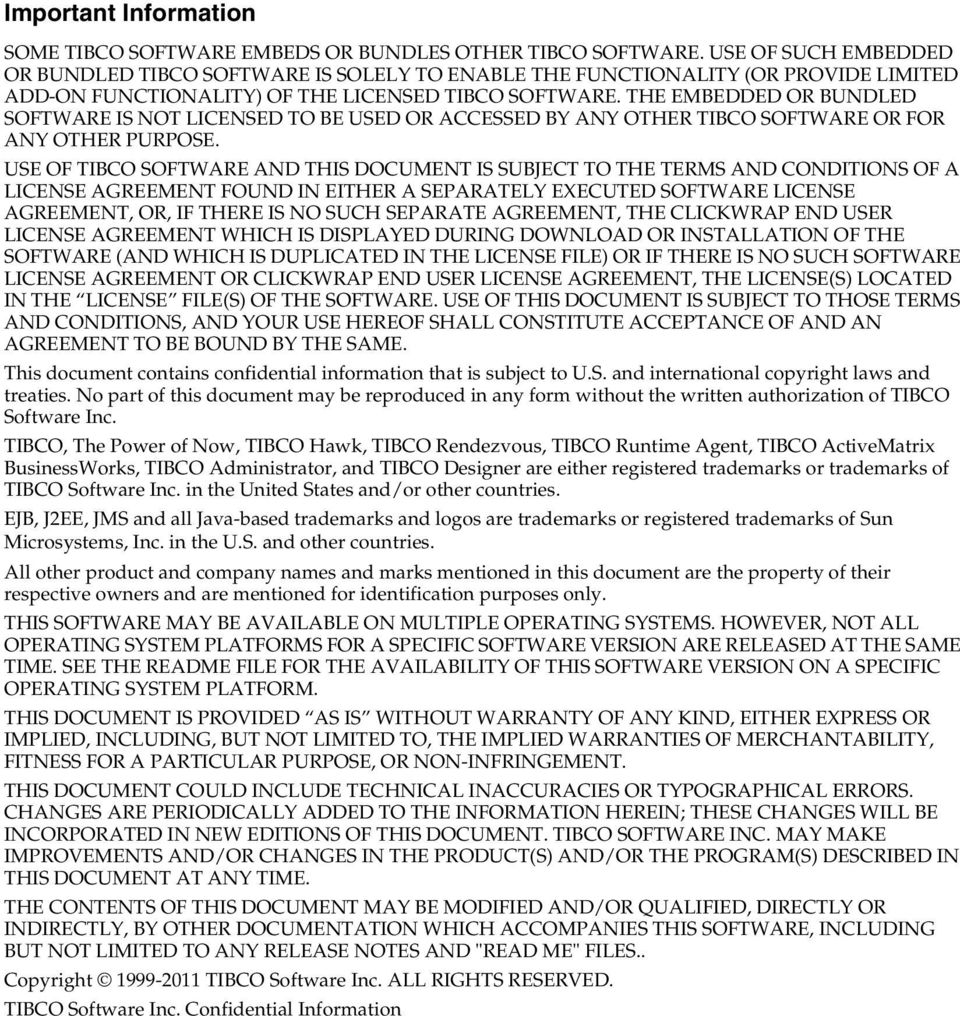
3 Contents iii Contents Contents iii Tables xi Figures xiii Preface xv Related Documentation xvi Other TIBCO Product Documentation xvi Typographical Conventions xviii Connecting with TIBCO Resources xx How to Join TIBCOmmunity xx How to Access All TIBCO Documentation xx How to Contact TIBCO Support xx Chapter 1 Participants Participants Overview Hosts and Partners Managing Participants Creating a New Participant Export Participant Data Import Participant Data Copy a Participant Delete a Participant Search for a Participant Editing Participant Data General Tab for Participants Business Locations Tab for Participants Credentials Tab for Participants PKI (Public Key Infrastructure) PGP (Pretty Good Privacy) Managing Host Credentials Managing Partner Credentials Exporting PGP Keys Protocols Tab for Participants

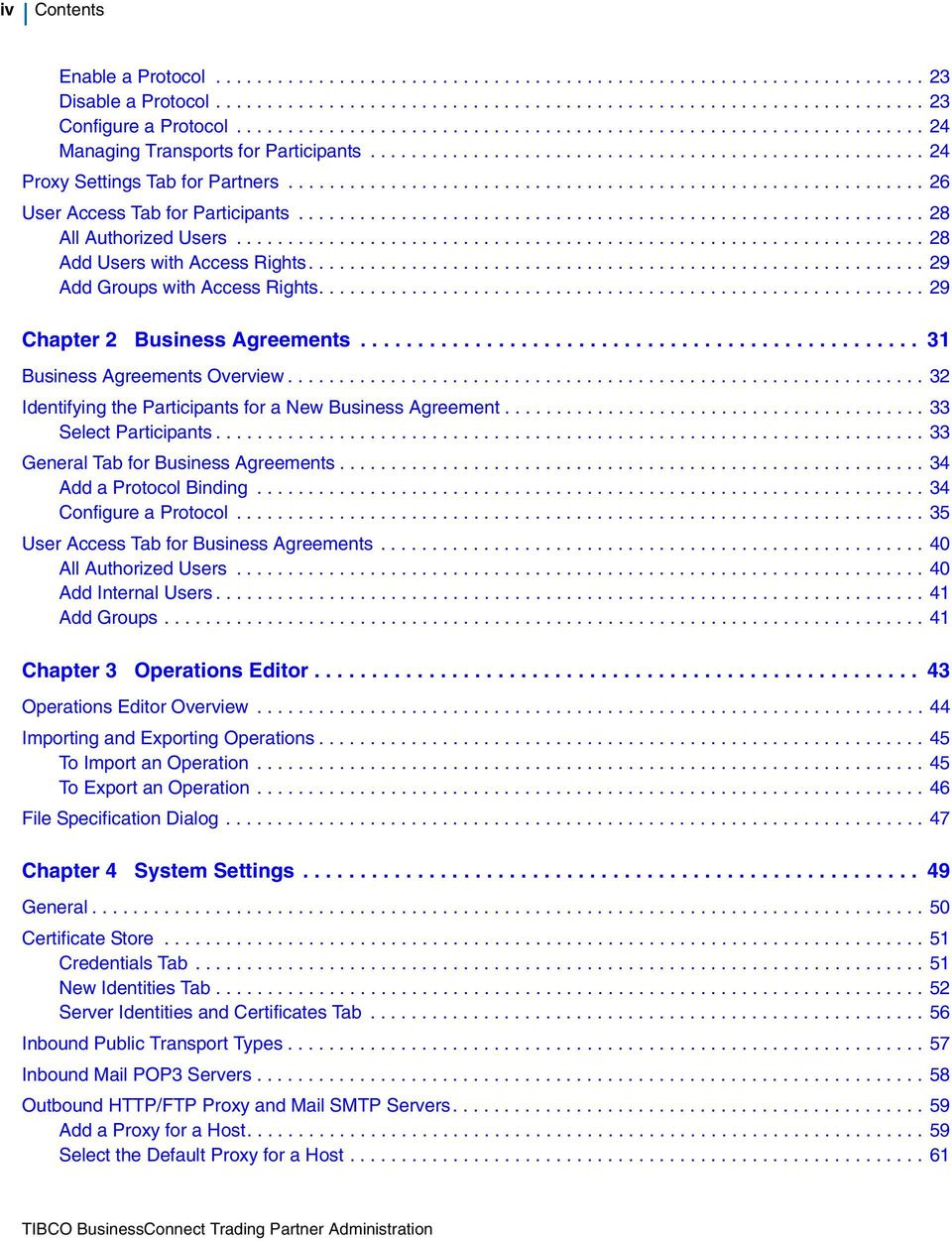
4 iv Contents Enable a Protocol Disable a Protocol Configure a Protocol Managing Transports for Participants Proxy Settings Tab for Partners User Access Tab for Participants All Authorized Users Add Users with Access Rights Add Groups with Access Rights Chapter 2 Business Agreements Business Agreements Overview Identifying the Participants for a New Business Agreement Select Participants General Tab for Business Agreements Add a Protocol Binding Configure a Protocol User Access Tab for Business Agreements All Authorized Users Add Internal Users Add Groups Chapter 3 Operations Editor Operations Editor Overview Importing and Exporting Operations To Import an Operation To Export an Operation File Specification Dialog Chapter 4 System Settings General Certificate Store Credentials Tab New Identities Tab Server Identities and Certificates Tab Inbound Public Transport Types Inbound Mail POP3 Servers Outbound HTTP/FTP Proxy and Mail SMTP Servers Add a Proxy for a Host Select the Default Proxy for a Host
5 Contents v Audit, Non-Repudiation and Runtime Database Configuration User Authentication Configuration Add an Authentication Source Activated Protocol Plug-ins and Properties Metadata Type Configuration Add and Remove Metadata Private Process Smart Routing Create Business Rules for Private Process Smart Routing Manage Business Rules for Private Process Smart Routing Credential Expiry Alerter Configure the Credential Alerter User Access Audit Trail Grouping Search Results Utilities Export Schemas Chapter 5 User Access Management Overview TIBCO Administrator User Categories User Management Using TIBCO Administrator User Management Set BusinessConnect Access Rights for a User Managing Users with TIBCO BusinessConnect User Management Add Users Edit Users Authenticate External Users Edit LDAP Connection Remove Users Search for Users Managing Groups with TIBCO BusinessConnect User Management Add a Group Chapter 6 Log Viewer Overview Audit Logs Non-Repudiation Logs Resend Logs Performing Log Searches Set Preferences Perform a Log Search Viewing Search Results

6 vi Contents Summary View Transaction Details View State Details View Cancelling Transactions Saving and Reusing Queries Save a Query Reuse a Query Resending Transactions Resendable Transactions View Resend History Chapter 7 Reporting Overview Generating Reports Inbound Transaction Per Protocol Outbound Transaction Per Protocol Chapter 8 Transport Overview Configuring POP3 and SMTP for Configure the POP3 Server Polling Service Configure an SMTP Server for a Host Configure an SMTP Server for a Partner Setting Up for a Trading Host Select for the Trading Host Set the Host s Address for a Protocol Setting Up for a Trading Partner Configure for a Trading Partner Set the Partner s Address for a Protocol Configure for a Business Agreement Chapter 9 FTP and FTPS Transports FTP Transport Overview FTP/S Inbound FTP/S Outbound Setting Up FTP/S for a Trading Host Enable FTP/S Inbound Select and Configure FTP/S Inbound Setting Up FTP/S for a Trading Partner Configure FTP/S Outbound

7 Contents vii Setting Up FTP Proxies Chapter 10 SSHFTP Transport SSHFTP Transport Overview Setting Up SSHFTP for a Trading Host Enable SSHFTP Inbound Select and Configure SSHFTP Inbound Setting Up SSHFTP for a Trading Partner Configure SSHFTP Outbound Chapter 11 HTTP, HTTPS, and HTTPSCA Transports Overview Setting Up HTTP/S for a Trading Partner Configure HTTP/S for a Trading Partner Setting Up HTTP Proxies Chapter 12 AS2 Transport AS2 Transport Overview AS2 Transport AS2 Identifiers Setting Up AS2-HTTP/S for a Trading Host Set the Host s AS2 Identifier for a Protocol Setting Up AS2-HTTP/S for a Trading Partner Configure AS2-HTTP/S for a Trading Partner Synchronous and Asynchronous Receipts Chapter 13 AS1 Transport AS1 Transport Overview AS1 Transport Configuring POP3 and SMTP Servers for AS Configure the POP3 AS1 Server Configure an SMTP Server for a Host Configure an SMTP Server for a Partner Setting Up AS1 for a Trading Host Select AS1 for the Trading Host Set the Host s Address for a Protocol Setting Up AS1 for a Trading Partner Configure AS1 for a Trading Partner Set Up the Partner s for a Protocol

8 viii Contents Configure AS1 for a Business Agreement Chapter 14 File Transport File Transport Overview Outbound File Transport Configure Outbound File Transport for a Partner Outbound File Pollers Inbound File Pollers Enable and Configure Inbound File Poller Select File Inbound in the Business Agreement Chapter 15 Inbox Transport Inbox Transport Overview Outbound Inbox Transport Configure Outbound Inbox Transport for a Partner Chapter 16 Message Disposition Notification Receipts Overview Configuring MDN Receipts MDN Receipts and Business Acknowledgments MDN Messages Sent to Private Processes Appendix A Troubleshooting Troubleshooting Transport Problems All Transports FTP Transport Transport Troubleshooting Database Problems Appendix B Scripts Overview FTP Scripts Document Security through PGP File Scripts FTP Inbound FTP and File Outbound Supported FTP Commands File Outbound Managing Errors Retrying Document Posting

9 Contents ix Returning Errors from Scripts Audit Logging in Scripts Appendix C Remote Client Service Audit Log Overview BusinessConnect Remote Audit Log Viewer Index

10 x Contents

11 Tables xi Tables Table 1 General Typographical Conventions xviii Table 1 Business Location, New Dialog Table 2 Business Location, New Contact Table 3 Generate a New PGP Key Pair Table 4 Upload a Private PGP Key from a File Table 5 Import a PGP Key Pair from the ASCII Armor Table 6 Upload from File Table 7 Import from ASCII Armor Table 8 Select Proxy Settings for the Partner Table 9 Edit Protocol Bindings: Operation Binding Tab Table 10 Edit Protocol Bindings: Document Security Tab Table 11 Edit Protocol Bindings: Transports Tab Table 12 Protocol-Specific Terminology Table 13 Server Settings Fields Table 14 CSR Wizard, Step 1 General Information Table 15 Inbound Mail POP3 Servers Table 16 New Proxy Connection Table 17 Activated Protocol Plug-ins and Properties Table 18 TIBCO BusinessConnect Server Properties Overview Table 19 Add New Property Table 20 New Rule for the Private Process Smart Routing Table 21 Credential Alerter Table 22 User Audit Trail Table 23 Edit External User Table 24 Configure the Authentication Source for the External User Table 25 Edit LDAP Connection Table 26 Log Viewer Preferences: All Protocols Table 27 Log Viewer Preferences: Selected Protocol TIBCO BusinessConnect Services Plug-in

12 xii Tables Table 28 Configure Log Search Table 29 Data Reports Table 30 Transport Settings Table 31 Supported File Mask Options Table 32 Inbound FTP/S Settings Table 33 Outbound FTP/S Settings Table 34 Inbound SSH Settings Table 35 Outbound SSHFTP Settings Table 36 Configuring HTTP/S for a Trading Partner: General Tab Table 37 Configuring HTTP/S for a Trading Partner: Transports Tab Table 38 New Transport Dialog for AS2-HTTP/S Table 39 AS2-HTTP/S Transport Table 40 AS1_ Transport Settings Table 41 Outbound File Transport Table

13 Figures xiii Figures Figure 1 Edit a Participant Figure 2 Edit Host Participant: Credentials Tab Figure 3 Edit Partner Participant, Credentials Tab Figure 4 All Authorized Users Figure 5 Edit Business Agreement: User Access Tab Figure 6 All Authorized Users Figure 7 Imported Operations Listed Figure 8 CSR Wizard Step 3, Generated CSR Figure 9 CSR Wizard Step 4, CA Response Figure 10 CSR Wizard Step 5, Complete Certificate Chain Figure 11 CSR Wizard Step 6, Success Figure 12 Imported Server Certificate Figure 13 Outbound HTTP/FTP Proxy Settings Figure 14 Select Outbound Proxy Settings for a Host Figure 15 Result of the Audit Trail Search Figure 16 Audit Trail Details Figure 17 List of Users Created by TIBCO Administrator User Management Figure 18 Allow Permissions for BusinessConnect Components Figure 19 Three Types of Users Figure 20 Edit Administrative Users: General Tab Figure 21 Edit Non-Administrative Users: General Tab Figure 22 Group Membership Tab Figure 23 Add Groups Figure 24 Edit User Permissions Figure 25 Add Participants Figure 26 Participant Permissions for Users Figure 27 Business Agreement Permissions Figure 28 Business Agreements Permissions for Users
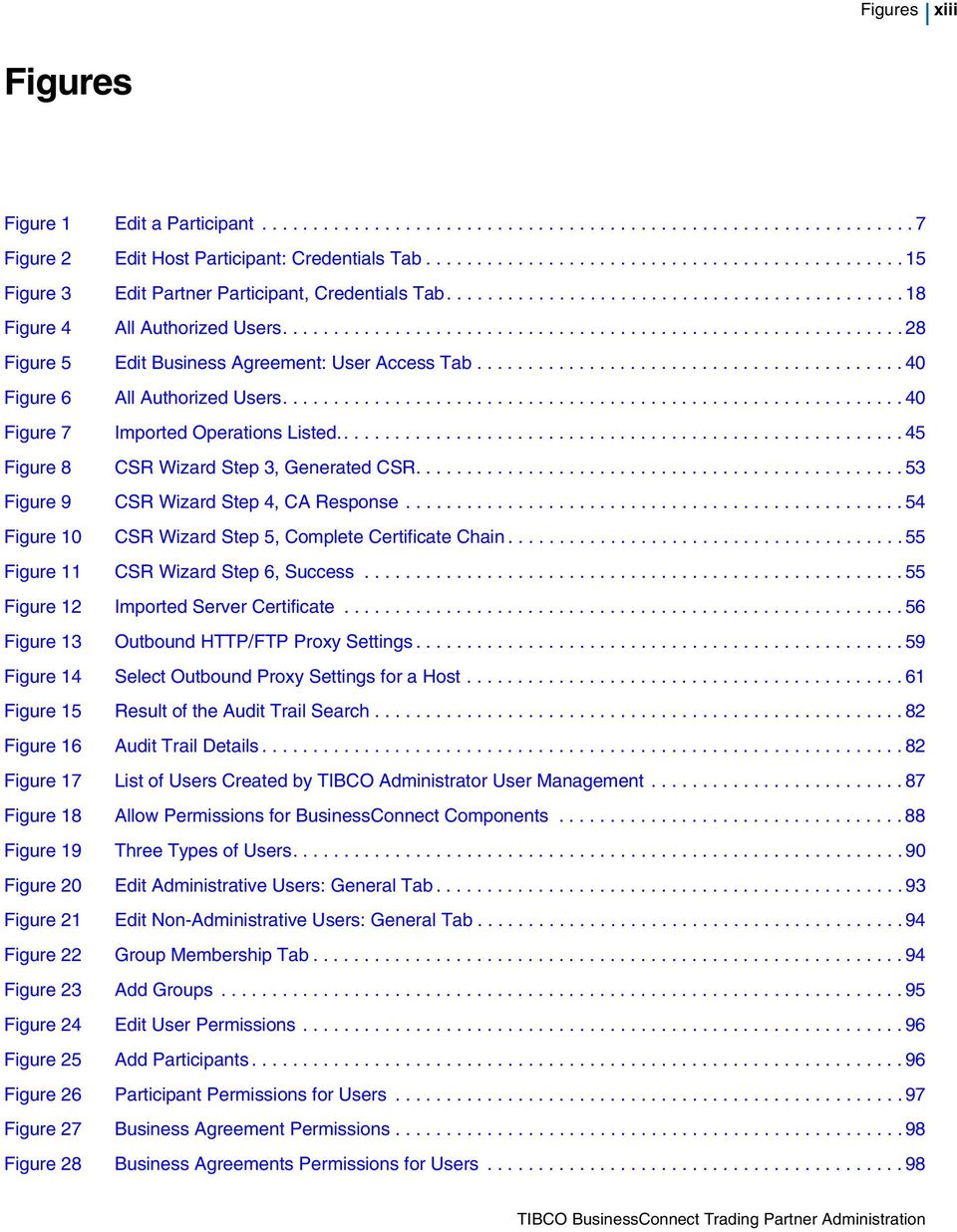
14 xiv Figures Figure 29 Set Group Name Figure 30 New Group Dialog Figure 31 Members Tab for Groups Figure 32 Add Users to Groups Figure 33 Participants Permissions for Groups Figure 34 Add Participants Figure 35 Participant Permissions for Groups Figure 36 Business Agreements Permissions for Groups Figure 37 Add BusinessAgreements for Groups Figure 38 Business Agreements Permissions for Groups Figure 39 Log Viewer Figure 40 Log Viewer Figure 41 State Details View Figure 42 Resend History Details Figure 43 No Key Configured Figure 44 The Configured Key is Different Figure 45 The Configured and Retrieved Keys Match Figure 46 Server is Not Available Figure 47 Server Did Not Respond to the SSH Query as Expected Figure 48 The Configured Server Hostname is not Valid Figure 49 BusinessConnect Remote Audit Log Entries

15 xv Preface TIBCO BusinessConnect software is a B2B (business-to-business) gateway that allows your company to engage in electronic commerce with your business partners. Topics Related Documentation, page xvi Typographical Conventions, page xviii Connecting with TIBCO Resources, page xx

16 xvi Related Documentation Related Documentation The following documents form the BusinessConnect documentation set: TIBCO BusinessConnect Installation and Configuration. Read this guide to learn how to install and configure TIBCO BusinessConnect. TIBCO BusinessConnect Concepts: Read this guide to learn about TIBCO BusinessConnect architecture, deployment modes, protocols, and security. TIBCO BusinessConnect Interior Server Administration: Read this guide in order to administer, operate, and manage TIBCO BusinessConnect Interior Server. TIBCO BusinessConnect Gateway Server Administration: Read this guide in order to administer, operate, and manage TIBCO BusinessConnect Gateway Server. TIBCO BusinessConnect Trading Partner Administration: Read this guide to configure and manage trading partners. TIBCO BusinessConnect Scripting Deployment User s Guide: Read this guide to configure and manage TIBCO BusinessConnect using the command line interface. TIBCO BusinessConnect Release Notes: Read this document to learn about new features, changes in functionality, deprecated features, known issues, and closed issues for each release. This document is supplied for each release and is available only in PDF format. Other TIBCO Product Documentation You may find it useful to read the documentation for the following TIBCO products, which may be used or integrated with BusinessConnect: TIBCO Administrator software: The software allows you to manage users, machines and applications defined in a TIBCO Administration Domain. The TIBCO Administrator graphical user interface enables users to deploy, monitor, and start and stop TIBCO applications. TIBCO ActiveMatrix BusinessWorks software: This software is a scalable, extensible, and easy to use integration platform that allows you to develop integration projects. TIBCO BusinessWorks includes a graphical user interface (GUI) for defining business processes and an engine that executes the process. TIBCO Designer software: This graphical user interface is used for designing and creating integration project configurations and building an

17 Preface xvii Enterprise Archive (EAR) for the project. The EAR can then be used by TIBCO Administrator for deploying and running the application. TIBCO Runtime Agent software: This software suite is a prerequisite for other TIBCO software products. In addition to TIBCO Runtime Agent components, the software suite includes the third-party libraries used by other TIBCO products such as TIBCO Designer, Java Runtime Environment (JRE), TIBCO Hawk, and TIBCO Rendezvous. TIBCO Rendezvous : This software enables programs running on many different kinds of computers on a network to communicate seamlessly. It includes two main components: the Rendezvous programming language interface (API) in several languages, and the Rendezvous daemon. TIBCO Enterprise Message Service software: This software provides a message service that enables integration of applications within an enterprise based on the Java Message Service (JMS) specifications.

18 xviii Typographical Conventions Typographical Conventions The following typographical conventions are used in this manual. Table 1 General Typographical Conventions Convention TIBCO_HOME ENV_HOME BC_HOME Use Many TIBCO products must be installed within the same home directory. This directory is referenced in documentation as TIBCO_HOME. The default value of TIBCO_HOME depends on the operating system. For example, on Windows systems, the default value is C:\tibco. Other TIBCO products are installed into an installation environment. Incompatible products and multiple instances of the same product are installed into different installation environments. An environment home directory is referenced in documentation as ENV_HOME. The default value of ENV_HOME depends on the operating system. For example, on Windows systems the default value is C:\tibco. TIBCO BusinessConnect installs into a directory within TIBCO_HOME OR ENV_HOME. This directory is referenced in documentation as BC_HOME. The default value of BC_HOME depends on the operating system. For example on Windows systems, the default value is C:\tibco\bc\version. code font bold code font Code font identifies commands, code examples, filenames, pathnames, and output displayed in a command window. For example: Use MyCommand to start the foo process. Bold code font is used in the following ways: In procedures, to indicate what a user types. For example: Type admin. In large code samples, to indicate the parts of the sample that are of particular interest. In command syntax, to indicate the default parameter for a command. For example, if no parameter is specified, MyCommand is enabled: MyCommand [enable disable]
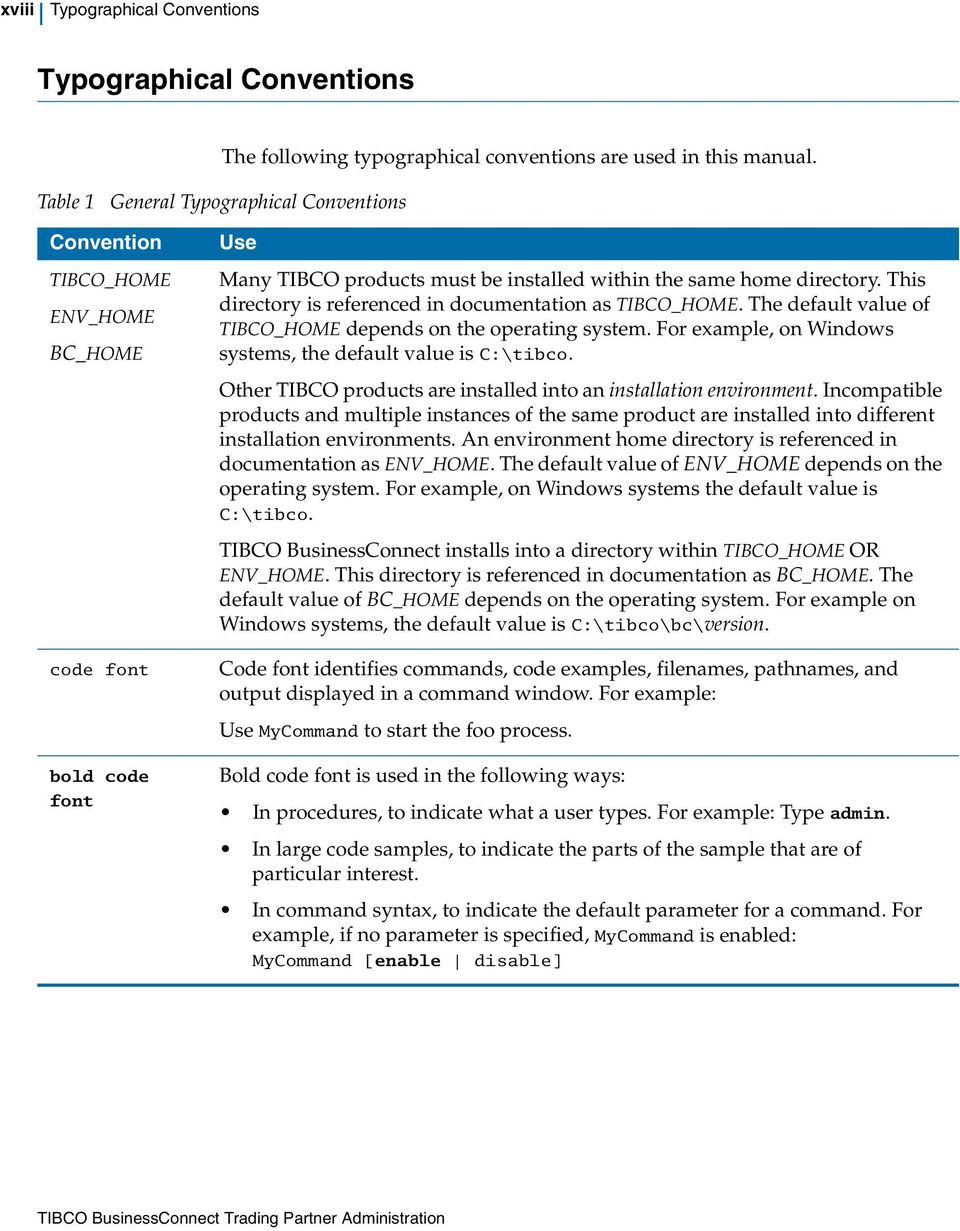
19 Preface xix Table 1 General Typographical Conventions (Cont d) Convention italic font Key combinations Use Italic font is used in the following ways: To indicate a document title. For example: See TIBCO BusinessConnect Concepts. To introduce new terms. For example: A portal page may contain several portlets. Portlets are mini-applications that run in a portal. To indicate a variable in a command or code syntax that you must replace. For example: MyCommand PathName Key names separated by a plus sign indicate keys pressed simultaneously. For example: Ctrl+C. Key names separated by a comma and space indicate keys pressed one after the other. For example: Esc, Ctrl+Q. The note icon indicates information that is of special interest or importance, for example, an additional action required only in certain circumstances. The tip icon indicates an idea that could be useful, for example, a way to apply the information provided in the current section to achieve a specific result. The warning icon indicates the potential for a damaging situation, for example, data loss or corruption if certain steps are taken or not taken.

20 xx Connecting with TIBCO Resources Connecting with TIBCO Resources How to Join TIBCOmmunity TIBCOmmunity is an online destination for TIBCO customers, partners, and resident experts; a place to share and access the collective experience of the TIBCO community. TIBCOmmunity offers forums, blogs, and access to a variety of resources. To register, go to How to Access All TIBCO Documentation After you join TIBCOmmunity, you can access the documentation for all supported product versions here: How to Contact TIBCO Support For comments or problems with this manual or the software it addresses, please contact TIBCO Support as follows: For an overview of TIBCO Support, and information about getting started with TIBCO Support, visit this site: If you already have a valid maintenance or support contract, visit this site: Entry to this site requires a username and password. If you do not have a username, you can request one.
21 1 Chapter 1 Participants This chapter provides both conceptual and procedural information to help you configure participants for TIBCO BusinessConnect hosts and trading partners. For general information about this product and its architecture, components, and various usage and deployment scenarios, see TIBCO BusinessConnect Concepts. To install and configure the TIBCO BusinessConnect server, see TIBCO BusinessConnect Installation and Configuration Guide. Topics Participants Overview, page 2 Managing Participants, page 2 Editing Participant Data, page 7 General Tab for Participants, page 8 Business Locations Tab for Participants, page 9 Credentials Tab for Participants, page 11 Protocols Tab for Participants, page 23 Proxy Settings Tab for Partners, page 26 User Access Tab for Participants, page 28
22 2 Chapter 1 Participants Participants Overview Participants store a variety of information about trading partners, from the very general (for example the location of the company headquarters) to the detailed (for example, security credentials and available protocols). Hosts and Partners TIBCO BusinessConnect defines two types of participants that can exchange electronic documents: Hosts A host is a participant in a business agreement and an organizational entity within your company. Hosts participate in the electronic documents exchange using the BusinessConnect B2B gateway. There may be one host or multiple hosts whose private keys are stored by TIBCO BusinessConnect. Partners A partner participant is outside of your company and typically has its own B2B gateway, either TIBCO BusinessConnect or some other solution. Your TIBCO BusinessConnect installation stores public keys for your partners. There is little difference between hosts and partners because much of the same information is required to configure both types of participants. An agreement has to be established between a host and a partner. Managing Participants You can manage participants as follows: Create a new participant Create a new participant as explained in Creating a New Participant, page 3. Export or import a participant Export an existing participants data for use in another TIBCO BusinessConnect installation and/or import a participant from another TIBCO BusinessConnect installation, as explained in Export Participant Data, page 4. Copy an existing participant Copy the participant s data. See Copy a Participant, page 4 for more information. Delete a participant Remove the participant from your system. See Delete a Participant, page 5 for more information. Edit participants data Once the participants are created, their data can be changed. See Editing Participant Data, page 7. Search for a participant Use the Search function to search for participant. See Search for a Participant, page 6 for more information.
23 Creating a New Participant 3 Creating a New Participant Before you start creating any participants, you must have at least one protocol installed. To create a new participant: 1. Click BusinessConnect>Participants. 2. Click the New button. 3. Type the name in the Participant Name field 4. Select Host or Partner from the dropdown list. Select Host if this participant is internal to your enterprise; select Partner if this participant is external to your enterprise. Default Host: The first host that you create automatically becomes the default host. If you have created multiple host participants, you can assign any one of them as the default host in System Settings > General Settings. You cannot delete the default host; therefore, if you have only one host participant, you cannot delete it. To delete a default host, first assign a different host participant as the default host, creating a new host participant if necessary. 5. Click OK. A new dialog appears allowing you to provide detailed information about the participant. 6. Select the Active checkbox if you want to activate this participant right away. Otherwise, you can activate this participant later. If the participant is activated, all grammar rules associated with this participant are validated. No validation is performed for an inactive participant. This allows the user to provide only a partial information while the participant is still inactive, and then add the remaining required information when activating the participant. 7. Provide as much information as you require about the address and contact information for the company headquarters. To select legal and support contacts, you must first add these contacts to the system. Add contacts to a business location. See Business Locations Tab for Participants, page 9 for more information.
24 4 Chapter 1 Participants Export Participant Data To export participant data from one TIBCO BusinessConnect installation to another, perform these steps: 1. Select BusinessConnect>Participants. 2. Select the checkbox next to the participant(s) that you want to export. 3. Click the Export button. 4. In the Export Participants dialog, set the password if needed. 5. Click Export Configuration Data. This creates the.csx file with the compressed data of the exported participant. 6. Save the file to the desired location. Import this.csx file into another TIBCO BusinessConnect installation. 7. Click Done. Import Participant Data Before importing participant data into a TIBCO BusinessConnect installation, first install and activate all protocols associated with the participants and import all operations associated with the participants. To import participant data, perform these steps: 1. Select BusinessConnect>Participants. 2. Click Import and then click the link change to identify the.csx file that contains the participants for import. 3. Click Browse, then navigate to and select the.csx file that was created during the export of participant data. 4. Enter the password, if it was used to secure the data during the export. 5. Click Import Participants. 6. Click Done. Copy a Participant To copy a participant, perform these steps: 1. Select BusinessConnect>Participants. 2. Select the checkbox next to the participant you wish to copy. 3. Click Copy.
25 Creating a New Participant 5 4. In the next dialog, enter the name for the new participant. If you open the new participant, you will see that most of its general, business, credentials, protocols, and proxy data has been transferred from the participant it was copied from. When you create a new participant using the Copy function, any unique constraints such as domain IDs, AS transport IDs, and name of the trading partner will not be copied. This data must be later entered for the new trading partner using the steps as explained in Editing Participant Data, page 7. Delete a Participant Delete a Host Default Host: The first host that you create automatically becomes the default host. If you have created multiple host participants, you can assign any one of them as the default host in System Settings > General Settings. You cannot delete the default host; therefore, if you have only one host participant, you cannot delete it unless you add a replacement host. You must first add at least one new host (following the steps described in Creating a New Participant, page 3 and then remove the host you don t need any more.. 1. Select BusinessConnect>System Settings>General Settings. 2. Make sure that the host selected in the dropdown list Default Host is not the one you wish to delete. You cannot select None as the default host. Select an actual host for the default. 3. Click Save. 4. Select BusinessConnect>Participants. 5. Select the checkbox next to the host you wish to delete. 6. Click Delete. Delete a Partner To delete a partner, perform these steps: 1. Select BusinessConnect>Participants.
26 6 Chapter 1 Participants 2. Select the checkbox next to the participant you wish to delete. 3. Click Delete. Search for a Participant In addition to entering the participant s name or selecting it from the list, you can use the Search function to find a specific participant. This allows you to use a wildcard and search for a participant s name when you don t know the exact (full) name. 1. Enter the search string by using the wild card to substitute any characters before, after, or before and after the string you are entering. 2. Click Search. 3. The participant name(s) that correspond to the search criteria will be displayed in the Name list, while the others will be removed 4. To view all participants, click on the Show All link.
27 Editing Participant Data 7 Editing Participant Data To edit participant s data, click on the participant whose information you wish to edit. The Edit Participant dialog appears. Figure 1 Edit a Participant There are five tabs available for managing participants: General Tab for Participants, page 8 Business Locations Tab for Participants, page 9 Credentials Tab for Participants, page 11 Protocols Tab for Participants, page 23 Proxy Settings Tab for Partners, page 26 (only for partner participants) User Access Tab for Participants, page 28
28 8 Chapter 1 Participants General Tab for Participants The General tab allows you to add or change the participant s data such as address and . Most of these fields are optional, except for the following: Participant Name Active checkbox (select to activate the participant) For the following fields, you need to pay attention while entering data: Primary Legal Contact and Primary Support Contact These contacts can also be entered using the Business Location tab. Once you enter all contacts using the Business Location tab, you will come back to the General tab and select the appropriate contacts from the dropdown lists that will have the contact entries.
29 Business Locations Tab for Participants 9 Business Locations Tab for Participants Table 1 Business Location, New Dialog A business location is simply the address and other identifying information for a participant. One participant often has multiple departments or other distinct groups at various locations. You can set up multiple locations for one participant to simplify shipping and billing procedures. A business location can include contacts. A contact is the name, phone number, and address of a person associated with a particular location of a participant. Each business location can have multiple contacts. To add a business location for a participant, perform these steps: 1. Select BusinessConnect>Participants and then click on the name of the participant you are editing 2. Select the Business Locations tab. 3. Click New. The New dialog appears. Provide values for each of the appropriate text fields as explained in Table 1. Field Name (required) Address 1st Line Address 2nd Line Address 3rd Line City/State/Zip Code Country Phone/Fax/ /Web URL Primary Legal Contact Primary Support Contact Enter Only the Name field is required as it identifies the participant. You cannot leave unnamed in this field. Enter the participant s address. Enter the participant s data. Enter country name. Enter the participant s data. Select from the dropdown list. Select from the dropdown list.
30 10 Chapter 1 Participants Table 2 Business Location, New Contact 4. To assign primary legal and/or support contacts to this business location, or if you want to add contacts to this participant, create these contacts as follows: a. Click New. The New Contact screen appears: Field First Name, Last Name Contact Type , Phone, Fax, Pager Enter Enter the participant s data. Select a contact type from the dropdown list. Only contacts designated as type Legal or Support will be available from the Primary Legal Contact and Primary Support Contact dropdown lists in the business location. Enter the participant s data. b. Once you finish entering data and click Save, your contact will appear in the section Contacts. c. To delete this contact at any time, select the checkbox next to the contact s name and click on Delete. 5. Click Save.
31 Credentials Tab for Participants 11 Credentials Tab for Participants TIBCO BusinessConnect uses two methods of public key cryptography: PKI (Public Key Infrastructure) This method uses a hierarchical key management system that includes a certification authority (CA). The CA issues digital certificates by binding the identity of a user or a system to a public key with a digital signature. The host can use the trading partner s public key to authenticate a sender, enable non-repudiation, encrypt a transport, or encrypt a message. PGP (Pretty Good Privacy) PGP does not use Certificate Authorities and instead each public key is bound to a user name and/or an address. A "web of trust" is used to establish the authenticity of the binding between a public key and its owner. In TIBCO BusinessConnect, PGP keys are used for message signatures and encryption on the FTP transport.. To learn how to work with keys, you can use the samples provided with this program in the directory BC_HOME/samples/keys. Keep in mind that the chosen password is Password1. Managing Host Credentials There are several credentials available for a host that can be uploaded using the Credentials tab: New Private Key, page 11 New SSH Private Key, page 12 Generating New PGP Key Pairs, page 12 Assign a Shadow Key for the Host, page 15 Exporting PGP Keys, page 19 New Private Key To upload a private key for the host, perform these steps: 1. Select BusinessConnect>Participants> host> Credentials tab. 2. Click New Private Key.
32 12 Chapter 1 Participants 3. Type the name of the key in the Alias field. 4. In the Current Credential line click change. Browse and navigate to the file containing the private key and click OK. 5. Click set next to Password. Type the password (required for private keys) in the Enter Password and Enter Password Again fields. If you are using any of the sample keys provided in the directory BC_HOME\samples\keys, the password is "Password1". 6. Click OK and Save. The new private key for the host is now listed in the Credential Name list. New SSH Private Key SSH keys are used to support the SSHFTP transport in TIBCO BusinessConnect. To upload a SSH private key, perform these steps: 1. Select BusinessConnect>Participants> host> Credentials tab. 2. Click New SSH Private Key. Type the name of the key in the Alias field. 3. In the Current Credential line click change. Browse and navigate to the file containing the SSH private key and click OK. 4. Click set next to Password. Type the password (required for private keys) in the Enter Password and Enter Password Again fields. 5. Click OK and Save. The new SSH key for the host is now listed in the Credential Name list. Generating New PGP Key Pairs TIBCO BusinessConnect can create new PGP key pairs for users and store them in the certificate store. These key pairs contain a private and a public key and can have a key size of 1024 or 2048 bytes. The key types are DSA and ElGamal or RSA and allows both for encryption and signing. These key pairs also contain the name of the private key owner, as well as an address of that owner. The new PGP key are automatically imported into the BusinessConnect configuration store and associated with the host. 1. Select BusinessConnect>Participants> host> Credentials tab.
33 Credentials Tab for Participants Click New PGP Private Key. 3. Select the mode by which the new key will be generated and click OK: Generating a New Key Pair, page 13 Uploading from a File, page 14 Importing from ASCII Armor, page 14 Generating a New Key Pair This option generates both a private and a public key. When a key pair generated this way is exported either in form of binary files or in the ASCII Armor format, both keys will be exported at the same time. Table 3 Generate a New PGP Key Pair Alias Password Expiry Date Name for the new PGP key pair Password associated with the private key A date by which the key pair will be valid Key Size Size of the new key in bytes: 1024 or 2048 Key Type Real Name Address For the new PGP key pairs there are two selections available: DSA and ElGamal Both created keys, private and public, support signing using the DSA algorithm and encryption using the ElGamal algorithm. RSA Key Pair Both created keys, private and public, support signing and encryption using the RSA algorithm. A user supplied name to be used in conjunction with the address in constructing the PGP User ID of the key pair. address to be associated with the generated key pair.
34 14 Chapter 1 Participants Uploading from a File When exporting an uploaded private key for the host, it will only have the option of exporting this private key, without the public part. Table 4 Upload a Private PGP Key from a File Field Alias Current Credential Password Description Name of the uploaded key Browse to the location where a PGP private key that you want to use is located and upload a PGP private key. Supply a password that corresponds to the key. Importing from ASCII Armor Users can import a PGP key pair for the host partner in two ways: Import a set of files, with one file for each key part. Content of the file for a key part can be in binary or in ASCII armor format Import by pasting the ASCII armor private and public key parts into a screen Uploading from a file supports only the private PGP key for the host. Importing from the ASCII armor allows you to import both the private and public PGP key. In the Import from ASCII Armor window, enter data as explained in Table 5. Table 5 Import a PGP Key Pair from the ASCII Armor Field Alias Password ASCII Formatted Text (Private) Description Name of the imported key pair. Supply a password that corresponds to the private PGP key. Paste the text in ASCII armor format, where the private key is base64 encoded and wrapped with a PGP specific header and footer such as: -----BEGIN PGP PRIVATE KEY BLOCK----- Version: BCPG v1.46 lqo0be2cttgdcaco4prikplfnheitpoynvnuntghwjnnmsb7bmprzq3vmev1xmug aaw7/qh3yxt3ubhdxkyp9oh/a47pfnomcvsigae9mqzokkwokcwhrpishttv5rxv 0hRVJ7VW6Eu3h8dKH/TCC8yzvPrKbLTh2vzm+Y2q1oo5CBZazw== =2IyA -----END PGP PRIVATE KEY BLOCK-----
35 Credentials Tab for Participants 15 Table 5 Import a PGP Key Pair from the ASCII Armor Field ASCII Formatted Text (Public) Description Paste the text in ASCII armor format, where the public key is base64 encoded and wrapped with a PGP specific header and footer such as: -----BEGIN PGP PUBLIC KEY BLOCK----- Version: BCPG v1.46 mqenbe2cttgdcaco4prikplfnheitpoynvnuntghwjnnmsb7bmprzq3vmev1xmug aaw7/qh3yxt3ubhdxkyp9oh/a47pfnomcvsigae9mqzokkwokcwhrpishttv5rxv P2O/KhUqjgBCd3HZ1qjnDJEVHwOm37H6Iqyd66tRTsW57Wztxy9hRdftM77aaKJl... AwKMfdaQnd1ntV6BXFM6GXdl5HJhjjY/HVJtRb498Rjba9IUVSe1VuhLt4fHSh/0 wgvms7z6ymy04dr85vmnqtakoqgwws8= =Fd6T -----END PGP PUBLIC KEY BLOCK----- Click Save. All PGP keys, generated or uploaded/imported, will be available in the Edit Host Participant window. Assign a Shadow Key for the Host Shadow PGP keys are currently not supported. To assign a shadow key, follow these steps: 1. Select BusinessConnect>Participants> host> Credentials tab. Figure 2 Edit Host Participant: Credentials Tab
36 16 Chapter 1 Participants 2. Click on the private key that will expire first, such as hostskey. The Edit Private Key dialog appears. 3. In the Shadow Settings area, select the Activation date for shadow key using the three dropdown menus. This date has to be chosen before the first key is about to expire. From the Shadow Key dropdown list, select the key you would like to use as replacement, such as hostsprivatekey. 4. Click Save. After the shadow key takes effect, it is still a shadow key. You need to remove or update the original credential and remove or promote the shadow key. Managing Partner Credentials There are several credentials available for a partners that can be uploaded using the Credentials tab: New Certificate, page 16 New SSH Public Key, page 16 New PGP Public Key, page 17 Assign a Shadow Certificate for the Partner, page 18 Exporting PGP Keys, page 19 New Certificate To upload a new certificate key for the partner, perform these steps: 1. Select BusinessConnect>Participants> partner> Credentials tab. 2. Click New Certificate. Type the name of the key in the Alias field. 3. In the Current Credential line click change. Browse and navigate to the file containing the private key and click OK. 4. Click Save. The new certificate for the partner is now listed in the Credential Name list. New SSH Public Key SSH keys are used to support the SSHFTP transport in TIBCO BusinessConnect. To upload a SSH public key, perform these steps: 1. Select BusinessConnect>Participants> partner> Credentials tab.
37 Credentials Tab for Participants Click New SSH Public Key. Type the name of the key in the Alias field. 3. In the Current Credential line click change. Browse and navigate to the file containing the SSH private key and click OK. 4. Click Save. The new SSH key for the partner is now listed in the Credential Name list. New PGP Public Key When a user creates a PGP key pair for a host, it is automatically imported into the BusinessConnect configuration store as a Server PGP key pair and is associated with the host. For the partner, users can only upload or import the public portion of a PGP key pair, which is normally received from the trading partner. 5. Select BusinessConnect>Participants> partner> Credentials tab. 6. Click New PGP Public Key. The New PGP Public Key dialog opens. 7. Select the mode by which the key will be uploaded or imported and click OK. Upload from File, page 17 Import from ASCII Armor, page 17 Table 6 Upload from File Alias Current Credential Name of the uploaded key Browse to the location where a PGP public key that you want to use is located. Table 7 Import from ASCII Armor Alias Name of the imported key
38 18 Chapter 1 Participants Table 7 Import from ASCII Armor ASCII Formatted Text Paste the text of a PGP public key in ASCII Armor format, where the key is base64 encoded and wrapped with a PGP specific header and footer such as: -----BEGIN PGP PUBLIC KEY BLOCK----- Version: BCPG v1.46 mqenbe2cttgdcaco4prikplfnheitpoynvnuntghwjnnmsb7bmprzq3vmev1xmug aaw7/qh3yxt3ubhdxkyp9oh/a47pfnomcvsigae9mqzokkwokcwhrpishttv5rxv P2O/KhUqjgBCd3HZ1qjnDJEVHwOm37H6Iqyd66tRTsW57Wztxy9hRdftM77aaKJl... AwKMfdaQnd1ntV6BXFM6GXdl5HJhjjY/HVJtRb498Rjba9IUVSe1VuhLt4fHSh/0 wgvms7z6ymy04dr85vmnqtakoqgwws8= =Fd6T -----END PGP PUBLIC KEY BLOCK Click Save. Assign a Shadow Certificate for the Partner Shadow PGP certificates are currently not supported. To assign a shadow certificate: 1. Select BusinessConnect>Participants> partner> Credentials tab. Figure 3 Edit Partner Participant, Credentials Tab 2. Click on the certificate that s about to expire first. The Edit Certificate dialog appears.
39 Credentials Tab for Participants In the Shadow Settings area, select the Activation date for shadow Certificate using the three dropdown menus. This date has to be chosen before the first certificate is about to expire. 4. From the Shadow Certificate dropdown list, select the certificate you would like to use as replacement. 5. Click Save. After the shadow certificate takes effect, it is still a shadow certificate. You need to remove or update the original certificate and remove or promote the shadow certificate. Exporting PGP Keys PGP keys can be exported in two formats: Binary With this format, the key content will be saved directly into a file. ASCII Armor With this format, both the private and the public keys will be base64 encoded and wrapped with a PGP specific header and footer. The text boxes that contain the ASCII Armor encoded key parts are editable. Users can export either the public or private portions of the PGP key pair, but these two portions of a key pair are always exported separately. When users also have an option to copy the contents of the public key in ASCII armor format from a screen. If a PGP private key was generated, or imported from ASCII Armor format where both the private key part and the public key part are available, then both the private key and the public key can be exported; otherwise, if the PGP private key was uploaded from a file where only the private key part is available, then only the private key can be exported. Exporting the Host s PGP Key Pair in a Binary Format To export a PGP key pair in a binary format: 1. In the Participants> Host > Credentials window, select the checkbox next to the PGP private key you want to export. 2. Click Export. 3. In the Export PGP Private Key window: a. Click set next to the Private Key Password. b. Enter the new password for export two times. 4. In the Private Key section, click Export Binary File.
40 20 Chapter 1 Participants 5. Save the file key_name_pgp.priv on a desired location. 6. In the Public Key section, click Export Binary File. 7. Save the file key_name_pgp.pub on a desired location. Exporting the Partner s PGP Public Key in a Binary Format To export an uploaded public PGP Key in a binary format: 1. In the Participants> Partner > Credentials window, select the checkbox next to the PGP public key you want to export. 2. Click Export. 3. In the Export PGP Public Key window, click Export Binary File. 4. Save the file key_name_pgp.pub on a desired location. Exporting the Host s PGP Key Pair in the ASCII Armor Format To export the host s PGP key pair in the ASCII Armor format: 1. In the BusinessConnect> Participants> Host> Credentials window, click on the link for the PGP private key you want to export. 2. In the Edit PGP Private Key window, copy the text block for ASCII Armor formatted text (private), and ASCII Armor formatted text (public). These text blocks can be pasted in order to export the key pair to another location. Users can copy the public key from the PGP Public Key text box, copy it into an message, and send to their trading partners. The text boxes that contain key parts are editable. An example of the private PGP key exported in the ASCII Armor format looks as follows: -----BEGIN PGP PRIVATE KEY BLOCK----- Version: BCPG v1.46 lqh0be6djw4dbadaw6jewr3w60wzxfqjo5zkb2i+fymfoufsq4p0kxm2/iortx0h RZm2uVGq6hi5YwxaCiNOFv+KZV1MhPXVlhq3j/yWQ6ylzE/SRvtTQmFsSw3uzLDS BU+UsIREVbZOuXl/8Hl1eVLwS6iL+T06RMeCtzf7tJvGM9mynNcN0vs68QARAQAB /wkdarjx6knitrqiyppjbsizhhxtwb0ynbsexryhspk3bpvbhfcc+btwnq4vtrd0 qchqwnqayuvq94zjhi69tt+l15ptj4geixzvid/zxcuobzgywojc4seazygeprv+ nizn2zyzvf266zapjnv+gwyhvcri7r8ypcqo2rd2sx2irl7/bnhcn6w9ugvan4vl VESIbKvrODd0+XUZbqVZl5Jg91QZFNvO/fnmdvx6tBZXuw6WT2OIJFTe0oLl6S/z h0mvb2ojmgqmofhhw8oji2zqmr/py4gmksvoblld7yvtgkl1tx8/ytmjottfo6qk 53mwQrQNh+CCO1TIEd86dsT5ZbFRZByWcPfmEfU5yWKRVsHxFbueeySNLevXARbe px5yqhfkbw5lkorfee5buomwnruvqe9xz47gu3lf4pdmt7+ioxwrecbel7tpn7lu 69mfJ7azHQsMfe4VBJCLTzZcu8/Qkxq0GEpvaG4gRG9lIDxqb2huQGFjbWUuY29t Poi3BBMDAgAhBQJOg48OBQkB49Z/BwsJCAcCAwQDFgECBRUCAQMFAoQBAAoJEBt2 dzrzm3betvqd/2mjadc79xdkrjteqbgiipitenpsitvbgjk4v8ppx5jh5rbls/q3 axcl7jmkaddsrlkgnzhoez2d2uybigiztlh6iedntkh5k+so+dvjfjp9ckfrqzyx
41 Credentials Tab for Participants 21 /4ZsQK8Lva20v/QrVNcTKRGtMPOS+WteEle5Atj0z8G+pX+KfSMI2QkOnQH0BE6D jw4cbacarqi7rkuenyqchbz+kx0rws5uyfuyhlhzwv4xizu7hxgduwdb8vikljwf pt1ayc2mhdvejl1rdqv/in8gmuw5sx5rzz7xdcz03zecljdwryqv83lvw0gkc3bu ujtixvqucny7ujxbs/eaqrjjzptt11vqcxkqbbwfkyj9wmgu6waraqab/wkdahvz ci9xq3aqyfxmsgywiwdxypgugz7u/f4iorxn4i1enpm5q9yomh7nhzizxju1cahs uqpb5w/tsp2rgmmhno+j6zo0/qb5htinuli5/eu1qdijhltevfhylvv4cwet2lvz r6hovv94b1hqds3kghswghmgzompd7ctayjtj8g4bxz6xirlujfwanykucz7uml0 t6o7q07yprcka3umzynkrffzwrzxooaeny3uc24xlngxviytaem7vshwoyhkotd/ o4zbu48xeemmw/vwhhz3rjadabjhqwkwd1h0yg3gcr7byty+mioab2be+i2nxxxz 60Zv8tAqqERUj51T011CRpIeskjBJKAlvlW2WmCyb+Ma+FXu53eihmBOw078oaR1 bajn4tqo85ewthulx1ijyd7igzkgjvz4jeu67ymrhkghehqcscgu9yuh5hqj2+og Gi/S4aOPJdsueSRbrbAMAq+ItwQYAwIAIQUCToOPDgUJAePWfwcLCQgHAgMEAxYB AgUVAgEDBQKEAQAKCRAbdnc62TN2xK8sBACb7knDY1HTZUw4dzr0K5JPAkylyzSS 3G6ml7/cmqyJbOWPmGXNLO9AE565FAQ7/6jFpMrH9C9SuoayjDD57Z7qTKqdDDzr aspuu9vtebs0ku55bzno/goszn1ml2xsnvbnwgoxbingy3j2wiwqcvzc5ezp8dba BAb8xKvrAwvAsA== =EsBt -----END PGP PRIVATE KEY BLOCK----- An example of the public PGP key exported in the ASCII Armor format looks as follows: -----BEGIN PGP PUBLIC KEY BLOCK----- Version: BCPG v1.46 mi0etoopdgmeambbol7bhdbrrzld+qojnmpvyj4vgwu5qwxdg/srczb+kitnfsff mba5uarqglljdfoki04w/4plxuye9dwwgrep/jzdrkxmt9jg+1ncywxlde7msnif T5SwhERVtk65eX/weXV5UvBLqIv5PTpEx4K3N/u0m8Yz2bKc1w3S+zrxABEBAAG0 GEpvaG4gRG9lIDxqb2huQGFjbWUuY29tPoi3BBMDAgAhBQJOg48OBQkB49Z/BwsJ CAcCAwQDFgECBRUCAQMFAoQBAAoJEBt2dzrZM3bEtVQD/2mJadc79xdkrJteQBGi ipitenpsitvbgjk4v8ppx5jh5rbls/q3axcl7jmkaddsrlkgnzhoez2d2uybigiz tlh6iedntkh5k+so+dvjfjp9ckfrqzyx/4zsqk8lva20v/qrvnctkrgtmpos+wte Ele5Atj0z8G+pX+KfSMI2QkOuI0EToOPDgIEAJpGqLusq4SfJBwdtn4rHRFZLm7I VTIcuFlZXjGLNTsdeB1TB0Hy8gosnAWlPVrILaYcO94mXVEOq/+I3waZRblJfmvP Ptd0LPTdkRwskPCvKpXzeVVbQYpzdtS6O0jFVBRw1ju4ldtL8QBCsmPM9NPXW+oJ espsfz+rgn1ayztrabebaagitwqyawiaiquctoopdgujaepwfwclcqghagmeaxyb AgUVAgEDBQKEAQAKCRAbdnc62TN2xK8sBACb7knDY1HTZUw4dzr0K5JPAkylyzSS 3G6ml7/cmqyJbOWPmGXNLO9AE565FAQ7/6jFpMrH9C9SuoayjDD57Z7qTKqdDDzr aspuu9vtebs0ku55bzno/goszn1ml2xsnvbnwgoxbingy3j2wiwqcvzc5ezp8dba BAb8xKvrAwvAsA== =QoV END PGP PUBLIC KEY BLOCK----- Exporting the Partner s PGP Public Key in the ASCII Armor Format To export the partner s PGP public key in the ASCII Armor format: 1. In the BusinessConnect> Participants> Partner> Credentials window, click on the link for the PGP public key you want to export.
42 22 Chapter 1 Participants 2. In the Edit PGP Public Key window, copy the text block for ASCII Armor formatted text (public). Users can copy the public key from the PGP Public Key text box, copy it into an message, and send to their trading partners. The text boxes that contain key parts are editable. An example of the public PGP key exported in the ASCII Armor format looks as follows: -----BEGIN PGP PUBLIC KEY BLOCK----- Version: BCPG v1.46 mi0etoopdgmeambbol7bhdbrrzld+qojnmpvyj4vgwu5qwxdg/srczb+kitnfsff mba5uarqglljdfoki04w/4plxuye9dwwgrep/jzdrkxmt9jg+1ncywxlde7msnif T5SwhERVtk65eX/weXV5UvBLqIv5PTpEx4K3N/u0m8Yz2bKc1w3S+zrxABEBAAG0 GEpvaG4gRG9lIDxqb2huQGFjbWUuY29tPoi3BBMDAgAhBQJOg48OBQkB49Z/BwsJ CAcCAwQDFgECBRUCAQMFAoQBAAoJEBt2dzrZM3bEtVQD/2mJadc79xdkrJteQBGi ipitenpsitvbgjk4v8ppx5jh5rbls/q3axcl7jmkaddsrlkgnzhoez2d2uybigiz tlh6iedntkh5k+so+dvjfjp9ckfrqzyx/4zsqk8lva20v/qrvnctkrgtmpos+wte Ele5Atj0z8G+pX+KfSMI2QkOuI0EToOPDgIEAJpGqLusq4SfJBwdtn4rHRFZLm7I VTIcuFlZXjGLNTsdeB1TB0Hy8gosnAWlPVrILaYcO94mXVEOq/+I3waZRblJfmvP Ptd0LPTdkRwskPCvKpXzeVVbQYpzdtS6O0jFVBRw1ju4ldtL8QBCsmPM9NPXW+oJ espsfz+rgn1ayztrabebaagitwqyawiaiquctoopdgujaepwfwclcqghagmeaxyb AgUVAgEDBQKEAQAKCRAbdnc62TN2xK8sBACb7knDY1HTZUw4dzr0K5JPAkylyzSS 3G6ml7/cmqyJbOWPmGXNLO9AE565FAQ7/6jFpMrH9C9SuoayjDD57Z7qTKqdDDzr aspuu9vtebs0ku55bzno/goszn1ml2xsnvbnwgoxbingy3j2wiwqcvzc5ezp8dba BAb8xKvrAwvAsA== =QoV END PGP PUBLIC KEY BLOCK-----
43 Protocols Tab for Participants 23 Protocols Tab for Participants All protocols need to be installed following the appropriate installation instructions provided for each of the protocols. To learn more, see also TIBCO BusinessConnect Concepts, Protocols. Enable a Protocol To enable a protocol for a participant, perform these steps: 1. Select BusinessConnect>Participants and click on the participant s name. 2. In the window Edit Host (or Partner) Participant, select the Protocols tab. 3. To enable a protocol a protocol that s not present in the Protocol Name list, click Enable. In the Enable dialog, select the appropriate available protocol. 4. Click OK. Back in the Edit Participant dialog, you will see the list of protocols. Each of these enabled protocols must be edited before it can be used for transactions. 5. Proceed with steps described in Configure a Protocol, page 24. Disable a Protocol To disable a business protocol for a participant, perform these steps: 1. Select BusinessConnect>Participants and then click on the participant s name. 2. In the window Edit Host (or Partner) Participant, select the Protocols tab 3. Select the checkbox next to each protocol you want to disable. 4. Click Disable. s You cannot disable a protocol that is used by a current business agreement. You first need to delete the business agreement using the protocol, and then to remove the protocol itself. To remove a business agreement, see Delete a Business Agreement, page Click Save.
44 24 Chapter 1 Participants Configure a Protocol Each protocol and participant type provides a unique set of configuration tabs. All protocols and participant types have the General tab, which allows you to configure identity information for the participant, among other properties. Protocols that support the AS1 and AS2 transports provide the AS2 Identifier and Valid Address List properties on the General tab. addresses entered in the Valid Address List box must be separated either by a semicolon or by a comma. A General tab for the installed TIBCO BusinessConnect Services Plug-in is presented in Table 36, Configuring HTTP/S for a Trading Partner: General Tab, on page 166. To learn how to configure different protocols, see the appropriate documentation for the specific protocol. Managing Transports for Participants To make an outbound public transport available for a participant, you need to do the following: Task A Configure an appropriate transport for the participant Each of the public transports is covered in a separate chapter in this manual, and the appropriate sections that are explaining transports for participants are as follows: Setting Up HTTP/S for a Trading Partner, page 165 Setting Up AS2-HTTP/S for a Trading Partner, page 176 Setting Up AS1 for a Trading Partner, page 188 Setting Up for a Trading Partner, page 133 Setting Up FTP/S for a Trading Partner, page 146 Setting Up SSHFTP for a Trading Partner, page 160 Configure Outbound File Transport for a Partner, page 195
45 Protocols Tab for Participants 25 Task B Select the participant s transport in the business agreement To select the configured participant s transport in the specific business agreement, use the protocol binding dialog as explained in Table 11, Edit Protocol Bindings: Transports Tab, page 38.
46 26 Chapter 1 Participants Proxy Settings Tab for Partners This tab is available only if you are configuring a partner participant. It is used to activate the proxy that TIBCO BusinessConnect will use as a default connection for any outgoing traffic with a specific trading partner. 1. Select BusinessConnect>Participants>partner_participant 2. Click on the Proxy Settings tab. The Edit Partner Participant: Proxy Settings dialog appears. 3. Select proxies using the information from Table 8. Table 8 Select Proxy Settings for the Partner Field Proxy Alias Description This section shows the proxies that were previously configured. Connection Defaults Use Proxies If the checkbox Use Proxies is cleared, no proxy will be used regardless of any selections in the proxy dropdown list or in the BusinessConnect>System Settings>Outbound Proxy settings. Note Due to the SMTP nature, even if a BusinessConnect user disables the use of proxy for a specific trading partner, the system level SMTP proxy will still be used to send . If the checkbox Use Proxies is selected and a proxy is selected from the dropdown list, the selected proxies for this partner will be used: the default system settings will be overridden. Using the Default Name from the dropdown list means that TIBCO BusinessConnect will use the proxy defined under BusinessConnect>System Settings>Outbound Proxy Settings. Therefore, if the proxy is not specified on the partner level, the BusinessConnect user is indicating that there is no preference, and whatever is defined on the system level should be used for this trading partner. HTTP Proxy Select the previously configured HTTP proxy. Available HTTP proxy and SOCKS4/SOCKS5 proxy servers are displayed for selection. Only HTTP 1.1 is supported for the HTTP Proxy. See Add a Proxy for a Host, page 59.
47 Proxy Settings Tab for Partners 27 Table 8 Select Proxy Settings for the Partner Field FTP Proxy SMTP Server Description Select the previously configured FTP proxy. Available FTP and SOCKS4/SOCKS5 proxy servers are displayed for selection. See Add a Proxy for a Host, page 59. Select the previously configured SMTP server. Available SMTP proxy servers are displayed for selection. See Add a Proxy for a Host, page Click Done.
48 28 Chapter 1 Participants User Access Tab for Participants The access rights of users can be restricted by participant and business agreement. For participants (host or partner), users can be assigned access rights to all participants or to particular participants: access rights can be fine tuned with respect to trading partner access. To read more about user access management in TIBCO BusinessConnect, see TIBCO BusinessConnect Concepts, Chapter 4, TIBCO BusinessConnect User Management. You can define the access rights of specific users to the BusinessConnect partners also using the User Management option by selecting BusinessConnect>User Management>Users. See Permissions Tab for Administrative and Super Users, page 95 for more details. You can also define user access rights to certain participants in the BusinessConnect installation using the User Access tab in the Edit Partner dialog. All Authorized Users Find out who are the authorized users for which you can edit access rights. Click on View All Authorized Users link to see the list. Figure 4 All Authorized Users Using the Add Users and Add Groups buttons, you can fine tune these access rights.
49 User Access Tab for Participants 29 Add Users with Access Rights To add the users who have access rights to the selected participant, do the following: 1. Click Add Users. 2. Check the checkbox next to the user you wish to grant access rights to the participant. These users have to be previously added through the User Management interface at User Management> Users> Admin. The added user appears on the user list. 3. You can add or remove the permissions that this user has for the selected participant. You cannot remove permissions of a super user, since these were granted using TIBCO Administrator User Management. To add Internal and External users for BusinessConnect, see Add Users, page 90. Add Groups with Access Rights To add the groups with defined access rights to the selected participant, do the following: 1. Click Add Groups. 2. Check the checkbox next to the group you wish to grant access rights to the participant. The added group appears on the user list. 3. You can add or remove the permissions that this group has for the selected participant.
50 30 Chapter 1 Participants
51 31 Chapter 2 Business Agreements This section describes how to create business agreements. Topics Business Agreements Overview, page 32 Identifying the Participants for a New Business Agreement, page 33 General Tab for Business Agreements, page 34 User Access Tab for Business Agreements, page 40
52 32 Chapter 2 Business Agreements Business Agreements Overview A business agreement provides detailed information on which trading partners must agree before they can exchange business documents with each other. For each protocol enabled for document exchange between the two participants, the following protocol-specific information is required: Transport method Valid operations Security This section provides an overview of the basic tasks required to create a valid business agreement. Much of the information required to create a business agreement is protocol specific. The procedures in this chapter assume that you have fully configured both parties to the agreement. These are the basic tasks required to create a valid business agreement: Identify the participants and define the agreement validity period Configure a protocol Configure an operation
53 Identifying the Participants for a New Business Agreement 33 Identifying the Participants for a New Business Agreement Before you configure a business agreement, you need first to identify the participants: a host and a trading partner (or partners). You can define the agreement period as indefinite by using the Valid checkbox or you can define the agreement using specific start and end dates. The period can be set to indefinite by checking the valid checkbox and setting start and end date blank. Select Participants To select the participants: 1. Select BusinessConnect>Business Agreements. 2. In the Business Agreements dialog click New. 3. To find a participants, you can do the following: Type names of the participants into the Host Party and Partner Party fields Use the Search function, or click on Show All in order to display all available participants. 4. Once the proper participants are displayed, select the radio button next to the partners name. 5. Click OK. The new business agreement appears. There are two tabs for managing a business agreement: General Tab for Business Agreements, page 34 User Access Tab for Business Agreements, page 40
54 34 Chapter 2 Business Agreements General Tab for Business Agreements To define the agreement period, perform these steps: 1. Select the checkbox Valid if you want this agreement to be valid immediately and for an indefinite period of time. 2. To define a specific time frame, use the Start Date and End Date dropdown lists to define the exact period during which the agreement will be valid. If the business agreement is validated, all grammar rules associated with this agreement are validated too. No validation is performed for an inactive agreement. This allows the user to provide only a partial information while the business agreement is still inactive, and then add the remaining required information when validating the agreement. A non-validated business agreement is listed in the Agreement Name as Inactive. 3. Click Save. The Business Agreements dialog appears, showing the new active agreement. 4. To configure more business agreements, click New and repeat steps described in Select Participants, page 33, steps 3 and 4, and General Tab for Business Agreements, page 34. After the agreement period is defined, you can move on to configuring protocols bindings as explained in Add a Protocol Binding, page 34. Add a Protocol Binding Both parties to the business agreement must have protocols enabled before you can add protocol bindings to a business agreement. To add a protocol, perform these steps. 1. Select BusinessConnect>Business Agreements. 2. Click on the name of the agreement to which you want to add a protocol. 3. In the Edit Agreement dialog, click Add Protocol Bindings. 4. In the Select Protocol dialog, select the desired protocol from the list. The list of protocols shows only these protocols that are common both for the host and the partner participant. 5. Click OK.
55 General Tab for Business Agreements 35 Configure a Protocol To edit a protocol: 1. Select BusinessConnect>Business Agreements. 2. Click on the name of the specific agreement you want to configure. 3. Click on the protocol you want to edit. 4. There are three tabs available in the standard view and five tabs available in the advanced view for configuring protocol bindings. The first three tabs Operation Bindings, Document Security, and Transports are configured in the same way for all protocols, while the two tabs in the advanced view are configured in a protocol-specific way. To edit Host s and Partner s Configuration tabs, see the other appropriate protocol specific documents. Business Agreement: Operation Bindings Tab Use this tab to bind operation that have been already defined so that they can be used for a particular business agreement. The desired protocol must have operations defined before you can configure an operation binding. Some protocols include pre-configured operations. 1. Select BusinessConnect>Business Agreements>business_agreement>protocol and then the Operation Bindings tab. 2. Configure operation bindings using the information provided on Table 9. Table 9 Edit Protocol Bindings: Operation Binding Tab Field Allow All Operations Non-Repudiation Logging Select Select this checkbox to allow all operations that are found under BusinessConnect>Operations Editor>Protocol> for any business transaction. Note This function also applies to all operations that are specifically listed under Host can initiate or Partner can initiate. Clear this checkbox to allow only the restricted set of operations listed under Host can initiate or Partner can initiate for a particular business transaction. The non-repudiation log is used to provide proof of the delivery of messages. For more details, see Non-Repudiation Logs, page 110.
56 36 Chapter 2 Business Agreements Table 9 Edit Protocol Bindings: Operation Binding Tab Field Host can initiate Partner can initiate Select Add operation bindings for the operations that the host can initiate. Click on Add Operation Binding and in the Select Operation window select one of the available operations. Click OK. Add operation bindings for the operations that the partner can initiate. Click on Add Operation Binding and in the Select Operation window select one of the available operations. Click OK. 3. Click Save. Business Agreement: Document Security Tab The Document Security tab is used to specify security settings for the business transaction that is being exchanged. See TIBCO BusinessConnect Concepts, Chapter 8, Security for more details. Before using the Document Security tab to select any keys or certificates, you must first configure these keys or certificates as explained in the sections: New Private Key, page 11 and New Certificate, page Configure document security using the information provided on Table 10. Table 10 Edit Protocol Bindings: Document Security Tab Field Enter/Select Outbound Doc Exchange For each selection, you need either one of supported key types for the PKI method, or a PGP private or public key. Signing Info Settings Signing Key Digest Algorithm Select the private key of the host from the dropdown list. Select the hash algorithm from the dropdown list: MD5, SHA1, SHA256, SHA384, or SHA512.
57 General Tab for Business Agreements 37 Table 10 Edit Protocol Bindings: Document Security Tab Field PGP Signing Private Key (FTP only) PGP Hash Algorithm (FTP only) Enter/Select Select the private PGP key of the host from the dropdown list. Select the PGP hash algorithm from the dropdown list: MD5, SHA1, RIPEMD160, or MD2. Encryption Info Settings Encryption Certificate Encryption Algorithm PGP Encryption Public Key (FTP only) PGP Encryption Algorithm (FTP only) Select the partner s certificate from the dropdown list. Select the algorithm from the dropdown list: DES3, RC2-40, RC2-128, AES-128, AES-192, or AES-256. Select the partner s PGP public key from the dropdown list. Select the PGP encryption algorithm from the dropdown list: DES3, CAST5, AES-128, AES-192, AES-256, or BLOWFISH. Inbound Doc Exchange Signing Info Settings: Verification Certificate Verification Certificate PGP Signing Verification Public Key (FTP only) Select the partners certificate. For more details about certificates, see TIBCO BusinessConnect Concepts, Chapter 8, Security. Select the partners certificate. For more details about this certificate, see TIBCO BusinessConnect Concepts, Chapter 8, Security. Encryption Info Settings: Decryption Key Decryption Key PGP Decryption Private Key (FTP only) Select the host s private key. For more details about host s private key, see TIBCO BusinessConnect Concepts, Chapter 8, Security. Select the host s private PGP key. For more details about host s private key, see see TIBCO BusinessConnect Concepts, Chapter 8, Security. 2. Click Save to save the selected keys and certificates.
58 38 Chapter 2 Business Agreements Business Agreement: Transports Tab The Transports tab is used to specify transports for a business agreement. 1. Select transports for the business agreement using the information provided in Table 11. Table 11 Edit Protocol Bindings: Transports Tab Field Enter/Select Outbound Transports for Host Primary Transport AS2 Async MDN Reply Transport AS2 Async MDN Remote Server Certificate Client Authentication Identity for HTTPS, FTPS, HTTPSCA Client Authentication Identity for SSHFTP Using this dialog, you can select one of the transports that have been configured earlier for the partner participant. Select any of the configured transports. The settings from the specified AS2 MDN Async Reply Transport field are used for sending async MDN responses back to your trading partner. Configuring the AS2 MDN Async Reply Transport is not necessary unless you would like to specify different values for the following HTTP transmission related settings: Retry Count default is 3 Retry Interval default is 5 seconds Socket Timeout default is 300 seconds (5 minutes) Any other settings specified in the AS2 MDN Async Reply Transport are ignored. The most common case for which you would specify this transport is when your trading partner is not acknowledging the receipt of your async MDNs within the default socket timeout period. The Remote Server Certificate for the AS2 HTTPS transport is a SSL certificate that should be used for encrypting the data sent using HTTPS. This dropdown list contains all of the certificates that have been configured for the Trading Partner. You can select the one that was configured to be used for SSL encryption. Note The server certificate configuration is only required for Async MDNs via AS2 HTTPS transport. Select the host s private key from the dropdown list. Select the host s SSH private key from the dropdown list.
59 General Tab for Business Agreements 39 Table 11 Edit Protocol Bindings: Transports Tab Field Enter/Select Allowed Inbound Transports for Partner HTTP, HTTPS, HTTPSCA, FTP, FTPS, SSHFTP, FILE Only the checkboxes for the previously configured and enabled transports will be visible. Select the appropriate checkbox to allow an inbound transport for the trading partner to communicate with the host. If the transports HTTPSCA, FTP, FTPS, or SSHFTP have been enabled and show on this list, they will be accompanied with an additional link called Edit Settings. To edit settings of an enabled transport: 1. Click on Edit Settings next to the transport you want to edit. A dialog for the appropriate transport appears. 2. Continue by entering data as follows: For HTTPSCA, select the Client Authentication Identity from the dropdown list and click OK. For FTP and FTPS, use the configuration data as explained in Table 32, Inbound FTP/S Settings, page 143. For SSHFTP, use the configuration data as explained in Table 34, Inbound SSH Settings, page Click Save. Show Advanced The Show Advanced button allows you to configure additional settings for either a host or a partner in a business agreement using Host s Configuration and Partner s Configuration. For more information, refer to the specific protocol s documentation. Delete a Business Agreement To delete a business agreement: 1. Select BusinessConnect>Business Agreement. 2. Select the checkbox next to the agreement you want to delete and click Delete.
60 40 Chapter 2 Business Agreements User Access Tab for Business Agreements The access rights of users can be restricted by participant and business agreement. For business agreements, users can be assigned access rights to all agreements or to particular agreements: access rights can be fine tuned with respect to business agreement access. To read more about user access management in TIBCO BusinessConnect, see TIBCO BusinessConnect Concepts, Chapter 4, TIBCO BusinessConnect User Management. To define the access rights of specific users to the BusinessConnect partners using the User Management option, select BusinessConnect>User Management> Groups. See Permissions Tab for Groups, page 104 for more details. You can also define user access rights to business agreements in the BusinessConnect installation using the User Access tab in the New Agreement dialog. Figure 5 Edit Business Agreement: User Access Tab All Authorized Users To find out who are the authorized users for which you can edit access rights, click on the link View All Authorized Users. A list of users with defined access rights for this participant appears. Figure 6 All Authorized Users To fine tune the access rights, use the Add Users and Add Groups buttons..
61 User Access Tab for Business Agreements 41 Add Internal Users To add internal users who have access rights to the selected business agreement, do the following: 1. Click Add Users. 2. Check the checkbox next to the user you wish to grant access rights to the business agreement. The added user appears on the user list. 3. You can add or remove the permissions that this user has for the selected business agreement. Add Groups To add the groups with defined access rights to the selected business agreement, do the following: 1. Click Add Groups. 2. Check the checkbox next to the group you wish to grant access rights to the business agreement. The added group appears on the user list. 3. You can add or remove the permissions that this group has for the selected business agreement.
62 42 Chapter 2 Business Agreements
63 43 Chapter 3 Operations Editor This chapter explains how to configure operations for protocols and how to specify files for uploading or referencing. Topics Operations Editor Overview, page 44 Importing and Exporting Operations, page 45 File Specification Dialog, page 47 File Specification Dialog, page 47
64 44 Chapter 3 Operations Editor Operations Editor Overview Table 12 Protocol-Specific Terminology The operations editor allows you to configure operations for specific protocols. An operation is the sending or receiving of a business document and the required processing of that document. It is also the set of information required to send or receive and process a business document. In discussing the operations editor we are using the term in the latter sense. Different protocols use different terminology to refer to operations. In the most simple case, an operation includes this information: Name of the operation Document (an XML file that clearly defines the electronic document that partners will exchange as part of this operation) Root XML element name (the top-level XML element in the document. See Table 12 for protocol-specific terminology.) Only schemas that are in the operations editor will be loaded down by the TIBCO BusinessConnect palette. The TIBCO BusinessConnect palette does not evaluate partner-level overrides. For more information about schemas, see TIBCO BusinessConnect Palette Reference, To Implement Custom Schemas, and TIBCO BusinessConnect Concepts, Schemas. Protocol RosettaNet TEXT X12 EDIFACT Gateway EZComm Term for Operation activity message type transaction message transmission operation SOAP EBICS cxml
65 Importing and Exporting Operations 45 Importing and Exporting Operations Using the operations editor you can import and export operations. To manage operations, see documentation provided for a specific protocol. To Import an Operation To import an operation, do the following: 1. In the Operations Editor window, click Import. 2. In the Import Operations dialog, click change Click Browse and go to the location where you have saved the operations. 4. Select the saved.csx file and click Open. 5. Click OK to upload the file. The uploaded file appears in the Import Operations dialog. 6. Set the password if the exported file was saved with one. 7. Click Import. 8. Click Done to finish the import. 9. Click on the link for the protocol for which the operation has been imported. The imported operation(s) will be listed. Figure 7 Imported Operations Listed. If there is an operation with the same name already present, the operation will not imported and will be skipped instead.
66 46 Chapter 3 Operations Editor To Export an Operation To export an operation, do the following: 1. Select the radio button next to one of the activated protocols. 2. Click Export. In the Export Operation dialog, set password if desired. If a password is set for the exported file, it must be used when importing this file. 3. Click Export Data. Click Save to save the file (such as operations.csx) on the desired location. 4. Click Done to finish the export.
67 File Specification Dialog 47 File Specification Dialog There are two ways to specify the file: file reference and uploaded file. With a file reference, a reference to the file is maintained in the configuration store, whereas with the uploaded file, the entire file is maintained in the configuration store. A file reference takes less space, but the reference can become invalid if the file that the reference points to is moved. With an uploaded file, a schema (DTD), a guideline, or a script file is always available. However, if a file that you have uploaded changes, you need to re-upload file. With a file reference, all changes to the referenced file are dynamically loaded by TIBCO BusinessConnect. Specify a File Reference or a File to Upload To specify a file reference or to designate a file for uploading, such as a schema for validation, do the following: 1. Click the change link in the field where the file is specified. 2. Select File Reference or Uploaded File from the Type dropdown list. File Reference: In the File Reference field, enter the path to the file. Uploaded File: a. Click Browse in the Upload File field. b. Navigate to the file. c. Click Open. 3. Click OK. If you upload the file, you can later download it by clicking the file name.
68 48 Chapter 3 Operations Editor
69 49 Chapter 4 System Settings This chapter provides information about the parameters you can access from the System Settings screen. Topics General, page 50 Certificate Store, page 51 Inbound Public Transport Types, page 57 Inbound Mail POP3 Servers, page 58 Outbound HTTP/FTP Proxy and Mail SMTP Servers, page 59 Audit, Non-Repudiation and Runtime Database Configuration, page 62 User Authentication Configuration, page 63 Activated Protocol Plug-ins and Properties, page 65 Metadata Type Configuration, page 75 Private Process Smart Routing, page 76 Credential Expiry Alerter, page 80 User Access Audit Trail, page 81 Utilities, page 84
70 50 Chapter 4 System Settings General Table 13 Server Settings Fields General Settings allow you to modify the installation name, installation prefix, and description of the installation. Field Installation Name Installation Prefix Description Default Host Description The name of the TIBCO BusinessConnect installation. TIBCO BusinessConnect names the installation automatically as BC-domain_name. You can change the name as desired. Note BusinessConnect uses the installation name within TIBCO Rendezvous and JMS subjects. If you rename the installation after deploying the TIBCO BusinessConnect server, subject names will be out of synch. Therefore, if you modify the installation name, undeploy and then redeploy the server. For more information, see TIBCO BusinessConnect Concepts, TIBCO Rendezvous Subject Names, and JMS Message Format. The prefix TIBCO BusinessConnect appends to the subject of every message. The default value is AX.BC. Note If you change the installation prefix after deploying the TIBCO BusinessConnect server, subject names will be out of synch. Therefore, if you modify the prefix, undeploy and then redeploy the server. An optional text description of this TIBCO BusinessConnect installation. The default host for the TIBCO BusinessConnect installation. The first host participant that you add to the installation is automatically set as the default host. A user can modify the default host when required, and this change does not require redeployment or restarting of the TIBCO BusinessConnect server.
71 Certificate Store 51 Certificate Store The CA (Certificate Authority) is not used with PGP keys. CA certificates are used only with the PKI validation method. The certificate store allows you to manage all credentials (certificates and private keys) in one location. These credentials are owned by participants, the TIBCO BusinessConnect server, and by the trusted CAs (Certificate Authorities). You can add and remove CA certificates, and you can create new identity (leaf) certificates, which you can send to a certificate authority for signing using Certificate Signing Request (CSR). For information about certificates and security in general, see Credentials Tab for Participants, page 11 and TIBCO BusinessConnect Concepts, Chapter 8, Security. To learn how to work with keys, you can use the samples provided with this program in the directory BC_HOME/samples/keys. Keep in mind that the chosen password is Password1. Credentials Tab This tab allows you to add or to remove trusted root certificates from the system. Certificates are only valid if both trading partners trust the CA that signed the other s root certificate. Add Certificate Authority 1. Select BusinessConnect >System Settings>Certificate Store. 2. Click on Add Certificate Authority. 3. In the Import CA Certificate window, click on the link change. 4. Click Browse to upload the CA certificate file that should be already available on your machine. If not, make sure to acquire a root certificate before proceeding with this configuration. 5. Click OK twice. Remove Certificate Authority 1. Select BusinessConnect >System Settings>Certificate Store. 2. Select the checkbox associated with the certificate you wish to remove. 3. Click Remove Certificate Authority. 4. In the new dialog that doesn t show the CA you just removed, click Done.
72 52 Chapter 4 System Settings New Identities Tab This tab allows you to create new identities (private keys with X.509v3 leaf certificates) and add them to your system. To create a new public key certificate for your server, you will first create a Certificate Signing Request (CSR) and send it to a Certificate Authority (CA) for verification. When you create a CSR, a new private key will be also created for decryption/ verification. You will send the CSR, which only carries public information, to a CA. Once the signed certificate is returned, it will be attached to the corresponding private key and this new identity becomes usable for decryption/verification, representing itself as stated in the certificate. Create New Identity 1. Select TIBCO BusinessConnect >System Settings>Certificate Store> New Identities. 2. Click Create New Identity. Certificate Signing Request Wizard A six-step Certificate Signing Request wizard appears that will allow you to generate a CSR. Step 1. General Information 1. Supply the required information using Table 14. Table 14 CSR Wizard, Step 1 General Information Field Name Identity Alias (required) Country (required) State (required) Organization (required) Organization Unit (not required) Enter Information: Enter the logical name of the host for which the certificate will be created using the verified certificate and the existing private key of the host. Example: MyCertificate Only two digit entries are allowed, due to the restrictions posed by X.500. Example: US Enter the state where the host is located. Example: California Enter your company s name. Example: Widgets Inc. Enter your organization unit s name. Example: HR
73 Certificate Store 53 Table 14 CSR Wizard, Step 1 General Information Field Name Locality (required) Common Name (required) Key Length (bits) (required) Enter Information: Enter your locality. Example: San Jose Fully qualified domain name (FQDN) of the server where the host is located. Example: widgets.com Key length of the private key. Choose among 512, 1024, and 2048 bits. Example: Once the information is entered, click Next. Step 2. Confirm Settings This dialog displays the information you have entered. If everything is correct, click Next. Step 3. Generated CSR This dialog displays the content of the CSR you have generated. Figure 8 CSR Wizard Step 3, Generated CSR 3. Copy the text file including both the string -----BEGIN CERTIFICATE REQUEST----- and -----END CERTIFICATE REQUEST-----, and save it to a separate text only file such as newcsr.txt.
74 54 Chapter 4 System Settings You will send the generated CSR to a certificate authority (CA) of your choice for verification. 4. Click Next. Step 4. CA Response 5. Once you get the verified leaf certificate back, upload it to your machine, or paste it directly into the dialog called CA Response (the fourth step of the CSR wizard): upload the leaf certificate from a location on your machine by clicking on the link change, or paste the certificate text into the dialog window Figure 9 CSR Wizard Step 4, CA Response 6. Click Next to proceed. Step 5. Complete Certificate Chain In this step, you will upload the CA root certificate to complete the certificate chain. 7. The dialog will open with an error message Missing CA Certificate. Certificates are only operable if both trading partners trust the CA that signed the other s root certificate. a. Upload the CA (root) certificate from a location on your machine by clicking on the link change, or b. Paste the certificate text into the dialog window
75 Certificate Store 55 Figure 10 CSR Wizard Step 5, Complete Certificate Chain 8. Click Next. Step 6. Success After successfully uploading the verified certificate, you arrive to step 6, Success. Figure 11 CSR Wizard Step 6, Success Your new leaf certificate, verified by the CA, is available for you to use. You need to assign the new leaf certificate to your server by selecting the server from the dropdown list next to the label Host. 9. Click Finish.
76 56 Chapter 4 System Settings Server Identities and Certificates Tab The Server Identities and Certificates tab allows you to add an LDAP or a JMS server certificate and a new private server key (server identity) to use with the main system. This server key is used only for the inbound HTTPS and HTTPSCA transports and cannot have a shadow key assigned to it (unlike private host keys). To learn how to work with keys, you can use the samples provided in the directory BC_HOME/samples/keys. Keep in mind that the chosen password is Password1. Add LDAP/JMS Server Certificate The JMS certificate is a credential of the JMS server, which is expected to be configured according to the corresponding guidelines. Before the TIBCO BusinessConnect palette can verify the identity of a JMS server, this certificate has to be added and the checkbox Verify JMS Server has to be selected. A server certificate is stored in the certificate store and must be created before it is assigned to a transport. To create it, do the following: 1. Select BusinessConnect>System Settings>Certificate Store> Server Identities & Certificates. 2. Click on Add LDAP/JMS Server Certificate. 3. In the New Certificate dialog, enter an alias name for this certificate. 4. Upload the certificate file. The imported certificate will appear in the Credential Name list. Figure 12 Imported Server Certificate 5. Click Done.
77 Inbound Public Transport Types 57 Inbound Public Transport Types The inbound transport types available for TIBCO BusinessConnect are: Mail POP3 Server Polling Service - Mailbox #1 Mail POP3 Server Polling Service - Mailbox #2 Mail POP3 Server Polling Service - Mailbox #3 FTP Plain FTP Get Client FTPS Secure FTP Get SSL Client SSHFTP Secure FTP Get SSH Client HTTP Gateway Plain HTTP Service HTTPS Gateway Secure HTTP SSL Service HTTPSCA Gateway Secure HTTP SSL Service with Client Authentication File Gateway File Polling Service Each of the public transports can be selected and enabled or disabled by selecting the appropriate checkbox associated with a specific transport and clicking on Enable or Disable. These transports are described separately in the following sections: Inbound Mail POP3 Servers, page 58 Chapter 8, Transport, page 127 Chapter 9, FTP and FTPS Transports, on page 137 Chapter 10, SSHFTP Transport, on page 151 Chapter 11, HTTP, HTTPS, and HTTPSCA Transports, page 163 Chapter 12, AS2 Transport Chapter 13, AS1 Transport Chapter 14, File Transport
78 58 Chapter 4 System Settings Inbound Mail POP3 Servers Table 15 Inbound Mail POP3 Servers This part of the System Settings section allows you to configure mailboxes on your inbound mail POP3 servers. Enter information as required in Table 15. Mailbox #1, #2, or #3 Mail POP3 Server User Name Password Polling Interval (seconds) Name of the POP3 server Name of the user for this mailbox Password of the user for this mailbox Set the polling interval to specify the frequency by which the credential alerter keeps tracking and publishing alerts on expiring credentials Default is 180 seconds Shared Properties Number of Dispatch Attempts Dispatch Timeout (seconds) Dispatch Interval (Time interval for next retry in seconds) Number of attempts to deliver inbound s from the event source component to the internal component. Default is 3 Timeout on the event source component waiting for an delivery acknowledgement from the internal component. Default is 3600 seconds Intervals between delivery attempts for s sent from the event source component to the internal component. Default is 300 seconds After you enter the required data, click Save and redeploy the Interior Server.
79 Outbound HTTP/FTP Proxy and Mail SMTP Servers 59 Outbound HTTP/FTP Proxy and Mail SMTP Servers Use of proxy servers is optional. The Outbound Proxy Settings link adds proxy servers for use by TIBCO BusinessConnect. Different proxy server types are supported to provide for different types of outbound transports protocols: HTTP Proxy and SOCKS4/ SOCKS5 Proxy Servers For outbound HTTP transport protocols SMTP Server For outbound transport protocols FTP Proxy and SOCK4 / SOCKS5 Proxy Servers For outbound FTP transport protocols To select a proxy for a partner participant, see Select the Default Proxy for a Trading Partner, page 168 and Configure an SMTP Server for a Partner, page 186. To learn about proxy servers, see TIBCO BusinessConnect Concepts, Proxy Servers. Add a Proxy for a Host Using the Outbound Proxy Settings dialog, you can add a proxy server for a host. 1. Select TIBCO BusinessConnect>System Settings. 2. Click Outbound HTTP/FTP Proxy and Mail SMTP Servers. Figure 13 Outbound HTTP/FTP Proxy Settings 3. To add a proxy server click Add.
80 60 Chapter 4 System Settings 4. In the Name field, enter a meaningful Proxy Name 5. From the Type dropdown list, select the server: HTTP, SOCKS4, SOCKS5, FTP, or SMTP. FTP and FTPS support for mput/mget is available through either SOCKS4, SOCKS5, or FTP Gateway. The FTP Gateway is an FTP server emulator application, which routes both ways between an FTP client (TIBCO BusinessConnect) and an FTP server using either passive or active mode. SSHFTP can only use SOCKS4 or SOCKS5 and the methods listed in the SSHFTPClient interface. Table 16 New Proxy Connection 6. When you configure a proxy for a participant, you will have only three options to select from: HTTP, FTP, and SMTP. The SOCKS4 and SOCKS5 proxies are available for users who use such proxies. 7. Click OK. In the dialog New Proxy Connection, enter the information using Table 16: Field Alias Host Name Port Number Proxy User Name Proxy Password Enter Type an identifier for these proxy settings. Type the name of the host on which the proxy server is installed. Type the number of the port that the proxy server is using. Type a valid user name for the proxy server, if applicable. Type the password associated with the user name, if applicable. 8. Click change to set the proxy password. 9. Click Save. The new proxy appears in the Proxy Alias list. You can now select this proxy server in the dropdown list for the appropriate server type (HTTP, FTP, or SMTP) in the Connection Defaults area. 10. Click Done to accept the new proxy.
81 Outbound HTTP/FTP Proxy and Mail SMTP Servers 61 Select the Default Proxy for a Host In the section Connection Defaults of the Edit System Settings: Outbound Proxy Settings dialog, you can select which proxy server to use with a host. 1. Select TIBCO BusinessConnect>System Settings. 2. Click Outbound HTTP/FTP Proxy and Mail SMTP Servers. The Edit System Settings dialog appears. Figure 14 Select Outbound Proxy Settings for a Host 3. In the section Connection Defaults, select a Proxy (HTTP or FTP) from the dropdown list. You can choose any of the added proxies or None. If you choose None, no proxies will be used for this host. 4. Select an SMTP Server from the dropdown list. You can choose any of the added SMTP servers or None. If you choose None, no SMTP server will be used for this host. 5. Click Done.
82 62 Chapter 4 System Settings Audit, Non-Repudiation and Runtime Database Configuration Configuration of database connections, connection settings, as well as export DDL for the database table schemas and creation of database tables are described in TIBCO BusinessConnect Installation and Configuration, Audit, Non-Repudiation and Runtime Database Configuration. See also TIBCO BusinessConnect Interior Server Administration, Appendix A, Database Schema Definition.
83 User Authentication Configuration 63 User Authentication Configuration This system settings window is used to add or remove the authentication source for TIBCO BusinessConnect. These source types are: LDAP server, which is used only for external users. BusinessConnect database., which is used both for internal or external users. Add an Authentication Source 1. Click on Add to add an authentication source. 2. Two options are available: LDAP server, page 63 BC Database, page 64 Once the LDAP sever or a BC Database are configured, they appear in the Source Alias list. LDAP server When LDAP is selected, a window opens with the following configuration fields: Alias Alias name for the LDAP server Host Name The IP address or name of the machine on which the LDAP server resides. Port Number: The port number on the LDAP machine to use for connecting to LDAP. Bind DN and Bind Password: The LDAP server's Bind DN. The base DN is an X.500 distinguished name, which denotes the sub-tree of an LDAP directory where the to-be-authenticated user records are posted, such as: ou=people,dc=unit,dc=company The Bind DN provided can be an LDAP user that has only read access to LDAP. The user needs permission to: Read LDAP user objects Read LDAP group objects Authenticate other users to LDAP (that is, call the LDAP authenticate API or have read access to password/credentials of LDAP user objects).
84 64 Chapter 4 System Settings Base DN: Gets prepended to Bind DN when searching for users. This is the starting point in the LDAP hierarchy at which the search begins. User Search Filter You can specify a user search filter and only users that have the specified attribute are returned. Using the defaults for the user search filters, all users are returned. For example, Base DN: dc=na,dc=tibco,dc=com User Search Filter: objectclass=person User Name Attribute Provide the LDAP attribute name that represents the user name in the LDAP directory server. For example, uid for the Sun ONE Directory server. User to Group or Role Membership Attribute Provide the LDAP attribute that represents the User to Group (or Role) membership attribute in the LDAP directory server. The value for this attribute lists the Groups or Role the user is enrolled for the DN. issecure: Used to check whether this is a secure LDAP URL or not Server Certificate: The server certificate used for secure LDAP communication. Select one of the certificates that was configured under System Settings> Certificate Store> Server Identities & Certificates. BC Database The BC Database option is added by default when a user chooses it and it is then used as a source of user information. Authentication Source Defaults The LDAP sever or the BC Database in the Source Alias list can be selected under Authentication Source Defaults as the default source for the installation. Remove the configured LDAP Server or the BC Database Click Remove to remove the configured LDAP server or a BC Database.
85 Activated Protocol Plug-ins and Properties 65 Activated Protocol Plug-ins and Properties This section explains management of the TIBCO BusinessConnect plug-in properties. The Activated Protocol Plug-ins and Properties window allows you to do the following: Verify installed protocols Verify the installed protocols and their versions. Add, change, or remove BusinessConnect or protocol specific properties.: Table 17 Activated Protocol Plug-ins and Properties Plug-in Title Protocols Ver. BC BCRemote TIBCO BusinessConnect Interior Server Note The pre-defined (default) properties for BusinessConnect cannot be deleted by a user. This applies also to the internal (hidden) BusinessConnect properties. In the Edit Plug-in Properties, enter or select data as described in. TIBCO BusinessConnect Remote Client Service Currently there are no default properties specific to the BusinessConnect Remote Client Server. TIBCO BusinessConnect AS1 Transport TIBCO BusinessConnect AS2 Transport PartnerSelfService EBICS TIBCO BusinessConnect EBICS Protocol EBICS EZComm TIBCO BusinessConnect Services Plug-in EZComm GS-FILE TIBCO BusinessConnect Plug-in for FILE FILE Gateway Service GS-FTPS TIBCO BusinessConnect Plug-in for FTP Server FILE Gateway Server GS-HTTP TIBCO BusinessConnect Plug-in for HTTP HTTP Gateway Service GS-MGMT TIBCO BusinessConnect Gateway Management Gateway Service Instance Gateway Service Session Lost and Found GS-PX TIBCO PartnerExpress PartnerExpress Gateway Service This screen will contain any other activated protocols. Refer to the documentation for each of the protocols for details.
86 66 Chapter 4 System Settings Adding, Deleting, and Editing Plug-in Properties for the BusinessConnect Server Table 18 TIBCO BusinessConnect Server Properties Overview Table Section Field Explanation / Enter BC (BusinessConnect Interior Server) Database Settings HTTP Settings bc.db.maxretry bc.db.auditlog.style bc.http.thread Pool.maximum Controls the maximum number of retries for a database connection in case of failures. Default: 3 Controls how audit and non-repudiation data will be stored: Uncompressed or Compressed. Messages are compressed to save disk space, which also triggers the overhead of compressing the messages. Therefore, choosing whether messages will be stored in compressed or in uncompressed format depends on the priorities for a specific server: saving disk space or keeping better performance. Note This property cannot be changed dynamically: the BusinessConnect server has to be restarted for this property to take effect. Maximum number of threads used for Outbound HTTP (or HTTPS) requests. Default: 32
87 Activated Protocol Plug-ins and Properties 67 Table 18 TIBCO BusinessConnect Server Properties Overview Table Section SSL Caching Setting IPFilter Settings Field bc.https.disableses sioncache bc.ipfilter.enabled bc.ipfilter.default. nomatchpolicy Explanation / Enter Disable session cache for outbound HTTPS and FTPS. HTTPS (SSL) transport endpoints (HTTPS, AS2-HTTPS) and FTPS use an internal SSL transport cache to significantly improve the performance of negotiating security parameters while establishing trusted connections. In some situations, problems may arise when third party server implementations are not able to properly handle cached sessions or renegotiation of security properties at the beginning of each application level communication session. For example, the Initiator always wants to ensure that the peer's credential is the one that is trusted and hasn't changed during any cached session. The cache usually holds successfully negotiated security parameters for about 5 minutes, so that large numbers of transactions between the Initiator and any given trading partner require a credential renegotiation in approximately 5 minutes. In order for BusinessConnect to enforce the renegotiation of the peer's credentials, the Disable Session Cache checkbox can be selected for any individual outgoing transport. If selected, each time when BusinessConnect has business data to be delivered to the corresponding trading partner, the peer's credentials are requested and re-verified. Note When session caching for outgoing HTTPS/FTPS transports is disabled, performance can be significantly degraded and this should be done only if there are known problems with the involved third party server application's handling of SSL session caching. Enable and disable Gateway Service Network filtering. Default IP Filter Policy when no matching rules are evaluated on an inbound Gateway Service request where applicable. Valid values are Accept or Deny. On the Gateway engine, when the incoming trading partner IP address does not match any of the IP filters available at the Gateway Instance, then this selected no matching policy will be evaluated to either Accept or Deny the request. On the Interior server side, when the trading partner IP address does not match any available IP filters on the trading partner level, then this no matching policy is evaluated to either Accept the request or Deny the request.
88 68 Chapter 4 System Settings Table 18 TIBCO BusinessConnect Server Properties Overview Table Section Scheduler Poller Queue Poller MDN Poller Cancel Poller Resend Poller Field bc.task.scheduler.l abel bc.task.scheduler.p olling.interval bc.queue.poller.en abled bc.queue.poller.po llinginterval bc.mdn.poller.ena bled bc.mdn.poller.polli nginterval bc.tx.terminator.en abled bc.tx.terminator.po llinginterval bc.tx.resend.enable d Explanation / Enter The Task Scheduler is a generic scheduler that periodically triggers protocol specific tasks. Scheduler Polling Interval (secs). Default is 60. Turns the message queue poller on or off. The Queue Poller monitors the message queue table to schedule sets of transactions to be sent as batches. Queue Poller Polling Interval (secs). Default is 60, Turns the MDN timeout poller on or off. The MDN poller should be enabled when asynchronous MDNs (receipts) are used with the standard , AS1 or AS2 HTTP/S transports. The MDN poller checks for expired receipt requests. Default is on. MDN Poller Interval (secs) The polling interval specified determines how often BusinessConnect will check for expired receipt (MDN) requests for the standard , AS1 and AS2 transports. A shorter polling interval will allow MDN timeouts to be detected closer to the timeout period configured in the Receipt Timeout field of the , AS1, and AS2 transports. However, the polling interval should be long enough so that MDN timeout polling does not bog down the system. If possible, the polling interval should be less than or equal to the smallest timeout period specified in the Receipt Timeout field amongst all of the configured , AS1 and AS2 transports. Default: 300 Cancel Poller enabled The Cancel Poller is used to monitor the Poller table for any pending transactions that have been marked for cancel by a user. Cancel Polling Interval (secs). Specifies the polling interval of the cancel poller, which is responsible for terminating transactions that were marked for cancelling from the GUI. Turns the Resend Poller on or off. The Resend poller is used to monitor the Resend table for any transactions that have been marked for resending by a user. Default is enabled
89 Activated Protocol Plug-ins and Properties 69 Table 18 TIBCO BusinessConnect Server Properties Overview Table Section Hibernation Poller FTP Poller Field bc.tx.resend.pollin ginterval bc.tx.resend.messa gesperpoll bc.hibernation.poll inginterval bc.ftpget.pollingin terval bc.ftpget.poller.en abled Explanation / Enter Resend Polling Interval (secs). Transactions can be selected to be resent from the GUI. TIBCO BusinessConnect keeps polling for such transactions at a regular interval so it can collect them and send them as requested. The polling interval specifies the lookup frequency for the transactions that will be sent. Default is 120. This property specifies the maximum number of messages that TIBCO BusinessConnect will resend during one polling cycle. If there are many messages that need to be resent, memory may be heavily utilized in order to reprocess them all at once. For example, if there are 2000 transactions selected for resend, they will be picked up 500 at a time until there are no more transactions to be resent. This property along with the property bc.tx.resend.pollinginterval makes it possible to fine tune resend behavior by limiting the maximum number of messages to be processed in one polling cycle. Default is 500. The Hibernation Poller periodically looks for hibernated messages that have exceeded their expiration times. A message is put into hibernation because it is waiting for a response from a trading partner. The request message from the Request/Reply transaction is put into hibernation until the reply is received or the reply timeout is exceeded. The request message from a receipt request for the standard , AS1 or AS2 HTTP/S transports will be put into hibernation until the receipt is received or the receipt timeout is exceeded. The Hibernation poller is also used for the FTPGet transport with TEXT. The Hibernation Polling interval specifies how long BusinessConnect will sleep between each polling cycle for expired hibernated messages. Default is 75. FTP Polling Interval (secs). The polling interval specifies how long BusinessConnect will sleep between each cycle of retrieving files from the trading partners FTP sites. Default is 120. This property indicates that the poller is enabled.
90 70 Chapter 4 System Settings Table 18 TIBCO BusinessConnect Server Properties Overview Table Section Field bc.ftpget.timeout bc.ftpget.workers bc.ftp.enablecmd.p assive bc.honorthreshold Explanation / Enter FTP Timeout (secs) The value specified will be used to set the socket timeout for an FTP get command. The FTP get command will terminate if it doesn t complete within the timeout period. Default: 300 Max FTP/SSHFTP Workers per Poll The FTP Poller is now multithreaded. This means that each polling cycle can utilize one or more workers (default is 5). Each worker can process an FTP/S or SSHFTP poll at a time and they are executed concurrently. One polling cycle completes if every participant's transport (that wanted to use the poller) has completed the poll. For example, if there are 10 participants that have set up FTP GET (or SSHFTP GET) and you specified 5 workers, then the 10 tasks will start processing with no more than 5 polls being executed at any given time. If no participant's transport is waiting for the execution, the polling cycle ends and the next start in a similar fashion as required by the polling interval. Default: 5 Enable FTP Passive Mode Sets the FTP mode to be Passive. In a FTP passive mode, the FTP client will initiate both data and command connections to the remote FTP server. Default: false Honor Inbound Threshold for FTP Large Files. When selected, this checkbox directs BusinessConnect to honor the preset inbound threshold for the large file sizes using FTP. If you change this setting, be sure to restart the BusinessConnect engine for the changes to take effect. Default: Enabled
91 Activated Protocol Plug-ins and Properties 71 Table 18 TIBCO BusinessConnect Server Properties Overview Table Section SSHFTP Settings EDIINT Field bc.sshftp.cache.tun nel bc.ediint.streamsiz e bc.ediint.suppress. foldedheader Explanation / Enter SSHFTP Tunnel Max Inactive Life (minutes). There is only one SSH tunnel (per transport) between a host and a participant. If this tunnel is inactive for a longer time than described by this parameter, TIBCO BusinessConnect will destroy the tunnel and create a new one the next time the TIBCO BusinessConnect engine needs to send or receive messages. If the tunnel is destroyed earlier because of other problems, such as the trading partner closed it or a disconnect occurred, TIBCO BusinessConnect will try to create a new tunnel automatically and fall back to that if possible. Default is 120. A message size threshold. When reached, it will cause messages to be stored in temporary files on the file system while they are being processed, instead of being stored in memory. Consider setting this property to a low value when processing large messages, since it will help to conserve system memory. Default is Setting this property to true will remove any embedded CRLFs from the content-type header field of the following types of outbound HTTP messages: Signed messages and Message Disposition Notifications (receipts). The resulting content-type header will be all on one line. This property can be set for a specific trading partner by creating a Boolean property with the following name format: bc.ediint.suppress.foldedheader.<tpname> Any spaces in the trading partner name should be replaced with underscores (_) when specifying the name of the property.
92 72 Chapter 4 System Settings Table 18 TIBCO BusinessConnect Server Properties Overview Table Section Field bc.ediint.as2.inbou nd.filename.preser vation bc.ediint.as2.outbo und.filename.pres ervation bc.ediint.digestalg orithmenabled Explanation / Enter Enable file name preservation for the inbound AS2 Messages. When set to true, all inbound AS2 messages with a content disposition type of attachment will be stored on the file system after unpackaging. Files are stored in the shared directory for TIBCO BusinessConnect, under a subdirectory for the trading partner, and by date in the following n way: If a file name has been specified in the content disposition header, it will be used when storing the message. If the filename already exists for that trading partner and date, it will be generated based upon the filename specified in the content disposition header and will have the following form: <specified filename base>_ <TP name>_<guid>_<inbound file number>.<specified filename extension> If a file name extension was not specified, none will be used. Note: Various operating systems restrict the characters used in filenames. Therefore, TIBCO BusinessConnect does not allow use of the following characters in filenames: embedded quotes, <, >,?, : Enable file name preservation for the outbound AS2 Messages. When set to true, TIBCO BusinessConnect will try to package all outbound AS2 messages as attachments with file names by including a content disposition header of the following form: Content Disposition: attachment; filename=<specified filename> The value of specified filename is taken from the file name specified in the content disposition field of the message INITIATOR.REQUEST. If the outbound File poller is used to pass messages from the private process to TIBCO BusinessConnect, the name of the file containing the message from the outbound File poller will be used as the value of specified filename in the content disposition header. Note: Various operating systems restrict the characters used in filenames. Therefore, TIBCO BusinessConnect does not allow use of the following characters in filenames: embedded quotes, <, >,?, : Determines whether the AS1 and AS2 transports will default to using the SHA1 message digest algorithm or pick up the digest algorithm setting from the Business Agreements/Document Security/Outbound Document Exchange/ Signing Info Settings/Digest Algorithm. By default, bc.ediint.digestalgorithmenabled is false and the AS1 and AS2 handlers will always use SHA1 for the message digest algorithm as recommended by their respective specifications.
93 Activated Protocol Plug-ins and Properties 73 Table 18 TIBCO BusinessConnect Server Properties Overview Table Section Field Explanation / Enter Others bc.securitylevel Security Level when connecting to an HTTPS server. Select from dropdown menu: HIGH or LOW. All leaf certificates need to be checked and this value dictates how this will be done. This property is checked only on the client side and has the following values: LOW Used when testing with sample certificates. When the value is LOW, the host name authentication is not done. HIGH Default setting. TIBCO BusinessConnect preforms a very strict validation on the remote server certificate to ensure that the host registered with that certificate is the same one receiving the POST: the certificate CN (common name) must match the URL host name. Inbox Transport Settings bc.maxauditlog.e ntriesperview bc.inbox.sendemai l bc.inbox.notify.pa yload.timeout bc.inbox.response. payload.timeout Maximum Log Viewer entries per view. User can set this value to control how many rows of data should be returned from the audit/non-repudiation database for viewing. Note If this value is set too high, it may consume all the available memory and put the system at risk. Default: 300 Send an to the Partner on successful Inbox storage when using Inbox Transport as the primary transport. Default time for the Notify transaction payload to reside in Inbox before it is purged (in minutes). TIBCO BusinessConnect honors Asynchronous Request timeout when uploading a request to Inbox BusinessConnect storage to be retrieved by TIBCO PartnerExpress. For Notify operations uploaded into the Inbox BusinessConnect storage, the timeout value specified here will be used. Default time for the Response transaction payload to reside in Inbox before it is purged (in minutes). TIBCO BusinessConnect honors Asynchronous Request timeout when uploading a request to Inbox BusinessConnect storage to be retrieved by TIBCO PartnerExpress. For Response operations uploaded into the Inbox BusinessConnect storage, the timeout value specified here will be used.
94 74 Chapter 4 System Settings Add a Property To add a property to any of the listed protocol plug-ins: 1. In the screen Edit Plug-in Properties: plug-in_name, click Add. 2. In the Property Name field, enter the name for the new property. 3. Enter or select information as explained in Table 19. Table 19 Add New Property Field Property Name Property Type Description Description Type a name for the property (required) Select a data type from the dropdown list: boolean, string, or integer Type a description of the new property in the Description field 4. Click Save. Delete a Property To remove a property: 1. In the screen Edit Plug-in Properties: plug-in_name, click Delete. 2. In the Delete Property dialog, enter the name of the property to delete 3. Click OK. You can remove only user defined properties; default properties can not be removed.
95 Metadata Type Configuration 75 Metadata Type Configuration The functionality in this area is protocol-specific: Roles Supported by RosettaNet. Roles display in the Roles tab for a host and trading partner and the Activity tab in the operations editor. Roles are explained in the TIBCO BusinessConnect RosettaNet Protocol User s Guide. Domains Supported by TIBCO BusinessConnect Services Plug-in, RosettaNet, and tibedi. Each trading partner involved in the exchange of documents has a domain. Look in the User s Guides for each of these protocols for more information. Partner Classification Codes Supported by RosettaNet. Example: Buyer. Partner Classification Codes are explained in the TIBCO BusinessConnect RosettaNet Protocol User s Guide. Supply Chain Codes Supported by RosettaNet. Example: Electronic Components. Supply Chain Codes are explained in the TIBCO BusinessConnect RosettaNet Protocol User s Guide. Add and Remove Metadata You use the BusinessConnect console to maintain RosettaNet roles, domains, partner classification codes, and supply chain codes. After changing any of these items in the configuration store, the new options become available in the BusinessConnect console. You can then use the new values in setting up the host or a trading partner. To manage roles, partner classification codes, supply chain codes, and explicit service codes to the configuration store, do the following: 1. Select TIBCO BusinessConnect>System Settings>Metadata Configuration. 2. Click the type of metadata to which you want to ad, and click Save. 3. To remove a value, select the checkbox next to it and click Remove.
96 76 Chapter 4 System Settings Private Process Smart Routing TIBCO BusinessConnect allows you to define business rules to route messages to specific private processes. For more details, see TIBCO BusinessConnect Concepts, Chapter 2, section Private Process Smart Routing. Create Business Rules for Private Process Smart Routing A Smart Routing business rule defines a smart ID and a set of conditions to which TIBCO BusinessConnect compares all messages. For example, a business rule might define a smart ID of ezacme and these conditions: protocol is TIBCO BusinessConnect Services Plug-in and messages are sent to Acme. Whenever TIBCO BusinessConnect receives messages that match these conditions, it adds the smart ID ezacme to the message. This is the first step in the Smart Routing process. TIBCO BusinessConnect does not assign multiple smart IDs to a single message; it assigns a maximum of one. If multiple business rules identify the same set of messages or overlapping sets, TIBCO BusinessConnect assigns the ID associated with the first matching rule. TIBCO BusinessConnect processes the rules as listed in the Smart Routing Configuration dialog, starting from the top. To create a business rule for Smart Routing, perform these steps: 1. Select BusinessConnect>System Settings>Private Process Smart Routing. The dialog Edit System Settings:Private Process Smart Routing appears. 2. Click Add. The dialog New Entry appears. 3. Define the condition for the rule using Table 20. Table 20 New Rule for the Private Process Smart Routing Field Enabled Protocol (required) Description If selected, the new Smart Routing rule will be enabled. Choose the protocol for the message from the dropdown list. Use the asterisk character (*) to match all protocols.
97 Private Process Smart Routing 77 Table 20 New Rule for the Private Process Smart Routing (Cont d) Field From (required) To (required) Direction (required) Operation ID (required) Description The name of the trading partner that sends the original message. If Host (your company) sends a request to Partner and Partner sends a response, you may want to use Smart Routing for the response. In this case, the from field is matched by Host because Host is the originator of the business transaction. Use the asterisk character (*) to match all hosts and partners, but do not use the asterisk character with a string. For example, do not use TIB*. The name of the trading partner that receives the original message. If Partner sends a request to Host (your company), you may want to use Smart Routing for the request. In this case, the To field is matched by Host because Host is the recipient of the request. Use the asterisk character (*) to match all hosts and partners, but do not use the asterisk character with a string. For example, do not use TIB*. The business direction of the message: inbound If a Partner sends a request to a Host (your company), both the business direction and the message direction are inbound. outbound If a Host sends a request to a Partner and Partner sends a response, the message direction of the response is inbound, but the business direction of the response is outbound because the original message was outbound. * The asterisk character matches both directions. The location and identifier of the operation. This takes the form of a series of nodes, for example: BC/1.0/Notify. Use one asterisk character (*) to match all operations directly under a specific node. For example: BC/*/* matches BC/MyNotify/Test but not BC/MyNotify/Test/notify1 Use two asterisk characters (**) to match operations recursively. Use double asterisks alone or use them as the last node. For example: BC/MyNotify/** matches BC/MyNotify/1.3/Test BC/MyNotify/**/notify1 is the same as BC/MyNotify/**. The software ignores any nodes after a double asterisk. You can use both a single asterisk and a double asterisk, for example: BC/*/1.0/** matches BC/Test-01/1.0/A/B
98 78 Chapter 4 System Settings Table 20 New Rule for the Private Process Smart Routing (Cont d) Field CMName Smart ID (required) Description The name of the listening CM (certified messaging) transport for the private process. This is optional. If you provide the CM name for the listening CM transport, TIBCO BusinessConnect pre-registers the CM name, assuring creation of a ledger and persistence of messages in the event that the listening transport is down. If the CM name is not pre-registered, and TIBCO BusinessConnect has not yet had an opportunity to create a ledger, and the listening CM transport is down, messages do not persist. Note Do not use the asterisk character (*) in this field. Note Verify the accuracy of the CM name before deploying the rule. If the CM name you provide does not exist, the ledger will grow indefinitely. For more information about CM listeners and CM names, see TIBCO Rendezvous Concepts. An identifier that indicates which smart routine rules the message satisfied. Any combination of alphanumeric characters, with a minimum of one character and a recommended maximum of 25 characters. 4. Click Save, then Done. The rules you have created will appear in the dialog Edit System Settings: Private Process Smart Routing, with a serial number associated to each rule.
99 Private Process Smart Routing 79 Manage Business Rules for Private Process Smart Routing Once the rules for Private Process Smart Routing are added, they appear on the list with their serial numbers. You can manage the rules placement, or edit any of the rules. Manage Business Rules Placement You can manage the placement of the business rules on the list by using the following tabs: Move Up Select the radio button next to the rule s serial number and click on this tab to move it up in the list. Move Down Select the radio button next to the rule s serial number and click on this tab to move it down in the list. Insert After Select the radio button next to the rule s serial number and click on this tab. The dialog New Entry will appear to allow you to add a new rule following the procedure explained in Create Business Rules for Private Process Smart Routing, page 76. Remove Select the radio button next to the rule s serial number and click on this tab to remove it from the list. Edit a Business Rule To edit any of the configured business rules, do the following: 1. Click on the serial number of the rule you want to edit (not on the radio button next to it). The dialog Edit Entry appears. 2. Edit any of the data using Table 20 as a reference. 3. Click Done.
100 80 Chapter 4 System Settings Credential Expiry Alerter The credential expiry alerter allows you to set up notification of expiring certificates, as well as for expired certificates that are still in the store. You can configure the following parameters: Polling interval Checks the expiry dates of certificates at a specified interval. Number of days before a credential expires Determine how far in advance you want to know of an upcoming credential expiration. Notify address Sends the expiry notification to the specified . In order to receive credential alert notification through s, you need to configure the outbound SMTP proxy server. Configure the Credential Alerter To configure the credential alerter, perform these steps: 1. Select TIBCO BusinessConnect>System Settings>Credential Alerter. 2. Enter data based on the information in Table 21. Table 21 Credential Alerter Field Enter/Select Enable When the checkbox is checked, alerting is on. Polling Interval (hours) Days Before Leaf Certificate Expiry Days Before Key Expiry Days Before CSR Expiry Days Before CA Certificate Expiry Notify Addresses The polling interval specifies the frequency by which the credential alerter keeps tracking and publishing alerts on expiring credentials. Default is 24 hours. Specify how many days before the leaf certificate expires. Specify how many days before the key expires. Specify how many days before the CSR expires. Specify how many days before the CA certificate expires. Provide one or more comma-separated addresses for notification. From Address 3. Click Save.
101 User Access Audit Trail 81 User Access Audit Trail The User Access Audit Trail function provides an audit trail of all the activities that users perform on trading partners, business agreements, and operations. The User Access Audit Trail function will not audit user actions when you perform exports of one of the following: Participants Keys Operations Table 22 User Audit Trail 1. Select BusinessConnect>System Settings>User Access Audit Trail. The Search panel will appear as shown in Table 22.. Field Filters System Audit Trail User Type Date Range Add Description Select YES for the system audit trails. Enabling System Audit Trail to "YES" shows additional internal information as a part of Audit Trail information. Choose whether the TIBCO Administrator User or ANY user will be used to filter the results. Set the range as predefined to One Day, One Week, One Month, or Year. You can also set a custom time frame. To add an advanced filter for looking at the audit trails, click on Add. If you choose to add a filter, you will configure it as follows: Save as Query: enter the query name Username: is, contains, is not, is not like Action: is Create, Update, Delete ANY Entity Type: is Participant, Business Agreement, Operation, ANY Entity Name: is, contains, is not, is not like For more details, see Advanced, page 115.
102 82 Chapter 4 System Settings 2. After you configure the query, click Search. Figure 15 Result of the Audit Trail Search 3. Click on the icon to see the details. The Audit Trail Details screen appears. Figure 16 Audit Trail Details
103 User Access Audit Trail 83 The Details screen shows all information about the specific audited event. The Affected Configuration Item gives the affected configurations that have been changed with respect to the UI names and values. The values are noted within braces as a part of this audit. By clicking the Next button, you can browse through the events that were found with this search. Grouping Search Results To easier read the User Access Audit Trail search results, grouping the results by using the Group By drop-down list: None Audit query results are listed starting with the latest activity. Date Group Results are grouped by days the activities have occurred. User Name Results are grouped by the user who initiated the activities. Entity Name Results are grouped by the partner for whom the activities have been initiated.
104 84 Chapter 4 System Settings Utilities TIBCO BusinessConnect allows you to export the protocol AE schemas. This function can be used to obtain the current AE schemas for the installed business protocols, which helps understand the structure of a valid AE message for various business message types. The Utilities function exports schemas for the protocols that are installed at a given time. Export Schemas To use this option, do the following: 1. Select BusinessConnect> System Settings> Utilities. 2. Click on Export. 3. The File Download dialog will offer to open or to save the file AESchemas.zip. 4. You can save this file on a desired location in the compressed format, or open the file with your decompressing utility. 5. Press Done when finished.
105 85 Chapter 5 User Access Management User management allows you to define different access privileges for users or groups of users as required by your business needs. Topics Overview, page 86 Using TIBCO Administrator User Management, page 87 Managing Users with TIBCO BusinessConnect User Management, page 89 Managing Groups with TIBCO BusinessConnect User Management, page 102
106 86 Chapter 5 User Access Management Overview TIBCO Administrator User Management allows you to create users and roles and assign them access rights to resources available in the administration domain. It provides the ability to manage access restrictions on users of the BusinessConnect administration console. TIBCO BusinessConnect User Management works in conjunction with TIBCO Administrator User Management. The access rights defined for a user with TIBCO Administrator User Management can be further restricted using TIBCO BusinessConnect User Management. TIBCO Administrator User Categories Users and roles are first created using TIBCO Administrator User Management. The user categories that are created are: TIBCO Administrator User TIBCO BusinessConnect Super User TIBCO BusinessConnect User (internal and external) For more details about the different categories of users, see also: TIBCO Administrator User s Guide, Chapter 4, Managing Users and Roles. TIBCO BusinessConnect Concepts, Chapter 4, TIBCO BusinessConnect User Management. User Management TIBCO BusinessConnect User Management provides the ability to reduce access for the users of the BusinessConnect administration console. Using TIBCO BusinessConnect User Management, the access rights of users can be further restricted by participant and business agreement. For participants (Host or Trading Partner), users can be assigned access rights to all participants or to particular participants. To read general information about user management, see TIBCO BusinessConnect Concepts, Chapter 4, TIBCO BusinessConnect User Management. To learn how to proceed with managing groups and users see: Managing Users with TIBCO BusinessConnect User Management, page 89 Managing Groups with TIBCO BusinessConnect User Management, page 102.
107 Using TIBCO Administrator User Management 87 Using TIBCO Administrator User Management TIBCO Administrator User Management allows you to create users and roles and assign them access rights to resources available in the administration domain; you can give users Read, Write or Administer access to the TIBCO BusinessConnect components. After creating users with TIBCO Administrator User Management, you will obtain a list of users with different access rights (see Figure 17). Figure 17 List of Users Created by TIBCO Administrator User Management The created user categories are: TIBCO Administrator User (with various levels or privileges). The domain administrator user has Super User privileges in TIBCO Administrator and can assign other users to the Super User role. To learn more, see TIBCO Administrator User s Guide, Chapter 5, Granting Security Access to Objects. The TIBCO Administrator Super User will always have full access to the configuration information of TIBCO BusinessConnect. However, this user will not be automatically assigned as a BusinessConnect Super User unless it is the user who created the BusinessConnect installation. TIBCO BusinessConnect Super User In addition to the TIBCO Administrator Super User, a TIBCO BusinessConnect Super User can use TIBCO BusinessConnect User Management to add other TIBCO Administrator Users to BusinessConnect and manage the access rights of those users. There must always be at least one BusinessConnect Super User The TIBCO Administrator user who creates the BusinessConnect installation is automatically a BusinessConnect Super User. For more details, see TIBCO BusinessConnect Concepts, BusinessConnect Super User. TIBCO BusinessConnect Internal User (with various levels or privileges).
108 88 Chapter 5 User Access Management Set BusinessConnect Access Rights for a User To set BusinessConnect access rights for a user under TIBCO Administrator User Management, log in as a user that has Administer access to the resources of BusinessConnect to which you wish to allow access for that user and do this: 1. Select User Management>Users. 2. Double click on the user needing access rights, such as bcsuper (BusinessConnect Super User). 3. Select the Permissions tab. 4. Expand the resource list under 'TIBCO Administrator' by clicking on the '+' next to the item TIBCO Administrator. 5. Expand the resource list under BusinessConnect by clicking on the '+' next to the item BusinessConnect. 6. Click on the appropriate box for the BusinessConnect component to allow Read, Write or Administer permissions. Figure 18 Allow Permissions for BusinessConnect Components When users log in, they will not be able to see the BusinessConnect components they were given access to unless they are also given read access to the top-most BusinessConnect component. In the example on Figure 19, the user has been given Read/Write/Administer access to all BusinessConnect components.
109 Managing Users with TIBCO BusinessConnect User Management 89 Managing Users with TIBCO BusinessConnect User Management TIBCO BusinessConnect User Management is integrated with the user management capabilities of TIBCO Administrator. First you need to add users and give them access rights to one or more components of BusinessConnect using TIBCO Administrator User Management. After that, you will add these users to TIBCO BusinessConnect User Management and give them access rights fine tuned with respect to trading partner access, business agreement access, log viewer access, and reports access. Finally, you can add groups and join users to these groups in order to facilitate management of user permissions. The process of adding or deleting users through BusinessConnect User Management does not actually add or remove users from the application: it only changes their permissions and access rights with respect to BusinessConnect. Super Users As explained in TIBCO Administrator User Categories, page 86, there are two types of super users: The TIBCO Administrator Super User has the full access to the configuration information of TIBCO BusinessConnect, but is not automatically assigned to be a BusinessConnect Super User unless it is the user who created the BusinessConnect installation. The TIBCO BusinessConnect Super User is the only user who can use TIBCO BusinessConnect User Management to add other TIBCO Administrator Users and manage the access rights of those users. There must always be one BusinessConnect Super User. Internal Users Internal Users in BusinessConnect are used for authentication from requests sent by Interior private process applications, such as the CMI protocol, to manage participant, business agreement as well as operation level information for business protocols such as X12, EDIFACT, RosettaNet, ebxml, SOAP, TIBCO BusinessConnect Services Plug-in, and so on. For more details, see: User Access Tab for Participants, page 28 User Access Tab for Business Agreements, page 40
110 90 Chapter 5 User Access Management External Users BusinessConnect External users are specified only in the BusinessConnect administrative GUI and they are associated with a trading partner, not with a specific protocol. The same administrative GUI is used to assign the Server (PartnerExpress or FTPS) with which these external users will communicate. Add Users Select BusinessConnect>User Management>Users in the TIBCO Administrator console. Three types of users are available: Admin, Internal, and External. Figure 19 Three Types of Users You can now add other users who were granted permission to access BusinessConnect using TIBCO Administrator. Add Administrative Users To add a TIBCO BusinessConnect administrative user: 1. Select BusinessConnect>User Management>Users> Admin. 2. Click Add. Select the BusinessConnect administrator user to add. A list will appear showing users who have been added using TIBCO Administrator and granted permissions to access BusinessConnect (as explained in Set BusinessConnect Access Rights for a User, page 88). 3. Check the checkbox next to the user names. 4. Click OK.
111 Managing Users with TIBCO BusinessConnect User Management 91 Continue editing this administrative user as explained in the section Edit Users, page 93. The list shows whether the TIBCO Administrator user is a BusinessConnect Super User. There are two types of super users: The TIBCO Administrator Super User has the full access to the configuration information of TIBCO BusinessConnect, but is not automatically assigned to be a BusinessConnect Super User unless it is the user who created the BusinessConnect installation. The TIBCO BusinessConnect Super User is the only user who can use TIBCO BusinessConnect User Management to add other TIBCO Administrator Users and manage the access rights of those users. There must always be one BusinessConnect Super User. Add Internal Users To add a TIBCO BusinessConnect internal user: 1. Select BusinessConnect>User Management>Users> Internal. 2. Click Add. 3. Set a user name and click OK. Continue editing this internal user as explained in the section Edit Users, page 93. Add External Users External users are specified in the BusinessConnect administrative GUI and associated with a trading partner, not with a specific protocol. The same administrative GUI is used to assign the Server with which these external users will communicate. If you want to create external users that will use LDAP as authentication source, the following steps 1-6 are not needed. To set up external users, do the following: 1. To add an external user, select User Management> Users> External. 2. Click on Add. 3. In the Set dialog, enter the following information: Enter the address for the new external user. Belongs to Partner From the drop-down list, select the name of the partner with which this external user will be associated.
112 92 Chapter 5 User Access Management Table 23 Edit External User 4. Click OK. 5. In the Edit New User window, enter information as explained in Table 23. Field General Password First Name Last Name Belongs to Partner Description This field initially contains user s name. Enter the of the new external user. Click Set to enter the password that will be used to authenticate the user. First name of the user you are creating. Last name of the user you are creating. The previously selected Partner is displayed. This information cannot be changed using the external user s settings. Access: GatewayServerPX (available only if PartnerExpress is installed ReadWrite Select whether this external user will have read and write permissions for the PartnerExpress Server. If this checkbox is checked, the external user can log into the PartnerExpress Server; otherwise, the external user has no permission to log in. Access: GatewayServerFTPS (available only if FTP Server is installed ReadWrite Select whether this external user will have read and write permissions for the FTPS Server. If this checkbox is checked, the external user can log into the FTP Server; otherwise, the external user has no permission to log in. 6. Click Save. Once the external users are added, you need to add an authentication source, BC Database od LDAP database, with which the external users will be authenticated. See Authenticate External Users, page 99.
113 Managing Users with TIBCO BusinessConnect User Management 93 Edit Users To edit any of the listed administrative users, do the following: 1. Select User Management> Users> Admin Internal External. 2. Select the user name link. The Edit User dialog appears with three tabs: General, Group Membership, and Permissions. General Tab for Administrative Users The General tab has a non-editable field for User Name. This name was created using the TIBCO Administrator User Management function and cannot be changed by the TIBCO BusinessConnect User Management. Figure 20 Edit Administrative Users: General Tab 1. When the Super User checkbox is checked, the user is granted the permissions to act a a BusinessConnect Super User for this BusinessConnect installation. See TIBCO BusinessConnect Concepts, BusinessConnect Super User for more information. Change of user roles (promoting users to super users or removing the super user role) can be done by the following users: TIBCO BusinessConnect Super User TIBCO Administrator Super User The administrative user who has created the installation. The role of the last BusinessConnect Super User is locked with the system and cannot be changed. 2. Click Apply to continue editing other two tabs, or Save if you have finished with editing this user.
114 94 Chapter 5 User Access Management General Tab for Internal Users The General tab for non-administrative users has only two fields that are both editable: user name and password. Figure 21 Edit Non-Administrative Users: General Tab 1. If needed, edit the name or password of this user. 2. Click Apply to continue editing other two tabs, or Save if you have finished with editing. Group Membership Tab for Administrative and Internal Users This tab verifies user s group membership and adds or removes the user from groups. Add a Group 1. Select the Group Membership tab. The Group Membership window shows the (list of) groups that this user belongs to. Figure 22 Group Membership Tab 2. To add this user to a group, click Add Groups. The Add Groups dialog appears.
115 Managing Users with TIBCO BusinessConnect User Management 95 Figure 23 Add Groups 3. Check the checkbox next to the group to which you want to add the user. 4. Click OK. Remove a Group 1. Check the checkbox next to the group. 2. Click Remove. 3. Click Apply to continue editing other two tabs, or Save if you have finished with editing this user. Permissions Tab for Administrative and Super Users Currently, all added internal users by default are super users and have all permissions. The permissions of super users cannot be edited. The access rights of users can be further restricted by participant and business agreement. For participants (Host or Trading Partner), users can be assigned access rights to all participants or to particular participants: access rights can be fine tuned with respect to trading partner access and business agreement access. When you select this tab, the two subtabs appear: Participant Permission and Business Agreements Permission.
116 96 Chapter 5 User Access Management Figure 24 Edit User Permissions Participant Permissions Tab for Administrative and Internal Users In the Participant Permissions subtab, you can add or remove participants (host or trading partners), as well as change the permission that a particular user has regarding its access to these participants. Add Participants 1. Click on Add Participants. The list of trading partners configured for the current BusinessConnect installation appears. Figure 25 Add Participants 2. Check the checkboxes next to the trading partners for which you want to change user s access rights. 3. Click OK. Change Permissions The list of trading partners appears, with the user access rights for dealing with these participants.
117 Managing Users with TIBCO BusinessConnect User Management 97 Figure 26 Participant Permissions for Users 4. Check or uncheck checkboxes for any permissions that you want to fine tune: Read, Create, Update, Delete, Logs and Reports, or Select All. For an overview of user access rights, see TIBCO BusinessConnect Concepts, Participants Access Rights. Again, you can only reduce the level of access rights that the specific user has in dealing with the selected trading partners. When you select the checkbox Select All in the category ALL, all permissions will be checked. Remove Participants 5. Select the checkbox next to any participant name. 6. Click Remove. 7. The participant is removed. The participant is not removed from the installation; it only means that the user you are editing has no configured permissions to deal with this trading partner. Business Agreements Permission Tab for Administrative and Internal Users For Business Agreements, users can be assigned access rights to all Business Agreements or to particular Business Agreements. This tab allows you to add and/or remove business agreements, as well as to change access rights that the specific user has regarding these agreements. This window shows the list of business agreements to which the edited user has access rights, as well as the level of these access rights: Read, Create, Update, Delete, and Select All.
118 98 Chapter 5 User Access Management Figure 27 Business Agreement Permissions Add Business Agreements 1. Click on Add Business Agreements. The list of configured business agreements for the current BusinessConnect installation appears. 2. Check the checkboxes next to the business agreements for which you want to change user s access rights. 3. Click OK. Change Permissions The list of business agreements appears, with the user access rights for dealing with these agreements. Figure 28 Business Agreements Permissions for Users 4. Check or uncheck checkboxes for any agreements that you want to fine tune: Read, Create, Update, Delete, or Select All. For an overview of user access rights, see TIBCO BusinessConnect Concepts, Business Agreements Access Rights.
119 Managing Users with TIBCO BusinessConnect User Management 99 Again, you can only reduce the level of access rights that the specific user has in dealing with the selected business agreements. When you select the checkbox Select All in the category ALL, all permissions will be checked. Remove a Business Agreement 5. Select the checkbox next to any business agreement. 6. Click Remove. 7. The business agreement is removed. The business agreement is not removed from the installation; it only means that the user you are editing has no configured permissions to deal with this business agreement. Authenticate External Users To add an authentication source for external users: 1. Select BusinessConnect> System Settings> User Authentication Configuration. 2. In the External tab, configure settings as explained in Table 24. Table 24 Configure the Authentication Source for the External User Field Add Description To add the authentication source: 1. Click Add. 2. In the Type drop-down list, select the source type with which the external user will be authenticated: LDAP If the LDAP server is selected, proceed with configuring its settings as described in Edit LDAP Connection, page 100. BC Database This is the internal BusinessConnect database. 3. Click OK. The added type, LDAP or BC Database, will now be available as the Authentication Source. 4. In the Edit LDAP Connection screen, click Test Connection. If the test is not successful, review the configuration steps.
120 100 Chapter 5 User Access Management Table 24 Configure the Authentication Source for the External User Field Description Authentication Source Defaults Authentication Source From the drop-down list, select LDAP or BC database previously added as the authentication source. 5. Click Done. Edit LDAP Connection Table 25 Edit LDAP Connection If you select the LDAP server for authentication source, enter information as described in Table 25. Field alias Host Name Port Number Bind DN and Bind password BaseDN Description Define an alias for the new LDAP server. The IP address or name of the machine on which the LDAP server resides. The port number on the LDAP machine to use for connecting to LDAP. The Bind DN provided can be an LDAP user that has only read access to LDAP. The user needs permission to: Read LDAP user objects Read LDAP group objects Authenticate other users to LDAP (that is, call the LDAP authenticate API or have read access to password/credentials of LDAP user objects) The base DN is an X.500 distinguished name, which denotes the sub-tree of an LDAP directory where the to-be-authenticated user records are posted, such as: ou=people,dc=unit,dc=company. Base DN gets prepended to Bind DN when searching for users User Search Filter You can specify a user search filter and only users that have the specified attribute are returned. Using the defaults for the user search filters, all users are returned. For example, Base DN: dc=na,dc=tibco,dc=com User Search Filter: objectclass=person
121 Managing Users with TIBCO BusinessConnect User Management 101 Table 25 Edit LDAP Connection Field User Name Attribute User to Group Membership Attribute issecure Server Certificate Test Connection Description Provide the LDAP attribute name that represents the user name in the LDAP directory server. For example, uid for the Sun ONE Directory server. ismemberof Provide the LDAP attribute that represents the User to Group (or Role) membership attribute in the LDAP directory server. The value for this attribute lists the Groups or Role the user is enrolled for the DN. For example, nsroledn for the Sun ONE Directory server, memberof for openldap and MemberOf for Microsoft ActiveDirectory Used to check whether this is a secure LDAP URL. The server certificate used for secure LDAP communication. Select one of the certificates that was configured for the partner participant. Select one of the certificates that was configured for the partner. Click Test Connection to verify that the connection works. If the test is not successful, review the configuration steps. Remove Users You can remove any of the users from this list by checking the user checkbox and then clicking Delete. Search for Users Use the function Search (use * for wildcard) to search for the users that are not displayed on the list.
122 102 Chapter 5 User Access Management Managing Groups with TIBCO BusinessConnect User Management In BusinessConnect User Management, you can define groups to have particular access rights and then internal users can be assigned to one or more groups. BusinessConnect groups are the equivalent of TIBCO Administrator roles and behave similarly but use the access rights which are specific to BusinessConnect. For an overview of the TIBCO BusinessConnect User Management feature for managing groups, see TIBCO BusinessConnect Concepts, TIBCO BusinessConnect Group Management. Add a Group To add user groups in TIBCO BusinessConnect, do the following: 1. Select BusinessConnect > User Management > Groups. There are no pre-assigned groups for this installation. 2. In the User Management: Groups dialog click Add. Figure 29 Set Group Name 3. In the Set Group Name dialog, enter the new group name and click OK. The New Group window appears with three tabs: General, Members, and Permissions. General Tab for Groups The General tab is used to edit information such as group name or description. Figure 30 New Group Dialog
123 Managing Groups with TIBCO BusinessConnect User Management Enter the name in the window Group Name. 2. Enter the group description (optional) 3. Click Apply to continue editing other two tabs, or Save if you have finished with editing this group. Members Tab for Groups The Members tab is used to add or remove group members. Figure 31 Members Tab for Groups Using this tab, you actually only add or remove associations between users and their groups; this option does not create or remove users from the TIBCO BusinessConnect application. 1. Click Add Users. Figure 32 Add Users to Groups 2. Check the boxes next to the users you want to join this group. These users have been previously generated, as described in Using TIBCO Administrator User Management, page 87.
124 104 Chapter 5 User Access Management Permissions Tab for Groups The access rights defined in groups can be further restricted by participant and business agreement. When you select this tab, the two subtabs appear: Participant Permission and Business Agreements Permission. Participant Permissions Tab for Groups In the Participant Permissions subtab, you can add or remove participants (host or trading partners), as well as change the permission that they have in the group. Figure 33 Participants Permissions for Groups Add Participants 1. Click on Add Participants. The list of trading partners configured for the current BusinessConnect installation appears. Figure 34 Add Participants
125 Managing Groups with TIBCO BusinessConnect User Management Check the checkboxes next to the participants you want to add to this group. 3. Click OK. Change Permissions The list of participants appears, with the user access rights that these participants have been granted. Figure 35 Participant Permissions for Groups 4. Check or uncheck checkboxes for any permissions that you want to fine tune: Read, Create, Update, Delete, Logs and Reports, or Select All. For an overview of user access rights, see TIBCO BusinessConnect Concepts, Participants Access Rights. You can only reduce the level of access rights that a specific participant within the group will be granted. When you select the checkbox Select All in the category ALL, all permissions will be checked. Remove Participants 5. Select the checkbox next to any participant name. 6. Click Remove. 7. The participant is removed. The participant is not removed from the installation; it only means that the user you are editing has no configured permissions within this group.
126 106 Chapter 5 User Access Management Business Agreements Permission Tab for Groups Groups can be assigned access rights to all Business Agreements or to particular Business Agreements. This tab allows you to add and/or remove business agreements, as well as to change access rights that the specific group has regarding these agreements. It shows the list of business agreements to which the group has access rights, as well as the level of these access rights: Read, Create, Update, Delete, and Select All. Figure 36 Business Agreements Permissions for Groups Add Business Agreements 1. Click on Add Business Agreements. 2. The list of configured business agreements for the current BusinessConnect installation appears. Figure 37 Add BusinessAgreements for Groups 3. Check the checkboxes next to the business agreements for which you want to change the group s access rights. 4. Click OK.
127 Managing Groups with TIBCO BusinessConnect User Management 107 Change Permissions The list of business agreements appears, with the group access rights for dealing with these agreements. Figure 38 Business Agreements Permissions for Groups 5. Check or uncheck checkboxes for any agreements that you want to fine tune: Read, Create, Update, Delete, or Select All. For an overview of user access rights, see TIBCO BusinessConnect Concepts, Business Agreements Access Rights. You can only reduce the level of access rights that the specific group has in dealing with the selected business agreements. When you select the checkbox Select All in the category ALL, all permissions will be checked. Remove Business Agreements 6. Select the checkbox next to any business agreement. 7. Click Remove. 8. The business agreement is removed. The business agreement is not removed from the installation; it only means that the group you are editing has no configured permissions to deal with this business agreement.
128 108 Chapter 5 User Access Management
129 109 Chapter 6 Log Viewer This chapter describes the types of logs provided by TIBCO BusinessConnect, how to search and view logs, and operations that you can perform on log entries. Topics Overview, page 110 Performing Log Searches, page 111 Cancelling Transactions, page 119 Saving and Reusing Queries, page 120 Resending Transactions, page 121
130 110 Chapter 6 Log Viewer Overview The log viewer allows you to search and view information from the following system logs, which is collected during transaction processing: Audit Logs Audit logs are used to store information about the messages and documents processed by TIBCO BusinessConnect. You can use an audit log to follow the processing states of inbound or outbound documents. Some of the types of information stored in the audit log include: Sent and received documents Document originator Trading partner name Processing status Validation errors Non-Repudiation Logs Non-repudiation logs are used to provide proof of the delivery of messages. Nonrepudiation depends on authentication using digital signatures. Incoming messages which have been digitally signed are authenticated and stored in the non-repudiation database. Outbound messages that have been digitally signed are also stored in the database. The non-repudiation logs are intended for long-term storage. Only the minimum information necessary to prove the delivery of messages is stored. Therefore only a subset of the information available in the audit log can be viewed in the non-repudiation log. For more information on non-repudiation, see TIBCO BusinessConnect Concepts, Non-Repudiation. Resend Logs Resend logs provide two views into an audit log: Resendable transactions Allows you to resend a transaction. Resend history Allows you to view messages that have been resent. For information on resend logs, see Resending Transactions, page 121.
131 Performing Log Searches 111 Performing Log Searches In each log you can search for specific log entries using either the basic or advanced query interface, and you can save and reuse queries. The basic search allows you to search all logs based on the following criteria: Protocol Status Date Range Criteria The advanced query interface allows you to search on protocol-specific criteria.. When doing searches, keep in mind that the character * is not considered to work as a wild card, but it represents a part of a name instead. Figure 39 Log Viewer
132 112 Chapter 6 Log Viewer Set Preferences Preferences for All Protocols The Preference dialogs allows you to maintain the log viewer settings that are specific to the current TIBCO BusinessConnect installation and apply to all users of that installation. To set the preferences applicable for all protocols, do the following: 1. Select BusinessConnect>Log Viewer. 2. Click the Preferences button when no protocols are selected. The Preference options for the log viewer are explained in Table 26. Table 26 Log Viewer Preferences: All Protocols Field Show Protocols in List Database Connections Show Start Time in Summary Date Range Description All enabled protocols will be listed. Check or uncheck the checkboxes next to the protocols that you want to show in the list as accessible from the main log viewer table. Only the selected protocols will be listed in the log viewer. These protocols or services are always visible on the screen: PartnerSelfService Gateway Service Instances (see TIBCO BusinessConnect Gateway Server Administration for more details) Gateway Service Session (see TIBCO BusinessConnect Gateway Server Administration for more details) Lost and Found Select the default database connection for each of the log search types: Audit, Non-Repudiation, and Resend History. The chosen connection will be used as a default choice when opening the corresponding log viewer dialog. Select to show or hide the Start Time column in the Summary View applicable to the Audit, Resendable Transactions and Resend History. Note that Start Time is not applicable for the Non-Repudiation Log Viewer. The Message Queue Log Viewer will always display the Start and End Time columns. Select the Date Range basic search criterion from the drop-down list
133 Performing Log Searches 113 Preferences for a Selected Protocol The log viewer preferences will vary depending on the selected protocol. To set the preferences for a specific protocol, do the following: 1. Select BusinessConnect > Log Viewer. 2. Select a protocol. 3. Click the Preference button. 4. The preference options for the selected Protocol, in this case TIBCO BusinessConnect Services Plug-in, are explained in table Table 27. Table 27 Log Viewer Preferences: Selected Protocol TIBCO BusinessConnect Services Plug-in Protocol Show Protocol in List Name of the selected protocol Check or uncheck the checkbox to display the selected protocol in the list. Defaults Host Status Resendable States Select the default host name from the drop-down list. Select the protocol status that will be used to display the logs: CANCELED, COMPLETED, ERROR, ERROR SECURITY, PENDING, RECEIPT PENDING, ANY Choose the resendable status from the drop-down list:: RECEIVED_FROM_PP SEND_TO_PP (This option is available only for the protocols that support resendable transactions, such as TIBCO BusinessConnect Services Plug-in) Group By Column Audit Columns available for grouping the audit logs depend on the protocol. For example, for the TIBCO BusinessConnect Services Plug-in, these groups are: None, Date group, Host, Trading Partner, Operation ID, Document ID, Host Initiates, User TranID, and Transaction Type
134 114 Chapter 6 Log Viewer Table 27 Log Viewer Preferences: Selected Protocol TIBCO BusinessConnect Services Plug-in Non-Repudiation Resend Columns available for grouping the non-repudiation logs depend on the protocol. For example, for the TIBCO BusinessConnect Services Plug-in, these groups are: None, Date group, Trading Partner,Operation ID, Document ID, User TranID, and Transaction Type. Columns available for grouping the resendable transactions depend on the protocol. For example, for the TIBCO BusinessConnect Services Plug-in, these groups are: None, Date group, Trading Partner,Operation ID, Document ID, User TranID, Transaction Type, and Host Initiates. Perform a Log Search To perform a log search: 1. Select BusinessConnect>Log Viewer. Figure 40 Log Viewer There are five different log searches you can perform: Audit Logs, Non Repudiation Logs, Message Queue, Resendable Transactions, and Resend History.
135 Performing Log Searches 115 Table 28 Configure Log Search 2. Click the log viewer button for the type of log you want to search, such as Audit. The available search options will be displayed, while the ones that are not available will be grayed out: 3. Configure the search using the information from Table 28. Field Description Filters Status Find log entries for transactions that terminated with a specific status. Options depend on the selected protocol. For example, for TIBCO BusinessConnect Services Plug-in, the options are Select the protocol status that will be used to display the logs: CANCELED, COMPLETED, ERROR, ERROR SECURITY, PENDING, RECEIPT PENDING, ANY The default status that appears in the dialog is the one that was configured in the field Status, page 113 for the corresponding protocol preference. Date Range The Custom option allows you to specify a range with a specific Start and End Date Time. The Predefined option allows you to specify a range with as follows: One Day, One Week, One Month and One Year. Advanced Add Add advanced filters to define the criteria such as: Host, Trading Partner, Operation ID, Document ID, Host Initiates, Transaction, User TranID, and Transaction Type. Each of these variables can be searched by choosing one of the following options from the dropdown list: is, contains, is not, is not like. While you can perform a search without adding a query, it will save you time in the future if you set up queries. Keep in mind that a query can be used again only if it is saved under a specific name; if you fill all required query details and click Save without providing a query name, such query will be performed as an advanced query but cannot be re-used. Once the filter is specified, select it in the drop-down list for executing the search, or click Edit to change the filter criteria.. Note: Fields are protocol and log type specific.
136 116 Chapter 6 Log Viewer Table 28 Configure Log Search Field Summary Results Description Use this section to: Search through existing results Group the results on the criteria as they are added using the Add function. Group by Use this drop-down list to group the search results by the following criteria: Date group, Host, Trading Partner, Operation ID, Document ID, Host Initiates, User TranID, Transaction Type. 4. Click Search. Only the log entries that meet all of the criteria you specify will be returned. 5. Save the advanced filters as a query by specifying a name for the query in the editing dialog and click OK.
137 Viewing Search Results 117 Viewing Search Results Several views are accessible from the search results. Summary View Searches in any log will return the results in a table. The table columns are protocol specific and each table entry represents a transaction. Transaction Details View To view the details of a transaction, click the active document icon in the left-most column of a transaction in the Summary View. The Log Viewer first displays the general information for this entry, then a table with available information for each state in that transaction. The table columns are protocol specific. Only certain logs support the transaction details view. To move between various transactions, use the buttons Back and Next. State Details View To view the details of a state, click the active document icon in the left-most column of an entry in the Transaction Details View. Only certain logs support the state details view. By selecting the Change View link, you can view all transaction detail states in a table form. Figure 41 State Details View To move between various states, use the buttons Back and Next.
138 118 Chapter 6 Log Viewer Enable Detailed View You can see the detailed log view by selecting the Change View hyperlink. From the state details view you can save the message associated with the processing state entry to a file. If there is a message associated with the processing state entry, the State Detail panel will also display a character count greater than 0 next to the Save Message As button; for example, [290 bytes]. Save Message Click Save Message to save the message associated with this processing state to a file on your local file system. Resend Click Resend to resend the private process message associated with this transaction, if available. Depending on the state, the private process message is resent either to the BusinessConnect server or to the back office application for reprocessing.
139 Cancelling Transactions 119 Cancelling Transactions This feature is protocol specific and is not supported for all protocols. TIBCO BusinessConnect Services Plug-in does not support the cancelling transactions feature. In the audit log you can cancel a transaction if the transaction has not completed (that is, the transaction status is not COMPLETED). To cancel a transaction, do the following: 1. Ensure that the BusinessConnect engine is running. 2. In the audit log Summary View, check the checkbox in the left-most column of the transaction entry. If there is no checkbox in the left-most column of the transaction entry, the transaction is not in a state that is cancellable. 3. Click the Cancel Transaction button. When you click Cancel Transaction, the transaction is terminated and the transaction status is logged as CANCELED with a state of CANCELED. The BusinessConnect engine checks for the cancel action only at certain points during the processing of a transaction. If the BusinessConnect engine requires time to process the transaction between those points, it may not act on the cancel message immediately and you will observe a delay between clicking the Cancel Transaction button and the change in the transaction status. Also, it is not guaranteed that the transaction will be cancelled after the Cancel Transaction button is clicked since the transaction could be completed before BusinessConnect could cancel the transaction.
140 120 Chapter 6 Log Viewer Saving and Reusing Queries In the context of the TIBCO BusinessConnect log viewer, a search is a one-time occurrence and a query is a search that one has saved for reuse. Upon saving a search, it becomes a named query and is available from the Queries dropdown list. Save a Query To save a query, perform these steps: 1. Click the Add button to define the search criteria under the Advanced Filters section. 2. Define the search criteria in the Advance Filers dialog. 3. Specify a name for the optional field Save As Query. 4. Click Save. The saved query does not include the settings for the database connection and the date range criteria. Reuse a Query To reuse a query, perform these steps: 1. Select the desired query in the Queries dropdown list. The Advanced Filters are restored from the selected saved query. 2. Click Search.
141 Resending Transactions 121 Resending Transactions The resend log provides two views into the audit log: Resendable Transactions Search for resendable and resend transactions. Resend History View transactions that have been resent. Resendable Transactions Resendable transactions can be re-transmitted from BusinessConnect to a trading partner or from BusinessConnect to a private process. Each protocol defines the set of resendable states, which you can determine by looking at the State dropdown list on the Resendable Transactions tab. The entire AESchema is stored in the fields REQUEST_FROM_PP and SEND_TO_PP fields in the audit log, since this is required for the resend. Only transactions for the current transport will be listed under resendable transactions: if JMS is the current transport, only JMS transactions will be listed. When resending messages to the private process, such as the massages RESPONDER.REQUEST and INITIATOR.RESPONSE that were previously smart-routed, the smart route ID will be re-evaluated upon the re-transmission. This allows a different back office process to handle the re-transmission of the message to the private process. Enable Transaction Resend To enable the resend feature, you must enable the inclusion of message contents in log entries. See TIBCO BusinessConnect Installation and Configuration, Audit, Non-Repudiation and Runtime Database Configuration. Resend a Transaction To resend a transaction, perform following steps: 1. Click on BusinessConnect>LogViewer>Resendable Transactions button for the selected protocol. 2. Configure the options explained in Perform a Log Search, page Select the resendable state in the State dropdown list. 4. Click the Search button and select the checkbox of the transaction to resend.
142 122 Chapter 6 Log Viewer 5. Resending a message could be identical to making a new message request, depending on the state that was chosen, and can result in multiple transactions of the same request. 6. Click the Resend button. For outbound documents, clicking Resend retransmits the document to the trading partner. For inbound documents, clicking Resend will resend the message to the private process. Use with caution. If the resend request is activated before the current transaction completes or returns an error, the outcome is beyond control of the protocol. View Resend History To view the resend history of a transaction: 1. Select BusinessConnect>Log Viewer>Resend History. 2. Configure the options as explained in Perform a Log Search, page Click the Search button. 4. Any resent transactions satisfying the options configured in step 2 are listed. 5. If you resend a transaction multiple times you can click on the timestamp of the transaction in the Search results to see a list of all child transactions of the original transaction. 6. View the administrator who did the resend for a particular entry by looking at Resend User Name. This feature is available for all protocols. Figure 42 Resend History Details
143 123 Chapter 7 Reporting This chapter explains how to generate various reports for the TIBCO BusinessConnect installation. Topics Overview, page 124 Generating Reports, page 125
144 124 Chapter 7 Reporting Overview TIBCO BusinessConnect generates data reports for inbound transactions per protocol and outbound transactions per protocol on audit log data: Audit log reports cannot be generated for the protocol TIBCO BusinessConnect Remote. Reports are in the form of data values representing the number of transactions that TIBCO BusinessConnect has processed per day, per protocol.
145 Generating Reports 125 Generating Reports To generate a report, perform these steps: 1. Select BusinessConnect>Reporting. 2. Click the link associated with the type of data report that you want to generate: Inbound Transaction Per Protocol, page 125 Outbound Transaction Per Protocol, page 126 Both data reports (for Inbound and for Outbound transaction per protocol) use the same dialog to select criteria for the report generation. When exporting Inbound or Outbound transactions, the Resend transaction data is also exported as a part of reporting. This is true for all TIBCO BusinessConnect protocols. Inbound Transaction Per Protocol Table 29 Data Reports To obtain the report, select parameters as explained in Table 29. Field Protocol Date Range Criteria Previous Status Enter or Select Data Select any of the installed protocols for which the report is done. The report will only include the transactions that used the selected protocols. Custom Date Range allows you to specify the range with a specific start date and time and a specific end date and time. Predefined Date Range allows you to specify the range using the additional field Previous. Field Previous allows you to specify the Predefined Date Range. Click Add to select the transaction status for which the report is done: The options are: CANCELED, COMPLETED, ERROR, ERROR SECURITY, PENDING, RECEIPT PENDING. You can also remove any of the status choices by clicking Delete.
146 126 Chapter 7 Reporting Table 29 Data Reports Field Display Fields Enter or Select Data Click Add to specify which fields will appear in the generated report. The options are: Document ID, Host, Host Initiates, Operation ID, Start Time, Status, Time Stamp, Trading Partner, Transaction Type, User TranID. Once the query is defined, click Execute Query to generate report. To save the defined query, click on Save Current Query. To export the report, click on Export CSV Report. When the query is defined, click Generate Report. Outbound Transaction Per Protocol To obtain the report, select parameters as explained in Table 29.
147 127 Chapter 8 Transport This chapter describes how to use transport for document exchange. Topics Overview, page 128 Configuring POP3 and SMTP for , page 131 Setting Up for a Trading Host, page 132 Setting Up for a Trading Partner, page 133 Configure for a Business Agreement, page 136
148 128 Chapter 8 Transport Overview BusinessConnect provides the ability to communicate with trading partners using . The BusinessConnect transport can be used to send or receive messages from clients. The BusinessConnect transport has the following features: It enables users of clients to exchange documents securely by signing the message with their private key and encrypting the message with the public certificate of their trading partner. It conforms to the S/MIME standards. It is different from BusinessConnect AS1 transport in that it does not offer compression of messages. It also offers the ability to send your business document as an attachment to a plain text message for exchanging messages with clients that require a non-attachment (inline) message body. The following options are available for the BusinessConnect transport: Authentication Supported through digital signatures Security Supported through message encryption. Non-repudiation Supported through digital signatures and receipts When an inbound or outbound message arrives but the protocol cannot be determined, the message is written to the audit log under the special protocol name LostandFound, which is a substitute name for an unidentified protocol. Message Compression Message compression is not available with that is not AS1 Transport. Attachments BusinessConnect transport supports the sending of documents as attachments. When the option Send Data as Attachment is selected, the outbound document will be sent in a multipart/mixed MIME message as follows: The first body part of the multipart message will contain a static string message, which can be ignored by the receiver of the message.
149 Overview 129 The second body part of the multipart message will contain the outbound document. This second body part will have a MIME Content Disposition header with a type of attachment. When using BusinessConnect transport, it is also possible to include other attachments with the outbound document whether the main document is sent as an attachment or not. These attachments are included as additional body parts to the outbound MIME message. The body parts of all attachments will contain a Content Disposition header with a type of attachment. When an message containing attachments is signed, the entire multipart/mixed MIME message is signed. Likewise, when an message containing attachments is encrypted, the entire multipart/mixed MIME message is encrypted. Not all BusinessConnect protocols support sending attachments with the transport. Those protocols which have support for passing attachment information in their messages to/from the private process can be used to send attachment with the transport. See the User's Guide of your BusinessConnect protocol to verify whether it supports sending attachments with the transport. Attachment compression is not available with the BusinessConnect transport. Content Disposition Filename Some BusinessConnect protocols provide the ability for the private process to specify a filename to be used as the value of the filename parameter in the Content Disposition MIME header of outgoing MIME messages, including the messages sent using the BusinessConnect transport. The filename can be specified for the Content Disposition header associated with the main document and/or any attachments. The BusinessConnect protocols that support specifying the filename value for the Content Disposition header will also pass the value of the filename parameter from the Content Disposition header of inbound messages to the private process. See the User s Guide of the respective BusinessConnect protocol to verify whether it supports passing of the Content Disposition header filename to/from the private process.
150 130 Chapter 8 Transport Client Limitations The following limitations exist: TIBCO BusinessConnect does not support receipts from Microsoft Outlook clients. This could happen when TIBCO BusinessConnect sends an message that contains a document requesting a Receipt from Outlook clients. When sending a document from Outlook clients to TIBCO BusinessConnect, do not use any properties such as rich text, fancy colors, fonts supported by the respective clients. When sending a document from Outlook clients as inline and not as attachment, you must always choose a proper Content-Transfer-Encoding. Examples: base64, quoted-printable. Do not send the document as 7-bit encoding, which is the default for most clients. Plain text documents could be altered by some mail agents and must be avoided when sending to TIBCO BusinessConnect. Configuring transport involves configuration tasks in the trading host and trading partner. Identifying the Sender and Receiver TIBCO BusinessConnect transport uses standard To and From addresses as defined in SMTP standard (RFC 2821). These addresses must be defined in the Valid Address List field in the Participants > Protocols > Protocol_Name > General tab. When is received from the mail server: The To address is matched against the address entered in the host s Valid Address List The From address is matched against the trading partner s Valid Address List
151 Configuring POP3 and SMTP for 131 Configuring POP3 and SMTP for Configure the POP3 Server Polling Service TIBCO BusinessConnect allows you to configure up to three POP3 servers, so that messages from all these servers can be received. All POP3 servers are configured in the same way as follows: 1. In TIBCO Administrator, select BusinessConnect> System Settings> Inbound Mail POP3 Servers. 2. Configure the fields using the information in Table 15, Inbound Mail POP3 Servers, page Redeploy TIBCO BusinessConnect. Configure an SMTP Server for a Host To enable communication for a host through an SMTP server, see Add a Proxy for a Host, page 59 Select the Default Proxy for a Host, page 61 Configure an SMTP Server for a Partner To enable use of an SMTP server for a partner, see Proxy Settings Tab for Partners, page 26.
152 132 Chapter 8 Transport Setting Up for a Trading Host Select for the Trading Host 1. In TIBCO Administrator, select TIBCO BusinessConnect>Business Agreements. 2. Click a business agreement link. 3. Click the protocol link. 4. In the Edit Protocol Binding dialog, click the Transports tab. 5. Check the checkbox in the Allowed Inbound Transports area. 6. Click Save twice. Set the Host s Address for a Protocol 1. In TIBCO Administrator, select TIBCO BusinessConnect>Participants. 2. Click a host participant link. 3. Click the Protocols tab. 4. Click a protocol link. 5. Add the host's address to the Valid Address List field. addresses entered in the Valid Address List box must be separated either by a semicolon or by a comma. 6. Click Save twice.
153 Setting Up for a Trading Partner 133 Setting Up for a Trading Partner In order to make a transport available for a trading partner, you need to do the following: 1. Configure for a Trading Partner, page Select this transport for the partner in a specific business agreement using the Edit Protocol Binding dialog. See Business Agreement: Transports Tab, page 38 for more details. Configure for a Trading Partner 1. In TIBCO Administrator, select TIBCO BusinessConnect>Participants. 2. Click a partner participant link. 3. Click the Protocols tab. 4. Click the protocol link. The General tab is selected by default. 5. Click the Transports tab. 6. Click Add. 7. Enter the transport name. 8. Select from the dropdown list. Select or enter data as described in Table 30. Table 30 Transport Settings Field Transport Name URL (required) Subject Base64 Encode Clear Text Messages Description An identifier for these transport settings. The URL for the trading partner is: mailto: [email protected]. A short string identifying the topic of the message; for example, Purchase Order from ABC Company. For more information on the Subject Header field for MIME messages, refer to RFC C2822, Internet Message Format. Base64 encode plain outbound messages. Plain messages are those messages which are not signed, not encrypted, and not compressed.
154 134 Chapter 8 Transport Field Non Repudiation of Receipt Sign Encrypt Send Data as Attachment Description Enable logging of receipts in the non-repudiation table. If you check this option, you must also check the Sign checkbox and set Request Receipt to Signed. This means that outbound messages are signed and signed receipts are requested from the Responder. The original signed request from the Initiator and the signed receipt from the Responder are logged in the Initiator s non-repudiation table. For more information, see TIBCO BusinessConnect Concepts, Non-Repudiation. Enable outbound request messages or acknowledgments to be signed using your private key. Your partner uses your public key to authenticate your message. The 1024-bit key length is used for signatures. TIBCO BusinessConnect can process messages which contain message digests computed using the MD5 or SHA1 hash algorithms. However, TIBCO BusinessConnect will compute its message digests using the digest algorithm setting specified for the business agreement in the Document Security screen. Whether an outbound receipt is signed or not is controlled by the setup in the requesting partner s Request Receipt dropdown list. Enable each outgoing message to be encrypted using your partner s public key. Your partner uses their private key to unencrypt your message. The encryption algorithm specified for the business agreement in the Document Security screen will be used to encrypt the messages. If selected, the outbound business documents will be sent as file attachments to messages. Normally, the business documents are sent inline, as the main body of an message.
155 Setting Up for a Trading Partner 135 Field Request Receipt Receipt Timeout (minutes) Description The type of receipt returned from the trading partner. The following options are available: None No receipt is requested from the trading partner for a message. Signed A signed receipt is requested from the trading partner for each message. After the Responder gets the document and verifies the content for integrity, a signed receipt is created and sent by the trading partner. Unsigned An unsigned receipt is requested from the trading partner for each message. If you choose to request a receipt of any kind, you must have a valid address set for the trading host. If you checked Non Repudiation of Receipt, you should select Signed. For computing the message digest, TIBCO BusinessConnect uses the digest algorithm that was configured for the business agreement in the Document Security screen. For more information on receipts, see Chapter 16, Message Disposition Notification Receipts, page 203. The amount of time within which a receipt should be returned by the trading partner. Example: 5 9. Click Save two times. Set the Partner s Address for a Protocol 1. In TIBCO Administrator, select TIBCO BusinessConnect>Participants. 2. Click the partner participant link. 3. Click the Protocols tab. 4. Click a protocol link. 5. Add the partner s address to the Valid Address List field. addresses entered in the Valid Address List box must be separated either by a semicolon or by a comma. 6. Click Save two times.
156 136 Chapter 8 Transport Configure for a Business Agreement To configure the transport for a business agreement, see Business Agreement: Transports Tab, page 38.
157 137 Chapter 9 FTP and FTPS Transports This chapter describes how to use FTP and FTPS transports for document exchange. Topics FTP Transport Overview, page 138 Setting Up FTP/S for a Trading Host, page 142 Setting Up FTP/S for a Trading Partner, page 146 Setting Up FTP Proxies, page 149
158 138 Chapter 9 FTP and FTPS Transports FTP Transport Overview TIBCO BusinessConnect supports FTP transport, which enables users to send or receive large documents by connecting to the trading partner's FTP server. It uses a store and retrieve mechanism of putting and getting files from the trading partner's FTP server. In some cases, a trading partner requires that the exchange of document happen securely so that the integrity of the transmission is not compromised. To accommodate this, TIBCO BusinessConnect provides different ways of sending files through FTP transport. To understand and set up FTP operations, review the following: The initiating partner uses the trading partner setup area to specify the address of the FTP server that receives the FTP put operations for a particular trading partner. A responding partner that receives FTP put operations must specify an FTP server to receive the Initiator s FTP files. This server name and directory must match the URL specified in the preceding step. The responding TIBCO BusinessConnect uses a poller to monitor that location. A partner that receives FTP put operations from an Initiator must specify the directory into which it places its response. The Initiator that receives the FTP response from the Responder must specify a directory that it polls for the Responder s response. This server name and directory must match the URL specified in the preceding step. If you use asynchronous request-response, you can mix HTTP, HTTPS, , and FTP. For example, you can send an asynchronous request document using FTP and the Responder can use HTTP. You are responsible for monitoring the directory on the FTP external server and removing files as needed. When an inbound or outbound message arrives but the protocol cannot be determined, the message is written to the audit log under the special protocol name LostandFound, which is a substitute name for an unidentified protocol. PGP authentication method is supported only with the FTP transport.
159 FTP Transport Overview 139 Explicit and Implicit FTPS Connections BusinessConnect supports FTPS in explicit mode, which means that the TIBCO BusinessConnect server assumes it is configured to connect to the security enabled FTP server's standard FTP port (usually TCP port 21). On this port, it negotiates security properties by issuing an AUTH SSL or AUTH TLS command (as per the transport's configuration), made on the server's admin GUI and the corresponding specifications (see specification RFC2228). Implicit FTPS connections (usually for connecting to TCP port 990) are not supported. Supported File Mask Options The supported file mask options for file names using FTP/S, SSHFTP, and File transports are as follows: Table 31 Supported File Mask Options User Provides TpName HostName DDD YY YYYY MMM MM DD BusinessConnect Uses The receiving participant's name The sending participant's name Day in a year Last two digits of a year Year Month abbreviated to three characters Month on two digits (1-base) Day of the month on two digits (1-base) HH Hour of the day (0-24) MN SS NN transaction_id filename guid Minutes of the hour Seconds of the minute Milliseconds of the second on three digits ID of the transaction Name of the file Globally unique identifier
160 140 Chapter 9 FTP and FTPS Transports Table 31 Supported File Mask Options User Provides doc-id BusinessConnect Uses ID of the sent document Example: My-#(YYYY)-#(MMM)-#(DD)-#(HH)-#(MN)-#(SS)-#(NN)-file.txt will print: My-2007-Apr file.txt FTP/S Inbound A host uses the FTP and FTPS inbound transports to periodically retrieve messages from one or more trading partners FTP servers. This is in contrast to FTP outbound, which allows a host to send messages to a partner. There are two ways that you can use FTP/S to get files from the FTP server of a trading partner: Retrieve files according to a mask Manage file processing using scripts FTP inbound operations use the temporary local file storage, such as BC_HOME\tmp\protocol\tpName. The files in the temporary directory are either moved to a permanent storage directory or are removed from the local file system after TIBCO BusinessConnect processes the file contents. The permanent storage location is determined by the value set in the Shared Temporary Location field, which you can locate using TIBCO Administrator as follows: 1. Select Application Management > BusinessConnect > Configuration. 2. Click the BusinessConnect link in the right panel. 3. The Shared Temporary Location field is located in the Advanced area at the bottom of the Public Process Configuration tab. FTP transfers over the Internet are not secure because intruders can look at the data transfer and even modify the commands or data before they reach their intended trading partner. To avoid that, use FTPS inbound, which is an FTP inbound transport over a secure connection. The FTP server and the FTP client, in this case TIBCO BusinessConnect, exchange certificates and create a secure, encrypted connection before sending or receiving data or FTP commands.
161 FTP Transport Overview 141 Before configuring FTPS inbound, you must set up a certificates file for the trading partner and a key for the trading host. For information about how FTP interacts with EDI-Gateway, see TIBCO BusinessConnect EDI Protocol Gateway Configuration Guide. FTP/S Outbound The FTP and FTPS outbound transports are used for storing files on the trading partner's FTP server. You can configure FTP outbound transport to do the following: Rename outbound files according to a mask. Manage file processing using scripts. FTP transfers over the Internet are not secure because intruders can look at the data transfer and even modify the commands or data before they reach their intended trading partner. FTPS outbound is an FTP outbound transport over a secure connection. The FTP server and the FTP client, in this case TIBCO BusinessConnect, exchange certificates and create a secure, encrypted connection before sending or receiving data or FTP commands. Before configuring FTPS, you must set up a certificates file for the trading partner.
162 142 Chapter 9 FTP and FTPS Transports Setting Up FTP/S for a Trading Host PGP authentication method is supported only with the FTP transport. To set up FTP/S inbound for a trading host, follow the instructions in the following sections: Enable FTP/S Inbound, page 142 Select and Configure FTP/S Inbound, page 142 Enable FTP/S Inbound 1. In TIBCO Administrator, select BusinessConnect > System Settings> Inbound Public Transport Types. 2. Check the FTP or FTPS checkbox. 3. Click Enable. The enabled protocol(s) will now appear with a red checkmark in the Enabled column. Select and Configure FTP/S Inbound 1. In TIBCO Administrator, select TIBCO BusinessConnect>Business Agreements. 2. Click the business agreement link. 3. Click a protocol link. 4. In the Edit Protocol Binding dialog, click the Transports tab. 5. Check the FTP or FTPS checkbox in the Allowed Inbound Transports area. 6. Click Edit Settings next to the selected transport.
163 Setting Up FTP/S for a Trading Host 143 Table 32 Inbound FTP/S Settings 7. Configure the options listed in Table 32. Field Description URL The URL for the directory on the FTP server, which is ftp://host_name : port/path_name/, where host_name is the name of the machine (server) where the FTP server is running port is the port on the machine to which the FTP server is listening to path_name is taken from the base directory of the FTP server Server Certificate Client Authentication Identity Data Transfer Username Password File Processing File Mask (FTPS only) The partner s certificate used to encrypt transport communication. (FTPS only) The host s key to be used when the remote server requires authentication of the SSL sender. The format for transferring files: ASCII or Binary. The user name for the trading partner s FTP server. The password for the trading partner s FTP server. The mechanism for deciding which files to retrieve. There are two choices: File Mask Choose to control file renaming. Enter a mask in the File Mask field. Script Choose for processing files. Specify a script in the Scripts field. Controls which files to retrieve. If you enter an asterisk (*), TIBCO BusinessConnect searches for all files in the specified FTP directory. To prevent the retrieval of files that have already been retrieved, there are two options: Select the Delete File checkbox, which causes each file to be deleted after it is retrieved, if this is allowed by the FTP server. Specify a file mask that prevents the retrieval of the same files again. See Supported File Mask Options, page 139 for more information. See TIBCO BusinessConnect EDI Protocol User s Guide for information on pre-defined and user-defined options for input file masks for EDI.
164 144 Chapter 9 FTP and FTPS Transports Table 32 Inbound FTP/S Settings (Cont d) Field Scripts Start Time End Time Frequency (seconds) Delete File Description Specify an FTP script. See Appendix B, Scripts, page 213 for information on how to write scripts, and File Specification Dialog, page 47 for information on how to upload a script. The start time of the scheduled window where polling from the external FTP server occurs. The end time of the scheduled window where polling from the external FTP server occurs. This field defines how often polling occurs. By default, the frequency is 5 minutes (300 seconds). The default value is set in the bc.ftpget.pollinginterval property, which you can access by selecting System Settings>Installed Protocols>BC>ftpget. Since the system-level property dictates the minimum frequency for ftpget, the value assigned in the Frequency field will be effective only if it is greater than the system level property. If the value assigned in the Frequency field is smaller than the system-level property, it will have no effect. Note: Additional overhead is incurred when the polling interval is reduced, as each poll requires logging on to the remote FTP server and checking for available files for retrieval. To reduce unnecessary overhead, an optimized value for the polling interval should be entered based on the volume of inbound documents from your trading partners. Enable files to be deleted after retrieval. This option is intended for test purposes so that duplicate files are not retrieved from an FTP server. Note: This option does not work for all FTP servers.
165 Setting Up FTP/S for a Trading Host 145 Table 32 Inbound FTP/S Settings (Cont d) Field Require PGP Processing PGP Policy Pass-Through Description Check this checkbox if PGP unpackaging is required for the incoming message, which includes signature verification, decryption and/or decompression. This also assumes that the incoming messages are PGP packaged, otherwise the message will be rejected. This checkbox doesn't take effect if an FTP script is used. When the FTP script is used, the PGP options and policies are set up in FTP script through PGP API. If PGP unpackaging is required, the PGP keys used for the unpackaging are configured in the Inbound Document Exchange portion of the Document Security tab in a Business Agreement. PGP unpacking is not supported for the FTPS protocol. If unchecked, the message will be sent to back office as pass through, even if the message is PGP packaged. The PGP policy options only take effect if "Require PGP Processing" is checked. Four policies are available: None No specific policies are mandated for the incoming message; the message can be signed and/or encrypted, with or without compression. However the message has to be PGP packaged in certain way, otherwise it will be rejected. Must Sign The incoming message must be and only be signed, with or without compression; Must Encrypt The incoming message must and only be encrypted with or without compression; Must Sign and Encrypt The message must be both signed and encrypted, with or without compression. In this mode, the software does not package the data in any way. The software takes the original notify message that the private process sent and forwards it over the Internet to the trading partner. 8. Click Save three times.
166 146 Chapter 9 FTP and FTPS Transports Setting Up FTP/S for a Trading Partner PGP authentication method is supported only with the FTP transport. To make a transport available for a trading partner, you need to do the following: 1. Configure FTP/S Outbound, page Select this transport for the partner in a specific business agreement using the Edit Protocol Binding dialog. See Business Agreement: Transports Tab, page 38 for more details. Configure FTP/S Outbound 1. In TIBCO Administrator, select TIBCO BusinessConnect>Participants. 2. Click a partner participant link. 3. Click the Protocols tab. 4. Click the protocol link. 5. In the Edit Enabled Protocol, click the Transports tab. 6. Click Add. 7. Enter the transport name. 8. Select FTP/S from the Transport Type dropdown list. 9. Click OK. The dialog New FTP/S Transport appears. This action adds the FTP/S item to the dropdown list in the Transport Defaults area, which can be selected for the business agreement in Business Agreement: Transports Tab, page 38.
167 Setting Up FTP/S for a Trading Partner 147 Table 33 Outbound FTP/S Settings 10. Configure the options listed in Table 33. Field Transport Name Description An identifier for these transport settings. URL The URL for the directory on the FTP server, which is ftp://host_name : port/path_name/, where host_name is the name of the machine where the FTP server is running port is the port on the machine to which the FTP server is listening to path_name is taken from the base directory of the FTP server Server Certificate Data Transfer Username Password File Processing File Mask Output File Mask Scripts Secure Transport Mode (FTPS only) The partner s certificate used to encrypt transport communication. The format for transferring files: ASCII or BINARY. The user name for the trading partner s FTP server. The password for the trading partner s FTP server. The mechanism for deciding which files to retrieve. There are two choices: File Mask Choose to control file renaming. Enter a mask in the File Mask field. Script Choose for processing files. Specify a script in the Scripts field. The mask that controls file renaming. The value entered in the field is used as the name of the file. See Supported File Mask Options, page 139 for more information. See the File Masks chapter in TIBCO BusinessConnect EDI Protocol User s Guide for information on pre-defined and user-defined options for outbound file masks for EDI. (FTP only) Specify an FTP script. See Appendix B, Scripts, page 213 for information on how to write scripts, and File Specification Dialog, page 47 for information on how to upload a script. (FTPS only) The secure protocol employed in the transport layer. SSL stands for secure sockets layer. TLS stands for transport layer security and is the successor of SSL v3. It is an open standard under RFC 2246.
168 148 Chapter 9 FTP and FTPS Transports Table 33 Outbound FTP/S Settings (Cont d) Field SSL_ONLY Retry Count Retry Interval Description Indicates that only SSL can be used Number of retries Time between retries PGP Processing When PGP processing is chosen, the PGP keys used for the processing are configured in Outbound Document Exchange portion of the Document Security tab for a Business Agreement. These settings will not take effect if an FTP script is uploaded and used. If the FTP script is used, the PGP options are set up in the script using PGP API. Sign Encrypt Compress Compression Algorithm ASCII Armor Check if the files have to be signed. Check if the files have to be encrypted. Check if the files have to be compressed. Select the compression algorithm: ZIP or ZLIB. Check if the files have to be sent in the ASCII armor format. 11. Click Save three times.
169 Setting Up FTP Proxies 149 Setting Up FTP Proxies To use a proxy connection for FTP, you need to do the following: Task A Configure an Outbound Proxy for a Host To add and select an outbound proxy for a host, see the following: Add a Proxy for a Host, page 59 Select the Default Proxy for a Host, page 61 Task B Select the Default Proxy for a Trading Partner To assign proxy settings for a trading partner, see the following: Proxy Settings Tab for Partners, page 26
170 150 Chapter 9 FTP and FTPS Transports
171 151 Chapter 10 SSHFTP Transport This chapter describes how to use SSHFTP (SFTP) transport for document exchange. Topics SSHFTP Transport Overview, page 152 Setting Up SSHFTP for a Trading Host, page 153 Setting Up SSHFTP for a Trading Partner, page 160
172 152 Chapter 10 SSHFTP Transport SSHFTP Transport Overview The SSHFTP (SFTP) transport, one of the public transports in BusinessConnect, is used to establish secured SSH tunnels for the communication between the BusinessConnect server and the trading partners' SSH servers. Based on its use, the SSHFTP transport should not be confused with other methods of securing FTP, such as with SSL/TLS (FTPS). Information on SSHFTP transport basics and its implementation for TIBCO BusinessConnect is available in TIBCO BusinessConnect Concepts, SSHFTP Implementation in TIBCO BusinessConnect. When an inbound or outbound message arrives but the protocol cannot be determined, the message is written to the audit log under the special protocol name LostandFound, which is a substitute name for an unidentified protocol.
173 Setting Up SSHFTP for a Trading Host 153 Setting Up SSHFTP for a Trading Host To set up SSHFTP inbound for a trading host, follow the instructions in the sections: Enable SSHFTP Inbound, page 153 Select and Configure SSHFTP Inbound, page 153 Enable SSHFTP Inbound 1. In TIBCO Administrator, select BusinessConnect > System Settings> Inbound Public Transport Types. 2. Check the SSHFTP checkbox. 3. Click Enable. The enabled protocol will now appear with a red checkmark in the Enabled column. Select and Configure SSHFTP Inbound 1. In TIBCO Administrator, select TIBCO BusinessConnect>Business Agreements. 2. Click the business agreement link. 3. Click a protocol link. 4. In the Edit Protocol Binding dialog, click the Transports tab. 5. Select the SSHFTP checkbox in the Allowed Inbound Transports area. 6. Click Edit Settings next to the selected transport.
174 154 Chapter 10 SSHFTP Transport Table 34 Inbound SSH Settings 7. Configure the options listed in Table 34. Field URL Authentication Mode Username Password Server Credential (mandatory field) Description The URL for the directory on the SSHFTP server, which is sshftp://host_name : port/path_name/, where host_name is the name of the machine (server) where the SSHFTP server is running port is the port on the machine to which the SSHFTP server is listening to path_name is taken from the base directory of the SSHFTP server There are three modes to choose from: Password User account s password must be configured. Public Key TIBCO BusinessConnect Server SSH private key must be configured Public Key and Password TIBCO BusinessConnect Server SSH private key and user account s password must be configured Note ClientAuthenticationIdentity (for SSHFTP) under Business Agreement must have the BusinessConnect Server SSH private key if either Public Key or Public Key and Password is selected. The user name for the trading partner s SSHFTP server. User name must always be configured. The password for the user account with the name specified in the Username field on the trading partner's SSH server. The SSH server's public key must be specified. Choose between the following: sshkey None
175 Setting Up SSHFTP for a Trading Host 155 Table 34 Inbound SSH Settings (Cont d) Field Fetch from SSH server Preferred Ciphers Preferred MAC Preferred Compression Description Retrieve the public keys of SSH servers using the SSH Server Public Key Retriever. The servers are identified by the hostname and port number in the URL field of the given connection. Once you click on this link, TIBCO BusinessConnect tries to retrieve and present the currently effective SSH public key used by the SSH server. No keys will be added to the keystore unless you explicitly accept the presented key as trusted. The SSH Server Public Key Retriever does not verify the origin of these keys. See SSH Server Public Key Retriever, page 157 for more details. Choose among the following ciphers: AES256_CBC AES192_CBC AES128_CBC 3DES_CBC TWOFISH256_CBC TWOFISH192_CBC TWOFISH128_CBC CAST128_CBC ARCFOUR256 ARCFOUR128 ANY (accept the server s preference if available) Choose among these options: HMAC_SHA1 HMAC_MD5 HMAC_RIPEMD160 ANY (accept the server s preference if available) Choose among these compression algorithms: ANY (accept the server s preference if available) None (do not use compression even if the server offers this choice) ZLIB [email protected]
176 156 Chapter 10 SSHFTP Transport Table 34 Inbound SSH Settings (Cont d) Field File Processing File Mask Scripts Start Time End Time Frequency (seconds) Delete File Description The mechanism for deciding which files to retrieve. There are two choices: File Mask Choose to control file renaming. Enter a mask in the File Mask field. Script Choose for processing files. Specify a script in the Scripts field. Controls which files to retrieve. If you enter an asterisk (*), TIBCO BusinessConnect searches for all files in the specified FTP directory. To prevent the retrieval of files that have already been retrieved, there are two options: Select the Delete File checkbox, which causes each file to be deleted after it is retrieved, if this is allowed by the FTP server. Specify a file mask that prevents the retrieval of the same files again. See Supported File Mask Options, page 139 for more information. See TIBCO BusinessConnect EDI Protocol User s Guide for information on pre-defined and user-defined options for input file masks for EDI. Specify an SSHFTP script. See Appendix B, Scripts, page 213 for information on how to write scripts, and File Specification Dialog, page 47 for information on how to upload a script. Refer to the JavaDoc on the BusinessConnect SSH API in the TIBCO BusinessConnect API Reference. The start time of the scheduled window where polling from the external FTP server occurs. The end time of the scheduled window where polling from the external FTP server occurs. This field defines how often polling occurs. By default, the frequency is 5 minutes (300 seconds). Enable files to be deleted after retrieval. This option is intended for test purposes so that duplicate files are not retrieved from an SSHFTP server. 8. Click Save three times.
177 Setting Up SSHFTP for a Trading Host 157 SSH Server Public Key Retriever When presenting the SSH server's retrieved public key, TIBCO BusinessConnect always indicates one of these four basic situations: No key is configured; present the currently used key on the SSH server TIBCO BusinessConnect currently has no public key configured on this transport instance and, along with warning of the risks of importing unverified public keys, it presents the properties of the public key (such as algorithm, exponent, modulus, and so on) for the administrator's acceptance. Figure 43 No Key Configured A key is configured, but found different from the currently used key on the SSH server TIBCO BusinessConnect currently has a public key configured on this transport instance, but that key is different from what the server uses. Similarly to the first situation, along with warning of the risks of importing unverified public keys, it presents the properties of the public key (such as algorithm, exponent, modulus, and so on) for the administrator's acceptance.
178 158 Chapter 10 SSHFTP Transport Figure 44 The Configured Key is Different A key is configured and it matches the one currently used by the SSH server TIBCO BusinessConnect currently has a public key configured on this transport instance, and it has been found identical to the one used by the SSH server. The GUI still presents the properties of the key, but the key cannot be added to the keystore (as it is unnecessary). Figure 45 The Configured and Retrieved Keys Match A transport error occurred during the key negotiation These are the transport/application errors that may occur during key negotiation: Figure 46 Server is Not Available
179 Setting Up SSHFTP for a Trading Host 159 Figure 47 Server Did Not Respond to the SSH Query as Expected Figure 48 The Configured Server Hostname is not Valid Accepting and importing the credential After the administrator accepted the presented credential by clicking on OK, BusinessConnect imports the key to the keystore and binds it to the participant owning the given transport instance (outbound case) or using the given business agreement (inbound case). The credential will be normally named with a pattern <partner-name>-<hostname>-<port>-<algorithm>-<index>, such as partner-sshserver.com rsa-2 or partner-sshserver-dsa. (The variable <port> is used only when the server port is not the default value 22) The indexes are only used if the generated name already exists. The credentials imported through this feature are exportable in all the supported formats. TIBCO BusinessConnect will attempt to retrieve the server's key with the DSA algorithm first. If the server has not been configured with, or it does not prefer using a DSA key, TIBCO BusinessConnect will attempt to retrieve an RSA key instance.
180 160 Chapter 10 SSHFTP Transport Setting Up SSHFTP for a Trading Partner In order to make a transport available for a trading partner, you need to: 1. Configure SSHFTP Outbound, page Select this transport for the partner in a specific business agreement using the Edit Protocol Binding dialog. See Business Agreement: Transports Tab, page 38 for more details. Configure SSHFTP Outbound Table 35 Outbound SSHFTP Settings 1. In TIBCO Administrator, select TIBCO BusinessConnect>Participants. 2. Click a partner participant link. 3. Click the Protocols tab and then on the protocol link. 4. In the Edit Enabled Protocol, click the Transports tab. 5. Click Add. 6. Enter the transport name. 7. Select SSHFTP from the Transport Type dropdown list. 8. Click OK. This action adds the SFTP item to the dropdown list in the Transport Defaults area, which can be selected for the business agreement in Business Agreement: Transports Tab, page The New SSHFTP Transport dialog appears. Configure the options listed in Table 35. Field Transport Name URL Description An identifier for these transport settings. The URL for the directory on the FTP server, which is sshftp://host_name : port/path_name/, where host_name is the name of the machine (server) where the SSHFTP server is running port is the port on the machine to which the SSHFTP server is listening to path_name is taken from the base directory of the SSHFTP server
181 Setting Up SSHFTP for a Trading Partner 161 Table 35 Outbound SSHFTP Settings Field Authentication Mode Username Password Server Credential Fetch from SSH server Preferred Ciphers Preferred MAC Preferred Compression File Processing File Mask Scripts Retry Count Retry Interval Description There are three modes to choose from: Password User account s password must be configured. Public Key TIBCO BusinessConnect Server SSH private key must be configured Public Key and Password TIBCO BusinessConnect Server SSH private key and user account s password must be configured Note ClientAuthenticationIdentity (for SSHFTP) under Business Agreement must have the BusinessConnect Server SSH private key if either Public Key or Public Key and Password is selected. The user name for the trading partner s SSHFTP server. User name must always be configured The password for the user account with the name specified in the Username field on the trading partner's SSH server. See explanation for these fields in Table 34, Inbound SSH Settings, page 154. Number of retries Time between retries 10. Click Save three times.
182 162 Chapter 10 SSHFTP Transport
183 163 Chapter 11 HTTP, HTTPS, and HTTPSCA Transports This chapter describes how to use HTTP, HTTPS, and HTTPS (Client Authentication) transports for document exchange. Topics Overview, page 164 Setting Up HTTP/S for a Trading Partner, page 165 Setting Up HTTP Proxies, page 168
184 164 Chapter 11 HTTP, HTTPS, and HTTPSCA Transports Overview BusinessConnect supported the following HTTP transports: HTTP HTTP is a request/response protocol between clients and servers. BusinessConnect supports the HTTP transport for the trading hosts and trading partners. HTTPS This is an HTTP transport over a secure connection. The server uses its private key when setting up the secure connection. Before configuring HTTPS, you must set up a private key for the server as described in Server Identities and Certificates Tab, page 56. BusinessConnect supports the HTTPS transport for the trading hosts and trading partners. HTTPCA With HTTPS (Client Authentication), trading partners authenticate themselves to the host by signing messages with their private key. The host uses the public key in the partner s certificate file to authenticate the partner. Before configuring HTTPS (Client Authentication), you must set up a certificate file for the trading partner. For more information, see New Certificate, page 16. BusinessConnect supports the HTTPSCA transport for the trading hosts only. When an inbound or outbound message arrives but the protocol cannot be determined, the message is written to the audit log under the special protocol name LostandFound, which is a substitute name for an unidentified protocol.
185 Setting Up HTTP/S for a Trading Partner 165 Setting Up HTTP/S for a Trading Partner In order to make a transport available for a trading partner, do the following: 1. Configure HTTP/S for a Trading Partner, page Select this transport for the partner in a specific business agreement. See Business Agreement: Transports Tab, page 38 for more details. Configure HTTP/S for a Trading Partner To configure HTTP/S for a trading partner, perform these steps: 1. Select the transport for the trading partner on the business agreement level: a. In TIBCO Administrator, select BusinessConnect>Business Agreements>Business Agreement>Protocol>Transports Tab. For more details, see Business Agreement: Transports Tab, page Configure transport for the trading partner on the partner level: a. Select BusinessConnect>Participants and then click on the partner s name. b. In the window Edit Participant, select the Protocols tab. c. Click the protocol link. d. The Edit Enabled Protocol dialog appears. 3. In the General tab, enter information according to Table 36.
186 166 Chapter 11 HTTP, HTTPS, and HTTPSCA Transports Table 36 Configuring HTTP/S for a Trading Partner: General Tab Field AS2 Identifier Valid Address List Allow override of filename via HTTP parameter Select/Enter Add a new AS2 Identifier or select from the dropdown list This address list can be a list of addresses for this participant, separated by semicolon or by a comma. For an outbound document sent to the trading partner through SMTP transport, the first address is used in the From header. For incoming from the mail server, the To address from the is matched to one of the addresses in this list. This only applies when using AS1, AS2, or transport. This option only applies to the HTTP and HTTPS transports for the TIBCO BusinessConnect Services Plug-in. This option does not apply to the AS2 and AS1 transports. For more information, see TIBCO BusinessConnect Services Plug-in User s Guide, Partner Settings: General Tab. Add New HTTP/S Transport 4. In the Transports tab, you can add the transport for this participant. a. Click Add. The New Transport dialog appears. b. Name the transport. c. Select the transport type from the dropdown list: HTTP or HTTPS. d. Click OK. e. Configure the options listed in Table 37. Table 37 Configuring HTTP/S for a Trading Partner: Transports Tab Field Transport Name URL Server Certificate Description An identifier for these transport settings. The trading partner s URL. (HTTPS only) The participant s certificate used to encrypt communication. Note You must configure the credentials in advance, before creating this transport. For more details about server certificates, see New Certificate, page 16.
187 Setting Up HTTP/S for a Trading Partner 167 Table 37 Configuring HTTP/S for a Trading Partner: Transports Tab (Cont d) Field Use HTTP Basic Authentication Username Password Retry Count Retry Interval Socket Timeout Cipher Suite Grade (HTTPS only) Description Enable basic authentication at the trading partner. The user name and password supplied in those fields are provided when accessing the trading partner. The trading partner will service requests only if it can validate the supplied user name and password. Note that the password is passed in plain text across the network. A user name for the trading partner that you receive from the trading partner. A password for the trading partner that you receive from the trading partner. The maximum number of times TIBCO BusinessConnect will try to re-connect to the remote HTTP server, in case of failures. The interval TIBCO BusinessConnect will wait before another re-connect is attempted. The amount of time a socket will block on a read operation. Select the cipher grade (strength) from the dropdown list. The options are: All Only Stronger Than Export Only 128-Bit and Stronger Only Stronger Than 128-Bit Only 256-Bit and Stronger All ciphers are listed in TIBCO BusinessConnect Concepts, Cipher Suites. 5. Click Save.
188 168 Chapter 11 HTTP, HTTPS, and HTTPSCA Transports Setting Up HTTP Proxies To use a proxy connection for HTTP, you need to do the following: Task A Configure an Outbound Proxy for a Host To add and select an outbound proxy for a host, see the following: Add a Proxy for a Host, page 59 Select the Default Proxy for a Host, page 61 Task B Select the Default Proxy for a Trading Partner To assign a default proxy server for a trading partner, see the following: Proxy Settings Tab for Partners, page 26
189 169 Chapter 12 AS2 Transport This chapter describes how to use AS2 Transport for document exchange. Topics AS2 Transport Overview, page 170 AS2 Identifiers, page 174 Setting Up AS2-HTTP/S for a Trading Host, page 175 Setting Up AS2-HTTP/S for a Trading Partner, page 176 Synchronous and Asynchronous Receipts, page 179
190 170 Chapter 12 AS2 Transport AS2 Transport Overview AS2 (Applicability Statement 2) is the name given to implementations of RFC 4130 (MIME-Based Secure Peer-to-Peer Business Data Interchange Using HTTP) from the IETF. AS2 involves the exchange of documents over the internet using S/MIME, HTTP, and HTTPS. AS1 and AS2 are widely recognized standards for the exchange of documents between businesses: these standards allow users to exchange data securely and reliably using the internet. This results in reduced costs for users by eliminating the need for VANs (Value Added Networks). To date over 25 different companies offer products which support AS1 or AS2 or both. These products have all undergone interoperability testing which is facilitated by Drummond Group Inc. and are certified by ebusinessready as being interoperable. AS2 transport supports: Documents signing Documents encryption Documents compression AS2 Transport AS2 Transport allows you to exchange documents over the Internet using S/MIME and HTTP/S. When using AS2, data is encoded in a MIME message according to the Internet Engineering Task Force (IETF) AS2 RFC standard (RFC 4130). When an inbound or outbound message arrives but the protocol cannot be determined, the message is written to the audit log under the special protocol name LostandFound, which is a substitute name for an unidentified protocol. Message Compression Compression is available for large AS2 messages if a trading partner can send AS2 messages according to the IETF AS2 standard (RFC 4130) and the trading partner's AS2 product has passed interoperability testing with the Drummond Group.
191 AS2 Transport Overview 171 There are different algorithms that can be used for compression of MIME messages. The Drummond Group AS2 interoperability test specification calls for a particular specification (draft-ietf-ediint-compression-12) to be followed when doing compression. For large messages, compression is highly recommended. Do not use compression on smaller messages, since this may create a compressed message that is larger than the original. Attachments AS2 Transport does not provide support for attachments. Filename Preservation Some back-end systems require that data to be processed be stored in files with particular filenames. So for some trading partners it may be necessary to associate filenames with the contents of messages you send to them. For AS2 messages, there is a draft specification (draft-ietf-ediint-filename-preservation-02) that has been written to address this problem. The filename preservation draft specification requires that systems which conform to the specification provide the ability to specify the filename for storing the message content in the filename parameter of the Content Disposition header. For inbound messages, the ability to pass the filename from the Content Disposition header to the back-end systems must be provided. Some BusinessConnect protocols also provide the ability for the private process to specify a filename to be used as the value of the filename parameter in the Content Disposition MIME header of outgoing MIME messages, including AS2 messages. BusinessConnect protocols which support specifying the filename value for the Content Disposition header will also pass the value of the filename parameter from the Content Disposition header of inbound AS2 messages to the private process. See the User's Guide of the BusinessConnect protocol you are using to verify if it supports passing the Content Disposition header filename to/from the private process.
192 172 Chapter 12 AS2 Transport AS2-HTTP and AS2-HTTPS TIBCO BusinessConnect AS2 Transport provides the ability to communicate with trading partners using AS2-HTTP/S. The following options are available: Authentication Supported through digital signatures Security Supported through message encryption Non-repudiation Supported through digital signatures and message receipts Filename Preservation Supported through the use of the filename parameter in the Content Disposition header as specified in the draft-ietf-ediint-filename-preservation-02 specification. Compression Supported through the compression option as specified in the draft-ietf-ediint-compression-12 specification Synchronous request-response transactions are not supported with AS2-HTTP or AS2-HTTPS. Message Digest Algorithm The AS2 specification, RFC 4130, recommends that the SHA-1 hash algorithm be used to calculate the message digest for all outbound messages. By default, the BusinessConnect AS2 transport will always use the SHA-1 hash algorithm regardless of the Digest Algorithm setting for the business agreement. To override the default use of SHA-1 for the hash algorithm by the AS2 transport, you can set the BusinessConnect property bc.ediint.digestalgorithmenabled as follows: If bc.ediint.digestalgorithmenabled is set to true, the AS2 transport will use the digest algorithm that is specified in the business agreement Document Security settings. If bc.ediint.digestalgorithmenabled is false (the default), the AS2 transport will ignore the digest algorithm setting in the business agreement and use SHA-1. Use of the MD5 hash algorithm with AS2 should not be required. Drummond Group certified AS2 products all use SHA-1 for the hash algorithm during interoperability testing. However, the AS2 specification also states that AS2 products should be able to accept messages which use either the SHA-1 or MD5 hash algorithm. TIBCO BusinessConnect will process inbound messages using either hash algorithm.
193 AS2 Transport Overview 173 Disabling Session Cache for HTTPS HTTPS (SSL) transport endpoints (HTTPS, AS2-HTTPS) use an internal SSL transport cache to significantly improve the performance of negotiating security parameters while establishing trusted connections. In some situations, problems may arise when third party server implementations are not able to properly handle cached sessions or renegotiation of security properties at the beginning of each application level communication session. For example, the Initiator always wants to ensure that the peer's credential is the one that is trusted and hasn't changed during any cached session. The cache usually holds successfully negotiated security parameters for about 20 minutes, which means that large numbers of transactions between the Initiator and any given trading partner will require a credential renegotiation in approximately 20 minutes. In order for TIBCO BusinessConnect to enforce the renegotiation of the peer's credentials, the Disable Session Cache checkbox can be selected for any individual outgoing transport. When selected, each time when BusinessConnect has business data to be delivered to the corresponding trading partner, the peer's credentials are requested and reverified. For more information and the right location for disabling and enabling session cache see bc.https.disablesessioncache.
194 174 Chapter 12 AS2 Transport AS2 Identifiers TIBCO BusinessConnect provides the ability to communicate with trading partners using AS2-HTTP and AS2-HTTPS. For AS2 transport, two headers are added in addition to the HTTP headers: AS2-From and AS2-To. When TIBCO BusinessConnect sends an AS2 MIME message, the values in the message s AS2-From and AS2-To fields will be set with the AS2 Identifier values entered during configuration of the trading partners. AS2 identifiers are selected in the AS2 Identifier dropdown list in the Participants > Protocols > Protocol_Name > General tab. If the AS2 Identifier fields are left as blank, an error will show up reminding that the AS2 trading partner identifier is missing. Sending and Receiving When a document is sent from a host to a partner using AS2, the header AS2-From contains the value agreed for the trading host and the header AS2-To contains the value agreed for the trading partner. When an AS2 message is received by TIBCO BusinessConnect, the AS2-To header is matched against the AS2 Identifier value entered for the host, and the AS2-From header is matched against the AS2 Identifier entered for the partner. If there is no match, then an error is logged to indicate that an AS2 message was received from an unknown trading partner. Add AS2 Identifiers 1. In TIBCO Administrator, select TIBCO BusinessConnect>Participants. 2. Click a participant link. 3. Click the Protocols tab and then the protocol link. 4. Click the Add New link next to the AS2 Identifier field. 5. Click the Add New button. 6. Select an AS2 domain from the AS2 Domain dropdown list and enter the AS2 domain s identity in the AS2 Identity field (required). 7. Click Save. The AS2 specification includes formatting rules for the AS2 Identifier field. AS2-To and AS2-From header information is available in section 4.2 at the following URL: 8. Click OK.
195 Setting Up AS2-HTTP/S for a Trading Host 175 Setting Up AS2-HTTP/S for a Trading Host To set up AS2-HTTP/S for a host, follow the instructions in the sections: 1. Step 3: Configure Smart Routing, TIBCO BusinessConnect Interior Server Administration 2. Set the Host s AS2 Identifier for a Protocol, page Click Save. 4. Redeploy TIBCO BusinessConnect. Set the Host s AS2 Identifier for a Protocol 1. In TIBCO Administrator, select TIBCO BusinessConnect>Participants. 2. Click a host participant link. 3. Click the Protocols tab. 4. Click a protocol link. 5. Select the host's AS2 Identifier from the AS2 Identifier dropdown list. See Disabling Session Cache for HTTPS, page Click Save twice.
196 176 Chapter 12 AS2 Transport Setting Up AS2-HTTP/S for a Trading Partner In order to make a transport available for a trading partner, you need to do the following: 1. Configure AS2-HTTP/S for a Trading Partner, page Select this transport for the partner in a specific business agreement using the Edit Protocol Binding dialog. See Business Agreement: Transports Tab, page 38 for more details. Configure AS2-HTTP/S for a Trading Partner To configure AS2-HTTP/S for a trading partner, perform these steps: 1. In TIBCO Administrator, select BusinessConnect>Participants. 2. Click on the participant s name. 3. Select the Protocols tab. 4. Click a protocol link. The Edit Enabled Protocol dialog appears. The General tab is selected by default. 5. Select or enter data as described in Table 40, AS1_ Transport Settings. 6. Select the Transports tab to add the transport for this participant. 7. Click Add. The New Transport dialog appears. Select or enter data as described in Table 38. Table 38 New Transport Dialog for AS2-HTTP/S Field Transport Name Transport Type Description Name the transport Select AS2-HTTP or AS2-HTTPS from the Transport Type dropdown list. This action adds the AS2-HTTP/S item to the dropdown list in the Primary Transport areas described in Table 11, Edit Protocol Bindings: Transports Tab, page 38. Click OK.
197 Setting Up AS2-HTTP/S for a Trading Partner 177 Table 39 AS2-HTTP/S Transport 8. In the New AS2-HTTP/S Transport dialog, configure the options according to Table 39. Field Transport Name URL (required) Server Certificate (required, HTTPS only) MIME Subject Non Repudiation of Receipt Sign Encrypt Compress Compression Order Request Receipt Return Receipt URL Receipt Timeout (minutes) Retry Count Retry Interval Socket Timeout (seconds) Description An identifier for these transport settings. The URL for the trading partner. Syntax: Example: The certificate used to encrypt communication. A short string identifying the topic of the AS2 message; for example, Purchase Order from ABC Company. For more information on the Subject Header field for MIME messages, refer to RFC C2822, Internet Message Format. See the explanation for these fields in Table 40, AS1_ Transport Settings, page 188. Note: By default, TIBCO BusinessConnect uses the SHA1 hash algorithm when signing outbound messages for the AS1 and AS2 transports. To override this behavior, set the BusinessConnect property bc.ediint.digestalgorithmenabled to true under System Settings. This will cause BusinessConnect to compute the message digests for AS1 and AS2 using the digest algorithm setting specified for the business agreement in the Document Security screen. The URL to which receipts are sent if you selected asynchronous receipts in the Request Receipt dropdown list. The amount of time within which a receipt should be returned by the trading partner. The maximum number of times TIBCO BusinessConnect will try to re-connect to the remote HTTP server, in case of failures. The interval TIBCO BusinessConnect will wait before another re-connect is attempted. Socket timeout is the maximum amount of time (in seconds) to wait for a response before disconnecting the socket.
198 178 Chapter 12 AS2 Transport Table 39 AS2-HTTP/S Transport Field Use HTTP Basic Authentication Username Password Cipher Suite Grade (HTTPS only) Description HTTP basic authentication uses a user name and password. Enter user name. Enter password. Select the cipher grade (strength) from the dropdown list. The options are: All Only Stronger Than Export Only 128-Bit and Stronger Only Stronger Than 128-Bit Only 256-Bit and Stronger All ciphers are listed in TIBCO BusinessConnect Concepts, Cipher Suites. Can Use TLS (HTTPS only) Can Use SSLv3 (HTTPS only) a. Click Save three times.
199 Synchronous and Asynchronous Receipts 179 Synchronous and Asynchronous Receipts Synchronous Receipts The following synchronous options are available: Sync Signed A signed, synchronous receipt is requested from the trading partner for each message. This is automatically selected if you check Non Repudiation of Receipt. An Initiator asks for signed or unsigned sync receipts if it wants to receive the receipts in the same HTTP connection so that it does not have to wait for the receipts to arrive on a separate connection. Sync Unsigned An unsigned, synchronous receipt is requested from the trading partner for each message. For synchronous receipts, the receipt should be returned by the trading partner in the reply to the HTTP request. For more information on receipts, see Chapter 16, Message Disposition Notification Receipts, page 203. Asynchronous Receipts The following asynchronous options are available: Async Signed A signed, asynchronous receipt is requested from the trading partner for each message. An Initiator asks for signed or unsigned async receipts if it wants to receive the receipts in a separate HTTP connection. After the Responder gets the document and verifies the content for integrity, it opens a connection back to the Initiator to send out the receipt that was requested. Async Unsigned An unsigned, asynchronous receipt is requested from the trading partner for each message. For asynchronous receipts, the trading partner could return the receipt to another URL. MAILTO, HTTP, and HTTPS URLs are supported. For more information on receipts, see Chapter 16, Message Disposition Notification Receipts, page 203.
200 180 Chapter 12 AS2 Transport
201 181 Chapter 13 AS1 Transport This chapter describes how to use AS1 Transport for document exchange. Topics AS1 Transport Overview, page 182 Configuring POP3 and SMTP Servers for AS1 , page 186 Setting Up AS1 for a Trading Host, page 187 Setting Up AS1 for a Trading Partner, page 188 Configure AS1 for a Business Agreement, page 191
202 182 Chapter 13 AS1 Transport AS1 Transport Overview AS1 (Applicability Statement 1) is the name given to implementations of RFC 3335 (MIME-Based Secure Peer-to-Peer Business Data Interchange Over the Internet) from the IETF (Internet Engineering Task Force). AS1 involves the exchange of documents over the internet using S/MIME and SMTP. AS1 and AS2 are widely recognized standards for the exchange of documents between businesses: these standards allow users to exchange data securely and reliably using the internet. This results in reduced costs for users by eliminating the need for VANs (Value Added Networks). To date over 25 different companies offer products which support AS1 or AS2 or both. These products have all undergone interoperability testing which is facilitated by Drummond Group Inc. and are certified by ebusinessready as being interoperable. AS1 transport supports: Documents signing Documents encryption Documents compression AS1 Transport AS1 Transport 5.2.2, hereafter referred to as AS1 transport, allows you to exchange documents over the Internet using S/MIME and . It only specifies how to connect to a trading partner, deliver data, and get a receipt in a secure manner. When data is transmitted to a trading partner using normal such as Outlook , a MIME content-type of text/plain is normally used. The AS1 standard specifies the use of the content-types application/x12 and application/edifact for sending either X12 or EDIFACT EDI data, respectively. The content-type application/xml is used for sending XML documents. It might not be possible for a trading partner using to communicate successfully to a trading partner using AS1 . The trading partner using AS1 expects to receive messages that use the AS1 content-types. That trading partner also sends messages using these content-types.
203 AS1 Transport Overview 183 A trading partner using might not recognize these AS1 content-types and therefore might not be able to process the messages. When an inbound or outbound message arrives but the protocol cannot be determined, the message is written to the audit log under the special protocol name LostandFound, which is a substitute name for an unidentified protocol. Message Compression If a trading partner can send messages according to the IETF AS1 standard (rfc3335.txt) and the trading partner s AS1 product has passed interoperability testing with the Drummond Group, compression is available for large messages. There are different algorithms that can be used for compression of MIME messages. The Drummond Group AS1 interoperability test specification calls for a particular specification (draft-ietf-ediint-compression-12) to be followed when doing compression. For large messages, compression is highly recommended. Don t use compression on smaller messages, as this may create a compressed message that is larger than the original message. Attachments The AS1 transport supports the sending and receiving of attachments as part of an AS1 message. This support is outside of the scope of the AS1 specification and may not be supported by other E-commerce vendors who offer AS1 support in their products. When attachments are added to an AS1 message, a multipart/mixed MIME message is created. The first body part of the MIME message will contain the main document, while the subsequent body parts will contain the attachments. When an AS1 message with attachments is signed, the entire multipart/mixed MIME message is signed. Likewise, when an AS1 message with attachments is encrypted, the entire multipart/mixed MIME message is encrypted. When an AS1 message is received that contains a multipart/mixed MIME message, the first body part is processed as the main document, while the subsequent body parts are processed as attachments. All inbound attachments are saved onto the file system and their file references are passed to the private process. Not all BusinessConnect protocols support sending attachments with the AS1 transport. Those protocols which have support for passing attachment information in their messages to or from the private process can be used to send attachments with the AS1 transport. See the User's Guide of your BusinessConnect protocol to see if it supports sending attachments with the AS1 transport.
204 184 Chapter 13 AS1 Transport Content Disposition Filename Some back-end systems require that data to be processed be stored in files with particular filenames. Therefore, for some trading partners it may be necessary to associate filenames with the content of messages that was sent to them. For AS1 messages, this can be achieved by specifying the filename to use for storing the message content in the filename parameter of the Content Disposition header. Some BusinessConnect protocols also provide the ability for the private process to specify a filename to be used as the value of the filename parameter in the Content Disposition MIME header of outgoing MIME messages, including AS1 messages. The filename can be specified for the Content Disposition header associated with the main document and/or any attachments. BusinessConnect protocols which support specifying the filename value for the Content Disposition header will also pass the value of the filename parameter from the Content Disposition header of inbound AS1 messages to the private process. See the User's Guide of the BusinessConnect protocol you are using to see if it supports passing the Content Disposition header filename to/from the private process. Options for Configuring AS1 for the Trading Partner To use TIBCO BusinessConnect AS1 Transport 5.2,2, select the AS1 transport when configuring your trading partner. The following options are available: Authentication Supported through digital signatures Security Supported through message encryption Non-repudiation Supported through digital signatures and receipts Compression Supported through the compression option as specified in the draft-ietf-ediint-compression-12 specification. Message Digest Algorithm The AS1 specification, RFC 3335, recommends that the SHA-1 hash algorithm be used to calculate the message digest for all outbound messages. By default, the BusinessConnect AS1 transport will always use the SHA-1 hash algorithm regardless of the Digest Algorithm setting for the business agreement. To override the default use of SHA-1 for the hash algorithm by the AS1 transport, you can set the BusinessConnect property bc.ediint.digestalgorithmenabled as follows:
205 AS1 Transport Overview 185 If bc.ediint.digestalgorithmenabled is set to true, the AS1 transport will use the digest algorithm that is specified in the business agreement Document Security settings. If bc.ediint.digestalgorithmenabled is false, the default, the AS1 transport will ignore the digest algorithm setting in the business agreement and use SHA-1. Use of the MD5 hash algorithm with AS1 should not be required. Drummond Group certified AS1 products all use SHA-1 for the hash algorithm during interoperability testing. However, the AS1 specification also states that AS1 products should be able to accept messages which use either the SHA-1 or MD5 hash algorithm. TIBCO BusinessConnect will process inbound messages using either hash algorithm. I Inbound AS1 messages that do not contain a content-type of application/x12, application/edifact, or application/consent cannot be determined to be AS1 messages as opposed to plain messages. Therefore, when an inbound message is received that requests a signed receipt, the message digest for the will be calculated using the Digest Algorithm setting of the business agreement regardless of how the was sent (AS1 or plain ). Identifying the Sender and Receiver The AS1 transport uses standard To and From addresses as defined in SMTP standard (RFC 2821). These addresses are defined in the Valid Address List field in the Participants > Protocols > Protocol_Name > General tab. When is received from the mail server: The To address is matched against the address entered in the host s Valid Address List. The From address is matched against the trading partner s Valid Address List.
206 186 Chapter 13 AS1 Transport Configuring POP3 and SMTP Servers for AS1 Configure the POP3 AS1 Server 1. In TIBCO Administrator, select BusinessConnect>System Settings> Inbound Mail POP3 Servers. 2. Configure the POP3 Server as explained in Inbound Mail POP3 Servers, page Redeploy TIBCO BusinessConnect. Configure an SMTP Server for a Host To enable communication for a host through an SMTP server, see Add a Proxy for a Host, page 59 Select the Default Proxy for a Host, page 61 Configure an SMTP Server for a Partner To enable use of an SMTP server for a partner, see Proxy Settings Tab for Partners, page 26.
207 Setting Up AS1 for a Trading Host 187 Setting Up AS1 for a Trading Host Select AS1 for the Trading Host 1. In TIBCO Administrator, select TIBCO BusinessConnect>Business Agreements. 2. Click a business agreement link. 3. Click the protocol link. 4. In the Edit Protocol Binding dialog, click the Transports tab. 5. Check the checkbox in the Allowed Inbound Transports area. 6. Click Save twice. Set the Host s Address for a Protocol 1. In TIBCO Administrator, select TIBCO BusinessConnect>Participants. 2. Click the host link and then the Protocols tab. 3. Click the protocol link. 4. Add the host's address to the Valid Address List field. addresses entered in the Valid Address List box must be separated either by a semicolon or by a comma. 5. Click Save twice.
208 188 Chapter 13 AS1 Transport Setting Up AS1 for a Trading Partner In order to make a transport available for a trading partner, you need to do the following: 1. Configure AS1 for a Trading Partner, page Select this transport for the partner in a specific business agreement using the Edit Protocol Binding dialog See Business Agreement: Transports Tab, page 38 for more details. Configure AS1 for a Trading Partner To configure AS1 for a trading partner, perform these steps: 1. In TIBCO Administrator, select TIBCO BusinessConnect>Participants. 2. Click a partner participant link. 3. Click the Protocols tab. 4. Click the protocol link. The General tab is selected by default. 5. Click the Transports tab. 6. Click Add. 7. Enter the transport name. 8. Select AS1_ from the dropdown list. 9. Select or enter data as described in Table 40. Table 40 AS1_ Transport Settings Field Transport Name URL (required) Subject Description An identifier for these transport settings. The URL for the trading partner. mailto: [email protected]. A short string identifying the topic of the message; for example, Purchase Order from ABC Company. For more information on the Subject Header field for MIME messages, refer to RFC C2822, Internet Message Format.
209 Setting Up AS1 for a Trading Partner 189 Field Base64 Encode Clear Text Messages Non Repudiation of Receipt Sign Encrypt Send Data as Attachment Description Base64 encode plain outbound messages. Plain messages are those messages which are not signed, not encrypted, and not compressed. Enable logging of receipts in the non-repudiation table. If you check this option, you must also check the Sign checkbox and set Request Receipt to Signed. This means that outbound messages are signed and signed receipts are requested from the Responder. The original signed request from the Initiator and the signed receipt from the Responder are logged in the Initiator s non-repudiation table. For more information, see TIBCO BusinessConnect Concepts, Non-Repudiation. Enable outbound request messages or acknowledgments to be signed using your private key. Your partner uses your public key to authenticate your message. The 1024-bit key length is used for signatures. TIBCO BusinessConnect can process messages which contain message digests computed using the MD5 or SHA1 hash algorithms. By default, BusinessConnect will use the SHA1 hash algorithm when signing outbound messages for the AS1 and AS2 transports. To override this behavior, set the BusinessConnect property bc.ediint.digestalgorithmenabled to true under System Settings. This will cause BusinessConnect to compute the message digests for AS1 and AS2 using the digest algorithm setting specified for the business agreement in the Document Security screen. Whether an outbound receipt is signed or not is controlled by the setup in the requesting partner s Request Receipt dropdown list. Enable each outgoing message to be encrypted using your partner s public key. Your partner uses their private key to unencrypt your message. The encryption algorithm specified for the business agreement in the Document Security screen will be used to encrypt the messages. If selected, the outbound business documents will be sent as file attachments to messages. Normally, the business documents are sent inline, as the main body of an message.
210 190 Chapter 13 AS1 Transport Field Request Receipt Receipt Timeout (minutes) Description The type of receipt returned from the trading partner. The following options are available: None No receipt is requested from the trading partner for a message. Signed A signed receipt is requested from the trading partner for each message. After the Responder gets the document and verifies the content for integrity, a signed receipt is created and sent by the trading partner. Unsigned An unsigned receipt is requested from the trading partner for each message. If you choose to request a receipt of any kind, you must have a valid address set for the trading host. If you checked Non Repudiation of Receipt, you should select Signed. For computing the message digest, TIBCO BusinessConnect uses the digest algorithm that was configured for the business agreement in the Document Security screen. For more information on receipts, see Chapter 16, Message Disposition Notification Receipts, page 203. The amount of time within which a receipt should be returned by the trading partner. Example: Click Save two times. Set Up the Partner s for a Protocol To set up the partner s for a specific protocol, do the following: 1. In TIBCO Administrator, select TIBCO BusinessConnect>Participants. 2. Click on the partner participant s link. 3. Click on the Protocols tab. 4. Click on the specific protocol link. 5. Add the partner s address in the field Valid Addresses. Make sure that addresses are separated by a semicolon (;) or by a comma (,). 6. Click Save three times.
211 Configure AS1 for a Business Agreement 191 Configure AS1 for a Business Agreement To configure the AS1 transport for a business agreement, see Business Agreement: Transports Tab, page 38.
212 192 Chapter 13 AS1 Transport
213 193 Chapter 14 File Transport This chapter describes how to use File transport for document exchange. Topics File Transport Overview, page 194 Outbound File Transport, page 195 Inbound File Pollers, page 197
214 194 Chapter 14 File Transport File Transport Overview There are three types of communications supported with the File transport: Outbound File Transport, page 195 Inbound File Pollers, page 197, page 203 The outbound File transport is normally used for file exchange within an enterprise. Using an Inbound File poller as a transport, a trading partner can check for documents, while Outbound File pollers provide a simple way for private processes to transmit documents to BusinessConnect. This is different from other transports that are used for communication between trading partners. When an inbound or outbound message arrives but the protocol cannot be determined, the message is written to the audit log under the special protocol name LostandFound, which is a substitute name for an unidentified protocol.
215 Outbound File Transport 195 Outbound File Transport You can configure File outbound transport to perform these tasks: Rename outbound files according to a mask. Manage file processing using scripts In order to make the outbound File transport available for a trading partner, you need to do the following: 1. Configure Outbound File Transport for a Partner, page Select this transport for the partner in a specific business agreement using the Edit Protocol Binding dialog. See Business Agreement: Transports Tab, page 38 for more details. Configure Outbound File Transport for a Partner Table 41 Outbound File Transport 1. Using TIBCO Administrator, select TIBCO BusinessConnect>Participants. 2. Click a partner participant link. 3. Click the Protocols tab. 4. Click a protocol link. 5. In the Edit Enabled Protocol dialog, click the Transports tab. 6. Click Add. 7. Enter the transport name. 8. Select File from the Transport Type dropdown list. 9. Click OK. This action adds the File item to the dropdown list in the Transport Defaults area, which can be selected for the business agreement in and to the areas described in Business Agreement: Transports Tab, page In the dialog New File transport, configure the options listed in Table 41. Field Transport Name URL Description An identifier for these transport settings. The directory in which the outbound files are to be stored.
216 196 Chapter 14 File Transport Table 41 Outbound File Transport Field File Processing Output File Mask Scripts Description The mechanism for deciding how files are sent to the trading partner. There are two choices: File Mask Choose this option to control file renaming and enter a mask in the File Mask field. Script Choose Script for processing files and specify a script in the Scripts field. The mask to control file naming. The value entered in the field is used as the name of the file. See Supported File Mask Options, page 139 for more information. See the File Masks chapter in TIBCO BusinessConnect EDI Protocol User s Guide for information on pre-defined and user-defined options for outbound file masks for EDI. If no value is entered, Business Connect will generate the outbound request in a pre-defined format. Specify a File script. See Appendix B, Scripts, page 213 for information on how to write scripts and File Specification Dialog, page 47 for information on how to upload a script. 11. Click Save three times. Outbound File Pollers Configuration for Outbound File Pollers is explained in TIBCO BusinessConnect Interior Server Administration, Outbound File Pollers.
217 Inbound File Pollers 197 Inbound File Pollers The inbound File poller enables a trading host to monitor directories for documents placed on its local file system by a trading partner. To use TIBCO BusinessConnect with an inbound File poller, you need to perform two basic steps, which are described in the following sections: Enable and Configure Inbound File Poller, page 197 Select File Inbound in the Business Agreement, page 197 Directories for Inbound and Outbound File pollers should not be the same ones that are used for storing large, shared, or local files. By default, the Inbound File poller will pick up existing files when the engine starts up. Enable and Configure Inbound File Poller To enable and configure an inbound File poller on the TIBCO BusinessConnect server, perform these steps: 1. Using TIBCO Administrator, select BusinessConnect>System Settings> Inbound Public Transport Types. 2. Check the checkbox next to the File transport. 3. Click Enable. The enabled protocol will now appear with a red checkmark in the Enabled column. The File Poller is configured on the Gateway Server, as explained in TIBCO BusinessConnect Gateway Server Administration, Poller Tab. Select File Inbound in the Business Agreement This option is used to allow a particular business agreement to receive messages if the option is not enabled, then the host will not be able to receive any messages over the File transport from the partner with whom he has this business agreement. 1. In TIBCO Administrator, select TIBCO BusinessConnect>Business Agreements. 2. Click the business agreement link.
218 198 Chapter 14 File Transport 3. Click a protocol link. 4. In the Edit Protocol Binding dialog, click the Transports tab. 5. Make sure that the File checkbox in the Allowed Inbound Transports area is selected.
219 199 Chapter 15 Inbox Transport This chapter describes how to use Inbox transport for document exchange. Topics Inbox Transport Overview, page 200 Outbound Inbox Transport, page 201
220 200 Chapter 15 Inbox Transport Inbox Transport Overview TIBCO BusinessConnect now allows documents to be securely stored internally in the database to make it available for trading partners to download them from one of the supported BusinessConnect Plug-ins such as FTP Server, or PartnerExpress ( a Web Portal) via the Gateway Services. To make this possible, the Inbox transport is available for business protocols such as TIBCO BusinessConnect Services Plug-in. To use the Inbox transport, the trading partners must have user access available and enabled, so that they can download their payloads from the supported BusinessConnect Plug-ins.
221 Outbound Inbox Transport 201 Outbound Inbox Transport The Inbox transport can be configured for a business protocol if that protocol supports this transport, such as TIBCO BusinessConnect Services Plug-in. Configure Outbound Inbox Transport for a Partner Table 42 To configure the outbound Inbox transport for a partner: 1. Using TIBCO Administrator, select TIBCO BusinessConnect>Participants. 2. Click the partner participant link. 3. Click the Protocols tab. 4. Click the protocol link. 5. In the Edit Enabled Protocol dialog, click the Transports tab. 6. Click Add. 7. Enter the transport name. 8. Select Inbox from the Transport Type dropdown list. 9. Click OK. This action adds the File item to the dropdown list in the Transport Defaults area, which can be selected for the business agreement in and to the areas described in Business Agreement: Transports Tab, page In the dialog New Inbox transport, configure the options listed in Table 42.. Field mailto Subject Description mail URL of the Partner to receive message when a Business Protocol message is stored internally. Users must configure the SMTP Proxy Server to enable the mail to be sent to Partner. Subject name to be used for the Partner.
222 202 Chapter 15 Inbox Transport
223 203 Chapter 16 Message Disposition Notification Receipts This chapter describes receipts in , AS1 , AS2-HTTP, and AS2-HTTPS transports. Topics Overview, page 204 Configuring MDN Receipts, page 205 MDN Receipts and Business Acknowledgments, page 206
224 204 Chapter 16 Message Disposition Notification Receipts Overview A message disposition notification (MDN) receipt is a transport level acknowledgement. When an Initiator sends a request, it can request a signed or unsigned MDN receipt from the Responder. The Responder then creates and sends the appropriate MDN receipt to notify the Initiator that its request message was successfully delivered. If the content of a signed, or encrypted, or signed and encrypted document cannot be verified for integrity, then the MDN receipt indicates the failure. An MDN receipt does not guarantee that the document from the Initiator has been validated by the Responder s translator. An MDN receipt merely states that the document was received and its contents were verified for integrity. When an Initiator is configured to request an MDN receipt from a trading partner, TIBCO BusinessConnect adds MIME message headers to the outbound message. Three types of headers are possible. The presence of a Disposition-Notifications-To MIME header indicates that a MDN receipt was requested. This header is valid for AS2-HTTP/S, AS1, and . The presence of a Disposition-Notification-Options MIME header indicates that a signed MDN receipt was requested. This header is valid for AS2-HTTP/S and . A third MIME header distinguishes between sending MDN receipts synchronously or asynchronously. This message header can be activated by putting a value in the Request Receipt URL field. For more in formation, see Request Receipt, page 190. This field should have a valid URL for asynchronous MDN receipts. This header is valid for AS2-HTTP/S. If the Initiator requests and receives a signed MDN receipt, the Initiator can authenticate that the Responder received the request by verifying the Responder s digital signature on the MDN receipt. Only signed MDN receipts can be logged in the TIBCO BusinessConnect non-repudiation scheme. For , TIBCO BusinessConnect follows the AS1 specification for MDN receipts. For AS2-HTTP/S, TIBCO BusinessConnect follows the AS2 specification for MDN receipts. For AS2-HTTP/S, synchronous or asynchronous receipts can be requested. See for more information on how MDN receipts are constructed and handled.
225 Configuring MDN Receipts 205 Configuring MDN Receipts For more information on how to configure MDN receipts, see Business Agreement: Transports Tab, page 38. Enabling Receipts You can enable MDN receipts in the Request Receipt dropdown list when configuring a transport for the trading partner, as explained in Request Receipt, page 190. In this field, you can specify a signed or unsigned receipt. For AS2-HTTP/S you can also specify whether the receipt is to be sent synchronously or asynchronously. Asynchronous MDN receipts for AS2-HTTP/S transport can be returned on transport, and not just on HTTP/S transport. Asynchronous receipts appear in the audit log as a BC/Receipt entry. Setting Up Receipt Timeouts When TIBCO BusinessConnect is configured to accept MDN receipts within a certain timeout and if they are not received within this timeout, the request is timed out. To set a value for the time that the Initiator should wait for an MDN receipt from the Responder, enter a value in the Receipt Timeout field in the Transports tab. Setting Up the Asynchronous Receipt SSL Certificate The Remote Server Certificate or the Server Certificate for the AS2 HTTPS transport is a SSL certificate that is used for encrypting the data sent using HTTPS. For more information on how to configure the remote server certificate for AS2 transport, see AS2 Async MDN Remote Server Certificate, page 38. Setting Up the AS2 MDN Asynchronous Reply Transport When an asynchronous MDN is requested, the Disposition-Notification-To header of the inbound request contains the URL that is used for returning the MDN. If this is an HTTP/S URL, the settings for the socket timeout, retry count, and retry interval are taken from the inbound AS2 transport configuration for the trading partner who sent the MDN request. If you want to use different values for the HTTP/S socket timeout, retry count, or retry interval when returning the MDN request, you can create an AS2 HTTP/S transport configuration that has the proper values and specify this alternate AS2 transport configuration for the MDN reply. For more information, see AS2 Async MDN Reply Transport, page 38.
226 206 Chapter 16 Message Disposition Notification Receipts MDN Receipts and Business Acknowledgments An MDN receipt is a transport-level acknowledgment that does not guarantee that the document from the Initiator was validated by the Responder s translator. An MDN receipt merely states that the document was received and its contents were verified for integrity. No document validation takes place before an MDN receipt is sent back. An acknowledgment is a business level response that is sent back if required by the specified protocol in use. For example when a document is validated by the EDI engine it would send back a business acknowledgment back to the trading partner. A Responder may refuse an MDN receipt if the Responder does not recognize from which trading partner a message originated and is not listed in the Responder s list of trading partners. Here are some conditions in which the Responder sends back an ERROR MDN receipt: The Responder does not have the certificates of the trading partner installed so it cannot verify the contents of the inbound document if a signed document was sent and an MDN receipt was requested. The Responder cannot decrypt the inbound message from the trading partner as it might have not been encrypted with a valid set of certificates. MDN Messages Sent to Private Processes Miscellaneous message types are available for the protocol of the specified BusinessConnect shared configuration resource. These messages can occur when the AS1, AS2 or transports are used and receipts (MDNs) are utilized. The miscellaneous messages that can be received for MDN receipts are MDN Alert messages and MDN Timeout messages. An MDN Alert is sent to the private process when an MDN receipt is sent to or received from a trading partner. If the MDN receipt is requested but was not received from the trading partner before the configured timeout occurs, an MDN Timeout is sent to the private process. Some of the protocols, such as TIBCO BusinessConnect Services Plug-in, don t suppress these messages, and some of them do (SOAP). Consult documentation for a specific business protocol for more information.
227 MDN Receipts and Business Acknowledgments 207 If AS2 is used with EDI protocol and receipts are used, then the MDN messages will occur. Since protocols such as RosettaNet do not use AS1, AS2 or the transport, these messages will not occur for RosettaNet. See documentation for specific protocols to ensure the support of AS1 and AS2 transports and MDN Messages. To learn more about MDN messages sent to Private Processes, see TIBCO BusinessConnect Palette Reference, Receive Misc. Msg. If you are not using the BusinessConnect palette to implement your private process, you can listen for these miscellaneous messages on the following TIBCO Rendezvous subject names: prefix.installation.standardid.info.receipt.received This is sent when MDN receipt is received from a trading partner prefix.installation.standardid.info.receipt.sent This is sent when MDN receipt is sent to a trading partner prefix.installation.standardid.error.receipt.received This is sent when an Error MDN receipt is received from a trading partner prefix.installation.standardid.error.receipt.sent This is sent when an Error MDN receipt is sent to a trading partner prefix.installation.standardid.error.timeout.receipt This is sent when an MDN receipt is not received from a trading partner within the configured timeout period
228 208 Chapter 16 Message Disposition Notification Receipts
229 209 Appendix A Troubleshooting This appendix offers advice on resolving transport and database problems. Topics Troubleshooting Transport Problems, page 210 Troubleshooting Database Problems, page 212
230 210 Appendix A Troubleshooting Troubleshooting Transport Problems All Transports Error message when From and To identifiers are the same Error while retrieving protocol binding for partner Company2 and host Company1. The From and To identifiers for the participants are probably the same; for example, the To and From fields may both identify the partner instead of identifying the host and the partner. Issues with encryption and decryption of S/MIME messages Verify that the following is set properly: JCE files are properly installed. For more information see TIBCO BusinessConnect Installation and Configuration, Install Unlimited Strength JCE Policy Files. Keys and certificates are set properly for the host and the partner at the business agreement level. For more information see Business Agreement: Document Security Tab, page 36. Issues with messages not shown in audit logs When an inbound or outbound message arrives but the protocol cannot be determined, the message is written to the audit log under the special protocol name LostandFound, which is a substitute name for an unidentified protocol. FTP Transport Error message when FESI jars are missing If you see such an error when using custom scripts: com.tibco.plugin.gateway.invokeoperationactivity$operationthread java.lang.noclassdeffounderror: FESI/Data/ESValue at java.lang.class.forname0(native Method) at java.lang.class.forname(class.java:141) at com.tibco.ax.fw.runtime.outbound.transport.ftp.ftpputtransport.sen d(ftpputtransport.java:126)
231 Troubleshooting Transport Problems 211 This error indicates that you are missing the FESI jars. To use scripts, you must install the FESI EcmaScript Interpreter as described in TIBCO BusinessConnect Installation and Configuration, Install Unlimited Strength JCE Policy Files. Transport Error message when address is missing If while receiving inbound , the address for the host is missing or incorrect, TIBCO BusinessConnect returns the following error message: Error retrieving Host or Trading Partner. Check configuration. TIBCO BusinessConnect logs the message to the protocol log. Read Identifying the Sender and Receiver, page 185 for information about providing the address for the host. Error message when address is missing or incorrect If while receiving inbound , the address for the partner is missing or incorrect, TIBCO BusinessConnect returns the following error message: was received from <xxx> for <yyy>. No valid sender participant can be found with address <xxx> TIBCO BusinessConnect logs the message to LostandFound. Read Identifying the Sender and Receiver, page 185 for information about providing the address for the host.
232 212 Appendix A Troubleshooting Troubleshooting Database Problems Changes to database assignments for logs or stores did not take effect After changing the database assignments for logs or stores using BusinessConnect>System Settings>Audit, Non-Repudiation and Runtime Database Configurations, restart the TIBCO BusinessConnect engines. See User Authentication Configuration, page 63 for more information. Changes to database configuration did not take effect After modifying the configuration using BusinessConnect>Manage Installation, redeploy the TIBCO BusinessConnect application. See User Authentication Configuration, page 63 for more information. Database creation error If you don t have the correct database permissions, when BusinessConnect attempts to create the required tables, it will return an invocation target exception. To correct, set up the correct database permissions. Database connection to the Configuration store is lost If database connection to the Configuration store is lost when you log in after re-connection, you must go to the Manage Installation dialog and do the following: 1. Choose the database for the correct configuration store installation. 2. Select Test the Connection. 3. Click Save. It is important to click on the Save button before you log in or log out whenever you are switching to a different configuration store. 4. Log out and then again log in. You will now get back the previous configuration.
233 213 Appendix B Scripts This appendix describes scripts that TIBCO BusinessConnect uses to manage the FTP inbound, FTP outbound, and File outbound transports. Topics Overview, page 214 FTP Inbound, page 216 FTP and File Outbound, page 218 Managing Errors, page 221 File Specification Dialog, page 47
234 214 Appendix B Scripts Overview TIBCO BusinessConnect supports the use of scripts to manage file processing for FTP inbound and outbound transport and File outbound transport. To use scripts you must install the FESI EcmaScript Interpreter as described in BusinessConnect Installation and Configuration, Install FESI EcmaScript Interpreter to Support Custom Scripts in TIBCO. See FTP/S Inbound, page 140, FTP/S Outbound, page 141, and Configure Outbound File Transport for a Partner, page 195 for information on how to specify scripts in transport configuration dialogs. Script activities can be captured as audit trails using the logging object available in the context of the script. See Audit Logging in Scripts, page 222. In addition, an error advisory is also published when error is logged using the Java object. Scripts should use Java methods to throw exceptions for script failures. If no exceptions are thrown, TIBCO BusinessConnect considers the scripts as having completed successfully. TIBCO BusinessConnect provides a Java API for use within scripts. For information on this API, see the TIBCO BusinessConnect API Reference. This appendix also explains how to use the file specification dialog, which is used to specify DTD, guideline, and script files. FTP Scripts FTP scripts allow you to control the retrieval of files from and the storage of files on an FTP server. When FTP scripts are used, the normal file retrieval from or file storage to an FTP server is bypassed. Instead, the designated FTP script is called and the FTP script is responsible for retrieving or storing the files. It is also possible to perform pre- and post-processing, as appropriate for your application, from within your script. For reference, see FTPClient, FTPReply, and UserLogAccess scripts in the TIBCO BusinessConnect API Reference.
235 Overview 215 Secure FTP Secure FTP (FTPS) is supported within FTP scripts by using the FTPClient API in secure mode. Secure mode is activated by providing the certificate specified for the trading partner to the setsslcertificate(java.lang.string) method. If the FTP server supports SSL with client authentication, then the host private key should also be set with setsslhostkey(java.lang.string). The default secure transport version is obtained from the FTPS configuration settings (see Select and Configure FTP/S Inbound, page 142 and Configure FTP/S Outbound, page 146). You can modify the transport version with the method settransporttype(java.lang.string). SSHFTP Scripts For reference, see FileAttr, SSHFTPClient, SSHFTPReply, and IFTPFlavorReply scripts in the TIBCO BusinessConnect API Reference. Document Security through PGP PGP (Pretty Good Privacy) packaging and un-packaging is also supported through FTP scripts to provide document security. PGP document security support is only available for plain FTP sessions without SSL or SSH. PGP is supported within FTP script also by using FTP Client API. Users can set up PGP options (sign, encrypt, compress, format, and so on) by using methods defined in the FTP Client object; however, PGP keys and cipher algorithms used in PGP packaging or un-packaging still need to be configured in the business agreements's Document Exchange. For more details, see Business Agreement: Document Security Tab, page 36. File Scripts File scripts allow you to control the storage of files on the file system when using File outbound transport. When scripts are used, the normal file storage to the file system is bypassed. Instead, the designated script is called and the script is responsible for storing the files. You can also perform pre- and post-processing, as appropriate for your application, from within your script.
236 216 Appendix B Scripts FTP Inbound For FTP inbound operations, the script that is uploaded is executed instead of running pre-defined get or mget operations. During script execution, files are placed in a temporary directory. To access this property in TIBCO Administrator: 1. Select Application Management > BusinessConnect > Configuration. 2. Click on BusinessConnect. 3. Select the Component Settings tab. 4. Click on the Intercomponent Advanced link. 5. Enter the value for the Local Temporary Directory. If the value is C:\temp\local, the files are temporarily stored in C:\temp\local\protocol\tpName. Job Variables A client interface is available for developing the script and the object implementing the interface is available in the job slot variable. ftpobj The slot to retrieve the FTP client object. Example: var ftpclient = job.get("ftpobj"); In addition, you can use the following job variables in scripts: gettmpdir The variable for the temporary directory on the local machine to retrieve files from the FTP server. Example: var getdir = job.get("gettmpdir"); hostname The variable containing the trading host name from whom the file came. Example: var hostname = job.get("hostname"); logobj The slot variable to retrieve the UserLogAccess object that does audit logging. tpname The variable containing trading partner for whom the file is intended to be stored. Example: var tpname = job.get("tpname");
237 FTP Inbound 217 ibpgphandler The variable to be used for inbound PGP un-packaging in an FTP session. Users can use the handler to set the inbound PGP processing policy. Example: var ibpgphandler = job.get("ibpgphandler"); var policy =... //options: "None", "Must Encrypt", "Must Sign", "Must Sign and Encrypt", "Pass-through" ibpgphandler.setpgppolicy(policy); You might also need to set the operation id for the current inbound message: ibpgphandler.setoperationid(...); and then to un-package the received file: ibpgphandler.unpackagemessage(filefullname);
238 218 Appendix B Scripts FTP and File Outbound Job Variables A client interface is available for developing the script and the object implementing the terrifies is available in the job slot variable. ftpobj The variable to retrieve the client object. Example: var ftpclient = job.get("ftpobj"); In addition, you can use the following job variables in scripts: dataobj An in-memory object containing the data to be transmitted. Example: var dataobject = job.get("dataobj"); deletefileref Set to false to prevent TIBCO BusinessConnect from deleting the outbound file from the local machine at the end of script execution. The default value for this variable is true, and the outbound file gets deleted at the end of script execution. fileurl Variable entered in the URL field for File transport. You can use this to dynamically store the file in the file system. Example: var fileurl = job.get("fileurl"); hostname The variable containing the trading host name from whom the file came. Example: var hostname = job.get("hostname"); logobj The variable to retrieve the UserLogAccess object that does audit logging. Example: var logclient = job.get("logobj"); srcfilename The variable for the file name on the local machine that has the outbound file ready to be stored in the FTP server. Example: var localfile = job.get("srcfilename") Skip Content Threshold If TIBCO BusinessConnect uses the Outbound File poller to get the file from the private process and the file size is smaller than the threshold set as Skip Content Threshold, then the file will be directly read into memory and the value of localfile will be null. In such cases, you should use job.get("dataobject") to access the data to be transmitted; The default for the property Skip Content Threshold set in the dialog Edit Application Configuration is KB. This property defines a threshold for large files. Any file with the size that exceeds this threshold will not be fully written into memory, which increases the available memory for the system.
239 FTP and File Outbound 219 To find out how to define this property, see TIBCO BusinessConnect Interior Server Administration, Intercomponent Advanced. srcfilepath The directory on the local machine that has the outbound files ready to be stored in the FTP server. Example: var localdir = job.get("srcfilepath"); tpname The variable containing the trading partner for whom the file is intended to be stored. Example: var tpname = job.get("tpname"); obpgphandler The variable to be used for outbound PGP packaging in an FTP session. Users can use the handler to set the PGP process options. Example: var obpgphandler = job.get("obpgphandler"); var sign =... var encryption =... var compress =... //sign, encryption and compress are boolean values (true or false); obpgphandler.setpgpoptions(sign, encryption, compress); You can also set the format of the payload after PGP processing, and the compression algorithm: obpgphandler.setcompressionalgo("zlib"); //"ZLIB" or "ZIP" obpgphandler.setformat("armored"); //"amored" or "binary" and then you can package the payload with PGP processing: obpgphandler.packagemessage(); Supported FTP Commands The commands available in the FTP specification 959 are supported: USER Logs in PASS Sends a password CWD Changes the working directory PASV Asks the server-dtp to listen on a data port and to wait for a connection rather than initiate one upon receipt of a transfer command. This command is executed only if the FTP server supports the command. A server socket is opened if the FTP server does not support the command. TYPE The argument specifies the representation type. The following types are supported, depending on the FTP server implementation: A (ASCII)
240 220 Appendix B Scripts I (Image) E (EBCDIC) L (Local byte size) byte size RETR Requests a file to be retrieved STOR Sends the request to store the data as a file in FTP server APPE Causes the server-dtp to accept the data transferred through the data connection and to store the data in a file at the server site. If the file specified exists at the server site, then the data is appended. PWD Prints the working directory DELE Sends the command to the server site to delete the file that is sent as the argument RMD Removes a directory at the FTP server MKD Creates a new directory at the FTP server LIST Retrieves the directory listing NLST Retrieves the filenames for the directory. This command is used to do multiple gets/delete. SITE Provides services specific to its system that are essential to file transfer but not sufficiently universal to be included as commands in the protocol. STAT Causes the status response to be sent over the control connection in the form of a reply SYST Finds the operating system of the server RNFR Renames filename from RNTO Renames filename to STOU Stores unique filename (system generated) REIN Reinitializes user File Outbound A new interface com.tibco.ax.fw.runtime.transport.file/fileclient has been added to the JavaDoc. See TIBCO BusinessConnect API Reference, View the Java API Reference Pages. This interface is used when a customer wants to implement custom scripts on the outbound File transport. The script example for the outbound File transport is available at BC_HOME/samples/bc/filescripts/copyexample.txt.
241 Managing Errors 221 Managing Errors Retrying Document Posting You can configure TIBCO BusinessConnect to retry posting of documents if it could not post them during the execution of the scripts. To do this, set the following in a script: job.put("retryscripts", "true"); TIBCO BusinessConnect detects this value, and then does a retry. If you do not want retry to occur, you can set the value to be false: job.put("retryscripts", "false"); For example, the sample scrip putediexample.txt has the retryscripts variable set if there are connection problems with the FTP server. See TIBCO BusinessConnect Services Plug-in User s Guide, First Tutorial Example for information on putediexample.txt. For the error codes that BusinessConnect may receive or may generate, see also com/tibco/ax/fw/runtime/transport/ftp/ftpreply and com/tibco/ax/fw/runtime/transport/sshftp/sshftpreply public interfaces in the TIBCO BusinessConnect API Reference. Returning Errors from Scripts You can control the values returned in the statuscode and statusmsg fields following script execution. TIBCO BusinessConnect then uses these values for logging. userstatuscode Integer type userstatusmsg String message By default, if job.get("userstatuscode") is not set in the script, it is assumed that the script was executed successfully. Hence, it is not necessary to specify status code 200 in the script for successful execution. If you need to specify an error, you specify a statuscode other than 200, and an error will be logged and an advisory message on the Error subject will be sent. To do this, set the variable inside the scripts via the job slot variable. Example: job.put("userstatuscode", 553); job.put("userstatusmsg", "Permission denied when storing the file on the FTP Server");
242 222 Appendix B Scripts Audit Logging in Scripts You can create an audit log within the context of a script. An audit log object is available as a job slot variable and this object can be used to log, for example, FTP login issues or in a case of inability to delete files due to inadequate file permissions. The following line of code returns a UserLogAccess object: var logclient = job.get("logobj"); You invoke this object using the log() method: logclient.log(java.lang.string state,int status,java.lang.string desc) This audit log object can be used to log the following status: PENDING Use if you want to do intermediate logging. COMPLETED Use if there are no errors are encountered and you want to end your audit trail for this execution of the script. ERROR Use if you encounter an error during the execution. Marking the status as ERROR would also internally trigger a TIBCO Rendezvous signal to be sent out in the following subject: AX.BC.BC-INSTANCENAME.PROTOCOL.ERROR.TRANSPORT.SCRIPT The status values are maintained in the Java interface UserLogAccess. The script examples discussed in TIBCO BusinessConnect Services Plug-in User s Guide, FTP Script Examples include the UserLogAccess object which uses the constants to set the status of the audit log entry. For every execution of the script, a new audit log summary row is created with the first call to the log() method triggering the creation of the row. This method allows the user to define the state, status, and description for the log entry. Please refer the JavaDoc API under UserLogAccess interface. If logging is defined inside an FTP inbound script, the summary row would be logged with operationid FTPGetScript and with a new documentid. Care should be taken when logging FTP inbound scripts. The sample script mgetexample.txt (see TIBCO BusinessConnect Services Plug-in User s Guide, First Tutorial Example) shows FTP Inbound scripts logging only if there is any error in the execution of the FTP scripts and thereby avoiding filling up the database with this audit trail. If logging is defined inside an FTP outbound script, a summary row would be logged with operationid FTPPutScript and a new documentid. If logging is defined inside a File script, whenever an outbound request is generated through scripts, a summary row would be logged with operationid FILEScript and a new documentid.
243 223 Appendix C Remote Client Service Audit Log This appendix illustrates the audit log entries for a sample BusinessConnect Remote Client startup under the BusinessConnect Remote Client Service protocol. Topics Overview, page 224 BusinessConnect Remote Audit Log Viewer, page 225
244 224 Appendix C Remote Client Service Audit Log Overview TIBCO BusinessConnect Remote client service protocol enables the BusinessConnect Remote client to download the configuration data from the BusinessConnect server in preparation for a secure document exchange upon startup. The configuration data includes exchange of certificate credentials for encryption and digital authentication between the BusinessConnect Remote client service and the Business Connect server as well as the AS2 transport parameters. Upon successful startup with the configurations provided by the BusinessConnect Remote client service, the BusinessConnect remote client can start exchanging documents for various business protocols, such as tibedi and TIBCO BusinessConnect Services Plug-in, with the BusinessConnect server.
245 BusinessConnect Remote Audit Log Viewer 225 BusinessConnect Remote Audit Log Viewer The activities of request from the BusinessConnect Remote client are logged in the BusinessConnect Remote audit log viewer, which consists of two operations: BusinessConnect Remote/ClientStartup This operation captures the activities where the BusinessConnect server constructs the response for the startup request from the BusinessConnect Remote client. BusinessConnect Remote/ClientAck This operation captures the activities returning from the BusinessConnect Remote client that acknowledge the successful completion of the startup. An error acknowledgment could be returned when the BusinessConnect Remote client fails to start up based on the response sent by BusinessConnect server. Figure 49 shows audit log entries for the BusinessConnect Remote client. Figure 49 BusinessConnect Remote Audit Log Entries Audit log reports cannot be generated for the protocol TIBCO BusinessConnect Remote.
246 226 Appendix C Remote Client Service Audit Log
247 Index 227 Index A Accepting and importing the credential for the SSH Server Public Key Retriever 159 add a property 74 add a protocol binding for a business agreement 34 add and remove metadata 75 add Certificate Authority 51 add groups 29 add LDAP/JMS Server Certificate 56 add users 29 adding a proxy server for a host 59 adding business locations 9 AS AS1 transport 182 AS2 identifiers 173 AS2 transport 170 AS2-HTTP and AS2-HTTPS 172 AS2-HTTP/S for a trading partner asynchronous receipts 179 configuring 176 disabling session cache for HTTPS 173 synchronous receipts 179 assign a shadow certificate for a participant 18 assign a shadow certificate for the partner 18 assign a shadow key for the host 15 audit log 110 B business agreements overview 32 BusinessConnect Remote audit log viewer 225 BusinessConnect Remote client service 224 BusinessConnect Remote/ClientAck 225 BusinessConnect Remote/ClientStartup 225 BusinessConnect scripts overview 214 C cancelling transactions in the audit log 119 Certificate Signing Request wizard 52 certificate store 51 configuring AS1 for a trading partner 188 credential alerter 80 for a trading partner 133 FTP/S outbound 146 inbound File poller for a host 197 MDN receipts 205 operations 44 operations for protocols 47 outbound File poller 195 outbound FTP proxy for a host 149 outbound HTTP proxy for a host 168 partner to use File outbound 195 POP3 server 186 protocol for a business agreement 35 SMTP AS1 server for a host 186 SMTP server 131 SSHFTP outbound 160 configuring HTTP, HTTPS, and HTTPS (Client Authentication) transport 164 copy a participant 4 create business rules for smart routing 76 creating a new participant 3 creating a new server identity 56 creating a server private key 56 credential alerter 80 credentials 11 credentials/trusted CA s store 51
248 228 Index CSR wizard Step 1. General Information 52 Step 2. Confirm Settings 53 Step 3. Generated CSR 53 Step 4. CA Response 54 Step 5. Complete Certificate Chain 54 Step 6. Success 55 customer support xx transport overview 128 enabling FTP/S inbound 142 enabling MDN receipts 205 enabling protocols for participants 23 enabling SSHFTP inbound 153 enabling transaction resend 121 entries for the BusinessConnect Remote client 225 ENV_HOME xviii export operation 46 exporting participant data 4 D default host 3, 5 defining the agreement period 34 delete a business agreement 39 delete a host 5 delete a participant 5 delete a partner 5 delete a property 74 disabling protocols for participants 23 Document Security tab for business agreements 36 E edit BusinessConnect server properties Cancel poller 68 database settings 66 EDIINT 71 FTP poller 69 Hibernation poller 69 HTTP settings 66 MDN poller 68 others 73 Queue poller 68 Resend poller 68 Scheduler poller 68 SSHFTP settings 71 editing participant data 7 transport attachments 128 client limitations 130 message compression 128 F File supported mask options 139 file specification dialog 47 filename 166 FTP and FTPS inbound 140 FTP and FTPS outbound 141 FTP transport overview 138 FTP/S supported mask options 139 FTPS explicit and implicit connections 139 G general settings 50 generating reports 125 groups management add a group 102 General tab 102 Members tab 103 Permissions tab 104 Permissions tab, business agreement permissions 106 Permissions tab, participant permissions 104
249 Index 229 H hosts and partners 2 I identifying the sender and receiver for AS1 transport 185 identifying the sender and receiver for 130 import operation 45 importing participant data 4 inbound File pollers 197 permissions 97 Permissions tab, participant permissions 96 remove users 93 search for users 101 managing users with TIBCO BusinessConnect user management 89 MDN messages sent to private processes 206 MDN overview 204 MDN receipts 203 MDN receipts and business acknowledgments 206 message compression for AS1 transport 183 Message Digest Algorithm for AS1 184 Message Digest Algorithm for AS2 172 metadata configuration 75 J JDBC configuration 63 L log viewer overview 110 N new certificate for a partner 16 new identities 52 new PGP private key for the host 12 new PGP public key 17 new private key for the host 11 new SSH private key for the host 12 new SSH public key 16 M managing host credentials 11 managing participants 2 managing partner credentials 16 managing users add a TIBCO Administrator user 90 edit users 93 General tab 93 Group Membership tab 94 Group Membership tab, add a group 94 Group Membership tab, remove a group 95 Permissions tab 95 Permissions tab, business agreements O Operation Bindings tab for business agreements 35 operations editor 44 outbound File poller configuration 203 outbound File pollers 195 outbound proxy settings 59 P participants overview 2 performing a log search 111 PGP (Pretty Good Privacy) 11 PKI (Public Key Infrastructure) 11
250 230 Index proxy settings for the partner 26 R remove Certificate Authority 51 resend history 122 resend log 110 resendable transactions 121 resending a transaction 121 reusing a log query 120 setting up for a trading partner 133 setting up HTTP proxies 168 setting up HTTP/S for a trading partner 165 Show Advanced tab for business agreements 39 Smart Routing tab for private process configuration 76 SSH Server Public Key Retriever 157 SSHFTP supported mask options 139 SSHFTP transport overview 151 support, contacting xx system settings overview 50 S saving a log query 120 saving and reusing log queries 120 scripts audit logging 222 File 215 FTP 214 FTP and File outbound 218 FTP inbound 216 managing errors 221 retrying document posting 221 returning errors 221 search for a participant 6 select File inbound 197 select participants for the business agreement 33 select the default FTP proxy for a trading partner 149 select the default HTTP proxy for a trading partner 168 select the default proxy for a host 61 selecting and configuring FTP/S inbound 142 selecting and configuring SSHFTP inbound 153 selecting AS1 for the host 187 selecting for the host 132 server identities 56 set BusinessConnect access rights for a user 88 setting up AS1 for a trading partner 188 setting up AS2-HTTP/S for a trading host 175 setting up AS2-HTTP/S for a trading partner 176 setting up for a trading host 132 T technical support xx TIBCO Administrator user categories 86 TIBCO_HOME xviii Transports tab for business agreements 38 troubleshooting database problems FTP 210 transport problems 210 U user access management 85 user access tab 28 user management overview 86 using TIBCO Administrator user management 87 V view all authorized users 28 viewing log search results 119
251 A addbusagreements 98 auditlogdetails 81 auditlogresults 81 auditlogs 110 B BCuserManagement 89 BCuserManagementUsers 89 businessagreements 32 businesslocations 9 C certificatestore 51 credentialalerter 80 credentials 11 D documentsecurity 36 E editbcpluginproperties 65 editgroups 102 editldapsettings 63 editldapsettings 100 editoutboundproxysettings 59 editprotocolbinding 35 editprotocolpluginproperties 65 edittransportsettings pop3 127 edittransportsettingsfile 193 edittransportsettingsftp 137 edittransportsettingsftps 137 edittransportsettingsshftp 151 editusersaddgroup 94 editusersgeneral 93 G generalsettings 50 groupsadd BusAgreements 106 groupsaddparticipants 104 groupsaddusers 103
252 groupsmembers 103 I importparticipants 4 inboundtransactionsperprotocol 125 installedprotocols 65 L ldapconfiguration 63 logviewer 110 M metadataconfiguration 75 N newagreement 33 newagreementgeneral 34 newcertificate 16 newgroupgeneral 102 newidentities 52 newparticipant 3 newpgpprivatekey 12 newpgppublickey 17 NewPrivateKey 11 newproxy 59 NewSSHPrivateKey 12 NewSSHPublicKey 16 nonrepudiationlog 114 nonrepudiationlogs 110 O operationbindings 35 operationbindings 44 operationseditor 44 outboundproxysettings 59 outboundtransactionsperprotocol 125 P participantoutboundproxysettings 26 participantoutboundtransports 24 participants 2 participantsgeneral 8
253 preferences 112 protocols 23 R reporting 125 resendhistory 122 resendhistorylogs 121 resendlog 121 resendlogs 110 S selectprotocol 34 serveridentities 56 setgroupname 102 smartroutingconfiguration 76 ssutilities 84 systemsettings 49 T transports 38 U user.access.audit.trail 81 useraccesgroups 40 useraccess 28, 40 useraccessparticipants 28
TIBCO BusinessConnect Plug-in for SSH Server Release Notes. Software Release 1.0.0 May 2012
 TIBCO BusinessConnect Plug-in for SSH Server Release Notes Software Release 1.0.0 May 2012 SOME TIBCO SOFTWARE EMBEDS OR BUNDLES OTHER TIBCO SOFTWARE. USE OF SUCH EMBEDDED OR BUNDLED TIBCO SOFTWARE IS
TIBCO ActiveMatrix BusinessWorks Plug-in for sftp Release Notes
 TIBCO ActiveMatrix BusinessWorks Plug-in for sftp Release Notes Software Release 1.0.0 June 2013 Two-Second Advantage Important Information SOME TIBCO SOFTWARE EMBEDS OR BUNDLES OTHER TIBCO SOFTWARE. USE
TIBCO Runtime Agent Authentication API User s Guide. Software Release 5.8.0 November 2012
 TIBCO Runtime Agent Authentication API User s Guide Software Release 5.8.0 November 2012 Important Information SOME TIBCO SOFTWARE EMBEDS OR BUNDLES OTHER TIBCO SOFTWARE. USE OF SUCH EMBEDDED OR BUNDLED
TIBCO Administrator User s Guide. Software Release 5.7.1 March 2012
 TIBCO Administrator User s Guide Software Release 5.7.1 March 2012 Important Information SOME TIBCO SOFTWARE EMBEDS OR BUNDLES OTHER TIBCO SOFTWARE. USE OF SUCH EMBEDDED OR BUNDLED TIBCO SOFTWARE IS SOLELY
TIBCO Hawk SNMP Adapter Installation
 TIBCO Hawk SNMP Adapter Installation Software Release 4.9.0 November 2012 Two-Second Advantage Important Information SOME TIBCO SOFTWARE EMBEDS OR BUNDLES OTHER TIBCO SOFTWARE. USE OF SUCH EMBEDDED OR
TIBCO Fulfillment Provisioning Session Layer for FTP Installation
 TIBCO Fulfillment Provisioning Session Layer for FTP Installation Software Release 3.8.1 August 2015 Important Information SOME TIBCO SOFTWARE EMBEDS OR BUNDLES OTHER TIBCO SOFTWARE. USE OF SUCH EMBEDDED
TIBCO ActiveMatrix BusinessWorks Plug-in for Microsoft SharePoint User s Guide
 TIBCO ActiveMatrix BusinessWorks Plug-in for Microsoft SharePoint User s Guide Software Release 1.0 Feburary 2013 Two-Second Advantage Important Information SOME TIBCO SOFTWARE EMBEDS OR BUNDLES OTHER
TIBCO BusinessConnect EDI Protocol powered by Instream X12 Configuration
 TIBCO BusinessConnect EDI Protocol powered by Instream X12 Configuration Software Release 6.6 October 2014 Two-Second Advantage Important Information SOME TIBCO SOFTWARE EMBEDS OR BUNDLES OTHER TIBCO SOFTWARE.
TIBCO ActiveMatrix BPM Integration with Content Management Systems Software Release 2.2.0 September 2013
 TIBCO ActiveMatrix BPM Integration with Content Management Systems Software Release 2.2.0 September 2013 Two-Second Advantage Important Information SOME TIBCO SOFTWARE EMBEDS OR BUNDLES OTHER TIBCO SOFTWARE.
TIBCO ActiveMatrix BusinessWorks SmartMapper Plug-in Release Notes
 TIBCO ActiveMatrix BusinessWorks SmartMapper Plug-in Release Notes Software Release 6.0.0 November 2013 Two-Second Advantage Important Information SOME TIBCO SOFTWARE EMBEDS OR BUNDLES OTHER TIBCO SOFTWARE.
TIBCO Reward 15.3.0 Release Notes August 2015
 TIBCO Reward 15.3.0 Release Notes August 2015 2 TOC Contents Important Information...3 Preface...4 TIBCO Reward Related Documentation...5 Typographical Conventions...6 TIBCO Resources...8 How to Join TIBCOmmunity...8
TIBCO Runtime Agent Domain Utility User s Guide Software Release 5.8.0 November 2012
 TIBCO Runtime Agent Domain Utility User s Guide Software Release 5.8.0 November 2012 Important Information SOME TIBCO SOFTWARE EMBEDS OR BUNDLES OTHER TIBCO SOFTWARE. USE OF SUCH EMBEDDED OR BUNDLED TIBCO
TIBCO ActiveMatrix BusinessWorks Plug-in for Big Data User s Guide
 TIBCO ActiveMatrix BusinessWorks Plug-in for Big Data User s Guide Software Release 1.0 November 2013 Two-Second Advantage Important Information SOME TIBCO SOFTWARE EMBEDS OR BUNDLES OTHER TIBCO SOFTWARE.
TIBCO ActiveMatrix Adapter for LDAP Configuration and Deployment. Software Release 6.0 August 2010
 TIBCO ActiveMatrix Adapter for LDAP Configuration and Deployment Software Release 6.0 August 2010 Important Information SOME TIBCO SOFTWARE EMBEDS OR BUNDLES OTHER TIBCO SOFTWARE. USE OF SUCH EMBEDDED
TIBCO ActiveMatrix BusinessWorks Plug-in for Microsoft SharePoint Release Notes
 TIBCO ActiveMatrix BusinessWorks Plug-in for Microsoft SharePoint Release Notes Software Release 6.0.0 May 2014 Two-Second Advantage 2 Important Information SOME TIBCO SOFTWARE EMBEDS OR BUNDLES OTHER
TIBCO BusinessEvents Business Process Orchestration Release Notes
 TIBCO BusinessEvents Business Process Orchestration Release Notes Software Release 1.1.1 May 2014 Two-Second Advantage Important Information SOME TIBCO SOFTWARE EMBEDS OR BUNDLES OTHER TIBCO SOFTWARE.
TIBCO ActiveMatrix Adapter for WebSphere MQ Configuration and Deployment. Software Release 6.2 January 2011
 TIBCO ActiveMatrix Adapter for WebSphere MQ Configuration and Deployment Software Release 6.2 January 2011 Important Information SOME TIBCO SOFTWARE EMBEDS OR BUNDLES OTHER TIBCO SOFTWARE. USE OF SUCH
TIBCO BusinessConnect EBICS Protocol User s Guide. Software Release 1.0 December 2011
 TIBCO BusinessConnect EBICS Protocol User s Guide Software Release 1.0 December 2011 Important Information SOME TIBCO SOFTWARE EMBEDS OR BUNDLES OTHER TIBCO SOFTWARE. USE OF SUCH EMBEDDED OR BUNDLED TIBCO
TIBCO ActiveMatrix Service Bus Getting Started. Software Release 2.3 February 2010
 TIBCO ActiveMatrix Service Bus Getting Started Software Release 2.3 February 2010 Important Information SOME TIBCO SOFTWARE EMBEDS OR BUNDLES OTHER TIBCO SOFTWARE. USE OF SUCH EMBEDDED OR BUNDLED TIBCO
TIBCO ActiveMatrix Management Agent for WCF Samples. Software Release 1.2.0 July 2009
 TIBCO ActiveMatrix Management Agent for WCF Samples Software Release 1.2.0 July 2009 Important Information SOME TIBCO SOFTWARE EMBEDS OR BUNDLES OTHER TIBCO SOFTWARE. USE OF SUCH EMBEDDED OR BUNDLED TIBCO
TIBCO MDM Studio Repository Designer User s Guide
 TIBCO MDM Studio Repository Designer User s Guide Software Release 4.0 July 2014 Two-Second Advantage Important Information SOME TIBCO SOFTWARE EMBEDS OR BUNDLES OTHER TIBCO SOFTWARE. USE OF SUCH EMBEDDED
TIBCO ActiveMatrix BusinessWorks Process Design Guide. Software Release 5.9.2 May 2011
 TIBCO ActiveMatrix BusinessWorks Process Design Guide Software Release 5.9.2 May 2011 Important Information SOME TIBCO SOFTWARE EMBEDS OR BUNDLES OTHER TIBCO SOFTWARE. USE OF SUCH EMBEDDED OR BUNDLED TIBCO
TIBCO Runtime Agent Scripting Deployment User s Guide. Software Release 5.8.0 November 2012
 TIBCO Runtime Agent Scripting Deployment User s Guide Software Release 5.8.0 November 2012 Important Information SOME TIBCO SOFTWARE EMBEDS OR BUNDLES OTHER TIBCO SOFTWARE. USE OF SUCH EMBEDDED OR BUNDLED
TIBCO Runtime Agent Installing Into a Cluster. Software Release 5.8.0 November 2012
 TIBCO Runtime Agent Installing Into a Cluster Software Release 5.8.0 November 2012 Important Information SOME TIBCO SOFTWARE EMBEDS OR BUNDLES OTHER TIBCO SOFTWARE. USE OF SUCH EMBEDDED OR BUNDLED TIBCO
TIBCO Silver Fabric Continuity User s Guide
 TIBCO Silver Fabric Continuity User s Guide Software Release 1.0 November 2014 Two-Second Advantage Important Information SOME TIBCO SOFTWARE EMBEDS OR BUNDLES OTHER TIBCO SOFTWARE. USE OF SUCH EMBEDDED
TIBCO ActiveMatrix BusinessWorks Plug-in for EDI User s Guide. Software Release 1.0 November 2011
 TIBCO ActiveMatrix BusinessWorks Plug-in for EDI User s Guide Software Release 1.0 November 2011 Important Information SOME TIBCO SOFTWARE EMBEDS OR BUNDLES OTHER TIBCO SOFTWARE. USE OF SUCH EMBEDDED OR
TIBCO ActiveMatrix BusinessWorks Plug-in for TIBCO Managed File Transfer Software Installation
 TIBCO ActiveMatrix BusinessWorks Plug-in for TIBCO Managed File Transfer Software Installation Software Release 6.0 November 2015 Two-Second Advantage 2 Important Information SOME TIBCO SOFTWARE EMBEDS
TIBCO iprocess Web Services Server Plug-in Installation. Software Release 11.3.0 October 2011
 TIBCO iprocess Web Services Server Plug-in Installation Software Release 11.3.0 October 2011 Important Information SOME TIBCO SOFTWARE EMBEDS OR BUNDLES OTHER TIBCO SOFTWARE. USE OF SUCH EMBEDDED OR BUNDLED
TIBCO ActiveMatrix BusinessWorks Plug-in for MongoDB User s Guide
 TIBCO ActiveMatrix BusinessWorks Plug-in for MongoDB User s Guide Software Release 1.0 December 2014 Two-Second Advantage Important Information SOME TIBCO SOFTWARE EMBEDS OR BUNDLES OTHER TIBCO SOFTWARE.
TIBCO ActiveMatrix BPM - Integration with Content Management Systems
 TIBCO ActiveMatrix BPM - Integration with Content Management Systems Software Release 3.0 May 2014 Two-Second Advantage 2 Important Information SOME TIBCO SOFTWARE EMBEDS OR BUNDLES OTHER TIBCO SOFTWARE.
TIBCO BusinessConnect Scripting Deployment User s Guide
 TIBCO BusinessConnect Scripting Deployment User s Guide Software Release 6.2 August 2014 Two-Second Advantage Important Information SOME TIBCO SOFTWARE EMBEDS OR BUNDLES OTHER TIBCO SOFTWARE. USE OF SUCH
TIBCO ActiveMatrix BPM Web Application Component Development. Software Release 2.0 November 2012
 TIBCO ActiveMatrix BPM Web Application Component Development Software Release 2.0 November 2012 Important Information SOME TIBCO SOFTWARE EMBEDS OR BUNDLES OTHER TIBCO SOFTWARE. USE OF SUCH EMBEDDED OR
TIBCO ActiveMatrix BPM BPM Deployment
 TIBCO ActiveMatrix BPM BPM Deployment Software Release 2.2.0 September 2013 Two-Second Advantage Important Information SOME TIBCO SOFTWARE EMBEDS OR BUNDLES OTHER TIBCO SOFTWARE. USE OF SUCH EMBEDDED OR
TIBCO Slingshot User Guide
 TIBCO Slingshot User Guide v1.8.1 Copyright 2008-2010 TIBCO Software Inc. ALL RIGHTS RESERVED. Page 1 September 2, 2011 Documentation Information Slingshot Outlook Plug-in Important Information SOME TIBCO
TIBCO Spotfire Metrics Prerequisites and Installation
 TIBCO Spotfire Metrics Prerequisites and Installation Software Release 6.0 November 2013 Two-Second Advantage 2 Important Information SOME TIBCO SOFTWARE EMBEDS OR BUNDLES OTHER TIBCO SOFTWARE. USE OF
TIBCO ActiveMatrix BusinessWorks Plug-in for Big Data Release Notes
 TIBCO ActiveMatrix BusinessWorks Plug-in for Big Data Release Notes Software Release 6.1.0 August 2015 Two-Second Advantage 2 Important Information SOME TIBCO SOFTWARE EMBEDS OR BUNDLES OTHER TIBCO SOFTWARE.
How To Login To The Mft Internet Server (Mft) On A Pc Or Macbook Or Macintosh (Macintosh) With A Password Protected (Macbook) Or Ipad (Macro) (For Macintosh) (Macros
 TIBCO MFT Internet Server User Guide Software Release 7.2.4 October 2014 Important Information SOME TIBCO SOFTWARE EMBEDS OR BUNDLES OTHER TIBCO SOFTWARE. USE OF SUCH EMBEDDED OR BUNDLED TIBCO SOFTWARE
TIBCO Business Studio iprocess Implementation Guide. Software Release 3.5.1 February 2012
 TIBCO Business Studio iprocess Implementation Guide Software Release 3.5.1 February 2012 Important Information SOME TIBCO SOFTWARE EMBEDS OR BUNDLES OTHER TIBCO SOFTWARE. USE OF SUCH EMBEDDED OR BUNDLED
TIBCO BusinessEvents Extreme WebStudio User s Guide
 TIBCO BusinessEvents Extreme WebStudio User s Guide Software Release 1.1.0 November 2013 Two-Second Advantage Important Information SOME TIBCO SOFTWARE EMBEDS OR BUNDLES OTHER TIBCO SOFTWARE. USE OF SUCH
TIBCO ActiveMatrix Adapter for LDAP Concepts. Software Release 6.0 August 2010
 TIBCO ActiveMatrix Adapter for LDAP Concepts Software Release 6.0 August 2010 Important Information SOME TIBCO SOFTWARE EMBEDS OR BUNDLES OTHER TIBCO SOFTWARE. USE OF SUCH EMBEDDED OR BUNDLED TIBCO SOFTWARE
TIBCO MDM Installation and Configuration Guide
 TIBCO MDM Installation and Configuration Guide Software Release 8.3 March 2013 Document Updated: April 2013 Two-Second Advantage Important Information SOME TIBCO SOFTWARE EMBEDS OR BUNDLES OTHER TIBCO
TIBCO ActiveMatrix BusinessWorks Error Codes. Software Release 5.7 December 2008
 TIBCO ActiveMatrix BusinessWorks Error Codes Software Release 5.7 December 2008 Important Information SOME TIBCO SOFTWARE EMBEDS OR BUNDLES OTHER TIBCO SOFTWARE. USE OF SUCH EMBEDDED OR BUNDLED TIBCO SOFTWARE
TIBCO ActiveMatrix BPM Installation and Configuration
 TIBCO ActiveMatrix BPM Installation and Configuration Software Release 3.0 May 2014 Two-Second Advantage Important Information SOME TIBCO SOFTWARE EMBEDS OR BUNDLES OTHER TIBCO SOFTWARE. USE OF SUCH EMBEDDED
TIBCO MDM Studio Process Designer User s Guide
 TIBCO MDM Studio Process Designer User s Guide Software Release 3.2 March 2013 Two-Second Advantage Important Information SOME TIBCO SOFTWARE EMBEDS OR BUNDLES OTHER TIBCO SOFTWARE. USE OF SUCH EMBEDDED
TIBCO ActiveMatrix Service Gateway User s Guide. Software Release 1.1 May 2012
 TIBCO ActiveMatrix Service Gateway User s Guide Software Release 1.1 May 2012 Important Information SOME TIBCO SOFTWARE EMBEDS OR BUNDLES OTHER TIBCO SOFTWARE. USE OF SUCH EMBEDDED OR BUNDLED TIBCO SOFTWARE
Admin Quick Start Guide
 Getting Started TIBCO Slingshot Admin Quick Start Guide v1.8.1 1. September 2, 2011 Configuring Slingshot Important Information SOME TIBCO SOFTWARE EMBEDS OR BUNDLES OTHER TIBCO SOFTWARE. USE OF SUCH EMBEDDED
TIBCO ActiveMatrix Adapter for WebSphere MQ Concepts. Software Release 6.2 January 2011
 TIBCO ActiveMatrix Adapter for WebSphere MQ Concepts Software Release 6.2 January 2011 Important Information SOME TIBCO SOFTWARE EMBEDS OR BUNDLES OTHER TIBCO SOFTWARE. USE OF SUCH EMBEDDED OR BUNDLED
TIBCO Rendezvous Administration. Software Release 8.3.0 July 2010
 TIBCO Rendezvous Administration Software Release 8.3.0 July 2010 Important Information SOME TIBCO SOFTWARE EMBEDS OR BUNDLES OTHER TIBCO SOFTWARE. USE OF SUCH EMBEDDED OR BUNDLED TIBCO SOFTWARE IS SOLELY
TIBCO Spotfire Automation Services Installation and Configuration
 TIBCO Spotfire Automation Services Installation and Configuration Software Release 7.0 February 2015 Updated March 2015 Two-Second Advantage 2 Important Information SOME TIBCO SOFTWARE EMBEDS OR BUNDLES
How To Use Libap With A Libap Server With A Mft Command Center And Internet Server
 MFT Command Center/Internet Server LDAP Integration Guide Ver sio n 7.1.1 September 7, 2011 Documentation Information MFT LDAP Integration Guide Important Information SOME TIBCO SOFTWARE EMBEDS OR BUNDLES
TIBCO Enterprise Administrator Release Notes
 TIBCO Enterprise Administrator Release Notes Software Release 2.2.0 March 2015 Two-Second Advantage 2 Important SOME TIBCO SOFTWARE EMBEDS OR BUNDLES OTHER TIBCO SOFTWARE. USE OF SUCH EMBEDDED OR BUNDLED
TIBCO ActiveMatrix SOA Concepts. Software Release 2.0.0 November 2012 BPM
 TIBCO ActiveMatrix SOA Concepts Software Release 2.0.0 November 2012 BPM Important Information SOME TIBCO SOFTWARE EMBEDS OR BUNDLES OTHER TIBCO SOFTWARE. USE OF SUCH EMBEDDED OR BUNDLED TIBCO SOFTWARE
TIBCO ActiveMatrix BPM SOA Development Tutorials
 TIBCO ActiveMatrix BPM SOA Development Tutorials Software Release 3.0 May 2014 Two-Second Advantage 2 Important Information SOME TIBCO SOFTWARE EMBEDS OR BUNDLES OTHER TIBCO SOFTWARE. USE OF SUCH EMBEDDED
tibbr, tibbr Service, tibbr Community, and tibbr Community Service How-To Guide Software Release 3.0 August 2011
 tibbr, tibbr Service, tibbr Community, and tibbr Community Service How-To Guide Software Release 3.0 August 2011 Important Information SOME TIBCO SOFTWARE EMBEDS OR BUNDLES OTHER TIBCO SOFTWARE. USE OF
TIBCO ActiveMatrix Service Bus Concepts. Software Release 3.3.0 September 2013
 TIBCO ActiveMatrix Service Bus Concepts Software Release 3.3.0 September 2013 Important Information SOME TIBCO SOFTWARE EMBEDS OR BUNDLES OTHER TIBCO SOFTWARE. USE OF SUCH EMBEDDED OR BUNDLED TIBCO SOFTWARE
TIBCO Spotfire Metrics Modeler User s Guide. Software Release 6.0 November 2013
 TIBCO Spotfire Metrics Modeler User s Guide Software Release 6.0 November 2013 Important Information SOME TIBCO SOFTWARE EMBEDS OR BUNDLES OTHER TIBCO SOFTWARE. USE OF SUCH EMBEDDED OR BUNDLED TIBCO SOFTWARE
TIBCO ActiveMatrix Service Grid WebApp Component Development. Software Release 3.2.0 August 2012
 TIBCO ActiveMatrix Service Grid WebApp Component Development Software Release 3.2.0 August 2012 Important Information SOME TIBCO SOFTWARE EMBEDS OR BUNDLES OTHER TIBCO SOFTWARE. USE OF SUCH EMBEDDED OR
TIBCO Foresight Operational Monitor
 TIBCO Foresight Operational Monitor Operational Monitor User s Guide Software Release 5.1.0 November 2015 Two-Second Advantage Important Information SOME TIBCO SOFTWARE EMBEDS OR BUNDLES OTHER TIBCO SOFTWARE.
TIBCO Spotfire Automation Services 6.5. User s Manual
 TIBCO Spotfire Automation Services 6.5 User s Manual Revision date: 17 April 2014 Important Information SOME TIBCO SOFTWARE EMBEDS OR BUNDLES OTHER TIBCO SOFTWARE. USE OF SUCH EMBEDDED OR BUNDLED TIBCO
tibbr, tibbr Service, tibbr Community, and tibbr Community Service How-To Guide
 tibbr, tibbr Service, tibbr Community, and tibbr Community Service How-To Guide Software Release 4.0 November 2012 Two-Second Advantage Important Information SOME TIBCO SOFTWARE EMBEDS OR BUNDLES OTHER
Application Developer s Guide
 TIBCO BusinessEvents Extreme Application Developer s Guide Software Release 1.0.0 May 2012 The Power to Predict Important Information SOME TIBCO SOFTWARE EMBEDS OR BUNDLES OTHER TIBCO SOFTWARE. USE OF
TIBCO MDM Workflow Reference
 TIBCO MDM Workflow Reference Software Release 8.3 March 2013 Document Updated: April 2013 Two-Second Advantage Important Information SOME TIBCO SOFTWARE EMBEDS OR BUNDLES OTHER TIBCO SOFTWARE. USE OF SUCH
TIBCO FTL Glossary. Software Release 4.3 November 2015. Two-Second Advantage
 TIBCO FTL Glossary Software Release 4.3 November 2015 Two-Second Advantage 2 Important Information SOME TIBCO SOFTWARE EMBEDS OR BUNDLES OTHER TIBCO SOFTWARE. USE OF SUCH EMBEDDED OR BUNDLED TIBCO SOFTWARE
TIBCO Spotfire Statistics Services Installation and Administration Guide
 TIBCO Spotfire Statistics Services Installation and Administration Guide Software Release 6.0 November 2013 Two-Second Advantage 2 Important Information SOME TIBCO SOFTWARE EMBEDS OR BUNDLES OTHER TIBCO
TIBCO FTL Installation
 TIBCO FTL Installation Software Release 4.3 November 2015 Two-Second Advantage 2 Important Information SOME TIBCO SOFTWARE EMBEDS OR BUNDLES OTHER TIBCO SOFTWARE. USE OF SUCH EMBEDDED OR BUNDLED TIBCO
TIBCO Engage Integration Guide
 TIBCO Engage Integration Guide Release 1.0.0 May 2014 Two-Second Advantage Important Information SOME TIBCO SOFTWARE EMBEDS OR BUNDLES OTHER TIBCO SOFTWARE. USE OF SUCH EMBEDDED OR BUNDLED TIBCO SOFTWARE
TIBCO Spotfire Automation Services 6.5. Installation and Deployment Manual
 TIBCO Spotfire Automation Services 6.5 Installation and Deployment Manual Revision date: 17 April 2014 Important Information SOME TIBCO SOFTWARE EMBEDS OR BUNDLES OTHER TIBCO SOFTWARE. USE OF SUCH EMBEDDED
TIBCO ActiveMatrix BusinessWorks Process Monitor Server. Installation
 TIBCO ActiveMatrix BusinessWorks Process Monitor Server Installation Software Release 2.1.2 Published: May 2013 Important Information SOME TIBCO SOFTWARE EMBEDS OR BUNDLES OTHER TIBCO SOFTWARE. USE OF
TIBCO LogLogic Log Management Intelligence (LMI) Release Notes
 TIBCO LogLogic Log Management Intelligence (LMI) Release Notes Software Release 5.6.1 July 2015 Two-Second Advantage Important Information SOME TIBCO SOFTWARE EMBEDS OR BUNDLES OTHER TIBCO SOFTWARE. USE
TIBCO MDM Best Practices Guide
 TIBCO MDM Best Practices Guide Software Release 8.3.1 Document Updated April 2014 Two-Second Advantage Important Information SOME TIBCO SOFTWARE EMBEDS OR BUNDLES OTHER TIBCO SOFTWARE. USE OF SUCH EMBEDDED
TIBCO ActiveMatrix BPM Single Sign-On
 TIBCO ActiveMatrix BPM Single Sign-On Software Release 4.0 November 2015 Two-Second Advantage 2 Important Information SOME TIBCO SOFTWARE EMBEDS OR BUNDLES OTHER TIBCO SOFTWARE. USE OF SUCH EMBEDDED OR
TIBCO Hawk SNMP Adapter User s Guide
 TIBCO Hawk SNMP Adapter User s Guide Software Release 4.9.0 November 2012 Two-Second Advantage Important Information SOME TIBCO SOFTWARE EMBEDS OR BUNDLES OTHER TIBCO SOFTWARE. USE OF SUCH EMBEDDED OR
TIBCO Spotfire Statistics Services Installation and Administration. Release 5.5 May 2013
 TIBCO Spotfire Statistics Services Installation and Administration Release 5.5 May 2013 2 TOC Contents Important Information...6 Related Documentation...7 Connecting with TIBCO Resources...8 Administration
TIBCO BusinessEvents Extreme Application Architect s Guide
 TIBCO BusinessEvents Extreme Application Architect s Guide Software Release 1.0.0 May 2012 The Power to Predict Important Information SOME TIBCO SOFTWARE EMBEDS OR BUNDLES OTHER TIBCO SOFTWARE. USE OF
Copyright 2012 Trend Micro Incorporated. All rights reserved.
 Trend Micro Incorporated reserves the right to make changes to this document and to the products described herein without notice. Before installing and using the software, please review the readme files,
StreamServe Persuasion SP5 Control Center
 StreamServe Persuasion SP5 Control Center User Guide Rev C StreamServe Persuasion SP5 Control Center User Guide Rev C OPEN TEXT CORPORATION ALL RIGHTS RESERVED United States and other international patents
TIBCO Spotfire Statistics Services Installation and Administration
 TIBCO Spotfire Statistics Services Installation and Administration Software Release 7.0 February 2015 Two-Second Advantage 2 Important Information SOME TIBCO SOFTWARE EMBEDS OR BUNDLES OTHER TIBCO SOFTWARE.
TIBCO Rendezvous Network Server Glossary
 TIBCO Rendezvous Network Server Glossary Software Release 1.1 March 2015 Two-Second Advantage 2 Important Information SOME TIBCO SOFTWARE EMBEDS OR BUNDLES OTHER TIBCO SOFTWARE. USE OF SUCH EMBEDDED OR
TIBCO Enterprise Message Service Application Integration Guide. Software Release 6.0 July 2010
 TIBCO Enterprise Message Service Application Integration Guide Software Release 6.0 July 2010 Important Information SOME TIBCO SOFTWARE EMBEDS OR BUNDLES OTHER TIBCO SOFTWARE. USE OF SUCH EMBEDDED OR BUNDLED
TIBCO Spotfire Server Migration. Migration Manual
 TIBCO Spotfire Server Migration Migration Manual Revision date: 26 October 2012 Important Information SOME TIBCO SOFTWARE EMBEDS OR BUNDLES OTHER TIBCO SOFTWARE. USE OF SUCH EMBEDDED OR BUNDLED TIBCO SOFTWARE
TIBCO Spotfire Web Player 6.0. Installation and Configuration Manual
 TIBCO Spotfire Web Player 6.0 Installation and Configuration Manual Revision date: 12 November 2013 Important Information SOME TIBCO SOFTWARE EMBEDS OR BUNDLES OTHER TIBCO SOFTWARE. USE OF SUCH EMBEDDED
http://www.trendmicro.com/download
 Trend Micro Incorporated reserves the right to make changes to this document and to the products described herein without notice. Before installing and using the software, please review the readme files,
TIBCO Loyalty Lab Reward API Reference
 TIBCO Loyalty Lab Reward API Reference Release 13.1 February 2013 Two-Second Advantage Important Information SOME TIBCO SOFTWARE EMBEDS OR BUNDLES OTHER TIBCO SOFTWARE. USE OF SUCH EMBEDDED OR BUNDLED
TIBCO Silver Fabric WebSphere Enabler Guide
 TIBCO Silver Fabric WebSphere Enabler Guide Software Release 5.5.1 September 2013 Two-Second Advantage Important Information SOME TIBCO SOFTWARE EMBEDS OR BUNDLES OTHER TIBCO SOFTWARE. USE OF SUCH EMBEDDED
TIBCO Business Studio Forms User s Guide. Software Release 2.2.3 March 2012
 TIBCO Business Studio Forms User s Guide Software Release 2.2.3 March 2012 Important Information SOME TIBCO SOFTWARE EMBEDS OR BUNDLES OTHER TIBCO SOFTWARE. USE OF SUCH EMBEDDED OR BUNDLED TIBCO SOFTWARE
TIBCO Business Studio - Analyst Edition User's Guide
 TIBCO Business Studio - Analyst Edition User's Guide Software Release 4.1 May 2016 Two-Second Advantage 2 Important Information SOME TIBCO SOFTWARE EMBEDS OR BUNDLES OTHER TIBCO SOFTWARE. USE OF SUCH EMBEDDED
TIBCO Substation ES Configuration and Resources
 TIBCO Substation ES Configuration and Resources Software Release 2.8 November 2013 Two-Second Advantage Important Information SOME TIBCO SOFTWARE EMBEDS OR BUNDLES OTHER TIBCO SOFTWARE. USE OF SUCH EMBEDDED
EMC Documentum Content Services for SAP iviews for Related Content
 EMC Documentum Content Services for SAP iviews for Related Content Version 6.0 Administration Guide P/N 300 005 446 Rev A01 EMC Corporation Corporate Headquarters: Hopkinton, MA 01748 9103 1 508 435 1000
TIBCO Rendezvous Concepts. Software Release 8.3.0 July 2010
 TIBCO Rendezvous Concepts Software Release 8.3.0 July 2010 Important Information SOME TIBCO SOFTWARE EMBEDS OR BUNDLES OTHER TIBCO SOFTWARE. USE OF SUCH EMBEDDED OR BUNDLED TIBCO SOFTWARE IS SOLELY TO
TIBCO Spotfire Statistics Services Installation and Administration Guide. Software Release 5.0 November 2012
 TIBCO Spotfire Statistics Services Installation and Administration Guide Software Release 5.0 November 2012 Important Information SOME TIBCO SOFTWARE EMBEDS OR BUNDLES OTHER TIBCO SOFTWARE. USE OF SUCH
MFT Platform Server for Windows
 MFT Platform Server for Windows Release Notes Version 7.1 2010 Proginet Corporation September 28, 2011 Important Information SOME TIBCO SOFTWARE EMBEDS OR BUNDLES OTHER TIBCO SOFTWARE. USE OF SUCH EMBEDDED
http://docs.trendmicro.com
 Trend Micro Incorporated reserves the right to make changes to this document and to the products described herein without notice. Before installing and using the product, please review the readme files,
CA Nimsoft Service Desk
 CA Nimsoft Service Desk Single Sign-On Configuration Guide 6.2.6 This Documentation, which includes embedded help systems and electronically distributed materials, (hereinafter referred to as the Documentation
How To Install Caarcserve Backup Patch Manager 27.3.2.2 (Carcserver) On A Pc Or Mac Or Mac (Or Mac)
 CA ARCserve Backup Patch Manager for Windows User Guide r16 This Documentation, which includes embedded help systems and electronically distributed materials, (hereinafter referred to as the Documentation
EMC Documentum Composer
 EMC Documentum Composer Version 6.5 User Guide P/N 300 007 217 A02 EMC Corporation Corporate Headquarters: Hopkinton, MA 01748 9103 1 508 435 1000 www.emc.com Copyright 2008 EMC Corporation. All rights
TIBCO Spotfire Server Deployment and Administration
 TIBCO Spotfire Server Deployment and Administration Software Release 6.0 November 2013 Two-Second Advantage 2 Important Information SOME TIBCO SOFTWARE EMBEDS OR BUNDLES OTHER TIBCO SOFTWARE. USE OF SUCH
http://docs.trendmicro.com
 Trend Micro Incorporated reserves the right to make changes to this document and to the products described herein without notice. Before installing and using the product, please review the readme files,
fåíéêåéí=péêîéê=^çãáåáëíê~íçêûë=dìáçé
 fåíéêåéí=péêîéê=^çãáåáëíê~íçêûë=dìáçé Internet Server FileXpress Internet Server Administrator s Guide Version 7.2.1 Version 7.2.2 Created on 29 May, 2014 2014 Attachmate Corporation and its licensors.
IBM. Implementing SMTP and POP3 Scenarios with WebSphere Business Integration Connect. Author: Ronan Dalton
 IBM Implementing SMTP and POP3 Scenarios with WebSphere Business Integration Connect Author: Ronan Dalton Table of Contents Section 1. Introduction... 2 Section 2. Download, Install and Configure ArGoSoft