
Manual II Music Production and Sound Design
|
|
|
- Garey Ball
- 9 years ago
- Views:
Transcription
1 Manual II Music Production and Sound Design Note: This document describes the state of the Synclavier Digital Audio System as of October, Software updates issued since that time are not described in this manual but are documented elsewhere. Synclavier Digital does not, at this time, offer any Synclavier hardware or systems for sale. Please visit our website at to learn more about the rebirth of this remarkable instrument. Synclavier Digital, February 2006

2 Synclavier Digital Copyright Synclavier Digital, All rights reserved. All copyrights in these documents, and the software described in them, are the exclusive property of Synclavier Digital. Copying all of or any part of these documents, or the software described in them, is prohibited, except with the express written consent of Synclavier Digital. Under copyright law, copying includes translating into another language or format. All permitted copies must bear the copyright notice shown above. Synclavier is a registered trademarks of Synclavier Digital. Apple Computer, Inc. makes no warranties, either express or implied, regarding the enclosed computer software package, its merchantability or its fitness for any particular purpose. The exclusion of implied warranties is not permitted by some states. The above exclusion may not apply to you. This warranty provides you with specific legal rights. There may be other rights that you have which may vary from state to state. PostScript is a trademark of Adobe Systems Incorporated. Apple, Macintosh, MultiFinder and LaserWriter are trademarks of Apple Computer, Incorporated. CMX is a registered trademark of Chyron Corporation. WangDAT is a trademark of WangDat, Incorporated. These documents are for informational purposes only and are subject to change without notice. Synclavier Digital assumes no responsibility for any errors which may appear in these documents.

3 Contents Chapter 1: Tutorial for the Synclavier Before You Start. Hardware Overview... 2 Sound Design and Sequence Editing... 3 Software... 4 The Synclavier Keyboard and VK Panel... 5 Sampling Recalling a Sound File... 6 Recording a Sound File... 7 Displaying a Sound File... 8 Playing a Sound File... 9 Editing a Sound File Saving a Sound File Timbre Design Using the Timbre Directory to Recall a Timbre Using the Synclavier Keyboard to Recall a Timbre Listening to the Partial Timbres Creating a Patch List Modifying a Partial Timbre Adding Real-Time Effects Saving a Timbre Recalling and Playing Sequences Recalling a Sequence Playing a Sequence Setting a Mark Point Changing the Speed Recording Preparing to Record Recording the First Track Recording the Second Track Editing the Sequence Adding Notes to a Track Punching Over Notes On a Track Changing a Track Timbre Transposing a Track Ending the Tutorial Saving Your Recording Turning Off the System Contents iii

4 Chapter 2: Creating and Modifying Sound Files What Is Sampling? Analog and Digital Waves Stereo and Mono Sound Files Recalling Sound Files Recalling Sound Files The Sound File Editor Sound File Information Menus and Commands Sound File Window Recording Sound Files The Sampling Process Preparing To Record Recording Synchronized Sampling Sampling from an External ADC Poly RAM Management Storing Sound Files Sound File Names and Captions Saving and Renaming Sound Files Viewing and Labelling Sound Files View Commands Mark Commands Placing a Label Setting the Play and Offset Markers Comparing Sound Files Editing a Sound File Entering Edit Information Edit Commands Edit Buffer Crossfades Using Edit Commands Looping Volume Scaling Mono and Stereo Modifications Mixing Sound Files Time Scale Modification Chapter 3: Creating and Modifying Timbres Timbres Designing a Timbre Timbre Files Recalling a Timbre Missing Sound Files Naming a Timbre Storing a Timbre Contents iv

5 Partial Timbres Soloing a Partial Timbre Recalling a Partial Timbre Copying a Partial Timbre Erasing a Partial Timbre Keyboard Patch Patch List Creating a Patch List Assigning Sound Files to the Keyboard Transposing Sound Files Adjusting Volume and Tuning Keyboard Looping Keyboard Display Modifying Partial Timbres Volume Envelope Vibrato Portamento Amplitude Modulation Tuning and Volume Chorus Effects Keyboard Envelope Stereo Real-Time Effects RTE Controllers Timbre Parameters Adding Real-Time Effects Removing Real-Time Effects Velocity Pressure Pedal Inputs Ribbon Controller Keyboard Control Voltage Breath Controller Dynamic Envelope Pitch and Mod Wheels Modifying Whole Timbres Keyboard Polyphony Repeat and Arpeggiate Chorus Contents v

6 Chapter 4: FM Synthesis Introduction Modifying and Storing Sounds Sound Output Additive Synthesis Sine Waves Selecting Harmonics Harmonic Coefficients and Phases Frequency Modulation Defining the Modulator Frequency Harmonic Envelope Timbre Frames Creating a Timbre Frame Selecting and Soloing Timbre Frames Programming Timbre Frames Continued Splicing Timbre Frame Looping Adding and Deleting Timbre Frames Copying Timbre Frames Resynthesis Chapter 5: Recording and Editing from the Synclavier Keyboard Synclavier Keyboard Keyboard Controls and Back Panel Keyboard Control Panel The VK Panel Displaying the VK Panel Using the VK Panel Terminal Keyboard Equivalents Recording a Sequence Overdubbing Playback Track Monitoring Punching In Click Rate Measure Length Click Track Justification Mark Point Info Button Assigning Banks of Tracks to Track Buttons Voice Drop-out Tempo/Meter Mapping Tempo Changes Meter Changes Timing Accuracy Contents vi

7 Track Editing Track Timbres Bouncing Tracks Transposition Sliding Tracks Looping Sequence Tracks Insert and Delete Chain Step Editing Real-Time Effects Track Volume Auto-Mixing Special Keyboard Adjustments Changing the Tuning Changing the Intervals Between Notes Special Scales Special Tuning Restoring Tempered Tuning Combining Keyboard Tuning Functions Split Keyboard Sequences Storing a Sequence Recalling a Sequence Erasing a Sequence Multiple Poly Bin Systems Overview The Preferred Poly Bin Managing the Bins Setting the Bins for the Tracks and Timbres In Your Sequences Checking for Voice Dropout Synclavier Keyboard Button Summary Panel Panel Panel Panel Panel Contents vii

8 Chapter 6: Recording and Editing from the Sequence Editor The Sequence Editor The Sequence Editor Recording Time Display Motion Controls Overdubbing Track Monitoring Punch In Multitrack Recording Click Rate Mark Point Finding Voice Drop-Outs Info Button Editing Edit Times Track Timbres Edit Filter Bouncing Tracks Track Volume Unwrapping Loops Cut Paste Duration Real-Time Effects Velocity Fit To Time Transpose Justify Tempo Change The Sequence Chapter 7: MIDI MIDI Overview Equipment MIDI Module Ports Signals Channel Messages System Messages MIDI Output MIDI Echo MIDI Input MIDI Sustain Recording MIDI Input Playback Song Pointer Synclavier Real-Time Effects Contents viii

9 Filtering Program Change Messages Sending Program Change Messages MIDI Messages MIDInet Introduction Displaying MIDInet Creating and Assigning Blocks Connecting Blocks Rearranging Blocks Synclavier Tracks Process Blocks MIDI Monitor Synchronization Storing and Merging MIDInet Menus File menu Edit menu Window menu Process menu Special menu Contents ix

10 Chapter 1 Tutorial for the Synclavier

11 Tutorial for the Synclavier Before You Start If you have not done so already, we suggest you go to Manual I and read Chapter 1, Getting Started, before beginning this tutorial. Getting Started gives you important information about the system and how to use it. Hardware Overview The following diagram shows the hardware in a typical Synclavier system. Some features are optional. Macintosh monitor Superfloppy drive Macintosh CPU System hard drive Trackball Optical disk Macintosh keyboard Velocity/pressure keyboard Macintosh CPU Macintosh monitor Synclavier [6400] Superfloppy drive All of our systems use a Macintosh computer as the major user interface component. The CPU type can be one of the Macintosh II family or one of the Quadra series. The software will run on many different types of monitors. The minimum size supported is 16 inches. A color monitor is recommended, and you can use two monitors if you need additional screen space. This is the main computer manufactured by Synclavier Digital. It can be a 3200, 6400 or 9600 model. The differences between these models are in how many voices and how much memory the systems can support. A high-density, 5.25 inch floppy drive that is used to boot the Synclavier system. Before You Start 2

12 Tutorial for the Synclavier System hard drive Velocity/Pressure keyboard (optional) An internal hard drive that contains all the system software for the Synclavier. This drive is also used for data storage of sounds and sequences. The keyboard can be used to create and edit sounds, and to record musical sequences. Optical disk drive (optional) Synclavier Digital supports two types of optical disk drives: a WORM drive and a magneto optical. The optical drive is used for on-line storage and archival of sound data. Sound Design and Sequence Editing The Synclavier is a powerful tool used to create and edit sound. All its displays and features can be summarized by discussing two areas: sound design and sequence editing. Sound Design begins with two basic building blocks Sound files Synthesized waveforms These sounds are recorded (sampled) with an analog-todigital converter (ADC) and stored in the computer in digital format. These sounds are generated internally by the FM synthesizer module. Additive synthesis is a process in which simple sine tones are superimposed on one another to create a complex waveform. [Note: FM sounds are only available if you have purchased the FM hardware.] Beginning with sound files or synthesized waveforms (or both), you can layer up to four different sounds to create a whole timbre (pronounced TAM-ber). Each layer, called a partial timbre is a separate sound with its own harmonic structure and waveform, volume level, tuning, and many other parameters that can be modified during the sound design process. Once designed, these timbres can be named and saved in a timbre directory. A timbre can be as simple as one sound file, or one sine tone generated by the computer. The partial timbre system, however, with its multiple layers of sounds and control parameters, has the capability to create a number of rich and complex sounds that can be saved and then further modified. Once you become familiar with the way timbres work, you should be able to create appropriate sounds for any situation, whether it is music or sound effects. Before You Start 3

13 Tutorial for the Synclavier Once a library of timbres has been designed (or sound files recorded), the timbres can be placed into a sequence, which is a list of start and end times for audio events. Each sequence can have many tracks. All the events on a single track are played with the same timbre. When the sequence is started (played), up to 200 different tracks can be heard simultaneously, each potentially with its own timbre. There are many features provided for recording and editing the sequence, and for modifying each track individually. Sequences can be named and saved as files, and recalled later for playback or further modification. The Synclavier is a powerful and flexible system for timbre and sequence design. The user has a great deal of control over many different layers and organizations of sound events. Software Many of the sound design functions of the Synclavier are available from the RTP displays. The Main Menu is a directory of all RTP screens. Depending on the configuration of your system, you may or may not use all of the screens listed. Some Synclavier functions, such as recalling sound files, routing outputs and recording a sequence are available from TransferMation. To access TransferMation from the RTP, select TransferMation from the Window menu. This starts the TransferMation application. To go to an RTP display while in TransferMation, click in the RTP window, or select NED StartUp from TransferMation s Display menu. Before You Start 4

14 Tutorial for the Synclavier The Synclavier Keyboard and VK Panel The Synclavier keyboard is velocity and pressure sensitive so that you can control a sound s volume or quality by varying the sharpness of your keyboard attack or the amount of after-touch pressure you apply to the keys. The two wheels located at the left of the keyboard are used to change the pitch and modulation of the sounds. The display window gives you messages. Turning the control knob changes values in the display window; the further you turn it, the faster the values change. The five button panels initiate Synclavier functions. Cricket Software userdict /mypsb currentpoint /newxscale /newyscale /psb /pse {} /mypsb /mypse store /psb /md/picoriginy pop /newheight newwidth /pse load known{/cricketadjust /newwidth {} def store store /mypse exch exch div /pse def picoriginy def /picoriginx load true def}{/cricketadjust sub sub exch pop false def}ifelse The on-screen VK (Velocity Keyboard) Panel option allows you to simulate the actions of a Synclavier button panel. You can use the VK Panel along with a MIDI keyboard instead of the Synclavier keyboard. Instead of pushing the buttons on the keyboard, you click buttons on the VK Panel. The control knob moves by dragging it with the cursor left and right. To display the VK Panel, select VK Panel from the Window menu. Before You Start 5

15 Tutorial for the Synclavier Sampling Sampling is the process of digitally recording sound waves into poly RAM. A sound file results from a sampled recording. Recalling a Sound File The Librarian can recall sound files from anywhere on the system poly RAM, floppy disks, hard disks, optical disks and the Direct-to-Disk. To recall a sound using the Librarian 1. Select TransferMation from the Window menu. This starts the TransferMation application. 2. Select the Librarian from the TransferMation Display menu. 3. Press the Index button in the Librarian and select W0. This displays the names of all catalogs and sound files in the system hard drive (W0, also called Winchester 0). If this is the first time that W0 has been recalled, an updating dialog appears. After a few seconds, you can continue. Sampling 6

16 Tutorial for the Synclavier 4. Click the sound file name on the right that you want to select. This becomes the current sound file in poly RAM. You can also recall a sound file using the RTP 1. Go to the Main Menu and select the Sound File Directory (B page). 2. The storage devices in your system are listed at the top after DEVICES. Click W0, if it is not already selected. select device to view select sound file 3. To recall a sound file, click its name in the list. Recording a Sound File You can record any signal that is connected to the STM input(s) in your system. Use STM 1A for mono recording and 1A and 1B for stereo recording. Sound is recorded through the ADC directly into poly RAM, where it becomes a sound file. To record a sound file 1. Select the Sound File Editor (L page) from the Main Menu. 2. At the bottom of the page is a list of menus and commands. You will use these frequently. Click Store/Recall to display the commands for that menu. Sampling 7

17 Tutorial for the Synclavier 3. Click the Record command. Five editable record parameters appear in a dialog. (Time available merely tells you about how much time in poly RAM is available for recording.) To enter information into the dialog 4 If it is not set already, click the entry after Mode to toggle it to STM Mono or Stereo. 5. Click the Trigger entry to toggle it to Off. 6. Type a sample rate after Rate; 50 khz is the default. 7. Press Return to start recording. 8. Press Stop to stop recording. A sound file with the default name NEWF1000 is created. (The sound is active on A3 of the keyboard at its original pitch.) If you have selected a command but find you want to stop without completing the command, press the Enter key. Displaying a Sound File When a sound file is recorded or recalled to the Sound File Editor, it appears as a waveform in the sound file window. Information about the sound file appears above the waveform. Below the sound file window is another bar used for zooming in and out of the sound file window. The zoom window represents the entire length of the sound file. The portion of the file currently being displayed is shaded. View more or less of the file by dragging either end of the shaded portion, or drag the entire shaded portion to display a different part of the sound file. There are other ways to view the sound file by selecting from the Display menu. Sampling 8

18 Tutorial for the Synclavier For example Select the Dot Mode command to show one dot for each sample in fine horizontal resolution. Select again to turn off. Select the Zero--- command to display a horizontal line representing an amplitude of zero volts. Select again to turn off. Select the Caption command to add descriptive text. Select the Zoom command to look at a smaller or larger area of the sound file. Use the arrow keys to zoom in and out. Playing a Sound File The sound file you recorded is active on the keyboard and sounds at its original pitch when you press A3. Scrub (play) the sound file by dragging the cursor back and forth in the sound file window. You can also change the portion of the sound file that plays 1. Select the Display menu. 2. Scrub in the sound file window to the point where you want playback to begin. 3. Click the Mark Start command. A # above the sound file window indicates the Mark Start. 4. Scrub in the sound file window to the point where you want playback to stop. 5. Click the Mark End command. A $ above the sound file window indicates the Mark End. Now, when you play A3 on the keyboard, you will hear only the audio between the Mark Start and Mark End labels. sound file playback Sampling 9

19 Tutorial for the Synclavier Editing a Sound File A sound file can be edited in a variety of ways. The edit commands appear in the Modify menu. For example, the Cut command is used to remove audio from the sound file 1. Select the Cut command from the Modify menu. 2. Scrub in the sound file window to the beginning of the edit. When you let go of the trackball button, the time is entered into the dialog as the beginning of the edit. 3. Scrub in the sound file window to the end of the edit. When you let go of the trackball button, the time is entered into the dialog as the end of the edit. 4. If you press Return now and do not type a crossfade time,.005 seconds is entered automatically. You can type a different time, if desired. 5. Press Return. A new sound file with the default file name NEWF[number] is created. The cut portion has been removed. The cut portion remains in an edit buffer that acts as a clipboard. To splice the contents of the edit buffer into the sound file 6. Scrub in the sound file to the place where you want to paste the edit buffer. 7. Select the Paste command from the Modify menu. 8. Press Return twice to paste the contents of the edit buffer. Sampling 10

20 Tutorial for the Synclavier Saving a Sound File To retain the changes you have made to a sound file, you must save it. Until you save a sound file, any changes only take place in poly RAM. If you power down the system, all your changes will be lost. To save a sound file 1. Select the Store/Recall menu. 2. Select the Save command. 3. If you want to save the file under its current name, press Return. OR If you want to save the file under a different name, type that name. 4. Press Return. Every sound file has a name. Any time you record or modify a sound file in poly RAM, a new file is created automatically with the file name NEWF[number]. You can assign a different file name by saving (as described above) or renaming. To rename a sound file in poly RAM 1. Select the Store/Recall menu. 2. Select the Rename command. 3. Type the new name of the sound file. 4. Press Return to save the sound file under its new name. It does not appear under its old name anymore. Sampling 11

21 Tutorial for the Synclavier Timbre Design A timbre is another name for musical sound. Most Synclavier timbres were created by recording samples from live instruments and saving them as sound files on the system hard disk. A Synclavier timbre has up to four layers of sound. Each layer is a separate set of sound files, called a partial timbre. Synclavier Digital has provided you with a number of timbres. You can also create your own. Timbre partial timbre 1 partial timbre 2 partial timbre 3 partial timbre 4 sound files patched to keyboard Using the Timbre Directory to Recall a Timbre To recall a timbre 1. Select the Timbre Directory (A page) from the Main Menu. 2. The Timbre Directory presents a list of timbres that you can recall. Click any timbre name to recall that timbre. 3. Watch the Synclavier keyboard display window. As each sound file that makes up the timbre is loaded into poly RAM, its name appears in the window. When the window displays the name of the timbre, all of the sound files associated with the timbre have been loaded, and the timbre is active on the keyboard. Timbre Design 12
22 Tutorial for the Synclavier Using the Synclavier Keyboard to Recall a Timbre The Timbre Directory is organized on a grid. The location of a timbre is identified by going across to a numbered BANK and down to a numbered ENTRY. Use keyboard panel 4 to recall a timbre using BANK and ENTRY numbers. 1. Find a timbre in the Timbre Directory that you want to recall. Note its BANK and ENTRY numbers. 2. Press the BANK button in panel Press the numbered button below it corresponding to the BANK number. 4. Press the ENTRY button. 5. Press the numbered button below it corresponding to the ENTRY number. 6. When the display window shows the name of the timbre, all of the sound files associated with the timbre have been loaded. The timbre is active on the keyboard. Each time you recall a new timbre, the previous timbre is replaced on the keyboard. Listening to the Partial Timbres You use the PARTIAL TIMBRE SELECT buttons on panel 1 to solo partial timbres. For this example, you might want to recall one of the timbres from BANK 7, many of which have more than one partial timbre. Timbre Design 13
23 Tutorial for the Synclavier To solo a partial timbre 1. Recall a timbre to make it active on the keyboard. 2. Press the lighted PARTIAL TIMBRE SELECT 1 on panel 1. When you press a lighted partial timbre button, it begins to blink. Blinking means the partial timbre is soloed. 3. Play some notes on the keyboard. You hear only the partial timbre that is soloed. 4. Press PARTIAL TIMBRE SELECT 2. When you play on the keyboard, only partial timbre 2 plays. 5. Press PARTIAL TIMBRE SELECT 2 again. The button stops blinking and the entire timbre is active on the keyboard. Whenever no partial timbre button is blinking, the entire timbre plays. 6. Repeat with the other partial timbres. You can also press more than one partial timbre button at a time to solo more than one partial timbre. Creating a Patch List A patch list is a group of sound files on a single partial timbre. Each sound file in the patch is assigned to a region of the keyboard for playback. A list of the sound files and their keyboard assignments for the current timbre appears in the Patch Display (I page). You can look at the patch list for each of the four partial timbres by pressing the Spacebar, or by pressing a partial timbre button on the Synclavier keyboard. To place a sound file in a patch list 1. Before you create a new patch list, you should first erase any track timbres and recall an empty timbre. To erase any existing track timbres, press ERASE twice on panel 2. To recall an empty timbre, hold down SKT on panel 2 and press TRACK SELECT 1 on panel Go to the Main Menu and select the Patch Display. The trackball does not work in the Patch Display. Use the arrow keys on the Macintosh keyboard to move around the display. 3. Press the Spacebar to cycle through the four partial timbres. Now select the first partial timbre. Timbre Design 14
24 Tutorial for the Synclavier 4. Press Return to start the patch list. 5. Now you are ready to add the first sound file to your patch list. Press Control-C to go to the Sound File Directory. 6. Select a sound file to place in the patch list, and press Return. The sound file is automatically added to the patch list. 7. To add a second entry to the patch list, press the down arrow key. The cursor moves to the next line in the patch list and another entry is created. 8. If you know the name of the sound file you want to add, you can type it in. Or, you can add a sound file from the Sound File Directory, as you did in Step 5 To delete a sound file from the list, place the cursor on that sound file entry and press Delete on the Macintosh keyboard. To add a sound file entry within the list, press and hold the Shift key while pressing the hypen key. Now that a sound file is in the patch list, you can assign it to a region of the Synclavier keyboard. After each sound file name are columns labeled Start and End. This is for entering a pitch letter and an octave number for the region. The lowest key on the keyboard is A0. The lowest C is C1. The highest key is C7. By default, each new sound file in the patch list is assigned to the entire keyboard. To assign a sound file to a portion of the keyboard 1. Arrow to the Start column for the first sound file. Type a pitch letter and octave number for the lowest key in the range. 2. Arrow to the End column for the first sound file. Type a pitch letter and octave number for the highest key in the range. 3. Repeat for each sound file in the patch list. Regardless of the pitch at which a sound file was recorded, its original pitch normally sounds only when you play A3. The original sound change pitch as you play higher or lower on the keyboard. You can, however, assign the original pitch to any key on the keyboard. 1. Arrow to the Transpose column of the sound file you want to move. 2. Decide which key you want the original pitch of the sound file to play on and type that key. Timbre Design 15
25 Tutorial for the Synclavier Modifying a Partial Timbre Each partial timbre can be modified to distinguish it from another partial timbre. One of the parameters that can be adjusted is the volume envelope. This is the shape of the volume of the sound. 100 Delay Attack Initial Decay Sustain Final Decay peak level sustain level 0 Duration of Key Depression The VOLUME ENVELOPE buttons are on panel 1, to the right of the partial timbre buttons. These six buttons are active for whichever partial timbre is selected. To change the volume envelope of a partial timbre 1. Light the partial timbre button of any partial timbre you want to adjust. You can light more than one at a time. 2. Press the volume envelope ATTACK button. The display window on the Synclavier keyboard or the VK panel shows the attack value in milliseconds. Use the control knob next to the display window to change the attack value of the selected partial timbre(s). All of the sound files on the selected partial timbre(s) are adjusted to the new attack value. You can hear the difference by playing on the keyboard. 3. When you are done adjusting the attack, press any of the other volume envelope buttons and adjust them. Many buttons turn off automatically when you press another button. You can force the button to turn off by pressing the CLEAR button on the button panel 5. Timbre Design 16
26 Tutorial for the Synclavier Adding Real-Time Effects A real-time effect (RTE) is a performance controller that changes the characteristic sound of a timbre. There are eight controllers on the bottom of button panel 5 under EXPRESSION INPUTS. Each controller can be patched to one or more partial timbres and one or more timbre parameters, such as track volume. For example, if you patch the mod wheel to track volume, moving the mod wheel while playing increases or decreases the volume. 1. To clear any current routing, press and hold CLEAR button on panel 5 while pressing the MOD WHEEL button. 2. Press and hold MOD WHEEL while you press TRACK VOLUME on panel 2. The mod wheel now controls the overall volume of the timbre. 3. Move the mod wheel while you play A3 on the keyboard. You can hear the range of volume settings from zero to full volume. 4. Release A3 when you reach the volume that you like. 5. Play A3 again to hear the volume you selected. 6. Solo a partial timbre and try steps 1-4 again. The mod wheel will control the volume of only the soloed partial timbre. You can assign any of the RTEs to any button that has a white dot next to it. These are examples of typical routings Mod Wheel to Vibrato Rate and/or Depth Velocity to Partial Volume Velocity to Partial Tuning Timbre Design 17
27 Tutorial for the Synclavier Saving a Timbre When you store a timbre in a timbre file, you save the names of the sound files on each partial timbre, any modifications that have been made and the timbre name. The sound files themselves remain on disk. When you recall the timbre, its definition is recalled from the timbre file and then the appropriate sound files and effects are loaded. In this tutorial, you are going to store your timbre in Bank 1, Entry 1 of your current timbre file. This is the first space on the Timbre Directory display. Usually this space is empty. If it is not, and you do not want to replace the timbre that is currently located there, store to a different BANK and ENTRY in the timbre file. Storing destroys the previous timbre that was in this location. Be careful. Before you store a timbre, you need to give it a name Select Name Keyboard Timbre from the Main Menu and type the name you want to give to your new timbre. Press Return to enter the name. Use the buttons on panel 4 to store your timbre in the current timbre file 1. Press BANK and then numbered button Press and hold WRITE while you press ENTRY. You are about to destroy the timbre in BANK 1, ENTRY 1. If you do not want to do this, release the WRITE button and the procedure will be canceled. 3. Continue to hold WRITE while you press numbered button 1. Your timbre has been saved to the first bank and entry of the current timbre file. 4. Go to the Timbre Directory. The name of your new timbre appears in BANK 1, ENTRY 1. It is essential that you press the buttons in the proper order. If the storage was not successful, repeat the procedure, making sure to execute the steps in the correct order. Timbre Design 18
28 Tutorial for the Synclavier Recalling and Playing Sequences Several sequences are already stored on your system hard disk. Eight of the prerecorded sequences are numbered; the remainder have names that help to identify them. Recalling a Sequence To recall a sequence using TransferMation 1. Activate the TransferMation Librarian. 2. Select Sequences from the Index button. All sequences on W0 and W1 are listed on the right. 3. Click the name of the sequence that you want to recall. To recall a sequence using the RTP 1. Select the Sequence Directory from the Main Menu. Sequences on the current storage device are listed. Numbered sequences appear at the beginning of the list, followed by sequences that have been named. 2. Click the name of the sequence that you want to recall. The sequence is ready to play when the keyboard display window shows the number of notes left after loading the current sequence. If you recall another sequence, it replaces the current sequence. Both sequences, however, still remain stored on the hard disk. Recalling & Playing Sequences 19
29 Tutorial for the Synclavier Playing a Sequence The buttons on panel 2 of the Synclavier keyboard control the sequencer. Press the START button to begin playback. As the sequence plays, the keyboard display window shows beats and measures. Press the START button twice to play the sequence from its first note. Press the STOP button to stop the sequencer. Press CONT to continue playing the sequence from the point where you stopped it. Press F.F. to move the sequence forward. The more times you press the button the faster the sequence plays. Press REWIND to move backwards in the sequence. The more times you press the button the faster the transport moves. If none of the track select buttons onpanel 3 are lit, you hear all the tracks during playback. To solo one or more tracks, press and light the track select buttons. Setting a Mark Point If you want to start playing back or recording at a point other than the beginning of the sequence, you can set a mark point. Recalling & Playing Sequences 20
30 Tutorial for the Synclavier To set a mark point 1. Press the MARK button on panel Turn the control knob to set a starting beat number. 3. Press START to begin playing from the mark point. You can also set a mark point while the sequence is playing 1. Press START to play the sequence. 2. Press and hold MARK. 3. When the sequence reaches the desired mark point, press CONT and release both buttons. 4. Press START to begin playing from the new mark point. Changing the Speed You can play back a sequence at a different rate without changing its pitch. 1. Press the SPEED button on panel 2. The display window shows SPEED. 2. While the SPEED button remains lit, press START to play back the sequence. 3. Turn the control knob clockwise to increase the speed and counterclockwise to decrease the tempo. 4. When you finish experimenting with the speed, press SPEED again to return the setting to Press STOP to stop the sequence. Recalling & Playing Sequences 21
31 Tutorial for the Synclavier Recording In this section you will create a multitrack sequence on the Synclavier. Preparing to Record Before recording, you need to erase the notes currently in the sequencer and set the metronome to a comfortable tempo. To erase notes currently in the sequencer On panel 2, press the ERASE button twice to erase the sequence. Erasing does not affect the sequence stored on the system hard disk, it only erases what is in poly RAM. To set the metronome 1. Press the START button and listen to the clicks of the digital metronome. 2. To record at a different tempo, press the CLICK RATE button and turn the control knob until the click rate is where you want it. 3. After you have set a comfortable rate for recording, press STOP. Recording the First Track 1. Select the Timbre Directory from the Main Menu. 2. Recall a timbre. 3. Press RECORD on panel 2 to begin recording. 4. Play some notes on the keyboard. 5. When you are satisfied with the recording, press STOP. Recording 22
32 Tutorial for the Synclavier If you are not satisfied with the results of your recording, you can always erase the entire sequence and start again. To erase the sequence Press the ERASE button twice. All notes on all tracks in the sequence are erased. Recording the Second Track Now that you have recorded the first track, you can lay down a second track while listening to the first. 1. Recall another timbre from the Timbre Directory. 2. Press RECORD on panel Play some notes for track 2. Look at the TRACK SELECT buttons and notice that the first track is automatically soloed for recording the first timbre and the second track is automatically soloed for recording the second timbre. This is because two timbres cannot be recorded on the same track. If you do not manually solo a track by pressing a TRACK SELECT button before you record, the system will automatically select a track for you. 4. When you finish recording, press STOP. Now that you have recorded more than one track, you may be satisfied with the first track but dissatisfied with the second track. To retake an individual track 1. First erase the notes on the track. Press the TRACK SELECT button of the track you want to erase, and press ERASE twice to erase only the notes on that track. 2. Press RECORD. 3. Play the notes for selected track When you finish recording track 2, press STOP. Recording 23
33 Tutorial for the Synclavier Editing the Sequence You can edit your sequence in many ways, such as changing a track timbre, adding notes to a track, punching over notes on the track, bouncing a track or transposing the sequence. Adding Notes to a Track To add notes to a track you have already recorded 1. Recall a timbre from the Timbre Display. 2. Solo the track on which you want to add notes. 3. Press RECORD on panel Play the additional notes against the background of the current notes. The notes you play are merged with the track. 5. When you finish recording, press STOP. In the above example, if there had been a different timbre on the keyboard than the one on the track you selected, the message TIMBRES MUST MATCH FOR RECORD would have appeared in the keyboard display window. A quick way to make the timbres match is to 1. Press the SKT (Select Keyboard Timbre) button on panel Press the TRACK SELECT button of the track on which you want to record. This recalls the track timbre to the keyboard. Now you can continue to record additional notes to the track as explained above. Punching Over Notes On a Track Punching into a track replaces any previously recorded notes at that location. 1. Solo the track you want to punch into. 2. Press RECORD. Let the sequence play to the point where you want to punch in. You will hear all tracks, but you will only punch into the soloed track. 3. Press the PUNCH IN button when you are ready to record, and play the new notes. The previous notes on a track are erased while you record. 4. Press PUNCH IN a second time when you want to stop recording. Editing the Sequence 24
34 Tutorial for the Synclavier Changing a Track Timbre You can assign a new timbre to the notes on a track without re-recording the track. 1. Recall the new timbre from the Timbre Directory. 2. Press the SMT (Select Memory Timbre) button on panel Press the TRACK SELECT button of the track timbre you want to replace. 4. Press the SKT (Select Keyboard Timbre) button on panel Play back the sequence to hear the new timbre. Transposing a Track You can transpose a track by an interval equivalent to the interval between middle C and any other key you press. To clearly hear the effect of transposing a track, it is best to transpose a track with pitched material on it. A drum track or dialog does not work as well. 1. Solo the track you want to transpose. 2. Press the TRANS (transpose) button on panel Press START to hear the sequence while transposing. 4. Press a key, other than middle C, on the Synclavier keyboard. 5. Press TRANS again to leave the transpose mode. 6. Press STOP. 7. Press START again to hear the transposition of the track. Editing the Sequence 25
35 Tutorial for the Synclavier Ending the Tutorial All Synclavier recording and editing is done in temporary memory. Before turning off the system, you must store your sequence on the hard disk, otherwise the notes will be lost. Saving Your Recording When you store a sequence, you save such things as the names of the track timbres and their parameters, the click rate and speed settings, the current mark point, and much more. The sound files associated with the timbres remain on disk. When you recall the sequence, the timbres and sound files are recalled automatically. In this tutorial, you are going to store your sequence in one of the eight numbered sequence files. You are going to use number 8, which is usually a duplicate of the sequence Naningo. However, if there is something in sequence file 8 that you do not want to replace, store your sequence to a different numbered sequence file. Storing destroys the previous sequence that was in that location. Be careful. Use the buttons on panel 4 to store your sequence to a numbered sequence file 1. Press and hold the WRITE button on panel While holding WRITE, press the SEQ button. You are about to destroy the sequence in <SEQ #8>. If you do not want to do this, release the WRITE and SEQ buttons and the procedure will be canceled. 3. Continue to hold the WRITE while you press button 8. Your sequence is now stored in <SEQ #8>, which can be recalled later from the Librarian or the Sequence Directory. It is essential that you press the buttons in the proper order. If the storage was not successful, repeat the procedure, making sure to execute the steps in the correct order. Ending the Tutorial 26
36 Tutorial for the Synclavier Turning Off the System When the Synclavier powers down, all notes in the sequencer and all sound files in poly RAM are erased. Sound files, timbres and sequences saved on the hard disk remain intact. 1. In TransferMation, select Quit from the File menu. 2. Return to the Main Menu and select Quit from the pulldown File menu. 3. To power down your Macintosh, select Shut Down from the Special menu. 4. Lift the superfloppy drive lever and remove the Bootload disk. 5. Power down the Synclavier and any peripherals. Ending the Tutorial 27
37 Chapter 2 Creating and Modifying Sound Files
38 What Is Sampling? Creating and Modifying Sound Files Sampling is a process of digitally recording sound waves. Analog and Digital Waves Vibrating sources, such as human vocal cords or an acoustic musical instrument, create waveforms. The vibrations push and pull the air molecules adjacent to the source, creating a sound wave that travels through the air. When the sound wave strikes another object, such as the human ear or a microphone, it causes that object to vibrate. In order for a computer to record and manipulate sounds, it must have a way to represent sound data numerically. The process of converting a waveform into a digital representation of that waveform is called sampling. Sampling involves repeatedly measuring the amplitude of a waveform and saving those data points. Each data point is called a sample. The Synclavier can distinguish 65,536 different levels of amplitude, each expressed as a 16-bit number. During the process of converting an analog wave into a numeric representation, the amplitude of the wave is measured, or sampled, many times each second. The sampling rate is the number of times the amplitude of a sound is measured in one second. The Synclavier can sample at rates between 1000 and 100,000 times per second (from 1 to 100 khz). The higher the sample rate, the more accurate the representation of the sound, and more memory that s required. This conversion process is accomplished by using an analog-to-digital converter (ADC). The ADC generates a list of numbers called a sound file. This list is stored in the Synclavier s polyphonic sampling memory (poly RAM). It can also be stored on a disk. When you press a key to trigger a sound, the information in the sound file is sent to a digital-to-analog converter (DAC), which reconstructs the original analog waveform from the digital samples. The final output of a sampled sound comes from the POLYPHONIC SAMPLING OUT jacks on the control unit, which can be connected to your sound system. The left and right outputs are a composite of sounds produced by the keyboard, guitar and sequencer. They are available through both 1/4" phone jacks and XLR jacks. Stereo and Mono Sound Files Sound files can contain information for one or two channels. When a sound file contains information for only one channel, it is called a mono sound file. When it contains information for both channels, it is called a stereo sound file. The two channels of a stereo sound file are generally designated as left and right. What Is Sampling? 29
39 Recalling Sound Files Creating and Modifying Sound Files Sound files can be stored on the system hard disks, floppy disks and optical disks. When you recall a sound file, it resides temporarily in poly RAM and is active A3 of the Synclavier keyboard. This is the current sound file. Recalling Sound Files Each sound file is identified by a sound file name that is a combination of up to eight letters, numbers and symbol characters. There are several windows from which you can view a list of stored sound files and recall one to poly RAM. TransferMation and the Sound File Directory are described here. If two sound files with the same name are stored in different subcatalogs, the system will load the first one it finds. Try to use unique file names, by combining different of letters and numbers. The TransferMation Librarian can recall sound files located anywhere on your system optical disks, floppy disks or hard disks. 1. Select a volume from the Librarian Index button. This displays the names of all catalogs or categories on the left and the sound file names on the right. 2. Double-click the sound file name that you want to recall. This becomes the current sound file in poly RAM. The Librarian can also recall a DTD cue to poly RAM where it can be saved as a sound file. Select the cue and then select Transfer to Poly from the Librarian Local menu. (For more information on using the Librarian, see the chapter Recording and Editing with the PostPro in Manual I.) Recalling Sound Files 30
40 To recall sound files from the Sound File Directory Creating and Modifying Sound Files 1. The storage devices in your system are listed at the top under DEVICES. Select the storage device on which the sound file is located by clicking the name or typing its number into the box. This displays the sound files on that device. 2. To recall a sound file, click its name in the list. Click the M button near the top right of the screen, or type m, to toggle the display to full view of sound files. Even when the commands at the top are hidden, they still can be activated by typing their letters. You can use the Sound File Editor s Recall command to recall a sound file from the Sound File Directory. Use Control-C to go to the Sound File Directory automatically from the Sound File Editor. For more information on using the Sound File Directory and the Sound File Editor, see the chapter Real-Time Program in Manual III. Recalling Sound Files 31
41 The Sound File Editor Creating and Modifying Sound Files When you recall a sound file to poly RAM, it is represented graphically on the Sound File Editor (L page). This display is used to view, record and edit sound files. Sound File Information The top of the display contains information about the current sound file. command Current Filename Rate Crossfade Length Cursor Left Right function The name of the sound file active on the keyboard or the first sound file on the partial timbre patch list. The sound file caption is shown next to the filename. The sampling rate used when the sound file was created. The current default crossfade setting. This is used for crossfades between edits in the sound file. The duration of the sound file in seconds. The current sound file cursor position in seconds. The amplitude of the sound file s left channel at the current cursor position. The amplitude of the sound file s right channel at the current cursor position. Menus and Commands Each of the four menus located at the bottom of the screen displays a list of commands. Click the menu name to display the commands. To activate a command 1. Select a menu by typing the letter next to it, or by clicking the menu name. For example, to select the Display menu, type A or click Display. 2. Select a command from the resulting list in the same way. 3. Once you select a command, the command list is replaced by a dialog. Follow the instructions and enter any information requested. 4. To complete the command, press Return. To abort a command, press Enter or click the close box in the upper right corner. The Sound File Editor 32
42 Creating and Modifying Sound Files MenusCommands A) Display D) Show E) Zoom F) Search G) Label B) Modify D) Reverse E) Cut F) Paste C) Store/Recall G) Extract D) Save E) Unsave F) Rename G) Recall X) Modify II D) TSM H) Unlabel I) Center J) Mark Start K) Mark End H) Delete I) Exchange J) Combine K) Ext Mono H) Collect I) Record J) Max Time K) L) Left M) Symbols N) Print O) Help L) Crossfade M) Copy N) Fill O) Loop L) M) N) O) P) Caption Q) Mark Off R) Lock S) Unlock P) Volume Q) Normalize R) Modulate S) Rev Loop P) Q) R) S) T) Dot Mode U) Zero--- V) W) T) Mix U) Undo V) Invert W) DC Trim T) U) V) W) Sound File Window When you recall a sound file to poly RAM, it is represented in the sound file window as a waveform and is active on the keyboard. The top window shows the left channel and the bottom window shows the right channel. If there is no sound file in poly RAM, the message Sound file not available appears in the sound file window. Scrub (play) the sound file by dragging the sound file cursor (the vertical bar in the window) back and forth across the sound file window. The sound file cursor can also be moved using the arrow keys. Press the left or right arrow key to move slowly. Press the up or down arrow key to move 1/4 of the window. You can also play notes on the keyboard to hear the sound file; press A3 to hear the original pitch or press other keys to hear pitch-shifted versions. Below the sound file windows is the zoom window. The zoom window represents the entire length of the current sound file. The portion of the file currently being displayed in the sound file window is shaded. You can view more or less of the file at a time by dragging either end of the shaded portion. Drag the entire shaded box to a different location in the zoom window to view a different part of the sound file. The Sound File Editor 33
43 Creating and Modifying Sound Files When a sound file is recorded, the horizontal scale of the sound file window is set so that the entire sound file (or a maximum of 140 seconds) is displayed, and the vertical scale is 5 volts (lower values magnify small amplitude signals). The current horizontal and vertical scale settings are shown to the left of the zoom window. The Sound File Editor 34
44 Recording Sound Files Creating and Modifying Sound Files When you sample a sound using the Sound File Editor, you record it into poly RAM, after which it can be saved as a sound file. The Sampling Process You can record mono or stereo signals entering through the ADC inputs in your system at sampling rates up to 100 khz. This sound is recorded directly into poly RAM where it becomes a sound file that can be edited and/or stored on the hard disk, optical disk or floppy disk. If you have a Synclavier keyboard, the sampled sound becomes the first partial timbre of the keyboard timbre, replacing the previous timbre. As a partial timbre, the sound file can be modified, assigned to a keyboard patch and/or recorded into a sequence. The following is an overview of the sampling process. Each step is described in more detail later 1. Select the Record command from the Store/Recall menu of the Sound File Editor. 2. Select the appropriate ADC module and mode. 3. Set the trigger mode. 4. If the trigger is On, set a trigger threshold level. 5. Select the sampling rate. 6. Set the record level. 7. Start and stop recording by pressing Return on the Macintosh keyboard. Preparing To Record Select the Record command from the Store/Recall menu to set up the recording parameters. Enter the following information into the resulting dialog Time available make sure you have enough time available in poly RAM for the sound(s) you are about to record. (See Poly RAM Management later in this chapter.) Mode the selected ADC and mono/stereo status. When you enter the RTP, the ADC module is set for mono sampling. If you want to record in stereo, or if you have the Sample-to-Disk (D66) sampling module, press the Spacebar until the appropriate mode selection appears. Recording Sound Files 35
45 Creating and Modifying Sound Files Rate the number of samples taken each second. Sound files with higher sampling rates have increased fidelity, but they use more memory and require additional disk space. The default sampling rate is 50 khz.. Gain the upper sound file window shows a horizontal peak level meter and the message Performing level check The last segment of the meter indicates clipping. If you are recording a stereo sound file, a separate meter is active in each sound file window. The meter in the keyboard display window indicates the level of the higher of the two input signals. Set the Gain for optimum level by entering a whole number between -3 and +28 db. Negative gain settings provide up to 3 db of attenuation. Or, adjust your console or preamp levels for optimum performance to eliminate any causes of distortion. Trigger and Threshold set the trigger status to Off if you want to start recording as soon as you press Return. Set the trigger status to On if you want to start recording when the level of the incoming signal reaches the specified threshold setting; any recorded signal at the end of the sound file that is below the threshold level will be trimmed from the sound file. Recording Once you have set the recording parameters and the record level as described above, use the Return key to start and stop recording into poly RAM. Once recording has stopped, the sampled sound is stored as a sound file named NEWF[number] in the current catalog and is active on the keyboard at its original pitch when you press A3. Distortion occurs as you play notes other than A3. You can view a waveform of the sound file in the sound file window. ORIGIN marks the start of the sound file. END marks the end of the sound file. (The END mark may not be visible if the resolution setting is high.) If you have a multiple poly bin system, you can only record into poly bin 1. Synchronized Sampling Synchronized sampling is often used for recording vocals, Foley effects or dialog replacement synced to the current sequence. The resulting sound file is recorded to a track and plays back at the appropriate time in the sequence. Before attempting synchronized sampling, you should understand how to record a sequence. See Chapter 5 and 6. Recording Sound Files 36
46 To perform synchronized recording of a sound file Creating and Modifying Sound Files 1. Make sure you have completed the instructions in Preparing to Record above. Set the trigger status to On. 2. Press START on panel 2 to locate a cue point in the sequence. 3. Press RECORD to start recording. The sequence begins to play from the mark point or current location. The sound is recorded onto the first available sequence track and into poly RAM. Make sure that at the point in the sequence when synchronization is desired the incoming signal is at the specified threshold. 4. Press RECORD or STOP. If you press RECORD, the sequence continues to play, but sampling stops. If you press STOP, the sequence stops playing. The sound file now plays as an event in the sequence. 5. Make sure that you regularly save the sound file and sequence to disk. If you do not want to hear previous takes while you are recording new ones, then before recording, first solo any tracks that you want to hear and then select the track on which you want to record. To quickly unselect the track that was previously blinking, and select the track on which the next sound is to be recorded, press both buttons simultaneously. The sequence can be playing while you are recording and selecting tracks. For multiple takes, you can place an overall loop on the sequence. Sampling from an External ADC If you have a DTD system, you can record directly into poly RAM using as your source any signal plugged into the DTD inputs. To do this, remove the short ribbon cable connecting the ADC to the DTD control unit. Connect the black ribbon cable, supplied with your DTD, from the connector labeled SAMPLE-TO-MEMORY OUT on the DTD to the connector labeled SAMPLE-TO- MEMORY IN on the Synclavier. Poly RAM Management Each sound file recorded or loaded into poly RAM remains there as long as there is room for it. If you run out of poly RAM, sound files that are not part of the current timbre or are not used in the current sequence are deleted automatically when another sound file is recalled. Sound files are not deleted when you leave the RTP and go to another software module, such as the Monitor or TransferMation. Recording Sound Files 37
47 Creating and Modifying Sound Files All sound files in poly RAM are erased whenever the system is turned off. You can find out the amount of poly RAM available by selecting the Record command from the Store/Recall menu of the Sound File Editor. The amount of time that appears after Time available is represents the largest contiguous space available for recording at the currently selected sampling rate. You can increase the amount of memory available for recording in any of the following ways Reduce the sampling rate. Use the Collect command in the Store/Recall menu to erase all sound files not used in the current sequence and timbre. The current sound file remains as part of the keyboard timbre. All sound files stored on disk remain unaffected. Before selecting the command, be sure any sound files you want to keep are either stored on disk (Save command) or recorded in the current sequence (Record command). After initiating the Collect command, all remaining sound files are collected into a contiguous area of poly RAM. Clear all sound files from poly RAM by selecting Erase all sound files from poly memory from the Extra System Commands (E page) display. Type OK and then press Return. This has no effect on sound files stored on disk. (It is a good idea to erase the current sequence before clearing poly RAM.) If you have a Synclavier 6400, move sound files from poly bin 1 to poly bin 2 by selecting the Max Time command from the Store/Recall menu. Both bins are shuffled and as many sound files as will fit into poly bin 2 are moved from poly bin 1. For more information on managing poly RAM and using a 64- or 96-voice poly RAM system, see Multiple Poly Bin Systems in the chapter Recording and Editing from the Synclavier Keyboard. Recording Sound Files 38
48 Storing Sound Files Creating and Modifying Sound Files To store and recall sound files in an organized fashion, you should give each sound file an identifying name and caption. Use the Sound File Editor to store sound files. Sound File Names and Captions Each sound file is identified by a sound file name. This can be the filename that you assign or one assigned to it automatically in the format NEWF[four-digit number] As you record, the first sound file is named NEWF1000, the second is NEWF1001 and so forth. A name that you assign can be a combination of up to eight letters, numbers and symbol characters. Choose a filename that uniquely identifies the sound. If it is a note, perhaps include the pitch at which the sound was originally recorded. NED s timbre libraries use the following convention: pitch designator ABSG#140 ABSCN240 instrument code series number Spaces and the following characters cannot be included in the filename?! : ;, / \ < > + = % & Each sound file can have a descriptive caption of up to 128 characters stored with it. Select the Caption command in the Display menu to add a caption to a sound file, or to edit the caption of the current sound file. Although the caption may contain up to 128 characters, only 42 are displayed on this screen. Saving and Renaming Sound Files Use commands in the Store/Recall menu to save and rename sound files in the current catalog of the current device. command Save Unsave Rename function Saves the current sound file that is in poly RAM to disk. Enter a valid sound file name, or if you want to store the sound file with its current name, press Return without typing anything. Press Return again to save the file. You can cancel the command by clicking the close box. Erases a sound file stored in the current catalog. Changes the name of the current sound file in memory. If you assign the name of a sound file already stored in the current catalog, the stored sound file will be replaced by the current one. Storing Sound Files 39
49 Viewing and Labeling Sound Files Creating and Modifying Sound Files You can view a graphic representation of a sound file in the sound file window of the Sound File Editor. You can also place a label or symbol anywhere in a sound file to mark a specific location or to control the playback View Commands View commands allow you to look at the sound file in different formats and to show portions of the sound file in the sound file window. View commands are available from the Display menu. command Show Zoom Search Center Left Print Lock and Unlock Dot Mode Zero --- function Relocates the cursor to the time or label you specify. (For more information, see Placing a Label below.) Allows adjustment of horizontal and vertical scales. Use the up and down arrow keys to expand and compress the vertical scale. Use the left and right arrow keys to expand and compress the horizontal scale. The dialog also allows you to assign a resolution between 1 and 50. Moves the cursor to the first occurrence of a specified amplitude. Enter any value between 0 and 5 volts. The polarity of the signal (positive or negative value) is ignored in the search. For example, if you enter a value of 3 volts, the cursor moves to an amplitude level of -3 volts or +3 volts. If you enter a value greater than any amplitude found in the sound file, the cursor remains at its current location. Places the cursor at the center of the sound file window. (If the cursor is too close to the beginning or end of the file, the command is ignored.) Places the cursor at left end of sound file window. Prints a copy of the screen to a printer connected to the Synclavier Printer port. Allows comparison of two mono sound files with the same sampling rate, one in the upper window and one in the lower window. (For more information, see Comparing Sound Files later in this chapter.) Shows one dot for each sample in fine horizontal resolution. In course resolutions, shows one dot per group of samples. Selecting the command toggles between Dot Mode and showing the samples connected by a solid line. Displays a horizontal line in the middle of each sound file window that indicates an amplitude of zero volts. A maximum amplitude of 5 volts above and below the zero line is displayed. Selecting the command toggles the zero line on and off. Viewing & Labelling Sound Files 40
50 Creating and Modifying Sound Files Label Commands Labels or symbols mark a specific location in the sound file for playback or editing. Some labels are placed automatically when you record a sound file and some are user-defined. Label commands are available from the Display menu of the Sound File Editor. (For more information, see Setting the Play and Offset Markers below.) command symbol function ORIGIN END Placed automatically. Marks the beginning of the sound file. Placed automatically. Marks the end of the sound file. Label <label name> Places a user-defined label at the current cursor position. (ssee Placing a Label below.) Mark Start # Places the Mark Start label at the current cursor position. Mark End $ Places the Mark End label at the current cursor position. Mark Off OFFSET Places an offset label in the sound file. Symbols Unlabel Displays a list of all symbols used in the current sound file. Select a symbol and press Return to move the cursor to that symbol. Removes the specified label. (See Placing a Label below.) Placing a Label A label is a symbolic name assigned to a time value in the sound file. A label is useful when modifying a sound file or when locating a particular point using the Show command. To place a label 1. Move the cursor to the point in the sound file window at which you want the label placed. 2. Select the Label command from the Display menu. 3. Type up to eight characters into the dialog and press Return. The label is immediately placed at the cursor location. To remove a label, select the Unlabel command and press Return twice instead of entering a label name. This removes the label at the current cursor position. Press any other Macintosh key to abort the command. Viewing & Labelling Sound Files 41
51 Creating and Modifying Sound Files Setting the Play and Offset Markers When you record a sound file and play it back, the sound begins at ORIGIN and stops at END. However, you can mark the sound file so that only a portion of it plays back. Drag the cursor to the place in the sound file where you want playback to begin. Select the Mark Start command. The symbol # is placed in the sound file window to indicate the beginning of playback. Drag the cursor to the place in the sound file where you want playback to end. Select the Mark End command. The symbol $ is placed in the sound file window to indicate where playback stops. Now when you play the sound file, the sound begins at the Mark Start location and/or ends at the Mark End location. You can also mark an offset point, which is used for syncing a time in the sound file to a time in the sequence. Place the cursor at the desired offset location and select the Mark Off command. The label OFFSET marks the offset time. Comparing Sound Files You can compare two mono sound files by placing one in the upper sound file window and the other in the lower sound file window. Both sound files must have the same sampling rate. 1. Recall the sound file that you want to place in the lower window. The sound file will appear in the upper sound file window temporarily. 2. Select the Lock command from the Display menu. The sound file you recalled in the previous step now appears in both windows. 3. Recall a second sound file. The first sound file remains in the lower window, while the second appears in the upper window. The sound file in the upper window is the current sound file, which can be edited, modified or played on the keyboard. The sound file in the lower window cannot be edited or modified. However, you can play either sound file by scrubbing in the appropriate window. To remove the sound file from the bottom window, select the Unlock command. The sound file in the upper window remains active on the Synclavier keyboard. Viewing & Labelling Sound Files 42
52 Editing a Sound File Creating and Modifying Sound Files Sound files can be edited in a number of ways: pieces of sound can be cut and pasted together; portions can be looped for continuous playback; technical adjustments can be made to clean up signal abnormalities; the duration can be expanded or compressed. Entering Edit Information A sound file can be modified in a variety of ways using the Sound File Editor s Modify menu. Some commands, when you select them, operate automatically; there is no dialog to respond to. Other commands replace the commands list with a dialog that prompts you to enter additional information. Some messages require more than one value or word. For example, the Cut command requires the following information When more than one piece of information is required, separate your responses by commas. Enter time values as seconds, existing labels, or any combination of times and labels separated by commas. For example 1.57,2.31,0.005 OR #,$,0.005 Instead of typing your entry, you can scrub in the sound file window to enter a time. The first edit time is entered after you finish scrubbing the first time. If a second edit time is required, the cursor becomes a dotted line. Scrub at the second location to enter a second time. Press the Return key to enter the information. When you use the cursor to enter information, each time is accurate to six decimal places. The first three indicate milliseconds, the second three indicate microseconds. To abort a command, click the close box at the top right of the display. Editing a Sound File 43
53 Creating and Modifying Sound Files Edit Commands command Combine Copy Crossfade Cut DC Trim Delete Exchange Ext Mono Extract Fill Invert Loop Mix Normalize Paste Reverse Rev Loop TSM Volume function Creates a stereo file from two mono sound files. (See Mono and Stereo Modifications below.) Copies a specified portion of a sound file to a buffer file. (See Using Edit Commands below.) Specifies a default crossfade time to be used with all edit commands. (See Crossfades below.) Removes a defined portion of the sound file and places it in a buffer file. (See Using Edit Commands below.) Removes DC voltage component (displacement of the sound wave center above or below 0 volts) from a sound file. Deletes a specified portion of a sound file. (See Using Edit Commands below.) Exchanges the right and left channels of a stereo sound file. Creates a mono sound file from either channel of a stereo sound file. Creates a new sound file from a specified portion of the current sound file. (See Using Edit Commands below.) Replaces a specified portion of a sound file with the contents of another sound file. (See Using Edit Commands below.) Inverts the phase of a sound file. Each positive voltage becomes negative and each negative voltage becomes positive. Creates a crossfade loop in a sound file. The sound file ends at the loop end point. (See Looping below.) Mixes two sound files digitally. (See Mixing Sound Files below.) Rescales the volume of a sound file so that the highest signal level is 5 volts. Inserts the contents of the buffer or a specified file at the current cursor position. (See Using Edit Commands below.) Reverses the sound file. Creates a loop that plays backward and forward between two selected points. The sound file ends at the loop end point. (See Looping below.) Compresses or expands the duration of a sound file. (This is the only command on the Modify II menu. See Time Scale Modification below.) Scales the volume of a sound file up or down. (See Volume Scaling below.) Editing a Sound File 44
54 Creating and Modifying Sound Files Edit Buffer The edit buffer is similar to a Macintosh clipboard. When you use the Cut or Copy command, the portion of the sound file that was copied or removed is sent to a temporary storage area in poly RAM: the edit buffer. The contents of the edit buffer can be inserted or placed in a sound file using the Paste or Fill command. The edit buffer is a sound file named.editbuf that you can recall to the sound file window using the Recall command from the Modify menu. However, the edit buffer cannot be edited unless it is renamed. Each time you use the Cut or Copy command, the edit buffer is overwritten. Be sure to save its contents if needed. Crossfades A crossfade allows a smooth transition between the parts of the sound file that are spliced, fading one portion of the sound into the other. inserted sound file current sound file crossfade time The current default crossfade time is displayed at the top of the Sound File Editor. You can change this default by using the Crossfade command. The minimum allowable crossfade time, 0 milliseconds, is a butt splice. The maximum crossfade time is 65,535 milliseconds ( seconds). If one of the sound file sections being spliced is shorter than the crossfade time, a shorter crossfade is created automatically. When the crossfade dialog prompts you for crossfade times, either enter default times by pressing the Return key or type in beginning and ending times separated by a comma. If you enter only a beginning crossfade time, it will be used for both the beginning and ending crossfade time. Editing a Sound File 45
55 Creating and Modifying Sound Files Using Edit Commands The Cut, Copy, Fill, Extract and Delete commands are used in the same way 1. Select an edit command from the Modify menu of the Sound File Editor 2. Enter the begin, end and crossfade times. 3. Press the Return key to initiate the edit. The Copy command copies the marked portion of the file and places it in the edit buffer. The original file remains intact in poly RAM. The Cut command removes the marked portion from the current sound file and places if in the edit buffer. A new current file is created in which the remaining sections of the sound file are spliced together. The original file remains intact in poly RAM. The Fill command creates a new file by replacing the marked portion of the current sound file with the contents of the file specified in the dialog. If you press Return without entering the name of a file, the contents of the edit buffer are used. A crossfade is performed at each end of the fill. The original file remains intact in poly RAM. The Extract command creates a new sound file containing only the samples between the edit points specified in the dialog. The Delete command removes the marked portion of the current sound file and creates a new sound file that splices together the remaining portions. The edit buffer, or any stored sound file, can be pasted into the current file or another file using the Paste command. 1. Move the cursor to the point in the sound file at which you want to paste the file. 2. Select the Paste command from the Modify menu. 3. Press Return twice to paste the contents of the edit buffer. or Enter the name of the sound file to be inserted and a number between 2 and 99 indicating the number of times you want it to be pasted. If you enter only the name of a sound file, it will be pasted once. A new current sound file is created. A crossfade is performed at each insertion point. The original sound file remains intact in poly RAM. To paste more than one copy of the edit buffer, type.editbuf, (don t forget the comma) and the number of copies desired. Editing a Sound File 46
56 Creating and Modifying Sound Files Looping Normally, if you hold down a key for longer than the original length of a sound file, the sound stops playing. When you place a loop on a sound file, the looped section is repeated, and the note is sustained for as long as the key is held. A crossfade loop fades the end of one looped section into the beginning of the next, reducing the likelihood of hearing the splice point. Complex sounds, such as string sections or piano, are effectively looped using the crossfade loop. LOOP REPEATS FROM THE START UNTIL KEY IS RELEASED Crossfade Loop Loop Start Loop End A reverse loop plays backward and forward between two selected points. It can sometimes eliminate the need for a long crossfade or for careful location of loop points. In some sound files, clicks caused by level changes and pings caused by harmonic structure changes can be eliminated. Reverse Loop Use the Loop or Rev Loop command from the Modify menu, to create a new sound file that contains a crossfade or reverse loop. 1. Determine the start and end points for the loop. You may want to use the Search command to find similar voltages for both ends of the loop. 2. Select the Loop or Rev Loop command from the Modify menu. 3. Enter the start, end and crossfade times. A new looped file is created. Press a key on the Synclavier keyboard to hear the result. If you created a crossfade loop, the sound file plays to the specified end point and loops to the specified begin point. If you created a reserve loop, the sound file plays to the selected end time and then plays backward and forward between the selected begin and end times. Editing a Sound File 47
57 Creating and Modifying Sound Files Volume Scaling The Volume command from the Modify menu allows you to change the volume of a sound file. Increase the volume by entering a value between 1 and 30. Decrease the volume by entering a number between zero and 1. The volume scaling factor is a direct multiplier factor volume change db 0.5 one-half -6 2 double +6 3 triple ten times +20 Mono and Stereo Modifications You can create a stereo sound file from two mono files, provided that the mono files have the same sampling rates. One of the sound files must be the current sound file. 1. Recall one of the sound files you want to combine. This is the current sound file. 2. Select the Combine command from the Modify menu. 3. Enter the name of the sound file to be combined with the current file. They can be placed on left and right channels as shown below. entry result, (comma) places the current file on both channels.,[filename] [filename], places the current file on the left, [filename] on the right. places [filename] on the left, the current file on the right. Other commands from the Modify menu include Create a mono sound file from either the right or left channel of a stereo sound file by selecting the Ext Mono command and typing L to extract the left channel or R to extract the right channel. Use the Exchange command to reverse the left and right channels of a stereo sound file. Editing a Sound File 48
58 Creating and Modifying Sound Files Mixing Sound Files Sound files can be digitally mixed provided they have the same sampling rates and are both stereo or both mono. When mixing two sound files, specify the volume relationship (mix ratio) between the first file and the second file. For example, if you enter a mix ratio of two, the volume of the second file will be twice the volume of the first file. 1. Recall one of the sound files you want to mix. This is the first sound file. 2. Select the Mix command from the Modify menu. 3. Enter the name of the second sound file and a mix ratio between 0.00 and Press Return to mix the two sound files. Time Scale Modification If you have purchased the Time Scale Modification (TSM) module, a DSP70 card has been installed in your RTP computer that allows you to compress or expand the duration of a sound file without changing its pitch. (For information on using TSM with cues, see Time Scale Modification in Manual I.) You can compress or expand the duration of a sound file without changing its pitch using the Modify II menu of the Sound File Editor. The length of the modified sound file can be between half and twice the length of the original sound file. There are three types of time scale modification ONE Use ONE for most speech or solo instruments, or for sound files containing percussion. The length of the current sound file is the default value shown in the field labeled New Length. The default ratio is You can enter any other value between and in the field labeled Ratio. ONE separates the sound file into regular intervals, and cuts (for compression) or loops (for expansion) at least one segment of the sound file within each interval. You can control both the interval length and the length of the cut or looped segment. The value in the field labeled Max cut indicates in milliseconds the longest segment that can be cut or looped from each interval. You can enter any value between 5.12 and The value in the field labeled Justification indicates the relative size of the intervals. You can set the Justification value to 1, 2, 3 or 4. A value of 4, which separates the sound file into the longest possible intervals, is appropriate for most sound files, except those that are clearly rhythmic. We recommend that you begin with a justification of 4 and adjust if the rhythm of the new sound file is too distorted. Editing a Sound File 49
59 Creating and Modifying Sound Files TWO Use TWO for most music or sound effects. The length of the current sound file is the default value shown in the field labeled New length. The default ratio is You can enter any other value between and in the field labeled Ratio. THREE Use THREE for mixed music or stereo sound files. The length of the current sound file is the default value shown in the field labeled New length. The default ratio is You can enter any other value between and in the field labeled Ratio. The TSM dialog allows you to specify the desired length of the sound file, or you can specify the ratio of compression or expansion. If you specify a length, the ratio value automatically changes to reflect the new length. If you specify a ratio, the length value automatically changes to reflect the new ratio. When you modify the time scale of the current sound file, a new sound file is created in poly RAM. The original sound file remains intact. Time scale modification affects the entire sound file, even if you have set a mark start or mark end point. If the current sound file is a stereo file, the new sound file is also a stereo file. If the current sound file is a mono file, the new sound file is a mono file. To modify the time scale of a sound file from the Sound File Editor 1. Recall the desired sound file. 2. Select the TSM command on the Modify II menu. 3. Set the Algorithm switch to ONE, TWO or THREE. 4. Change the value in the field labeled New length to specify the desired length of the cue in seconds, or change the value in the Ratio field to specify the desired ratio of compression or expansion. 5. If you selected ONE, enter the desired value into each numeric field in the dialog. 6. Press Return to start time scale modification. When the process is complete, a new sound file with the specified length is created in poly RAM with the name NEWF[number]. The new file becomes the current sound file, and its waveform(s) appears on the screen. If desired, you can name and save the new sound file. You can press Enter any time before you press Return to cancel the time scale modification process. To interrupt the process after you have already pressed Return, press -Spacebar; the portion of the sound file that has been modified up to that point is saved as a new sound file. Editing a Sound File 50
60 Chapter 3 Creating and Modifying Timbres
61 Timbres Creating and Modifying Timbres A timbre consists of up to four partial timbres, which in turn consist of sound files or FM sounds assigned to different parts of the keyboard. The whole timbre, with its four layers, can be modified and stored in a timbre file. Timbre partial timbre 1 partial timbre 2 partial timbre 3 partial timbre 4 sound files patched to keyboard Designing a Timbre When designing a timbre, very complex and dynamic sounds can be created by choosing different sound files for two or more partial timbres. For example, to strengthen the attack of a brass instrument, you might put a percussive sound on one of the partial timbres. Each of these partial timbres can be modified in a variety of ways, including changing the volume envelope, adding vibrato, portamento or real-time effects. The whole timbre with its four layers can be further modified by adding effects such as chorus or repeat/arpeggiate. When you assign the sounds in the partial timbres to different keys on the keyboard, you create a keyboard patch, which can be used in many ways. For example, a series of sound effects could be assigned to specific keys. Different percussion sounds for a drum kit might make up a keyboard patch for a single partial timbre. A keyboard patch could also be a series of sampled sounds from a single instrument. For example, to recreate the sound of a grand piano, a different sampled sound might be placed every two or three keys. Depending on whether you are working in music, sound effects or dialog, timbre design can be used in many ways. Timbres 52
62 Creating and Modifying Timbres Timbre Files Timbres are stored in a special timbre storage space called a timbre file. A timbre file consists of up to eight banks with up to eight timbre entries in each bank (a total of 64 timbres). Since some timbres take up more space than others, a bank may have fewer than eight timbres and a timbre file may have fewer than eight banks. All the timbres in a single timbre file are shown in the Timbre Directory. One timbre file is located on your system hard disk in the top-level catalog; the storage area of your system hard disk that is immediately available when you start the system. Other timbre files can be located in subcatalogs and on floppy disks, one in each storage area. The Master Timbre/Sequence Storage Disk contains an empty timbre file. Each timbre file in your system is named.newdata. There can be only one.newdata file on each subcatalog in your storage system. (For more information on timbre files, see the chapter Storage Systems in the Reference Guide.) Recalling a Timbre A timbre is recalled from a timbre file stored on a hard disk or a floppy disk, or from a track in the current sequence. Sound files that are part of a timbre are loaded into poly RAM whenever the timbre is recalled. Go the Timbre Directory and select a timbre from the current timbre file. If the timbre is stored on another device, type the device number shown near the top of the display. If the timbre is in another subcatalog, go to the Subcatalog Directory and select the name of the subcatalog. Return to the Timbre Directory and select the timbre. Timbres 53
63 Creating and Modifying Timbres The subcatalog you select becomes the new current catalog. For example, if you save a sound file, it will be saved to this location. Panel 4 of the Synclavier keyboard control panel can also be used to recall a timbre 1. Press and hold BANK and a numbered button. (If the timbre is on a floppy disk, hold down the LIBRARY button first.) This selects the timbre bank. 2. Press and hold the ENTRY button and a numbered button. This selects the timbre entry. The selected timbre becomes the current timbre on the keyboard. To recall a timbre from a track in the current sequence, press and hold the SKT (Select Keyboard Timbre) button on panel 2 and the appropriate TRACK SELECT button on panel 3. The selected track timbre becomes the current timbre on the keyboard. Missing Sound Files The Missing Sound File display lists all the sound files associated with the keyboard timbre that cannot be located on the hard disks, the current optical disk or the current floppy disk. To load the files located on an optical or floppy disk Insert the floppy or optical disk containing the missing sound files into the drive and press Return. The system searches through the storage devices looking for the sound files. The order in which it searches is: poly RAM, current catalog, W0, W1, optical disk. When it locates the sound files, they are loaded. If the missing sound files are on more than one disk, insert the disks until all missing sound files have been loaded and the display is blank. Naming a Timbre Before you store a timbre, you must give it a name. Go to the Main Directory and select the Name Keyboard Timbre (N page), which is not a display but merely a dialog that appears on the Main Directory. Type a name up to 16 letters long, and press Return. Spaces and the following characters cannot be used?! : ;, / \ < > + = % & Another way to name a timbre is to press the TIMBRE NAME button on panel 4. The current timbre name, if any, appears in the keyboard display window with a blinking cursor is on the first character. Use the control knob to dial in a letter. Click the TIMBRE NAME button to move to the next character in the name. To delete a character, turn the control knob all the way to the right. Timbres 54
64 Creating and Modifying Timbres Storing a Timbre Before storing a timbre, make sure there is a timbre file (.newdata) in the destination subcatalog or floppy disk. If the timbre file is full, or you do not have a timbre file in the current subcatalog, copy a new timbre file to the appropriate location. Remember, you can only have one.newdata file on the top level of a system hard disk or in any subcatalog. When you store a timbre to a selected place in the timbre file, it replaces any existing timbre stored in that place. You can store the current timbre in the current catalog using buttons on the Synclavier keyboard. 1. Press and hold the BANK button and a numbered button on panel 4 to specify the desired bank into which you want to store the timbre. 2. Press and hold WRITE, ENTRY and a numbered button on panel 4 to specify the timbre entry into which you want to store the timbre. The timbre is written to that location. You must press the keyboard buttons in the correct order or the timbre will not be stored. To store the current timbre onto a floppy disk 1. Insert a formatted floppy disk that includes a.newdata file into floppy drive Press and hold the BANK button and a numbered button on panel 4 to specify the desired bank into which you want to store the timbre. 3. Press and hold the WRITE, TIMBRE LIBRARY and ENTRY buttons. 4. Continue to hold WRITE and TIMBRE LIBRARY while you press a numbered button on panel 4 to specify the timbre entry. The timbre is written to the floppy disk. The following information is stored with the timbre definition Name of the timbre and all sound files contained in the timbre Partial timbre modifications, including vibrato, portamento, tremolo (amplitude modulation), tuning, volume, chorus, final decay, keyboard envelope and real-time effects Whole timbre modifications, such as chorus, arpeggiate, repeat and polyphony control Volume envelope. Timbres 55
65 Partial Timbres Creating and Modifying Timbres Any timbre can have up to four layers of sound. Each layer is called a partial timbre. Soloing a Partial Timbre When you record a sound file, or when you recall one into poly RAM, it is automatically placed onto the first partial timbre of the current timbre. You use the PARTIAL TIMBRE SELECT buttons on panel 1 to solo partial timbres. The buttons have two lighted states that are activated by pressing them: blinking and solid. When a button is blinking, it is soloed. When it is solid, all partial timbres play. The button toggles as you press it. You can solo more than one partial timbre by holding down more than one button at the same time. Recalling a Partial Timbre When you recall a timbre, you recall all four partial timbres within that timbre. You can, however, selectively recall one or more partial timbres from a different timbre. When you do this, the recalled partial timbre can only be placed on the corresponding partial timbre of the current timbre. For example, if you recall the second partial timbre of a stored timbre, it is placed onto the second partial timbre of the current timbre. To recall a single partial timbre from a stored timbre or sound file 1. Press and hold the PARTIAL TIMBRE SELECT button that corresponds to the partial timbre you want to recall. 2. Recall the timbre or sound file that contains the partial timbre you want to recall. The recalled partial timbre replaces the current partial timbre. The other partial timbres of the current timbre are unaffected. You can also recall a partial timbre from a timbre that has been recorded to a track 1. Press and hold the PARTIAL TIMBRE SELECT button that corresponds to the partial timbre you want to recall. 2. Press and hold the SKT button on panel Continue to hold down both buttons while you press the TRACK SELECT button of the track timbre whose partial timbre you want to recall. The recalled partial timbre replaces the current partial timbre. The other partial timbres of the current timbre are unaffected. Partial Timbres 56
66 Creating and Modifying Timbres Copying a Partial Timbre A partial timbre can be copied or bounced to another partial timbre. This is useful when, for example, you want to recall partial timbre 1 from a stored timbre, but you do not want to destroy the first partial timbre currently on the keyboard. If you move the keyboard partial timbre 1 to partial timbre 2, you can then recall the stored partial timbre 1 without destroying anything. To bounce a partial timbre 1. Press BOUNCE on panel Press the source PARTIAL TIMBRE SELECT button. 3. Press the destination PARTIAL TIMBRE SELECT button. The sound files on the destination partial timbre are replaced by the sound files in the source partial timbre. Erasing a Partial Timbre You can erase the sound files from one or more partial timbres. To erase all of the partial timbres of the current timbre Press the SKT button on panel 2 and then press the TRACK SELECT button of an empty track. To erase an individual partial timbre 1. Press the SKT button on panel Press and hold the PARTIAL TIMBRE SELECT button you want to erase. 3. Press the TRACK SELECT button of an empty track. Partial Timbres 57
67 Keyboard Patch Creating and Modifying Timbres A keyboard patch is a group of sound files on a single partial timbre assigned to a region of the keyboard. Patch List A patch list is a list of all sound files in a partial timbre and their keyboard assignments. The patch list is displayed or created using the Patch Display (I page). If the partial timbre contains sound files, the patch list is displayed. Press the spacebar to display each partial timbre in turn. timbre name and location partial timbre number sound files in patch list At the top of the list is the location of the keyboard timbre in the timbre file (1-BANK #-ENTRY #), followed by the timbre name. The patch list contains the following information about each sound file File Start End Volume Transpose Tuning Total Length Loop Length Sound file name. Lowest note to which the sound file is assigned. Highest note to which the sound file is assigned. Playback volume of the sound file. Key to which the original pitch is assigned. If no value is displayed, the original pitch sounds on A3. Tuning factor. Used to tune each sound file in the keyboard patch. The play length of a sound file. The play length for a keyboard loop. Keyboard Patch 58
68 Creating and Modifying Timbres Creating a Patch List A patch list is built by recalling the sound files that you want in the patch to the Patch Display. To add a sound file to a patch list 1. Make sure the cursor is at the patch list entry where you want to add a sound file. Use the arrows keys if you need to move the cursor. 2. Press Control-C to go to the Sound File Directory. Select the desired sound file and press Return. This will add the sound file to the patch list and return you to the Patch Display automatically. If you know the name of the sound file, you can type its name in the Patch Display instead of going to the Sound File Directory. 3. To add another entry to the end of a patch list, press the down arrow key. 4. Repeat these steps to add as many sound files as you want to the partial timbre patch list. Ten entries can be displayed at once. When you add the eleventh, the first five scroll up, leaving room for additional entries. To edit a patch list Type a new sound file name. To insert a sound file into the list, place the cursor in the patch list and press the hyphen key. This adds a new line before the current line. To delete a sound file from the patch list, move the cursor to the sound file name and press the Delete key. The trackball does not operate on the Patch Display. You must use the Macintosh keyboard arrow keys to move the cursor around the display. Assigning Sound Files to the Keyboard You assign a sound file to an area of the Synclavier keyboard by typing key names in the Start and End columns. Key names are indicated by a pitch letter followed by an octave number. The lowest key on the keyboard, at the far left, is A0. The lowest C on the keyboard is C1. The highest key, at the far right, is C7. Keyboard Patch 59
69 Creating and Modifying Timbres Black keys are designated by placing a sharp sign (#) after the pitch name to designate the note to the right of the pitch letter. Flats are not used. For example, the black note between A and B is A# rather than B flat. To enter a key name, arrow to the Start (or End) column and type a key name. This is the lowest (or highest) key to which the sound file is assigned. Only one sound file in a partial timbre may be assigned to a key. If two different sound files are assigned to the same key, an error message appears. This is easily remedied by changing the Start or End key in the patch list. Transposing Sound Files Regardless of the pitch at which a sound file was recorded, its original pitch normally sounds only when you play A3. The original sound is distorted as you play higher or lower on the keyboard. You can, however, place the original pitch on any key on the keyboard by moving the cursor to the Transpose column and typing the key name of the key on which you want the original pitch to sound. The following examples show different transpose settings. recorded transpose key pitch setting pressed sound C3 A3 C3 C3 C3 E2 C3 C3 C3 C3 unknown D3 D3 recorded pitch Adjusting Volume and Tuning Each sound file in a patch list has an independent volume setting. You can adjust the relative volume of the individual sound files in the patch list by changing the Volume setting in the patch list. Type any value between 0.0 and percent. Each sound file can be tuned independently. Move the cursor to the Tuning column and enter any value between and semitones, or adjust the tuning by ear by pressing a key on the Synclavier keyboard while turning the control knob. Keyboard Patch 60
70 Creating and Modifying Timbres Keyboard Looping Normally if you hold down a key for longer than the original length of the sound file, the sound stops. When you place a loop on a sound file, however, the looped section repeats for as long as the key is held. When the sound file is looped as part of the partial timbre, it is called a keyboard loop. It becomes part of the timbre definition, and as such does not affect the sound file when it is not part of the timbre. A keyboard loop is best for sounds with a fairly even harmonic structure on the decay, such as a single brass instrument. A keyboard loop is not part of the sound file definition, it is part of the timbre definition. To preserve a keyboard loop, the sound file must be saved as part of a timbre. Two parameters are set in the keyboard loop. The Total Length is measured from the start of the file to the start of the loop back. The Loop Length is the section of the sound file to be repeated. These lengths are measured in seconds. There are two ways to add a keyboard loop to a sound file in a patch list: the Synclavier keyboard button panel and the Patch Display. The Patch Display is primarily useful for adding a keyboard loop to a sound file that has already been placed in a patch list Locate the sound file in the patch list and enter the Total Length and the Loop Length in seconds. The Synclavier button panel is useful for adding a keyboard loop to any sound file on the keyboard. To add a keyboard loop using button panel 1 1. Recall a sound file to the keyboard. 2. Press HARMONIC CONTROL 1 and turn the control knob to set the Total Length. 3. Press HARMONIC CONTROL 2 and turn the control knob to set the Loop Length. When you press a key, the sound file will play for the specified Total Length time, and then loop back as specified by the loop length. Keyboard loops are most effective when the amplitude at the loop start pint matches the amplitude at the look end point. If you do not know exactly where to place a loop, the system can search for the best location. There are two types of automatic searches overall and local. When you perform an overall search, the computer checks the pitch, volume, and harmonic components of a portion of the sound file directly preceding the end loop point. It looks through the entire sound file for an area that most closely matches this portion and automatically sets the loop length so that the loop starts at that point. Keyboard Patch 61
71 Creating and Modifying Timbres To perform an overall search 1. Recall a sound file to the keyboard. 2. Press HARMONIC CONTROL 1 and turn the control knob to set the Total Length. 3. Press and hold HARMONIC CONTROL 2 and press the START button. When the search is complete, a keyboard loop is placed on the sound file and the keyboard display window indicates the MATCH percentage, or accuracy of the match of the end loop point with the start loop point. To see the Loop Length, press HARMONIC CONTROL 2. To stop a search at any time, press the STOP button. The program will select the best match of samples surveyed up to that point. The time required for an overall search varies depending on the length of the file and the total length setting. An overall search produces good loop results about 50% of the time. If the Loop Length selected is too short, the Loop Length itself can become an audible frequency. If you select a slightly different Total Length and try another overall search, a completely different Loop Length may be found. When you perform a local search, the computer checks the portions of the sound file near the start and end points already specified and resets both the Total Length and Loop Length for the best possible loop point. To perform a local search 1. Set a Total Length and rough Loop Length, as described above. 2. Press the HARMONIC CONTROL 1 and CONTINUE buttons to start the local search, which should take less than a second. As a result, the start loop and end loop points will be shifted slightly to improve the match. You may want to repeat the local search to find the best Loop Length. The window length is the number of actual samples that are compared during the search. With a window length of ten, for example, an overall search tries to match the ten samples immediately preceding the loop end point with a section of ten adjacent samples. A local search tries to match the ten samples near both the start and end loop points with a section of ten adjacent samples; both points would then be shifted to the best match found. To set the window length Press HARMONIC CONTROL 3 and dial in a value up to 250 with the control knob. The larger the window setting, the more time a search takes. In addition, samples may match harmonically, but vary in volume, which results in an audible loop point. If the window length is too small, the volume may match, but there are not enough samples to create an accurate harmonic match. The loop may be so short that the loop frequency itself is audible. A window length of 3-10 samples is generally a good choice. Keyboard Patch 62
72 Creating and Modifying Timbres Keyboard Display The Patch Display can be toggled to display a detailed list of every note on the Synclavier keyboard and its sound file assignment. Press the Return key to toggle between the patch list and the keyboard display. To view any of the partial timbres, either press a PARTIAL TIMBRE SELECT button, or type 1, 2, 3 or 4 on the Macintosh keyboard. Assignments cannot be edited on the keyboard display. Keyboard Patch 63
73 Modifying Partial Timbres Creating and Modifying Timbres There are many ways you can alter a selected partial timbre, including changing the volume envelope or adding vibrato or portamento. When altering a partial timbre keyboard patch, all sound files in the patch are altered as part of the timbre. Volume Envelope A volume envelope allows you to alter four time segments and two volume levels of the selected partial timbre. Delay Attack Initial Decay 100 peak level Volume Sustain sustain level Final Decay 0 Duration of Key Depression The volume envelope buttons are located on panel 1 of the Synclavier keyboard. To program a parameter, select a partial timbre and then press the appropriate volume envelope button. Numeric settings appear in the keyboard display window. DELAY ATTACK INITIAL DECAY FINAL DECAY PEAK SUSTAIN Time from key depression to beginning of sound. If you want the sound to start after the key is depressed, turn the control knob to select a time between 0-30,000 milliseconds. Time from beginning of sound to peak volume. Turn the control knob to select an interval between 0-15,000 milliseconds. Time from peak volume to beginning of sustain volume. Turn the control knob to enter a time interval between 0-30,000 milliseconds. Time from key release to end of sound. Turn the control knob to enter a time interval between 0-30,000 milliseconds. Relative volume at the change from attack to initial decay. Press this button and then turn the control knob to set a level between %. Zero is no volume and is maximum volume. Relative volume from end of initial decay to key release. Press this button and then turn the control knob to set a volume level between %. Zero is no volume and is maximum volume. When you program a volume envelope for a keyboard patch partial timbre, the new volume envelope must stay within the volume limits of the original sound files in the timbre. That means you can lower the volume of any segment of the partial timbre but you cannot raise it. Modifying Partial Timbres 64
74 Creating and Modifying Timbres Vibrato A partial timbre can be enhanced by adding vibrato, which changes the pitch of a note as it is being played. The vibrato buttons are located on panel 5 of the Synclavier keyboard. To program the parameter, select a partial timbre and then press the button. Numeric settings appear in the keyboard display window. VIBRATO WAVE The shape of the pitch change. Press repeatedly or turn the control knob to select one of twelve vibrato wave shapes. (See the list below.) VIBRATO RATE Turn the control knob to select a vibrato repeat rate between 0.00 and Hz. VIBRATO DEPTH VIBRATO ATTACK Turn the control knob to select a vibrato depth between 0.00 and semitones. Turn the control knob to select a vibrato attack delay between zero and +10,000 milliseconds (10 seconds). The vibrato increases gradually to its full depth from the beginning of the note to the selected attack time. Random wave shapes generate a continuous and random set of pitches changing at a rate determined by the vibrato rate setting and falling within the range determined by the vibrato depth setting. When using either of the random wave settings, you will probably never get exactly the same wave shape twice. There are six vibrato wave shapes, each of which can be inverted: vibrato wave vibrato wave wave # shape wave # shape 1 sine 7 triangle2 2 triangle 8 ramp2 3 ramp 9 inverted ramp2 4 inverted ramp 10 square2 5 square 11 random 6 sine2 12 random2 Normally when vibrato is added to a partial timbre, the pitch of each note fluctuates an equal amount above and below the pitch of the key pressed. The total range in semitones is determined by the depth setting. Press the following buttons to change this fluctuation. VIBRATO BIAS Create a vibrato in which the pitch fluctuates entirely above the key pressed. Press VIBRATO BIAS and play a note. As a result, the lowest point of pitch fluctuation is the pitch of the note played. The highest point is twice the number of semitones set for the vibrato depth. Modifying Partial Timbres 65
75 Creating and Modifying Timbres VIBRATO INVERT VIBRATO QUANTIZE Create a vibrato in which the pitch fluctuation is entirely below the key pressed. Press VIBRATO BIAS, press VIBRATO INVERT and then play a note. As a result, the highest point of pitch fluctuation is the pitch of the note played. The lowest point is twice the number of semitones set for the vibrato depth. The fluctuations produced by a vibrato are normally smooth and gradual. However, you can quantize, or step, in semitone intervals the fluctuations in pitch. After you set the vibrato wave, depth and rate, turn on the quantize function by pressing VIBRATO QUANTIZE. You can combine quantized vibrato with the repeat and/or arpeggiate functions for special effects. Use the buttons on panel Press the REPEAT, ARPEGGIATE and RATE and dial in a rate that is integrally related to, but not necessarily identical with, the vibrato rate. 2. Press REPEAT and play a note. As you hold down the note, it is repeated at the repeat rate. Each repeat sounds on different quantized pitches according to where in the vibrato cycle each repeated note occurs. 3. Press ARPEGGIATE and play a chord. As you hold down the keys, notes are repeatedly arpeggiated. The notes occur at varying pitches according to where they occur in the vibrato cycle. Portamento When portamento is added to a partial timbre, each note glides to the next. You can program the pitch curve of the glide to be either linear or logarithmic using the portamento buttons on panel 5. To program a parameter, select a partial timbre and then press the appropriate button. Numeric settings appear in the keyboard display window. PORTAMENTO ON/OFF PORTAMENTO MODE PORTAMENTO RATE Toggles the portamento function on and off. When not lit the pitch curve is linear. Press and light to turn on the logarithmic mode. Turn the control knob to select a portamento rate between and At a rate of 0.000, it takes almost a minute for a pitch to travel from one pitch to another. At a rate of 1.000, the change between one pitch and the next is instantaneous. Modifying Partial Timbres 66
76 Creating and Modifying Timbres Amplitude Modulation Amplitude modulation, or tremolo, can be thought of as a periodic variation in volume. There are four tremolo modes: two attack modes and two decay modes. The attack modes cause a note to begin at a low volume point and rise to full volume. The note then continues to fluctuate at a specified rate. The decay modes cause a note to begin at full volume and decrease to a specified low point. Both attack and decay modes can be either synchronous or independent. In the synchronous mode, all notes are loud or soft at the same moment. In the independent mode, each note begins its cycle independently. The STEREO buttons on panel 5 is used to control amplitude modulation. To program a parameter, select a partial timbre and then press the appropriate button. Numeric settings appear in the keyboard display window. STEREO RATE STEREO DEPTH STEREO WAVE Turn the control knob to select a rate between 0.0 and 6.0 Hz. Turn the control knob to select a tremolo depth between 0 and 50. With a depth setting of zero, the amplitude does not fluctuate at all. When a depth setting of 50, the amplitude fluctuates between the full programmed volume level and zero. Turn the control knob (or press the button repeatedly) to select one of the four modes used for amplitude modulation (21-24). mode 21-SYNC AM ATTACK 22-IND AM ATTACK 23-SYNC AM DECAY 24-IND AM DECAY function Synchronous attack mode. Tremolo begins at lowest volume point and rises to full volume. Modulation is synchronized for all notes. Independent attack mode. Tremolo begins at lowest volume point and rises to full volume. Modulation is independent for each note. Synchronous decay mode. Tremolo begins at full volume and falls to lowest point. Modulation is synchronized for all notes. Independent decay mode. Tremolo begins at full volume and falls to lowest point. Modulation is independent for all notes. When using amplitude modulation settings, the other modes of the STEREO WAVE button are not available to the selected partial timbre. See Stereo later in this section. Modifying Partial Timbres 67
77 Creating and Modifying Timbres Tuning and Volume Each partial timbre can be individually tuned to create harmonic relationships, phase shifts or complex modulations. Press the PARTIAL TUNING button on panel 1 and turn the control knob to select a new pitch from 0.0 to in 0.1 Hz increments. (A above middle C is Hz.) OR Press the PARTIAL TUNING button repeatedly to increment the partial tuning in octaves You can establish constant tuning for a partial timbre by dialing in a negative number. In this case, the partial timbre sounds at the pitch specified to the right of the minus sign, regardless of what note is played. This makes it possible to create effects such as a guitar timbre that has the constant pitch on one partial timbre while the remaining partial timbres contain the pitched guitar sound. To adjust the volume of each partial timbre, press the PARTIAL VOLUME button on panel 1 and turn the control knob to select a number between zero and 100 percent. Chorus Effects The partial chorus function adds another voice to the selected partial timbre without affecting the other partial timbres. The additional voice can then be tuned to any desired relationship with the selected partial timbre. To adjust the chorus effect, press the PARTIAL CHORUS button on panel 5 and turn the control knob to select a partial chorus setting between and The number dialed in establishes the interval above or below the pitch of the selected partial timbre, with representing a unison. partial chorus setting relationship of added voice to fundamental frequency three octaves below two octaves below one octave below unison major third above perfect fifth above second harmonic (one octave above) third harmonic (one octave plus a perfect fifth above) fourth harmonic (two octaves above) fifth harmonic (two octaves plus a major third above) sixth harmonic (two octaves plus a perfect fifth above) seventh harmonic (two octaves plus a minor seventh above) eighth harmonic (three octaves above) ninth harmonic (three octaves plus a major second above) tenth harmonic (three octaves plus a major third above) Modifying Partial Timbres 68
78 Creating and Modifying Timbres You can achieve phase shift effects (flanging) by tuning the added voice to a pitch very near the fundamental or an octave harmonic or subharmonic. A setting of or results in different tones that are below the audible range, but are noticeable as phase shift in the upper harmonics of the tone. You can reinforce the existing harmonics of a tone by dialing in an integer as shown in the table above. Inharmonic frequencies producing harsh effects can be added by selecting certain non-integer values. Keyboard Envelope A keyboard envelope controls the volume of a partial timbre across the keyboard. It allows you to define an area of the keyboard where the partial timbre fades in from left to right and an area on the right where it fades out from right to left. In between, the partial timbre plays at full volume. volume fade in full volume fade out keyboard To set the fade in area 1. Press and hold the LEFT KEYBOARD ENVELOPE button on panel 4 while you play the key that defines the fade in point, meaning the left boundary of full volume. 2. Continue pressing LEFT KEYBOARD ENVELOPE while you play another key to the left of the previously played key that defines the beginning of the fade in area. (If no fade area is desired, play the key you played in step 1 again.) Notes within the defined fade area become louder from left to right. Notes to the left of the fade area do not sound. The display window shows the length of the fade area computed in half steps. To set the fade out area 1. Press and hold the RIGHT KEYBOARD ENVELOPE button on panel 4 while you play the key that defines the beginning of the fade out area. 2. Continue pressing RIGHT KEYBOARD ENVELOPE while you play another key to the right of the previously played key that defines the end of the fade out area. (If no fade area is desired, play the key you played in step 1 again.) Notes within the defined fade area become louder from right to left. Notes to the right of the fade area do not sound. The display window shows the length of the fade area computed in half steps. You can use the control knob to change a number once the keyboard key is pressed. Numbers outside the keyboard range can be selected, allowing keyboard envelopes to be defined for MIDI controllers with larger keyboards. Modifying Partial Timbres 69
79 Creating and Modifying Timbres Stereo The stereo parameter allows you to place each partial timbre on any of 100 locations between left and right speakers. Thus a timbre with four partial timbres can sound as if it comes from four different locations. When a sequence is played, sounds can seem to come from as many locations as you have voices in your Synclavier. You can also program each partial timbre so that it moves around during live performances or playback of recorded sequences. A partial timbre can move according to key location or it can automatically pan from speaker to speaker during held notes. One partial timbre can move from left to right while others move in reverse direction. Or, by properly positioning the speakers, some sounds can move toward the listener while others recede. Stereo settings for each partial timbre are saved when you store a timbre on disk. This information is also recorded when you create a sequence. You can also add stereo to old recorded sequences simply by adding stereo to the timbres in them. By default, each partial timbre has a static stereo image that makes each note appear to come from the center of the stereo image. You can alter the stereo position using buttons on panel 5. The pattern, range and center point of the stereo movement are programmed by the buttons STEREO WAVE, STEREO DEPTH and STEREO PAN. The actual movement is determined by either the specific keys played (modes 3 and 4) or the STEREO RATE button (modes 5, 6, 9, 10, 11, 12, 15, 16, 17, 18). To program a parameter, select a partial timbre and then press the appropriate button. Settings appear in the keyboard display window. STEREO PAN Turn the control knob to change the center position between -50 (full left) and +50 (full right). Reset the panning center to zero by pressing the button twice. STEREO RATE STEREO DEPTH STEREO WAVE Turn the control knob to select a rate between 0.0 and 6.0 Hz. Turn the control knob to select a depth between 0 and 50. With a depth setting of zero, the amplitude does not fluctuate at all. When a depth setting of 50, the amplitude fluctuates between the full programmed volume level and zero. Turn the control knob (or press the button repeatedly) to select a panning mode. (See below.) mode 0-STATIONARY 3-KEYBOARD function Output of the partial timbre remains at defined stereo position. (Default mode) Stereo positions mapped to keys on the keyboard. With default center position of 0 and depth setting of 50, center point is at F# above middle C, with lower notes to the right and higher ones to the left. Both center point and depth settings can be adjusted. Modifying Partial Timbres 70
80 4-KEYBOARD INV Mirror image of mode 3. 5-ALTERNATE Creating and Modifying Timbres Automatic ping-pong panning between right and left ends of panning range with each new note triggering a move to the opposite side. 6-ALTERNATE INV Mirror image of mode 5. 9-SYNC SINE Synchronous automatic panning using a sine wave. Panning moves from center point to the right and then to the left. 10-SYNC SINE INV Mirror image of mode SYNC SQR Synchronous automatic panning using a square wave. Panning moves from center point to the right and then to the left. 12-SYNC SQR-INV Mirror image of mode IND SINE Independent automatic panning using a sine wave. Panning moves from center point to the right and then to the left. 16-IND SINE INV Mirror image of mode IND SQR Independent automatic panning using a square wave. Panning moves from center point to the right and then to the left. 18-IND SQR INV Mirror image of mode RANDOM Random panning with each note placed at a random position within the panning range. 20-RANDOM INV Mirror image of Mode 19. STEREO WAVE modes are explained under Amplitude Modulation. In the automatic panning modes, the output moves around in the stereo image at a set rate while you hold down a key. Modes 9-12 are synchronous modes. All notes in a chord are panned together. As you add each new note, the panning picks up at the point in the panning cycle where panning for the previous note stopped. Modes are independent modes. The panning of each note starts at the beginning of the panning cycle, at the designated center point for the partial timbre. A STEREO DEPTH rate of 0 has no automatic panning. Modifying Partial Timbres 71
81 Real-Time Effects Creating and Modifying Timbres When you add real-time effects (RTEs) to a timbre, you can control its dynamics and many other qualities by the way you play on the Synclavier keyboard. RTE Controllers Depending on which RTE controller you select and how you use it, you can change the characteristic sound of the keyboard timbre and its dynamics on a note-by-note basis. Each note can have a quality and/or loudness slightly different from the one preceding it and the one following it. The Synclavier offers eight expression input controllers on panel 5, some of which are external, such as the pedal, and some of which are internal, such as the velocity controllers. Each can be patched to one or more partial timbre and one or more different timbre parameters. expression input controller button VELOCITY PRESSURE PEDAL 1 & PEDAL 2 MOD WHEEL RIBBON BREATH CONTROLLER KEYBOARD C.V. timbre is affected by speed of keyboard attack amount of after-attack pressure how far pedal is depressed rotation of the inside wheel at left of Synclavier keyboard position of finger on the black velvet ribbon just above the keyboard amount of breath blown into a breath controller where you are playing on the keyboard (playing higher notes produces more control voltage) Real-Time Effects 72
82 Creating and Modifying Timbres Timbre Parameters Most timbre parameters available for RTE patching are marked by a small white dot to the right of the button. These include: Panel 1: VOLUME ENVELOPE and HARMONIC ENVELOPE buttons PARTIAL TUNING and PARTIAL VOLUME FM RATIO Panel 2: TRACK VOLUME Panel 4: REPEAT, ARPEGGIATE and RATE DYNAMIC ENVELOPE Panel 5: PARTIAL CHORUS VIBRATO RATE, DEPTH, MOD DEPTH and ATTACK/DECAY STEREO RATE, DEPTH and PAN PORTAMENTO RATE Adding Real-Time Effects To add real-time effects, you have to make a patch between the expression input controller and the timbre parameter that is going to control and the selected partial timbre(s). By default all partial timbres are selected. 1. Press and hold one of the EXPRESSION INPUTS buttons on panel Press one or more PARTIAL TIMBRE SELECT buttons on panel 1. This selects the partial timbre(s) where you want the RTE routed. If you press more than one partial timbre button, the same setting will be applied to all selected partials. 3. Continue holding the EXPRESSION INPUTS button while you select the desired timbre parameter button. (Press twice to add an RTE in the inverted mode.) Real-Time Effects 73
83 Creating and Modifying Timbres When you hold down an expression input button, the partial timbre(s) to which a controller is patched blinks. It remains blinking as long as the controller button is lit. The timbre parameters to which that controller is patched light up and remain lighted for as long as the controller button is held. Many timbres are already programmed for real-time effects. When you recall a timbre, any controller that has already been patched to that timbre parameter lights up. button state On steady Blinking Flickering meaning Expression input is already routed to the parameter in the normal fashion. Expression input is routed to the parameter in the inverted mode. The parameter is available for patching. When you add an RTE in the inverted mode, the relationship between the expression input controller and the timbre parameter is reversed. For example, if you patch PRESSURE to PARTIAL VOLUME in the normal fashion, then the harder you press the keys, the louder the sound plays. If you patch PRESSURE to PARTIAL VOLUME in the inverted fashion, the harder you press the keys, the softer the sound plays. Removing Real-Time Effects To remove an RTE you must clear the patch between the expression inputs, the timbre parameters and/or the partial timbres. Removing an RTE patch from a timbre parameter does not affect the parameter setting. To remove a single RTE patch, press and hold the CLEAR button on panel 5 while pressing the appropriate EXPRESSION INPUTS button, the PARTIAL TIMBRE SELECT button and/or the timbre parameter button that marks the patch you want to remove. To remove all expression input routings simultaneously, press and hold the CLEAR button while running a finger across all eight EXPRESSION INPUTS buttons. As a result, the expression input routings are cleared, but the routings between the partial timbres and timbre parameters are still in effect. To remove all partial timbre routings, press and hold the CLEAR button while pressing one at a time all four PARTIAL TIMBRE SELECT buttons. As a result, all partial timbres are cleared of RTE routings. Routings between expression inputs and timbre parameters remain in place, but are not assigned to the timbre. Velocity When you patch velocity to a partial timbre and one or more timbre parameters, the dynamics or expression of the timbre varies according to the velocity with which each key is depressed. For example, if velocity is patched to partial volume, the volume depends on the velocity of the keystroke. The velocity input is measured only at the beginning of the note. Real-Time Effects 74
84 Creating and Modifying Timbres When you patch velocity to a timbre parameter, you can adjust both the dynamic range available for control and the keyboard response to your touch. These two settings interact to give you the widest possible range of keyboard response to velocity real-time effects. The two keyboard buttons used to control velocity are VELOCITY SENSITIVITY and VELOCITY RESPONSE on panel 5. If you want to reach maximum value with a moderate touch over a large range of possible values, set the SENSITIVITY to its highest setting and RESPONSE to a medium setting. If you want a smaller range of dynamics with maximum value reached only with a very heavy touch, set SENSITIVITY to a mid-range setting and RESPONSE to its minimum. To set velocity sensitivity, first make sure velocity has been patched to the desired partial timbre and timbre parameter, then Press SENSITIVITY and turn the control knob to select a setting between 0 and 100 percent. A setting of 100 gives you the most dynamic range, and zero gives you none. For example, if the keyboard has velocity patched to partial volume and velocity sensitivity is set to 100 (the default setting), a full range of volume is available when you play. When your touch is very soft, you get almost no volume; when you play rapidly, you get the full volume programmed for the timbre. On the other hand, if velocity sensitivity is set to 0, you get the full programmed volume of the timbre no matter how slowly or quickly the keys are played. With a setting of 0, there is no dynamic range. To set velocity response, first make sure velocity has been patched to the desired partial timbre and timbre parameter, then Press RESPONSE and turn the control knob to select a setting between 0 and 9, or press the button repeatedly to step through the values. The default setting is 3, which corresponds to an average response or moderate touch. Higher numbers correspond to a lighter touch, while lower numbers correspond to a heavier touch. For example, if the keyboard timbre has velocity patched to partial volume and you dial in a velocity response of 9, a fairly light touch can be used to achieve full volume. If, on the other hand, you dial in a setting of 0, you will need a very heavy touch to play full volume. You should experiment with the response and sensitivity settings on a variety of timbres to become familiar with the possible settings that suit your playing style. Real-Time Effects 75
85 Creating and Modifying Timbres Pressure When you patch pressure to a timbre parameter, the dynamics or expression of the timbre varies according to how much pressure is applied to the bottom of the keystroke. For example, if pressure is patched to partial volume, the volume of the notes increases as you increase pressure on the key. Although any expression input can be patched to any timbre parameter, some patches make little sense. For example, you usually hear no effect if you patch pressure to the volume envelope attack, since by the time you are able to vary the pressure of a key, the attack of the timbre has already sounded. When you first press the PRESSURE button on panel 5, a value of is shown in the display window. This is the default setting for the pressure response filter used to smooth out the effects of abrupt pressure changes on the real-time effects. Using the control knob, you can select settings between and A value of gives the fastest possible response with any variation in pressure, creating an instant change in the timbre parameter patched to pressure. Lower settings give slower responses, making possible very long crescendos or diminuendos or very slow pitch changes. With a setting of 0.000, pressure changes do not affect RTEs. Pedal Inputs There are two pedal input jacks on the back panel of the Synclavier keyboard unit. Although either one can be used for any kind of RTE, you may find it convenient to reserve one pedal for overall volume control and the other for other kinds of real-time changes in the partial timbres. When the PEDAL 1 button on panel 5 is patched to partial volume in the normal fashion and is not turned on, no sound is heard. There is no sound while the pedal is in the up position. Maximum volume is reached when the pedal is pushed all the way down. Volume changes occur instantly, even in the middle of a note. With the first pedal reserved for volume changes, the PEDAL 2 button on panel 5 can be patched to other RTEs. In general, pedals are most effective when patched to timbre parameters that occur throughout the duration of a note, such as partial tuning (for pitch bending or sliding notes), vibrato rate or vibrato depth or stereo rate. Patching a pedal to FM parameters, such as harmonic sustain or FM ratio, is also effective, as is patching it to repeat/arpeggiate rate. If the patching is done in the normal fashion, all selected RTEs are set at 0. As you press the pedal down, the values for the selected RTE parameters gradually increase. When the pedal is all the way down, the RTE parameters equal the time intervals or levels originally set for the timbre parameter. Real-Time Effects 76
86 Creating and Modifying Timbres Ribbon Controller The ribbon controller is the black velvet ribbon located just above the keyboard. To use it, run your finger along the depressed middle area. (You must press it firmly to maintain a good contact.) The point at which you first press becomes the pivot point for the RTE patched to RIBBON. When you place your finger on the ribbon controller, there is no change in the parameter to which the ribbon controller is patched. The amount of change is determined by the distance your finger moves. The direction of change is determined by the direction of finger movement. If you place your finger at one end of the ribbon and move it to the other, a maximum amount of change is produced. For example, if you want to control the bending of a note with the ribbon, patch the ribbon controller to partial tuning and hold down a key on the keyboard. Place your finger anywhere on the ribbon and move it left or right. As you move your finger to the right, the note rises in pitch. As you move your finger to the left, the note lowers in pitch. As you pass the point at which you first pressed the ribbon, the note passes through its original pitch. When you lift your finger from the ribbon, the note returns to its original pitch. The ribbon controller has a filter that controls the response when you take your finger off the ribbon controller. When you press the RIBBON button on panel 5, the default setting of for the ribbon controller filter appears in the display window. Turn the control knob to make a setting between and Higher settings are for faster response, while lower settings are for slower response. Keyboard Control Voltage The KEYBOARD C.V. button on panel 5 determines keyboard control voltage. When KEYBOARD C.V. is patched to a timbre parameter, the keyboard control voltage increases as you play on the keyboard from left to right. Thus, the settings of the parameter reach maximum as you approach the right end of the keyboard and zero as you approach the left end. To use the keyboard control voltage most effectively, left and right keyboard limits should be entered. The left key limit establishes the key corresponding to 0 volts. Keys to the left of this key also use 0 for the keyboard control voltage. The right key limit establishes the key corresponding to maximum voltage. Keys to the right of this key also use maximum voltage. To set the left and right keyboard control voltage limits, press and hold the KEYBOARD C.V. button and play two notes on the Synclavier keyboard. The lowest note pressed establishes the left limit and the highest note pressed establishes the right limit. Real-Time Effects 77
87 Creating and Modifying Timbres Breath Controller On the back panel of the Synclavier keyboard is a jack labeled BREATH CONTROLLER. When a breath controller is plugged into this jack, you can patch its input to selected partial timbres and timbre parameters. To use the breath controller most effectively, cover the hole on the bottom of the breath controller with your thumb or a piece of tape and suck your breath in and out to vary pressure. You may want to adjust the trim pot located on the bottom of the breath controller with a screw driver. Dynamic Envelope Dynamic envelope is a setting that controls the playback of different partial timbres based on the dynamic level of the note played. For example, if you patch dynamic envelope to pressure, a different partial timbre might play when you press a key softly than when you press hard. In order to set a dynamic envelope, the keyboard timbre must contain more than one partial timbre. Each partial timbre is set to a particular dynamic range defined by a low and a high setting, indicating the range in which the partial timbre should play. The DYNAMIC ENVELOPE LOW button on panel 4 is used to set the lowest level at which the partial timbre will play. The DYNAMIC ENVELOPE HIGH button is used to set the highest level at which the partial timbre will play. Setting both establishes the dynamic range in which the partial timbre responds. Dynamic envelope can be patched to any of the following expression input buttons by holding the expression input button while you press DYNAMIC ENVELOPE LOW and DYNAMIC ENVELOPE HIGH VELOCITY RIBBON KEYBOARD C.V. PEDAL PRESSURE To set the dynamic range 1. Select the desired partial timbre. 2. Press DYNAMIC ENVELOPE LOW and turn the control knob to select a value between 0 and Press DYNAMIC ENVELOPE HIGH and turn the control knob to select a value between 0 and 8. Each partial timbre can have a dynamic range completely different from another partial timbre. Used with RTE patching, this feature can produce brighter or more punchy timbres for louder notes. A wide variety of special effects can be created in this manner. Real-Time Effects 78
88 Creating and Modifying Timbres Pitch and Mod Wheels The pitch and mod wheels are located on the left end of the Synclavier keyboard. The Pitch Bend Wheel controls only the pitch of a whole timbre, and cannot be patched to other parameters. The Mod Wheel can be patched to any partial timbre and timbre parameter using the MOD WHEEL button on panel 5. Either wheel increases the settings as you turn it away from you and decreases them as you turn it toward you. The Pitch Bend Wheel returns to the center position when released. pitch bend Synclavier keyboard modulation Real-Time Effects 79
89 Modifying Whole Timbres Creating and Modifying Timbres When you modify an entire timbre, each partial timbre of the keyboard timbre is affected. Keyboard Polyphony When you play a timbre on the keyboard, the number of notes that can sound simultaneously is limited by the number of voices in your system. When you run out of voices, notes are truncated. For example, if the current timbre has four partial timbres and your system has sixteen voices, only four notes can sound simultaneously; each note is using four voices, one for each partial timbre. When you play a fifth note, the system tries to free up a voice by cutting off any note in its final decay. However, if it cannot free up any voices this way, the new note does not play. The POLYPHONY MODE button allows you to set the number of notes you may play simultaneously, in order to preserve voices. Press the button and turn the control knob to select a setting between 1 and 128 notes. A polyphony setting of 1 makes a monophonic timbre, where each new note cuts off the previous note. This allows you to play clean trills or other fast sequences, even if the timbre has a long final decay, but you will not be able to play a chord. The number of voices that will actually play is dependent on the number of voices installed in your system, regardless of the polyphony setting. Repeat and Arpeggiate The REPEAT and ARPEGGIATE buttons on panel 4 are used to trigger multiple notes with each press of a key. When the repeat function is on, a note or chord is repeated at the selected rate as long as you hold down the key(s). When the arpeggiate function is on, a chord is arpeggiated once at the selected rate. When the repeat and arpeggiate functions are on, a chord is arpeggiated and repeated as long as the keys are pressed. To turn on repeat or arpeggiate, press the REPEAT or ARPEGGIATE button and the adjacent RATE button on panel 4. Turn the control knob to set a rate between 0.00 and Hz. Press REPEAT or ARPEGGIATE again to turn the function off. When you set a rate for one function, the same rate applies when the other function is on. Modifying Whole Timbres 80
90 Creating and Modifying Timbres Chorus Chorus adds another voice to each of the partial timbres in the whole timbre. Press the CHORUS button on panel 4 and turn the control knob to select a setting between 0.00 and This number establishes an interval above or below the fundamental pitch, with representing unison. Use the CHORUS button to modify the entire timbre. Use the PARTIAL CHORUS button to modify individual partial timbres, as described earlier in this chapter. You can achieve phase shift effects (flanging) by tuning the added voice to a pitch very near the fundamental or an octave harmonic or subharmonic. A setting of or results in difference tones which are below the audible range, but are noticeable as phase shift in the upper harmonics of the tone. You can reinforce the existing harmonics of a tone by dialing in an integer as shown below. Inharmonic frequencies producing harsh effects can be added by selecting certain non-integer values. partial chorus setting relationship of added voiced to fundamental frequency three octaves below two octaves below one octave below unison major third above perfect fifth above second harmonic (one octave above) third harmonic (one octave plus a perfect fifth above) fourth harmonic (two octaves above) fifth harmonic (two octaves plus a major third above) sixth harmonic (two octaves plus a perfect fifth above) seventh harmonic (two octaves plus a minor seventh above) eighth harmonic (three octaves above) ninth harmonic (three octaves plus a major second above) tenth harmonic (three octaves plus a major third above) Modifying Whole Timbres 81
91 Chapter 4 FM Synthesis
92 Introduction FM Synthesis The Synclavier Digital Audio System provides two methods of designing synthesized sounds Additive synthesis begins with a simple sine wave. Other sine waves are combined with the original to create a complex waveform. Each sine wave can be modified individually. Timbre frame synthesis begins with a sampled sound, which is analyzed in segments and then reconstructed. Each segment can be modified individually. Modifying and Storing Sounds Both synthesized and resynthesized sounds can be altered by frequency modulation, which adds frequency components to the sound. The waveform of the synthesized sound varies as it interacts with the modulating waveform. You can create complex periodic or nonperiodic waveforms, or waveforms with inharmonic relationships between the frequency components. Like sampled sounds, a synthesized sound can be shaped by a volume envelope. You can define the attack, initial decay, sustain and final decay times, as well as peak and sustain volume levels. When frequency modulation is added, the modulating waveform can be shaped by a separate volume envelope, called the harmonic envelope. Each synthesized sound is a partial timbre. Like any other partial timbre, a synthesized sound can be modified by adding vibrato, portamento, stereo, tremolo, tuning, chorus and real-time effects. You can layer up to four synthesized sounds, or a combination of synthesized and sampled sounds, to create a timbre that can also be modified. Synthesized timbres are stored in a timbre file on a hard disk or floppy disk. See the chapter Creating and Modifying Timbres for more information about recalling, modifying and storing timbres. Sound Output The final output of a synthesized sound is produced by the FM synthesizer voice cards connected to the FM SYNTHESIZER OUT jacks on the Synclavier control unit. Both 1/4" phone jacks and XLR connectors are provided. They can also be routed to any Multichannel output. Introduction 83
93 Additive Synthesis FM Synthesis Additive synthesis is the process of adding together sine waves of different frequencies, volumes and phases to create a steady-state waveform. Waveforms synthesized in the Synclavier can contain up to 36 sine waves, called harmonics. Sine Waves The fundamental unit of any synthesized sound is the sine wave, a periodic waveform that can be represented graphically as amplitude changes over time +100% amplitude time a sine wave -100% To begin with a sine wave, open the timbre directory in the top-level catalog of your system hard disk and recall the timbre named SINE WAVE. Complex waveforms are created when sine waves are superimposed on each other. Joseph Fourier, a 19th-century French mathematician, observed that all complex periodic waves are in fact combinations of sine waves with different frequencies, amplitudes and phases. The sine waves of a complex waveform can be represented on a frequency spectrum, which shows the relative volume of each harmonic. 100% volume 50% four sine waves 0% frequency (Hz) The sounds produced by musical instruments are usually much more complex than the previous example. Each instrument has its own harmonic structure, which can vary according to a note s duration, volume and pitch. In a steady-state waveform, the first harmonic is the fundamental frequency of the waveform. The second harmonic is a sine wave whose frequency is twice the fundamental frequency; the third harmonic is three times the fundamental frequency, and so on. Each time you change the volume or phase of a harmonic, the Synclavier computes the waveform and places it in a wavetable in the digital synthesizer. Additive Synthesis 84
94 FM Synthesis Selecting Harmonics To select a harmonic, press one of the twelve HARMONIC CONTROL buttons on panel 1. Press the HARMONIC SELECT button to toggle the HARMONIC CONTROL buttons between harmonics 1-12 and HARMONIC SELECT HARMONIC CONTROL buttons off harmonics 1 12 on harmonics Harmonics can only be accessed by the Analysis software module used for resynthesis. Harmonic Coefficients and Phases Harmonic coefficients determine the relative volume of each harmonic. A coefficient of 0.0 means the harmonic is not present in the waveform. A coefficient of means the harmonic is present at full volume. Harmonic phases determine the relative times at which the sine waves reach their peaks and troughs. The phase of each harmonic can be set to a number between 0 and 63, corresponding to mathematical values between 0 and 2π (or 0 and 360 ). In their default state, the HARMONIC CONTROL buttons control harmonic volume. To toggle between controlling harmonic volume and phase, hold down one or more HARMONIC CONTROL buttons while you press HARMONIC SELECT. The state of a HARMONIC CONTROL button indicates what it controls HARMONIC CONTROL on blinking controls harmonic volume harmonic phase To change a harmonic coefficient or phase, press one or more HARMONIC CONTROL buttons and turn the control knob. Harmonic coefficients and phases can also be modified on the FM Timbre Display. Select the numeric screen. Additive Synthesis 85
95 Frequency Modulation FM Synthesis Frequency modulation, at its simplest level, is a process in which the waveform of one frequency is varied through interaction with a second frequency. The frequency being modulated is called the carrier frequency. The other is called the modulator frequency. When a tone is frequency modulated, additional frequency components, called sidebands, are added into the harmonic structure. These sidebands are above and below the fundamental frequency, separated by intervals equal to the modulator frequency. For example, an 880 Hz carrier wave modulated by a 400 Hz wave has sidebands at 80, 480, 1280 and 1680 Hz. Defining the Modulator Frequency The modulator frequency is defined by the ratio between the modulator and carrier frequencies. Whole number ratios produce sidebands that coincide with, and thus strengthen, the harmonics of the carrier wave. Non-integer ratios generally produce sidebands not harmonically related to the carrier wave. Press the FM RATIO button on panel 1 repeatedly to set a whole number ratio between 1 and 16. Press FM RATIO and turn the control knob to set any ratio between and Dialing a negative number (-0.1 to Hz) sets a fixed modulator frequency, independent of the carrier frequency. Harmonic Envelope The number of significant sidebands (sidebands that affect the quality of the tone) depends on the depth of modulation, or volume of the modulator wave. As the depth of modulation increases, the strength of the carrier frequency decreases relative to the strength of the sidebands. The depth of modulation is determined by the harmonic envelope, which transforms a steady-state modulator wave into a wave that varies over time. The six HARMONIC ENVELOPE buttons on panel 1 are used to define the volume envelope of the modulator wave. (More more information, see Volume Envelope in the chapter Modifying Partial Timbres. ) At zero depth of modulation, no sidebands are present in the harmonic structure of the carrier wave. At the greatest depth of modulation (the peak volume of the harmonic envelope), the sidebands are strongest and the carrier frequency is attenuated. Thus, a frequency modulated tone varies over time, depending on the harmonic envelope. Frequency Modulation 86
96 FM Synthesis The harmonic adjust feature varies the depth of modulation across the keyboard octaves. It can, for example, increase the brilliance of low notes without producing harshness in the high notes. Press HARMONIC ADJUST on panel 4 and turn the control knob to a number between -30 and 30. Positive numbers gradually increase the sidebands above middle C while decreasing those below. Negative numbers increase the depth of modulation for low notes and decrease it for high notes. Frequency Modulation 87
97 Timbre Frames FM Synthesis Timbre frames are segments of sound, spliced together to produce a sound that changes over time. Each timbre frame has its own harmonic structure and volume envelope. You can create timbre frames for any synthesized partial timbre. Each partial timbre can contain any number of timbre frames, independent of the frames in other partial timbres. Any partial timbre containing timbre frames requires two FM synthesizer voices, to accommodate crossfading between frames. Like the separate frames of a motion picture, each timbre frame plays back in order when you press a key on the Synclavier keyboard. The sound begins with the attack of the waveform programmed for the original partial timbre. When peak volume is reached, the first timbre frame fades to the next frame. At the peak volume of that frame, the second timbre frame fades to the next frame. After all the timbre frames have performed, the initial decay of the original partial timbre begins, followed by the programmed sustain level and then the final decay. If the key is released before the total length of all the timbre frames, the final decay of the current timbre frame begins immediately. Creating a Timbre Frame The original synthesized sound of a partial timbre is defined as Frame 0. There are two ways to create Frame 1 To create a frame unrelated to Frame 0, hold the appropriate partial timbre button while you press START. Frame 1 defaults to a sine wave with a peak volume of 100 and a splice time of 1000 ms. To create a copy of Frame 0, hold the appropriate partial timbre button while you press BOUNCE and then START. Selecting and Soloing Timbre Frames To select a particular timbre frame Hold the appropriate partial timbre button and turn the control knob until the desired frame number appears in the display window. To solo an individual timbre frame Select the frame and continue to hold the PARTIAL TIMBRE SELECT button while playing a note. After the attack of the original waveform, the selected timbre frame is spliced. When the selected timbre frame reaches its peak volume, it remains there until you release the key. If the partial timbre is soloed when you solo a timbre frame, you hear only the timbre frame. If the partial timbre is not soloed when you solo a timbre frame, you hear the timbre frame and all other partial timbres. Timbre Frames 88
98 FM Synthesis Programming Timbre Frames Each timbre frame has its own harmonic structure and simple volume envelope. You can select a frame and use the HARMONIC CONTROL buttons to set the relative volume and phase for up to 24 harmonics. (See Additive Synthesis earier in this chapter for details about harmonic control.) In Frame 0, the phase of the first harmonic is 0 and cannot be adjusted. The volume of the first harmonic defaults to but can be changed. The volume of all other harmonics defaults to 0. The splices between timbre frames are crossfades. The waveform of one frame fades as the waveform of the next frame rises to its peak volume. Each splice can be fully linear, fully logarithmic or an intermediate shape. Since what you hear is on a decibel scale, a logarithmic splice is heard as a gradual, linear change; a linear splice is heard as a nonlinear change. The starting pitch of a partial timbre is determined by the frequency of the note you play as well as the partial and overall tuning settings. (See the sections Modifying Partial Timbres in Chapter 3 and Special Keyboard Adjustments in Chapter 5 for details.) To change any timbre frame parameter, select the desired frame, press the appropriate VOLUME ENVELOPE button on panel 1 and turn the control knob until the desired value appears in the display window. The following chart lists valid values for each parameter. Button Range Function DELAY 0 20,000 ms Delays the beginning of a timbre frame s splice by maintaining the waveform of the previous frame for the specified time period. ATTACK 0 20,000 ms Defines the length of the splice, which begins after the splice delay. INITIAL DECAY Defines the splice shape. 0 is fully logarithmic; 1000 is fully linear. FINAL DECAY Defines the range of pitch randomness above and below any note played. PEAK % Adjusts the peak volume level of the selected timbre frame. SUSTAIN % Simultaneously adjusts the peak volume levels of all the timbre frames in a partial timbre. Timbre Frames 89
99 FM Synthesis The pitch offset defines how much the pitch of a timbre frame differs from the pitch of the previous frame. During the splice between two timbre frames, the pitch glides up or down by the pitch offset amount. The glide is completed when the waveform reaches its peak volume. To set the pitch offset, press the HARMONIC ENVELOPE PEAK button and turn the control knob to set the pitch offset to a value between and semitones. Use the VOLUME ENVELOPE PEAK button to adjust the peak volume. Use the HARMONIC ENVELOPE PEAK button to define the pitch offset. Some classes of sounds, particularly percussive timbres, are more effective if a slight random pitch variation is applied. Small random pitch variations also prevent undesirable phase cancellations that can occur when multiple notes in the same sound are played simultaneously. If the FINAL DECAY of the volume envelope is non-zero and you play a note, a random pitch from within the defined range is maintained for as long as the note lasts. If you play that note again, another pitch is chosen randomly from within the range. Pitch randomness can only be applied to partial timbres with at least one timbre frame. If you want to apply pitch randomness to a partial timbre with no frames, create a dummy frame by bouncing Frame 0 to Frame 1. (See Copying Timbre Frames later in this chapter.) Timbre frames can also be programmed on the FM Timbre Display. Select the timbre frame screen. Continued Splicing Normally, if you release the key when playing a note, timbre frame splicing stops and the initial decay of the current frame begins. However, you can program non-sustaining timbres to continue timbre frame splicing when the key is released. Continued splicing is effective for creating plucked sounds, such as guitar or harp, which use a series of timbre frames to produce an authentic decay. The entire series of frames is triggered for each note, even if you play very rapidly. To program continued splicing, set the following two conditions on each active partial timbre Make sure the timbre is non-sustaining by setting the SUSTAIN level of Frame 0 in each partial timbre to 0. Set the FINAL DECAY of Frame 0 to a value larger than the sum of the initial decay time set for Frame 0 and the total of all timbre frame splice times. Timbre Frames 90
100 FM Synthesis Timbre Frame Looping If you loop a series of timbre frames, they play repeatedly as long as the key is held. Timbre frame looping can create realistic vibrato for a sound that repeatedly fluctuates between different waveforms. 1. Select the timbre frame that you want as the end of the loop. 2. Press the HARMONIC ENVELOPE SUSTAIN button to turn on looping. 3. Turn the control knob to select the timbre frame that you want as the beginning of the loop. 4. Play a note, holding the key long enough to hear the looping timbre frames. You can add a timbre frame loop to a timbre that has been programmed for continued splicing. As long as a key is held down, the note loops between the specified beginning and ending frames. When the key is released, the note continues beyond the loop, splicing the remaining timbre frames. Adding and Deleting Timbre Frames To add a timbre frame to a partial timbre anywhere after Frame 0 1. Select the frame preceding the point where you want to insert a new frame. 2. Continue to hold the PARTIAL TIMBRE SELECT button while you press START on panel 2. The new frame defaults to a sine wave with a peak volume of 100 and a splice time of 1000 ms. All subsequent frames are renumbered automatically. To delete a timbre frame Hold down the PARTIAL TIMBRE SELECT button while you select the timbre frame and press STOP on panel 2. Copying Timbre Frames You can copy or bounce a selected timbre frame within a partial timbre; the duplicate frame is inserted immediately after the selected frame. Bouncing timbre frames is useful for programming a partial timbre that has only minor changes from frame to frame. 1. Select the timbre frame you want to duplicate. 2. Press and hold the PARTIAL TIMBRE SELECT button while you press BOUNCE and then START. Timbre Frames 91
101 FM Synthesis You can also bounce a timbre frame from one partial timbre to another, provided both partial timbres are active in the timbre. 1. In the destination partial timbre, select the frame preceding the point where you want to insert the copied frame. 2. In the source partial timbre, select the frame to copy. 3. Press and hold the source PARTIAL TIMBRE SELECT button while you press BOUNCE. 4. Press and hold the destination PARTIAL TIMBRE SELECT button while you press START. Resynthesis Resynthesis is the process of analyzing a sampled sound and reconstructing it as a synthesized sound. The Analysis software module constructs timbre frames from segments within the sound file. Before using the Analysis software module, you must prepare the sound file by adding labels to define where each timbre frame begins and ends. You can use either the Sound File Editor or the Signal File Manager (SFM) software module to recall a sound file and assign the labels. The first pair of labels must be A_1, A_2. The second pair must be B_1, B_2, and so on. You can maintain precise control over the analysis process by placing labels at locations important to the identity of the sound. The underscore character in each label is required. The suffix _1 indicates the beginning of a timbre frame; the suffix _2 indicates the end of a timbre frame. Once the sound file is labeled, it is ready for analysis. If you used the Sound File Editor to create labels, return to the Main Directory and press the key on the Macintosh * keypad to open the SFM module. In the SFM module, use the syn command to open the Analysis module. See the special Sample-to-Disk manual for detailed instructions. When the analysis is complete, press the 2 on the Macintosh keypad to return to the RTP. The resynthesized sound is assigned to partial timbre 1, and is active on the Synclavier keyboard. You can modify each timbre frame, and add frequency modulation as described earlier in this chapter. Timbre Frames 92
102 Chapter 5 Recording and Editing from the Synclavier Keyboard
103 Synclavier Keyboard Recording & Editing from Synclavier Keyboard The Synclavier keyboard has musical performance controls, five button panels and a back panel with various input and output jacks. Keyboard Controls and Back Panel The 76 keys of the Synclavier keyboard are velocity and pressure sensitive so that you can control a sound s volume or quality by varying the sharpness of your keyboard attack or the amount of after-touch pressure you apply to the keys. Cricket Software userdict /mypsb currentpoint /newxscale /newyscale /psb /pse {} /mypsb /mypse store /psb /md newwidth /picoriginy pop /newheight /pse load known{/cricketadjust /newwidth {} def store store /mypse exch exch div /pse def picoriginy def /picoriginx load true def}{/cricketadjust sub sub exch pop false def}ifelse Two wheels provide other means of varying the sounds of the keyboard pitch wheel mod wheel (outside wheel) changes the pitch of any sustained sound by as much as a whole-tone above or below the original sound. (inside wheel) can be programmed to change the volume or any quality of a sustained sound. The ribbon controller above the keys lets you change the volume or a particular quality of the sound by running your finger along the ribbon. Synclavier Keyboard 94
104 Recording & Editing from Synclavier Keyboard Pedals, foot switches or a breath controller plugged into the inputs on the back of the keyboard can be used for special effects. pedals foot switches breath controller Use PEDAL 1 for volume control. Use PEDAL 2 for other effects. Plug into HOLD, REPEAT, PORTAMENTO, PUNCH IN/OUT, SUSTAIN, ARPEGGIATE, PHRASE or MUTE to turn these functions on or off without removing your hands from the keyboard. patch to any real-time effect parameter. Keyboard and filter outputs can be used to connect the keyboard to outboard filter units, oscillators, envelope generators, and so on. Keyboard Control Panel The five panels of red buttons are used to control the system. Panel 1 Panel 2 & 3 Panels 4 Panel 5 Create synthesized sounds, modify sampled sounds. Control the sequencer. Store and recall sounds and sequence. Control keyboard effects and modify synthesized and sampled sound. The display window reflects the function of the button pressed. Sometimes the display window shows the name of the function. Other times it shows a value or a message relating to the function. Any value shown in the display window can be changed by turning the control knob which is spring loaded and self-centering. Values decrease when you turn it counterclockwise and increase when you turn it clockwise. The further you turn it, the faster the values change. When you release it, the last value reached remains in the display window. Synclavier Keyboard 95
105 The VK Panel Recording & Editing from Synclavier Keyboard The VK (Velocity Keyboard) Panel is a software representation of the controls on the Synclavier keyboard. Buttons, knobs, and a display window on the screen correspond to the same controls on the Synclavier keyboard. By clicking buttons or dragging knobs, you can control the Synclavier without the keyboard. Displaying the VK Panel You can select the VK Panel while any RTP display is on the screen. Select VK Panel from the RTP window or press -D. You can place the individual panels of the VK Panel in any arrangement and store up to six different configurations. 1. Select Arrange VK from the Window menu to display a miniature VK Panel with six numbered presets. 2. Select a numbered preset. 3. Drag each miniature panel to a new position until you have the desired arrangement and click OK. The rearranged panel is saved under the designated preset. At any time you can click Default to return to the default arrangement. Normally, only the foreground display either the current display or the VK Panel is active. You can set the screen so that both the VK Panel and the current RTP display are active using the Activate Window command on the Window menu. Using the VK Panel The buttons of the VK Panel are used to control the functions of the Synclavier. These buttons are operated in a similar manner to the Synclavier keyboard control panel. The buttons have four modes: mode off on on blinking pressed VK panel button color black red red blinking hand To turn on a function, click the appropriate button. The button turns red or blinking red, depending on its mode. You can also drag across button to select more than one. To turn off a function, click the appropriate red or blinking button. In some cases, you may have to click twice or click another button. The button turns black. Certain functions on the Synclavier keyboard require you to press and hold a button while you press another button. To hold a button on the VK Panel, press the Shift key down on the terminal keyboard and then click the button. A hand icon indicates the button is held. To release all held buttons press -T. When a partial timbre button is blinking, it cannot also show the hand icon, which indicates it is held. The VK Panel 96
106 Recording & Editing from Synclavier Keyboard You can change the values of a selected parameter using the control knob just as you would on the Synclavier keyboard control panel. Click the desired parameter button and then click and drag the control knob to the right or left. The rate buttons above the control knob indicate the rate at which the value is changing, with the furthest right and left indicating the highest rate of change. You can also increment the value by clicking the rate buttons. Terminal Keyboard Equivalents You can perform VK panel operations using terminal key equivalents listed below. (The abbreviation KP denotes keypad number keys.) Select a group of buttons. key combination bank selected panel Option-[KP0] Timbre Parameters, upper 1 Option-[KP1] Timbre Parameters, lower 1 Option-[KP2] Recorder Control, upper 2 Option-[KP3] Recorder Control, lower 2 Option-[KP4] Track Select Option-[KP5] Track Select Option-[KP6] Timbre/Sequence Storage 4 Option-[KP7] Keyboard Control 4 Option-[KP8] Timbre Control 5 Option-[KP9] Real-Time Effects 5 Click or hold the desired button. key combination action button row Option-[1 8] click upper Option-Control-[1 8] click lower Shift-Option-[1 8] hold upper Shift-Option-Control-[1 8] hold lower Turn the control knob. key combination Option- + or Option-Control- + or Option-Shift- + or Option-Control-Shift- + or increment value by ones tens hundreds thousands The VK Panel 97
107 Recording a Sequence Recording & Editing from Synclavier Keyboard Any series of musical or audio events recorded into the sequencer is called a sequence. The current sequence (the sequence you are working on) is stored in computer memory and remains there until you erase it, recall another sequence or turn off the computer. For permanent storage, name the sequence and store it as a sequence file on the system hard disk. You can record musical notes into the sequencer using the Synclavier keyboard and control panel. For recording or playback you can trigger the sequence from the control panel or lock it to picture and trigger it by incoming time code. Overdubbing To record onto the first sequence track, use the buttons on panel 2 1. Recall a timbre. This is the timbre that will be recorded onto the track. 2. Press RECORD and listen to the click for a couple of measures. 3. Play on the keyboard. Your performance is automatically recorded to track Press STOP when you are finished recording. You can enter the record mode at any time while the sequence is playing by merely pressing RECORD. To play the sequence Press START once to play from the first beat. Press START twice to play from the first note. If you record again on the same track using the same timbre, you can record additional notes to the track, without erasing the previous notes Press RECORD. Listen to the previously recorded notes while you play new notes onto the track. Normally, when you press RECORD, the first track using the same timbre is selected for recording. If there is no track with the same timbre, the first empty track is selected. If you add notes using a different timbre, the new notes are recorded on track 2. Sometimes it is better to record new notes on a separate track. This preserves the integrity of the original track. To record a second track using the same timbre, press and light the TRACK SELECT button of the record track before pressing RECORD. The new notes are recorded onto the soloed track. Soloing a DTD track also arms or disarms the track for recording. Press RECORD to begin recording. If the track is Safe, it changes to Ready. After recording, the track status changes back to Safe. Recording a Sequence 98
108 Recording & Editing from Synclavier Keyboard Playback You can start the sequence from the first beat, the first recorded note or from any other point. Regardless of where the sequence was last stopped, playback starts instantaneously. button press result START once Playback starts from the first beat or from the mark point. START twice Playback starts from the first note or from the mark point. CONTINUE once Playback starts from the current time. STOP once Sequence stops. Press FF (fast forward) or REWIND to move quickly forward or backward through the sequence. As you click either button, the speed increases at a fixed rate. There are three speeds: 2, 8 and 32 times normal speed. When moving forward or backward at speeds greater than twice normal speed, the movement can be slowed by pressing the opposite button. For example, pressing REWIND while moving forward at 32 times normal speed causes the forward movement to drop to 8 times normal speed. To resume normal playback, press CONTINUE. If no tracks are soloed, all recorded tracks play when the START button is pressed. To solo a track, press and light a numbered TRACK SELECT button. You can solo as many tracks at one time as you want. If you have soloed one or more tracks, only soloed tracks play when the START button is pressed. To unsolo a track, press the TRACK SELECT button again so that it is not lit. You can also change the playback or recording speed of a sequence without changing its pitch. To do this, start the sequence and press the SPEED button. Turn the control knob to dial in a number from to Dialing zero brings the recorded sequence to a standstill; dialing ten makes its speed ten times the original recorded speed. Pressing the SPEED button again restores the sequence to the original speed setting of The click is adjusted automatically to keep the digital metronome in time with the sequence. The click rate that appears in the window when you press the CLICK RATE button, however, always indicates the rate of the click when the speed setting is (For more information, see Click Rate below.) Pressing the SPEED button repeatedly toggles the speed of the sequence between and When the speed is set to 0.960, the click rate is expressed in frames-per-beat instead of the normal beats-per-minute or milliseconds. Recording a Sequence 99
109 Recording & Editing from Synclavier Keyboard Track Monitoring If you are recording many tracks, you may not want to listen to all previously recorded tracks while recording new ones. You can listen to selected tracks while recording by soloing only those tracks that you want to hear. First solo the track(s) you want to monitor, and then solo the track on which you want to record. The last TRACK SELECT button that you press blinks, indicating that this is the track readied for recording. All the other tracks are soloed (lit but not blinking) for monitoring only. When you press RECORD, only the soloed tracks are heard while you record notes onto the track that blinks. To record without hearing any of the previously recorded tracks, solo an empty track. This is done by merely pressing the TRACK SELECT button of an empty track before soloing the track on which you want to record. When you press RECORD, you hear only the keyboard timbre and, if it is connected, the digital metronome. Punching In You can also punch into a track and erase any previously recorded notes at that location. 1. Recall the track timbre to the keyboard. (The timbre on the keyboard and the timbre of the track you want to punch into must match.) 2. Solo the track on which you want to record. 3. Play the sequence to the point where you want to punch in. (Press START to hear only the soloed tracks; press RECORD to hear all other tracks.) 4. Press PUNCH IN to begin recording. 5. When finished, press PUNCH IN a second time or press CONTINUE to stop recording. You cannot start or stop recording in the middle of a note. If you punch in between two notes, recording begins immediately. If you punch in to the middle of a note, recording begins after the note ends. If you stop recording during a held note, erasing does not stop until the note ends. The complete note is eliminated. A foot switch is a convenient way to punch in while at the same time leaving your hands free to use the keyboard. Connect the foot switch output to the FOOT SWITCH jack on the back of the keyboard unit labeled PUNCH IN/OUT. To punch in, press the foot switch once and release. To stop recording, press it again. Recording a Sequence 100
110 Recording & Editing from Synclavier Keyboard Click Rate The Synclavier provides a digital metronome with an audible click used to synchronize the recording of one track with that of another. The digital metronome can be displayed in two ways: click rate or click period. The click rate is the number of clicks (beats) per minute. The click period is the amount of time between clicks, expressed in milliseconds. The default click rate is 120 beats/minute. The default value of the click period is 500 milliseconds. When you press the CLICK RATE button on panel 2, the click rate or click period is shown in the keyboard display window. To toggle between click rate, click period and click off, press and hold CLICK RATE while pressing CONTINUE. Change the rate or period by turning the control knob. When the click is turned on, you should hear an audible click when you press START. The click can also be heard through headphones connected to the headphone jack on the back of the keyboard unit. The volume knob next to the headphone jack controls the headphone volume. If the click is not audible, make sure the click is turned on and the CLICK OUT jack on the control unit is connected to a line input on your console or mixer and that the volume level at the console is turned up. When you store a sequence, the current click rate is stored with it. When you erase a sequence, the current click rate is not reset to its default value. You can only reset the click rate to its default by dialing in a setting or leaving the RTP. The audible or inaudible state of the CLICK RATE button is retained in memory. When recording music for film synchronization, you may want to use a click rate based on a film speed of 24 fps. This click rate allows you to specify the tempo of the music in film synchronization terms. 1. Press the SPEED button twice. A timing adjustment of.960 is necessary so that each Synclavier click exactly equals an eighth of a frame. 2. Press CLICK RATE and turn the control knob to dial in a new frames-per-beat rate. The default click rate makes each click last exactly 12 and 4/8th frames at a rate of 24 frames-per-second. (The number to the right of the decimal in the display window is accurate to microseconds.) To return to a click rate in beats/minute (or a click period in milliseconds), press SPEED twice more to return the setting to Any time the speed is set to 0.960, the click rate is displayed in frames-per-beat, regardless of whether you press the SPEED button twice or use the control knob to dial the speed to Time can be displayed in measures/beats, seconds or SMPTE by holding the MARK, START LOOP, INSERT, DELETE or a TRACK SELECT button and pressing CLICK RATE repeatedly. Recording a Sequence 101
111 Recording & Editing from Synclavier Keyboard Measure Length Regardless of the actual meter of the sequence you record, the default measure length is four beats. As the sequence plays, the display window shows the current measure, the current beat and the actual click number. For example, M1:4 8 indicates that the sequence is at the 4th beat of the first measure and the eighth click of the sequence. Note that the measure numbers begin with zero. This means you get a one-measure count. You can define a different meter by pressing the CLICK RATE button while you turn the control knob to select a measure length in beats. To display only the actual click numbers, set the measure length to 1. The maximum measure length is 128 beats. The measure length setting is saved with the sequence. Click Track Although you can change the click rate at any time during recording, it remains the same from one bar to the next. This does not lend itself to certain types of musical expression, such as a cadenza, accelerando or ritard. You can record a custom click track by tapping the beat on a key on the keyboard. Any track can be used in this way to control the output of the digital metronome. Percussion timbres are easiest to work with, but any timbre may be used. Tracks used this way are called click tracks. To record a click track 1. Record a track, playing each note at exactly the time you want the clicks to sound. 2. Press and hold CLICK RATE and the TRACK SELECT button used in Step Press and hold TRACK VOLUME and the same TRACK SELECT button, then release both buttons and turn the control knob to zero. When you play the sequence, a click sounds for every note recorded on the click track. If you are in justified mode, recorded notes are justified to these clicks. To return to the digital metronome, press and hold CLICK RATE and the TRACK SELECT button of the click track. You may want to record different parts of the click track on different tracks at different tempos and then slide and bounce the tracks together to create the final click track. The justified mode should be used in this procedure. (See Justification below.) You can record some parts of your sequence with the digital metronome and others with a click track. However, a click track cannot be used to impose tempo changes upon already recorded tracks. A system limitation allows no more than 60 seconds between clicks. Recording a Sequence 102
112 Recording & Editing from Synclavier Keyboard Justification When you record with justification, the computer automatically positions the notes you play exactly on the nearest click, or subdivision of the click. To specify the number of click subdivisions, you set a click-rate multiplier, which produces additional inaudible clicks. You still hear the click only on the beat, but when recording, all notes are justified to the nearest internal click. To turn on the justify mode, press the JUSTIFY button on panel 2. The default setting for the click rate multiplier is 4. Turn the control knob to dial in a click-rate multiplier from 1 to 16. Different click-rate multiplier settings can be used to achieve different justification results. Mark Point If you want to start recording or playing back at a point other than the beginning of the sequence, set a mark point. Once the mark point has been set, pressing START, RECORD or PUNCH IN starts the sequence from the mark point. To set a mark point while the sequence is stopped, press the MARK button and turn the control knob to set a starting beat number. To set the mark point at the first recorded beat of the track, press and hold MARK while you press the desired track button. To clear a mark point, press MARK and turn the control knob to zero, or press and hold MARK and the TRACK SELECT button of an empty track. To toggle the mark off and on, press and hold MARK and STOP. Mark points are saved with the sequence, but the on/off status is not. To set a mark point while the sequence is playing 1. Press START to play the sequence. 2. Press and hold MARK. 3. At the desired mark point, press CONTINUE and then release both buttons. Info Button Press the INFO button on panel 5 to get information about the sequence. Press the START button to find out the number of notes that can be recorded in the remaining amount of memory. Press a TRACK SELECT button to hear the first note recorded on the track. The display window shows the track number, the number of notes recorded and the name of the timbre. Press a PARTIAL TIMBRE button to see the number of voices and number of timbre frames in that partial timbre of the keyboard timbre. When you finish using the INFO button, press it again to turn it off. Recording a Sequence 103
113 Assigning Banks of Tracks to Track Buttons Recording & Editing from Synclavier Keyboard There are 200 sequencer tracks. Any bank of eight tracks can be assigned to any row of TRACK SELECT buttons. When you first enter the system, tracks 1-32 are assigned to buttons DTD tracks L1-L8 are assigned to buttons To change the bank and button assignment 1. Select the MIDI Display or Multichannel Display. 2. Place the cursor on any track number whose bank you want to reassign. 3. Type one of the track numbers included in the bank you want to assign to this location. (You can enter any number between or L1-L16.) The bank of eight tracks is assigned to the selected bank of TRACK SELECT buttons. You cannot assign a bank of tracks to more than one bank of buttons. If a soloed track is no longer accessible from the keyboard control panel because its TRACK SELECT button has been reassigned, you must reassign the track to the button panel in order to unsolo it. You can also use the Track Display to assign DTD tracks to another bank of buttons. Click in the Button column and press the spacebar until the DTD tracks are assigned to the desired bank of buttons. Voice Drop-out When you play back a sequence, the number of notes that can sound simultaneously depends on the number of FM and /or poly voices installed in your system. The rule is: The number of notes sounding simultaneously times the number of voices used by each track timbre must be less than the number of voices in the system. Polyphonic sampling voices are independent of FM voices; thus you can reach the limits of your poly voices without affecting the playback of FM track timbres. To check the point(s) in the current sequence where note drop-out is occurring 1. Press the POLYPHONY MODE button on panel Start the sequence and watch the number after USED in the keyboard display window. (On a 96-voice poly system, three numbers appear after USED, one for each poly bin.) The number increments each time another voice is used. When the number matches the maximum number of voices in your system, voice drop-out may be occurring. 3. Reset the counters to 0 by holding POLYPHONY MODE and pressing STOP. If they continue to show the maximum number of voices in your system, voice drop-out is probably occurring. Recording a Sequence 104
114 You can restrict the number of notes that can play at once. Recording & Editing from Synclavier Keyboard 1. Use the SKT button to bring a track timbre to the keyboard. 2. Press POLYPHONY MODE and reduce the polyphony setting to a lower number. This is the number of notes that can play at one time. A setting of 1 means that each new note will cut off the previously sounding note. A setting of 3 means that no more than three notes can sound simultaneously. 3. SKT the timbre back to the track. 4. Press CLEAR on panel 5 you are done using the the voice check. You can check the point(s) in the current sequence where note drop-out occurs by clicking the Setting command on the Sequence Editor. Toggle the Voice Check switch to ON. When you start the sequence, the beat where the first note drop-out occurs appears in the display window of the keyboard control panel. Additional drop-outs are shown each second. If no more drop-outs occur, after five seconds the display returns to counting beats. For information on voice drop-out in 96-voice poly systems, see the section Multiple Poly Bin Systems later in this chapter. Recording a Sequence 105
115 Tempo/Meter Mapping Recording & Editing from Synclavier Keyboard Create Synclavier sequences with tempo, meter and click changes and map the changes. Conductor tracks and note tracks can also be imported from any standard MIDI file. Tempo Changes When you create a sequence with a varying click rate, the tempo changes are mapped onto the sequence. 1. To activate Tempo/Meter mapping, press and hold CLICK RATE and START. 2. Locate the sequence to the beat where you want the tempo change, then press and hold CLICK RATE while you press START again. Insert Tempo Events appears in the display window signaling that any change in the beats/minute affects all following time up until the next tempo event or the end of the sequence. 3. If you want to change the default click value for each beat, press and hold the TRANSPOSE button while holding the CLICK RATE button, then select a new duration value for the click with the control knob. A period next to the note value indicates a dotted note. You can adjust the beats per measure of the click rate by whole numbers or by hundredths. For whole numbers, hold CLICK RATE while you turn the CONTROL KNOB; for hundredths, simply turn the control knob. To locate any tempo event for adjustment, press and hold CLICK RATE while you press FAST FORWARD or REWIND. Continue until you locate the desired tempo event. To delete the tempo event continue to hold CLICK RATE while you press STOP. Meter Changes When you create a sequence with varying meters, the changes are mapped onto the sequence. 1. To activate Tempo/Meter mapping, press and hold CLICK RATE and START. 2. Locate the sequence to the bar and beat where you want the meter change. 3. Press and hold the CLICK RATE and SPEED buttons while you press START. 4. Press and hold CLICK RATE and SPEED again, then use the control knob to dial the desired note value of the beat (the lower number of the time signature). 5. Press and hold CLICK RATE and SPEED one more time, then dial the desired value of the number of notes per bar (the upper number of the time signature). To locate any meter event for adjustment, press and hold CLICK RATE and SPEED while you press FAST FORWARD or REWIND. Continue until you locate the desired meter event. To delete a meter event, continue to hold CLICK RATE and SPEED while you press STOP. Tempo/Meter Mapping 106
116 Recording & Editing from Synclavier Keyboard click rate measure 0:1 5:1 7:1 8:1 9:1 12:1 17:1 time meter 4/4 6/8 2/4 5/4 4/4 If you inadvertently activate either tempo or meter mapping, you can erase the tempo/meter map for the entire sequence. This is considered an emergency measure only. To do this press and hold CLICK RATE and SPEED while you press ERASE twice. Click Track If you want to create a tempo/meter map from a live click track, choose a track to act as your click track by holding the CLICK RATE button and the TRACK SELECT button of the track you want to act as the click track. The click track now matches the live track and a tempo/meter map has been created. If you want to create a tempo/meter map and conform existing notes on other tracks to the live click track, press the CLICK RATE and SPEED buttons while pressing the TRACK SELECT button of the live click track. The notes on all other tracks are conformed and a tempo/meter map is created. This feature cannot be undone. Save a copy of your original sequence if you wish to keep it. Timing Accuracy When you place a tempo event on the Synclavier, the change takes place exactly at the current time of the sequence, even though the keyboard display window rounds off the time to the nearest beat. Given this discrepancy, you can inadvertently place a tempo change between beats. To avoid this problem, set the click rate multiplier to 1 and place the sequence in the justify mode. The change will happen at exactly the time shown in the Synclavier display window. A meter event takes place on the nearest beat regardless of whether or not the sequence is in the justify mode. The beats/minute of the click rate is accurate to the nearest microsecond although on the display it is rounded off to the nearest millisecond. Tempo/Meter Mapping 107
117 Track Editing Recording & Editing from Synclavier Keyboard You can move notes around, on or between tracks in the sequence. You can also recall individual tracks from other sequences. Track Timbres When you add notes to a track, the keyboard timbre must match the track timbre. Two buttons on panel 2 are very useful for replacing timbres: SKT (Select Keyboard Timbre) and SMT (Select Memory Timbre). To place the timbre from a track onto the keyboard, press SKT and the TRACK SELECT button of the track containing the desired timbre. To replace a track timbre with the current keyboard timbre, press SMT and the TRACK SELECT button of the track on which you want to place the new timbre; then press SKT. The keyboard timbre now matches the timbre of the selected track. If desired, additional notes can now be recorded to the track from the keyboard. You can also replace a track timbre with a timbre from another track by pressing the SMT button and the TRACK SELECT button of the track on which you want to place the new timbre, followed by the TRACK SELECT button of the track containing the desired timbre. If you want to replace a track timbre with a timbre from a timbre file in the current catalog or on a floppy disk 1. Press SMT and the TRACK SELECT button of the track on which you want to place the new timbre. 2. Recall a timbre using the BANK, ENTRY and TIMBRE/SEQUENCE STORAGE buttons. Use the LIBRARY button also if you are recalling the selected track. You can recall individual tracks from any stored sequence into the current sequence by pressing and holding the TRACK SELECT button for the track you want to recall while pressing SEQUENCE and a numbered SEQUENCE STORAGE button. The selected track from the stored sequence is recalled to the current sequence. Any information on the selected track is replaced by the recalled track. All other tracks remain intact. Bouncing Tracks You can move the notes on one track to another by pressing BOUNCE and then the TRACK SELECT button of the originating track followed by the TRACK SELECT button of the destination track. This erases the notes on the originating track and moves them to the destination track. If you want to leave the notes intact on the originating track, click the BOUNCE button twice before pressing the TRACK SELECT buttons. You can cancel a bounce by pressing the BOUNCE button a second time, but you must press it before you press the TRACK SELECT button of the destination track. Track Editing 108
118 Recording & Editing from Synclavier Keyboard A track can be bounced to a track that already contains notes if both tracks contain the same timbre. Once tracks are merged, they cannot be separated. Any number of tracks may be merged, subject only to the voice limitations of the system. Tracks can be layered by bouncing the same information to a track two or more times. Each layer uses one or more voices for each note played. When real-time effects are part of an individual track, the effects are merged along with the notes. Pitch bend information, for example, affects all notes on the receiving track that sound during the pitch bend wheel movement. Tracks containing loops cannot be merged. If you attempt to bounce a looped track to a track already containing notes, the notes are bounced but the loop is not. If you try to bounce a very long track onto another track, you may run out of memory. Transposition You can transpose a sequence or track without affecting its speed. To transpose a sequence, press the TRANSPOSE button and then press a key on the keyboard. To transpose an individual track, solo the track before pressing the TRANSPOSE button. If you want to hear the sequence while you are transposing, press the START button. To return a transposed sequence or track to its original key, press middle C while the TRANSPOSE button is lit. Turn transpose off by pressing the TRANSPOSE button again to unlight it. The transposition is calculated on the basis of the interval between the key you pressed on the keyboard and middle C. Therefore, pressing E above middle C transposes all notes up a major third; pressing E flat above middle C transposes up a minor third; pressing C below middle C transposes down an octave. When you combine an overall sequence transposition with one or more track transpositions, you must perform the sequence transposition first. You must also calculate the track transposition from its original key. For example, if you have transposed a sequence up a major third, and want to transpose an individual track up an octave, you must transpose the individual track up an octave and a third. Sound files that are part of the track timbre are not transposed with the track transposition. The timbre responds as if the keyboard were being played in a new location. If the track timbre is a keyboard patch, the sound files remain assigned to their original keys. Thus different sound files may sound when the transposed track is played. If the transposition causes any notes to be out of the range of the keyboard or patch definition, the notes will not sound. Track Editing 109
119 Recording & Editing from Synclavier Keyboard Sliding Tracks Any count-off beats before the first recorded note become rests in the sequence. You can delete these count-off beats or add new ones by adjusting the starting time of each individual track. 1. Press the JUSTIFY button twice. This puts you in the justify mode. 2. Press and hold the TRACK SELECT button of the track you want to slide. The display window shows the exact beat at which the first note of the track starts. 3. Continue to hold the TRACK SELECT button while you turn the control knob to dial in a different start time. When the JUSTIFY button is not lit, the starting time is adjusted in fractions of a beat. When the JUSTIFY button is lit, the starting time is adjusted in whole beats. If the track does not start exactly on a beat, any increase or decrease slides the track in whole beats, maintaining its original relationship to the beat. Looping Sequence Tracks An overall loop repeats all tracks in a sequence. An independent loop repeats an individual track. You can create a loop either while the sequence is stopped or while the sequence is playing. Loops are stored with the sequence. To define a loop 1. Press the START LOOP button on panel 2 repeatedly to step through the three loop parameters: start, end and length. The default loop starts on measure 1:beat 1 and is two measures long. 2. Turn the control knob to set each parameter. When the justify mode is on, the loop values change in whole beats, otherwise the values change in milliseconds. You can recall the loop parameters of a sequence whether it is stopped or playing by pressing START LOOP. After the loop values have been set, to place an overall loop on the sequence Press the END LOOP button. The loop uses the values defined with the START LOOP button. If you solo tracks of a sequence containing an overall loop, the sequence loops to the first note played on any of the soloed tracks. After the loop values have been set, to place an independent loop Press and hold the TRACK SELECT buttons of the track you want to loop and then press END LOOP. The selected track will now loop while the other tracks continue to play normally. Different tracks can contain loops of different lengths. Track Editing 110
120 Recording & Editing from Synclavier Keyboard If the sequence contains an independent loop, the END LOOP button is lit only when the TRACK SELECT button for the track containing the loop is pressed. If the sequence contains an overall loop, the END LOOP button is always lit. You can also create a loop while the sequence is running: A da capo loop repeats a section from the first note of the sequence to an end-loop point. To place a da capo loop, start the sequence and place an independent or overall loop as described above, using the END LOOP and/or TRACK SELECT buttons to define the end-loop point. A dal segno loop returns to a point in the sequence other than the first note. To place a dal segno loop, start the sequence and press the CONTINUE button twice to create the loop start point. To set an end-loop point, place an independent or overall loop as described above using the END LOOP and/or TRACK SELECT buttons. To change the values of a loop 1. Press and hold the START LOOP button. 2. If you are removing an overall loop, press the END LOOP button. Or, if you are removing an independent loop, press END LOOP and the appropriate TRACK SELECT button. This removes the existing loop. 3. Press END LOOP, or END LOOP and a TRACK SELECT button, to place the new loop in the sequence. When you change any of the values of an existing loop, the actual loop in the sequence does not change until you press the END LOOP button. To remove an overall loop, press the lit END LOOP button. To remove an independent loop, press and hold the appropriate TRACK SELECT button and then press END LOOP. To remove an independent loop while the sequence is playing, press and hold START LOOP while pressing either START or STOP. Loop values can be displayed in measures:beats, seconds or SMPTE. To change the display format Press and hold START LOOP and then press CLICK RATE repeatedly to step through the formats. Changing the display format of loops also changes the display of mark points, track start times and insert and delete lengths. Insert and Delete When you insert rests onto a track, all the notes following the insert point slide forward to make room for the insert. When you delete notes from a track, all the notes following the end of the delete slide backward to close the gap. An insert or delete is defined by start and end times. You can set these points while the sequencer is running or while it is stopped. Track Editing 111
121 Recording & Editing from Synclavier Keyboard To set the start and end times while the sequence is playing Set the start point by pressing and holding MARK and CONTINUE. Set the end point by pressing and holding INSERT or DELETE and CONTINUE. To set the start and end times while the sequence is stopped Set the start point by pressing MARK and turning the control knob to dial in a start time. Press INSERT or DELETE to toggle the display between length and end time and dial in a time using the control knob. Once the insert or delete values have been set (as described above), to complete the edit 1. Solo the track(s) on which the edit is to be performed. (If no tracks are soloed, the edit is performed on all tracks of the sequence.) 2. Press and hold INSERT or DELETE and the START button to perform the edit. After you perform an insert or delete, the on/off status of the mark start feature is the same as it was before you performed the insert or delete. If it is on, the sequence starts at the beginning point of the insert or delete. It must be set to off or to an earlier mark point in order to hear the delete or insert in context. Insert and delete values can be displayed in measures:beats, seconds or SMPTE. To change the display format Press and hold START LOOP and then press CLICK RATE repeatedly to step through the formats. Changing the display format for insert and delete values also changes the display of mark points, track start times and loop values. Chain Chaining is used to assemble a number of prerecorded patterns into a complete track, much like the operation of a drum machine. When you chain one track to another, all the notes of the source track are placed at the end of the destination track a specified number of times. The destination track always maintains an integral number of measures. Notes from the source track are chained beginning with measure 1: beat 1. If there are any notes in the count-off measure (measure 0) of the source track, that measure becomes the first measure placed on the destination track. If the destination track is empty, the chain is placed on the track so that it begins at measure 1:beat 1. If the destination track is not empty, the chain begins at the measure following the last measure of the track. Any loops on source or destination tracks are ignored when one track is chained to another. That is, all the notes recorded on each track are played once straight through. You can maintain the effect of a loop on a source track when it is chained to another track by setting the chain repetition parameter to the number of repetitions required. The effect then is to unwrap the loop and record the notes the specified number of times. Before beginning the chain procedure, make sure the track timbres of the source and destination tracks are the same. 1. Press the CHAIN button on panel 2 and turn the control knob to select the number of chain repetitions. Or, press CHAIN repeatedly to increment the number. The Track Editing 112
122 Recording & Editing from Synclavier Keyboard number of repetitions selected is the number of times the source track is repeated on the destination track. 2. Select a source track by pressing a TRACK SELECT button. The button blinks until you select a destination track. 3. Select a destination track by pressing a TRACK SELECT button. Chaining does not alter the source track. The source track is repeated on the destination track the designated number of times. Step Editing You can step through your sequence one beat or even one note at a time. You must be in external beat sync mode to step edit (click the EXT SYNC MODE button twice). Be sure there is no input to the EXT CLOCK INPUT jack on the Synclavier control unit. To turn step editing on and off Press TRANSPOSE and START or STOP. When step editing is on, the sequence does not begin when you press start because it is waiting for a trigger pulse. Press C3 on the keyboard to step through the sequence. (Use FF or REWIND to move around the sequence.) Each time C3 is pressed, the next note of the sequence sounds. The sequence proceeds from one step to the next at the tempo set using the speed control setting. You can vary this tempo by pressing the SPEED button and turning the control knob to set a new speed. You can return the speed to the default setting of by pressing the SPEED button when it is lit. When the transpose function is active, pressing any key other than C3 transposes the sequence or any soloed track in addition to the step process. Should this happen, press C3 again to return the sequence to normal. The size of a step is determined by the setting of the click-rate multiplier. To change the click-rate multiplier, press and hold the BOUNCE button and turn the control knob to set the click-rate multiplier to any value between If the multiplier is set to 1, the size of a step is one beat. Larger multipliers yield smaller steps. The value of the click-rate multiplier is the number of keystrokes required to step from one click to the next. Track Editing 113
123 Recording & Editing from Synclavier Keyboard click-rate multiplier step size 1 one beat 2 1/2 beat 3 1/3 beat 4 1/4 beat 12 1/12 beat 16 1/16 beat Notes that are held for periods longer than one step (keystroke) sound until the step containing the end of the note is reached. To continue beyond a stuck note, press STOP and CONTINUE and play C3 on the keyboard to play the next note. Real-Time Effects To add real-time effects to a previously recorded track 1. Make sure the keyboard timbre matches the track timbre. 2. Patch one of the continuous controllers (pedal, mod wheel, ribbon or breath) to the desired parameter and partial timbre. 3. SMT the keyboard timbre back to the track. 4. Press RECORD and add real-time effects by moving the selected controller. If the track was previously recorded without the selected controller, then the controller movements are recorded as you make them. If the track was recorded previously with the same input controller, then the controller movements are averaged with the original controller movements unless you use the overwrite feature. In either case, you hear the changes in the real-time effects as the sequence plays. When you record a sequence using real-time effects, you are recording the precise movements of the controllers. The speed of your attack, each movement of the pitch or mod wheel, each change in pressure of your after-attack touch is recorded with the sequence. Since it is the controller movements rather than the actual changes in sound that you are recording, you may find unexpected changes in sound when you merge track timbres recorded with different controllers. When a track containing real-time effects is bounced to an empty track, all real-time effects patching and controller movement is copied to the new track. When a track containing real-time effects is bounced to a track containing the same patching, controller movements are averaged. When a track containing real-time effects is bounced to a track containing different patching, patches and controller movement found only on the source track are added to the destination track. Controller movements present on both tracks are averaged. Track Editing 114
124 Recording & Editing from Synclavier Keyboard You can set how many sequence events to look back when starting in the middle of a long note with greater than 100 RTE events. This is useful if you don t hear notes that should be playing. Press the keyboard control panel SEQUENCE NAME button to display 100 Startup. This is the default number of sequencer events the Synclavier will look back. To change the default, dial in a new number with the keyboard control knob. The OVERWRITE button is used to overwrite previously recorded controller movements. It can be patched to PARTIAL TUNING for pitch wheel movements and only the following expression input controllers: pedals, mod wheel, ribbon controller, breath controller. To overwrite existing controller movements as you record 1. Make sure the keyboard timbre matches the track timbre. 2. Press and hold OVERWRITE while you press the desired controller button. (To clear an overwrite assignment, repeat this step. To clear all overwrite assignments, press CLEAR and OVERWRITE.) 3. Press RECORD and add new notes. As you record, the new controller movements overwrite the previous ones. Track Volume You can adjust track and keyboard volume so that different tracks can be recorded at 0-100% volume. To adjust keyboard volume Press and hold the TRACK VOLUME button on panel 2 while you press any key on the keyboard. Turn the control knob to adjust keyboard volume. Keyboard volume settings are temporary and cannot be stored. When a new timbre is recalled to the keyboard, the keyboard volume is reset to 100%. You can adjust the volume of individual tracks after the track has been recorded. Listen to the sequence while you adjust the volume. Press and hold TRACK VOLUME while you press the desired TRACK SELECT button. Turn the control knob to adjust the track volume. Track volumes are stored with the sequence. Auto-Mixing Track volume is a fixed setting. The sequencer does not record control knob adjustments made to track volume during the recording of a sequence. It only records the current setting when the sequence is saved. Auto-mixing, however, allows you to adjust track volume on a note-by-note basis by patching any of the real-time effects controllers to PARTIAL VOLUME. If you use one of the pedals, the mod wheel, ribbon or breath controller, you may want to route the OVERWRITE button so that controller movements can later be overwritten. Track Editing 115
125 Recording & Editing from Synclavier Keyboard 1. Select a track and make sure the keyboard timbre is the same as the track timbre. 2. Patch TRACK VOLUME to one of the continuous real-time effects controllers. 3. SMT the timbre back on the track and solo any tracks to be monitored during mixing. 4. Select the track on which you want to adjust the volume level. 5. Press RECORD. As the sequence plays, adjust the track volume by moving the selected controller. If the track was recorded originally without real-time volume changes, then the volume is adjusted relative to your controller movements. If the track was recorded with PARTIAL VOLUME patched to the selected controller, then the volume is adjusted relative to the average of the original controller movements and the new ones. Track Editing 116
126 Special Keyboard Adjustments Recording & Editing from Synclavier Keyboard The standard tuning of the Synclavier keyboard can be changed to a number of customized tunings. You can also split the keyboard into upper and lower sections with a different timbre active on each section. Changing the Tuning Whenever you load the Synclavier operating system, the keyboard is tuned in equal temperament, with the fourth A on the keyboard assigned the standard frequency of 440 Hz. You can customize this tuning to play along with analog or acoustic instruments that may be tuned above or below A-440. To change the tuning, press the button OVERALL TUNING on panel 2 and turn the control knob to select a new frequency for the tuning base, A3 (middle A). Any frequency between 00.0 and 1760 Hz can be dialed in, in 0.1 Hz increments. When you press A3, the note sounds at the selected frequency. You can also step the tuning in octaves by pressing OVERALL TUNING repeatedly to step through the following frequencies in hertz: The new tuning remains in computer memory until you change it or turn off the system. Changing the tuning affects all notes on all tracks and on the keyboard that you play in real time and any sequences you recall. Changing the Intervals Between Notes The octave ratio determines the relationship between the keyboard octave and the actual tonal octave. With the standard octave ratio of 1.000, every keyboard octave produces the perfect tonal octave, or a doubling in frequency. By changing this ratio, you can expand or contract the frequency range defined by the keyboard octave. The interval between any two adjacent keys as well as the overall range of the keyboard is affected. The pivot pitch around which the range expands or contracts is A3. The pitch of A3 does not change when you change the octave ratio. All other pitches change relative to A3. To change the octave ratio, press the button OCTAVE RATIO on panel 2 and turn the control knob to select a new ratio between and If you play two notes, you can hear the relationship between the notes changing as the octave ratio changes. To return the setting to 1.000, press OCTAVE RATIO again. If you dial a ratio of 4.000, an octave played on the keyboard sounds a four-octave interval. The interval between any two adjacent keys is four semitones (a major third). Playing a chromatic scale on the keyboard results in an arpeggiated augmented triad. If you dial a ratio of 3.000, an octave played on the keyboard sounds a three-octave interval. The interval between any two adjacent keys is four semitones (a minor third). Special Keyboard Adjustments 117
127 Recording & Editing from Synclavier Keyboard Playing a chromatic scale on the keyboard results in an arpeggiated diminished seventh chord. Microtonal scales can be established by dialing octave ratios of less than With an octave ratio of 0.000, every key on the keyboard produces the same pitch: A-440. Whenever you store a sequence, the current octave ratio is also stored. Additionally, you can save the adjusted ratio as a sequence, even if there are no actual notes played in the sequence. The adjusted ratio remains in computer memory until you change the ratio, recall a sequence or turn off the system. octave ratio setting adjacent key interval Quarter-tone to Microtones Semitone Whole-tone Minor third Major third Special Scales Each of the twelve keys of the chromatic scale can be assigned any frequency between and Changes made to a specific note s tuning are made in every octave on the keyboard; the frequencies of the other eleven notes of the chromatic scale remain unchanged. 1. Press the PITCH CLASS button to assign the pitch control function to the HARMONIC CONTROL buttons, each of which can now be used to adjust a different note of the chromatic scale. 2. Press HARMONIC CONTROL 1 and turn the control knob to select a frequency between and The new frequency affects all the Cs on the keyboard. 3. Press HARMONIC CONTROL 2 and turn the control knob to change the pitch of C# above middle C. 4. Continue in the same manner with the other buttons under HARMONIC CONTROL. Special Keyboard Adjustments 118
128 Recording & Editing from Synclavier Keyboard The following are equal-temperament frequencies for the octave beginning on middle C: Key Frequency Key Frequency C G C# G# D A D# A# E B F C F# Special Tuning There are many systems of tuning and temperament which can be precisely created on the Synclavier. The following are several keyboard tunings that musicians may be interested in creating for compositional, performance or educational purposes. Pythagorean tuning is the theoretical scale derived from the frequency ratios of the unison, the octave, the fifth and the fourth. By mathematically manipulating these ratios (1:1, 2:1, 3:2 and 4:3), a seven-tone scale results with whole tone interval ratios of 9:8 and semitone ratios of 256:243. The Pythagorean third, with a ratio of 81:64 to the fundamental, is considerably sharper than the equal-tempered third. In just tuning, a system of tuning popular in the Renaissance, the intervals of the scale are derived from the 3:2 ratio of the fifth and the 5:4 ratio of the third. Just tuning has the advantage of having acoustically perfect tonic, subdominant and dominant triads in the key for which it is tuned. That is, in key of C just tuning, the C, F and G chords have the ratio 4:5:6 and thus are more euphonious than the same chords in tempered tuning. The overtone scale, popular with some composers, is derived from the first 16 harmonics of any given fundamental frequency, harmonics which define the pitches of notes equivalent to the fundamental and seven other tones. If each pitch is placed within the same octave by dividing its frequency, the result is an eight-tone scale. Note Equal Pythagorean Just Overtone Tempered C D E F G A B flat (overtone scale only) B Special Keyboard Adjustments 119
129 Recording & Editing from Synclavier Keyboard Restoring Tempered Tuning There can be times when you want to create a special tuning that only uses pitches of the equal-tempered scale. To change the pitch of any note to any other equal-tempered pitch 1. Press the PITCH CLASS button on panel 2. The HARMONIC CONTROL buttons control the pitches of the twelve scale tones. 2. Press and hold the appropriate HARMONIC CONTROL and play a note on the keyboard. The pitch of the key corresponding to the pressed HARMONIC CONTROL button is changed to the pitch of the pressed key. To restore tempered tuning of any individual note, press twice the numbered HARMONIC CONTROL button that corresponds to the note. All notes of that name are readjusted. To restore the entire keyboard to tempered tuning, press twice SCALE RESET on panel 2. This also changes the pitch wheel range setting. To reset the pitch wheel range to its original setting, press SCALE RESET repeatedly until the correct value returns. To reset the harmonic coefficient function to the HARMONIC CONTROL buttons, press HARMONIC SELECT. Combining Keyboard Tuning Functions The three keyboard tuning functions overall tuning, octave ratio and pitch class can be combined. If you select a new scale using the PITCH CLASS and HARMONIC CONTROL buttons and then establish a different octave ratio, the frequencies of the notes, of course, change as the intervals are contracted or expanded. The numbers in the display window that represent the frequencies of these notes, however, remain at their selected settings. You can also use the OVERALL TUNING button to adjust the overall pitch of a keyboard that has been redefined by the octave ratio and pitch class functions. The entire keyboard of frequencies, with any established overall range or scale relationships, can be tuned up or down in 0.1 Hz increments. Again, the numbers displayed for each note remain at the selected settings. Split Keyboard The Synclavier keyboard can be split into upper and lower sections with a different timbre active on each section. This makes it possible to perform in real time with different timbres for left and right portions of the keyboard. When you define a split keyboard setting, the split point is the bottom note of the right timbre. You can use the default split point of C3 or change the split point to any other note on the keyboard. Special Keyboard Adjustments 120
130 Recording & Editing from Synclavier Keyboard To place a timbre from a timbre bank on the right portion of the keyboard, press the SPLIT button on panel 4 once and recall a timbre using the BANK and ENTRY buttons; all notes to the right of B2 sound the selected timbre. To place a timbre on the left portion of the keyboard, follow the same steps as above, but press the SPLIT button twice; all notes to the left of C3 sound the selected timbre. You can also recall a timbre from a track recorded in a sequence by pressing SPLIT once or twice, depending on where you want the timbre, and pressing the TRACK SELECT button of the track containing the desired timbre. The selected portion of the keyboard sounds the selected timbre. The split point can be any key on the keyboard. To set the split point before you split the keyboard, press SPLIT once or twice, depending on which point you want to change, and press a key on the keyboard. If you have already split the keyboard when you try to set a new split point, you need to follow the instructions above but then also press the SPLIT button again and hold it until it goes out, or press the STOP button, in order to change the split point. Because two different timbres cannot be stored on the same track in the sequencer, the split keyboard can be used in real time. If you record a sequence with a split keyboard, the Synclavier records only the right timbre of the split. Special Keyboard Adjustments 121
131 Sequences Recording & Editing from Synclavier Keyboard Any series of musical or audio events recorded into the sequencer is called a sequence. The current sequence (the sequence you are working on) is stored in computer memory and remains there until you erase it, recall another sequence or turn off the computer. For more permanent storage, give your sequence a name and store it as a sequence file on the Winchester hard disk. For more information on sequence files, see Manual III, Storage Systems. Storing a Sequence A sequence file must be created before you can store a sequence from the keyboard control panel. Use button panel 4 for storing sequences. To store a sequence 1. Press and hold the WRITE and SEQUENCE buttons on panel 4. (If you are storing to floppy disk, also press SEQUENCE LIBRARY.) 2. Press one of the numbered TIMBRE/SEQUENCE STORAGE buttons to save the sequence to that sequence file. Any sequence previously stored under that button is overwritten. Make sure you press the buttons in the given order. If you do not, your sequence will not be stored. A sequence can be stored to any device or subcatalog in your system by selecting the device or subcatalog from the Subcatalog Directory before storing the sequence. When you store a sequence, you store the actual notes starting time, pitches and durations on each track. You also store the following: the timbre used on each track, including all its parameters, any RTEs and the names of any associated sound files current mark point current time format and beat/measure any transpositions or loops current click rate, click rate multiplier or click track assignments current SPEED setting special scales or octave ratios track routings and track volumes MIDI output routings, program changes or filter assignments real-time effects controller movements Sequences 122
132 The following is not saved with the sequence: Recording & Editing from Synclavier Keyboard current keyboard timbre and its multichannel and MIDI routing and MIDI filter assignments current overwrite assignments current overall tuning keyboard split point settings MIDI synchronization or MIDI echo on/off status of the mark point and stepping function Recalling a Sequence You can recall a stored sequence from either the current catalog or the top-level catalog of a floppy disk from the keyboard control panel 4. If you want to recall a sequence from another catalog in your system, use the Subcatalog Directory to change the current subcatalog. To recall a numbered sequence Press SEQUENCE (and LIBRARY, if you are recalling from a floppy disk) and a numbered button. A copy of the numbered sequence corresponding to the numbered button is loaded into memory. It begins playing when you press START. If the sequence is not successfully loaded into memory, you have either selected a sequence file that has no sequence recorded into it or the sequence has more notes than your system allows. If the sequence requires sound files that cannot be found, the DATA/SOUND FILE IS MISSING error message appears in the display window. If the missing sound files are stored on floppy or optical disk, you can load them into poly memory from the Missing Sound File Display 1. Display the Missing Sound File Display. 2. Insert the or disk containing the missing sound files into its drive. 3. Press Return to load the sound file(s) from that disk into poly RAM. As they are loaded, their names disappear from the Missing Sound File Display. Erasing a Sequence When a sequence is erased, notes on all tracks are erased. To erase an entire sequence, press the ERASE button twice when none of the track select buttons are lit. The display window will show the maximum number of notes that you can record with the amount of installed external memory. (May vary slightly depending on the keyboard timbre.) To erase one or more individual tracks, solo the tracks you want to erase and press ERASE twice. Tracks with lit or blinking buttons are erased. To erase the notes without erasing the track timbre, solo the track(s) you want to erase. Press and hold STOP while you press ERASE twice. All notes on the track(s) are erased but the timbre remains. You can also erase a section of track by punching in. (See Punch In above.) Sequences 123
133 Multiple Poly Bin Systems Recording & Editing from Synclavier Keyboard Overview The polyphonic sampling option can be thought of in two parts: memory and voices. Polyphonic memory (RAM) can be spread across several computer bins, each of which is referred to as a poly bin. Each poly bin can contain up to 256 megabytes of RAM, depending upon the revision of your hardware and how much memory you have purchased. Each poly bin can support up to 32 polyphonic sampling voices playing simultaneously from it. Therefore if you have more that 32 poly voices, you necessarily have more than one poly bin. A 64-voice system, for instance, would have two poly bins, regardless of how much RAM is actually in those bins. The two bins must be provided so that 64 voices can be played simultaneously. Poly Bin 1 Poly voices 1-32 Poly Bin 2 Poly voices Poly Bin 3 Poly voices You can see how many poly bins are in your system from the Timbre Directory by clicking [Bin] in the upper right hand corner of the screen. A message will indicate how many poly bins are installed in your system. If you receive the message Only Bin 1 is available, you do not need to read this section of the documentation. The Preferred Poly Bin To create sequences in which more than 32 poly voices are playing back at once, a certain amount of memory management is required so that all sounds will be heard without voice dropout. The sound files that are used in your sequence timbres must be distributed evenly among the different poly bins, otherwise some of the notes might not be heard. The RTP provides you with several features and tools to help you with this management of timbres and sound files. When you recall a timbre in a multiple poly bin system, the sound files associated with that timbre are loaded into a the preferred poly bin. The preferred poly bin is Bin 1 by default, but you can change which one is the preferred bin at any time (see below). As sound files are loaded into the preferred poly bin, sound files that are currently unused those not part of the timbre being recalled or of any track timbre in the current sequence are erased as more room is required. If all of the sound files in the recalled timbre still cannot fit into the preferred poly bin, some sound files are loaded into another poly bin. If there is insufficient memory in all poly bins, an out of memory message appears. Multiple Poly Bin Systems 124
134 Recording & Editing from Synclavier Keyboard Once a sound file has been loaded into a particular poly bin, it remains there until it is erased from poly memory. You cannot copy a sound file from one bin to another, except by erasing it, changing the preferred poly bin, and then reloading the sound file. Managing the Bins Buttons in the upper right corner of the Timbre Directory are used for managing a multiple poly bin system. Click [Free] to check the amount of memory currently free in each bin. Click [Avail] to see the amount of memory that would be available if you made room by rearranging the sound files in that poly bin. Use the three other buttons to make room in each poly bin. Click [Shuffle] to move the sound files in each bin closer together; no sound files are erased. Click [Collect] to erase all sound files not part of the current sequence or timbre.. The remaining sound files are moved together. Click [Erase] to erase all sound files from all three poly bins. As you recall new timbres, you will want to change the preferred poly bin so that the sound files of the sequence are spread evenly over the three poly bins. You can do this from either of two RTP displays: Timbre Display or Sound File Display. Click [Bin] (Timbre Display) or R (Sound File Display) to bring up the dialog and type in the preferred bin number. Click [Cancel] to close the dialog. Recalled sound files are stored in the current preferred poly bin. Any tracks recorded with the sound file or timbre are assigned to the preferred poly bin. Setting the Bins for the Tracks and Timbres In Your Sequences For each sequencer track recorded with a timbre requiring sound files, there is a bin assignment for those sound files stored with the sequence. When you recall the sequence, the sound files the sequence requires are loaded according to these bin assignments. The bin that is assigned to each track while you are recording a sequence is the bin that was the preferred poly bin at the time you originally recalled the timbre. You can change the bin assignments with Multichannel Display by entering a different bin number in the Poly column of the timbre. You can also change a track bin assignment from the keyboard button panel. With your sequence in memory Multiple Poly Bin Systems 125
135 Recording & Editing from Synclavier Keyboard 1. Press and hold TRACK ROUTING on panel 2. The first, second and third numbered buttons on Panel 4 start blinking. 2. Press the TRACK SELECT button corresponding to the track you want to assign. 3. Press the blinking numbered button on panel 4 corresponding to the bin to which you want the track timbre assigned. Checking for Voice Dropout You can make poly bin assignments for your sequencer tracks while you are creating your sequence. However, these assignments will not change the bin locations of any sound files that have already been loaded. The only way to reliably check for voice dropout is to 1. Save your sequence file to disk. 2. Erase the current sequence. 3. Erase all sound files from all poly bins. 4. Recall the sequence file again. As the sequence is loaded, all the sound files associated with the track timbres are loaded into their assigned poly bins. Then you can play the sequence and listen for notes that are not sounding on tracks. It is a good idea, after recording a multiple-track sequence with a 96-voice poly system, to check the track timbre poly bin assignments and make changes as necessary. You can, of course, assign track timbres to specific poly bins at any time during the recording. If you are experiencing dropout, go to the Multichannel Display and change the bin assignments for some tracks. Another aid is to use the Sound File Directory to display the sound files in each poly bin. 1. Select the Sound File Directory. 2. Click the button marked R at the right of the screen. 3. Select [COLLECT] from the dialog that appears in the center of the screen. All sound files not associated with the current sequence are erased from the poly bins. 4. Under the Show option, select Poly Bin to see the sound files in each poly bin. One timbre or track does not equate directly with one voice. Timbres can require multiple voices depending on the total number of sound files used and the timbre options, such as chorus, assigned to them. Multiple Poly Bin Systems 126
136 Synclavier Keyboard Button Summary Recording & Editing from Synclavier Keyboard The following is a summary of all the functions performed by the Synclavier keyboard buttons. Panel 1 DELAY (volume envelope) Press once and turn the control knob to set the delay time for attack. Select a timbre frame, press once, then turn the control knob to set timbre frame delay time. DELAY (harmonic envelope) Press once and turn the control knob to set FM delay time. ATTACK (volume envelope) Press once and turn the control knob to set attack time. Select a timbre frame, press once and turn the control knob to set timbre frame splice time. ATTACK (harmonic envelope) Press once and turn the control knob to set FM attack time. INITIAL DECAY (volume envelope) Press once and turn the control knob to set an initial decay time. Select a timbre frame, press once and turn the control knob to set timbre frame splice type. INITIAL DECAY (harmonic envelope) Press once and turn the control knob to set an FM initial decay time. Synclavier Keyboard Button Summary 127
137 FINAL DECAY (volume envelope) Recording & Editing from Synclavier Keyboard Press once and turn the control knob to set final decay time. Select timbre frame, press once, then turn the control knob to set a range for pitch randomness. With ve sustain set to 0, press once and dial in a value larger than the total of all timbre frame splice times. The non-sustaining timbre function is turned on for continued timbre frame splicing. FINAL DECAY (harmonic envelope) Press once and turn the control knob to set FM final decay time. PEAK (volume envelope) Press once and turn the control knob to set peak volume. Select a timbre frame, press once and turn the control knob to set timbre frame peak volume level. PEAK (harmonic envelope) Press once and turn the control knob to program FM peak volume level. Select a timbre frame, press once and turn the control knob to set pitch offset for a timbre frame. SUSTAIN (volume envelope) Press once and turn the control knob to set sustain volume. Select a timbre frame other than frame 0, press once and turn the control knob to change the volume for all timbre frames. SUSTAIN (harmonic envelope) Press once and turn the control knob to set FM sustain volume level. Select a timbre frame and press once to turn on the timbre frame looping function. PARTIAL TUNING Press once and turn the control knob, or press repeatedly to change the tuning of selected partial timbre(s). PARTIAL VOLUME Press once and turn the control knob to change the volume of selected partial timbre(s). FM RATIO Press once and turn the control knob or press repeatedly. A positive value sets the modulator-to-carrier frequency ratio; a negative value sets a fixed modulator frequency. HARMONIC SELECT Press once and turn the control knob or press repeatedly to select harmonics 1 to 12, or 13 to 24. Press once to restore harmonic coefficient function to harmonic control buttons after use for scale adjust function. Synclavier Keyboard Button Summary 128
138 HARMONIC CONTROL NUMBERED BUTTONS Recording & Editing from Synclavier Keyboard Hold one or more buttons and press harmonic select to toggle harmonic control buttons between lit and blinking modes. When harmonic control buttons are lit, press one or more buttons and turn the control knob to set the relative volume level of the selected harmonic(s). When harmonic control buttons are blinking, press one or more buttons and turn the control knob to set the phase of the selected harmonic(s). Press once and turn the control knob with the harmonic control buttons either lit or blinking and the pitch class button lit. The pitch of all notes of the selected pitch class is changed (HARMONIC CONTROL BUTTON 1 changes all of the Cs, button 2 all of the C sharps, etc.). HARMONIC CONTROL BUTTON 1 While a sound file is active on the keyboard, press once and turn the control knob to set total length of sound file. After setting total length, press and hold, then press START to begin an overall automatic search for sound file loop points. HARMONIC CONTROL BUTTON 2 While a sound file is active on the keyboard, press once and turn the control knob to set sound file loop length. HARMONIC CONTROL BUTTON 3 Press once and turn the control knob to set a window length for automatic searches. HARMONIC CONTROL BUTTON 1 or 2 After setting total length and loop length, press and hold, then press continue to begin a local automatic loop search. Partial Timbre Select Press until lit to select a partial timbre for modification. Press until blinking to solo and select a partial timbre. Press and hold, then recall a timbre. Only the selected partial timbre is recalled from the new timbre. Press once after pressing bounce to select a partial timbre as a source for moving or copying. Press once after pressing bounce and another partial timbre button to select a partial timbre as destination for moving or copying. Press once while holding down an expression input button to patch the expression input controller to the partial timbre. Press twice while holding down an expression input button to patch the expression input controller to the partial timbre in the inverted mode. Hold down one or more buttons and press START to insert a timbre frame on the selected partial timbre(s). Hold down one or more buttons and turn the control knob to select a timbre frame for programming on selected partial timbre(s). Synclavier Keyboard Button Summary 129
139 Recording & Editing from Synclavier Keyboard Hold down one or more buttons and press STOP to delete a selected timbre frame on selected partial timbre(s). Hold down one or more buttons; press bounce followed by START to create a new timbre frame with the same parameters as the previous one. Panel 2 START STOP Press once to start sequence playback at the first click of the sequence. Press twice to start sequence playback at the first note of the sequence. Press twice after soloing track(s) to start sequence playback at the first note of the soloed track(s). Press once while holding HARMONIC CONTROL BUTTON 1 after setting a total length. An overall automatic search for a loop point in a sound file is begun. Press once to stop sequence playback, rewind, fast forward or recording. Press once to abort an automatic search, bounce, SMT, chain, split, or sound file loading. Press once to turn off transpose and info functions. Press once to send a MIDI all notes off message. Synclavier Keyboard Button Summary 130
140 RECORD Recording & Editing from Synclavier Keyboard Press once to start recording on the blinking track. If none are soloed, the system selects the first track with the same timbre as the keyboard timbre. If none are the same, it selects the first empty track. Press while holding a track select button. The status of a DTD track toggles between Safe and Ready. PUNCH IN Press once to begin recording at beginning, current location or current mark point. All recorded information on the selected track is overwritten. Press again to exit the punch in mode. CONTINUE Press once to play a sequence from previous stop point. Press once while holding down the MARK button to set a mark point while the sequence is playing or stopped. Press once while holding harmonic control buttons 1 or 2 after setting sound file length and loop length. A local automatic loop search of a sound file begins (keyboard looping process). REWIND FF ERASE MARK Press once to play the sequence backward at 2 times normal speed. Press twice to play a sequence backward at 8 times normal speed. Press three times to play a sequence backward at 32 times normal speed. Press once to play a sequence forward at 2 times normal speed. Press twice to play a sequence forward at 8 times normal speed. Press three times to play a sequence forward at 32 times normal speed. Press twice to erase a sequence and display the maximum number of notes available. Press twice after soloing selected tracks to erase only the tracks selected. Press once and turn the control knob to set a mark point. Press and hold while the sequence is playing, then press continue and release both buttons to set a mark point at the current click. Press and hold, then press START to turn on the mark start function. Press and hold, then press STOP to turn off the mark start function. Press and hold, then press a track select button. A mark point is set at the first recorded note on the selected track. Press and hold, then press the track select button of an empty track. The mark point is cleared. Press and hold, then press START with MIDI sync on and a mark point set. A MIDI song pointer message is sent though the selected MIDI output. Synclavier Keyboard Button Summary 131
141 START LOOP Recording & Editing from Synclavier Keyboard Press repeatedly to select loop parameters (start, end or length) and turn the control knob to set values. If the justify mode is on, values are incremented in beats. Press and hold, then press click rate repeatedly to change the loop value display format to measures and beats, seconds, or SMPTE. Press and hold, press end loop or a track select button to recall the parameters of an existing loop. END LOOP Press once after loop parameters have been set. An overall loop is placed on the current sequence. Press once while holding down a track select button after setting loop parameters. An independent loop is placed on the selected track. Press a lighted END LOOP button to remove an overall loop. Press a lighted END LOOP button while holding down a track select button to remove an independent loop. SPEED Press once and turn the control knob to set the speed of the sequencer. Press twice, then press click rate to express the click in frames-per-beat. CLICK RATE Press once and turn the control knob to set a click track rate in beats-per-minute. Press once after pressing SPEED twice to express the click in frames-per-beat. Press twice and turn the control knob to set a click track rate in click period mode. Press three times to turn off the click track. Press while holding down MARK, START, LOOP, INSERT, DELETE, or any track select button to toggle time format between measures and beats, seconds, or SMPTE time code. Press and hold, press speed and turn the control knob to select a measure length in beats. Press and hold while you press a track select button. The track selected becomes the click track. Repeat to return to the digital metronome. TRANSPOSE Press once and play a note above or below middle C. The sequence is transposed up or down by the interval of the note played to middle C. If a track is soloed, only that track is transposed. SMPTE MODE Press and hold, then press EXT SYNC MODE to turn SMPTE mode on and off. Press once to select 50 Hz external synchronization mode. Press twice to select beat sync external synchronization mode. Press twice and turn the control knob to set sync delay. Press twice, then press TRANSPOSE to establish the step mode. (To turn it off, see transpose.) Press while holding SMPTE MODE to turn SMPTE mode on or off. Synclavier Keyboard Button Summary 132
142 Recording & Editing from Synclavier Keyboard Press repeatedly while SMPTE mode is lit to select a SMPTE format. Press and hold repeatedly until the display window shows INTERNAL SYNC. Continue to hold EXT SYNC MODE while you press MIDI. MIDI synchronization is turned on and off. CHAIN Press once, then press source and destination track select buttons to chain the source track to the end of the destination track. Press once and turn the control knob, or press repeatedly to set the number of repetitions for chaining. INSERT Press repeatedly to select length or end time, then turn the control knob to set length or end time for insert. Press and hold, then press START to perform an insert at the mark point on soloed tracks according to values previously set. DELETE SMT SKT Press repeatedly to select delete length or end time, and turn the control knob. A length or end time for the delete is set. Press and hold, then press START to delete notes on soloed tracks from mark point to specified end time or length. Press once, press a track select button and then press SKT. The timbre on the selected track is replaced with the keyboard timbre. Press once, press a track select button and then press another track select button. The timbre on the first track selected is replaced by the timbre from the second track selected. Press once, press a track select button and then press entry and a numbered timbre sequence storage button. The timbre on the selected track is replaced by the timbre entry from the current timbre bank. Press once, then press a track select button to place the selected track timbre on the keyboard. Press once, then press a track select button while holding a partial timbre select button. The partial timbre from the memory recorder track is copied to the same partial timbre on the keyboard timbre. BOUNCE Press once, then press the originating track select button followed by a destination track select button. The originating track is moved to the destination track and the originating track is erased. Press once, then press the originating partial timbre button followed by a destination partial timbre button. The originating partial timbre is copied to the destination partial timbre and the originating partial timbre is not erased. Press once, then press the originating track select button twice followed by a destination track select button. The originating track is copied to the destination track and the originating track is not erased. Synclavier Keyboard Button Summary 133
143 JUSTIFY Press once to place the recorder in justified mode. Recording & Editing from Synclavier Keyboard Press once and turn the control knob to set a click rate multiplier for justification sequence name. SEQUENCE NAME Not currently used. OVERALL TUNING Press once and turn the control knob to change overall pitch of the keyboard in 0.1 Hz increments. Press repeatedly to make octave jumps in tuning. OCTAVE RATIO Press once and turn the control knob to change octave ratio. Press twice to reset octave ratio to normal scale. PITCH CLASS Press once to assign the scale adjust function to the harmonic control buttons. KEY ONLY Not currently used. SCALE RESET Press twice to restore equal tempered tuning for all pitch classes. Press repeatedly to increment the pitch bend range in semi-tone intervals. Hold down and turn the control knob to set pitch bend range. TRACK VOLUME Press and hold, press a track select button, then release both and turn the control knob to adjust the volume of a selected track. Press and hold, press a keyboard key, then release both and turn the control knob to adjust the volume of the keyboard timbre. TRACK PAN Not currently used. TRACK ROUTING Press and hold, press a track select button, then turn the control knob. The selected track is routed to the selected channel of the multichannel distributor. Press and hold, press a keyboard key, then turn the control knob. The keyboard is routed to the selected channel of the multichannel distributor. Press and hold, press a track select button or any key on the keyboard, then press timbre/sequence storage button 1 or 2. Poly bin 1 or 2 is assigned to the selected track or to the keyboard. Synclavier Keyboard Button Summary 134
144 Recording & Editing from Synclavier Keyboard Panel 3 TRACK SELECT NUMBERED BUTTONS Press once to solo and unsolo a selected track for recording or playback. Press and hold, then turn the control knob to slide all notes on the selected track forward or backward. If the recorder is in the justified mode, notes slide in one beat increments. If the recorder is in the unjustified mode, notes slide in one millisecond increments. Press and hold, then press RECORD. The status of a DTD track toggles between Safe and Ready. Use the multichannel, MIDI or DTD track display to assign different banks of tracks to the control buttons. Synclavier Keyboard Button Summary 135
145 Recording & Editing from Synclavier Keyboard Panel 4 LIBRARY (timbre) Press and hold to select the F0: drive for timbre recall or storage bank. Press once to assign the bank select function to the timbre/sequence storage buttons. Press once to assign the entry function to the timbre/sequence storage buttons. LIBRARY (sequence) Press and hold to select the F0: drive for sequence recall or storage. SEQUENCE SPLIT Press once, then press a numbered button on panel 4 to recall a sequence. Press once, then recall a timbre from a bank or track. A split keyboard is established with selected timbre on the upper part. Press twice, then recall a timbre from a bank or track. A split keyboard is established and the timbre selected is placed on the lower part. Press once or twice, press a keyboard key and then recall a timbre from a bank or track. A split keyboard is established with a new split point. Press once or twice, press a keyboard key and then press STOP. A new split point is set with the same timbres. PROTECT WRITE Not currently used. Press and hold after selecting bank, entry or sequence, then press timbre/sequence storage buttons 1-8 to write current bank, timbre or sequence to the specified location. Synclavier Keyboard Button Summary 136
146 Recording & Editing from Synclavier Keyboard TIMBRE/SEQUENCE STORAGE NUMBERED BUTTONS Press once to select a sequence, timbre bank or entry for storage or recall. Press once while holding the MIDI button after pressing bank, entry, or library and entry to send MIDI program change. Press button 1 or 2 after pressing a keyboard key or track select button while holding the track routing button. Poly bin 1 or 2 is assigned to the keyboard or to the selected track. LEFT ( (keyboard envelope) Hold down, then press two keyboard keys to set the lower end and fade region for the selected partial timbre(s). RIGHT (keyboard envelope) Hold down, then press two keyboard keys to set the upper end and the fade region for selected partial timbre(s). REPEAT ON/OFF Press once to turn the repeat mode on or off. ARPEGGIATE ON/OFF Press once to turn arpeggiate mode on or off. RATE (repeat/arpeggiate) Press once and turn the control knob to set repeat and/or arpeggiate rate. CHORUS Press once and turn the control knob to activate and detune the chorus effect (adds another voice to each partial timbre). POLYPHONIC MODE Press once and turn the control knob to specify the number of notes a timbre may play simultaneously. TIMBRE NAME Press and hold, then turn the control knob, or press repeatedly to select a letter of the timbre name to be changed. Selected letter flashes. Turn the control knob when the button is lit to select a character for the timbre name. LOW (dynamic envelope) Press once and turn the control knob to set the lower limit of the dynamic envelope. Press once and turn the control knob to set the upper limit of a dynamic envelope. FILTER SELECT Not currently used. CUT/BOOST Not currently used. Synclavier Keyboard Button Summary 137
147 DECAY ADJUST FC Recording & Editing from Synclavier Keyboard Press once and turn the control knob to adjust final decay on lower notes. Not currently used. HARMONIC ADJUST Press once and turn the control knob to adjust FM brilliance on the upper versus lower notes. Panel 5 WAVE (vibrato) Press once and turn the control knob, or press repeatedly to change the vibrato wave shape. RATE (vibrato) Press once and turn the control knob to change vibrato rate. DEPTH (vibrato) Press once and turn the control knob to set vibrato depth. MODE DEPTH Press once and turn the control knob to set FM vibrato depth on selected partial timbre(s). ATTACK DECAY Press once and turn the control knob to set vibrato attack time between 0 and 10,000 milliseconds. INVERT Press once to turn vibrato invert function on or off. QUANTIZE Press once to turn the vibrato quantize function on or off. Synclavier Keyboard Button Summary 138
148 BIAS Press once to toggle vibrato bias on or off. WAVE (stereo) Recording & Editing from Synclavier Keyboard Press once and turn the control knob, or press repeatedly to select a stereo panning mode or waveform. Modes 21 through 24 select amplitude modulation waveforms. RATE (stereo) Press once and turn the control knob to change stereo panning or AM (tremolo) rate. DEPTH (stereo) Press once and turn the control knob to set stereo panning or AM (tremolo) depth. PAN (stereo) Press once and turn the control knob to locate a partial timbre in stereo image. A positive value is right; a negative value is left. Press twice to set partial timbre pan to center. PARTIAL CHORUS Press once and turn the control knob to establish and tune the chorus effect for selected partial timbre(s). ON/OFF(portamento) Press once to turn portamento on or off. MODE (portamento) Press once to toggle between logarithmic or linear mode. RATE (portamento) Press once and turn the control knob to set portamento rate. VELOCITY Press and hold, then select partial timbre(s) and timbre parameter(s). Keyboard key velocity is patched to the selected partial timbre(s) and timbre parameter(s). PRESSURE Press and hold, then select partial timbre(s) and timbre parameter(s) to set up patching of pressure input. Press and turn the control knob to set the response filter. PEDAL 1 Press and hold, then select partial timbre(s) and timbre parameter(s). Pedal 1 is patched to the selected partial timbre(s) and timbre parameter(s). PEDAL 2 Press and hold, then select partial timbre(s) and timbre parameter(s). Pedal 2 is patched to the selected partial timbre(s) and timbre parameter(s). Synclavier Keyboard Button Summary 139
149 MOD WHEEL Recording & Editing from Synclavier Keyboard Press and hold, then select partial timbre(s) and timbre parameter(s). The mod wheel is patched to the selected partial timbre(s) and timbre parameter(s). RIBBON Press and hold, then select partial timbre(s) and timbre parameter(s) to patch ribbon controller to selected partial timbre(s) and timbre parameter(s). KEYBOARD C.V. Press and hold, then select partial timbre(s) and timbre parameter(s). Keyboard control voltage input is patched to selected partial timbre(s) and timbre parameter(s). Press and hold, then press two keyboard keys to set lower and upper limits for the range of keyboard control voltage. BREATH CONTROLLER INFO Press and hold, then select partial timbre(s) and timbre parameter(s) for patching to the breath controller. Press once, then press a track select button. The first note of the selected track sounds and the display window shows the timbre and number of notes on that track. Press once, then press a partial timbre button. The number of voices and number of frames in that partial timbre are displayed. Press once, then press the START button. The number of notes remaining in the memory recorder is displayed. SENSITIVITY (velocity) Press once and turn the control knob to change velocity sensitivity. RESPONSE (velocity) MIDI Press once, then press repeatedly or turn the control knob to set keyboard response for velocity input. Press once to display the keyboard MIDI routing/status. Press twice and turn the control knob to set keyboard routings. Press and hold, then press flickering expression input button(s). Selected expression inputs are activated for the transmission or reception of MIDI messages. Press and hold, then press lit expression input button(s). Selected expression inputs are deactivated for transmission or reception of MIDI messages. Press and hold, press bank and a numbered button, then entry and a numbered button. A program change between 1 and 64 is sent to the selected MIDI device. If the record button is lit, the program change is also recorded by the memory recorder. Press and hold, press bank and a numbered button, then ENTRY, LIBRARY and a numbered button. A program change between 65 and 128 is sent to the selected MIDI device. If the record button is lit, the program change is also recorded by the sequencer. Synclavier Keyboard Button Summary 140
150 Recording & Editing from Synclavier Keyboard Press and hold EXT SYNC MODE repeatedly until the display window shows INTERNAL SYNC. Continue to hold EXT SYNC MODE while you press MIDI. MIDI synchronization is turned on. Press and hold EXT SYNC MODE, then press MIDI. MIDI synchronization is turned off. PERFORM Not currently used. RECORDER Not currently used. OVERWRITE Press and hold, then press any or all flickering expression input buttons. Any subsequent recording overwrites previous controller movements of selected inputs. Press and hold, then press any or all lighted expression input buttons. Controller movements of selected inputs are no longer overwritten. CLEAR Press once to turn off lighted parameter buttons. Press and hold while pressing partial timbre select buttons to remove real-time effects patching from selected partial timbres. Press and hold while pressing expression input buttons to remove real-time effects patching from selected expression inputs. Press and hold while pressing timbre parameter buttons to remove real-time effects patching from selected timbre parameters. Synclavier Keyboard Button Summary 141
151 Chapter 6 Recording and Editing from the Sequence Editor
152 The Sequence Editor Recording & Editing from Sequence Editor The Sequence Editor is used for recording and editing performances. Some of the general topics discussed in this chapter are covered in more detail in the previous chapter, Recording and Editing from the Synclavier Keyboard. The Sequence Editor (S page) is accessed through the Main Menu. The Sequence Editor The motion control panel operates the internal sequencer and also displays the current sequencer time. To the right is the exit box, which closes the Sequence Editor and below it is the Info button, which provides information about the sequence. Move directly to the Recorder Display by clicking the Recorder Display button. Recorder Display button The locator panel is used for entering edit parameters and overall sequence parameters. Bounce The commands panel (right) lists in alphabetical order commands available from the Sequence Editor. When a command is activated, a dialog appears in the dialog panel (above). You complete the command by selecting the appropriate buttons and/or typing the correct values into the dialog panel. Undo button You can reverse the effects of any command immediately after it is executed by clicking the Undo button. The display panel lists the sequencer tracks (1-200) and the DTD tracks (L1- L8). The Sequence Editor 143
153 Recording Recording & Editing from Sequence Editor Usingthe Sequence Editor, you can record performances on the Synclavier keyboard or a MIDI device in the same manner as you would from the keybaord button panel. Time Display The current time of the sequence is shown in the upper right corner of the display. Time fields can be displayed in any of the following formats. seconds minutes beats (clicks) beats and measures SMPTE time code feet and frames The current format is shown in the middle of the display. The switch can be stepped to display another format. If you use the beats:measures time format, you must set the number of beats (clicks) per measure. The default measure length is 4 beats/measure. You can set the measure length to another value by selecting the Settings command. In the dialog, type a measure length up to 128 beats long into Beats/Meas. The time format and beats-per-measure setting are saved with the sequence. Motion Controls The following buttons are located at the top of the display. Some of them are described in more detail under later headings. Click any of these buttons to activate their function. Buttons enclosed in double lines can be destructive. Be careful. button result START Sequence playback starts from the beginning or the mark point. STOP Sequence playback stops. RECD Add recorded notes to a track. Recording 144
154 PUNCH CONT Recording & Editing from Sequence Editor Record over and replace notes on a track. Continue playback from the current time. << Reverse. Click once to rewind the sequence at twice normal speed; twice for eight times normal speed; three times for 32 times normal speed. >> Fast forward. Click once to play at twice normal speed; twice for eight times normal speed; three times for 32 times normal speed. ERASE CLR SOLOS When no tracks are selected, press twice to erase the entire current sequence. To erase one or more tracks, click the track(s) to erase and then press ERASE twice. Clear all track solos. Overdubbing To record onto the first sequence track 1. Recall a timbre. 2. Click the RECD button. Whenever you click RECD, the first available track is selected for recording. 3. Listen to the click for a couple of measures and then play on the keyboard. Your performance is recorded to track Press STOP when you finish recording. To record more notes on the track, press RECD and play any additional notes. If you are using Synclavier timbres, you must use the same timbre. If you do not have Synclavier voices, all tracks are automatically assigned the same null timbre. If you want to add notes to a different track, first make sure the track and keyboard timbres match. Click the desired track number, and then begin recording, Track Monitoring Soloed tracks are tracks chosen to be heard or affected by an editing operation. A selected track is one that is ready to be recorded on. You can solo any number of tracks to be heard when you record or playback. Normally only one track is selected for recording. Click a track number to solo and select tracks. You cannot select or solo tracks in the Sequence Editor while the Bounce, SMT or SKT instructions are displayed. Recording 145
155 Recording & Editing from Sequence Editor To solo or select a single track, click an unhilighted track. When you play back the sequence, only the soloed tracks are heard. To solo a group of tracks, click and drag from one track number to another; the last track (blinking) is selected for recording. Unsolo any soloed track by clicking on it. Unsolo a group of tracks by dragging over them. Turn off a selected track by either clicking it or selecting another track. There may be times when you want to record without hearing any of the previously recorded tracks. This can be done by monitoring an empty track. Solo an empty track and then click another track on which to record. Now, when you click RECD, you hear only the digital metronone (and the MIDI keyboard timbre) as you record. Punch In You can record using the PUNCH button and erase any previously recorded notes. 1. Select the track on which you want to record. If you are using Synclavier timbres, make sure that the current timbre matches the timbre of the track on which you want to punch in. 2. Click START to play back only the selected track or click RECD if you want to hear all other tracks. Play back the sequence to the point where you want to punch in. 3. Click PUNCH after the last note you want to hear and before the first note of the passage you want to change. The previously recorded notes are erased as you record new notes over them. 4. When you have finished, click PUNCH or CONT a second time. Punch in can be used to simply erase without recording. However, if you are using Synclavier timbres, the current timbre still must be the same as the timbre on the selected track. Multitrack Recording You can record one or up to 16 tracks at once from a MIDI sequencer onto separate tracks of the internal sequencer. 1. Click the MIDI Mapping command to display a dialog. All MIDI channels are routed to the keyboard. Incoming MIDI notes control the keyboard timbre. Recording 146
156 Recording & Editing from Sequence Editor 2. On the right, select MIDI Mapped To: Recorder by toggling the word Keyboard (Recorder). MIDI channels are routed to tracks in the sequencer as shown in the Dialog panel. 3. Change any track by clicking the Track number and typing a new number. Incoming MIDI notes are routed to the track selected for each channel and play or record using the Synclavier track timbres. If your system does not have a keyboard or voices, a null timbre is automatically assigned. 4. Click READY TRACKS in the dialog 5. In the track display panel, select the tracks that have been assigned to MIDI channels. If you change your mind, you can clear all track selections by clicking ALL SAFE in the dialog. 6. If desired, select an additional track to record the Synclavier keyboard. 7. Click RECD. 8. Start the MIDI sequencer and play on the Synclavier keyboard. Input from MIDI channels and the Synclavier keyboard is recorded simultaneously on selected tracks, with Synclavier timbres assigned to those tracks. If you do not select a track for the keyboard, any keyboard notes played are recorded on the first track having the same timbre as the keyboard or on the first empty track. If a MIDI channel is routed to the first track with a timbre matching the keyboard, the notes from both sources are merged. Click Rate To see the click expressed as a click period, step the Beats/Min field after the click setting to Sec/Beat. To set a click rate or click period, click the number field following the Click ON/OFF switch and enter a click rate or a click period. A justification unit is established by the click rate and click-rate multiplier settings. The click-rate multiplier is similar to a resolution setting in that it controls the size of the note that will be justified. Settings of more than one subdivide the click period so that additional inaudible clicks are produced internally. You still hear the click only on the beat, but recorded notes are justified to the nearest internal click (or subdivided beat). When the click-rate multiplier is set to one, recorded notes are justified to the nearest click. Different click-rate multiplier settings can be used to achieve different justification results. The default setting for the click-rate multiplier is 4. Click the Settings command and then go to the dialog and click the Click Mult field. Type a number from 1 to 48 or step the number field to set the click rate multiplier. When you justify a recording, the computer automatically positions the notes you play exactly on the nearest click or selected subdivision of the click. Toggle the Just button in the middle of the window to ON to turn on the justify mode. Any notes you record are justified to the nearest click or click subdivision. Recording 147
157 Recording & Editing from Sequence Editor Mark Point You can specify a mark point in one of several ways Click the Mark take button while the sequence is playing. The sequence time at the instant the take button is clicked is entered in the Mark point time field. Drag a time from another time field or from a memory button to the mark time. Type a value into the Mark point time field. Set the Mark switch to TRK and click a display track number. The time of the first note recorded on the selected track is entered in the Mark point time field. After a mark point is set, you can turn it on and off at any time by toggling the Mark switch between ON and OFF. When the mark point is off, the sequence starts at the beginning. When the mark point is on, the sequence starts at the specified mark time. Finding Voice Drop-Outs You can check the point(s) in the current sequence where note drop-out occurs by clicking the Settings command and toggling the Voice Check switch to ON. When you start the sequence, the beat where the first note drop-out occurs appears in the display window of the keyboard control panel. Additional drop-outs are shown each second. If no more drop-outs occur, after five seconds the display returns to counting beats. Info Button Info button An information button provides information about the sequence. When you click the information button the track numbers of all tracks containing notes highlight. If you then click START, a message line at the top of the display shows the number of notes remaining available to record. When you click a track number, the first note recorded on the track sounds. The message line shows the track number, the timbre and the number of notes recorded on that track. To turn off the information button, click any other field or command. Recording 148
158 Editing Recording & Editing from Sequence Editor A list of editing commands appears on the right side of the window. Some of these commands affect the entire sequence, while others only affect designated regions. When you select a command, buttons and fields appear in a dialog. Completing a command may require clicking a button or typing a value into a field. A Cancel button always allows you to abort the command. Undo button You can reverse the effects of any command immediately after its execution by clicking the Undo button. You can also toggle this button to compare the latest edit with the one immediately preceding. Edit Times Some edit commands allow you to change a selected region of the sequence. In order to define this region, you set edit points using the locator panel on the left side of the window. Edit Start, Edit End and Edit Length define the parameters of the region you want to edit. Values are entered into a time field using any of the following methods Drag a value from a memory button or another time display. Step a segment of the time display to increase or decrease that segment. Click the Take button to the left of the time field. Type a new value. When you type in time values, zeros to the right of the decimal point may be omitted. If beat or click 1 is desired, enter only the measure number. Zero values for SMPTE hours and minutes can be omitted. Zero value for feet in feet and frames can be omitted. Track Timbres A track timbre can be replaced with a timbre from a timbre file, another track timbre or the keyboard timbre. 1. Click the SMT command. Editing 149
159 Recording & Editing from Sequence Editor 2. Use the Spacebar to toggle the source ( From ) to one of the following selections: If you want to replace the track timbre with a timbre from another track in the sequence select TRACK. If you want to replace the track timbre with the keyboard timbre, select KEYBOARD. If you want to replace the track timbre with a timbre in a timbre file, select BANK, ENTRY. Enter the specific BANK and ENTRY numbers by clicking track display numbers or typing a number into the fields. 3. Select the destination ( To ) by clicking track display numbers or typing a number into the field. 4. Click the SMT button to change the desired track timbre. To cancel the command, click the CANCEL button. Edit Filter The Edit Filter command defines the pitches, durations or real-time effects that are affected by changing duration or velocity, cutting or transposing. For example, if you want to increase the volume (controlled by velocity) of only the softest notes in a passage, set the Edit Filter so that the Change Velocity command affects only those notes with velocity values below a certain level. The general procedure for using the Edit filter is as follows: 1. Click the Edit Filter command. 2. The dialog lists all of the items you can filter. Each toggles to other selections which may require additional numeric entries. 3. Click RESET FILTER if you want to reset all filter items to their default settings. or Click DONE to set the filter as shown. 4. Select the command that you want the edit filter to affect. The edit filter works with the following commands: command Change Duration Change Velocity Cut Transpose active filters pitch, velocity, duration pitch, velocity, duration all filters pitch, velocity, duration Editing 150
160 Recording & Editing from Sequence Editor 4. Turn on the Filter switch by toggling the word OFF to ON and execute the command. The Edit Filter is set by default to allow all pitches, all velocities, all durations and all controller values to be affected by the selected operation. Bouncing Tracks When you bounce notes from one track to another, you can either copy the notes and leave the source track unaffected, or you can move the notes and erase the source track. In either case, the bounced notes are merged with any notes on the destination track. If the destination track is not empty, its timbre must match that of the source track. If you have a 96-voice poly system, track timbre poly bin assignments are bounced along with the notes and timbre. Bounce operates on the entire track. It is not affected by edit time settings. 1. Click the Bounce command. 2. In the dialog, select the type of bounce by toggling COPY or MOVE. 3. Select the source and destination tracks by clicking on the track number or by typing in a track number and pressing Return. 4. Click the BOUNCE button to complete the command. To cancel the command, Click CANCEL. Editing 151
161 Recording & Editing from Sequence Editor Track Volume The Track Volume command changes track volumes on soloed tracks, or on all tracks if none are soloed. You can set soloed track volumes to a specific level or scale them to a percentage of the current values. 1. Solo the tracks whose volumes are to be changed. 2. Click the Track Volume command. 3. Toggle to SET or SCALE. If you choose SET, all soloed tracks are set to the volume entered in the Track Volume field. If you choose SCALE, all soloed tracks are scaled up or down by the percentage entered in the Track Volume field. 4. Enter volume (0-100%) or percentage to scale (1 to 999.9%). 5. Click the SET VOLUME or SCALE VOLUME button. When the message disappears, the selected track volumes are set as specified. To cancel the command, click the CANCEL button. Unwrapping Loops You can remove an independent loop from a track in the current sequence and have the notes of the looped section copied repeatedly into the sequence for a specified length of time. 1. Click the Unwrap Loops command. 2. Enter an End Time by typing in a value, dragging a time from another time field or Memory button, or by stepping the End Time. 3. Solo tracks to unwrap, or clear solos to unwrap all loops. 4. Click the UNWRAP button. When the message disappears, the track(s) soloed contain no loops. The notes from the loops are repeated until the specified end time. To cancel the command, click the CANCEL button. It is not possible to unwrap loops if a live click track is used. Editing 152
162 Recording & Editing from Sequence Editor Cut You can cut, move or copy any part of a sequence to the clipboard or to a disk file. When you cut to the clipboard, the selected section remains on the clipboard even if you erase the sequence until another section is cut or copied or until you leave the RTP. If the Edit Filter is on, only those notes defined by the filter are placed in the clipboard or file. Notes cut or moved but not passed by the filter are discarded. The size of a cut is limited by the size of your system s.work file. If you are cutting to a disk file, it is also limited by the amount of contiguous space in the current catalog. The size of a paste is limited only by the amount of external memory (M512 cards) in your system. There are three ways to perform a cut: cut type destination result Cut Move Copy Clipboard File Nowhere Clipboard File Nowhere Clipboard File Removes notes and time to selected destination. Notes following the cut are moved backward so that no gap occurs. Removes notes to selected destination. Notes following the cut section remain undisturbed. Rests replace the removed notes. Copies notes and time to selected destination. The source sequence is not changed. To perform a cut 1. Click the Cut/Paste command. 2. Set the cut option to Cut, Move or Copy. 3. Set the destination to Clipboard, File or Nowhere by stepping the TO switch. (If File is selected, type a filename or treename.) Editing 153
163 4. Enter Cut Start and Cut End times into the locator panel. 5. Solo the source track(s). Recording & Editing from Sequence Editor If you want to cut and paste in one operation, set up the paste as described below. 6. Click the CUT, MOVE or COPY button (or the BOTH button if you are cutting and pasting in one operation). If the selected section goes to a disk file, it is automatically given an overall loop. Paste You can paste from the clipboard or from a disk file into the same sequence or any other sequence at any point on any track(s). You can also paste silence (rests) into any part of a sequence, including part of a single track, several tracks or all tracks. There are three ways to perform a paste: paste type destination result Paste Merge Fill Clipboard File or Silence Clipboard or File Clipboard or File Inserts notes and time from selected source. Notes after the insert point are moved forward to make room for the inserted section. Merges notes from selected source with the notes after the insert point. Replaces notes after the insert point with notes from the selected source. To perform a paste 1. Click the Cut/Paste command. 2. Set the paste option to Paste, Merge or Fill. Editing 154
164 Recording & Editing from Sequence Editor 3. Set the paste source to Clipboard, File or Silence by stepping the FROM switch. ( If File is selected, type the treename of a file with an overall loop. Type a time length if silence is selected.) 4. Set a Paste, Merge or Fill At time in the locator panel. 5. Solo the destination track(s). If you solo more tracks than you cut, the additional tracks are filled by repeating part or all of the paste beginning with the first track. If you solo fewer tracks than you cut, only the soloed tracks are filled, and the additional tracks in the clipboard or file are ignored. 6. If you want to cut and paste in one operation, set up the cut as described above. 7. Click the PASTE, MERGE or FILL button (or the BOTH button if you are cutting and pasting in one operation). Duration You can adjust the duration of all the notes of any selected track or region. The duration of each note can be set to a single value or the notes can be scaled longer or shorter. You can also add or subtract a value or values that gradually lengthen or shorten throughout the region. 1. Select a region by setting Edit Start and Edit End times in the locator panel. 2. Solo the track(s) to be changed. 3. Click the Change Duration command. 4. In the dialog, select the type of change by stepping the duration options. (See selections below.) 5. Enter value(s). 6. Click the CHANGE DUR to make the desired changes, or CANCEL to quit. Change Duration options: Set durations to: Scale durations by: Add to current value: Slope from: to: Duration of each note set to a constant value. Durations of notes scaled up or down a percentage of the current value with a minimum or maximum value if desired. Plus or minus value added to the duration of notes with a minimum or maximum value if desired. Increasing or decreasing value added to duration of notes. Editing 155
165 Recording & Editing from Sequence Editor Real-Time Effects You can edit selected real-time effects with the Change RTE command. 1. Select a region for change by setting Edit Start and Edit End times. 2. Solo the track(s) to be changed. 3. Click the Change RTE command. 4. In the dialog, select the desired RTE by setting the switch labeled RTE to change. 5. Select the type of change by stepping the duration options. 6. Set values for change (0-100%) by stepping them or typing them in. Set minimum or maximum values if desired. 7. Click the CHANGE RTE button, or the CANCEL button to quit. Change RTE options: Set RTE to: Scale RTE by: Add: Slope: Level of the selected RTE set to a constant value. Levels of the selected RTE scaled up or down a percentage of the current values with a minimum or maximum value if desired. Plus or minus value added to the levels of the selected RTE with a minimum or maximum value if desired. Increasing or decreasing value added to RTE. Editing 156
166 Recording & Editing from Sequence Editor Velocity Velocity values of selected notes or sounds can be adjusted using the Change Velocity command. 1. Select a region for change by setting Start and End times. 2. Solo the track(s) to be changed. 3. Click the Change Velocity command. 4. In the dialog, select the the type of change by stepping the line just left of the number field. (See selections below.) 5. Set values for change. Set minimum or maximum values if desired. 6. Click the CHANGE VELOCITY button, or the CANCEL button to quit. Change Velocity options: Set velocity to: Scale velocity by: Add: Slope: Level of the selected velocity set to a constant value. Levels of the selected velocity scaled up or down a percentage of the current values with a minimum or maximum value if desired. Plus or minus value added to the levels of the selected velocity with a minimum or maximum value if desired. Increasing or decreasing value added to RTE. Fit To Time Any section of the current sequence can be expanded or compressed to fit a designated length of time. The durations of the individual sounds or notes can be left unchanged, letting them overlap if the sequence is compressed or inserting silence between them if the sequence is expanded. Or they can be scaled to match the time adjustment. When you use this feature, the starting times of all notes in the selected region are adjusted. However, the click of the internal digital metronome remains at its original Editing 157
167 Recording & Editing from Sequence Editor setting and speed. If you want to use the sequence where the relationship of click to sound is important, you should create a click track of quarter notes justified to the original beat before doing the fit-to-time operation. The clicks of the click track will be affected by the fit-to-time operation along with the other tracks in the selected region. Thus a click generated by the click track maintains its relationship to the sequence sounds. 1. Select a region by setting Start and End times. 2. Click the Fit To Time command. 3. In the dialog, enter the end time, region length or percentage to scale. 4. Indicate whether you want to Stay at new speed. (See below.) 5. Indicate whether you want to Scale Durations. (See below.) 6. Indicate a fit option. (See below.) 7. Click the FIT TO TIME button. 8. Listen to the sequence. Use the Undo button to return to the previous version if the results are not what you want. Fit To Time options: Stay at new speed: YES Stay at new speed: NO Scale Durations: YES Scale Durations: NO Fit Instantly: Fit Gradually: The sequence remains at the new speed. The sequence return to original speed. Durations are scaled to the overall percentage of time compression or expansion selected. With Fit Instantly, no silences or overlaps occur between notes. With Fit Gradually, silences and overlaps may occur. Durations are unchanged from original. When time is compressed, notes may overlap. When time is expanded, silences occur between notes. Selected changes occur exactly at the Edit Start time. Note starting times (not durations) adjusted gradually over entire edit region. Editing 158
168 Recording & Editing from Sequence Editor Transpose The Transpose command transposes a region of a track or tracks, or all tracks if none are soloed, by changing the pitches in the notelist. 1. Select a region by setting Start and End times. 2. Solo the track(s) to be transposed. If none are soloed, all tracks will be transposed. 3. Click the Transpose command. 4. In the dialog, define an interval for the transposition by clicking on either of the two pitch fields and typing a pitch name. Specify all accidentals in terms of sharps (#). The interval of transposition is the difference between the two pitches. For example, if the first pitch field is C3 and you type E3 into the second pitch field, the notes in the selected section are transposed up a major third (all C3 s become E3 s). 5. Click the TRANSPOSE button. To cancel the command, click the CANCEL button. 6. Listen to the results. Use the Undo button to return to the previous version if the results are not what you want. Justify You can justify notes or sounds that have been recorded slightly ahead or behind the beat. The Justify command allows you to justify some notes without justifying others, so that the live rhythmic feeling is not lost. For example you might leave notes close to the beat unjustified while justifying notes further off the beat. Editing 159
169 To justify 1. Select a region by setting Edit Start and Edit nd times. 2. Solo the track(s) to be justified. 3. Click the Justify command. Recording & Editing from Sequence Editor 4. In the dialog, set the Click Multiplier. Inaudible clicks are added to subdivide each click by the selected number. Notes are justified to each of these subdivisions. 5. Set the Percent to Justify and the Effective Range. 6. Click the JUSTIFY button. To cancel the command, click the CANCEL button. Percent to Justify (1 to 100%). Sets the amount of justification to be applied. Cricket Software userdict /mypsb currentpoint /newxscale /newyscale /psb /pse {} /mypsb /mypse store /psb /md/picoriginy pop /newheight newwidth /pse load known{/cricketadjust /newwidth {} def store store /mypse exch exch div /pse def picoriginy def /picoriginx load true def}{/cricketadjust sub sub exch pop false def}ifelse Cricket Software userdict /mypsb currentpoint /newxscale /newyscale /psb /pse {} /mypsb /mypse store /psb /md newwidth /picoriginy pop /newheight /pse load known{/cricketadjust /newwidth {} def store store /mypse exch exch div /pse def picoriginy def /picoriginx load true def}{/cricketadjust sub sub exch pop false def}ifelse Effective Range ( 100% to 100%). Selects the time range in which notes or sounds are to be justified. Percent to Justify (1 to 100%). Sets the amount of justification to be applied. Cricket Software userdict /mypsb currentpoint /newxscale /newyscale /psb /pse {} /mypsb /mypse store /psb /md/picoriginy pop /newheight newwidth /pse load known{/cricketadjust /newwidth {} def store store /mypse exch exch div /pse def picoriginy def /picoriginx load true def}{/cricketadjust sub sub exch pop false def}ifelse Editing 160
170 Recording & Editing from Sequence Editor Tempo Change You can change the speed of a sequence without changing its pitch, either before recording or during playback. To do this, click the Settings command and enter a number between and 9.99 into the Speed field. A setting of zero brings the recorded sequence to a standstill. A setting of ten makes its speed ten times the original recorded speed. With any speed changes made between recording and playback, the click is adjusted automatically to keep the digital metronome in time with the sequence. The click rate that appears after Click on the Settings dialog, however, always indicates the rate of the click when the speed setting is When you store a sequence on disk, the current speed setting is stored with it. The Sequence The Sequence Files command is used to store, delete and recall sequences. Click the command and go to the dialog. Follow one of these procedures: To recall a sequence... To store a sequence... To delete a sequence... Click the RECALL button. Click a sequence number or type a treename. Click the RECALL SEQUENCE button. Click the SAVE button. Click a sequence number or type a treename. Click the SAVE SEQUENCE button. If the system finds that a sequence with the same name already exists, you can click REPLACE SEQ instead. Click the UNSAVE button. Click a sequence number or type a treename. Click the UNSAVE SEQUENCE button. To cancel any of these operations, click the CANCEL button. Editing 161
171 Chapter 7 MIDI
172 MIDI Overview MIDI MIDI (Musical Instrument Digital Interface) is a hardware and software standard used throughout the industry for communication between different MIDI devices. Equipment MIDI devices are typically synthesizers, sequencers, rhythm machines and other types of audio processing equipment designed to send and receive data using MIDI cables and a protocol of MIDI signals and messages. Synclavier Digital offers two types of MIDI units the MIDI module and MIDInet. The MIDI module built into either the Synclavier or the PostPro control unit has either a 1 x 4 or a 2 x 8 configuration of MIDI IN, MIDI OUT, MIDI THRU and MIDI AUX ports. Routing assignments are made from the MIDI Display or the Sequence Editor. MIDInet is an external MIDI routing and processing device, offering 8 input ports and 8 output ports. Expansion units are available to provide up to 128 input and output ports. Assigning MIDInet routings and processes is performed from the MIDInet software module. (See MIDInet in this chapter.) MIDI Module Ports Each 1 x 4 MIDI module contains a MIDI IN port, a MIDI THRU port and four MIDI OUT ports. A MIDI AUX port is provided with each pair of MIDI modules. When multiple modules are installed, only the first MIDI IN and MIDI AUX ports are active. Each MIDI OUT port sends messages to MIDI IN ports of other MIDI devices. The MIDI IN port receives information from the MIDI OUT or MIDI THRU ports of other MIDI devices. The MIDI AUX port is a specialized MIDI IN port that responds only to MIDI realtime sync messages. The MIDI THRU port echoes the messages received at the MIDI IN port. MIDI messages are sent on 16 separate channels. Each MIDI OUT port can send signals on a single channel or on all 16 channels. Each MIDI IN port can be set to receive signals on a single channel or on all 16 channels. See the MIDInet section below for more information on routing. MIDI Overview 168
173 MIDI Signals Signals are sent serially on a single cable from a MIDI OUT port to a MIDI IN port at a rate of khz or 31,250 bits per second. Approximately 3000 MIDI bytes can be transmitted per second. A typical MIDI message, e.g., note on, note off, etc., can take two or three bytes or as much as one millisecond to completely transmit one note on message. A chord performed on a keyboard is sent out as individual notes, one after the other very quickly. Generally, the MIDI transmission rate makes the ear perceive the notes as simultaneous. However, if more than about 10 notes are transmitted at one time from a single MIDI OUT port, there will be a perceptible delay. The number of MIDI devices that can be connected in a chain (using MIDI THRU to MIDI IN) is also limited. Cumulative delay may appear with more than four MIDI devices on one chain. Additional MIDI OUT ports or a MID THRU box avoids this problem by providing parallel outputs. The Synclavier and DTD units provide multiple MIDI OUT ports so that it is seldom necessary to connect more than one or two devices in a chain. Specifications: Baud rate Period Connectors Cables Kbaud ± 1% asynchronous 320 msec per serial byte DIN 5-pin (180 degrees) panel mount receptacle with pins 1 and 3 unused 50' maximum terminated by corresponding 5-pin DIN plug shielded twisted pair with shield connected to pin 2 at both ends. Channel Messages When a user triggers a note on a MIDI device, a note-on message is sent through a specified MIDI OUT port. A note-on message contains the channel number over which the data is being sent, the note or key number (pitch) and the velocity. Controller messages indicate real-time effects or expression such as changes in key pressure, pitch wheel or mod wheel changes. A controller message contains a channel number, an identifier for the specific controller and a value representing the position or indication of that controller. When a MIDI instrument receives a note-on message through its MIDI IN port, it determines whether the message is on a channel it is set to respond to. If it is, it plays the note; if not, it does not play. In either case it echoes the message on through its MIDI THRU port to the next instrument in the network. Controller messages indicating real-time effects or expressions are received and acted upon in the same way, if the receiving instrument is equipped to receive them. If not, those messages are ignored. For example, a device not equipped with the velocity sensitivity feature ignores the keystroke velocity information but echoes it on through its MIDI THRU port. MIDI Overview 169
174 MIDI When the note stops triggering, a note-off message for that note is sent. The message also has a channel identifier. The instruments set to respond to that channel stop the note. System Messages Three types of system messages can be sent through MIDI. System messages affect all channels. System real-time messages are used primarily to start, stop and synchronize sequencers and drum machines. System common messages convey information applicable to all MIDI channels in a system. The song pointer is a system common message. System exclusive messages are defined by each manufacturer. They implement functions specific to their own components. System exclusive messages can control such things as editing parameters and data transfer. MIDI Output When the Synclavier is the sending device, MIDI output parameters route keyboard, track and synchronization signals out the desired port and channel. You can also set some parameters to control the type of data sent. The MIDI OUT ports and channels for the keyboard and each sequencer track is set separately. These settings are saved with the sequence. The MIDI Display is used for making keyboard (KBD) and track assignments Assign a MIDI OUT port by placing the cursor in the Out column and typing the port number. Or press the Spacebar to step through the port numbers. Assign a channel by placing the cursor in the Chan column and typing the channel number. Or press the Spacebar to step through the port numbers. If you want to send pressure information, go to the Pres column and press the Spacebar to select INDV (individual) or CHAN (channel). Whenever a new timbre is recalled to the keyboard or a track, the MIDI OUT and CHAN setting must be reassigned. If you move a timbre from one track to another, the MIDI OUT and CHAN setting are transferred with the timbre. MIDI Overview 170
175 MIDI synchronization signals can be transmitted on a selected port by moving the cursor to the Sync Out switch and pressing the Spacebar until the port number appears MIDI You can also make output assignments using the Synclavier keyboard button panel. To assign the keyboard to a MIDI OUT port and channel Press the MIDI button and use the control knob to step through the available settings. Turn the control knob counterclockwise to turn off the MIDI option. output channel To assign a track to a MIDI OUT port and channel 1. Hold the SKT button while pressing the track select button of the track you want to route. When you do this, not only is the track timbre brought to the keyboard, but any changes you make to the keyboard timbre are also made to the track timbre. This is a special use of the SKT button that remains in effect as long as the SKT button is blinking. 2. Press the MIDI button and use the control knob to step through the available settings in your system. 3. When you re done, press the SKT button once and then press the STOP button. MIDI Echo You can turn the Synclavier MIDI OUT port assigned to the keyboard into a MIDI THRU port using MIDI echo. Use this feature to send incoming MIDI signals out a second MIDI THRU port. There are two ways to do this On the MIDI Display, click the field after Echo and press the Spacebar until ON appears. From the Synclavier keyboard, to turn on MIDI echo, press and hold the MIDI button and then press START. To turn off the MIDI echo, press and hold the MIDI button and then press STOP. MIDI Input There is only one active MIDI IN port, but it can receive one or all channels. To assign an input channel from the MIDI Display Move the cursor to the Inputs switch and use the Spacebar to step through the channels 1-16 or ALL. MIDI Overview 171
176 From the Sequence Editor, routing is performed using the MIDI Mapping command The MIDI Mapping command only works if you do not have MIDInet. There are two selections in the MIDI Mapping command MIDI Mapped To: Keyboard The default mode. All received signals are routed to the Synclavier keyboard and will trigger the current keyboard timbre. You can record the incoming signals directly into the internal sequencer, and the system will behave as if the incoming MIDI is originating from the Synclavier keyboard. Notes are recorded on the same track the keyboard is set to record on. MIDI Mapped To: Recorder Used to route incoming MIDI channels to any of the sequencer tracks. Change the track assigned to any MIDI channel by clicking the track number and typing a new number. Incoming MIDI notes are routed to the track selected for each channel and play or record using the sequencer track timbres. You can also type KBD to route channels to the Synclavier keyboard or Off to filter a channel completely. MIDI To toggle your selection on and off, hold the MIDI button while you press POLYPHONY MODE. Initially, all MIDI channels are routed to the Synclavier keyboard (KEYBOARD) and incoming MIDI notes play the keyboard timbre. When the display window toggles to RECORDER, MIDI channels are routed to sequencer tracks based on the Sequence Editor MIDI Mapping settings. If you want the sequencer to sync with an external MIDI signal, you must turn on the MIDI synchronization function. Use any of the following locations. On the MIDI Display, move the cursor to the Sync IN field and press the Spacebar until INPUT (or AUX, if more than one MIDI module is installed) appears. On the AEE Synchronization panel, step the Synchronization switch to MIDI IN, AUX or MIDInet. On the Synclavier keyboard, press and hold EXT SYNC MODE while you press the MIDI button to turn MIDI sync o and off. Do not use MIDI sync when recording or playing back on the DTD. MIDI Sustain Before recording, you can define what type of sustain method the sequencer uses MIDI sustain messages or note durations. When MIDI sustain is turned on, MIDI sustain messages are recorded. When MIDI sustain is turned off, the sustain pedal only affects the duration of the notes being recorded. MIDI sustain is turned off and on by repeatedly pressing the MIDI and PERFORM buttons on the keyboard control panel. Watch the display window for the current status of the system. MIDI Overview 172
177 MIDI Recording MIDI Input You can simultaneously record up to 16 channels of MIDI input onto separate tracks of the Synclavier sequencer. First make sure you have routed the incoming MIDI channels to the desired tracks using the MIDI Mapping function described above. To arm a track for MIDI recording from the Synclavier keyboard 1. Press and hold the MIDI button while pressing a track select button to select tracks for recording MIDI. If desired, select an additional track to record the Synclavier keyboard by pressing another track select button without holding the MIDI button. (You can press and release the MIDI button to alternately view the tracks selected for recording incoming MIDI channels and the track selected for recording the Synclavier keyboard.) 2. Press the RECORD button. To arm a track for MIDI recording from the Sequence Editor 1. Select the MIDI Mapping command 2. Click READY TRACKS. 3. Select the tracks that you wish to record on. If desired, click READY TRACKS again to select an additional track for the Synclavier keyboard. (READY TRACKS toggles back and forth between the two settings.) 4. Click RECD. When you begin recording, all of the buttons for each record track will blink. The VK panel window will indicate which track the Synclavier is recording on. If you try to record on a blank track (i.e., no timbre) a null timbre will be placed on the track(s) when you start recording. Input from MIDI channels and the Synclavier keyboard is recorded simultaneously. If you did not select a track for the keyboard, any keyboard notes played are recorded on the first track having the same timbre as the keyboard or the first empty track. If a MIDI channel is routed to the first track with a timbre matching the keyboard, the notes from both sources are merged. Do not use the Music Notation or the Recorder Display while transferring a sequence. Timing errors occur. Playback To play back the Synclavier using the MIDI device, set the appropriate Synclavier and MIDI input and output parameters. Sound is produced by the Synclavier but controlled by the MIDI sequencer. Additional devices can be driven from the MIDI sequencer by connecting them to a MIDI THRU port on the Synclavier. To play the MIDI device using the Synclavier, set the necessary Synclavier and MIDI input and output parameters. Set the desired timbre(s) on each MIDI device(s). If you want to hear only the MIDI synthesizers, turn down the Synclavier at the mixer or lower MIDI Overview 173
178 MIDI the volume of its tracks using the TRACK VOLUME button. Start the Synclavier sequencer to hear MIDI sounds. Song Pointer Since the Synclavier sequencer sends and receives a MIDI song pointer, a slaved MIDI sequencer can be set to start at a predetermined point in the sequence and maintain synchronization. You can also start the Synclavier sequencer at a predetermined point, slaved to the MIDI device. On the Synclavier keyboard, use the MARK button to set a mark point. Use the justify mode to ensure that the mark is on a beat. Hold the MARK button and press the START button. A MIDI song pointer message is sent on all channels through the port assigned to Sync Out. The MIDI sequencer receiving the song pointer message is positioned to begin playing at the mark point, and the Synclavier mark point is turned on. Or, from the AEE Motion Control panel, enter a time into the LOCATOR time field by typing a time, clicking the LOCATOR take button while the sequence is playing or clicking a numbered LOCATOR button. (See below for more information on locator points.) Click the MIDI LOCATE button. The current time in the Synclavier sequencer is reset to the LOCATOR time and a MIDI song pointer message is sent out on the MIDI OUT port selected for Sync Out. All MIDI sequencers connected to this port are reset to the LOCATOR time. You can name and store up to 20 locator points in the numbered LOCATOR buttons on the AEE Motion Control panel. Click the LOCATOR caption field to the right of the LOCATOR time field and type a caption. Click STORE. Click the numbered LOCATOR button where you want to store the time. Recall the time stored in this button by click it. Synclavier Real-Time Effects The Synclavier sends and receives real-time effects (expression) information. MIDI controller messages that relay this information correspond to the Synclavier real-time effects controllers as shown below. Synclavier controllermidi controller message Key velocity Individual key pressure Pitch wheel Mod wheel Ribbon Breath controller Pedal 1 Pedal 2 Sustain Portamento Key velocity Individual pressure Channel pressure* Pitch wheel Modulation wheel No MIDI equivalent Breath controller Main volume Foot controller Sustain switch Portamento switch MIDI Overview 174
179 Velocity information based on Synclavier sensitivity and response settings is sent with MIDI. The Synclavier responds to velocity signals received from MIDI sources only in relation to the sensitivity setting. Channel pressure, used by some types of MIDI keyboard devices, is a control signal based on the total pressure of keyboard keys pressed at one time. Individual pressure, used on the Synclavier, is a separate control signal based on the pressure on each individual key. Although the Synclavier produces only individual key pressure signals, it can convert pressure information sent in OMNI OFF/MONO mode (MIDI mode 4) to Synclavier individual (poly) pressure. On the Synclavier button panel, toggle and off the pressure conversion feature on by pressing and holding the PRESSURE button while you press START. Channel pressure and other MIDI controller messages not understood by the Synclavier are recorded with the Synclavier sequence. When the Synclavier sequence is subsequently used to control MIDI devices, these recorded messages are sent. Incoming channel pressure can be converted to individual pressure, if desired. (For more information, see Displaying and Editing MIDI Messages below.) MIDI Filtering You can choose to send real-time effects information to other MIDI devices from any or all of the Synclavier controllers without affecting the real-time effects patching on the Synclavier keyboard. For example, if the MIDI output of the velocity controller is deactivated, the Synclavier keyboard timbre continues to be affected by your keyboard touch while the timbre on the receiving MIDI device is not. To send real-time effects to other MIDI devices, make sure the MIDI devices are connected and the MIDI parameters are assigned 1. Press and hold MIDI on the keyboard button panel. The MIDI button and all controller buttons that are ready to send real-time effects messages light. Buttons that are inactive but available flicker. The display window shows MIDI: O [number] C[number] SELECT PATCHING 2. Continue to hold the MIDI button while you press a flickering button to activate a controller or a lit button to deactivate a controller. The active or inactive state of the MIDI output of any Synclavier expression controller is a part of the current timbre and is stored with any track recorded with that timbre. MIDI Overview 175
180 MIDI Synclavier MIDI Output Controlling Controller Default Status Button pitch wheel active PARTIAL TUNING velocity active VELOCITY pressure inactive PRESSURE pedal 1 active PEDAL 1 pedal 2 active PEDAL 2 mod wheel active MOD WHEEL ribbon active RIBBON (see note) breath active BREATH controller CONTROLLER SUSTAIN and PORTAMENTO are always active. At present there is no MIDI equivalent for the ribbon controller. Program Change Messages The Synclavier records and transmits program change messages but does not perform them. You can send program changes from the Synclavier either during live performance or from a recorded sequence during playback. You can also enter program change messages into a sequence that has already been recorded. Program change messages can be sent in real-time from the keyboard control panel using either the BANK and ENTRY buttons or the MIDI SKT function. They are sent out automatically as the sequence is played back if they are recorded on the Synclavier sequencer from another MIDI device. They can also be entered into a previously recorded sequence using the Audio Event Editor. Once entered, they are sent out when the sequence is played back. MIDI program changes for each track are stored with the sequence and are transmitted on the MIDI output channels to which each track is routed. Sending Program Change Messages During live performances, MIDI program changes can be sent to MIDI devices from empty sequencer tracks assigned to different MIDI OUT ports and channels. Once you have entered the desired program changes, press and hold the MIDI button while you press SKT to turn on or off the MIDI/SKT function. Send a program change to a MIDI device by pressing the SKT button and the track select button of the track with the desired program change. The program change recorded on the track is sent to the MIDI device to which that track is routed. You can also send program changes using the BANK, ENTRY and LIBRARY buttons to recall a program change number as follows BANK MIDI Overview 176
181 MIDI ENTRY PROGRAM CHANGE NUMBERS LIBRARY BANK ENTRY PROGRAM CHANGE NUMBERS Press and hold the MIDI button while pressing BANK and a numbered button on panel 4. To send out program change messages between 1-64, continue to hold MIDI while you press ENTRY and then a numbered button on panel 4. To send out program change messages between , continue to hold MIDI while you press ENTRY and LIBRARY and a numbered button on panel 4. A program change message is sent out the port and channel assigned to the keyboard. MIDI Overview 177
182 MIDI MIDI Messages MIDI messages appear as abbreviations in the track columns the AEE Event List Editor. MIDI message Volume pedal Modulation pedal Modulation wheel Ribbon controller Breath controller Pitch wheel Pressure Program change System exclusive abbreviation Pd1 Pd2 Mod Rib Brt Ptc Pre Mpg Sys System exclusive message values can be expressed in hexadecimal or decimal units by pressing the Spacebar to toggle between the two modes. Very large system exclusive messages that fill many screens may cause delay on playback. Add a MIDI message by clicking the event after which you want the effect or message added and then clicking the button ADD RTE. A MOD (Mod Wheel) message with a value of is inserted after the selected event at the same start time. You can enter a different effect or message and a different value by selecting the abbreviation or value and typing a new one. MIDI Overview 178
183 MIDInet MIDI MIDInet is a multiport MIDI routing and processing unit designed to interface with the Synclavier and DTD. Introduction The MIDInet unit has eight input ports and eight output ports located at the rear of the unit to connect with MIDI devices. A Syncnet port connects the unit to the Synclavier; there is also an expansion port to connect additional MIDInet units. Expansion units are available to provide up to 128 MIDI input and output ports. With MIDInet, the Synclavier or DTD can function as the center of a very large MIDI network. MIDInet receives MIDI data from the Synclavier, processes it, and sends the result to MIDI output ports. It can also receive data from MIDI input ports, process it and send it to the Synclavier and/or MIDI output ports. As many as 128 Synclavier tracks can be addressed simultaneously. The MIDInet window controls all routing and processing. You can create an archive of MIDInet routings by storing either complete setups or setup selections as MIDInet files. The current MIDInet file is linked to the current sequence. When you save a sequence, the name of the current MIDInet file is saved with it. When you recall a linked sequence with MIDInet running, you can automatically recall its linked MIDInet file. Displaying MIDInet MIDInet is displayed in a separate window with a set of pull down menus that appear in the menu bar at the top of the screen. To open the MIDInet window from the Finder, double-click the MIDInet icon. If the RTP window is open, select MIDInet from the Window menu. If is visible in the upper right corner of the MIDInet window, your Macintosh is successfully communicating with the Synclavier computer and MIDInet module. If it is not visible, the communications link is incomplete. Check that the cables have been properly connected and the correct software has been installed. When the MIDInet window is active, you can customize it for optimum use with the Special menu Display Preferences command. Adjust the width of any column heading by dragging the lower part of the vertical dividing lines. Select the Special menu Save Display Preferences command if you want to make the current display setup the default. MIDI data flows through MIDInet from left to right. When two or more routings connect to the left (input) side of a single block, the MIDI data from all paths is automatically merged. When two or more routings connect to the right (output) side of a single block, the MIDI data from the block is automatically duplicated and sent along all the paths. In the illustration below, the Synclavier keyboard and sequencer tracks 58 and 59 are routed through process blocks to MIDI output ports 1-3. Synclavier synchronization MIDInet 179
184 MIDI signals are routed to the same output ports. The dialog area shows a dialog for the selected block. Dialog area Column headings Routing area Creating and Assigning Blocks Click where you want a new block and the target block moves to that position. Or move the target block in any direction using the arrow keys. When the target block is where you want it, press Return if you want to create multiple blocks one after another; the assignment field does not appear and the cursor advances down the column to the next position. Press Enter to create a block. You can create multiple blocks one after the other and make their assignments later by pressing Return instead of Enter after creating the block. The assignment field does not appear and the cursor advances down the column to the next position. To select a block Select a single block by clicking on it. Select a group of blocks by dragging. Add or remove random blocks from the selection by Shift-clicking. Selected blocks can be edited using the commands on the Edit menu. When you select an input, output or Synclavier block, assignment fields appear in the dialog area. Press Tab to move the cursor from field to field; press Return to complete the data entry. Input and output block assignments include name, port and channel. Buss assignments are automatic for eight ports or fewer. When necessary, one buss can be assigned to drive two or more ports. Use different channels to direct data from one buss to the desired destination device. MIDInet 180
185 MIDI Synclavier assignments include track name, track number and timbre name; you can use K for keyboard or S for synchronization in the Track Number field. Connecting Blocks Connect existing blocks by dragging from the right side of one block to the left side of the other. Create and route blocks simultaneously by dragging from the right side of any column or block to another column. (Remember that block connections are always made from left to right.) Plug cursor Double-plug cursor Hold down the option key (the cursor turns into a plug) and click to create a new block connected to an existing block. Hold down the control key (the cursor turns into a double-plug) and click to create an output block connected through an automatically inserted process block to an existing block. Connect multiple blocks to a single block or vice versa 1. Select the source block(s), 2. Select the Connect From command in the Edit menu. 3. Select the destination block(s). 4. Select the Connect To command from the Edit menu. 5. Complete the operation by selecting the Connect From command again. 6. Remove multiple connections by reversing the process. Connect multiple input blocks to multiple output blocks through automatically inserted process blocks 1. Select the source blocks. 2. Select the command Insert Source from the Edit menu. 3. Select the destination blocks. 4. Select the command Insert Destination from the Edit menu. By creating and connecting blocks, you can create a customized network of connections. MIDInet 181
186 MIDI Rearranging Blocks Hold down the Command key (the cursor turns into a hand) to rearrange blocks with the routings automatically following. hand cursor You can clean up the MIDI network by sorting any input or output column by port, channel, name or (output only) buss. The Synclavier column can be sorted by track name or number. To sort, click the subhead in the desired column. Blocks in the column are sorted alphabetically or numerically and other columns are rearranged so that connections are straight across. Duplicate blocks are added or removed as required. Synclavier Tracks Each Synclavier track addressed is assigned its own routing and timbre, even if it is an empty timbre. MIDInet routing remains with the timbre when Synclavier track changes are made. For example, if you bounce track 3 to track 5, any MIDInet routing for track 3 is also bounced to track 5. Similarly, MIDInet routings set up for the Synclavier keyboard are applied to the track selected automatically for recording. Timbres moved by SMT or SKT also retain their routings. When necessary, additional blocks are created automatically to accommodate the added routings. When the Special menu Show All Active Tracks command is selected, MIDInet automatically shows all active tracks at each occurrence of the following: Create new file Open file Revert to saved New tracks created/deleted in Synclavier New sequence recalled MIDInet module started When a track routing is deleted by the Synclavier, either by erasing a track or replacing its contents with SKT or SMT, all MIDInet blocks (except the track blocks themselves) which are a part of that routing are deleted automatically. Tracks that are erased when Show All Active Tracks is selected cause the corresponding track blocks in MIDInet to be deleted. Process Blocks Process blocks are used to change and manipulate MIDI data as it passes through MIDInet. Any routing can include one or more of these blocks with processes selected from the Process menu. When you select a process, a dialog allows you to set parameters exactly to your needs. MIDInet 182
187 MIDI type Channel Map Controller Filter Controller Map Event Filter Pitch Filter Transpose Velocity Scaling Null Process function Changes the channel of a MIDI signal. Removes or passes selected MIDI controller data. Move the cursor across the segmented display to view MIDI controller numbers and names. Select a controller to filter it out. Clear removes all filter selections. Invert filters out non-selected controller signals. Connects any controller input to any controller. Select a controller to map by clicking one of the radio buttons in the left column. If you click Poly Pressure, also enter a note designation (C4, F#3, etc.). If you clicked Control Change (for controllers other than those listed), enter the controller number. Select the controller to be mapped to by clicking one of the buttons in the right column. If you selected Poly Pressure or Control Change, enter the note designation or controller number, as above. Removes selected MIDI events. Removes any pitch or group of pitches. Alters the pitch values of MIDI data. Changes the relationship of velocity input to velocity output. Zero represents no velocity, 127 is the greatest. The default diagonal line represents output velocity (y-axis) equal to input velocity (x-axis) throughout the entire range. Out and In show output and input velocity for the cursor position. To change the relationship in a general way, drag the cursor to redraw the diagonal line. Whenever the redrawn line is above the default line, the output is greater than the input. Whenever the new line is below the default line, the output is less than the input. Restore restores the original diagonal line. Smooth smooths any jagged corners of a newly drawn line. Erases a process from the selected process block. MIDI Monitor The MIDInet monitor displays all incoming MIDI events for the selected block in the dialog area. You can use the monitor scroll bar to scroll forward and backward through the data. A bullet marks each eighth event. Note On C3 Chn 01 Vel 127 Note Off C3 Chn 01 Vel 000 Program Change 001 Control Change 007 Chn 01 Val 064 Main Volume The data displayed is always that which is received at the selected block location. For example, if the selected block is a transpose block, the MIDI events are displayed before the transposition is applied. To see the results of the transposition, monitor the next block in the chain. MIDInet 183
188 MIDI You can scroll through the monitor, viewing up to eight events at one time; the window then scrolls to additional events. So long as the monitor is active, you can move around the routing area and monitor activity at any location. To turn the monitor on or off, select Monitor from the Special menu. Synchronization To synchronize the Synclavier to an external MIDI device, select the Special menu External Sync: MIDInet command. Create a Sync block in the Synclavier column and connect it to the desired MIDI device input block. The MIDI block signals from the device now control the Synclavier sequencer. To synchronize an external device to the Synclavier, select the Special menu External Sync: Internal command. Create a Sync block in the Synclavier column and connect it to the desired MIDI device output block. The MIDI clock signals from the Synclavier now control the MIDI device. Storing and Merging You can store single blocks, groups of blocks with their connections, or whole setups. Select the blocks to store by dragging over them, or by Shift-clicking to add or remove blocks from the selection. Select the File menu Save Selection command and fill in the dialog box. The selected part of the setup is saved as a MIDInet file. You can place any stored file into the current file, provided its columns match those at the position of the target block. Select the File menu Merge command, or double-click at the desired location. The Merge dialog lists the available MIDInet files. Select the desired file and Open. The file is placed at the target block position. Importing and Exporting MIDI Files When importing a MIDI sequence into the Synclavier, the initial sequence bar can be treated as bar zero or bar one in the Synclavier sequence. This inserts a bar at bar zero into the sequence. 1. Select the Import MIDI File... command from the File menu. 2. Select the option to import to Bar If desired, select a different location in which to save the file. 4. Click the Import MIDI File button. MIDInet 184
189 MIDI You can also export a Synclavier sequence and open it on another MIDI device. 1. Open the Synclavier sequence you want to export. 2. Select the Export MIDI File... command from the File menu. 3. Enter the name of the new file. 4. If desired, select a different location in which to save the file. 5. Select Remove Bar 0 if you want the sequence to begin at Bar 1 instead of Bar 2. This removes any notes in bar zero. 6. Click the Export MIDI File button. The Synclavier sequence is saved in the standard MIDI file format on the Macintosh. This file can then be imported by another MIDI sequencer. MIDInet 185
190 MIDInet Menus MIDI The following is an explanation of the menu commands that are available when MIDInet is active. File menu New creates a new, blank MIDInet file which replaces the current file. Open... opens a previously-created file that replaces the current file. Merge... adds the contents of a designated MIDInet file to the current MIDInet file at the target block location. Close... closes the current file. Save saves the current file to disk. A previously saved file has its changes saved; the Save As dialog appears for an untitled file. Save As... lets you name and save an untitled file or rename a previously saved current file. Save Selection... Revert to Saved replaces the edited version of the current file with the version that was last saved on disk. Delete... deletes the designated file. Import MIDI file lets you import conductor tracks and/or note tracks from a standard multitrack MIDI file. Conductor tracks become tempo/meter maps; note tracks become sequences. Export MIDI File lets you export a Synclavier sequence, save it as on the Macintosh and open it on another MIDI device. Close MIDInet closes MIDInet while remaining in the RTP. Quit closes MIDInet application. Edit menu Undo reverses the last editing action in the file. Note: changes resulting from SKT or SMT cannot be undone. Cut removes the selected block(s) along with their assignments and connections and places them on the clipboard. Copy places a copy of the selected block(s) along with their assignments and connections on the clipboard. Paste pastes the clipboard contents at the selected block or target block. Clear removes the selected block(s) without placing them on the clipboard. Select All selects all MIDI blocks. Connect From designates block(s) from which a multiple connection is to be made. Connect To designates block(s) to which a multiple connection is to be made. Disconnect Selection disconnects selected blocks from the network. MIDInet Menus 186
191 Window menu Insert Source designates block(s) from which a multiple connection with process blocks is to be made. Insert Destination designates blocks from which a multiple connection with process blocks is to be made. Module lists available modules on a pop-up menu. Select the desired module from the menu. Filename shows the name of the file currently displayed. MIDI Process menu Channel Map changes the channel of a MIDI signal. Controller Filter removes or passes selected MIDI controller data. Controller Map connects any controller input to any controller. Event Filter removes selected MIDI events. Pitch Filter removes any pitch or group of pitches. Transpose alters the pitch values of MIDI data. Velocity Scaling changes the relationship of velocity input to velocity output. Null Process erases a process from the selected process block. MIDInet Menus 187
192 MIDI Special menu Clean Up Window rearranges the routing area so that all connections are straight across. Duplicate blocks are created or removed as required. Display Preferences... customizes the MIDInet window. Select or deselect input, output or Synclavier columns; select the desired number of process columns. Save Display Preferences... replaces window defaults with the current file configuration. Show MIDInet Tracks Only shows Synclavier track blocks with MIDInet connections. Deletes track blocks irrelevant to MIDInet. Show All Active Tracks adds blocks in the Synclavier column to display all currently active tracks. Refresh MIDInet... reloads the MIDInet box with the current setup. All Notes Off... sends note-off commands to all connected devices. Panic sends a note-off message for every note on every channel to every port. Reset MIDInet... resets MIDInet hardware. Monitor monitors MIDI events entering the selected block and displays them in the dialog area. External Sync lets you select a synchronization mode: Internal, MIDI Input, MIDI AUX, or MIDInet. MIDInet Menus 188
Basics. Mbox 2. Version 7.0
 Basics Mbox 2 Version 7.0 Copyright 2005 Digidesign, a division of Avid Technology, Inc. All rights reserved. This guide may not be duplicated in whole or in part without the express written consent of
VL Expert Editor Beta 1.0 Release for VL Ver.2 series Virtual Acoustic Synthesizers [VL1 Ver.2, VL1-m Ver.2, VL7 Ver.2] 1.
![VL Expert Editor Beta 1.0 Release for VL Ver.2 series Virtual Acoustic Synthesizers [VL1 Ver.2, VL1-m Ver.2, VL7 Ver.2] 1.](/thumbs/26/8036189.jpg "VL Expert Editor Beta 1.0 Release for VL Ver.2 series Virtual Acoustic Synthesizers [VL1 Ver.2, VL1-m Ver.2, VL7 Ver.2] 1.") VL Expert Editor Beta 1.0 Release for VL Ver.2 series Virtual Acoustic Synthesizers [VL1 Ver.2, VL1-m Ver.2, VL7 Ver.2] 1. Introduction The VL Expert Editor application is a voice editor and voice file
VL Expert Editor Beta 1.0 Release for VL Ver.2 series Virtual Acoustic Synthesizers [VL1 Ver.2, VL1-m Ver.2, VL7 Ver.2] 1. Introduction The VL Expert Editor application is a voice editor and voice file
Midi Workshop. SAWStudio. From RML Labs. To order this product, or download a free demo, visit www.sawstudio.com
 SAWStudio Midi Workshop From RML Labs Welcome to the exciting new Midi WorkShop add-on for SAWStudio! The Midi WorkShop requires SAWStudio, SAWStudioLite, or SAWStudioBasic as a host. The Midi WorkShop
Mbox Basics Guide. Version 6.7 for LE Systems on Windows XP or Mac OS X. Digidesign
 Mbox Basics Guide Version 6.7 for LE Systems on Windows XP or Mac OS X Digidesign 2001 Junipero Serra Boulevard Daly City, CA 94014-3886 USA tel: 650 731 6300 fax: 650 731 6399 Technical Support (USA)
Table of Contents Getting Started... Recording...11 Playing Back...14
 USER GUIDE Table of Contents Getting Started...4 Main Window Essentials...5 Operation Modes...7 Setup...8 Recording...11 Tracks... 11 > Track Names... 11 > Adding Tracks... 11 > Master Bus... 11 > Track
Little LFO. Little LFO. User Manual. by Little IO Co.
 1 Little LFO User Manual Little LFO by Little IO Co. 2 Contents Overview Oscillator Status Switch Status Light Oscillator Label Volume and Envelope Volume Envelope Attack (ATT) Decay (DEC) Sustain (SUS)
Audacity 1.2.4 Sound Editing Software
 Audacity 1.2.4 Sound Editing Software Developed by Paul Waite Davis School District This is not an official training handout of the Educational Technology Center, Davis School District Possibilities...
Specifications Keyboard System Sounds Maximum Polyphony: PCM Memory: Program: Combination:
 Specifications Keyboard KROME-61 61-key: Natural Touch Semi Weighted keyboard *Standard C2 - C7 (transposable in the range [C1...C6]-[C3...C8]) KROME-73 73-key: Natural Touch Semi Weighted keyboard *Standard
How to Start Making Music in Pro Tools
 How to Start Making Music in Pro Tools Read this guide if you are new to Pro Tools or are just starting out making your own music. Inside, you ll find quick examples of how to record, compose, mix, and
Embroidery Fonts Plus ( EFP ) Tutorial Guide Version 1.0505
 Embroidery Fonts Plus ( EFP ) Tutorial Guide Version 1.0505 1 Contents Chapter 1 System Requirements.................. 3 Chapter 2 Quick Start Installation.................. 4 System Requirements................
microgranny 2.0 manual draft
 microgranny 2.0 manual draft Introduction microgranny 2.0 (further only microgranny) is a monophonic granular sampler with MIDI input and 8-bit audio input. It has 6 big buttons, each of which plays a
Dash 18X / Dash 18 Data Acquisition Recorder
 75 Dash 18X / Dash 18 Data Acquisition Recorder QUICK START GUIDE Supports Recorder System Software Version 3.1 1. INTRODUCTION 2. GETTING STARTED 3. HARDWARE OVERVIEW 4. MENUS & BUTTONS 5. USING THE DASH
Operating Systems. and Windows
 Operating Systems and Windows What is an Operating System? The most important program that runs on your computer. It manages all other programs on the machine. Every PC has to have one to run other applications
Sk Series Using the USB Port
 Sk Series Using the USB Port Using the USB Port 1 USING THE USB PORT Your Hammond Sk-series instrument is equipped with a USB Port. USB is an acronym for Universal Serial Bus), which is a method developed
GarageBand 2.0 Recording, Editing, & Mixing
 GarageBand 2.0 Recording, Editing, & Mixing Darby Tober School of Information, Technology Lab Fall 2005 GarageBand 2.0 is part of Apple s ilife 05 suite of programs. Need music for your imovie HD video
GETTING STARTED WITH STUDIO ONE ARTIST
 GETTING STARTED WITH STUDIO ONE ARTIST 2009, PreSonus Audio Electronics, Inc. All Rights Reserved. TABLE OF CONTENTS Studio One Artist Features...3 System Requirements...4 Installation and Authorization...5
midi2style - the program for converting MIDI files to YAMAHA keyboard style files
 midi2style - the program for converting MIDI files to YAMAHA keyboard style files Help Version 5.0 2002-2013 Jørgen Sørensen Web site: http://www.jososoft.dk/yamaha/software/midi2style E-mail: [email protected]
Dash 8Xe / Dash 8X Data Acquisition Recorder
 75 Dash 8Xe / Dash 8X Data Acquisition Recorder QUICK START GUIDE Supports Recorder System Software Version 2.0 1. INTRODUCTION 2. GETTING STARTED 3. HARDWARE OVERVIEW 4. MENUS & BUTTONS 5. USING THE DASH
ÂØÒňΠMusic Workstation July 9, 1997
 XP-50 ÂØÒňΠMusic Workstation July 9, 1997 Supplemental Notes XP-50 Frequently Asked Questions This document is a compilation of questions and answers commonly asked of the Roland Technical Support department.
Keystation Pro 88 Advanced Guide. Contents: 1 Getting Started. 2 Terminology. 3 Performance Operations of the Keystation Pro 88
 Keystation Pro 88 Advanced Guide Contents: 1 Getting Started 2 Terminology 3 Performance Operations of the Keystation Pro 88 Sending Program Changes During Performance Sending Bank Changes During Performance
Controllable Space Phaser. User Manual
 Controllable Space Phaser User Manual Overview Overview Fazortan is a phasing effect unit with two controlling LFOs. 1 Fazortan graphical interface We can distinguish two sections there: Configuration
Page 1 S5.5 Monitoring Software Manual Rev 1.2 for Software Ver 1.0
 Trantec S5.5 Monitoring Software Manual Initial Setup Minimum PC Requirements 1.6 GHz CPU, 256 MB Memory, 1 available USB port, Windows XP Recommended PC >2.0 GHz CPU, 512 MB (XP) 1 GB (Vista) memory,
User manual DMX CONTROL 512. Table of contents
 User manual DMX CONTROL 512 Table of contents 1. SAFETY INSTRUCTIONS... 4 2. OPERATING DETERMINATIONS... 4 3.OVERVIEW... 6 3.1.REAR PANEL CONNECTIONS... 6 3.2.FRONT PANEL... 6 4.MENU... 6 4.1.CHOOSE FIXTURES...
Note: To use the following three applications, first start up Data Manager and then use Data Manager button operations to start them up.
 This software lets you create WK-3000/WK-3200/WK-3500/WK-3700/CTK-691 and CTK-900 (keyboard) data on your computer and exchange such data between the computer and keyboard. Data Manager Transfer keyboard
PART 1. Using USB Mixer with a Computer
 PART 1. Using USB Mixer with a Computer Universal Serial Bus Mixers The USB mixer is equipped with either one or two USB ports that allow you to play and record audio directly from your computer! Just
DTX400K DTX430K DTX450K
 ELECTRONIC DRUM KIT DTX400K DTX430K DTX450K MIDI Reference How to Use This Manual This MIDI Reference will prove useful when transferring MIDI data between the drum module that came with your DTX400K,
1. Introduction. doepfer System A - 100 MIDI-CV/SYNC Interface A-190
 doepfer System A - 100 MIDI-CV/SYNC Interface A-190 1. Introduction A To install the A-190 please look at the important information on p. 4! The A-190 is a MIDI-CV/SYNC Interface, with which you can control
1 ImageBrowser Software Guide
 1 ImageBrowser Software Guide Table of Contents (1/2) Chapter 1 Try It! ImageBrowser Starting ImageBrowser -------------------------------------------------- 4 Importing Images to Your Computer ---------------------------------
Legal Notices. Guide Part Number 9329-65008-00 REV A 2/10
 Legal Notices This guide is copyrighted 2010 by Avid Technology, Inc., with all rights reserved. Under copyright laws, this guide may not be duplicated in whole or in part without the written consent of
Getting Started with IntelleView POS Administrator Software
 Getting Started with IntelleView POS Administrator Software Administrator s Guide for Software Version 1.2 About this Guide This administrator s guide explains how to start using your IntelleView POS (IntelleView)
AUDACITY SOUND EDITOR SOFTWARE A USER GUIDE FOR AUDIO-VISUAL WORKERS
 AUDACITY SOUND EDITOR SOFTWARE A USER GUIDE FOR AUDIO-VISUAL WORKERS Prepared by Peter Appleton Copyright 2008 All illustrations in this guide were created using Audacity v1.2.6 Version 0.5 Page 1 of 18
Table of contents. Quick Start... 1. Basic operation... 4. Creating your own sounds...12. Items in the screen... 6. Performing...
 1 Table of contents ii Quick Start... 1 Step 1 Listen to the sound of the effect programs...1 Step 2 Play back a song and cancel the guitar part...2 Step 3 Perform along with the song...3 Basic operation...
Audio File Manager For MRS Series
 Audio File Manager For MRS Series Operation Manual Zoom Corporation Reproduction of this manual, in whole or in part, by any means, is prohibited. To display and/or print this manual, Adobe Acrobat 4.0
Power Log PC Application Software
 Power Log PC Application Software Users Manual May 2007 Rev. 1, 5/08 2007-2008 Fluke Corporation. All rights reserved. Specifications are subject to change without notice. All product names are trademarks
www.tracktion.com Tracktion 4 Quick Start Guide
 QUICK START GUIDE www.tracktion.com Part No. 900201 Rev. A 01/2013 2013 Tracktion Software Corporation. All Rights Reserved. All brand names mentioned are trademarks or registered trademarks of their respective
Help. Contents Back >>
 Contents Back >> Customizing Opening the Control Panel Control Panel Features Tabs Control Panel Lists Control Panel Buttons Customizing Your Tools Pen and Airbrush Tabs 2D Mouse and 4D Mouse Tabs Customizing
Supplemental Notes May 20, 1995 SN09 V1.0
 Supplemental Notes May 20, 1995 SN09 V1.0 Sequencing with the JV-90 and the VE-Series Voice Expanders The JV- 90 is an 8 part multitimbral synthesizer with 320 Patches, 80 Performances, and 5 Rhythm Sets
LEN s.r.l. Via S. Andrea di Rovereto 33 c.s. 16043 CHIAVARI (GE) Tel. +39 0185 318444 - Fax +39 0185 472835 mailto: [email protected] url: http//www.len.
 MA511 General Index 1 INTRODUCTION... 3 1.1 HARDWARE FEATURES:... 4 2 INTERFACE... 5 2.1 KEYBOARD... 6 2.2 POWER ON... 7 2.3 POWER OFF... 7 2.4 DETECTOR CONNECTION... 7 2.5 DETECTOR SUBSTITUTION...7 3
ProFiler Client Software User s Guide
 ProFiler Client Software User s Guide Rev. 7/17/03 Manual version 2.0 for version 2.0 and later Contacting Telos By phone/fax in the USA: Customer service is available from 9:30 AM to 6:00 PM USA Eastern
Adobe Audition Workshop Instructor: Sam Fuqua
 Adobe Audition Workshop Instructor: Sam Fuqua Class Objectives Learn the interface for Adobe s audio enhancement software Learn how to do basic recordings, both single and multi-track Learn how to repair
Wrist Audio Player Link Soft for Macintosh. User s Guide
 Wrist Audio Player Link Soft for Macintosh User s Guide Trademarks Macintosh and Mac OS are registered trademarks of Apple Computer Inc. All other product, service and company names mentioned herein may
How To Set A Beat Grid in TRAKTOR
 How To Set A Beat Grid in TRAKTOR TRAKTOR DJ Studio 2.0 tutorial by Friedemann Becker Introduction When loading a track into Traktor, the automatic BPM detection analyzes the part of the track currently
Apple Pro Training Series: Logic Pro X: Professional Music Production
 Apple Pro Training Series: Logic Pro X: Professional Music Production By David Nahmani ISBN-13: 978-0-321-96759-6 First print run January 28, 2014: Updates and Errata for Logic Pro X v10.0.6 The guide,
BlackHawk for MAC Software User Guide
 BlackHawk for MAC Software User Guide Products: BLK-DH2 Series and BLK-HD Series DVRs Please read this manual before using your software, and always follow the instructions for safety and proper use. Save
Guitarists or other musicians transcribing a solo into tablature or music notation.
 SLOWGOLD 8 QUICK START Greetings, musician. We have attempted to make SlowGold as easy to set up, understand and use as is humanly possible, but we feel that a few minutes spent scanning this document
CompleteView Alarm Client User Manual. CompleteView Version 4.3
 CompleteView Alarm Client User Manual CompleteView Version 4.3 Table of Contents Introduction...1 Overview... 2 System Requirements... 2 Configuration...3 Starting the Alarm Client... 3 Menus... 3 File
Lab 3: Introduction to Data Acquisition Cards
 Lab 3: Introduction to Data Acquisition Cards INTRODUCTION: In this lab, you will be building a VI to display the input measured on a channel. However, within your own VI you will use LabVIEW supplied
CompleteView Alarm Client User s Manual. Version 3.8
 CompleteView Alarm Client User s Manual Version 3.8 Table Of Contents Introduction... 1 Overview... 2 System Requirements... 2 Configuration... 3 Starting the Alarm Client... 3 Menus... 3 File Menu...
AUDIO INTERFACE MANUAL
 AUDIO INTERFACE MANUAL ZOOM Corporation Reproduction of this manual, in whole or in part, by any means, is prohibited. Contents Contents 2 Audio interface and control surface 4 Cubase LE Installation overview
CREATE A 3D MOVIE IN DIRECTOR
 CREATE A 3D MOVIE IN DIRECTOR 2 Building Your First 3D Movie in Director Welcome to the 3D tutorial for Adobe Director. Director includes the option to create three-dimensional (3D) images, text, and animations.
Software Sequencing Basics
 October 12, 1998 software sequencing basics Software Sequencing Basics Supplemental Notes Roland gear is often used in conjunction with a variety of software sequencer programs. The purpose of this document
How to record multiple tracks on Zoom H4N
 How to record multiple tracks on Zoom H4N Three or Four Track Recording Step by Step: by Jennifer Cluff, July 2012 This simple guide explains the easiest way to create multi-track recordings with the Zoom
User Guide. VT1708A VIA HD Audio Adeck For Windows 2000, Windows XP & Server 2003. Jun 13 2007 Revision 1.1e
 VT1708A VIA HD Audio Adeck For Windows 2000, Windows XP & Server 2003 Jun 13 2007 Revision 1.1e VT1708A VIA HD Audio Adeck For Windows 2000, Windows XP & Server 2003 Revision History Rev Date Initial Note
SMART Board Interactive Whiteboard Setup with USB Cable
 SMART Board Interactive Whiteboard Setup with USB Cable The instructions below are for the SMART Board interactive whiteboard 500 series and apply to both desktop and laptop computers. Ready Light USB
LSR4300 Control Center Software
 LSR4300 Control Center Software User Guide Updated for version 2.0 software Table Of Contents Introduction...3 System Requirements...4 Installation...4 Launching The Software...5 Reference...7 Main Screen...7
SAMPLIT U S E R M A N U A L
 SAMPLIT U S E R M A N U A L Table of Contents 1 Welcome to Samplit 2 2 Quick start 4 3 Project 7 4 Typical session 8 5 Project settings 9 6 Main window 11 7 MIDI recall 14 8 Recording 15 9 Looping 17 10
Avaya Network Configuration Manager User Guide
 Avaya Network Configuration Manager User Guide May 2004 Avaya Network Configuration Manager User Guide Copyright Avaya Inc. 2004 ALL RIGHTS RESERVED The products, specifications, and other technical information
Table Of Contents. Introduction 5. Connections 7. Basic Operations 9. Editing Programs 21. Programming Velocity Sensitivity 25
 Table Of Contents Page 1 Table Of Contents Introduction 5 Welcome!............................................................................. 5 About This Manual......................................................................
EUROPEAN COMPUTER DRIVING LICENCE. Multimedia Audio Editing. Syllabus
 EUROPEAN COMPUTER DRIVING LICENCE Multimedia Audio Editing Syllabus Purpose This document details the syllabus for ECDL Multimedia Module 1 Audio Editing. The syllabus describes, through learning outcomes,
Basic Excel Handbook
 2 5 2 7 1 1 0 4 3 9 8 1 Basic Excel Handbook Version 3.6 May 6, 2008 Contents Contents... 1 Part I: Background Information...3 About This Handbook... 4 Excel Terminology... 5 Excel Terminology (cont.)...
 Control Technology Corporation CTC Monitor User Guide Doc. No. MAN-1030A Copyright 2001 Control Technology Corporation All Rights Reserved Printed in USA The information in this document is subject to
Tempest Manual Addendum
 Tempest Manual Addendum OS Version 1.1 This document details changes and additions to Tempest s operating system that are not in the Tempest Operation Manual. Manual Errata Assignment of an expression
How To Run A Factory I/O On A Microsoft Gpu 2.5 (Sdk) On A Computer Or Microsoft Powerbook 2.3 (Powerpoint) On An Android Computer Or Macbook 2 (Powerstation) On
 User Guide November 19, 2014 Contents 3 Welcome 3 What Is FACTORY I/O 3 How Does It Work 4 I/O Drivers: Connecting To External Technologies 5 System Requirements 6 Run Mode And Edit Mode 7 Controls 8 Cameras
Linkage 3.2. User s Guide
 Linkage 3.2 User s Guide David Rector Wednesday, April 06, 2016 Table of Contents Table of Contents... 2 Installation... 3 Running the Linkage Program... 3 Simple Mechanism Tutorial... 5 Mouse Operations...
OPERATION MANUAL. MV-410RGB Layout Editor. Version 2.1- higher
 OPERATION MANUAL MV-410RGB Layout Editor Version 2.1- higher Table of Contents 1. Setup... 1 1-1. Overview... 1 1-2. System Requirements... 1 1-3. Operation Flow... 1 1-4. Installing MV-410RGB Layout
Voltage. Oscillator. Voltage. Oscillator
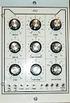 fpa 147 Week 6 Synthesis Basics In the early 1960s, inventors & entrepreneurs (Robert Moog, Don Buchla, Harold Bode, etc.) began assembling various modules into a single chassis, coupled with a user interface
DJPower Version 2008 Overview
 DJPower Version 2008 Overview The DJPower program is specifically designed for DJ s. The program has been created with the help of professional DJ s in both the United States and Europe. As a DJ, DJPower
REFERENCE GUIDE 1. INTRODUCTION
 1. INTRODUCTION Scratch is a new programming language that makes it easy to create interactive stories, games, and animations and share your creations with others on the web. This Reference Guide provides
Studio One 2 Manual Addendum
 Studio One 2 Manual Addendum Table of Contents Introduction... 4 Version 2.6... 5 Pages... 5 2.1 Start... 5 2.1.8 Artist Profile... 5 Setup... 7 4.5 Managing Your Content... 7 4.5.1.1 Autosave Restore
Tutorial. Part One -----Class1, 02/05/2015
 2.1.1 Tutorial Part One -----Class1, 02/05/2015 Download Audacity and LAME Encoder Audacity is an open source cross-platform (It can be used in Windows, Macs, and Linux) audio editor. You can download
Software User Manual. Designed and Engineered by Blackstar Amplification UK
 Software User Manual Designed and Engineered by Blackstar Amplification UK Introduction System Requirements This user manual will guide you through the installation and use of the Blackstar INSIDER software
Lightworks v12. Quick Start Guide
 Lightworks v12 Quick Start Guide Lightworks v12 Copyright and Disclaimer Copyright 2014 by EditShare This document, as well as any software described in it, is furnished under either a license or a confidentiality
TF5 / TF3 / TF1 DIGITAL MIXING CONSOLE
 TF5 / TF3 / TF1 DIGITAL MIXING CONSOLE Reference Manual EN Table of contents Table of contents Overview... 4 Using this document... 4 The display... 4 Universal operations... 8 Library screen... 8 Keyboard
Soundcraft Signature MTK Recording Guide
 Soundcraft Signature MTK Recording Guide S O U N D C R A F T S I G N AT U R E M T K R E C O R D I N G G U I D E 2 Table of Contents USB Overview... 04 Installing the Drivers (PC Only)... 04 Finding the
VERITAS NetBackup Microsoft Windows User s Guide
 VERITAS NetBackup Microsoft Windows User s Guide Release 3.2 Windows NT/95/98 May, 1999 P/N 100-001004 1994-1999 VERITAS Software Corporation. All rights reserved. Portions of this software are derived
Audio Editing. Using Audacity Matthew P. Fritz, DMA Associate Professor of Music Elizabethtown College
 Audio Editing Using Audacity Matthew P. Fritz, DMA Associate Professor of Music Elizabethtown College What is sound? Sounds are pressure waves of air Pressure pushes air molecules outwards in all directions
Nord Stage 2 OS Version 1.30 Release Notes 1
 Nord Stage 2 OS Version 1.30 Release Notes 1 Nord Stage 2 OS Version 1.30 Release Notes The 1.30 Stage 2 OS update contains several bug fixes and some functionality improvements. Internal Instrument levels
Appointment Scheduler
 EZClaim Appointment Scheduler User Guide Last Update: 11/19/2008 Copyright 2008 EZClaim This page intentionally left blank Contents Contents... iii Getting Started... 5 System Requirements... 5 Installing
Audition Monster Truck Project Tutorial. -Open Adobe Audition -Click Multitrack in the top left corner
 -Open Adobe Audition -Click Multitrack in the top left corner -Name the project session name last name + first initial + monster -Click Browse and select your Audition Folder that you created in your Finder
Hermes.Net IVR Designer Page 2 36
 Hermes.Net IVR Designer Page 2 36 Summary 1. Introduction 4 1.1 IVR Features 4 2. The interface 5 2.1 Description of the Interface 6 2.1.1 Menus. Provides 6 2.1.2 Commands for IVR editions. 6 2.1.3 Commands
Recording Supervisor Manual Presence Software
 Presence Software Version 9.2 Date: 09/2014 2 Contents... 3 1. Introduction... 4 2. Installation and configuration... 5 3. Presence Recording architectures Operating modes... 5 Integrated... with Presence
DIGITAL AUDIO BASICS
 DIGITAL AUDIO BASICS 81 DIGITAL AUDIO BASICS 82 DIGITAL AUDIO BASICS 83 DIGITAL AUDIO BASICS 84 DIGITAL AUDIO BASICS 85 DIGITAL AUDIO BASICS 86 DIGITAL AUDIO BASICS 87 DIGITAL AUDIO BASICS 88 DIGITAL AUDIO
Windows 7 for beginners
 Windows 7 for beginners Hardware Hardware: the physical parts of a computer. What s in the computer? CPU: the central processing unit processes information (the brain) Hard drive: where all of your software
Session Keys. e-instruments lab GmbH Bremer Straße 18 21073 Hamburg Germany www.e-instruments.com
 User Manual e-instruments lab GmbH Bremer Straße 18 21073 Hamburg Germany www.e-instruments.com All information in this document is subject to change without notice and does not represent a commitment
NVMS-1200. User Manual
 NVMS-1200 User Manual Contents 1 Software Introduction... 1 1.1 Summary... 1 1.2 Install and Uninstall... 1 1.2.1 Install the Software... 1 2 Login Software... 3 2.1 Login... 3 2.2 Control Panel Instruction...
Raritan Valley Community College Academic Course Outline MUSC 190 - DIGITAL MUSIC COMPOSITION I
 Raritan Valley Community College Academic Course Outline I. Basic Course Information MUSC 190 - DIGITAL MUSIC COMPOSITION I A. Course Number and Title: MUSC 190: DIGITAL MUSIC COMPOSITION I B. New or Modified
Newton Backup Utility User s Guide. for the Windows Operating System
 Newton Backup Utility User s Guide for the Windows Operating System K Apple Computer, Inc. 1995 Apple Computer, Inc. All rights reserved. Under the copyright laws, this manual may not be copied, in whole
WebEx. Remote Support. User s Guide
 WebEx Remote Support User s Guide Version 6.5 Copyright WebEx Communications, Inc. reserves the right to make changes in the information contained in this publication without prior notice. The reader should
Raptor K30 Gaming Software
 Raptor K30 Gaming Software User Guide Revision 1.0 Copyright 2013, Corsair Components, Inc. All Rights Reserved. Corsair, the Sails logo, and Vengeance are registered trademarks of Corsair in the United
MIDI Setup with TonePort UX2 and KB37
 MIDI Setup with TonePort UX2 and KB37 Table of Contents FOOTSWITCH CONNECTIONS... 2 TONEPORT KB37 CONTROLLER LAYOUT... 3 TONEPORT KB37 DEFAULT MESSAGES... 4 Default message map for GearBox 3.0... 4 Default
Animated Lighting Software Overview
 Animated Lighting Software Revision 1.0 August 29, 2003 Table of Contents SOFTWARE OVERVIEW 1) Dasher Pro and Animation Director overviews 2) Installing the software 3) Help 4) Configuring the software
Manual Version CV20060926-1
 Manual Version CV20060926-1 CaseViewer 3.1 2 CaseViewer 3.1 Table of Contents Introduction to CaseViewer... 4 Interface at a Glance... 5 Understanding the Interface... 6 Case Log Display... 6 Event Notes:...
USB-MIDI Setup Guide. Operating requirements
 About the software The most recent versions of the applications contained on the accessory disc can be downloaded from the Korg website (http://www.korg.com). -MIDI Setup Guide Please note before use Copyright
Microsoft Windows Overview Desktop Parts
 Microsoft Windows Overview Desktop Parts Icon Shortcut Icon Window Title Bar Menu Bar Program name Scroll Bar File Wallpaper Folder Start Button Quick Launch Task Bar or Start Bar Time/Date function 1
Getting Started with a blank desk...3. Understanding the Rear Panel and Top Connectors...3. Understanding the Front Panel...5
 2nd Edition Table of contents Getting Started with a blank desk...3 Understanding the Rear Panel and Top Connectors...3 Understanding the Front Panel...5 Controlling Channel Faders...6 Changing INPUT PATCH...7
Congratulations on purchasing Molten MIDI B by Molten Voltage
 OWNER S MANUAL Congratulations on purchasing Molten MIDI B by Molten Voltage Molten MIDI B is designed to control the Digitech Bass Whammy. When configured for Whammy & Clock output, Molten MIDI B also