
IBM Rational University. Essentials of IBM Rational Functional Tester, Java Scripting. RT545 February 2009 Student Manual Part No.
|
|
|
- Alvin Cross
- 9 years ago
- Views:
Transcription
1 IBM Rational University Essentials of IBM Rational Functional Tester, Java Scripting RT545 February 2009 Student Manual Part No

2 IBM Corporation Rational University RT545 Essentials of IBM Rational Functional Tester, Java Scripting Student Manual January 2009 Copyright International Business Machines Corporation, All rights reserved. This document may not be reproduced in whole or in part without the prior written permission of IBM. The contents of this manual and the associated software are the property of IBM and/or its licensors, and are protected by United States copyright laws, patent laws, and various international treaties. For additional copies of this manual or software, please contact Rational Software. IBM and the IBM logo are trademarks or registered trademarks of IBM Corporation, in the United States, other countries or both. Rational, the Rational logo, ClearCase, ClearCase LT, ClearCase MultiSite, Unified Change Management, Rational SoDA, and Rational XDE are trademarks or registered trademarks of International Business Machines Corporation in the United States, other countries or both. WebSphere, the WebSphere logo, and Studio Application Developer, are trademarks or registered trademarks of International Business Machines Corporation in the United States, other countries or both. Microsoft Windows 2000, Microsoft Word, and Internet Explorer, among others, are trademarks or registered trademarks of Microsoft Corporation. Java and all Java-based marks, among others, are trademarks or registered trademarks of Sun Microsystems in the United States, other countries or both. UNIX is a registered trademark of The Open Group in the United States, other countries or both. Other company, product and service names may be trademarks or service marks of others. Printed in the United States of America. This manual prepared by: IBM Rational Software 555 Bailey Ave. Santa Teresa Lab San Jose, CA USA
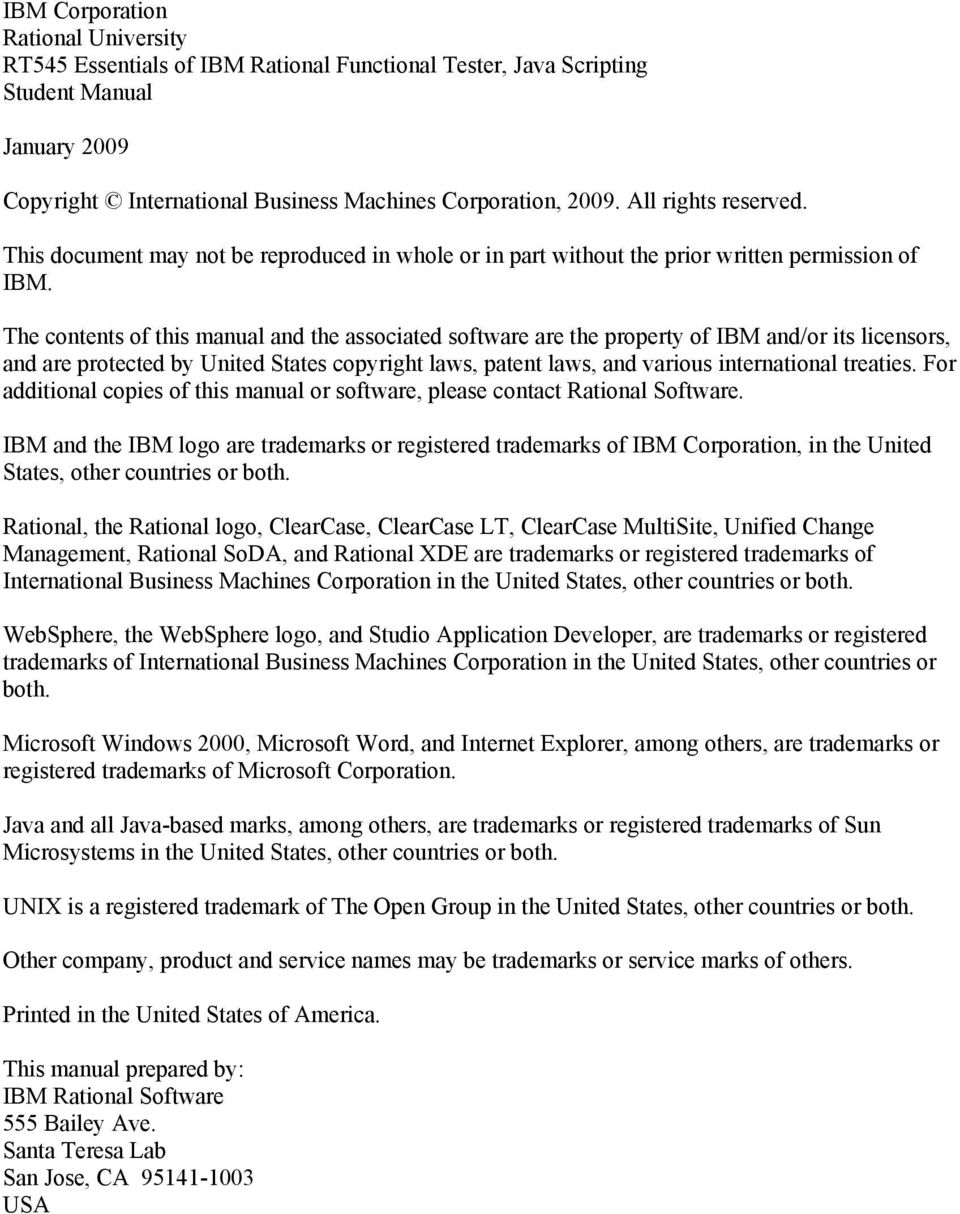
3 Table of Contents Contents Module 0 About This Course Course Goals Intended Audience and Prerequisites Course Agenda Other Sources of Information Module 1 Getting Started with IBM Rational Functional Tester IBM Rational Functional Tester Features Perspectives The Functional Test Project Test Environment Configuration Module 2 Recording a Script Planning for Automated Testing General Process for Recording a Script Recording Verification Points: Two Steps Ways to Access Script Support Functions Two Ways to Insert Recording into an Existing Script Module 3 Playing Back a Script and Viewing Results About Playing Back a Script Playback Log Types Verification Point Comparator Debugging: Verify Environment and Identify Symptom Functional Test Playback Options Module 4 Extending Scripts Class Hierarchy of a Functional Tester Script Script Editing Features Creating a Message Box Overriding Preference Settings Handling an Unexpected Active Window Module 5 Using Test Object Maps What Is a Test Object Map? Displaying a Test Object Map Creating a Shared Test Object Map Deleting an Object from a Test Object Map Module 6 Managing Object Recognition How Does Functional Tester Recognize a Test Object? Copyright IBM Corp i
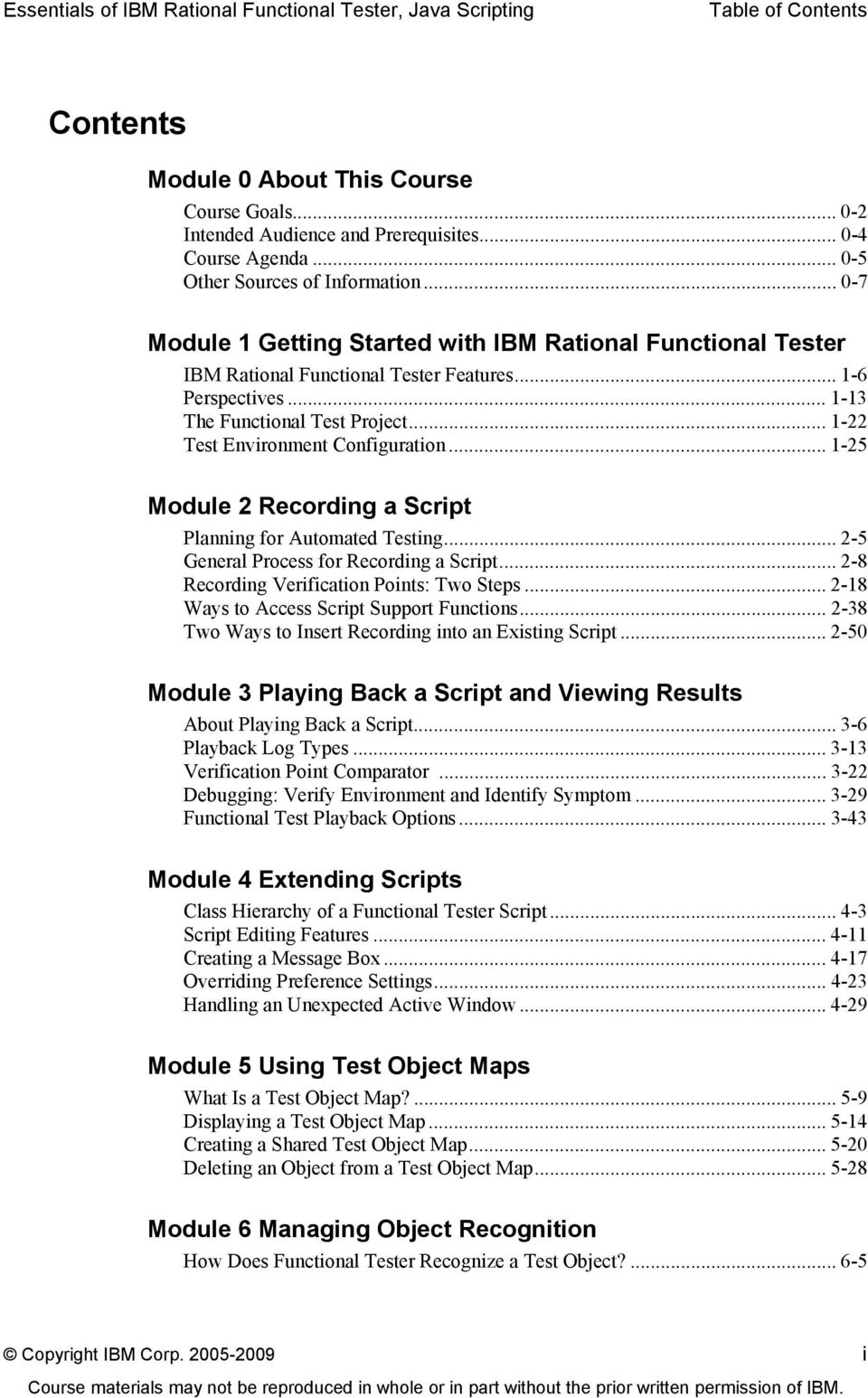
4 Table of Contents Thresholds for Playback Recognition Scores Using a Regular Expression for Object Recognition Module 7 Creating Data-Driven Tests When to Use Data-Driven Testing Creating a Data-Driven Test Functional Tester Data-Driven Testing Scenarios Appendix A: Hints and Tips Recording Troubleshooting and Tips...Appendix A-3 Recording Scripts to Test HTML Applications...Appendix A-4 Recording Scripts for Cross-Platform Applications...Appendix A-6 Copyright IBM Corp ii

5 Module 0 - About This Course IBM Software Group Essentials of IBM Rational Functional Tester, Java Scripting Module 0: About This Course 1 Contents Course Goals 0-2 Intended Audience and Prerequisites 0-4 Course Agenda 0-5 Other Sources of Information 0-7 Copyright IBM Corp

6 Module 0 - About This Course Course Goals To perform testing with Rational Functional Tester, you should be able to: Describe the function and purpose of IBM Rational Functional Tester Navigate the Rational Functional Tester interface Record scripts with Rational Functional Tester Play back automated scripts Modify scripts to add advanced features Use test object maps Control object recognition Create data-driven tests 2 Copyright IBM Corp

7 Module 0 - About This Course Course Non-Goals This course will not cover: The testing process Java programming Using IBM Rational TestManager 3 Copyright IBM Corp

8 Module 0 - About This Course Intended Audience and Prerequisites Intended audience New IBM Rational Functional Tester users The course is designed primarily for QA professionals who will be using the automation tools Prerequisites Some software development experience is recommended General understanding of Microsoft Windows platform applications is desirable 4 Copyright IBM Corp

9 Module 0 - About This Course Course Agenda Day 1 1. Getting Started with IBM Rational Functional Tester 2. Recording a Script 3. Playing Back a Script and Viewing Results 4. Extending Scripts Day 2 5. Using Test Object Maps 6. Managing Object Recognition 7. Creating Data-driven Tests 5 Copyright IBM Corp

10 Module 0 - About This Course Course Materials Student Manual Slides from lecture Student notes Student Workbook Lab objectives and instructions Training project CD 6 The Student Manual contains copies of each of the slides presented in class and detailed student notes that supplement information on the slides. It is designed to serve as a reference after you have completed the course. The Student Kit also contains the materials you need to complete the course labs: the Student Workbook and a CD containing the training project. Copyright IBM Corp

11 Module 0 - About This Course Other Sources of Information Related Rational Courses Principles of Software Testing for Testers Principles of Test Automation for GUI Testing (Web-based training) Essentials of Test Management with Rational TestManager Essentials of Manual Testing with IBM Rational Manual Tester Essentials of IBM Rational Functional Tester, VB.NET Scripting: The Basics (Web-based training) Essentials of IBM Rational Functional Tester, Java Scripting: The Basics (Web-based training) Requirements Management with Use Cases IBM developerworks, Rational software zone Rational software Web site 7 The IBM developerworks Rational zone Web site contains a wealth of technical information about IBM Rational tools. No registration or login is required to access this site. Copyright IBM Corp

12 Module 0 - About This Course Logistics 8 Copyright IBM Corp

13 Module 0 - About This Course Introductions Your organization Your role Your background, experience Software development experience Rational tools experience Testing experience What you want from this course 9 Copyright IBM Corp

14 Module 0 - About This Course Lab 0: Become Familiar with the Sample Application 10 Overview of ClassicsCD Classics Inc. is a rapidly growing chain of retail stores that sells items that are considered classics classical music, classic movies, classic books, and so on. After founding a single store selling classical music in 1993, Classics Inc. quickly expanded its regional business. It is now poised to open a nationwide chain of 127 stores by Rapid growth has had an effect on the infrastructure of Classics Inc. The company quickly grew out of the packaged Point of Sale (POS) application that it bought in 1993, and, in 1996, took on the task of creating a custom POS application. Although fielded to all of its stores, the project was a failure. When delivered, some 20% of the functionality originally planned had not yet been implemented or was still undergoing testing, including the module that connected all of the retail stores to the corporate order processing system. Classics Inc. realized that in order to ensure the success of the new system, it would need to adopt industry best practices, tools, and processes. It also realized that it would need to look at the entire business as a whole and not just a single application. The ClassicsCD application is designed to help manage the sales and inventory of the Classics CD products. ClassicsCD will run on the Microsoft Windows 95, Windows 98, Windows XP, Windows NT, and Windows 2000 operating systems. The ClassicsCD software will be installed on PCs in Classics Inc. retail stores. The two primary users of this system are the store manager and the store clerk. The store manager will perform administration of the system with potentially little to no computer experience. The store clerk is responsible for making sales and checking on orders for customers. (continued) Copyright IBM Corp
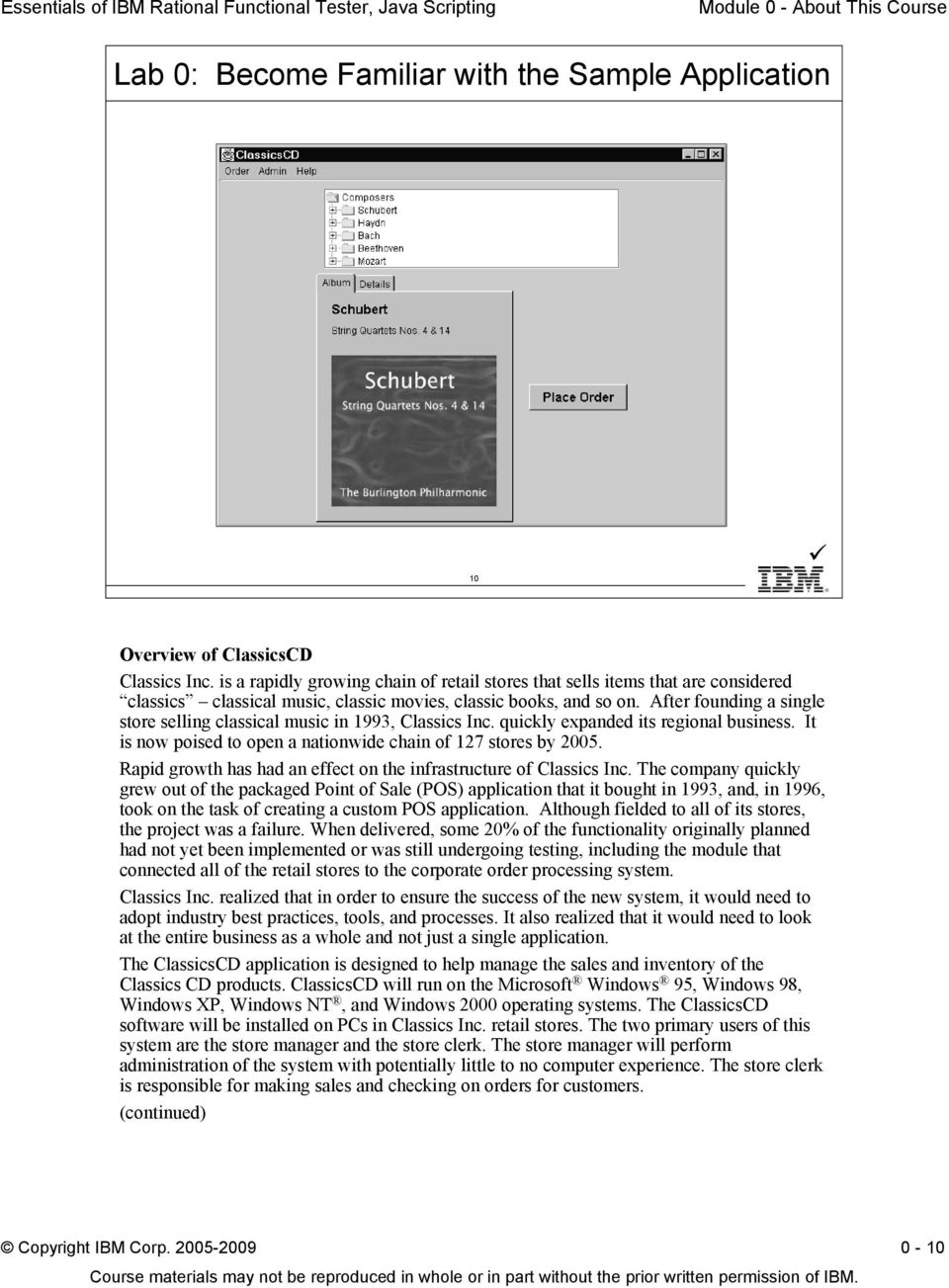
15 Module 0 - About This Course Lab 0: Become Familiar with the Sample Application 11 Overview of ClassicsCD (cont.) ClassicsCD needs to be tested to ensure that orders can be placed successfully. This includes testing all Composer and Composition selections that are available, as well as ensuring that the sales order total is correct. Key data entry fields for placing orders are order quantity, credit card number, credit card type, and credit card expiration date. The typical sequence of events is for the store clerk to start the ClassicsCD application, select a composition, log in to the customer account, complete the data entry fields, and place the order. See Student Workbook, Lab 0: Become Familiar with the Sample Application. Copyright IBM Corp

16 Module 0 - About This Course 12 Copyright IBM Corp

17 Essentials of IBM Rational Functional Tester, Java Scripting Module 1 - Getting Started with IBM Rational Functional Tester IBM Software Group Essentials of IBM Rational Functional Tester, Java Scripting Module 1: Getting Started with IBM Rational Functional Tester 1 Contents IBM Rational Functional Tester Features 1-6 Perspectives 1-13 The Functional Test Project 1-22 Test Environment Configuration 1-25 Copyright IBM Corp

18 Essentials of IBM Rational Functional Tester, Java Scripting Module 1 - Getting Started with IBM Rational Functional Tester Objectives To start using IBM Rational Functional Tester, you should be able to: Explain the purpose of Rational Functional Tester and describe its main features Describe the process of recording and playing back a script Navigate the Rational Functional Tester interface Configure and enable the test environment 2 Copyright IBM Corp
19 Essentials of IBM Rational Functional Tester, Java Scripting Module 1 - Getting Started with IBM Rational Functional Tester Where Are We? Introduction to IBM Rational Functional Tester The Rational Functional Tester interface Working with a Functional Test project Setting up the test environment X 3 Copyright IBM Corp

20 Essentials of IBM Rational Functional Tester, Java Scripting Module 1 - Getting Started with IBM Rational Functional Tester Challenge: Test Java and HTML Applications How can I Test smarter? Test faster? Test more consistently? 4 You can save development time and money by enhancing the productivity of testers and, thus, your entire development project team. Copyright IBM Corp

21 Essentials of IBM Rational Functional Tester, Java Scripting Module 1 - Getting Started with IBM Rational Functional Tester Solution: Use Rational Functional Tester for Testing IBM Rational Functional Tester is an object-oriented, automated testing application that enables you to test Java, HTML, Microsoft VB.NET, and Microsoft Windows applications running on the following platforms: Microsoft Windows XP Professional Microsoft Windows 2000 Professional Microsoft Windows 2003 Server Red Hat Linux (all functions except recording) 5 IBM Rational Functional Tester features platform-independent and browser-independent test playback. For example, you can record a script in Microsoft Windows and play it back in Linux. You can record a script using either Microsoft Internet Explorer, Netscape Navigator, or Mozilla. Because the script contains no references to the browser used during recording, you can play back the script on either Internet Explorer or Netscape Navigator. Copyright IBM Corp
22 Essentials of IBM Rational Functional Tester, Java Scripting Module 1 - Getting Started with IBM Rational Functional Tester IBM Rational Functional Tester Features A standalone product that integrates with other Rational products: IBM Rational TestManager IBM Rational ClearCase or ClearCase LT (for versioning of test assets) Automatic script generation based on user actions performed in the application-under-test (AUT) Test object maps: Created automatically Lists AUT test objects and their recognition properties Verification points: Test objects, including the object s properties and data Confirm the state of an object across builds of the AUT 6 With the object-oriented recording technology of Rational Functional Tester, you can generate scripts by running and using the application-under-test. Rational Functional Tester scripts are implemented as Java programs. Rational Functional Tester is integrated with IBM Rational TestManager, which enables you to record and play back a Rational Functional Tester script from Rational TestManager and use TestManager test logs. Alternatively, Rational Functional Tester can be used as a standalone product, using HTML or text logs to review test results. The test object map provides a quick way to add objects to a script. Also, you can update information in one central location, and any scripts that reference that object will share the updated information. Copyright IBM Corp
23 Essentials of IBM Rational Functional Tester, Java Scripting Module 1 - Getting Started with IBM Rational Functional Tester Script Recording and Playback Process Set up test environment Set recording options Start recording Reset environment Set playback options Perform user actions Play back script Insert verification points View Create and verification analyze results points End recording 7 This slide outlines a typical set of high-level steps that you follow to record and play back a script in Rational Functional Tester. Copyright IBM Corp
24 Essentials of IBM Rational Functional Tester, Java Scripting Module 1 - Getting Started with IBM Rational Functional Tester Challenge: Script Maintenance User interface changes to the application cause automated test scripts to break Testers must constantly update scripts to handle minor application changes Testers may make mistakes when they update scripts 8 One challenge that testers face is script maintenance. As the application undergoes changes throughout the course of development, automated test scripts can break, which requires them to be re-worked or re-recorded. For example, the script can break when developers change underlying attributes that the script relies on to identify an object. Script maintenance of some level is a fact of automation. But too much maintenance can be a drain on a team s time and decrease the value of automation. Automated testing tools that build scripts that are resistant to breaking are extremely valuable. Copyright IBM Corp
25 Essentials of IBM Rational Functional Tester, Java Scripting Module 1 - Getting Started with IBM Rational Functional Tester Solution: More Resilient Test Scripts ScriptAssure technology makes test scripts more resilient to application changes Old build New build Rational Functional Tester Evaluates Close Enough? Recognition Properties Class = java.swing.jcheckbox Name = pswd 9 Recognition Properties Class = java.swing.jcheckbox Name = rempswd In the new build, the developer has changed the underlying logical name. With ScriptAssure, Functional Tester evaluates the closeness of the objects that it finds and attempts to match something that is close. If the objects are close enough, the test continues with no intervention from the tester and will log a warning so the tester is made aware of a possible discrepancy. With the ScriptAssure technology, more tests can execute with less intervention, even with significant changes being made to objects in the application. Copyright IBM Corp
26 Essentials of IBM Rational Functional Tester, Java Scripting Module 1 - Getting Started with IBM Rational Functional Tester ScriptAssure Test Playback Technology Automatically finds changed target objects in Java and Web-based applications without object remapping Allows testers to select the relative importance of user interface characteristics Lowers maintenance time by reducing the need to update tests throughout the application s lifecycle 10 Suppose that in a new build, the developer changes the underlying object name. With ScriptAssure Functional Tester evaluates the closeness of the objects that it finds and attempts to match something that is close. If the objects are close enough, the test continues with no intervention from the tester and will log a warning so the tester is made aware of a possible discrepancy. With the ScriptAssure technology, more tests can execute with less intervention, even with significant changes being made to objects in the application. The benefit of this technology is reduced maintenance and more reliable test scripts. Additionally, this flexibility is completely under the testers control. They can determine what levels of close enough are sufficient for their project. Copyright IBM Corp
27 Essentials of IBM Rational Functional Tester, Java Scripting Module 1 - Getting Started with IBM Rational Functional Tester Where Are We? Introduction to IBM Rational Functional Tester The Rational Functional Tester interface Working with a Functional Test project Setting up the test environment X 11 Copyright IBM Corp
28 Essentials of IBM Rational Functional Tester, Java Scripting Module 1 - Getting Started with IBM Rational Functional Tester Starting Rational Functional Tester 12 What to do Click Start > Programs > IBM Software Development Platform > IBM Rational Functional Tester > Java Scripting. If you have IBM Rational TestManager installed, the IBM Rational Test Login dialog box opens. (The Login dialog box does not open when Functional Tester is used as a standalone product.) Copyright IBM Corp
29 Essentials of IBM Rational Functional Tester, Java Scripting Module 1 - Getting Started with IBM Rational Functional Tester Perspectives Define the initial workspace configuration and layout Provide a focused working environment Current Perspective 13 The workbench is the desktop development environment that lets you work with multiple tools seamlessly. The workbench contains one or more perspectives. A perspective provides a set of functionality for working with specific tasks or types of resources. You switch between different tasks and resources by selecting your perspective. Copyright IBM Corp
30 Essentials of IBM Rational Functional Tester, Java Scripting Module 1 - Getting Started with IBM Rational Functional Tester Perspectives (cont.) Switch from one perspective to another to carry out a different task Perspectives can be opened three ways: In the same (existing) window In a new window In the same window, replacing the current perspective 14 A perspective contains views and editors, and it controls what appears in certain menus and toolbars. You can open perspectives in the same window or in a new workbench window. For example, if you want to see Functional Test Debug at the same time as the Java editor, you can open the Functional Test Debug perspective in a separate window. If you always want to open a perspective in its own window, you can set it up as a user preference. To do this, click Window > Preferences > General > Perspectives and then, under Open a new perspective, select In a new window. Copyright IBM Corp
31 Essentials of IBM Rational Functional Tester, Java Scripting Module 1 - Getting Started with IBM Rational Functional Tester Open Perspective 1 Click Window > Open Perspective or click Open a perspective Click Other 3 Select a perspective 15 To open a Perspective: 1. From the Functional Test perspective, click Window > Open Perspective or click the Open a perspective button. 2. Click one of the listed perspectives or click Other to display a list of perspectives. (The Functional Test Debug and Java perspectives are listed by default, but this menu changes depending on which perspectives are open.) 3. In the Open Perspective dialog box, click the perspective you want to open and then click OK. Copyright IBM Corp
32 Essentials of IBM Rational Functional Tester, Java Scripting Module 1 - Getting Started with IBM Rational Functional Tester Functional Test Perspective View name Functional Test menu Functional Test toolbar Functional Test Projects view Current script Editor area (showing Java Script Editor) Functional Test Script Explorer Additional Functional Test views 16 See Functional Test Help for details on the menu and toolbar buttons. The Functional Test Projects view lists test assets for each project, including: Folders Scripts Shared test object maps Log folders Logs Java files Most perspectives include an editor area and several views. In the Java Editor, you can edit your Java code test script. The name of the script you are currently editing appears in a tab at the top of the view. You can open several scripts in the Java Editor and move between them by clicking the appropriate tab. Double-click a script tab to maximize the editor window. Right-click the Java Editor to display menu options for working with scripts. The Script Explorer lists verification points and test objects for the current script. Copyright IBM Corp
33 Essentials of IBM Rational Functional Tester, Java Scripting Module 1 - Getting Started with IBM Rational Functional Tester Help: Contents Table of Contents Index Contents 17 The Help Contents tab displays the table of contents for the Functional Test Help. You can also get help wherever you are in IBM Rational Functional Tester by pressing the F1 key. Some Functional Test dialog boxes and windows also have Help buttons. The Functional Test documentation includes the online User Guide and API Reference. Copyright IBM Corp
34 Essentials of IBM Rational Functional Tester, Java Scripting Module 1 - Getting Started with IBM Rational Functional Tester Help: Search Search topic Search 18 Use the Search tab to search for information on a particular topic. Copyright IBM Corp
35 Essentials of IBM Rational Functional Tester, Java Scripting Module 1 - Getting Started with IBM Rational Functional Tester Views Views provide alternative presentations or ways of navigating your project Changes across views are synchronized A view may include multiple tabs Views can be rearranged by dragging tabs 19 Views are an important component of your workspace. Views display different kinds of information within a perspective. Often, it is better to use specific views for accomplishing specific tasks. For example, you can use the Packages view to quickly browse and locate specific resources rather than search a linear list of named resources in your project. Commonly used views include the following: Tasks view displays errors, warnings, or other information automatically generated by the script. Search view displays results from a search. Console view displays output from the script or application (such as print statements or exceptions). Bookmarks view displays a list of markers that point to a specific place in the workbench. Breakpoints view lists all the breakpoints you have set in your script. If you press the F1 key while you are in this view, you can access Help information about breakpoints. To open a view, click Window > Show View and select a view from the list. Copyright IBM Corp
36 Essentials of IBM Rational Functional Tester, Java Scripting Module 1 - Getting Started with IBM Rational Functional Tester Examples of Views in the Functional Test Perspective Functional Test Projects view Script Explorer view Additional open views 20 Other perspectives can display different views. You should always keep the Projects and Script Explorer views open. This makes it easier to work with your automated tests. Copyright IBM Corp
37 Essentials of IBM Rational Functional Tester, Java Scripting Module 1 - Getting Started with IBM Rational Functional Tester Where Are We? Introduction to IBM Rational Functional Tester The Rational Functional Tester interface Working with a Functional Test project Setting up the test environment X 21 Copyright IBM Corp
38 Essentials of IBM Rational Functional Tester, Java Scripting Module 1 - Getting Started with IBM Rational Functional Tester The Functional Test Project Stores these Rational Functional Tester test assets: Scripts Object maps Verification point baseline files Script templates Datapools 22 A Functional Test project is a collection of related test assets, including scripts, object maps, verification point baseline files, script templates, and test datapools. You must create a Functional Test project before you can record scripts. Test logs are stored in the same folder as the project folder in their own logs folder. Copyright IBM Corp
39 Essentials of IBM Rational Functional Tester, Java Scripting Module 1 - Getting Started with IBM Rational Functional Tester Connecting to a Functional Test Project 23 What to do To connect to an existing Functional Test project: 1. Click File > New > Connect to a Functional Test Project. 2. Specify the path for the Functional Test project, either by typing it in or by clicking Browse and navigating to it. 3. In the Project name box, type a name for the Functional Test project. Copyright IBM Corp
40 Essentials of IBM Rational Functional Tester, Java Scripting Module 1 - Getting Started with IBM Rational Functional Tester Where Are We? Introduction to IBM Rational Functional Tester The Rational Functional Tester interface Working with a Functional Test project Setting up the test environment X 24 Copyright IBM Corp
41 Essentials of IBM Rational Functional Tester, Java Scripting Module 1 - Getting Started with IBM Rational Functional Tester Test Environment Configuration Context is important! Inconsistent context = script failure Context includes: Hardware testing configuration Database Network considerations State of the application-under-test (AUT) Sequence of actions 25 In any kind of testing, it is important to have a consistent context for each testing cycle. It is especially important for automated testing in a team environment. It is important that the person coordinating the execution of the tests ensures that the test run is set up to execute the test in the established order, using the appropriate data files and starting at the appropriate AUT state. After recording, you need to reset this initial state before you play back (execute) your script. Any applications and windows that are open, active, or displayed when you record the script must be open, active, or displayed when you play back the script. Also, any relevant network settings, active databases, and system memory must be in the same state at playback as when you recorded the script. Copyright IBM Corp
42 Essentials of IBM Rational Functional Tester, Java Scripting Module 1 - Getting Started with IBM Rational Functional Tester Enabling the Environment for Testing You must enable your Web browsers before you can use Rational Functional Tester to test HTML applications You must enable your Java Runtime Environment (JRE) before you can use Rational Functional Tester to test Java applications 26 Copyright IBM Corp
43 Essentials of IBM Rational Functional Tester, Java Scripting Module 1 - Getting Started with IBM Rational Functional Tester Enabling Web Browsers 27 You must enable browsers before you can use Functional Tester to test HTML applications. The first time you start Functional Tester after you install it, Functional Tester automatically enables Internet Explorer and Netscape Navigator if it finds them on your system. If you add a new browser, or if Functional Tester fails to find a browser, you must add the environment. In the menu, click Configure > Enable Environments for Testing. Click the Web Browsers tab. Click Search and then click Search All to let the enabler locate all the browsers on your system. It will scan your hard drives or partitions and list the browsers in the Web Browsers list. The list includes the full path name of each browser. Copyright IBM Corp
44 Essentials of IBM Rational Functional Tester, Java Scripting Module 1 - Getting Started with IBM Rational Functional Tester Enabling Java Environments 28 You must enable Java environments before you can use Functional Test to test Java applications. Functional Tester is shipped with a Java Runtime Environment (JRE), called Default JRE. The Default JRE is automatically enabled during installation. To enable other JREs, or if you install a new JRE, you must rerun the enabler. In the menu, click Configure > Enable Environments for Testing. Click the Java Environments tab. Click Search and then select an option to let the enabler locate and list all the Java environments on your system. Note: If you use an Agent computer to run your Functional Test scripts, you must enable the Java environment on the Agent. Copyright IBM Corp
45 Essentials of IBM Rational Functional Tester, Java Scripting Module 1 - Getting Started with IBM Rational Functional Tester Configuring Applications for Testing Provide name, path, and other information needed to start and run the application. 29 To open the Application Configuration Tool, click Configure > Configure Applications for Testing. To add a new application, click the Add button. Once an application has been added, you can edit its information at any time by opening the application configuration tool and selecting the application in the Applications list. To remove an application from the list, select the application and click Remove. Tip: Always test the application configuration by clicking the Run button before closing the Application Configuration Tool dialog box. Copyright IBM Corp
46 Essentials of IBM Rational Functional Tester, Java Scripting Module 1 - Getting Started with IBM Rational Functional Tester Review What can you do with Rational Functional Tester? What are the general steps for recording and playing back a script? What are the main components of the Functional Test workspace? What is stored in the Functional Test project? 30 Copyright IBM Corp
47 Essentials of IBM Rational Functional Tester, Java Scripting Module 1 - Getting Started with IBM Rational Functional Tester Lab 1: Get Started with Rational Functional Tester View the Functional Test perspectives Record and play back a simple script 31 See Student Workbook Lab 1: Getting Started with Rational Functional Tester. Copyright IBM Corp
48 Essentials of IBM Rational Functional Tester, Java Scripting Module 1 - Getting Started with IBM Rational Functional Tester 32 Copyright IBM Corp
49 Module 2 - Recording a Script IBM Software Group Essentials of IBM Rational Functional Tester, Java Scripting Module 2: Recording a Script 1 Contents Planning for Automated Testing 2-5 General Process for Recording a Script 2-8 Recording Verification Points: Two Steps 2-18 Ways to Access Script Support Functions 2-38 Two Ways to Insert Recording into an Existing Script 2-50 Copyright IBM Corp
50 Module 2 - Recording a Script Objectives To record a script, you should be able to: Describe the process of developing a script Record a new script Identify Functional Test verification points and describe their appropriate use Record a verification point Identify Functional Test script support functions and explain how to include them in a script Insert recording into an existing script 2 Copyright IBM Corp
51 Module 2 - Recording a Script Challenge: Test the Application How do I start to test my application? 3 Copyright IBM Corp
52 Module 2 - Recording a Script Solution: Record a Script A Functional Test script is a text file that contains: Statements generated by Functional Test during recording Manually coded statements that instruct the Functional Test to emulate user actions, such as mouse clicks and keystrokes When a Functional Test script is played back, Functional Test recreates the functional test by executing the statements in the script 4 When you record a script, Functional Test records user actions against your application, such as keystrokes and mouse clicks. Copyright IBM Corp
53 Module 2 - Recording a Script Planning for Automated Testing Identify project standards for: Organizing project artifacts Script naming conventions Sharing test artifacts Sharing test data Determine the best method for automating verification points for your AUT Determine sequence for executing scripts Maximize script reuse Minimize the need for script maintenance 5 Try to maximize the potential for the reuse of a script and minimize the need for maintenance. Maximizing script reuse increases the efficiency of your resources. Reusing scripts also ensures that the same sequence of events is always performed to execute a series of tasks. These test design and implementation issues are usually the responsibility of the Test Designer and the Test roles in the IBM Rational Unified Process (RUP ). For more information, see the RUP Activities and Artifacts associated with the Test Designer and Test roles, in particular the activities that deal with Test Approach, Testability, and Structuring the Test Implementation. A number of factors influence the way you create and acquire scripts, including: Automation tools The tools that are available influence how you create and maintain your scripts program versus record. In some instances you need to do both to accomplish a given test objective. Test environment The test environment, including software and hardware, the automation tools, and your application under test, must support your test objectives. Skills The skill and knowledge level of the people who are using the tools and doing the programming affects your process. Existing scripts If scripts exist, it is useful to try to reuse them as appropriate; consider their compatibility with your current tools and test environment. Copyright IBM Corp
54 Module 2 - Recording a Script Script Recording and Playback Process Set up test environment Set recording options Reset environment Start recording Set playback options Perform user actions Insert verification points Play back script View Create and verification analyze results points End recording 6 This slide outlines a typical set of high-level steps that you follow to record and play back a script in Functional Test. The highlighted steps are covered in this module. Copyright IBM Corp
55 Module 2 - Recording a Script Where Are We? Overview of recording Recording a new script Recording verification points Using script support functions Inserting recording into a script X 7 Copyright IBM Corp
56 Module 2 - Recording a Script General Process for Recording a Script 1. Create a script and start recording 2. Perform user actions in the AUT 3. End recording 8 These steps will be shown in the pages that follow. Copyright IBM Corp
57 Module 2 - Recording a Script 1. Create a Script and Start Recording 9 What to do To start recording a Functional Test script: 1. Click the Record a Functional Test script icon on the Functional Test perspective toolbar. 2. Select the project folder. 3. Specify the name of the new script. Scripts created in Functional Test must follow Java file-naming requirements: must begin with a letter and contain no spaces or nonalphanumeric characters. 4. Click Finish. Copyright IBM Corp
58 Module 2 - Recording a Script Recording Monitor After you select a project and name the script, the Functional Test Recording Monitor appears. The monitor displays: A message for every action performed during recording Errors You can: Minimize it Resize it Display only the toolbar 10 The Functional Test Recording Monitor is displayed while you are recording. By default, it displays Getting Started help. To turn off the Getting Started help text that appears in the monitor window, click the Monitor Message Preferences button and clear the Show Getting Started Help option in the Monitor Options tab. The monitor displays messages for every action performed during the recording session, such as: Starting and stopping the recording Starting an application or browser Clicking upon an application and all other actions Inserting verification points and other items The text in the recording monitor is similar to the sequence of commands that will be recorded in the script. It may contain additional information about errors that occurred during recording. Some of the recorded actions may look like code, but this text is for information only and is not meant to be pasted into a script. Note: If no information is being displayed on the recording monitor, nothing is being recorded. Either the application cannot be recorded against or the environment is not enabled properly. Copyright IBM Corp
59 Module 2 - Recording a Script Functional Test Recording Monitor Toolbar Recording toolbar: 1. Stop Recording 2. Pause/Resume Recording 3. Start Application 4. Insert Verification Point or Action Command 5. Insert Data-Driven Commands 6. Script Support 7. Display Help 11 Monitor preference buttons: 8. Display Toolbar Only 9. Copy Selected Text 10. Clear All Monitor Text 11. Save Monitor Text As 12. Monitor Message Preferences The Functional Test monitor toolbar is part of the recording monitor. It includes the recording toolbar as well as buttons that control monitor preferences. To display just the recording toolbar, press the Display Toolbar Only button. To view the monitor text window and preference buttons, press the button again. The text in the recording monitor is available while you have the monitor open. When you end recording, the text is discarded and is not written to a file. To save the text, use the Copy or Save As monitor preference buttons. Copyright IBM Corp
60 Module 2 - Recording a Script Start Recording: Start the Application 12 When recording tests on your application, it is best to have Functional Test start the application during recording. This makes playing back the tests more reliable. Functional Test will open: Java applications HTML pages (in your default browser or the browser you select in the Application Configuration Tool) What to do To start the application: 1. When the recording monitor appears, click the Start Application button on the recording toolbar. 2. Select the application to record against. 3. Click OK. Copyright IBM Corp
61 Module 2 - Recording a Script 2. Perform User Actions in the AUT 13 What to do To perform user actions in the application under test: 1. Follow the steps outlined in the test implementation. In your design, you should have considered modularity. Remember to apply modularity appropriately when you record your scripts. 2. Record: Your actions (mouse clicks, keystrokes) as you move through the AUT Verification points to capture and save information about specific objects Remember that Functional Test records every action you make, so be careful not to include extra keystrokes or mouse-clicks while conducting the test. As you become more proficient with Functional Test, you will learn to use the Pause feature to temporarily suspend recording, make necessary adjustments to the AUT, and resume recording. Copyright IBM Corp
62 Module 2 - Recording a Script 3. End Recording A Java script is the result 14 What to do To stop recording: 1. When you have finished stepping through the test, click the Stop Recording icon on the recording toolbar. Functional Test then displays the script you recorded. 2. At this point, you can add to or edit the script. What happens When you stop recording: The monitor and toolbars are closed Your script and object map are written into your project directory The Functional Test window is restored, and the script is displayed Copyright IBM Corp
63 Module 2 - Recording a Script Where Are We? Overview of recording Recording a new script Recording verification points Using script support functions Inserting recording into a script X 15 Copyright IBM Corp
64 Module 2 - Recording a Script Challenge: Verify Application Results How can I tell that the application works as expected? Sums, totals, balances Data displays Error messages Cursor movement Window handling Queries How can I validate application consistency from build to build???? 16 When designing tests, an important factor is determining when and how to verify that the application is exhibiting the expected behavior. You need to identify points of observation at which you can evaluate some aspect of the state of the test environment. In Functional Test, verification points are an example of such a point of observation. Copyright IBM Corp
65 Module 2 - Recording a Script Solution: Record Verification Points in the Script A verification point is a point in a script that you create to confirm the state of the AUT across builds (for regression testing) or runs (for reliability testing) A verification point serves as your eyes: Record a verification point wherever you need to validate expected results A test is not a test without verification points! 17 When you insert a verification point into a script, you capture information about the state of the AUT so that you can verify that state in subsequent test cycles. Functional Test stores the information you first capture as the baseline of expected behavior. When you play back the script against a new build of the AUT, Functional Test recaptures the information about the AUT state and compares it to the baseline. If the information captured at playback time has a value within the expected tolerance, the verification point passes. If there are differences, the verification point fails. Navigational scripts may not require verification points. Such scripts don t test anything; they are used to put the application into the correct state for testing. They do not validate functionality in the application. Copyright IBM Corp
66 Module 2 - Recording a Script Recording Verification Points: Two Steps Use the Verification Point and Action Wizard to: 1. Select an object to test in the application 2. Select an action to perform on the object 18 Use the Verification Point and Action Wizard to select objects to test and to select the types of tests to perform on these objects. What to do To open the Verification Point and Action Wizard, click the Insert Verification Point or Action Command button on the Recording toolbar. Copyright IBM Corp
67 Module 2 - Recording a Script 1. Select an Object to Test. Three methods: Object Finder Test Object Browser Time-Delayed Selection 19 The Select an Object page is the first step in the Verification Point and Action Wizard. It offers three ways to select an application object to test. If you select the wrong object or decide to test a different object, simply select a different object using any of these methods. Copyright IBM Corp
68 Module 2 - Recording a Script Selecting an Object: Object Finder 20 The Object Finder is the most common and direct method of selecting an object to test. What to do To select an object using the Object Finder tool: 1. Select Drag Hand Selection in the Selection Method dropdown menu of the Select an Object page in the Verification Point and Action Wizard. 2. Grab the Object Finder tool icon with your mouse and drag it over the object that you want to select. The object is outlined with a red border, and the object name is displayed. 3. When you release the mouse button, the object is selected and its recognition properties are listed in the Object Recognition Properties grid at the bottom of the page. If you have selected the After selecting an object advance to the next page option, you will go directly to the next tab of the wizard after selecting the object. Clear this checkbox option if you want to remain on this page to see the object recognition properties after selecting the object. Shortcut You can also grab the Insert Verification Point or Action Command button on the Recording toolbar and drag it to the object that you want to select. Copyright IBM Corp
69 Module 2 - Recording a Script Selecting an Object: Test Object Browser Browse object hierarchy to select 21 Use the Test Object Browser to browse for your object. The browser displays a hierarchical tree of testable objects in your application. The top level shows any applications you have running, and under each one is the object hierarchy within that application. What to do To select an object by using the Test Object Browser tool: 1. Select Text Object Browser in the Selection Method dropdown menu of the Select an Object page in the Verification Point and Action Wizard. 2. Browse the object tree until you find the object that you want to select. 3. Click the object that you want to test. The object is selected, and its recognition properties are listed in the object recognition properties grid. Copyright IBM Corp
70 Module 2 - Recording a Script Selecting an Object: Time-Delay Method 22 The Delay Method uses the Object Finder tool with a delay that you set. The delay gives you time to get to an object that requires clicking other objects first, such as a menu command. What to do To select an object by using the Delay Method: 1. Select Time Delayed Selection in the Selection Method dropdown menu of the Select an Object page in the Verification Point and Action Wizard. 2. Set the number of seconds. The default is 10 seconds. 3. Click the Object Finder icon. 4. Move your mouse to hover over your application until you get to the object that you want to select. Anything you do during the delay period is not recorded. (When selecting transient objects, the object must be made visible by recorded actions for the verification point to play back properly.) 5. When the timer runs out, the object under the cursor is selected and its recognition properties are listed in the grid. Copyright IBM Corp
71 Module 2 - Recording a Script Selecting an Object: Object Recognition Properties 23 When an object is selected by any of the three selection methods, its recognition properties are listed in the grid at the bottom of the page. The recognition properties are determined by the object s proxy. For example, a button object has three recognition properties: label,.class, and.classindex. The grid lists the name and value of the specific object s recognition properties. You can use this information to confirm that you selected the correct object. If no information is listed, the object is not available for testing. Copyright IBM Corp
72 Module 2 - Recording a Script 2. Select an Action to Perform Against the Object 24 Create a Data Verification Point Create a Properties Verification Point Get a specific property value for the test object Wait for the test object to exist See if any changes have occurred After you select a test object, click the Next button to select an action to perform against the object. There are four types of actions that you can perform against the object you select to test. Two of the actions are verification points (data or properties) and two are scripted actions against the object. Copyright IBM Corp
73 Module 2 - Recording a Script Selecting an Action: Create Data VP Test data in the selected object Types of data you can test: List Menu hierarchy Table Text Tree hierarchy State Object name Type of test 25 Use a data verification point to test the data in the selected object when you play back the script. The object name is listed at the top of the page. The list of tests shown in the Data Value field depends on information provided by the object s proxy. If your object has no data, this tab will be disabled. Copyright IBM Corp
74 Module 2 - Recording a Script Selecting an Action: Create Data VP Example This example shows a text data verification point. For other types of data, the user interface would look different. What to do To create a data verification point: 1. Select the data value you want to test. 2. Under Verification Point Name, accept the suggested default or type a new name in the box. 3. Click Next. 4. Optionally, you can edit text data. In the text box, you can type and edit (using the Cut, Copy, Paste, and Delete toolbar buttons above the text box area). 5. Click Finish. The verification point will be recorded and added to the script. Copyright IBM Corp
75 Module 2 - Recording a Script Selecting an Action: Create Properties VP 3 2 Test properties of the selected object 4 27 Use a properties verification point to test properties of an object in your application. When you record the verification point, a baseline of the object s properties is created. Then every time you play back the script, the properties of the object is compared with the baseline to determine whether or not any changes have occurred. (Such changes may be intentional or unintentional.) This information is useful for identifying potential defects in the application. What to do To record a properties verification point: 1. In the Verification Point and Action Wizard, select the object you wish to test and click Next. 2. On the Select an Action page, click the Create a Properties Verification Point option. 3. On the Insert Properties Verification Point Command page, use the Include Children field to specify whether or not to include the properties of the object s child objects, if it has any. None will test the object only (no children). Immediate will test the object and any immediate children (one level down). All will test the object plus all of its children down the entire hierarchy. 4. Under Verification Point Name, accept the default or type a new name in the box. 5. Choose whether to use standard property types and then click Next. (continued) Copyright IBM Corp
76 Module 2 - Recording a Script Selecting an Action: Create Properties VP (cont.) Cut Copy Paste Delete Check All Uncheck All Hide Unchecked Properties Select Edit 28 What to do (cont.) 6. Edit the properties data on the Verification Point Data page: a. Select the properties to be tested by checking each one. By default, all properties appear with no checkmark, meaning that they will not be tested. b. Edit the property values themselves in the Value column. Double-click a grid cell to make it editable. In most cases, you can just change the value inside the cell. In some special cases, another dialog box will come up. Click outside the cell to cause your edit to take effect. 7. Click Finish to record the verification point in your script. Copyright IBM Corp
77 Module 2 - Recording a Script Selecting an Action: Get Property Value Get a property value for the selected object 4 29 You can get a single property value for the selected object while you are recording. Functional Test puts a getproperty command into your script and returns the value during playback. This information would be useful if you needed to make a decision based on a particular property. For example, you might wish to store text (such as order number) in a variable to be used later. What to do To get a property value: 1. In the Verification Point and Action Wizard, select the object you wish to test and click Next. 2. On the Select an Action page, click the Get a Specific Property Value option and then click Next. 3. On the Insert getproperty Command page select the property you want to get and click Next. 4. On the Variable Name tab, verify the information listed in the Object, Property and Data Type fields. 5. Click Finish. The getproperty command will be written into your script. Copyright IBM Corp
78 Module 2 - Recording a Script Selecting an Action: Wait for the Object to Exist Set a wait state to check for existence of the selected object 30 Use this feature to set a wait state to check for the existence of an object during playback. This is useful when waiting for an object right after starting your application or after other actions that may take a long time. What to do To set a wait state for an object: 1. In the Verification Point and Action Wizard, select the object you wish to test and click Next. 2. On the Select an Action page, click the Wait for Selected Test Object option and then click Next. 3. Specify the wait state for the object either by: Accepting the default value, or Setting your own choices for Maximum Wait Time and Check Interval 4. Click Finish. The waitforexistence statement will be written into your script. Copyright IBM Corp
79 Module 2 - Recording a Script Recording a Verification Point: Example in Script 31 If a script contains a verification point, the Script Explorer displays the name of the verification point. Copyright IBM Corp
80 Module 2 - Recording a Script Editing a Verification Point: VP Editor Menu Main toolbar Hide/Show test object Main data area 32 After you finish recording a script, you can open the Verification Point Editor at any time to view or edit verification point data. To open the VP Editor, double-click the selected verification point in the Script Explorer. The Verification Point Editor window has three parts and two toolbars: Test objects are displayed in the upper-left pane of the Verification Point Editor window.this display includes only the objects in the selected verification point. You cannot edit the Test Objects tree, but you can click an object within the tree and edit the object s properties in the properties list in the right pane. Recognition data is not editable. Use this information to determine what test object this is in the associated AUT. The main data area displays the verification point data. The type of information displayed depends on the type of verification point. Refer to the Functional Test Help for details. The main toolbar contains four buttons: Save, Revert, Check Out (available if IBM Rational ClearCase is also installed), Hide/Show TestObject Info, and Help. The menu bar contains these commands: File, Edit, Preferences, and Help for the Verification Point Editor. What to do 1. To open the Verification Point Editor, double-click a verification point in the Script Explorer window. 2. In the VP data area, edit the verification point data using the Cut, Copy, Paste, and Delete toolbar buttons. (Refer to the Help for details.) Copyright IBM Corp
81 Module 2 - Recording a Script Lab 2.1: Record a Data Verification Point Record another script against the ClassicsCD application Include a data verification point in the script 33 See Student Workbook, Lab 2.1 Record a Data Verification Point. Copyright IBM Corp
82 Module 2 - Recording a Script Lab 2.2: Record a Properties Verification Point Record another script against the ClassicsCD application Include a properties verification point in the script 34 See Student Workbook, Lab 2.2 Record a Properties Verification Point. Copyright IBM Corp
83 Module 2 - Recording a Script Where Are We? Overview of recording Recording a new script Recording verification points Using script support functions Inserting recording into a script X 35 Copyright IBM Corp
84 Module 2 - Recording a Script Challenge: Record a Smarter Script How can I provide more information about a test run? How can I document a script? How can I find out how long it takes to perform an action? 36 Copyright IBM Corp
85 Module 2 - Recording a Script Solution: Use Script Support Functions Insert code into the current Functional Test script to perform a variety of tasks, including these: Call script Comment Log entry Sleep Timer 37 Script support functions enable you to insert code into the Functional Test script as you record. Call Script inserts a callscript command into your Functional Test script. Comment inserts a comment into the script. Log Entry inserts a log message into the script. During playback, Functional Test inserts this information into the log. Sleep inserts a sleep command into the script to delay a single action. Timer inserts a timer into the script and stops the timer. Timers remain running until you stop them explicitly or exit Functional Test. Copyright IBM Corp
86 Module 2 - Recording a Script Ways to Access Script Support Functions While editing While recording 38 What to do To add script support features to your script: 1. If you are recording a script, click the Insert Script Support Commands button on the Recording toolbar. If you are editing a script: a. Position the pointer in the script where you want to insert the feature. b. Click the Insert Recording into Active Functional Test script button on the Test Perspective toolbar. c. Click the Insert Script Support Commands button on the Recording toolbar. 2. Select the appropriate tab for the script support function you want to insert. The script support functions are described in the pages that follow. Copyright IBM Corp
87 Module 2 - Recording a Script Script Support Functions: Call Script Select the script to be called 39 While you are recording or editing a Functional Test script, you can insert a call to a previously recorded script in the same project. This allows you to avoid repetitive actions in the AUT by taking advantage of scripts that already exist. What to do To insert a Call Script function while recording or editing a script: 1. Click the Call Script tab in the Script Support Functions dialog box. 2. In the Script Name field, enter the name of the script that you want to call or select the script from the list. 3. Click Insert Code. Functional Test inserts the callscript( name ) code at the cursor location. 4. Click Close. Copyright IBM Corp
88 Module 2 - Recording a Script Script Support Functions: Comment Insert a comment into the script 40 While you are recording or editing a Functional Test script, you can insert a comment into the script. Comments are helpful for documenting and editing scripts. Functional Test inserts your text with the appropriate comment delimiter (//) at the beginning of each line. What to do To insert a comment while recording or editing a script: 1. Click the Comment tab in the Script Support Functions dialog box. 2. Enter your comment text. Note that Functional Test does not automatically wrap the text. Put returns in the appropriate places. 3. Click Insert Code. 4. Click Close. Copyright IBM Corp
89 Module 2 - Recording a Script Script Support Functions: Log Entry Specify Information, Warning, or Error 41 While you are recording or editing a Functional Test script, you can insert a log entry into the script. This message can be informational, or it can indicate a warning or an error. What to do To insert a log entry while recording or editing a script: 1. Click the Log Entry tab in the Script Support Functions dialog box. 2. Enter your message text. 3. Specify Information, Warning, or Error. 4. Click Insert Code. 5. Click Close. Copyright IBM Corp
90 Module 2 - Recording a Script Script Support Functions: Sleep Specify length of sleep 42 While you are recording or editing a Functional Test script, you can insert a sleep command into the script. Specify the amount of time you want to delay script execution in seconds. What to do To insert a sleep command while recording or editing a script: 1. Click the Sleep tab in the Script Support Functions dialog box. 2. Enter the amount of time you want to delay Functional Test script execution. 3. Click Insert Code. 4. Click Close. Copyright IBM Corp
91 Module 2 - Recording a Script Script Support Functions: Timer Start/Stop 43 While you are recording or editing a Functional Test script, you can insert any number of timers with different names to measure separate tasks. When you play back a script that includes timers, you can view the elapsed time in the TestManager log. Timers remain running until you stop them explicitly or exit Functional Test. What to do To insert a timer while recording or editing a script: 1. Click the Timer tab in the Script Support Functions dialog box. 2. In the Start Timer: Name field, enter a name for the timer (maximum of 40 characters). 3. Click Insert Code. 4. Click Close. 5. If you are editing the script, position the pointer in the script where you want to stop the timer (after the activity you want to time). If you are recording the script: a. Perform the activity you want to time. b. Immediately after the timed activity, click the Script Support button on the Recording Monitor toolbar and stop the timer as described below. 6. Click the Timer tab in the Script Support Functions dialog box. 7. In the Stop Timer: Timers field, select from the list the timer that you want to stop. 8. Click Insert Code. 9. Click Close. Copyright IBM Corp
92 Module 2 - Recording a Script Script Support Functions: Example Log entry Sleep Comment Timer 44 The example shows code inserted for a log entry, a comment, a 5-second sleep, and a timer named Timer1. Copyright IBM Corp
93 Module 2 - Recording a Script Lab 2.3: Include Script Support Functions in a Script Record a new script against the ClassicsCD application Include a comment and a log entry in the script 45 See Student Workbook, Lab 2.3 Include Script Support Functions in a Script. Copyright IBM Corp
94 Module 2 - Recording a Script Lab 2.4: Include a Timer in a Script Record another script against the ClassicsCD application Insert a timer at the start of an operation Stop the timer after the operation is complete 46 See Student Workbook, Lab 2.4 Include a Timer in a Script. Copyright IBM Corp
95 Module 2 - Recording a Script Where Are We? Overview of recording Recording a new script Recording verification points Using script support functions Inserting recording into a script X 47 Copyright IBM Corp
96 Module 2 - Recording a Script Challenge: Add to an Existing Script How can I correct a recording mistake? How can I pick up where I left off when recording was interrupted? How can I test a new AUT feature without rerecording the whole script? 48 Copyright IBM Corp
97 Module 2 - Recording a Script Solution: Insert Recording into a Script Correct a recording mistake Resume recording after an interruption 1. Stop recording 2. Delete mistake from script 3. Insert recording 1. Position cursor where you stopped 2. Insert recording Test a newly added feature 1. Position cursor where you want to perform the test action 2. Insert recording 49 You can add to an existing script without re-recording the entire script. Copyright IBM Corp
98 Module 2 - Recording a Script Two Ways to Insert Recording into an Existing Script From menu: From toolbar: 50 What to do To insert recording into an existing script: 1. If you need to correct a recording mistake, use your mouse to select the mistake. Then press the Delete key to delete the mistake. 2. Position the cursor in the part of the script where the new recording is to go. 3. Insert recording into the current script in one of the following ways: Click Script > Insert Recording Click the Insert recording into Active Functional Test script button 4. When the Functional Test Recording Monitor appears, you can begin to record at the current cursor position. Copyright IBM Corp
99 Module 2 - Recording a Script Review What is the purpose of verification points? What are the two steps for specifying a VP? When would you use a data verification point? A properties verification point? What is the purpose of script support functions? What are the five functions? How do you insert recording into an existing script? 51 Copyright IBM Corp
100 Module 2 - Recording a Script Lab 2.5: Insert Recording into a Script Put the application into correct context Perform additional user actions in an existing script 52 See Student Workbook, Lab 2.5 Insert Recording into a Script. Copyright IBM Corp
101 Module 3 - Playing Back a Script and Viewing Results IBM Software Group Essentials of IBM Rational Functional Tester, Java Scripting Module 3: Playing Back a Script and Viewing Results 1 Contents About Playing Back a Script 3-6 Playback Log Types 3-13 Verification Point Comparator 3-22 Debugging: Verify Environment and Identify Symptom 3-29 Functional Test Playback Options 3-43 Copyright IBM Corp
102 Module 3 - Playing Back a Script and Viewing Results Objectives To play back a script and view playback results, you should be able to complete these tasks: Run a Functional Test script Identify the different types of logs View verification point results Describe the script debugging process Identify the main Functional Test debugging tools Set Functional Test playback and logging options 2 Copyright IBM Corp
103 Module 3 - Playing Back a Script and Viewing Results Challenge: Test the Application How do I know that the application works correctly? How can I tell if the application returns correct results? How can I validate consistency from build to build? 3 Copyright IBM Corp
104 Module 3 - Playing Back a Script and Viewing Results Solution: Play Back the Script Execute the test script View the resulting log Look for pass/fail status Look for verification point results 4 Copyright IBM Corp
105 Module 3 - Playing Back a Script and Viewing Results Script Recording and Playback Process Set up test environment Set recording options Start recording Reset environment Set playback options Perform user actions Insert Insert observation verification points points Play back script View Create and verification analyze results points End recording 5 This slide outlines a typical set of high-level steps that you follow to record and play back a script in a Functional Test. The highlighted step is discussed in this module. Copyright IBM Corp
106 Module 3 - Playing Back a Script and Viewing Results About Playing Back a Script Two phases: Test development Verify that the script works as intended Validate baseline of expected behavior Regression testing Compare latest build to baseline established in test development phase 6 When you play back a script, Functional Test repeats your recorded actions and automates the software testing process. With automation, you can test each new build of your application faster and more thoroughly than by testing it manually. This decreases testing time and increases both coverage and overall consistency. In the test development phase, you play back scripts using the same version of the application under test that you used to record. This phase validates the baseline of expected behavior for the application. The regression testing phase reveals any differences that may have been introduced into the application since the last build. You can evaluate these differences to determine whether they are defects or deliberate changes. Copyright IBM Corp
107 Module 3 - Playing Back a Script and Viewing Results Playing Back a Script: Test Development Phase 1. Restore the test environment and set playback options 2. Play back each script against the version of the AUT that was used for recording 3. Analyze the results 4. Determine the cause of failures 5. If the script fails, edit, debug, or rerecord it so that it runs as required 6. If you use a test suite, play it back to verify that the individual scripts work properly 7 Reset the environment and play the script back immediately after recording to verify that it works correctly. All verification points should pass as expected, and there should be no procedural failures or warnings. If failures are present, revise the script until it is functioning as you would expect before you promote it as ready for inclusion in the regression testing effort. It is important that a script is reliable and that it can easily be maintained on an ongoing basis by one or more team members. Where possible, watch for opportunities for reuse that help to eliminate duplicate effort. Copyright IBM Corp
108 Module 3 - Playing Back a Script and Viewing Results Playing Back a Script: Regression Testing Phase 1. Restore the test environment and set playback options 2. Play back the script against a new build of the AUT 3. Analyze the results 4. Determine the cause of failures 5. If necessary, revise your scripts to bring them up to date with new features in the AUT 6. Then play back the revised scripts against the current build and re-evaluate the results 8 When you have a baseline of expected behavior for your AUT, you can automate regression testing for subsequent builds. Copyright IBM Corp
109 Module 3 - Playing Back a Script and Viewing Results Restoring the Test Environment for Playback 1. Enable Web browsers and Java environments 2. Configure your applications for record and playback 3. Set the appropriate playback preferences 9 The state of the environment and your application under test can affect script playback. Playback problems can occur if there are differences between the recording environment and the playback environment. Before you play back a script, make sure that your AUT is in the same state that it was in when you recorded the script. Any applications that were open, active, or displayed when you started recording the script should be open, active, or displayed when you start playback. In addition, be sure that any relevant network settings, active databases, and system memory are in the same state as when the script was recorded. Play each script back before you begin full-scale regression testing to confirm that any failures occurring during playback on successive builds are due to application differences, not errors in the script. Log on to Functional Tester with the appropriate user name and choose the current project in order to log accurate results. Copyright IBM Corp
110 Module 3 - Playing Back a Script and Viewing Results Initiating Playback 1. Select the script 2. Click the Run Functional Test Script button 3. Specify log information 10 After selecting or specifying the log information, clicking Next brings you to a dialog that enables you to specify playback options. Copyright IBM Corp
111 Module 3 - Playing Back a Script and Viewing Results The Playback Monitor Script line Script name Action Status icons 11 The Playback Monitor is on by default when you run a script. To turn it off: 1. Click Window > Preferences. 2. Expand Functional Test > Playback > Monitor. 3. Clear the Show Monitor during playback option. Copyright IBM Corp
112 Module 3 - Playing Back a Script and Viewing Results Where Are We? Playing back a script Viewing playback results Viewing verification point results Debugging a script Setting Functional Test options X 12 Copyright IBM Corp
113 Module 3 - Playing Back a Script and Viewing Results Playback Log Types HTML (default) Text TPTP None 13 Functional Tester prompts for a log file name before beginning script playback. You can choose to overwrite an existing log or to keep the existing log by providing a unique file name for the new log. The slides that follow show examples of each type of log, all generated by playing back the same simple script. Functional Tester stores these logs in a log folder at the same level as the Functional Test project but not in the Functional Test project. Example: Project folder = FunctionalTest _project Log folder = FunctionalTest _project_logs Copyright IBM Corp
114 Module 3 - Playing Back a Script and Viewing Results Playback Log Types: HTML Log 14 If you select an HTML log, your system s default browser opens the HTML log file. If the script contains verification points, the HTML log contains a View Results link that, when clicked, opens the Verification Point Comparator if the VP failed or the Verification Point Editor if the VP passed. Note: You must have an enabled Java Runtime Environment, or JRE (1.3.1 or better), associated with the browser to view the VP results. Copyright IBM Corp
115 Module 3 - Playing Back a Script and Viewing Results Playback Log Types: Text Log 15 If you select a text log, your system s default text editor opens the text log file in the editor area. If the log contains one or more failed VPs, you can right-click the log in the Projects View and then click Failed Verification Points. This opens the Verification Point Comparator. Using this method, you can open failed VP results associated with the script without opening the log itself. Copyright IBM Corp
116 Module 3 - Playing Back a Script and Viewing Results Comparison of Playback Log Types Persistence of Data Advantages HTML Can recall VP Comparator through hyperlink Share over Internet Color-coded table format is easy to read Text Can recall VP Comparator from Projects view Easy to search, parse Easy to handle large logs Low overhead 16 Copyright IBM Corp
117 Module 3 - Playing Back a Script and Viewing Results Opening a Specific Log 17 What to do To open a specific log: 1. In the Functional Test Projects view, expand the logs icon. 2. Browse to the location of the log. 3. Double-click the log that you want to view. HTML logs open in a new window. Text logs open in the editor area. Copyright IBM Corp
118 Module 3 - Playing Back a Script and Viewing Results Information Included in a Log Look for Verification point failures Script command errors Warning messages 18 Review the test results in the log to look for any verification point failures, script command failures, or warning messages. A testing cycle can have hundreds, perhaps thousands, of individual tests for the AUT. Reviewing test results reveals only whether each passed or failed; however, analyzing test results can help you determine why a test may have failed. You use the Verification Point Comparator to review baseline and actual verification point data. Review and analysis can help you decide where you are in your software development effort, if a failure is a defect or a design change, and how close your application is to being ready for deployment. Copyright IBM Corp
119 Module 3 - Playing Back a Script and Viewing Results Lab 3.1: Play Back a Script and View Results Play back a script View the resulting log 19 See Student Workbook Lab View Playback Results. Copyright IBM Corp
120 Module 3 - Playing Back a Script and Viewing Results Lab 3.2: View a Specific Log Select and open a specific log 20 See Student Workbook Lab View a Specific Log. Copyright IBM Corp
121 Module 3 - Playing Back a Script and Viewing Results Where Are We? Playing back a script Viewing playback results Viewing verification point results Debugging a script Setting Functional Test options X 21 Copyright IBM Corp
122 Module 3 - Playing Back a Script and Viewing Results Verification Point Comparator Record script with verification points Baseline Object Properties Menu hierarchy Text Table Tree hierarchy List COMPARE Play back script against AUT Actual 22 The Verification Point Comparator allows you to compare the baseline data with the actual results you captured when you played back the script against the AUT. Use the Verification Point Comparator to: Compare verification point data after you play back a script with a verification point Update the baseline file What to do To open the Verification Point Comparator: In an HTML log, click the View Results hyperlink to open the VP comparator for a VP that failed. (If the VP passed, the VP Editor is opened, displaying the expected results.) For a text log, right-click the log and then click Failed Verification Points. Copyright IBM Corp
123 Module 3 - Playing Back a Script and Viewing Results Verification Point Comparator Display Recognition data Main data area 23 You can use the Verification Point Comparator to compare verification point data after you play back a script that contains a verification point. Parts of the Verification Point Comparator display: The Test Object pane is a partial version of the script s object map, including only the objects in your verification point. You cannot edit the Test Objects tree, but you can choose an object within it and edit the object s properties or data in the right pane. The recognition data pane contains three tabs: The Recognition tab displays recognition data used by Functional Tester and is not editable. Some of these properties were listed when you created the verification point. The Administrative tab displays internal administrative data and is not editable. These properties are used to manage and describe the test object. The MetaData tab displays a set of properties that define how specific data is managed. This grid can be edited if you load the baseline. The main data area displays the verification point data. If the verification point failed, the Comparator shows both the expected and the actual values so that you can analyze the differences. The actual values are the ones that were recorded when you played back the script. The information displayed depends on the type of verification point. Copyright IBM Corp
124 Module 3 - Playing Back a Script and Viewing Results When a Verification Point Fails A failure reveals a difference between the expected and actual results Investigate all failures Use the Verification Point Comparator to determine differences Update baseline data if necessary Product enhancements Design changes Report defects if necessary 24 Playing back a script can reveal several different types of failures. These failures are normal and don t necessarily mean that there s anything wrong with your script. If failures occur during regression testing when you play back against a different build of the application under test, it usually means that your script is doing its job correctly If failures occur during script development when you play back against the same build of the AUT, it usually means that your script needs some simple debugging. Copyright IBM Corp
125 Module 3 - Playing Back a Script and Viewing Results Lab 3.3: View Results from a Script Containing a VP View verification point properties Use the Verification Point editor 25 See Student Workbook Lab 3.3 View Playback Results from a Script Containing a Verification Point. Copyright IBM Corp
126 Module 3 - Playing Back a Script and Viewing Results Where Are We? Playing back a script Viewing playback results Viewing verification point results Debugging a script Setting Functional Tester options X 26 Copyright IBM Corp
127 Module 3 - Playing Back a Script and Viewing Results Challenge: Script Failed to Play Back Correctly How can I identify the problem? How can I locate the problem? How can I correct the problem? 27 Copyright IBM Corp
128 Module 3 - Playing Back a Script and Viewing Results Solution: Debug the Script 1. Verify the playback environment 2. Identify the symptom 3. Locate the cause of the error 4. Resolve the script error 28 If a script does not play back properly, you need to isolate the problem and fix it. There are a number of reasons why a script may not play back properly. For example, you may not have added a necessary wait state, you may have mistyped the script, or the application may have changed since you recorded the script. Copyright IBM Corp
129 Module 3 - Playing Back a Script and Viewing Results Debugging: Verify Environment and Identify Symptom Is the playback environment the same as the recording environment? Verify the test configuration Watch the script play back Check the log Could it be a timing issue? 29 The first step to isolating the problem in a script is to make certain that it is indeed an error in the script and not a problem with the playback environment or the test bed. Differences in the playback environment or in the test bed are by far the biggest causes of script playback failure. Watch the script carefully when it is playing back. Try to determine if a timing issue is causing the failure. Frequently, an unsynchronized script and AUT causes failures. Copyright IBM Corp
130 Module 3 - Playing Back a Script and Viewing Results Debugging: Locate the Cause of the Error Play back the script Observe playback Examine the log How much of the playback completes? What types of errors are there? Examine the script Step through script in the Debug perspective Examine script in the Java editor 30 If you determine that the problem is related to errors in the script, you need to locate the error in the script. Watch the script play back. If the application stops and waits at some point, this may indicate an error. Also, listen for beeps indicating that a timeout has occurred. If your script still plays back completely, examine the log for verification point failures and script command failures. Finally, if you still cannot find the problem, you may want to step through the script in the Debug perspective. Copyright IBM Corp
131 Module 3 - Playing Back a Script and Viewing Results Debugging: Types of Failures Compilation failures Error messages during playback Verification point failures Script command failures Synchronization failures 31 Compilation failures include syntax and other errors from editing, undeclared functions, and constants. Error messages during playback can come from a variety of sources. The application under test may generate error messages about some condition or bug in the application. Functional Tester may generate error messages for compilation failures or low system resources. Other error messages can include network broadcast or failure messages and printer conditions. Playback errors can also indicate that the environment is not correct. Verification point failures should not occur in the same build used for recording. After recording or modifying a script, play it back and verify it against the same build of the AUT. All verification points should pass. After later builds, examine the log and analyze the results using the Verification Point Comparator. Possible fixes for VP failures include updating baseline data with actual data, making individual edits to the baseline, and adding a wait state. Script command failures occur when a command cannot be played back within the default time-out period. For example, when you open a window and click a button in that window, you see a script command failure if it takes longer than your default time-out value allows for the window to appear. Possible fixes include resetting the playback environment or application state, adding wait states, and editing the script as needed. Synchronization failures occur when Functional Tester does not wait long enough for a response from the application. These often cause verification point failures and script failures. You can usually fix such problems by: Setting delay values for specific events (such as mouse up or key up) Slowing script playback by increasing the time options multiplier or individual playback settings Including wait states in scripts so that Functional Tester waits for an object to exist before continuing Copyright IBM Corp
132 Module 3 - Playing Back a Script and Viewing Results Functional Tester Debugging Tools Functional Test debugging tools include: Playback log Functional Test Debug perspective Debug View Verification Point Comparator Breakpoints Stepping Stop() command 32 Copyright IBM Corp
133 Module 3 - Playing Back a Script and Viewing Results Debugging Tools: Playback Log HTML log Text log 33 Review the test results in the log to look for object recognition warnings or errors, verification point failures, script command failures, or warning messages. Copyright IBM Corp
134 Module 3 - Playing Back a Script and Viewing Results Debugging Tools: Debug Perspective 34 In the Debug perspective, the Tasks view displays errors in the script. Double-click an error to go to the corresponding line in the script. This slide shows a few of the views available in the Debug perspective. Click Window > Show View to display other views. Click the various tabs (such as Breakpoints, Outline, or Console) to determine what is displayed. Rearrange the workspace by clicking and dragging view tabs to different areas. Copyright IBM Corp
135 Module 3 - Playing Back a Script and Viewing Results Debugging Tools: Verification Point Comparator 35 You can use the Verification Point Comparator to compare verification point data after you play back a script containing a verification point. If the verification point failed, the Comparator shows both the expected and the actual values so that you can analyze the differences. Copyright IBM Corp
136 Module 3 - Playing Back a Script and Viewing Results Debugging Tools: Breakpoints Breakpoint icon Icon and highlighted line at breakpoint during script execution 36 What to do To add a breakpoint to a script: 1. Find the location in the script where you want to add the breakpoint. 2. Right-click the marker bar to the left of the location. Click Toggle Breakpoint. Notice that the breakpoint icon is a plain blue circle. 3. When the breakpoint is hit during script execution, the Debug perspective opens and execution is suspended at the first breakpoint. The icons now all show a checkmark overlay to indicate that the class is loaded by the Java virtual machine (JVM ). The line on which the script is suspended is highlighted in green, and an arrow overlays the icon. Copyright IBM Corp
137 Module 3 - Playing Back a Script and Viewing Results Debugging Tools: Stepping Step through execution of a script line-by-line Operations: Step Into Step Over Step Return 37 In Debug view, use step controls to step through a suspended script line-by-line. Step Into steps into the highlighted statement. Step Over steps over the highlighted statement. Execution continues at the next line in the same method or, if you are at the end of a method, in the method from which the current method was called. Step Return resumes execution until the next return statement in the current method is executed and then execution suspends on the next executable line. Copyright IBM Corp
138 Module 3 - Playing Back a Script and Viewing Results Lab 3.4: Use the Verification Point Comparator Play back a script against a different version of the application Examine a failed verification point using the Verification Point Comparator 38 See Student Workbook Lab 3.4 Use the Verification Point Comparator. Copyright IBM Corp
139 Module 3 - Playing Back a Script and Viewing Results Lab 3.5: Insert a Breakpoint into a Script Insert a breakpoint into a script Play back the script in debug mode 39 See Student Workbook, Lab 3.5 Insert a Breakpoint into a Script. Copyright IBM Corp
140 Module 3 - Playing Back a Script and Viewing Results Where Are We? Playing back a script Viewing playback results Viewing verification point results Debugging a script Setting Functional Test options X 40 Copyright IBM Corp
141 Module 3 - Playing Back a Script and Viewing Results Challenge: Control the Way Scripts Play Back How can I control the length of delays for time-related activities? How can I skip verification points? How can I control retries? How can I turn off the playback monitor during unattended playback? How can I specify a different type of log? 41 Copyright IBM Corp
142 Module 3 - Playing Back a Script and Viewing Results Solution: Set Functional Test Options Playback options Playback delay options Playback monitor Time options multiplier Logging options 42 Copyright IBM Corp
143 Module 3 - Playing Back a Script and Viewing Results Functional Test Playback Options Maximum time to attempt to find Test Object Pause between attempts to find Test Object Skip Verification Points Timeout used in waitforexistence() method Retry time used in waitforexistence() loop 43 The Playback preferences page enables you to control settings for Functional Tester script playback. Maximum time to attempt to find test object specifies, in seconds, the maximum time Functional Test will spend trying to find an object. (If the object is found before the maximum time period has expired, Functional Tester clicks it and continues immediately.) Pause between attempts to find test object specifies, in seconds, how long Functional Test will wait before trying again to find an object. Skip verification points, when selected, causes Functional Test to skip all verification points in the script. Timeout used in waitforexistence() method specifies, in seconds, the maximum amount of additional time Functional Test spends (after the time specified by Maximum time to attempt to find test object) waiting for an object. This is useful when waiting for an application to open. The waitforexistence() method must be explicitly stated in the script. Retry time used in waitforexistence() loop specifies, in seconds, how long Functional Tester waits between retries to find an object. If Functional Tester does not find an object, it continues to try until the time specified by timeout used in the waitforexistence() method has expired. Copyright IBM Corp
144 Module 3 - Playing Back a Script and Viewing Results Setting Functional Test Playback Options 44 What to do To change Functional Test playback settings: 1. Select Window > Preferences to display the Preferences dialog box. 2. In the Preferences dialog, expand Functional Test in the left pane. 3. Select the Playback preferences page. 4. Change the settings. Clear the Use Default check box to edit the setting. 5. Click Apply to save the new setting and continue making changes, or click OK to save the new setting and close the Preferences dialog box. Copyright IBM Corp
145 Module 3 - Playing Back a Script and Viewing Results Functional Test Playback Delay Options Delay before mouse up Delay before mouse move Delay before mouse down Delay before key up Delay when hover Delay after top-level window activates Delay before key down Delay before performing Test Object action 45 The Delays preferences page enables you to specify settings for delays during Functional Tester script playback. These settings are useful for slowing down the rate at which script commands are sent to the operating system. Delay before mouse up specifies, in seconds, the wait before sending a mouse-release event during playback. Delay before mouse move specifies, in seconds, the wait before sending a mouse-move event during playback. Delay before mouse down specifies, in seconds, the wait before sending a mouse-press event during playback. Delay before key up specifies, in seconds, the wait before sending a key-release event during playback. Delay when hover specifies, in seconds, the wait for Hover command, which takes no options. Delay after top level window activates specifies, in seconds, the wait after making a new window active. This provides time for the application to repaint the screen. Delay before key down specifies, in seconds, the wait before sending a key-press event during playback. Delay before performing test object action specifies, in seconds, the time the object waits before each UI action. Copyright IBM Corp
146 Module 3 - Playing Back a Script and Viewing Results Setting Functional Test Playback Delays 46 What to do To change Functional Test playback delays: 1. Select Window > Preferences to display the Preferences dialog box. 2. In the Preferences dialog, expand Functional Test in the left pane. 3. Expand Playback in the left pane. 4. Select the Mouse Delays or Other Delays preferences page. 5. Change the settings. Clear the Use Default check box to edit the setting. 6. Click Apply to save the new setting and continue making changes or click OK to save the new setting and close the Preferences dialog box. Copyright IBM Corp
147 Module 3 - Playing Back a Script and Viewing Results Setting Functional Test Playback Monitor Option 47 Use this Preference dialog to specify whether to display the playback monitor during playback. What to do To change the Functional Test playback monitor setting: 1. Select Window > Preferences to display the Preferences dialog box. 2. In the Preferences dialog, expand Functional Test in the left pane. 3. Expand Playback in the left pane. 4. Select the Monitor preferences page. 5. Change the setting. 6. Click OK to save the new setting and close the Preferences dialog box. Copyright IBM Corp
148 Module 3 - Playing Back a Script and Viewing Results Functional Test Time Options Multiplier Multiply all time options by this number Applies to: Playback Delays Recorder 48 The Functional Test preferences page enables you to globally increase or decrease Functional Tester time options. The value you specify affects all of the following categories of settings: Playback Delays Recorder This setting is useful for debugging and for resolving synchronization problems. For example, if you slow playback, you can watch more closely to determine the cause of a playback error. In addition, if the script is playing back too quickly for the AUT, you can slow playback to give the AUT time to catch up to the script. This can help to eliminate errors caused by the absence (or late appearance) of an object upon which the script needs to act. For example, if you are playing back a script on a relatively slow computer and set the time options multiplier to two, the script will take twice as long to play back. Copyright IBM Corp
149 Module 3 - Playing Back a Script and Viewing Results Setting the Functional Test Time Options Multiplier 49 What to do To change Functional Test preferences for the current Functional Test user: 1. Select Window > Preferences to display the Preferences dialog box. 2. In the Preferences dialog, expand Functional Test in the left pane. 3. Clear the Use Default check box so you can edit the value. 4. Enter any real number by which to multiply all Functional Test preferences that take an amount of time as an argument. 5. Click OK to save the new setting and close the Preferences dialog box. Copyright IBM Corp
150 Module 3 - Playing Back a Script and Viewing Results Functional Test Logging Options Use default log information (do not prompt for log information) Display log after script playback Prompt before overwriting an existing log Log type None (no log created) Text HTML (default) 50 Functional Test logging preferences enable you to set log and comparator options. Use default log information indicates that you want to use the default build, log folder, and log name instead of displaying the Log Information dialog box. Display log after script playback causes the log to appear after you play back a script. Prompt before overwriting an existing log causes Functional Test to prompt for a new name for the log file before overwriting an existing log. Log type specifies the type of log Functional Test generates to write the results of script playback. The HTML log is the default. Copyright IBM Corp
151 Module 3 - Playing Back a Script and Viewing Results Setting Functional Test Logging Options 51 What to do To set Functional Test logging options: 1. Select Window > Preferences to display the Preferences dialog box. 2. In the Preferences dialog, expand Functional Test in the left pane. 3. Expand Playback in the left pane. 4. Select the Logging preferences page. 5. Change the options. 6. Click Apply to save the new setting and continue changing options or click OK to save the new setting and close the Preferences dialog box. Copyright IBM Corp
152 Module 3 - Playing Back a Script and Viewing Results Review What is the difference between test development and regression testing? What critical step must occur between recording and playback? What types of playback logs are available? How does the Verification Point Comparator help you evaluate verification point results? What are some of the types of script failure? What is a synchronization failure and how can it be corrected? What are the main Functional Test debugging tools? 52 Copyright IBM Corp
153 Module 3 - Playing Back a Script and Viewing Results Lab 3.6: Set Functional Tester Preferences and Options Review and set Functional Tester playback options Review and set Functional Tester logging options Review and set Functional Tester time options multiplier 53 See Student Workbook, Lab Set Functional Tester Preferences and Options. Copyright IBM Corp
154 Module 3 - Playing Back a Script and Viewing Results 54 Copyright IBM Corp
155 Module 4 - Extending Scripts IBM Software Group Essentials of IBM Rational Functional Tester, Java Scripting Module 4: Extending Scripts 1 Contents Class Hierarchy of a Functional Tester Script 4-3 Script Editing Features 4-11 Creating a Message Box 4-17 Overriding Preference Settings 4-23 Handling an Unexpected Active Window 4-29 Copyright IBM Corp
156 Module 4 - Extending Scripts Objectives To extend scripts, you should be able to: Identify the main components of a Functional Test script Edit a script generated by Rational Functional Tester Modify a script to use a message box Modify a script to override preferences Modify a script to handle an unexpected active window 2 Copyright IBM Corp
157 Module 4 - Extending Scripts Class Hierarchy of a Functional Tester Script Rational test script Helper super classes (optional) Script helper class Functional Test script 3 Each level in the script hierarchy provides a specific level of functionality: Rational TestScript provides base-level functionality and serves as the root of the inheritance hierarchy for all Rational Functional Tester scripts. Every Functional Tester script extends this class. For example, you can override the default event handler to provide your own application-specific event handlers. Optional, user-written helper super classes provide override support for base-level methods, particularly the event handler methods. The script helper class provides script-specific methods for accessing test objects and verification points in the AUT. These script-specific methods simplify script commands and improve the readability of Rational Functional Tester scripts. You should never edit the script helper class. The Rational Functional Tester script contains the recorded or scripted commands that make up a specific functional test. You can customize the format of Rational Functional Tester script classes and script helper classes by using the template files associated with Rational Functional Tester projects. Copyright IBM Corp
158 Module 4 - Extending Scripts Sample Functional Tester Script Import statements Script helper Main begins 4 The first portion of a Rational Functional Tester script contains import statements, which specify the packages or individual classes required for compiling the script. Each Rational Functional Tester script class extends a class referred to as a helper class. Rational Functional Tester uses the helper class to access the test objects referenced by the Rational Functional Tester script. The helper classes extend RationalTestScript, which is the base class that provides the functionality for script execution. Every Rational Functional Tester script has a method called testmain, which is the starting point for script execution. This method overrides an abstract method defined in the RationalTestScript class. The testmain method in the script consists primarily of user-action statements implemented as methods on test objects. For detailed information about Java scripting, see the following online documentation: Functional Test Help, API Reference Java Development User Guide Copyright IBM Corp
159 Module 4 - Extending Scripts Contents of a Rational Functional Tester Script A Rational Functional Tester script includes four main categories of statements: Methods that this script inherited from RationalTestScript (such as startapp or logtestresult) Method calls on test objects (such as Click or Drag) Statements that perform verification points Any additional Java code you want that is not generated by Rational Functional Tester 5 Copyright IBM Corp
160 Module 4 - Extending Scripts Starting Applications in Rational Functional Tester The first statement in a Rational Functional Tester script that has not been manually modified is frequently the one that contains startapp It references a symbolic name for the application under test Example: public void testmain (Object[] args) { startapp( ClassicsJavaA");... } 6 Because Rational Functional Tester scripts should be portable across different computers and operating systems, Rational Functional Tester stores startup information in a configuration file rather than in the script. You specify application information in the Application Configuration Tool dialog box: Configure > Configure Applications for Testing. Copyright IBM Corp
161 Module 4 - Extending Scripts Replaying User Actions Reflect the type of object being acted upon Contain an object reference, followed by a method name that specifies the action taken against the object (separated by a period) Example: PlaceOrder().click(); object reference method name separator 7 User actions include all actions performed on GUI objects in the software under test during recording. Examples include clicking a button, selecting an item in a list, and entering data into a form. In the example, click is the method (the user action) that is executed on the object (the PlaceOrder button) during playback. How does Rational Functional Tester locate the intended object in order to click it? First, the current script s helper script contains a corresponding method named PlaceOrder, which searches the object map for the MappedTestObject associated with the PlaceOrder button. Next, the MappedTestObject contains the recognition properties for its corresponding object in the software under test (the PlaceOrder button). Rational Functional Tester compares the properties of the target object with the recognition properties in the MappedTestObject. Finally, if the comparison yields a match, the PlaceOrder helper method then constructs a GuiTestObject that is associated with the PlaceOrder button, and Rational Functional Tester invokes the click method (performs the click action) on the GuiTestObject. Copyright IBM Corp
162 Module 4 - Extending Scripts Replaying User Actions (cont.) The object reference in a user-action statement can take two arguments: Anchor (the context in which the user action is to be performed) State (enabled, disabled, showing, not_showing, loaded, loading, uninitialized, ready) Example 1: ProcessTestObject pid=startapp( ClassicsJavaA"); PlaceOrder(pid, DEFAULT).click(); Example 2: Close(ANY, MAY_EXIT).click(); 8 In Example 1, pid is a reference to the ProcessTestObject associated with the currently running application (ClassicsJavaA). DEFAULT indicates that the object (the PlaceOrder button) is in its default state. (The default state for a Java object is ENABLED and SHOWING. The default state for an HTML object is READY.) In Example 2, ANY indicates that the object (the Close button) does not have an anchor; therefore, if there are multiple Close buttons during playback, Rational Functional Tester will fail to execute the user action, throwing an Object Not Found exception. MAY EXIT merely indicates to Rational Functional Tester that if the application terminates as a result of executing this user action, the termination is not to be interpreted as an error; therefore, Rational Functional Tester should not throw an exception. Copyright IBM Corp
163 Module 4 - Extending Scripts Verification Points Verification point statements appear in the script with the name that the tester assigns to the verification point when it is recorded The name of the verification point is always followed by VP().performTest(); Example: Order_Total_AmountVP().performTest(); 9 Copyright IBM Corp
164 Module 4 - Extending Scripts Where Are We? Overview of a Functional Tester script Editing a script Creating a message box Overriding preferences Handling an unexpected active window X 10 Copyright IBM Corp
165 Module 4 - Extending Scripts Script Editing Features Syntax highlighting Content assist, code assist Code formatting 11 The Java Development Tooling (JDT) provides an editor that gives you specific support for editing Java code. Syntax highlighting helps with navigation and editing. Various syntax elements (such as comments, keywords and built-in types, and strings) are highlighted in different colors so you can distinguish them easily as you view or edit the text. The content (code) assist feature offers auto-completion of code fragments as you type. Press Ctrl + Space bar at the point where you want the auto- completion assistance. The list of choices narrows automatically as you type in additional characters. Code formatting is available through pop-up menus when you are editing a script. Rightclick the code that you want to format to display the pop-up menu. You can set preferences for code format under Window > Preferences > Java > Code Style > Formatter. Copyright IBM Corp
166 Module 4 - Extending Scripts Script Editing Features (cont.) Import assistance Tool tips 12 You can use the Import wizard to copy resources into the workbench. This feature is documented in the online Workbench User Guide. Tooltip Description displays useful information in a text box when you hover the cursor over certain areas of a script. For example, in the case of a helper method, it shows the description property that was set in the test object map followed by the recognition properties of the object. Use the menu command Edit > Show Tooltip Description to control the display of this feature. Copyright IBM Corp
167 Module 4 - Extending Scripts Integrated Development Environment (IDE) Features Java Editor Filter 13 Problems View Use the Java editor to edit a script. The name of the script you are currently editing appears in a tab at the top of the frame. An asterisk (*) on the left side of the tab indicates that there are unsaved changes. You can open several files in the Java editor and move among them by clicking the appropriate tab. If there is a problem with the code, a problem marker is displayed near the affected line. Right-click the Java editor to display menu options for working with scripts. The Problems view displays errors, warnings, and other information automatically generated by the compiler. To open the Problems view, click the Problems tab in the Test perspective or click Window > Show View > Other > General > Problems. When you double-click a Problems item, Rational Functional Tester positions the cursor at the corresponding line of code in the script. By default, this view lists all problems for all files in the project. Click the Filter button to apply a filter. Copyright IBM Corp
168 Module 4 - Extending Scripts Where Are We? Overview of a Functional Tester script Editing a script Creating a message box Overriding preferences Handling an unexpected active window X 14 Copyright IBM Corp
169 Module 4 - Extending Scripts Challenge: Script Needs User Input Early in the script, I want the user to log in with a password. The script should pause and request a login. I am debugging my script. How can I modify the script to pause execution and display a message? 15 Copyright IBM Corp
170 Module 4 - Extending Scripts Solution: Create a Message Box 16 Copyright IBM Corp
171 Module 4 - Extending Scripts Creating a Message Box 1. Import the JOptionPane class: import javax.swing.joptionpane; 2. Specify and display the message: JOptionPane.showMessageDialog (null, Application starting., Information, JOptionPane.INFORMATION_MESSAGE); 17 Copyright IBM Corp
172 Module 4 - Extending Scripts Customizing Your Message Box JOptionPane.showMessageDialog (null, Application starting., Information, JOptionPane.INFORMATION_MESSAGE); INFORMATION_MESSAGE WARNING_MESSAGE ERROR_MESSAGE 18 You can change parameters to customize your message box: Title bar Severity icon (information, warning, error) Text of the message Copyright IBM Corp
173 Module 4 - Extending Scripts Lab 4.1: Create a Message Box Record a simple script and make sure it plays back without errors Add the import code to the script Add the JOptionPane code to the script Replay the script 19 See Student Workbook, Lab 4.1 Create a Message Box. Copyright IBM Corp
174 Module 4 - Extending Scripts Where Are We? Overview of a Functional Tester script Editing a script Creating a message box Overriding preferences Handling an unexpected active window X 20 Copyright IBM Corp
175 Module 4 - Extending Scripts Challenge: Slow Down Playback My script plays back too quickly, and I can t see what is happening. How can I cause the script to delay performing test object actions? How can my script handle synchronization with the application under test? How can I set static preferences to override a local user s preferences when that user runs this script? 21 Copyright IBM Corp
176 Module 4 - Extending Scripts Solution: Override Preference Settings Example: During recording, you select text by using the Shift key. This does not work during playback. For that part of the script, set playback preferences to slow down these delays: Delay before key down Delay before key up 22 Copyright IBM Corp
177 Module 4 - Extending Scripts Overriding Preference Settings The package com.rational.test.ft.script provides the classes that manage test scripts IOptionName contains definitions of the customization options that you can use 23 Copyright IBM Corp
178 Module 4 - Extending Scripts Overriding Preference Settings (cont.) getoption setoption resetoption Retrieves the current value of an option Specifies a value for an option Resets the value of an option back to the default Example: setoption(ioptionname. TIME_MULTIPLIER,10.0); 24 The example sets the value of TIME_MULTIPLIER to 10. Copyright IBM Corp
179 Module 4 - Extending Scripts Lab 4.2: Override Preference Settings Record a simple script and make sure it plays back without errors Use Content Assist to add code that displays the time options multiplier in the console Add code to change the time options multiplier and display the new value Later in the script, reset the time options multiplier to the default and display the default value Replay the script and find your messages in the console of the Debug perspective 25 See Student Workbook, Lab 4.2 Override Preference Settings. Copyright IBM Corp
180 Module 4 - Extending Scripts Where Are We? Overview of a Functional Tester script Editing a script Creating a message box Overriding preferences Handling an unexpected active window X 26 Copyright IBM Corp
181 Module 4 - Extending Scripts Challenge: Dialog Box Sometimes Pops Up During testing, the browser occasionally pops up a security settings dialog The dialog does not always come up, so I do not want the script to always click a button How can my script handle this event? 27 A common problem in GUI testing is the appearance of an unexpected active window. If you click the OK button in the window during recording, the click is recorded. If the window does not appear during playback, the OK button is not found and the script fails. If you remove the button click from the script, the script will fail when the window does appear during playback. How should you handle this situation? Copyright IBM Corp
182 Module 4 - Extending Scripts Solution: Handle Unexpected Active Window Implement this event: ontestobjectmethodexception Add a method to use this event Call a helper superscript to handle the event for any Functional Test script that may handle the condition Handle the event whenever it occurs 28 For details and sample code, refer to the Functional Test Help, Handling Unexpected Active Windows. The ontestobjectmethodexception event is expected to handle most of the conditions that occur with an unexpected active window. If the dialog is not modal or the window cannot be found, you will have to use another event (or events). Copyright IBM Corp
183 Module 4 - Extending Scripts Handling an Unexpected Active Window Use a method with this event Use this exception: WindowActivateFailedException Use the IWindow interface Add code as necessary Example:: public void ontestobjectmethodexception (ITestObjectMethodState testobjectmethodstate, TestObject foundobject) 29 What to do To modify a script so that it handles an unexpected active window: 1. Add a method to override the ontestobjectmethodexception event. 2. Add an if statement to see if the WindowActivateFailedException exception occurred. Inside this loop, call the IWindow interface to get information on the active window that is causing the problem. 3. Add an if statement under the call to the IWindow interface to see if the active window is present. If it is present, send an Enter key command to it. After the active window receives the Enter key command, execute the command on the desired object again. 4. Add code to call the helper class if the window cannot be found or it cannot be activated. Copyright IBM Corp
184 Module 4 - Extending Scripts Review What are the main categories of statements in a Rational Functional Tester script? What are some of the script-editing features available with Rational Functional Tester? What two things must you include in a script so you can display a message box? Why might you want your script to override preference settings? What is an unexpected active window? 30 Copyright IBM Corp
185 Module 4 - Extending Scripts Lab 4.3: Handle an Unexpected Active Window Play back an existing script that produces an unexpected active window Modify the existing script that produces an unexpected active window Copy the method from Help and place it in the script Add code for the exception handling Play back the modified script 31 See Student Workbook, Lab 4.3 Handle an Unexpected Active Window. Copyright IBM Corp
186 Module 4 - Extending Scripts Lab 4.4: Create a Java Helper Class Use the unexpected active window code Create a helper class that all scripts can use 32 See Student Workbook, Lab 4.4 Create a Java helper class and put the unexpected active window code in it. Copyright IBM Corp
187 Essentials of IBM Rational Functional Tester, Jave Scripting Module 5 - Using Test Object Maps IBM Software Group Essentials of IBM Rational Functional Tester, Java Scripting Module 5: Using Test Object Maps 1 Contents What Is a Test Object Map? 5-9 Displaying a Test Object Map 5-14 Creating a Shared Test Object Map 5-20 Deleting an Object from a Test Object Map 5-28 Copyright IBM Corp
188 Essentials of IBM Rational Functional Tester, Jave Scripting Module 5 - Using Test Object Maps Objectives To use test object maps, you should be able to: Explain what a test object map is Explain when and why a test object map is used Display a test object map Identify the types of information contained in a test object map Create and use a shared test object map Modify a test object map 2 Copyright IBM Corp
189 Essentials of IBM Rational Functional Tester, Jave Scripting Module 5 - Using Test Object Maps Challenge: Script Maintenance Applications undergo changes throughout the course of development Automated test scripts can break Testers must constantly update scripts to handle minor application changes Example: Developers change underlying attributes (such as the object name) that the test scripts rely upon to identify the object 3 One challenge that testers face is script maintenance. Some level of script maintenance is a fact of test automation. But too much maintenance can be a drain on a team s time and decrease the value of automation. So, automated testing tools that build scripts that are resistant to breaking are extremely valuable. Copyright IBM Corp
190 Essentials of IBM Rational Functional Tester, Jave Scripting Module 5 - Using Test Object Maps Solution: Update Test Object Map Instead of updating the script code, you can update the test object map All scripts that reference this object map can recognize the update 4 Copyright IBM Corp
191 Essentials of IBM Rational Functional Tester, Jave Scripting Module 5 - Using Test Object Maps Recording Produces a Script and a Test Object Map Script Test object map 5 Copyright IBM Corp
192 Essentials of IBM Rational Functional Tester, Jave Scripting Module 5 - Using Test Object Maps Test Objects in a Rational Functional Tester Script A Rational Functional Tester script is a sequence of Java instructions that act on objects and query for information about objects An instruction names an object and tells what to do to the object Examples: OK().click(); PlaceOrder2().drag(); 6 Suppose an object changes. In this scenario, you have to change the code for every script that references the changed object. Copyright IBM Corp
193 Essentials of IBM Rational Functional Tester, Jave Scripting Module 5 - Using Test Object Maps Test Objects in a Rational Functional Tester Script A script does not contain test objects; it merely references test objects The Script Explorer gives a different representation of the test objects in a script 7 Both the script and the Script Explorer contain references to test objects. The Script Explorer also contains references to verification points in the script. Copyright IBM Corp
194 Essentials of IBM Rational Functional Tester, Jave Scripting Module 5 - Using Test Object Maps Storing Information About Test Objects Information that describes test objects is stored in a test object map 8 Suppose the object changes. With an object map, you change the map, and every script that references that object map can recognize the change. Copyright IBM Corp
195 Essentials of IBM Rational Functional Tester, Jave Scripting Module 5 - Using Test Object Maps What Is a Test Object Map? Hierarchical collection of descriptions of test objects Contains properties (name-value pairs) for each test object Recognition properties enable Rational Functional Tester to find the test object during playback Administrative properties describe the test object 9 A test object map contains descriptions of test objects. Copyright IBM Corp
196 Essentials of IBM Rational Functional Tester, Jave Scripting Module 5 - Using Test Object Maps Scripts and Test Object Maps A script is always associated with a single test object map A test object map can be: Private Associated with only one script Automatically created when you record a script Shared Can be associated with more than one script Automatically updated when you record a script 10 Copyright IBM Corp
197 Essentials of IBM Rational Functional Tester, Jave Scripting Module 5 - Using Test Object Maps Private Test Object Map Associated with only one script Displayed by Script Explorer Deleted when the script is deleted 11 If you want to isolate test object references within a single script, you should use a private test object map. Copyright IBM Corp
198 Essentials of IBM Rational Functional Tester, Jave Scripting Module 5 - Using Test Object Maps Shared Test Object Map Can be shared by more than one script Two ways to share: Only among your scripts With other users' scripts Displayed by Functional Test Projects View and Script Explorer 12 If you are recording more than one script to test an application or you want to share test objects across multiple scripts, you should use a shared test object map instead of a private test object map. The Functional Test Projects view lists all of the shared test object maps that exist in the Functional Tester project. The Script Explorer shows the test object map (private or shared) that the current script is using. You cannot convert a private test object map to a shared test object map, but you can create a new shared test object map and bring the private test object map into it or merge the private test object map into an existing shared test object map. If multiple users share a test object map, they should use IBM Rational ClearCase to manage the sharing. Copyright IBM Corp
199 Essentials of IBM Rational Functional Tester, Jave Scripting Module 5 - Using Test Object Maps Where Are We? Introduction to test object maps Displaying a test object map Creating and using a shared test object map Modifying a test object map X 13 Copyright IBM Corp
200 Essentials of IBM Rational Functional Tester, Jave Scripting Displaying a Test Object Map double-click Module 5 - Using Test Object Maps Object map menu Object map toolbar Test object hierarchy Property sets 14 What to do To open a shared test object map from the Project Explorer: Double-click the test object map Right-click the test object map and select Open To open a test object map (private or shared) from the Script Explorer: Double-click the test object map Right-click the test object map and select Open Click the Open Test Object Map button on the toolbar Copyright IBM Corp
201 Essentials of IBM Rational Functional Tester, Jave Scripting Module 5 - Using Test Object Maps Property Sets Provide information used to describe and manage the selected test object Two tabs: Recognition: recognition data used by Rational Functional Tester to find the test object during playback Administrative: internal administrative data for the test object 15 Recognition and administrative data are the properties that Rational Functional Tester uses to locate and manage a test object in the context of the associated script. You can use this information to determine what test object this is in the associated AUT. Updating the editable properties affects the future code generation of scripts that use this test object. To edit a value, double-click the value. Copyright IBM Corp
202 Essentials of IBM Rational Functional Tester, Jave Scripting Module 5 - Using Test Object Maps Lab 5.1 Display a Test Object Map Display the test object map associated with one of your scripts Examine the test object hierarchy and the property sets 16 See Student Workbook, Lab 5.1 Display a Test Object Map. Copyright IBM Corp
203 Essentials of IBM Rational Functional Tester, Jave Scripting Module 5 - Using Test Object Maps Where Are We? Introduction to test object maps Displaying a test object map Creating and using a shared test object map Modifying a test object map X 17 Copyright IBM Corp
204 Essentials of IBM Rational Functional Tester, Jave Scripting Module 5 - Using Test Object Maps Challenge: Maintain GUI Objects in Scripts GUI objects change in the application and break previously recorded scripts Scripts typically have to be maintained one at a time, by hand 18 Copyright IBM Corp
205 Essentials of IBM Rational Functional Tester, Jave Scripting Module 5 - Using Test Object Maps Solution: Use a Shared Test Object Map Changes made to the object map will update all associated scripts automatically Only one person needs to update the object map, and everyone who uses the map will inherit the changes 19 Copyright IBM Corp
206 Essentials of IBM Rational Functional Tester, Jave Scripting Module 5 - Using Test Object Maps Creating a Shared Test Object Map Can be shared by more than one script (and all users of the project) Must be created before you record a script that will use it Specify: Project path Name of test object map Whether to use this test object map as the default choice for new Rational Functional Tester scripts Whether to import test objects into this test object map 20 If you want your scripts to share a test object map, you must create the map first and then specify that test object map when you record the scripts. Shared test object maps are visible through the Functional Test Projects view. Copyright IBM Corp
207 Essentials of IBM Rational Functional Tester, Jave Scripting Module 5 - Using Test Object Maps Creating a Shared Test Object Map (cont.) 1 Folder name and location 2 Map name Default map? (continued) 21 What to do To create a test object map that can be shared: 1. On the menu bar, click File > New > Test Object Map. 2. In the Create a Test Object Map dialog, specify the following and then click Next. Location of the test object map Name of the map Whether you want to add the map to ClearCase version control Whether you want this test object map to be the default choice for new Rational Functional Tester scripts (continued) Copyright IBM Corp
208 Essentials of IBM Rational Functional Tester, Jave Scripting Module 5 - Using Test Object Maps Creating a Shared Test Object Map (cont.) 3 Create empty map Initialize from existing map 4 22 (optional) What to do (cont.) 3. In the Copy Test Objects to New Test Object Map dialog, select the way you want to populate the new test object map: To create an empty map with no objects, choose Don t copy any Test Objects. To create a map using an existing test object map as a template, click Select Test Object Maps and scripts to copy Test Objects from, and then select the maps and scripts you want to base the new map on. If you have selected scripts and want to associate those scripts with the new map, click Connect selected scripts with new Test Object Map. Click Finish. 4. If you wish, add objects to the map or edit object properties. Copyright IBM Corp
209 Essentials of IBM Rational Functional Tester, Jave Scripting Module 5 - Using Test Object Maps Associating a Script with a Shared Test Object Map What to do To associate a new Rational Functional Tester script with a shared test object map: 1. Click Record a Functional Test script. 2. Complete the Record a Functional Test script dialog and click Next. 3. In the Select Script Assets dialog box, click the Test Object Map Browse button and select the map to be associated with the script. 4. In the Select Test Object Map dialog, select the shared test map that you wish to associate with the new script, and then click OK. 5. Click Finish in the Select Script Assets dialog. Copyright IBM Corp
210 Essentials of IBM Rational Functional Tester, Jave Scripting Module 5 - Using Test Object Maps Lab 5.2 Create and Use a Shared Test Object Map Create a shared test object map Record a script that uses this test object map 24 See Student Workbook, Lab 5.2 Create and Use a Shared Object Map. Copyright IBM Corp
211 Essentials of IBM Rational Functional Tester, Jave Scripting Module 5 - Using Test Object Maps Where Are We? Introduction to test object maps Displaying a test object map Creating and using a shared test object map Modifying a test object map X 25 Copyright IBM Corp
212 Essentials of IBM Rational Functional Tester, Jave Scripting Module 5 - Using Test Object Maps Challenge: Update GUI Objects in Scripts How do I update GUI objects when they change in the application? Added Changed Removed Old build New build Remember the Password Help 26 Copyright IBM Corp
213 Essentials of IBM Rational Functional Tester, Jave Scripting Module 5 - Using Test Object Maps Solution: Modify the Test Object Map Delete or add test objects Update properties of test objects referenced by multiple scripts Unify test objects When a new recording creates a duplicate test object in the test object map because recognition information has changed in the AUT, you can unify the objects because they both refer to the same test object. If Feature_off and Feature_on refer to different states of the same button, you can unify them into an object called Feature. 27 Because the test object map contains properties for each object, you can update the information in one central location. Any scripts that reference that object also share the updated information if the test object map is shared. What to do To update the properties of a GUI object in the test object map: 1. Right-click the object that you want to update. 2. In the shortcut menu, click Update Recognition Properties. For more detailed information, see Rational Functional Tester Help, Working with Object Maps. Copyright IBM Corp
214 Essentials of IBM Rational Functional Tester, Jave Scripting Module 5 - Using Test Object Maps Deleting an Object from a Test Object Map Old build New build Remember the Password Help 28 Suppose a new version of an application eliminates an object (in this example, the Help button). Scripts that access that object will fail to find the object. To prevent these scripts from breaking, you can delete the object from the test object map. Copyright IBM Corp
215 Essentials of IBM Rational Functional Tester, Jave Scripting Module 5 - Using Test Object Maps Deleting an Object from a Test Object Map (cont.) What to do To remove an object from a test object map: 1. In the test object map, select the test object that you want to delete. 2. Do one of the following: Right-click and select Delete. On the test object map toolbar, click the Delete button. 3. In the Delete Test Object dialog box, do one of the following: Click Next to list all of the scripts that reference the test object and that will be affected by the deletion. Click Finish to delete the object from the test object map. Click Cancel to close the dialog box without deleting the test object. Copyright IBM Corp
216 Essentials of IBM Rational Functional Tester, Jave Scripting Module 5 - Using Test Object Maps Adding an Object You can add a test object to: A test object map A script 30 Copyright IBM Corp
217 Essentials of IBM Rational Functional Tester, Jave Scripting Module 5 - Using Test Object Maps Adding an Object to a Test Object Map 1 2 (continued) 31 What to do To add an object to a test object map: 1. In the test object map menu, click Applications > Run and select the application that contains the object you want to add to the test object map. This opens the application. (If necessary, add the application.) 2. Click Test Object > Insert Object(s)... Functional Tester displays the Insert a GUI Object into the Object Map dialog box. (continued) Copyright IBM Corp
218 Essentials of IBM Rational Functional Tester, Jave Scripting Module 5 - Using Test Object Maps Adding an Object to a Test Object Map (cont.) 3 (continued) 32 What to do (cont.) 3. In the Insert a GUI Object into the Object Map dialog box, click the Object Finder icon and drag it over the object you want to add to the test object map. (continued) Copyright IBM Corp
219 Essentials of IBM Rational Functional Tester, Jave Scripting Module 5 - Using Test Object Maps Adding an Object to a Test Object Map (cont.) What to do (cont.) 4. After you select the object to add, its properties will be displayed. Click Next to continue. 5. On the Select Object Options page, specify what to include: Just the selected object Include the siblings of the selected object Include all available objects on this window 6. Click Back to add more objects or click Finish. 7. In the Test Object Map, click File > Save to save the updated test object map. Copyright IBM Corp
220 Essentials of IBM Rational Functional Tester, Jave Scripting Module 5 - Using Test Object Maps Adding Test Objects to a Script (continued) 34 What to do To add a test object to a script: 1. Click Test Object > Associated Scripts. 2. Select the scripts to which you want to add the test object and then click OK. 3. Click Test Object > Add to Script [name of script1]... Rational Functional Tester adds the test object to the Script Explorer of the selected script. Copyright IBM Corp
221 Essentials of IBM Rational Functional Tester, Jave Scripting Module 5 - Using Test Object Maps Adding Test Objects to a Script (continued) 4 5 (continued) 35 6 What to do (continued) To add a test object to a script: 4. In the script, position the cursor where you want to add the object. 5. In the Script Explorer, right-click the object you want the script to reference. In the drop-down menu, select Insert at Cursor. Rational Functional Tester displays a list of all possible methods for the object. 6. Double-click the method you want to use. Rational Functional Tester inserts the object and the method you selected into the script at the cursor location. Copyright IBM Corp
222 Essentials of IBM Rational Functional Tester, Jave Scripting Module 5 - Using Test Object Maps Updating Properties of Test Objects Edit object properties Add descriptive text to the Administrative property set What to do To edit object properties: 1. In the Test Object Map, select the object. 2. In the property sets pane, double-click the value you want to edit. Properties that cannot be edited are labeled (read only). To add descriptive text to an object s Administrative property set: 1. Right-click the object and select Description Property. 2. In the Set Description Property dialog, enter the text you want to use for the object s description property. If a description property already exists for this test object, you can edit it. 3. Click OK. After you edit descriptive text, all new scripts will use the new descriptive text. Existing scripts will not include the updated descriptive text but will continue to run properly. For more information about modifying object properties, see Rational Functional Tester Help: Working with Object Maps. Copyright IBM Corp
223 Essentials of IBM Rational Functional Tester, Jave Scripting Module 5 - Using Test Object Maps Updating Properties of Test Objects (continued) Find and replace object properties 37 You can search for test objects in a test object map based on a property, a value, or either. After the object is found, you can make several types of modifications to the its properties and values. An effective way to find and replace properties in the test object map is to create and use a filter. For more information about finding and replacing object properties, see the Rational Functional Tester Help: Finding and Modifying Objects in a Test Object Map. For more information about using a filter, see Rational Functional Tester Help: Creating and Editing Find Criteria. Copyright IBM Corp
224 Essentials of IBM Rational Functional Tester, Jave Scripting Module 5 - Using Test Object Maps Unifying Objects 2 1 In the test object map, drag the replacement object (the substitution) onto the object to be replaced 3 38 If an object in the AUT changes, a test object map may contain two map objects that describe the same object. You can combine these two map objects into a single map object. After you add the replacement object to the test object map, you can combine the object to be replaced with the replacement object and unify their test object properties. Rational Functional Tester automatically updates scripts when you unify two objects. What to do To unify two test objects and automatically update all test scripts that reference the objects: 1. In the test object map, drag the replacement object (the substitution) onto the object to be replaced. The Unify Test Objects dialog box opens. 2. Make any necessary modifications to the unified test object properties. To include any of the source test object properties in the unified test object properties: Double-click the source property Copy and paste from the source or target to the unified test object properties. 3. Do one of the following: Click Next to list all of the scripts that reference the test object and that are affected by this change. Click Finish to delete the source object and change all references to the unified object. Click Cancel to close the dialog box without performing the associated updates. Copyright IBM Corp
225 Essentials of IBM Rational Functional Tester, Jave Scripting Module 5 - Using Test Object Maps Review What information does a test object map contain? What are the differences between a private test object map and a shared test object map? Why might you want to modify a test object map? 39 Copyright IBM Corp
226 Essentials of IBM Rational Functional Tester, Jave Scripting Module 5 - Using Test Object Maps Lab 5.3 Modify a Test Object Map Change the name of a test object in a shared test object map Add descriptive text to one of the test objects in your test object map Demonstrate that all scripts using this shared test object map can recognize your changes 40 See Student Workbook, Lab 5.3 Modify a Test Object Map. Copyright IBM Corp
227 Module 6 - Managing Object Recognition IBM Software Group Essentials of IBM Rational Functional Tester, Java Scripting Module 6: Managing Object Recognition 1 Contents How Rational Functional Tester Recognizes a Test Object 6-5 Thresholds for Playback Recognition Scores 6-19 Using a Regular Expression for Object Recognition 6-27 Copyright IBM Corp
228 Module 6 - Managing Object Recognition Objectives To manage object recognition, you should be able to: Explain how Rational Functional Tester recognizes objects during playback Control the object-matching sensitivity of Rational Functional Tester during playback Set up pattern-based object recognition 2 Copyright IBM Corp
229 Module 6 - Managing Object Recognition Challenge: Handle Object Recognition Problems The log shows recognition warnings and failures. What should I do? If a test object changes significantly, how can I make sure that Rational Functional Tester will find it? Example: If Rational Functional Tester finds a button during playback, how does it know that this is the same button it found during recording?? 3 Copyright IBM Corp
230 Module 6 - Managing Object Recognition Solution: Manipulate Object Recognition Values To recognize test objects during playback, Rational Functional Tester uses: Recognition weights Recognition thresholds 4 Copyright IBM Corp
231 Module 6 - Managing Object Recognition How Rational Functional Tester Recognizes a Test Object Object Property Property Property Property 5 Copyright IBM Corp
232 Module 6 - Managing Object Recognition Exact Match: Object Is Found on Playback Properties recorded in object map Properties found on playback MATCH 6 Copyright IBM Corp
233 Module 6 - Managing Object Recognition Close-Enough Match: Object Is Still Found One property does not match Properties recorded in object map MATCH 7 Properties found on playback By default, when one property does not match, Rational Functional Tester plays back the the script without issuing a warning message. Copyright IBM Corp
234 Module 6 - Managing Object Recognition Two Differences: Object Still Found WEAK RECOGNITION Two properties do not match Properties recorded in object map MATCH 8 Properties found on playback When two properties do not match, the object is still found, but a weak recognition warning is written to the log. Copyright IBM Corp
235 Module 6 - Managing Object Recognition Too Many Differences: Object Not Found OBJECT NOT FOUND Three properties do not match Properties recorded in object map MATCH 9 Properties found on playback Copyright IBM Corp
236 Module 6 - Managing Object Recognition A Closer Look at a Test Object Property (weight=100) Sample object: Button Name Type Role Index Class Property (weight=100) Property (weight=100) Property (weight=100) Property (weight=50) 10 Each property of a test object has an associated recognition weight. In this example, the Button object has five properties. The Name, Type, Role, and Class properties all have a weight of 100, and the Index property has a weight of 50. Copyright IBM Corp
237 Module 6 - Managing Object Recognition Object Properties Are Stored in the Test Object Map Recognition weights 11 Each object in a test object map has a weight value in its recognition properties. This weight is a number from 0 to 100. Copyright IBM Corp
238 Module 6 - Managing Object Recognition Object Recognition Scores Each object found during playback is assigned a recognition score Greater recognition score means a less than exact match Examples: Exact match: score = 0 One property with weight of 100 does not match: score = 10,000 Recorded Found on playback Two properties that do not match: score = 20, Based on several criteria, Rational Functional Tester assigns a recognition score to each property of the objects it finds. Each recognition property s weight affects the property s recognition score. The greater the recognition score, the less exact the match is. The goal of this mechanism is to enable playback of scripts despite significant changes to objects in the application under test. Copyright IBM Corp
239 Module 6 - Managing Object Recognition Warnings Appear in the Log If a recognition score is above the warning threshold, a warning message appears in the log 13 If a score falls within the thresholds set in the Rational Functional Tester Preferences, scores are not reported in the test log. If a score is greater than or equal to the warning threshold, a warning is generated in the test log with the recognition score. Copyright IBM Corp
240 Module 6 - Managing Object Recognition Warnings Appear in the Log (cont.) Review ObjectLookedFor and ObjectFound to determine what did not match 14 Copyright IBM Corp
241 Module 6 - Managing Object Recognition Log Message for Playback Failure ObjectNotFound exception 15 Copyright IBM Corp
242 Module 6 - Managing Object Recognition Where Are We? Overview of Functional Tester object recognition Controlling object-matching sensitivity Setting up pattern-based object recognition X 16 Copyright IBM Corp
243 Module 6 - Managing Object Recognition Challenge: Control Object-Matching Sensitivity How can I make sure my script will work when the application has been updated? How can I have the script play back and notify me that there has been a change in the application? Are these the same object? 17 Controlling object-matching sensitivity during playback enables you to successfully play back scripts even when the application under test has been updated. Copyright IBM Corp
244 Module 6 - Managing Object Recognition Solution: Set Thresholds for Recognition Scores Set the maximum score that a test object can have and still be considered as a candidate for recognition Specify that the test log must issue a warning if Rational Functional Tester accepts a candidate with a score higher than the designated threshold Object Map Recognition Properties Class=java.swing.jradio Logical Name = newcust Recognition Properties Class=java.swing.jcheckb ox Logical Name = pswd 18 How different can the object be and still allow the script to play back? When do I want a warning? ScriptAssure test playback technology enables you to rank various recognition properties by their importance. You can also determine when a warning should be generated so that you are aware of the change to the object. Setting thresholds for recognition scores enables you to control Rational Functional Tester object-matching sensitivity during playback. This feature enables you to successfully play back scripts even when the application under test has been updated. Copyright IBM Corp
245 Module 6 - Managing Object Recognition Thresholds for Playback Recognition Scores Rational Functional Tester adds all of the recognition scores for a test object s recognition properties, and then compares the total to the playback recognition score thresholds. Four thresholds: Maximum acceptable recognition score Warn if accepted score is greater or equal to Last-chance recognition score Ambiguous recognition score difference 19 Setting thresholds for recognition scores enables you to control Rational Functional Tester object-matching sensitivity during play back. Rational Functional Tester uses these recognition score thresholds when searching for objects during script playback: Maximum acceptable recognition score determines the maximum score an object must have in order for Rational Functional Tester to recognize it as a candidate. Any objects with higher recognition scores are not considered until the timeout has expired. Warn if accepted score is greater or equal to causes a weak recognition warning to be written to the log if Rational Functional Tester accepts a candidate with a score greater than or equal to the score specified in this field. A score of 10,000 means that one important property can be wrong. Last chance recognition score specifies the maximum acceptable score an object must have for Rational Functional Tester to recognize it as a candidate if a suitable match is not found after Maximum time to attempt to find Test Object has elapsed. Ambiguous recognition score difference causes an AmbiguousRecognitionException to be generated if the scores of top candidates differ by less than the amount specified in this field. If two objects are seen as the same, the difference between their scores must be at least this number for Rational Functional Tester to prefer one object over the other. These options apply to both IDE and command-line script playback. You can supply your own values that are valid only for this operating system user account. Copyright IBM Corp
246 Module 6 - Managing Object Recognition Guidelines for Changing Thresholds Do the defaults work for this application? What should I do when the log contains recognition is weak, object not found, or ambiguous recognition messages? Should I change the thresholds? Should I update the object in the object map? Should I use pattern matching to compensate? 20 If you just want the script to run, set the thresholds high. If recognition is weak, examine your test object map. Have accessible names changed? (For example, Place Order becomes Place the Order. ) If the application has changed in a permanent way, update the test object map to reflect the change. In an internationalization situation, change the label of the test object, not its accessible name. If a button contains text that varies in a predictable way, test with a regular expression instead of a fixed value. If it is late in the development process and you are just doing maintenance, make sure your scripts work and have the best possible recognition. Then you can set the thresholds low (1000 or even 100). Copyright IBM Corp
247 Module 6 - Managing Object Recognition Changing Recognition Score Thresholds: Standard 1 Click Window > Preferences Standard ScriptAssure settings include Recognition level and Warning level. Recognition level determines how tolerant Rational Functional Tester is of differences between an object and the recognition properties for which Rational Functional Tester is seeking a match. Move the slider to the right (Strict) to require a closer match or to the left (Tolerant) to permit a match even though there are differences. Warning level determines the point at which Rational Functional Tester reports a difference to the test log. Move the slider to the right if you want Rational Functional Tester to report relatively small differences or to the left if you want Rational Functional Tester to report only significant differences. What to do To change Rational Functional Tester playback recognition score thresholds: 1. Select Window > Preferences to display the Preferences dialog box. 2. In the Preferences dialog, expand Functional Test in the left pane. 3. Expand Playback and click ScriptAssure(tm). 4. Change the settings by moving the Recognition level and Warning level sliders. 5. Click Apply to save the new setting and continue making changes, or click OK to save the new setting and close the Preferences dialog box. Copyright IBM Corp
248 Module 6 - Managing Object Recognition Changing Recognition Score Thresholds: Advanced 1 Click Window > Preferences What to do To change Rational Functional Tester playback recognition score thresholds: 1. Select Window > Preferences to display the Preferences dialog box. 2. In the Preferences dialog, expand Functional Test in the left pane. 3. Expand Playback in the left pane. 4. Select the ScriptAssure preferences page. Click Advanced. 5. Change the settings. Clear the Use Default check box in order to edit a setting. 6. Click Apply to save the new setting and continue making changes, or click OK to save the new setting and close the Preferences dialog box. Copyright IBM Corp
249 Module 6 - Managing Object Recognition Lab 6.1: Set Recognition Score Thresholds Set recognition score thresholds for an exact match, and see how that affects playback Set recognition score thresholds to display warnings if matches are not exact, and see how that affects playback 23 See Student Workbook, Lab 6.1 Set Recognition Score Thresholds. Copyright IBM Corp
250 Module 6 - Managing Object Recognition Where Are We? Overview of Functional Tester object recognition Controlling object-matching sensitivity Setting up pattern-based object recognition X 24 Copyright IBM Corp
251 Module 6 - Managing Object Recognition Challenge: Handle Dynamic Application Data How can the test: Handle a variety of expected results? Be case-insensitive? Accept more than one version of a text object? Accept a range of numeric values? Match order ID between 1 and You may need to allow for a wide variety of acceptable responses and pattern matching when validating the application s behavior. In the example, the tester needs to able to validate the order number by establishing a set of possible right answers. Copyright IBM Corp
252 Module 6 - Managing Object Recognition Solution: Use Pattern-Based Object Recognition Regular expression Describes a set of strings that will pass the test without having to list all of the strings in the set Matches a string against a pattern Numeric range Specifies a range of numeric values that will pass the test 26 You can use these techniques to establish the boundaries of closeness for expected behaviors of the application, instead of being limited to an exact match. This allows tests to be designed with flexibility when needed. Copyright IBM Corp
253 Module 6 - Managing Object Recognition Using a Regular Expression for Object Recognition Acceptable values: Regular expression: customer Customer [cc]ustomer red blue green Remember Password Remember the Password red blue green Remember[ the]* Password (or) Remember.* Password 27 Your application may have a dynamic object, or there may be several versions of your application with slightly different (correct) versions of an object. Use a regular expression to accept more than one version of a property value. In the examples: Use [cc] to accept either a lowercase or uppercase letter C. Set up a multiple choice scenario, in which any one of the specified strings is acceptable. Brackets [] indicate a set of characters and the * means any number of occurrences (including 0). A related syntax is ab?c, which accepts either abc or ac. What to do To replace a recognition property with a regular expression: 1. Open the object map by double-clicking it in the Functional Test Projects Explorer. 2. Click the object to select it. 3. In the Recognition Property grid, right-click the value you want to change. 4. Select Convert Value to Regular Expression from the drop-down menu. 5. Note that the value is now designated as a regular expression by the blue xy. Doubleclick the value and edit the field to include the appropriate regular expression. 6. Click File > Save to save the changes. For more information about the use of regular expressions, refer to the util.regex package in the online API documentation: Help > Functional Test API Reference In the Contents section, navigate to Reference > API reference > Rational Functional Tester API Reference > com.rational.test.util.regex Copyright IBM Corp
254 Module 6 - Managing Object Recognition Using a Numeric Range for Object Recognition Specify the lower and upper bounds of the numeric range Acceptable values: Any number between 1 and 15, including 1 and 15 Any number between 1 and 15, including 1 but not including 15 Numeric range: [1.. 15] [1.. 15> 28 You can use a numeric range to allow more than one value of a property to be accepted. What to do To replace a recognition property with a numeric range: 1. In the Script Explorer, double-click the Properties verification point to open it in the Verification Point Editor. 2. Select the numeric value in the Value column of the grid display for the verification point. 3. Right-click the value you want to change. 4. Select Convert Value to Numeric Range from the drop-down menu. 5. Note that the value is now designated as a numeric range by the blue n..1 next to the value. 6. If necessary, expand the + that appears next to the value to display the lower, upper, and comparebounds properties. Double-click these values to edit them. After you edit a value, click outside its cell. 7. Click File > Save to save the changes. For more information about the use of numeric ranges, refer to Rational Functional Test Help. Copyright IBM Corp
255 Module 6 - Managing Object Recognition Review How does Rational Functional Tester recognize objects during playback? What can you do to control object-matching sensitivity? What can you do to handle more than one correct behavior during playback? 29 Copyright IBM Corp
256 Module 6 - Managing Object Recognition Lab 6.2: Set Up Pattern-Based Object Recognition Modify a test object s recognition properties to use a regular expression Update the baseline for a verification point 30 See Student Workbook, Lab 6.2 Set Up Pattern-Based Object Recognition. Copyright IBM Corp
257 Module 7 - Creating Data-Driven Tests IBM Software Group Essentials of IBM Rational Functional Tester, Java Scripting Module 7: Creating Data-Driven Tests 1 Contents When to Use Data-Driven Testing 7-5 Creating a Data-Driven Test 7-8 Rational Functional Tester Data-Driven Testing 7-19 Copyright IBM Corp
258 Module 7 - Creating Data-Driven Tests Objectives To create a data-driven test, you should be able to: Define data-driven testing and explain why you would use it Create a data-driven test script Create and edit a datapool Run a data-driven test Export and import datapools 2 Copyright IBM Corp
259 Module 7 - Creating Data-Driven Tests Challenge: Test the Application with Varied Data How can I generate many test cases? How can I maintain data for each test case? Test Case 1 Test Case 2 Test Case 3 3 When you record a test script using literal values, that data is hard-coded into the script. A script with hard-coded data: Executes only one test case or one set of valid test inputs Is difficult to maintain and reuse Copyright IBM Corp
260 Module 7 - Creating Data-Driven Tests Solution: Create a Data-Driven Test Data-driven tests separate the test script from the data Literals in script are replaced with variables 4 In data-driven testing, you separate the data from the test script. Instead of hard-coding data into the script, the script is coded to accept variable data from an external source. Because data is separated from the test script, you can: Modify test data without affecting the test script Add new test cases by modifying the data, not the test script Share the test data among many test scripts Copyright IBM Corp
261 Module 7 - Creating Data-Driven Tests When to Use Data-Driven Testing Data-driven testing is useful when tests: Can separate test steps from input data Must be repeated many times using different data each time For example, create a data-driven test to: Test the boundaries of a quantity field in an online retail application Test variable length data in a text input field Test the order-total functionality of a retail cash register 5 Data-driven testing might not be appropriate for all tests. It is best suited for tests that separate the test steps from the input data, and it can be a much more efficient way to run tests that must be repeated many times by using different data each time. Copyright IBM Corp
262 Module 7 - Creating Data-Driven Tests Datapools A datapool: Is a collection of related data records Supplies data values to the variables in a test script during script playback Automatically provides a different set of test data each time you play back a test In Rational Functional Tester, you can: Create datapools while you are recording a script Import existing datapools Edit datapools that you create within Rational Functional Tester Export and edit datapools Share a datapool with multiple test scripts 6 A datapool is a test dataset that supplies data values to the variables in a script during script playback. These values are automatically bound to script variables that are accessed during playback to randomize transaction data. Use a datapool to ensure that the application functions properly with varied data. Typically, a row of data is a test case. Using a datapool makes it easier to generate more test cases and maintain the data for each test case. This feature makes your scripts reusable and powerful. Datapools automatically supply a different set of test data to a script each time an emulated user sends data to the server during the playback of a test. Consider using a datapool whenever multiple records are being sent to the server in a single playback and you want to send a different record each time. For example, a script transaction sends a record to the server, and the script repeats the transaction multiple times through a loop (such as a For Next loop). Copyright IBM Corp
263 Module 7 - Creating Data-Driven Tests Where Are We? Data-driven testing Creating data-driven tests in Functional Rational Tester Functional Tester Data-driven testing scenarios X 7 Copyright IBM Corp
264 Module 7 - Creating Data-Driven Tests Creating a Data-Driven Test Two parts of a data-driven test: Datapool Commands in the script that draw data from the datapool (data-drive commands) Rational Functional Tester will create a datapool and insert data-drive commands while you are recording a script 8 Rational Functional Tester makes it easy for you to insert data-driven commands into the script and create a datapool while you are recording a script. Copyright IBM Corp
265 Module 7 - Creating Data-Driven Tests Creating a Data-Driven Test in Rational Functional Tester 1. While recording, to data-drive the script, click Insert Data Driven Commands. 2. Use the Object Finder to select objects to test. When an item is selected, it is bordered in red. 3. Rational Functional Tester collects data about the object you selected to test. You can edit the Variable column to use meaningful names. 9 When you are ready to data-drive a script you are recording, you click Insert Data Driven Commands on the Recording toolbar. You can use the Object Finder to select the objects that you want to test. Rational Functional Tester collects the data about the objects you select, inserts the data-drive commands into the script, and creates a datapool. Copyright IBM Corp
266 Module 7 - Creating Data-Driven Tests Creating a Data-Driven Test in Rational Functional Tester (cont.) 4. Rational Functional Tester inserts datadrive commands in the script and creates a datapool 10 Copyright IBM Corp
267 Module 7 - Creating Data-Driven Tests Changing a Verification Point Reference to the Datapool You can change a verification point (VP) baseline from a literal value to a datapool reference During playback, the VP references the datapool and uses variable data as a baseline for comparison The Convert Value to Datapool Reference button opens the Data Reference Converter. From the Datapool Variable dropdown menu, select a datapool variable to replace the literal value, or type in a new variable name and add that variable to the datapool. 11 When you record a verification point, it captures object information and literal values from the application-under-test and stores it as a baseline for comparison during playback. However, you may want to change a verification point baseline from a literal value to a datapool reference. Then, when the script plays back, the verification point references the datapool and uses the variable data as the baseline for comparison. Copyright IBM Corp
268 Module 7 - Creating Data-Driven Tests Importing an External Datapool Rational Functional Tester enables you to import an external datapool and use it to drive a test script. You can import data from three sources: An external spreadsheet (.csv file) Another Functional Test datapool An existing IBM Rational TestManager datapool However, keep these things in mind: The data must be imported into the same Rational Functional Tester project as the scripts that will access it Spreadsheet data must be saved as a.csv file before you import it To import data from a TestManager datapool, you must first associate the Rational Functional Tester project with the Rational project that contains the datastore 12 In addition to creating data-driven scripts, Rational Functional Tester allows you to import datapools that you create outside of Functional Tester and associate them with a test script. For example, if you have an existing datapool in.csv format, you can import it into Rational Functional Tester and use it to data drive a test script. The slide points out some of the requirements of datapool import. Copyright IBM Corp
269 Module 7 - Creating Data-Driven Tests Importing Datapools You import a datapool from the main menu. After you have imported a datapool, you can edit it in Rational Functional Tester. 13 The first step is to import the datapool into the Rational Functional Tester project. Once you have imported a datapool, you can edit it and add data in the datapool editor. Copyright IBM Corp
270 Module 7 - Creating Data-Driven Tests Associating a Datapool with a Script You can associate an imported datapool with one or more test scripts 14 Next, you associate the datapool with a test script. Copyright IBM Corp
271 Module 7 - Creating Data-Driven Tests Substituting Script Literals with Variable References Use the Datapool Literal Substitution wizard to find and replace literal values in the script with datapool variables Click the Find Literals and Replace with Datapool Reference button Click Find to move to the next literal. To replace a literal, select a variable from the Datapool Variable drop-down list and click Replace. 15 After you have associated a script with an imported datapool, before you can run a datadriven test, you must substitute the literal values in the script with references to datapool variables. The datapool references in the script pull variable data from the datapool when you run the test. The Datapool Literal Substitution wizard finds literal values in the script and allows you to easily replace them with datapool variables you select from a drop-down list. Copyright IBM Corp
272 Module 7 - Creating Data-Driven Tests Exporting a Datapool Export a datapool to edit externally or to use in another Rational Functional Tester project To begin export, right-click the datapool in the Script Explorer. Then, choose a name and location for the datapool and select a field separator for the.csv file. 16 You can export a datapool from a Rational Functional Tester project. The datapool is exported to a.csv file. Exporting a datapool allows you to: Add data to the datapool using an external application Use the datapool in a different Rational Functional Tester project Copyright IBM Corp
273 Module 7 - Creating Data-Driven Tests Running a Data-Driven Test When you play back the script, you set the datapool iteration count to a specific number or to iterate until finished 17 When you play back the script, you set the datapool iteration count. Each time the script runs, it pulls a different record from the datapool. You can specify a particular count or select Iterate Until Done, which means that the script will run once for each record in the datapool. The Call Script parameter that will cause the script to iterate through a datapool is: CallScript ("myscript", null, DP_ALL) The Call Script parameter to specify the number of iterations through the datapool you want is: CallScript ("myscript", null, 45) Copyright IBM Corp
274 Module 7 - Creating Data-Driven Tests Where Are We? Data-driven testing Creating data-driven tests in Functional Tester Data-driven testing scenarios X 18 Copyright IBM Corp
275 Module 7 - Creating Data-Driven Tests Rational Functional Tester Data-Driven Testing Scenario 1 Create a datapool when recording a data-driven script within Rational Functional Tester, and then modify the datapool within Rational Functional Tester also. Scenario 2 Import an externally created datapool into Rational Functional Tester, and then associate it with a a datadriven test script. Scenario 3 Create a datapool when recording a data-driven script within Rational Functional Tester. Export the datapool and edit it externally. Import the edited datapool to drive a test script. 19 In this section, we will look at three different scenarios for implementing data-driven testing in Rational Functional Tester. Copyright IBM Corp
276 Module 7 - Creating Data-Driven Tests Creating a Data-Driven Test Script and Datapool To record a data-driven script and create a datapool: 1. Begin recording a script 2. Insert data-driven commands into the script 3. Edit data-driven commands 4. Insert verification points and have them reference the datapool 5. When you finish recording, edit the datapool 6. When you play back the test script, set the number of iterations 20 Copyright IBM Corp
277 Module 7 - Creating Data-Driven Tests Importing an External Datapool To import an external datapool and associate it with a test script: 1. Import the external datapool into Rational Functional Tester 2. Check that the datapool imported correctly 3. Edit the datapool variable row to use meaningful variable names 4. Associate the datapool with an existing script, or record a script and associate the datapool with it 5. Edit verification points to reference variable data in the datapool 6. Find and replace literal values in the script with variables 7. Play back the script to test the datapool 21 Copyright IBM Corp
278 Module 7 - Creating Data-Driven Tests Exporting, Editing, and Importing a Datapool In this round-trip scenario you: 1. Record a data-driven test script with a datapool 2. Export the datapool (.csv file) 3. Edit the datapool in an external application 4. Import the edited datapool into the project 5. Associate the datapool with a new test script 6. Add data-driven commands to the new test script 7. Play back the script to test the datapool 22 Copyright IBM Corp
279 Module 7 - Creating Data-Driven Tests Review What are some of the limitations of hard-coded scripts? When might you use data-driven testing? What is a datapool? How do you create a data-driven test in Rational Functional Tester? 23 Copyright IBM Corp
280 Module 7 - Creating Data-Driven Tests Labs 7.1 through 7.3: Create Data-Driven Tests Create a data-driven test while recording in Rational Functional Tester Import a datapool and associate it with a test script Export a datapool created in Rational Functional Tester, edit it, import it, and associate it with a new test script Play back data-driven tests, drawing data from datapools 24 See Student Workbook, Labs 7.1 through 7.3. Copyright IBM Corp
281 Appendix A - Hints and Tips IBM Software Group Essentials of IBM Rational Functional Tester, Java Scripting Appendix A: Hints and Tips 1 Contents Recording Troubleshooting and Tips A-3 Recording Scripts to Test HTML Applications A-4 Recording Scripts for Cross-Platform Applications A-6 Copyright IBM Corp A - 1
282 Appendix A - Hints and Tips Hints and Tips Recording troubleshooting and tips Recording scripts to test HTML applications Recording scripts for cross-platform applications 2 These are the topics discussed in this Appendix. Copyright IBM Corp A - 2
283 Appendix A - Hints and Tips Recording Troubleshooting and Tips If you have not enabled JREs or Web browsers, the Record monitor will be blank Script names cannot contain spaces or non-alphanumeric characters and cannot begin with numbers Changing the state of the application while recording a verification point may affect your script 3 When recording scripts to test HTML applications: Avoid including menu items in scripts. Because menu selections are recorded based on their coordinates, scripts may not play back reliably if the browser or position size changes. Avoid using the scroll bar. Rational Functional Tester records document drags when you drag the browser scroll bar up and down to move the document. Because Rational Functional Tester uses a test object s recognition properties to find an object, these notations are not necessary. Because these are based on screen coordinates, playback may not be reliable. If available, use the mouse roller to scroll through documents. Use a browser click to change URLs. The location of a browser s address field is based on coordinates, which may change if the browser s size and position change. When recording, insert a browser click into your script to change URLs. (See the Functional Test Help for details.) Use the waitforexistence action to compensate for browser speed. When you configure an application, Rational Functional Tester adds the application name to the Applications Configuration Tool. If you test many different URLs, the Applications list can become very long. If you do not want to add a URL to the list, use the StartBrowser command in an empty script to test it. Copyright IBM Corp A - 3
284 Appendix A - Hints and Tips Recording Scripts to Test HTML Applications Test URLs without configuring the application Maximize the script window (the Java Editor) to make it easier to edit the code Use a browser click to change URLs Start recording first, and then start the application from within the script Use the waitforexistence action to compensate for browser speed (continued) 4 When you configure an application, Rational Functional Tester adds the application name to the Applications Configuration Tool. If you test many different URLs, the Applications list can become very long. If you do not want to add a URL to the list, use the StartBrowser command in an empty script to test it. To maximize the script window, double-click the tab with the script name. Doubleclick again to restore Rational Functional Tester to normal. The location of a browser s address field is based on coordinates, which may change if the browser s size and position change. When recording, insert a browser click into your script to change URLs. (See the Functional Test Help for details.) Copyright IBM Corp A - 4
285 Appendix A - Hints and Tips Recording Scripts to Test HTML Applications (cont.) Avoid including menu items in scripts Avoid using the scroll bar Avoid clicking the Back button repeatedly When clicking dynamic menus in HTML testing, use the hover feature to move the mouse to a particular place during playback 5 Because menu selections are recorded based on their coordinates, scripts may not play back reliably if the browser or position size changes. Rational Functional Tester records the action when you drag the browser scroll bar up and down to move the document. Because Rational Functional Tester uses a test object s recognition properties to find an object, these notations are not necessary. Because these are based on screen coordinates, playback may not be reliable. If available, use the mouse roller to scroll through documents. If it is necessary to click the Back button during recording, click it once and then click an empty space on the page. This compensates for pages that are slow to load. To use the hover feature, press the Shift key during recording. This causes the recorder to insert a hover() method into the script. At playback, the mouse will be able to activate links and menus by hovering on them instead of requiring clicks. You can use multiple hover actions to support a cascading menu. Copyright IBM Corp A - 5
286 Appendix A - Hints and Tips Recording Scripts for Cross-Platform Applications Use tools common to both browsers Use the Close button to exit a browser Avoid clicking a link immediately after a right-click Avoid clicking a list item immediately after right-click Avoid pressing Ctrl and clicking a link Run a utility to fix badly formed HTML Do not include pop-up message boxes (except for JavaScript dialog boxes) 6 When recording scripts to test cross-platform applications: Avoid using tools that appear in only one browser. The Close button is common to both Netscape Navigator and Microsoft Internet Explorer. To handle a pop-up menu, Netscape Navigator ignores a click on a link immediately following a right-click. When this combination is necessary, right-click on the link, click on an empty space in the document, and then left-click the link. In Netscape Navigator, when you right-click an item in a list box immediately followed by a click on the item, Netscape Navigator ignores the click. When this combination is necessary, right-click on the item, click on an empty space in the document, and then click the item in the list box. In Netscape Navigator, pressing Ctrl and left-clicking a link opens a page in another instance of Netscape Navigator. In Internet Explorer, this key sequence results in a normal link click. Because of this difference, a script containing this key combination will play back differently in each browser. Occasionally, errors in HTML can cause different browsers to behave differently. A script that runs successfully on one browser may fail on another. In that case, record one script against each browser and compare the resulting test object maps. If the maps show a different hierarchy, run a utility, such as HTML Tidy. When recording a script in Netscape Navigator, pop-up message boxes occasionally appear. Because they do not usually appear in Internet Explorer, you should not include them in your script. (See Rational Functional Tester Help for details on how to remove them.) Copyright IBM Corp A - 6
IBM Rational University. Essentials of IBM Rational RequisitePro v7.0 REQ370 / RR331 October 2006 Student Workbook Part No.
 IBM Rational University Essentials of IBM Rational RequisitePro v7.0 REQ370 / RR331 October 2006 Student Workbook Part No. 800-027250-000 IBM Corporation Rational University REQ370 / RR331 Essentials of
Desktop, Web and Mobile Testing Tutorials
 Desktop, Web and Mobile Testing Tutorials * Windows and the Windows logo are trademarks of the Microsoft group of companies. 2 About the Tutorial With TestComplete, you can test applications of three major
IBM Operational Decision Manager Version 8 Release 5. Getting Started with Business Rules
 IBM Operational Decision Manager Version 8 Release 5 Getting Started with Business Rules Note Before using this information and the product it supports, read the information in Notices on page 43. This
Change Management for Rational DOORS User s Guide
 Change Management for Rational DOORS User s Guide Before using this information, read the general information under Appendix: Notices on page 58. This edition applies to Change Management for Rational
For Introduction to Java Programming, 5E By Y. Daniel Liang
 Supplement H: NetBeans Tutorial For Introduction to Java Programming, 5E By Y. Daniel Liang This supplement covers the following topics: Getting Started with NetBeans Creating a Project Creating, Mounting,
Backup Assistant. User Guide. NEC NEC Unified Solutions, Inc. March 2008 NDA-30282, Revision 6
 Backup Assistant User Guide NEC NEC Unified Solutions, Inc. March 2008 NDA-30282, Revision 6 Liability Disclaimer NEC Unified Solutions, Inc. reserves the right to change the specifications, functions,
WebSphere Business Monitor
 WebSphere Business Monitor Debugger 2010 IBM Corporation This presentation provides an overview of the monitor model debugger in WebSphere Business Monitor. WBPM_Monitor_Debugger.ppt Page 1 of 23 Goals
SilkTest Workbench. Getting Started with.net Scripts
 SilkTest Workbench Getting Started with.net Scripts Borland Software Corporation 4 Hutton Centre Dr., Suite 900 Santa Ana, CA 92707 Copyright 2010 Micro Focus (IP) Limited. All Rights Reserved. SilkTest
Business Process Management IBM Business Process Manager V7.5
 Business Process Management IBM Business Process Manager V7.5 Federated task management for BPEL processes and human tasks This presentation introduces the federated task management feature for BPEL processes
Table of Contents. Welcome... 2. Login... 3. Password Assistance... 4. Self Registration... 5. Secure Mail... 7. Compose... 8. Drafts...
 Table of Contents Welcome... 2 Login... 3 Password Assistance... 4 Self Registration... 5 Secure Mail... 7 Compose... 8 Drafts... 10 Outbox... 11 Sent Items... 12 View Package Details... 12 File Manager...
HP ALM. Software Version: 12.50. Tutorial
 HP ALM Software Version: 12.50 Tutorial Document Release Date: December 2015 Software Release Date: December 2015 Legal Notices Warranty The only warranties for HP products and services are set forth in
Citrix EdgeSight for Load Testing User s Guide. Citrix EdgeSight for Load Testing 3.8
 Citrix EdgeSight for Load Testing User s Guide Citrix EdgeSight for Load Testing 3.8 Copyright Use of the product documented in this guide is subject to your prior acceptance of the End User License Agreement.
Tutorial: Mobile Business Object Development. SAP Mobile Platform 2.3 SP02
 Tutorial: Mobile Business Object Development SAP Mobile Platform 2.3 SP02 DOCUMENT ID: DC01927-01-0232-01 LAST REVISED: May 2013 Copyright 2013 by Sybase, Inc. All rights reserved. This publication pertains
IBM Information Server
 IBM Information Server Version 8 Release 1 IBM Information Server Administration Guide SC18-9929-01 IBM Information Server Version 8 Release 1 IBM Information Server Administration Guide SC18-9929-01
Citrix EdgeSight for Load Testing User s Guide. Citrx EdgeSight for Load Testing 2.7
 Citrix EdgeSight for Load Testing User s Guide Citrx EdgeSight for Load Testing 2.7 Copyright Use of the product documented in this guide is subject to your prior acceptance of the End User License Agreement.
WebLOAD IDE User's Guide Version 8.0
 WebLOAD IDE User's Guide Version 8.0 RadView Software The software supplied with this document is the property of RadView Software and is furnished under a licensing agreement. Neither the software nor
Moving the TRITON Reporting Databases
 Moving the TRITON Reporting Databases Topic 50530 Web, Data, and Email Security Versions 7.7.x, 7.8.x Updated 06-Nov-2013 If you need to move your Microsoft SQL Server database to a new location (directory,
NOTE: You may want to choose the Word Wrap option from Notepad Edit menu to make this text more readable.
 ------------------ Interactions/Gas Exchange Version 1.2, CD Version Copyright 2003 by John Wiley & Sons, Inc. All rights reserved. ------------------ NOTE: You may want to choose the Word Wrap option
Tutorial: Mobile Business Object Development. Sybase Unwired Platform 2.2 SP02
 Tutorial: Mobile Business Object Development Sybase Unwired Platform 2.2 SP02 DOCUMENT ID: DC01208-01-0222-01 LAST REVISED: January 2013 Copyright 2013 by Sybase, Inc. All rights reserved. This publication
Tutorial: Mobile Business Object Development. SAP Mobile Platform 2.3
 Tutorial: Mobile Business Object Development SAP Mobile Platform 2.3 DOCUMENT ID: DC01927-01-0230-01 LAST REVISED: March 2013 Copyright 2013 by Sybase, Inc. All rights reserved. This publication pertains
PTC Integrity Eclipse and IBM Rational Development Platform Guide
 PTC Integrity Eclipse and IBM Rational Development Platform Guide The PTC Integrity integration with Eclipse Platform and the IBM Rational Software Development Platform series allows you to access Integrity
13 Managing Devices. Your computer is an assembly of many components from different manufacturers. LESSON OBJECTIVES
 LESSON 13 Managing Devices OBJECTIVES After completing this lesson, you will be able to: 1. Open System Properties. 2. Use Device Manager. 3. Understand hardware profiles. 4. Set performance options. Estimated
NetBackup Backup, Archive, and Restore Getting Started Guide
 NetBackup Backup, Archive, and Restore Getting Started Guide UNIX, Windows, and Linux Release 6.5 Veritas NetBackup Backup, Archive, and Restore Getting Started Guide Copyright 2007 Symantec Corporation.
USER GUIDE. Unit 2: Synergy. Chapter 2: Using Schoolwires Synergy
 USER GUIDE Unit 2: Synergy Chapter 2: Using Schoolwires Synergy Schoolwires Synergy & Assist Version 2.0 TABLE OF CONTENTS Introductions... 1 Audience... 1 Objectives... 1 Before You Begin... 1 Getting
IBM Business Monitor V8.0 Global monitoring context lab
 Copyright IBM Corporation 2012 All rights reserved IBM BUSINESS MONITOR 8.0 LAB EXERCISE IBM Business Monitor V8.0 lab What this exercise is about... 2 Lab requirements... 2 What you should be able to
EMC Documentum Webtop
 EMC Documentum Webtop Version 6.5 User Guide P/N 300 007 239 A01 EMC Corporation Corporate Headquarters: Hopkinton, MA 01748 9103 1 508 435 1000 www.emc.com Copyright 1994 2008 EMC Corporation. All rights
Microsoft Dynamics CRM Clients
 Microsoft Dynamics CRM Clients A user can work with Microsoft Dynamics CRM in two ways: By accessing the Microsoft Dynamics CRM application using Microsoft Internet Explorer, Google Chrome, FireFox, and
Tutorial Build a simple IBM Rational Publishing Engine (RPE) template for IBM Rational DOORS
 Tutorial Build a simple IBM Rational Publishing Engine (RPE) template for IBM Rational DOORS Length: 1 hour Pre-requisites: Understand the terms document template and document specification, and what RPE
Moving the Web Security Log Database
 Moving the Web Security Log Database Topic 50530 Web Security Solutions Version 7.7.x, 7.8.x Updated 22-Oct-2013 Version 7.8 introduces support for the Web Security Log Database on Microsoft SQL Server
Before you can use the Duke Ambient environment to start working on your projects or
 Using Ambient by Duke Curious 2004 preparing the environment Before you can use the Duke Ambient environment to start working on your projects or labs, you need to make sure that all configuration settings
XenClient Enterprise Synchronizer Installation Guide
 XenClient Enterprise Synchronizer Installation Guide Version 5.1.0 March 26, 2014 Table of Contents About this Guide...3 Hardware, Software and Browser Requirements...3 BIOS Settings...4 Adding Hyper-V
CA Nimsoft Monitor. Probe Guide for E2E Application Response Monitoring. e2e_appmon v2.2 series
 CA Nimsoft Monitor Probe Guide for E2E Application Response Monitoring e2e_appmon v2.2 series Copyright Notice This online help system (the "System") is for your informational purposes only and is subject
Silect Software s MP Author
 Silect MP Author for Microsoft System Center Operations Manager Silect Software s MP Author User Guide September 2, 2015 Disclaimer The information in this document is furnished for informational use only,
IBM Rational Web Developer for WebSphere Software Version 6.0
 Rapidly build, test and deploy Web, Web services and Java applications with an IDE that is easy to learn and use IBM Rational Web Developer for WebSphere Software Version 6.0 Highlights Accelerate Web,
Reporting for Contact Center Setup and Operations Guide. BCM Contact Center
 Reporting for Contact Center Setup and Operations Guide BCM Contact Center Document Number: NN40040-302 Document Status: Standard Document Version: 04.00 Part Code: N0060637 Date: June 2006 Copyright 2005
Avaya Network Configuration Manager User Guide
 Avaya Network Configuration Manager User Guide May 2004 Avaya Network Configuration Manager User Guide Copyright Avaya Inc. 2004 ALL RIGHTS RESERVED The products, specifications, and other technical information
Embarcadero DB Change Manager 6.0 and DB Change Manager XE2
 Product Documentation Embarcadero DB Change Manager 6.0 and DB Change Manager XE2 User Guide Versions 6.0, XE2 Last Revised April 15, 2011 2011 Embarcadero Technologies, Inc. Embarcadero, the Embarcadero
McAfee Asset Manager Console
 Installation Guide McAfee Asset Manager Console Version 6.5 COPYRIGHT Copyright 2012 McAfee, Inc. Do not copy without permission. TRADEMARK ATTRIBUTIONS McAfee, the McAfee logo, McAfee Active Protection,
Mouse and Pointer Settings. Technical Brief
 Mouse and Pointer Settings Technical Brief Avocent, the Avocent logo, DSView, AutoView, SwitchView, DSR, OSCAR and AVWorks are trademarks or registered trademarks of Avocent Corporation or its affiliates.
Attix5 Pro Server Edition
 Attix5 Pro Server Edition V7.0.3 User Manual for Linux and Unix operating systems Your guide to protecting data with Attix5 Pro Server Edition. Copyright notice and proprietary information All rights reserved.
DCA. Document Control & Archiving USER S GUIDE
 DCA Document Control & Archiving USER S GUIDE Decision Management International, Inc. 1111 Third Street West Suite 250 Bradenton, FL 34205 Phone 800-530-0803 FAX 941-744-0314 www.dmius.com Copyright 2002,
BIGPOND ONLINE STORAGE USER GUIDE Issue 1.1.0-18 August 2005
 BIGPOND ONLINE STORAGE USER GUIDE Issue 1.1.0-18 August 2005 PLEASE NOTE: The contents of this publication, and any associated documentation provided to you, must not be disclosed to any third party without
Rational DOORS Next Generation. Quick Start Tutorial
 Rational DOORS Next Generation Quick Start Tutorial 1 Contents 1. Introduction... 2 2. Terminology... 3 3. Project Area Preparation... 3 3.1 Creating the project area... 3 4 Browsing Artifacts and Modules...
14.1. bs^ir^qfkd=obcib`qflk= Ñçê=emI=rkfuI=~åÇ=léÉåsjp=eçëíë
 14.1 bs^ir^qfkd=obcib`qflk= Ñçê=emI=rkfuI=~åÇ=léÉåsjp=eçëíë bî~äì~íáåö=oéñäéåíáçå=ñçê=emi=rkfui=~åç=lééåsjp=eçëíë This guide walks you quickly through key Reflection features. It covers: Getting Connected
VERITAS NetBackup 6.0
 VERITAS NetBackup 6.0 Backup, Archive, and Restore Getting Started Guide for UNIX, Windows, and Linux N15278C September 2005 Disclaimer The information contained in this publication is subject to change
Creating a Web Service using IBM Rational HATS. For IBM System i (5250) Creating a Web Service using HATS 1
 Creating a Web Service using IBM Rational HATS For IBM System i (5250) Creating a Web Service using HATS 1 Lab instructions This lab teaches you how to use IBM Rational HATS to create a Web service that
Parallels Desktop for Mac
 Parallels Software International, Inc. Parallels Desktop for Mac Quick Start Guide 3.0 (c) 2005-2007 Copyright 2006-2007 by Parallels Software International, Inc. All rights reserved. Parallels and Parallels
ALTIRIS Software Delivery Solution for Windows 6.1 SP3 Product Guide
 ALTIRIS Software Delivery Solution for Windows 6.1 SP3 Product Guide Notice Altiris Software Delivery Solution for Windows 6.1 SP3 Product Guide 2007 Altiris, Inc. All rights reserved. Document Date: February
Sage Intelligence Financial Reporting for Sage ERP X3 Version 6.5 Installation Guide
 Sage Intelligence Financial Reporting for Sage ERP X3 Version 6.5 Installation Guide Table of Contents TABLE OF CONTENTS... 3 1.0 INTRODUCTION... 1 1.1 HOW TO USE THIS GUIDE... 1 1.2 TOPIC SUMMARY...
EVALUATION ONLY. WA2088 WebSphere Application Server 8.5 Administration on Windows. Student Labs. Web Age Solutions Inc.
 WA2088 WebSphere Application Server 8.5 Administration on Windows Student Labs Web Age Solutions Inc. Copyright 2013 Web Age Solutions Inc. 1 Table of Contents Directory Paths Used in Labs...3 Lab Notes...4
Horizon Debt Collect. User s and Administrator s Guide
 Horizon Debt Collect User s and Administrator s Guide Microsoft, Windows, Windows NT, Windows 2000, Windows XP, and SQL Server are registered trademarks of Microsoft Corporation. Sybase is a registered
Load testing with. WAPT Cloud. Quick Start Guide
 Load testing with WAPT Cloud Quick Start Guide This document describes step by step how to create a simple typical test for a web application, execute it and interpret the results. 2007-2015 SoftLogica
Microsoft Access 2010 handout
 Microsoft Access 2010 handout Access 2010 is a relational database program you can use to create and manage large quantities of data. You can use Access to manage anything from a home inventory to a giant
Viewing and Troubleshooting Perfmon Logs
 CHAPTER 7 To view perfmon logs, you can download the logs or view them locally. This chapter contains information on the following topics: Viewing Perfmon Log Files, page 7-1 Working with Troubleshooting
WatchDox for Windows. User Guide. Version 3.9.5
 WatchDox for Windows User Guide Version 3.9.5 Notice Confidentiality This document contains confidential material that is proprietary WatchDox. The information and ideas herein may not be disclosed to
Integrated Virtual Debugger for Visual Studio Developer s Guide VMware Workstation 8.0
 Integrated Virtual Debugger for Visual Studio Developer s Guide VMware Workstation 8.0 This document supports the version of each product listed and supports all subsequent versions until the document
The cloud server setup program installs the cloud server application, Apache Tomcat, Java Runtime Environment, and PostgreSQL.
 GO-Global Cloud 4.1 QUICK START SETTING UP A WINDOWS CLOUD SERVER AND HOST This guide provides instructions for setting up a cloud server and configuring a host so it can be accessed from the cloud server.
Snow Inventory. Installing and Evaluating
 Snow Inventory Installing and Evaluating Snow Software AB 2002 Table of Contents Introduction...3 1. Evaluate Requirements...3 2. Download Software...3 3. Obtain License Key...4 4. Install Snow Inventory
SolarWinds Migrating SolarWinds NPM Technical Reference
 SolarWinds Migrating SolarWinds NPM Technical Reference Copyright 1995-2015 SolarWinds Worldwide, LLC. All rights reserved worldwide. No part of this document may be reproduced by any means nor modified,
Visual Studio.NET Database Projects
 Visual Studio.NET Database Projects CHAPTER 8 IN THIS CHAPTER Creating a Database Project 294 Database References 296 Scripts 297 Queries 312 293 294 Visual Studio.NET Database Projects The database project
Microsoft Dynamics GP. Engineering Data Management Integration Administrator s Guide
 Microsoft Dynamics GP Engineering Data Management Integration Administrator s Guide Copyright Copyright 2007 Microsoft Corporation. All rights reserved. Complying with all applicable copyright laws is
Server Manual. For Administrators of Cameleon Version 4
 Server Manual For Administrators of Cameleon Version 4 Cameleon Version 4 Server Manual For Administrators of Cameleon Version 4 R4-07OCT04 Copyright 2004 360 Surveillance Inc. Camera Cameleon is a trademark
Getting Started with Microsoft Office Live Meeting. Published October 2007
 Getting Started with Microsoft Office Live Meeting Published October 2007 Information in this document, including URL and other Internet Web site references, is subject to change without notice. Unless
Information in this document, including URL and other Internet Web site references, is subject to change without notice. Unless otherwise noted, the
 Information in this document, including URL and other Internet Web site references, is subject to change without notice. Unless otherwise noted, the example companies, organizations, products, domain names,
Installing and Configuring vcloud Connector
 Installing and Configuring vcloud Connector vcloud Connector 2.7.0 This document supports the version of each product listed and supports all subsequent versions until the document is replaced by a new
InfoPrint 4247 Serial Matrix Printers. Remote Printer Management Utility For InfoPrint Serial Matrix Printers
 InfoPrint 4247 Serial Matrix Printers Remote Printer Management Utility For InfoPrint Serial Matrix Printers Note: Before using this information and the product it supports, read the information in Notices
Upgrading from Call Center Reporting to Reporting for Contact Center. BCM Contact Center
 Upgrading from Call Center Reporting to Reporting for Contact Center BCM Contact Center Document Number: NN40010-400 Document Status: Standard Document Version: 02.00 Date: June 2006 Copyright Nortel Networks
Host Access Management and Security Server
 Host Access Management and Security Server Evaluation Guide Host Access Management and Security Server Evaluation Guide 12.2 Copyrights and Notices Copyright 2015 Attachmate Corporation. All rights reserved.
Batch Scanning. 70 Royal Little Drive. Providence, RI 02904. Copyright 2002-2011 Ingenix. All rights reserved.
 70 Royal Little Drive Providence, RI 02904 Copyright 2002-2011 Ingenix. All rights reserved. Updated: December 13, 2011 Table of Contents 1 Batch Scanning... 1 1.1 Installing the CareTracker Client...
StrikeRisk v6.0 IEC/EN 62305-2 Risk Management Software Getting Started
 StrikeRisk v6.0 IEC/EN 62305-2 Risk Management Software Getting Started Contents StrikeRisk v6.0 Introduction 1/1 1 Installing StrikeRisk System requirements Installing StrikeRisk Installation troubleshooting
Search help. More on Office.com: images templates
 Page 1 of 14 Access 2010 Home > Access 2010 Help and How-to > Getting started Search help More on Office.com: images templates Access 2010: database tasks Here are some basic database tasks that you can
NDA-30141 ISSUE 1 STOCK # 200893. CallCenterWorX-Enterprise IMX MAT Quick Reference Guide MAY, 2000. NEC America, Inc.
 NDA-30141 ISSUE 1 STOCK # 200893 CallCenterWorX-Enterprise IMX MAT Quick Reference Guide MAY, 2000 NEC America, Inc. LIABILITY DISCLAIMER NEC America, Inc. reserves the right to change the specifications,
Portions of this product were created using LEADTOOLS 1991-2009 LEAD Technologies, Inc. ALL RIGHTS RESERVED.
 Installation Guide Lenel OnGuard 2009 Installation Guide, product version 6.3. This guide is item number DOC-110, revision 1.038, May 2009 Copyright 1992-2009 Lenel Systems International, Inc. Information
Aspera Connect User Guide
 Aspera Connect User Guide Windows XP/2003/Vista/2008/7 Browser: Firefox 2+, IE 6+ Version 2.3.1 Chapter 1 Chapter 2 Introduction Setting Up 2.1 Installation 2.2 Configure the Network Environment 2.3 Connect
WatchDox for Windows User Guide. Version 3.9.0
 Version 3.9.0 Notice Confidentiality This document contains confidential material that is proprietary WatchDox. The information and ideas herein may not be disclosed to any unauthorized individuals or
Crystal Reports Installation Guide
 Crystal Reports Installation Guide Version XI Infor Global Solutions, Inc. Copyright 2006 Infor IP Holdings C.V. and/or its affiliates or licensors. All rights reserved. The Infor word and design marks
Synthetic Monitoring Scripting Framework. User Guide
 Synthetic Monitoring Scripting Framework User Guide Please direct questions about {Compuware Product} or comments on this document to: APM Customer Support FrontLine Support Login Page: http://go.compuware.com
EzyScript User Manual
 Version 1.4 Z Option 417 Oakbend Suite 200 Lewisville, Texas 75067 www.zoption.com (877) 653-7215 (972) 315-8800 fax: (972) 315-8804 EzyScript User Manual SAP Transaction Scripting & Table Querying Tool
T320 E-business technologies: foundations and practice
 T320 E-business technologies: foundations and practice Configuring an Application Server in Eclipse Prepared for the course team by Neil Simpkins Introduction 1 Viewing the configured servers 2 Configuring
Snapshot Reports for 800xA User Guide
 Snapshot Reports for 800xA User Guide System Version 5.1 Power and productivity for a better world TM Snapshot Reports for 800xA User Guide System Version 5.1 NOTICE This document contains information
FOR WINDOWS FILE SERVERS
 Quest ChangeAuditor FOR WINDOWS FILE SERVERS 5.1 User Guide Copyright Quest Software, Inc. 2010. All rights reserved. This guide contains proprietary information protected by copyright. The software described
InfoView User s Guide. BusinessObjects Enterprise XI Release 2
 BusinessObjects Enterprise XI Release 2 InfoView User s Guide BusinessObjects Enterprise XI Release 2 Patents Trademarks Copyright Third-party contributors Business Objects owns the following U.S. patents,
Patch Management for Red Hat Enterprise Linux. User s Guide
 Patch Management for Red Hat Enterprise Linux User s Guide User s Guide i Note: Before using this information and the product it supports, read the information in Notices. Copyright IBM Corporation 2003,
Personal Call Manager User Guide. BCM Business Communications Manager
 Personal Call Manager User Guide BCM Business Communications Manager Document Status: Standard Document Version: 04.01 Document Number: NN40010-104 Date: August 2008 Copyright Nortel Networks 2005 2008
Symantec Backup Exec System Recovery Exchange Retrieve Option User's Guide
 Symantec Backup Exec System Recovery Exchange Retrieve Option User's Guide Symantec Backup Exec System Recovery Exchange Retrieve Option User's Guide The software described in this book is furnished under
Network Scanner Tool R3.1. User s Guide Version 3.0.04
 Network Scanner Tool R3.1 User s Guide Version 3.0.04 Copyright 2000-2004 by Sharp Corporation. All rights reserved. Reproduction, adaptation or translation without prior written permission is prohibited,
vcenter Configuration Manager Backup and Disaster Recovery Guide VCM 5.3
 vcenter Configuration Manager Backup and Disaster Recovery Guide VCM 5.3 This document supports the version of each product listed and supports all subsequent versions until the document is replaced by
FileMaker Server 14. FileMaker Server Help
 FileMaker Server 14 FileMaker Server Help 2007 2015 FileMaker, Inc. All Rights Reserved. FileMaker, Inc. 5201 Patrick Henry Drive Santa Clara, California 95054 FileMaker and FileMaker Go are trademarks
HP OpenView AssetCenter
 HP OpenView AssetCenter Software version: 5.0 Integration with software distribution tools Build number: 50 Legal Notices Warranty The only warranties for HP products and services are set forth in the
HP LoadRunner. Software Version: 12.50. LoadRunner Tutorial
 HP LoadRunner Software Version: 12.50 LoadRunner Tutorial Document Release Date: August 2015 Software Release Date: August 2015 Legal Notices Warranty The only warranties for HP products and services are
Designing portal site structure and page layout using IBM Rational Application Developer V7 Part of a series on portal and portlet development
 Designing portal site structure and page layout using IBM Rational Application Developer V7 Part of a series on portal and portlet development By Kenji Uchida Software Engineer IBM Corporation Level: Intermediate
Getting Started with Microsoft Office Live Meeting. Published October 2007 Last Update: August 2009
 Getting Started with Microsoft Office Live Meeting Published October 2007 Last Update: August 2009 Information in this document, including URL and other Internet Web site references, is subject to change
Xythos on Demand Quick Start Guide For Xythos Drive
 Xythos on Demand Quick Start Guide For Xythos Drive What is Xythos on Demand? Xythos on Demand is not your ordinary online storage or file sharing web site. Instead, it is an enterprise-class document
Document Management User Guide
 IBM TRIRIGA Version 10.3.2 Document Management User Guide Copyright IBM Corp. 2011 i Note Before using this information and the product it supports, read the information in Notices on page 37. This edition
MICROSOFT OFFICE ACCESS 2007 - NEW FEATURES
 MICROSOFT OFFICE 2007 MICROSOFT OFFICE ACCESS 2007 - NEW FEATURES Exploring Access Creating and Working with Tables Finding and Filtering Data Working with Queries and Recordsets Working with Forms Working
Legal Notes. Regarding Trademarks. 2012 KYOCERA Document Solutions Inc.
 Legal Notes Unauthorized reproduction of all or part of this guide is prohibited. The information in this guide is subject to change without notice. We cannot be held liable for any problems arising from
Nortel Networks Call Center Reporting Set Up and Operation Guide
 Nortel Networks Call Center Reporting Set Up and Operation Guide www.nortelnetworks.com 2001 Nortel Networks P0919439 Issue 07 (24) Table of contents How to use this guide... 5 Introduction...5 How this
How To Create An Easybelle History Database On A Microsoft Powerbook 2.5.2 (Windows)
 Introduction EASYLABEL 6 has several new features for saving the history of label formats. This history can include information about when label formats were edited and printed. In order to save this history,
User Manual for Web. Help Desk Authority 9.0
 User Manual for Web Help Desk Authority 9.0 2011ScriptLogic Corporation ALL RIGHTS RESERVED. ScriptLogic, the ScriptLogic logo and Point,Click,Done! are trademarks and registered trademarks of ScriptLogic
Designing and Implementing Forms 34
 C H A P T E R 34 Designing and Implementing Forms 34 You can add forms to your site to collect information from site visitors; for example, to survey potential customers, conduct credit-card transactions,