
BUSINESS DATA ANALYSIS WITH PIVOTTABLES
|
|
|
- Nelson Thornton
- 9 years ago
- Views:
Transcription
1 BUSINESS DATA ANALYSIS WITH PIVOTTABLES Jim Chen, Ph.D. Professor Norfolk State University 700 Park Avenue Norfolk, VA (757)

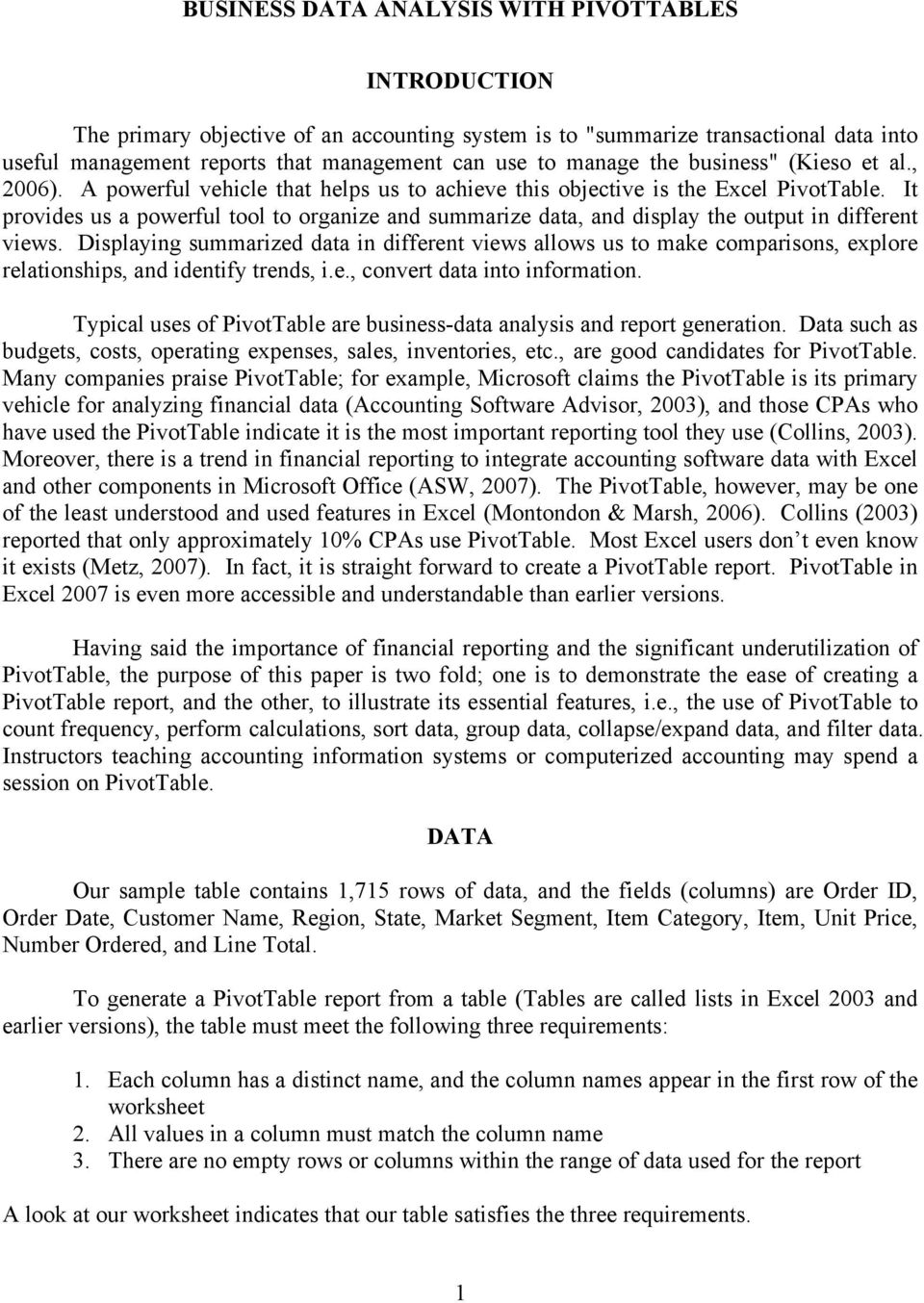
2 BUSINESS DATA ANALYSIS WITH PIVOTTABLES INTRODUCTION The primary objective of an accounting system is to "summarize transactional data into useful management reports that management can use to manage the business" (Kieso et al., 2006). A powerful vehicle that helps us to achieve this objective is the Excel PivotTable. It provides us a powerful tool to organize and summarize data, and display the output in different views. Displaying summarized data in different views allows us to make comparisons, explore relationships, and identify trends, i.e., convert data into information. Typical uses of PivotTable are business-data analysis and report generation. Data such as budgets, costs, operating expenses, sales, inventories, etc., are good candidates for PivotTable. Many companies praise PivotTable; for example, Microsoft claims the PivotTable is its primary vehicle for analyzing financial data (Accounting Software Advisor, 2003), and those CPAs who have used the PivotTable indicate it is the most important reporting tool they use (Collins, 2003). Moreover, there is a trend in financial reporting to integrate accounting software data with Excel and other components in Microsoft Office (ASW, 2007). The PivotTable, however, may be one of the least understood and used features in Excel (Montondon & Marsh, 2006). Collins (2003) reported that only approximately 10% CPAs use PivotTable. Most Excel users don t even know it exists (Metz, 2007). In fact, it is straight forward to create a PivotTable report. PivotTable in Excel 2007 is even more accessible and understandable than earlier versions. Having said the importance of financial reporting and the significant underutilization of PivotTable, the purpose of this paper is two fold; one is to demonstrate the ease of creating a PivotTable report, and the other, to illustrate its essential features, i.e., the use of PivotTable to count frequency, perform calculations, sort data, group data, collapse/expand data, and filter data. Instructors teaching accounting information systems or computerized accounting may spend a session on PivotTable. DATA Our sample table contains 1,715 rows of data, and the fields (columns) are Order ID, Order Date, Customer Name, Region, State, Market Segment, Item Category, Item, Unit Price, Number Ordered, and Line Total. To generate a PivotTable report from a table (Tables are called lists in Excel 2003 and earlier versions), the table must meet the following three requirements: 1. Each column has a distinct name, and the column names appear in the first row of the worksheet 2. All values in a column must match the column name 3. There are no empty rows or columns within the range of data used for the report A look at our worksheet indicates that our table satisfies the three requirements. 1
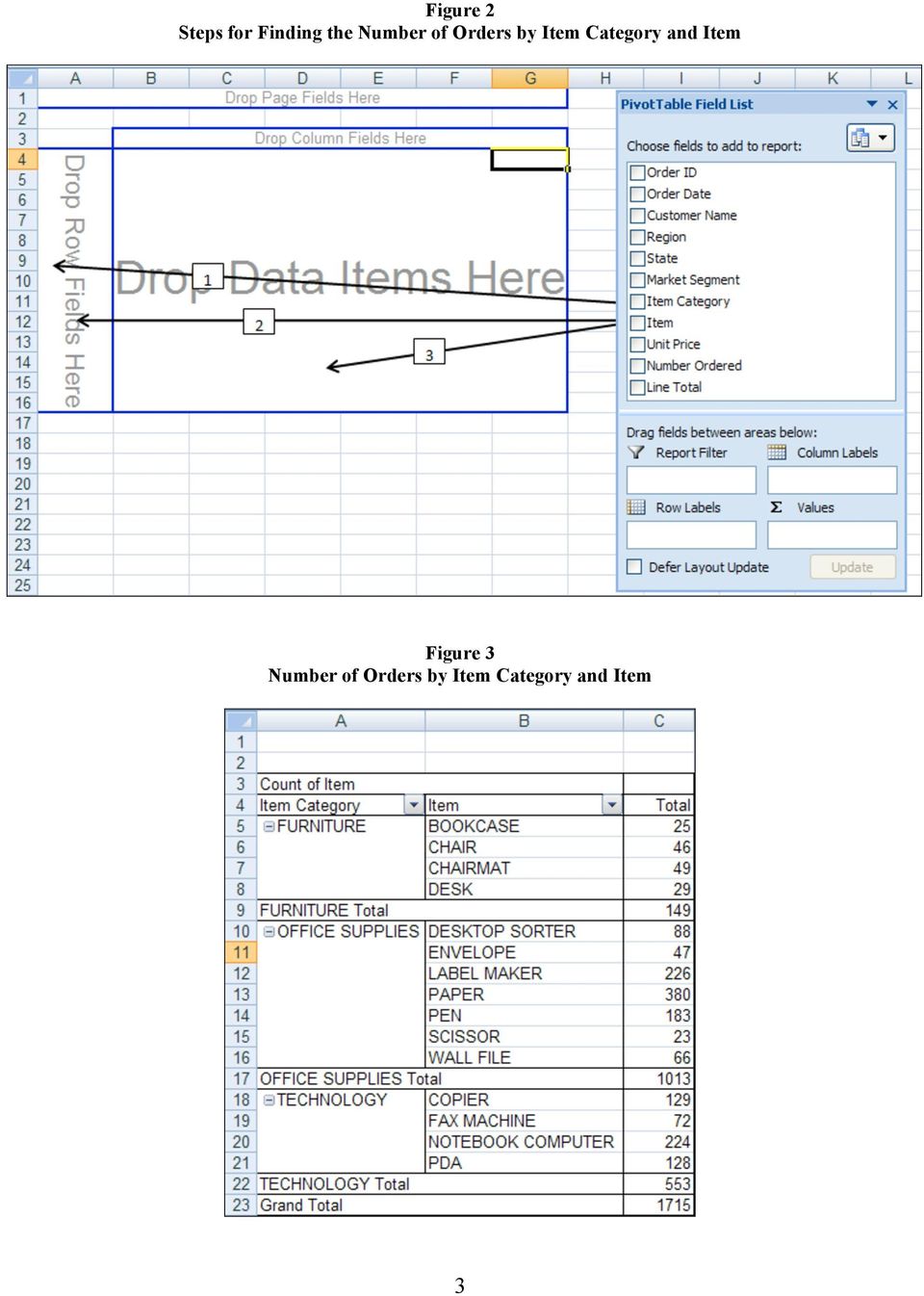
3 PIVOTTABLES CREATION Count Frequency Before we develop a PivotTable report, determine what we want to know. As we are reviewing a report, other reports may come to mind. Suppose we want to find the number of orders by item category and item. We shall start by clicking any cell in the table, choosing PivotTable from the Insert tab, and pressing the OK button in the Create PivotTable dialog box (Figure 1) to accept the default settings. If a change to the defaults is necessary, simply make the change and then press the OK button. Figure 1 Create PivotTable Dialog Box Excel presents us with a new worksheet that contains the PivotTable Field List and a PivotTable layout area as shown in Figure 2. The field names on the PivotTable Field List are the column names of our table. To generate the report we want, we shall (1) drag the Item Category from the PivotTable Field List to Drop Row Fields Here, (2) drag the Item to Drop Row Fields Here again, and (3) drag the Item again to the Drop Data Items Here. The three steps are shown in Figure 2. Alternatively, we can right-click a field name and select a location to move the field to, or select the check box next to the field name and let Excel decide where to move it to. The results are shown in Figure 3. Count of Item is displayed in Cell A3 because Excel counts the frequency of each different item in the Item column. If a more meaningful name is desired, we can change it. To change the name, we would select Cell A3, type the new name in the formula bar, and press ENTER. 2

4 Figure 2 Steps for Finding the Number of Orders by Item Category and Item Figure 3 Number of Orders by Item Category and Item 3
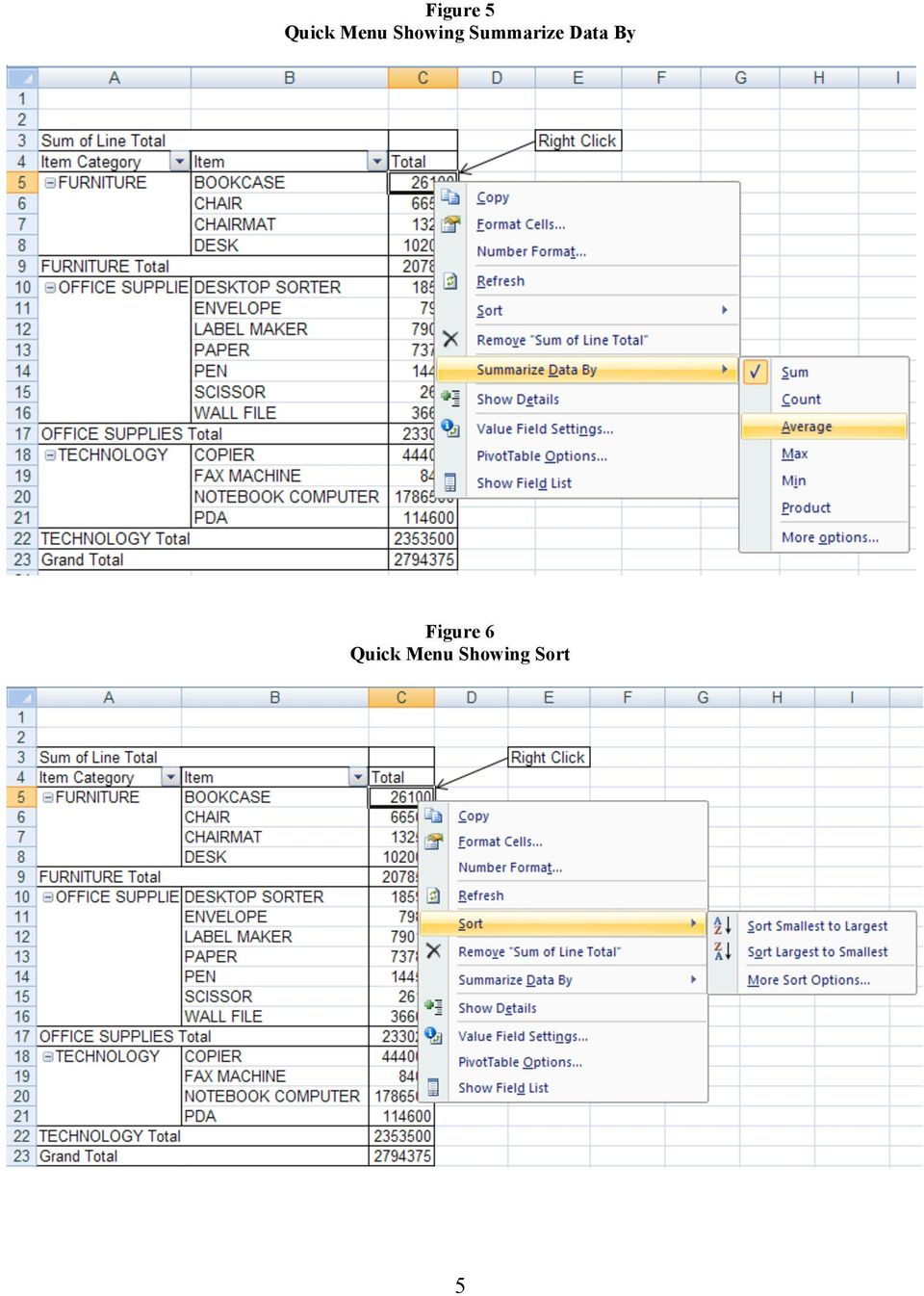
5 Find the Sum In addition to the number of orders, we are also interested in total order amount by item category and item. By default, Excel will count character fields and sum numerical fields placed in the Drop-Data-Items-Here area. Thus, to find the total order amount for each item and item category, all we have to do is dragging Count of Item in Cell A3 out of the pivot table and selecting the check box next to Line Total from the PivotTable Field List. The report is shown in Figure 4. Figure 4 Total Order Amount by Item Category and Item Calculate the Average Excel provides 11 different statistics, from count and sum to standard deviation and variance. To show average sales by item category and item, right click any cell in the data area to display the quick menu, move cursor to Summarize Data By, and select Average as shown in Figure 5. Sort Data Based on Another Field Items names are listed alphabetically in Figure 4. It would make sense to see the item names listed in descending order of total sales. To get what we want, right click any cell containing data in the Total column, move cursor to Sort, and select Sort Largest to Smallest as shown in Figure 6. 4

6 Figure 5 Quick Menu Showing Summarize Data By Figure 6 Quick Menu Showing Sort 5
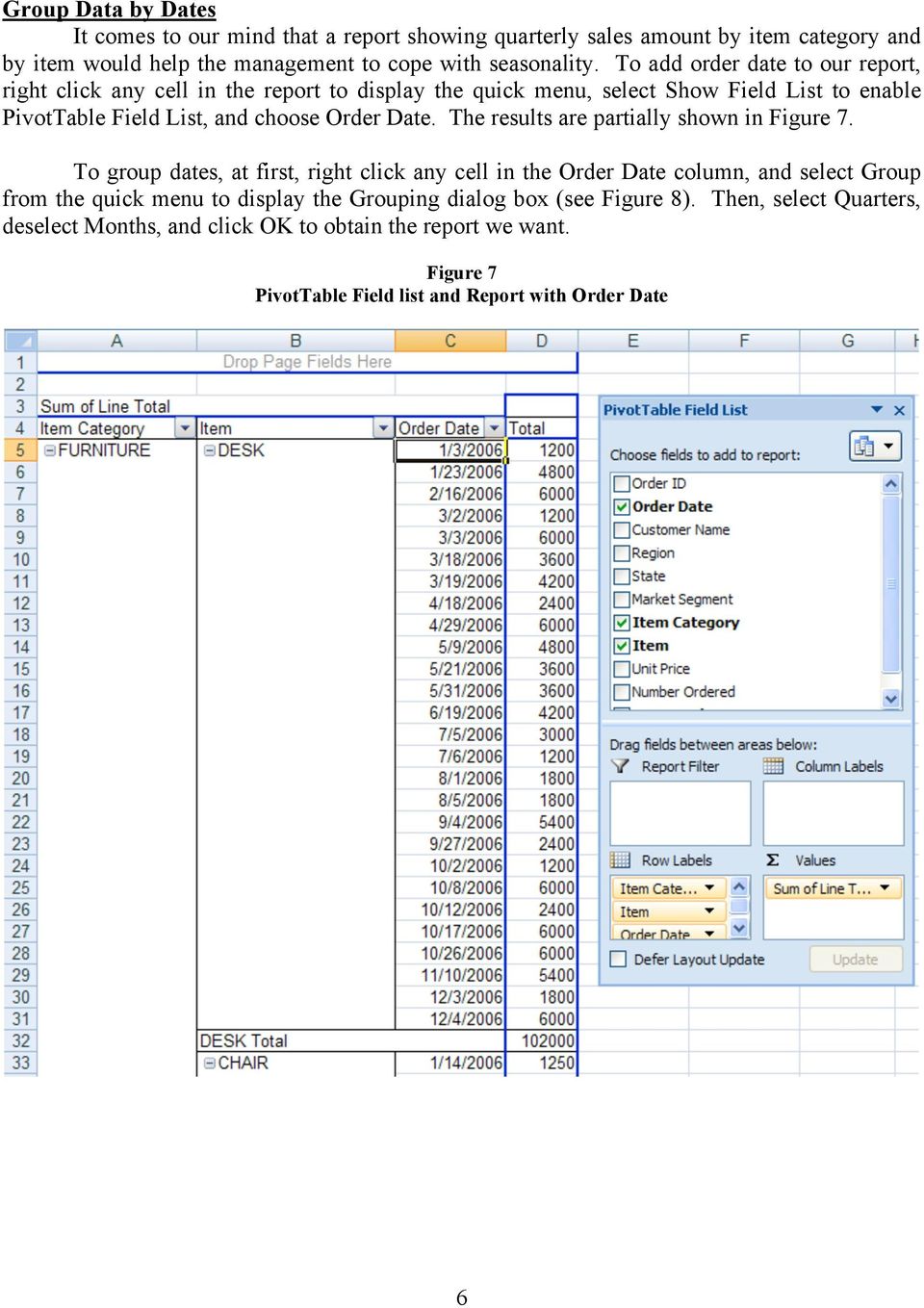
7 Group Data by Dates It comes to our mind that a report showing quarterly sales amount by item category and by item would help the management to cope with seasonality. To add order date to our report, right click any cell in the report to display the quick menu, select Show Field List to enable PivotTable Field List, and choose Order Date. The results are partially shown in Figure 7. To group dates, at first, right click any cell in the Order Date column, and select Group from the quick menu to display the Grouping dialog box (see Figure 8). Then, select Quarters, deselect Months, and click OK to obtain the report we want. Figure 7 PivotTable Field list and Report with Order Date 6
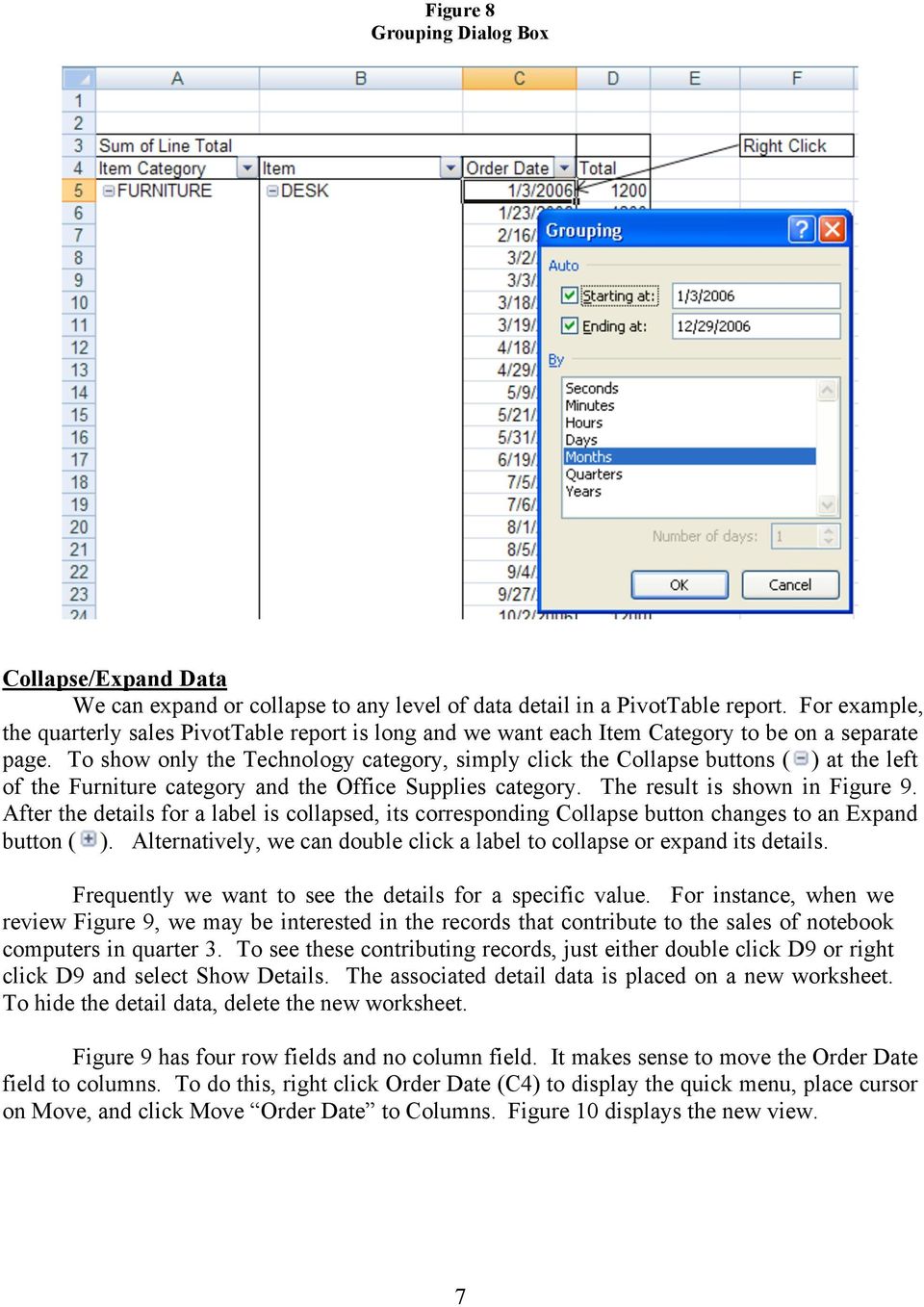
8 Figure 8 Grouping Dialog Box Collapse/Expand Data We can expand or collapse to any level of data detail in a PivotTable report. For example, the quarterly sales PivotTable report is long and we want each Item Category to be on a separate page. To show only the Technology category, simply click the Collapse buttons ( ) at the left of the Furniture category and the Office Supplies category. The result is shown in Figure 9. After the details for a label is collapsed, its corresponding Collapse button changes to an Expand button ( ). Alternatively, we can double click a label to collapse or expand its details. Frequently we want to see the details for a specific value. For instance, when we review Figure 9, we may be interested in the records that contribute to the sales of notebook computers in quarter 3. To see these contributing records, just either double click D9 or right click D9 and select Show Details. The associated detail data is placed on a new worksheet. To hide the detail data, delete the new worksheet. Figure 9 has four row fields and no column field. It makes sense to move the Order Date field to columns. To do this, right click Order Date (C4) to display the quick menu, place cursor on Move, and click Move Order Date to Columns. Figure 10 displays the new view. 7
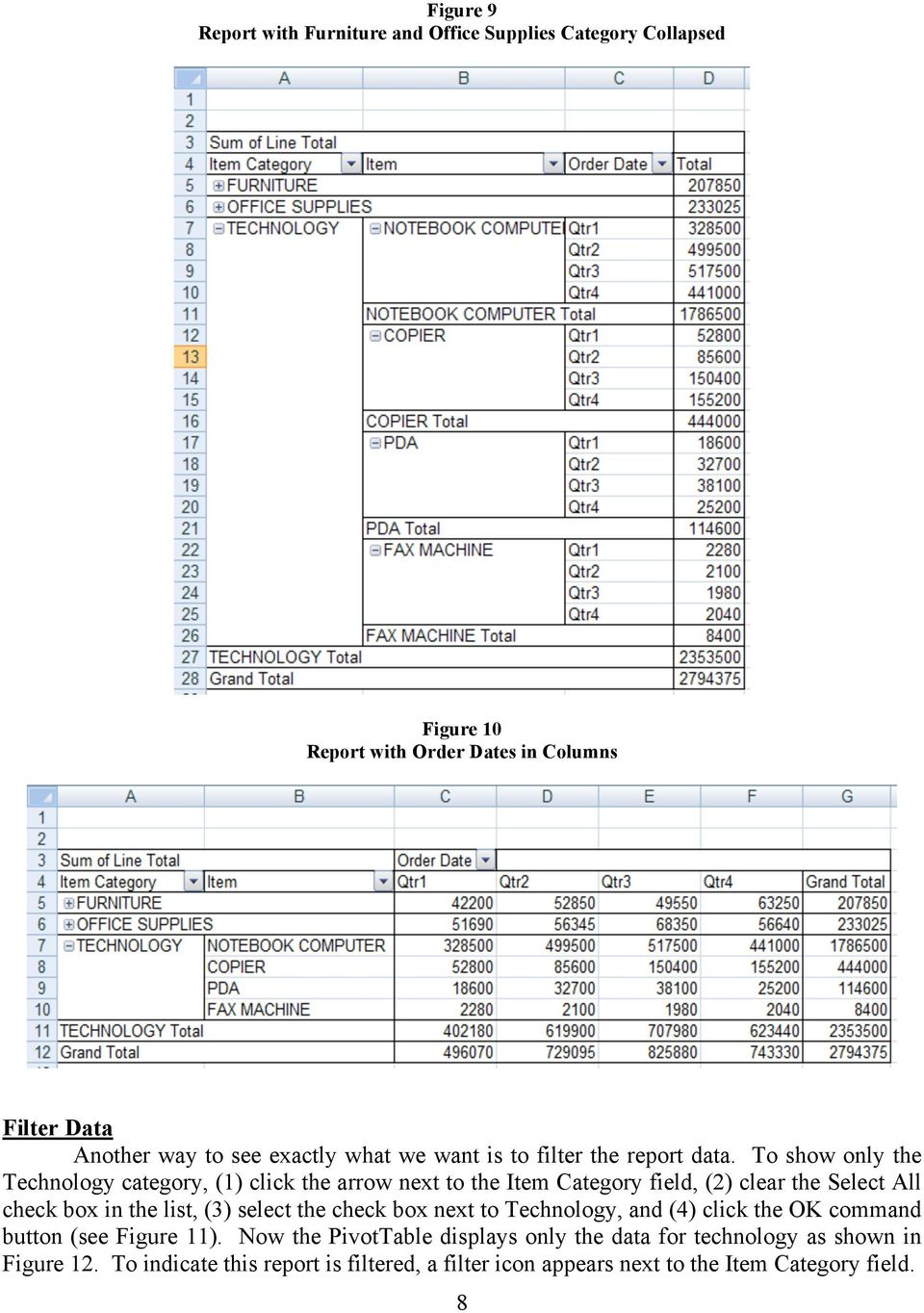
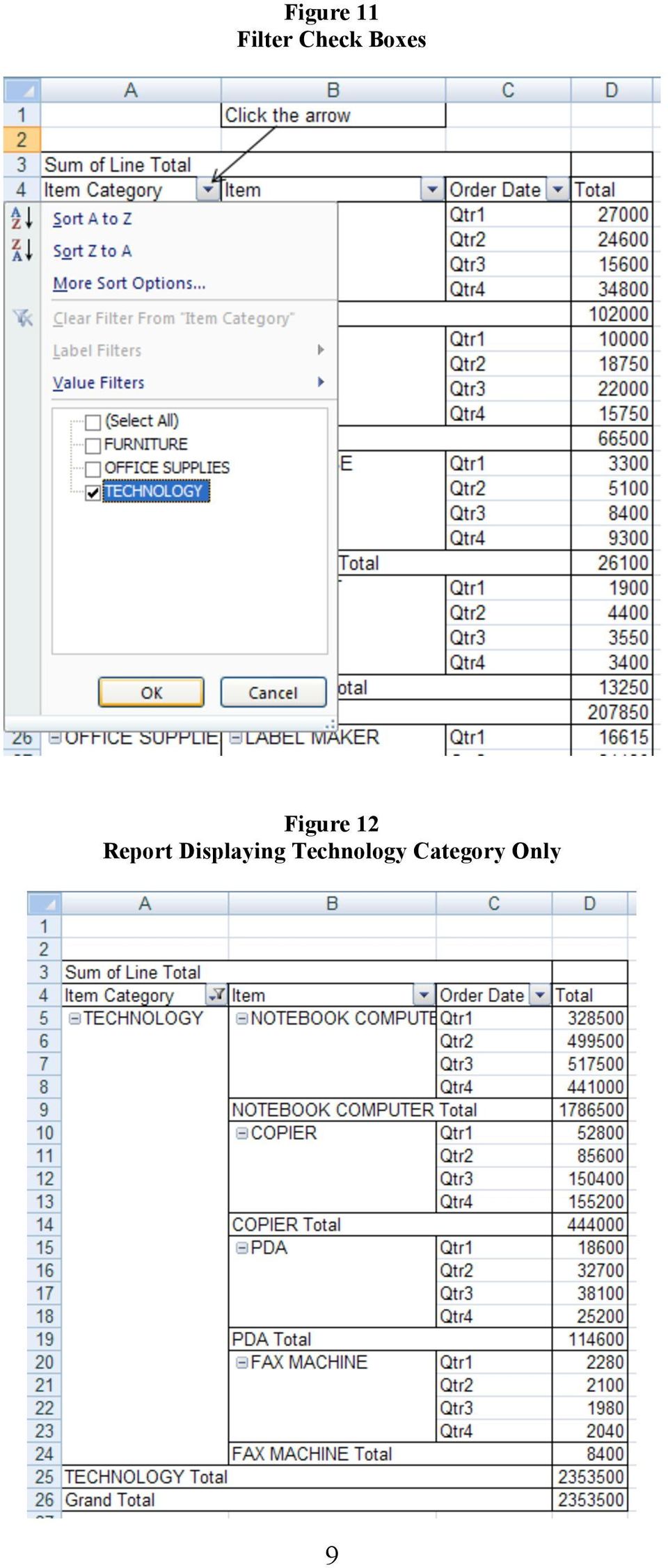
9 Figure 9 Report with Furniture and Office Supplies Category Collapsed Figure 10 Report with Order Dates in Columns Filter Data Another way to see exactly what we want is to filter the report data. To show only the Technology category, (1) click the arrow next to the Item Category field, (2) clear the Select All check box in the list, (3) select the check box next to Technology, and (4) click the OK command button (see Figure 11). Now the PivotTable displays only the data for technology as shown in Figure 12. To indicate this report is filtered, a filter icon appears next to the Item Category field. 8
10 Figure 11 Filter Check Boxes Figure 12 Report Displaying Technology Category Only 9
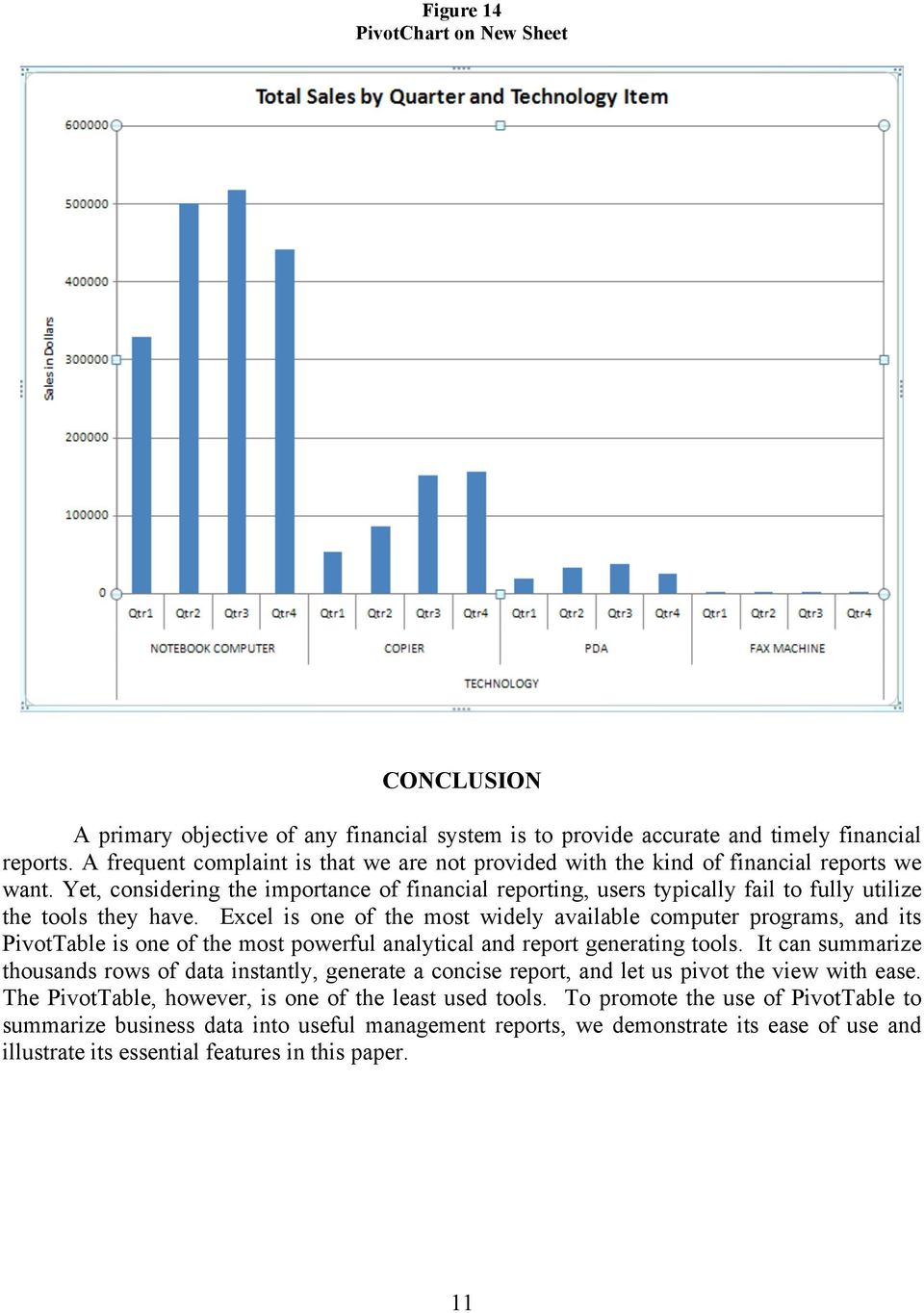
11 PIVOTCHARTS CREATION A PivotChart report provides a graphical representation of the data in a PivotTable. A PivotChart is always associated with a PivotTable. We can automatically create a PivotChart report when we first create a PivotTable report, or we can create a PivotChart report from an existing PivotTable report. To create a clustered column PivotChart report from the PivotTable shown in Figure 12, (1) click anywhere in the PivotTable, (2) select Options tab and click PivotChart in the Tools group, (3) select the Clustered Column, the first chart in the top row, in the Insert Chart dialog box and click the OK button. The PivotChart is displayed on the PivotTable sheet as shown in Figure 13. The PivotChart shows the total sales for the technology items in each quarter. The PivotChart Tools context tab provides four tools tabs we can use to design, lay out, and format a chart as well as analyze our data. To move the chart to a new sheet, (1) select the Design tab, (2) click Move Chart to open the Move Chart dialog box, and (3) click New sheet and name the sheet tab. To change the title of the chart to Total Sales by Quarter and Item, simply double click the existing chart title and change it. To label the Y axis, (1) select the Layout tab, (2) Click Axis Titles and select Primary Vertical Axis Title and Rotated Title, and type Sales Amount. The final PivotChart report is shown in Figure 14. Figure 13 PivotChart 10

12 Figure 14 PivotChart on New Sheet CONCLUSION A primary objective of any financial system is to provide accurate and timely financial reports. A frequent complaint is that we are not provided with the kind of financial reports we want. Yet, considering the importance of financial reporting, users typically fail to fully utilize the tools they have. Excel is one of the most widely available computer programs, and its PivotTable is one of the most powerful analytical and report generating tools. It can summarize thousands rows of data instantly, generate a concise report, and let us pivot the view with ease. The PivotTable, however, is one of the least used tools. To promote the use of PivotTable to summarize business data into useful management reports, we demonstrate its ease of use and illustrate its essential features in this paper. 11
13 REFERENCES Accounting Software Advisor, Financial Reporting, charts/reporting.htm, Collins, J. Carlton, How to Select the Right Accounting Software Part 1, Journal of Accountancy Online, JOFA/part1.htm. Johnson, Randy, Accounting Software World, Financial Reporting, April 26, 2007 Kieso, Donald E., Jerry J. Weygandt, Terry D. Warfield, Intermediate Accounting, 12 th Ed., John-Wiley & Sons, Metz, Cade, Innovators Pito Salas, PC Magazine, Vol. 26, No. 12, June 5, 2007, P. 56. Montondon, Lucille G., and Treba L. Marsh, Pivot Tables: A Means to Quick, Accurate Trial Balances, The CPA Journal Online, April 2006, essentials/p68.htm N.B. The sample spreadsheet can be obtained from the author. 12

Scott Harvey, Registrar Tri County Technical College. Using Excel Pivot Tables to Analyze Student Data
 Scott Harvey, Registrar Tri County Technical College Using Excel Pivot Tables to Analyze Student Data 1Introduction to PivotTables 2Prepare the source data Discussion Points 3Create a PivotTable 5Show
Computer Training Centre University College Cork. Excel 2013 Pivot Tables
 Computer Training Centre University College Cork Excel 2013 Pivot Tables Table of Contents Pivot Tables... 1 Changing the Value Field Settings... 2 Refreshing the Data... 3 Refresh Data when opening a
By: Peter K. Mulwa MSc (UoN), PGDE (KU), BSc (KU) Email: [email protected]
 SPREADSHEETS FOR MARKETING & SALES TRACKING - DATA ANALYSIS TOOLS USING MS EXCEL By: Peter K. Mulwa MSc (UoN), PGDE (KU), BSc (KU) Email: [email protected] Objectives By the end of the session, participants
MICROSOFT EXCEL 2010 ANALYZE DATA
 MICROSOFT EXCEL 2010 ANALYZE DATA Microsoft Excel 2010 Essential Analyze data Last Edited: 2012-07-09 1 Basic analyze data... 4 Use diagram to audit formulas... 4 Use Error Checking feature... 4 Use Evaluate
Microsoft Excel 2010 Pivot Tables
 Microsoft Excel 2010 Pivot Tables Email: [email protected] Web Page: http://training.health.ufl.edu Microsoft Excel 2010: Pivot Tables 1.5 hours Topics include data groupings, pivot tables, pivot
CREATING EXCEL PIVOT TABLES AND PIVOT CHARTS FOR LIBRARY QUESTIONNAIRE RESULTS
 CREATING EXCEL PIVOT TABLES AND PIVOT CHARTS FOR LIBRARY QUESTIONNAIRE RESULTS An Excel Pivot Table is an interactive table that summarizes large amounts of data. It allows the user to view and manipulate
Overview What is a PivotTable? Benefits
 Overview What is a PivotTable? Benefits Create a PivotTable Select Row & Column labels & Values Filtering & Sorting Calculations Data Details Refresh Data Design options Create a PivotChart Slicers Charts
Using Excel s PivotTable to Analyze Learning Assessment Data
 Using Excel s PivotTable to Analyze Learning Assessment Data Assessment Office University of Hawaiʻiat Mānoa Feb 13, 2013 1 Mission: Improve student learning through program assessment 2 1 Learning Outcomes
Basic Pivot Tables. To begin your pivot table, choose Data, Pivot Table and Pivot Chart Report. 1 of 18
 Basic Pivot Tables Pivot tables summarize data in a quick and easy way. In your job, you could use pivot tables to summarize actual expenses by fund type by object or total amounts. Make sure you do not
INTERMEDIATE Excel 2013
 INTERMEDIATE Excel 2013 Information Technology September 1, 2014 1 P a g e Managing Workbooks Excel uses the term workbook for a file. The term worksheet refers to an individual spreadsheet within a workbook.
Create a PivotTable or PivotChart report
 Page 1 of 5 Excel Home > PivotTable reports and PivotChart reports > Basics Create or delete a PivotTable or PivotChart report Show All To analyze numerical data in depth and to answer unanticipated questions
ACADEMIC TECHNOLOGY SUPPORT
 ACADEMIC TECHNOLOGY SUPPORT Microsoft Excel: Tables & Pivot Tables [email protected] 439-8611 www.etsu.edu/ats Table of Contents: Overview... 1 Objectives... 1 1. What is an Excel Table?... 2 2. Creating Pivot
Analyzing Excel Data Using Pivot Tables
 NDUS Training and Documentation Analyzing Excel Data Using Pivot Tables Pivot Tables are interactive worksheet tables you can use to quickly and easily summarize, organize, analyze, and compare large amounts
Excel 2007 - Using Pivot Tables
 Overview A PivotTable report is an interactive table that allows you to quickly group and summarise information from a data source. You can rearrange (or pivot) the table to display different perspectives
To complete this workbook, you will need the following file:
 CHAPTER 4 Excel More Skills 13 Create PivotTable Reports A PivotTable report is an interactive, crosstabulated Excel report that summarizes and analyzes data such as database records from various sources,
EXCEL PIVOT TABLE David Geffen School of Medicine, UCLA Dean s Office Oct 2002
 EXCEL PIVOT TABLE David Geffen School of Medicine, UCLA Dean s Office Oct 2002 Table of Contents Part I Creating a Pivot Table Excel Database......3 What is a Pivot Table...... 3 Creating Pivot Tables
Excel 2013 - Using Pivot Tables
 Overview A PivotTable report is an interactive table that allows you to quickly group and summarise information from a data source. You can rearrange (or pivot) the table to display different perspectives
ABSTRACT INTRODUCTION CLINICAL PROJECT TRACKER OF SAS TASKS. Paper PH-02-2015
 Paper PH-02-2015 Project Management of SAS Tasks - Excel Dashboard without Using Any Program Kalaivani Raghunathan, Quartesian Clinical Research Pvt. Ltd, Bangalore, India ABSTRACT Have you ever imagined
Microsoft Excel 2007 Consolidate Data & Analyze with Pivot Table Windows XP
 Microsoft Excel 2007 Consolidate Data & Analyze with Pivot Table Windows XP Consolidate Data in Multiple Worksheets Example data is saved under Consolidation.xlsx workbook under ProductA through ProductD
Analytics with Excel and ARQUERY for Oracle OLAP
 Analytics with Excel and ARQUERY for Oracle OLAP Data analytics gives you a powerful advantage in the business industry. Companies use expensive and complex Business Intelligence tools to analyze their
Monthly Payroll to Finance Reconciliation Report: Access and Instructions
 Monthly Payroll to Finance Reconciliation Report: Access and Instructions VCU Reporting Center... 2 Log in... 2 Open Folder... 3 Other Useful Information: Copying Sheets... 5 Creating Subtotals... 5 Outlining
Produced by Flinders University Centre for Educational ICT. PivotTables Excel 2010
 Produced by Flinders University Centre for Educational ICT PivotTables Excel 2010 CONTENTS Layout... 1 The Ribbon Bar... 2 Minimising the Ribbon Bar... 2 The File Tab... 3 What the Commands and Buttons
Excel Database Management Microsoft Excel 2003
 Excel Database Management Microsoft Reference Guide University Technology Services Computer Training Copyright Notice Copyright 2003 EBook Publishing. All rights reserved. No part of this publication may
About PivotTable reports
 Page 1 of 8 Excel Home > PivotTable reports and PivotChart reports > Basics Overview of PivotTable and PivotChart reports Show All Use a PivotTable report to summarize, analyze, explore, and present summary
Excel: Analyze PowerSchool Data
 Excel: Analyze PowerSchool Data Trainer Name Trainer/Consultant PowerSchool University 2012 Agenda Welcome & Introductions Organizing Data with PivotTables Displaying Data with Charts Creating Dashboards
In-Depth Guide Advanced Spreadsheet Techniques
 In-Depth Guide Advanced Spreadsheet Techniques Learning Objectives By reading and completing the activities in this chapter, you will be able to: Create PivotTables using Microsoft Excel Create scenarios
How to Excel with CUFS Part 2 Excel 2010
 How to Excel with CUFS Part 2 Excel 2010 Course Manual Finance Training Contents 1. Working with multiple worksheets 1.1 Inserting new worksheets 3 1.2 Deleting sheets 3 1.3 Moving and copying Excel worksheets
STATEMENT OF TRANSACTION REPORT ANALYSIS USING EXCEL
 STATEMENT OF TRANSACTION REPORT ANALYSIS USING EXCEL Excel can be used to analyze the MCPS Statement of Transaction EXCEL Report Selected Fields to more easily track expenses through the procurement cycle.
Analyzing Data Using Excel
 Analyzing Data Using Excel What you will do: Create a spreadsheet Use formulas and basic formatting Import text files Save worksheets as web pages Add interactivity to web worksheets Use pivot tables Create
Excel Pivot Tables. Blue Pecan Computer Training Ltd - Onsite Training Provider www.bluepecantraining.com :: 0800 6124105 :: [email protected].
 Excel Pivot Tables 1 Table of Contents Pivot Tables... 3 Preparing Data for a Pivot Table... 3 Creating a Dynamic Range for a Pivot Table... 3 Creating a Pivot Table... 4 Removing a Field... 5 Change the
How to Use a Data Spreadsheet: Excel
 How to Use a Data Spreadsheet: Excel One does not necessarily have special statistical software to perform statistical analyses. Microsoft Office Excel can be used to run statistical procedures. Although
Appendix 2.1 Tabular and Graphical Methods Using Excel
 Appendix 2.1 Tabular and Graphical Methods Using Excel 1 Appendix 2.1 Tabular and Graphical Methods Using Excel The instructions in this section begin by describing the entry of data into an Excel spreadsheet.
New Orleans 2007 Workshop Tips For Using Microsoft Excel to Analyze EMSC Data and Generate Reports Pivot Tables and Other Goodies
 1 of 17 New Orleans 2007 Workshop Tips For Using Microsoft Excel to Analyze EMSC Data and Generate Reports Pivot Tables and Other Goodies Introduction In this document, we will describe several more advanced
Data exploration with Microsoft Excel: analysing more than one variable
 Data exploration with Microsoft Excel: analysing more than one variable Contents 1 Introduction... 1 2 Comparing different groups or different variables... 2 3 Exploring the association between categorical
Creating Pivot Tables
 Creating Pivot Tables Example Using CIA Inspection Information This is a step by step guide of how to create pivot tables using Microsoft Excel. You can create a pivot tables from any database you have
Advanced Excel 10/20/2011 1
 Advanced Excel Data Validation Excel has a feature called Data Validation, which will allow you to control what kind of information is typed into cells. 1. Select the cell(s) you wish to control. 2. Click
Using Excel in Research. Hui Bian Office for Faculty Excellence
 Using Excel in Research Hui Bian Office for Faculty Excellence Data entry in Excel Directly type information into the cells Enter data using Form Command: File > Options 2 Data entry in Excel Tool bar:
How To Create A Powerpoint Intelligence Report In A Pivot Table In A Powerpoints.Com
 Sage 500 ERP Intelligence Reporting Getting Started Guide 27.11.2012 Table of Contents 1.0 Getting started 3 2.0 Managing your reports 10 3.0 Defining report properties 18 4.0 Creating a simple PivotTable
Task Force on Technology / EXCEL
 Task Force on Technology EXCEL Basic terminology Spreadsheet A spreadsheet is an electronic document that stores various types of data. There are vertical columns and horizontal rows. A cell is where the
MS Excel. Handout: Level 2. elearning Department. Copyright 2016 CMS e-learning Department. All Rights Reserved. Page 1 of 11
 MS Excel Handout: Level 2 elearning Department 2016 Page 1 of 11 Contents Excel Environment:... 3 To create a new blank workbook:...3 To insert text:...4 Cell addresses:...4 To save the workbook:... 5
Microsoft Office Excel 2013
 Microsoft Office Excel 2013 PivotTables and PivotCharts University Information Technology Services Training, Outreach & Learning Technologies Copyright 2014 KSU Department of University Information Technology
Microsoft Excel: Pivot Tables
 Microsoft Excel: Pivot Tables Pivot Table Reports A PivotTable report is an interactive table that you can use to quickly summarize large amounts of data. You can rotate its rows and columns to see different
Data Analysis with Microsoft Excel 2003
 Data Analysis with Microsoft Excel 2003 Working with Lists: Microsoft Excel is an excellent tool to manage and manipulate lists. With the information you have in a list, you can sort and display data that
Excel 2010: Create your first spreadsheet
 Excel 2010: Create your first spreadsheet Goals: After completing this course you will be able to: Create a new spreadsheet. Add, subtract, multiply, and divide in a spreadsheet. Enter and format column
Sample- for evaluation purposes only! Advanced Excel. TeachUcomp, Inc. A Presentation of TeachUcomp Incorporated. Copyright TeachUcomp, Inc.
 A Presentation of TeachUcomp Incorporated. Copyright TeachUcomp, Inc. 2012 Advanced Excel TeachUcomp, Inc. it s all about you Copyright: Copyright 2012 by TeachUcomp, Inc. All rights reserved. This publication,
3 What s New in Excel 2007
 3 What s New in Excel 2007 3.1 Overview of Excel 2007 Microsoft Office Excel 2007 is a spreadsheet program that enables you to enter, manipulate, calculate, and chart data. An Excel file is referred to
Getting Started with Excel 2008. Table of Contents
 Table of Contents Elements of An Excel Document... 2 Resizing and Hiding Columns and Rows... 3 Using Panes to Create Spreadsheet Headers... 3 Using the AutoFill Command... 4 Using AutoFill for Sequences...
Search help. More on Office.com: images templates. Here are some basic tasks that you can do in Microsoft Excel 2010.
 Page 1 of 8 Excel 2010 Home > Excel 2010 Help and How-to > Getting started with Excel Search help More on Office.com: images templates Basic tasks in Excel 2010 Here are some basic tasks that you can do
Data exploration with Microsoft Excel: univariate analysis
 Data exploration with Microsoft Excel: univariate analysis Contents 1 Introduction... 1 2 Exploring a variable s frequency distribution... 2 3 Calculating measures of central tendency... 16 4 Calculating
Using Pivot Tables in Microsoft Excel 2003
 Using Pivot Tables in Microsoft Excel 2003 Introduction A Pivot Table is the name Excel gives to what is more commonly known as a cross-tabulation table. Such tables can be one, two or three-dimensional
ITS Training Class Charts and PivotTables Using Excel 2007
 When you have a large amount of data and you need to get summary information and graph it, the PivotTable and PivotChart tools in Microsoft Excel will be the answer. The data does not need to be in one
To reuse a template that you ve recently used, click Recent Templates, click the template that you want, and then click Create.
 What is Excel? Applies to: Excel 2010 Excel is a spreadsheet program in the Microsoft Office system. You can use Excel to create and format workbooks (a collection of spreadsheets) in order to analyze
Pivot Tables & Pivot Charts
 Pivot Tables & Pivot Charts Pivot tables... 2 Creating pivot table using the wizard...2 The pivot table toolbar...5 Analysing data in a pivot table...5 Pivot Charts... 6 Creating a pivot chart using the
Excel Unit 4. Data files needed to complete these exercises will be found on the S: drive>410>student>computer Technology>Excel>Unit 4
 Excel Unit 4 Data files needed to complete these exercises will be found on the S: drive>410>student>computer Technology>Excel>Unit 4 Step by Step 4.1 Creating and Positioning Charts GET READY. Before
Advanced Microsoft Excel 2010
 Advanced Microsoft Excel 2010 Table of Contents THE PASTE SPECIAL FUNCTION... 2 Paste Special Options... 2 Using the Paste Special Function... 3 ORGANIZING DATA... 4 Multiple-Level Sorting... 4 Subtotaling
Microsoft Excel 2010 Part 3: Advanced Excel
 CALIFORNIA STATE UNIVERSITY, LOS ANGELES INFORMATION TECHNOLOGY SERVICES Microsoft Excel 2010 Part 3: Advanced Excel Winter 2015, Version 1.0 Table of Contents Introduction...2 Sorting Data...2 Sorting
SECTION 2-1: OVERVIEW SECTION 2-2: FREQUENCY DISTRIBUTIONS
 SECTION 2-1: OVERVIEW Chapter 2 Describing, Exploring and Comparing Data 19 In this chapter, we will use the capabilities of Excel to help us look more carefully at sets of data. We can do this by re-organizing
MS Excel: Analysing Data using Pivot Tables
 Centre for Learning and Academic Development (CLAD) Technology Skills Development Team MS Excel: Analysing Data using Pivot Tables www.intranet.birmingham.ac.uk/itskills MS Excel: Analysing Data using
EXCEL FINANCIAL USES
 EXCEL FINANCIAL USES Table of Contents Page LESSON 1: FINANCIAL DOCUMENTS...1 Worksheet Design...1 Selecting a Template...2 Adding Data to a Template...3 Modifying Templates...3 Saving a New Workbook as
Excel 2007 Basic knowledge
 Ribbon menu The Ribbon menu system with tabs for various Excel commands. This Ribbon system replaces the traditional menus used with Excel 2003. Above the Ribbon in the upper-left corner is the Microsoft
Using Excel as a Management Reporting Tool with your Minotaur Data. Exercise 1 Customer Item Profitability Reporting Tool for Management
 Using Excel as a Management Reporting Tool with your Minotaur Data with Judith Kirkness These instruction sheets will help you learn: 1. How to export reports from Minotaur to Excel (these instructions
Using Excel for Analyzing Survey Questionnaires Jennifer Leahy
 University of Wisconsin-Extension Cooperative Extension Madison, Wisconsin PD &E Program Development & Evaluation Using Excel for Analyzing Survey Questionnaires Jennifer Leahy G3658-14 Introduction You
Using an Access Database
 A Few Terms Using an Access Database These words are used often in Access so you will want to become familiar with them before using the program and this tutorial. A database is a collection of related
APPLYING BENFORD'S LAW This PDF contains step-by-step instructions on how to apply Benford's law using Microsoft Excel, which is commonly used by
 APPLYING BENFORD'S LAW This PDF contains step-by-step instructions on how to apply Benford's law using Microsoft Excel, which is commonly used by internal auditors around the world in their day-to-day
In This Issue: Excel Sorting with Text and Numbers
 In This Issue: Sorting with Text and Numbers Microsoft allows you to manipulate the data you have in your spreadsheet by using the sort and filter feature. Sorting is performed on a list that contains
To create a histogram, you must organize the data in two columns on the worksheet. These columns must contain the following data:
 You can analyze your data and display it in a histogram (a column chart that displays frequency data) by using the Histogram tool of the Analysis ToolPak. This data analysis add-in is available when you
Dashboard reports created in Microsoft Excel are powerful, flexible. Dashboard Your Scorecard. Unleash the power of Excel for visual data analysis.
 Dashboard Your Scorecard Unleash the power of Excel for visual data analysis. by Mark W. Lehman, CPA, Carol M. Lehman and Jim Feazell Dashboard reports created in Microsoft Excel are powerful, flexible
IRA Pivot Table Review and Using Analyze to Modify Reports. For help, email [email protected]
 IRA Pivot Table Review and Using Analyze to Modify Reports 1 What is a Pivot Table? A pivot table takes rows of detailed data (such as the lines in a downloadable table) and summarizes them at a higher
MICROSOFT ACCESS 2003 TUTORIAL
 MICROSOFT ACCESS 2003 TUTORIAL M I C R O S O F T A C C E S S 2 0 0 3 Microsoft Access is powerful software designed for PC. It allows you to create and manage databases. A database is an organized body
Excel for Data Cleaning and Management
 Excel for Data Cleaning and Management Background Information This workshop is designed to teach skills in Excel that will help you manage data from large imports and save them for further use in SPSS
Excel Reports and Macros
 Excel Reports and Macros Within Microsoft Excel it is possible to create a macro. This is a set of commands that Excel follows to automatically make certain changes to data in a spreadsheet. By adding
How to make a line graph using Excel 2007
 How to make a line graph using Excel 2007 Format your data sheet Make sure you have a title and each column of data has a title. If you are entering data by hand, use time or the independent variable in
How To Use Excel With A Calculator
 Functions & Data Analysis Tools Academic Computing Services www.ku.edu/acs Abstract: This workshop focuses on the functions and data analysis tools of Microsoft Excel. Topics included are the function
WHAT S NEW IN MS EXCEL 2013
 Contents Excel... 1 Filling empty cells using Flash Fill... 1 Filtering records using a Timeline... 2 Previewing with Quick Analysis... 4 Using Chart Advisor recommendations... 5 Finding errors and issues
PivotTable and PivotChart Reports, & Macros in Microsoft Excel
 PivotTable and PivotChart Reports, & Macros in Microsoft Excel Theresa A Scott, MS Biostatistician III Department of Biostatistics Vanderbilt University [email protected] Table of Contents 1
Using Delphi Data with Excel and Access
 $FDGHPLF&RPSXWLQJ &RPSXWHU 7UDLQLQJ 6XSSRUW 6HUYLFHV 1HWZRUNLQJ6HUYLFHV :HEHU%XLOGLQJ Using Delphi Data with Excel and Access Using Delphi Data The raw data used to create the CSU financial, human resource,
Chapter 4 Displaying and Describing Categorical Data
 Chapter 4 Displaying and Describing Categorical Data Chapter Goals Learning Objectives This chapter presents three basic techniques for summarizing categorical data. After completing this chapter you should
"Excel with Excel 2013: Pivoting with Pivot Tables" by Venu Gopalakrishna Remani. October 28, 2014
 Teaching Excellence and Innovation 1 Pivot table Pivot table does calculations with criteria Data should be arranged as : Field names in the first rows, records in rows No blank rows or blank columns should
Tommy B. Harrington 104 Azalea Drive Greenville, NC 27858 Email: [email protected]
 M o s t U s e f u l E x c e l C o m m a n d s Tommy B. Harrington 104 Azalea Drive Greenville, NC 27858 Email: [email protected] Computer Training YOU Can Understand! Most Useful Excel Commands
Computer Training Centre University College Cork. Excel 2013 The Quick Analysis Tool
 Computer Training Centre University College Cork Excel 2013 The Quick Analysis Tool Quick Analysis Tool The quick analysis tool is new to Excel 2013. This tool enables the user to quickly access features
Importing TSM Data into Microsoft Excel using Microsoft Query
 Importing TSM Data into Microsoft Excel using Microsoft Query An alternate way to report on TSM information is to use Microsoft Excel s import facilities using Microsoft Query to selectively import the
Microsoft Access Basics
 Microsoft Access Basics 2006 ipic Development Group, LLC Authored by James D Ballotti Microsoft, Access, Excel, Word, and Office are registered trademarks of the Microsoft Corporation Version 1 - Revision
Microsoft Excel 2007. Introduction to Microsoft Excel 2007
 Microsoft Excel 2007 Introduction to Microsoft Excel 2007 Excel is an electronic spreadsheet to organize your data into rows and columns. One can use it to perform basic to advanced level mathematical
Excel Working with Data Lists
 Excel Working with Data Lists Excel Working with Data Lists Princeton University COPYRIGHT Copyright 2001 by EZ-REF Courseware, Laguna Beach, CA http://www.ezref.com/ All rights reserved. This publication,
Excel Database Management
 How to use AutoFill Whether you just want to copy the same value down or need to get a series of numbers or text values, fill handle in Excel is the feature to help. It's an irreplaceable part of the AutoFill
CHAPTER 6: ANALYZE MICROSOFT DYNAMICS NAV 5.0 DATA IN MICROSOFT EXCEL
 Chapter 6: Analyze Microsoft Dynamics NAV 5.0 Data in Microsoft Excel CHAPTER 6: ANALYZE MICROSOFT DYNAMICS NAV 5.0 DATA IN MICROSOFT EXCEL Objectives The objectives are: Explain the process of exporting
Spreadsheet - Introduction
 CSCA0102 IT and Business Applications Chapter 6 Spreadsheet - Introduction Spreadsheet A spreadsheet (or spreadsheet program) is software that permits numerical data to be used and to perform automatic
Excel Reports User Guide
 Excel Reports User Guide Copyright 2000-2006, E-Z Data, Inc. All Rights Reserved. No part of this documentation may be copied, reproduced, or translated in any form without the prior written consent of
Microsoft Excel 2013: Using a Data Entry Form
 Microsoft Excel 2013: Using a Data Entry Form Using Excel's built in data entry form is a quick and easy way to enter data into an Excel database. Using the form allows you to: start a new database table
Microsoft Excel 2013 Step-by-Step Exercises: PivotTables and PivotCharts: Exercise 1
 Microsoft Excel 2013 Step-by-Step Exercises: PivotTables and PivotCharts: Exercise 1 In this exercise you will learn how to: Create a new PivotTable Add fields to a PivotTable Format and rename PivotTable
Introduction to Microsoft Excel 2007/2010
 to Microsoft Excel 2007/2010 Abstract: Microsoft Excel is one of the most powerful and widely used spreadsheet applications available today. Excel's functionality and popularity have made it an essential
Microsoft Excel 2010 Tutorial
 1 Microsoft Excel 2010 Tutorial Excel is a spreadsheet program in the Microsoft Office system. You can use Excel to create and format workbooks (a collection of spreadsheets) in order to analyze data and
EXCEL EXERCISE #8: Consolidating and Linking Spreadsheets
 EXCEL EXERCISE #: Consolidating and Linking Spreadsheets. Enter the following information onto Sheet. Double click on the tab for the worksheet and rename it: East. (It represents sales in $000.) 0 Record
Creating and Formatting Charts in Microsoft Excel
 Creating and Formatting Charts in Microsoft Excel This document provides instructions for creating and formatting charts in Microsoft Excel, which makes creating professional-looking charts easy. The chart
Microsoft Access 2010 handout
 Microsoft Access 2010 handout Access 2010 is a relational database program you can use to create and manage large quantities of data. You can use Access to manage anything from a home inventory to a giant
Merging Labels, Letters, and Envelopes Word 2013
 Merging Labels, Letters, and Envelopes Word 2013 Merging... 1 Types of Merges... 1 The Merging Process... 2 Labels - A Page of the Same... 2 Labels - A Blank Page... 3 Creating Custom Labels... 3 Merged
HOW TO COLLECT AND USE DATA IN EXCEL. Brendon Riggs Texas Juvenile Probation Commission Data Coordinators Conference 2008
 HOW TO COLLECT AND USE DATA IN EXCEL Brendon Riggs Texas Juvenile Probation Commission Data Coordinators Conference 2008 Goals To be able to gather and organize information in Excel To be able to perform
How to Create Your Own Crystal Report
 How to Create Your Own Crystal Report Step 1 Figure out what table you need to use for your report. Click on Resources, then File Layouts and Program Information. Click on File Layouts to see the available
Project Management: Intermediate Microsoft Project 2010
 Project Management: Intermediate Microsoft Project 2010 This document includes instructions for managing resources, updating project plans, and designing visual reports. Managing Resources in a Project
How to Use Excel for Law Firm Billing
 How to Use Excel for Law Firm Billing FEATURED FACULTY: Staci Warne, Microsoft Certified Trainer (MCT) (801) 463-1213 [email protected] Staci Warne, Microsoft Certified Trainer (MCT) Staci Warne