
WS800 Wireless Microphone System Quick Start Guide. Quick Start Guide
|
|
|
- Samantha Patterson
- 9 years ago
- Views:
Transcription
1 WS800 Wireless Microphone System Quick Start Guide Quick Start Guide

2 Setting Up ClearOne WS8000 Wireless Systems for Optimal Performance Open the Cartons: Confirm everything on the packing slip is enclosed. 1. Set up the Docking Station: ClearOne transmitters are shipped with rechargeable batteries. Plug in the charging dock, put the batteries in the transmitters, then place the transmitters in the dock while you set up the rest of the system.. Mount the Receivers in the Rack and connect them to power. Confirm the displays light up. 3. Antenna Design: A. Place the antennas according to the guidelines mentioned in the Antenna Applications Guide. Improper antenna placement is the main cause of poor RF performance. B. Dipole Antennas: Dipole antennas mounted to the rack equipment can easily be locked away in a closet/rack cabinet. This results in poor RF performance because there is no line of sight between the transmitter and receiver antenna. Therefore, remote antennas are preferred. See the Antenna Application Guide for details. 4. Connect the Extension Antennas: The receiver that connects to the extension antennas is the primary receiver. Daisy-chained receivers will become replica receivers. Terminators are used on the last system in the daisy-chain. Use ClearOne Remote s Antenna Setup Wizard, which opens automatically the first time you connect. You can also find the wizard under the SETTINGS tab of the main page. If connecting ClearOne active extension antennas, make sure the red LED lights up. If not, check the receiver s antenna phantom power setting using the ClearOne Remote Control Software. Primary Replica Terminators 5. Connect the analog outputs to the mixer: The system is shipped with either XLR or Euro Block connectors. The default output level is set to 0 dbu. Note that factory default for the front panel headphone jack is set for mixed line-level out. Use ClearOne Remote>Settings>Headphone, to reset for headphones. CAUTION! Turn off phantom power from the mixer. Phantom power distorts the audio quality of your microphones. 6. System Test: In most cases, the system is now ready to use. Confirm all channels pass audio perfectly.

3 Using the ClearOne remote software: Editing Transmitter Parameters: The easiest and most intuitive way to set the parameters of ClearOne transmitters and receivers is with ClearOne Remote software. Load ClearOne Remote from the disk provided onto a computer running Windows XP or Windows 7 (3 or 64-bit) and connect to the receiver via USB or RS3. Then open ClearOne Remote and select ONLINE. Open The Channel Edit Window: 1. The [Click to Edit] function opens the edit window of the channel you wish to edit.. Select the functions you want to edit and enter the parameter. (The various functions are described below.) Click [OK] to save the changes and close the Channel Edit window. 3. You will notice that the [Needs to Sync] alert is lit. This indicates that one or more parameters are in queue in the receiver ready to be downloaded and implemented with the next transmitter Sync of the channel. 1) Click to Edit the channel s parameters. ) Select the new parameter values and click Send Changes to Receiver and Close. Need To Sync alert is lit. Sync the transmitter 3) The to apply the selected parameters. ClearOne Remote provides the following functions: 1. File: File menu allows the current receiver settings to be saved to a file on your computer or for a previously saved file on your computer to be recalled to the receiver.. Settings: A. Phantom Power: Turn antenna phantom power on or off. Default = ON. B. Redundancy: Set adjacent pairs of receivers to redundancy mode. Default = OFF. C. Headphone Mode: Toggles the mixed output jack from headphone mode to a balanced line output. Default = Balanced line output. 3. Ethernet Settings: If using Ethernet, assign the proper IP address to the receiver or, enable DHCP. Default = DHCP enabled. 4. RF Scan - RF Plot: Shows the RF strength of each antenna in a ClearOne system and shows if there is outside interference. 5. Presets: saves settings to receiver memory or recalls settings from receiver memory. 6. GPIO: Assign contact closure functions and setup for RS3 control. Default = RS3 enabled. 7. Alerts: Send alerts to authorized personal when preventive maintenance is required of if there is a fault. Default = none. 8. Help: A. Tutorials: Setting parameters, Antenna Application Guide, etc. B. About: Shows vital statistics for each component of the system. Default Transmitter Preamp Gain Settings: 3 Key: Transmitter + Last 4 digits of serial Number Default Transmitter Preamp Gain BLT XXXX db HH XXXX H18 = 0dB PDM XXXX db BDM XXXX 0dB BLT = Beltpack HH = Handheld Mic PDM = Gooseneck / Podium Mic BDM = Tabletop / Boundary Mic
![Open The Channel Edit Window: 1. The [Click to Edit] function opens the edit window of the channel you wish to edit.. Select the functions you want to edit and enter the parameter.](/docs-images/44/17865753/images/page_3.jpg "(The various functions are described below.) Click [OK] to save the changes and close the Channel Edit window. 3. You will notice that the [Needs to Sync] alert is lit.")
4 How to sync transmitters with the receiver: How to sync transmitters with the receiver: 1. Locate the (infrared) Sensor on the transmitter. ON/OFF USB USB ON / OFF. Power on the transmitter. 3. Hold transmitter about 6 inches from the corresponding receiver module with the sensor aimed at the receiver module. 4. Simultaneously press the two buttons on the bottom of the corresponding receiver module to start sending the signal. SYNCING shows on the receiver OLED when the signal starts. SYNC OK shows when the sync is successful. Repeat the procedure if the receiver display shows SEARCHING. It is not necessary to press any buttons on the transmitter during the procedure. Note: You may get a SEARCHING message if the receiver antennas are not in the same room as the receiver. In this case verify that either the transmitter display shows Sync Good OR the green LED on the transmitter flashes. Also, make sure to dock each transmitter after syncing to avoid transmitters being synced to the same receiver frequency. IMPORTANT: Turn off all transmitters, except the one that is being synced, to avoid two transmitters being synced to the same receiver frequency. NOTE: The transmitter and receiver are assigned a new, random AES 56-bit encryption key every time they are synced. How to read the LED: 1. The gooseneck or boundary mic is in use: RED = AUDIO MUTE GREEN = AUDIO PASSES l BLINKING RED SLOW= BATTERY IS LOW l BLINKING GREEN = SYNC SUCCESSFUL. The gooseneck battery cassette is in the docking station: RED = CHARGING OFF = FINISHED CHARGING l BLINKING RED = CHARGING ERROR l l l l l (RE-SEAT TRANSMITTER AND CHECK THE BATTERIES) 4. Hand-held mic or belt-pack is in the docking station: l The OLED shows the battery status RED change to AMBER = CHARGING GREEN = FINISHED CHARGING l GREEN & RED BLINKING = CHARGING ERROR l NOTE: All transmitters placed in the charging dock will RF MUTE The boundary mic is in the docking station: (RE-SEAT TRANSMITTER AND CHECK THE BATTERIES)

5 Receiver: FRONT PANEL: ClearOne receiver main-frames hold either four or eight, independent, 4-bit digital audio receiver modules. There is a front-panel mixed audio output for headphones or direct recording. Each module shares the mainframe s two antennas for full-diversity. Receiver main-frames can be daisy-chained together allowing up to 3 channels in an antenna network that shares two antennas. This eliminates the need for external antenna distribution amps. Main-frames can be connected to form an Ethernet network that monitor and control the system via a computer. Main-frames also have USB and RS3 connections for serial monitor and control Antenna Front Mounting Hole: Use back-to-front TNC cables included.. Receiver Module (See details below). 3. Mixed audio volume control. 4. USB Port. Connect to computer for ClearOne Remote control. Run software to monitor/edit system parameters, scan for RF interference and download firmware upgrades. 5. Mixed audio output, 1/4 (See headphone mode - Pg. 3) phone jack for monitoring individual channels or mixed channels. 6. Power Switch. Receiver Module: MODULE: Modules are designed for quick and easy field replacement for added redundancy. 1 1 Sync LED: Sends information to SYNC the receiver and transmitter (SYNC pg5). & 4 Pressed at the same time: Sends SYNC signal from receiver to transmitter (SYNC pg5). 3 Status LED: Green --> The channel is ON and un-muted Red --> The channel is OFF Flashing Red --> Encryption key mismatch or, two transmitters are synced to the same Receiver. Solution: Re-sync receiver with transmitter. Amber --> The receiver is muted or GPIO is triggered SELECT BATTERY 1 SLOT 3 FUNCTION (SYNC) STATUS AUDIO CH 1 ON AES56 RF BARS ANTENNA DIVERSITY AUDIO LEVEL BATTERY LEVEL CHANNEL NAME ENCRYPTION STATUS: (Colored text indicates status) ON = Green OFF = Red MUTE = Amber KEY = Flashing Red ( KEY = mismatched encryption key) FREQUENCY 5 3 4

6 Receiver Back: BACK PANEL WS880 (Phoenix Connector): BACK PANEL WS840 (Phoenix Connector): BACK PANEL WS880 (XLR Connector): BACK PANEL WS840 (XLR Connector): Antenna A Input: TNC connector for dipole antennas (included), front-to-back antenna cables (included), or antenna cable to active extension antenna.. Antenna A Output: Daisy-chain to the input of another receiver-frame to form an antenna network. 3. Power Cord Input: (Cord with local plug configuration Included) VAC, 50/60Hz, 15 W, 50V 30mA slow-blow fuse (spare included). 4. Ethernet: Connect to a computer or network. Multiple receiver-frames can be daisy-chained together to form a network. 5. Dante Secondary: Dante Secondary Connection (see pg. ) (optional feature). 6. Dante Primary: Dante Primary Connection (see pg. ) (optional feature). 7. GPIO/RS3: This connector combines a General Purpose Input / Output (GPIO) and a RS3 on one DB5 connector. The RS3 can be disabled to add up to 4 GPIO pins. RS3: The pinout for the RS3 is the standard pinout. Pin on the receiver is transmit, pin 3 is receive, and pin 7 is ground. Most computers now use a DB9 connector for RS3. The standard off-the-shelf DB9 to DB5 cable will work. This cable swaps pins and 3 internally. If you computer has a DB5 connector for RS3, use a straight DB5 to DB5 cable. Do not use a null modem cable. GPIO: GPIO acts like a contact closure. Use ClearOne Remote to assign an event that toggles the GPIO pin. The factory default toggles pins X through X to correspond to muting a receiver module. ClearOne Remote has a feature that lets you assign how the system responds to a transmitter mute (see ClearOne Remote). A. Mute the channel s receiver audio (Factory default). B. Toggle the GPIO but do not mute the receiver audio. Use this with automated mixers or echo cancelling DSPs. C. Mute the channels receiver audio and toggle the GIPO pin. 8. DC Input: Optional external DC power source eliminates the need for AC input or, can be used as a redundant, back-up power source (available on Phoenix models only). 9. Audio Output Jacks: Configured for four or eight-module receiver frames and for XLR or Euro-block terminal connectors.. Antenna B Input: TNC connector for dipole antennas (included), front-to-back antenna cables (included), or antenna cable to active extension antenna. 11. Antenna B Output: Daisy-chain to the input of another receiver-frame to form an antenna network.

7 Transmitters: HAND-HELD MICROPHONE: Heads: Three (3) choices of microphone capsules are available: H-13 (dynamic, super cardioid for performance) H-15 (dynamic cardioid for performance) H-18 (condenser cardioid for conferencing) Condenser heads are more transparent and do not require the microphone to be held as close to the mouth.. Display: OLED display is used to program and display the current status of the transmitter functions. 3. Switch: User programmable to toggle on/off, on/mute/ or on/on. 4. Battery and Control Cover: Unscrew counter-clockwise and gently slide open. 5. Antenna Cover: Do not hold the antenna cover. Your hand will shield the RF signal and cause poor audio performance. 6. Sensor Port: The sensor is used to transfer channel settings and a random encryption key from the receiver to the transmitter. 7. Select button: Press this button to select a function. The first press activates the first edit able function in the tree. Press again to move to the next edit able function. 8. Parameter Up: Press this button to increase the value of the selected function. 9. Parameter Down: Press this button to decrease the value for the selected function.. USB Port: Plug a micro USB cable into the USB port to charge the batteries or upgrade the firmware. 11. Batteries: (not shown) AA NiMH, 500-mAh or greater is recommended. 1. Battery Door: Open position. BELT PACK: s Antenna: Length and style varies with the transmitters model number. Antennas are field replaceable to improve reliability and redundancy.. Programmable Switch: Toggle on/off, on/mute/ or on/on. 3. Microphone Connector: TA4 mini XLR style: ClearOne offers a full range of lavaliere and headset mics for optimal performance of your ClearOne transmitter. Works with both snap in and screw-in microphones. 4. Display: OLED display is used to program and display the current status of the transmitter functions. 5. Sensor Port: The sensor is used to transfer channel settings and a random encryption key from the receiver to the transmitter. 6. Select: Press this button to select a function. The first press activates the first edit able function in the tree. Press again to move to the next edit able function. 7. Parameter Down: Press this button to decrease the value for the selected function. 8. Parameter Up: Press this button to increase the value of the selected function. 9. Batteries: AA NiMH, 500-mAHr or greater is recommended.. Battery Door Locks: To open, press both at the same time and lift the door open. To close, snap the door closed. 11. USB Port: Plug a micro USB cable into the USB port to charge the batteries or upgrade the firmware. 1. Belt-Clip: Spring-loaded clip for attaching the transmitter to a belt or similar object. Spring pressure presses the clip into two holes in the transmitter body. Pull them out to remove or reverse the clip. Exercise caution to prevent injury or scratching the case. 13. Contacts: Charging contact points for the docking station

8 Transmitters: TABLE-TOP MICROPHONE: The ClearOne WS800 Table-top Microphone combines the professional audio specs and security of a wired mic with wireless convenience. Available in omni or cardioid polar pick-up patterns with 65-bit FIPS 197 encryption. 1. Power LED: When the Table Mic is on, the LED signals: Red = audio mute. Green = audio passes. Blinking Red = battery low. Blinking Green = sync successful.. Contacts: Contact points for the charging station. 3. I/R Sensor: Inputs programming instructions and encryption key from the receiver. 4. Power Switch: On / Off USB Port: Doubles as the power supply / recharger connection and computer programming port. The transmitter operates normally under USB power, with dead or no batteries for permanent installations. OFF/ON USB PODIUM GOOSENECK STEM : GOOSENECK MIC CAPSULE: ClearOne Gooseneck Podium Mic Stems are available in 6, 1 and 18 lengths that are interchangeable. The Gooseneck mic comes with either cardioid or super cardioid polar pattern. Capsules are interchangeable and are available in cardioid and super cardioid polar patterns. 1. Interchangeable microphone capsule.. Flexible stem section. SUPER CARDIOID CARDIOID 3. A 4-pin XLR connector allows the exchange of different length microphone stems

9 Transmitters: PODIUM GOOSENECK: The ClearOne Podium microphone combines the professional audio specs and security of a wired mic with wireless convenience. For use with battery power or permanently install the microphone using USB power ClearOne Capsules: Cardioid polar patterns.. Goosenecks: Two flexible sections to extend over a laptop or briefcase. Available in 6, 1, and, 18 inch lengths. 3. Radio-transparent ABS Top: Stylish design that hides and protects the antenna. 4. Cast Metal Bottom: Zinc base bottom adds stability and absorbs desk noise Power LED: (see fig. below) 6. Button Programming Options: 1) press to talk. ) press to mute. 3) toggle on or off Power Switch Programming Options: 1) On / Off. ) On / Mute. 3) On / On I/R Sensor: Inputs programming instructions and encryption key from the receiver. 9. USB Port: Doubles as the USB recharger connection and computer programming port. The transmitter operates normally under USB power, with dead or no batteries for permanent installations. When charging using the USB Port, The LED signals: RED = Charging / OFF = finished charging.. Battery Cassette: Push tab to remove the battery cassette. Recharge the batteries by inserting the cassette into the ClearOne Charging Dock. (See figure 1) The battery cassette holds four, off-the-shelf, AA, NiMH batteries for up to 9.5 hours continuous usage per charge. 11. Keyholes: For permanent mounting 1. Rubber Feet: Absorb desk noise and provide a stable, non-skid base. (Figure 1) (Figure ) 9 8 Recharge the batteries by inserting the cassette into the ClearOne Charging Dock. When the Gooseneck Mic is in use, the LED signals: 7 RED = Audio Mute GREEN = Audio Passes BLINKING RED = Battery Low BLINKING GREEN = Sync Successful

10 DANTE: Dante Output option for ClearOne WS800 wireless receivers: The Dante option for WS800 series wireless microphone receivers adds networked digital audio output to the receiver audio output options. Each receiver slot is assigned an output channel on the installed Dante output card. These digital audio streams can then be routed to any Dante input devices using the Dante Controller software application, shown below. The Dante card comes pre installed in the WS800 receiver. There are RJ-45 jacks on the rear panel of the WS800 receiver used to connect the Dante card to the network. They are labelled Primary and Secondary. The Primary is used for the main network connection, and the Secondary can be used as a redundant backup connection. IN IN AES3 AES3 IN OUT OUT OUT ANTENNA BANTENNA BHz Hz VAC 0-40 ETHERNET VAC ETHERNET RS3-GPIO RS3-GPIO WORD CLOCK WORD C The Dante card is configured with each receiver slot assigned to a single Dante output channel. Slot 1 is assigned to output 1; slot is assigned to output, etc. The Dante connection is always active, so simply connect the Ethernet cable to the Primary RJ-45 jack and use Dante Controller to route the signal.

11 Exposure and Compliance: RF Exposure Information The transmitters have been tested and have been shown to be compliant for localized specific absorption rate (SAR) for uncontrolled environment/general exposure limits specified in ANSI/IEEE Std. C and have been tested in accordance with the measurement procedures specified in IEEE and IEC RF Compliance Information The transmitters have been tested and have been shown to meet CE spectral bandwidth requirements at 1 mw and mw output power. This equipment may be capable of operating on some frequencies and at some RF power levels not authorized in your region. Please contact your national authority to obtain information on authorized frequencies and RF power levels for wireless microphone products in your region. This product meets the Essential Requirements of all relevant European directives and is eligible for CE marking. Available frequencies: M915: 90 MHz to 98 MHz (C, U) M715: 7 MHz to 740 MHz (C, U) M6: 603 MHz to 630 MHz (C, U) M500: 486 MHz to 51 MHz (C) M586: 573 MHz to 599 MHz (C) M800: 793 MHz to 819 MHz (C) Certified under FCC Part 74 and FCC Part 15. Certified by IC in Canada under RSS-13, RSS- and RSS-. M930: 917 MHz to 943 MHz (C) (C = Data Compression, U = No Data Compression) Check with your local radio authorities for allowable frequencies and maximum transmit power. Uncompressed transmitters: BELTPACK FCC: RBODS80T IC: 840A-DS80T TABLETOP FCC: RBODS80C IC: 840A-DS80C Compressed transmitters: BELTPACK FCC: FBIBELTPACK IC: 1970A-BELTPACK TABLETOP FCC: FBITABLETOP IC: 1970A-TABLETOP GOOSENECK FCC: RBODS80P IC: 840A-DS80P HANDHELD FCC: RBODS80H IC: 840A-DS80H GOOSENECK FCC: FBIGOOSENECK IC: 1970A-GOOSENECK HANDHELD FCC: FBIHANDHELDMIC IC: 1970A-HANDHELDMIC Modifications (FCC 15.1) Changes or modifications to this equipment not expressly approved by ClearOne may void the user s authority to operate this equipment. Clearone Wireless Receivers, Transmitters, and, Antennas are intended for indoor use only. Applies to WS80-T: Under Industry Canada regulations, this radio transmitter may only operate using an antenna of a type and maximum (or lesser) gain approved for the transmitter by Industry Canada. To reduce potential radio interference to other users, the antenna type and its gain should be so chosen that the equivalent isotopically radiated power (e.i.r.p.) is not more than that necessary for successful communication. This radio transmitter (WS80-T) has been approved by Industry Canada to operate with the antenna types listed below with the maximum permissible gain and required antenna impedance for each antenna type indicated. Antenna types not included in this list, having a gain greater than the maximum gain indicated for that type, are strictly prohibited for use with this device. Monopole antenna, 0dbi gain, 50 ohm impedance. Le présent émetteur radio (WS80-T) a été approuvé par Industrie Canada pour fonctionner avec les types d antenne énumérés ci-dessous et ayant un gain admissible maximal et l impédance requise pour chaque type d antenne. Les types d antenne non inclus dans cette liste, ou dont le gain est supérieur au gain maximal indiqué, sont strictement interdits pour l exploitation de l émetteur. This device complies with Industry Canada licence-exempt RSS standard(s). Operation is subject to the following two conditions: (1) this device may not cause interference, and () this device must accept any interference, including interference that may cause undesired operation of the device. France: Le présent appareil est conforme aux CNR d Industrie Canada applicables aux appareils radio exempts de licence. L exploitation est autorisée aux deux conditions suivantes : (1) l appareil ne doit pas produire de brouillage, et () l utilisateur de l appareil doit accepter tout brouillage radioélectrique subi, même si le brouillage est susceptible d en compromettre le fonctionnement. 11

12 North America Tel: Toll Free: Sales: Fax: Europe & Oceania Tel: +44 (0) Asia Pacific Tel: Latin America Tel: Middle East Tel: Other product names may be registered trademarks of their respective owners who do not necessarily endorse ClearOne or ClearOne s products. All rights reserved. Information in this document subject to change without notice. 014 ClearOne. LIT-CO-RCVR-OP-EN V6.0 July 015

User Guide ACT-32T Bodypack Transmitters
 User Guide ACT-T s All rights reserved. Do not copy or forward without prior approvals MIPRO. Specifications and design subject to change without notice. MN 0/0 CE5 A IMPORTANT SAFETY INSTRUCTIONS WARNING.
WF720 Wireless Home Phone User Manual
 WF720 Wireless Home Phone User Manual Content Getting to Know Your Device... 3 Appearance...3 LED Indicator...4 Device Installation... 5 Before You Begin...5 Installing the SIM Card and the Battery...5
User guide. Stereo Bluetooth Headset SBH70
 User guide Stereo Bluetooth Headset SBH70 Contents Introduction...3 Function overview...3 Hardware overview...3 Basics...5 Charging the battery...5 Battery and power management...5 Turning the headset
PGXD Wireless System. Shure PGXD Wireless. PGXD sans fil de Shure. Shure PGXD Sem Fio. 2010 Shure Incorporated 27B14513 (Rev. 2) Printed in U.S.A.
 PGXD Wireless System Shure PGXD Wireless PGXD sans fil de Shure Shure PGXD Sem Fio 2010 Shure Incorporated 27B14513 (Rev. 2) Printed in U.S.A. D D D D D D D D PGXD PGX Digital Wireless Systems Offering
2011 Shure Incorporated 27A15021 (Rev. 2) *27A15021* Printed in China
 TM ShowLink TM Wireless Access Point 2011 Shure Incorporated 27A15021 (Rev. 2) *27A15021* Printed in China ShowLink Access Point The ShowLink access point enables real-time remote control of the Axient
Mini Speaker. Printed in China Part No. 480-919-P Version D. CWA BT300 Product Information Guide
 Mini Speaker Printed in China Part No. 480-919-P Version D CWA BT300 Product Information Guide IMPORTANT To get the full capability of your new Cobra Airwave Mini, please read this manual. It's more than
RC8021 Indoor Camera Installation Guide
 RC8021 Indoor Camera Installation Guide P/N: 957YL502GJ Document Version: 1.0 Copyright 2011. All Rights Reserved. All trademarks and trade names are the properties of their respective owners i Package
Thank you for choosing Zylight.
 Remote USER GUIDE Thank you for choosing Zylight. We at Zylight are happy that you chose the Remote. There are many lighting systems out there to choose from, and we think you will agree that what you
Turbo X. www.smartwireless.co.uk. 594 channel UHF true diversity
 Turbo X 594 channel UHF true diversity The new Turbo X series from Smart Wireless is the culmination of two years of research and development into advanced wireless technology. Using sophisticated RF design
User guide. Stereo Bluetooth Headset SBH80
 User guide Stereo Bluetooth Headset SBH80 Contents Introduction...3 Function overview...3 Hardware overview...3 Basics...5 Charging the battery...5 Battery status...5 Turning the headset on and off...5
User Manual. Please read this manual carefully before using the Phoenix Octopus
 User Manual Please read this manual carefully before using the Phoenix Octopus For additional help and updates, refer to our website To contact Phoenix Audio for support, please send a detailed e-mail
Regulatory Compliance Statement
 Regulatory Compliance Statement 0560 EU Declaration of Conformity The declaration of conformity may be consulted at www.kobo.com/userguides SAR Limits The exposure standard for wireless devices employs
Gateway Port Replicator User Guide
 Gateway Port Replicator User Guide Using the Port Replicator Identifying features Connecting and disconnecting the port replicator 1 Using the Port Replicator Top Power button Component Icon Description
GSM-EXT Cable Assembly Installation Guide
 GSM-EXT Cable Assembly Installation Guide For Documentation and Online Support: http://www.security.honeywell.com/hsc/resources/mywebtech General Information The GSM-EXT cable assembly is used to connect
PM1122 INT DIGITAL INTERFACE REMOTE
 PM1122 INT DIGITAL INTERFACE REMOTE PM1122 INT front panel description: 1. Clear wireless remotes knob: push this button for more than 2 seconds to clear the list of all assigned wireless remote settings
User Guide. MT-91 / MT-90 / MT-92 Interlinking Transmitter Module MT-90/MT-92 MT-91
 User Guide MT-9 / MT-90 / MT-9 MT-90/MT-9 All rights reserved. MN 04/08 Do not copy or forward without prior approvals MIPRO. Specifications and design subject to change without notice. CE5 0 4 A MT-9
C24-CAMANL Video Server/Encoder
 C24-CAMANL Video Server/Encoder User s Guide Table of Contents CHAPTER 1 INTRODUCTION... 1 Overview... 1 Physical Details - Video Server... 2 Package Contents... 3 CHAPTER 2 BASIC SETUP... 4 System Requirements...
FB-500A User s Manual
 Megapixel Day & Night Fixed Box Network Camera FB-500A User s Manual Quality Service Group Product name: Network Camera (FB-500A Series) Release Date: 2011/7 Manual Revision: V1.0 Web site: Email: www.brickcom.com
Hear The Future...Now! SIEM-2T/SIEM-2R
 Hear The Future...Now! SIEM-2T/SIEM-2R UHF PLL Mono In Ear Monitoring System 856 59508-03 ATTENTION Please pay high attention to the following information. The guideline published by Occupational Safety
MANUAL PC1000R [email protected]
 MANUAL PC1000R [email protected] Features The APart PC1000R is a professional multisource CD/USB/SD card music player, equipped with balanced and unbalanced analog outputs, coaxial and optical digital
TELIKOU Intercom System. TM-200 Main Station. Instruction Manual
 Intercom System TM-200 Main Station Instruction Manual TELIKOU Systems All Rights Reserved I. Introduction Thank you for choosing TELIKOU intercom product. TM-200 main station is suitable for television
OC810 Outdoor Camera Setup Guide
 OC810 Outdoor Camera Setup Guide P/N: 957YU60001 Document Version: 1.0 Copyright 2010. All Rights Reserved. All trademarks and trade names are the properties of their respective owner i Package Contents
OC810 Outdoor Camera Installation Guide
 OC810 Outdoor Camera Installation Guide P/N: 957YU601GJ Document Version: 1.0 Copyright 2011. All Rights Reserved. All trademarks and trade names are the properties of their respective owner i Package
LT-82 Stationary IR Transmitter
 LT-82 Stationary IR Transmitter Configuration LT-82-0 (North America) LT-82-02 (Asia, UK) LT-82-03 (Euro) The Listen LT-82 is the heart of a stationary IR listening system. It takes the desired audio signal
RC8061 Pan and Tilt Camera Installation Guide
 RC8061 Pan and Tilt Camera Installation Guide P/N: 956YM801GJ Document Version: 1.07 Copyright 2011 All Rights Reserved. All trademarks and trade names are the properties of their respective owners. i
TELIKOU Intercom System. MS-500(4+1 channel) Main Station Instruction Manual
 TELIKOU Intercom System MS-500(4+1 channel) Main Station Instruction Manual TELIKOU Systems All Rights Reserved While TELIKOU makes every attempt to maintain the accuracy of the information contained in
Nighthawk AC1900 WiF Range Extender
 Nighthawk AC1900 WiF Range Extender Model EX7000 User Manual December 2014 202-11469-01 350 East Plumeria Drive San Jose, CA 95134 USA Nighthawk AC1900 WiF Range Extender Support Thank you for selecting
CINEMATE 1 SR DIGITAL HOME THEATER SPEAKER SYSTEM. Operating Guide Guía del usuario Guide d utilisation
 CINEMATE 1 SR DIGITAL HOME THEATER SPEAKER SYSTEM Operating Guide Guía del usuario Guide d utilisation Notice This equipment has been tested and found to comply with the limits for a Class B digital device,
Proctor Application. Version 1.0. tritondatacollectionsystem.com/triton-support
 Proctor Application Version 1.0 Triton Data Collection System 2 2014 Turning Technologies, LLC. Portions Responsive Innovations, LLC, Microsoft Corporation No part of this document may be reproduced or
Setting Up the Cisco Unified IP Phone
 CHAPTER 3 This chapter includes the following topics, which help you install the Cisco Unified IP Phone on an IP telephony network: Before You Begin, page 3-1 Understanding the Cisco Unified IP Phone 7962G
Table of Contents. v1.1 2010 Samson Technologies Corp.
 Table of Contents Introduction.......................... 1 System Components..................... 3 Quick Start........................... 4 Guided Tour - AR2 Receiver................. 7 Guided Tour -
Engine immobilizer system
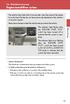 Engine immobilizer system The vehicle's keys have built-in transponder chips that prevent the engine from starting if the key has not been previously registered in the vehicle's on-board computer. Never
mysensors mysensors Wireless Sensors and Ethernet Gateway Quick Start Guide Information to Users Inside the Box mysensors Ethernet Gateway Quick Start
 mysensors Information to Users mysensors Wireless Sensors and Ethernet Gateway Quick Start Guide This equipment has been tested and found to comply with the limits for a Class B digital devices, pursuant
UB1 P R O F E S S I O N A L M I C R O P H O N E S
 UB1 P R O F E S S I O N A L M I C R O P H O N E S Table of Contents Introduction........................... 1 UB1 Features............................2 Installing the UB1......................3-6 Operating
innkeeper PBX Desktop Digital Hybrid User Guide JK Audio
 innkeeper PBX Desktop Digital Hybrid User Guide JK Audio Introduction Innkeeper PBX will allow you to send and receive audio through your multi-line PBX, ISDN or analog telephone. While this may seem like
innkeeper PBX Desktop Digital Hybrid User Guide JK Audio Warranty
 Warranty Innkeeper PBX is covered by a 2-year warranty to be free from defective workmanship and materials. In the event that the innkeeper PBX needs repair, you must call us to get an authorization, and
VIEW. SLX300 SpeakerLinX IP Zone. Amplifier Installation and Setup Guide. AVoIP
 VIEW SLX300 SpeakerLinX IP Zone Amplifier Installation and Setup Guide TM AVoIP ClearOne 5225 Wiley Post Way Suite 500 Salt Lake City, UT 84116 Telephone 1.800.283.5936 1.801.974.3760 Tech Sales 1.800.705.2103
User Guide. Version 2.1.1. QuestionPoint 2.1.1 User Guide 1
 User Guide Version 2.1.1 QuestionPoint 2.1.1 User Guide 1 2013 Turning Technologies, LLC. Portions Responsive Innovations, LLC, Microsoft Corporation No part of this document may be reproduced or transmitted
Link Link sys E3000 sys RE1000
 User Guide High Performance Extender Wireless-N Router Linksys Linksys RE1000 E3000Wireless-N Table of Contents Contents Chapter 1: Product Overview 1 Front 1 Top 1 Bottom 1 Back 2 Chapter 2: Advanced
PCS300 Universal IP Reporting Module V1.0
 PCS300 Universal IP Reporting Module V1.0 Reference and Installation Manual Patents: One or more of the following US patents may apply: 7046142, 6215399, 6111256, 6104319, 5920259, 5886632, 5721542, 5287111,
Open Networking Adapter 1101GT Quick Install Guide
 Open Networking Adapter 1101GT Quick Install Guide 2016 Avaya Inc. 1 NN48800-300 01-07 2016 Avaya Inc. All Rights Reserved. Notice While reasonable efforts have been made to ensure that the information
InnoMedia ESBC 9580-4B. Quick Install Guide. www.innomedia.com 1
 InnoMedia ESBC 9580-4B Quick Install Guide www.innomedia.com 1 Table of Contents Introduction 2 Package Contents 2 CAUTION 2 Installation 3 Wall-Mounting Instructions 5 Troubleshooting 6 Appendix A. LED
innkeeper PBX Desktop Digital Hybrid User Guide JK Audio Warranty
 Warranty Innkeeper PBX is covered by a 2-year warranty to be free from defective workmanship and materials. In the event that the innkeeper PBX needs repair, you must call us to get an authorization, and
Universal Host. Desktop Digital Hybrid. User Guide. JK Audio
 Universal Host Desktop Digital Hybrid User Guide JK Audio Introduction Universal Host will allow you to send and receive audio through your multi-line PBX, ISDN, VoIP or analog telephone. While this may
2.0 AUDIO RECORDING INTERFACE
 24-Bit/96kHz USB 2.0 AUDIO RECORDING INTERFACE USER MANUAL 1 of 13 Contents: 1. Instruction 03 2. Key Features 03 3. Front Panel 03 4. Rear Panel 04 5. Minimum System Requirements 04 6. Installation Process
CS55H HOME EDITION... WIRELESS HEADSET SYSTEM
 CS55_HO_606.qxd /6/06 : PM Page ii WARRANTY Limited Warranty This warranty covers defects in materials and workmanship of products manufactured, sold or certified by Plantronics which were purchased and
AXIS 5810 A Bluetooth Print Plug. Quick Start
 AXIS 5810 AXIS 5810 A Bluetooth Print Plug Quick Start BLUETOOTH is a trademark owned by its proprietor and used by Axis Communications AB under license 1 AXIS 5810 Regulatory Information Regulatory Information
OC821 Iris Outdoor Camera Set-Up Guide. RC8221 Iris. Camera Set-Up Guide
 Outdoor Camera Set-Up Guide RC8221 Iris Camera Set-Up Guide 2 2 A B Package Contents Basic A. Outdoor Setup Camera This B. chapter Power provides Adapter details on how to setup and mount the camera. C.
GETTING TO KNOW YOUR PRE-PAID TELSTRA WI-FI 4G
 GETTING TO KNOW YOUR PRE-PAID TELSTRA WI-FI 4G LET S GET THIS SHOW ON THE ROAD You must be excited about your brand new Pre-Paid Telstra Wi-Fi 4G. This guide will help you get connected as quickly and
Outdoor 150Mbps Wireless N Access Point - 1T1R 2.4GHz
 Outdoor 150Mbps Wireless N Access Point - 1T1R 2.4GHz AP150WN1X1OD / AP150WN1X1OE / AP150WN1X1OG *actual product may vary from photos DE: Bedienungsanleitung - de.startech.com FR: Guide de l'utilisateur
AC750 WiFi Range Extender
 Model EX6100 User Manual April 2014 202-11307-03 350 East Plumeria Drive San Jose, CA 95134 USA Support Thank you for selecting NETGEAR products. After installing your device, locate the serial number
PBXport. Rackmount PBX Digital Hybrid. User Guide. JK Audio
 PBXport Rackmount PBX Digital Hybrid User Guide JK Audio Introduction PBXport will allow you to send and receive audio through your multiline PBX, ISDN or analog telephone. While this may seem like a simple
Innkeeper PBX. Desktop Digital Hybrid. User Guide. JK Audio
 Innkeeper PBX Desktop Digital Hybrid User Guide JK Audio Introduction Innkeeper PBX will allow you to send and receive audio through your multi-line PBX, ISDN or analog telephone. While this may seem like
WPR400 Wireless Portable Reader
 P516-098 WPR400 Wireless Portable Reader User guide Para el idioma español, navegue hacia www.schlage.com/support. Pour la portion française, veuillez consulter le site www.schlage.com/support. Contents
Media Gateway Hardware
 Media Gateway Hardware Getting to Know Your Media Gateway E-1 Media Gateway Front Panel E-1 Media Gateway Back Panel E-2 Media Player Front Panel E-2 Media Player Back Panel E-3 MP 2050 Front E-3 MP 2050
Table of Contents. Hardware Installation...7 Push Button Security... 8. Using the Setup Wizard...10. Configuration...11 Main... 12 Security...
 Table of Contents Table of Contents Product Overview...3 Package Contents...3 System Requirements... 3 Introduction...4 Features... 4 Hardware Overview...5 LEDs... 5 Connection... 6 Hardware Installation...7
Alarm over IP. IRIS Touch Home Installation Manual. Version 1.0 ENGLISH. Now certified and compliant with EN50131, EN50136 Security Grade 4 ATS6
 Alarm over IP IRIS Touch Home Installation Manual Version 1.0 ENGLISH Now certified and compliant with EN50131, EN50136 Security Grade 4 ATS6 1. Introduction No more bulky batteries, just one sleek unit
ALARMS-xx. Remote Alarm Unit Setup Guide 1 2 3 4 5 6 7 8 9 10 11 12 13 14 15 16 17 18 19 20 21 22 23 24 25 26 27 28 29 30 31 32 RESET ALL
 Remote Alarm Unit Setup Guide 1 2 3 4 5 6 7 8 9 10 11 12 13 14 15 16 17 18 19 20 21 22 23 24 25 26 27 28 29 30 31 32 RESET ALL User s Guide Version 1.0 07/01/2009 Michael Stevens & Partners Ltd. has made
Disclaimers. Important Notice
 Disclaimers Disclaimers Important Notice Copyright SolarEdge Inc. All rights reserved. No part of this document may be reproduced, stored in a retrieval system, or transmitted, in any form or by any means,
EA-N66 3-in-1 Dual Band Wireless-N450 Ethernet Adapter
 EA-N66 3-in-1 Dual Band Wireless-N450 Ethernet Adapter Quick Start Guide English... 3 French... xx Brazilian... xx Portuguese... xx Spanish... xx E8111 / Second Edition / January 2013 Package contents
Setting Up the Cisco Unified IP Phones
 CHAPTER 3 This chapter includes the following topics, which help you install the Cisco Unified IP Phones on an IP telephony network: Before You Begin, page 3-1 Understanding the Cisco Unified IP Phone
PRO 5000 CPE 1D Quick Installation Guide
 PRO 5000 CPE 1D Quick Installation Guide Introduction This Quick Installation Guide covers the basic installation of the PRO 5000 CPE. For more information, refer to the relevant sections in the Product
USB Plus+ RFID Reader Setup Guide
 875-0042-03 RevA USB Plus+ RFID Reader Setup Guide 1 Government Limited Rights Notice: All documentation and manuals were developed at private expense and no part of it was developed using Government funds.
ZigBee Extender 3. Features. Supported Models and Requirements. Important Safety Instructions. What Is Included: Specifications
 ZigBee Extender 3 Features The Card Access ZigBee Extender 3 operates as a ZigBee (IEEE 802.15.4) router and mesh extender. The Extender is designed to improve ZigBee signal latency that can occur when
WLAN600 Wireless IP Phone Administrator s Guide
 WLAN600 Wireless IP Phone Administrator s Guide Trademark Acknowledgement All brand names are trademarks or registered trademarks of their respective companies. Disclaimer This document is supplied by
MoCA Adapter MC1001 v2 Installation Guide
 Technical Support Thank you for selecting NETGEAR products. After installing your device, locate the serial number on the label of your product and use it to register your product at www.netgear.com/register.
SP1790JK 900MHz Wireless Indoor/Outdoor Speakers. User Manual INTRODUCTION FEATURES IMPORTANT SAFETY INFORMATION
 SP1790JK 900MHz Wireless Indoor/Outdoor Speakers INTRODUCTION This 900 MHz digital hybrid wireless speaker system uses the latest wireless technology that enables you to enjoy music and TV sound anywhere
FAQs. XAP Frequently Asked Questions. Software/Configuration
 XAP Frequently Asked Questions ~ Software/Configuration ~ Echo Cancellation ~ Audio Performance ~ Expansion Bus ~ Firmware ~ Installation ~ Presets ~ Telephone Hybrid Software/Configuration What is the
InnoMedia ESBC 9380-4B. Quick Install Guide. www.innomedia.com 1
 InnoMedia ESBC 9380-4B Quick Install Guide www.innomedia.com 1 Table of Contents Introduction 2 Package Contents 2 CAUTION 2 Installation 3 Wall-Mounting Instructions 5 Troubleshooting 6 Appendix A. LED
How To Use An Imclean Dad (Dvd) With A Car Or Car (Dcd) On A Computer Or Car
 IMclean Manual Note: Before you start, Please Fill out the enclosed disclosure form send to Drew Technologies LIMITED WARRANTY Drew Technologies, Inc. guarantees that every IMClean device as well as included
Table of Contents Samson Technologies Corp.
 Table of Contents Introduction........................... 1 System Components..................... 3 Quick Start............................ 4 Wearing the AH2 Transmitter................ 7 Guided Tour
QUICK START GUIDE CX-MC200LE-VZ
 QUICK START GUIDE CX-MC200LE-VZ LTE/EV-DO Business-Grade Modem For use with Juniper Networks CX111 3G/4G Bridge with Enhanced Performance and Reliability GETTING READY TO USE YOUR CX-MC200LE-VZ MODEM Thank
HP Advanced Wireless Docking Station. User Guide
 HP Advanced Wireless Docking Station User Guide Copyright 2014, 2015 Hewlett-Packard Development Company, L.P. Intel is a trademark of Intel Corporation in the U.S. and other countries. Windows and Windows
ULX-D Digital Wireless Systems UNCOMPROMISING DIGITAL WIRELESS
 ULX-D Digital Wireless Systems UNCOMPROMISING DIGITAL WIRELESS GENERATIONS AHEAD With ULX-D, Shure has created a breakthrough digital wireless system that incorporates a collection of technological innovations
GETTING TO KNOW YOUR NEW TELSTRA MOBILE WI-FI 4G
 GETTING TO KNOW YOUR NEW TELSTRA MOBILE WI-FI 4G LET S GET THIS SHOW ON THE ROAD You must be excited about your brand new Telstra Mobile Wi-Fi 4G. This guide will help you get started as quickly and easily
Breathe. Relax. Here Are the Most Commonly Asked Questions and Concerns About Setting Up and Programming the SurroundBar 3000.
 Breathe. Relax. Here Are the Most Commonly Asked Questions and Concerns About Setting Up and Programming the SurroundBar 3000. Our Customer Service Department has compiled the most commonly asked questions
Basics. Mbox 2. Version 7.0
 Basics Mbox 2 Version 7.0 Copyright 2005 Digidesign, a division of Avid Technology, Inc. All rights reserved. This guide may not be duplicated in whole or in part without the express written consent of
How To Install A Basler Aviator Gige Camera
 Basler aviator QUICK INSTALLATION GUIDE FOR GigE CAMERAS Document Number: AW000977 Version: 02 Language: 000 (English) Release Date: 15 June 2011 Preliminary The information in this document is preliminary
C O B A R 1 8R2 U s e r G u i d e P a g e 1. User Guide COBRA 18R2. Wireless Firing System. www.cobrafiringsystems.com
 C O B A R 1 8R2 U s e r G u i d e P a g e 1 User Guide COBRA 18R2 Wireless Firing System C O B A R 1 8R2 U s e r G u i d e P a g e 2 TABLE OF CONTENTS 1. SYSTEM INTRO... 3 2. POWER ON... 4 3. REMOTE /
INVENTEK SYSTEMS ISM34x-USB Embedded Serial-to-WiFi Module es-wifi 802.11 a/b/g/n, Bluetooth 4.0, NFC
 INVENTEK SYSTEMS ISM34x-USB Embedded Serial-to-WiFi Module es-wifi 802.11 a/b/g/n, Bluetooth 4.0, NFC Preliminary Data Sheet Page 1 Table of Contents 1 GENERAL DESCRIPTION... 3 2 PART NUMBER DETAIL DESCRIPTION...
Owner s Manual AWM910 JENSEN AWM910 COMPACT DISC PLAYER RADIO CD COMPACT MUSIC SYSTEM MUTE AUX BAND AUX IN PUSH PUSH PWR VOL ALARM T/F AUD SPK A SPK B
 AWM910 Owner s Manual COMPACT DISC PLAYER PUSH 1 2 3 4 5 6 RPT SCAN RDM H M PUSH PWR VOL ALARM SET ON/OFF EQ T/F AUD RADIO CD COMPACT MUSIC SYSTEM MUTE AUX BAND CD AUX IN A B A+B JENSEN AWM910 Thank You!
Contents Contents Contents Overview Charging your headset Wearing the headset Powering on the headset Connecting your headset for dictation
 1 Contents Contents Contents 2 Overview 3 Charging your headset 4 Wearing the headset 4 Powering on the headset 4 Connecting your headset for dictation 5 The adapter 5 Adjusting your computer's audio settings
Installation Instructions. Wireless Adapter/Repeater. Introduction. 30-3001-887 Rev C
 /Repeater Installation Instructions 30-3001-887 Rev C Workstation Ethernet bcx Controller Repeater Repeater Introduction Schneider Electric has designed a device that allows Andover Continuum controllers
ADA COMPLIANT BOX STYLE TELEPHONE INSTALLATION, PROGRAMMING AND OPERATING INSTRUCTIONS FOR MODEL PBX
 ADA COMPLIANT BOX STYLE TELEPHONE INSTALLATION, PROGRAMMING AND OPERATING INSTRUCTIONS FOR MODEL PBX INSTALLATION INSTRUCTIONS Step 1. Determine the position for the Hands-free phone in the elevator phone
PCMCIA Wireless LAN Card User s Manual
 PCMCIA Wireless LAN Card User s Manual Rev 1.0 Regulatory compliance FCC Warning This equipment has been tested and found to comply with the limits for a Class B digital device, pursuant to part 15 of
User Manual. For additional help please send a detailed e-mail to [email protected]. - 1 Phoenix Audio Technologies www.phnxaudio.
 User Manual Please read the instructions in this manual before using the Duet Please refer to our website www.phnxaudio.com for more information, specifically to our Q&A section in our Support page. For
WUA-0605 300Mbps Wireless USB Network Adapter
 WUA-0605 300Mbps Wireless USB Network Adapter User Manual V1.0 Certification FCC CE FCC Statement This equipment has been tested and found to comply with the limits for a Class B digital device, pursuant
ZMR 80 STEREO MODULAR ZONER USERS MANUAL
 ZMR 80 STEREO MODULAR ZONER USERS MANUAL Lime Technologies http://limetechnologies.co.uk Tel: 08712 233127 ZMR80 Stereo Modular Zoner Mixer Introduction The modular construction of the ZMR80 allows it
HA-2. Portable Headphone Amplifier / USB DAC USER GUIDE
 HA-2 Portable Headphone Amplifier / USB DAC USER GUIDE Important Information The exclamation point within an equilateral triangle is intended to alert the user to the presence of important operation and
N300 WiFi Range Extender WN2000RPT User Manual
 N300 WiFi Range Extender WN2000RPT User Manual December 2013 202-11333-01 350 East Plumeria Drive San Jose, CA 95134 USA Support Thank you for selecting NETGEAR products. After installing your device,
Jabra BIZ 2400 USB USER MANUAL
 Jabra BIZ 2400 USB USER MANUAL 1 2011 GN Netcom A/S. All Rights Reserved. This user guide is published by GN Netcom A/S. The information in this user guide is furnished for informational use only, is subject
ASUS Miracast Dongle E-MANUAL E8741
 E-MANUAL E8741 E8741 First Edition November 2013 COPYRIGHT INFORMATION No part of this manual, including the products and software described in it, may be reproduced, transmitted, transcribed, stored in
TurningPoint for Mac. Version 5.1. TurningPoint User Guide i
 TurningPoint for Mac Version 5.1 TurningPoint User Guide i 2012 Turning Technologies, LLC. Portions Responsive Innovations, LLC, Microsoft Corporation No part of this document may be reproduced or transmitted
IT-12M IT-12D Ver_2.0 INTERPRETATION SYSTEM. User s Manual
 IT-12M IT-12D Ver_2.0 INTERPRETATION SYSTEM User s Manual Important Notice All the safety and instructions for operation and use of the equipment should be read carefully before the system is operated.
Secure Ethernet Gateway SEG-1 and SEG-M for IEI Access Systems Installation Manual
 Secure Ethernet Gateway SEG-1 and SEG-M for IEI Access Systems Installation Manual Section 1: Introduction SECURITY WARNING: New SEG's shipped after April 2008 will have Telnet setup option enabled by
Instruction Sheet ACS-101. General Description. Specifications. Amplified Broadband UHF Combiner-Splitter. Overall. Antenna Splitter.
 ACS-101 Amplified Broadband UHF Combiner-Splitter General Description The ACS-101 (Antenna Combiner Splitter 10 to 1) is an amplified and filtered broadband splitter-combiner. It allows up to 10 base stations
Chapter 1 Installing the Gateway
 Chapter 1 Installing the Gateway This chapter describes how to set up the wireless voice gateway on your Local Area Network (LAN), connect to the Internet, and perform basic configuration. For information
User Manual. PePWave Surf / Surf AP Indoor Series: Surf 200, E200, AP 200, AP 400. PePWave Mesh Connector Indoor Series: MC 200, E200, 400
 User Manual PePWave Surf / Surf AP Indoor Series: Surf 200, E200, AP 200, AP 400 PePWave Mesh Connector Indoor Series: MC 200, E200, 400 PePWave Surf AP Series: Surf AP 200-X, E200-X, 400-X PePWave Surf
Plantronics.Audio 995 User Guide
 Plantronics.Audio 995 User Guide Welcome Congratulations on purchasing your new Plantronics.Audio 995. This User Guide contains instructions for setting up and using the.audio 995. Please refer to the
56-A11A-10511. Plantronics Calisto Headset with Bluetooth USB Adapter. User Guide
 56-A11A-10511 Plantronics Calisto Headset with Bluetooth USB Adapter User Guide Table of Contents Package Contents... 1 Product Features... 2 Wearing Your Headset... 3 Powering... 4 Charging... 5 Indicator