
PICOTEST. M3500A 6.5 Digit Digital Multimeter. User s Manual
|
|
|
- Damian Nigel Cain
- 9 years ago
- Views:
Transcription
1 PICOTEST M3500A 6.5 Digit Digital Multimeter User s Manual Printed date: 02/2009

2 M3500A DMM 2

3 User s Manual Table of Contents 1 GENERAL INFORMATION FEATURE OVERVIEW WARRANTY INFORMATION PRECAUTION OF OPERATION UPKEEP OF M3500A SAFETY INFORMATION SYMBOLS AND TERMS INSPECTION OPTIONS AND ACCESSORIES M3500A S DIMENSION OVERVIEW SETTING UP YOUR M3500A DIGITAL MULTIMETER To adjust the handle To connect the power To convert the voltage To change the fuse Factory Default When Power-ON FEATURES M3500A FUNCTION INTRODUCTION The Front Panel The Display Annunciators at Upper Side Annunciators at Right Side The Rear Panel BASIC MEASUREMENT FUNCTION VOLTAGE MEASUREMENTS (DC & AC) CURRENT MEASUREMENTS (DC & AC) RESISTANCE MEASUREMENTS (2 & 4-WIRE) FREQUENCY & PERIOD MEASUREMENTS CONTINUITY MEASUREMENTS

4 3.6 DIODE MEASUREMENTS TEMPERATURE MEASUREMENTS Thermocouple Measurements RTD Measurements Wire RTD Measurements Wire RTD Measurements Wire RTD Measurements FRONT PANEL OPERATIONS MEASUREMENT CONFIGURATION Set ADC (Auto Zero & Auto Gain) Filter AC Filter Digital Filter Resolution Setting (Digits) DC Input Resistance Threshold Resistance (Continuity) Range (Manual & Auto) Rate (Integration Time) Sensor Selection for Temperature Measurements Remote Interface Selection Input Terminal Switch TRIGGER OPERATIONS Trigger Mode Trigger Source Trigger Setting MATH OPERATIONS Ratio % (Percent) Min/Max Null Limits Test MX+B db/dbm OTHER SYSTEM RELATED OPERATIONS Display Beeper

5 4.4.3 Reading Memory (Store & Recall) Sensitivity Band (Hold) Scanning (Scan) Stepping (Step) Initial Mode Language Error Condition Firmware Revision Calibration Self-Test REMOTE INTERFACE OPERATIONS PASS/FAIL OUTPUT FROM USB CONNECTOR SETTING UP FOR REMOTE INTERFACE REMOTE INTERFACE COMMANDS ERROR MESSAGES ERROR TYPE Execution Errors APPENDIX A. SPECIFICATION LIST B. GENERAL SPECIFICATIONS C. REMOTE INTERFACE REFERENCE C.1 An Introduction to the SCPI Language C.2 Output Data Formats C.3 The MEASure? Command C.4 The CONFigure Command C.5 The Measurement Configuration Command C.6 The Math Operation Command C.7 The Triggering Commands C.8 The System-Related Commands C.9 The SCPI Status Pattern C.10 Status Reporting Commands C.11 SCPI Compliance Information C.12 IEEE-488 Compliance Information D. ABOUT APPLICATION PROGRAMS

6 1 General Information This section contains general information about PICOTEST M3500A Multimeter. The information is shown below: Feature Overview Warranty Information Safety Information Symbols and Terms Specifications Inspection Options and Accessories If you have any questions after reading this information, please contact your local service representative. 1.1 Feature Overview M3500A is a 6.5 digit digital multimeter. It has % 24-hour basic DC voltage accuracy at 10V range and 0.002% 24-hour basic resistance accuracy at 10kΩ range. At 6.5 digit, the multimeter delivers 50 triggered RDGS/sec via remote interface. At the fast 4.5 digit, it reads over 2000 RDGS/sec into its internal buffer. M3500A provides wide measurement ranges: Note: The 24-hour measurement is subject to calibration accuracy. DC voltage: 0.1V, 1V, 10V, 100V & 1000V. AC voltage: 0.1V, 1V, 10V, 100V & 750V. DC current: 10mA, 100mA, 1A & 3A. AC current: 1A & 3A. 2 & 4-wire resistance: 100Ω, 1KΩ, 10KΩ, 100KΩ, 1MΩ, 10MΩ & 6

7 100MΩ. Frequency: From 3Hz to 300kHz. Period measurement. Diode measurement. Continuity measurement for resistance. Thermocouple temperature & RTD measurements. Some additional capabilities of M3500A include: Full math functions db, dbm, MX+B, ratio, %, Max/Min, null & limits. Optional multipoint scanner card For internal scanning, options include M3500 opt01, a 10-channel, general-purpose card. USB and GPIB (Optional) remote control interface. Through Microsoft Office Word & Excel for remotely storing and recalling the measured values. Through M3500 AP software for simulating the real operation on PC. 1.2 Warranty Information If the equipment is used in a manner not specified by the manufacturer, the protection provided by the equipment may be impaired. 1. Warranty: PICOTEST CORP. guarantees that this product meets its published specifications at the time of shipment from the factory. Under proper installation it should work as expected. 2. Warranty Period: This equipment is warranted against defects in material and manufacturing for a period of one year from the date of shipment. During the warranty period, PICOTEST is responsible for necessary repairs as long as the product can be proved to be defective. For warranty service or repair this product must be returned to a service facility designated by PICOTEST. Please contact your local service representative. 3. Excluded Items: This warranty does not include consumptive parts such as fuses, buttons and relays. Neither does this warranty cover 7

8 defects caused by improper installation, improper or insufficient maintenance, unauthorized modification, improper operation, ignorance of environmental specifications or improper software or interfacing. 4. Remarks: No other warranty is expressed or implied, except for the above mentioned. The remedies provided herein are the buyer s sole and exclusive remedies. PICOTEST shall not be liable for any direct, indirect, special, incidental or consequential damages. Limitation of warranty 1. Our warranties do not cover any damage resulting from unauthorized modification or misuse. 2. Unless mentioned elsewhere in this document, our warranty does not apply to fuses, probes, and problems arising from normal wear or user s failure to follow instructions. 3. Our warranties do not apply on any direct, incidental, special, or consequential damages. 4. The above warranties are exclusive and no other warranty is expressed or implied. PICOTEST disclaims any implied warranties of MERCHANTABILITY, SATISFACTORY QUALITY, and FITNESS for any particular reasons. 1.3 Precaution of Operation Please carefully read the manual before operating this device. This manual is for reference only. Please consult your local service representative for further assistance. The contents of this manual may be amended by the manufacturer without notice. Never dismantle the equipment by any unauthorized personnel, or equipment may be damaged. The equipment has been strictly tested for quality before delivery 8

9 from our factory. However, this equipment must not be used in dangerous situations where damage may result. This product should be placed in a safe area in case of unpredictable personnel use. The rear protective conduct terminal needs to be connected to the actual earth ground or electric shock may occur. The patent and related documents for the equipment belong to PICOTEST CORP. and they aren t allowed to be used by others without permission. 1.4 Upkeep of M3500A Although M3500A multimeter is very durable and weather resistant, care should be taken not to expose it to severe impact or pressure. Keep M3500A far from water and damp environment. Calibration will be taken every year. Please contact with your local service representative for more information. If the incorrect display or abnormal beeps occurred you should stop using the equipment at once. Do not use the Meter around explosive gas or inflammable vapor. Wipe the surface of M3500A multimeter with a piece of dry and clean cloth. 1.5 Safety Information Caution! Please read through the following safety information before using the product. To avoid possible electric shock or personal injury, please read and follow these guidelines carefully: Follow the guidelines in this manual and DO NOT use the Meter if the case is damaged. Check the Meter case and terminals, and make sure all the devices are in the proper positions. Do not apply excessive voltage to the Multimeter. Apply voltage 9

10 within the rated range only. Use caution when measuring voltages above 30 V RMS, 42 V peak, or 60 V DC. These voltages pose an electric shock hazard. When using the probes, always keep your fingers behind the finger guards. Always connect the common test leads (black) before connecting the live test leads (red), and disconnect the live test leads (red) before disconnecting the common test leads (black). This will reduce the chance of an electric shock. Disconnect circuit power and discharge all high-voltage capacitors before testing resistance, continuity, diodes or capacitance. If you need to open the Meter case or replace any parts, read the instruction in this manual first. You must be a qualified personnel to perform this action. When replacing fuses, use only the same type and same rating as specified. Do not try to operate the Meter if it is damaged. Disconnect the power from the equipment and consult the local service representative. Return the product to PICOTEST service department if necessary. 1.6 Symbols and Terms This symbol indicates hazards that may cause damages to the instrument or even result in personal injury. This symbol indicates high voltage may be present. Use extra caution before taking any action. This symbol indicates the frame or chassis terminal presented need to be connected to the actual earth ground. This symbol indicates Protective Conductor Terminal. 10

11 This symbol indicates earth (ground) terminal. This symbol indicates this product complies with the essential requirements or the applicable European laws or directives with respect to safety, health, environment and consumer protections. Note: Full M3500A specifications are included in Appendix A. 1.7 Inspection Your product package is supplied with the following items: One M3500A Multimeter unit. (224mm x 113mm x 373mm, approx. 4.3 Kg) One power line cord. One USB cable. Standard Test Leads 1 One CD (including this electronic User's Manual and software applications). Optional accessories as you ordered. Multi-Point scanner card. (Optional) GPIB interface card. (Optional) 1. The M3500A is provided with a Standard Test lead set, described below. Test Lead Ratings: IEC CAT III Operating Voltage: 1000V DC Current: 10 Ampers UL/CE Rated Material: Probe Body: Outer Insulation-Santoprene Rubber. 11

12 Banana Plug: Body Brass, Nickel Plated Spring Beryllium Copper, Nickel Plated. Insulation: Polypropylene Resin Flasme Retardant Grade Others If any part of the Test Lead Set is damaged, please do not use and replace with a new set. Warning: If users use the Test Lead Set without following the specification of Picotest Corp., the protection of the Test Lead Set could be impaired. In addition, please don t use a damaged Test Lead Set against the instrument break or personal injury. 1.8 Options and Accessories The following options and accessories are available from PICOTEST for use with the Model M3500A. Please refer to the following Table 1-1. Table 1-1 Part Name Multi-point Scanner Card Thermocouple adapter Adapters (Banana to BNC Adapter) GPIB Card RTD Probe Adapter RS232 Adapter Kelvin Probe Part Number M3500-opt01 M3500-opt02 M3500-opt03 M3500-opt04 M3500-opt05 M3500-opt06 M3500-opt07 12

13 1.9 M3500A s Dimension Please get the dimension s information in the following different ways. 1. The dimension without the handle and the front & Rear Bumpers is in the following Picture 1. (LxWxD x88.6x370 mm) 2. The dimension with the handle and the front & Rear Bumpers is in the following Picture 2. (LxWxD - 255x113x373 mm) 3. The dimension with the front & Rear Bumpers, but without the handle is in the following Picture 3. (LxWxD - 224x113x373 mm)

14 2 Overview This chapter will give you an overview of M3500A s basic features and guide you through the basics of M3500A digital multimeter. Users will become familiar with those features after reading this chapter. 2.1 Setting up Your M3500A Digital Multimeter The purpose of this section is to prepare users for using M3500A DMM. You may want to check if you have all the parts with your multimeter. All our products are handled and inspected professionally before shipping out to our customers. If you find any damaged or missing parts, please contact your local service representative immediately and do not attempt to operate the damaged product. If users have any doubt about their products, they are encouraged to contact their local service representative To adjust the handle You may adjust the carrying handle to suit your needs. The following figures show you how to adjust the handle. I. Taking off the handle from the Multimeter Step 1 (Turn up the handle) Pull slightly outward on both sides of the handle and slowly rotate it up as shown in Figure

15 Figure 1-1 Step 2 (Pull out the handle) When the handle is turned up to 90 with the multimeter please pull out the handle from the multimeter as shown in Figure 1-2. Figure 1-2 Ⅱ. Adjusting the position for your convenience Here are some example positions to suit users needs. Position 1 The default position is for packing as shown in Figure

16 Figure 1-3 Position 2 The adjusted position is for operation as shown in Figure 1-4 Figure 1-4 Position 3 The carrying position is with the handle as shown in Figure 1-5 Figure

17 2.1.2 To connect the power Check the power-line voltage on the rear panel to see if voltage setting is correct for your area. Change the setting if it is not correct or the fuse is broken. Please follow the steps below To convert the voltage Warning! In some areas, the power supplied voltage is 240V or 120V; in others, the power supplied voltage is 220 V or 100 V. Please refer to your local power supplied voltage to see if you have the right setting. Warning! Before changing the setting, make sure the multimeter is disconnected from the AC power. An incorrect voltage setting may cause severe damage to your instrument. Warning! The power cord supplied with M3500A contains a separate ground wire for use with grounded outlets. When proper connections are made, instrument chassis is connected to power line ground through the ground wire in the power cord. Failure to use a grounded outlet may result in personal injury or death due to electric shock. Suppose your condition is in AC 100V and you want to convert the voltage to the 220V. Follow these steps to change the voltage setting. Step 1 Verify that the meter is disconnected as shown in Figure

18 Figure 2-1 Step 2 Open the voltage setting selector cap as shown in Figure 2-2. (You might need a screwdriver to do so.) Figure 2-2 Step 3 Remove the red voltage setting selector from the right middle seam as shown in Figure 2-3. (You might need a screwdriver to do so.) 18

19 Figure 2-3 Step 4 Turn it over to 220V position as shown in Figure 2-4. Figure 2-4 Step 5 Insert the voltage setting selector back into the socket and close the cap as shown in Figure 2-5. Figure

20 To change the fuse Warning! Before replacing the power-line fuse, make sure the multimeter is disconnected from the AC power. You must be a qualified personnel to perform this action. Warning! For continued protection against fire or instrument damage, only replace fuse with the same type and rating. If the instrument repeatedly blows fuses, locate and correct the cause of the trouble before replacing the fuse. Verify that the power-line fuse is good. Replace the fuse if it is damaged. Use only the same type and same rating fuse noted on the rear panel. Please follow the steps below to change the fuse. Step 1 Verify that the meter is disconnected as shown in Figure 2-6. Figure

21 Step 2 Open the voltage setting selector cap as shown in Figure 2-7. (You might need a screwdriver to do so.) Figure 2-7 Step 3 Remove the red voltage setting selector from the right middle seam as shown in Figure 2-8. (You might need a screwdriver to do so.) Figure
22 Step 4 Remove the broken fuse from the selector as shown in Figure 2-9. Step 5 Figure 2-9 Replace with the new fuse as shown in Figure Figure 2-10 Step 6 Insert the voltage setting selector back into the socket and close the cap as shown in Figure Figure
23 Step 7 Make sure the power switch on the front panel is in Power OFF condition before plugging as shown in Figure Power switch: Figure 2-12 POWER OFF Step 8 After finishing the above procedures, you can plug in your power cord as shown in Figure Figure
24 Step 9 Press on the power switch on the front panel for activating M3500A as shown in Figure Power switch: - POWER ON Figure Factory Default When Power-ON Table 2-1 shows the factory default of M3500A. Table 2-1 Function Function Autozero Frequency and Period Source Output Format Ratio Default DCV On AC Voltage ASCII Off AC Bandwidth Input Frequency 20Hz 24
25 AC Digits 5.5 Voltage DC digits Range Slow 5.5 (1 PLC) Auto AC Digits 5.5 Current DC Digits Range Slow 5.5 (1 PLC) Auto Digits 5.5 Frequency and Period Range Rate AUTO Medium (100ms) Digits 5.5 Diode Test Resistance (2-wire) Temperature Triggers Range Rate Digits Range Digits Thermocouple Source Delay 1mA 0.1 PLC Slow 5.5 (1 PLC) Auto Slow 6.5 (10 PLC) Universal Type Immediate Auto Input Resistance 10MΩ 25
26 2.2 Features Resolution: 6.5 digits. 5*7 dot matrix VFD, dual displays with 3-color annunciators. 11 standard measurement functions & 8 math functions. 4 front ground terminal are connected to Chassis. Stability, Accuracy and Speed (2000RDGS/Sec at 4.5 Digit, 50 RDGS/Sec at 6.5 Digit in 60 Hz) Multi-Points Scanner Card: Up to 10 Channels. (Optional) RTD probe Adapter (optional) convenient to use. Built-in USB and GPIB (Optional) Interfaces. Easy & Free PC applications. 2.3 M3500A Function Introduction For users to become familiar with the M3500A DMM, we will give a brief introduction to the basic operations of M3500A DMM. There are three major parts of M3500A: (2.3.1) the front panel, (2.3.2) the display, and (2.3.3) the rear panel. We will discuss each of them in the following sections The Front Panel There are different buttons and terminals on the front panel. They are divided into the following groups: (DISPLAY & POWER), (FUNCTION, MATH, TRIGGER, MEMORY, SETUP, RANGE, INPUT TERMINALS), and (FILTER, DIGITS, LOCAL, and SHIFT) as shown in Figure
27 Figure Power & Display: Power: Activates M3500A DMM. Display: Shows model, version & condition by pressing round PREV & NEXT buttons First row without SHIFT button: DCV: Selects DC voltage measurement. ACV: Selects AC voltage measurement. Ω2: Selects 2-wire resistance measurement. FREQ: Selects frequency measurement. CONT: Selects the continuity test. TEMP: Selects RTD temperature measurement First row with SHIFT button: DCI: Selects DC current measurement. ACI: Selects AC current measurement. Ω4: Selects 4-wire resistance measurement. PERIOD: Selects period measurement. : Selects diode testing. TCOUPL: Selects thermocouple temperature measurement Second row without SHIFT button: FILTER: Enable or disable the digital filter. 27
28 DIGITS: Changes resolution. RATIO: Enables the dcv:dcv ratio function. %: Calculates the ratio to a target value in percentage. MIN/MAX: Captures the minimum or maximum readings from the measurement. NULL: Activates the offset function in order to get the real measured reading Second row with SHIFT button: STEP: Scans from a channel to the next channel in delayed action when using the scanner card. SCAN: Enables scanning function when using the scanner card. LIMITS: Used for Setting upper and lower limit values for readings. MX+B: Used for calculating slope. X is the normal display reading. M and B are constants specified by user for scale factor and offset. dbm: Used for displaying voltage measurement in dbm power unit. db: Used for displaying voltage measurement in decibel unit Third row without SHIFT button: SINGLE: Manually triggers the multimeter to make measurements. AUTO TRIGGER: Instructs the multimeter to make measurements continuously. STORE: Stores a specified number of subsequent readings. RECALL: Displays stored readings and buffer statistics. Use or searching buttons to toggle between reading number and reading. LOCAL: Cancels USB or GPIB remote mode. SHIFT (in blue): Used for accompanying other button with upper print in blue and converting function Third row with SHIFT button: EXTRIG: Selects external triggers as the trigger source via BNC port on the rear panel. HOLD: Holds reading The first row in SETUP section : Scrolls through buffer, conceals or reveals the digits while 28
29 measuring The second row in SETUP section: ESC: Cancels selection, moving back to measurement display. ENTER: Accepts selection, moving to next choice or back to measurement display. LOCK: Presses SHIFT then ESC button to prevent unpredictable operation on the panel. In order to release lock condition, please press ESC again The third row in SETUP section: CONFIG: Offers setting or adjusting function, relating some front panel buttons. MENU: Offers setting or adjusting function, not relating other front panel buttons. 4. RANGE: : Moves to higher range. : Moves to lower range. AUTO: Enables or disables auto-range. 5. Terminals: Selects input signal connections on front or rear panel. 6. Inserted Connections & Fuse Device: 4 Chassis Ground Connections: Separate environmental noises. HI & LO: Used for all measurements, except DC and AC current. (Maximum input voltage: 1000V for voltage measurements. 200V for 4-wire measurement) LO & I: Used for making DC and AC current measurements. Front Fuse: Secures your Meter against damage of strong current pulse. (Maximum current: 3A, 250V) 7. Chassis Ground Terminal: The chassis ground terminal is used for shielding the noise from the nature, especially when users want to get a very small signal via the application of a BNC-to-Banana Adapter. Please refer to the Figure
30 Figure The Display M3500A has a 5x7 dot matrix, dual-display with three-color (White, Red and Yellow) annunciators for a better view. There are two rows in the dual-display screen. The upper row displays readings and units. A maximum 13 characters are allowed for upper row dot-matrix display. The lower row displays range of the measurements, condition or information about an ongoing configuration. A maximum 16 characters are allowed for lower row dot-matrix display. There are additional annunciators at upper side and right side of the display screen for indicating the state or the condition of an ongoing measurement. They are explained individually in the following sections. Upper Row Display Lower Row Display Figure
31 Annunciators at Upper Side Figure 2-18 ADRS: Indicates the multimeter is controlled via GPIB Interface. RMT (REMOTE): Indicates the remote state. (USB Interface) MAN: Indicates the manual range is taken. TRIG: Shows the single triggering is enabled. HOLD: Indicates reading hold function is enabled. MEM: Indicates the using of internal memory. RATIO: Indicates the dcv:dcv ratio operation. MATH: Indicates the MATH operation is taken. ERR: Error occurs. SHIFT: Indicates SHIFT button is pressed. REAR: The rear panel input terminal is selected for the measurement. FILT: The digital filter is started Annunciators at Right Side 4W: Indicates 4 wire mode is selected for resistance measurement. ))): Indicated the continuity testing is enabled. : Indicates the diode testing operation is taken. CW: Not used for Model M3500A. CC: Not used for Model M3500A. CV: Not used for Model M3500A. EXT: Indicates the External Trigger Mode is enabled. LOCK: Indicates the front panel menu operation is locked. OVP: Not used for Model M3500A. OCP: Not used for Model M3500A. OFF: Indicates the front panel display is turned off. Figure
32 2.3.3 The Rear Panel The rear panel of the M3500A is shown in Figure This figure includes important abbreviated information that should be reviewed before using the instrument Figure Inserted Connections & Fuse Device: HI & LO: Used for all measurements, except AC & DC current and temperature. LO & I: Used for making DC and AC current measurements. Rear Fuse: Secures your Meter against damage of strong current pulse. 2. BNC Connections: VM COMP: Voltmeter Complete Output Terminal. Outputs a low-true pulse after the completion of each measurement. EXT TRIG: External Trigger Input Terminal. Inputs a low-true pulse from a remote interface. 3. USB Connection: Connects a remote computer for changing operation environment instead of the front panel control. 4. Protective Conductor Terminal. 5. Power Module: Contains the AC line receptacle, power line fuse, and 32
33 line voltage setting. Configured for line voltages of 100/220V or 120/240V. (Depend on the power utility in your area.) 6. Option Slot: Designed for installing an optional multi-point scanner card (Model: M3500-opt01). 7. Option GPIB/IEEE488 Connection: Connects a remote computer with an IEEE488 cable for changing operation environment instead of the front panel control (Model: M3500-opt04). 33
34 3 Basic Measurement Function This chapter introduces some basic measurement functions in M3500A. You will learn how to use your M3500A multimeter to measure voltage, current, resistance, frequency, period, continuity, diode and temperature in this chapter. 3.1 Voltage Measurements (DC & AC) The ranges for DC voltage measurements in M3500A are 100mV, 1V, 10V, 100V and 1000V. For AC voltage measurements, the ranges are 100mV to 750V AC-Coupled TRMS, or 1000V peak. Figures 3-1 and 3-2 show the locations of the buttons needed and message display for voltage measurement. Figure 3-3 shows the location of the input terminals on the rear panel. Warning: Do not apply more than 1000V (peak) to the multimeter. Applying excess voltage may damage your meter, or cause possible electric shock or personal injury. Note: To eliminate the thermal EMFs due to the differences between two metals, use copper leads to connect your source signal to the meter. How to measure voltage 1 Selects input signal connections on front or rear panel. 2 Connect the test leads to the terminals as shown in Figure 3-1(DC) or Figure 3-2 (AC). 3 Set RESOLUTION of DCV (Refer to 4.1.3), BAND WIDTH of ACV (Refer to ) or skip this step if default is to be used. 4 Press DCV or ACV button for DC or AC voltage measuring. 5 Select the auto-range function by pressing AUTO button on the front panel or use buttons to select desired range. 34
35 6 Connect test leads to your source signal and observe the reading shown on the display. If the input signal is beyond the allowed range, an overflow message OVLD will be displayed Figure Figure 3-2 Note: The rear panel terminals can also be used via the same procedures as the front panel terminals. (Refer to Figure 3.3) 35
36 Figure Current Measurements (DC & AC) The ranges for DC current measurements in M3500A are 10mA, 100mA, 1A and 3A. For AC current measurements, the range is 1A with a sensitivity of 1 μa to 3A AC-Coupled TRMS with a sensitivity of 10μA. Figure 3-4 and 3-5 show you how to measure DC/AC currents in M3500A. Warning! The maximum input current allowed is 3A, 250V. Do not apply excess current to your meter to avoid damaging the fuse of current input. Note: To eliminate the thermal EMFs due to the differences between two metals, use copper leads to connect your source signal to the meter. How to measure current 1 Selects input signal connections on front or rear panel. 2 Connect the test leads to the terminals as shown in Figure Set RESOLUTION of DCI (Refer to 4.1.3), BANDWIDTH of ACI (Refer to ) or skip this step if default is to be used. 4 Press SHIFT+DCV or SHIFT+ACV buttons for DCI or ACI measurement. 36
37 5 Select the auto-range function by pressing AUTO button on the front panel or use and buttons to select desired range. 6 Connect test leads to your source signal and observe the reading shown on the display. If the input signal is greater than the allowed range, an overflow message OVLD will be displayed Figure 3-4 Note: The rear terminal panel also can be used via the same procedures as the front panel. (See Figure 3-5) Figure
38 3.3 Resistance Measurements (2 & 4-wire) The ranges for resistance measurement are 100 Ω, 1KΩ, 10kΩ, 100kΩ, 1MΩ, 10MΩ, and 100MΩ, with a sensitivity of 100 μω (on 100 Ω range.) There are two modes for measuring the resistance: 2-wire mode as shown in Figure 3-6 and 4-wire mode as shown in Figure 3-7. With 4-wire mode, the test current is measured from the test resistance through one pair of the test leads, and the test voltage across the resistance under test is measured from another set of the test leads. As a result, the 4-wire mode is more accurate for low resistance measurements. The trade off is the longer settling time for 4-wire mode. Figure 3-8 and 3-9 show the input terminal connections on the rear panel for 2-wire mode and 4-wire mode respectively. How to measure resistance 1 Selects input signal connections on front or rear panel. 2 Connect the test leads to the terminals as shown in Figure 3-6 (2-wire) or Figure 3-7 (4-wire). 3 Set RESOLUTION (Refer to 4.1.3) or skip this step if default is to be used. 4 Press Ω2 button for 2-wire measurement or SHIFT + Ω2 buttons for 4-wire measurement. 5 Select the auto-range function by pressing AUTO button on the front panel or use and buttons to select the desired range. 6 Connect test leads to your source signal and observe the reading shown on the display. If the input signal is greater than the allowed range, an overflow message OVLD will be displayed. 38
39 Figure Figure 3-7 Note: The rear terminal panel also can be used via the same procedures like the front panel as shown in Figures 3-8 and 3-9. Figure
40 Figure Frequency & Period Measurements M3500A uses an on-board counter with 25MHz to measure the frequency (period). The measurement band is from 3Hz to 300kHz (or 333 ms to 3.3 μs) and the measurement voltages range from 100mV to 750 V in AC. The default for RANGE is auto-range. Warning! The maximum input allowed is 1000V. Applying excess voltage may damage your meter. How to measure frequency and period 1 Selects input signal connections on front or rear panel. 2 Connect the test leads to the terminals as shown in Figure Set RESOLUTION (Refer to 4.1.1) and INPUT JACK. Or skip this step if default is to be used. 4 Press FREQ button for frequency measurement or SHIFT + FREQ buttons for period measurement. 5 Select the auto-range function by pressing AUTO button on the front panel or use and buttons to select the desired range. 6 Connect test leads to your source signal and observe the reading shown on the display. If the input signal is beyond the allowed range, an overflow message OVLD will be displayed. Note: The rear terminal panel also can be used via the same procedures as the front panel. (Please refer to Figure 3-3) 40
41 3.5 Continuity Measurements M3500A uses 1 K Ω range for the continuity measurement. The meter beeps when the test resistance is less than the threshold resistance. The default threshold resistance is 10Ω, but user can set the threshold resistance to anything between 1 Ω and 1 K Ω. The resistance value set by user is stored in a volatile memory and will be cleared after the meter has been turned off. The source current for the continuity measurement is 1 ma. Warning! The maximum input voltage allowed is 1000 V. Applying excess voltage may damage the meter and cause unpredictable hazards. How to measure the continuity Selects input signal connections on front or rear panel. 1 Connect the test leads to the terminals as shown in Figure Set REConnect the input signal as the following figure. 3 Set threshold resistance via pressing CONFIG + CONT buttons. (Or skip this step if default resistance is to be used) When ready, press ENTER button. 4 Press CONT button. 5 The measured value will be shown on the display automatically. Meter beeps when measured resistance value is lower than threshold value Figure
42 3.6 Diode Measurements M3500A uses a current source of 1 ma for diode testing. The maximum resolution is 10 μv on a fixed range of 1 V DC. The default threshold voltage is fixed between 0.3 and 0.8 volts and the reading rate is fixed at 0.1 PLC (The voltage bound is adjustable from 0.01V up to 1.2V.). A Beep sound will appear when the diode measured value is in the range. Warning! Positive end of the source signal is to be cennected to HI of the input terminals, and the negative end to LO of the input terminals. How to measure diode 1 Selects input signal connections on front or rear panel. 2 Connect the diode to the terminals. For forward bias, connect the probe from input terminal HI to the positive end of the diode, and connect the probe from input terminal LO to the negative end of the diode. 3 Set voltage bound via pressing CONFIG + SHIFT + CONT buttons. When ready, press ENTER. (Or skip this step if you wish to use the default voltage bound.) 4 Press SHIFT + CONT buttons to select the diode testing function and observe the reading on the display Figure
43 3.7 Temperature Measurements The M3500A supports thermocouples and resistance temperature detector (RTD) types of probes. For thermocouples, M3500A supports 7 types: E, J, K, N, R, S and T. Please refer to Table 3-1 for their temperature ranges. Be sure that the temperature function is configured for the right sensor type before making measurements (Refer to for how to make the sensor configuration). In general, RTDs have a better accuracy and long-term stability than thermocouples. The default RTD type in M3500A is PT100 and the thermocouple is type K. Table 3-1 Sensor Type Temperature Range( C) Temperature Range( F) E -270~ ~1832 J -210~ ~2192 K -270~ ~2502 N -270~ ~2372 R -50~ ~3236 S -50~ ~3236 T -270~ ~752 RTD (PT 100) -200~ ~
44 3.7.1 Thermocouple Measurements Connect the thermocouple adapter to the banana jacks on the front panel. The difference between each type is subject to the patch thermal leads. Note: Only connection via the front panel can be used for temperature measurements. How to measure thermocouple 1 Use terminals switch to select terminals on the front panel. 2 To measure thermocouple must be via thermocouple adapter and the low thermal patch leads as shown in Figure (When the mentioned modules are well connected as the following figure, please go to the next step.) 3 Configure the thermocouple type and unit using CONFIG + SHIFT + TEMP, such as K TYPE and ºC. When ready, press ENTER button. 4 Press SHIFT + TEMP buttons. 5 Take the reading on the display Figure RTD Measurements There are three kinds of temperature measurements with RTDs: 2-wire, 3-wire and 4-wire measurements. You will find connection instructions and measuring procedures in the following sections. 44
45 Wire RTD Measurements How to measure temperature with 2-Wire RTD The following Figure 3-13 shows theory diagram of 2-Wire RTD measurement. 1 Use terminals switch to select front terminals. 2 Insert a specified adapter into the front terminals. Connect the low thermal patch leads to the adapter as shown in Figure Configure sensor type and unit using CONFIG + TEMP and or. When ready, press ENTER button. 4 Press TEMP button. 5 Place RTD in the desired position and take the reading on the display Figure
46 4 5 Figure Wire RTD Measurements How to measure temperature with 3-Wire RTD The following Figure 3-15 shows theory diagram of 3-Wire RTD measurement. 1 Use terminals switch to select front terminals. 2 Insert a specified adapter into the front terminals. Connect the low thermal patch leads to the adapter as shown in Figure Configure sensor type as you would be with 4-wire RTD and unit using 46
47 CONFIG + TEMP and or. When ready, press ENTER button. 4 Press TEMP button. 5 Place RTD in the desired position and take the reading on the display. Note: When users do the 3-wire RTD measurement the input LO and sense LO have to be connected in short condition. Note: Source means RTD Probe or RTD Simulator Figure In Short Condition 4 In Short Condition 47
48 5 In Short Condition Figure Wire RTD Measurements How to measure temperature with 4-Wire RTD The following Figure 3-17 shows theory diagram of 4-Wire RTD measurement. 1 Use terminals switch to select front terminals. 2 Insert a specified adapter into the front terminals. Connect the low thermal patch leads to the adapter as shown in Figure Configure sensor type and unit using CONFIG + TEMP and or. When ready, press ENTER button. 4 Press TEMP button. 5 Place RTD in the desired position and take the reading on the display. 48
49 Figure
50 5 Figure
51 4 Front Panel Operations This chapter contains information about how to change the parameters and settings for your measurements and all the details about each feature and function. 4.1 Measurement Configuration The following information will guide you through ways to configure measurement functions. It provides you the flexibility to change any parameter in any measurement function when needed, including ADC setting, filter, resolution setting (digits), DC input resistance, threshold resistance (continuity), range (manual & auto), rate (integration time), sensor type for temperature measurements, remote interface selection and input terminal switch Set ADC (Auto Zero & Auto Gain) Zero and Gain The purpose of Auto Zero and Auto Gain functions are used for minimizing the offset influence on your measurements. When Auto Zero or Auto Gain is enabled, M3500A takes the input signal reading as a base value and then internally disconnects the input signal, and takes a offset reading (a null offset). It then subtracts the offset from the base to get an accurate measurement. Displayed reading = Base value (input signal) Offset value When the Auto Zero or Auto Gain is enabled the meter takes an offset reading for each subsequent measurement. However, when Auto Zero or Auto Gain is disabled, the meter only takes one offset reading each time when you change the function settings. User can set PERIOD to change the time interval for taking an offset reading. 51
52 Defaults The default settings for Auto Zero and Auto Gain are enabled. The user selected values for Auto Zero and Auto Gain are stored in a volatile memory and the default settings will be restored when the meter is power-off. How to set Auto Zero and Auto Gain You can change the Auto Zero and Auto Gain setting through the front panel or through the remote interface operation. Front Panel Operation The following steps show how to set Auto Zero and Auto Gain directly through the front panel. Be aware that Auto Zero setting is always affected by the resolution setting. Whenever the resolution is altered, Auto Zero may be changed accordingly. The relation between resolution and Auto Zero is shown in Table 4-1. Press MENU and then ENTER on SET ADC. If SET ADC is not shown on the display, use and buttons to locate it. Press ENTER on ZERO or GAIN. Again, use and buttons to locate it if it is not shown on the display. Press ENTER on AUTO ZERO or AUTO GAIN option and then use and to the ON or OFF. Press ENTER by your choice. The locations of these buttons are shown with red rectangle frames in Figure 4-1. Procedures: MENU SET ADC ZERO AUTO ZERO {ON OFF} MENU SET ADC GAIN AUTO GAIN {ON OFF} Table 4-1 Resolution Auto Zero Auto Gain Integration Time(PLC) Fast 4 ½ digits Off Off
53 Slow 4 ½ digits On On 0.1 Fast 5 ½ digits Off Off 0.1 Slow 5 ½ digits On On 1 Fast 6 ½ digits On On 1 Slow 6 ½ digits On On 10 Note: To change resolution, refer to Section 4.1.3: Resolution Setting in this chapter. Figure 4-1 Remote Interface Operation To set Auto Zero and Auto Gain through the remote interface, use the following commands: SENSe:ZERO:AUTO {OFF ONCE ON} SENSe:GAIN:AUTO {OFF ONCE ON} The OFF and ONCE parameters have a similar effect. Auto Zero OFF or Auto Gain OFF doesn t issue a new offset measurement. However, Auto Zero ONCE or Auto Gain ONCE issues an immediate offset measurement. 53
54 4.1.2 Filter Filter is used to remove noises in measurement readings. M3500A is equipped with two types of filters: AC filter and digital filter. AC filter is for AC measurements only. It also affects the speed of the multimeter to yield a measurement reading. Digital filter further stabilizes the measurement readings by averaging. Both of them are described in detail in the subsequent sections respectively AC Filter Definition: User is allowed to set the bandwidth for selecting one of the three AC filters (Slow, Medium and Fast), in order to achieve either higher accuracy in low frequency measurements or faster AC settling time. Defaults The factory default is 20 Hz (Medium). Users can select their filter type as they wish when setting bandwidth value. The selection is stored in a volatile memory and the default setting will be restored when the meter is power-off. Bandwidth Table 4-2 Time AC Filter ( seconds per reading) 3 Hz ~ 300 KHz Slow 7 20 Hz ~ 300 KHz Medium Hz ~ 300 KHz Fast 0.1 How to set AC Filter in AC measurements: User can set the AC Filter either through the front panel operation or through the remote interface operation. 54
55 Front Panel Operation Press CONFIG + ACV button. Use and buttons to locate BAND WIDTH submenu, and then press ENTER to select it. Look for the desired bandwidth using and buttons. Then press ENTER on your selection. There are three options: 3Hz, 20Hz and 200Hz. The locations of these buttons are shown with red rectangle frames in Figure 4-2. Figure 4-2 Remote Interface Operation From your PC terminal, use the following command to specify the filter type: DETector:BANDwidth { MIN MAX} Digital Filter Definition: M3500A uses an averaging digital filter to yield a reading for display from a specified number of measurement readings in the past. The past measurement readings are stored in a stack of memory. The number may be in the range of 2 to 100. User may select one of the two modes of digital filter operations: Moving Average and Repeating Average. The moving average filter puts the specified number of reading conversions in a first-in, first-out order. The very first measurement reading simply fills up the stack. To yield a reading for display, the filter produces an average of the stacked measurement readings every time a new measurement reading is available and replaces the oldest reading in 55
56 the stack. In the repeating average mode, the multimeter waits for the measurement reading stack to fill up and then take an average to produce a reading for display. It then flushes the stack and starts over with an empty stack. Consequently, the repeating digital filter yields one reading for display every specified number of measurement readings. Digital filter is not available for diode, continuity, frequency and period measurements. Default The digital filter is enabled and is in moving average mode with 10 readings by default. How to enable/disable digital filter Press FILTER button to switch the digital filter function. The FILT anunnciator indicates the state of the digital filter. When it is lit, the filter is enabled. How to configure digital filter: You can configure the digital Filter either through the front panel operation or through the remote interface operation. Front Panel Operation For READINGS setting, please press CONFIG and then FILTER button for selecting READINGS. Press ENTER to access. Use,, and buttons to set the READINGS (from 2 to 100) in order to get an average value. Press ENTER when it s ready. For MODE setting, please press CONFIG and then FILTER button for selecting MODE. Press ENTER to access. Use, to select MOVING AVG. or REPEAT AVG.. Please ENTER to confirm. Press FILTER button to enable or disable this function. Remote Interface Operation Use the following commands to set your digital filter: SENSe:AVERage:TCONtrol {MOVing REPeat} SENSe:AVERage:TCONtrol? 56
57 SENSe:AVERage:COUNt {<value> MINimum MAXimum} SENSe:AVERage:COUNt? [MINimum MAXimum] SENSe:AVERage:STATe {OFF ON} SENSe:AVERage:STATe? Resolution Setting (Digits) Definition Resolution is the number of digits a multimeter can measure. User can select the resolution for a specific measurement. The choices for the resolution setting are: fast 4.5, slow 4.5, fast 5.5, slow 5.5, fast 6.5 and slow 6.5. For a higher accuracy, user can select 6.5 digit resolution. For a faster measurement, user can select 4.5 digit resolution. The resolution setting applies to all math operations under the selected measurement function. The selected value is stored in a volatile memory and the setting is only valid for the current measurement function. User can select different resolution for different measurement function. Default The default value for the resolution is slow 5.5 digit and the default value will be restored when the meter has been turned off or after a remote interface reset. The user selected value for the resolution setting is stored in a volatile memory and the setting is only valid for the current measurement function. Please refer to Table 2-1 on page 24. Note: The resolution setting for AC measurements is actually fixed at 6 ½ digits. When user selects a lower resolution, the meter will mask out the extra digits. User s selection of resolution for AC function will not affect the actual speed or accuracy. How to set the resolution The resolution can be set either through the front panel or the remote interface operation. 57
58 Front Panel Operation There are two ways to set the resolution. The locations of the buttons are shown with red rectangle frames in Figure 4-3. A. First select your desired measurement function by pressing one of the function buttons located on the first row of your meter's front panel. Press DIGITS button to select your desired resolution for your measurement. User can press DIGITS button several times to see how the resolution setting changes from 4.5, 5.5 to 6.5. Note: When using Method A to set the resolution, your options are 4.5 (slow), 5.5 (slow) and 6.5 (fast). B. Press CONFIG and then select a function as you wish from DCV, DCI (SHIFT +DCV), Ω2, Ω4 (SHIFT + Ω2), FREQ and PERIOD (SHIFT + FREQ). Press ENTER on RESOLUTION submenu. If it is not shown on the display, use and to locate it. Use and to find your desired resolution. Press ENTER on your choice. Note: The resolution of AC measurements is fixed at 6.5 digit. Note: The options for frequency and period measurements are 4.5 (slow), 5.5 (slow) and 6.5 (slow). or Figure
59 Remote Interface Operation Use the following commands on your PC terminal to set the resolution for your measurement. CONFigure:<function> <range>,<resolution> MEASure:<function>? <range>,<resolution> SENSe:<function>:RESolution <resolution> Users can specify the resolution in the same units as the measurement function, not in number of digits. For instance, specify the resolution in vots and the frequency in hertz. The examples are in the following. CONF:VOLT:DC 10,0.001 (4 1/2 digits on the 10 Vdc range) MEAS:CURR:AC? 1,1E-6 (6 1/2 digits on the 1 A range) CONF:FREQ 1 KHz,0.1 Hz (1000 Hz input, 0.1 Hz resolution) VOLT:AC:RES 0.05 (50 mv resolution on the ac function) DC Input Resistance Definition To reduce the effect of loading errors due to the input resistance, M3500A allows user to select a much larger input resistance (> 10G Ω) for low input DC voltage (100mV, 1V and 10V) measurements. This feature is only available for DC voltage measurements and it is not applicable to other measurement functions. Default The default input resistance for all measurements is 10M Ω. Please refer to Table 2-1 on page 24. The DC input resistance can only be changed for measurements with 100mV, 1V or 10V range. For 100V DCV, 1000 V DCV and other measurement functions, the input resistance is fixed at 10M Ω and can not be changed. Also note that the user selected value is stored in a volatile memory. The default setting will be restored after the meter has been turned off. 59
60 How to set the DC input resistance You can set the DC input resistance either through the front panel operation or through the remote interface operation. Front Panel Operation Press CONFIG + DCV, and then use and buttons to locate INPUT R option. Press ENTER to select it. Then select desired value for the input resistance by pressing or button. Press ENTER to choose it. Two values are available: 10M Ω or > 10G Ω. The locations of these buttons are shown with red rectangle frames in Figure 4-4. Figure 4-4 Remote Interface Operation The automatic input resistance mode can be enabled / disabled. With AUTO OFF (default), the input resistance is fixed at 10MΩ for all ranges. With AUTO ON, the input resistance is set to >10GΩ for the three lowest DC voltage ranges (100mV, 1V and 10V). Use the following command from your PC terminal to disable the auto input DC resistance setting (the result is a fixed input DC resistance at 10M Ω for all measurements.) INPut:IMPedance:AUTO {OFF ON} 60
61 4.1.5 Threshold Resistance (Continuity) Definition When testing continuity, the beeper goes off when the measured resistance is less than the threshold resistance. The threshold resistance can be set to any value between 1Ω and 1000Ω. Default The factory default for continuity threshold resistance is 10Ω. User s selection is stored in a volatile memory and the default value will be restored after the meter has been turned off. How to set the threshold resistance User can change the threshold resistance only through the front panel. Press CONFIG button and then CONT button. Use and buttons to move through the digits and lower or increase the number to your desired value using and buttons, then press ENTER button to set the value. The locations of these buttons are shown with red rectangle frames in Figure Figure Range (Manual & Auto) Definition When making measurements except CONT, DIODE and Temperature, you can let the machine choose ranges for you, or you can select the 61
62 appropriate ranges manually by yourself. The difference between auto-range and manual-range is the settling time. Auto-range is a convenient way for user, but manual-range can usually speed up the process. If the input signal is beyond allowed range, an OVLD message will be shown on the display. The thresholds of maximum/minimum readings for each range are 120 % of the range for maximum and 10% of the range for minimum. Default The default is auto-range. The user selected range is stored in volatile memory and the default will be restored when the meter is power-off. Please refer to Table 2-1 on page 24 for the factory default range. How to set the auto / manual range: You can set the auto / manual range either through the front panel operation or through the remote interface operation. Front Panel Operation First choose a measurement function on the front panel, then press AUTO button to select auto-range feature. Or use and buttons to manually select a range. If selected range is not shown on the bottom of the display, press round PREV or NEXT buttons until the range information appears. The locations of these buttons are shown with a red rectangle frame in Figure 4-6. Figure
63 Remote Interface Operation Use the following commands from your PC terminal to set the range: CONFigure:<function> <range>,<resolution> MEASure:<function>? <range>,<resolution> SENSe:<function>:RANGe <range> SENSe:<function>:RANGe:AUTO {OFF ON} Rate (Integration Time) Definition Integration time is the period of time the analog-to-digital (A/D) converter takes to sample the input signal. The integration time feature allows user to optimize either the speed or the resolution, as well as the noise rejection and the accuracy of the measurement. The unit of the integration time is in PLC (power line cycles). One PLC for 60 Hz is ms, and for 50 Hz is 20 ms. There are 4 different integration times in M3500A for user to select from: 0.02, 0.1, 1 and 10 PLCs. Default For DCV, DCI, and resistance measurement, the default integration time is 1 PLC. The user selected value is stored in a volatile memory and the default value will be restored when the meter is power-off. How to set the integration time: You can set the integration time either through the front panel operation or through the remote interface operation. Front Panel Operation Integration time is set indirectly when user selects the measurement resolution. Please refer to chapter for details about how to set resolution or the digits. Table 4-1 on page 51 shows the relationship between the resolution and the integration time. 63
64 Remote Interface Operation Use the following commands on your PC terminal to set the resolution. CONFigure:< function> <range>, <resolution> MEASure:< function>? <range>, <resolution> SENSe:< function>:resolution <resolution> Or you can set integration time directly by the following commands. SENSe:VOLTage:DC:NPLCycles { MINimum MAXimum} SENSe:VOLTage:DC:NPLCycles? [MINimum MAXimum] SENSe:CURRent:DC:NPLCycles { MINimum MAXimum} SENSe:CURRent:DC:NPLCycles? [MINimum MAXimum] SENSe:RESistance:NPLCycles { MINimum MAXimum} SENSe:RESistance:NPLCycles? [MINimum MAXimum] SENSe:FRESistance:DC:NPLCycles { MINimum MAXimum} SENSe:FRESistance:DC:NPLCycles? [MINimum MAXimum] For frequency and period measurements, aperture time (or gate time) is analogous to integration time, and you can use the following commands to set it. Specify 10 ms (4.5 digits), 100 ms (default; 5.5 digits), or 1 second (6.5 digits). SENSe:FREQuency:APERture { MINimum MAXimum} SENSe:FREQuency:APERture? [MINimum MAXimum] SENSe:PERiod:APERture { MINimum MAXimum} SENSe:PERiod:APERture? [MINimum MAXimum] Sensor Selection for Temperature Measurements The multimeter supports both thermocouple and RTD. User needs to configure the multimeter for the right sensor type before they can make temperature measurements. 64
65 RTD Definition If you are using RTD, the options are: PT100, D100, F100, PT385, PT3916, user-defined RTD, NTCT and SPRTD. If you need to change the factors that are used to calculate the temperature in RTD, choose user-defined RTD in which you are able to change any factors as you wish. The default factors used are listed in Table 4-3: Table 4-3 Type Alpha Beta Delta R-zero PT Ω D Ω F Ω PT Ω PT Ω NTCT Ω Here is the temperature equation that is used to determine the RTD temperature: When t < 0 C : R t 2 3 [ 1+ At + Bt + Ct ( 100) ] = R t 0 When 0 C < t < 630 C : 2 ( + At ) R t = R0 1 + Bt Where: δ A = α B = αδ 10 4 C = αβ 10 8 If you are using SPRTD(Standard Platinum RTD), select SPRTD and specify the seven coefficients under SPRTD submenu. The ITS (International Temperature Scale) -90 standard provides two 65
66 reference equations for Standard Platinum Thermometers covering temperature range from K to K. However, one SPRTD usually cannot cover the entire range, so the temperature range is broken up into a few subranges. These subranges depend on the calibration point of temperature scale and are based on the melting or triple points of various pure substances. For an exact list of the elements needed and details on RTD calibration, refer to NIST Technical Note 1265 Guidelines For Realizing the International Temperature Scale of In each subrange, the calibration constants required for that subrange are listed. Default The default sensor type in M3500A is PT100. How to set up RTD You can set up the RTD configuration either through the front panel operation or through the remote interface operation. Front Panel Operation If you are using RTD, press CONFIG and then TEMP. Use and to locate SENSOR submenu. Press ENTER to go to the submenu. Use and to locate your sensor type Press ENTER to select your desired sensor type. Choosing USER takes you to a menu where you can specify factors used in the calculation equation to obtain the temperature. Use and to move through the digits and and to change the numbers to a desired value. Press ENTER to set the value. Choosing SPRTD takes you to a menu where you can specify the seven coefficients that are used to determine the temperature. Use and to move through the digits and and to change the numbers to a desired value. Press ENTER to set the value. Remote Interface Operation Use the following commands to set up the RTD configuration. 66
67 SENSe:TEMPerature:RTD:TYPE{PT100 D100 F100 PT385 PT3916 USER SPRTD NTCT} SENSe:UNIT {Cel Far K} SENSe:UNIT? SENSe:TEMPerature:RTD:RZERo {<value> MINimum MAXimum} SENSe:TEMPerature:RTD:ALPHa {<value> MINimum MAXimum} SENSe:TEMPerature:RTD:BETA {<value> MINimum MAXimum} SENSe:TEMPerature:RTD:DELTa {<value> MINimum MAXimum} SENSe:TEMPerature:SPRTD:RZERo {<value> MINimum MAXimum} SENSe:TEMPerature:SPRTD:A4 {<value> MINimum MAXimum} SENSe:TEMPerature:SPRTD:B4 {<value> MINimum MAXimum} SENSe:TEMPerature:SPRTD:AX {<value> MINimum MAXimum} SENSe:TEMPerature:SPRTD:BX {<value> MINimum MAXimum} SENSe:TEMPerature:SPRTD:CX {<value> MINimum MAXimum} SENSe:TEMPerature:SPRTD:DX {<value> MINimum MAXimum} Thermocouple Definition If users are using the thermocouple function, the selections on the M3500A are: type E, J, K, N, R, S and T. (On the other hand, other selection SIMULATED simulates the reference junction.) To use the the thermocouple function, users have to adjust something. First of all, via a thermocouple adaptor, users need to measure a known and accurate reference temperature (T1) as a criterion. Then the display of the M3500A will show a reference value (T2). At the moment, a remainder (T3) from (T1 T2) will be calculated. After that, users just adjust the default (simulated value 23.0 C) to 23.0 C + (T3). Under the circumstance, the thermocouple function will be activated completely. For Example: If the criterion value is (T1 =30.0 C), the reference value showing on the M3500A is (T2=24.0 C). Users will get a remainder T3 (T1 T2 = 6.0 C). Then users just configure the default simulated value from 23.0 C to 29.0 C on the M3500A. 67
68 How to set up thermocouple You can set up the thermocouple configuration either through the front panel operation or through the remote interface operation. Front Panel Operation 1. Configure the thermocouple type and unit. Pressing CONFIG > SHIFT > TEMP (TCOUPL), and then using PREV and NEXT to select the type and unit. 2. Measure a known and accurate reference temperature (T1). The result showing on the M3500A is (T2). 3. Adjust the simulated value (23.0 C to 23.0 C + T3.) 4. Configure the Simulated value by pressing CONFIG > SHIFT > TEMP(TCOUPL) > NEXT > SIMULATED > ENTER, and by buttons PREV or NEXT and & assistance to adjust the value. Remote Interface Operation Use the following commands to set up the thermocouple configuration. SENSe:UNIT {Cel Far K} SENSe:UNIT? SENSe:TCOuple:TYPE {E J K N R S T} SENSe:TCOuple:SIMulated {<value> MINimum MAXimum} Remote Interface Selection The multimeter supports both GPIB and USB interfaces, but only one interface can be activated at a time. If you are using GPIB, you must set the address for the multimeter. You can set the address to any value from 0 and 31. The address is set to 11 when the multimeter is shipped from the factory. Note: The remote interface can only be set through the front panel operations. How to select a remote interface Press MENU and then use and to select INTERFACE. Then Press 68
69 ENTER on your choice of USB or GPIB interface. How to set address when using GPIB Press MENU and then use and to access INTERFACE. Select GPIB to set address. Use,, and to adjust the numbers to the desired address. Press ENTER to set it Input Terminal Switch Definition User can select either the front input terminals or the rear input terminals for their measurements. There are 5 input terminals in the front panel as well as the rear panel. If the rear terminal is enabled the REAR annunciator at the upper side will be shown. Default The default situation is the front terminals. How to switch the terminals: To switch between the front and the rear input terminals, press TERMINALS switch button on the front panel. Please see the following figure for the location of the switch. The location of the button and terminals is shown with a red rectangle frame in Figure 4-7. Figure
70 4.2 Trigger Operations In this section we will discuss the triggering system in M3500A. M3500A provides a variety of trigger operations for user. User can select a trigger mode, a trigger source and different trigger settings for a specific measurement. The user s selection is stored in a volatile memory and the default settings will be restored after power-off. Figure 4-8 shows the trigger operation in M3500A. Figure Trigger Mode There are three trigger modes in M3500A: auto, immediate, and single triggering. User can specify the trigger mode for their measurement. The factory default is auto triggering when the meter is power-on. A. Auto Triggering Mode (Front Panel Operation only) Definition Auto triggering takes continuous readings at a fastest rate possible for the present measurement. The rate of taking readings depends on the current settings. This function is only available through the front panel. The auto triggering is also the default for trigger mode in M3500A. How to use Auto Trigger Press ATUO TRIGGER on the front panel to toggle for enabling auto trigger mode. The location of the button is shown with a red rectangle frame on Figure
71 Figure 4-9 B. Internal Immediate Trigger Mode (Remote Interface Operation Only) Definition The immediate triggering mode is only available through the remote interface operations and it is the default for the remote interface operations. When the meter is in immediate trigger mode, a trigger will be issued immediately as soon as the meter is in wait for event state. How to use Immediate Trigger Use the following command in your PC terminal to set the internal immediate trigger. TRIGger:SOURce IMMediate C. Single Trigger Mode (accessible only through the front panel) Definition Single trigger mode takes one reading (or specified number of readings) each time when user presses SINGLE key. (Please refer to for setting the number of samples on each trigger.) When the TRIG annunciator on the display is lit, the meter is ready for next trigger event. The single trigger mode is only available through the front panel operations. 71
72 How to use Single Trigger First select the measurement function, and then press SINGLE key on the front panel to set the trigger mode. The location of the button is shown with a red rectangle frame in Figure Figure Trigger Source In M3500A, user can specify the trigger source to be one of these three options: front panel operations, external hardware trigger source and remote interface operations. Front Panel Operation Use the front panel buttons - AUTO TRIGGER for auto triggering and SINGLE for single triggering. External Hardware User applies a trigger pulse to the Ext TRIG (BNC) terminal on the rear panel. External hardware triggering is like using single trigger but the trigger source is an external hardware. When the multimeter receives a pulse from the trigger source, it takes one reading, or a specified number of readings. To set the external hardware trigger, press both the SHIFT + SINGLE buttons to enable external hardware trigger. The lit EXT annunciator on the display indicates the enabling of the external hardware trigger. 72
73 External Triger Terminal Users can trigger the M3500A by using a low-true pulse to the Ext Trig (external trigger) terminal located on the rear panel. And to use this terminal via the remote interface, users have to select the external trigger source by using the TRIGer:SOURce EXTernal command. Input > 1 μs Note: Users can use a simple switch to generate an external trigger by using the Ext Trig input as shown in the following. VM COMP (Voltmeter Complete) Terminal The real panel VM COMP terminal provides a low-true pulse after finishing each measurement. The VM COMP and external trigger shown below provides a standard hardware handshake sequence between measuremen and switching devices. Output Approximately 2 μs 73
74 Remote Interface Operation (By software or internal trigger) By software trigger: The software trigger is similar to the single triggering, but instead of using the SINGLE button on the front panel, you send a command from your PC to the multimeter to generate an event. For using software trigger, use the following command from your PC terminal to set trigger source: TRIGger:SOURce BUS By internal trigger: The internal trigger is the default trigger mode for the Remote Interface Operation. In the internal trigger mode, a trigger signal will be issued whenever the multimeter is in the wait-for-trigger state. To set the internal trigger, use the following command from your PC terminal: TRIGger:SOURce IMMediate Trigger Setting In M3500A, user can specify a variety of trigger settings including the number of samples per trigger, the number of triggers per event, reading hold, and the trigger delay for their measurements. A. Number of samples on each trigger By default, the multimeter takes only one reading on each trigger, but you can instruct the multimeter to take specific number (up to 50000) of readings each time it receives a trigger. The user s input setting is stored in a volatile memory which will be cleared after the meter has been turned off and the default value will be restored. You can set the number of samples on each trigger through front panel or the remote interface. Front Panel Operation Press MENU button and locate TRIG submenu by pressing and buttons. Press ENTER to choose TRIG option. Again locate N SAMPLE submenu using and buttons and then press ENTER to select it. Then set the desired number by pressing and buttons to increase or decrease the number, and using and buttons to move through 74
75 the digits. The locations of these buttons are shown with red rectangle frames in Figure Procedures: MENU TRIG N SAMPLE <Number> + Figure 4-11 Remote Interface Operation Use the following command to set the number of samples from your PC terminal. SAMPle:COUNt <value> B. Number of triggers Although the meter normally takes one trigger before returning to the idle state, user can manually specify the number of triggers it accepts before the idle state. However, this can only be done through the remote interface. The following command show how to set multiple triggers per returning idle state. TRIGger:COUNt <value> C. Reading hold The reading hold feature is used to hold a stable reading on the display. When a reading is stable, enabling the reading hold will hold the stable reading and trigger a beeping sound. Reading hold feature depends on an adjustable sensitivity band to determine if a reading is stable. The multimeter considers a reading stable when three consecutive readings are within the sensitivity band. Chapter will explain how to adjust 75
76 the sensitivity band. How to use reading hold This feature is only available from the front panel operations. To enable reading hold, press both SHIFT and AUTO TRIGGER buttons. To disable it, simply press AUTO TRIGGER. The locations of the buttons are shown with red rectangle frames in Figure Figure 4-12 D. Trigger delay This feature is useful for user who needs a longer delay time to wait for the system to be stabilized. The time needed to stabilize a measurement system is called the settling time. The settling time depends on the measurement range, cable properties and signal source. Defaults The default of the trigger delay is automatic. M3500A automatically selects a delay time for you according to the setting of the measurement if you do not specify a delay. A list of the default for each measurement function is shown on Table 4-4. The range for the delay is from 0 to 3600 seconds. User's selection of delay time is stored in a volatile memory and the default will be restored when the meter is power-off. The internal settings of automatic trigger delay The delay time for automatic trigger delay is determined by the selection of measurement function, range, and the setting of integration time and 76
77 AC filter speed. The following table shows the default delay time for each measurement setting. Table 4-4 Measurement Function DCV/DCI Setting PLC >= 1 PLC < 1 Trigger Delay Time 1.5 ms 1.0 ms Ω2 and Ω4 (PLC >= 1) Ω2 and Ω4 (PLC < 1) 100Ω ~ 100kΩ 1.5 ms 1 MΩ 15 ms 10 MΩ ~ 100 MΩ 100 ms 100Ω ~ 100kΩ 1.0 ms 1 MΩ 10 ms 10 MΩ ~ 100 MΩ 100 ms ACV/ACI 3 Hz 7.0 s (Remote Interface/ 20 Hz 1.0 s External Trigger/ Single Trigger) 200 Hz 600 ms ACV/ACI (Front Panel w/ Auto Trigger On) 3 Hz 1.5 s 20 Hz 200 ms 200 Hz 100 ms Frequency/Period Remote Interface / External Front Panel w/ Auto Trigger ON 1.0 s 0 s How to specify a delay time User can set the delay time from either the front panel operations or the remote interface operations. 77
78 Front Panel Operation To set the delay time, press MENU button and use and buttons to locate TRIG option. Press ENTER to select it. Then again find DELAY option using and buttons. Press ENTER to select it. Then use and buttons to move through the digits and and buttons to set the desired delay time (between 0 to 3600 second). The locations of the buttons are shown with red rectangle frames in Figure Figure 4-13 Remote Interface Operation You can also use the remote interface operations from your PC terminal to set the trigger delay. To select a delay time, use the following command or set the trigger delay to be automatic: TRIGger:DELay {<seconds> MINimum MAXimum} or TRIGger:DELay:AUTO {OFF ON} 4.3 Math Operations This section will introduce the mathematical operations in M3500A. There are eight math operations: RITIO, %, Min/Max, NULL, Limits, MX+B, db and dbm testing. They either store data for later use or perform mathematical operations on the readings. Note that these math operations are available to all measurement functions except continuity and diode testing. Note: The MATH anunnciator on the display indicates the state of a 78
79 mathematical feature, excluding Ratio, and will be lit by enabling whichever math feature. Also, press the same buttons again for the enabled math feature will disable the same math feature. Note: Press RATIO button, the RATIO anunnciator will be lit on the display Ratio This function calculates the ratio of an input DC voltage to a reference DC voltage according to the following equation: How to make a ratio measurement There are two ways to make a ratio measurement: Through the front panel operation or through the remote interface operation. Front Panel Operation Use TERMINALS button to select the front terminals or the rear terminals. Press CONFIG + RATIO, and then use and buttons to locate RESOLUTION option (Refer to 4.1.3) and FILTER option (Refer to ). Press ENTER to make choices. Then select desired value for it by pressing,, and button. Press ENTER to choose it. For operating this function, please press RATIO button and observe the reading on the display as shown as Figure Note: To close this function, please press one of the measurement function buttons. 79
80 Figure 4-14 Remote Interface Operation Use the following command to make a RATIO measurement. CONFigure:VOLTage:DC:RATio {<range> MIN MAX DEF},{<resolution> MIN MAX DEF} % (Percent) Definition This mathematical function calculates the ratio of a measurement reading to a specified target value as the form of percentage. The calculation formula is shown below: The specified target value is store in a volatile memory and will be cleared after the meter has been turned off or a remote interface reset. How to use % (Percent) function There are two ways to make a percent measurement: Through the front panel operation or through the remote interface operation. Front Panel Operation To specify a target value, user needs to configure Percent function by pressing CONFIG + %, then use and to move through the digits 80
81 and and buttons to increase or decrease the numbers to a desired target value. Press ENTER to set the value. Press % to activate this function. And then observe the calculated percent value on the display as shown as Figure Note: Press % again to disable this function. The MATH annunciator on the display indicates the state of a mathematical feature. Figure 4-15 Remote Interface Operation Use the following commands to enable and configure Percent function: CALCulate:FUNCtion PERCent CALCulate:STATe {OFF ON} CALCulate:STATe? CALCulate:PERCent:TARGet {<value> MINimum MAXimum} CALCulate:PERCent:TARGet? [MINimum MAXimum] Min/Max Definition When the Min/Max function is enabled, the multimeter takes in a series of readings from the measurements, stores the minimum and maximum readings in the memory, and then calculates the average value of all readings. The number of readings taken since Min/Max operation is enabled is recorded as well. These data are stored in a volatile memory 81
82 and will be cleared when the meter is turned off, or when the MIN/MAX is turned on, or after a remote interface reset. The meter beeps every time when it captures a new minimum or maximum. How to use Min/Max You can use the Min/Max feature either through the front panel operation or the remote interface operation. Front Panel Operation User first selects the measurement function they wish to use, and then press MIN/MAX button to enable the Min/Max function. To read the min/max value, the average value or the readings count, user can press CONFIG button and then MIN/MAX button. Use and buttons to switch between those values. The locations of the buttons are shown with red rectangle frames in Figure Note: Press MIN/MAX again to disable this feature. The MATH anunnciator on the display indicates the state of a mathematical feature. Figure 4-16 Remote Interface Operation The following commands show you how to use the Min/Max operation from your PC terminal. CALCulate:FUNCtion AVERage CALCulate:STATe {OFF ON} CALCulate:STATe? 82
83 CALCulate:AVERage:MINimum? CALCulate:AVERage:MAXimum? CALCulate:AVERage:AVERage? CALCulate:AVERage:COUNt? Null Definition When null function is enabled, the displayed measurement reading is the difference between the measured input signal reading and the stored null (also called relative) value. The null (relative) value is stored in a volatile memory and the value will be cleared when the multimeter is power-off. Moreover, user can specify or alter a null value. The null feature is available for all functions, except continuity, diode. When user selects the null feature for a measurement, it is visible only for this measurement. How to use null (relative) measurement You can activate null feature from either the front panel operation or the remote interface operation. The Front Panel Operation The null measurements can be used with any function except continuity and diode. To store the null test lead resistance, short the two test leads together and then press NULL button. The new reading taken will replace the old value, if any, in the null register. Then, connect the two test leads to the input source. The value with null offset will show on the display. In addition, the null offset value can be adjusted manually by pressing CONFIG then NULL. Use and buttons to move through the digits and use and buttons to increase or decrease the numbers to a desired value. Press ENTER to set the value. The locations of the buttons are shown with red rectangle frames in Figure Note: Press NULL again to disable this feature. The MATH anunnciator on the display indicates the state of a mathematical feature. 83
84 Figure 4-17 The Remote Interface Operation You can use the following commands on your PC terminal to make a null measurement. CALCulate:FUNCtion NULL CALCulate:STATe {OFF ON} CALCulate:STATe? CALCulate:NULL:OFFSet {<value> MAXimum MINimum} Limits Test The limits testing operation allows user to adjust a maximal and a minimal limit values. The multimeter beeps and an HI or LO message will be shown when the reading exceeds the upper or lower limit respectively. Users can specify the limit values and the values are stored in a volatile memory. The default values for both upper and lower limits are 0. This function is available to all except continuity and diode measurements. How to set the limits You can set the limits or make a limit testing either through the front panel or the remote interface operation. Front Panel Operation To set the limits, user needs to configure the LIMITS math function by pressing CONFIG + SHIFT + RATIO, and then use and to locate 84
85 either lower limit (MIN) or upper limit (MAX). Press ENTER to select the limit you wish to set. Then use and to move through the digits and and to increase or decrease the numbers to a desired value. Press ENTER to set the value. The locations of the buttons are shown with red rectangle frames in Figure Figure 4-18 How to make a limit testing The locations of the buttons are shown with red rectangle frames in Figure Select a measurement function for purpose except continuity and diode. Enable the limit operation by pressing SHIFT + RATIO buttons. After enabling the limit function, user can set the limit value as mentioned above. Observe the displayed reading. Note: Press SHIFT+RATIO again to disable this feature. The MATH anunnciator on the display indicates the state of a mathematical feature. 85
86 Figure 4-19 Remote Interface Operation Use the following commands to enable the limits function or to set the limits: CALCulate:FUNCtion LIMit CALCulate:STATe {OFF ON} CALCulate:STATe? CALCulate:LIMit:LOWer {<value> MINimum MAXimum} CALCulate:LIMit:UPPer {<value> MINimum MAXimum} MX+B Definition This mathematical function multiplies a measurement reading (X) by a specified scale factor (M) and add an offset (B) automatically. The answer (Y) will then be shown on the display according to the following equation. Y=MX+B This is especially useful when user needs to do slope calculations on a series of measurements. The values of the M and B can be changed through the configuration of this function and they are stored in a volatile memory and will be cleared after the meter has been turned off or a remote interface reset. User can either use front panel or remote interface to perform this 86
87 function and set these two constant. How to use MX+B function You can use MX+B function from the front panel operation or the remote interface operation. Front Panel Operation To set the values of M and B, user needs to configure this math function by pressing CONFIG and SHIFT + %. Use and to switch between M and B. Press ENTER on your selection. Then use and to move through the digits and use and to increase or decrease the number to a desired value. Press ENTER to set the value. User needs to set the values of M and B first. Then Select a measurement function and press SHIFT + % to activate MX+B function as shown as Figure Figure 4-20 Remote Interface Operation Use the following commands to enable and configure MX+B function: CALCulate:FUNCtion MXB CALCulate:STATe {OFF ON} CALCulate:STATe? CALCulate:MXB:MMFactor {<value> MINimum MAXimum} CALCulate:MXB:MMFactor? [MINimum MAXimum] CALCulate:MXB:MBFactor {<value> MINimum MAXimum} CALCulate:MXB:MBFactor? [MINimum MAXimum] 87
88 4.3.7 db/dbm A. db Definition The db feature takes a DC or AC voltage measurement and displays it in decibel unit in correspondence to a relative reference value. The calculation of db is listed below: V db = 20 log( in ) Vref or db = (Input signal in dbm) (relative value in dbm) NOTE: The Vin is the input signal and the Vref is the relative reference. The db measurement is applied to DC and AC voltage only. The relative value is adjustable and is stored in a volatile memory. The range for the relative value is between 0 dbm and 200 dbm. How to set the relative value User can either manually select a number for the relative reference or let the multimeter take the first reading (0 db). Front Panel Operation Press CONFIG+ SHIFT+ NULL buttons, and then use and to move through the digits and and buttons to increase or decrease the numbers to your desired value. Press ENTER to set the value. The locations of the buttons are shown with red rectangle frames in Figure Figure
89 How to make a db measurement Select the measurement function by pressing one of DCV and ACV buttons. Enable the db operation by pressing SHIFT + NULL buttons. After enabling the db operation, user can set or alter the db relative value as mentioned above. Observe the displayed reading. Figure 4-22 shows the locations of these buttons with red rectangle frames. Note: Press SHIFT+NULL again to disable this feature. The MATH anunnciator on the display indicates the state of a mathematical feature. or Figure 4-22 Remote Interface Operation Use the following commands from your PC terminal to make the db measurement: CALCulate:FUNCtion DB CALCulate:STATe {OFF ON} CALCulate:STATe? CALCulate:DB:REFerence {<value> MINimum MAXimum} B. dbm Definition With dbm selected, a voltage measurement is displayed as the level of power, relative to 1 milliwatt, dissipated through a reference resistance. The reference resistance is adjustable in M3500A. The calculation of dbm 89
90 is defined as below: db V = 10 log 2 in m / 1 Z ref Note: Vin is the input signal voltage. mw Z ref is the reference resistance. Note: Change of reference resistance will not affect the stored relative reference value. The Zref is adjustable with a range from 50Ω to 8000 Ω. The default value is 600 Ω. The user selected reference value is stored in a volatile memory and will be cleared after the multimeter has been power-off. This feature is available for DCV and ACV only. How to set the reference resistance User can set the reference resistance either through the front panel operation or the remote interface operation. Front Panel Operation Press CONFIG + SHIFT + MIN/MAX, then use and to move through the digits and and to increase or decrease the numbers to a desired value. Press ENTER to set the value. The locations of the buttons are shown with red rectangle frames in Figure Figure
91 How to make a dbm measurement Select a measurement function by pressing DCV or ACV button. The dbm feature is only available for DCV and ACV only. To enable dbm, press SHIFT + MIN/MAX buttons. After enabling the dbm operation, user can select the reference resistance as mentioned above. The default for the reference resistance is 600 Ω. The locations of the buttons are shown with red rectangle frames in Figure Note: Press SHIFT+MIN/MAX again to disable this feature. The MATH anunnciator on the display indicates the state of a mathematical feature. or Figure 4-24 Remote Interface Operation Use the following commands to enable dbm feature or to set the reference resistance: CALCulate:FUNCtion DBM CALCulate:STATe {OFF ON} CALCulate:STATe? CALCulate:DBM:REFerence {<value> MINimum MAXimum} 91
92 4.4 Other System Related Operations Each system related operation performs a task that is not measurement related but plays an important role in making your measurements Display M3500A has a 5x7 dot matrix, dual-display with three-color (White, Red and Yellow) annunciators for a better view. A maximum 13 characters are allowed for upper row dot-matrix display and a maximum 16 characters are allowed for lower row dot-matrix display as shown on Figure User has an option to turn off the display for a faster measurement without waiting for display, or when the measurement is done through the remote interface operations on their PC terminal. Figure 4-25 When the display is turned off, an OFF will be lit at the lower right corner of the display screen. This doesn't mean the display is POWER-OFF, but only that the measurement readings will not be sent to the display. This option will accelerate the measurement process because there is no I/O delay. But turning off the display will not affect the messages displayed from the RECALL, MENU and CONFIG operations. User can send a message through the remote interface from their PC terminal to the lower row display and will substitute the original display. Default The display default is ON. The On/Off selection made by user is stored in a volatile memory and the default ON will be restored when the meter is power-off. 92
93 How to control the display You can control the display through the front panel operation or through the remote interface operation. The remote interface operation has higher priority over the front panel operation. Front Panel Operation Use the following steps to control the display: Press MENU button then use and buttons to locate SYSTEM submenu. Press ENTER to select it, and then again use and buttons to locate DISPLAY submenu. Press ENTER to select it, and then find ON or OFF by using and buttons. Press ENTER on your selection. The locations of the buttons are shown with red rectangle frames in Figure Procedures: MENU SYSTEM DISPLAY {ON OFF} Figure 4-26 Remote Interface Operation The following commands show how to control the display as well as how to send a message to the display: DISPlay {OFF ON} (turns off or turns on the display) DISPlay:TEXT <quoted string> (displays the string you type in) DISPlay:TEXT:CLEar (clears the message displayed) 93
94 4.4.2 Beeper M3500A multimeter beeps when some certain conditions are met or when an error occurs. But there may be time you want to disable the beeper for some operations. Although you can turn off the beeper, the click sound you hear when a button is pressed will not be disabled. The beeper state is stored in a volatile memory and the default will be restored when the meter has been turned off or after a remote interface reset. By disabling the beeper you will not hear the meter beeps when: a new minimum or maximum is found in Min/Max operation. a stable reading is detected and held. the test voltage is within the limits in diode testing. the source signal fails the limit testing. After the beeper is disabled, the meter still emits a tone when: an error occurs. any button on the front panel is pressed. the threshold value is exceeded in continuity testing. Default The beeper is enabled when it is shipped from the factory. How to control the beeper User can control the beeper from either the front panel operation or the remote interface operation. Front Panel Operation Follow the procedure below to disable or enable the beeper: Press MENU button then use and buttons to find SYSTEM menu. Press ENTER to choose it, and then again use and buttons to find BEEP menu. Press ENTER to choose it, and then find ON or OFF by using and buttons. Press ENTER on your selection. The locations of the buttons are shown with red rectangle frames in Figure
95 Procedures: MENU SYSTEM BEEP {ON OFF} Figure 4-27 Remote Interface Operation The following commands show how to use the remote interface operation to disable or enable the beeper: SYSTem:BEEPer SYSTem:BEEPer:STATe {OFF ON} Reading Memory (Store & Recall) M3500A has a memory capacity of 2000 readings. The readings are stored in first-in-first-out order and the memory type is volatile, which means the stored readings will be cleared when the multimeter is power-off. The reading memory feature can be used for all measurement functions, math operations, trigger operations and reading hold. How to use the reading memory User can store the readings and access to the stored readings through either the front panel operation or the remote interface operation. Note: Each datum stored from M3500A to remote interface will be in a first in and first out condition. 95
96 Front Panel Operation Before using the reading memory feature, user needs to select a measurement function (or the math function) first and then select the trigger mode. To store readings, use the following steps: Press STORE button, and the multimeter will start to store the readings produced until the specified number of readings is reached. The default number of readings to store is 100. To change this number, press CONFIG and then STORE buttons. Then use and buttons to move between the digits and and buttons to increase or decrease numbers as desired. When ready, press ENTER button. The default number of readings will be restored when the meter has been turned off. The location of the buttons are shown with red rectangle frames in Figure Note: The MEM annunciator will be lit while the multimeter stores readings and be turned off when the specified number of readings is reached. Procedures: CONFIG +STORE <NUMBER> Figure 4-28 To recall the stored readings, use the following steps: Press RECALL button, and the multimeter will display all the stored readings starting from the first reading. Use and or and buttons to move from the first reading to the last reading the meter has 96
97 stored. The locations of the buttons are shown with red rectangle frames in Figure Figure 4-29 Remote Interface Operation Users can use the following commands from their PC terminals to store or retrieve readings in the memory. In addition, the number for STORE function only can be set through front panel. INITiate (This command tells the meter to be on wait-for-trigger state. After a measurement is taken, measurement readings will be placed in the memory.) FETCh? (Use this command to retrieve stored readings.) DATA:POINts? (Use this command to query the number of stored readings.) Sensitivity Band (Hold) The reading hold function captures and holds a stable reading on the display. The multimeter beeps and holds the value when it detects a stable reading. The sensitivity band in reading hold decides which reading is stable enough. This band is expressed as a percent of reading on the selected range. The multimeter considers a reading stable when three consecutive values are within the band. User has an option to adjust this sensitivity band. 97
98 Default The default band is 0.1%. User s selection is stored in a volatile memory and it will be cleared after the meter has been turned off. How to adjust the sensitivity band You can adjust the sensitivity band through either the front panel operation or the remote interface operation. Front Panel Operation In order to adjust the sensitivity band, please press MENU button then use and buttons to find TRIG submenu. Press ENTER to select it. Then again use and buttons to find READ HOLD submenu. Press ENTER to choose it. Then use and buttons to choose a desired band. Press ENTER to set the desired sensitivity band. The locations of the buttons are shown with red rectangle frames in Figure Figure Scanning (Scan) User can purchase an optional internal scanner card to be used with M3500A as the following picture shown. This multipoint scanner card lets you switch and scan up to 10 channels of input signals. User can open and close individual channels, set scan count and scan interval, store measurement readings and activate measuring through channels defined with different measurement functions. The measurements are taken through all defined channels in sequence. The scan count limits the 98
99 total number of measurements the multimeter makes through all defined channels in one single scanning operation. The scan interval is the period of time the multimeter waits before it makes a measurement through the first defined channel. The configuration made by user is stored in a volatile memory and will be cleared after the meter is turned off. Note: The output 2 is only for 4-wired resistance measurement. Please refer to the above picture for more connection information. When you use 4-wired resistance measurement with scanner card, please note that the channel 1 is relative to the channel 6, channel 2 to channel 7 and so on. Note: Setting range of scanner card is only limited on DCV, DCI, ACV, ACI, Frequency, Period and Resistance functions. As to the current measurements, users can install current shunts on the circuit board R1 and R2 to allow indirect AC and DC current measurements to be made through channels 1 and 6 only. Remark 1: In the default situation, current shunts are not installed in the scanner card. Remark 2: When the current shunts are installed the channel 1 and channel 6 will be limited to the current measurement unless users release the shunts of the R1 and R2.) 99
100 Note: The Information regarding the Limitation of Input Signals in Scanner Card is in the following statement. 10 Channels: 10 channels of 2-pole relay input. All channels configurable to 4-pole. CAPABILITIES: Multiplex one of ten 2-pole or one of five 4-pole signals into DMM. INPUTS Maximum Signal Level: DC Signals: 110V DC, 1A switched, 30VA maximum (resistive load). AC Signals: 125V AC rms or 175V AC peak, 100kHz maximum, 1A switched, 62.5VA maximum (resistive load). Contact Life: > operations at maximum signal level; > operations cold switching. Contact Resistance: <1ohm at end of contact life. Actuation Time: 5ms maximum on/off. Contact Potential: <±500nV typical per contact, 1μV max. <±500nV typical per contact pair, 1μV max. Connector Type: Screw terminal, #22 AWG wire size. Isolation Between Any Two Terminals: >10 Gohm, <75pF. Isolation Between Any Terminal and Earth: >10 Gohm, <150pF. Common Mode Voltage: 350V peak between any terminal and earth. Maximum Voltage Between Any Two Terminals: 200V peak. Maximum Voltage Between Any Terminal and M3500A Input LO: 200V peak. ENVIRONMENTAL: Meets all M3500A environmental specifications. M3500A-opt01 Scanner Card Configuration & Speed List: 100
101 Speed of Scanner Card Measurement AutoZero OFF,AutoGain OFF,AutoRange OFF, Scan Timer=0,60Hz NPLC Take Time with 2000 Readings(sec) rate(ch/s) (Fast 4.5) single (Slow 4.5 & Fast 5.5) function(vdc) (Slow 5.5 & Fast 6.5) (Slow 6.5) AutoZero OFF,AutoGain OFF,AutoRange OFF, Scan Timer=0,60Hz NPLC Take Time with 2000 Readings(sec) rate(ch/s) Mix function (VDC+2WRES) (Fast 4.5) (Slow 4.5 & Fast 5.5) (Slow 5.5 & Fast 6.5) (Slow 6.5) How to program each channel with measurement function Press CONFIG + SHIFT + DIGITS for scanning configuration. Use and to scroll through submenus. Press ENTER on SET SCAN CHA submenu. Use and to switch from channel 1 to channel 10, and use and to switch among the measurement functions. Leave an unused channel with a blank space (----). Press ENTER when ten channels are all defined. How to configure scan count, scan interval and store measurement readings Press CONFIG + SHIFT + DIGITS for scanning configuration. Use and buttons to scroll through submenus. Press ENTER to select OPERATION submenu. Use and to switch among scan count (COUNT), scan interval (TIMER) and store (STORE) options. Then press ENTER on your selection. Use and to move through the digits and and to increase or decrease the numbers to a desired value. For STORE option, you can select ON to instruct the meter to store the measurement results for later retrieving or select OFF.Press ENTER to set the value. How to open and close the channels Press CONFIG + SHIFT + DIGITS for scanning configuration. Use and 101
102 buttons to scroll through submenus. Press ENTER on ---- when you need to close a specific channel. Press ENTER again on CHANNEL. Use and to move through the digits and and to increase or decrease the numbers to the desired channel number. Press ENTER to close the channel. To open all channels, simply press ENTER on OPEN ALL option. Press SHIFT + DIGITS to scan. The locations of the buttons are shown with red rectangle frames in Figure Figure Stepping (Step) Stepping is scanning with a specified time delay between taking input signal through the defined channels. Note: Setting range of scanner card is only limited on DCV, DCI, ACV, ACI, Frequency, Period and Resistance functions. How to program each channel with measurement function Press CONFIG + SHIFT + FILTER for scanning configuration. Use and to scroll through submenus. Press ENTER on SET SCAN CHA submenu. Use and to switch from channel 1 to channel 10, and use and to switch among the measurement functions. Leave an unused channel with a blank space (----). Press ENTER when ten channels are all defined. 102
103 How to configure scan count, scan interval and store measurement readings Press CONFIG + SHIFT + FILTER for scanning configuration. Use and buttons to scroll through submenus. Press ENTER to select OPERATION submenu. Use and to switch among scan count (COUNT), scan interval (TIMER) and store (STORE) options. Then press ENTER on your selection. Use and to move through the digits and and to increase or decrease the numbers to a desired value. For STORE option, you can select ON to instruct the meter to store the measurement results for later retrieving or select OFF. Press ENTER to set the value. How to open and close the channels Press CONFIG + SHIFT + FILTER for scanning configuration. Use and buttons to scroll through submenus. Press ENTER on ---- when you need to close a specific channel. Press ENTER again on CHANNEL. Use and to move through the digits and and to increase or decrease the numbers to the desired channel number. Press ENTER to close the channel. To open all channels, simply press ENTER on OPEN ALL option. Press SHIFT + FILTER to scan as shown as Figure Figure
104 4.4.7 Initial Mode The section contains two selections: DEFAULT and SAVE DATA. You can select SAVE DATE to save the current configuration or select DEFAULT to restore the factory value after restarting M3500A. The valid range of SAVE DATA is listed in Table 4-5. Table 4-5 No. Items of Save Data Contents 1 Continuity Threshold Resistance 2 Diode Boundary Voltage 3 Temperature (RTD) Sensor Types Units USER define SPRTD 4 Thermocouple Types, Units, R Junction 5 Step & Scan Count, Timer 6 dbm Reference Resistance 7 MX+B Values: M, B 8 Reading Hold Sensitivity Band 9 Input R DC Input Resistance 10 Interface USB GPIB ADDR RS232 baud & parity 11 System Language Beep IDN string How to save the settings Press MENU and then use and to locate SYSTEM submenu. Press ENTER to select it. Again use and to locate INIT MODE submenu, and then press ENTER to select it. Use and to switch from SAVE DATA and DEFAULT. Press ENTER on SAVE DATA to save your current setting, or press ENTER on DEFAULT to return to default setting. The locations of the buttons are shown with red rectangle frames in Figure
105 Figure Language M3500A supports two languages: DEFAULT (M3500A) and COMPATIBLE. How to set up the language Press MENU and then use and to locate SYSTEM submenu. Press ENTER to select it. Again use and to locate LANGUAGE submenu. Press ENTER to select it. Use and to switch to DEFAULT (M3500A) or COMPATIBLE. Press ENTER on your selection. The locations of the buttons are shown with red rectangle frames in Figure Figure Error Condition The error annunciator on the front panel display tells about the error condition of the multimeter. If there are one or more syntax or hardware 105
106 errors found, the error annunciator will be lit to inform user. The multimeter stores errors using the first-in-first-out (FIFO) order and it records up to 20 errors in the error queue. The first error detected will be the first error retrieved. Refer to Chapter 6 for the list of error messages. 5. The error annunciator will be turned off when you have read the errors in the memory. 6. If there is no error found when you check the error queue, the multimeter shows NO ERRORS. 7. If there are more than 20 errors found, the last error in the error queue will be replaced with -350, means too many errors. 8. The error queue is cleared when the multimeter is turned off, or when a *CLS command is received. How to check the error queue Press MENU then use and to locate SYSTEM submenu. Press ENTER to select it. Again use and to locate ERROR option. Press ENTER to select it. The message about error queue will show on the display. Refer to Chapter 6 for the descriptions of all the error messages. The locations of the buttons are shown with red rectangle frames in Figure Figure Firmware Revision M3500A has three microprocessors for various internal systems. You can query the multimeter to determine which revision of firmware is installed 106
107 for each microprocessor. How to check the firmware revision Press MENU and then use and to locate SYSTEM submenu. Press ENTER to select it. Again use and to locate REVISION option. Press ENTER to select it. The multimeter gives three numbers in xx-xx-xx format on the display. The first number is the firmware revision number for the measurement microprocessor; the second number is for I/O processor and the third number is for the front-panel processor. The locations of the buttons are shown with red rectangle frames in Figure Figure Calibration M3500A will show the latest calibrated date and the next calibration date on the display after following the operation below. The location of the buttons is shown with red rectangle frames in Figure How to see the calibration information Press MENU then locate CALIBRATE option using and. Press ENTER to select it. Use and to switch from the last calibrated date and the next calibration date. 107
108 Figure Self-Test Self-test procedures are built in M3500A for checking that the logic and measurement hardware are functioning properly. Every time when the multimeter is powered on, a set of test procedures is performed to make sure the basic function of the multimeter works properly. If any error occurs during self-test procedures, it indicates that parts of the multimeter are not operating properly and need to be serviced. Warning! Erroneous self-test failures may occur if the setting of power line voltage is incorrect. Errors may also occur because of signals present on the input terminal (front and rear) during self-test procedure. Long test leads can act as an antenna causing pick-up of ac signals. How to execute Self-test Users may execute a complete self-test by front panel operation. This test procedure provides more tests for the hardware of M3500A than the power-on tests. Please follow the Figure 4-38 direction and procedure below to perform the complete self-test. 108
109 Figure 4-38 Procedure: MENU SYSTEM SELF TEST After self-test procedure, the result, PASS or FAIL, will be shown. If the result is FAIL, the ERR annunciator on the display panel will be lit, and error codes will be stored. You can check the error codes by the following procedure. Procedure: MENU SYSTEM ERROR The descriptions of self-test procedures are listed below including test number, purpose, test setup, and failure criteria. 601 Front panel does not respond The main CPU U1601 attempts to establish serial communications with the front panel processor U3. Communication must function in both directions for this test to pass. 602 RAM read/write failed This test writes and reads a 55h and AAh checker board pattern to each address of ram U1701. Any incorrect read back will cause a test failure. This error is only readable from the remote interface. 603 Front-End MCU does not respond The main CPU U1601 attempts to establish serial communications with the front-end processor U2001. Communication must function in both directions for this test to pass. 604 A/D noisy test failed This test configures to the 10V dc range with 109
110 the internal 0V. A 20ms ADC measurement is performed and the result is checked against a limit of 0V ± 20uV 605 N2 calibration parameter failed This error message indicates that N2 calibration parameter is out of range. 606 N3 calibration parameter failed This error message indicates that N3 calibration parameter is out of range. 607 Buffer1 offset out of range This procedure is to test the offset of buffer U507. The result is checked against a limit of 0±0.1mV 608 Buffer2 offset out of range This procedure is to test the offset of buffer U508. The result is checked against a limit of 0±0.1mV 609 DC gain x1 failed This procedure is to test the tolerance of DC gain 1 amplifier. The limit of gain tolerance is ± DC gain x10 failed This procedure is to test the tolerance of DC gain 10 amplifier. The limit of gain tolerance is ± DC gain x100 failed This procedure is to test the tolerance of DC gain 100 amplifier. The limit of gain tolerance is ± Ohms 500 na source failed This test configures to the 10V dc range with the internal 10M 100:1 divider R204 connected across the input. The 500nA ohms current source is connected to produce a nominal 5V signal. A 20ms ADC measurement is performed and the result is checked against a limit of 5V ± 1V. 613 Ohms 5 ua source failed This test configures to the 1000V dc range with the internal 10M 100:1 divider R204 connected across the input. The 5 μ A ohms current source is connected. The compliance limit of the current source is measured. A 20ms ADC measurement is performed and the result is checked against a limit of 0.12V ± 0.01V. 614 DC 1000V zero failed This test configures to the 1000V dc range with no input applied. A 20ms ADC measurement is performed and the 110
111 result is checked against a limit of 0V ± 5 mv. 615 Ohms 10 ua source failed This test configures to the 1000V dc range with the internal 10M 100:1 divider R204 connected across the input. The 10 μ A ohms current source is connected. The compliance limit of the current source is measured. A 20ms ADC measurement is performed and the result is checked against a limit of 0.12V ± 0.01V. 616 DC current sense failed This test configures to the 3A dc range. A 20ms ADC measurement is performed and the result is checked against a limit of 0A ± 5A. This test confirms that the dc current sense path is functional. The test limit is set wide because K303 does not open the current input during self-test. This test should catch a dc current sense failure without causing false failures when current inputs are applied during self-test. 617 Ohms 100 ua source failed This test configures to the 1000V dc range with the internal 10M 100:1 divider R204 connected across the input. The 100 μ A ohms current source is connected. The compliance limit of the current source is measured. A 20ms ADC measurement is performed and the result is checked against a limit of 0.12V ± 0.01V. 618 DC high voltage attenuator failed This test configures to the 1000 V dc range. The 500nA ohms current source is connected to produce a nominal 5V signal. A 20ms ADC measurement is performed and the result is checked against a limit of 5V ± 1V. 619 Ohms 1 ma source failed his test configures to the 1000V dc range with the internal 10M 100:1 divider R204 connected across the input. The 1mA ohms current source is connected. The compliance limit of the current source is measured. A 20ms ADC measurement is performed and the result is checked against a limit of 0.12V ± 0.01V. 620 AC rms zero failed This test configures for the 100mV ac range with the ac input grounded. The internal residual noise of the ac section is measured and checked against a limit of -10mV to 70mV at the output of the rms-to-dc converter. 111
112 621 AC rms full scale failed This test configures for the 100mV ac range. The 1mA ohms current source is switched on to charge the ac input capacitor C614. This produces a pulse on the output of the rms-to-dc converter which is sampled 100ms after the current is applied. A 20ms A/D measurement is performed and checked against a limit of 2V to 13V into the ADC. 624 Unable to sense line frequency The supplied voltage AC2 is routed through a comparator U4 to generate a logic input signal. This test checks that the logic input from U4 to panel MCU U3 is toggling. If no logic input is detected, the instrument will assume 50Hz line operation for all future measurements. 112
113 5 Remote Interface Operations M3500A supports two remote interfaces: the built-in USB and optional GPIB (IEEE-488). With GPIB, you will need a GPIB interface card. This chapter lists the SCPI (Standard Commands for Programmable Instrument) commands available to control the multimeter. For the first time to use SCPI, users would better to refer to Appendix B. for SCPI reference. 5.1 Pass/Fail Output From USB Connector The USB connector on the rear panel of M3500A is a series B connector. When the USB interface is disabled (IEEE-488 interface is selected), the internal pass and fail TTL output signals (limit testing) will be transmitted via the USB port. The pass and fail signals are low true and indicate the Math Pass/Fail Limit Test result for the next reading to be output to the GPIB interface. The signals are active low for approximately 2ms ( ± 100 μ sec) for each reading taken. Figure 2-17 shows the USB connector (series B ). Figure
114 Table 5-1 Contact Typical Wiring Signal Name Number Assignment Description 1 VBUS Red Floating 2 D- White Limit Test Pass 3 D+ Green Limit Test Fail 4 GND Black GND If you disable the USB interface, the Pass/Fail output function will enable automatically. Please follow the procedure below to enable/disable this function. Procedure: MENU INTERFACE USB ENABLE/DISABLE Or you can do this by the other way: Procedure: CONFIG+SHIFT+RATIO OUTPUT ENALBLE/DISABLE Warning! You can t use the USB interface if you want to enable the Pass/Fail signal output. You must use the GPIB interface for remote control. Please disconnect the USB cable from you multimeter. The signal from the USB cable may make the Pass/Fail signal output abnormal. 5.2 Setting Up For Remote Interface User may use the M3500A application developed by PICOTEST to remotely control the multimeter through either USB or GBIP interface. How to set up for USB interface The USB cord should be connected well between M3500A and your PC. Install the M3500A application in your PC and execute the program. Click Tool tab for Command Control, then type in your command. The icons and buttons are shown with red rectangle frames in Figures 5-1, 5-2 and 5-3. Note: The icons, pictures and words will be changed or edited with 114
115 different versions without informing Figure 5-1 Figure 5-2 Figure 5-3 How to set up for GPIB interface Insert GPIB interface card into the interface slot on the rear panel. Install the M3500A application in your PC and execute the program. Click Tool tab for Command Control, then type in your command. The icons and buttons are shown with red rectangle frames in Figures 5-1, 5-2 and Remote Interface Commands User can instruct the multimeter to take measurements using the SCPI commands after the appropriate setup for their selected remote interface. The following conventions are used in SCPI command syntax. Triangle brackets (<>) indicates that you must specify a value for the enclosed parameter. The square brackets ([]) indicates that the parameter is optional and can be omitted. The braces ({}) enclose the parameter choices for a given command string. A vertical bar ( ) separates several choices for a parameter. The MEASure? Command Although it does not offer much flexibility, using the MEASure? Command is the simplest way to program the multimeter for measurements. You select the measurement function, range and resolution, the multimeter 115
116 automatically sets the other parameters for you, make the measurement and send the result to the output buffer. MEASure: VOLTage:DC? {<range> MIN MAX DEF},{<resolution> MIN MAX DEF} VOLTage:DC:RATio? {<range> MIN MAX DEF },{<resolution> MIN MAX DEF} VOLTage:AC? {<range> MIN MAX DEF},{<resolution> MIN MAX DEF} CURRent:DC? {<range> MIN MAX DEF},{<resolution> MIN MAX DEF} CURRent:AC? {<range> MIN MAX DEF},{<resolution> MIN MAX DEF} RESistance? {<range> MIN MAX DEF},{<resolution> MIN MAX DEF} FRESistance? {<range> MIN MAX DEF},{<resolution> MIN MAX DEF} FREQuency? {<range> MIN MAX DEF},{<resolution> MIN MAX DEF} PERiod? {<range> MIN MAX DEF},{<resolution> MIN MAX DEF} CONTinuity? DIODe? TCOuple? TEMPerature? The CONFigure Command The CONFigure command offers a little more flexibility than the MEASure? Command. The multimeter sets the parameters for the requested function, range and resolution, but does not make the measurements. You have an option to change the configuration. To initiate the measurement, use INITiate or READ? Command. CONFigure: VOLTage:DC {<range> MIN MAX DEF},{<resolution> MIN MAX DEF} VOLTage:DC:RATio {<range> MIN MAX DEF },{<resolution> MIN MAX DEF} VOLTage:AC {<range> MIN MAX DEF},{<resolution> MIN MAX DEF} CURRent:DC {<range> MIN MAX DEF},{<resolution> MIN MAX DEF} CURRent:AC {<range> MIN MAX DEF},{<resolution> MIN MAX DEF} RESistance {<range> MIN MAX DEF},{<resolution> MIN MAX DEF} FRESistance {<range> MIN MAX DEF},{<resolution> MIN MAX DEF} FREQuency {<range> MIN MAX DEF},{<resolution> MIN MAX DEF} PERiod {<range> MIN MAX DEF},{<resolution> MIN MAX DEF} CONTinuity 116
117 DIODe TCOuple TEMPerature CONFigure? The READ? Command The READ? Command changes the state of the trigger system from the idle state to the wait-for-trigger state. When the specified trigger condition requirements are met after the multimeter receives the READ? command, the measurement will be initiated. The results are sent to the output buffer right away. You must enter the reading data into your bus controller or the multimeter will stop making measurements when the output buffer fills. Readings are not stored in the multimeter s internal memory when using the READ? Command. Using the READ? Command has a similar effect as using the INITiate command followed immediately by the FETCh? command, except readings are not buffered internally. The INITiate and FETCh? Commands These two commands provide the lowest level of control of measurement triggering and reading retrieval, but offer the most flexibility. After you have configured the multimeter, use INITiate command to change the state of the triggering system from the idle state to the wait-for-trigger state. The multimeter will start the measurements when the specified trigger condition requirements are met after it receives the INITiate command. The results are sent to the internal memory and stored until you are ready to read them. The FETCh? command sends the data in the multimeter s internal memory to the output buffer where you can read them into your bus controller. 117
118 The SENSe Commands NOTE: Default parameters are shown in bold italic. [SENSe:] FUNCtion VOLTage:DC FUNCtion VOLTage:DC:RATio FUNCtion VOLTage:AC FUNCtion CURRent:DC FUNCtion CURRent:AC FUNCtion RESistance (2-wire Ω) FUNCtion FRESistance (4-wire Ω) FUNCtion FREQuency FUNCtion PERiod FUNCtion CONTinuity FUNCtion DIODe FUNCtion TCOuple FUNCtion TEMPerature FUNCtion? [SENSe:] VOLTage:DC:RANGe {<range> MINimum MAXimum} VOLTage:DC:RANGe? [MINimum MAXimum] VOLTage:AC:RANGe {<range> MINimum MAXimum} VOLTage:AC:RANGe? [MINimum MAXimum] CURRent:DC:RANGe {<range> MINimum MAXimum} CURRent:DC:RANGe? [MINimum MAXimum] CURRent:AC:RANGe {<range> MINimum MAXimum} CURRent:AC:RANGe? [MINimum MAXimum] RESistance:RANGe {<range> MINimum MAXimum} RESistance:RANGe? [MINimum MAXimum] FRESistance:RANGe {<range> MINimum MAXimum} FRESistance:RANGe? [MINimum MAXimum] FREQuency:VOLTage:RANGe {<range> MINimum MAXimum} FREQuency:VOLTage:RANGe? [MINimum MAXimum] PERiod:VOLTage:RANGe {<range> MINimum MAXimum} PERiod:VOLTage:RANGe? [MINimum MAXimum] 118
119 [SENSe:] VOLTage:DC:RANGe:AUTO {OFF ON} VOLTage:DC:RANGe:AUTO? VOLTage:AC:RANGe:AUTO {OFF ON} VOLTage:AC:RANGe:AUTO? CURRent:DC:RANGe:AUTO {OFF ON} CURRent:DC:RANGeAUTO? CURRent:AC:RANGe:AUTO {OFF ON} CURRent:AC:RANGe:AUTO? RESistance:RANGe:AUTO {OFF ON} RESistance:RANGe:AUTO? FRESistance:RANGe:AUTO {OFF ON} FRESistance:RANGe:AUTO? FREQuency:VOLTage:RANGe:AUTO {OFF ON} FREQuency:VOLTage:RANGe:AUTO? PERiod:VOLTage:RANGe:AUTO {OFF ON} PERiod:VOLTage:RANGe:AUTO? [SENSe:] VOLTage:DC:RESolution {<resolution> MINimum MAXimum} VOLTage:DC:RESolution? [MINimum MAXimum] VOLTage:AC:RESolution {<resolution> MINimum MAXimum} VOLTage:AC:RESolution? [MINimum MAXimum] CURRent:DC:RESolution {<resolution> MINimum MAXimum} CURRent:DC:RESolution? [MINimum MAXimum] CURRent:AC:RESolution {<resolution> MINimum MAXimum} CURRent:AC:RESolutioin? [MINimum MAXimum] RESistance:RESolution {<resolution> MINimum MAXimum} RESistance:RESolution? [MINimum MAXimum] FRESistance:RESolution {<resolution> MINimum MAXimum} FRESistance:RESolution? [MINimum MAXimum] [SENSe:] UNIT {Cel Far K} UNIT? TCOuple:TYPE {E J K N R S T} TCOuple:TYPE? 119
120 TCOuple:SIMulated {<value> MINimum MAXimum} TCOuple:SIMulated? [SENSe:] TEMPerature:RTD:TYPE {PT100 D100 F100 PT385 PT3916 USER SPRTD NTCT} TEMPerature:RTD:TYPE? TEMPerature:RTD:RZERo {<value> MINimum MAXimum} TEMPerature:RTD:RZERo? [MINimum MAXimum] TEMPerature:RTD:ALPHa {<value> MINimum MAXimum} TEMPerature:RTD:ALPHa? [MINimum MAXimum] TEMPerature:RTD:BETA {<value> MINimum MAXimum} TEMPerature:RTD:BETA? [MINimum MAXimum] TEMPerature:RTD:DELTa {<value> MINimum MAXimum} TEMPerature:RTD:DELTa? [MINimum MAXimum] TEMPerature:SPRTD:RZERo {<value> MINimum MAXimum} TEMPerature:SPRTD:RZERo? [MINimum MAXimum] TEMPerature:SPRTD:A4 {<value> MINimum MAXimum} TEMPerature:SPRTD:A4? [MINimum MAXimum] TEMPerature:SPRTD:B4 {<value> MINimum MAXimum} TEMPerature:SPRTD:B4? [MINimum MAXimum] TEMPerature:SPRTD:AX {<value> MINimum MAXimum} TEMPerature:SPRTD:AX? [MINimum MAXimum] TEMPerature:SPRTD:BX {<value> MINimum MAXimum} TEMPerature:SPRTD:BX? [MINimum MAXimum] TEMPerature:SPRTD:CX {<value> MINimum MAXimum} TEMPerature:SPRTD:CX? [MINimum MAXimum] TEMPerature:SPRTD:DX {<value> MINimum MAXimum} TEMPerature:SPRTD:DX? [MINimum MAXimum] [SENSe:] VOLTage:DC:NPLCycles { MINimum MAXimum} VOLTage:DC:NPLCycles? [MINimum MAXimum] CURRent:DC:NPLCycles { MINimum MAXimum} CURRent:DC:NPLCycles? [MINimum MAXimum] RESistance:NPLCycles { MINimum MAXimum} RESistance:NPLCycles? [MINimum MAXimum] FRESistance:NPLCycles { MINimum MAXimum} 120
121 FRESistance:NPLCycles? [MINimum MAXimum] [SENSe:] FREQuency:APERture { MINimum MAXimum} FREQuency:APERture? [MINimum MAXimum] PERiod:APERture { MINimum MAXimum} PERiod:APERture? [MINimum MAXimum] [SENSe:] DETector:BANDwidth { MINimum MAXimum} DETector:BANDwidth? [MINimum MAXimum] [SENSe:] AVERage:TCONtrol {MOVing REPeat} AVERage:TCONtrol? AVERage:COUNt {<value> MINimum MAXimum} AVERage:COUNt? [MINimum MAXimum] AVERage:STATe {OFF ON} AVERage:STATe? [SENSe:] ZERO:AUTO {OFF ONCE ON} ZERO:AUTO? GAIN:AUTO {OFF ONCE ON} GAIN:AUTO? INPut: IMPedance:AUTO {OFF ON} IMPedance:AUTO? Scanner Card Configuration Commands ROUTe:CLOSe <channel> ROUTe:CLOSe? ROUTe:OPEN ROUTe:STATe? ROUTe:SCAN:FUNCtion <channel>,{<function> VOLT:DC VOLT:AC 121
122 FREQuency RESistance FRESistance NONE } ROUTe:SCAN:FUNC? <channel> ROUTe:SCAN:TIMER? ROUTe:SCAN:TIMER <value> ROUTe:SCAN:COUNT? ROUTe:SCAN:COUNT <value> ROUTe:SCAN:STATe? ROUTe:SCAN:SCAN ROUTe:SCAN:STEP MATH OPERATION Commands There are eight math operations. Only one of them can be enabled at a time. They either store data for later use or perform mathematical operations on the readings. Note that these eight math operations are available to all measurement functions except continuity and diode testing. The math operations use one or more internal registers. You can preset the values in some of the registers, while others hold the results of the math operations. CALCulate: FUNCtion {PERCent AVERage NULL LIMit MXB DB DBM} FUNCtion? STATe {OFF ON} STATe? CALCulate: PERCent:TARGet {<value> MINimum MAXimum} PERCent:TARGet? [MINimum MAXimum] CALCulate: AVERage:MINimum? AVERage:MAXimum? AVERage:AVERage? AVERage:COUNt? 122
123 CALCulate: NULL:OFFSet {<value> MINimum MAXimum} NULL:OFFSet? [MINimum MAXimum] CALCulate: LIMit:LOWer {<value> MINimum MAXimum} LIMit:LOWer? [MINimum MAXimum] LIMit:UPPer {<value> MINimum MAXimum} LIMit:UPPer? [MINimum MAXimum] CALCulate: MXB:MMFactor {<value> MINimum MAXimum} MXB:MMFactor? [MINimum MAXimum] MXB:MBFactor {<value> MINimum MAXimum} MXB:MBFactor? [MINimum MAXimum] CALCulate: DB:REFerence {<value> MINimum MAXimum} DB:REFerence? [MINimum MAXimum] CALCulate: DBM:REFerence {<value> MINimum MAXimum} DBM:REFerence? [MINimum MAXimum] DATA:FEED RDG_STORE,{ CALCulate } DATA:FEED? TRIGGERING M3500A provides a variety of trigger operations for user. User can select a trigger mode, a trigger source and different trigger settings for a specific measurement. Refer to Figure 4-8 for triggering system flow chart. Triggering from a remote interface is a multi-step sequence. You must first configure the mulitmeter by choosing the desired function, range and resolution. Specify the trigger source from which the multimeter will accept the trigger. The multimeter takes immediate internal trigger, a software trigger from a remote interface and external 123
124 trigger from the rear panel. Then be sure that the multimeter is ready for a trigger (in the wait-for-trigger state). The multimeter accepts a trigger only when it is in the wait-for-trigger state. When you have finished configuring the multimeter and have selected a trigger source, you need to place the multimeter in the wait-for-trigger state so it will take the trigger and make the measurement. The INITiate, READ? and MEASure? commands all place the multimeter to the wait-for-trigger state. Triggering Commands INITiate READ? TRIGger: SOURce {BUS IMMediate EXTernal} SOURce? TRIGger: DELay {<seconds> MINimum MAXimum} DELay? [MINimum MAXimum] TRIGger: DELay:AUTO {OFF ON} DELay:AUTO? SAMPle: COUNt {<value> MINimum MAXimum } COUNt? [MINmum MAXimum ] TRIGger: COUNt {<value> MINimum MAXimum INFinite } COUNt? [MINmum MAXimum] SYSTEM-RELATED Commands Each system related operation performs a task that is not measurement related but plays an important role in making your measurements. 124
125 FETCh? READ? DISPlay {OFF ON} DISPlay? DISPlay: TEXT <quoted string> TEXT? TEXT:CLEar SYSTem: BEEPer BEEPer:STATe {OFF ON} BEEPer:STATe? SYSTem:ERRor? SYSTem:VERSion? DATA:POINts? SYSTEM:IDNSTR MANUFACTURER,PRODUCT *RST *IDN? L0 L1 STATUS REPORTING Commands 125
126 SYSTem:ERRor? STATus: QUEStionable:ENABle <enable value> QUEStionable:ENABle? QUEStionable:EVENt? STATus:PRESet *CLS *ESE <enable value> *ESE? *ESR? *OPC *OPC? *PSC {0 1} *PSC? *SRE <enable value> *SRE? *STB? Other Interface Commands SYSTem:LOCal SYSTem:REMote IEEE COMMON Commands *CLS *ESE <enable value> *ESE? *ESR? *IDN? *OPC *OPC? *PSC {0 1} *PSC? *RST 126
127 *SRE <enable value> *SRE? *STB? *TRG 6 Error Messages 127
128 Errors are retrieved in first-in-first-out (FIFO) order. The first error returned is the first error that was stored. When user has read all errors from the queue, the ERROR annunciator turns off. M3500A beeps once each time an error occurs. Should more than 20 errors have existed, the last error stored in the queue (the most recent error) is replaced with -350, Too many errors. No additional errors are saved until you remove errors from the queue, the multimeter responds with +0, No error. The error queue is cleared when power has been off or after a *CLS (clear status) command has been executed. The *RST (reset) command does not clear the error queue. 6.1 Error Type There is only one type over here, execution errors. If the errors user can t find here please contact with your seller for help Execution Errors -101 Invalid character An invalid character was found in the command string Syntax error Invalid syntax was found in the command string Invalid separator An invalid separator was found in the command string Data type error A parameter type error was found in the command string GET not allowed 128
129 A Group Execute Trigger (GET) is not allowed in the command string Parameter not allowed More parameters were found than needed for the command Missing parameter Not enough parameters were received for the command Program mnemonic too long A command header with too many characters was received Undefined header An invalid command was received Invalid character in number An invalid character was found in the number specified for a parameter value Numeric overflow A numeric parameter with exponent larger than was found Too many digits A numeric parameter was found whose mantissa contained more than 255 digits, excluding leading zeros Invalid suffix A suffix was incorrectly specified for a numeric parameter Suffix not allowed A suffix was received following a numeric parameter which does not accept a suffix Character not allowed A discrete parameter was received but a character string or a numeric parameter was expected. 129
130 -151 Invalid string data An invalid character string was received String data not allowed A character string was received but not allowed for the command. -160~-168 Block data errors Block data is not acceptable. -170~-178 Expression errors The meter does not accept mathematical expression Trigger ignored A Group Execute Trigger (GET) or *TRG was received but the trigger was ignored Trigger deadlock A trigger deadlock occurs when the trigger source is BUS and a READ? Command is received -214 Init Ignored An INITiate command was received but could not be executed because a measurement was already in progress. Send a device clear to halt a measurement in progress and place the meter in the idle state Settings conflict This error can be generated in one of the following situations: Situation 1: You sent a CONFigure or MEASure command with autorange enabled and with a fixed resolution. Situation 2: You turned math on and then changed to a math operation that was not valid with the present measurement function Data out of range A numeric parameter value is out of range Too much data 130
131 A character string was too long Illegal parameter value A discrete parameter was received which was not a valid choice for the command Data Stale A FETCh? Command was received but the memory was empty Too many errors The error queue is full Query INTERRUPTED A command was received which sends data to the output buffer, but the output buffer contained data from a previous command Query UNTERMINATED The multimeter was addressed to talk (i.e., to send data over the interface) but a command has not been received which send data to the output buffer Query DEADLOCKED A command was received which generates too much data to fit in the output buffer and input buffer is also full. Command execution continues but all data is lost Query UNTERMINATED after indefinite response The *IDN? Command must be the last query command within a command string. 521 Input buffer overflow 522 Output buffer overflow 531 Insufficient memory There is not enough memory to store the requested number of readings in internal memory using the INITiate command. The product of the sample count (SAMPle:COUNt) and the trigger count (TRIGger:COUNt) 131
132 must not exceed 512 readings. 532 Cannot achieve requested resolution The multimeter cannot achieve the requested measurement resolution. You may have specified an invalid resolution in the CONFigure or MEASure command. 540 Cannot use overload as math reference The multimeter cannot store an overload reading ( E+37) as the math reference for null or db measurements. The math state is turned off as a result of this condition. 550 Command not allowed in local The multimeter received a READ? Command while in the local mode. Appendix This appendix contains the performance specifications of the M3500A. It covers the AC, DC, Resistance, Temperature, and Frequency/Period 132
133 characteristics under a variety of conditions. It also contains the general characteristics and accuracy calculations for your convenience. A lot of efforts are made to make sure these specifications serve your needs for production, engineering and/or research purposes. All specification applies to M3500A unless noted otherwise. A. Specification List DC Characteristics Accuracy ± (% of reading + % of range) 1 Function Range 2 Resolution Input Resistance 1 Year (23 C ± 5 C) mv 0.1 uv > 10GΩ DC Voltage V 1.0 uv > 10GΩ V 10 uv > 10GΩ V 100 uv 10MΩ V 1 uv 10MΩ Function Range Resolution Shunt Resistance 1 Year (23 C ± 5 C) DCI (DC mA 10 na 5.1Ω mA 100 na 5.1Ω Specifications are for 6 ½ digits and two hours warm up. 2 20% over range on all ranges except 1000Vdc and 3 A range. 3 a. Using continuous integrating A/D converter. b. Input bias current: less than 30 pa at 25º C. c. Input protection: 100 V, all range. 133
134 A 1 ua 0.1Ω A 10 ua 0.1Ω Function Range Resolution Test Current 1 Year (23 C ± 5 C) Ω 100 uω 1 ma KΩ 1 mω 1 ma KΩ 10 mω 100 ua Resistance KΩ 100 mω 10 ua MΩ 1 Ω 5 ua MΩ 10 Ω 500 na MΩ 100 Ω 500 na 10 MΩ Diode Test V 10 uv 1mA Continuity KΩ 10 mω 1mA Frequency and Period Characteristics Accuracy ± (% of reading) 5 4 a. Specifications are for 4-wire ohms. For 2-wire ohms, use Math Null function b. Max. Lead Resistance: 10% of range per lead for 100Ω and 1KΩ ranges; 1kΩ per lead for all other ranges. c. Input protection: 1000 V, all ranges. 5 Specifications are for 6 ½ digits and two hours warm up. 134
135 Function Range 6 Frequency (Hz) 1 Year 23º C±5º C Frequency & Period 100mV to 750V K 0.01 AC Characteristics Accuracy ± (% of reading + % of range) 7 Function Range 8 Resolution Frequency (Hz) 1 Year (23 C ± 5 C) ACV (AC TRMS Voltage) mV 0.1 uv K K % over range on all ranges except 750 Vac range. 7 Specifications are for 6 ½ digits and two hours warm up, slow AC filter (3 Hz Bandwidth), sine wave input. 8 20% over range on all ranges except 750 Vac range. 9 Specifications are for sine wave input>5% of range. When the inputs are from 1% to 5% of range and<50 KHz, add the additional error for 0.1% of range. For 50 KHz to 100 KHz, add 0.13% of range. 135
136 50K 100K K 300K V To V 1.0 uv To 1mV 10-20K K K 100K K 300K ACI (AC TRMS Current) A 1 uv A 10 uv K K B. General Specifications item Limitation & description Power Supply 100V/120V/220V/240V ± 10% Power Line Frequency 50/60 Hz ± 10% Vac range is limited to 100 KHz. 11 Specifications are for sine wave input>5% of range. When the inputs are from 1% to 5% of range and<50 KHz, add the additional error for 0.1% of range. For 50 KHz to 100 KHz, add 0.13% of range. 136
137 Power Consumption Operating Temperature 0 to VA peak (16 W average) Operating Humidity Maximum relative humidity 80% for temperature up to 31 Storage Temperature - 40 to 70 Operating Altitude Up to 2000m Bench Dimensions 224mm x 113mm x 373mm (WxHxD) Weight 4.36 kg IEC :2001/EN :2001 (2 nd Edition) Safety 12 UL :2004 Measurement CAT II 600V, CAT I 1000V Pollution Degree 2 EN61326:1997+A1:1998+A2:2001+A3:2003 EMI: CISPR 11:1997+A1:1999+A2:2002 Class B IEC :2000 IEC :1994+A1:2001 EMS: EMC IEC :1995+A1:1998+A2:2000 IEC :2002 IEC :2004 IEC :1995+A1:2000 IEC :1996+A1:2000 IEC :1993+A1:2000 IEC :1994+A1:2000 C. Remote Interface Reference C.1 An Introduction to the SCPI Language 12 The LO jack is marked with 500Vpk against ground and SENSE HI to LO is only marked with 200Vpk, in opposition to the label of 600V CAT II and/or 1000V CAT I against ground and IEC
138 SCPI (Standard Commands for Programmable Instruments) is an ASCII-based instrument command language designed for test and measurement instruments. Refer to Simplified Programming Overview, for an introduction to the basic techniques used to program the multimeter over the remote interface. SCPI commands are based on a hierarchical structure, also known as a tree system. In this system, associated commands are grouped together under a common node or root, thus forming subsystems. A portion of the SENSe subsystem is shown below to illustrate the tree system. [SENSe:] VOLTage: DC:RANGe {<range> MINimum MAXimum} VOLTage: DC:RANGe? [MINimum MAXimum] FREQuency: VOLTage:RANGe {<range> MINimum MAXimum} FREQuency: VOLTage:RANGe? [MINimum MAXimum] DETector: BANDwidth { MINimum MAXimum} DETector: BANDwidth? [MINimum MAXimum] ZERO: AUTO {OFF ONCE ON} ZERO: AUTO? SENSe is the root keyword of the command, VOLTage and FREQuency are second-level keywords, and DC and VOLTage are third-level keywords. A colon ( : ) separates a command keyword from a lower-level keyword. Command Format Used in This Manual The format used to show commands in this manual is shown below: 138
139 VOLTage:DC:RANGe {<range> MINimum MAXimum} The command syntax shows most commands (and some parameters) as a mixture of upper- and lower-case letters. The upper-case letters indicate the abbreviated spelling for the command. For shorter program lines, send the abbreviated form. For better program readability, send the long form. For example, in the above syntax statement, VOLT and VOLTAGE are both acceptable forms. You can use upper- or lower-case letters. Therefore, VOLTAGE, volt, and Volt are all acceptable. Other forms, such as VOL and VOLTAG, will generate an error. Braces ( { } ) enclose the parameter choices for a given command string. The braces are not sent with the command string. A vertical bar ( ) separates multiple parameter choices for a given command string. Triangle brackets ( < > ) indicate that you must specify a value for the enclosed parameter. For example, the above syntax statement shows the range parameter enclosed in triangle brackets. The brackets are not sent with the command string. You must specify a value for the parameter (such as "VOLT:DC:RANG 10"). Some parameters are enclosed in square brackets ( [ ] ). The brackets indicate that the parameter is optional and can be omitted. The brackets are not sent with the command string. If you do not specify a value for an optional parameter, the multimeter chooses a default value. Using the MIN and MAX Parameters You can substitute MINimum or MAXimum in place of a parameter for many commands. For example, consider the following command: VOLTage:DC:RANGe {<range> MINimum MAXimum} Instead of selecting a specific voltage range, you can substitute MIN to set the range to its minimum value or MAX to set the range to its maximum value. Querying Parameter Settings 139
140 You can query the current value of most parameters by adding a question mark (? ) to the command. For example, the following command sets the sample count to 10 readings: "SAMP:COUN 10" You can query the sample count by executing: "SAMP:COUN?" You can also query the minimum or maximum count allowed as follows: "SAMP:COUN? MIN" "SAMP:COUN? MAX" Note: If you send two query commands without reading the response from the first, and then attempt to read the second response, you may receive some data from the first response followed by the complete second response. To avoid this, do not send a query command without reading the response. When you cannot avoid this situation, send a device clear before sending the second query command. SCPI Command Terminators A command string sent to the multimeter must terminate with a <new line> character. The IEEE-488 EOI (end-or-identify) message is interpreted as a <new line> character and can be used to terminate a command string in place of a <new line> character. A <carriage return> followed by a <new line> is also accepted. Command string termination will always reset the current SCPI command path to the root level. IEEE Common Commands The IEEE standard defines a set of common commands that perform functions like reset, self-test, and status operations. Common commands always begin with an asterisk ( * ), are four to five characters 140
141 in length, and may include one or more parameters. The command keyword is separated from the first parameter by a blank space. Use a semicolon ( ; ) to separate multiple commands as shown below: "*RST; *CLS; *ESE 32; *OPC?" SCPI Parameter Types The SCPI language defines several different data formats to be used in program messages and response messages. Numeric Parameters Commands that require numeric parameters will accept all commonly used decimal representations of numbers including optional signs, decimal points, and scientific notation. Special values for numeric parameters like MINimum, MAXimum, and DEFault are also accepted. You can also send engineering unit suffixes with numeric parameters (e.g., M, K, or u). If only specific numeric values are accepted, the multimeter will automatically round the input numeric parameters. The following command uses a numeric parameter: VOLTage:DC:RANGe {<range> MINimum MAXimum} Discrete Parameters Discrete parameters are used to program settings that have a limited number of values (like BUS, IMMediate, EXTernal). They have a short form and a long form just like command keywords. You can mix upper- and lower-case letters. Query responses will always return the short form in all upper-case letters. The following command uses discrete parameters: TRIGger:SOURce {BUS IMMediate EXTernal} Boolean Parameters Boolean parameters represent a single binary condition that is either true or false. For a false condition, the multimeter will accept OFF or 0. For a true condition, the multimeter will accept ON or 1. When you query a boolean setting, the instrument will always return 0 or 1. The following command uses a boolean parameter: 141
142 INPut:IMPedance:AUTO {OFF ON} String Parameters String parameters can contain virtually any set of ASCII characters. A string must begin and end with matching quotes; either with a single quote or with a double quote. You can include the quote delimiter as part of the string by typing it twice without any characters in between. The following command uses a string parameter: DISPlay:TEXT <quoted string> C.2 Output Data Formats Output data will be in one of formats shown in the table below. Type of Output Data Non-reading queries Single reading (IEEE-488) Multiple readings (IEEE-488) Single reading (RS-232) Multiple readings (RS-232) Output Data Format < 80 ASCII character string SD.DDDDDDDDESDD<nl> SD.DDDDDDDDESDD,...,...,<nl> SD.DDDDDDDDESDD<cr><nl> SD.DDDDDDDDESDD,...,...,<cr><nl> S Negative sign or positive sign D Numeric digits E Exponent <nl> newline character <cr> carriage return character C.3 The MEASure? Command MEASure:VOLTage:DC? {<range> MIN MAX DEF},{<resolution> MIN MAX DEF} Preset and make a dc voltage measurement with the specified range and 142
143 resolution. The reading is sent to the output buffer. MEASure:VOLTage:DC:RATio? {<range> MIN MAX DEF },{<resolution> MIN MAX DEF} Preset and make a dc:dc ratio measurement with the specified range and resolution. The reading is sent to the output buffer. For ratio measurements, the specified range applies to input signal, yet autorange is selected for the reference signal. MEASure:VOLTage:AC? {<range> MIN MAX DEF},{<resolution> MIN MAX DEF} Preset and make an AC voltage measurement with the specified range and resolution. The reading is sent to the output buffer. For AC measurement, resolution is fixed at 6 ½ digits. Therefore the resolution parameter only affects the front panel display. MEASure:CURRent:DC? {<range> MIN MAX DEF},{<resolution> MIN MAX DEF} Preset and make a dc current measurement with the specified range and resolution. The reading is sent to the output buffer. MEASure:CURRent:AC? {<range> MIN MAX DEF},{<resolution> MIN MAX DEF} Preset and make a AC current measurement with the specified range and resolution. The reading is sent to the output buffer. For AC measurement, resolution is fixed at 6 ½ digits. Therefore the resolution parameter only affects the front panel display. MEASure:RESistance? {<range> MIN MAX DEF},{<resolution> MIN MAX DEF} Preset and make a 2-wire Ω measurement with the specified range and resolution. The reading is sent to the output buffer. MEASure:FRESistance? {<range> MIN MAX DEF},{<resolution> MIN MAX DEF} Preset and make a 4-wire Ω measurement with the specified range and resolution. The reading is sent to the output buffer. MEASure:FREQuency? {<range> MIN MAX DEF},{<resolution> MIN MAX DEF} Preset and make a frequency measurement with the specified range and resolution. The reading is sent to the output buffer. For frequency measurements, the meter uses only one range for all inputs between 3Hz and 300kHz. With no input signal applied, frequency measurements return
144 MEASure:PERiod? {<range> MIN MAX DEF},{<resolution> MIN MAX DEF} Preset and make a period measurement with the specified range and resolution. The reading is sent to the output buffer. For period measurements, the meter uses only one range for all inputs between 0.33 seconds and 3.3 μsec. With no input signal applied, period measurements return 0. MEASure:CONTinuity? Preset and make a continuity measurement. The reading is sent to the output buffer. The range and resolution are fixed at 1kΩ and 5 ½ digits respectively. MEASure:DIODe? Preset and make a diode measurement. The reading is sent to the output buffer. The range and resolution are fixed at 1Vdc with 1mA current source and 5 ½ digits respectively. MEASure:TEMPerature? Preset and make a temperature measurement with RTD. The reading is sent to the output buffer. MEASure:TCOuple? Preset and make a temperature measurement with thermocouple. The reading is sent to the output buffer. C.4 The CONFigure Command CONFigure:VOLTage:DC {<range> MIN MAX DEF},{<resolution> MIN MAX DEF} Preset and configure the multimeter for DC voltage measurements with the specified range and resolution. This command does not initiate the measurement. CONFigure:VOLTage:DC:RATio {<range> MIN MAX DEF},{<resolution> MIN MAX DEF} Preset and configure the multimeter for DC:DC ratio measurements with the specified range and resolution. This command does not initiate the measurement. The specified range applies to the source signal and autorange is selected for the reference signal. CONFigure:VOLTage:AC {<range> MIN MAX DEF},{<resolution> MIN MAX DEF} 144
145 Preset and configure the multimeter for AC voltage measurements with the specified range and resolution. This command does not initiate the measurement. For AC measurement, resolution is fixed at 6½ digits. Therefore the resolution parameter only affects the front panel display. CONFigure:CURRent:DC {<range> MIN MAX DEF},{<resolution> MIN MAX DEF} Preset and configure the multimeter for DC current measurements with the specified range and resolution. This command does not initiate the measurement. CONFigure:CURRent:AC {<range> MIN MAX DEF},{<resolution> MIN MAX DEF} Preset and configure the multimeter for AC current measurements with the specified range and resolution. This command does not initiate the measurement. For AC measurement, resolution is fixed at 6½ digits. Therefore the resolution parameter only affects the front panel display. CONFigure:RESistance {<range> MIN MAX DEF},{<resolution> MIN MAX DEF} Preset and configure the multimeter for 2-wire Ω measurements with the specified range and resolution. This command does not initiate the measurement. CONFigure:FRESistance {<range> MIN MAX DEF},{<resolution> MIN MAX DEF} Preset and configure the multimeter for 4-wire Ω measurements with the specified range and resolution. This command does not initiate the measurement. CONFigure:FREQuency {<range> MIN MAX DEF},{<resolution> MIN MAX DEF} Preset and configure the multimeter for frequency measurements with the specified range and resolution. This command does not initiate the measurement. For frequency measurements, the meter uses only one range for all inputs between 3Hz and 300kHz. With no input signal applied, frequency measurements return 0. CONFigure:PERiod {<range> MIN MAX DEF},{<resolution> MIN MAX DEF} Preset and configure a period measurement with the specified range and resolution. This command does not initiate the measurement. For period measurements, the meter uses only one range for all inputs between
146 seconds and 3.3 µsec. With no input signal applied, period measurements return 0. CONFigure:CONTinuity Preset and configure for a continuity measurement. This command does not initiate the measurement. The range and resolution are fixed at 1kΩ and 5½ digits respectively. CONFigure:DIODe Preset and configure for a diode measurement. This command does not initiate the measurement. The range and resolution are fixed at 1Vdc with 1mA current source and 5½ digits respectively. CONFigure:TEMPerature Preset and configure for a RTD measurement. This command does not initiate the measurement. The resolution is fixed at 6½ digits. CONFigure:TCOuple Preset and configure for a thermocouple measurement. This command does not initiate the measurement. The resolution is fixed at 6½ digits. CONFigure? Query a recent condition of function, and return a quoted string. C.5 The Measurement Configuration Command [SENSe:]FUNCtion <function> Select a measurement function and enclose it in quotes in the command string (FUNC VOLT:DC ). Use one of the following strings. VOLTage:DC VOLTage:AC VOLTage:DC:RATio CURRent:DC CURRent:AC RESistance (for 2-wire ohms) FRESistance (for 4-wire ohms) FREQuency PERiod CONTinuity DIODe TCOuple TEMPerature [SENSe:]FUNCtion? Query the measurement function and return a quoted string. [SENSe:]<function>:RANGe {<range> MINimum MAXimum} 146
147 Select a range for the selected function. For frequency and period measurements, range applies to the signal s input voltage, not its frequency (use FREQuency:VOLTage or PERiod:VOLTage). MIN selects the lowest range for the selected function. MAX selects the highest range. [SENSe:]<function>:RANGe? [MINimum MAXimum] Query the range for the selected function. For frequency and period, use FREQuency:VOLTage or PERiod:VOLTage. Autorange thresholds: Down range at <10% of range; Up range at >120% of range. [SENSe:]<function>:RANGe:AUTO {OFF ON} Disable or enable autorange for the selected function. [SENSe:]<function>:RANGe:AUTO? Query the autorange setting. Return 1 (ON) or 0 (OFF). [SENSe:]<function>:RESolution {<resolution> MINimum MAXimum} Set resolution for the selected function (not valid for frequency, period, or ratio). Specify the resolution in the same units as the measurement function, not in number of digits. MIN selects the smallest value accepted, which gives the most resolution. MAX selects the largest value accepted which gives the least resolution. [SENSe:]<function>:RESolution? [MINimum MAXimum] Query the resolution for the selected function. [SENSe:]UNIT {Cel Far K} Select units for temperature measurement. Cel means Celsius, Far means Fahrenheit,and K means Kelvin. [SENSe:]UNIT? Query units for temperature measurement. [SENSe:]TCOuple:TYPE {E J K N R S T} Select thermocouple sensor type. [SENSe:]TCOuple:TYPE? 147
148 Query thermocouple sensor type. [SENSe:]TCOuple:RJUNction:RSELect {REAL SIMulated } Select a reference junction type, real or simulated. [SENSe:]TCOuple:RJUNction:RSELect? Query the reference junction type, real or simulated. [SENSe:]TCOuple:RJUNction:SIMulated {<value> MINimum MAXimum} Set the default temperature of the simulated reference junction. [SENSe:]TCOuple:RJUNction:SIMulated? Query the default temperature of the simulated reference junction. [SENSe:]TCOuple:RJUNction:REAL:OFFSet {<value> MINimum MAXimum} Set the offset voltage of the real reference junction. [SENSe:]TCOuple:RJUNction:REAL:OFFSet? [MINimum MAXimum] Query the offset voltage of the real reference junction. [SENSe:]TEMPerature:RTD:TYPE{PT100 D100 F100 PT385 PT3916 USER SPRTD NTCT} Select the RTD type for temperature measurement with RTD. [SENSe:]TEMPerature:RTD:TYPE? Query the RTD type for temperature measurement with RTD. [SENSe:]TEMPerature:RTD:RZERo {<value> MINimum MAXimum} Set the R-Zero constant for the user defined RTD type. [SENSe:]TEMPerature:RTD:RZERo? [MINimum MAXimum] Query the R-Zero constant for the user defined RTD type. [SENSe:]TEMPerature:RTD:ALPHa {<value> MINimum MAXimum} Set the alpha constant for the user type. [SENSe:]TEMPerature:RTD:ALPHa? [MINimum MAXimum] Query the alpha constant for the user type. [SENSe:]TEMPerature:RTD:BETA {<value> MINimum MAXimum} 148
149 Set the beta constant for the user type. [SENSe:]TEMPerature:RTD:BETA? [MINimum MAXimum] Query the beta constant for the user type. [SENSe:]TEMPerature:RTD:DELTa {<value> MINimum MAXimum} Set the delta constant for the user type. [SENSe:]TEMPerature:RTD:DELTa? [MINimum MAXimum] Query the delta constant for the user type. [SENSe:]TEMPerature:SPRTD:RZERo {<value> MINimum MAXimum} Set the sensor R value at 0 degree Celsius. [SENSe:]TEMPerature:SPRTD:RZERo? [MINimum MAXimum] Query the sensor R value at 0 degree Celsius. [SENSe:]TEMPerature:SPRTD:A4 {<value> MINimum MAXimum} Set the A4 coefficient. [SENSe:]TEMPerature:SPRTD:A4? [MINimum MAXimum] Query the A4 coefficient. [SENSe:]TEMPerature:SPRTD:B4 {<value> MINimum MAXimum} Set the B4 coefficient. [SENSe:]TEMPerature:SPRTD:B4? [MINimum MAXimum] Query the B4 coefficient. [SENSe:]TEMPerature:SPRTD:AX {<value> MINimum MAXimum} Set the A coefficient. [SENSe:]TEMPerature:SPRTD:AX? [MINimum MAXimum] Query the A coefficient. [SENSe:]TEMPerature:SPRTD:BX {<value> MINimum MAXimum} Set the B coefficient. 149
150 [SENSe:]TEMPerature:SPRTD:BX? [MINimum MAXimum] Query the B coefficient. [SENSe:]TEMPerature:SPRTD:CX {<value> MINimum MAXimum} Set the C coefficient. [SENSe:]TEMPerature:SPRTD:CX? [MINimum MAXimum] Query the C coefficient. [SENSe:]TEMPerature:SPRTD:DX {<value> MINimum MAXimum} Set the D coefficient. [SENSe:]TEMPerature:SPRTD:DX? [MINimum MAXimum] Query the D coefficient. [SENSe:]TEMPerature:TRANsducer FRTD Set the RTD Measurement to 4-Wire. [SENSe:]TEMPerature:TRANsducer RTD Set the RTD Measurement to 2-Wire. [SENSe:]<function>:NPLCycles { MINimum MAXimum} Set the integration time in number of power line cycles for the selected function. This command is valid only for DCV, DCI, 2-wire ohms and 4-wire ohms. [SENSe:]<function>:NPLCycles? [MINimum MAXimum] Query the integration time for the selected function. [SENSe:]FREQuency:APERture { MINimum MAXimum} Set the gate time (or aperture time) for frequency function. Specify 10 ms (4.5 digits), 100 ms (default; 5.5 digits), or 1 second (6.5 digits). [SENSe:]FREQuency:APERture? [MINimum MAXimum] Query the gate time (or aperture time) for frequency function. [SENSe:]PERiod:APERture{ MINimum MAXimum} 150
151 Set the gate time (or aperture time) for period function. Specify 10 ms (4.5 digits), 100 ms (default; 5.5 digits), or 1 second (6.5 digits). [SENSe:]PERiod:APERture? [MINimum MAXimum] Query the gate time (or aperture time) for period function. [SENSe:]DETector:BANDwidth { MINimum MAXimum} Specify the lowest frequency expected in the input signal. The meter selects the slow, medium or fast ac filter based on the frequency you specify. [SENSe:]DETector:BANDwidth? [MINimum MAXimum] Query the ac filter and return the bandwidth. [SENSe:]ZERO:AUTO {OFF ONCE ON} Disable or enable the auto zero mode. The OFF and ONCE have a similar effect. OFF mode does not issue a new offset measurement until the multimeter goes to the WAIT-FOR-TRIGGER state. Parameter ONCE issues an immediate offset measurement. [SENSe:]ZERO:AUTO? Query the auto zero mode. Returns 1 (ON) or 0 (OFF or ONCE). [SENSe:]GAIN:AUTO {OFF ONCE ON} Disable or enable the auto gain mode. The OFF and ONCE have a similar effect. OFF mode does not issue a new offset measurement until the multimeter goes to the WAIT-FOR-TRIGGER state. Parameter ONCE issues an immediate offset measurement. [SENSe:]GAIN:AUTO? Query the auto gain mode. Returns 1 (ON) or 0 (OFF or ONCE). INPut:IMPedance:AUTO{OFF ON} Disable or enable the automatic input resistance mode for DC voltage measurements. With AUTO ON, the input resistance is set to >10GΩ for the 100mV, 1V and 10V ranges. With AUTO OFF, the input resistance is fixed at 10MΩ for all ranges. INPut:IMPedance:AUTO? 151
152 Query the input resistance mode. Returns 1 (ON) or 0 (OFF). ROUTe:TERMinals? Query the multimeter to determine if the front or rear input terminals are selected. Returns "FRON" or "REAR" ROUTe:CLOSe <channel> Set channels which need to be closed. <The range is from channel 1 to 10> ROUTe:CLOSe? Query channels which were closed. ROUTe:OPEN Open all channels. ROUTe:STATe? Read the state after scanning. The state display is 1 (means the scanner card was inserted.), or 0 (means it hasn t been inserted yet.) ROUTe:SCAN:FUNCtion <channel>,{<function> VOLT:DC VOLT:AC FREQuency RESistance FRESistance NONE } Set scanner card s measurement functions which might be for the VAC, VDC, Frequency, 2-Wire Resistance, 4-Wire Resistance or disabling the channel. ROUTe:SCAN:FUNC? <channel> Query the channel s function on the scanner card. ROUTe:SCAN:TIMER? Read the time interval of scanning. ROUTe:SCAN:TIMER <value> Set the time interval of scanning <The unit is second>. ROUTe:SCAN:COUNT? Read the number of times of scanning. ROUTe:SCAN:COUNT <value> 152
153 Set the number of times of scanning. ROUTe:SCAN:STATe? Query a channel numeric which is being scanned. ROUTe:SCAN:SCAN Run SCAN mode ROUTe:SCAN:STEP Run STEP mode C.6 The Math Operation Command CALCulate:FUNCtion {PERCent AVERage NULL LIMit MXB DB DBM} Select the math function. Only one function can be enabled at a time. The default function is percent. CALCulate:FUNCtion? Query the present math function. Returns PERC, AVER, NULL, LIM, MXB, DB or DBM. CALCulate:STATe {OFF ON} Disable or enable the selected math function. CALCulate:STATe? Query the state of the math function. Returns 0 (OFF) or 1 (ON). CALCulate:PERCent:TARGet {<value> MINimum MAXimum} Set the target value for percent math function. The multimeter clears the value when Min/Max is turned on, when the power has been off or a remote interface reset. CALCulate:PERCent:TARGet? [MINimum MAXimum] Query the target value for percent math function. CALCulate:AVERage:MINimum? 153
154 Read the minimum value found during the Min/Max operation. The multimeter clears the value when Min/Max is turned on, when the power has been off or a remote interface reset. CALCulate:AVERage:MAXimum? Read the maximum value found during the Min/Max operation. The multimeter clears the value when Min/Max is turned on, when the power has been off or a remote interface reset. CALCulate:AVERage:AVERage? Read the average value of all readings taken since the Min/Max operation has been enabled. The multimeter clears the value when Min/Max is turned on, when the power has been off or a remote interface reset. CALCulate:AVERage:COUNt? Read the number of readings taken since Min/Max has been enabled. The multimeter clears the value when Min/Max is turned on, when the power has been off or a remote interface reset. CALCulate:NULL:OFFSet {<value> MINimum MAXimum} Store a null value in the multimeter s Null Register. You must turn on the math operation before writing to the math register. You can set the null value to any number between 0 and ± 120% of the highest range. CALCulate:NULL:OFFSet? Query the null value. CALCulate:LIMit:LOWer {<value> MINimum MAXimum} Set the lower limit for limit testing. You can set the value to any number from 0 to ± 120% of the highest range, for the present function. CALCulate:LIMit:LOWer? Query the lower limit for the limit testing. CALCulate:LIMit:UPPer {<value> MINimum MAXimum} Set the upper limit for limit testing. You can set the value to any number from 0 to ± 120% of the highest range, for the present function. 154
155 CALCulate:LIMit:UPPer? Query the upper limit for the limit testing. CALCulate:MXB:MMFactor {<value> MINimum MAXimum} Set the value of M. CALCulate:MXB:MMFactor? [MINimum MAXimum] Query the value of M. CALCulate:MXB:MBFactor {<value> MINimum MAXimum} Set the value of B. CALCulate:MXB:MBFactor? [MINimum MAXimum] Query the value of B. CALCulate:DB:REFerence {<value> MINimum MAXimum} Store a relative value in the db Relative Register. You must turn on the math operation before writing to the math register. You can set the relative value to any number between 0 dbm and ± 200 dbm. CALCulate:DB:REFerence? [MINimum MAXimum] Query the db relative value. CALCulate:DBM:REFerence {<value> MINimum MAXimum} Set the dbm reference value. Choose from: 50 ~ 8000 ohms. CALCulate:DBM:REFerence? [MINimum MAXimium] Query the dbm reference value. DATA:FEED RDG_STORE,{ CALCulate } Selects whether readings taken using the INITiate command are stored in the multimeter s internal memory (default) or not stored at all. In the default state (DATA:FEED RDG_STORE, CALC ), up to 2000 readings are stored in memory when INITiate is executed. The MEASure? And CONFigure commands automatically select CALC. With memory disabled (DATA:FEED RDG_STORE, ), readings taken using INITiate are not stored. This may be useful with the Min/Max operation since it allows you to determine an average of 155
156 the readings without storing the individual values. An error will be generated if you attempt to transfer readings to the output buffer using the FETCh? command. DATA:FEED? Query the reading memory state. Return CALC or. C.7 The Triggering Commands INITiate Change the state of the triggering system from the idle state to wait-for-trigger state. The meter will start to make measurements when a required triggering condition is met after the INITiate command is received. Readings are stored in memory until you are ready to read them. Use FETCh? command to retrieve your measurements results. READ? Change the state of the triggering system from the idle state to wait-for-trigger state. The meter will start to make measurements when a required triggering condition is met after the READ? Command is received. Readings are sent to the output buffer right away. TRIGger:SOURce {BUS IMMediate EXTernal} Select a trigger source. The multimeter will accept a software (BUS) trigger, an immediate internal trigger, or a hardware trigger from the rear-panel EXT TRIG terminal. TRIGger:SOURce? Query the trigger source. TRIGger:DELay {<seconds> MINimum MAXimum} Set a trigger delay time in seconds. The delay is the time between the trigger signal and each sample that follows. Specify a delay time from 0 to 3600 seconds. TRIGger:DELay? 156
157 Query the trigger delay time. TRIGger:DELay:AUTO {OFF ON} Disable or enable a automatic trigger delay. The delay is determined by function, range, integration time, and ac filter setting. Specifying a delay time automatically turns off the automatic trigger delay. TRIGger:DELay:AUTO? Query the automatic trigger delay mode. Returns 0 (OFF) or 1 (ON). SAMPle:COUNt {<value> MINimum MAXimum} Set the number of readings (samples) the multimeter takes per trigger. Select a number from 1 to 50,000 readings per trigger. SAMPle:COUNt? [MINimum MAXimum] Query the sample count. TRIGger:COUNt {<value> MINimum MAXimum INFinite} Specify the number of triggers the multimeter will accept before returning to the idle state. Select from 1 to 50,000 triggers. The INFinite parameter instructs the multimeter to take triggers continuously. Trigger count is ignored while in local operation. TRIGger:COUNt? [MINimum MAXimum INFinite] Query the trigger count. Returns E+37 when you select the infinite trigger count. C.8 The System-Related Commands FETCh? Transfer readings stored in memory by the INITiate command to output buffer where you are able to read them into your bus controller. READ? Change the state of the triggering system from the idle state to wait-for-trigger state. The meter will start to make measurements when a required triggering condition is met after the READ? command is received. 157
158 Measurement readings are sent to the output buffer immediately. DISPlay {OFF ON} Turn off or on the display. DISPlay? Query the display setting. Returns 0 (OFF) or 1 (ON). DISPlay:TEXT <quoted string> Show a message on the front panel display. The allowed message can be up to 16 characters in the lower row display; any additional characters will be truncated. DISPlay:TEXT? Query the message sent to the front panel display. DISPlay:TEXT:CLEar Clear the message shown on the front panel display. SYSTem:BEEPer Issue a single beeping tone. SYSTem:BEEPer:STATe {OFF ON} Disable or enable the beeper. SYSTem:BEEPer:STATe? Query the beeper mode. Returns 0 (OFF) or 1 (ON). SYSTem:ERRor? Query the multimeter s error queue. Up to 20 errors can be stored in the queue. Errors are retrieved in first-in-first-out (FIFO) order. Each error string may contain up to 80 characters. SYSTem:VERSion? Query the present SCPI version. L0 158
159 Set to the default identification string. L1 Set to the compatible identification string. SYSTEM:IDNSTR "Manufacturer,Product" Change the multimeter s identification string, such as the maker s and the product s names (be sure to dimension a string variable with at most 39 characters). DATA:POINts? Query the number of readings stored in the multimeter s internal memory. *RST Reset the multimeter to the power-on configuration. This command can not clear the error queue. *IDN? Read the multimeter s identification string (be sure to dimension a string variable with at least 35 characters). Other Interface Commands SYSTem:LOCal Place the multimeter in the local mode. All buttons on the front panel are fully functional. SYSTem:REMote Place the multimeter in the remote mode. All buttons on the front panel, except the LOCAL button, are disabled. C.9 The SCPI Status Pattern Status registers are provided in the same way by all SCPI equipment. And there are three register groups with various equipment conditions recorded by the status system. They are the Status Byte Register, the Standard Event Register and the Questionable Data Register. 159
160 The Status Byte Register collects and records high-level summary information which is reported in other register groups. With the following diagram illustration, users would make themselves clear for the SCPI status system. In addition, the Standard Event and the Questionable Data Registers have event registers which belong to read-only registers and report defined conditions in a multimeter. Bits are latched in the event registers. As long as an event bit is set, subsequent state changes will be ignored. Besides, bits in an event register are cleared automatically by the commands, for example: *ESR?, STAT:QUES:EVEN? or *CLS. Please note that the reset command (*RST) or device clear in event registers won t clear bits. To query an event register will return a decimal value corresponding to binary-weighted sum of all bits set in the register. An enable register is readable and writable, and can define which bits in the corresponding event register are ORed together to generate a single summary bit. To query an enable register won t clear it, as well the command *CLS, but it can clear the bits in the event registers. And the command STATus:PRESet will clear the questionable data enable register. Moreover, to enable bits in an enable register, users have to write a decimal value corresponding to the binary-weighted sum of the bits in the register by their demands. Binary Weights 2º = 1 2¹ = 2 2² = 4 2³ = = = = = = = = = = = = =
161 About the Status Byte The conditions from other status registers will be reported by the status byte summary register. The query data, waiting in the multimeter s output buffer, is reported immediatedly through the message available in bit 4. Besides, bits are not latched in the summary registers. In addition, to clear an event register will clear the according bits in the status byte summary register. And to read all messages in the output buffer, including all pending queries, will clear the message available bit. The following list shows the definition of each bit. 161
162 Bit Decimal Value Definition 0. Not Used 1 Set to Not Used 2 Set to Not Used 4 Set to Questionable Data 8 One or more bits are set in the questionable data register (Bits have to be enabled in enable register). 4. Message Available 16 Data in the DMM s output buffer is available. 5. Standard Event 32 One or more bits are set in the Standard Event Register (Bits have to be enabled in enable register). 6. Request Service 64 The DMM is requiring service (Serial Poll). 7. Not Used 128 Set to 0. On the other hand, there are some conditions that users have to note. The following conditions will clear the summary register. Users execute a *CLS (clear status) command. To query the standard event and questionable data registers will clear only the separate bits in the summary register. The following conditions will clear the enable register. Users turn on the power, and have set the DMM previously by using the *PSC 1 command. Users execute a *SRE 0 command. Note: If users have set the DMM previously by using *PSC 0, the status byte enable register won t be cleared at power-on. How to use SRQ (Service Request) and Serial Poll Users have to set their bus controller to repond to the IEEE-488 SRQ and interrupt to use this capability. Use the status byte enable register (SRE) to select the low-level IEEE-488 SRQ signal set by summary bits. As the status byte bit 6 is set, an IEEE-488 SRQ interrupt message will be sent automatically to the bus controller which may poll the instruments on the bus to identify which one requested service. To read the status byte which is using an IEEE-488 serial poll or to read the event register, whose summary bit is cauing the service request, will clear the request 162
163 service. Users send the IEEE-488 serial poll message to read the status byte summary register. And to query the summary register will return a decimal value corresponding to the binary-weighted sum of the bits set in the register. And serial poll will clear the request service bit automatically in the status byte summary register, but no other bits are affected, i.e. to perform a serial poll won t affect instrument throughput. Note: The synchronization between the bus controller program and the instrument isn t able to be ensured by the IEEE standard. So users can apply the *OPC? command to ensure that commands sent to the instrument previously have completed. And to execute a serial poll before applying *RST, *CLS or other commands have completed can let pervious conditions be reported. Read the Status Byte by using *STB? The *STB? command (status byte query) is like a serial poll except it acts similar to any other instrument command. This command returns the same result as an IEEE-488 serial poll except that the request service bit 6 isn t cleared if a serial poll has occurred. And the IEEE-488 bus interface hardware can t automatically handle the *STB? command. It will work only after previous commands have completed, and it s impossible to poll by using the *STB? command. Moreover, to use this command doesn t clear the status byte summary register. Procedures of Interrupting the Bus Controller by Using SRQ Send a bus device clear message. Clear the event register by using the *CLS command. Set the *ESE and *SRE commands to enable masks. Send the *OPC? command and enter the result to enable synchronization. Enable the bus controller s IEEE-488 SRQ interrupt. Procedures to Determine When a Command Sequence is Completed. Clear the DMM s output buffer by sending a device clear message. Clear the event registers by using *CLS command. 163
164 Enable operation complete by using the *ESE 1 command. Send the *OPC? command and enter the result to enable synchronization. When bit 5 is set in the status byte summary register, please use a serial poll to check. Then users could set the DMM for an SRQ interrupt by using *SRE 32. Usage of the Messages Available Bit (MAV) Users can use the status byte message available bit 4 to decide when data is available to read in the bus controller. When the first reading trigger occurs by using the command TRIGger:SOURce:IMMediate, the DMM will automatically enable the bit 4. The DMM will clear bit 4 only after entire messages have been read from the output buffer. The MAV bit can indicate only when the first reading is generated by the READ? command. So this will be helpful for users as a trigger event such as BUS or EXTernal will occur. In addition, the MAV bit is set only after all specified measurements have completed by using the INITiate and FETCH? commands. That means in detail, the INITIate command is used to store readings in the DMM s internal memory. And the FETCH? command is used to transfer readings to the DMM s output buffer. Signal by Using *OPC When Data is in the Output Buffer Normally, to use the operation complete bit 0 in the standard event register will signal as a command sequence is completed. The bit is set in the register after executing an *OPC command. And if users send an *OPC after a command loading a message in the DMM s output buffer, the operation complete bit is allowed to be used to determine as the message is available. However, if there are too many messages generated before executing the *OPC command, the output buffer will be filled, and the DMM will be interrupted to take readings. About the Standard Event Register The standard event register reports the instrument event types below, such as power-on detected, command syntax errors, command execution errors, self-test (calibration errors), query errors or the moment of executing an *OPC command. Then through the enable 164
165 register, all conditions will be reported in the standard event summary bit. At the moment, users have to write a decimal value by using the *ESE command to set the enable register mask. Note 1: The errors in the DMM s error queue except reading the error queue by using SYSTem:ERRor? will be recorded by an error condition (including bits 2, 3, 4 or 5 of the standard event register). Note 2: In both the standard event register bit 3 and the questionable data event register bits 0, 1 or 9, a reading overload condition can be reported all the time. But in the DMM s error queue, no error message will be recorded. Bit Definitions for Standard Event Register Bit Decimal Value Definition 0. Operation Complete 1 All commands prior to and including an *OPC command have been executed 1. Not Used 2 Set to 0. The DMM output buffer was empty as the DMM tried to read from it. 2. Query Error 4 Or a new command line was received before a previous query has been read. Or, both the input and output buffers are full. 3. Device Error 8 Error occurrence from a self-test, calibration or reading overlaod. 4. Execution Error 16 Error occurrence from an execution. 5. Command Error 32 Error occurrence from a command s syntax. 6. Not Used 64 Set to Power On 128 Since the last time the event register was read or cleared, power has been turned off and on. The following conditions will clear the standard event register. Users send a *CLS command. Users query the event register by using the *ESR? command. The following conditions will clear the standard event enable register. Users turn on the power, and have set the DMM previously by using the *PSC 1 command. 165
166 Users execute a *ESE 0 command. Note: When the DMM is powered on, the standard event enable register won t be cleared if users have set the DMM previously by using *PSC 0. About the Questionable Data Register The questionable data register reports the quality of the DMM s measurement results, as well overload conditions and high/low limit test results. Through the enable register, all of the conditions can be reported in the questionable data summary bit. At the moment, users have to write a decimal value by using the STATus:QUESTionable:ENABle command to set the enable register mask. Bit Definitions for Questionable Data Register Bit Decimal Value Definition 0. Voltage Overload 1 Range overload on dc/ac volts, frequency, period, diode or ratio function 1. Current Overload 2 Range overload on dc/ac current function. 2. Not Used 4 Set to 0 3. Not Used 8 Set to 0 4. Not Used 16 Set to 0 5. Not Used 32 Set to 0 6. Not Used 64 Set to 0 7. Not Used 128 Set to 0 8. Not Used 256 Set to 0 9. Ohms Overload 512 Range overload on 2-/4-wired ohm function. 10. Not Used 1024 Set to Limit Failed at LO 2048 Reading is less than lower limit under limit test. 12. Limit Failed at HI 4096 Reading is excess upper limit under limit test. 13. Not Used 8192 Set to Not Used Set to Not Used Set to 0 166
167 The following conditions will clear the questionable data event register. Users execute a *CLS command. Users query the event register by using STATus:QUEStionable:EVENt?. The following conditions will clear the questionable data enable register. Users turn on the power without using *PSC command. Users execute the STATus:PRESet command. Users execute the STATus:QUEStionable:ENABle 0 command. C.10 Status Reporting Commands SYSTem:ERRor? Query the multimeter s error queue. Up to 20 errors can be stored in the queue. Errors are retrieved in first-in-first out (FIFO) order. Each error string may contain up to 80 characters. STATus:QUEStionable:ENABle <enable value> Enable bits in the Questionable Data enable register. The selected bits are then reported to the Status Byte. STATus:QUEStionable:ENABle? Query the Questionable Data enable register. The multimeter returns a binary-weighted decimal representing the bits set in the enable register. STATus:QUEStionable:EVENt? Query the Questionable Data event register. The multimeter returns a decimal value which corresponds to the binary-weighted sum of all bits set in the register. STATus:PRESet Clear all bits in the Questionable Data enable register. *CLS Clear the Status Byte summary register and all event registers. 167
168 *ESE <enable value> Enable bits in the Standard Event enable register. The selected bits are then reported to the Status Byte. *ESE? Query the Standard Event enable register. The multimeter returns a decimal value which corresponds to the binary-weighted sum of all bits set in the register. *ESR? Query the Standard event register. The multimeter returns a decimal value which corresponds to the binary-weighted sum of all bits set in the register. *OPC Sets the operation complete bit (bit 0) in the Standard Event register after the command is executed. *OPC? Returns 1 to the output buffer after the command is executed. *PSC {0 1} Power-on status clear. Clear the Status Byte and Standard Event register enable masks when power is turned on (*PSC 1). When *PSC 0 is in effect, the Status Byte and Standard Event register enable masks are not cleared when power is turned on. [Stored in non-volatile memory] *PSC? Query the power-on status clear setting. Returns 0 (*PSC 0) or 1 (*PSC 1). *SRE <enable value> Enable bits in the Status Byte enable register. *SRE? Query the Status Byte enable register. The multimeter returns a decimal value which corresponds to the binary-weighted sum of all bits set in the register. 168
169 *STB? Query the Status Byte summary register. The *STB? command is similar to a serial poll but it is processed like any other instrument command. The *STB? command returns the same result as a serial poll but the request service bit (bit 6) is not cleared if a serial poll has occurred. C.11 SCPI Compliance Information This section encloses a list of commands that are device-specific to the M3500A. Although not included in the version of the SCPI standard, these commands are compliant to the SCPI format and they follow the syntax rules of the standard. Many of the required SCPI commands are accepted by the multimeter but aren t described in this manual for simplicity or clarity. Most of these non-documented commands duplicate the functionality of a command already described in this chapter. MEASure: CONTinuity? DIODe? SAMPle: COUNt {<value> MINimum MAXimum} COUNt? [MINimum MAXimum] [SENSe:] FUNCtion "CONTinuity" FUNCtion "DIODe" FREQuency:VOLTage:RANGe {<range> MINimum MAXimum} FREQuency:VOLTage:RANGe? [MINimum MAXimum] FREQuency:VOLTage:RANGe:AUTO {OFF ON} FREQuency:VOLTage:RANGe:AUTO? PERiod:VOLTage:RANGe {<range> MINimum MAXimum} PERiod:VOLTage:RANGe? [MINimum MAXimum] 169
170 PERiod:VOLTage:RANGe:AUTO {OFF ON} PERiod:VOLTage:RANGe:AUTO? ZERO:AUTO? CALCulate: PERCent:TARGet {<value> MINimum MAXimum} PERCent:TARGet? [MINimum MAXimum] AVERage:MINimum? AVERage:MAXimum? AVERage:AVERage? AVERage:COUNt? NULL:OFFSet {<value> MINimum MAXimum} NULL:OFFSet? [MINimum MAXimum] LIMit:LOWer {<value> MINimum MAXimum} LIMit:LOWer? [MINimum MAXimum] LIMit:UPPer {<value> MINimum MAXimum} LIMit:UPPer? [MINimum MAXimum] MXB:MMFactor {<value> MINimum MAXimum} MXB:MMFactor? [MINimum MAXimum] MXB:MBFactor {<value> MINimum MAXimum} MXB:MBFactor? [MINimum MAXimum] DB:REFerence {<value> MINimum MAXimum} DB:REFerence? [MINimum MAXimum] DBM:REFerence {<value> MINimum MAXimum} DBM:REFerence? [MINimum MAXimum] CONFigure: CONTinuity DIODe INPut: IMPedance:AUTO {OFF ON} IMPedance:AUTO? 170
171 C.12 IEEE-488 Compliance Information IEEE Common Commands *CLS *ESE <enable value> *ESE? *ESR? *IDN? *OPC *OPC? *PSC {0 1} *PSC? *RST *SRE <enable value> *SRE? *STB? *TRG Dedicated Hardware Lines Addressed Commands ATN IFC REN SRQ Attention Interface Clear Remote Enable Service Request Interrupt DCL EOI GET GTL LLO SDC SPD SPE Device Clear 171
172 End or Identify Message Terminator Group Execute Trigger Go to Local Local Lock-Out Selected Device Clear Serial Poll Disable Serial Poll Enable Using Device Clear to Halt Measurements Device clear is an IEEE-488 low-level bus message which can be used to halt measurements in progress. Different programming languages and IEEE-488 interface cards provide access to this capability through their own unique commands. The status registers, the error queue, and all configuration states are left unchanged when a device clear message is received. Device clear performs the following actions. All measurements in progress are aborted. The multimeter returns to the trigger idle state. The multimeter s input and output buffers are cleared. The multimeter is prepared to accept a new command string. For RS-232 operation, sending the <Ctrl-C> character will perform the equivalent operations of the IEEE-488 device clear message. The multimeter s DTR (data terminal ready) handshake line will be true following a device clear message. See DTR/DSR Handshake Protocol, for further details. TALK ONLY for Printers You can set the address to 31 which is the talk only mode. In this mode, the multimeter can output readings directly to a printer without being addressed by a bus controller (over either HP-IB or RS-232). For proper operation, make sure your printer is configured in the listen always mode. Address 31 is not a valid address if you are operating the multimeter from the HP-IB interface with a bus controller. 172
173 If you select the RS-232 interface and then set the HP-IB address to the talk only address (31), the multimeter will send readings over the RS-232 interface when in the local mode. D. About Application Programs This section provides a brief description for each M3500A sample collection. Visual Basic Learn how to create and use PICOTEST IOUtils components, controls, data access, and more with the Visual Basic sample applications. For an overview and installation details, see Visual Basic: Explore the Samples. Visual C++ In an MFC application, you can override PICOTEST IOUtils interfaces in a class as well as provide additional interfaces. The example in this article illustrates how to override an interface in a class while preserving the original interface implementation so that it can be delegated to by the new interface implementation. Browse the Visual C++ samples code; see Visual C++ DEVQUERY Sample Application. Using MEASure? for a Single Measurement The following example uses the MEASure? command to make a single ac current measurement. This is the easiest way to program the multimeter for measurements. However, MEASure? does not offer much flexibility. The example is shown in Visual Basic. Creating the Application Create a new Visual Basic project as follows: 1. Create a new Standar.EXE project. 2. To set the startup object for a Windows Application to Sub Main 3. Add New Module, and declare a Sub Main(). 173
174 How to: Change the Startup Object for an Application The Startup Object property for a project defines the entry point to be called when the application loads; generally this is set to either the main form in your application or to the Sub Main procedure that should run when the application starts. Since Class Libraries do not have an entry point, their only option for this property is (None). For Windows Applications projects, only forms or classes with a Public Sub Main procedure are available as Startup objects unless you check the Startup with custom Sub Main checkbox; when this option is checked, you must add code in the Sub Main procedure for the form. Note: When using a custom Sub Main procedure as the Startup object, code in the Application events (Startup, Shutdown, Startup Next Instance, and Unhandled Exception) is not executed. The Startup Object property can be set in the Application pane of the Project Designer. To change the startup object 1. With a project selected in Solution Explorer, on the Project menu click Properties. 2. Select the Application pane. 3. Select a Startup object from the Startup object drop-down list. To set the startup object for a Windows Application to Sub Main 1. With a project selected in Solution Explorer, on the Project menu click Properties. 2. Select the Application pane. 3. Check the Startup with custom Sub Main checkbox. 4. Select Sub Main from the Startup object drop-down list. LISTING C.1. MEASure.bas--THE Sub Main FUNCTION IS WHERE YOU NEED TO ADD INITIALIZATION CODE. Sub Main() Dim stat As ViStatus Dim dfltrm As ViSession Dim sesn As ViSession Dim flist As ViFindList 174
175 Dim desc As String * VI_FIND_BUFLEN Dim nlist As Long Dim ret As Long Dim readin As String * 64 stat = viopendefaultrm(dfltrm) If (stat < VI_SUCCESS) Then 'Rem Error initializing VISA... exiting MsgBox "USBTMC resource not found.", vbexclamation, "M3500 multimeter device test" Exit Sub End If Rem Find all M3500 USBTMC instruments in the system stat = vifindrsrc(dfltrm, "USB[0-9]*::0x05E6::0xM3500::?*INSTR", flist, nlist, desc) If (stat < VI_SUCCESS) Then 'Rem Error finding resources... exiting MsgBox "M3500 device not found.", vbexclamation, "M3500 multimeter device test" viclose (dfltrm) Exit Sub End If Rem Open a session to each and determine if it matches stat = viopen(dfltrm, desc, VI_NULL, VI_NULL, sesn) If (stat < VI_SUCCESS) Then MsgBox "Open device failed.", vbexclamation, "M3500 multimeter device test" stat = viclose(flist) Exit Sub End If Rem send reset command '*RST' -- reset M3500 stat = viwrite(sesn, "*RST", 4, ret) If (stat < VI_SUCCESS) Then MsgBox "System command error. (*RST)", vbexclamation, "M3500 multimeter device test" 175
176 stat = viclose(flist) Exit Sub End If Rem send Clear command '*CLS'-- Clear M3500 status register stat = viwrite(sesn, "*CLS", 4, ret) If (stat < VI_SUCCESS) Then MsgBox "System command error. (*CLS)", vbexclamation, "M3500 multimeter device test" stat = viclose(flist) Exit Sub End If Rem send measure command -- Set to 0.1 volt dc range stat = viwrite(sesn, "meas:volt:dc? 0.1,0.01", 22, ret) If (stat < VI_SUCCESS) Then MsgBox "System command error. (meas:volt:dc?...)", vbexclamation, "M3500 multimeter device test" stat = viclose(flist) Exit Sub End If Rem fetch the measure data stat = viread(sesn, readin, 64, ret) If (stat < VI_SUCCESS) Then MsgBox "Read in data error.", vbexclamation, "M3500 multimeter device test" stat = viclose(flist) Exit Sub End If Debug.Print "Rdg = "; readin Rem set to local mode stat = viwrite(sesn, "system:local", 12, ret) If (stat < VI_SUCCESS) Then MsgBox "System command error. (system:local)", vbexclamation, "M3500 multimeter device test" 176
177 stat = viclose(flist) Exit Sub End If stat = viclose(sesn) stat = viclose(flist) stat = viclose(dfltrm) MsgBox "End of Job." End Sub Using CONFigure with a Math Operation The following example uses CONFigure with the dbm math operation. The CONFigure command gives you a little more programming flexibility than the MEASure? command. This allows you to incrementally change the multimeter s configuration. The example is is shown in Visual Basic. Creating the Application Create a new Visual Basic project as follows: 1. Create a new Standar.EXE project. 2. To set the startup object for a Windows Application to Sub Main 3. Add New Module, Declare a Sub Main(). LISTING C.2. THE CONFigure FUNCTION. Public Declare Sub Sleep Lib "kernel32" (ByVal dwmilliseconds As Long) Sub main() Rem ######################################### Rem Rem Using NI-VISA library visa32.dll Rem Rem Set sample count 5 configuration and Rem read the trigger Rem Rem ######################################### 177
178 Dim stat As ViStatus Dim dfltrm As ViSession Dim sesn As ViSession Dim flist As ViFindList Dim desc As String * VI_FIND_BUFLEN Dim nlist As Long Dim ret As Long Dim readin As String * 128 Dim i As Integer ' Array index stat = viopendefaultrm(dfltrm) If (stat < VI_SUCCESS) Then 'Rem Error initializing VISA... exiting MsgBox "USBTMC resource not found.", vbexclamation, "M3500 multimeter device test" Exit Sub End If Rem Find all M3500 USBTMC instruments in the system stat = vifindrsrc(dfltrm, "USB[0-9]*::0x05E6::0xM3500::?*INSTR", flist, nlist, desc) If (stat < VI_SUCCESS) Then 'Rem Error finding resources... exiting MsgBox "M3500 device not found.", vbexclamation, "M3500 multimeter device test" viclose (dfltrm) Exit Sub End If Rem Open a session to each and determine if it matches stat = viopen(dfltrm, desc, VI_NULL, VI_NULL, sesn) If (stat < VI_SUCCESS) Then MsgBox "Open device failed.", vbexclamation, "M3500 multimeter device test" stat = viclose(flist) Exit Sub End If Rem send reset command '*RST' -- reset M3500 stat = viwrite(sesn, "*RST", 4, ret) If (stat < VI_SUCCESS) Then MsgBox "System command error. (*RST)", vbexclamation, "M3500 multimeter device test" stat = viclose(flist) Exit Sub End If Rem send Clear command '*CLS'-- Clear M3500 status register stat = viwrite(sesn, "*CLS", 4, ret) If (stat < VI_SUCCESS) Then MsgBox "System command error. (*CLS)", vbexclamation, "M3500 multimeter device test" stat = viclose(flist) Exit Sub End If Rem send command ohm reference resistance stat = viwrite(sesn, "CALC:DBM:REF 50", 15, ret) If (stat < VI_SUCCESS) Then MsgBox "System command error.", vbexclamation, "M3500 multimeter device test" stat = viclose(flist) 178
179 Exit Sub End If Rem send command -- Set km3500 to 1 amp ac range stat = viwrite(sesn, "CONF:VOLT:AC 1,0.001", 20, ret) If (stat < VI_SUCCESS) Then MsgBox "System command error.", vbexclamation, "M3500 multimeter device test" stat = viclose(flist) Exit Sub End If Rem send command -- Select 200 Hz (fast) ac filter stat = viwrite(sesn, "DET:BAND 200", 12, ret) If (stat < VI_SUCCESS) Then MsgBox "System command error.", vbexclamation, "M3500 multimeter device test" stat = viclose(flist) Exit Sub End If Rem send command -- km3500 will accept 5 triggers stat = viwrite(sesn, "SAMP:COUN 5", 11, ret) If (stat < VI_SUCCESS) Then MsgBox "System command error.", vbexclamation, "M3500 multimeter device test" stat = viclose(flist) Exit Sub End If Rem send command -- Trigger source is IMMediate stat = viwrite(sesn, "TRIG:SOUR IMM", 13, ret) If (stat < VI_SUCCESS) Then MsgBox "System command error.", vbexclamation, "M3500 multimeter device test" stat = viclose(flist) Exit Sub End If Rem send command -- Select dbm function stat = viwrite(sesn, "CALC:FUNC DBM", 13, ret) If (stat < VI_SUCCESS) Then MsgBox "System command error.", vbexclamation, "M3500 multimeter device test" stat = viclose(flist) Exit Sub End If Rem send command -- Enable math stat = viwrite(sesn, "CALC:STAT ON", 12, ret) If (stat < VI_SUCCESS) Then MsgBox "System command error.", vbexclamation, "M3500 multimeter device test" stat = viclose(flist) Exit Sub End If Rem send command -- Take readings stat = viwrite(sesn, "READ?" & vblf, 6, ret) If (stat < VI_SUCCESS) Then MsgBox "System command error.", vbexclamation, "M3500 multimeter device test" stat = viclose(flist) Exit Sub End If 179
180 Sleep (3000) ' wait for math processing Rem fetch the measure data stat = viread(sesn, readin, 128, ret) If (stat < VI_SUCCESS) Then MsgBox "Read in data error.", vbexclamation, "M3500 multimeter device test" stat = viclose(flist) Exit Sub End If Rem set to local mode stat = viwrite(sesn, "system:local", 12, ret) If (stat < VI_SUCCESS) Then MsgBox "System command error. (system:local)", vbexclamation, "M3500 multimeter device test" stat = viclose(flist) Exit Sub End If stat = viclose(sesn) stat = viclose(flist) stat = viclose(dfltrm) For i = 0 To (5-1) ' print out the 4 times samples reading Debug.Print "Rdgs = "; Mid(readin, i * , 15) Next MsgBox "End of Job." End Sub C++ DEVQUERY Sample Application This C sample application is a Win32 console application. It illustrates how to use the PICOTEST IOUtils COM. A Win32 console application is a Win32 application which uses text-based input and output, not a graphical interface. This allows you to quickly create a Win32 application by using simple input and output functions. Creating the Application Create a new Visual C++ project as follows: 1. Create a new Win32 Console Application project, calling the project DEVQUERY. 2. Specify that this project will be a simple application in the last AppWizard step. LISTING C.3. THE DEVQUERY FUNCTION. 180
181 // devquery.cpp : Defines the entry point for the console application. // // Call the NI-VISA library visa32.dll // // #include "stdafx.h" #include "visa.h" //standard include for a Microsoft Visual C++ project #include "stdio.h" #include "windows.h" void main(int argc, char* argv[]) { // TODO: Add your control notification handler code here HINSTANCE husbtmclib; // for USBTMC HANDLE unsigned long m_defaultrm_usbtmc, m_instr_usbtmc; unsigned long m_findlist_usbtmc; unsigned long m_ncount; ViStatus status; int m_timeout = 7000; char *pstrout; // Write out data buffer BYTE pstrin[64]; // Read in data buffer int len; ULONG nwritten; ULONG nread = 0; char buffer[256]; char instrdescriptor[256]; // Load the NI-VISA library for USBTMC device husbtmclib = LoadLibrary ("visa32.dll"); if (!husbtmclib) { MessageBox(NULL, "NIVISA for USBTMC library not found.", "M
182 multimeter device test", MB_OK); return; } // Link the libraries signed long ( stdcall *PviOpenDefaultRM_usb) (unsigned long *vi); signed long ( stdcall *PviFindRsrc_usb) (unsigned long sesn, char *expr, unsigned long *vi, unsigned long *retcnt, char far desc[]); signed long ( stdcall *PviOpen_usb) (unsigned long sesn, char *name, unsigned long mode, unsigned long timeout, unsigned long *vi); signed long ( stdcall *PviClose_usb) (unsigned long vi); signed long ( stdcall *PviWrite_usb) (unsigned long vi, unsigned char *name, unsigned long len, unsigned long *retval); signed long ( stdcall *PviRead_usb) (unsigned long vi, unsigned char *name, unsigned long len, unsigned long *retval); signed long ( stdcall *PviSetAttribute_usb) (unsigned long vi, unsigned long viattr, unsigned long attrstat); PviOpenDefaultRM_usb = (signed long ( stdcall*)(unsigned long*))getprocaddress(husbtmclib, (LPCSTR)"viOpenDefaultRM"); PviFindRsrc_usb = (signed long ( stdcall*)(unsigned long, char*, unsigned long*, unsigned long*, char[]))getprocaddress(husbtmclib, (LPCSTR)"viFindRsrc"); PviClose_usb = (signed long ( stdcall*)(unsigned long))getprocaddress(husbtmclib, (LPCSTR)"viClose"); PviOpen_usb = (signed long ( stdcall*)(unsigned long, char*, unsigned long, 182
183 unsigned long, unsigned long*))getprocaddress(husbtmclib, (LPCSTR)"viOpen"); PviWrite_usb = (signed long ( stdcall*)(unsigned long, unsigned char*, unsigned long, unsigned long*))getprocaddress(husbtmclib, (LPCSTR)"viWrite"); PviRead_usb = (signed long ( stdcall*)(unsigned long, unsigned char*, unsigned long, unsigned long*))getprocaddress(husbtmclib, (LPCSTR)"viRead"); PviSetAttribute_usb = (signed long ( stdcall*)(unsigned long, unsigned long, unsigned long))getprocaddress(husbtmclib, (LPCSTR)"viSetAttribute"); if (PviOpenDefaultRM_usb == NULL PviFindRsrc_usb == NULL PviClose_usb == NULL PviOpen_usb == NULL PviWrite_usb == NULL PviRead_usb == NULL PviSetAttribute_usb == NULL ) { FreeLibrary (husbtmclib); husbtmclib = NULL; MessageBox(NULL, "NIVISA for USBTMC library not ready.", "M3500 multimeter device test", MB_OK); return; } printf("\n ###### Start C++ Example program. ######\n"); printf(" We check the M3500 multimeter on USB port and\n"); printf(" identify the first connected M3500 device.\n\n"); // Open Device -- Resource Manager status = PviOpenDefaultRM_usb(&m_defaultRM_usbtmc); if (status < 0L) { 183
184 PviClose_usb(m_defaultRM_usbtmc); husbtmclib = NULL; m_defaultrm_usbtmc = 0; MessageBox(NULL, "USBTMC resource not found.", "M3500 multimeter device test", MB_OK); return; } else { // Find the USBTMC device USB[0-9]*::0x05E6::0xM3500::?*INSTR ( Hex ) status = PviFindRsrc_usb (m_defaultrm_usbtmc, "USB[0-9]*::0x05E6::0xM3500::?*INSTR", &m_findlist_usbtmc, &m_ncount, instrdescriptor); if (status < 0L) { // Find the USBTMC device USB[0-9]*::0x05E6::0xM3500::?*INSTR ( Dec ) status = PviFindRsrc_usb (m_defaultrm_usbtmc, "USB[0-9]*::1510::8448::?*INSTR", &m_findlist_usbtmc, &m_ncount, instrdescriptor); if (status < 0L) { PviClose_usb(m_defaultRM_usbtmc); husbtmclib = NULL; m_defaultrm_usbtmc = 0; } else { PviOpen_usb(m_defaultRM_usbtmc, instrdescriptor, 0, 0, &m_instr_usbtmc); status = PviSetAttribute_usb(m_instr_usbtmc, VI_ATTR_TMO_VALUE, m_timeout); } } else { 184
185 PviOpen_usb(m_defaultRM_usbtmc, instrdescriptor, 0, 0, &m_instr_usbtmc); status = PviSetAttribute_usb(m_instr_usbtmc, VI_ATTR_TMO_VALUE, m_timeout); } } if (!husbtmclib) { printf("m3500 device connect failed.\n"); return; } // Write command "*IDN?" and read the M3500 identification string len = 64; pstrout = new char[len]; ZeroMemory(pStrout, len); strcpy(pstrout, "*idn?"); status = PviWrite_usb(m_instr_usbtmc, (unsigned char *)pstrout, 6, &nwritten); Sleep(30); if (status!= VI_SUCCESS) { MessageBox(NULL, "Write to device error.", "M3500 multimeter device test", MB_OK); PviClose_usb(m_defaultRM_usbtmc); husbtmclib = NULL; m_defaultrm_usbtmc = 0; return; } else { printf(" output : *IDN?\n"); } Sleep(1000); // Read data from device len = 64; 185
186 if (husbtmclib) { status = PviRead_usb(m_instr_usbtmc, pstrin, len, &nread); if (nread > 0) { for (len=0; len < (long) nread; len++) { buffer[len] = pstrin[len]; } } buffer[nread] = '\0'; printf(" input : %s\n\n",buffer); } // Set sample count to 1 strcpy(pstrout, "SAMP:COUN 1"); status = PviWrite_usb(m_instr_usbtmc, (unsigned char *)pstrout, 12, &nwritten); Sleep(30); // Set configure Voltage AC, range 0.1A strcpy(pstrout, "CONF:VOLT:AC 0.1,0.01"); status = PviWrite_usb(m_instr_usbtmc, (unsigned char *)pstrout, 22, &nwritten); Sleep(3000); // Set configure frequency, range Auto strcpy(pstrout, "CONF:FREQ"); status = PviWrite_usb(m_instr_usbtmc, (unsigned char *)pstrout, 10, &nwritten); Sleep(3000); // Set configure Current DC, range 0.1A strcpy(pstrout, "CONF:CURR:DC 1,0.01"); status = PviWrite_usb(m_instr_usbtmc, (unsigned char *)pstrout, 20, &nwritten); Sleep(3000); 186
187 // Fetch the M3500 measure value ( screen value ) // Set Voltage DC measure strcpy(pstrout, "CONF:VOLT:DC 0.1,0.1"); status = PviWrite_usb(m_instr_usbtmc, (unsigned char *)pstrout, 21, &nwritten); Sleep(1000); // Send read command strcpy(pstrout, "READ?"); status = PviWrite_usb(m_instr_usbtmc, (unsigned char *)pstrout, 6, &nwritten); Sleep(30); printf(" output : READ?\n"); status = PviRead_usb(m_instr_usbtmc, pstrin, 64, &nread); if (nread > 0) { for (len=0; len < (long) nread; len++) { buffer[len] = pstrin[len]; } } buffer[nread] = '\0'; printf(" input : %s\n\n", buffer); // Set device to local mode strcpy(pstrout, "system:local"); status = PviWrite_usb(m_instr_usbtmc, (unsigned char *)pstrout, 13, &nwritten); free(pstrout); // Close device if (!husbtmclib) return; m_ncount = 0; m_defaultrm_usbtmc = 0; 187
188 FreeLibrary (husbtmclib); husbtmclib = NULL; } return; 188
189 Conformity with the following European Directives: The product herein conforms with the requirements of the Low Voltage Directive 73/23/EEC and the EMC Directive 89/336/EEC (including 93/68/EEC) and goes with the CE Marking accordingly. Conformity with the following product standards: 22 Aug Date Hawk Shang General Manager For more information, please contact your local supplier, sales office or distributor. 189
Instruction Manual. 2in1 LAN Tester & Multimeter. Model: LA-1011
 Instruction Manual 2in1 LAN Tester & Multimeter Model: LA-1011 1 Contents Introduction... Features... Safety Precautions.. Meter Description... Electrical Specification... Operation.. AutoRanging Multimeter.
User's Guide. True RMS Industrial Multimeter
 User's Guide 97650 True RMS Industrial Multimeter Ω C ã F ã 10A V µ 10A V ã ã ma A Introduction This meter measures AC/DC Voltage, AC/DC Current, Resistance, Capacitance, Frequency (electrical & electronic),
AutoRanging Digital MultiMeter
 Owner's Manual AutoRanging Digital MultiMeter Model No. 82139 CAUTION: Read, understand and follow Safety Rules and Operating Instructions in this manual before using this product. Safety Operation Maintenance
The table below lists the symbols used on the Clamp and/or in this manual. Important Information. See manual.
 i800 AC Current Clamp Instruction Sheet Introduction The i800 AC Current Clamp, the Clamp, has been designed for use with multimeters, recorders, power analyzers, safety testers, etc., for accurate non-intrusive
i410/i1010 AC/DC Current Clamp
 /i1010 AC/DC Current Clamp Instruction Sheet Safety Information XW Read First: Safety Information To ensure safe operation and service of the current clamp, follow these instructions: Read all operating
Manual Ranging MultiMeter
 Owner s Manual Manual Ranging MultiMeter Model 82345 CAUTION: Read, understand and follow Safety Rules and Operating Instructions in this manual before using this product.! Safety! Operation! Maintenance!
No.1. Digital Multimeter RIGOL TECHNOLOGIES, INC.
 No.1 DM368 6½ digits Digital Multimeter Real 6 ½ digits readings resolution Up to 1 K rdgs/s of measurement speed and 512 K rdgs Nonvolatile Memory TrueRMS AC Voltage Current measuring Builtin 1 groups
How To Use A Cdm250 Digital Multimeter
 User Manual CDM250 Digital Multimeter 070-6736-03 Copyright Tektronix, Inc. 1987. All rights reserved. Tektronix products are covered by U.S. and foreign patents, issued and pending. Information in this
UT202A Operating Manual. Contents
 Title Contents Page Overview Unpacking Inspection Safety Information Rules for Safe Operation International Electrical Symbols The Meter Structure Functional Buttons and auto power off Display Symbols
RIGOL. Quick Guide. DS1000CA Series Oscilloscope. Aug. 2011. RIGOL Technologies, Inc.
 Quick Guide DS1000CA Series Oscilloscope Aug. 2011 Technologies, Inc. Guaranty and Declaration Copyright 2011 Technologies, Inc. All Rights Reserved. Trademark Information is a registered trademark of
IDEAL INDUSTRIES, INC. TECHNICAL MANUAL MODELS: 61-763 61-765
 IDEAL INDUSTRIES, INC. TECHNICAL MANUAL MODELS: 61-763 61-765 The Service Information provides the following information: Precautions and safety information Specifications Performance test procedure Calibration
Ground Resistance Clamp-On Tester
 User s Manual Ground Resistance Clamp-On Tester MODEL 382357 Warranty EXTECH INSTRUMENTS CORPORATION (a FLIR company) warrants the basic instrument to be free of defects in parts and workmanship for one
Keysight N4877A Clock Data Recovery and Demultiplexer 1:2
 Keysight N4877A Clock Data Recovery and Demultiplexer 1:2 Getting Started Getting Started with the Keysight N4877A Clock Data Recovery and Demultiplexer 1:2 You only need a few minutes to get started
Model UT33A: OPERATING MANUAL Table of Contents (1)
 Table of Contents (1) Title Overview Unpacking Inspection Safety Information Rules For Safe Operation International Electrical Symbols The Meter structure Functional Buttons LCD Display Measurement Operation
M 140i. Multifunction Calibrator. Operation Manual
 M 140i Multifunction Calibrator Operation Manual M-140i Multifunction Calibrator MEATEST, s.r.o. 2 Operation Manual v33 MEATEST, s.r.o. M-140i Multifunction Calibrator Content Operation Manual... 1 Basic
INSTRUCTION MANUAL MODEL PCD-88
 INSTRUCTION MANUAL MODEL PCD-88 CLOSED CAPTION DECODER LINK ELECTRONICS, INC. 2137 Rust Avenue Cape Girardeau, Missouri 63703 Phone: 573-334-4433 Fax: 573-334-9255 e-mail: sales @ linkelectronics.com website:
Model UT201/202: OPERATING MANUAL. Table of Contents
 Table of Contents Title Overview Unpacking Inspection Safety Information Rules For Safe Operation International Electrical Symbols The Meter Structure Rotary Switch Functional Buttons The Effectiveness
Seven function digital multimeter
 Seven function digital multimeter 98025 Set up And Operating Instructions Distributed exclusively by Harbor Freight Tools. 3491 Mission Oaks Blvd., Camarillo, CA 93011 Visit our website at: http://www.harborfreight.com
Model 1756 Test Lead Kit
 Keithley Instruments 28775 Aurora Road Cleveland, Ohio 44139 1-888-KEITHLEY http://www.keithley.com Model 1756 Test Lead Kit Gerneral Purpose Test Lead Information Description These test leads allow you
Advantium 2 Plus Alarm
 ADI 9510-B Advantium 2 Plus Alarm INSTALLATION AND OPERATING INSTRUCTIONS Carefully Read These Instructions Before Operating Carefully Read These Controls Corporation of America 1501 Harpers Road Virginia
EPM3. Phase Sequence and Motor Rotation Tester. Users Manual
 EPM3 Phase Sequence and Motor Rotation Tester Users Manual 1 L1 L2 L3 2 3 A B C CAT 600V 3-PHASE TESTER 5 TEST M1 M2 BATT M3 EPM3 MOTOR ROTATION TESTER EPM3 MOTOR ROTATION DETERMINED WHILE FACING MOTOR
User Manual. Humidity-Temperature Chart Recorder. Model RH520
 User Manual Humidity-Temperature Chart Recorder Model RH520 Introduction Congratulations on your purchase of the Extech RH520 Temperature + Humidity Chart Recorder. The RH520 measures and displays Temperature,
User's Manual. Heavy Duty Dissolved Oxygen Meter Model 407510
 User's Manual Heavy Duty Dissolved Oxygen Meter Model 407510 Introduction Congratulations on your purchase of Extech's Heavy Duty Dissolved Oxygen / Temperature Meter which simultaneously displays Dissolved
Owner s Manual & Safety Instructions
 Owner s Manual & Safety Instructions Save This Manual Keep this manual for the safety warnings and precautions, assembly, operating, inspection, maintenance and cleaning procedures. Write the product s
162 CB CABLE TRACER. Filter Probe & Tone Generator INSTRUCTION MANUAL
 162 CB CABLE TRACER Filter Probe & Tone Generator INSTRUCTION MANUAL INDEX PAGE 1. INTRODUCTION... 1 2. FILTER PROBE... 1-3 3. TONE GENERATOR... 3-6 4. SPECIFICATION... 7-8 5. MAINTENANCE... 8 1. INTRODUCTION
10 Multimeter. Users Manual
 10 Multimeter Users Manual 1991-2001 Fluke Corporation, All rights reserved. Printed in USA All product names are trademarks of their respective companies. 10 MULTIMETER m m Mk SELECT RANGE OFF VDC VAC
Auto-ranging Digital Multimeter 52-0052-2 INSTRUCTION MANUAL
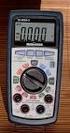 Auto-ranging Digital Multimeter 52-0052-2 INSTRUCTION MANUAL WARNING: READ AND UNDERSTAND THIS MANUAL BEFORE USING YOUR MULTIMETER. FAILURE TO UNDERSTAND AND COMPLY WITH WARNINGS AND OPERATING INSTRUCTIONS
Ground Resistance Clamp On Tester
 USER MANUAL Ground Resistance Clamp On Tester MODEL 382357 Introduction Congratulations on your purchase of Extech s 382357 Ground Resistance Tester. This Clamp on device allows the user to measure ground
72-7730 72-7732 Intelligent Digital Multimeters
 72-7730 72-7732 Intelligent Digital Multimeters Model 72-7730/72-7732 OPERATING MANUAL TABLE OF CONTENTS CHAPTER TITLE PAGE 1. Before You Start Overview Inspection Safety Information Rules For Safe Operation
Instructions A622 100 Amp AC/DC Current Probe 070-8883-03
 Instructions A622 100 Amp AC/DC Current Probe 070-8883-03 Revision A www.tektronix.com 070888303 Copyright Tektronix, Inc. All rights reserved. Tektronix products are covered by U.S. and foreign patents,
User's Guide. Integrating Sound Level Datalogger. Model 407780. Introduction
 User's Guide 99 Washington Street Melrose, MA 02176 Phone 781-665-1400 Toll Free 1-800-517-8431 Visit us at www.testequipmentdepot.com Back to the Extech 407780 Product Page Integrating Sound Level Datalogger
LOXONE 12 Channel Amplifier
 LOXONE 12 Channel Amplifier Item no.: 200110 Thank you for purchasing the Loxone Twelve Channel Amplifier. The versatility of the Amplifier makes it the perfect choice for almost every type of custom multi-room
7 FUNCTION DIGITAL MULTIMETER
 7 FUNCTION DIGITAL MULTIMETER 90899 OPERATING INSTRUCTIONS 3491 Mission Oaks Blvd., Camarillo, CA 93011 Visit our Web site at http://www.harborfreight.com Copyright 2004 by Harbor Freight Tools. All rights
RI-215A Operator s Manual. Part Number: 71-0045RK Revision 0 Released: 10/3/05
 RI-215A Operator s Manual Part Number: 71-0045RK Revision 0 Released: 10/3/05 Warranty RKI Instruments, Inc., warrants gas alarm equipment sold by us to be free from defects in materials and workmanship,
Dual Display Digital Multimeter
 Dual Display Digital Multimeter GDM-8246 GW INSTEK PART NO. 82DM-82460MG1 This manual contains proprietary information, which is protected by copyrights. All rights are reserved. No part of this manual
Physical Specifications (Custom design available.)
 Helmholtz Coils A useful laboratory technique for getting a fairly uniform magnetic field, is to use a pair of circular coils on a common axis with equal currents flowing in the same sense. For a given
Agilent E3633A and E3634A DC Power Supplies
 Service Guide Part Number: E3634-90010 Seventh Edition, April 21, 2014 Copyright Agilent Technologies, Inc. 1998 2014 All Rights Reserved. Agilent E3633A and E3634A DC Power Supplies Agilent Technologies
Benchtop Computer Monitor Generator
 Model: 1280B Benchtop Computer Monitor Generator USER MANUAL Safety Summary The following safety precautions apply to both operating and maintenance personnel and must be observed during all phases of
High Power Programmable DC Power Supplies PVS Series
 Data Sheet High Power Programmable DC Power Supplies The PVS10005, PVS60085, and PVS60085MR programmable DC power supplies offer clean output power up to 5.1 kw, excellent regulation, and fast transient
323/324/325. Calibration Manual. Clamp Meter
 323/324/325 Clamp Meter Calibration Manual February 2013 2012 Fluke Corporation. All rights reserved. Specifications are subject to change without notice. All product names are trademarks of their respective
Current Probes. User Manual
 Current Probes User Manual ETS-Lindgren L.P. reserves the right to make changes to any product described herein in order to improve function, design, or for any other reason. Nothing contained herein shall
User s Guide. Publication number E2697-97001 June 2004. Copyright Agilent Technologies 2003-2004 All Rights Reserved. E2697A 1 MΩ Impedance Adapter
 User s Guide A Publication number E2697-97001 June 2004 Copyright Agilent Technologies 2003-2004 All Rights Reserved. E2697A 1 MΩ Impedance Adapter In This Book This guide provides user and service information
Table of Contents. The Basics of Electricity 2. Using a Digital Multimeter 4. Testing Voltage 8. Testing Current 10. Testing Resistance 12
 Table of Contents The Basics of Electricity 2 Using a Digital Multimeter 4 IDEAL Digital Multimeters An Introduction The Basics of Digital Multimeters is designed to give you a fundamental knowledge of
User Guide. Model 380260 Insulation Tester / Megohmmeter
 User Guide Model 380260 Insulation Tester / Megohmmeter Introduction Congratulations on your purchase of Extech s Insulation Tester/Megohmmeter. The Model 380260 provides three test ranges plus continuity
MPC 4. Machinery Protection Card Type MPC 4 FEATURES. Continuous on-line Machinery Protection Card
 Machinery Protection Card Type FEATURES Continuous on-line Machinery Protection Card Real-time measurement and monitoring using state-of-the-art DSP techniques Fully VME-compatible slave interface Fully
DUAL%CHANNEL BROADBAND%LINEAR%AMPLIFIER Model&A800D
 ELECTRONICS AB DUAL%CHANNEL BROADBAND%LINEAR%AMPLIFIER Model&A800D & HIGH&VOLTAGE& FIXED&GAIN& BROADBAND & 800Vpp&60mA& 100x& DC&to&ca&200&kHz & LOW&OUTPUT&IMPEDANCE& HIGH&SLEW&RATE &
2000 6½-Digit Multimeter
 13 built-in measurement functions 2000 readings/second at 4½ digits Optional scanner cards for multipoint measurements IEEE-488 and RS-232 interfaces Fluke 8840/42 command set Ordering Information 2000
Model UT71A/B OPERATING MANUAL
 Model UT71A/B OPERATING MANUAL CHAPTER TITLE PAGE 1. 2. Before You Start Overview Unpacking Inspection Safety Information Rules For Safe Operation International Electrical Symbols Getting Acquainted Turning
DAB+ / FM Tuner Model: TU-201
 DAB+ / FM Tuner Model: TU-201 Instruction Manual www.pulse-audio.co.uk 1 Safety Information The lightning bolt within a triangle is intended to alert the user to the presence of dangerous voltage levels
4-Channel Thermometer / Datalogger
 USER GUIDE 4-Channel Thermometer / Datalogger RTD and Thermocouple Inputs Model SDL200 Introduction Congratulations on your purchase of the Extech SDL200 Thermometer, an SD Logger Series meter. This meter
1.44 kw Programmable DC Power Supplies XLN Series
 Data sheet 1.44 kw Programmable DC Power Supplies XLN Series New Family of High Density System Power Supplies The B&K Precision XLN series are compact, programmable, single-output DC power supplies, suitable
Dual Laser InfraRed (IR) Thermometer
 User Manual Dual Laser InfraRed (IR) Thermometer MODEL 42570 Introduction Congratulations on your purchase of the Model 42570 IR Thermometer. This Infrared thermometer measures and displays non-contact
Doc.No. NDP 192U-02. Electric Pump Controller CE-124P. Instruction Manual
 Doc.No. NDP 192U-02 Electric Pump Controller CE-124P Instruction Manual 1. Parts Name and Function 1) POWER LED Indicate that CE-124P is powered up. 2) START/STOP KEY (SELECTOR KEY) Used to start and stop
i ChatterBox! Motorcycle Security
 i Before you Start the Installation * Please read this manual to become familiar with the requirements necessary to complete the installation. * Use a high quality multi-meter to test all wires before
Brake module AX5021. Documentation. Please read this document carefully before installing and commissioning the brake module!
 Documentation Brake module AX5021 Please read this document carefully before installing and commissioning the brake module! Version : 1.2 : 2012.03.05 Date Article-no. : TDmlAX-5021-0000-0200 Page 2/8
www.burntec.com User's Guide Integrating Sound Level Datalogger Model 407780
 User's Guide Integrating Sound Level Datalogger Model 407780 Introduction Congratulations on your purchase of the Extech 407780 Integrating Sound Level Meter. The 407780 with programmable integrating time
Impedance 50 (75 connectors via adapters)
 VECTOR NETWORK ANALYZER PLANAR TR1300/1 DATA SHEET Frequency range: 300 khz to 1.3 GHz Measured parameters: S11, S21 Dynamic range of transmission measurement magnitude: 130 db Measurement time per point:
Current Monitoring Kit
 Current Monitoring Kit QUICK START GUIDE DO090-6 CONTENTS Issues: 1) 2.10.02 WP A4 format 2) 2.10.02 Added safety warning 3) 17.3.06 Word A5 format. S1: Removed relay modules. S2: Added MI010. S4.1: added
CAUTION OPC-LM1-IL. Option Card for Encoder of Line Driver Output. Instruction Manual
 Instruction Manual OPC-LM1-IL Option Card for Encoder of Line Driver Output CAUTION Deliver this instruction manual without fail to those who actually operate the equipment. Read this operation manual
Water Leak Detection System
 Water Leak Detection System Installation and Operating Manual 505-334-5865 ph 505-334-5867 fax www.rodisystems.com email:[email protected] 936 Highway 516 Aztec, NM 87410-2828 Manual Revisions and Copyright
RIGOL Data Sheet. DS1000E, DS1000D Series Digital Oscilloscopes DS1102E, DS1052E, DS1102D, DS1052D. Product Overview. Applications. Easy to Use Design
 RIGOL Data Sheet DS1000E, DS1000D Series Digital Oscilloscopes DS1102E, DS1052E, DS1102D, DS1052D Product Overview DS1000E, DS1000D series are kinds of economical digital oscilloscope with high-performance.
Multifunction Process Calibrator
 725 Multifunction Process Calibrator Product Overview PN 1549644 English January 2000 Rev.2, 8/05 2000-2005 Fluke Corporation. All rights reserved. Printed in USA All product names are trademarks of their
User Guide. www.burntec.com. 4 wire Earth Resistance Tester Model GRT300
 User Guide 4 wire Earth Resistance Tester Model GRT300 Introduction Congratulations on your purchase of Extech s 4 Wire Earth Resistance Tester. The Model GRT300 has been designed and tested according
Owner s Manual & Safety Instructions
 Owner s Manual & Safety Instructions Save This Manual Keep this manual for the safety warnings and precautions, assembly, operating, inspection, maintenance and cleaning procedures. Write the product s
Current Monitoring Kit QUICK START GUIDE
 Current Monitoring Kit QUICK START GUIDE Pico Technology EL040 Current Monitoring Kit Quick Start Guide CONTENTS 1 Introduction... 1 2 Kit contents... 3 3 Installation... 3 3.1 Connecting the system together...
User Manual. CFG253 3 MHz Function Generator 070-8362-04
 User Manual CFG253 3 MHz Function Generator 070-8362-04 Copyright Tektronix, Inc. 1993. All rights reserved. Tektronix products are covered by U.S. and foreign patents, issued and pending. Information
Model 3390 Arbitrary Waveform Generator
 www.keithley.com Model 3390 Arbitrary Waveform Generator User s Manual 3390-900-01 Rev. C / January 2009 A G R E A T E R M E A S U R E O F C O N F I D E N C E WARRANTY Keithley Instruments, Inc. warrants
BroadBand PowerShield. User Manual
 BroadBand PowerShield User Manual 990-0375G 12/2006 Chapter 1 General Information The PowerShield provides a power source for broadband telephony and other DC applications. Safety This Safety Guide contains
Agilent 34405A 5 ½ Digit Multimeter
 Agilent 34405A 5 ½ Digit Multimeter User s and Service Guide Agilent Technologies Notices Agilent Technologies, Inc. 2006 2014 No part of this manual may be reproduced in any form or by any means (including
Series 2220 Multichannel Programmable DC Power Supplies
 Series 2220 Multichannel Programmable DC Power Supplies User s Manual www.keithley.com 2220S-900-01 Rev. C / December 2013 *P2220S90001C* 2220S-900-01C A Greater Measure of Confidence A Tektr onix Company
HCS-3300/3302/3304 USB Remote Programmable Laboratory Grade Switching Mode Power Supply
 1. INTRODUCTION HCS-3300/3302/3304 USB Remote Programmable Laboratory Grade Switching Mode Power Supply User Manual This family of efficient, upgraded SMPS with small form factor, auto cross over CV CC,
PERF10 Rubidium Atomic Clock
 Owner s Manual Audio Stanford Research Systems Revision 1.0 February, 2011 2 Certification Stanford Research Systems certifies that this product met its published specifications at the time of shipment.
HIGH RELIABILITY POWER SUPPLY TESTING
 HIGH RELIABILITY POWER SUPPLY TESTING Dale Cigoy Keithley Instruments, Inc. The reliability of a power supply must match or exceed the rest of the system in which it is installed. Generally, this requires
USER MANUAL. Model 6103 3U ForeFront Alarm Card SALES OFFICE (301) 975-1000 TECHNICAL SUPPORT (301) 975-1007. An ISO-9001 Certified Company
 USER MANUAL Model 6103 3U ForeFront Alarm Card An ISO-9001 Certified Company Part# 07M6103 Doc# 123011U Rev. A Revised 7/15/03 SALES OFFICE (301) 975-1000 TECHNICAL SUPPORT (301) 975-1007 CONTENTS 1.0
About this Manual. Support for Your Product
 About this Manual We ve added this manual to the Agilent website in an effort to help you support your product. This manual is the best copy we could find; it may be incomplete or contain dated information.
ADM1TE 5/30A DIN rail single phase two wire energy meter
 ADMTE 5/30A DIN rail single phase two wire energy meter. Safety instruction.2 Foreword.3 Performance criteria.4 Specifications.5 Basic errors.6 Description.7 Dimensions.8 Installation.9 Operating.0 Troubleshooting.
Owner s Manual & Safety Instructions
 Owner s Manual & Safety Instructions Save This Manual Keep this manual for the safety warnings and precautions, assembly, operating, inspection, maintenance and cleaning procedures. Write the product s
Operating Manual Remote Cost Control Monitor
 Operating Manual Remote Cost Control Monitor INTRODUCTION: Congratulations on purchasing the Remote Cost Control. This is a state-of-the-art power monitoring socket that is highly accurate and easy to
JNIOR. Overview. Get Connected. Get Results. JNIOR Model 310. JNIOR Model 312. JNIOR Model 314. JNIOR Model 410
 The INTEG is an Ethernet I/O (digital, analog) device that monitors and controls a small set of process signals. functions as both basic I/O for integration with another application or system AND as a
Agilent U1610/20A Handheld Digital Oscilloscope Quick Start Guide
 Agilent U1610/20A Handheld Digital Oscilloscope Quick Start Guide Verify that you received the following items in the shipment of your handheld scope: 1 Power cable 1 Li-Ion battery pack, 10.8 V (included
64-CHANNEL INTEGRATED AMPLIFIER
 Panasonic 64-CHANNEL INTEGRATED AMPLIFIER Operating Instructions P/N: SU-MED640E Caution for AC main lead FOR YOUR SAFETY, PLEASE READ THE FOLLOWING TEXT CAREFULLY This product is equipped with 2 types
Electrical Safety Tester
 Electrical Safety Tester GPT-9000 Series QUICK START GUIDE GW INSTEK PART NO. 82PT-99040MA1 ISO-9001 CERTIFIED MANUFACTURER This manual contains proprietary information, which is protected by copyright.
THERMAL ANEMOMETRY ELECTRONICS, SOFTWARE AND ACCESSORIES
 TSI and TSI logo are registered trademarks of TSI Incorporated. SmartTune is a trademark of TSI Incorporated. THERMAL ANEMOMETRY ELECTRONICS, SOFTWARE AND ACCESSORIES IFA 300 Constant Temperature Anemometry
1. SAFETY INFORMATION
 RS-232 Sound Level Meter 72-860A INSTRUCTION MANUAL www.tenma.com 1. SAFETY INFORMATION Read the following safety information carefully before attempting to operate or service the meter. Use the meter
BC-5000 OPERATIONS MANUAL BATTERY CAPACITY TESTER COFKO LLC.
 BC-5000 BATTERY CAPACITY TESTER OPERATIONS MANUAL COFKO LLC. COPYRIGHT 2010 1 UNPACKING As you unpack your new BC-5000 battery capacity tester, inspect the tester for signs of shipping damage. If shipping
MANUAL PC1000R [email protected]
 MANUAL PC1000R [email protected] Features The APart PC1000R is a professional multisource CD/USB/SD card music player, equipped with balanced and unbalanced analog outputs, coaxial and optical digital
Amplified High Speed Fiber Photodetectors
 Amplified High Speed Fiber Photodetectors User Guide (800)697-6782 [email protected] www.eotech.com Page 1 of 7 EOT AMPLIFIED HIGH SPEED FIBER PHOTODETECTOR USER S GUIDE Thank you for purchasing your Amplified
How To Use A Power Supply Unit (Upu)
 BRAVER UPS (Uninterruptible Power System) User s Manual Safety CAUTION! This UPS utilizes voltages that may be hazardous. Do not attempt to disassemble the unit. The unit contains no user replaceable parts.
LESTRONIC DV AUTOMATIC 12 OR 24 VOLT DUAL OUTPUT DUAL MODE BATTERY CHARGER MODEL 16350 TYPE 12/24EL40-10ET
 LESTRONIC DV AUTOMATIC 12 OR 2 VOLT DUAL OUTPUT DUAL MODE BATTERY CHARGER MODEL 16350 TYPE 12/2EL0-10ET PLEASE SAVE THESE IMPORTANT SAFETY AND OPERATING INSTRUCTIONS For correct operation of the equipment,
COMPLETE MANUAL. Version: Optic. September 2015 (English), version 1.0. EnergyOT Optic Developed and Manufactured by Genoa Spark, lda Made in Portugal
 Version: Optic COMPLETE MANUAL September 2015 (English), version 1.0. EnergyOT Optic Developed and Manufactured by Genoa Spark, lda Made in Portugal Specifications are subject to change without notice.
HP 33120A Function Generator / Arbitrary Waveform Generator
 User s Guide Part Number 33120-90005 August 1997 For Safety information, Warranties, and Regulatory information, see the pages behind the Index. Copyright Hewlett-Packard Company 1994, 1997 All Rights
LS1024B / LS2024B/ LS3024B. Solar Charge Controller USER MANUAL
 EPSOLAR LS1024B / LS2024B/ LS3024B Solar Charge Controller USER MANUAL Thank you very much for selecting our product! This manual offers important information and suggestions with respect to installation,
Agilent 34405A Multimeter 5.5 Digit Dual Display, Benchtop DMM More Capabilities at a Value Price. Data Sheet
 Agilent 34405A Multimeter 5.5 Digit Dual Display, Benchtop DMM More Capabilities at a Value Price Data Sheet Features 120000 counts resolution 16 built-in measurement functions including temperature and
HP UPS R1500 Generation 3
 HP UPS R1500 Generation 3 Installation Instructions Part Number 650952-001 NOTE: The rating label on the device provides the class (A or B) of the equipment. Class B devices have a Federal Communications
±15 V Current-Limited Power Supply
 USER S GUIDE ±15 V Current-Limited Power Supply Model 0901 Newport Corporation 3635 Peterson Way Santa Clara, CA 95054 www.newport.com/newfocus Warranty Newport Corporation guarantees its products to be
Fluke 2638A Hydra Series III Data Acquisition System/ Digital Multimeter
 Fluke 2638A Hydra Series III Data Acquisition System/ Digital Multimeter Technical Data Price-performance breakthrough in a stand-alone data acquisition system The Fluke Hydra Series III continues the
ABB Drives. User s Manual. Pulse Encoder Interface Module RTAC-01
 ABB Drives User s Manual Pulse Encoder Interface Module RTAC-0 Pulse Encoder Interface Module RTAC-0 User s Manual 3AFE 64486853 REV A EN EFFECTIVE:.5.00 00 ABB Oy. All Rights Reserved. Safety instructions
Technical Note Series
 Technical Note Series SKIN CONDUCTANCE SENSOR (SA9309M) S TN0 0 0 8-0 0 S k i n C o n d u c t a n c e S e n s o r Page 2 IMPORTANT OPERATION INFORMATION WARNING Type BF Equipment Internally powered equipment
Owner's Manual [ S/N LABEL HERE ] Document # BW-BCU5DOC
![Owner's Manual [ S/N LABEL HERE ] Document # BW-BCU5DOC](/thumbs/39/18146231.jpg "Owner's Manual [ S/N LABEL HERE ] Document # BW-BCU5DOC") Owner's Manual [ S/N LABEL HERE ] Document # BW-BCU5DOC BAYweb Remote Model BW-BCU5 Owner's Manual Copyright 2009-2010 Bay Controls, LLC Part Number: BW-BCU5DOC Revision: 0.2 April 18, 2010 BAYweb is a
Owner's Manual [ S/N LABEL HERE ] Document # BW-BCU5DOC BAYweb Remote Model BW-BCU5 Owner's Manual Copyright 2009-2010 Bay Controls, LLC Part Number: BW-BCU5DOC Revision: 0.2 April 18, 2010 BAYweb is a
MODEL 2202IQ (1991-MSRP $549.00)
 F O R T H E L O V E O F M U S I C F O R T H E L O V E O F M U S I C MODEL 2202IQ (1991-MSRP $549.00) OWNER'S MANUAL AND INSTALLATION GUIDE INTRODUCTION Congratulations on your decision to purchase a LINEAR