
RegoXchange Content List by RegoXchange
|
|
|
- Joseph Gallagher
- 9 years ago
- Views:
Transcription
1 ID Title Assignment Type Description EX0003 EX0003 EX0006 EX0006 EX0007 EX0007 % Time by Type and Timescale - Column Graph - % Time by Type and Timescale - Column Graph - SQL % Time by Type and Timescale - Grid - % Time by Type and Timescale - Grid - SQL Active Processes - Active Processes - SQL Portlet The Percent Time by Type and Timescale - Graph portlet shows a breakout of time by timescale for resources the logged in user has view rights to. This portlet gives the Clarity user the ability to show the amount of hours spent on each project type by week, month, quarter and year. Using this portlet, the Clarity user can get an overview of all hours in a time period or use the filter to search for a specific dataset (as required). The portlet provides a filter for OBS and date ranges. Portlet The Percent Time by Type and Timescale - Graph portlet shows a breakout of time by timescale for resources the logged in user has view rights to. This portlet gives the Clarity user the ability to show the amount of hours spent on each project type by week, month, quarter and year. Using this portlet, the Clarity user can get an overview of all hours in a time period or use the filter to search for a specific dataset (as required). The portlet provides a filter for OBS and date ranges. Portlet The Percent Time by Type and Timescale - Grid portlet shows a breakout of time by timescale for resources the logged in user has view rights for using the timeslices. This portlet gives the Clarity user the ability to show the amount of hours spent on a project by week, month, quarter and year. Using this portlet, the Clarity user can get an overview of all hours in a time period or use the filter to search for a specific dataset (as required). The portlet provides a filter for OBS and date ranges. Portlet The Percent Time by Type and Timescale - Grid portlet shows a breakout of time by timescale for resources the logged in user has view rights for using the timeslices. This portlet gives the Clarity user the ability to show the amount of hours spent on a project by week, month, quarter and year. Using this portlet, the Clarity user can get an overview of all hours in a time period or use the filter to search for a specific dataset (as required). The portlet provides a filter for OBS and date ranges. Portlet The Active Processes allows you to view all of the workflow processes within the system. It shows information about the process: the objects related, the start type, and if the process has subprocesses, jobs, or GEL scripts. This portlet is used by admins to determine how many processes are currently running in the system and on which objects. It will also display the start action, how many GEL scripts reside in the process, the run count and how many the sub-processes each process has. This information is helpful during upgrades and other testing. Portlet The Active Processes allows you to view all of the active workflow processes within the system. It shows information about the process: the objects related, the start type, and if the process has subprocesses, jobs, or GEL scripts. This portlet is used by admins to determine how many processes are currently running in the system and on which objects. It will also display the start action, how many GEL scripts reside in the process, the run count and how many the sub-processes each process has. This page 1 / 65

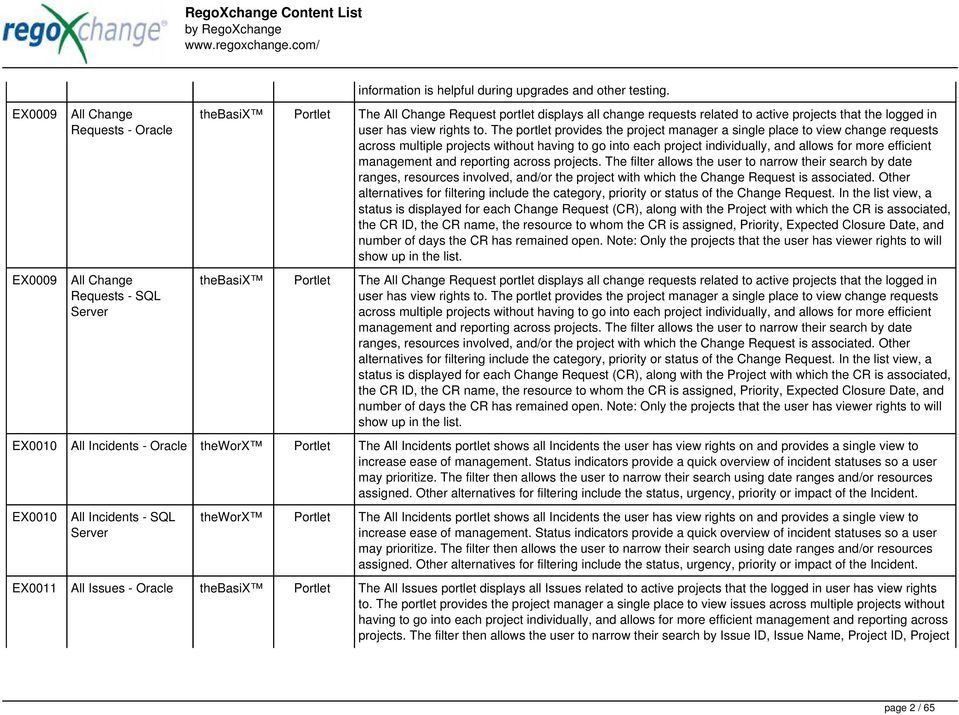
2 EX0009 EX0009 All Change Requests - All Change Requests - SQL information is helpful during upgrades and other testing. Portlet The All Change Request portlet displays all change requests related to active projects that the logged in user has view rights to. The portlet provides the project manager a single place to view change requests across multiple projects without having to go into each project individually, and allows for more efficient management and reporting across projects. The filter allows the user to narrow their search by date ranges, resources involved, and/or the project with which the Change Request is associated. Other alternatives for filtering include the category, priority or status of the Change Request. In the list view, a status is displayed for each Change Request (CR), along with the Project with which the CR is associated, the CR ID, the CR name, the resource to whom the CR is assigned, Priority, Expected Closure Date, and number of days the CR has remained open. Note: Only the projects that the user has viewer rights to will show up in the list. Portlet The All Change Request portlet displays all change requests related to active projects that the logged in user has view rights to. The portlet provides the project manager a single place to view change requests across multiple projects without having to go into each project individually, and allows for more efficient management and reporting across projects. The filter allows the user to narrow their search by date ranges, resources involved, and/or the project with which the Change Request is associated. Other alternatives for filtering include the category, priority or status of the Change Request. In the list view, a status is displayed for each Change Request (CR), along with the Project with which the CR is associated, the CR ID, the CR name, the resource to whom the CR is assigned, Priority, Expected Closure Date, and number of days the CR has remained open. Note: Only the projects that the user has viewer rights to will show up in the list. EX0010 All Incidents - Portlet The All Incidents portlet shows all Incidents the user has view rights on and provides a single view to increase ease of management. Status indicators provide a quick overview of incident statuses so a user may prioritize. The filter then allows the user to narrow their search using date ranges and/or resources assigned. Other alternatives for filtering include the status, urgency, priority or impact of the Incident. EX0010 All Incidents - SQL Portlet The All Incidents portlet shows all Incidents the user has view rights on and provides a single view to increase ease of management. Status indicators provide a quick overview of incident statuses so a user may prioritize. The filter then allows the user to narrow their search using date ranges and/or resources assigned. Other alternatives for filtering include the status, urgency, priority or impact of the Incident. EX0011 All Issues - Portlet The All Issues portlet displays all Issues related to active projects that the logged in user has view rights to. The portlet provides the project manager a single place to view issues across multiple projects without having to go into each project individually, and allows for more efficient management and reporting across projects. The filter then allows the user to narrow their search by Issue ID, Issue Name, Project ID, Project page 2 / 65
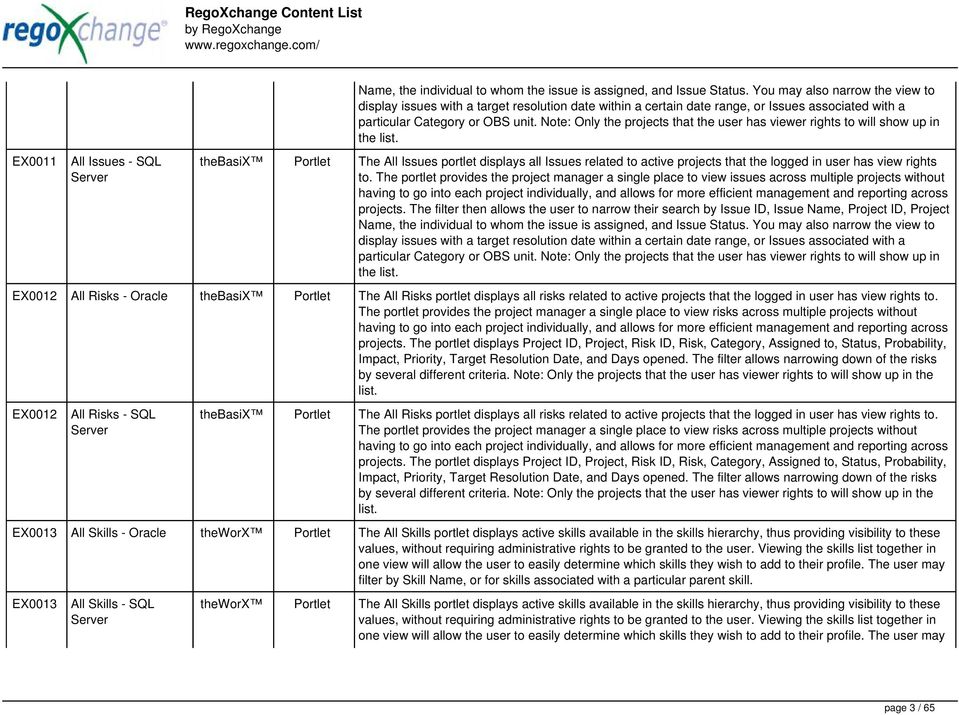
3 EX0011 All Issues - SQL Name, the individual to whom the issue is assigned, and Issue Status. You may also narrow the view to display issues with a target resolution date within a certain date range, or Issues associated with a particular Category or OBS unit. Note: Only the projects that the user has viewer rights to will show up in the list. Portlet The All Issues portlet displays all Issues related to active projects that the logged in user has view rights to. The portlet provides the project manager a single place to view issues across multiple projects without having to go into each project individually, and allows for more efficient management and reporting across projects. The filter then allows the user to narrow their search by Issue ID, Issue Name, Project ID, Project Name, the individual to whom the issue is assigned, and Issue Status. You may also narrow the view to display issues with a target resolution date within a certain date range, or Issues associated with a particular Category or OBS unit. Note: Only the projects that the user has viewer rights to will show up in the list. EX0012 All Risks - Portlet The All Risks portlet displays all risks related to active projects that the logged in user has view rights to. The portlet provides the project manager a single place to view risks across multiple projects without having to go into each project individually, and allows for more efficient management and reporting across projects. The portlet displays Project ID, Project, Risk ID, Risk, Category, Assigned to, Status, Probability, Impact, Priority, Target Resolution Date, and Days opened. The filter allows narrowing down of the risks by several different criteria. Note: Only the projects that the user has viewer rights to will show up in the list. EX0012 All Risks - SQL Portlet The All Risks portlet displays all risks related to active projects that the logged in user has view rights to. The portlet provides the project manager a single place to view risks across multiple projects without having to go into each project individually, and allows for more efficient management and reporting across projects. The portlet displays Project ID, Project, Risk ID, Risk, Category, Assigned to, Status, Probability, Impact, Priority, Target Resolution Date, and Days opened. The filter allows narrowing down of the risks by several different criteria. Note: Only the projects that the user has viewer rights to will show up in the list. EX0013 All Skills - Portlet The All Skills portlet displays active skills available in the skills hierarchy, thus providing visibility to these values, without requiring administrative rights to be granted to the user. Viewing the skills list together in one view will allow the user to easily determine which skills they wish to add to their profile. The user may filter by Skill Name, or for skills associated with a particular parent skill. EX0013 All Skills - SQL Portlet The All Skills portlet displays active skills available in the skills hierarchy, thus providing visibility to these values, without requiring administrative rights to be granted to the user. Viewing the skills list together in one view will allow the user to easily determine which skills they wish to add to their profile. The user may page 3 / 65
4 EX0014 All Status Reports - EX0014 All Status Reports - SQL filter by Skill Name, or for skills associated with a particular parent skill. Portlet The All Status Reports portlet displays any published Status Report related to a project or across multiple projects. The filter then allows the user to narrow their search by Project Manager, Project, Status or Overall Status Category (overall, cost & effort, scope or schedule). The user may also select if they wish to view only current Status Reports, or to include historical reports as well. The portlet provides the project manager a single place to view all of the status reports without having to go into each project individually, and allows for more efficient management and reporting across projects. Note: Only the projects that the user has view rights to will show up in the list. Portlet The All Status Reports portlet displays any published Status Report related to a project or across multiple projects. The filter then allows the user to narrow their search by Project Manager, Project, Status or Overall Status Category (overall, cost & effort, scope or schedule). The user may also select if they wish to view only current Status Reports, or to include historical reports as well. The portlet provides the project manager a single place to view all of the status reports without having to go into each project individually, and allows for more efficient management and reporting across projects. Note: Only the projects that the user has view rights to will show up in the list. EX0015 All Tasks - Portlet The All Tasks portlet displays all tasks related to active projects that the logged in user has view rights to. The portlet provides the project manager a single place to view tasks across multiple projects without having to go into each project individually, and allows for more efficient management and reporting across projects. The portlet displays project actuals and estimates from the project (datamart tables). The portlet allows analysis like: PMs may have several critical tasks that were supposed to start on a certain date. To verify progress, they filter for that start date to perform a review of the tasks. PMs may have resources that could leave the project. They can review their tasks and identify which need to be reassigned. PMs can review days late to see how tasks are doing against the baseline date (14 is red) PMs can review days old to see how tasks are doing against today s date (14 is red) EX0015 EX0016 All Tasks - SQL Allocation Compliance Column Chart - Portlet The All Tasks portlet displays all tasks related to active projects that the logged in user has view rights to. The portlet provides the project manager a single place to view tasks across multiple projects without having to go into each project individually, and allows for more efficient management and reporting across projects. The portlet displays project actuals and estimates from the project (datamart tables). Portlet The Allocation Compliance Column Chart portlet displays allocation compliance information for all resources within a given OBS - showing one column for each child OBS of the OBS selected. The portlet displays information in three ways: Under Allocated (less than 80%), Appropriately Allocated (between %), and Over Allocation (over 120%). Using this portlet, resource managers or the PMO will be able to glance at the chart and determine how a majority of their resources are allocated. page 4 / 65

5 EX0016 EX0017 EX0017 EX0018 EX0018 EX0019 Allocation Compliance Column Chart - SQL Allocation Compliance for PM - Allocation Compliance for PM - SQL Allocation Compliance for RM - Allocation Compliance for RM - SQL Allocation Compliance Pie Chart - Portlet The Allocation Compliance Column Chart portlet displays allocation compliance information for all resources within a given OBS - showing one column for each child OBS of the OBS selected. The portlet displays information in three ways: Under Allocated (less than 80%), Appropriately Allocated (between %), and Over Allocation (over 120%). Using this portlet, resource managers or the PMO will be able to glance at the chart and determine how a majority of their resources are allocated. Portlet The Allocation Compliance by Person (Project Manager) portlet gives a view of resource allocation compliance for active resources on the team of an investment the logged in user is the manager for. It allows the PM to see resources on their project over the coming months and whether they are over or under allocated. This portlet leverages the daily allocation and daily availability slices as well as only active investments. The portlet provides filters for specific dates, filtering by resource ID, and resource name may also be added. Portlet The Allocation Compliance by Person (Project Manager) portlet gives a view of resource allocation compliance for active resources on the team of an investment the logged in user is the manager for. It allows the PM to see resources on their project over the coming months and whether they are over or under allocated. This portlet leverages the daily allocation and daily availability slices as well as only active investments. The portlet provides filters for specific dates, filtering by resource ID, and resource name may also be added. Portlet The Allocation Compliance by Resource (Resource Manager) portlet gives a view of resource allocation compliance for all active resources the logged in user is the Resource Manager for. It allows the RM to see resources they manage over the coming months and whether they are over or under allocated. This portlet leverages the daily allocation and daily availability slices as well as only active investments. The portlet provides filters for specific dates, filtering by resource ID, and resource name may also be added. Portlet The Allocation Compliance by Resource (Resource Manager) portlet gives a view of resource allocation compliance for all active resources the logged in user is the Resource Manager for. It allows the RM to see resources they manage over the coming months and whether they are over or under allocated. This portlet leverages the daily allocation and daily availability slices as well as only active investments. The portlet provides filters for specific dates, filtering by resource ID, and resource name may also be added. Portlet The Allocation Compliance Pie Chart portlet gives a view of active resource allocation compliance for all resources displayed in a pie chart. It allows the user to the percentage of resources over, under, and adequately staffed on projects over a selected time period. This portlet leverages the daily allocation and daily availability slices as well as only active investments. The portlet provides filters for specific dates (required) and OBS. page 5 / 65

6 EX0019 EX0228 EX0228 EX0179 EX0179 EX0178 EX0178 EX0021 EX0021 Allocation Compliance Pie Chart - SQL Application Cost by Goal - Application Cost by Goal - SQL Application Cost by Year - Application Cost by Year - SQL Application Risk by Goal - Application Risk by Goal - SQL Assignments by Task Over Time - Assignments by Task Over Time - Portlet The Allocation Compliance Pie Chart portlet gives a view of active resources' allocation compliance within a date range and OBS displayed in a pie chart. It allows the user to the percentage of resources over, under, and adequately staffed on projects over a selected time period. This portlet leverages the daily allocation and daily availability slices as well as only active investments. The portlet provides filters for specific dates (required) and OBS. Portlet The Application Cost by Goal portlet displays the planned cost of all active applications within a userdefined timeframe, summarized by goal in a pie chart. This portlet provides management with a quick overview of cost by goal within a year without navigating to each application individually. Portlet The Application Cost by Goal portlet displays the planned cost of all active applications within a userdefined timeframe, summarized by goal in a pie chart. This portlet provides management with a quick overview of cost by goal within a year without navigating to each application individually. Portlet The Application Cost by Year portlet displays the active application cost by year, summarized by goal. The application cost is pulled from the application's planned cost and is displayed by year, with colors representing each application goal. This portlet provides management with a quick overview of all application costs without having to navigate to each application individually. Portlet The Application Cost by Year portlet displays the active application cost by year, summarized by goal. The application cost is pulled from the application's planned cost and is displayed by year, with colors representing each application goal. This portlet provides management with a quick overview of all application costs without having to navigate to each application individually. Portlet The Application Risk by Goal portlet displays a count of active applications by goal with a subcount by risk. The graph is color-coded by risk rating: 1-33 Green Yellow Red The portlet provides a quick overview of the risk rating for each application within each goal. Portlet The Application Risk by Goal portlet displays a count of active applications by goal with a subcount by risk. The graph is color-coded by risk rating: 1-33 Green Yellow Red The portlet provides a quick overview of the risk rating for each application within each goal. Portlet The Assignments by Task Over Time portlet displays all assignments by task for all resources using the timeslices. This portlet is useful for determining which tasks a user is assigned to or how many hours the user is assigned to a task. The user may filter on certain criteria that include: project name/id, date range, resource name/id, and resource OBS unit. Portlet The Assignments by Task Over Time portlet displays all assignments by task for all resources using the timeslices. This portlet is useful for determining which tasks a user is assigned to or how many hours the page 6 / 65

7 SQL user is assigned to a task. The user may filter on certain criteria that include: project name/id, date range, resource name/id, and resource OBS unit. EX0022 Audit Trail - Portlet The Audit Trail portlet displays information about audited attributes. It is nearly identical to the view and functionality of the Global Audit Trail offering on the admin side. It offers filters for the Object ID (resource internal id, project internal id, etc.), Object Name (Jim Brown, Project A, etc.), Changed By, a date range for the changed date and the operation of the change. It is capable of reporting on the following: - Object (Resource, Project, etc.) - Object Name (Jim Brown, Project A, etc.) - Parent Name (if the object were a sub-object) - Attribute code (the attribute id from the attributes list on the object) - Operation (Update, Insert, Delete) - Changed By - Old Value - New Value - Date Changed EX0022 EX0133 EX0133 Audit Trail - SQL Auto-Approve Old Timesheets - Auto-Approve Old Timesheets - SQL EX0339 Benefits by Year - EX0339 Benefits By Year - SQL Portlet The Audit Trail portlet displays information about audited attributes. It is nearly identical to the view and functionality of the Global Audit Trail offering on the admin side. It offers filters for the Object ID (resource internal id, project internal id, etc.), Object Name (Jim Brown, Project A, etc.), Changed By, a date range for the changed date and the operation of the change. It is capable of reporting on the following: - Object (Resource, Project, etc.) - Object Name (Jim Brown, Project A, etc.) - Parent Name (if the object were a sub-object) - Attribute code (the attribute id from the attributes list on the object) - Operation (Update, Insert, Delete) - Changed By - Old Value - New Value - Date Changed The Auto-Approve Old Timesheets workflow process can be run through the "Execute a Process" job, and may be used to quickly close out timesheets for a specified timeframe for period closure. The workflow will execute a query that will automatically approve ALL (no matter the status of the timesheet) timesheets that contain more than 0 hours and have a time period start date before the Approve Date specified within the process itself. The Auto-Approve Old Timesheets workflow process can be run through the "Execute a Process" job, and may be used to quickly close out timesheets for a specified timeframe for period closure. The workflow will execute a query that will automatically approve ALL (no matter the status of the timesheet) timesheets that have a time period start date before the Approve Date specified within the process itself. Portlet The Benefits by Year portlet displays all benefit plans within projects. The information is displayed by years, includes the cost associated cost plan, and may be used to view potential benefit over several years. The information may be filtered by date range, OBS, portfolio ID, or if the benefit plan is the plan of record. Portlet The Benefits by Year portlet displays all benefit plans within projects. The information is displayed by years, includes the cost associated cost plan, and may be used to view potential benefit over several years. The information may be filtered by date range, OBS, portfolio ID, or if the benefit plan is the plan of page 7 / 65

8 record. EX0220 EX0220 EX0660 Bubble Charts Quick Reference Guide - Bubble Charts Quick Reference Guide - SQL Business Objects Best Practices EX0026 Capacity Graph - Investment - EX0026 Capacity Graph - Investment - SQL EX0025 Capacity Graph - EX0027 Capacity Graph - Personal - Technical Trick Technical Trick Documents The Bubble Charts Quick Reference Guide technical trick provides an administrator with a quick tutorial on configuring bubble charts colors. Bubble charts, while providing a wealth of information, may also be very confusing to configure. Using this guide, users will be able to customize their bubble charts colors in a few steps. The Bubble Charts Quick Reference Guide technical trick provides an administrator with a quick tutorial on configuring bubble charts colors. Bubble charts, while providing a wealth of information, may also be very confusing to configure. Using this guide, users will be able to customize their bubble charts colors in a few steps. A document that outlines and explains best practices for Business Objects in CA Clarity. Content includes Implementation Plan, Initial Business Object Setup, Overall Architecture, Designer Tips & Tricks, Important Universe Parameters, Working with Tables & Joins, Classes & Objects, Migrating Universes & Reports, Maintaining & Enhancing Universes, and Upgrading Business Objects & Universes. Portlet The Capacity Graph - Investment portlet displays Availability, Allocations, Assignments and Actuals for active resources in a single project. This portlet pulls from timeslices and allows the user to filter on weekly, monthly, or quarterly data. This portlet provides a Project Manager with a simple way to analyze: Allocations vs. Actuals and Allocations vs. ETC. Depending on metric goals, the graph allows the user to determine where areas of improvement may exist. Portlet The Capacity Graph - Investment portlet displays Availability, Allocations, Assignments and Actuals for active resources in a single project. This portlet pulls from timeslices and allows the user to filter on weekly, monthly, or quarterly data. This portlet provides a Project Manager with a simple way to analyze: Allocations vs. Actuals and Allocations vs. ETC. Depending on metric goals, the graph allows the user to determine where areas of improvement may exist. Portlet The Capacity Graph portlet displays Availability, Allocations, Actuals and Assignments for one or more active resource(s) in a single view. This portlet pulls data from timeslices, and allows the user to filter on a weekly, monthly or quarterly data. The Estimated Time to Complete (ETC) and Allocation data will only show for projects that are active. This portlet provides Resource Managers, PMOs and Executives with a simple way to analyze: Allocations vs. Availability, Allocations vs. Actuals, Allocations vs. ETC and ETC vs. Availability. The graph allows the user to determine where areas of improvement may exist and quickly identify potential areas of constraint. Portlet The Capacity Graph - Personal portlet displays Allocation, Availability The Capacity Graph portlet displays Availability, Allocations, Actuals and Assignments for a Clarity user in a single view. This portlet pulls data page 8 / 65
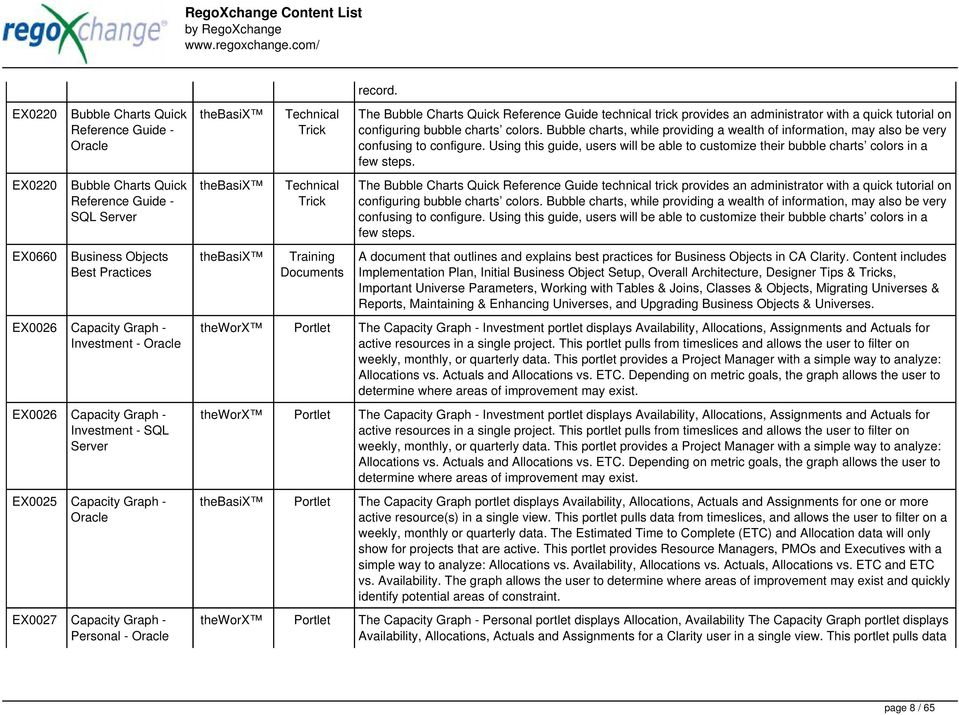
9 from timeslices, and allows the user to filter on a weekly, monthly or quarterly data. The Estimated Time to Complete (ETC) and Allocation data will only show for projects that are active. This portlet provides a Clarity user with a simple way to analyse their: Allocations vs. Availability, Allocations vs. Actuals, Allocations vs. ETC and ETC vs. Availability. The graph allows the user to determine where areas of improvement may exist and quickly identify potential areas of constraint. EX0027 Capacity Graph - Personal - SQL EX0025 Capacity Graph - SQL EX0236 EX0236 EX0251 Capacity Planning by Role and Skill - Capacity Planning by Role and Skill - SQL Capacity Planning by Skill - Portlet The Capacity Graph portlet displays Availability, Allocations, Actuals and Assignments for a Clarity user in a single view. This portlet pulls data from timeslices, and allows the user to filter on a weekly, monthly or quarterly data. The Estimated Time to Complete (ETC) and Allocation data will only show for projects that are active. This portlet provides a Clarity user with a simple way to analyse their: Allocations vs. Availability, Allocations vs. Actuals, Allocations vs. ETC and ETC vs. Availability. The graph allows the user to determine where areas of improvement may exist and quickly identify potential areas of constraint. Portlet The Capacity Graph portlet displays Availability, Allocations, Actuals and Assignments for one or more active resource(s) in a single view. This portlet pulls data from timeslices, and allows the user to filter on a weekly, monthly or quarterly data. The Estimated Time to Complete (ETC) and Allocation data will only show for projects that are active. This portlet provides Resource Managers, PMOs and Executives with a simple way to analyze: Allocations vs. Availability, Allocations vs. Actuals, Allocations vs. ETC and ETC vs. Availability. The graph allows the user to determine where areas of improvement may exist and quickly identify potential areas of constraint. Portlet The Capacity Planning by Role and Skill portlet displays all availability and demand in the system summarized by role. The portlet also allows the user to drill-down further into the role and separate the hours by primary skill. This portlet leverages the timeslices, and pulls availability from resources and allocation from the team records. The user is able to narrow the results by filtering on start/finish date, time period, active projects, and active resources. Using this portlet, a resource manager can quickly determine resource needs, skill needs, and overall allocation/availability of roles. Portlet The Capacity Planning by Role and Skill portlet displays all availability and demand in the system summarized by role. The portlet also allows the user to drill-down further into the role and separate the hours by primary skill. This portlet leverages the timeslices, and pulls availability from resources and allocation from the team records. The user is able to narrow the results by filtering on start/finish date, time period, active projects, and active resources. Using this portlet, a resource manager can quickly determine resource needs, skill needs, and overall allocation/availability of roles. Portlet The Capacity Planning by Skill requires a Custom Attribute to be created on the resource Object called, Primary Skill. The custom attribute has an ID: rego_primary_skill, and a lookup to Browse Skills. page 9 / 65

10 EX0251 EX0242 EX0242 Capacity Planning by Skill - SQL Changing Application Logo and Title - Changing Application Logo and Title - SQL EX0239 Clarity DB Schema - EX0239 Clarity DB Schema - SQL EX0163 EX0163 Clarity Hidden Pages - View and Flush Caches - Clarity Hidden Pages - View and Portlet The Capacity Planning by Skill portlet displays the capacity and demand by skill for a selected timeframe. This portlet is used to determine which skills are in high demand, being used efficiently, and how much capacity may be remaining for the time period. The portlet may be filtered by skill name, resource OBS or project OBS to narrow the results. Technical Trick Technical Trick The Changing Application Logo and Title tech trick provides an overview of how to change the logo and title within the application. This allows administrators to rebrand Clarity to their own logo and title. By customizing the logo, employees may be more encouraged to take ownership of the tool. The Changing Application Logo and Title tech trick provides an overview of how to change the logo and title within the application. This allows administrators to rebrand Clarity to their own logo and title. By customizing the logo, employees may be more encouraged to take ownership of the tool. Portlet The Clarity Schema portlet provides information necessary for developing new or updating existing content for Clarity Portlets, Processes, Lookups, Reports, or even Fields on an Object. It contains 400+ tables and almost 5800 fields before customizations. Developers will utilize this portlet to find the descriptions of the most used tables/fields, view available fields, and view the table joins needed when writing NSQL. In addition to the schema information, this portlet allows the user to filter by: Table Name, Field Name, Field Type, Description, and a complete set of Groupings that can be utilized to develop powerful views and maximize your Clarity investment. Clicking on the paperclip link next to the Table Name will show the user possible joins that can be used. Portlet The Clarity Schema portlet provides information necessary for developing new or updating existing content for Clarity Portlets, Processes, Lookups, Reports, or even Fields on an Object. It contains 400+ tables and almost 5800 fields before customizations. Developers will utilize this portlet to find the descriptions of the most used tables/fields, view available fields, and view the table joins needed when writing NSQL. In addition to the schema information, this portlet allows the user to filter by: Table Name, Field Name, Field Type, Description, and a complete set of Groupings that can be utilized to develop powerful views and maximize your Clarity investment. Clicking on the paperclip link next to the Table Name will show the user possible joins that can be used. Technical Trick Technical Trick The CA Clarity Hidden Page Flush Caches document provides an overview of how to clear the cache on an application server without exiting the CA Clarity Application itself utilizing a hidden page within the system. The CA Clarity Hidden Page Flush Caches document provides an overview of how to clear the cache on an application server without exiting the CA Clarity Application itself utilizing a hidden page within the page 10 / 65
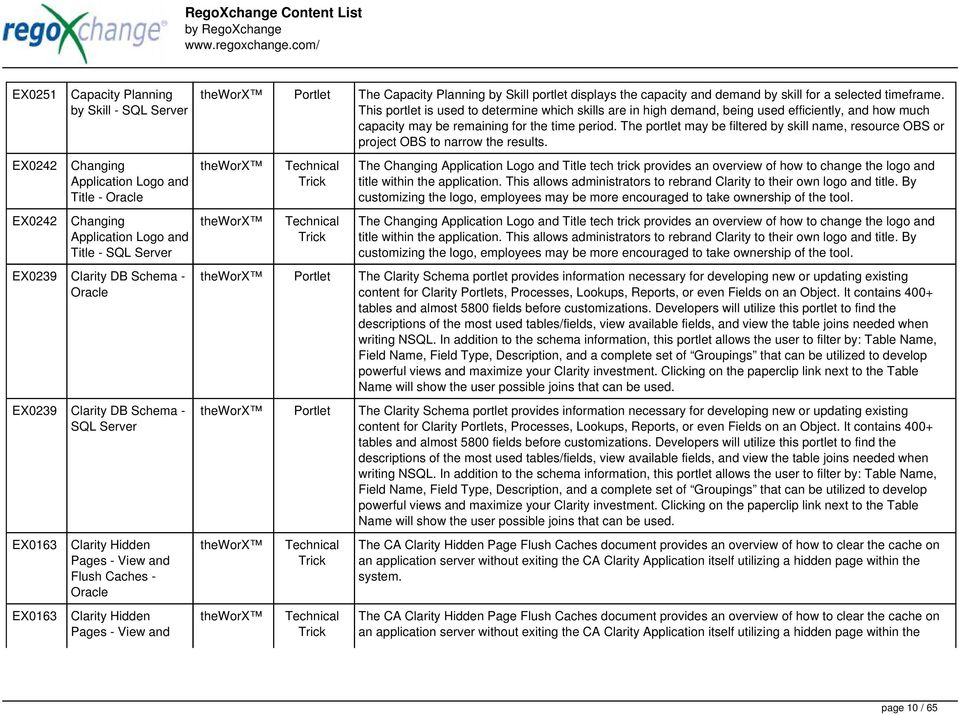
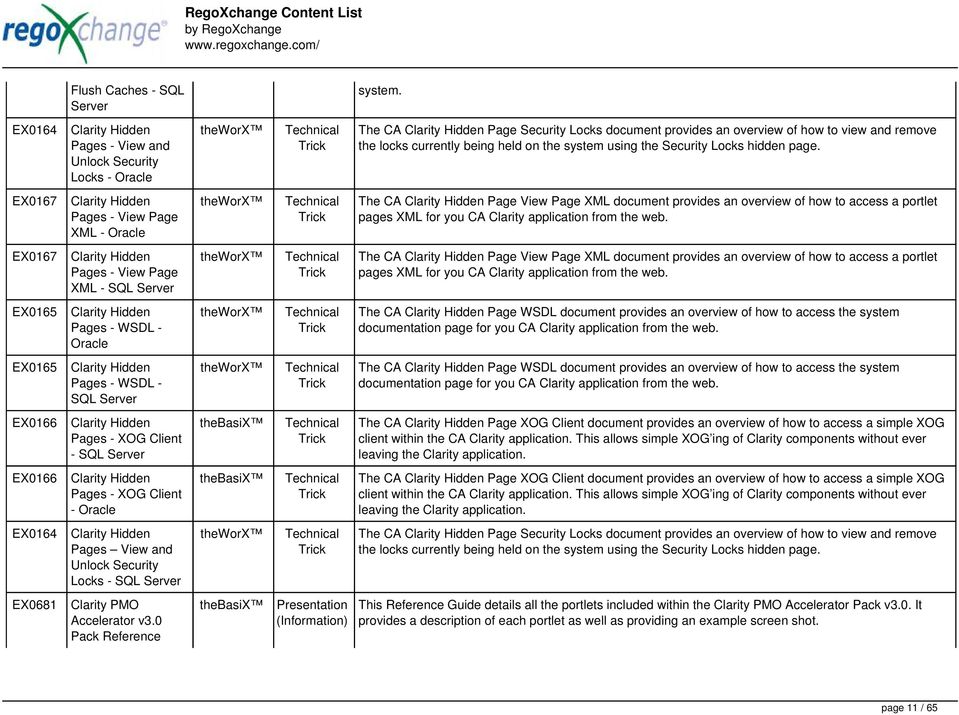
11 Flush Caches - SQL system. EX0164 Clarity Hidden Pages - View and Unlock Security Locks - Technical Trick The CA Clarity Hidden Page Security Locks document provides an overview of how to view and remove the locks currently being held on the system using the Security Locks hidden page. EX0167 Clarity Hidden Pages - View Page XML - Technical Trick The CA Clarity Hidden Page View Page XML document provides an overview of how to access a portlet pages XML for you CA Clarity application from the web. EX0167 Clarity Hidden Pages - View Page XML - SQL Technical Trick The CA Clarity Hidden Page View Page XML document provides an overview of how to access a portlet pages XML for you CA Clarity application from the web. EX0165 Clarity Hidden Pages - WSDL - Technical Trick The CA Clarity Hidden Page WSDL document provides an overview of how to access the system documentation page for you CA Clarity application from the web. EX0165 Clarity Hidden Pages - WSDL - SQL Technical Trick The CA Clarity Hidden Page WSDL document provides an overview of how to access the system documentation page for you CA Clarity application from the web. EX0166 Clarity Hidden Pages - XOG Client - SQL Technical Trick The CA Clarity Hidden Page XOG Client document provides an overview of how to access a simple XOG client within the CA Clarity application. This allows simple XOG ing of Clarity components without ever leaving the Clarity application. EX0166 Clarity Hidden Pages - XOG Client - Technical Trick The CA Clarity Hidden Page XOG Client document provides an overview of how to access a simple XOG client within the CA Clarity application. This allows simple XOG ing of Clarity components without ever leaving the Clarity application. EX0164 Clarity Hidden Pages View and Unlock Security Locks - SQL Technical Trick The CA Clarity Hidden Page Security Locks document provides an overview of how to view and remove the locks currently being held on the system using the Security Locks hidden page. EX0681 Clarity PMO Accelerator v3.0 Pack Reference Presentation (Information) This Reference Guide details all the portlets included within the Clarity PMO Accelerator Pack v3.0. It provides a description of each portlet as well as providing an example screen shot. page 11 / 65
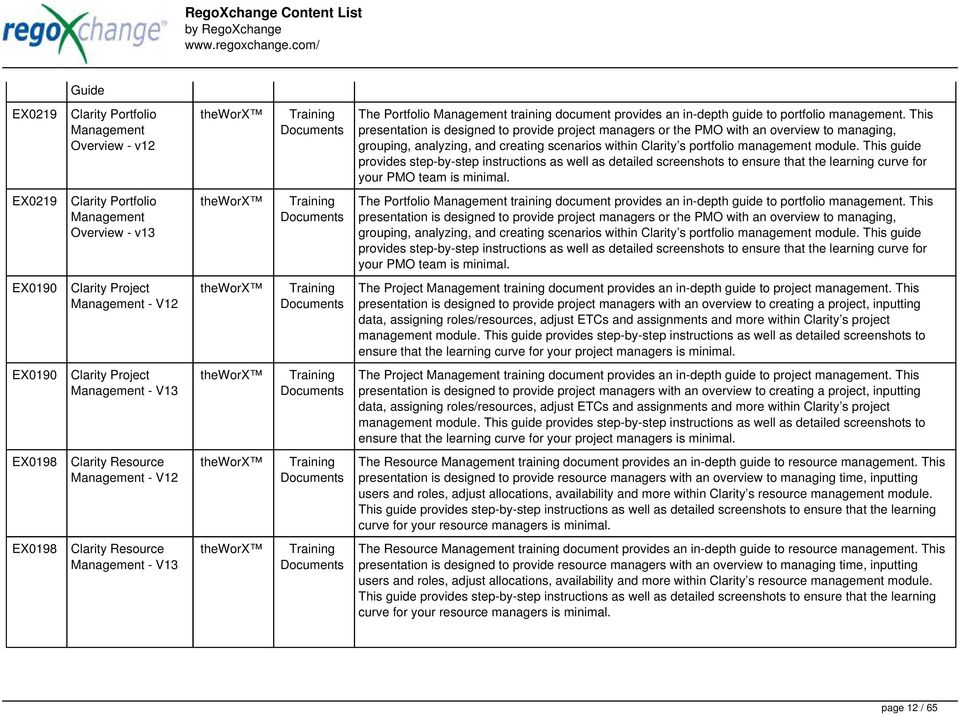
12 Guide EX0219 Clarity Portfolio Management Overview - v12 Documents The Portfolio Management training document provides an in-depth guide to portfolio management. This presentation is designed to provide project managers or the PMO with an overview to managing, grouping, analyzing, and creating scenarios within Clarity s portfolio management module. This guide provides step-by-step instructions as well as detailed screenshots to ensure that the learning curve for your PMO team is minimal. EX0219 Clarity Portfolio Management Overview - v13 Documents The Portfolio Management training document provides an in-depth guide to portfolio management. This presentation is designed to provide project managers or the PMO with an overview to managing, grouping, analyzing, and creating scenarios within Clarity s portfolio management module. This guide provides step-by-step instructions as well as detailed screenshots to ensure that the learning curve for your PMO team is minimal. EX0190 Clarity Project Management - V12 Documents The Project Management training document provides an in-depth guide to project management. This presentation is designed to provide project managers with an overview to creating a project, inputting data, assigning roles/resources, adjust ETCs and assignments and more within Clarity s project management module. This guide provides step-by-step instructions as well as detailed screenshots to ensure that the learning curve for your project managers is minimal. EX0190 Clarity Project Management - V13 Documents The Project Management training document provides an in-depth guide to project management. This presentation is designed to provide project managers with an overview to creating a project, inputting data, assigning roles/resources, adjust ETCs and assignments and more within Clarity s project management module. This guide provides step-by-step instructions as well as detailed screenshots to ensure that the learning curve for your project managers is minimal. EX0198 Clarity Resource Management - V12 Documents The Resource Management training document provides an in-depth guide to resource management. This presentation is designed to provide resource managers with an overview to managing time, inputting users and roles, adjust allocations, availability and more within Clarity s resource management module. This guide provides step-by-step instructions as well as detailed screenshots to ensure that the learning curve for your resource managers is minimal. EX0198 Clarity Resource Management - V13 Documents The Resource Management training document provides an in-depth guide to resource management. This presentation is designed to provide resource managers with an overview to managing time, inputting users and roles, adjust allocations, availability and more within Clarity s resource management module. This guide provides step-by-step instructions as well as detailed screenshots to ensure that the learning curve for your resource managers is minimal. page 12 / 65
13 EX0679 Clarity Solution Pack Reference Guide Presentation (Information) This Reference Guide details all the reports and dashboards included within the Clarity Solution Pack. It provides a description of each as well as providing an example screen shot. EX0217 Clarity Time Entry - Quick Reference Guide Documents The Clarity Time Entry Quick Reference Guide is a two-page document, intended to be utilized as quick reference for any questions relating to Clarity Time Entry. Topics such as accessing timesheets, adding tasks to the timesheet and submitting, modifying, approving and adjusting timesheet data are covered in this two-page reference. The document may be printed and posted at your desk and referred to should any questions arise during your time entry process. EX0199 Clarity Timesheets - Module 1: Accessing Timesheets - m4v This video covers the process of accessing timesheets within Clarity, both as a team member and as a Project or Resource Manager. EX0199 Clarity Timesheets - Module 1: Accessing Timesheets - wmv This video covers the process of accessing timesheets within Clarity, both as a team member and as a Project or Resource Manager. EX0200 Clarity Timesheets - Module 2: Adding Tasks and Entering & Submitting Time - m4v This video covers the process of adding tasks to the timesheet using Populate and Add Task, using the timesheet notes functionality, entering timesheet data, updating ETC via the timesheet, and submitting the timesheet. EX0200 Clarity Timesheets - Module 2: Adding Tasks and Entering & Submitting Time - wmv This video covers the process of adding tasks to the timesheet using Populate and Add Task, using the timesheet notes functionality, entering timesheet data, updating ETC via the timesheet, and submitting the timesheet. EX0201 Clarity Timesheets - Module 3: Approving Time - m4v This video reviews how to return and approve Clarity timesheets as a Project or Resource Manager. EX0201 Clarity Timesheets - Module 3: Approving Time - wmv This video reviews how to return and approve Clarity timesheets as a Project or Resource Manager. EX0202 Clarity Timesheets - Module 4: Adjusting This video reviews the process of creating Timesheet Adjustments making changes to a timesheet after it has been posted. page 13 / 65

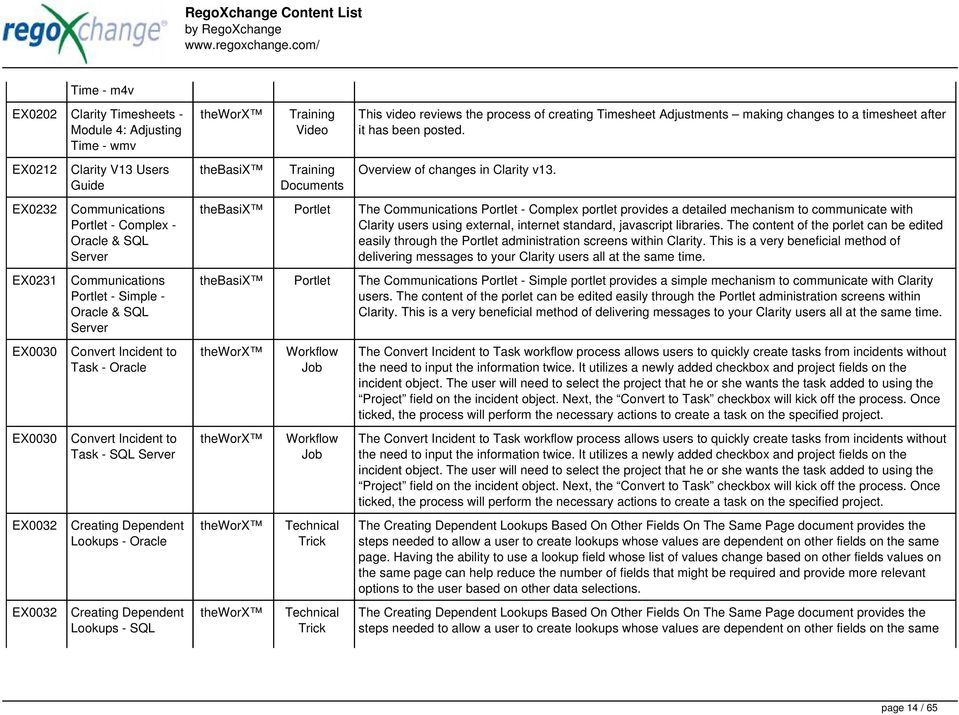
14 Time - m4v EX0202 Clarity Timesheets - Module 4: Adjusting Time - wmv This video reviews the process of creating Timesheet Adjustments making changes to a timesheet after it has been posted. EX0212 EX0232 EX0231 EX0030 EX0030 EX0032 EX0032 Clarity V13 Users Guide Communications Portlet - Complex - & SQL Communications Portlet - Simple - & SQL Convert Incident to Task - Convert Incident to Task - SQL Creating Dependent Lookups - Creating Dependent Lookups - SQL Documents Overview of changes in Clarity v13. Portlet The Communications Portlet - Complex portlet provides a detailed mechanism to communicate with Clarity users using external, internet standard, javascript libraries. The content of the porlet can be edited easily through the Portlet administration screens within Clarity. This is a very beneficial method of delivering messages to your Clarity users all at the same time. Portlet The Communications Portlet - Simple portlet provides a simple mechanism to communicate with Clarity users. The content of the porlet can be edited easily through the Portlet administration screens within Clarity. This is a very beneficial method of delivering messages to your Clarity users all at the same time. Technical Trick Technical Trick The Convert Incident to Task workflow process allows users to quickly create tasks from incidents without the need to input the information twice. It utilizes a newly added checkbox and project fields on the incident object. The user will need to select the project that he or she wants the task added to using the Project field on the incident object. Next, the Convert to Task checkbox will kick off the process. Once ticked, the process will perform the necessary actions to create a task on the specified project. The Convert Incident to Task workflow process allows users to quickly create tasks from incidents without the need to input the information twice. It utilizes a newly added checkbox and project fields on the incident object. The user will need to select the project that he or she wants the task added to using the Project field on the incident object. Next, the Convert to Task checkbox will kick off the process. Once ticked, the process will perform the necessary actions to create a task on the specified project. The Creating Dependent Lookups Based On Other Fields On The Same Page document provides the steps needed to allow a user to create lookups whose values are dependent on other fields on the same page. Having the ability to use a lookup field whose list of values change based on other fields values on the same page can help reduce the number of fields that might be required and provide more relevant options to the user based on other data selections. The Creating Dependent Lookups Based On Other Fields On The Same Page document provides the steps needed to allow a user to create lookups whose values are dependent on other fields on the same page 14 / 65
15 EX0033 Current Proxies - EX0033 Current Proxies - SQL EX0034 EX0034 EX0233 Custom Attributes in System - Custom Attributes in System - SQL Custom Calendar Module - & SQL EX0237 Custom LDAP - & SQL page. Having the ability to use a lookup field whose list of values change based on other fields values on the same page can help reduce the number of fields that might be required and provide more relevant options to the user based on other data selections. Portlet The Current Proxies portlet provides a user with an overview of all the resources in the system currently using a proxy. This portlet is helpful to determine a proxy if a user is currently out of the office. The portlet provides several pieces of information related to the resource including: resource names, proxy, start date, end date, days remaining, total days, and if the proxy is active. The user may filter by resource name, proxy name, proxy status (defaults to Yes), and start/end dates (defaults to the current date). Portlet The Current Proxies portlet provides a user with an overview of all the resources in the system currently using a proxy. This portlet is helpful to determine a proxy if a user is currently out of the office. The portlet provides several pieces of information related to the resource including: resource names, proxy, start date, end date, days remaining, total days, and if the proxy is active. The user may filter by resource name, proxy name, proxy status (defaults to Yes), and start/end dates (defaults to the current date). Portlet The Custom Attributes in System portlet displays all of the custom attributes present in the system and the lookup (if applicable) associated with each. This portlet is useful finding a custom attribute on an object, auditing, or for documentation purposes. The user may narrow the results by object, data type, and last updated date. Portlet The Custom Attributes in System portlet displays all of the custom attributes present in the system and the lookup (if applicable) associated with each. This portlet is useful finding a custom attribute on an object, auditing, or for documentation purposes. The user may narrow the results by object, data type, and last updated date. Portlet The Custom Calendar portlet and accompanying add-on module delivers project/program milestone and completion dates via an easy to read and navigate calendar view. Users may access and download an.ics (standard calendar format) formatted file for any event on the calendar. This file, which is recognized by most major desktop calendar applications (e.g., Outlook), allows users to add any event to their personal calendars. This portlet can be configured during install to filter events based on the security access of the logged in user, or to show all events. As configured, the module displays the following program/project dates: Project Milestones Project End Dates Program End Dates This module may be customized to show additional dates. Contact us for more information. Configuratio ns & Apps One large challenge many organizations face when deploying Clarity is how to keep user accounts up to date. This can be a very time consuming process when done manually. Clarity provides two stock LDAP jobs that can be used to create and deactivate Clarity users based on data obtained from LDAP. When a page 15 / 65

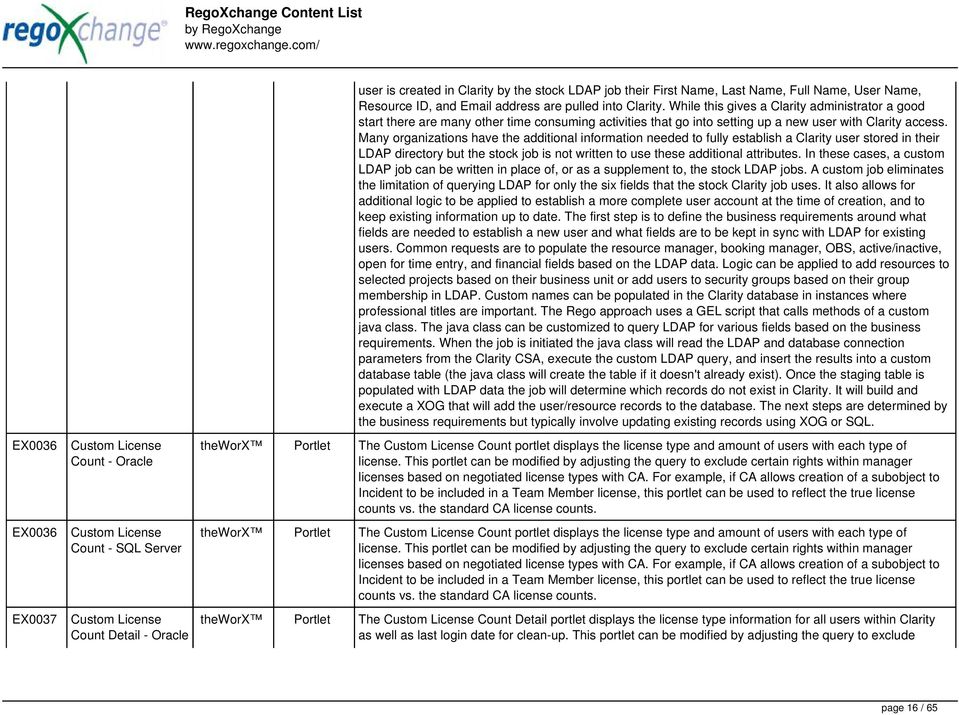
16 user is created in Clarity by the stock LDAP job their First Name, Last Name, Full Name, User Name, Resource ID, and address are pulled into Clarity. While this gives a Clarity administrator a good start there are many other time consuming activities that go into setting up a new user with Clarity access. Many organizations have the additional information needed to fully establish a Clarity user stored in their LDAP directory but the stock job is not written to use these additional attributes. In these cases, a custom LDAP job can be written in place of, or as a supplement to, the stock LDAP jobs. A custom job eliminates the limitation of querying LDAP for only the six fields that the stock Clarity job uses. It also allows for additional logic to be applied to establish a more complete user account at the time of creation, and to keep existing information up to date. The first step is to define the business requirements around what fields are needed to establish a new user and what fields are to be kept in sync with LDAP for existing users. Common requests are to populate the resource manager, booking manager, OBS, active/inactive, open for time entry, and financial fields based on the LDAP data. Logic can be applied to add resources to selected projects based on their business unit or add users to security groups based on their group membership in LDAP. Custom names can be populated in the Clarity database in instances where professional titles are important. The Rego approach uses a GEL script that calls methods of a custom java class. The java class can be customized to query LDAP for various fields based on the business requirements. When the job is initiated the java class will read the LDAP and database connection parameters from the Clarity CSA, execute the custom LDAP query, and insert the results into a custom database table (the java class will create the table if it doesn't already exist). Once the staging table is populated with LDAP data the job will determine which records do not exist in Clarity. It will build and execute a XOG that will add the user/resource records to the database. The next steps are determined by the business requirements but typically involve updating existing records using XOG or SQL. EX0036 EX0036 EX0037 Custom License Count - Custom License Count - SQL Custom License Count Detail - Portlet The Custom License Count portlet displays the license type and amount of users with each type of license. This portlet can be modified by adjusting the query to exclude certain rights within manager licenses based on negotiated license types with CA. For example, if CA allows creation of a subobject to Incident to be included in a Team Member license, this portlet can be used to reflect the true license counts vs. the standard CA license counts. Portlet The Custom License Count portlet displays the license type and amount of users with each type of license. This portlet can be modified by adjusting the query to exclude certain rights within manager licenses based on negotiated license types with CA. For example, if CA allows creation of a subobject to Incident to be included in a Team Member license, this portlet can be used to reflect the true license counts vs. the standard CA license counts. Portlet The Custom License Count Detail portlet displays the license type information for all users within Clarity as well as last login date for clean-up. This portlet can be modified by adjusting the query to exclude page 16 / 65
17 certain rights within manager licenses based on negotiated license types with CA. For example, if CA allows creation of a subobject to Incident to be included in a Team Member license, this portlet can be used to reflect the true license counts vs. the standard CA license counts. EX0037 EX0038 EX0038 EX0039 EX0039 EX0137 EX0137 Custom License Count Detail - SQL Custom Portlet Configs - Custom Portlet Configs - SQL Dashboard: Baseline Comparison - Dashboard: Baseline Comparison - SQL Dashboard: Change Requests - Dashboard: Change Requests - SQL Portlet The Custom License Count Detail portlet displays the license type information for all users within Clarity as well as last login date for clean-up. This portlet can be modified by adjusting the query to exclude certain rights within manager licenses based on negotiated license types with CA. For example, if CA allows creation of a subobject to Incident to be included in a Team Member license, this portlet can be used to reflect the true license counts vs. the standard CA license counts. Portlet The Custom Portlet Configs portlet will display all portlets where the user has modified any settings like the filter or list views. This portlet is helpful for troubleshooting and to determine which users may be affected during an upgrade. The portlet may be filtered by several criteria and displays the resource name, ID, OBS path, portlet, and portlet ID. Portlet The Custom Portlet Configs portlet will display all portlets where the user has modified any settings like the filter or list views. This portlet is helpful for troubleshooting and to determine which users may be affected during an upgrade. The portlet may be filtered by several criteria and displays the resource name, ID, OBS path, portlet, and portlet ID. Portlet The Dashboard: Baseline Comparison portlet compares multiple baselines on a single project. The portlet is added to the dashboard page of a project and will pull in baselines for that project and perform a comparison between them. This portlet provides a quick way for project managers to view the differences between their baselines, especially if they have multiple members updating the project. Portlet The Dashboard: Baseline Comparison portlet compares multiple baselines on a single project. The portlet is added to the dashboard page of a project and will pull in baselines for that project and perform a comparison between them. This portlet provides a quick way for project managers to view the differences between their baselines, especially if they have multiple members updating the project. Portlet The Dashboard: Change Requests portlet gives an overview of all change requests on the project. The portlet will pull the "id" from the page it is placed on, so this portlet is usually placed on the project dashboard tab. The portlet sorts the issues first by priority and then by target date. It displays the name, owner, status, target date, approved by, and the priority. Portlet The Dashboard: Change Requests portlet gives an overview of all change requests on the project. The portlet will pull the "id" from the page it is placed on, so this portlet is usually placed on the project dashboard tab. The portlet sorts the issues first by priority and then by target date. It displays the name, owner, status, target date, approved by, and the priority. page 17 / 65

18 EX0138 EX0138 EX0139 EX0139 EX0140 EX0140 EX0141 EX0141 Dashboard: Financial Summary by Charge Code - Dashboard: Financial Summary by Charge Code - SQL Dashboard: Open Issues - Dashboard: Open Issues - SQL Dashboard: Open Milestones - Dashboard: Open Milestones - SQL Dashboard: Open Risks - Dashboard: Open Risks - SQL Portlet The Dashboard: Financial Summary by Charge Code portlet displays financial information from the project summarized by Charge Code. The portlet is added to the dashboard page of a project and will pull all actuals by charge code on the project. The user may filter by date range to narrow the results. Portlet The Dashboard: Financial Summary by Charge Code portlet displays financial information from the project summarized by Charge Code. The portlet is added to the dashboard page of a project and will pull all actuals by charge code on the project. The user may filter by date range to narrow the results. Portlet The Dashboard: Open Issues portlet gives an overview of all issues that are not closed or resolved for a single project. The portlet will pull the "id" from the page it is placed on, so this portlet is usually placed on the project dashboard tab. The portlet sorts the issues first by priority and then by target date. It displays the name, target date, owner, status and priority. Portlet The Dashboard: Open Issues portlet gives an overview of all issues that are not closed or resolved for a single project. The portlet will pull the "id" from the page it is placed on, so this portlet is usually placed on the project dashboard tab. The portlet sorts the issues first by priority and then by target date. It displays the name, target date, owner, status and priority. Portlet The Dashboard: Open Milestones portlet gives an overview of all milestones that are started or not started for a single project. The portlet will pull the "id" from the page it is placed on, so this portlet is usually placed on the project dashboard tab. The milestones are sorted by Due Date. It displays the name, Due Date, Baseline Date, Days Late (Due Date Baseline Date), and Days Old (Current Date Due Date). Portlet The Dashboard: Open Milestones portlet gives an overview of all milestones that are started or not started for a single project. The portlet will pull the "id" from the page it is placed on, so this portlet is usually placed on the project dashboard tab. The milestones are sorted by Due Date. It displays the name, Due Date, Baseline Date, Days Late (Due Date Baseline Date), and Days Old (Current Date Due Date). Portlet The Dashboard: Open Risks portlet gives an overview of all risks that are not closed or resolved for a single project. The portlet will pull the "id" from the page it is placed on, so this portlet is usually placed on the project dashboard tab. The portlet sorts the risks first by priority and then by target date. It displays the name, owner, target date, probability impact, and priority. Portlet The Dashboard: Open Risks portlet gives an overview of all risks that are not closed or resolved for a single project. The portlet will pull the "id" from the page it is placed on, so this portlet is usually placed on the project dashboard tab. The portlet sorts the risks first by priority and then by target date. It displays the page 18 / 65

19 EX0142 EX0142 EX0041 EX0041 EX0160 EX0160 EX0157 Dashboard: Phase Gantt - Dashboard: Phase Gantt - SQL Dashboard: Programs Portfolios - Dashboard: Programs Portfolios - SQL Dashboard: Project Information - Dashboard: Project Information - SQL Dashboard: Project Status Indicators Multi-line - name, owner, target date, probability impact, and priority. Portlet The Dashboard: Phase Gantt portlet gives an overview of all WBS level 1 tasks or milestones for a single project. The portlet will pull the "id" from the page it is placed on, so this portlet is usually placed on the project dashboard tab. The portlet displays the name, and a graphical representation of the timeline for the phases. The date range may be configured by day, month, year, or quarter. The start date may also be configured to any date or a relative date (start of current month, start of next year, etc). Portlet The Dashboard: Phase Gantt portlet gives an overview of all WBS level 1 tasks or milestones for a single project. The portlet will pull the "id" from the page it is placed on, so this portlet is usually placed on the project dashboard tab. The portlet displays the name, and a graphical representation of the timeline for the phases. The date range may be configured by day, month, year, or quarter. The start date may also be configured to any date or a relative date (start of current month, start of next year, etc). Portlet The Dashboard: Programs Portfolios portlet is placed on the dashboard page of a project. This portlet will show any programs or portfolios the project is a subproject of. The portlet will display the name, code, connection type, manager, and start/finish dates. Portlet The Dashboard: Programs Portfolios portlet is placed on the dashboard page of a project. This portlet will show any programs or portfolios the project is a subproject of. The portlet will display the name, code, connection type, manager, and start/finish dates. Portlet The Dashboard: Project Information portlet gives a set of high level information about the project. The portlet will pull the "id" from the page it is placed on, so this portlet is usually placed on the project dashboard tab. The portlet displays the name, project ID, project manager, description, start date, finish date, baseline start, and baseline finish. Portlet The Dashboard: Project Information portlet gives a set of high level information about the project. The portlet will pull the "id" from the page it is placed on, so this portlet is usually placed on the project dashboard tab. The portlet displays the name, project ID, project manager, description, start date, finish date, baseline start, and baseline finish. Portlet The Dashboard: Project Status Mulit-line portlet gives an overview of the project overall status as well as the status indicators on the "current" status report object. The portlet will pull the "id" from the page it is placed on, so this portlet is usually placed on the project dashboard tab. This portlet displays each type of status, the symbol related to the severity, and the explanation for the status across multiple lines in the portlet. EX0157 Dashboard: Project Portlet The Dashboard: Project Status Mulit-line portlet gives an overview of the project overall status as well as page 19 / 65
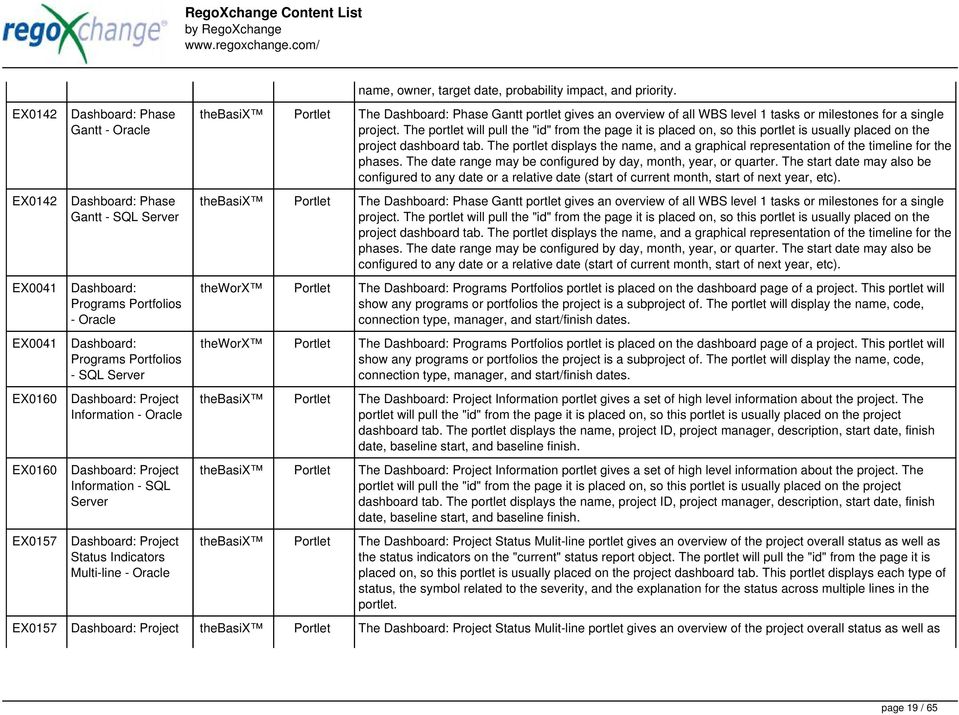
20 EX0158 EX0158 Status Indicators Multi-line - SQL Dashboard: Project Status Indicators Single-line - Dashboard: Project Status Indicators Single-line - SQL EX0042 Data Issues - Projects - EX0042 Data Issues - Projects - SQL EX0043 Data Issues - Resource - EX0043 Data Issues - Resource -SQL the status indicators on the "current" status report object. The portlet will pull the "id" from the page it is placed on, so this portlet is usually placed on the project dashboard tab. This portlet displays each type of status, the symbol related to the severity, and the explanation for the status across multiple lines in the portlet. Portlet The Dashboard: Project Status Single-line portlet gives an overview of the project overall status as well as the status indicators on the "current" status report object. The portlet will pull the "id" from the page it is placed on, so this portlet is usually placed on the project dashboard tab. This portlet displays the report date, symbols relating to the overall status, scope, schedule, cost/effort, and the overall explanation across a single line in the portlet. Portlet The Dashboard: Project Status Single-line portlet gives an overview of the project overall status as well as the status indicators on the "current" status report object. The portlet will pull the "id" from the page it is placed on, so this portlet is usually placed on the project dashboard tab. This portlet displays the report date, symbols relating to the overall status, scope, schedule, cost/effort, and the overall explanation across a single line in the portlet. Portlet The Project Data Issues portlet is used to identify data exceptions related to project setup. This portlet helps to identify where projects are missing key data or are possibly sitting in an exception state. This view will show projects that have one or many exceptions, including inactive projects. The user may also narrow the results by project, OBS, or project type. Portlet The Project Data Issues portlet is used to identify data exceptions related to project setup. This portlet helps to identify where projects are missing key data or are possibly sitting in an exception state. This view will show projects that have one or many exceptions, including inactive projects. The user may also narrow the results by project, OBS, or project type. Portlet The Resource Data Issues portlet is used to identify data exceptions related to resource setup. This portlet helps to identify where resources are missing key data or are possibly sitting in an exception state. This view will show resources that have one or many exceptions, including inactive resources. There is no security built into this portlet - all resources will show. The only required field in the filter is Days, which is the number of days since the user last logged in. The user may also narrow the results by resource, OBS, or project type. Portlet The Resource Data Issues portlet is used to identify data exceptions related to resource setup. This portlet helps to identify where resources are missing key data or are possibly sitting in an exception state. This view will show resources that have one or many exceptions, including inactive resources. There is no security built into this portlet - all resources will show. The only required field in the filter is Days, which is page 20 / 65
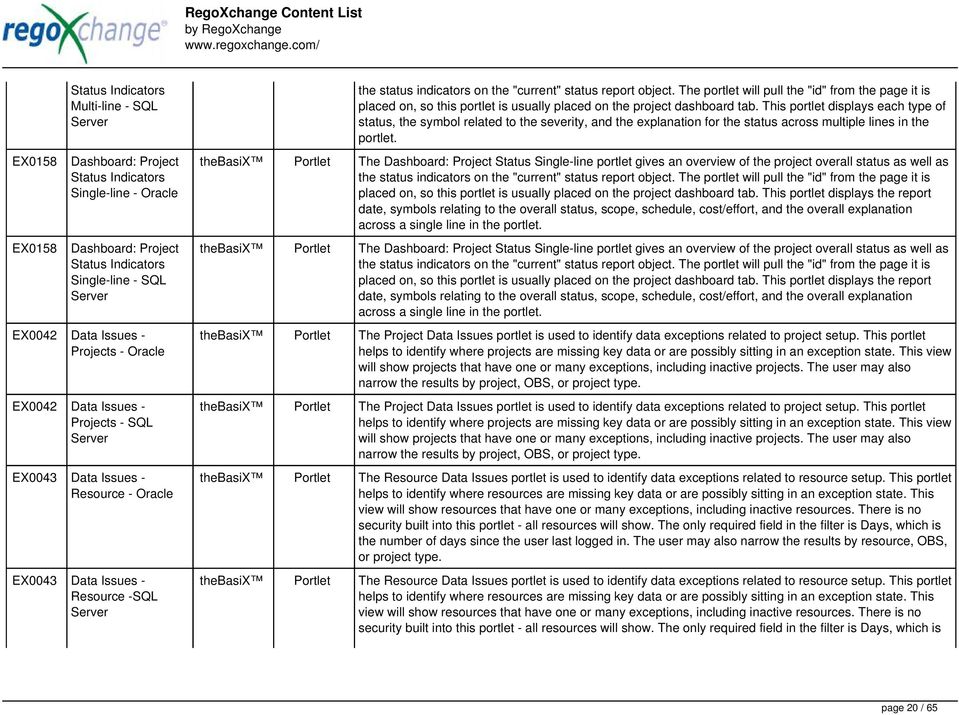
21 the number of days since the user last logged in. The user may also narrow the results by resource, OBS, or project type. EX0662 Direct Linking to Files V13 Technical Trick This Tech Trick demonstrates how to link files located within the Knowledge Store directly to an HTML Portlet in Clarity. EX0044 Process Instance Errors - The Process Instance Errors workflow process will a selected group within Clarity informing them of process errors that are currently in the system. The selected group is input through a gel parameter so it may be easily changed. This workflow helps to resolve errors quickly by ing group members of the errors within the system so they may take action immediately. EX0044 Process Instance Errors - SQL The Process Instance Errors workflow process will a selected group within Clarity informing them of process errors that are currently in the system. The selected group is input through a gel parameter so it may be easily changed. This workflow helps to resolve errors quickly by ing group members of the errors within the system so they may take action immediately. EX0670 Enhanced (V13) Time Tracking Stalker - Resource - The Time Tracking Stalker Resource v13 workflow process is used to notify resources who failed to submit a timesheet for the prior time period they must take action. The workflow checks for active resources (by using the hire and termination dates, their track mode and that they are open for time entry). Each resource who meet the criteria receives an asking them to submit their outstanding timesheet(s). The includes a hyperlinked table that contains this information: time period, timesheet status and any hours currently saved on the timesheet. All outstanding timesheets are included in the table. This process helps to ensure the timely submission of timesheets. EX0670 Enhanced (V13) Time Tracking Stalker - Resource - SQL The Time Tracking Stalker Resource v13 workflow process is used to notify resources who failed to submit a timesheet for the prior time period they must take action. The workflow checks for active resources (by using the hire and termination dates, their track mode and that they are open for time entry). Each resource who meet the criteria receives an asking them to submit their outstanding timesheet(s). The includes a hyperlinked table that contains this information: time period, timesheet status and any hours currently saved on the timesheet. All outstanding timesheets are included in the table. This process helps to ensure the timely submission of timesheets. EX0673 Enhanced (V13) Time Tracking Stalker - RM - The Time Tracking Stalker RM v13 workflow process automatically sends a single to Resource Managers which contains a list of any of their resources that have not submitted their timesheet for a prior open time period. The informs the RM if their resources are submitting their timesheets on time. The includes a hyperlinked table that provides this information for each resource: Resource Name, Time Period, Timesheet Status and Total Hours saved on the timesheet. These notifications will help to ensure that time is being posted and approved in a timely manner. page 21 / 65
22 EX0673 EX0252 EX0045 EX0045 EX0243 EX0243 EX0241 Enhanced (V13) Time Tracking Stalker - RM - SQL Excel Document Writer Executive Dashboard - Executive Dashboard - SQL Financial Summary by Charge Code - Graph - Financial Summary by Charge Code - Graph - SQL Financial Summary by Charge Code - Graph Stacked - Technical Trick The Time Tracking Stalker RM v13 workflow process automatically sends a single to Resource Managers which contains a list of any of their resources that have not submitted their timesheet for a prior open time period. The informs the RM if their resources are submitting their timesheets on time. The includes a hyperlinked table that provides this information for each resource: Resource Name, Time Period, Timesheet Status and Total Hours saved on the timesheet. These notifications will help to ensure that time is being posted and approved in a timely manner. The Excel Document Writer is a C# application to create interim Excel files that would be used to manage projects while the Clarity instance would otherwise be unavailable. The application takes connection information and a query and creates a separate Excel file for every row in the result. Using this program, administrators will be able to access Clarity data and export it to an Excel file while the application is unavailable. Portlet The Executive Dashboard portlet displays information regarding projects the user has access to. It provides a one-stop place for the PMO or management to view all critical information about projects. The portlet not only displays status indicators as well as dates for late items, variances and days late, but also displays the project status fields from the Status Report sub-object. Portlet The Executive Dashboard portlet displays information regarding projects the user has security rights to view. It provides a one-stop place for the PMO or management to view all critical information about projects. The portlet not only displays status indicators as well as dates for late items, variances and days late, but also displays the project status fields from the Status Report subobject. Portlet The Financial Summary by Charge Code - Graph portlet displays yearly charge code financial information across all projects in a bar graph. This portlet provides management with a snapshot of all projects financial information totaled and sorted by expense, capital, depreciation, benefit, and net cash flow. The depreciation is calculated based on a straight line method. The user may filter on OBS unit and/or portfolio to narrow down the search results. Portlet The Financial Summary by Charge Code - Graph portlet displays yearly charge code financial information across all projects in a bar graph. This portlet provides management with a snapshot of all projects' financial information totaled and sorted by expense, capital, depreciation, benefit, and net cash flow. The depreciation is calculated based on a straight line method. The user may filter on OBS unit and/or portfolio to narrow down the search results. Portlet The Financial Summary by Charge Code Graph Stacked portlet displays yearly charge code financial information across all projects in a stacked bar graph. This portlet provides management with a snapshot of all projects financial information totaled and sorted by expense, capital, depreciation, benefit, and net page 22 / 65
23 EX0241 EX0254 EX0254 EX0244 EX0244 EX0250 EX0250 Financial Summary by Charge Code - Graph Stacked - SQL Financial Summary by Charge Code - Grid - Financial Summary by Charge Code - Grid - SQL Financial Summary by Transaction Class - Graph - Financial Summary by Transaction Class - Graph - SQL Financially Enable Roles - Financially Enabled Roles - SQL cash flow. The depreciation is calculated based on a straight-line method. The user may filter on OBS unit and/or portfolio to narrow down the search results. Portlet The Financial Summary by Charge Code Graph Stacked portlet displays yearly charge code financial information across all projects in a stacked bar graph. This portlet provides management with a snapshot of all projects financial information totaled and sorted by expense, capital, depreciation, benefit, and net cash flow. The depreciation is calculated based on a straight-line method. The user may filter on OBS unit and/or portfolio to narrow down the search results. Portlet The Financial Summary by Charge Code Grid portlet displays yearly charge code financial information across all projects. This portlet provides management with a snapshot of all projects financial information totaled and sorted by expense, capital, depreciation, benefit, and net cash flow. The depreciation is calculated based on a straight-line method. The user may filter on OBS unit and/or portfolio to narrow down the search results. Portlet The Financial Summary by Charge Code Grid portlet displays yearly charge code financial information across all projects. This portlet provides management with a snapshot of all projects financial information totaled and sorted by expense, capital, depreciation, benefit, and net cash flow. The depreciation is calculated based on a straight-line method. The user may filter on OBS unit and/or portfolio to narrow down the search results. Portlet The Financial Summary by Transaction Class - Graph provides a visual graph for each years financial picture beginning with current year and going forward into the future. It will show the user where they need to concentrate their efforts in order to meet financial commitments. Portlet The Financial Summary by Transaction Class - Graph provides a visual graph for each years financial picture beginning with current year and going forward into the future. It will show the user where they need to concentrate their efforts in order to meet financial commitments. Configuratio ns & Apps Configuratio ns & Apps The Financially Enable Roles modification provides the steps needed to financially enable roles. Utilizing this modification, project managers are able to estimate cost plans by staffing a role that is financially enabled. The document outlines all steps needed to financially enable roles; including the lookup, object, attributes, and processes. The Financially Enable Roles modification provides the steps needed to financially enable roles. Utilizing this modification, project managers are able to estimate cost plans by staffing a role that is financially enabled. The document outlines all steps needed to financially enable roles; including the lookup, object, attributes, and processes. page 23 / 65
24 EX0191 General Overview & Navigation - Clarity V12 Documents The General Overview and Navigation training document provides a high-level overview of navigating and understanding basic screens within Clarity. This document is helpful for adjusting new users to the different functionality and screens the user may encounter during daily usage of the system. The guide provides information on how to login to the system, navigate pages, portlets and functions, icon explanation, account settings and altering notifications within the system. EX0191 General Overview & Navigation - Clarity V13 Documents The General Overview and Navigation training document provides a high-level overview of navigating and understanding basic screens within Clarity. This document is helpful for adjusting new users to the different functionality and screens the user may encounter during daily usage of the system. The guide provides information on how to login to the system, navigate pages, portlets and functions, icon explanation, account settings and altering notifications within the system. EX0050 Grant Approve Time to Proxy - The Grant Approve Time to Proxy process utilizes the proxy feature within Clarity to assign timesheet approval and edit rights to a proxy for any resources that the user is the current resource manager for. The process, when run, will also remove any timesheet approval and edit rights for any users if the proxy has been removed or the resource manager has changed. This process is used for resource managers that will be out of the office. EX0050 Grant Approve Time to Proxy - SQL The Grant Approve Time to Proxy process utilizes the proxy feature within Clarity to assign timesheet approval and edit rights to a proxy for any resources that the user is the current resource manager for. The process, when run, will also remove any timesheet approval and edit rights for any users if the proxy has been removed or the resource manager has changed. This process is used for resource managers that will be out of the office. EX0143 Grant Booking Manager Rights to Book Resources - The Grant Booking Manager Rights to Book Resources workflow provides a resource s Booking Manager with the rights to hard book a resource to a project. This workflow will remove unused rights, and then grant the rights needed to allow for booking of resources. The workflow also has the ability to add rights to not only the resource but also the resource manager, and resources that are assigned as proxies. If this functionality is not needed, it can easily be removed. EX0143 Grant Booking Manager Rights to Book Resources - SQL The Grant Booking Manager Rights to Book Resources workflow provides a resource s Booking Manager with the rights to hard book a resource to a project. This workflow will remove unused rights, and then grant the rights needed to allow for booking of resources. The workflow also has the ability to add rights to not only the resource but also the resource manager, and resources that are assigned as proxies. If this functionality is not needed, it can easily be removed. EX0051 Grant Edit Skill and Calendar Rights - The Grant Edit Skill and Calendar workflow process grants the ability for the user's proxy, resource manager, booking manager, and resource(s) to edit both the skill and calendar sections. The query can be page 24 / 65
25 easily modified to remove any of the users that receive the ability. For example, some organizations may only want to grant these rights to resource managers and his or her proxy. This workflow simplifies the task or updating a resource s calendar or skill set by allowing multiple people to govern them. Not only will the workflow add in any new rights, but it will also check for rights that no longer exist (resource manager has changed, etc). EX0051 Grant Edit Skill and Calendar Rights - SQL The Grant Edit Skill and Calendar workflow process grants the ability for the user's resource manager, booking manager, and resource(s) to edit both the skill and calendar sections. The query can be easily modified to remove any of the users that receive the ability. EX0052 Grant Edit Time to Proxy - The Grant Edit Time to Proxy process utilizes the proxy feature within Clarity to assign timesheet edit rights to a proxy for any resources that the user is the current resource manager for. The process, when run, will also remove any timesheet edit rights for any users if the proxy has been removed or the resource manager has changed. This process would allow a resource manager to designate a subordinate the ability to enter time on other resources behalf while still going to the resource manager for approval. EX0052 Grant Edit Time to Proxy - SQL The Grant Edit Time to Proxy process utilizes the proxy feature within Clarity to assign timesheet edit rights to a proxy for any resources that the user is the current resource manager for. The process, when run, will also remove any timesheet edit rights for any users if the proxy has been removed or the resource manager has changed. This process would allow a resource manager to designate a subordinate the ability to enter time on other resources behalf while still going to the resource manager for approval. EX0144 Grant PM Collaboration Manager Rights - The Grant PM Collaboration Manager Rights workflow process can be run through the "Execute a Process" job. The workflow will execute a query that gives a Project Manager the Collaboration Manager rights to their projects. Often times, PMs are not set as Collaboration Managers when the project is created. This script can be run to automatically give a PM the Collaboration Manager rights to their projects, without having to go through the projects one by one. EX0144 Grant PM Collaboration Manager Rights - SQL The Grant PM Collaboration Manager Rights workflow process can be run through the "Execute a Process" job. The workflow will execute a query that gives a Project Manager the Collaboration Manager rights to their projects. Often times, PMs are not set as Collaboration Managers when the project is created. This script can be run to automatically give a PM the Collaboration Manager rights to their projects, without having to go through the projects one by one. EX0053 Grant Project Edit Rights - The Grant Project Edit Rights workflow process allows a project manager to grant project edit rights to another user without contacting an administrator. The workflow uses the Out-of-the-box field for Business Owner. The script starts when the field is updated. It will assign project edit rights to whichever user is added to the Business Owner field. This process can be modified to grant project edit rights to any user page 25 / 65
26 within a project field. EX0053 Grant Project Edit Rights - SQL The Grant Project Edit Rights workflow process allows a project manager to grant project edit rights to another user without contacting an administrator. The workflow uses the Out-of-the-box field for Business Owner. The script starts when the field is updated. It will assign project edit rights to whichever user is added to the Business Owner field. This process can be modified to grant project edit rights to any user within a project field. EX0257 Grant Resources Timesheet Edit Rights - The Grant Resources Timesheet Edit Rights process will grant each resource timesheet edit instance rights to his or her own timesheets. This process will not remove any existing timesheet edit instance rights. EX0257 Grant Resources Timesheet Edit Rights - SQL The Grant Resources Timesheet Edit Rights process will grant each resource timesheet edit instance rights to his or her own timesheets. This process will not remove any existing timesheet edit instance rights. EX0054 Grant RM Calendar & Time Rights - The Grant RM Calendar & Time Rights workflow process can be run through the "Execute a Process" job. The workflow will execute a query that gives a Resource Manager Calendar Edit and Timesheet Edit rights for their resources. These rights are not inherent for Resource Managers when they are named as an individual s resource manager. EX0054 Grant RM Calendar & Time Rights - SQL The Grant RM Calendar & Time Rights workflow process can be run through the "Execute a Process" job. The workflow will execute a query that gives a Resource Manager Calendar Edit and Timesheet Edit rights for their resources. These rights are not inherent for Resource Managers when they are named as an individual s resource manager. EX0055 Grant RM Timesheet Edit Rights - The Grant RM Timesheet Edit Rights workflow process can be run through the "Execute a Process" job. The workflow will execute a query that gives a Resource Manager Timesheet Edit rights for their resources. Timesheet Edit rights are not inherent for Resource Managers when they are named as an individual s resource manager. EX0055 Grant RM Timesheet Edit Rights - SQL The Grant RM Timesheet Edit Rights workflow process can be run through the "Execute a Process" job. The workflow will execute a query that gives a Resource Manager Timesheet Edit rights for their resources. Timesheet Edit rights are not inherent for Resource Managers when they are named as an individual s resource manager. EX0249 Grant Team Project Edit Rights - The Grant Team Project Edit Rights workflow allows a project manager to grant Project Edit Management rights to all users staffed on the project. This workflow saves not only the project manager time by allowing all users on the project to update information, but also saves the administrator time from page 26 / 65
27 EX0249 EX0255 EX0255 EX0256 EX0256 Grant Team Project Edit Rights - SQL Hours and Cost by Vendor - Graph - Hours and Cost by Vendor - Graph - SQL Hours and Cost by Vendor - Grid - Hours and Cost by Vendor - Grid - SQL granting each resource these rights individually. The process will also remove any rights from members that have been removed from the project. The Grant Team Project Edit Rights workflow allows a project manager to grant Project - Edit Management rights to all users staffed on the project. This workflow saves not only the project manager time by allowing all users on the project to update information, but also saves the administrator time from granting each resource these rights individually. The process will also remove any rights from members that have been removed from the project. Portlet The Hours and Cost by Vendor - Graph portlet displays vendor hour or costs by month. Using this portlet, management is provided with a graphical representation of vendor costs or hours by month for a set of time without running a report or navigating to each resource individually. This portlet uses the monthly actual timeslices. Additionally, the user must select a date range and whether to display hours or costs. Once populated, the graph will display all vendors that currently have hours and cost for the selected date range. Portlet The Hours and Cost by Vendor - Graph portlet displays vendor hour or costs by month. Using this portlet, management is provided with a graphical representation of vendor costs or hours by month for a set of time without running a report or navigating to each resource individually. This portlet uses the monthly actual timeslices. Additionally, the user must select a date range and whether to display hours or costs. Once populated, the graph will display all vendors that currently have hours and cost for the selected date range. Portlet The Hours and Cost by Vendor - Grid portlet displays vendor hour or costs by month grouped by vendor. Using this portlet, management is provided with a quick overview of vendor costs or hours by month for a set of time without running a report or navigating to each resource individually. This portlet uses the monthly actual timeslices. The user may filter by vendor, vendor ID, date, and hours/cost in addition to the start/finish and hours/cost. Once populated, the grid will display all vendors that currently have hours/cost for the selected time frame. Portlet The Hours and Cost by Vendor - Grid portlet displays vendor hour or costs by month grouped by vendor. Using this portlet, management is provided with a quick overview of vendor costs or hours by month for a set of time without running a report or navigating to each resource individually. This portlet uses the monthly actual timeslices. The user may filter by vendor, vendor ID, date, and hours/cost in addition to the start/finish and hours/cost. Once populated, the grid will display all vendors that currently have hours/cost for the selected time frame. EX0057 Inactive Resource Portlet The Inactive Resource Data Cleanup portlet displays information for inactive resources that still have page 27 / 65
28 EX0057 Data Clean Up - SQL Inactive Resource Data Clean-up - EX0058 Incident Dashboard - EX0058 Incident Dashboard - SQL EX0059 Incident Notes - EX0059 Incident Notes - SQL EX0060 Incident Trending - EX0060 Incident Trending - SQL pending items on active objects: Inactive User is the Project Manager Inactive User is the Idea Manager Inactive User is the Resource Manager Tasks assigned to the user Action items assigned to the user Risks assigned to the user Issues assigned to the user Change requests assigned to the user Incidents assigned to the user Portlet The Inactive Resource Data Cleanup portlet displays information for inactive resources that still have pending items on active objects: Inactive User is the Project Manager Inactive User is the Idea Manager Inactive User is the Resource Manager Tasks assigned to the user Action items assigned to the user Risks assigned to the user Issues assigned to the user Change requests assigned to the user Incidents assigned to the user Configuratio ns & Apps Configuratio ns & Apps The Incident Dashboard provides users with a quick overview of information on the incident and any tasks created from that incident to avoid navigation between the incident and project. The link to this dashboard is placed on the Incident object. Once clicked, three different portlets will be displayed: The Incident Dashboard Details portlet displays an overview of information about the incident. The Incident Dashboard Notes portlet displays any notes that are present in the Incident. The Incident Dashboard Assignments shows any assignments that have been created from the Incident. The Incident Dashboard provides users with a quick overview of information on the incident and any tasks created from that incident to avoid navigation between the incident and project. The link to this dashboard is placed on the Incident object. Once clicked, three different portlets will be displayed: The Incident Dashboard Details portlet displays an overview of information about the incident. The Incident Dashboard Notes portlet displays any notes that are present in the Incident. The Incident Dashboard Assignments shows any assignments that have been created from the Incident. Portlet The Incident Notes portlet displays all of the notes that have been entered against Incidents in a single view. This allows users to more efficiently look at the notes, regardless of security rights, without having to enter each incident individually to view them. Portlet The Incident Notes portlet displays all of the notes that have been entered against Incidents in a single view. This allows users to more efficiently look at the notes, regardless of security rights, without having to enter each incident individually to view them. Portlet The Incident Trending portlet all opened and closed incidents within a certain time frame. This portlet will show trends in incidents over previous months and allows for analysis of as to the root cause in a spike of incidents. The information may be filtered by date range, urgency and priority. Portlet The Incident Trending portlet all opened and closed incidents within a certain time frame. This portlet will show trends in incidents over previous months and allows for analysis of as to the root cause in a spike of page 28 / 65
29 incidents. The information may be filtered by date range, urgency and priority. EX0184 Introduction to Clarity - Module 10: Configure the Overview Page -.m4v This final video in the Introduction to Clarity video series reviews how to configure the Overview: General page. The process to add and remove portlets is discussed, along with how to create new custom tabs, to which portlets may be added. EX0184 Introduction to Clarity - Module 10: Configure the Overview Page -.wmv This final video in the Introduction to Clarity video series reviews how to configure the Overview: General page. The process to add and remove portlets is discussed, along with how to create new custom tabs, to which portlets may be added. EX0169 Introduction to Clarity - Module 1: Clarity Components -.m4v This video describes Clarity Components (modules) in a Powerpoint Slide Deck with Voice Over. It may be used as a high-level introduction to the various Clarity Modules. EX0169 Introduction to Clarity - Module 1: Clarity Components -.wmv This video describes Clarity Components (modules) in a Powerpoint Slide Deck with Voice Over. It may be used as a high-level introduction to the various Clarity Modules. EX0170 Introduction to Clarity - Module 2: Navigating the Clarity User Interface -.m4v This video instructs the user how to navigate the Clarity User Interface. EX0170 Introduction to Clarity - Module 2: Navigating the Clarity User Interface -.wmv This video instructs the user how to navigate the Clarity User Interface. EX0171 Introduction to Clarity - Module 3: The Organizer - This video instructs the user on use of Clarity s Organizer, including the Action Items, Tasks, Calendar, Processes and Notifications tabs. page 29 / 65
30 .m4v EX0171 Introduction to Clarity - Module 3: The Organizer -.wmv This video instructs the user on use of Clarity s Organizer, including the Action Items, Tasks, Calendar, Processes and Notifications tabs. EX0172 Introduction to Clarity - Module 4: List Views and Filters -.m4v This video instructs the user on the use of Clarity s List Views, and how to user the filter associated with a list view. EX0172 Introduction to Clarity - Module 4: List Views and Filters -.wmv This video instructs the user on the use of Clarity s List Views, and how to user the filter associated with a list view. EX0173 Introduction to Clarity - Module 5: Actions Drop Down -.m4v This video provides an overview of the options found in the Actions Drop Down Menu, including Configure, Gantt, Multisort, Export to Excel, Export to PowerPoint and Edit Mode. EX0173 Introduction to Clarity - Module 5: Actions Drop Down -.wmv This video provides an overview of the options found in the Actions Drop Down Menu, including Configure, Gantt, Multisort, Export to Excel, Export to PowerPoint and Edit Mode. EX0177 Introduction to Clarity - Module 6: Account Settings -.m4v This video provides an overview of the options available via the Account Settings link in the left navigation, including Personal Information, Proxy, Font Settings, Notifications and Software Downloads. EX0177 Introduction to Clarity - Module 6: Account Settings -.wmv This video provides an overview of the options available via the Account Settings link in the left navigation, including Personal Information, Proxy, Font Settings, Notifications and Software Downloads. EX0181 Introduction to Clarity - Module 7: This video provides an overview of the Notifications functionality within Clarity. It includes details on accessing Notifications from the Notifications portlet on the overview screen, or from the organizer. page 30 / 65
31 Notifications -.m4v Notifications preferences within Account Settings are also discussed. EX0181 Introduction to Clarity - Module 7: Notifications -.wmv This video provides an overview of the Notifications functionality within Clarity. It includes details on accessing Notifications from the Notifications portlet on the overview screen, or from the organizer. Notifications preferences within Account Settings are also discussed. EX0182 Introduction to Clarity - Module 8: Portlets vs. Reports -.m4v This video provides an overview of the difference between Clarity data displayed in portlets (within the browser) and Reports (external to the Clarity system). It touches upon benefits of each, and when you might prefer to utilize one over the other. EX0182 Introduction to Clarity - Module 8: Portlets vs. Reports -.wmv This video provides an overview of the difference between Clarity data displayed in portlets (within the browser) and Reports (external to the Clarity system). It touches upon benefits of each, and when you might prefer to utilize one over the other. EX0183 Introduction to Clarity - Module 9: Running a Report -.m4v This video provides an overview of how to run the out-of-the-box reports in Clarity. It touches on entering and saving Report Parameters, scheduling a report, report notifications and report sharing. EX0183 Introduction to Clarity - Module 9: Running a Report -.wmv This video provides an overview of how to run the out-of-the-box reports in Clarity. It touches on entering and saving Report Parameters, scheduling a report, report notifications and report sharing. EX0218 Introduction to Clarity Time Entry - v12 Documents The Clarity Time Entry training document provides an overview of time entry within Clarity. This introductory level presentation is designed to provide new users with the information needed to add tasks to a timesheet, submit the timesheet, and make adjustments to the timesheet. EX0218 Introduction to Clarity Time Entry - v13 Documents The Clarity Time Entry training document provides an overview of time entry within Clarity. This introductory level presentation is designed to provide new users with the information needed to add tasks to a timesheet, submit the timesheet, and make adjustments to the timesheet. EX0203 Introduction to Portfolio Management V13 Documents The Introduction to Portfolio Management training document provides an overview of portfolio management. This introductory level presentation is designed to provide new users of portfolio management with a quick synopsis of the key factors in portfolio management. EX0192 Introduction to Project Management Documents The Introduction to Project Management training document provides an overview of project management. This introductory level presentation is designed to provide new project managers or users with a quick page 31 / 65
32 EX0193 EX0247 EX0247 EX0061 EX0061 V13 Introduction to Resource Management V13 Invalid Transactions - Invalid Transactions - SQL Schedule Details - Schedule Details - SQL EX0062 Last Logged In - Documents synopsis of the key factors in project management. The Introduction to Resource Management training document provides an overview of resource management. This introductory level presentation is designed to provide new resource managers or users with a quick synopsis of the key factors in resource management. Portlet The Invalid Transactions portlet displays all of the transactions that did/will not post in Clarity. The benefit of this portlet is that you can use the filter to select a specific project, resource, or error to display all transactions associated to your selection. There are several reasons a transaction may fail to post such as inactive resource, no location or inactive location selected on the Financial sub-page, project on hold, etc. To resolve the error, the user must go into the project or resource and make the noted change. Once all corrections are complete, the Post Transactions to Financials job must be run to evaluate the corrected WIP transactions to be sure the data is now complete and accurate. If additional incorrect data is found, the transaction will fail to post again and the new error/reason will display. Portlet The Invalid Transactions portlet displays all of the transactions that did/will not post in Clarity. The benefit of this portlet is that you can use the filter to select a specific project, resource, or error to display all transactions associated to your selection. There are several reasons a transaction may fail to post such as inactive resource, no location or inactive location selected on the Financial sub-page, project on hold, etc. To resolve the error, the user must go into the project or resource and make the noted change. Once all corrections are complete, the Post Transactions to Financials job must be run to evaluate the corrected WIP transactions to be sure the data is now complete and accurate. If additional incorrect data is found, the transaction will fail to post again and the new error/reason will display. Portlet The Schedule Details portlet shows all active jobs and displays all of the schedule information for those jobs including the months, days, hours, and minutes. It also displays the last time the job was updated and whether or not the job was custom or a CA job. The portlet will help the administrator understand the current job schedule configuration. Portlet The Schedule Details portlet shows all active jobs and displays all of the schedule information for those jobs including the months, days, hours, and minutes. It also displays the last time the job was updated and whether or not the job was custom or a CA job. The portlet will help the administrator understand the current job schedule configuration. Portlet The Last Logged In portlet provides the administrator with an overview of all users within the system and the last time he or she logged into Clarity. Using this portlet, administrators can quickly cleanup any inactive users or provide a list of users to managers that are not logging into the system. The portlet provides several pieces of information related to the resource as well as a Days Since Last Login with a page 32 / 65
33 EX0062 Last Logged In - SQL status indicator. The administrator may filter on resource/id, OBS, user status, resource manager, or last logged in date to narrow down the results. Portlet The Last Logged In portlet provides the administrator with an overview of all users within the system and the last time he or she logged into Clarity. Using this portlet, administrators can quickly cleanup any inactive users or provide a list of users to managers that are not logging into the system. The portlet provides several pieces of information related to the resource as well as a Days Since Last Login with a status indicator. The administrator may filter on resource/id, OBS, user status, resource manager, or last logged in date to narrow down the results. EX0063 Late Issues - Portlet The Late Issues portlet displays all issues related to active projects that the logged in user has view rights to. The issues displayed are those that are past their target resolution date but not Closed or Resolved. The portlet provides a Project Manager the ability to view and track issues across multiple projects without going into each project individually. This portlet displays the issue, the associated project name and project manager, as well as the issue owner, target resolution date, status, and priority of the issue, along with the total number of days the issue has been open. The user has the ability to filter by several criteria in order to narrow down the late issues. EX0063 Late Issues - SQL EX0064 Late Milestones - EX0064 Late Milestones - SQL Portlet The Late Issues portlet displays all issues related to active projects that the logged in user has view rights to. The issues displayed are those that are past their target resolution date but not Closed or Resolved. The portlet provides a Project Manager the ability to view and track issues across multiple projects without going into each project individually. This portlet displays the issue, the associated project name and project manager, as well as the issue owner, target resolution date, status, and priority of the issue, along with the total number of days the issue has been open. The user has the ability to filter by several criteria in order to narrow down the late issues. Portlet The Late Milestones portlet displays all action items related to active projects that the logged in user has view rights to. The milestones displayed are those that are not closed but are past their finish date or past their baseline finish date. The portlet provides a Project Manager the ability to view and track action items across multiple projects without going into each project individually. This portlet provides a single consolidated view of late milestones based on the current project baseline, and the age of the milestone. The portlet will display the Project ID, Project Name, Project Manager, Milestone Name, Due Date, Baseline Date, Days Late (calculated from baseline dates), and Days Old (calculated from today s date). Portlet The Late Milestones portlet displays all action items related to active projects that the logged in user has view rights to. The milestones displayed are those that are not closed but are past their finish date or past their baseline finish date. The portlet provides a Project Manager the ability to view and track action items across multiple projects without going into each project individually. This portlet provides a single page 33 / 65
34 EX0065 EX0065 Late Project Action Items - Late Project Action Items - SQL consolidated view of late milestones based on the current project baseline, and the age of the milestone. The portlet will display the Project ID, Project Name, Project Manager, Milestone Name, Due Date, Baseline Date, Days Late (calculated from baseline dates), and Days Old (calculated from today s date). Portlet The Late Project Action Items portlet displays all action items related to active projects that the logged in user has view rights to. The action items displayed are those that are past their due date with a status of In Progress or Open. The portlet provides a Project Manager the ability to view and track action items across multiple projects without going into each project individually. In a single consolidated list, all late project action items can be easily viewed, along with the project with which they are associated, the individual assigned, and the owner of the action item. Portlet The Late Project Action Items portlet displays all action items related to active projects that the logged in user has view rights to. The action items displayed are those that are past their due date with a status of In Progress or Open. The portlet provides a Project Manager the ability to view and track action items across multiple projects without going into each project individually. In a single consolidated list, all late project action items can be easily viewed, along with the project with which they are associated, the individual assigned, and the owner of the action item. EX0066 Late Risks - Portlet The Late Risks portlet displays all risks related to active projects that the logged in user has view rights to. The risks displayed are those that are past their target resolution date but not Closed or Resolved. The portlet provides a Project Manager the ability to view and track Risks across multiple projects without going into each project individually. This portlet displays the risk, the associated project name and project manager, as well as the risk owner, target resolution date, status, priority of the risk, and the total number of days the risk has been open. EX0066 Late Risks - SQL Portlet The Late Risks portlet displays all risks related to active projects that the logged in user has view rights to. The risks displayed are those that are past their target resolution date but not Closed or Resolved. The portlet provides a Project Manager the ability to view and track Risks across multiple projects without going into each project individually. This portlet displays the risk, the associated project name and project manager, as well as the risk owner, target resolution date, status, priority of the risk, and the total number of days the risk has been open. EX0067 Late Tasks - Portlet The Late Tasks portlet provides a Project Manager the ability to view and track tasks across multiple projects with due dates in the past. This portlet provides a single consolidated view of late tasks, their task start and finish date, and ETCs remaining for the task. Also displayed is the number of days that the Task Finish Date is different from the current baseline finish date (Days Late) as well as the number of days that have passed beyond the task finish date and the current date (Days Old). The user will see all tasks associated with the projects to which they have access. page 34 / 65
35 EX0067 EX0145 EX0145 Late Tasks - SQL License Counts by OBS - License Counts by OBS - SQL EX0068 Locked Projects - EX0068 Locked Projects - SQL EX0069 Locked Resources - Portlet The Late Tasks portlet provides a Project Manager the ability to view and track tasks across multiple projects with due dates in the past. This portlet provides a single consolidated view of late tasks, their task start and finish date, and ETCs remaining for the task. Also displayed is the number of days that the Task Finish Date is different from the current baseline finish date (Days Late) as well as the number of days that have passed beyond the task finish date and the current date (Days Old). The user will see all tasks associated with the projects to which they have access. Portlet The License Count by OBS portlet displays license type information by a selected OBS for active users. The portlet is used to determine what kind of license a specific user has and the OBS in which he or she resides. It can be helpful for determining specific amount of licenses used by different departments within the organization. Portlet The License Count by OBS portlet displays license type information by a selected OBS for active users. The portlet is used to determine what kind of license a specific user has and the OBS in which he or she resides. It can be helpful for determining specific amount of licenses used by different departments within the organization. Portlet The Locked Projects portlet displays all of the projects in the system that are currently in a locked state. The user may view the project ID, Project Name, Project Manager, the user who locked the project, the user's address, and the date the project was locked. Administrators may utilize the data in this portlet in order to determine if a manual unlock should be executed on a project that has been locked for an extended period of time. Extended locks may indicate the individual has forgotten that he or she had obtained the lock. The portlet includes a hyperlink on the Project Name field, which will allow the administrator to more easily access and unlock the project as well as an link to mail the user who locked the project. Portlet The Locked Projects portlet displays all of the projects in the system that are currently in a locked state. The user may view the project ID, Project Name, Project Manager, the user who locked the project, the user's address, and the date the project was locked. Administrators may utilize the data in this portlet in order to determine if a manual unlock should be executed on a project that has been locked for an extended period of time. Extended locks may indicate the individual has forgotten that he or she had obtained the lock. The portlet includes a hyperlink on the Project Name field, which will allow the administrator to more easily access and unlock the project as well as an link to mail the user who locked the project. Portlet The Locked Resources portlet displays all resources that are locked within Clarity. It also displays the resource manager and last updated date for the user. The portlet can be filtered on resource manager and last updated date range. This portlet can be used by an administrator to determine which resources are page 35 / 65
36 locked by the system. EX0069 Locked Resources - SQL EX0070 EX0070 Manage Risk Categories - Manage Risk Categories - SQL EX0600 Microsoft Project - Open Workbench Comparison EX0594 EX0071 EX0071 Microsoft Project Errors and Issues Missing Time by OBS - Missing Time by OBS - SQL Portlet The Locked Resources portlet displays all resources that are locked within Clarity. It also displays the resource manager and last updated date for the user. The portlet can be filtered on resource manager and last updated date range. This portlet can be used by an administrator to determine which resources are locked by the system. Technical Trick Technical Trick Presentation (Information) Documents The Manage Risk Categories document provides the steps needed to modify the current system-defined list of values for the Risk categories. The Manage Risk Categories document provides the steps needed to modify the current system-defined list of values for the Risk categories A PowerPoint presentation reviewing the differences between using MSP and OWB as an external scheduling too. Benefits and drawbacks of each tool are addressed, along with criteria for making a decision on which to go with. A document detailing some common MSP Errors and Issues, and suggestions for how to address them. Portlet The Missing Time by OBS portlet displays all missing or late timesheets for resources staffed within a certain OBS. Resources will be listed if they are open for time entry, have a track mode of Clarity, and have timesheet that is not posted (accommodates for hire and termination dates). The portlet also only shows resources that the logged in user has security rights to view. Administrators and the Project Management Office may use this portlet to determine the timesheet status of all resources in open time periods within a specific OBS. Many times a user will need to see all the timesheets under an area. This portlet allows a user to quickly search by OBS and view all timesheets under that OBS. After you select the OBS, you may select the period start in the filter. The portlet will display an indicator based on timesheet status, the status, period start, resource name, resource manager, and actual hours for the timesheet. Portlet The Missing Time by OBS portlet displays all missing or late timesheets for resources staffed within a certain OBS. Resources will be listed if they are open for time entry, have a track mode of Clarity, and have timesheet that is not posted (accommodates for hire and termination dates). The portlet also only shows resources that the logged in user has security rights to view. Administrators and the Project Management Office may use this portlet to determine the timesheet status of all resources in open time periods within a specific OBS. Many times a user will need to see all the timesheets under an area. This portlet allows a user to quickly search by OBS and view all timesheets under that OBS. After you select page 36 / 65
37 the OBS, you may select the period start in the filter. The portlet will display an indicator based on timesheet status, the status, period start, resource name, resource manager, and actual hours for the timesheet. EX0146 EX0146 EX0147 EX0147 EX0148 Missing Time by PM - Missing Time by PM - SQL Missing Time by RM - Missing Time by RM - SQL Move Role to Team/Assignment - Portlet The Missing Time by PM portlet displays all missing or late timesheets for resources staffed on a project where the logged in user is the project manager. Resources will be listed if they are open for time entry, have a track mode of Clarity, and have timesheet that is not posted (accommodates for hire and termination dates). Project managers may use this portlet to determine the timesheet status of resources staffed on their projects. You may narrow the results by filtering by resource manager, period start, resource name, or status. The portlet will display an indicator based on timesheet status, the status, period start, resource name, and actual hours for the timesheet. Portlet The Missing Time by PM portlet displays all missing or late timesheets for resources staffed on a project where the logged in user is the project manager. Resources will be listed if they are open for time entry, have a track mode of Clarity, and have timesheet that is not posted (accommodates for hire and termination dates). Project managers may use this portlet to determine the timesheet status of resources staffed on their projects. You may narrow the results by filtering by resource manager, period start, resource name, or status. The portlet will display an indicator based on timesheet status, the status, period start, resource name, and actual hours for the timesheet. Portlet The Missing Time by RM portlet displays all missing or late timesheets for resources for which the logged in user has resources (logged in user is the RM). Resources will be listed if they are open for time entry, have a track mode of Clarity, and have timesheet that is not posted (accommodates for hire and termination dates). Resource managers may use this portlet to determine the timesheet status of all resources in open time periods. The portlet will display an indicator based on timesheet status, the status, period start, resource name, and actual hours for the timesheet. Portlet The Missing Time by RM portlet displays all missing or late timesheets for resources for which the logged in user has resources (logged in user is the RM). Resources will be listed if they are open for time entry, have a track mode of Clarity, and have timesheet that is not posted (accommodates for hire and termination dates). Resource managers may use this portlet to determine the timesheet status of all resources in open time periods. The portlet will display an indicator based on timesheet status, the status, period start, resource name, and actual hours for the timesheet. The Move Role to Team/Assignment process takes the role from the resource object and pushes that information into the team and assignment objects when the role isn t NULL on the team and assignment objects. This happens normally, assuming a resource has their primary role populated. This process is needed if a resource or set of resources were added to projects without having their primary role filled in. page 37 / 65
38 EX0148 EX0072 EX0072 Move Role to Team/Assignment - SQL Multi-Value Filter in Query-Based Portlet - Multi-Value Filter in Query-Based Portlet - SQL EX0149 My Action Items - EX0149 My Action Items - SQL EX0073 My Allocations - EX0073 My Allocations - SQL EX0074 My Assignments - Technical Trick Technical Trick The Move Role to Team/Assignment process takes the role from the resource object and pushes that information into the team and assignment objects when the role isn t NULL on the team and assignment objects. This happens normally, assuming a resource has their primary role populated. This process is needed if a resource or set of resources were added to projects without having their primary role filled in. The Multi-Value Filter in Query-Based technical trick document provides an overview of how to create a multi-value lookup in a portlet filter, where the field is a parameter within the query. If the query imbeds the parameter normally, the portlet will only be able to have a single selection of that parameter. This technical solution will enable you to make these parameters multi-selects. The Multi-Value Filter in Query-Based technical trick document provides an overview of how to create a multi-value lookup in a portlet filter, where the field is a parameter within the query. If the query imbeds the parameter normally, the portlet will only be able to have a single selection of that parameter. This technical solution will enable you to make these parameters multi-selects. Portlet The My Action Items portlet displays all action items that are assigned or created by the logged in user. This portlet contains action item data including due date and a health stoplight to indicate when action items are late. Portlet The My Action Items portlet displays all action items that are assigned or created by the logged in user. This portlet contains action item data including due date and a health stoplight to indicate when action items are late. Portlet The My Allocations portlet will display the allocations for the logged in user - pulling data from the timeslices. It is used as a quick reference for the users to view their allocations across all of the projects where their allocation is greater than 0 for the specified date range the user wants. This will display both active and inactive projects. Portlet The My Allocations portlet will display the allocations for the logged in user - pulling data from the timeslices. It is used as a quick reference for the users to view their allocations across all of the projects where their allocation is greater than 0 for the specified date range the user wants. This will display both active and inactive projects. Portlet The My Assignments portlet will display the allocations for the logged in user - pulling data from the timeslices. It is used as a quick reference for the users to view their allocations across all of the projects. The portlet also displays work posted against the task, expressed in Actuals, and remaining work to be done, expressed as an Estimate to Complete (ETC). The Effort Variance reflects what the ETC variance is compared to the last current baseline of the project. page 38 / 65
39 EX0074 My Assignments - SQL EX0253 EX0253 My Documents on Projects - My Documents on Projects - SQL Portlet The My Assignments portlet will display the allocations for the logged in user - pulling data from the timeslices. It is used as a quick reference for the users to view their allocations across all of the projects. The portlet also displays work posted against the task, expressed in Actuals, and remaining work to be done, expressed as an Estimate to Complete (ETC). The Effort Variance reflects what the ETC variance is compared to the last current baseline of the project. Portlet The My Documents on Projects portlet displays all of the documents the user has uploaded to projects. This portlet provides the user a single place to view documents across multiple projects without having to go into each project individually. This is efficient and time saving for the user. The filter allows the user to narrow their search by Project, File Name, Active Projects and Description. You may also narrow the view to display documents with a created date within a certain date range. Note: In v13, clicking the file name will link to the collaboration tab where the document resides. Portlet The My Documents on Projects portlet displays all of the documents the user has uploaded to projects. This portlet provides the user a single place to view documents across multiple projects without having to go into each project individually. This is efficient and time saving for the user. The filter allows the user to narrow their search by Project, File Name, Active Projects and Description. You may also narrow the view to display documents with a created date within a certain date range. Note: In v13, clicking the file name will link to the collaboration tab where the document resides. EX0075 My Issues - Portlet The My Issues portlet displays all issues within active project that the logged in user is assigned to. The portlet provides the logged in user a single place to view issues across multiple projects without having to go into each project individually. The filter then allows the user to narrow their search by Issue ID, Issue Name, Project ID, Project Name, and Issue Status. You may also narrow the view to display issues with a target resolution date within a certain date range. EX0075 My Issues - SQL EX0076 My Missing Time - EX0076 My Missing Time - SQL Portlet The My Issues portlet displays all issues within active project that the logged in user is assigned to. The portlet provides the logged in user a single place to view issues across multiple projects without having to go into each project individually. The filter then allows the user to narrow their search by Issue ID, Issue Name, Project ID, Project Name, and Issue Status. You may also narrow the view to display issues with a target resolution date within a certain date range. Portlet The My Missing Time portlet displays all open time periods for which the logged in user (assuming they are open for time entry with a track mode of Clarity) has a timesheet that is not posted (accommodates for hire and termination dates). The portlet is used as a quick reference for users to view their missing time. Portlet The My Missing Time portlet displays all open time periods for which the logged in user (assuming they are open for time entry with a track mode of Clarity) has a timesheet that is not posted (accommodates for page 39 / 65
40 hire and termination dates). The portlet is used as a quick reference for users to view their missing time. EX0248 EX0248 EX0259 EX0259 EX0078 EX0078 My Resource Count by Project - My Resource Count By Project - SQL My Resource Vacation - My Resource Vacation - SQL My Resource Vacation Details - My Resource Vacation Details - Portlet The My Resource Count by Project portlet displays project information, total team count and the current user s resource count assigned to the each project. The user may narrow the results by filtering on project name, manager, status, team count, managed resource count or percentage managed resource count. Using this portlet, resource managers are able to quickly identify which projects their resources are allocated to without having to navigate to each resource individually. Not only does this portlet display the overall team count on the project (team count), but it also displays the managed resource count (logged in user s amount of resources allocated to the project) as well as the percentage of managed resource count to team count. Portlet The My Resource Count by Project portlet displays project information, total team count and the current user s resource count assigned to the each project. The user may narrow the results by filtering on project name, manager, status, team count, managed resource count or percentage managed resource count. Using this portlet, resource managers are able to quickly identify which projects their resources are allocated to without having to navigate to each resource individually. Not only does this portlet display the overall team count on the project (team count), but it also displays the managed resource count (logged in user s amount of resources allocated to the project) as well as the percentage of managed resource count to team count. Portlet The My Resource Vacation portlet allows a resource to view the current logged in users' annual vacation allowance, as set by the resource manager, against the resource vacation calendar hours and actual posted timesheet hours. The portlet is useful for determining the amount of hours a resource has requested off and has remaining. The portlet also ensures the resource has accounted for all annual vacation allowance hours in the calendar and has posted time for all past calendar request hours. Portlet The My Resource Vacation portlet allows a resource to view the current logged in users' annual vacation allowance, as set by the resource manager, against the resource vacation calendar hours and actual posted timesheet hours. The portlet is useful for determining the amount of hours a resource has requested off and has remaining. The portlet also ensures the resource has accounted for all annual vacation allowance hours in the calendar and has posted time for all past calendar request hours. Portlet The My Resource Vacation Details portlet returns the logged in users calendar at a glance by week or month for a selected time period. It shows the Resource Name, Resource Manager, Calendar, H (holiday), and V (vacation) hours for the select time frame. Portlet The My Resource Vacation Details portlet returns the logged in users calendar at a glance by week or month for a selected time period. It shows the Resource Name, Resource Manager, Calendar, H (holiday), page 40 / 65
41 EX0079 EX0079 SQL My Resources Time by Quarter and Type - My Resources Time by Quarter and Type - SQL and V (vacation) hours for the select time frame. Portlet The My Resources Time by Quarter and Type portlet displays all subordinate resources time by type for each quarter. The portlet is able to display either actuals or estimates for each resource. This portlet allows the resource manager to see how each of his or her resources time is utilized by project type. The user may filter on a specific date range (quarter) and resource OBS. Portlet The My Resources Time by Quarter and Type portlet displays all subordinate resources time by type for each quarter. The portlet is able to display either actuals or estimates for each resource. This portlet allows the resource manager to see how each of his or her resources time is utilized by project type. The user may filter on a specific date range (quarter) and resource OBS. EX0080 My Risks - Portlet The My Risks portlet displays all risks related to active projects that the logged in user has been assigned as the owner. The portlet provides the logged in user a single place to view risks across multiple projects without having to go into each project individually. The filter then allows the user to narrow their search by Risk ID, Risk Name, Project ID, Project Name, and Risk Status. You may also narrow the view to display issues with a target resolution date or impact date within a certain date range. EX0080 My Risks - SQL Portlet The My Risks portlet displays all risks related to active projects that the logged in user has been assigned as the owner. The portlet provides the logged in user a single place to view risks across multiple projects without having to go into each project individually. The filter then allows the user to narrow their search by Risk ID, Risk Name, Project ID, Project Name, and Risk Status. You may also narrow the view to display issues with a target resolution date or impact date within a certain date range. EX0081 My Time - Portlet The My Time portlet provides the logged in user with the ability to view his or her time by project by time period without having to go into each period individually on the Timesheets page. This portlet uses the actual timeslices to retrieve data. It displays the amount of time worked per week, month or quarter on projects. The user may specify the dates, time-scaled value and the project name. EX0081 EX0082 My Time - SQL Open and Close Periods - Portlet The My Time portlet provides the logged in user with the ability to view his or her time by project by time period without having to go into each period individually on the Timesheets page. This portlet uses the actual timeslices to retrieve data. It displays the amount of time worked per week, month or quarter on projects. The user may specify the dates, time-scaled value and the project name. The Open and Close Periods process closes the earliest open time period and opens the first closed time period after the latest open time period. This process may be used for a non-administrator to open and close time periods without having access to the administrative side. The process is executed through the job Execute Process. For example, our oldest time period is January 6, and our most recent is May 1, it would close out January 6, and open a time period for the week after May 1. page 41 / 65
42 EX0082 Open and Close Periods - SQL The Open and Close Periods process closes the earliest open time period and opens the first closed time period after the latest open time period. This process may be used for a non-administrator to open and close time periods without having access to the administrative side. The process is executed through the job Execute Process. For example, our oldest time period is January 6, and our most recent is May 1, it would close out January 6, and open a time period for the week after May 1. EX0185 Basics - Module 1: Using Views V12 - m4v This video provides an overview of utilizing the various views available within. EX0185 Basics - Module 1: Using Views V12 - wmv This video provides an overview of utilizing the various views available within. EX0185 Basics - Module 1: Using Views V13 - m4v This video provides an overview of utilizing the various views available within. EX0185 Basics - Module 1: Using Views V13 - wmv This video provides an overview of utilizing the various views available within. EX0186 Basics - Module 2: Updating the WBS V12 - m4v This video describes the process of creating new tasks and working with the Work Breakdown Structure (WBS) within. EX0186 Basics - Module 2: Updating the WBS V12 - wmv This video describes the process of creating new tasks and working with the Work Breakdown Structure (WBS) within. EX0186 Basics - Module 2: This video describes the process of creating new tasks and working with the Work Breakdown Structure (WBS) within. page 42 / 65
43 Updating the WBS V13 - m4v EX0186 Basics - Module 2: Updating the WBS V13 - wmv This video describes the process of creating new tasks and working with the Work Breakdown Structure (WBS) within. EX0187 Basics - Module 3: Using Dependencies V12 - m4v This video describes how to create and work with task dependencies within. EX0187 Basics - Module 3: Using Dependencies V12 - wmv This video describes how to create and work with task dependencies within. EX0187 Basics - Module 3: Using Dependencies V13 - m4v This video describes how to create and work with task dependencies within. EX0187 Basics - Module 3: Using Dependencies V13 - wmv This video describes how to create and work with task dependencies within. EX0188 Basics - Module 4: Assigning Resources V12 - m4v This video describes the process to assign resources to tasks within OWB. EX0188 Basics - Module 4: Assigning Resources V12 - wmv This video describes the process to assign resources to tasks within OWB. page 43 / 65
44 EX0188 Basics - Module 4: Assigning Resources V13 - m4v This video describes the process to assign resources to tasks within OWB. EX0188 Basics - Module 4: Assigning Resources V13 - wmv This video describes the process to assign resources to tasks within OWB. EX0189 Basics - Module 5: Transfer Assignments Wizard V12 - m4v Using the Transfer Assignments Wizard within OWB. EX0189 Basics - Module 5: Transfer Assignments Wizard V12 - wmv This video describes the process of transferring assignments from one resource to another resource of the same type (e.g., labor to labor, equipment to equipment) using the Transfer Assignments Wizard in OWB. EX0189 Basics - Module 5: Transfer Assignments Wizard V13 - m4v This video describes the process of transferring assignments from one resource to another resource of the same type (e.g., labor to labor, equipment to equipment) using the Transfer Assignments Wizard in OWB. EX0189 Basics - Module 5: Transfer Assignments Wizard V13 - wmv This video describes the process of transferring assignments from one resource to another resource of the same type (e.g., labor to labor, equipment to equipment) using the Transfer Assignments Wizard in OWB. EX0194 Basics - Module 6: This video describes the process either a Start or Finish date on a project in OWB. The date (start or finish) will determine the point from which all tasks in the project are then scheduled. page 44 / 65
45 Imposing Start & Finish Dates V12 - m4v EX0194 Basics - Module 6: Imposing Start & Finish Dates V12 - wmv This video describes the process either a Start or Finish date on a project in OWB. The date (start or finish) will determine the point from which all tasks in the project are then scheduled. EX0194 Basics - Module 6: Imposing Start & Finish Dates V13 - m4v This video describes the process either a Start or Finish date on a project in OWB. The date (start or finish) will determine the point from which all tasks in the project are then scheduled. EX0194 Basics - Module 6: Imposing Start & Finish Dates V13 - wmv This video describes the process either a Start or Finish date on a project in OWB. The date (start or finish) will determine the point from which all tasks in the project are then scheduled. EX0195 Basics - Module 7: Autoschedule V12 - m4v This video describes the process to Autoschedule a project using OWB. EX0195 Basics - Module 7: Autoschedule V12 - wmv This video describes the process to Autoschedule a project using OWB. EX0195 Basics - Module 7: Autoschedule V13 - m4v This video describes the process to Autoschedule a project using OWB. EX0195 Basics - Module 7: This video describes the process to Autoschedule a project using OWB. page 45 / 65
46 EX0196 EX0196 EX0196 EX0196 EX0197 EX0197 EX0197 Autoschedule V13 - wmv Basics - Module 8: Baselining V12 - m4v Basics - Module 8: Baselining V12 - wmv Basics - Module 8: Baselining V13 - m4v Basics - Module 8: Baselining V13 - wmv Basics - Module 9: Pending Actuals & ETCs V12 - m4v Basics - Module 9: Pending Actuals & ETCs V12 - wmv Basics - Module 9: Pending Actuals & ETCs V13 - m4v This video describes the process to baseline a project using OWB. This video describes the process to baseline a project using OWB. This video describes the process to baseline a project using OWB. This video describes the process to baseline a project using OWB. This video describes the process review and approve/reject Pending Actuals and ETCs within OWB. This video describes the process review and approve/reject Pending Actuals and ETCs within OWB. This video describes the process review and approve/reject Pending Actuals and ETCs within OWB. EX0197 This video describes the process review and approve/reject Pending Actuals and ETCs within OWB. page 46 / 65
47 EX0084 EX0084 EX0085 EX0085 Basics - Module 9: Pending Actuals & ETCs V13 - wmv PM Stalker Submit Status Report - PM Stalker Submit Status Report - SQL Portlets and NSQL Queries - Portlets and NSQL Queries - SQL EX0086 Portlets on Pages - EX0086 Portlets on Pages - SQL EX0235 EX0235 Post to WIP Automation - Post to WIP Automation - SQL The PM Stalker Submit Status Report workflow process will any project manager that has not submitted a status report in the last two weeks. This process will ensure that all status reports are kept upto-date and provide management with a reliable overview of the status on the project. The PM Stalker Submit Status Report workflow process will any project manager that has not submitted a status report in the last two weeks. This process will ensure that all status reports are kept upto-date and provide management with a reliable overview of the status on the project. Portlet The Portlets and NSQL Queries portlet displays portlets built from queries. The portlet provides the administrator with the ability to search queries developed in the past that may have a certain attribute within it. This is helpful during upgrades when CA makes data model changes. Portlet The Portlets and NSQL Queries portlet displays portlets built from queries. The portlet provides the administrator with the ability to search queries developed in the past that may have a certain attribute within it. This is helpful during upgrades when CA makes data model changes. Portlet Portlets on Pages displays portlets located on each page within Clarity. This portlet is useful for administrators to determine which users have customized their pages and if they are not seeing a certain portlet, or if a user has placed a portlet on another page and needs help locating it. It also shows the portlet code, name, page the portlet resides on, tab type, who created the tab, source type, and the object/query. Portlet Portlets on Pages displays portlets located on each page within Clarity. This portlet is useful for administrators to determine which users have customized their pages and if they are not seeing a certain portlet, or if a user has placed a portlet on another page and needs help locating it. It also shows the portlet code, name, page the portlet resides on, tab type, who created the tab, source type, and the object/query. The Post to WIP add-on application allows for the clarity administrator to automate the post to WIP process. The post to WIP process is one of several steps in the financials process; however, it is the one that is not automated out-of-the-box. Using this add-on, administrators are able to run the post to WIP job as a regularly scheduled job, eliminating the need to run it manually. The Post to WIP add-on application allows for the clarity administrator to automate the post to WIP process. The post to WIP process is one of several steps in the financials process; however, it is the one page 47 / 65
48 EX0087 EX0087 EX0175 EX0175 EX0174 EX0174 EX0230 EX0230 Process Instance Errors - Process Instance Errors - SQL Product Cost by Goal - Product Cost by Goal - SQL Product Costs by Year - Product Costs by Year - SQL Product Risk by Goal - Product Risk by Goal - SQL that is not automated out-of-the-box. Using this add-on, administrators are able to run the post to WIP job as a regularly scheduled job, eliminating the need to run it manually. Portlet The Process Instance Errors portlet will show all processes that error. This portlet will assist the administrator with determining which processes are in error and whether to skip, retry, or cancel. It will display the process name, code, start date, and who initiated the process. You may also filter by any of the criteria listed in the grid. Portlet The Process Instance Errors portlet will show all processes that error. This portlet will assist the administrator with determining which processes are in error and whether to skip, retry, or cancel. It will display the process name, code, start date, and who initiated the process. You may also filter by any of the criteria listed in the grid. Portlet The Product Cost by Goal portlet displays the planned cost of all active products within a timeframe, summarized by goal in a pie chart. This portlet provides management with a quick overview of cost by goal within a year without navigating to each product individually. Portlet The Product Cost by Goal portlet displays the planned cost of all active products within a timeframe, summarized by goal in a pie chart. This portlet provides management with a quick overview of cost by goal within a year without navigating to each product individually. Portlet The Product Cost by Year portlet displays active product cost by year, summarized by goal. The product cost is pulled from the product s planned cost and is displayed by year, with colors representing each product goal. This portlet provides management with a quick overview of all product costs without having to navigate to each product individually. Portlet The Product Cost by Year portlet displays active product cost by year, summarized by goal. The product cost is pulled from the product s planned cost and is displayed by year, with colors representing each product goal. This portlet provides management with a quick overview of all product costs without having to navigate to each product individually. Portlet The Product Risk by Goal portlet displays a count of active products by goal with a sub-count by risk. The graph is color-coded by risk rating: 1-33 Green Yellow Red The portlet provides a quick overview of the risk rating for each product within each goal. Portlet The Product Risk by Goal portlet displays a count of active products by goal with a sub-count by risk. The graph is color-coded by risk rating: 1-33 Green Yellow Red The portlet provides a quick overview of the risk rating for each product within each goal. page 48 / 65
49 EX0088 EX0088 EX0089 EX0089 EX0090 EX0090 Program Executive Dashboard - Program Executive Dashboard - SQL Project Attachments - Project Attachments - SQL Project Close Process - Project Close Process - SQL Portlet The Program Executive Dashboard portlet displays information regarding sub-projects on a program. It provides a one-stop place for the PMO or management to view all critical information about projects under a specific program. The portlet displays status indicators, dates for late items, variances and days over base, it also displays the project status fields from the Status Report subobject. Portlet The Program Executive Dashboard portlet displays information regarding sub-projects on a program. It provides a one-stop place for the PMO or management to view all critical information about projects under a specific program. The portlet displays status indicators, dates for late items, variances and days over base, it also displays the project status fields from the Status Report subobject. Portlet The Project Attachments portlet displays all attachments located on every project, regardless of security rights. This portlet is useful for not only the PM, but also the PMO to determine if a document has been uploaded for the toll gating process. It will also display the folder type, folder path, folder name, and file name. You have the ability to filter by project name, code, file name or file name. Portlet The Project Attachments portlet displays all attachments located on every project, regardless of security rights. This portlet is useful for not only the PM, but also the PMO to determine if a document has been uploaded for the toll gating process. It will also display the folder type, folder path, folder name, and file name. You have the ability to filter by project name, code, file name or file name. The Project Close Process workflow process aides the Project Manager in some routine close out tasks that accompany every project. Marking the project inactive starts the process and it will continue down one of two paths: 1. Once the project is inactive, the process will then check to see if there is no remaining estimate to complete (ETC) still on the project. If there is ETC leftover, then the process will go into a waiting state for 14 days to allow the project manager to cleanup or to cancel the process if it was done in error. After 14 days, the process will check to see if the project is active again. If the project is active, then the process will end. However, if the project is still inactive, the process will continue with the closeout activities. 2. If the project is marked inactive and has no ETCs, then the process will immediately move to the closeout activities. The closeout activities include: Turning off time entry for the project, tasks and project members Updates the ETC, proposed ETC, and pending estimates to 0 Updates the task status and assignment status to Completed Sets the task, assignment and project finish dates to today s date only if the finish dates are after the process run date Sets all Risks and Issues to Closed with a resolution of ## This was closed automatically as part of the project close process ## Set future hard allocation and allocation finish dates to today when the date is after today s date The Project Close Process work flow process aides the Project Manager in some routine close out tasks that accompany every project. Marking the project inactive starts the process and it will continue down one of two paths: 1. Once the project is inactive, the process will then check to see if there is no remaining page 49 / 65
50 estimate to complete (ETC) still on the project. If there is ETC leftover, then the process will go into a waiting state for 14 days to allow the project manager to cleanup or to cancel the process if it was done in error. After 14 days, the process will check to see if the project is active again. If the project is active, then the process will end. However, if the project is still inactive, the process will continue with the closeout activities. 2. If the project is marked inactive and has no ETCs, then the process will immediately move to the closeout activities. The closeout activities include: Turning off time entry for the project, tasks and project members Updates the ETC, proposed ETC, and pending estimates to 0 Updates the task status and assignment status to Completed Sets the task, assignment and project finish dates to today s date only if the finish dates are after the process run date Sets all Risks and Issues to Closed with a resolution of ## This was closed automatically as part of the project close process ## Set future hard allocation and allocation finish dates to today when the date is after today s date EX0093 EX0093 EX0094 EX0094 Project Cost Plan Variance - Project Cost Plan Variance - SQL Project Cost Within Budget - Project Cost Within Budget - SQL Portlet The Project Cost Plan Variance portlet displays the variance between the budget and cost plans for projects the logged in user has security rights to view. The total for the Cost Plan that is marked as the Plan of Record for the project (Current Cost Plan Total), alongside the total for the current approved Budget Plan (Current Budget Plan Total). These two values are then compared in order to generate the total current Variance for the project. A positive amount in the Variance column indicates the project is under budget, while a negative amount indicates the project is over budget. Results may be filtered by: Project ID, Project Name, Manager, and whether the project is Active (Yes, No, All). By default, the portlet will display only Active projects. Portlet The Project Cost Plan Variance portlet displays the variance between the budget and cost plans for projects the logged in user has security rights to view. The total for the Cost Plan that is marked as the Plan of Record for the project (Current Cost Plan Total), alongside the total for the current approved Budget Plan (Current Budget Plan Total). These two values are then compared in order to generate the total current Variance for the project. A positive amount in the Variance column indicates the project is under budget, while a negative amount indicates the project is over budget. Results may be filtered by: Project ID, Project Name, Manager, and whether the project is Active (Yes, No, All). By default, the portlet will display only Active projects. Portlet The Project Cost Within Budget portlet shows all projects that are within or exceeding their budgets in a pie chart. The user may filter by OBS and finish dates to narrow the projects. This portlet provides management with a graphical representation of the overall status of cost on all projects. Portlet The Project Cost Within Budget portlet shows all projects that are within or exceeding their budgets in a pie chart. The user may filter by OBS and finish dates to narrow the projects. This portlet provides management with a graphical representation of the overall status of cost on all projects. page 50 / 65
51 EX0083 EX0083 Project Manager Dashboard - Project Manager Dashboard - SQL EX0095 Project Variances - EX0095 Project Variances - SQL EX0097 EX0097 EX0098 Projects by Stage and Manager - Projects by Stage and Manager - SQL Projects Marked For Deletion - Portlet The PM Dashboard portlet provides an overview of all projects for which the user is the Project Manager without navigating to and opening each project individually. All critical information related to the project status is displayed in this portlet. Status indicators display the project s statuses. Graphical stoplights and numbers provide an overview of all late Action items, Issues, Risks, Tasks, and Milestones. Portlet The PM Dashboard portlet provides an overview of all projects for which the user is the Project Manager without navigating to and opening each project individually. All critical information related to the project status is displayed in this portlet. Status indicators display the project s statuses. Graphical stoplights and numbers provide an overview of all late Action items, Issues, Risks, Tasks, and Milestones. Portlet This Project Variances portlet provides a project manager a consolidated view of all of their active projects and open project tasks, and shows them the baseline variance for the task EACs and the task start and finish dates. This gives the project manager a single place to view and manage how their projects are progressing against their baselines. The PM can easily detect when projects are running behind and pinpoint, which tasks are causing the variance in the schedule. Portlet This Project Variances portlet provides a project manager a consolidated view of all of their active projects and open project tasks, and shows them the baseline variance for the task EACs and the task start and finish dates. This gives the project manager a single place to view and manage how their projects are progressing against their baselines. The PM can easily detect when projects are running behind and pinpoint, which tasks are causing the variance in the schedule. Portlet The Projects by Stage and Manager portlet displays all active projects (excluding programs), with a project stage and project manager. The portlet color codes the different stages and counts the number of projects in each stage by project manager. This portlet provides a quick snapshot of all projects with stage details so the PMO may get an overview of where certain projects are sitting with each Project Manager. Portlet The Projects by Stage and Manager portlet displays all active projects (excluding programs), with a project stage and project manager. The portlet color codes the different stages and counts the number of projects in each stage by project manager. This portlet provides a quick snapshot of all projects with stage details so the PMO may get an overview of where certain projects are sitting with each Project Manager. Portlet The Projects Marked for Deletion portlet displays information about projects that are currently pending deletion, but excludes templates and programs. This portlet provides an easy way to view all projects that are marked for deletion before the background job actually erases them. The portlet provide all necessary information as well as the project manager in case there are questions about why the project was marked for deletion. page 51 / 65
52 EX0098 EX0100 EX0100 EX0101 EX0101 EX0102 EX0102 EX0676 Projects Marked for Deletion - SQL Projects That Should Be Closed - Projects That Should be Closed - SQL Projects Within Baseline Effort - Projects Within Baseline Effort - SQL Projects Within Baseline Finish - Projects Within Baseline Finish - SQL Quick Create Buttons - & Portlet The Projects Marked for Deletion portlet displays information about projects that are currently pending deletion, but excludes templates and programs. This portlet provides an easy way to view all projects that are marked for deletion before the background job actually erases them. The portlet provide all necessary information as well as the project manager in case there are questions about why the project was marked for deletion. The Projects That Should be Closed process displays four common criteria that closed projects usually have and displays active projects that meet these criteria in a portlet. This is especially useful for project data cleanup. This portlet will identify projects that it thinks should be closed based on: Time Tracking No Updates Created date No Issues or Risks All of the dates may be altered in the filter to allow show the projects that meet your specific criteria. For example, you may want a cut-off of 30 days without time entry, 30 days without task updates, 180 days since creation, and 30 days without Risks or Issues. The Projects That Should be Closed process displays four common criteria that closed projects usually have and displays active projects that meet these criteria in a portlet. This is especially useful for project data cleanup. This portlet will identify projects that it thinks should be closed based on: Time Tracking No Updates Created date No Issues or Risks All of the dates may be altered in the filter to allow show the projects that meet your specific criteria. For example, you may want a cut-off of 30 days without time entry, 30 days without task updates, 180 days since creation, and 30 days without Risks or Issues. Portlet The Projects Within Baseline Effort portlet will display all projects baseline effort in a pie chart by three different categories: Out of Baseline, Within Baseline, and Within 10% of Baseline. This portlet is used by the PMO to provide management with a snapshot of all projects and their baselines. Portlet The Projects Within Baseline Effort portlet will display all projects baseline effort in a pie chart by three different categories: Out of Baseline, Within Baseline, and Within 10% of Baseline. This portlet is used by the PMO to provide management with a snapshot of all projects and their baselines. Portlet The Projects Within Baseline Finish portlet displays all projects that have a baseline and presents them in a pie chart. This portlet provides management with a way to quickly view the amount of projects that are on time. The user may filter by OBS and finish date. Portlet The Projects Within Baseline Finish portlet displays all projects that have a baseline and presents them in a pie chart. This portlet provides management with a way to quickly view the amount of projects that are on time. The user may filter by OBS and finish date. Portlet An HTML portlet that displays two buttons that link the user instantly to an object create page. The portlet comes with two buttons and the buttons can be modified to link to any creation page. Administrator can page 52 / 65
53 EX0029 EX0029 SQL Re-Baseline via Change Request - Re-Baseline via Change Request - SQL choose: Project, Idea, Application, Program, etc. The Re-Baseline via Change Request process is a simple method for a member of the project (who has the ability to create change requests) to request a re-baseline of the project without the project manager having to perform it. First, the user must create the change request. The user must then start the process within the change request by using the Processes tab. Once started, the process will route an action item to the Project Manager. If rejected, the process will end and the user must start it again (if needed). If approved, the process will then baseline the project and close out the change request. The Re-Baseline via Change Request process is a simple method for a member of the project (who has the ability to create change requests) to request a re-baseline of the project without the project manager having to perform it. First, the user must create the change request. The user must then start the process within the change request by using the Processes tab. Once started, the process will route an action item to the Project Manager. If rejected, the process will end and the user must start it again (if needed). If approved, the process will then baseline the project and close out the change request. EX0430 Reporting Strategies Reports A PowerPoint presentation reviewing the strengths and weaknesses of different report formats. Presentation reviews Portlets, Crystal Reports, WEBI Reports, Xcelsius Dashboards and External Reporting Tools. EX0103 Reports Run - EX0103 EX0260 EX0260 Reports Run - SQL Reset Admin Password - Reset Admin Password - SQL Portlet The Reports Run portlet generates a list of reports that have been run during the selected timeframe. The date range is provided via the filter. The portlet will help administrators find reports that are not frequently used to target them for removal. The portlet will tell the user the number of times the report has been run, the report name and ID, and the last ran date. Portlet The Reports Run portlet generates a list of reports that have been run during the selected timeframe. The date range is provided via the filter. The portlet will help administrators find reports that are not frequently used to target them for removal. The portlet will tell the user the number of times the report has been run, the report name and ID, and the last ran date. Technical Trick Technical Trick The Reset Admin Password technical trick provides the queries necessary to reset the administrator's password via the database. Passwords are forgotten, overwritten and misplaced often; using this technical trick, the support team will always have a back-up plan to gaining back access to the system. The Reset Admin Password technical trick provides the queries necessary to reset the administrator's password via the database. Passwords are forgotten, overwritten and misplaced often; using this technical trick, the support team will always have a back-up plan to gaining back access to the system. EX0150 Resource Lookups Technical The Resource Lookups in a Group technical trick provides step-by-step instructions on creating a resource page 53 / 65
54 EX0150 in a Group - Trick lookup based on members of a particular security group. For some fields, you want to narrow the amount of resources that the resource browse window supplies. By adding the selected users to a specific security group, the administrator may only display those resources in a resource browse window on the application side. Resource Lookups in a Group - SQL Technical Trick The Resource Lookups in a Group technical trick provides step-by-step instructions on creating a resource lookup based on members of a particular security group. For some fields, you want to narrow the amount of resources that the resource browse window supplies. By adding the selected users to a specific security group, the administrator may only display those resources in a resource browse window on the application side. EX0665 Resource Map Portlet The Resource Map portlet is designed to display resource counts, by country, on a map of the world. Clicking one of the resource markers on the map will display the total resource count for that country. Additionally, a link is provided that connects to a grid portlet which displays all resources that reside in that country. The ability to zoom in and out on areas of the world is available. Due to the requirements outlined in the Special Installation Instructions section, this portlet requires 2-3 Rego Consulting hours to install. Further customization of the data on this map and its associated grid portlet may be requested. Please contact us for more details. EX0104 Resource Rights - EX0104 Resource Rights - SQL EX0151 EX0151 EX0152 Resource Time by Investment - Detail - Resource Time by Investment - Detail - SQL Resource Time by Investment - Pie - Portlet The Resource Rights portlet displays information for all global, OBS, and instance based rights that are present in the system. This portlet can easily determine who has certain rights and what is causing them to retain a certain license status (creator, studio developer, etc). Portlet The Resource Rights portlet displays information for all global, OBS, and instance based rights that are present in the system. This portlet can easily determine who has certain rights and what is causing them to retain a certain license status (creator, studio developer, etc). Portlet The Resource Time by Investment Detail portlet gives the Resource Manager the ability to search for time reported by resources against investments. The portlet provides filters for specific dates, a particular project and/or Project Manager. Using this portlet, the RM can get an overview of all data in a time period, the overall time logged to a project and the breakdown of his or her resources hours on that project. Portlet The Resource Time by Investment Detail portlet gives the Resource Manager the ability to search for time reported by resources against investments. The portlet provides filters for specific dates, a particular project and/or Project Manager. Using this portlet, the RM can get an overview of all data in a time period, the overall time logged to a project and the breakdown of his or her resource s hours on that project. Portlet The Resource Time by Investment - Pie portlet shows a graphical representation of the time spent on investments for all resources where the logged in user is selected as the resource manager. The portlet page 54 / 65
55 EX0152 Resource Time by Investment - Pie - SQL EX0105 Resource Vacation - EX0105 Resource Vacation - SQL EX0106 EX0106 EX0107 Resource Vacation Details - Resource Vacation Details - SQL Resources in Security Groups / Users in Groups - gives the Resource Manager the ability to quickly view all time reported by resources against projects. The portlet filters between specific dates using the daily actuals timeslice. The pie chart provides a graphical view as to how time is divided across projects. Portlet The Resource Time by Investment - Pie portlet shows a graphical representation of the time spent on investments for all resources where the logged in user is selected as the resource manager. The portlet gives the Resource Manager the ability to quickly view all time reported by resources against projects. The portlet filters between specific dates using the daily actuals timeslice. The pie chart provides a graphical view as to how time is divided across projects. Portlet The Resource Vacation portlet allows a resource manager to view a resource s current annual vacation allowance, as set by the resource manager, against the resource s vacation calendar hours and actual posted timesheet hours. This portlet is useful for determining the amount of hours a resource has requested off and has remaining. This portlet also ensures the resource has accounted for all annual vacation allowance hours in the calendar and has posted time for all past calendar request hours. Portlet The Resource Vacation portlet allows a resource manager to view a resource s current annual vacation allowance, as set by the resource manager, against the resource s vacation calendar hours and actual posted timesheet hours. This portlet is useful for determining the amount of hours a resource has requested off and has remaining. This portlet also ensures the resource has accounted for all annual vacation allowance hours in the calendar and has posted time for all past calendar request hours. Portlet The Resource Vacation Details portlet allows a resource manager, or administrator, to see a resource s calendar at a glance, displayed by week or month for a selected time period. This portlet shows the Resource Name, Resource Manager, Calendar, H (holiday), and V (vacation) hours for the select time frame. Portlet The Resource Vacation Details portlet allows a resource manager, or administrator, to see a resource s calendar at a glance, displayed by week or month for a selected time period. This portlet shows the Resource Name, Resource Manager, Calendar, H (holiday), and V (vacation) hours for the select time frame. Portlet The Resources in Security Groups / Users in Groups portlet shows security group information for resources. (Note: the information displayed is dependent on what the user has security rights to view.) The portlet displays the Group, Group ID, if the Group is active, Resource, User Name and User Status. This portlet also includes the ability to filter on a specific group or resource, by whether the group is active, by user status or OBS. page 55 / 65
56 EX0107 Resources in Security Groups / Users in Groups - SQL EX0111 Resources' Skills - EX0111 Resources' Skills - SQL EX0238 Role Removal Technical Trick EX0112 EX0112 Scheduled s Cleanup - Scheduled s Cleanup - SQL Portlet The Resources in Security Groups / Users in Groups portlet shows security group information for resources. (Note: the information displayed is dependent on what the user has security rights to view.) The portlet displays the Group, Group ID, if the Group is active, Resource, User Name and User Status. This portlet also includes the ability to filter on a specific group or resource, by whether the group is active, by user status or OBS. Portlet The Resources Skills portlet displays all resources, skills, proficiencies, and interests. Using this portlet, resource managers can quickly assess all skills within the system for their resources. The portlet results may be filtered on: Skill, Resource Last Name, Interest and Proficiency. Portlet The Resources Skills portlet displays all resources, skills, proficiencies, and interests. Using this portlet, resource managers can quickly assess all skills within the system for their resources. The portlet results may be filtered on: Skill, Resource Last Name, Interest and Proficiency. EX0113 Self Assign - The Role Removal Technical Trick provides the information for the creation of the following tables and columns which are necessary to perform the role removal: 1. Role - mapping table 2. Tables / Columns that need to be updated with Resource ID fields 3. Tables / Columns that need to be updated with Role Code fields 4. Tables that will need to be deleted 5. PRTEAM table should be checked In many instances, having excess information stored within the database can cause poor performance or slowness when retrieving data. Administrators are always seeking out ways to clean and remove unused information. This technical trick on role removal provides the steps necessary to remove roles that would otherwise be unused and eliminating unwanted information. The Scheduled s Cleanup process removes all completed job instances that have run before a date set by the administrator. The administrator may use the gel parameter to update the amount of days since each job has run. Based on that date, the workflow will eliminate all jobs that have surpassed that threshold. This workflow helps administrators maintain the job logs and queue by eliminating jobs that users have potentially forgotten to remove on their own. The Scheduled s Cleanup process removes all completed job instances that have run before a date set by the administrator. The administrator may use the gel parameter to update the amount of days since each job has run. Based on that date, the workflow will eliminate all jobs that have surpassed that threshold. This workflow helps administrators maintain the job logs and queue by eliminating jobs that users have potentially forgotten to remove on their own. The Self Assign workflow process updates a selected resource field on an object based on someone checking a boolean field on the same object. Using this process, whomever is editing the object, will be placed in this field automatically eliminating the need for each user to come in and update the field page 56 / 65
57 manually. The field will run when the Boolean is ticked and the user saves the page. It is important to note that the page will need to be reloaded to see the changes reflected. This can be used as a fast way to selfassign yourself to an object - you can create a boolean field that is checked and have the process assign you to that item. EX0113 Self Assign - SQL The Self Assign workflow process updates a selected resource field on an object based on someone checking a boolean field on the same object. Using this process, whomever is editing the object, will be placed in this field automatically eliminating the need for each user to come in and update the field manually. The field will run when the Boolean is ticked and the user saves the page. It is important to note that the page will need to be reloaded to see the changes reflected. This can be used as a fast way to selfassign yourself to an object - you can create a boolean field that is checked and have the process assign you to that item. EX0120 Simple Time Tracking Stalker - Resource - The Time Tracking Stalker Resource workflow process is used to notify resources that fail to submit a timesheet in a prior week. The workflow checks for active resources, hire/termination dates, track mode, and open for time entry. This process helps to ensure resources submit timesheets in a timely manner. In version 13, the can be enhanced to include colors, bold, underline, and other HTML formatting. EX0120 Simple Time Tracking Stalker - Resource - SQL The Time Tracking Stalker Resource workflow process is used to notify resources that fail to submit a timesheet in a prior week. The workflow checks for active resources, hire/termination dates, track mode, and open for time entry. This process helps to ensure resources submit timesheets in a timely manner. In version 13, the can be enhanced to include colors, bold, underline, and other HTML formatting. EX0121 Simple Time Tracking Stalker - Resource Manager - The Time Tracking Stalker - RM workflow process automatically sends an to Resource Managers for each one of their resources that have not submitted their timesheet for a prior open time period, thus informing the RM if their resources are submitting their timesheets on time. Project Managers will also benefit since the notifications will help to ensure that time is being posted against their projects in a timely manner, helping to provide them with an accurate view of time expended on the projects. EX0121 Simple Time Tracking Stalker Resource Manager - SQL The Time Tracking Stalker - RM workflow process automatically sends an to Resource Managers for each one of their resources that have not submitted their timesheet for a prior open time period, thus informing the RM if their resources are submitting their timesheets on time. Project Managers will also benefit since the notifications will help to ensure that time is being posted against their projects in a timely manner, helping to provide them with an accurate view of time expended on the projects. EX0114 Status Report Publish - The Status Report Publish workflow process pushes values from the status report subobject to the parent project object. The process is started when the user ticks the Publish boolean field on the status report (custom field added). This workflow will update the project object with the overall status indicator, the page 57 / 65
58 status comment, the previous overall status, and the as of date. This eliminates the project manager having to update the fields in both the status report and the project overall. EX0114 EX0115 EX0115 Status Report Publish - SQL Time by Assignment - Time by Assignment - SQL EX0116 Time by Investment - EX0116 Time by Investment - SQL EX0117 Time by Resource - EX0117 Time by Resource - SQL EX0118 Time by Resource and Investment - PM - The Status Report Publish workflow process pushes values from the status report subobject to the parent project object. The process is started when the user ticks the Publish boolean field on the status report (custom field added). This workflow will update the project object with the overall status indicator, the status comment, the previous overall status, and the as of date. This eliminates the project manager having to update the fields in both the status report and the project overall. Portlet The Time by Assignment portlet displays time logged to assignments for all investments the logged in user has security rights to view - pulling data from the timeslices. It is capable of displaying the data by weekly, monthly or quarterly segments. The portlet may also be filtered by investment and resource OBS. Portlet The Time by Assignment portlet displays time logged to assignments for all investments the logged in user has security rights to view - pulling data from the timeslices. It is capable of displaying the data by weekly, monthly or quarterly segments. The portlet may also be filtered by investment and resource OBS. Portlet The Time by Investment portlet displays time logged to investments for all investments the logged in user has security rights to view - pulling data from the timeslices. It is capable of displaying the data by weekly, monthly or quarterly segments. The portlet may also be filtered by investment and resource OBS. Portlet The Time by Investment portlet displays time logged to investments for all investments the logged in user has security rights to view - pulling data from the timeslices. It is capable of displaying the data by weekly, monthly or quarterly segments. The portlet may also be filtered by investment and resource OBS. Portlet The Time by Resource portlet displays time logged to projects by resource. It is capable of displaying the data by weekly, monthly or quarterly segments. The portlet may also be filtered by investment name, resource name, or resource OBS. Portlet The Time by Resource portlet displays time logged to projects by resource for all resources the logged in user has security rights to view - pulling data from the timeslices. This portlet may be used to determine the amount of time logged by a resource to a particular investment without having to enter each project or open the user s timesheets. It is capable of displaying the data by weekly, monthly or quarterly segments. The portlet may also be filtered by investment name, resource name, or resource OBS. Portlet The Time By Resource and Investment - PM portlet shows time spent on projects where the logged in user is the project manager. This portlet is used to get a snapshot of investments and the time that has been put against them at the individual resource level for the projects that user has access to. This portlet is used for determining what resources have put time against specific investments and can be used to see page 58 / 65
59 where resources are spending their time or to help rationalize ETCs for remaining work for planning purposes. The portlet may be filtered by time-scale, date, resource or investment to narrow the search results. EX0118 EX0213 EX0213 EX0206 EX0206 Time by Resource and Investment - PM - SQL Time by Stage and Timescale - Graph - Time by Stage and Timescale - Graph - SQL Time by Stage and Timescale - Grid - Time by Stage and Timescale - Grid - SQL EX0119 Time by Task - Portlet The Time By Resource and Investment - PM portlet shows time spent on projects where the logged in user is the project manager. This portlet is used to get a snapshot of investments and the time that has been put against them at the individual resource level for the projects that user has access to. This portlet is used for determining what resources have put time against specific investments and can be used to see where resources are spending their time or to help rationalize ETCs for remaining work for planning purposes. The portlet may be filtered by time-scale, date, resource or investment to narrow the search results. Portlet The Time by Stage and Timescale Graph portlet displays a graphical representation of hours for all tasks, by stage, for a user-defined time period on projects. The user may filter the results on: Time Scale, Resource OBS Unit, and Date Range. This portlet pulls data from the timeslices. Using this portlet, management can determine if excess time is being spent on certain task stages within projects. Portlet The Time by Stage and Timescale Graph portlet displays a graphical representation of hours for all tasks, by stage, for a user-defined time period on projects. The user may filter the results on: Time Scale, Resource OBS Unit, and Date Range. This portlet pulls data from the timeslices. Using this portlet, management can determine if excess time is being spent on certain task stages within projects. Portlet The Time by Stage and Timescale Grid portlet displays hours for all tasks on projects by their stage for a user-defined time period. The user may narrow the results by time scale, resource OBS unit, and dates. The portlet not only provides the total hours per stage, but also the percentage of time spent on each task type. This portlet pulls data from the timeslices. Using this portlet, management can determine if excess time is being spent on a certain task stage within a project. Portlet The Time by Stage and Timescale Grid portlet displays hours for all tasks on projects by their stage for a user-defined time period. The user may narrow the results by time scale, resource OBS unit, and dates. The portlet not only provides the total hours per stage, but also the percentage of time spent on each task type. This portlet pulls data from the timeslices. Using this portlet, management can determine if excess time is being spent on a certain task stage within a project. Portlet The Time by Task portlet displays time logged to tasks for all investments the logged in user has security rights to view - pulling data from the timeslices. It is capable of displaying the data by weekly, monthly, quarterly or annually segments. The portlet may also be filtered by investment and resource OBS. page 59 / 65
60 EX0119 EX0215 EX0215 EX0154 EX0154 Time by Task - SQL Time by Task Stage - Time by Task Stage - SQL Time by Type - Pie Chart - Time by Type Pie Chart - SQL EX0205 Time Off by Day - EX0205 Time Off by Day - SQL Portlet The Time by Task portlet displays time logged to tasks for all investments the logged in user has security rights to view - pulling data from the timeslices. It is capable of displaying the data by weekly, monthly, quarterly or annually segments. The portlet may also be filtered by investment and resource OBS. Portlet The Time by Stage portlet displays time logged to each project task stage. The portlet displays the project id, project name, task stage, and charge code for each different task stage on the project. This portlet provides management with a quick view of all project task stages by project without having to navigate into each project individually. Portlet The Time by Stage portlet displays time logged to each project task stage. The portlet displays the project id, project name, task stage, and charge code for each different task stage on the project. This portlet provides management with a quick view of all project task stages by project without having to navigate into each project individually. Portlet The Time By Type - Pie Chart portlet is a graphical representation of time by type of investment for all resources the logged in user has security rights to view. This portlet pulls from the daily timeslices, and can be used for determining what types of projects receive the majority of hours. The filter option allows for entry of a specific start date and finish date. Portlet The Time By Type - Pie Chart portlet is a graphical representation of time by type of investment for all resources the logged in user has security rights to view. This portlet pulls from the daily timeslices, and can be used for determining what types of projects receive the majority of hours. The filter option allows for entry of a specific start date and finish date. Portlet The Time Off by Day portlet displays resource availability by day. The portlet results may be filtered on: Resource Manager, Booking Manager, Resource, OBS Unit, and Date Range. This portlet will display the availability for each resource by day in separate columns and obtains the information from the time slices. When the portlet encounters an exception day (personal day off, or holiday on the base calendar), a yellow caution icon will appear within the same cell. Using this portlet, resource managers are able to quickly determine availability for their resources over a set time range. Portlet The Time Off by Day portlet displays resource availability by day. The portlet results may be filtered on: Resource Manager, Booking Manager, Resource, OBS Unit, and Date Range. This portlet will display the availability for each resource by day in separate columns and obtains the information from the time slices. When the portlet encounters an exception day (personal day off, or holiday on the base calendar), a yellow caution icon will appear within the same cell. Using this portlet, resource managers are able to quickly determine availability for their resources over a set time range. page 60 / 65
61 EX0155 Timesheet Approval - Auto - The Timesheet Approval - Auto process is an auto-start process that begins once the resource submits his or her timesheet. This process bypasses a Resource Manager approval and allows the user to post his or her timesheet. Once the timesheet is submitted, the process will lock the user s timesheet to prevent editing. The process will then select the next action based on three different factors: 1) The timesheet has less than 40 hours. 2) The timesheet has 40 or more hours. 3) The resource s availability is less than 8hrs/day. If the user has submitted a timesheet with less than 40 hours, then the process will the user informing him/her of the issue, unlock the timesheet, and change the status to Returned. If the user has an availability of less than 8hrs/day or the timesheet has 40 or more hours, then an action item will be sent to the user as a last step before the timesheet is approved. Once the timesheet is approved, then the script will set the status of the timesheet to Approved and unlock the timesheet. EX0155 Timesheet Approval - Auto - SQL The Timesheet Approval - Auto process is an auto-start process that begins once the resource submits his or her timesheet. This process bypasses a Resource Manager approval and allows the user to post his or her timesheet. Once the timesheet is submitted, the process will lock the user s timesheet to prevent editing. The process will then select the next action based on three different factors: 1) The timesheet has less than 40 hours. 2) The timesheet has 40 or more hours. 3) The resource s availability is less than 8hrs/day. If the user has submitted a timesheet with less than 40 hours, then the process will the user informing him/her of the issue, unlock the timesheet, and change the status to Returned. If the user has an availability of less than 8hrs/day or the timesheet has 40 or more hours, then an action item will be sent to the user as a last step before the timesheet is approved. Once the timesheet is approved, then the script will set the status of the timesheet to Approved and unlock the timesheet. EX0122 Timesheet Approval - PM and RM - The Timesheet Approval - RM and PM process is an auto-start process that begins once the resource submits his or her timesheet. This process provides a checks-and-balances style to ensure that all resources entering time have entered the 40 hours. Once the timesheet is submitted, the process will lock the user s timesheet to prevent editing. The process will then select the next action based on three different factors: 1) The timesheet has less than 40 hours. 2) The timesheet has 40 or more hours. 3) The resource s availability is less than 8hrs/day. If the user has submitted a timesheet with less than 40 hours, then the process will the user informing him/her of issue, unlocks the timesheet, and changes the status to Returned. If the user has an availability of less than 8hrs/day or the timesheet has 40 or more hours, then an action item will be sent to the resource manager informing him/her of the timesheet. If the resource manager (RM) AND project manager (PM) approves the action item, then the process will approve the timesheet and unlock the timesheet. However, if the RM or PM selects Return on the action item, then the process will return the timesheet, mail the user that informing him/her that the timesheet has been returned, and unlock the timesheet. page 61 / 65
62 EX0122 Timesheet Approval - PM and RM - SQL The Timesheet Approval - RM and PM process is an auto-start process that begins once the resource submits his or her timesheet. This process provides a checks-and-balances style to ensure that all resources entering time have entered the 40 hours. Once the timesheet is submitted, the process will lock the user s timesheet to prevent editing. The process will then select the next action based on three different factors: 1) The timesheet has less than 40 hours. 2) The timesheet has 40 or more hours. 3) The resource s availability is less than 8hrs/day. If the user has submitted a timesheet with less than 40 hours, then the process will the user informing him/her of issue, unlocks the timesheet, and changes the status to Returned. If the user has an availability of less than 8hrs/day or the timesheet has 40 or more hours, then an action item will be sent to the resource manager informing him/her of the timesheet. If the resource manager (RM) AND project manager (PM) approves the action item, then the process will approve the timesheet and unlock the timesheet. However, if the RM or PM selects Return on the action item, then the process will return the timesheet, mail the user that informing him/her that the timesheet has been returned, and unlock the timesheet. EX0162 Timesheet Approval - RM - The Timesheet Approval - RM process is an auto-start process that begins once the resource submits his or her timesheet. This process provides a checks-and-balances style to ensure that all resources entering time have entered the 40 hours. Once the timesheet is submitted, the process will lock the user s timesheet to prevent editing. The process will then select the next action based on three different factors: 1) The timesheet has less than 40 hours. 2) The timesheet has 40 or more hours. 3) The resource s availability is less than 8hrs/day. If the user has submitted a timesheet with less than 40 hours, then the process will the user informing him/her of issue, unlocks the timesheet, and changes the status to Returned. If the user has an availability of less than 8hrs/day or the timesheet has 40 or more hours, then an action item will be sent to the resource manager informing him/her of the timesheet. If the resource manager (RM) approves the action item, then the process will approve the timesheet and unlock the timesheet. However, if the RM selects Return on the action item, then the process will return the timesheet, mail the user that informing him/her that the timesheet has been returned, and unlock the timesheet. EX0162 Timesheet Approval - RM - SQL The Timesheet Approval - RM process is an auto-start process that begins once the resource submits his or her timesheet. This process provides a checks-and-balances style to ensure that all resources entering time have entered the 40 hours. Once the timesheet is submitted, the process will lock the user s timesheet to prevent editing. The process will then select the next action based on three different factors: 1) The timesheet has less than 40 hours. 2) The timesheet has 40 or more hours. 3) The resource s availability is less than 8hrs/day. If the user has submitted a timesheet with less than 40 hours, then the process will the user informing him/her of issue, unlocks the timesheet, and changes the status to Returned. If the user has an availability of less than 8hrs/day or the timesheet has 40 or more hours, page 62 / 65
63 then an action item will be sent to the resource manager informing him/her of the timesheet. If the resource manager (RM) approves the action item, then the process will approve the timesheet and unlock the timesheet. However, if the RM selects Return on the action item, then the process will return the timesheet, mail the user that informing him/her that the timesheet has been returned, and unlock the timesheet. EX0124 Transfer Primary Skill - The Transfer Primary Skill process updates the primary skill on the team object by running the process with the execute process job. The process takes the primary skill that is on the resource object and moves it to all of that resource's team records where the primary skill on the team record is null. Utilizing these fields and process provide a quick way to determine what skill each resource is bringing to the project. This process makes the transition seamless from resource primary skill to team primary skill. EX0124 Transfer Primary Skill - SQL The Transfer Primary Skill process updates the primary skill on the team object by running the process with the execute process job. The process takes the primary skill that is on the resource object and moves it to all of that resource's team records where the primary skill on the team record is null. Utilizing these fields and process provide a quick way to determine what skill each resource is bringing to the project. This process makes the transition seamless from resource primary skill to team primary skill. EX0125 Turn Off Notifications for All - The Turn off Notifications process disables all , SMS and Alerts notifications for all users. This process is helpful if users would not liked to receive s from the system regarding actions items, timesheet submissions, etc. The script may be modified to include all users or all users that have been created within the last day. EX0125 Turn Off Notifications for All - SQL The Turn off Notifications process disables all , SMS and Alerts notifications for all users. This process is helpful if users would not like to receive s from the system regarding actions items, timesheet submissions, etc. The script may be modified to include all users or all users that have been created within the last day. EX0126 Unlock Projects - The Unlock Projects workflow process can be run through the "Execute a Process" job. The workflow will execute a query that will automatically unlock projects that have been exported / checked out for over 2 days. This prevents any projects from remaining in the locked state for a long period of time, preventing time from posting to these projects. EX0126 Unlock Projects - SQL The Unlock Projects workflow process can be run through the "Execute a Process" job. The workflow will execute a query that will automatically unlock projects that have been exported / checked out for over 2 days. This prevents any projects from remaining in the locked state for a long period of time, preventing time from posting to these projects. page 63 / 65
64 EX0127 Update IDs - EX0127 Update IDs - SQL EX0128 Users Logged In - EX0128 Users Logged In - SQL EX0129 EX0596 EX0598 Using Consistent Colors Using Microsoft Project with CA Clarity PPM - Handbook Using Microsoft Project with CA Clarity PPM - The Update Ids workflow sets all users addresses to non-working by appending a ZZZZ to the end of the address. This process is used for when there are refreshes to your Development or Testing environments and do not want s going to users. When complete, the log will display the total amount of addresses updated. A second process is included in this workflow that will revert the addresses to remove the ZZZZ added in the first workflow. In some instances, the process may be run in error, or you may want to send s from a Development or Testing environment; using this second process you will be able to enable all s again. The Update Ids workflow sets all users addresses to non-working by appending a ZZZZ to the end of the address. This process is used for when there are refreshes to your Development or Testing environments and do not want s going to users. When complete, the log will display the total amount of addresses updated. A second process is included in this workflow that will revert the addresses to remove the ZZZZ added in the first workflow. In some instances, the process may be run in error, or you may want to send s from a Development or Testing environment; using this second process you will be able to enable all s again. Portlet The Users Logged In portlet displays all users logged into the system. This portlet is helpful to determine the capacity during peak times, users still working before downtime, and the ability to view users logged in during the day. The portlet will display the resource, ID, OBS unit, OBS path, and when the user s session was last updated. Portlet The Users Logged In portlet displays all users logged into the system. This portlet is helpful to determine the capacity during peak times, users still working before downtime, and the ability to view users logged in during the day. The portlet will display the resource, ID, OBS unit, OBS path, and when the user s session was last updated. Technical Trick Documents Documents The Using Consistent Colors technical trick shows how management can create a uniform color pallet for all charts within the system. This trick, not only makes charts more professional when delivering to management, but also creates a uniform pattern throughout the Clarity environment. A handbook for utilizing successfully managing a schedule utilizing MSP and CA Clarity PPM. Covers the details of schedule management using MSP in conjunction with Clarity as well as tips and tricks for working with the two tools. This handbook should be utilized in conjunction with Using MSP With Clarity PowerPoint Presentation. A training PPT for utilizing successfully managing a schedule utilizing MSP and CA Clarity PPM. Covers the details of schedule management using MSP in conjunction with Clarity as well as tips and tricks for working with the two tools. This handbook should be utilized in conjunction with Using MSP With Clarity page 64 / 65
65 Powered by TCPDF ( RegoXchange Content List PowerPoint Presentation Handbook. EX0258 Viewing Old Timesheets - & SQL Technical Trick The View Old Timesheets In Clarity technical trick provides the steps needed to allow a user to view old timesheets, which cannot be done using out of the box Clarity functionality. The document explains the steps needed to review an old timesheet in a closed period. This technical trick provides a simple workaround to a rather common task for the Clarity support/user team. page 65 / 65
CA Clarity Project & Portfolio Manager
 CA Clarity Project & Portfolio Manager Project Management User Guide v12.1.0 This documentation and any related computer software help programs (hereinafter referred to as the "Documentation") are for
CA Clarity Project & Portfolio Manager
 CA Clarity Project & Portfolio Manager Studio Developer's Guide v12.0.0 This documentation and any related computer software help programs (hereinafter referred to as the "Documentation") are for your
CA Clarity PPM. Project Management User Guide. v13.0.00
 CA Clarity PPM Project Management User Guide v13.0.00 This documentation, which includes embedded help systems and electronically distributed materials, (hereinafter referred to as the Documentation )
CA Clarity Project & Portfolio Manager
 CA Clarity Project & Portfolio Manager Administration Guide v12.1.0 This documentation and any related computer software help programs (hereinafter referred to as the "Documentation") are for your informational
CA Clarity PPM. Portfolio Management User Guide. v13.0.00
 CA Clarity PPM Portfolio Management User Guide v13.0.00 This documentation, which includes embedded help systems and electronically distributed materials, (hereinafter referred to as the Documentation
Using Project and Resource Management with Clarity
 Using Resource and Project Management with Clarity Using Project and Resource Management with Clarity Self Paced Training Course Page 1 of 112 Using Resource and Project Management with Clarity Module
Microsoft Project Server 2010 Project Manager s Guide for Project Web App
 Microsoft Project Server 2010 Project Manager s Guide for Project Web App Copyright This document is provided as-is. Information and views expressed in this document, including URL and other Internet Web
CA Clarity PPM. Connector for Microsoft SharePoint Product Guide. Service Pack 02.0.01
 CA Clarity PPM Connector for Microsoft SharePoint Product Guide Service Pack 02.0.01 This Documentation, which includes embedded help systems and electronically distributed materials, (hereinafter referred
Project Server 2013 Inside Out Course 55034; 5 Days, Instructor-led
 Project Server 2013 Inside Out Course 55034; 5 Days, Instructor-led Course Description This course will teach you how to work with Microsoft Project Server 2013. You will also create and manage projects
Microsoft Project Server 2010 Technical Boot Camp
 Microsoft Project Server 2010 Technical Boot Camp Course M50558 5 Day(s) 30:00 Hours Introduction Course retirement date: November 30, 2012 For a complete list of courseware retirements, see: www.microsoft.com/learning/en/us/training/retired
55034-Project Server 2013 Inside Out
 Course Outline 55034-Project Server 2013 Inside Out Duration: 5 days (30 hours) Target Audience: This course is intended for anyone that will need to manage and use Project Server 2013. This includes the
CA Clarity PPM. Demand Management User Guide. v13.0.00
 CA Clarity PPM Demand Management User Guide v13.0.00 This documentation, which includes embedded help systems and electronically distributed materials, (hereinafter referred to as the Documentation ) is
CA Clarity Project & Portfolio Manager
 CA Clarity Project & Portfolio Manager Connector for CA Unicenter Service Desk & CA Software Change Manager for Distributed Product Guide v2.0.00 This documentation, which includes embedded help systems
Adam Rauch Partner, LabKey Software [email protected]. Extending LabKey Server Part 1: Retrieving and Presenting Data
 Adam Rauch Partner, LabKey Software [email protected] Extending LabKey Server Part 1: Retrieving and Presenting Data Extending LabKey Server LabKey Server is a large system that combines an extensive set
Policy Compliance. Getting Started Guide. January 22, 2016
 Policy Compliance Getting Started Guide January 22, 2016 Copyright 2011-2016 by Qualys, Inc. All Rights Reserved. Qualys and the Qualys logo are registered trademarks of Qualys, Inc. All other trademarks
Site Administrator Guide
 Site Administrator Guide Trademark Notice Blackboard, the Blackboard logos, and the unique trade dress of Blackboard are the trademarks, service marks, trade dress and logos of Blackboard, Inc. All other
Beginning Oracle. Application Express 4. Doug Gault. Timothy St. Hilaire. Karen Cannell. Martin D'Souza. Patrick Cimolini
 Beginning Oracle Application Express 4 Doug Gault Karen Cannell Patrick Cimolini Martin D'Souza Timothy St. Hilaire Contents at a Glance About the Authors Acknowledgments iv xv xvil 0 Chapter 1: An Introduction
Course 55034A: Microsoft Project Server 2013 Inside Out
 Course 55034A: Microsoft Project Server 2013 Inside Out Five days, instructor-led About this Course This 5-day Instructor Lead course how to work with Microsoft Project Server 2013. You will also create
P6 Analytics Reference Manual
 P6 Analytics Reference Manual Release 3.2 October 2013 Contents Getting Started... 7 About P6 Analytics... 7 Prerequisites to Use Analytics... 8 About Analyses... 9 About... 9 About Dashboards... 10 Logging
Clarity PPM Fundamentals
 Clarity PPM Fundamentals Rama Velpuri and Arpit Das Apress* Contents J Contents at a Glance Foreword About the Authors About the Technical Reviewers Acknowledgements Preface >iv vi vii viii ix x Part 1:
DocuShare User Guide
 DocuShare User Guide Publication date: April 2011 This document supports DocuShare Release 6.6.1 Prepared by: erox Corporation DocuShare Business Unit 3400 Hillview Avenue Palo Alto, California 94304 USA
Liferay Portal 4.0 - User Guide. Joseph Shum Alexander Chow
 Liferay Portal 4.0 - User Guide Joseph Shum Alexander Chow Liferay Portal 4.0 - User Guide Joseph Shum Alexander Chow Table of Contents Preface... viii User Administration... 1 Overview... 1 Administration
Synthetic Monitoring Scripting Framework. User Guide
 Synthetic Monitoring Scripting Framework User Guide Please direct questions about {Compuware Product} or comments on this document to: APM Customer Support FrontLine Support Login Page: http://go.compuware.com
X-POS GUIDE. v3.4 INSTALLATION. 2015 SmartOSC and X-POS
 GUIDE INSTALLATION X-POS v3.4 2015 SmartOSC and X-POS 1. Prerequisites for Installing and Upgrading Server has Apache/PHP 5.2.x/MySQL installed. Magento Community version 1.7.x or above already installed
Kaseya 2. Installation guide. Version 7.0. English
 Kaseya 2 Kaseya Server Setup Installation guide Version 7.0 English September 4, 2014 Agreement The purchase and use of all Software and Services is subject to the Agreement as defined in Kaseya s Click-Accept
HP Service Manager. Service Request Catalog (SRC) Tips & Tricks Document
 HP Service Manager Service Request Catalog (SRC) Tips & Tricks Document (note: in process of updating to support v 9.32) 1 The HP Service Request Catalog (SRC) is a more robust and user- friendly version
System Administration Training Guide. S100 Installation and Site Management
 System Administration Training Guide S100 Installation and Site Management Table of contents System Requirements for Acumatica ERP 4.2... 5 Learning Objects:... 5 Web Browser... 5 Server Software... 5
CA PA for CA Clarity PPM 14.2: Project and Investment Management 200
 CA PRODUCTIVITY ACCELERATOR CONTENT DESCRIPTION CA PA for CA Clarity PPM 14.2: Project and Investment Management Content Overview PRODUCT RELEASE CA Clarity PPM 14.2 DURATION & COURSE CODE Three (3) Hours
User Manual for Web. Help Desk Authority 9.0
 User Manual for Web Help Desk Authority 9.0 2011ScriptLogic Corporation ALL RIGHTS RESERVED. ScriptLogic, the ScriptLogic logo and Point,Click,Done! are trademarks and registered trademarks of ScriptLogic
TIBCO Spotfire Metrics Modeler User s Guide. Software Release 6.0 November 2013
 TIBCO Spotfire Metrics Modeler User s Guide Software Release 6.0 November 2013 Important Information SOME TIBCO SOFTWARE EMBEDS OR BUNDLES OTHER TIBCO SOFTWARE. USE OF SUCH EMBEDDED OR BUNDLED TIBCO SOFTWARE
CA Clarity PPM. Resource Management User Guide. v13.0.00
 CA Clarity PPM Resource Management User Guide v13.0.00 This documentation, which includes embedded help systems and electronically distributed materials, (hereinafter referred to as the Documentation )
Microsoft Project Server 2010 Administrator's Guide
 Microsoft Project Server 2010 Administrator's Guide 1 Copyright This document is provided as-is. Information and views expressed in this document, including URL and other Internet Web site references,
Improve your Close Cycle Using Financial Close Manager
 Improve your Close Cycle Using Financial Close Manager 2.28.2014 Presenters Seth Landau EVP of Consulting Services MindStream Analytics [email protected] www.mindstreamanalytics.com AGENDA
MS-55115: Planning, Deploying and Managing Microsoft Project Server 2013
 MS-55115: Planning, Deploying and Managing Microsoft Project Server 2013 Description The goal of this three-day instructor-led course is to provide students with the knowledge and skills necessary to effectively
Getting Started with Clearlogin A Guide for Administrators V1.01
 Getting Started with Clearlogin A Guide for Administrators V1.01 Clearlogin makes secure access to the cloud easy for users, administrators, and developers. The following guide explains the functionality
Intellect Platform - Tables and Templates Basic Document Management System - A101
 Intellect Platform - Tables and Templates Basic Document Management System - A101 Interneer, Inc. 4/12/2010 Created by Erika Keresztyen 2 Tables and Templates - A101 - Basic Document Management System
Implementing Project Server 2010
 Implementing Project Server 2010 Course ISI-1327 4 Days Instructor-led, Hands-on Course Description This instructor-led course will provide you with the knowledge and skills to effectively install and
Time & Expense Entry WalkThrough
 PRACTICE CS Time & Expense Entry WalkThrough Version 2014.x.x TL 27573a (01/16/2015) Copyright Information Text copyright 2004-2015 by Thomson Reuters. All rights reserved. Video display images copyright
Sisense. Product Highlights. www.sisense.com
 Sisense Product Highlights Introduction Sisense is a business intelligence solution that simplifies analytics for complex data by offering an end-to-end platform that lets users easily prepare and analyze
AbleBridge: Project Management 2013 v7.1.0
 AbleBridge: Project Management 2013 v7.1.0 Plugins have been restructured to better support running as an admin and performance. Installation and Configuration process have been updated to be quick and
How To Use Syntheticys User Management On A Pc Or Mac Or Macbook Powerbook (For Mac) On A Computer Or Mac (For Pc Or Pc) On Your Computer Or Ipa (For Ipa) On An Pc Or Ipad
 SYNTHESYS MANAGEMENT User Management Synthesys.Net User Management 1 SYNTHESYS.NET USER MANAGEMENT INTRODUCTION...3 STARTING SYNTHESYS USER MANAGEMENT...4 Viewing User Details... 5 Locating individual
Introduction. Document Conventions. Administration. In This Section
 MS Project Integration Guide March 2014 Contents Introduction... 5 Document Conventions... 5 Administration... 5 MS Project Template... 6 MS Project Template Usage... 6 Project Metadata... 6 Project WBS/Assignments...
Monitor and Manage Your MicroStrategy BI Environment Using Enterprise Manager and Health Center
 Monitor and Manage Your MicroStrategy BI Environment Using Enterprise Manager and Health Center Presented by: Dennis Liao Sales Engineer Zach Rea Sales Engineer January 27 th, 2015 Session 4 This Session
Course 55115: Planning, Deploying and Managing Microsoft Project Server 2013
 CÔNG TY CỔ PHẦN TRƯỜNG CNTT TÂN ĐỨC TAN DUC INFORMATION TECHNOLOGY SCHOOL JSC LEARN MORE WITH LESS! Course 55115: Planning, Deploying and Managing Microsoft Project Server 2013 Length: 3 Days Audience:
BillQuick Agent 2010 Getting Started Guide
 Time Billing and Project Management Software Built With Your Industry Knowledge BillQuick Agent 2010 Getting Started Guide BQE Software, Inc. 2601 Airport Drive Suite 380 Torrance CA 90505 Support: (310)
User Guide. Version R91. English
 AuthAnvil User Guide Version R91 English August 25, 2015 Agreement The purchase and use of all Software and Services is subject to the Agreement as defined in Kaseya s Click-Accept EULATOS as updated from
How Technology Supports Project, Program and Portfolio Management
 WHITE PAPER: HOW TECHNOLOGY SUPPORTS PROJECT, PROGRAM AND PORTFOLIO MANAGEMENT SERIES 4 OF 4 How Technology Supports Project, Program and Portfolio Management SEPTEMBER 2007 Enrico Boverino CA CLARITY
CA Clarity PPM Solutions
 CA Clarity PPM Solutions Drive the Success of Your Business through Project & Portfolio Management CA Clarity PPM assists you in driving strategic initiatives across your entire enterprise by managing
ORACLE BUSINESS INTELLIGENCE WORKSHOP
 ORACLE BUSINESS INTELLIGENCE WORKSHOP Integration of Oracle BI Publisher with Oracle Business Intelligence Enterprise Edition Purpose This tutorial mainly covers how Oracle BI Publisher is integrated with
CA Clarity Project & Portfolio Manager
 CA Clarity Project & Portfolio Manager Using CA Clarity PPM with Open Workbench and Microsoft Project v12.1.0 This documentation and any related computer software help programs (hereinafter referred to
Results CRM 2012 User Manual
 Results CRM 2012 User Manual A Guide to Using Results CRM Standard, Results CRM Plus, & Results CRM Business Suite Table of Contents Installation Instructions... 1 Single User & Evaluation Installation
About Google Analytics
 About Google Analytics v10 OmniUpdate, Inc. 1320 Flynn Road, Suite 100 Camarillo, CA 93012 OmniUpdate, Inc. 1320 Flynn Road, Suite 100 Camarillo, CA 93012 800.362.2605 805.484.9428 (fax) www.omniupdate.com
$99.95 per user. SQL Server 2008/R2 Reporting Services CourseId: 162 Skill level: 100-400 Run Time: 37+ hours (195 videos)
 Course Description This course is a comprehensive course for Microsoft SQL Server 2008 and for SQL Server 2008 R2 Reporting Services (yes, it covers both!). This course features coverage of the two main
LEARNING SOLUTIONS website milner.com/learning email [email protected] phone 800 875 5042
 Course 6451B: Planning, Deploying and Managing Microsoft System Center Configuration Manager 2007 Length: 3 Days Published: June 29, 2012 Language(s): English Audience(s): IT Professionals Level: 300 Technology:
PaperClip Audit System Installation Guide
 Installation Guide Version 1.0 Copyright Information Copyright 2005, PaperClip Software, Inc. The PaperClip32 product name and PaperClip Logo are registered trademarks of PaperClip Software, Inc. All brand
DEPARTMENT OF EDUCATION. Online Application General Information
 DEPARTMENT OF EDUCATION CHILD NUTRITION PROGRAM Online Application General Information Contents Revision History... 2 Revision History Chart... 2 Welcome to the Child Nutrition Programs Website... 3 What
W H IT E P A P E R. Salesforce CRM Security Audit Guide
 W HITEPAPER Salesforce CRM Security Audit Guide Contents Introduction...1 Background...1 Security and Compliance Related Settings...1 Password Settings... 2 Audit and Recommendation... 2 Session Settings...
MicroStrategy Course Catalog
 MicroStrategy Course Catalog 1 microstrategy.com/education 3 MicroStrategy course matrix 4 MicroStrategy 9 8 MicroStrategy 10 table of contents MicroStrategy course matrix MICROSTRATEGY 9 MICROSTRATEGY
2/24/2010 ClassApps.com
 SelectSurvey.NET Training Manual This document is intended to be a simple visual guide for non technical users to help with basic survey creation, management and deployment. 2/24/2010 ClassApps.com Getting
PCLaw Administration Guide. Version 13.0
 PCLaw Administration Guide Version 13.0. Copyright and Trademark LexisNexis, Lexis, and the Knowledge Burst logo are registered trademarks of Reed Elsevier Properties Inc., used under license. PCLaw is
Creating Home Directories for Windows and Macintosh Computers
 ExtremeZ-IP Active Directory Integrated Home Directories Configuration! 1 Active Directory Integrated Home Directories Overview This document explains how to configure home directories in Active Directory
Taleo Enterprise. Taleo Reporting Getting Started with Business Objects XI3.1 - User Guide
 Taleo Enterprise Taleo Reporting XI3.1 - User Guide Feature Pack 12A January 27, 2012 Confidential Information and Notices Confidential Information The recipient of this document (hereafter referred to
JIRA Administration Best Practices
 JIRA Administration Best Practices Darren Bowles, Clearvison Assumptions Working knowledge of JIRA Understanding of JIRA administration tasks Working to JIRA v6 or later. 1. Workflows 2. Scaling 3. Searching/Reporting
Identikey Server Windows Installation Guide 3.1
 Identikey Server Windows Installation Guide 3.1 Disclaimer of Warranties and Limitations of Liabilities Disclaimer of Warranties and Limitations of Liabilities The Product is provided on an 'as is' basis,
Day 1 - Technology Introduction & Digital Asset Management
 SharePoint Developers Academy 2010 Course Syllabus Introduction Day 1 - Technology Introduction & Digital Asset Management 1. Kick Start a. Participant Introductions b. Course Overview c. Training Goals
FileMaker Server 11. FileMaker Server Help
 FileMaker Server 11 FileMaker Server Help 2010 FileMaker, Inc. All Rights Reserved. FileMaker, Inc. 5201 Patrick Henry Drive Santa Clara, California 95054 FileMaker is a trademark of FileMaker, Inc. registered
MICROSOFT BITLOCKER ADMINISTRATION AND MONITORING (MBAM)
 MICROSOFT BITLOCKER ADMINISTRATION AND MONITORING (MBAM) MICROSOFT BITLOCKER ADMINISTRATION AND MONITORING (MBAM) Microsoft BitLocker Administration and Monitoring (MBAM) provides a simplified administrative
55115 - Planning, Deploying and Managing Microsoft Project Server 2013
 55115 - Planning, Deploying and Managing Microsoft Project Server 2013 Duration: 3 Days Course Price: $1,785 Software Assurance Eligible Course Description Course Overview The goal of this three-day instructor-led
Quick start. A project with SpagoBI 3.x
 Quick start. A project with SpagoBI 3.x Summary: 1 SPAGOBI...2 2 SOFTWARE DOWNLOAD...4 3 SOFTWARE INSTALLATION AND CONFIGURATION...5 3.1 Installing SpagoBI Server...5 3.2Installing SpagoBI Studio and Meta...6
How To Edit An Absence Record On A School Website
 ProgressBook GradeBook Attendance User Guide ProgressBook GradeBook Attendance User Guide (This document is current for ProgressBook v12.3 or later.) 2012 Software Answers, Inc. All Rights Reserved. All
Custom Reporting System User Guide
 Citibank Custom Reporting System User Guide April 2012 Version 8.1.1 Transaction Services Citibank Custom Reporting System User Guide Table of Contents Table of Contents User Guide Overview...2 Subscribe
Microsoft PPM for Application Administrators using Microsoft Project Online
 Microsoft for Application Administrators using Microsoft Project Online An engaging training session designed to train application administrators the fundamentals of maintaining Project Online. About this
Scheduling Software User s Guide
 Scheduling Software User s Guide Revision 1.12 Copyright notice VisualTime is a trademark of Visualtime Corporation. Microsoft Outlook, Active Directory, SQL Server and Exchange are trademarks of Microsoft
How To Use The Numara Track-It! Help Desk And Asset Management Solution
 Welcome to the Numara Track-It! Evaluation Guide Page 1 of 23 INTRODUCTION The purpose of this is to give you an overview of Numara Track-It! so you can get started using the solution right away. Keep
Microsoft Enterprise Project Management 2010 Licensing Guide
 Microsoft Enterprise Project Management 2010 Licensing Guide Microsoft Project 2010 Licensing Microsoft Project 2010 is a family of products that provide a range of functionality depending on organizational
Kaseya 2. User Guide. Version 1.0
 Kaseya 2 Kaseya Service Desk User Guide Version 1.0 April 19, 2011 About Kaseya Kaseya is a global provider of IT automation software for IT Solution Providers and Public and Private Sector IT organizations.
CRM for Business Intelligence
 CRM for Business Intelligence Real-time visibility into your business Strategise effectively and make informed business decisions with timely, accurate insight into your organisation. Maximizer CRM 2015
Oracle Primavera P6 Enterprise Project Portfolio management Overview Programme Reference # 201A
 Oracle Primavera P6 Enterprise Project Portfolio management Overview Programme Reference # 201A Programme Description: Dedicated one full day training module in a structured and professional manner to
itop: the open-source ITSM solution
 itop: the open-source ITSM solution itop is a multi-client web portal designed for service providers and businesses. Simple and easy to use, it allows all configuration items and their relationships to
HP Service Manager. Software Version: 9.40 For the supported Windows and Linux operating systems. Application Setup help topics for printing
 HP Service Manager Software Version: 9.40 For the supported Windows and Linux operating systems Application Setup help topics for printing Document Release Date: December 2014 Software Release Date: December
kalmstrom.com Business Solutions
 HelpDesk OSP User Manual Content 1 INTRODUCTION... 3 2 REQUIREMENTS... 4 3 THE SHAREPOINT SITE... 4 4 THE HELPDESK OSP TICKET... 5 5 INSTALLATION OF HELPDESK OSP... 7 5.1 INTRODUCTION... 7 5.2 PROCESS...
ManageMyHealth SMS Text Message Service User Guide. Medtech32. Version 20.0 (March 2012)
 ManageMyHealth SMS Text Message Service User Guide Medtech32 Version 20.0 (March 2012) IMPORTANT NOTE Medtech recommends that all Medtech upgrades and database back-up and restore processes are performed
Microsoft Project Server Integration with SharePoint 2010
 Microsoft Project Server Integration with SharePoint 2010 Microsoft Project Server 2010: brings together the business collaboration platform services of SharePoint Server 2010 with structured execution
ArtfulBits Password Reset Web Part
 User Guide ArtfulBits Password Reset Web Part for Microsoft SharePoint Overview... 1 Feature List... 2 Why ArtfulBits Password Reset Web Part?... 2 How to Use... 2 Password Reset Process Flow... 2 Password
SAP BusinessObjects Business Intelligence (BI) platform Document Version: 4.1, Support Package 3-2014-04-03. Report Conversion Tool Guide
 SAP BusinessObjects Business Intelligence (BI) platform Document Version: 4.1, Support Package 3-2014-04-03 Table of Contents 1 Report Conversion Tool Overview.... 4 1.1 What is the Report Conversion Tool?...4
Onboarding for Administrators
 Welcome! This resource will walk you through the quick and easy steps for configuring your Paylocity Onboarding module and managing events. Login Launch Events Complete Tasks Create Records Configure Events
BusinessObjects XI R2 Product Documentation Roadmap
 XI R2 Product Documentation Roadmap XI R2 indows and UNIX Patents Trademarks Copyright Third-party contributors Business Objects owns the following U.S. patents, which may cover products that are offered
Avatier Identity Management Suite
 Avatier Identity Management Suite Migrating AIMS Configuration and Audit Log Data To Microsoft SQL Server Version 9 2603 Camino Ramon Suite 110 San Ramon, CA 94583 Phone: 800-609-8610 925-217-5170 FAX:
Incident Management. ITSM ServiceNow User Guide. Version 0.6 May 8, 2013 Draft- Third Sky. May 2013
 1 Incident Management ITSM ServiceNow User Guide May 2013 Contact: [email protected] Version 0.6 May 8, 2013 Draft- Third Sky Document Change Control VERSION DATE AUTHOR(S) BRIEF DESCRIPTION 0.1 4/3/13
GP REPORTS VIEWER USER GUIDE
 GP Reports Viewer Dynamics GP Reporting Made Easy GP REPORTS VIEWER USER GUIDE For Dynamics GP Version 2015 (Build 5) Dynamics GP Version 2013 (Build 14) Dynamics GP Version 2010 (Build 65) Last updated
How To Test Your Web Site On Wapt On A Pc Or Mac Or Mac (Or Mac) On A Mac Or Ipad Or Ipa (Or Ipa) On Pc Or Ipam (Or Pc Or Pc) On An Ip
 Load testing with WAPT: Quick Start Guide This document describes step by step how to create a simple typical test for a web application, execute it and interpret the results. A brief insight is provided
Application for Splunk Enterprise
 Application for Splunk Enterprise User Guide Document Version 1.77 28 October 2015 10004-01 EN Rev. A 2015 ThreatConnect, Inc. ThreatConnect is a registered trademark of ThreatConnect, Inc. UNIX is a registered
SharePoint AD Information Sync Installation Instruction
 SharePoint AD Information Sync Installation Instruction System Requirements Microsoft Windows SharePoint Services V3 or Microsoft Office SharePoint Server 2007. License management Click the trial link