
Implementing Microsoft Windows Server 2008 R2 Foundation on the HP ProLiant MicroServer
|
|
|
- April Townsend
- 9 years ago
- Views:
Transcription
1 Implementing Microsoft Windows Server 2008 R2 Foundation on the HP ProLiant MicroServer Technical white paper Table of contents Abstract... 2 Introduction to Windows Server 2008 R2 Foundation... 2 Understanding Windows Server 2008 R2 Foundation... 2 Obtaining Windows Server 2008 R2 Foundation... 3 Comparing Windows Server 2008 R2 editions... 4 Upgrading Windows Server 2008 R2 Foundation to Windows Server 2008 R2 Standard edition... 5 HP ProLiant MicroServer support for Windows Server 2008 R2 Foundation... 5 Recommended configurations... 5 Deploying Windows Server 2008 R2 Foundation on HP ProLiant MicroServer... 6 Pre-installation tasks... 7 Installation of Windows Server 2008 R2 Foundation... 7 Post-installation tasks Appendix A: SATA RAID configuration Appendix B: Creating a bootable USB key For more information Call to action... 57

2 Abstract This integration note describes the level of support available for Microsoft Windows Server 2008 R2 Foundation for the HP ProLiant MicroServer. The purpose of this paper is to assist customers and resellers during installation of the Windows Server 2008 R2 Foundation operating system (OS) on the latest HP SMB platform. For more information, visit the HP website: Please refer to the HP ProLiant MicroServer installation sheet found in the box. HP ProLiant MicroServer documentation is available online; visit the HP website: The following topics are addressed in this paper: Supported configuration of the HP ProLiant MicroServer for Windows Server 2008 R2 Foundation edition Recommended HP ProLiant MicroServer configuration for Windows Server 2008 R2 Foundation edition Installation steps for HP ProLiant MicroServer with a DVD Installation steps for HP ProLiant MicroServer without a DVD Software RAID setup for Windows Server 2008 R2 Foundation on the HP ProLiant MicroServer Post-installation tasks such as network setup, auto updates, activation, adding users, and backup Additional items to consider when installing Windows Server 2008 R2 Foundation Introduction to Windows Server 2008 R2 Foundation Windows Server 2008 R2 Foundation, built on the reliable technology of Windows Server 2008 R2, is a dependable and affordable operating system for running business applications and accessing shared information and resources. Windows Server 2008 R2 Foundation accommodates business growth and provides an easy upgrade path to Windows Server 2008 R2 Standard edition. Windows Server 2008 R2 Foundation is a 64-bit OS for systems with either of the following processors: Intel Xeon processors with Intel Extended Memory 64 Technology (EM64T) AMD Opteron TM series processors (AMD64) Understanding Windows Server 2008 R2 Foundation Windows Server 2008 R2 Foundation is a technology that enables core IT resources such as these: File and print sharing Remote access Security Windows Server 2008 R2 Foundation provides a network foundation to centrally manage operating system based settings and run business applications. It also provides a familiar Windows user experience that helps manage users and safeguard business information. 2

3 Windows Server 2008 R2 Foundation is recommended for use in the following environments: Core infrastructure: Windows Server 2008 R2 Foundation is an excellent operating system for environments with single or multiple workloads such as file and print sharing, network access, Remote Desktop Services and connections, Web services, and other server roles. Active Directory domain controller: Windows Server 2008 R2 Foundation can function as a domain controller or join a domain as a member server. NOTE: There is a limit of 15 total users in the Active Directory domain. Remote Desktop Services (formerly Terminal Services): Windows Server 2008 R2 Foundation is ideal for multiple-user computing, such as sharing Microsoft Office or using Remote Desktop Services. Line-of-business applications: Applications for the Windows Server 2008 R2 family of products that have the Certified for or Works with accreditation for Windows Server 2008 R2 can be deployed on a Windows Server 2008 R2 Foundation server. Obtaining Windows Server 2008 R2 Foundation Acquired only through an original equipment manufacturer (OEM) or authorized HP reseller, Windows Server 2008 R2 Foundation is distributed via the Reseller Option Kit (ROK). Customers who wish to acquire Windows Server 2008 R2 Foundation for their HP ProLiant MicroServer should request Windows Server 2008 R2 Foundation at the time of purchase. For resellers, the following Reseller Option Kit (ROK) part numbers are available. For more information about ROKs, see: Table 1. Ordering information for Windows Server 2008 R2 Foundation Reseller Option Kits External marketing part number Language Marketing description Purchasable where? B21 English Windows Server 2008 R2 Foundation Reseller Option Kit English Spanish Windows Server 2008 R2 Foundation Reseller Option Kit Spanish Japanese Windows Server 2008 R2 Foundation Reseller Option Kit Japanese Turkish Windows Server 2008 R2 Foundation Reseller Option Kit Turkish AA1 Chinese Simplified Windows Server 2008 R2 Foundation Reseller Option Kit Chinese Simplified AB1 Chinese Traditional Windows Server 2008 R2 Foundation Reseller Option Kit Chinese Traditional AD1 Korean Windows Server 2008 R2 Foundation Reseller Option Kit Korean Czech Windows Server 2008 R2 Foundation Reseller Option Kit Czech German Windows Server 2008 R2 Foundation Reseller Option Kit German French Windows Server 2008 R2 Foundation Reseller Option Kit French Hungarian Windows Server 2008 R2 Foundation Reseller Option Kit Hungarian Worldwide Americas and EMEA Japan EMEA Asia Pacific Asia Pacific Asia Pacific EMEA EMEA EMEA EMEA 3

4 External marketing part number Language Marketing description Purchasable where? Italian Windows Server 2008 R2 Foundation Reseller Option Kit Italian Dutch Windows Server 2008 R2 Foundation Reseller Option Kit Dutch Polish Windows Server 2008 R2 Foundation Reseller Option Kit Polish Portuguese Windows Server 2008 R2 Foundation Reseller Option Kit Portuguese Russian Windows Server 2008 R2 Foundation Reseller Option Kit Russian B71 Swedish Windows Server 2008 R2 Foundation Reseller Option Kit Swedish Brazilian Windows Server 2008 R2 Foundation Reseller Option Kit Brazilian EMEA EMEA EMEA EMEA EMEA EMEA Americas When purchasing the HP ProLiant MicroServer, request the addition of this operating system. Comparing Windows Server 2008 R2 editions Although the core features are the same, important differences exist between Windows Server 2008 R2 Foundation and other editions of Windows Server 2008 R2. Table 2 details the key differences between the various Windows Server 2008 R2 editions: Microsoft Windows Server 2008 R2 Foundation Microsoft Windows Server 2008 R2 Standard edition Microsoft Windows Web Server 2008 R2 Microsoft Windows Server 2008 R2 Enterprise edition Table 2. Comparison of Windows Server 2008 R2 Foundation with other editions of Windows Server 2008 R2 Feature Windows Server 2008 R2 Foundation edition Windows Server 2008 R2 Standard edition Windows Web Server 2008 R2 Windows Server 2008 R2 Enterprise edition x64 sockets RAM 8 GB 32 GB 32 GB 2 TB Failover cluster nodes Network access connections (RRAS) Network access connections (IAS) Remote Desktop Services gateway connections User accounts in Active Directory domain Unlimited Unlimited Unlimited 15 Unlimited Unlimited Unlimited 4

5 Microsoft provides a comparison of Windows Server 2008 R2 Foundation and other editions of Windows Server 2008 R2 on the Microsoft website at: Upgrading Windows Server 2008 R2 Foundation to Windows Server 2008 R2 Standard edition Microsoft supports upgrading Windows Server 2008 R2 Foundation to Windows Server 2008 R2 Standard edition. The following restrictions apply to upgrades: Cross-architecture (for example, x86 to x64) and cross-language upgrades are not supported There are no supported upgrade paths for Windows Server 2008 R2 Foundation to Windows Server 2008 R2 for Itanium-Based Systems edition or Windows Web Server 2008 R2 edition. See the Microsoft Fulfillment site for details: The customer will need the license key found on the certificate of authenticity (COA) label in order to upgrade. Microsoft offers two methods for upgrading Windows Server 2008 R2 Foundation: An in-place upgrade with media, which will require the customer to run the installer An in-place upgrade using the Windows Server 2008 R2 Standard product key Please visit for more technical details on upgrading your Foundation Server to Windows Server 2008 R2 Standard. HP ProLiant MicroServer support for Windows Server 2008 R2 Foundation The recommended system configurations listed in this section are established by Microsoft for Windows Server 2008 R2 Foundation. The HP ProLiant MicroServer has been certified for Windows Server 2008 R2 offerings. Please see the Windows support matrix for details: Recommended configurations The recommended system configurations established by Microsoft for Windows Server 2008 R2 Foundation base OS installations listed in this section are and are detailed in Table 3. See: Table 3. Microsoft hardware requirements for Windows Server R2 Foundation Component Processor Memory Disk space requirements Display Other Requirement Minimum: 1.4 GHz (x64 processor) for single processor or 1.3 GHz for dual processor Minimum: 512 MB RAM (2 GB RAM or greater recommended) Optimal: 2 GB RAM (full installation) or 1 GB RAM (server core installation) or more Maximum: 8 GB Minimum: 32 GB Super VGA ( ) or higher-resolution monitor DVD drive, keyboard, and Microsoft mouse (or compatible pointing device), Internet access (fees 5

6 Component Requirement may apply) NOTE: Actual requirements will vary based on your system configuration, and the applications and features you choose to install. Processor performance is dependent upon not only the clock frequency of the processor, but the number of cores and the size of the processor cache. Disk space requirements for the system partition are approximate. Additional available hard disk space may be required if you are installing over a network. The HP ProLiant MicroServer meets or exceeds all the required specifications for Windows Server 2008 R2 Foundation. At launch, the HP ProLiant MicroServer ships with 1 GB RAM (1x1 GB) and a single SATA hard drive of at least 160 GB. Customers who wish to upgrade the system RAM to the Microsoft recommended configuration may utilize the following part number when ordering: RAM HP 1GB (1x1GB) Single Rank x8 PC (DDR3-1333) Unbuffered CAS-9 Memory Kit B21 The HP ProLiant MicroServer default configuration does not include a DVD optical drive. Customers may install Windows Server 2008 R2 Foundation via a DVD drive or by creating a bootable USB key. Customers who prefer to use a DVD for installation may either purchase an external USB DVD drive or may obtain a DVD drive for the server during purchase utilizing one of the part numbers below: HP optical drive HP Half-Height SATA DVD-RW Optical Kit B21 HP optical drive HP Half Height SATA DVD ROM Optical Kit B21 NOTE: Refer to the Microsoft website for any system requirement updates: For additional information and updates on supported servers, refer to the following websites: Microsoft Windows Server Catalog: Software and drivers: Windows on ProLiant support matrix: Deploying Windows Server 2008 R2 Foundation on HP ProLiant MicroServer Windows Server 2008 R2 Foundation can be installed using the following guidelines. The HP ProLiant MicroServer deployment of Windows Server 2008 R2 Foundation is not supported through SmartStart or the Easy Setup CD; the path of installation described below is recommended. 6

7 Pre-installation tasks To prepare for installation, complete the following checklist: Checklist 1. Which method will you be using to install Windows Server 2008 R2 Foundation? 2. Does your configuration need additional memory? Action Internal DVD: Add a DVD or DVD/RW option kit for your HP ProLiant MicroServer and follow the instructions in the HP ProLiant MicroServer Installation Sheet to add the DVD drive. External USB DVD: Connect the USB DVD drive to one of the HP ProLiant MicroServer USB ports. Apply external power to the DVD drive if required. Bootable USB Key: Follow the instructions in Appendix B for creating a bootable USB key. Add additional memory according to instructions in the HP ProLiant MicroServer installation sheet. 3. Do you plan on using RAID? Add a second hard drive the same size as the one that shipped with your server and install into drive bay 2 using the instruction in the HP ProLiant MicroServer installation sheet. Configure the RAID logical drive (see Appendix A). 4. Does your system need additional storage? Add up to 3 additional SATA hard drives and install into bays 2, 3, and 4 according to the instruction in the HP ProLiant MicroServer installation sheet. If using RAID, drives 1 & 2 must be the same size and drives 3 & 4 must be the same size. Configure the RAID logical drive (see Appendix A). 5. Select an administrator password Create a strong password and store it in a safe place. Password must meet the following complexity requirements by default (can be changed later); it must: Not contain the user s account name or parts of the user s full name Be at least 6 characters in length Contain characters from three of the following four categories: English uppercase characters (A Z) English lowercase characters (a z) Base 10 digits (0 9) Non-alphabetic characters (for example,!, $, #, %) 6. Locate the Windows Server 2008 R2 Foundation product key The product key is located on the certificate of authenticity (COA) that is part of the Reseller Option Kit (ROK). Adhere the COA sticker to the back of the server, and keep a copy of the product key in a safe place. Use this product key during installation/activation. Installation of Windows Server 2008 R2 Foundation To perform an installation of the HP Branded Windows Server 2008 R2 Foundation, follow the installation steps below: NOTE: If you plan to use RAID, follow the instructions in Appendix A to create the logical disk where you will install the operating system. Using the RAID controller provides an easy way to protect yourself from a single drive failure, but only if you choose to use RAID 1. RAID 0 does not provide data protection from a drive failure, but does offer speed as the data is stored across multiple drives. RAID 0 is not recommended for servers and is not covered in this document. 7

8 1. Boot using the method selected from the checklist above. For internal or external DVD drive, insert the Branded Windows 2008 R2 media. For the bootable USB key, insert the key into one of the USB ports on the HP ProLiant MicroServer. The USB key must be removed during the first reboot of the installation process. NOTE (DVD methods only): Normally when installing onto a system that has not had the OS installed before the media will boot without interaction. Sometimes, however, it might be necessary to press a key when prompted with the Press any key message to boot from the DVD media. You should only need to press any key once during the installation process to kick off the initial installation. After that it s not necessary to press any key ; doing so will restart the installation process. 2. On the first installation screen, select the following from the drop-down menus: Language of choice (1) Time and currency format (2) Keyboard (3) 3. Click Next. 8

9 4. Click Install now. 5. Setup is starting message is displayed. 9

10 6. After reading the licensing agreement, click the checkbox next to I accept the license terms if you agree with the licensing terms. 7. Click Next. 10

11 8. When prompted with the Which type of installation dialog, select Custom (advanced) by clicking it. 11

12 12 9. On the Where do you want to install Windows? screen, click Disk 0 unallocated space and click Next.

13 10. Windows will start installing. This could take anywhere from 15 to 40 minutes, depending on the system on which the OS is being installed. NOTE: Before the Completing installation step, the server will reboot. If using the USB key method, remove the USB key at this time. The remainder of the installation process does not require the USB key. If you forget to remove the USB key, the system will simply boot back into the setup process back at step 2. Just remove the USB key and power cycle the server. The installation will continue normally. 13

14 After the installation is complete, a login screen will be presented. You will be required to enter a password at that time. Click OK and proceed with setting the administrator password.

15 12. Enter the administrator password and confirm the entry in the second field. At this time it s a good idea to create a password reset disk. It will help in resetting the password in case you forget what it has been set to. Click Create a password reset disk. and follow the instructions. When finished, click the blue arrow. 15

16 13. The password has been set and an acknowledgment screen will be presented. 14. Click OK. 15. The installation will now continue to the Welcome screen and then the Preparing desktop screen. 16

17 16. When the system comes up fully you will be presented with an Initial configuration tasks window. 17

18 From this window you can activate your product if necessary, set the time zone, configure networking, provide computer name and domain, enable automatic updating and feedback, download and install updates, add roles, add features, enable remote desktop, and configure the Windows firewall. The window will continue to be presented each time you reboot the server unless you check the Do not show this window at logon box and click the Close button. Once the box is checked, the window will no longer be shown. You can get to the configuration tasks later by clicking Start, Administrative tools, and then the desired task.

19 Post-installation tasks Installing the latest HP drivers Update the OS with the latest HP drivers that have been developed specifically for this system. These drivers can be found on the HP website. Go to select the Support & Drivers section, click Download drivers and software (and firmware), type in the product name, and click Go. 19

20 This will bring up a page similar to the one below (which is only for reference, not the actual page), where you select the OS product and version of choice. Select the desired OS by clicking it. NOTE: You may be redirected to a website outside of HP to download drivers. 20

21 A page similar to the following sample will be presented that shows all available drivers. Choose the drivers you wish to download. If you are downloading the drivers from a system different than the target server, save them to a USB key so you can easily transfer them to the target server for installation. Drivers that typically require updates include the network controller, system ROM, video drivers, processor chipset drivers, and potentially the storage controller, depending on whether or not the RAID controller is enabled. Most of the drivers will be in.exe format. This means that once they are transferred to the target server, you can just double-click and the driver package installation will start. Choose to install the driver if prompted, and follow any additional prompts that might be presented. 21
22 Setting up networking The network is initially set up using default parameters. Contact your networking provider to determine the correct inputs for your network. To alter the settings click the Configure networking link in the Initial configuration tasks window. This will bring up a screen that lists the available network connections on the server. Double-click the Broadcom NetXtreme Gigabit Ethernet adapter (1). This will bring up the Local area connection status window (2). Click Properties. This will bring up the Local area connection properties window (3). Because most of the areas of modification typically occur in the IP address section, that s the section of focus, but other areas could also need attention, depending upon what your service provider requests. Click Internet Protocol Version 4 or Internet Protocol Version 6 (4), depending upon what s required This will bring up the Internet Protocol Version x properties page. 22
23 On this page you can select either to use an automatic IP address or to set the IP address to that required by the service provider (static). 23
24 Enabling auto updates Microsoft provides administrators with an option to Download and install updates that will run at a specified time. When enabled, this option will download and install any updates that Microsoft considers important to the continued functionality of your system, ranging from general OS updates to security fixes that address potential security risks. It is a good practice to enable the Download and install updates feature. To do so, go to the Initial configuration tasks window. Click Download and install updates. 24
25 To set up the auto setting feature, click Change settings. This will allow you specify the settings for auto updates. If you don t wish to change the settings, then click Turn on automatic updates. It s a good idea to change the settings to a time of least inconvenience; that way your server stays up to date and doesn t cause network slowdown when you can least afford it. 25
26 26 When finished changing the settings, click OK.
27 Checking activation status You can check the status of your operating system activation by clicking Start, then right-clicking Computer and clicking Properties. 27
28 This will bring up the Computer properties window, which shows the activation status. Click Activate Windows now. 28
29 The following screen will come up: Click Type a different product key. 29
30 The following screen will be presented: Type in the product key from the certificate of authenticity (COA) label, which is affixed to the back of your server. Click Next and follow the process. After completion, your server installation will be activated. Adding users If additional users will be accessing the server, then they need to have an account created on the server. Additional considerations are whether you wish to manage the accounts individually or as a group. Typically, if you have multiple people sharing the same access rights, then their rights can be administered more easily if you place them into a group. If others have additional rights, you can either create a group for them or add them to some of the default existing accounts, like Administrator (or whatever level of access you deem appropriate). 30
31 To create a new user account, open up the computer management console by clicking Start, Administrative tools, and Computer management. Next, click the + next to the Local users and groups selection. 31
32 32 Next, click the Users group.
33 To add a user, either click the Action menu and select New user or right-click in the pane where the existing accounts exist and select New user. Add the name of the user, enter a description, set the password, and determine whether or not the user will forced to choose a new password at first logon. Once all the desired values are set, click Create. This process can be completed for all the users who need to access the system at this time. When you are finished with adding users, click Close. You can easily delete users by right clicking the user and selecting Delete. 33
34 If group access is desired, then click the Groups selection. To create a new group, either click the Action menu or right-click in the Group area and then select New group. Supply a name for the group and a description, if desired. Next, click the Add button to add the desired users to the group. When complete, click Create. Click Close when finished creating groups. You can create multiple groups and add the same user to multiple groups, if desired. You can always open the group up later and add more users to it. To get additional help on creating users and groups, you can always click Help and Reviewing Microsoft provided details. Setting up file sharing File sharing allows you to share files with other employees via the network. It provides a central location for everyone to store files that others might need. File sharing is the simplest form of sharing. Ftp servers are another way of sharing files, but they take a little bit more work to set up, and require additional security parameters to keep data safe. Microsoft online help and support is a good place to get additional information on setting up an ftp server if you wish to set one up. To set up file sharing: Click Start and then Computer. You can choose to create shares at various levels, but a good security practice is to not set up a share at the drive level. 34
35 Click Computer. This would be a good time to create a new folder that can server as the file share folder for everyone to use. 35
36 To create a new folder, click in the white area; then, on the tool bar, click New folder. Assign a name to the new folder. Hit Enter to save the name. To share the folder, click the folder name you just created. On the toolbar at top, click Share with. 36
37 A file-sharing box will come up. From there you can choose who to share the folder with and set access privileges. If you click the down arrow next to the Add button, you can choose who you wish to grant access to from the list. By default the administrator has access to every share. After selecting a user, click Add. After the user is added, you can change the permission level. The permission level determines whether the user can just read files without modifying (read), or read files as well as write new files/additional files (read/write). 37
38 From this window you can add additional members if you like. You can also add groups using the same process. You will, however, need to know the name of the group you created, as it might not be in the list. After you have finished adding all users and setting their permission levels, click the Share button. 38
39 A Network discovery screen will be presented. Select whether you wish to share the network privately or publicly. For additional information on network discovery, click the link What is network discovery? about midway down the window. Once you make a selection, the share will be created and a Summary screen will be presented. From this screen you can choose to the link or copy it so that you can easily send it to those who have been added to the share. 39
40 40 When finished click Done.
41 Setting up backup Before the backup feature included in Windows 2008 R2 can be used, the feature will need to be set up. To install the backup service: Click Start. Click Administrative tools. Click Server manager. Click Features. On the right-hand side of the window, click Add features. 41
42 Scroll down the list and expand the Windows Server Backup features by clicking the + sign. Click the box next to Windows Server Backup to select it for installation. The main box will turn gray and the Windows Server Backup selection will show a check box. If you wish to install the command-line feature as well, then click the box for command-line tools. Click Next. 42
43 Click Install. The feature will start installing. After the installation is complete an Installation succeeded message will be presented. You will also see a warning message if Windows automatic updating is not enabled. Click Close. Windows Server Backup will now show up in the Administrative tools section of the start programs menu, as well as on the Server manager page. It is a good practice to set up a recurring backup solution, utilizing a weekly complete backup and an incremental backup on a daily basis. This will give you the ability to restore the server to a specific point in time. A tape backup solution with disaster recovery is a better solution, but can be costly. Backing files to a USB key or DVD media are other options available for server backup. USB key or DVD media back up isn t the best disaster recovery solution, but it will enable you to get the server back to its good state without having to rebuild everything. In the case of a catastrophic failure, the OS would need to be reinstalled with the backup feature, and then you could restore the backup files from the USB key. This would get you back to where you were before the failure. 43
44 Additional items to consider Consider these additional items when setting up your server: Ftp access Web services Remote access To set up these items you will need to determine what it is you really want to achieve. The online help can be a good starting point for getting additional information on these tasks. To access the online help and support files from Microsoft, click Start and then Help and support. When the Help and support window launches, you can choose from a variety of topics to help guide you through the additional items or roles you wish to set up. 44
45 Appendix A: SATA RAID configuration Configuring SATA RAID is a 2-part process. First, you change the operating mode of the embedded SATA controller to RAID, and then you use the AMD RAID Option ROM utility to configure the RAID logical disks. A logical disk (LD) is the unit of storage that will be seen by the operating system. A logical disk can only be created from two same-size hard drives. RAID 0 (zero) is not recommended for server deployments, as it provides no protection against hardware failure. The recommended approach is to add a second SATA drive (the same size as the one that shipped with the HP ProLiant MicroServer) in the server s second drive bay, and then to create a RAID 1 logical disk (or mirror ). The result is that during OS installation, you will see just a single disk presented as Disk 0 unallocated space. If you need to have additional storage on your HP ProLiant MicroServer, it is recommended that you use RAID to protect that storage as well. In this case, you would add two identical drives (such as 1 TB) to drive bays 3 and 4, and then create a second RAID 1 logical disk. This can be done either before the initial installation, or after the operating system is installed. Changing the embedded SATA controller mode 1. Power on the HP ProLiant MicroServer and, when prompted, hit the F10 key to enter the ROMbased setup utility (RBSU). 2. Arrow over to the Advanced tab and then down to IDE configuration. Hit Enter. 45
46 3. Highlight the SATA controller mode selection and hit Enter. 4. Choose RAID from the drop-down list. 5. Hit F10 to save the settings and exit. The AMD RAID Option ROM is now enabled. The system will now reboot. 46
47 Configuring logical disks 6. Press Ctrl+F during post when the RAID settings are displayed. NOTE: this prompt may be displayed for a very short period of time. If you miss it, reboot the server and be prepared to enter Ctrl+F. 47
48 48 7. Select option 2 (LD View/LD Define) from the list.
49 8. Press Ctrl+C to enter the LD creation view. 49
50 9. Use the arrow keys to highlight the RAID level, if not already focused on it. 10. Press the space bar to select RAID Arrow down to the assignment column and select the drives you wish to assign to the logical disk. Press the space bar to toggle the N to Y to add a drive. Exactly two drives must be used to create a RAID 1 logical disk. NOTE: Best practice is to use drive bays 1 and 2 for the first RAID logical disk, and bays 3 and 4 for the second logical disk. Also, make sure that Fast Init is set to ON, or an extended amount of time will be required to create the LD. 12. When finished assigning, press Ctrl+Y to save the settings. 50
51 13. You can now set a name for the logical disk. Press Ctrl+Y to assign a name such as OS, or any other key to leave the name blank. 51
52 A warning message about erasing the drives will be presented. Press Ctrl+Y to continue with erasing the drives and creating the logical disk.
53 15. The Modify array capacity screen is presented. Press any key to keep the default (maximum size of the drive) or press Ctrl+Y to modify. 53
54 16. The LD view screen is presented, updated to show that a RAID logical disk has been created. 17. If you are creating a second RAID logical disk, repeat steps 8 through 16. Press ESC if finished setting up RAID. 18. Press ESC again to exit. 54
55 19. Press Y to reboot the server. 55
56 Appendix B: Creating a bootable USB key Windows Server 2008 R2 Foundation can be installed on the HP ProLiant MicroServer without a DVD via a USB key method. This method requires the use of command line utilities and should only be undertaken by experienced users. Access to another computer besides the server is required. NOTE: This process is NOT recommended for the novice user. HP assumes no responsibility and is not liable for lost data if you use this option. The primary risk is in accidentally selecting a hard drive rather than the USB key during the installation process. Disk numbering starts with zero. If you have more than one hard drive installed, the USB stick will not be 1 as indicated in the example. Carefully examine the resulting output of the list disk command to select the right number for the USB drive. 1. At a computer running Windows Vista, Windows 7, or Windows Server 2008, run a command prompt as administrator and execute the following: C:\> diskpart DISKPART> list disk DISKPART> sel disk 1 [Identify disk # of the USB key] [assuming 1 was the # from above] DISKPART> clean DISKPART> cre part pri DISKPART> active DISKPART> assign DISKPART> format fs=ntfs quick DISKPART> exit C:\> exit [CAUTION will wipe whichever disk is selected] 2. Copy the contents of the Windows Server 2008 R2 Foundation DVD to the USB key. 3. From the system tray, use the Safely remove hardware icon to safely remove the USB key from the computer. This helps ensure that all files have been fully written to the USB key. 56
57 For more information For additional information, refer to the resources listed below. HP ProLiant MicroServer site: Microsoft website: Windows Server 2008 R2 Foundation homepage: Call to action Send comments about this paper to: Share with colleagues Copyright 2010 Hewlett-Packard Development Company, L.P. The information contained herein is subject to change without notice. The only warranties for HP products and services are set forth in the express warranty statements accompanying such products and services. Nothing herein should be construed as constituting an additional warranty. HP shall not be liable for technical or editorial errors or omissions contained herein. AMD is a trademark of Advanced Micro Devices, Inc. Intel and Xeon are trademarks of Intel Corporation in the United States and other countries. Microsoft and Windows are U.S. registered trademarks of Microsoft Corporation. 4AA3-1317ENW, Created September 2010
Instructions for installing Microsoft Windows Small Business Server 2003 R2 on HP ProLiant servers
 Instructions for installing Microsoft Windows Small Business Server 2003 R2 on HP ProLiant servers integration note Abstract... 2 Installation requirements checklists... 3 HP ProLiant server checklist...
Operating System Installation Guide
 Operating System Installation Guide This guide provides instructions on the following: Installing the Windows Server 2008 operating systems on page 1 Installing the Windows Small Business Server 2011 operating
NOTE: For more information on HP's offering of Windows Server 2012 R2 products, go to: http://www.hp.com/go/ws2012r2
 Overview Windows Server 2012 R2 captures Microsoft's experience of delivering global-scale cloud services to provide an enterprise-class server and cloud platform. It lets you optimize performance for
HP Factory-Installed Operating System Software for Microsoft Windows Small Business Server 2003 R2 User Guide
 HP Factory-Installed Operating System Software for Microsoft Windows Small Business Server 2003 R2 User Guide Part Number 371502-004 October 2007 (Fourth Edition) Copyright 2004, 2007 Hewlett-Packard Development
Appendix B Lab Setup Guide
 JWCL031_appB_467-475.indd Page 467 5/12/08 11:02:46 PM user-s158 Appendix B Lab Setup Guide The Windows Server 2008 Applications Infrastructure Configuration title of the Microsoft Official Academic Course
Microsoft BackOffice Small Business Server 4.5 Installation Instructions for Compaq Prosignia and ProLiant Servers
 Integration Note October 2000 Prepared by OS Integration Engineering Compaq Computer Corporation Contents Introduction...3 Requirements...3 Minimum Requirements...4 Required Information...5 Additional
NOTE: For more information on HP's offering of Windows Server 2012 R2 products, go to: http://www.hp.com/go/ws2012r2
 Overview Windows Server 2012 R2 captures Microsoft's experience of delivering global-scale cloud services to provide an enterprise-class server and cloud platform. It lets you optimize performance for
Backup Exec 15. Quick Installation Guide
 Backup Exec 15 Quick Installation Guide 21344987 Documentation version: 15 PN: 21344987 Legal Notice Copyright 2015 Symantec Corporation. All rights reserved. Symantec, the Symantec Logo, the Checkmark
HP VMware ESXi 5.0 and Updates Getting Started Guide
 HP VMware ESXi 5.0 and Updates Getting Started Guide Abstract This guide is intended to provide setup information for HP VMware ESXi. HP Part Number: 616896-002 Published: August 2011 Edition: 1 Copyright
AMD RAID Installation Guide
 AMD RAID Installation Guide 1. AMD BIOS RAID Installation Guide.. 2 1.1 Introduction to RAID.. 2 1.2 RAID Configurations Precautions 3 1.3 Installing Windows XP / XP 64-bit / Vista / Vista 64-bit With
How to configure Failover Clustering for Hyper-V hosts on HP ProLiant c-class server blades with All-in-One SB600c storage blade
 How to configure Failover Clustering for Hyper-V hosts on HP ProLiant c-class server blades with All-in-One SB600c storage blade Executive summary... 2 System requirements... 2 Hardware requirements...
AMD RAID Installation Guide
 AMD RAID Installation Guide 1. AMD BIOS RAID Installation Guide.. 2 1.1 Introduction to RAID.. 2 1.2 RAID Configurations Precautions 3 1.3 Installing Windows 8 / 8 64-bit / 7 / 7 64-bit / Vista TM / Vista
A+ Guide to Software: Managing, Maintaining, and Troubleshooting, 5e. Chapter 3 Installing Windows
 : Managing, Maintaining, and Troubleshooting, 5e Chapter 3 Installing Windows Objectives How to plan a Windows installation How to install Windows Vista How to install Windows XP How to install Windows
AMD RAID Installation Guide
 AMD RAID Installation Guide 1. AMD BIOS RAID Installation Guide.. 2 1.1 Introduction to RAID.. 2 1.2 RAID Configurations Precautions 3 1.3 Installing Windows 7 / 7 64-bit / Vista / Vista 64-bit / XP /
Vess A2000 Series. NVR Storage Appliance. Windows Recovery Instructions. Version 1.0. 2014 PROMISE Technology, Inc. All Rights Reserved.
 Vess A2000 Series NVR Storage Appliance Windows Recovery Instructions Version 1.0 2014 PROMISE Technology, Inc. All Rights Reserved. Contents Introduction 1 Different ways to backup the system disk 2 Before
SMS Inventory Tool for HP ProLiant and Integrity Update User Guide
 SMS Inventory Tool for HP ProLiant and Integrity Update User Guide Part Number 391346-003 December 2007 (Third Edition) Copyright 2006, 2007 Hewlett-Packard Development Company, L.P. The information contained
HP Embedded SATA RAID Controller
 HP Embedded SATA RAID Controller User Guide Part number: 391679-002 Second Edition: August 2005 Legal notices Copyright 2005 Hewlett-Packard Development Company, L.P. The information contained herein is
Getting Started. rp5800, rp5700 and rp3000 Models
 Getting Started rp5800, rp5700 and rp3000 Models Copyright 2011 Hewlett-Packard Development Company, L.P. The information contained herein is subject to change without notice. Microsoft, Windows, and Windows
UltraBac Documentation. UBDR Gold. Administrator Guide UBDR Gold v8.0
 UltraBac Documentation UBDR Gold Bare Metal Disaster Recovery Administrator Guide UBDR Gold v8.0 UBDR Administrator Guide UBDR Gold v8.0 The software described in this guide is furnished under a license
Intel Rapid Storage Technology
 Intel Rapid Storage Technology User Guide August 2011 Revision 1.0 1 Document Number: XXXXXX INFORMATION IN THIS DOCUMENT IS PROVIDED IN CONNECTION WITH INTEL PRODUCTS. NO LICENSE, EXPRESS OR IMPLIED,
HP Factory-Installed Operating System Software for Windows Server 2008 R2 Standard and Windows Server 2012 Standard User Guide
 HP Factory-Installed Operating System Software for Windows Server 2008 R2 Standard and Windows Server 2012 Standard User Guide HP Part Number: 481182-006 Published: September 2012 Edition: Fifth Contents
Sharp Remote Device Manager (SRDM) Server Software Setup Guide
 Sharp Remote Device Manager (SRDM) Server Software Setup Guide This Guide explains how to install the software which is required in order to use Sharp Remote Device Manager (SRDM). SRDM is a web-based
StarWind iscsi SAN: Configuring Global Deduplication May 2012
 StarWind iscsi SAN: Configuring Global Deduplication May 2012 TRADEMARKS StarWind, StarWind Software, and the StarWind and StarWind Software logos are trademarks of StarWind Software that may be registered
4 Backing Up and Restoring System Software
 4 Backing Up and Restoring System Software In this Chapter... Planning a Backup Strategy, 4-3 Preparing for Disaster Recovery, 4-4 Creating Boot Recovery Diskettes, 4-5 Making a Full Backup Tape, 4-8 Restoring
HP Compaq notebook common image white paper
 HP Compaq notebook common image white paper Introduction... 2 System requirements and prerequisites... 2 Common image preparation using factory preinstalled Windows Vista images... 4 Configuring the Windows
How To Get A Windows Server 2008 (For Free) From Hplow.Com
 Microsoft Windows Server 2008 is Microsoft's next generation operating system designed to be the most flexible and robust Windows Server operating system to date. Windows Server 2008 provides powerful
Backup and Recovery User Guide
 Backup and Recovery User Guide Copyright 2009 Hewlett-Packard Development Company, L.P. Windows is a U.S. registered trademark of Microsoft Corporation. Product notice This user guide describes features
This user guide describes features that are common to most models. Some features may not be available on your computer.
 RAID User Guide Copyright 2011 Hewlett-Packard Development Company, L.P. Intel is a trademark of Intel Corporation in the U.S. and other countries. Microsoft, Windows, and Windows Vista are U.S. registered
Intel Rapid Start Technology (FFS) Guide
 Intel Rapid Start Technology (FFS) Guide Technical white paper Table of contents Intel Rapid Start Technology (FFS) Guide... 2 Product Definition... 2 Requirements... 2 Enabling Intel Rapid Start Technology...
Diamond II v2.3 Service Pack 4 Installation Manual
 Diamond II v2.3 Service Pack 4 Installation Manual P/N 460987001B ISS 26APR11 Copyright Disclaimer Trademarks and patents Intended use Software license agreement FCC compliance Certification and compliance
This user guide describes features that are common to most models. Some features may not be available on your computer.
 RAID User Guide Copyright 2009 Hewlett-Packard Development Company, L.P. Intel is a trademark of Intel Corporation in the U.S. and other countries. Microsoft, Windows, and Windows Vista are U.S. registered
Implementing Red Hat Enterprise Linux 6 on HP ProLiant servers
 Technical white paper Implementing Red Hat Enterprise Linux 6 on HP ProLiant servers Table of contents Abstract... 2 Introduction to Red Hat Enterprise Linux 6... 2 New features... 2 Recommended ProLiant
Software Update, Backup, and Recovery
 Software Update, Backup, and Recovery User Guide Copyright 2007 Hewlett-Packard Development Company, L.P. Windows is a U.S. registered trademark of Microsoft Corporation. The information contained herein
Nexio Connectus with Nexio G-Scribe
 Nexio Connectus with Nexio G-Scribe 2.1.2 3/20/2014 Edition: A 2.1.2 Publication Information 2014 Imagine Communications. Proprietary and Confidential. Imagine Communications considers this document and
HP Backup and Recovery Manager
 HP Backup and Recovery Manager User Guide Version 1.0 Table of Contents Introduction Installation How to Install Language Support HP Backup and Recovery Manager Reminders Scheduled Backups What Can Be
How to Test Out Backup & Replication 6.5 for Hyper-V
 How to Test Out Backup & Replication 6.5 for Hyper-V Mike Resseler May, 2013 2013 Veeam Software. All rights reserved. All trademarks are the property of their respective owners. No part of this publication
Secure Perfect RAID Recovery Instructions
 Secure Perfect RAID Recovery Instructions Contents Overview Dell PowerEdge 2500 RAID Level 1 Recovery Instructions Overview NOTE If you possess a previous version of this document, you may notice changes
Operating Instructions Driver Installation Guide
 Operating Instructions Driver Installation Guide For safe and correct use, be sure to read the Safety Information in "Read This First" before using the machine. TABLE OF CONTENTS 1. Introduction Before
Legal Notes. Regarding Trademarks. 2012 KYOCERA Document Solutions Inc.
 Legal Notes Unauthorized reproduction of all or part of this guide is prohibited. The information in this guide is subject to change without notice. We cannot be held liable for any problems arising from
Backup and Recovery User Guide
 Backup and Recovery User Guide Copyright 2009 Hewlett-Packard Development Company, L.P. Windows is a U.S. registered trademark of Microsoft Corporation. Product notice This user guide describes features
How To Compare Two Servers For A Test On A Poweredge R710 And Poweredge G5P (Poweredge) (Power Edge) (Dell) Poweredge Poweredge And Powerpowerpoweredge (Powerpower) G5I (
 TEST REPORT MARCH 2009 Server management solution comparison on Dell PowerEdge R710 and HP Executive summary Dell Inc. (Dell) commissioned Principled Technologies (PT) to compare server management solutions
Administering Windows-based HP Thin Clients with System Center 2012 R2 Configuration Manager SP1
 Technical white paper Administering Windows-based HP Thin Clients with System Center 2012 R2 Configuration Manager SP1 Table of contents Executive summary... 3 Configuration Manager features... 3 Asset
This user guide describes features that are common to most models. Some features may not be available on your computer.
 RAID User Guide Copyright 2011 Hewlett-Packard Development Company, L.P. Intel is a trademark of Intel Corporation in the U.S. and other countries. Microsoft and Windows are U.S. registered trademarks
HP Personal Workstations Step-By- Step Instructions for Upgrading Windows Vista or Windows XP Systems to Windows 7
 HP Personal Workstations Step-By- Step Instructions for Upgrading Windows Vista or Windows XP Systems to Windows 7 September 15, 2009 Introduction HP is committed to supporting our customer s operating
Image Backup and Recovery Procedures
 Image Backup and Recovery Procedures Thank you for purchasing a Fujitsu computer. Fujitsu is committed to bringing you the best computing experience with your new system. It is very important that you
HP One-Button Disaster Recovery (OBDR) Solution for ProLiant Servers
 Reference guide HP One-Button Disaster Recovery (OBDR) Solution for ProLiant Servers Reference guide Contents One button disaster recovery (OBDR) 2 Requirements 2 HP tape drive and server support 2 Creating
HP External Hard Disk Drive Backup Solution by Seagate User Guide. November 2004 (First Edition) Part Number 373652-001
 HP External Hard Disk Drive Backup Solution by Seagate User Guide November 2004 (First Edition) Part Number 373652-001 Copyright 2004 Hewlett-Packard Development Company, L.P. The information contained
Sharpdesk V3.5. Push Installation Guide for system administrator Version 3.5.01
 Sharpdesk V3.5 Push Installation Guide for system administrator Version 3.5.01 Copyright 2000-2015 by SHARP CORPORATION. All rights reserved. Reproduction, adaptation or translation without prior written
HP Online ROM Flash. User Guide
 HP Online ROM Flash User Guide Part number: 216315-010 Tenth edition: March 2006 Legal notices Copyright 2000, 2006 Hewlett-Packard Development Company, L.P. The information contained herein is subject
NETWORK PRINT MONITOR User Guide
 NETWORK PRINT MONITOR User Guide Legal Notes Unauthorized reproduction of all or part of this guide is prohibited. The information in this guide is subject to change without notice. We cannot be held liable
www.devicemanuals.eu
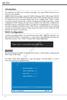 AMD RAID Introduction The integrate one SATA host controller separately, and support RAID function for performance and reliability. SB950 SATA RAID provides support for RAID 0 (Striping), RAID 1 (Mirroring),
Getting Started with ESXi Embedded
 ESXi 4.1 Embedded vcenter Server 4.1 This document supports the version of each product listed and supports all subsequent versions until the document is replaced by a new edition. To check for more recent
Core Protection for Virtual Machines 1
 Core Protection for Virtual Machines 1 Comprehensive Threat Protection for Virtual Environments. Installation Guide e Endpoint Security Trend Micro Incorporated reserves the right to make changes to this
Mac OS X 10.6 Snow Leopard Installation and Setup Guide
 Mac OS X 10.6 Snow Leopard Installation and Setup Guide Read this document before you install Mac OS X. It includes important information about installing Mac OS X. For more information about Mac OS X,
HP Thin Client Imaging Tool
 HP Thin Client Imaging Tool Table of Contents: Abstract... 1 Introduction... 1 System Requirements... 1 Software... 1 Hardware... 1 Getting Started... 2 Formatting a USB Flash Device... 3 Unpacking the
Open Source and License Source Information
 BlackArmor NAS 220 BlackArmor NAS 220 User Guide 2010 Seagate Technology LLC. All rights reserved. Seagate, Seagate Technology, the Wave logo, and FreeAgent are trademarks or registered trademarks of Seagate
Boot Camp Installation & Setup Guide
 Boot Camp Installation & Setup Guide Contents 3 Introduction 3 What You Need 4 Installation Overview 4 Step 1: Check for updates 4 Step 2: Prepare your Mac for Windows 4 Step 3: Install Windows 4 Step
Apple Server Diagnostics User Guide. For Version 3X10⁶
 Apple Server Diagnostics User Guide For Version 3X10⁶ KKApple Inc. 2009 Apple Inc. All rights reserved. Under the copyright laws, this manual may not be copied, in whole or in part, without the written
Installation Guide July 2009
 July 2009 About this guide Edition notice This edition applies to Version 4.0 of the Pivot3 RAIGE Operating System and to any subsequent releases until otherwise indicated in new editions. Notification
RAID 1(+0): breaking mirrors and rebuilding drives
 RAID 1(+0): breaking mirrors and rebuilding drives How to, 5 th edition Introduction... 2 Splitting a mirrored array using the Array Configuration Utility... 2 Recombining a split mirrored array using
Topaz Installation Sheet
 Topaz Installation Sheet P/N 460924001E ISS 08FEB12 Content Introduction... 3 Recommended minimum requirements... 3 Setup for Internet Explorer:... 4 Topaz installation... 10 Technical support... 14 Copyright
Avigilon Control Center Server User Guide
 Avigilon Control Center Server User Guide Version 4.10 PDF-SERVER-D-Rev1 Copyright 2011 Avigilon. All rights reserved. The information presented is subject to change without notice. No copying, distribution,
Microsoft Windows Compute Cluster Server 2003 Getting Started Guide
 Microsoft Windows Compute Cluster Server 2003 Getting Started Guide Part Number 434709-003 March 2007 (Third Edition) Copyright 2006, 2007 Hewlett-Packard Development Company, L.P. The information contained
Cloud Catcher TM Software
 Cloud Catcher TM Software User Manual Version 2.0 Technical Support SanDisk Knowledgebase Contact SanDisk Table of Contents Overview... 2 Minimum System Requirements... 2 Languages Supported... 2 Installing
Windows 2003 Server Installation Guide
 Windows 2003 Server Installation Guide Revision 2.0 April 14, 2011 Licenses This manual is the exclusive property of Prometric, Inc. This manual is licensed for use with restrictions to authorized centers
Intel Matrix Storage Manager 8.x
 Intel Matrix Storage Manager 8.x User's Manual January 2009 Revision 1.0 Document Number: XXXXXX INFORMATION IN THIS DOCUMENT IS PROVIDED IN CONNECTION WITH INTEL PRODUCTS. NO LICENSE, EXPRESS OR IMPLIED,
HP EliteBook and ProBook Notebook PCs - Upgrading from Windows 7 to Windows 8
 HP EliteBook and ProBook Notebook PCs - Upgrading from Windows 7 to Windows 8 This document pertains to HP business notebook computers to be upgraded from Windows 7 using a digital copy of Windows 8. You
Getting Started. HP Retail Systems
 Getting Started HP Retail Systems Copyright 2012, 2013 Hewlett-Packard Development Company, L.P. The information contained herein is subject to change without notice. Microsoft and Windows are U.S. registered
VERITAS Backup Exec TM 10.0 for Windows Servers
 VERITAS Backup Exec TM 10.0 for Windows Servers Quick Installation Guide N134418 July 2004 Disclaimer The information contained in this publication is subject to change without notice. VERITAS Software
Centran Version 4 Getting Started Guide KABA MAS. Table Of Contents
 Page 1 Centran Version 4 Getting Started Guide KABA MAS Kaba Mas Welcome Kaba Mas, part of the world-wide Kaba group, is the world's leading manufacturer and supplier of high security, electronic safe
Installing Windows XP Professional
 CHAPTER 3 Installing Windows XP Professional After completing this chapter, you will be able to: Plan for an installation of Windows XP Professional. Use a CD to perform an attended installation of Windows
Nexio Backup and Recovery
 Nexio Backup and Recovery 11/2/2015 175-100271-00 RevE Publication Information 2015 Imagine Communications Corp. Proprietary and Confidential. Imagine Communications considers this document and its contents
Image Backup and Recovery Procedures
 Image Backup and Recovery Procedures Thank you for purchasing a Fujitsu computer. Fujitsu is committed to bringing you the best computing experience with your new system. It is very important that you
You have more pressing concerns than how to backup and share your data but you know it needs to be done and you know it would benefit your business.
 Overview Store it, Secure it, Share it! You have more pressing concerns than how to backup and share your data but you know it needs to be done and you know it would benefit your business. The series provides
Boot Camp Installation & Setup Guide
 Boot Camp Installation & Setup Guide Contents 4 Introduction 5 What You Need 6 Installation Overview 6 Step 1: Check for updates. 6 Step 2: Open Boot Camp Assistant. 6 Step 3: Install Windows. 6 Step 4:
HP Server Integrations with Microsoft System Center Products Support Matrix
 HP Server Integrations with Microsoft System Center Products Support Matrix Part Number 467676-006 June 2010 (Sixth Edition) Copyright, 2010 Hewlett-Packard Development Company, L.P. The information contained
QuickSpecs. Overview. Compaq Remote Insight Lights-Out Edition
 Overview M ODELS Remote Insight Lights-Out Edition 157866-001 New Remote Insight Lights-Out Edition provides virtual graphical control using any standard browser to your remote or data centre server, giving
Installing the Operating System or Hypervisor
 Installing the Operating System or Hypervisor If you purchased E-Series Server Option 1 (E-Series Server without preinstalled operating system or hypervisor), you must install an operating system or hypervisor.
FTP Server Configuration
 FTP Server Configuration For HP customers who need to configure an IIS or FileZilla FTP server before using HP Device Manager Technical white paper 2 Copyright 2012 Hewlett-Packard Development Company,
Trend Micro Incorporated reserves the right to make changes to this document and to the products described herein without notice.
 Trend Micro Incorporated reserves the right to make changes to this document and to the products described herein without notice. Before installing and using the software, please review the readme files,
HP ProtectTools for Small Business Security Software, Version 5.10. User Guide
 HP ProtectTools for Small Business Security Software, Version 5.10 User Guide Copyright 2010 Hewlett-Packard Development Company, L.P. The information contained herein is subject to change without notice.
Reporting for Contact Center Setup and Operations Guide. BCM Contact Center
 Reporting for Contact Center Setup and Operations Guide BCM Contact Center Document Number: NN40040-302 Document Status: Standard Document Version: 04.00 Part Code: N0060637 Date: June 2006 Copyright 2005
HP ilo mobile app for Android
 HP ilo mobile app for Android User Guide Abstract The HP ilo mobile app provides access to the remote console and scripting features of HP ProLiant servers. HP Part Number: 690350-003 Published: March
Legal Notes. Regarding Trademarks. 2013 KYOCERA Document Solutions Inc.
 Legal Notes Unauthorized reproduction of all or part of this guide is prohibited. The information in this guide is subject to change without notice. We cannot be held liable for any problems arising from
HP RDX Continuous Data Protection Software and Recovery CD 3.0.512.9044 release notes
 HP RDX Continuous Data Protection Software and Recovery CD 3.0.512.9044 release notes Part Number: 5697-0367 1st edition: 1st September 2010 Description This document outlines the details of the third
Getting Started with Vision 6
 Getting Started with Vision 6 Version 6.9 Notice Copyright 1981-2009 Netop Business Solutions A/S. All Rights Reserved. Portions used under license from third parties. Please send any comments to: Netop
Windows Server 2008 R2 Essentials
 Windows Server 2008 R2 Essentials Installation, Deployment and Management 2 First Edition 2010 Payload Media. This ebook is provided for personal use only. Unauthorized use, reproduction and/or distribution
WhatsUp Gold v16.2 Installation and Configuration Guide
 WhatsUp Gold v16.2 Installation and Configuration Guide Contents Installing and Configuring Ipswitch WhatsUp Gold v16.2 using WhatsUp Setup Installing WhatsUp Gold using WhatsUp Setup... 1 Security guidelines
Point of Sale 2015 Enterprise. Installation Guide
 Point of Sale 2015 Enterprise Installation Guide Contents About this guide 3 System Requirements - Microsoft SQL Server 2008 R2 Express 3 System Requirements - POS Enterprise 2015 (Administrator) 3 System
HP Windows Server 2008R2 OEM licenses are available for purchase from HP or your local authorized reseller.
 Overview Windows Server 2008 R2 builds on the award-winning foundation of Windows Server 2008, expanding existing technology and adding new features to enable organizations to increase the reliability
QuickSpecs. Models. HP StorageWorks X510 3TB Data Vault. HP StorageWorks X500 Data Vault. HP StorageWorks X500 Data Vault.
 Overview Store it, Secure it, Share it! You have more pressing concerns than how to backup and share your data but you know it needs to be done and you know it would benefit your business. The series provides
Computer Setup User Guide
 Computer Setup User Guide Copyright 2008 Hewlett-Packard Development Company, L.P. Bluetooth is a trademark owned by its proprietor and used by Hewlett-Packard Company under license. Intel is a trademark
LOCKSS on LINUX. CentOS6 Installation Manual 08/22/2013
 LOCKSS on LINUX CentOS6 Installation Manual 08/22/2013 1 Table of Contents Overview... 3 LOCKSS Hardware... 5 Installation Checklist... 6 BIOS Settings... 9 Installation... 10 Firewall Configuration...
GUARD1 PLUS SE Administrator's Manual
 GUARD1 PLUS SE Administrator's Manual Version 4.4 30700 Bainbridge Road Solon, Ohio 44139 Phone 216-595-0890 Fax 216-595-0991 [email protected] www.guard1.com i 2010 TimeKeeping Systems, Inc. GUARD1 PLUS
Upgrade to Microsoft Windows Server 2012 R2 on Dell PowerEdge Servers Abstract
 Upgrade to Microsoft Windows Server 2012 R2 on Dell PowerEdge Servers Abstract Microsoft Windows Server 2012 R2, is Microsoft s latest version of Windows for Servers. This R2 release brings exciting new
Implementing Microsoft Windows Server 2008 Hyper-V Release Candidate 1 on HP ProLiant servers
 Implementing Microsoft Windows Server 2008 Hyper-V Release Candidate 1 on HP ProLiant servers integration note Abstract... 2 Introduction to Windows Server 2008 Hyper-V RC1... 3 Terminology... 3 Applicable
HP PolyServe Software 4.1.0 upgrade guide
 HP StorageWorks HP PolyServe Software 4.1.0 upgrade guide This document describes how to upgrade to HP PolyServe Matrix Server 4.1.0, HP PolyServe Software for Microsoft SQL Server 4.1.0, and HP PolyServe
Synchronizer Installation
 Synchronizer Installation Synchronizer Installation Synchronizer Installation This document provides instructions for installing Synchronizer. Synchronizer performs all the administrative tasks for XenClient
NovaBACKUP. User Manual. NovaStor / November 2011
 NovaBACKUP User Manual NovaStor / November 2011 2011 NovaStor, all rights reserved. All trademarks are the property of their respective owners. Features and specifications are subject to change without