
MCR-840 RECEIVER/DVD PLAYER (R DVD NS-BP300) OWNER'S MANUAL
|
|
|
- Sabrina Thornton
- 9 years ago
- Views:
Transcription
1 A MCR-840 (R DVD NS-BP300) RECEIVER/DVD PLAYER OWNER'S MANUAL

2 CAUTION: READ THIS BEFORE OPERATING YOUR UNIT. 1 To assure the finest performance, please read this manual carefully. Keep it in a safe place for future reference. 2 Install this sound system in a well ventilated, cool, dry, clean place and away from direct sunlight, heat sources, vibration, dust, moisture and cold. For proper ventilation, allow the following minimum clearances. Top: 30 cm (R-840 Only) Rear: 10 cm Sides: 10 cm 3 Locate this unit away from other electrical appliances, motors, or transformers to avoid humming sounds. 4 Do not expose this unit to sudden temperature changes from cold to hot, and do not locate this unit in an environment with high humidity (i.e. a room with a humidifier) to prevent condensation inside this unit, which may cause an electrical shock, fire, damage to this unit, and/or personal injury. 5 Avoid installing this unit where foreign object may fall onto this unit and/or this unit may be exposed to liquid dripping or splashing. On the top of this unit, do not place: Other components, as they may cause damage and/or discoloration on the surface of this unit. Burning objects (i.e. candles), as they may cause fire, damage to this unit, and/or personal injury. Containers with liquid in them, as they may fall and liquid may cause electrical shock to the user and/or damage to this unit. 6 Do not cover this unit with a newspaper, tablecloth, curtain, etc. in order not to obstruct heat radiation. If the temperature inside this unit rises, it may cause fire, damage to this unit, and/or personal injury. 7 Do not plug in this unit to a wall outlet until all connections are complete. 8 Do not operate this unit upside-down. It may overheat, possibly causing damage. 9 Do not use force on switches, knobs and/or cords. 10 When disconnecting the power cable from the wall outlet, grasp the plug; do not pull the cable. 11 Do not clean this unit with chemical solvents; this might damage the finish. Use a clean, dry cloth. 12 Only voltage specified on this unit must be used. Using this unit with a higher voltage than specified is dangerous and may cause fire, damage to this unit, and/or personal injury. Yamaha will not be held responsible for any damage resulting from use of this unit with a voltage other than specified. 13 To prevent damage by lightning, keep the power cable and outdoor antennas disconnected from a wall outlet or this unit during a lightning storm. 14 Do not attempt to modify or fix this unit. Contact qualified Yamaha service personnel when any service is needed. The cabinet should never be opened for any reasons. 15 When not planning to use this unit for long periods of time (i.e. vacation), disconnect the AC power plug from the wall outlet. 16 Be sure to read the TROUBLESHOOTING section on common operating errors before concluding that this unit is faulty. 17 Before moving this unit, press to set it to standby mode and disconnect the AC power plug from the wall outlet. 18 Condensation will form when the surrounding temperature changes suddenly. Disconnect the power cable from the outlet, then leave this unit alone. 19 When using this unit for a long time, this unit may become warm. Turn the power off, then leave this unit alone for cooling. 20 Install this unit near the AC outlet and where the AC power plug can be reached easily. 21 The batteries shall not be exposed to excessive heat such as sunshine, fire or the like. 22 Excessive sound pressure from earphones and headphones can cause hearing loss. This unit is not disconnected from the AC power source as long as it is connected to the wall outlet, even if this unit itself is turned off by. This state is called standby mode. In this state, this unit is designed to consume a very small quantity of power. LASER SAFETY This unit employs a laser. Due to possible eye injury, only a qualified service person should remove the cover or attempt to service this device. DANGER This unit emits visible laser radiation when open. Avoid direct eye exposure to beam. When this unit is plugged into the wall outlet, do not place your eyes close to the opening of the disc tray and other openings to look into inside. The laser component in this product is capable of emitting radiation exceeding the limit for Class 1. LASER Type Wave length Output Power Beam divergence Semiconductor laser AlGaInP 655 nm (DVD) 790 nm (VCD/CD) 5 mw (DVD) 7 mw (VCD/CD) 20 degree WARNING TO REDUCE THE RISK OF FIRE OR ELECTRIC SHOCK, DO NOT EXPOSE THIS UNIT TO RAIN OR MOISTURE. i En

3 CONTENTS INTRODUCTION FEATURES... 2 SUPPLIED ACCESSORIES... 2 NOTES ABOUT PLAYABLE DISCS/FILES... 3 CONTROLS AND FUNCTIONS... 4 Receiver (R-840)... 4 DVD player (DVD-840)... 5 Remote control... 6 PREPARATION PREPARATIONS... 8 Connecting speakers/external components/ antennas... 8 Connecting power cables... 9 Connecting a recorder (CDR, MDR, etc.) Connecting an AV receiver or decoder Connecting an ipod Connecting USB devices Installing the batteries in the remote control Using the remote control Adjusting the Clock SETTING THE SYSTEM Turn on the TV and the system Setting the TV display Selecting the output type for COMPONENT jacks Selecting the HDMI audio output On-screen display (OSD) language Audio, Subtitle and Disc menu languages BASIC OPERATIONS SYSTEM OPERATIONS Basic system operations Changing the brightness of the front panel display To use headphones DISC AND USB DEVICE OPERATIONS Using the on-screen display Playback operations Stopping playback Resume and Last Memory Pausing playback Rewind and fast forward Selecting chapters and tracks Selecting items by number DVD-Video menus VCD and SVCD menus (PBC) Slow-motion playback Frame-by-frame playback Selecting languages and audio Selecting subtitles Selecting camera angles Zoom Repeat playback A B repeat playback Random playback Program playback Searching Discs Playing JPEG slideshows Using Disc Navigator with DVD-Video, VCD, and SVCD discs Using Disc Navigator with MP3, WMA, MPEG-4 AAC, DivX, WMV, and JPEG discs/usb devices Viewing disc information Viewing the audio format TUNER OPERATIONS DAB (DIGITAL AUDIO BROADCASTING) TUNING...29 Preparing the DAB tuning Tuning DAB stations DAB station information Presetting DAB stations Selecting preset DAB stations (Preset tuning) Using DAB option menu DAB frequency information FM TUNING...33 Automatic tuning Manual tuning Automatic preset tuning Manual preset tuning Selecting preset stations OTHER OPERATIONS SETTING THE TIMER...35 Setting the clock timer Setting the sleep timer SETTING THE AUTO-STANDBY MODE...37 CONTROLLING ipod...38 Using ipod DVD SETUP MENU OPTIONS...39 Audio Settings menu Video Adjust menu Initial Settings menu ADDITIONAL INFORMATION TROUBLESHOOTING...45 Receiver (R-840) Remote control DVD player (DVD-840) SUPPORTED DISCS AND FORMATS...49 Copy Control CDs DualDisc Recordable disc compatibility Discs made on a computer MP3, WMA, and MPEG-4 AAC files JPEG files About DivX About WMV About MPEG-4 AAC About WMA DVD-Video regions NOTES ABOUT HANDLING DISCS...52 GLOSSARY...53 SPECIFICATIONS...55 Resetting the DVD player LANGUAGE, COUNTRY, AND REGION LISTS...57 Language list Country and region list INTRODUCTION PREPARATION BASIC OPERATIONS TUNER OPERATIONS OTHER OPERATIONS ADDITIONAL INFORMATION 1 En

4 ipod FEATURES INTRODUCTION FEATURES Receiver (R-840) Minimum RMS output power per channel 65W + 65W (6Ω, 1kHz, 10% THD) 30-station DAB preset tuning 30-station FM preset tuning ipod playability (with rechargeable function) Pure Direct mode Adjustable display brightness DVD player (DVD-840) Plays DVDs, Super Video CDs/Video CDs, Audio CDs, MP3/WMA/MPEG-4 AAC discs, WMV discs, DivX discs and JPEG discs Plays MP3/WMA/MPEG-4 AAC and JPEG files stored on a USB device Linked operation with the receiver such as Pure Direct mode, adjustable display brightness and INPUT mode About this manual In this manual, R-840 is described as receiver and DVD-840 is described as DVD player. This manual describes how to operate the system using a remote control except when it is not available. Some of these operations are also available using the front panel buttons. y indicates a tip for your operation. contain important information about safety and operating instructions. This manual is printed prior to production. Design and specifications are subject to change in part as a result of improvements, etc. In case of differences between the manual and the product, the product has priority. SUPPLIED ACCESSORIES This product includes the following accessories. Before connecting this system, make sure you received all of the following parts. Remote control Indoor FM antenna USB cap* DVD player Indoor DAB antenna USB System control cable (0.6 m) CAUTION Keep the USB cap out of the reach of children, so that it is not mistakenly swallowed. ipod dock cover* Composite video cable (1.5 m) Batteries (x2) (AAA, R03, UM-4) RCA stereo cable (1.0 m) INPUT VOLUME Receiver * The USB cap and the ipod dock cover are supplied with this product to cover the USB port and the ipod dock when not in use. 2 En

5 NOTES ABOUT PLAYABLE DISCS/FILES Playable discs The DVD player is designed for use with the following discs. DVD disc: DVD-Video, DVD-R/-RW/-R DL, DVD+R/+RW/+R DL Compact Disc: Audio CD, CD-R, CD-RW, Video CD (VCD), Super Video CD (SVCD) y Refer to DISC AND USB DEVICE OPERATIONS ( p.19) for details. Region codes The DVD player is designed to support the Region Management System. Check the region code number on the disc package. If the number does not match the unit s region number (Refer to the table below or the back of the unit), the unit may be unable to play the disc. INTRODUCTION Destination Region code of DVD-840 Playable discs U.S.A., and Canada model 1 1 ALL Europe model 2 2 ALL DVD-R/-RW/-R DL and DVD+R/+RW/+R DL discs recorded in DVD-Video compatible format. DVD-R/-RW/-R DL discs recorded in VR format (compatible with CPRM). CD-R/RW, DVD-R/-RW/-R DL and DVD+R/+RW/+R DL cannot be played unless finalized. Multi-session discs are not supported. Some discs recorded on PC cannot be played depending on the settings of the application software. Discs recorded on a PC by packet writing cannot be played on this DVD player. This unit is not compatible with 8-cm discs. Playable files The DVD player can play the following formatted files recorded on CD-R/RW, DVD-R/-RW, DVD+R/+RW and USB devices. Compressed audio file MPEG1 audio layer3 (MP3) Windows Media Audio (WMA) MPEG-4 AAC Still image file JPEG FUJICOLOR CD KODAK Picture CD Movie file (except files saved on USB devices) WMV DivX Ultra Official DivX Ultra Certified product. Plays all versions of DivX video (including DivX 6) with enhanced playback of DivX media files and the DivX Media Format. Asia and Taiwan models Australia model Russia model China model 3 3 ALL 4 4 ALL 5 5 ALL 6 6 ALL To play back an 8-cm (3-inch) CD Place it in the inner recessed area of the disc tray. Do not put a normal (12-cm) CD on top of an 8-cm (3-inch) CD. Note: Do not use any lens cleaners as they may be a cause of malfunction. 3 En

6 CONTROLS AND FUNCTIONS CONTROLS AND FUNCTIONS Receiver (R-840) 1 Front panel INPUT VOLUME PRESET TUNED STEREO khz SLEEP MHz ipod TIMER PHONES BASS TREBLE BALANCE MIN MAX PRESET PURE DIRECT L 1 INPUT Selects an input source. ABC D E F G H Front view I B TIMER indicator Lights up when the timer is set ( p.35). Top view 2 On/Standby indicator Lights up in green when the receiver is turned on. Lights up in amber when the receiver is in standby mode. 3 Remote control sensor Receives signals from the remote control. 4 PRESET indicator Lights up when you select preset radio stations ( p.30, p.34). 5 TUNED indicator Lights up when the receiver is tuned into a station. 6 STEREO indicator Lights up when the receiver is receiving a strong signal from a DAB/FM stereo broadcast. 7 SLEEP indicator Lights up when the sleep timer is on ( p.36). 8 Front panel display Shows the various information such as the tuning frequency. 9 VOLUME Adjusts the volume level. 0 (On/Standby) Turns the receiver on or sets it to standby mode. C BASS Adjusts the low frequency response ( p.17). D TREBLE Adjusts the high frequency response ( p.17). E BALANCE Adjusts the audio output balance of the left to right speakers to compensate for imbalances caused by speaker locations or listening room conditions. F PRESET d / u Selects a preset station. The input source is changed to either DAB or FM, whichever was last selected. Operable even when the receiver is in standby mode ( p.30, p.34). G PURE DIRECT Turns on or off Pure Direct mode ( p.17). When Pure Direct mode is on, the indicator lights up in blue. H h / e Starts and pauses the playback of ipod. The input source is changed to ipod. Operable even when the receiver is in standby mode. I ipod dock Connect your ipod ( p.11). A PHONES jack Outputs audio signals for private listening with headphones. 4 En

7 CONTROLS AND FUNCTIONS DVD player (DVD-840) Front panel USB CD MP3 WMA TRACK TOTAL REMAIN PROG RANDOM REP OFF S ALL A-B INTRODUCTION A B C DE 1 USB port Connect your USB device. 2 Front panel display Shows the current status of the DVD player. 3 p (play) indicator Appears during playback. 4 Time display mode indicator Indicate the kind of time information displayed on the front panel display ( p.28). 5 PROG indicator Lights up when Program play mode is selected. 6 RANDOM indicator Lights up when Random play mode is selected. 7 REP OFF S ALL A-B indicator Lights up when Repeat play mode is selected. A (On/Standby) Turns on the DVD player or sets it to standby mode. When this button is pressed during standby mode, the receiver automatically turns on and the input source changes to either DISC or USB, whichever was selected last. B e (pause) indicator Lights up while the DVD player is paused. C Disc tray Holds a disc to be played back. D Opens and closes the disc tray. When this button is pressed during standby mode, the receiver automatically turns on and the input source changes to DISC. E Stops playback ( p.20). 8 Returns to the beginning of the current chapter or track. Press and hold to fast reverse. Press twice to skip to the previous chapter or track ( p.20). 9 Starts or pauses playback ( p.19). When this button is pressed during standby mode, the receiver automatically turns on and the input source changes to either DISC or USB, whichever was last selected. 0 Skips to the next chapter or track. Press and hold to fast forward ( p.20). 5 En

8 CONTROLS AND FUNCTIONS Remote control A B C D E F G H I J K JL M N O P Q R S t U V W X Y Z [ \ ] ` a b c d This remote control can operate the system components (including tuner functions) and an ipod stationed in the ipod dock on the top of the receiver. To operate the DVD player, tuner functions, or an ipod using the remote control, you need to set the receiver to corresponding input mode ( 8Input selection keys). To operate your ipod Press the corresponding ipod operation key on the remote control. The ipod operation keys are indicated with in the section below. See page 38 for more information on the operation of your ipod. 1 Infrared signal transmitter Sends signals to the system you want to control. 2 (On/Standby) Turns the system on or sets it to standby mode. 3 MENU Returns to the upper level in the ipod menu. 4 Skips to the next song. Press and hold to fast forward. 5 Skips to the beginning of the current track. Press twice to skip back to the previous track. Press and hold to fast reverse. 6 ENTER Press ENTER to enter the selected group. (Pressing ENTER starts playback when a song is selected.) 7 Starts or Pauses Playback. 8 Input selection keys Selects the input source on the receiver. When selecting an input source, press the corresponding input selection key (or turn INPUT on the front panel). The name of the corresponding input source appears on the front panel display of the receiver. Each time you press TUNER, the input switches between DAB and FM. y When DISC or USB is selected as an input source, the DVD player turns on automatically and when other input source is selected, the DVD player sets to standby mode. 9 MEMORY Stores a preset station in the memory ( p.30, p.34). Starts Automatic preset tuning ( p.33). 0 MONO Sets FM broadcasting receiving mode to monaural mode. 6 En

9 CONTROLS AND FUNCTIONS A DISPLAY Switches the information shown on the front panel display of the receiver and DVD player ( p.28, p.30). S d TUNING / d Press TUNING to Manual tuning d / d and press and d hold TUNING / d to Automatic tuning ( p.29, p.33). B OPTION Enters option menu mode. See pages 31, 34 and 37 for option menu items. C TIMER Shows the current time on the front panel display of the receiver. And sets the clock ( p.13) or the timer ( p.35). T PRESET u / d Select a preset station ( p.30, p.34). U DIMMER Changes the brightness of the front panel display ( p.18). V PURE DIRECT Turns on or off Pure Direct mode ( p.17). INTRODUCTION D TOP MENU Displays the DVD s top menu ( p.21). E,,,, ENTER For selecting and confirming an item. F SETUP Displays the Setup menu ( p.14). G Pauses playback ( p.20). H Stops playback ( p.20). I, Rewind and fast-forward. J Numeric keys Input numbers. K AUDIO Selects the audio format and soundtrack ( p.22). L SUBTITLE Selects subtitles ( p.22). M RANDOM Turns on/off the Random Play mode ( p.24). N REPEAT Selects Repeat Play mode ( p.23). O Opens and closes the disc tray. P, Press or to switch an item in the selected group ( p.38). Q SHUFFLE Selects mode of Shuffle Play ( p.38). W SLEEP Sets the sleep timer on the system ( p.36). X MENU Displays the DVD s menu ( p.21). Y VOLUME +/ Adjusts the overall volume level on the receiver. Z RETURN Returns to the previous menu ( p.19). [ Starts playback ( p.19). \ MUTE Turn off the volume ( p.18). ], Skips to the beginning of the current or next chapter or track. ` CLEAR Clears an entry. a ENTER Confirms an entry. b ZOOM Zooms on-screen pictures ( p.23). c ANGLE Selects an camera angle ( p.23). d ON SCREEN Displays disc information on-screen ( p.28). R REPEAT Selects mode of Repeat Play ( p.38). 7 En

10 PREPARATIONS PREPARATION PREPARATIONS Connecting speakers/external components/antennas Make sure you read the following procedure and note carefully before connecting the system. The remote control and linked operation of the system only work when the receiver and the DVD player are connected via the system control cable. For information on the speakers (NS-BP300), refer to the owner s manual supplied with it. Connecting the system 1 Connect the AUDIO IN ( A PLAYER L/R) jacks of the receiver to the AUDIO OUT ( A L/R) jacks of the DVD player using the supplied audio RCA stereo cable. 2 Connect the SYSTEM CONNECTOR ( B TO:PLAYER) jack of the receiver to the SYSTEM CONNECTOR ( B TO:RECEIVER) jack of the DVD player using the supplied system control cable. 3 Connect the speaker terminals (L) of the receiver to the speaker terminals of the left speaker and the speaker terminals (R) of the receiver to the speaker terminals of the right speaker using the speaker cables supplied with the speaker set (NS-BP300). 4 Connect the supplied FM antenna to the FM jack, and DAB antenna to the DAB jack. DVD player (DVD-840) TV etc. Indoor DAB antenna (supplied) y Stretch out the antenna and place it to find the best reception position then fix it. Right speaker (NS-BP300) Left speaker (NS-BP300) System control cable (supplied) RCA stereo cable (supplied) Audio out RCA stereo cable Subwoofer CAUTION Receiver (R-840) (Europe model) Do not connect this unit or other components to the main power until all connections between components are complete. Do not let the bare speaker wires touch each other or any metal part of the receiver. This could damage the receiver and/or the speakers. All connections must be correct: L (left) to L, R (right) to R, + to + and to. If the connections are faulty, no sound will be heard from the speakers, and if the polarity of the speaker connections is incorrect, the sound will be unnatural and lack bass. Also, refer to the owner s manual for each of your components. The system control connection is used to transmit the remote control signals from the receiver to the DVD player. When connecting speakers other than NS-BP300, use speakers having more than 6Ω impedance. If there is a problem of weak radio wave reception in your area or you want to improve radio reception, we recommend that you use commercially available outdoor antennas. For details, consult the nearest authorized Yamaha dealer or service center. 8 En

11 PREPARATIONS Connecting a TV to the system 1 Connect the system and your TV via the HDMI jack, COMPONENT jacks or VIDEO jack of the DVD player and the corresponding jack(s) of your TV. 2 Set TV Screen according to your TV (see Setting the TV display on page 14). DVD player (DVD-840) Composite video cable (supplied) When connecting the system and your TV via the COMPONENT jacks, set the DVD player as described in Selecting the output type for COMPONENT jacks ( p.15). When connecting the system and your TV via the HDMI jacks, set HDMI Resolution and HDMI Color of Video Output settings in the Initial Settings menu ( p.40). PREPARATION Connecting power cables After you made all connections, connect the power cables of this system and other components to AC wall outlets. Receiver (R-840) To AC wall outlet To AC wall outlet DVD player (DVD-840) 9 En

12 PREPARATIONS Connecting a recorder (CDR, MDR, etc.) You can connect a recording component, such as a CDR or MDR, to the DVD player for recording. DVD player (DVD-840) Optical cable (sold separately) Recording component (CDR, MDR) Do not connect the power cable to the DVD player until all other connections have been completed. Turn off the recording component before connecting it to the DVD player. The DIGITAL OUT outputs audio only when the input source is DISC or USB, and with some discs and files, recording may not be possible due to copy protection. Connecting an AV receiver or decoder The DVD player downmixes multi-channel sources, such as Dolby Digital and DTS, into a 2-channel stereo mix that you can enjoy through the speakers connected to the DVD player. By connecting an AV receiver/decoder to the DVD player s DIGITAL OUT jack, you can enjoy Dolby Digital and DTS sources though the speakers connected to your AV receiver/decoder. Make sure the digital audio output settings are configured so that the DIGITAL OUT outputs MPEG, Dolby Digital, and DTS material as it is and not as PCM. You may want to turn down the volume on the DVD player all the way when listening through the speakers connected to your AV receiver/decoder. The DIGITAL OUT outputs audio only when the input source is DISC or USB. DVD player (DVD-840) Optical cable (sold separately) AV receiver/decoder 10 En

13 INPUT PHONES BASS ipod TREBLE BALANCE L R PRESET MIN VOLUME PURE DIRECT MAX PREPARATIONS Connecting an ipod The receiver is equipped with the ipod dock on the top panel where you can station your ipod and control playback of your ipod using the supplied remote control. Use this receiver with ipod dock adapter (supplied with your ipod or commercially available) appropriate for your ipod. If you use this receiver without using an appropriate ipod dock adapter, loose connection may result. y When the receiver is turned on or in standby mode, connect the ipod during the playback. The receiver automatically starts playback of ipod (for the fifth or later generation of ipod, ipod touch, ipod Classic, or ipod nano). ipod Connecting USB devices This DVD player has a USB port and can access MP3, WMA, MPEG-4 AAC, or JPEG files saved on your USB device. Connect your USB device to the USB port on the front panel of the DVD player. USB DVD player PREPARATION ipod dock adapter Receiver Only ipod (Click and Wheel), ipod nano, ipod Classic, ipod mini and ipod touch are supported. Do not connect any ipod accessories (such as headphones, a wired remote control, or an FM transmitter) to your ipod when it is stationed in the ipod dock. Unless your ipod is firmly stationed in the ipod dock, audio signals may not be output properly. Once the connection between your ipod and the receiver is complete and the receiver is set to ipod mode ( p.6), CONNECTED appears on the front panel display. If the connection between your ipod and the receiver fails, a status message appears on the front panel display. For a complete list of connection status message, see the ipod section in TROUBLESHOOTING ( p.45). When your ipod is stationed in the ipod dock of the receiver, your ipod can be charged automatically even when the receiver is in standby mode. You can disconnect the ipod during the playback. USB device Supported USB devices This DVD player supports USB mass storage class devices (e.g., flash memories, card readers or portable audio players) using FAT16 or FAT32 format. Some devices may not work properly even if they meet the requirements. Do not connect devices other than the USB mass storage class devices. When you insert two or more memory cards at the same time using card readers, etc., only one of the memory cards is recognized. Yamaha and suppliers accept no liability for the loss of data saved on the USB devices connected to the receiver. As a precaution, it is recommended that the files are made backup copies. Playability of and power supply to all kind of USB devices are not guaranteed. When your USB device is connected to the USB port, your USB device can be charged automatically even when the DVD player is in standby mode. Some USB devices cannot be charged in standby mode. You can disconnect the USB device during the playback. 11 En

14 INPUT PHONES BASS TREBLE BALANCE L R VOLUME MIN MAX PRESET PURE DIRECT PREPARATIONS Installing the batteries in the remote control 1 3 Using the remote control The remote control transmits a directional infrared beam. Be sure to aim the remote control directly at the remote control sensor on the front panel of the receiver during operation. Receiver (R-840) 2 Within 6 m (20 feet) on batteries Change both batteries when the operation range of the remote control decreases. Use AAA, R03, UM-4 batteries. Make sure that the polarities are correct. See the illustration inside the battery compartment. Remove the batteries if the remote control is not to be used for an extended period of time. Do not use old batteries together with new ones. Do not use different types of batteries (such as alkaline and manganese batteries) together. Read the packaging carefully as these different types of batteries may have the same shape and color. If the batteries have leaked, dispose of them immediately. Avoid touching the leaked material or letting it come into contact with clothing, etc. Clean the battery compartment thoroughly before installing new batteries. Do not throw away batteries with general house waste; dispose of them correctly in accordance with your local regulations. The area between the remote control and the receiver must be clear of large obstacles. Do not spill water or other liquids on the remote control. Do not drop the remote control. Do not leave or store the remote control in the following types of conditions: high humidity, such as near a bath high temperature, such as near a heater or a stove extremely low temperatures dusty places. Do not expose the remote control sensor to strong lighting, in particular, an inverter type fluorescent lamp; otherwise, the remote control may not work properly. If necessary, position the system away from direct lighting. 12 En

15 PREPARATIONS Adjusting the Clock Before starting playback operation, follow the procedure below to adjust the clock setting of the receiver. Use the remote control to set the clock. You cannot set the clock with the buttons on the receiver. The receiver supports 24-hour clock display. If you do not touch any key for 90 seconds, the receiver returns to normal mode. 4 Set the hour using /, and press. The minute digits start flashing. Flashes 5 Set the minutes using /, and press ENTER. The hour and minute digits start flashing. To change the hour or minutes again, press or, do steps 4 and 5, and proceed to step 6. PREPARATION TIMER Flashes ENTER, RETURN 6 Press ENTER. The clock is set. The hour and minute segments stop flashing and remain on. The receiver returns to normal mode. 1 Press to turn the receiver on. The front panel display lights up. 2 Press TIMER to show the current time. If the clock is not set, SET TIME flashes on the display. Press ENTER to proceed to step 3. y You can return to the previous screen by pressing RETURN. or 3 Press / to select TIME, and press ENTER. The receiver enters clock setting mode. The hour digits start flashing. Flashes 13 En

16 SETTING THE SYSTEM SETTING THE SYSTEM Turn on the TV and the system Make sure that you have completed all the necessary connections (see Connecting a TV to the system on page 9). 1 Turn on the TV to which the DVD player is connected. Select the TV input to match the input connected to the DVD player. 2 Press to turn on the receiver. 3 Press / to select Video Output, and then press ENTER. 4 Press / to select TV Screen, and then press ENTER. Initial Settings Digital Audio Out Video Output Language Display Options TV Screen Component Out HDMI Resolution HDMI Color 4:3 (Letter Box) Interlace 720x480p Component 3 Press DISC. Setting the TV display Set the aspect ratio of the DVD player according to the TV you have connected. The format you select must be available on the disc. If it is not, the TV display setting will not affect the picture during playback.,,,, ENTER SETUP 1 Press SETUP. The DVD setup menu appears on the screen. Audio Settings Play Mode Video Adjust Disc Navigator 5 Press / to select one of the options below, and then press ENTER. 4:3 (Letter Box) Select this if you have a conventional TV. In this case, a wide picture with black bar on the upper and lower portions of the TV screen will be displayed. 4:3 (Pan&Scan) Select this if you have a conventional TV and want both sides of the picture to be trimmed or formatted to fit your TV screen. Note If the disc does not support an aspect ratio of 4:3 (Pan&Scan), the content is displayed in 4:3 (Letter Box). 16:9 (Wide) Select this if you have a wide-screen TV. 16:9 (Compressed) Select this if a wide-screen TV is connected to the DVD controller with an HDMI cable, and set HDMI Resolution to either 1920 x 1080p, 1920 x 1080i, or 1280 x 720p. When playing back a content whose aspect ratio is 4:3, black bars cover the sides of the screen. Initial Settings 2 Press / / / to select Initial Settings, and then press ENTER. Initial Settings Digital Audio Out Video Output Language Display Options Digital Out Dolby Digital Out DTS Out 96 khz PCM Out MPEG Out On Dolby Digital DTS 96kHz > 48kHz MPEG > PCM 14 En

17 SETTING THE SYSTEM Selecting the output type for COMPONENT jacks 4 Press repeatedly to select HDMI A- ON. To use progressive display function, connect to a TV, which has that function, via COMPONENT jacks. 1 Press SETUP. 2 Press / / / to select Initial Settings, and then press ENTER. 3 Press / to select Video Output, and then press ENTER. 4 Press / to select Component Out, and then press ENTER. Initial Settings Digital Audio Out Video Output Language Display Options TV Screen Component Out HDMI Resolution HDMI Color 4:3 (Letter Box) Interlace 720x480p Component 5 Press. HDMI Audio output is turned on and the DVD player goes on standby. Press again to turn it back on. To turn HDMI Audio output off, repeat the above procedure but select HDMI A-OFF in step 4. Note The audio output by the HDMI jack is always 2-channel PCM. On-screen display (OSD) language You can select your preferred language settings so that the DVD player will automatically switch to your preferred language whenever you load a disc. If the language selected is not available on the disc, the disc s default setting language will be used instead. The OSD (on-screen display) language for the DVD setup menu will remain as you set it, regardless of various disc languages. 1 Press SETUP. DVD setup menu appears on the screen. PREPARATION 5 Press / to select Progressive / Interlace, and then press ENTER. 6 When the confirmation screen appears, press ENTER again. To cancel the setting, press RETURN. 2 Press / / / to select Initial Settings, and then press ENTER. 3 Press / to select Display, and then press ENTER. Note Initial Settings Do not select Progressive if your TV does not have a progressive display function. If your TV is also connected via HDMI terminal, the system may ignore this setting and output the progressive signal from COMPONENT jacks. Digital Audio Out Video Output Language Display Options OSD Language Angle Indicator On Selecting the HDMI audio output Normally, the speakers connected to the receiver are used to output the sound. However, you may want to listen through your HDMI TV s speakers, in which case you can turn HDMI audio output on and off as follows. 4 Press / to select OSD Language, and then press ENTER. 5 Press / to select a language, and then press ENTER. 1 Set the DVD player to standby. 2 While holding down on the DVD player s front panel, press. DVD NO REQ. is displayed. 3 Press / to select HDMI A- OFF or HDMI A-ON. 15 En

18 SETTING THE SYSTEM Audio, Subtitle and Disc menu languages 1 Press SETUP. DVD setup menu appears on the screen. 2 Press / / / to select Initial Settings, and then press ENTER. 3 Press / to select Language, and then press ENTER. Initial Settings Digital Audio Out Video Output Language Display Options Audio Language Subtitle Language DVD Menu Lang. Subtitle Display On 4 Press / to select the item below, and then press ENTER. Audio Language Subtitle Language DVD Menu Language 5 Press / to select a language, and then press ENTER. 16 En

19 SYSTEM OPERATIONS BASIC OPERATIONS SYSTEM OPERATIONS Follow the procedure below to select an input source and adjust the sound settings on the system. (On/Standby) INPUT INPUT TP PHONES TIMER BASS BASS TREBLE TREBLE BALANCE BALANCE L R PRESET VOLUME MIN VOLUME PURE DIRECT PURE DIRECT MAX Basic system operations 1 Press (On/Standby) to turn on the receiver. Depending on input mode of the receiver, the DVD player also turns on by the system control connection ( p.8). The front panel display lights up. y This system has an auto-standby function ( p.37) which automatically sets it to standby mode if not operated for 30 minutes while the receiver is set to DISC/USB input mode. USB 2 Press one of the input selection keys (or rotate INPUT on the front panel) to select the desired input source. 3 Start playback on the selected source component or select a radio station. For information on the disc/usb device playback, see page 19, and for information on tuning, see pages 29 and 33. BASIC OPERATIONS (On/Standby) 4 Press VOLUME +/ (or turn VOLUME on the front panel) to adjust the volume to the desired output level. Input selection keys PURE DIRECT VOLUME +/ MUTE 5 Rotate BASS, TREBLE, or BALANCE on the front panel of the receiver to adjust the following settings. BASS: Adjusts the low frequency response. TREBLE: Adjusts the high frequency response. BALANCE: Adjusts the volume level of each left and right speaker channel. Pure Direct mode Pure Direct mode bypasses the tone control circuit and turns off the front panel display, allowing you to enjoy pure high-fidelity sound. Press PURE DIRECT (or PURE DIRECT on the front panel) to turn on Pure Direct mode. The front panel display automatically turns off. PURE DIRECT on the front panel is backlit in blue. If you carry out operations while Pure Direct mode is turned on, the front panel display lights up briefly to acknowledge the command. While the Pure Direct mode is turned on, neither BASS, TREBLE, nor BALANCE is available. 17 En

20 SYSTEM OPERATIONS To turn off Pure Direct mode Press PURE DIRECT again. The PURE DIRECT backlight turns off and the front panel display turns on. Muting the sound (MUTE) Press MUTE to reduce the current volume level by approximately 20dB. MUTE ON appears on the front panel display. Press MUTE again to restore the audio output to the previous volume level. Changing the brightness of the front panel display You can dim the front panel display of the receiver. The front panel display of the DVD player also dims by the system control connection ( p.8). (The default setting is DIMMER OFF.) DIMMER Press DIMMER. You can choose your desired brightness of the front panel display between normal (bright), mid dim, and dim. To use headphones You can connect your headphones to the PHONES jack on the front panel of the receiver. The sound from the speakers and the subwoofer stops. INPUT PHONES 18 En

21 DISC AND USB DEVICE OPERATIONS DISC AND USB DEVICE OPERATIONS This chapter explains how to play discs/usb devices. Using the on-screen display When the input source is DISC or USB, you can operate various functions and settings by using the on-screen menus that appear on the connected TV. Button SETUP Cursor ( )/( ) Description Displays the Setup menu* Selects menu items Playback operations To start disc playback You can play the following types of discs: DVD-Video, DVD-VR (DVD-R/RW/R DL discs recorded in VR mode), VCD, SVCD, Audio CD, and DTS CD. Also, data discs containing the following types of files: MP3, WMA, MPEG-4 AAC, JPEG, DivX Ultra, and WMV. See page 3 for more details on supported disc types and file formats. ENTER RETURN Confirms item selection Returns to the previous menu * Only when the input source is DISC. y You can change the language of the on-screen display with the OSD Language setting ( p.15). The buttons that you can use with each menu are shown at the bottom of each screen. 1 Press. The disc tray opens and the DISC input source is selected automatically. If the receiver was on standby, it will turn on automatically. To use the on-screen menus or view video or pictures, turn on your TV and select the AV input to which the DVD player is connected. 2 Place the disc, label-side up, in the center of the disc tray, and then press. The disc tray closes and the disc is loaded. BASIC OPERATIONS TOP MENU,,, ENTER SETUP Numeric keys MENU RETURN,, 3 Press. If you loaded a DVD, VCD, or SVCD disc, a menu may appear. See DVD-Video menus or VCD and SVCD menus (PBC) ( p.21) for more details. If you loaded a disc containing JPEG pictures, a slideshow will start. See Playing JPEG slideshows ( p.26) for more details. If you loaded a disc containing various file formats, such as MP3, WMA, MPEG-4 AAC, JPEG, DivX, or WMV, you ll need to select the format you want to play on-screen. To play a double-sided DVD, load it with the side you want to play facing down. With some discs, some of the playback functions explained in this chapter may not work as expected, and some may not work at all. Some DVDs restrict the use of certain functions, for example, random playback or repeat playback, in some or all parts of the disc. This is not a malfunction. 19 En
22 DISC AND USB DEVICE OPERATIONS To start USB device playback You can enjoy music (MP3, WMA, MPEG-4 AAC) stored on the USB device. You can also play a slideshow of JPEG pictures. 1 Select USB as an input source ( p.17). Turn on your TV and select the AV input to which the DVD player is connected. 2 Connect your USB device to the USB port on the DVD player. 3 Press MENU to display Disc Navigator and select the track you want to play. Or, press to start playback of all files on the USB device. If you loaded a disc containing JPEG pictures, a slideshow will start. See Playing JPEG slideshows ( p.26) for more details. Not all USB storage devices are recognized. Only MP3, WMA, MPEG-4 AAC, and JPEG files with no copy protection (DRM) can be played. The DVD player supports USB mass storage class devices formatted with FAT16 or FAT32, including USB flash memory devices, digital audio players, and USB hard drives. You cannot connect your computer directly to the DVD player. Playback with all USB storage devices, and the ability to power all USB devices is not guaranteed. Yamaha accepts no responsibility whatsoever in the unlikely event that any data is lost while the USB device is connected to the DVD player. Large capacity USB devices will take longer to read. High capacity devices may take several minutes to read. USB hubs are not supported. While the USB input source is selected, the Setup menu will be unavailable. Connect only USB devices to the USB port. If the message USB ERROR appears on the display, the DVD player may not be able to supply enough power to the device for it to function properly. If the device is not a USB device, do not use it with the DVD player. If the USB device came with its own power adapter, use it to power the USB device. If the USB device came with no power adapter, do not use it with the DVD player. Stopping playback Press. You can also use Stop ( ) on the DVD player to stop playback. If RESUME or LAST MEM appears on the display after stopping playback, you can resume playback from where you left off simply by pressing. See Resume and Last Memory below for more details. Resume and Last Memory When you press to stop DVD-Video, VCD, SVCD, DivX, WMV, or Audio CD playback, RESUME appears on the display, and you can continue playback from where you left off simply by pressing. For DVD-Video, VCD, and SVCD discs, the DVD player will remember the point at which you stopped playback even if the disc has been ejected. The next time you load the disc, Last Memory appears on-screen, and you can continue playback from where you left off. If you don t want the DVD player to remember the Last Memory point, instead of pressing, press to stop playback and eject the disc. To cancel the Resume or Last Memory function, while RESUME or LAST MEM is displayed, press. The Last Memory function may not work with some discs. The DVD player can remember the Last Memory points for up to five DVD-Video discs and one VCD or SVCD disc. For DivX, WMV, and Audio CD discs, the Resume function is cancelled when the disc is ejected, the input source is changed, or the DVD player is set to standby mode. Pausing playback Press. To resume playback, press again, or press. You can also use on the DVD player to pause playback. Rewind and fast forward During playback, you can rewind or fast forward at various speeds. Press to rewind or to fast forward. The rewind or forward speed changes each time you press or. The speed is displayed on-screen. To resume normal playback, press. For DivX and WMV discs, only one rewind and fast forward speed is available. Normal playback may resume when a new chapter (DVD- Video) or track (PBC VCD or SVCD) is reached while rewinding or fast forwarding. For MP3, WMA, and MPEG-4 AAC discs, normal playback will resume when the beginning or end of a track is reached while rewinding or fast forwarding. 20 En
23 DISC AND USB DEVICE OPERATIONS Selecting chapters and tracks To select the next chapter or track Press. VCD and SVCD menus (PBC) Some VCD and SVCD discs have PBC (Playback Control) menus from which you can select what you want to watch. To select the previous chapter or track 1 Load a PBC VCD or SVCD disc. Press twice. If you press only once, playback returns to the beginning of the current chapter or track. You can also use / and / on the DVD player to select the next or previous track. 2 Press. The PBC menu appears. 3 Use the numeric keys to enter the number of the track you want to play. Selecting items by number You can select titles, chapters, and tracks by number. 1 Use the numeric keys to enter the number of a title, chapter, or track. 2 Press ENTER. If playback was stopped, playback starts from the specified title (DVD) or track (Audio CD, VCD, SVCD). If playback was in progress, playback goes to the specified title (DVD-VR [VR mode DVD-R/RW/R DL]), chapter (DVD-Video), or track (VCD, SVCD, or Audio CD). DVD-Video menus Most DVD-Video discs have menus from which you can select what you want to watch. Usually, the main menu appears automatically, although with some discs, you may need to press MENU or TOP MENU to display the menu. The following buttons can be used with menus. Button Description TOP MENU Displays the DVD s top menu *1 MENU Displays a DVD s menu *2 4 Press ENTER. The following buttons can be used with menus. Button RETURN Numeric keys Description Displays the PBC menu when pressed during playback Select numbered menu items. Press ENTER to confirm selection. Displays the next menu page (if available) Displays the previous menu page (if available) You can turn off PBC and start playback by pressing or or the number buttons and ENTER while playback is stopped. With some PBC VCD and SVCD discs, the menu may not appear when you press. In this case, press RETURN during playback to display the menu. Some of the disc playback functions explained in this chapter cannot be used with PBC playback. To use such a function, turn off PBC playback by starting playback without using the menu, as explained above. If you turn off PBC temporarily, the menu will not be displayed when RETURN is pressed during playback. To display the menu again, press twice, and then press. PBC will be turned on and pressing RETURN will display the menu. BASIC OPERATIONS ( )/( ) Selects menu items ENTER RETURN Confirms item selection Returns to the previous menu Numeric keys With some discs, playback can be started by entering a number and pressing ENTER. *1 Depends on the disc. With some DivX discs, a menu will be displayed. *2 May work the same as the TOP MENU button with some discs. 21 En
24 DISC AND USB DEVICE OPERATIONS Slow-motion playback You can play DVD-Video, VCD, SVCD, DivX, and WMV discs in slow motion at four different speeds. You can also play DVD-Video discs in reverse slow motion., Selecting languages and audio Some DVD discs have soundtracks in multiple languages or audio formats, such as Dolby Digital and DTS, that you can select during playback. Similarly, some DVD-VR (VR mode DVD-R/RW/R DL) discs have dual-mono audio soundtracks, and some DivX discs have multiple audio soundtracks. TOP MENU MENU 1 During playback, press. 2 Press and hold down or until slowmotion playback starts. To change the slow-motion speed Press or repeatedly. The speed is displayed on-screen. To resume normal playback Press. Note Normal playback may resume when a new chapter (DVD-Video) or track (PBC VCD or SVCD) is reached during slow-motion playback. Frame-by-frame playback You can play DVD-Video, VCD, SVCD, DivX, and WMV discs frame-by-frame. You can also play DVD- Video discs frame-by-frame in reverse., AUDIO During playback, press AUDIO repeatedly to select the available soundtrack languages or audio formats. The name of the selected language or audio format is displayed on-screen. With some discs, you can only select language soundtracks and audio formats by using the disc s menu. Use TOP MENU and MENU to display the disc s menu. You can change the default soundtrack language for DVD- Video discs in the Language settings ( p.42). The default soundtrack language ( p.42) may be selected if you stop playback and cancel the Resume function, or eject the disc without storing the Last Memory point ( p.20). Selecting subtitles Some DVD and DivX discs have subtitles in one or more languages that you can select during playback. 1 During playback, press. TOP MENU MENU 2 Press or to play one frame at a time. To resume normal playback Press. Note Normal playback may resume when a new chapter (DVD-Video) or track (PBC VCD or SVCD) is reached during frame-by-frame playback. SUBTITLE 22 En
25 DISC AND USB DEVICE OPERATIONS During playback, press SUBTITLE repeatedly to select the available subtitles. The name of the selected subtitle language is displayed on-screen. With some discs, you can only select subtitles by using the disc s menu. Use TOP MENU and MENU to display the disc s menu. You can change the default subtitle language for DVD-Video discs in the Language settings ( p.42). See About DivX ( p.50) for details on using DivX subtitles. With some DivX discs, the subtitles may not display correctly. The default subtitle language ( p.42) may be selected if you stop playback and cancel the Resume function, or eject the disc without storing the Last Memory point ( p.20). Zoom You can zoom the picture 2x or 4x when playing DVD- Video, VCD, SVCD, DivX, WMV, or JPEG data on a disc or USB device.,,, ZOOM Selecting camera angles Some DVD-Video discs have content recorded at multiple camera angles that you can select during playback. A camera icon ( ) appears on-screen when playing content that features multiple camera angles. You can turn this icon off if you prefer ( p.43). ANGLE During playback, press ANGLE repeatedly to select the available camera angles. With some discs, even though the camera icon ( ) is displayed on-screen, you may not be able to select the camera angles. With some discs, you can also select the camera angles from the disc s menu. 1 During playback, press ZOOM repeatedly to select 2x, 4x, or 1x zoom. 2 Use / / / to move around the picture while zoomed in. You can change the zoom factor and move around the picture freely while playback continues. Since DVD-Video, VCD, SVCD, DivX, WMV, and JPEG data use a fixed video resolution, the picture quality may deteriorate when zoomed in. This is not a malfunction. If the zoom indicator disappears from the screen, press ZOOM again to display it. Repeat playback You can play a title, chapter, track, or disc repeatedly. Repeat playback can be combined with program playback to play a compilation of your favorite titles, chapters, or tracks repeatedly ( p.25). BASIC OPERATIONS ENTER SETUP REPEAT 23 En
26 DISC AND USB DEVICE OPERATIONS 1 During playback, press SETUP. The Setup menu appears on-screen. 2 Select Play Mode, and then press ENTER. The Play Mode menu appears on-screen. 3 Select Repeat, select a repeat option, and then press ENTER. The available repeat options differ depending on the type of disc. For DVD discs, you can select Title Repeat or Chapter Repeat. For VCD, SVCD, and Audio CD discs, you can select Disc Repeat or Track Repeat. For DivX and WMV discs, you can select Title Repeat. With some DivX discs, you can also select Chapter Repeat. During program playback ( p.25), you can select Program Repeat. To cancel repeat playback Select Repeat Off, and then press ENTER. To close the Setup menu 4 Select A(Start point), and then press ENTER. 5 Select B(End point), and then press ENTER. The section between points A and B is played back repeatedly. To resume normal playback Select Off, and then press ENTER. To close the Setup menu Press SETUP. Note The A and B points must be within the same title (DVD) or track (VCD, SVCD, Audio CD). Random playback You can play titles or chapters (DVD-Video) or tracks (VCD, SVCD, or Audio CD) in random order. Press SETUP. y You can select the repeat option quickly by pressing REPEAT repeatedly. Note Repeat playback cannot be used with MP3, WMA, MPEG-4 AAC, and JPEG discs. A B repeat playback ENTER SETUP RANDOM, You can specify two points (A and B) on a DVD, VCD, SVCD, or Audio CD, and then play the section between those two points repeatedly. ENTER SETUP 1 During playback, press SETUP. The Setup menu appears on-screen. 2 Select Play Mode, and then press ENTER. The Play Mode menu appears on-screen. 3 Select A-B Repeat, and then press ENTER. 1 During playback, press SETUP. The Setup menu appears on-screen. 2 Select Play Mode, and then press ENTER. The Play Mode menu appears on-screen. 3 Select Random, select a random option, and then press ENTER. The available random options differ depending on the type of disc. For DVD discs, you can select Random Title or Random Chapter. For VCD, SVCD, and Audio CD discs, you can select On. To cancel random playback Select Random Off, and then press ENTER. 24 En
27 DISC AND USB DEVICE OPERATIONS To close the Setup menu Press SETUP. y During random playback, press to select another title, chapter, or track. Press to return to the beginning of the current title, chapter, or track. You can select the random option quickly by pressing RANDOM repeatedly. You cannot combine random playback with program playback. Random playback cannot be used with DVD-VR (VR mode DVD-R/RW/R DL), DivX, WMV, JPEG, MP3, WMA, or MPEG-4 AAC discs, or while a DVD menu is displayed. Program playback You can create a program of your favorite titles, chapters, or tracks for playback.,,,, ENTER SETUP, To insert a new item in the program, select the step where you want to insert it, select the title, chapter, or track you want to insert, and then press ENTER. To delete a step, select it, and then press CLEAR. 6 Press to start the program. The items in the program are played in order. During playback, use and to select subsequent and earlier items in the program. The program will be deleted when the disc is ejected, an input source other than DISC is selected, or DVD player is set to standby mode. Program playback cannot be used with DVD-VR (VR mode DVD-R/RW/R DL), DivX, WMV, JPEG, MP3, WMA, or MPEG-4 AAC discs, or while a DVD menu is displayed. To close the Setup menu Press SETUP. Program menu options In addition to Create/Edit, the Program menu has the following options: Playback Start: Starts program playback. Playback Stop: Turns off program playback, but keeps the program in memory. Playback Delete: Deletes the program. BASIC OPERATIONS 1 During playback, press SETUP. The Setup menu appears on-screen. CLEAR Searching Discs You can search through a disc by title, chapter, or track number, or by time. 2 Select Play Mode, and then press ENTER. The Play Mode menu appears on-screen. 3 Select Program, select Create/Edit from the list of program options, and then press ENTER. 4 Use / / / to select a title, chapter, or track, and press ENTER to add it to the program. The selected item is added to the program and the program step moves down. For DVD discs, you can add titles or chapters to the program. For Audio CD, VCD, and SVCD discs, you can add tracks to the program. 5 Repeat step 4 to add more items to the program. You can add up to 24 items to the program. ENTER SETUP Numeric keys 1 During playback, press SETUP. The Setup menu appears on-screen. 2 Select Play Mode, and then press ENTER. The Play Mode menu appears on-screen. 3 Select Search Mode, select a search option, and then press ENTER. The available search options are different depending on the type of disc. 25 En
28 DISC AND USB DEVICE OPERATIONS Note For DVD discs, you can select Title Search, Chapter Search, or Time Search. For VCD, SVCD, and Audio CD discs, you can select Track Search or Time Search. For DivX and WMV discs, you can select Time Search. For some DivX discs, you can also select Chapter Search. Time Search can only be selected during playback and only works within the current title or track. 4 Use the numeric keys to enter a title, chapter, or track number, or a time. Times are entered in minutes and seconds. To enter the time 45 minutes, for example, press 4, 5, 0, and 0. To enter 1 hour, 20 minutes, and 30 seconds, press 8, 0, 3, and 0. 5 Press ENTER to locate and play the specified title, chapter, track, or time. To close the Setup menu Press SETUP. Note For DivX and WMV discs, the located time may differ from the specified time by a few seconds. Playing JPEG slideshows You can play a slideshow of JPEG pictures on a data disc or USB device.,,, MENU The following buttons can be used during slideshow. Button ( )/( ) ZOOM MENU Description Pauses the slideshow (or music playback if the disc/usb device contains music files) Select the next picture (or track if the disc/ USB device contains music files) Select the previous picture (or track if the disc/usb device contains music files) Pauses the slideshow and rotates and flips the current picture. To resume the slideshow, press. Pauses the slideshow and zooms the current picture. Press repeatedly to select 2x, 4x, or 1x zoom. To resume slideshow playback, press. Displays Disc Navigator (see below) Large pictures take longer to load and may not appear immediately. On a single disc or USB device, the DVD player supports up to 299 folders, and each folder may contain a combination of up to 648 files and folders. If the disc/usb device contains JPEG picture files and music files (MP3, WMA, MPEG-4 AAC), the music files will play repeatedly during the slideshow. And,,,,, and will control music playback, not the slideshow. Using Disc Navigator with DVD- Video, VCD, and SVCD discs You can use Disc Navigator to browse and select titles, chapters, and tracks on DVD, VCD, and SVCD discs.,,,, ENTER SETUP,,, ZOOM Load the disc or connect the USB device to the DVD player, and then press to start the slideshow. Starting with the first picture in the first folder, the slideshow displays every picture in every folder on the disc/usb in alphabetical order. The pictures will be scaled automatically so that they appear on-screen at the largest size possible. 1 During playback, press SETUP. The Setup menu appears on-screen. 26 En
29 DISC AND USB DEVICE OPERATIONS 2 Select Disc Navigator, and then press ENTER. A list of items appear on-screen. The items available depends on the type of disc. Disc Navigator Title Chapter Using Disc Navigator with MP3, WMA, MPEG-4 AAC, DivX, WMV, and JPEG discs/usb devices You can use Disc Navigator to browse and select MP3, WMA, MPEG-4 AAC, DivX, WMV, and JPEG files on data discs or USB devices. The following items are available for each disc type. Disc Item,,,, ENTER SETUP DVD-Video VCD, SVCD DVD-VR (VR mode DVD-R/RW/R DL) *2 Title Chapter *1 Track Time Original: Title Original: Time Playlist: Title Playlist: Time *1 Only chapters within the current title can be selected. *2 Recordings made on a DVD recorder are called original titles. Edited recordings based on those original titles are called playlist titles. 1 Press SETUP. The Setup menu appears on-screen. 2 Select Disc Navigator, and then press ENTER. Disc Navigator appears on-screen. 00:00/ 00:00 0kbps Folder2, BASIC OPERATIONS 3 Select the type of item you want to browse, and then press ENTER. Six thumbnail images appear on-screen showing content of the type you specified. If you selected Time, the thumbnails will display the content at 10 minute intervals Disc Navigator: Title 01-49: File1 File2 File3 File4 File5 3 Use the / / / to select the track, file, or folder you want to play. Use / to move up and down the file and folder list. Use to move back up the directory tree one level. Or, select the folder at the top of the list (...) and press ENTER. Use ENTER or to open the selected folder. When you select a JPEG picture file, Disc Navigator displays a thumbnail preview. 4 Use and to view other thumbnail pages if available. 5 Use the / / / to select the thumbnail you want to play, and then press ENTER. The selected item starts playing. You can also use the number buttons and ENTER to select the thumbnails. 4 Press ENTER to play back the selected track, file or folder. If you selected an MP3, WMA, MPEG-4 AAC, DivX, or WMV file, starting with that file, all of the files in the same folder will be played. If you selected a JPEG picture file, starting with that file, all of the files in the same folder will be played in a slideshow. 27 En
30 DISC AND USB DEVICE OPERATIONS To close the Setup menu Press SETUP. y If the disc contains JPEG picture files and music files (MP3, WMA, MPEG-4 AAC), you can listen to music while watching a slideshow. Simply start music playback as described above, and then select a JPEG picture file and start slideshow playback. All of the files within the current folders will be played repeatedly. And,,,, and will control the slideshow, not music playback. Disc Navigator only plays the files in the current folder. To play all of the files on the USB device, close Disc Navigator and start playback by pressing, see Playing JPEG slideshows ( p.26). Viewing the audio format You can view audio format during playback. DISPLAY During playback, press DISPLAY. The audio format appears on the DVD player s display. Possible audio formats are listed below. Display PCM Description PCM (DVD-Video disc) Viewing disc information You can view title, chapter, track, and other information during playback. ON SCREEN Dolby D MPEG2 DTS CDDA VCD SVCD DTS CD Dolby Digital (DVD-Video disc) MPEG2 (DVD-Video disc) DTS (DVD-Video disc) Audio CD Video CD Super video CD DTS CD During playback, press ON SCREEN repeatedly to display the information. To hide the information DATA MP3, WMA, MPEG-4 AAC, DivX, WMV, or JPEG Note The audio format can be viewed only when the DISC or USB input source is selected and playback is in progress. Press ON SCREEN repeatedly until it disappears. Some information, such as remaining disc time, is also displayed on the DVD player s display. 28 En
31 TUNER OPERATIONS DAB (DIGITAL AUDIO BROADCASTING) TUNING DAB (Digital Audio Broadcasting) uses digital signals for clearer sound and more stable reception compared to analog signals. This unit can also receive DAB+ (an upgraded version of DAB) that allows for more stations using MPEG-4 audio codec (AAC+), which has a more efficient transmission method. Tuning DAB stations Preparing the DAB tuning Before tuning into DAB stations, an initial scan must be performed. The initial scan starts automatically when you select DAB as the input source for the first time. TUNER TUNING / d d 1 Press TUNER repeatedly to set the unit to the DAB mode. TUNER 2 Press TUNING to select d / d a DAB station. Some stations have sub (secondary) stations. The secondary indicator lights up when a secondary audio station is selected. y You can also perform the initial scan manually by INIT SCAN ( p.31). 1 Press TUNER repeatedly to set the unit to the DAB mode. 2 The initial scan starts automatically. While the scan is in progress, SCAN and the percentage of the progress of scan appear on the front panel display. Secondary indicator TUNED STEREO y You can change the order of DAB stations by STATION ORDER ( p.31). Note When the unit cannot receive the DAB signal, OFF AIR is displayed on the front panel display. TUNER OPERATIONS When scanning is complete, the number of receivable DAB stations appears on the front panel display for a while, then the unit airs the first station as stored in station order. TUNED STEREO 29 En
32 DAB (DIGITAL AUDIO BROADCASTING) TUNING DAB station information Switching the information of DAB Use this feature to display various information about the DAB service currently being received. Presetting DAB stations You can store your favorite DAB stations with the preset function. DISPLAY Press DISPLAY repeatedly while receiving DAB. STATION LABEL Displays the name of the current DAB station and preset number. DLS (Dynamic Label Segment) Displays information about the current DAB station, such as the name of the song, artist and speaker, etc. This data is continuously updated by the DAB broadcaster, thus changing often with every new song or program. Other data, such as news, weather, and sports headlines, may be broadcast as well. ENSEMBLE LABEL Displays the name of the current ensemble. PROGRAM TYPE Displays the genre of the current DAB station. TIME Displays the current time. BITRATE Displays the bitrate of the current DAB station. CHANNEL/FREQ Displays the channel label and frequency of the current DAB station ( p.32). SIGNAL QUALITY Displays signal reception quality (from 0 (none) to 100 (best)) of current DAB tuning. AUDIO FORMAT Displays the audio format of the current station, and whether DRC (Dynamic Range Control)* is activated. (DRC ON) is displayed when DRC MODE ( p.31) is set to AUTO and DRC information is transmitted by DAB station. * Some DAB broadcasters transmit a wide dynamic range enabling high quality sound, accompanied by DRC information. Use this feature to compress the dynamic range of the DAB broadcast. This is especially useful when you listen to a DAB station in a noisy environment or at low volume at night. y You can change the DRC setting by DRC MODE ( p.31). MEMORY PRESET u / d TUNER TUNING 1 Press TUNER repeatedly to set the unit to the DAB mode. 2 Press TUNING to tune d / d into a favorite DAB station. 3 Press MEMORY. To cancel the preset, press MEMORY again. 4 Press PRESET u / d repeatedly to select a preset number you want to store, and press MEMORY. y You can preset up to 30 DAB stations. You can delete a preset station by PRESET DELETE ( p.31). Selecting preset DAB stations (Preset tuning) TUNER / d d PRESET u / d 1 Press TUNER repeatedly to set the unit to the DAB mode. 2 Press PRESET u / d to select a preset DAB station. The PRESET indicator lights up in the front panel display. 30 En
33 DAB (DIGITAL AUDIO BROADCASTING) TUNING Using DAB option menu You can set the following functions in DAB option menu. Function Description PRESET DELETE STATION ORDER Deletes unnecessary preset DAB stations. Enables you to change the station order. TUNER ALPHA-NUMERIC: Stations are listed in alphabetical order. ENSEMBLE: Stations are listed in ensemble order. The default setting is ALPHA- NUMERIC. OPTION ENTER, DRC MODE Changes the DRC ( p.30) setting. DAB CLEAR INIT SCAN AUTO: This unit utilizes DRC automatically if it is transmitted. OFF: This unit does not utilize DRC. The default setting is AUTO. Deletes all DAB station information and preset settings stored in the unit. After DAB CLEAR is complete, the unit moves to the INIT SCAN functions automatically. Note that once DAB CLEAR is performed, the deleted information and preset settings cannot be restored. Performs the initial scan manually. Each time you perform INIT SCAN, the newly received stations are added to the previously received stations. PRESET DELETE, STATION ORDER and DRC MODE 1 Press TUNER repeatedly to set the unit to the DAB mode. 2 Press OPTION to display the DAB option menu. Press / repeatedly to select the function you want to use and press ENTER. 3 Select and set the desired setting. For PRESET DELETE, press / repeatedly to select preset number you want to delete and press ENTER. DAB CLEAR and INIT SCAN TUNER OPERATIONS TUNE AID AUTO CLOCK Measures reception strength of the received DAB signal (from 0 (none) to 100 (best)). Refer to TUNE AID ( p.32) for this operation. Automatically adjusts the receiver clock using the DAB broadcast signal. 1 Press TUNER repeatedly to set the unit to the DAB mode. 2 Press OPTION to display the DAB option menu. Press / repeatedly to select DAB CLEAR or INIT SCAN and press ENTER. Push ENTER appears on the front panel display. 3 Press ENTER to perform the function. If you select DAB CLEAR, all DAB information is deleted; when INIT SCAN, the initial scan starts. 31 En
34 DAB (DIGITAL AUDIO BROADCASTING) TUNING TUNE AID 1 Press TUNER repeatedly to set the unit to the DAB mode. 2 Press OPTION to display the DAB option menu. Press / to select TUNE AID and press ENTER. 3 Press / to select a channel label you want to measure. Adjust the indoor DAB antenna to the best position for receiving the DAB signal. 4 Press ENTER to finish measuring. Note To check the frequency corresponding to the channel label, refer to DAB frequency information to the right. AUTO CLOCK 1 Press TUNER repeatedly to set the unit to the DAB mode. 2 Press OPTION to display the DAB option menu. Press / to select AUTO CLOCK and press ENTER. 3 Press / to select ON or OFF, and press ENTER. The AUTO CLOCK status is displayed. The default setting is ON. ON: Automatically adjusts the receiver clock using the DAB broadcast signal. OFF: Does not adjust the receiver clock. DAB frequency information This unit can receive Band III only. Frequency Channel label MHz 5A MHz 5B MHz 5C MHz 5D MHz 6A MHz 6B MHz 6C MHz 6D MHz 7A MHz 7B MHz 7C MHz 7D MHz 8A MHz 8B MHz 8C MHz 8D MHz 9A MHz 9B MHz 9C MHz 9D MHz 10A MHz 10B MHz 10C MHz 10D MHz 11A MHz 11B MHz 11C MHz 11D MHz 12A MHz 12B MHz 12C MHz 12D MHz 13A MHz 13B MHz 13C MHz 13D MHz 13E MHz 13F 32 En
35 FM TUNING There are 2 tuning methods: automatic and manual. You can also use the automatic and manual preset tuning features to store up to 30 stations. Automatic tuning Automatic tuning is effective when station signals are strong and there is no interference. Automatic preset tuning Follow the procedure below to preset radio stations automatically. TUNER TUNING / d d MEMORY TUNER PRESET u / d 1 Press TUNER to set the receiver to FM mode. 2 Press and hold d TUNING / d for more than 2 seconds to begin automatic tuning. When the receiver is tuned into a station, the TUNED indicator lights up and the frequency of the received station is shown on the front panel display. Press d to tune into a lower frequency. d Press to tune into a higher frequency. Manual tuning If the signal received from the station you want to select is weak, tune into it manually. 1 Press TUNER to set the receiver to FM mode. 2 Press TUNING to tune d / d into the desired station manually. 1 Press TUNER to set the receiver to FM mode. 2 Press and hold MEMORY for more than 2 seconds. The PRESET indicator starts flashing on the front panel display and automatic station preset starts. When all frequencies are searched, preset stops automatically. The search starts at the lowest frequency and goes toward the highest frequency. The receiver automatically applies a preset number to each detected station. To cancel the search, press MEMORY. You can preset up to 30 FM stations. Any stored station data existing under a preset station number is cleared when you store a new station under the same preset station number. TUNER OPERATIONS 33 En
36 FM TUNING Manual preset tuning You can store up to 30 stations. Selecting preset stations You can tune into any desired station simply by selecting the preset station under which it was stored ( p.33). MEMORY PRESET u / d TUNER PRESET u / d 1 Tune into a radio station you want to preset. See page 33 for tuning instructions. 2 Press MEMORY. The PRESET indicator flashes on the front panel display for about 5 seconds. 3 Press PRESET u / d repeatedly to select a preset station number while the PRESET indicator is flashing. 4 Press MEMORY to store while the PRESET indicator is flashing. The PRESET indicator lights up on the front panel display. 5 Repeat steps 1 to 4 until all desired stations are preset. Press PRESET u / d repeatedly to select a preset station. y You can also use the front panel to select preset stations. Press PRESET d / u repeatedly to select a preset station. When you press PRESET d / u on the front panel of the receiver in standby mode, the receiver automatically activates the tuner and tunes in to the preset station that you selected previously. OPTION To delete the preset station 1 Press TUNER to set the unit to FM mode. 2 Press OPTION to display the option menu. Press / to select PRESET DEL and press ENTER. 3 Press / to select the preset number you want to delete and press ENTER. The preset station is now deleted. You can continue to delete preset stations on this screen. Repeat steps 2 and 3 until all unnecessary stations are deleted. To cancel deleting operation Press OPTION. 34 En
37 OTHER OPERATIONS SETTING THE TIMER The receiver is equipped with 2 types of timer functions. The DVD player also turns on or sets to standby mode automatically by the system control connection ( p.8). Setting the clock timer The clock timer automatically turns the receiver on or sets it to standby mode at the specified time. You can also specify an input which the receiver automatically selects when the clock timer turns it on. You cannot set the clock timer unless you adjust the clock ( p.13). If you do not touch any key for more than 30 seconds after the previous key operation, the operations you made are cleared from the memory and the normal display reappears. TIMER indicator 2 Press or to select ON (timer enabled) or OFF (timer disabled), and press ENTER. ON: The timer clock setting screen appears. Proceed to step 3. OFF: The TIMER indicator turns off and the receiver returns to normal mode. Note To disable the timer, select OFF. Once the timer is enabled, the timer setting and the TIMER indicator remain on until OFF is selected. 3 Set the starting time of the timer. For details on how to set the clock, see steps 4 through 6 of Adjusting the Clock ( p.13). INPUT INPUT Input selection keys TIMER TP PHONES TIMER BASS TREBLE BALANCE PRESET ENTER, L R MIN VOLUME PURE DIRECT MAX 4 Press / or an input selection key to select the input source to be used when the timer turns on the receiver, and press ENTER. The receiver automatically selects the input source when it is turned on by the clock timer. If FM is selected as the input source, the preset number (e.g. P01 ) is shown on the front panel display. Press / to select the preset number of the station you want to hear when the timer is activated, and press ENTER. If you select --- (default), the receiver selects the station that you previously tuned in to. If no station is registered as a preset station, --- is shown. Press ENTER and proceed to step 5. You can only select a preset station. Register a station that you want to hear when the timer is activated as a preset station in advance ( p.34). Note You cannot select AUX as an input source. OTHER OPERATIONS RETURN 1 Press TIMER and / to select TIMER, and then press ENTER. The receiver enters timer setting mode. The TIMER indicator flashes on the front panel display. 5 Press / to set the operation time length of the receiver. You can select a length of time from 30 to 90 minutes in 10-minute steps. Select -- if you do not want the receiver to automatically go to standby mode. 6 Press ENTER to complete the timer setting. The TIMER indicator lights up. 7 Press to set the receiver to standby mode. The receiver will be turned on automatically at the specified time. 35 En
38 SETTING THE TIMER To cancel the timer setting operation Press TIMER during the operation. y You can return to the previous screen by pressing or RETURN. Setting the sleep timer The sleep timer sets the receiver to standby mode after the specified time elapses. SLEEP Press SLEEP repeatedly to select the desired duration. Each time you press the key, the duration changes as follows. The SLEEP indicator lights up on the front panel display. 120min. 90min. 60min. 30min. OFF y The sleep timer is canceled if you set the receiver to standby mode. If you press SLEEP once while the sleep timer is set, the ongoing duration appears on the front panel display. To cancel the sleep timer Press SLEEP repeatedly to select OFF. 36 En
39 The auto-standby function automatically sets the system to standby mode when DISC or USB is selected as input source and the system is not operated for 30 minutes. SETTING THE AUTO-STANDBY MODE Unless you connect the receiver and the DVD player with the supplied system control cable properly ( p.8), this feature does not function for the system. This feature does not function for the system during playback. USB DISC OPTION ENTER, RETURN 1 Press DISC or USB to select an input source, and press OPTION. AUTO STBY appears on the front panel display of the receiver. 2 Press ENTER. The current setting is displayed. 3 Press / to select ON or OFF. The default setting is ON. OTHER OPERATIONS 4 Press ENTER to confirm the setting. AUTO STBY reappears on the display. 5 Press OPTION. The receiver returns to normal mode. To cancel the setting operation Press OPTION during the operation. y You can return to the previous screen by pressing RETURN. or 37 En
40 CONTROLLING ipod In addition to controlling the receiver (R-840) and DVD player (DVD-840), you can operate your ipod stationed in the ipod dock using the supplied remote control. Using ipod Once you have stationed your ipod to the ipod dock, you can enjoy playback of your ipod using the supplied remote control. When connecting the ipod during the playback, this system automatically changes to ipod mode. Only ipod (Click and Wheel), ipod nano, ipod Classic, ipod mini and ipod touch are supported. Some features may not be compatible depending on the model or the software version of your ipod. y For a complete list of status messages that appear on the front panel display of the receiver, see the ipod section in TROUBLESHOOTING ( p.47). Operate the ipod using the ipod controls or the supplied remote control. ENTER CONTROLLING ipod, Repeating playback (Repeat Play) You can play back a single track or a group of tracks on your ipod repeatedly. ipod ipod REPEAT SHUFFLE Remote control Press REPEAT. Each time you press the key, mode of Repeat Play changes. The following chart is an example of how mode changes as you press the key. Check currently selected mode on your ipod screen. One (Repeat play by song) All (Repeat play by selected group) Off Playing back randomly (Shuffle Play) You can play back songs or albums on your ipod randomly. The supplied remote control has the same function keys with your ipod. So, these keys are corresponding with each other. 1 Press ipod to select the ipod as the input source. 2 Station your ipod to the ipod dock. 3 Press / to operate the ipod menu, and then press ENTER to start playback of the selected song (or group). View the screen of the ipod to control the menu. Press SHUFFLE. Each time you press the key, mode of Shuffle Play changes. The following chart is an example of how mode changes as you press the key. Check currently selected mode on your ipod screen. Songs (Shuffle play by song) Albums (Shuffle play by albums) Off 38 En
41 DVD SETUP MENU OPTIONS This chapter explains the Audio Settings menu, the Video Adjust and Initial Settings menus. Audio Settings menu These settings only affect disc playback.,,,, ENTER SETUP 1 Press DISC and then SETUP. The Setup menu appears on-screen. 2 Select Audio Settings, and then press ENTER. The Audio Settings menu appears on-screen. The Audio DRC function also applies to audio output from the HDMI output, with the same restrictions as above. Dialog When watching a movie or other material on a DVD- Video disc, depending on the audio format, the center channel may be too quiet and difficult to hear. With the Dialog function, you can make the dialog louder and easier to hear. High, Medium, Low, Off (default). When using the Dialog function, depending on the source material, the dialog may distort, in which case you should select a lower setting. The Dialog function also applies to digital output signals that have been converted to 2-channel PCM. See page 40 for details on the digital audio output settings. The Dialog function also applies to audio output from the HDMI output, with the same restrictions as above. Audio DRC Dialog Audio Settings High Medium Low Off Video Adjust menu The Video Adjust settings affect the TV picture. 3 Use / / / and ENTER to select and change the settings. The settings are explained below. 4 Press SETUP to close the Setup menu. Note The effects of the Audio settings depends on your speakers, TV, and AV receiver s volume level and other settings. For each setting, switch between the available options and choose the one that provides the best results. Audio DRC The Audio DRC (Dynamic Range Control) function makes loud sounds quieter and quiet sounds louder, which is ideal for watching movies late at night when you don t want to disturb anyone. High, Medium, Low, Off (default). Audio DRC only works with Dolby Digital sources. With some discs, Audio DRC may have little or no effect. The Audio DRC function also applies to digital output signals when the Digital Out setting is set to On and the Dolby Digital Out setting is set to Dolby Digital > PCM. See page 40 for details on the digital audio output settings.,,,, ENTER SETUP Numeric keys 1 Press DISC and then SETUP. The Setup menu appears on-screen. Note The Video Adjust menu is only available when DVD is selected as an input source. OTHER OPERATIONS 39 En
42 DVD SETUP MENU OPTIONS 2 Select Video Adjust, and then press ENTER. The Video Adjust menu appears on-screen. Video Adjust Sharpness Brightness Contrast Gamma Hue Chroma Level Fine Standard Soft 3 Use / / / and ENTER to select and change the settings. The settings are explained below. The Brightness, Contrast, Hue, and Chroma Level settings can be adjusted by using /. Brightness min max 0 Initial Settings menu The Initial Settings menu contains digital audio output, video, language, display, and other settings. When a menu item is grayed out, it means that it cannot currently be changed. The Initial Settings cannot be changed during disc playback. 1 Press DISC and then SETUP. The Setup menu appears on-screen. 2 Select Initial Settings, and then press ENTER. The Initial Settings menu appears on-screen. Initial Settings Digital Audio Out Video Output Language Display Options Digital Out Dolby Digital Out DTS Out 96 khz PCM Out MPEG Out On Dolby Digital DTS 96kHz > 48kHz MPEG > PCM 4 Press SETUP to close the Setup menu. Sharpness Adjusts the sharpness of edges in the picture. Fine, Standard (default), Soft. Brightness Adjusts the brightness of the picture. 20 to +20 (default: 0) Contrast Adjusts the contrast between the lightest and darkest areas of the picture. 16 to +16 (default: 0) Gamma Adjusts the appearance of dark areas of the picture. High, Medium, Low, Off (default). Hue Adjusts the balance between green and red. green 9 to red 9 (default: 0) Chroma Level Adjusts the color saturation. 9 to +9 (default: 0) The effects of the Video Adjust settings depends on the source material and your TV, and in some cases may not be that visible. The Sharpness setting does not apply to video output by the HDMI jack. 3 Use / / / and ENTER to select and change the settings. The settings are explained below. The HDMI Resolution and HDMI Color settings only need to be changed if you ve connected an HDMI component to the HDMI jack. The Component Out settings cannot be changed if you ve connected an HDMI component to the HDMI jack. The Component Out settings may change automatically due to the HDMI Resolution and HDMI Color settings. While HDMI Audio is set to on ( p.15), or a component is connected to the HDMI jack, only the Digital Out setting is available. When HDMI Audio is set to on ( p.15), 96 khz PCM is downsampled to 48 khz regardless of the 96 khz PCM Out setting. Digital Audio Out settings Digital Out Turns the OPTICAL DIGITAL OUT on and off. On (default): OPTICAL DIGITAL OUT is on. Off: OPTICAL DIGITAL OUT is off. Dolby Digital Out Turns Dolby Digital to PCM conversion on and off. If you ve connected the OPTICAL DIGITAL OUT to your AV receiver/decoder and it doesn t support Dolby Digital, select Dolby Digital > PCM. Dolby Digital (default): Dolby Digital signals are output as they are. Dolby Digital > PCM: Dolby Digital signals are converted and output as 2-channel PCM. 40 En
43 DVD SETUP MENU OPTIONS DTS Out Turns DTS to PCM conversion on and off. If you ve connected the OPTICAL DIGITAL OUT to your AV receiver/decoder and it doesn t support DTS, select DTS > PCM. DTS (default): DTS signals are output as they are. DTS > PCM: DTS signals are converted and output as 2-channel PCM. If you select DTS and your AV receiver/decoder doesn t support DTS, noise may be heard. When DTS > PCM is selected, you can also choose the type of DTS downmix (see DTS Downmix on page 43). 96 khz PCM Out Turns 96 khz downsampling on and off. If you ve connected the OPTICAL DIGITAL OUT to your AV receiver/decoder and it supports 96 khz PCM, select 96 khz. 96 khz > 48 khz (default): 96 khz PCM digital audio signals are downsampled and output at 48 khz. 96 khz: 96 khz PCM digital audio signals are output as they are. MPEG Out Turns MPEG to PCM conversion on and off. If you ve connected the OPTICAL DIGITAL OUT to an AV receiver/decoder that supports MPEG, select MPEG. MPEG: MPEG signals are output as they are. MPEG > PCM (default): MPEG signals are converted and output as 2-channel PCM. Video Output settings TV Screen Sets the aspect ratio of the picture output by the analog and HDMI video outputs. Choose an option that matches the aspect ratio of your TV. 4:3 (Letter Box) (default): Select if you have a conventional 4:3 TV. Widescreen movies will be displayed with black bars top and bottom. 4:3 (Pan & Scan): Select if you have a conventional 4:3 TV. Widescreen movies will be displayed with the sides trimmed so that the picture fills the entire screen. Video from discs that do not support Pan & Scan will be output in 4:3 Letter Box format. 16:9 (Wide): Select if you have a widescreen TV. 16:9 (Compressed): This option can only be selected if your TV is connected to the HDMI jack and the HDMI Resolution setting is set to 1920 x 1080p, 1920 x 1080i, or 1280 x 720p. Select this if you want to properly display 4:3 content on a widescreen TV. Black bars will be displayed on either side of the picture. Component Out Sets the COMPONENT to interlaced or progressive video output. Progressive scanning offers better picture quality and reduced picture noise. If your TV or projector supports progressive scanning, select Progressive. Refer to your TV owner s manual for details. Interlace (default): The COMPONENT outputs interlaced video. Progressive: The COMPONENT VIDEO OUT outputs progressive video and the PROGRESSIVE indicator on the display lights up. To use progressive video, select the Progressive option and press ENTER. When the confirmation message appears on-screen, press ENTER to confirm, or press RETURN to cancel. When you switch between Interlace and Progressive, the picture may be disturbed. When the HDMI Resolution is set to 720 x 480i (NTSC) or 720 x 576i (PAL), the Component Out setting is forcibly set to Interlace. When another resolution is selected, the Component Out setting is forcibly set to Progressive. If you select Progressive inadvertently and your TV doesn t support it, you may lose the picture altogether. In this case, connect the DVD player to a TV with a composite video connection and change the setting back to Interlace, or reset the DVD player ( p.56). CONSUMERS SHOULD NOTE THAT NOT ALL HIGH DEFINITION TELEVISION SETS ARE FULLY COMPATIBLE WITH THIS PRODUCT AND MAY CAUSE ARTIFACTS TO BE DISPLAYED IN THE PICTURE. IN CASE OF 525 PROGRESSIVE SCAN PICTURE PROBLEMS, IT IS RECOMMENDED THAT YOU SWITCH THE CONNECTION TO THE STANDARD DEFINITION OUTPUT. IF THERE ARE QUESTIONS REGARDING YOUR VIDEO MONITOR COMPATIBILITY WITH THIS UNIT, PLEASE CONTACT OUR CUSTOMER SERVICE CENTER. HDMI Resolution Sets the HDMI output video resolution x 1080p: Select if your HDMI TV supports 1080p progressive video x 1080i: Select if your HDMI TV supports 1080i interlace video x 720p: Select if your HDMI TV supports 720p progressive video. 720 x 480p (NTSC), 720 x 576p (PAL) (default): Select if your HDMI TV supports 480p or 576p progressive video. 720 x 480i (NTSC), 720 x 576i (PAL): Select if your HDMI TV supports 480i or 576i interlace video. To change the resolution, select a resolution, and then press ENTER. When the confirmation message appears on-screen, press ENTER to confirm. When you change the resolution, the picture may be disturbed and may not appear immediately. Resetting the HDMI settings If no picture is displayed after changing the resolution, use the procedure below to revert to the default resolution of 720 x 480p (NTSC), 720 x 576p (PAL). OTHER OPERATIONS 41 En
44 DVD SETUP MENU OPTIONS 1 Set the DVD player to standby. 2 While holding down on the DVD player, press. 3 Release when DVD NO REQ. is displayed on the front panel display. 4 Press / repeatedly to select HDMI CLEAR. To quite resetting, select DVD NO REQ. instead. 5 Press. The HDMI Resolution is reset to its default setting and the DVD player enters standby mode. Press again to turn it back on. The HDMI Audio setting ( p.15) is set to off. HDMI Color Sets the HDMI color output. Full range RGB: Provides very bright whites and deep blacks. RGB: Select this if white and black areas of the picture are too pronounced with the Full range RGB option. Component: This is the standard component video format used by HDMI components. The default setting changes depending on the connected HDMI component. Language settings For the Other Languages options of the Audio Language, Subtitle Language, and DVD Menu Lang. settings, you can also specify the language by using the 2-letter abbreviations or 4-digit codes listed on page Select Other Languages, and then press ENTER. 2 Use / to select a language by abbreviation. For some languages, only the code number is displayed. To specify a language by using the 4-digit codes, use / / / or the numeric keys to enter the appropriate code, and then press ENTER. Audio Language Sets the default soundtrack language to be used with DVD-Video discs. (default): soundtrack will be used if available. (Languages): Selected language will be used if available. (Available languages differ depending on where you purchased this system.) Other Languages: Use the language abbreviations and codes listed on page 57 to specify languages not listed above. With some DVD-Video discs, the soundtrack language will be set by the disc regardless of this setting. With some DVD-Video discs, you can select the soundtrack language from a menu. In this case, press MENU to display the menu, and then select the soundtrack language. Subtitle Language Sets the default subtitle language to be used with DVD- Video discs. (default): subtitles will be used if available. (Languages): Subtitles in the selected language will be used if available. (Available languages differ depending on where you purchased this system.) Other Languages: Use the language abbreviations and codes listed on page 57 to specify languages not listed above. With some DVD-Video discs, the subtitle language will be set by the disc regardless of this setting. With some DVD-Video discs, you can select the subtitle language from a menu. In this case, press MENU to display the menu, and then select the subtitle language. The Subtitle Language setting also applies to DivX discs that use external subtitle files (see About DivX on page 50). DVD Menu Lang. Sets the default language to be used for menus on DVD- Video discs and some DivX discs. w/subtitle Lang. (default): Menus in the same language as that specified for the Subtitle Language setting will be used if available. (Languages): Menus in the selected language will be used if available. (Available languages depends on where you purchased this system.) Other Languages: Use the language abbreviations and codes listed on page 57 to specify languages not listed above. Subtitle Display Determines whether DVD-Video disc subtitles are displayed by default. On (default): Subtitles are displayed by default if available. Off: Subtitles are not displayed by default. Note Some DVD-Video discs may forcibly display subtitles regardless of this setting. Display settings OSD Language Sets the language of the on-screen menus. (default): on-screen menus. 42 En
45 DVD SETUP MENU OPTIONS Language: Available languages depends on where you purchased this system. Angle Indicator Determines whether the camera icon ( ) is displayed on-screen when playing content on a DVD-Video disc that features multiple camera angles. On (default): Camera icon is displayed. Off: Camera icon is not displayed. Option settings Parental Lock See Parental Lock below. DTS Downmix Determines how multichannel DTS audio is downmixed when the DTS Out setting ( p.41) is set to DTS > PCM. Select Lt/Rt if your AV receiver/decoder supports Dolby Pro Logic but not DTS and it s connected to the OPTICAL DIGITAL OUT. STEREO (default): Multichannel DTS is downmixed in to a 2-channel stereo mix. Lt/Rt: Multichannel DTS is downmixed in to a matrixencoded surround mix that is compatible with Dolby surround matrix decoders. DivX(R) VOD See DivX(R) VOD ( p.44). Parental Lock DVD-Video discs containing content that may not be suitable for everyone may use the parental lock system to restrict viewing. (See the disc s case for details.) You can set the DVD player so that discs with a high parental lock level cannot be played without first entering a password. There are eight parental lock levels. In addition, some DVD-Video discs use country or region codes to block unsuitable content based on the country or region that you set on the DVD player. To use parental lock, you must first enter a password, set the parental lock level, and specify your country or region. By default, no password is set. Password: Used to set the password. Level Change: Used to set the parental lock level. Country Code: Used to specify your country or region. Setting the password You must set a password before the Level Change and Country Code settings can be set. 1 Select Password, and then press ENTER. 2 Use the numeric keys to enter a 4-digit password. The numbers appear on-screen as asterisks (*). 3 Press ENTER. The password is set. We recommend that you make a note of the password. If you forget it, you ll need to reset the DVD player ( p.56) and set a new password. When the password and parental lock level have been set, when you attempt to play a disc that exceeds the set parental lock level, you ll be prompted to enter the password and playback will not be possible unless you enter the correct password. Instead of preventing disc playback completely, some DVD- Video discs may just skip unsuitable scenes. Not all DVD-Video discs support parental lock and those that don t can be played regardless of these parental lock settings. Changing the password To change the password, you ll need to enter the old password. 1 Select Password Change, and then press ENTER. 2 Use the number buttons to enter the old password, and then press ENTER. 3 Enter a new password, and then press ENTER. The new password is set. Setting the parental lock level Discs with unsuitable content have higher levels; discs with content suitable for all have lower levels. To restrict, for example, playback of discs with a parental level of 4 or higher, set the DVD player to level 3. 1 Select Level Change, and then press ENTER. 2 Use the numeric keys to enter the password, and then press ENTER. 3 Use / to set the parental lock level, and then press ENTER. The parental lock level is set. Setting your country or region You can specify the country or region by using the 2-letter abbreviations or 4-digit codes listed on page Select Country Code, and then press ENTER. 2 Use the numeric keys to enter the password, and then press ENTER. OTHER OPERATIONS 43 En
46 DVD SETUP MENU OPTIONS 3 Use / to select your country or region by abbreviation, and then press ENTER. To specify your country or region by using the 4-digit codes, use / or the numeric keys to enter the appropriate code, and then press ENTER. The country or region is set. Note The new country or region code setting will take effect the next time you load a disc. If a disc is already loaded, you must eject and reload it for the new setting to take effect. DivX(R) VOD To play DivX VOD (Video on Demand) files on the DVD player, you may need to provide a DivX VOD registration code to your DivX VOD content provider. In this case, use the DivX VOD registration code displayed by the Display setting. Viewing the DivX VOD registration code 1 Press SETUP. The Setup menu appears on-screen. 2 Select Initial Settings, and then press ENTER. The Initial Settings menu appears on-screen. 3 Select Options, then DivX(R) VOD, then Display, and then press ENTER. The DivX VOD registration code is displayed. DivX(R) Video On Demand Your registration code is : XXXXXXXX To learn more visit Done DivX VOD files use DRM (Digital Rights Management) copy protection and can only be played on the registered player. If you attempt to play a DivX VOD file that is not authorized for playback on your DVD player, the message Authorization Error will be displayed and playback will not be possible. Some DivX VOD files can only be played a limited number of times. When you play such a file on the DVD player, the remaining number of plays will be displayed on-screen. If you attempt to play a file with no plays remaining, the message Rental Expired will be displayed and playback will not be possible. DivX VOD files with no playback limit do not display the number of plays remaining and can be played as many times as you like. 44 En
47 ADDITIONAL INFORMATION TROUBLESHOOTING Refer to the table below when this system does not function properly. If the problem you are experiencing is not listed below or if the instruction below does not help, turn off this system, disconnect the power cable, and contact the nearest authorized Yamaha dealer or service center. Receiver (R-840) General Problem Cause Remedy See page The receiver fails to turn on or enters standby mode soon after the power is turned on. The power cable is not connected or the plug is not completely inserted. The receiver has been exposed to a strong external electric shock (such as lightning or strong static electricity). Connect the power cable firmly. 8 Set the receiver to standby mode, disconnect the power cable, plug it back in after 30 seconds and then use it normally. The cable is short-circuited and the protection circuity has been activated. Make sure that all speaker wire connections on the receiver and on all speakers are secure and that the wire for each connection does not touch anything other than its respective connection. 8 The internal temperature is too high, the protection circuity has been activated. Wait about 1 hour for the receiver to cool down and then turn it back on. 8 No sound Incorrect input or output cable connections. Connect the cables properly. If the problem persists, the cables may be defective. 8 No appropriate input source has been selected. Select an appropriate input source with the INPUT selector on the front panel (or the input selection keys on the remote control). Speaker connections are not secure. Secure the connections. 8 The volume is turned down. Turn up the volume. The sound is muted. Signals the receiver cannot reproduce are being input from a source component, such as a CD-ROM. Press MUTE or VOLUME +/ to resume audio output and then adjust the volume. Play a source whose signals can be reproduced by the receiver. 7 The sound suddenly goes off. The timer has turned off the receiver. Turn on the receiver, and play the source again. Sound is heard from the speaker on one side only. Cables are not connected properly. Connect the cables properly. If the problem persists, the cables may be defective. 8 There is noise interference from digital or radio frequency equipment. The sound is distorted. The receiver is too close to the digital or high-frequency equipment. Move the receiver further away from such equipment. The volume level is too high. Adjust the volume level. 17 ADDITIONAL INFORMATION CHK SP WIRE appears on the display. Speaker cables are short-circuited. Make sure speaker cables are connected correctly En
48 TROUBLESHOOTING DAB reception Problem Cause Remedy See page Cannot tune into any DAB stations. The initial scan operations were not performed. Perform the initial scan operations. 31 There is no DAB coverage in your area. Check with your dealer or WorldDMB online at for a listing of the DAB coverage in your area. The DAB signals are too weak. Use the TUNE AID feature to locate the best positioning of the indoor DAB antenna. 32 The initial scan operations are not successful and Not found appears on the front panel display. The DAB signals are too weak. There is no DAB coverage in your area. Use the TUNE AID feature to locate the best positioning of the indoor DAB antenna. Check with your dealer or WorldDMB online at for a listing of the DAB coverage in your area. 32 The DAB station reception is weak. The positioning of the indoor DAB antenna and/or this unit is not optimal for DAB reception. Use the TUNE AID feature to locate the best positioning of the indoor DAB antenna and this unit for optimal DAB reception. 32 The DAB signals are too weak. Use the TUNE AID feature to locate the best positioning of the indoor DAB antenna. 32 There is noise interference (e.g. hiss, crackle or jitter). The DAB station information does not appear or is inaccurate. The indoor DAB antenna needs to be repositioned. The DAB signals are too weak. The DAB station may be temporarily out of service, or the DAB station information is not provided by the DAB broadcaster. Readjust the position of the indoor DAB antenna. 8 Use the TUNE AID feature to locate the best positioning of the indoor DAB antenna. Contact the DAB broadcaster. 32 FM Problem Cause Remedy See page FM stereo reception is noisy. The characteristics of FM stereo broadcasts may cause this problem when the transmitter is too far away or the antenna input is poor. Check the antenna connections. 8 Try using a high-quality directional FM antenna. There is distortion, and clear reception cannot be obtained even with a good FM antenna. There is multi-path interference. Adjust the antenna position to eliminate multi-path interference. The desired station cannot be tuned into with the automatic tuning method. The signal is too weak. Use a high-quality directional FM antenna. Use the manual tuning method. 33 Previously preset stations can no longer be tuned into. The receiver has been disconnected for a long period. Set preset stations En
49 Note ipod TROUBLESHOOTING If a transmission error occurs but no status message is displayed on the front panel display of the receiver, check the connection between the receiver and your ipod ( p.11). Status message Cause Remedy CONNECT ERR UNKNOWN TYP CONNECTED NOT CONNECT CAN'T PLAY There is a problem with the signal path from your ipod to the receiver. The ipod being used is not supported by the receiver. Your ipod is properly stationed in the ipod dock, and the connection between your ipod and the receiver is complete. Your ipod was removed from the ipod dock of the receiver. The receiver cannot play back the songs currently stored on your ipod. See page Turn off the receiver and try resetting your ipod. 11 Only ipod (Click and Wheel), ipod nano, ipod Classic, ipod mini and ipod touch are supported. Station your ipod back to the ipod dock of the receiver. Check that the songs currently stored on your ipod are playable. Store some other playable music files on your ipod. 11 Remote control Problem Cause Remedy See page The remote control does not work nor function properly. The remote control may be operated outside its operation range. The remote control sensor on this system may be exposed to direct sunlight or lightening (invented fluorescent lamps). For information on the remote control operation range, see Using the remote control. Change the lighting or orientation of this system The battery may be worn out. Replace the battery with new one. 12 There are obstacles between the sensor of this system and the remote control. Remove the obstacles. 12 The system control cable is disconnected from the system connector jack of the receiver and/or the DVD player. Connect the receiver and the DVD player securely with the system control cable. 8 DVD player (DVD-840) Problem Cause Remedy Power does not turn on. The plug is not completely inserted. Connect the power cable firmly. 8 The receiver and the DVD player are connected incorrectly. Connect the system control cable properly between the receiver and the DVD player. See page 8 ADDITIONAL INFORMATION The receiver is set incorrectly. Check the setting (INPUT/Volume/MUTE/ Headphone) of the receiver. 47 En
50 TROUBLESHOOTING Problem Cause Remedy See page Power suddenly shuts off during playback. The auto-standby function of the receiver works when the receiver does not receive a playing signal transmitted from the DVD player via the system control cable for 30 minutes. Check the connection of the system control cable between the receiver and the DVD player. 8 No sound or distorted sound The sampling rate of a MP3, WMA or MPEG-4 AAC file may not be compatible with the DVD player. Check the sampling rate and bit rate of the MP3, WMA or MPEG-4 AAC file are compatible with the DVD player. 3 Disc playback does not start. You may use a recordable media that is not finalized. Finalize the recordable media. The disc label may not be facing up. The disc may be defective. MP3/WMA/MPEG-4 AAC disc may not contain sufficient music tracks to be played back. The sampling rate of a MP3, WMA or MPEG-4 AAC file may not be compatible with the DVD player. Place the disc in the disc tray with the label facing up. Try to play back another disc. If the same problem does not occur, the disc you want to play back is defective. Check that your disc contains at least 5 MP3/WMA/ MPEG-4 AAC music files. Check the sampling rate and bit rate of an MP3, WMA or MPEG-4 AAC file are compatible with the DVD player. 3 The message HDMI ERROR is displayed or there s no picture on the HDMI TV. The USB device cannot be recognized. The wrong HDMI resolution is selected or an HDMI error has occurred. The USB device is not connected correctly. Check the HDMI Resolution setting and correct as necessary. Reset the HDMI settings. 42 Connect the USB device correctly The DVD player is not linked with the receiver. The system control cable is disconnected from the system connector jacks of the receiver and/or the DVD player. Connect the system control cable properly to the system connector jacks of the receiver and the DVD player. 8 Note USB If a transmission error occurs but no status message is displayed on the front panel display of the receiver, check the connection between the DVD player and the USB device ( p.11). Status message Cause Remedy NO USB The USB device is not connected. Connect a playable USB device. 11 OVER CURRENT The USB device is either unplayable on this system or connected at an incorrect angle. Disconnect the USB device. Change the input source to a device other than USB and back to USB. Then, correctly connect a playable USB device to the DVD player. See page 48 En
51 SUPPORTED DISCS AND FORMATS Copy Control CDs The DVD player conforms to the Audio CD standard. Operation and performance with discs that do not conform to this standard cannot be guaranteed. DualDisc A DualDisc is a double-sided disc with a DVD layer for video on one side and a CD layer that can be played in a standard CD player on the other. The DVD player can play the DVD side of DualDiscs. Since the CD layer does not conform to the Audio CD standard, some DualDiscs may not be played. For more details about the DualDisc standard, please contact the disc s maker or reseller. Recordable disc compatibility CD-R/RW The DVD player is compatible with CD-R/RW discs recorded with the following formats: Audio CD, VCD, SVCD, and ISO 9660 (CD-ROM). For ISO 9660 discs, use the ISO 9660 Level 1 or Level 2 CD-ROM file system, or the extended Joliet or Romeo file systems. Multisession discs are not supported. Unfinalized discs cannot be played. See your disc recorder owner s manual for details on finalizing. Some discs may not play, may produce noise, or may sound distorted. This is due to the disc and is not a malfunction. DVD-R/RW/R DL The DVD player is compatible with DVD-R/RW and DVD-R DL (Dual Layer) discs recorded with the following formats: DVD-Video, VR mode (Video Recording mode), and UDF Bridge DVD-ROM. When playing content that s been edited on a DVD recorder (scenes deleted, etc.), the picture may disappear momentarily at the edit points. This is not a malfunction. Multisession discs are not supported. Unfinalized discs cannot be played. See your disc recorder owner s manual for details on finalizing. Some discs may not play, may produce noise, or may sound distorted. This is due to the disc and is not a malfunction. DVD+R/RW/R DL The DVD player is compatible with DVD+R/RW and DVD+R DL (Dual Layer) discs recorded with the following formats: DVD-Video. When playing content that s been edited, playback may not follow the editing exactly. Multisession discs are not supported. Unfinalized discs cannot be played. See your disc recorder owner s manual for details on finalizing. Some discs may not play, may produce noise, or may sound distorted. This is due to the disc and is not a malfunction. Discs made on a computer Discs recorded on a computer may not be playable due to the settings of the disc burning software or the computer s configuration. Be careful to use the correct format when burning discs. Refer to your disc burning software owner s manual for details. Discs recorded with packet writing are not supported. MP3, WMA, and MPEG-4 AAC files The DVD player can play the following audio file formats: MP3 (MPEG-1 Audio Layer 3), WMA (Windows Media Audio), and MPEG-4 AAC. The DVD player can play MP3, WMA, and MPEG-4 AAC files stored on CD-R/RW discs and USB storage devices. The following sampling rates are supported: 32 khz, 44.1 khz, and 48 khz. For MP3 and WMA files, we recommend bit rates higher than 128 kbps. For MPEG-4 AAC files, bit rates from 16 kbps to 320 kbps are supported. Variable bit rates (VBR) for MP3, WMA, and MPEG-4 AAC are not supported. WMA Lossless encoding is not supported. Files with DRM (Digital Rights Management) cannot be played. Only MP3, WMA, and MPEG-4 AAC files with an.mp3/.mp3,.wma/.wma, or.m4a file extension, respectively, are recognized. Each disc may contain up to 299 folders, and each folder may contain a combination of up to 648 files and folders. However, depending the folder organization, not all folders and files may be recognized and playable. ADDITIONAL INFORMATION 49 En
52 SUPPORTED DISCS AND FORMATS JPEG files The DVD player can play the following picture disc formats: Fuji Color CD, Kodak Picture CD. It can also play JPEG files stored on CD-R/RW discs and USB storage devices. Some picture discs may not be playable due to the way in which they were recorded, etc. Baseline JPEG files and Exif 2.2 JPEG files with a resolution of up to 3,072 x 2,048 are supported. (Exif, which stands for Exchangeable Image File, is the format used by digital cameras to store metadata.) Progressive JPEG files are not supported. Only JPEG files with a.jpg/.jpg file extension are recognized. Each disc may contain up to 299 folders, and each folder may contain a combination of up to 648 files and folders. However, depending the folder organization, not all folders and files may be recognized and playable. About DivX DivX media technology was developed by DivX, Inc. It uses compression to fit movies and video content onto CD and DVD discs at high quality. It supports interactive features such as menus, subtitles, and multiple language soundtracks. Like DVD-Video, individual DivX files are referred to as titles. The DVD player can play DivX files stored on the recordable CD and DVD media listed in Recordable disc compatibility ( p.49). When naming DivX files prior to burning to disc, be aware that DivX files stored on a disc are played in alphabetical order. The DVD player is an official DivX Ultra Certified product and can play all versions of DivX video (including DivX 6) with enhanced playback of DivX media files and the DivX Media Format. The DVD player can play DivX files stored on CD-R/ RW discs and CD-ROM discs, but not USB storage devices. Only DivX encoded files with a.avi or.divx file extension are recognized. Using external subtitle files DivX movies use special files called external subtitle files for displaying subtitles. The font sets listed below are available for use with external subtitle files. Use the Subtitle Language setting on page 42 to select the font/ language that matches the external subtitle file. The DVD player supports the following language groups: Group 1 Group 2 Group 3 Group 4 Group 5 Albanian (sq), Basque (eu), Catalan (ca), Danish (da), Dutch (nl), (en), Faroese (fo), Finnish (fi), French (fr), German (de), Icelandic (is), Irish (ga), Italian (it), Norwegian (no), Portuguese (pt), Rhaeto-Romanic (rm), Scottish (gd), Spanish (es), Swedish (sv) Albanian (sq), Croatian (hr), Czech (cs), Hungarian (hu), Polish (pl), Romanian (ro), Slovak (sk), Slovenian (sl) Bulgarian (bg), Byelorussian (be), Macedonian (mk), Russian (ru), Serbian (sr), Ukrainian (uk) Hebrew (iw), Yiddish (ji) Turkish (tr) Some external subtitle files may not display correctly, and some may not display at all. Only external subtitle files with a.srt,.sub,.ssa, or.smi file extension are recognized. (Note that these files are not displayed by Disc Navigator.) The file name of the external subtitle file must start with the file name of its associated movie file. A single movie may have up to 10 external subtitle files. About WMV WMV, which stands for Windows Media Video, is a video compression technology developed by Microsoft Corporation. Video content can be encoded in WMV format by using the Windows Media Encoder. The DVD player supports WMV9 files that were encoded with the Windows Encoder 9 Series. The DVD player can play WMV files stored on CD-R/ RW discs, but not USB storage devices. Only WMV9 files with a.wmv file extension are recognized. Video resolutions up to 720 x 480 or 720 x 576 are supported. The maximum average bit rate is about 2 3 Mbps. (The maximum bit rate depends on the encoding conditions.) Advanced Profile is not supported. Files with DRM (Digital Rights Management) cannot be played. 50 En
53 SUPPORTED DISCS AND FORMATS About MPEG-4 AAC AAC, which stands for Advanced Audio Coding, is the audio compression technology used for MPEG-2 and MPEG-4. The actual format of the data and file extension depends on the application used to make the AAC file. The DVD player can play AAC files made with itunes that have a.m4a file extension. Files with DRM (Digital Rights Management) cannot be played, and files encoded with some version of itunes may not play. About WMA WMA, which stands for Windows Media Audio, is an audio compression technology developed by Microsoft Corporation. Audio content can be encoded in WMA format by using the Windows Media Player version 7.1.1, Windows Media Player for Windows XP, or Windows Media Player 9 Series. The DVD player can play WMA files. Use only applications that have been certified with Microsoft Corporation to encode WMA files. If you use an application that is not certified, the resultant files may not play properly. DVD-Video regions The region number for the DVD player can be found on its rear panel. The DVD player can only play discs with the same region number or those marked ALL. If you attempt to play a DVD-Video disc with a different region number, the message Incompatible disc region number, Can t play disc will be displayed. ADDITIONAL INFORMATION 51 En
54 NOTES ABOUT HANDLING DISCS Always handle with care so that the playing surface is not scratched. Do not warp discs. NOTES ABOUT HANDLING DISCS To keep clean the playing surface, wipe with a clean, dry cloth. Do not use any type of disc cleaner, spray, or any other chemical-based liquid. Do not wipe with a circular motion; wipe straight outward from the center. Use a soft-tipped pen when writing on the label side of the disc. When a disc is not being used, remove it from this unit and store in an appropriate case. Do not expose discs to direct sunlight, high temperature or high humidity for a long time. 52 En
55 GLOSSARY AAC (Advanced Audio Coding) An audio compression scheme defined as part of the MPEG-2/MPEG-4 standard. AAC supports up to 48 channels and generally achieves better sound quality than MP3 at the same bit rate. Analog Sound that has not been turned into numbers. Analog sound varies, while digital sound has specific numerical values. These terminals send audio through two channels, the left and right. Aspect ratio The ratio of vertical and horizontal sizes of a displayed image. The horizontal vs. vertical ratio of conventional TVs. is 4:3, and that of wide-screens is 16:9. Bit Short for binary digit. Represents the smallest unit of information manipulated on a computer. In audio systems, the bit size determines resolution to digitize analog signals. The larger the bit size, the larger the dynamic range (the ratio of maximum and minimum frequency level) and the finer the sounds. Generally, an audio CD is 16 bit and DVD audio is 24 bit. Bit rate The amount of data used to hold a given length of music; measured in kilobits per second, or kbps. Also, the speed at which you record. Generally, the higher the bit rate, or recording speed, the better the sound quality. However, higher bit rates use more space on a disc. Component Video Terminals for inputting or outputting a component video signal. Component video signal consists of three lines, the luminance signal (Y) and two color difference signals (PB/ CB, PR/CR), which enable to provide high-quality video. Disc menu A screen display prepared for allowing selection of images, sounds, subtitles, multi-angles, etc. recorded on a DVD. DivX DivX is a popular media technology created by DivX, Inc. DivX media files contain highly compressed video with high visual quality that maintains a relatively small file size. DivX files can also include advanced media features like menus, subtitles, and alternate audio tracks. Many DivX media files are available for download online, and you can create your own using your personal content and easy-to-use tools from DivX.com. DivX Ultra DivX Ultra Certified products provide enhanced playback of advanced media features supported by the DivX Media Format. Key features include interactive video menus, subtitles, alternate audio tracks, video tags, and chapter points. DMF (DivX Media Format) The DivX Media Format supports advanced media features, adding controls for an interactive media experience: interactive video menus, chapter points, multilanguage subtitles, and alternate audio tracks. Dolby Digital Digital surround sound system which is developed by Dolby Laboratories provides completely independent multi-channel audio. With 3 front channels (left, center, and right) and 2 surround stereo channels, Dolby Digital provides five full-range audio channels. With an additional channel especially for bass effects (called LFE, or low frequency effect), the system has a total of 5.1-channels (LFE is counted as 0.1 channel). By using 2-channel stereo for the surround speakers, more accurate moving sound effects and surround sound environment are possible than with Dolby Surround. Dolby Pro Logic II It is an improved matrix decoding technology that provides better spatiality and directionality on Dolby Surround programmed material; provides a convincing three-dimensional soundfield on conventional stereo music recordings; and is ideally suited to bring the surround experience to automotive sound. While conventional surround programming is fully compatible with Dolby Pro Logic II decoders, soundtracks will be able to be encoded specifically to take full advantage of Pro Logic II playback, including separate left and right surround channels. (Such material is also compatible with conventional Pro Logic decoders). DTS (Digital Theater Systems) Digital surround sound system developed by Digital Theater Systems, Inc., which provides 5.1 channel audio (max). With an abundance of audio data, it is able to provide authentic-sounding effects. ADDITIONAL INFORMATION 53 En
56 GLOSSARY HDMI HDMI (High-Definition Multimedia Interface) is the first industry-supported, uncompressed, all-digital audio/video interface. Providing an interface between any source (such as a set-top box or AV controller) and an audio/video monitor (such as a digital television), HDMI supports standard, enhanced or high-definition video as well as multi-channel digital audio using a single cable. HDMI transmits all ATSC (Advanced Television Systems Committee) HDTV standards and supports 8-channel digital audio, with bandwidth to spare to accommodate future enhancements and requirements. When used in combination with HDCP (High-bandwidth Digital Content Protection), HDMI provides a secure audio/video interface that meets the security requirements of content providers and system operators. For further information on HDMI, visit the HDMI website at Interlace The most common type of scanning used in televisions. It divides a screen into even and odd numbered fields for scanning, and then builds an image by combining them into one image (frame). JPEG (Joint Photographic Experts Group) A standardized image compression system proposed by the Joint Photographic Experts Group. It can reduce image data sizes to 1 to 10% of their original sizes, and works on digital photographs effectively. MP3 (MPEG Audio Layer-3) An audio file compression technology. It can reduce audio data sizes to about 10% of their original sizes while maintaining CD-level audio quality. MPEG (Moving Pictures Experts Group) International standard for digital video and audio compression generated by ISO (International Organization for Standardization) and IEC (International Electrotechnical Commission). Includes MPEG-1, MPEG-2, and MPEG-4. MPEG-1 offers VHS level video quality and is often used on video CDs. MPEG-2 offers S-VHS level video quality and is often used on DVDs. Parental lock Limits Disc play according to the age of the users or the limitation level in each country. The limitation varies from disc to disc; when it is activated, playback will be prohibited if the software s level is higher than the user-set level. Playback control (PBC) An on-screen menu recorded on a Video CD or Super Video CD that enables interactive playback and searching. Progressive Scan A method of displaying all scanning lines in a frame at once, reducing flicker noticeable on a larger screen and creating a sharp and smooth image. Region code Many DVD discs include a region code so that the copyright owner can control DVD software distribution only to regions where they are ready to distribute. There are six regions codes, which restrict a DVD player to playing a DVD disc with the same region code. Surround A controller for creating realistic three-dimensional sound fields full of realism by arranging multiple speakers around the listener. VR format (Video Recording format) A DVD video recording format, which allows editing DVD video data recorded onto a disc. You need a VR format compatible player for playback. 54 En
57 SPECIFICATIONS R-840 DVD-840 AMPLIFIER SECTION Minimum RMS output power per channel (6 Ω, 1 khz, 10 % THD)...65 W + 65 W Input sensitivity/impedance PLAYER, etc mv/47 kω Frequency response PLAYER, etc Hz to 20 khz ± 0.5 db Total harmonic distortion PLAYER, etc. (30 W/6 Ω) % or less Signal to noise ratio (IHF-A network) PLAYER (200 mv, Input shorted) db or more TUNER SECTION DAB to 240 MHz (Band III) FM to MHz GENERAL Power supply... AC 240 V, 50 Hz Power consumption W Dimensions (W H D) mm (8 1/2 4 3/8 13 3/4 in) Weight kg (12.6 lbs) Standby power consumption... less than 0.3 W DVD section AUDIO OUT Output level (1 khz, 0 db)... 2 V (± 0.3) Signal to noise ratio... more than 100 db Dynamic range (48 khz, 24 bit)... more than 100 db Total harmonic distortion...less than % Frequency response...10 Hz 22 khz Video output Composite...1 Vp-p/75 Ω Component... 1 Vp-p/75 Ω (Y) 0.7 Vp-p/75 Ω (PB, PR) Audio format Dolby Digital, DTS, MPEG decoding PCM DATA: 16 bit LPCM DATA: 20/24 bit Fs: 44.1, 48 khz, 88.2/96 khz downmix support General Power supply...ac 240 V, 50 Hz Power consumption W Standby power consumption...less than 0.5 W Dimensions (W H D) mm (8 1/2 4 1/4 12 1/2 in.) Weight kg (6.2 lbs.) Specifications are subject to change without notice. ADDITIONAL INFORMATION 55 En
58 SPECIFICATIONS MPEG Layer-3 audio decoding technology licensed from Fraunhofer IIS and Thomson Multimedia. ipod ipod is a trademark of Apple Inc., registered in the U.S. and other countries. Made for ipod means that an electronic accessory has been designed to connect specifically to ipod and has been certified by the developer to meet Apple performance standards. Apple is not responsible for the operation of this device or its compliance with safety and regulatory standards. Resetting the DVD player You can reset the DVD player to its factory defaults. 1 Set the DVD player to standby. 2 While holding down on the DVD player s front panel, press. 3 Release when DVD NO REQ. is displayed on the front panel display. This unit supports DAB tuning. 4 Press / repeatedly to select DVD INIT. If you change your mind at this point, select DVD NO REQ. instead. DivX, DivX Ultra Certified, and associated logos are trademarks of DivX, Inc. and are used under license. 5 Press. The DVD player is reset to its factory defaults and goes on standby. Press again to turn the DVD player back on. The TV Screen, HDMI Resolution, and other settings will be set to their factory defaults. The HDMI Audio setting will be set to off. Manufactured under license from Dolby Laboratories. Dolby and the double-d symbol are trademarks of Dolby Laboratories. Manufactured under license under U.S. Patent # s: 5,451,942; 5,956,674; 5,974,380; 5,978,762; 6,487,535 & other U.S. and worldwide patents issued & pending. DTS and DTS Digital Out are registered trademarks and the DTS logos and Symbol are trademarks of DTS, Inc DTS, Inc. All Rights Reserved. HDMI, the HDMI logo, and High-Definition Multimedia Interface are trademarks or registered trademarks of HDMI Licensing LLC. MPEG Layer-3 audio decoding technology licensed from Fraunhofer IIS and Thomson multimedia. Windows Media is either a registered trademark or trademark of Microsoft Corporation in the United States and/or other countries. 56 En
59 Language list LANGUAGE, COUNTRY, AND REGION LISTS Language (abbreviation), code number Japanese (ja), 1001 Bhutani (dz), 0426 Kirghiz (ky), 1125 Sinhalese (si), 1909 (en), 0514 Esperanto (eo), 0515 Latin (la), 1201 Slovak (sk), 1911 French (fr), 0618 Estonian (et), 0520 Lingala (ln), 1214 Slovenian (sl), 1912 German (de), 0405 Basque (eu), 0521 Laothian (lo), 1215 Samoan (sm), 1913 Italian (it), 0920 Persian (fa), 0601 Lithuanian (lt), 1220 Shona (sn), 1914 Spanish (es), 0519 Finnish (fi), 0609 Latvian (lv), 1222 Somali (so), 1915 Chinese (zh), 2608 Fiji (fj), 0610 Malagasy (mg), 1307 Albanian (sq), 1917 Dutch (nl), 1412 Faroese (fo), 0615 Maori (mi), 1309 Serbian (sr), 1918 Portuguese (pt), 1620 Frisian (fy), 0625 Macedonian (mk), 1311 Siswati (ss), 1919 Swedish (sv), 1922 Irish (ga), 0701 Malayalam (ml), 1312 Sesotho (st), 1920 Russian (ru), 1821 Scots-Gaelic (gd), 0704 Mongolian (mn), 1314 Sundanese (su), 1921 Korean (ko), 1115 Galician (gl), 0712 Moldavian (mo), 1315 Swahili (sw), 1923 Greek (el), 0512 Guarani (gn), 0714 Marathi (mr), 1318 Tamil (ta), 2001 Afar (aa), 0101 Gujarati (gu), 0721 Malay (ms), 1319 Telugu (te), 2005 Abkhazian (ab), 0102 Hausa (ha), 0801 Maltese (mt), 1320 Tajik (tg), 2007 Afrikaans (af), 0106 Hindi (hi), 0809 Burmese (my), 1325 Thai (th), 2008 Amharic (am), 0113 Croatian (hr), 0818 Nauru (na), 1401 Tigrinya (ti), 2009 Arabic (ar), 0118 Hungarian (hu), 0821 Nepali (ne), 1405 Turkmen (tk), 2011 Assamese (as), 0119 Armenian (hy), 0825 Norwegian (no), 1415 Tagalog (tl), 2012 Aymara (ay), 0125 Interlingua (ia), 0901 Occitan (oc), 1503 Setswana (tn), 2014 Azerbaijani (az), 0126 Interlingue (ie), 0905 Oromo (om), 1513 Tonga (to), 2015 Bashkir (ba), 0201 Inupiak (ik), 0911 Oriya (or), 1518 Turkish (tr), 2018 Byelorussian (be), 0205 Indonesian (in), 0914 Panjabi (pa), 1601 Tsonga (ts), 2019 Bulgarian (bg), 0207 Icelandic (is), 0919 Polish (pl), 1612 Tatar (tt), 2020 Bihari (bh), 0208 Hebrew (iw), 0923 Pashto, Pushto (ps), 1619 Twi (tw), 2023 Bislama (bi), 0209 Yiddish (ji), 1009 Quechua (qu), 1721 Ukrainian (uk), 2111 Bengali (bn), 0214 Javanese (jw), 1023 Rhaeto-Romance (rm), 1813 Urdu (ur), 2118 Tibetan (bo), 0215 Georgian (ka), 1101 Kirundi (rn), 1814 Uzbek (uz), 2126 Breton (br), 0218 Kazakh (kk), 1111 Romanian (ro), 1815 Vietnamese (vi), 2209 Catalan (ca), 0301 Greenlandic (kl), 1112 Kinyarwanda (rw), 1823 Volapük (vo), 2215 Corsican (co), 0315 Cambodian (km), 1113 Sanskrit (sa), 1901 Volof (wo), 2315 Czech (cs), 0319 Kannada (kn), 1114 Sindhi (sd), 1904 Xhosa (xh), 2408 Welsh (cy), 0325 Kashmiri (ks), 1119 Sangho (sg), 1907 Yoruba (yo), 2515 Danish (da), 0401 Kurdish (ku), 1121 Serbo-Croatian (sh), 1908 Zulu (zu), 2621 Country and region list Language, code number, abbreviation Argentina, 0118, ar Finland, 0609, fi Malaysia, 1325, my Singapore, 1907, sg Australia, 0121, au France, 0618, fr Mexico, 1324, mx Spain, 0519, es Austria, 0120, at Germany, 0405, de Netherlands, 1412, nl Sweden, 1905, se Belgium, 0205, be Hong Kong, 0811, hk New Zealand, 1426, nz Switzerland, 0308, ch Brazil, 0218, br India, 0914, in Norway, 1415, no Taiwan, 2023, tw Canada, 0301, ca Indonesia, 0904, id Pakistan, 1611, pk Thailand, 2008, th Chile, 0312, cl Italy, 0920, it Philippines, 1608, ph United Kingdom, 0702, gb China, 0314, cn Japan, 1016, jp Portugal, 1620, pt USA, 2119, us Denmark, 0411, dk Korea, Republic of, 1118, kr Russian Federation, 1821, ru ADDITIONAL INFORMATION 57 En
60 CAUTION Use of controls or adjustments or performance of procedures other than those specified herein may result in hazardous radiation exposure. CAUTION - VISIBLE AND / OR INVISIBLE LASER RADIATION WHEN OPEN. AVOID EXPOSURE TO BEAM. DVD-840 DVD Yamaha Corporation All rights reserved. Printed in Malaysia WS51490
THE NEW GENERATION IN TECHNOLOGY. NI-3103A Alarm Clock w/fm Radio ipod & iphone Docking. Operating Instructions
 THE NEW GENERATION IN TECHNOLOGY NI-3103A Alarm Clock w/fm Radio ipod & iphone Docking Operating Instructions Table of Contents Important Safeguards... 3 Parts... 6 Controls... 6 To Set Up... 7 ipod/iphone
AVR 158. Audio/video receiver. Quick-Start Guide ENGLISH
 158 Audio/video receiver ENGLISH Quick-Start Guide 158 Introduction, Speaker Placement and Connection Introduction Thank you for choosing a harman kardon product! This quick-start guide contains all the
MANUAL PC1000R [email protected]
 MANUAL PC1000R [email protected] Features The APart PC1000R is a professional multisource CD/USB/SD card music player, equipped with balanced and unbalanced analog outputs, coaxial and optical digital
Single Day Alarm Clock with. Bluetooth and USB Play-through
 Single Day Alarm Clock with Bluetooth and USB Play-through MODEL : BSC 200 READ THIS INSTRUCTION MANUAL BEFORE OPERATING THE APPLIANCE. SAVE THIS MANUAL FOR FUTURE REFERENCE. TABLE OF CONTENTS IMPORTANT
Always there to help you. Register your product and get support at www.philips.com/welcome PD7001B. Question? Contact Philips.
 Always there to help you Register your product and get support at www.philips.com/welcome Question? Contact Philips PD7001B User manual Contents 1 Important 3 Safety and notice 3 Safety 3 Compliance 4
(2012 10 24) manual_tocomsat duo LITE.indd 20-1 2012-10-24 7:44:57
 (2012 10 24) manual_tocomsat duo LITE.indd 20-1 2012-10-24 7:44:57 TABLE OF CONTENTS Table of Contents Table of Contents Safety Warning General Information Package Contents & Features Front Panel Rear
Operation Manual for Users
 Operation Manual for Users Model No.: FLTAMFMRCD!!!!!!!!!! ATTENTION!!!!!!!!!! THE RESET BUTTON MUST BE PRESSED TO ENSURE PROPER OPERATION. SEE INSTRUCTION MANUAL Table of Contents Table of Contents ---------------------------------------------------------------------------------------------
DAB+ Digital Alarm Clock Radio with Dock for iphone
 DAB+ Digital Alarm Clock Radio with Dock for iphone BCR33DABIP The Gold Technical Support Line: 1902 215 259 (Charges will apply at $2.95 per minute) www.bushaustralia.com.au Safety Instructions Ensure
Owner s Manual AWM910 JENSEN AWM910 COMPACT DISC PLAYER RADIO CD COMPACT MUSIC SYSTEM MUTE AUX BAND AUX IN PUSH PUSH PWR VOL ALARM T/F AUD SPK A SPK B
 AWM910 Owner s Manual COMPACT DISC PLAYER PUSH 1 2 3 4 5 6 RPT SCAN RDM H M PUSH PWR VOL ALARM SET ON/OFF EQ T/F AUD RADIO CD COMPACT MUSIC SYSTEM MUTE AUX BAND CD AUX IN A B A+B JENSEN AWM910 Thank You!
CMP30. User Manual. www.audac.eu
 CMP30 User Manual www.audac.eu 2 Index Introduction 4 Precautions 5 Safety requirements 5 Caution servicing 5 EC Declaration of Conformity 5 Waste of Electrical and Electronic Equipment (WEEE) 6 Caution
User Guide. CR-111IP Clock radio with dock for ipod
 User Guide CR-111IP Clock radio with dock for ipod IMPORTANT SAFETY INFORMATION CAUTION! RISK OF ELECTRIC SHOCK DO NOT OPEN TO REDUCE THE RISK OF ELECTRIC SHOCK DO NOT REMOVE COVER (OR BACK) This symbol
HANTZ + PARTNER The Upgrade Company! www.hantz.com
 Quick Start Guide X3000 HD Network Media Player X3000 HD NETWORK MEDIA PLAYER POWER HANTZ + PARTNER The Upgrade Company! www.hantz.com A Get to know your HELIOS X3000 Thank you for purchasing the HELIOS
PORTABLE STEREO FM RADIO WITH CD/MP3/USB-PLAYER AND CASSETTE SCR-97 USB INSTRUCTION MANUAL
 PORTABLE STEREO FM RADIO WITH CD/MP3/USB-PLAYER AND CASSETTE SCR-97 USB INSTRUCTION MANUAL For information and support, www.lenco.eu WARNING CLASS 1 LASER PRODUCT CLASS 1 LASER PRODUCT APPAREIL Á LASER
AV Receiver. Owner s Manual. Read the supplied booklet Safety Brochure before using the unit. English
 AV Receiver Owner s Manual Read the supplied booklet Safety Brochure before using the unit. English CONTENTS Accessories...................................................... 4 FEATURES 5 What you can
Movie Cube N150H. User s Manual
 Movie Cube N150H User s Manual (v1.0) TABLE OF CONTENTS 1. Main Features... 4 1.1 Front panel... 4 1.2 Back panel... 4 2. Remote Control... 5 3. Welcome Page... 6 4. Installation Guide... 6 5. Program...
Controls (front) 1. Loudspeaker 2. Light button 3. Band button 4. Auto tune button 5. Alarm button 6. LCD display
 GB Contents Controls... 2-4 Mains operation... 5 Operating your radio... 6 Selecting a station DAB... 7 Display modes DAB... 8 Finding new stations - DAB... 9 Secondary services DAB... 9 Manual tuning
Digital Radio/DAB+/FM RDS digital clock radio with dual alarm Operating instruction
 381SE1D-A Digital Radio/DAB+/FM RDS digital clock radio with dual alarm Operating instruction GB Contents Controls... 2-3 Using the clock radio for the first time... 4 Operating your clock radio... 5 Selecting
AV Receiver. Owner s Manual. Read the supplied booklet Safety Brochure before using the unit. English
 AV Receiver Owner s Manual Read the supplied booklet Safety Brochure before using the unit. English CONTENTS Accessories...................................................... 5 FEATURES 6 What you can
PORTABLE ALARM CLOCK. Dual Alarm. FM Radio. Wake-up Sounds. USB Phone Charger G-1CR
 G-BUZZ PORTABLE ALARM CLOCK Dual Alarm FM Radio Wake-up Sounds USB Phone Charger G-1CR Welcome Alarm clocks can be boring. Get ready to shake things up with your new G-BUZZ. Slap the snooze for more ZZZ
PDP 993SU INSTRUCTION MANUAL PORTABLE DVD
 PDP 993SU INSTRUCTION MANUAL PORTABLE DVD Table of Contents Contents... 2 Table of Contents... 2 Important Safety Instructions... 2 Safety Precautions... 3 Identification of Controls... 4 Main Unit...
DNX9210BT. What Do You Want To Do? Click the icon of the media you want to play. With one-click, you can jump to the section of each media!
 DNX9210BT What Do You Want To Do? Thank you for purchasing the KENWOOD GPS NAVIGATION SYSTEM. In this manual, you will learn various convenient functions of the system. GPS NAVIGATION SYSTEM INSTRUCTION
Controls. LCD Display. Tuning Up Time Set and Station Scan
 PR-D8 GB Revision 3 1 1 2 4 5 7 9 10 12 14 16 18 20 22 24 25 26 27 29 31 33 35 36 37 38 Controls Stereo Built-in Microphone (Left Channel) LCD Display Stereo Built-in Microphone (Right channel) Power/Auto
Table of Contents 1. Important Safety Instructions 3-4 Remote Control 5-6 Button Function 6-9 Unit view 10-11 Powering and Installation 12-13
 Table of Contents: Table of Contents 1 Front 2 Important Safety Instructions 3-4 Remote Control 5-6 Button Function 6-9 Unit view 10-11 Powering and Installation 12-13 Play 13-17 System Setup 18-20 Technical
User Manual AUDIO OUT OFF 9V DC USB POWER. Digital On-Hold Audio System with analog line capability
 MP On-Hold Audio System User Manual memory card IMPEDANCE PHONE LINES on speaker off ON OFF 9V DC USB AUDIO OUT 8Ω 6Ω // /4 POWER Digital On-Hold Audio System with analog line capability al /06 Before
Register your product and get support at. www.philips.com/welcome AS111. User manual
 Register your product and get support at www.philips.com/welcome AS111 User manual Contents 1 Important 4 Safety 4 English 2 Your docking speaker for AndroidTM 5 Introduction 5 What's in the box 5 Overview
DAB+ / FM Tuner Model: TU-201
 DAB+ / FM Tuner Model: TU-201 Instruction Manual www.pulse-audio.co.uk 1 Safety Information The lightning bolt within a triangle is intended to alert the user to the presence of dangerous voltage levels
Parrot Zikmu by Starck. User guide
 Parrot Zikmu by Starck User guide Contents Getting started... 4 Installation... 4 Installation... 4 Maintenance and precautions... 5 Commands... 5 Turning the speakers on / off... 5 Selecting an audio
INSTRUCTION MANUAL CD/MP3 PLAYER WITH FM RADIO AND USB READER
 English INSTRUCTION MANUAL CD/MP3 PLAYER WITH FM RADIO AND USB READER Please read and follow these instructions before using your unit. OVERVIEW OF THE PLAYER 1 2 3 10 8 4 5 6 9 7 11 12 13 14 15 16 17
Business Audio System: Music & Messaging MP3 Player. by Grace Digital Audio. User Guide. Model No. GDI-USBM10
 Business Audio System: Music & Messaging MP3 Player by Grace Digital Audio User Guide Model No. GDI-USBM10 User Guide Contents Introduction 2 Safety & General Use Information 2 Features 3 Set Up & Operation
CINEMATE 1 SR DIGITAL HOME THEATER SPEAKER SYSTEM. Operating Guide Guía del usuario Guide d utilisation
 CINEMATE 1 SR DIGITAL HOME THEATER SPEAKER SYSTEM Operating Guide Guía del usuario Guide d utilisation Notice This equipment has been tested and found to comply with the limits for a Class B digital device,
Owner s Manual RCD-M40 / RCD-M40DAB CD RECEIVER. Contents Connections Playback Settings Tips Appendix. Front panel Display Rear panel Remote Index
 . Contents Connections Playback Settings Tips Appendix RCD-M40 / RCD-M40DAB CD RECEIVER Owner s Manual You can print more than one page of a PDF onto a single sheet of paper. 1 Accessories 5 Inserting
Hi, let s get started. Sound Rise Wireless Speaker & Alarm Clock
 Hi, let s get started. Sound Rise Wireless Speaker & Alarm Clock Welcome to your new Sound Rise! We created Sound Rise for music lovers like you. Start the day with your favorite tunes, rock out while
INSTRUCTION MANUAL RM-5750. AM/FM Digital Alarm Clock Radio
 INSTRUCTION MANUAL RM-5750 AM/FM Digital Alarm Clock Radio Fig. 1 CAUTION: THE APPARATUS SHALL NOT BE EX- POSED TO DRIPPING OR SPLASHING. NO OBJECTS FILLED WITH LIQUIDS, SUCH AS VASES, SHALL BE PLACED
Wireless Powerlink II Receiver Set Active
 Wireless Powerlink II Receiver Set Active Installation Guide Contents 1 General WirelessPowerlink Page 2 Package Contents Safety Instructions Page 3 Disposal of Old Electrical Devices Page 4 Installation
MODEL NPB-252 PORTABLE CD MP3 RADIO PLAYER
 MODEL NPB-252 PORTABLE CD MP3 RADIO PLAYER PLEASE READ THIS USER MANUAL COMPLETELY BEFORE OPERATING THIS UNIT AND RETAIN THIS BOOKLET FOR FUTURE REFERENCE. WARNING TO PREVENT FIRE OR SHOCK HAZARD, DO NOT
Evolution Digital HD Set-Top Box Important Safety Instructions
 Evolution Digital HD Set-Top Box Important Safety Instructions 1. Read these instructions. 2. Keep these instructions. 3. Heed all warnings. 4. Follow all instructions. 5. Do not use this apparatus near
CAUTION RISK OF ELECTRIC SHOCK NO NOT OPEN
 Evolution Digital HD Set-Top Box Important Safety Instructions 1. Read these instructions. 2. Keep these instructions. 3. Heed all warnings. 4. Follow all instructions. 5. Do not use this apparatus near
DAB Radio. Instruction Manual L55DAB10
 DAB Radio Instruction Manual L55DAB10 L55DAB10_IB_110810_Zell.indd 1 L55DAB10_IB_110810_Zell.indd 2 Contents Unpacking...5 Product Overview...6 Top View... 6 Rear View... 6 Power Source...7 Battery Power...
Prescott. CD Alarm Clock Radio INSTRUCTION MANUAL
 1215205 Prescott CD Alarm Clock Radio INSTRUCTION MANUAL Important Safety Instructions CAUTION RISK OF ELECTRIC SHOCK DO NOT OPEN The lightning flash with arrowhead symbol, within an equilateral triangle
Important Safety Instructions
 PR-D7 GB Revision 1 Important Safety Instructions 1. Read these instructions. 2. Keep these instructions. 3. Heed all warnings. 4. Follow all instructions. 5. Do not use this apparatus near water. 6. Clean
Owner s Manual. RDV-985 DVD Player REMAIN DVD REPEAT R RS. ch Disc LS S SUB
 DVD ch Disc L LS C S SUB R RS TITLE CHAP. REMAIN REPEAT Owner s Manual RDV-985 DVD Player RDV-985 DVD Player 2 WARNING! To reduce the risk of electrical shock, fires, etc.: 1. Do not remove screws, covers
2006 Sony Corporation Printed in Malaysia 2-678-175-13 (1) Quick Start Guide NW-E002F / E003F / E005F / E002 / E003 / E005
 2006 Sony Corporation Printed in Malaysia 2-678-175-13 (1) Quick Start Guide NW-E002F / E003F / E005F / E002 / E003 / E005 Table of Contents Owner s Record The model and serial numbers are located on the
PR-D9W. GB Version 1
 PR-D9W Version 1 Table of contents Important safety instructions... 2-3 Introduction... 4 Controls... 5-8 Using your weather alert radio for the first time... 9 Operating your radio Search tuning AM/FM...
focus TOuCh P10 FOR DISPLAYS: 55, 70 AND 82 ENgliSh V01.3-2014-7
 focus TOuCh P10 FOR DISPLAYS: 55, 70 AND 82 ENgliSh V01.3-2014-7 Thank you for purchasing our product. Please read this manual carefully before operation your set and retain it for future reference. FT55-P10
CR9986 ROBERTS. Dual Alarm CD Clock Radio. Sound for Generations. Please read this manual before use
 ROBERTS Sound for Generations CR9986 Dual Alarm CD Clock Radio Please read this manual before use Contents Contents... Controls... - Switching on and setting the time... 4 Listening to the radio... 5 Compact
AUDIO/VIDEO MULTI-CHANNEL RECEIVER VSX-D411 VSX-D511
 AUDIO/VIDEO MULTI-CHANNEL RECEIVER VSX-D411 VSX-D511 Operating Instructions Thank you for buying this Pioneer product. Please read through these operating instructions so you will know how to operate your
Contents Connections Playback Settings Tips Appendix AVR-S510BT AV SURROUND RECEIVER. Owner s Manual. Front panel Display Rear panel Remote Index
 . Contents Connections Playback Settings Tips Appendix AVR-S510BT AV SURROUND RECEIVER Owner s Manual 1 Accessories 5 Inserting the batteries 6 Operating range of the remote control unit 6 Features 7 High
DAR-101. GB Version 1
 DAR-101 Version 1 Table of contents Important security notice... 2-3 Introduction... 4 Controls and connections... 5-9 Battery operation... 10 Using the AC adaptor / Charging the batteries... 11 Setting
DSB-100 Portable Premium Bluetooth Speaker Owner s Manual
 . DSB-100 Portable Premium Bluetooth Speaker Owner s Manual You can print more than one page of a PDF onto a single sheet of paper. 1 Index Preparation Unpacking 3 Overview 4 Sound Quality 4 Design 4 Operation
Troubleshooting Guide
 Poor or Distorted Picture Troubleshooting Guide Poor picture quality compared to what was seen in the store. Picture is distorted. (Macroblock, small block, dots, pixelization.) Wrong or missing color
RX-6010RBK / RX-6012RSL
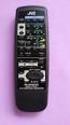 SLEEP TEST SUBWOOFER + MODE EFFECT CENTER + SOUND TV/VIDEO CD-DISC DVD CD TV VOL TV CH TV VCR AUDIO VCR CH + TV SOUND TAPE/CDR VOLUME REMOTE REAR L + MENU REAR R + ENTER VCR /DIGITAL FM/AM MUTING STANDBY
DIGITAL ALARM CLOCK RADIO
 DIGITAL ALARM CLOCK RADIO INSTRUCTION MANUAL For information and support, www.lenco.eu CR3302 LENCO ENG FM ONLY IM 98 x1 1 11/5/2009 9:14:35 CAUTION RISK OF ELECTRIC SHOCK DO NOT OPEN WARNINGS ATTENTION
AV Receiver. Owner s Manual. Read the supplied booklet Safety Brochure before using the unit. English
 AV Receiver Owner s Manual Read the supplied booklet Safety Brochure before using the unit. English CONTENTS Accessories...................................................... FEATURES 6 What you can do
/&' 79 7; /% ) &RORU 7HOHYLVLRQ (QJOLVK
 245U Using the On Screen Displays Many features available on this TV can be accessed via the On Screen Display menu system. Use the remote control as shown below to access and adjust features as desired.
DAB & FM RADIO Installation Manual
 Size: 105x145mm 105g copper paper DAB & FM RADIO Installation Manual Model: 10798 10799 10800 10801 Thank you for purchasing this AGK DAB/FM radio. Please read the instructions and warnings carefully before
24 Wide Screen LED Monitor with HDMI
 24 Wide Screen LED Monitor with HDMI USER MANUAL L24LE11B_MANUAL_EN_R1 Please read this manual carefully before using, and keep it for future reference. TABLE OF CONTENTS GETTING STARTED Monitor Stand
INSTRUCTIONS Please read all instructions carefully before using
 Car Multimedia System XM-2DTSB79 AUX IR MIC RESET USB INSTRUCTIONS Please read all instructions carefully before using Touch calibration If touch calibration error occurs, you can adjust the touch coordinate
IMPORTANT SAFETY INSTRUCTIONS
 IMPORTANT SAFETY INSTRUCTIONS Before you install or use the apparatus, you must read and understand these Important Safety Instructions. At all times when using the apparatus you must follow these Important
Setting up your Gateway Media Center
 Setting up your Gateway Media Center Notices 2003 Gateway, Inc. All rights reserved. Gateway, Gateway Country, the Gateway stylized logo, and the black-and-white spot design are trademarks or registered
Contents Connections Playback Settings Tips Appendix AVR-S500BT AV SURROUND RECEIVER. Owner s Manual. Front panel Display Rear panel Remote Index
 . Contents Connections Playback Settings Tips Appendix AVR-S500BT AV SURROUND RECEIVER Owner s Manual 1 Accessories 5 Inserting the batteries 6 Operating range of the remote control unit 6 Features 7 High
Quick Connection and Setup Guide
 3-300-262-13(1) Read this first Quick Connection and Setup Guide Quick start guide to main features GB HDD Network Audio System NAS-SC55PKE 2008 Sony Corporation Printed in Malaysia Table of Contents Checking
X-HM21DAB-K X-HM11DAB-K X-HM11-K
 X-HM21DAB-K X-HM11DAB-K X-HM11-K CD Receiver System Discover the benefits of registering your product online at http://www.pioneer.co.uk (or http://www.pioneer.eu). Operating Instructions CAUTION TO PREVENT
SP1790JK 900MHz Wireless Indoor/Outdoor Speakers. User Manual INTRODUCTION FEATURES IMPORTANT SAFETY INFORMATION
 SP1790JK 900MHz Wireless Indoor/Outdoor Speakers INTRODUCTION This 900 MHz digital hybrid wireless speaker system uses the latest wireless technology that enables you to enjoy music and TV sound anywhere
DS-A1XP. Contents. Remote Interactive Dock. Instruction Manual. Important Safety Instructions... 2. Precautions... 3
 Remote Interactive Dock DS-A1XP Instruction Manual Contents Important Safety Instructions........ 2 Precautions......................... 3 Getting Started..................... 4 About the RI Dock....................
Tiny Audio C3. English TINY AUDIO C3. Please read carefully before using this product
 English TINY AUDIO C3 Please read carefully before using this product 1 Safety Instructions: 1. Do not use this radio near water. 2. Clean with dry cloth. 3. Do not block any ventilation openings. 4. Do
SPH-DA120. English. Operation Manual. Smartphone Receiver
 Operation Manual Smartphone Receiver SPH-DA120 Notice to all users: This software requires that the product is properly connected to your vehicle s parking brake and depending on your vehicle, additional
User Manual of WT 493
 User Manual of WT 493 Introduction Congratulations on your purchase of this smart unit. This unit can be used as a radio to catch the latest news and enjoy the beautiful music; it can also be used as an
IPTV STB QUICK GUIDE. Detailed user manual download from www.my-home-television.com
 IPTV STB QUICK GUIDE Detailed user manual download from www.my-home-television.com Dolby Digital: Manufactured under license from Dolby Laboratories. Dolby and the double-d symbol are trademarks of Dolby
It s here a New Breed of TV entertainment.
 Quick Start Guide 1 2 It s here a New Breed of TV entertainment. Welcome to Fetch TV an exciting new television experience that puts you in control of the best TV, great movies, and popular interactive
M707Z M808Z M1010Z Digital Photo Frame Owner s Manual
 M707Z M808Z M1010Z Digital Photo Frame Owner s Manual Thank you for purchasing a Micca product. Should you need any assistance, please contact our technical support before returning the product to the
DTA100. Digital Transport Adapter. Quick Start Guide. Downloaded from www.manualslib.com manuals search engine
 DTA100 Digital Transport Adapter Quick Start Guide Before You Begin READ THIS FIRST Connecting Your DTA100 1. Connect the DTA100 to your cable service. Connect the coaxial cable from your wall outlet to
Lenco DVD-430. For information and support, www.lenco.eu
 Lenco DVD-430 For information and support, www.lenco.eu Content Introduction Important Safety Instructions... 2 Caution... 3 Features... 3 Front Panel and Rear Panel Illustration... 4 Remote Control...
Anti Shock CD / USB / SD Card Reader / Remote Control Player RM-CD
 Anti Shock CD / USB / SD Card Reader / Remote Control Player RM-CD DESCRIPTION OF CONTROLS: POWER: ON: Press Power button to switch on the power. OFF: Press and hold to switch off the power. CD / USB /
MAINTENANCE & TROUBLESHOOTING
 MAINTENANCE & TROUBLESHOOTING This section describes how to: clean the lens replace the projection lamp replace the batteries in the remote use the security lock feature troubleshoot the projector Cleaning
Retro Style Turntable With CD/Radio/USB/SD/MP3/WMA and Vinyl-to-MP3 Encoding
 Retro Style Turntable With CD/Radio/USB/SD/MP3/WMA and Vinyl-to-MP3 Encoding PTCD8U INSTRUCTION MANUAL LOCATION OF CONTROLS 1) DUST COVER 2) DIAL POINTER 3) LEFT SPEAKER 4) LCD DISPLAY 5) FM STEREO LED
VideoMate V200/V200F Analog Standalone TV Box Start Up Guide
 VideoMate V200/V200F Analog Standalone TV Box Start Up Guide Compro Technology, Inc. www.comprousa.com 1 Table of Contents About This Guide... 3 VideoMate V200/V200F TV Box Contents... 4 Install V200/V200F
X-SMC00 X-SMC00-W X-SMC00BT X-SMC00BT-W
 X-SMC00 X-SMC00-W X-SMC00BT X-SMC00BT-W Slim Micro System Système compact Slim-Mikrosystem Slim Micro System Slim Microsysteem Sistema Micro Slim Сверхкомпактная микросистема Operating Instructions Mode
When you switch off your system, or mute the sound, the red indicator light appears immediately, indicating that the subwoofer is not in use.
 BeoLab 11 Guide WARNING: To reduce the risk of fire or electric shock, do not expose this appliance to rain or moisture. Do not expose this equip ment to dripping or splashing and ensure that no objects
INSTRUCTION MANUAL PLEASE READ ALL THE INSTRUCTIONS COMPLETELY BEFORE USE AND SAVE THIS MANUAL FOR FUTURE REFERENCE
 INSTRUCTION MANUAL PLEASE READ ALL THE INSTRUCTIONS COMPLETELY BEFORE USE Ver. 2.0 AND SAVE THIS MANUAL FOR FUTURE REFERENCE Table of Contents Unpacking... 3 About the CCRadio-EP... 4 Quick Start Guide...
TABLE OF CONTENTS QUICK START... 1 DIAGRAM OF THE DIGITAL PHOTO FRAME... 2 KEYPAD BUTTON FUNCTIONS... 3 REMOTE CONTROL FUNCTIONS..
 TABLE OF CONTENTS QUICK START........ 1 DIAGRAM OF THE DIGITAL PHOTO FRAME... 2 KEYPAD BUTTON FUNCTIONS..... 3 REMOTE CONTROL FUNCTIONS..4 DIGITAL PHOTO FRAME NAVIGATION........5 OSD MENU FUNCTIONS..6
DVB-T VERTO. User Manual HD TERRESTRIAL DIGITAL TV STB & PLAYER MT4162
 DVB-T VERTO HD TERRESTRIAL DIGITAL TV STB & PLAYER MT4162 User Manual EN 2 Index Index...2 Overview...2 Remote Control...3 Battery installation in remote control...4 Using remote control...4 Connections...4
Instruction Manual. High Definition Personal Video Recorder Digital Satellite Receiver
 Instruction Manual High Definition Personal Video Recorder Digital Satellite Receiver The XPEED LX1digital receiver is fully compliant with the international Digital Video Broad-casting (DVB) standard,
DAB2+ Dear Customer, Congratulations with your new Argon DAB2+
 Dear Customer, Quality has always been our driving force and founding Argon Audio is a natural extension of this philosophy. We have 20 years' experience in creating and specifying high quality products,
HP USB Digital/Analog TV Tuner. User Guide
 HP USB Digital/Analog TV Tuner User Guide Copyright 2008 Hewlett-Packard Development Company, L.P. Windows and Windows Vista are U.S. registered trademarks of Microsoft Corporation. The information contained
Ideal CD player and FM tuner for use with other 301 Reference Series components also supports RDS and USB memory playback
 Reference301 Series PD-301 CD Player /FM Tuner Ideal CD player and FM tuner for use with other 301 Reference Series components also supports RDS and USB memory playback Main functions High-precision slot-in
Table of Contents. System Requirement of MP3 Player:... 4. Connection and Downloading... 7. Downloading DRM10 Files... 8.
 Table of Contents Instructions... 1 Precautions... 2 System requirements... 4 System Requirement of MP3 Player:... 4 Introduction... 5 Features... 5 Charging the Battery... 6 Connection and Downloading...
The Bouncer Bluetooth Stereo Speaker
 The Bouncer Bluetooth Stereo Speaker 1 Welcome to JLab! Thank you for purchasing The Bouncer Bluetooth Speaker! Enjoy your music wirelessly from any smartphone, tablet, laptop, or other Bluetooth enabled
PAR Tablet 10 Quick Start Guide
 ParTech, Inc. 8383 Seneca Turnpike New Hartford, NY 13413 p.800.458.6898 www.partech.com PAR Tablet 10 Quick Start Guide PN 770505503 This material has been created in order to accommodate a wide range
Digital Photo Picture Frame. Operation Manual
 Digital Photo Picture Frame Operation Manual 20070309 CONGRATULATIONS on your purchase of a Polaroid 7 LCD Digital Photo Picture Frame. Please read carefully and follow all warnings and instructions in
Before operating this system
 Before operating this system Malfunctions that occur during the normal use of the system will be repaired by Sony in accordance with the conditions defined in the limited warranty for this system. However,
IMPORTANT SAFETY INSTRUCTIONS. When using this electronic device, basic precautions should always be taken, including the following:
 IMPORTANT SAFETY INSTRUCTIONS When using this electronic device, basic precautions should always be taken, including the following: 1. Read all instructions before using the product. 2. Do not use this
Video Cassette Player
 3-862-516-11 (1) Video Cassette Player Operating Instructions Owner s record The model and serial numbers are located at the rear of the unit. Record these numbers in the spaces provided below. Refer to
Compaq ipaq Personal Mini-CD Player PM-1. User Guide
 Compaq ipaq Personal Mini-CD Player PM-1 User Guide Notice 2001 Compaq Computer Corporation COMPAQ and the Compaq logo registered in U.S. Patent and Trademark Office. ipaq is a trademark of Compaq Information
PDV - 57010D (DE) PDV - 57010D (GB) PDV - 57010D (FR) PDV - 57010D (ES) PDV - 57010D (IT) PDV - 57010D (NL) PDV - 57010D (PT)
 PDV - 57010D (DE) PDV - 57010D (GB) PDV - 57010D (FR) PDV - 57010D (ES) PDV - 57010D (IT) PDV - 57010D (NL) PDV - 57010D (PT) PT NL IT ES FR GB DE BENUTZERHANDBUCH USER MANUAL MANUEL D UTILISATION MANUAL
CD / DAB / FM Digital Sound System with dock for ipod and iphone
 Enjoy Listening ROBERTS CD / DAB / FM Digital Sound System with dock for ipod and iphone Please read this manual before use Contents Introduction...2-9 Sound 00 Sound System features...3 Controls and connections...4-5
DR 70 Portable Digital DAB+ and FM Radio Receiver User Manual English Please read carefully before using this product
 DR 70 Portable Digital DAB+ and FM Radio Receiver User Manual Please read carefully before using this product 15 1 Table of Contents 1 Table of Contents... 16 2 Safety Instructions:... 17 3 Specification:...
User Manual. Listen to your favourite songs on the radio on the road & in a car
 Technaxx FMT500 Transmitter User Manual The Declaration of Conformity is under the Internet link: www.technaxx.de/ (in bottom bar Konformitätserklärung ); Before using the device, read the user manual
TV Ears Digital System Installation Guide
 TV Ears Digital System Installation Guide Hear TV Like Never Before Safety Instructions 1. Read all instructions completely and heed all warnings. Install in accordance with TV Ears, Inc. s instructions.