
Business Continuity Guide. Disaster Redirect TM
|
|
|
- Kellie Lamb
- 10 years ago
- Views:
Transcription
1 Business Continuity Guide Disaster Redirect TM

2 1. Introduction One of the key advantages of the Telovations Service is the built in business continuity contained in the Telovations Real Time Network TM. One of the key features is Disaster Redirect TM a service on the network rather than a feature on a box in your phone room, where you can redirect calls if your phone is unreachable, you can t make it into your place of work or even if the entire building is destroyed! This document is designed to show customers how to use the features of the Telovations Service and Disaster Redirect to design a business continuity plan that works for them. The solutions outlined in this document are applicable to both Hosted PBX and trunk group rerouting for premise based PBX (TDM or IP) or Key Telephone System (KTS). 2. Business Continuity Overview Most businesses cannot afford to lose their voice and data service for a prolonged period of time. While some disaster conditions are handled quite well by a premises-based PBX, situations where the connection to the PBX is severed, must be handled by the network.(e.g a back hoe hitting a cable or a storm taking out the electrical grid). Telovations enhanced business continuity services provide the SMB or Enterprise the assurance that in the event of a catastrophic failure, business communications services are still available. As part of the Real Time Network TM, Telovations offers three categories of solutions for the business: Personal Continuity, Group Continuity and Site Continuity. 2.1 Personal Continuity Solutions Personal continuity solutions take advantage of various features available through the Telovations Teloportal. While many users tale advantage of these features daily (e.g. simultaneous ring), they also provide a very resilient solution for business continuity. These services are: Simultaneous/Sequential Ring: One of the simplest personal continuity solutions is the simultaneous or sequential ring configuration. In this configuration, any calls to your phone will simultaneously (or sequentially) ring to another phone such as a mobile phone or a home phone. If the network cannot reach the user s primary phone due to a network outage, the mobile phone will still ring. This service can be provided to a single phone number or to all phone numbers in an organization. Remote Office: The Telovations PBX Enhancement package adds remote office capabilities and a browser-based toolbar interface to ring a remote office. With this package, the end user sends and receives calls from a remote phone as if from the desk or PBX phone. If the PBX is inaccessible, the user can still place calls with the Caller Name and CLID of the PBX using Microsoft Outlook or an internet browser. Remote office can also be used with an auto-attendant or a hunt group so that users can work from another location during a business outage. 2.2 Group Continuity Solutions Disaster Redirect Disaster Redirect is a Call Forward Not Reachable (CFNR) service that provides call redirection for an incoming call to a directory number that is not reachable. Two conditions may trigger this action: 1. Unregistered Device: The end device is deemed unreachable if the hosted switch does not have a registered endpoint recorded for the DN of the incoming call. (e.g. a fiber cut) 2. Timeout: The device is considered not reachable if there is no response to an incoming call after a timeout counter has expired. (e.g. your PBX is malfunctioning) If an incoming call is for an unreachable number, the CFNR function forwards that call to another number configured in the Telovations Teloportal. There are many ways to handle call flow when your phone is unreachable; the following examples are just a few of the many possibilities. - Forward calls to the main Trunk Group number of another PBX. - Forward calls for an individual user to the user s mobile phone. - Forward all calls to an answering service

3 - Forward all calls to a hosted auto attendant - Forward all calls to a hosted voice mailbox with unified messaging features set Note: Once the endpoint becomes reachable again, calls are no longer redirected. 3. Disaster Redirect with Virtual Devices (Auto attendants, Hunt Groups etc): Virtual Devices must be set to an actual device to work. As long as users have the CFNR configured on their extension with a phone number in the portal (see Figure 2), Disaster Redirect will kick in automatically once the phones lose registration Site Continuity Solutions Site Unavailable Trunk Rerouting Customers who choose to keep their premise based phone system can leverage the Telovations Real Time Network by using Site Unavailable Rerouting. Incoming call rerouting gives the enterprise the option of rerouting incoming calls to alternate locations in the event of a loss of connectivity with the premise-based PBX. The site rerouting to an alternate trunk group provides the benefit of full redundancy of the PBX capabilities, albeit on a hot standby at a different location, or to a stand by trunk group to the same PBX. In this scenario, calls coming into a site are rerouted to another site that hosts an identically configured PBX. PBX services, such as voice mail and auto attendants, are fully replicated on the back up PBX. This is a great solution for financial institutions, healthcare solutions and in other scenarios where the organization must be fully operational at all times. 4. Additional Optional Continuity Solutions Telovations can add other components to your service package that can make your business continuity solution more robust. The following are additional equipment and services to Consider: 3.1 Local Survivability Solution Premise based systems with local survivability can support calling even if outbound links are interrupted. Telovations can add analog lines to your service package to send outbound calls to the PSTN via a direct connection. Intra-site calls and features will continue to work and users can still continue to be productive even if the data network is not working. 3.2 On Site Battery Backup All advanced communications systems are reliant on power and we have all experienced power outages. Since most power outages are relatively short, having a solution to hold your business over while you wait for power to be restored is important. We highly recommend adding a battery backup to your solution to give you a minimum of a half an hour of battery backup for your switch and router and if your phones are not powered by the network, at each desk. 3.3 Network based receptionist package For those businesses that have more than one location, call rerouting can take place to a receptionist in another location in the event of loss of continuity. The receptionist can answer the call and reroute calls to users cell phones, other line, or take a message for the user. 3.4 Employee info line An employee information line is included with each Disaster Redirect package and can be easily set up as a voice messaging box where the employees are given a DID or extension to dial into to hear the latest information, status, and instructions on what to do. 5. Configuration of your service The following section provides generic configuration examples that may be used when setting up your Disaster Redirect Service. The services can be set up through the User Portal (teloportal.telovations.com) or your system administrator can set them up through the administrator portal

4 (portal.telovations.net). In addition, simultaneous ring and sequential ring can be configured through the Telovations Toolbar for those users who have that service. This guide shows how to configure the service using the Telovations User Portal at teloportal.telovations.com. If you have any questions, please feel free to call your customer service representative. 4.1 Simultaneous Ring / Sequential Ring This service can be configured by the individual user or the group administrator through the Telovations Portal. Once you log into the portal at teloportal.telovations.com using your individual user ID or group admin user ID, click on the features Tab and then the Calling features sub tab. You will see settings for call forward, sequential/simultaneous ring as well as the call forward not reachable numbers. To change these settings, simply turn on the radio button and add the number you wish to forward them to. (See Figrue 1). These individual settings are for hosted PBX users only. Trunk Group settings for the Call Forward Not Reachable for the group settings are discussed in the next paragraph. However, it is important to understand that these individual settings will override group CFNR settings for hosted PBX users. Figure 1 Business Continuity Calling Features

5 4.2 Call Forward Not Reachable. Configuration of Call Forward Not Reachable (CFNR) is fairly straightforward. CFNR is configured for each user (Trunk Group User or Trunk Group Main User) in the Company Portal at portal.telovations.com. The same interface is used for a Hosted PBX user, the only difference is that Trunk users don t have the ability to individually manage their settings, it must be done by a group or system admin. To change the CFNR settings, log into the company portal and click on the Disaster Redirect Tab. (See Figure 2) Here, you will see a list of all the telephone numbers assigned to your group. Once you submit these numbers, Call Forward Not Reachable is working as part of your Disaster Redirect Service. Figure 2 Call Forward Not Reachable 6. Service Precedence for Redirection Customers should be aware of service precedence with regards to CFNR to understand how call forwarding will work in different scenarios - Redirection will only take place on physical devices. Virtual subscribers (e.g. hunt group, autoattendant) will not work - A setting for Selective Call Forwarding or Call Forwarding Always will take precedence over Call Forward Not Reachable - CFNR will not forward on a busy phone condition. If the user s phone is busy, the Call Forward Busy setting will be used - Call Forward No Answer and Call Forward Not Reachable both can be triggered by the expiration of a timer. The call forwarding action taken is determined by the first timer to expire. For example, if the Call Forward No Answer timer expires before the CFNR timer, the Call Forward No Answer setting will be used to forward the call - If the user has Simultaneous Ring or Sequential Ring set, call redirection will only take place on the users primary device - If Remote Office is active, incoming calls shall be redirected only if the RO location is unreachable, independently of the user s main device(s)

6 7. Definitions The following terms are used in this document. DID: Direct Inward Dial number. A DN that is used to address a specific user associated with a phone on a PBX DN: Directory Number. Applicable to both a Hosted PBX and a Business Trunking user Group Administrator One or more business users who have been assigned the credentials to log into the Company portal at teloportal.telovations.com. The business features that can be modified from this portal are things like company information, auto-attendants, hunt groups, redirection, etc. System Administrator One or more technical users who have been assigned credentials to log into the technical portal at portal.telovations.com. This is a much more powerful portal that gives the administrator the right to do all the things that a group administrator can do in addition to adding phone numbers, changing passwords, updating unified messaging settings, etc. Trunk Group: A connection to a PBX that is defined by the number of simultaneous calls delivered to a PBX Trunk Group User: A user associated with a trunk group. This is a common configuration mechanism to assign a DN or a DID to a phone on a PBX Trunk Group Main User or Main Trunk Group User: The user associated with the main number for the PBX. This typically delivers calls to the PBX auto attendant or the receptionist. In BroadWorks, this is configured as the phone number for the Trunk Group

WHY COX BUSINESS? SIP TRUNKING: BUSINESS CONTINUITY AND REDUNDANCY A White Paper
 WHY COX BUSINESS? SIP TRUNKING: BUSINESS CONTINUITY AND REDUNDANCY A White Paper 1 P a g e Table of Contents INTRODUCTION... 1 WHAT IS FAILURE?... 2 THE APPROACHES... 3 SINGLE SITE OPTIONS... 3 SEPARATE
Digital Voice Services Residential User Guide
 Digital Voice Services Residential User Guide 2 P a g e * Feature Access Codes *11 Broadworks Anywhere (pulling call to alternate phone) *62 Access Voicemail *72 Call Forwarding Always Activation *73 Call
Digital Voice Services User Guide
 Digital Voice Services User Guide 2 P a g e * Feature Access Codes *11 Broadworks Anywhere (pulling call to alternate phone) *62 Access Voicemail *72 Call Forwarding Always Activation *73 Call Forwarding
Hosted Voice Exchange. High definition telephony for growth you control
 Hosted Voice Exchange High definition telephony for growth you control 2 Contents About HVX... 4 Why choose HVX?... 4 The Business Benefits... 5 HVX Handsets... 6 Key Features... 8 Productivity and efficiency
Clear Choice Communications. Digital Voice Services User Guide
 Clear Choice Communications Digital Voice Services User Guide 2 P a g e * Feature Access Codes *62 Access Voicemail *72 Call Forwarding Always Activation *73 Call Forwarding Always Deactivation *90 Call
Digital Telephone User Guide
 Digital Telephone User Guide 1 Proud to provide Conway s Electric, Water, Cable, Internet and Telephone services. Welcome to Conway Corporation Digital Telephone Service We take pride in providing superior
Business Voice Services Voicemail * Guide
 Voicemail * Guide You can access your business voicemail using any phone. IMPORTANT: FIRST-TIME LOGIN INSTRUCTIONS The first time you log in, you will need to use the Voicemail Wizard to set a password
VoiceManager User Guide Release 2.0
 VoiceManager User Guide Release 2.0 Cox Communications Policies Terms and Conditions Customer Obligations/911 Disclaimer Refer to item (8) of the Cox Communications Policies, Terms and Conditions, Customer
Hosted VoIP Phone System. Admin Portal User Guide for. Enterprise Administrators
 Hosted VoIP Phone System Admin Portal User Guide for Enterprise Administrators Contents Table of Figures... 3 1 About this Guide... 4 2 Accessing the Hosted VoIP Phone System Administration Portal... 5
Business Telephone User Guide
 Business Telephone User Guide 1 Proud to provide Conway s Electric, Water, Cable, Internet and Telephone services. Welcome to Conway Corporation Business Telephone Service We take pride in providing superior
Digital Voice Services Business User Guide
 Digital Voice Services Business User Guide 2 P a g e * Feature Access Codes *11 Broadworks Anywhere (pulling call to alternate phone) *62 Access Voicemail *72 Call Forwarding Always Activation *73 Call
Vonage Anywhere. User Guide. Document Version 1.1
 Vonage Anywhere User Guide Document Version 1.1 Table of Contents 1 Introduction... 3 1.1 About This Guide... 3 1.2 Overview... 3 2 First Time Setup... 4 2.1 Initial Setup... 4 2.2 Selective Criteria...
With 360 Cloud VoIP, your company will benefit from more advanced features:
 Voice over IP (VoIP) has emerged as the new leader in cost-effective standards based communications. 360 Cloud VoIP enables customers have the benefits of an Enterprise PBX for a fraction of the cost of
Integrated Voice. Service Guide. Save money and maximize bandwidth efficiency Version 201009
 Integrated Voice Service Guide Save money and maximize bandwidth efficiency Version 201009 TABLE OF CONTENTS TABLE OF CONTENTS...2 PRODUCT OVERVIEW...3 WHAT IS INTEGRATED VOICE?...3 HOW IT WORKS...4 BASE
Integrated Voice. Service Guide. www.megapath.com. Learn More: Call us at 877.634.2728. Save money and maximize bandwidth efficiency
 Service Guide Save money and maximize bandwidth efficiency Learn More: Call us at 877.634.2728. www.megapath.com Table of Contents Product overview... 3 What is integrated voice?... 3 How it works... 4
Digital Voice Services User Guide
 Digital Voice Services User Guide * Feature Access Codes *72 Call Forwarding Always Activation *73 Call Forwarding Always Deactivation *90 Call Forwarding Busy Activation *91 Call Forwarding Busy Deactivation
ACCESSING SINGLE NUMBER SERVICE FROM THE WEB PORTAL (FOR PHONE ADMINISTRATION SEE PAGE 6)
 Page 1 F o r A s s i s t a n c e C a l l 6 0 5. 5 9 4. 3 4 1 1 ACCESSING SINGLE NUMBER SERVICE FROM THE WEB PORTAL (FOR PHONE ADMINISTRATION SEE PAGE 6) After logging into the Web Portal, click on the
VoIP Logic: Disaster Recovery and Resiliency
 VoIP Logic: Disaster Recovery and Resiliency VoIP Logic: Options for Disaster Recovery and Resiliency The ability to keep telephone systems operating in the event of a service impairment or a catastrophic
1 P a g e. Digital Voice Services Business User Guide
 1 P a g e Digital Voice Services Business User Guide Feature Access Codes *62 Voice Portal *86 Direct Voice Mail Retrieval *77 Anonymous Call Rejection Activation *87 Anonymous Call Rejection Deactivation
Please let us know if you need anything. Our customer service number is 1-866-311-5900. We re always happy to help.
 Dear Valued Customer, We are proud to welcome you to the EvenLink s Crystal Clear Digital Phone service. Our network reliability, customer support and value pricing are a great combination. We appreciate
Hosted VoIP Phone System. Admin Portal User Guide for. Call Center Administration
 Hosted VoIP Phone System Admin Portal User Guide for Call Center Administration Contents 1 About this Guide... 4 2 Accessing the Hosted VoIP Phone System Administration Portal... 5 3 Hosted VoIP Phone
Assistant-Enterprise Toolbar Go to http://www.vc3.com/support/pages/voiceadvantage-guides.aspx to access the toolbar download.
 Assistant-Enterprise Toolbar Go to http://www.vc3.com/support/pages/voiceadvantage-guides.aspx to access the toolbar download. Assistant Enterprise Toolbar in Internet Explorer: Assistant Enterprise Toolbar
XO Hosted PBX. XO Hosted PBX. MyPhone Portal User Guide. Document version: 2.02. Issue date: 17 May 2013
 XO Hosted PBX MyPhone Portal User Guide Document version: 2.02 Issue date: 17 May 2013 Table of Contents Table of Contents... i About this Document... 1 Accessing MyPhone... 1 The MyPhone User Interface...
Managing Your Hosted PBX Services
 This guide is designed to provide some insight in to managing your Hosted PBX account. The topics in this guide are as follows: Your Role Contacting BullsEye An Overview of Hosted PBX functionality istrative
RiOffice Users Manual
 RiOffice Users Manual Rio Networks 9/23/2009 Contents Available Services... 4 Core PBX Features... 4 Voicemail Features... 4 Call Center Features... 4 Call Features... 4 Using Your Phone... 5 Phone Layout...
Hosted VoIP Phone System. Admin Portal User Guide for. Call Center Administration
 Hosted VoIP Phone System Admin Portal User Guide for Call Center Administration Contents Table of Figures... 4 1 About this Guide... 6 2 Accessing the Hosted VoIP Phone System Administration Portal...
Managing Your Hosted PBX Services
 This guide is designed to provide some insight in to managing your Hosted PBX account. The topics in this guide are as follows: Your Role Contacting BullsEye An Overview of Hosted PBX functionality Administrative
SIP TRUNKING 2.0 Not all SIP Trunking Service providers are alike! TXI The BroadWorks SIP Trunking solution SIP Trunking A transport-neutral Legacy
 SIP TRUNKING 2.0 Not all SIP Trunking Service providers are alike! TXI offer BroadWorks SIP Trunking which is a truly unique solution that delivers the most profitable SIP trunking service offering and
Corporate Telephony Toolbar User Guide
 Corporate Telephony Toolbar User Guide 1 Table of Contents 1 Introduction...6 1.1 About Corporate Telephony Toolbar... 6 1.2 About This Guide... 6 1.3 Accessing The Toolbar... 6 1.4 First Time Login...
Hosted PBX Call Control Toolbar Guide
 Hosted PBX Call Control Toolbar Guide 10/15/2014 TELEPACIFIC CALL CONTROL TOOLBAR Call Control Toolbar in IE or Firefox: Call Control Toolbar in Outlook 2010: Log In and Log Out To log in, click Login.
Configuring the Dolby Conference Phone with Cisco Unified Communications Manager
 Configuring the Dolby Conference Phone with Cisco Unified Communications Manager Version 1.2 December 10, 2015 This product is protected by one or more patents in the United States and elsewhere. For more
TXI Telephony Product Book 2012 2012
 TXI Telephony Product Book 2012 2012 PRICING, HOW TO This section details the common pricing scenarios for the following: Receptionist Call Centre SIP Trunking Fax to Email Messaging Receptionist: Receptionist
Contents. Note: Feature commands and/or functionality may vary dependent on the telephone equipment you choose to use with this product.
 Contents Address Book 4 Anonymous Call Rejection 5 Call Block 5 Call Forward 6-7 Call Hold 7 Call Log 8 Call Return 8 Call Waiting 9 Caller ID 10 Outbound Caller ID Block 10 Outbound Caller ID Deactivation
Password: Your voice mail password
 CommPortal Go to http://myphone.bayring.com Number: Your 10-digit telephone number (no dashes) Password: Your voice mail password Dashboard The dashboard provides a way to quickly access some of your key
IP PBX. SD Card Slot. FXO Ports. PBX WAN port. FXO Ports LED, RED means online
 1 IP PBX SD Card Slot FXO Ports PBX LAN port PBX WAN port FXO Ports LED, RED means online 2 Connect the IP PBX to Your LAN Internet PSTN Router Ethernet Switch FXO Ports 3 Access the PBX s WEB GUI The
VitalPBX. Hosted Voice That Works. For You
 VitalPBX Hosted Voice That Works For You Vital Voice & Data s VitalPBX VVD Hosted PBX solutions provide you with the stability of a traditional telephone PBX system and the flexibility that only a next
How To Configure An Ip Trunk On Anconnect Sip Trunk On A Pc Or Mac Or Ip Trunk (For A Pbx) On A Ip Trunk With A Pbt (For An Ip) On An Ip Or Ip (For Pb
 SIP TRUNKING PORTAL User Guide October 6, 2014 Version: 1.2 Table of Contents 1 INTRODUCTION... 3 2 CONFIGURING INDIVIDUAL PHONE NUMBERS... 4 2.1 Configuring a Call Forward... 4 2.2 Configuring a Per DID
VoiceManager User Guide Release 2.0
 VoiceManager User Guide Release 2.0 Table of Contents 2013 by Cox Communications. All rights reserved. No part of this document may be reproduced or transmitted in any form or by any means, electronic,
PBX Administrator Guide
 DDev8.10 1 PBX Administrator Guide URL for the site is https://hostedpbx.voxnetinc.com/login.php Enter you Username E mail address Enter your Password - Your extension The HOME page opens Here you can
nexvortex VOIP DISASTER RECOVERY BUSINESS SOLUTION
 nexvortex VOIP DISASTER RECOVERY BUSINESS SOLUTION Terry Prime Chief Technology Officer February 2007 Copyright 2007 Introduction The telephone service is a strategic component of any business or government
VIRTUAL COMMUNICATIONS EXPRESS FEATURE DESCRIPTIONS
 VIRTUAL COMMUNICATIONS EXPRESS FEATURE DESCRIPTIONS End-User Features: All end users are provided with the features described in this section. Alternate Numbers Enables users to have up to ten phone numbers
Office Voice User Guide. User Guide
 Office Voice User Guide User Guide Contents Anonymous Call Rejection 3 Call Block 3 Call Forward 4 Call Return 5 Call Waiting 5 Caller ID 6 Do Not Disturb 7 Find Me 7 Last Number Redial 8 Selective Call
Anonymous Call Rejection
 Contents Anonymous Call Rejection 4 Call Block 5 Call Forward 6-7 Call Return 8 Call Waiting 9 Caller ID 10-11 Do Not Disturb 12 Find Me 13 Selective Call Forwarding 14 Speed Dial 15 Three-Way Calling
BUSINESS PHONE USER S MANUAL
 Wire your business for success Find great business services inside. BUSINESS PHONE USER S MANUAL INSIDE: - PHONE PLANS - HOW TO ACCESS YOUR FEATURES ONLINE CLICK BUSINESS.CABLEONE.NET TODAY! BUSINESS CARE
Premium Feature Pack
 Premium Feature Pack Purpose: To provide an explanation and example of each feature and service that Bright House Networks Business Solutions offers. Each item will provide the reader with the following:
TalkBroadband TM Quick Feature Guide
 5-way Calling To include an additional party or parties to the current call: Flash (press quickly and release) the receiver button The call is placed on hold and you hear dial tone. Dial the phone number
Contents. Business Solutions. Page
 C 2012 Contents Page Premium User Toolbar Assistant... 2 First Time Login... 4 Login Button... 4 Subsequent Use... 5 Dial Number... 6 Redial Number... 6 Dial from Contacts (Outlook Edition)... 6 Dialing
Taking your desk phone to its logical extension. Cox Business VoiceManager SM
 + Taking your desk phone to its logical extension. Cox Business VoiceManager SM 1 Introducing Cox Business VoiceManager. Your desk phone on your desktop. Cut the cord to your desk phone. Introducing Cox
R17 Wholesale License Packs
 PRODUCT SHEET R17 Wholesale License Packs Introduction This guide provides information about the End User Interface features, functions, and reports presented as tools to be used to solve your business
Shaw Business SmartVoice Online Feature Management User Guide
 Shaw Business SmartVoice Online Feature Management User Guide Contents SmartVoice End User Portal User Guide... 3 Logging into the portal... 3 Calling Features...4 Managing incoming calls...4 Alternate
MySphere Assistant User Guide
 MySphere Assistant User Guide Release 070420 Document Version 1 TeleSphere 9237 E. Via de Ventura Blvd. 2 nd Floor Scottsdale, AZ 85258 888-MYSPHERE 480.385.7007 WWW.TELESPHERE.COM Page 1 of 44 Table of
Cisco 7940/7960 User Guide. Cisco 7940/7960 User Guide
 Cisco 7940/7960 User Guide Table of Contents Table of Contents...2 Introduction...3 The Cisco 7940/7960 IP Phone... 3 Web Portal...3 Telephony Toolbar...3 Document Format...4 Feature Functionality...5
Extension Manual. User portal, Dial codes & Voice mail for 3CX Phone System Version 7.0
 Extension Manual User portal, Dial codes & Voice mail for 3CX Phone System Version 7.0 Copyright 2006-2008, 3CX ltd. http:// E-mail: [email protected] Information in this document is subject to change without
Getting Started. Getting Started with Time Warner Cable Business Class. Voice Manager. A Guide for Administrators and Users
 Getting Started Getting Started with Time Warner Cable Business Class Voice Manager A Guide for Administrators and Users Table of Contents Table of Contents... 2 How to Use This Guide... 3 Administrators...
NGT Hosted Digital Voice. User Guide
 NGT Hosted Digital Voice User Guide December 2009 Getting Started Making Calls Using Your NGT Hosted Digital Voice service Domestic Dial as you normally would. You can also reference your local telephone
Configuring Positron s V114 as a VoIP gateway for a 3cx system
 Assumptions: Configuring Positron s V114 as a VoIP gateway for a 3cx system The IP address of the V114 is 192.168.1.2 The IP address of the 3CX PBX System is 192.168.1.110 3CX already has some IP phones
Avaya IP Office Platform Web Self Administration
 Avaya IP Office Platform Web Self Administration Release 9.1 Issue 01.02 August 2015 Contents Chapter 1: Avaya IP Office Platform Web Self Administration... 3 Logging in to Web Self Administration... 3
Online Tools. CommPortal. Go to http://myphone.bayring.com. User Name: Your 10-digit telephone number (no dashes) Password: Your voice mail password
 CommPortal Go to http://myphone.bayring.com User Name: Your 10-digit telephone number (no dashes) Password: Your voice mail password Dashboard The dashboard provides a way to quickly access some of your
End-User UC PORTAL USER GUIDE
 End-User UC PORTAL USER GUIDE INTRODUCTION Introduction Guide Explanation This guide is to be used as an aid to understand the portal in order to utilize all the functionality that VoIP has to offer. This
Business Feature Pack
 Business Feature Pack Purpose: To provide an explanation and example of each feature and service that Bright House Networks Business Solutions offers. Each item will provide the reader with the following:
Hosted Business Voice END USER PORTAL GUIDE
 Hosted Business Voice END PORTAL 13461 Sunrise Valley Drive Ste. 300 Herndon, VA 20171 800.962.9329 www.apptix.com Table of Contents Hosted Business Voice... 1 END... 1 PORTAL... 1 Table of Contents...
Verizon Collaboration Plug-In for Microsoft Outlook User Guide
 Verizon Collaboration Plug-In for Microsoft Outlook User Guide Version 4.11 Last Updated: July 2011 2011 Verizon. All Rights Reserved. The Verizon and Verizon Business names and logos and all other names,
3CX PBX v12.5. SIP Trunking using the Optimum Business Sip Trunk Adaptor and the 3CX PBX v12.5
 SIP Trunking using the Optimum Business Sip Trunk Adaptor and the 3CX PBX v12.5 Table of Contents 1. Overview 3 2. Prerequisites 3 3. PBX Configuration 3 4. Creating Extensions 4 5. VoIP Provider Setup
My Account Quick Start
 My Account Quick Start for Verizon Business Digital Voice Service Guide for Office System Administrators Accessing My Account Phone Assignment Defining the User Site Services Auto Attendant Voice Portal
Linksys SPA942 User Guide. Linksys 942 User Guide
 Linksys 942 User Guide Table of Contents Table of Contents...2 Introduction...3 The Linksys SPA942 IP Phone... 3 Web Portal...3 Telephony Toolbar...4 Document Format...4 Feature Functionality...4 Feature
Verizon Collaboration Plug-In for Microsoft Outlook User Guide
 Verizon Collaboration Plug-In for Microsoft Outlook User Guide Version 4.11 Last Updated: July 2011 2011 Verizon. All Rights Reserved. The Verizon and Verizon Business names and logos and all other names,
VoiceManager IP Centrex User Guide Release 2.0
 VoiceManager IP Centrex User Guide Release 2.0 2012 by Cox Communications. All rights reserved. No part of this document may be reproduced or transmitted in any form or by any means, electronic, mechanical,
managedip SIP, PRI and Essentials
 Table of Contents Simultaneous Ring... 2 Sequential Ring... 5 Call Forward Not Reachable... 7 CommPilot Express... 8 Personal Mobility is a package of features that allows you to answer calls to your desk
CloudPBX. A Big Business Phone System without the Big Business Price. Are you ready to upgrade your communications services?
 CloudPBX A Big Business Phone System without the Big Business Price Are you ready to upgrade your communications services? UPGRADE YOUR COMMUNICATIONS SERVICE Link s CloudPBX brings a big-business phone
Configuration Notes 290
 Configuring Mediatrix 41xx FXS Gateway with the Asterisk IP PBX System June 22, 2011 Proprietary 2011 Media5 Corporation Table of Contents Introduction... 3 About Mediatrix 41xx Series FXS Gateways...
managedip Hosted TDS Table of Contents Calling Features User Guide
 Table of Contents Anonymous Call Rejection... 2 Automatic Callback... 2 Call Forwarding... 3 Call Park/Directed Call Park... 7 Call Park Retrieve... 8 Call Pickup... 8 Call Retrieve... 8 Call Return...
SMALL BUSINESS USER GUIDE
 SMALL BUSINESS USER GUIDE TABLE OF CONTENTS Anonymous Call Rejection 4 Anywhere 5 Call Block 6 Call Forwarding 7 Call Logs 8 Call Return 8 Call Transfer 8 Call Waiting 9 Caller ID 9 Do Not Disturb 10 Find
Hosted PBX Feature Matrix
 Hosted PBX Feature Matrix Personal Features Basic Seat Standard Seat Seat Account Codes Alternate Numbers Anonymous Call Rejection Authentication Authorization Codes Automatic Call Back Automatic Hold/Retrieve
Allworx VoIP Communication System Overview
 Allworx VoIP Communication System Overview 5 Allworx Connect System Specifications 731 536 530 324 320 SYSTEM FEATURES Maximum Users 1 180 50 50 20 20 Base Users 30 30 30 12 12 Concurrent External Calls
INTEGRATED COMMUNICATIONS SOLUTION USER GUIDE BUSINESS SOLUTIONS. How can we help
 INTEGRATED COMMUNICATIONS SOLUTION USER GUIDE BUSINESS SOLUTIONS How can we help you? GET THE POWER OF BUSINESS + WORKING FOR YOU. Keep this user guide handy for quick and easy reference to the many features
IP Centrex User Guide Release 2.0
 IP Centrex User Guide Release 2.0 2012 by Cox Communications. All rights reserved. No part of this document may be reproduced or transmitted in any form or by any means, electronic, mechanical, photocopying,
Features and Benefits of IP Communications - Integrated Access and IP Trunking
 Features and Benefits of IP Communications - Integrated Access and IP Trunking Verizon's Voice over IP (VoIP) portfolio of Trunking products provide customers the ease and efficiency of one network for
2012A Toshiba UCS IPedge Training UCS Website. IPedge Version 1.1 Calvin Lee
 2012A Toshiba UCS IPedge Training UCS Website July 2012 IPedge Version 1.1 Calvin Lee Agenda IPT Survivability IPT Auto Config T.38 Fax EC RAID 1 EM RAID 5 Hard Drive Redundancy Follow Me Enhancement IPedge
Hosted PBX. TelePacific Communicator User Guide. Desktop Edition
 Hosted PBX TelePacific Communicator User Guide Desktop Edition 11/19/2014 CONTENTS Login... 2 Home Window... 3 Status Flag... 4 My Room... 6 Contacts Screen... 6 History... 8 Directory... 9 Dialpad...
Phone System Replacement RFP Addendum 2 - Questions and Answers
 Phone System Replacement RFP Addendum 2 - Questions and Answers Vermont Electric Cooperative 11/5/2014 Q1: Does VEC plan to purchase the system outright or are you looking to lease it? A1: VEC is planning
Business Solutions. Page 1
 2012 C Page 1 Contents Getting Started emerge Dashboard Login... 3 Main Profile Screen... 5 Group Services... 5 Auto Attendant Overview... 7 Modifying Auto Attendant Settings... 7 Auto Attendant Modify
MobileLink User Guide
 MobileLink User Guide April 2013 Table of Contents Section MobileLink Overview Section 1 MobileLink Features Section 2 Enterprise Search Directory Section 2.1 Call History Section 2.2 Service Management
[VIRTUAL PBX OVERVIEW]
![[VIRTUAL PBX OVERVIEW]](/thumbs/20/459105.jpg "[VIRTUAL PBX OVERVIEW]") Powered by: [VIRTUAL PBX OVERVIEW] The following document contains program details for 3NG s Hosted IP PBX Solution. Please contact your Account Manager for a System Demo Introduction 3NG Networks owns
Powered by: [VIRTUAL PBX OVERVIEW] The following document contains program details for 3NG s Hosted IP PBX Solution. Please contact your Account Manager for a System Demo Introduction 3NG Networks owns
Extension Manual. 3CX Assistant, MyPhone User portal, Dial codes & Voice mail for 3CX Phone System Version 8.0
 Extension Manual 3CX Assistant, MyPhone User portal, Dial codes & Voice mail for 3CX Phone System Version 8.0 Copyright 2006-2009, 3CX ltd. http:// E-mail: [email protected] Information in this document is
How to use wired (Wireless) Phone to make off-net calls via Gateway
 How to use wired (Wireless) Phone to make off-net calls via Gateway In the following samples, we ll introduce VIP-154T and VIP-192 makes off-net Calls (PSTN calls) via VIP-480FO applications. Installation
BroadWorks Feature Overview (Through Release 15)
 BroadWorks Feature Overview (Through Release 15) Descriptions of the features up to and including Release 15 of BroadWorks are provided below in the following major categories: Features, Operations, Administration,
Business VoiceEdge. Focus on your business, not your business communications
 Business VoiceEdge Focus on your business, not your business communications Business VoiceEdge Simple yet powerful voice and data communication service for businesses Fully managed alternative to onsite
Assistant Enterprise. User Guide. www.lumosnetworks.com 3-27-08
 Assistant Enterprise User Guide www.lumosnetworks.com 3-27-08 Assistant Enterprise (Toolbar) Guide Copyright Notice Trademarks Copyright 2007 BroadSoft, Inc. All rights reserved. Any technical documentation
Cisco Unified MobilityManager Version 1.2
 Cisco Unified MobilityManager Version 1.2 Cisco Unified MobilityManager Version 1.1, Release 1.2 The Cisco Unified Communications system of voice and IP communications products and applications enables
IP Office 7.0 and BCM 6.0 SIP Interoperability Configuration Notes
 IP Office 7.0 and BCM 6.0 SIP Interoperability Configuration Notes Abstract: This document provides information on how to configure a network solution with IP Office 7.0 and BCM 6.0 using SIP trunks. 2011
# $ %&' ( $" )% %! $" )$) %! &%& $'('!
 !!" # $ %&' ( $" )% %! $" )$) %! &%& $'('! Contents Anonymous Call Rejection 3 Call Block 3 Call Forward 4 Call Return 5 Call Waiting 5 Caller ID 6 Do Not Disturb 7 Find Me 7 Last Number Redial 8 Selective
A SCALABLE, COST-EFFECTIVE SOLUTION ENABLING BETTER COMMUNICATIONS
 BUSINESS TRUNKS A SCALABLE, COST-EFFECTIVE SOLUTION ENABLING BETTER COMMUNICATIONS Welcome to Comcast Business Trunks. We are pleased that you have selected Comcast as your voice provider, and look forward
BUSINESS VOICEEDGE TECHNICAL ADMINISTRATOR USER GUIDE WELCOME TO BUSINESS VOICEEDGE INTRODUCTION TO VOICEEDGE PHONES
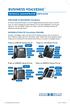 BUSINESS VOICEEDGE TECHNICAL ADMINISTRATOR USER GUIDE WELCOME TO BUSINESS VOICEEDGE As the technical administrator, you can manage features and passwords for all end users as well as manage key group features
Feature Reference. Features: Call Forwarding Call Waiting Conference Calling Outbound Caller ID Block Last Call Return VoiceMail
 Feature Reference This document will provide you with information on and how to use the following features of your phone service with Standard Broadband. Features: Call Forwarding Call Waiting Conference
OSSmosis Administrator Portal
 OSSmosis Administrator Portal USER GUIDE TM 989 Old Eagle School Road Suite 315 Wayne, PA 19087 USA 610.964.8000 www.evolveip.net Release 1.0 Document Version 1.0 Copyright Notice Copyright 2010 Evolve
Enterprise Toolbar User s Guide. Revised March 2015
 Revised March 2015 Copyright Notice Trademarks Copyright 2007 DSCI, LLC All rights reserved. Any technical documentation that is made available by DSCI, LLC is proprietary and confidential and is considered
Telephony Toolbar Corporate. User Guide
 Telephony Toolbar Corporate User Guide Release 7.1 March 2011 Table of Contents 1 About This Guide...7 1.1 Open Telephony Toolbar - Corporate... 7 1.2 First Time Login... 8 1.3 Subsequent Use... 11 2 Using
SINGLE NUMBER SERVICE - MY SERVICES MANAGEMENT
 Service Change Charge...$18 Monthly Service...$3/mo. LOGIN TO MY SERVICES In your web browser type in myservices.gondtc.com. Enter your Username (ten-digit phone number for example ) and Password. Your