
Recommended Solutions for Installing Symantec Endpoint Protection 12.1.x in Shared and PvD Virtual Machines
|
|
|
- Mariah Kelly
- 10 years ago
- Views:
Transcription
1 Recommended Solutions for Installing Symantec Endpoint Protection 12.1.x in Shared and PvD Virtual Machines Applicability When Symantec Endpoint Protection (SEP 12.1.x is installed in a virtual machine (VM using a Citrix s Synchronizer with a version older than version 5.5 and subsequently deployed to end- users, the resulting VM in the end- user s machine may show the network as disabled and/or Symantec s console may report several problems. The images below illustrate how Windows depicts a disabled network and how the Symantec console may report issues with its services. These problems can be fixed by following the directions provided in this guide. The sample code and OS Profile provided in the appendices are included in Synchronizer version 5.5 and newer and thus, you will not need to create or import them into the Synchronizer. You will, however, still need to make sure they are used as described here for proper deployment of SEP. Summary This section explains the technical reasons why SEP was previously failing in deployed Synchronizer VMs. You may choose to skip it and proceed to the deployment sections that follow. To prepare a VM for a virtualized environment, Symantec describes a process to remove all unique identifiers from the golden image prior to deployment (see Symantec s Tech Note How to prepare a Symantec Endpoint Protection 12.1.x client for cloning. The note describes how to remove the Windows registry entries and a file where these unique identifiers are kept. Part of Symantec s

2 protection against attacks on its services is to protect changes to its files and registry keys. This security feature is called Tamper Protection and it must be disabled prior to making these changes, as specified in Symantec Tech Note How to disable Tamper Protection in Symantec Endpoint Protection If this step is not performed, you won t be able to remove the registry entries and file. After these changes are made and after the first boot of that clean image, a Symantec service will generate a new unique ID and register with the Symantec Management server. During the process of preparing a VM for deployment, Synchronizer will boot the VM one time to install its services. The need to boot the VM after it has been cleaned causes the Symantec service to generate a unique ID, as described above, and thus, the golden image is imprinted with a unique identifier, which, if it were to be deployed, would cause all endpoints to register with the same ID in the Symantec Manager. To get around this problem, Synchronizer documents how to modify the VM publish process to properly remove the unique identifiers after the publish process finishes. This extension to the publishing process requires manual intervention by an administrator prior to publishing the VM. The administrator must copy the file publishextend- SEP.cmd from Synchronizer s configuration directory (typically C:\Program Files\Citrix\Synchronizer\conf\scripts to the VM s C:\ drive and rename that file publishextend.cmd. This needs to be done only once for each VM that has Symantec installed. The purpose of this file (refer to Appendix A for an example of its contents is to remove the Symantec registry entries and file which contain the unique Symantec identifiers. PublishExtend.cmd will fail to execute properly if Tamper Protection is enabled, and for this reason, Synchronizer must first disable all Symantec services. This is done by another file in Synchronizer s configuration directory called disableservicesxxx.txt where XXX is the OS type (XP, VISTA, WIN7, WIN8, etc.. See Appendix B for a portion of its contents. When the VM is finally deployed to an endpoint, Citrix software in the endpoint will ensure the same services that were disabled by disableservicesxxx.txt are re- enabled. For PvD VMs, which virtualize the file system and Windows registry access, the re- enablement of the Symantec SEP services happens in the virtual registry, which is not accessible at the time Symantec services are initiated. The end result is that Symantec services are not fully re- enabled. In this state, Symantec automatically shuts down the network and reports problems with services that could not be started. For Shared VMs, the process of preparing a VM in the client requires that the C:\ProgramData directory be moved to the user drive (U:. Citrix then installs a shortcut or link from C:\ProgramData to the new location. SEP 12.1.x keeps some of its critical data and services under C:\ProgramData and this re- direction to another drive causes SEP to refuse to start those services. Recommended Solution To resolve the issues described in the previous sections, Citrix recommends that you perform the following steps when publishing a PvD and Shared VM. The goal is to have the Synchronizer golden VMs placed in an SEP group which has Tamper Protection disabled, thus allowing modification of the critical SEP files and registry entries needed to create a clean image. Then when those golden VMs are deployed to an end- user, they are automatically placed in another SEP group with Tamper Protection enabled.

3 NOTE: This solution only works with PvD and Shared VMs with snapback enabled. Custom and Shared VMs with snapback disabled are not supported. Create Symantec Client Group and Install Packages for Synchronizer VMs (Golden VMs created on Synchronizer This step creates an SEP group with Tamper Protection disabled which will be used exclusively by the Synchronizer VMs. It also shows how to create the installation package that will be installed in those VMs. To perform this step: 1. Login to Symantec Endpoint Protection Manager, Click the Clients tab and Create a group called Synchronizer VM Group : 2. Disable Tamper Protection for Synchronizer VM Group group by following these steps: a. Select Synchronizer VM Group group, Click on Policies on the Main Panel and disable Inherit policies and settings from parent group My Company (if enabled b. Click on General Settings link. c. Select the Tamper Protection tab and do the following: i. Set Log Only for Action to take if application attempt to tamper with or shutdown Symantec security software ii. Disable Protect Symantec security software from being tampered with or shutdown. iii. Click OK.

4 3. Click Admin Panel > Install Packages > Select Client Install Packages. 4. Select the required package (SEP WIN32Bit / SEP WIN64BIT from the Main Panel and Export the Package by checking the group called Synchronizer VM Group. Create Symantec PvD/Shared Group for Client PvD/Shared VMs and Export SyLink.xml file for Deployment This step creates an SEP group with Tamper Protection enabled which will be used to provide the profile rules for end- user PvD VMs. It also shows how to export this group s configuration file for use during the Synchronizer publishing step. Note: The same steps can be followed to create group for Shared VMs.

5 1. Login to Symantec Endpoint Protection Manager, Click on Clients tab and Create a group called PvD VM Group. 2. Right- click the group PvD VM Group, select Export Communications Settings and save the file with default settings; rename the file Sylink.xml. Make sure Tamper Protection is enabled for the PvD VM Group before exporting the SyLink.xml file. Create/Publish the Golden VM for Deployment Perform these steps to create and publish the golden VM for deployment: 1. Install the exported Symantec AV package which was described in the section Create Symantec Client Group and Install Packages for Synchronizer VMs on the newly created golden VM (PvD VM created on Synchronizer with all the necessary Window and SEP updates; you may need to reboot the VM. 2. Verify that Tamper Protection is Disabled; in the golden VM on synchronizer, open the Symantec console and select the Change Settings, click Configure Settings to the right of the Client Management option. Consider the following: a. Protect Symantec security software from being tampered with or shutdown should be disabled.

6 b. The Action to take if application attempt to tamper with or shutdown Symantec security software option should be set to Log Only. Refer to Symantec Tech Note for more information. 3. Create a backup copy of disableservicesxxx.txt in the Synchronizer configuration directory (typically C:\Program Files\Citrix\Synchronizer\conf. XXX represents the OS type (XP, VISTA, WIN7, WIN8, etc. of the VM to be published. 4. In Synchronizer versions older than 5.5, please edit disableservicesxxx.txt in the Synchronizer configuration directory and remove all entries that deal with Symantec services except the entries SmcService and SepMasterService. These entries are the ones listed Appendix B. 5. Boot the golden VM you want to deploy and do the following: a. Copy the scripts publishextend- SEP.cmd and publishextend.cmd found in the Synchronizer s C:\Program Files\Citrix\Synchronizer\conf\scripts directory to "C:\" of the VM to be published. In Synchronizer 5.5 and earlier, these scripts do not exist. Copy the contents of Appendix C to the respective files. Make sure that long lines, such as the registry key name, are not entered as two separate lines but rather one long line. b. Copy Sylink.xml (described in the previous section to the C:\ drive. 6. Shutdown the VM and publish the VM using Synchronizer. 7. Assign the VM to different endpoints. Boot those client VMs and verify that Symantec now works, and access to the network has been restored. Important Information about Publishing Starting the published VM (golden VM on Synchronizer may result in invalid offline clients (duplicate entries being left in the client view in Symantec Endpoint Protection Manager. This could affect licensing and reporting. This issue is specific to running Synchronizer on Windows Server 2012 R2 and it has been resolved in Synchronizer version Earlier versions should follow use the steps described below. There are two options for removing duplicate clients: Let the duplicate client s time out according to the Symantec Endpoint Protection Manager site's aging criteria. This is 30 days by default. Manually delete the offline clients from the client view page (as illustrated below: Once you update the downloaded VM to the next higher version (PvD VM downloaded to client machines, the result may be invalid offline clients (duplicates being left in the client view in Symantec Protection Manager. This could affect licensing and reporting. This issue is has been resolved in Synchronizer version Earlier versions should use the steps described below.

7 There are two options for removing the clients: Let the duplicate client s time out according to the Symantec Endpoint Protection Manager site's aging criteria. This is 30 days by default. Manually delete the offline clients from the client view page (as illustrated below. Create and Apply an OS Profile to Preserve SEP Files and Registry Keys When a new VM is published, specific SEP keys must be re- applied at the client to the new VM version in order for the SEP Manager to continue identifying it as the same SEP client. This is done via an OS Profile rule that tells the clients to save and restore these keys. In Synchronizer versions older than 5.5, this profile must be created by the administrator and imported into the Synchronizer. In Synchronizer version 5.5 and newer, this policy is automatically imported and available under the Definitions folder as Symantec Endpoint Protection. To create an OS profile: 1. In Synchronizer, copy the contents of Appendix D into an editor and save the file with an XML extension (for example, Symantec- OS- Profile.xml. Make sure that long lines, such as the registry key name, are not entered as two separate lines but rather one long line. 2. Import the OS profile by navigating to the Polices folder - > Virtual Machines - > OS Profiles - > PVD - > Definitions. The OS Profile Definition Actions panel will be displayed on the right; in this area, there will be an Import button. Click it to display a file browser in which you can specify the location and file name of the OS Profile you created above. Click Finish to complete the operation.

8 3. After importing the OS Profile, it appears in the Synchronizer UI labeled Symantec Endpoint Protection. Click the policy name to display its contents which consists of an SEP Registry keys and/or Files, as illustrated below:

9 4. After importing the OS Profile, you can create a policy that can be assigned to a VM. To create a policy for a PvD VM, start by navigating to Policies - > Virtual Machine - > OS Profile - > PVD. On the right pane, you will see the Policy Actions and a Create button; click Create to display a popup menu: 5. In the Create popup menu, select OS Profile (PVD. The Create OS Profile (PVD Policy screen appears. 6. In the Create OS Profile (PVD Policy screen, enter a name for the policy (i.e., Symantec Endpoint Protection 12.0, specify a description, and click Next:

10 7. Select the Symantec Endpoint Protection policy and assign it using the checkbox. Click Finish. The new profile is ready to be assigned to a PvD VM. 8. For Shared VMs, repeat the above steps but select the Shared and Custom Folder under OS Profile. 9. In the Virtual Machines section of Synchronizer, select the VM that will receive the new policy. Select the Policies tab; in the OS Profile field, select SEP 12.0 from the drop- down menu. Click Save in the upper right portion of the interface to apply the change.

11 10. Assign the VM to a user; the SEP client ID will now be preserved if that VM is restored from backups or re- provisioned to another computer; note that in order to preserve the SEP client ID, the IT administrator must allow user backups to take place and at least one backup should have taken place before the VM is restored or migrated to a different computer. Otherwise, the SEP client will be lost and a new one created upon re- provisioning of the VM.

12 Appendix A This appendix provides the contents of an existing publishextend- SEP.cmd. REM --- Remove the unique hardware identifier so that it will be re-generated at the client. reg query "HKLM\SOFTWARE\Symantec\Symantec Endpoint Protection\SMC\SYLINK\SyLink" /v HardwareID /reg:64 reg delete "HKLM\SOFTWARE\Symantec\Symantec Endpoint Protection\SMC\SYLINK\SyLink" /v HardwareID /f /reg:64 REM --- SEP 12 del /f /q "C:\ProgramData\Symantec\Symantec Endpoint Protection\PersistedData\sephwid.xml" REM --- SEP 11 del /f /q "C:\Program Files\Common Files\Symantec Shared\HWID\sephwid.xml" REM --- The SONAR Proactive Threat Detection driver is placed under ProgramData. This is not on a boot REM --- drive and is not accessible at driver load time. We must locate and move the driver sys file REM --- and update the registry with the new location. This workaround only works for shared VMs that REM --- snapback as SEP will revert the driver location to its original value. SET BHDRV=BHDrvx86 if "%PROCESSOR_ARCHITECTURE%" == "AMD64" ( SET BHDRV=BHDrvx64 SET BHDRV=BHDrvx64 SET BHDRV_REG_SVC_KEY=HKLM\SYSTEM\CurrentControlSet\services\%BHDRV% reg query "%BHDRV_REG_SVC_KEY%" /v ImagePath /reg:64 > %TMP%\bhd1.txt if not %ERRORLEVEL% == 0 ( REM -- clear non-zero ERRORLEVEL cmd /c "exit /b 0" GOTO DONE type %TMP%\bhd1.txt find /i "REG_EXPAND_SZ" > %TMP%\bhd2.txt FOR /F "tokens=3*" %%G IN ('type %TMP%\bhd2.txt' DO SET IMAGE_PATH=%%G %%H REM --- remove \??\ from beginning of path SET BHDRV_IMAGE_PATH=%IMAGE_PATH:~4% del %TMP%\bhd1.txt del %TMP%\bhd2.txt copy "%BHDRV_IMAGE_PATH%" C:\Windows\System32\drivers\ reg add "%BHDRV_REG_SVC_KEY%" /v ImagePath /t REG_EXPAND_SZ /d "\??\C:\Windows\System32\drivers\%BHDRV%.sys" /f :DONE

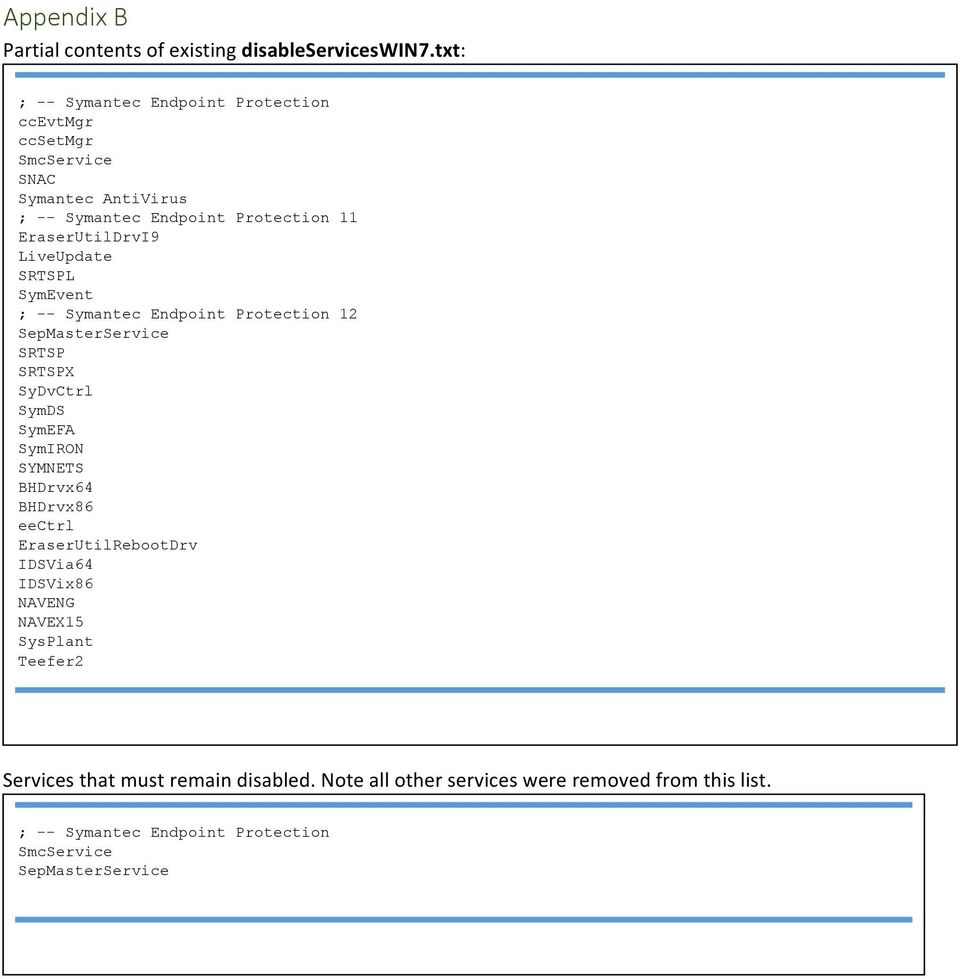
13 Appendix B Partial contents of existing disableserviceswin7.txt: ; -- Symantec Endpoint Protection ccevtmgr ccsetmgr SmcService SNAC Symantec AntiVirus ; -- Symantec Endpoint Protection 11 EraserUtilDrvI9 LiveUpdate SRTSPL SymEvent ; -- Symantec Endpoint Protection 12 SepMasterService SRTSP SRTSPX SyDvCtrl SymDS SymEFA SymIRON SYMNETS BHDrvx64 BHDrvx86 eectrl EraserUtilRebootDrv IDSVia64 IDSVix86 NAVENG NAVEX15 SysPlant Teefer2 Services that must remain disabled. Note all other services were removed from this list. ; -- Symantec Endpoint Protection SmcService SepMasterService
14 Appendix C This appendix displays an updated publishextend- SEP.cmd: REM Sample publishextend.cmd when using Symantec Endpoint Protection 12.1.x REM REM REM --- To use this: REM Copy the script to root of "C:\" drive REM Create C:\publishExtend.cmd script if it does not already exist REM And add a call to this script in it (call C:\publishExtend-SEP.cmd REM Modify the variable CLIENT_GROUP_SYLINK_FILENAME to point to the REM --- communications settings file exported from the SEP Manager. REM Make sure the OS Profile named Symantec Endpoint Protection in the REM ---- Synchronizer's "Definitions" folder is used in policy, and this REM --- policy is assigned to VMs in order to preserve unique SEP identifiers. REM Publish the VM. REM REM --- Communications file exported from the SEP Manager. REM --- It specifies the group to which the end-user VM will belong to. REM --- An IT Administrator MUST provide this file in order for the publish to succeed set CLIENT_GROUP_SYLINK_FILENAME="C:\Sylink.xml" REM --- No user modifiable code below this line REM --- Path of SEP communication settings file. set SYLINK_FILEPATH="C:\ProgramData\Symantec\Symantec Endpoint Protection\CurrentVersion\Data\Config\SyLink.xml" REM -- What is the processor arch? set PROC_ARCH=%PROCESSOR_ARCHITECTURE% if "%PROCESSOR_ARCHITEW6432%" == "AMD64" ( SET PROC_ARCH=AMD64 REM --- Remove the unique hardware identifier so that it will be re-generated at the client. call :reg_del_value "Symantec\Symantec Endpoint Protection\SMC\SYLINK\SyLink" "HardwareID" REM --- If there is an error deleting, abort. Tamper Protection may not be disabled. if ERRORLEVEL 1 exit /b 1 REM --- Remove the unique host identifier so that it will be re-generated at the client. call :reg_del_value "Symantec\Symantec Endpoint Protection\SMC\SYLINK\SyLink" "HostGUID" REM --- If there is an error deleting, abort. Tamper Protection may not be disabled. if ERRORLEVEL 1 exit /b 2 REM --- Delete all instances of sephwid.xml on file system. REM --- Possible locations (usually only in the PersistedData folder del /f /q "C:\ProgramData\Symantec\Symantec Endpoint Protection\PersistedData\sephwid.xml" REM --- If there is an error deleting, abort. Tamper Protection may not be disabled. if ERRORLEVEL 1 exit /b 3 REM --- Remove communication settings file and replace with new one containing the REM --- SEP group to which the end-user VM will belong to. del /f /q %SYLINK_FILEPATH% REM --- If there is an error deleting, abort. Tamper Protection may not be disabled. if ERRORLEVEL 1 exit /b 4 copy %CLIENT_GROUP_SYLINK_FILENAME% %SYLINK_FILEPATH% REM --- If there is an error copying, then source file may not exist. if ERRORLEVEL 1 exit /b 5 del /f /q %CLIENT_GROUP_SYLINK_FILENAME% REM --- Turn ON SEP debugging (if needed REM call :turn_sep_debug_on REM -- The code below applies only to Shared VMs if /I NOT "%DESKTOP_TYPE%" == "FCD_SHARED" ( exit /b 0 REM --- Remap drive letter for SEP services call :remap_sep_services if ERRORLEVEL 1 exit /b 6 REM --- We are done here. Script will return success. exit /b 0

15 Appendix C (continued REM --- Local Subroutine REM --- Function to Delete HardwareID and HostGUID registry values :reg_del_value set RegValue=%1 reg query "HKLM\SOFTWARE\%RegValue:~1,-1%" /v %2 /reg:64 if NOT ERRORLEVEL 1 ( reg delete "HKLM\SOFTWARE\%RegValue:~1,-1%" /v %2 /f /reg:64 if ERRORLEVEL /b 1 else ( REM --- From SEP 12.1 RU5 onwards HardwareID and HostGUID values on 64-bit systems have been moved to REM --- HKLM\SOFTWARE\Wow6432Node reg delete "HKLM\SOFTWARE\Wow6432Node\%RegValue:~1,-1%" /v %2 /f if ERRORLEVEL /b :eof :remap_sep_services REM --- The SONAR Proactive Threat Detection driver is placed under ProgramData, which REM --- in a shared VM is redirected to the user disk via an NTFS Junction Point. REM --- SEP, however, does not work when its services are redirected in this manner. REM --- To get around it, we can modify the SEP Windows registries to point REM --- directly to the user disk. This workaround only works for shared VMs that REM --- snapback as SEP will revert the driver locations to its original value! REM --- Service names that are dependent on bitness type if "%PROC_ARCH%" == "x86" ( SET BHDRV=BHDrvx86 SET IDSVDRV=IDSVix86 else ( SET BHDRV=BHDrvx64 SET IDSVDRV=IDSVia64 REM --- Find CCSettings_{UUID} call :find_ccsettings_name if ERRORLEVEL /b 1 SETLOCAL EnableDelayedExpansion REM --- Change drive letter for BHDrv driver SET SEP_SERVICE_LIST[1]=%BHDRV%:ImagePath SET SEP_SERVICE_LIST[2]=%BHDRV%\Parameters:KCFile SET SEP_SERVICE_LIST[3]=%BHDRV%\Parameters:SettingsPath REM --- Change drive letter for CCSettings_{UUID} driver SET SEP_SERVICE_LIST[4]=%CCSETTINGS_SVC%\Parameters:WorkingDir REM --- Change drive letter for eectrl driver SET SEP_SERVICE_LIST[5]=eeCtrl\Parameters:LastUsedDefs SET SEP_SERVICE_LIST[6]=eeCtrl\Parameters:SPManifest REM --- Change drive letter for IDSV driver SET SEP_SERVICE_LIST[7]=%IDSVDRV%:ImagePath SET SEP_SERVICE_LIST[8]=%IDSVDRV%\Parameters:SettingsPath REM --- Change drive letter for NAVENG driver SET SEP_SERVICE_LIST[9]=NAVENG:ImagePath REM --- Change drive letter for NAVEX15 driver SET SEP_SERVICE_LIST[10]=NAVEX15:ImagePath REM --- Change drive letter for SRTSP driver SET SEP_SERVICE_LIST[11]=SRTSP\Parameters:QuarTmpPath SET SEP_SERVICE_LIST[12]=SRTSP\Parameters:SettingsPath REM --- Change drive letter for SymIRON driver SET SEP_SERVICE_LIST[13]=SymIRON\Parameters:WorkingDirectory REM --- Change drive letter for SYMNETS driver SET SEP_SERVICE_LIST[14]=SYMNETS\Parameters:SettingsPath REM --- Change drive letter for SysPlant driver SET SEP_SERVICE_LIST[15]=SysPlant:ConfigDatDir

16 Appendix C (continued REM --- Change drive letter for SymDS and SymEFA drivers - specific to 12.1 RU4 SET SEP_SERVICE_LIST[16]=SymDS\Parameters:TempDirectory SET SEP_SERVICE_LIST[17]=SymEFA\Parameters:SymVTDataLUFile REM --- Change drive letter for SymEFASI driver - specific to 12.1 RU5 and RU6 SET SEP_SERVICE_LIST[18]=SymEFASI\Parameters:SymVTDataLUFile SET SEP_SERVICE_LIST[19]=SymEFASI\Parameters:TempDirectory SET /a n=20 SET /a i=1 :loop if %i%==%n% GOTO end SET SERVICE_NAME_KEY=!SEP_SERVICE_LIST[%i%]! FOR /F "tokens=1,2 delims=:" %%G IN ("%SERVICE_NAME_KEY%" DO ( reg query "HKLM\SYSTEM\CurrentControlSet\services\%%G" /v "%%H" /reg:64 REM -- call change_drive_letter function only if registry key present if NOT ERRORLEVEL 1 ( call :change_drive_letter "HKLM\SYSTEM\CurrentControlSet\services\%%G" %%H if ERRORLEVEL /b 1 SET /a i=%i%+1 goto loop :end REM --- Remap drive letter for SEP ccsettings mount services call :remap_sep_ccsettings_mount_services if ERRORLEVEL /b :eof - - :change_drive_letter - REM --- Given an argument containing a path, replace its drive letter REM --- with the user disk drive letter. REM --- %1 the name of the registry key. REM --- %2 the name of the registry value REM --- This key must be there or otherwise SEP was not installed properly reg query "%1" /v "%2" /reg:64 > %TMP%\bhd1.txt if ERRORLEVEL /b 1 type %TMP%\bhd1.txt find /i "%2" > %TMP%\bhd2.txt FOR /F "tokens=2" %%G IN ('type %TMP%\bhd2.txt' DO SET REG_VALUE_TYPE=%%G FOR /F "tokens=3*" %%G IN ('type %TMP%\bhd2.txt' DO SET IMAGE_PATH=%%G %%H REM --- Replace "C" or "\??\C" if /I "%IMAGE_PATH:~0,4%" == "\??\" ( SET IMAGE_PATH=\??\%USER_DRIVE_LETTER%%IMAGE_PATH:~5% else ( SET IMAGE_PATH=%USER_DRIVE_LETTER%%IMAGE_PATH:~1% REM --- If there is a trailing \, it needs to be escaped or the reg REM --- will interpret the quotes that follow as an escaped character and REM --- not the end of the string. if /I "%IMAGE_PATH:~-1%" == "\" ( SET IMAGE_PATH=%IMAGE_PATH%\ REM --- Update the key. reg add "%1" /v "%2" /t "%REG_VALUE_TYPE%" /d "%IMAGE_PATH%" /f if ERRORLEVEL /b 1 del %TMP%\bhd1.txt del :eof -
![1 RU5 and RU6 SET SEP_SERVICE_LIST[18]=SymEFASI\Parameters:SymVTDataLUFile SET SEP_SERVICE_LIST[19]=SymEFASI\Parameters:TempDirectory SET /a n=20 SET /a i=1 :loop if %i%==%n% GOTO end SET](/docs-images/41/15523140/images/page_16.jpg "SERVICE_NAME_KEY=!SEP_SERVICE_LIST[%i%]!")
17 Appendix C (continued :remap_sep_ccsettings_mount_services REM --- Function replaces all occurrences of drive letter to user disk drive letter found under REM --- "HKLM\SYSTEM\CurrentControlSet\services\%CCSETTINGS_SVC%\Parameters\mount" sub registry keys. REM --- Each key occurrence under "ccsettings_{guid}\parameters\mount\" contains a single common registry REM --- string value called "FileName" set mount_reg_path="hklm\system\currentcontrolset\services\%ccsettings_svc%\parameters\mount" reg query %mount_reg_path% /f "*C:\ProgramData\Symantec\*" /s > %TMP%\ccSettings_mount.txt FOR /F "tokens=1" %%A IN (%TMP%\ccSettings_mount.txt DO ( REM --- Check if token is a registry key containing %CCSETTINGS_SVC%\Parameters\mount echo.%%a find /I "%CCSETTINGS_SVC%\Parameters\mount" >NUL && ( call :change_drive_letter "%%A" FileName if ERRORLEVEL 1 ( del /b 1 del :eof :find_ccsettings_name REM --- There is an SEP service whose name contains an UUID that can vary REM --- between VMs. We detect its name here so we don't have to hard-code UUIDs REM --- The name will be returned in CCSETINGS_SVC environment variable. reg query HKLM\SYSTEM\CurrentControlSet\services /f "ccsettings_*" /reg:64 > %TMP%\ccSettings1.txt if ERRORLEVEL /b 1 type %TMP%\ccSettings1.txt find /i "ccsettings" > %TMP%\ccSettings2.txt FOR /F "tokens=5 delims=\" %%G IN ('type %TMP%\ccSettings2.txt' DO SET CCSETTINGS_SVC=%%G del %TMP%\ccSettings1.txt del :eof - - :turn_sep_debug_on - REM --- When debugging SEP issues, it is useful to see the logs under REM --- CurrentVersion\Data\Logs subfolder of SEP's AllUsersProfile directory. REM --- This routine enables logging and increases verbosity. reg add "HKLM\SOFTWARE\Symantec\Symantec Endpoint Protection\SMC" /v smc_debuglog_on /t REG_DWORD /d 1 /f /reg:64 reg add "HKLM\SOFTWARE\Symantec\Symantec Endpoint Protection\SMC" /v smc_debug_level /t REG_DWORD /d 0 /f /reg:64 reg add "HKLM\SOFTWARE\Symantec\Symantec Endpoint Protection\SMC" /v smc_debug_log_level /t REG_DWORD /d 0 /f /reg:64 reg add "HKLM\SOFTWARE\Symantec\Symantec Endpoint Protection\SMC\Log" /v debug_log_filesize /t REG_DWORD /d 0x4e20 /f :eof

18 Appendix D <?xml version="1.0" encoding="utf-8"?> <root> <!-- ** WARNING ** The feature definitions contained in this file are maintained by Citrix Systems, Inc., and should not be modified by anyone other than Citrix Systems. The importation of a modified definition from anywhere but an official Synchronizer release can cause the failure or incorrect operation of Virtual Machines and can interfere with upgrades to future releases of Synchronizer. Suggestions for improvements to these definitions should be submitted to Citrix Systems. --> <feature type="fcd"> <id uuid="da9dc6cf-d8f0-44b2-a426-a37e9e986fdb" version="20" /> <name>symantec Endpoint Protection</name> <author>citrix Systems, Inc.</author> <description> Preserve data files and registry settings used by Symantec Endpoint Protection antivirus software. Tested on Win 7, Win8 and Win 8.1 (both x86 and x64 using SEP version 12. </description> <target os="win7plus"> <filesystem file="\programdata\symantec\symantec Endpoint Protection\PersistedData\sephwid.xml" owner="user" merge="false" copy="false" /> <filesystem folder="\program Files\Symantec\Symantec Endpoint Protection" owner="local" merge="true" conflict="server" copy="false" /> <filesystem folder="\program Files (x86\symantec\symantec Endpoint Protection" owner="local" merge="true" conflict="server" copy="false" /> <filesystem folder="\program Files\Common Files\Symantec Shared" owner="local" merge="true" conflict="server" copy="false" /> <filesystem folder="\program Files (x86\common Files\Symantec Shared" owner="local" merge="true" conflict="server" copy="false" /> <!-- Preserve any user defined scans --> <registry key="hkey_local_machine\software\symantec\symantec Endpoint Protection\AV\Scheduler" preserve="true" merge="false" /> <registry key="hkey_local_machine\software\wow6432node\symantec\symantec Endpoint Protection\AV\Scheduler" preserve="true" merge="false" /> <!-- Preserve and backup locally generated HW ID (UUID --> <registry key="hkey_local_machine\software\symantec\symantec Endpoint Protection\SMC\SYLINK\SyLink" preserve="true" merge="false"> <value name="hardwareid" /> </registry> <registry key="hkey_local_machine\software\wow6432node\symantec\symantec Endpoint Protection\SMC\SYLINK\SyLink" preserve="true" merge="false"> <value name="hardwareid" /> </registry> <registry key="hkey_local_machine\software\symantec\symantec Endpoint Protection\SMC\SYLINK\SyLink" preserve="true" merge="false"> <value name="hostguid" /> </registry> <registry key="hkey_local_machine\software\wow6432node\symantec\symantec Endpoint Protection\SMC\SYLINK\SyLink" preserve="true" merge="false"> <value name="hostguid" /> </registry> <!-- Note that there are many, many settings not being preserved (e.g., disable real-time scan. If a given customer needs them preserved, they'll need to enhance this definition. However, SEP is often either centrally managed or the ability to change settings has been disabled. --> </target> </feature>

19 Appendix D (continued <feature type="pvd"> <id uuid="a4294e7c-1e71-4f98-8f55-81d27a577b32" version="6"/> <name>symantec Endpoint Protection</name> <author>citrix Systems, Inc.</author> <description> Preserve settings related to Symantec Endpoint Protection antivirus software. Tested on Win7, Win8 and Win 8.1 (on both x86 and x64 using SEP Version 12 </description> <target os="win7plus"> <registry key="hkey_local_machine\software\symantec\symantec Endpoint Protection\SMC\SYLINK\SyLink" preserve="true" /> <registry key="hkey_local_machine\software\wow6432node\symantec\symantec Endpoint Protection\SMC\SYLINK\SyLink" preserve="true" /> <!-- Preserve any user defined scans --> <registry key="hkey_local_machine\software\symantec\symantec Endpoint Protection\AV\Scheduler" preserve="true" /> <registry key="hkey_local_machine\software\wow6432node\symantec\symantec Endpoint Protection\AV\Scheduler" preserve="true" /> </target> </feature> </root>

Introduction. This white paper provides technical information on how to approach these steps with Symantec Antivirus Corporate edition.
 Introduction The process of updating virus definitions on workstations protected by Deep Freeze Enterprise involves three fundamental steps: 1. Rebooting the workstations into a Thawed state so the updates
VMware Mirage Web Manager Guide
 Mirage 5.1 This document supports the version of each product listed and supports all subsequent versions until the document is replaced by a new edition. To check for more recent editions of this document,
STATISTICA VERSION 9 STATISTICA ENTERPRISE INSTALLATION INSTRUCTIONS FOR USE WITH TERMINAL SERVER
 Notes: STATISTICA VERSION 9 STATISTICA ENTERPRISE INSTALLATION INSTRUCTIONS FOR USE WITH TERMINAL SERVER 1. These instructions focus on installation on Windows Terminal Server (WTS), but are applicable
Synchronizer Installation
 Synchronizer Installation Synchronizer Installation Synchronizer Installation This document provides instructions for installing Synchronizer. Synchronizer performs all the administrative tasks for XenClient
Spector 360 Deployment Guide. Version 7.3 January 3, 2012
 Spector 360 Deployment Guide Version 7.3 January 3, 2012 Table of Contents Deploy to All Computers... 48 Step 1: Deploy the Servers... 5 Recorder Requirements... 52 Requirements... 5 Control Center Server
Moving the Web Security Log Database
 Moving the Web Security Log Database Topic 50530 Web Security Solutions Version 7.7.x, 7.8.x Updated 22-Oct-2013 Version 7.8 introduces support for the Web Security Log Database on Microsoft SQL Server
Installation Guide. . All right reserved. For more information about Specops Deploy and other Specops products, visit www.specopssoft.
 . All right reserved. For more information about Specops Deploy and other Specops products, visit www.specopssoft.com Copyright and Trademarks Specops Deploy is a trademark owned by Specops Software. All
Support Document: Microsoft SQL Server - LiveVault 7.6X
 Contents Preparing to create a Microsoft SQL backup policy... 2 Adjusting the SQL max worker threads option... 2 Preparing for Log truncation... 3 Best Practices... 3 Microsoft SQL Server 2005, 2008, or
Installing, Uninstalling, and Upgrading Service Monitor
 CHAPTER 2 Installing, Uninstalling, and Upgrading Service Monitor This section contains the following topics: Preparing to Install Service Monitor, page 2-1 Installing Cisco Unified Service Monitor, page
PSCAD Installation Errors
 PSCAD PSCAD Installation Errors Written for: PSCAD v4.2 PSCAD X4 (v4.3, v4.4, v4.5, v4.6) Revision: 4 April 20, 2015 Contents 1. INSTALLATION ERROR ERROR 1053 STARTING LM SERVICE... 1 2. INSTALLATION ERROR
Introduction. There are several bits of information that must be moved:
 Backup and restore on new hardware XProtect Professional VMS Products 2014: XProtect Enterprise 2014, XProtect Professional 2014, XProtect Express 2014, XProtect Essential 2014 Introduction This document
Moving the TRITON Reporting Databases
 Moving the TRITON Reporting Databases Topic 50530 Web, Data, and Email Security Versions 7.7.x, 7.8.x Updated 06-Nov-2013 If you need to move your Microsoft SQL Server database to a new location (directory,
Practice Fusion API Client Installation Guide for Windows
 Practice Fusion API Client Installation Guide for Windows Quickly and easily connect your Results Information System with Practice Fusion s Electronic Health Record (EHR) System Table of Contents Introduction
Veritas Cluster Server Database Agent for Microsoft SQL Configuration Guide
 Veritas Cluster Server Database Agent for Microsoft SQL Configuration Guide Windows 2000, Windows Server 2003 5.0 11293743 Veritas Cluster Server Database Agent for Microsoft SQL Configuration Guide Copyright
Core Protection for Virtual Machines 1
 Core Protection for Virtual Machines 1 Comprehensive Threat Protection for Virtual Environments. Installation Guide e Endpoint Security Trend Micro Incorporated reserves the right to make changes to this
Helpdesk Support Tool Administrator s Guide
 Helpdesk Support Tool Administrator s Guide VMware User Environment Manager V E R S I O N 8. 6. 0 You can find the most up-to-date technical documentation on the VMware Web site at: http://www.vmware.com/support/
AV Management Dashboard
 LabTech AV Management Dashboard AV MANAGEMENT DASHBOARD... 1 Overview... 1 Requirements... 1 Dashboard Overview... 2 Clients/Groups... 2 Offline AV Agents... 3 Threats... 3 AV Product... 4 Sync Agent Data
SC-T35/SC-T45/SC-T46/SC-T47 ViewSonic Device Manager User Guide
 SC-T35/SC-T45/SC-T46/SC-T47 ViewSonic Device Manager User Guide Copyright and Trademark Statements 2014 ViewSonic Computer Corp. All rights reserved. This document contains proprietary information that
Symantec AntiVirus Corporate Edition Patch Update
 Symantec AntiVirus Corporate Edition Patch Update Symantec AntiVirus Corporate Edition Update Documentation version 10.0.1.1007 Copyright 2005 Symantec Corporation. All rights reserved. Symantec, the Symantec
XenClient Enterprise Synchronizer Migration
 XenClient Enterprise Synchronizer Migration Applicability This document is applicable to XenClient Synchronizer version 5.1. The information in this document also applies to earlier versions of XenClient,
Witango Application Server 6. Installation Guide for Windows
 Witango Application Server 6 Installation Guide for Windows December 2010 Tronics Software LLC 503 Mountain Ave. Gillette, NJ 07933 USA Telephone: (570) 647 4370 Email: [email protected] Web: www.witango.com
TECHNICAL DOCUMENTATION SPECOPS DEPLOY / APP 4.7 DOCUMENTATION
 TECHNICAL DOCUMENTATION SPECOPS DEPLOY / APP 4.7 DOCUMENTATION Contents 1. Getting Started... 4 1.1 Specops Deploy Supported Configurations... 4 2. Specops Deploy and Active Directory...5 3. Specops Deploy
Telelogic DASHBOARD Installation Guide Release 3.6
 Telelogic DASHBOARD Installation Guide Release 3.6 1 This edition applies to 3.6.0, Telelogic Dashboard and to all subsequent releases and modifications until otherwise indicated in new editions. Copyright
Symantec Mail Security for Domino
 Getting Started Symantec Mail Security for Domino About Symantec Mail Security for Domino Symantec Mail Security for Domino is a complete, customizable, and scalable solution that scans Lotus Notes database
SPSS. Resolve common problems when installing SPSS. Document Purpose. IT Services. www.le.ac.uk/its
 IT Services SPSS Resolve common problems when installing SPSS Document Purpose This guide will show you how to fix some common problems when installing SPSS. Version number: R01.1 www.le.ac.uk/its UNIVERSITY
Sophos Enterprise Console server to server migration guide. Product version: 5.2
 Sophos Enterprise Console server to server migration guide Product : 5.2 Document date: December 2014 Contents 1 About this guide...3 2 Terminology...4 3 Assumptions...5 4 Prerequisite...6 5 What are the
Direct Storage Access Using NetApp SnapDrive. Installation & Administration Guide
 Direct Storage Access Using NetApp SnapDrive Installation & Administration Guide SnapDrive overview... 3 What SnapDrive does... 3 What SnapDrive does not do... 3 Recommendations for using SnapDrive...
VMTurbo Operations Manager 4.5 Installing and Updating Operations Manager
 VMTurbo Operations Manager 4.5 Installing and Updating Operations Manager VMTurbo, Inc. One Burlington Woods Drive Burlington, MA 01803 USA Phone: (781) 373---3540 www.vmturbo.com Table of Contents Introduction
K7 Business Lite User Manual
 K7 Business Lite User Manual About the Admin Console The Admin Console is a centralized web-based management console. The web console is accessible through any modern web browser from any computer on the
Migrating helpdesk to a new server
 Migrating helpdesk to a new server Table of Contents 1. Helpdesk Migration... 2 Configure Virtual Web on IIS 6 Windows 2003 Server:... 2 Role Services required on IIS 7 Windows 2008 / 2012 Server:... 2
VERITAS Backup Exec TM 10.0 for Windows Servers
 VERITAS Backup Exec TM 10.0 for Windows Servers Quick Installation Guide N134418 July 2004 Disclaimer The information contained in this publication is subject to change without notice. VERITAS Software
Ekran System Help File
 Ekran System Help File Table of Contents About... 9 What s New... 10 System Requirements... 11 Updating Ekran to version 4.1... 13 Program Structure... 14 Getting Started... 15 Deployment Process... 15
SSO Plugin. J System Solutions. Upgrading SSO Plugin 3x to 4x - BMC AR System & Mid Tier. http://www.javasystemsolutions.com
 SSO Plugin Upgrading SSO Plugin 3x to 4x - BMC AR System & Mid Tier J System Solutions JSS SSO Plugin Upgrading 3x to 4x Introduction... 3 [Prerequisite] Generate a new license... 4 [Prerequisite] Download
Spector 360 Deployment Guide. Version 7
 Spector 360 Deployment Guide Version 7 December 11, 2009 Table of Contents Deployment Guide...1 Spector 360 DeploymentGuide... 1 Installing Spector 360... 3 Installing Spector 360 Servers (Details)...
092413 2013 Blackbaud, Inc. This publication, or any part thereof, may not be reproduced or transmitted in any form or by any means, electronic, or
 7.93 Update Guide 092413 2013 Blackbaud, Inc. This publication, or any part thereof, may not be reproduced or transmitted in any form or by any means, electronic, or mechanical, including photocopying,
Hyperoo 2 User Guide. Hyperoo 2 User Guide
 1 Hyperoo 2 User Guide 1 2 Contents How Hyperoo Works... 3 Installing Hyperoo... 3 Hyperoo 2 Management Console... 4 The Hyperoo 2 Server... 5 Creating a Backup Array... 5 Array Security... 7 Previous
Additionally, you can run LiveUpdate manually to check for the latest definitions directly from Symantec:
 Image not found https://it.ucsf.edu/sites/it.ucsf.edu/themes/custom/it_new/logo.png it.ucsf.edu Published on it.ucsf.edu (https://it.ucsf.edu) Home > SEP for Windows: FAQ SEP for Windows: FAQ vgalvan on
NovaBACKUP Central Management Console
 NovaBACKUP Central Management Console User Manual NovaStor / November 2013 2013 NovaStor, all rights reserved. All trademarks are the property of their respective owners. Features and specifications are
Sophos Enterprise Console server to server migration guide. Product version: 5.1 Document date: June 2012
 Sophos Enterprise Console server to server migration guide Product : 5.1 Document date: June 2012 Contents 1 About this guide...3 2 Terminology...4 3 Assumptions...5 4 Prerequisite...6 5 What are the key
NETWRIX WINDOWS SERVER CHANGE REPORTER
 NETWRIX WINDOWS SERVER CHANGE REPORTER INSTALLATION AND CONFIGURATION GUIDE Product Version: 4.0 March 2013. Legal Notice The information in this publication is furnished for information use only, and
WhatsUp Gold v16.1 Installation and Configuration Guide
 WhatsUp Gold v16.1 Installation and Configuration Guide Contents Installing and Configuring Ipswitch WhatsUp Gold v16.1 using WhatsUp Setup Installing WhatsUp Gold using WhatsUp Setup... 1 Security guidelines
QlikView 11 Upgrade & Migrations
 QlikView 11 Upgrade & Migrations QlikView Technical Brief Published: November 2011 qlikview.com Introduction This guide is provided as a reference and best practices for upgrading and migrating an existing
026-1010 Rev 7 06-OCT-2011. Site Manager Installation Guide
 026-1010 Rev 7 06-OCT-2011 Site Manager Installation Guide Retail Solutions 3240 Town Point Drive NW, Suite 100 Kennesaw, GA 30144, USA Phone: 770-425-2724 Fax: 770-425-9319 Table of Contents 1 SERVER
Symantec Backup Exec 12.5 for Windows Servers. Quick Installation Guide
 Symantec Backup Exec 12.5 for Windows Servers Quick Installation Guide 13897290 Installing Backup Exec This document includes the following topics: System requirements Before you install About the Backup
Allworx OfficeSafe Operations Guide Release 6.0
 Allworx OfficeSafe Operations Guide Release 6.0 No part of this publication may be reproduced, stored in a retrieval system, or transmitted, in any form or by any means, electronic, mechanical, photocopy,
Pearl Echo Installation Checklist
 Pearl Echo Installation Checklist Use this checklist to enter critical installation and setup information that will be required to install Pearl Echo in your network. For detailed deployment instructions
Administration GUIDE. SharePoint Server idataagent. Published On: 11/19/2013 V10 Service Pack 4A Page 1 of 201
 Administration GUIDE SharePoint Server idataagent Published On: 11/19/2013 V10 Service Pack 4A Page 1 of 201 Getting Started - SharePoint Server idataagent Overview Deployment Configuration Decision Table
Abila MIP. Installation User's Guide
 This is a publication of Abila, Inc. Version 2014.x Copyright 2013 Abila, Inc. All rights reserved. Abila, the Abila logos, and the Abila product and service names mentioned herein are registered trademarks
Customizing the SSOSessionTimeout.jsp page for Kofax Front Office Server 3.5.2
 Customizing the SSOSessionTimeout.jsp page for Kofax Front Office Server 3.5.2 Date July 23, 2014 Applies To Kofax Front Office Server (KFS) 3.5.2.10 Summary This application note provides instructions
XenClient Enterprise Synchronizer Installation Guide
 XenClient Enterprise Synchronizer Installation Guide Version 5.1.0 March 26, 2014 Table of Contents About this Guide...3 Hardware, Software and Browser Requirements...3 BIOS Settings...4 Adding Hyper-V
VirtualXP Users Guide
 VirtualXP Users Guide Contents Chapter 1: Introduction... 2 Chapter 2: Install and Uninstall VirtualXP... 3 2.1 System Requirement... 3 2.2 Installing VirtualXP... 3 2.3 Uninstalling VirtualXP... 3 Chapter
FileMaker Server 14. FileMaker Server Help
 FileMaker Server 14 FileMaker Server Help 2007 2015 FileMaker, Inc. All Rights Reserved. FileMaker, Inc. 5201 Patrick Henry Drive Santa Clara, California 95054 FileMaker and FileMaker Go are trademarks
HRC Advanced Citrix Troubleshooting Guide. Remove all Citrix Instances from the Registry
 HRC Advanced Citrix Troubleshooting Guide Advanced Troubleshooting procedures: 1. Add https://mobile.hrc.army.mil to Internet Explorer s trusted sites list. Click on Tools Internet Options Security. Click
How to - Install EventTracker and Change Audit Agent
 How to - Install EventTracker and Change Audit Agent Agent Deployment User Manual Publication Date: Oct.17, 2015 EventTracker 8815 Centre Park Drive Columbia MD 21045 www.eventtracker.com Abstract EventTracker
XMap 7 Administration Guide. Last updated on 12/13/2009
 XMap 7 Administration Guide Last updated on 12/13/2009 Contact DeLorme Professional Sales for support: 1-800-293-2389 Page 2 Table of Contents XMAP 7 ADMINISTRATION GUIDE... 1 INTRODUCTION... 5 DEPLOYING
NAS 253 Introduction to Backup Plan
 NAS 253 Introduction to Backup Plan Create backup jobs using Backup Plan in Windows A S U S T O R C O L L E G E COURSE OBJECTIVES Upon completion of this course you should be able to: 1. Create backup
Hosting Users Guide 2011
 Hosting Users Guide 2011 eofficemgr technology support for small business Celebrating a decade of providing innovative cloud computing services to small business. Table of Contents Overview... 3 Configure
Installation Instructions Release Version 15.0 January 30 th, 2011
 Release Version 15.0 January 30 th, 2011 ARGUS Software: ARGUS Valuation - DCF The contents of this document are considered proprietary by ARGUS Software, the information enclosed and any portion thereof
XenClient Enterprise Upgrade Guide
 XenClient Enterprise Upgrade Guide Version 5.0 August 12, 2013 Table of Contents About this Document...4 Step 1: Get the Updated Software...4 Step 2: Upgrade XenClient Enterprise Synchronizer...4 Step
Migrating TimeForce To A New Server
 Rev. 4/28/14 Migrating TimeForce To A New Server Table of Contents 1. Installation Prerequisites... 2 Required... 2 Recommended... 3 2. Update to a Migration Compatible Version... 3 Determine the Database
The basic steps involved in installing FLEETMATE Enterprise Edition and preparing it for initial use are as follows:
 Overview Thank you for choosing to install FLEETMATE, low-cost fleet maintenance management software that can help you become proactive with fleet maintenance, extend the useful life of your fleet assets,
Sophos for Microsoft SharePoint startup guide
 Sophos for Microsoft SharePoint startup guide Product version: 2.0 Document date: March 2011 Contents 1 About this guide...3 2 About Sophos for Microsoft SharePoint...3 3 System requirements...3 4 Planning
Published. Technical Bulletin: Use and Configuration of Quanterix Database Backup Scripts 1. PURPOSE 2. REFERENCES 3.
 Technical Bulletin: Use and Configuration of Quanterix Database Document No: Page 1 of 11 1. PURPOSE Quanterix can provide a set of scripts that can be used to perform full database backups, partial database
Juris and Juris Suite 2.5 Service Pack 2. Installation Guide
 Juris and Juris Suite 2.5 Service Pack 2 Installation Guide Table of Contents Introduction... 2 Planning and Preparation... 2 System Requirements... 2 Server Required Pre-Install Items... 2 Servers Running
Virtual CodeMeter Activation Guide
 Virtual CodeMeter Activation Guide Introduction A Virtual CodeMeter (VCM) allows the user to run licensed AccessData products without a physical CodeMeter device. A VCM can be created using AccessData
BackupAssist v6 quickstart guide
 New features in BackupAssist v6... 2 VSS application backup (Exchange, SQL, SharePoint)... 3 System State backup... 3 Restore files, applications, System State and mailboxes... 4 Fully cloud ready Internet
webkpi SaaS ETL Connector Installation & Configuration Guide
 webkpi SaaS ETL Connector Installation & Configuration Guide SaaS ETL Version 2.5.0.12 Version 1.6 September 2013 webkpi SaaS ETL Connector Version 2.5.0.12 V 1.6 Page 1 Table of Contents Table of Contents
BackupAssist v6 quickstart guide
 Using the new features in BackupAssist v6... 2 VSS application backup (Exchange, SQL, SharePoint)... 2 Backing up VSS applications... 2 Restoring VSS applications... 3 System State backup and restore...
STATISTICA VERSION 10 STATISTICA ENTERPRISE SERVER INSTALLATION INSTRUCTIONS
 Notes: STATISTICA VERSION 10 STATISTICA ENTERPRISE SERVER INSTALLATION INSTRUCTIONS 1. The installation of the STATISTICA Enterprise Server entails two parts: a) a server installation, and b) workstation
Retrospect 7.7 User s Guide Addendum
 Retrospect 7.7 User s Guide Addendum 2011 Retrospect, Inc. All rights reserved. Retrospect 7.7 Users Guide Addendum, first edition. Use of this product (the Software ) is subject to acceptance of the license
Portions of this product were created using LEADTOOLS 1991-2009 LEAD Technologies, Inc. ALL RIGHTS RESERVED.
 Installation Guide Lenel OnGuard 2009 Installation Guide, product version 6.3. This guide is item number DOC-110, revision 1.038, May 2009 Copyright 1992-2009 Lenel Systems International, Inc. Information
Server & Workstation Installation of Client Profiles for Windows
 C ase Manag e m e n t by C l i e n t P rofiles Server & Workstation Installation of Client Profiles for Windows T E C H N O L O G Y F O R T H E B U S I N E S S O F L A W General Notes to Prepare for Installing
Desktop Surveillance Help
 Desktop Surveillance Help Table of Contents About... 9 What s New... 10 System Requirements... 11 Updating from Desktop Surveillance 2.6 to Desktop Surveillance 3.2... 13 Program Structure... 14 Getting
Virtual Appliances. Virtual Appliances: Setup Guide for Umbrella on VMWare and Hyper-V. Virtual Appliance Setup Guide for Umbrella Page 1
 Virtual Appliances Virtual Appliances: Setup Guide for Umbrella on VMWare and Hyper-V Virtual Appliance Setup Guide for Umbrella Page 1 Table of Contents Overview... 3 Prerequisites... 4 Virtualized Server
Administration Quick Start
 www.novell.com/documentation Administration Quick Start ZENworks 11 Support Pack 3 February 2014 Legal Notices Novell, Inc., makes no representations or warranties with respect to the contents or use of
Server & Workstation Installation of Client Profiles for Windows (WAN Edition)
 C ase Manag e m e n t by C l i e n t P rofiles Server & Workstation Installation of Client Profiles for Windows (WAN Edition) T E C H N O L O G Y F O R T H E B U S I N E S S O F L A W Important Note on
Table of Contents. CHAPTER 1 About This Guide... 9. CHAPTER 2 Introduction... 11. CHAPTER 3 Database Backup and Restoration... 15
 Table of Contents CHAPTER 1 About This Guide......................... 9 The Installation Guides....................................... 10 CHAPTER 2 Introduction............................ 11 Required
ZENworks Adaptive Agent Reference
 www.novell.com/documentation ZENworks Adaptive Agent Reference ZENworks 11 Support Pack 2 March 2013 Legal Notices Novell, Inc., makes no representations or warranties with respect to the contents or use
How To Install Database Oasis On A Computer Or Computer (For Free)
 INSTALLATION INSTRUCTIONS Table of Contents Installation Instructions 1 Table of Contents 1 System Requirements 2 Installation 3 Selecting where to Install the Professional Server 3 Installing Prerequisites
Citrix Access Gateway Plug-in for Windows User Guide
 Citrix Access Gateway Plug-in for Windows User Guide Access Gateway 9.2, Enterprise Edition Copyright and Trademark Notice Use of the product documented in this guide is subject to your prior acceptance
Topaz Installation Sheet
 Topaz Installation Sheet P/N 460924001E ISS 08FEB12 Content Introduction... 3 Recommended minimum requirements... 3 Setup for Internet Explorer:... 4 Topaz installation... 10 Technical support... 14 Copyright
Symantec Backup Exec System Recovery Exchange Retrieve Option User's Guide
 Symantec Backup Exec System Recovery Exchange Retrieve Option User's Guide Symantec Backup Exec System Recovery Exchange Retrieve Option User's Guide The software described in this book is furnished under
VEEAM ONE 8 RELEASE NOTES
 VEEAM ONE 8 RELEASE NOTES This Release Notes document provides last-minute information about Veeam ONE 8 Update 2, including system requirements, installation instructions as well as relevant information
PigCHAMP Knowledge Software. Enterprise Edition Installation Guide
 PigCHAMP Knowledge Software Enterprise Edition Installation Guide Enterprise Edition Installation Guide MARCH 2012 EDITION PigCHAMP Knowledge Software 1531 Airport Rd Suite 101 Ames, IA 50010 Phone (515)
SysPatrol - Server Security Monitor
 SysPatrol Server Security Monitor User Manual Version 2.2 Sep 2013 www.flexense.com www.syspatrol.com 1 Product Overview SysPatrol is a server security monitoring solution allowing one to monitor one or
Abila MIP. Installation Guide
 This is a publication of Abila, Inc. Version 2015.x Copyright 2014 Abila, Inc. All rights reserved. Abila, the Abila logos, and the Abila product and service names mentioned herein are registered trademarks
Networking Best Practices Guide. Version 6.5
 Networking Best Practices Guide Version 6.5 Summer 2010 Copyright: 2010, CCH, a Wolters Kluwer business. All rights reserved. Material in this publication may not be reproduced or transmitted in any form
Installation Guide: Delta Module Manager Launcher
 Installation Guide: Delta Module Manager Launcher Overview... 2 Delta Module Manager Launcher... 2 Pre-Installation Considerations... 3 Hardware Requirements... 3 Software Requirements... 3 Virtualisation...
HP A-IMC Firewall Manager
 HP A-IMC Firewall Manager Configuration Guide Part number: 5998-2267 Document version: 6PW101-20110805 Legal and notice information Copyright 2011 Hewlett-Packard Development Company, L.P. No part of this
Storage Sync for Hyper-V. Installation Guide for Microsoft Hyper-V
 Installation Guide for Microsoft Hyper-V Egnyte Inc. 1890 N. Shoreline Blvd. Mountain View, CA 94043, USA Phone: 877-7EGNYTE (877-734-6983) www.egnyte.com 2013 by Egnyte Inc. All rights reserved. Revised
Installation Instruction STATISTICA Enterprise Server
 Installation Instruction STATISTICA Enterprise Server Notes: ❶ The installation of STATISTICA Enterprise Server entails two parts: a) a server installation, and b) workstation installations on each of
A+ Guide to Software: Managing, Maintaining, and Troubleshooting, 5e. Chapter 3 Installing Windows
 : Managing, Maintaining, and Troubleshooting, 5e Chapter 3 Installing Windows Objectives How to plan a Windows installation How to install Windows Vista How to install Windows XP How to install Windows
WS_FTP Professional 12
 WS_FTP Professional 12 Tools Guide Contents CHAPTER 1 Introduction Ways to Automate Regular File Transfers...5 Check Transfer Status and Logs...6 Building a List of Files for Transfer...6 Transfer Files
Installation Instruction STATISTICA Enterprise Small Business
 Installation Instruction STATISTICA Enterprise Small Business Notes: ❶ The installation of STATISTICA Enterprise Small Business entails two parts: a) a server installation, and b) workstation installations
How To Restore Your Data On A Backup By Mozy (Windows) On A Pc Or Macbook Or Macintosh (Windows 2) On Your Computer Or Mac) On An Pc Or Ipad (Windows 3) On Pc Or Pc Or Micro
 Online Backup by Mozy Restore Common Questions Document Revision Date: June 29, 2012 Online Backup by Mozy Common Questions 1 How do I restore my data? There are five ways of restoring your data: 1) Performing
Contents 1. Introduction 2. Security Considerations 3. Installation 4. Configuration 5. Uninstallation 6. Automated Bulk Enrollment 7.
 Contents 1. Introduction 2. Security Considerations 3. Installation 4. Configuration 5. Uninstallation 6. Automated Bulk Enrollment 7. Troubleshooting Introduction Adaxes Self-Service Client provides secure
All rights reserved. Trademarks
 All rights reserved This manual, as well as the software described in it, is furnished under license and may be used or copied only in accordance with the terms of such license. The content of this manual
Evoko Room Manager. System Administrator s Guide and Manual
 Evoko Room Manager System Administrator s Guide and Manual 1 1. Contents 1. Contents... 2 2. Read this first! Introduction to this Guide... 6 3. User Guide... 6 4. System Architecture Overview... 8 ----
Pcounter Web Report 3.x Installation Guide - v2014-11-30. Pcounter Web Report Installation Guide Version 3.4
 Pcounter Web Report 3.x Installation Guide - v2014-11-30 Pcounter Web Report Installation Guide Version 3.4 Table of Contents Table of Contents... 2 Installation Overview... 3 Installation Prerequisites
ACTIVE DIRECTORY DEPLOYMENT
 ACTIVE DIRECTORY DEPLOYMENT CASAS Technical Support 800.255.1036 2009 Comprehensive Adult Student Assessment Systems. All rights reserved. Version 031809 CONTENTS 1. INTRODUCTION... 1 1.1 LAN PREREQUISITES...