
University of North Carolina Wilmington
|
|
|
- Kerry Hill
- 10 years ago
- Views:
Transcription
1 University of North Carolina Wilmington Using the Finance Training System Using the Finance Training System 1 Last Updated 2/13/15

2 Table of Contents Overview 3 My Enrollments 3 Withdraw from a Course or Test Out Session 3 My Certificates 3 My Training History 4 Course Calendar 4 Instructor Led 4 Skillport CBT 4 Enroll in a Course 5 Instructor Led 5 Skillport CBT 5 Test Out 5 Using the Finance Training System 2 Last Updated 2/13/15


3 Overview The Finance Training System facilitates the enrollment process for Finance Certificate Training Program courses. Also included in the system are screens that assist with tracking your training history and the status of certificate level completions. Tabs are located at the top of the main screen and are described here: My Enrollments The My Enrollments screen displays all current enrollments in a finance course or a test out session including courses selected for test out. Enrollments are sorted and displayed in alphabetical order by the course name. Other important information such as Instructor, Enrollment Status, Course Start Date and Location are shown. Withdraw from a Course or Test Out Session To withdraw from a course or test out enrollment: 1. Simply click the Withdraw link adjacent to the course or test out that is not needed/cannot attend. a. A system message will appear requesting confirmation of the withdrawal. 2. Click OK to proceed with the withdrawal or Cancel to cancel the withdrawal. a. After clicking OK, the course or test out will be removed from the My Enrollments screen. b. An confirming the withdrawal will be sent to the enrollee s campus . My Certificates The My Certificates screen displays the status of your certificate completions. With this screen, you will be able to identify the courses that are required for a specific level and your individual status for the courses. Below is an example of the course requirement status for Level 3. Using the Finance Training System 3 Last Updated 2/13/15


4 My Training History The My Training History screen displays your training history including the class title, attendance status, class start date and date enrolled. History is displayed in class title order. A sample of training history is shown here. Course Calendar The Course Calendar screen displays the training program calendar. This screen provides one of the two ways to enroll in a course (see Enroll in a Course below for another enrollment option). This screen allows the enrollee to register for an instructor led or Skillport CBT course as follows: Instructor Led 1. Find the course you wish to attend. 2. Click on the course name. A course information screen will appear. 3. Click Enroll in this Course. a. The course will be added to your enrollments and can be viewed on the My Enrollments screen. b. The system will send an confirmation of the enrollment. 4. Add the course to your personal calendar as needed. Note: This class capacity is full. will display on the course information enrollment screen when class capacity has been reached. Skillport CBT Online courses are offered in Skillport CBT and can be accessed through the My Seaport portal at Enrollment in a Skillport CBT course via the Finance Training System is not required but is highly recommended. Skillport courses are displayed on the Course Calendar on the first day of each quarter, January 1 st, April 1 st, July 1 st and October 1 st and are identified with a location of Skillport. Using the Finance Training System 4 Last Updated 2/13/15

5 To enroll in a Skillport CBT course via the Course Calendar: 1. Select the course date for the quarter. 2. Click on the course name. A course information screen will appear. 3. Click Enroll in this Skillport Course. Instructions for accessing and searching for a Skillport class will display. a. The course will be added to your enrollments and can be viewed on the My Enrollments screen. b. The system will send an confirmation of the enrollment. 4. Attend the Skillport course at your earliest convenience. a. Course attendance will be tracked and recorded by the Training Administrator. Enroll in a Course (including Skillport CBT and Test Out) The Enroll in a Course screen is used to enroll in finance program courses by level. This screen allows the enrollee to register for an instructor led or Skillport CBT course or a test out session. Instructor Led To enroll in an instructor led course: 1. Click on the Enroll in a Course option on the main toolbar. 2. Click on the Attend Course button. 3. Select the level: Finance Level 1, Finance Level 2 or Finance Level Courses that are available for that level will display. Included are the start/end dates, course status, capacity, seats available, instructor s name and course description for each scheduled course. 5. Click on the Enroll button to the left of the course needed. a. The words Currently Enrolled will display beside the course selected. b. The course will be added to your enrollments and can be viewed on the My Enrollments screen. c. The system will send an confirmation of the enrollment. 6. Add the course to your personal calendar as needed. Skillport CBT Online courses are offered in Skillport CBT and can be accessed through the My Seaport portal at Enrollment in a Skillport CBT course via the Finance Training System is not required but is highly recommended. To enroll in a Skillport CBT course: 1. Click on the Enroll in a Course option on the main toolbar. 2. Click on the Attend Course button. 3. Select the level: Finance Level 1, Finance Level 2 or Finance Level 3. Skillport courses that are available for that level will display and can be identified with a start/end date equal to Online and instructor equal to Skillport. 4. Click on the Enroll button to the left of the course needed. a. Instructions for accessing and searching for a Skillport class will display. b. The course will be added to your enrollments and can be viewed on the My Enrollments screen. c. The system will send an confirmation of the enrollment. 5. Attend the Skillport course at your earliest convenience. a. Course attendance will be tracked and recorded by the Training Administrator. Using the Finance Training System 5 Last Updated 2/13/15

6 Test Out To enroll in a test out session: 1. Click on the Enroll in a Course option on the main toolbar. 2. Click on the Test Out button. 3. Click on the Select Session button to the left of the desired session date/time. 4. From the drop down list, select the course(s) you would like to test out of during the session. a. Note: Number of courses to test out is unlimited. 5. Scroll to the bottom of the screen and click the Test Out of These Courses During the Session button. a. The test out session and the selected courses will be added to your enrollments and can be viewed on the My Enrollments screen. b. The system will send an confirmation of the test out session and courses selected. 6. Add the test out session to your personal calendar. Note: A red stop sign icon will display on the Enroll in a Course screen when class capacity has been reached. Using the Finance Training System 6 Last Updated 2/13/15

Registration Using myuk
 Log Into myuk Log on to the myuk portal using your Linkblue user ID and password. If you need assistance with your User ID and password or if you have not created an account, follow the instructions at
Business Process Document Financials 9.0: Creating a Control Group and Vouchers. Creating a Control Group and Vouchers
 Version 9.0 Document Generation Date 2/24/2009 Last Changed by Jeff Joy Status Final Navigation Creating a Control Group and Vouchers 1. Click the Control Groups link. 2. Click the Group Information link.
Engineering Division. Fire Safety Programs Online Continuing Education Course Management
 Engineering Division Fire Safety Programs Online Continuing Education Course Management Version 1.0 March 6, 2013 Background The North Carolina Department of Insurance (NCDOI) Office of the State Fire
Student Registration Online Classes
 Student Registration Online Classes Purpose: This document walks returning or accepted students through the process of registering for online classes at Moody Bible Institute. Contents 1 The mymoody Portal
Managing Food Service Payment Information
 Managing Food Service Payment Information Registering Payment Information Modifying Payment Information Viewing Online Payment History PATH: Portal > Payments Online Payment functionality allows the ability
ZIMBRA LAYOUT. Keyboard Shortcuts Hitting G and the beginning letter of any of the tabs will instantly take you to that tab
 TABS ZIMBRA LAYOUT Overview Pane TABS Mail Inbox, compose new Address Book contacts (university contacts do not show up in book; however, they will show up in search) Calendar appointments (can be shared)
Perform this procedure when you need to add a recurring payment option, or when you need to change or withdraw it.
 Purpose Use this procedure to add, change, or remove recurring payments. Trigger Perform this procedure when you need to add a recurring payment option, or when you need to change or withdraw it. Prerequisites
PROCESSES FOR T HE AGENCY TRAINING AGENT
 PROCESSES FOR T HE AGENCY TRAINING AGENT This Job Aid will assist in the various processes to register students for classes and how to maintain student database in the Learning Management System (LMS).
IT Help Desk/ updated 11/04/2011 Page 1
 Campus Group Instructions Group Members Becoming a Group Member on the Portal 1. Log into the Portal 2. Click the Campus Groups tab 3. Click the Browse Groups Link 4. The Browse Groups link allows you
You can preview your exam by clicking the View Questions button under the Review tab:
 Custom Exams Custom Exams To access the Custom Exam Editor, select the My School tab from your LabSim Home screen and click the Custom Exams tab. To create a new exam, click the Add button or to edit an
Online Grading Tutorial. Enter Grades
 Enter Grades Slide 1: To enter grades for a course, first check that the correct term is selected. Then click on the Grade Roster icon next to the class in the My Teaching Schedule section. Note that the
CRM Building a Dialog Framework
 CRM Building a Dialog Framework Purpose: The main component of any online marketing campaign is the dialog. The dialog controls the sequence of events that occur in the online campaign. This document describes
Edit a Section... 9. View... 8 Select... 8 Requesting Rooms and Features... 9
 Contents Introducing Astra Schedule 7 Training and User Guides... 2 Before you begin... 2 Access to Astra Schedule... 2 Understanding the Data in Astra Schedule Sections... 2 Facilities... 3 Events...
JPIA s Training Department Introduces Prosperity Learning Management System. User s Guide for Students
 JPIA s Training Department Introduces Prosperity Learning Management System User s Guide for Students TOPIC PAGE # Home Page 2 Class Calendar 3 Log In 4 View Classes by Location and Name 6 View Classes
The Task Pane within the Workflow screen allows users to receive, send and manage tasks
 INBOX / TASKS The Task Pane within the Workflow screen allows users to receive, send and manage tasks THE WORKFLOW / TASK WINDOW You should always see your name in the top banner: SORTING You can sort
Student Registration Moody Theological Seminary
 Student Registration Moody Theological Seminary Purpose: This document walks students through the process of registering for classes at Moody Theological Seminary. It covers Chicago campus ( Main Campus
Tufts University Human Resources New Hire Benefits Enrollment
 Online allows fast and convenient processing of your New Hire Benefits Enrollment elections. You will be able to print a confirmation statement after you have completed your. Prior to enrolling online,
Downloading and using the Old National Mobile App for iphone and Android
 Downloading and using the Old National Mobile App for iphone and Android The Old National Mobile App makes it simple for users of iphone and Android TM smartphones to quickly access their accounts. From
Data Entry Training Module
 Data Entry Training Module Estimated Training Time: 1 Hours Data entry training is for users that are planning on entering data into the InsightVision application on scorecards that have already been created.
!"#$ Stonington Public Schools Parents Guide for InfoSnap Online Enrollment. for Returning. Students. August. Online Enrollment.
 Stonington Public Schools Parents Guide for InfoSnap Online Enrollment for Returning Students August!"#$ Explains how to complete Returning Student Enrollment forms Online through the PowerSchool Parent
Guidelines for Creating Reports
 Guidelines for Creating Reports Contents Exercise 1: Custom Reporting - Ad hoc Reports... 1 Exercise 2: Custom Reporting - Ad Hoc Queries... 5 Exercise 3: Section Status Report.... 8 Exercise 1: Custom
Creating a Database in Access
 Creating a Database in Access Microsoft Access is a database application. A database is collection of records and files organized for a particular purpose. For example, you could use a database to store
What Do You Think? for Instructors
 Accessing course reports and analysis views What Do You Think? for Instructors Introduction As an instructor, you can use the What Do You Think? Course Evaluation System to see student course evaluation
Training Manual for Sales Manager
 Training Manual for Sales Manager Sales Manager Create a new sales lead Select Orders tab On the left side, select Client Proposal A window will pop up; enter client details in relevant boxes. Once you
Taking Attendance in Salesforce with the Attendance Tracker
 Taking Attendance in Salesforce with the Attendance Tracker Contents To Access the Attendance Tracker... 2 Set up a Master Record for the Program Cycle... 3 Enrolling Participants... 4 To Add Individual
How to Use the ESC-20 Online Commitment Form System. How to Log Into the Commitment Form System
 How to Use the ESC-20 Online Commitment Form System The Online Commitment System provides ESC-20 clients with an online process for completing and submitting commitments for Products and Services offered
Attendance Messenger Inbox, Email and Voice
 First, select the current school year and calendar. 1. Go to 2. Select a User Group or Template, if you wish. 3. Enter the
esd Mobile Student User Guide v. 4.2.0
 esd Mobile Student User Guide v. 4.2.0 Copyright 2002-2014 eschooldata, LLC All rights reserved. TABLE OF CONTENTS Overview... 3 Logging In... 3 Navigating esd Mobile Student... 5 Home Tab... 7 Students
Searching for Classes and Course Information Online
 Technology Help Desk 412-624-HELP [4357] technology.pitt.edu Searching for Classes and Course Information Online With PeopleSoft Student Center Overview Through the PeopleSoft Student Center, students
Managing Payment Information
 Managing Payment Information Online Payment functionality allows the ability to register, modify and delete payment methods. These tools enable a transaction to occur and provide users with the ability
Quick Reference Card Student Add/Drop How To
 How to direction for student add drop of classes in SSB: How to Drop/Add a Class Getting Started To begin, log in with your career account name and password on the mypurdue homepage (https://mypurdue.purdue.edu).
Open Enrollment Updating and Submitting Elections with New Dependent(s)
 Purpose and Overview The purpose of this quick guide is to detail the steps of updating benefit elections, adding an additional dependent and submitting those updated elections for Open Enrollment. Workday
SIRSI ACQUISITIONS REPORTS List Funded Order Lines
 SIRSI ACQUISITIONS REPORTS List Funded Order Lines Rev. 1 December 2006 The List Funded Order Lines report provides a list of titles ordered on each fund ID. Bibliographers can use this report for their
Submitting a Claim in New MIPS Homeless Children Nutrition Program single-site
 Submitting a Claim in New MIPS Homeless Children Nutrition Program single-site Log into MIPS (using same Authorization Number and Password as before) **Be sure to take notice of any messages on the screen
Aeries.net Teacher Portal User Documentation July 31, 2015. 1. Access Teacher Portal. 2. Utilizing the Navigation Tree
 Aeries.net Teacher Portal User Documentation July 31, 2015 1. Access Teacher Portal 2. Utilizing the Navigation Tree 3. Attendance Attendance Add/Dropped Students ** SSA (Safe Schools Act) Attendance Notes
f. Expand the term to see the courses in which you are enrolled by clicking on the + sign to the left of the semester.
 ecollege FAQ s Note: The only courses that appear in ecollege are online or web-enhanced courses. Face to Face courses, with no online component, will NOT appear in ecollege. 1. How do I access my ecollege
Valencia College Registration Planner
 Valencia College Registration Planner The Registration Planner is a powerful tool that allows you to create a class schedule customized to your own personal schedule and you can save your class schedule
Purchasing & Enrollment Guide
 Purchasing & Enrollment Guide Last updated June 30, 2014 Contents Purchasing Student Licenses for a North Carolina Public School/District... 3 Purchasing Additional Student Licenses for a School or District...
How-To: View and Read Schedule of Classes
 How-To: View and Read Schedule of Classes Viewing the Schedule of Classes: 1. Click on the Curriculum Management link. 2. Click on the Schedule of Classes link. 3. Click on the Class Search link. 4. Alternatively,
16.4.3 Lab: Data Backup and Recovery in Windows XP
 16.4.3 Lab: Data Backup and Recovery in Windows XP Introduction Print and complete this lab. In this lab, you will back up data. You will also perform a recovery of the data. Recommended Equipment The
Professional Fire Software Control Center. Fire Training Module Training Manual
 Professional Fire Software Control Center Fire Training Module Training Manual Table of Contents PAGE(S) DESCRIPTION 2 Table of Contents 3 Getting Started / How do I Receive Help? 4 Different Parts of
Double-click an appointment to view the details.
 Calendar The GroupWise calendar allows you to do everything from scheduling appointments to marking all-day events to checking off tasks. Click the Calendar tab on the Navigation bar or click Calendar
WMATA Supplier Portal. Account Management
 WMATA Supplier Portal The office of Procurement and Materials is dedicated to providing quality goods and services to support WMATA's mission in a professional and ethical manner while striving to exceed
D2L STUDENT MANUAL. Prepared by KAMEL SMIDA. Head of E-Learning Unit at the. Applied Medical Sciences College. Majmaah University 5/10/2014
 2014 D2L STUDENT MANUAL Prepared by KAMEL SMIDA Head of E-Learning Unit at the Applied Medical Sciences College Majmaah University 5/10/2014 M U u n i v e r s i t y D e a n s h i p O f E - L e a r n i
Email Retention Methods Step by Step Examples
 Administrative Services Operating Procedures Supporting Instructions Email Retention Methods Step by Step Examples Quick Links to Examples: Windows XP Office 007 Adobe Pro version 8 and above o Converting
EXCEL 2007. Using Excel for Data Query & Management. Information Technology. MS Office Excel 2007 Users Guide. IT Training & Development
 Information Technology MS Office Excel 2007 Users Guide EXCEL 2007 Using Excel for Data Query & Management IT Training & Development (818) 677-1700 [email protected] http://www.csun.edu/training TABLE
Customer Relationship Management Software
 Customer Relationship Management Software Second CRM Mobile Web App Guide Version 1.2 Table of Contents SECOND CRM MOBILE OVERVIEW... 3 USER LOGIN... 3 LOGIN & NAVIGATION... 5 DASHBOARD... 5 VIEW... 6
shorewest.net Document Management
 shorewest.net Document Management Creating, Emailing and Printing Documents Document Management 9/20 Adobe Acrobat Reader To use Document Management in Shorewest.net, Adobe Acrobat Reader must be available
25LIVE REFERENCE GUIDE
 25LIVE REFERENCE GUIDE Use this 25Live Reference Guide to request an event room at Lower Columbia College. Included in this Reference Guide are the following topics: Login to 25Live Overview of the 25Live
Campus Online Degree Works
 Campus Online Degree Works Topics: 1) How do I view Degree Audits using Campus Online 2) FERPA statement In order to access Campus Online, you first need to log on to the RU Portal at https://www.portal.radford.edu.
Design & Print Online: How to open Design Pro (zdl) files
 Design & Print Online: How to open Design Pro (zdl) files 1. To open a saved project you will first need to have the Design and Print online website open. Please use the following link To open the website
CHAPTER 6: SEARCHING AN ONLINE DATABASE
 CHAPTER 6: SEARCHING AN ONLINE DATABASE WHAT S INSIDE Searching an Online Database... 6-1 Selecting a Display Mode... 6-1 Searching a Database... 6-1 Reviewing References... 6-2 Finding Full Text for a
Basic -- Manage Your Bank Account and Your Budget
 Basic -- Manage Your Bank Account and Your Budget This tutorial is intended as a quick overview to show you how to set up a budget file for basic account management as well as budget management. (See the
Quick Reference Card Create a Mileage Only Expense Report in Concur Travel and Expense
 Use this QRC when completing a mileage only expense report. LOG IN TO CONCUR Go to the Employee Portal at www.purdue.edu/employeeportal Choose Travel System (Concur). Log in using Purdue Career Account
DarwiNet Client Level
 DarwiNet Client Level Table Of Contents Welcome to the Help area for your online payroll system.... 1 Getting Started... 3 Welcome to the Help area for your online payroll system.... 3 Logging In... 4
QuickBooks Business Accounting Software 2013-2006 for Windows
 QuickBooks Business Accounting Software 2013-2006 for Windows Account Conversion Instructions for Web Connect to Direct Connect QuickBooks Business Accounting Software 2008 2010 for Windows Account Connect
Intellect Platform - Tables and Templates Basic Document Management System - A101
 Intellect Platform - Tables and Templates Basic Document Management System - A101 Interneer, Inc. 4/12/2010 Created by Erika Keresztyen 2 Tables and Templates - A101 - Basic Document Management System
School Social Worker INTRODUCTION
 INTRODUCTION The following document is designed to help School Social Workers to utilize Infinite Campus in their job functions. We will be looking at four areas of the program. The first area will be
Access and Login. Single Sign On Reference. Signoff
 Access and Login To access single sign on, here are the steps: Step 1: type in the URL: postone.onelogin.com Step 2: Enter your Post student email in the username field Step 3: Enter your Post student
Online Registration Instructions
 Online Registration Instructions 1. Open Internet Explorer and browse to my.nyack.edu 2. Click on Check Email icon and login to the MyNyackSSO page shown below using the login information you were assigned
College of The Albemarle. Web Registration Using mywebadvisor
 College of The Albemarle Web Registration Using mywebadvisor Guide to Web Registration for Credit Courses Introduction Login to Student Portal & Activate Your Account Login to myweb Advisor How to Search
Log-in to the patient booking website
 Log-in to the patient booking website From the HealthSpace home page you can select Choose and Book from the menu or by clicking on the Choose and Book image both shown on the left side of the screen.
10.3.1.6 Lab - Data Backup and Recovery in Windows XP
 5.0 10.3.1.6 Lab - Data Backup and Recovery in Windows XP Introduction Print and complete this lab. In this lab, you will back up data. You will also perform a recovery of the data. Recommended Equipment
Outlook 2011 Window. [Day], [Work Week], [Full [Home]. Schedule and plan: Click the [New
![Outlook 2011 Window. [Day], [Work Week], [Full [Home]. Schedule and plan: Click the [New](/thumbs/27/11891778.jpg "Outlook 2011 Window. [Day], [Work Week], [Full [Home]. Schedule and plan: Click the [New") MS Outlook 2011 Quick Reference for Macintosh The Ribbon consists a series of tabs giving access to buttons, menus, and dialog boxes in various groups to facilitate locating the tools required for a particular
MS Outlook 2011 Quick Reference for Macintosh The Ribbon consists a series of tabs giving access to buttons, menus, and dialog boxes in various groups to facilitate locating the tools required for a particular
Affiliation Security
 Affiliation Security Access to more student information: View student information with majors/minors* View student information under your advisement View students who have signed up for courses* View student
This help document will demonstrate the usage of the https://orscheduler.halifax.org website.
 OR Scheduling Assistance This help document will demonstrate the usage of the https://orscheduler.halifax.org website. There are two different roles that can access the OR Scheduler website, office staff
Creating Fill-able Forms using Acrobat 8.0: Part 1
 Creating Fill-able Forms using Acrobat 8.0: Part 1 The first step in creating a fill-able form in Adobe Acrobat is to generate the form with all its formatting in a program such as Microsoft Word. Then
How to set up as VPN Network
 How to set up as VPN Network 1 Network and Sharing Firstly open the network and sharing centre by opening control panel and selecting Network and Sharing Center. If Network and Sharing cannot be found
WHAT YOU OWN HOME INVENTORY SOFTWARE
 WHAT YOU OWN HOME INVENTORY Version 4.19 Copyright 2013 M- One Studio, LLC www.m-onestudio.com Contents Getting Started... 1 About WHAT YOU OWN HOME INVENTORY SOFTWARE... 1 Download and Install the Software...
Instructions for Creating an Outlook E-mail Distribution List from an Excel File
 Instructions for Creating an Outlook E-mail Distribution List from an Excel File 1.0 Importing Excel Data to an Outlook Distribution List 1.1 Create an Outlook Personal Folders File (.pst) Notes: 1) If
ACES How To. Academics. Financial Aid Who To Access Financial Aid Self Service. Bursar Account How To View Bill How To Make A Payment
 Registration/Course Information How To Book Bag How To Register How To Register for Summer How To Drop Classes How To Add Class Permission Number How To Search for Classes How To Download Your Calendar
Fax and Email. Fax & Email Monitor Application
 22 You can fax and email statements and invoices directly from FTD Mercury. Additionally, you can email delivery confirmations. The FTD Document Center allows you create custom email templates you can
Health Science Center AirWatch Installation and Enrollment Instructions For Apple ios 8 Devices
 Health Science Center AirWatch Installation and Enrollment Instructions For Apple ios 8 Devices Following are the steps necessary to register and enroll an Apple ios 8 device with the University s AirWatch
Enter your email address and mobile number that is registered with the school
 Parents guide to School Gateway Web Account activation Navigate to www.schoolgateway.com Select the New user tab Enter your email address and mobile number that is registered with the school Select Send
Database Program Instructions
 Database Program Instructions 1) Start your Comparative Rating software by double-clicking the icon on your desktop. 2) Click on the button on the Comparative Rating Software Main Menu. 3) A message Loading
Excel 2010 Sorting and Filtering
 Excel 2010 Sorting and Filtering Computer Training Centre, UCC, [email protected], 021-4903749/3751/3752 Table of Contents Sorting Data... 1 Sort Order... 1 Sorting by Cell Colour, Font Colour or Cell Icon...
Overview of Transferring Data from Break Bulk to CHB
 Previous File Overview of Transferring Data from Break Bulk to CHB Overview To transfer the Break Bulk file details to the CHB system, you may select and process the BB consolidation data from either within
Allow Students to Finish Incomplete
 Allow Students to Finish Incomplete An instructor may have students who need to finish an incomplete and would like to use a Canvas course to help with that process. Canvas courses are automatically hidden
At the top of the page there are links and sub-links which allow you to perform tasks or view information in different display options.
 APPOINTMENTS TAB P r a c t i c e M a t e M a n u a l 38 OVERVIEW The Appointments Tab is used to set up appointments, reschedule or edit existing appointment information, check patients in and out, and
QUICK START GUIDE. Draft twice the documents in half the time starting now.
 QUICK START GUIDE Draft twice the documents in half the time starting now. WELCOME TO PRODOC Thank you for choosing ProDoc, your forms solution to save time and money, reduce errors, and better serve your
Document Revision Date: August 14, 2014. Create a New Data Protection Policy in the Symantec.cloud Management Portal
 Document Revision Date: August 14, 2014 Create a New Data Protection Policy in the Symantec.cloud Management Portal Create a New Data Protection Policy i Contents Configure Data Protection Settings in
Cabarrus County Event Management System
 Cabarrus County Event Management System Table of Contents Application Objectives... 3 Event Management System Structure... 3 Create a New Event... 4 Events Center... 7 Navigation and Filtering... 8 Event
CMS/ Custom Maintenance Software. Operating Manual
 CMS/ Custom Maintenance Software Operating Manual 2 TABLE OF CONTENTS Logging on and Startup... Pg. 3 My CMS Pg. 3 Work Orders Creating Work Orders.. Pg. 5 Assigning Work Orders... Pg. 6 Assigning More
Unified Monitoring Portal Online Help Account Admin
 Unified Monitoring Portal Online Help Account Admin This PDF file contains content from the Unified Monitoring Portal (UMP) Online Help system. It is intended only to provide a printable version of the
EMPLOYEE SELF SERVICE, (ESS), ELECTRONIC LEAVE MANAGER APPROVAL PROCESS
 I. General Information: As employees request leave through the ESS Electronic Leave Request procedure, the appropriate approving manager will receive an Outlook email indicating a request for leave was
INET1005 May 2009 Getting Started with MyUH Email
 INET1005 May 2009 Getting Started with MyUH Email Introduction Introduction... 1 Overview... 1 My E-mail Inbox Channel... 2 MyUH E-mail Center... 3 Address Book... 5 Email Options... 6 Help... 6 Exit...
Sign-up Tool User Manual
 Sign-up Tool User Manual Getting started from the meeting organiser s perspective The Sign-up Tool allows those with appropriate permissions (Subject Coordinators and Project Owners) to create three different
AHA Classroom Management - Setting Up and Reducing Class Dates
 Instructor Users Guide July 2012 Contents USERS GUIDE OVERVIEW, DEFINITIONS & TECHNICAL INFORMATION... 2 HOW TO ADD A NEW CLASS... 3 SELECT COURSE, TRAINING CENTER AND INSTRUCTOR... 4 ADD A NEW CLASS LOCATION...
How to Access and Register for Training in SkillPort
 SkillPort is the Learning Management System (LMS) for NCTracks. Providers can access SkillPort with their Single Sign On NCID by simply logging onto their secure provider portal. Providers can use SkillPort
Learning Management System (LMS) User Guide. 4 March 2015
 Learning Management System (LMS) User Guide 4 March 2015 Contents Accessing ATPCO s Learning Management System (LMS)... 3 Overview of ATPCO s LMS... 5 Accessing Training Course Schedules... 7 Quick Search
Advanced Outlook Tutorials
 Advanced Outlook Tutorials Filtering: Create a filter to send email directly to a specific folder from a certain sender: 1. Right click on the sender s email. 2. Choose Rules. 3. Click on Create Rule.
Export / Import using itunes File Sharing
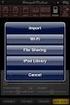 Export to itunes File Sharing Access Edit Mode Tap the pencil button on the bottom toolbar to access Edit Mode. Select a Button or a Folder Select to the button(s) you want to export/ import. A checkmark
FILING REPRESENTATIVES TRAINING ONLINE COURSE SCHEDULING USER GUIDE
 FILING REPRESENTATIVES TRAINING ONLINE COURSE SCHEDULING USER GUIDE October 18, 2013 Online Course Scheduling User Guide Page 1 of 28 TABLE OF CONTENT 1 ABOUT THIS DOCUMENT... 3 2 REGISTRATION... 4 2.1
InformationNOW for Teachers Classroom Attendance
 InformationNOW for Teachers Classroom Attendance Taking Attendance in InformationNOW Teachers should first log in to InformationNOW and select the appropriate school. Then perform the following steps: