
SimplyMap Canada Tutorial
|
|
|
- Donald Perkins
- 10 years ago
- Views:
Transcription

1 SimplyMap Canada Tutorial SimplyMap Canada is a web mapping application developed by Geographic Research Inc. The application enables users to create thematic maps and reports using demographic, business, and marketing data on-line. In this tutorial, you are going to create a few thematic maps and reports for the area of the City of London, Ontario. o o o o o o Get started with SimplyMap Canada Create and export a thematic map Create and map a query Create and map a point variable Produce a regular report Export shapefile with variable data Getting Started 1. Go to the University of Waterloo Library Homepage ( on the top left side, click Resources for Research, select Research Database, click Browse Research Databases by Title and select S, Scroll down to find SimplyMap Canada. Double click the link. This will bring you to the website. 2. The welcome page looks like the following. If you are a returning user, you can directly login in with your address and password.
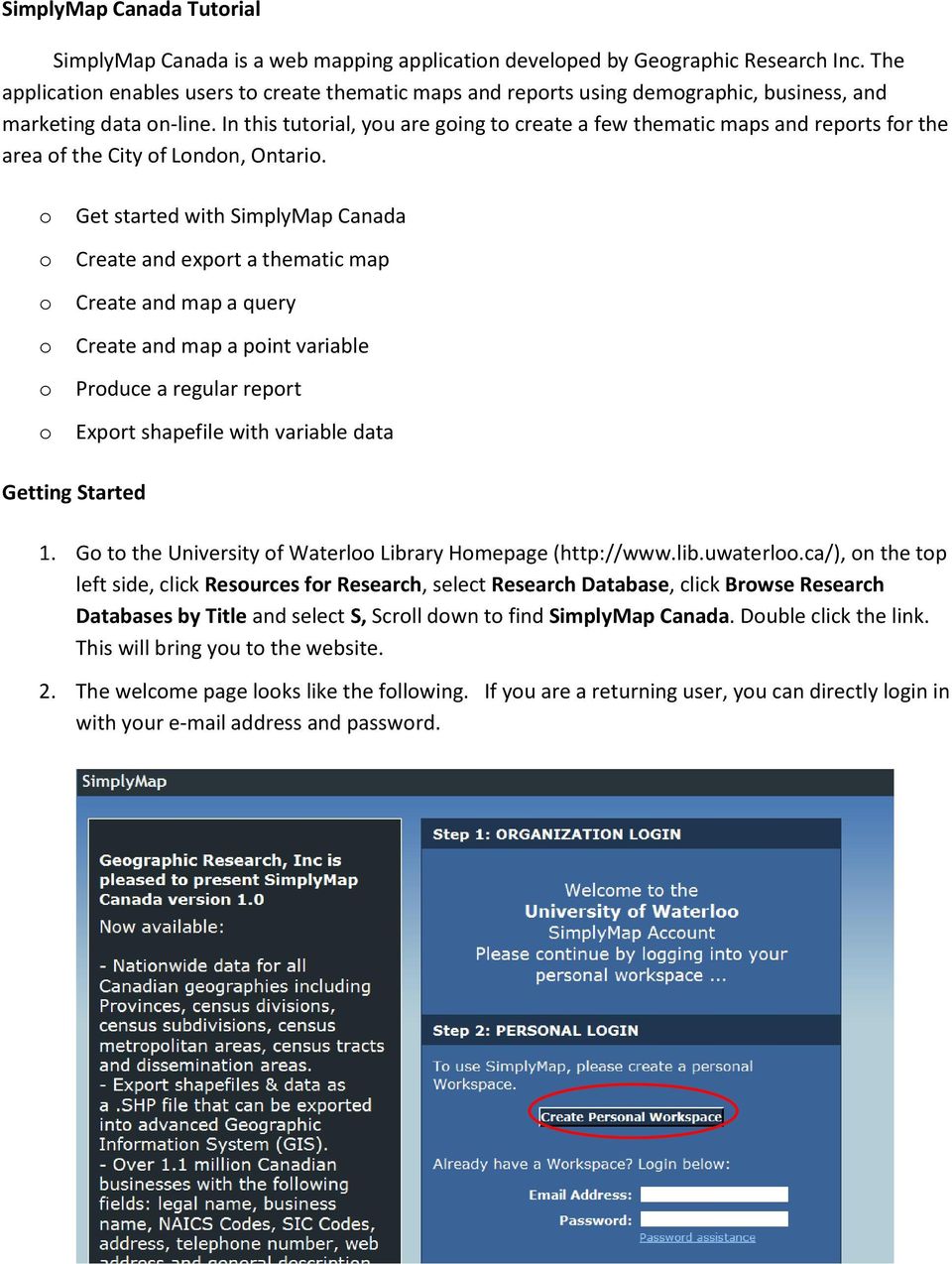


2 3. If you are a first time user, you will need to set up an account. Click Create Personal Workspace, this will open a new window. Fill in all the required information and click Register to finish the registration process. (Note: a personal is all right). 4. A confirmation will be sent to your address and you will need to check the and confirm the registration. 5. When you log in, you will automatically navigate to the SimplyMap workspace screen. The workspace screen is displayed below.


3 Create and export a thematic map Now we are interested in creating and exporting a thematic map showing the average household expenditure on dental services in the City of London by dissemination area (DA) in You will need to follow a few steps: 1. Set Province as Ontario 2. Set Census Metro Area (City) as London. Type the name of the desired city in the Census Metro Area (City) text box. As you start to type the letter L, a list of choices will appear in a drop-down box. Then you can select London, ON (CMACA). Click Go. 3. This will add City of London into the active locations list. If you want to remove any locations from the list, click the icon located to to the right of the location.


4 4. Zoom map view to the City of London. You are going to select Zoom by drawing tool to draw a box around city of London. 5. Now you are going to add a variable showing the average household expenditure on dental services. Click on the Variables tab, the Variables Side Tab will appear. Expand the Household Expenditure Potential (HEP) Scroll down to find Health Care. Expand it to find Average Expenditure - Dental services, Select Average Expenditure - Dental services, 2009 and click Add Selected Variables found at the top right of the list. This will add it to the Selection List. Close the Variables Side Tab.


5 7. You are going to set Geographic Unit as Dissemination Areas (DA). 8. Now you are interested in modifying the legend. Under Setting (near the bottom of the page), click Open legend. The legend window will appear. Click Edit. This will bring out a legend editor window.


6 9. The default classification breakpoints are calculated using locations across Canada but you are only interested in locations in the City of London. To make the changes, set the Classification Method as Quantiles (Local). Also change # of Categories from 5 to 6. This will change the number of categories. Click Done to finish making the changes.


7 10. You are going to export the map out as image. The map show average expenditure on dental services in 2009 by dissemination area in the city of London, Ontario. Click Export->Image (at the very bottom right). This will bring out an Export Map window. 11. Now you are going to add a title and subtitle to the map. Type the title average household expenditure on dental services in Set the font color as green and size as 20, and then click Add Title. Set he background as Black and then click Add Background. Move the title to the top the map. Type in City of London as the subtitle. Repeat the same process for font size, color and background. 12. Export the map as GIF format and Save to disk. Click Go and save the file into your E drive.


8 Create Query You are going to create a query showing DAs with average household expenditure larger than $500. The resulting query becomes a new variable that can be mapped, used in reports, and can also be used to create new custom variables. 1. Click on the Query tab, which is located in the middle of the Map Tab. The Create Query Side Tab will appear. 2. Use the Create Query Side Tab to select and build a query showing DAs average household expenditure on dental services larger than $500 in 2009 by following these steps. Step 1: Select the Variable as average household expenditure dental services in 2009 Step 2a: Select Criteria: -is greater than Step 2b: Enter a value 500 Step 3: Click the Add to List button. The new variable will appear in the list box Step 5: Give a Descriptive name to your query: High Potential Areas Step 6: Click Done when you finish.


9 3. The custom query will be added to the Active Variables List in the Map Tab. Select it and click Update to map the custom query. Mapping this custom query will display all DAs that meet the criteria in a dark color, and all others in light color. Create point variable You are going to create a new layer showing dental office locations in City of London.


10 1. Click on the Points tab, (right below query button). The Points Side Tab will appear. 2. Use the Points Side Tab to select and build a query showing Offices of Dentists location by following these steps: Step 1: Select a point dataset as D&B business Points Canada. Step 2: Create a query specifying the business of dental office. To find out the North American Industry Classification System (NAICS) code representing dentist offices. Click the icon. The lookup window opens. Enter dentist, then a code will appear. Click the icon to add it to the point variable. Step 3: Choose a point marker by clicking Edit Marker. You can select color as yellow, and shape as star. Click the marker you want to use to close the dialog.


11 Step 4: Enter a descriptive name Dental Offices for the point variable. Step 5: Click Done to create the point variable. 3. Close the points side bar. A new Points menu appears in the Map Tab. click the check box to turn on points. The legend and the map will update to reflect the points.


12 Produce regular report You are going to create a regular report comparing selected variables among difference locations. 1. You are going to add three more locations in the Map Tab active locations list. Select Province as Ontario and in Census Metro Area (City) add these new locations one by one Guelph, Owen Sound and Winsor. 2. Now you are going to add a new variable in the map tab active variables list. Click on the Variables tab, the Variables Side Tab will appear. Expand Adjusted Census Data Scroll down to find Household Income. Expand it to find Household income average household income $, Select this variable and click Add Selected Variable. Now you can continue to create a report comparing the average household income and average household expenditure on dental services among City of London, Winsor, Owen Sound and Guelph. 1. To access the Report Tab, click on the Reports button located to the right of the Maps button. 2. In the Locations section of the Report Tab, click the check boxes for Winsor, Owen Sound, Windsor and Guelph.


13 3. In the Variables section of the Report Tab, click the check boxes for Average Expenditure- Dental services, 2009 and Average Household Income $, Click Update Report to create the report 5. You can export the report out as an Excel spreadsheet, CSV or word document. Click Export, found at the bottom right of the page, and select Export- Excel. Shapefile Export SimplyMap has the ability to export shapefile data for use in GIS software (such as MapInfo or ArcGIS). You are going to export a shapefile in the geographical unit of DAs showing average household expenditure on dental services in the city of London. Go back to the Maps Tab. 1. Before exporting Shapefiles, the Shapefile export feature must be enabled. Click the More Options menu. This will bring out a new More Options window.


14 2. In the advanced Options, select Enable Shapefile Export as Yes. Click Save the save the setting. 3. Now you can export the map as a shapefile, using the same Export tool you used to export the report. Click the Export button and select Shapefiles. This will bring out a shapefile export window.


15 4. In the shapefile export windows, you will need to following these steps: Step 1a: Select a Geographical Unit as Dissemination Areas Step 1b: You will like to export shapefile with data Step 2: Select the Census Metro Areas you are interested in exporting as Recent & Flagged Census Metro Areas. A list of Census Metro Areas will appear. Add London, ON to the selected box in the right. Step 3: Click the Add to List button. Add Average Expenditure-Dental Services, 2009 and Average Household Income $ 2006 as the selected Variable.

16 Step 4. Click Export Shapefile. This will bring out a new window. Click Download Shapefile to save the file to your computer. To a link to the Shapefile data, enter any address and an optional message, and click Download link. Congratulations. You now have learned how to use Simply Map Canada web mapping application.

2. Look for a link to ODESI data portal. In the Key Links section in the left side and double click ODESI Data Retrieval.
 Guide to convert census data from ODESI into GIS data ODESI, acronym for Ontario Data Documentation, Extraction Service and Infrastructure, is a web-based data exploration, extraction and analysis tool
Census Data: Access, Mapping and Visualization
 Census Data: Access, Mapping and Visualization Trent University is a member of the Data Liberation Initiative (DLI), an agreement that provides academic institutions with access to otherwise restricted
ArcGIS online Introduction... 2. Module 1: How to create a basic map on ArcGIS online... 3. Creating a public account with ArcGIS online...
 Table of Contents ArcGIS online Introduction... 2 Module 1: How to create a basic map on ArcGIS online... 3 Creating a public account with ArcGIS online... 3 Opening a Map, Adding a Basemap and then Saving
Tutorial 3: Working with Tables Joining Multiple Databases in ArcGIS
 Tutorial 3: Working with Tables Joining Multiple Databases in ArcGIS This tutorial will introduce you to the following concepts: Identifying Attribute Data Sources Converting Tabular Data into GIS Databases
Creating a Participants Mailing and/or Contact List:
 Creating a Participants Mailing and/or Contact List: The Limited Query function allows a staff member to retrieve (query) certain information from the Mediated Services system. This information is from
Finding GIS Data and Preparing it for Use
 Finding_Data_Tutorial.Doc Page 1 of 19 Getting Ready for the Tutorial Sign Up for the GIS-L Listserv Finding GIS Data and Preparing it for Use The Yale University GIS-L Listserv is an internal University
Getting Started With Mortgage MarketSmart
 Getting Started With Mortgage MarketSmart We are excited that you are using Mortgage MarketSmart and hope that you will enjoy being one of its first users. This Getting Started guide is a work in progress,
Tutorial 5: Summarizing Tabular Data Florida Case Study
 Tutorial 5: Summarizing Tabular Data Florida Case Study This tutorial will introduce you to the following: Identifying Attribute Data Sources for Health Data Converting Tabular Data into Usable Databases
Your Archiving Service
 It s as simple as 1, 2, 3 This email archiving setup guide provides you with easy to follow instructions on how to setup your new archiving service as well as how to create archiving users and assign archiving
Remote Viewer Recording Backup
 Remote Viewer Recording Backup Introduction: In this tutorial we will explain how to retrieve your recordings using the Web Service online. Using this method you can backup videos onto your computer using
ArcGIS Tutorial: Adding Attribute Data
 ArcGIS Tutorial: Adding Attribute Data Introduction A common need in GIS is to map characteristics, or attributes, of different geographic areas. These maps are called thematic maps. Examples of thematic
Instructions for Registering for a Miradi Account & Installing Miradi Software
 Instructions for Registering for a Miradi Account & Installing Miradi Software www.miradi.org/download Version: March 2015 Introduction The following slides guide users through the process for registering
GIS II: Data Management: Creation, edition and maintenance of geographic data Module 1: Leveraging the where of your geographic data
 *** Files needed for exercise: MT_ACS09_trt.shp, and McDonalds_rr.shp Goals: After completing this exercise, you will have experience in performing spatial joins and selections and reviewed your understanding
INTRODUCTION to ESRI ARCGIS For Visualization, CPSC 178
 INTRODUCTION to ESRI ARCGIS For Visualization, CPSC 178 1) Navigate to the C:/temp folder 2) Make a directory using your initials. 3) Use your web browser to navigate to www.library.yale.edu/mapcoll/ and
Jumble for Microsoft Outlook
 Jumble for Microsoft Outlook Jumble is a zero knowledge, end- to- end email encryption solution that integrates with existing email platforms. Jumble integrates at the email client level and removes the
Welcome to the Cleveland State University Job Posting and Application Site Tutorial!
 Welcome to the Cleveland State University Job Posting and Application Site Tutorial! 1 Basic Navigation This tutorial will take approximately 20 minutes. 1) Use the forward and back navigation buttons
Student Manager s Guide to the Talent Management System
 Department of Human Resources 50 Student Manager s Guide to the Talent Management System 1 Table of Contents Topic Page SYSTEM INTRODUCTION... 3 GETTING STARTED... 4 NAVIGATION WITHIN THE TALENT MANAGEMENT
Edwin Analytics Getting Started Guide
 Edwin Analytics Getting Started Guide This guide provides assistance for accessing and using Edwin Analytics, the Department of Elementary and Secondary Education s (ESE) online tool for expanding data
Welcome to our email marketing solution
 Welcome to our email marketing solution With our email marketing solution, you can access a standard client update template and simply add your own messages to send to clients. The solution is quick and
ProjectWise Explorer V8i User Manual for Subconsultants & Team Members
 ProjectWise Explorer V8i User Manual for Subconsultants & Team Members submitted to Michael Baker International Subconsultants & Team Members submitted by Michael Baker International ProjectWise Support
Data Visualization. Brief Overview of ArcMap
 Data Visualization Prepared by Francisco Olivera, Ph.D., P.E., Srikanth Koka and Lauren Walker Department of Civil Engineering September 13, 2006 Contents: Brief Overview of ArcMap Goals of the Exercise
2) Log in using the Email Address and Password provided in your confirmation email
 Welcome to HR Classroom! The following will show you how to use your HR Classroom admin account, including setting up Training Groups, inserting Policies, and generating Trainee Reports. 1) Logging into
Ofgem Carbon Savings Community Obligation (CSCO) Eligibility System
 Ofgem Carbon Savings Community Obligation (CSCO) Eligibility System User Guide 2015 Page 1 Table of Contents Carbon Savings Community Obligation... 3 Carbon Savings Community Obligation (CSCO) System...
Guide to Using Citrix at SLU (Windows)
 1 Guide to Using Citrix at SLU (Windows) Section 1: Installing Citrix Client on Your Computer Page 2 Section 2: Citrix Homepage Page 9 Section 3: Troubleshooting Page 11 Section 4: Opening and Saving Files
Create and share a map with GIScloud.com
 Create and share a map with GIScloud.com GIS Cloud is a web based Geographic Information System powered by Cloud Computing and with the full power of desktop GIS. It allows users to create and access your
Creating Figure Ground Maps in ArcMap 10.x: Basic procedures to download, open, manipulate and print spatial data
 Creating Figure Ground Maps in ArcMap 10.x: Basic procedures to download, open, manipulate and print spatial data These procedures outline: A. Retrieving Property Data B. Uncompressing the Downloaded Files
How to Download Census Data from American Factfinder and Display it in ArcMap
 How to Download Census Data from American Factfinder and Display it in ArcMap Factfinder provides census and ACS (American Community Survey) data that can be downloaded in a tabular format and joined with
Project Zip Code. Version 13.0. CUNA s Powerful Grassroots Program. User Manual. Copyright 2012, All Rights Reserved
 Project Zip Code Version 13.0 CUNA s Powerful Grassroots Program User Manual Copyright 2012, All Rights Reserved Project Zip Code Version 13.0 Page 1 Table of Contents Topic Page About Project Zip Code
Entire Connection Version 4.2.1
 Entire Connection Entire Connection is a software package that allows users to log on to FAMIS and download and print screens in FAMIS. Once logged on to FAMIS, see M08 for Entire Connection Download screens,
Virtual Office Remote Installation Guide
 Virtual Office Remote Installation Guide Table of Contents VIRTUAL OFFICE REMOTE INSTALLATION GUIDE... 3 UNIVERSAL PRINTER CONFIGURATION INSTRUCTIONS... 12 CHANGING DEFAULT PRINTERS ON LOCAL SYSTEM...
GeoLytics. User Guide for Business Demographics & Historical Business Demographics
 GeoLytics User Guide for Business Demographics & Historical Business Demographics Contents A. Installation 1 B. Introduction 2 C. Five Steps to Producing Files and Maps 2 1. Name your File 2 2. Select
OnPoint 7.0 Tools and Functionality
 P a g e 1 OnPoint 7.0 Tools and Functionality The new version of the OnPoint website has the same functionality as the old site, but the look and feel of the page has changed. This document will compare
Self Service Banner (SSB) Finance
 Self Service Banner (SSB) Finance I. Self Service Banner Finance Introduction Self Service Banner is a user friendly Banner interface used to research and extract information from the Banner Finance module.
BSDI Advanced Fitness & Wellness Software
 BSDI Advanced Fitness & Wellness Software 6 Kellie Ct. Califon, NJ 07830 http://www.bsdi.cc SOFTWARE BACKUP/RESTORE INSTRUCTION SHEET This document will outline the steps necessary to take configure the
Database Servers Tutorial
 Copyright 1995-2010 Esri All rights reserved. Table of Contents A quick tour of the database servers tutorial........................ 3 Exercise 1: Add a database server to the Catalog tree and create
16.4.3 Lab: Data Backup and Recovery in Windows XP
 16.4.3 Lab: Data Backup and Recovery in Windows XP Introduction Print and complete this lab. In this lab, you will back up data. You will also perform a recovery of the data. Recommended Equipment The
Click on Faculty & Staff Then Staff Resources. Click on Kiosk
 Click on Faculty & Staff Then Staff Resources Click on Kiosk 1 Login For First Time Users without a password, you will want to click where the arrow is instructing you. When prompted, you must use your
Getting Census Data into ArcMap or ArcView. Obtaining Shapefiles from ESRI and Data from the Census Bureau
 Obtaining Shapefiles from ESRI and Data from the Census Bureau 1) Download the boundary shapefile from the ESRI website: http://arcdata.esri.com/data/tiger2000/tiger_download.cfm. Select the area that
ibank Quick Start Guide
 ibank Quick Start Guide An introductory tutorial for ibank 3, a personal financial management application. 2008 IGG Software, LLC Overview This tutorial will cover these basic program concepts: 1 2 3 4
GETTING STARTED WITH QUICKEN 2010, 2009, and 2008-2007 for Windows. This Getting Started Guide contains the following information:
 GETTING STARTED WITH QUICKEN 2010, 2009, and 2008-2007 for Windows Refer to this guide for instructions on how to use Quicken s online account services to save time and automatically keep your records
How To Use Textbuster On Android (For Free) On A Cell Phone
 www.textbuster.com 1 Applications and Account Manager Dashboard User Guide For Android phones www.textbuster.com 2 Downloading the TextBuster applications After the TextBuster device is installed into
Work with PassKey Manager
 Work with PassKey Manager Trademark Notice Blackboard, the Blackboard logos, and the unique trade dress of Blackboard are the trademarks, service marks, trade dress and logos of Blackboard, Inc. All other
Schools CPD Online General User Guide Contents
 Schools CPD Online General User Guide Contents New user?...2 Access the Site...6 Managing your account in My CPD...8 Searching for events...14 Making a Booking on an Event...20 Tracking events you are
MicroStrategy Desktop
 MicroStrategy Desktop Quick Start Guide MicroStrategy Desktop is designed to enable business professionals like you to explore data, simply and without needing direct support from IT. 1 Import data from
Strategic Planning Online (SPOL) Users Guide
 Strategic Planning Online (SPOL) Users Guide Legal and Human Resources Division 2010 TABLE OF CONTENTS Getting Started: Logging into SPOL...3 Getting Started: Planning Section...4 Planning Section Overview:
Qualtrics Survey Tool
 Qualtrics Survey Tool This page left blank intentionally. Table of Contents Overview... 5 Uses for Qualtrics Surveys:... 5 Accessing Qualtrics... 5 My Surveys Tab... 5 Survey Controls... 5 Creating New
How to Add Users 1. 2.
 Administrator Guide Contents How to Add Users... 2 How to Delete a User... 9 How to Create Sub-groups... 12 How to Edit the Email Sent Out to New Users... 14 How to Edit and Add a Logo to Your Group's
Viewing and Troubleshooting Perfmon Logs
 CHAPTER 7 To view perfmon logs, you can download the logs or view them locally. This chapter contains information on the following topics: Viewing Perfmon Log Files, page 7-1 Working with Troubleshooting
Welcome to the Brookdale Community College Online Employment System Applicant Tutorial
 Welcome to the Brookdale Community College Online Employment System Applicant Tutorial Online Employment System Training for Brookdale Community College Applicants This presentation will take approximately
Reading Wonders Training Resource Guide
 Reading Wonders Training Resource Guide Table of Contents Page Register for Your Teacher Access 2 Redeem Master Codes 4 Enroll Students Teacher / District Import (Single or Multiple Students) 7 Individual
PassKey Manager. Schoolwires Centricity
 Schoolwires Centricity Table of Contents Introduction... 1 What Provides... 1 What Does Not Provide... 1 Definitions for... 1 Manage PassKeys in Site Manager... 2 Access... 2 Create PassKeys... 2 Create
ParishSOFT Remote Installation
 Table of Contents Setting up Remote Solution Windows 7 or Vista... 1 Connecting to ParishSOFT... 1 Accessing Your database... 3 Switching to your parish database... 4 Setting up Accounts for users... 5
Upgrade of Business Systems Data Warehouse Reporting
 Upgrade of Business Systems Data Warehouse Reporting The Business Systems Data Warehouse Reporting System was upgraded to a new version of Business Objects the weekend of December 12 th. The current system
CentralMass DataCommon
 CentralMass DataCommon User Training Guide Welcome to the DataCommon! Whether you are a data novice or an expert researcher, the CentralMass DataCommon can help you get the information you need to learn
MetroBoston DataCommon Training
 MetroBoston DataCommon Training Whether you are a data novice or an expert researcher, the MetroBoston DataCommon can help you get the information you need to learn more about your community, understand
Personal Portfolios on Blackboard
 Personal Portfolios on Blackboard This handout has four parts: 1. Creating Personal Portfolios p. 2-11 2. Creating Personal Artifacts p. 12-17 3. Sharing Personal Portfolios p. 18-22 4. Downloading Personal
Setting Up a New Project
 Setting Up a New Project Contents About this tutorial... 3 Step 1. Create a new project... 3 Step 2. Select project settings... 4 Step 3. Save your project... 11 Step 4. Create a project template... 12
Terminal Four. Content Management System. Moderator Access
 Terminal Four Content Management System Moderator Access Terminal Four is a content management system that will easily allow users to manage their college web pages at anytime, anywhere. The system is
Converting GIS Datasets into CAD Format
 Ball State University Libraries GIS Research and Map Collection Converting GIS Datasets into CAD Format Author: Angela Gibson, 6/13/2014 Overview: One of the most common requests from students is for GIS
There are various ways to find data using the Hennepin County GIS Open Data site:
 Finding Data There are various ways to find data using the Hennepin County GIS Open Data site: Type in a subject or keyword in the search bar at the top of the page and press the Enter key or click the
Introduction to RefWorks
 University of Malta Library Introduction to RefWorks A Guide to Prepare & Submit your Personal Academic Publication List Stefania Cassar Outreach Librarian Email: [email protected] Last updated: 3
Roth IRA Conversion Evaluator
 Roth IRA Conversion Evaluator Quick Start Guide 2009, WoltersKluwer. All Rights Reserved. Page 1 of 36 Table of Contents Roth IRA Conversion Evaluator Quick Start Guide Getting Started... 3 About the Roth
Data Visualization. Prepared by Francisco Olivera, Ph.D., Srikanth Koka Department of Civil Engineering Texas A&M University February 2004
 Data Visualization Prepared by Francisco Olivera, Ph.D., Srikanth Koka Department of Civil Engineering Texas A&M University February 2004 Contents Brief Overview of ArcMap Goals of the Exercise Computer
Online Registration Instructions
 Online Registration Instructions 1. Open Internet Explorer and browse to my.nyack.edu 2. Click on Check Email icon and login to the MyNyackSSO page shown below using the login information you were assigned
Introduction to GIS software
 Introduction to GIS software There are a wide variety of GIS software packages available. Some of these software packages are freely available for you to download and could be used in your classroom. ArcGIS
Site Administrator Guide
 Site Administrator Guide Trademark Notice Blackboard, the Blackboard logos, and the unique trade dress of Blackboard are the trademarks, service marks, trade dress and logos of Blackboard, Inc. All other
10.3.1.6 Lab - Data Backup and Recovery in Windows XP
 5.0 10.3.1.6 Lab - Data Backup and Recovery in Windows XP Introduction Print and complete this lab. In this lab, you will back up data. You will also perform a recovery of the data. Recommended Equipment
CITY OF NAPLES VENDOR REGISTRATION TUTORIAL VENDOR SELF SERVICE (VSS) VENDOR REGISTATION TUTORIAL
 CITY OF NAPLES VENDOR REGISTRATION TUTORIAL VENDOR SELF SERVICE (VSS) 3/5/2015 VENDOR REGISTATION TUTORIAL Start Vendor Registration Process: Please start by going to the City of Naples website located
Installing Microsoft Outlook on a Macintosh. This document explains how to download, install and configure Microsoft Outlook on a Macintosh.
 Reference : USER184 Issue date : December 2002 Revision date : September 2007 Classification : Software Originator : Hugh Burt REVISED DOCUMENT Installing Microsoft Outlook on a Macintosh This document
Software Application Tutorial
 Software Application Tutorial Copyright 2005, Software Application Training Unit, West Chester University. No Portion of this document may be reproduced without the written permission of the authors. For
MICROSOFT ACCESS 2007 BOOK 2
 MICROSOFT ACCESS 2007 BOOK 2 4.1 INTRODUCTION TO ACCESS FIRST ENCOUNTER WITH ACCESS 2007 P 205 Access is activated by means of Start, Programs, Microsoft Access or clicking on the icon. The window opened
APNS Certificate generating and installation
 APNS Certificate generating and installation Quick Guide for generating and installing an Apple APNS Certificate Version: x.x MobiDM Quick Guide for APNS Certificate Page 1 Index 1. APPLE APNS CERTIFICATE...
Helpful Links 8 Helpful Documents 8 Writing History 9 Pending Peer Reviews 9 Navigation Tabs 10 Changing Courses 10
 V7.30.15 2014 GETTING STARTED Table of Contents Welcome to WPP Online 3 WPP Online Welcome Page 3 Logging in to WPP Online 4 Changing your Password 5 Accessing your Courses 7 Selecting a Course 7 The Course
Pharmacy Affairs Branch. Website Database Downloads PUBLIC ACCESS GUIDE
 Pharmacy Affairs Branch Website Database Downloads PUBLIC ACCESS GUIDE From this site, you may download entity data, contracted pharmacy data or manufacturer data. The steps to download any of the three
Microsoft Access Rollup Procedure for Microsoft Office 2007. 2. Click on Blank Database and name it something appropriate.
 Microsoft Access Rollup Procedure for Microsoft Office 2007 Note: You will need tax form information in an existing Excel spreadsheet prior to beginning this tutorial. 1. Start Microsoft access 2007. 2.
How to Register for an Event Using Cheer America s New Online Registration System
 Step 1: Go to our website (www.cachampionships.com). Click on the Registration Button. Step 2: On the Registration Page, click on the blue button Click HERE to REGISTER. Step 3: Welcome to our Registration
Table of Contents. 1. Overview... 3. 1.1 Materials Required. 3 1.2 System Requirements. 3 1.3 User Mode 3. 2. Installation Instructions..
 Table of Contents 1. Overview..... 3 1.1 Materials Required. 3 1.2 System Requirements. 3 1.3 User Mode 3 2. Installation Instructions.. 4 2.1 Installing the On Call Diabetes Management Software. 4 2.2
Knowledgebase Article
 Company web site: Support email: Support telephone: +44 20 3287-7651 +1 646 233-1163 2 EMCO Network Inventory 5 provides a built in SQL Query builder that allows you to build more comprehensive
Central Commissioning Facility Research Management Systems (RMS): User Guidance
 Central Commissioning Facility Research Management Systems (RMS): User Guidance Contents 1. How to login and register a new account... 2 2. How to accept an invitation to review... 8 3. How to submit a
Project Zip Code. User Manual
 Project Zip Code Version 11.0 User Manual Copyright 2010, All Rights Reserved Project Zip Code Version 11.0 Page 1 Table of Contents Topic Page About Project Zip Code 3 Before Running Project Zip Code
HELPDESK SYSTEM (HDS) USER MANUAL
 HELPDESK SYSTEM (HDS) USER MANUAL Release No.: 2.0 prepared by OMESTI Berhad. TABLE OF CONTENTS 1.0 HOW TO ACCESS THE HELPDESK SYSTEM (HDS)... 1 2.0 HOW TO REGISTER NEW USER... 2 3.0 HOW TO RECOVER PASSWORD...
Installing Java 5.0 and Eclipse on Mac OS X
 Installing Java 5.0 and Eclipse on Mac OS X This page tells you how to download Java 5.0 and Eclipse for Mac OS X. If you need help, Blitz [email protected]. You must be running Mac OS 10.4 or later
account multiple solutions
 Quick Start Guide 1 Our easy to use guide will get you up and running in no time! The guide will assist you with: Generating your Sage Pay login Navigation Creating contacts Creating system users Setting
Steps to Create a Database
 Steps to Create a Database Design the Database In order for a database to be effective some time should be spent on the layout of the table. Additionally, time should be spent on what the purpose of the
Installing S500 Power Monitor Software and LabVIEW Run-time Engine
 EigenLight S500 Power Monitor Software Manual Software Installation... 1 Installing S500 Power Monitor Software and LabVIEW Run-time Engine... 1 Install Drivers for Windows XP... 4 Install VISA run-time...
Quick and Easy Web Maps with Google Fusion Tables. SCO Technical Paper
 Quick and Easy Web Maps with Google Fusion Tables SCO Technical Paper Version History Version Date Notes Author/Contact 1.0 July, 2011 Initial document created. Howard Veregin 1.1 Dec., 2011 Updated to
Appendix A How to create a data-sharing lab
 Appendix A How to create a data-sharing lab Creating a lab involves completing five major steps: creating lists, then graphs, then the page for lab instructions, then adding forms to the lab instructions,
Hands-on Exercise Using DataFerrett American Community Survey Public Use Microdata Sample (PUMS)
 Hands-on Exercise Using DataFerrett American Community Survey Public Use Microdata Sample (PUMS) U.S. Census Bureau Michael Burns (425) 495-3234 DataFerrett Help http://dataferrett.census.gov/ 1-866-437-0171
MicroStrategy Quick Guide: Reconciliation Expense Report. Contents
 MicroStrategy Quick Guide: Reconciliation Expense Report Contents Log In, Navigate to Dashboard... 2 Review Budget in Dashboard... 4 Re-Prompt Dashboard... 4 Export Summary Budget to Excel... 5 Open Reconciliation
Online Banking Quick Reference Guide
 1 Page 2 Set Up and Access to Online Banking 2 How do I set up Online Banking? 2 How do I sign in to Online Banking? Online Banking Quick Reference Guide 3 Security 3 How do I change User ID? 3 What should
Microsoft Outlook 2003 Module 1
 Microsoft Outlook 200 Module 1 http://pds.hccfl.edu/pds Microsoft Outlook 200: Module 1 October 2006 2006 Hillsborough Community College - Professional Development Services Hillsborough Community College
Supplier Management System User Guide
 Supplier Management System User Guide Copyright 2007-2010 by CVM Solutions LLC. All Rights Reserved. The material contained in this document is proprietary data and is the intellectual property of CVM
Off-Campus Employer JobX Training Guide
 Off-Campus Employer JobX Training Guide Student Employment Services Training Topics: 1. Introduction 2. Login 3. Add a job 4. Edit a job 5. Review on-line applications 6. Send Hiring Correspondence to