
Barclaycard SmartPay. Virtual Terminal / MOTO Guide
|
|
|
- Dominic Harrison
- 10 years ago
- Views:
Transcription
1 Barclaycard SmartPay Virtual Terminal / MOTO Guide Version 3.0 Released April 2012

2 DOC Version Control Version No. Date Issued Reason for Change 1.0 July 2010 Initial Document 2.0 February 2012 Update 3.0 April 2012 Update COPYRIGHT NOTICE No part of this publication may be reproduced, stored in a retrieval system or transmitted in any form or by any means electronic or mechanical, including photocopying and recording, for any purpose, without the prior written permission of Product Development, Barclaycard Global Payment Acceptance, Barclays Bank PLC.

3 Contents INTENDED AUDIENCE... 4 CONTACTING US... 4 DOCUMENTATION... 4 GLOSSARY... 5 GLOSSARY... 5 HOW TO USE THIS DOCUMENT... 6 INTRODUCTION... 7 THE SCREENS... 8 STEP 1 LOGIN...8 STEP 2 TRANSACTION DETAILS...8 STEP 3 PAYMENT OPTION... 9 STEP 4 ENTER PAYMENT DETAILS... 9 STEP 5 CONFIRM PAYMENT DETAILS STEP 6 PAYMENT RESULT AFTER PAYMENT COMPLETION NOTIFICATIONS LINKING TO THE VIRTUAL TERMINAL PAGES DIRECT LINK TO THE CALL CENTRE PAGES POST VARIABLES TO THE VIRTUAL TERMINAL PAGES COLLECTING THE CARDHOLDERS ADDRESS MOTO AND RECURRING PAYMENTS VIRTUAL TERMINAL USERS TROUBLE SHOOTING Error received when accessing the Call Centre pages Invalid Login error URL S URL S FOR TEST URL S FOR LIVE CURRENCY CODES... 23
4 Intended Audience This document is intended for use by: Merchants using Barclaycard SmartPay Web developers working on behalf of merchants Merchant Development Partners It is recommended that the merchant responsible for the account reviews this document to ensure appropriate configuration of the account. This document will go through the flow and the screens of the Virtual Terminal and what each step does, it will then explain how you can access the Virtual Terminal and then explain the user permissions required to enable you and your staff to use the Virtual Terminal. Contacting us Contact our support team via at:- Alternatively you can call our support team on the following numbers:- From the UK * Outside the UK * Support hours:- Monday to Friday: 8.00 to 18:00 GMT * Calls may be monitored or recorded to maintain high levels of security and quality of service Documentation This document and others which can help you with you integration and store setup can be found at the support website. Please refer to your set up .

5 Glossary Term HPP SOAP HTML HTTP HTTPS AVS CSC MOTO Definition Hosted Payment Page Simple Object Access Protocol a generic message structure used by programming languages to communicate data in a standard format. Hypertext Mark up Language language used to construct web pages HyperText Transfer Protocol the protocol used most often to transfer information from World Wide Web servers to browsers. Also called HyperText Transport Protocol HyperText Transfer Protocol, Secure. A version of http for secure transactions Address Verification Service Card Security Code also known as CV2, CVV2, CID and CVN Mail Order / Telephone Order

6 How to use this Document This document combines essential integration and user information, plus tips on how to get the most from the Barclaycard SmartPay products. For ease of use, it is indexed by Section, Topic and Product as shown below: Section B Topic The Screens This type of header will appear at the start of each new subject. There are 5 Sections. The Topic provides information on what can be performed by Barclaycard SmartPay within the section. You can mix and match the topics within the sections to tailor this user guide to your specific needs. Section Content Description A Introduction What the Virtual Terminal is. B The Screens The Virtual Terminal steps and C D E Linking to the Virtual Terminal Pages Virtual Terminal Users Appendix screens. How to connect and access the Virtual Terminal. Setting up users to use the Virtual Terminal

7 Section A Topic Introduction The Virtual Terminal is designed to be used in a call centre environment or with merchant s who wish to take MOTO payments. To use the Virtual Terminal the user requires a compatible internet browser and access to the Internet, as the payments are processed via our securely hosted payment pages. As this is separate from the main back office of your Barclaycard SmartPay account, users will not need to login to the back office, keeping your administration of payments separate. If you wish to use the Virtual Terminal to process MOTO transactions you will need to contact the support team to set up an account. If you wish to discuss the Virtual Terminal then please do not hesitate to contact the Barclaycard SmartPay support team.
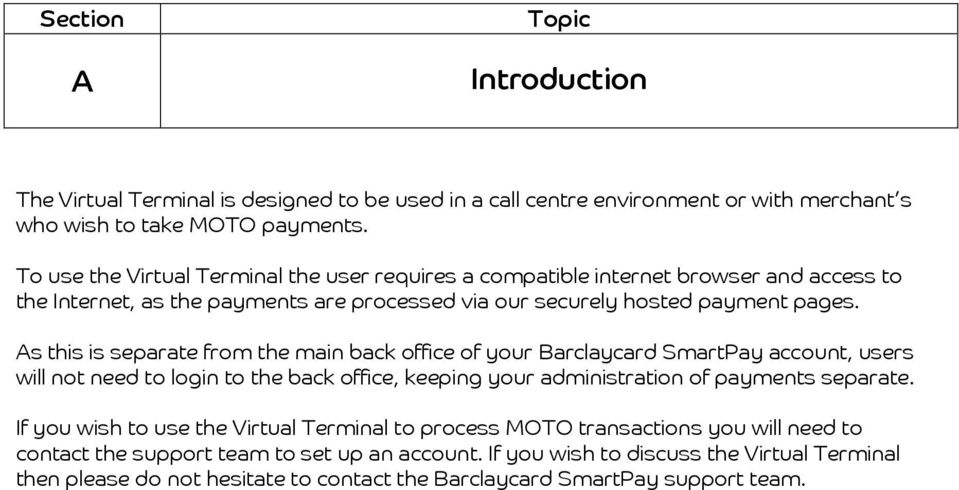
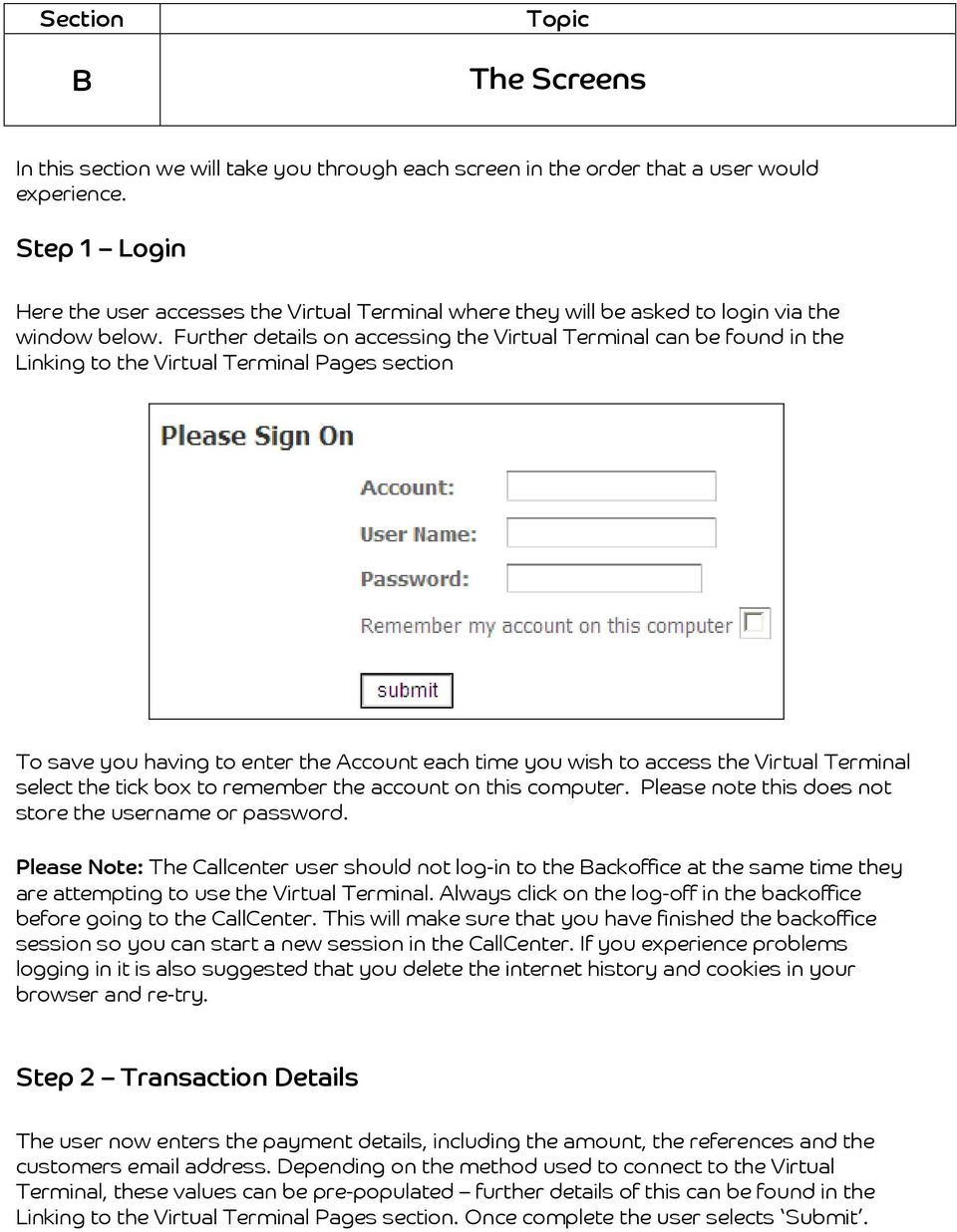
8 Section B Topic The Screens In this section we will take you through each screen in the order that a user would experience. Step 1 Login Here the user accesses the Virtual Terminal where they will be asked to login via the window below. Further details on accessing the Virtual Terminal can be found in the Linking to the Virtual Terminal Pages section To save you having to enter the Account each time you wish to access the Virtual Terminal select the tick box to remember the account on this computer. Please note this does not store the username or password. Please Note: The Callcenter user should not log-in to the Backoffice at the same time they are attempting to use the Virtual Terminal. Always click on the log-off in the backoffice before going to the CallCenter. This will make sure that you have finished the backoffice session so you can start a new session in the CallCenter. If you experience problems logging in it is also suggested that you delete the internet history and cookies in your browser and re-try. Step 2 Transaction Details The user now enters the payment details, including the amount, the references and the customers address. Depending on the method used to connect to the Virtual Terminal, these values can be pre-populated further details of this can be found in the Linking to the Virtual Terminal Pages section. Once complete the user selects Submit.
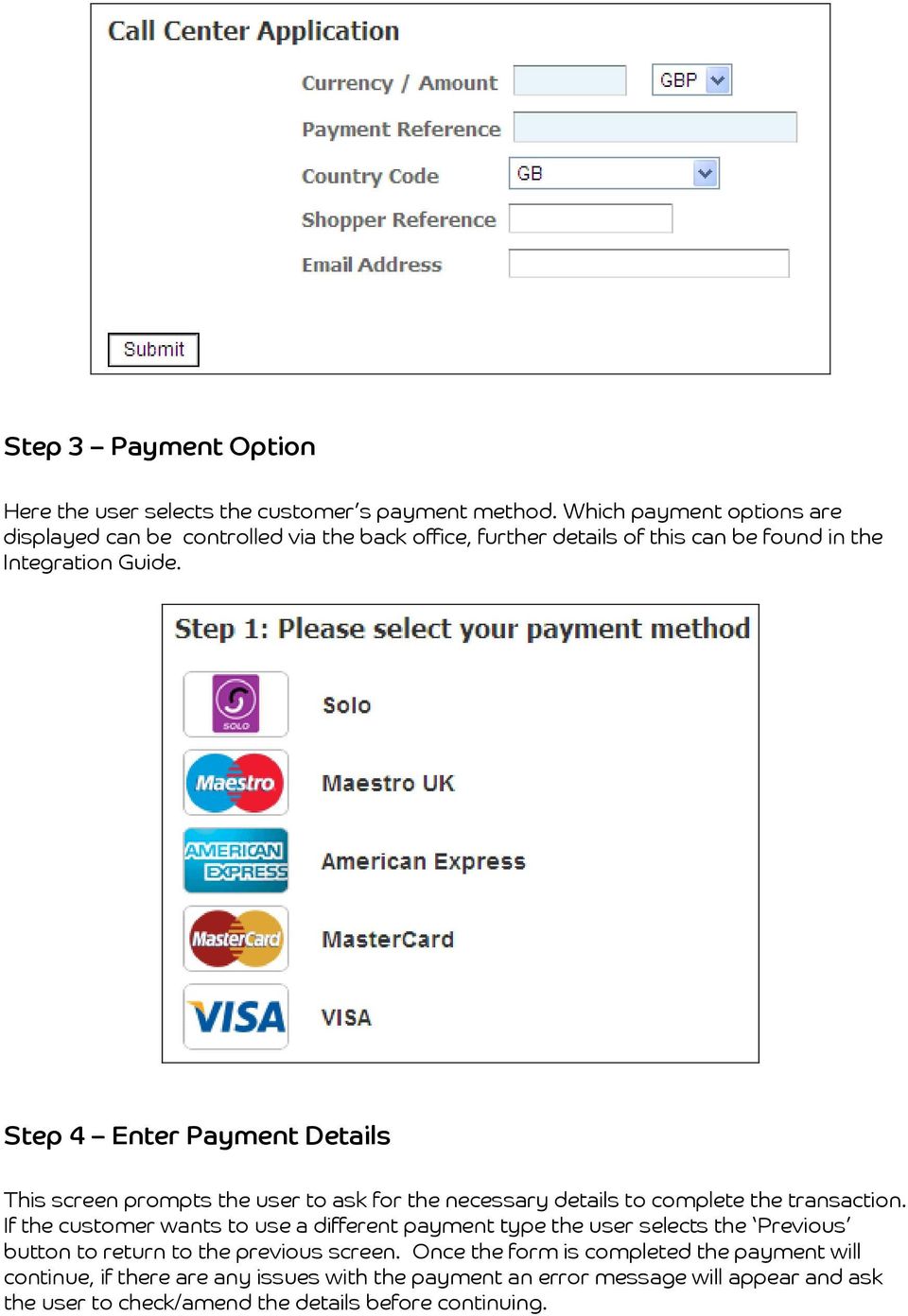
9 Step 3 Payment Option Here the user selects the customer s payment method. Which payment options are displayed can be controlled via the back office, further details of this can be found in the Integration Guide. Step 4 Enter Payment Details This screen prompts the user to ask for the necessary details to complete the transaction. If the customer wants to use a different payment type the user selects the Previous button to return to the previous screen. Once the form is completed the payment will continue, if there are any issues with the payment an error message will appear and ask the user to check/amend the details before continuing.
10 Step 5 Confirm payment details The user is now presented with the transaction details to confirm with the customer before the transaction is processed. If the details are correct the user with then select Submit to send the payment for processing. Step 6 Payment Result Once the payment is complete a result page will be displayed to the user to confirm the outcome of the transaction. In the following example the payment was approved. The user should inform the customer of the result. After Payment Completion If you need to perform an operation on a payment after it has been completed on the Virtual Terminal then you will need to manage the payment via the back office and have the relative permissions to action the change. This is covered in more detail in the Procedure Guide which can be downloaded from the support website.

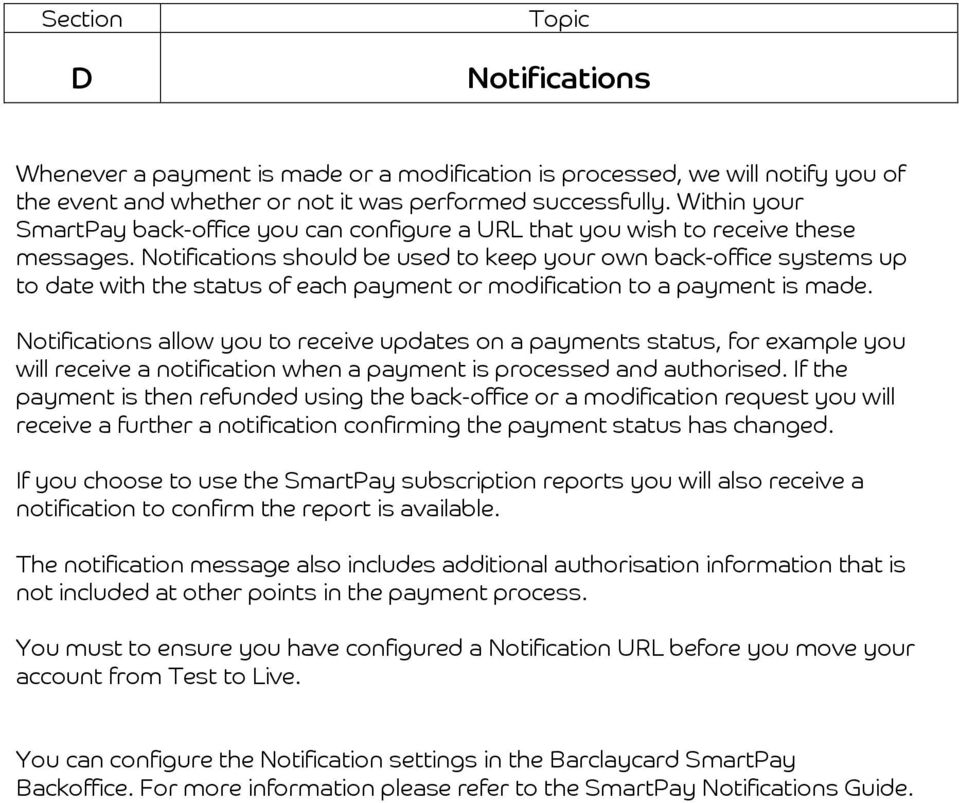
11 Section D Topic Notifications Whenever a payment is made or a modification is processed, we will notify you of the event and whether or not it was performed successfully. Within your SmartPay back-office you can configure a URL that you wish to receive these messages. Notifications should be used to keep your own back-office systems up to date with the status of each payment or modification to a payment is made. Notifications allow you to receive updates on a payments status, for example you will receive a notification when a payment is processed and authorised. If the payment is then refunded using the back-office or a modification request you will receive a further a notification confirming the payment status has changed. If you choose to use the SmartPay subscription reports you will also receive a notification to confirm the report is available. The notification message also includes additional authorisation information that is not included at other points in the payment process. You must to ensure you have configured a Notification URL before you move your account from Test to Live. You can configure the Notification settings in the Barclaycard SmartPay Backoffice. For more information please refer to the SmartPay Notifications Guide.
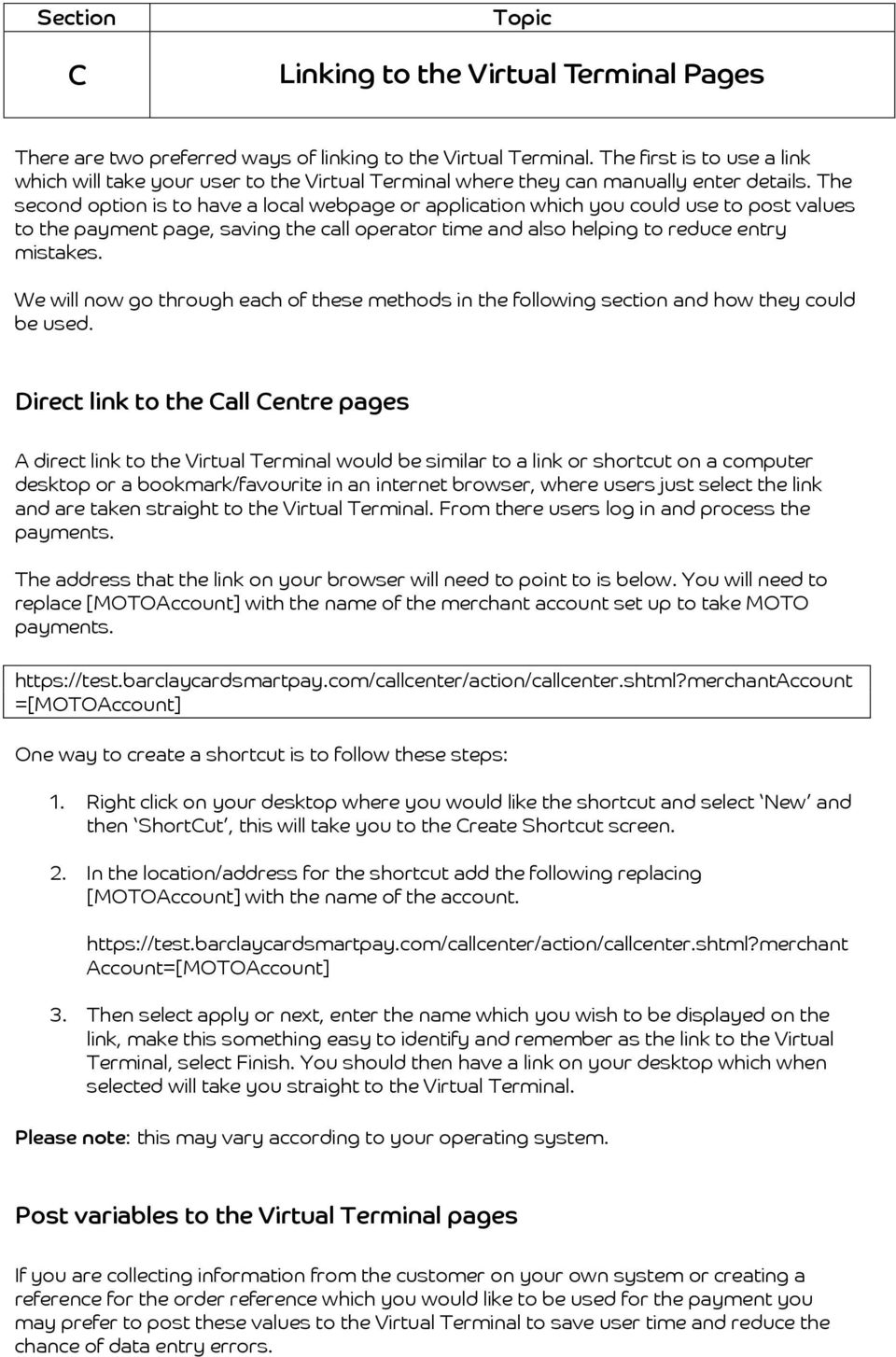
12 Section C Topic Linking to the Virtual Terminal Pages There are two preferred ways of linking to the Virtual Terminal. The first is to use a link which will take your user to the Virtual Terminal where they can manually enter details. The second option is to have a local webpage or application which you could use to post values to the payment page, saving the call operator time and also helping to reduce entry mistakes. We will now go through each of these methods in the following section and how they could be used. Direct link to the Call Centre pages A direct link to the Virtual Terminal would be similar to a link or shortcut on a computer desktop or a bookmark/favourite in an internet browser, where users just select the link and are taken straight to the Virtual Terminal. From there users log in and process the payments. The address that the link on your browser will need to point to is below. You will need to replace [MOTOAccount] with the name of the merchant account set up to take MOTO payments. =[MOTOAccount] One way to create a shortcut is to follow these steps: 1. Right click on your desktop where you would like the shortcut and select New and then ShortCut, this will take you to the Create Shortcut screen. 2. In the location/address for the shortcut add the following replacing [MOTOAccount] with the name of the account. Account=[MOTOAccount] 3. Then select apply or next, enter the name which you wish to be displayed on the link, make this something easy to identify and remember as the link to the Virtual Terminal, select Finish. You should then have a link on your desktop which when selected will take you straight to the Virtual Terminal. Please note: this may vary according to your operating system. Post variables to the Virtual Terminal pages If you are collecting information from the customer on your own system or creating a reference for the order reference which you would like to be used for the payment you may prefer to post these values to the Virtual Terminal to save user time and reduce the chance of data entry errors.
13 To pass the call centre user and the variables to the Virtual Terminal you can use a simple html post method, please find below an example of a post form which could be used. <form name="adyenform" action=" method="post"> <input type="hidden" name="merchantaccount" value="[motoaccount]" /> <input type="text" name="shopperlocale" value="en_gb" /> <input type="text" name="paymentamount" value="101" /> <input type="text" name="currencycode" value="gbp" /> <input type="text" name="merchantreference" value="mr " /> <input type="text" name="shopperreference" value="sr " /> <input type="text" name="shopper " value="[email protected]" /> <input type="submit" value="process Payment"> </form> The fields which can be passed using this method are:- Field Name merchantaccount Description This is a mandatory field and must be passed and will be the name of the MOTO merchant account. shopperlocale This is a combination of a language and country code which controls the language the Virtual Terminal is displayed in, for example in the above this is set to en_gb for British English, but could also be set to fr for a French Virtual Terminal. paymentamount The payment amount specified in minor units, for UK Sterling this would be in pence. currencycode The three letter capitalised ISO currency code to pay in, please see the appendix for a list of supported currency codes. merchantreference The reference you give the payment to help you identify the payment; this could be generated by your system. shopperreference An ID which refers uniquely to the shopper. shopper The customer s address. Please Note: If you do not pass a value then the field will remain editable on the Virtual Terminal.
![shtml" method="post"> <input type="hidden" name="merchantaccount" value="[motoaccount]" /> <input type="text" name="shopperlocale" value="en_gb" /> <input type="text" name="paymentamount" value="101"](/docs-images/41/14816916/images/page_13.jpg "/> <input type=\"text\" name=\"currencycode\" value=\"gbp\" /> <input type=\"text\" name=\"merchantreference\" value=\"mr1234512345\" /> <input type=\"text\" name=\"shopperreference\" value=\"sr43211234\" /> <input")
14 Section D Topic Collecting the cardholders address If you have a requirement to collect the cardholder s address you can add address fields to the Virtual Terminal pages simply selecting Billing Address Fields (AVS) within the Skin Options section of the Edit Skin Configuration page in your MOTO Skin.

15 Section E Topic MOTO and Recurring Payments According to a merchants requirements they may need to setup recurring payments from MOTO (Mail Order/Telephone Order) transactions allowing the merchant to take subscriptions or repeat payments for differing amounts in the future. What account setup to request When requesting a SmartPay account it will need to be a MOTO Account (Call Centre Interface) with recurring payments selected. If you need this service adding on then please contact the SmartPay support team who will arrange for this functionality to be set on your account. The Payment Process On the Virtual Terminal Page you will be offered the option to store the card details that you are entering. By ticking the box you are opting to store the card details on SmartPay (see below). After submitting a transaction, you can then call the recurring payment contract that has been created.

16 Submitting Recurring Payments Submitting recurring payments is implemented as a SOAP service similar to the way modifications are submitted. The URL (and WSDL) for submitting the recurring transaction listed in the Appendix. To submit recurring payments, you must supply HTTP basic authentication credentials (username/password). For the username you should use [email protected], you can set the password for this user in the Barclaycard SmartPay Backoffice (under Settings -> Users ). Please Note: It is typically possible to submit a subsequent recurring transaction after 5 minutes from the contract being created. To submit a recurring transaction you will need to call the authorise action in the payment service. Within this action there are two different requests according to the payment type used for the transaction: paymentrequest directdebitrequest For card, ELV and direct ebanking you will use the paymentrequest, Please see the following pages for a break down on the recurringpayment request and the response listing the possible values. Recurring paymentrequest Payments The paymentrequest has the following fields: Field Name selectedrecurringdetailreference Description This is the recurringdetailreference you want to use for this payment. You can use the value LATEST to select the most recently used recurring detail. recurring The contract value of the recurring object should be present and contain value RECURRING for the contract field. merchantaccount The merchant account you want to process this payment with. amount The amount to authorise. This consists of a currencycode and a value which is the amount in minor units (see explanation for the paymentamount session).

17 reference Your reference for this payment. This (merchant) reference will be used in all communication to you about the status of the payment. Although it is not a requirement it is a good idea to make this unique. shopper The address of the shopper. This does not have to match the address supplied with the initial payment, since it may have changed in the mean time. shopperreference The reference to the shopper. This shopperreference must be the same as the shopperreference used in the initial payment. shopperinteraction The shopperinteraction of the recurring payment must be set to ContAuth, fraudoffset (optional) A integer that is added to normal fraud score. The value can be either positive or negative. shopperip (optional) The IP address of the shopper. Used in various risk checks (number of payment attempts, location, etc.) An example of a SOAP request is below showing how the above can be used to submit a recurring payment. <?xml version="1.0"?> <soap:envelope xmlns:soap=" xmlns:xsd=" xmlns:xsi=" <soap:body> <ns1:authorise xmlns:ns1=" <ns1:paymentrequest> <amount xmlns=" <currency xmlns=" <value xmlns=" </amount> <ns1:merchantaccount>yourmerchantaccount</ns1:merchantaccount> <ns1:reference>recurringpayment-0001</ns1:reference> <ns1:shopperip> </ns1:shopperip> <ns1:shopper > @shopper.com</ns1:shopper > <ns1:shopperreference>theshopperreference</ns1:shopperreference> <ns1:selectedrecurringdetailreference>latest</ns1:selectedrecurringdetailreference> <ns1:recurring> <ns1:contract>recurring</ns1:contract> </ns1:recurring> <ns1:shopperinteraction>contauth</ns1:shopperinteraction> </ns1:paymentrequest> </ns1:authorise> </soap:body> </soap:envelope> Example of a Recurring Payment SOAP request

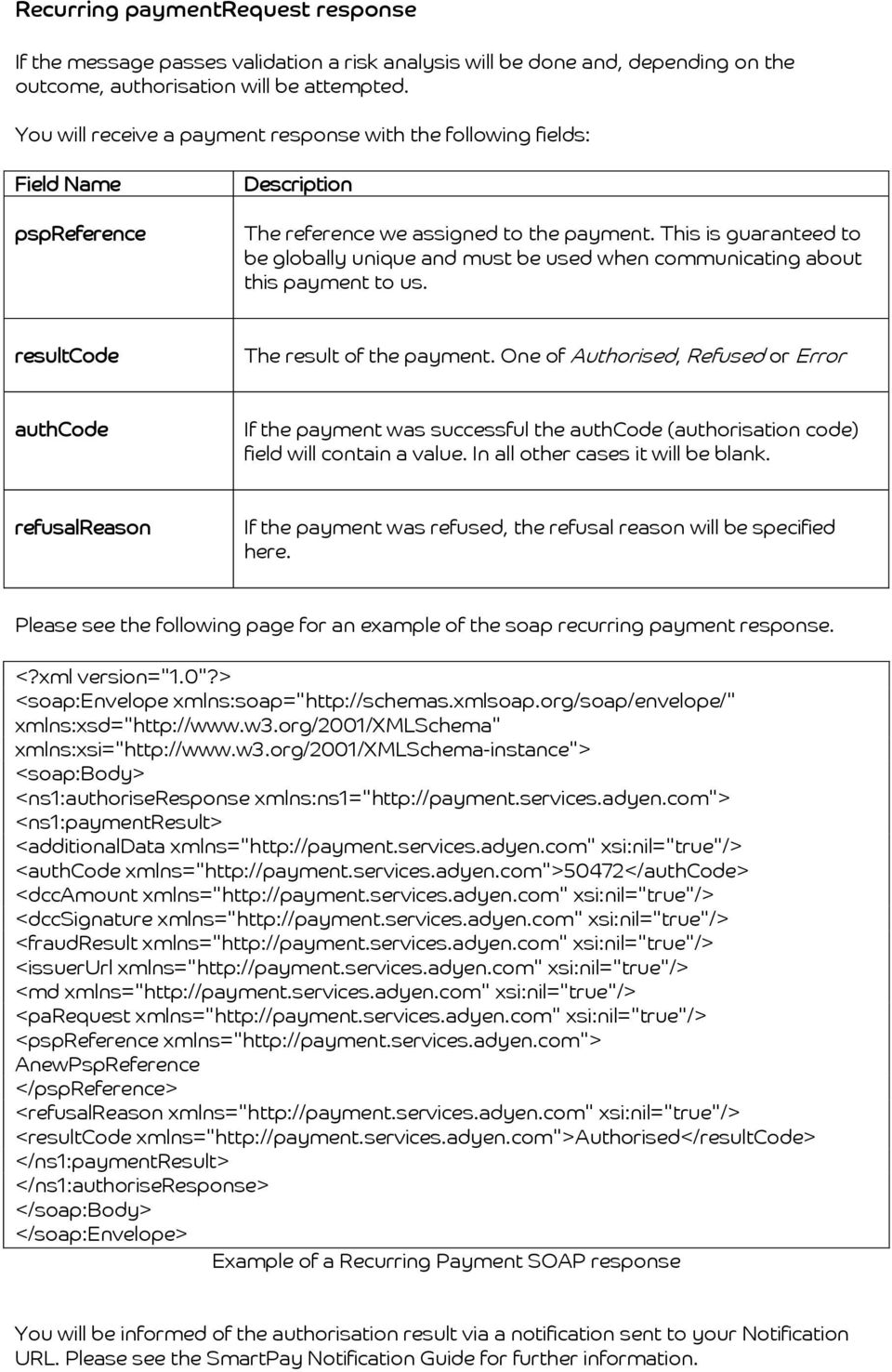
18 Recurring paymentrequest response If the message passes validation a risk analysis will be done and, depending on the outcome, authorisation will be attempted. You will receive a payment response with the following fields: Field Name pspreference Description The reference we assigned to the payment. This is guaranteed to be globally unique and must be used when communicating about this payment to us. resultcode The result of the payment. One of Authorised, Refused or Error authcode If the payment was successful the authcode (authorisation code) field will contain a value. In all other cases it will be blank. refusalreason If the payment was refused, the refusal reason will be specified here. Please see the following page for an example of the soap recurring payment response. <?xml version="1.0"?> <soap:envelope xmlns:soap=" xmlns:xsd=" xmlns:xsi=" <soap:body> <ns1:authoriseresponse xmlns:ns1=" <ns1:paymentresult> <additionaldata xmlns=" xsi:nil="true"/> <authcode xmlns=" <dccamount xmlns=" xsi:nil="true"/> <dccsignature xmlns=" xsi:nil="true"/> <fraudresult xmlns=" xsi:nil="true"/> <issuerurl xmlns=" xsi:nil="true"/> <md xmlns=" xsi:nil="true"/> <parequest xmlns=" xsi:nil="true"/> <pspreference xmlns=" AnewPspReference </pspreference> <refusalreason xmlns=" xsi:nil="true"/> <resultcode xmlns=" </ns1:paymentresult> </ns1:authoriseresponse> </soap:body> </soap:envelope> Example of a Recurring Payment SOAP response You will be informed of the authorisation result via a notification sent to your Notification URL. Please see the SmartPay Notification Guide for further information.
19 Section F Topic Virtual Terminal Users With the Virtual Terminal a login screen is presented to control who can access your Virtual Terminal. We will now take you through setting up a user to access the Virtual Terminal for your account. Full details on setting up users and the role permissions can be found in the user guide. 1. Log in to the back office. 2. Select Settings from the options on the left and then select Users from the options on screen. 3. Select the New tab from the choice along the top of the page. You will then be shown the Create New User screen. 4. Enter the Username and Password you wish. Note: Please ensure that your User Name should only consist of standard alpha/numeric characters. 5. In the Roles section select the role CallCenter user role by putting a tick in the box next to the role under the Navigate down to Associated Accounts, this will list all your accounts, select the account which has been setup for MOTO payments and put a tick in the box next to the account under the Once you are happy with your selection please select Save. This will create your new user for the Virtual Terminal.

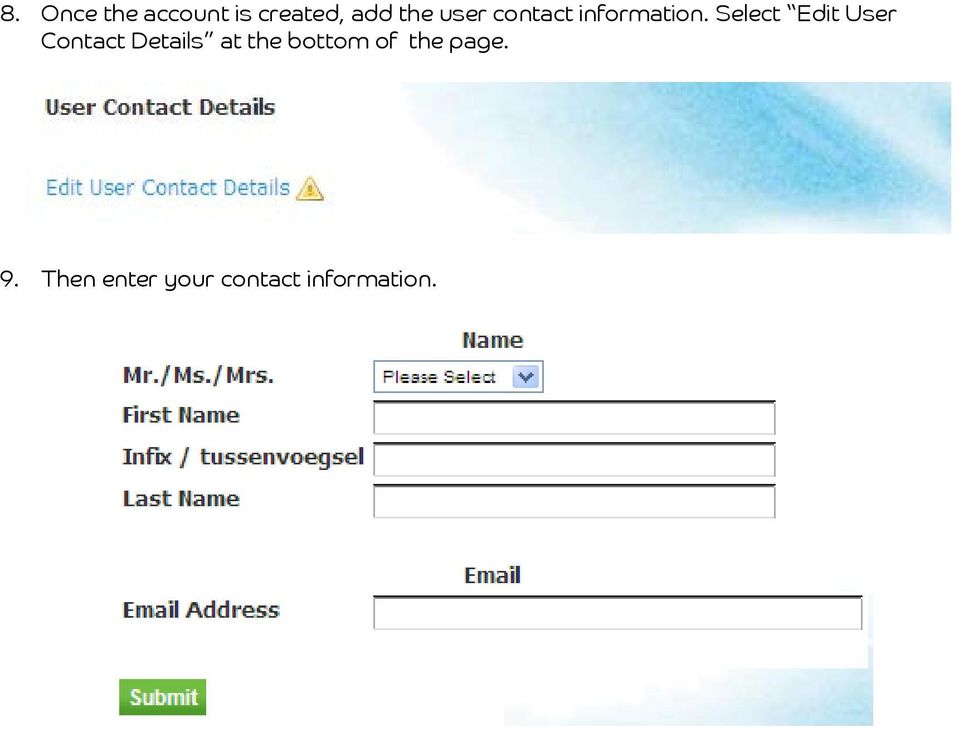
20 8. Once the account is created, add the user contact information. Select Edit User Contact Details at the bottom of the page. 9. Then enter your contact information.
21 Section G Appendix Topic Trouble Shooting Below we ve listed some of the common errors you may receive which connecting to the Virtual Terminal. If you receive an error or have any difficulties which are not covered by the following then please do not hesitate to contact the support team. Error received when accessing the Call Centre pages Error Message Description If when a user clicks on the link or bookmark to open the Virtual Terminal pages, tries to log in and receives this error An Error has Occurred please check that the merchant account value, which is being passed in the string, is correct and is enabled to take MOTO payments. Please contact our support team to check if you are not sure. Invalid Login error Error Message Description When logging in, if Invalid Login appears the user should check their log in details and the URL. Users should login using the live URL; details of the different URL s can be found at the end of this document.
22 Section G Appendix Topic URL s URL s for test Callcenter URL Payment SOAP Service Payment SOAP Service WSDL Modification SOAP Service Modification SOAP Service WSDL URL s for Live Callcenter URL Payment SOAP Service Payment SOAP Service WSDL Modification SOAP Service Modification SOAP Service WSDL Notification SOAP Service WSDL
23 Section E Appendix Topic Currency Codes Currency United Arab Emirates Dirham Argentinean Peso Australian Dollar Bolivia Boliviano Brazilian Real Bulgarian Lev Canadian Dollar Swiss Franc Chilean Peso Chinese Yuan Colombian Peso Croatian Kuna Czech Republic Koruna Danish Krone Estonia Kroon Euro British Pound Hong Kong Dollar Hungarian Forint Israeli Shekel Indian Rupee Icelandic Krona Japan Yen South Korea Won Lithuania Litas Latvia Lats Malaysian Ringgits Morocco Dirham Nepalese Rupee (New) Mexican Peso (New) Taiwan Dollar Norwegian Krone New Zealand Dollar Pakistan Rupee Paraguayan Guarani Peruvian Sol Poland Zloty Romanian Leu Russian Ruble Saudi Arabia Riyal Sweden Krona Singapore Dollar Slovakia EUR Sri Lanka Rupee Thailand Baht Turkey Lira Currency Code AED ARS AUD BOB BRL BGN CAD CHF CLP CNY COP HRK CZK DKK EEK EUR GBP HKD HUF ILS INR ISK JPY KRW LTL LVL MYR MAD NPR MXN TWD NOK NZD PKR PYG PEN PLN RON RUB SAR SEK SGD SKK LKR THB TRY
24 Country Uruguayan Peso US Dollar Venezuelan Bolivar South African Rand Currency Code UYU USD VEF ZAR If the country or currency you require does not appear in the above then please contact our support team.
Isabel 6 Guide Group #1. How to encode SEPA and Non-SEPA transactions from an ING Belgium (BBRUBEBB) account?
 Isabel 6 Guide Group #1 How to encode SEPA and Non-SEPA transactions from an ING Belgium (BBRUBEBB) account? Version 2.1 06-11-2013 Purpose This document describes how to use the Isabel 6 Payment Wizard
PayPal Foreign Currency Acceptance Training Guide
 1 PayPal Foreign Currency Acceptance Training Guide Table of Contents PayPal Overview... 2 What is Different from Prior PayPal Payments... 2 How to Create a PayPal Account... 3 Foreign Currency Payments
Tracking an Affiliate Program or campaign
 Tracking an Affiliate Program or campaign Introduction How affilinet s tracking works 1. A publisher places an affilinet link/creative on their website; this directs users to an advertiser s website. 2.
PayPal Integration. PayPal can now be easily integrated via EBS s single interface online platform.
 Expand your online business with PayPal and EBS PayPal Integration PayPal can now be easily integrated via EBS s single interface online platform. By adding PayPal via the EBS platform, you gain access
Official Journal C 425
 Official Journal C 425 of the European Union Volume 57 English edition Information and Notices 27 November 2014 Contents II Information INFORMATION FROM EUROPEAN UNION INSTITUTIONS, BODIES, OFFICES AND
Citi London Funds Transfer Cut-off Times and Routing Information
 Citi London Funds Transfer Cut-off Times and Routing Information Standard Payment Processing Cut-off Times Customer Settlement Instructions Citi London (1/5) Standard Payment Processing Cut Off Times The
Barclaycard SmartPay. Hosted Payment Page Integration Guide. Version 3.0 released April 2012
 Barclaycard SmartPay Hosted Payment Page Integration Guide Version 3.0 released April 2012 DOC Version Control Version No. Date Issued Reason for Change 1.0 July 2010 Initial Document 2.0 February 2012
Extra service for your customers: payments in their own currency. Dynamic Currency Conversion for transactions via your payment terminal or website
 PaySquare whitepaper Dynamic Currency Conversion for transactions via your payment terminal or website Extra service for your customers: payments in their own currency 1 Content Introduction: No need to
Trading forex is buying one currency while at the same time selling a different currency.
 F O R E I G N E X C H A N G E B A S I C S T E R M S U S E D I N F O R E X T R A D I N G The foreign exchange market is global, and it is conducted over-the-counter (OTC) through the use of electronic trading
EUROPEAN UNION. Chapter prepared by. Marc Greven ([email protected])
 EUROPEAN UNION Chapter prepared by Marc Greven ([email protected]) ACEA Avenue des Nerviens 85 B 1040 Brussels Tel : + 32.2.732.55.50 Fax : + 32.2.738.73.10 www.acea.be TAX GUIDE 14 EU 1 MOTOR VEHICLE TAXATION:
GUIDE TO COMPLETING THE PROOF OF CLAIM FORM
 GUIDE TO COMPLETING THE PROOF OF CLAIM FORM This Guide has been prepared to assist Creditors in filling out the Proof of Claim form with respect to the Debtors listed in Section 1, below. If you have any
Payment cut-off times
 Wealth and Investment Management International Banking Payment cut-off times Barclays Bank PLC International Banking Payment cut-off times These payment cut-off times relate to payments submitted electronically
Recurring Payments Profile Report. Version 1.1
 Recurring Payments Profile Report Version 1.1 Last updated: September 2015 Revision History Revision history for PayPal Recurring Payments Profile Report Specification. TABLE P.1 Revision History Date
1. Debit the account specified by the Customer for the amount agreed to for the purchase of the foreign currency;
 Foreign Exchange FX Direct - User Guide RULES OF OPERATION The FX Direct Service is provided by Royal Bank of Canada (the Bank). A) When Does a Foreign Exchange Deal Exist? A valid and binding transaction
Western Union Payments Frequently Asked Questions
 Edith Cowan University Western Union Payments Frequently Asked Questions International student payments We are here to help Edith Cowan University and Western Union Business Solutions, have come together
International currency FXPERTS
 International currency FXPERTS Our aim. To save you money on any investment, be it a new home overseas or any product requiring you to convert your money. Lisa O Brien, CEO ESTD. 2005 ESTD. 2005 ESTD.
PLEASE READ THIS DOCUMENT CAREFULLY
 Multi Currency Savings : Pre-Account Opening Risk Explanation Form and Product Fact Sheet マルチカレンシー 普 通 預 金 契 約 締 結 前 交 付 書 面 兼 商 品 説 明 書 ( 兼 外 貨 預 金 等 書 面 ) (This is a Document to be delivered prior to
Dynamic Currency Conversion Staff Training Manual
 DCC Tools DCC Point of Sale Display Best Rate Guarantee Programme Information DCC Resources For further information or reading please refer to the following Elavon web pages: On the benefits and Best Rate
Digibilly Cloud Pay 1.00.C. Installation Guide
 Digibilly Cloud Pay 1.00.C Installation Guide LEGAL NOTICES The information in this document is copyrighted 2014 by Digibilly and is protected under US and International Law. It may not be reprinted, copied,
Recurring payments manual
 Recurring payments manual SmartPay Contents Introduction 3 Audience 3 What is a recurring contract? 4 Recurring vs One-Click 4 Usual workflow 4 Creating a recurring contract 5 Setting up the payment 5
Getting Started with Visa Checkout
 Title Page Getting Started with Visa Checkout on the CyberSource Platform September 2015 CyberSource Corporation HQ P.O. Box 8999 San Francisco, CA 94128-8999 Phone: 800-530-9095 CyberSource Contact Information
Skrill Automated Payments Interface (API) Guide
 Skrill Automated Payments Interface (API) Guide For use by Skrill merchants This guide describes how to connect to the Automated Payments Interface (API) www.skrill.com Version 2.19 Skrill Limited, 25
Merchant Setup and Administration Guide
 Merchant Setup and Administration Guide Last updated: September, 2012 PayPal Merchant Setup and Administration Guide Document Number: 10064.en_US-201209 2012 PayPal, Inc. All rights reserved. PayPal is
Merchant's Default Payout in local currency
 HiPay Mobile - 1 - EUROPE - AUSTRIA - Direct Carrier Billing Local EUR 1,10 0,92 Activated 0,3328 EUR 2,00 1,67 Activated 0,6870 EUR 3,00 2,50 Activated 1,1250 EUR 4,00 3,33 Activated 1,6797 EUR 5,00 4,17
SUBSCRIPTION AND SaaS FEATURES
 www.revenuewire.com SUBSCRIPTION AND SaaS FEATURES MONTHLY 6 MONTHS ANNUALY 1 3 2 Branded, Fully Customizable Order Pages Customize your checkout process and add your own content and graphics to your cart
Correspondent Banks (effective 28.01.14)
 Correspondent Banks (effective 28.01.14) When arranging to credit funds to accounts maintained with ABN AMRO (Guernsey) Limited please transfer them to the appropriate currency correspondent bank account
Rates and Charges. Effective from 6 October 2014
 Rates and Charges Effective from 6 October 2014 For full details of when and how interest is payable, please refer to your Account Specific Terms and Conditions. Previous interest rates For previous interest
YOU MUST SUBMIT THIS CLAIM FORM BEFORE THE BAR DATE OR YOU WILL NOT BE ENTITLED TO RECEIVE A DIVIDEND UNDER THE SCHEME.
 CLAIM FORM IN THE MATTER OF Independent Insurance Company Limited (In Provisional Liquidation) (the Company ) AND IN THE MATTER OF The Companies Act 2006 Before completing and signing this Claim Form,
Rates and Charges. Effective from 1 January 2016
 Rates and Charges Effective from 1 January 2016 For full details of when and how interest is payable, please refer to your Account Specific Terms and Conditions. Previous interest rates For previous interest
Dynamic Currency Conversion Staff Training Manual. Version 05/22/004
 Dynamic Currency Conversion Staff Training Manual Version 05/22/004 Table of Contents What is Dynamic Currency Conversion?.... 2 What currencies can be converted?. 3 How DCC Works. 4 The Benefits. 5 What
Adyen MOTO Manual 'Mail Order / Telephone Order' Version 1.06 Adyen B.V.
 Adyen MOTO Manual 'Mail Order / Telephone Order' Version 1.06 Adyen B.V. Table of Contents 1 Introduction...3 Audience... 3 Changelog... 3 Requirements...3 Interfaces and Integration...4 Payment Methods...4
CURRENCY INDICES FTSE PUBLICATIONS. FTSE Cürex FX Index Series.
 CURRENCY INDICES FTSE PUBLICATIONS FTSE Cürex FX Index Series. BEIJING BOSTON DUBAI HONG KONG LONDON MILAN MUMBAI NEW YORK PARIS SAN FRANCISCO SHANGHAI SYDNEY TOKYO FTSE FTSE Group ( FTSE ) is a world-leader
First 10 transactions Transactions 11 to 50 Transactions 51 and above
 This is our standard Tariff of charges for your accounts held at the UK Branch of Silicon Valley Bank. It sets out the prices that we charge you for our most frequently used account services in the UK.
Recurring Payments Manual
 Recurring Payments Manual Version: 3.2 Contact details Simon Carmiggeltstraat 6-50 1011 DJ Amsterdam P.O. Box 10095 1001 EB Amsterdam The Netherlands T +31 20 240 1240 E [email protected] Table of Contents
ereg Event Info Manual Payment Settings
 ereg Event Info Manual Payment Settings Fees & Payments Tab: The fees & payment tab consists of three different pages; Standard fees, Discount Codes, and Payment Settings. Below is a detailed explanation
Subscriptions and Recurring Payments Guide
 Subscriptions and Recurring Payments Guide Last updated: May 2008 PayPal Subscriptions and Recurring Payments Guide Document Number: 100005.en_US.200805 2008 PayPal, Inc. All rights reserved. PayPal is
International payments Tariff for corporate customers effective from 1 January 2015
 International payments Tariff for corporate customers effective from 1 January 2015 About the customer tariff This tariff is applicable to international payment services provided via branches by Nordea
Sending Payments to Royal Bank of Canada (Channel Islands) Limited
 Sending Payments to Royal Bank of Canada (Channel Islands) Limited Effective date: August 19, 2013 Money can be transferred to your account with Royal Bank of Canada (Channel Islands) Limited ( the Bank
API For Chopstickpay Merchants Configuration: Server-to-server Version: 3.4 Status: Published
 API For Chopstickpay Merchants Configuration: Server-to-server Version: 3.4 Status: Published Contents 1. Version Control... 1 2. Introduction... 2 3. Prerequisites... 2 4. Payment Submission Workflow...
Danske Bank - Personal Customers Payment Table. www.danskebank.co.uk
 - Personal Customers Payment Table www.danskebank.co.uk Payment Table Personal current accounts and Personal savings accounts EFFECTIVE FROM 15 SEPTEMBER 2015 Payment Table Personal current accounts and
AliPay International Services
 Title Page AliPay International Services Using the Simple Order API September 2015 CyberSource Corporation HQ P.O. Box 8999 San Francisco, CA 94128-8999 Phone: 800-530-9095 CyberSource Contact Information
Triennial Central Bank Survey Foreign exchange turnover in April 2013: preliminary global results. Monetary and Economic Department
 Triennial Central Bank Survey Foreign exchange turnover in April 2013: preliminary global results Monetary and Economic Department September 2013 Queries concerning this release may be addressed to [email protected].
Bank of Scotland Private Banking Currency Account. Interest and Fees
 Bank of Scotland Private Banking Currency Account Interest and Fees 2 Contents 1. Payments in and out of your account Page 3 2. Payment cut-off times Page 4 3. Currency Account fees Page 4 4. Interest
Business Banking Fees and Limits
 Business Banking Fees and Limits Effective June 2015 a What s Inside Here. 1 Our fees 2 Transaction account, savings accounts and investments 9 International accounts and services 12 Business lending 16
International currency exchange > FAQs
 International currency exchange services What is international currency exchange? International currency exchange is a fast, secure currency conversion payment service offered by Computershare. Through
1. Version Control... 1. 2. Introduction... 1. 3. Prerequisites... 1. 4. Payment Submission Workflow... 1. 5. Return Parameter for CallbackURL...
 Penthouse, Unit 12 th Floor, API For PaySec Merchants Configuration: Automated Clearing House (ACH) Version: 1.0.1 Status: Published Contents 1. Version Control... 1 2. Introduction... 1 3. Prerequisites...
8. Country names, codes and currencies
 8. Country names, codes and currencies The lists of member, accession and key partner countries are presented in this section, as well as the corresponding ISO country and currency codes. General guidelines
MERCHANT INTEGRATION GUIDE. Version 2.8
 MERCHANT INTEGRATION GUIDE Version 2.8 CHANGE LOG 1. Added validation on allowed currencies on each payment method. 2. Added payment_method parameter that will allow merchants to dynamically select payment
Classes of OTC derivatives that LCH Clearnet Ltd has been authorised to clear as notified to ESMA under Regulation 648/2012
 Classes of OTC derivatives that LCH Clearnet Ltd has been authorised to clear as notified to ESMA under Regulation 648/2012 In accordance with Article 6 of Regulation (EU) No 648/2012 of the European Parliament
Your foreign exchange specialist. Your life, your money, your way
 Your foreign exchange specialist Your life, your money, your way Local knowledge in foreign exchange solutions Our clients demand the very best international wealth management and that includes world-class
Payments via Unitel & Corporate Netbank Request for Transfer Customer tariff effective from 1 September 2016
 Payments via Unitel & Corporate Netbank for Transfer Customer tariff effective from 1 September 2016 Contents About the... 3 Charges... 3 and local... 3 Intercompany transfers... 3 Cancellations... 3 Disclosure
Microsoft Dynamics GP 2013. Web Services Installation and Administration Guide
 Microsoft Dynamics GP 2013 Web Services Installation and Administration Guide Copyright Copyright 2013 Microsoft Corporation. All rights reserved. Limitation of liability This document is provided as-is.
Fees n Limits. Personal Banking fees and limits. It s Ours. Effective 11 June 2015
 Fees n Limits. Personal Banking fees and limits Effective 11 June 2015 It s Ours. a What s Inside Here. Everyday, savings and investment accounts Overdraft facility Credit cards International accounts
Fees n Limits. Personal Banking fees and limits. It s Ours. Effective 1 April 2016
 Fees n Limits. Personal Banking fees and limits Effective 1 April 2016 It s Ours. a What s Inside Here. Everyday, savings and investment accounts Overdraft facility Credit cards International accounts
Schedule of International Transaction Charges. This document contains important information. Please read carefully and retain for future reference.
 Schedule of International Transaction s This document contains important information. Please read carefully and retain for future reference. June 2014 Contents Bureau de Change page 2 Card Transactions
AliPay International Services
 Title Page AliPay International Services Using the SCMP API May 2016 CyberSource Corporation HQ P.O. Box 8999 San Francisco, CA 94128-8999 Phone: 800-530-9095 CyberSource Contact Information For general
Wire Service User Guide
 Contents 3 Getting Started with ATB s Wire Service 3 Wire Systems and Routing Instructions 3 Bank Look-up Tool 3 Cut-off Times 4 Security and Controls 4 Enhanced Security 4 Anti-Money Laundering (AML)
20002006 ISDA Definitions
 20002006 ISDA Definitions ISDA INTERNATIONAL SWAPS AND DERIVATIVES ASSOCIATION, INC. 2 Copyright 20002006 by INTERNATIONAL SWAPS AND DERIVATIVES ASSOCIATION, INC. 600 Fifth360 Madison Avenue, 2716th Floor
Currency classifications
 0136PE_Chapter_03 1/5/03 10:52 am Page 25 3 Currency classifications Francesca Taylor, Taylor Associates Introduction Broad classification of currencies Indications of currency classifications Major currencies
PAYMENT TRANSACTION. Your payment transaction information
 PAYMENT TRANSACTION Your payment transaction information Contents Payment transaction information 1 Outbound domestic payments 2 Inbound domestic payments 3 International payments 4 Outbound international
Payment Transaction.
 Payment Transaction. Payment transaction information. Payment instructions will be processed on the same business day if we receive them before the relevant cut-off time on that day. Any payment instructions
Understanding the Effects Of Currency Exchange Rates
 Understanding the Effects Of Currency Exchange Rates Lesson 5 OVERVIEW: The value of money is determined when people are willing to accept it in exchange for goods and services. Previous to using money,
vrealize Business Standard Installation and Administration Guide
 vrealize Business Standard Installation and Administration Guide vrealize Business Standard 6.1.0 This document supports the version of each product listed and supports all subsequent versions until the
 Additional information >>> HERE
 vrealize Business Standard Installation and Administration Guide
 vrealize Business Standard Installation and Administration Guide vrealize Business Standard 6.0.0 This document supports the version of each product listed and supports all subsequent versions until the
Information concerning Terms and Conditions of Provision of Payment Services by Citibank Europe plc, pobočka zahraničnej banky
 Information concerning Terms and Conditions of Provision of Payment Services by Citibank Europe plc, pobočka zahraničnej banky I. Introductory Provisions 1. This Information concerning Terms and Conditions
PCT Fee Tables (amounts on 1 August 2016, unless otherwise indicated)
 PCT Fee Tables The following Tables show the amounts and currencies of the main PCT fees which are payable to the receiving Offices (ROs) and the International Preliminary Examining Authorities (IPEAs)
SECURITIES SERVICES FEES AND COMMISSIONS (for natural and legal persons)
 SECURITIES SERVICES FEES AND COMMISSIONS (for natural and legal persons) AUSTRALIA FOP (Free-of- AUSTRIA FOP (Free-of- BELGIUM e FOP (Free-of- BULGARIA FOP (Free-of- CANADA e (if the value of a single
Foreign exchange turnover: trends in New Zealand and abroad
 Foreign exchange turnover: trends in New Zealand and abroad Lauren Rosborough and Raiko Shareef This article examines recent trends in global and local foreign exchange (FX) markets, using the 213 Bank
TIAA-CREF ANNUITY PAYMENTS
 1 Available for wire transfer and checks. All others are available for wire transfer only. If you need to transfer a currency not listed, please call us at 877 518-9162. 2 Due to governmental action, issuing
PayPal Payments Pro Integration Guide
 PayPal Payments Pro Integration Guide Last updated: December 2012 PayPal Payments Pro Integration Guide Document Number: 100001.en_US-201212 2010-2011 PayPal, Inc. All rights reserved. PayPal is a registered
Banking with SEAWire
 Banking with SEAWire Overview The SEAwire program enables officers working under a Seagoing Employment Agreement (SEA) to have their paychecks automatically deposited into their home country bank accounts.
Payment Acceptance Strategies in a Global Ecommerce Environment
 A division of Pivotal Payments Payment Acceptance Strategies in a Global Ecommerce Environment Presented by: Patrick Huynh, Senior Vice President, Client Solutions Introduction About GlobalOne GlobalOne
MySagePay. User Manual. Page 1 of 48
 MySagePay User Manual Page 1 of 48 Contents About this guide... 4 Getting started... 5 Online help... 5 Accessing MySagePay... 5 Supported browsers... 5 The Administrator account... 5 Creating user accounts...
How To Pay With Worldpay (Hosted Call Centre)
 Corporate Gateway Mail and Telephone Order Payment Service (Hosted Call Centre) Guide V4.0 June 2014 Use this guide to: Learn how to use the Mail and Telephone Order Payment service (Hosted Call Centre)
Securities services fees and commissions
 Securities services fees and commissions EQUITIES TRADING LITHUANIA, LATVIA, ESTONIA, trading shares on-line AB Nasdaq OMX Vilnius, AB Nasdaq OMX Riga, AB Nasdaq OMX Tallinn stock exchanges http://www.omxgroup.com
International Currency
 International Currency B S I E L U P T F R A N C N Y A R C K R O O N M G I X B Z E F Q U R W Y V J O R J N U S N G H G B N A K F A X C Y G A E Z H I A D L F C W G P B T D G O J A M K F S E G H U N O W
Need to send money abroad securely?
 International Payments Need to send money abroad securely? Trust us to get it there. Sending money abroad with Lloyds TSB. It s easy and secure. As a Lloyds TSB customer, if you need to send money overseas,
Your foreign exchange specialist. Your life, your money, your way
 Your foreign exchange specialist Your life, your money, your way Local knowledge in foreign exchange solutions Our clients demand the very best international wealth management and that includes world-class
Internet Banking for Business
 INTERNET BANKING FOR BUSINESS Information you need to know about importing transaction files into Internet Banking for Business For more info bnz.co.nz Internet Banking for Business. This guide provides
Investors Global Bond Fund
 Annual Financial Report MARCH 31, 2015 Copyright Investors Group Inc. 2015 Trademarks owned by IGM Financial Inc. and licensed to its subsidiary corporations. ANNUAL FINANCIAL STATEMENTS MARCH 31, 2015
Credit & Debit Card Payments. Factsheet
 Credit & Debit Card Payments Factsheet Contents 1. Card Types... 2 2. Supported countries... 2 3. First Funding via Credit / Debit Card... 3 4. Transaction Currencies... 4 5. Currency Conversion... 4 6.
Bendigo Foreign Exchange Contracts. Product Disclosure Statement.
 Product Disclosure Statement Bendigo Foreign Exchange Contracts. Product Disclosure Statement. 27 October 2014 1 About this document This Product Disclosure Statement (PDS) is an important document. It
Fidelity Stock Plan Services, LLC Stock Plan Account Proceeds Distribution Instructions
 In order to receive proceeds from your Stock Plan Account, it s important you read the instructions below and complete the necessary sections before returning to Fidelity Stock Plan Services (Fidelity).
Fees n Limits. Personal Banking fees and limits. It s Ours. Effective March 2015
 Fees n Limits. Personal Banking s and limits Effective March 2015 It s Ours. ab What s Inside Here. Everyday accounts, savings accounts and investments Credit cards Home loans International accounts and
Timeframes for Payment Processing for local Rabobank business clients. Euro Payments, Euro Direct Debits and World Payments. Share in each other
 Timeframes for Payment Processing for local Rabobank business clients November 2015 Euro Payments, Euro Direct Debits and World Payments Share in each other Contents 1 Introduction 3 2 Euro Payments 4
My Sage Pay User Manual
 My Sage Pay User Manual Page 1 of 32 Contents 01. About this guide..4 02. Getting started.4 Online help Accessing My Sage Pay Test Servers Live Servers The Administrator account Creating user accounts
TABLE OF CONTENTS. ipay / Magento Implementation Guide 2 Copyright 2012 Planet Payment, Inc. All Rights Reserved.
 TABLE OF CONTENTS INTRODUCTION... 3 Purpose... 3 Downloading the Magento Extension... 3 Configuring the Magento Extension... 3 Exhibit: Magento Admin Login Screen... 3 Payment Processing Options with ipay
Recent trends in foreign exchange turnover
 Recent trends in foreign exchange turnover Nick Smyth, Financial Stability Department 1 We examine recent trends in the global foreign exchange market using the 24 BIS triennial foreign exchange turnover
Clearing Firm ID No. Asset Account ID No.
 CLEARING MEMBER SETTLEMENT AND CUSTODY LISTING AND DEBIT AUTHORIZATION Clearing Firm ID No. Asset Account ID No. NOTE: CLEARING MEMBER FIRM MUST CONTACT ITS DESIGNATED S AND EXECUTE ALL DEBIT AUTHORITY