
Google Docs, Sheets, and Slides: Share and collaborate
|
|
|
- Beatrice Higgins
- 10 years ago
- Views:
Transcription
1 Google Docs, Sheets, and Slides: Share and collaborate Once you've created your document, you can share it with others. Collaborators can then edit the same document at the same time you'll always have the most up-to-date version at your fingertips. Share a document To get started, click the Share button at the top right of the page to open this dialog: 1
2 You then have the following options: Set the visibility One way to share your document is to choose who can find and view it. Click the Change link and then choose your visibility settings: 2
3 Note: Your administrator can disable the settings to share outside your organization, so you might not see those options. Invite individuals to view or edit You can also share your document with specific people and determine their level of access. 1. At the bottom of the Sharing Settings dialog, add people you want to share with and choose their permission level: 3
4 Can edit: Collaborators can add and edit content in your document, or add comments. Can comment: Collaborators can add comments, but they can t edit the content. Can view: People can view your document, but they can t edit it or add comments. 2. Do you want to send people you added an containing a link to the document? If so, check Notify people via to send a standard notification. Click Add message if you want to add your own note. 3. Click Share & save. See who has access To see who has access to your document, including their permission levels, click the Share button. Notice that you can also change permission levels here. 4
5 Change the document owner You can change the owner of the document to any individual in your organization who has access. You might want to do this when someone leaves the company or changes projects. Just click the drop-down arrow by their permission level and select Is owner: You ll still have edit access to the document, but keep in the mind that the new owner can revoke that. Collaborate on a document With Docs, Sheets, and Slides, it s easy to collaborate on a document. 5
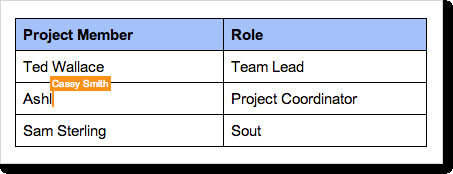
6 After you share a document, you can work on it with people all over the world, in real time, just as you would if you were sitting together. Depending on the permissions you grant, other people can update the document, use comments beside the document to discuss it, or discuss changes with chat. Collaborate with simultaneous edits Anyone with edit permission can make direct changes to a document. If other people make changes at the same time as you, you can see the changes happen as they re made. Each person s changes are marked by a cursor with a different color. In the example below, someone else is updating the name of a project member: If you want to know who is making this change, just hover over the cursor: Note: When multiple people edit a spreadsheet, only one person can edit a cell at a time. Collaborate with chat Now you can get feedback from your collaborators without ever leaving the document. Just click the icon to open a group chat with everyone in the document. (You can t chat with just one collaborator.) 6
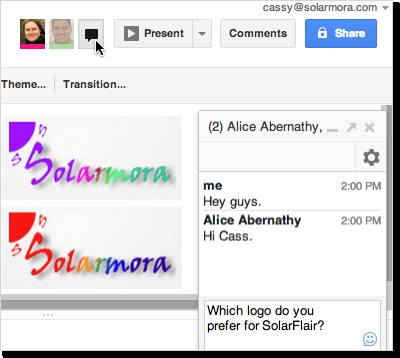
7 You can identify who is viewing your document by mousing over their picture. (Collaborators whose pictures are slightly grayed out have the document open, but aren t actively looking at it). If your document is public or shared outside of your domain, you may see anonymous animals or letters. If your document has more collaborators than can fit in the header, you can view a list by clicking the down arrow next to the chat icon. Collaborate using comments If you can t collaborate together in real time, you can leave comments for your team members to look at when they open the document. To comment on the document: 1. Select a section of text that you want to comment on. 2. Click Insert > Comment (or use the right-click menu). 3. Add your notes and click the Comment button. 7
8 4. Comments appear in the area to the right of your document. You can click a comment to verify which section of text it refers to, or to contribute to the discussion. You can also edit or delete your own comments. To choose when you re notified (via ) about comments to a document, click Comments > Notifications in the upper-right corner of the page: If a comment is important for a specific collaborator, add their to the comment. Just type + and then their address and they will receive a notification in their Inbox. (Remember to share the document with them as well. Otherwise they ll receive a notification, but won t be able to view, comment, or edit the document, depending on their permission settings.) 8

9 To resolve a comment and hide it: 1. When you re done with a discussion, select the comment and click Resolve: The comment is marked as resolved and removed from the right column. Note: The comment doesn t go away completely unless the person who started the discussion deletes it. You can see resolved comments by clicking Comments. You can then re-open a comment if you think it needs more discussion. a copy of your document The easiest way to share a Google Doc is just by clicking the Share button. But, if you need to share your Google document in another format, such as Microsoft Word or PDF, you can it as an attachment, right from your Docs editor. 9
10 Note: This sends a copy of the document instead of sharing the original. To your document, click File > as attachment, choose a document format, and compose your message: Publish as a web page In addition to sharing a document, you can publish it as a web page. The published version is given a unique address (URL) and is a separate web page, so it isn t affected by the visibility option you choose when you share the original document. Only users to whom you've shared the document can view or edit the original version, but anyone with the link to the published version can view that content. 10
11 So, why publish a document instead of just sharing it? Publishing lets you: Create an HTML version of a document that you can embed in blogs, Google Sites, and more. Show your document to large web audiences. Publish a one-time snapshot of a living document. Publish individual sheets or cell selections in a Google Sheet. To publish a document: 1. Click File > Publish to the Web. You ll see this: 2. If you want to create a one-time snapshot of your document, deselect Automatically republish when changes are made. Keep this option selected if you want your published content to always match the latest version. 3. Click Start publishing. You ll see the links to access it: 11
12 Once you ve published your document, you can stop publishing it or get its links at any time. Just click File > Publish to the Web again. 12
Google Docs: Share and collaborate
 Google Docs: Share and collaborate Once you've created your document, share it with others! Collaborators can then edit the same document at the same time -- you'll always have the most up-to-date version
Increasing Productivity and Collaboration with Google Docs. Charina Ong Educational Technologist [email protected]
 Increasing Productivity and Collaboration with Google Docs [email protected] Table of Contents About the Workshop... i Workshop Objectives... i Session Prerequisites... i Google Apps... 1 Creating
OET Cloud Services Getting Started Guide
 OET Cloud Services Getting Started Guide Introduction OET Cloud Services uses Google Drive to let you store and access OET files anywhere -- on the web, and access them on your PC, or on any device connected
How to Create a Form and Manage the Spreadsheet in Google Docs
 How to Create a Form and Manage the Spreadsheet in Google Docs Table of Contents Create, send, share, and edit a form... 2 Create and send a Google form... 2 Add items and questions to a form... 2 Split
Google Drive Create, Share and Edit Documents Online
 Revision 3 (1-31-2014) Google Drive Create, Share and Edit Documents Online With Google Drive, you can easily create, share, and edit documents online. Here are a few specific things you can do: Convert
Google Sites: Creating, editing, and sharing a site
 Google Sites: Creating, editing, and sharing a site Google Sites is an application that makes building a website for your organization as easy as editing a document. With Google Sites, teams can quickly
Google Apps for Education: The Basics
 Google Apps for Education: The Basics You will learn how to get started with Google Drive by uploading and converting documents. You will also learn how to share your documents with others. Plus learn
NDSU Technology Learning & Media Center. Introduction to Google Sites
 NDSU Technology Learning & Media Center QBB 150C 231-5130 www.ndsu.edu/its/tlmc Introduction to Google Sites Get Help at the TLMC 1. Get help with class projects on a walk-in basis; student learning assistants
Google Docs Basics Website: http://etc.usf.edu/te/
 Website: http://etc.usf.edu/te/ Google Docs is a free web-based office suite that allows you to store documents online so you can access them from any computer with an internet connection. With Google
Calendar: Advanced Features Set up reminders, sharing, secondary calendars, and more!
 Sign in to Google Calendar at http://email.ucsc.edu with your CruzID and Blue password. You'll see your calendar weekly view. Calendar: Advanced Features Set up reminders, sharing, secondary calendars,
Dynamics CRM for Outlook Basics
 Dynamics CRM for Outlook Basics Microsoft Dynamics CRM April, 2015 Contents Welcome to the CRM for Outlook Basics guide... 1 Meet CRM for Outlook.... 2 A new, but comfortably familiar face................................................................
Contents Release Notes... ... 3 System Requirements... ... 4 Using Jive for Office... ... 5
 Jive for Office TOC 2 Contents Release Notes...3 System Requirements... 4 Using Jive for Office... 5 What is Jive for Office?...5 Working with Shared Office Documents... 5 Get set up...6 Get connected
Google Apps Migration
 Academic Technology Services Google Apps Migration Getting Started 1 Table of Contents How to Use This Guide... 4 How to Get Help... 4 Login to Google Apps:... 5 Import Data from Microsoft Outlook:...
Google Drive lets you store and share all your stuff, including documents, videos, images and other files that are important to
 What are Docs & Drive? Docs Use Google Docs, Sheets and Slides for document editing anywhere, anytime. Google Docs is an online word processor that lets you create and format text documents and collaborate
Creating and Using Forms in SharePoint
 Creating and Using Forms in SharePoint Getting started with custom lists... 1 Creating a custom list... 1 Creating a user-friendly list name... 1 Other options for creating custom lists... 2 Building a
Google Apps for Sharing Folders and Collecting Assignments
 Google Apps for Sharing Folders and Collecting Assignments The Google Drive is cloud (online) storage space, and it is also where you create and work with Google Docs, Sheets, Slides, etc. Create a Folder
LYNC 2010 USER GUIDE
 LYNC 2010 USER GUIDE D O C U M E N T R E V I S O N H I S T O R Y DOCUMENT REVISION HISTORY Version Date Description 1.0 6/25/2013 Introduction of the Lync 2010 to product line. 2 Lync 2010 User Guide 401
GOOGLE DRIVE Google Apps Documents Step-by-Step Guide
 Table of Contents Creating a New Document... 2 Editing a Document... 3 Collaborate on a Document... 3 Revision History... 4 Sharing your Documents... 6 Inviting people to View, Edit, or Comment... 7 Uploading
Create a survey using Google Forms
 Create a survey using Google Forms You can plan events, make a survey or poll, give students a quiz, or collect other information in an easy, streamlined way with Google Forms. Google Forms can be connected
We re going to show you how to make a Share site. It takes just a few minutes to set one up. Here s how it s done.
 Get started Sharing your pictures is a great way to keep in touch with friends and family. Now, you can connect and communicate with everyone, all in one place, by creating a Shutterfly Share site secure,
This document is provided "as-is". Information and views expressed in this document, including URLs and other Internet Web site references, may
 This document is provided "as-is". Information and views expressed in this document, including URLs and other Internet Web site references, may change without notice. Some examples depicted herein are
Sharing a VoiceThread
 Sharing a VoiceThread Every VoiceThread is completely private by default, so you ll need to share it before anyone else can view it or comment on it. You can share your VoiceThread with one person, with
Microsoft Outlook Tips & Tricks
 Microsoft Outlook Tips & Tricks Columbia College Technology Services Table of Contents Creating an email signature Page 1 Handling attachments Page 1 Sending an attachment Opening an attachment Page 2
Composing a New Email Message
 Composing and Sending Email Zimbra V 7.2 2012-2013 School Year Composing a New Email Message Cc and Bcc Addresses Using HTML Editor Using Spell Check Adding an Attachment Attachment File Types Supported
How To Insert Hyperlinks In Powerpoint Powerpoint
 Lesson 5 Inserting Hyperlinks & Action Buttons Introduction A hyperlink is a graphic or piece of text that links to another web page, document, or slide. By clicking on the hyperlink will activate it and
Lync 2013 Quick Reference Lync Meetings. Join a Lync Meeting. Schedule a Lync Meeting. Do I need a PIN, work number or extension? Set meeting options
 Join a Lync Meeting 1. In the meeting request, click Join Lync Meeting or click Join Online in the meeting reminder. 2. On the Join Meeting Audio window, select one of the options: Use Lync (full audio
Overview Settings Creating Events New Calendars, Granting Permissions and Ownership Subscribing to Other Calendars Help
 Saint Louis University Google Apps Calendar Overview Settings Creating Events New Calendars, Granting Permissions and Ownership Subscribing to Other Calendars Help Information Technology Services IT Training
How do I start a new email message?
 Composing Email There are several preferences you can set for composing email. How do I start a new email message? How do I address an email message? How do I find an email address? How do I write an email
Introduction. Inserting Hyperlinks. PowerPoint 2010 Hyperlinks and Action Buttons. About Hyperlinks. Page 1
 PowerPoint 2010 Hyperlinks and Action Buttons Introduction Page 1 Whenever you use the Web, you are using hyperlinks to navigate from one web page to another. If you want to include a web address or email
Drive. Etobicoke-Mimico Watershed Coalition
 Drive Etobicoke-Mimico Watershed Coalition (Adapted from Google Drive for Academics available at https://docs.google.com/document/d/1hvbqob26dkpeimv6srdgwvpupuo5ntvojqjxorq0n20/edit?pli=1) Table of Contents
Lync 2013 - Online Meeting & Conference Call Guide
 Lync 2013 - Online Meeting & Conference Call Guide Alteva Hosted Lync Version:00 QUICK LINKS Schedule an Online Meeting Change Meeting Access and Presenter Options Join from a Computer with Lync Installed
Mastering Lync Meetings
 Mastering Lync Meetings cd_mastering_lync_meetings_v2 1 8/25/2014 Course Title Contents Overview of scheduled Online Lync meetings... 3 General Best Practices... 3 Scheduling the meeting... 4 Recurring
Outlook 2010 Desk Reference Guide
 Outlook 2010 Desk Reference Guide Version 1.0 Developed by OR/WA IRM Please remember to print back-to-back. July 12, 2011 Microsoft Outlook 2010 This document has been developed by OR/WA IRM staff to provide
Outlook. Getting Started Outlook vs. Outlook Express Setting up a profile Outlook Today screen Navigation Pane
 Outlook Getting Started Outlook vs. Outlook Express Setting up a profile Outlook Today screen Navigation Pane Composing & Sending Email Reading & Sending Mail Messages Set message options Organizing Items
OWA User Guide. Table of Contents
 OWA User Guide Table of Contents 1. Basic Functionality of Outlook Web Access... 2 How to Login to Outlook Web Access (OWA)... 2 Change Password... 3 Mail... 3 Composing Mail... 5 Attachments - Web Ready
SMART Board Training Outline Trainer: Basel Badran
 Sharjah Higher Colleges of Technology SMART Board Training Outline Trainer: Basel Badran What is a SMART Board? o Concept & Technology SMART Board Components: o Smart Tools Start Center Recorder Keyboard
Leading Adobe Connect meetings
 Leading Adobe Connect meetings You have created a meeting room, scheduled an online class or meeting, invited participants, and prepared the room for the day of class by testing your computer system and
Gmail: Sending, replying, attachments, and printing
 If you're using an old version of Gmail, your Inbox may look a little different. Gmail: Sending, replying, attachments, and printing Welcome to Gmail. This document will give you a quick overview of how
Lync for Mac Get Help Guide
 How do I download the Lync Client Tool for Mac? The Lync Client allows you to use your computer as a telephone as well as enabling the unified communication features. Part 1: Installing the Lync Client
Intellect Platform - The Workflow Engine Basic HelpDesk Troubleticket System - A102
 Intellect Platform - The Workflow Engine Basic HelpDesk Troubleticket System - A102 Interneer, Inc. Updated on 2/22/2012 Created by Erika Keresztyen Fahey 2 Workflow - A102 - Basic HelpDesk Ticketing System
Google Docs A Tutorial
 Google Docs A Tutorial What is it? Google Docs is a free online program that allows users to create documents, spreadsheets and presentations online and share them with others for collaboration. This allows
Google Drive: Access and organize your files
 Google Drive: Access and organize your files Use Google Drive to store and access your files, folders, and Google Docs, Sheets, and Slides anywhere. Change a file on the web, your computer, tablet, or
EMAIL QUICK START GUIDE
 IT Services Microsoft Outlook 2010 EMAIL QUICK START GUIDE Contents What is Outlook?...2 Quick Guide to Email...2 Create a new e-mail message...2 Forward or reply to an e-mail message...2 Creating new
Introduction to Google Docs
 Introduction to Google Docs If you do not have a Google account please see the instructor about setting up an account before the class begins. If you do not want to set up an account you can follow along
How to Use Gmail. 1. Using your computer s Internet browser direct yourself to the Gmail website: www.gmail.com
 How to Use Gmail Signing into/creating a Gmail Account 1. Using your computer s Internet browser direct yourself to the Gmail website: www.gmail.com 2. On the Sign in page, if you already have a Gmail
Unified Communications Using Microsoft Office Live Meeting 2007
 Unified Communications Using Microsoft Office Live Meeting 2007 Text version of online course. Contents Unified Communications... 1 About Microsoft Office Live Meeting 2007... 3 Copyright Information...
Create a Google Site in DonsApp
 Create a Google Site in DonsApp 1 Google Web Site Interactive. Constructivist. Collaborative. Communities. WHAT IS GOOGLE SITE? With one single click, you can create a website without any knowledge of
Differences at a glance
 Differences at a glance In the past, you might ve used the consumer (such as Microsoft Office 2013) version of Microsoft Excel outside of work. Now that you re using Google Apps for Work, you ll find many
Maximizing Microsoft Office Communicator
 Maximizing Microsoft Office Communicator Microsoft Office Communicator is an instant messaging tool on the standard image for CG workstations. This Tech Tip contains basic instructions on how to use the
CUSTOMER+ PURL Manager
 CUSTOMER+ PURL Manager October, 2009 CUSTOMER+ v. 5.3.1 Section I: Creating the PURL 1. Go to Administration > PURL Management > PURLs 2. Click Add Personalized URL 3. In the Edit PURL screen, Name your
Haiku LMS Quick Start A Helpful Guide for Teachers
 Haiku LMS Quick Start A Helpful Guide for Teachers Getting Started Logging In Log on to your class by going to your school s Haiku LMS address. Once you log in to your class, you will find yourself on
ASSESSMENT GENERATOR TUTORIAL CREATING ASSESSMENTS SIMPLE TYPE ASSESSMENT
 ASSESSMENT GENERATOR TUTORIAL CREATING ASSESSMENTS SIMPLE TYPE ASSESSMENT We recommend that you first create a Category to file your first assessment under. See the Categories Tutorial. 1. From Your Home
Google Accounts Google Drive
 Google Accounts Google Drive You need to have a general Google account or Google email account before you can access these services. Please see the guide the library created on opening a Google email account
The online email environment
 The online email environment These are the options for the selected application. Navigation Pane is comprised of a folders list and oneclick access to your Inbox, Calendar, Contacts, and Tasks folders
Outlook Web App OWA Quick Guide. Getting you up to speed quickly.
 Outlook Web App OWA Quick Guide Getting you up to speed quickly. Information Services 8-1-2014 Contents Exploring the OWA (Outlook Web App) User Interface... 2 Getting Started... 2 Mail... 6 Creating and
Microsoft Word Track Changes
 Microsoft Word Track Changes This document is provided for your information only. You SHOULD NOT upload a document into imedris that contains tracked changes. You can choose to use track changes for your
Box Admin Best Practices: Everyday Collaboration
 Box Admin Best Practices: Everyday Collaboration Sharing documents securely is easy with Box. You can configure sharing and collaboration settings to fit the needs of every person in your team, company
Using Google Drive. Using Google Drive. Information Security Requirements
 Using Google Drive Information Security Requirements Google Drive is a cloud storage service available to CWRU students, faculty and staff that allows you to store, share, and synchronize files using multiple
Chapter 11 Sharing and Reviewing Documents
 Calc Guide Chapter 11 Sharing and Reviewing Documents This PDF is designed to be read onscreen, two pages at a time. If you want to print a copy, your PDF viewer should have an option for printing two
Outlook 2010. Mail, Calendar, Contacts, Notes & Tasks. User Guide
 User Guide Outlook 2010 Mail, Calendar, Contacts, Notes & Tasks IT Training (818) 677-1700 [email protected] www.csun.edu/it/training CSUN IT Training YouTube Channel http://www.youtube.com/user/csuninfotech
D2L: An introduction to CONTENT University of Wisconsin-Parkside
 D2L: An introduction to CONTENT University of Wisconsin-Parkside FOR FACULTY: What is CONTENT? The Content and Course Builder tools both allow you to organize materials in D2L. Content lets you and your
Shasta College SharePoint Tutorial. Create an HTML Form
 Create an HTML Form SharePoint HTML forms are based on Lists. Lists are like mini-databases inside of SharePoint that define the form s fields and stores the data submitted from the form. Before you can
Lync Guide for Faculty and Staff
 Lync Guide for Faculty and Staff Prepared for the faculty and staff of the School of Engineering, University of Connecticut, by: Engineering Computing Services School of Engineering University of Connecticut
CMU/SCS Computing Facilities. Microsoft Outlook 2011 for Mac Calendar Guide
 CMU/SCS Computing Facilities Microsoft Outlook 2011 for Mac Calendar Guide Table of Contents Opening Outlook... 2 Finding your Calendar... 2 Creating entries on your calendar... 2 Appointments... 2 Meetings...
CMU/SCS Computing Facilities. Microsoft Outlook 2010 Calendar Guide
 CMU/SCS Computing Facilities Microsoft Outlook 2010 Calendar Guide Table of Contents Opening Outlook... 2 Finding your Calendar... 2 Creating entries on your calendar... 2 Appointments... 2 Meetings...
So you want to create an Email a Friend action
 So you want to create an Email a Friend action This help file will take you through all the steps on how to create a simple and effective email a friend action. It doesn t cover the advanced features;
Lync 2011. Basics. CITES Training Services University of Illinois. Microsoft
 Microsoft Lync 2011 Basics CITES Training Services University of Illinois 2 Table of Contents Getting Started... 2 Starting Lync 2011... 3 Understanding the Lync 2011 Program Screen... 4 Using Help...
Microsoft Outlook 2007 Calendar Features
 Microsoft Outlook 2007 Calendar Features Participant Guide HR Training and Development For technical assistance, please call 257-1300 Copyright 2007 Microsoft Outlook 2007 Calendar Objectives After completing
Webmail Instruction Guide
 Webmail Instruction Guide This document is setup to guide your through the use of the many features of our Webmail system. You may either visit www.safeaccess.com or webmail.safeaccess.com to login with
Page Numbering for a Thesis or Dissertation
 Page Numbering for a Thesis or Dissertation Tip: Add Page Numbering to your document after you are finished making all edits. After the page numbering has been added, then add the Table of Contents and/or
Site Administrator User Guide. show, tell, share
 Site Administrator User Guide show, tell, share Contents About your Team site 1 What is a Team site? 1 What can you do on a Team or Business site that you can t do on www.present.me? 1 Getting Started
Delegate Access. In Lync 2010
 Delegate Access 080713 Contents Delegate Defined... 3 Set up Delegate Access in Lync 2010... 3 Set up Delegate Access Using Outlook 2010... 4 Add a Mailbox... 6 Open a Delegated Mailbox... 7 Information
Working together with Word, Excel and PowerPoint 2013
 Working together with Word, Excel and PowerPoint 2013 Information Services Working together with Word, Excel and PowerPoint 2013 Have you ever needed to include data from Excel or a slide from PowerPoint
DIRECT MESSAGING END USER GUIDE ALABAMA ONE HEALTH RECORD. Unify Data Management Platform 2012/2013 Software Build 5.15
 DIRECT MESSAGING END USER GUIDE ALABAMA ONE HEALTH RECORD Unify Data Management Platform 2012/2013 Software Build 5.15 April 2015 Proprietary and Confidential Property of Truven Health Analytics Inc.
Lync 2010. Basics. CITES Training Services University of Illinois. Microsoft
 Microsoft Lync 2010 Basics CITES Training Services University of Illinois 2 Table of Contents Getting Started... 5 Starting Lync 2010... 6 Understanding the Lync 2010 Program Screen... 7 Using Help...
Using Chat and Group Chat Quick Reference Guide
 Using Chat and Group Chat Quick Reference Guide Chat is the simplest form of communication in Blackboard IM and, in many cases; it is also the most effective. Also known as instant messaging, Chat allows
Online Registrations for Summer Programming Josh Muse ([email protected]) & Hannah Peacock ([email protected])
 Online Registrations for Summer Programming Josh Muse ([email protected]) & Hannah Peacock ([email protected]) Summer Reading Registration In this tutorial, we will walk you through the process
Course Exercises for the Content Management System. Grazyna Whalley, Laurence Cornford June 2014 AP-CMS2.0. University of Sheffield
 Course Exercises for the Content Management System. Grazyna Whalley, Laurence Cornford June 2014 AP-CMS2.0 University of Sheffield PART 1 1.1 Getting Started 1. Log on to the computer with your usual username
Migrating to Excel 2010 from Excel 2003 - Excel - Microsoft Office 1 of 1
 Migrating to Excel 2010 - Excel - Microsoft Office 1 of 1 In This Guide Microsoft Excel 2010 looks very different, so we created this guide to help you minimize the learning curve. Read on to learn key
Microsoft Outlook 2010
 Microsoft Outlook 2010 Prepared by Computing Services at the Eastman School of Music July 2010 Contents Microsoft Office Interface... 4 File Ribbon Tab... 5 Microsoft Office Quick Access Toolbar... 6 Appearance
USER GUIDE. Unit 2: Synergy. Chapter 2: Using Schoolwires Synergy
 USER GUIDE Unit 2: Synergy Chapter 2: Using Schoolwires Synergy Schoolwires Synergy & Assist Version 2.0 TABLE OF CONTENTS Introductions... 1 Audience... 1 Objectives... 1 Before You Begin... 1 Getting
Life after Microsoft Outlook Google Apps
 Welcome Welcome to Gmail! Now that you ve switched from Microsoft Outlook to, here are some tips on beginning to use Gmail. Google Apps What s Different? Here are some of the differences you ll notice
Titan Apps. Drive (Documents)
 Titan Apps Drive (Documents) University of Wisconsin Oshkosh 7/11/2012 0 Contents What is Titan Apps?... 1 Need Help with Titan Apps?... 1 What other resources can I use to help me with Titan Apps?...
Blackboard s Wikis Tool
 Blackboard s Wikis Tool Wikis are used to create a collaborative space within a Course where all students can view, contribute, and edit content. The most common example is Wikipedia, the online encyclopedia
Introduction to MS WINDOWS XP
 Introduction to MS WINDOWS XP Mouse Desktop Windows Applications File handling Introduction to MS Windows XP 2 Table of Contents What is Windows XP?... 3 Windows within Windows... 3 The Desktop... 3 The
One of the fundamental kinds of Web sites that SharePoint 2010 allows
 Chapter 1 Getting to Know Your Team Site In This Chapter Requesting a new team site and opening it in the browser Participating in a team site Changing your team site s home page One of the fundamental
Contacts: Email, find, and manage your contacts
 Does your Contact Manager look different than what s shown here? To fix this, switch to the new look! Contacts: Email, find, and manage your contacts With Google Apps, you can easily organize, find, contact,
Everything You Need to Know to Use Your Personal Digital Certificate at the Health Science Center. Word
 Everything You Need to Know to Use Your Personal Digital Certificate at the Health Science Center Word When properly used, personal digital certificates allow the user to be definitively identified as
A Guide to Getting Started with the AmeriCorps VISTA Applicant Tracking Tool
 A Guide to Getting Started with the AmeriCorps VISTA Applicant Tracking Tool The AmeriCorps VISTA Applicant Tracking Tool will help you stay organized, monitor all the necessary steps, and record applicant
e-template Instructions
 e-template Instructions Quick Start It s easy to load an e-template into Outlook. Aside from one difference, it s just like attaching a file to an email message. Here s a quick start. More detailed instructions
E-mailing a large amount of recipients
 E-mailing a large amount of recipients DO NOT use the TO or CC field! If you have a large list of recipients you need to send an email you, you should never try sending one large email with all of the
What is OneDrive for Business at University of Greenwich? Accessing OneDrive from Office 365
 This guide explains how to access and use the OneDrive for Business cloud based storage system and Microsoft Office Online suite of products via a web browser. What is OneDrive for Business at University
How to make a line graph using Excel 2007
 How to make a line graph using Excel 2007 Format your data sheet Make sure you have a title and each column of data has a title. If you are entering data by hand, use time or the independent variable in
PE Content and Methods Create a Website Portfolio using MS Word
 PE Content and Methods Create a Website Portfolio using MS Word Contents Here s what you will be creating:... 2 Before you start, do this first:... 2 Creating a Home Page... 3 Adding a Background Color
User Guide. Opening secure email from the State of Oregon Viewing birth certificate edits reports in MS Excel
 User Guide Opening secure email from the State of Oregon Viewing birth certificate edits reports in MS Excel Birth Certifier Edition Last Revised: August, 0 PUBLIC HEALTH DIVISION Center for Public Health
Revealing the Secrets of Microsoft Project
 2 Revealing the Secrets of Microsoft Project To know that one has a secret is to know half the secret itself. Henry Ward Beecher Topics Covered in This Chapter Recognizing the Underlying Rules of Project
Chapter 3 ADDRESS BOOK, CONTACTS, AND DISTRIBUTION LISTS
 Chapter 3 ADDRESS BOOK, CONTACTS, AND DISTRIBUTION LISTS 03Archer.indd 71 8/4/05 9:13:59 AM Address Book 3.1 What Is the Address Book The Address Book in Outlook is actually a collection of address books
Outlook Web Access User Guide
 Table of Contents Title Page How to login...3 Create a new message/send attachment...5 Remove the reading pane...10 Calendar functions...11 Distribution lists...11 Contacts list...13 Tasks...18 Options...19