
Identity Finder Setup
|
|
|
- Morgan Cole
- 10 years ago
- Views:
Transcription
1 Identity Finder Information Sheet for MAC This document will walk you through how to install, scan, and secure any SI found on your computer, or storage devices using the Identity Finder Software. This is a broad run through of how the software works, if you have any additional questions, please contact Doug Florczyk Identity Finder Setup To install Identity Finder on a MAC first download the Identity Finder for MAC file from 1. Launch the Identity Finder setup program, Click Continue: 2. Select where to install, and Click Continue:
2 3. Click Install: 4. Installation Progress will be shown:
3 5. When complete, Click Close: This will add Identity Finder to your Applications list, you can run the program from here, or create a shortcut on the Dock by dragging Identity Finder Icon down to the Dock. 6. In the Applications List, Right Click on the Identity Finder Icon, Click on Get Info, make sure to check Prevent App Nap.
4 Creating a Profile The first time you use Identity Finder you will see a dialog box to create a New Identity Finder Profile. This Profile is unique to the user logged into Mac. A single Mac user may not have multiple profiles. After you create your Profile, you will always be prompted to sign into it to load your settings and any sensitive information that you have chosen to save. Each time you start Identity Finder you will be asked to sign into your Profile. Once open, you may choose the Start button on the toolbar to immediately start your search with the default options (or previously saved options) or choose the Files button to choose which location you want to search specifically.
5 Identity Finder will begin searching for all identity types you have selected via the Identities button on the toolbar. A Status Window will appear to show your current status: You may interact with results as they appear. A dialog box will inform you when the search has been completed. Click OK to see the search results.
6 Viewing Search Results The results of the search are displayed in the a) Results View and, along with the b) Preview Pane, provide all of the relevant information about the result including the full path to its location, the type and value of the result, a preview of that result in context and many other details. The Results View is a reporting table, similar to a spreadsheet, that is on the left side of Identity Finder. It contains all of the information about the results of your search and allows you to analyze those results and take action to protect any sensitive information.
7 Choosing Columns The Results View has a header across the top that allows you to Choose Results Columns to Display. Sorting Columns You may sort the results by clicking on specific column headers to toggle between ascending and descending. Any column which has sorting on it will display an up arrow or a down arrow in the center of the column header indicating ascending or descending, respectively. No arrow indicates that column is not sorted. When you click on a column header to set a sort it will remove any previous sorting from all other columns. The results can only be sorted on one column at a time. Previewing Identity Matches The Preview Pane is enabled by default but can be turned on and off by clicking the Preview Pane menu item on the View menu. The Preview Pane displays an unformatted version of the result you have selected. The header of the Preview Pane contains information about the result. The main body of the Preview Pane contains the full content where your result was located with all the Identity Matches highlighted in yellow. You can seek through highlighted matches and review the criticality of your result.
8 Collapsing and Expanding Rows Identity Finder may uncover multiple unique identity matches within a location. Unique identity matches are distinct from multiple occurrences of the same Identity match. For example, when five different passwords are discovered in a file there are five unique identity matches, however, when five instances of the same password are discovered in one file there are five occurrences of that specific password. When Identity Finder uncovers multiple unique identity matches within a single result, a parent row will be displayed in the results view that says Multiple Matches with a total counter of all matches in the location. Each unique match will be displayed in a child row beneath the parent. By default, all parent rows are collapsed for ease of viewing. To allow you to see all of the matches uncovered by Identity Finder you may choose to expand these rows by clicking the Expand All Rows menu item on the Review menu. When you do this, all parent rows are expanded, not just the row you have highlighted.
9 To expand or collapse a single parent row, you may click on the or icon just to the left of the folder location. Selecting and Deselecting All Rows There are two ways to select or deselect all rows in the search results. You can click the checkbox on top left of the column header and it will select all unless all are already selected in which case it will deselect all. You can also use the Select All Rows and Deselect All Rows menu items on the Review menu. Navigating to Next and Previous Identity Matches You can use the Previous Match and Next Match menu items on the Review menu to seek to Identity Matches within the result that you are previewing. You may not use these Previous and Next menu items to seek to another identity match, if it is in a different location. To skip to another file you can use the arrow keys or your mouse.
10 Each Identity Match will be highlighted in yellow. As you use these Previous and Next Match menu items to seek through highlighted matches, you might see the Preview Pane jump around as the identity matches do not necessarily appear sequentially in the location. Using the Shredding Feature When a location has sensitive identity match information in it and you wish to remove it from your computer, you should utilize the Shred feature. Shred is great when you no longer need the personal information or any other data in the item. The Shred button is located on the toolbar and is enabled for all types of results. Shred utilizes a secure United States Department of Defense wiping standard known as DOD M. Note: It is not possible to "undo" a Shred. Shredded results cannot be recovered. Once you shred something, it is gone. There are two ways to Shred a location: 1. Single click the result with the left mouse button to highlight it and click the Shred button on the toolbar.
11 2. Single click the result with the right mouse button to highlight it and bring up a context menu, then highlight and left-click on Shred. Shred is effective at protecting your identity because it is permanent. While this means that you can never get your data back, it also means that a hacker or malicious intruder also cannot get your data back. Securing Files with Identity Matches When a file has sensitive identity match information in it and you wish to secure it, you should utilize the Secure feature. Secure will encrypt your file so that it cannot be accessed by unauthorized individuals. It is important that you choose a strong password to secure the file. There are two ways to secure a single file: 1. Single click the file result with the left mouse button to highlight it and click the Secure button on the toolbar. After clicking Secure, if you are not logged in with an Identity Finder Profile, a dialog box will prompt you to enter a password of your choice to secure the file. If you are logged in with an Identity Finder Profile, your profile password will automatically be used and no dialog box will display. 2. Single click the file result with the right mouse button to highlight it and bring up a context menu, then highlight and left-click on Secure. To secure multiple files at one time, check the checkbox of each file and then choose the method described above to begin securing the files.
12 To secure all files at one time, click the checkbox on top left of the column header to select all rows or use the Select All Rows menu item on the Review Menu and then choose the method described above to begin securing the files. After clicking OK, identity Finder will secure each file and remove its result row from the Results View allowing you to continue dealing with other, unsecured identity matches. Securing Files Inside the Identity Finder Vault When a file or a document has sensitive information in it and you wish to securely store it, you may utilize the Identity Finder Vault. The Identity Finder Vault will store your documents securely with a password and encryption so that it cannot be accessed by unauthorized individuals. It is important that you choose a strong password to secure the file. To encrypt a file, click the Vault button on the toolbar. The Identity Finder Vault dialog box will appear. There are a total of five different options on the page that you can control: Specify if you would like to Encrypt or Decrypt: Choose encrypt to secure a file inside an Identity Finder Vault.
13 Encrypt: If you chose encrypt, here is where you select a file on your computer to secure. Enter the full path or use the browse button. Destination: Choose the destination location. By default the same path as your original file will be inserted except the file will be renamed to an extension ending with.idfvault. You may choose any destination though. Leave Original File Behind After Encryption in file vault: Choose this option if you do not want your original unsecured file shredded after it is secured inside the Identity Finder Vault.(DO NOT USE). Leave Identity Finder Vault Behind After Decrypting: Choose this option if you do not want your original secure Identity Finder Vault file deleted after you extract its contents. Once you have chosen all your options and a file location click the Encrypt button. If you are encrypting a file, you will be asked for a password and confirmation password or you can choose to Use Identity Finder Profile Password by selecting the checkbox:
14 Extracting Files from the Identity Finder Vault When a file or a document has sensitive information in it and you wish to securely store it, you may utilize the Identity Finder Vault. The Identity Finder Vault will store your documents securely with a password and encryption so that it cannot be accessed by unauthorized individuals. When you want to access or modify your original file you need to extract it from the Identity Finder Vault. To do this you will need to decrypt it. To decrypt a file, click the Vault button on the toolbar. The Identity Finder Vault dialog box will appear. There are a total of five different options on the page that you can control: Specify if you would like to Encrypt or Decrypt: Choose decrypt to extract your original file from its Identity Finder Vault. Decrypt: If you chose decrypt, here is where you select an Identity Finder Vault file from which to extract the contents. Destination: Choose the destination location. By default the same path as your original file will be inserted except the file will be renamed to remove the.idfvault extension. You may choose any destination though. Leave Original File Behind After Encryption in file vault: Choose this option if you do not want your original unsecured file shredded after it is secured inside an Identity Finder Vault.
15 Leave Identity Finder Vault Behind After Decrypting: Choose this option if you do not want your original secure Identity Finder Vault file deleted after you extract its contents. Once you have chosen all your options and a file location click the Decrypt button. If you are decrypting a file you will be asked for the original password: *Note: You can also decrypt a file by double-clicking on the encrypted file and entering your profile password. Remember if you decrypt a file, do not forget to re-encrypt this file after you are finished. Notes: An automatic scan will run once a week, and will show the results page on your screen when complete.
16 After a scan is complete with matches found containing Sensitive Information: Shred any s and documents that are found containing SI If an attachment needs to be saved, copy that attachment to a specific location and secure that attachment, then shred the using Identity Finder If a document is needed, secure using Identity Finder
Identity Finder: Managing Your Results
 Identity Finder: Managing Your Results The most important part of running Identity Finder is determining the most effective and secure way of managing the search results. Be sure to carefully read and
owncloud Configuration and Usage Guide
 owncloud Configuration and Usage Guide This guide will assist you with configuring and using YSUʼs Cloud Data storage solution (owncloud). The setup instructions will include how to navigate the web interface,
USING STUFFIT DELUXE THE STUFFIT START PAGE CREATING ARCHIVES (COMPRESSED FILES)
 USING STUFFIT DELUXE StuffIt Deluxe provides many ways for you to create zipped file or archives. The benefit of using the New Archive Wizard is that it provides a way to access some of the more powerful
Introduction to Microsoft Access 2003
 Introduction to Microsoft Access 2003 Zhi Liu School of Information Fall/2006 Introduction and Objectives Microsoft Access 2003 is a powerful, yet easy to learn, relational database application for Microsoft
MY WORLD GIS. Installation Instructions
 MY WORLD GIS Version 4.1 Installation Instructions Copyright 2007 by Northwestern University. All rights reserved. Created August 15, 2002 Last Revised April 14, 2008 2. Launching the Installer On the
Baylor Secure Messaging. For Non-Baylor Users
 Baylor Secure Messaging For Non-Baylor Users TABLE OF CONTENTS SECTION ONE: GETTING STARTED...4 Receiving a Secure Message for the First Time...4 Password Configuration...5 Logging into Baylor Secure Messaging...7
Outlook Web Access. PRECEDED by v\
 Outlook Web Access Logging in to OWA (Outlook Web Access) from Home 1. Login page http://mail.vernonct.org/exchange 2. To avoid these steps each time you login, you can add the login page to your favorites.
Introduction to Microsoft Access 2010
 Introduction to Microsoft Access 2010 A database is a collection of information that is related. Access allows you to manage your information in one database file. Within Access there are four major objects:
Email at Bradford - Outlook
 This document provides guidance for staff using Office 365 with Microsoft Outlook 2010 for email at the University of Bradford. The University of Bradford retains copyright for this material, which may
NETWORK PRINT MONITOR User Guide
 NETWORK PRINT MONITOR User Guide Legal Notes Unauthorized reproduction of all or part of this guide is prohibited. The information in this guide is subject to change without notice. We cannot be held liable
Microsoft Office 365 Outlook Web App (OWA)
 CALIFORNIA STATE UNIVERSITY, LOS ANGELES INFORMATION TECHNOLOGY SERVICES Microsoft Office 365 Outlook Web App (OWA) Winter 2015, Version 2.0 Table of Contents Introduction...3 Logging In...3 Navigation
Introduction to Microsoft Access 2013
 Introduction to Microsoft Access 2013 A database is a collection of information that is related. Access allows you to manage your information in one database file. Within Access there are four major objects:
Web Mail Guide... Error! Bookmark not defined. 1 Introduction to Web Mail... 4. 2 Your Web Mail Home Page... 5. 3 Using the Inbox...
 Powered by Table of Contents Web Mail Guide... Error! Bookmark not defined. 1 Introduction to Web Mail... 4 1.1 Requirements... 4 1.2 Recommendations for using Web Mail... 4 1.3 Accessing your Web Mail...
CheckBook Pro 2 Help
 Get started with CheckBook Pro 9 Introduction 9 Create your Accounts document 10 Name your first Account 11 Your Starting Balance 12 Currency 13 Optional password protection 14 We're not done yet! 15 AutoCompletion
Solution domain. Cloud PC Backup Startingkit for users. Date 26/05/2015 Sensitivity Unrestricted Our reference V1.0 Contact E-mail
 Solution domain Cloud PC Backup Startingkit for users Date 26/05/2015 Sensitivity Unrestricted Our reference V1.0 Contact E-mail Table of contents Table of contents... 2 1. What is Cloud PC Backup?...
Fairfield University Using Xythos for File Sharing
 Fairfield University Using Xythos for File Sharing Version 7.0 Table of Contents I: Manage your Department Folder...2 Your Department Folder... 2 II: Sharing Folders and Files Inside of Fairfield U...3
Affiliation Security
 Affiliation Security Access to more student information: View student information with majors/minors* View student information under your advisement View students who have signed up for courses* View student
1.5 MONITOR. Schools Accountancy Team INTRODUCTION
 1.5 MONITOR Schools Accountancy Team INTRODUCTION The Monitor software allows an extract showing the current financial position taken from FMS at any time that the user requires. This extract can be saved
Working together with Word, Excel and PowerPoint 2013
 Working together with Word, Excel and PowerPoint 2013 Information Services Working together with Word, Excel and PowerPoint 2013 Have you ever needed to include data from Excel or a slide from PowerPoint
Windows XP File Management
 Windows XP File Management As you work with a computer creating more and more documents, you need to find a way to keep this information organized. Without a good organizational method, all your files
Decision Support AITS University Administration. Web Intelligence Rich Client 4.1 User Guide
 Decision Support AITS University Administration Web Intelligence Rich Client 4.1 User Guide 2 P age Web Intelligence 4.1 User Guide Web Intelligence 4.1 User Guide Contents Getting Started in Web Intelligence
Table of Contents. Page 1 MLS PIN Customer Support 800 695 3000 Monday Friday 8 am to 7:30 pm, Saturday 9 am to 5 pm, Sunday 9 am to 1 pm
 Table of Contents Activity... 4 Chart Time Frame... 4 Listing Activity Chart... 4 View Price Activity Chart... 4 Archive... 4 Archive Contacts... 4 Unarchiving Contacts... 5 Assign Contacts... 5 Assigned
Contact Manager HELP GUIDE
 Contact Manager HELP GUIDE Monday Friday 8 am 7:30 pm, Saturday 9 am 5 pm, Sunday 9 am 1 pm Revised: June 3, 2014 Table of Contents Managing Contacts... 4 Create A New Contact... 4 Contact Name(s)... 4
Step One. Step Two. Step Three USING EXPORTED DATA IN MICROSOFT ACCESS (LAST REVISED: 12/10/2013)
 USING EXPORTED DATA IN MICROSOFT ACCESS (LAST REVISED: 12/10/2013) This guide was created to allow agencies to set up the e-data Tech Support project s Microsoft Access template. The steps below have been
USER GUIDE. Unit 2: Synergy. Chapter 2: Using Schoolwires Synergy
 USER GUIDE Unit 2: Synergy Chapter 2: Using Schoolwires Synergy Schoolwires Synergy & Assist Version 2.0 TABLE OF CONTENTS Introductions... 1 Audience... 1 Objectives... 1 Before You Begin... 1 Getting
MICROSOFT OUTLOOK 2010 WORK WITH CONTACTS
 MICROSOFT OUTLOOK 2010 WORK WITH CONTACTS Last Edited: 2012-07-09 1 Access to Outlook contacts area... 4 Manage Outlook contacts view... 5 Change the view of Contacts area... 5 Business Cards view... 6
Ohio University Computer Services Center August, 2002 Crystal Reports Introduction Quick Reference Guide
 Open Crystal Reports From the Windows Start menu choose Programs and then Crystal Reports. Creating a Blank Report Ohio University Computer Services Center August, 2002 Crystal Reports Introduction Quick
UF Health SharePoint 2010 Document Libraries
 UF Health SharePoint 2010 Document Libraries Email: [email protected] Web Page: http://training.health.ufl.edu Last Updated 2/7/2014 SharePoint 2010 Document Libraries 1.5 Hours 1.0 Shared Network
Business Objects 4.1 Quick User Guide
 Business Objects 4.1 Quick User Guide Log into SCEIS Business Objects (BOBJ) 1. https://sceisreporting.sc.gov 2. Choose Windows AD for Authentication. 3. Enter your SCEIS User Name and Password: Home Screen
SimpleFTP. User s Guide. On-Core Software, LLC. 893 Sycamore Ave. Tinton Falls, NJ 07724 United States of America
 SimpleFTP User s Guide On-Core Software, LLC. 893 Sycamore Ave. Tinton Falls, NJ 07724 United States of America Website: http://www.on-core.com Technical Support: [email protected] Information: [email protected]
DOF e-repository User Guide
 DOF e-repository User Guide Using Citrix Receiver to Access DOF e-repository (Electronic Document Repository) To ensure secure and reliable access to the DOF e-repository you will need to use Citrix Receiver
BIGPOND ONLINE STORAGE USER GUIDE Issue 1.1.0-18 August 2005
 BIGPOND ONLINE STORAGE USER GUIDE Issue 1.1.0-18 August 2005 PLEASE NOTE: The contents of this publication, and any associated documentation provided to you, must not be disclosed to any third party without
Transitioning from TurningPoint 5 to TurningPoint Cloud - LMS 1
 Transitioning from TurningPoint 5 to TurningPoint Cloud - LMS 1 A Turning Account is a unique identifier that is used to tie together all software accounts and response devices. A Turning Account is required
Microsoft Access 2010 handout
 Microsoft Access 2010 handout Access 2010 is a relational database program you can use to create and manage large quantities of data. You can use Access to manage anything from a home inventory to a giant
Contents. Getting Started...1. Managing Your Drives...14. Backing Up & Restoring Folders...28. Synchronizing Folders...48. Managing Security...
 Contents Getting Started.....................................................1 Using the Formatting Tool........................................1 Preparing the Software Manually..................................4
Netmail Search for Outlook 2010
 Netmail Search for Outlook 2010 Quick Reference Guide Netmail Search is an easy-to-use web-based electronic discovery tool that allows you to easily search, sort, retrieve, view, and manage your archived
Using the City of Stamford / Stamford Public Schools. Web Email System
 Using the City of Stamford / Stamford Public Schools Web Email System Open the Login Screen: Go to the following site: www.stamfordct.gov/mail and choose the login link. The login screen will look like
Decision Support AITS University Administration. Web Intelligence 4.1 Reporting Basics
 Decision Support AITS University Administration Web Intelligence 4.1 Reporting Basics 2 Web Intelligence 4.1: Reporting Basics Appropriate Use and Security of Confidential and Sensitive Information Due
Legal Notes. Regarding Trademarks. 2012 KYOCERA Document Solutions Inc.
 Legal Notes Unauthorized reproduction of all or part of this guide is prohibited. The information in this guide is subject to change without notice. We cannot be held liable for any problems arising from
Concession FTP User Guide May 2011 Version 1.2
 Concession FTP User Guide May 2011 Version 1.2 Concessions FTP User guide Page 1 of 41 Contents Objective... 3 FTP User Guide Microsoft Windows XP... 5 Anatomy of the Files... 9 Working on your Files....
Sample- for evaluation purposes only! Advanced Excel. TeachUcomp, Inc. A Presentation of TeachUcomp Incorporated. Copyright TeachUcomp, Inc.
 A Presentation of TeachUcomp Incorporated. Copyright TeachUcomp, Inc. 2012 Advanced Excel TeachUcomp, Inc. it s all about you Copyright: Copyright 2012 by TeachUcomp, Inc. All rights reserved. This publication,
MicroStrategy Tips and Tricks
 MicroStrategy Tips and Tricks 1. If a prompt is required, it will have a red (Required) note. 2. If a prompt has been answered, it will have a green flag on the left-hand side of the screen. 3. You can
Mail Merge. Course Description. Objectives: Design a Main Document. Design a Data Source. Directories. Merge the Main Document with the Data
 Mail Merge Course Description The Mail Merge feature allows you to combine items from a data source into a document. This allows you to create form letters, mailing labels, envelopes, etc. You also have
User Manual - Sales Lead Tracking Software
 User Manual - Overview The Leads module of MVI SLM allows you to import, create, assign and manage their leads. Leads are early contacts in the sales process. Once they have been evaluated and assessed,
INTRODUCTION TO WINDOWS AND FILE MANAGEMENT. Windows 7
 INTRODUCTION TO WINDOWS AND FILE MANAGEMENT Windows 7 The Work Environment Your computer monitor is designed to resemble a desktop and is often referred to as such. Just as you might put on a regular desktop,
KEYBOARD SHORTCUTS. Note: Keyboard shortcuts may be different for the same icon depending upon the SAP screen you are in.
 KEYBOARD SHORTCUTS Instead of an SAP icon button, you can use a keyboard shortcut. A keyboard shortcut is a key or combination of keys that you can use to access icon button functions while you are working
2. To encrypt the drive for future use, click Yes (Fig 1, 2). This will start the encryption process.
 Dell Data Protection USB Drive Encryption Introduction To further protect PC s that have access to sensitive data, the Dell Data Protection (DDP) client detects and encrypts USB/Flash drives when they
Using Outlook Web App
 Using Outlook Web App About Outlook Web App Using a web browser and the Internet, Outlook Web App (OWA) provides access to your Exchange mailbox from anywhere in the world at any time. Outlook Web App
FUGU - SFTP FOR MACS- REFERENCE GUIDE
 Information Technology FUGU - SFTP FOR MACS- REFERENCE GUIDE INTRODUCTION This document assumes that Fugu is already installed on your computer. If you don t have Fugu, CSUN faculty, staff and students
Outlook 2010 Essentials
 Outlook 2010 Essentials Training Manual SD35 Langley Page 1 TABLE OF CONTENTS Module One: Opening and Logging in to Outlook...1 Opening Outlook... 1 Understanding the Interface... 2 Using Backstage View...
Creating Interactive PDF Forms
 Creating Interactive PDF Forms Using Adobe Acrobat X Pro Information Technology Services Outreach and Distance Learning Technologies Copyright 2012 KSU Department of Information Technology Services This
Detecting and Removing Spyware From Your Home Computer
 Detecting and Removing Spyware From Your Home Computer Preamble: Spyware are programs that silently monitor and report on computing activities via the Internet. Companies use Spyware to target users with
CONTENTS. Introduction... 3. Outlook at a glance... 3. Configure Outlook 2010 on-campus... 3. Creating Folders... 4. Sorting Emails...
 OFFICE OF INFORMATION TECHNOLOGY Academic Technology Unit Microsoft Outlook 2010 Basics Workbook CONTENTS Introduction... 3 Outlook at a glance... 3 Configure Outlook 2010 on-campus... 3 Creating Folders...
You may have been given a download link on your trial software email. Use this link to download the software.
 BackupVault / Attix5 Server Quickstart Guide This document takes about 5 minutes to read and will show you how to: Download the software Install the Attix5 Professional Backup software Backup your files
Managing documents, files and folders
 Managing documents, files and folders Your computer puts information at your fingertips. Over time, however, you might have so many files that it can be difficult to find the specific file you need. Without
Microsoft Office 365 Outlook Web App (OWA)
 CALIFORNIA STATE UNIVERSITY, LOS ANGELES INFORMATION TECHNOLOGY SERVICES Microsoft Office 365 Outlook Web App (OWA) Spring 2013, Version 1.0 Table of Contents Introduction...3 Signing In...3 Navigation
Getting Started Guide
 Getting Started Guide Mulberry IMAP Internet Mail Client Versions 3.0 & 3.1 Cyrusoft International, Inc. Suite 780 The Design Center 5001 Baum Blvd. Pittsburgh PA 15213 USA Tel: +1 412 605 0499 Fax: +1
How to access your email via Outlook Web Access
 How to access your email via Outlook Web Access 1) Open your internet browser and type in the following address: www.law.miami.edu * Aol users must minimize their browser and use Internet Explorer 6.0+
CareAware Capacity Management - Patient Flow Patient List Gadget
 CareAware Capacity Management - Patient Flow Patient List Gadget When using the Patient List gadget in CareAware Patient Flow, the following tasks can be completed: Launch PowerChart Modify Patient Attributes
Initial Setup of Mozilla Thunderbird with IMAP for OS X Lion
 Initial Setup of Mozilla Thunderbird Concept This document describes the procedures for setting up the Mozilla Thunderbird email client to download messages from Google Mail using Internet Message Access
Outlook Web App User Guide
 Outlook Web App Table of Contents QUICK REFERENCE... 2 OUTLOOK WEB APP URL... 2 Imagine! Help Desk...... 2 OUTLOOK WEB APP MAIN WINDOW... 2 KEY NEW FEATURES... 3 GETTING STARTED WITH OUTLOOK... 4 LOGGING
Project Management WalkThrough
 PRACTICE CS Project Management WalkThrough version 2014.x.x TL 27715a (1/16/15) Copyright Information Text copyright 2004 2015 by Thomson Reuters. All rights reserved. Video display images copyright 2004
CAS CLOUD WEB USER GUIDE. UAB College of Arts and Science Cloud Storage Service
 CAS CLOUD WEB USER GUIDE UAB College of Arts and Science Cloud Storage Service Windows Version, April 2014 Table of Contents Introduction... 1 UAB Software Policies... 1 System Requirements... 2 Supported
FTP-Stream Module: InstantShare End User Guide
 FTP-Stream Module: InstantShare End User Guide InstantShare Overview InstantShare is an easy way to quickly share large files to external partners and to request them to send files back to you. But unlike
How To Upload To Google Drive On Pc Or Mac Or Mac (Or Mac) On Pc (Or Pc Or Ipad) On A Pc Or Pc Or Minecraft (Or Minecraft) On Your Computer Or Mac) Or Ipa (Or
 Uploading to Google Drive Introduction There are two methods for uploading files to share with others on Google Drive: Method 1. 'browser based' and method 2. 'local'. To use the first method you must
Getting Started The Windows SharePoint Services Window
 QUICK Source Microsoft Windows SharePoint Services 3.0 for Windows Server 2003 Getting Started The Windows SharePoint Services Window Browser Toolbars - allow the user to navigate in the browser. Link
User Guide. Version 3.2. Copyright 2002-2009 Snow Software AB. All rights reserved.
 Version 3.2 User Guide Copyright 2002-2009 Snow Software AB. All rights reserved. This manual and computer program is protected by copyright law and international treaties. Unauthorized reproduction or
Guide to using Cumulus software (a.k.a., the Cumulus "client")
 Guide to using Cumulus software (a.k.a., the Cumulus "client") January 2012 Stanford Law School s images database is in Cumulus a digital asset manager made by Canto Software http://www.canto.com. Stanford
How to install and use the File Sharing Outlook Plugin
 How to install and use the File Sharing Outlook Plugin Thank you for purchasing Green House Data File Sharing. This guide will show you how to install and configure the Outlook Plugin on your desktop.
Lotus Notes Client Version 8.5 Reference Guide
 Lotus Notes Client Version 8.5 Reference Guide rev. 11/19/2009 1 Lotus Notes Client Version 8.5 Reference Guide Accessing the Lotus Notes Client From your desktop, double click the Lotus Notes icon. Logging
Sophos Anti-Virus for Mac OS X: Home Edition Help
 Sophos Anti-Virus for Mac OS X: Home Edition Help For standalone Macs running Mac OS X Product version: 9C Document date: June 2013 Sophos TOC 3 Contents About Sophos Anti-Virus...5 About the Scans window...5
Sophos SafeGuard File Encryption for Mac Quick startup guide. Product version: 6.1
 Sophos SafeGuard File Encryption for Mac Quick startup guide Product version: 6.1 Document date: January 2014 Contents 1 About SafeGuard File Encryption for Mac...3 2 First use...4 3 Working with SafeGuard
BID2WIN Workshop. Advanced Report Writing
 BID2WIN Workshop Advanced Report Writing Please Note: Please feel free to take this workbook home with you! Electronic copies of all lab documentation are available for download at http://www.bid2win.com/userconf/2011/labs/
Chapter 2: Clients, charts of accounts, and bank accounts
 Chapter 2: Clients, charts of accounts, and bank accounts Most operations in BankLink Practice are client specific. These include all work on coding transactions, reporting, and maintaining chart of accounts
Crystal Reports Payroll Exercise
 Crystal Reports Payroll Exercise Objective This document provides step-by-step instructions on how to build a basic report on Crystal Reports XI on the MUNIS System supported by MAISD. The exercise will
MAC/OSX - How to Encrypt Data using TrueCrypt. v.05201011
 MAC/OSX - How to Encrypt Data using TrueCrypt v.05201011 This chapter contains step-by-step instructions on how to create, mount, and use a TrueCrypt volume. We strongly recommend that you read the entire
Business Warehouse Reporting Manual
 Business Warehouse Reporting Manual This page is intentionally left blank. Table of Contents The Reporting System -----------------------------------------------------------------------------------------------------------------------------
Connecting to LUA s webmail
 Connecting to LUA s webmail Effective immediately, the Company has enhanced employee remote access to email (Outlook). By utilizing almost any browser you will have access to your Company e-mail as well
O UTLOOK 2003 HELP SHEET MAIL. Opening the program. Mail
 O UTLOOK 2003 HELP SHEET MAIL Opening the program At Work Double-click the icon on your desktop. Or click the Start button. If this icon is displayed, click on it. If it is not displayed, click Start,
EMC Documentum Webtop
 EMC Documentum Webtop Version 6.5 User Guide P/N 300 007 239 A01 EMC Corporation Corporate Headquarters: Hopkinton, MA 01748 9103 1 508 435 1000 www.emc.com Copyright 1994 2008 EMC Corporation. All rights
Backups User Guide. for Webroot SecureAnywhere Essentials Webroot SecureAnywhere Complete
 Backups User Guide for Webroot SecureAnywhere Essentials Webroot SecureAnywhere Complete Webroot Software, Inc. 385 Interlocken Crescent Suite 800 Broomfield, CO 80021 www.webroot.com Version 8.0.1 Webroot
GO MARKETS MT4 FOR MAC
 GO MARKETS MT4 FOR MAC DOWNLOADING MT4 FOR MAC & INSTALLING EXPERT ADVISORS www.gomarketsaus.com Open a Free MT4 for mac Forex Demo Account 1. Sign up for a free demo account. To gain access to our 30-day
Alfresco Online Collaboration Tool
 Alfresco Online Collaboration Tool USER MANUAL BECOMING FAMILIAR WITH THE USER INTERFACE... 4 MY DASHBOARD... 4 MY PROFILE... 6 VIEWING YOUR FULL PROFILE... 6 EDITING YOUR PROFILE... 7 CHANGING YOUR PASSWORD...
What is OneDrive for Business at University of Greenwich? Accessing OneDrive from Office 365
 This guide explains how to access and use the OneDrive for Business cloud based storage system and Microsoft Office Online suite of products via a web browser. What is OneDrive for Business at University
Outlook Web Access Tipsheets
 You can use a Web browser to access your Outlook mailbox from any computer with an Internet connection. You can use Outlook Web Access with Microsoft Internet Explorer, Mozilla Firefox and many other browsers.
Using FileMaker Pro with Microsoft Office
 Hands-on Guide Using FileMaker Pro with Microsoft Office Making FileMaker Pro Your Office Companion page 1 Table of Contents Introduction... 3 Before You Get Started... 4 Sharing Data between FileMaker
www.thedatalocker.com Customer Service: 1-877-264-3715 Email Us: [email protected]
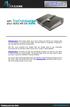 TheDataLocker online backup allows you to store, backup and retrieve any computer data over the internet to a secured remote system. Its main function is to generate a duplicate of your important files
Importing Contacts to Outlook
 Importing Contacts to Outlook 1. The first step is to create a file of your contacts from the National Chapter Database. 2. You create this file under Reporting, Multiple. You will follow steps 1 and 2
Sophos Anti-Virus for Mac OS X Help
 Sophos Anti-Virus for Mac OS X Help For networked and standalone Macs running Mac OS X Product version: 9 Document date: June 2013 Sophos TOC 3 Contents About Sophos Anti-Virus...5 About the Scans window...5
LEARNING RESOURCE CENTRE GUIDE TO OFFICE 365
 LEARNING RESOURCE CENTRE GUIDE TO OFFICE 365 LEARNING RESOURCE CENTRE OCTOBER 2014/2015 Table of Contents Explanation of One Drive and Microsoft Office Online... 3 How to create a document and folder...
How To Restore Your Data On A Backup By Mozy (Windows) On A Pc Or Macbook Or Macintosh (Windows 2) On Your Computer Or Mac) On An Pc Or Ipad (Windows 3) On Pc Or Pc Or Micro
 Online Backup by Mozy Restore Common Questions Document Revision Date: June 29, 2012 Online Backup by Mozy Common Questions 1 How do I restore my data? There are five ways of restoring your data: 1) Performing
Web Mail Classic Web Mail
 April 14 Web Mail Classic Web Mail Version 2.2 Table of Contents 1 Technical Requirements... 4 2 Accessing your Web Mail... 4 3 Web Mail Features... 5 3.1 Home... 5 3.1.1 Mailbox Summary... 5 3.1.2 Announcements...
A computer running Windows Vista or Mac OS X
 lab File Management Objectives: Upon successful completion of Lab 2, you will be able to Define the terms file and folder Understand file and memory storage capacity concepts including byte, kilobyte,
Stores copies of items you sent to others, by default. Stores items created offline that you want to send the next time you are online
 Outlook Folders: All new messages are stored in Inbox unless rules are created. Stores copies of items you sent to others, by default Stores temporarily deleted items until you permanently delete or retrieve
7. Data Packager: Sharing and Merging Data
 7. Data Packager: Sharing and Merging Data Introduction The Epi Info Data Packager tool provides an easy way to share data with other users or to merge data collected by multiple users into a single database
Junk E-mail Settings. Options
 Outlook 2003 includes a new Junk E-mail Filter. It is active, by default, and the protection level is set to low. The most obvious junk e-mail messages are caught and moved to the Junk E-Mail folder. Use
Using the TI-Nspire Computer Link Software
 Using the TI-Nspire Computer Link Software The TI-Nspire Computer Link Software lets you do the following: Transfer documents between your computer and a TI-Nspire handheld. Install a Chinese-English dictionary
EXCEL PIVOT TABLE David Geffen School of Medicine, UCLA Dean s Office Oct 2002
 EXCEL PIVOT TABLE David Geffen School of Medicine, UCLA Dean s Office Oct 2002 Table of Contents Part I Creating a Pivot Table Excel Database......3 What is a Pivot Table...... 3 Creating Pivot Tables