
EMC NetWorker Release 7.6 Service Pack 2
|
|
|
- Sharlene Watts
- 10 years ago
- Views:
Transcription
1 EMC NetWorker Release 7.6 Service Pack 2 Cluster Installation Guide P/N REV A04 EMC Corporation Corporate Headquarters: Hopkinton, MA

2 Copyright 2010 EMC Corporation. All rights reserved. Published June, 2011 EMC believes the information in this publication is accurate as of its publication date. The information is subject to change without notice. THE INFORMATION IN THIS PUBLICATION IS PROVIDED AS IS. EMC CORPORATION MAKES NO REPRESENTATIONS OR WARRANTIES OF ANY KIND WITH RESPECT TO THE INFORMATION IN THIS PUBLICATION, AND SPECIFICALLY DISCLAIMS IMPLIED WARRANTIES OF MERCHANTABILITY OR FITNESS FOR A PARTICULAR PURPOSE. Use, copying, and distribution of any EMC software described in this publication requires an applicable software license. For the most up-to-date listing of EMC product names, see EMC Corporation Trademarks on EMC.com. All other trademarks used herein are the property of their respective owners. 2 EMC NetWorker Release 7.6 Service Pack 2 Cluster Installation Guide

3 Contents Preface Chapter 1 Chapter 2 Introduction About the NetWorker product NetWorker client NetWorker storage node NetWorker server NetWorker Management Console Supported devices Enabler codes EMC AutoStart for Microsoft Windows Installation Software installation roadmap Installation requirements Software requirements Hardware requirements Configuration options System information requirements Update the NetWorker software Install a NetWorker virtual server Task 1: Ensure that the EMC AutoStart software is installed Task 2: Install the NetWorker software in a cluster Task 3: Promote at least one secondary cluster node to primary Task 4: Create the resource that will become the managed shared disk.. 22 Task 5: Define the NetWorker server as highly available Task 6: Configure the NetWorker virtual server Task 7: Configure the clients of the NetWorker cluster server Task 8: Register NetWorker licenses for cluster server failover Install only the NetWorker client software in a cluster Task 1: Install the NetWorker cluster client software Task 2: Configure NetWorker client software as cluster aware Uninstall the NetWorker software Configure the NetWorker virtual server with a backup device Troubleshoot the NetWorker software Set the shutdown wait timeout values NetWorker virtual server fails to start nsrmmd NetWorker server fails to back up a virtual cluster client Roll back changes to the cluster configuration file EMC NetWorker Release 7.6 Service Pack 2 Cluster Installation Guide 3

4 Contents Chapter 3 Chapter 4 EMC AutoStart for UNIX Installation Software installation roadmap Installation requirements Software requirements Hardware requirements Configuration options System information requirements Install a NetWorker virtual server Task 1: Ensure that the AutoStart software is installed Task 2: Install the NetWorker software in a cluster Task 3: Define the NetWorker server as highly available Task 4: Grant access to the NetWorker virtual server Task 5: Configure the NetWorker server Task 6: Configure clients under the NetWorker virtual server Task 7: Register NetWorker licenses for virtual server failover Install a virtual NetWorker Console server Task 1: Install the NetWorker Management software in a cluster Task 2: Define the NetWorker Console server as highly available Install only the NetWorker client software in a cluster Task 1: Install the NetWorker cluster client software Task 2: Configure the NetWorker client software as cluster aware Task 3: Define the list of trusted NetWorker servers Task 4: Configure clients under the NetWorker server Uninstall the NetWorker software AIX Version HP-UX version Linux version Solaris version Configure an external client to back up to a virtual server Define ownership of a raw partition for virtual clients HACMP for AIX Installation Software installation roadmap Installation requirements Software requirements Hardware requirements Configuration options System information requirements Install a NetWorker virtual server Task 1: Install the NetWorker software in a cluster Task 2: Define the server as highly available Task 3: Define an HACMP for AIX NetWorker server Task 4: Grant access to the NetWorker virtual server Task 5: Configure the NetWorker cluster server Task 6: Configure clients under the NetWorker cluster server Task 7: Register NetWorker licenses for virtual server failover Install only the NetWorker client software in a cluster Task 1: Install the NetWorker cluster client software Task 2: Configure the NetWorker client software as cluster aware Task 3: Define the list of trusted NetWorker servers Task 4: Configure clients under the NetWorker server EMC NetWorker Release 7.6 Service Pack 2 Cluster Installation Guide
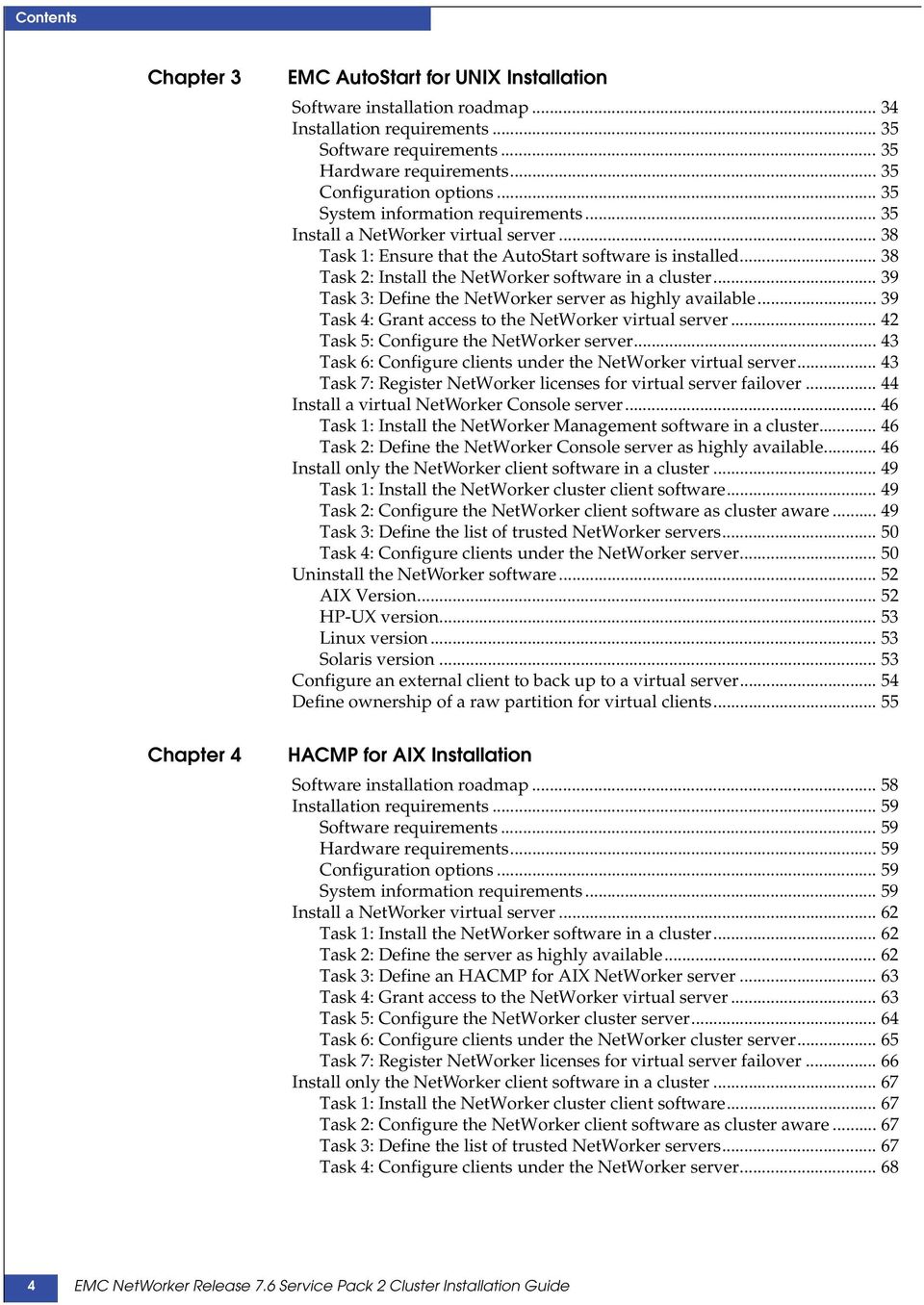
5 Contents Contents Uninstall the NetWorker software Configure an external client to a virtual server Schedule saves for raw volumes Track scheduled saves Chapter 5 Chapter 6 MC/ServiceGuard and/or MC/LockManager Installation Software installation roadmap Installation requirements Software requirements Hardware requirements System information requirements Install the NetWorker server as highly available Task 1: Install the NetWorker software within a cluster Task 2: Create the NetWorker.clucheck file Task 3: Configure the.nsr_cluster file Task 4: Define NetWorker software as highly available Task 5: Define the list of trusted NetWorker servers Task 6: Configure the cluster server Task 7: Make a cluster node a client of the NetWorker cluster server Task 8: Register NetWorker licenses for cluster server failover VxVM on HP ServiceGuard clusters Install only the NetWorker client software in a cluster Task 1: Install the NetWorker cluster client software Task 2: Create the NetWorker.clucheck file Task 3: Configure the.nsr_cluster file Task 4: Define the list of trusted NetWorker servers Task 5: Make a cluster node a client of the NetWorker server Uninstall the NetWorker software Track scheduled saves Microsoft Cluster Server (MSCS) Installation Cluster terminology Installation requirements Update the NetWorker software Install the NetWorker server Install a NetWorker server for noncluster mode Install a NetWorker server for cluster mode Configure a backup device for the NetWorker virtual server Define a cluster node as a storage node Move the NetWorker server to another node Register NetWorker licenses for cluster failover Restart the NetWorker server services Install only the NetWorker client software in a cluster Uninstall the NetWorker software from MSCS Uninstall the software from all the nodes in the cluster Uninstall the software from only one node in the cluster Troubleshoot the NetWorker software in the MSCS environment NetWorker virtual server fails to start nsrmmd NetWorker server fails to back up a virtual cluster client NetWorker services fail to start in an MSCS environment Chapter 7 Microsoft Failover Cluster on Windows Server 2008 Installation requirements EMC NetWorker Release 7.6 Service Pack 2 Cluster Installation Guide 5

6 Contents Update the NetWorker software Install the NetWorker software in a Microsoft Failover Cluster Install a NetWorker server as a highly available application Install only the NetWorker client software Uninstall the NetWorker software in a Microsoft Failover Cluster Chapter 8 Chapter 9 Sun Cluster Version 3.0, 3.1, or 3.2 Installation Software installation roadmap Installation requirements Software requirements Hardware requirements Configuration options System information requirements Update from a previous release of the software Install the NetWorker software in a cluster Install a NetWorker virtual server Install a virtual NetWorker Console server Install only the NetWorker client software in a cluster Install the NetWorker software in a zone cluster Install NetWorker software in a whole root zone cluster Install the NetWorker software in a sparse root zone cluster Uninstall the NetWorker software Configure an external client to a virtual server Define ownership of a raw partition for virtual clients VERITAS Cluster Server Installation Cluster configuration Software requirements Install the NetWorker server in a cluster Task 1: Install the NetWorker software Task 2: Define the NetWorker server as a highly available application. 165 Task 3: Define a NetWorker service group Task 4 (Optional): Create a NetWorker Client resource instances Task 5: Grant access to the highly available NetWorker server Task 6: Configure the NetWorker virtual server Task 7: Configure clients under the NetWorker virtual server Task 8: Register licenses for the highly available NetWorker server Task 9: Authorize the software Install only the NetWorker client software in a cluster Task 1: Install the NetWorker cluster client software Task 2: Configure NetWorker client software as cluster aware Task 3 (Optional): Create NetWorker Client resource instances Task 4: Define the list of trusted NetWorker servers Task 5: Configure clients under the NetWorker server Tracking scheduled saves Uninstall the NetWorker software Uninstall the software on Solaris and Linux Uninstall the software on Windows EMC NetWorker Release 7.6 Service Pack 2 Cluster Installation Guide

7 Preface As part of an effort to improve and enhance the performance and capabilities of its product lines, EMC periodically releases revisions of its hardware and software. Therefore, some functions described in this document may not be supported by all versions of the software or hardware currently in use. For the most up-to-date information on product features, refer to your product release notes. If a product does not function properly or does not function as described in this document, please contact your EMC representative. Audience This document is part of the NetWorker documentation set and is intended for use by system administrators during the installation and setup of NetWorker softwarein a cluster environment. NetWorker product documentation This section describes the additional documentation and information products that are available with NetWorker. EMC NetWorker Release 7.6 Service Pack 2 Installation Guide Contains information related to installation of the NetWorker software on cluster server and clients. EMC NetWorker Release 7.6 Service Pack 2 Administration Guide Describes how configure and maintain the NetWorker software. EMC NetWorker Release 7.6 Service Pack 2 Release Notes Contain information on new features and changes, fixed problems, known limitations, environment and system requirements for the latest NetWorker software release. NetWorker Data Domain Deduplication Devices Integration Guide Provides planning and configuration information on the use of Data Domain devices for data deduplication backup and storage in a NetWorker environment. EMC NetWorker Licensing Guide Provides information about licensing NetWorker products and features. EMC NetWorker License Manager 9th Edition Installation and Administration Guide Provides installation, set up, and configuration information for the NetWorker License Manager product. NetWorker 7.6 Service Pack 2 Error Message Guide Provides information on common NetWorker error messages. EMC NetWorker Release 7.6 Service Pack 2 Cluster Installation Guide 7
8 Preface NetWorker 7.6 Service Pack 2 Performance Optimization Planning Guide Contains basic performance tuning information for NetWorker. NetWorker 7.6 Service Pack 2 Command Reference Guide Provides reference information for NetWorker commands and options. NetWorker Management Console Online Help Describes the day-to-day administration tasks performed in the NetWorker Management Console and the NetWorker Administration window. To view Help, click Help in the main menu. NetWorker User Online Help The NetWorker User program is the Windows client interface. Describes how to use the NetWorker User program which is the Windows client interface connect to a NetWorker server to back up, recover, archive, and retrieve files over a network. NetWorker related documentation For more information about NetWorker software, refer to this documentation: EMC Information Protection Software Compatibility Guide A list of supported client, server, and storage node operating systems for the following software products: AlphaStor, ArchiveXtender, DiskXtender for Unix/Linux, DiskXtender for Windows, Backup Advisor, AutoStart, AutoStart SE, RepliStor, NetWorker, and NetWorker Modules and Options. E-lab Issue Tracker Issue Tracker offers up-to-date status and information on NetWorker known limitations and fixed bugs that could impact your operations. E-Lab Issue Tracker Query allows you to find issues in the Issue Tracker database by matching issue number, product feature, host operating system, fixed version, or other fields. NetWorker Procedure Generator The NetWorker Procedure Generator (NPG) is a stand-alone Windows application used to generate precise user driven steps for high demand tasks carried out by customers, Support and the field. With the NPG, each procedure is tailored and generated based on user-selectable prompts. This generated procedure gathers the most critical parts of NetWorker product guides and combines experts' advice into a single document with a standardized format. Note: To access the E-lab Issue Tracker or the NetWorker Procedure Generator, go to You must have a service agreement to use this site. Technical Notes and White Papers Provides an in-depth technical perspective of a product or products as applied to critical business issues or requirements. Technical Notes and White paper types include technology and business considerations, applied technologies, detailed reviews, and best practices planning. Conventions used in this document EMC uses the following conventions for special notices. Note: A note presents information that is important, but not hazard-related. IMPORTANT An important notice contains information essential to operation of the software. 8 EMC NetWorker Release 7.6 Service Pack 2 Cluster Installation Guide

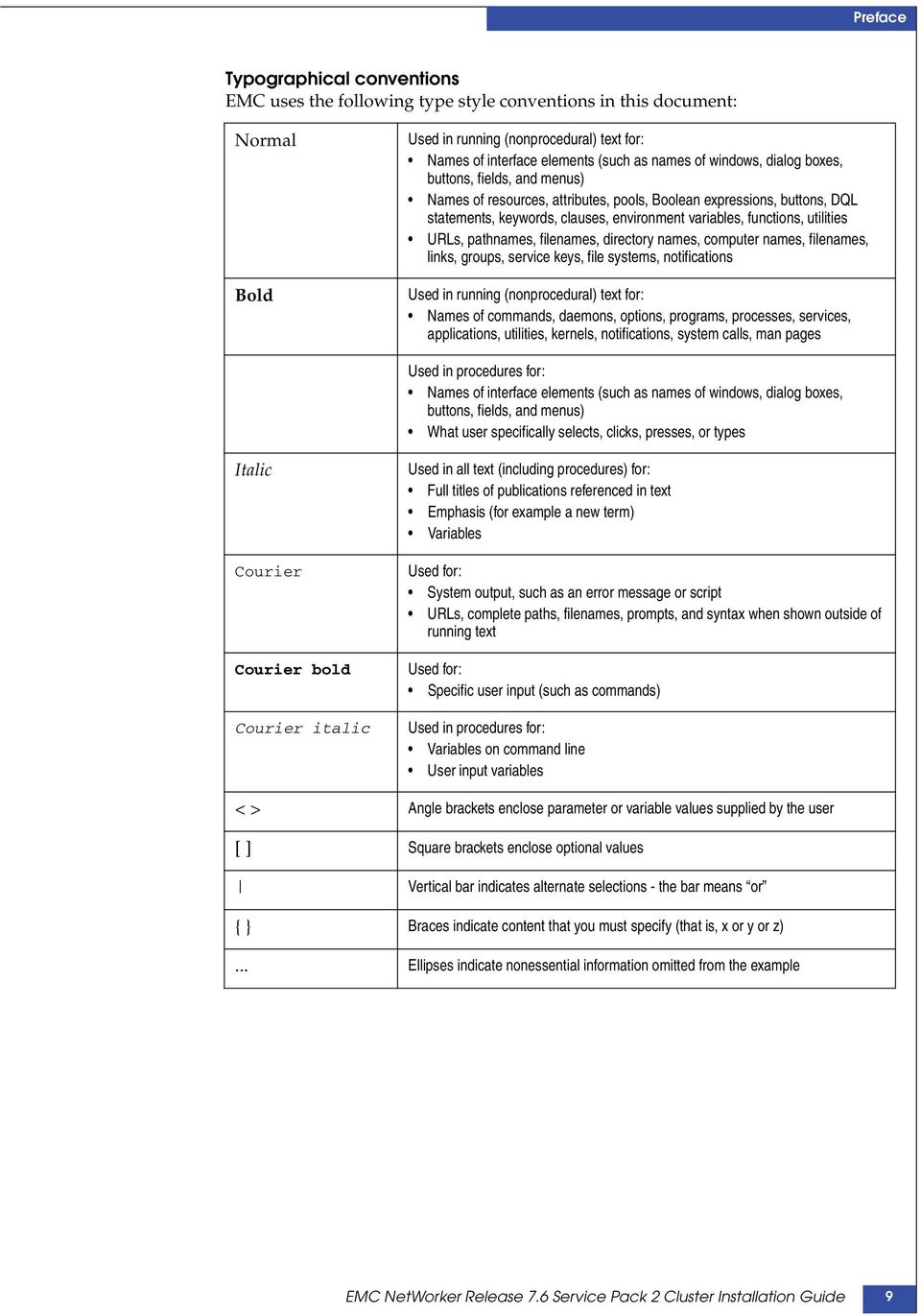
9 Preface Typographical conventions EMC uses the following type style conventions in this document: Normal Bold Used in running (nonprocedural) text for: Names of interface elements (such as names of windows, dialog boxes, buttons, fields, and menus) Names of resources, attributes, pools, Boolean expressions, buttons, DQL statements, keywords, clauses, environment variables, functions, utilities URLs, pathnames, filenames, directory names, computer names, filenames, links, groups, service keys, file systems, notifications Used in running (nonprocedural) text for: Names of commands, daemons, options, programs, processes, services, applications, utilities, kernels, notifications, system calls, man pages Used in procedures for: Names of interface elements (such as names of windows, dialog boxes, buttons, fields, and menus) What user specifically selects, clicks, presses, or types Italic Courier Courier bold Courier italic Used in all text (including procedures) for: Full titles of publications referenced in text Emphasis (for example a new term) Variables Used for: System output, such as an error message or script URLs, complete paths, filenames, prompts, and syntax when shown outside of running text Used for: Specific user input (such as commands) Used in procedures for: Variables on command line User input variables < > Angle brackets enclose parameter or variable values supplied by the user [ ] Square brackets enclose optional values Vertical bar indicates alternate selections - the bar means or { } Braces indicate content that you must specify (that is, x or y or z)... Ellipses indicate nonessential information omitted from the example EMC NetWorker Release 7.6 Service Pack 2 Cluster Installation Guide 9
10 Preface Where to get help EMC support, product, and licensing information can be obtained as follows. Product information For documentation, release notes, software updates, or for information about EMC products, licensing, and service, go to the EMC Powerlink website (registration required) at: Technical support For technical support, go to EMC Customer Service on Powerlink. To open a service request through Powerlink, you must have a valid support agreement. Please contact your EMC sales representative for details about obtaining a valid support agreement or to answer any questions about your account. Your comments Your suggestions will help us continue to improve the accuracy, organization, and overall quality of the user publications. Please send your opinion of this document to: [email protected] If you have issues, comments, or questions about specific information or procedures, please include the title and, if available, the part number, the revision (for example, A01), the page numbers, and any other details that will help us locate the subject you are addressing. 10 EMC NetWorker Release 7.6 Service Pack 2 Cluster Installation Guide

11 1 Introduction This chapter includes these sections: About the NetWorker product Supported devices Enabler codes Introduction 11
12 Introduction About the NetWorker product The EMC NetWorker product is a suite of storage management software that provides backup, recovery, and other services to computers with a wide variety of operating systems and data types. NetWorker products for different operating systems are interoperable. This provides the flexibility to design a storage management system that works best with the current computing environment. The NetWorker software is distributed in these formats: In a media kit that contains the software and electronic documentation for several related NetWorker products. As a downloadable archive file from the EMC website. The NetWorker product has these components: NetWorker client NetWorker storage node NetWorker server NetWorker Management Console NetWorker client The NetWorker client software communicates with the NetWorker server and provides recover and ad hoc (manual) backup functionality. The NetWorker client software is installed on all computers that are backed up to the NetWorker server. NetWorker storage node Data can be backed up directly to devices that are attached to a NetWorker server, or to a NetWorker storage node. A storage node controls storage devices such as tape drivers, autochangers, and silos. Storage nodes depend on the NetWorker server for these functions: Control over which clients use the storage node s devices for backups License management Management of the client file indexes that track each client s data Management of the media database that tracks the data on each volume NetWorker storage nodes and the NetWorker server can use different operating systems. To use a NetWorker storage node on a Linux operating system with a NetWorker server that is running another operating system, the storage node s enabler on the server must be of the same edition as the base enabler for the NetWorker server. 12 EMC NetWorker Release 7.6 Service Pack 2 Cluster Installation Guide

13 Introduction NetWorker server The NetWorker server software provides control and scheduling for NetWorker operations. It enables you to: Enter the enabler licenses for the NetWorker server and all the functions the NetWorker server controls, such as autochanger modules and additional client connections licenses. Define the clients, devices, and media that the NetWorker server controls. Define the schedules for backups and other operations. Monitor the results of backups and other operations. Manage the client file indexes that track each client s data. Manage the media database that tracks the data contained on each volume. NetWorker Management Console All NetWorker servers and clients are managed from the NetWorker Management Console. The Console replaces the NetWorker Administration program (nwadmin) which is no longer available. To administer NetWorker servers, the Console must be: Installed on an AIX, HP-UX, Linux, Solaris, or Microsoft Windows host. Accessed through a graphical user interface on the host with a web-enabled browser that has the specified version of Java Runtime configured. The Console provides reporting, managing, and monitoring capabilities for all NetWorker servers and clients. Multiple users can access the Console server concurrently from different browser sessions. A computer that hosts the web-enabled browser can also be a NetWorker client, server, or storage node About the NetWorker product 13
14 Introduction.Supported devices NetWorker software supports a variety of media types and devices, either stand-alone or in an autochanger or silo tape library. Devices can be attached to a NetWorker server or designated storage node. The term autochanger refers to a variety of backup devices: Autoloader Carousel Datawheel Jukebox Library Near-line storage The EMC Information Protection Software Compatibility Guide provides the latest list of supported devices. NetWorker cluster services In cluster setups on all supported cluster platforms, the cluster services must be running before the the NetWorker services start. When the cluster services start after Networker, the NetWorker software will exhibit undesirable behaviour. Enabler codes Enabler codes (licenses), which activate the functionality of NetWorker software, are generally sold separately. The NetWorker 7.6 Service Pack 1 License Guide provides information. 14 EMC NetWorker Release 7.6 Service Pack 2 Cluster Installation Guide
15 2 EMC AutoStart for Microsoft Windows Installation This chapter includes these sections: Software installation roadmap Installation requirements Update the NetWorker software Install a NetWorker virtual server Install only the NetWorker client software in a cluster Uninstall the NetWorker software Configure the NetWorker virtual server with a backup device Troubleshoot the NetWorker software EMC AutoStart for Microsoft Windows Installation 15

16 EMC AutoStart for Microsoft Windows Installation Software installation roadmap Use the following roadmap when installing the NetWorker software: 1. Review Installation requirements on page 16 and note the default directory location. 2. Install the required NetWorker software by following one of these procedures: Install a NetWorker virtual server on page 19 Install only the NetWorker client software in a cluster on page Enable and register all of the NetWorker products. More information is available in the NetWorker Licensing Guide. Installation requirements This section specifies the software and hardware required to install and configure the NetWorker server or client software within an AutoStart TM cluster environment. The EMC Information Protection Software Compatibility Guide provides the most up-to-date software and hardware requirements. Software requirements Cluster server The following software must be installed on each node in the cluster: Software requirements on page 16 Hardware requirements on page 17 Configuration options on page 17 System information requirements on page 17 This software must be installed on the cluster server: Windows 2003 Server/Advanced Server (latest Service Pack installed) or later EMC AutoStart release 5.1 or later Dedicated shared disk to be used as the NetWorker storage disk (for the nsr folder) connected to all the nodes within the cluster Device with local affinity for the local bootstrap backup Note: Ensure that the most recent cluster patch for the operating system is installed. Cluster client This software must be installed on the private disk of each node in the cluster: Windows 2003 Server/Advanced Server (latest Service Pack installed) or later EMC AutoStart release 5.1 or later 16 EMC NetWorker Release 7.6 Service Pack 2 Cluster Installation Guide
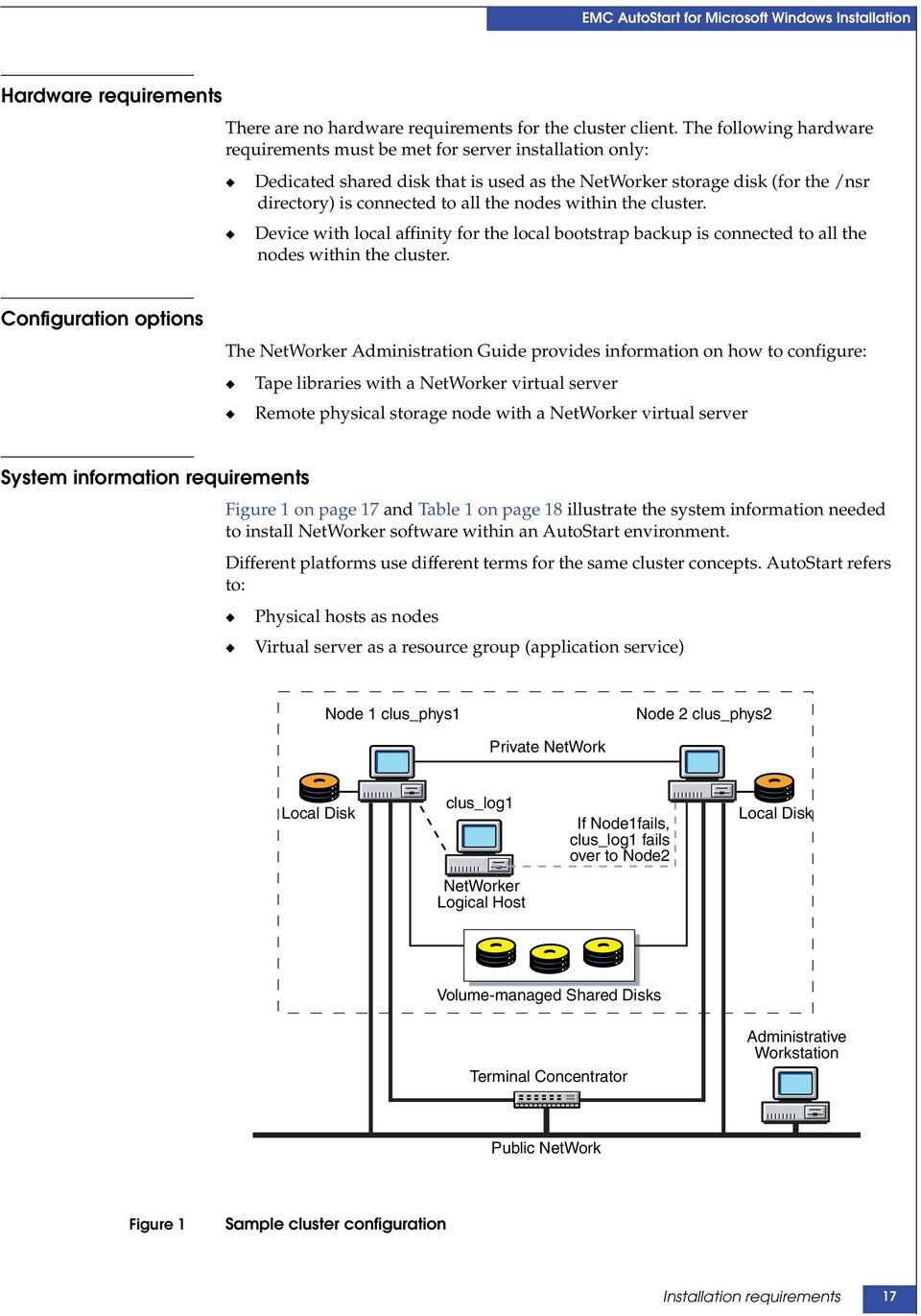
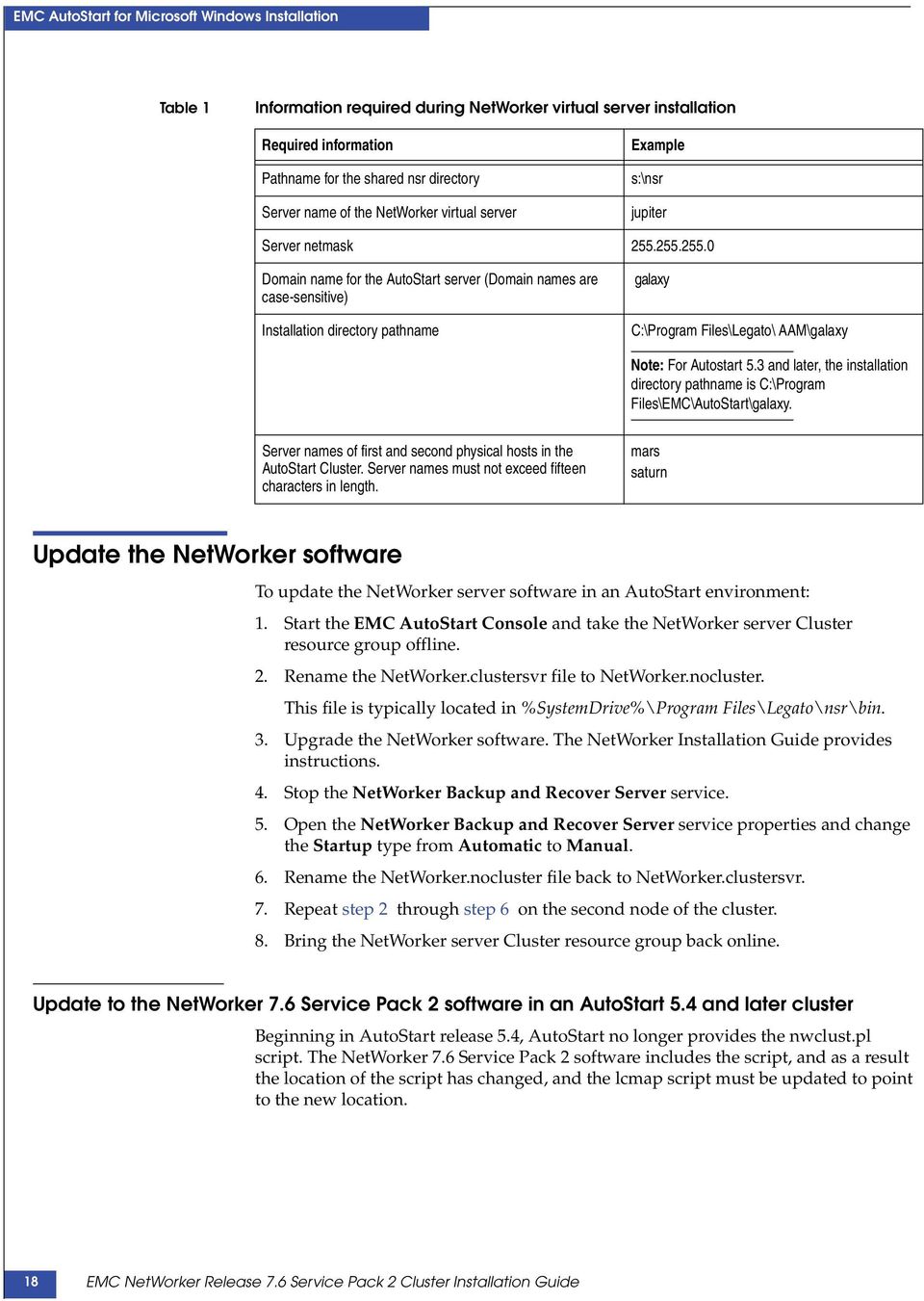
17 EMC AutoStart for Microsoft Windows Installation Hardware requirements There are no hardware requirements for the cluster client. The following hardware requirements must be met for server installation only: Dedicated shared disk that is used as the NetWorker storage disk (for the /nsr directory) is connected to all the nodes within the cluster. Device with local affinity for the local bootstrap backup is connected to all the nodes within the cluster. Configuration options The NetWorker Administration Guide provides information on how to configure: Tape libraries with a NetWorker virtual server Remote physical storage node with a NetWorker virtual server System information requirements Figure 1 on page 17 and Table 1 on page 18 illustrate the system information needed to install NetWorker software within an AutoStart environment. Different platforms use different terms for the same cluster concepts. AutoStart refers to: Physical hosts as nodes Virtual server as a resource group (application service) Node 1 clus_phys1 Node 2 clus_phys2 Private NetWork Local Disk clus_log1 If Node1fails, clus_log1 fails over to Node2 Local Disk NetWorker Logical Host Volume-managed Shared Disks Terminal Concentrator Administrative Workstation Public NetWork Figure 1 Sample cluster configuration Installation requirements 17
18 EMC AutoStart for Microsoft Windows Installation Table 1 Information required during NetWorker virtual server installation Required information Pathname for the shared nsr directory Server name of the NetWorker virtual server Example s:\nsr jupiter Server netmask Domain name for the AutoStart server (Domain names are case-sensitive) Installation directory pathname galaxy C:\Program Files\Legato\ AAM\galaxy Note: For Autostart 5.3 and later, the installation directory pathname is C:\Program Files\EMC\AutoStart\galaxy. Server names of first and second physical hosts in the AutoStart Cluster. Server names must not exceed fifteen characters in length. mars saturn Update the NetWorker software To update the NetWorker server software in an AutoStart environment: 1. Start the EMC AutoStart Console and take the NetWorker server Cluster resource group offline. 2. Rename the NetWorker.clustersvr file to NetWorker.nocluster. This file is typically located in %SystemDrive%\Program Files\Legato\nsr\bin. 3. Upgrade the NetWorker software. The NetWorker Installation Guide provides instructions. 4. Stop the NetWorker Backup and Recover Server service. 5. Open the NetWorker Backup and Recover Server service properties and change the Startup type from Automatic to Manual. 6. Rename the NetWorker.nocluster file back to NetWorker.clustersvr. 7. Repeat step 2 through step 6 on the second node of the cluster. 8. Bring the NetWorker server Cluster resource group back online. Update to the NetWorker 7.6 Service Pack 2 software in an AutoStart 5.4 and later cluster Beginning in AutoStart release 5.4, AutoStart no longer provides the nwclust.pl script. The NetWorker 7.6 Service Pack 2 software includes the script, and as a result the location of the script has changed, and the lcmap script must be updated to point to the new location. 18 EMC NetWorker Release 7.6 Service Pack 2 Cluster Installation Guide
19 EMC AutoStart for Microsoft Windows Installation When updating to NetWorker 7.6 Service Pack 2 in an AutoStart 5.4 or later cluster environment, reconfigure the AutoStart cluster to point the generated lcmap script to the correct location of the nwclust.pl script: 1. Run lc_config -r. 2. Run lc_config. The following example shows the generated lcmap script on Windows after the cluster configuration: SET FT_DIR=C:\Program Files\EMC\AutoStart\eas54 SET FT_DOMAIN=eas54 "C:\Program Files\EMC\AutoStart\eas54\bin\ftPerl" "C:\Program Files\Legato\nsr\bin\nwclust.pl" Note: For a new installation of NetWorker 7.6 Service Pack 2, these steps for upgrading do not apply. Install only the NetWorker client software in a cluster on page 25 provides instructions on installing the NetWorker software in an AutoStart cluster environment. Install a NetWorker virtual server To install and configure the NetWorker software as a highly available service in a cluster, complete these tasks: Task 1: Ensure that the EMC AutoStart software is installed on page 19 Task 2: Install the NetWorker software in a cluster on page 20 Task 3: Promote at least one secondary cluster node to primary on page 20 Task 4: Create the resource that will become the managed shared disk on page 20 Task 5: Define the NetWorker server as highly available on page 20 Task 6: Configure the NetWorker virtual server on page 23 Task 7: Configure the clients of the NetWorker cluster server on page 23 Task 8: Register NetWorker licenses for cluster server failover on page 24 Task 1: Ensure that the EMC AutoStart software is installed Ensure that the AutoStart software is installed. The AutoStart documentation provides detailed installation instructions. For EMC AutoStart Release 5.1.2, install this patch: ftp://ftp.legato.com/pub/cluster/patches/5.1/windows /A_WIN_HF_5.1.2_79520.exe Install a NetWorker virtual server 19

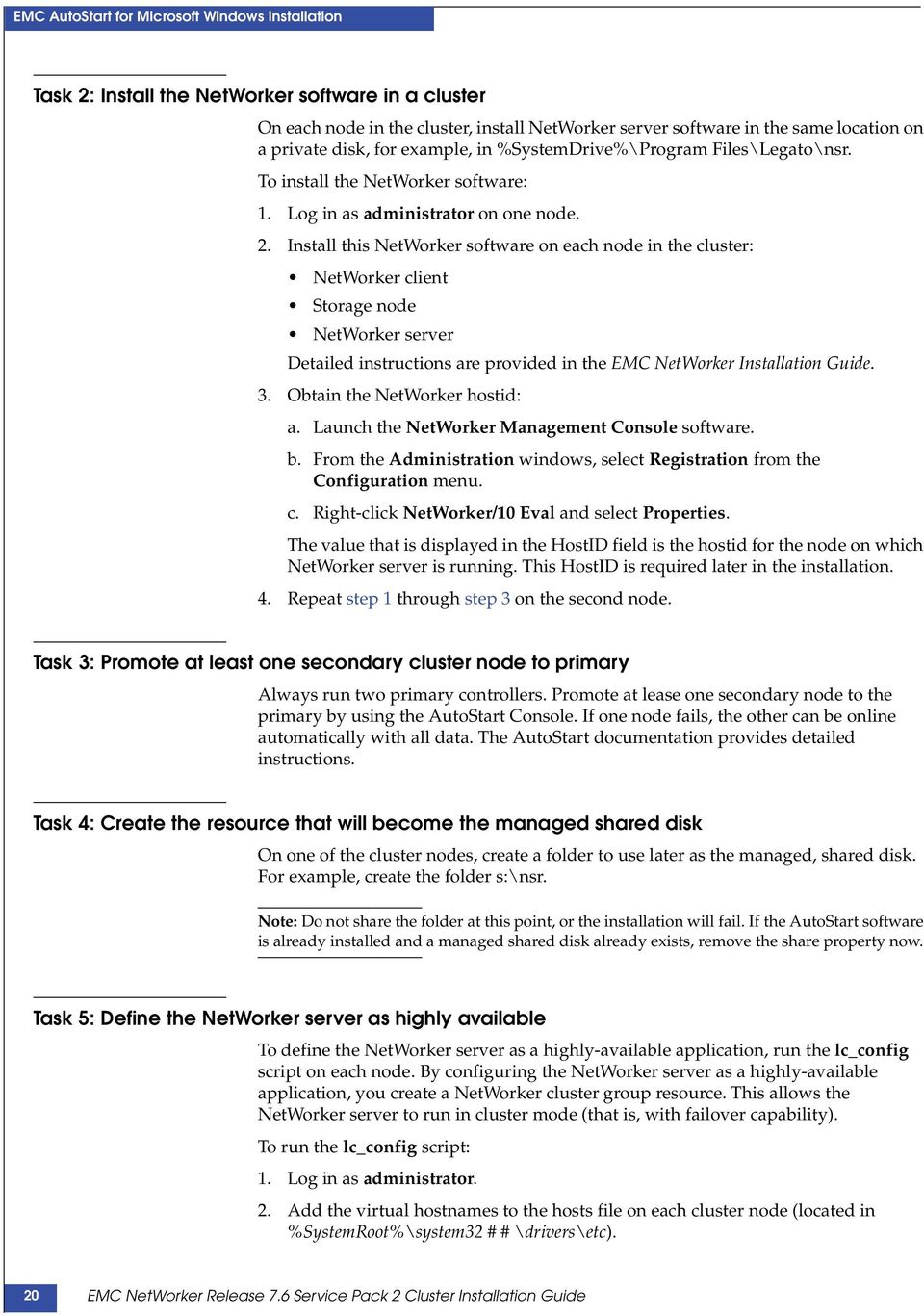
20 EMC AutoStart for Microsoft Windows Installation Task 2: Install the NetWorker software in a cluster On each node in the cluster, install NetWorker server software in the same location on a private disk, for example, in %SystemDrive%\Program Files\Legato\nsr. To install the NetWorker software: 1. Log in as administrator on one node. 2. Install this NetWorker software on each node in the cluster: NetWorker client Storage node NetWorker server Detailed instructions are provided in the EMC NetWorker Installation Guide. 3. Obtain the NetWorker hostid: a. Launch the NetWorker Management Console software. b. From the Administration windows, select Registration from the Configuration menu. c. Right-click NetWorker/10 Eval and select Properties. The value that is displayed in the HostID field is the hostid for the node on which NetWorker server is running. This HostID is required later in the installation. 4. Repeat step 1 through step 3 on the second node. Task 3: Promote at least one secondary cluster node to primary Always run two primary controllers. Promote at lease one secondary node to the primary by using the AutoStart Console. If one node fails, the other can be online automatically with all data. The AutoStart documentation provides detailed instructions. Task 4: Create the resource that will become the managed shared disk On one of the cluster nodes, create a folder to use later as the managed, shared disk. For example, create the folder s:\nsr. Note: Do not share the folder at this point, or the installation will fail. If the AutoStart software is already installed and a managed shared disk already exists, remove the share property now. Task 5: Define the NetWorker server as highly available To define the NetWorker server as a highly-available application, run the lc_config script on each node. By configuring the NetWorker server as a highly-available application, you create a NetWorker cluster group resource. This allows the NetWorker server to run in cluster mode (that is, with failover capability). To run the lc_config script: 1. Log in as administrator. 2. Add the virtual hostnames to the hosts file on each cluster node (located in %SystemRoot%\system32 # # \drivers\etc). 20 EMC NetWorker Release 7.6 Service Pack 2 Cluster Installation Guide
21 EMC AutoStart for Microsoft Windows Installation 3. Ensure that all node names to be used in the cluster, both the physical nodes and the virtual nodes, can be resolved using DNS. To verify that the node names can be resolved by using DNS, type: nslookup node_name 4. Start the NetWorker Backup and Recover Server services. Note: If you are upgrading NetWorker software or reinstalling after a partial uninstall of the NetWorker software, the lc_config script prompts for a command to keep, rename or delete each of the old server configuration files. It is safe to delete the old files. To delete a file, type d when prompted. After you finish typing the choices for each of the old configuration files, continue with step Run the lc_config script. When the lc_config script runs, you are prompted to type the information listed in Table 1 on page 18. lc_config C:\Program Files\Legato\nsr\bin>lc_config Checking for C:\Program Files\Legato\nsr\bin\lcmap.bat Checking for C:\Program Files\Legato\nsr\bin\NetWorker.clustersvr Enter shared nsr dir:s:\nsr Enter the Legato Cluster domain name:galaxy Enter the directory in which your Legato Cluster software is installed (typically something like C:\galaxy): C:\Program Files\Legato AAM\galaxy 6. Type y to confirm that the information is correct. If required to make corrections, type n. When lc_config script runs again, retype the information. You entered the following data: Nsr Dir = s:\nsr, Legato Cluster domain = galaxy Legato Cluster software location = C:\Program Files\Legato AAM\galaxy Is this OK [y/n]y 7. Stop the NetWorker Backup and Recover Server services. 8. Edit the nw_nt.aam5.imp file and modify these fields: Virtual hostname Physical cluster node names Shared drive letter The #NW customise label tag appears before each field that requires modification. 9. On one node only, go to %SystemDrive%\Program Files\Legato\nsr\bin and run the following command. For example, if the AutoStart domain name is galaxy, type: C:\Program Files\Legato AAM\galaxy\bin\ftcli -d galaxy -c "import nw_nt.lc.imp" Install a NetWorker virtual server 21
22 EMC AutoStart for Microsoft Windows Installation This information is displayed: C:\Program Files\Legato\nsr\bin>"C:\Program Files\Legato AAM\galaxy\bin\ftcli" -domain galaxy -c "import nw_nt.aam5.imp"ip Address "guiro" Created Process Class "nsrd" Created Process "NSRserver" Created Configuration "NSRserver" Created Process Class "nsrexecd" Created Process "NSRexecd" Created Configuration "NSRexecd" Created Data Source "networker_ds" Created Resource Group "networker" Created OK 10. Use the AutoStart Console to: a. Verify that the NetWorker Server resource was created. b. Share the managed shared disk (for example, s:\nsr). c. Bring the NetWorker virtual server online. d. Select the disk to be used for NetWorker virtual server storage and set the disk to be managed as a shared storage for each physical node in the cluster. 11. For each physical node in the cluster, ensure that the AutoStart Console user account, NT AUTHORITY\SYSTEM is included in the valid user list with administrator access. 12. Ensure that the value of the environment variable for the administrator user FT_DOMAIN is set to the AutoStart domain name. 13. From one node in the cluster: a. Log in as administrator. b. Ensure that the data source for the NetWorker virtual server is managed by the AutoStart Management Console. The data source for the NetWorker virtual server is defined as networker_ds in the NetWorker resource group. c. Run this script from the directory where the NetWorker software was installed: nwinst.bat The AutoStart documentation provides instructions on using the AutoStart Console. IMPORTANT AutoStart warning messages are generated when running the nwinst.bat script. The messages do not indicate that any AutoStart functionality is affected, and should be ignored. This is an example of an Autostart warning message: Connecting to AutoStart domain autostar...backbone warning on primrose (pid 135) Wed Mar 31 01:52: in ISIS_MGT_INTERCL_MODULE.\cl_inter.c/intercl_accept(), line 1927 ID Intercl IO Queue NULL/IO_DEAD calling resurrect. Process from=1/612 nd dest=1/1352. Backbone warning on primrose (pid 1352) Wed Mar 31 01:52: in 22 EMC NetWorker Release 7.6 Service Pack 2 Cluster Installation Guide
23 EMC AutoStart for Microsoft Windows Installation ISIS_MGT_INTERCL_MODULE.\cl_inter.c/intercl_accept(), line 1927 ID Intercl IO Queue NULL/IO_DEAD calling resurrect. Process from=2/1868 and dest=1/1352. Task 6: Configure the NetWorker virtual server To configure the NetWorker server: 1. Log in as administrator on the cluster node that is currently running the NetWorker server resource group. 2. Start the NetWorker Console software. 3. From the Administration window, select Properties from the File menu. a. For the Administrator attribute, add entries for any cluster nodes that are not already listed. For example: b. Click Ok. Note: To restrict the set of NetWorker servers that can back up a particular client, edit the nsr\res\servers file and add the NetWorker virtual host as well as each cluster node to the list of servers. Task 7: Configure the clients of the NetWorker cluster server To configure each client under the NetWorker server: 1. (Optional) Define save groups. Note: In order for their save sets to restart after a virtual client or NetWorker server failover, save groups must have the Autorestart attribute enabled and the Manual Restart option disabled. 2. Make each physical client within the cluster a client of the NetWorker server. For each physical client in the cluster: a. Create a new NetWorker client. b. For the Name attribute, type the name of the physical client. 3. Make each virtual client within the cluster a client of the virtual NetWorker server. For each virtual client in the cluster: a. Create a new NetWorker client. b. For the Name attribute, type the name of the virtual client. c. For the Remote Access attribute, add entries for each physical client within the cluster. For example: root@clus_phys1 d. For the Group attribute, select a group. Install a NetWorker virtual server 23
24 EMC AutoStart for Microsoft Windows Installation The first time the NetWorker application runs, it creates the Client resource for the NetWorker virtual server. The NetWorker administration guide provides information. 4. Verify that the Client and Group resources are properly configured by running a test probe. On the node where the NetWorker server resides, run this command: savegrp -pv -c client_name group_name If this test does not display the expected scheduled backups and index, create an empty file named pathownerignore in the directory where the NetWorker savefs command is installed. This allows a valid save set on a NetWorker client to be scheduled for backup. For example: On each node of the cluster, type: echo NUL: networker_bin_dir\pathownerignore Note: A NetWorker scheduled save might use a default rather than a specified client index name. To override this default, run a manual save with the -c option: save -c client_name To restrict the set of NetWorker servers that can back up a particular client, edit the %SystemDrive%\Program Files\Legato\nsr\res\servers file and add the NetWorker virtual host as well as each cluster node to the list of servers. After the client configuration is complete: The NetWorker cluster server uses the IP address of the NetWorker virtual host regardless of which cluster node currently masters the NetWorker virtual server. The NetWorker cluster server takes the identity of the NetWorker virtual server s hostname regardless of which cluster node is currently running the NetWorker service. The first time NetWorker software runs, it creates the client resource for the NetWorker virtual host. Client resources must be created manually for any cluster node to be backed up by the NetWorker virtual host. Task 8: Register NetWorker licenses for cluster server failover To register NetWorker licenses for cluster failover: 1. Ensure that the NetWorker virtual server is defined as part of a cluster. 2. Ensure that the NetWorker service is running. 3. Log in to the cluster node on which the NetWorker virtual server is running. 4. Create a file named hostids in the nsr\res directory. 5. Open the hostids file and add one line. For hostid values, use the NetWorker hostids values that were derived in Task 2: Install the NetWorker software in a cluster on page 20. hostid1:hostid2 6. Restart the NetWorker virtual server by taking it offline and then bringing it back online. 7. Register the NetWorker software for permanent use. More information is available in the NetWorker Licensing Guide. 24 EMC NetWorker Release 7.6 Service Pack 2 Cluster Installation Guide
25 EMC AutoStart for Microsoft Windows Installation Install only the NetWorker client software in a cluster To install NetWorker cluster client, read and follow the procedures for these tasks: Task 1: Install the NetWorker cluster client software on page 25 Task 2: Configure NetWorker client software as cluster aware on page 25 Note: Make sure the NetWorker client software is installed on every node to be backed up in the cluster. Task 1: Install the NetWorker cluster client software To install the NetWorker client software on each node in the cluster: 1. Ensure that the operating system is updated with the most recent cluster patch. 2. For AutoStart Release 5.1.2, you must install patch A_WIN_HF_5.1.2_79520.exe available on Powerlink. 3. Install the NetWorker client software on the physical disk of each node in the cluster to be backed up. More information is available in the NetWorker Licensing Guide. Task 2: Configure NetWorker client software as cluster aware To configure the NetWorker client software as cluster aware: 1. Make each physical client within the cluster a client of the NetWorker server. For each physical client in the cluster: a. Create a new client. b. For the Name attribute, type the name of the physical client. Note: If a physical Client is backed up to a NetWorker server outside the cluster, the name of any virtual service that can run on the physical node must be added to the Remote Access list of the physical Client resource. 2. Add the virtual hostnames to the hosts file on each cluster node (located in %SystemRoot%\system32 # # \drivers\etc). 3. Make each virtual client within the cluster a client of the NetWorker server. For each virtual client in the cluster: a. Create a new client. b. For the Name attribute, type the name of the NetWorker server. c. For the Remote Access attribute, add entries for each physical client within the cluster. For example: root@clus_phys1 d. For the Group attribute, select a group. 4. Schedule backups by using the NetWorker application. Install only the NetWorker client software in a cluster 25
26 EMC AutoStart for Microsoft Windows Installation 5. On each node in the cluster, run the cluster configuration program lc_config. a. Log in as administrator on each node. b. Run the lc_config program: lc_config Note: When prompted for the shared nsr directory, you can leave the field blank. c. Type y to confirm the information. 6. For each physical node in the cluster, ensure that the AutoStart Console user account, NT AUTHORITY\SYSTEM is included in the valid user list with administrator access. Uninstall the NetWorker software To uninstall the NetWorker software from an AutoStart environment: 1. Take the NetWorker Resource Group offline. 2. Select and delete the NetWorker Resource Group from the Current Resource Group list. 3. Select and delete the NSRserver and the NSRexecd services. 4. Select and delete the networker_ds resource. 5. Select and delete the NetWorker virtual server IP Address. 6. On each node in the cluster: a. Log in as administrator on the computer from which the software is being removed. b. Undo all changes to the configuration by running the following: lc_config.exe -r 7. Uninstall the NetWorker Server software from each node. The NetWorker Installation Guide provides instructions. Note: If the NetWorker software will be reinstalled to the same location, ensure that the required files are deleted from the /bin subdirectory: NetWorker.clustersvr, lcmap.bat and winst.bat. 26 EMC NetWorker Release 7.6 Service Pack 2 Cluster Installation Guide
27 EMC AutoStart for Microsoft Windows Installation Configure the NetWorker virtual server with a backup device The NetWorker virtual server must be configured with storage node backup devices. The storage nodes that are used by the NetWorker virtual server can be devices attached to a remote system (external to the cluster). They can also be devices connected locally to any of the physical nodes in the cluster. A storage node device can be a stand-alone tape device or an autochanger. The NetWorker Administration Guide provides information about how to configure storage nodes. The NetWorker server requires a local backup device to save the bootstrap and the server indexes. This is the recommended device configuration for a NetWorker virtual server, release 6.0 or later, that is running in a two-node AutoStart cluster: Each cluster node must be defined as a storage node for the NetWorker virtual server. In the AutoStart Console, the Preferences\ Storage Nodes attribute in the NetWorker virtual server Client resource lists the storage nodes that are enabled to store data for the client. Each of the storage nodes must be listed before you can list the nsrserverhost: 1. One cluster node 2. The other cluster node 3. The nsrserverhost Note: The nsrserverhost must always be listed last in each client's storage node list. NetWorker software does not allow the configuration of a storage node on a cluster node that is running the NetWorker server binaries. Consequently, before configuring a cluster node as a storage node, you must move the NetWorker virtual server to another node in the cluster. Configure the NetWorker virtual server with a backup device 27
28 EMC AutoStart for Microsoft Windows Installation Troubleshoot the NetWorker software These sections contain troubleshooting tips for NetWorker software in an AutoStart environment. Set the shutdown wait timeout values To prevent timing problems during failover, perform this procedure to increase the shutdown wait timeout value for the NSRserver service. 1. Start the EMC AutoStart Console and select the domain. 2. Select Resource Groups>NetWorker Resource group. 3. Select the Settings tab. 4. Select NSRserver from the list box and click Edit. 5. Increase the value for the Wait until service is stopped item. NetWorker virtual server fails to start nsrmmd If the NetWorker virtual server fails to start nsrmmd on a NetWorker storage node, the following error messages are sent to the NetWorker server daemon log: 06/08/00 10:00:11 nsrmon #217: connect to nsrexec prog vers 1 on `uranus' failed: RPC error: Remote system error 06/08/00 10:00:11 nsrd: media notice: check storage node: uranus (RPC error: Remote system error) 06/08/00 10:00:11 nsrd: media info: restarting nsrmmd #1 on uranus in 2 minute(s) 06/08/00 10:02:12 nsrd: media info: restarting nsrmmd #1 on uranus now 06/08/00 10:02:42 nsrmon #183: connect to nsrexec prog vers 1 on ` The error might be caused by the NetWorker Remote Exec service not running on the storage node. If the service is not running, do the following to restart the service: 1. Select Services from the Control Panel on the storage node. 2. Restart the service. NetWorker server fails to back up a virtual cluster client If a NetWorker server fails to backup a virtual cluster client, an error message might appear. In this example, these names appear: charon Virtual cluster client running on pluto pluto Physical cluster node neptune NetWorker server 28 EMC NetWorker Release 7.6 Service Pack 2 Cluster Installation Guide
29 EMC AutoStart for Microsoft Windows Installation 06/19/00 12:56:57 nsrd: savegroup alert: test completed, 1 client(s) (charon Failed) charon:q:\: No save sets with this name were found in the media database; performing a full backup * charon:q:\ save: RAP error: Unable to extract resource info for client pluto.legato.com. * charon:q:\ save: Cannot open save session with neptune.legato.com * charon:q:\ 1 retry attempted * charon:q:\: No save sets with this name were found in the media database; performing a full backup * charon:q:\ save: RAP error: Unable to extract resource info for client pluto.legato.com. * charon:q:\ save: Cannot open save session with neptune.legato.com 06/19/00 12:56:57 nsrd: runq: NSR group test exited with return code 1. This error might occur because the NetWorker Client resources for each of the physical nodes in the cluster are missing. In such cases, perform the following to correct the error: 1. Create a Client resources for each physical node in the cluster that is allowed to own the virtual cluster client. 2. Rerun the backup. Roll back changes to the cluster configuration file To roll back changes to the cluster configuration file (lc_config): 1. Take the NetWorker Resource Group offline. 2. Stop the NetWorker Remote Exec service. 3. Delete or rename these files from the NetWorker installation directory: NetWorker.clustersvr lcmap.bat nwinst.bat. 4. From the AutoStart Console, select and delete: NetWorker Resource Group NSRserver NSRexecd services networker_ds data source NetWorker virtual server IP address Troubleshoot the NetWorker software 29
30 EMC AutoStart for Microsoft Windows Installation 30 EMC NetWorker Release 7.6 Service Pack 2 Cluster Installation Guide
31 3 EMC AutoStart for UNIX Installation This chapter includes these sections: Software installation roadmap Installation requirements Update to the NetWorker 7.6 Service Pack 2 software in an AutoStart 5.4 and later cluster Install a virtual NetWorker Console server Install only the NetWorker client software in a cluster Uninstall the NetWorker software Configure an external client to back up to a virtual server Define ownership of a raw partition for virtual clients EMC AutoStart for UNIX Installation 31
32 EMC AutoStart for UNIX Installation Software installation roadmap An EMC AutoStart cluster consists of multiple nodes in a networked configuration and provides additional security with the failover capability. Failover allows another node in the cluster to take over operations from the first node. For information, refer to the AutoStart documentation. Use the following roadmap to follow when installing NetWorker software: 1. Review Installation requirements on page 33 and note the default directory location. 2. Install the required NetWorker software by following one of these procedures: Update to the NetWorker 7.6 Service Pack 2 software in an AutoStart 5.4 and later cluster on page 35 For a new installation of the NetWorker 7.6 Service Pack 2, the steps for updating the software do not apply. Install a NetWorker virtual server on page 36 Install a virtual NetWorker Console server on page 43 Install only the NetWorker client software in a cluster on page Enable and register all of the NetWorker products. More information is available in the NetWorker Licensing Guide. 32 EMC NetWorker Release 7.6 Service Pack 2 Cluster Installation Guide
33 EMC AutoStart for UNIX Installation Installation requirements This section specifies the software and hardware required to install and configure the NetWorker server or client software within an AutoStart cluster environment. The EMC Information Protection Software Compatibility Guide provides the most up-to-date information about software and hardware requirements. Software requirements The following software must be installed on each node in the cluster: AIX release 5.1 or later HP-UX release 11.x Red Hat Enterprise Linux AS2 Solaris version 2.7 or later FullTime AutoStart release 5.1 or later NetWorker release 7.5 or above Note: Ensure that the most recent cluster patch for the operating system is installed. FullTime AutoStart 5.3 and earlier is supported on Linux for the Intel x86 platform but is not supported on other NetWorker Linux platforms. AutoStart 5.3 SP2 and later is supported on both 32-bit and 64-bit Linux platforms. Hardware requirements The following hardware requirements must be met for server installation only: Dedicated shared disk that is used as the NetWorker storage disk (for the /nsr directory) is connected to all the nodes within the cluster. Device with local affinity for the local bootstrap backup is connected to all the nodes within the cluster. Configuration options The EMC NetWorker Administration Guide provides information on how to configure: Tape libraries with a NetWorker virtual server. Remote physical storage node with a NetWorker virtual server. System information requirements Figure 2 on page 34 illustrates a sample cluster configuration and Table 2 on page 34 displays the system information needed to install NetWorker software within an AutoStart environment. Different operating systems use different terms for the same cluster concepts. AutoStart refers to: Physical hosts as nodes Virtual server as a resource group (application service) Installation requirements 33
34 EMC AutoStart for UNIX Installation Node A clus_phys1 Node B clus_phys2 Local Disk 1 NetWorker Virtual Server (If Node A fails, clus_vir1 fails over to Node B) Local Disk 2 Shared Disks 3 Public Network Figure 2 Sample cluster configuration Table 2 Required system information (page 1 of 2) Information required NetWorker virtual hostname with an IP address NetWorker package mount point for virtual volume Example clus_vir /nsr_shared_mnt_pt Shared storage disk virtual volume AIX: /dev/lv1 HP-UX: /dev/dsk/c5t2d0, /dev/vg03/1vol1 (for Logical Volume Manager) Linux: /dev/sdc1 Solaris: /dev/dsk/c1t3d0s0 NetWorker control script AIX: /usr/bin/nw_ux.lc HP-UX: /opt/networker/bin/nw_ux.lc Linux: /usr/sbin/nsr/nw_ux.lc Solaris: /usr/sbin/nw_ux.lc File containing the hostids of all the cluster members AIX: /nsr/res/hostids HP-UX: /nsr/res/hostids Linux: /nsr/res/hostids Solaris: /nsr/res/hostids NetWorker monitor script AIX: /usr/bin/nw_ux.lc HP-UX: /opt/networker/bin/nw_ux.lc Linux: /usr/sbin/nsr/nw_ux.lc Solaris: /usr/sbin/nw_ux.lc 34 EMC NetWorker Release 7.6 Service Pack 2 Cluster Installation Guide
35 EMC AutoStart for UNIX Installation Table 2 Required system information (page 2 of 2) Information required Example NetWorker Console virtual hostname Linux: clus_vir Solaris: clus_vir NetWorker Console database mount point Linux: nmc_shared_mnt_pt Solaris: nmc_shared_mnt_pt Update to the NetWorker 7.6 Service Pack 2 software in an AutoStart 5.4 and later cluster Beginning in AutoStart release 5.4, AutoStart no longer provides the nwclust.pl script. The NetWorker 7.6 Service Pack 2 software includes the script, and as a result the location of the script has changed and the lcmap script must be updated to point to the new location. When updating to NetWorker 7.6 Service Pack 2 in an AutoStart 5.4 or later cluster environment, reconfigure the AutoStart cluster to point the generated lcmap script to the correct location of the nwclust.pl script: 1. Run networker.cluster -r. 2. Run networker.cluster. Note: For a new installation of NetWorker 7.6 Service Pack 2, these steps for updating do not apply. Install only the NetWorker client software in a cluster on page 45 provides instruction on installing the NetWorker software in an AutoStart cluster. Update to the NetWorker 7.6 Service Pack 2 software in an AutoStart 5.4 and later cluster 35
36 EMC AutoStart for UNIX Installation Install a NetWorker virtual server Use this roadmap to install and configure the NetWorker software as a highly available service in a cluster: Task 1: Ensure that the AutoStart software is installed on page 36 Task 2: Install the NetWorker software in a cluster on page 36 Task 3: Define the NetWorker server as highly available on page 36 Task 4: Grant access to the NetWorker virtual server on page 39 Task 5: Configure the NetWorker server on page 40 Task 6: Configure clients under the NetWorker virtual server on page 41 Task 7: Register NetWorker licenses for virtual server failover on page 42 Task 1: Ensure that the AutoStart software is installed Ensure that the AutoStart software is installed. For AutoStart Release 5.1.2, install this patch: ftp.legato.com/pub/cluster/patches/5.1/unix. Task 2: Install the NetWorker software in a cluster To install the NetWorker software: 1. Ensure that the most recent cluster patch for the operating system is installed. 2. Install these NetWorker software packages on each node in the cluster: a. Client b. Storage Node c. Server d. Man pages The NetWorker Installation Guide details the installation instructions. Task 3: Define the NetWorker server as highly available To define and configure the NetWorker server as highly available: 1. Log in as root. 2. Ensure that the /etc/hosts file on each cluster node contains the name of the virtual host. The virtual hostname can be published in the Domain Name System (DNS) or Network Information Services (NIS). 3. Set and export the FT_DIR, FT_DOMAIN, and the FT_CONSOLE_DIR environment variables. 36 EMC NetWorker Release 7.6 Service Pack 2 Cluster Installation Guide
37 EMC AutoStart for UNIX Installation Table 3 on page 37 lists the environmental variables that you would type from the Bourne shell: Table 3 NetWorker server high availability environment variables Operating System Command Variable description AIX HP-UX Linux Solaris FT_DIR=/usr/lpp/LGTOaam51 FT_CONSOLE_DIR=$FT_DIR/console FT_DOMAIN=domain_name export FT_DIR FT_DOMAIN FT_CONSOLE_DIR FT_DIR=/opt/LGTOaamxx FT_CONSOLE_DIR=$FT_DIR/console FT_DOMAIN=domain_name export FT_DIR FT_DOMAIN FT_CONSOLE_DIR FT_DIR=/opt/LGTOaamxx FT_CONSOLE_DIR=$FT_DIR/console FT_DOMAIN=domain_name export FT_DIR FT_DOMAIN FT_CONSOLE_DIR FT_DIR=/opt/LGTOaamxx FT_CONSOLE_DIR=$FT_DIR/console FT_DOMAIN=domain_name export FT_DIR FT_DOMAIN FT_CONSOLE_DIR domain_name is the AutoStart domain xx is set to 50 for AutoStart version 5.x domain_name is the AutoStart domain name xx is set to 50 for AutoStart version 5.x domain_name is the AutoStart domain name xx is set to 50 for AutoStart version 5.x or 51 for AutoStart version 5.1 domain_name is the AutoStart domain name 4. Perform the following from each node in the cluster that will run the NetWorker server process: a. Run the cluster configuration script, networker.cluster, from the appropriate operating system directory. Table 4 on page 37 provides details: Table 4 Operating system directory for networker.cluster script Operating system AIX HP-UX Linux Directory /usr/bin/ /opt/networker/bin/ /usr/sbin/ Solaris /usr/sbin/ b. Type this information: Location of the local NetWorker database directory provided during the installation procedure: /nsr Published virtual hostname: clus_vir1 Shared nsr mount directory: /nsr_shared_mnt_pt Install a NetWorker virtual server 37
38 EMC AutoStart for UNIX Installation Note: Any configuration errors can be undone by running the networker.cluster -r option. 5. From one node in the cluster: a. Log in as administrator. b. Customize the necessary file from the appropriate operating system directory. Table 5 on page 38 provides details. This file can be used to create the NetWorker resource group and its dependant objects. Note: In the file, there are multiple instances of the NW Customize comment, ensure that all entries are replaced with the appropriate cluster configuration values. Table 5 Operating system directory for cluster configuration files Operating system AIX Directory /usr/bin/nw_ux.lc.imp HP-UX /opt/networker/bin/nw_ux.lc.aam5.imp Linux /opt/lgtonmc/bin/nw_ux.lc.aam5.imp Solaris /opt/lgtonmc/bin/nw_ux.lc.aam5.imp c. Follow the instructions in the comments at the beginning of the file to customize the default values listed in Table 6 on page 38 based on the cluster configuration. Table 6 Cluster configuration default values Operating system Filename Environmental variable Value AIX /usr/bin/nw_ux.lc.imp Virtual host s IP address: Physical hostnames: Shared disk file system: Device name: HP-UX /opt/networker/bin/nw_ux.lc.aam5.imp Virtual host s IP address: Physical hostnames: Shared disk file system: Linux /opt/lgtonmc/bin/nw_ux.lc.aam5.imp Virtual host s IP address: Physical hostnames: Shared disk file system: Device name: Solaris /opt/lgtonmc/bin/nw_ux.lc.aam5.imp Virtual host s IP address: Physical hostnames: Shared disk file system: Device name: clus_phys1, clus_phys2 /nsr_shared_mnt_pt /dev/1v clus_phys1, clus_phys2 /dev/vg03/lvol1, /vg_nsr hfs clus_phys1, clus_phys2 /nsr_shared_mnt_pt /dev/dsk/c1t3d0s clus_phys1, clus_phys2 /nsr_shared_mnt_pt /dev/dsk/c1t3d0s0 38 EMC NetWorker Release 7.6 Service Pack 2 Cluster Installation Guide
39 EMC AutoStart for UNIX Installation d. Type the appropriate command from Table 7 on page 39. Table 7 Operating System AIX HP-UX NetWorker server commands Command $FT_DIR/bin/ftcli -c import/usr/bin/nw_ux.lc.aam5.imp $FT_DIR/bin/ftcli -c import /opt/lgtonmc/bin/nw_ux.lc.aam5.imp Note: If the LVM software is being used, the AutoStart application requires two data sources one to activate the volume group (/dev/vg03) and one to mount the shared mount point (/vg_nsr on /dev/vg03/lvol1). Linux Solaris $FT_DIR/bin/ftcli -c import /usr/sbin/nsr/nw_ux.lc.aam5.imp $FT_DIR/bin/ftcli -c import /opt/lgtonmc/bin/nw_ux.lc.aam5.imp e. Use the AutoStart Management Console to verify that the NetWorker resource group was imported correctly. f. Run the appropriate script from Table 8 on page 39. Table 8 NetWorker server scripts Operating System AIX HP-UX Linux Solaris Script /usr/bin/nwinst.sh /opt/networker/bin/nwinst.sh /usr/bin/nwinst.sh /usr/sbin/nwinst.sh Task 4: Grant access to the NetWorker virtual server Before a NetWorker server can back up a client, the server must have access to the client. Access is granted by editing the /nsr/res/servers file. Note: If the /nsr/res/servers file is empty or does not exist, any NetWorker server is authorized to: - Access and back up the client. - Perform a directed recovery to the client. To grant access to the NetWorker virtual server: 1. On each node in the cluster: a. Shut down the NetWorker services. b. Edit or create the /nsr.networker.local/res/servers file: Add the set of NetWorker servers, one per line, that require access to this client. For each virtual NetWorker server, add an entry for each physical host and the virtual NetWorker server. For example: clus_vir1 clus_phys1 clus_phys2 Install a NetWorker virtual server 39
40 EMC AutoStart for UNIX Installation c. Check the NetWorker boot-time startup file to see whether nsrexecd is being run with the -s option. If the -s option exists, remove all occurrences of the following in the file: -s server_name 2. On one node in the cluster, start the NetWorker service by using the cluster management software: a. Use the AutoStart Management Console to bring the NetWorker Resource Group online. b. Edit or create the /nsr/res/servers file: Add the set of NetWorker servers, one per line, that require access to this client. For each virtual NetWorker server, add an entry for each physical host and the virtual NetWorker server. For example: clus_vir1 clus_phys1 clus_phys2 3. If required, grant access to each NetWorker client that is outside of the cluster: a. Shut down the NetWorker processes and verify that all NetWorker services have stopped. b. Edit or create the /nsr/res/servers file: Add the set of NetWorker servers, one per line, that require access to this client. For each virtual NetWorker server, add an entry for each physical host and the virtual NetWorker server. For example: clus_vir1 clus_phys1 clus_phys2 Task 5: Configure the NetWorker server To configure the NetWorker server: 1. Log in as root on the cluster node that is currently running the NetWorker server resource group. 2. Start the NetWorker Console software. 3. From the Administration window, select File>Properties. a. For the Administrator attribute, add entries for any cluster nodes that are not already listed. For example: b. Click Ok. 40 EMC NetWorker Release 7.6 Service Pack 2 Cluster Installation Guide
41 EMC AutoStart for UNIX Installation Task 6: Configure clients under the NetWorker virtual server When the networker.cluster script runs, it creates a symbolic link named /nsr that points to a local disk. It also creates a second link points to the local NetWorker directory. For example, if the local NetWorker directory was created in /var/nsr, each client member has these links: AIX, HP-UX, Solaris /nsr->/nsr.networker.local /nsr.networker.local->/var/nsr Linux /nsr->/nsr.networkerbackup.local /nsr.networkerbackup.local->/var/nsr To configure each client under the NetWorker server: 1. (Optional) Define savegroups. Note: In order for their save sets to restart after a virtual client or NetWorker server failover savegroups must have the Autorestart attribute enabled and the Manual Restart option disabled. 2. Make each physical client within the cluster a client of the NetWorker virtual server. For each physical client in the cluster: a. Create a new NetWorker client. b. For the Name attribute, type the name of the physical client. 3. Make each virtual client within the cluster a client of the NetWorker virtual server. For each virtual client in the cluster: a. Create a new NetWorker client. b. For the Name attribute, type the name of the virtual client. c. For the Remote Access attribute, add entries for each physical client within the cluster. For example: root@clus_phys1 d. For the Group attribute, select a group. The first time the NetWorker application runs, it creates the Client resource for the NetWorker virtual server. The EMC NetWorker Administration Guide provides more information. 4. For AIX only, on each node that the logical volume can be attached, check that the /etc/filesystems file contains the same mount point for the logical volume as the one specified in the FullTime AutoStart Resource group. Install a NetWorker virtual server 41
42 EMC AutoStart for UNIX Installation To change the entry for the logical volume mount point in the /etc/filesystems file, type: chfs -n new_mountpoint old_mountpoint 5. Run a test probe to verify that the Client and Group resources have been properly configured. Type this command on the node on which the NetWorker server resides: savegrp -pv -c client_name group_name The EMC NetWorker Administration Guide provides information on what to do if the test probe does not display the correct scheduled backups and index. Task 7: Register NetWorker licenses for virtual server failover To register a NetWorker server in a cluster environment: 1. Ensure that the NetWorker virtual server is defined as a part of the cluster. 2. Ensure that the NetWorker service is running. 3. For each physical node in the cluster: a. Relocate, sequentially, the NetWorker server to this node. 4. From the NetWorker Administration window, note the host ID number for the appropriate cluster license.log in to the system that is running the NetWorker virtual server and create the /nsr/res/hostids file. This file contains the host IDs of all the cluster nodes. Use this syntax: hostid1:hostid2:hostid3:... For example: : Restart the server by taking the NetWorker virtual server offline and then putting it back online. 6. From the NetWorker Administration window, note the host ID number for the appropriate cluster license. 7. Register the NetWorker software. 42 EMC NetWorker Release 7.6 Service Pack 2 Cluster Installation Guide
43 EMC AutoStart for UNIX Installation Install a virtual NetWorker Console server To install and configure the NetWorker Console software as a highly available service in a cluster, read and follow the procedures for these tasks: Task 1: Install the NetWorker Management software in a cluster on page 43 Task 2: Define the NetWorker Console server as highly available on page 43 Note: A highly available NetWorker Console Server in only supported on the Linux and Solaris platforms. Task 1: Install the NetWorker Management software in a cluster To install the NetWorker software on each node in the cluster: 1. Ensure that the most recent cluster patch for the operating system is installed. 2. Ensure that the $HOME environment variable is set to the home directory of the root user: $HOME 3. Install the NetWorker Console server software on each node in the cluster. Linux: lgtonmc Solaris: LGTOnmc The NetWorker Installation Guide provides detailed installation instructions. Task 2: Define the NetWorker Console server as highly available To define and configure the NetWorker Console server as a highly available application on each node in the cluster: 1. Log in as root. 2. Ensure that the /etc/hosts file on each cluster node contains the name of the virtual host. The virtual hostname can be published in the Domain Name System (DNS) or Network Information Service (NIS). 3. Set and export the FT_DIR, FT_DOMAIN and the FT_CONSOLE_DIR environment variables. For example, from the Bourne shell type these commands: FT_DIR=/opt/LGTOaamxx FT_CONSOLE_DIR=$FT_DIR/console FT_DOMAIN=domain_name export FT_DIR FT_DOMAIN FT_CONSOLE_DIR Install a virtual NetWorker Console server 43
44 EMC AutoStart for UNIX Installation where: xx is set to 5.0 for AutoStart version 5.0 or 5.1 for version 5.1 domain_name is set to AutoStart domain 4. From each node in the cluster that will run the NetWorker Console server process: a. Run the appropriate cluster configuration script as listed in Table 9 on page 44: Table 9 Cluster configuration scripts Under this operating system Linux Solaris Run this script /opt/lgtonmc/bin/gst_ha.cluster /opt/lgtonmc/bin/gst_ha.cluster b. Type this information: Published logical hostname: clus_vir1 Shared nmc mount directory: /nmc_shared_mnt_pt Note: Any changes to the configuration can be undone by running the gst_ha.cluster -r option. 5. From one node in the cluster, customize the appropriate file listed in Table 10 on page 44. Table 10 Cluster file customization Under this operating system Linux Solaris Customize this file /opt/lgtonmc/bin/gst_ha_ux.aam5.imp /opt/lgtonmc/bin/gst_ha_ux.aam5.imp This file is used to create the NetWorker Console resource group and its dependant objects in one step. Note: In the gst_ha_ux.aam5.imp file, there are multiple instances of the NW Customize comment. Ensure that all entries are replaced with the appropriate cluster configuration values. Follow the instructions listed in the comments at the beginning of the gst_ha_ux.aam5.imp file to customize these NetWorker Console default values based on the cluster configuration: Virtual host s IP address: Physical hostnames: clus_phys1, clus_phys2 Shared disk file system: /nmc_shared_mnt_pt Device name: /dev/dsk/c1t3d0s0 Table 2 on page 34 lists the sample values. 44 EMC NetWorker Release 7.6 Service Pack 2 Cluster Installation Guide
45 EMC AutoStart for UNIX Installation 6. Type the appropriate command from Table 11 on page 45. The NetWorker Console resource group is automatically created. Table 11 Cluster configuration scripts Under this operating system Linux Solaris Run this script $FT_DIR/bin/ftcli -c import /opt/lgtonmc/bin/gst_ha_ux.aam5.imp $FT_DIR/bin/ftcli -c import /opt/lgtonmc/bin/gst_ha_ux.aam5.imp 7. Verify that the NetWorker Console resource group was imported by using the FullTime AutoStart Console. Install only the NetWorker client software in a cluster Complete these tasks to install NetWorker cluster client: Task 1: Install the NetWorker cluster client software on page 45 Task 2: Configure the NetWorker client software as cluster aware on page 45 Task 3: Define the list of trusted NetWorker servers on page 46 Task 4: Configure clients under the NetWorker server on page 47 Note: Install the NetWorker client software on every node in the cluster to be backed up. Task 1: Install the NetWorker cluster client software To install the NetWorker client software on each node in the cluster: 1. Ensure that the operating system is updated with the most recent cluster patch. 2. Install the NetWorker client software on every node in the cluster to be backed up. Task 2: Configure the NetWorker client software as cluster aware To define and configure a NetWorker client software as cluster aware: 1. Log in as root on each node where the NetWorker software was installed. 2. Ensure that the /etc/hosts file on each cluster node contains the name of the virtual host. The virtual hostname can be published in a the Domain Name System (DNS) or the Network Information Service (NIS). 3. Set and export the FT_DIR, FT_DOMAIN and the FT_CONSOLE_DIR environment variables. Table 3 on page 37 lists the environmental variables that you would type from the Bourne shell Install only the NetWorker client software in a cluster 45
46 EMC AutoStart for UNIX Installation 4. For each node in the cluster: a. Run the networker.cluster configuration script, located as indicated in Table 12 on page 46. Table 12 Cluster configuration scripts Under this operating system AIX HP-UX Linux Solaris Run this cluster configuration script /usrbin/ /opt/networker/bin/ /usr/sbin/ /usr/sbin/ b. When prompted to configure the NetWorker server, type No. Note: Any configuration errors can be undone by running the networker.cluster -r option. Task 3: Define the list of trusted NetWorker servers Before a NetWorker server can back up a client, the client must grant the server access. Access is granted by editing the /nsr/res/servers file. Note: If the /nsr/res/servers file is empty or does not exist, any NetWorker server is authorized to: - Access and back up the client. - Perform a directed recovery to the client. To define the list of trusted NetWorker servers, perform the following steps on each node in the cluster: 1. Shut down the NetWorker processes and verify that all NetWorker services have stopped. 2. Edit or create the /nsr/res/servers file: a. Add the set of NetWorker servers, one per line, that require access to this client. b. For each virtual NetWorker server, add an entry for each physical host and the virtual NetWorker server. For example: clus_vir1 clus_phys1 clus_phys2 3. Check the NetWorker boot-time startup file to see whether nsrexecd is being run with the -s option. If the -s option exists, remove all occurrences of the following: -s server_name 46 EMC NetWorker Release 7.6 Service Pack 2 Cluster Installation Guide
47 EMC AutoStart for UNIX Installation Task 4: Configure clients under the NetWorker server To configure each client under the NetWorker server: 1. Make each physical client within the cluster a client of the NetWorker server. For each physical client in the cluster: a. Create a new NetWorker client. b. For the Name attribute, type the name of the physical client. Note: If a physical Client is backed up to a NetWorker server outside the cluster, the name of any virtual service that can run on the physical node must be added to the Remote Access list of the physical Client property sheet. 2. Make each virtual client within the cluster a client of the NetWorker virtual server. For each virtual client in the cluster: a. Create a new client. b. For the Name attribute, type the name of the virtual client. c. For the Remote Access attribute, add entries for each physical client within the cluster. For example: root@clus_phys1 d. For the Group attribute, select a group. 3. Schedule backups by using the NetWorker software. Note: The NetWorker server might reside outside of the cluster. Uninstall the NetWorker software To uninstall the NetWorker software from a cluster environment: 1. If necessary, use the cluster management software to stop services on the NetWorker server. 2. Shut down the client services on the node where the NetWorker software is being removed: nsr_shutdown A list of NetWorker services appears. 3. Ensure that these environment variables are set: $FT_DIR $FT_DOMAIN Uninstall the NetWorker software 47
48 EMC AutoStart for UNIX Installation 4. Run the appropriate command as indicated in Table 13 on page 48. Table 13 Cluster configuration scripts Under this operating system Run this cluster configuration script AIX /usr/bin/networker.cluster -r HP-UX /opt/networker/bin/networker.cluster -r Linux /usr/sbin/networker.cluster -r Solaris /usr/sbin/networker.cluster -r 5. Complete one of these procedures to remove the existing version of NetWorker software: AIX Version on page 48 HP-UX version on page 49 Linux version on page 49 Solaris version on page 49 AIX Version To uninstall individual NetWorker software packages or all of the NetWorker packages at the same time, use the SMIT utility: 1. Log in as root on the computer where the software is being removed. 2. Type this command to remove the NetWorker software: smitty remove 3. Select F4=List to display a list of NetWorker software packages. 4. Select the NetWorker software packages to remove, as indicated in Table 14 on page 48: Table 14 Removing NetWorker software packages For this NetWorker software package Client software Storage node Server Man pages NetWorker License Manager Remove this file LGTOnw.clnt.rte LGTOnw.node.rte LGTOnw.serv.rte LGTOnw.man.rte LGTOnw.licm.rte 5. Press Return to uninstall the NetWorker software. 48 EMC NetWorker Release 7.6 Service Pack 2 Cluster Installation Guide
49 EMC AutoStart for UNIX Installation HP-UX version To uninstall individual NetWorker software packages or all of the NetWorker packages simultaneously: 1. To check which NetWorker packages have been installed, type: swlist grep LGTO 2. Remove the existing version of NetWorker software. Linux version To uninstall a single NetWorker software package or all of the NetWorker packages simultaneously, type: rpm -e lgtoman-x.x.x lgtolicm-x.x.x lgtoserv-x.x.x lgtonode-x.x.x lgtoclnt-x.x.x where x.x.x identifies the specific NetWorker release Solaris version To uninstall a single NetWorker software package or all of the NetWorker packages simultaneously, type: pkgrm LGTOman LGTOserv LGTOnode LGTOnmc LGTOlicm LGTOclnt Configure an external client to back up to a virtual server Use this procedure to configure and back up an external client to a NetWorker virtual server. Before a NetWorker server can back up a client, the client must grant the server access. Access is granted by editing the /nsr/res/servers file. Note: If the /nsr/res/servers file is empty or does not exist, any NetWorker server is authorized to: - Access and back up the client. - Perform a directed recovery to the client. On each NetWorker client that is outside of the cluster: 1. Shut down the NetWorker processes and verify that all NetWorker services have stopped. 2. Edit or create the /nsr/res/servers file: a. Add the set of NetWorker servers, one per line, that require access to this client. b. For each virtual NetWorker server, add an entry for each physical host and the virtual NetWorker server. For example: clus_vir1 clus_phys1 clus_phys2 Configure an external client to back up to a virtual server 49
50 EMC AutoStart for UNIX Installation Define ownership of a raw partition for virtual clients To back up the raw partitions of a NetWorker virtual client, use the IPOverride option in the AutoStart Management Console: 1. Open the AutoStart Console and select Resource Group. The Resource Group Editor window appears. 2. Select Edit View and then select Attributes from the Edit menu. The Define Resource Group Attributes dialog box appears. 3. Add the following line in the Define Resource Group Attributes window: IPOverride=IP_address=raw_partition_path For example: IPOverride= =/dev/rdsk/c1t3d0s1 Note: The IPOverride attribute does not add to the normal list of virtual client-owned paths, but completely overrides them. In the previous example, if the virtual client also owns the /share/web filesystem, set this path: IPOverrride= =/dev/rdsk/c1t3d0s1, /share/web 50 EMC NetWorker Release 7.6 Service Pack 2 Cluster Installation Guide
51 4 HACMP for AIX Installation This chapter includes these sections: Software installation roadmap Installation requirements Install a NetWorker virtual server Install only the NetWorker client software in a cluster Uninstall the NetWorker software Configure an external client to a virtual server Schedule saves for raw volumes Track scheduled saves HACMP for AIX Installation 51
52 HACMP for AIX Installation Software installation roadmap Use the following roadmap to follow when installing NetWorker software: 1. Review Installation requirements on page 52 and note the default directory locations. 2. Install the required NetWorker software by following one of these procedures: Install a NetWorker virtual server on page 55 Install only the NetWorker client software in a cluster on page Enable and register all of the NetWorker products. More information is available in the NetWorker Licensing Guide. Installation requirements This section specifies the software and hardware required to install and configure the NetWorker server or client software within an HACMP for AIX environment. The EMC Information Protection Software Compatibility Guide provides the most up-to-date information about software and hardware requirements. Software requirements The following software must be installed on each node in the cluster: AIX release 4.3.x or later HACMP for AIX release 4.5 or later (this requires a persistent IP address for each physical node) NetWorker release 7.0 or later Hardware requirements The following hardware requirements must be met: A dedicated shared volume group and file system used as the NetWorker storage area (for the /nsr directory) must be connected to all the nodes within the cluster (for server installation only). A device with local affinity for the local bootstrap backup connected to all the nodes within the cluster (for server installation only). For clusters configured with IP address takeover (IPAT), must be connect to a computer through its boot address if a resource group is not defined. Service addresses are associated with a resource group, not physical nodes. The output of the hostname command on a machine must correspond to an IP address that can be pinged. The machine hostname must also be set to the name equivalent to the address that is used by the physical client s dedicated NIC. Configure this NIC as the primary network adapter, for example, en0. An extra NIC outside of the control of HACMP for AIX is not required to enable a highly available NetWorker server. 52 EMC NetWorker Release 7.6 Service Pack 2 Cluster Installation Guide
53 HACMP for AIX Installation Configuration options The EMC NetWorker Administration Guide provides details about the following optional configurations: Tape libraries with a NetWorker virtual server Remote physical storage nodes with a NetWorker virtual server System information requirements Figure 3 on page 54 illustrates a sample cluster configuration and Table 15 on page 53 displays the system information needed to install NetWorker software within an HACMP for AIX cluster environment. These terms are used to define HACMP for AIX cluster concepts: Node name The HACMP for AIX defined name for a physical node. Boot address The address used by a node when it boots up, but before HACMP for AIX starts. Service address The address used by highly available services in an HACMP for AIX environment. Virtual client The client associated with a highly available resource group. The file system defined in a resource group belongs to a virtual client. The virtual client uses the service address. The HACMP for AIX resource group must contain an IP service label to be considered a NetWorker virtual client. Physical client The client associated with a physical node. For example the / and /usr file systems belong to the physical client. Physical host address (physical hostname) The address used by the physical client. For HACMP for AIX 4.5, this is equivalent to a persistent IP address. Table 15 Required cluster information Required information Example NetWorker virtual name with an IP addresses clus_vir1, Physical address for Node Physical address for Node NetWorker package mount point for virtual volume NetWorker control script File containing the hostids of all the cluster members /nsr_shared_mnt_pt /usr/bin/nw_hacmp.lc /nsr/res/hostids Installation requirements 53
54 HACMP for AIX Installation Cluster Node 1 node name: left physical host: node_1 Node 2 node name: right physical host: node_2 Local Disk 1 Private Network NetWorker Virtual Server Service Address: clus_vir1 (If Node 1 fails, clus_vir1 fails over to Node 2) Local Disk 2 Shared Disks 3 Public Network Figure 3 Sample cluster configuration with private network 54 EMC NetWorker Release 7.6 Service Pack 2 Cluster Installation Guide
55 HACMP for AIX Installation Install a NetWorker virtual server Use this roadmap to install and configure the NetWorker software as a highly available service in an HACMP for AIX environment: Task 1: Install the NetWorker software in a cluster on page 55 Task 2: Define the server as highly available on page 55 Task 3: Define an HACMP for AIX NetWorker server on page 56 Task 4: Grant access to the NetWorker virtual server on page 56 Task 5: Configure the NetWorker cluster server on page 57 Task 6: Configure clients under the NetWorker cluster server on page 58 Task 7: Register NetWorker licenses for virtual server failover on page 59 Task 1: Install the NetWorker software in a cluster To install the NetWorker software in a cluster: 1. Ensure that the most recent HACMP for AIX patch is installed. 2. Install these NetWorker software packages on each node in the cluster: Client Storage node Server The NetWorker Installation Guide provides installation instructions. Task 2: Define the server as highly available To define and configure the NetWorker server as highly available: 1. Log in as root. 2. Ensure that the /etc/hosts file on each cluster node contains the name of the virtual host. The virtual hostname in the DNS or NIS can be published. 3. From each node in the cluster that will run the NetWorker server process: a. Run the cluster configuration script, networker.cluster, located in the /usr/bin/ directory. b. Type the following information: Location of the local NetWorker database directory provided during the installation procedure: /nsr Published virtual hostname: clus_vir1 Shared nsr mount directory: /nsr_shared_mnt_pt Note: Any configuration can be undone by running the networker.cluster -r option. Install a NetWorker virtual server 55
56 HACMP for AIX Installation 4. Verify that these values are set: NSR_SERVERHOST = virtual hostname (clus_vir1) NSR_SHARED_DISK_DIR = shared nsr mount directory (/nsr_shared_mnt_pt) Task 3: Define an HACMP for AIX NetWorker server To define an HACMP for AIX NetWorker server: 1. Create a shared file system. 2. Define a service IP label. 3. Define a NetWorker application service: a. Type this command as root: smit hacmp b. From the main window, select these options: Cluster Configuration>Cluster Resource>Define Application Server>Add an Application Server c. Complete the following as shown: Server name: networker Start script: /usr/bin/nw_hacmp.lc start Stop script: /usr/bin/nw_hacmp.lc stop This application server will be used by the NetWorker resource group. 4. Configure a NetWorker resource group. The HACMP for AIX documentation provides instructions on defining and monitoring a resource group in an HACMP for AIX environment. Task 4: Grant access to the NetWorker virtual server Before a NetWorker server can back up a client, the server must have access to the client. Granting access to the server is controlled by editing the /nsr/res/servers file. If the /nsr/res/servers file is empty or does not exist, any NetWorker server can back up a client. Only servers listed in the /nsr/res/servers file can back up a client. To grant access to the NetWorker virtual server: 1. Perform the following on each node in the cluster: a. Shut down the NetWorker processes and verify that all NetWorker daemons have stopped. b. Edit or create the /nsr.networker.local/res/servers file: Add the set of NetWorker servers, one per line, that require access to this client. For each virtual NetWorker server, add an entry for each physical host and the NetWorker virtual server. For example: clus_vir1 clus_phys1 clus_phys2 56 EMC NetWorker Release 7.6 Service Pack 2 Cluster Installation Guide
57 HACMP for AIX Installation c. Check the NetWorker boot-time startup file to see whether nsrexecd is being run with the -s option. If the -s option exists, remove all occurrences of this in the file: -s server_name 2. Perform the following on one node in the cluster, start the NetWorker service by using the cluster management software: a. Use the HACMP for AIX software to bring the NetWorker resource group online. b. Edit or create the /nsr/res/servers file: Add the set of NetWorker servers, one per line, that require access to the client. For each virtual NetWorker server, add an entry for each physical host and the virtual NetWorker server. For example: clus_vir1 clus_phys1 clus_phys2 3. If required, grant access to each NetWorker client that is outside of the cluster: a. Shut down the NetWorker processes and verify that all NetWorker daemons have stopped: nsr_shutdown ps -ef grep nsr b. Edit or create the /nsr/res/servers file: Add the set of NetWorker servers, one per line, that require access to the client. For each virtual NetWorker server, add an entry for each physical host and the virtual NetWorker server. For example: clus_vir1 clus_phys1 clus_phys2 Task 5: Configure the NetWorker cluster server To configure the NetWorker server: 1. Log in as root on the cluster node that is running the NetWorker virtual server. 2. Start the NetWorker Console software. a. From the Console window, click Enterprise. b. From the left pane, select the Enterprise icon. The NetWorker server appears in the right and left panes. c. From the left pane, select the NetWorker server. d. From the right pane, select the NetWorker application. e. From the Enterprise menu, select Launch Application. The Administration window launches. Install a NetWorker virtual server 57
58 HACMP for AIX Installation 3. From the Administration window, click Configuration. a. In the left pane, select the NetWorker server. b. From the File menu, select Properties. The Properties dialog box appears. For the Administrator attribute, add entries for any cluster nodes that are not already listed. For example: Click Ok. Task 6: Configure clients under the NetWorker cluster server When the networker.cluster script runs, it creates a symbolic link named /nsr that points to a local disk. It also creates a second link named nsr.networker.local that points to the local NetWorker directory. For example, if the local NetWorker directory was created in /var/nsr, each client member has these links: /nsr->/nsr.networker.local /nsr.networker.local->/var/nsr To configure clients under the NetWorker cluster server: 1. (Optional) Define savegroups. Note: In order for their save sets to restart after a virtual client or NetWorker server failover, savegroups must have the Autorestart attribute enabled and the Manual Restart option disabled. 2. Make each physical client within the cluster a client of the NetWorker server. For each physical client in the cluster: a. Create a new NetWorker client. b. Type the name of the physical client for the Name attribute. c. Add the boot adaptor name in the Aliases list. 3. Make each virtual client within the cluster a client of the virtual NetWorker server. For each virtual client in the cluster: a. Create a new client. b. Type the name of the service address for the Name attribute. c. For the Remote Access attribute, the user must be the root user for the boot address. d. Add entries for each service, boot, and physical address defined within the cluster. For example: root@clus_phys1 e. For the Group attribute, select a group. 58 EMC NetWorker Release 7.6 Service Pack 2 Cluster Installation Guide
59 HACMP for AIX Installation 4. Run a test probe to verify that the Client and Group resources have been properly configured. On the node on which the NetWorker server resides, type: savegrp -pv -c client_name group_name 5. If the test probe does not display the scheduled backups and index, see Track scheduled saves on page 64. Task 7: Register NetWorker licenses for virtual server failover To register a NetWorker server in a cluster environment: 1. Ensure that the NetWorker virtual server is defined as a part of the cluster. 2. Ensure that the NetWorker service is running. 3. For each physical node in the cluster: a. Relocate, sequentially, the NetWorker server to this node. b. From the NetWorker Administration window, note the host ID number for the appropriate cluster license. 4. Log in to the system that is running the NetWorker virtual server and create the /nsr/res/hostids file. This file contains the host IDs of all the cluster nodes. Use this syntax: hostid1:hostid2:hostid3:... For example: : Restart the server by taking the NetWorker virtual server offline and then putting it back online. 6. From the NetWorker Administration window, note the host ID number for the appropriate cluster license. 7. Register the NetWorker software. Install a NetWorker virtual server 59
60 HACMP for AIX Installation Install only the NetWorker client software in a cluster Use this roadmap to install a NetWorker cluster client: Task 1: Install the NetWorker cluster client software on page 60 Task 2: Configure the NetWorker client software as cluster aware on page 60 Task 3: Define the list of trusted NetWorker servers on page 60 Task 4: Configure clients under the NetWorker server on page 61 Note: Ensure that the NetWorker client software is installed on every node in the cluster that needs to be backed up. Task 1: Install the NetWorker cluster client software To install the NetWorker client software on each node in the cluster: 1. Ensure that the most recent HACMP for AIX patch is installed. 2. Install the NetWorker client software on every node in the cluster to be backed up. The NetWorker Installation Guide provides detailed installation instructions. Task 2: Configure the NetWorker client software as cluster aware To define and configure a NetWorker client as cluster aware: 1. Log in as root on each node where the NetWorker software is being installed. 2. Ensure that the /etc/hosts file on each cluster node contains the name of the virtual host. The virtual hostname in a DNS or NIS can be published. 3. For each node in the cluster: a. Run the cluster configuration script, networker.cluster. b. When prompted to configure the NetWorker server, type No. Note: If the configuration is not correct, any configuration can be undone by running the networker.cluster -r option. For an example of the script, see Exit the SMIT program. on page 62. Task 3: Define the list of trusted NetWorker servers Before a NetWorker server can back up a client, the client must grant the server access. Granting access is controlled by the /nsr/res/servers file. If this file does not exist, any NetWorker server can back up this client. If this file does exist, only the specific servers listed in it can back up the client. 60 EMC NetWorker Release 7.6 Service Pack 2 Cluster Installation Guide
61 HACMP for AIX Installation To define the list of trusted NetWorker servers, perform these steps on each node in the cluster: 1. Shut down the NetWorker processes and verify that all NetWorker daemons have stopped. 2. Edit or create the /nsr/res/servers file: a. Add the set of NetWorker servers, one per line, that require access to this client. b. For each NetWorker virtual server, add an entry for each physical host and the NetWorker virtual server. For example: clus_vir1 clus_phys1 clus_phys2 3. Check the NetWorker boot-time startup file to see whether nsrexecd is being run with the -s option. If the -s option exists, remove all occurrences of this in the file: -s server_name Task 4: Configure clients under the NetWorker server To configure the NetWorker server: 1. Make each physical client within the cluster a client of the NetWorker server. For each physical client in the cluster: a. Create a new client. b. Type the name of the physical client for the Name attribute. c. Add the boot adaptor name in the Aliases list. Note: If a physical Client is backed up to a NetWorker server outside the cluster, the name of any virtual service that can run on the physical node must be added to the Remote Access list of the physical Client property sheet. 2. Make each virtual client within the cluster a client of the NetWorker server. For each virtual client in the cluster: a. Create a new client. b. For the Name attribute, type the name of the NetWorker server. c. For the Remote Access attribute, add entries for each service, boot, and physical address defined within the cluster. For example: root@clus_phys1 d. For the Group attribute, select a group. 3. Schedule backups by using NetWorker. Note: The NetWorker server might reside outside of the cluster. Install only the NetWorker client software in a cluster 61
62 HACMP for AIX Installation Uninstall the NetWorker software To uninstall the NetWorker software from a cluster environment: 1. If necessary, use the cluster management software to stop the NetWorker server services. 2. Shut down the client services on the node with the NetWorker software to be removed: nsr_shutdown A list of NetWorker services appears and prompts you to continue with the nsr_shutdown command. 3. Run this command: /usr/bin/networker.cluster -r 4. Use SMIT to uninstall individual NetWorker software packages or all of the NetWorker packages at the same time. 5. To uninstall the NetWorker software, log in as root on the computer where the software is being removed. 6. Type this command to remove the NetWorker software: smitty remove 7. Select F4=List to display a list of NetWorker software packages. 8. Select the NetWorker software packages to remove, as indicated in Table 16 on page 62: Table 16 Removing NetWorker software packages For this NetWorker software package Client software Storage node Server Man pages NetWorker License Manager Remove this file LGTOnw.clnt.rte LGTOnw.node.rte LGTOnw.serv.rte LGTOnw.man.rte LGTOnw.licm.rte 9. Press [Return] to uninstall the NetWorker software. 10. Exit the SMIT program. 62 EMC NetWorker Release 7.6 Service Pack 2 Cluster Installation Guide
63 HACMP for AIX Installation Configure an external client to a virtual server If required, use this procedure to configure and back up an external client to a NetWorker virtual server. Before a NetWorker server can back up a client, the client must grant the server access. Granting access is controlled by the /nsr/res/servers file. If this file does not exist, any NetWorker server can back up this client. If this file does exist, only the specific servers listed in it, can back up the client. On each NetWorker client that is outside of the cluster: 1. Shut down the NetWorker processes and verify that all NetWorker daemons have stopped. 2. Edit or create the /nsr/res/servers file: a. Add the set of NetWorker servers, one per line, that require access to this client. b. For each virtual NetWorker server, add an entry for each physical host and the virtual NetWorker server. For example: clus_vir1 clus_phys1 clus_phys2 Schedule saves for raw volumes To enable NetWorker scheduled saves of raw volumes that are owned by a resource group (virtual client), flag the logical volume as follows: 1. Ensure that the volume group to which the logical volume belongs appears under Volume Groups in the resource group configuration. 2. Set the logical volume type to raw by using the chlv command. For example: chlv -t 'raw' logical_volume_name In this example, the logical volume ha_rv, that belongs to the volume group havg, will be used as a raw device: chlv -t raw ha_rv lsvg -l havg havg: Note: The NetWorker software does not support raw volumes used for concurrent access. Configure an external client to a virtual server 63
64 HACMP for AIX Installation Track scheduled saves To verify that the Client and Group resources are properly configured, run a test probe for each client from the node where the NetWorker application is running: savegrp -pv -c client_name group_name If the test probe does not display all the scheduled save sets: Check the cluster configuration by using the cluster management software. If necessary, reconfigure the cluster. Ensure that the save sets defined for the client are owned by that client. If necessary, redistribute the client save sets to the appropriate Client resources. Note: Misconfiguration of the Cluster resources might cause scheduled save sets to be dropped from the backup. The EMC NetWorker Administration Guide provides more information. Type this command to override scheduled save rules (not path ownership rules): touch networker_bin_dir/pathownerignore Run a second test probe to verify the configuration. This command allows any path to be backed up for a client, whether it is owned by the virtual client or physical node. The EMC NetWorker Administration Guide provides more information. If the pathownerignore command was used, check that the NetWorker scheduled save uses the correct client index. If the wrong index is used, the save sets can be forced to go to the correct index: 1. From the NetWorker Administration window, select a client and edit its properties. 2. For the Backup Command attribute, type the name of a backup script that contains save -c client_name, The NetWorker administration guide provides details on the Backup Command attribute. 64 EMC NetWorker Release 7.6 Service Pack 2 Cluster Installation Guide
65 5 MC/ServiceGuard and/or MC/LockManager Installation This chapter includes the following sections: Software installation roadmap Installation requirements Install the NetWorker server as highly available Install only the NetWorker client software in a cluster Uninstall the NetWorker software Track scheduled saves MC/ServiceGuard and/or MC/LockManager Installation 65
66 MC/ServiceGuard and/or MC/LockManager Installation Software installation roadmap Use the following roadmap when installing the NetWorker software in an HP-UX MC/ServiceGuard or HP-UX MC/LockManager cluster environment. 1. Review Installation requirements on page 66 and note the default directory location. 2. Install the required NetWorker software by following one of these procedures: Install the NetWorker server as highly available on page 68. Install only the NetWorker client software in a cluster on page Enable and register all of the NetWorker products. More information is available in the NetWorker Licensing Guide. Installation requirements This section specifies the software and hardware required for setting up NetWorker software as a highly available application within an HP-UX MC/ServiceGuard or HP-UX MC/LockManager cluster environment: Software requirements on page 66 Hardware requirements on page 66 System information requirements on page 67 The EMC Information Protection Software Compatibility Guide provides the most up-to-date information about software and hardware requirements. Software requirements This software must be installed on each node in the cluster: HP-UX or 11.x HP-UX MC/ServiceGuard, release and later, HP-UX MC/ServiceGuard OPS Edition for HP-UX 11.x, or HP-UX MC/LockManager, release 10.06, 10.07, or NetWorker release 7.4 or above Hardware requirements These hardware requirements must be met: A dedicated shared disk used as the NetWorker storage area (for the /nsr directory) must be connected to all the nodes within the cluster (for server installation only). A device with local affinity for the local bootstrap backup (server installation only). 66 EMC NetWorker Release 7.6 Service Pack 2 Cluster Installation Guide
67 MC/ServiceGuard and/or MC/LockManager Installation System information requirements Figure 4 on page 67 and Table 17 on page 67 display the system information needed to install the NetWorker cluster server. Private Network Node A clus_phys1 Node B clus_phys2 Local Disk 1 NetWorker Virtual Server (If Node 1 fails, clus_vir1 fails over to Node 2) Local Disk 2 Shared Disks Figure 4 Table 17 Sample cluster configuration Required Information Required information NetWorker virtual name with one or more IP addresses NetWorker package mount point for logical volume Shared storage disk logical volume NetWorker control script (provided by EMC) File containing the host IDs of all the cluster members NetWorker monitor script (provided by EMC) EMC nsr cluster file Example clus_vir1, /vg011 /dev/vg01/lvol1 /etc/cmcluster/networker/legato.control /nsr/res/hostids /opt/networker/bin/legato.monitor /etc/cmcluster/.nsr_cluster Note: In order to run HP-UX MC/LockManager within a cluster, the /etc/cmcluster/.nsr_cluster map file must be installed. Task 3: Configure the.nsr_cluster file on page 69 provides more information. Different operating systems use different terms for the same cluster concepts. HP-UX MC/ServiceGuard and HP-UX MC/LockManager refer to: Physical hosts as nodes Virtual server as a package Installation requirements 67
68 MC/ServiceGuard and/or MC/LockManager Installation Install the NetWorker server as highly available Use this roadmap to install and configure NetWorker as a highly available application in a cluster: Task 1: Install the NetWorker software within a cluster on page 68 Task 2: Create the NetWorker.clucheck file on page 69 Task 3: Configure the.nsr_cluster file on page 69 Task 4: Define the NetWorker software as highly available on page 70 Task 5: Define the list of trusted NetWorker servers on page 72 Task 6: Configure the cluster server on page 73 Task 7: Make a cluster node a client of the NetWorker cluster server on page 73 Task 8: Register NetWorker licenses for cluster server failover on page 74 Task 1: Install the NetWorker software within a cluster The NetWorker server software must be installed on all nodes in the cluster to provide failover support. Use the swinstall utility to install the NetWorker software within a cluster environment. To install the NetWorker server software: 1. Log in as root. 2. Ensure that the latest HP-UX file descriptor patches are installed. 3. To ensure that the NetWorker software is operating with consistent and proper settings: a. Set the nfile value according to the following formula: The nfile setting + (number of expected concurrent save times). The Number is a minimum of 50. For example: nfile = 1 X 50 where 1 is the number of expected concurrent save sets. b. Increase the maxfiles and maxfile_lim values to the following: maxfiles should be set at least 200. maxfile_lim should be set at least 2,048. If the current values for these parameters are higher than the numbers stated, there is no need to adjust these parameters. 4. Change directories to the location of the NetWorker software distribution files: If installing from a local or remote CD-ROM, mount the NetWorker CD-ROM, and then change directories to where it is mounted. If installing from a downloaded web file, change to the directory from where the installation files from the download package are extracted. The NetWorker Installation Guide provides installation instructions. 68 EMC NetWorker Release 7.6 Service Pack 2 Cluster Installation Guide
69 MC/ServiceGuard and/or MC/LockManager Installation 5. Select the following packages from the NetWorker distribution CD-ROM: NWr-Client NWr-Node NWr-Server Note: To install the NetWorker server within a cluster, install the NWR-Node software. Installing the NetWorker software storage node does not, however, provide support for shared devices other than file devices on shared disks. 6. Select Install from the Actions menu to run an install analysis. To verify the status of the install analysis: a. Click Logfile to check the log file to verify that swinstall did not find errors. b. Correct any errors or problems before proceeding with the installation. 7. To proceed with the installation, click OK in the Install Analysis window, and then click Yes in the confirmation dialog box. The Install window displays the status of the installation when completed. 8. In the Install window, click Logfile to check the log file for error or warning messages generated during installation. Note: The cluster services do not automatically start after a reboot. Modify the /etc/rc.config.d/cmcluster file for the cluster services to automatically start. 9. Set the AUTOSTART_CMCLD=1 value in the /etc/rc.config.d/cmcluster file. If the value is set to 0, the cluster services do not automatically start after a reboot. Setting the value to 1 ensures that the cluster services start after reboot. 10. Type this command to start the NetWorker services: /opt/networker/bin/nsrexecd 11. Type this command to verify that the NetWorker services are running: ps -ef grep nsr The nsrexecd daemon should be running. Task 2: Create the NetWorker.clucheck file In the /etc/cmcluster directory, create the following file: NetWorker.clucheck Task 3: Configure the.nsr_cluster file The NetWorker client software must determine an owning host for any paths that it saves. The NetWorker software determines which mount points an MC/ServiceGuard or MC/LockManager package owns by the entries in the.nsr_cluster file, located in the /etc/cmcluster/ directory. The.nsr_cluster file should have an entry for the NetWorker shared mount point, which is owned by the NetWorker package. Install the NetWorker server as highly available 69
70 MC/ServiceGuard and/or MC/LockManager Installation To configure the.nsr_cluster file: 1. Add the name and path of each mount point to the file in the following format: pkgname:published_ip_address:owned_path [:...] where published_ip_address is the address assigned to the package owning a shared disk. IPv6 addresses must be enclosed in square brackets, as in the following example: networker:[3ffe:80c0:22c:74:230:6eff:fe4c:2128]:/share/nw Note: IPv4 addresses can also be enclosed in square brackets, but it is not necessary. 2. Ensure that the ownership and access permissions for the.nsr_cluster file are "read" for World. 3. Additional paths, preceded by colons, can be added as required. The following is an example of a typical.nsr_cluster file: /etc/cmcluster/.nsr_cluster file networker: :/vg011 oracle: :/vg021:/ora_data1:/ora_data2 Note: If an HP-UX MC/ServiceGuard package does not contain a disk resource, it does not require an entry in the.nsr_cluster file. However, if this diskless package is online and the only package on that cluster node, there might be cmgetconf messages generated in the var/admin message file during the backup. To avoid these messages, allocate a file system that is mounted to a mount point and add this mount point along with the package name and IP address into the.nsr_cluster file in the format shown above. This file system is not backed up, but should be mountable on each cluster node that the diskless package might fail over to. Task 4: Define the NetWorker software as highly available This section describes how to define the NetWorker software as highly available in either Legacy, or Modular mode. Note: Use the Logical Volume Manager (LVM) to define the logical volumes or volume groups the NetWorker software will use. The HP-UX documentation provides more information. Legacy Mode To define and configure the NetWorker software as highly available in Legacy mode: 1. Run the networker.cluster script (located in the /opt/networker/bin directory) on one of the nodes where the NetWorker software is installed. 2. Follow the prompts to configure the NetWorker package in Legacy mode: a. Do you wish to continue? [Yes]? Press Enter. b. Enter directory where local NetWorker database is installed [/nsr]? Press Enter. c. Select the type of package for the NetWorker Server(1-modular or 2-legacy) [2]? Press Enter. The networker.cluster script creates a pkg.conf file and a legato.control file on the physical host on which it is running. 70 EMC NetWorker Release 7.6 Service Pack 2 Cluster Installation Guide
71 MC/ServiceGuard and/or MC/LockManager Installation 3. Copy the legato.control file to all the nodes in the cluster and ensure that execute permissions are set. 4. After the legato.control file is copied to all the nodes in the cluster, run the networker.cluster script on the remaining nodes in the cluster. When prompted to generate a legato.control file, type n. 5. Check each node to determine if the nsrexecd daemon is running: ps -ef grep nsrexecd 6. Check each node to determine if the legato.control file was successfully installed on each node: cd /etc/cmcluster/networker more legato.control 7. On the node on which the networker.cluster script was initially run: a. Determine if the pkg.conf file was installed correctly: cd /etc/cmcluster/networker cmcheckconf -P pkg.conf cmapplyconf -P pkg.conf b. Run the package: cmrunpkg networker cmmodpkg -e networker Modular mode To define and configure the NetWorker software as highly available in Modular mode: 1. Run the networker.cluster script (located in the /opt/networker/bin directory) on one of the nodes where the NetWorker software is installed. 2. Follow the prompts to configure the NetWorker package in Modular mode: a. Do you wish to continue? [Yes]? Press Enter. b. Enter directory where local NetWorker database is installed [/nsr]? Press Enter. c. Select the type of package for the NetWorker Server(1-modular or 2-legacy) [1]? Press Enter. d. Do you wish to generate a new package configuration file for NetWorker package [Yes]? Press Enter. e. Type the IP address to use to monitor this package? (the IP address of the specific cluster.) f. Enter the IP subnet to monitor for this package? (the subnet of the above IP.) g. Select the volume management method to be used for the disk resource (1-LVM or 2-VxVM) [1]? Press Enter. 3. Check each node to determine if the nsrexecd daemon is running: ps -ef grep nsrexecd Install the NetWorker server as highly available 71
72 MC/ServiceGuard and/or MC/LockManager Installation 4. Check each node to determine if the legato.control file was successfully installed on each node: cd /etc/cmcluster/networker more legato.control 5. On the node on which the networker.cluster script initially ran: a. Determine if the pkg.conf file was installed correctly: cd /etc/cmcluster/networker cmcheckconf -P pkg.conf cmapplyconf -P pkg.conf b. Run the package: cmrunpkg networker cmmodpkg -e networker Task 5: Define the list of trusted NetWorker servers To define the list of trusted NetWorker servers: 1. On one node in the cluster, shut down the NetWorker service by using the cluster management software. 2. On each node in the cluster: a. Edit or create the /nsr/res/servers file and add the set of NetWorker servers, one per line, that requires access to this client. b. Ensure that the first entry in this file is the virtual hostname for the NetWorker service. This entry becomes the default NetWorker server. c. Check the NetWorker boot-time startup file for nsrexecd -s arguments and delete any that exist. The nsrexecd -s argument supersedes the /nsr/res/servers file. For example, delete the arguments for nsrexecd -s in the following file: vi /sbin/init.d/networker nsrexecd -s venus -s mars The nsrexecd daemon named in the file should appear only as: nsrexecd d. Use the NetWorker boot-time startup file to stop and restart the NetWorker software, as follows: /sbin/init.d/networker stop /sbin/init.d/networker start 3. On one node in the cluster, start the NetWorker service by using the cluster management software. 4. On the node that is running the NetWorker server: a. Edit or create the /nsr/res/servers file and add the set of NetWorker servers, one per line, that requires access to this client. Note: If the /nsr/res/servers file is empty or does not exist, any NetWorker server is authorized to access and backup the client, and perform a directed recovery to the client. Be sure to define the servers list. 72 EMC NetWorker Release 7.6 Service Pack 2 Cluster Installation Guide
73 MC/ServiceGuard and/or MC/LockManager Installation b. Ensure that the first entry in this file is the virtual hostname for the NetWorker service. This entry becomes the default NetWorker server. c. Shut down and restart the NetWorker service by using the cluster management software. Task 6: Configure the cluster server To configure the NetWorker cluster server: 1. Log in to the cluster node that is running the NetWorker package. 2. Modify the /etc/hosts file to add the following name as an alias to the virtual hostname of the NetWorker server: nsr host 3. On all relevant nodes, modify the /etc/hosts file to add the following name as an alias to the virtual hostname of the NetWorker server: nsr host 4. Publish this name in the DNS or NIS. This ensures that the NetWorker software attempts to connect to the designated NetWorker server. 5. Modify the Server resource: a. From the Administration window, select File>Properties. b. For the Administrator attribute, add entries for any cluster nodes that are not already listed. For example: c. Click Ok. Task 7: Make a cluster node a client of the NetWorker cluster server When the NetWorker client software is installed on a node, the installation creates: A symbolic link, /nsr.networker.local, that points to the directory that contains the NetWorker configuration files. A link, /nsr, that points to the /nsr.networker.local. For example, if the local NetWorker directory was created in /var/nsr, each client member has the following links after the installation: /nsr->/nsr.networker.local /nsr.networker.local->/var/nsr To make the cluster node a client of the NetWorker cluster server: 1. (Optional) Define save groups. Note: In order for their save sets to restart after a virtual client or NetWorker server failover, save groups must have the Autorestart attribute enabled and the Manual Restart option disabled. Install the NetWorker server as highly available 73
74 MC/ServiceGuard and/or MC/LockManager Installation 2. Make each physical node within the cluster a client of the NetWorker virtual server: For each physical client in the cluster: a. Create a new NetWorker client. b. For the Name attribute, type the name of the physical client. 3. Make each virtual host within the cluster a client of the NetWorker virtual server. For each virtual client in the cluster: a. Create a new client. b. For the Name attribute, type the name of the virtual client. c. In the Remote Access attribute, type the user@hostname of each physical node within the cluster. For example: root@clus_phys1 d. For the Group attribute, select a group. The first time the NetWorker application runs, it creates the Client resource for the NetWorker virtual server. 4. Run a test probe to verify that the Client and Group resources have been properly configured. On the node on which the NetWorker server resides, run this command: savegrp -pv -c client_name group_name If the test probe does not display the scheduled backups and index, see Track scheduled saves on page 83 for more information. Task 8: Register NetWorker licenses for cluster server failover To register a NetWorker server in a cluster environment: 1. Ensure that the NetWorker virtual server is defined as a part of the cluster. 2. Ensure that the NetWorker service is running. 3. For each physical node in the cluster: a. Relocate, sequentially, the NetWorker server to this node. b. From the NetWorker Administration window, note the host ID number for the appropriate cluster license. 4. Log in to the system that is running the NetWorker virtual server and create a file named /nsr/res/hostids that contains the host IDs of all the cluster nodes. Use the following syntax: hostid1:hostid2:hostid3:... For example: : EMC NetWorker Release 7.6 Service Pack 2 Cluster Installation Guide
75 MC/ServiceGuard and/or MC/LockManager Installation 5. Restart the server by taking the NetWorker virtual server offline and then putting it back online. 6. From the NetWorker Administration window, note the host ID number for the appropriate cluster license. 7. Register the NetWorker software as described in the NetWorker Licensing Guide.. VxVM on HP ServiceGuard clusters NetWorker cluster scripts have been modified to support VxVM on HP ServiceGuard clusters. The following procedure outlines how to set up the VxVM file system on the physical nodes in the cluster. Note: The physical nodes in the cluster are dbkpsr01 and dbkpsr Mount the VxVM file system as /nsrdata on the dbkpsr01 node (active node) by running the following: mount /dev/vx/dsk/nsrdg/nsrvol /nsrdata Note: Do not use /nsr as the mount point. 2. Install the NetWorker server software on both nodes. This will install the software in the /opt/networker/bin directory. 3. Create the /NetWorker.clucheck/etc/cmcluster directory on dbkpsr01 by running: touch NetWorker.clucheck 4. Create the /NetWorker.clucheck/etc/cmcluster directory on dbkpsr02 by running: touch NetWorker.clucheck 5. On dbkpsr01, create.nsr_cluster in the /etc/cmcluster directory with the following text: networker: :/nsrdata 6. On dbkpsr01, run: rcp -r -p /etc/cmcluster/.nsr_cluster dbkpsr02:/etc/cmcluster 7. Run networker.cluster on dbkpsr Provide these answers to the following questions: a. Do you wish to continue? [Yes]? Yes b. Enter directory where local NetWorker database is installed [/nsr]? /nsr c. Do you wish to generate a new control file for NetWorker package [Yes]? Yes d. Enter the IP address to use to monitor this package? e. Enter the IP subnet to monitor for this package? f. Enter the DNS name for NetWorker service? dbkpsr VxVM on HP ServiceGuard clusters 75
76 MC/ServiceGuard and/or MC/LockManager Installation g. Select which Volume Management will be used for the disk resource (1-LVM or 2-VxVM) [1]? 2 h. Enter the VxVM disk group resource for this package? nsrdg i. Enter the mounted logical volume name for this package? /dev/vx/dsk/nsrdg/nsrdg/nsrvol j. Enter the mount path for this package? /nsrdata k. Enter the type of the file system for this package [vxfs]? vxfs The /etc/cmcluster/networker/legato.control is created. This file might require modification before starting the NetWorker package. More information is provided in the Cluster Installation Guide. l. Do you wish to generate a new pkg.conf file for NetWorker package [Yes]? Yes. m. Enter IP subnet to monitor for NetWorker package? n. Enter node number 1 for this package [no more]? dbkpsr01. o. Enter node number 2 for this package [no more]? dbkpsr02. p. Enter node number 3 for this package [no more]? Press Enter. The following file is created: /etc/cmcluster/networker/pkg.conf This file may need to be modified prior to creating new binary configuration file. More information is provided in the Cluster Installation Guide. 9. On dbkpsr02, create the NetWorker directory in /etc/cmcluster. 10. On dbkpsr01, run: rcp -r -p /etc/cmcluster/networker/legato.control dbkpsr02:/etc/cmcluster/networker 11. On dbkpsr01, run: rcp -r -p /opt/networker/bin/networker.cluster dbkpsr02:/opt/networker/bin 12. On dbkpsr02, run the networker.cluster script 13. Follow the prompts to complete the configuration: a. Do you wish to continue? [Yes]? Yes b. Enter the directory where local NetWorker database is installed [/nsr]? /nsr. c. Do you wish to generate a new control file for NetWorker package [No]? No. d. Do you wish to generate a new pkg.conf file for NetWorker package [Yes]? Yes. e. Enter IP subnet to monitor for NetWorker package? f. Enter node number 1 for this package [no more]? dbkpsr EMC NetWorker Release 7.6 Service Pack 2 Cluster Installation Guide
77 MC/ServiceGuard and/or MC/LockManager Installation g. Enter node number 2 for this package [no more]? dbkpsr02. h. Enter node number 3 for this package [no more]? Press Enter. The following file is created: /etc/cmcluster/networker/pkg.conf This file might require confirmation before creating the new binary configuration file. More information is provided in the Cluster Installation Guide. 14. On each node, check if nsrexecd is running: ps -ef grep nsrexecd 15. On dbkpsr01, run the following: cd /etc/cmcluster/networker cmcheckconf -P pkg.conf cmapplyconf -P pkg.conf cmrunpkg networker cmmodpkg -e networker This will install the NetWorker server in the ServiceGuard cluster. When the NetWorker server is not in the cluster, the following appears on both nodes: nsr -> /nsr.networker.local When the NetWorker server is in the cluster (the NetWorker server service is running on active node): Active node: nsr -> /nsrdata/nsr Passive node: nsr -> /nsr.networker.local The nsrd process will start from the cluster. 16. Shut down the NetWorker service using cluster management software. On dbkpsr01, run: cmhaltpkg networker 17. On dbkpsr01, run: cd /nsr/res 18. Create a file called servers in this directory and enter dbkpsr as the text (this will be for /nsr.networker.local directory - not in cluster mode). 19. On dbkpsr02, run: cd /nsr/res 20. Create a file called servers in this directory and enter dbkpsr as the text (this will be for the /nsr.networker.local directory - not in cluster mode). 21. On both nodes, edit /sbin/init.d/networker and search for nsrexecd. It should not have any "-s" parameters 22. On both nodes, run /sbin/init.d/networker stop. 23. On both nodes, run /sbin/init.d/networker start. VxVM on HP ServiceGuard clusters 77
78 MC/ServiceGuard and/or MC/LockManager Installation 24. On dbkpsr01, start the NetWorker service using cluster management software. Run: cmrunpkg networker 25. On dbkpsr01, run: cd /nsr/res Create a file called servers in this directory and enter dbkpsr as the text (this will be for the /nsrdata/nsr directory in cluster mode) 26. On dbkpsr01, run: rcp -r -p /etc/cmcluster/.nsr_cluster dbkpsr02:/etc/cmcluster 27. Run networker.cluster on dbkpsr Install the NetWorker client and NMC on dbkpmg04 (GST service will be on dbkpmg04). 29. Access dbkpsr from NMC. Install only the NetWorker client software in a cluster Use the following roadmap to install the NetWorker cluster client: Task 1: Install the NetWorker cluster client software on page 78 Task 2: Create the NetWorker.clucheck file on page 79 Task 3: Configure the.nsr_cluster file on page 79 Task 4: Define the list of trusted NetWorker servers on page 80 Task 5: Make a cluster node a client of the NetWorker server on page 81 Note: Install the NetWorker client software on every node in the cluster that needs to be backed up. Task 1: Install the NetWorker cluster client software To install the NetWorker software on each node in the cluster: 1. Log in as root. 2. Ensure that the latest HP-UX file descriptor patches are installed. Note: To ensure that the NetWorker software is operating with consistent and proper settings: a. Set the nfile value according to the following formula: The nfile setting + (number of expected concurrent save times). The Number is a minimum of 50. For example: nfile = 1 X 50 where 1 is the number of expected concurrent save sets. 78 EMC NetWorker Release 7.6 Service Pack 2 Cluster Installation Guide
79 MC/ServiceGuard and/or MC/LockManager Installation b. Increase the maxfiles and maxfile_lim values to the following: maxfiles should be set at least 200. maxfile_lim should be set at least 2,048. If the current values for these parameters are higher than the numbers stated, there is no need to adjust these parameters. 3. Select only the NW-Client package. 4. Select Install (analysis) from the Actions menu to run an install analysis. To verify the status of the install analysis: a. Click Logfile to check the log file to verify that swinstall did not find errors. b. Correct any errors or problems before proceeding with the installation. 5. To proceed with the installation, click OK in the Install Analysis window, and then click Yes in the confirmation dialog box. The Install window displays the status of the installation. When the installation is finished, the Status field displays Completed. 6. Click Logfile to check the log file in the Install window, for error or warning messages generated during installation. 7. Type this command to start the NetWorker services: /sbin/init.d/networker start 8. Type the following command to verify that the NetWorker services are running: ps -ef grep nsr The nsrexecd daemon should be running. Task 2: Create the NetWorker.clucheck file In the /etc/cmcluster directory, create the following file: NetWorker.clucheck Task 3: Configure the.nsr_cluster file The NetWorker client software must determine an owning host for any paths that it saves. The NetWorker software determines which mount points an MC/ServiceGuard or MC/LockManager package owns by the entries in the.nsr_cluster file, located in the /etc/cmcluster/ directory. Note: If an HP-UX MC/ServiceGuard package does not contain a disk resource, it does not require an entry in the.nsr_cluster file. However, if this diskless package is online and the only package on that cluster node, there might be cmgetconf messages generated in the var/admin message file during the backup. 1. To avoid these messages: a. Allocate a file system that is mounted to a mount point. b. Add this mount point with the package name and IP address into the.nsr_cluster file in the format shown above. Install only the NetWorker client software in a cluster 79
80 MC/ServiceGuard and/or MC/LockManager Installation This file system is not backed up, but should be mountable on each cluster node that the diskless package might failover to. 2. To configure the.nsr_cluster file: a. Add the name and path of each mount point to the file in the following format: pkgname:published_ip_address:owned_path [:...] where published_ip_address is the address assigned to the package owning a shared disk. b. Ensure that the ownership and access permissions for the.nsr_cluster file are "read" for World. c. Additional paths, preceded by colons, can be added as required. The following is an example of a typical.nsr_cluster file: /etc/cmcluster/.nsr_cluster file. networker: :/vg011 oracle: :/vg021:/ora_data1:/ora_data2 Task 4: Define the list of trusted NetWorker servers To define the list of trusted NetWorker servers, one each node in the cluster: 1. Edit or create the /nsr/res/servers file and add the set of NetWorker servers, one per line, that requires access to this client. Note: If the /nsr/res/servers file is empty or does not exist, any NetWorker server is authorized to access and backup the client, perform a directed recovery to the client. 2. Check the NetWorker boot-time startup file for nsrexecd -s arguments and delete any that exist. The nsrexecd -s argument supersedes the /nsr/res/servers file. For example, delete the arguments for nsrexecd -s in the following file: vi /sbin/init.d/networker nsrexecd -s venus -s mars The nsrexecd daemon named in the file should appear only as: nsrexecd 3. Use the NetWorker boot-time startup file to stop and restart the NetWorker software, as follows: /sbin/init.d/networker stop /sbin/init.d/networker start 80 EMC NetWorker Release 7.6 Service Pack 2 Cluster Installation Guide
81 MC/ServiceGuard and/or MC/LockManager Installation Task 5: Make a cluster node a client of the NetWorker server To make the cluster node a client of the NetWorker server: 1. (Optional) Define save groups as required. Note: In order for their save sets to restart after a virtual client or NetWorker server failover, save groups must have the Autorestart attribute enabled and the Manual Restart option disabled. 2. Make each physical client within the cluster a client of the NetWorker server. For each physical client in the cluster: a. Create a new client. b. For the Name attribute, type the name of the physical client. Note: If a physical client is backed up to a NetWorker server outside the cluster, the name of any virtual service that can run on the physical node must be added to the Remote Access list of the physical Client resource. 3. Make each virtual client within the cluster a client of the NetWorker server. For each virtual client in the cluster: a. Create a new client. b. For the Name attribute, type the virtual name of the NetWorker client. c. In the Remote Access attribute, type the user@hostname of each physical node within the cluster. d. For example: root@clus_phys1 e. For the Group attribute, select a group. f. Define the remaining attributes in the Client window, and then click Apply. 4. Schedule backups by using the NetWorker application. 5. Run a test probe to verify that the Client and Group resources have been properly configured. On the node on which the NetWorker server resides, type: savegrp -pv -c client_name group_name If the test probe does not display the scheduled backups and index, see Track scheduled saves on page 83 for more information. Install only the NetWorker client software in a cluster 81
82 MC/ServiceGuard and/or MC/LockManager Installation Uninstall the NetWorker software To remove the NetWorker software from a cluster environment: 1. Halt the NetWorker package: cmhaltpkg networker 2. Shut down the client services on each node from which the NetWorker software is being removed: nsr_shutdown 3. To keep the NetWorker server software in the cluster: a. Migrate it to another node in the cluster, type: cmrunpkg -n clus_phys1 -v networker b. Run this command: /opt/networker/bin/networker.cluster -r c. Remove the following file from the /etc/cmcluster directory: NetWorker.clucheck 4. To avoid running the NetWorker server software in the cluster, proceed to step Remove the NetWorker package software. The EMC NetWorker Installation Guide provides information on how to uninstall the software. 82 EMC NetWorker Release 7.6 Service Pack 2 Cluster Installation Guide
83 MC/ServiceGuard and/or MC/LockManager Installation Track scheduled saves To verify that the Client and Group resources are properly configured, run a test probe for each client from the node where the NetWorker application is running: savegrp -pv -c client_name group_name If the test probe does not display all the scheduled save sets: Check the cluster configuration by using the cluster management software. If necessary, reconfigure the cluster. Ensure that the save sets defined for the client are owned by that client. If necessary, redistribute the client save sets to the appropriate Client resources. Note: Misconfiguration of the Cluster resources might cause scheduled save sets to be dropped from the backup. The EMC NetWorker administration guide provides more information. Type this command to override scheduled save rules (not path ownership rules): touch networker_bin_dir/pathownerignore Run a second test probe to verify the configuration. This command allows any path to be backed up for a client, whether it is owned by the virtual client or physical node. The EMC NetWorker administration guide provides more information. If the pathownerignore command was used, check that the NetWorker scheduled save uses the correct client index. If the wrong index is used, the save sets can be forced to go to the correct index: 1. From the NetWorker Administration window, select a client and edit its properties. 2. For the Backup Command attribute, type the name of a backup script that contains save -c client_name. The NetWorker administration guide provides details about the Backup Command attribute. Track scheduled saves 83
84 MC/ServiceGuard and/or MC/LockManager Installation 84 EMC NetWorker Release 7.6 Service Pack 2 Cluster Installation Guide
85 6 Microsoft Cluster Server (MSCS) Installation This chapter includes these sections: Cluster terminology Installation requirements Update the NetWorker software Install the NetWorker server Configure a backup device for the NetWorker virtual server Move the NetWorker server to another node Register NetWorker licenses for cluster failover Restart the NetWorker server services Install only the NetWorker client software in a cluster Uninstall the NetWorker software from MSCS Troubleshoot the NetWorker software in the MSCS environment Microsoft Cluster Server (MSCS) Installation 85
86 Microsoft Cluster Server (MSCS) Installation Cluster terminology NetWorker documentation uses the following cluster terminology: Node A physical computer that is a member of a cluster. Private disk A local disk on a cluster node. A private disk is not available to other nodes within the cluster. Shared disk A disk that is shared by the cluster nodes. Failover A means of ensuring application availability by relocating resources in the event of a hardware or software failure. Two-node failover capability allows operations to switch from one cluster node to the other. Failover capability can also be used as a resource management tool. Highly available application An application that is installed in a cluster environment and configured for failover capability. Cluster-aware NetWorker server A NetWorker server that can recognize cluster clients. Cluster client A NetWorker client within a cluster; this can be either a virtual client, or a NetWorker Client resource that backs up the private data that belongs to one of the physical nodes. Virtual client A NetWorker Client resource that backs up data that belongs to a highly available service or application within a cluster. Virtual clients can fail over from one cluster node to another. Stand-alone server A NetWorker server that is running within a cluster, but not configured as a highly available application. A stand-alone server does not have failover capability. Virtual server A NetWorker server configured to run as a highly available application. A virtual server can fail over from one cluster node to another. 86 EMC NetWorker Release 7.6 Service Pack 2 Cluster Installation Guide
87 Microsoft Cluster Server (MSCS) Installation Installation requirements This section specifies the software and hardware required to install and configure the NetWorker server and client software within a MSCS environment. The MSCS software must be installed in a Microsoft certified hardware configuration. All nodes must have one of the following installed: Microsoft Windows Server 2003, Enterprise or Datacenter Editions, 32-bit and 64-bit versions, two-node and four-node support, NetWorker server support Microsoft Windows Server 2003, Enterprise or Datacenter Edition, 32-bit and 64-bit versions, two-node and four-node support, NetWorker client support NetWorker software must always be installed on the private disk of a node Installation requirements 87
88 Microsoft Cluster Server (MSCS) Installation Update the NetWorker software Note: For more information about MSCS, and detailed procedures for using the Microsoft Management Console (MMC) Cluster Administrator snap-in, refer to the Microsoft documentation. To update the NetWorker server software in an MSCS environment, on one node in the cluster: 1. In the Cluster Administrator program, take the NetWorker server Cluster resource group offline. 2. Stop the NetWorker Remote Exec Service (nsrexecd) on both nodes. Note: If nsrexecd is running, the NetWorker.clustersvr file can not be modified. 3. Rename the NetWorker_install_path>\bin\NetWorker.clustersvr file to NetWorker_install_path>\bin\NetWorker.nocluster. 4. Update the NetWorker software. The NetWorker Installation Guide provides instructions. 5. Stop the NetWorker Backup and Recover Server service. 6. Open the NetWorker Backup and Recover Server Properties dialog box and change the startup type from Automatic to Manual. 7. Rename the NetWorker.nocluster file to NetWorker.clustersvr. 8. On the second node of the cluster: a. Rename the NetWorker_install_path>\bin\NetWorker.clustersvr file to NetWorker_install_path>\bin\NetWorker.nocluster. b. Update the NetWorker software. c. Stop the NetWorker Backup and Recover Server service. d. Open the NetWorker Backup and Recover Server Properties dialog box and change the startup type from Automatic to Manual. e. Rename the NetWorker.nocluster file back to NetWorker.clustersvr. 9. Bring the NetWorker server Cluster resource group back online. 88 EMC NetWorker Release 7.6 Service Pack 2 Cluster Installation Guide
89 Microsoft Cluster Server (MSCS) Installation Install the NetWorker server Microsoft documentation provides information about MSCS and detailed procedures for using the MMC Cluster Administrator snap-in: Install a NetWorker server for noncluster mode on page 89 Install a NetWorker server for cluster mode on page 89 Install a NetWorker server for noncluster mode To run the NetWorker server in noncluster mode within a cluster, the NetWorker server software must be installed as a stand-alone application. The NetWorker Installation Guide provides detailed installation instructions. Note: If you install NetWorker software without rebooting, running the cluster administrator for the first time can result in an error due to the cluster administrator extension DLL not being reloaded. If this error occurs, close the cluster administrator interface and reload the software by running this from the command line: regsvr32 /u nsrdresex.dll In this configuration, the NetWorker server software is usually installed on only one of the nodes in the cluster, and the NetWorker client software is installed on each node in the cluster. The following rules apply: No failover of the NetWorker server takes place. The NetWorker server does not have to be configured as a resource managed by the cluster. The cluster service might or might not be running. Install a NetWorker server for cluster mode The following sections explain how to configure a NetWorker server as a highly available application in MSCS: Task 1: Install the NetWorker software on page 90 Task 2: Create and register the cluster resource type on page 90 Task 3: Verify the NetWorker server resource type on page 90 Task 4: Create an MSCS Group resource and required components resource on page 91 Task 5: Bring the NetWorker server resource online on page 93 Task 6: Configure the NetWorker virtual server on page 94 Task 7: Configure clients on the NetWorker cluster server on page 94 Install the NetWorker server 89
90 Microsoft Cluster Server (MSCS) Installation Task 1: Install the NetWorker software On each node in the cluster, install NetWorker software in the same location on a private disk. To install the software: 1. Log in as administrator to the node on which the NetWorker software will be installed. 2. On one node in the cluster, complete the installation. From the NetWorker Administration window, note the host ID number for the appropriate cluster license. 3. On the second node in the cluster: a. Complete the installation. b. From the NetWorker Administration window, note the host ID number for the appropriate cluster license. The NetWorker Installation Guide provides detailed installation instructions. Note: The host ID is needed for the procedure Register NetWorker licenses for cluster failover on page 98. Task 2: Create and register the cluster resource type To create and register the cluster resource type: 1. Verify that NetWorker server software is installed in the same location on each node in the cluster. 2. On one of the cluster nodes, type: regcnsrd -c This creates the NetWorker Server cluster resource type. It also registers the resource extension module so the NetWorker Server resource type can be managed from this node. 3. On the second cluster node, type: regcnsrd -r If prompted with the following, type Y: Is this machine a member of the cluster on which you want to register Resource Extension for NetWorker Server resource? This registers the resource extension module so the NetWorker Server resource type can be managed from this node. Task 3: Verify the NetWorker server resource type To verify that a NetWorker Server resource type exists: 1. In the Cluster Administrator program, select Resource Type under the Cluster Configuration. 2. Verify that NetWorker Server is listed as a resource type. The resource types: IP Address and Network Name define the NetWorker server s virtual identity. The Physical Disk resource type is for the shared nsr directory. 90 EMC NetWorker Release 7.6 Service Pack 2 Cluster Installation Guide
91 Microsoft Cluster Server (MSCS) Installation Task 4: Create an MSCS Group resource and required components resource.this task describes how to create the NetWorker virtual server Group resource for: A Typical (full) configuration An Advanced (minimum) Configuration Typical (full) configuration to create the NetWorker virtual server Group resource for a typical (full) configuration: 1. In the Cluster Administrator program, select the Disk Group in the Groups folder that contains the shared disk to associate with the NetWorker server. 2. If required, you can rename this Disk Group. For this procedure, the Disk Group was renamed to NetWorker Group. Note: The NetWorker server must have its own dedicated Shared Disk resource. The cluster service quorum disk cannot be used for this. Advanced (minimum) Configuration To create the NetWorker virtual server Group resource for an advanced (minimum) configuration: 1. Create a new group and name it NetWorker Group. 2. Right-click NetWorker Group and select New > Resource. 3. In the New Resource dialog box complete the fields: Disk Name Description Resource type (Physical disk) Group (NetWorker Group) 4. Click Next, and add the nodes to the possible owners. 5. Click Next, and add the shared disk to the dependencies list. Note: The NetWorker server must have its own dedicated Shared Disk resource. The cluster service quorum disk cannot be used for this. 6. Click Next, and select the shared disk. 7. Click Finish. 8. Select the NetWorker Group (Disk Group) that was identified in the previous step and create the following resources for the NetWorker Group: NetWorker IP Address resource on page 92 NetWorker Network Name resource on page 92 NetWorker Server resource on page 93 Note: Do not create multiple instances of the NetWorker Server resources. Creating more than one instance of a NetWorker Server resource interferes with how the existing NetWorker Server resources function. Install the NetWorker server 91
92 Microsoft Cluster Server (MSCS) Installation NetWorker IP Address resource To create a NetWorker IP Address resource: 1. In the Cluster Administrator program, select File > New > Resource. 2. Complete these attributes: Name: NSR_IP Description: NetWorker IP Address Resource Type: IP Address Group: NetWorker Group Note: For the Name attribute, type any descriptive name (without spaces). For the Description attribute, type any descriptive text. 3. Click Next. In the Possible Owners dialog box, type the hostname of each required node in the cluster. For example: Possible Owners: uranus, pluto 4. Click Next. In the Dependencies dialog box, specify the shared disk you associated with the NetWorker virtual server. For example: Dependencies: Disk P: 5. Click Next. In the TCP/IP Address Parameters dialog box, type the IP address of the NetWorker virtual server. For example, NetWorker Network Name resource To create a NetWorker Network Name resource: 1. In the Cluster Administrator program, select File > New > Resource. 2. Complete the following attributes: Name: NSR_NetworkName Description: NetWorker Network Name Resource Type: Network Name Group: NetWorker Group Note: For the Name attribute, type any descriptive name (without spaces). For the Description attribute, type any descriptive text. 3. Click Next. 4. In the Possible Owners dialog box, type the hostname of each required node in the cluster. For example: Possible Owners: pluto, uranus 5. Click Next. In the Dependencies dialog box, type the name of the NetWorker IP Address resource. For example: Dependencies: NSR_IP 6. Click Next. In the Network Name Parameters dialog box, type the name of the NetWorker virtual server. For example: Name: neptune 92 EMC NetWorker Release 7.6 Service Pack 2 Cluster Installation Guide
93 Microsoft Cluster Server (MSCS) Installation NetWorker Server resource To create a NetWorker Server resource: 1. In the Cluster Administrator program, select File > New > Resource. 2. Complete these attributes: Name: NSR_Server Description: NetWorker Server Resource Resource Type: NetWorker Server Group: NetWorker Group Note: For the Name attribute, type any descriptive name (without spaces). For the Description attribute, type any descriptive text. For the Resource Type attribute, type the name of the resource type created in Task 2: Create and register the cluster resource type on page Click Next. In the Possible Owners dialog box, type the hostname of each required node in the cluster. For example: Possible Owners: pluto, uranus 4. Click Next. In the Dependencies dialog box, type the name of the NetWorker Network Name resource. For example: Dependencies: NSR_NetworkName 5. Click Next. In the NetWorker Server Parameters dialog box, complete the following attributes: Server Name: (leave blank) NsrDir: P:\nsr Additional Arguments: (leave blank) Note: The directory path entered for the NsrDir attribute must reside on the NetWorker server shared disk. 6. After completing these steps, a message appears indicating that the resource was successfully created. Verify that a new NetWorker Server type resource was created in the selected resource group. Note: The MSCS software provides an option to set up an application of the Generic Application type within a Group resource. Do not create a Generic Application resource for the NetWorker virtual server. Task 5: Bring the NetWorker server resource online To bring the NetWorker Server resource online: 1. In the Cluster Administrator program, select the resource group where the NetWorker Server resource exists. 2. Select the NetWorker Server resource. 3. Select Bring Online from the File menu to bring the NetWorker server online. The state of the NetWorker Server resource changes to Online Pending. 4. Wait until the state of the NetWorker Server resource changes to Online. These steps stop the NetWorker Remote Exec service and restart all of the NetWorker services. Install the NetWorker server 93
94 Microsoft Cluster Server (MSCS) Installation Task 6: Configure the NetWorker virtual server To configure the NetWorker virtual server: 1. Log in to the cluster node that is running the NetWorker virtual server. 2. Open the Console server on the NetWorker virtual server as described in Task 5: Bring the NetWorker server resource online on page From the Administration window, select File > Properties. a. For the Administrator attribute, add entries for any cluster nodes that are not already listed. For example: nsraddadmin - u administrator@cluster_phy1 b. Click Ok. Note: To specify which NetWorker servers can back up a particular client, edit the NetWorker_install_path\res\servers file and add the NetWorker virtual host and each cluster node. Task 7: Configure clients on the NetWorker cluster server To configure a NetWorker client to back up the quorum data: 1. In the Cluster Administrator program, verify that the same physical node owns the cluster group and quorum disk. 2. Select the disk group that contains the quorum disk. 3. Drag the quorum disk to the cluster group. To configure the NetWorker Client resource: 1. Log in to the cluster node that is running the NetWorker virtual server. 2. Add the NetWorker virtual server to the hosts file on each node (located in %SystemRoot%\system32\drivers\etc). 3. Start the NetWorker Management Console software. Make each physical node within the cluster a client of the NetWorker virtual server. For each physical node in the cluster: a. Create a new Client resource. b. For the Name attribute, type the name of the physical host. The NetWorker Administration Guide details how to create a Client resource. 4. Make each virtual server within the cluster a client of the NetWorker virtual server. For each virtual node in the cluster: a. Create a new Client resource. b. For the Remote Access attribute, type the user@hostname of each physical node within the cluster. 5. Define one or more NetWorker Group resources to include the NetWorker virtual server and each of the physical nodes in the cluster: a. Create the necessary groups and define their attributes as appropriate. b. For each group, select Enabled for the Autorestart attribute. c. For each group, ensure that Manual Restart is not selected in the Options attribute (under the Preferences tab). 94 EMC NetWorker Release 7.6 Service Pack 2 Cluster Installation Guide
95 Microsoft Cluster Server (MSCS) Installation Note: The only save sets that restart after a virtual client failover are those that belong to a group in which Autorestart is enabled and Manual Restart is disabled. 6. Run a test probe to verify that the Client and Group resources are properly configured. On the node on which the NetWorker server resides, run this command: savegrp -pv -c client_name group_name If the expected scheduled backups and index do not appear, perform the following workaround: a. Create an empty file named pathownerignore in the directory where the NetWorker savefs command is installed (the default location is NetWorker_install_path\bin). This allows a valid save set to be scheduled for backup for a NetWorker client. This file must be created on each NetWorker server and NetWorker client host in the cluster. b. To bypass the default ownership scheduling rules, run this command: echo NUL: > NetWorker_install_path\bin\pathownerignore This command allows any path to be scheduled for backup for a NetWorker client. Note: A NetWorker scheduled save might use a client index name other than the one you want it to. To override this default, run a manual save with the -c option: save -c client_name To restrict the set of NetWorker servers that can back up a particular client, edit the NetWorker_install_path\res\servers file to add the NetWorker virtual host as well as each cluster node to the list of servers. After the client configuration is complete: The NetWorker cluster server uses the IP address of the NetWorker virtual host, regardless of which cluster node currently masters the NetWorker virtual server. The NetWorker cluster server takes the identity of the NetWorker virtual server s hostname, regardless of which cluster node is currently running the NetWorker service. The first time NetWorker software runs, it creates the Client resource for the NetWorker virtual host. Client resources must be created manually for any cluster node that is to be backed up by the NetWorker virtual host. Install the NetWorker server 95
96 Microsoft Cluster Server (MSCS) Installation Configure a backup device for the NetWorker virtual server The NetWorker virtual server must be configured with storage node backup devices. The storage nodes the NetWorker virtual server uses can be devices attached to a remote system (external to the cluster). They can also be devices connected locally to any of the physical nodes in the cluster. A storage node device can be a stand-alone tape drive or an autochanger. The NetWorker administration guide details how to configure storage nodes. Note: MSCS does not support shared tapes. You cannot configure the NetWorker virtual server with tape devices connected to a shared bus. MSCS does support disk devices connected to a shared bus. However, it is strongly recommended that you not use file type devices connected to a shared bus. The NetWorker virtual server requires a local backup device to save the bootstrap and the server indexes. Use either of these two methods to backup the bootstrap and the server indexes on a clustered NetWorker server: Configure a a device belongs to the NetWorker virtual server that is shared between the physical nodes so the device is always available regardless of the node on which the NetWorker virtual server is running. Save the NetWorker virtual server bootstrap and indexes to a storage node. In this method, the storage node device must be attached to the cluster node on which the NetWorker virtual server is currently running. A NetWorker virtual server running on a two-node cluster requires this minimum device configuration: Configure each cluster node as a storage node for the NetWorker virtual server. Instructions are available in Define a cluster node as a storage node on page 96. List the storage nodes enabled to store client data in the Storage Nodes attribute for the NetWorker virtual server in the Preferences tab for the NetWorker virtual server Client resource: 1. One cluster node 2. The other cluster node 3. The nsrserverhost The nsrserverhost must be listed last in the client s storage node list. Note: Do not configure a storage node on a cluster node that is running the NetWorker server software. Before configuring a storage node, move the NetWorker virtual server to another node in the cluster. Define a cluster node as a storage node To define each cluster node as a storage node for the NetWorker virtual server: 1. Log in to a cluster node that does not currently own the NetWorker virtual server. 2. Configure the cluster node as a NetWorker storage node. The NetWorker Administration Guide provides detailed instructions. 3. In the Cluster Administrator program, move the NetWorker virtual server to another node in the cluster. 96 EMC NetWorker Release 7.6 Service Pack 2 Cluster Installation Guide
97 Microsoft Cluster Server (MSCS) Installation 4. When the NetWorker virtual server is moved to the other node: a. Log in to a cluster node that does not currently own the NetWorker virtual server. b. Configure the cluster node as a NetWorker storage node. Note: The NetWorker Remote Exec service must be running on each storage node in the cluster. Move the NetWorker server to another node To move the NetWorker server from one node to another within the cluster, use the Cluster Administrator program to move the resource group that contains the NetWorker Server resource from one node to another: 1. Select the resource group where the NetWorker Server resource exists. 2. Select Move Group from the File menu to change the state of the resources in this group to Offline Pending. This brings all the resources in the current node offline. It also brings all the resources in the other node in the cluster online. 3. Wait until the state of all the resources in the group becomes Online again. Move the NetWorker server to another node 97
98 Microsoft Cluster Server (MSCS) Installation Register NetWorker licenses for cluster failover Note: To register NetWorker licenses for cluster failover, first complete all tasks under Install a NetWorker server for cluster mode on page Ensure the NetWorker virtual server is online. 2. Log on to the cluster node on which the NetWorker virtual server is running. 3. Create a file named hostids in the NetWorker_install_path\res directory. The file name must not have a file extension. 4. Add one line to the hostids file, in the following format: hostid1:hostid2 where the host ID are the NetWorker server host ID values obtained in: Task 1: Install the NetWorker software on page Restart the NetWorker virtual server by taking it offline and then bringing it back online. Note: The host ID now displayed in the NetWorker Administrator program (or by running the lgtolic -i command) is the composite hostid. This composite host ID is required for permanent registration in a clustered environment. 6. Register the NetWorker software for permanent use. More information is available in the NetWorker Licensing Guide. Restart the NetWorker server services Note: Start the NetWorker server manually in a cluster environment only if it is running as a stand-alone server. If the NetWorker server is configured as a cluster group resource, then you must start or restart the NetWorker services through the cluster software. Task 5: Bring the NetWorker server resource online on page 93 describes how to start the NetWorker server within cluster mode. Use the Cluster Administrator program to restart the NetWorker server services in the current node by taking the server offline and bringing it back online. 98 EMC NetWorker Release 7.6 Service Pack 2 Cluster Installation Guide
99 Microsoft Cluster Server (MSCS) Installation Install only the NetWorker client software in a cluster To install the NetWorker client software as cluster-aware: 1. Install the NetWorker client software on the private disk of each node in the cluster. 2. Configure each node in the cluster as a client of the NetWorker server. These are physical cluster clients. If the NetWorker server is configured as a Cluster resource, add the hostname and user of this NetWorker virtual server to these Client resource attributes of the physical cluster clients: Remote Access Administrator 3. Configure each of the virtual servers in a cluster as a client of the NetWorker virtual server. These are virtual cluster clients. Note: If more than one network name is defined for this virtual client on MSCS, the name of the network name resource used for backing up the virtual client should be configured to have the NSR prefix. For example, if a resource group defined on MSCS has two network names, vclient1 and vclient2, whose resource names are netname1 and netname2, and you use the network name vclient1 to back up the resource group, then in addition to creating the NetWorker virtual client with the name vclient1, the resource name netname1 defined on MSCS needs to begin with NSR (such as NSR_netname1). This can be done by using the cluster res netname1 /ren:nsr_netname1 command. 4. Add the hostname and user of each node to these Client resource attributes of the virtual clients: Remote Access Administrator Uninstall the NetWorker software from MSCS If the NetWorker server is configured as a cluster resource, perform the following steps before removing the NetWorker software. If the NetWorker server is installed as a stand-alone application (not cluster managed) or only the client software is installed, follow the standard uninstall procedure for NetWorker software. The NetWorker Installation Guide provides instructions on how to uninstall the software. Note: Before uninstalling NetWorker software from a cluster node, clost the Cluster Administrator program on the NetWorker server. Install only the NetWorker client software in a cluster 99
100 Microsoft Cluster Server (MSCS) Installation Uninstall the software from all the nodes in the cluster To uninstall NetWorker software from all the nodes in the cluster: 1. Unregister and remove the NetWorker Server resource: a. In the Cluster Administrator program, select File>Take Offline to bring the NetWorker Server resource Offline. b. Select File>Delete to delete the NetWorker Server resource from MSCS. c. Run the regcnsrd -u command on all but the last member of the cluster. If prompted with this message, type y: Is this machine a member of the cluster on which you want to un-register Resource Extension for NetWorker Server resource? d. Run the regcnsrd -d command on the last member of the cluster. 2. Close the Cluster Administrator program on all the nodes where you plan to uninstall NetWorker software. 3. Uninstall the NetWorker software from all nodes. Uninstall the software from only one node in the cluster Use the following procedure if the NetWorker server software is installed on more than one node and all these nodes are possible owners that can host the NetWorker Server resource. To uninstall NetWorker software from only one node in the cluster: 1. From one node in the cluster, run the regcnsrd -u command. If prompted with this message, type y: Is this machine a member of the cluster on which you want to un-register Resource Extension for NetWorker Server resource? 2. Log in to another node in the cluster that can host the NetWorker server. 3. Remove the node that you are uninstalling from the Possible Owners attribute in the NetWorker Server resource. Note: To determine the possible owners of the NetWorker Server cluster resource, review the properties of the NetWorker Server resource. 4. Close the Cluster Administrator program on the node where you plan to uninstall the NetWorker software. 5. Uninstall the NetWorker software from the node. The NetWorker Installation Guide provides detailed instructions. 100 EMC NetWorker Release 7.6 Service Pack 2 Cluster Installation Guide
101 Microsoft Cluster Server (MSCS) Installation Troubleshoot the NetWorker software in the MSCS environment The following sections provide tips for troubleshooting problems with the NetWorker software in an MSCS environment. NetWorker virtual server fails to start nsrmmd If the NetWorker virtual server fails to start nsrmmd on a NetWorker storage node, the following error messages are written into the NetWorker server daemon.log file: 06/08/00 10:00:11 nsrmon #217: connect to nsrexec prog vers 1 on `uranus' failed: RPC error: Remote system error 06/08/00 10:00:11 nsrd: media notice: check storage node: uranus (RPC error: Remote system error) 06/08/00 10:00:11 nsrd: media info: restarting nsrmmd #1 on uranus in 2 minute(s) 06/08/00 10:02:12 nsrd: media info: restarting nsrmmd #1 on uranus now 06/08/00 10:02:42 nsrmon #183: connect to nsrexec prog vers 1 on ` The error might be caused by the NetWorker Remote Exec service not running on the storage node. If the NetWorker Remote Exec service is not running: 1. On the Storage Node, select Services from the Control Panel. 2. Right-click the NetWorker Remote Exec service name and select Start. NetWorker server fails to back up a virtual cluster client If a NetWorker server fails to backup a virtual cluster client, an error message could appear. In this example, the following names appear: charon Virtual cluster client running on pluto pluto Physical cluster node neptune NetWorker server 06/19/03 12:56:57 nsrd: savegroup alert: test completed, 1 client(s) (charon Failed) charon:q:\: No save sets with this name were found in the media database; performing a full backup charon:q:\ save: RAP error: Unable to extract resource info for client pluto.emc.com. charon:q:\ save: Cannot open save session with neptune.emc.com charon:q:\ 1 retry attempted charon:q:\: No save sets with this name were found in the media database; performing a full backup charon:q:\ save: RAP error: Unable to extract resource info for client pluto.emc.com. charon:q:\ save: Cannot open save session with neptune.emc.com 06/19/03 12:56:57 nsrd: runq: NSR group test exited with return code 1 Troubleshoot the NetWorker software in the MSCS environment 101
102 Microsoft Cluster Server (MSCS) Installation This error might occur because the NetWorker Client resources for each of the physical nodes in the cluster are missing. To correct the error: 1. Create a NetWorker Client resource for each physical node that is allowed to own the virtual cluster client. 2. Rerun the backup. NetWorker services fail to start in an MSCS environment If the NetWorker services fail to start in an MSCS environment: 1. Check for a file named NetWorker_install_path\bin\NetWorker.clustersvr. 2. If the NetWorker.clustersvr file does not exist, create an empty file with that name. 3. Select Services from the Control Panel. 4. Right-click the NetWorker Remote Exec service name and select Start. 102 EMC NetWorker Release 7.6 Service Pack 2 Cluster Installation Guide
103 7 Microsoft Failover Cluster on Windows Server 2008 This chapter includes these sections: Installation requirements Update the NetWorker software Install the NetWorker software in a Microsoft Failover Cluster Uninstall the NetWorker software in a Microsoft Failover Cluster Microsoft Failover Cluster on Windows Server
104 Microsoft Failover Cluster on Windows Server 2008 Installation requirements Ensure that the following software is installed on each node in the cluster: Microsoft Windows Server 2008, Standard, Enterprise, and Datacenter Editions, 32-bit or x64 version NetWorker release 7.4 Service Pack 3 and above The EMC Information Protection Software Compatibility Guide provides the most up-to-date software and hardware requirements. Note: In Windows Server 2008, Failover Cluster Management is the new name for the Cluster Administrator program provided in Windows Server Update the NetWorker software Note: For more information about MSCS, and detailed procedures for using the Microsoft Management Console (MMC) Failover Cluster Management snap-in, refer to the Microsoft documentation. To update the NetWorker server software in an MSCS environment, on one node in the cluster: 1. In the Failover Cluster Management program, take the NetWorker server Cluster service offline. 2. Rename the NetWorker_install_path>\bin\NetWorker.clustersvr file to NetWorker_install_path>\bin\NetWorker.nocluster. 3. Update the NetWorker software. The NetWorker Installation Guide provides instructions. 4. Stop the NetWorker Backup and Recover Server service. 5. Open the NetWorker Backup and Recover Server Properties dialog box and change the startup type from Automatic to Manual. 6. Rename the NetWorker.nocluster file NetWorker.clustersvr. 7. On the second node of the cluster: a. Rename the NetWorker_install_path>\bin\NetWorker.clustersvr file to NetWorker_install_path>\bin\NetWorker.nocluster. b. Update the NetWorker software. c. Stop the NetWorker Backup and Recover Server service. d. Open the NetWorker Backup and Recover Server Properties dialog box and change the startup type from Automatic to Manual. e. Rename the NetWorker.nocluster file back to NetWorker.clustersvr. 8. Bring the NetWorker server Cluster service back online. 104 EMC NetWorker Release 7.6 Service Pack 2 Cluster Installation Guide
105 Microsoft Failover Cluster on Windows Server 2008 Install the NetWorker software in a Microsoft Failover Cluster The following sections provide information on how to install the NetWorker software in a Microsoft Failover Cluster environment: Install a NetWorker server as a highly available application on page 105 Install only the NetWorker client software on page 111 Install a NetWorker server as a highly available application The following tasks explain how to configure a NetWorker server as a highly available application in Microsoft Failover Cluster: Task 1: Install the NetWorker software on page 105 Task 2: Create and register the NetWorker Server resource type on page 106 Task 3: Verify the NetWorker server resource type on page 106 Task 4: Create NetWorker Server virtual service and required components resource on page 106 Task 5: Set a dependency between the NetWorker server IP address and its shared disk on page 107 Task 6: Finish configuring the NetWorker Server resource on page 107 Task 7: Bring the NetWorker Server resource online on page 108 Task 8: Configure the NetWorker virtual server on page 108 Task 9: Configure clients on the NetWorker virtual server on page 109 Task 10: Verify that the Client and Group resources have been configured on page 110 Task 1: Install the NetWorker software On each node in the cluster, install NetWorker software in the same location on a private disk. To install the software: 1. Log in as Administrator to the node on which the NetWorker software will be installed. 2. On one node in the cluster: a. Complete the installation. b. From the NetWorker Administration window, note the host ID number for the appropriate cluster license. 3. On the rest of the physical nodes in the cluster: a. Complete the installation. b. From the NetWorker Administration window, note the host ID number for the appropriate cluster license. The NetWorker installation guide provides detailed installation instructions. Install the NetWorker software in a Microsoft Failover Cluster 105
106 Microsoft Failover Cluster on Windows Server 2008 Task 2: Create and register the NetWorker Server resource type To create and register the NetWorker Server resource type: 1. Verify that NetWorker server software is installed in the same location on each node in the cluster. 2. On one of the cluster nodes, type: regcnsrd -c This creates the NetWorker server resource type. It also registers the NetWorker server resource extension module so that the NetWorker Server resource type can be managed from this node. 3. On the rest of the cluster nodes, type: regcnsrd -r If prompted with this, type y: Is this machine a member of the cluster on which you want to register Resource Extension for NetWorker Server resource? This registers the NetWorker server resource extension module so the NetWorker Server resource type can be managed from this node. Task 3: Verify the NetWorker server resource type To verify that a NetWorker Server resource type exists (Windows Server 2008): 1. In the Failover Cluster Management program, right-click on the name of the cluster and then select Properties. 2. From the Resource Types tab, verify that the NetWorker Server is listed in the User Defined Resource Types list. The Client Access Point resource type defines the NetWorker server s virtual identity. The Storage resource type is for the shared nsr directory. Task 4: Create NetWorker Server virtual service and required components resource To create the NetWorker Server virtual service: 1. In the Failover Cluster Management program, select the cluster name. 2. From the Action menu, select Configure a Service or Application. The High Availability Wizard is displayed. 3. On the Before You Begin page, click Next. 4. On the Select Service or Application page, select Other Server from the list, and then click Next. 5. On the Client Access Point page, complete the Name and Address attributes, and then click Next. For example: Name: bu-ara NetWorks: /23 Address: On the Select Storage page, check the storage volume for the NetWorker server, and then click Next. For example, Cluster Disk EMC NetWorker Release 7.6 Service Pack 2 Cluster Installation Guide
107 Microsoft Failover Cluster on Windows Server In the Select Resource Type list, select the NetWorker Server resource type that was created in Task 2: Create and register the NetWorker Server resource type on page 106, and click Next. 8. On the Confirmation page, confirm the resource configurations and click Next. The High Availability Wizard creates the resources components and the group. When the Summary page appears, ignore the following message that appears on the page, because the steps in Task 5: Set a dependency between the NetWorker server IP address and its shared disk on page 107 detail the required additional configuration steps: The group will not be brought online since the resources may need additional configuration. Please finish configuration and bring the group online. 9. On the Summary page, click Finish. Note: Do not create a Generic Application resource for the NetWorker virtual server. Task 5: Set a dependency between the NetWorker server IP address and its shared disk To set a dependency between NetWorker server IP address and its shared disk: 1. In the Failover Cluster Management program, right-click the IP Address resource just created in the NetWorker virtual service, and then click Properties. 2. On the Dependencies tab: a. Click Insert to add an empty dependency line. b. Select the shared disk associated with the NetWorker virtual server from the Resource list. For example: Cluster Disk 2 3. Click Ok to close the Properties window of the IP Address resource. Task 6: Finish configuring the NetWorker Server resource To finish configuring a NetWorker Server resource: 1. In the Failover Cluster Management program, right-click the new NetWorker Server resource created in the NetWorker virtual service, and then click Properties. 2. On the Dependencies tab: a. Click Insert to add an empty dependency line. b. Select the name of the NetWorker Network Name resource from the Resource list. For example: Name: bu-ara Install the NetWorker software in a Microsoft Failover Cluster 107
108 Microsoft Failover Cluster on Windows Server Set the NsrDir parameter. The steps differ if using a local or remote Microsoft Management Console to configure and manage the cluster. If using a local Microsoft Management Console to configure the cluster: a. On the Parameters tab, specify the following attributes: Server Name: (leave blank) NsrDir: P:\nsr Additional Arguments: (leave blank) Note: The directory path entered for the NsrDir attribute must reside on the NetWorker server shared disk. b. Click Ok to close the Properties window of the New NetWorker Server resource. Note: Do not create multiple instances of the NetWorker Server resources. Creating more than one instance of a NetWorker Server resource interferes with how the existing NetWorker Server resources function. If using a remote Microsoft Console to configure the cluster: a. Click Ok to close the Properties window of the New NetWorker Server resource. Note: Do not create multiple instances of the NetWorker Server resources. Creating more than one instance of a NetWorker Server resource interferes with how the existing NetWorker Server resources function. b. From one node in the cluster, use the command line to set the NsrDir parameter. For example: C:\>cluster res new_networker_server /priv NsrDir="P:\nsr" Where new_networker_server is the default name of the newly created NetWorker server resource. Note: The directory path entered for the NsrDir parameter must reside on the NetWorker server shared disk. Task 7: Bring the NetWorker Server resource online To bring the NetWorker Server resource online: 1. In the Failover Cluster Management program, select the service where the NetWorker Server resource exists. 2. Select the NetWorker Server resource. 3. From the Action menu, select Bring this resource online to bring the NetWorker server online. The state of the NetWorker Server resource changes to Online Pending. 4. Wait until the state of the NetWorker Server resource changes to Online. These steps stop the NetWorker Remote Exec service and restart all of the NetWorker services. Task 8: Configure the NetWorker virtual server To configure the NetWorker virtual server: 1. Log in to the cluster node that is running the NetWorker virtual server. 2. Start the NetWorker Management Console software. 108 EMC NetWorker Release 7.6 Service Pack 2 Cluster Installation Guide
109 Microsoft Failover Cluster on Windows Server From the NetWorker Administration window, click Configuration. a. In the left pane, select the NetWorker server. b. From the File menu, select Properties. The Properties dialog box appears. c. For the Administrator attribute, add entries for any cluster nodes that are not already listed. For example: 4. Click Ok. Note: To specify which NetWorker servers can back up a particular client, edit the NetWorker_install_path\res\servers file and add the NetWorker virtual host and each cluster node. Task 9: Configure clients on the NetWorker virtual server To configure the NetWorker Client resource: 1. On each physical node, ensure that the following file contains the names of virtual hosts: %SystemRoot%\system32\drivers\etc\hosts 2. Start the NetWorker Management Console software. 3. Make each physical node within the cluster a client of the NetWorker virtual server. For each physical node in the cluster: a. Create a new Client resource. b. For the Name attribute, type the name of the physical host. TheNetWorker Administration Guide details how to create a Client resource. 4. Make each virtual node within the cluster a client of the NetWorker virtual server. For each virtual node in the cluster: a. Create a new Client resource. b. For the Name attribute, type the name of the virtual host. c. For the Remote Access attribute, type the user@hostname of each physical node within the cluster. 5. To back up a NetWorker Windows client that has multiple domains that are part of both an Active Directory domain, and a DNS domain, perform one of the following steps: Define the Active Directory domain name, which is the Full Computer Name, in the NetWorker server s /etc/hosts file. Define the AD domain, which is the Full Computer Name, in the Active Directory DNS. Also, on the NetWorker server, open the Client resource and add the Full Computer Name in the alias list. 6. Define one or more NetWorker Group resources to include the virtual hosts and each of the physical nodes in the cluster: a. Create the necessary groups and define their attributes as appropriate. b. For each group, select Enabled for the Autorestart attribute. c. For each group, ensure that Manual Restart is not selected in the Options attribute (under the Advanced tab). Install the NetWorker software in a Microsoft Failover Cluster 109
110 Microsoft Failover Cluster on Windows Server 2008 Note: The only save sets that restart after a virtual server failover are those that belong to a group in which Autorestart is enabled and Manual Restart is disabled. After the client configuration is complete: The NetWorker virtual server uses the IP address of the NetWorker virtual host, regardless of which cluster node currently masters the NetWorker virtual server. The NetWorker virtual server takes the identity of the NetWorker virtual server s hostname, regardless of which cluster node is currently running the NetWorker service. The first time NetWorker server runs, it creates the Client resource for the NetWorker virtual host. Client resources must be created manually for any cluster node that is to be backed up by the NetWorker virtual server. Task 10: Verify that the Client and Group resources have been configured To verify that the Client and Group resources are properly configured, run a test probe for each client from the node where the NetWorker application is running: savegrp -pv -c client_name group_name If the test probe does not display all the scheduled save sets: Check the cluster configuration by using the cluster management software. If necessary, reconfigure the cluster. Ensure that the save sets defined for the client are owned by that client. If necessary, redistribute the client save sets to the appropriate Client resources. Note: Misconfiguration of the Cluster resources might cause scheduled save sets to be dropped from the backup. The NetWorker Administration Guide provides more information. Type this command to override scheduled save rules: touch networker_bin_dir/pathownerignore This command allows any path to be backed up for a client, whether it is owned by the virtual client or physical node. TheNetWorker Administration Guide provides more information. Run a second test probe to verify the configuration. If the pathownerignore file was used, check that the NetWorker scheduled save uses the correct client index. If the wrong index is used, the save sets can be forced to go to the correct index: 1. From the NetWorker Administration window, select a client and edit its properties. 2. For the Backup Command attribute, type the name of a backup script that contains: save -c client_name The NetWorker administration guide provides details about the Backup Command attribute. 110 EMC NetWorker Release 7.6 Service Pack 2 Cluster Installation Guide
111 Microsoft Failover Cluster on Windows Server 2008 Install only the NetWorker client software In this configuration, the NetWorker server is running on a node that is not a member of the cluster. To install NetWorker client on the cluster node, follow the procedures for these tasks: Task 1: Install the NetWorker client software on page 111 Task 2: Define the list of trusted NetWorker servers on page 111 Task 3: Configure clients under the NetWorker server on page 111 Task 4: Verify that the Client and Group resources have been configured on page 112 Note: Ensure the NetWorker client software is installed on every physical node in the cluster to be backed up. Task 1: Install the NetWorker client software To install the NetWorker client software on each node in the cluster: 1. Ensure that the operating system is updated with the most recent cluster patch. 2. Install the NetWorker client software on the physical disk of each node in the cluster to be backed up. Task 2: Define the list of trusted NetWorker servers Before a NetWorker server can back up a client, the client must grant the server access. Granting access is controlled by the servers file. To define the list of trusted NetWorker servers, perform the following steps on each node in the cluster: 1. Edit or create the %SystemDrive%\Program Files\Legato\nsr\res\servers file. 2. Add the NetWorker servers, one per line, that require access to this client. Note: If the %SystemDrive%\Program Files\Legato\nsr\res\servers file is empty or does not exist, any NetWorker server is authorized to: - Access and back up the client. - Perform a directed recovery to the client. Task 3: Configure clients under the NetWorker server To configure the NetWorker server: 1. (Optional) Define save groups. 2. Make each physical Client within the cluster a client of the NetWorker server. For each physical client in the cluster: a. Create a new client. b. For the Name attribute, type the name of the physical client. 3. Make each virtual client within the cluster a client of the NetWorker server for each virtual client in the cluster: a. Create a new client. b. For the Name attribute, type the name of the virtual client. Install the NetWorker software in a Microsoft Failover Cluster 111
112 Microsoft Failover Cluster on Windows Server 2008 Note: If more than one network name is defined for this virtual client on the Failover Cluster Server, the name of the network name resource used for backing up the virtual client should be configured to have the NSR prefix. For example, if a resource group defined on the Failover Cluster Server has two network names, vclient1 and vclient2, whose resource names are netname1 and netname2, and you use the network name vclient1 to back up the resource group, then in addition to creating the NetWorker virtual client with the name vclient1, the resource name netname1 defined on the Failover Cluster Server needs to begin with NSR (such as NSR_netname1). This can be done using the following command: cluster res netname1 /ren:nsr_netname1 c. For the Remote Access attribute, enter the user@hostname of each physical node within the cluster. d. For the Group attribute, select a group. Note: The first time the NetWorker application runs, it creates the Client resource for the NetWorker virtual server. 4. To back up a NetWorker Windows client that has multiple domains that are part of both an Active Directory domain and a DNS domain, perform one of these steps: Define the Active Directory domain name, which is the Full Computer Name, in the NetWorker server s /etc/hosts file. Define the AD domain, which is the Full Computer Name, in the Active Directory DNS. Also, on the NetWorker server, open the Client resource and add the Full Computer Name in the alias list. 5. Schedule backups by using the NetWorker application. Task 4: Verify that the Client and Group resources have been configured To verify that the Client and Group resources on the NetWorker server are properly configured, run a test probe for each client from the node where the NetWorker server is running: savegrp -pv -c client_name group_name If the test probe does not display all the scheduled save sets: Check the cluster configuration by using the cluster management software. If necessary, reconfigure the cluster. Ensure that the save sets defined for the client are owned by that client. If necessary, redistribute the client save sets to the appropriate Client resources. Note: Misconfiguration of the Cluster resources might cause scheduled save sets to be dropped from the backup. The NetWorker Administration Guide provides more information. Type this command to override scheduled save rules: echo NUL: NetWorker_bin_dir\pathownerignore This command allows any path to be backed up for a client, whether it is owned by the virtual client or physical node. The NetWorker Administration Guide provides more information. Run a second test probe to verify the configuration. 112 EMC NetWorker Release 7.6 Service Pack 2 Cluster Installation Guide
113 Microsoft Failover Cluster on Windows Server 2008 If the pathownerignore file was used, check that the NetWorker scheduled save uses the correct client index. If the wrong index is used, the save sets can be forced to go to the correct index: From the NetWorker Administration window, select a client and edit its properties. For the Backup Command attribute, type the name of a backup script that contains: save -c client_name The NetWorker Administration Guide provides details about the Backup Command attribute. Uninstall the NetWorker software in a Microsoft Failover Cluster If the NetWorker server is configured as a cluster resource, perform the following steps before removing the NetWorker software. If the NetWorker server is installed as a stand-alone application (not cluster managed) or only the client software is installed, follow the standard uninstall procedure for NetWorker software. The EMC NetWorker Installation Guide provides instructions on how to uninstall the software. Note: Before uninstalling NetWorker software from a cluster node, close the Failover Cluster Management program. From all the nodes in the cluster To uninstall NetWorker software from all the nodes in the cluster: 1. Unregister and remove the NetWorker Server resource: a. In the Failover Cluster Management program, select Action > Take this resource offline to bring the NetWorker Server resource Offline. b. Select Action > Delete to delete the NetWorker Server resource from Microsoft Failover Cluster. c. Run the regcnsrd -u command on all but the last member of the cluster. If you are prompted with the following question, type y: Is this machine a member of the cluster on which you want to un-register Resource Extension for NetWorker Server resource? d. Run the regcnsrd -d command on the last member of the cluster. 2. Close the Failover Cluster Management program on all the nodes where you plan to uninstall NetWorker software. 3. Uninstall the NetWorker software from all nodes. Uninstall the NetWorker software in a Microsoft Failover Cluster 113
114 Microsoft Failover Cluster on Windows Server 2008 Uninstall the software from only one node in the cluster Use the following procedure if the NetWorker server software is installed on more than one node and all these nodes are possible owners that can host the NetWorker Server resource. To uninstall NetWorker software from only one node in the cluster: 1. From one node in the cluster, run the regcnsrd -u command. If you are prompted with the following message, type y: Is this machine a member of the cluster on which you want to un-register Resource Extension for NetWorker Server resource? 2. Log in to another node in the cluster that can host the NetWorker server. 3. Remove the node that you are uninstalling from the Possible Owners attribute in the NetWorker Server resource. Note: To determine the possible owners of the NetWorker Server cluster resource, review the properties of the NetWorker Server resource. 4. Close the Failover Cluster Management program on the node where you plan to uninstall the NetWorker software. Uninstall the NetWorker software from the node. The NetWorker installation guide provides detailed instructions. 114 EMC NetWorker Release 7.6 Service Pack 2 Cluster Installation Guide
115 8 Sun Cluster Version 3.0, 3.1, or 3.2 Installation This chapter includes these sections: Installation requirements Update from a previous release of the software Install the NetWorker software in a cluster Install a virtual NetWorker Console server Install the NetWorker software in a cluster Install the NetWorker software in a zone cluster Configure an external client to a virtual server Define ownership of a raw partition for virtual clients Uninstall the NetWorker software Sun Cluster Version 3.0, 3.1, or 3.2 Installation 115
116 Sun Cluster Version 3.0, 3.1, or 3.2 Installation Software installation roadmap These tasks are a roadmap to follow when installing the NetWorker software: 1. Review Installation requirements on page 116 and note the default directory location. 2. Install the required NetWorker software by following one of these procedures: Install a NetWorker virtual server on page 119 Install a virtual NetWorker Console server on page 131 Install only the NetWorker client software in a cluster on page Enable and register all of the NetWorker products. More information is available in the NetWorker Licensing Guide. Installation requirements This section specifies the software and hardware required for installing and setting up the NetWorker server or client software within a Sun Cluster environment. The EMC Information Protection Software Compatibility Guide provides the most up-to-date information about software and hardware requirements. Software requirements The following software must be installed on each node in the cluster: Solaris 9 operating environment and Sun Cluster version 3.0 or 3.1 Solaris 10 or 11 operating environment and Sun Cluster version 3.2 Volume Manager software (Solstice DiskSuite/Solaris Volume Manager) Note: Highly available storage nodes are not supported. Hardware requirements The following hardware requirements must be met: A multihosted disk is used as a mount point for the global file systems. These contain the shared /nsr area. A device with local affinity for the local bootstrap backup that is connected to all the nodes within the cluster. Configuration options Refer to the NetWorker Administration Guide for information about: Tape libraries with a NetWorker virtual server Remote physical storage node with a NetWorker virtual server 116 EMC NetWorker Release 7.6 Service Pack 2 Cluster Installation Guide
117 Sun Cluster Version 3.0, 3.1, or 3.2 Installation System information requirements Table 18 on page 117 and Figure 5 on page 117 display the system information required to install highly available NetWorker server software in a Sun Cluster environment. Node 1 clus_phys1 Private Network Node 2 clus_phys2 Local Disk clus_log1 If Node1fails, clus_log1 fails over to Node2 Local Disk NetWorker Logical Host (Virtual Server) Volume-managed Shared Disks Terminal Concentrator Administrative Workstation Public NetWork Table 18 System information Information Required NetWorker virtual hostname with an IP address in the same subnet as the cluster nodes NetWorker globally mounted configuration area NetWorker cluster configuration script File containing the host ID of all the cluster members Example clus_vir /global/nw /usr/sbin/networker.cluster /nsr/res/hostids Figure 5 Sample cluster configuration Installation requirements 117
118 Sun Cluster Version 3.0, 3.1, or 3.2 Installation Update from a previous release of the software To update from NetWorker releases 6.1.x and 7.x to NetWorker release 7.3 in a Sun Cluster 3.0, 3.1, or 3.2 environment: 1. Collect this NetWorker software system information: The location of the NetWorker server global /nsr directory on the shared storage. The location of the NetWorker client local /nsr directories. 2. List and save the cluster resource group configuration: scrgadm -pvv > scrgadm_pvv.out scconf -pvv > scconf_pvv.out 3. Use NetWorker software to back up the cluster. Ensure that you have a recent backup of the indexes and bootstrap by using the savegrp -O command. 4. Remove the NetWorker software cluster configuration files and uninstall the NetWorker software. Do not remove the global and local /nsr directories. Uninstall the NetWorker software on page 142 provides instructions for uninstalling the NetWorker software. 5. If required, upgrade the Sun Cluster software. For instructions, refer to the Sun Cluster documentation. 6. Install and configure the NetWorker 7.4 software. Note: Do not relocate the NetWorker software. By default, the NetWorker is installed in the /usr directory. 7. Ensure that: You specify the same local /nsr and global /nsr directories. The NetWorker Client Type resource properties for Owned_paths and Clientname are the same as before the upgrade. The NetWorker Config_dir resource contains the same values as before the upgrade. The Network_resources_used property contains the same value that the Resource_dependencies property had before the upgrade. 118 EMC NetWorker Release 7.6 Service Pack 2 Cluster Installation Guide
119 Sun Cluster Version 3.0, 3.1, or 3.2 Installation Install the NetWorker software in a cluster See these sections to install the NetWorker software in a Sun Cluster environment: Install a NetWorker virtual server on page 119 Install a virtual NetWorker Console server on page 131 Install only the NetWorker client software in a cluster on page 134 Note: Do not relocate the NetWorker software. By default, the NetWorker is installed in the /usr directory. Install a NetWorker virtual server To install and configure the NetWorker software as a highly available service in a cluster, perform these tasks: Task 1: Install the NetWorker software on page 119 Task 2: Define the NetWorker server as highly available on page 120 Task 3: Create an Instance of the NetWorker server resource group on page 121 Task 4: (Optional) add a HAStoragePlus resource on page 124 Task 5: Grant access to the highly available NetWorker server on page 125 Task 6: Configure the NetWorker server on page 127 Task 7: Configure clients under the NetWorker server on page 127 Task 8: Create instances of the NetWorker Client resource type on page 128 Task 9: Register licenses for the highly available NetWorker server on page 130 Task 10: Authorize the software on page 131 Task 1: Install the NetWorker software The NetWorker software must be installed on all nodes in the cluster that are required to run the NetWorker resource group. Note: Ensure that the following apply: - Operating environment and Sun Cluster 3.0, 3.1, or 3.2 software are already installed on all nodes in the cluster and that those nodes boot in cluster mode. - PATH environment variable includes /usr/sbin and /usr/cluster/bin. To install the NetWorker software on nodes that will be running the NetWorker resource group: 1. Access the NetWorker software from the distribution media. The NetWorker Installation Guide provides installation instructions. 2. Keep a copy of the current configuration. The NetWorker software installation script modifies the /etc/rpc and /etc/syslog.conf files during the installation process. Type these commands: cp /etc/rpc /etc/rpc.old cp /etc/syslog.conf /etc/syslog.conf.old 3. To install the software, type: pkgadd -d. Install the NetWorker software in a cluster 119
120 Sun Cluster Version 3.0, 3.1, or 3.2 Installation 4. Press Enter to install all of the packages on the server. Start the NetWorker daemons only after the last NetWorker package is installed. Install selected software packages in this order: a. LGTOclnt (client software package) b. LGTOnode (storage node software package) c. LGTOserv (server software package) d. LGTOman (optional man pages) 5. Start the NetWorker daemons: /etc/init.d/networker start 6. Type q to exit. Note: Do not relocate the NetWorkersoftware. By default, the NetWorker is installed in the /usr directory. Task 2: Define the NetWorker server as highly available To define and configure the NetWorker server as highly available: 1. Log in as root. 2. Ensure that the /etc/hosts file on each cluster node contains the name of the logical host. The logical hostname can be published in the Domain Name System (DNS) or Network Information Services (NIS). 3. From each node in the cluster that will run the NetWorker server process: a. Run the cluster configuration script networker.cluster located in /usr/sbin. This script defines the LGTOserv and the LGTOclnt resource types that the NetWorker software requires. b. Type the information specified for each system prompt: Enter directory where local NetWorker database is installed [/nsr]? Type the location of the local NetWorker database directory provided during the installation procedure. For example: /space/nsr Do you wish to configure for both NetWorker server and client? Yes or No [Yes]? Type Yes to configure the server software. This also installs the client software by default: Type No to configure only the client software: Do you wish to add now the site-specific values for: NSR_SHARED_DISK_DIR and NSR_SERVICE_ID Yes or No [Yes]? Type Yes to ensure compatibility with other cluster environments: Enter the Logical Hostname to be used for NetWorker? 120 EMC NetWorker Release 7.6 Service Pack 2 Cluster Installation Guide
121 Sun Cluster Version 3.0, 3.1, or 3.2 Installation Type the published logical hostname to be used by the highly available NetWorker server. For example: clus_vir1 In what path will this nsr directory be created/located? Type the pathname of the globally mounted /nsr directory that will contain the configuration information for the highly available NetWorker server. For example: /global/nw Note: For more information, see System information requirements on page 117. To undo any changes to the configuration, run the networker.cluster -r script and then run the networker.cluster script again. Task 3: Create an Instance of the NetWorker server resource group A resource group must be created for the highly available NetWorker server. It must contain these resources: Logical hostname Globally mounted file system for the /nsr area LGTO.serv resource LGTO.clnt resource HAStoragePlus (optional) To create an instance of the NetWorker Server resource group, perform these steps on one node in the cluster: Note: The scrgadm command applies to all versions of the Sun Cluster software except Sun Cluster 3.2. For Sun Cluster 3.2, use the object-oriented cl commands included in these steps. 1. Create a resource group: scrgadm -a -g networker For Sun Cluster 3.2: clresourcegroup create networker 2. Add the logical host resource: scrgadm -a -L -g networker -l clus_vir1 For Sun Cluster 3.2: clreslogicalhostname create -g networker clus_vir1 3. (Optional), create an instance of the SUNW.HAStoragePlus resource type: a. Determine if the HAStoragePlus resource type is registered within the cluster: scrgadm -p egrep Type For Sun Cluster 3.2: clresourcetype list b. If required, register the HAStoragePlus resource type within the cluster: scrgadm -a -t SUNW.HAStoragePlus Install the NetWorker software in a cluster 121
122 Sun Cluster Version 3.0, 3.1, or 3.2 Installation For Sun Cluster 3.2: clresourcetype register SUNW.HAStoragePlus c. Create the SUNW.HAStoragePlus resource: scrgadm -a -g networker -j hastorageplus -t SUNW.HAStoragePlus \ -x FilesystemMountPoints=/global/clus_vir1/nw,/global/clus_vir1/ space -x AffinityOn=True For Sun Cluster 3.2: clresource create -g networker -t SUNW.HAStoragePlus -x \ FilesystemMountPoints=/global/clus_vir1/nw,/global/clus_vir1/sp ace \ -x AffinityOn=True hastorageplus Note: For more information on the SUNW.HAStoragePlus resource and the setup for locally mounted global systems, refer to the Sun Cluster 3.0, 3.1, or 3.2 documentation. 4. Create an instance of the LGTO.clnt resource, type: scrgadm -a -j client -t LGTO.clnt -g networker \ -x clientname=clus_vir1 \ -x owned_paths=/global/clus_vir1/nw,/global/clus_vir1/space For Sun Cluster 3.2: clresource create -g networker -t LGTO.clnt -x clientname=clus_vir1 -x owned_paths=/global/clus_vir1/nw,/global/clus_vir1/space client If the logical host resource name is different than the hostname it specifies, use this command to do the following: a. Set the client name to the virtual hostname. b. Set the optional network_resource property to the logical host resource name. For example: scrgadm -a -j client -t LGTO.clnt -g networker \ -x clientname=virtual_hostname -x network_resource=clus_vir1 \ -x owned_paths=/global/clus_vir1/nw,/global/clus_vir1/space clresource create -g networker -t LGTO.clnt \ For Sun Cluster 3.2: -x clientname=virtual_hostname -x network_resource=clus_vir1 \ -x owned_paths=/global/clus_vir1/nw,/global/clus_vir1/space client 5. Create an instance of the LGTO.serv resource type: scrgadm -a -j server -t LGTO.serv -g networker \ -y network_resources_used=clus_vir1 \ -y Resource_dependencies=hastorageplus \ -x config_dir=/global/clus_vir1/nw For Sun Cluster 3.2: clresource create -g networker -t LGTO.serv \ -y Resource_dependencies=clus_vir1,hastorageplus \ -x config_dir=/global/clus_vir1/nw server 122 EMC NetWorker Release 7.6 Service Pack 2 Cluster Installation Guide
123 Sun Cluster Version 3.0, 3.1, or 3.2 Installation If the logical host resource name is different than the hostname it specifies, set the optional servername property to the virtual hostname: scrgadm -a -j server -t LGTO.serv -g networker \ -y network_resources_used=clus_vir1 \ -x servername=virtual_hostname \ -x config_dir=/global/clus_vir1/nw For Sun Cluster 3.2: clresource create -g networker -t LGTO.serv \ -y Resource_dependencies=clus_vir1,hastorageplus \ -x servername=virtual_hostname -x config_dir=/global/clus_vir1/nw \ server Note: If you are using a HAStoragePlus resource, set resource_dependencies property to the HAStoragePlus resource name. 6. Start the NetWorker resource group: scswitch -Z -g networker For Sun Cluster 3.2: clresourcegroup online networker Example 1 A highly available NetWorker server In this example, a highly available NetWorker server uses the logical hostname backup_server. The highly available NetWorker server uses /global/networker (globally mounted file system) as its configuration directory. 1. Create a resource group with the name backups: scrgadm -a -g backups For Sun Cluster 3.2: clresourcegroup create backups 2. Add the logical hostname resource type to the resource group created in the previous step: scrgadm -a -L -g backups -l backup_server For Sun Cluster 3.2: clreslogicalhostname create -g backups backup_server 3. Create an instance of the LGTO.serv resource type with the name networker_server. This resource belongs to the resource group backups and has a dependency on the logical host created in the previous step. Specify the configuration directory on the globally mounted file system /global/networker: scrgadm -a -j networker_server -t LGTO.serv -g backups \ -y network_resources_used=backup_server \ -x config_dir=/global/networker Install the NetWorker software in a cluster 123
124 Sun Cluster Version 3.0, 3.1, or 3.2 Installation For Sun Cluster 3.2: clresource create -g backups -t LGTO.serv \ -y Resource_dependencies=backup_server \ -x config_dir=/global/networker networker_server 4. The NetWorker logical host is also a client of the highly available NetWorker server. Create an instance of the LGTO.clnt resource type for the logical host backup_server within the resource group backups. The name of this resource is networker_client: scrgadm -a -j networker_client -t LGTO.clnt -g backups \ -x clientname=backup_server -x owned_paths=/global/networker For Sun Cluster 3.2: clresource create -g backups -t LGTO.clnt \ -x clientname=backup_server -x owned_paths=/global/networker \ networker_client 5. Start the highly available service associated with the resource group backups. scswitch -Z -g backups For Sun Cluster 3.2: clresourcegroup online backups Task 4: (Optional) add a HAStoragePlus resource To add a SUNW.HAStoragePlus resource to an existing NetWorker server resource group: 1. Determine whether the HAStoragePlus resource type is registered within the cluster: scrgadm -p egrep Type For Sun Cluster 3.2: clresourcetype list 2. If required, register the HAStoragePlus resource type within the cluster: scrgadm -a -t SUNW.HAStoragePlus For Sun Cluster 3.2: clresourcetype register SUNW.HAStoragePlus 3. Create the SUNW.HAStoragePlus resource: scrgadm -a -g networker -j hastorageplus -t SUNW.HAStoragePlus -x FilesystemMountPoints=/global/clus_vir1/nw,/global/clus_vir1/sp ace -x AffinityOn=True For Sun Cluster 3.2: clresource create -g networker -t SUNW.HAStoragePlus -x FilesystemMountPoints=/global/clus_vir1/nw,/global/clus_vir1/sp ace -x AffinityOn=True hastorageplus 4. Enable the HAStoragePlus resource: scswitch -e -j hastorageplus 124 EMC NetWorker Release 7.6 Service Pack 2 Cluster Installation Guide
125 Sun Cluster Version 3.0, 3.1, or 3.2 Installation This step is not necessary when the clresource create command is used to create the resource. 5. Set up a dependency for the NetWorker Server resource on the HAStoragePlus resource: scrgadm -c -j server -y Resource_Dependencies=hastorageplus For Sun Cluster 3.2: clresource set -y Resource_Dependencies=clus_vir1,hastorageplus server 6. Verify that the resource dependencies are correctly set: scrgadm -pvv -j server egrep strong For Sun Cluster 3.2: clresource show -v server grep Resource_dependencies Task 5: Grant access to the highly available NetWorker server Before a NetWorker server can back up a client, the client must grant the server access. Granting access is controlled by the servers file. For the node that is running the NetWorker Server resource group, this file is located in the globally mounted file system. Otherwise, this file is located on a local disk. Note: If the /nsr/res/servers file is empty or does not exist, any NetWorker server is authorized to: - Access and back up the client. - Perform a directed recovery to the client. To grant access to the highly available NetWorker server: 1. On one node in the cluster: a. Stop the NetWorker daemon by using the cluster management software, as follows: scswitch -F -g NetWorker For Sun Cluster 3.2: clresourcegroup offline networker b. Edit or create the servers file in the globally mounted /nsr area. For example, /global/nw/res/servers: Add the set of NetWorker servers, one per line, to be granted access to this client. Add an entry for the NetWorker logical hostname first. Add entries for each physical host that can run the NetWorker resource group. For example: clus_vir1 clus_phys1 clus_phys2 Install the NetWorker software in a cluster 125
126 Sun Cluster Version 3.0, 3.1, or 3.2 Installation 2. On each node in the cluster: a. Shut down the NetWorker processes and verify that all NetWorker daemons have stopped: nsr_shutdown ps -ef grep nsr b. Check the NetWorker boot-time startup file to see whether nsrexecd is being run with the -s option. If the -s option exists, remove all occurrences of -s servername in the file. c. Edit or create the /nsr.networker.local/res/servers file: Add the set of NetWorker servers, one per line, that require access to this client. Add an entry for the NetWorker logical hostname first. Add entries for each physical host that can run the NetWorker resource group. For example: clus_vir1 clus_phys1 clus_phys2 d. Restart the NetWorker processes: /etc/init.d/networker start 3. On one node in the cluster, start the NetWorker daemon by using the cluster management software, as follows: scswitch -Z -g NetWorker For Sun Cluster 3.2: clresourcegroup online networker 4. If required, grant access to the NetWorker virtual server on clients outside of the cluster: On each client that is outside of the cluster: a. To shut down the NetWorker processes, type: nsr_shutdown b. To verify that all NetWorker daemons have stopped, type: ps -ef grep nsr 126 EMC NetWorker Release 7.6 Service Pack 2 Cluster Installation Guide
127 Sun Cluster Version 3.0, 3.1, or 3.2 Installation c. Edit or create the /nsr/res/servers file: Add the set of NetWorker servers, one per line, that require access to this client. Add an entry for the NetWorker logical hostname first. Add entries for each physical host that can run the NetWorker resource group. For example: clus_vir1 clus_phys1 clus_phys2 d. Type this command to restart the NetWorker daemons: /etc/init.d/networker start Task 6: Configure the NetWorker server To configure the NetWorker server: 1. Log in as root on the cluster node that is currently running the NetWorker server resource group. 2. Start the NetWorker Console software. 3. From the Administration window, select Properties from the File menu. a. For the Administrator attribute, add entries for any cluster nodes that are not already listed. For example: b. Click Ok. Task 7: Configure clients under the NetWorker server When the networker.cluster script runs, it creates a symbolic link named /nsr that points to a local disk. It also creates a second link named nsr.networker.local that points to the local NetWorker directory. For example, if the local NetWorker directory was created in /var/nsr, each client member has these links: /nsr->/nsr.networker.local /nsr.networker.local->/var/nsr To configure each client under the NetWorker server: 1. (Optional) Define save groups. Note: In order for their save sets to restart after a virtual client or NetWorker server failover, save groups must have the Autorestart attribute enabled and the Manual Restart option disabled. 2. Make each physical client within the cluster a client of the NetWorker server. For each physical client in the cluster: a. Create a new client. b. Type the name of the physical client for the Name attribute. 3. Make each virtual client within the cluster a client of the virtual NetWorker server. For each virtual client in the cluster: a. Create a new NetWorker client. b. For the Name attribute, type the name of the virtual client. Install the NetWorker software in a cluster 127
128 Sun Cluster Version 3.0, 3.1, or 3.2 Installation c. In the Remote Access attribute, add entries for each physical client within the cluster. For example: d. For the Group attribute, select a group. 4. Run a test probe to verify that the Client resource and the Group resource have been properly configured. Type this command on the node on which the NetWorker server resides: savegrp -pv -c client_name group_name If the test probe does not display the correct scheduled backups and index, refer to the NetWorker Administration Guide. Task 8: Create instances of the NetWorker Client resource type An instance of the NetWorker Client resource type must be created for each virtual client that accesses data on globally mounted file systems. Virtual clients in Sun Cluster 3.0, 3.1, and 3.2 are either logical hostnames or shared addresses. Note: All globally mounted file systems (except the /global/.devices/... file systems) must be owned by a resource group and defined in a NetWorker Client resource type. If the file systems are not properly configured, multiple copies will be backed up for each cluster node. To back up the data for a virtual client: 1. Create an instance of the NetWorker Client resource as part of an existing resource group that contains a logical host or shared addresses. For example: scrgadm -a -j resource_name -g resource_group_name -t LGTO.clnt \ -x clientname=virtual_hostname -x owned_paths=pathname_1, pathname_2[,...] For Sun Cluster 3.2: clresource create -g resource_group_name -t LGTO.clnt \ -x clientname=virtual_hostname -x owned_paths=pathname_1, pathname_2[,...] resource_name The virtual_hostname variable is a hostname specified by a logical hostname or Shared Address resource. By default, the logical hostname or shared address resource name is the same as the first hostname in the list of hostnames the resource controls. If the logical hostname or shared address resource was explicitly named, set the optional network_resource property to the resource name: scrgadm -a -j resource_name -g resource_group_name -t LGTO.clnt\ -x clientname=virtual_hostname -x network_resource=logicalhostname_ or_sharedaddress_resource_name \ -x owned_paths=pathname_1, pathname_2[,...] For Sun Cluster 3.2: clresource create -g resource_group_name -t LGTO.clnt \ -x clientname=virtual_hostname -x network_resource=logicalhostname_or_sharedaddress_resource_name \ -x owned_paths=pathname_1,pathname_2[,...] resource_name 128 EMC NetWorker Release 7.6 Service Pack 2 Cluster Installation Guide
129 Sun Cluster Version 3.0, 3.1, or 3.2 Installation These examples provide more information: A highly available Informix database server on page 129 A scalable Apache web server on page Run a test probe to verify that the Client and Group resources are properly configured. Type this command on the node on which the NetWorker server resides: savegrp -pv -c client_name savegroup_name If the test probe does not display the scheduled backups and index, refer to the NetWorker Administration Guide. Example 2 A highly available Informix database server In this example, the Informix database server is configured to use the DNS registered hostname informix_lhrs. An existing failover resource group named informix_rg contains a: SUNW.informix resource named informix_res SUNW.LogicalHostname resource named informix_lhrs This SUNW.informix database server can access data on a global file system under /global/informix/config and /global/informix/db. To add a NetWorker virtual client to the existing resource group informix_rg, type: scrgadm -a -j informix_clntrs -g informix_rg -t LGTO.clnt \ -x clientname=informix_lhrs \ -x owned_paths=/global/informix/config,/global/informix/db For Sun Cluster 3.2: clresource create -g informix_rg -t LGTO.clnt \ -x clientname=informix_lhrs \ -x owned_paths=/global/informix/config,/global/informix/db \ informix_clntrs Example 3 A scalable Apache web server In this example, an Apache web server is configured to use the DNS registered hostname apache_sars. An existing scalable resource group named apache_rg contains a: SUNW.apache resource named apache_res SUNW.SharedAddress resource named apache_sars This Apache web server accesses data on a global file system under /global/web/config and /global/web/data. To add a NetWorker virtual client to the existing resource group apache_rg, type: scrgadm -a -j apache_clntrs -g apache_rg -t LGTO.clnt \ -x clientname=apache_sars \ -x owned_paths=/global/web/config,/global/web/data For Sun Cluster 3.2: clresource create -g apache_rg -t LGTO.clnt \ -x clientname=apache_sars \ -x owned_paths=/global/web/config,/global/web/data \ apache_clntrs Install the NetWorker software in a cluster 129
130 Sun Cluster Version 3.0, 3.1, or 3.2 Installation Task 9: Register licenses for the highly available NetWorker server To register and license the highly available NetWorker server: 1. Order licenses for the type of NetWorker server and client configuration in use. 2. Log in to the system that is currently running the NetWorker resource group. 3. Perform these operations to enter the purchased enabler codes: a. If you have been evaluating the NetWorker highly available server software and have now purchased the software: To upgrade from the base evaluation enabler to the purchased enabler, type: nsrcap -v -u base_enabler_code Delete any remaining evaluation enablers: nsradmin -s clus_vir1 This eliminates warning messages due to expiring evaluation enablers. b. For each enabler code, type: nsrcap -v -c enabler_code 4. Ensure that the highly available NetWorker server is defined as a part of the cluster. 5. Run the following command, and capture the output, on each node that is currently running the NetWorker server resource group: hostid The numeric identifier of the current host prints. 6. Log in to the system that is running the NetWorker virtual server and create the /nsr/res/hostids file. This file contains the host IDs of all the cluster nodes. Use this syntax: hostid1:hostid2:hostid3:... For example: : Type the following commands to restart the server by taking the highly available NetWorker server offline and then putting it back online: scswitch -F -g NetWorker For Sun Cluster 3.2: clresourcegroup offline networker scswitch -Z -g networker For Sun Cluster 3.2: clresourcegroup online networker 130 EMC NetWorker Release 7.6 Service Pack 2 Cluster Installation Guide
131 Sun Cluster Version 3.0, 3.1, or 3.2 Installation 8. On one node in the cluster: a. Start the NetWorker Console. Use the logical hostname for the highly available NetWorker server. b. From the NetWorker Administration window, note the host ID number for the appropriate cluster license. c. Register the NetWorker software. Note: Do not change the logical hostname for the highly available NetWorker server. If you change it after you update the software, you must permanently license and authorize the highly available NetWorker server. Task 10: Authorize the software To enter the permanent authorization code for NetWorker servers and clients: 1. On one node in the cluster, start the NetWorker Console. Use the logical hostname for the highly available NetWorker server. 2. Complete the customer information and contact information fields: a. Start the NetWorker Console software. b. From the Administration window, click Configuration. c. In the left pane, select the NetWorker server. d. From the File menu, select Properties. The Properties dialog box appears. e. Select the Customer Information tab and complete your contact information. f. Click Ok. 3. Review the registration information: a. From the Administration window, click Configuration. b. In the left pane, click Registration. c. In the right pane, right-click the license to be authorized, then select Properties. The Properties dialog box appears. d. Review the Auth Code attribute. Install a virtual NetWorker Console server To install and configure the NetWorker Console server as a highly available service in a cluster, read and follow the procedures for these tasks: Task 1: Install the NetWorker Management software in a cluster on page 131 Task 2: Define the NetWorker Management server as highly available on page 132 Task 1: Install the NetWorker Management software in a cluster To install the NetWorker software on each node in the cluster: 1. Ensure that the most recent cluster patch for the operating system is installed. 2. Install the NetWorker Console server software (LGTOnmc) on each node in the cluster. The NetWorker Installation Guide provides instructions. Install the NetWorker software in a cluster 131
132 Sun Cluster Version 3.0, 3.1, or 3.2 Installation Task 2: Define the NetWorker Management server as highly available To define and configure NetWorker server as a highly available application: 1. From each node in the cluster: a. Log in as root. b. Ensure that the /etc/hosts file on each cluster node contains the name of the logical host. The logical hostname can be published in the Domain Name System (DNS) or Network Information Services (NIS). 2. From each node in the cluster that will run the NetWorker server process: a. Run the cluster configuration script gst_ha.cluster located in /opt/lgtonmc/bin/nsr. This script defines the GST_HA.serv resource type that the NetWorker Console server requires: Note: When running the gst_ha.cluster script, ensure that you use the same values for logical hostname and for the global mounted path for all node in the cluster../gst_ha.cluster NMC Console Server is in the process of being made a Highly Available application within Sun Cluster 3.1.0,REV= To complete this task, the following are required. A Logical host or virtual IP for the Console Server A globally mounted dir for the LGTOnmc database. A GST_HA.serv resource type will be created via this process and will be needed to configure NMC as a Highly Available Application within Sun Cluster 3.1.0,REV= Do you wish to continue? [Yes]? Restarting syslog daemon... Please enter Logical Hostname to be used by NMC server? hunt Is the Logical Hostname entered correct (y/n)? y The lgto_gstdb database should be on a globally mounted filesystem which can be accessible by the cluster nodes which will host the Highly Available NMC server. Please enter the globally mounted shared directory for the lgto_gstdb database (/global/logicalhost)? /global/hunt/data1 Is the shared directory path entered for the lgto_gstdb database correct (y/n)? y Moving /bigspace/lgto_gstdb local gstdb directory to globally mounted /global/hunt/data1/lgto_gstdb Resource type GST_HA.serv is not registered Defining GST_HA.serv resource type with RGM. NMC has been successfully cluster-configured. b. Verify that the GST_HA.serv resource type was created: scrgadm -pv -t GST_HA.serv Res Type name: GST_HA.serv GST_HA.serv) Res Type description: NMC Server for Sun Cluster GST_HA.serv) Res Type base directory: /opt/lgtonmc/bin 132 EMC NetWorker Release 7.6 Service Pack 2 Cluster Installation Guide
133 Sun Cluster Version 3.0, 3.1, or 3.2 Installation GST_HA.serv) Res Type single instance: False GST_HA.serv) Res Type init nodes: All potential masters (GST_HA.serv) Res Type failover: False (GST_HA.serv) Res Type version: (GST_HA.serv) Res Type API version: 2 (GST_HA.serv) Res Type installed on nodes: <All> (GST_HA.serv) Res Type packages: <NULL> Note: To undo any changes to the configuration, run the gst_ha.cluster -r script and then run the gst_ha.cluster script again. For Sun Cluster 3.2: clrt show GST_HA.serv === Registered Resource Types === Resource Type: GST_HA.serv RT_description: NMC Server for Sun Cluster RT_version: 1.NMC API_version: 2 RT_basedir: /opt/lgtonmc/bin Single_instance: False Proxy: False Init_nodes: All potential masters Installed_nodes: <All> Failover: False Pkglist: <NULL> RT_system: False Global_zone: False 3. From one node in the cluster: a. Create a resource group named "nmc": scrgadm -a -g nmc For Sun Cluster 3.2: clresourcegroup create nmc b. Create a logical hostname resource: For example: scrgadm -a -L -g nmc -l logical_hostname For Sun Cluster 3.2: clreslogicalhostname create -g nmc logical_hostname c. Create an nmc server resource instance. For example: scrgadm -a -j nmc_server_name -t GST_HA.serv -g nmc -y network_resources_used=logical_hostname -x database_dir=database_dir For Sun Cluster 3.2: clresource create -g nmc -t GST_HA.serv -y Resource_dependencies=logical_hostname -x database_dir=database_dir nmc_server_name Install the NetWorker software in a cluster 133
134 Sun Cluster Version 3.0, 3.1, or 3.2 Installation Install only the NetWorker client software in a cluster In this configuration, the NetWorker server is running on a node that is not a member of the cluster. To install a NetWorker cluster client, perform these tasks: Task 1: Install the NetWorker software on page 119 Task 2: Configure NetWorker client software as cluster aware on page 134 Task 3: Create instances of the NetWorker Client resource type on page 135 Task 4: Define the list of trusted NetWorker servers on page 137 Task 5: Configure clients under the NetWorker server on page 138 Note: Ensure that the NetWorker client software is installed on each node in the cluster. Do not relocate the NetWorker software. By default, the NetWorker is installed in the /usr directory. Task 1: Install the NetWorker cluster client software To install the NetWorker software on the computer that is designated as the NetWorker client: 1. Access the NetWorker software from the distribution media. The NetWorker Installation Guide provides installation instructions. 2. Type the pkgadd -d. command: Note: Do not press the Enter key for the default response All. Accepting the default installs the server package. 3. Type the appropriate option number to install the client package (LGTOclnt). 4. (Optional) Type the appropriate option number to install the man pages, (LGTOman). 5. Type this command to start the NetWorker daemons: /etc/init.d/networker start 6. When all the applicable packages have been added, and the prompt appears, type q to exit. Task 2: Configure NetWorker client software as cluster aware To define and configure a NetWorker client as cluster aware: 1. Log in as root on each node where the NetWorker software is being installed. 2. Ensure that the /etc/hosts file on each cluster node contains the name of the virtual host. The virtual hostname can be published in the DNS or NIS. 134 EMC NetWorker Release 7.6 Service Pack 2 Cluster Installation Guide
135 Sun Cluster Version 3.0, 3.1, or 3.2 Installation 3. For each node in the cluster: a. Run the cluster configuration script, /usr/sbin/networker.cluster. This script defines the LGTO.clnt resource types that the NetWorker software requires. b. When prompted, type the appropriate response: Enter directory where local NetWorker database is installed [/nsr]? Type the location of the local NetWorker database directory is provided during the installation procedure. For example: /space/nsr. Do you wish to configure for both NetWorker server and client? Yes or No [Yes]? Type No. This configures only the client software. Note: Any changes to the configuration can be undone by running the networker.cluster -r option and then running the networker.cluster script again. For information, see System information requirements on page 117. Task 3: Create instances of the NetWorker Client resource type An instance of the NetWorker Client resource type must be created for each virtual client that accesses data on globally mounted file systems. Virtual clients in Sun Cluster 3.0, 3.1, or 3.2 are either logical hostnames or shared addresses. Note: All globally mounted file systems (except the /global/.devices/... file systems) must be owned by a logical host and defined in a NetWorker Client resource type. If the file systems are not properly configured, multiple copies will be backed up for each cluster node. To back up the data for a virtual client, from any node in the cluster, create an instance of the NetWorker Client resource as part of an existing resource group that contains a logical host or shared address. For example: scrgadm -a -j resource_name -g resource_group_name -t LGTO.clnt \ -x clientname=virtual_hostname -x owned_paths=pathname_1, pathname_2[,...] For Sun Cluster 3.2: clresource create -g resource_group_name -t LGTO.clnt \ -x clientname=virtual_hostname -x owned_paths=pathname_1, pathname_2[,...] resource_name The virtual_hostname variable is the name of the resource used by the Sun Cluster logical hostname (SUNW.LogicalHostname) or shared address (SUNW.SharedAddress) that you want to configure as a virtual hostname. Example 4 A highly available Informix database server In this example, the Informix database server is configured to use the DNS registered hostname informix_lhrs. An existing failover resource group named informix_rg contains a: SUNW.informix resource named informix_res SUNW.LogicalHostname resource named informix_lhrs Install the NetWorker software in a cluster 135
136 Sun Cluster Version 3.0, 3.1, or 3.2 Installation This SUNW.informix database server can access data on a global file system under /global/informix/config and /global/informix/db. To add a NetWorker virtual client to the existing resource group informix_rg, type: scrgadm -a -j informix_clntrs -g informix_rg -t LGTO.clnt \ -x clientname=informix_lhrs \ -x owned_paths=/global/informix/config,/global/informix/db For Sun Cluster 3.2: clresource create -g informix_rg -t LGTO.clnt \ -x clientname=informix_lhrs \ -x owned_paths=/global/informix/config,/global/informix/db \ informix_clntrs To help understand this example, study the following output that was created by running the scstat - g command after the running the scrgadm command. The scstat -g command output displays the informix_rg group and its resources, assuming that the informix_rg group is the only resource group configured in the cluster: -- Resource Groups and Resources -- Group Name Resources Resources: informix_rg informix_res informix_lhrs informix_clntrs -- Resource Groups -- Group Name Node Name state Suspended Group: informix_rg phynode-1 Offline No Group: informix_rg phynode-2 Offline No -- Resources -- Resource Name Node Name State Status Message Resource: informix_res phynode-1 Offline Offline Resource: informix_res phynode-2 Offline Offline Resource: informix_lhrs phynode-1 Offline Offline - LogicalHostname offline. Resource: informix_lhrs phynode-2 Offline Offline - LogicalHostname offline. Resource: informix_clntrs phynode-1 Offline Offline Resource: informix_clntrs phynode-2 Offline Offline Example 5 A scalable Apache web server In this example, an Apache web server is configured to use the DNS registered hostname apache_sars. An existing scalable resource group named apache_rg contains a: SUNW.apache resource named apache_res SUNW.SharedAddress resource named apache_sars This Apache web server accesses data on a global file system under /global/web/config and /global/web/data. To add a NetWorker virtual client to the existing resource group apache_rg, type: 136 EMC NetWorker Release 7.6 Service Pack 2 Cluster Installation Guide
137 Sun Cluster Version 3.0, 3.1, or 3.2 Installation scrgadm -a -j apache_clntrs -g apache_rg -t LGTO.clnt \ -x clientname=apache_sars \ -x owned_paths=/global/web/config,/global/web/data For Sun Cluster 3.2: clresource create -g apache_rg -t LGTO.clnt \ -x clientname=apache_sars \ -x owned_paths=/global/web/config,/global/web/data \ apache_clntrs To help understand this example, study the following output that was created by running the scstat - g command after the running the scrgadm command. The scstat -g command output displays the apache_rg group and its resources, assuming that the apache_rg group is the only resource group configured in the cluster: -- Resource Groups and Resources -- Group Name Resources Resources: apache_rg apache_res apache_sars apache_clntrs -- Resource Groups -- Group Name Node Name state Suspended Group: apache_rg phynode-1 Offline No Group: apache_rg phynode-2 Offline No -- Resources -- Resource Name Node Name State Status Message Resource: apache_res phynode-1 Offline Offline Resource: apache_res phynode-2 Offline Offline Resource: apache_sars phynode-1 Offline Offline - SharedAddress offline. Resource: apache_sars phynode-2 Offline Offline - SharedAddress offline. Resource: apache_clntrs phynode-1 Offline Offline Resource: apache_clntrs phynode-2 Offline Offline Task 4: Define the list of trusted NetWorker servers Before a NetWorker server can back up a client, the client must grant the server access. Granting access is controlled by the servers file. For the node that is currently running the NetWorker Server resource group, this file is located in the globally mounted file system. Otherwise, this file is located on a local disk. Note: If the /nsr/res/servers file is empty or does not exist, any NetWorker server is authorized to: - Access and back up the client. - Perform a directed recovery to the client. Install the NetWorker software in a cluster 137
138 Sun Cluster Version 3.0, 3.1, or 3.2 Installation To define the list of trusted NetWorker servers, perform these steps on each node in the cluster: 1. Shut down the NetWorker processes and verify that all NetWorker daemons have stopped: nsr_shutdown ps -ef grep nsr 2. Edit or create the /nsr/res/servers file and add the set of NetWorker servers, one per line, that require access to this client. 3. Check the NetWorker boot-time startup file to see whether nsrexecd is being run with the -s option. If the -s option exists, remove all occurrences of this from the file: -s servername 4. Restart the NetWorker daemons: /etc/init.d/networker start Task 5: Configure clients under the NetWorker server To configure the NetWorker server: 1. Make each physical client within the cluster a client of the NetWorker server. For each physical client in the cluster: a. Create a new client. b. For the Name attribute, type the name of the physical client. Note: If a physical client is backed up to a NetWorker server outside the cluster, the name of any virtual service that can run on the physical node must be added to the Remote Access list of the physical Client resource. 2. Make each virtual client within the cluster a client of the NetWorker server. For each virtual client in the cluster: a. Create a new client. b. For the Name attribute, type the name of the NetWorker server. c. For the Remote Access attribute, add entries for each physical client in the cluster. For example: root@clus_phys1 d. For the Group attribute, select a group. 3. Schedule backups by using the NetWorker application. Note: The NetWorker server might reside outside of the cluster. 138 EMC NetWorker Release 7.6 Service Pack 2 Cluster Installation Guide
139 Sun Cluster Version 3.0, 3.1, or 3.2 Installation Install the NetWorker software in a zone cluster Sun Cluster 3.2 has a new feature called zone clusters supported in NetWorker release 7.6 Service Pack 1. Note: Both the NetWorker client and storage node are supported with Solaris zone clusters. The NetWorker server is not supported with Solaris zone clusters. It is not required that the global zone cluster be configured for the NetWorker software to support non-global zone clusters. These are the two types of non-global zone root file systems that can be included in a cluster: whole root sparse root Obtain the appropriate documentation from the Sun website for configuration information on Solaris zone clusters. Install NetWorker software in a whole root zone cluster Task 1: Install the NetWorker software on page 139 Task 2: Configure the NetWorker client software as cluster aware on page 139 Task 3: Create instances of the NetWorker Client resource type on page 140 Task 4: Define the list of trusted NetWorker servers on page 140 Task 5: Configure clients under the NetWorker server on page 140 Task 1: Install the NetWorker software Install the NetWorker software in each global zone in advance. Install these NetWorker software packages on each zone-cluster node: Client Storage node (optional) The NetWorker installation guide provides installation instructions. Task 2: Configure the NetWorker client software as cluster aware To define and configure a NetWorker client as cluster aware: 1. Log in as root on each zone-cluster node on which the NetWorker software is installed. 2. Ensure that the /etc/hosts file on each zone-cluster node contains the name of the virtual host. The virtual hostname can be published in the DNS or the NIS. 3. For each zone-cluster node: a. Run the cluster configuration script, /usr/sbin/networker.cluster. This script defines the LGTO.clnt resource types that the NetWorker software requires. b. When prompted, type the appropriate response: Enter directory where local NetWorker database is installed [/nsr]? Type the location of the NetWorker database directory provided during the installation. For example: /space/nsr. Install the NetWorker software in a zone cluster 139
140 Sun Cluster Version 3.0, 3.1, or 3.2 Installation Task 3: Create instances of the NetWorker Client resource type Task 4: Define the list of trusted NetWorker servers Task 3: Create instances of the NetWorker Client resource type on page 135 provides instructions on how to create an instance of the NetWorker Client resource type. Task 4: Define the list of trusted NetWorker servers on page 137 provides instructions on how to define the list of trusted NetWorker servers. Task 5: Configure clients under the NetWorker server Task 5: Configure clients under the NetWorker server on page 138 provides instructions on how to configure clients under the NetWorker server. Install the NetWorker software in a sparse root zone cluster Task 1: Install the NetWorker software Task 1: Install the NetWorker software on page 140 Task 2: Configure NetWorker client software as cluster aware on page 140 Task 3: Create instances of the NetWorker Client resource type on page 141 Task 4: Define the list of trusted NetWorker servers on page 141 Task 5: Configure clients under the NetWorker server on page 141 Install the NetWorker software in each global zone in advance. Install these NetWorker software packages on each node in the zone-cluster: Client Storage node (optional) The NetWorker installation guide provides installation instructions. Task 2: Configure NetWorker client software as cluster aware To define and configure a NetWorker client as cluster aware: 1. Log in as root on each zone-cluster node on which the NetWorker software is installed. 2. Ensure that the /etc/hosts file on each zone-cluster node contains the name of the virtual host. The virtual hostname can be published in the DNS or the NIS. 3. If the global zone cluster is not configured for NetWorker for each zone-cluster node: a. Run the cluster configuration script, /usr/sbin/networker.cluster from the corresponding global zone. b. When prompted, type the appropriate responses: Enter directory where local NetWorker database is installed [/nsr]? 140 EMC NetWorker Release 7.6 Service Pack 2 Cluster Installation Guide
141 Sun Cluster Version 3.0, 3.1, or 3.2 Installation Type the location of the NetWorker database directory provided during the installation. For example: /space/nsr. Do you wish to configure for both NetWorker server and client? Yes or No [Yes]? Type No to configure only the client software. 4. Register the LGTO.clnt resource type from only one of the zone-cluster nodes by using this command: clrt register -f /usr/sbin/lgto.clnt.rtr LGTO.clnt Task 3: Create instances of the NetWorker Client resource type Task 3: Create instances of the NetWorker Client resource type on page 135 provides instructions on how to create an instance of the NetWorker Client resource type. Task 4: Define the list of trusted NetWorker servers Task 4: Define the list of trusted NetWorker servers on page 137 provides instructions on how to define the list of trusted NetWorker servers. Task 5: Configure clients under the NetWorker server Task 5: Configure clients under the NetWorker server on page 138 provides instructions on how to configure clients under the NetWorker server. Install the NetWorker software in a zone cluster 141
142 Sun Cluster Version 3.0, 3.1, or 3.2 Installation Uninstall the NetWorker software To uninstall the NetWorker software from a cluster environment: 1. On one node in the cluster, disable and remove all instances of the LGTO.serv and LGTO.clnt resource types in the cluster. For information, refer to the scswitch(1m) and scrgadm(1m) man pages. 2. On each node in the cluster: a. Log in as root on the computer that the software is being removed. b. Undo all changes to the configuration by running the networker.cluster -r option. c. To shut down the NetWorker daemons, type: nsr_shutdown Note: Remove the NetWorker software packages in this order: - LGTOserv - LGTOnode - LGTOnmc - LGTOclnt The man pages (LGTOman) and document files have no dependencies and can be removed at any time. d. To remove all the packages, type: pkgrm LGTOserv LGTOnode LGTOnmc LGTOclnt LGTOlic LGTOman Configure an external client to a virtual server Use this procedure to configure and back up an external NetWorker client to a highly available NetWorker server. Before a NetWorker server can back up a client, the client must grant the server access. Granting access is controlled by the servers file. If the servers file does not exist, any NetWorker server can back up this client. If the servers file does exist, only the specific servers listed in the file can back up the client. On each NetWorker client that is outside of the cluster: 1. Shut down the NetWorker processes: nsr_shutdown 2. Verify that all NetWorker daemons have stopped: ps -ef grep nsr 142 EMC NetWorker Release 7.6 Service Pack 2 Cluster Installation Guide
143 Sun Cluster Version 3.0, 3.1, or 3.2 Installation 3. Edit or create the /nsr/res/servers file: a. Add the set of NetWorker servers, one per line, that require access to this client. b. Add an entry for the NetWorker logical hostname first. Then add entries for each physical host that can run the NetWorker resource group. For example: clus_vir1 clus_phys1 clus_phys2 Define ownership of a raw partition for virtual clients To back up the raw partitions of a NetWorker virtual client, ensure that the raw device path appears in the owned paths field of the LGTO.clnt resource. Example 6 A highly available web server In this example, a highly available web server uses the shared address web_server. The web server services are placed under the control of the apache_rg resource group. The services access files that are kept in two separate globally mounted file systems: /global/web/config and /global/web/data. The web server also accesses the raw partition /dev/md/hunt/rdsk/d30. To create the NetWorker Client resource named apache_nw, type: scrgadm -a -j apache_nw -g apache_rg -t LGTO.clnt -x clientname=web_server \ -x owned_paths=/global/web/config,/global/web/data, /dev/md/hunt/rdsk/d30 For Sun Cluster 3.2: clresource create -g apache_rg -t LGTO.clnt -x clientname=web_server \ -x owned_paths=/global/web/config,/global/web/data, /dev/md/hunt/rdsk/d30 apache_nw For information on backing up raw partitions, refer to the rawasm command as described in the uasm(1m) man page. Define ownership of a raw partition for virtual clients 143
144 Sun Cluster Version 3.0, 3.1, or 3.2 Installation 144 EMC NetWorker Release 7.6 Service Pack 2 Cluster Installation Guide
145 9 VERITAS Cluster Server Installation This chapter includes these sections: Cluster configuration Software requirements Install the NetWorker server in a cluster Install only the NetWorker client software in a cluster Tracking scheduled saves Uninstall the NetWorker software VERITAS Cluster Server Installation 145
146 VERITAS Cluster Server Installation Cluster configuration Figure 6 on page 146 displays a general cluster configuration consisting of two or more nodes and at least one virtual server. In this illustration: Node 1 is a computer with its own Local Disk. Node 2 is a computer with its own Local Disk. Virtual Server owns Shared Disks. In this example, the virtual server, clus_log1, can fail over between Node 1 and Node 2. However, the server runs only on one node at a time. The NetWorker client software runs on all the physical nodes within the cluster. This allows the backup of the physical client to proceed, as long as the node is running. Only one instance of the client software (nsrexecd) runs on each physical node within the cluster. The NetWorker client software is designed to recognize more than one client (physical client plus virtual client) that might be associated with a single physical node. Node 1 clus_phys1 Private NetWork Node 2 clus_phys2 Local Disk clus_log1 If Node1fails, clus_log1 fails over to Node2 Local Disk Virtual Server Volume-managed Shared Disks Terminal Concentrator Administrative Workstation Public NetWork Figure 6 General cluster configuration 146 EMC NetWorker Release 7.6 Service Pack 2 Cluster Installation Guide
147 VERITAS Cluster Server Installation Software requirements Ensure that the following software is installed on each node in the cluster: Any Veritas Cluster Server (VCS) required patches for your operating environment VERITAS Cluster Server 3.5, 4.0, 5.0 NetWorker release 7.5 or above VERITAS Volume Manager VxVM (optional) VERITAS File System VxFS (optional) The EMC Information Protection Software Compatibility Guide provides the most up-to-date software and hardware requirements. Install the NetWorker server in a cluster To install and configure the NetWorker server software in a Veritas cluster, perform these tasks: Task 1: Install the NetWorker software on page 147 Task 2: Define the NetWorker server as a highly available application on page 148 Task 3: Define a NetWorker service group on page 149 Task 4 (Optional): Create NetWorker Client resource instances on page 151 Task 5: Grant access to the highly available NetWorker server on page 154 Task 6: Configure the NetWorker virtual server on page 156 Task 7: Configure clients under the NetWorker virtual server on page 156 Task 8: Register licenses for the highly available NetWorker server on page 157 Task 9: Authorize the software on page 158 Task 1: Install the NetWorker software The NetWorker software must be installed on all nodes in the cluster that are required to run the NetWorker service group. On Solaris and Linux To prepare to install the software: 1. Ensure that the operating environment and the VERITAS Cluster Server 3.5, 4.0 or 5.0 software are already installed and configured on all cluster nodes. 2. If the VERITAS Cluster Server installation and configuration directories are different from the default directories, set the following environment variables: VCS_HOME The default directory is /opt/vrtsvcs. VCS_CONF The default directory is /etc/vrtsvcs. 3. Ensure that the PATH environment variable includes /usr/sbin and $VCS_HOME/bin. The the default directory is /opt/vrtsvcs/bin. Software requirements 147
148 VERITAS Cluster Server Installation To install the NetWorker software on the computer designated as the NetWorker client: 1. Access the NetWorker software from the distribution media. 2. Install the NetWorker client software on the physical disk of each node in the cluster to be backed up. The NetWorker Installation Guide provides detailed installation instructions. On Windows To install the NetWorker client software on each node in the cluster: 1. Ensure that the operating system is updated with the most recent cluster patch. 2. Install the NetWorker client software on the physical disk of each node in the cluster to be backed up. Task 2: Define the NetWorker server as a highly available application The following steps define the NetWorker Server as a Highly Available Application on VCS. On Solaris and Linux 1. Log in as root. 2. Ensure that the /etc/hosts file on each cluster node contains the names of the virtual hosts. The virtual hostnames can be published in the Domain Name System (DNS) or Network Information Services (NIS). 3. From each node in the cluster that will run the NetWorker server process: a. Run the cluster configuration script networker.cluster located in /usr/sbin. This script creates NWClient resource types that may need to be added later (see Task 4 (Optional): Create NetWorker Client resource instances ) to the VERITAS Cluster Server configuration. b. In response to the following prompts: Enter the directory where the local NetWorker database is installed [/nsr]? Enter the location of the local NetWorker database directory provided during the installation procedure. For example: /space/nsr Do you wish to configure for both NetWorker server and client? Yes or No [Yes]? Enter Yes to configure the server software. This also installs the client software by default. Do you wish to add now the site-specific values for: NSR_SHARED_DISK_DIR and NSR_SERVICE_ID Yes or No [Yes]? Enter Yes to ensure compatibility with other cluster environments. In what path will the shared nsr directory be created/located? Enter the pathname of the globally mounted /nsr directory that will contain the configuration information for the highly available NetWorker server. For example: /global/nw. Enter the Logical Hostname to be used for NetWorker? Enter the published logical hostname to be used by the highly available NetWorker server. For example: clus_vir1 148 EMC NetWorker Release 7.6 Service Pack 2 Cluster Installation Guide
149 VERITAS Cluster Server Installation Note: To undo any changes to the configuration, run the networker.cluster -r script and then run the networker.cluster script again. On Windows 1. Log in as Administrator on each node where the NetWorker software is being installed. 2. Ensure that the C:\WINDOWS\system32\drivers\etc\hosts file on each cluster node contains the names of the virtual hosts. The virtual hostnames can be published in the Domain Name System (DNS) or Network Information Services (NIS). 3. For each node in the cluster: a. Run the cluster configuration binary, <NSR_BIN>\lc_config.exe. This script creates NWClient resource types that may need to be added later (see Task 4 (Optional): Create NetWorker Client resource instances ) to the VERITAS Cluster Server configuration. b. In response to the following prompts: Do you want to configure NetWorker virtual server?[y/n] Enter y. This configures both the server software and the client software. Enter shared nsr dir: Enter the pathname of the shared nsr directory that will contain the configuration information for the highly available NetWorker server. For example: S:\nsr. Enter the directory in which your Veritas Cluster Server software is installed (typically something like C:\Program Files\Veritas\cluster server): Enter the location where the Veritas Cluster Server is installed. Note: Any changes to the configuration can be undone by running the lc_config.exe -r option and then running the lc_config.exe again. Task 3: Define a NetWorker service group A NetWorker service group should be defined in VCS to make the NetWorker server highly available. For Solaris and Linux platforms, the VCS Application agent is used to control the NetWorker virtual server. For Windows platforms, the VCS Process agent is used to control the NetWorker virtual server. The following are examples of NetWorker service group definitions on Linux and Windows. Note: Dependencies should be set up between resources -- for example, on Solaris and Linux platforms, the Application resource depends on the IP resource, which depends on the Mount resource. Example 7 An instance of NetWorker service group definition on Linux group networker ( SystemList = { arrow = 0, canuck = 1 } ) Application nw_server ( StartProgram = "/usr/sbin/nw_vcs start" StopProgram = "/usr/sbin/nw_vcs stop" Install the NetWorker server in a cluster 149
150 VERITAS Cluster Server Installation CleanProgram = "/usr/sbin/nw_vcs stop_force" MonitorProgram = "/usr/sbin/nw_vcs monitor" MonitorProcesses = {"/usr/sbin/nsrd -k avro"} ) IP NW_IP ( Device = eth0 Address = " " ) Mount NW_Mount ( MountPoint = "/mnt/share" BlockDevice = "/dev/sdc3" FSType = ext2 FsckOpt = "-n" ) NW_IP requires NW_Mount nw_server requires NW_IP // resource dependency tree // // group networker // { // Application nw_server // { // IP NW_IP // { // Mount NW_Mount // } // } Example 8 An instance of NetWorker service group definition on Windows group networker ( SystemList = { BU-ZEUS32 = 0, BU-HERA32 = 1 } ) IP NWip1 ( Address = " " SubNetMask = " " = " A-FC-06" = " A-FC-1E" ) MountV NWmount1 ( MountPath = "S:\\" VolumeName = SharedVolume1 VMDGResName = NWdg_1 ) Process NW_1 ( Enabled = 0 StartProgram = "D:\\Program Files\\Legato\\nsr\\bin\\nw_vcs.exe start" StopProgram = "D:\\Program Files\\Legato\\nsr\\bin\\nw_vcs.exe stop" CleanProgram = "D:\\Program Files\\Legato\\nsr\\bin\\nw_vcs.exe stop_force" MonitorProgram = "D:\\program files\\legato\\nsr\\bin\\nw_vcs.exe monitor" UserName = "bureng\\administrator" Password = BHFlGHdNDpGNkNNnF ) VMDg NWdg_1 ( DiskGroupName = "32dg1" ) NWip1 requires NWmount1 NWmount1 requires NWdg_1 NW_1 requires NWip1 // resource dependency tree // // group networker 150 EMC NetWorker Release 7.6 Service Pack 2 Cluster Installation Guide
151 VERITAS Cluster Server Installation // { // Process NW_1 // { // IP NWip1 // { // MountV NWmount1 // { // VMDg NWdg_1 // } // } // } // } Note: On Windows, it is required to set the CleanProgramTimeout attribute of the NetWorker server process to a minimum value of 180, and the StopProgramTimeout attribute to a minimum of value of 120. Task 4 (Optional): Create NetWorker Client resource instances An instance of the NetWorker Client resource (NWClient) might be required for virtual clients that own data on shared devices. Virtual clients in the VERITAS Cluster Server are IP type resources. Depending on the VERITAS Cluster service group configuration, this task might not be required. If required, create an instance of NWClient resource type in VERITAS Cluster service groups that: Are parallel with one or more IP type resources. Contain raw devices or logical volumes to back up. Contain more than one IP type resource. Contain storage resources that are not automatically detected such as: Storage resources that are defined in dependent groups. Storage resources that are not of the type Mount or CFSmount. Creating an instance of NWClient resource type is optional if the following conditions exist: The failover VERITAS Cluster service group has only one IP type resource. The owned filesystems on the shared devices are instances of the mount type resource contained in the same service group. Check the VERITAS Cluster Server configuration to determine which, if any, service groups require one or more NWClient resources. If no such groups require NWClient resources, proceed to Task 5: Grant access to the highly available NetWorker server on page 154. About NWClient resource Before performing this task, review the information in this section to become familiar with the structure of an NWClient resource. The NWClient resource type definition is: type NWClient ( static str ArgList[] = { IPAddress, Owned_paths } NameRule = NWClient_ + resource.ipaddress static str Operations = None str IPAddress str Owned_paths[] ) Install the NetWorker server in a cluster 151
152 VERITAS Cluster Server Installation Table 19 on page 152 describes the required NWClient resource attributes. Table 19 NWClient resource required attributes Required attributes Type and dimension Definition IPAddress string, scalar IP address of the virtual NetWorker client. An IP type resource with a matching Address attribute must exist in the service group. Owned_paths string, vector A list of filesystems or raw devices on a shared storage device. These filesystems or raw devices are owned by the virtual NetWorker client specified by the IP Address attribute. Example 9 NWClient resource sample configuration The following is a sample of a configured NWClient resource: NWClient nw_helene ( IPAddress=" " Owned_paths={ "/shared1", "/shared2", "/dev/rdsk/c1t4d0s4" } ) Multiple IP type resources for one resource group on VERITAS Cluster Server (VCS) on Solaris, Linux and HPUX Previously, in order to use multiple IP type resources on a VERITAS Cluster server (VCS), it was required to create an instance of a NetWorker client resource for each resource group containing two or more IP resources. In NetWorker 7.6 SP2, you can save or recover a virtual client that has two or more IP type resources without configuring a NetWorker client resource to specify the backup IP used by NetWorker. You can configure as many IP resources for a resource group as permitted by the cluster software. However, only one of these resources will correspond to a NetWorker client resource. The name of the NetWorker client resource could be the short name, the FQDN corresponding to the IP address, or the actual IP address. Example resgrp1 is a resource group defined in a cluster and there are two IP resources defined in the group: IP1 and IP2. If the IP address for IP1 is defined as a NetWorker client resource, then all shared paths in resgrp1 are saved under the index of the IP address for IP1. You should not configure both IP addresses as NetWorker client resources. If this occurs, an error message displays indicating the save set has two owners that are both defined as NetWorker client resources, at which time it will be recommended either to remove one of the two NetWorker client resources, or to use the -c option to direct the client name. The same is true for recovery operations; if you recover a path that is owned by two IP addresses without specifying the client name, and both of those IP addresses are defined as NetWorker client resources, a similar error message displays. Configuring more than one IP resource for the NetWorker resource group on VCS is also supported. A NetWorker client resource needs to be defined in the resource group to indicate the backup IP for the NetWorker resource group. NWClient is a customized resource type designed for VCS. 152 EMC NetWorker Release 7.6 Service Pack 2 Cluster Installation Guide
153 VERITAS Cluster Server Installation Note: This feature is available for VCS on Solaris, Linux and HPUX. For VCS on Windows, an instance of the NetWorker client resource still has to be configured for each resource group that contains two or more IP resources. Register resource type and create resource instances This section describes how to register the NWClient resource and create NWClient resource instances. On Solaris and Linux To register the resource type and create resource instances: 1. Save the existing VERITAS Cluster Server configuration and prevent further changes while main.cf is modified: haconf -dump -makero 2. Stop the VERITAS Cluster Server software on all nodes and leave the resources available: hastop -all -force 3. Make a backup copy of the main.cf file: cd /etc/vrtsvcs/conf/config cp main.cf main.cf.orig 4. Copy the NWClient resource definition file that is in the VERITAS Cluster Server configuration directory: cp /etc/vrtsvcs/conf/nwclient.cf /etc/vrtsvcs/conf /config/nwclient.cf 5. Add the NWClient resource type and the NWClient resource type instances by editing the main.cf file: a. Add the NWClient resource type definition by adding an include statement to the main.cf file: include "NWClient.cf" b. Save and close the file. 6. Verify the syntax of the file, /etc/vrtsvcs/conf/config/main.cf: hacf -verify config 7. Start the VERITAS Cluster Server engine: hastart 8. Log in on the remaining nodes in the cluster and start the VERITAS Cluster Server engine: hastart 9. Verify the status of all service groups: hagrp -display 10. Add an NWClient resource instance for service groups that require it. Install the NetWorker server in a cluster 153
154 VERITAS Cluster Server Installation On Windows To register the resource type and create resource instances: 1. Save the existing VERITAS Cluster Server configuration and prevent further changes while main.cf is modified: haconf -dump -maker 2. Stop VERITAS Cluster Server on all nodes and leave the resources available: hastop -all -force 3. Make a backup copy of the main.cf file: cd C:\Program Files\Veritas\cluster server\conf\config cp main.cf main.cf.orig 4. Copy the NWClient resource definition file which is located in the VERITAS Cluster Server configuration directory: cp C:\Program Files\Veritas\cluster server\conf\nwclient.cf C:\Program Files\Veritas\cluster server \conf\config\nwclient.cf 5. Add this include statement to the main.cf file and then close and save the file: include "NWClient.cf" 6. Verify the syntax of the file, C:\Program Files\Veritas\cluster server\conf\config\main.cf: hacf -verify config 7. Start the VERITAS Cluster Server engine: hastart 8. Log on to the remaining nodes in the cluster and start the VERITAS Cluster Server engine: hastart 9. Verify the status of all the service groups: hagrp -display 10. Add the NWClient resource instance for service groups that require it. Task 5: Grant access to the highly available NetWorker server Before a NetWorker server can back up a client, the client must grant the server access. Granting access is controlled by the servers file. For the node that is running the NetWorker Server service group, this file is located in the shared file system. Otherwise, this file is located on a local disk. Note: If the /nsr/res/servers file is empty or does not exist, any NetWorker server is authorized to: - Access and back up the client. - Perform a directed recovery to the client. 154 EMC NetWorker Release 7.6 Service Pack 2 Cluster Installation Guide
155 VERITAS Cluster Server Installation To grant access to the highly available NetWorker server: 1. On one node in the cluster: a. Stop the NetWorker daemon by using the cluster management software. b. Edit or create the servers file in the shared nsr area (for example, on Solaris and Linux, /global/nw/res/servers; on Windows, S:\nsr\res\servers): Add the set of NetWorker servers, one per line, to be granted access to this client. Add an entry for the NetWorker logical hostname first. Add entries for each physical host that can run the NetWorker resource group. For example: clus_vir1 clus_phys1 clus_phys2 2. On each node in the cluster: a. Shut down the NetWorker processes and verify that all NetWorker daemons have stopped. For example, on Solaris and Linux, enter: nsr_shutdown ps -ef grep nsr b. Check the NetWorker boot-time startup file to see whether nsrexecd is being run with the -s option. If the -s option exists, remove all occurrences of -s servername in the file. c. Edit or create the local servers file: On Solaris and Linux, the file is /nsr.networker.local/res/servers On Windows, it is C:\Program Files\Legato\nsr\res\servers Perform the following to the local servers file: Add the set of NetWorker servers, one per line, that require access to this client. Add an entry for the NetWorker logical hostname first. Add entries for each physical host that can run the NetWorker resource group. For example: clus_vir1 clus_phys1 clus_phys2 3. On one node in the cluster, start the NetWorker daemon by using the cluster management software. 4. If required, grant access to the NetWorker virtual server on clients outside of the cluster on each client: a. Shut down the NetWorker processes. b. Verify that all NetWorker daemons have stopped. Install the NetWorker server in a cluster 155
156 VERITAS Cluster Server Installation c. Edit or create the /nsr/res/servers file: Add the set of NetWorker servers, one per line, that require access to this client. Add an entry for the NetWorker logical hostname first. Add entries for each physical host that can run the NetWorker resource group. For example: clus_vir1 clus_phys1 clus_phys2 Task 6: Configure the NetWorker virtual server To configure the NetWorker virtual server: 1. Log in as root (on Solaris and Linux) or Administrator (on Windows) on the cluster node that is currently running the NetWorker server resource group. 2. Start the NetWorker Console software: a. From the Console window, click Enterprise. b. From the left pane, select the Enterprise icon. The NetWorker server appears in the right and left panes. c. From the left pane, select the NetWorker server. d. From the right pane, select the NetWorker application. e. From the Enterprise menu, select Launch Application.The Administration window launches. 3. From the Administration window, click Configuration. a. In the left pane, select the NetWorker server. b. From the File menu, select Properties. The Properties dialog box appears. For the Administrator attribute, add entries for any cluster nodes that are not already listed. For example, on Solaris or Linux, Click Ok. Task 7: Configure clients under the NetWorker virtual server On Solaris and Linux, when the networker.cluster script runs, it creates: A symbolic link named /nsr that points to a local disk. A second link named nsr.networker.local that points to the local NetWorker directory. For example, if the local NetWorker directory was created in /var/nsr, each client member has these links: /nsr->/nsr.networker.local /nsr.networker.local->/var/nsr 156 EMC NetWorker Release 7.6 Service Pack 2 Cluster Installation Guide
157 VERITAS Cluster Server Installation To configure each client under the NetWorker virtual server: 1. (Optional) Define save groups. Note: In order for their save sets to restart after NetWorker server failover, save groups must have the Autorestart attribute enabled and the Manual Restart option disabled. 2. Make each physical client within the cluster a client of the NetWorker virtual server. For each physical client in the cluster: a. Create a new client. b. Type the name of the physical client for the Name attribute. 3. Make each virtual client within the cluster a client of the virtual NetWorker server. For each virtual client in the cluster: a. Create a new NetWorker client. b. For the Name attribute, type the name of the virtual client. c. In the Remote Access attribute, add entries for each physical client within the cluster. For example, on Solaris and Linux: root@clus_phys1 d. For the Group attribute, select a group. 4. Run a test probe to verify that the Client resource and the Group resource have been properly configured. Type this command on the node on which the NetWorker server resides: savegrp -pv -c client_name group_name If the test probe does not display the correct scheduled backups and index, refer to the EMC NetWorker Administration Guide. Task 8: Register licenses for the highly available NetWorker server To register and license the highly available NetWorker server: 1. Order licenses for the type of NetWorker server and client configuration in use. 2. Log in to the system that is currently running the NetWorker resource group. 3. Perform these operations to enter the purchased enabler codes: a. If you have been evaluating the NetWorker highly available software and have now purchased the software: To upgrade from the base evaluation enabler to the purchased enabler, type: nsrcap -v -u base_enabler_code Delete any remaining evaluation enablers: nsradmin -s clus_vir1 This eliminates warning messages due to expiring evaluation enablers. b. For each enabler code, type: nsrcap -v -c enabler_code Install the NetWorker server in a cluster 157
158 VERITAS Cluster Server Installation 4. Ensure that the highly available NetWorker server is defined as a part of the cluster. 5. Run the following command, and capture the output, on each node that is currently running the NetWorker server resource group: hostid The numeric identifier of the current host prints. 6. Log in to the system that is running the NetWorker virtual server and create the /nsr/res/hostids file. This file contains the host IDs of all the cluster nodes. Use this syntax: hostid1:hostid2:hostid3:... For example: : Restart the server by taking the highly available NetWorker server offline and then putting it back online. 8. On one node in the cluster: a. Start the NetWorker Console. Use the logical hostname for the highly available NetWorker server. b. From the NetWorker Administration window, note the host ID number for the appropriate cluster license. c. Register the NetWorker software. Note: Do not change the logical hostname for the highly available NetWorker server. If you change it after you update the software, you must permanently license and authorize the highly available NetWorker server. Task 9: Authorize the software To enter the permanent authorization code for NetWorker servers and clients: 1. On one node in the cluster, start the NetWorker Console. Use the logical hostname for the highly available NetWorker server. 2. Complete the customer information and contact information fields: a. Start the NetWorker Console software. b. From the Administration window, click Configuration. c. In the left pane, select the NetWorker server. d. From the File menu, select Properties. The Properties dialog box appears. e. Select the Customer Information tab and complete your contact information and click Ok. 3. Review the registration information: a. From the Administration window, click Configuration. b. In the left pane, click Registration. 158 EMC NetWorker Release 7.6 Service Pack 2 Cluster Installation Guide
159 VERITAS Cluster Server Installation c. In the right pane, right-click the license to be authorized, then select Properties. The Properties dialog box appears. d. Review the Auth Code attribute. Install only the NetWorker client software in a cluster In this configuration, the NetWorker server is running on a node that is not a member of the cluster. To install a NetWorker cluster client, perform the following: Task 1: Install the NetWorker cluster client software on page 159 Task 2: Configure NetWorker client software as cluster aware on page 160 Task 3 (Optional): Create NetWorker Client resource instances on page 161 Task 4: Define the list of trusted NetWorker servers on page 161 Task 5: Configure clients under the NetWorker server on page 162 Note: Ensure that the NetWorker client software is installed on each node to be backed up in the cluster. Task 1: Install the NetWorker cluster client software The steps are different for Solaris and Linux and Windows: On Solaris and Linux on page 159 On Windows on page 160 On Solaris and Linux To prepare to install the software: 1. Ensure that the operating environment and the VERITAS Cluster Server 3.5, 4.0 or 5.0 software are already installed and configured on all cluster nodes. 2. If the VERITAS Cluster Server installation and configuration directories are different from the default directories, set the following environment variables: VCS_HOME The default directory is /opt/vrtsvcs. VCS_CONF The default directory is /etc/vrtsvcs. 3. Ensure that the PATH environment variable includes /usr/sbin and $VCS_HOME/bin. The the default directory is /opt/vrtsvcs/bin. Install the software on a designated client To install the NetWorker software on the computer designated as the NetWorker client: 1. Access the NetWorker software from the distribution media. 2. Install the NetWorker client software on the physical disk of each node in the cluster to be backed up. The NetWorker Installation Guide provides detailed installation instructions. Install only the NetWorker client software in a cluster 159
160 VERITAS Cluster Server Installation On Windows To install the NetWorker client software on each node in the cluster: 1. Ensure that the operating system is updated with the most recent cluster patch. 2. Install the NetWorker client software on the physical disk of each node in the cluster to be backed up. Task 2: Configure NetWorker client software as cluster aware The steps are different for Solaris and Linux and Windows: On Solaris and Linux on page 160 On Windows on page 160 On Solaris and Linux To define and configure a NetWorker client as cluster aware: 1. Log in as root on each node where the NetWorker software is being installed. 2. Ensure that the /etc/hosts file on each cluster node contains the names of the virtual hosts. The virtual hostnames can be published in the Domain Name System (DNS) or Network Information Services (NIS). 3. For each node in the cluster: a. Run the cluster configuration script: /usr/sbin/networker.cluster This script creates NWClient resource types that might need to be added later (see Task 4 (Optional): Create NetWorker Client resource instances ) to the VERITAS Cluster Server configuration. b. Type the appropriate information in response to the prompts: Enter directory where local NetWorker database is installed [/nsr]? Type the location of the local NetWorker database directory provided during the installation procedure. For example: /space/nsr Do you wish to configure for both NetWorker server and client? Yes or No [Yes]? Type No. This configures only the client software. Note: Any changes to the configuration can be undone by running the networker.cluster -r option and then running the networker.cluster script again. On Windows To define and configure a NetWorker client as cluster aware, on each node in the cluster: 1. Log in as administrator. 2. Ensure that the C:\WINDOWS\system32\drivers\etc\hosts file contains the names of the virtual hosts. 160 EMC NetWorker Release 7.6 Service Pack 2 Cluster Installation Guide
161 VERITAS Cluster Server Installation The virtual hostnames can be published in the Domain Name System (DNS) or Network Information Services (NIS). 3. Run the cluster configuration program, <NSR_BIN>\lc_config.exe. This script creates the NWClient resource type that may need to be added later (see Task 4 (Optional): Create NetWorker Client resource instances ) to the VERITAS Cluster Server configuration. 4. Enter the appropriate information in response to the prompts: Do you want to configure NetWorker virtual server? [y/n] Enter N. This configures only the client software. Enter the directory in which your Veritas Cluster Server software is installed (typically something like C:\Program Files\Veritas\cluster server). Enter the location where the Veritas Cluster server is installed. Note: Any changes to the configuration can be undone by running the lc_config.exe -r option and then running the lc_config.exe again. Task 3 (Optional): Create NetWorker Client resource instances Information on how to create the NetWorker client (NWclient) resource instances is provided in the server configuration section under Task 4 (Optional): Create NetWorker Client resource instances on page 151. Task 4: Define the list of trusted NetWorker servers Before a NetWorker server can back up a client, the client must grant the server access. Granting access is controlled by the servers file. Note: If the /nsr/res/servers file is empty or does not exist, any NetWorker server is authorized to: - Access and backup the client. - Perform a directed recovery to the client. To define the list of trusted NetWorker servers, perform the following steps on each node in the cluster: On Solaris and Linux on page 161 On Windows on page 162 On Solaris and Linux 1. Shut down the NetWorker processes and verify that all daemons have stopped: nsr_shutdown ps -ef grep nsr 2. Edit or create the /nsr/res/servers file and add the set of NetWorker servers, one per line, that require access to this client. Install only the NetWorker client software in a cluster 161
162 VERITAS Cluster Server Installation 3. Check the NetWorker boot-time startup file to see whether nsrexecd is being run with the -s option. If the -s option exists, remove all occurrences. For example: -s servername 4. Restart the NetWorker daemons: /etc/init.d/networker start On Windows 1. Edit or create the %SystemDrive%\Program Files\Legato\nsr\res\servers file. 2. Add the NetWorker servers, one per line, that require access to this client. Note: If the %SystemDrive%\Program Files\Legato\nsr\res\servers file is empty or does not exist, any NetWorker server is authorized to: - Access and backup the client. - Perform a directed recovery to the client. Task 5: Configure clients under the NetWorker server To configure each client under the NetWorker server: 1. (Optional) Define save groups. 2. Make each physical Client within the cluster a client of the NetWorker server. For each physical client in the cluster: a. Create a new NetWorker client. b. For the Name attribute, type the name of the physical client. 3. Make each virtual client within the cluster a client of the NetWorker virtual server. For each virtual client in the cluster: a. Create a new NetWorker client. b. For the Name attribute, type the name of the virtual client. c. For the Remote Access attribute, enter the user@hostname for each physical client within the cluster. For example, on Linux or Solaris: root@clus_phys1 d. For the Group attribute, select a group. Tracking scheduled saves To verify that the Client and Group resources are properly configured, run a test probe for each client from the node where the NetWorker application is running: savegrp -pv -c client_name group_name If the test probe does not display all the scheduled save sets: Check the cluster configuration by using the cluster management software. If necessary, reconfigure the cluster. Ensure that the save sets defined for the client are owned by that client. If necessary, redistribute the client save sets to the appropriate Client resources. 162 EMC NetWorker Release 7.6 Service Pack 2 Cluster Installation Guide
163 VERITAS Cluster Server Installation Note: Misconfiguration of the Cluster resources might cause scheduled save sets to be dropped from the backup. The NetWorker Administration Guide provides more information. Type this command to override scheduled save rules: On Solaris and Linux: touch networker_bin_dir/pathownerignore On Windows: echo NUL: networker_bin_dir\pathownerignore This command allows any path to be backed up for a client, whether it is owned by the virtual client or physical node. The NetWorker Administration Guide provides more information. Run a second test probe to verify the configuration. If the pathownerignore file was used, check that the NetWorker scheduled save uses the correct client index. If the wrong index is used, the save sets can be forced to go to the correct index: 1. From the NetWorker Administration window, select a client and edit its properties. 2. For the Backup Command attribute, type the name of a backup script that contains: save -c client_name The EMC NetWorker Administration Guide provides details about the Backup Command attribute. Uninstall the NetWorker software To uninstall the NetWorker software from a cluster environment: Uninstall the software on Solaris and Linux 1. On one node in the cluster, remove all the instances of the NWClient resource type and remove the NWClient type definition from the configuration. For information, refer to the hares (1m) and hatype(1m) man pages. 2. On each node in the cluster: a. Log in as root on the computer from which the software is being removed. b. Undo all changes to the configuration by running the networker.cluster -r option. c. To shut down the NetWorker daemons, type: nsr_shutdown A list of NetWorker daemons to be shut down appears, and you are prompted whether to continue. 3. Uninstall the NetWorker client software from each node. The NetWorker installation guide provides instructions. Uninstall the NetWorker software 163
164 VERITAS Cluster Server Installation Uninstall the software on Windows 1. On one node in the cluster, remove all the instances of the NWClient resource type and remove the NWClient type definition from the configuration. 2. On each node in the cluster: a. Log in as administrator on the computer from which the software is being removed. b. Undo all changes to the configuration by running this command: lc_config.exe -r 3. Uninstall the NetWorker client software from each node. The NetWorker installation guide provides instructions. 164 EMC NetWorker Release 7.6 Service Pack 2 Cluster Installation Guide
EMC NetWorker Release 7.4 Service Pack 1 Multiplatform Version
 EMC NetWorker Release 7.4 Service Pack 1 Multiplatform Version Cluster Installation Guide P/N 300-005-509 REV A01 EMC Corporation Corporate Headquarters: Hopkinton, MA 01748-9103 1-508-435-1000 www.emc.com
EMC NetWorker. Cluster Installation Guide. Release 8.0 P/N 300-013-561 REV A02
 EMC NetWorker Release 8.0 Cluster Installation Guide P/N 300-013-561 REV A02 Copyright 1990-2012 EMC Corporation. All rights reserved. Published in the USA. Published July, 2012 EMC believes the information
EMC NetWorker Module for Microsoft Exchange Server Release 5.1
 EMC NetWorker Module for Microsoft Exchange Server Release 5.1 Installation Guide P/N 300-004-750 REV A02 EMC Corporation Corporate Headquarters: Hopkinton, MA 01748-9103 1-508-435-1000 www.emc.com Copyright
EMC NetWorker Cluster
 EMC NetWorker Cluster Version 8.2 SP1 Integration Guide 302-001-570 REV 01 Copyright 1990-2015 EMC Corporation. All rights reserved. Published in USA. Published January, 2015 EMC believes the information
EMC NetWorker. Licensing Guide. Release 8.0 P/N 300-013-596 REV A01
 EMC NetWorker Release 8.0 Licensing Guide P/N 300-013-596 REV A01 Copyright (2011-2012) EMC Corporation. All rights reserved. Published in the USA. Published June, 2012 EMC believes the information in
EMC NetWorker Module for Microsoft Applications Release 2.3. Application Guide P/N 300-011-105 REV A02
 EMC NetWorker Module for Microsoft Applications Release 2.3 Application Guide P/N 300-011-105 REV A02 EMC Corporation Corporate Headquarters: Hopkinton, MA 01748-9103 1-508-435-1000 www.emc.com Copyright
EMC NetWorker VSS Client for Microsoft Windows Server 2003 First Edition
 EMC NetWorker VSS Client for Microsoft Windows Server 2003 First Edition Installation Guide P/N 300-003-994 REV A01 EMC Corporation Corporate Headquarters: Hopkinton, MA 01748-9103 1-508-435-1000 www.emc.com
How To Use A Microsoft Networker Module For Windows 8.2.2 (Windows) And Windows 8 (Windows 8) (Windows 7) (For Windows) (Powerbook) (Msa) (Program) (Network
 EMC NetWorker Module for Microsoft Applications Release 2.3 Application Guide P/N 300-011-105 REV A03 EMC Corporation Corporate Headquarters: Hopkinton, MA 01748-9103 1-508-435-1000 www.emc.com Copyright
EMC NetWorker. Licensing Process Guide SECOND EDITION P/N 300-007-566 REV A02. EMC Corporation Corporate Headquarters: Hopkinton, MA 01748-9103
 EMC NetWorker Licensing Process Guide SECOND EDITION P/N 300-007-566 REV A02 EMC Corporation Corporate Headquarters: Hopkinton, MA 01748-9103 1-508-435-1000 www.emc.com Copyright 2009 EMC Corporation.
EMC SourceOne for Microsoft SharePoint Storage Management Version 7.1
 EMC SourceOne for Microsoft SharePoint Storage Management Version 7.1 Installation Guide 302-000-227 REV 01 EMC Corporation Corporate Headquarters: Hopkinton, MA 01748-9103 1-508-435-1000 www.emc.com Copyright
EMC NetWorker Release 7.6
 EMC NetWorker Release 7.6 Disaster Recovery Guide P/N 300-009-446 REV A01 EMC Corporation Corporate Headquarters: Hopkinton, MA 01748-9103 1-508-435-1000 www.emc.com Copyright 2009 EMC Corporation. All
EMC NetWorker Module for Microsoft for Windows Bare Metal Recovery Solution
 EMC NetWorker Module for Microsoft for Windows Bare Metal Recovery Solution Release 3.0 User Guide P/N 300-999-671 REV 02 Copyright 2007-2013 EMC Corporation. All rights reserved. Published in the USA.
EMC NetWorker Release 7.4 Service Pack 1 Multiplatform Version
 EMC NetWorker Release 7.4 Service Pack 1 Multiplatform Version Installation Guide P/N 300-005-508 REV A02 EMC Corporation Corporate Headquarters: Hopkinton, MA 01748-9103 1-508-435-1000 www.emc.com Copyright
EMC DiskXtender File System Manager for UNIX/Linux Release 3.5
 EMC DiskXtender File System Manager for UNIX/Linux Release 3.5 Administrator s Guide P/N 300-009-573 REV. A01 EMC Corporation Corporate Headquarters: Hopkinton, MA 01748-9103 1-508-435-1000 www.emc.com
EMC NetWorker Release 7.6 Service Pack 1
 EMC NetWorker Release 7.6 Service Pack 1 Disaster Recovery Guide P/N 300-011-329 REV A01 EMC Corporation Corporate Headquarters: Hopkinton, MA 01748-9103 1-508-435-1000 www.emc.com Copyright 2010 EMC Corporation.
EMC NetWorker Module for Databases and Applications Release 1.0
 EMC NetWorker Module for Databases and Applications Release 1.0 Installation Guide P/N 300-009-222 REV A01 EMC Corporation Corporate Headquarters: Hopkinton, MA 01748-9103 1-508-435-1000 www.emc.com Copyright
EMC Avamar 7.2 for IBM DB2
 EMC Avamar 7.2 for IBM DB2 User Guide 302-001-793 REV 01 Copyright 2001-2015 EMC Corporation. All rights reserved. Published in USA. Published June, 2015 EMC believes the information in this publication
EMC NetWorker Module for Microsoft for Windows Bare Metal Recovery Solution
 EMC NetWorker Module for Microsoft for Windows Bare Metal Recovery Solution Release 8.2 User Guide P/N 302-000-658 REV 01 Copyright 2007-2014 EMC Corporation. All rights reserved. Published in the USA.
EMC NetWorker Module for Microsoft for Windows Bare Metal Recovery Solution
 EMC NetWorker Module for Microsoft for Windows Bare Metal Recovery Solution Version 8.2 Service Pack 1 User Guide 302-001-235 REV 01 Copyright 2007-2015 EMC Corporation. All rights reserved. Published
EMC NetWorker Module for Microsoft for Windows Bare Metal Recovery Solution
 EMC NetWorker Module for Microsoft for Windows Bare Metal Recovery Solution Version 9.0 User Guide 302-001-755 REV 01 Copyright 2007-2015 EMC Corporation. All rights reserved. Published in USA. Published
EMC NetWorker Module for Microsoft Exchange Server Release 5.1
 EMC NetWorker Module for Microsoft Exchange Server Release 5.1 Administration Guide P/N 300-004-749 REV A02 EMC Corporation Corporate Headquarters: Hopkinton, MA 01748-9103 1-508-435-1000 www.emc.com Copyright
Installing Management Applications on VNX for File
 EMC VNX Series Release 8.1 Installing Management Applications on VNX for File P/N 300-015-111 Rev 01 EMC Corporation Corporate Headquarters: Hopkinton, MA 01748-9103 1-508-435-1000 www.emc.com Copyright
EMC NetWorker. Server Disaster Recovery and Availability Best Practices Guide. Release 8.0 Service Pack 1 P/N 300-999-723 REV 01
 EMC NetWorker Release 8.0 Service Pack 1 Server Disaster Recovery and Availability Best Practices Guide P/N 300-999-723 REV 01 Copyright 1990-2012 EMC Corporation. All rights reserved. Published in the
EMC NetWorker Release 7.6 Service Pack 1
 EMC NetWorker Release 7.6 Service Pack 1 Installation Guide P/N 300-011-324 REV A02 EMC Corporation Corporate Headquarters: Hopkinton, MA 01748-9103 1-508-435-1000 www.emc.com Copyright 1990-2011 EMC Corporation.
EMC RepliStor for Microsoft Windows ERROR MESSAGE AND CODE GUIDE P/N 300-002-826 REV A02
 EMC RepliStor for Microsoft Windows ERROR MESSAGE AND CODE GUIDE P/N 300-002-826 REV A02 EMC Corporation Corporate Headquarters: Hopkinton, MA 01748-9103 1-508-435-1000 www.emc.com Copyright 2003-2005
NetWorker V7.3. Disaster Recovery Guide
 Disaster Recovery Guide Edition August 2006 Comments Suggestions Corrections The User Documentation Department would like to know your opinion on this manual. Your feedback helps us to optimize our documentation
EMC Avamar. Backup Clients User Guide. Version 7.2 302-001-792 REV 02
 EMC Avamar Version 7.2 Backup Clients User Guide 302-001-792 REV 02 Copyright 2001-2015 EMC Corporation. All rights reserved. Published in USA. Published August, 2015 EMC believes the information in this
EMC NetWorker. Security Configuration Guide. Version 8.2 SP1 302-001-577 REV 02
 EMC NetWorker Version 8.2 SP1 Security Configuration Guide 302-001-577 REV 02 Copyright 2014-2015 EMC Corporation. All rights reserved. Published in USA. Published February, 2015 EMC believes the information
EMC DiskXtender MediaStor Release 6.2 Microsoft Windows Version
 EMC DiskXtender MediaStor Release 6.2 Microsoft Windows Version Administrator s Guide P/N 300-003-810 A01 EMC Corporation Corporate Headquarters: Hopkinton, MA 01748-9103 1-508-435-1000 www.emc.com Copyright
EMC AVAMAR 6.0 GUIDE FOR IBM DB2 P/N 300-011-636 REV A01 EMC CORPORATION CORPORATE HEADQUARTERS: HOPKINTON, MA 01748-9103 1-508-435-1000 WWW.EMC.
 EMC AVAMAR 6.0 FOR IBM DB2 GUIDE P/N 300-011-636 REV A01 EMC CORPORATION CORPORATE HEADQUARTERS: HOPKINTON, MA 01748-9103 1-508-435-1000 WWW.EMC.COM Copyright and Trademark Notices Copyright 2002-2011
EMC Data Domain Management Center
 EMC Data Domain Management Center Version 1.1 Initial Configuration Guide 302-000-071 REV 04 Copyright 2012-2015 EMC Corporation. All rights reserved. Published in USA. Published June, 2015 EMC believes
EMC NetWorker Module for Microsoft SQL Server Release 5.1
 EMC NetWorker Module for Microsoft SQL Server Release 5.1 Administration Guide P/N 300-004-752 REV A01 EMC Corporation Corporate Headquarters: Hopkinton, MA 01748-9103 1-508-435-1000 www.emc.com Copyright
EMC NetWorker Data Domain Deduplication Devices Version 7.6 Service Pack 1
 EMC NetWorker Data Domain Deduplication Devices Version 7.6 Service Pack 1 Integration Guide P/N 300-011-326 REV A01 EMC Corporation Corporate Headquarters: Hopkinton, MA 01748-9103 1-508-435-1000 www.emc.com
EMC SourceOne Auditing and Reporting Version 7.0
 EMC SourceOne Auditing and Reporting Version 7.0 Installation and Administration Guide 300-015-186 REV 01 EMC Corporation Corporate Headquarters: Hopkinton, MA 01748-9103 1-508-435-1000 www.emc.com Copyright
EMC Data Protection Search
 EMC Data Protection Search Version 1.0 Security Configuration Guide 302-001-611 REV 01 Copyright 2014-2015 EMC Corporation. All rights reserved. Published in USA. Published April 20, 2015 EMC believes
EMC SourceOne Offline Access
 EMC SourceOne Offline Access Version 7.2 User Guide 302-000-963 REV 01 Copyright 2005-2015 EMC Corporation. All rights reserved. Published April 30, 2015 EMC believes the information in this publication
EMC Celerra Network Server
 EMC Celerra Network Server Release 5.6.47 Using Windows Administrative Tools with Celerra P/N 300-004-139 REV A02 EMC Corporation Corporate Headquarters: Hopkintons, MA 01748-9103 1-508-435-1000 www.emc.com
Using Windows Administrative Tools on VNX
 EMC VNX Series Release 7.0 Using Windows Administrative Tools on VNX P/N 300-011-833 REV A01 EMC Corporation Corporate Headquarters: Hopkinton, MA 01748-9103 1-508-435-1000 www.emc.com Copyright 2011 -
EMC NetWorker VSS Client for Microsoft Windows Server 2003 First Edition
 EMC NetWorker VSS Client for Microsoft Windows Server 2003 First Edition Administration Guide P/N 300-003-993 REV A01 EMC Corporation Corporate Headquarters: Hopkinton, MA 01748-9103 1-508-435-1000 www.emc.com
EMC AVAMAR BACKUP CLIENTS
 EMC AVAMAR BACKUP CLIENTS 5.0 USER GUIDE P/N 300-008-819 REV A01 EMC CORPORATION CORPORATE HEADQUARTERS: HOPKINTON, MA 01748-9103 1-508-435-1000 WWW.EMC.COM Copyright and Trademark Notices This document
EMC NetWorker Module for Microsoft Exchange Server Release 5.0 ADMINISTRATION GUIDE P/N 300-003-689 REV A01
 EMC NetWorker Module for Microsoft Exchange Server Release 5.0 ADMINISTRATION GUIDE P/N 300-003-689 REV A01 EMC Corporation Corporate Headquarters: Hopkinton, MA 01748-9103 1-508-435-1000 www.emc.com Copyright
EMC NetWorker Module for Microsoft SQL Server Release 5.2 Service Pack 1
 EMC NetWorker Module for Microsoft SQL Server Release 5.2 Service Pack 1 Administration Guide P/N 300-008-656 REV A01 EMC Corporation Corporate Headquarters: Hopkinton, MA 01748-9103 1-508-435-1000 www.emc.com
EMC NetWorker Module for Microsoft SQL Server
 EMC NetWorker Module for Microsoft SQL Server Release 5.2 Service Pack 1 Administration Guide P/N 300-008-656 REV A01 EMC Corporation Corporate Headquarters: Hopkinton, MA 01748-9103 1-508-435-1000 www.emc.com
How To Write An Emma Document On A Microsoft Server On A Windows Server On An Ubuntu 2.5 (Windows) Or Windows 2 (Windows 8) On A Pc Or Macbook (Windows 2) On An Unidenor
 EMC Avamar 7.0 for Windows Server User Guide P/N 300-015-229 REV 04 Copyright 2001-2014 EMC Corporation. All rights reserved. Published in the USA. Published May, 2014 EMC believes the information in this
Release Notes P/N 300-003-623 REV A05
 EMC NetWorker Module For Microsoft Exchange Server Release 5.0 Release Notes P/N 300-003-623 REV A05 April 8, 2008 These release notes contain supplemental information about EMC NetWorker Module for Microsoft
NetWorker Module for Microsoft SQL Server INSTALLATION GUIDE. Release 5.0 P/N E6-1799-01
 NetWorker Module for Microsoft SQL Server Release 5.0 INSTALLATION GUIDE P/N E6-1799-01 Corporation Corporate Headquarters: Hopkinton, MA 01748-9103 1-508-435-1000 www.emc.com Copyright 2005 Corporation.
EMC Legato NetWorker Module for Lotus ADMINISTRATION GUIDE. Release 3.0 Multiplatform Version P/N E2-2243-01
 EMC Legato NetWorker Module for Lotus Release 3.0 Multiplatform Version ADMINISTRATION GUIDE P/N E2-2243-01 EMC Corporation Corporate Headquarters: Hopkinton, MA 01748-9103 1-508-435-1000 www.emc.com Copyright
VERITAS Backup Exec TM 10.0 for Windows Servers
 VERITAS Backup Exec TM 10.0 for Windows Servers Quick Installation Guide N134418 July 2004 Disclaimer The information contained in this publication is subject to change without notice. VERITAS Software
Veritas Cluster Server Database Agent for Microsoft SQL Configuration Guide
 Veritas Cluster Server Database Agent for Microsoft SQL Configuration Guide Windows 2000, Windows Server 2003 5.0 11293743 Veritas Cluster Server Database Agent for Microsoft SQL Configuration Guide Copyright
EMC SourceOne SEARCH USER GUIDE. Version 6.8 P/N 300-013-681 A01. EMC Corporation Corporate Headquarters: Hopkinton, MA 01748-9103. www.emc.
 EMC SourceOne Version 6.8 SEARCH USER GUIDE P/N 300-013-681 A01 EMC Corporation Corporate Headquarters: Hopkinton, MA 01748-9103 1-508-435-1000 www.emc.com Copyright 2005-2012 EMC Corporation. All rights
EMC NetWorker Module for Microsoft for SQL VDI
 EMC NetWorker Module for Microsoft for SQL VDI Release 3.0 SP1 User Guide P/N 302-000-095 REV 03 Copyright 2007-2014 EMC Corporation. All rights reserved. Published in the USA. Published February, 2014
EMC NetWorker Module for Microsoft for SQL and SharePoint VSS
 EMC NetWorker Module for Microsoft for SQL and SharePoint VSS Release 3.0 SP1 User Guide P/N 302-000-094 REV 03 Copyright 2007-2014 EMC Corporation. All rights reserved. Published in the USA. Published
EMC Avamar 6.1 Extended Retention
 EMC Avamar 6.1 Extended Retention User Guide P/N 300-013-366 REV 04 Copyright 2001-2012 EMC Corporation. All rights reserved. Published in the USA. Published December, 2012 EMC believes the information
VERITAS NetBackup 6.0 High Availability
 VERITAS NetBackup 6.0 High Availability System Administrator s Guide for UNIX, Windows, and Linux N152848 September 2005 Disclaimer The information contained in this publication is subject to change without
EMC Smarts. Installation Guide for SAM, IP, ESM, MPLS, VoIP, and NPM Managers. Version 9.3 P/N 302-001-042 REV 01
 EMC Smarts Version 9.3 Installation Guide for SAM, IP, ESM, MPLS, VoIP, and NPM Managers P/N 302-001-042 REV 01 Copyright 1996-2014 EMC Corporation. All rights reserved. Published in the USA. Published
Symantec NetBackup Clustered Master Server Administrator's Guide
 Symantec NetBackup Clustered Master Server Administrator's Guide for Windows, UNIX, and Linux Release 7.5 Symantec NetBackup Clustered Master Server Administrator's Guide The software described in this
EMC NetWorker Module for Microsoft SQL Server ADMINISTRATOR S GUIDE. Release 5.0 P/N E2-2457-01
 EMC NetWorker Module for Microsoft SQL Server Release 5.0 ADMINISTRATOR S GUIDE P/N E2-2457-01 EMC Corporation Corporate Headquarters: Hopkinton, MA 01748-9103 1-508-435-1000 www.emc.com Copyright 1996-2006
Silect Software s MP Author
 Silect MP Author for Microsoft System Center Operations Manager Silect Software s MP Author User Guide September 2, 2015 Disclaimer The information in this document is furnished for informational use only,
EMC NetWorker Snapshot Management for NAS Devices
 EMC NetWorker Snapshot Management for NAS Devices Version 8.2 SP1 Integration Guide 302-001-579 REV 01 Copyright 1990-2015 EMC Corporation. All rights reserved. Published in USA. Published January, 2015
EMC NetWorker Module for Oracle Release 5.0
 EMC NetWorker Module for Oracle Release 5.0 Administration Guide P/N 300-006-990 REV A02 EMC Corporation Corporate Headquarters: Hopkinton, MA 01748-9103 1-508-435-1000 www.emc.com Copyright 2003-2009
NetBackup Backup, Archive, and Restore Getting Started Guide
 NetBackup Backup, Archive, and Restore Getting Started Guide UNIX, Windows, and Linux Release 6.5 Veritas NetBackup Backup, Archive, and Restore Getting Started Guide Copyright 2007 Symantec Corporation.
EMC NetWorker Module for Microsoft for Exchange Server VSS
 EMC NetWorker Module for Microsoft for Exchange Server VSS Version 9.0 User Guide 302-001-753 REV 02 Copyright 2007-2015 EMC Corporation. All rights reserved. Published in USA. Published October, 2015
EMC NetWorker. Installation Guide. Release 8.1 Service Pack 1 P/N 302-000-428 REV 01
 EMC NetWorker Release 8.1 Service Pack 1 Installation Guide P/N 302-000-428 REV 01 Copyright 1990-2013 EMC Corporation. All rights reserved. Published in the USA. Published November, 2013 EMC believes
Attix5 Pro Server Edition
 Attix5 Pro Server Edition V7.0.3 User Manual for Linux and Unix operating systems Your guide to protecting data with Attix5 Pro Server Edition. Copyright notice and proprietary information All rights reserved.
EMC NetWorker Module for Microsoft for SQL and SharePoint VSS User Guide
 EMC NetWorker Module for Microsoft for SQL and SharePoint VSS User Guide Version 8.2 Service Pack 1 User Guide 302-001-231 REV 01 Copyright 2007-2014 EMC Corporation. All rights reserved. Published in
EMC ViPR Controller Add-in for Microsoft System Center Virtual Machine Manager
 EMC ViPR Controller Add-in for Microsoft System Center Virtual Machine Manager Version 2.3 Installation and Configuration Guide 302-002-080 01 Copyright 2013-2015 EMC Corporation. All rights reserved.
EMC NetWorker Module for Microsoft
 EMC NetWorker Module for Microsoft Release 3.0 SP1 Installation Guide P/N 302-000-092 REV 02 Copyright 2007-2014 EMC Corporation. All rights reserved. Published in the USA. Published January 2014 EMC believes
EMC Documentum Composer
 EMC Documentum Composer Version 6.5 User Guide P/N 300 007 217 A02 EMC Corporation Corporate Headquarters: Hopkinton, MA 01748 9103 1 508 435 1000 www.emc.com Copyright 2008 EMC Corporation. All rights
EMC NetWorker Module for Microsoft Applications
 EMC NetWorker Module for Microsoft Applications Release 2.4 Application Guide P/N 300-012-876 REV 02 Copyright 2007-2012 EMC Corporation. All rights reserved. Published in the USA. Published August 08,
Yosemite Server Backup Installation Guide
 Yosemite Server Backup Installation Guide Part number: First edition: October, 2010 Legal and notice information Copyright 2004, 2012 Barracuda Networks, Inc. Under copyright laws, the contents of this
Technical Notes. EMC NetWorker Performing Backup and Recovery of SharePoint Server by using NetWorker Module for Microsoft SQL VDI Solution
 EMC NetWorker Performing Backup and Recovery of SharePoint Server by using NetWorker Module for Microsoft SQL VDI Solution Release number 9.0 TECHNICAL NOTES 302-001-760 REV 01 September, 2015 These technical
EMC Avamar 7.2 for Windows Server
 EMC Avamar 7.2 for Windows Server User Guide 301-001-812 REV 02 Copyright 2001-2016 EMC Corporation. All rights reserved. Published in the USA. Published March, 2016 EMC believes the information in this
EMC NetWorker Module for Microsoft for Exchange Server VSS
 EMC NetWorker Module for Microsoft for Exchange Server VSS Release 3.0 SP1 User Guide P/N 302-000-096 REV 03 Copyright 2007-2014 EMC Corporation. All rights reserved. Published in the USA. Published February,
EMC Documentum Content Services for SAP Repository Manager
 EMC Documentum Content Services for SAP Repository Manager Version 6.0 Installation Guide P/N 300 005 500 Rev A01 EMC Corporation Corporate Headquarters: Hopkinton, MA 01748 9103 1 508 435 1000 www.emc.com
Acronis Backup & Recovery 11.5
 Acronis Backup & Recovery 11.5 Installation Guide Applies to the following editions: Advanced Server Virtual Edition Advanced Server SBS Edition Advanced Workstation Server for Linux Server for Windows
EMC NetWorker Module for Microsoft for SQL VDI
 EMC NetWorker Module for Microsoft for SQL VDI Version 8.2 Service Pack 1 User Guide 302-001-232 REV 01 Copyright 2007-2015 EMC Corporation. All rights reserved. Published in USA. Published January, 2015
EMC NetWorker Module for Microsoft Applications
 EMC NetWorker Module for Microsoft Applications Release 2.4 SP1 Application Guide P/N 300-999-656 REV 02 Copyright 2007-2013 EMC Corporation. All rights reserved. Published in the USA. Published January,
WhatsUp Gold v16.3 Installation and Configuration Guide
 WhatsUp Gold v16.3 Installation and Configuration Guide Contents Installing and Configuring WhatsUp Gold using WhatsUp Setup Installation Overview... 1 Overview... 1 Security considerations... 2 Standard
Server Installation Guide ZENworks Patch Management 6.4 SP2
 Server Installation Guide ZENworks Patch Management 6.4 SP2 02_016N 6.4SP2 Server Installation Guide - 2 - Notices Version Information ZENworks Patch Management Server Installation Guide - ZENworks Patch
Release Notes P/N 300-012-130 Rev A01
 EMC HomeBase Version 6.5 Release Notes P/N 300-012-130 Rev A01 March 17, 2011 These release notes contain supplemental information about EMC HomeBase Server and Agent Release 6.5. Topics include: Revision
Symantec Backup Exec TM 11d for Windows Servers. Quick Installation Guide
 Symantec Backup Exec TM 11d for Windows Servers Quick Installation Guide September 2006 Symantec Legal Notice Copyright 2006 Symantec Corporation. All rights reserved. Symantec, Backup Exec, and the Symantec
Acronis Backup & Recovery 11
 Acronis Backup & Recovery 11 Update 0 Installation Guide Applies to the following editions: Advanced Server Virtual Edition Advanced Server SBS Edition Advanced Workstation Server for Linux Server for
Enterprise Vault Installing and Configuring
 Enterprise Vault Installing and Configuring Enterprise Vault 6.0 Legal Notice Copyright 2005 Symantec Corporation. All rights reserved. Symantec, the Symantec Logo, VERITAS, the VERITAS Logo, and Enterprise
Studio 5.0 User s Guide
 Studio 5.0 User s Guide wls-ug-administrator-20060728-05 Revised 8/8/06 ii Copyright 2006 by Wavelink Corporation All rights reserved. Wavelink Corporation 6985 South Union Park Avenue, Suite 335 Midvale,
EMC DiskXtender for NAS Release 3.0
 EMC DiskXtender for NAS Release 3.0 Theory of Operations P/N 300-004-497 REV A02 EMC Corporation Corporate Headquarters: Hopkinton, MA 01748-9103 1-508-435-1000 www.emc.com Copyright 2006-2007 EMC Corporation.
CommandCenter Secure Gateway
 CommandCenter Secure Gateway Quick Setup Guide for CC-SG Virtual Appliance and lmadmin License Server Management This Quick Setup Guide explains how to install and configure the CommandCenter Secure Gateway.
EMC Documentum Content Services for SAP iviews for Related Content
 EMC Documentum Content Services for SAP iviews for Related Content Version 6.0 Administration Guide P/N 300 005 446 Rev A01 EMC Corporation Corporate Headquarters: Hopkinton, MA 01748 9103 1 508 435 1000
EMC SourceOne Email Management Version 7.1
 EMC SourceOne Email Management Version 7.1 Installation Guide 302-000-174 REV 02 EMC Corporation Corporate Headquarters: Hopkinton, MA 01748-9103 1-508-435-1000 www.emc.com Copyright 2006-2013 EMC Corporation.
Rational Rational ClearQuest
 Rational Rational ClearQuest Version 7.0 Windows Using Project Tracker GI11-6377-00 Rational Rational ClearQuest Version 7.0 Windows Using Project Tracker GI11-6377-00 Before using this information, be
Symantec NetBackup Clustered Master Server Administrator's Guide
 Symantec NetBackup Clustered Master Server Administrator's Guide for Windows, UNIX, and Linux Release 7.6 Symantec NetBackup Clustered Master Server Administrator's Guide The software described in this
Moxa Device Manager 2.3 User s Manual
 User s Manual Third Edition, March 2011 www.moxa.com/product 2011 Moxa Inc. All rights reserved. User s Manual The software described in this manual is furnished under a license agreement and may be used
Administrator s Guide
 Administrator s Guide Citrix Network Manager for MetaFrame XPe Version 1.0 Citrix Systems, Inc. Information in this document is subject to change without notice. Companies, names, and data used in examples
EMC Avamar 7.2 for Windows Server
 EMC Avamar 7.2 for Windows Server User Guide 301-001-812 REV 01 Copyright 2001-2015 EMC Corporation. All rights reserved. Published in USA. Published June, 2015 EMC believes the information in this publication
WhatsUp Gold v16.1 Installation and Configuration Guide
 WhatsUp Gold v16.1 Installation and Configuration Guide Contents Installing and Configuring Ipswitch WhatsUp Gold v16.1 using WhatsUp Setup Installing WhatsUp Gold using WhatsUp Setup... 1 Security guidelines
EMC Avamar 7.0 and EMC Data Domain System
 EMC Avamar 7.0 and EMC Data Domain System Integration Guide P/N 300-015-224 REV 02 Copyright 2001-2013 EMC Corporation. All rights reserved. Published in the USA. Published July, 2013 EMC believes the
Python for Series 60 Platform
 F O R U M N O K I A Getting Started with Python for Series 60 Platform Version 1.2; September 28, 2005 Python for Series 60 Platform Copyright 2005 Nokia Corporation. All rights reserved. Nokia and Nokia
VERITAS NetBackup 6.0
 VERITAS NetBackup 6.0 Backup, Archive, and Restore Getting Started Guide for UNIX, Windows, and Linux N15278C September 2005 Disclaimer The information contained in this publication is subject to change
DS License Server V6R2013x
 DS License Server V6R2013x DS License Server V6R2013x Installation and Configuration Guide Contains JAVA SE RUNTIME ENVIRONMENT (JRE) VERSION 7 Contains IBM(R) 64-bit SDK for AIX(TM), Java(TM) Technology
TABLE OF CONTENTS OVERVIEW SYSTEM REQUIREMENTS - SAP FOR ORACLE IDATAAGENT GETTING STARTED - DEPLOYING ON WINDOWS
 Page 1 of 44 Quick Start - SAP for Oracle idataagent TABLE OF CONTENTS OVERVIEW Introduction Key Features Full Range of Backup and Recovery Options SnapProtect Backup Command Line Support Backup and Recovery