
Fax Sending Guide
|
|
|
- Bethany Hardy
- 10 years ago
- Views:
Transcription

1 EC Data Systems, Inc. Last Revised: March 28, 2014 FAXAGE is a registered trademark of EC Data Systems, Inc. Patent information available at Copyright 2014 EC Data Systems, Inc. All Rights Reserved

2 Contents Confidentiality Notice... 3 Quick Start... 4 Submitting Messages... 5 Optional Parameters... 5 Example s... 6 Responses in General... 6 Possible Initial Responses... 6 Possible Status Responses... 9 Website Options Including Text and/or HTML attachments by Default Auto-generating cover pages for to Fax jobs Allowing a user permission to send faxes via Controlling Status Responses Enabling Transmittal Pages Page 2 of 16

3 Confidentiality Notice This documentation and all example code provided with it are the confidential and proprietary property of EC Data Systems, Inc. These materials are provided only for the purpose of an existing or potential customer evaluating and potentially implementing fax functionality using the FAXAGE Internet fax service. Any other use or disclosure is strictly prohibited unless the express written consent of EC Data Systems, Inc. is obtained in advance of such use or disclosure. Page 3 of 16

4 Quick Start The easiest way to use FAXAGE to send a fax by is to: 1. Address an to (number)@faxage.com for example @faxage.com if you wanted to send a fax to Attach the file or files you want faxed out. The system will collate multiple attachments in the order you attach them (I.e.: the first thing attached will be first when the fax is generated) 3. Send the The system will then send a receipt that it got the job and a further receipt when the job has completed, acknowledging the status of the job (success or failure and reason if the job failed, such as busy, etc.). The remainder of this document is devoted to a more detailed explanation of the various parameters that may be specified and advanced options that may be used to influence how the to fax gateway in FAXAGE works with your account. Page 4 of 16

5 Submitting Messages Messages should be submitted in one of the following formats: 1. Destination in subject line: a. To: b. Subject line should be destination number, all digits, either 10 or 11 digit formats are supported c. Optional parameters below are not supported with this format 2. Destination in the address: a. To: (e.g.: 10 or 11 digit formats are supported. Dashes are also supported, but not parentheses. I.e.: this is also valid: b. Subject line is ignored as far as destination c. Optional parameters below are supported with this format In either case, all attached files will make up the fax job and will be collated in the order in which they are attached. Optional Parameters In the subject of the , include the following, exact text. One or more of these may be specified. There is no requirement to specify all of them and they may be specified in any order. CustID!<customer-identifier> (w/o brackets) Prio!<priority> (one of low or high, w/o brackets) <parsetext> (identifies that the message text attachments and/or body should be included) <parsehtml> (identifies that message html attachments and/or body should be included) To: <name> (specifies a destination name to be recorded in the system and reported on status s) Note that there is a setting in the Admin portion of the website under to Fax Parsing that can turn either or both of <parsetext> and <parsehtml> settings on for your account or on a per-user basis by default. If you set these, you do not have to specify these parameters in the subject line. Please see the Website Options section of this document for more information. Note that priority is high by default. Page 5 of 16

6 Example s An example of each type of , including all optional components would be: To: Subject: (Note above that the optional parameters cannot be specified with the fax number in the subject line) To: Subject: To: Some Person Prio!low CustID!12345 <parsetext> <parsehtml> Setting low priority will cause high priority jobs to be processed ahead of your low priority jobs, allowing you to have some control over your own queue management. Responses in General The following responses will come back, in general: 1. An initial response that the job has been submitted or that there was something wrong with the submission (no attachment, no fax number, etc.) 2. A status response when the job completes Possible Initial Responses The following responses are possible for the initial confirmation that will come back when the job has been submitted. All responses shown are the full body of the returned . Note that the customer identifier will only appear as shown if it was specified in the subject of the submission . Response 1: address that the mail is from is not a valid user on FAXAGE Your job could not be submitted. We were unable to locate your address in our records -> < address> Please contact support if you require further assistance. [email protected] (303) Page 6 of 16

7 Response 2: Company account is locked out Fax Sending Guide Your job could not be submitted. Your account is currently disabled. Please log in to and update your billing information when prompted to reenable your account. Please contact support if you require further assistance. (303) Response 3: No attachment found on the Your job could not be submitted. In order to submit a FAX job, you are required to include at least one file attachment to fax as well as the fax number in the subject line. Extended error: File attachment not found Please contact support if you require further assistance. [email protected] (303) Response 4: No fax number found in either the to address or the subject line Your job could not be submitted. In order to submit a FAX job, you are required to include at least one file attachment to fax as well as the fax number in the subject line. Extended error: Destination fax number not found Please contact support if you require further assistance. [email protected] (303) Page 7 of 16

8 Response 5: User account associated with the from doesn t have permissions to send faxes within the application Your job could not be submitted. It appears that you do not have permission to send on at least one line. Please see a manager for assistance. Please contact support if you require further assistance. [email protected] (303) Response 6: Internal FAXAGE error Your job could not be submitted. In order to submit a FAX job, you are required to include at least one file attachment to fax as well as the fax number in the subject line. Extended error: Internal DB error Please contact support if you require further assistance. [email protected] (303) Response 7: Successful Submission Your job to <number> has been submitted. You will receive a status when the job completes. Thank you for using FAXAGE, The FAXAGE Support Team [email protected] (303) Page 8 of 16

9 Possible Status Responses These are a secondary response that is sent when the fax completes (either successfully or failed). Response 1: The file conversion and/or server submission process failed internally to FAXAGE Your fax job to <number> has failed during conversion with an exit code of <numeric-exitcode>. Please send the exit code to [email protected] if you require further assistance. Response 2: Failed fax transmission Your fax job has completed. Details are below: To: to FAX (or the To: name if specified) Number: <number> Status: Failure Reason: <string-describing-reason> Finished At: <date/time> Transmit Time: <transmit time> Response 3: Successful fax transmission To: to FAX (or the To: name if specified) Number: <number> Status: Success Finished At: <date/time> Transmit Time: <transmit time> Page 9 of 16

10 Website Options There are several options that can be set up administratively through the FAXAGE website that customize how the to fax gateway works for your account. A brief look at each of these is included here. It is recommended that the full FAXAGE User s Guide be reviewed if a more comprehensive understanding of the functionality of the FAXAGE website is desired. Page 10 of 16

11 Including Text and/or HTML attachments by Default Fax Sending Guide Text and/or HTML attachments are not enabled by default when using the interface to send faxes. This is because the body of an usually contains both an HTML and a Text version. In general, then, turning one of these on will result in both the body of the and whatever Text or HTML documents are attached to be added to the Fax job. The body is always included before any attachments, so this could be used as a cover page of sorts. You can also use the Body Text option on the Cover Sheet page to include the body on a systemgenerated cover sheet. If you do this, you should not include text or html here. It is usually undesirable to turn on both, because this will result in two copies of the body of the being sent (assuming you have a mail client such as Outlook that generates both Text and HTML versions of the body). The settings for including text and/or HTML attachments by default can be specified as a default setting for your entire account and as per-user settings, which would override the company default if they differ for a particular user. Also note the JPEG/GIF option. This can be turned off to prevent signature graphics from being faxed. To make adjustments: 1. Log in to the FAXAGE website 2. Go to Admin 3. Choose File Types under Outgoing Fax Settings as shown Page 11 of 16

12 4. The following page will be displayed for making adjustments Page 12 of 16

13 Auto-generating cover pages for to Fax jobs Fax Sending Guide By default, FAXAGE does not supply a cover page when faxes are sent via . In order to have FAXAGE generate one: 1. Log in to the FAXAGE website 2. Go to Admin 3. Choose Cover Sheet under Outgoing Fax Settings 4. The following page will be displayed for making adjustments Uploading a logo image will cause the system to put the logo at the top of the generated cover sheet. The fields on the coversheet for From Name, From Company and From Fax # will be auto-filled based on what is set here. A standard disclaimer can also be added, if desired. Also note that you must check the Active box for the cover sheet options to be effective for a particular user. The To: number will be filled in based on where the fax is being sent and a recipient ATTN: will be added to the coversheet if the To: (name) optional parameter is used when the is sent. Remember to click Apply All Changes when done here to update the settings. Page 13 of 16


14 Allowing a user permission to send faxes via Fax Sending Guide Regular user accounts (accounts not set up as managers in the FAXAGE system) do not have permission to send faxes via unless that permission was granted when the user was created. The symptom of this will be the response that tells the user they do not have permissions to send faxes on at least one line when they attempt to send a fax via . In order to add permissions: 1. Log in to the FAXAGE website 2. Go to Receive 3. Click the icon that looks like a padlock next to one of your fax numbers 4. The following page will be displayed for making adjustments Note that only regular users (not managers) appear here, as manager accounts automatically have full access to all fax lines. To update, simply select the desired level of access and then click the blue arrow to the right of the user/permissions line to update the settings. Page 14 of 16

15 Controlling Status Responses While the default is that the FAXAGE system will send both an initial we got the job response (known as the successful receipt ) and a final status response (known as the transmission status ), sometimes it is desirable to only get one, the other or neither of these s back from FAXAGE. These settings can be set at an account-wide default level and at a per-user level. Specific user settings override the account default for that user. In order to adjust these parameters: 1. Log in to the FAXAGE website 2. Go to Admin 3. Choose Notifications under Outgoing Fax Settings 4. The following page will be displayed for making adjustments Remember to click Apply Changes when done to save your settings. Transmission status can be Yes to get all statuses, No to get no status notification or Failures Only to get notified only if a fax does not successfully transmit, as shown. The Subject? option allows for the subject line in the original to be returned in the notification that comes back from the FAXAGE system. It is a per-company setting only. The Transmittal Page option is discussed in the next section. Page 15 of 16

16 Enabling Transmittal Pages Enabling transmittal pages will cause FAXAGE to send back a transmittal page as a PDF attachment with the final response of status. These look like a transmittal page that might be generated by a fax machine (containing date/time, number of pages, destination, duration, status and a reduced-size copy of the first page of the fax). To enable transmittal pages: 1. See the directions above under Controlling Status Responses and set the Transmittal Page? to Yes Turning the Transmittal Page option to Yes (the default is No ) will cause the system to send transmittal pages with the Transmission Status for those users who are set up to get the Transmission Status . Remember to click Apply Changes when done to save your settings. Page 16 of 16

Deltek Costpoint 7.1.1. Process Execution Modes
 Deltek Costpoint 7.1.1 Process Execution Modes October 24, 2014 While Deltek has attempted to verify that the information in this document is accurate and complete, some typographical or technical errors
IMPORTANT: You must complete this step before you can install and activate SafeSend.
 Initial Setup Guide Welcome to SafeSend! This guide has been created to assist with your initial setup. Please follow the below steps to get started. If you are a Firm Administrator and are setting your
How To Use The Mail Control Console On A Pc Or Macbook 2.5.3 (For A Macbook)
 MX Control Console & Spam Quarantine Report User Guide Product Version: 2.5 Release Date: Document Version: ed_eug_2.5.3_gr Copyright 2004 MX Logic, Inc. RESTRICTION ON USE, PUBLICATION, OR DISCLOSURE
Empowered by Innovation. Setting Up and Using Fax Mail. P/N 1770087 July 2006 Printed in U.S.A.
 Empowered by Innovation Setting Up and Using Fax Mail P/N 1770087 July 2006 Printed in U.S.A. This manual has been developed by NEC Unified Solutions, Inc. It is intended for the use of its customers and
FaxFinder Fax Servers
 FaxFinder Fax Servers Models: FF130 FF230 FF430 FF830 Client User Guide FaxFinder Client User Guide Fax Client Software for FaxFinder Series PN S000460B, Version B Copyright This publication may not be
Wakefield Council Secure email and file transfer User guide for customers, partners and agencies
 Wakefield Council Secure email and file transfer User guide for customers, partners and agencies The nature of the work the council carries out means that we often deal with information that is sensitive
VPOP3 Your email post office Getting Started Guide
 VPOP3 Your email post office Getting Started Guide VPOP3 Getting Started Guide, version 2.1 1 Copyright Statement This manual is proprietary information of Paul Smith Computer Services and is not to be
Operating manual. innovaphone Fax. Version 10. Documents that are to be faxed are basically sent as an email attachment.
 Operating manual innovaphone Fax Version 10 Introduction The innovaphone Fax solution sends and receives faxes via email. Documents that are to be faxed are basically sent as an email attachment. File
PrestoFax User Guide Version 3.0
 PrestoFax User Guide Version 3.0 Page 1 of 12 PrestoFax User Guide Table of Contents Incoming Faxes... 3 Outgoing Faxes... 3 PrestoFax Web Interface Instructions... 4 Logging into the PrestoFax Web Interface...
Trustwave SEG Cloud Customer Guide
 Trustwave SEG Cloud Customer Guide Legal Notice Copyright 2015 Trustwave Holdings, Inc. All rights reserved. This document is protected by copyright and any distribution, reproduction, copying, or decompilation
Fax User Guide 07/31/2014 USER GUIDE
 Fax User Guide 07/31/2014 USER GUIDE Contents: Access Fusion Fax Service 3 Search Tab 3 View Tab 5 To E-mail From View Page 5 Send Tab 7 Recipient Info Section 7 Attachments Section 7 Preview Fax Section
Configuring E-Mail Notifications for Cisco Unified MeetingPlace Express
 CHAPTER 14 Configuring E-Mail Notifications for Cisco Unified MeetingPlace Express Revised: October 18, 2006, Cisco Unified MeetingPlace Express generates e-mail notifications and sends them to the meeting
UX Mail Fax Features. Empowered by Innovation. P/N 0913251 Rev 1, September 15, 2008 Printed in U.S.A. V4.21
 Empowered by Innovation UX Mail Fax Features P/N 0913251 Rev 1, September 15, 2008 Printed in U.S.A. V4.21 For additional resources, visit UX5000 on the web at http://www.necux5000.com. This manual has
ABOUT THIS COURSE... 3 ABOUT THIS MANUAL... 4 LESSON 1: PERSONALIZING YOUR EMAIL... 5
 Table of Contents ABOUT THIS COURSE... 3 ABOUT THIS MANUAL... 4 LESSON 1: PERSONALIZING YOUR EMAIL... 5 TOPIC 1A: APPLY STATIONERY AND THEMES... 6 Apply Stationery and Themes... 6 TOPIC 1B: CREATE A CUSTOM
OnBase with Workflow
 Table of Contents with Workflow 9.2.0 User Manual February 2010 Page 1 of 55 2008 Northwoods Consulting Partners, Inc. ABOUT NORTHWOODS CONSULTING PARTNERS Northwoods Consulting Partners provides document
Business Internet Fax service from Bell User Guide
 Business Internet Fax service from Bell User Guide Table of contents Getting Started 3 Send and receive faxes through your email management software 3 Send a fax 3 Receive a fax 3 Internet Fax Management
Front-Office Server 2.7
 This release connector is deprecated. Use Kofax Capture and the appropriate Kofax Capture release script to release documents to a specific destination. KOFAX Front-Office Server 2.7 Configuration Guide
Contents First Time Setup... 2 Setting up the Legal Vault Client (KiteDrive)... 3 Setting up the KiteDrive Outlook Plugin... 10 Using the Legal Vault
 Contents First Time Setup... 2 Setting up the Legal Vault Client (KiteDrive)... 3 Setting up the KiteDrive Outlook Plugin... 10 Using the Legal Vault Outlook Plugin... 13 Using KiteDrive to Send Large
EMAIL: How to setup Outlook and Outlook Web Access (OWA) to give a send receipt and a read receipt (Options)
 EMAIL: How to setup Outlook and Outlook Web Access (OWA) to give a send receipt and a read receipt (Options) Versions: Outlook 2003 and OWA 2003 Purpose: To show how a user can setup an email message such
GFI FAXmaker 14 for Exchange/Lotus/SMTP. Fax-Client Manual. By GFI Software Ltd
 GFI FAXmaker 14 for Exchange/Lotus/SMTP Fax-Client Manual By GFI Software Ltd http://www.gfi.com Email: [email protected] Information in this document is subject to change without notice. Companies, names,
Little League International
 Little League International User Guide for Vendors November 2013 CONFIDENTIAL & PROPRIETARY The recipient of this material (hereinafter "the Material") acknowledges that it contains confidential and proprietary
LETTERS, LABELS & EMAIL
 22 LETTERS, LABELS & EMAIL Now that we have explored the Contacts and Contact Lists sections of the program, you have seen how to enter your contacts and group contacts on lists. You are ready to generate
educ Office 365 email: Remove & create new Outlook profile
 Published: 29/01/2015 If you have previously used Outlook the with the SCC/SWO service then once you have been moved into Office 365 your Outlook will need to contact the SCC/SWO servers one last time
Concord Fax Online for Microsoft Office User Guide
 Concord Fax Online for Microsoft Office User Guide Version 2.2 October 2010 Table of Contents Introduction... 3 Getting Started: Enabling Internet Fax for Microsoft Office... 3 Establishing User Preferences...
ARGUS SUPPORT: (03) 9037 1000 ARGUS V4.3.X TO ARG US V5.0.X
 ARGUS SUPPORT: (03) 9037 1000 UPGRADE GUIDE ARGUS V4.3.X TO ARG US V5.0.X FOR MAC ALL LOGOS AND TRADEMARKS ARE COPYRIGHT OF THE RESPECTIVE OWNERS COPYRIGHT ARGUS CONNECTING CARE, 2011 Argus Connecting
EMAIL CONFIGURATION AND SETUP USER GUIDE AND REFERENCE MANUAL
 EMAIL CONFIGURATION AND SETUP USER GUIDE AND REFERENCE MANUAL The following manual will outline the configuration and setup for email access by any staff member. There are multiple ways to configure this
How to Configure & Send Faxes. User Guide
 How to Configure & Send Faxes User Guide Davisware 514 Market Loop West Dundee, IL 60118 Phone: (847) 426-6000 Fax: (847) 426-6027 Contents are the exclusive property of Davisware. Copyright 2011. All
Document Exchange Server 2.5
 KOFAX Document Exchange Server 2.5 Administrator s Guide for Fujitsu Network Scanners 10001820-000 2008-2009 Kofax, Inc., 16245 Laguna Canyon Road, Irvine, California 92618, U.S.A. All rights reserved.
ClicktoFax Service Usage Manual
 ClicktoFax Service Usage Manual 1. Log in to Fax Service 2. Configure your account 3. Send a fax 4. Receive a fax/search for Faxes/View Faxes 5. Logout 6. Additional Support 1. Log into fax service: a.
Review Guide: Exclaimer Mail Utilities Disclaim, Brand, Sign & Protect
 Review Guide: Exclaimer Mail Utilities Disclaim, Brand, Sign & Protect Exclaimer Mail Utilities is an extremely effective rules based Emailware tool that enables you to manage how your email system deals
Enterprise Toolbar User s Guide. Revised March 2015
 Revised March 2015 Copyright Notice Trademarks Copyright 2007 DSCI, LLC All rights reserved. Any technical documentation that is made available by DSCI, LLC is proprietary and confidential and is considered
To access your mailbox by computer. For assistance, call:
 User Guide 2002 Active Voice, LLC. All rights reserved. First edition 2002. Repartee and TeLANophy are trademarks of Active Voice LLC. To access your mailbox by computer 1. Launch Mailbox Manager. 2. When
Vector HelpDesk - Administrator s Guide
 Vector HelpDesk - Administrator s Guide Vector HelpDesk - Administrator s Guide Configuring and Maintaining Vector HelpDesk version 5.6 Vector HelpDesk - Administrator s Guide Copyright Vector Networks
Faxing with efax Corporate. A Guide for efax Corporate Users
 Faxing with efax Corporate A Guide for efax Corporate Users Contents 3 Welcome to efax Corporate 3 Getting Started 4 Receiving Faxes 4 Opening Faxes 5 Printing and Saving Faxes 5 Sending Faxes 5 Creating
Outlook 2010 Setup Guide (POP3)
 Versions Addressed: Microsoft Office Outlook 2010 Document Updated: 8/31/2012 Copyright 2012 Smarsh, Inc. All rights Purpose: This document will assist the end user in configuring Outlook 2010 to access
Version 4.61 or Later. Copyright 2013 Interactive Financial Solutions, Inc. All Rights Reserved. ProviderPro Network Administration Guide.
 Version 4.61 or Later Copyright 2013 Interactive Financial Solutions, Inc. All Rights Reserved. ProviderPro Network Administration Guide. This manual, as well as the software described in it, is furnished
Litigation Support connector installation and integration guide for Summation
 Litigation Support connector installation and integration guide for Summation For AccuRoute v2.3 July 28, 2009 Omtool, Ltd. 6 Riverside Drive Andover, MA 01810 Phone: +1/1 978 327 5700 Toll-free in the
Oracle Enterprise Manager. 1 Introduction to SAP Monitoring with Oracle Enterprise Manager Grid Control. 1.1 Overview
 Oracle Enterprise Manager SAP Monitoring Guide 10g Release 4 (10.2.0.4.0) E11037-02 February 2008 This document provides a brief introduction to SAP Monitoring using Oracle Enterprise Manager Grid Control.
O UTLOOK 2003 HELP SHEET MAIL. Opening the program. Mail
 O UTLOOK 2003 HELP SHEET MAIL Opening the program At Work Double-click the icon on your desktop. Or click the Start button. If this icon is displayed, click on it. If it is not displayed, click Start,
Microsoft Outlook 2003 Module 1
 Microsoft Outlook 200 Module 1 http://pds.hccfl.edu/pds Microsoft Outlook 200: Module 1 October 2006 2006 Hillsborough Community College - Professional Development Services Hillsborough Community College
Digitally Sign an InfoPath form and Submit using Email
 Digitally Sign an InfoPath form and Submit using Email In this video, I am going to show how you can take a Form such as the Form that I am looking at right now, the Resource Provisioning Form, Turn on
How To Use Zixselect In Outlook 2003
 for Outlook 2003 Version 3.5 Copyright and Trademarks Notice The contents of this manual, the associated ZixVPM software and other computer programs offered by Zix Corporation (hereinafter collectively
FTP-Stream Module: InstantShare End User Guide
 FTP-Stream Module: InstantShare End User Guide InstantShare Overview InstantShare is an easy way to quickly share large files to external partners and to request them to send files back to you. But unlike
DIRECT MESSAGING END USER GUIDE ALABAMA ONE HEALTH RECORD. Unify Data Management Platform 2012/2013 Software Build 5.15
 DIRECT MESSAGING END USER GUIDE ALABAMA ONE HEALTH RECORD Unify Data Management Platform 2012/2013 Software Build 5.15 April 2015 Proprietary and Confidential Property of Truven Health Analytics Inc.
CALL 888.MY.SPHERE (697.7437) FOR MORE SUPPORT CALL
 FaxMail User Guide FaxMail User Guide» USING Vonage FAXMAIL... 3-5» SENDING FAXES... 3» RECEIVING FAXES... 4» NOTIFICATIONS... 5» APPENDICIES... 6-7» SUPPORTED FILE ATTACHMENTS... 6» E-MAIL SIGNATURES...
Distributor Control Center Private Label/Channel Administrators
 March 13, 2014 Distributor Control Center Private Label/Channel Administrators Version 2.6.3 Everyone.net Table of Contents Distributor Control Center... 1 1 The Distributor Control Center... 4 1.1 Introduction...
StarWind iscsi SAN Software: Configuring High Availability Storage for VMware vsphere and ESX Server
 StarWind iscsi SAN Software: Configuring High Availability Storage for VMware vsphere and ESX Server www.starwindsoftware.com Copyright 2008-2011. All rights reserved. COPYRIGHT Copyright 2008-2011. All
WinDeveloper Message Recall v2.0
 WinDeveloper Message Recall v2.0 Contents 1. Message Recalling Works! Here is how...... 3 2. WinDeveloper vs Native Exchange Message Recalling... 4 3. System Setup... 6 3.1 Minimum Requirements... 6 3.2
AT&T ONLINE FAX USER GUIDE
 AT&T ONLINE FAX USER GUIDE Welcome to AT&T Website Solutions SM We are focused on providing you the very best service including all the tools necessary to establish and maintain your Online Fax service.
SECURE E-MAIL COMMUNICATIONS PLAN Updated August 25, 2011
 SECURE E-MAIL COMMUNICATIONS PLAN Updated August 25, 2011 Introduction In October, 2008, the Division of Welfare and Supportive Services (DWSS) announced the introduction of secure e-mail through ASM 17-08.
How to Change Your Send Options
 How to Change Your Send Options You may need to switch from your default Send Option for one reason or another when sending files. For example, the recipient may not be able to receive the embedded link
Novar Database Mail Setup Guidelines
 Database Mail Setup Guidelines August 2015 Delivering the Moment Publication Information 2015 Imagine Communications Corp. Proprietary and Confidential. Imagine Communications considers this document and
Xerox EDI Direct Electronic Claims Acquisition Services WINASAP5010 Quick Reference Guide BrickStreet Mutual Insurance
 Xerox EDI Direct Electronic Claims Acquisition Services WINASAP5010 Quick Reference Guide BrickStreet Mutual Insurance This document was developed for the BrickStreet Mutual Insurance provider community.
Solar Eclipse Trackers, Logs and Queues. Release 8.7.2
 Solar Eclipse Trackers, Logs and Queues Release 8.7.2 Legal Notices 2011 Epicor Software Corporation. All rights reserved. Unauthorized reproduction is a violation of applicable laws. Epicor and the Epicor
Document Exchange Server 2.5
 KOFAX Document Exchange Server 2.5 Configuration Guide for Kofax Capture 10300812-000 2007 2009 Kofax, Inc., 16245 Laguna Canyon Road, Irvine, California 92618, U.S.A. All rights reserved. Use is subject
User's Guide. Using RFDBManager. For 433 MHz / 2.4 GHz RF. Version 1.23.01
 User's Guide Using RFDBManager For 433 MHz / 2.4 GHz RF Version 1.23.01 Copyright Notice Copyright 2005 Syntech Information Company Limited. All rights reserved The software contains proprietary information
Outlook XP Email Only
 Outlook XP Email Only Table of Contents OUTLOOK XP EMAIL 5 HOW EMAIL WORKS: 5 POP AND SMTP: 5 TO SET UP THE POP AND SMTP ADDRESSES: 6 TO SET THE DELIVERY PROPERTY: 8 STARTING OUTLOOK: 10 THE OUTLOOK BAR:
Using Check Boxes and Radio Buttons
 DocuSign Quick Start Guide Using Check Boxes and Radio Buttons Overview When adding fields to a document, there might be times when you want to let your recipient select options on the document and you
ARIBA Contract Management System. User Guide to Accompany Training
 ARIBA Contract Management System User Guide to Accompany Training Technical Training Team 6/29/2010 Table of Contents How to use this Guide... 4 Contract Management Process... 5 ARIBA- Getting Started...
Outlook Add-in Deployment Guide
 Outlook Add-in Deployment Guide Sophos TOC 3 Contents Introduction...4 Prerequisites...4 Installation...4 Downloading the Outlook Add-in...5 Installing the Add-in on a Single Workstation...5 Installing
Best practice for SwiftBroadband
 Best practice for SwiftBroadband Version 01 30.01.08 inmarsat.com/swiftbroadband Whilst the information has been prepared by Inmarsat in good faith, and all reasonable efforts have been made to ensure
DigiDelivery Client Quick Start
 DigiDelivery Client Quick Start Installing the DigiDelivery Client To download and install the DigiDelivery client software: 1 Launch your Web browser and navigate to www.digidesign.com/digidelivery/clients.
GFI White Paper: GFI FaxMaker and HIPAA compliance
 GFI White Paper: GFI FaxMaker and HIPAA compliance This document outlines the requirements of HIPAA in terms of faxing protected health information and how GFI Software s GFI FaxMaker, an easy-to-use fax
Secure E-Mail Management Guide. June 2008
 Secure E-Mail Management Guide June 2008 What are Paychex Secure Messages? To enhance the security of client and vendor data, Paychex created the Paychex Secure E-mail Message Center, a Web site hosted
Mikogo User Guide Windows Version
 Mikogo User Guide Windows Version Table of Contents Registration 3 Download & Installation 4 Start a Session 4 Join a Session 5 Features 6 Participant List 6 Switch Presenter 7 Remote Control 7 Whiteboard
Creating IBM Cognos Controller Databases using Microsoft SQL Server
 Guideline Creating IBM Cognos Controller Databases using Microsoft SQL Product(s): IBM Cognos Controller 8.1 or higher Area of Interest: Financial Management 2 Copyright Copyright 2008 Cognos ULC (formerly
Novell Open Workgroup Suite Small Business Edition Helpdesk
 Administration Guide AUTHORIZED DOCUMENTATION Novell Open Workgroup Suite Small Business Edition Helpdesk 2.5 June 1, 2009 www.novell.com Helpdesk Administration Guide Legal Notices Novell, Inc. makes
Using Webmail. Document Updated: 9/08. Technical Manual: User Guide. The Webmail Window. Displaying and Hiding the Full Header.
 Using Webmail Technical Manual: User Guide Webmail is supported in the following browsers: Windows Internet Explorer 6, Internet Explorer 7, Firefox 2, and Firefox 3 Mac OSX Safari 2, Safari 3, Firefox
1 CoverMyMeds User s Guide User s Guide
 1 CoverMyMeds User s Guide User s Guide 2 CoverMyMeds User s Guide TABLE OF CONTENTS Overview 3 Starting a Request 3 Using a Key 4 Completing the Request 5 Address Books 5 Required and Important Tags 5
CA Nimsoft Monitor Snap
 CA Nimsoft Monitor Snap Configuration Guide for Email Gateway emailgtw v2.7 series Legal Notices Copyright 2013, CA. All rights reserved. Warranty The material contained in this document is provided "as
and forms from multiple folders simultaneously to send out for e signing as the system will automatically create a Queue as you select documents.
 This guide was prepared to show our members how to submit saved forms (and/or uploaded documents) out for e signature using our built in integration with Settleware s secure e signing services. Once you
HP Color LaserJet CM6040/CM6030 MFP Series Analog Fax Accessory 300 Fax Guide
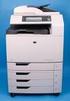 HP Color LaserJet CM6040/CM6030 MFP Series Analog Fax Accessory 300 Fax Guide Copyright and License 2008 Copyright Hewlett-Packard Development Company, L.P. Reproduction, adaptation, or translation without
DocuSign Quick Start Guide. Using Templates. Overview. Table of Contents
 DocuSign Quick Start Guide Using Templates Overview This guide provides an overview of how to use a template when creating and sending an envelope. Templates help streamline the sending process when you
Assistant Enterprise. User Guide. www.lumosnetworks.com 3-27-08
 Assistant Enterprise User Guide www.lumosnetworks.com 3-27-08 Assistant Enterprise (Toolbar) Guide Copyright Notice Trademarks Copyright 2007 BroadSoft, Inc. All rights reserved. Any technical documentation
How to Create a New User Account for MyGovernmentOnline
 How to Create a New User Account for MyGovernmentOnline *Prior to getting started, we encourage you to download and install the web browser Mozilla Firefox. While the MyGovernmentOnline software is designed
HP LaserJet MFP Analog Fax Accessory 300 Send Fax Driver Guide
 HP LaserJet MFP Analog Fax Accessory 300 Send Fax Driver Guide Copyright and License 2008 Copyright Hewlett-Packard Development Company, L.P. Reproduction, adaptation, or translation without prior written
VoIP Phone Quick Start Guide
 VoIP Phone Quick Start Guide What is VoIP? VoIP stand for Voice over Internet Protocol. This means that instead of using traditional phone lines to transmit calls, VoIP phones use an Internet connection.
Lab 06: Experiencing Microsoft Lync Server 2013 Collaboration Features
 Lab 06: Experiencing Microsoft Lync Server 2013 Collaboration Features DISCLAIMER 2013 Microsoft Corporation. All rights reserved. Microsoft, Active Directory, Hyper-V, Internet Explorer, Lync, PowerPoint,
Versions Addressed: Microsoft Office Outlook 2010/2013. Document Updated: 2014. Copyright 2014 Smarsh, Inc. All right reserved
 Versions Addressed: Microsoft Office Outlook 2010/2013 Document Updated: 2014 Copyright 2014 Smarsh, Inc. All right reserved Table of Contents Getting Started 3 Add Your New Account 3 Account Setup 5 Basic
Offline Remittance Processing Standalone, Service-Based, Multi-Client, Attorney Options
 Offline Remittance Processing Standalone, Service-Based, Multi-Client, Attorney Options User Manual 911 Central Parkway North, Suite 200 San Antonio, Texas 78232 (210) 403-8670 www.acttax.com Contents
Using Webmail. Document Updated: 11/10. Technical Manual: User Guide. The Webmail Window. Logging In to Webmail. Displaying and Hiding the Full Header
 Using Webmail Technical Manual: User Guide Webmail is supported in the following browsers: Windows Internet Explorer 6, Internet Explorer 7, Firefox 2, and Firefox 3 Mac OSX Safari 2, Safari 3, Firefox
FONVILLE MORISEY FAX SERVICE USER GUIDE
 FONVILLE MORISEY FAX SERVICE USER GUIDE TABLE OF CONTENTS INTRODUCTION... 1 Faxes and Email... 1 Email Clients... 1 Benefits and Advantages... 1 RECEIVING FAXES... 2 Viewing A Fax... 2 Alternative Fax
8.7. NET SatisFAXtion Email Gateway Installation Guide. For NET SatisFAXtion 8.7. Contents
 NET SatisFAXtion Email Gateway Installation Guide For NET SatisFAXtion 8.7 Contents Install Microsoft Virtual SMTP Server 2 XP and 2003 2 2008 and 2008 R2 2 Windows 7 2 Upgrade Path 2 Configure Microsoft
Empowered by Innovation. User s Guide. P/N 1770082 July 2006 Printed in U.S.A.
 Empowered by Innovation User s Guide P/N 1770082 July 2006 Printed in U.S.A. This manual has been developed by NEC Unified Solutions, Inc. It is intended for the use of its customers and service personnel,
WatchDox for Windows. User Guide. Version 3.9.5
 WatchDox for Windows User Guide Version 3.9.5 Notice Confidentiality This document contains confidential material that is proprietary WatchDox. The information and ideas herein may not be disclosed to
Remote Online Support
 Remote Online Support STRONGVON Tournament Management System 1 Overview The Remote Online Support allow STRONGVON support personnel to log into your computer over the Internet to troubleshoot your system
SaskTel Hosted Exchange Administrator Guide
 SaskTel Hosted Exchange Administrator Guide Customer Center Administration Portal At least the first of the following tasks (Accept the Terms of Service) needs to be completed before the company portal
Meredith Mass Transit Web Client User Guide For Ad Hoc Accounts
 Meredith Mass Transit Web Client User Guide For Ad Hoc Accounts Mass Transit is an easy to use, flexible Web based file transfer program. A temporary (Ad Hoc) account has been created for you on the Meredith
Communications Director
 MITEL Communications Director Voice Mail User Guide NOTICE The information contained in this document is believed to be accurate in all respects but is not warranted by Mitel Networks Corporation (MITEL
VOICE MAIL USER GUIDE
 VOICE MAIL USER GUIDE NOTICE The information contained in this document is believed to be accurate in all respects but is not warranted by Mitel Networks Corporation (MITEL ). The information is subject
Express222 Quick Reference
 Logging in to Express E222 1. In Internet Explorer, visit vwdco.com 2. Click CSOS in the upper right corner Your username is your DEA Number 3. Once logged in, click on Create, Send and Manage e222 Forms
Amicus Link Guide: Outlook/Exchange E-mail
 Amicus Link Guide: Outlook/Exchange E-mail Applies to: Amicus Premium 2015 Synchronize your Amicus and Outlook e-mail. Choose a client-side link with your local Microsoft Outlook or a Server-side link
CCH esign. Quick Start Guide
 CCH esign Quick Start Guide December 2015 2015 CCH Incorporated and its affiliates and licensors. All rights reserved. Material in this publication may not be reproduced or transmitted, in any form or
VeriSign PKI Client Government Edition v 1.5. VeriSign PKI Client Government. VeriSign PKI Client VeriSign, Inc. Government.
 END USER S GUIDE VeriSign PKI Client Government Edition v 1.5 End User s Guide VeriSign PKI Client Government Version 1.5 Administrator s Guide VeriSign PKI Client VeriSign, Inc. Government Copyright 2010
Policy Based Encryption Z. Administrator Guide
 Policy Based Encryption Z Administrator Guide Policy Based Encryption Z Administrator Guide Documentation version: 1.2 Legal Notice Legal Notice Copyright 2012 Symantec Corporation. All rights reserved.
mywcb Online User Guide
 WCB REV NOVEMBER, 2014 mywcb Online User Guide for Employers ebusiness Support Team Phone: 780-498-7688 Fax: 780-498-7866 Email: [email protected] Hours: 8:00 a.m. to 4:30 p.m., Monday through