
PyQGIS developer cookbook
|
|
|
- Charlotte Miller
- 10 years ago
- Views:
Transcription
1 PyQGIS developer cookbook Release testing QGIS Project December 19, 2015

2

3 Contents 1 Introduction Run Python code when QGIS starts Python Console Python Plugins Python Applications Loading Projects 5 3 Loading Layers Vector Layers Raster Layers Map Layer Registry Using Raster Layers Layer Details Renderer Refreshing Layers Query Values Using Vector Layers Retrieving information about attributes Selecting features Iterating over Vector Layer Modifying Vector Layers Modifying Vector Layers with an Editing Buffer Using Spatial Index Writing Vector Layers Memory Provider Appearance (Symbology) of Vector Layers Further Topics Geometry Handling Geometry Construction Access to Geometry Geometry Predicates and Operations Projections Support Coordinate reference systems Projections Using Map Canvas Embedding Map Canvas Using Map Tools with Canvas i

4 8.3 Rubber Bands and Vertex Markers Writing Custom Map Tools Writing Custom Map Canvas Items Map Rendering and Printing Simple Rendering Rendering layers with different CRS Output using Map Composer Expressions, Filtering and Calculating Values Parsing Expressions Evaluating Expressions Examples Reading And Storing Settings Communicating with the user Showing messages. The QgsMessageBar class Showing progress Logging Developing Python Plugins Writing a plugin Plugin content Documentation IDE settings for writing and debugging plugins A note on configuring your IDE on Windows Debugging using Eclipse and PyDev Debugging using PDB Using Plugin Layers Subclassing QgsPluginLayer Compatibility with older QGIS versions Plugin menu Releasing your plugin Metadata and names Code and help Official python plugin repository Code Snippets How to call a method by a key shortcut How to toggle Layers How to access attribute table of selected features Network analysis library General information Building a graph Graph analysis QGIS Server Python Plugins Server Filter Plugins architecture Raising exception from a plugin Writing a server plugin Access control plugin Index 93 ii

5 CHAPTER 1 Introduction This document is intended to work both as a tutorial and a reference guide. While it does not list all possible use cases, it should give a good overview of the principal functionality. Starting from 0.9 release, QGIS has optional scripting support using Python language. We ve decided for Python as it s one of the most favourite languages for scripting. PyQGIS bindings depend on SIP and PyQt4. The reason for using SIP instead of more widely used SWIG is that the whole QGIS code depends on Qt libraries. Python bindings for Qt (PyQt) are done also using SIP and this allows seamless integration of PyQGIS with PyQt. There are several ways how to use Python bindings in QGIS desktop, they are covered in detail in the following sections: automatically run Python code when QGIS starts issue commands in Python console within QGIS create and use plugins in Python create custom applications based on QGIS API Python bindings are also available for QGIS Server: starting from 2.8 release, Python plugins are also available on QGIS Server (see: Server Python Plugins) starting from 2.11 version (Master at ), QGIS Server library has Python bindings that can be used to embed QGIS Server into a Python application. There is a complete QGIS API reference that documents the classes from the QGIS libraries. Pythonic QGIS API is nearly identical to the API in C++. A good resource when dealing with plugins is to download some plugins from plugin repository and examine their code. Also, the python/plugins/ folder in your QGIS installation contains some plugin that you can use to learn how to develop such plugin and how to perform some of the most common tasks. 1.1 Run Python code when QGIS starts There are two distinct methods to run Python code every time QGIS starts PYQGIS_STARTUP environment variable You can run Python code just before QGIS initialization completes by setting the PYQGIS_STARTUP environment variable to the path of an existing Python file. This method is something you will probably rarely need, but worth mentioning here because it is one of the several ways to run Python code within QGIS and because this code will run before QGIS initialization is complete. This method is very useful for cleaning sys.path, which may have undesireable paths, or for isolating/loading the initial environ without requiring a virt env, e.g. homebrew or MacPorts installs on Mac. 1

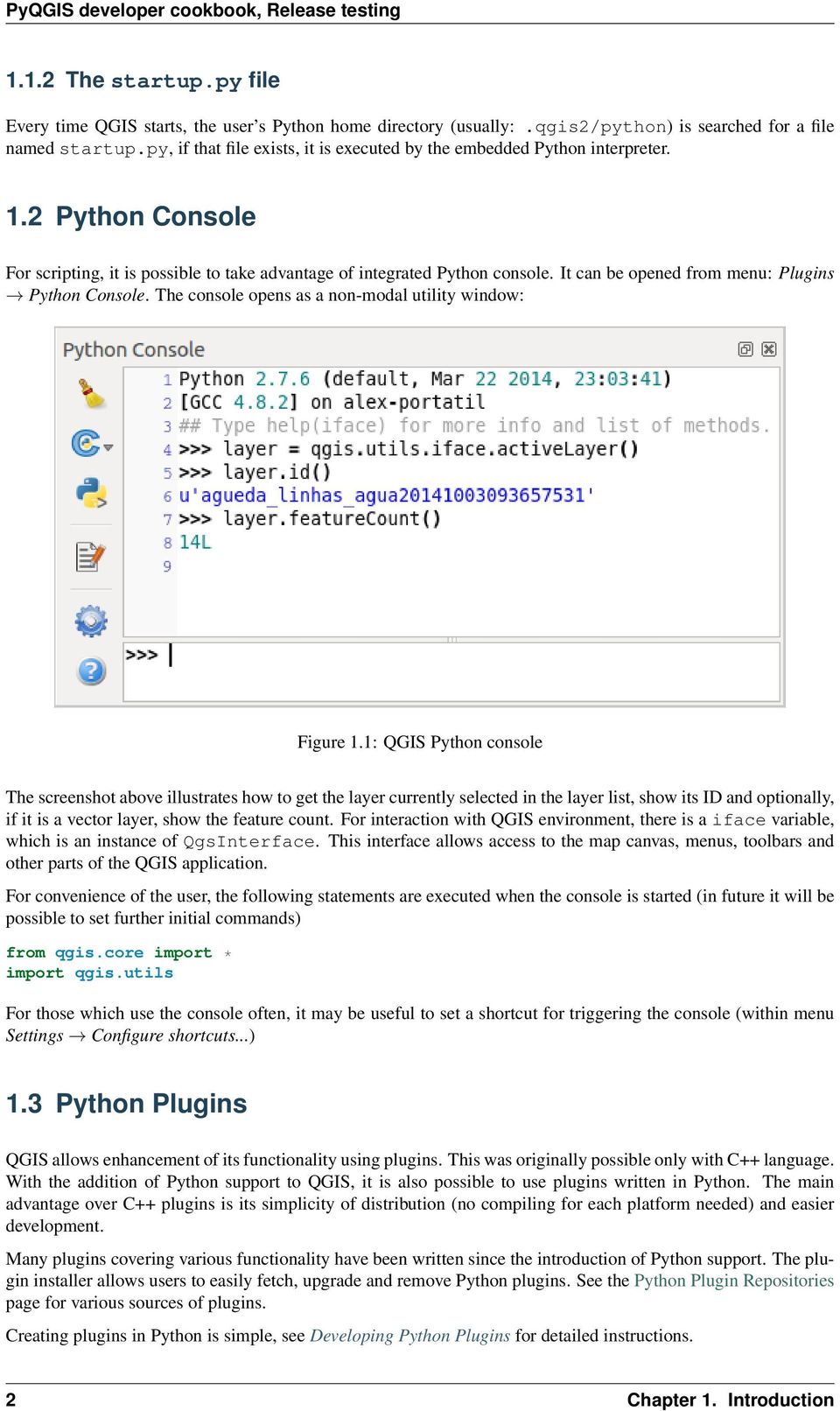
6 1.1.2 The startup.py file Every time QGIS starts, the user s Python home directory (usually:.qgis2/python) is searched for a file named startup.py, if that file exists, it is executed by the embedded Python interpreter. 1.2 Python Console For scripting, it is possible to take advantage of integrated Python console. It can be opened from menu: Plugins Python Console. The console opens as a non-modal utility window: Figure 1.1: QGIS Python console The screenshot above illustrates how to get the layer currently selected in the layer list, show its ID and optionally, if it is a vector layer, show the feature count. For interaction with QGIS environment, there is a iface variable, which is an instance of QgsInterface. This interface allows access to the map canvas, menus, toolbars and other parts of the QGIS application. For convenience of the user, the following statements are executed when the console is started (in future it will be possible to set further initial commands) from qgis.core import * import qgis.utils For those which use the console often, it may be useful to set a shortcut for triggering the console (within menu Settings Configure shortcuts...) 1.3 Python Plugins QGIS allows enhancement of its functionality using plugins. This was originally possible only with C++ language. With the addition of Python support to QGIS, it is also possible to use plugins written in Python. The main advantage over C++ plugins is its simplicity of distribution (no compiling for each platform needed) and easier development. Many plugins covering various functionality have been written since the introduction of Python support. The plugin installer allows users to easily fetch, upgrade and remove Python plugins. See the Python Plugin Repositories page for various sources of plugins. Creating plugins in Python is simple, see Developing Python Plugins for detailed instructions. 2 Chapter 1. Introduction
7 Note: Python plugins are also available in QGIS server (label_qgisserver), see QGIS Server Python Plugins for further details. 1.4 Python Applications Often when processing some GIS data, it is handy to create some scripts for automating the process instead of doing the same task again and again. With PyQGIS, this is perfectly possible import the qgis.core module, initialize it and you are ready for the processing. Or you may want to create an interactive application that uses some GIS functionality measure some data, export a map in PDF or any other functionality. The qgis.gui module additionally brings various GUI components, most notably the map canvas widget that can be very easily incorporated into the application with support for zooming, panning and/or any further custom map tools Using PyQGIS in custom application Note: do not use qgis.py as a name for your test script Python will not be able to import the bindings as the script s name will shadow them. First of all you have to import qgis module, set QGIS path where to search for resources database of projections, providers etc. When you set prefix path with second argument set as True, QGIS will initialize all paths with standard dir under the prefix directory. Calling initqgis() function is important to let QGIS search for the available providers. from qgis.core import * # supply path to where is your qgis installed QgsApplication.setPrefixPath("/path/to/qgis/installation", True) # load providers QgsApplication.initQgis() Now you can work with QGIS API load layers and do some processing or fire up a GUI with a map canvas. The possibilities are endless :-) When you are done with using QGIS library, call exitqgis() to make sure that everything is cleaned up (e.g. clear map layer registry and delete layers): QgsApplication.exitQgis() Running Custom Applications You will need to tell your system where to search for QGIS libraries and appropriate Python modules if they are not in a well-known location otherwise Python will complain: >>> import qgis.core ImportError: No module named qgis.core This can be fixed by setting the PYTHONPATH environment variable. In the following commands, qgispath should be replaced with your actual QGIS installation path: on Linux: export PYTHONPATH=/qgispath/share/qgis/python on Windows: set PYTHONPATH=c:\qgispath\python The path to the PyQGIS modules is now known, however they depend on qgis_core and qgis_gui libraries (the Python modules serve only as wrappers). Path to these libraries is typically unknown for the operating system, so you get an import error again (the message might vary depending on the system): 1.4. Python Applications 3

8 >>> import qgis.core ImportError: libqgis_core.so.1.5.0: cannot open shared object file: No such file or directory Fix this by adding the directories where the QGIS libraries reside to search path of the dynamic linker: on Linux: export LD_LIBRARY_PATH=/qgispath/lib on Windows: set PATH=C:\qgispath;%PATH% These commands can be put into a bootstrap script that will take care of the startup. When deploying custom applications using PyQGIS, there are usually two possibilities: require user to install QGIS on his platform prior to installing your application. The application installer should look for default locations of QGIS libraries and allow user to set the path if not found. This approach has the advantage of being simpler, however it requires user to do more steps. package QGIS together with your application. Releasing the application may be more challenging and the package will be larger, but the user will be saved from the burden of downloading and installing additional pieces of software. The two deployment models can be mixed - deploy standalone application on Windows and Mac OS X, for Linux leave the installation of QGIS up to user and his package manager. 4 Chapter 1. Introduction

9 CHAPTER 2 Loading Projects Sometimes you need to load an existing project from a plugin or (more often) when developing a stand-alone QGIS Python application (see: Python Applications). To load a project into the current QGIS application you need a QgsProject instance() object and call its read() method passing to it a QFileInfo object that contains the path from where the project will be loaded: # If you are not inside a QGIS console you first need to import # qgis and PyQt4 classes you will use in this script as shown below: from qgis.core import QgsProject from PyQt4.QtCore import QFileInfo # Get the project instance project = QgsProject.instance() # Print the current project file name (might be empty in case no projects have been loaded) print project.filename u /home/user/projects/my_qgis_project.qgs # Load another project project.read(qfileinfo( /home/user/projects/my_other_qgis_project.qgs )) print project.filename u /home/user/projects/my_other_qgis_project.qgs In case you need to make some modifications to the project (for example add or remove some layers) and save your changes, you can call the write() method of your project instance. The write() method also accepts an optional QFileInfo that allows you to specify a path where the project will be saved: # Save the project to the same project.write() #... or to a new file project.write(qfileinfo( /home/user/projects/my_new_qgis_project.qgs )) Both read() and write() funtions return a boolean value that you can use to check if the operation was successful. Note: If you are writing a QGIS standalone application, in order to synchronise the loaded project with the canvas you need to instanciate a QgsLayerTreeMapCanvasBridge as in the example below: bridge = QgsLayerTreeMapCanvasBridge( \ QgsProject.instance().layerTreeRoot(), canvas) # Now you can safely load your project and see it in the canvas project.read(qfileinfo( /home/user/projects/my_other_qgis_project.qgs )) 5

10 6 Chapter 2. Loading Projects

11 CHAPTER 3 Loading Layers Let s open some layers with data. QGIS recognizes vector and raster layers. Additionally, custom layer types are available, but we are not going to discuss them here. 3.1 Vector Layers To load a vector layer, specify layer s data source identifier, name for the layer and provider s name: layer = QgsVectorLayer(data_source, layer_name, provider_name) if not layer.isvalid(): print "Layer failed to load!" The data source identifier is a string and it is specific to each vector data provider. Layer s name is used in the layer list widget. It is important to check whether the layer has been loaded successfully. If it was not, an invalid layer instance is returned. The quickest way to open and display a vector layer in QGIS is the addvectorlayer function of the QgisInterface: layer = iface.addvectorlayer("/path/to/shapefile/file.shp", "layer name you like", "ogr") if not layer: print "Layer failed to load!" This creates a new layer and adds it to the map layer registry (making it appear in the layer list) in one step. The function returns the layer instance or None if the layer couldn t be loaded. The following list shows how to access various data sources using vector data providers: OGR library (shapefiles and many other file formats) data source is the path to the file: vlayer = QgsVectorLayer("/path/to/shapefile/file.shp", "layer name you like", "ogr") PostGIS database data source is a string with all information needed to create a connection to PostgreSQL database. QgsDataSourceURI class can generate this string for you. Note that QGIS has to be compiled with Postgres support, otherwise this provider isn t available: uri = QgsDataSourceURI() # set host name, port, database name, username and password uri.setconnection("localhost", "5432", "dbname", "johny", "xxx") # set database schema, table name, geometry column and optionally # subset (WHERE clause) uri.setdatasource("public", "roads", "the_geom", "cityid = 2643") vlayer = QgsVectorLayer(uri.uri(), "layer name you like", "postgres") CSV or other delimited text files to open a file with a semicolon as a delimiter, with field x for x- coordinate and field y with y-coordinate you would use something like this: 7

12 uri = "/some/path/file.csv?delimiter=%s&xfield=%s&yfield=%s" % (";", "x", "y") vlayer = QgsVectorLayer(uri, "layer name you like", "delimitedtext") Note: from QGIS version 1.7 the provider string is structured as a URL, so the path must be prefixed with file://. Also it allows WKT (well known text) formatted geometries as an alternative to x and y fields, and allows the coordinate reference system to be specified. For example: uri = "file:///some/path/file.csv?delimiter=%s&crs=epsg:4723&wktfield=%s" % (";", "shape") GPX files the gpx data provider reads tracks, routes and waypoints from gpx files. To open a file, the type (track/route/waypoint) needs to be specified as part of the url: uri = "path/to/gpx/file.gpx?type=track" vlayer = QgsVectorLayer(uri, "layer name you like", "gpx") SpatiaLite database supported from QGIS v1.1. Similarly to PostGIS databases, QgsDataSourceURI can be used for generation of data source identifier: uri = QgsDataSourceURI() uri.setdatabase( /home/martin/test-2.3.sqlite ) schema = table = Towns geom_column = Geometry uri.setdatasource(schema, table, geom_column) display_name = Towns vlayer = QgsVectorLayer(uri.uri(), display_name, spatialite ) MySQL WKB-based geometries, through OGR data source is the connection string to the table: uri = "MySQL:dbname,host=localhost,port=3306,user=root,password=xxx layername=my_table" vlayer = QgsVectorLayer( uri, "my table", "ogr" ) WFS connection:. the connection is defined with a URI and using the WFS provider: uri = " vlayer = QgsVectorLayer(uri, "my wfs layer", "WFS") The uri can be created using the standard urllib library: params = { service : WFS, version : 1.0.0, request : GetFeature, typename : union, srsname : "EPSG:23030" } uri = + urllib.unquote(urllib.urlencode(params)) Note: You can change the data source of an existing layer by calling setdatasource() on a QgsVectorLayer instance, as in the following example: # layer is a vector layer, uri is a QgsDataSourceURI instance layer.setdatasource(uri.uri(), "layer name you like", "postgres") 3.2 Raster Layers For accessing raster files, GDAL library is used. It supports a wide range of file formats. In case you have troubles with opening some files, check whether your GDAL has support for the particular format (not all formats are available by default). To load a raster from a file, specify its file name and base name: 8 Chapter 3. Loading Layers

13 filename = "/path/to/raster/file.tif" fileinfo = QFileInfo(fileName) basename = fileinfo.basename() rlayer = QgsRasterLayer(fileName, basename) if not rlayer.isvalid(): print "Layer failed to load!" Similarly to vector layers, raster layers can be loaded using the addrasterlayer function of the QgisInterface: iface.addrasterlayer("/path/to/raster/file.tif", "layer name you like") This creates a new layer and adds it to the map layer registry (making it appear in the layer list) in one step. Raster layers can also be created from a WCS service: layer_name = modis uri = QgsDataSourceURI() uri.setparam( url, ) uri.setparam("identifier", layer_name) rlayer = QgsRasterLayer(str(uri.encodedUri()), my wcs layer, wcs ) detailed URI settings can be found in provider documentation Alternatively you can load a raster layer from WMS server. However currently it s not possible to access GetCapabilities response from API you have to know what layers you want: urlwithparams = url= rlayer = QgsRasterLayer(urlWithParams, some layer name, wms ) if not rlayer.isvalid(): print "Layer failed to load!" 3.3 Map Layer Registry If you would like to use the opened layers for rendering, do not forget to add them to map layer registry. The map layer registry takes ownership of layers and they can be later accessed from any part of the application by their unique ID. When the layer is removed from map layer registry, it gets deleted, too. Adding a layer to the registry: QgsMapLayerRegistry.instance().addMapLayer(layer) Layers are destroyed automatically on exit, however if you want to delete the layer explicitly, use: QgsMapLayerRegistry.instance().removeMapLayer(layer_id) For a list of loaded layers and layer ids, use: QgsMapLayerRegistry.instance().mapLayers() 3.3. Map Layer Registry 9

14 10 Chapter 3. Loading Layers

15 CHAPTER 4 Using Raster Layers This sections lists various operations you can do with raster layers. 4.1 Layer Details A raster layer consists of one or more raster bands it is referred to as either single band or multi band raster. One band represents a matrix of values. Usual color image (e.g. aerial photo) is a raster consisting of red, blue and green band. Single band layers typically represent either continuous variables (e.g. elevation) or discrete variables (e.g. land use). In some cases, a raster layer comes with a palette and raster values refer to colors stored in the palette: rlayer.width(), rlayer.height() (812, 301) rlayer.extent() <qgis._core.qgsrectangle object at 0x F8A2048> rlayer.extent().tostring() u , : , rlayer.rastertype() 2 # 0 = GrayOrUndefined (single band), 1 = Palette (single band), 2 = Multiband rlayer.bandcount() 3 rlayer.metadata() u <p class="glossy">driver:</p>... rlayer.haspyramids() False 4.2 Renderer When a raster layer is loaded, it gets a default renderer based on its type. It can be altered either in raster layer properties or programmatically. To query the current renderer: >>> rlayer.renderer() <qgis._core.qgssinglebandpseudocolorrenderer object at 0x7f471c1da8a0> >>> rlayer.renderer().type() u singlebandpseudocolor To set a renderer use setrenderer() method of QgsRasterLayer. There are several available renderer classes (derived from QgsRasterRenderer): QgsMultiBandColorRenderer QgsPalettedRasterRenderer 11

16 QgsSingleBandColorDataRenderer QgsSingleBandGrayRenderer QgsSingleBandPseudoColorRenderer Single band raster layers can be drawn either in gray colors (low values = black, high values = white) or with a pseudocolor algorithm that assigns colors for values from the single band. Single band rasters with a palette can be additionally drawn using their palette. Multiband layers are typically drawn by mapping the bands to RGB colors. Other possibility is to use just one band for gray or pseudocolor drawing. The following sections explain how to query and modify the layer drawing style. After doing the changes, you might want to force update of map canvas, see Refreshing Layers. TODO: contrast enhancements, transparency (no data), user defined min/max, band statistics Single Band Rasters Let s say we want to render our raster layer (assuming one band only) with colors ranging from green to yellow (for pixel values from 0 to 255). In the first stage we will prepare QgsRasterShader object and configure its shader function: >>> fcn = QgsColorRampShader() >>> fcn.setcolorramptype(qgscolorrampshader.interpolated) >>> lst = [ QgsColorRampShader.ColorRampItem(0, QColor(0,255,0)), \ QgsColorRampShader.ColorRampItem(255, QColor(255,255,0)) ] >>> fcn.setcolorrampitemlist(lst) >>> shader = QgsRasterShader() >>> shader.setrastershaderfunction(fcn) The shader maps the colors as specified by its color map. The color map is provided as a list of items with pixel value and its associated color. There are three modes of interpolation of values: linear (INTERPOLATED): resulting color is linearly interpolated from the color map entries above and below the actual pixel value discrete (DISCRETE): color is used from the color map entry with equal or higher value exact (EXACT): color is not interpolated, only the pixels with value equal to color map entries are drawn In the second step we will associate this shader with the raster layer: >>> renderer = QgsSingleBandPseudoColorRenderer(layer.dataProvider(), 1, shader) >>> layer.setrenderer(renderer) The number 1 in the code above is band number (raster bands are indexed from one) Multi Band Rasters By default, QGIS maps the first three bands to red, green and blue values to create a color image (this is the MultiBandColor drawing style. In some cases you might want to override these setting. The following code interchanges red band (1) and green band (2): rlayer.renderer().setgreenband(1) rlayer.renderer().setredband(2) In case only one band is necessary for visualization of the raster, single band drawing can be chosen either gray levels or pseudocolor. 12 Chapter 4. Using Raster Layers

17 4.3 Refreshing Layers If you do change layer symbology and would like ensure that the changes are immediately visible to the user, call these methods if hasattr(layer, "setcacheimage"): layer.setcacheimage(none) layer.triggerrepaint() The first call will ensure that the cached image of rendered layer is erased in case render caching is turned on. This functionality is available from QGIS 1.4, in previous versions this function does not exist to make sure that the code works with all versions of QGIS, we first check whether the method exists. The second call emits signal that will force any map canvas containing the layer to issue a refresh. With WMS raster layers, these commands do not work. In this case, you have to do it explicitly layer.dataprovider().reloaddata() layer.triggerrepaint() In case you have changed layer symbology (see sections about raster and vector layers on how to do that), you might want to force QGIS to update the layer symbology in the layer list (legend) widget. This can be done as follows (iface is an instance of QgisInterface) iface.legendinterface().refreshlayersymbology(layer) 4.4 Query Values To do a query on value of bands of raster layer at some specified point ident = rlayer.dataprovider().identify(qgspoint(15.30, 40.98), \ QgsRaster.IdentifyFormatValue) if ident.isvalid(): print ident.results() The results method in this case returns a dictionary, with band indices as keys, and band values as values. {1: 17, 2: 220} 4.3. Refreshing Layers 13

18 14 Chapter 4. Using Raster Layers

19 CHAPTER 5 Using Vector Layers This section summarizes various actions that can be done with vector layers. 5.1 Retrieving information about attributes You can retrieve information about the fields associated with a vector layer by calling pendingfields() on a QgsVectorLayer instance: # "layer" is a QgsVectorLayer instance for field in layer.pendingfields(): print field.name(), field.typename() Note: Starting from QGIS 2.12 there is also a fields() in QgsVectorLayer which is an alias to pendingfields(). 5.2 Selecting features In QGIS desktop, features can be selected in different ways, the user can click on a feature, draw a rectangle on the map canvas or use an expression filter. Selected features are normally highlighted in a different color (default is yellow) to draw user s attention on the selection. Sometimes can be useful to programmatically select features or to change the default color. To change the selection color you can use setselectioncolor() method of QgsMapCanvas as shown in the following example: iface.mapcanvas().setselectioncolor( QColor("red") ) To add add features to the selected features list for a given layer, you can call setselectedfeatures() passing to it the list of features IDs: # Get the active layer (must be a vector layer) layer = iface.activelayer() # Get the first feature from the layer feature = layer.getfeatures().next() # Add this features to the selected list layer.setselectedfeatures([feature.id()]) To clear the selection, just pass an empty list: layer.setselectedfeatures([]) 15

20 5.3 Iterating over Vector Layer Iterating over the features in a vector layer is one of the most common tasks. Below is an example of the simple basic code to perform this task and showing some information about each feature. the layer variable is assumed to have a QgsVectorLayer object iter = layer.getfeatures() for feature in iter: # retrieve every feature with its geometry and attributes # fetch geometry geom = feature.geometry() print "Feature ID %d: " % feature.id() # show some information about the feature if geom.type() == QGis.Point: x = geom.aspoint() print "Point: " + str(x) elif geom.type() == QGis.Line: x = geom.aspolyline() print "Line: %d points" % len(x) elif geom.type() == QGis.Polygon: x = geom.aspolygon() numpts = 0 for ring in x: numpts += len(ring) print "Polygon: %d rings with %d points" % (len(x), numpts) else: print "Unknown" # fetch attributes attrs = feature.attributes() # attrs is a list. It contains all the attribute values of this feature print attrs Accessing attributes Attributes can be referred to by their name. print feature[ name ] Alternatively, attributes can be referred to by index. This is will be a bit faster than using the name. For example, to get the first attribute: print feature[0] Iterating over selected features if you only need selected features, you can use the selectedfeatures() method from vector layer: selection = layer.selectedfeatures() print len(selection) for feature in selection: # do whatever you need with the feature Another option is the Processing features() method: import processing features = processing.features(layer) 16 Chapter 5. Using Vector Layers

21 for feature in features: # do whatever you need with the feature By default, this will iterate over all the features in the layer, in case there is no selection, or over the selected features otherwise. Note that this behavior can be changed in the Processing options to ignore selections Iterating over a subset of features If you want to iterate over a given subset of features in a layer, such as those within a given area, you have to add a QgsFeatureRequest object to the getfeatures() call. Here s an example request = QgsFeatureRequest() request.setfilterrect(areaofinterest) for feature in layer.getfeatures(request): # do whatever you need with the feature If you need an attribute-based filter instead (or in addition) of a spatial one like shown in the example above, you can build an QgsExpression object and pass it to the QgsFeatureRequest constructor. Here s an example # The expression will filter the features where the field "location_name" contains # the word "Lake" (case insensitive) exp = QgsExpression( location_name ILIKE \ %Lake%\ ) request = QgsFeatureRequest(exp) See Expressions, Filtering and Calculating Values for the details about the syntax supported by QgsExpression. The request can be used to define the data retrieved for each feature, so the iterator returns all features, but returns partial data for each of them. # Only return selected fields request.setsubsetofattributes([0,2]) # More user friendly version request.setsubsetofattributes([ name, id ],layer.pendingfields()) # Don t return geometry objects request.setflags(qgsfeaturerequest.nogeometry) Tip: If you only need a subset of the attributes or you don t need the geometry information, you can significantly increase the speed of the features request by using QgsFeatureRequest.NoGeometry flag or specifying a subset of attributes (possibly empty) like shown in the example above. 5.4 Modifying Vector Layers Most vector data providers support editing of layer data. Sometimes they support just a subset of possible editing actions. Use the capabilities() function to find out what set of functionality is supported caps = layer.dataprovider().capabilities() # Check if a particular capability is supported: caps & QgsVectorDataProvider.DeleteFeatures # Print 2 if DeleteFeatures is supported For a list of all available capabilities, please refer to the API Documentation of QgsVectorDataProvider To print layer s capabilities textual description in a comma separated list you can use capabilitiesstring() as in the following example: caps_string = layer.dataprovider().capabilitiesstring() # Print: # u Add Features, Delete Features, Change Attribute Values, 5.4. Modifying Vector Layers 17
22 # Add Attributes, Delete Attributes, Create Spatial Index, # Fast Access to Features at ID, Change Geometries, # Simplify Geometries with topological validation By using any of the following methods for vector layer editing, the changes are directly committed to the underlying data store (a file, database etc). In case you would like to do only temporary changes, skip to the next section that explains how to do modifications with editing buffer. Note: If you are working inside QGIS (either from the console or from a plugin), it might be necessary to force a redraw of the map canvas in order to see the changes you ve done to the geometry, to the style or to the attributes: # If caching is enabled, a simple canvas refresh might not be sufficient # to trigger a redraw and you must clear the cached image for the layer if iface.mapcanvas().iscachingenabled(): layer.setcacheimage(none) else: iface.mapcanvas().refresh() Add Features Create some QgsFeature instances and pass a list of them to provider s addfeatures() method. It will return two values: result (true/false) and list of added features (their ID is set by the data store). To set up the attributes you can either intialize the feature passing a QgsFiels instance or call initattributes() passing the number of fields you want to be added. if caps & QgsVectorDataProvider.AddFeatures: feat = QgsFeature(layer.pendingFields()) feat.setattributes([0, hello ]) # Or set a single attribute by key or by index: feat.setattribute( name, hello ) feat.setattribute(0, hello ) feat.setgeometry(qgsgeometry.frompoint(qgspoint(123, 456))) (res, outfeats) = layer.dataprovider().addfeatures([feat]) Delete Features To delete some features, just provide a list of their feature IDs if caps & QgsVectorDataProvider.DeleteFeatures: res = layer.dataprovider().deletefeatures([5, 10]) Modify Features It is possible to either change feature s geometry or to change some attributes. The following example first changes values of attributes with index 0 and 1, then it changes the feature s geometry fid = 100 # ID of the feature we will modify if caps & QgsVectorDataProvider.ChangeAttributeValues: attrs = { 0 : "hello", 1 : 123 } layer.dataprovider().changeattributevalues({ fid : attrs }) if caps & QgsVectorDataProvider.ChangeGeometries: geom = QgsGeometry.fromPoint(QgsPoint(111,222)) layer.dataprovider().changegeometryvalues({ fid : geom }) 18 Chapter 5. Using Vector Layers
23 Tip: If you only need to change geometries, you might consider using the QgsVectorLayerEditUtils which provides some of useful methods to edit geometries (translate, insert or move vertex etc.) Adding and Removing Fields To add fields (attributes), you need to specify a list of field definitions. For deletion of fields just provide a list of field indexes. if caps & QgsVectorDataProvider.AddAttributes: res = layer.dataprovider().addattributes([qgsfield("mytext", QVariant.String), QgsField("myint if caps & QgsVectorDataProvider.DeleteAttributes: res = layer.dataprovider().deleteattributes([0]) After adding or removing fields in the data provider the layer s fields need to be updated because the changes are not automatically propagated. layer.updatefields() 5.5 Modifying Vector Layers with an Editing Buffer When editing vectors within QGIS application, you have to first start editing mode for a particular layer, then do some modifications and finally commit (or rollback) the changes. All the changes you do are not written until you commit them they stay in layer s in-memory editing buffer. It is possible to use this functionality also programmatically it is just another method for vector layer editing that complements the direct usage of data providers. Use this option when providing some GUI tools for vector layer editing, since this will allow user to decide whether to commit/rollback and allows the usage of undo/redo. When committing changes, all changes from the editing buffer are saved to data provider. To find out whether a layer is in editing mode, use iseditable() the editing functions work only when the editing mode is turned on. Usage of editing functions # add two features (QgsFeature instances) layer.addfeatures([feat1,feat2]) # delete a feature with specified ID layer.deletefeature(fid) # set new geometry (QgsGeometry instance) for a feature layer.changegeometry(fid, geometry) # update an attribute with given field index (int) to given value (QVariant) layer.changeattributevalue(fid, fieldindex, value) # add new field layer.addattribute(qgsfield("mytext", QVariant.String)) # remove a field layer.deleteattribute(fieldindex) In order to make undo/redo work properly, the above mentioned calls have to be wrapped into undo commands. (If you do not care about undo/redo and want to have the changes stored immediately, then you will have easier work by editing with data provider.) How to use the undo functionality layer.begineditcommand("feature triangulation") #... call layer s editing methods... if problem_occurred: layer.destroyeditcommand() return 5.5. Modifying Vector Layers with an Editing Buffer 19
24 #... more editing... layer.endeditcommand() The begineditcommand() will create an internal active command and will record subsequent changes in vector layer. With the call to endeditcommand() the command is pushed onto the undo stack and the user will be able to undo/redo it from GUI. In case something went wrong while doing the changes, the destroyeditcommand() method will remove the command and rollback all changes done while this command was active. To start editing mode, there is startediting() method, to stop editing there are commitchanges() and rollback() however normally you should not need these methods and leave this functionality to be triggered by the user. You can also use the with edit(layer)-statement to wrap commit and rollback into a more semantic code block as shown in the example below: with edit(layer): f = layer.getfeatures().next() f[0] = 5 layer.updatefeature(f) This will automatically call commitchanges() in the end. If any exception occurs, it will rollback() all the changes. In case a problem is encountered within commitchanges() (when the method returns False) a QgsEditError exception will be raised. 5.6 Using Spatial Index Spatial indexes can dramatically improve the performance of your code if you need to do frequent queries to a vector layer. Imagine, for instance, that you are writing an interpolation algorithm, and that for a given location you need to know the 10 closest points from a points layer, in order to use those point for calculating the interpolated value. Without a spatial index, the only way for QGIS to find those 10 points is to compute the distance from each and every point to the specified location and then compare those distances. This can be a very time consuming task, especially if it needs to be repeated for several locations. If a spatial index exists for the layer, the operation is much more effective. Think of a layer without a spatial index as a telephone book in which telephone numbers are not ordered or indexed. The only way to find the telephone number of a given person is to read from the beginning until you find it. Spatial indexes are not created by default for a QGIS vector layer, but you can create them easily. This is what you have to do. 1. create spatial index the following code creates an empty index index = QgsSpatialIndex() 2. add features to index index takes QgsFeature object and adds it to the internal data structure. You can create the object manually or use one from previous call to provider s nextfeature() index.insertfeature(feat) 3. once spatial index is filled with some values, you can do some queries # returns array of feature IDs of five nearest features nearest = index.nearestneighbor(qgspoint(25.4, 12.7), 5) # returns array of IDs of features which intersect the rectangle intersect = index.intersects(qgsrectangle(22.5, 15.3, 23.1, 17.2)) 20 Chapter 5. Using Vector Layers
25 5.7 Writing Vector Layers You can write vector layer files using QgsVectorFileWriter class. It supports any other kind of vector file that OGR supports (shapefiles, GeoJSON, KML and others). There are two possibilities how to export a vector layer: from an instance of QgsVectorLayer error = QgsVectorFileWriter.writeAsVectorFormat(layer, "my_shapes.shp", "CP1250", None, "ESRI if error == QgsVectorFileWriter.NoError: print "success!" error = QgsVectorFileWriter.writeAsVectorFormat(layer, "my_json.json", "utf-8", None, "GeoJSO if error == QgsVectorFileWriter.NoError: print "success again!" The third parameter specifies output text encoding. Only some drivers need this for correct operation - shapefiles are one of those however in case you are not using international characters you do not have to care much about the encoding. The fourth parameter that we left as None may specify destination CRS if a valid instance of QgsCoordinateReferenceSystem is passed, the layer is transformed to that CRS. For valid driver names please consult the supported formats by OGR you should pass the value in the Code column as the driver name. Optionally you can set whether to export only selected features, pass further driver-specific options for creation or tell the writer not to create attributes look into the documentation for full syntax. directly from features # define fields for feature attributes. A QgsFields object is needed fields = QgsFields() fields.append(qgsfield("first", QVariant.Int)) fields.append(qgsfield("second", QVariant.String)) # create an instance of vector file writer, which will create the vector file. # Arguments: # 1. path to new file (will fail if exists already) # 2. encoding of the attributes # 3. field map # 4. geometry type - from WKBTYPE enum # 5. layer s spatial reference (instance of # QgsCoordinateReferenceSystem) - optional # 6. driver name for the output file writer = QgsVectorFileWriter("my_shapes.shp", "CP1250", fields, QGis.WKBPoint, None, "ESRI Sh if writer.haserror()!= QgsVectorFileWriter.NoError: print "Error when creating shapefile: ", w.errormessage() # add a feature fet = QgsFeature() fet.setgeometry(qgsgeometry.frompoint(qgspoint(10,10))) fet.setattributes([1, "text"]) writer.addfeature(fet) # delete the writer to flush features to disk del writer 5.7. Writing Vector Layers 21
26 5.8 Memory Provider Memory provider is intended to be used mainly by plugin or 3rd party app developers. It does not store data on disk, allowing developers to use it as a fast backend for some temporary layers. The provider supports string, int and double fields. The memory provider also supports spatial indexing, which is enabled by calling the provider s createspatialindex() function. Once the spatial index is created you will be able to iterate over features within smaller regions faster (since it s not necessary to traverse all the features, only those in specified rectangle). A memory provider is created by passing "memory" as the provider string to the QgsVectorLayer constructor. The constructor also takes a URI defining the geometry type of the layer, one of: "Point", "LineString", "Polygon", "MultiPoint", "MultiLineString", or "MultiPolygon". The URI can also specify the coordinate reference system, fields, and indexing of the memory provider in the URI. The syntax is: crs=definition Specifies the coordinate reference system, where definition may be any of the forms accepted by QgsCoordinateReferenceSystem.createFromString() index=yes Specifies that the provider will use a spatial index field=name:type(length,precision) Specifies an attribute of the layer. The attribute has a name, and optionally a type (integer, double, or string), length, and precision. There may be multiple field definitions. The following example of a URI incorporates all these options "Point?crs=epsg:4326&field=id:integer&field=name:string(20)&index=yes" The following example code illustrates creating and populating a memory provider # create layer vl = QgsVectorLayer("Point", "temporary_points", "memory") pr = vl.dataprovider() # add fields pr.addattributes([qgsfield("name", QVariant.String), QgsField("age", QVariant.Int), QgsField("size", QVariant.Double)]) vl.updatefields() # tell the vector layer to fetch changes from the provider # add a feature fet = QgsFeature() fet.setgeometry(qgsgeometry.frompoint(qgspoint(10,10))) fet.setattributes(["johny", 2, 0.3]) pr.addfeatures([fet]) # update layer s extent when new features have been added # because change of extent in provider is not propagated to the layer vl.updateextents() Finally, let s check whether everything went well # show some stats print "fields:", len(pr.fields()) print "features:", pr.featurecount() e = layer.extent() print "extent:", e.xminiminum(), e.yminimum(), e.xmaximum(), e.ymaximum() # iterate over features f = QgsFeature() features = vl.getfeatures() 22 Chapter 5. Using Vector Layers
27 for f in features: print "F:", f.id(), f.attributes(), f.geometry().aspoint() 5.9 Appearance (Symbology) of Vector Layers When a vector layer is being rendered, the appearance of the data is given by renderer and symbols associated with the layer. Symbols are classes which take care of drawing of visual representation of features, while renderers determine what symbol will be used for a particular feature. The renderer for a given layer can obtained as shown below: renderer = layer.rendererv2() And with that reference, let us explore it a bit print "Type:", rendererv2.type() There are several known renderer types available in QGIS core library: Type Class Description singlesymbol QgsSingleSymbolRendererV2 Renders all features with the same symbol categorizedsymbol QgsCategorizedSymbolRendererV2 Renders features using a different symbol for each category graduatedsymbol QgsGraduatedSymbolRendererV2 Renders features using a different symbol for each range of values There might be also some custom renderer types, so never make an assumption there are just these types. You can query QgsRendererV2Registry singleton to find out currently available renderers: print QgsRendererV2Registry.instance().renderersList() # Print: [u singlesymbol, u categorizedsymbol, u graduatedsymbol, u RuleRenderer, u pointdisplacement, u invertedpolygonrenderer, u heatmaprenderer ] It is possible to obtain a dump of a renderer contents in text form can be useful for debugging print rendererv2.dump() Single Symbol Renderer You can get the symbol used for rendering by calling symbol() method and change it with setsymbol() method (note for C++ devs: the renderer takes ownership of the symbol.) You can change the symbol used by a particular vector layer by calling setsymbol() passing an instance of the appropriate symbol instance. Symbols for point, line and polygon layers can be created by calling the createsimple() function of the corresponding classes QgsMarkerSymbolV2, QgsLineSymbolV2 and QgsFillSymbolV2. The dictionary passed to createsimple() sets the style properties of the symbol. For example you can replace the symbol used by a particular point layer by calling setsymbol() passing an instance of a QgsMarkerSymbolV2 as in the following code example: symbol = QgsMarkerSymbolV2.createSimple({ name : square, color : red }) layer.rendererv2().setsymbol(symbol) 5.9. Appearance (Symbology) of Vector Layers 23
28 name indicates the shape of the marker, and can be any of the following: circle square cross rectangle diamond pentagon triangle equilateral_triangle star regular_star arrow filled_arrowhead x To get the full list of properties for the first symbol layer of a simbol instance you can follow the example code: print layer.rendererv2().symbol().symbollayers()[0].properties() # Prints {u angle : u 0, u color : u 0,128,0,255, u horizontal_anchor_point : u 1, u name : u circle, u offset : u 0,0, u offset_map_unit_scale : u 0,0, u offset_unit : u MM, u outline_color : u 0,0,0,255, u outline_style : u solid, u outline_width : u 0, u outline_width_map_unit_scale : u 0,0, u outline_width_unit : u MM, u scale_method : u area, u size : u 2, u size_map_unit_scale : u 0,0, u size_unit : u MM, u vertical_anchor_point : u 1 } This can be useful if you want to alter some properties: # You can alter a single propery... layer.rendererv2().symbol().symbollayer(0).setname( square ) #... but not all properties are accessible from methods, # you can also replace the symbol completely: props = layer.rendererv2().symbol().symbollayer(0).properties() props[ color ] = yellow props[ name ] = square layer.rendererv2().setsymbol(qgsmarkersymbolv2.createsimple(props)) Categorized Symbol Renderer You can query and set attribute name which is used for classification: setclassattribute() methods. To get a list of categories use classattribute() and 24 Chapter 5. Using Vector Layers
29 for cat in rendererv2.categories(): print "%s: %s :: %s" % (cat.value().tostring(), cat.label(), str(cat.symbol())) Where value() is the value used for discrimination between categories, label() is a text used for category description and symbol() method returns assigned symbol. The renderer usually stores also original symbol and color ramp which were used for the classification: sourcecolorramp() and sourcesymbol() methods Graduated Symbol Renderer This renderer is very similar to the categorized symbol renderer described above, but instead of one attribute value per class it works with ranges of values and thus can be used only with numerical attributes. To find out more about ranges used in the renderer for ran in rendererv2.ranges(): print "%f - %f: %s %s" % ( ran.lowervalue(), ran.uppervalue(), ran.label(), str(ran.symbol()) ) you can again use classattribute() to find out classification attribute name, sourcesymbol() and sourcecolorramp() methods. Additionally there is mode() method which determines how the ranges were created: using equal intervals, quantiles or some other method. If you wish to create your own graduated symbol renderer you can do so as illustrated in the example snippet below (which creates a simple two class arrangement) from qgis.core import * myvectorlayer = QgsVectorLayer(myVectorPath, myname, ogr ) mytargetfield = target_field myrangelist = [] myopacity = 1 # Make our first symbol and range... mymin = 0.0 mymax = 50.0 mylabel = Group 1 mycolour = QtGui.QColor( #ffee00 ) mysymbol1 = QgsSymbolV2.defaultSymbol(myVectorLayer.geometryType()) mysymbol1.setcolor(mycolour) mysymbol1.setalpha(myopacity) myrange1 = QgsRendererRangeV2(myMin, mymax, mysymbol1, mylabel) myrangelist.append(myrange1) #now make another symbol and range... mymin = 50.1 mymax = 100 mylabel = Group 2 mycolour = QtGui.QColor( #00eeff ) mysymbol2 = QgsSymbolV2.defaultSymbol( myvectorlayer.geometrytype()) mysymbol2.setcolor(mycolour) mysymbol2.setalpha(myopacity) myrange2 = QgsRendererRangeV2(myMin, mymax, mysymbol2 mylabel) myrangelist.append(myrange2) myrenderer = QgsGraduatedSymbolRendererV2(, myrangelist) myrenderer.setmode(qgsgraduatedsymbolrendererv2.equalinterval) myrenderer.setclassattribute(mytargetfield) 5.9. Appearance (Symbology) of Vector Layers 25
30 myvectorlayer.setrendererv2(myrenderer) QgsMapLayerRegistry.instance().addMapLayer(myVectorLayer) Working with Symbols For representation of symbols, there is QgsSymbolV2 base class with three derived classes: QgsMarkerSymbolV2 for point features QgsLineSymbolV2 for line features QgsFillSymbolV2 for polygon features Every symbol consists of one or more symbol layers (classes derived from QgsSymbolLayerV2). The symbol layers do the actual rendering, the symbol class itself serves only as a container for the symbol layers. Having an instance of a symbol (e.g. from a renderer), it is possible to explore it: type() method says whether it is a marker, line or fill symbol. There is a dump() method which returns a brief description of the symbol. To get a list of symbol layers for i in xrange(symbol.symbollayercount()): lyr = symbol.symbollayer(i) print "%d: %s" % (i, lyr.layertype()) To find out symbol s color use color() method and setcolor() to change its color. With marker symbols additionally you can query for the symbol size and rotation with size() and angle() methods, for line symbols there is width() method returning line width. Size and width are in millimeters by default, angles are in degrees. Working with Symbol Layers As said before, symbol layers (subclasses of QgsSymbolLayerV2) determine the appearance of the features. There are several basic symbol layer classes for general use. It is possible to implement new symbol layer types and thus arbitrarily customize how features will be rendered. The layertype() method uniquely identifies the symbol layer class the basic and default ones are SimpleMarker, SimpleLine and SimpleFill symbol layers types. You can get a complete list of the types of symbol layers you can create for a given symbol layer class like this from qgis.core import QgsSymbolLayerV2Registry myregistry = QgsSymbolLayerV2Registry.instance() mymetadata = myregistry.symbollayermetadata("simplefill") for item in myregistry.symbollayersfortype(qgssymbolv2.marker): print item Output EllipseMarker FontMarker SimpleMarker SvgMarker VectorField QgsSymbolLayerV2Registry class manages a database of all available symbol layer types. To access symbol layer data, use its properties() method that returns a key-value dictionary of properties which determine the appearance. Each symbol layer type has a specific set of properties that it uses. Additionally, there are generic methods color(), size(), angle(), width() with their setter counterparts. Of course size and angle is available only for marker symbol layers and width for line symbol layers. 26 Chapter 5. Using Vector Layers
31 Creating Custom Symbol Layer Types Imagine you would like to customize the way how the data gets rendered. You can create your own symbol layer class that will draw the features exactly as you wish. Here is an example of a marker that draws red circles with specified radius class FooSymbolLayer(QgsMarkerSymbolLayerV2): def init (self, radius=4.0): QgsMarkerSymbolLayerV2. init (self) self.radius = radius self.color = QColor(255,0,0) def layertype(self): return "FooMarker" def properties(self): return { "radius" : str(self.radius) } def startrender(self, context): pass def stoprender(self, context): pass def renderpoint(self, point, context): # Rendering depends on whether the symbol is selected (QGIS >= 1.5) color = context.selectioncolor() if context.selected() else self.color p = context.rendercontext().painter() p.setpen(color) p.drawellipse(point, self.radius, self.radius) def clone(self): return FooSymbolLayer(self.radius) The layertype() method determines the name of the symbol layer, it has to be unique among all symbol layers. Properties are used for persistence of attributes. clone() method must return a copy of the symbol layer with all attributes being exactly the same. Finally there are rendering methods: startrender() is called before rendering first feature, stoprender() when rendering is done. And renderpoint() method which does the rendering. The coordinates of the point(s) are already transformed to the output coordinates. For polylines and polygons the only difference would be in the rendering method: you would use renderpolyline() which receives a list of lines, resp. renderpolygon() which receives list of points on outer ring as a first parameter and a list of inner rings (or None) as a second parameter. Usually it is convenient to add a GUI for setting attributes of the symbol layer type to allow users to customize the appearance: in case of our example above we can let user set circle radius. The following code implements such widget class FooSymbolLayerWidget(QgsSymbolLayerV2Widget): def init (self, parent=none): QgsSymbolLayerV2Widget. init (self, parent) self.layer = None # setup a simple UI self.label = QLabel("Radius:") self.spinradius = QDoubleSpinBox() self.hbox = QHBoxLayout() self.hbox.addwidget(self.label) self.hbox.addwidget(self.spinradius) self.setlayout(self.hbox) self.connect(self.spinradius, SIGNAL("valueChanged(double)"), \ 5.9. Appearance (Symbology) of Vector Layers 27
32 self.radiuschanged) def setsymbollayer(self, layer): if layer.layertype()!= "FooMarker": return self.layer = layer self.spinradius.setvalue(layer.radius) def symbollayer(self): return self.layer def radiuschanged(self, value): self.layer.radius = value self.emit(signal("changed()")) This widget can be embedded into the symbol properties dialog. When the symbol layer type is selected in symbol properties dialog, it creates an instance of the symbol layer and an instance of the symbol layer widget. Then it calls setsymbollayer() method to assign the symbol layer to the widget. In that method the widget should update the UI to reflect the attributes of the symbol layer. symbollayer() function is used to retrieve the symbol layer again by the properties dialog to use it for the symbol. On every change of attributes, the widget should emit changed() signal to let the properties dialog update the symbol preview. Now we are missing only the final glue: to make QGIS aware of these new classes. This is done by adding the symbol layer to registry. It is possible to use the symbol layer also without adding it to the registry, but some functionality will not work: e.g. loading of project files with the custom symbol layers or inability to edit the layer s attributes in GUI. We will have to create metadata for the symbol layer class FooSymbolLayerMetadata(QgsSymbolLayerV2AbstractMetadata): def init (self): QgsSymbolLayerV2AbstractMetadata. init (self, "FooMarker", QgsSymbolV2.Marker) def createsymbollayer(self, props): radius = float(props[qstring("radius")]) if QString("radius") in props else 4.0 return FooSymbolLayer(radius) def createsymbollayerwidget(self): return FooSymbolLayerWidget() QgsSymbolLayerV2Registry.instance().addSymbolLayerType(FooSymbolLayerMetadata()) You should pass layer type (the same as returned by the layer) and symbol type (marker/line/fill) to the constructor of parent class. createsymbollayer() takes care of creating an instance of symbol layer with attributes specified in the props dictionary. (Beware, the keys are QString instances, not str objects). And there is createsymbollayerwidget() method which returns settings widget for this symbol layer type. The last step is to add this symbol layer to the registry and we are done Creating Custom Renderers It might be useful to create a new renderer implementation if you would like to customize the rules how to select symbols for rendering of features. Some use cases where you would want to do it: symbol is determined from a combination of fields, size of symbols changes depending on current scale etc. The following code shows a simple custom renderer that creates two marker symbols and chooses randomly one of them for every feature 28 Chapter 5. Using Vector Layers
33 import random class RandomRenderer(QgsFeatureRendererV2): def init (self, syms=none): QgsFeatureRendererV2. init (self, "RandomRenderer") self.syms = syms if syms else [QgsSymbolV2.defaultSymbol(QGis.Point), QgsSymbolV2.defaultSymbo def symbolforfeature(self, feature): return random.choice(self.syms) def startrender(self, context, vlayer): for s in self.syms: s.startrender(context) def stoprender(self, context): for s in self.syms: s.stoprender(context) def usedattributes(self): return [] def clone(self): return RandomRenderer(self.syms) The constructor of parent QgsFeatureRendererV2 class needs renderer name (has to be unique among renderers). symbolforfeature() method is the one that decides what symbol will be used for a particular feature. startrender() and stoprender() take care of initialization/finalization of symbol rendering. usedattributes() method can return a list of field names that renderer expects to be present. Finally clone() function should return a copy of the renderer. Like with symbol layers, it is possible to attach a GUI for configuration of the renderer. It has to be derived from QgsRendererV2Widget. The following sample code creates a button that allows user to set symbol of the first symbol class RandomRendererWidget(QgsRendererV2Widget): def init (self, layer, style, renderer): QgsRendererV2Widget. init (self, layer, style) if renderer is None or renderer.type()!= "RandomRenderer": self.r = RandomRenderer() else: self.r = renderer # setup UI self.btn1 = QgsColorButtonV2("Color 1") self.btn1.setcolor(self.r.syms[0].color()) self.vbox = QVBoxLayout() self.vbox.addwidget(self.btn1) self.setlayout(self.vbox) self.connect(self.btn1, SIGNAL("clicked()"), self.setcolor1) def setcolor1(self): color = QColorDialog.getColor(self.r.syms[0].color(), self) if not color.isvalid(): return self.r.syms[0].setcolor(color); self.btn1.setcolor(self.r.syms[0].color()) def renderer(self): return self.r The constructor receives instances of the active layer (QgsVectorLayer), the global style (QgsStyleV2) and current renderer. If there is no renderer or the renderer has different type, it will be replaced with our new renderer, otherwise we will use the current renderer (which has already the type we need). The widget contents should be updated to show current state of the renderer. When the renderer dialog is accepted, widget s renderer() method is called to get the current renderer it will be assigned to the layer Appearance (Symbology) of Vector Layers 29
34 The last missing bit is the renderer metadata and registration in registry, otherwise loading of layers with the renderer will not work and user will not be able to select it from the list of renderers. Let us finish our Random- Renderer example class RandomRendererMetadata(QgsRendererV2AbstractMetadata): def init (self): QgsRendererV2AbstractMetadata. init (self, "RandomRenderer", "Random renderer") def createrenderer(self, element): return RandomRenderer() def createrendererwidget(self, layer, style, renderer): return RandomRendererWidget(layer, style, renderer) QgsRendererV2Registry.instance().addRenderer(RandomRendererMetadata()) Similarly as with symbol layers, abstract metadata constructor awaits renderer name, name visible for users and optionally name of renderer s icon. createrenderer() method passes QDomElement instance that can be used to restore renderer s state from DOM tree. createrendererwidget() method creates the configuration widget. It does not have to be present or can return None if the renderer does not come with GUI. To associate an icon with the renderer you can assign it in QgsRendererV2AbstractMetadata constructor as a third (optional) argument the base class constructor in the RandomRendererMetadata init () function becomes QgsRendererV2AbstractMetadata. init (self, "RandomRenderer", "Random renderer", QIcon(QPixmap("RandomRendererIcon.png", "png"))) The icon can be associated also at any later time using seticon() method of the metadata class. The icon can be loaded from a file (as shown above) or can be loaded from a Qt resource (PyQt4 includes.qrc compiler for Python) Further Topics TODO: creating/modifying symbols working with style (QgsStyleV2) working with color ramps (QgsVectorColorRampV2) rule-based renderer (see this blogpost) exploring symbol layer and renderer registries 30 Chapter 5. Using Vector Layers
35 CHAPTER 6 Geometry Handling Points, linestrings and polygons that represent a spatial feature are commonly referred to as geometries. In QGIS they are represented with the QgsGeometry class. All possible geometry types are nicely shown in JTS discussion page. Sometimes one geometry is actually a collection of simple (single-part) geometries. Such a geometry is called a multi-part geometry. If it contains just one type of simple geometry, we call it multi-point, multi-linestring or multi-polygon. For example, a country consisting of multiple islands can be represented as a multi-polygon. The coordinates of geometries can be in any coordinate reference system (CRS). When fetching features from a layer, associated geometries will have coordinates in CRS of the layer. 6.1 Geometry Construction There are several options for creating a geometry: from coordinates gpnt = QgsGeometry.fromPoint(QgsPoint(1,1)) gline = QgsGeometry.fromPolyline([QgsPoint(1, 1), QgsPoint(2, 2)]) gpolygon = QgsGeometry.fromPolygon([[QgsPoint(1, 1), QgsPoint(2, 2), QgsPoint(2, 1)]]) Coordinates are given using QgsPoint class. Polyline (Linestring) is represented by a list of points. Polygon is represented by a list of linear rings (i.e. closed linestrings). First ring is outer ring (boundary), optional subsequent rings are holes in the polygon. Multi-part geometries go one level further: multi-point is a list of points, multi-linestring is a list of linestrings and multi-polygon is a list of polygons. from well-known text (WKT) gem = QgsGeometry.fromWkt("POINT(3 4)") from well-known binary (WKB) g = QgsGeometry() g.setwkbandownership(wkb, len(wkb)) 6.2 Access to Geometry First, you should find out geometry type, wkbtype() method is the one to use it returns a value from QGis.WkbType enumeration 31
36 >>> gpnt.wkbtype() == QGis.WKBPoint True >>> gline.wkbtype() == QGis.WKBLineString True >>> gpolygon.wkbtype() == QGis.WKBPolygon True >>> gpolygon.wkbtype() == QGis.WKBMultiPolygon False As an alternative, one can use type() method which returns a value from QGis.GeometryType enumeration. There is also a helper function ismultipart() to find out whether a geometry is multipart or not. To extract information from geometry there are accessor functions for every vector type. How to use accessors >>> gpnt.aspoint() (1, 1) >>> gline.aspolyline() [(1, 1), (2, 2)] >>> gpolygon.aspolygon() [[(1, 1), (2, 2), (2, 1), (1, 1)]] Note: the tuples (x,y) are not real tuples, they are QgsPoint objects, the values are accessible with x() and y() methods. For multipart geometries there are similar accessor functions: asmultipoint(), asmultipolyline(), asmultipolygon(). 6.3 Geometry Predicates and Operations QGIS uses GEOS library for advanced geometry operations such as geometry predicates (contains(), intersects(),...) and set operations (union(), difference(),...). It can also compute geometric properties of geometries, such as area (in the case of polygons) or lengths (for polygons and lines) Here you have a small example that combines iterating over the features in a given layer and performing some geometric computations based on their geometries. # we assume that layer is a polygon layer features = layer.getfeatures() for f in features: geom = f.geometry() print "Area:", geom.area() print "Perimeter:", geom.length() Areas and perimeters don t take CRS into account when computed using these methods from the QgsGeometry class. For a more powerful area and distance calculation, the QgsDistanceArea class can be used. If projections are turned off, calculations will be planar, otherwise they ll be done on the ellipsoid. When an ellipsoid is not set explicitly, WGS84 parameters are used for calculations. d = QgsDistanceArea() d.setellipsoidalmode(true) print "distance in meters: ", d.measureline(qgspoint(10,10),qgspoint(11,11)) You can find many example of algorithms that are included in QGIS and use these methods to analyze and transform vector data. Here are some links to the code of a few of them. Additional information can be found in following sources: Geometry transformation: Reproject algorithm Distance and area using the QgsDistanceArea class: Distance matrix algorithm Multi-part to single-part algorithm 32 Chapter 6. Geometry Handling
37 CHAPTER 7 Projections Support 7.1 Coordinate reference systems Coordinate reference systems (CRS) are encapsulated by QgsCoordinateReferenceSystem class. Instances of this class can be created by several different ways: specify CRS by its ID # PostGIS SRID 4326 is allocated for WGS84 crs = QgsCoordinateReferenceSystem(4326, QgsCoordinateReferenceSystem.PostgisCrsId) QGIS uses three different IDs for every reference system: PostgisCrsId IDs used within PostGIS databases. InternalCrsId IDs internally used in QGIS database. EpsgCrsId IDs assigned by the EPSG organization If not specified otherwise in second parameter, PostGIS SRID is used by default. specify CRS by its well-known text (WKT) wkt = GEOGCS["WGS84", DATUM["WGS84", SPHEROID["WGS84", , ]], PRIMEM["Greenwich", 0.0], UNIT["degree", ], AXIS["Longitude",EAST], AXIS["Latitude",NORTH]] crs = QgsCoordinateReferenceSystem(wkt) create invalid CRS and then use one of the create*() functions to initialize it. In following example we use Proj4 string to initialize the projection crs = QgsCoordinateReferenceSystem() crs.createfromproj4("+proj=longlat +ellps=wgs84 +datum=wgs84 +no_defs") It s wise to check whether creation (i.e. lookup in the database) of the CRS has been successful: isvalid() must return True. Note that for initialization of spatial reference systems QGIS needs to look up appropriate values in its internal database srs.db. Thus in case you create an independent application you need to set paths correctly with QgsApplication.setPrefixPath() otherwise it will fail to find the database. If you are running the commands from QGIS python console or developing a plugin you do not care: everything is already set up for you. Accessing spatial reference system information print "QGIS CRS ID:", crs.srsid() print "PostGIS SRID:", crs.srid() print "EPSG ID:", crs.epsg() print "Description:", crs.description() print "Projection Acronym:", crs.projectionacronym() 33
38 print "Ellipsoid Acronym:", crs.ellipsoidacronym() print "Proj4 String:", crs.proj4string() # check whether it s geographic or projected coordinate system print "Is geographic:", crs.geographicflag() # check type of map units in this CRS (values defined in QGis::units enum) print "Map units:", crs.mapunits() 7.2 Projections You can do transformation between different spatial reference systems by using QgsCoordinateTransform class. The easiest way to use it is to create source and destination CRS and construct QgsCoordinateTransform instance with them. Then just repeatedly call transform() function to do the transformation. By default it does forward transformation, but it is capable to do also inverse transformation crssrc = QgsCoordinateReferenceSystem(4326) # WGS 84 crsdest = QgsCoordinateReferenceSystem(32633) # WGS 84 / UTM zone 33N xform = QgsCoordinateTransform(crsSrc, crsdest) # forward transformation: src -> dest pt1 = xform.transform(qgspoint(18,5)) print "Transformed point:", pt1 # inverse transformation: dest -> src pt2 = xform.transform(pt1, QgsCoordinateTransform.ReverseTransform) print "Transformed back:", pt2 34 Chapter 7. Projections Support
39 CHAPTER 8 Using Map Canvas The Map canvas widget is probably the most important widget within QGIS because it shows the map composed from overlaid map layers and allows interaction with the map and layers. The canvas shows always a part of the map defined by the current canvas extent. The interaction is done through the use of map tools: there are tools for panning, zooming, identifying layers, measuring, vector editing and others. Similar to other graphics programs, there is always one tool active and the user can switch between the available tools. Map canvas is implemented as QgsMapCanvas class in qgis.gui module. The implementation is based on the Qt Graphics View framework. This framework generally provides a surface and a view where custom graphics items are placed and user can interact with them. We will assume that you are familiar enough with Qt to understand the concepts of the graphics scene, view and items. If not, please make sure to read the overview of the framework. Whenever the map has been panned, zoomed in/out (or some other action triggers a refresh), the map is rendered again within the current extent. The layers are rendered to an image (using QgsMapRenderer class) and that image is then displayed in the canvas. The graphics item (in terms of the Qt graphics view framework) responsible for showing the map is QgsMapCanvasMap class. This class also controls refreshing of the rendered map. Besides this item which acts as a background, there may be more map canvas items. Typical map canvas items are rubber bands (used for measuring, vector editing etc.) or vertex markers. The canvas items are usually used to give some visual feedback for map tools, for example, when creating a new polygon, the map tool creates a rubber band canvas item that shows the current shape of the polygon. All map canvas items are subclasses of QgsMapCanvasItem which adds some more functionality to the basic QGraphicsItem objects. To summarize, the map canvas architecture consists of three concepts: map canvas for viewing of the map map canvas items additional items that can be displayed in map canvas map tools for interaction with map canvas 8.1 Embedding Map Canvas Map canvas is a widget like any other Qt widget, so using it is as simple as creating and showing it canvas = QgsMapCanvas() canvas.show() This produces a standalone window with map canvas. It can be also embedded into an existing widget or window. When using.ui files and Qt Designer, place a QWidget on the form and promote it to a new class: set QgsMapCanvas as class name and set qgis.gui as header file. The pyuic4 utility will take care of it. This is a very convenient way of embedding the canvas. The other possibility is to manually write the code to construct map canvas and other widgets (as children of a main window or dialog) and create a layout. By default, map canvas has black background and does not use anti-aliasing. To set white background and enable anti-aliasing for smooth rendering 35
40 canvas.setcanvascolor(qt.white) canvas.enableantialiasing(true) (In case you are wondering, Qt comes from PyQt4.QtCore module and Qt.white is one of the predefined QColor instances.) Now it is time to add some map layers. We will first open a layer and add it to the map layer registry. Then we will set the canvas extent and set the list of layers for canvas layer = QgsVectorLayer(path, name, provider) if not layer.isvalid(): raise IOError, "Failed to open the layer" # add layer to the registry QgsMapLayerRegistry.instance().addMapLayer(layer) # set extent to the extent of our layer canvas.setextent(layer.extent()) # set the map canvas layer set canvas.setlayerset([qgsmapcanvaslayer(layer)]) After executing these commands, the canvas should show the layer you have loaded. 8.2 Using Map Tools with Canvas The following example constructs a window that contains a map canvas and basic map tools for map panning and zooming. Actions are created for activation of each tool: panning is done with QgsMapToolPan, zooming in/out with a pair of QgsMapToolZoom instances. The actions are set as checkable and later assigned to the tools to allow automatic handling of checked/unchecked state of the actions when a map tool gets activated, its action is marked as selected and the action of the previous map tool is deselected. The map tools are activated using setmaptool() method. from qgis.gui import * from PyQt4.QtGui import QAction, QMainWindow from PyQt4.QtCore import SIGNAL, Qt, QString class MyWnd(QMainWindow): def init (self, layer): QMainWindow. init (self) self.canvas = QgsMapCanvas() self.canvas.setcanvascolor(qt.white) self.canvas.setextent(layer.extent()) self.canvas.setlayerset([qgsmapcanvaslayer(layer)]) self.setcentralwidget(self.canvas) actionzoomin = QAction(QString("Zoom in"), self) actionzoomout = QAction(QString("Zoom out"), self) actionpan = QAction(QString("Pan"), self) actionzoomin.setcheckable(true) actionzoomout.setcheckable(true) actionpan.setcheckable(true) self.connect(actionzoomin, SIGNAL("triggered()"), self.zoomin) self.connect(actionzoomout, SIGNAL("triggered()"), self.zoomout) self.connect(actionpan, SIGNAL("triggered()"), self.pan) 36 Chapter 8. Using Map Canvas
41 self.toolbar = self.addtoolbar("canvas actions") self.toolbar.addaction(actionzoomin) self.toolbar.addaction(actionzoomout) self.toolbar.addaction(actionpan) # create the map tools self.toolpan = QgsMapToolPan(self.canvas) self.toolpan.setaction(actionpan) self.toolzoomin = QgsMapToolZoom(self.canvas, False) # false = in self.toolzoomin.setaction(actionzoomin) self.toolzoomout = QgsMapToolZoom(self.canvas, True) # true = out self.toolzoomout.setaction(actionzoomout) self.pan() def zoomin(self): self.canvas.setmaptool(self.toolzoomin) def zoomout(self): self.canvas.setmaptool(self.toolzoomout) def pan(self): self.canvas.setmaptool(self.toolpan) You can put the above code to a file, e.g. mywnd.py and try it out in Python console within QGIS. This code will put the currently selected layer into newly created canvas import mywnd w = mywnd.mywnd(qgis.utils.iface.activelayer()) w.show() Just make sure that the mywnd.py file is located within Python search path (sys.path). If it isn t, you can simply add it: sys.path.insert(0, /my/path ) otherwise the import statement will fail, not finding the module. 8.3 Rubber Bands and Vertex Markers To show some additional data on top of the map in canvas, use map canvas items. It is possible to create custom canvas item classes (covered below), however there are two useful canvas item classes for convenience: QgsRubberBand for drawing polylines or polygons, and QgsVertexMarker for drawing points. They both work with map coordinates, so the shape is moved/scaled automatically when the canvas is being panned or zoomed. To show a polyline r = QgsRubberBand(canvas, False) # False = not a polygon points = [QgsPoint(-1, -1), QgsPoint(0, 1), QgsPoint(1, -1)] r.settogeometry(qgsgeometry.frompolyline(points), None) To show a polygon r = QgsRubberBand(canvas, True) # True = a polygon points = [[QgsPoint(-1, -1), QgsPoint(0, 1), QgsPoint(1, -1)]] r.settogeometry(qgsgeometry.frompolygon(points), None) Note that points for polygon is not a plain list: in fact, it is a list of rings containing linear rings of the polygon: first ring is the outer border, further (optional) rings correspond to holes in the polygon. Rubber bands allow some customization, namely to change their color and line width r.setcolor(qcolor(0, 0, 255)) r.setwidth(3) 8.3. Rubber Bands and Vertex Markers 37
42 The canvas items are bound to the canvas scene. To temporarily hide them (and show again, use the hide() and show() combo. To completely remove the item, you have to remove it from the scene of the canvas canvas.scene().removeitem(r) (in C++ it s possible to just delete the item, however in Python del r would just delete the reference and the object will still exist as it is owned by the canvas) Rubber band can be also used for drawing points, however QgsVertexMarker class is better suited for this (QgsRubberBand would only draw a rectangle around the desired point). How to use the vertex marker m = QgsVertexMarker(canvas) m.setcenter(qgspoint(0, 0)) This will draw a red cross on position [0,0]. It is possible to customize the icon type, size, color and pen width m.setcolor(qcolor(0, 255, 0)) m.seticonsize(5) m.seticontype(qgsvertexmarker.icon_box) # or ICON_CROSS, ICON_X m.setpenwidth(3) For temporary hiding of vertex markers and removing them from canvas, the same applies as for the rubber bands. 8.4 Writing Custom Map Tools You can write your custom tools, to implement a custom behaviour to actions performed by users on the canvas. Map tools should inherit from the QgsMapTool class or any derived class, and selected as active tools in the canvas using the setmaptool() method as we have already seen. Here is an example of a map tool that allows to define a rectangular extent by clicking and dragging on the canvas. When the rectangle is defined, it prints its boundary coordinates in the console. It uses the rubber band elements described before to show the selected rectangle as it is being defined. class RectangleMapTool(QgsMapToolEmitPoint): def init (self, canvas): self.canvas = canvas QgsMapToolEmitPoint. init (self, self.canvas) self.rubberband = QgsRubberBand(self.canvas, QGis.Polygon) self.rubberband.setcolor(qt.red) self.rubberband.setwidth(1) self.reset() def reset(self): self.startpoint = self.endpoint = None self.isemittingpoint = False self.rubberband.reset(qgis.polygon) def canvaspressevent(self, e): self.startpoint = self.tomapcoordinates(e.pos()) self.endpoint = self.startpoint self.isemittingpoint = True self.showrect(self.startpoint, self.endpoint) def canvasreleaseevent(self, e): self.isemittingpoint = False r = self.rectangle() if r is not None: print "Rectangle:", r.xminimum(), r.yminimum(), r.xmaximum(), r.ymaximum() def canvasmoveevent(self, e): if not self.isemittingpoint: return 38 Chapter 8. Using Map Canvas
43 self.endpoint = self.tomapcoordinates(e.pos()) self.showrect(self.startpoint, self.endpoint) def showrect(self, startpoint, endpoint): self.rubberband.reset(qgis.polygon) if startpoint.x() == endpoint.x() or startpoint.y() == endpoint.y(): return point1 = QgsPoint(startPoint.x(), startpoint.y()) point2 = QgsPoint(startPoint.x(), endpoint.y()) point3 = QgsPoint(endPoint.x(), endpoint.y()) point4 = QgsPoint(endPoint.x(), startpoint.y()) self.rubberband.addpoint(point1, False) self.rubberband.addpoint(point2, False) self.rubberband.addpoint(point3, False) self.rubberband.addpoint(point4, True) self.rubberband.show() # true to update canvas def rectangle(self): if self.startpoint is None or self.endpoint is None: return None elif self.startpoint.x() == self.endpoint.x() or self.startpoint.y() == self.endpoint.y(): return None return QgsRectangle(self.startPoint, self.endpoint) def deactivate(self): super(rectanglemaptool, self).deactivate() self.emit(signal("deactivated()")) 8.5 Writing Custom Map Canvas Items TODO: how to create a map canvas item import sys from qgis.core import QgsApplication from qgis.gui import QgsMapCanvas def init(): a = QgsApplication(sys.argv, True) QgsApplication.setPrefixPath( /home/martin/qgis/inst, True) QgsApplication.initQgis() return a def show_canvas(app): canvas = QgsMapCanvas() canvas.show() app.exec_() app = init() show_canvas(app) 8.5. Writing Custom Map Canvas Items 39
44 40 Chapter 8. Using Map Canvas
45 CHAPTER 9 Map Rendering and Printing There are generally two approaches when input data should be rendered as a map: either do it quick way using QgsMapRenderer or produce more fine-tuned output by composing the map with QgsComposition class and friends. 9.1 Simple Rendering Render some layers using QgsMapRenderer create destination paint device (QImage, QPainter etc.), set up layer set, extent, output size and do the rendering # create image img = QImage(QSize(800, 600), QImage.Format_ARGB32_Premultiplied) # set image s background color color = QColor(255, 255, 255) img.fill(color.rgb()) # create painter p = QPainter() p.begin(img) p.setrenderhint(qpainter.antialiasing) render = QgsMapRenderer() # set layer set lst = [layer.getlayerid()] render.setlayerset(lst) # add ID of every layer # set extent rect = QgsRect(render.fullExtent()) rect.scale(1.1) render.setextent(rect) # set output size render.setoutputsize(img.size(), img.logicaldpix()) # do the rendering render.render(p) p.end() # save image img.save("render.png","png") 41
46 9.2 Rendering layers with different CRS If you have more than one layer and they have a different CRS, the simple example above will probably not work: to get the right values from the extent calculations you have to explicitly set the destination CRS and enable OTF reprojection as in the example below (only the renderer configuration part is reported)... # set layer set layers = QgsMapLayerRegistry.instance().mapLayers() lst = layers.keys() render.setlayerset(lst) # Set destination CRS to match the CRS of the first layer render.setdestinationcrs(layers.values()[0].crs()) # Enable OTF reprojection render.setprojectionsenabled(true) Output using Map Composer Map composer is a very handy tool if you would like to do a more sophisticated output than the simple rendering shown above. Using the composer it is possible to create complex map layouts consisting of map views, labels, legend, tables and other elements that are usually present on paper maps. The layouts can be then exported to PDF, raster images or directly printed on a printer. The composer consists of a bunch of classes. They all belong to the core library. QGIS application has a convenient GUI for placement of the elements, though it is not available in the GUI library. If you are not familiar with Qt Graphics View framework, then you are encouraged to check the documentation now, because the composer is based on it. Also check the Python documentation of the implementation of QGraphicView. The central class of the composer is QgsComposition which is derived from QGraphicsScene. Let us create one maprenderer = iface.mapcanvas().maprenderer() c = QgsComposition(mapRenderer) c.setplotstyle(qgscomposition.print) Note that the composition takes an instance of QgsMapRenderer. In the code we expect we are running within QGIS application and thus use the map renderer from map canvas. The composition uses various parameters from the map renderer, most importantly the default set of map layers and the current extent. When using composer in a standalone application, you can create your own map renderer instance the same way as shown in the section above and pass it to the composition. It is possible to add various elements (map, label,...) to the composition these elements have to be descendants of QgsComposerItem class. Currently supported items are: map this item tells the libraries where to put the map itself. Here we create a map and stretch it over the whole paper size x, y = 0, 0 w, h = c.paperwidth(), c.paperheight() composermap = QgsComposerMap(c, x,y, w, h) c.additem(composermap) label allows displaying labels. It is possible to modify its font, color, alignment and margin composerlabel = QgsComposerLabel(c) composerlabel.settext("hello world") composerlabel.adjustsizetotext() c.additem(composerlabel) 42 Chapter 9. Map Rendering and Printing
47 legend legend = QgsComposerLegend(c) legend.model().setlayerset(maprenderer.layerset()) c.additem(legend) scale bar item = QgsComposerScaleBar(c) item.setstyle( Numeric ) # optionally modify the style item.setcomposermap(composermap) item.applydefaultsize() c.additem(item) arrow picture shape table By default the newly created composer items have zero position (top left corner of the page) and zero size. The position and size are always measured in millimeters # set label 1cm from the top and 2cm from the left of the page composerlabel.setitemposition(20, 10) # set both label s position and size (width 10cm, height 3cm) composerlabel.setitemposition(20, 10, 100, 30) A frame is drawn around each item by default. How to remove the frame composerlabel.setframe(false) Besides creating the composer items by hand, QGIS has support for composer templates which are essentially compositions with all their items saved to a.qpt file (with XML syntax). Unfortunately this functionality is not yet available in the API. Once the composition is ready (the composer items have been created and added to the composition), we can proceed to produce a raster and/or vector output. The default output settings for composition are page size A4 and resolution 300 DPI. You can change them if necessary. The paper size is specified in millimeters c.setpapersize(width, height) c.setprintresolution(dpi) Output to a raster image The following code fragment shows how to render a composition to a raster image dpi = c.printresolution() dpmm = dpi / 25.4 width = int(dpmm * c.paperwidth()) height = int(dpmm * c.paperheight()) # create output image and initialize it image = QImage(QSize(width, height), QImage.Format_ARGB32) image.setdotspermeterx(dpmm * 1000) image.setdotspermetery(dpmm * 1000) image.fill(0) # render the composition imagepainter = QPainter(image) sourcearea = QRectF(0, 0, c.paperwidth(), c.paperheight()) 9.3. Output using Map Composer 43
48 targetarea = QRectF(0, 0, width, height) c.render(imagepainter, targetarea, sourcearea) imagepainter.end() image.save("out.png", "png") Output to PDF The following code fragment renders a composition to a PDF file printer = QPrinter() printer.setoutputformat(qprinter.pdfformat) printer.setoutputfilename("out.pdf") printer.setpapersize(qsizef(c.paperwidth(), c.paperheight()), QPrinter.Millimeter) printer.setfullpage(true) printer.setcolormode(qprinter.color) printer.setresolution(c.printresolution()) pdfpainter = QPainter(printer) paperrectmm = printer.pagerect(qprinter.millimeter) paperrectpixel = printer.pagerect(qprinter.devicepixel) c.render(pdfpainter, paperrectpixel, paperrectmm) pdfpainter.end() 44 Chapter 9. Map Rendering and Printing
49 CHAPTER 10 Expressions, Filtering and Calculating Values QGIS has some support for parsing of SQL-like expressions. Only a small subset of SQL syntax is supported. The expressions can be evaluated either as boolean predicates (returning True or False) or as functions (returning a scalar value). Three basic types are supported: number both whole numbers and decimal numbers, e.g. 123, 3.14 string they have to be enclosed in single quotes: hello world column reference when evaluating, the reference is substituted with the actual value of the field. The names are not escaped. The following operations are available: arithmetic operators: +, -, *, /, ^ parentheses: for enforcing the operator precedence: (1 + 1) * 3 unary plus and minus: -12, +5 mathematical functions: sqrt, sin, cos, tan, asin, acos, atan geometry functions: $area, $length conversion functions: to int, to real, to string And the following predicates are supported: comparison: =,!=, >, >=, <, <= pattern matching: LIKE (using % and _), ~ (regular expressions) logical predicates: AND, OR, NOT NULL value checking: IS NULL, IS NOT NULL Examples of predicates: = 3 sin(angle) > 0 Hello LIKE He% (x > 10 AND y > 10) OR z = 0 Examples of scalar expressions: 2 ^ 10 sqrt(val) $length
50 10.1 Parsing Expressions >>> exp = QgsExpression( = 2 ) >>> exp.hasparsererror() False >>> exp = QgsExpression( = ) >>> exp.hasparsererror() True >>> exp.parsererrorstring() PyQt4.QtCore.QString(u syntax error, unexpected $end ) 10.2 Evaluating Expressions Basic Expressions >>> exp = QgsExpression( = 2 ) >>> value = exp.evaluate() >>> value Expressions with features The following example will evaluate the given expression against a feature. Column is the name of the field in the layer. >>> exp = QgsExpression( Column = 99 ) >>> value = exp.evaluate(feature, layer.pendingfields()) >>> bool(value) True You can also use QgsExpression.prepare() if you need check more than one feature. QgsExpression.prepare() will increase the speed that evaluate takes to run. Using >>> exp = QgsExpression( Column = 99 ) >>> exp.prepare(layer.pendingfields()) >>> value = exp.evaluate(feature) >>> bool(value) True Handling errors exp = QgsExpression("1 + 1 = 2 ") if exp.hasparsererror(): raise Exception(exp.parserErrorString()) value = exp.evaluate() if exp.hasevalerror(): raise ValueError(exp.evalErrorString()) print value 10.3 Examples The following example can be used to filter a layer and return any feature that matches a predicate. 46 Chapter 10. Expressions, Filtering and Calculating Values
51 def where(layer, exp): print "Where" exp = QgsExpression(exp) if exp.hasparsererror(): raise Exception(exp.parserErrorString()) exp.prepare(layer.pendingfields()) for feature in layer.getfeatures(): value = exp.evaluate(feature) if exp.hasevalerror(): raise ValueError(exp.evalErrorString()) if bool(value): yield feature layer = qgis.utils.iface.activelayer() for f in where(layer, Test > 1.0 ): print f + " Matches expression" Examples 47
52 48 Chapter 10. Expressions, Filtering and Calculating Values
53 CHAPTER 11 Reading And Storing Settings Many times it is useful for a plugin to save some variables so that the user does not have to enter or select them again next time the plugin is run. These variables can be saved and retrieved with help of Qt and QGIS API. For each variable, you should pick a key that will be used to access the variable for user s favourite color you could use key favourite_color or any other meaningful string. It is recommended to give some structure to naming of keys. We can make difference between several types of settings: global settings they are bound to the user at particular machine. QGIS itself stores a lot of global settings, for example, main window size or default snapping tolerance. This functionality is provided directly by Qt framework by the means of QSettings class. By default, this class stores settings in system s native way of storing settings, that is registry (on Windows),.plist file (on Mac OS X) or.ini file (on Unix). The QSettings documentation is comprehensive, so we will provide just a simple example def store(): s = QSettings() s.setvalue("myplugin/mytext", "hello world") s.setvalue("myplugin/myint", 10) s.setvalue("myplugin/myreal", 3.14) def read(): s = QSettings() mytext = s.value("myplugin/mytext", "default text") myint = s.value("myplugin/myint", 123) myreal = s.value("myplugin/myreal", 2.71) The second parameter of the value() method is optional and specifies the default value if there is no previous value set for the passed setting name. project settings vary between different projects and therefore they are connected with a project file. Map canvas background color or destination coordinate reference system (CRS) are examples white background and WGS84 might be suitable for one project, while yellow background and UTM projection are better for another one. An example of usage follows proj = QgsProject.instance() # store values proj.writeentry("myplugin", "mytext", "hello world") proj.writeentry("myplugin", "myint", 10) proj.writeentry("myplugin", "mydouble", 0.01) proj.writeentry("myplugin", "mybool", True) # read values mytext = proj.readentry("myplugin", "mytext", "default text")[0] myint = proj.readnumentry("myplugin", "myint", 123)[0] 49
54 As you can see, the writeentry() method is used for all data types, but several methods exist for reading the setting value back, and the corresponding one has to be selected for each data type. map layer settings these settings are related to a particular instance of a map layer with a project. They are not connected with underlying data source of a layer, so if you create two map layer instances of one shapefile, they will not share the settings. The settings are stored in project file, so if the user opens the project again, the layer-related settings will be there again. This functionality has been added in QGIS v1.4. The API is similar to QSettings it takes and returns QVariant instances # save a value layer.setcustomproperty("mytext", "hello world") # read the value again mytext = layer.customproperty("mytext", "default text") 50 Chapter 11. Reading And Storing Settings

55 CHAPTER 12 Communicating with the user This section shows some methods and elements that should be used to communicate with the user, in order to keep consistency in the User Interface Showing messages. The QgsMessageBar class Using message boxes can be a bad idea from a user experience point of view. For showing a small info line or a warning/error messages, the QGIS message bar is usually a better option. Using the reference to the QGIS interface object, you can show a message in the message bar with the following code from qgis.gui import QgsMessageBar iface.messagebar().pushmessage("error", "I m sorry Dave, I m afraid I can t do that", level=qgsmes You can set a duration to show it for a limited time Figure 12.1: QGIS Message bar iface.messagebar().pushmessage("error", ""Ooops, the plugin is not working as it should", level=qg Figure 12.2: QGIS Message bar with timer The examples above show an error bar, but the level parameter can be used to creating warning messages or info messages, using the QgsMessageBar.WARNING and QgsMessageBar.INFO constants respectively. Widgets can be added to the message bar, like for instance a button to show more info def showerror(): pass widget = iface.messagebar().createmessage("missing Layers", "Show Me") 51
56 Figure 12.3: QGIS Message bar (info) button = QPushButton(widget) button.settext("show Me") button.pressed.connect(showerror) widget.layout().addwidget(button) iface.messagebar().pushwidget(widget, QgsMessageBar.WARNING) Figure 12.4: QGIS Message bar with a button You can even use a message bar in your own dialog so you don t have to show a message box, or if it doesn t make sense to show it in the main QGIS window class MyDialog(QDialog): def init (self): QDialog. init (self) self.bar = QgsMessageBar() self.bar.setsizepolicy( QSizePolicy.Minimum, QSizePolicy.Fixed ) self.setlayout(qgridlayout()) self.layout().setcontentsmargins(0, 0, 0, 0) self.buttonbox = QDialogButtonBox(QDialogButtonBox.Ok) self.buttonbox.accepted.connect(self.run) self.layout().addwidget(self.buttonbox, 0, 0, 2, 1) self.layout().addwidget(self.bar, 0, 0, 1, 1) def run(self): self.bar.pushmessage("hello", "World", level=qgsmessagebar.info) 12.2 Showing progress Progress bars can also be put in the QGIS message bar, since, as we have seen, it accepts widgets. Here is an example that you can try in the console. import time from PyQt4.QtGui import QProgressBar from PyQt4.QtCore import * progressmessagebar = iface.messagebar().createmessage("doing something boring...") progress = QProgressBar() progress.setmaximum(10) progress.setalignment(qt.alignleft Qt.AlignVCenter) progressmessagebar.layout().addwidget(progress) iface.messagebar().pushwidget(progressmessagebar, iface.messagebar().info) for i in range(10): time.sleep(1) 52 Chapter 12. Communicating with the user
57 Figure 12.5: QGIS Message bar in custom dialog progress.setvalue(i + 1) iface.messagebar().clearwidgets() Also, you can use the built-in status bar to report progress, as in the next example count = layers.featurecount() for i, feature in enumerate(features): #do something time-consuming here... percent = i / float(count) * 100 iface.mainwindow().statusbar().showmessage("processed {} %".format(int(percent))) iface.mainwindow().statusbar().clearmessage() 12.3 Logging You can use the QGIS logging system to log all the information that you want to save about the execution of your code. # You can optionally pass a tag and a level parameters QgsMessageLog.logMessage("Your plugin code has been executed correctly", MyPlugin, QgsMessageLog QgsMessageLog.logMessage("Your plugin code might have some problems", level=qgsmessagelog.warning) QgsMessageLog.logMessage("Your plugin code has crashed!", level=qgsmessagelog.critical) Logging 53
58 54 Chapter 12. Communicating with the user
59 CHAPTER 13 Developing Python Plugins It is possible to create plugins in Python programming language. In comparison with classical plugins written in C++ these should be easier to write, understand, maintain and distribute due the dynamic nature of the Python language. Python plugins are listed together with C++ plugins in QGIS plugin manager. They are searched for in these paths: UNIX/Mac: ~/.qgis2/python/plugins and (qgis_prefix)/share/qgis/python/plugins Windows: ~/.qgis2/python/plugins and (qgis_prefix)/python/plugins Home directory (denoted by above ~) on Windows is usually something like C:\Documents and Settings\(user) (on Windows XP or earlier) or C:\Users\(user). Since QGIS is using Python 2.7, subdirectories of these paths have to contain an init.py file to be considered Python packages that can be imported as plugins. Note: By setting QGIS_PLUGINPATH to an existing directory path, you can add this path to the list of paths that are searched for plugins. Steps: 1. Idea: Have an idea about what you want to do with your new QGIS plugin. Why do you do it? What problem do you want to solve? Is there already another plugin for that problem? 2. Create files: Create the files described next. A starting point ( init.py). Fill in the Plugin metadata (metadata.txt) A main python plugin body (mainplugin.py). A form in QT-Designer (form.ui), with its resources.qrc. 3. Write code: Write the code inside the mainplugin.py 4. Test: Close and re-open QGIS and import your plugin again. Check if everything is OK. 5. Publish: Publish your plugin in QGIS repository or make your own repository as an arsenal of personal GIS weapons Writing a plugin Since the introduction of Python plugins in QGIS, a number of plugins have appeared - on Plugin Repositories wiki page you can find some of them, you can use their source to learn more about programming with PyQGIS or find out whether you are not duplicating development effort. The QGIS team also maintains an Official python plugin repository. Ready to create a plugin but no idea what to do? Python Plugin Ideas wiki page lists wishes from the community! Plugin files Here s the directory structure of our example plugin 55
60 PYTHON_PLUGINS_PATH/ MyPlugin/ init.py --> *required* mainplugin.py --> *required* metadata.txt --> *required* resources.qrc --> *likely useful* resources.py --> *compiled version, likely useful* form.ui --> *likely useful* form.py --> *compiled version, likely useful* What is the meaning of the files: init.py = The starting point of the plugin. It has to have the classfactory() method and may have any other initialisation code. mainplugin.py = The main working code of the plugin. Contains all the information about the actions of the plugin and the main code. resources.qrc = The.xml document created by Qt Designer. Contains relative paths to resources of the forms. resources.py = The translation of the.qrc file described above to Python. form.ui = The GUI created by Qt Designer. form.py = The translation of the form.ui described above to Python. metadata.txt = Required for QGIS >= Containts general info, version, name and some other metadata used by plugins website and plugin infrastructure. Since QGIS 2.0 the metadata from init.py are not accepted anymore and the metadata.txt is required. Here is an online automated way of creating the basic files (skeleton) of a typical QGIS Python plugin. Also there is a QGIS plugin called Plugin Builder that creates plugin template from QGIS and doesn t require internet connection. This is the recommended option, as it produces 2.0 compatible sources. Warning: If you plan to upload the plugin to the Official python plugin repository you must check that your plugin follows some additional rules, required for plugin Validation 13.2 Plugin content Here you can find information and examples about what to add in each of the files in the file structure described above Plugin metadata First, plugin manager needs to retrieve some basic information about the plugin such as its name, description etc. File metadata.txt is the right place to put this information. Important: All metadata must be in UTF-8 encoding. 56 Chapter 13. Developing Python Plugins
61 Metadata Required Notes name name True a short string containing the name of the plugin qgismini- True dotted notation of minimum QGIS version mumver- sion qgismaxi- False dotted notation of maximum QGIS version mumver- sion description True short text which describes the plugin, no HTML allowed about True longer text which describes the plugin in details, no HTML allowed version True short string with the version dotted notation author True author name True of the author, not shown in the QGIS plugin manager or in the website unless by a registered logged in user, so only visible to other plugin authors and plugin website administrators changelog False string, can be multiline, no HTML allowed experimental False boolean flag, True or False deprecated False boolean flag, True or False, applies to the whole plugin and not just to the uploaded version tags False comma separated list, spaces are allowed inside individual tags homepage False a valid URL pointing to the homepage of your plugin repository True a valid URL for the source code repository tracker False a valid URL for tickets and bug reports icon False a file name or a relative path (relative to the base folder of the plugin s compressed package) category False one of Raster, Vector, Database and Web By default, plugins are placed in the Plugins menu (we will see in the next section how to add a menu entry for your plugin) but they can also be placed the into Raster, Vector, Database and Web menus. A corresponding category metadata entry exists to specify that, so the plugin can be classified accordingly. This metadata entry is used as tip for users and tells them where (in which menu) the plugin can be found. Allowed values for category are: Vector, Raster, Database or Web. For example, if your plugin will be available from Raster menu, add this to metadata.txt category=raster Note: If qgismaximumversion is empty, it will be automatically set to the major version plus.99 when uploaded to the Official python plugin repository. An example for this metadata.txt ; the next section is mandatory [general] name=helloworld [email protected] author=just Me qgisminimumversion=2.0 description=this is an example plugin for greeting the world. Multiline is allowed: lines starting with spaces belong to the same field, in this case to the "description" field. HTML formatting is not allowed. about=this paragraph can contain a detailed description of the plugin. Multiline is allowed, HTML is not. version=version 1.2 tracker= repository= Plugin content 57
62 ; end of mandatory metadata ; start of optional metadata category=raster changelog=the changelog lists the plugin versions and their changes as in the example below: First stable release All features implemented First testing release ; Tags are in comma separated value format, spaces are allowed within the ; tag name. ; Tags should be in English language. Please also check for existing tags and ; synonyms before creating a new one. tags=wkt,raster,hello world ; these metadata can be empty, they will eventually become mandatory. homepage= icon=icon.png ; experimental flag (applies to the single version) experimental=true ; deprecated flag (applies to the whole plugin and not only to the uploaded version) deprecated=false ; if empty, it will be automatically set to major version +.99 qgismaximumversion= init.py This file is required by Python s import system. Also, QGIS requires that this file contains a classfactory() function, which is called when the plugin gets loaded to QGIS. It receives reference to instance of QgisInterface and must return instance of your plugin s class from the mainplugin.py in our case it s called TestPlugin (see below). This is how init.py should look like def classfactory(iface): from mainplugin import TestPlugin return TestPlugin(iface) ## any other initialisation needed mainplugin.py This is where the magic happens and this is how magic looks like: (e.g. mainplugin.py) from PyQt4.QtCore import * from PyQt4.QtGui import * from qgis.core import * # initialize Qt resources from file resources.py import resources class TestPlugin: def init (self, iface): # save reference to the QGIS interface self.iface = iface def initgui(self): 58 Chapter 13. Developing Python Plugins
63 # create action that will start plugin configuration self.action = QAction(QIcon(":/plugins/testplug/icon.png"), "Test plugin", self.iface.mainwind self.action.setobjectname("testaction") self.action.setwhatsthis("configuration for test plugin") self.action.setstatustip("this is status tip") QObject.connect(self.action, SIGNAL("triggered()"), self.run) # add toolbar button and menu item self.iface.addtoolbaricon(self.action) self.iface.addplugintomenu("&test plugins", self.action) # connect to signal rendercomplete which is emitted when canvas # rendering is done QObject.connect(self.iface.mapCanvas(), SIGNAL("renderComplete(QPainter *)"), self.rendertest) def unload(self): # remove the plugin menu item and icon self.iface.removepluginmenu("&test plugins", self.action) self.iface.removetoolbaricon(self.action) # disconnect form signal of the canvas QObject.disconnect(self.iface.mapCanvas(), SIGNAL("renderComplete(QPainter *)"), self.renderte def run(self): # create and show a configuration dialog or something similar print "TestPlugin: run called!" def rendertest(self, painter): # use painter for drawing to map canvas print "TestPlugin: rendertest called!" The only plugin functions that must exist in the main plugin source file (e.g. mainplugin.py) are: init > which gives access to QGIS interface initgui() > called when the plugin is loaded unload() > called when the plugin is unloaded You can see that in the above example, the addplugintomenu() is used. This will add the corresponding menu action to the Plugins menu. Alternative methods exist to add the action to a different menu. Here is a list of those methods: addplugintorastermenu() addplugintovectormenu() addplugintodatabasemenu() addplugintowebmenu() All of them have the same syntax as the addplugintomenu() method. Adding your plugin menu to one of those predefined method is recommended to keep consistency in how plugin entries are organized. However, you can add your custom menu group directly to the menu bar, as the next example demonstrates: def initgui(self): self.menu = QMenu(self.iface.mainWindow()) self.menu.setobjectname("testmenu") self.menu.settitle("mymenu") self.action = QAction(QIcon(":/plugins/testplug/icon.png"), "Test plugin", self.iface.mainwind self.action.setobjectname("testaction") self.action.setwhatsthis("configuration for test plugin") self.action.setstatustip("this is status tip") Plugin content 59
64 QObject.connect(self.action, SIGNAL("triggered()"), self.run) self.menu.addaction(self.action) menubar = self.iface.mainwindow().menubar() menubar.insertmenu(self.iface.firstrightstandardmenu().menuaction(), self.menu) def unload(self): self.menu.deletelater() Don t forget to set QAction and QMenu objectname to a name specific to your plugin so that it can be customized Resource File You can see that in initgui() we ve used an icon from the resource file (called resources.qrc in our case) <RCC> <qresource prefix="/plugins/testplug" > <file>icon.png</file> </qresource> </RCC> It is good to use a prefix that will not collide with other plugins or any parts of QGIS, otherwise you might get resources you did not want. Now you just need to generate a Python file that will contain the resources. It s done with pyrcc4 command: pyrcc4 -o resources.py resources.qrc Note: In Windows environments, attempting to run the pyrcc4 from Command Prompt or Powershell will probably result in the error Windows cannot access the specified device, path, or file [...]. The easiest solution is probably to use the OSGeo4W Shell but if you are comfortable modifying the PATH environment variable or specifiying the path to the executable explicitly you should be able to find it at <Your QGIS Install Directory>binpyrcc4.exe. And that s all... nothing complicated :) If you ve done everything correctly you should be able to find and load your plugin in the plugin manager and see a message in console when toolbar icon or appropriate menu item is selected. When working on a real plugin it s wise to write the plugin in another (working) directory and create a makefile which will generate UI + resource files and install the plugin to your QGIS installation Documentation The documentation for the plugin can be written as HTML help files. The qgis.utils module provides a function, showpluginhelp() which will open the help file browser, in the same way as other QGIS help. The showpluginhelp () function looks for help files in the same directory as the calling module. It will look for, in turn, index-ll_cc.html, index-ll.html, index-en.html, index-en_us.html and index.html, displaying whichever it finds first. Here ll_cc is the QGIS locale. This allows multiple translations of the documentation to be included with the plugin. The showpluginhelp() function can also take parameters packagename, which identifies a specific plugin for which the help will be displayed, filename, which can replace index in the names of files being searched, and section, which is the name of an html anchor tag in the document on which the browser will be positioned. 60 Chapter 13. Developing Python Plugins
65 CHAPTER 14 IDE settings for writing and debugging plugins Although each programmer has his preferred IDE/Text editor, here are some recommendations for setting up popular IDE s for writing and debugging QGIS Python plugins A note on configuring your IDE on Windows On Linux there is no additional configuration needed to develop plug-ins. But on Windows you need to make sure you that you have the same environment settings and use the same libraries and interpreter as QGIS. The fastest way to do this, is to modify the startup batch file of QGIS. If you used the OSGeo4W Installer, you can find this under the bin folder of your OSGeo4W install. Look for something like C:\OSGeo4W\bin\qgis-unstable.bat. For using Pyscripter IDE, here s what you have to do: Make a copy of qgis-unstable.bat and rename it pyscripter.bat. Open it in an editor. And remove the last line, the one that starts QGIS. Add a line that points to the your Pyscripter executable and add the commandline argument that sets the version of Python to be used (2.7 in the case of QGIS >= 2.0) Also add the argument that points to the folder where Pyscripter can find the Python dll used by QGIS, you can find this under the bin folder of your OSGeoW off SET OSGEO4W_ROOT=C:\OSGeo4W call "%OSGEO4W_ROOT%"\bin\o4w_env.bat call off path %PATH%;%GISBASE%\bin Start C:\pyscripter\pyscripter.exe --python25 --pythondllpath=c:\osgeo4w\bin Now when you double click this batch file it will start Pyscripter, with the correct path. More popular than Pyscripter, Eclipse is a common choice among developers. In the following sections, we will be explaining how to configure it for developing and testing plugins. To prepare your environment for using Eclipse in Windows, you should also create a batch file and use it to start Eclipse. To create that batch file, follow these steps. Locate the folder where qgis_core.dll resides in. Normally this is C:\OSGeo4W\apps\qgis\bin, but if you compiled your own QGIS application this is in your build folder in output/bin/relwithdebinfo Locate your eclipse.exe executable. Create the following script and use this to start eclipse when developing QGIS plugins. 61
66 call "C:\OSGeo4W\bin\o4w_env.bat" set PATH=%PATH%;C:\path\to\your\qgis_core.dll\parent\folder C:\path\to\your\eclipse.exe 14.2 Debugging using Eclipse and PyDev Installation To use Eclipse, make sure you have installed the following Eclipse Aptana Eclipse Plugin or PyDev QGIS 2.x Preparing QGIS There is some preparation to be done on QGIS itself. Two plugins are of interest: Remote Debug and Plugin reloader. Go to Plugins Fetch python plugins Search for Remote Debug ( at the moment it s still experimental, so enable experimental plugins under the Options tab in case it does not show up ). Install it. Search for Plugin reloader and install it as well. This will let you reload a plugin instead of having to close and restart QGIS to have the plugin reloaded Setting up Eclipse In Eclipse, create a new project. You can select General Project and link your real sources later on, so it does not really matter where you place this project. Now right click your new project and choose New Folder. Click [Advanced] and choose Link to alternate location (Linked Folder). In case you already have sources you want to debug, choose these. In case you don t, create a folder as it was already explained. Now in the view Project Explorer, your source tree pops up and you can start working with the code. You already have syntax highlighting and all the other powerful IDE tools available Configuring the debugger To get the debugger working, switch to the Debug perspective in Eclipse (Window Open Perspective Other Debug). Now start the PyDev debug server by choosing PyDev Start Debug Server. Eclipse is now waiting for a connection from QGIS to its debug server and when QGIS connects to the debug server it will allow it to control the python scripts. That s exactly what we installed the Remote Debug plugin for. So start QGIS in case you did not already and click the bug symbol. Now you can set a breakpoint and as soon as the code hits it, execution will stop and you can inspect the current state of your plugin. (The breakpoint is the green dot in the image below, set one by double clicking in the white space left to the line you want the breakpoint to be set) A very interesting thing you can make use of now is the debug console. Make sure that the execution is currently stopped at a break point, before you proceed. 62 Chapter 14. IDE settings for writing and debugging plugins

67 Figure 14.1: Eclipse project Debugging using Eclipse and PyDev 63

68 Figure 14.2: Breakpoint Open the Console view (Window Show view). It will show the Debug Server console which is not very interesting. But there is a button [Open Console] which lets you change to a more interesting PyDev Debug Console. Click the arrow next to the [Open Console] button and choose PyDev Console. A window opens up to ask you which console you want to start. Choose PyDev Debug Console. In case its greyed out and tells you to Start the debugger and select the valid frame, make sure that you ve got the remote debugger attached and are currently on a breakpoint. Figure 14.3: PyDev Debug Console You have now an interactive console which let s you test any commands from within the current context. You can manipulate variables or make API calls or whatever you like. A little bit annoying is, that every time you enter a command, the console switches back to the Debug Server. To stop this behavior, you can click the Pin Console button when on the Debug Server page and it should remember this decision at least for the current debug session Making eclipse understand the API A very handy feature is to have Eclipse actually know about the QGIS API. This enables it to check your code for typos. But not only this, it also enables Eclipse to help you with autocompletion from the imports to API calls. To do this, Eclipse parses the QGIS library files and gets all the information out there. The only thing you have to do is to tell Eclipse where to find the libraries. Click Window Preferences PyDev Interpreter Python. You will see your configured python interpreter in the upper part of the window (at the moment python2.7 for QGIS) and some tabs in the lower part. The interesting tabs for us are Libraries and Forced Builtins. First open the Libraries tab. Add a New Folder and choose the python folder of your QGIS installation. If you do not know where this folder is (it s not the plugins folder) open QGIS, start a python console and simply enter qgis and press Enter. It will show you which QGIS module it uses and its path. Strip the trailing /qgis/ init.pyc from this path and you ve got the path you are looking for. You should also add your plugins folder here (on Linux it is ~/.qgis2/python/plugins). 64 Chapter 14. IDE settings for writing and debugging plugins

69 Figure 14.4: PyDev Debug Console Debugging using Eclipse and PyDev 65
70 Next jump to the Forced Builtins tab, click on New... and enter qgis. This will make Eclipse parse the QGIS API. You probably also want Eclipse to know about the PyQt4 API. Therefore also add PyQt4 as forced builtin. That should probably already be present in your libraries tab. Click OK and you re done. Note: every time the QGIS API changes (e.g. if you re compiling QGIS master and the SIP file changed), you should go back to this page and simply click Apply. This will let Eclipse parse all the libraries again. For another possible setting of Eclipse to work with QGIS Python plugins, check this link 14.3 Debugging using PDB If you do not use an IDE such as Eclipse, you can debug using PDB, following these steps. First add this code in the spot where you would like to debug # Use pdb for debugging import pdb # These lines allow you to set a breakpoint in the app pyqtremoveinputhook() pdb.set_trace() Then run QGIS from the command line. On Linux do: $./Qgis On Mac OS X do: $ /Applications/Qgis.app/Contents/MacOS/Qgis And when the application hits your breakpoint you can type in the console! TODO: Add testing information 66 Chapter 14. IDE settings for writing and debugging plugins
71 CHAPTER 15 Using Plugin Layers If your plugin uses its own methods to render a map layer, writing your own layer type based on QgsPluginLayer might be the best way to implement that. TODO: Check correctness and elaborate on good use cases for QgsPluginLayer, Subclassing QgsPluginLayer Below is an example of a minimal QgsPluginLayer implementation. It is an excerpt of the Watermark example plugin class WatermarkPluginLayer(QgsPluginLayer): LAYER_TYPE="watermark" def init (self): QgsPluginLayer. init (self, WatermarkPluginLayer.LAYER_TYPE, "Watermark plugin layer") self.setvalid(true) def draw(self, renderercontext): image = QImage("myimage.png") painter = renderercontext.painter() painter.save() painter.drawimage(10, 10, image) painter.restore() return True Methods for reading and writing specific information to the project file can also be added def readxml(self, node): pass def writexml(self, node, doc): pass When loading a project containing such a layer, a factory class is needed class WatermarkPluginLayerType(QgsPluginLayerType): def init (self): QgsPluginLayerType. init (self, WatermarkPluginLayer.LAYER_TYPE) def createlayer(self): return WatermarkPluginLayer() You can also add code for displaying custom information in the layer properties 67
72 def showlayerproperties(self, layer): pass 68 Chapter 15. Using Plugin Layers
73 CHAPTER 16 Compatibility with older QGIS versions 16.1 Plugin menu If you place your plugin menu entries into one of the new menus (Raster, Vector, Database or Web), you should modify the code of the initgui() and unload() functions. Since these new menus are available only in QGIS 2.0 and greater, the first step is to check that the running QGIS version has all the necessary functions. If the new menus are available, we will place our plugin under this menu, otherwise we will use the old Plugins menu. Here is an example for Raster menu def initgui(self): # create action that will start plugin configuration self.action = QAction(QIcon(":/plugins/testplug/icon.png"), "Test plugin", self.iface.mainwindow self.action.setwhatsthis("configuration for test plugin") self.action.setstatustip("this is status tip") QObject.connect(self.action, SIGNAL("triggered()"), self.run) # check if Raster menu available if hasattr(self.iface, "addplugintorastermenu"): # Raster menu and toolbar available self.iface.addrastertoolbaricon(self.action) self.iface.addplugintorastermenu("&test plugins", self.action) else: # there is no Raster menu, place plugin under Plugins menu as usual self.iface.addtoolbaricon(self.action) self.iface.addplugintomenu("&test plugins", self.action) # connect to signal rendercomplete which is emitted when canvas rendering is done QObject.connect(self.iface.mapCanvas(), SIGNAL("renderComplete(QPainter *)"), self.rendertest) def unload(self): # check if Raster menu available and remove our buttons from appropriate # menu and toolbar if hasattr(self.iface, "addplugintorastermenu"): self.iface.removepluginrastermenu("&test plugins", self.action) self.iface.removerastertoolbaricon(self.action) else: self.iface.removepluginmenu("&test plugins", self.action) self.iface.removetoolbaricon(self.action) # disconnect from signal of the canvas QObject.disconnect(self.iface.mapCanvas(), SIGNAL("renderComplete(QPainter *)"), self.rendertest 69
74 70 Chapter 16. Compatibility with older QGIS versions
75 CHAPTER 17 Releasing your plugin Once your plugin is ready and you think the plugin could be helpful for some people, do not hesitate to upload it to Official python plugin repository. On that page you can find also packaging guidelines about how to prepare the plugin to work well with the plugin installer. Or in case you would like to set up your own plugin repository, create a simple XML file that will list the plugins and their metadata, for examples see other plugin repositories. Please take special care to the following suggestions: 17.1 Metadata and names avoid using a name too similar to existing plugins if your plugin has a similar functionality to an existing plugin, please explain the differences in the About field, so the user will know which one to use without the need to install and test it avoid repeating plugin in the name of the plugin itself use the description field in metadata for a 1 line description, the About field for more detailed instructions include a code repository, a bug tracker, and a home page; this will greatly enhance the possibility of collaboration, and can be done very easily with one of the available web infrastructures (GitHub, GitLab, Bitbucket, etc.) choose tags with care: avoid the uninformative ones (e.g. vector) and prefer the ones already used by others (see the plugin website) add a proper icon, do not leave the default one; see QGIS interface for a suggestion of the style to be used 17.2 Code and help do not include generated file (ui_*.py, resources_rc.py, generated help files... ) and useless stuff (e.g..gitignore) in repository add the plugin to the appropriate menu (Vector, Raster, Web, Database) when appropriate (plugins performing analyses), consider adding the plugin as a subplugin of Processing framework: this will allow users to run it in batch, to integrate it in more complex workflows, and will free you from the burden of designing an interface include at least minimal documentation and, if useful for testing and understanding, sample data Official python plugin repository You can find the official python plugin repository at 71
76 In order to use the official repository you must obtain an OSGEO ID from the OSGEO web portal. Once you have uploaded your plugin it will be approved by a staff member and you will be notified. TODO: Insert a link to the governance document Permissions These rules have been implemented in the official plugin repository: every registered user can add a new plugin staff users can approve or disapprove all plugin versions users which have the special permission plugins.can_approve get the versions they upload automatically approved users which have the special permission plugins.can_approve can approve versions uploaded by others as long as they are in the list of the plugin owners a particular plugin can be deleted and edited only by staff users and plugin owners if a user without plugins.can_approve permission uploads a new version, the plugin version is automatically unapproved Trust management Staff members can grant trust to selected plugin creators setting plugins.can_approve permission through the front-end application. The plugin details view offers direct links to grant trust to the plugin creator or the plugin owners Validation Plugin s metadata are automatically imported and validated from the compressed package when the plugin is uploaded. Here are some validation rules that you should aware of when you want to upload a plugin on the official repository: 1. the name of the main folder containing your plugin must contain only ASCII characters (A-Z and a-z), digits and the characters underscore (_) and minus (-), also it cannot start with a digit 2. metadata.txt is required 3. all required metadata listed in metadata table must be present 4. the version metadata field must be unique Plugin structure Following the validation rules the compressed (.zip) package of your plugin must have a specific structure to validate as a functional plugin. As the plugin will be unzipped inside the users plugins folder it must have it s own directory inside the.zip file to not interfere with other plugins. Mandatory files are: metadata.txt and init.py. But it would be nice to have a README and of course an icon to represent the plugin (resources.qrc). Following is an example of how a plugin.zip should look like. plugin.zip pluginfolder/ -- i18n -- translation_file_de.ts -- img 72 Chapter 17. Releasing your plugin
77 -- icon.png -- iconsource.svg -- init.py -- Makefile -- metadata.txt -- more_code.py -- main_code.py -- README -- resources.qrc -- resources_rc.py -- ui_qt_user_interface_file.ui Official python plugin repository 73
78 74 Chapter 17. Releasing your plugin
79 CHAPTER 18 Code Snippets This section features code snippets to facilitate plugin development How to call a method by a key shortcut In the plug-in add to the initgui() self.keyaction = QAction("Test Plugin", self.iface.mainwindow()) self.iface.registermainwindowaction(self.keyaction, "F7") # action1 triggered by F7 key self.iface.addplugintomenu("&test plugins", self.keyaction) QObject.connect(self.keyAction, SIGNAL("triggered()"),self.keyActionF7) To unload() add self.iface.unregistermainwindowaction(self.keyaction) The method that is called when F7 is pressed def keyactionf7(self): QMessageBox.information(self.iface.mainWindow(),"Ok", "You pressed F7") 18.2 How to toggle Layers Since QGIS 2.4 there is new layer tree API that allows direct access to the layer tree in the legend. Here is an example how to toggle visibility of the active layer root = QgsProject.instance().layerTreeRoot() node = root.findlayer(iface.activelayer().id()) new_state = Qt.Checked if node.isvisible() == Qt.Unchecked else Qt.Unchecked node.setvisible(new_state) 18.3 How to access attribute table of selected features def changevalue(self, value): layer = self.iface.activelayer() if(layer): nf = layer.selectedfeaturecount() if (nf > 0): layer.startediting() ob = layer.selectedfeaturesids() b = QVariant(value) if (nf > 1): 75
80 for i in ob: layer.changeattributevalue(int(i), 1, b) # 1 being the second column else: layer.changeattributevalue(int(ob[0]), 1, b) # 1 being the second column layer.commitchanges() else: QMessageBox.critical(self.iface.mainWindow(), "Error", "Please select at least one feature f else: QMessageBox.critical(self.iface.mainWindow(), "Error", "Please select a layer") The method requires one parameter (the new value for the attribute field of the selected feature(s)) and can be called by self.changevalue(50) 76 Chapter 18. Code Snippets
81 CHAPTER 19 Network analysis library Starting from revision ee (QGIS >= 1.8) the new network analysis library was added to the QGIS core analysis library. The library: creates mathematical graph from geographical data (polyline vector layers) implements basic methods from graph theory (currently only Dijkstra s algorithm) The network analysis library was created by exporting basic functions from the RoadGraph core plugin and now you can use it s methods in plugins or directly from the Python console General information Briefly, a typical use case can be described as: 1. create graph from geodata (usually polyline vector layer) 2. run graph analysis 3. use analysis results (for example, visualize them) 19.2 Building a graph The first thing you need to do is to prepare input data, that is to convert a vector layer into a graph. All further actions will use this graph, not the layer. As a source we can use any polyline vector layer. Nodes of the polylines become graph vertexes, and segments of the polylines are graph edges. If several nodes have the same coordinates then they are the same graph vertex. So two lines that have a common node become connected to each other. Additionally, during graph creation it is possible to fix ( tie ) to the input vector layer any number of additional points. For each additional point a match will be found the closest graph vertex or closest graph edge. In the latter case the edge will be split and a new vertex added. Vector layer attributes and length of an edge can be used as the properties of an edge. Converting from a vector layer to the graph is done using the Builder programming pattern. A graph is constructed using a so-called Director. There is only one Director for now: QgsLineVectorLayerDirector. The director sets the basic settings that will be used to construct a graph from a line vector layer, used by the builder to create the graph. Currently, as in the case with the director, only one builder exists: QgsGraphBuilder, that creates QgsGraph objects. You may want to implement your own builders that will build a graphs compatible with such libraries as BGL or NetworkX. To calculate edge properties the programming pattern strategy is used. For now only QgsDistanceArcProperter strategy is available, that takes into account the length of the route. You can implement your own strategy that will use all necessary parameters. For example, RoadGraph plugin uses a strategy that computes travel time using edge length and speed value from attributes. 77
82 It s time to dive into the process. First of all, to use this library we should import the networkanalysis module from qgis.networkanalysis import * Then some examples for creating a director # don t use information about road direction from layer attributes, # all roads are treated as two-way director = QgsLineVectorLayerDirector(vLayer, -1,,,, 3) # use field with index 5 as source of information about road direction. # one-way roads with direct direction have attribute value "yes", # one-way roads with reverse direction have the value "1", and accordingly # bidirectional roads have "no". By default roads are treated as two-way. # This scheme can be used with OpenStreetMap data director = QgsLineVectorLayerDirector(vLayer, 5, yes, 1, no, 3) To construct a director we should pass a vector layer, that will be used as the source for the graph structure and information about allowed movement on each road segment (one-way or bidirectional movement, direct or reverse direction). The call looks like this director = QgsLineVectorLayerDirector(vl, directionfieldid, directdirectionvalue, reversedirectionvalue, bothdirectionvalue, defaultdirection) And here is full list of what these parameters mean: vl vector layer used to build the graph directionfieldid index of the attribute table field, where information about roads direction is stored. If -1, then don t use this info at all. An integer. directdirectionvalue field value for roads with direct direction (moving from first line point to last one). A string. reversedirectionvalue field value for roads with reverse direction (moving from last line point to first one). A string. bothdirectionvalue field value for bidirectional roads (for such roads we can move from first point to last and from last to first). A string. defaultdirection default road direction. This value will be used for those roads where field directionfieldid is not set or has some value different from any of the three values specified above. An integer. 1 indicates direct direction, 2 indicates reverse direction, and 3 indicates both directions. It is necessary then to create a strategy for calculating edge properties properter = QgsDistanceArcProperter() And tell the director about this strategy director.addproperter(properter) Now we can use the builder, which will create the graph. The QgsGraphBuilder class constructor takes several arguments: crs coordinate reference system to use. Mandatory argument. otfenabled use on the fly reprojection or no. By default const:true (use OTF). topologytolerance topological tolerance. Default value is 0. ellipsoidid ellipsoid to use. By default WGS Chapter 19. Network analysis library
83 # only CRS is set, all other values are defaults builder = QgsGraphBuilder(myCRS) Also we can define several points, which will be used in the analysis. For example startpoint = QgsPoint( , ) endpoint = QgsPoint( , ) Now all is in place so we can build the graph and tie these points to it tiedpoints = director.makegraph(builder, [startpoint, endpoint]) Building the graph can take some time (which depends on the number of features in a layer and layer size). tiedpoints is a list with coordinates of tied points. When the build operation is finished we can get the graph and use it for the analysis graph = builder.graph() With the next code we can get the vertex indexes of our points startid = graph.findvertex(tiedpoints[0]) endid = graph.findvertex(tiedpoints[1]) 19.3 Graph analysis Networks analysis is used to find answers to two questions: which vertexes are connected and how to find a shortest path. To solve these problems the network analysis library provides Dijkstra s algorithm. Dijkstra s algorithm finds the shortest route from one of the vertexes of the graph to all the others and the values of the optimization parameters. The results can be represented as a shortest path tree. The shortest path tree is a directed weighted graph (or more precisely tree) with the following properties: only one vertex has no incoming edges the root of the tree all other vertexes have only one incoming edge if vertex B is reachable from vertex A, then the path from A to B is the single available path and it is optimal (shortest) on this graph To get the shortest path tree use the methods shortesttree() and dijkstra() of QgsGraphAnalyzer class. It is recommended to use method dijkstra() because it works faster and uses memory more efficiently. The shortesttree() method is useful when you want to walk around the shortest path tree. It always creates a new graph object (QgsGraph) and accepts three variables: source input graph startvertexidx index of the point on the tree (the root of the tree) criterionnum number of edge property to use (started from 0). tree = QgsGraphAnalyzer.shortestTree(graph, startid, 0) The dijkstra() method has the same arguments, but returns two arrays. In the first array element i contains index of the incoming edge or -1 if there are no incoming edges. In the second array element i contains distance from the root of the tree to vertex i or DOUBLE_MAX if vertex i is unreachable from the root. (tree, cost) = QgsGraphAnalyzer.dijkstra(graph, startid, 0) Here is some very simple code to display the shortest path tree using the graph created with the shortesttree() method (select linestring layer in TOC and replace coordinates with your own). Warning: use this code only as an example, it creates a lots of QgsRubberBand objects and may be slow on large data-sets Graph analysis 79
84 from PyQt4.QtCore import * from PyQt4.QtGui import * from qgis.core import * from qgis.gui import * from qgis.networkanalysis import * vl = qgis.utils.iface.mapcanvas().currentlayer() director = QgsLineVectorLayerDirector(vl, -1,,,, 3) properter = QgsDistanceArcProperter() director.addproperter(properter) crs = qgis.utils.iface.mapcanvas().maprenderer().destinationcrs() builder = QgsGraphBuilder(crs) pstart = QgsPoint( , ) tiedpoint = director.makegraph(builder, [pstart]) pstart = tiedpoint[0] graph = builder.graph() idstart = graph.findvertex(pstart) tree = QgsGraphAnalyzer.shortestTree(graph, idstart, 0) i = 0; while (i < tree.arccount()): rb = QgsRubberBand(qgis.utils.iface.mapCanvas()) rb.setcolor (Qt.red) rb.addpoint (tree.vertex(tree.arc(i).invertex()).point()) rb.addpoint (tree.vertex(tree.arc(i).outvertex()).point()) i = i + 1 Same thing but using dijkstra() method from PyQt4.QtCore import * from PyQt4.QtGui import * from qgis.core import * from qgis.gui import * from qgis.networkanalysis import * vl = qgis.utils.iface.mapcanvas().currentlayer() director = QgsLineVectorLayerDirector(vl, -1,,,, 3) properter = QgsDistanceArcProperter() director.addproperter(properter) crs = qgis.utils.iface.mapcanvas().maprenderer().destinationcrs() builder = QgsGraphBuilder(crs) pstart = QgsPoint( , ) tiedpoint = director.makegraph(builder, [pstart]) pstart = tiedpoint[0] graph = builder.graph() idstart = graph.findvertex(pstart) (tree, costs) = QgsGraphAnalyzer.dijkstra(graph, idstart, 0) for edgeid in tree: if edgeid == -1: continue rb = QgsRubberBand(qgis.utils.iface.mapCanvas()) rb.setcolor (Qt.red) 80 Chapter 19. Network analysis library
85 rb.addpoint (graph.vertex(graph.arc(edgeid).invertex()).point()) rb.addpoint (graph.vertex(graph.arc(edgeid).outvertex()).point()) Finding shortest paths To find the optimal path between two points the following approach is used. Both points (start A and end B) are tied to the graph when it is built. Then using the methods shortesttree() or dijkstra() we build the shortest path tree with root in the start point A. In the same tree we also find the end point B and start to walk through the tree from point B to point A. The whole algorithm can be written as assign = B while!= A add point to path get incoming edge for point look for point, that is start point of this edge assign = add point to path At this point we have the path, in the form of the inverted list of vertexes (vertexes are listed in reversed order from end point to start point) that will be visited during traveling by this path. Here is the sample code for QGIS Python Console (you will need to select linestring layer in TOC and replace coordinates in the code with yours) that uses method shortesttree() from PyQt4.QtCore import * from PyQt4.QtGui import * from qgis.core import * from qgis.gui import * from qgis.networkanalysis import * vl = qgis.utils.iface.mapcanvas().currentlayer() director = QgsLineVectorLayerDirector(vl, -1,,,, 3) properter = QgsDistanceArcProperter() director.addproperter(properter) crs = qgis.utils.iface.mapcanvas().maprenderer().destinationcrs() builder = QgsGraphBuilder(crs) pstart = QgsPoint( , ) pstop = QgsPoint( , ) tiedpoints = director.makegraph(builder, [pstart, pstop]) graph = builder.graph() tstart = tiedpoints[0] tstop = tiedpoints[1] idstart = graph.findvertex(tstart) tree = QgsGraphAnalyzer.shortestTree(graph, idstart, 0) idstart = tree.findvertex(tstart) idstop = tree.findvertex(tstop) if idstop == -1: print "Path not found" else: p = [] while (idstart!= idstop): l = tree.vertex(idstop).inarc() if len(l) == 0: break e = tree.arc(l[0]) Graph analysis 81
86 p.insert(0, tree.vertex(e.invertex()).point()) idstop = e.outvertex() p.insert(0, tstart) rb = QgsRubberBand(qgis.utils.iface.mapCanvas()) rb.setcolor(qt.red) for pnt in p: rb.addpoint(pnt) And here is the same sample but using dijkstra() method from PyQt4.QtCore import * from PyQt4.QtGui import * from qgis.core import * from qgis.gui import * from qgis.networkanalysis import * vl = qgis.utils.iface.mapcanvas().currentlayer() director = QgsLineVectorLayerDirector(vl, -1,,,, 3) properter = QgsDistanceArcProperter() director.addproperter(properter) crs = qgis.utils.iface.mapcanvas().maprenderer().destinationcrs() builder = QgsGraphBuilder(crs) pstart = QgsPoint( , ) pstop = QgsPoint( , ) tiedpoints = director.makegraph(builder, [pstart, pstop]) graph = builder.graph() tstart = tiedpoints[0] tstop = tiedpoints[1] idstart = graph.findvertex(tstart) idstop = graph.findvertex(tstop) (tree, cost) = QgsGraphAnalyzer.dijkstra(graph, idstart, 0) if tree[idstop] == -1: print "Path not found" else: p = [] curpos = idstop while curpos!= idstart: p.append(graph.vertex(graph.arc(tree[curpos]).invertex()).point()) curpos = graph.arc(tree[curpos]).outvertex(); p.append(tstart) rb = QgsRubberBand(qgis.utils.iface.mapCanvas()) rb.setcolor(qt.red) for pnt in p: rb.addpoint(pnt) Areas of availability The area of availability for vertex A is the subset of graph vertexes that are accessible from vertex A and the cost of the paths from A to these vertexes are not greater that some value. 82 Chapter 19. Network analysis library
87 More clearly this can be shown with the following example: There is a fire station. Which parts of city can a fire truck reach in 5 minutes? 10 minutes? 15 minutes?. Answers to these questions are fire station s areas of availability. To find the areas of availability we can use method dijkstra() of the QgsGraphAnalyzer class. It is enough to compare the elements of the cost array with a predefined value. If cost[i] is less than or equal to a predefined value, then vertex i is inside the area of availability, otherwise it is outside. A more difficult problem is to get the borders of the area of availability. The bottom border is the set of vertexes that are still accessible, and the top border is the set of vertexes that are not accessible. In fact this is simple: it is the availability border based on the edges of the shortest path tree for which the source vertex of the edge is accessible and the target vertex of the edge is not. Here is an example from PyQt4.QtCore import * from PyQt4.QtGui import * from qgis.core import * from qgis.gui import * from qgis.networkanalysis import * vl = qgis.utils.iface.mapcanvas().currentlayer() director = QgsLineVectorLayerDirector(vl, -1,,,, 3) properter = QgsDistanceArcProperter() director.addproperter(properter) crs = qgis.utils.iface.mapcanvas().maprenderer().destinationcrs() builder = QgsGraphBuilder(crs) pstart = QgsPoint( , ) delta = qgis.utils.iface.mapcanvas().getcoordinatetransform().mapunitsperpixel() * 1 rb = QgsRubberBand(qgis.utils.iface.mapCanvas(), True) rb.setcolor(qt.green) rb.addpoint(qgspoint(pstart.x() - delta, pstart.y() - delta)) rb.addpoint(qgspoint(pstart.x() + delta, pstart.y() - delta)) rb.addpoint(qgspoint(pstart.x() + delta, pstart.y() + delta)) rb.addpoint(qgspoint(pstart.x() - delta, pstart.y() + delta)) tiedpoints = director.makegraph(builder, [pstart]) graph = builder.graph() tstart = tiedpoints[0] idstart = graph.findvertex(tstart) (tree, cost) = QgsGraphAnalyzer.dijkstra(graph, idstart, 0) upperbound = [] r = i = 0 while i < len(cost): if cost[i] > r and tree[i]!= -1: outvertexid = graph.arc(tree [i]).outvertex() if cost[outvertexid] < r: upperbound.append(i) i = i + 1 for i in upperbound: centerpoint = graph.vertex(i).point() rb = QgsRubberBand(qgis.utils.iface.mapCanvas(), True) rb.setcolor(qt.red) rb.addpoint(qgspoint(centerpoint.x() - delta, centerpoint.y() - delta)) rb.addpoint(qgspoint(centerpoint.x() + delta, centerpoint.y() - delta)) rb.addpoint(qgspoint(centerpoint.x() + delta, centerpoint.y() + delta)) Graph analysis 83
88 rb.addpoint(qgspoint(centerpoint.x() - delta, centerpoint.y() + delta)) 84 Chapter 19. Network analysis library
89 CHAPTER 20 QGIS Server Python Plugins Python plugins can also run on QGIS Server (see: label_qgisserver): by using the server interface (QgsServerInterface) a Python plugin running on the server can alter the behavior of existing core services (WMS, WFS etc.). With the server filter interface (QgsServerFilter) we can change the input parameters, change the generated output or even by providing new services. With the access control interface (QgsAccessControlFilter) we can apply some access restriction per requests Server Filter Plugins architecture Server python plugins are loaded once when the FCGI application starts. They register one or more QgsServerFilter (from this point, you might find useful a quick look to the server plugins API docs). Each filter should implement at least one of three callbacks: requestready() responsecomplete() sendresponse() All filters have access to the request/response object (QgsRequestHandler) and can manipulate all its properties (input/output) and raise exceptions (while in a quite particular way as we ll see below). Here is a pseudo code showing a typical server session and when the filter s callbacks are called: Get the incoming request create GET/POST/SOAP request handler pass request to an instance of QgsServerInterface call plugins requestready() filters if there is not a response * if SERVICE is WMS/WFS/WCS create WMS/WFS/WCS server call server s executerequest() and possibily call sendresponse() plugin filters when streaming output or store the byte stream output and content type in the request handler * call plugins responsecomplete() filters call plugins sendresponse() filters request handler output the response 85
90 The following paragraphs describe the available callbacks in details requestready This is called when the request is ready: incoming URL and data have been parsed and before entering the core services (WMS, WFS etc.) switch, this is the point where you can manipulate the input and perform actions like: authentication/authorization redirects add/remove certain parameters (typenames for example) raise exceptions You could even substitute a core service completely by changing SERVICE parameter and hence bypassing the core service completely (not that this make much sense though) sendresponse This is called whenever output is sent to FCGI stdout (and from there, to the client), this is normally done after core services have finished their process and after responsecomplete hook was called, but in a few cases XML can become so huge that a streaming XML implementation was needed (WFS GetFeature is one of them), in this case, sendresponse() is called multiple times before the response is complete (and before responsecomplete() is called). The obvious consequence is that sendresponse() is normally called once but might be exceptionally called multiple times and in that case (and only in that case) it is also called before responsecomplete(). sendresponse() is the best place for direct manipulation of core service s output and while responsecomplete() is typically also an option, sendresponse() is the only viable option in case of streaming services responsecomplete This is called once when core services (if hit) finish their process and the request is ready to be sent to the client. As discussed above, this is normally called before sendresponse() except for streaming services (or other plugin filters) that might have called sendresponse() earlier. responsecomplete() is the ideal place to provide new services implementation (WPS or custom services) and to perform direct manipulation of the output coming from core services (for example to add a watermark upon a WMS image) Raising exception from a plugin Some work has still to be done on this topic: the current implementation can distinguish between handled and unhandled exceptions by setting a QgsRequestHandler property to an instance of QgsMapServiceException, this way the main C++ code can catch handled python exceptions and ignore unhandled exceptions (or better: log them). This approach basically works but it is not very pythonic : a better approach would be to raise exceptions from python code and see them bubbling up into C++ loop for being handled there. 86 Chapter 20. QGIS Server Python Plugins
91 20.3 Writing a server plugin A server plugins is just a standard QGIS Python plugin as described in Developing Python Plugins, that just provides an additional (or alternative) interface: a typical QGIS desktop plugin has access to QGIS application through the QgisInterface instance, a server plugin has also access to a QgsServerInterface. To tell QGIS Server that a plugin has a server interface, a special metadata entry is needed (in metadata.txt) server=true The example plugin discussed here (with many more example filters) is available on github: QGIS HelloServer Example Plugin Plugin files Here s the directory structure of our example server plugin PYTHON_PLUGINS_PATH/ HelloServer/ init.py --> *required* HelloServer.py --> *required* metadata.txt --> *required* init.py This file is required by Python s import system. Also, QGIS Server requires that this file contains a serverclassfactory() function, which is called when the plugin gets loaded into QGIS Server when the server starts. It receives reference to instance of QgsServerInterface and must return instance of your plugin s class. This is how the example plugin init.py looks like: # -*- coding: utf-8 -*- def serverclassfactory(serveriface): from HelloServer import HelloServerServer return HelloServerServer(serverIface) HelloServer.py This is where the magic happens and this is how magic looks like: (e.g. HelloServer.py) A server plugin typically consists in one or more callbacks packed into objects called QgsServerFilter. Each QgsServerFilter implements one or more of the following callbacks: requestready() responsecomplete() sendresponse() The following example implements a minimal filter which prints HelloServer! in case the SERVICE parameter equals to HELLO : from qgis.server import * from qgis.core import * class HelloFilter(QgsServerFilter): def init (self, serveriface): Writing a server plugin 87
92 super(hellofilter, self). init (serveriface) def responsecomplete(self): request = self.serverinterface().requesthandler() params = request.parametermap() if params.get( SERVICE, ).upper() == HELLO : request.clearheaders() request.setheader( Content-type, text/plain ) request.clearbody() request.appendbody( HelloServer! ) The filters must be registered into the serveriface as in the following example: class HelloServerServer: def init (self, serveriface): # Save reference to the QGIS server interface self.serveriface = serveriface serveriface.registerfilter( HelloFilter, 100 ) The second parameter of registerfilter() allows to set a priority which defines the order for the callbacks with the same name (the lower priority is invoked first). By using the three callbacks, plugins can manipulate the input and/or the output of the server in many different ways. In every moment, the plugin instance has access to the QgsRequestHandler through the QgsServerInterface, the QgsRequestHandler has plenty of methods that can be used to alter the input parameters before entering the core processing of the server (by using requestready()) or after the request has been processed by the core services (by using sendresponse()). The following examples cover some common use cases: Modifying the input The example plugin contains a test example that changes input parameters coming from the query string, in this example a new parameter is injected into the (already parsed) parametermap, this parameter is then visible by core services (WMS etc.), at the end of core services processing we check that the parameter is still there: from qgis.server import * from qgis.core import * class ParamsFilter(QgsServerFilter): def init (self, serveriface): super(paramsfilter, self). init (serveriface) def requestready(self): request = self.serverinterface().requesthandler() params = request.parametermap( ) request.setparameter( TEST_NEW_PARAM, ParamsFilter ) def responsecomplete(self): request = self.serverinterface().requesthandler() params = request.parametermap( ) if params.get( TEST_NEW_PARAM ) == ParamsFilter : QgsMessageLog.logMessage("SUCCESS - ParamsFilter.responseComplete", plugin, QgsMessa else: QgsMessageLog.logMessage("FAIL - ParamsFilter.responseComplete", plugin, QgsMessa This is an extract of what you see in the log file: 88 Chapter 20. QGIS Server Python Plugins
93 src/core/qgsmessagelog.cpp: 45: (logmessage) [0ms] T12:39:29 plugin[0] HelloServerServer src/core/qgsmessagelog.cpp: 45: (logmessage) [1ms] T12:39:29 Server[0] Server plugin Hel src/core/qgsmessagelog.cpp: 45: (logmessage) [0ms] T12:39:29 Server[0] Server python plu src/mapserver/qgsgetrequesthandler.cpp: 35: (parseinput) [0ms] query string is: SERVICE=HELLO&requ src/mapserver/qgshttprequesthandler.cpp: 547: (requeststringtoparametermap) [1ms] inserting pair S src/mapserver/qgshttprequesthandler.cpp: 547: (requeststringtoparametermap) [0ms] inserting pair R src/mapserver/qgsserverfilter.cpp: 42: (requestready) [0ms] QgsServerFilter plugin default request src/core/qgsmessagelog.cpp: 45: (logmessage) [0ms] T12:39:29 plugin[0] HelloFilter.reque src/mapserver/qgis_map_serv.cpp: 235: (configpath) [0ms] Using default configuration file path: /h src/mapserver/qgshttprequesthandler.cpp: 49: (sethttpresponse) [0ms] Checking byte array is ok to src/mapserver/qgshttprequesthandler.cpp: 59: (sethttpresponse) [0ms] Byte array looks good, settin src/core/qgsmessagelog.cpp: 45: (logmessage) [0ms] T12:39:29 plugin[0] HelloFilter.respo src/core/qgsmessagelog.cpp: 45: (logmessage) [0ms] T12:39:29 plugin[0] SUCCESS - ParamsF src/core/qgsmessagelog.cpp: 45: (logmessage) [0ms] T12:39:29 plugin[0] RemoteConsoleFilt src/mapserver/qgshttprequesthandler.cpp: 158: (sendresponse) [0ms] Sending HTTP response src/core/qgsmessagelog.cpp: 45: (logmessage) [0ms] T12:39:29 plugin[0] HelloFilter.sendR On line 13 the SUCCESS string indicates that the plugin passed the test. The same technique can be exploited to use a custom service instead of a core one: you could for example skip a WFS SERVICE request or any other core request just by changing the SERVICE parameter to something different and the core service will be skipped, then you can inject your custom results into the output and send them to the client (this is explained here below) Modifying or replacing the output The watermark filter example shows how to replace the WMS output with a new image obtained by adding a watermark image on the top of the WMS image generated by the WMS core service: import os from qgis.server import * from qgis.core import * from PyQt4.QtCore import * from PyQt4.QtGui import * class WatermarkFilter(QgsServerFilter): def init (self, serveriface): super(watermarkfilter, self). init (serveriface) def responsecomplete(self): request = self.serverinterface().requesthandler() params = request.parametermap( ) # Do some checks if (request.parameter( SERVICE ).upper() == WMS \ and request.parameter( REQUEST ).upper() == GETMAP \ and not request.exceptionraised() ): QgsMessageLog.logMessage("WatermarkFilter.responseComplete: image ready %s" % request. # Get the image img = QImage() img.loadfromdata(request.body()) # Adds the watermark watermark = QImage(os.path.join(os.path.dirname( file ), media/watermark.png )) p = QPainter(img) p.drawimage(qrect( 20, 20, 40, 40), watermark) p.end() ba = QByteArray() buffer = QBuffer(ba) buffer.open(qiodevice.writeonly) Writing a server plugin 89
94 img.save(buffer, "PNG") # Set the body request.clearbody() request.appendbody(ba) In this example the SERVICE parameter value is checked and if the incoming request is a WMS GETMAP and no exceptions have been set by a previously executed plugin or by the core service (WMS in this case), the WMS generated image is retrieved from the output buffer and the watermark image is added. The final step is to clear the output buffer and replace it with the newly generated image. Please note that in a real-world situation we should also check for the requested image type instead of returning PNG in any case Access control plugin Plugin files Here s the directory structure of our example server plugin: PYTHON_PLUGINS_PATH/ MyAccessControl/ init.py --> *required* AccessControl.py --> *required* metadata.txt --> *required* init.py This file is required by Python s import system. As for all QGIS server plugins, this file contains a serverclassfactory() function, which is called when the plugin gets loaded into QGIS Server when the server starts. It receives reference to instance of QgsServerInterface and must return instance of your plugin s class. This is how the example plugin init.py looks like: # -*- coding: utf-8 -*- def serverclassfactory(serveriface): from MyAccessControl.AccessControl import AccessControl return AccessControl(serverIface) AccessControl.py class AccessControl(QgsAccessControlFilter): def init (self, server_iface): super(qgsaccesscontrolfilter, self). init (server_iface) def layerfilterexpression(self, layer): """ Return an additional expression filter """ return super(qgsaccesscontrolfilter, self).layerfilterexpression(layer) def layerfiltersubsetstring(self, layer): """ Return an additional subset string (typically SQL) filter """ return super(qgsaccesscontrolfilter, self).layerfiltersubsetstring(layer) def layerpermissions(self, layer): """ Return the layer rights """ return super(qgsaccesscontrolfilter, self).layerpermissions(layer) 90 Chapter 20. QGIS Server Python Plugins
95 def authorizedlayerattributes(self, layer, attributes): """ Return the authorised layer attributes """ return super(qgsaccesscontrolfilter, self).authorizedlayerattributes(layer, attributes) def allowtoedit(self, layer, feature): """ Are we authorise to modify the following geometry """ return super(qgsaccesscontrolfilter, self).allowtoedit(layer, feature) def cachekey(self): return super(qgsaccesscontrolfilter, self).cachekey() This example gives a full access for everybody. It s the role of the plugin to know who is logged on. On all those methods we have the layer on argument to be able to customise the restriction per layer layerfilterexpression Used to add an Expression to limit the results, e.g.: def layerfilterexpression(self, layer): return "$role = user " To limit on feature where the attribute role is equals to user layerfiltersubsetstring Same than the previous but use the SubsetString (executed in the database) def layerfiltersubsetstring(self, layer): return "role = user " To limit on feature where the attribute role is equals to user layerpermissions Limit the access to the layer. Return an object of type QgsAccessControlFilter.LayerPermissions, who has the properties: canread to see him in the GetCapabilities and have read access. caninsert to be able to insert a new feature. canupdate to be able to update a feature. candelete to be able to delete a feature. Example: def layerpermissions(self, layer): rights = QgsAccessControlFilter.LayerPermissions() rights.canread = True rights.canread = rights.caninsert = rights.canupdate = rights.candelete = False return rights To limit everything on read only access Access control plugin 91
96 authorizedlayerattributes Used to limit the visibility of a specific subset of attribute. The argument attribute return the current set of visible attributes. Example: def authorizedlayerattributes(self, layer, attributes): return [a for a in attributes if a!= "role"] To hide the role attribute allowtoedit This is used to limit the editing on a subset of features. It is used in the WFS-Transaction protocol. Example: def allowtoedit(self, layer, feature): return feature.attribute( role ) == user To be able to edit only feature that has the attribute role with the value user cachekey QGIS server maintain a cache of the capabilities then to have a cache per role you can return the role in this method. Or return None to completely disable the cache. 92 Chapter 20. QGIS Server Python Plugins
97 Index API, 1 attributes vector layers features, 15 calculating values, 44 categorized symbology renderer, 24 console Python, 2 coordinate reference systems, 33 custom renderers, 28 custom applications Python, 3 running, 3 delimited text layers loading, 7 environment PYQGIS_STARTUP, 1 expressions, 44 evaluating, 46 parsing, 45 features attributes, vector layers, 15 vector layers iterating, 15 vector layers selection, 15 filtering, 44 geometry access to, 31 construction, 31 handling, 30 predicates and operations, 32 GPX files loading, 8 graduated symbol renderer, 25 iterating features, vector layers, 15 loading delimited text layers, 7 GPX files, 8 MySQL geometries, 8 OGR layers, 7 PostGIS layers, 7 projects, 5 raster layers, 8 SpatiaLite layers, 8 vector layers, 7 WMS raster, 9 map canvas, 34 architecture, 35 embedding, 35 map tools, 36 rubber bands, 37 vertex markers, 37 writing custom canvas items, 39 writing custom map tools, 38 map layer registry, 9 adding a layer, 9 map printing, 39 map rendering, 39 simple, 41 memory provider, 21 metadata, 58, 86, 87 metadata.txt, 58, 86, 87 MySQL geometries loading, 8 OGR layers loading, 7 output PDF, 44 raster image, 43 using Map Composer, 42 plugin layers, 66 subclassing QgsPluginLayer, 67 plugins, 71 access attributes of selected features, 75 call method with shortcut, 75 code snippets, 60 developing, 53 documentation, 60 implementing help, 60 metadata.txt, 56, 58, 87 official python plugin repository, 72 93
98 releasing, 66 resource file, 60 testing, 66 toggle layers, 75 writing, 55 writing code, 56 PostGIS layers loading, 7 projections, 34 projects loading, 5 PYQGIS_STARTUP environment, 1 Python console, 2 custom applications, 3 developing plugins, 53 developing server plugins, 84 plugins, 2 startup, 1 startup.py, 1 querying raster layers, 13 raster layers details, 11 loading, 8 querying, 13 refreshing, 12 renderer, 11 using, 9 rasters multi band, 12 single band, 12 refreshing raster layers, 12 renderers custom, 28 resources.qrc, 60 running custom applications, 3 startup Python, 1 startup.py Python, 1 symbol layers creating custom types, 26 working with, 26 symbology categorized symbol renderer, 24 graduated symbol renderer, 25 old, 30 single symbol renderer, 23 symbols working with, 26 vector layers editing, 17 features attributes, 15 iterating features, 15 loading, 7 selection features, 15 symbology, 23 writing, 20 WMS raster loading, 9 selection features, vector layers, 15 server plugins developing, 84 metadata.txt, 86 settings global, 49 map layer, 50 project, 49 reading, 47 storing, 47 single symbol renderer, 23 spatial index using, 20 SpatiaLite layers loading, 8 94 Index
Chapter 6: Data Acquisition Methods, Procedures, and Issues
 Chapter 6: Data Acquisition Methods, Procedures, and Issues In this Exercise: Data Acquisition Downloading Geographic Data Accessing Data Via Web Map Service Using Data from a Text File or Spreadsheet
Institute of Natural Resources Departament of General Geology and Land use planning Work with a MAPS
 Institute of Natural Resources Departament of General Geology and Land use planning Work with a MAPS Lecturers: Berchuk V.Y. Gutareva N.Y. Contents: 1. Qgis; 2. General information; 3. Qgis desktop; 4.
Shuffling Quantum GIS into the Open Source GIS Stack
 Shuffling Quantum GIS into the Open Source GIS Stack Free and Open Source Software for Geospatial (FOSS4G) Conference Victoria, BC Gary E. Sherman September 24, 2007 Contents 1 Introduction 7 1.1 Topics........................................
The manual can be used as a practical tutorial and aims to teach users how to:
 Introduction This manual is aimed at users of the Rainforest Foundation UK's PostGIS database. It should be read by people wishing to upload and edit GPS survey data as well as by those who will administer
Running and Scheduling QGIS Processing Jobs
 Running and Scheduling QGIS Processing Jobs QGIS Tutorials and Tips Author Ujaval Gandhi http://google.com/+ujavalgandhi Translations by Christina Dimitriadou Paliogiannis Konstantinos Tom Karagkounis
Building a Python Plugin
 Building a Python Plugin QGIS Tutorials and Tips Author Ujaval Gandhi http://google.com/+ujavalgandhi This work is licensed under a Creative Commons Attribution 4.0 International License. Building a Python
Design document Goal Technology Description
 Design document Goal OpenOrienteering Mapper is a program to draw orienteering maps. It helps both in the surveying and the following final drawing task. Support for course setting is not a priority because
smespire - Exercises for the Hands-on Training on INSPIRE Network Services April 2014 Jacxsens Paul SADL KU Leuven
 smespire - Exercises for the Hands-on Training on INSPIRE Network Services April 2014 Jacxsens Paul SADL KU Leuven These exercises aim at people who already have some basic knowledge of INSPIRE Network
ArcGIS online Introduction... 2. Module 1: How to create a basic map on ArcGIS online... 3. Creating a public account with ArcGIS online...
 Table of Contents ArcGIS online Introduction... 2 Module 1: How to create a basic map on ArcGIS online... 3 Creating a public account with ArcGIS online... 3 Opening a Map, Adding a Basemap and then Saving
MyOra 3.0. User Guide. SQL Tool for Oracle. Jayam Systems, LLC
 MyOra 3.0 SQL Tool for Oracle User Guide Jayam Systems, LLC Contents Features... 4 Connecting to the Database... 5 Login... 5 Login History... 6 Connection Indicator... 6 Closing the Connection... 7 SQL
Integrating VoltDB with Hadoop
 The NewSQL database you ll never outgrow Integrating with Hadoop Hadoop is an open source framework for managing and manipulating massive volumes of data. is an database for handling high velocity data.
LICENSE4J FLOATING LICENSE SERVER USER GUIDE
 LICENSE4J FLOATING LICENSE SERVER USER GUIDE VERSION 4.5.5 LICENSE4J www.license4j.com Table of Contents Getting Started... 2 Floating License Usage... 2 Installation... 4 Windows Installation... 4 Linux
Documentation of open source GIS/RS software projects
 Contract no. Workpackage Delivery Delivery Date 030776 WP1 D1.6 2007-07-02 CASCADOSS Development of a trans-national cascade training programme on Open Source GIS&RS Software for environmental applications
Hypercosm. Studio. www.hypercosm.com
 Hypercosm Studio www.hypercosm.com Hypercosm Studio Guide 3 Revision: November 2005 Copyright 2005 Hypercosm LLC All rights reserved. Hypercosm, OMAR, Hypercosm 3D Player, and Hypercosm Studio are trademarks
MyOra 3.5. User Guide. SQL Tool for Oracle. Kris Murthy
 MyOra 3.5 SQL Tool for Oracle User Guide Kris Murthy Contents Features... 4 Connecting to the Database... 5 Login... 5 Login History... 6 Connection Indicator... 6 Closing the Connection... 7 SQL Editor...
Attix5 Pro Server Edition
 Attix5 Pro Server Edition V7.0.2 User Manual for Mac OS X Your guide to protecting data with Attix5 Pro Server Edition. Copyright notice and proprietary information All rights reserved. Attix5, 2013 Trademarks
MAS 500 Intelligence Tips and Tricks Booklet Vol. 1
 MAS 500 Intelligence Tips and Tricks Booklet Vol. 1 1 Contents Accessing the Sage MAS Intelligence Reports... 3 Copying, Pasting and Renaming Reports... 4 To create a new report from an existing report...
There are various ways to find data using the Hennepin County GIS Open Data site:
 Finding Data There are various ways to find data using the Hennepin County GIS Open Data site: Type in a subject or keyword in the search bar at the top of the page and press the Enter key or click the
PTC Integrity Eclipse and IBM Rational Development Platform Guide
 PTC Integrity Eclipse and IBM Rational Development Platform Guide The PTC Integrity integration with Eclipse Platform and the IBM Rational Software Development Platform series allows you to access Integrity
DiskBoss. File & Disk Manager. Version 2.0. Dec 2011. Flexense Ltd. www.flexense.com [email protected]. File Integrity Monitor
 DiskBoss File & Disk Manager File Integrity Monitor Version 2.0 Dec 2011 www.flexense.com [email protected] 1 Product Overview DiskBoss is an automated, rule-based file and disk manager allowing one to
An Introduction to Open Source Geospatial Tools
 An Introduction to Open Source Geospatial Tools by Tyler Mitchell, author of Web Mapping Illustrated GRSS would like to thank Mr. Mitchell for this tutorial. Geospatial technologies come in many forms,
Virto Pivot View for Microsoft SharePoint Release 4.2.1. User and Installation Guide
 Virto Pivot View for Microsoft SharePoint Release 4.2.1 User and Installation Guide 2 Table of Contents SYSTEM/DEVELOPER REQUIREMENTS... 4 OPERATING SYSTEM... 4 SERVER... 4 BROWSER... 4 INSTALLATION AND
Getting Started With Mortgage MarketSmart
 Getting Started With Mortgage MarketSmart We are excited that you are using Mortgage MarketSmart and hope that you will enjoy being one of its first users. This Getting Started guide is a work in progress,
Installation and Operation Manual Portable Device Manager, Windows version
 Installation and Operation Manual version version About this document This document is intended as a guide for installation, maintenance and troubleshooting of Portable Device Manager (PDM) and is relevant
Change Management for Rational DOORS User s Guide
 Change Management for Rational DOORS User s Guide Before using this information, read the general information under Appendix: Notices on page 58. This edition applies to Change Management for Rational
13 Managing Devices. Your computer is an assembly of many components from different manufacturers. LESSON OBJECTIVES
 LESSON 13 Managing Devices OBJECTIVES After completing this lesson, you will be able to: 1. Open System Properties. 2. Use Device Manager. 3. Understand hardware profiles. 4. Set performance options. Estimated
Visualizing Data: Scalable Interactivity
 Visualizing Data: Scalable Interactivity The best data visualizations illustrate hidden information and structure contained in a data set. As access to large data sets has grown, so has the need for interactive
Introduction to PostGIS
 Tutorial ID: IGET_WEBGIS_002 This tutorial has been developed by BVIEER as part of the IGET web portal intended to provide easy access to geospatial education. This tutorial is released under the Creative
WebSphere Business Monitor V6.2 KPI history and prediction lab
 Copyright IBM Corporation 2009 All rights reserved IBM WEBSPHERE BUSINESS MONITOR 6.2 LAB EXERCISE WebSphere Business Monitor V6.2 KPI history and prediction lab What this exercise is about... 1 Lab requirements...
Intro to evis: the event visualization tool
 Intro to evis: the event visualization tool Background The of the (CBC) at the (AMNH) developed the Event Visualization Tool (evis), as a conservation monitoring and decision support tool for guiding protected
Attix5 Pro. Your guide to protecting data with Attix5 Pro Desktop & Laptop Edition. V6.0 User Manual for Mac OS X
 Attix5 Pro Your guide to protecting data with Attix5 Pro Desktop & Laptop Edition V6.0 User Manual for Mac OS X Copyright Notice and Proprietary Information All rights reserved. Attix5, 2011 Trademarks
Quantum GIS User Guide. Version 0.7 Seamus. Gary E. Sherman Tim Sutton Radim Blazek (GRASS) Lars Luthman (GPS Plugin)
 Quantum GIS User Guide Version 0.7 Seamus Gary E. Sherman Tim Sutton Radim Blazek (GRASS) Lars Luthman (GPS Plugin) August 2005 CONTENTS 1 Forward 1 1.1 Major Features............................................
Creating Maps in QGIS: A Quick Guide
 Creating Maps in QGIS: A Quick Guide Overview Quantum GIS, which is often called QGIS, is an open source GIS desktop application. Comparing to ArcGIS, QGIS can be installed on various operating systems,
Exercise 1: Python Language Basics
 Exercise 1: Python Language Basics In this exercise we will cover the basic principles of the Python language. All languages have a standard set of functionality including the ability to comment code,
CLC Server Command Line Tools USER MANUAL
 CLC Server Command Line Tools USER MANUAL Manual for CLC Server Command Line Tools 2.5 Windows, Mac OS X and Linux September 4, 2015 This software is for research purposes only. QIAGEN Aarhus A/S Silkeborgvej
Publishing Geoprocessing Services Tutorial
 Publishing Geoprocessing Services Tutorial Copyright 1995-2010 Esri All rights reserved. Table of Contents Tutorial: Publishing a geoprocessing service........................ 3 Copyright 1995-2010 ESRI,
Sitecore InDesign Connector 1.1
 Sitecore Adaptive Print Studio Sitecore InDesign Connector 1.1 - User Manual, October 2, 2012 Sitecore InDesign Connector 1.1 User Manual Creating InDesign Documents with Sitecore CMS User Manual Page
Java 7 Recipes. Freddy Guime. vk» (,\['«** g!p#« Carl Dea. Josh Juneau. John O'Conner
 1 vk» Java 7 Recipes (,\['«** - < g!p#«josh Juneau Carl Dea Freddy Guime John O'Conner Contents J Contents at a Glance About the Authors About the Technical Reviewers Acknowledgments Introduction iv xvi
Activity: Using ArcGIS Explorer
 Activity: Using ArcGIS Explorer Requirements You must have ArcGIS Explorer for this activity. Preparation: Download ArcGIS Explorer. The link below will bring you to the ESRI ArcGIS Explorer download page.
WFP Liberia Country Office
 1 Oscar Gobbato [email protected] [email protected] WFP Liberia Country Office GIS training - Summary Objectives 1 To introduce to participants the basic concepts and techniques in using Geographic
Getting Started with the ArcGIS Predictive Analysis Add-In
 Getting Started with the ArcGIS Predictive Analysis Add-In Table of Contents ArcGIS Predictive Analysis Add-In....................................... 3 Getting Started 4..............................................
PyQGIS developer cookbook
 PyQGIS developer cookbook Version 2.2 QGIS Project 04 December 2014 Table des matières 1 Introduction 1 1.1 La Console Python.......................................... 1 1.2 Extensions Python..........................................
TRD 05: Data Presentation techniques (Mapping) Quantum GIS User Guide
 THE REGIONAL TRAINING WORKSHOP ON LARVAL FISH IDENTIFICATION AND FISH EARLY LIFE HISTORY SCIENCE SEAFDEC/TD, SAMUT PRAKAN, THAILAND 16 31 MAY 2007 TRD 05: Data Presentation techniques (Mapping) Quantum
INTEGRATING MICROSOFT DYNAMICS CRM WITH SIMEGO DS3
 INTEGRATING MICROSOFT DYNAMICS CRM WITH SIMEGO DS3 Often the most compelling way to introduce yourself to a software product is to try deliver value as soon as possible. Simego DS3 is designed to get you
New Features in QGIS. Versions 2.6, 2.8 and 2.10. Marco Hugentobler (Sourcepole) and Andreas Neumann (Stadt Uster)
 New Features in QGIS Versions 2.6, 2.8 and 2.10 Marco Hugentobler (Sourcepole) and Andreas Neumann (Stadt Uster) New Release Model New Release Model Time-based regular release every 4 months Odd numbers
The Power Loader GUI
 The Power Loader GUI (212) 405.1010 [email protected] Follow: @1010data www.1010data.com The Power Loader GUI Contents 2 Contents Pre-Load To-Do List... 3 Login to Power Loader... 4 Upload Data Files to
Abstract. For notes detailing the changes in each release, see the MySQL for Excel Release Notes. For legal information, see the Legal Notices.
 MySQL for Excel Abstract This is the MySQL for Excel Reference Manual. It documents MySQL for Excel 1.3 through 1.3.6. Much of the documentation also applies to the previous 1.2 series. For notes detailing
Contents. The OWRB Floodplain Viewer. Creating Maps... 8. Helpful Tips... 10
 Contents QUICK START GUIDE... 2-5 Add layers...9 Search for Layers...9 COMPREHENSIVE GUIDE... 6 Navigate the map...6 Locate specific places...6 Add layer from file...9 Add layer from web...9 Display pop-up
CMSC 427 Computer Graphics Programming Assignment 1: Introduction to OpenGL and C++ Due Date: 11:59 PM, Sept. 15, 2015
 CMSC 427 Computer Graphics Programming Assignment 1: Introduction to OpenGL and C++ Due Date: 11:59 PM, Sept. 15, 2015 Project Submission: 1) Delete all intermediate files (run the command make clean)
Lesson 15 - Fill Cells Plugin
 15.1 Lesson 15 - Fill Cells Plugin This lesson presents the functionalities of the Fill Cells plugin. Fill Cells plugin allows the calculation of attribute values of tables associated with cell type layers.
Ohio University Computer Services Center August, 2002 Crystal Reports Introduction Quick Reference Guide
 Open Crystal Reports From the Windows Start menu choose Programs and then Crystal Reports. Creating a Blank Report Ohio University Computer Services Center August, 2002 Crystal Reports Introduction Quick
Cloud Administration Guide for Service Cloud. August 2015 E65820-01
 Cloud Administration Guide for Service Cloud August 2015 E65820-01 Table of Contents Introduction 4 How does Policy Automation work with Oracle Service Cloud? 4 For Customers 4 For Employees 4 Prerequisites
Introduction to Google SketchUp (Mac Version)
 Introduction to Google SketchUp (Mac Version) This guide is handy to read if you need some basic knowledge to get started using SketchUp. You will see how to download and install Sketchup, and learn how
CAPIX Job Scheduler User Guide
 CAPIX Job Scheduler User Guide Version 1.1 December 2009 Table of Contents Table of Contents... 2 Introduction... 3 CJS Installation... 5 Writing CJS VBA Functions... 7 CJS.EXE Command Line Parameters...
Visualizing a Neo4j Graph Database with KeyLines
 Visualizing a Neo4j Graph Database with KeyLines Introduction 2! What is a graph database? 2! What is Neo4j? 2! Why visualize Neo4j? 3! Visualization Architecture 4! Benefits of the KeyLines/Neo4j architecture
Map Intelligence Server Tools & Administration Guide 2
 Map Intelligence Server Tools & Administration Guide 2 CONTENTS MAP INTELLIGENCE CONCEPTS... 4 The Map Intelligence Client... 4 The Map Intelligence Server and MI Viewer... 4 MAP INTELLIGENCE TOOLS...
How To Run A Factory I/O On A Microsoft Gpu 2.5 (Sdk) On A Computer Or Microsoft Powerbook 2.3 (Powerpoint) On An Android Computer Or Macbook 2 (Powerstation) On
 User Guide November 19, 2014 Contents 3 Welcome 3 What Is FACTORY I/O 3 How Does It Work 4 I/O Drivers: Connecting To External Technologies 5 System Requirements 6 Run Mode And Edit Mode 7 Controls 8 Cameras
AWS Schema Conversion Tool. User Guide Version 1.0
 AWS Schema Conversion Tool User Guide AWS Schema Conversion Tool: User Guide Copyright 2016 Amazon Web Services, Inc. and/or its affiliates. All rights reserved. Amazon's trademarks and trade dress may
Developer Tutorial Version 1. 0 February 2015
 Developer Tutorial Version 1. 0 Contents Introduction... 3 What is the Mapzania SDK?... 3 Features of Mapzania SDK... 4 Mapzania Applications... 5 Architecture... 6 Front-end application components...
Install guide for Websphere 7.0
 DOCUMENTATION Install guide for Websphere 7.0 Jahia EE v6.6.1.0 Jahia s next-generation, open source CMS stems from a widely acknowledged vision of enterprise application convergence web, document, search,
ArcGIS. Image Server tutorial
 ArcGIS 9 ArcGIS Image Server tutorial Copyright 2006, 2007, and 2008 Zanja Technologies, Inc. All rights reserved. The information contained in this work is the property of Zanja Technologies, Inc., under
User Guide. Analytics Desktop Document Number: 09619414
 User Guide Analytics Desktop Document Number: 09619414 CONTENTS Guide Overview Description of this guide... ix What s new in this guide...x 1. Getting Started with Analytics Desktop Introduction... 1
App Distribution Guide
 App Distribution Guide Contents About App Distribution 10 At a Glance 11 Enroll in an Apple Developer Program to Distribute Your App 11 Generate Certificates and Register Your Devices 11 Add Store Capabilities
Witango Application Server 6. Installation Guide for OS X
 Witango Application Server 6 Installation Guide for OS X January 2011 Tronics Software LLC 503 Mountain Ave. Gillette, NJ 07933 USA Telephone: (570) 647 4370 Email: [email protected] Web: www.witango.com
Parameter Fields and Prompts. chapter
 Parameter Fields and Prompts chapter 23 Parameter Fields and Prompts Parameter and prompt overview Parameter and prompt overview Parameters are Crystal Reports fields that you can use in a Crystal Reports
IceWarp to IceWarp Server Migration
 IceWarp to IceWarp Server Migration Registered Trademarks iphone, ipad, Mac, OS X are trademarks of Apple Inc., registered in the U.S. and other countries. Microsoft, Windows, Outlook and Windows Phone
Monitoring Replication
 Monitoring Replication Article 1130112-02 Contents Summary... 3 Monitor Replicator Page... 3 Summary... 3 Status... 3 System Health... 4 Replicator Configuration... 5 Replicator Health... 6 Local Package
What s new in TIBCO Spotfire 6.5
 What s new in TIBCO Spotfire 6.5 Contents Introduction... 3 TIBCO Spotfire Analyst... 3 Location Analytics... 3 Support for adding new map layer from WMS Server... 3 Map projections systems support...
Attix5 Pro Server Edition
 Attix5 Pro Server Edition V7.0.3 User Manual for Linux and Unix operating systems Your guide to protecting data with Attix5 Pro Server Edition. Copyright notice and proprietary information All rights reserved.
GeoPackage, The Shapefile Of The Future
 FOSS4G 2013 GeoPackage, The Shapefile Of The Future @PirminKalberer Sourcepole AG, Switzerland www.sourcepole.com About Sourcepole > QGIS > Core dev. & Project Steering Commitee > QGIS Server, Printing,
SyncThru Database Migration
 SyncThru Database Migration Overview Database Migration for SyncThru application is an intuitive tool that enables the data stored in the database of an older version of SyncThru, to be moved to the database
Drupal CMS for marketing sites
 Drupal CMS for marketing sites Intro Sample sites: End to End flow Folder Structure Project setup Content Folder Data Store (Drupal CMS) Importing/Exporting Content Database Migrations Backend Config Unit
Xcode Project Management Guide. (Legacy)
 Xcode Project Management Guide (Legacy) Contents Introduction 10 Organization of This Document 10 See Also 11 Part I: Project Organization 12 Overview of an Xcode Project 13 Components of an Xcode Project
Using the Synchronization Client
 Using the Synchronization Client The owncloud Desktop Client remains in the background and is visible as an icon in the system tray (Windows, KDE), status bar (Mac OS X), or notification area (Linux).
Storytelling with Maps: Workflows and Best Practices
 Storytelling with Maps: Workflows and Best Practices Introduction What is a story map? Story maps are interactive maps combined with text and other content to tell a story about the world. Typically story
EzyScript User Manual
 Version 1.4 Z Option 417 Oakbend Suite 200 Lewisville, Texas 75067 www.zoption.com (877) 653-7215 (972) 315-8800 fax: (972) 315-8804 EzyScript User Manual SAP Transaction Scripting & Table Querying Tool
ProxiBlue Dynamic Category Products
 ProxiBlue Dynamic Category Products Thank you for purchasing our product. Support, and any queries, please log a support request via http://support.proxiblue.com.au If you are upgrading from a pre v3 version,
Decision Support AITS University Administration. EDDIE 4.1 User Guide
 Decision Support AITS University Administration EDDIE 4.1 User Guide 2 P a g e EDDIE (BI Launch Pad) 4.1 User Guide Contents Introduction to EDDIE... 4 Log into EDDIE... 4 Overview of EDDIE Homepage...
Automate Your BI Administration to Save Millions with Command Manager and System Manager
 Automate Your BI Administration to Save Millions with Command Manager and System Manager Presented by: Dennis Liao Sr. Sales Engineer Date: 27 th January, 2015 Session 2 This Session is Part of MicroStrategy
Spatial Database Support
 Page 1 of 11 Spatial Database Support Global Mapper can import vector data from and export vector data to the following spatial databases: Esri ArcSDE Geodatabase Esri File Geodatabase Esri Personal Geodatabases
LabVIEW Internet Toolkit User Guide
 LabVIEW Internet Toolkit User Guide Version 6.0 Contents The LabVIEW Internet Toolkit provides you with the ability to incorporate Internet capabilities into VIs. You can use LabVIEW to work with XML documents,
Coveo Platform 7.0. Microsoft Dynamics CRM Connector Guide
 Coveo Platform 7.0 Microsoft Dynamics CRM Connector Guide Notice The content in this document represents the current view of Coveo as of the date of publication. Because Coveo continually responds to changing
Setting up SQL Translation Framework OBE for Database 12cR1
 Setting up SQL Translation Framework OBE for Database 12cR1 Overview Purpose This tutorial shows you how to use have an environment ready to demo the new Oracle Database 12c feature, SQL Translation Framework,
FileMaker 11. ODBC and JDBC Guide
 FileMaker 11 ODBC and JDBC Guide 2004 2010 FileMaker, Inc. All Rights Reserved. FileMaker, Inc. 5201 Patrick Henry Drive Santa Clara, California 95054 FileMaker is a trademark of FileMaker, Inc. registered
DiskPulse DISK CHANGE MONITOR
 DiskPulse DISK CHANGE MONITOR User Manual Version 7.9 Oct 2015 www.diskpulse.com [email protected] 1 1 DiskPulse Overview...3 2 DiskPulse Product Versions...5 3 Using Desktop Product Version...6 3.1 Product
Using Process Monitor
 Using Process Monitor Process Monitor Tutorial This information was adapted from the help file for the program. Process Monitor is an advanced monitoring tool for Windows that shows real time file system,
Developing Apps with the ArcGIS Runtime SDK for Android. Ben Ramseth Esri Inc. Instructor Technical Lead
 Developing Apps with the ArcGIS Runtime SDK for Android Ben Ramseth Esri Inc. Instructor Technical Lead Ben Ramseth Instructor Technical Lead Esri Inc USA, Charlotte, NC [email protected] @EsriMapNinja
Finance Reporting. Millennium FAST. User Guide Version 4.0. Memorial University of Newfoundland. September 2013
 Millennium FAST Finance Reporting Memorial University of Newfoundland September 2013 User Guide Version 4.0 FAST Finance User Guide Page i Contents Introducing FAST Finance Reporting 4.0... 2 What is FAST
FileMaker Server 13. FileMaker Server Help
 FileMaker Server 13 FileMaker Server Help 2010-2013 FileMaker, Inc. All Rights Reserved. FileMaker, Inc. 5201 Patrick Henry Drive Santa Clara, California 95054 FileMaker and Bento are trademarks of FileMaker,
SelectSurvey.NET User Manual
 SelectSurvey.NET User Manual Creating Surveys 2 Designing Surveys 2 Templates 3 Libraries 4 Item Types 4 Scored Surveys 5 Page Conditions 5 Piping Answers 6 Previewing Surveys 7 Managing Surveys 7 Survey
Back Propagation Neural Networks User Manual
 Back Propagation Neural Networks User Manual Author: Lukáš Civín Library: BP_network.dll Runnable class: NeuralNetStart Document: Back Propagation Neural Networks Page 1/28 Content: 1 INTRODUCTION TO BACK-PROPAGATION
FileMaker Server 14. Custom Web Publishing Guide
 FileMaker Server 14 Custom Web Publishing Guide 2004 2015 FileMaker, Inc. All Rights Reserved. FileMaker, Inc. 5201 Patrick Henry Drive Santa Clara, California 95054 FileMaker and FileMaker Go are trademarks
How To Use Query Console
 Query Console User Guide 1 MarkLogic 8 February, 2015 Last Revised: 8.0-1, February, 2015 Copyright 2015 MarkLogic Corporation. All rights reserved. Table of Contents Table of Contents Query Console User
Code::Blocks Student Manual
 Code::Blocks Student Manual Lawrence Goetz, Network Administrator Yedidyah Langsam, Professor and Theodore Raphan, Distinguished Professor Dept. of Computer and Information Science Brooklyn College of
Forms Printer User Guide
 Forms Printer User Guide Version 10.51 for Dynamics GP 10 Forms Printer Build Version: 10.51.102 System Requirements Microsoft Dynamics GP 10 SP2 or greater Microsoft SQL Server 2005 or Higher Reporting
Sonatype CLM Enforcement Points - Continuous Integration (CI) Sonatype CLM Enforcement Points - Continuous Integration (CI)
 Sonatype CLM Enforcement Points - Continuous Integration (CI) i Sonatype CLM Enforcement Points - Continuous Integration (CI) Sonatype CLM Enforcement Points - Continuous Integration (CI) ii Contents 1
MapInfo Universal Translator User Guide
 MapInfo Universal Translator User Guide The MapInfo Universal Translator translates files in MapInfo formats to several different spatial data formats and translates files from several formats into MapInfo.TAB
TIBCO Spotfire Metrics Modeler User s Guide. Software Release 6.0 November 2013
 TIBCO Spotfire Metrics Modeler User s Guide Software Release 6.0 November 2013 Important Information SOME TIBCO SOFTWARE EMBEDS OR BUNDLES OTHER TIBCO SOFTWARE. USE OF SUCH EMBEDDED OR BUNDLED TIBCO SOFTWARE
NetCDF in QGIS tutorial
 NetCDF in QGIS tutorial Gregory Giuliani University of Geneva - EnviroSPACE http://www.unige.ch/envirospace Geo For All http://www.geoforall.org http://www.osgeo.org/ http://icaci.org/ CONTENT Displaying
Step by Step Guide for GIS Cloud Applications
 Step by Step Guide for GIS Cloud Applications All in one manual for: Map Editor Map Viewer Asset Data Collection and Management Fleet Management Roadwork Management and Coordination Mobile Data Collection