
How To Set Up A Network On Aunts.Com (Uniden) For A Network (Unets) For Free (Unterran) For Your Computer Or Your Computer) For The First Time (For A Free Download) For
|
|
|
- Maria Crawford
- 5 years ago
- Views:
Transcription

1 TK Solver How Does the Network Install Work? The basic setup for a Network includes a Server Install and a set of Client Installs: Server: A server install is required on the server (See the Server Installation section for more information), and a service needs to be set up. (See the Server Licensing section for more information.) The service runs through a single port. The server holds a set number of licenses that clients can check out through the service. Each license is similar to a sort of key that is required to unlock the software to run on the client computer. Client: The full version of the software is installed on the client computer; however a license is required to run the software. The Client must contact the Server through the service in order to check out a license. The client installation requires entering the Server Hostname, Product Serial Number, the Server IP Address and an optional Port Number. (See the Client Installation section for more information.) Page 1 of 10

2 Server Install Minimum System Requirements Server 450 MHz or faster CPU running Microsoft Windows 2000, XP, Vista, 2003 Server, or 2008 Server. 128 MB RAM (256 MB RAM optimal) 4 MB Hard Disk space 32 bit Application The installer has two options: Option 1: Automatic Server Install 1. Click here to install the software on the server. 2. When the installation is complete, you will need to gather information in order to license your software. Go to the Windows Start button. Select Programs UTS License Manager Tools. In the License Manager Tools program, click on the System Settings tab. Please note the following: Server Hostname and IP Address Disk Volume Serial Number and the Ethernet (MAC) Address You will also need to find out: Other UTS products you currently have If you are able to receive zipped.exe files by 3. Contact [email protected] with the above information, plus your product serial number (found on the media packaging), your contact information and company name, and the product name TK Solver release 5-Network. UTS will then issue you a license file by Continue on to the Server Licensing section for the next step after you have received your license file. Page 2 of 10
3 Option 2: Manual Install 1. Create a directory on the server machine: C:\Program Files\UTS\License Server\ Copy the licensing tools from the CD to this folder. The files that need to be copied from the CD are as follows: The Server Files folder, which includes: lmgrd.exe lmtools.exe utslic.exe 2. When the copy is complete, you will need to gather information in order to license your software. Navigate to the C:\Program Files\UTS\License Server\folder. Double click the lmtools.exe. In the License Manager Tools program, click on the System Settings tab. Please note the following: a. Server Hostname and IP Address b. Disk Volume Serial Number and the Ethernet (MAC) Address You will also need to find out: c. Other UTS products you currently have and their serial numbers d. If you are able to receive zipped.exe files by 3. Contact [email protected] with this information and UTS will issue you a license file by Continue on to the Server Licensing section for the next step after you have received your license file. Page 3 of 10

4 Server Licensing Step I If you have received your license file as an.exe, run it and jump to Step II. If you have received a license.dat file instead of the.exe file, then copy this.dat file to C:\Program Files\UTS\License Server\ If you used the Automatic Server Install, then go to Start Programs License Manager Tools. If you used the Manual Server Install, go to C:\Program Files\UTS\License Server\lmtools.exe and double click it. Run the "License Manager Tools" utility. Click on the "Service/License File" tab. Make sure the radio button has chosen "Configuration using Services". Click on the "Config Services" tab. Enter a unique identifying name UTS_Product_Service, for example in the Service Name field. Click on the "Browse" button for "Path to lmgrd.exe file".navigate to C:\Program Files\UTS\License Server. Select the file "LMGRD.EXE" and click on "Open". Click on the "Browse" button for "Path to license file".navigate to C:\Program Files\UTS\License Server. Change the "Files of type" selection to list "(*.dat)" files. Select the file called "LICENSE.DAT" that was just sent to you and click on "Open". Click on the "Browse" button for "Path to debug log file".navigate to C:\Program Files\UTS\License Server. Enter the name "UTS_Product_Service.log" and click on "Open". (This creates the file.) Click on the check box for "Use Services" and make sure it has a check mark. Click on the check box for "Start Server at Power Up" and make sure it has a check mark. Click Save Service. Click on the "Start/Stop/Reread" tab. Click on the "Start Server" button to start the server. Page 4 of 10
5 Step II Verify that the license manager has started properly. To verify that the license has started properly, click on the "Server Status" tab in the License Manager Tools screen. Click "Perform Status Enquiry" button. A status report will appear in the bottom window which should read that your license server is UP and list features and number of licenses for each. The window should read as follows: (### designates your specified Service Name ) [Note: If the server is not UP, go to Step III.] Status Flexible License Manager status on Fri 12/16/ :28 [Detecting lmgrd processes...] License server status: 27000@### License file(s) on ###: C:\Program Files\UTS\License Server\License.dat: ***: license server UP (MASTER) v9.2 Vendor daemon status (on ###): utslic: UP v9.2 Feature usage info: Users of [Feature]: (Total of 1 license issued; Total of 0 licenses in use) For example, the above line could look like this: Users of TKW50: (Total of 1 license issued; Total of 0 licenses in use) Step III If you are running other software that utilizes FlexLM and the above steps do not work, open the license file and add a port number then save the license file (i.e. SERVER {your Server Name} INTERNET= {your IP Address} Once you have done that please follow instructions below to reread the license file: Click start All Programs UTS License Manager Tools. Click on Start/Stop/Reread tab. Click on the reread license file button. Repeat Step II to check that the problem has been fixed. If the server is still not UP, go to Step IV. Page 5 of 10
6 Step IV If Step III fails then follow the steps below: 1. Go to Command prompt 2. Change the directory to C:\Program Files\UTS\License Server 3. Type (lmgrd c license.dat l UTS_Product_Service.log) 4. Click Enter Repeat Step II to check that the problem has been fixed. If the server is still not UP, go to Step V. Step V If you are still not successful, open the License.dat file in notepad. Check the server name and IP or MAC address. They should match your Server Name and IP or MAC address. If you are still having difficulty, please contact UTS for help. Page 6 of 10

7 Client Install Minimum System Requirements Client 450 MHz or faster CPU running Microsoft Windows 2000, XP, Vista, or MB RAM (256 MB RAM optimal) 100 MB Hard Disk space Install from CD 1. Click the link to install the software. Enter your Name, Server Name, IP Address, Serial Number, and Port (optional). Your serial number can be found on the media packaging. Page 7 of 10

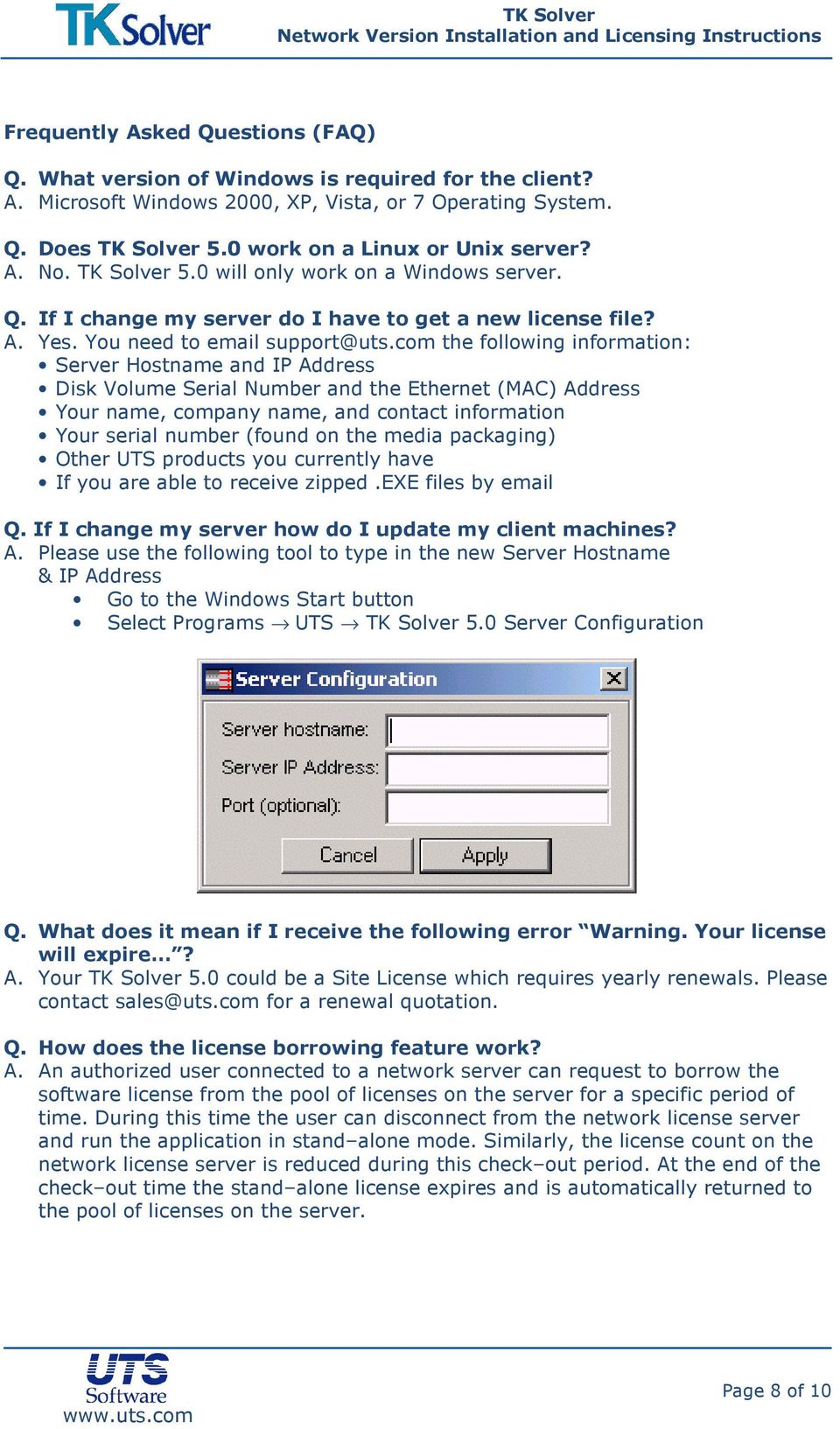
8 Frequently Asked Questions (FAQ) Q. What version of Windows is required for the client? A. Microsoft Windows 2000, XP, Vista, or 7 Operating System. Q. Does TK Solver 5.0 work on a Linux or Unix server? A. No. TK Solver 5.0 will only work on a Windows server. Q. If I change my server do I have to get a new license file? A. Yes. You need to [email protected] the following information: Server Hostname and IP Address Disk Volume Serial Number and the Ethernet (MAC) Address Your name, company name, and contact information Your serial number (found on the media packaging) Other UTS products you currently have If you are able to receive zipped.exe files by Q. If I change my server how do I update my client machines? A. Please use the following tool to type in the new Server Hostname & IP Address Go to the Windows Start button Select Programs UTS TK Solver 5.0 Server Configuration Q. What does it mean if I receive the following error Warning. Your license will expire? A. Your TK Solver 5.0 could be a Site License which requires yearly renewals. Please contact [email protected] for a renewal quotation. Q. How does the license borrowing feature work? A. An authorized user connected to a network server can request to borrow the software license from the pool of licenses on the server for a specific period of time. During this time the user can disconnect from the network license server and run the application in stand alone mode. Similarly, the license count on the network license server is reduced during this check out period. At the end of the check out time the stand alone license expires and is automatically returned to the pool of licenses on the server. Page 8 of 10
9 Q. Can a borrowed license be returned early? A. Yes. Any license that has been borrowed can be returned early to the license pool on the server by connecting the same computer that borrowed the license and checking in the license. Q. Can I extend the license checkout period? A. No. Once a license is borrowed, the borrow period cannot be extended unless the license is returned early and borrowed again. However, this means that the computer would need to connect to the license server again. Q. I can't see a license.dat file on my laptop. Where does the borrowed license reside? A. The license information is written to the registry of the computer that is borrowing the license. No license file is created. Q. What do I need to use the license-borrowing feature? A. In order to be able to borrow the software licenses you must have a valid network license of TK Solver software that has been enabled with the BORROW feature (i.e. the license will have a BORROW= in the feature line). If you don't have this feature then you will need to contact Universal Technical Systems, Inc. to issue you a new license or to purchase the borrow feature. Page 9 of 10
10 Contact Universal Technical Systems Visit anytime. Technical Support Issues (worldwide): North America and worldwide: Europe: +44 (0) India: +91 (20) UTS also has User Forums available at Sales and other issues Universal Technical Systems, Inc North Perryville Road Loves Park, IL 61111, USA Worldwide: Fax: Universal Technical Systems (Europe), Ltd. 2 Richmond Road Bedford, MK40 3DG, United Kingdom Telephone: +44 (0) Fax: +44 (0) [email protected] Universal Technical Systems (India), Pvt. Ltd. 1-B, Rohit Residence, No. 1-1A/1,2,3 Baner Road Pune, Maharashtra State India Telephone: [email protected] Page 10 of 10
Floating License Installation Guide for Windows
 Floating License Installation Guide for Windows Installation Guide This document is intended to help customers get up and running quickly with Freescale software products licensed with FLEXlm (e.g., CodeWarrior)
CodeWarrior Development Studio Floating Licensing Quick Start
 CodeWarrior Development Studio Floating Licensing Quick Start This quick start guide explains how to set up a floating license server of Freescale software products licensed with FLEXlm (e.g. CodeWarrior).
FLEXlm License Management
 FLEXlm License Management Revised: 18 October 2005 Freescale and the Freescale logo are trademarks of Freescale Semiconductor, Inc. CodeWarrior is a trademark or registered trademark of Freescale Semiconductor,
SAS 9.3 Foundation for Microsoft Windows
 Software License Renewal Instructions SAS 9.3 Foundation for Microsoft Windows Note: In this document, references to Microsoft Windows or Windows include Microsoft Windows for x64. SAS software is licensed
GAUSS 9.0. Quick-Start Guide
 GAUSS TM 9.0 Quick-Start Guide Information in this document is subject to change without notice and does not represent a commitment on the part of Aptech Systems, Inc. The software described in this document
Network Administrator s Guide and Getting Started with Autodesk Ecotect Analysis
 Autodesk Ecotect Analysis 2011 Network Administrator s Guide and Getting Started with Autodesk Ecotect Analysis This document describes how to install and activate Autodesk Ecotect Analysis 2011 software
Installation Instruction STATISTICA Enterprise Small Business
 Installation Instruction STATISTICA Enterprise Small Business Notes: ❶ The installation of STATISTICA Enterprise Small Business entails two parts: a) a server installation, and b) workstation installations
AdminToys Suite. Installation & Setup Guide
 AdminToys Suite Installation & Setup Guide Copyright 2008-2009 Lovelysoft. All Rights Reserved. Information in this document is subject to change without prior notice. Certain names of program products
Altera Software Licensing
 Altera Software Licensing March 2009 AN-340-2.3 Introduction This document describes options for licensing Altera software and the steps required for licensing: obtain a license file, set it up, and specify
Install Guide - Multi-User Licenses
 Install Guide - Multi-User Licenses Minitab and all other trademarks and logos for the Company's products and services are the exclusive property of Minitab Inc. All other marks referenced remain the property
Concurrent Licensing with GeoMedia Applications
 Concurrent Licensing with GeoMedia Applications The GeoMedia suite of applications have the ability to utilize FLEXlm s concurrent license option which allows software licenses to be used anywhere on the
DownStream Installation Guide
 DownStream Installation Guide Contents DownStream Installation Guide... 1 System Requirements... 2 About Installation... 2 About DownStream Product Licenses... 3 Getting a License file... 4 Installing
STATISTICA VERSION 12 STATISTICA ENTERPRISE SMALL BUSINESS INSTALLATION INSTRUCTIONS
 STATISTICA VERSION 12 STATISTICA ENTERPRISE SMALL BUSINESS INSTALLATION INSTRUCTIONS Notes 1. The installation of STATISTICA Enterprise Small Business entails two parts: a) a server installation, and b)
BioDiscovery Product Activation Group Floating Windows
 BioDiscovery Product Activation Group Floating Windows Contents Group Floating License Activation... 3 Manual Activation... 11 License Transfer... 12 Group Floating License Activation Note: The activation
MapInfo License Server Utility
 MapInfo License Server Utility Version 2.0 PRODUCT GUIDE Information in this document is subject to change without notice and does not represent a commitment on the part of the vendor or its representatives.
Install Guide. Contents
 Install Guide Basic installation, advanced installations, license administration, updating, and troubleshooting instructions for running Minitab 15 with multi-user licenses on Windows Contents Basic Installation,
Quick Start Guide. SYSTEM REQUIREMENTS Mac OS X 10.6-10.9 Mavericks 64-bit processor A Mac with an Intel processor 1GB of memory 64MB of free space
 Quick Start Guide Send & Upload Files easily using DropSend Direct Windows SYSTEM REQUIREMENTS OS: Windows XP SP2/Vista/7 & 8 32 bit or 64 bit CPU: 400 MHz or higher RAM: 128 MB or more Hard Drive: 5 MB
Installation and Deployment
 Installation and Deployment Help Documentation This document was auto-created from web content and is subject to change at any time. Copyright (c) 2016 SmarterTools Inc. Installation and Deployment SmarterStats
STATISTICA VERSION 9 STATISTICA ENTERPRISE INSTALLATION INSTRUCTIONS FOR USE WITH TERMINAL SERVER
 Notes: STATISTICA VERSION 9 STATISTICA ENTERPRISE INSTALLATION INSTRUCTIONS FOR USE WITH TERMINAL SERVER 1. These instructions focus on installation on Windows Terminal Server (WTS), but are applicable
User Manual. Onsight Management Suite Version 5.1. Another Innovation by Librestream
 User Manual Onsight Management Suite Version 5.1 Another Innovation by Librestream Doc #: 400075-06 May 2012 Information in this document is subject to change without notice. Reproduction in any manner
2015 Minitab Inc. All rights reserved.
 Installation Guide Minitab, Quality. Analysis. Results. and the Minitab logo are registered trademarks of Minitab, Inc., in the United States and other countries. Additional trademarks of Minitab, Inc.
STATISTICA VERSION 11 CONCURRENT NETWORK LICENSE WITH BORROWING INSTALLATION INSTRUCTIONS
 data analysis data mining quality improvement web-based analytics Notes STATISTICA VERSION 11 CONCURRENT NETWORK LICENSE WITH BORROWING INSTALLATION INSTRUCTIONS 1. The installation of the Concurrent network
Quick Start Guide for the SupportDesk Web Interface
 Quick Start Guide for the SupportDesk Web Interface Introduction Welcome to the Richmond SupportDesk Web Interface upgrade guide. This document should be used by the person(s) who will be performing the
Installation Guide. IDA Indoor Climate and Energy. EQUA Simulation AB January 2014. Copyright 2014 EQUA Simulation AB.
 Installation Guide IDA Indoor Climate and Energy Network Versions EQUA Simulation AB January 2014 Copyright 2014 EQUA Simulation AB Contents 1. Introduction 3 2. System requirements 3 3. Delivered files
LockView 4.3.1 CompX Database & Network Configuration & Installation Manual
 LockView 4.3.1 CompX Database & Network Configuration & Installation Manual Table of Contents CompX Database & Network Configuration & Installation Manual Introduction... 4 Installation Requirements...
Quick Start Guide for Parallels Virtuozzo
 PROPALMS VDI Version 2.1 Quick Start Guide for Parallels Virtuozzo Rev. 1.1 Published: JULY-2011 1999-2011 Propalms Ltd. All rights reserved. The information contained in this document represents the current
MagiCAD License Server Utilities
 User s Guide MagiCAD License Server Utilities Program version 2011.11 Document revision 03 MagiCAD Copyright 1998-2011 Progman Oy. All rights reserved. MagiCAD is a registered trademark of Progman Oy.
Installation Manual (MSI Version)
 Installation Manual (MSI Version) 1. SYSTEM REQUIREMENTS... 2 2. INSTALLATION INSTRUCTIONS... 2 2.1 REMOTE INSTALLATION USING GROUP POLICY... 2 2.1.1 Assigning Software...2 2.1.2 Publishing Software...2
Quick Start Guide for VMware and Windows 7
 PROPALMS VDI Version 2.1 Quick Start Guide for VMware and Windows 7 Rev. 1.1 Published: JULY-2011 1999-2011 Propalms Ltd. All rights reserved. The information contained in this document represents the
ilaw Installation Procedure
 ilaw Installation Procedure This guide will provide a reference for a full installation of ilaw Case Management Software. Contents ilaw Overview How ilaw works Installing ilaw Server on a PC Installing
QUICKBOOKS 2015 MINIMUM SYSTEM REQUIREMENTS & NETWORK SETUP
 QUICKBOOKS 2015 MINIMUM SYSTEM REQUIREMENTS & NETWORK SETUP Processor, memory, and disk space At least 2.0GHz Pentium 4 processor for a client (2.4GHz recommended) At least 2 GB RAM for a client and 4GB
Guide to Installing BBL Crystal MIND on Windows 7
 Guide to Installing BBL Crystal MIND on Windows 7 Introduction The BBL Crystal MIND software can not be directly installed on the Microsoft Windows 7 platform, however it can be installed and run via XP
Issue Tracking Anywhere Installation Guide
 TM Issue Tracking Anywhere Installation Guide The leading developer of version control and issue tracking software Table of Contents Introduction...3 Installation Guide...3 Installation Prerequisites...3
Geomatica 10.2 Floating License Server Installation Procedures
 Geomatica 10.2 Floating License Server Installation Procedures TUTORIAL The purpose of this tutorial is to provide you with a friendly and easy to follow step-by-step guide for the floating license server
@ptitude Observer. Installation Manual. Part No. 32170700 Revision G
 Part No. 32170700 Revision G Installation Manual Copyright 2012 by SKF Reliability Systems All rights reserved. Aurorum 30, 977 75 Lulea Sweden Telephone: +46 (0) 31 337 10 00, Fax: +46 (0) 920 134 40
Lexia Network Installation Instructions
 Lexia Network Installation Instructions For Lexia Early Reading 3.x, Primary Reading 1.x, Foundation Reading 1.x, Strategies for Older Students 4.x, Cross-Trainer 1.x and Quick Reading Test 2.x (NOT for
Installation Instruction STATISTICA. Concurrent Network License with Borrowing Domain Based Registration
 Installation Instruction STATISTICA Concurrent Network License with Borrowing Domain Based Registration Notes: ❶ The installation of the Concurrent network version entails two parts: a) a server installation,
a) Network connection problems (check these for existing installations)
 How do I resolve issues with a Client not connecting to the Best Practice server instance? This FAQ is intended to answer common questions about resolving issues with a Best Practice client not connecting
For Mac User Directions, see page 5
 Windows Vista, Windows 7, and Windows XP with Service Pack 3 Remote Desktop Access For Mac User Directions, see page 5 This instruction allows district staff and students to access the Commack UFSD network
System Administration Training Guide. S100 Installation and Site Management
 System Administration Training Guide S100 Installation and Site Management Table of contents System Requirements for Acumatica ERP 4.2... 5 Learning Objects:... 5 Web Browser... 5 Server Software... 5
LockView 4.2 CompX Database & Network Configuration & Installation Manual
 LockView 4.2 CompX Database & Network Configuration & Installation Manual Table of Contents CompX Database & Network Configuration & Installation Manual Introduction... 4 Installation Requirements... 5
SAPIP GUI INSTALLATION. Table of Contents
 QUICK START GUIDE SAPIP GUI INSTALLATION Table of Contents 1. Install CSU cable driver for SapIP..2-3 2. Check for pre-requisite for SAPIP GUI install......2 3. Check for pre-requisite for SAPIP GUI install...2-6
BSDI Advanced Fitness & Wellness Software
 BSDI Advanced Fitness & Wellness Software 6 Kellie Ct. Califon, NJ 07830 http://www.bsdi.cc SOFTWARE BACKUP/RESTORE INSTRUCTION SHEET This document will outline the steps necessary to take configure the
How to Install Multiple Monitoring Agents on a Microsoft Operating System. Version StoneGate Firewall/VPN 2.6 and SMC 3.2
 How to Install Multiple Monitoring Agents on a Microsoft Operating System Version StoneGate Firewall/VPN 2.6 and SMC 3.2 INTRODUCTION This document provides detailed instructions for installing multiple
WA1781 WebSphere Process Server v6.2 Administration. Classroom Setup Guide. Web Age Solutions Inc. Copyright Web Age Solutions Inc.
 WA1781 WebSphere Process Server v6.2 Administration Classroom Setup Guide Web Age Solutions Inc. Copyright Web Age Solutions Inc. 1 Table of Contents Part 1 - Minimum Hardware Requirements...3 Part 2 -
SUMMARY Moderate-High: Requires Visual Basic For Applications (VBA) skills, network file services skills and interoperability skills.
 Author: Sanjay Sansanwal Title: Configuring FileCM Extensions for Word The information in this article applies to: o FileCM 2.6, 3.0, 3.5, 3.5.1, 3.5.2, 4.0, 4.2 o Microsoft Windows 2000 Professional,
Creating client-server setup with multiple clients
 Creating client-server setup with multiple clients Coffalyser.Net uses a SQL client server database model to store all project/experiment- related data. The client-server model has one main application
Instructions for Adding a MacOS 10.4.x Server to ASURITE for File Sharing. Installation Section
 Instructions for Adding a MacOS 10.4.x Server to ASURITE for File Sharing Installation Section Purpose: We are setting up a server in ASU s specific environment. Power on the Server Insert the CD Hold
Installation Instruction STATISTICA Enterprise Server
 Installation Instruction STATISTICA Enterprise Server Notes: ❶ The installation of STATISTICA Enterprise Server entails two parts: a) a server installation, and b) workstation installations on each of
2015 Exelis Visual Information Solutions, Inc., a subsidiary of Harris Corporation
 Advanced Topics in Licensing 2015 Exelis Visual Information Solutions, Inc., a subsidiary of Harris Corporation Page 1 of 30 Table of Contents Introduction 3 Licensing Software 3 Installing the license
How to simulate network devices using the Verax SNMP Simulator (Linux/Windows)
 How to simulate network devices using the Verax SNMP Simulator (Linux/Windows) Table of contents Abstract... 3 1. Verax SNMP Simulator installation... 4 2. Extracting SNMP record files from a physical
Web VTS Installation Guide. Copyright 2006-2010 SiiTech Inc. All rights reserved.
 Web VTS Installation Guide Copyright 2006-2010 SiiTech Inc. All rights reserved. Table of Contents Overview of Web VTS... 1 System Requirements... 2 Installation Sequence... 3 Installing Web VTS... 6 ii
Upgrading Redwood Engine Software. Version 2.0.x to 3.1.0
 Upgrading Redwood Engine Software Version 2.0.x to 3.1.0 December 2013 APP NOTE Table of Contents 1 Introduction... 3 1.1 Backing Up the Redwood Engine Configuration, Statistics, and Log Files... 3 2 Checking
JAVS Scheduled Publishing. Installation/Configuration... 4 Manual Operation... 6 Automating Scheduled Publishing... 7 Windows XP... 7 Windows 7...
 1 2 Copyright JAVS 1981-2010 Contents Scheduled Publishing... 4 Installation/Configuration... 4 Manual Operation... 6 Automating Scheduled Publishing... 7 Windows XP... 7 Windows 7... 12 Copyright JAVS
Signiant Agent installation
 Signiant Agent installation Release 11.3.0 March 2015 ABSTRACT Guidelines to install the Signiant Agent software for the WCPApp. The following instructions are adapted from the Signiant original documentation
FlexSim LAN License Server
 FlexSim LAN License Server Installation Instructions Rev. 20150318 Table of Contents Introduction... 2 Using lmtools... 2 1. Download the installation files... 3 2. Install the license server... 4 3. Connecting
XF Extracellular Flux Analyzer. Installation and Troubleshooting Guide
 Installation and Troubleshooting Guide February 24, 2014 2 TABLE OF CONTENTS XF Client System and File Requirements 4 Frequently Asked Questions. 4 Installation.. 5 Installing XF Software.. 5 Resolving
Remote Management System
 RMS Copyright and Distribution Notice November 2009 Copyright 2009 ARTROMICK International, Inc. ALL RIGHTS RESERVED. Published 2009. Printed in the United States of America WARNING: ANY UNAUTHORIZED
4cast Client Specification and Installation
 4cast Client Specification and Installation Version 2015.00 10 November 2014 Innovative Solutions for Education Management www.drakelane.co.uk System requirements The client requires Administrative rights
ITA Mail Archive Setup Guide
 This version of ITA Mail Archive is optimized to archive emails on both Microsoft Exchange 2000 and 2003 and 2007 servers. It is highly recommended that ITA Mail Archive should run on a server other than
Using Microsoft Internet Explorer 6 (Windows 2000/ Windows XP/ Windows Server 2003)
 Security Alert Dialog Box When installing the program with SSL selected, a Windows security alert dialog box may appear each time you open Internet Explorer. This section describes how to prevent the display
1 Minimum system requirements
 Metrohm AG CH-9101 Herisau Switzerland Phone +41 71 353 85 85 Fax +41 71 353 89 01 [email protected] www.metrohm.com Installation MagIC Net 2.x 1 Minimum system requirements Operating system RAM Memory
Projetex 9 Workstation Setup Quick Start Guide 2012 Advanced International Translations
 Projetex 9 Workstation Setup Quick Start Guide 1 Projetex 9 Help Table of Contents Disclaimer 2 System Requirements 2 Registration/Upgrade 3 Projetex Workstation Setup 5 User Login to Projetex Workstation
Reflection DBR USER GUIDE. Reflection DBR User Guide. 995 Old Eagle School Road Suite 315 Wayne, PA 19087 USA 610.964.8000 www.evolveip.
 Reflection DBR USER GUIDE 995 Old Eagle School Road Suite 315 Wayne, PA 19087 USA 610.964.8000 www.evolveip.net Page 1 of 1 Table of Contents Overview 3 Reflection DBR Client and Console Installation 4
Richmond Web Services Installation Guide Web Reporting Version 10.0
 Richmond Web Services Installation Guide Web Reporting Version 10.0 Richmond Systems Ltd, West House, West Street, Haslemere, Surrey, GU27 2AB Tel: +44 (0)1428 641616 - Fax: +44 (0)1428 641717 - [email protected]
NTP Software File Auditor for Windows Edition
 NTP Software File Auditor for Windows Edition An NTP Software Installation Guide Abstract This guide provides a short introduction to installation and initial configuration of NTP Software File Auditor
Installing The SysAidTM Server Locally
 Installing The SysAidTM Server Locally Document Updated: 17 October 2010 Introduction SysAid is available in two editions: a fully on-demand ASP solution and an installed, in-house solution for your server.
IBM SPSS Statistics Version 22. Windows Installation Instructions (Concurrent License)
 IBM SPSS Statistics Version 22 Windows Installation Instructions (Concurrent License) Contents Installation instructions........ 1 System requirements............ 1 Installing............... 1 Running
Pearl Echo Installation Checklist
 Pearl Echo Installation Checklist Use this checklist to enter critical installation and setup information that will be required to install Pearl Echo in your network. For detailed deployment instructions
Telelogic DASHBOARD Installation Guide Release 3.6
 Telelogic DASHBOARD Installation Guide Release 3.6 1 This edition applies to 3.6.0, Telelogic Dashboard and to all subsequent releases and modifications until otherwise indicated in new editions. Copyright
VMware/Hyper-V Backup Plug-in User Guide
 VMware/Hyper-V Backup Plug-in User Guide COPYRIGHT No part of this publication may be reproduced, stored in a retrieval system, or transmitted in any form or by any means, electronic, mechanical, photocopying,
Configuration Guide for Active Directory Integration
 Configuration Guide for Active Directory Integration Workspot, Inc. 12/4/2015 Workspot Active Directory Integration The Enterprise Connector provides synchronization between an on-premise Active Directory
SQL Server 2008 R2 Express Installation for Windows 7 Professional, Vista Business Edition and XP Professional.
 SQL Server 2008 R2 Express Installation for Windows 7 Professional, Vista Business Edition and XP Professional. 33-40006-001 REV: B PCSC 3541 Challenger Street Torrance, CA 90503 Phone: (310) 303-3600
SafeCom Smart Printing Administrator s Quick Guide
 SafeCom Smart Printing Administrator s Quick Guide D10600-08 March 2012 Trademarks: SafeCom, SafeCom Go, SafeCom P:Go, SafeCom epay and the SafeCom logo are trademarks of SafeCom a/s. Company and product
Dell Statistica 13.0. Statistica Enterprise Installation Instructions
 Dell Statistica 13.0 2015 Dell Inc. ALL RIGHTS RESERVED. This guide contains proprietary information protected by copyright. The software described in this guide is furnished under a software license or
Installing, Uninstalling, and Upgrading Service Monitor
 CHAPTER 2 Installing, Uninstalling, and Upgrading Service Monitor This section contains the following topics: Preparing to Install Service Monitor, page 2-1 Installing Cisco Unified Service Monitor, page
Sage Peachtree Installation Instructions
 Sage Peachtree Installation Instructions Quick Tips for Network Install Use the following tips to help you install Sage Peachtree on a network: Always install Sage Peachtree FIRST on the computer that
Migrating the ASAS Database Administrator s Notes
 Administrator s Notes For ASAS 2.4 and Above 2 Overview........................................................................ 2 2.1 s........................................................................
TECHNICAL NOTE. The following information is provided as a service to our users, customers, and distributors.
 page 1 of 11 The following information is provided as a service to our users, customers, and distributors. ** If you are just beginning the process of installing PIPSPro 4.3.1 then please note these instructions
DOCSVAULT Document Management System for everyone
 Installation Guide DOCSVAULT Document Management System for everyone 9 v Desktop and Web Client v On Premises Solution v Intelligent Data Capture v Email Automation v Workflow & Record Retention Installing
Richmond Systems. SupportDesk Quick Start Guide
 Richmond Systems SupportDesk Quick Start Guide Table of Contents SupportDesk Quick Start Guide...1 Introduction...1 Pre-requisites...2 Installation at a Glance...2 Installation...3 Setup Console...13
Figure 1: RotemNet Main Screen
 1 REMOTE CONTROLLER ACCESS This paper summarizes the installation and configuration procedures needed to enable accessing your Communicator and controllers via the Internet. The information contained in
Web+Center Version 7.x Windows Quick Install Guide 2 Tech Free Version Rev March 7, 2012
 Web+Center Version 7.x Windows Quick Install Guide 2 Tech Free Version Rev March 7, 2012 1996-2012 Internet Software Sciences Welcome to the Web+Center Installation and Configuration guide. This document
Online Backup Client User Manual
 Online Backup Client User Manual Software version 3.21 For Linux distributions January 2011 Version 2.0 Disclaimer This document is compiled with the greatest possible care. However, errors might have
Analyzer 2.0. Installation Guide. Contents
 Analyzer 2.0 Analyzer 2.0 is a comprehensive suite of tools designed to help you analyze complex aqueous and multisolvent electrolyte solution chemistry, thermophysical properties, phase behavior and corrosion
Cyclope Internet Filtering Proxy
 Cyclope Internet Filtering Proxy - Installation Guide - Cyclope-Series - 2010 - Table of contents 1. Overview - 3-2. Installation - 4-2.1. System requirements - 4-2.2. Cyclope Internet Filtering Proxy
INFUSION BUSINESS SOFTWARE Installation and Upgrade Guide
 INFUSION BUSINESS SOFTWARE Installation and Upgrade Guide 27/01/2016 Published by Infusion Business Software Ltd All Rights Reserved Copyright Infusion Business Software Ltd 2012 Copyright No part of this
StrikeRisk v6.0 IEC/EN 62305-2 Risk Management Software Getting Started
 StrikeRisk v6.0 IEC/EN 62305-2 Risk Management Software Getting Started Contents StrikeRisk v6.0 Introduction 1/1 1 Installing StrikeRisk System requirements Installing StrikeRisk Installation troubleshooting
Quick Start Guide. User Manual. 1 March 2012
 Quick Start Guide User Manual 1 March 2012 This document outlines the steps to install SAMLite system into a single box of server and configure it to run for passive collection (domain login script). This
Mapping ITS s File Server Folder to Mosaic Windows to Publish a Website
 Mapping ITS s File Server Folder to Mosaic Windows to Publish a Website April 16 2012 The following instructions are to show you how to map your Home drive using ITS s Network in order to publish a website
Local Caching Servers (LCS): User Manual
 Local Caching Servers (LCS): User Manual Table of Contents Local Caching Servers... 1 Supported Browsers... 1 Getting Help... 1 System Requirements... 2 Macintosh... 2 Windows... 2 Linux... 2 Downloading
WA1916 WebSphere ESB 7.0 Programming Using WID. Classroom Setup Guide. Web Age Solutions Inc. Copyright 2011 Web Age Solutions Inc.
 WA1916 WebSphere ESB 7.0 Programming Using WID Classroom Setup Guide Web Age Solutions Inc. Copyright 2011 Web Age Solutions Inc. 1 Table of Contents Part 1 - Minimum Hardware Requirements...3 Part 2 -
License Administration Guide. FLEXnet Publisher Licensing Toolkit 11.5 FNP-115-LA01
 License Administration Guide FLEXnet Publisher Licensing Toolkit 11.5 FNP-115-LA01 Legal and Contact Information Part Number: FNP-115-LA01 Product Release Date: December 2007 Contacting Macrovision Macrovision
BodyMedia SenseWear Retrieve (V1)
 BodyMedia SenseWear Retrieve (V1) Introduction Overview System Requirement Retrieve Installation Set Up 1 Introduction Overview SenseWear Retrieve is used to retrieve Armband data and send it to a central
Using. Microsoft Virtual PC. Page 1
 Using Microsoft Virtual PC T4 Page 1 Microsoft Virtual PC Microsoft Virtual PC allows multiple Guest Operating Systems (Virtual Machines) to run using the resources of the Host Operating System (The PC
3. License Management - Unix & Linux
 Installing New License Files 3. License Management - Unix & Linux Gridgen uses the FLEXlm and Native CAD Reader (NCR) license managers to manage Gridgen processes at your site. Our floating license model
ilaw Server Migration Guide
 ilaw Server Migration Guide Revised April 2014 Contents Preface Overview 1. Backing up your Existing database Method 1. Backing up an ilaw MSDE database only Method 2. Using BURT The Backup/Restore Tool
Installation Instructions Release Version 15.0 January 30 th, 2011
 Release Version 15.0 January 30 th, 2011 ARGUS Software: ARGUS Valuation - DCF The contents of this document are considered proprietary by ARGUS Software, the information enclosed and any portion thereof
Altaro Hyper-V Backup - Getting Started
 Altaro Hyper-V Backup - Getting Started System Requirements Supported Host Operating Systems: Altaro Hyper-V Backup: o Windows 2008 R2 (all editions) o Windows 2008 R2 SP1 o Windows Hyper-V Server 2008