
Configuring Events and Notifications on VNX for File
|
|
|
- Robert Joseph
- 10 years ago
- Views:
Transcription
1 EMC VNX Series Release 7.0 Configuring Events and Notifications on VNX for File P/N REV A01 EMC Corporation Corporate Headquarters: Hopkinton, MA
2 Copyright EMC Corporation. All rights reserved. Published February 2011 EMC believes the information in this publication is accurate as of its publication date. The information is subject to change without notice. THE INFORMATION IN THIS PUBLICATION IS PROVIDED "AS IS." EMC CORPORATION MAKES NO REPRESENTATIONS OR WARRANTIES OF ANY KIND WITH RESPECT TO THE INFORMATION IN THIS PUBLICATION, AND SPECIFICALLY DISCLAIMS IMPLIED WARRANTIES OF MERCHANTABILITY OR FITNESS FOR A PARTICULAR PURPOSE. Use, copying, and distribution of any EMC software described in this publication requires an applicable software license. For the most up-to-date regulatory document for your product line, go to the Technical Documentation and Advisories section on EMC Powerlink. For the most up-to-date listing of EMC product names, see EMC Corporation Trademarks on EMC.com. All other trademarks used herein are the property of their respective owners. Corporate Headquarters: Hopkinton, MA Configuring Events and Notifications 7.0
3 Contents Preface...7 Chapter 1: Introduction...11 System requirements...12 Restrictions...12 Cautions...12 User interface choices...13 Related information...14 Chapter 2: Concepts...15 Events...16 Notifications...23 Simple Network Management Protocol...26 Chapter 3: Configuring...29 Configure DNS on the Control Station...31 Check if is working properly before configuring notifications...32 Configure notifications by means of Enable notifications...34 Configure notifications...34 Display an notifications configuration...36 Test an notification configuration...39 Disable notifications...39 Re-initialize notifications...40 Gather required information...40 Determine facilities in a component that generate events...40 Determine events associated with a facility...42 Configuring Events and Notifications 7.0 3

4 Contents List all events on the Control Station...42 Locate more information about an event...44 Determine a list of all possible actions...45 Determine which events trigger an action...46 Configure SNMP trap notifications...47 Modify the MIB file for SNMP traps...47 Configure SNMP traps...48 Send a test SNMP trap...49 Receive a test SNMP trap...51 Configure SNMP on Data Movers...54 Customize notifications...54 Create a configuration file...55 Load a configuration file...57 Verify the configuration file loaded...57 SNMP traps and notifications: Example configurations...58 When file system usage exceeds certain limits...58 Configure the system to generate a notification when file system usage exceeds certain limits...59 When a SnapSure SavVol usage reaches its high water mark...62 Configure the system to generate a notification when SnapSure SavVol usage reaches its high water mark...62 When there are Virus Checker events...66 Configure the system to generate a notification for Virus Checker events...66 When a hard or soft quota is exceeded...71 Configure the system to generate a notification when a quota is exceeded...71 Chapter 4: Managing...77 Change the SNMP port where SNMP traps are sent...78 Chapter 5: Troubleshooting...79 EMC E-Lab Interoperability Navigator notifications not received...80 Check if sendmail is running...81 Configure sendmail...81 Notifications missing or not working...81 SNMP security issues...82 Error messages Configuring Events and Notifications 7.0

5 Contents EMC Training and Professional Services...85 Appendix A: Event Notification Actions...87 Event notification actions...88 Glossary...91 Index...93 Configuring Events and Notifications 7.0 5
6 Contents 6 Configuring Events and Notifications 7.0
7 Preface As part of an effort to improve and enhance the performance and capabilities of its product lines, EMC periodically releases revisions of its hardware and software. Therefore, some functions described in this document may not be supported by all versions of the software or hardware currently in use. For the most up-to-date information on product features, refer to your product release notes. If a product does not function properly or does not function as described in this document, please contact your EMC representative. Configuring Events and Notifications 7.0 7

8 Preface Special notice conventions EMC uses the following conventions for special notices: CAUTION: A caution contains information essential to avoid data loss or damage to the system or equipment. Important: An important note contains information essential to operation of the software. Note: A note presents information that is important, but not hazard-related. Hint: A note that provides suggested advice to users, often involving follow-on activity for a particular action. Where to get help EMC support, product, and licensing information can be obtained as follows: Product information For documentation, release notes, software updates, or for information about EMC products, licensing, and service, go to the EMC Online Support website (registration required) at Troubleshooting Go to the EMC Online Support website. After logging in, locate the applicable Support by Product page. Technical support For technical support and service requests, go to EMC Customer Service on the EMC Online Support website. After logging in, locate the applicable Support by Product page, and choose either Live Chat or Create a service request. To open a service request through EMC Online Support, you must have a valid support agreement. Contact your EMC sales representative for details about obtaining a valid support agreement or with questions about your account. Note: Do not request a specific support representative unless one has already been assigned to your particular system problem. Your comments Your suggestions will help us continue to improve the accuracy, organization, and overall quality of the user publications. Please send your opinion of this document to: 8 Configuring Events and Notifications 7.0

9 Preface Configuring Events and Notifications 7.0 9

10 Preface 10 Configuring Events and Notifications 7.0

11 1 Introduction EMC VNX for file generates events to record errors, commands, and other information that you might need to know. You can configure the system to perform an action when specified events occur. Actions based on events are called notifications. Notifications that the system can perform include logging the event in an event log file, sending an , or generating a Simple Network Management Protocol (SNMP) trap. This document is part of the VNX series information set and is intended for use by system administrators responsible for configuring and maintaining file storage and network retrieval infrastructure. Topics include: System requirements on page 12 Restrictions on page 12 Cautions on page 12 User interface choices on page 13 Related information on page 14 Configuring Events and Notifications
12 Introduction System requirements Table 1 on page 12 describes the EMC VNX seriessoftware, hardware, network, and storage configurations. Table 1. System requirements Software Hardware Network Storage VNX series version 7.0 or later. No specific hardware requirements. Depends on the type of action used for notifications. For example, mail service is required for notification, SNMP applications for traps, DNS for hostname resolution, and modems for call homes. No specific storage requirements. Restrictions notifications are dependent on external servers. Some servers might require you to register the Control Station hostname in DNS. Cautions If any of this information is unclear, contact your EMC Customer Support Representative for assistance: SNMP security is based on community strings. SNMP version 1 (SNMPv1) transmits all information in clear text. Anyone monitoring the network can obtain the SNMP community name from passing traffic. RFC 1157 provides details about SNMPv1 security. Link-local IPv6 addresses are not supported in SNMP trap destinations. 12 Configuring Events and Notifications 7.0

13 Introduction User interface choices VNX for file offers flexibility in managing networked storage based on your support environment and interface preferences. This document describes how to configure notifications by using the command line interface (CLI). You can also perform many of these tasks by using one of these management applications: EMC Unisphere software Active Directory Users and Computers (ADUC) extensions The following documents provide additional information about managing your system: Unisphere online help Application s online help The Installing Management Applications on VNX for File document includes instructions on launching the Unisphere software. You cannot use the Unisphere software to configure the following notification actions: Limitations: CallHome Execution of a procedure Generation of an RPC message Termination of processing of event VNX 1.0 Release Notes contain additional, late-breaking information about management applications. User interface choices 13
14 Introduction Related information Specific information related to the features and functionality described in this document is included in the following documents:: Unisphere online help EMC VNX Command Line Interface Reference for File Parameters Guide for VNX for File VNX System Operations Managing Volumes and File Systems with VNX Automatic Volume Management Managing Volumes and File Systems for VNX Manually Online man pages SNMP manager documentation has more information on SNMP. EMC VNX documentation on the EMC Online Support website The complete set of EMC VNX series customer publications is available on the EMC Online Support website. To search for technical documentation, go to After logging in to the website, click the VNX Support by Product page to locate information for the specific feature required. VNX wizards Unisphere software provides wizards for performing setup and configuration tasks. The Unisphere online help provides more details on the wizards. 14 Configuring Events and Notifications 7.0
15 2 Concepts You can monitor and manage the system, including Data Movers and file systems, with events and notifications. The system generates events as a result of system changes, some of which might be severe enough to cause an error or disrupt user access. By using notifications, you can specify a variety of actions, such as sending an , triggering an SNMP trap, or running a script in response to these events. The following sections provide background about using events and notifications on the system: Events on page 16 Notifications on page 23 Simple Network Management Protocol on page 26 Configuring Events and Notifications

16 Concepts Events The VNX series generates events in response to specific changes in the state of the system caused by a command, an error, or some other condition that might require action by an administrator. For example, an event is generated when any of the following occur: A Data Mover restarts A network interface card (NIC) fails A file system reaches its soft or hard quota limit An EMC SnapSure save volume exceeds its limit and becomes inactive A virus checker server becomes unavailable The file /nas/sys/nas_eventlog.cfg specifies default notifications (actions) that occur as a result of events. Customize notifications on page 54 provides information about setting up customized events and notifications. Note: Do not edit the files /nas/sys/nas_eventlog.cfg and /nas/site/nas_eventlog.cfg. Edits to /nas/sys/nas_eventlog.cfg will be lost during software upgrades. The file /nas/site/nas_eventlog.cfg contains the list of configuration files currently loaded into the event handler. The directory /nas/site contains local event configuration files which are preserved during software upgrades. Create any new customized notification configuration files in this directory. Facilities The source of an event is called the event facility. The facility is the part of the system that generated the event. Each event facility is associated with a particular component and has a unique facility identifier (facility ID) within that component. For example, the UFS facility (facility ID 64) monitors file system quotas. If a quota is reached, an event is generated with a facility value of UFS. The component ID specifies the area of the system from which the event was generated. The facility ID specifies a more specific subsystem within that component. Table 2 on page 16 lists IDs, components, and component definitions. Table 2. IDs and components ID 1 Component DART (data access in real time) Component definition The operating environment that runs on the Data Mover. It is a realtime, multithreaded operating system optimized for file access, while providing service for standard protocols. 16 Configuring Events and Notifications 7.0

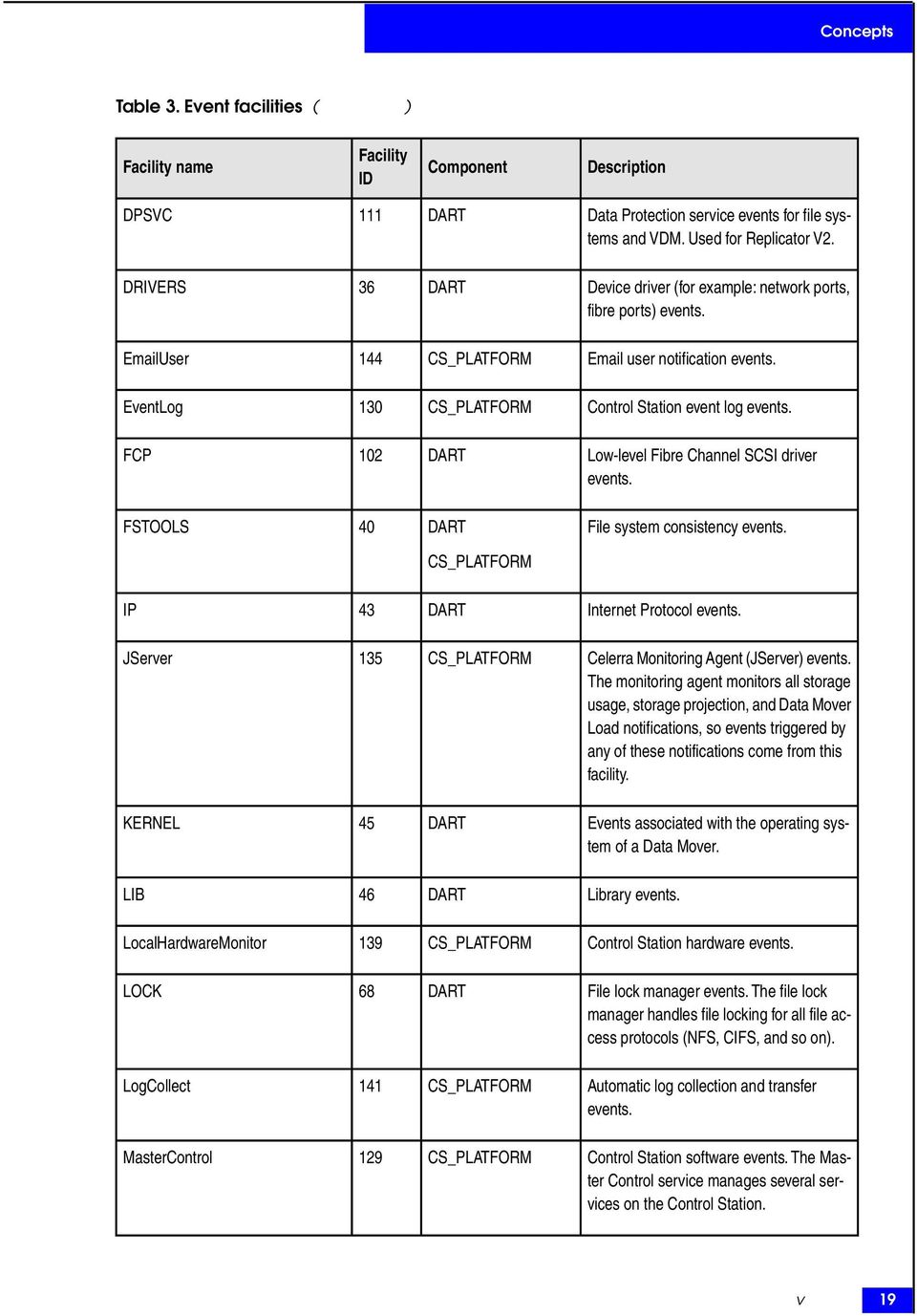
17 Concepts Table 2. IDs and components (continued) ID 2 6 Component CS_CORE CS_PLATFORM Component definition The core software running on the Control Station. Scripts and other network-attached storage (NAS) service software running on the Control Station. The facilities that generate events can change from release to release. Table 3 on page 17 lists the facilities that generate events in the current release. Table 3. Event facilities Facility name Facility ID Component Description ACLUPD 101 DART Access control list (ACL) database events. ADMIN 24 DART CS_PLATFORM Miscellaneous administrative and configuration events. BoxMonitor 131 CS_PLATFORM Hardware events. Monitors status of operating system on each Data Mover or blade. Also, monitors the enclosure hardware for NSX systems. The CHAMII facility also provides information. CAM 26 DART The Common Access Method (CAM) layer of the software provides the raw I/O communications to the data storage device. CAM events typically mean that there is a failure to communicate correctly with the storage processing components. CEPP 146 DART Celerra Event Publishing and Processing (CEPP) events. CEPP is a mechanism by which applications can register to receive event notification and context from a Data Mover. The events in this facility include only issues with CEPP itself; they do not include the events sent to registered applications. Events 17
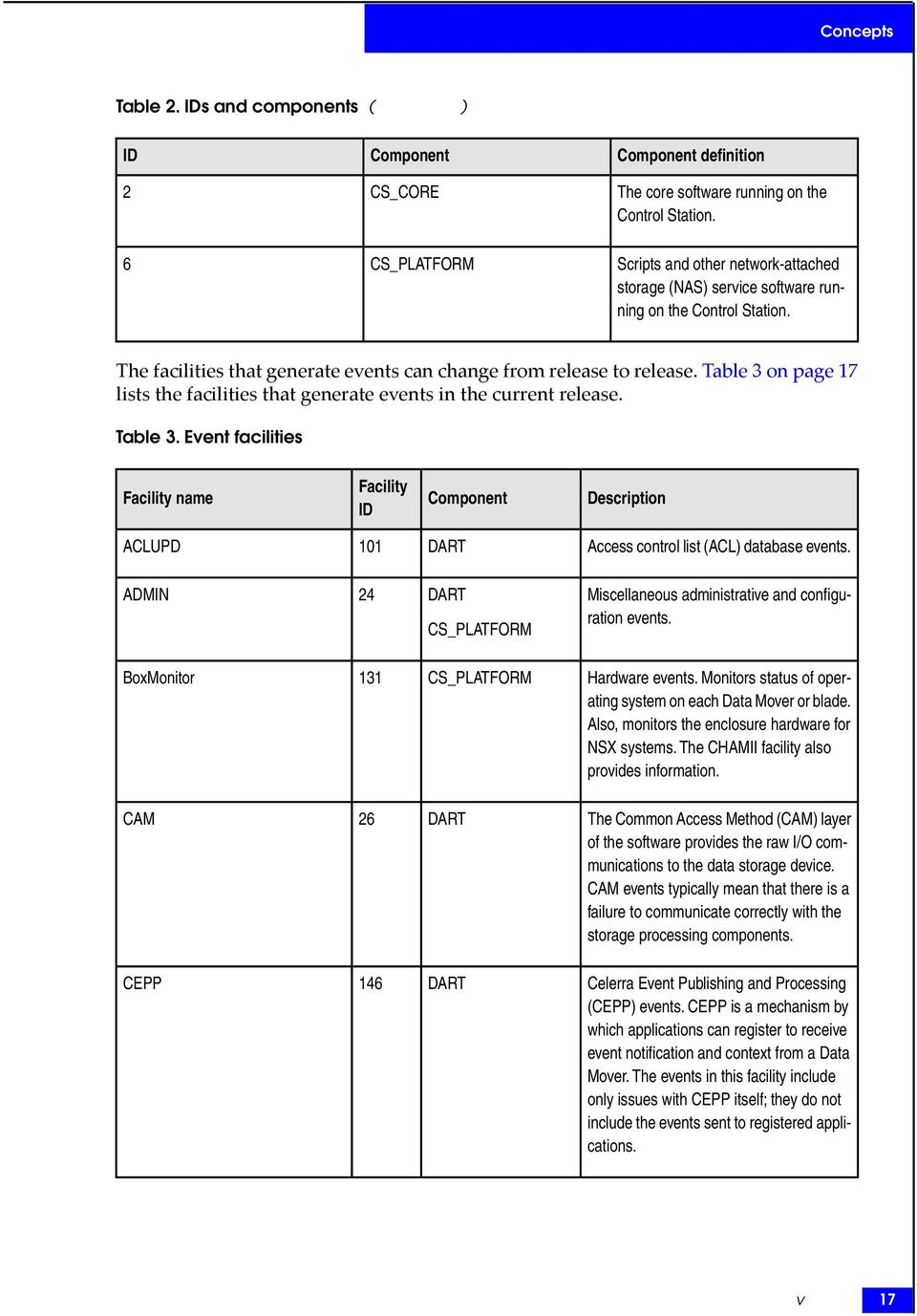
18 Concepts Table 3. Event facilities (continued) Facility name Facility ID Component Description CFS 27 DART CS_PLATFORM Events associated with file system usage such as built-in usage thresholds and file system auto-extension. CHAMII 86 DART Monitors the hardware events of NS series Data Movers and their enclosures. Formerly known as CHAMIIENCMON. Checkup 142 CS_PLATFORM NAS checkup events. The nas_checkup utility periodically runs a series of system health checks on the system and reports the problems found and the actions needed to fix them. CIC 109 CS_CORE Celerra interconnect events. Events associated with the internal communication between Data Movers or Control Stations or both. CommandService 9 CS_CORE Control Station command service daemon events. The Command Service daemon manages a number of administrative commands. common 4 CS_CORE Warm reboot events. ConnectHome 133 CS_PLATFORM ConnectHome events. The ConnectHome mechanism calls or s EMC Customer Service automatically if a problem occurs. DBMS 122 DART CS_CORE Database Management System events for configuration data. DEDUPE 148 DART Deduplication events. DHSM 96 DART FileMover events. DLM 153 CS_PLATFORM Disk Library for mainframe events. DNS 118 DART Domain Name System events. 18 Configuring Events and Notifications 7.0

19 Concepts Table 3. Event facilities (continued) Facility name Facility ID Component Description DPSVC 111 DART Data Protection service events for file systems and VDM. Used for Replicator V2. DRIVERS 36 DART Device driver (for example: network ports, fibre ports) events. User 144 CS_PLATFORM user notification events. EventLog 130 CS_PLATFORM Control Station event log events. FCP 102 DART Low-level Fibre Channel SCSI driver events. FSTOOLS 40 DART File system consistency events. CS_PLATFORM IP 43 DART Internet Protocol events. JServer 135 CS_PLATFORM Celerra Monitoring Agent (JServer) events. The monitoring agent monitors all storage usage, storage projection, and Data Mover Load notifications, so events triggered by any of these notifications come from this facility. KERNEL 45 DART Events associated with the operating system of a Data Mover. LIB 46 DART Library events. LocalHardwareMonitor 139 CS_PLATFORM Control Station hardware events. LOCK 68 DART File lock manager events. The file lock manager handles file locking for all file access protocols (NFS, CIFS, and so on). LogCollect 141 CS_PLATFORM Automatic log collection and transfer events. MasterControl 129 CS_PLATFORM Control Station software events. The Master Control service manages several services on the Control Station. Events 19
20 Concepts Table 3. Event facilities (continued) Facility name Facility ID Component Description MGFS 75 DART CS_PLATFORM Celerra Data Migration Service (CDMS) migration file system events or FileMover events. NASDB 137 CS_PLATFORM NAS database events. CS_CORE NaviEventMonitor 138 CS_PLATFORM VNX for block NDMP 51 DART CS_PLATFORM Network Data Management Protocol (backup) events. CS_CORE NETLIB 73 DART Network Information Service events. NFS 52 DART Network file system events. PERFSTATS 144 DART Statistics Network Service (statmonservice) events. The Statistics Network Service collects and reports on various system statistics. RCPD 83 DART Remote Copy Protocol Daemon events are generated for file system (ongoing and onetime copy) and VDM replication sessions. RDFChannel 11 CS_CORE Remote Data Facility (RDF) Service events. The RDF Channel service processes requests coming in from the RDF channel of the Data Mover. REP 108 DART CS_CORE Replication events for file systems and VDM. Used for Replicator V2. SECMAP 115 DART Events associated with the UNIX uid/gid to Windows SID mapping. SECURITY 54 DART Security events. CS_PLATFORM 20 Configuring Events and Notifications 7.0
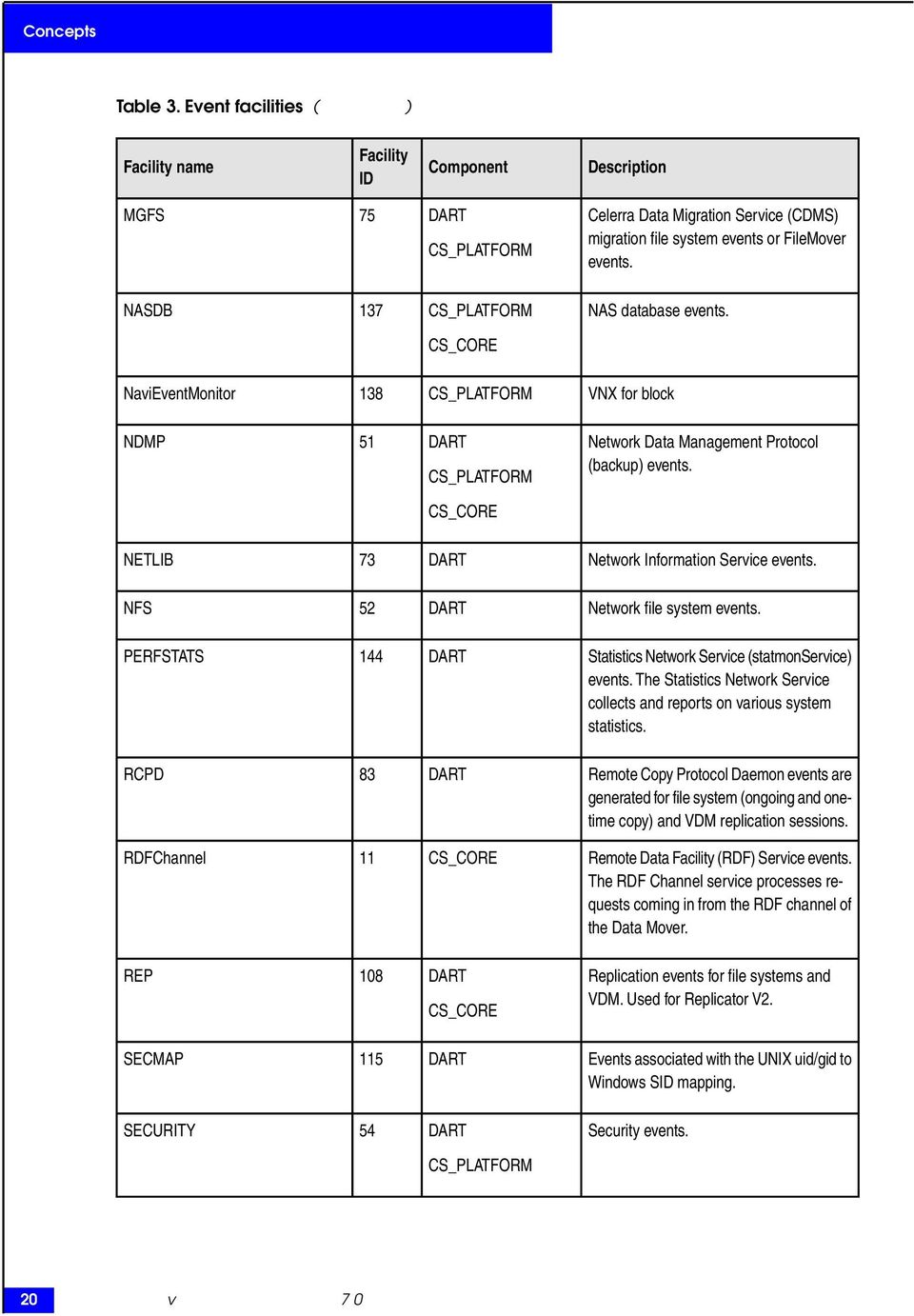
21 Concepts Table 3. Event facilities (continued) Facility name Facility ID Component Description SMB 56 DART Common Internet File System (CIFS) events. Formerly known as Server Message Block events. SNAPSURE_SCHED 91 CS_PLATFORM SnapSure scheduling events. STORAGE 58 DART High-level SCSI driver events. SVFS 70 DART SnapSure events. CS_PLATFORM CS_CORE SYR 143 CS_PLATFORM Events associated with the System Reporting (SYR) process used to gather system configuration information. TIMESYNC 62 DART Time Services events. UFS 64 DART File system consistency events concerning the physical file system, which is dependent on the disk structure. Additionally, quota events are in this facility. UPSMonitor 140 CS_PLATFORM Uninterruptible Power Supply monitor for NSX systems. USRMAP 93 DART Usermapper events. VC 81 DART Virus-checking events. VCS 107 DART Version Control System events for snaps. VMCAST 84 DART Volume multicast Replicator (V1) events associated with a file system copy. This facility deprecated in version 6.0 and later. VRPL 77 DART Volume Replicator (V1) events.this facility deprecated in version 6.0 and later. WINS 117 DART Windows Internet Name Services events. Events 21
22 Concepts Table 3. Event facilities (continued) Facility name Facility ID Component Description XLT 72 DART CS_PLATFORM Translation (XLT) file events. Detects XLT file corruptions, and recovers those files automatically from the Control Station. Event numbers Each event associated with a facility is assigned a unique number within that facility. As an example, Table 4 on page 22 lists some of the events generated by the UFS facility. Table 4. UFS event numbers Base ID Severity ERROR(3) ERROR(3) WARNING(4) ERROR(3) ERROR(3) Brief description Event ${evt,5,%u} occurred while doing a dircvt Event ${evt,5,%u} occurred while doing a dircvt "Block soft quota crossed (fs ${mountpoint,8,%s}, ${idstr,8,%s} %${userid,2,%d}) Block hard quota reached/exceeded (fs ${mountpoint,8,%s}, ${idstr,8,%s} ${userid,5,%u}) fsid ${fsid,5,%u}: transaction replay skipped. Missing volume information, fs may be corrupted For example, if the usage of a file system grows beyond predefined quotas, the system generates UFS events (facility ID 64) with event numbers of 4 or 5. Event severity levels Each event has a severity level, which gives an administrator an indication of the nature of the event and whether it is necessary to take immediate action. Default notifications are defined in the configuration file /nas/sys/nas_eventlog.cfg. Table 5 on page 23 provides a list of event severity levels and shows the relationship between these severity levels and those defined by the Unisphere software. The lower the severity level number, the greater the severity of the event. A severity of 0 is an emergency, while a severity of 7 is a debug condition. 22 Configuring Events and Notifications 7.0
23 Concepts Table 5. Event severity levels Severity level Name Description Unisphere designation 0 Emergency An extremely urgent condition exists; immediate action is needed. Critical 1 Alert Administrator attention is required. Critical 2 Critical A critical error condition is detected. Critical 3 Error A noncritical error condition is detected. Error 4 Warning A nonerror condition occurred that, if ignored, could become an error. Warning 5 Notice An abnormal condition occurred that does not require an action. Info 6 Info A normal condition occurred; informational only. Info 7 Debug A debug-related condition occurred; this should not happen in normal operations. Debug Notifications A notification is an action that the Control Station takes in response to a particular event. For example, the Control Station can send an message to an administrator when a critical event occurs. Actions that the system can take include the following: Logging the event in an event log file Sending an message for single or multiple system events to a specific address Generating an SNMP trap Calling home to your service provider Generating a webalert Notifications 23
24 Concepts Running a script Sending an RPC message to a host Terminating processing of an event Event log files The most common action taken when an event occurs is to log the event in an event log file. VNX System Operations provides information about displaying log files by using the CLI. The default system event log can be viewed and managed by using the Unisphere software. You can find detailed information about the Unisphere interface in its online help. Notification configuration files The system is configured with a set of default notifications that include logging all events to the appropriate log file. The default notifications are defined in the default configuration file /nas/sys/nas_eventlog.cfg. Note: The checkup facility has its own sample configuration file, /nas/site/checkup_eventlog.cfg, which you can use to set up notifications. To set up notifications from scheduled checkups, edit this file with the appropriate addresses and then load it. The nas_checkup man page provides more information on scheduled checkups. You can create notification definitions by creating new configuration files in the /nas/site directory and loading them by using the CLI. You can also create mail, log, and trap notifications by using the Unisphere software. By using custom configuration files and the CLI, you can define notifications with one or more of the available actions for any event. For example, you might put all configuration information for notifications in a file called /nas/site/mail_eventlog.cfg and all configuration information for SNMP notifications in a file called /nas/site/trap_eventlog.cfg. You can then use the CLI to configure notifications with the customized files. If you create separate configuration files for particular notifications or events, you can load and unload them individually, without affecting configurations specified in other files. How to create a notification configuration file The following information describes how to create a notification configuration file. Use the following format for each entry in the notification configuration files: A line starting with the keyword facilitypolicy and its component ID, followed by the unique facility ID for the facility and an event severity level with the following format: facilitypolicy <Component_ID>:<facility_ID>, <severity_level> 24 Configuring Events and Notifications 7.0
25 Concepts where: <Component_ID> = component ID to which the facility belongs <facility_id> = facility ID <severity_level> = maximum severity level for this disposition For example, facilitypolicy 1:64, 3 specifies an entry for events from the DART UFS facility (component ID 1, facility ID 64) with a severity level of Error (3) or lower (more severe). The notification is triggered by events with severity-level numbers equal to or less than the <severity_level> specified in the <facilitypolicy> line. In the previous example, notifications would be triggered by events with severity levels of Error (3), Critical (2), Alert (1), or Emergency (0). Note: If a facility is specified in multiple configuration files, the highest severity number (least severe) specified in the files is used. For example, if the UFS entry has a severity level of 7 (Debug) in /nas/sys/nas_eventlog.cfg file and a severity level of 2 (critical) in cwm_notify.cfg, the event log daemon uses the maximum severity number (least severe level) of 7. A line starting with the keyword disposition, followed by a range of event IDs within the facility, severity level, an optional directive to control unwanted or repetitious events, and the action to take when the facility issues an event in the specified event ID range. The format is as follows: disposition [range=<range_start-range_end>][severity=<severity_start-severity_end>] [<directive>], <action> where: <range_start-range_end> = optional range of event IDs <severity_start-severity_end> = optional range of severity levels <directive> = optional directive that can be one of the following: threshold=<n> = number of occurrences of the event before taking the associated action. This directive treats 0 as 1, so threshold=0 is the same as threshold=1 and both values invoke the associated action on the first occurrence of the event. rearm=<n> = number of occurrences that must take place to invoke the associated action after the threshold is reached. This directive works in conjunction with threshold and overrides the threshold value for subsequent event occurrences. resetafter=<n> = number of seconds after which threshold and rearm counters are reset if no associated event activity occurs. <action> = action to take when this event is triggered. This is not optional. The defined actions are as follows: logfile, mail, trap, callhome, exec, udprpc, terminate Notifications 25
26 Concepts The following example specifies that the system should generate the specified SNMP trap (2) for events with event IDs in the range of 3 to 7: disposition range=3-7, trap "/nas/site/trap.cfg 2" The range is optional. If no range is specified, the disposition applies to all events issued by that facility. If no severity level is specified, the maximum level is used if the facility is specified in more than one configuration file. The following example specifies that the system should generate the specified SNMP trap (2) for any event generated by this facility. Note that the comma is still required: disposition, trap "/nas/site/trap.cfg 2" An optional line starting with the keyword disposition, followed by a range of severity levels and the action to take when the facility issues an event in the specified severity-level range. The format is as follows: disposition [<severity_level_range>], <action> The following example specifies that any event with severity 1 or 2 results in an . Specifying a range of severity levels overrides the severity level specified in the <facilitypolicy> line, 7 in this case. facilitypolicy 1:64, 7 disposition severity=1-2, mail "user@domain" Events can have more than one action. For example, a specific event could have logfile, and trap actions. Create a configuration file on page 55 describes the procedure to create and modify a configuration file. You can use comment lines, which start with the number sign (#), to document notification configuration files. Simple Network Management Protocol One type of notification you can configure for certain events is an SNMP notification, or SNMP trap. SNMP is a network protocol based upon a manager or agent model and is used to communicate management information between a network management station (NMS) and agents in the network elements. The manager provides the interface between the human network manager and the management system. The agent provides the interface between the manager and the physical devices in the network. SNMP messages There are three types of SNMP messages: Get requests from the SNMP manager Request information from the remote device. Set requests from the SNMP manager Modify the configuration of the remote device. 26 Configuring Events and Notifications 7.0
27 Concepts Trap messages from the SNMP agent on the remote device Provide notification and monitoring of events. The trap message is the way an agent communicates with the SNMP manager, notifying the manager of an event, such as a crash, a restart, or a network interface card failure. The manager might respond to a trap message by polling agents to get more information. The system responds to SNMP get requests and can generate SNMP trap messages for specified events. The values you can set or modify are community, syscontact, and location. SNMP security and the community string The SNMP community string is the basis for security in SNMP. The default community name is, the well-known name, public. This name should be changed to prevent unwanted access to the system. Use alphanumeric characters and the special characters # $ % ^ * + = { } :? _ to specify the community name. You can set up an SNMP trap for any system event. Using more than one community name can provide multiple levels of security. Note: SNMP version 1 (SNMPv1) transmits all information in clear text. Anyone monitoring the network can obtain the SNMP community name from passing traffic. RFC 1157 provides details about SNMPv1 security. Third-party commercial SNMP products There are many commercial third-party SNMP management products, including: Computer Associates Unicenter TNG Hewlett-Packard OpenView Network Node Manager Hewlett-Packard OpenView Operations IBM Tivoli NetView IBM Tivoli TME10 NetView IBM Tivoli TME10 Enterprise Console Micromuse Netcool/OMNIbus Simple Network Management Protocol 27
28 Concepts 28 Configuring Events and Notifications 7.0
29 3 Configuring The tasks to configure events and notifications are: Configure DNS on the Control Station on page 31 Check if is working properly before configuring notifications on page 32 Configure notifications by means of on page 33 Enable notifications on page 34 Configure notifications on page 34 Display an notifications configuration on page 36 Test an notification configuration on page 39 Disable notifications on page 39 Re-initialize notifications on page 40 Gather required information on page 40 Determine facilities in a component that generate events on page 40 Determine events associated with a facility on page 42 Locate more information about an event on page 44 Determine a list of all possible actions on page 45 Determine which events trigger an action on page 46 Configure SNMP trap notifications on page 47 Modify the MIB file for SNMP traps on page 47 Configure SNMP traps on page 48 Send a test SNMP trap on page 49 Receive a test SNMP trap on page 51 Configure SNMP on Data Movers on page 54 Customize notifications on page 54 Create a configuration file on page 55 Load a configuration file on page 57 Verify the configuration file loaded on page 57 Configuring Events and Notifications
30 Configuring SNMP traps and notifications: Example configurations on page 58 When file system usage exceeds certain limits on page 58 When a SnapSure SavVol usage reaches its high water mark on page 62 When there are Virus Checker events on page 66 When a hard or soft quota is exceeded on page Configuring Events and Notifications 7.0
31 Configuring Configure DNS on the Control Station By using DNS services, it is easier to administer hostname resolution. Most of the time, DNS configuration is done at the time of system implementation. Action To configure the Domain Name Server (DNS), search domains, and DNS servers for the Control Station, use this command syntax: $ nas_cs -set -dns_domain <dns_domain_name> -search_domain <do main_name>[,...] -dns_servers <ip_address>[,...] where: <dns_domain_name> = domain name of the primary Control Station <domain_name> = DNS domains searched <ip_address> = IPv4 or IPv6 addresses of the DNS servers Examples: To set the DNS domain, search domains, and DNS servers for the Control Station that uses IPv4 addresses, type: $ nas_cs -set -dns_domain nasdocs.emc.com -search_domain localdomain -dns_servers , To set the DNS domain, search domains, and DNS servers for the Control Station that uses IPv6 addresses, type: $ nas_cs -set -dns_domain nasdocs.emc.com -search_domain localdomain -dns_servers 3ffe:0000:3c4d:0015:0000:0000:0300:00aa, 3ffe:0000:3c4d:0015:0000:0000:0300:00bb To set the DNS domain, search domains, and DNS servers for the Control Station that uses a mix of addresses, type: $ nas_cs -set -dns_domain nasdocs.emc.com -search_domain localdomain -dns_servers , 3ffe:0000:3c4d:0015:0000:0000:0300:00bb, Note: You can use Unisphere to configure IPv4 DNS servers. In Unisphere, go to System System Management (Task list) Control Station Properties. To configure IPv6 DNS servers, you must use the CLI. Configure DNS on the Control Station 31
32 Configuring Check if is working properly before configuring notifications This procedure combines the commands echo, mail, and hostname. The results of the echo command are passed to the mail command and the hostname (Control Station name) is sent to the recipient. Action To test if is working properly before configuring notifications, use this command syntax: $ echo test from hostname mail -v -s hostname <subject> <recipient address> Ensure to enclose hostname in single, backward quotes; otherwise, the command fails. The man pages for echo, mail, and hostname commands provide more information. where: -v = verbose output option of mail command -s = subject option of the message hostname = result of hostname command that is passed to the requested commands (echo, and mail) <subject> = subject <recipient address> = recipient s address Example: To send a test to user1, type: $ echo test from hostname mail -v -s hostname test message [email protected] Output The following output provides information about the state of service on the Control Station: [email protected]... Connecting to eagle.lss.nasdocs.emc.com. via esmtp igw ESMTP Sendmail /8.10.1; Tue, 22 Jun :14: (EDT) >>> EHLO manatee6.pag.nasdocs.emc.com 250-igw.nasdocs.emc.com Hello [ ], pleased to meet you... >>> MAIL From:<[email protected]> SIZE= <[email protected]>... Sender ok >>> RCPT To:<[email protected]> <[email protected]>... Recipient ok >>> DATA 354 Enter mail, end with "." on a line by itself >>> i5mfejr00252 Message accepted for delivery [email protected]... Sent (i5mfejr00252 Message accepted for delivery) Closing connection to eagle.lss.nasdocs.emc.com. >>> QUIT igw.nasdocs.emc.com closing connection 32 Configuring Events and Notifications 7.0
33 Configuring Note In the resulting output from the command, the following line indicates that on the Control Station is working properly: Recipient ok, If the recipient did not receive the , there might be network problems external to the Control Station. Check if sendmail is running on page 81 provides more information on what to do if notifications are not working as expected. You can also test notifications by using the Test button. For this, create an event notification for using the Unisphere software. Then, go to System Monitoring and Alerts Notifications Event. Click Test on the notification list. Configure notifications by means of on page 33 provides another means of setting up and testing notifications. Configure notifications by means of notifications allow you to configure for multiple, serious system events in one place, eliminating the need to configure notifications with the same recipients. The tasks to configure notifications are: Enable notifications on page 34 Configure notifications on page 34 Display an notifications configuration on page 36 Test an notification configuration on page 39 Re-initialize notifications on page 40 Disable notifications on page 39 Note: Events will continue to be sent as callhomes to EMC support if Connect Home is enabled. You can continue to configure notifications for specific events. You can also configure and test notifications by using the Unisphere software. Go to System and from the task list, under Service Tasks, select Manage User. Configure notifications by means of 33
34 Configuring Enable notifications Action To enable notification, use this command syntax: $ nas_ user -modify -enabled {yes no} where: yes = enabled. Example: To enable notification, type: $ nas_ user -modify -enabled yes Output OK Configure notifications Before you begin If DNS is not configured on the Control Station, notifications will not be delivered. Configuring VNX Naming Services provides information about configuring DNS. The mailbox portion of the fully qualified domain name uses the following ASCII characters: a z, A Z, 0 9,!, #, $, %, &, *, +, -, /, =,?, ^, _, `, {,, },.,, and ~. Periods cannot be the first or last character in the mailbox. Alphanumeric strings are accepted. Enclose addresses in single quotes. For example: [email protected]. You can use single quotes within an address, but you must escape them correctly. The first example shows how to use a single quote on its own in an address, while the second shows how to use a single quote within a single-quoted address: admin\' @nasdocs.emc.com 'first'\''[email protected],second'\''[email protected]' You can customize the subject prefix to meet your specific requirements, such as filtering. Procedure Action To configure notifications, use this command syntax: $ nas_ user -modify -to {< _addr>,...} -cc {< _addr>,...} - _server < _server> -subject_prefix < _subject> -from < _addr> 34 Configuring Events and Notifications 7.0
35 Configuring Action where: < _addr> = for -to, one or more comma-separated, addresses, from 3 to 255 characters, in the format mailbox@fully-qualified-domain-name. Each individual address can be a maximum of 63 characters. < _addr> = for -cc, one or more optional, comma-separated, addresses, from 3 to 255 characters, in the format mailbox@fully-qualified-domain-name. Each individual address can be a maximum of 63 characters. < _addr> = for -from, sender s optional address, from 3 to 63 characters, in the format mailbox@fullyqualified-domain-name. If you do not specify a sender, an address in the format root@<hostname> is used by the system. For example: [email protected]. < _server> = the optional server that accepts and routes the notifications. Specifies an optional IPv4 or IPv6 address or the fully qualified domain name, from 1 to 63 characters, of the server. The IPv4 addresses and are not allowed. < _subject> = the optional subject prefix of the notification, from 1 to 63 printable ASCII characters. The default subject prefix is VNX Notification. Example: To configure notifications using server from administrator to support, while copying engineering and documentation, type: $ nas_ user -modify -to [email protected], [email protected] -cc [email protected], [email protected] - _server subject_prefix "VNX Notification -- Jan 10, 2011" -from [email protected] Output OK Configure notifications 35
36 Configuring Display an notifications configuration Action To display the notifications configuration, type: $ nas_ user -info Output Service Enabled = Yes Recipient Address(es) = [email protected],[email protected] Carbon copy Address(es) = [email protected],[email protected] Server = Subject Prefix = VNX Notification -- Jan 10, 2011 Sender Address = [email protected] The following output shows an example of an notification based on the configuration information that you supplied and generated when a BoxMonitor error occurs. Inventory information for your system is provided toward the bottom of the message. This information is abbreviated for this example. 36 Configuring Events and Notifications 7.0
37 Configuring Output From: To: CC: Subject: VNX Notification -- Jan 10, 2011 Event Time: Jan 10 03:14: Brief Description: Slot 2: Enclosure 0 blade 1 I2C PSA bus error. Full Description: This is a management switch internal error. The error is logged when the management switch is not able to control or query the status of enclosure components because of a hardware problem that may be caused by a component or connection outside the management switch. Recommended Action: Examine the /nas/log/sys_log to locate the cause of the management switch event. This may be caused by bad I2C connections on the motherboard or the enclosure. This can also happen when the two management switches in the enclosure have conflicting views of the system. Replacing the enclosure hardware or one of the management switches may be necessary. Name: vnxdev-36 Model: VNX5500 Serial Number: FNM Software Version: Severity: CRITICAL Component: CS_PLATFORM Facility: BoxMonitor Message ID: Display an notifications configuration 37
38 Configuring Output System Configuration Snapshot: Sun Jan 10 03:15:01 EST 2011 Control Station Slot No: 0 /nas/sbin/model: VNX5500 /nas/bin/nas_inventory -list: Component Type Status System ID Shelf 0/0 Battery A Battery OK VNX VNX5500 FNM Shelf 0/0 Battery B Battery OK VNX VNX5500 FNM VNX VNX5500 FNM VNX OK VNX VNX5500 FNM VNX VNX5500 FNM VNX OK VNX VNX5500 FNM Depending on your service level agreement, you can contact your service provider to resolve the problem or follow the instructions in the recommended actions. 38 Configuring Events and Notifications 7.0
39 Configuring Test an notification configuration Test an notification posts a test event, which delivers an notification to the configured recipients. Action To test notifications, type: $ nas_ user -test Output OK After you finish Confirm with the configured recipients that they received the test with the correct system identification information. Disable notifications Action To disable notification, use this command syntax: $ nas_ user -modify -enabled {yes no} where: no = disabled. Example: To disable notification, type: $ nas_ user -modify -enabled no Output OK Test an notification configuration 39
40 Configuring Re-initialize notifications If the configuration file becomes corrupt or is deleted, you can use the -init option to re-initialize the notification feature. However, you should only use this option if you are directed to run it by a system message. Action To re-create the configuration file, type: $ nas_ user -init Output OK Gather required information To specify notifications for specific events, you need to gather information about event facilities and the events they generate. The tasks to gather required information are: 1. Determine facilities in a component that generate events on page Determine events associated with a facility on page Locate more information about an event on page Determine a list of all possible actions on page Determine which events trigger an action on page 46 Determine facilities in a component that generate events 1. To view the list of components, type: $ nas_event -list -component -info Output: ID Component 1 DART 2 CS_CORE 6 CS_PLATFORM 2. To view a list of all facilities of the component DART that generate events, type: $ nas_event -list -component DART -facility -info 40 Configuring Events and Notifications 7.0
41 Configuring Output: DART(1) ->Id Facility 24 ADMIN 26 CAM 27 CFS 36 DRIVERS 40 FSTOOLS 43 IP 45 KERNEL 46 LIB 51 NDMP 52 NFS 54 SECURITY 56 SMB 58 STORAGE 62 TIMESYNC 64 UFS 68 LOCK 70 SVFS 72 XLT 73 NETLIB 75 MGFS 77 VRPL 81 VC 83 RCPD 84 VMCAST 86 CHAMII 93 USRMAP 96 DHSM 101 ACLUPD 102 FCP 107 VCS 108 REP 111 DPSVC 115 SECMAP 117 WINS 118 DNS 122 DBMS 144 PERFSTATS 146 CEPP 148 DEDUPE Determine facilities in a component that generate events 41
42 Configuring Determine events associated with a facility Action To view a list of events and event ID numbers associated with a facility, use this command syntax: $ nas_event -list -component <component> -facility <facility> where: <component> = component name <facility> = case-sensitive facility name A component must be listed with a facility to view the list of events generated by that facility. Example: To list the events associated with the DART facility, type: $ nas_event -list -component DART -facility SVFS Output DART(1) --> SVFS(70) BaseID Severity Brief_Description 1 WARNING(4) FSID:${id,5,%u} SavVol:${vol,8,%s} MaxSize:${maxsize,5,%u} MB %Full(hwm=${hwm,2,%d}) reached (t:${ticks,3,%q}) 2 ERROR(3) FSID:${id,22,%u} SavVol:${vol,76,%s} Inactive 3 INFO(6) Restore completed successfully.(pfs_volid:${volname,76,%s}) 4 INFO(6) Restore in progress ${percent,5,%1u} percent done. (PFS_VOLID:${volid, 76,%s}) 5 EMERGENCY(0) FSID:${id,22,%u} SavVol:${vol,76,%s} conversion paused (t:${ticks,6,%llu}) 6 ERROR(3) FsVol:${FsVolName,76,%s} SavVol:${SaveVol- Name,76,%s} Inactivate ALL ckpt List all events on the Control Station Action To view a list of all events on the Control Station, type: $ export NAS_DB=/nas ; /nas/bin/nas_event -l -c -i \ awk '/^[ ]*[0-9]+/{print $1}' xargs -n1 -i bash -c \ "export COMP={} ; /nas/bin/nas_event -l -c {} -i awk '/^[ ]*[0-9]+/{print \$1}'\ xargs -n1 -i /nas/bin/nas_event -l -c \$COMP -f \{\} -id" fgrep -v 'DEBUG(7)' 42 Configuring Events and Notifications 7.0
43 Configuring Output DART(1) --> ADMIN(24) MessageID BaseID Severity Brief_Description EMERGENCY(0) ${command,8,%s} DART(1) --> CAM(26) MessageID BaseID Severity Brief_Description WARNING(4) The SCSI HBA ${hbano,2,%d} is operating normally WARNING(4) Warning: The SCSI HBA ${hbano,2,%d} has failed WARNING(4) Warning: The SCSI HBA ${hbano,2,%d} is inaccessible ERROR(3) I/O Error: c${path_id,5,%u}t${target_i d,5,%u}l${target_lun,5,%u} Irp 0x${irp,2,%08x} CamStatus 0x${cam_status,2,%02x} ScsiStatus 0x${scsi_status,2,%02x} Sense 0x${sns_key,2,%02x}/0x${asc,2,%02x}/0x ${asq,2,%02x} DART(1) --> CFS(27) MessageID BaseID Severity Brief_Description WARNING(4) filesystem size threshold (${usagehwm, 2,%d}%) crossed (fs ${mountpath,55,%s}) WARNING(4) The file system size (fs ${mountpath,8,%s}) dropped below the threshold of (${usagehwm,2,%d}%) WARNING(4) File system size threshold (${size,5,% u}%) was crossed for (fs ${fsname,68,%s}) WARNING(4) The file system size (fs ${mountpath,8,%s}) dropped below the threshold of (${usagehwm,2,%d}%) INFO(6) FsId: ${id,5,%lu} MaxSize: ${maxsize,2,%d} MB HWM: ${usage,2,%d}%. ${extsizestr,8,%s} INFO(6) The file system size (fs ${mountpath,8,%s}) dropped below the threshold of (${usagehwm,2,%d}%) INFO(6) The file system size (fs ${mountpath,8,%s}) dropped below the threshold of (${usagehwm,2,%d}%)... After you finish If you want to create a searchable file containing all events, redirect the output to a file. Determine events associated with a facility 43
44 Configuring Locate more information about an event To locate more information about an event, determine the message ID for the event and then use the message ID to display the additional information: 1. To view a list of events, and associated message IDs, for a facility, use this command syntax: $ nas_event -list -component <component> -facility <facility> -id where: <component> = component name <facility> = case-sensitive facility name Example: To list the message IDs for all events of a facility, type: $ nas_event -list -component DART -facility SVFS -id Output: DART(1) --> SVFS(70) MessageID BaseID Severity Brief_Description WARNING(4) FSID:${id,5,%u} SavVol:${vol,8,%s} MaxSize:${maxsize,5,%u} MB %Full(hwm=${hwm,2,%d}) reached (t:${ticks,3,%q}) ERROR(3) FSID:${id,22,%u} SavVol:${vol,76,%s} Inactive INFO(6) Restore completed successfully. (PFS_VOLID:${volname,76,%s}) INFO(6) Restore in progress ${percent,5,%1u} percent done. (PFS_VOLID:${volid,76,%s}) EMERGENCY(0) FSID:${id,22,%u} SavVol:${vol,76,%s} conversion paused (t:${ticks,6,%llu}) ERROR(3) FsVol:${FsVolName,76,%s} SavVol:${Save VolName,76,%s} Inactivate ALL ckpt Note: The number is a message ID. 2. To locate more information about an event, use this command syntax: $ nas_message -info <message_id> where: <message_id> = multidigit ID number Example: To obtain additional information about an event by using the message ID, type: $ nas_message -info Output: 44 Configuring Events and Notifications 7.0
45 Configuring MessageID = BaseID = 6 Severity = ERROR Component = DART Facility = SVFS Type = EVENT Brief_Description = FsVol:${FsVolName,76,%s} SavVol:${SaveVolName,76,%s} Inactivate ALL ckpt Full_Description = All checkpoints are inactive due to limited space on the save volume. Recommended_Action = Check the system configuration to see if more space can be allocated for the save volume. Determine a list of all possible actions Action To view a list of all possible actions that you can take, type: $ nas_event -list -action -info Output action mail terminate trap exec callhome logfile udprpc Note Mail notification is not a default; therefore, it does not appear in the list of possible actions until an event is configured for mail notification. Determine a list of all possible actions 45
46 Configuring Determine which events trigger an action Action To view a list of events that trigger a particular action, use this command syntax: $ nas_event -list -action <action> where: <action> = name of the action: mail, trap, logfile, callhome, exec, terminate, updrpc Example: To list the events that trigger a trap action to EMC, type: $ nas_event -list -action trap Output CS_PLATFORM(6) --> BoxMonitor(131) BaseID Severity Brief_Description 1 CRITICAL(2) EPP failed to initialize. 3 CRITICAL(2) Failed to create ${threadname,8,%s} thread. 4 CRITICAL(2) SIB Read failure: ${string,8,%s}.. CS_PLATFORM(6) --> SYR(143) BaseID Severity Brief_Description 5 INFO(6) The SYR file ${src_file_path,8,%s} with ${dest_extension,8,%s} extension is attached. 46 Configuring Events and Notifications 7.0
47 Configuring Configure SNMP trap notifications The tasks to configure SNMP traps for notifications are: 1. Modify the MIB file for SNMP traps on page Configure SNMP traps on page Send a test SNMP trap on page Receive a test SNMP trap on page Configure SNMP on Data Movers on page 54 Modify the MIB file for SNMP traps If the default SNMP traps do not properly describe the condition that you want to trap, you can define additional SNMP traps by modifying the system MIB file: 1. Modify the MIB, /nas/sys/emccelerra.mib, to include the following lines: celcfs TRAP-TYPE ENTERPRISE emccelerra VARIABLES {celevent} DESCRIPTION "<description>" ::=<unique-id-number> where: <description> = description of the trap. <unique-id-number> = arbitrary, yet unique, trap number for the event that you specified in the notification configuration file. Some trap numbers are reserved. Ensure to check the trap definition section of the MIB, /nas/sys/emccelerra.mib, before assigning a trap number. Note: Ensure that the trap number in the MIB and in the configuration file you are modifying are the same. The trap number correlates a particular trap in the MIB with events that you specify in the configuration file. Save a copy of the modified MIB in another location because it is overwritten when the system is upgraded. On HP OpenView, load the MIB by using Options Load/Unload MIBs:SNMP. 2. Configure the MIB on the SNMP Manager. Configure SNMP trap notifications 47
48 Configuring Configure SNMP traps An SNMP trap configuration file informs the Control Station which SNMP managers should receive a message when a trap occurs. Specify which trap configuration file (located in the /nas/site directory) to use when you configure a trap notification. A trap configuration file can contain multiple entries, one per line. Modifications to the file are maintained when the system is upgraded. Before you begin The Control Station can use /etc/hosts, NIS, or DNS to resolve hostnames and IP addresses. These services must be configured and running. In addition, set up the /etc/nsswitch.conf file to determine the search order the Control Station uses when resolving names. The /etc/hosts file is a text file listing hostnames and their corresponding IP addresses. If you use hostnames in a trap configuration file, be sure to add the hostnames and IP addresses to the /etc/hosts file if you are not using DNS for name resolution. The changes take effect as soon as the file is saved. There is no need to restart the system. Procedure Action By using a text editor, add the following lines to the file /nas/site/trap.cfg to configure the SNMP Managers: #snmp trap configuration file snmpmanager <hostname> ; communityname <community> where: snmp trap configuration file = comment line snmpmanager = keyword <hostname> = hostname or IPv4 or IPv6 address ; = separator character, preceded and followed by a space communityname = keyword <community> = community name for the SNMP manager. Use alphanumeric characters and the special characters # $ % ^ * + = { } :? _ to specify the community name. Example: #snmp trap configuration file snmpmanager ; communityname xyz_community snmpmanager host1 ; communityname xyz_community 48 Configuring Events and Notifications 7.0
49 Configuring Send a test SNMP trap You can use nas_snmptrap and snmptrapd -f -Le -Lf on the Control Station to send a test SNMP trap. Before you begin For NS series and VNX series Control Stations, snmptrapd is already running. The software starts the daemon whether or not UPS is installed. To prevent the generation of two sets of logs when testing an SNMP trap on these systems, as root kill the existing snmptrapd service run by typing: # killall snmptrapd To restart snmptrapd services after testing, type: # /usr/sbin/snmptrapd -c /nas/sys/snmptrapd.conf -p 162 -u /var/run/snmptrapd.pid >/dev/null 2>&1 & Procedure 1. Log in to the Control Station as root. 2. Ensure that the Control Station is listed in the trap.cfg file. Example: snmpmanager localhost ; communityname public 3. Start the SNMP trap daemon on the Control Station by typing: # /usr/sbin/snmptrapd -f -Le -Lf /nbsnas/var/log/my_eventlog_messages & Note: Because snmptrapd is already running on NS series and VNX series Control Stations, this command returns an informational error message. Some systems do not have the /nbsnas directory. If this is true for your system, use the /nas/var/log directory. The & starts the daemon in the background and allows you to continue typing commands. Messages are logged to the my_eventlog_messages file. You can enable SNMP on the Control Station through the Unisphere software. Go to the Settings Network Settings for File Network Services tab. You can also enable and disable SNMP on Data Movers. 4. From root, send a trap by using this syntax: # /nas/sbin/nas_snmptrap <config_file_path> -m /nas/sys/emccelerra.mib -r <trap_number> -f <facility_id> -i <event_id> -s <severity_level> -d "<description>" where: <config_file_path> = path of the trap configuration file Send a test SNMP trap 49
50 Configuring /nas/sys/emccelerra.mib = MIB file <trap_number> = unique trap number for the event <facility_id> = ID number of the facility generating the event <event_id> = event ID number <severity_level> = severity level of the event <description> = description of the trap (up to 255 characters) Example: # /nas/sbin/nas_snmptrap /nas/site/trap.cfg -m /nas/sys/emccelerra.mib -r 1 -f 64 -i 5 -s 7 -d "test SNMP traps" Output: :05:17 eng [ ] (via localhost.localdomain [ ]) TRAP, SNMP v1, community public. enterprises Enterprise Specific Trap (1) Uptime: 14 days, 1:39:04.68 enterprises = 64 enterprises = 5 enterprises = 7 enterprises = "test SNMP traps " You can create an event notification for a trap in the Unisphere software. To create, go to System Monitoring and Alerts Notifications Event. Then, click Test on the notification list. 50 Configuring Events and Notifications 7.0
51 Configuring Receive a test SNMP trap You can receive a test SNMP trap by configuring the Control Station as the target. 1. Set up the SNMP Manager to receive Virus Checker SNMP traps by adding the following line to the file /nas/site/trap.cfg: snmpmanager <target> ; communityname <public> where: <target> = IPv4 or IPv6 address, hostname, or fully qualified domain name of the SNMP Manager that gets the traps. <public> = community name to use for authentication with the SNMP Manager. Use alphanumeric characters and the special characters # $ % ^ * + = { } :? _ to specify the community name. Check with the site manager for what to use in place of public. 2. Modify the MIB, found at /nas/sys/emccelerra.mib, to include the following lines: celvc TRAP-TYPE ENTERPRISE emccelerra VARIABLES {celevent} DESCRIPTION "Trap message will be sent in the event of a VC service associated notification request." ::=11 where: 11 = arbitrary, yet unique, trap number for the event you specified in the my_eventlog.cfg file Save a copy of the modified MIB in another location because it is overwritten when the system is upgraded. On HP OpenView, load the MIB by using Options Load/Unload MIBs:SNMP. 3. Configure MIB on the SNMP Manager. 4. Ensure that the Control Station name is in the /etc/hosts file: # Do not remove the following line, or various programs # requiring network functionality will fail localhost.localdomain localhost <address> <example_cs0> <example_cs0.nasdocs.emc.com> where: <address> = IPv4 or IPv6 address of the Control Station. The IPv4 address is always present. The IPv6 address is present only if IPv6 is configured. <example_cs0> = Control Station name and <nasdocs.emc.com> is the name of the domain that includes the mail server. Substitute Control Station and domain information for the ones in the example. Receive a test SNMP trap 51
52 Configuring 5. Create a new notification configuration file named /nas/site/my_eventlog.cfg by copying /nas/sys/nas_eventlog.cfg to my_eventlog.cfg. 6. Use a text editor to add the following statements to my_eventlog.cfg: # Virus Checker Events # and trap notification for any Virus Checker event # facilitypolicy 1:81,7 disposition range=1-28, mail "[email protected]" disposition range=1-28, trap "/nas/site/trap.cfg 11" where: facilitypolicy 1:81 = dispositions that need to be applied to events in the VC facility (facility ID 81) of the DART component (component ID 1). 7 = severity-level threshold (captures events of severity 7 or lower). disposition range=1-28 = events 1 through 28, which equate to all VC events. [email protected] = address that receives notification. Replace these with one or more addresses at company. 11 = arbitrary, yet unique, trap number you associate with the event in the MIB (code shown in step 2). Determine events associated with a facility on page 42 provides information about determining which events are associated with which facilities. 7. Using the full pathname, load the new notification configuration file by using the following command: $ nas_event -Load /nas/site/my_eventlog.cfg Output: EventLog : will load /nas/site/my_eventlog.cfg...done Note: You must unload the configuration file before making additional changes. You must specify the absolute path of the configuration file to unload. 8. Verify that the new notifications ( and traps) have been accepted by using the following commands: $ nas_event -list -action mail or $ nas_event -list -action trap Note: Mail is not a default action. Until an event is configured for mail notification, the command nas_event -list -action mail returns an error. The output should at least display: 52 Configuring Events and Notifications 7.0
53 Configuring DART(1) --> VC(81) BaseID Severity Brief_Description 1 NOTICE(5) The virus checker is running normally. 2 ERROR(3) ${type,8,%s} high water mark reached. 3 WARNING(4) ${type,8,%s} low water mark reached. 4 ERROR(3) No virus checker server is available. 5 ERROR(3) No virus checker server is available. CIFS is stopped. 6 ERROR(3) No virus checker server is available. Virus checking is stopped. 7 ERROR(3) '${filename,8,%s}' was not checked. 8 NOTICE(5) Server ${ipaddr,8,%s} is online. RPC program version ${rpc,2,%d}, ${cava,8,%s}. 9 ERROR(3) Error on server ${ipaddr,8,%s}: ${status,8,%s}${winerror,8,%s}, RPC program version ${rpc,2,%d}, ${cava,8,%s}. 10 NOTICE(5) The virus checker is started. 11 NOTICE(5) Scanning was completed for file system ${fsid,2,%d} mounted on ${mountpath,8,%s}. ${dirs,2,%d} directories were scanned and ${files,2,%d} files were submitted to the scan engine. 12 ERROR(3) Scanning was aborted for file system ${fsid,2,%d} mounted on ${mountpath,8,%s} for this reason: ${error,8,%s}. ${dirs,2,%d} directories were scanned and ${files,2,%d} files were submitted to the scanengine. 13 ERROR(3) The antivirus (AV) engine deleted ${file,8,%s}, ${user,8,%s}. 14 ERROR(3) The antivirus (AV) engine renamed ${file,8,%s}, ${user,8,%s}. 15 WARNING(4) The antivirus (AV) engine modified ${file,8,%s}, ${user,8,%s}. 16 NOTICE(5) The virus checker is stopped. 9. Generate a test Virus Checker event by using the following command: $ /nas/sbin/postevent -c 1 -f 81 -I 4 -s 3 -n type -t 8 -v test $ /nas/sbin/postevent -c 1 -f 81 -I 16 -s 5 The following shows SNMP traps from the Virus Checker facility. Note: For traps with a destination that resolves to an IPv6 address, the trap will be sent to the IPv6 address, but the IPv4 address of the Control Station that sent the trap will be embedded in the trap message. Receive a test SNMP trap 53
54 Configuring Output :32:42 matisse-cs0.rtp.dg.com [ ] (via ) TRAP, SNMP v1, community public SNMPv2-SMI::enterprises Enterprise Specific Trap (11) Uptime: 19:44:34.83 SNMPv2-SMI::enterprises = INTEGER: 81 SNMPv2- SMI::enterprises = INTEGER: 4 SNMPv2- SMI::enterprises = INTEGER: 3 SNMPv2- SMI::enterprises = STRING: "Feb 6 13:32: VC:3:4 No virus checker server is available. " :32:50 matisse-cs0.rtp.dg.com [ ] (via ) TRAP, SNMP v1, community public SNMPv2-SMI::enterprises Enterprise Specific Trap (11) Uptime: 19:44:42.91 SNMPv2-SMI::enterprises = INTEGER: 81 SNMPv2- SMI::enterprises = INTEGER: 16 SNMPv2- SMI::enterprises = INTEGER: 5 SNMPv2- SMI::enterprises = STRING: "Feb 6 13:32: VC:5:16 The virus checker is stopped. " Configure SNMP on Data Movers The server_snmpd command manipulates SNMP configuration values of the server agent for the specified Data Mover. The values you can set or modify are community, syscontact, and location. Using SNMPv3 on VNX and EMC VNX Command Line Interface Reference for File provides more information about this command. Action To assign a new value of private to a server SNMP agent s community for a Data Mover, type: $ server_snmpd server_2 -modify -community private Output server_2 : OK Customize notifications To customize notifications, create the configuration file and load it on the system. You can also create log, mail, or trap notifications through the Unisphere software. The tasks to customize notifications are: 1. Create a configuration file on page Load a configuration file on page Configuring Events and Notifications 7.0
55 Configuring 3. Verify the configuration file loaded on page 57 Create, load, and verify tasks can be done through the Unisphere software. To accomplish these tasks, go to System Monitoring and Alerts Notifications Event. The actions are limited to , trap, and logfile. The online help has more details. Note: 1. In case of CLI, if the nas_ user command is used to specify the sender address, custom notifications created in the format will use the root user instead of the sender address specified in the command. 2. In the Unisphere software you can specify the address by selecting System and from the task list, under Service Tasks, selecting Manage User. However, if you create custom notification by using System Monitoring and Alerts Notifications, it will use the root user instead of the address specified in the "Sender Address". Create a configuration file You can create and modify configuration files to fit your specific system environment: 1. Log in to the Control Station. 2. Change to the /nas/site directory by typing: $ cd /nas/site 3. Copy the /nas/sys/nas_eventlog.cfg file to the current directory so that you can use it as a template. Rename it by using this command syntax: $ cp /nas/sys/nas_eventlog.cfg new_filename where: new_filename = name of the customized configuration file Example: $ cp /nas/sys/nas_eventlog.cfg custom_event_config.cfg Note: Do not use the name nas_eventlog.cfg as the name for the customized configuration file. Do not modify any of the default notification configuration files. 4. Use a text editor to modify new_filename. where: new_filename = name of the customized configuration file 5. If you copied /nas/sys/nas_eventlog.cfg as the basis for the customized file, delete everything in the file except those lines related to the facility policies and dispositions Create a configuration file 55
56 Configuring you want to change. This will help you avoid unintentionally changing default notifications. 6. Add the following statements to the notification file to associate events with the actions you want: # UFS # facilitypolicy 1:64, 3 disposition range=0-7, logfile "/nas/log/sys_log" disposition range=4-7, mail "[email protected],[email protected]" disposition range=3-7, trap "/nas/site/trap.cfg 2" where: facilitypolicy 1:64 = dispositions that need to be applied to events in the UFS facility (facility ID 64) of the DART component (component ID 1) 3 = severity level of Error (3) or worse. If a facility is specified in more than one configuration file, the maximum severity level specified is used logfile = entry added to the /nas/log/sys_log file for events 0 through 7 mail = comma-separated addresses sent for events 4 through 7 trap = SNMP trap (2) report sent for events 3 through 7. The Control Station consults /nas/site/trap.cfg for information about where to send the trap Event notification actions on page 88 provides a complete list of actions. Configure SNMP traps on page 48 provides more information on trap configuration files. 7. Save the file and then exit. Notifications on page 23 provides more information about how to create a notification configuration file. When you set up a new notification, ensure that you test it and that the is reaching the intended recipient. 56 Configuring Events and Notifications 7.0
57 Configuring Load a configuration file After creating the customized configuration file, you must load the file for new notifications to take effect: 1. Log in to the Control Station. If you create separate configuration files, the order in which the configuration files are loaded determines the order in which the actions occur. The actions specified in the first file you load occur before the actions specified in subsequent files. 2. Load the customized configuration file by using this command syntax: $ nas_event -Load <customized_file> where: <customized_file> = full pathname of the customized configuration file Example: $ nas_event -Load /nas/site/custom_event_config.cfg Output: EventLog : will load /nas/site/custom_event_config.cfg...done Note: Do not put customized configuration files in the /nas/sys directory or the files will be overwritten when the system is upgraded. Verify the configuration file loaded Action To verify that the customized configuration file is loaded, type: $ nas_event -Load -info Output The list of loaded configuration files appears: Loaded config. files: 1: /nas/sys/nas_eventlog.cfg 2: /nas/sys/storage_eventlog.cfg 3: /nas/http/webui/etc/web_client_eventlog.cfg 4: /nas/site/custom_event_config.cfg You might need to modify the configuration of the SNMP management application before it can use these changes. Configure SNMP trap notifications on page 47 provides more information. Load a configuration file 57
58 Configuring SNMP traps and notifications: Example configurations The following sections provide examples of configuring SNMP traps and notifications to notify you: When file system usage exceeds certain limits on page 58 When a SnapSure SavVol usage reaches its high water mark on page 62 When there are Virus Checker events on page 66 When a hard or soft quota is exceeded on page 71 When file system usage exceeds certain limits You can configure the system to generate an SNMP trap and an notification to several file system administrators when the size of a file system exceeds a certain percentage full, based on system tracking of the file system size threshold. The default file system size threshold is 90 percent full. This applies to the global built-in CFS event to check each file system against the fssizethreshold parameter. Using the Unisphere software, you can create individualized threshold notifications for file systems. For example, you can notify when a particular file system hits 80 percent usage and also notify when a different file system hits 85 percent usage. The Unisphere software defines these notifications as resource notifications and they are independent of any notifications set on the CFS event. Monitoring the percentage full is useful because file system performance can degrade as its used space approaches 100. Managing Volumes and File Systems with VNX Automatic Volume Management and Managing Volumes and File Systems for VNX Manually provide information about how to change this threshold to another percentage value. See the description about changing the fssizethreshold parameter. You need root access to the system. By default, an event is generated on the system when the used space in a file system exceeds 90 percent of the total capacity of the file system. 58 Configuring Events and Notifications 7.0
59 Configuring Configure the system to generate a notification when file system usage exceeds certain limits In the Unisphere software, you can create individualized threshold notifications for file systems. For example, you can notify when a particular file system hits 80 percent usage and also notify when a different file system hits 85 percent usage. The Unisphere software defines these notifications as resource notifications. 1. Configure DNS to enable notification: $ nas_cs -set -dns_domain <dns_domain_name> -search_domain <do main_name>[,...] -dns_servers <ip_address>[,...] where: <dns_domain_name> = domain name of the primary Control Station <domain_name> = DNS domains searched <ip_address> = IPv4 or IPv6 addresses of the DNS servers Most of the time, DNS configuration is done at the time of system implementation. Note: Steps 1 3, 8,and 9 can be done by using the Unisphere software by selecting System Monitoring and Alerts Notifications Storage Usage. The actions are limited to and trap. 2. Create a new notification configuration file named /nas/site/my_eventlog.cfg by copying /nas/sys/nas_eventlog.cfg to my_eventlog.cfg. 3. Use a text editor to add the following statements to my_eventlog.cfg: # CFS High Water Mark Event Control # notification for the file system size threshold exceeded # facilitypolicy 1:27,7 disposition range=1-1, logfile "/nas/log/sys_log" disposition range=1-1, mail "[email protected]" disposition range=1-1, mail "[email protected]" disposition range=1-1, mail "[email protected]" disposition range=1-1, trap "/nas/site/trap.cfg 12" where: facilitypolicy 1:27 = dispositions that need to be applied to events in the CFS facility (facility ID 27) of the DART component (component ID 1). 7 = severity-level threshold (captures events of severity 7 or lower). disposition range=1-1 = events 1 through 1, which equates to the CFS event "Crossed the fs (file system) size threshold." Event ID 1 is the event ID of the fs threshold event. logfile = entry added to the /nas/log/sys_log file for events 1 through 1. When file system usage exceeds certain limits 59
60 Configuring and = addresses that receive notification. Replace these with one or more addresses at the company. 12 = arbitrary, yet unique, trap number you associate with the event in the MIB (code shown in step 5). Determine events associated with a facility on page 42 provides information about determining which events are associated with which facilities. 4. Set up the SNMP Manager by adding the following line to the file /nas/site/trap.cfg: snmpmanager <target> ; communityname <public> where: <target> = IPv4 or IPv6 address, hostname, or fully qualified domain name of the SNMP Manager that gets the traps. <public> = community name to use for authentication with the SNMP Manager. Use alphanumeric characters and the special characters # $ % ^ * + = { } :? _ to specify the community name. Check with the site manager for what to use in place of public. 5. Modify the MIB, found at /nas/sys/emccelerra.mib, to include the following lines: celcfs TRAP-TYPE ENTERPRISE emccelerra VARIABLES {celevent} DESCRIPTION "Trap message will be sent when a file system exceeds the threshold." ::=12 where: 12 = arbitrary, yet unique, trap number for the event you specified in the my_eventlog.cfg file. Note: Save a copy of the modified MIB in another location because it is overwritten when the system is upgraded. On HP OpenView, load the MIB by using Options Load/Unload MIBs:SNMP. 6. Configure MIB on the SNMP Manager. 7. Ensure that the Control Station name is in the /etc/hosts file: # Do not remove the following line, or various programs # requiring network functionality will fail localhost.localdomain localhost <address> <example_cs0> <example_cs0.nasdocs.emc.com> where: <address> = IPv4 or IPv6 address of the Control Station. The IPv4 address is always present. The IPv6 address is present only if IPv6 is configured. 60 Configuring Events and Notifications 7.0
61 Configuring <example_cs0> = Control Station name and <nasdocs.emc.com> is the name of domain that includes the mail server. Substitute Control Station and domain information for the ones in the example. 8. Using the full pathname, load the new notification configuration file by using the following command: $ nas_event -Load /nas/site/my_eventlog.cfg Output: EventLog : will load /nas/site/my_eventlog.cfg...done Note: You must unload the configuration file before making additional changes. You must specify the absolute path of the configuration file to unload. 9. Verify that the new notifications ( and traps) have been accepted by using the following commands: $ nas_event -list -action mail or $ nas_event -list -action trap Note: Mail is not a default action. Until an event is configured for mail notification, the command nas_event -list -action mail returns an error. The output should at least display: DART(1) --> CFS(27) BaseID Severity Brief_Description 1 WARNING(4) filesystem size threshold (${usagehwm,2,%d}%) crossed (fs ${mountpath,55,%s}) When the used space in a file system exceeds the threshold, an SNMP trap message and an notification are sent to the file system administrator. The /usr/sbin/snmptrapd daemon must be started on the Control Station to display SNMP trap messages. Send a test SNMP trap on page 49 provides more information. The trap message on the SNMP Manager looks like this: Output Feb 6 13:17: CFS:4:1 Slot 3: : filesystem size threshold (90%) crossed (fs /ufs1) Note The 1 in CFS:4:1 indicates the CFS event "Crossed the fs (file system) size threshold" and the Data Mover (Slot 3) and the mount point of the file system (/ufs1) involved are shown. An example of an notification follows: When file system usage exceeds certain limits 61
62 Configuring Output To: Subject: EMCServer matisse-cs0, Component - DART, Facility - CFS, Severity - WARNING Feb 6 13:17: DART:CFS:WARNING:1 Slot 3: : filesystem size threshold (90%) crossed (fs /ufs1) Note: There might be a delay in sending due to activity on the Data Mover, network traffic, activity on the Control Station, or other factors onsite. When a SnapSure SavVol usage reaches its high water mark You can configure the system to generate an SNMP trap and an notification to several file system administrators when a SnapSure SavVol usage reaches its high water mark (HWM). By default, SnapSure audits SavVols automatically and writes a message to the system log when a user-set (0 percent to 100 percent) or default HWM of 90 percent full is reached. In addition to the log file, you can set up trap and notification. Configure the system to generate a notification when SnapSure SavVol usage reaches its high water mark 1. Configure the Domain Name Server (DNS) to enable notification: $ nas_cs -set -dns_domain <dns_domain_name> -search_domain <do main_name>[,...] -dns_servers <ip_address>[,...] where: <dns_domain_name> = domain name of the primary Control Station <domain_name> = DNS domains searched <ip_address> = IPv4 or IPv6 addresses of the DNS servers Most of the time, DNS configuration is done at the time of system implementation. 2. Create a new notification configuration file named /nas/site/my_eventlog.cfg by copying /nas/sys/nas_eventlog.cfg to my_eventlog.cfg. 3. Use a text editor to add the following statements to my_eventlog.cfg: 62 Configuring Events and Notifications 7.0
63 Configuring # SVFS High Water Mark Event Control # notification for the SavVol high water mark usage reached # facilitypolicy 1:70,7 disposition range=1-1, logfile "/nas/log/sys_log" disposition range=1-1, mail "[email protected]" disposition range=1-1, mail "[email protected]" disposition range=1-1, mail "[email protected]" disposition range=1-1, trap "/nas/site/trap.cfg 14" where: facilitypolicy 1:70 = dispositions that need to be applied to events in the SVFS facility (facility ID 70) of the DART component (component ID 1). 7 = severity-level threshold (captures events of severity 7 or lower). disposition range=1-1 = events 1 through 1, which equates to the SVFS event high water mark of SavVol reached." Event ID 1 is the event ID of the High Water Mark event. logfile = entry added to the /nas/log/sys_log file for events 1 through 1. [email protected], [email protected], and [email protected] = addresses that receive notification Replace these with one or more addresses at company. 14 = arbitrary, yet unique, trap number you associate with the event in the MIB (code shown in step 5). Determine events associated with a facility on page 42 provides information about determining which events are associated with which facilities. 4. Set up the SNMP Manager by adding the following line to the file /nas/site/trap.cfg: snmpmanager <target> ; communityname <public> where: <target> = IPv4 or IPv6 address, host name, or fully qualified domain name of the SNMP Manager that gets the traps. <public> = community name to use for authentication with the SNMP Manager. Use alphanumeric characters and the special characters # $ % ^ * + = { } :? _ to specify the community name. Check with the site manager for what to use in place of public. 5. Modify the MIB, found at /nas/sys/emccelerra.mib, to include the following lines: celsvfs TRAP-TYPE ENTERPRISE emccelerra VARIABLES {celevent} DESCRIPTION "Trap message will be sent when a SavVol high water mark reached." ::=14 where: 14 = arbitrary, yet unique, trap number for the event you specified in the my_eventlog.cfg file When a SnapSure SavVol usage reaches its high water mark 63
64 Configuring Note: Save a copy of the modified MIB in another location because it is overwritten when the system is upgraded. On HP OpenView, load the MIB by using Options Load/Unload MIBs:SNMP. 6. Configure MIB on the SNMP Manager. 7. Ensure that the Control Station name is in the /etc/hosts file: # Do not remove the following line, or various programs # requiring network functionality will fail localhost.localdomain localhost <address> <example_cs0> <example_cs0.nasdocs.emc.com> where: <address> = IPv4 or IPv6 address of the Control Station. The IPv4 address is always present. The IPv6 address is present only if IPv6 is configured. <example_cs0> = Control Station name and <nasdocs.emc.com> is the name of domain that includes the mail server. Substitute Control Station and domain information for the ones in the example. 8. Using the full pathname, load the new notification configuration file by using the following command: $ nas_event -Load /nas/site/my_eventlog.cfg Output: EventLog : will load /nas/site/my_eventlog.cfg...done Note: You must unload the configuration file before making additional changes. You must specify the absolute path of the configuration file to unload. 9. Verify that the new notifications ( and traps) have been accepted by using the following commands: $ nas_event -list -action mail or $ nas_event -list -action trap Note: Mail is not a default action. Until an event is configured for mail notification, the command nas_event -list -action mail returns an error. Output: For nas_event -list -action mail, the output should at least display: DART(1) --> SVFS(70) BaseID Severity Brief_Description 1 WARNING(4) FSID:${id,5,%u} SavVol:${vol,8,%s} MaxSize:${maxsize,5,%u} MB %Full(hwm=${hwm,2,%d}) reached (t:${ticks,3,%q}) 64 Configuring Events and Notifications 7.0
65 Configuring For nas_event -list -action trap, the output should at least display: DART(1) --> SVFS(70) BaseID Severity Brief_Description 1 WARNING(4) FSID:${id,5,%u} SavVol:${vol,8,%s} MaxSize:${maxsize,5,%u} MB %Full(hwm=${hwm,2,%d}) reached (t:${ticks,3,%q}) When the HWM is reached for a SavVol, an SNMP trap message and notification are sent to the file system administrator. The /usr/sbin/snmptrapd daemon must be started on the Control Station to display SNMP trap messages. Send a test SNMP trap on page 49 provides more information. The trap message on the SNMP Manager looks like this: Output :26:28 matisse-cs0.rtp.dg.com [ ] (via ) TRAP, SNMP v1, community public SNMPv2-SMI::enterprises Enterprise Specific Trap (14) Uptime: 19:38:21.11 SNMPv2-SMI::enterprises = INTEGER: 70 SNMPv2-SMI::enterprises = INTEGER: 1 SNMPv2-SMI::enterprises = INTEGER: 4 SNMPv2-SMI::enterprises = STRING: "Feb 6 13:26: SVFS:4:1 Slot 2: : FSID:25 SavVol:121 MaxSize:1000 MB %Full(hwm=80) reached (t: ) " Note The 1 in SVFS:4:1 indicates the SVFS event High water mark of SavVol reached," on Data Mover (Slot 2). The following is an example of notification: Output To: [email protected] Subject: EMCServer matisse-cs0, Component - DART, Facility - SVFS, Severity - WARNING Feb 6 13:26: DART:SVFS:WARNING:1 Slot 2: : FSID:25 SavVol:121 MaxSize:1000 MB %Full(hwm=80) reached (t: ) Note: There might be a delay in sending due to activity on the Data Mover, network traffic, activity on the Control Station, or other factors onsite. When a SnapSure SavVol usage reaches its high water mark 65
66 Configuring When there are Virus Checker events You can configure the system to generate SNMP traps and an notification to Windows administrators when there are Virus Checker events. You need root access to the system. Configure the system to generate a notification for Virus Checker events 1. Configure DNS to enable notification: $ nas_cs -set -dns_domain <dns_domain_name> -search_domain <do main_name>[,...] -dns_servers <ip_address>[,...] where: <dns_domain_name> = domain name of the primary Control Station <domain_name> = DNS domains searched <ip_address> = IPv4 or IPv6 addresses of the DNS servers Most of the time, DNS configuration is done at the time of system implementation. 2. Create a new notification configuration file named /nas/site/my_eventlog.cfg by copying /nas/sys/nas_eventlog.cfg to my_eventlog.cfg. 3. Use a text editor to add the following statements to my_eventlog.cfg: # Virus Checker Events # and trap notification for any Virus Checker event # facilitypolicy 1:81,7 disposition range=1-28, mail "[email protected]" disposition range=1-28, trap "/nas/site/trap.cfg 11" where: facilitypolicy 1:81 = dispositions that need to be applied to events in the VC facility (facility ID 81) of the DART component (component ID 1). 7 = severity-level threshold (captures events of severity 7 or lower). disposition range=1-28 = events 1 through 28, which equates to all VC events. [email protected] = address that receives notification. Replace these with one or more addresses at company. 11 = arbitrary, yet unique, trap number you associate with the event in the MIB (code shown in step 5). Determine events associated with a facility on page 42 provides information about determining which events are associated with which facilities. 4. Set up the SNMP Manager by adding the following line to the file /nas/site/trap.cfg: 66 Configuring Events and Notifications 7.0
67 Configuring snmpmanager <target> ; communityname <public> where: <target> = IPv4 or IPv6 address, hostname, or fully qualified domain name of the SNMP Manager that gets the traps. <public> = community name to use for authentication with the SNMP Manager. Use alphanumeric characters and the special characters # $ % ^ * + = { } :? _ to specify the community name. Check with the site manager for what to use in place of public. 5. Modify the MIB, found at /nas/sys/emccelerra.mib, to include the following lines: celvc TRAP-TYPE ENTERPRISE emccelerra VARIABLES {celevent} DESCRIPTION "Trap message will be sent in the event of a VC service associated notification request." ::= 11 where: 11 = arbitrary, yet unique, trap number for the event you specified in the my_eventlog.cfg file Note: Save a copy of the modified MIB in another location because it is overwritten when the system is upgraded. On HP OpenView, load the MIB by using Options Load/Unload MIBs:SNMP. 6. Configure MIB on the SNMP Manager. 7. Ensure that the Control Station name is in the /etc/hosts file: # Do not remove the following line, or various programs # requiring network functionality will fail localhost.localdomain localhost <address> <example_cs0> <example_cs0.nasdocs.emc.com> where: <address> = IPv4 or IPv6 address of the Control Station. The IPv4 address is always present. The IPv6 address is present only if IPv6 is configured. <example_cs0> = Control Station name and <nasdocs.emc.com> is the name of domain that includes the mail server. Substitute Control Station and domain information for the ones in the example. 8. Using the full pathname, load the new notification configuration file by using the following command: $ nas_event -Load /nas/site/my_eventlog.cfg Output: EventLog : will load /nas/site/my_eventlog.cfg...done When there are Virus Checker events 67
68 Configuring Note: You must unload the configuration file before making additional changes. You must specify the absolute path of the configuration file to unload. 9. Verify that the new notifications ( and traps) have been accepted by using the following commands: $ nas_event -list -action mail or $ nas_event -list -action trap Note: Mail is not a default action. Until an event is configured for mail notification, the command nas_event -list -action mail returns an error. The output should at least display: 68 Configuring Events and Notifications 7.0
69 Configuring DART(1) --> VC(81) BaseID Severity Brief_Description 1 NOTICE(5) The virus checker is running normally. 2 ERROR(3) ${type,8,%s} high water mark reached. 3 WARNING(4) ${type,8,%s} low water mark reached. 4 ERROR(3) No virus checker server is available. 5 ERROR(3) No virus checker server is available. CIFS is stopped. 6 ERROR(3) No virus checker server is available. Virus checking is stopped. 7 ERROR(3) '${filename,8,%s}' was not checked. 8 NOTICE(5) Server ${ipaddr,8,%s} is online. RPC program version ${rpc,2,%d}, ${cava,8,%s}. 9 ERROR(3) Error on server ${ipaddr,8,%s}: ${status,8,%s}$ {winerror,8,%s}, RPC program version ${rpc,2,%d}, ${cava,8,%s}. 10 NOTICE(5) The virus checker is started. 11 NOTICE(5) Scanning was completed for file system ${fsid,2,%d} mounted on ${mountpath,8,%s}. ${dirs,2,%d} directories were scanned and ${files,2,%d} files were submitted to the scan engine. 12 ERROR(3) Scanning was aborted for file system ${fsid,2,%d} mounted on ${mountpath,8,%s} for this reason: ${error,8,%s}. ${dirs,2,%d} directories were scanned and ${files,2,%d} files were submitted to the scan engine. 13 ERROR(3) The antivirus (AV) engine deleted ${file,8,%s}, ${user,8,%s}. 14 ERROR(3) The antivirus (AV) engine renamed ${file,8,%s}, ${user,8,%s}. 15 WARNING(4) The antivirus (AV) engine modified ${file,8,%s}, ${user,8,%s}. 16 NOTICE(5) The virus checker is stopped. When the Virus Checker is stopped and started, the Control Station generates SNMP trap messages and . The /usr/sbin/snmptrapd daemon must be started on the Control Station to display SNMP trap messages. Send a test SNMP trap on page 49 provides more information. Here are some examples of Virus Checker trap messages: When there are Virus Checker events 69
70 Configuring Output :32:42 matisse-cs0.rtp.dg.com [ ] (via ) TRAP, SNMP v1, community public SNMPv2-SMI::enterprises Enterprise Specific Trap (11) Uptime: 19:44:34.83 SNMPv2-SMI::enterprises = INTEGER: 81 SNMPv2-SMI::enterprises = INTEGER: 4 SNMPv2-SMI::enterprises = INTEGER: 3 SNMPv2-SMI::enterprises = STRING: "Feb 6 13:32: VC:3:4 No virus checker server is available. " :32:50 matisse-cs0.rtp.dg.com [ ] (via ) TRAP, SNMP v1, community public SNMPv2-SMI::enterprises Enterprise Specific Trap (11) Uptime: 19:44:42.91 SNMPv2-SMI::enterprises = INTEGER: 81 SNMPv2-SMI::enterprises = INTEGER: 16 SNMPv2-SMI::enterprises = INTEGER: 5 SNMPv2-SMI::enterprises = STRING: "Feb 6 13:32: VC:5:16 The virus checker is stopped. " When Virus Checker is started, some of the following trap messages are generated: Output SNMPv2-SMI::enterprises Enterprise Specific Trap (11) Uptime: 19:52:45.25 SNMPv2-SMI::enterprises = INTEGER: 81 SNMPv2-SMI::enterprises = INTEGER: 10 SNMPv2-SMI::enterprises = INTEGER: 5 SNMPv2-SMI::enterprises = STRING: "Feb 6 13:40: VC:5:10 Slot 2: : The virus checker is started. " :41:20 matisse-cs0.rtp.dg.com [ ] (via ) TRAP, SNMP v1, community public SNMPv2-SMI::enterprises Enterprise Specific Trap (11) Uptime: 19:53:12.58 SNMPv2-SMI::enterprises = INTEGER: 81 SNMPv2-SMI::enterprises = INTEGER: 10 SNMPv2-SMI::enterprises = INTEGER: 5 SNMPv2-SMI::enterprises = STRING: "Feb 6 13:41: VC:5:10 Slot 3: : The virus checker is started. " Here is an example of a mail notification when Virus Checker is started: 70 Configuring Events and Notifications 7.0
71 Configuring Output To: Subject: EMCServer matisse-cs0, Component - DART, Facility - VC, Severity - NOTICE Feb 6 13:41: DART:VC:NOTICE:10 Slot 3: : The virus checker is started. Here is an example of a mail notification when Virus Checker is stopped: Output To: [email protected] Subject: EMCServer matisse-cs0, Component - DART, Facility - VC, Severity - NOTICE Feb 6 13:32: DART:VC:NOTICE:16 The virus checker is stopped. When a hard or soft quota is exceeded You can configure the system to generate SNMP traps and an notification to several storage administrators whenever a hard or soft quota for users, groups, or trees is exceeded. Configure the system to generate a notification when a quota is exceeded 1. Configure DNS to enable notification: $ nas_cs -set -dns_domain <dns_domain_name> -search_domain <do main_name>[,...] -dns_servers <ip_address>[,...] where: <dns_domain_name> = domain name of the primary Control Station <domain_name> = DNS domains searched <ip_address> = IPv4 or IPv6 addresses of the DNS servers Most of the time, DNS configuration is done at the time of system implementation. 2. Create a new notification configuration file named /nas/site/my_eventlog.cfg by copying /nas/sys/nas_eventlog.cfg to my_eventlog.cfg. 3. Use a text editor to add the following statements to my_eventlog.cfg: # and trap notification for soft and hard quota exceeded # facilitypolicy 1:64, 7 disposition range=4-5, mail "[email protected]" disposition range=4-5, trap "/nas/site/trap.cfg 20" When a hard or soft quota is exceeded 71
72 Configuring where: facilitypolicy 1:64 = dispositions that need to be applied to events in the UFS facility (facility ID 64) of the DART component (component ID 1). 7 = severity-level threshold (captures events of severity 7 or lower). [email protected] = addresses that receive notification. Replace these with one or more addresses at company. disposition range=4-5 = events 4 through 5, which equates to the UFS events "Block soft quota crossed" and "Hard limit reached or exceeded." Determine events associated with a facility on page 42 provides information about determining which events are associated with which facilities. 4. Set up the SNMP Manager by adding the following line to the file: /nas/site/trap.cfg: snmpmanager <target> ; communityname <public> where: <target> = IPv4 or IPv6 address, hostname, or fully qualified domain name of the SNMP Manager that gets the traps. <public> = community name to use for authentication with the SNMP Manager. Use alphanumeric characters and the special characters # $ % ^ * + = { } :? _ to specify the community name. Check with the site manager for what to use in place of public. 5. Modify the MIB, found at /nas/sys/emccelerra.mib, to include the following lines: celufs TRAP-TYPE ENTERPRISE emccelerra VARIABLES {celevent} DESCRIPTION "Trap message will be sent in the event of a UFS quota exceeded." ::=20 where: 20 = arbitrary, yet unique, trap number for the event you specified in the my_eventlog.cfg file. Note: Save a copy of the modified MIB in another location because it is overwritten when the system is upgraded. On HP OpenView, load the MIB by using Options Load/Unload MIBs:SNMP. 6. Configure MIB on the SNMP Manager. 7. Ensure that the Control Station name is in the /etc/hosts file: # Do not remove the following line, or various programs # requiring network functionality will fail localhost.localdomain localhost <address> <example_cs0> <example_cs0.nasdocs.emc.com> where: 72 Configuring Events and Notifications 7.0
73 Configuring <address> = IPv4 or IPv6 address of the Control Station. The IPv4 address is always present. The IPv6 address is present only if IPv6 is configured. <example_cs0> = Control Station name and <nasdocs.emc.com> is the name of domain that includes the mail server. Substitute Control Station and domain information for the ones in the example. 8. Using the full pathname, load the new notification configuration file by using the following command: $ nas_event -Load /nas/site/my_eventlog.cfg Output: EventLog : will load /nas/site/my_eventlog.cfg...done Note: You must unload the configuration file before making additional changes. You must specify the absolute path of the configuration file to unload. 9. Verify that the new notifications ( and traps) have been accepted by using the following command: $ nas_event -list -action mail or $ nas_event -list -action trap Note: Mail is not a default action. Until an event is configured for mail notification, the command nas_event -list -action mail returns an error. The output should at least display: DART(1) --> UFS(64) BaseID Severity Brief_Description 4 WARNING(4) Block soft quota crossed (fs ${mountpoint,55,%s}, ${idstr,8,%s} ${quotaid,25,%u}) 5 ERROR(3) Block hard quota reached/exceeded (fs ${mountpoint,55,%s}, ${idstr,8,%s} ${userid,25,%u}) 10. Edit the quota event notification settings for the file systems on a Data Mover with the following command: $ nas_quotas -config -edit -mover server_2 11. You will see the following lines defining quota event notification settings for the file systems on the specified Data Mover: soft quota crossed: (no) hard quota crossed: (no) By default, the fields are set to (no), which disables event notification when the event occurs. To enable event reporting for the desired file systems, change their settings to (yes). Repeat this change of quota event notification settings for each Data Mover. When a hard or soft quota is exceeded 73
74 Configuring When a hard or soft quota for users, groups, or trees is exceeded, the Control Station generates SNMP trap messages and . The /usr/sbin/snmptrapd daemon must start on the Control Station to display SNMP trap messages. Send a test SNMP trap on page 49 provides more information. When a hard or soft quota is exceeded, the following trap messages are generated: Output :46:59 matisse-cs0.rtp.dg.com [ ] (via ) TRAP, SNMP v1, community public SNMPv2-SMI::enterprises Enterprise Specific Trap (20) Uptime: 19:58:51.70 SNMPv2-SMI::enterprises = INTEGER: 64 SNMPv2-SMI::enterprises = INTEGER: 4 SNMPv2-SMI::enterprises = INTEGER: 4 SNMPv2-SMI::enterprises = STRING: "Feb 6 13:46: UFS:4:4 Slot 2: : Block soft quota crossed (fs /root_vdm_1/ufs12, uid 32784). " :48:40 matisse-cs0.rtp.dg.com [ ] (via ) TRAP, SNMP v1, community public SNMPv2-SMI::enterprises Enterprise Specific Trap (20) Uptime: 20:00:32.66 SNMPv2-SMI::enterprises = INTEGER: 64 SNMPv2-SMI::enterprises = INTEGER: 5 SNMPv2-SMI::enterprises = INTEGER: 3 SNMPv2-SMI::enterprises = STRING: "Feb 6 13:48: UFS:3:5 Slot 2: : Block hard quota reached/exceeded (fs /root_vdm_1/ufs12, uid 32784). " When the file system hard or soft quota is exceeded, notifications similar to the following messages are sent: Output To: [email protected] Subject: EMCServer matisse-cs0, Component - DART, Facility - UFS, Severity - WARNING Feb 6 13:46: DART:UFS:WARNING:4 Slot 2: : Block soft quota crossed (fs /ufs2, uid 32784). To: [email protected] Subject: EMCServer matisse-cs0, Component - DART, Facility - UFS, Severity - ERROR Feb 6 13:48: DART:UFS:ERROR:5 Slot 2: : Block hard quota reached/exceeded (fs /ufs2, uid 32784). 74 Configuring Events and Notifications 7.0
75 Configuring Note The 5 in DART:UFS:ERROR:5 indicates the UFS event "Block hard quota reached/exceeded" and 4 in DART:UFS:WARNING:4 indicates the UFS event "Block soft quota crossed." The Data Mover (Slot 2) and the mount point of the file system (/ufs2) involved are shown. The u in uid indicates a user quota alert, treeid indicates a tree quota alert, and the g in gid indicates a group quota alert. When a hard or soft quota is exceeded 75
76 Configuring 76 Configuring Events and Notifications 7.0
77 4 Managing The tasks to manage SNMP ports are: Change the SNMP port where SNMP traps are sent on page 78 Configuring Events and Notifications
78 Managing Change the SNMP port where SNMP traps are sent To integrate VNX for file's SNMP trap notifications mechanism with the EMC ControlCenter NAS agent or another monitoring application already using the standard SNMP port 162, you can configure the SNMP port to which to send the trap. Action By using a text editor, add the following line to the file /nas/site/trap.cfg: snmpmanager <IPv4Addr>[:<port>] <\[IPv6Addr\]:port> ; communityname <public> where: <IPv4Addr>[:<port>] <\[IPv6Addr\]:port> = IP address of the host application where IPv4Addr and IPv6Addr are IP addresses and <port> is the port number where the application listens for SNMP traps. IPv6 addresses should be enclosed in square brackets if a port is specified; the brackets do not signify optional content. <public> = community name to use for authentication with the SNMP Manger. Use alphanumeric characters and the special characters # $ % ^ * + = { } :? _ to specify the community name. Check with the site manager for what to use in place of public. Examples: snmpmanager :163 ; communityname public snmpmanager [2620:0:f17a:5679:216:17ff:fe77:c796]:163 ; communityname public 78 Configuring Events and Notifications 7.0
79 5 Troubleshooting As part of an effort to continuously improve and enhance the performance and capabilities of its product lines, EMC periodically releases new versions of its hardware and software. Therefore, some functions described in this document may not be supported by all versions of the software or hardware currently in use. For the most up-to-date information on product features, refer to your product release notes. If a product does not function properly or does not function as described in this document, contact your EMC Customer Support Representative. Problem Resolution Roadmap for VNX contains additional information about using the EMC Online Support website and resolving problems. Topics included are: EMC E-Lab Interoperability Navigator on page 80 notifications not received on page 80 Check if sendmail is running on page 81 Configure sendmail on page 81 Notifications missing or not working on page 81 SNMP security issues on page 82 Error messages on page 83 EMC Training and Professional Services on page 85 Configuring Events and Notifications
80 Troubleshooting EMC E-Lab Interoperability Navigator The EMC E-Lab Interoperability Navigator is a searchable, web-based application that provides access to EMC interoperability support matrices. It is available at After logging in to the EMC Online Support website, locate the applicable Support by Product page, find Tools, and click E-Lab Interoperability Navigator. notifications not received If the Control Station is not able to send a notification that specifies an address as its destination, the Control Station places the message in its root user mailbox. Retrieve the message and check its header to verify the destination address. You can use the mail log files in the /var/log directory to troubleshoot sendmail problems. Note: The online Support Solutions Knowledgebase provides more information about troubleshooting problems with the sendmail feature on the Control Station. Use the text from the error message's brief description or the message's ID to search the Knowledgebase on the EMC Online Support website. After logging in to EMC Online Support, locate the applicable Support by Product page, and search for the error message. Check for mail messages addressed to root as follows: 1. Log in to the Control Station as root. If you logged in with your administrative username and password, you can change to root by typing: $ su - 2. At the command prompt, type: # mail This displays a list of messages addressed to root. 3. To see the list of commands for the mail program, at the mail prompt, type: # help 80 Configuring Events and Notifications 7.0
81 Troubleshooting Check if sendmail is running Use this command to check if sendmail is running, as root (su -), type: Action # ps -ef grep sendmail Output If sendmail is running, you will see output similar to the following: root Jan07? 00:00:00 sendmail: accepting connections If sendmail is not accepting connections, you must configure it. Configure sendmail To configure sendmail on the Control Station: 1. Log in to the Control Station as root. If you logged in with your administrative username and password, you can change to root by typing: $ su - 2. To configure sendmail, type: # /sbin/chkconfig --add sendmail # /sbin/service sendmail start Notifications missing or not working If you believe an event has occurred and the notification you expected did not happen, first check the notification configuration files to see what other actions are defined for the event. For example, most events have a log file action defined. If so, you can check the appropriate log file to see if that action occurred, or if just a single action failed. You need to configure notifications in order to receive notifications once the events are posted. Use a command similar to the following to view the quota event notification settings for file systems on a Data Mover: nas_quotas -config -edit -mover server_2 You will see these lines defining quota event notification settings for the file systems on the specified Data Mover: soft quota crossed: (no) hard quota crossed: (no) Check if sendmail is running 81
82 Troubleshooting By default, the fields are set to (no), which disables event notification when the event occurs. To enable event reporting for the desired file systems, change their settings to (yes). Repeat this change of quota event notification settings for each Data Mover on which the file systems are mounted. Probable causes for not receiving notifications include: exchange rejecting exchange not being located To troubleshoot: Check root's inbox on the Control Station. Look for returned messages and look at the returned message to identify why it was returned. Possible solutions: Ensure that the Control Station's hostname is in DNS and is resolvable from your exchange. Ensure that your exchange's IP address can be resolved by DNS from the Control Station. Ensure that the exchange is responding. Other solutions might be warranted as determined by the cause of the rejected . If you do not see rejected s, check the notification configuration and look for routing or delivery problems within your system. SNMP security issues If SNMP does not respond and you implemented SNMP security, follow these steps to troubleshoot the issue: Check the community name. Community names are case-sensitive. It is a general practice to use uppercase letters to begin community names. Use alphanumeric characters and the special characters # $ % ^ * + = { } :? _ to specify the community name. If you remove all community names, including the default name (public), SNMP does not respond to any community names presented. Ensure that the host is set to accept SNMP packets from specific hosts. Verify generation of an SNMP trap as a result of an event If you believe an SNMP trap was not issued or was issued incorrectly, first check that the trap.cfg file is correct. Configure SNMP traps on page 48 provides more information on trap.cfg. Use SNMP manager to determine if an SNMP trap is being issued correctly. 82 Configuring Events and Notifications 7.0
83 Troubleshooting SNMP traps not working after Control Station restart or power outage If the snmptrapd and snmpd daemons are not running, the SNMP trap messages you set up are not sent. After a Control Station restart or a power outage, the snmpd daemon might or might not start on a restart depending on being set up by /sbin/chkconfig to start. The snmptrapd daemon is not set up under the /sbin/chkconfig function, so it does not start after a restart unless you write a run control script to start it or start it manually. If you enable or disable SNMP through the System Network Network Services tab, the daemon state survives a Control Station restart. It automatically sets up chkconfig. Note: For NS series Control Stations, snmptrapd is already running. To manually start the snmptrapd daemon, log in to the Control Station as root and type: /usr/sbin/snmptrapd -f -Le -Lf /nas/var/log/my_eventlog_messages & The command starts the snmptrapd daemon as a background process. Some systems do not have the /nbsnas directory. If this is true for your system, use the /nas/var/log directory. The snmptrapd and snmpd daemons manage SNMP trap messages, which are logged to the my_eventlog_messages file. Error messages All event, alert, and status messages provide detailed information and recommended actions to help you troubleshoot the situation. To view message details, use any of these methods: Unisphere software: Right-click an event, alert, or status message and select to view Event Details, Alert Details, or Status Details. CLI: Type nas_message -info <MessageID>, where <MessageID> is the message identification number. Celerra Error Messages Guide: Use this guide to locate information about messages that are in the earlier-release message format. EMC Online Support: Error messages 83
84 Troubleshooting Use the text from the error message's brief description or the message's ID to search the Knowledgebase on the EMC Online Support website. After logging in to EMC Online Support, locate the applicable Support by Product page, and search for the error message. 84 Configuring Events and Notifications 7.0
85 Troubleshooting EMC Training and Professional Services EMC Customer Education courses help you learn how EMC storage products work together within your environment to maximize your entire infrastructure investment. EMC Customer Education features online and hands-on training in state-of-the-art labs conveniently located throughout the world. EMC customer training courses are developed and delivered by EMC experts. Go to the EMC Online Support website at for course and registration information. EMC Professional Services can help you implement your VNX series efficiently. Consultants evaluate your business, IT processes, and technology, and recommend ways that you can leverage your information for the most benefit. From business plan to implementation, you get the experience and expertise that you need without straining your IT staff or hiring and training new personnel. Contact your EMC Customer Support Representative for more information. EMC Training and Professional Services 85
86 Troubleshooting 86 Configuring Events and Notifications 7.0
87 Appendix A Event Notification Actions Event notification actions include: Event notification actions on page 88 Configuring Events and Notifications
88 Event Notification Actions Event notification actions Table 6 on page 88 summarizes notifications (actions) you can take when an event occurs. Table 6. Event notification actions Action logfile mail Arguments <logfile_pathname> <address> user Description Puts an entry in the log file specified by <logfile_pathname>. <address> Sends to the specified address. Use a separate mail line for each additional address. user Sends using the settings specified by the /nas/bin/nas_ user CLI or System and from the task list, under Service Tasks, select Manage User. trap <config_file> <trap_number> Sends SNMP trap number <trap_number> to the SNMP manager as defined in the <config_file> configuration file. SNMP traps are sent on UDP port 162. callhome binary immediate Generates a CallHome action to EMC. binary Sends home a binary file (for EMC use only) immediate Calls home immediately materials additional information added to a call home message with the location of log files when the Control Station uses FTP to send the log files to the FTP server CallHome is configured when the system is installed. This action is for the use of EMC and its authorized service providers only. exec <procedure_name> <args> Executes the procedure specified by <procedure_name> with the arguments specified by <args>. 88 Configuring Events and Notifications 7.0
89 Event Notification Actions Table 6. Event notification actions (continued) Action udprpc Arguments <proc_num>,<prog_num>, Description Sends an RPC message (by using UDP) to a host, where <proc_num> is the RPC procedure number, <prog_num> is the program number, <version> is the version number, and <host> is the hostname. The <proc_num> and <prog_num> arguments are required. If <version> is not supplied, version 1 is the default. If <host> is not supplied, <localhost> is the default. terminate Immediately terminates processing of the event, providing a way to override already defined actions so that troubleshooting can be performed. Event notification actions 89
90 Event Notification Actions 90 Configuring Events and Notifications 7.0
91 Glossary A alert In Unisphere software, a system event that requires administrative attention. These events may be severe enough to cause a system error or disrupt user access. E event System-generated message caused by a command, an error, or other condition that may require action by an administrator. Events are typically written to an event log, and may trigger an event notification. event log File of system-generated messages based on meeting a condition of a particular severity level. There are separate event logs for the Control Station and for each physical and virtual Data Mover in the system. event notification Process by which specified events meeting a severity threshold trigger an action or notification. See also notifications. F facility Component of VNX for file that monitors the system and generates an event when a certain condition is detected. M Management Information Base (MIB) Hierarchical database maintained by an agent that a network management station can query by using a network management protocol such as the SNMP. Configuring Events and Notifications
92 Glossary N network management station (NMS) Systems that execute management applications, such as SNMP commands to monitor and control network elements. notifications Actions the Control Station takes in response to particular events. Some possible actions include sending an message or an SNMP trap. There are two types of notifications: event notifications, which are notifications based on predefined system events such as a temperature being too high, and resource notifications, which are notifications based on user-specified resource usage limits or thresholds. S Simple Network Management Protocol (SNMP) Method used to communicate management information between the network management stations and the agents in the network elements. SNMP agent Software module in a managed device, such as VNX for file or Symmetrix system, that maintains local management information and delivers that information to a manager by using SNMP. SNMP community Name for the SNMP transaction with a remote system. This is used as a password to control access to the SNMP MIB. SNMP trap Asynchronous message sent from an SNMP agent to an SNMP management program. Traps are typically used to report errors. VNX for file can be configured to send SNMP traps when specified events occur. See also event notification. 92 Configuring Events and Notifications 7.0
93 Index A actions, that events trigger 46 C callhome 88 Checkup facility 24 community name security 12 E multiple addresses per address line 56 troubleshooting 80 notifications 33, 40 configuration file corrupted or deleted 40 EMC E-Lab Navigator 80 error messages 83 event examples 16 facility 16 facility names 17 log 24 notification 23 number 22 severity level 22 throttling 25 rearm 25 resetafter 25 threshold 25 event ID determining 42 event, controlling repetition of 25 F facility, See event, facility 16 file system, size threshold exceeded notification 59 SNMP trap 59 fssizethreshold parameter 58 M messages, error 83 MIB modify for SNMP 47 N nas_eventlog.cfg 24 notification configuration file 24 custom configuration files 24 customizing 24 default 24 definition 23 configuration 32 loading configuration files 57 verifying loaded configuration files 57 S security with SNMPv1 12 SnapSure SavVol high water mark reached notification 62 SNMP trap 62 SNMP changing the port 78 Configuring Events and Notifications
94 Index SNMP (continued) community name 12, 27 configuring traps 48 message types 26 security 27, 82 trap configuration file 48 SNMP (continued) traps 26 T trap SNMP 26 troubleshooting Configuring Events and Notifications 7.0
Using Windows Administrative Tools on VNX
 EMC VNX Series Release 7.0 Using Windows Administrative Tools on VNX P/N 300-011-833 REV A01 EMC Corporation Corporate Headquarters: Hopkinton, MA 01748-9103 1-508-435-1000 www.emc.com Copyright 2011 -
Installing Management Applications on VNX for File
 EMC VNX Series Release 8.1 Installing Management Applications on VNX for File P/N 300-015-111 Rev 01 EMC Corporation Corporate Headquarters: Hopkinton, MA 01748-9103 1-508-435-1000 www.emc.com Copyright
How To Configure Vnx 7.1.1 (Vnx) On A Windows-Only Computer (Windows) With A Windows 2.5 (Windows 2.2) (Windows 3.5) (Vnet) (Win
 EMC é VNX dm Series Release 7.1 Configuring VNX dm User Mapping P/N 300-013-811 Rev 01 EMC Corporation Corporate Headquarters: Hopkinton, MA 01748-9103 1-508-435-1000 www.emc.com Copyright â 2009-2012
EMC Celerra Network Server
 EMC Celerra Network Server Release 5.6.47 Using Windows Administrative Tools with Celerra P/N 300-004-139 REV A02 EMC Corporation Corporate Headquarters: Hopkintons, MA 01748-9103 1-508-435-1000 www.emc.com
EMC VNX Series. Using VNX File Deduplication and Compression. Release 7.0 P/N 300-011-809 REV A01
 EMC VNX Series Release 7.0 Using VNX File Deduplication and Compression P/N 300-011-809 REV A01 EMC Corporation Corporate Headquarters: Hopkinton, MA 01748-9103 1-508-435-1000 www.emc.com Copyright 2009-2011
Replicating VNXe3100/VNXe3150/VNXe3300 CIFS/NFS Shared Folders to VNX Technical Notes P/N h8270.1 REV A01 Date June, 2011
 Replicating VNXe3100/VNXe3150/VNXe3300 CIFS/NFS Shared Folders to VNX Technical Notes P/N h8270.1 REV A01 Date June, 2011 Contents Introduction... 2 Roadmap... 3 What is in this document... 3 Test Environment...
Isilon OneFS. Version 7.2.1. OneFS Migration Tools Guide
 Isilon OneFS Version 7.2.1 OneFS Migration Tools Guide Copyright 2015 EMC Corporation. All rights reserved. Published in USA. Published July, 2015 EMC believes the information in this publication is accurate
EMC NetWorker Module for Microsoft Exchange Server Release 5.1
 EMC NetWorker Module for Microsoft Exchange Server Release 5.1 Installation Guide P/N 300-004-750 REV A02 EMC Corporation Corporate Headquarters: Hopkinton, MA 01748-9103 1-508-435-1000 www.emc.com Copyright
EMC RepliStor for Microsoft Windows ERROR MESSAGE AND CODE GUIDE P/N 300-002-826 REV A02
 EMC RepliStor for Microsoft Windows ERROR MESSAGE AND CODE GUIDE P/N 300-002-826 REV A02 EMC Corporation Corporate Headquarters: Hopkinton, MA 01748-9103 1-508-435-1000 www.emc.com Copyright 2003-2005
EMC DiskXtender File System Manager for UNIX/Linux Release 3.5
 EMC DiskXtender File System Manager for UNIX/Linux Release 3.5 Administrator s Guide P/N 300-009-573 REV. A01 EMC Corporation Corporate Headquarters: Hopkinton, MA 01748-9103 1-508-435-1000 www.emc.com
Isilon OneFS. Version 7.2. OneFS Migration Tools Guide
 Isilon OneFS Version 7.2 OneFS Migration Tools Guide Copyright 2014 EMC Corporation. All rights reserved. Published in USA. Published November, 2014 EMC believes the information in this publication is
EMC ViPR Controller. Version 2.4. User Interface Virtual Data Center Configuration Guide 302-002-416 REV 01 DRAFT
 EMC ViPR Controller Version 2.4 User Interface Virtual Data Center Configuration Guide 302-002-416 REV 01 DRAFT Copyright 2014-2015 EMC Corporation. All rights reserved. Published in USA. Published November,
Technical Notes P/N 302-000-337 Rev 01
 SNMP Trap Monitoring Solution EMC SourceOne Version 7.0 and later Technical Notes P/N 302-000-337 Rev 01 September 27, 2013 These technical notes contain supplemental information about EMC SourceOne, version
EMC Data Domain Management Center
 EMC Data Domain Management Center Version 1.1 Initial Configuration Guide 302-000-071 REV 04 Copyright 2012-2015 EMC Corporation. All rights reserved. Published in USA. Published June, 2015 EMC believes
EMC NetWorker Module for Microsoft Applications Release 2.3. Application Guide P/N 300-011-105 REV A02
 EMC NetWorker Module for Microsoft Applications Release 2.3 Application Guide P/N 300-011-105 REV A02 EMC Corporation Corporate Headquarters: Hopkinton, MA 01748-9103 1-508-435-1000 www.emc.com Copyright
EMC NetWorker. Licensing Guide. Release 8.0 P/N 300-013-596 REV A01
 EMC NetWorker Release 8.0 Licensing Guide P/N 300-013-596 REV A01 Copyright (2011-2012) EMC Corporation. All rights reserved. Published in the USA. Published June, 2012 EMC believes the information in
Installing, Uninstalling, and Upgrading Service Monitor
 CHAPTER 2 Installing, Uninstalling, and Upgrading Service Monitor This section contains the following topics: Preparing to Install Service Monitor, page 2-1 Installing Cisco Unified Service Monitor, page
Virtual Data Movers on EMC VNX
 White Paper Virtual Data Movers on EMC VNX Abstract This white paper describes the high availability and portable capability of the Virtual Data Mover (VDM) technology delivered in the EMC VNX series of
Managing Celerra for the Windows Environment
 Managing Celerra for the Windows Environment P/N 300-002-679 Rev A01 March 2006 Contents Introduction..................................................3 Windows and multiprotocol documentation....................3
Setting Up a Unisphere Management Station for the VNX Series P/N 300-011-796 Revision A01 January 5, 2010
 Setting Up a Unisphere Management Station for the VNX Series P/N 300-011-796 Revision A01 January 5, 2010 This document describes the different types of Unisphere management stations and tells how to install
How To Use A Microsoft Networker Module For Windows 8.2.2 (Windows) And Windows 8 (Windows 8) (Windows 7) (For Windows) (Powerbook) (Msa) (Program) (Network
 EMC NetWorker Module for Microsoft Applications Release 2.3 Application Guide P/N 300-011-105 REV A03 EMC Corporation Corporate Headquarters: Hopkinton, MA 01748-9103 1-508-435-1000 www.emc.com Copyright
EMC AVAMAR INTEGRATION GUIDE AND DATA DOMAIN 6.0 P/N 300-011-623 REV A02
 EMC AVAMAR 6.0 AND DATA DOMAIN INTEGRATION GUIDE P/N 300-011-623 REV A02 EMC CORPORATION CORPORATE HEADQUARTERS: HOPKINTON, MA 01748-9103 1-508-435-1000 WWW.EMC.COM Copyright and Trademark Notices Copyright
Configuring Virtual Data Movers on VNX
 EMC VNX Series Release 8.1 Configuring Virtual Data Movers on VNX P/N 300-014-560 Rev 01 EMC Corporation Corporate Headquarters: Hopkinton, MA 01748-9103 1-508-435-1000 www.emc.com Copyright 1998-2013
EMC NetWorker VSS Client for Microsoft Windows Server 2003 First Edition
 EMC NetWorker VSS Client for Microsoft Windows Server 2003 First Edition Installation Guide P/N 300-003-994 REV A01 EMC Corporation Corporate Headquarters: Hopkinton, MA 01748-9103 1-508-435-1000 www.emc.com
NTP Software File Auditor for NAS, EMC Edition
 NTP Software File Auditor for NAS, EMC Edition Installation Guide June 2012 This guide provides a short introduction to the installation and initial configuration of NTP Software File Auditor for NAS,
EMC VNX Series. Using FTP, TFTP, and SFTP on VNX. Release 7.0 P/N 300-011-814 REV A01
 EMC VNX Series Release 7.0 Using FTP, TFTP, and SFTP on VNX P/N 300-011-814 REV A01 EMC Corporation Corporate Headquarters: Hopkinton, MA 01748-9103 1-508-435-1000 www.emc.com Copyright 1998-2011 EMC Corporation.
Server Installation Guide ZENworks Patch Management 6.4 SP2
 Server Installation Guide ZENworks Patch Management 6.4 SP2 02_016N 6.4SP2 Server Installation Guide - 2 - Notices Version Information ZENworks Patch Management Server Installation Guide - ZENworks Patch
TSM Studio Server User Guide 2.9.0.0
 TSM Studio Server User Guide 2.9.0.0 1 Table of Contents Disclaimer... 4 What is TSM Studio Server?... 5 System Requirements... 6 Database Requirements... 6 Installing TSM Studio Server... 7 TSM Studio
NMS300 Network Management System
 NMS300 Network Management System User Manual June 2013 202-11289-01 350 East Plumeria Drive San Jose, CA 95134 USA Support Thank you for purchasing this NETGEAR product. After installing your device, locate
Using RADIUS Agent for Transparent User Identification
 Using RADIUS Agent for Transparent User Identification Using RADIUS Agent Web Security Solutions Version 7.7, 7.8 Websense RADIUS Agent works together with the RADIUS server and RADIUS clients in your
Data ONTAP 8.2. MultiStore Management Guide For 7-Mode. NetApp, Inc. 495 East Java Drive Sunnyvale, CA 94089 U.S.
 Data ONTAP 8.2 MultiStore Management Guide For 7-Mode NetApp, Inc. 495 East Java Drive Sunnyvale, CA 94089 U.S. Telephone: +1(408) 822-6000 Fax: +1(408) 822-4501 Support telephone: +1(888) 4-NETAPP Web:
EMC UNISPHERE FOR VNXe: NEXT-GENERATION STORAGE MANAGEMENT A Detailed Review
 White Paper EMC UNISPHERE FOR VNXe: NEXT-GENERATION STORAGE MANAGEMENT A Detailed Review Abstract This white paper introduces EMC Unisphere for VNXe, a web-based management environment for creating storage
HP A-IMC Firewall Manager
 HP A-IMC Firewall Manager Configuration Guide Part number: 5998-2267 Document version: 6PW101-20110805 Legal and notice information Copyright 2011 Hewlett-Packard Development Company, L.P. No part of this
EMC AVAMAR BACKUP CLIENTS
 EMC AVAMAR BACKUP CLIENTS 5.0 USER GUIDE P/N 300-008-819 REV A01 EMC CORPORATION CORPORATE HEADQUARTERS: HOPKINTON, MA 01748-9103 1-508-435-1000 WWW.EMC.COM Copyright and Trademark Notices This document
Dell SupportAssist Version 2.0 for Dell OpenManage Essentials Quick Start Guide
 Dell SupportAssist Version 2.0 for Dell OpenManage Essentials Quick Start Guide Notes, Cautions, and Warnings NOTE: A NOTE indicates important information that helps you make better use of your computer.
Remote Management. Vyatta System. REFERENCE GUIDE SSH Telnet Web GUI Access SNMP VYATTA, INC.
 VYATTA, INC. Vyatta System Remote Management REFERENCE GUIDE SSH Telnet Web GUI Access SNMP Vyatta Suite 200 1301 Shoreway Road Belmont, CA 94002 vyatta.com 650 413 7200 1 888 VYATTA 1 (US and Canada)
EMC NetWorker. Licensing Process Guide SECOND EDITION P/N 300-007-566 REV A02. EMC Corporation Corporate Headquarters: Hopkinton, MA 01748-9103
 EMC NetWorker Licensing Process Guide SECOND EDITION P/N 300-007-566 REV A02 EMC Corporation Corporate Headquarters: Hopkinton, MA 01748-9103 1-508-435-1000 www.emc.com Copyright 2009 EMC Corporation.
Testing and Restoring the Nasuni Filer in a Disaster Recovery Scenario
 Testing and Restoring the Nasuni Filer in a Disaster Recovery Scenario Version 7.2 November 2015 Last modified: November 3, 2015 2015 Nasuni Corporation All Rights Reserved Document Information Testing
NEC Express5800 Series NEC ESMPRO AlertManager User's Guide
 NEC Express5800 Series NEC ESMPRO AlertManager User's Guide 7-2006 ONL-4152aN-COMMON-128-99-0606 PROPRIETARY NOTICE AND LIABILITY DISCLAIMER The information disclosed in this document, including all designs
OnCommand Unified Manager
 OnCommand Unified Manager Operations Manager Administration Guide For Use with Core Package 5.2 NetApp, Inc. 495 East Java Drive Sunnyvale, CA 94089 U.S. Telephone: +1(408) 822-6000 Fax: +1(408) 822-4501
Backup Solutions for the Celerra File Server
 White Paper Backup Solutions for the Celerra File Server EMC Corporation 171 South Street, Hopkinton, MA 01748-9103 Corporate Headquarters: 508) 435-1000, (800) 424-EMC2 Fax: (508) 435-5374, Service: (800)
English ETERNUS CS800 S3. Backup Exec OST Guide
 English ETERNUS CS800 S3 Backup Exec OST Guide Edition April 2012 Comments Suggestions Corrections The User Documentation Department would like to know your opinion on this manual. Your feedback helps
Acronis Backup & Recovery 11.5 Quick Start Guide
 Acronis Backup & Recovery 11.5 Quick Start Guide Applies to the following editions: Advanced Server for Windows Virtual Edition Advanced Server SBS Edition Advanced Workstation Server for Linux Server
EMC Smarts. Installation Guide for SAM, IP, ESM, MPLS, NPM, OTM, and VoIP Managers. Version 9.4.1 P/N 302-002-261 REV 01
 EMC Smarts Version 9.4.1 Installation Guide for SAM, IP, ESM, MPLS, NPM, OTM, and VoIP Managers P/N 302-002-261 REV 01 Copyright 1996-2015 EMC Corporation. All rights reserved. Published in the USA. Published
Legal Notes. Regarding Trademarks. 2012 KYOCERA Document Solutions Inc.
 Legal Notes Unauthorized reproduction of all or part of this guide is prohibited. The information in this guide is subject to change without notice. We cannot be held liable for any problems arising from
EMC SourceOne for Microsoft SharePoint Storage Management Version 7.1
 EMC SourceOne for Microsoft SharePoint Storage Management Version 7.1 Installation Guide 302-000-227 REV 01 EMC Corporation Corporate Headquarters: Hopkinton, MA 01748-9103 1-508-435-1000 www.emc.com Copyright
Network Monitoring. SAN Discovery and Topology Mapping. Device Discovery. Topology Mapping. Send documentation comments to [email protected].
 32 CHAPTER The primary purpose of Fabric Manager is to manage the network. In particular, SAN discovery and network monitoring are two of its key network management capabilities. This chapter contains
RSA Authentication Manager 7.1 to 8.1 Migration Guide: Upgrading RSA SecurID Appliance 3.0 On Existing Hardware
 RSA Authentication Manager 7.1 to 8.1 Migration Guide: Upgrading RSA SecurID Appliance 3.0 On Existing Hardware Contact Information Go to the RSA corporate website for regional Customer Support telephone
HP Insight Diagnostics Online Edition. Featuring Survey Utility and IML Viewer
 Survey Utility HP Industry Standard Servers June 2004 HP Insight Diagnostics Online Edition Technical White Paper Featuring Survey Utility and IML Viewer Table of Contents Abstract Executive Summary 3
EMC DiskXtender MediaStor Release 6.2 Microsoft Windows Version
 EMC DiskXtender MediaStor Release 6.2 Microsoft Windows Version Administrator s Guide P/N 300-003-810 A01 EMC Corporation Corporate Headquarters: Hopkinton, MA 01748-9103 1-508-435-1000 www.emc.com Copyright
Managing Volumes and File Systems on VNX Manually
 EMC VNX Series Release 7.0 Managing Volumes and File Systems on VNX Manually P/N 300-011-808 REV A03 EMC Corporation Corporate Headquarters: Hopkinton, MA 01748-9103 1-508-435-1000 www.emc.com Copyright
FILE ARCHIVING FROM EMC CELERRA TO DATA DOMAIN WITH EMC FILE MANAGEMENT APPLIANCE
 White Paper FILE ARCHIVING FROM EMC CELERRA TO DATA DOMAIN WITH EMC FILE MANAGEMENT APPLIANCE Abstract This white paper is intended to guide administrators through the process of deploying the EMC File
EMC Avamar 7.0 and EMC Data Domain System
 EMC Avamar 7.0 and EMC Data Domain System Integration Guide P/N 300-015-224 REV 02 Copyright 2001-2013 EMC Corporation. All rights reserved. Published in the USA. Published July, 2013 EMC believes the
Using Group Policy to Manage and Enforce ACL on VNX for File P/N 300-011-877 REV A01 February 2011
 EMC VNX Series Release 7.0 Using Group Policy to Manage and Enforce ACL on VNX for File P/N 300-011-877 REV A01 February 2011 This technical note contains information on these topics: Business problem...
Integration Module for BMC Remedy Helpdesk
 EMC VoyenceControl Integration Module version 4.0.1 BMC REMEDY HELPDESK P/N 300-007-481 REV A01 EMC Corporation Corporate Headquarters Hopkinton, MA 01748-9103 1-508-435-1000 www.emc.com COPYRIGHT Copyright
Configuring and Managing CIFS on VNX
 EMC VNX Series Release 7.0 Configuring and Managing CIFS on VNX P/N 300-011-826 REV A01 EMC Corporation Corporate Headquarters: Hopkinton, MA 01748-9103 1-508-435-1000 www.emc.com Copyright 1998-2011 EMC
Database Administration
 Unified CCE, page 1 Historical Data, page 2 Tool, page 3 Database Sizing Estimator Tool, page 11 Administration & Data Server with Historical Data Server Setup, page 14 Database Size Monitoring, page 15
EMC NetWorker Module for Microsoft for Windows Bare Metal Recovery Solution
 EMC NetWorker Module for Microsoft for Windows Bare Metal Recovery Solution Release 3.0 User Guide P/N 300-999-671 REV 02 Copyright 2007-2013 EMC Corporation. All rights reserved. Published in the USA.
EMC VNXe Series. Configuring Hosts to Access CIFS File Systems. Version 3.1 P/N 302-000-191 REV. 03
 EMC VNXe Series Version 3.1 Configuring Hosts to Access CIFS File Systems P/N 302-000-191 REV. 03 Copyright 2014-2015 EMC Corporation. All rights reserved. Published in USA. Published June, 2015 EMC believes
There are numerous ways to access monitors:
 Remote Monitors REMOTE MONITORS... 1 Overview... 1 Accessing Monitors... 1 Creating Monitors... 2 Monitor Wizard Options... 11 Editing the Monitor Configuration... 14 Status... 15 Location... 17 Alerting...
HP IMC Firewall Manager
 HP IMC Firewall Manager Configuration Guide Part number: 5998-2267 Document version: 6PW102-20120420 Legal and notice information Copyright 2012 Hewlett-Packard Development Company, L.P. No part of this
PREFACE http://www.okiprintingsolutions.com 07108001 iss.01 -
 Network Guide PREFACE Every effort has been made to ensure that the information in this document is complete, accurate, and up-to-date. The manufacturer assumes no responsibility for the results of errors
HP Insight Management Agents architecture for Windows servers
 HP Insight Management Agents architecture for Windows servers Technology brief, 2 nd edition Introduction... 3 A first look at the Insight Management Agents architecture... 3 HP Insight Management agents...
NovaBACKUP. Storage Server. NovaStor / May 2011
 NovaBACKUP Storage Server NovaStor / May 2011 2011 NovaStor, all rights reserved. All trademarks are the property of their respective owners. Features and specifications are subject to change without notice.
Veritas Cluster Server Database Agent for Microsoft SQL Configuration Guide
 Veritas Cluster Server Database Agent for Microsoft SQL Configuration Guide Windows Server 2003, Windows Server 2008 5.1 Veritas Cluster Server Database Agent for Microsoft SQL Configuration Guide Copyright
VMware Mirage Web Manager Guide
 Mirage 5.1 This document supports the version of each product listed and supports all subsequent versions until the document is replaced by a new edition. To check for more recent editions of this document,
HP Data Protector Integration with Autonomy IDOL Server
 HP Data Protector Integration with Autonomy IDOL Server Introducing e-discovery for HP Data Protector environments Technical white paper Table of contents Summary... 2 Introduction... 2 Integration concepts...
www.novell.com/documentation Jobs Guide Identity Manager 4.0.1 February 10, 2012
 www.novell.com/documentation Jobs Guide Identity Manager 4.0.1 February 10, 2012 Legal Notices Novell, Inc. makes no representations or warranties with respect to the contents or use of this documentation,
Virtual Provisioning for the EMC VNX2 Series VNX5200, VNX5400, VNX5600, VNX5800, VNX7600, & VNX8000 Applied Technology
 White Paper Virtual Provisioning for the EMC VNX2 Series Applied Technology Abstract This white paper discusses the benefits of Virtual Provisioning on the EMC VNX2 series storage systems. It provides
HP LeftHand SAN Solutions
 HP LeftHand SAN Solutions Support Document Applications Notes Best Practices for Using SolarWinds' ORION to Monitor SANiQ Performance Legal Notices Warranty The only warranties for HP products and services
Enhancements to idrac7 Alert Notification
 Enhancements to idrac7 Alert Notification This Dell white paper discusses the improvements made to the idrac7 version 1.30.30 alerting capabilities Test Engineer Enterprise Software Validation Test Engineer
AX4 5 Series Software Overview
 AX4 5 Series Software Overview March 6, 2008 This document presents an overview of all software you need to configure and monitor any AX4 5 series storage system running the Navisphere Express management
11.1. Performance Monitoring
 11.1. Performance Monitoring Windows Reliability and Performance Monitor combines the functionality of the following tools that were previously only available as stand alone: Performance Logs and Alerts
EMC Avamar 7.2 for IBM DB2
 EMC Avamar 7.2 for IBM DB2 User Guide 302-001-793 REV 01 Copyright 2001-2015 EMC Corporation. All rights reserved. Published in USA. Published June, 2015 EMC believes the information in this publication
HP ProtectTools Embedded Security Guide
 HP ProtectTools Embedded Security Guide Document Part Number: 364876-001 May 2004 This guide provides instructions for using the software that allows you to configure settings for the HP ProtectTools Embedded
EMC NetWorker Release 7.6
 EMC NetWorker Release 7.6 Disaster Recovery Guide P/N 300-009-446 REV A01 EMC Corporation Corporate Headquarters: Hopkinton, MA 01748-9103 1-508-435-1000 www.emc.com Copyright 2009 EMC Corporation. All
Cannot send Autosupport e-mail, error message: Unknown User
 Cannot send Autosupport e-mail, error message: Unknown User Symptoms Unable to send Autosupport e-mails and the following error message is reported: asup.smtp.fail http://now.netapp.com/eservice/ems?emsaction=details&eventid=200573&software=ontap&em
Administration Quick Start
 www.novell.com/documentation Administration Quick Start ZENworks 11 Support Pack 3 February 2014 Legal Notices Novell, Inc., makes no representations or warranties with respect to the contents or use of
Novell Identity Manager
 AUTHORIZED DOCUMENTATION Manual Task Service Driver Implementation Guide Novell Identity Manager 4.0.1 April 15, 2011 www.novell.com Legal Notices Novell, Inc. makes no representations or warranties with
www.novell.com/documentation Administration Guide GroupWise Mobility Service 2.1 February 2015
 www.novell.com/documentation Administration Guide GroupWise Mobility Service 2.1 February 2015 Legal Notices Novell, Inc. makes no representations or warranties with respect to the contents or use of this
Application Notes for Configuring Dorado Software Redcell Enterprise Bundle using SNMP with Avaya Communication Manager - Issue 1.
 Avaya Solution & Interoperability Test Lab Application Notes for Configuring Dorado Software Redcell Enterprise Bundle using SNMP with Avaya Communication Manager - Issue 1.0 Abstract These Application
WINDOWS SERVER 2008 OFFLINE SYSTEM RECOVERY USING WINDOWS SERVER BACKUP WITH NETWORKER
 TECHNICAL NOTES WINDOWS SERVER 2008 OFFLINE SYSTEM RECOVERY USING WINDOWS SERVER BACKUP WITH NETWORKER NETWORKER RELEASE 7.4 SERVICE PACK 2 AND LATER TECHNICAL NOTE P/N 300-010-339 REV A02 Table of Contents
EMC Smarts. Installation Guide for SAM, IP, ESM, MPLS, NPM, OTM, and VoIP Managers. Version 9.4 P/N 302-001-489 REV 01
 EMC Smarts Version 9.4 Installation Guide for SAM, IP, ESM, MPLS, NPM, OTM, and VoIP Managers P/N 302-001-489 REV 01 Copyright 1996-2015 EMC Corporation. All rights reserved. Published in the USA. Published
EMC NetWorker Data Domain Deduplication Devices Version 7.6 Service Pack 1
 EMC NetWorker Data Domain Deduplication Devices Version 7.6 Service Pack 1 Integration Guide P/N 300-011-326 REV A01 EMC Corporation Corporate Headquarters: Hopkinton, MA 01748-9103 1-508-435-1000 www.emc.com
HP OpenView Network Node Manager
 HP OpenView Network Node Manager Syslog Integration White Paper Version: 7.01 HP-UX, Solaris Manufacturing Part Number: None July 2004 Copyright 2004 Hewlett-Packard Development Company, L.P. Legal Notices
HP Insight Management Agents. Installation Guide
 HP Insight Management Agents Installation Guide Part number: 333513-005 Fifth edition: June 2009 Legal notices Copyright 2002, 2009 Hewlett-Packard Development Company, L.P. The information contained herein
Using VNX Event Enabler
 EMC VNX Series Release 7.0 Using VNX Event Enabler P/N 300-011-824 REV A01 EMC Corporation Corporate Headquarters: Hopkinton, MA 01748-9103 1-508-435-1000 www.emc.com Copyright 2011 - EMC Corporation.
Troubleshooting. System History Log. System History Log Overview CHAPTER
 CHAPTER 10 This section provides you will tools to help you to troubleshoot the Cisco Intercompany Media Engine server. For more information on troubleshooting the Cisco Intercompany Media Engine feature,
Domain Management with EMC Unisphere for VNX
 White Paper Domain Management with EMC Unisphere for VNX EMC Unified Storage Solutions Abstract EMC Unisphere software manages EMC VNX, EMC Celerra, and EMC CLARiiON storage systems. This paper discusses
Symantec NetBackup AdvancedDisk Storage Solutions Guide. Release 7.5
 Symantec NetBackup AdvancedDisk Storage Solutions Guide Release 7.5 21220064 Symantec NetBackup AdvancedDisk Storage Solutions Guide The software described in this book is furnished under a license agreement
Configuration Information
 Configuration Information Email Security Gateway Version 7.7 This chapter describes some basic Email Security Gateway configuration settings, some of which can be set in the first-time Configuration Wizard.
IBM TSM DISASTER RECOVERY BEST PRACTICES WITH EMC DATA DOMAIN DEDUPLICATION STORAGE
 White Paper IBM TSM DISASTER RECOVERY BEST PRACTICES WITH EMC DATA DOMAIN DEDUPLICATION STORAGE Abstract This white paper focuses on recovery of an IBM Tivoli Storage Manager (TSM) server and explores
Tracking Network Changes Using Change Audit
 CHAPTER 14 Change Audit tracks and reports changes made in the network. Change Audit allows other RME applications to log change information to a central repository. Device Configuration, Inventory, and
Symantec NetBackup OpenStorage Solutions Guide for Disk
 Symantec NetBackup OpenStorage Solutions Guide for Disk UNIX, Windows, Linux Release 7.6 Symantec NetBackup OpenStorage Solutions Guide for Disk The software described in this book is furnished under a
How To Use Gfi Mailarchiver On A Pc Or Macbook With Gfi Email From A Windows 7.5 (Windows 7) On A Microsoft Mail Server On A Gfi Server On An Ipod Or Gfi.Org (
 GFI MailArchiver for Exchange 4 Manual By GFI Software http://www.gfi.com Email: [email protected] Information in this document is subject to change without notice. Companies, names, and data used in examples
EMC AVAMAR 6.0 GUIDE FOR IBM DB2 P/N 300-011-636 REV A01 EMC CORPORATION CORPORATE HEADQUARTERS: HOPKINTON, MA 01748-9103 1-508-435-1000 WWW.EMC.
 EMC AVAMAR 6.0 FOR IBM DB2 GUIDE P/N 300-011-636 REV A01 EMC CORPORATION CORPORATE HEADQUARTERS: HOPKINTON, MA 01748-9103 1-508-435-1000 WWW.EMC.COM Copyright and Trademark Notices Copyright 2002-2011
EMC ApplicationXtender Server
 EMC ApplicationXtender Server 6.5 Monitoring Guide P/N 300-010-560 A01 EMC Corporation Corporate Headquarters: Hopkinton, MA 01748-9103 1-508-435-1000 www.emc.com Copyright 1994-2010 EMC Corporation. All
Online Help StruxureWare Data Center Expert
 Online Help StruxureWare Data Center Expert Version 7.2.1 What's New in StruxureWare Data Center Expert 7.2.x Learn more about the new features available in the StruxureWare Data Center Expert 7.2.x release.
HP LeftHand SAN Solutions
 HP LeftHand SAN Solutions Support Document Installation Manuals Installation and Setup Guide Health Check Legal Notices Warranty The only warranties for HP products and services are set forth in the express
Symantec Endpoint Protection Shared Insight Cache User Guide
 Symantec Endpoint Protection Shared Insight Cache User Guide Symantec Endpoint Protection Shared Insight Cache User Guide The software described in this book is furnished under a license agreement and