
Introduction to LabVIEW and Temperature Measurement
|
|
|
- Beryl Cobb
- 9 years ago
- Views:
Transcription

1 Introduction to LabVIEW and Temperature Measurement Objective This lab is intended to familiarize you with the LABVIEW software, the data acquisition hardware used in this class and with temperature measurements using thermocouples. No report has to be written. However, your effort will be judged by the instructor and counts towards class participation. At the end of this lab you will understand, how a thermocouple is used to measure temperature, how cold junction compensation works and how the data is recorded and displayed using data acquisition hardware and LabVIEW software. You will also understand how signals can be both recorded and generated with a National Instruments NIcDAQ-9178 for multiple I/O DAQ (Data Acquisition) modules. Whenever you see this symbol, write the answer to the question into the lab notebook. Use full sentences and illustrations (where applicable) to answer all questions. Use the appropriate letter to label each response. Apparatus 1. Personal computer with LABVIEW software 2. National Instruments NIcDAQ-9178 (Compact DAQ) 3. Thermocouples 4. Circuit board with light bulb and fan GETTING TO KNOW THE DATA ACQUISITION HARDWARE The data acquisition (cdaq-9178) is an eight slot self-contained Chassis unit designed for multiple I/O DAQ modules. Notice the unit communicates with the LabVIEW software through a USB connection located in the back of the computer. cdaq-9178 Introduction to LabVIEW and Temperature Measurement Page 1 of 10
2 Open the LabVIEW software. Open Tools Measurement & Automation Explorer. On the left side, click the arrows to expand: My System Devices and Interfaces NI cdaq Five modules should be listed. These modules are automatically detected by the software. Observe that these modules are physically present in the chassis. Pull up the manuals for the data acquisition chassis and modules from the class web-site ( You can also access these from the software by right clicking on an individual module and selecting Help Online Device Documentation. The help documentation built into the software can also be useful. To find this click the Help tab on the top and then Help Topics NI-DAXmx NI-DAXmx Help. To navigate the help topics, click to expand the boxes next to the appropriate topics under the contents tab in the left pane. Based on the manuals and help documentation, answer the questions below: How many analog input modules are present? o If there are multiple modules, name each and state the difference between them. o How may single ended channels does NI 9205 have? o How many differential channels does NI 9205 have? What is the difference between single ended and differential (besides the number of channels)? o What is the maximum sampling rate (look for the analog to digital conversion time) for the NI 9205 module in samples per second? How many analog output modules are present? o How many analog output channels are there? How many digital input modules are present? o How many digital input channels are there? How many digital output modules are present? o How many digital output channels are there? When would you use analog input, analog output, digital input and digital output? Give examples What is the number of bits used in the Analog to Digital Conversion for the NI 9205? What is the number of bits used in the Analog to Digital Conversion for the NI9219? What are the allowable voltage ranges for analog input module NI 9205 and NI9219? What is Cold Junction Compensation (CJC)? (NI-DAXmx Help: Measurement Fundamentals Common Sensors Overview of Temperature Sensor Types Thermocouples Signal Conditioning Requirements) o How is Cold Junction Compensation accomplished? Where is CJC accomplished in the NIc DAQ system? Introduction to LabVIEW and Temperature Measurement Page 2 of 10

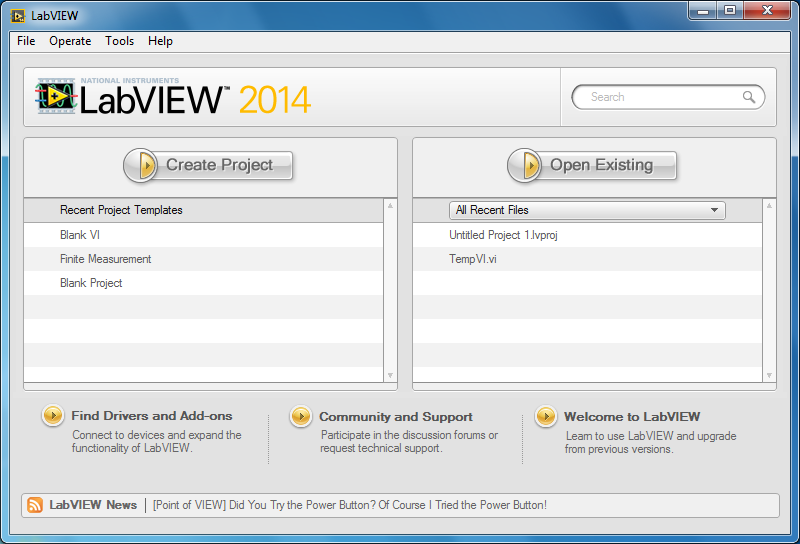
3 o Which module can be used for thermocouple measurements and what is built into this module that makes this possible? What does FS (Floating Source) - GS (Ground Source) represent? (NI-DAXmx Help: Measurement Fundamentals Signal Types Analog Connection Considerations Connecting Analog Input Signals Floating/Grounded Signal Sources) What does AI5 stand for, what does AO0 stand for? Open the device pinout for the NI 9219 (Right click on NI 9219 and select Device Pinouts). Look at which terminals are physical wired in the 9219 module in front of you. Draw your own diagram labeling these terminals and the respective channel. Compare the device pinout with your diagram to determine: o Which channel is wired for a thermocouple? o Which channel is wired for a half-bridge strain gauge? Confirm your answers with the TA. Discuss any open questions you may have! DATA ACQUISITION WITH THERMOCOUPLE The next objective is to build a simple data acquistion system, which can be used to measure temperature with a thermocouple. Simple Temperature Experiment 1. Assemble hardware Connect a K-type thermocouple to the thermocouple connector on the junction board. 2. Write a simple data acquisition program 2.1 Start the LabVIEW program. You should see a screen similar to the one on the right. 2.2 We want to write a new Virtual Instrument or VI. Therefore click on Blank VI. At this point, you will have two windows, a block diagram and a front panel. The front panel will display the GUI part of the program and the block diagram shows the logic of the instrument. 2.3 Click on the block diagram or use Ctrl-E to switch to the block diagram window. Right click in the block diagram window, select Express Inputs DAQ Assist. This will place a new DAQ block into the block diagram. After a few seconds the DAQ assistant appears (as shown on the right). We want to record temperature, which is an analog input signal. Therefore select Acquire Signals Analog Introduction to LabVIEW and Temperature Measurement Page 3 of 10
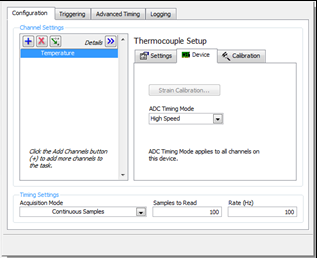
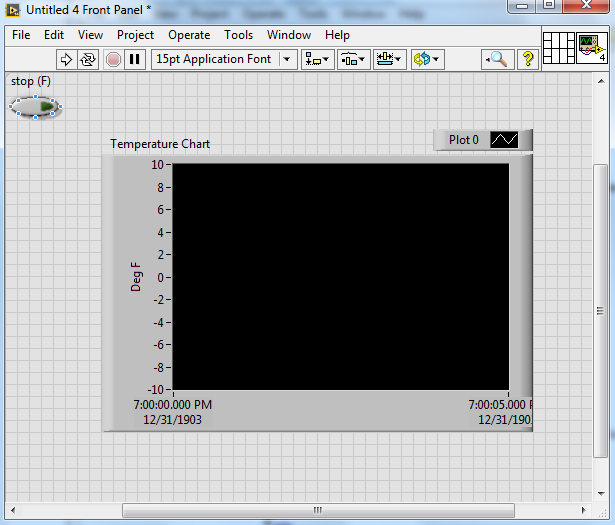
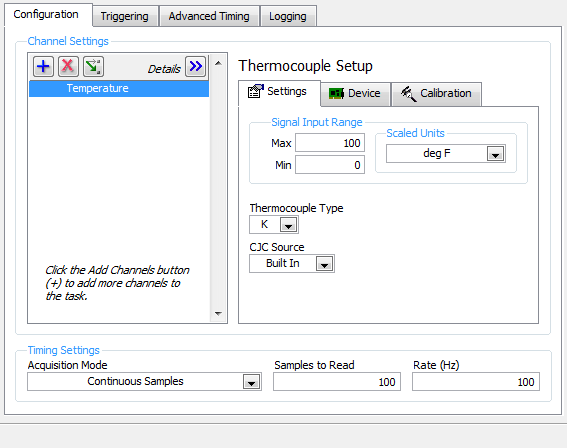
4 Input Temperature Thermocouple. The system will analyze which input channels support thermocouples. Since thermocouples produce an electric voltage, any analog in channel could be used. Select the channel that you determined was wired for a thermocouple and press Finish. 2.4 You should now see a window similar to the right. We need to tell the software a few more settings: what kind of thermocouple, what is the temperature range and units and how is CJC (cold junction compensation) done The default temperature range of 0 to 100 F is okay. Select K Type thermocouple The CJC source is built into each channel of the module, so select built in Under the Device tab change the ADC Timing mode to High Speed. 2.5 Task Settings refers to how often the software asks the board for an update on the temperature. Select Continuous Samples at a rate of 100 samples at 100Hz (or samples/sec). That means that the software requests 100 samples every second and does that continuously. While continuously sampling, the Samples to Read value is the buffer size. The buffer size indicates the number of samples that will be stored in the computer memory. Set this value to 100 as well. Select Ok. The VI will now be configured. 2.6 Due to selecting continuous sampling, a prompt will now ask to place the VI in a loop. Select Yes. 2.7 Add a Chart: Select the Front Panel Window or use Ctrl-E to switch to it. Right Click on the window, select Graph Waveform Chart. Click on the window to place the chart, adjust its size and location as needed. Double click the text Waveform Chart and replace it by Temperature Chart. Double click the text Amplitude and replace it by deg F. The Front Panel should now look as the figure to the right. Introduction to LabVIEW and Temperature Measurement Page 4 of 10
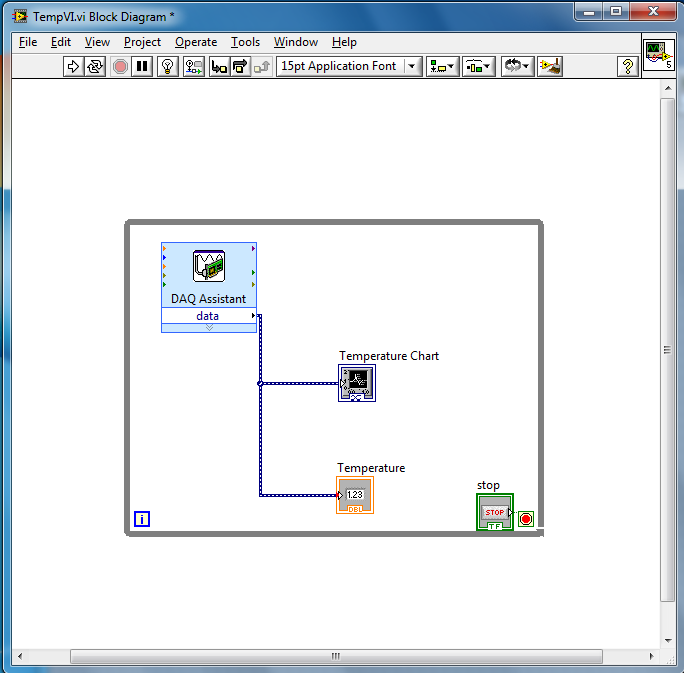


5 2.8 Add a temperature indicator: Right click in an empty are of the front panel and select Numeric Numeric Indicator from the menu. Click to place the indicator. Double click on Numeric and replace it with Temperature. Now the front panel should similar to the one on the right. 2.9 Wire the data into the indicator and temperature chart: Switch to the block diagram. Point at the arrow next to data in the DAQ Assistant. The mouse changes to a wire spool. Click to connect a wire to the DAQ data output and run the wire to the temperature chart input. Repeat for the temperature indicator Repeat measurement until stopped: We need a continuous While Loop to repeat the data collection until it is stopped. This gives the continuous strip chart effect. If you already set the VI in a loop, continue to the next step. Otherwise, in the Block Diagram Window right click, select Express Exec Ctrl While Loop. Drag a rectangle around all objects in the block diagram. This indicates that everything inside the rectangle takes part in the while loop. You should have a picture as shown on the right. Notice, how a stop button was added to the front panel. The Virtual Instrument is ready. Save the instrument by selecting File Save As and save to the desktop as TempVI Run the VI : Switch to the Front Panel and press the Run icon in the tool bar on the left or press Ctrl-R. A picture similar to the right should appear. What do you notice? Why is there so much noise? What could you do? Right click on the DAQ Assistant and select Properties. Experiment by changing the Timing Settings and the Timing Mode. Read the module manual to be able to explain the difference between the Timing Modes. Print a copy of the GUI panel from the Block Diagram and the temperature chart using the File Print Window option. Clip and staple it NEATLY into your lab notebook. Introduction to LabVIEW and Temperature Measurement Page 5 of 10
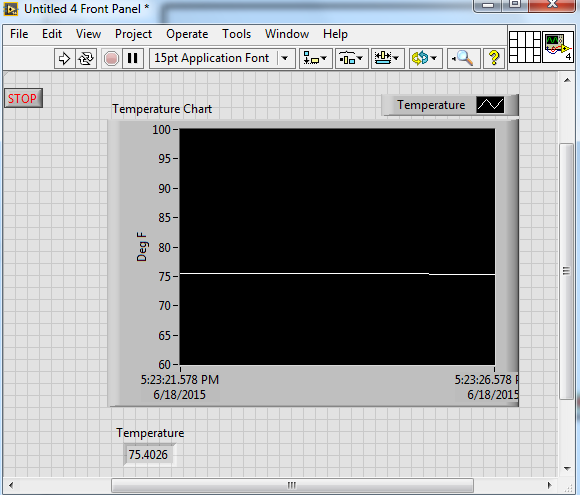
6 2.12 Change Scale: Right click on the chart to turn off auto-scaling for the y-axis. Click on the top and bottom temperature labels and overwrite them with the limits 60 and 100. Scaling is now manual and set to the limits of F Measure temperature / Experiment with the VI: Use the VI to measure body temperature and temperature of objects such as next to cooling vents. WARNING: Do not insert temperature probes into electric components. Electric shock and damage to equipment may occur. Demonstrate your work and VI to the TA. Discuss any open questions you may have. Make sure you have a functional VI and save your work as TempVI. Check your understanding: What do you need to do, if you want to replace the thermocouple with one of a different type (say J to K)? What physical quantity is the data acquisition board measuring? How is this physical quantity converted to temperature? What would happen, if the temperature at the cold junction reference changes but the temperature sensed by the thermocouple temperature did not? Explain what quantities would change and how that would affect the measured temperature. Introduction to LabVIEW and Temperature Measurement Page 6 of 10

7 DATA ACQUISITION WITH THERMOCOUPLE AND HEAT SOURCE The next step builds on the temperature VI. So far, you have learned, how to record an analog signal (Analog In). Now we will add an output signal. The data acquisition board can not only be used to record signals but it can also produce signals as output (Analog Out or Digital Out). The analog out feature is used to adjust the voltage to a light bulb through a virtual dimmer switch and thus adjust the heat output from the light bulb. Temperature Adjustment with Light Bulb and Dimmer 3. Assemble hardware 3.1 Connect a thermocouple to the thermocouple connector on the junction board, if not already assembled. 3.2 Connect the light bulb/fan circuit board as shown in the figure below. There are four cables to connect. Light Bulb +5V Supply Voltage The light will be controlled by the NI-9263 module through AO0 of the junction board. The fan will be controlled by the NI module. Analog Out GND LED GND Introduction to LabVIEW and Temperature Measurement Page 7 of 10
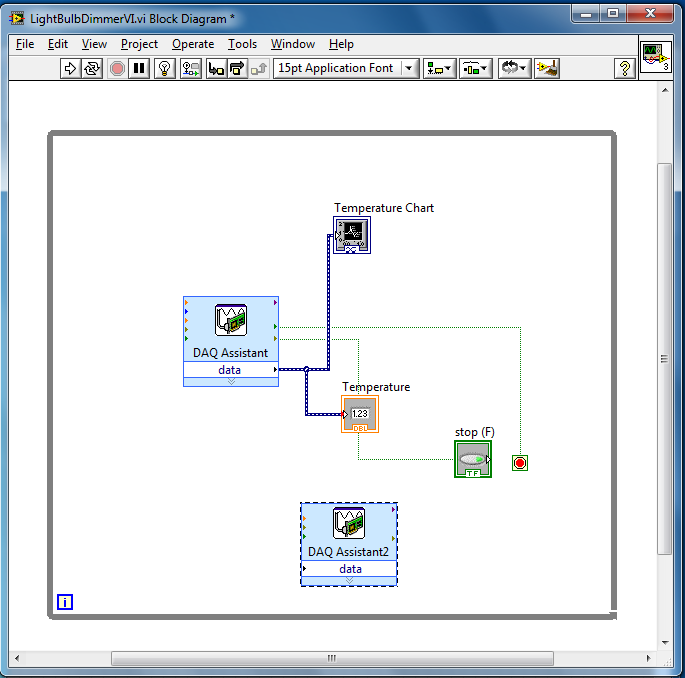

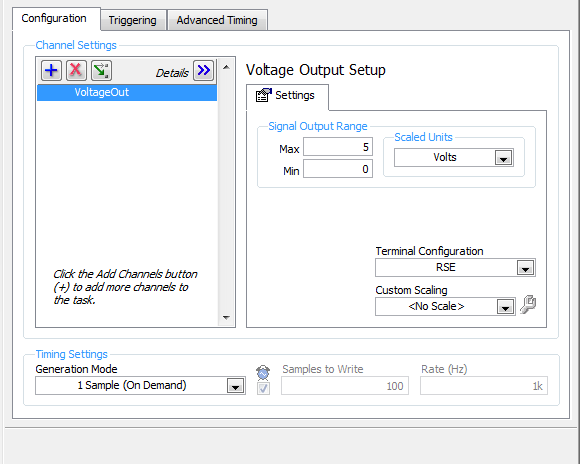
8 4. Write the data acquisition program 4.1 Open the TempVI from the previous experiment. Save it as LightBulbDimmerVI. 4.2 Add an Analog Out Channel: Go to the block diagram panel, right click inside the while loop container and add a DAQ assistant (Express Input DAQ Assist). Select Generating Signals Analog Out Voltage. The window on the right appears. Choose ao0, the analog out channel 0 as output. Click Finish. 4.3 Configure Analog Out Channel: Set the signal output range to 0 to 5V. This is the voltage range, which will be used to control the dimmer transistor. Select 1 sample on demand for task timing. Click Ok. 4.4 Review block diagram: The block diagram should be similar to the one below with a second DAQ Assistant added. This DAQ block can now be used to provide an output voltage on Analog Out AO Add Dial to adjust output voltage: Switch to front panel. Right click and select Numeric Dial. Place the dial on the front panel. Double click on the word Dial and replace it by Dimmer Output Voltage. Double click on the min and max values on the dial and set them to 0 and 5 respectively. The Front Panel should now look similar to the one on the right. Introduction to LabVIEW and Temperature Measurement Page 8 of 10
9 4.6 Wire Dial into Analog Out: Switch back to the block diagram and run a wire from the dimmer dial to the data arrow of the DAQ assistant for analog out. The block diagram should look like the one in the figure to the right. Save your work. The VI is now ready. 4.7 Experiment with the VI: Start the VI by pressing Ctrl-R or clicking on the Run icon. Rotate the dial and make sure that the brightness of the light changes as you adjust the switch setting. Watch the temperature rise as the bulb heats the thermocouple. Demonstrate your work and the VI to the TA. Discuss any open questions you may have! Make sure you have a functional VI and save your work as LightBulbDimmerVI. Cooling using a Fan The purpose of this exercise is to add a cooling fan to lower the measured temperature and use a digital output to switch the fan on/off. 5. Modify data acquisition program 5.1 Save As the LightBulbDimmerVI as LightBulbDimmerAndCoolingFanVI. 5.2 Add a Digital Out Channel: Add another DAQ Assist to the block diagram and configure it as Digital Line out, NI-9472, Channel Add a Fan Switch: Go to the front panel, right click and select Boolean Pushbutton. Rename it Fan Switch. 5.4 Wire the Switch to the Digital Out: Go back to the block diagram and run a wire from the fan switch to the DAQ Assist block. Note that the wire appears to be broken. This is because the output from the fan switch is a Boolean, while the input to the digital out channel is a 1D Boolean array (on/off). In order to fix the wire, right click on the wire and select Insert All Pallets Array Build Array. This converts the Boolean to a 1D Array. Compare your VI to the VI shown below. Introduction to LabVIEW and Temperature Measurement Page 9 of 10

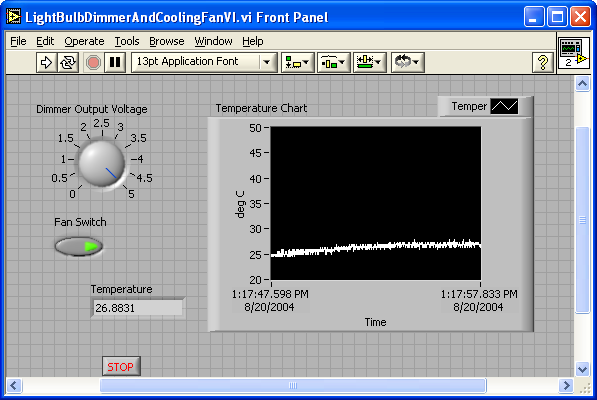
10 5.5 Run the VI: Start the VI and press the Fan Switch. The fan should come on. Turn the light bulb on and heat the thermocouple. Turn the fan on/off and watch as the temperature changes due to the cooling effect of the thermocouple. YOU ARE DONE STORE ALL EQUIPMENT AND LOG OFF FROM THE COMPUTER! Introduction to LabVIEW and Temperature Measurement Page 10 of 10
Cell Phone Vibration Experiment
 Objective Cell Phone Vibration Experiment Most cell phones are designed to vibrate. But at what frequency do they vibrate? With an accelerometer, data acquisition and signal analysis the vibration frequency
Lab 3: Introduction to Data Acquisition Cards
 Lab 3: Introduction to Data Acquisition Cards INTRODUCTION: In this lab, you will be building a VI to display the input measured on a channel. However, within your own VI you will use LabVIEW supplied
Data Acquisition Using NI-DAQmx
 Instructor s Portion Data Acquisition Using NI-DAQmx Wei Lin Department of Biomedical Engineering Stony Brook University Summary This experiment requires the student to use NI-DAQmx to acquire voltage
EET 310 Programming Tools
 Introduction EET 310 Programming Tools LabVIEW Part 1 (LabVIEW Environment) LabVIEW (short for Laboratory Virtual Instrumentation Engineering Workbench) is a graphical programming environment from National
LabVIEW Lesson 5 Clusters
 LabVIEW Lesson 5 Clusters Lesson Overview What are clusters? How to create a cluster. How to create a constant cluster. How to use the various cluster functions. I. What is a cluster? a. A cluster is similar
Lab 4 - Data Acquisition
 Spring 11 Lab 4 - Data Acquisition Lab 4-1 Lab 4 - Data Acquisition Format This lab will be conducted during your regularly scheduled lab time in a group format. Each student is responsible for learning
LabVIEW Day 1 Basics. Vern Lindberg. 1 The Look of LabVIEW
 LabVIEW Day 1 Basics Vern Lindberg LabVIEW first shipped in 1986, with very basic objects in place. As it has grown (currently to Version 10.0) higher level objects such as Express VIs have entered, additional
DSP Laboratory: Analog to Digital and Digital to Analog Conversion
 OpenStax-CNX module: m13035 1 DSP Laboratory: Analog to Digital and Digital to Analog Conversion Erik Luther This work is produced by OpenStax-CNX and licensed under the Creative Commons Attribution License
SA-9600 Surface Area Software Manual
 SA-9600 Surface Area Software Manual Version 4.0 Introduction The operation and data Presentation of the SA-9600 Surface Area analyzer is performed using a Microsoft Windows based software package. The
Hands-On: Introduction to Object-Oriented Programming in LabVIEW
 Version 13.11 1 Hr Hands-On: Introduction to Object-Oriented Programming in LabVIEW Please do not remove this manual. You will be sent an email which will enable you to download the presentations and an
Data Acquisition in LabVIEW
 Telemark University College Department of Electrical Engineering, Information Technology and Cybernetics Data Acquisition in LabVIEW HANS- PETTER HALVORSEN, 2013.08.16 Faculty of Technology, Postboks 203,
Exercise 10: Basic LabVIEW Programming
 Exercise 10: Basic LabVIEW Programming In this exercise we will learn the basic principles in LabVIEW. LabVIEW will be used in later exercises and in the project part, as well in other courses later, so
How to use the OMEGALOG software with the OM-SQ2010/SQ2020/SQ2040 Data Loggers.
 How to use the OMEGALOG software with the OM-SQ2010/SQ2020/SQ2040 Data Loggers. OMEGALOG Help Page 2 Connecting Your Data Logger Page 2 Logger Set-up Page 3 Download Data Page 8 Export Data Page 11 Downloading
How to read this guide
 How to read this guide The following shows the symbols used in this Quick start guide with descriptions and examples. Symbol Description Example P oint Reference Caution [ ] This symbol explains information
Dash 18X / Dash 18 Data Acquisition Recorder
 75 Dash 18X / Dash 18 Data Acquisition Recorder QUICK START GUIDE Supports Recorder System Software Version 3.1 1. INTRODUCTION 2. GETTING STARTED 3. HARDWARE OVERVIEW 4. MENUS & BUTTONS 5. USING THE DASH
MICROSOFT OUTLOOK 2010 WORK WITH CONTACTS
 MICROSOFT OUTLOOK 2010 WORK WITH CONTACTS Last Edited: 2012-07-09 1 Access to Outlook contacts area... 4 Manage Outlook contacts view... 5 Change the view of Contacts area... 5 Business Cards view... 6
INF-USB2 and SI-USB Quick Start Guide
 INF-USB2 and SI-USB Quick Start Guide Please follow these instructions carefully. DO NOT connect the INF-USB2 or SI-USB module to your computer before running the setup program. After running Setup and
Servo Motors (SensorDAQ only) Evaluation copy. Vernier Digital Control Unit (DCU) LabQuest or LabPro power supply
 Servo Motors (SensorDAQ only) Project 7 Servos are small, relatively inexpensive motors known for their ability to provide a large torque or turning force. They draw current proportional to the mechanical
LabVIEW Day 6: Saving Files and Making Sub vis
 LabVIEW Day 6: Saving Files and Making Sub vis Vern Lindberg You have written various vis that do computations, make 1D and 2D arrays, and plot graphs. In practice we also want to save that data. We will
Workshop 7 PC Software - Tracker
 Workshop 7 PC Software - Tracker Goal: You will startup and perform advanced setup functions using Tracker PC software. You will also setup equations to control MP503 binary outputs. The Binary Output
Transmitter Interface Program
 Transmitter Interface Program Operational Manual Version 3.0.4 1 Overview The transmitter interface software allows you to adjust configuration settings of your Max solid state transmitters. The following
4.1 DESCRIPTION OF CONTROLS cont.
 4.1 DESCRIPTION OF CONTROLS cont. EGPS-1022 Power Supply Remote Control Computer Panel (ADDITIONAL CONTROLS AND INDICATORS BELOW MAIN PANEL) Fig. 4.1-4 Screen captures of LabVIEW TM program for EGPS-1022
RLC Series Resonance
 RLC Series Resonance 11EM Object: The purpose of this laboratory activity is to study resonance in a resistor-inductor-capacitor (RLC) circuit by examining the current through the circuit as a function
Measuring Temperature withthermistors a Tutorial David Potter
 NATIONAL INSTRUMENTS The Software is the Instrument Application Note 065 Measuring Temperature withthermistors a Tutorial David Potter Introduction Thermistors are thermally sensitive resistors used in
Lab View with crio Tutorial. Control System Design Feb. 14, 2006
 Lab View with crio Tutorial Control System Design Feb. 14, 2006 Pan and Tilt Mechanism Experimental Set up Power Supplies Ethernet cable crio Reconfigurable Embedded System Lab View + Additional Software
Task Card #2 SMART Board: Notebook
 Task Card #2 SMART Board: Notebook Objectives: Participants will learn how to utilize the SMART Notebook. Table of Contents: Launching The SMART Notebook Page 1 Entering Text Page 1 Top Toolbar Page 2
STIM202 Evaluation Kit
 Table of contents: 1 FEATURES... 2 2 GENERAL DESCRIPTIONS AND SYSTEM CONTENTS... 2 3 SYSTEM REQUIREMENTS... 2 4 GETTING STARTED... 3 4.1 INSTALLATION OF NI-SERIAL CABLE ASSEMBLY DRIVER... 3 4.2 INSTALLATION
Using LabVIEW to Measure Temperature with a Thermistor
 Using LabVIEW to Measure Temperature with a Thermistor C. Briscoe and W. Dufee, University of Minnesota November, 2009 For resources, see the LabVIEW Resources page on the UMN ME2011 course site. Before
Temperature Control with DeltaV
 Fakultet for teknologiske fag Bachelor i ingeniørfag Temperature Control with DeltaV Fakultet for teknologiske fag Adresse: Kjølnes ring 56, 3918 Porsgrunn, telefon 35 02 62 00, www.hit.no Bachelorutdanning
Implementing PID Temperature Control Using LabVIEW. Abstract. Introduction
 Implementing PID Temperature Control Using LabVIEW Carlton Prewit, Rafic Bachnak Department of Computing and Mathematical Sciences Texas A&M University Corpus Christi Session XXXX Abstract Feedback control
Evaluation copy. Build a Temperature Sensor. Project PROJECT DESIGN REQUIREMENTS
 Build a emperature Sensor Project A sensor is a device that measures a physical quantity and converts it into an electrical signal. Some sensors measure physical properties directly, while other sensors
SIMATIC. WinCC V7.0. Getting started. Getting started. Welcome 2. Icons 3. Creating a project 4. Configure communication 5
 SIMATIC WinCC V7.0 SIMATIC WinCC V7.0 Printout of the Online Help 1 Welcome 2 Icons 3 Creating a project 4 Configure communication 5 Configuring the Process Screens 6 Archiving and displaying values 7
LEGENDplex Data Analysis Software
 LEGENDplex Data Analysis Software Version 7.0 User Guide Copyright 2013-2014 VigeneTech. All rights reserved. Contents Introduction... 1 Lesson 1 - The Workspace... 2 Lesson 2 Quantitative Wizard... 3
SD Rack. DiGiCo SD Rack. User Manual B - August 2013 1-1
 DiGiCo SD Rack User Manual B - August 2013 1-1 Contents 1.1 Introduction......1-4 1.1.1 SD-Rack Unit and Modules, Installation Notes......1-4 1.2 SD Rack Power......1-6 1.3 SD Rack Clocking......1-6 1.4
Universal Simple Control, USC-1
 Universal Simple Control, USC-1 Data and Event Logging with the USB Flash Drive DATA-PAK The USC-1 universal simple voltage regulator control uses a flash drive to store data. Then a propriety Data and
Remote monitoring of Millenium 3 Logic Controller using Netbiter EasyConnect EC-220 & Netbiter Argos
 Remote monitoring of Millenium 3 Logic Controller using Netbiter EasyConnect EC-220 & Netbiter Argos (Remote monitoring of data in the Millenium 3 using SL-In/SL-Out function blocks) Your partner for industrial
Page 1 S5.5 Monitoring Software Manual Rev 1.2 for Software Ver 1.0
 Trantec S5.5 Monitoring Software Manual Initial Setup Minimum PC Requirements 1.6 GHz CPU, 256 MB Memory, 1 available USB port, Windows XP Recommended PC >2.0 GHz CPU, 512 MB (XP) 1 GB (Vista) memory,
How To Run A Factory I/O On A Microsoft Gpu 2.5 (Sdk) On A Computer Or Microsoft Powerbook 2.3 (Powerpoint) On An Android Computer Or Macbook 2 (Powerstation) On
 User Guide November 19, 2014 Contents 3 Welcome 3 What Is FACTORY I/O 3 How Does It Work 4 I/O Drivers: Connecting To External Technologies 5 System Requirements 6 Run Mode And Edit Mode 7 Controls 8 Cameras
16.4.3 Lab: Data Backup and Recovery in Windows XP
 16.4.3 Lab: Data Backup and Recovery in Windows XP Introduction Print and complete this lab. In this lab, you will back up data. You will also perform a recovery of the data. Recommended Equipment The
Making Basic Measurements. Publication Number 16700-97020 August 2001. Training Kit for the Agilent Technologies 16700-Series Logic Analysis System
 Making Basic Measurements Publication Number 16700-97020 August 2001 Training Kit for the Agilent Technologies 16700-Series Logic Analysis System Making Basic Measurements: a self-paced training guide
* DISCLAIMER: Contents. How to Use This Guide: COMMERCIAL INSTALL GUIDE 2
 COMMERCIAL INSTALL GUIDE 2 Contents How to Use This Guide: The first section of this guide is designed to assist you with the installation of your DECK Monitoring hardware. The revenue grade meter and
Getting Started on the Computer With Mouseaerobics! Windows XP
 This handout was modified from materials supplied by the Bill and Melinda Gates Foundation through a grant to the Manchester City Library. Getting Started on the Computer With Mouseaerobics! Windows XP
EZIO-4THIE * External CJC Sensor** (National LM19)
 TM E Z I/O EZIO-4THIE * Enhanced Thermocouple Input Module Part Number: EZIO-4THIE EZIO family offers two modules for interfacing to thermocouples: EZIO-4THI (not recommended for new applications) EZIO-4THIE
Installing S500 Power Monitor Software and LabVIEW Run-time Engine
 EigenLight S500 Power Monitor Software Manual Software Installation... 1 Installing S500 Power Monitor Software and LabVIEW Run-time Engine... 1 Install Drivers for Windows XP... 4 Install VISA run-time...
Remote monitoring of Crouzet Millenium 3 Using Netbiter EasyConnect EC220 & Netbiter Argos
 Remote monitoring of Crouzet Millenium 3 Using Netbiter EasyConnect EC220 & Netbiter Argos HMS Industrial Networks AB Page 1 (37) History Revision Date Description Responsible 1.11 2012-09-26 Typos SDA
Automatic. Software. MTS-Test 3.1. Manual. User s User
 Automatic Motor Testing Software M-Test 3.1 MT-Test 3.1 MS-Test 3.1 MTS-Test 3.1 User s User Manual MAGTROL, INC. Sales and Technical Assistance 70 Gardenville Parkway Buffalo, New York 14224 USA Tel:
RIGOL. Quick Guide. DS1000CA Series Oscilloscope. Aug. 2011. RIGOL Technologies, Inc.
 Quick Guide DS1000CA Series Oscilloscope Aug. 2011 Technologies, Inc. Guaranty and Declaration Copyright 2011 Technologies, Inc. All Rights Reserved. Trademark Information is a registered trademark of
Dash 8Xe / Dash 8X Data Acquisition Recorder
 75 Dash 8Xe / Dash 8X Data Acquisition Recorder QUICK START GUIDE Supports Recorder System Software Version 2.0 1. INTRODUCTION 2. GETTING STARTED 3. HARDWARE OVERVIEW 4. MENUS & BUTTONS 5. USING THE DASH
ezsystem elab16m Project 1F: Alarm System (Full Project description)
 ezsystem elab16m Project 1F: Alarm System (Full Project description) ezsystem The aim of ezsystem is to enable Creativity and Innovation at an early age in a Problem Based Learning (PBL) approach. ezsystem
User's Guide DylosLogger Software Version 1.6
 User's Guide DylosLogger Software Version 1.6 The DylosLogger software allows users of Dylos Air Quality Monitors equipped with PC interface to easily record, download, and graph data. The COM port is
K-Type Thermocouple Sensor User s Guide
 K-Type Thermocouple Sensor User s Guide 1 TABLE OF CONTENTS: 1 INTRODUCTION... 2 2 TYPICAL APPLICATION:... 2 3 INSTALLATION RULES:... 2 3.1 Connecting the sensor to M1/MD4 data logger:... 2 3.2 Connecting
Controllable Space Phaser. User Manual
 Controllable Space Phaser User Manual Overview Overview Fazortan is a phasing effect unit with two controlling LFOs. 1 Fazortan graphical interface We can distinguish two sections there: Configuration
WxGoos-1 Climate Monitor Installation Instructions Page 1. Connections. Setting an IP Address
 Instructions Page 1 Connections The WxGoos-1 is a self-contained web server and requires 6vdc of power at 300ma. A center-positive 2.1 mm plug is used. There are five ports: 1. 10/100 Ethernet RJ-45 receptacle
Capacitive Touch Lab. Renesas Capacitive Touch Lab R8C/36T-A Family
 Renesas Capacitive Touch Lab R8C/36T-A Family Description: This lab will cover the Renesas Touch Solution for embedded capacitive touch systems. This lab will demonstrate how to setup and run a simple
Introduction to LogixPro - Lab
 Programmable Logic and Automation Controllers Industrial Control Systems I Introduction to LogixPro - Lab Purpose This is a self-paced lab that will introduce the student to the LogixPro PLC Simulator
FREQUENCY RESPONSE OF AN AUDIO AMPLIFIER
 2014 Amplifier - 1 FREQUENCY RESPONSE OF AN AUDIO AMPLIFIER The objectives of this experiment are: To understand the concept of HI-FI audio equipment To generate a frequency response curve for an audio
Using Rational Rose to Create Object-Oriented Diagrams
 Using Rational Rose to Create Object-Oriented Diagrams This is a brief overview to get students started in using Rational Rose to quickly create object-oriented models and diagrams. It is not by any means
01-3 0000-00 6810-20 AIR CONDITIONING SYSTEM 1. FFH SPECIFICATION AIR CONDITIONING SYSTEM RODIUS 2004.09
 0000-00 01-3 6810-20 1. FFH SPECIFICATION 01-4 0000-00 2. SYSTEM LAYOUT AND COMPONENTS 0000-00 01-5 01-6 0000-00 3. FFH GENERAL INFORMATION The system is to increase the coolant temperature quickly by
Xilinx ISE. <Release Version: 10.1i> Tutorial. Department of Electrical and Computer Engineering State University of New York New Paltz
 Xilinx ISE Tutorial Department of Electrical and Computer Engineering State University of New York New Paltz Fall 2010 Baback Izadi Starting the ISE Software Start ISE from the
Creating a Project with PSoC Designer
 Creating a Project with PSoC Designer PSoC Designer is two tools in one. It combines a full featured integrated development environment (IDE) with a powerful visual programming interface. The two tools
10.3.1.6 Lab - Data Backup and Recovery in Windows XP
 5.0 10.3.1.6 Lab - Data Backup and Recovery in Windows XP Introduction Print and complete this lab. In this lab, you will back up data. You will also perform a recovery of the data. Recommended Equipment
Lab 1: Full Adder 0.0
 Lab 1: Full Adder 0.0 Introduction In this lab you will design a simple digital circuit called a full adder. You will then use logic gates to draw a schematic for the circuit. Finally, you will verify
Beckman Coulter DTX 880 Multimode Detector Bergen County Technical Schools Stem Cell Lab
 Beckman Coulter DTX 880 Multimode Detector Bergen County Technical Schools Stem Cell Lab Room 213 Beckman Coulter DTX 880 Multimode Detector Information The Beckman Coulter DTX 880 Multimode Detector is
Applied Electronics. Commercial Dimming System UPDATE NOTICE
 REV. A Applied Electronics Commercial Dimming System UPDATE NOTICE This notice is to inform the end user of an additional feature added to this DP12/2400 dimming unit. This unit has been outfitted with
QUICK START GUIDE. SG2 Client - Programming Software SG2 Series Programmable Logic Relay
 QUICK START GUIDE SG2 Client - Programming Software SG2 Series Programmable Logic Relay SG2 Client Programming Software T he SG2 Client software is the program editor for the SG2 Series Programmable Logic
Appendix A How to create a data-sharing lab
 Appendix A How to create a data-sharing lab Creating a lab involves completing five major steps: creating lists, then graphs, then the page for lab instructions, then adding forms to the lab instructions,
Most laptops allow you to plug in a second monitor, which can be a TV screen or Projector I will refer to a monitor in this document.
 Introduction This is a guide to setting up / using a laptop with a TV screen or projector. IT IS STRONGLY RECOMMENDED THAT YOU TRY THIS OUT SOME TIME AHEAD OF YOUR PRESENTATION. PowerPoint If using PowerPoint
Introduction to LabVIEW for Control Design & Simulation Ricardo Dunia (NI), Eric Dean (NI), and Dr. Thomas Edgar (UT)
 Introduction to LabVIEW for Control Design & Simulation Ricardo Dunia (NI), Eric Dean (NI), and Dr. Thomas Edgar (UT) Reference Text : Process Dynamics and Control 2 nd edition, by Seborg, Edgar, Mellichamp,
Quick Start Using DASYLab with your Measurement Computing USB device
 Quick Start Using DASYLab with your Measurement Computing USB device Thank you for purchasing a USB data acquisition device from Measurement Computing Corporation (MCC). This Quick Start document contains
Installing Remote Desktop Connection
 SETTING UP YOUR REMOTE DESKTOP This section will assist you in setting you Remote Desktop Connection. This will allow you to create an icon for easy access to your virtual desktop. DISCLAIMER: All images
Blackboard s Collaboration Tool
 Blackboard s Collaboration Tool Using Blackboard s Collaboration Tool, instructors can create and host a course-related chat session or virtual classroom in which students and instructors can interact
USB3.0 Docking Station. User Manual (DA-70546)
 USB3.0 Docking Station User Manual (DA-70546) Foreword Congratulations on your purchase of our product! We will show you a new storage concept with safety and convenience It is our pleasure to give you
First Bytes Programming Lab 2
 First Bytes Programming Lab 2 This lab is available online at www.cs.utexas.edu/users/scottm/firstbytes. Introduction: In this lab you will investigate the properties of colors and how they are displayed
In this example, Mrs. Smith is looking to create graphs that represent the ethnic diversity of the 24 students in her 4 th grade class.
 Creating a Pie Graph Step-by-step directions In this example, Mrs. Smith is looking to create graphs that represent the ethnic diversity of the 24 students in her 4 th grade class. 1. Enter Data A. Open
Work with Arduino Hardware
 1 Work with Arduino Hardware Install Support for Arduino Hardware on page 1-2 Open Block Libraries for Arduino Hardware on page 1-9 Run Model on Arduino Hardware on page 1-12 Tune and Monitor Models Running
NI InsightCM Server Version 1.0
 GETTING STARTED NI InsightCM Server Version 1.0 This document contains step-by-step instructions for the setup tasks you must complete to connect an NI Condition Monitoring System to NI InsightCM Server
Manual. Sealer Monitor Software. Version 0.10.7
 Manual Sealer Monitor Software Version 0.10.7 Contents 1 Introduction & symbols 1 2 Installation 2 2.1 Requirements 2 2.2 Installation process 2 3 Menu & Tooblar 5 3.1 File menu 5 3.2 Print menu 6 3.3
2 Setting Up the Hardware for a Wired Ethernet Network... 13. 3 Setting Up the Software for an Ethernet Network... 21
 Contents 1 Networking Basics............................................... 1 Selecting a network connection........................................ 2 Wired Ethernet network...........................................
Workspaces Creating and Opening Pages Creating Ticker Lists Looking up Ticker Symbols Ticker Sync Groups Market Summary Snap Quote Key Statistics
 Getting Started Workspaces Creating and Opening Pages Creating Ticker Lists Looking up Ticker Symbols Ticker Sync Groups Market Summary Snap Quote Key Statistics Snap Report Price Charts Comparing Price
Microsoft Access 2010 handout
 Microsoft Access 2010 handout Access 2010 is a relational database program you can use to create and manage large quantities of data. You can use Access to manage anything from a home inventory to a giant
Building a Simulink model for real-time analysis V1.15.00. Copyright g.tec medical engineering GmbH
 g.tec medical engineering GmbH Sierningstrasse 14, A-4521 Schiedlberg Austria - Europe Tel.: (43)-7251-22240-0 Fax: (43)-7251-22240-39 [email protected], http://www.gtec.at Building a Simulink model for real-time
Greenline Industrial Monitors IMD-C Series. User Manual
 Greenline Industrial Monitors IMD-C Series User Manual Warning! This equipment generates, uses and can radiate radio frequency energy and if not installed and used in accordance with the instructions manual
EVAL-UFDC-1/UFDC-1M-16
 Evaluation Board for Universal Frequency-to- Digital Converters UFDC-1 and UFDC-1M-16 EVAL-UFDC-1/UFDC-1M-16 FEATURES Full-Featured Evaluation Board for the Universal Frequency-to-Digital Converters UFDC-1
Navios Quick Reference
 Navios Quick Reference Purpose: The purpose of this Quick Reference is to provide a simple step by step outline of the information needed to perform various tasks on the system. We begin with basic tasks
Introduction. POP and IMAP Servers. MAC1028 June 2007
 MAC1028 June 2007 Getting Started with Thunderbird 2.0 For Macintosh OS X Author: John A. Montgomery Adapted to OS X by: Peter Lee Revised by Mitchell Ochi and Deanna Pasternak Introduction...1 POP and
NX Series Inverters. HVAC Pocket Programming Guide
 NX Series Inverters HVAC Pocket Programming Guide HVAC Pocket Programming Guide HVAC Pocket Programming Guide / Contents This guide provides a single reference document for the user of NXL HVAC (product
Introduction to MS WINDOWS XP
 Introduction to MS WINDOWS XP Mouse Desktop Windows Applications File handling Introduction to MS Windows XP 2 Table of Contents What is Windows XP?... 3 Windows within Windows... 3 The Desktop... 3 The
USER MANUAL GUIMGR Graphical User Interface Manager for FRM301/FRM401 Media Racks
 USER MANUAL GUIMGR Graphical User Interface Manager for FRM301/FRM401 Media Racks CTC Union Technologies Co., Ltd. Far Eastern Vienna Technology Center (Neihu Technology Park) 8F, No. 60 Zhouzi St. Neihu,
ViewPower. User s Manual. Management Software for Uninterruptible Power Supply Systems
 ViewPower User s Manual Management Software for Uninterruptible Power Supply Systems Table of Contents 1. ViewPower Overview... 2 1.1. Introduction...2 1.2. Structure...2 1.3. Applications...2 1.4. Features...2
Connecting your Omega/BetaPAT PLUS to a PC via a USB
 Connecting your Omega/BetaPAT PLUS to a PC via a USB Install software Windows XP and below Insert the disc into your computers disc drive and run through the setup wizard. Windows Vista & 7 1. Insert the
Corsair Link v2.4 Manual. Initial Set-up. Placing devices within the chassis
 Corsair Link v2.4 Manual Initial Set-up Placing devices within the chassis When you first start up Corsair Link, there will be a list of auto-detected devices on the left column. You can drag and drop
MiraCosta College now offers two ways to access your student virtual desktop.
 MiraCosta College now offers two ways to access your student virtual desktop. We now feature the new VMware Horizon View HTML access option available from https://view.miracosta.edu. MiraCosta recommends
PM1122 INT DIGITAL INTERFACE REMOTE
 PM1122 INT DIGITAL INTERFACE REMOTE PM1122 INT front panel description: 1. Clear wireless remotes knob: push this button for more than 2 seconds to clear the list of all assigned wireless remote settings
Information Technology Solutions
 Connecting People, Process Information & Data Network Systems Diagnostic Testing Information Technology Solutions Getting started in Workflow Designer Prior Learning 1. While it helps to have some knowledge
GENERAL SCIENCE LABORATORY 1110L Lab Experiment 6: Ohm s Law
 GENERAL SCIENCE LABORATORY 1110L Lab Experiment 6: Ohm s Law OBJECTIVES: To verify Ohm s law, the mathematical relationship among current, voltage or potential difference, and resistance, in a simple circuit.
The RIDZ 8x2 Audio Switcher
 The RIDZ 8x2 Audio Switcher Engineering Manual Support Number 800-765-2930 International 712-852-2813 Table of Contents General Information for the RIDZ (8 x 2) Switcher..... 3 Input 9 on the RIDZ Switcher....6
Parts List. Navigation
 Parts List quantity description 1 LCD-200 Display 1 LCD-200 Display cable 1 CD-ROM 2 dual lock or velcro 1 1GB SD card (optional) 1 CAN termination plug Navigation Main Menu Begin Log/Stop Log page 4 Log
In regard to calculating system power requirements, refer to DBK Basics located near the front of this manual.
 DBK42 16-Slot 5B Signal Conditioning Module Overview 1 Hardware Setup 2 DBK42 Connection 2 DBK42 Configuration 2 5B Module Connection 2 Power Considerations 2 Terminal Block Connections 3 DaqBoard/2000
ONBASE OUTLOOK CLIENT GUIDE for 2010 and 2013
 To install Outlook 2010/2013 client Note: NOT currently compatible with Windows 10. Make sure your version of outlook is 32bit if not reinstall your version of Microsoft Office to the 32bit version. Must