
Dell SAS RAID Storage Manager. User s Guide. support.dell.com
|
|
|
- Bernard Hudson
- 10 years ago
- Views:
Transcription
1 Dell SAS RAID Storage Manager User s Guide support.dell.com

2 Notes, Notices, and Cautions NOTE: A NOTE indicates important information that helps you make better use of your computer. NOTICE: A NOTICE indicates either potential damage to hardware or loss of data and tells you how to avoid the problem. CAUTION: A CAUTION indicates a potential for property damage, personal injury, or death. Information in this document is subject to change without notice Dell Inc. All rights reserved. Reproduction in any manner whatsoever without the written permission of Dell Inc. is strictly forbidden. Trademarks used in this text: Dell, the DELL logo, Inspiron, Dell Precision, Dimension, OptiPlex, Latitude, PowerEdge, PowerVault, PowerApp, and Dell OpenManage are trademarks of Dell Inc.; Intel, Pentium, and Celeron are registered trademarks of Intel Corporation; Microsoft and Windows are registered trademarks of Microsoft Corporation. Linux is a registered trademark of Linus Torvalds. Other trademarks and trade names may be used in this document to refer to either the entities claiming the marks and names or their products. Dell Inc. disclaims any proprietary interest in trademarks and trade names other than its own. June 2008 P/N HH383 Rev. A03

3 Contents 1 Introduction Creating Storage Configurations Monitoring Storage Devices Maintaining Storage Configurations Comparison of Supported Features Installation Installing Dell SAS RAID Storage Manager on Microsoft Windows 11 Installing Dell SAS RAID Storage Manager on Linux Linux Installation Error Messages Dell SAS RAID Storage Manager Windows and Menus Starting Dell SAS RAID Storage Manager Dell SAS RAID Storage Manager Window Physical/Logical View Panel Properties/Operations/Graphical View Panel Event Log Panel Menu Bar Configuration Creating a New Configuration on a SAS 5/iR Controller or on a SAS 6/iR Controller Creating a RAID 0 Configuration on a SAS 5/iR Controller or on a SAS 6/iR Controller
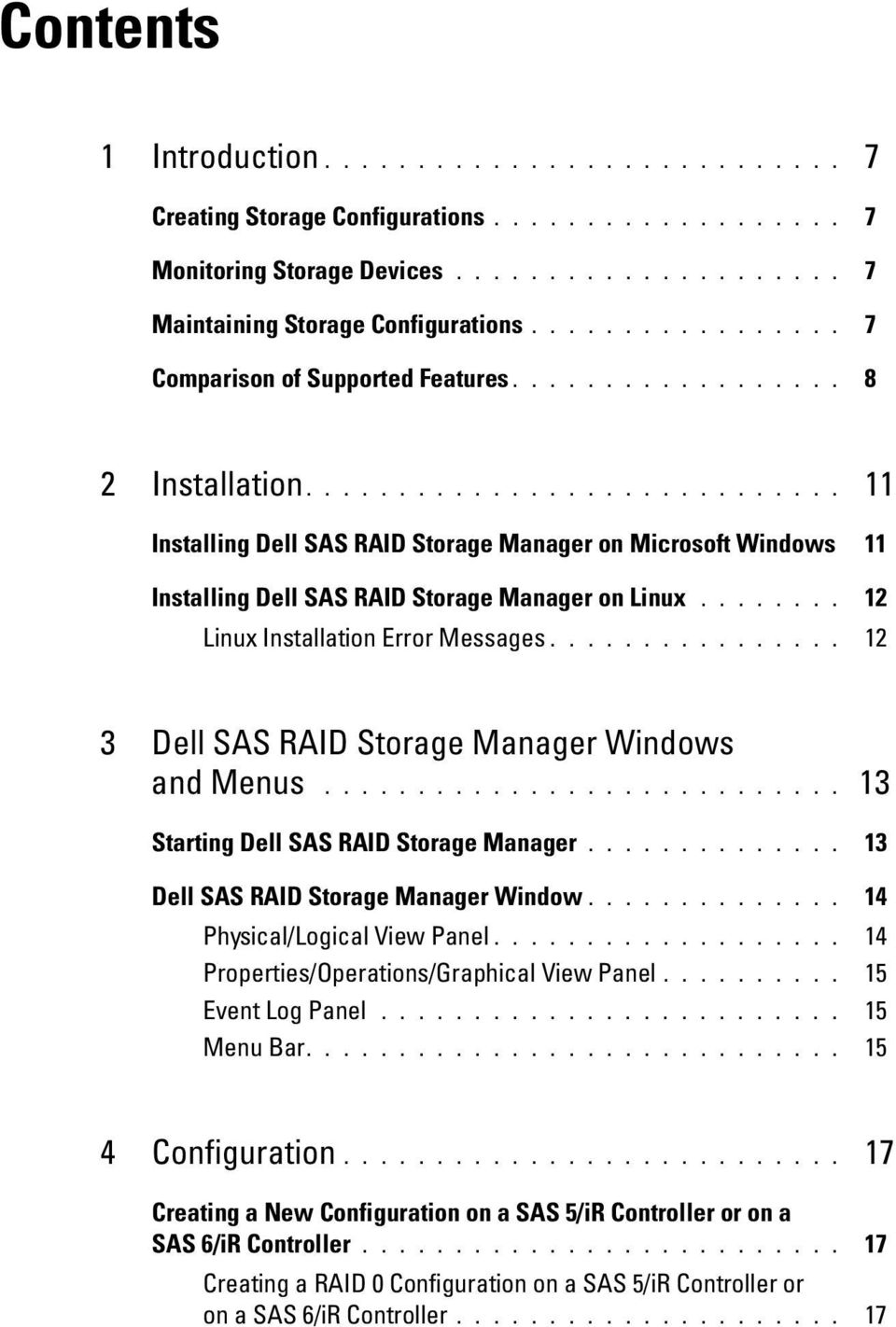
4 Creating a RAID 1 Configuration on a SAS 5/iR Controller or on a SAS 6/iR Controller Creating a New Configuration on a Dell PERC 5/i Controller or on a Dell PERC 6/i Controller Understanding Virtual Disk Parameters Using Auto Configuration on a Dell PERC 5/i Controller or on a Dell PERC 6/i Controller Using Guided Configuration on a Dell PERC 5/i Controller or on a Dell PERC 6/i Controller Using Manual Configuration on a Dell PERC 5/i Controller or on a Dell PERC 6/i Controller (RAID 0, 1, 5, and 6) Using Manual Configuration on a Dell PERC 5/i Controller or on a Dell PERC 6/i Controller (RAID 10) Adding Hotspare Disks Using the Replace Member Feature and Revertible Hot Spares Changing Adjustable Task Rates Changing Virtual Disk Properties Changing a Virtual Disk Configuration Adding a Disk Drive to a Configuration on a PERC 5/i Controller or on a PERC 6/i Controller Changing the RAID Level of a Configuration on a PERC 5/i Controller or on a PERC 6/i Controller Deleting a Virtual Disk Saving a Storage Configuration to Disk Clearing a Storage Configuration from a Controller Adding a Saved Storage Configuration Monitoring System Events and Storage Devices Monitoring System Events Monitoring Controllers Contents
5 Monitoring Disk Drives Running a Patrol Read Monitoring Virtual Disks Monitoring Rebuilds and Other Processes Maintaining and Managing Storage Configurations Initializing Virtual Disks Running a Consistency Check Scheduling a Consistency Check Scanning for New Drives Scanning for Foreign Configurations Clearing a Foreign Configuration Rebuilding a Drive Rebuilding a Drive on a Dell SAS 5/iR System or on a Dell SAS 6/iR System Rebuilding a Drive on a Dell PERC 5/i System or on a Dell PERC 6/i System Making a Drive Offline or Missing Preserving Pinned Cache Upgrading the Firmware Troubleshooting Pinned Cache State Windows Installation Error Messages Linux Installation Error Messages Other Dell SAS RAID Storage Manager Messages Contents 5

6 A Events and Messages 51 List of System Event Messages Glossary Contents

7 Introduction Dell SAS RAID Storage Manager works in conjunction with the appropriate libraries and drivers to enable you to configure, monitor, and maintain storage configurations on Dell PERC 5/i, SAS 5/iR, PERC 6/i, and SAS 6/iR controllers. The Dell SAS RAID Storage Manager graphical user interface (GUI) makes it easy for you to create and manage storage configurations. NOTE: ir stands for internal RAID. Creating Storage Configurations Dell SAS RAID Storage Manager enables you to easily configure the controllers, disk drives, and virtual disks on your Dell workstation or SC server. The Configuration Wizard greatly simplifies the process of creating disk groups and virtual disks. On Dell systems with PERC 5/i, PERC 6/i, SAS 5/iR, or SAS 6/iR Controllers, you can use the Configuration Wizard Auto Configuration mode to automatically create the optimal configuration with the available hardware. You can use the Guided Configuration mode, which asks you a few brief questions about the configuration, and then creates it for you. Or you can use the Manual Configuration mode, which gives you complete control over all aspects of the storage configuration. For Dell systems with PERC 5/iR, PERC 6/i, SAS 5/iR, or SAS 6/iR Controllers, the Configuration Wizard guides you through several simple steps to create your storage configurations. Monitoring Storage Devices Dell SAS RAID Storage Manager displays the status of controllers, virtual disks, and physical disks on your Dell workstation or SC server. System errors and events are recorded in an event log file and are displayed on the screen. Special device icons appear on the screen to notify you of disk failures and other events that require immediate attention. Introduction 7

8 Maintaining Storage Configurations On Dell systems with the PERC 5/i, PERC 6/i, SAS 5/iR, or SAS 6/iR controller, you can use Dell SAS RAID Storage Manager to perform system maintenance tasks such as running patrol read operations, updating firmware, and running consistency checks on disk groups that support redundancy. Comparison of Supported Features Table 1-1 shows the Dell SAS RAID Storage Manager features that are supported by Dell systems using the PERC 5/i or the PERC 6/i controller, and by systems using the SAS 5/iR or the SAS 6/iR controller. Table 1-1. Feature Comparison Feature PERC 5/i Controller PERC 6/i Controller RAID 0 Configuration Y Y RAID 1 Configuration Y Y RAID 5 Configuration Y N RAID 6 Configuration N for PERC 5/i Y for PERC 6/i N RAID 10 Configuration Y N RAID 50 Configuration Y N RAID 60 Configuration N for PERC 5/i Y for PERC 6/i N SAS 5/iR Controller SAS 6/iR Controller Hotspare Disks Y N for SAS 5/iR Y for SAS 6/iR Auto Configuration Y N Guided Configuration Y Y Manual Configuration Y N Event Monitoring Y Y Device Status Monitoring Y Y Physical/Logical Device View Y Y 8 Introduction
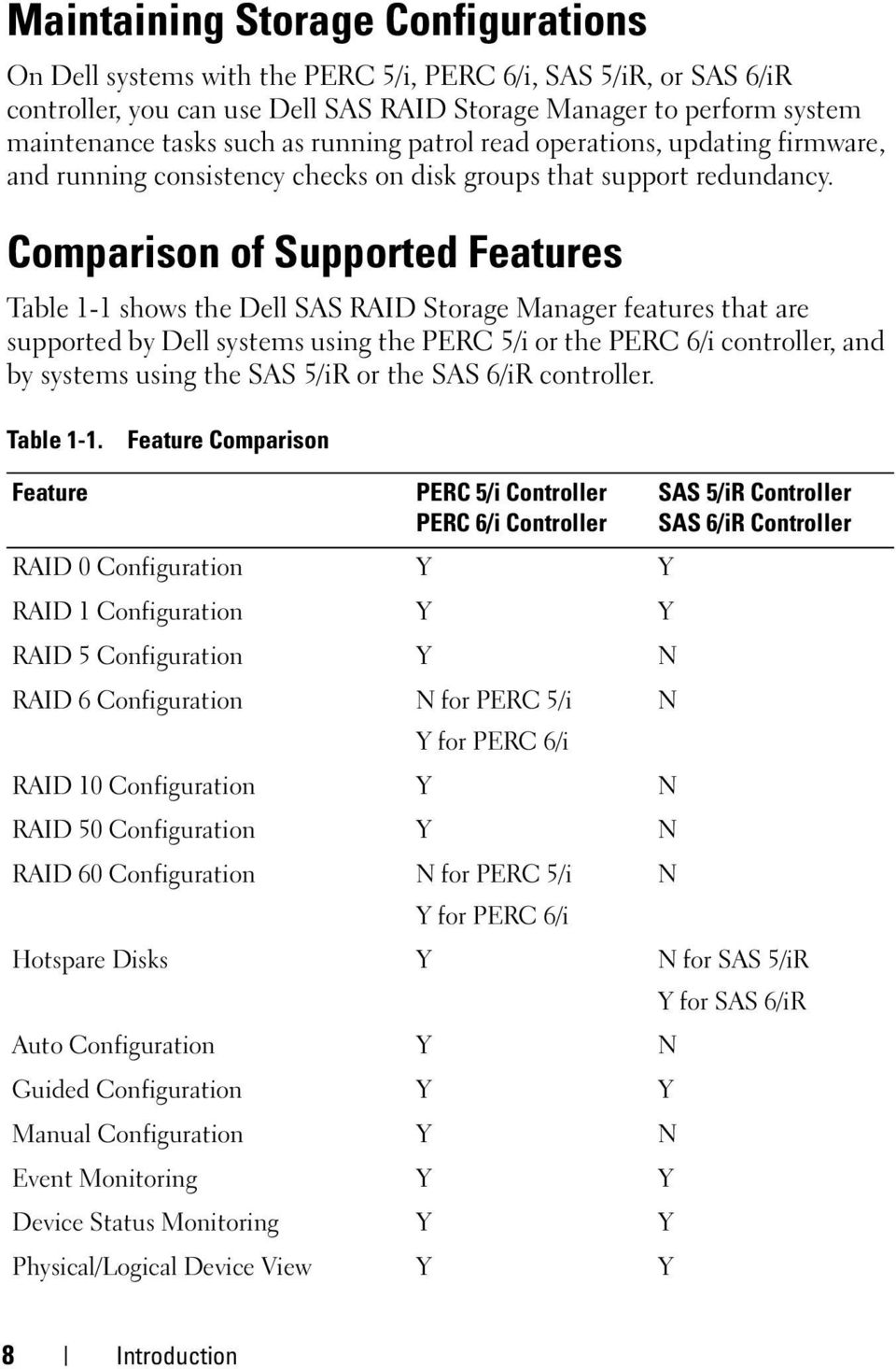
9 Table 1-1. Feature Comparison Feature PERC 5/i Controller PERC 6/i Controller Device Properties Information Y Y Create/Delete Virtual Disk Y Y Run Patrol Read Y N Rebuild Disk Drive Y Y Background Virtual Disk Initialization Y N Remove Drive Y Y Make Drive Online/Offline Y N Run Consistency Check Y N Scan for New Disk Drives Y Y Update Firmware Y Y Save/Add Storage Configuration Y Y Set Adjustable Task Rates Y N Change Virtual Disk Properties Y Y SAS 5/iR Controller SAS 6/iR Controller Introduction 9

10 10 Introduction

11 Installation Dell SAS RAID Storage Manager is pre-installed on your Dell system. If you need to reinstall Dell SAS RAID Storage Manager for some reason, this section explains how to do this on the supported operating systems: Microsoft Windows, Red Hat Linux, and SUSE Linux. Installing Dell SAS RAID Storage Manager on Microsoft Windows Follow these steps if you need to install Dell SAS RAID Storage Manager on a system running Microsoft Windows 2000, Microsoft Windows Server 2003, Microsoft Windows Server 2008, Microsoft Windows XP, or Microsoft Windows Vista: NOTICE: If you are installing Dell SAS RAID Storage Manager on Windows XP with service pack 1 installed, you will need to obtain a hotfix for the operating system to address an issue with the scsiport module. 1 Insert the CD, which contains Dell SAS RAID Storage Manager, in the CD-ROM drive. If necessary, find the setup.exe file and double click the file name to start the installation program. 2 When the Welcome screen appears, click Next. 3 When the next screen appears, read and accept the user license and click Next. The Customer Information screen appears. 4 Enter your user name and organization name. In the bottom part of the screen, select an installation option: If you select All users, any user with administrative privileges can use this version of Dell SAS RAID Storage Manager to view or change storage configurations. If you select Only for current users (Administrator), the Dell SAS RAID Storage Manager shortcuts and associated icons will be available only to the user with this username. Installation 11
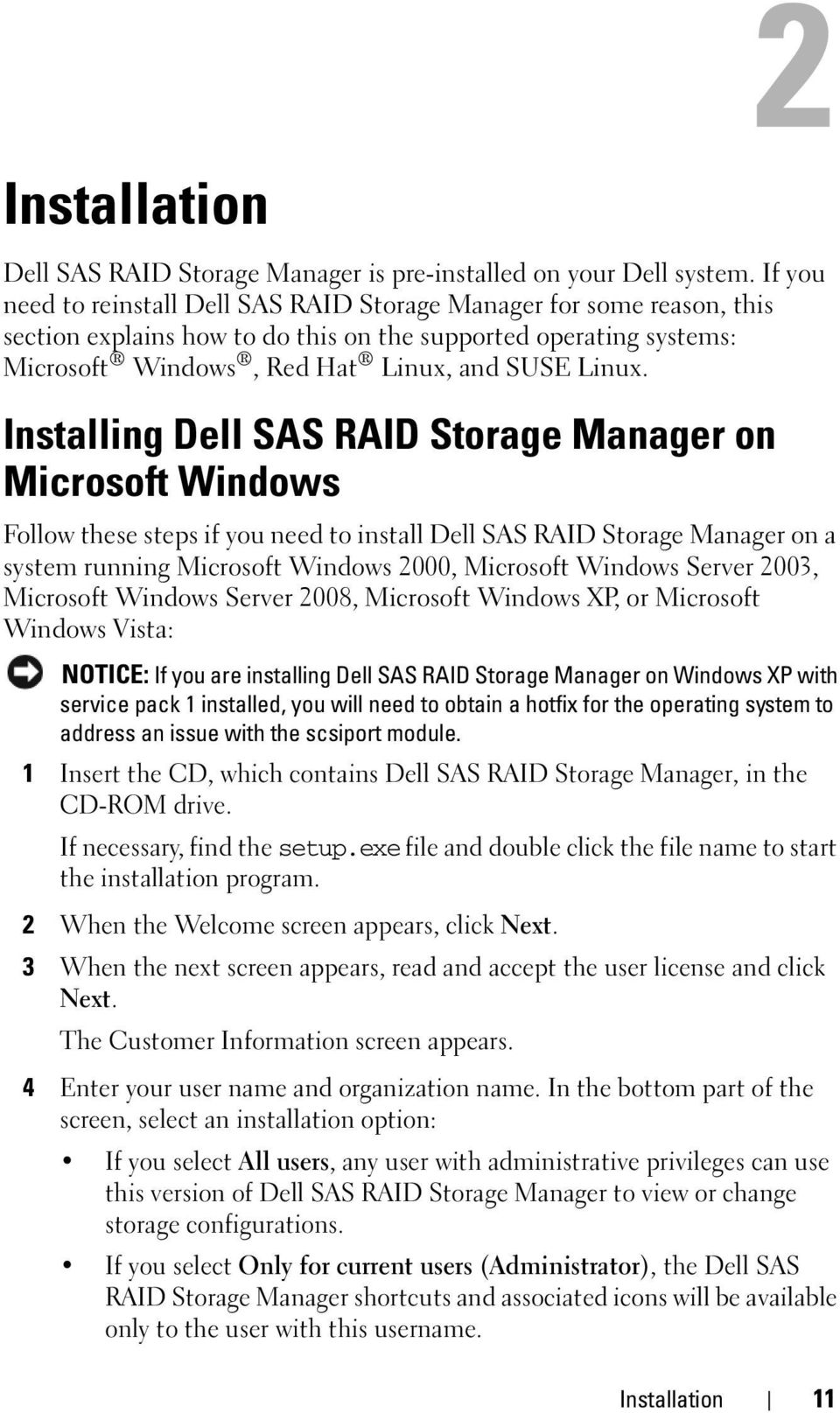
12 5 Click Next to continue. 6 On the next screen, accept the default Destination Folder, or click Change to select a different destination folder. Click Next to continue. 7 On the next screen, click Install to begin the installation. The InstallShield Wizard then installs the Dell SAS RAID Storage Manager. This can take several minutes. 8 Click Finish to complete the installation process. Installing Dell SAS RAID Storage Manager on Linux Follow these steps if you need to install Dell SAS RAID Storage Manager on a system running Red Hat Linux or SUSE Linux: 1 Copy the SSM_linux_installer...tar.gz file to a temporary folder. 2 Untar the SSM_linux_installer...tar.gz file using the following command: tar -zxvf SSM_linux_installer...tar.gz A new disk directory is created. 3 Go to the new disk directory. 4 In the disk directory, find and read the readme.txt file. 5 To start the installation, enter the following command:./install.sh NOTE: If you upgrade Dell SAS RAID Storage Manager, the event logs are not cleared as part of the upgrade process. Events in the event log prior to the upgrade will still appear in the log. NOTE: You should download the latest device drivers for the RAID controllers from support.dell.com. Linux Installation Error Messages The following messages might appear while you are installing Dell SAS RAID Storage Manager on a Linux system: 12 Installation

13 More than one copy of MegaRAID Storage Manager has been installed. This message indicates that you have installed more than one copy of Dell SAS RAID Storage Manager. (This can be done by using the rpm-force command to install the rpm file directly, which is not recommended, instead of using the install.sh file.) In such cases, you must uninstall all the rpms manually before installing Dell SAS RAID Storage Manager with the procedure listed above. The version is already installed. This message indicates that the version of Dell SAS RAID Storage Manager you are trying to install is already installed on the system. The installed version is newer. This message indicates that a version of Dell SAS RAID Storage Manager is already installed on the system, and it is a newer version than the version you are trying to install. Exiting installation. This is the message that appears when the installation is complete. RPM Installation Failed This message indicates that the installation failed for some reason. Additional message text explains the cause of the failure. Installation 13

14 14 Installation

15 Dell SAS RAID Storage Manager Windows and Menus This chapter explains how to start Dell SAS RAID Storage Manager and describes the Dell SAS RAID Storage Manager window and menus. Starting Dell SAS RAID Storage Manager Follow these steps to start Dell SAS RAID Storage Manager and view the main window: 1 Start the program using the method required for your operating system environment: To start Dell SAS RAID Storage Manager on a Microsoft Windows system, select Applications-> Programs-> Dell SAS RAID Storage Manager-> StartupUI. NOTE: If a warning appears stating that Windows Firewall has blocked some features of the program, click Unblock to allow Dell SAS RAID Storage Manager to start. (The Windows Firewall sometimes blocks the operation of programs like Dell SAS RAID Storage Manager that use Java.) To start Dell SAS RAID Storage Manager on a Red Hat Linux system, select Applications-> System Tools-> Dell SAS RAID Storage Manager-> StartupUI. To start Dell SAS RAID Storage Manager on a SUSE SLES 9 system, select Start->System-> More Programs-> Dell SAS RAID Storage Manager-> StartupUI. To start Dell SAS RAID Storage Manager on a SUSE SLES 10 system, select Computer-> New Application-> Dell SAS RAID Storage Manager-> StartupUI. 2 When the Enter UserName & Password window appears, select an access mode from the drop-down menu. Select Full Access if you need to both view the current configuration and change the configuration. Select View Only if you only need to view and monitor the configuration. Dell SAS RAID Storage Manager Windows and Menus 15
16 3 Enter your user name and password and click Login. NOTE: If the computer is networked, this is not the network login but the login to the computer itself. This is the local administrator/root password, not a network logon password. You must enter the root/administrator username and password in order to use Full Access mode. If your user name and password are correct for the login mode you have chosen, the main Dell SAS RAID Storage Manager window appears. Dell SAS RAID Storage Manager Window This section describes the Dell SAS RAID Storage Manager window, which appears when you start Dell SAS RAID Storage Manager. The following topics describe the panels and menu options that appear in this window: Physical/Logical View Panel The left panel of the Dell SAS RAID Storage Manager window displays either the Physical view or the Logical view of the system and the devices in it, depending on which tab is selected. The Physical view shows the hierarchy of physical devices in the system. At the top of the hierarchy is the system itself. One or more controllers are installed in the system. Each controller has one or more ports. Disk drives and other devices are attached to the ports. The Logical view shows the hierarchy of controllers, virtual disks, and disk groups that are defined on the system. (Physical drives also appear in the Logical view, so you can see which physical drives are used by each virtual disk.) The following icons in the left panel represent the controllers, disk drives, and other devices: System (such as server) Controller Port Disk group (array) 16 Dell SAS RAID Storage Manager Windows and Menus

17 Virtual disk Physical drive: SAS and SATA Hot spare Enclosure A red circle to the right of an icon indicates that the device has failed. For example, this icon indicates that a disk drive has failed or gone offline: A yellow circle to the right of an icon indicates that a device is running in a degraded state. For example, this icon indicates that a virtual disk is running in a degraded state because a disk drive has failed: Properties/Operations/Graphical View Panel The right panel of the Dell SAS RAID Storage Manager window has from one to three tabs, depending on the kind of device selected in the left panel. The Properties tab displays information about the selected device. For example, if a controller icon is selected in the left panel the Properties tab lists information such as the controller name, NVRAM size, and device port count. If a server is selected, the host name, operating system (OS), operating system architecture, IP address, and OS version displays. For more information, see Monitoring Controllers, Monitoring Disk Drives, and Monitoring Virtual Disks. The Operations tab lists the operations that can be performed on the device that is selected in the left panel. For example, the virtual disk operations include Locate Virtual Disk and Stop Locating Virtual Disk. Some types of devices, such as disk groups, servers, and ports, do not have operations associated with them. For more information, see Maintaining and Managing Storage Configurations. The Graphical tab can be selected in the right panel if a physical drive or a virtual disk is selected in the left panel. In Graphical View, the device s storage capacity is color coded according to the legend shown on the screen. For example, on a physical drive configured space is blue, available space is white, reserved space is red, and space for the selected virtual disk is green. There is a menu on this panel where you can select a virtual disk for which to display the virtual disk space. For more information, see Monitoring Disk Drives and Monitoring Virtual Disks. Dell SAS RAID Storage Manager Windows and Menus 17
18 Event Log Panel The lower part of the Dell SAS RAID Storage Manager window displays the system event log entries. New event log entries appear during the session. Each entry has an Error Level indicating the severity of the event, a timestamp and date, and a brief description of the event. For more information about the Event Log, see Monitoring System Events. NOTE: For some events on Dell systems with a SAS 5/iR controller or a SAS 6/iR controller, the time stamp will be reported as #### because the reported time stamp is not valid. For more information about the event log entries, see Events and Messages. Menu Bar Here are brief descriptions of the main selections on the Dell SAS RAID Storage Manager menu bar: File Menu The File menu has an Exit option for exiting from Dell SAS RAID Storage Manager. It also has a Rescan option for updating the display in the Dell SAS RAID Storage Manager window. (Rescan is seldom required; the display normally updates automatically.) Operations Menu The Operations menu is available when a controller, physical drive, or virtual disk is selected in the Dell SAS RAID Storage Manager window. The Operations menu options vary depending on the type of device selected in the left panel of the Dell SAS RAID Storage Manager window. For example, the Scan for Foreign Config option is available only when a controller is selected. The options also vary depending on the current state of the selected device. For example, if you select an offline physical drive, the Make Drive Online option appears in the Operations menu. You can also view the Operations selections on the main window on the Operations tab in the right panel. If an operation requires user inputs before it can be executed, it appears in the Operations tab but not in the Operations menu. A device-specific Operations menu pops up if you right-click a device icon in the left panel. 18 Dell SAS RAID Storage Manager Windows and Menus

19 Group Operations Menu The Group Operations menu options include Check Consistency, Show Progress, and Initialize (on Dell PERC 5/i controllers and Dell PERC 6/i controllers only). Log Menu The Log menu includes options for saving and clearing the message log. For more information, see Monitoring System Events. Help Menu On the Help menu you can select Help-> Help to view the Dell SAS RAID Storage Manager online Help file. You can select Help-> About to view version information for the Dell SAS RAID Storage Manager. NOTE: When you use the Dell SAS RAID Storage Manager online Help, you might see a warning message that Internet Explorer has restricted the file from showing active content. If this warning appears, click on the active content warning bar and enable the active content. Dell SAS RAID Storage Manager Windows and Menus 19
20 20 Dell SAS RAID Storage Manager Windows and Menus

21 Configuration You use Dell SAS RAID Storage Manager to create storage configurations on Dell systems with PERC 5/i, SAS 5/iR, PERC 6/i, and SAS 6/iR controllers. The controllers support storage configurations for the following RAID levels: Dell SAS 5/iR controller: RAID 0 and RAID 1 Dell SAS 6/iR controller: RAID 0 and RAID 1 Dell PERC 5/i controller: RAID 0, RAID 1, RAID 5, RAID 10, and RAID 50 Dell PERC 6/i controller: RAID 0, RAID 1, RAID 5, RAID 6, RAID 10, RAID 50, and RAID 60 To learn more about RAID and RAID levels, see the Glossary. Creating a New Configuration on a SAS 5/iR Controller or on a SAS 6/iR Controller You can use the Dell SAS RAID Storage Manager Configuration Wizard to create new configurations on Dell systems with the SAS 5/iR controller or the the SAS 6/iR controller. To start the Dell SAS RAID Storage Manager Configuration Wizard, select a Dell SAS 5/iR or a Dell SAS 6/iR controller in the left panel of the Dell SAS RAID Storage Manager window and then select Operations-> Configuration-> Configuration Wizard. The following subsections explain how to create a RAID 0 or a RAID 1 configuration on a Dell system with a SAS 5/iR controller or a SAS 6/iR controller. NOTICE: You cannot use physical drives with bootable partitions to create a virtual drive on a SAS 5/iR controller or on a SAS 6/iR controller. This prevents you from accidentally using a drive containing an operating system as part of a virtual drive, and thereby destroying the operating system. If one or more drives have a bootable partition, they will not appear on the list of drives that are available to create a new virtual drive. If no drives are available, a warning message will be displayed. Configuration 21
22 Creating a RAID 0 Configuration on a SAS 5/iR Controller or on a SAS 6/iR Controller Follow these steps to create a RAID 0 configuration on a Dell system with a SAS 5/iR controller or with a SAS 6/iR controller: 1 Select a Dell SAS 5/iR or a Dell SAS 6/iR controller in the left panel of the Dell SAS RAID Storage Manager window, and then select Operations-> Configuration-> Configuration Wizard. 2 In the Configuration Wizard, select two or more available drives in the left panel. Click the right-arrow Add button to move the selected drives to the right panel. NOTICE: Be sure you do not select the disk drive on which the operating system is installed. 3 Click Accept to accept these drives for the new RAID 0 disk group. NOTE: To remove a single drive from a proposed disk group, select the drive icon in the right panel of the Dell SAS RAID Storage Manager window and click the left-arrow button. 4 Click Next. The next Configuration Wizard window appears. 5 Select the disk group to use for the new virtual disk. 6 In the right panel, select RAID 0 as the RAID level. 7 Click Accept to accept the configuration of the new virtual disk. NOTE: Click the Reclaim button if you want to undo a virtual disk that you just defined. (For more information, see the Glossary entry for reclaim virtual disk.) 8 Select an available disk for another virtual disk and define its properties, or click Next to go to the next configuration step. (You can define up to two virtual disks.) The virtual disk summary window appears. 9 Review the configuration shown in the window. If you want to change something, click Back and change the configuration parameters. 10 Click Finish to accept the configuration and start the initialization process. 22 Configuration
23 Creating a RAID 1 Configuration on a SAS 5/iR Controller or on a SAS 6/iR Controller Follow these steps to create a RAID 1 configuration on a Dell system with a SAS 5/iR controller or a SAS 6/iR controller: 1 Select a Dell SAS 5/iR or a Dell SAS 6/iR controller in the left panel of the Dell SAS RAID Storage Manager window, and then select Operations-> Configuration-> Configuration Wizard. 2 In the Configuration Wizard, select two available drives in the left panel. Click the right-arrow Add button to move the selected drives to the right panel. NOTICE: Be sure you do not select the disk drive on which the operating system is installed. 3 Click Accept to accept these drives for the new RAID 1 disk group. NOTE: You can add hotspare disks to a configuration on a SAS 6/iR controller. For information about adding hotspares, see Adding Hotspare Disks. 4 Click Next. The next Configuration Wizard window appears. 5 Select the disk group to use for the new virtual disk. 6 In the right panel of the Dell SAS RAID Storage Manager window, select RAID 1 as the RAID level. 7 Click Accept to accept the configuration of the new virtual disk, which appears in the window. NOTE: Click the Reclaim button if you want to undo a virtual disk that you just defined. (For more information, see the Glossary entry for reclaim virtual disk.) 8 Select an available disk for another virtual disk and define its properties, or click Next to go to the next configuration step. (You can define up to two virtual disks.) The virtual disk summary window appears. 9 Review the configuration shown in the window. If you want to change something, click Back and change the configuration parameters. 10 Click Finish to accept the configuration and start the initialization process. Configuration 23
24 Creating a New Configuration on a Dell PERC 5/i Controller or on a Dell PERC 6/i Controller You can use the Dell SAS RAID Storage Manager Configuration Wizard to create new storage configurations on Dell systems with the PERC 5/i controller or with the PERC 6/i controller. To open the Dell SAS RAID Storage Manager Configuration Wizard, select a PERC 5/i controller or a PERC 6/i controller in the left panel of the Dell SAS RAID Storage Manager screen and then select Operations-> Configuration-> Configuration Wizard. The first Configuration Wizard window is a menu with three configuration modes: Auto Configuration automatically creates an optimal configuration from the available disk drives. Guided Configuration asks you a few simple questions about what kind of configuration you want and then automatically creates it from the available disk drives. Manual Configuration gives you the greatest level of control in creating a new virtual disk. NOTE: You can use Auto Configuration, Guided Configuration, or Manual Configuration to create a RAID 0, RAID 1, RAID 5, or RAID 6 configuration. To create a RAID 10 configuration, you must use the Manual Configuration mode. The following subsections explain how to create storage configurations on a Dell system with a PERC 5/i controller or a PERC 6/i controller: Understanding Virtual Disk Parameters Using Auto Configuration on a Dell PERC 5/i Controller or on a Dell PERC 6/i Controller Using Guided Configuration on a Dell PERC 5/i Controller or on a Dell PERC 6/i Controller Using Manual Configuration on a Dell PERC 5/i Controller or on a Dell PERC 6/i Controller (RAID 0, 1, 5, and 6) Using Manual Configuration on a Dell PERC 5/i Controller or on a Dell PERC 6/i Controller (RAID 10) 24 Configuration
25 Understanding Virtual Disk Parameters This section describes the Virtual Disk Parameters that you can set when you use the Guided Configuration or Manual Configuration modes of the Configuration Wizard. You do not necessarily need to change these parameters when you create a storage configuration; you can leave them at their default settings. Stripe Size: A stripe is a segment of data spread across multiple physical disks. Data segments with stripe sizes of 8, 16, 32, 64, and 128 Kbytes are supported. The default is 64 KB. For more information, see the Glossary entry for striping. Read Policy: Always Read Ahead: Read-ahead capability allows the controller to read sequentially ahead of requested data and to store the additional data in cache memory, anticipating that the data will be needed soon. This speeds up reads for sequential data, but there is little improvement when accessing random data. No Read Ahead: Disables the read-ahead capability. Adaptive Read Ahead: When selected, the controller begins using readahead if the two most recent disk accesses occurred in sequential sectors. If the read requests are random, the controller reverts to No Read Ahead. Write Policy: Write back: In this mode the controller sends a data transfer completion signal to the host when the controller cache has received all the data in a transaction. This setting is recommended in standard mode. Write through: In this mode the controller sends a data transfer completion signal to the host when the disk subsystem has received all the data in a transaction. NOTE: If you select Write back, you need to clear the check box "Use Write through for failed or missing battery?". Otherwise, Write through is used because no battery is present. CAUTION: Using Write Back can result in data loss if a power failure occurs since the data is not stored in battery backed cache. IO Policy: The IO Policy applies to reads on a specific virtual disk. It does not affect the Read-ahead cache. Cached IO: In this mode, all reads are buffered in cache memory. Configuration 25
26 Direct IO: In this mode, reads are not buffered in cache memory. Data is transferred to cache and the host concurrently. If the same data block is read again, it comes from cache memory. Access Policy: Select the type of data access that is allowed for this logical drive: Read/Write, Read Only, or Blocked. Disk Cache Policy: Select a disk cache setting for this disk: Unchanged, Enabled, or Disabled. NOTE: The disk cache setting applies to the whole disk group; it cannot be set on an individual virtual disk. Changing the setting on a virtual disk causes the setting to change for the disk group. Init State: No Initialization: The new configuration is not initialized and the existing data on the disks is not overwritten. Fast Initialization: Dell SAS RAID Storage Manager quickly writes zeroes to the first and last 10 Mbyte regions of the new virtual disk and then completes the initialization in the background. This allows you to start writing data to the virtual disk immediately. Full Initialization: A complete initialization is done on the new configuration. You cannot write data to the new virtual disk until the initialization is complete. This can take a long time if the disks are large. NOTICE: If you initialize a drive on which the operating system is installed, you will overwrite the Operating System and potentially make the system nonfunctional. Using Auto Configuration on a Dell PERC 5/i Controller or on a Dell PERC 6/i Controller Auto Configuration is the quickest and simplest way to create a new storage configuration on a Dell PERC 5/i controller or on a Dell PERC 6/i controller. When you select Auto Configuration mode on the first Configuration Wizard window, the Configuration wizard creates the best configuration possible using the available physical disks. Follow these steps to create a new storage configuration in Auto Configuration mode: 1 Select a PERC SAS 5/i or a PERC SAS 6/i controller in the left panel of the Dell SAS RAID Storage Manager window, and then select Operations-> Configuration-> Configuration Wizard. 26 Configuration
27 2 Select Auto Configuration and click Next. The Auto Configuration window appears. 3 On the next screen, select a redundancy option from the drop-down menu at the bottom of the Auto Configuration window: No Redundancy: The new configuration will have no data redundancy (RAID 0). If a physical disk in the configuration fails, all data will be lost. With Redundancy: The new configuration will have data redundancy, either by parity data (RAID 5 or RAID 6) or mirrored data (RAID 1). If a physical disk fails, its data is still protected. NOTE: The PERC 5/i controller supports RAID 0, 1, 5, 10, and 50, but it does not support RAID 6 or 60. The PERC 6/i controller supports RAID 0, 1, 5, 6, 10, 50, and Select an Initialization option from the drop-down menu at the bottom of the window: No Initialization: The new configuration is not initialized and the existing data on the disks is not overwritten. Fast Initialization: Dell SAS RAID Storage Manager quickly writes zeroes to the first and last 10 Mbyte regions of the new virtual disk and then completes the initialization in the background. This allows you to start writing data to the virtual disk immediately. Full Initialization: A complete initialization is done on the new configuration. You cannot write data to the new virtual disk until the initialization is complete. This can take a long time if the disks are large. 5 Click Modify if you want to make changes to the Auto Configuration. For example, you could change the size of a virtual disk. To modify the configuration, perform the following steps: a Select a virtual disk in the New Virtual Disks panel. The Reclaim button becomes available. b Click Reclaim. A warning states that this will delete the newly created virtual disk. c Click Yes to accept. The array displays in the top left panel under the heading Arrays. Configuration 27
28 d If desired, reclaim the second virtual disk. e Click the checkbox next to one or two new arrays. The Virtual Disk Properties for the selected array(s) display in the right panel. f Select one array to create a non-spanned virtual disk (RAID 0, 1, 5, or 6), or select both arrays to create a spanned virtual disk (RAID 50 and 60). NOTE: The PERC 5/i controller does not support RAID 6 or RAID 60. g Click Accept in the right panel. The new virtual disk displays. h Click Next. 6 Click Finish. The new storage configuration will be created and initialized (unless you selected No Initialization). Check the configuration you just created to make sure it is acceptable. Using Guided Configuration on a Dell PERC 5/i Controller or on a Dell PERC 6/i Controller Guided Configuration provides an easy way to create a new storage configuration. Based on the information that is provided, the Configuration Wizard uses the available disk drives to create an optimal storage configuration. Follow these steps to create a new storage configuration in Guided Configuration mode on a Dell PERC 5/i controller or on a Dell PERC 6/i controller: 1 Select a PERC SAS 5/i or a PERC SAS 6/i controller in the left panel of the Dell SAS RAID Storage Manager window, and then select Operations-> Configuration-> Configuration Wizard. 2 Select Guided Configuration and click Next. The Guided Configuration window appears. 3 Select a redundancy option at the top of the Guided Configuration window: Redundancy Only: Create a configuration only if redundancy (RAID 1, RAID 5, or RAID 6) is possible. RAID 6 is available for the PERC 6/i controller, but not for the PERC 5/i controller. Redundancy when possible: Create a redundant configuration if possible. Otherwise, create a non-redundant configuration. No Redundancy: Create a non-redundant configuration. 28 Configuration
29 4 Choose whether you want to use existing disk groups (arrays) in the new virtual disk. The options are: Use Existing Arrays Only Don t Use Existing Arrays Use Existing and New Arrays The first and third options are disabled if there are no available existing disk groups (arrays). 5 Select the maximum number of virtual disks you want to create. The maximum number of virtual disks supported is 64. The Configuration Wizard might not be able to create as many virtual disks as you want, depending on the current configuration and the number of virtual disks that have already been created. 6 Click Next to continue to the next window. 7 Change the default virtual disk parameters in this window, if needed. In the right panel, you can specify the number of virtual disks to create. You can also choose to use less than the full capacity of this array for the virtual disk(s). (You could do this in order to leave capacity available for other virtual disks that you create later.) In the lower right panel, you can change the virtual disk parameters, such as the stripe size, read policy, and write policy. To learn about the Stripe Size and other virtual disk parameters, see Understanding Virtual Disk Parameters. 8 Click Next to continue to the next window. 9 Check the configuration that you have just defined. If it is acceptable, click Finish. If you want to change a setting for all of the virtual disks, click Back to return to the previous windows. If you want to change a setting for specific virtual disks, perform the following steps: a Select a virtual disk in the New Virtual Disks panel. The Reclaim button becomes available. b Click Reclaim. A warning states that this will delete the newly created virtual disk. c Click Yes to accept. The array displays in the top left panel under the heading Arrays. d If desired, reclaim the second virtual disk. Configuration 29
30 e Click the checkbox next to one or two new arrays. The Virtual Disk Properties for the selected array(s) display in the right panel. f Select one array to create a non-spanned virtual disk (RAID 0, 1, 5, or 6), or select both arrays to create a spanned virtual disk (RAID 50 and 60). g h i NOTE: PERC 5/i does not support RAID 6 or RAID 60. Click Accept in the right panel. The new virtual disk displays. Click Next. Click Finish. The new storage configuration will be created and initialized (unless you selected No Initialization). Check the configuration you just created to make sure it is acceptable. Using Manual Configuration on a Dell PERC 5/i Controller or on a Dell PERC 6/i Controller (RAID 0, 1, 5, and 6) NOTE: PERC 5/i does not support RAID 6. Follow these steps to create a RAID 0, 1, 5, or 6 storage configuration using the Manual Configuration mode of the Configuration Wizard: 1 Select a PERC SAS 5/i or a PERC SAS 6/i controller in the left panel of the Dell SAS RAID Storage Manager window, and then select Operations-> Configuration-> Configuration Wizard. 2 Select Manual Configuration and click Next. The Manual Configuration window appears. 3 In the first Manual Configuration window, select two or more available drives in the left panel for a RAID 0 or 1 configuration, or select three or more available drives for a RAID 5 or 6 configuration. NOTE: For RAID 1, you must select an even number of drives. You can select drives three ways: Click on an individual drive. Select consecutive drives by holding down <Shift>, and then clicking on the first drive and the last drive you want to include. Select non-consecutive drives by holding <Ctrl> and clicking multiple non-consecutive drives. 4 Click the right-arrow Add button to move the selected drives to the right panel. 30 Configuration
31 NOTICE: Be sure you do not select the disk drive on which the operating system is installed. NOTE: To remove a drive from a proposed new disk group, select the drive icon in the right panel and click the left-arrow Remove button. 5 Click Accept to accept these drives for the new RAID disk group. 6 To add a hotspare to an array, select an available drive in the left panel, and then select the array from the drop-down menu, and click Add HotSpare To. NOTE: Hot spares are not available for RAID 0. 7 Click Next. The next Configuration Wizard window appears. The Arrays box lists the new disk group (array) that you just defined, plus any existing disk groups with holes (free space) that you can use for a new configuration. 8 In the Arrays box, click the checkbox to select the disk group to use for the new virtual disk. 9 In the right panel under Virtual Disk Properties, select the desired RAID level. 10 (Optional) Set Size (in MB) to a lower number if you do not want to use the entire available capacity for the new virtual disk. 11 (Optional) Change the other Virtual Disk Properties, if desired. For more information, see Understanding Virtual Disk Parameters. NOTE: You cannot change the default Volume Name if Dell SAS RAID Storage Manager is running in a language that uses the Double Byte Character Set. The default Volume Name must be kept. 12 Click Accept to accept the configuration of the new virtual disk. The RAID 0 virtual disk appears in the left panel under New Virtual Disk. NOTE: If you want to undo a virtual disk that you just defined, click on the virtual disk option, and then click the Reclaim button. (For more information, see the Glossary entry for reclaim virtual disk.) The array will display under Arrays. You can then start at step 7 to create a new virtual disk. 13 Click Next to go to the next configuration step. The Virtual Disk Summary window appears. Configuration 31
32 14 Check the configuration that you have just defined. If it is acceptable, click Finish and start the initialization process (unless you selected No Initialization earlier). If you want to change a setting for all of the virtual disks, click Back to return to the previous windows. If you want to change a setting for specific virtual disks, perform the following steps: a Select a virtual disk in the New Virtual Disks panel. The Reclaim button becomes available. b Click Reclaim. A warning states that this will delete the newly created virtual disk. c Click Yes to accept. The array displays in the top left panel under the heading Arrays. d If desired, reclaim the second virtual disk. e Click the checkbox next to one or two new arrays. The Virtual Disk Properties for the selected array(s) display in the right panel. f Change the properties for the virtual disk(s), as desired. g Click Accept to accept the configuration of the new virtual disk. h Check the configuration that you have just defined. If it is acceptable, click Finish. The new storage configuration will be created and initialized (unless you selected No Initialization). Using Manual Configuration on a Dell PERC 5/i Controller or on a Dell PERC 6/i Controller (RAID 10) Follow these steps to create a RAID 10 storage configuration using the Manual Configuration mode of the Configuration Wizard: 1 Select a PERC 5/i or a PERC 6/i controller in the left panel of the Dell SAS RAID Storage Manager window, and then select Operations-> Configuration-> Configuration Wizard. 2 Select Manual Configuration and click Next. The Manual Configuration window appears.in the first Manual Configuration window, select three or more available drives in the left panel. Click the right-arrow Add button to move the selected drives to the right panel. NOTICE: Be sure you do not select the disk drive on which the operating system is installed. 32 Configuration
33 3 In the first Manual Configuration window, select two available drives in the left panel. Click the right-arrow Add button to move the selected drives to the right panel to be part of a new array. 4 Click Accept to accept these drives for a new RAID 1 disk group. 5 Select two more drives for a second RAID 1 disk group, click Add, and click Accept. 6 Click Next. The Configuration Wizard window for virtual disks appears. The Arrays box lists the new disk groups that you just defined, plus any existing disk groups with holes (free space) that could be used for a new configuration. 7 In the left panel, select the two RAID 1 disk groups in the Arrays box. 8 In the right panel, select RAID 10 as the RAID level. 9 (Optional) Change the other Virtual Disk Properties, if necessary. For more information, see Understanding Virtual Disk Parameters. NOTE: You cannot change the default Volume Name if Dell SAS RAID Storage Manager is running in a language that uses the Double Byte Character Set. The default Volume Name must be kept. 10 Click Accept to accept the configuration of the new virtual disk. The virtual disk appears in the left panel under New Virtual Disk. NOTE: If you want to undo a virtual disk that you just defined, click on the virtual disk, and then click the Reclaim button. (For more information, see the Glossary entry for reclaim virtual disk.) The array will display under Arrays. You can then start at step 7 to create a new virtual disk. 11 Click Next to go to the next configuration step. The Virtual Disk Summary window appears. 12 Check the configuration that you have just defined. If it is acceptable, click Finish and start the initialization process (unless you selected No Initialization earlier). If you want to change a setting for all of the virtual disks, click Back to return to the previous windows. If you want to change a setting for specific virtual disks, perform the following steps: a b Select a virtual disk in the New Virtual Disks panel. The Reclaim button becomes available. Click Reclaim. A warning states that this will delete the newly created virtual disk. Configuration 33
34 c d e f g h i Click Yes to accept. The array displays in the top left panel under the heading Arrays. If desired, reclaim the second virtual disk. Click the checkbox next to one or two new arrays. The Virtual Disk Properties for the selected array(s) display in the right panel. Change the properties for the virtual disk(s), as desired. Click Accept to accept the configuration of the new virtual disk. Click Next to go to the next configuration step. The Virtual Disk Summary window appears. Check the configuration that you have just defined. If it is acceptable, click Finish and start the initialization process (unless you selected No Initialization earlier). Adding Hotspare Disks Hotspare disks are supported by the Dell PERC 5/i, PERC 6/i, and SAS 6/iR controllers. Hotspares are disk drives that are available to automatically replace failed drives in a RAID 1, RAID 5, or RAID 6 virtual disk. Dedicated hotspares are available to only one virtual disk. Global hotspares are available to any virtual disk on a specific controller. NOTE: The SAS 6/iR controller supports global hotspares only. To add a global hotspare disk, follow these steps: 1 Select the Physical View tab in the left panel of the Dell SAS RAID Storage Manager screen, and select the icon of an unused disk drive. 2 Select the Operations tab in the right panel of the Dell SAS RAID Storage Manager screen. 3 Select Make Global Hotspare. You can create dedicated hot spares when you create a new configuration with the Configuration Wizard. To add dedicated hotspares after running the Configuration Wizard, follow these steps: 1 Select the Physical View tab in the left panel of the Dell SAS RAID Storage Manager window and select the icon of an unused disk drive. 2 In the right panel of the Dell SAS RAID Storage Manager window, select the Operations tab and select Make Dedicated Hotspare. 34 Configuration
35 3 In the right panel of the Operations tab, select the disk group (array) to which the hotspare will be dedicated. 4 Click Go to create the dedicated hotspare. Using the Replace Member Feature and Revertible Hot Spares The Replace Member functionality allows a previously commissioned hot spare to be reverted back to a usable hot spare. When a drive failure occurs within a virtual disk, an assigned hot spare (dedicated or global) is commissioned and begins rebuilding until the virtual disk is optimal. Once the failed drive is replaced (in the same slot) and the rebuild to the hot spare is complete, the controller automatically starts to copy data from the commissioned hot spare to the newly-inserted drive. Once this is complete, the new drive is part of the virtual disk and the hot spare is reverted back to being a ready hot spare; this allows hot spares to remain in specific enclosure slots. While the controller is reverting the hot spare, the virtual disk remains optimal. NOTE: The controller automatically reverts a hot spare only if the failed drive is replaced with a new drive in the same slot. If the new drive is not placed in the same slot, a manual replace member operation can be used to revert a previously commissioned hot spare. The Replace Member function works with another fault tolerance feature, load balancing, to avoid downtime and keep data available to users. Load balancing is a method of spreading work between two or more computers, network links, CPUs, physical disk drives, or other resources. Load balancing is used to maximize resource use, throughput, or response time. In the controllers, the balancing service is performed by the firmware. Using multiple paths with load balancing, instead of a single path, can increase availability through redundancy. If there are redundant paths to different ports of a device, then access to a device is not lost if a path fails. Automatic Replace Member with Predicted Failure A Replace Member operation can occur when there is a SMART predictive failure reporting on a drive in a virtual disk. The automatic Replace Member is initiated when the first SMART error occurs on a physical disk that is part of a virtual disk. The target drive needs to be a hot spare that qualifies as a rebuild drive. The physical disk with the SMART error is marked as "failed" only after the successful completion of the Replace Member. This avoids putting the array in degraded status. Configuration 35
36 If an automatic Replace Member occurs using a source drive that was originally a hot spare (that was used in a rebuild), and a new drive added for the Replace Member operation as the target drive, the hot spare reverts to the hot spare state after a successful Replace Member operation. Manual Replace Member Operation In addition to the automatic Replace Member operation, you can perform a manual Replace Member operation. Perform the following steps to carry out a manual Replace Member operation: 1 Select a physical disk in the left panel of the main menu screen. 2 Click the Operations tab in the right panel. The utility identifies the drives you can use to replace existing drives in the virtual disk. 3 Click Go to carry out the Replace Member operation. After the controller copies data from the commissioned hot spare to the newly-inserted drive, the new drive is part of the virtual disk and the hot spare reverts back to being a ready hot spare. Restrictions and Limitations The following restrictions and limitations apply to the Replace Member operation: The Replace Member functions are restricted to one per array for RAID 0, RAID 1, and RAID 5, and two per array for RAID 6. The Replace Member function and rebuild cannot run simultaneously on a RAID 6 virtual disk. The rebuild operation has a higher priority, and the Replace Member operation will be aborted if a rebuild begins. Changing Adjustable Task Rates You can change adjustable task rates for the Dell PERC 5/i controller and the Dell PERC 6/i controller. Follow these steps if you need to change the adjustable rates for rebuilds, patrol reads, and other system tasks that run in the background: 36 Configuration
37 NOTE: Dell recommends that you leave the adjustable task rates at their default settings, in order to achieve the best system performance. If you raise the task rates above the defaults, foreground tasks will run more slowly and it might seem that the system is not responding. If you lower the task rates below the defaults, rebuilds and other background tasks might run very slowly and might not complete within a reasonable time. If you decide to change the values, record the original default value here so you can restore them later, if necessary: Rebuild Rate: Patrol Rate: Background Initialization Rate: Check Consistency Rate: Reconstruction Rate: 1 Select the Physical View tab in the left panel of the Dell SAS RAID Storage Manager window and select a controller icon. 2 In the right panel of the Dell SAS RAID Storage Manager window, select the Operations tab and select Set Adjustable Task Rates. The default task rates appear in the right panel. 3 Enter changes, as needed, to the task rates for Rebuild Rate, Patrol Rate (for patrol reads), Background Initialization (BGI) Rate (for fast initialization), Check Consistency Rate (for consistency checks), and Reconstruction Rate. Each task rate can be set from 0 to 100. The higher the number, the faster the activity will run in the background, possibly impacting other system tasks. NOTE: Patrol read does not report on its progress while it is running. The patrol read status is reported in the Event Log only. 4 Click Go to accept the new task rates. 5 When the warning message appears, click OK to confirm that you want to change the task rates. Changing Virtual Disk Properties NOTICE: For the SAS 5/iR controller, you can enable/disable Self-Monitoring and Reporting Technology (SMART) and Write Cache Enable on physical disks are not part of a virtual disk. For the SAS 6/iR controller, support is provided for Write Cache Enable on physical disks that are not part of a virtual disk. The parameters are different from those set for the virtual disk. Configuration 37
38 You can change the Read Policy, Write Policy, and other properties of a virtual disk at any time after the virtual disk is created. To do this, follow these steps: 1 Select the Logical View tab in the left panel of the Dell SAS RAID Storage Manager screen. 2 Select a virtual disk icon in the left panel of the window. 3 In the right panel, select the Operations tab, and then select Set Virtual Disk Properties. A list of Virtual Disk Properties appears in the right panel. The properties include the Read Policy, Default Write Policy, an option for Write Through for a failed or missing battery, IO policy, Access Policy, Disk Cache Policy, and Background Initialization. 4 Change the virtual disk properties as needed in the right panel. For information on these properties, see Understanding Virtual Disk Parameters. 5 Click Go to accept the changes. Changing a Virtual Disk Configuration You can use the Dell SAS RAID Storage Manager Reconstruction Wizard to change the configuration of virtual disks on a Dell system with a PERC 5/i controller or a PERC 6/i controller. You can change the configuration for virtual disks at the following RAID levels for these RAID controllers: PERC 5/i controller: RAID 0, RAID 1, and RAID 5 PERC 6/i controller: RAID 0, RAID 1, RAID 5, and RAID 6 NOTICE: Be sure to back up the data on the virtual disk before you change its configuration. The Reconstruction Wizard allows you to change a virtual disk configuration by adding disk drives to the virtual disk, removing disk drives from it, or changing its RAID level. NOTE: You cannot change the configuration of a RAID 10 virtual disk. You cannot change a RAID 0, RAID 1, RAID 5, or RAID 6 configuration if two or more virtual disks are defined on a single disk group. (The Logical view tab shows which disk groups and disk drives are used by each virtual disk.) 38 Configuration
39 To start the Reconstruction Wizard, select a virtual disk icon in the left panel of the Dell SAS RAID Storage Manager window and then select Operations-> Advanced Operations-> Reconstruction Wizard from the menu. This section has the following subsections explaining the Reconstruction Wizard options: Adding a Disk Drive to a Configuration on a PERC 5/i Controller or on a PERC 6/i Controller Changing the RAID Level of a Configuration on a PERC 5/i Controller or on a PERC 6/i Controller Adding a Disk Drive to a Configuration on a PERC 5/i Controller or on a PERC 6/i Controller NOTICE: Be sure to back up the data on the virtual disk before you add a drive to it. Follow these steps to add a disk drive to a configuration with the Configuration Wizard: 1 Select a virtual disk icon in the left panel of the Dell SAS RAID Storage Manager window and then select Operations-> Advanced Operations-> Reconstruction Wizard from the menu to start the Reconstruction Wizard. 2 Click Add Drive on the Reconstruction Wizard menu screen, and then click Next. 3 When the next screen appears, select an available disk drive in the top panel and click the down-arrow Add button to move it to the Selected Drives list. 4 Click Next to continue. The next screen appears. 5 (Optional) Select a different RAID level for the configuration from the drop-down menu in the lower right of the window. 6 Review the information in the window. If everything is acceptable, click Finish. A Reconstruct operation begins on the virtual disk. You can monitor the progress of the reconstruction in the Group Show Progress window. To do this, select Group Operations-> Show Progress. Configuration 39
40 Changing the RAID Level of a Configuration on a PERC 5/i Controller or on a PERC 6/i Controller NOTICE: Be sure to back up the data on the virtual disk before you change its RAID level. Follow these steps to change the RAID level of a RAID 1, RAID 5, or RAID 6 (PERC 6/i only) configuration with the Configuration Wizard: 1 Select the Logical View tab in the left panel of the Dell SAS RAID Storage Manager screen. 2 Select a virtual disk icon in the left panel, and then select Operations-> Advanced Operations-> Reconstruction Wizard from the menu to start the Reconstruction Wizard. 3 Click Change RAID Level on the Reconstruction Wizard menu screen. NOTE: This option is not available for RAID 0 configurations. 4 When the next screen appears, select a RAID level from the drop-down menu in the lower right corner. 5 Review the information in the window. If everything is acceptable, click Finish. A Reconstruct operation begins on the virtual disk. You can monitor the progress of the reconstruction in the Group Show Progress window. To do this, select Group Operations -> Show Progress. Deleting a Virtual Disk NOTICE: Be sure to back up the data on the virtual disk before you delete it. Be sure that the operating system is not installed on this virtual disk. NOTICE: If one or more drives have a bootable partition, they will not appear on the list of drives that are available to create a new virtual drive. Virtual drives that have a bootable partition cannot be deleted, in order to prevent you from accidentally deleting a drive that contains the operating system. You can delete virtual disks in order to rearrange the storage space. To delete a virtual disk, follow these steps: 1 Back up all user data on the virtual disk you intend to delete. 2 In the left panel of the Dell SAS RAID Storage Manager window, select the Logical tab and click the icon of the virtual disk you want to delete. 40 Configuration
41 3 In the right panel, select the Operations tab and select Delete Virtual Disk. 4 Click Go. 5 When the warning message appears, click the check box to confirm that you are certain that you want to delete the virtual disk, and then click Yes to confirm that you want to delete the virtual disk. NOTE: You will be asked twice if you want to delete a virtual disk to avoid deleting the virtual disk by mistake. Saving a Storage Configuration to Disk You can save an existing controller configuration to a file so you can apply it to another controller. To save a configuration file, follow these steps: 1 Select a controller icon in the left panel of the Dell SAS RAID Storage Manager window. 2 On the menu bar, select Operations-> Configuration-> Save Configuration to file. The Save dialog box appears. 3 In the Save dialog box, type a name for the configuration file, or accept the default name (hostname.cfg). 4 Click Save to save the configuration file. Clearing a Storage Configuration from a Controller You must clear a storage configuration from a controller before you can create a new configuration on the controller or load a previously saved configuration file. NOTICE: Before you clear a configuration, be sure to save any data that you want to keep! Clearing a configuration deletes all data from the disks of the existing configuration. To clear a configuration from a controller, follow these steps: 1 Select a controller icon in the left panel of the Dell SAS RAID Storage Manager window. Configuration 41
42 2 On the menu bar, select Operations-> Configuration-> Clear Configuration. A warning message appears. NOTICE: If a configuration contains an operating system drive, the configuration cannot be cleared. 3 Click Yes to clear the configuration or No to cancel the operation. Adding a Saved Storage Configuration When you replace a controller, or when you want to duplicate an existing storage configuration on a new controller, you can add a saved configuration to the controller. NOTICE: When you add a saved configuration to a replacement controller, be sure that the number and size of the physical disks connected to the controller is exactly the same as it was when the configuration was saved. To add a saved configuration, follow these steps: 1 Select a controller icon in the left panel of the Dell SAS RAID Storage Manager window. 2 On the menu bar, select Operations-> Configuration-> Add Saved Configuration. A warning message appears. 3 Click Yes. When the Open dialog box appears, select the configuration file and click Open. 4 View the configuration detail, and then click Apply. 5 Confirm the new configuration when prompted. 42 Configuration
43 Monitoring System Events and Storage Devices The Dell SAS RAID Storage Manager enables you to monitor the status of disk drives, virtual disks, and other storage devices. This chapter explains how to use Dell SAS RAID Storage Manager to perform the following monitoring tasks. Monitoring System Events Dell SAS RAID Storage Manager monitors the activity and performance of all controllers in the system and the storage devices connected to them. When an event occurs (such as the creation of a new virtual disk or the removal of a physical drive) an event message appears in the log displayed at the bottom of the Dell SAS RAID Storage Manager window. Each event in the log includes an error level (Info, Warning, Caution, or Fatal) a date and time stamp, and a brief description. (For a list of all events, see Appendix A, Events and Messages) The Log menu has four options: Save Log: Saves the current log as a.log file. Save Log Text: Saves the current log as a.txt file. Clear Log: Clears the current log information. Load Log: Enables you to load a different log file. NOTE: For some events on Dell systems with a SAS 5/iR controller or a SAS 6/iR controller, the time stamp will be reported as #### because the reported time stamp is not valid. Monitoring System Events and Storage Devices 43
44 Monitoring Controllers When Dell SAS RAID Storage Manager is running, you can see the status of all controllers in the left panel of the Dell SAS RAID Storage Manager window. If the controller is operating normally, the controller icon looks like this:. If the controller has failed, a small red circle appears to the right of the icon. (See Physical/Logical View Panel for a complete list of device icons.) To display complete controller Information, click a controller icon in the left panel of the Dell SAS RAID Storage Manager window and click the Properties tab in the right panel. The Properties tab lists information such as Product Name, Serial No., SubVendor ID, Host Port Count, and task rates. Controller properties are defined in the Glossary. Monitoring Disk Drives When Dell SAS RAID Storage Manager is running, you can see the status of all physical disk drives in the left panel of the Dell SAS RAID Storage Manager window. If the disk drive is operating normally, its icon looks like this:. If the disk drive has failed, a small red circle appears to the right of the icon, like this. (See Physical/Logical View Panel for a complete list of device icons.) To display complete disk drive information, click a disk drive icon in the left panel of the Dell SAS RAID Storage Manager window and click the Properties tab in the right panel. The Properties tab lists information such as vendor name, device ID, drive size, and physical drive state. All disk drive properties are defined in the Glossary. To display a graphical view of a disk drive, click on a drive icon in the left panel of the Dell SAS RAID Storage Manager and click the Graphical View tab. In Graphical View, the drive s storage capacity is color coded according to the legend shown on the screen: configured space is blue, available space is white, and reserved space is red. When you select a virtual disk from the dropdown menu, the disk space used by that virtual disk is displayed in green. 44 Monitoring System Events and Storage Devices
45 Running a Patrol Read The Dell PERC 5/i controller and the Dell PERC 6/i controller supports the patrol read feature. Patrol read provides a dynamic check on the virtual disk to confirm the disk is functioning properly. Patrol read runs in the background, adjusting its performance based on the patrol read settings and the i/o load on the controller. A patrol read can be used for all RAID levels and for all hotspare drives. To start a patrol read, follow these steps: 1 Click a controller icon in the left panel of the Dell SAS RAID Storage Manager window. 2 Select Operations -> Start Patrol Read. 3 When prompted, click Yes to confirm that you want to start a patrol read. To change the patrol read settings, follow these steps: 1 Click a controller icon in the left panel of the Dell SAS RAID Storage Manager window. 2 Select the Operations tab in the right panel, and select Set Patrol Read Properties. 3 Select an Operation Mode for patrol read. The options are: Auto: Patrol read runs automatically at the time interval you specify on this screen. Manual: Patrol read runs only when you manually start it by selecting Start Patrol Read from the controller Options panel. Disabled: Patrol read does not run at all. 4 (Optional) Specify a maximum count of physical drives to include in the patrol read. The count must be between 0 and (Optional) Select the virtual disks on this controller that you want to exclude from the patrol read. The existing virtual disks are listed in the gray box. To exclude a virtual disk, check the box next to it. 6 (Optional) Change the frequency at which the patrol read runs (the execution frequency). The default frequency is 168 hours (7 days), which is suitable for most configurations. NOTE: Dell recommends that you leave the patrol read frequency and other patrol read settings at the default values, in order to achieve the best system performance. If you decide to change the values, record the original default value here so you can restore them later, if necessary: Monitoring System Events and Storage Devices 45
46 Patrol Read Frequency: Continuous Patrolling: Enabled/Disabled Patrol Read Task Rate: 7 (Optional) Select Continuous Patrolling if you want patrol read to run continuously in the background instead of running at periodic intervals. If you select Continuous Patrolling, the time interval field is grayed out. 8 Click Go to enable the patrol read properties. NOTE: Patrol read does not report on its progress while it is running. The patrol read status is reported in the Event Log only. You have the option to change the patrol read task rate. The task rate determines the amount of system resources that are dedicated to a patrol read when a patrol read is running. Dell recommends, however, that you leave the patrol read task rate at its default setting. If you raise the task rate above the default, foreground tasks will run more slowly and it might seem that the system is not responding. For more information, about the patrol read task rate, see Changing Adjustable Task Rates. Monitoring Virtual Disks When Dell SAS RAID Storage Manager is running, you can see the status of all virtual disks. If a virtual disk is operating normally, the icon looks like this:. If the virtual disk is running in degraded mode (for example, if a physical disk has failed) a small yellow circle appears to the right of the icon:. (See Physical/Logical View Panel for a complete list of device icons.) For the Dell PERC 5/i controller, and the Dell PERC 6/i controller, when you select the Logical tab, the left panel of the Dell SAS RAID Storage Manager window shows which physical disks are used by each virtual disk. The same physical disk can be used by multiple virtual disks. To display complete information about the virtual disk, click the Logical tab in the left panel, click on a virtual disk icon in the left panel, and click the Properties tab in the right panel. All of the virtual disk properties appear. They are defined in the Glossary. 46 Monitoring System Events and Storage Devices
47 NOTE: On Dell PERC 5/i controllers and Dell PERC 6/i controllers, you can change virtual disk properties such as Read Policy, Write Policy, IO Policy, and Access Policy after the virtual disk has been created. For more information, see Changing Virtual Disk Properties. To display a graphical view of a virtual disk, click on a virtual disk icon in the left panel of the Dell SAS RAID Storage Manager and click the Graphical View tab. In Graphical View, the disk group (array) used for this virtual disk is shaded blue to show how much of the disk group capacity is used by this virtual disk. If part of the disk group is shaded white, this indicates that some of the capacity is used by another virtual disk. In a RAID 10 configuration, two disk groups are used by one virtual disk. Monitoring Rebuilds and Other Processes Dell SAS RAID Storage Manager allows you to monitor the progress of rebuilds and other lengthy processes in the Group Show Progress window. To open this window, select Group Operations -> Show Progress on the menu bar. Operations on virtual disks appear in the left panel of the Group Show Progress window, and operations on physical drives appear in the right panel. The following operations appear in this window. Background initialization of a virtual disk (on Dell PERC 5/i controllers and Dell PERC 6/i controllers only) Rebuild (see Rebuilding a Drive) Consistency check (on Dell PERC 5/i controllers and Dell PERC 6/i controllers only) (see Running a Consistency Check) Replace member (on Dell PERC 5/i controllers and Dell PERC 6/i controllers only) To abort any ongoing process, click the Abort button next to the status indicator. Click Abort All to abort all ongoing processes. Click Close to close the window. Monitoring System Events and Storage Devices 47
48 48 Monitoring System Events and Storage Devices
49 Maintaining and Managing Storage Configurations This chapter explains how to use Dell SAS RAID Storage Manager to maintain and manage storage configurations. Initializing Virtual Disks To initialize a virtual disk after you complete the configuration process on a Dell PERC 5/i controller and on a Dell PERC 6/i controller, follow these steps: 1 Select the Logical tab in the left panel of the Dell SAS RAID Storage Manager window and click the icon of the virtual disk that you want to initialize. 2 Select Group Operations-> Initialize. The Group Initialize dialog box appears. 3 Select the virtual disk(s) to initialize, or click Select All to select all of the virtual disks in the list. 4 Click the Fast Initialization check box if you want to use this option. If you leave the box unchecked, Dell SAS RAID Storage Manager will run a Full Initialization on the virtual disk. A Full Initialization takes longer thans Fast Initialization. (For more information, see Understanding Virtual Disk Parameters.) 5 Click Start to start the initialization. You can monitor the progress of the initialization. See Monitoring Rebuilds and Other Processes for more information. Maintaining and Managing Storage Configurations 49
50 Running a Consistency Check You should periodically run a consistency check on fault-tolerant virtual disks that are on Dell PERC 5/i controllers and Dell PERC 6/i controllers. It is especially important to do this if you suspect that the virtual disk consistency data might be corrupted. Be sure to back up the data before running a consistency check if you think the consistency data might be corrupted. You can use the Check Consistency stop on error option to select whether Check Consistency stops when an inconsistency is detected or whether it fixes the inconsistency, logs the event, and continues. To run a consistency check, follow these steps: 1 Select Group Operations-> Check Consistency. The Group Consistency Check window appears. 2 Select the virtual disks that you want to check, or click Select All to select all of the virtual disks. 3 Click Start to begin the operation. You can monitor the progress of the consistency check. See Monitoring Rebuilds and Other Processes for more information. NOTE: You can also run a consistency check by selecting the virtual disk icon in the left panel of the Dell SAS RAID Storage Manager window and selecting the option on the Operation tab in the right panel. If you select the Automatically fix errors check box, Dell SAS RAID Storage Manager automatically fixes any consistency data errors that it finds. NOTE: Running consistency check impacts the system performance. Make sure to perform this maintenance task during periods of lower usage. Scheduling a Consistency Check You can schedule a consistency check to run at a specified time on faulttolerant virtual disks that are on Dell PERC 5/i controllers and Dell PERC 6/i controllers. This feature makes it easier to run consistency checks on the virtual disks on a regular basis. To run a consistency check, follow these steps: 1 Select the Physical View tab in the left panel of the Dell SAS RAID Storage Manager window and select a controller icon. 50 Maintaining and Managing Storage Configurations
51 2 In the right panel of the Dell SAS RAID Storage Manager window, select the Operations tab and select Schedule Check Consistency. The schedule options appear in the right panel. 3 You can select from the following options: How often to run the consistency check: run it hourly, daily, weekly, monthly, or disable it Whether to run the consistency check continuously The month, day, year, and time on which to start the consistency check The default is the month, day, year, and time when you invoke this dialog box. 4 Click Go to set the schedule. Scanning for New Drives Dell SAS RAID Storage Manager normally detects newly installed disk drives and displays icons for them in the Dell SAS RAID Storage Manager window. If for some reason the utility does not detect a new drive (or drives), you can use the Rescan command to find it. The Rescan command updates the display in the Dell SAS RAID Storage Manager window. (Rescan is seldom required; the display normally updates automatically.) To do this, follow these steps: 1 Select a controller icon in the left panel of the Dell SAS RAID Storage Manager screen. 2 Select File-> Rescan. If Dell SAS RAID Storage Manager detects any new disk drives, it displays a list of them on the screen. If not, it notifies you that none were found. Scanning for Foreign Configurations You can use the Scan for Foreign Configurations option to find drives with foreign configurations. A foreign configuration is a RAID configuration that already exists on a replacement set of physical disks that you install in a computer system. Disks that are foreign are listed on the physical drives list with a special symbol in Dell SAS RAID Storage Manager. The utility allows Maintaining and Managing Storage Configurations 51
52 you to import the existing configuration to the RAID controller or clear the configuration so you can create a new configuration using these drives. You can preview the foreign configuration before you decide whether to import it. NOTE: On the SAS 5/iR controller and the SAS 6/iR controller, when a disk set is moved from one controller to another, the disks are reported to SAS RAID Storage Manager as un-configured and good. You can import the existing volume by using the operation to import foreign configurations or you can use the Configuration Wizard to create a new volume on the disks that overwrites any existing data on the disks. To do this, follow these steps: 1 Select a controller icon in the left panel of the Dell SAS RAID Storage Manager screen. 2 Select Operations-> Scan for Foreign Config. If Dell SAS RAID Storage Manager detects any new disk drives, it displays a list of them on the screen. If not, it notifies you that no foreign configuration is found. 3 Follow the instructions on the screen to complete the disk detection. Clearing a Foreign Configuration You can use the controller BIOS configuration utility to clear a foreign configuration. Refer to your SAS controller user s guide for further instructions. This is a non-recoverable operation, so be sure that you want to do this before you continue. Rebuilding a Drive If a single drive in a RAID 1, RAID 5, RAID 6 (PERC 6/i only), or RAID 10 virtual disk fails, the system is protected from data loss. A RAID 6 configuration can survive the failure of two physical drives. The failed drive must be replaced, and the drive s data must be rebuilt on a new drive to restore the system to fault tolerance. (You can choose to rebuild the data on the failed drive if the drive is still operational.) On a Dell SAS 6/iR system, if a RAID 1 virtual disk fails, and if hotspare disks are available, the failed drive is rebuilt automatically without any user intervention. 52 Maintaining and Managing Storage Configurations
53 On a Dell PERC 5/i system, if a RAID 1 or RAID 5 virtual disk fails, and if hotspare disks are available, the failed drive is rebuilt automatically without any user intervention. On a Dell PERC 6/i system, if a RAID 1, RAID 5, or RAID 6 virtual disk fails, and if hotspare disks are available, the failed drive is rebuilt automatically without any user intervention. On a RAID 6 virtual disk, if there are two failed drives, the failed drives are automatically rebuilt. NOTE: Dell SAS RAID Storage Manager uses the term rebuild to describe the operation that occurs when a disk is replaced in a RAID 1 array and data is copied from one disk to another. The BIOS utility uses the term synchronization to describe the same operation. Rebuild and synchronization in this context have the same meaning. This applies to the SAS 5/iR controller only. If a drive has failed, a red circle appears to the right of the disk drive icon:. A small yellow circle appears to the right of the icon of the virtual disk that uses this physical disk:. This indicates that the virtual disk is in a degraded state; the data is still safe, but data could be lost if another drive fails. Rebuilding a Drive on a Dell SAS 5/iR System or on a Dell SAS 6/iR System Follow these steps if you need to replace a failed physical drive on a Dell SAS 5/iR system or on a Dell SAS 6/iR system: 1 Note the number of the failed drive in the Dell SAS RAID Storage Manager window. For example, the number --:--:<port #> identifies the enclosure, the drive, and the port, respectively. 2 Shut down the system, disconnect the power cord, and open the computer case. CAUTION: Only trained service technicians are authorized to remove the system cover and access any of the components inside the system. Authorized Service Technicians: Before performing any procedure, see your Product Information Guide for complete information about safety precautions, working inside the computer, and protecting against electrostatic discharge. 3 Find the failed disk drive and remove it from the computer case. You can identify the disk drive by reading the number on the drive cable. This corresponds to the drive number displayed in the Dell SAS RAID Storage Manager window. Also, the drive 0 cable is color coded. For the integrated controller, the disk drive number is on the motherboard next to the cable connector. Maintaining and Managing Storage Configurations 53
54 4 Replace the failed disk drive with a new drive of equal or greater capacity. 5 Close the computer case, reconnect the power cord, and restart the computer. 6 Restart Dell SAS RAID Storage Manager. When the new drive spins up, the drive icon changes back to normal status, and the rebuild process begins automatically. Rebuilding a Drive on a Dell PERC 5/i System or on a Dell PERC 6/i System Follow these steps if you need to rebuild a physical drive on a Dell PERC 5/i system or on a Dell PERC 6/i system: 1 Right click the icon of the failed drive and select Rebuild. 2 Click Yes when the warning message appears. If the drive is still good, a rebuild will start. You can monitor the progress of the rebuild in the Group Show Progress window by selecting Group Operations-> Show Progress. If the drive cannot be rebuilt, an error message appears. Continue with the next step. CAUTION: Only trained service technicians are authorized to remove the system cover and access any of the components inside the system. Authorized Service Technicians: Before performing any procedure, see your Product Information Guide for complete information about safety precautions, working inside the computer, and protecting against electrostatic discharge. 3 Shut down the system, disconnect the power cord, and open the computer case. 4 Replace the failed disk drive with a new drive of equal capacity. 5 Close the computer case, reconnect the power cord, and restart the computer. 6 Restart Dell SAS RAID Storage Manager. When the new drive spins up, the drive icon changes back to normal status, and the rebuild process begins automatically. You can monitor the progress of the rebuild in the Group Show Progress window by selecting Group Operations-> Show Progress. 54 Maintaining and Managing Storage Configurations
55 Making a Drive Offline or Missing If a disk drive is currently part of a redundant configuration and you want to use it in another configuration, you can use Dell SAS RAID Storage Manager commands to remove the disk drive from the first configuration for this purpose. When you do this, all data on that drive is lost. To remove the disk drive from the configuration without harming the data on the virtual disk, follow these steps: 1 In the left panel of the Dell SAS RAID Storage Manager window, rightclick on the icon of a disk drive in a redundant virtual disk. 2 Select Make drive offline from the popup menu. The disk drive status changes to Offline. 3 Right-click the disk drive icon again and select Mark physical disk as missing. 4 Select File-> Rescan. The disk drive status changes to UNCONFIGURED & GOOD. At this point, the data on this disk drive is no longer valid. 5 If necessary, create a hotspare disk for the virtual disk from which you have removed the disk drive. (See Adding Hotspare Disks.) When a hotspare is available, the data on the virtual disk will be rebuilt. You can now use the removed disk for another configuration. NOTE: If Dell SAS RAID Storage Manager detects that a disk drive in a virtual disk has failed, it makes the drive offline. If this happens, you must remove the disk drive and replace it. You cannot make the drive usable for another configuration by using the Mark physical disk as missing and Rescan commands. Preserving Pinned Cache If a virtual disk becomes offline or is deleted for any reason, the firmware preserves the dirty cache from the virtual disk. This preserved dirty cache is called pinned cache, and is preserved until you import the virtual disk, or discard the cache. NOTE: The pinned cache information applies only to the PERC 6 controllers. Maintaining and Managing Storage Configurations 55
56 NOTE: Certain operations, such as creating a new virtual disk, cannot be performed if pinned cache exists. In addition, if you reboot your server, the operating system will not start as long as the pinned cache exists. Messages notify you that you cannot perform the procedure until you either delet the pinned cache or import the virtual disks with the pinned cache. If there are any foreign configurations, it is strongly advised that you import the foreign configuration before you discard the preserved cache. Otherwise, you might lose data that belongs with the foreign configuration. Perform the following steps to select whether to import the virtual disk or discard the pinned cache. 1 In the left panel of the Dell SAS RAID Storage Manager window, select the Logical tab and click on a controller icon. 2 In the right panel, select the Operations tab. 3 Select Manage Preserved Cache. 4 Click Go. A message displays to advise you to import any existing foreign configurations before you discard the preserved cache. Otherwise, you can lose data that belongs with the foreign configurations. Confirm whether you want to continue. Next, the Manage Preserved Cache screen displays the affected virtual disks. 5 On the Manage Preserved Cache screen, choose whether to discard the cache. You can discard the cache or press Cancel to display the Preserved Cache Retained dialog box. If you choose to discard the cache, you are prompted to confirm your choice. If you choose to retain the cache, a message displays to notify you that you cannot perform certain operations while the cache exists. Click OK to continure. Some operations, such as creating a new virtual disk, are not allowed if preserved cache exists. A message warns you that you cannot perform the operation while preserved cache exists. If you choose to clear a configuration, and preserved cache exists, a message warns you that all data on all virtual drives will be lost and the preserved cache will be discarded. 56 Maintaining and Managing Storage Configurations
57 Upgrading the Firmware Dell SAS RAID Storage Manager enables you to easily upgrade the controller firmware. The latest firmware packages are available at support.dell.com. The images used for the update are contained in this package. To upgrade the firmware, follow these steps: 1 In the left panel of the Dell SAS RAID Storage Manager window, click on the icon of the Dell controller you need to upgrade. 2 In the right panel, click the Operations tab and select Flash Firmware. 3 Click Go. 4 Browse for the firmware file. Dell SAS RAID Storage Manager displays the version of the existing firmware and the version of the new firmware file. 5 When you are prompted to indicate whether you want to upgrade the firmware, click Yes. The controller is updated with the new firmware code contained in the the.fw file or the.rom file. Maintaining and Managing Storage Configurations 57
58 58 Maintaining and Managing Storage Configurations
59 Troubleshooting To get help installing Dell SAS RAID Storage Manager on your Dell PERC 5/i, SAS 5/iR, PERC 6/i, or SAS 6/iR system, you can contact your Dell Technical Service representative or access the Dell Support website at support.dell.com. Pinned Cache State If a virtual disk becomes offline or is deleted for any reason, the firmware preserves the dirty cache from the virtual disk. This preserved dirty cache is called pinned cache, and is preserved until you import the virtual disk, or discard the cache. NOTE: The pinned cache information applies only to the PERC 6 controllers. You can use the software utility to select whether to import the virtual disk or discard the pinned cache. In the VD Mgmt menu, select Manage Preserved Cache and follow the steps on the screen. NOTE: For the procedure used to import the virtual disk or discard the pinned cache, see "Preserving Pinned Cache" on page 55. Certain operations, such as creating a new virtual disk, cannot be performed if pinned cache exists. In addition, if you reboot your server, the operating system will not start as long as the pinned cache exists. Messages notify you that you cannot perform the procedure until you either delete the pinned cache or import the virtual disks with the pinned cache. If there are any foreign configurations, it is strongly advised that you import the foreign configuration before you discard the preserved cache. Otherwise, you might lose data that belongs with the foreign configuration. NOTE: Firmware deletes a virtual disk if the virtual disk loses all of its drives, even if you did not intend to delete the virtual disk. This causes loss of data. Such unintended cases can occur to configured drives due to unexpected cable failure or power failure. Troubleshooting 59
60 Windows Installation Error Messages The Microsoft Installer might display error messages during the installation process when you are installing Dell SAS RAID Storage Manager on a Dell system running under the Microsoft Windows operating system. The error messages are self-explanatory. If you need more information about these messages, see the list of Installer error messages on the Microsoft Developers Network (MSDN) website at this address: Linux Installation Error Messages The messages shown in Table 7-1 might appear while you are installing Dell SAS RAID Storage Manager on a Dell system running under the Red Hat Linux or SUSE Linux operating system: Table 7-1. Linux Installation Error Messages Message More than one copy of MegaRAID Storage Manager has been installed. The version is already installed. The installed version is newer. Exiting installation. RPM Installation Failed Meaning You have installed more than one copy of Dell SAS RAID Storage Manager. This can be done by using the rpm-force command to install the rpm file directly, which is not recommended, instead of using the install.sh file. In such cases, you must uninstall all the rpms manually before installing Dell SAS RAID Storage Manager as described in Installation. The version of Dell SAS RAID Storage Manager you are trying to install is already installed on the system. Cancel out of the installation program. A newer version of Dell SAS RAID Storage Manager is already installed on the system. Cancel out of the installation program. This message appears when the installation is complete. No action is necessary. This message indicates that the installation failed for some reason. Additional message text explains the cause of the failure. Read this message text and take appropriate action. 60 Troubleshooting
61 Other Dell SAS RAID Storage Manager Messages Table 7-2 lists other messages generated by Dell SAS RAID Storage Manager and explains what should be done to respond to them. Table 7-2. Dell SAS RAID Storage Manager Messages Message Meaning Action Event ID 0X27 This means that patrol read is disabled. This message displays if you try to start patrol read when it is not enabled. Change the patrol read mode to Auto or Manual from Disabled. See Running a Patrol Read in Chapter 5 for detailed instructio ns. Message 4007 Message 4008 Message 4009 Message 4022 Message 8107 Message 8109 Message 800E A Start Rebuild command was issued, but rebuild was not able to start. A Make Drive Online command was issued. You are attempting to create a virtual disk with a mix of SAS and SATA physical drives. Required hardware, such as a battery backup unit, is missing. You sent a Start Locate or Stop Locate command to a physical drive that is not connected to a backplane (that is, not in a disk enclosure). File selected to upgrade firmware is invalid for that controller. You sent an Undo Prepare Removal command to a physical drive that does not support this command. See the Dell knowledgebase articles on support.dell.com. See the Dell knowledgebase articles on support.dell.com. The operation is not supported. Select only SAS or only SATA drives when creating a virtual disk. No action is required; these functions are not supported. Command not supported on this hardware config (informational message only). See Upgrading the Firmware for instructions on how to upgrade the firmware. The hardware configuration is not supported. Troubleshooting 61
62 Table 7-2. Dell SAS RAID Storage Manager Messages (continued) Message Meaning Action Guided Configuration Failed! Cannot read Foreign Config! No Foreign Configuration is found! Operation cannot be started while reconstruction is in progress! Guided Configuration failed! Dell SAS RAID Storage Manager could not proceed with guided configuration. This might occur because the underlying hardware resources were changed during the configuration: for example, a drive was removed. An error occurred while Dell SAS RAID Storage Manager was attempting to read a Foreign Configuration. Dell SAS RAID Storage Manager is unable to read the configuration. Dell SAS RAID Storage Manager found a data inconsistency while reading a foreign configuration. The foreign configuration is invalid. You tried to start another operation in Dell SAS RAID Storage Manager while a reconstruction was running. Dell SAS RAID Storage Manager could not proceed with guided configuration. This might occur because the underlying hardware resources were changed during the configuration: for example, a drive was removed. Close the Configuration Wizard and then retry. Move the configuration back to the system where it came from and verify the configuration there. Scan the system again to attempt to read the foreign configuration. If this fails, the configuration might be corrupted. Wait for the reconstruction operation to complete and then retry the operation. Close the Configuration Wizard and then retry it. 62 Troubleshooting
63 Table 7-2. Dell SAS RAID Storage Manager Messages (continued) Message Meaning Action Storelib Initialization failed No Storage Controller Found! Clear Configuration failed: Unknown Exception Login failed: Invalid username or password! Auto Configuration failed! StoreLib (the library used by Dell SAS RAID Storage Manager) could not be initialized on the system. No SAS hardware or driver is present on the system. No controller could be found on the system. No SAS hardware or driver is present on the system. The Clear Configuration command has failed. The username or password is invalid. User authentication failed because the user entered an invalid user name of password. Dell SAS RAID Storage Manager could not proceed with auto configuration. This might occur because the underlying hardware resources were changed during the configuration: for example, a drive was removed. Check the knowledgebase articles on support.dell.com. Verify that the hardware is properly connected, the SAS controller is enabled in the system BIOS (if it is an integrated controller) and the driver is installed in the system. If you have just installed the BIOS, make sure the system has been rebooted. Verify that you want to clear the configuration (this is a nonrecoverable operation). Follow the instructions in the SAS controller user s guide to perform this task using the controller BIOS utility. The username and password are set up by your local system administrator. Contact your system administrator to verify the password. Note that the administrator/root password is for the local machine, not a domain based administrator password. Close the Configuration Wizard and retry. If this happens repeatedly, verify that the hardware is properly connected. Troubleshooting 63
64 Table 7-2. Dell SAS RAID Storage Manager Messages (continued) Message Meaning Action Cannot create Virtual Disk: Invalid input parameters for creating Virtual Disk. The drive is not in a state to perform. Save configuration failed. Reconstruction on this Volume is not allowed! Fatal Error: Cannot connect to Framework! You have entered some parameters that are not valid for the virtual disk. The physical drive does not support this command. This might happen when you send an Undo Prepare for Removal command to the wrong physical drive. The Save Configuration command failed while attempting to save the configuration to a file. This virtual disk does not support the Reconstruction command. The system hardware is not allowing any kind of reconstruction. A software component of Dell SAS RAID Storage Manager cannot establish a connection to the MSM framework. The Dell SAS RAID Storage Manager GUI is not able to communicate with the server side software component. Be sure that all the virtual disk parameters are valid, and then retry creating the virtual disk. This functionality is not supported. Check the state of the physical drive. Be sure that you are saving the configuration to the correct location. Be sure there is adequate free space for the file on the disk. Be sure you have write permission on the target. Verify that the hardware is properly connected and retry. Confirm that the device driver is installed and that the system has been rebooted. If the driver is present, uninstall and re-install the application. 64 Troubleshooting
65 Table 7-2. Dell SAS RAID Storage Manager Messages (continued) Message Meaning Action Clear Foreign Config failed! No Servers found! Import foreign configuration failed! Device not responding! This user does not have Administrator right for this system! Drive not certified The Clear Foreign Config operation has failed with an error. Dell SAS RAID Storage Manager did not find any servers to manage. An error occurred when Dell SAS RAID Storage Manager attempted to import a foreign configuration. The device is not responding to the command you are sending it. Dell SAS RAID Storage Manager log-in failed because the user does not have administrator rights for this system. This happens only when the user is trying to use Dell SAS RAID Storage Manager with full access rights. This indicates that the disk drive was not obtained from Dell and has not undergone the testing that is done for disk drives that Dell provides. Use the controller BIOS configuration utility to execute this task. (See the SAS controller user s guide for further instructions.) This is a non-recoverable operation, so be sure that you want to do this before continuing. Uninstall and reinstall the software application. Move the configuration back to the system where it came from and verify the configuration there. Re-try the command. Verify that the hardware is connected and is configured properly. Verify that the username has administrator rights for the local system (not domain based rights). Note that you can log in with view only access if you do not need to change the configuration. No action is required. This is a notification that Dell did not certify the disk drive. Troubleshooting 65
66 66 Troubleshooting
67 Events and Messages This appendix lists the Dell SAS RAID Storage Manager events that might appear in the event log. Dell SAS RAID Storage Manager monitors the activity and performance of all controllers in the workstation and the devices attached to them. When an event occurs, such as the start of an initialization, an event message appears in the log at the bottom of the Dell SAS RAID Storage Manager window. Each message that appears in the event log has an Error Level that indicates the severity of the event, as shown in Table A-1. Table A-1. Error Level Info Warning Caution Fatal Dead Event Error Levels Meaning Informational message. No user action is necessary. Some component might be close to a failure point. A component has failed, but the system has not lost data. A component has failed and data loss has occurred or will occur. A catastrophic error has occurred and the controller has died. This event is seen only after the controller has been restarted. List of System Event Messages Table A-2 lists all of the Dell SAS RAID Storage Manager event messages. The event message descriptions include placeholders for specific values that are determined when the event is generated. For example, in message #1 in the Event Messages table %s is replaced by the firmware version, which is read from the firmware when the event is generated. Table A-2. Event Messages Number Type Event Text 0x0000 Info MegaRAID firmware initialization started (PCI ID %04x/%04x/%04x/%04x) 0x0001 Info MegaRAID firmware version %s Events and Messages 67
68 Table A-2. Event Messages (continued) Number Type Event Text 0x0002 Fatal Unable to recover cache data from TBBU 0x0003 Info Cache data recovered from TBBU successfully 0x0004 Info Configuration cleared 0x0005 Warning Cluster down; communication with peer lost 0x0006 Info Virtual disk %s ownership changed from %02x to %02x 0x0007 Info Alarm disabled by user 0x0008 Info Alarm enabled by user 0x0009 Info Background initialization rate changed to %d%% 0x000a Fatal Controller cache discarded due to memory/battery problems 0x000b Fatal Unable to recover cache data due to configuration mismatch 0x000c Info Cache data recovered successfully 0x000d Fatal Controller cache discarded due to firmware version incompatibility 0x000e Info Consistency Check rate changed to %d%% 0x000f Dead Fatal firmware error: %s 0x0010 Info Factory defaults restored 0x0011 Info Flash downloaded image corrupt 0x0012 Caution Flash erase error 0x0013 Caution Flash timeout during erase 0x0014 Caution Flash error 0x0015 Info Flashing image: %s 0x0016 Info Flash of new firmware image(s) complete 0x0017 Caution Flash programming error 0x0018 Caution Flash timeout during programming 0x0019 Caution Flash chip type unknown 0x001a Caution Flash command set unknown 0x001b Caution Flash verify failure 68 Events and Messages
69 Table A-2. Event Messages (continued) Number Type Event Text 0x001c Info Flush rate changed to %d seconds 0x001d Info Hibernate command received from host 0x001e Info Event log cleared 0x001f Info Event log wrapped 0x0020 Dead Multi-bit ECC error: ECAR=%x, ELOG=%x, (%s) 0x0021 Warning Single-bit ECC error: ECAR=%x, ELOG=%x, (%s) 0x0022 Dead Not enough controller memory 0x0028 Info Rebuild rate changed to %d%% 0x0029 Info Reconstruction rate changed to %d%% 0x002a Info Shutdown command received from host 0x002c Info Time established as %s; (%d seconds since power on) 0x002d Info User entered firmware debugger 0x002e Warning Background Initialization aborted on %s 0x002f Warning Background Initialization corrected medium error (%s at %lx 0x0030 Info Background Initialization completed on %s 0x0031 Fatal Background Initialization completed with uncorrectable errors on %s 0x0032 Fatal Background Initialization detected uncorrectable double medium errors (%s at %lx on %s) 0x0033 Caution Background Initialization failed on %s 0x0034 Progress Background Initialization progress on %s is %s 0x0035 Info Background Initialization started on %s 0x0036 Info Policy change on %s from %s to %s 0x0038 Warning Consistency Check aborted on %s 0x0039 Warning Consistency Check corrected medium error (%s at %lx 0x003a Info Consistency Check done on %s 0x003b Info Consistency Check done with corrections on %s Events and Messages 69
70 Table A-2. Event Messages (continued) Number Type Event Text 0x003c Fatal Consistency Check detected uncorrectable double medium errors (%s at %lx on %s) 0x003d Caution Consistency Check failed on %s 0x003e Fatal Consistency Check failed with uncorrectable data on %s 0x003f Warning Consistency Check found inconsistent parity on %s at strip %lx 0x0040 Warning Consistency Check inconsistency logging disabled on %s (too many inconsistencies) 0x0041 Progress Consistency Check progress on %s is %s 0x0042 Info Consistency Check started on %s 0x0043 Warning Initialization aborted on %s 0x0044 Caution Initialization failed on %s 0x0045 Progress Initialization progress on %s is %s 0x0046 Info Fast initialization started on %s 0x0047 Info Full initialization started on %s 0x0048 Info Initialization complete on %s 0x0049 Info LD Properties updated to %s (form %s) 0x004a Info Reconstruction complete on %s 0x004b Fatal Reconstruction of %s stopped due to unrecoverable errors 0x004c Fatal Reconstruct detected uncorrectable double medium errors (%s at %lx on %s at %lx) 0x004d Progress Reconstruction progress on %s is %s 0x004e Info Reconstruction resumed on %s 0x004f Fatal Reconstruction resume of %s failed due to configuration mismatch 0x0050 Info Reconstructing started on %s 0x0051 Info State change on %s from %s to %s 0x0052 Info PD Clear aborted on %s 70 Events and Messages
71 Table A-2. Event Messages (continued) Number Type Event Text 0x0053 Caution PD Clear failed on %s (Error %02x) 0x0054 Progress PD Clear progress on %s is %s 0x0055 Info PD Clear started on %s 0x0056 Info PD Clear completed on %s 0x0057 Warning Error on %s (Error %02x) 0x0058 Info Format complete on %s 0x0059 Info Format started on %s 0x005a Caution Hot Spare SMART polling failed on %s (Error %02x) 0x005b Info PD inserted: %s 0x005c Warning PD %s is not supported 0x005d Warning Patrol Read corrected medium error on %s at %lx 0x005e Progress Patrol Read progress on %s is %s 0x005f Fatal Patrol Read found an uncorrectable medium error on %s at %lx 0x0060 Caution Predictive failure: CDB: %s 0x0061 Fatal Patrol Read puncturing bad block on %s at %lx 0x0062 Info Rebuild aborted by user on %s 0x0063 Info Rebuild complete on %s 0x0064 Info Rebuild complete on %s 0x0065 Caution Rebuild failed on %s due to source drive error 0x0066 Caution Rebuild failed on %s due to target drive error 0x0067 Progress Rebuild progress on %s is %s 0x0068 Info Rebuild resumed on %s 0x0069 Info Rebuild started on %s 0x006a Info Rebuild automatically started on %s 0x006b Caution Rebuild stopped on %s due to loss of cluster ownership 0x006c Fatal Reassign write operation failed on %s at %lx Events and Messages 71
72 Table A-2. Event Messages (continued) Number Type Event Text 0x006d Fatal Unrecoverable medium error during rebuild on %s at %lx 0x006e Info Corrected medium error during recovery on %s at %lx 0x006f Fatal Unrecoverable medium error during recovery on %s at %lx 0x0070 Info PD removed: %s 0x0071 Warning Unexpected sense: %s, CDB%s, Sense: %s 0x0072 Info State change on %s from %s to %s 0x0073 Info State change by user on %s from %s to %s 0x0074 Warning Redundant path to %s broken 0x0075 Info Redundant path to %s restored 0x0076 Info Dedicated Hot Spare PD %s no longer useful due to deleted array 0x0077 Caution SAS topology error: Loop detected 0x0078 Caution SAS topology error: Un-addressable device 0x0079 Caution SAS topology error: Multiple ports to the same SAS address 0x007a Caution SAS topology error: Expander error 0x007b Caution SAS topology error: SMP timeout 0x007c Caution SAS topology error: Out of route entries 0x007d Caution SAS topology error: Index not found 0x007e Caution SAS topology error: SMP function failed 0x007f Caution SAS topology error: SMP CRC error 0x0080 Caution SAS topology error: Multiple subtractive 0x0081 Caution SAS topology error: Table to table 0x0082 Caution SAS topology error: Multiple paths 0x0083 Fatal Unable to access device %s 0x0084 Info Dedicated Hot Spare created on %s (%s) 0x0085 Info Dedicated Hot Spare %s disabled 0x0086 Caution Dedicated Hot Spare %s no longer useful for all arrays 72 Events and Messages
73 Table A-2. Event Messages (continued) Number Type Event Text 0x0087 Info Global Hot Spare created on %s (%s) 0x0088 Info Global Hot Spare %s disabled 0x0089 Caution Global Hot Spare does not cover all arrays 0x008a Info Created %s} 0x008b Info Deleted %s} 0x008c Info Marking LD %s inconsistent due to active writes at shutdown 0x008d Info Battery Present 0x008e Warning Battery Not Present 0x008f Info New Battery Detected 0x0090 Info Battery has been replaced 0x0091 Caution Battery temperature is high 0x0092 Warning Battery voltage low 0x0093 Info Battery started charging 0x0094 Info Battery is discharging 0x0095 Info Battery temperature is normal 0x0096 Fatal Battery needs to be replacement, SOH Bad 0x0097 Info Battery relearn started 0x0098 Info Battery relearn in progress 0x0099 Info Battery relearn completed 0x009a Caution Battery relearn timed out 0x009b Info Battery relearn pending: Battery is under charge 0x009c Info Battery relearn postponed 0x009d Info Battery relearn will start in 4 days 0x009e Info Battery relearn will start in 2 day 0x009f Info Battery relearn will start in 1 day 0x00a0 Info Battery relearn will start in 5 hours Events and Messages 73
74 Table A-2. Event Messages (continued) Number Type Event Text 0x00a1 Info Battery removed 0x00a2 Info Current capacity of the battery is below threshold 0x00a3 Info Current capacity of the battery is above threshold 0x00a4 Info Enclosure (SES) discovered on %s 0x00a5 Info Enclosure (SAF-TE) discovered on %s 0x00a6 Caution Enclosure %s communication lost 0x00a7 Info Enclosure %s communication restored 0x00a8 Caution Enclosure %s fan %d failed 0x00a9 Info Enclosure %s fan %d inserted 0x00aa Caution Enclosure %s fan %d removed 0x00ab Caution Enclosure %s power supply %d failed 0x00ac Info Enclosure %s power supply %d inserted 0x00ad Caution Enclosure %s power supply %d removed 0x00ae Caution Enclosure %s SIM %d failed 0x00af Info Enclosure %s SIM %d inserted 0x00b0 Caution Enclosure %s SIM %d removed 0x00b1 Warning Enclosure %s temperature sensor %d below warning threshold 0x00b2 Caution Enclosure %s temperature sensor %d below error threshold 0x00b3 Warning Enclosure %s temperature sensor %d above warning threshold 0x00b4 Caution Enclosure %s temperature sensor %d above error threshold 0x00b5 Caution Enclosure %s shutdown 0x00b6 Warning Enclosure %s not supported; too many enclosures connected to port 0x00b7 Caution Enclosure %s firmware mismatch 0x00b8 Warning Enclosure %s sensor %d bad 0x00b9 Caution Enclosure %s phy %d bad 74 Events and Messages
75 Table A-2. Event Messages (continued) Number Type Event Text 0x00ba Caution Enclosure %s is unstable 0x00bb Caution Enclosure %s hardware error 0x00bc Caution Enclosure %s not responding 0x00bd Info SAS/SATA mixing not supported in enclosure; PD %s disabled 0x00be Info Enclosure (SES) hotplug on %s was detected, but is not supported 0x00bf Info Clustering enabled 0x00c0 Info Clustering disabled 0x00c1 Info PD too small to be used for auto-rebuild on %s 0x00c2 Info BBU enabled; changing WT virtual disks to WB 0x00c3 Warning BBU disabled; changing WB virtual disks to WT 0x00c4 Warning Bad block table on PD %s is 80% full 0x00c5 Fatal Bad block table on PD %s is full; unable to log block %lx 0x00c6 Info Consistency Check Aborted due to ownership loss on %s 0x00c7 Info Background Initialization (BGI) Aborted Due to Ownership Loss on %s 0x00c8 Caution Battery/charger problems detected; SOH Bad 0x00c9 Warning Single-bit ECC error: ECAR=%x, ELOG=%x, (%s); warning threshold exceeded 0x00ca Caution Single-bit ECC error: ECAR=%x, ELOG=%x, (%s); critical threshold exceeded 0x00cb Caution Single-bit ECC error: ECAR=%x, ELOG=%x, (%s); further reporting disabled 0x00cc Caution Enclosure %s Power supply %d switched off 0x00cd Info Enclosure %s Power supply %d switched on 0x00ce Caution Enclosure %s Power supply %d cable removed 0x00cf Info Enclosure %s Power supply %d cable inserted 0x00d0 Info Enclosure %s Fan %d returned to normal Events and Messages 75
76 Table A-2. Event Messages (continued) Number Type Event Text 0x00d1 Info BBU Retention test was initiated on previous boot 0x00d2 Info BBU Retention test passed 0x00d3 Caution BBU Retention test failed! 0x00d4 Info NVRAM Retention test was initiated on previous boot 0x00d5 Info NVRAM Retention test passed 0x00d6 Caution NVRAM Retention test failed! 0x00d7 Info %s test completed %d passes successfully 0x00d8 Caution %s test FAILED on %d pass. Fail data: erroroffset=%x gooddata=%x baddata=%x 0x00d9 Info Self check diagnostics completed 0x00da Info Foreign Configuration Detected 0x00db Info Foreign Configuration Imported 0x00dc Info Foreign Configuration Cleared 0x00dd Warning NVRAM is corrupt; reinitializing 0x00de Warning NVRAM mismatch occurred 0x00df Warning SAS wide port %d lost link on PHY %d 0x00e0 Info SAS wide port %d restored link on PHY %d 0x00e1 Warning SAS port %d, PHY %d has exceeded the allowed error rate 0x00e2 Warning Bad block reassigned on %s at %lx to %lx 0x00e3 Info Controller Hot Plug detected 0x00e4 Warning Enclosure %s temperature sensor %d differential detected 0x00e5 Info Disk test cannot start. No qualifying disks found 0x00e6 Info Time duration provided by host is not sufficient for self check 0x00e7 Info Marked Missing for %s on array %d row %d 0x00e8 Info Replaced Missing as %s on array %d row %d 0x00e9 Info Enclosure %s Temperature %d returned to normal 76 Events and Messages
77 Table A-2. Event Messages (continued) Number Type Event Text 0x00ea Info Enclosure %s Firmware download in progress 0x00eb Warning Enclosure %s Firmware download failed 0x00ec Warning %s is not a certified drive 0x00ed Info Dirty cache data discarded by user 0x00ee Info PDs missing from configuration at boot 0x00ef Info VDs missing drives and will go offline at boot: %s 0x00f0 Info VDs missing at boot: %s 0x00f1 Info Previous configuration completely missing at boot 0x00f2 Info Battery charge complete 0x00f3 Info Enclosure %s fan %d speed changed 0x0128 Info Cache discarded on offline virtual disk. When a VD with cached data goes offline or missing during runtime, the cache for the VD is discarded. Because the VD is offline, the cache cannot be saved. 0x27 Info Patrol read disabled. This event message is returned when you try to start patrol read when patrol read is not enabled. 0x4008 Caution An attempt to make an offline drive online on the SAS 5/iR RAID controller failed. 0x821a Info The maximum number of logical drives has been configured. Events and Messages 77
78 78 Events and Messages
79 Glossary Access Policy A virtual disk property indicating what kind of access is allowed for this virtual disk. The possible values are Read/Write, Read Only, or Blocked. adapter A device that enables a computer system to access peripheral devices by converting the protocol of one bus or interface to another. An adapter can also provide specialized function. For example, a RAID controller is a type of adapter that provides RAID functions. Adapters can reside on the system board or be an add-in card. Other examples of adapters include network and SCSI adapters. Alarm Enabled A controller property that indicates whether the controller s onboard alarm is enabled. Alarm Present A controller property that indicates whether the controller has an onboard alarm. If present and enabled, the alarm is sounded for certain error conditions. array See disk group. backplane A hardware component that connects a primary controller board to peripheral devices, such as disk drives, and that typically provides the signal and power connections to the peripherals. BBU Present A controller property that indicates whether the controller has an onboard battery backup unit to provide power in case of a power failure. Glossary 79
80 BGI Rate A controller property indicating the rate at which the background initialization of virtual disks will be carried out. BIOS Basic Input/Output System. The computer BIOS is stored on a flash memory chip. The BIOS controls the following: communications between the microprocessor and peripheral devices, such as the keyboard and the video adapter, and miscellaneous functions, such as system messages. cache Fast memory that holds recently accessed data. Use of cache memory speeds subsequent access to the same data. When data is read from or written to main memory, a copy is also saved in cache memory with the associated main memory address. The cache memory software monitors the addresses of subsequent reads to see if the required data is already stored in cache memory. If it is already in cache memory (a cache hit), it is read from cache memory immediately and the main memory read is aborted (or not started). If the data is not cached (a cache miss), it is fetched from main memory and saved in cache memory. Cache Flush Interval A controller property that indicates how often the data cache is flushed. caching The process of using a high speed memory buffer to speed up a computer system s overall read/write performance. The cache can be accessed at a higher speed than a disk subsystem. To improve read performance, the cache usually contains the most recently accessed data, as well as data from adjacent disk sectors. To improve write performance, the cache can temporarily store data in accordance with its write back policies. Coerced Size A physical drive property indicating the size to which a disk drive has been coerced (forced) to make it compatible with other disk drives that are nominally the same size. For example, a 4 Gbyte drive from one manufacturer might be 4,196 Mbytes, and a 4 Gbyte drive from another manufacturer might be 4,128 Mbytes. These drives could be coerced to a usable size of 4,088 Mbytes each for use in a disk group in a storage configuration. 80 Glossary
81 Coercion Mode A controller property indicating the size to which disk drives of nominally identical capacity are coerced (forced) in order to make them usable in a storage configuration. consistency check An operation that verifies that all stripes in a virtual disk with a redundant RAID level are consistent and that automatically fixes any errors. For RAID 1 disk groups, this operation verifies correct mirrored data for each stripe. Consistency Check Rate The rate at which consistency check operations are run on a computer system. controller A chip that controls the transfer of data between the microprocessor and memory or between the microprocessor and a peripheral device such as a physical disk. RAID controllers perform RAID functions such as striping and mirroring to provide data protection. Dell SAS RAID Storage Manager runs on the Dell PERC 5/i, PERC 6/i, SAS 5/iR, and SAS 6/iR controllers. Current Write Policy A virtual disk property that indicates whether the virtual disk currently supports Write back or Write through mode. In Write back mode the controller sends a data transfer completion signal to the host when the controller cache has received all the data in a transaction. In Write through mode the controller sends a data transfer completion signal to the host when the disk subsystem has received all the data in a transaction. Default Write Policy A virtual disk property indicating whether the default write policy is Write through or Write back. In Write back mode the controller sends a data transfer completion signal to the host when the controller cache has received all the data in a transaction. In Write through mode the controller sends a data transfer completion signal to the host when the disk subsystem has received all the data in a transaction. Glossary 81
82 device driver Software that allows the operating system to control a device such as a printer. Many devices do not work properly if the correct driver is not installed in the computer. Device ID A controller or physical disk property indicating the manufacturer-assigned device ID. Device Port Count A controller property indicating the number of ports on the controller. Disk Cache Policy A virtual disk property indicating whether the virtual disk cache is enabled, disabled, or unchanged from its previous setting. disk group A logical grouping of disks attached to a RAID controller on which one or more virtual disks can be created, such that all virtual disks in the disk group use all of the physical disks in the disk group. disk subsystem A collection of disks and the hardware that controls them and connects them to one or more controllers. The hardware can include an intelligent controller, or the disks can attach directly to a system I/O bus controller. fast initialization A mode of initialization that quickly writes zeroes to the first and last sectors of the virtual disk. This allows you to start writing data to the virtual disk immediately while the initialization is running in the background. fault tolerance Fault tolerance is the capability of the disk subsystem to undergo a single drive failure per disk group without compromising data integrity and processing capability. RAID levels 1, 5, 6, 10, 50, and 60 are fault tolerant. 82 Glossary
83 firmware Software stored in read-only memory (ROM) or Programmable ROM (PROM). Firmware is often responsible for the behavior of a system when it is first turned on. A typical example would be a monitor program in a system that loads the full operating system from disk or from a network and then passes control to the operating system. foreign configuration A RAID configuration that already exists on a replacement set of physical disks that you install in a computer system. Dell SAS RAID Storage Manager allows you to import the existing configuration to the RAID controller, or you can clear the configuration so you can create a new one. formatting The process of writing a specific value to all data fields on a physical disk, to map out unreadable or bad sectors. Because most physical disks are formatted when manufactured, formatting is usually done only if a physical disk generates many media errors. hole In Dell SAS RAID Storage Manager a hole is a block of empty space in a disk group that can be used to define a virtual disk. Host Interface A controller property indicating the type of interface used by the computer host system: for example, PCIX. Host Port Count A controller property indicating the number of host data ports currently in use. host system Any computer system on which the controller is installed. Mainframes, workstations, and standalone desktop systems can all be considered host systems. Glossary 83
84 hotspare A standby physical disk that can automatically replace a failed physical disk in a virtual disk and prevent data from being lost. A hotspare can be dedicated to a single redundant disk group or it can be part of the global hotspare pool for all disk groups controlled by the controller. When a physical disk fails, Dell SAS RAID Storage Manager automatically uses a hotspare to replace it and then rebuilds the data from the failed physical disk to the hotspare. Hotspares can be used in RAID 1, RAID 5, and RAID 10 storage configurations. initialization The process of writing zeros to the data fields of a virtual disk and, in faulttolerant RAID levels, generating the corresponding parity to put the virtual disk in a Ready state. Initialization erases all previous data on the physical disks. Disk groups will work without initializing, but they can fail a consistency check because the parity fields have not been generated. library A software component that provides a variety of related functions available to be used by other software modules. IO Policy A virtual disk property indicating whether Cached IO or Direct IO is being used. In Cached IO mode, all reads are buffered in cache memory. In Direct IO mode, reads are not buffered in cache memory. Data is transferred to cache and the host concurrently. If the same data block is read again, it comes from cache memory. (The IO Policy applies to reads on a specific logical drive. It does not affect the Read-ahead cache.) Media Error Count A physical drive property indicating the number of errors that have been detected on the disk media. migration The process of moving virtual disks and hotspare disks from one controller to another by disconnecting the physical disks from one controller and attaching them to another one. The firmware on the new controller will detect and retain the virtual disk information on the physical disks. 84 Glossary
85 mirroring The process of providing complete data redundancy with two physical disks by maintaining an exact copy of one disk s data on the second physical disk. If one physical disk fails, the contents of the other physical disk can be used to maintain the integrity of the system and to rebuild the failed physical disk. Name A virtual disk property indicating the user-assigned name of the virtual disk. non-redundant configuration A non-redundant configuration is a RAID 0 virtual disk with data striped across two or more physical disks, but without disk mirroring or parity. This provides for high data throughput but offers no protection in case of a physical disk failure. NVRAM Acronym for non-volatile random access memory. A storage system that does not lose the data stored on it when power is removed. NVRAM is used to store firmware and configuration data on the RAID controller. NVRAM Present A controller property indicating whether an NVRAM is present on the controller. NVRAM Size A controller property indicating the size of the controller s NVRAM. offline A physical disk is offline when it is part of a virtual disk but its data is not accessible to the virtual disk. patrol read A process that checks the physical disks in a storage configuration for physical disk errors that could lead to drive failure and lost data. The patrol read operation can find and sometimes fix any potential problem with physical disks prior to host access. This enhances overall system performance because error recovery during a normal I/O operation might not be necessary. Glossary 85
86 patrol read rate The user-defined rate at which patrol read operations are run on a computer system. physical disk (PD) A non-volatile, randomly addressable device for storing data. Physical disks are rewritable and commonly referred to as disk drives. Physical Drive State A physical drive property indicating the status of the drive. A physical disk can be in one of the following states: Un-configured Good: A disk accessible to the RAID controller but not configured as a part of a virtual disk or as a hotspare. Hot Spare: A physical disk that is configured as a hotspare. Online: A physical disk can be accessed by the RAID controller and will be part of the virtual disk. Rebuild: A physical disk to which data is being written to restore full redundancy for a virtual disk. Failed: A physical disk that was originally configured as Online or Hot Spare, but on which the firmware detects an unrecoverable error. Un-configured Bad: A physical disk on which the firmware detects an unrecoverable error; the physical disk was Un-configured Good or the physical disk could not be initialized. Missing: A physical disk that was Online, but which has been removed from its location. Offline: A physical disk that is part of a virtual disk but which has invalid data as far as the RAID configuration is concerned. None: A physical disk with the unsupported flag set. An Un-configured Good or Offline physical disk that has completed the prepare for removal operation. Physical Drive Type A physical drive property indicating the characteristics of the drive. 86 Glossary
87 Product Info A physical disk property indicating the vendor-assigned model number of the drive. Product Name A controller property indicating the manufacturing name of the controller. RAID A group of multiple, independent disk drives that provide high performance by increasing the number of disks used for saving and accessing data. A RAID disk group improves input/output (I/O) performance and data availability. The group of disk drives appears to the host system as a single storage unit or as multiple logical disks. Data throughput improves because several physical disks can be accessed simultaneously. RAID configurations also improve data storage availability and fault tolerance. Redundant RAID levels (RAID levels 1, 5, 6, 10, 50, and 60), provide data protection. RAID 0 RAID 0 uses data striping on two or more disk drives to provide high data throughput, especially for large files in an environment that requires no data redundancy. The PERC 5/i, PERC 6/i, SAS 5/iR, and SAS 6/iR controllers support RAID 0. RAID 1 RAID 1 uses data mirroring on a pair of disk drives so that data written to one physical disk is simultaneously written to the other physical disk. RAID 1 works well for small databases or other small applications that require complete data redundancy. The PERC 5/i, PERC 6/i, SAS 5/iR, and SAS 6/iR controllers support RAID 1. RAID 5 RAID 5 uses data striping and parity data across three or more disk drivers (distributed parity) to provide high data throughput and data redundancy, especially for applications that require random access. The PERC 5/i controller and the PERC 6/i controller support RAID 5. Glossary 87
88 RAID 6 RAID 6 uses data striping and dual parity across four or more disks (distributed parity) to provide high data throughput and data redundancy especially for applications that require random access. RAID 6 can survive the failure of two disk drives. The PERC 6/i controller supports RAID 6. RAID 10 RAID 10, a combination of RAID 0 and RAID 1, uses data striping across mirrored spans. It provides high data throughput and complete data redundancy. The PERC 5/i controller and the PERC 6/i controller support RAID 10. RAID 50 A combination of RAID 0 and RAID 5 that uses data striping across two disk groups with parity data. It provides high data throughput and complete data redundancy. The PERC 5/i controller and the PERC 6/i controller support RAID 50. RAID 60 A combination of RAID 0 and RAID 6 that uses data striping across two disk groups with parity data. It provides high data throughput and complete data redundancy. RAID 60 can survive the failure of two disk drives in each RAID set in the spanned array. The PERC 6/i controller supports RAID 60. RAID Level A set of techniques applied to disk groups to deliver higher data availability, and/or performance characteristics to host environments. Each virtual disk must have a RAID level assigned to it. A virtual disk property indicating the RAID level of the virtual disk. Dell PERC 5/i controllers support RAID levels 0, 1, 5, 10, and 50. Dell PERC 6/i controllers support RAID levels 0, 1, 5, 6, 10, 50, and 60. The Dell SAS 5/iR controller and the Dell SAS 6/iR controller support RAID levels 0 and 1. Raw Size A physical drive property indicating the actual full size of the drive, before any Coercion Mode is applied to reduce the size. 88 Glossary
89 Read Policy A controller attribute indicating the current read policy mode. In Always read ahead mode, the controller reads sequentially ahead of requested data and stores the additional data in cache memory, anticipating that the data will be needed soon. This speeds up reads for sequential data, but there is little improvement when accessing random data. In No read ahead mode, read-ahead capability is disabled. In Adaptive read ahead mode, the controller begins using read-ahead if the two most recent disk accesses occurred in sequential sectors. If the read requests are random, the controller reverts to No read ahead mode. rebuild The regeneration of all data to a replacement disk in a redundant virtual disk after a physical disk failure. A disk rebuild normally occurs without interrupting normal operations on the affected virtual disk, though some degradation of performance of the disk subsystem can occur. rebuild rate The percentage of central processing unit (CPU) resources devoted to rebuilding data onto a new physical disk after a disk in a storage configuration has failed. reclaim virtual disk A method of undoing the configuration of a new virtual disk. If you highlight the virtual disk in the Configuration Wizard and click the Reclaim button, the individual disk drives are removed from the virtual disk configuration. reconstruction rate The user-defined rate at which a reconstruct operation is carried out. redundancy A property of a storage configuration that prevents data from being lost when one physical disk fails in the configuration. redundant configuration A virtual disk that has redundant data on physical disks in the disk group that can be used to rebuild a failed physical disk. The redundant data can be parity data striped across multiple physical disks in a disk group, or it can be a complete mirrored copy of the data stored on a second physical disk. A redundant configuration protects the data in case a physical disk fails in the configuration. Glossary 89
90 Revision Level A physical disk property that indicates the revision level of the disk s firmware. SAS Serial Attached SCSI. SAS is a serial, point-to-point, enterprise-level device interface that leverages the Small Computer System Interface (SCSI) protocol set. The SAS interface provides improved performance, simplified cabling, smaller connectors, lower pin count, and lower power requirements when compared to parallel SCSI. SATA Acronym for Serial Advanced Technology Attachment. A physical storage interface standard. SATA is a serial link that provides point-to-point connections between devices. The thinner serial cables allow for better airflow within the system and permit smaller chassis designs. SCSI Device Type A physical drive property indicating the type of the device, such as Disk Drive. Serial No. A controller property indicating the manufacturer-assigned serial number. Size A virtual disk property indicating the amount of storage space on the virtual disk. Stripe Size A virtual disk property indicating the data stripe size used in the virtual disk. For storage configurations on Dell PERC 5/i controllers and Dell PERC 6/i controllers, the stripe size is user-selectable. striping A technique used to write data across all physical disks in a virtual disk. Each stripe consists of consecutive virtual disk data addresses that are mapped in fixed-size units to each physical disk in the virtual disk using a sequential pattern. For example, if the virtual disk includes five physical disks, the stripe writes data to physical disks one through five without repeating any of the physical disks. The amount of space consumed by a stripe is the same on each physical disk. Striping by itself does not provide data redundancy. Striping in combination with parity does provide data redundancy. 90 Glossary
91 SubVendor ID A controller property that lists additional vendor ID information about the controller. Uncorrectable Error Count A controller property that lists the number of uncorrectable errors detected on physical disks connected to the controller. If the error count reaches a certain level, a physical disk will be marked as Failed. Vendor ID A controller property indicating the vendor-assigned ID number of the controller. Vendor Info A physical drive property listing the name of the vendor of the drive. virtual disk (VD) A storage unit created by a RAID controller from one or more physical disks. Although a virtual disk can be created from several physical disks, it is seen by the operating system as a single disk. Depending on the RAID level used, the virtual disk can retain redundant data in case of a disk failure. Virtual Disk State A virtual disk property indicating the condition of the virtual disk. Examples include Optimal and Degraded. write-back In write-back caching mode, the controller sends a data transfer completion signal to the host when the controller cache has received all the data in a disk write transaction. Data is written to the disk subsystem in accordance with policies set up by the controller. These policies include the amount of dirty/clean cache lines, the number of cache lines available, and elapsed time from the last cache flush. Glossary 91
92 Write Policy See Default Write Policy. write-through In write-through caching mode, the controller sends a data transfer completion signal to the host when the disk subsystem has received all the data and has completed the write transaction to the disk. 92 Glossary
93
94 Printed in the U.S.A.
95
96 Printed in China. Printed on Recycled Paper.
97
98 Printed in Malaysia.
99
100 Printed in Brazil.
101
102 Printed in Ireland.
NEC Express5800 Series MegaRAID Storage Manager User's Guide - Windows Edition -
 NEC Express5800 Series MegaRAID Storage Manager User's Guide - Windows Edition - 7th Edition 12-2006 808-882425-676-G Preface The User's Guide explains the utility MegaRAID Storage Manager to be used for
WebBIOS Configuration Utility Guide
 Dell PowerEdge Expandable RAID Controller 3/QC, 3/DC, 3/DCL and 3/SC WebBIOS Configuration Utility Guide www.dell.com support.dell.com Information in this document is subject to change without notice.
Chapter 2 Array Configuration [SATA Setup Utility] This chapter explains array configurations using this array controller.
![Chapter 2 Array Configuration [SATA Setup Utility] This chapter explains array configurations using this array controller.](/thumbs/21/1077848.jpg "Chapter 2 Array Configuration [SATA Setup Utility] This chapter explains array configurations using this array controller.") Embedded MegaRAID SATA User's Guide Areas Covered Before Reading This Manual This section explains the notes for your safety and conventions used in this manual. Chapter 1 Overview This chapter introduces
Embedded MegaRAID SATA User's Guide Areas Covered Before Reading This Manual This section explains the notes for your safety and conventions used in this manual. Chapter 1 Overview This chapter introduces
Getting Started With RAID
 Dell Systems Getting Started With RAID www.dell.com support.dell.com Notes, Notices, and Cautions NOTE: A NOTE indicates important information that helps you make better use of your computer. NOTICE: A
This chapter explains how to update device drivers and apply hotfix.
 MegaRAID SAS User's Guide Areas Covered Before Reading This Manual This section explains the notes for your safety and conventions used in this manual. Chapter 1 Overview This chapter explains an overview
Areas Covered. Chapter 1 Features (Overview/Note) Chapter 2 How to Use WebBIOS. Chapter 3 Installing Global Array Manager (GAM)
 PRIMERGY RX300 S2 Onboard SCSI RAID User s Guide Areas Covered Chapter 1 Features (Overview/Note) This chapter explains the overview of the disk array and features of the SCSI array controller. Chapter
User Guide - English. Embedded MegaRAID Software
 User Guide - English Embedded MegaRAID Software April 2015 Comments Suggestions Corrections The User Documentation Department would like to know your opinion of this manual. Your feedback helps us optimize
RAID User Guide. Edition. Trademarks V1.0 P/N: 91-187C51GME0-00
 RAID User Guide Edition V1.0 P/N: 91-187C51GME0-00 Trademarks All brand or product names mentioned are trademarks or registered trademarks of their respective holders. Contents NVIDIA RAID...1 RAID Arrays...1
USER S GUIDE. MegaRAID SAS Software. April 2008. 80-00156-01, Rev. D
 USER S GUIDE MegaRAID SAS Software April 2008 80-00156-01, Rev. D This document contains proprietary information of LSI Corporation. The information contained herein is not to be used by or disclosed to
Dell PowerVault MD3400 and MD3420 Series Storage Arrays Deployment Guide
 Dell PowerVault MD3400 and MD3420 Series Storage Arrays Deployment Guide Notes, Cautions, and Warnings NOTE: A NOTE indicates important information that helps you make better use of your computer. CAUTION:
DELL RAID PRIMER DELL PERC RAID CONTROLLERS. Joe H. Trickey III. Dell Storage RAID Product Marketing. John Seward. Dell Storage RAID Engineering
 DELL RAID PRIMER DELL PERC RAID CONTROLLERS Joe H. Trickey III Dell Storage RAID Product Marketing John Seward Dell Storage RAID Engineering http://www.dell.com/content/topics/topic.aspx/global/products/pvaul/top
RAID Manual. Edition. Trademarks V1.0 P/N: 91-187-CK8-A5-0E
 RAID Manual Edition V1.0 P/N: 91-187-CK8-A5-0E Trademarks All brand or product names mentioned are trademarks or registered trademarks of their respective holders. Contents NVIDIA RAID... 1 RAID Arrays...
Intel Matrix Storage Manager 8.x
 Intel Matrix Storage Manager 8.x User's Manual January 2009 Revision 1.0 Document Number: XXXXXX INFORMATION IN THIS DOCUMENT IS PROVIDED IN CONNECTION WITH INTEL PRODUCTS. NO LICENSE, EXPRESS OR IMPLIED,
M5281/M5283. Serial ATA and Parallel ATA Host Controller. RAID BIOS/Driver/Utility Manual
 Serial ATA and Parallel ATA Host Controller Rev. 0.96 December 03, 2003 Copyright 2003 ULi Electronics Inc. All rights reserved. COPYRIGHT NOTICE All information in this document is considered ULi Electronics
USER S GUIDE. MegaRAID SAS Software. June 2007 Version 2.0. 80-00156-01, Rev. B
 USER S GUIDE MegaRAID SAS Software June 2007 Version 2.0 80-00156-01, Rev. B This document contains proprietary information of LSI Corporation. The information contained herein is not to be used by or
Configuring ThinkServer RAID 100 on the TS140 and TS440
 Configuring ThinkServer RAID 100 on the TS140 and TS440 Lenovo ThinkServer TS Series Servers Lenovo Enterprise Product Group Version 1.0 September 17, 2013 2013 Lenovo. All rights reserved. LENOVO PROVIDES
NEC ESMPRO Manager RAID System Management Guide for VMware ESXi 5 or later
 NEC ESMPRO Manager RAID System Management Guide for VMware ESXi 5 or later 856-127900-613-G 7th Edition Jun. 2015 Copyright NEC Corporation 2015. Trademarks NEC EXPRESSBUILDER is trademarks of NEC Corporation.
SATA II 4 Port PCI RAID Card RC217 User Manual
 SATA II 4 Port PCI RAID Card RC217 SATA II 4 Port PCI RAID Card This Manual is for many Models of SATAII RAID5 HBA that uses Silicon Image SATA II SiI3124 chipset: 1) 32bit PCI bus host card 2) 64bit PCI-X
Intel RAID Software User s Guide:
 Intel RAID Software User s Guide: Intel Embedded Server RAID Technology II Intel Integrated Server RAID Intel RAID Controllers using the Intel RAID Software Stack 3 July, 2007 Intel Order Number: D29305-005
SATA RAID Function (Only for chipset Sil3132 used) User s Manual
 SATA RAID Function (Only for chipset Sil3132 used) User s Manual 12ME-SI3132-001 Table of Contents 1 WELCOME...4 1.1 SATARAID5 FEATURES...4 2 AN INTRODUCTION TO RAID...5 2.1 DISK STRIPING (RAID 0)...5
PIKE 2008. LSISAS RAID card. User Guide
 PIKE 2008 LSISAS RAID card User Guide E5426 First Edition V1 April 2010 Copyright 2010 ASUSTeK COMPUTER INC. All Rights Reserved. No part of this manual, including the products and software described in
Secure Perfect RAID Recovery Instructions
 Secure Perfect RAID Recovery Instructions Contents Overview Dell PowerEdge 2500 RAID Level 1 Recovery Instructions Overview NOTE If you possess a previous version of this document, you may notice changes
AMD RAID Installation Guide
 AMD RAID Installation Guide 1. AMD BIOS RAID Installation Guide.. 2 1.1 Introduction to RAID.. 2 1.2 RAID Configurations Precautions 3 1.3 Installing Windows XP / XP 64-bit / Vista / Vista 64-bit With
AMD RAID Installation Guide
 AMD RAID Installation Guide 1. AMD BIOS RAID Installation Guide.. 2 1.1 Introduction to RAID.. 2 1.2 RAID Configurations Precautions 3 1.3 Installing Windows 7 / 7 64-bit / Vista / Vista 64-bit / XP /
Configuring ThinkServer RAID 100 on the Lenovo TS130
 Configuring ThinkServer RAID 100 on the Lenovo TS130 Contents Overview 02 Embedded RAID 100 features on TS130 02 RAID Overview 02 Choosing the RAID Level 02 RAID 0 02 RAID 1 03 Configuring RAID 03 BIOS
5-Bay Raid Sub-System Smart Removable 3.5" SATA Multiple Bay Data Storage Device User's Manual
 5-Bay Raid Sub-System Smart Removable 3.5" SATA Multiple Bay Data Storage Device User's Manual www.vipower.com Table of Contents 1. How the SteelVine (VPMP-75511R/VPMA-75511R) Operates... 1 1-1 SteelVine
MegaRAID SAS Device Driver Installation
 MegaRAID SAS Device Driver Installation User Guide 80-00163-01, Rev. G Revision History Version and Date Description of Changes 80-00163-01 Rev. G, Added the Microsoft Windows 8 operating system (OS),
2-Bay Raid Sub-System Smart Removable 3.5" SATA Multiple Bay Data Storage Device User's Manual
 2-Bay Raid Sub-System Smart Removable 3.5" SATA Multiple Bay Data Storage Device User's Manual www.vipower.com Table of Contents 1. How the SteelVine (VPMP-75211R/VPMA-75211R) Operates... 1 1-1 SteelVine
Configuring ThinkServer RAID 500 and RAID 700 Adapters. Lenovo ThinkServer
 Configuring ThinkServer RAID 500 and RAID 700 Adapters Lenovo ThinkServer October 4, 2011 Contents Overview... 4 RAID 500 features... 4 RAID 700 features... 4 RAID Overview... 4 Choosing the RAID Level...
NVIDIA RAID Installation Guide
 NVIDIA RAID Installation Guide 1. NVIDIA BIOS RAID Installation Guide.. 2 1.1 Introduction to RAID. 2 1.2 RAID Configurations Precautions.. 3 1.3 Create Disk Array. 4 2. NVIDIA Windows RAID Installation
Intel Rapid Storage Technology
 Intel Rapid Storage Technology User Guide August 2011 Revision 1.0 1 Document Number: XXXXXX INFORMATION IN THIS DOCUMENT IS PROVIDED IN CONNECTION WITH INTEL PRODUCTS. NO LICENSE, EXPRESS OR IMPLIED,
Intel RAID Software User s Guide:
 Intel RAID Software User s Guide: Intel Embedded Server RAID Technology II Intel Integrated Server RAID Intel RAID Controllers using the Intel RAID Software Stack 3 Revision 8.0 August, 2008 Intel Order
RAIDXPERT USER MANUAL. Version 2.1
 RAIDXPERT USER MANUAL Version 2.1 RAIDXpert User Manual Copyright 2010 Advanced Micro Devices, Inc. All Rights Reserved. Copyright by Advanced Micro Devices, Inc. (AMD). No part of this manual may be reproduced
SATARAID5 Serial ATA RAID5 Management Software
 SATARAID5 Serial ATA RAID5 Management Software Home Edition Preliminary Draft Subject to Change Without Notice 05/7/04 Silicon Image, Inc. 1060 East Arques Ave. Sunnyvale CA 94085 (408) 616-4000 www.siliconimage.com
MegaRAID Configuration Software
 USER S GUIDE MegaRAID Configuration Software March 2006 DB15-000269-01 This document contains proprietary information of LSI Logic Corporation. The information contained herein is not to be used by or
RAIDCore User Manual P/N 83-00004638-12 Revision A December 2009
 RAIDCore User Manual P/N 83-00004638-12 Revision A December 2009 Copyright Protected Material 2009. All rights reserved. All other trademarks and registered trademarks are proprietary to their respective
BrightStor ARCserve Backup for Windows
 BrightStor ARCserve Backup for Windows Tape RAID Option Guide r11.5 D01183-1E This documentation and related computer software program (hereinafter referred to as the "Documentation") is for the end user's
VIA RAID Installation Guide
 VIA RAID Installation Guide 1 VIA BIOS RAID Installation Guide.... 3 1.1 Introduction of RAID... 3 1.2 RAID Configuration Precautions... 3 1.3 BIOS Configuration Utility.. 4 1.3.1 Enter BIOS Configuration
Intel RAID Software User s Guide:
 Intel RAID Software User s Guide: Intel Embedded Server RAID Technology II Intel Integrated Server RAID Intel RAID Controllers using the Intel RAID Software Stack 3 Revision 9.0 December, 2008 Intel Order
Sonnet Web Management Tool User s Guide. for Fusion Fibre Channel Storage Systems
 Sonnet Web Management Tool User s Guide for Fusion Fibre Channel Storage Systems Contents 1.0 Getting Started... 1 Discovering the IP address Optional - Setting up Internet Explorer Beginning Initial
HighPoint RAID Management User s Guide
 HighPoint RAID Management User s Guide Revision: 1.0 Date: August 2009 HighPoint Technologies, Inc. HighPoint RAID Management User s Guide 1 - HighPoint RAID Management Utilities (HRM) Installation The
Dell UPS Local Node Manager USER'S GUIDE EXTENSION FOR MICROSOFT VIRTUAL ARCHITECTURES Dellups.com
 CHAPTER: Introduction Microsoft virtual architecture: Hyper-V 6.0 Manager Hyper-V Server (R1 & R2) Hyper-V Manager Hyper-V Server R1, Dell UPS Local Node Manager R2 Main Operating System: 2008Enterprise
Embedded MegaRAID Software
 USER S GUIDE Embedded MegaRAID Software November 2006 Version 2.0 80-00142-01 Rev. A This document contains proprietary information of LSI Logic Corporation. The information contained herein is not to
MegaRAID SAS Device Driver Installation
 MegaRAID SAS Device Driver Installation User Guide 80-00163-01, Rev. K 80-00163-01K Revision History Version and Date Description of Changes 80-00163-01 Rev. K, Updated the supported operating system versions.
The following is a preview of an Nfina storage system with an embedded LSI RAID controller using MegaRAID Storage Manager software.
 Nfina Technologies uses RAID technology to increase performance, storage capacity, and fault tolerance in our storage systems. Nfina RAID network servers use only best-in-class components like Enterprise-class
SATA RAID SIL 3112 CONTROLLER USER S MANUAL
 SATA RAID SIL 3112 CONTROLLER USER S MANUAL 120410056E1N Copyright Copyright 2003. All rights reserved. No part of this publication may be reproduced, transmitted, transcribed, stored in a retrieval system
ESATA PCI CARD. User s Manual
 ESATA PCI CARD User s Manual Introduction... 3 System Requirements... 3 RAID Introduction... 3 BIOS Configuration Utility... 5 Configuring Arrays... 5 RAID Mode Definitions... 5 BIOS Configuration Utility...
Global VPN Client Getting Started Guide
 Global VPN Client Getting Started Guide 1 Notes, Cautions, and Warnings NOTE: A NOTE indicates important information that helps you make better use of your system. CAUTION: A CAUTION indicates potential
AMD RAID Installation Guide
 AMD RAID Installation Guide 1. AMD BIOS RAID Installation Guide.. 2 1.1 Introduction to RAID.. 2 1.2 RAID Configurations Precautions 3 1.3 Installing Windows 8 / 8 64-bit / 7 / 7 64-bit / Vista TM / Vista
Marvell SATA3 RAID Installation Guide
 Marvell SATA3 RAID Installation Guide Overview The Marvell RAID Utility (MRU) is a browser-based graphical user interface (GUI) tool for the Marvell RAID adapter. It supports IO Controllers (IOC) and RAID-On-Chip
Remote Backup Software User Manual V 2.0
 Remote Backup Software User Manual V 2.0 Table of Contents Chapter 1 Welcome to Remote Backup Software... 2 1.1 Overview... 2 1.2 Computer Disposition Request... 2 1.3 Convention... 2 Chapter 2 Installing
Intel RAID Controllers
 Intel RAID Controllers Best Practices White Paper April, 2008 Enterprise Platforms and Services Division - Marketing Revision History Date Revision Number April, 2008 1.0 Initial release. Modifications
Building Microsoft Windows Server 2012 Clusters on the Dell PowerEdge VRTX
 Building Microsoft Windows Server 2012 Clusters on the Dell PowerEdge VRTX Startup Guide Paul Marquardt Contents Introduction... 4 Requirements... 4 Chassis setup... 6 Chassis placement and CMC cabling...
RocketRAID 1640. User's Manual. Revision: 1.0 Date: Mar. 2003 HighPoint Technologies, Inc.
 RocketRAID 1640 User's Manual Revision: 1.0 Date: Mar. 2003 HighPoint Technologies, Inc. Copyright Copyright 2003 HighPoint Technologies, Inc.. This document contains materials protected by International
Table of Contents. 1. Overview... 3. 1.1 Materials Required. 3 1.2 System Requirements. 3 1.3 User Mode 3. 2. Installation Instructions..
 Table of Contents 1. Overview..... 3 1.1 Materials Required. 3 1.2 System Requirements. 3 1.3 User Mode 3 2. Installation Instructions.. 4 2.1 Installing the On Call Diabetes Management Software. 4 2.2
ASM_readme_6_10_18451.txt -------------------------------------------------------------------- README.TXT
 README.TXT Adaptec Storage Manager (ASM) as of June 3, 2009 Please review this file for important information about issues and erratas that were discovered after completion of the standard product documentation.
Serial ATA RAID PCI. User's Manual
 Serial ATA RAID PCI User's Manual Chapter 1 Introduction Table of Contents 1-1 Features and Benefits. 1 1-2 System Requirements. 1 Chapter 2 RAID Arrays 2-1 RAID Overview.. 2 2-1.1 RAID 0 (striping)...
Intelligent Power Protector User manual extension for Microsoft Virtual architectures: Hyper-V 6.0 Manager Hyper-V Server (R1&R2)
 Intelligent Power Protector User manual extension for Microsoft Virtual architectures: Hyper-V 6.0 Manager Hyper-V Server (R1&R2) Hyper-V Manager Hyper-V Server R1, R2 Intelligent Power Protector Main
PROMISE ARRAY MANAGEMENT (PAM) for
 PROMISE ARRAY MANAGEMENT (PAM) for FastTrak SX4030, SX4060 and S150 SX4-M User Manual Version 1.1 PAM for FastTrak SX4030, SX4060 and S150 SX4-M User Manual Copyright 2004 Promise Technology, Inc. All
As enterprise data requirements continue
 Storage Introducing the Dell PERC 6 Family of SAS RAID ControlLers By Bhanu Prakash Dixit Sanjay Tiwari Kedar Vaze Joe H. Trickey III The Dell PowerEdge Expandable RAID Controller (PERC) 6 family of enterprise-class
Dell PowerEdge RAID Controller (PERC) H310, H710, H710P, and H810 User s Guide
 Dell PowerEdge RAID Controller (PERC) H310, H710, H710P, and H810 User s Guide Regulatory Model: UCSA-801, UCSB-800, UCSM-800, UCPA-801, UCPB-800, UCPM-800, and UCPE-800 Notes, Cautions, and Warnings NOTE:
HP ProLiant ML110 Server Network Operating System Installation Guide
 HP ProLiant ML110 Server Network Operating System Installation Guide January 2004 (First Edition) Part Number 344-535-001 Regulatory Model Number HSTNS-3100 2004 Hewlett-Packard Development Company, L.P.
Reporting for Contact Center Setup and Operations Guide. BCM Contact Center
 Reporting for Contact Center Setup and Operations Guide BCM Contact Center Document Number: NN40040-302 Document Status: Standard Document Version: 04.00 Part Code: N0060637 Date: June 2006 Copyright 2005
USER S GUIDE ADAPTEC EMBEDDED SERIAL ATA RAID
 USER S GUIDE ADAPTEC EMBEDDED SERIAL ATA RAID Copyright 2003 Adaptec, Inc. All rights reserved. No part of this publication may be reproduced, stored in a retrieval system, or transmitted in any form or
Dell Flexible Computing Solutions: Deploying On-Demand Desktop Streaming
 Dell Flexible Computing Solutions: Deploying On-Demand Desktop Streaming www.dell.com support.dell.com Notes, Notices, and Cautions NOTE: A NOTE indicates important information that helps you make better
Managing Storage Using RAID
 Note The RAID feature is applicable to E-Series Servers and the SM E-Series NCE. The RAID feature is not applicable to the EHWIC E-Series NCE and the NIM E-Series NCE. This chapter includes the following
User Manual for SAS RAID 2108
 User Manual for SAS RAID 2108 Dear User of Inspur: Heartfelt thanks to you for your use of Inspur Product. In the user manual for our product, operating system installation adopts the installation method
Dell DR4000 Disk Backup System. Introduction to the Dell DR4000 Restore Manager A primer for creating and using a Restore Manager USB flash drive
 Dell DR4000 Disk Backup System Introduction to the Dell DR4000 Restore Manager A primer for creating and using a Restore Manager USB flash drive Storage Engineering Dell Product Group February 2012 THIS
N8103-149/150/151/160 RAID Controller. N8103-156 MegaRAID CacheCade. Feature Overview
 N8103-149/150/151/160 RAID Controller N8103-156 MegaRAID CacheCade Feature Overview April 2012 Rev.1.0 NEC Corporation Contents 1 Introduction... 3 2 Types of RAID Controllers... 3 3 New Features of RAID
Overview of ServerView Windows Agent This chapter explains overview of ServerView Windows Agent, and system requirements.
 ServerView User s Guide (For Windows Agent) Areas Covered - Before Reading This Manual This section explains the notes for your safety and conventions used in this manual. Chapter 1 Overview of ServerView
User Guide Win7Zilla
 User Guide Win7Zilla Table of contents Section 1: Installation... 3 1.1 System Requirements... 3 1.2 Software Installation... 3 1.3 Uninstalling Win7Zilla software... 3 Section 2: Navigation... 4 2.1 Main
TANDBERG MANAGEMENT SUITE 10.0
 TANDBERG MANAGEMENT SUITE 10.0 Installation Manual Getting Started D12786 Rev.16 This document is not to be reproduced in whole or in part without permission in writing from: Contents INTRODUCTION 3 REQUIREMENTS
SiI3132 SATARAID5 Storage Management Software User Manual
 SiI3132 SATARAID5 Storage Management Software User Manual Home Edition Silicon Image, Inc. 1060 East Arques Ave. Sunnyvale CA 94085 (408) 616-4000 www.siliconimage.com Copyright 2004, Silicon Image, Inc.
RAID configuration and driver installation guide
 Server systems and motherboards RAID configuration and driver installation guide For AP130-E1 5U Rackmount Server AP1720-E2 5U Rackmount Server NCCH-DL Motherboard PSCH-L Motherboard E1600 First edition
Using RAID Admin and Disk Utility
 Using RAID Admin and Disk Utility Xserve RAID Includes instructions for creating RAID arrays and monitoring Xserve RAID systems K Apple Computer, Inc. 2003 Apple Computer, Inc. All rights reserved. Under
Diamond II v2.3 Service Pack 4 Installation Manual
 Diamond II v2.3 Service Pack 4 Installation Manual P/N 460987001B ISS 26APR11 Copyright Disclaimer Trademarks and patents Intended use Software license agreement FCC compliance Certification and compliance
Dell PowerEdge RAID Controller Cards H700 and H800 Technical Guide
 PowerEdge RAID Controller Cards H700 and H800 Technical Guide Enterprise-class controllers designed for performance, reliability, and fault tolerance. This document is for informational purposes only.
Operating System Installation Guide
 Operating System Installation Guide This guide provides instructions on the following: Installing the Windows Server 2008 operating systems on page 1 Installing the Windows Small Business Server 2011 operating
NEC Express5800 Series Web-based Promise Array Manager User's Guide (For N8103-89/N8103-101/N8103-103 Disk Array Controller)
 NEC Express5800 Series Web-based Promise Array Manager User's Guide (For N8103-89/N8103-101/N8103-103 Disk Array Controller) 1st Edition 11-2006 856-840000-383-A Preface This User's Guide explains the
Intel RAID Software User s Guide:
 Intel RAID Software User s Guide: Intel Embedded Server RAID Technology II Intel Integrated Server RAID Intel RAID Controllers using the Intel RAID Software Stack 3 Revision 11.0 July, 2009 Intel Order
SATARAID5 Serial ATA RAID5 Management Software. Users Manual
 SATARAID5 Serial ATA RAID5 Management Software Home Edition Users Manual 03/14/05 Silicon Image, Inc. 1060 East Arques Ave. Sunnyvale CA 94085 (408) 616-4000 www.siliconimage.com Copyright 2004, Silicon
Dell Statistica 13.0. Statistica Enterprise Installation Instructions
 Dell Statistica 13.0 2015 Dell Inc. ALL RIGHTS RESERVED. This guide contains proprietary information protected by copyright. The software described in this guide is furnished under a software license or
USER S GUIDE. Embedded MegaRAID Software. July 2006 Version 1.0 DB15-000356-00
 USER S GUIDE Embedded MegaRAID Software July 2006 Version 1.0 DB15-000356-00 This document contains proprietary information of LSI Logic Corporation. The information contained herein is not to be used
USER GUIDE WEB-BASED SYSTEM CONTROL APPLICATION. www.pesa.com August 2014 Phone: 256.726.9200. Publication: 81-9059-0703-0, Rev. C
 USER GUIDE WEB-BASED SYSTEM CONTROL APPLICATION Publication: 81-9059-0703-0, Rev. C www.pesa.com Phone: 256.726.9200 Thank You for Choosing PESA!! We appreciate your confidence in our products. PESA produces
SATARaid Serial ATA RAID Management Software
 SATARaid Serial ATA RAID Management Software 05/12/04 Silicon Image, Inc. 1060 East Arques Ave. Sunnyvale CA 94085 (408) 616-4000 www.siliconimage.com Copyright 2003, Silicon Image, Inc. All rights reserved.
Virtual Office Remote Installation Guide
 Virtual Office Remote Installation Guide Table of Contents VIRTUAL OFFICE REMOTE INSTALLATION GUIDE... 3 UNIVERSAL PRINTER CONFIGURATION INSTRUCTIONS... 12 CHANGING DEFAULT PRINTERS ON LOCAL SYSTEM...
HP Array Configuration Utility User Guide
 HP Array Configuration Utility User Guide January 2006 (First Edition) Part Number 416146-001 Copyright 2006 Hewlett-Packard Development Company, L.P. The information contained herein is subject to change
VT8237 SATA RAID User Manual
 VT8237 SATA RAID User Manual Enter BIOS Configuration Utility When the system powers on, the following information will appear on screen. Press the Tab key to enter BIOS configuration utility. 39 VIA Technologies,Inc.VIA
RAID EzAssist Configuration Utility Quick Configuration Guide
 RAID EzAssist Configuration Utility Quick Configuration Guide DB15-000277-00 First Edition 08P5520 Proprietary Rights Notice This document contains proprietary information of LSI Logic Corporation. The
Guide to SATA Hard Disks Installation and RAID Configuration
 Guide to SATA Hard Disks Installation and RAID Configuration 1. Guide to SATA Hard Disks Installation... 2 1.1 Serial ATA (SATA) Hard Disks Installation... 2 2. Guide to RAID Configurations... 3 2.1 Introduction
HP StorageWorks Modular Smart Array 1000 Small Business SAN Kit Hardware and Software Demonstration
 Presenter Name/Title: Frank Arrazate, Engineering Project Manager Hardware Installation Hi, my name is Frank Arrazate. I am with Hewlett Packard Welcome to the hardware and software installation session
LSI MegaRAID User s Manual
 LSI MegaRAID User s Manual Q2143 August 2005 Copyright Information No part of this manual, including the products and software described in it,may be reproduced, transmitted, transcribed, stored in a retrieval
Installation Guide July 2009
 July 2009 About this guide Edition notice This edition applies to Version 4.0 of the Pivot3 RAIGE Operating System and to any subsequent releases until otherwise indicated in new editions. Notification
Embedded MegaRAID Software
 Embedded MegaRAID Software User Guide 48712-00, Rev. B Revision History Version and Date Description of Changes 48712-00, Rev. B, Revised the guide to document changes to the driver installation procedures,
Management Tools. Contents. Overview. MegaRAID Storage Manager. Supported Operating Systems MegaRAID CLI. Key Features
 Introduction to ThinkServer RAID Management Tools Contents Overview 1 MegaRAID Storage Manager 03 MegaRAID CLI 04 04 MegaRAID SNMP Agent MegaRAID CIM Provider Obtaining the Tools Overview Lenovo offers
DF-7506 1-to-2 SATA II RAID Box
 DF-7506 1-to-2 SATA II RAID Box Version 1.0 Table of Contents Chapter 1 Product Introduction...3 1.1 Features...3 1.1.1 Shipping Package Content...3 1.2 Front View...4 1.3 Rear View...6 1.4 Disk Drive
Mini-EPic System of RAID
 Mini-EPICa USB/IEEE 1394-to-SATA II RAID Subsystem Revision 1.2 Contents Preface... 3 Before You Begin... 4 Chapter 1 Introduction... 6 1.1 Technical Specification... 7 1.2 Identifying Parts of the RAID
MegaRAID SAS User Guide for Linux
 Table of Contents RAID Configuration... 1 Storage Manager Installation... 11 Running MegaRAID Storage Manager (MSM)... 11 Running MegaCLI... 11 Special Notes... 15 Technical Support... 15 This guide is
3 Setting up Databases on a Microsoft SQL 7.0 Server
 3 Setting up Databases on a Microsoft SQL 7.0 Server Overview of the Installation Process To set up GoldMine properly, you must follow a sequence of steps to install GoldMine s program files, and the other
Installation and Configuration User's Guide
 Dell UPS Management Software Installation and Configuration User's Guide www.kesintisizservis.com Notes NOTE: A NOTE indicates important information that helps you make better use of your software. Information