
LCD TV. Installation manual. imagine the possibilities
|
|
|
- Silas Reed
- 9 years ago
- Views:
Transcription
1 452/453/457 LCD TV Installation manual imagine the possibilities Thank you for purchasing this Samsung product. To receive more complete service, please register your product at Model Serial No. LC452_453_457-hotel.indd 오후 8:37:19

2 Figures and illustrations in this User Manual are provided for reference only and may differ from actual product appearance. Product design and specifications may be changed without notice. Instruction This TV is provided with interactive functionality through a set-back box (SBB/STB) connected to the TV, and with other TVs in a computer controlled system for hotels and other hospitality businesses. Interactive : When the TV is powered-up initially, it sends a command to identify the SBB/STB; if identified, thetv switches to ONLINE mode and full control is through the SBB/STB. If the TV is in ONLINE mode, it stops receiving IR(Samsung remote) commands and acts according to interface protocol. Stand-Alone: If SBB/STB is not identified, the TV should be switched to STAND-ALONE mode with restricted operation. Operational Modes When this TV (in Hotel mode) is operated with a SBB/STB, it is in one of two states ONLINE or STAND-ALONE. In the STAND-ALONE state, the TV will act as a Hotel TV, but without active communication. This is to prevent guests from trying to cheat the system by disconnecting the SBB/STB. Power ON Hotel Mode On Hotel TV SBB/STB Onlineif one success within 10 attempts SBB/STB Online-10 consecutive fails Stand-alone Mode SBB/STB Status- Attempt every 2secs Hotel Mode Off Normal TV Online Mode Poll Rate 20/sec To set the details for Stand-alone or interactive mode, refer to pages 22-25(Setting the hotel option data : Stand-alone mode and Interactive mode) Some operations may be restricted to prevents guests from "cheating" the TV system. No main menu(interactive mode) or Channel Menu, Plug & Play in Main Menu(Stand-Alone mode) Limited Volume and Panel key lock or unlock Still image warning Avoid displaying still images (like jpeg picture files) or still image element (like TV Program logo, panorama or 4:3 image format, stock or news bar at screen bottom etc.) on the screen. Constant displaying of still picture can cause uneven wear of screen phosphor, which will affect image quality. To reduce risk of this effect, please follow below recommendations: Avoid displaying the same TV channel for long periods. Always try do display any image on full screen, use TV set picture format menu for best possible match. Reduce brightness and contrast values to minimum required to achieve desired picture quality, exceeded values may speed up the burnout process. Frequently use all TV features designed to reduce image retention and screen burnout, refer to proper user manual section for details. Securing the Installation Space Keep the required distances between the product and other objects (e.g. walls) to ensure proper ventilation. Failing to do so may result in fire or a problem with the product due to an increase in the internal temperature of the product. When using a stand or wall-mount, use parts provided by Samsung Electronics only. x If you use parts provided by another manufacturer, it may result in a problem with the product or an injury due to the product falling. The appearance may differ depending on the product. Installation with a stand. Installation with a wall-mount. 10 cm 10 cm 10 cm 10 cm 10 cm 10 cm 10 cm LC452_453_457-hotel.indd 오후 8:37:20

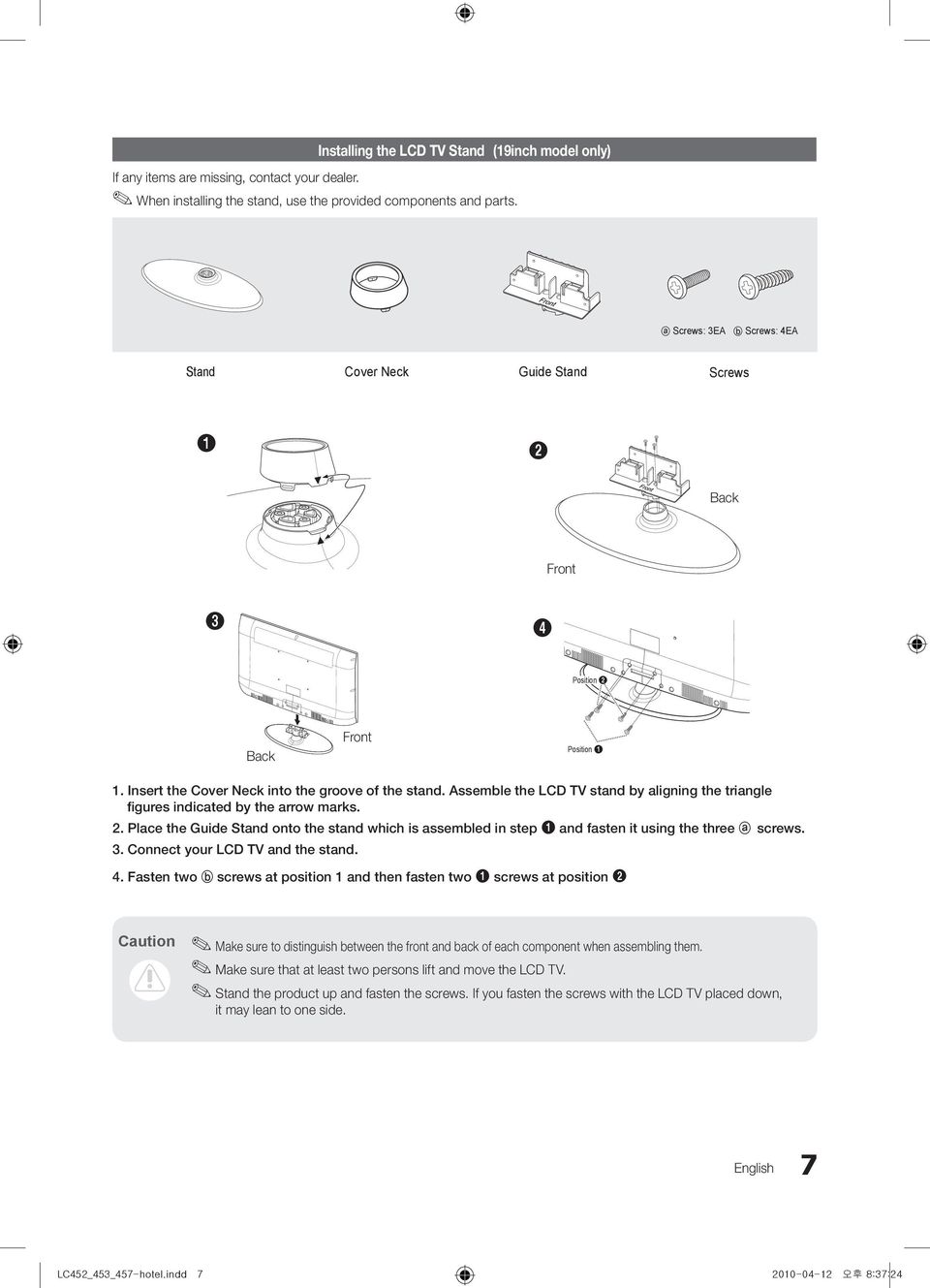
3 Contents y Accessories... 4 y Install the Stand... 4 y How to Adjust the Stand (19inch model only)... 5 y How to Adjust the Angle of the TV (19inch model only)... 5 y Installing VESA Compliant Mounting Devices (19inch model only)... 6 y Using the Decoration Covers (19inch model only)... 6 y Installing the LCD TV Stand (19inch model only)... 7 y Viewing the Connection Panel... 8 y Viewing the Control Panel y Viewing the Remote Control y Connecting the Bathroom Speakers y Installing the Wall Mount y Securing the TV to the Wall y Assembling the Cables y Anti-theft Kensington Lock y Specifications ENGLISH English 3 LC452_453_457-hotel.indd 오후 8:37:20
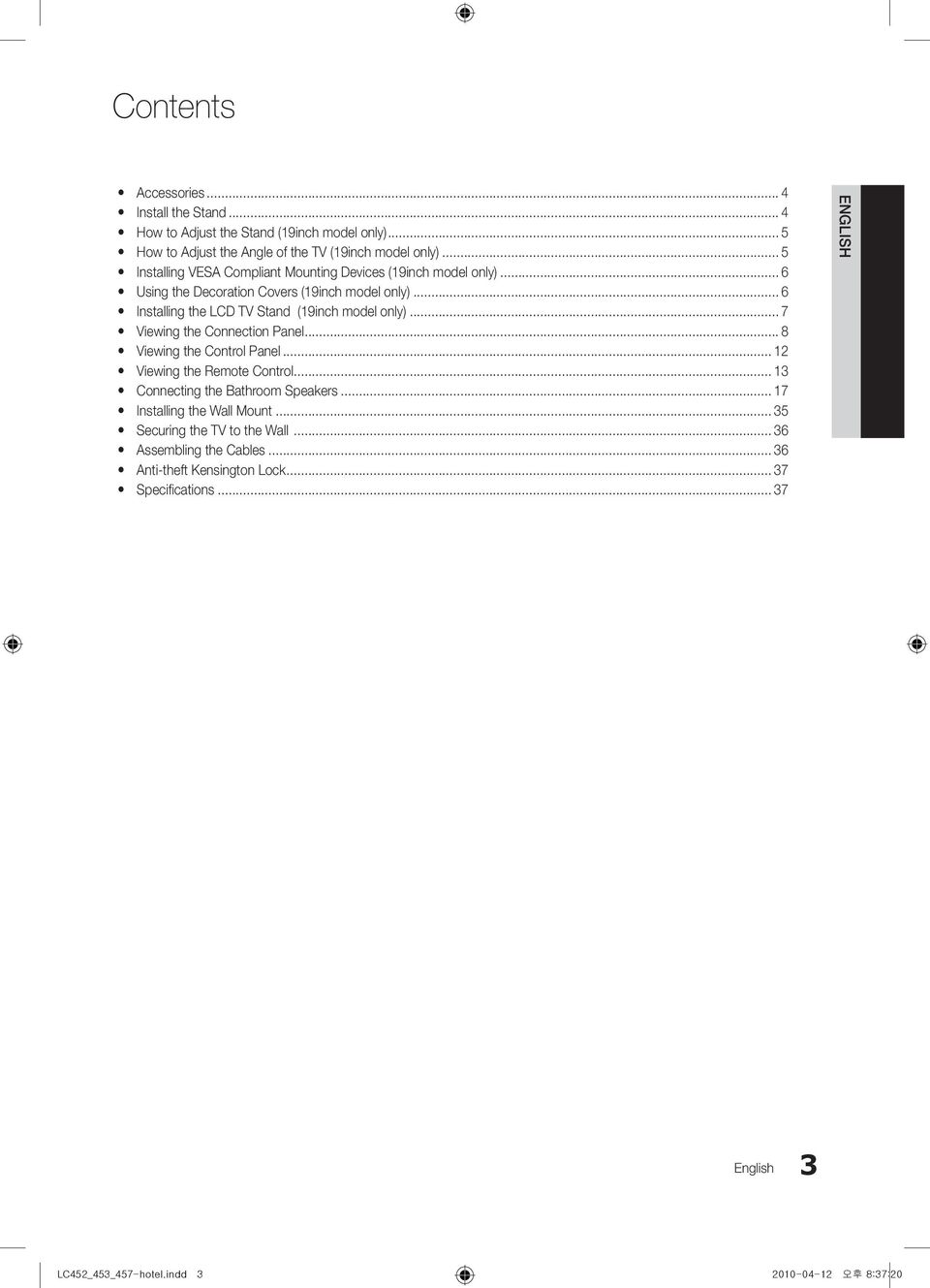
4 Accessories Please make sure the following items are included with your LCD TV. If any items are missing, contact your dealer. The items colour and shapes may vary depending on the models. y Remote Control & Batteries (AAA x 2) y Cleaning Cloth y Owner s Instructions y Power Cord / Data Cable y Warranty Card / Safety Guide / Registration Cards (Not available in all locations) Blanking Bracket The stand and stand screw may not be included depending on the model. The Data Cable may not be included depending on the SI Vendor. Install the Stand Preset: Place the Guide Stand and Cover Neck onto the stand and fasten it using the screws. 1. Attach your LCD TV to the stand. Two or more people should carry the TV. Make sure to distinguish between the front and back of the stand when assembling them. To make sure the TV is installed on the stand at a proper level, do not apply excess downward pressure to the upper left of right sides of the TV. 2. Fasten two screws at position 1 and then fasten two screw at position 2. Stand the product up and fasten the screws. If you fasten the screws with the LCD TV placed down, it may lean to one side. The stand is installed for models with the screen size of 37 inch and above. 4 English LC452_453_457-hotel.indd 오후 8:37:21
5 How to Adjust the Stand (19inch model only) 1. Place the front of the TV onto a soft cloth or cushion on a table as in Figure 1. Align the TV bottom along the table edge Press on the center of the TV back. Adjust the stand as in Figure 2 while pressing the button on the back of the stand. 3. Place the TV on the table so that the TV sits safely on the table. 2 How to Adjust the Angle of the TV (19inch model only) 1 Angle adjustment when using the TV on its stand. When you adjust the stand, press the button on the back of the stand. 1. Figure 1 shows the adjustment angle (-2 ~14 ) when you use the LCD on its stand. Excessive tilting can turn the LCD TV over which may cause damage. 2. Figure 2 shows the adjustment angle (14 ~80 ) when you convert the LCD from stand-based use to wall-mount. 2 Angle adjustment when converting from Stand to Wall mount (1 3, 3 1) 3. Figure 3 shows the adjustment angle (0 ~10 ) when you mount the LCD TV to a wall. You will hear a "Click" sound when changing the angle from 1 to 2 or 3 to 2. 3 Angle adjustment when LCD TV is wall-mounted English 5 LC452_453_457-hotel.indd 오후 8:37:22

6 Installing VESA Compliant Mounting Devices (19inch model only) Button 1. Place the TV face down on a soft cloth or cushion on a table. 2. Adjust the stand, pressing the button on the back of the stand. 1 Mounting pad (Sold separately) 3. Align the mounting interface pad (not supplied) with the holes in the stand bottom and secure it with the four screws that come with the arm-type base, wall mount hanger or other bases (not supplied). 2 Using the Decoration Covers (19inch model only) 1. When installing the TV on the wall without using the stand, insert decoration covers into the holes as described in the picture After inserting the decoration covers, fasten them with 4 screws as described in the picture English LC452_453_457-hotel.indd 오후 8:37:23

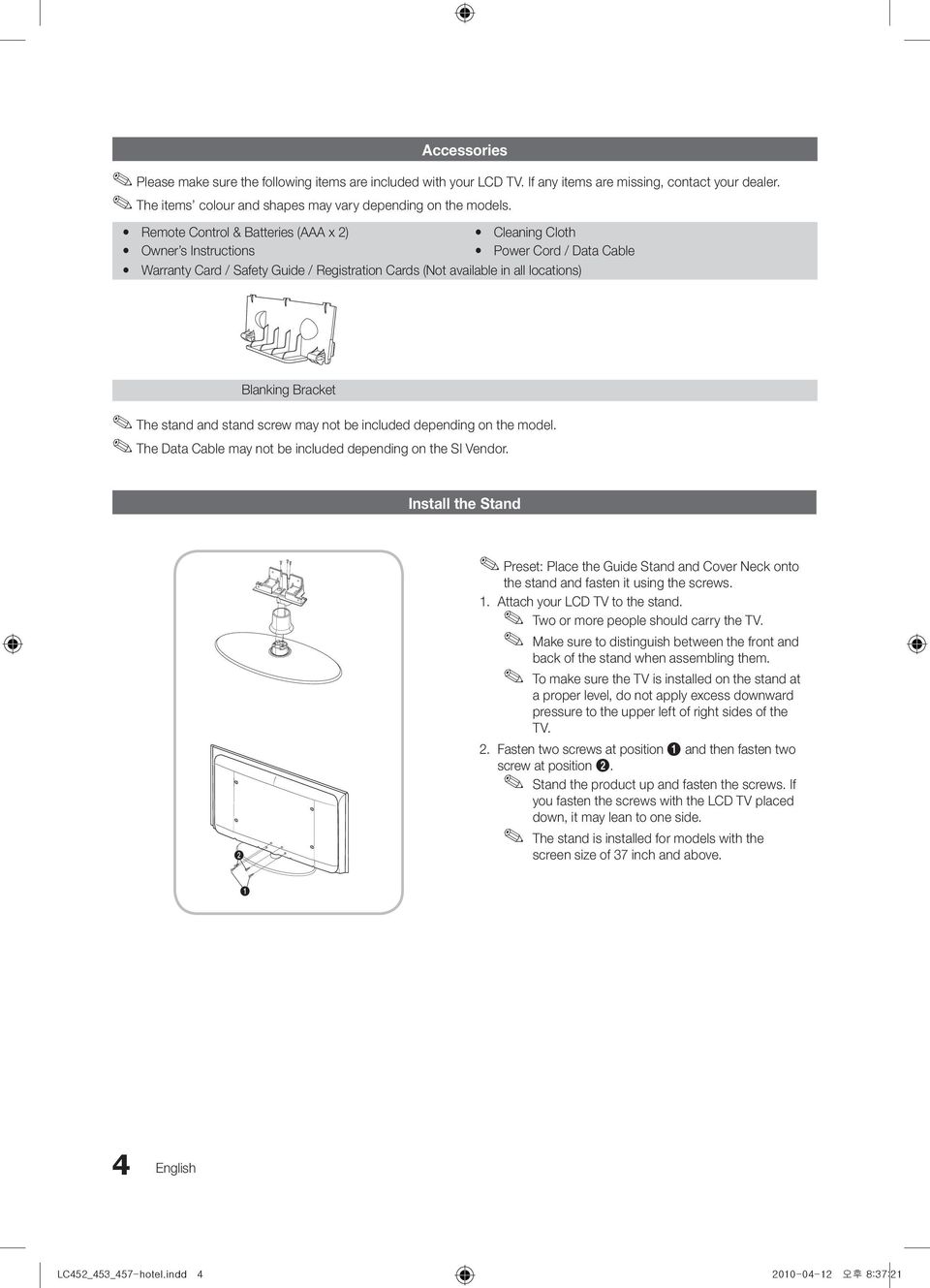
7 Installing the LCD TV Stand (19inch model only) If any items are missing, contact your dealer. When installing the stand, use the provided components and parts. a Screws: 3EA b Screws: 4EA Stand Cover Neck Guide Stand Screws 1 2 Back Front 3 4 Position 2 Back Front Position 1 1. Insert the Cover Neck into the groove of the stand. Assemble the LCD TV stand by aligning the triangle figures indicated by the arrow marks. 2. Place the Guide Stand onto the stand which is assembled in step 1 and fasten it using the three a screws. 3. Connect your LCD TV and the stand. 4. Fasten two b screws at position 1 and then fasten two 1 screws at position 2. Caution Make sure to distinguish between the front and back of each component when assembling them. Make sure that at least two persons lift and move the LCD TV. Stand the product up and fasten the screws. If you fasten the screws with the LCD TV placed down, it may lean to one side. English 7 LC452_453_457-hotel.indd 오후 8:37:24
8 Viewing the Connection Panel LE32C452C4HXXC LE32C453C4HXXC LA32C457C6HXZN LA37C457C6HXZN LA40C457C6HXZN ANT IN 4 HDMI IN3 8 9 Power Input % $ 0 LE32C457C6HXXC LE37C457C6HXXC LE40C457C6HXXC ANT IN 5Vdc/2.5A 4 (12Vdc/1.5A) HDMI IN3 8 9 Power Input % $ 0 LE26C452C4HXXC LE26C453C4HXXC LA26C457C6HXZN ANT IN 4 HDMI IN3 8 9 Power Input % $ 0 8 English LC452_453_457-hotel.indd 오후 8:37:25

9 LE26C457C6HXXC ANT IN 5Vdc/2.5A 4 (12Vdc/1.5A) HDMI IN3 8 9 Power Input % $ 0 LE19C452C4HXXC LE19C453C4HXXC LE22C452C4HXXC LE22C453C4HXXC LE22C457C6HXXC $ AV IN 9 3 Power Input 0 Whenever you connect an external device to your TV, make sure that power on the unit is turned off. When connecting an external device, match the color of the connection terminal to the cable. 1 VARIABLE AUDIO OUT: Used for the audio output to the Bathroom speaker. Connect the Bathroom Wall Box and the Variable port (RCA). (Not available for 19/22 inch model.) 2 VOL-CTRL: Used to control the volume of the Bathroom speaker. Connect the Bathroom Wall Box and the VOL-CTRL port. 3 ANT IN: To view television channels correctly, a signal must be received by the set from one of the following sources. An outdoor antenna / A cable television network / A satellite network. For Norway: Utstyr som er koplet til beskyttelsesjord via nettplugg oq/eller via annet jordtilkoplet utstyr-og er tilkoplet et kabel-tv nett, kan forårsake brannfare. For å unngå dette skal det ved tilkopling av utstyret til kabel-tv nettet installeres en galvanisk isolator mellom utstyret og kabel-tv nettet. For Sweden: Utrustning som är kopplad till skyddsjord via jordat vägguttag och/eller via annan utrustning och samtidigt är kopplad till kabel-tv nät kan i vissa fall medfőra risk főr brand. For att undvika detta skall vid anslutning av utrustningen till kabel-tv nät galvanisk isolator finnas mellan utrustningen och kabel-tv nätet. 4 HDMI IN 1(DVI), 2, 3: Connects to the HDMI jack of a device with an HDMI output. No sound connection is needed for an HDMI to HDMI connection. Use the HDMI IN 1 jack for DVI connection to an external device. Use a DVI to HDMI cable or DVI-HDMI adapter (DVI to HDMI) for video connection and the PC/DVI AUDIO IN jacks for audio. 5 5V DC/2.5A (12V DC/1.5A): Used to supply power for the SBB or STB. (Available for B457 26/32/37 inch model only.) 6 PC/DVI AUDIO IN: connect to the audio output jack on your PC English 9 LC452_453_457-hotel.indd 오후 8:37:26

10 7 PC IN: Connect to the video output jack on your PC. Display Modes Both screen position and size will vary depending on the type of PC monitor and its resolution. The resolutions in the table are recommended. Optimal resolution is 1360 X 60 Hz. (Only for 19" 22" 26" 32" models) Mode IBM MAC VESA CVT VESA DMT Resolution 640 x x x x x x x x x x x x x x x x x 768 Horizontal Frequency (KHz) Vertical Frequency (Hz) Pixel Clock Frequency (MHz) Sync Polarity (H / V) VESA GTF 1280 x /+ Optimal resolution is 1920 X 60 Hz. (Only for models) Mode IBM MAC VESA CVT VESA DMT VESA GTF Resolution 640 x x x x x x x x x x x x x x x x x x x x x x x x x x x x x x x 1024 Horizontal Frequency (KHz) Vertical Frequency (Hz) Pixel Clock Frequency (MHz) /- -/+ -/- -/- -/+ -/+ -/- -/- -/- +/+ +/+ +/+ -/- -/- +/+ +/+ +/+ Sync Polarity (H / V) +/- -/+ -/- -/- -/- -/+ -/+ -/+ -/+ -/- -/- -/- +/+ +/+ +/+ -/- -/- +/+ +/+ +/+ +/+ +/+ -/+ -/+ +/+ +/+ -/+ -/+ -/+ -/+ -/- VESA DMT / DTV CEA 1920 x 1080p /+ 10 English LC452_453_457-hotel.indd 오후 8:37:27

11 When using an HDMI / DVI cable connection, you must use the HDMI (DVI) IN 1 jack. The interlace mode is not supported. The set might operate abnormally if a non-standard video format is selected. Separate and Composite modes are supported. SOG is not supported. 8 USB (HDD) / CLONING Connector for software upgrades and Media Play, etc. Service connection. 9 AV IN 1, 2 Connect a VIDEO cable to an appropriate external A/V device such as VCR, DVD or Camcorder. Connect audio cables to [R-AUDIO-L] on your TV and the other ends to corresponding audio out jacks on the A/V device. 0 DATA Used to support data communication between the TV and the SBB. The TV jack type is RJ-12.! RJP: This port is an RJP (Remote Jack Pack) communication port that enables connecting different devices to additional module so as to improve device use COMPONENT IN Connects Component video / audio. Connect component video cables (optional) to the component jacks ("PR", "PB", "Y") on the rear of your TV and the other ends to corresponding component video out jacks on the DVD. If you wish to connect both the Set-Top Box and DVD, you should connect the Set-Top Box to the DVD and connect the DVD to the component jacks ("PR", "PB", "Y") on your TV. The PR, PB and Y jacks on your component devices (DVD) are sometimes labeled Y, B-Y and R-Y or Y, Cb and Cr. Connect RCA audio cables (optional) to [R - AUDIO - L] on the rear of the TV set and the other ends to corresponding audio out jacks on the DVD. # EXT Connector Input Output Video Audio (L/R) RGB Video + Audio (L/R) EXT Only TV or DTV output is available Inputs or outputs for external devices, such as VCR, DVD, video game device or video disc players. $ Headphones jack: Headphones may be connected to the headphone jack on your TV. While the headphones are connected, the sound from the built-in speakers will be disabled. % HP-ID: Enables to identify whether a headphone jack is inserted into the additionally created head phone box. English 11 LC452_453_457-hotel.indd 오후 8:37:27

12 Viewing the Control Panel The product colour and shape may vary depending on the model. Remote control sensor Power Indicator Speakers SOURCEE MENU y z P (Power) Remote control sensor Power Indicator Toggles between all the available input sources. In the on-screen menu, use this button as you would use the ENTERE button on the remote control. Displays an on-screen menu, the OSD (on screen display), of your TV s features. Adjusts the volume. In the OSD, use the y buttons as you would use the and buttons on the remote control. Changes the channels. In the OSD, use the z buttons as you would use the and buttons on the remote control. Turns the TV on or off. Aim the remote control towards this spot on the TV. Blinks and turns off when the power is on and lights up in standby mode. Standby mode Do not leave your TV in standby mode for long periods of time (when you are away on a holiday, for example). A small amount of electric power is still consumed even when the power button is turned off. It is best to unplug the power cord. 12 English LC452_453_457-hotel.indd 오후 8:37:27

13 Viewing the Remote Control This is a special remote control for the visually impaired persons and has Braille points on the Power, Channel and Volume buttons. POWER SOURCE Turns the TV on and off. HDMI Display and select the available video sources. Selects the HDMI mode directly. Have direct access to channels. Alternately selects Teletext, Double or Mix. TTX/MIX PRE-CH Return to the previous channel. Cut off the sound temporarily. Adjust the volume. Change channels. Display channel list on the screen. View the Media Play. MEDIA.P CH LIST MENU GUIDE Display the main on-screen menu. Electronic Programme Guide (EPG) display. Quickly select frequently used functions. Select on-screen menu items and change menu values. Return to the previous menu. TOOLS RETURN INFO EXIT Press to display information on the TV screen. Exit the menu. Buttons in the Channel list, Media Play menu, etc. Enter the hour your want the TV to turn on. Use these buttons in the Media Play and Anynet+ modes. ( : controls recording on Samsung recorders with the Anynet+ feature) A B C TV INTERNET S.MODE DUAL ALARM P.SIZE SUBT. INTERNET@TV: Link to various internet services. S.MODE: Select the sound mode. DUAL f-g: Sound effect selection. ALARM: Enter the hour you want the TV to turn on. P.SIZE: Choose the picture size. SUBT.: Displays digital subtitles. Installing batteries (Battery size: AAA) NOTE x Use the remote control within 23 feet from the TV. x Bright light may affect the performance of the remote control. Avoid using nearby special fluorescent light or neon signs. x The colour and shape may vary depending on the model. English 13 LC452_453_457-hotel.indd 오후 8:37:27

14 Connecting the TV with SBB LE32C452C4HXXC LE32C453C4HXXC LA32C457C6HXZN LA37C457C6HXZN LA40C457C6HXZN ANT 2 IN (CABLE) ANT 1 IN (AIR) TV Rear Panel Hotel Server STB(Set Top Box) or SBB(Set Back Box) ETH MODEM Data Cable LE32C457C6HXXC LE37C457C6HXXC LE40C457C6HXXC ANT IN TV Rear Panel 5Vdc/2.5A (12Vdc/1.5A) DC-POWER DC Cable ETH MODEM Data Cable Hotel Server STB(Set Top Box) or SBB(Set Back Box) LE26C452C4HXXC LE26C453C4HXXC LA26C457C6HXZN TV Rear Panel ANT IN Hotel Server STB(Set Top Box) or SBB(Set Back Box) ETH MODEM Data Cable 14 English LC452_453_457-hotel.indd 오후 8:37:28
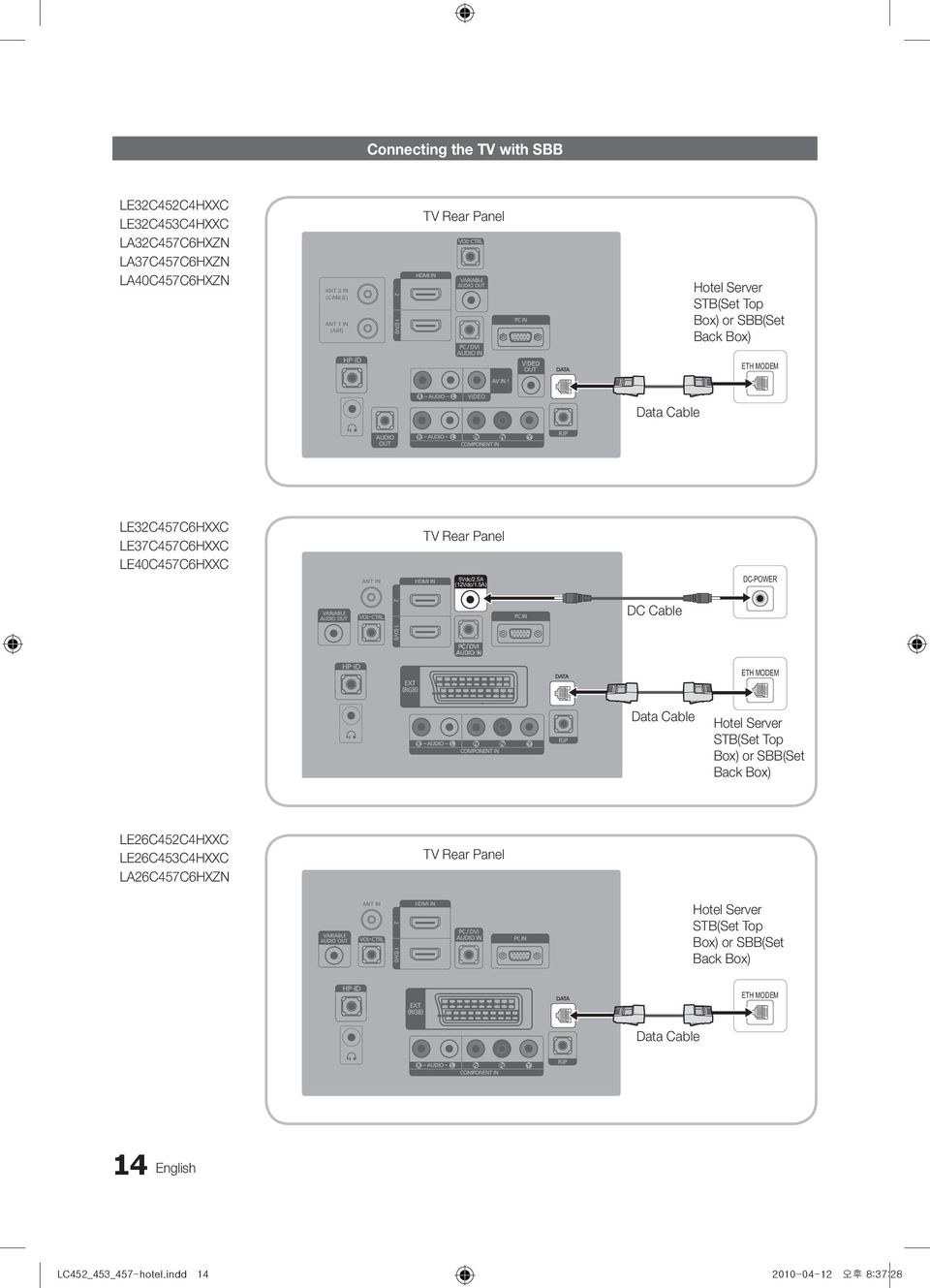
15 LE26C457C6HXXC TV Rear Panel ANT IN 5Vdc/2.5A (12Vdc/1.5A) DC-POWER DC Cable ETH MODEM Data Cable Hotel Server STB(Set Top Box) or SBB(Set Back Box) LE19C452C4HXXC LE19C453C4HXXC LE22C452C4HXXC LE22C453C4HXXC LE22C457C6HXXC AV IN Hotel Server STB(Set Top Box) or SBB(Set Back Box) ETH MODEM Data Cable 1. Connect the [DATA] jack of the TV to the [ETH MODEM] jack of the STB(SBB) with the Data cable. Use data communication. 2. Connect the [Class 2 Wiring-5V DC/2.5A (12V DC/1.5A)] jack of the TV to the [DC-POWER] jack of the STB (SBB) with the DC cable. The supported jack type differs depending on the STB (SBB) model. TV Jack Type: 6.5 Ø DC Power Jack Some STB (SBB) devices are not compatible with the data cable supplied with the TV. English 15 LC452_453_457-hotel.indd 오후 8:37:29
![Box) or SBB(Set Back Box) ETH MODEM Data Cable 1. Connect the [DATA] jack of the TV to the [ETH MODEM] jack of the STB(SBB) with the Data cable. Use data communication. 2.](/docs-images/48/23839476/images/page_15.jpg "Connect the [Class 2 Wiring-5V DC/2.5A (12V DC/1.5A)] jack of the TV to the [DC-POWER] jack of the STB (SBB) with the DC cable. The supported jack type differs depending on the STB (SBB) model.")
16 Warning When you use the DC power output jack, you have to check the standard output power of STB(SBB) and you should use the DC power within the standard output(class 2 Wiring-5V DC/2.5A (12V DC/1.5A). For 5V SBB, SBB load current must not exceed 2.5A. For 12V SBB, SBB load current must not exceed 1.5A. The initial output is 5V. For 12V SBB, you have to change the output voltage to 12V in order to use the power. Changing the Output Voltage (Only for EU C457 26" 32" 37" 40" model) 1. Press the POWER button. The TV is powered on. 2. Press the following remote control buttons in order. INFO MENU 0 1 EXIT The Hotel Option menu appears. 3. Press the or button to select DC Power Output. Press the or button to select 12V or 5V. 4. Remove the power cord then plug it back in again. The voltage change is applied when you turn the TV on again after changing the Interactive mode Option setting. Hotel Mode ON RJP Priority AV 1 Logo Download... SI Vendor Samsung RJP Priority PC 2 Logo Display Time... Power On Channel 1 RJP Priority HDMI 3 Power On Option Last Option Channel Type ATV RJP AV Option AV1 Auto Source OFF Power On Volume 10 RJP HDMI Option HDMI1 Energy Saving Off Min Volume 0 Sub AMP Volume 6 Clone : TV to USB Max Volume 100 Sub AMP Mode 2 Clone : USB to TV Panel Button Lock Unlock Local Time Manual Pan Euro MHEG OFF Power On Source TV Time Format 12 Hour Cloning Data Reset OFF Picture Menu Lock OFF PMOLED Test Failure Welcome Message Channel Editor PMOLED Mormal Dim. 3 Edit Welcome Message Music Mode AV OFF PMOLED Standby Dim. 2 DC Power Out 5V Music Mode PC OFF Audio Loop In OFF Channel Auto Store Music Mode Comp OFF Menu Display ON Dynamic SI OFF Music Mode Backlight OFF Hotel Logo OFF 16 English LC452_453_457-hotel.indd 오후 8:37:29

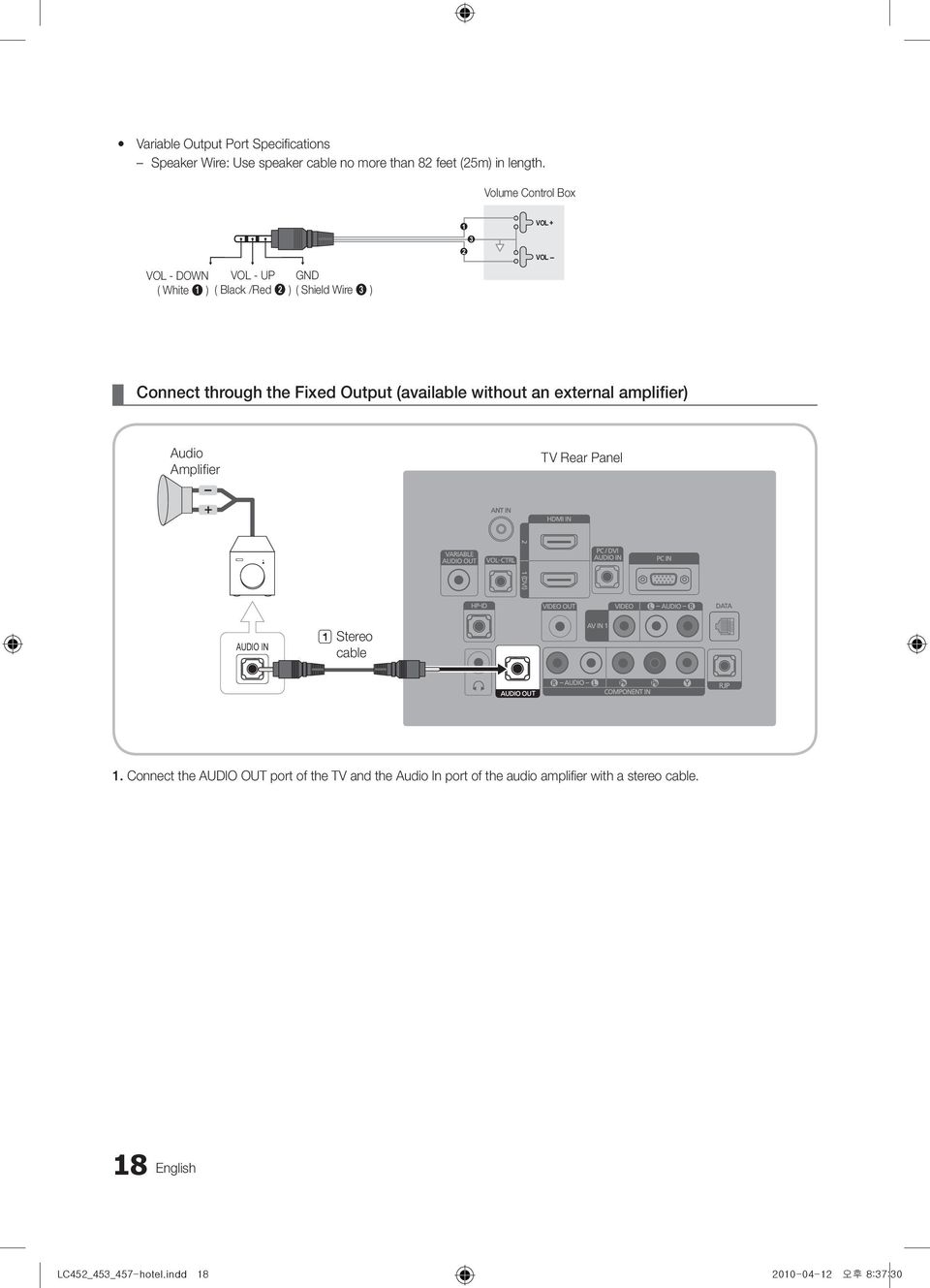
17 Connecting the Bathroom Speakers You can connect the Bathroom Speakers in the following method. Connecting through the Variable Output (available without an external amplifier) TV Rear Panel Speaker 1 ANT IN 5Vdc/2.5A (12Vdc/1.5A) Volume Control Box VOL+ VOL Connect the VARIABLE AUDIO OUT port of the TV to the Bathroom Wall Speakers of the hotel. Signal wire : Speaker + Shield wire : Speaker - 2. Connect the VOL-CTRL jack of the TV to the Volume Control Box Switch port of the Bathroom Wall of the hotel. The maximum speaker output is 4W, 8Ω. y Installing the Volume Control If you configure the Volume Control Box as shown in the figure, you can control the volume of the bathroom speakers. The jack that is connected from the Volume Control Box to the TV is a 3.5mm normal Phone jack. Volume Control Box switch consists of Tact switch. Setting the Sub AMP Mode 0: Turns the Sub AMP function off (PWM off). 1: Determines the Sub volume according to the main volume control. That is, the sub volume is determined according to the Power On Volume, the Min Volume, and the Max Volume values of the Hotel Mode. 2: Determines the volume according to the bathroom control panel setting. English 17 LC452_453_457-hotel.indd 오후 8:37:30

18 y Variable Output Port Specifications Speaker Wire: Use speaker cable no more than 82 feet (25m) in length. Volume Control Box VOL - DOWN VOL - UP GND ( White 1 ) ( Black /Red 2 ) ( Shield Wire 3 ) VOL + VOL - Connect through the Fixed Output (available without an external amplifier) Audio Amplifier TV Rear Panel AUDIO IN 1 Stereo cable 1. Connect the AUDIO OUT port of the TV and the Audio In port of the audio amplifier with a stereo cable. 18 English LC452_453_457-hotel.indd 오후 8:37:30
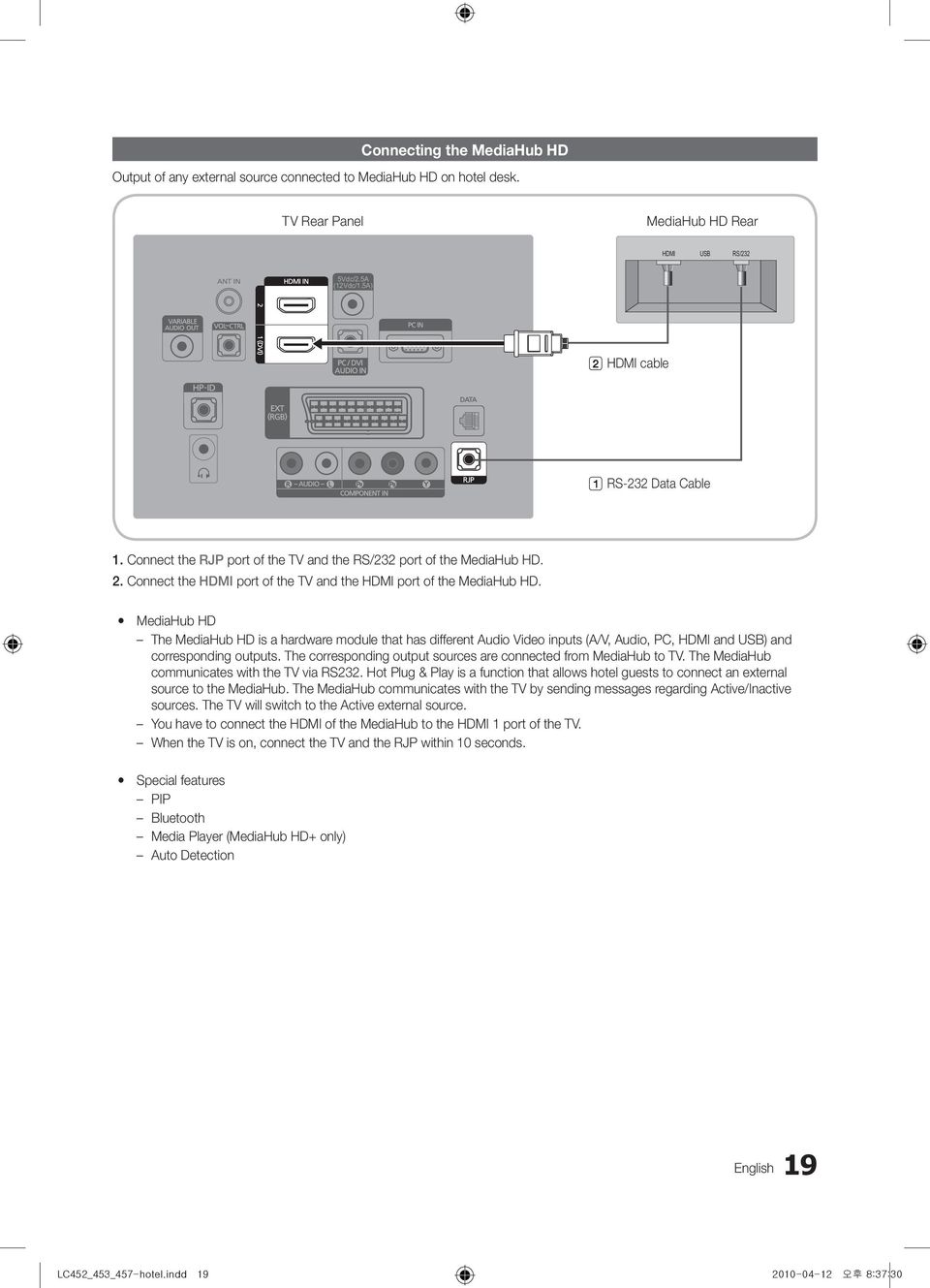
19 Connecting the MediaHub HD Output of any external source connected to MediaHub HD on hotel desk. TV Rear Panel MediaHub HD Rear HDMI USB RS/232 ANT IN 5Vdc/2.5A (12Vdc/1.5A) 2 HDMI cable 1 RS-232 Data Cable 1. Connect the RJP port of the TV and the RS/232 port of the MediaHub HD. 2. Connect the HDMI port of the TV and the HDMI port of the MediaHub HD. y MediaHub HD The MediaHub HD is a hardware module that has different Audio Video inputs (A/V, Audio, PC, HDMI and USB) and corresponding outputs. The corresponding output sources are connected from MediaHub to TV. The MediaHub communicates with the TV via RS232. Hot Plug & Play is a function that allows hotel guests to connect an external source to the MediaHub. The MediaHub communicates with the TV by sending messages regarding Active/Inactive sources. The TV will switch to the Active external source. You have to connect the HDMI of the MediaHub to the HDMI 1 port of the TV. When the TV is on, connect the TV and the RJP within 10 seconds. y Special features PIP Bluetooth Media Player (MediaHub HD+ only) Auto Detection English 19 LC452_453_457-hotel.indd 오후 8:37:30
20 Output of any external source connected to RJP on hotel desk. Connecting the RJP (Remote Jack Pack) 4 HDMI cable TV Rear Panel 5 TV Side Panel USB HDMI S-VIDEO RCA AUDIO/PC RS/232 ANT IN 5Vdc/2.5A (12Vdc/1.5A) HDMI IN3 RJP Rear 1 D-sub / PC Audio cable 2 Video / Audio Cable or 3 Audio Cable 1. Connect the PC IN / PC/DVI AUDIO IN port of the TV to the PC/AUDIO port of the RJP. 2. Connect the AV IN [VIDEO]/[L-AUDIO-R] port of the TV to the S-VIDEO port of the RJP. 3. Connect the AV IN [VIDEO] port of the TV to the S-VIDEO port of the RJP. 4. Connect the HDMI port of the TV and the HDMI port of the RJP. 5. Connect the RJP port of the TV and the RS/232 port of the RJP. The RJP (Remote Jack Pack) compatible with this Samsung TV is TeleAdapt TA-7610, TA-7650 (HD) and TA-7660 (HD Plus). y RJP (Remote Jack Pack): RJP stands for Remote Jack Pack. The RJP is a hardware module that has different Audio Video inputs (A/V, Audio, PC and HDMI) and corresponding outputs. The corresponding output sources are connected from RJP to TV. The RJP communicates with the TV via RS232. Hot Plug & Play is a function that allows hotel guests to connect an external source to the RJP. The RJP communicates with the TV by sending messages regarding Active/ Inactive sources. The TV will switch to the Active external source according to the priority set by the User. You can select HDMI 1, 2, 3 and AV 1, 2 for connecting RJP. When the TV is on, connect the TV and the RJP within 10 seconds. y The RJP can be returned to the factory default settings by pressing the A/V and HDMI buttons simultaneously for 10 seconds. All LEDs blink 5 times to Acknowledge that the rest has been performed. y The RJP will automatically turn off any LEDs after 5 minutes to avoid unnecessary light pollution in the hotel room. The LEDs that were turned off will turn on again if the guest touches any of the buttons and the 5 minute timer will restart. If the guest then touches another source button, the TV will change to the selected source and the corresponding LED will be lit. y After an RJP Reset or a TV Power OFF/ON, it takes approx. 10 seconds to establish communications between the TV and the RJP. 20 English LC452_453_457-hotel.indd 오후 8:37:31
![3. Connect the AV IN [VIDEO] port of the TV to the S-VIDEO port of the RJP. 4. Connect the HDMI port of the TV and the HDMI port of the RJP. 5.](/docs-images/48/23839476/images/page_20.jpg "Connect the RJP port of the TV and the RS/232 port of the RJP. The RJP (Remote Jack Pack) compatible with this Samsung TV is TeleAdapt TA-7610, TA-7650 (HD) and TA-7660 (HD Plus).")
21 y The following table shows the approximate time in seconds to switch from the TV to the input source, based on the priority. Scenario 1: When no inputs are connected. Source AV PC HDMI To Connect 2 Sec 0.7 Sec 3.9 Sec Scenario 2: When two or more inputs are connected and an Input source is disconnected and then reconnected. Source Disconnect To Connect Total AV 4.5 Sec 2 Sec 6.5 Sec PC 0.7 Sec 0.7 Sec 1.4 Sec HDMI 3.9 Sec 3.9 Sec 7.8 Sec E.g. If the RJP has all its live sources AV, PC and HDMI connected, AV is viewed as the highest priority. If the RJP is in HDMI mode, and a guest removes and reconnects the AV, the minimum time required to switch to the AV is 6.5 seconds. y To connect audio (Ipod or Mp3), Music mode should be ON and Jack Ident detect should be OFF. y A/V, PC and HDMI input sources are supported. Audio Loop In An additionally created Headphone Box can be installed on a bed or business desk so that users can use it conveniently. The installation procedures are given below. (Not available for 19/22 inch model.) y Detailed Drawing of the Headphone Box TV Rear Panel ANT IN 5Vdc/2.5A (12Vdc/1.5A) Headphone Box Headphone Shield wire TV Headphones jack Red Wire (Audio-R) Whitewire (Audio-L) Shield wire Red Wire + White wire TV HP-ID jack English 21 LC452_453_457-hotel.indd 오후 8:37:31
22 Setting the Hotel Option Data Standalone Mode To Enter: Press the MUTE ENTER buttons in order. To Exit from this menu : power off and turn on again. No Item initial Value Description 1 Hotel Mode ON Hotel mode(stand alone) on/off 2 SI Vendor OFF Select the SI Vendor 3 Power On Channel 1 TV will switch on to this particular Channel 4 Channel Type ATV Provides channel Type description for Power On channel selected. i.e. Selected channel analog or Digital & antannae selection(air or Cable). 5 Power On Volume 10 TV will switch on with this Volume Level 6 Min Volume 0 Minimum Volume Level setting user can set 7 Max Volume 100 Maximum Volume Level setting user can set 8 Panel Button Lock Unlock Front panel(local key) operation on/off - Unlock: Unlock All panel key - Lock: Lock All panel key - OnlyPower : Lock All panel key except Power panel key 9 Power On Source TV Enable or disable Picture Menu 10 Picture Menu Lock OFF Provided option for editing Channel Name and Number and video Mute settings for channels in channel List. 11 Channel Editor Provided option for editing Channel Name and Number and video Mute settings for channels in channel List 12 Music Mode AV OFF To get music output from mp3/audio player in AV Input Source. Audio enabled, video disabled in this mode 13 Music Mode PC OFF To get music output from mp3/audio player in PC Input Source. Audio enabled, video disabled in this mode 14 Music Mode Comp OFF To get music output from mp3/audio player in Component Input Source. Audio enabled, video disabled in this mode 15 Music Mode Backlight OFF Backlight On/Off option in Music mode to save energy 16 RJP Priority AV 1 If the jack priority is set, the corresponding source is automatically set when a jack is inserted according to the jack priority. 17 RJP Priority PC 2 If the jack priority is set, the corresponding source is automatically set when a jack is inserted according to the jack priority. 18 RJP Priority HDMI 3 If the jack priority is set, the corresponding source is automatically set when a jack is inserted according to the jack priority. 19 RJP AV Option AV1 Select RJP AV Source (AV1) 20 RJP HDMI Option HDMI1/DVI Select RJP HDMI Source (HDMI1/HDMI2/HDMI3) 21 Sub Amp Volume 6 Sub AMP Volume level at power on initial condition. 22 Sub Amp mode 2 Determines the Sub AMP operation mode. - 0: Turns the Sub AMP function off (PWM off). - 1: Determines the Sub volume according to the main volume control. That is, the sub volume is determined according to the Power On Volume, the Min Volume, and the Max - 2: Determines the volume according to the bathroom control panel setting. 22 English LC452_453_457-hotel.indd 오후 8:37:31
23 No Item initial Value Description 23 Local time Manual 24 Time Format 12 Hour Selection of the way to update clock data - Manual: Use clock data from DVB channel or manual clock setting when the TV is in the stand-alone mode - TTX: manual clock setting (with updating from TTX data) Select time expression method(12h/24h) Reset AC power after setting this option 25 PMOLED Test Failure To test PMOLED itself (brightness and pixel) 26 PMOLED Normal Dim. 3 PMOLED brightness selection 27 PMOLED StandBy Dim. 2 PMOLED STY-BY brightness selection 28 Audio Loop In OFF Audio loop identification or H.P identification selection 29 Menu Display ON - On : Main Menu display - Off : Main Menu No display 30 Customer Logo OFF Select Hotel Logo 31 Logo Download... Download Hotel Logo from USB to TV 32 Logo Display Time... Selection of the logo display time - 3 sec: Hotel logo is displayed for 3sec. - 5 sec: Hotel logo is displayed for 5sec. - 7 sec: Hotel logo is displayed for 7sec. 33 Power On Option Last Option Power On(AC Power On) Option - STN-BY : Stand-By Mode - Power On : Power On - LAST OPT : Last Power State 34 Auto Source OFF While TV is in power on state, if PC source is connected to TV, TV will automatically switch to PC mode. 35 Energy Saving OFF This feature adjusts the brightness of the TV in order to reduce power consumption. - Off: Turns off the energy saving function. - Low: Sets the TV to low energy saving mode. - Medium: Sets the TV to medium energy saving mode. - High: Sets the TV to high energy saving mode. - Auto: Sets the TV to automatically energy saving mode. 36 Clone TV to USB - USB Clone : TV USB 37 Clone USB to TV - USB Clone : USB TV 38 Pan Euro MHEG OFF 39 Cloning Data Reset OFF Once Clone USB to TV done, If Cloning Data Reset On, any change made in clone settings is reverted back to clone data setting during Power On. i.e. Default clone data setting made is maintained when Cloning Data Reset Option is ON 40 Welcome message Off Display Welcome Message 41 Edit Welcome message Edit Welcome Message 42 DC Power Out 5V Select DC power output (5V/12V) 43 Mixed Channel Map OFF Mix Analogue and Digital Channels 44 Channel Auto Store 45 Dynamic SI OFF Provides Option for Tuning & storing Air + Cable channels together along with Air and Cable channels separately. - ON : Check the DTV Program channel number. (DTV channel editor inaccessible) - OFF : No Check of the DTV Program channel number. (DTV channel editor accessible, but addtional channel program number update not supported) English 23 LC452_453_457-hotel.indd 오후 8:37:32
24 Interactive Mode To Enter: Press the INFO MENU 0 1 EXIT buttons in order, in normal operation state. To Exit from this menu : Power Off and Turn On again. (Press POWER button with general SAMSUNG remocon) No Item initial Value Description 1 Hotel Mode On Hotel mode(interactive) on/off. 2 SI Vendor Samsung Select the SI Vendor. 3 Power On Channel 1 TV will switch on to this particular Channel. 4 Channel Type ATV Provides channel Type description for Power On channel selected. i.e. Selected channel analog or Digital & antannae selection(air or Cable). 5 Power On Volume 10 TV will switch on with this Volume Level. 6 Min Volume 0 Minimum Volume Level setting user can set. 7 Max Volume 100 Maximum Volume Level setting user can set. 8 Panel Button Lock Unlock Front panel(local key) operation on/off - unlock: Unlock All panel key - Lock: Lock All panel key - OnlyPower: Lock All panel key except Power panel key 9 Power On Source TV Select the Input source when TV is turned on initially. 10 Picture Menu Lock OFF Provided option for editing Channel Name and Number and video Mute settings for channels in channel List. 11 Channel Editor To edit Channel Number and Channel Name. 12 Music Mode AV OFF To get music output from mp3/audio player in AV Input Source. TV sound is generated in only black picture whether being Video Singal or not. 13 Music Mode PC OFF To get music output from mp3/audio player in AV Input Source. TV sound is generated in only black picture whether being Video Singal or not. 14 Music Mode Comp OFF To get music output from mp3/audio player in PC Input Source. TV sound is generated in only black picture whether being Video Singal or not. 15 Music Mode Backlight OFF Backlight On/Off option in Music mode to save energy. 16 RJP Priority AV 1 If the jack priority is set, the corresponding source is automatically set when a jack is inserted according to the jack priority. 17 RJP Priority PC 2 If the jack priority is set, the corresponding source is automatically set when a jack is inserted according to the jack priority. 18 RJP Priority HDMI 3 If the jack priority is set, the corresponding source is automatically set when a jack is inserted according to the jack priority. 19 RJP AV Option AV1 Select RJP AV Source (AV1). 20 RJP HDMI Option HDMI1/DVI Select RJP HDMI Source (HDMI1/HDMI2/HDMI3) 21 Sub Amp volume 6 Sub AMP Volume level at power on initial condition. 22 Sub Amp mode 2 Determines the Sub AMP operation mode. - 0: Turns the Sub AMP function off (PWM off). - 1: Determines the Sub volume according to the main volume control. That is, the sub volume is determined according to the Power On Volume, the Min Volume, and the Max - 2: Determines the volume according to the bathroom control panel setting. 23 Local time Manual Selection of the way to update clock data - Auto: Use clock data from server when the TV is in the interactive mode. - Manual: Use clock data from DVB channel or manual clock setting when the TV is in the stand-alone mode. - TTX: manual clock setting (with updating from TTX data) 24 English LC452_453_457-hotel.indd 오후 8:37:32
25 No Item initial Value Description 24 Time Format 12hour Select time expression method(12h/24h) Reset AC power after setting this option 25 PMOLED Test Failure To test PMOLED itself (brightness and pixel) 26 PMOLED Normal Dim. 3 PMOLED brightness selection 27 PMOLED StandBy Dim. 2 PMOLED STY-BY brightness selection 28 Audio Loop In OFF Audio loop identification or H.P identification selection 29 Menu Display OFF - On : Main Menu display - Off : Main Menu No display 30 Customer Logo OFF Select Hotel Logo 31 Logo Download... Download Hotel Logo from USB to TV 32 Logo Display Time Power On Option Last Option 34 Auto Source OFF 35 Energy Saving Off Select the logo display time - 3 sec: Hotel logo is displayed for 3sec. - 5 sec: Hotel logo is displayed for 5sec. - 7 sec: Hotel logo is displayed for 7sec. Power On(AC Power On) Option - STN-BY : Stand-By Mode - Power On : Power On - LAST OPT : Last Power State While TV is in power on state, if PC source is connected to TV, TV will automatically switch to PC mode. This feature adjusts the brightness of the TV in order to reduce power consumption. - Off: Turns off the energy saving function. - Low: Sets the TV to low energy saving mode. - Medium: Sets the TV to medium energy saving mode. - High: Sets the TV to high energy saving mode. - Auto: Sets the TV to automatically energy saving mode. 36 Clone TV to USB - USB Clone : TV USB 37 Clone USB to TV - USB Clone : USB TV 38 Pan Euro MHEG OFF 39 Cloning Data Reset OFF Once Clone USB to TV done, If Cloning Data Reset On, any change made in clone settings is reverted back to clone data setting during Power On.i.e. Default clone data setting made is maintained when Cloning Data Reset Option is ON 40 Welcome message OFF Display Welcome Message 41 Edit Welcome message - Edit Welcome Message 42 DC Power Out 5 V Select DC power output (5V/12V). 43 Channel Auto Store 44 Dynamic SI OFF Provides Option for Tuning & storing Air + Cable channels together along with Air and Cable channels separately. - ON : Check the DTV Program channel number. (DTV channel editor inaccessible) - OFF : No Check of the DTV Program channel number. (DTV channel editor accessible, but addtional channel program number update not supported) When Interactive mode is On, you cannot enter the Hotel Options by pressing the MUTE ENTER button. To exit the Hotel Options, turn the power off. English 25 LC452_453_457-hotel.indd 오후 8:37:32
26 Welcome Message Welcome message is a feature to display custom message on TV, every time TV is turned on by Guest in Hotel room. Welcome message settings are placed in Hotel Option Menu. Welcome message should be ON in order to display the message on power on. Hotel Mode ON RJP Priority AV 1 Logo Download... SI Vendor Samsung RJP Priority PC 2 Logo Display Time... Power On Channel 1 RJP Priority HDMI 3 Power On Option Last Option Channel Type ATV RJP AV Option AV1 Auto Source OFF Power On Volume 10 RJP HDMI Option HDMI1 Energy Saving Off Min Volume 0 Sub AMP Volume 6 Clone : TV to USB Max Volume 100 Sub AMP Mode 2 Clone : USB to TV Panel Button Lock Unlock Local Time Manual Pan Euro MHEG OFF Power On Source TV Time Format 12 Hour Cloning Data Reset OFF Picture Menu Lock OFF PMOLED Test Failure Welcome Message Channel Editor PMOLED Mormal Dim. 3 Edit Welcome Message Music Mode AV OFF PMOLED Standby Dim. 2 DC Power Out 5V Music Mode PC OFF Audio Loop In OFF Channel Auto Store Music Mode Comp OFF Menu Display ON Dynamic SI OFF Music Mode Backlight OFF Hotel Logo OFF Welcome message can be of 25 characters and it can be edited by changing its text in Hotel Service menu. Following is the list of characters supported for Welcome message: In letters from A to Z only in capital letters is allowed. Welcome message can be edited by using navigation, color & enter key of a Remote in Edit Welcome Message OSD. Edit Welcome Message W E L C O M E T O O U R H O T E L _ A B C D E F G H I J K L M N O P Q R S T U V W X Y Z Move Left Move Right Black Done Move Enter Return Welcome message and hotel logo cannot be active at the same time. 26 English LC452_453_457-hotel.indd 오후 8:37:33
27 Hotel Logo Hotel Logo is a function that shows picture image which represents hotel during power on procedure. Hotel Logo will be in hotel option menu in both Standalone and Interactive mode. Lower menus will be enabled when hotel Logo option is on. Hotel Logo will be displayed if there is logo image which is already stored in memory and hotel logo option is on during power on procedure. Hotel Logo will not be displayed when Hotel Logo option is off, even if the logo image exists. Hotel Mode ON RJP Priority AV 1 Logo Download... SI Vendor Samsung RJP Priority PC 2 Logo Display Time... Power On Channel 1 RJP Priority HDMI 3 Power On Option Last Option Channel Type ATV RJP AV Option AV1 Auto Source OFF Power On Volume 10 RJP HDMI Option HDMI1 Energy Saving Off Min Volume 0 Sub AMP Volume 6 Clone : TV to USB Max Volume 100 Sub AMP Mode 2 Clone : USB to TV Panel Button Lock Unlock Local Time Manual Pan Euro MHEG OFF Power On Source TV Time Format 12 Hour Cloning Data Reset OFF Picture Menu Lock OFF PMOLED Test Failure Welcome Message Channel Editor PMOLED Mormal Dim. 3 Edit Welcome Message Music Mode AV OFF PMOLED Standby Dim. 2 DC Power Out 5V Music Mode PC OFF Audio Loop In OFF Channel Auto Store Music Mode Comp OFF Menu Display ON Dynamic SI OFF Music Mode Backlight OFF Hotel Logo OFF y Hotel Logo This option is to decide if hotel logo image will be displayed or not. y Hotel Logo DL This option is to download logo image to memory. Download the Logo File from PC to USB. x Logo File Format Only bmp format is supported and the File name should be "samsung.bmp". File size must be under 256Kbytes. Maximum resolution is 960 x 540. Connect the USB to TV and press Enter key. Wait message will be displayed during copying image to TV. Completed message will be displayed when the copy operation was finished successfully. Failed message will be displayed when the copy operation was finished unsuccessfully. No USB message will be displayed when any USB is not connected. No File message will be displayed when there is no file to copy in USB. y Logo Display Time This option is to decide Logo display time. 3 sec / 5 sec / 7sec English 27 LC452_453_457-hotel.indd 오후 8:37:33
28 USB Cloning USB Cloning is a function to download user configured settings (Picture, Sound, Input, Channel, Setup, and Hotel Setup) from one TV set and upload the same to other TV sets. All the user-defined settings from the TV (Master Set) can be copied to the USB device. HDMI IN3 y Cloning from TV to USB: It is an operation to copy the stored data from the specific area on the EEPROM from the TV set to the USB device. 1. Insert a USB drive into the USB port on the rear of the TV. 2. Enter the Interactive menu by pressing this buttons in order. x Interactive mode : INFO MENU 0 1 EXIT x Standalone mode : MUTE ENTER 3. Press the or button to select Clone:TV to USB, then press the ENTERE button. 4. The message Clone:TV to USB is displayed, then press the ENTERE button. 5. You can Make sure USB cloning behavior. x In Progress: during copying data to USB. xcompleted: copy operation was finished successfully. xfailed: copy operation was not finished successfully. x No USB: any USB is not connected. Power On Option Last Option Auto Source OFF Energy Saving Off Clone : TV to USB Clone : USB to TV Pan Euro MHEG OFF Cloning Data Reset OFF Welcome Message Edit Welcome Message y Cloning from USB to TV: It is an operation to download the stored data in USB device to TV set. 1. Insert a USB drive into the USB port on the rear of the TV. 2. Enter the Interactive menu by pressing this buttons in order. x Interactive mode : INFO MENU 0 1 EXIT x Standalone mode : MUTE ENTER 3. Press the or button to select Clone:USB to TV, then press the ENTERE button. 4. The message Clone:USB to TV is displayed, then press the ENTERE button. 5. You can Make sure USB cloning behavior. x In Progress: during copying data to TV. xcompleted: copy operation was finished successfully. xfailed: copy operation was not finished successfully. x No USB: any USB is not connected. x No File: there is no file to copy in USB. The operation to copy from USB to TV can be executed by pressing ENTERE key for 5 seconds. For fast instant cloning during installation! Insert USB key with master settings from first TV and press Enter key for 5 seconds. Power On Option Last Option Auto Source OFF Energy Saving Off Clone : TV to USB Clone : USB to TV Pan Euro MHEG OFF Cloning Data Reset OFF Welcome Message Edit Welcome Message 28 English LC452_453_457-hotel.indd 오후 8:37:33
29 Hotel Plug & Play Hotel Plug & Play is a function that automatically performs the Hotel mode selection, Country Setup, Clock Setup and Picture mode Setup once. Hotel Plug & Play is available only one time when power is first turned ON. After setting up first TV and Clone TV to USB Next TV only needs to exit Hotel Plug & Play, connect USB, then Clone USB to TV. y UI Scenario If Standalone Plug & Play is selected Hotel Plug & Play Easy Set Up Interactive Standalone Plug & Play Standalone Only If Standalone Only is selected Standalone Only mode is set If Interactive is selected Interactive Hotel Option Menu TV will enter the RF mode. Press Power OFF to exit. Hotel Plug & Play Hotel Plug & Play Hotel Plug & Play Select the OSD Language. Menu Language : English r Enter Select Country. Antenna Source : Air r Channel Source : Digital & Analogue Country : United Kingdom r Search A Previous Enter Previous Skip U Move Exit <Depending on Region, this step may not exist.> U After Searching the channels. A D Hotel Plug & Play Hotel Plug & Play Standalone Hotel Option Menu Dynamic Standard Set the Clock Mode. Clock Mode : Auto r A Previous U Move Exit A Previous D Skip Exit Press Power OFF to exit. English 29 LC452_453_457-hotel.indd 오후 8:37:33
30 y Hotel Plug & Play OSD Initial Highlight: Interactive If Standalone Only button is selected, the Standalone hotel mode is set by default and Standalone mode is set OSD is displayed for 3 seconds. TV enters into RF mode automatically after displaying Standalone mode is set OSD for 3 seconds. When Interactive mode is selected, Interactive Setup Menu is displayed. Press power off button to exit from Interactive menu. When Standalone Plug & Play mode is selected, Select Menu Language OSD is displayed. y Select Menu Language OSD When Standalone Plug & Play is selected from Easy Set Up OSD, Select Menu Language OSD is displayed. Initial Highlight : English Display time: OSD timeout and operation are the same as Samsung's consumer TV models. If ENTER button is pressed, Select Area OSD is displayed. y Auto Search Mode OSD If skip option is selected, it goes to Clock setting OSD. If ENTER button is pressed, auto searching of channels is performed. The OSD Display time, which is from the time that Auto Store is started to the time that Auto Sort is completed, is 30 seconds. y Clock setting OSD Display time: 30 seconds. The Clock Set item OSD is displayed If ENTER button is pressed after setting the clock or in Auto, Picture Mode OSD is displayed. y Picture Mode OSD Initial Highlight: Standard. The Picture Mode OSD is displayed and the Dynamic or a Standard Picture mode can be selected. After selecting the picture mode, it enters Standalone Setup Menu OSD, press power off to exit. 30 English LC452_453_457-hotel.indd 오후 8:37:33
31 Multi Code Remocon Multi Code Remocon is a special transmitter which is designed to control each TVs with one remote. This function is useful where there is more than one TV in one location like hospital Set ID number will be displayed in source osd. It is possible to support up to 10 different remote key transmission for multi code. Initial ID code which each TV has is 0. ID code could be set and reset in Analog TV mode or PC mode. (not available in TTX channel or DTV channel) ID code could be from 0 to 9. Press Blue Key for over 3 seconds and the digit key a user wants to set. Set ID OSD will be displayed in central position. The following words will be displayed. Remote control code is set to x. If you want to change Remote control code. Enter the digit you want to change. (x is the digit number) This OSD will be kept displaying until exit key is input. Remote control code is set to 0. If you want to change Remote control code, enter the digit you want to change. For example, TV and Remote will be set ID code #1 if user presses #1. The following words will be displayed. Remote control code is changed to 1 Then TV can be controlled by only remote which has same ID code with TV s. If ID code does not match between remote and TV, the following words will be displayed. TV ID x (x is the TV s ID) To reset ID code, press Yellow key for over 3 seconds. ID code of both TV and Remote will be reset to 0. Remote control code is set to 0. will be displayed. Setting the Time OO MENU Setup Time Clock Clock Set y The time is entered Press the remote control button to select Clock set and set up the time. Clock Mode Clock Set Clock : Manual y Setting the Interactive Mode Time If the Hotel System transmits time information, the time is set automatically. If the Hotel System does not transmit time information, the time cannot be displayed. Day u 01 d Hour 01 U Move E Enter R Return Clock Set Month Year Minute 01 L Move U Adjust E Enter R Return If the time is set, clock will be displayed on the front panel. (This function is available on the B457 model.) English 31 LC452_453_457-hotel.indd 오후 8:37:34
32 Mixed Channel Map Mixed Channel Map is a function to mix Air and Cable channels. [ If there are no Cable channels, you can use this item as channel sorting. ] Mixed channel Map, Channel Editor and Channel Auto Store are newly placed in Hotel Option Menu. Mixed channel Map should be ON in order to mix Air and Cable channels. Use Channel Editor to sort the channels as user-desired channel numbers. Hotel Mode ON RJP Priority AV 1 Logo Download... SI Vendor OFF RJP Priority PC 2 Logo Display Time... Power On Channel 1 RJP Priority HDMI 3 Power On Option Last Option Channel Type ATV RJP AV Option AV1 Auto Source OFF Power On Volume 10 RJP HDMI Option HDMI1/DVI Energy Saving Off Min Volume 0 Sub AMP Volume 6 Clone : TV to USB Max Volume 100 Sub AMP Mode 2 Clone : USB to TV Panel Button Lock Unlock Local Time Manual Pan Euro MHEG OFF Power On Source TV Time Format 12 Hour Cloning Data Reset OFF Picture Menu Lock OFF PMOLED Test Failure Welcome Message Channel Editor PMOLED Mormal Dim. 3 Edit Welcome Message Music Mode AV OFF PMOLED Standby Dim. 2 DC Power Out 5V Music Mode PC OFF Audio Loop In OFF Mixed Channel Map ON Music Mode Comp OFF Menu Display ON Channel Auto Store Music Mode Backlight OFF Hotel Logo OFF Dynamic SI OFF <Depending on model and region, some menu items may not exist> Simple Steps for channel mixing under Stand-alone Mode Step Broad Outline 1 Turn on Mixed Channel Map in Hotel Option Menu 2 Operate Channel Auto Store in Hotel Option Menu (Antenna Source : Air + Cable) 3 Enter Channel Editor in Hotel Option Menu 4 Compile a table related to the final channel lists you want to have 5 Rearrange channels with TOOLS Button based on the table you compiled 6 Press EXIT or RETURN Button to exit. <For better comprehension, please refer to the following details> Air & Cable Channels Mixing Manual You can scan for Air and Cable channels by operating Channel Auto Store. Automatically scanned channels may not have the user-desired channel numbers. We suggest you compile a table related to the final channel lists you want to have like below. 1 BBC1 A 1 TF1(atv) 2 BBC2 A 2 FR1(atv) A 3 FR2(atv) 4 Boxer A 4 M6(atv) 70 Chnal+ 900 Disney Chnnel No. Programme Name 1 BBC1 2 BBC2 A 3 FR1 4 BOXER A 5 FR2 A 6 TF1 7 Disney A 8 M6 9 Canal+ <Scanned original Channel List> <User-desired Channel List> Follow next steps to rearrange Air and Cable channels. [To edit the channel numbers, enter Stand-alone mode first.] [Hotel Mode ON, Mixed Channel Map ON, Operate Channel Auto Store ] 32 English LC452_453_457-hotel.indd 오후 8:37:34
33 1. Rearrange Air and Cable Channels based on User-desired Channel List in Channel Editor a. Check the largest channel number from the user-desired channel list. Chnnel No. A A A A Programme Name 1 BBC1 2 BBC2 3 FR1 4 BOXER 5 FR2 6 TF1 7 Disney 8 M6 9 Canal+ Programme 'Canal+' has the largest channel number b. Locate cursor to a programme that you want to put it into the largest channel number. c. Press TOOLS key. d. Move cursor to Edit Channel Number and press ENTERE key. 1 BBC1 A 1 TF1(atv) 2 BBC2 A 2 FR1(atv) A 3 FR2(atv) 4 Boxer A 4 M6(atv) 70 Chnal+ 900 Disney Edit channel Number Edit channel Name e. Move the programme to the largest channel number by using up/down narrow keys or digit keys x ~ When you try to change it to an existing channel number, below message will be displayed. "CH.XX has already been used. Change to Ch.XX?". If you select 'yes', they'll be swapped with each other. Edit Channel Number Channel u 9 d Name Canal+ 0~9 Number U Adjust E Enter R Return English 33 LC452_453_457-hotel.indd 오후 8:37:34
34 f. Check the second largest channel number from the user-desired channel list. Chnnel No. Programme Name 1 BBC1 2 BBC2 A 3 FR1 4 BOXER A 5 FR2 A 6 TF1 7 Disney A 8 M6 9 Canal+ Programme 'M6' has the second largest channel number g. Locate cursor to the other programme that you want to put it into the second largest channel number. h. Press TOOLS key. i. Move cursor to Edit Channel Number and press ENTERE key. 1 BBC1 A 1 TF1(atv) 2 BBC2 A 2 FR1(atv) A 3 FR2(atv) 4 Boxer A 4 M6(atv) 9 Chnal+ 900 Disney Edit channel Number Edit channel Name j. Move the programme to the second largest channel number by using up/down narrow keys or digit keys Edit Channel Number Channel u 8 d Name M6 0~9 Number U Adjust E Enter R Return k. Do this process again for all the other programmes. Now you can see the mixed channel list like below. 1 BBC1 2 BBC2 A 3 FR1 4 Boxer A 5 FR2 A 6 TF1 7 Disney A 8 M6 9 Canal+ 34 English LC452_453_457-hotel.indd 오후 8:37:34
35 Installing the Wall Mount Assembling the Blanking Bracket When installing the TV onto a wall, attach the Blanking Bracket as shown. Blanking Bracket Installing the Wall Mount Kit The wall mount kit (sold separately) allows you to mount the TV on the wall. For detailed information on installing the wall mount, see the instructions provided with the wall mount. Contact a technician for assistance when installing the wall mount bracket. Samsung Electronics is not responsible for any damage to the product or injury to yourself or others if you select to install the TV on your own. Wall Mount Kit Specifications (VESA) The wall mount kit is not supplied, but sold separately. Install your wall mount on a solid wall perpendicular to the floor. When attaching to other building materials, please contact your nearest dealer. If installed on a ceiling or slanted wall, it may fall and result in severe personal injury. NOTE x Standard dimensions for wall mount kits are shown in the table below. xwhen purchasing our wall mount kit, a detailed installation manual and all parts necessary for assembly are provided. x Do not use screws that do not comply with the VESA standard screw specifications. x Do not use screws that are longer than the standard dimension or do not comply with the VESA standard screw specifications. Screws that are too long may cause damage to the inside of the TV set. x For wall mounts that do not comply with the VESA standard screw specifications, the length of the screws may differ depending on the wall mount specifications. x Do not fasten the screws too strongly; this may damage the product or cause the product to fall, leading to personal injury. Samsung is not liable for these kinds of accidents. x Samsung is not liable for product damage or personal injury when a non-vesa or non-specified wall mount is used or the consumer fails to follow the product installation instructions. x Our 57 and 63 models do not comply with VESA Specifications. Therefore, you should use our dedicated wall mount kit for this model. x Do not mount the TV at more than a 15 degree tilt. Product Family inches VESA Spec. (A * B) Standard Screw Quantity LCD-TV 19~22 75 X X 100 M4 23~ X ~ X 200 M6 46~ X ~ X ~ X 400 M8 80~ 1400 X Do not install your Wall Mount Kit while your TV is turned on. It may result in personal injury due to electric shock. English 35 LC452_453_457-hotel.indd 오후 8:37:35
36 Securing the TV to the Wall Caution: Pulling, pushing, or climbing on the TV may cause the TV to fall. In particular, ensure your children do not hang over or destabilize the TV; doing so may cause the TV to tip over, causing serious injuries or death. Follow all safety precautions provided on the included Safety Flyer. For added stability, install the anti-fall device for safety purposes, as follows. To Avoid the TV from Falling 1. Put the screws into the clamps and firmly fasten them onto the wall. Confirm that the screws have been firmly installed onto the wall. You may need additional material such as an anchor depending on the type of wall. Since the necessary clamps, screws, and string are not supplied, please purchase these additionally. 2. Remove the screws from the back center of the TV, put the screws into the clamps, and then fasten the screws onto the TV again. Screws may not be supplied with the product. In this case, please purchase the screws of the following specifications. Screw Specifications x For a 19 ~ 29 inch : M4 x For a 30 ~ 40 inch : M6 x For a 46 ~ 80 inch : M8 3. Connect the clamps fixed onto the TV and the clamps fixed onto the wall with a strong cable and then tie the string tightly. NOTE x Install the TV near to the wall so that it does not fall backwards. x It is safe to connect the string so that the clamps fixed on the wall are equal to or lower than the clamps fixed on the TV. x Untie the string before moving the TV. 4. Verify all connections are properly secured. Periodically check connections for any sign of fatigue for failure. If you have any doubt about the security of your connections, contact a professional installer. Wall Assembling the Cables Enclose the cables in the Cable tie so that the cables are not visible through the transparent stand. Overly rigid or thick cables can damage input jacks for long term usage. < Cable Tie > 36 English LC452_453_457-hotel.indd 오후 8:37:35
37 Anti-theft Kensington Lock The Kensington Lock is not supplied by Samsung. It is a device used to physically fix the system when using it in a public place. The appearance and locking method may differ from the illustration depending on the manufacturer. Refer to the manual provided with the Kensington Lock for additional information on proper use. Please find a K icon on the rear of the TV. A kensington slot is beside the K icon. 1. Insert the locking device into the Kensington slot 1 on the LCD TV and turn it as shown Connect the Kensington Lock cable Fix the Kensington Lock to a desk or a heavy stationary object. The locking device has to be purchased separately. The location of the Kensington slot may be different depending on the TV model. Specifications 3 <Optional> 1 2 Items Specification Comment TV System Audio out DC out Speaker out Variable Audio PAL, SECAM, DVB-T/C 19inch / 22inch : 3W x 2 26inch : 5W x 2 32inch / 37inch / 40inch : 10W x 2 4W mono 8 ohm SPK' RCA Jack output BTL Sound output Audio out 500mVrms Phone Jack, Monitor out 5V out Max 2.5A Initial output Voltage 12V out Max 1.5A Change output voltage Input Component PC A/V EXT HDMI Y, Pb, Pr, Audio-L/R D-sub, Audio-L/R Audio Video Jack Scart Jack Compatible with the HDMI Specifications Antenna 75 ohm Unbalanced, Din Jack VHF/UHF/CATV Data Operating temperature DATA RJ-12 RJP RS232 Jack Pack Only, TeleAdapt RJP Only 10 C ~ 40 C (50 F ~ 104 F) Operating Humidity 10% ~ 80% non-condensing Storage Temperature -20 C ~ 45 C (-4 F ~ 113 F) Storage Humidity 5% ~ 95% non-condensing Design and specifications are subject to change without prior notice. For information about power supply, and more about power consumption, refer to the label attached to the product. English 37 LC452_453_457-hotel.indd 오후 8:37:35
38 Contact SAMSUNG WORLDWIDE If you have any questions or comments relating to Samsung products, please contact the SAMSUNG customer care center. Country Customer Care Centre AUSTRIA FINLAND FRANCE GERMANY HUNGARY ITALIA NETHERLANDS POLAND B2BSAM (222726) PORTUGAL 808-B2BSAM SPAIN UNITED KINGDOM +44 (0) SOUTH AFRICA 0860-SAMSUNG ( ) U.A.E 800-SAMSUNG ( ) Samsung Electronics Co., Ltd. All rights reserved. LC452_453_457-hotel.indd 오후 8:37:35
LCD TV. Installation manual. imagine the possibilities
 LE22C350 LE26C350 LE32C350 LCD TV Installation manual imagine the possibilities Thank you for purchasing this Samsung product. To receive more complete service, please register your product at www.samsung.com/register
DVB-T 730. User s Manual
 EPG Program Reservation There are 10 program timers to bring up reminder for a reserved program. 20 seconds before the start of the reserved program, a pop-up window will remind viewer. If no further instruction,
LED TV Installation manual
 LED TV Installation manual imagine the possibilities Thank you for purchasing this Samsung product. To receive more complete service, please register your product at www.samsung.com/register Model Serial
LED TV. Installation manual. imagine the possibilities
 LED TV Installation manual imagine the possibilities Thank you for purchasing this Samsung product. To receive more complete service, please register your product at www.samsung.com/register Model Serial
PDP TV. quick start guide. imagine the possibilities
 PDP TV quick start guide imagine the possibilities Thank you for purchasing a Samsung product. To receive a more complete service, please register your product at www.samsung.com/global/register 02134A_CMS.indd
COLOR TFT LCD MONITOR. User Manual
 COLOR TFT LCD MONITOR User Manual GENERAL INFORMATION Thank you for choosing our TFT LCD(liquid crystal display) monitor. This product employs integrate circuits, low power consumption, and no radiation
(2012 10 24) manual_tocomsat duo LITE.indd 20-1 2012-10-24 7:44:57
 (2012 10 24) manual_tocomsat duo LITE.indd 20-1 2012-10-24 7:44:57 TABLE OF CONTENTS Table of Contents Table of Contents Safety Warning General Information Package Contents & Features Front Panel Rear
LED TV. Installation manual. imagine the possibilities
 LED TV Installation manual imagine the possibilities Thank you for purchasing this Samsung product. To receive more complete service, please register your product at www.samsung.com/register Model Serial
LED TV. Installation manual. imagine the possibilities
 LED TV Installation manual imagine the possibilities Thank you for purchasing this Samsung product. To receive more complete service, please register your product at www.samsung.com/register Model Serial
Getting to Know Xsight... 3. Home Screen and Everyday Use... 9. Settings... 11. PC Setup... 17. 2 www.oneforall.com
 User Manual English English Getting to Know Xsight........................................ 3 Unpacking and Setting Up Xsight............................................................. 3 Using Xsight
LED TV. Installation manual. imagine the possibilities
 460 LED TV Installation manual imagine the possibilities Thank you for purchasing this Samsung product. To receive more complete service, please register your product at www.samsung.com/register Model
focus TOuCh P10 FOR DISPLAYS: 55, 70 AND 82 ENgliSh V01.3-2014-7
 focus TOuCh P10 FOR DISPLAYS: 55, 70 AND 82 ENgliSh V01.3-2014-7 Thank you for purchasing our product. Please read this manual carefully before operation your set and retain it for future reference. FT55-P10
Notice. Reverse engineering and disassembly are prohibited.
 Notice The information in this document is subject to change without notice. Every effort has been made in the preparation of this document to ensure accuracy of the contents, but all statements, information,
DVB-T2 DIGITAL TV BOX
 DVB-T2 DIGITAL TV BOX QUALITY OF DIGITAL TELEVISION MT4159 User Manual EN 2 Index Index...2 Introduction...3 Front panel...3 Rear panel...3 Remote control...4 Hardware configuration...5 Connecting tuner
Troubleshooting Guide
 Poor or Distorted Picture Troubleshooting Guide Poor picture quality compared to what was seen in the store. Picture is distorted. (Macroblock, small block, dots, pixelization.) Wrong or missing color
CABLE ONE ALL DIGITAL
 CABLE ONE ALL DIGITAL The world is going All Digital and so is Cable ONE. With the switch from analog to digital technology, Cable ONE will be able to add new channels, especially more HD channels, and
ABOUT YOUR SATELLITE RECEIVER
 2 Satellite Receiver ABOUT YOUR SATELLITE RECEIVER This chapter gives you an overview and a description of your satellite receiver. SATELLITE RECEIVER OVERVIEW SINGLE AND DUAL MODES REMOTE CONTROL SATELLITE
PDP-MONITOR (PLASMA DISPLAY PANEL)
 PDP-MONITOR (PLASMA DISPLAY PANEL) PPM42M5S PPM42M5H PPM50M5H PPM63M5H Owner s Instructions Before operating the unit, please read this manual thoroughly, and retain it for future reference. Intended for
Movie Cube N150H. User s Manual
 Movie Cube N150H User s Manual (v1.0) TABLE OF CONTENTS 1. Main Features... 4 1.1 Front panel... 4 1.2 Back panel... 4 2. Remote Control... 5 3. Welcome Page... 6 4. Installation Guide... 6 5. Program...
PLL2210W LED LCD Monitor
 PLL2210W LED LCD Monitor USER'S GUIDE www.planar.com Content Operation Instructions...1 Safety Precautions...2 First Setup...3 Front View of the Product...4 Rear View of the Product...5 Quick Installation...6
AVR 158. Audio/video receiver. Quick-Start Guide ENGLISH
 158 Audio/video receiver ENGLISH Quick-Start Guide 158 Introduction, Speaker Placement and Connection Introduction Thank you for choosing a harman kardon product! This quick-start guide contains all the
Evolution Digital HD Set-Top Box Important Safety Instructions
 Evolution Digital HD Set-Top Box Important Safety Instructions 1. Read these instructions. 2. Keep these instructions. 3. Heed all warnings. 4. Follow all instructions. 5. Do not use this apparatus near
CAUTION RISK OF ELECTRIC SHOCK NO NOT OPEN
 Evolution Digital HD Set-Top Box Important Safety Instructions 1. Read these instructions. 2. Keep these instructions. 3. Heed all warnings. 4. Follow all instructions. 5. Do not use this apparatus near
IPTV STB QUICK GUIDE. Detailed user manual download from www.my-home-television.com
 IPTV STB QUICK GUIDE Detailed user manual download from www.my-home-television.com Dolby Digital: Manufactured under license from Dolby Laboratories. Dolby and the double-d symbol are trademarks of Dolby
VFS24/32HDIP. Public Display IP Monitor User Manual
 VFS24/32HDIP Public Display IP Monitor User Manual 2 Contents Before You Begin...4 Side Panel Control buttons...6 Connections...7 OSD Function...7 LCD monitor Mounting Guide...9 Getting started... 10 Power
INSTALLATION MANUAL LCD TV / LED LCD TV
 INSTALLATION MANUAL LCD TV / LED LCD TV Please read this manual carefully before operating your set and retain it for future reference. P/NO: MFL6288369 (03-REV00) Printed in Korea www.lg.com CONTENTS
Digital Satellite Receiver
 USER GUIDE Digital Satellite Receiver Models DSR207, DSR317, DSR505, and DSR530 CONTENTS IMPORTANT SAFETY INSTRUCTIONS...1 DSR BASICS SYMBOLS/ICONS...6 Front Panel...6 Back Panel...7 CONNECTING YOUR DSR...10
HANTZ + PARTNER The Upgrade Company! www.hantz.com
 Quick Start Guide X3000 HD Network Media Player X3000 HD NETWORK MEDIA PLAYER POWER HANTZ + PARTNER The Upgrade Company! www.hantz.com A Get to know your HELIOS X3000 Thank you for purchasing the HELIOS
DAB1001. Wireless Digital Radio Interface. Installation & User Guide
 DAB1001 Wireless Digital Radio Interface Installation & User Guide Contents Contents... 2 Introduction... 3 Contents of Package... 4 Installation... 5 Product Overview... 5 Installation Procedure... 5
15-INCH TFT-LCD MONITOR
 15-INCH TFT-LCD MONITOR 15RTV INSTRUCTION MANUAL Please read this manual thoroughly before use, and keep it handy for future reference. SAFETY INSTRUCTION.2-3 CAUTIONS....4 FCC RF INTERFERENCE STATEMENT.5
Important HP Media Center PC Updates
 Important HP Media Center PC Updates Your system uses Microsoft Windows XP Media Center Edition 2005. Before starting the system and using the Media Center setup wizard, please read this updated information
HP Advanced Wireless Docking Station. User Guide
 HP Advanced Wireless Docking Station User Guide Copyright 2014, 2015 Hewlett-Packard Development Company, L.P. Intel is a trademark of Intel Corporation in the U.S. and other countries. Windows and Windows
USER MANUAL MODEL 72-7480
 PATTERN GENERATOR Introduction Through the use of portable HDMI pattern generator MODEL 72-7480, you are able to use 48 timings and 34 patterns, and operate it continuously for 6~8 hours after the battery
43 Full HD Direct-lit LED Commercial Display
 43 Full HD Direct-lit LED Commercial Display CDE4302 The ViewSonic CDE4302 is a 43 Full HD direct-lit LED commercial display, offering the combination of costefficiency and ease of installation for corporate,
e-4 AWT07MLED 7 Q TFT LCD MONITOR (LED Backlighted) USER MANUAL
 Thank you for purchasing our product. Please read this User s Manual before using the product. Change without Notice AWT07MLED 7 Q TFT LCD MONITOR (LED Backlighted) USER MANUAL e-4 SAFETY PRECAUTIONS Federal
SP1790JK 900MHz Wireless Indoor/Outdoor Speakers. User Manual INTRODUCTION FEATURES IMPORTANT SAFETY INFORMATION
 SP1790JK 900MHz Wireless Indoor/Outdoor Speakers INTRODUCTION This 900 MHz digital hybrid wireless speaker system uses the latest wireless technology that enables you to enjoy music and TV sound anywhere
HD-TV100 MP Digital TV and media player
 HD-TV100 MP Digital TV and media player User s manual 1. Functions overview: FULL HD TV HD Digital TV with MPEG-4(H.264)&MPEG-2, HD&SD standard DVB-T. HDMI HD format output 1080I, also compatible with
COPYRIGHT TRADEMARKS
 COPYRIGHT This guide is proprietary to SAMSUNG Electronics Co., Ltd. and is protected by copyright. No information contained herein may be copied, translated, transcribed or duplicated for any commercial
HP ProDisplay P19A LED Backlit Monitor. User Guide
 HP ProDisplay P19A LED Backlit Monitor User Guide 2013 Hewlett-Packard Development Company, L.P. The only warranties for HP products and services are set forth in the express warranty statements accompanying
HP ProDisplay P17A LED Backlit Monitor. User Guide
 HP ProDisplay P17A LED Backlit Monitor User Guide 2013 Hewlett-Packard Development Company, L.P. Microsoft, Windows, and Windows Vista are either trademarks or registered trademarks of Microsoft Corporation
DTA INSTALLATION PROCESS & USER GUIDE FOR CHARTER BUSINESS CUSTOMERS
 DTA INSTALLATION PROCESS & USER GUIDE FOR CHARTER BUSINESS CUSTOMERS This guide is intended for owners or managers and front desk personnel. This guide is not intended for guests. Customer Care 1-800-314-7195
Your Digital Adapter Easy Setup Guide
 Your Digital Adapter Easy Setup Guide Connect with the future of TV You re about to step up to a world of even better picture and sound, and this Easy Setup Guide is here to help every step of the way.
LCD Monitor User Manual
 LCD Monitor User Manual Products: LCD17-5, LCD19-5 Please read this manual before using your monitor, and always follow instructions for proper use. Please save this manual for future reference. LCD17-19_DM
Userʼs Manual. 7 Color LCD TV & Monitor V7000
 Userʼs Manual 7 Color LCD TV & Monitor V7000 Dear Customers Thank you for purchasing the ikan V7000 7 LCD TFT Monitor. This product employs new integrate circuitry, and a high quality TFT LCD panel. It
HDMI/DVI to VGA/Component & Audio Break out Converter
 HDMI/DVI to VGA/Component & Audio Break out Converter User Manual (HCV VA) All information is subject to change without notice. All names & trademarks are property of their respective owners. Rev.1002
24 Wide Screen LED Monitor with HDMI
 24 Wide Screen LED Monitor with HDMI USER MANUAL L24LE11B_MANUAL_EN_R1 Please read this manual carefully before using, and keep it for future reference. TABLE OF CONTENTS GETTING STARTED Monitor Stand
LINE IN, LINE OUT TO TV, VIDEO IN, VIDEO OUT
 1 Based on the information you provided we are unable to match you with a specific hookup recommendation. For your convenience this document provides the four most common hookup configurations for the
Wireless Audio Video Sender
 SV-1710 702363 UK D F E P I NL SF S DK N Wireless Audio Video Sender 1 2 Aligned A B 3 IR-receiver WWW.EFORALL.COM 3 UK Table of Contents UK The Product.......................................................
Series. Laser air Leddura Lexinus Mensa. 70 inch. Smart innovation! When function matters.
 Leddura Lexinus Mensa Series When function matters. High quality displays suitable for all applications. Stay connected to your audience via the built-in wireless access point for a productive and collaborative
JBL CINEMA SB350. Home Cinema 2.1 soundbar with wireless subwoofer
 JBL CINEMA SB350 Home Cinema 2.1 soundbar with wireless subwoofer Owner s Manual BASS English JBL CINEMA SB350 JBL CINEMA SB350 Optical cable Table of Contents INTRODUCTION 5 ITEMS INCLUDED 5 JBL CINEMA
Welcome to life on. Get started with this easy Self-Installation Guide.
 Welcome to life on Get started with this easy Self-Installation Guide. Welcome to a network that s light years ahead. Welcome to life on FiOS. Congratulations on choosing Verizon FiOS! You re just a few
MyM 3T. User Manual. English
 User Manual Compact unit with 2 DVB-T tuners MPEG-2 and MPEG-4 compliant 3 analogue modulators Two CI for decryption or multidecryption NICAM or A2 stereo 12-volt power supply Low power consumption MyM
46 FHD LED TV USER MANUAL 46GSR3000. www.polaroidhdtv.com. www.polaroidhdtv.com USA:1-888-636-8599 USA:1-888-636-8599
 46 FHD LED TV 46GSR3000 USER MANUAL USA:1-888-636-8599 www.polaroidhdtv.com USA:1-888-636-8599 www.polaroidhdtv.com 2013 Empire Electronic Corporation. www.polaroidhdtv.com www.polaroidhdtv.com User Warranty
Wireless Internet Camera
 Wireless Internet Camera Wireless G Mobile USB 2.0 Adapter with 3G Video Minimum System Requirements PC with: Windows XP/2000 1GHz processor Memory Size: 512MB 100MB of available hard drive space and a
Table of Contents WARNINGS AND PRECAUTIONS... 3 DISPOSAL... 4 WARRANTY... 4 STANDARD WARRANTY... 4 TWO YEAR WARRANTY... 5 PACKING LIST...
 1 Table of Contents WARNINGS AND PRECAUTIONS... 3 DISPOSAL... 4 WARRANTY... 4 STANDARD WARRANTY... 4 TWO YEAR WARRANTY... 5 PACKING LIST... 5 INTRODUCTION... 6 FEATURES... 6 CONNECTIONS & CONTROLS... 7
JBL CINEMA BASE. Home Cinema 2.2 all-in-one soundbase for television OWNER S MANUAL
 JBL CINEMA BASE Home Cinema 2.2 all-in-one soundbase for television OWNER S MANUAL JBL CINEMA BASE TABLE OF CONTENTS INTRODUCTION 1 DESCRIPTION AND FEATURES 1 JBL CINEMA BASE TOP PANEL CONTROLS 2 JBL CINEMA
EV-8000S. Features & Technical Specifications. EV-8000S Major Features & Specifications 1
 EV-8000S Features & Technical Specifications EV-8000S Major Features & Specifications 1 I. General Description EV-8000S is fully compliant with the international DVB standard and thus transmits digital
BeoVision 7. Supplement
 BeoVision 7 Supplement On-screen menus This supplement contains corrections to the Guide and Reference book. The main corrections refer to the Onscreen menus, the CONNECTIONS menu and the socket panels.
HP Compaq LE1902x, LE2002x, LE2002xm, and LE2202x LED Backlit LCD Monitors. User Guide
 HP Compaq LE1902x, LE2002x, LE2002xm, and LE2202x LED Backlit LCD Monitors User Guide 2011 Hewlett-Packard Development Company, L.P. Microsoft, Windows, and Windows Vista are either trademarks or registered
Senses SV series industrial monitor user manual
 Industrial Monitors Senses SV series Senses SV19 / SV17 User manual (Issue A) Part No: 85090084 Page 1 of 25 Copyright Copyright 2008 Amplicon Liveline Ltd. All rights reserved. This publication, including
FPV MONITOR. User Manual
 FPV MONITOR User Manual Important Safety Instructions: Please read User Guide before using this product. Please keep User Guide for future reference. Please read the cautions to prevent possible danger
Smarthome SELECT Bluetooth Wireless Stereo Audio Receiver and Amplifier INTRODUCTION
 Smarthome SELECT Bluetooth Wireless Stereo Audio Receiver and Amplifier INTRODUCTION The Smarthome SELECT Bluetooth Wireless Stereo Audio Receiver and Amplifier is a multi-functional compact device. It
HP ENVY 24 IPS Monitor. User Guide
 HP ENVY 24 IPS Monitor User Guide 2014 Hewlett-Packard Development Company, L.P. Microsoft, Windows, and Windows Vista are either trademarks or registered trademarks of Microsoft Corporation in the United
Register your product and get support at www.philips.com/welcome. User Manual
 Register your product and get support at www.philips.com/welcome User Manual Contents 1 Your new TV 3 1.1 EasyLink 3 2 Setting up 4 2.1 Read safety 4 2.2 TV stand and wall mounting 4 2.3 Tips on placement
DAB+ / FM Tuner Model: TU-201
 DAB+ / FM Tuner Model: TU-201 Instruction Manual www.pulse-audio.co.uk 1 Safety Information The lightning bolt within a triangle is intended to alert the user to the presence of dangerous voltage levels
LCD MONITOR. quick start guide 320MP-2
 LCD MONITOR quick start guide 320MP-2 ii Package Contents Please make sure the following items are included with your LCD Display. If any items are missing, contact your dealer. Contact a local dealer
Set Top Box User Guide. Global Reach with a Local Touch
 Set Top Box User Guide Global Reach with a Local Touch Table of Contents REMOTE SET UP 3 SET TOP BOX DIAGRAM 4 SET TOP BOX SETTINGS 5 TURN ON/OFF 5 TV INPUT SETTINGS 5 ADJUSTING THE VOLUME 5 RESETTING
Tiny Audio C3. English TINY AUDIO C3. Please read carefully before using this product
 English TINY AUDIO C3 Please read carefully before using this product 1 Safety Instructions: 1. Do not use this radio near water. 2. Clean with dry cloth. 3. Do not block any ventilation openings. 4. Do
HD udta Quick-Start Guide
 HD udta Quick-Start Guide Vyve Broadband HD Set-Top Box Important Safety Instructions 1. Read these instructions. 2. Keep these instructions. 3. Heed all warnings. 4. Follow all instructions. 5. Do not
PLASMA TV OWNER S MANUAL
 PLASMA TV OWNER S MANUAL PLASMA TV MODELS 4PG*** 50PG*** 50PG*** 60PG*** 4PG6*** 50PG6*** 50PG7*** 60PG7*** Please read this manual carefully before operating your TV. Retain it for future reference. Record
The Parts of the System
 2 The Parts of the System THE RECEIVER THE RECEIVER FRONT PANEL Power Light This green light on the receiver front panel lights up when the receiver is turned ON. This light flashes when the receiver memory
19 HD Ready Digital LCD TV. Instruction Manual L19DIGB10
 19 HD Ready Digital LCD TV Instruction Manual L19DIGB10 Contents Preparation... 4 Unpacking the TV...4 Installing / Removing the Base Stand...5 Front / Top / Side View and Controls...6 Rear View and Sockets...7
MANUAL PC1000R [email protected]
 MANUAL PC1000R [email protected] Features The APart PC1000R is a professional multisource CD/USB/SD card music player, equipped with balanced and unbalanced analog outputs, coaxial and optical digital
TRUE HOSPITALITY MIRROR TVs
 TRUE HOSPITALITY MIRROR TVs Genesis Hospitality TV and +Portal Software Channel Mapping Start-up Channel Start-up Volume Maximum Volume Clone data input CHANNEL MAPPING Your TV lineup in the guest room
Charter Digital Cable and Charter HD Easy Install Guide
 Charter Digital and Charter HD Easy Install Guide Your guide to installing and setting up your Charter HD and Digital Charter Digital and Charter HD Easy Install Guide -888-GET CHARTER (-888-8-7) charter.com
External TV Tuner TV Tuner for LCD Monitors with Remote
 External TV Tuner TV Tuner for LCD Monitors with Remote COMP2VGATV2 Actual product may vary from photo FCC Compliance Statement This equipment has been tested and found to comply with the limits for a
VideoMate V200/V200F Analog Standalone TV Box Start Up Guide
 VideoMate V200/V200F Analog Standalone TV Box Start Up Guide Compro Technology, Inc. www.comprousa.com 1 Table of Contents About This Guide... 3 VideoMate V200/V200F TV Box Contents... 4 Install V200/V200F
Connect to a remote PC via Ethernet with a monitor, keyboard, and mouse. This network monitor offers both long distance and wireless transmission.
 17" (43 cm) LCD Monitor Connect to a remote PC via Ethernet with a monitor, keyboard, and mouse. This network monitor offers both long distance and wireless transmission. Long Distance Transmission Easily
Using GIGABYTE Notebook for the First Time
 P55 V3.0 Congratulations on your purchase of the GIGABYTE Notebook. This manual will help you to get started with setting up your notebook. The final product configuration depends on the model at the point
PERSONAL music center II
 PERSONAL music center II Owner s Guide Guía de usario Notice d utilisation Français English INTRODUCTION Thank you By choosing a Bose PERSONAL music center II, you have opened the door to a variety of
Easy Connect Guide Digital Adapter. Say hello to your TV s new best friend.
 Easy Connect Guide Digital Adapter Say hello to your TV s new best friend. Connect with the future of TV You re about to step up to a world of even better picture and sound, and this Easy Connect Guide
HTT 101. HDMI/YPbPr/S-Video/AV to DVB-T. HDMI/YPbPr/S Encoder Modulator
 HTT 101 HDMI/YPbPr/S-Video/AV to DVB-T HDMI/YPbPr/S DVB Encoder Modulator TABLE OF CONTENTS 1. SPECIFICATIONS... 3 1.1 Product Overview... 3 1.2 Appearance and Description... 3 1.3 System Diagram... 4
LED TV MONITOR (MFM TV) user manual
 TC350 TC370 LED TV MONITOR (MFM TV) user manual Thank you for purchasing this Samsung product. To receive more complete service, please register your product at www.samsung.com/register Model Serial No.
Kiva Technology User s Manual
 2009 Kiva Technology User s Manual For Support Contact Call Center (816) 235-2000: Monday Friday 7:00 am 7:00 pm ILE Support E-Mail: [email protected] URL: http://www.umkc.edu/is/cts/ilesupport/ctssupporttext.asp
LINE IN, LINE OUT AUDIO IN, AUDIO OUT FIXED, VARIABLE TO TV, VIDEO IN, VIDEO OUT. 2010 Sony Electronics Inc. All rights reserved.
 This is a general recommendation based on the information you provided. You can customize the connections to suit your individual preferences and viewing habits. Some hookup recommendations have two cable
Instruction Guide. Professional VGA to NTSC/PAL TV Converter with Remote VGA2NTSCPRO. The Professionals Source For Hard-to-Find Computer Parts
 VIDEO CONVERTER Professional VGA to NTSC/PAL TV Converter with Remote VGA2NTSCPRO Instruction Guide * Actual product may vary from photo Revised: February 4, 2003 The Professionals Source For Hard-to-Find
Video Baby Monitor System. User Guide
 Video Baby Monitor System User Guide What s inside Welcome!... 2 Getting started... 3 Tour of the system... 7 Everyday use...13 Cameras... 14 Motion/Alerts... 18 Recording... 21 Playing Back Pictures and
Fi TV Gold Quick Start Guide
 Quick Start Guide Fi TV Gold Quick Start Guide Welcome to Fi TV! We re happy that you chose EPB Fiber Optics to bring the best movies, sports, news and television programming into your business and we
/&' 79 7; /% ) &RORU 7HOHYLVLRQ (QJOLVK
 245U Using the On Screen Displays Many features available on this TV can be accessed via the On Screen Display menu system. Use the remote control as shown below to access and adjust features as desired.
RFS-805. Digital Modulator AV to COFDM. User Manual
 RFS-805 Digital Modulator AV to COFDM User Manual 1. Purpose of use RFS-805 is a digital modulator designed for a processing audio and video signals into COFDM (DVB-T) multiplex. 2. Installation The connections
HP Z24i, Z27i, and Z30i IPS Displays. User Guide
 HP Z24i, Z27i, and Z30i IPS Displays User Guide 2013 Hewlett-Packard Development Company, L.P. Microsoft and Windows are U.S. registered trademarks of Microsoft Corporation. The only warranties for HP
INTELLIGENT CONTROL MODULE SA-2000-II HARDWARE MANUAL. Access Technologies International, Inc.
 SA-2000-II HARDWARE MANUAL Access Technologies International, Inc. 1 Table of Contents 1. Introduction 3 2. Features 3 3. Specification 4 4. Identifying Supplied Parts 4 5. Panel Description 5 6. Connection
CX Series. Video Recording Server. Quick Start Guide CX784 / CX788 / CX7816. Version 1.05.00
 CX Series Video Recording Server CX784 / CX788 / CX7816 Quick Start Guide Version 1.05.00 Contents 1.Introduction...1 1.1.Packages Contents...1 1.2.Hardware Features...2 1.3.Functional Features...4 1.4.Hard
MAINTENANCE & TROUBLESHOOTING
 MAINTENANCE & TROUBLESHOOTING This section describes how to: clean the lens clean the fan intake filter replace the projection lamp replace the batteries in the remote control use the Kensington lock feature
VMB070 QUICK START GUIDE
 VMB070 QUICK START GUIDE WELCOME! Thank you for purchasing the VIZIO 7 LED LCD Portable TV. The TV s features include: www.vizio.com. PACKAGE CONTENTS 7 LED LCD Portable TV Remote Carrying Pouch Power
Contents of the Guide
 BeoCenter 1 Guide Contents of the Guide 3 The following is an index to the contents of the separate Reference book with page references: How to set up BeoCenter 1, 4 Connect your TV cables, 5 Connect
LINE IN, LINE OUT AUDIO IN, AUDIO OUT FIXED, VARIABLE TO TV, VIDEO IN, VIDEO OUT. 2010 Sony Electronics Inc. All rights reserved.
 Based on the information you provided we are unable to match you with a specific hookup recommendation. For your convenience this document provides the four most common hookup configurations for the devices
AV Receiver. Owner s Manual. Read the supplied booklet Safety Brochure before using the unit. English
 AV Receiver Owner s Manual Read the supplied booklet Safety Brochure before using the unit. English CONTENTS Accessories...................................................... 4 FEATURES 5 What you can
Signal-400 HDMI COFDM (DVB-T) Encoder & Modulator. --- Home Use
 Signal-400 HDMI COFDM (DVB-T) Encoder & --- Home Use User Manual Thank you for buying this encoder modulator. Please read this manual carefully to install, use and maintain the encoder modulator in the