
UNPACKING AND CONNECTING THE COMMODORE 64
|
|
|
- Leo Sutton
- 9 years ago
- Views:
Transcription
1
2 UNPACKING AND CONNECTING THE COMMODORE 64 The following step-by-step instructions show you how to connect the Commodore 64 to your television set, sound system, or monitor and make sure everything is working properly. Before attaching anything to the computer, check the contents of the Commodore 64 container. Besides this manual, you should find the following items: 1. Commodore Power supply (black box with an AC plug and supply cord) 3. Video cable 4. TV Switchbox (small silver box with short antenna leads). If any items are missing check back with your dealer immediately for a replacement. First, let's take a look at the arrangement of the various connections on the computer and how each functions. SIDE PANEL CONNECTIONS 1. Power Socket. The free end of the cable from the power supply is attached here to supply power to the Commodore Power Switch. Turns on power to the Commodore Game Ports. Each game connector can accept a joystick or game controller paddle, while the lightpen can only be plugged into the game port closest to the front of your computer. REAR CONNECTIONS 4. Cartridge Slot. The rectangular slot to the left accepts program or game cartridges. 5. Channel Selector. Use this switch to select which TV channel the computer's picture will be displayed on. 6. TV Connector. This connector supplies both the picture and sound to your television set. 7. Audio & Video Output. This connector supplies direct audio, which can be connected to a high quality sound system, and a "composite" video signal, which can be fed into a television."monitor." 8. Serial Port. You can attach a printer or single disk drive directly to the Commodore 64 through this connector. 2
3 GAME POWER POWER PORTS SWITCH SOCKET <-Ch. 3 Ch. 4-> CARTRIDGE CHANNEL TV AUDIONIDEO SERIAL CASSETTE USER SLOT SELECTOR CONNECTOR CONNECTOR PORT INTERFACE PORT 9. Cassette Interface. A DATASSETTErecorder can be attached to the computer so you can save information entered for use at a later time. 10. User Port. Various interface cartridges can be attached to the user port, such as the VICMODEM, or RS 232 communication cartridge. INSTALLATION CONNECTIONS TO YOUR TV Connect the computer to your TV as shown on page Attach one end of the TV cable to the phono type TV signal jack at the rear of the Commodore 64. Just push it in. Either end of the cable can be used. 2. Connect the other end of the cable to the antenna switchbox. Just push it in. 3
4 TV SWITCH BOX TOr Q TV SIGNAL TO 300 OHM JACK ANTENNA INPUT POWER SUPPLY 3. If you have a VHF antenna, disconnect it from your TV set.. 4. Connect your VHF antenna cable to the screw terminals labeled "antenna input" on the switchbox. If your antenna cable is the round 75-ohm coax type, use a 75-ohm to 300-ohm adapter (not supplied) to attach your antenna cable to the switchbox. 5. Connect the twin lead output cable of the antenna switchbox to the VHF antenna terminals of your TV set. If your set is one of the newer types with a round 75-ohm VHF connector, 'you will need a 300-ohm to 75-ohm converter (not supplied) to connect the switchbox to the 75-ohm VHF antenna input on the set. 6. Set the TV's VHF tuner to the channel number indicated on the computer's channel selector switch (channel 3 move the switch to the left, channel 4 move the switch to the right). If a strong local TVsignal is present on one of these channels, select the other channel to avoid possible interference. 8. Plug the power supply cable into the power socket on the side of the Commodore 64. Just push it in. It is "keyed" to allow insertion in only one direction, so you can't connect the power cord the wrong way. The power supply converts household current into the form the computer uses. 4
5 75 OHM TO 300 OHM ADAPTER 1 YOUR 75 OHM COAX VHF ANTENNA ---- The Commodore 64 is now correctly connected. No additional connections are required to use the computer with your TV. The antenna switchbox will connect the computer to the TV when the slide switch is in the "computer" position. When the switch is in the "TV" position your set will operate normally. 5
6 TO TV SIGNAL JACK t BACK OF YOUR TV OPTIONAL CONNECTIONS Since the Commodore 64 furnishes a channel of high fidelity sound, you may wish to play it through a quality amplifier to realize the best sound possible. In addition, the Commodore 64 also provides a standard "composite" video signal, which can be fed into a television monitor. These options are made possible by the audio/video output jack on the rear panel of the Commodore 64. The easiest way to gain access to these signals is by using a standard S-Pin DIN audio cable (not supplied). This cable connects directly to the audio/video connector on the computer. Two of the four pins on the opposite end of the cable contain the audio and video signals. Optionally, you can construct your own cable, using the pinouts shown in Appendix I as a guide. 6
7 Normally, the BLACK connector of the DIN cable supplies the AUDIO signal. This plug may be connected to the AUXILIARY input of an amplifier, or the AUDIO IN connector of a monitor or other video system, such as a video cassette recorder (VCR). The WHITE or RED connector usually supplies the direct VIDEO signal. This plug is connected to the VIDEO IN connector of the monitor or video input section of some other video system, such as a VCR. Depending on the manufacturer of your DIN cable, the color coding of the plugs may be different. Use the pinouts shown in Appendix I to match up the proper plugs if you don't get an audio or video signal using the suggested connections. ~-- AUDJONIDEO OUTPUT.. TO AUXILIARY INPUTOR TUNERINPUT ~O * 4 VIDEOIN TV MONITOR AUDIO SYSTEM If you purchased peripheral equipment, such as a VIC 1541 disk drive or a VIC 1515 printer, you may wish to connect it at this time. Refer to the user's manuals supplied with any additional equipment for the proper procedure for connecting it to the computer. 7
8 A completed system might look like this. >=~.. OPERATION USINGTHE COMMODORE Turn on the computer using the rocker switch on the right-side panel when you're looking at the computer from the front. 2. After a few moments the following will be displayed on the TV screen: 8
9 If your TV has a manual fine tuning knob, adjust the TV until you get a clear picture. 4. You may also want to adjust the color and tint controls on the TV for the best display. You can use the color adjustment procedure described later to get everything setup properly. When you first get a picture, the screen should appear mostly dark blue, with a light blue border and letters. If you don't get the expected results, recheck the cables and connections. The accompanying chart will help you isolate any problem. TROUBLESHOOTINGCHART I Cause Symptom Indicator light Computer not not "On" "On" Power cable not plugged in Power supply not plugged in Remedy Make sure power switch is in "On" position Check power socket for loose or disconnected power coble. Check connection with wall outlet Bad fuse computer in Take system to authorized dealer for replacement of fuse TV on wrong channel Incorrect hookup Video coble not plugged in Check other channel for picture (3 or 4) Computer hooks up to VHF antenna terminals Check TV output cable connection Computer for wrong channel set Set computer for some channel as TV (3 or 4) 9
10 Symptom Cause Remedy Random pattern Cartridge not Reinsert on TV with properly cartridge after cartridge in inserted turning off power place Picture without Poorly tuned Retune TV color TV Picture with Bad color Adjust color! poor color adjustment hue/brightness on TV controls on TV Sound with TV volume up Adjust volume of excess high TV background noise Picture OK, TV volume too Adjust volume of but no sound low TV Aux. output Connect sound not properly jack to aux. input connected on amplifier and select aux. input TIP: The COMMODORE 64 was designed to be used by everyone. But we at Commodore recognize that computer users may, occasionally, run into difficulties. To help answer your questions and give you some fun programming ideas, Commodore has created several publications to help you. You might also find that it's a good idea to join a Commodore Users Club to help you meet some other COMMODORE 64 owners who can help you gain knowledge and experience. CURSOR The flashing square under READYis called the cursor and indicates where what you type on the keyboard will be displayed" on the screen. As you type, the cursor will move ahead one space, as the original cursor position is replaced with the character you typed. Try typing on the keyboard and watch as characters you type are displayed on the TV screen. 10
11 COLOR ADJUSTMENT There is a simple way to get a pattern of colors on the TV so you can easily adjust the set. Even though you may not be familiar with the operation of the computer right now, just follow along, and you'll see how easy it is to use the Commodore 64. First, look on the left side of the keyboard and locate the key marked 1iIII.This stands for ConTRoL and is used, in conjunction with other keys, to instruct the computer to do a specific task. To use a control function, you hold down the ami key while depressing a second key. Try this: hold the amikey while also depressing thellkey. Then release both keys. Nothing obvious should have happened, but if you touch any key now, the screen will show the character displayed in reverse type, rather than normal type-like the opening message or anything you typed earlier. Hold down the L'I:Hlli8:H:1. What happens? If you did the above procedure correctly, you should see a light blue bar move across the screen 11
12 and then move down to the next line as long as the 1-"l:I~tll::8:J,':1 is depressed. Now, hold _while depressing any of the other number keys. Each of them has a color marked on the front. Anything displayed from this point will be in that color. For example, hold_and thedkey and release both. Now hold the 1-"l:I~tll::8:J,':I. Watch the display. The bar is now in yellow! In a like manner you can change the bar to any of the other colors indicated on the number keys by holding _and the appropriate key. Change the bar to a few more different colors and then adjust the color and tint controls on your TV so the display matches the colors you selected. The display should appear something like this: At this point everything is properly adjusted and working correctly. The following chapters will introduce you to the BASIC language. However, you can immediately start using some of the many prewritten applications and games available for the Commodore 64 without knowing anything about computer programming. Each of these packages contains detailed information about how to use the program. It is suggested, though, that you read through the first few chapters of this manual to become more familiar with the basic operation of your new system. 12
ABOUT YOUR SATELLITE RECEIVER
 2 Satellite Receiver ABOUT YOUR SATELLITE RECEIVER This chapter gives you an overview and a description of your satellite receiver. SATELLITE RECEIVER OVERVIEW SINGLE AND DUAL MODES REMOTE CONTROL SATELLITE
CABLE ONE ALL DIGITAL
 CABLE ONE ALL DIGITAL The world is going All Digital and so is Cable ONE. With the switch from analog to digital technology, Cable ONE will be able to add new channels, especially more HD channels, and
Connections and Setup
 12 Connections and Setup HOW TO CONNECT YOUR SATELLITE RECEIVER Use the information in this chapter to connect your receiver to other equipment. CONNECTING TO THE NEARBY HDTV (TV1) CONNECTING TO THE REMOTE
Welcome to life on. Get started with this easy Self-Installation Guide.
 Welcome to life on Get started with this easy Self-Installation Guide. Welcome to a network that s light years ahead. Welcome to life on FiOS. Congratulations on choosing Verizon FiOS! You re just a few
The Parts of the System
 2 The Parts of the System THE RECEIVER THE RECEIVER FRONT PANEL Power Light This green light on the receiver front panel lights up when the receiver is turned ON. This light flashes when the receiver memory
Hi! Let s get started.
 Hi! Let s get started. What s in the Box Roku player Remote control 2 x AAA batteries for remote A/V cable RCA Power adapter Get to know your roku A Front view B C F Back view D E A B C D E F Status light
HP Advanced Wireless Docking Station. User Guide
 HP Advanced Wireless Docking Station User Guide Copyright 2014, 2015 Hewlett-Packard Development Company, L.P. Intel is a trademark of Intel Corporation in the U.S. and other countries. Windows and Windows
QUICK REFERENCE MANUAL
 PIONEER PLASMA DISPLAY SYSTEM QUICK REFERENCE MANUAL PDP-501HD: PLASMA DISPLAY PANEL PDP-501R: MEDIA RECEIVER PDP-501S-LR: SPEAKERS TABLE OF CONTENTS 1.0 CHOOSE THE INSTALLATION SITE...2 2.0 SET UP THE
DIGITAL TERRESTRIAL TELEVISION AND CURRENT ANALOG TV RECEPTION A GUIDE FOR Bowen Town
 DIGITAL TERRESTRIAL TELEVISION AND CURRENT ANALOG TV RECEPTION A GUIDE FOR Bowen Town This brochure has been prepared by all local commercial television stations, the ABC and SBS to assist television viewers
Setting Up Your Digital-to-Analog Converter Box (Basic) FCC Consumer Facts
 Setting Up Your Digital-to-Analog Converter Box (Basic) This Fact Sheet describes the installation of a digital-to-analog converter box with your current antenna and analog TV. This guide will help you
How to Install a Motherboard
 How to Install a Motherboard This guide is by no means comprehensive, but serves as a general guide to installing a JNCS motherboard bundle into a standard ATX case. JNCS has already set any relevant jumpers
e-4 AWT07MLED 7 Q TFT LCD MONITOR (LED Backlighted) USER MANUAL
 Thank you for purchasing our product. Please read this User s Manual before using the product. Change without Notice AWT07MLED 7 Q TFT LCD MONITOR (LED Backlighted) USER MANUAL e-4 SAFETY PRECAUTIONS Federal
Building A Computer: A Beginners Guide
 Building A Computer: A Beginners Guide Mr. Marty Brandl The following was written to help an individual setup a Pentium 133 system using an ASUS P/I- P55T2P4 motherboard. The tutorial includes the installation
DSTV DECODER SETUP MANUAL July 2013
 DSTV DECODER SETUP MANUAL July 2013 DSTV SINGLE VIEW AND SD PVR DECODER SETUP How to program your Single View and SD PVR DSTV Decoders STEP 1 Ensure that the DSTV decoder is connected correctly to the
Digital Video Recorder
 EN Digital Video Recorder Hardware Quick Start Guide Welcome! Lets get started. QH16_42000914E Swann 2014 1 1 Getting to know your DVR Congratulations on your purchase of Swann s latest DVR security system!
B R O W N U N I V E R S I T Y
 B R O W N U N I V E R S I T Y Barus & Holley Auditorium Audiovisual System Reference Manual Submitted by: HB Communications Inc. 60 Dodge Ave. North Haven, Connecticut 06473-0689 (203) 234-9246 (800) 922-2776
Connections and Setup
 9242_14_Ch12_eng 6/11/07 9:36 AM Page 1 Connections and Setup HOW TO CONNECT YOUR SATELLITE RECEIVER Do you have a handful of cables and a head full of questions? This chapter is the perfect place to find
HP 2400/2500 Ultra Light Docking Station User Guide
 HP 2400/2500 Ultra Light Docking Station User Guide Copyright 2007 Hewlett-Packard Development Company, L.P. Microsoft is a U.S. registered trademark of Microsoft Corporation. The information contained
Kiva Technology User s Manual
 2009 Kiva Technology User s Manual For Support Contact Call Center (816) 235-2000: Monday Friday 7:00 am 7:00 pm ILE Support E-Mail: [email protected] URL: http://www.umkc.edu/is/cts/ilesupport/ctssupporttext.asp
LDG DTS-4/4R Desktop Coaxial Switch / Remote
 LDG DTS-4/4R Desktop Coaxial Switch / Remote LDG Electronics 1445 Parran Road, PO Box 48 St. Leonard MD 20685-2903 USA Phone: 410-586-2177 Fax: 410-586-8475 [email protected] www.ldgelectronics.com
/&' 79 7; /% ) &RORU 7HOHYLVLRQ (QJOLVK
 245U Using the On Screen Displays Many features available on this TV can be accessed via the On Screen Display menu system. Use the remote control as shown below to access and adjust features as desired.
Configuring the Siemens TC35 modems for use with the MI2292
 Configuring the Siemens TC35 modems for use with the MI2292 The following instruction describe how to set up GSM communication between an MI2292 Power Quality Analyser Plus and a computer 1. Equipment
Important HP Media Center PC Updates
 Important HP Media Center PC Updates Your system uses Microsoft Windows XP Media Center Edition 2005. Before starting the system and using the Media Center setup wizard, please read this updated information
Thank you for choosing mysdatv box for being your gateway to faith and family programming. I pray that this programming will be a blessing for you
 Thank you for choosing mysdatv box for being your gateway to faith and family programming. I pray that this programming will be a blessing for you and your family. 2 mysdatv M8 Quick Start Guide WHAT YOU
FiOS Self-Installation guide for VIDEO MEDIA SERVER EQUIPMENT
 In just a few simple steps, you ll be ready to experience all the benefits of life on FiOS. 1. Install your router. You ll find installation instructions on page 2. 2. Choose a wired or wireless Internet
REC FIM LOCKPICK INSTALLATION OPTIONS
 REC FIM LOCKPICK INSTALLATION OPTIONS TM PLUG INTO RADIO PLUG WHITE CONNECTOR INTO RADIO PLUG AND PLAY RADIO CONNECTORS UNPLUG ORIGINAL RADIO GRAY CONNECTOR THEN PLUG IN HERE AFTERMARKET FRONT CAMERA VIDEO
Owner s Manual AWM910 JENSEN AWM910 COMPACT DISC PLAYER RADIO CD COMPACT MUSIC SYSTEM MUTE AUX BAND AUX IN PUSH PUSH PWR VOL ALARM T/F AUD SPK A SPK B
 AWM910 Owner s Manual COMPACT DISC PLAYER PUSH 1 2 3 4 5 6 RPT SCAN RDM H M PUSH PWR VOL ALARM SET ON/OFF EQ T/F AUD RADIO CD COMPACT MUSIC SYSTEM MUTE AUX BAND CD AUX IN A B A+B JENSEN AWM910 Thank You!
Your Digital Adapter Easy Setup Guide
 Your Digital Adapter Easy Setup Guide Connect with the future of TV You re about to step up to a world of even better picture and sound, and this Easy Setup Guide is here to help every step of the way.
Troubleshooting Tips Lifestyle SA-2 & SA-3 Amplifier. Troubleshooting Tips
 Troubleshooting Tips Lifestyle SA-2 & SA-3 Amplifier Refer to the Lifestyle SA-2 & SA-3 Amplifier service manuals, part number 271720 for schematics, PCB layouts and parts lists. Preventative Repair Measures
LINE IN, LINE OUT TO TV, VIDEO IN, VIDEO OUT
 1 Based on the information you provided we are unable to match you with a specific hookup recommendation. For your convenience this document provides the four most common hookup configurations for the
INSTRUCTIONS FOR USE Pro-Ject Tube Box S
 INSTRUCTIS FOR USE Pro-Ject Tube Box S Dear music lover, thank you for purchasing a PRO-JECT AUDIO phono amplifier. In order to achieve maximum performance and reliability you should study these instructions
LINE IN, LINE OUT AUDIO IN, AUDIO OUT FIXED, VARIABLE TO TV, VIDEO IN, VIDEO OUT. 2010 Sony Electronics Inc. All rights reserved.
 This is a general recommendation based on the information you provided. You can customize the connections to suit your individual preferences and viewing habits. Some hookup recommendations have two cable
Digital Satellite Receiver
 USER GUIDE Digital Satellite Receiver Models DSR207, DSR317, DSR505, and DSR530 CONTENTS IMPORTANT SAFETY INSTRUCTIONS...1 DSR BASICS SYMBOLS/ICONS...6 Front Panel...6 Back Panel...7 CONNECTING YOUR DSR...10
Notice. Reverse engineering and disassembly are prohibited.
 Notice The information in this document is subject to change without notice. Every effort has been made in the preparation of this document to ensure accuracy of the contents, but all statements, information,
Main Library Meeting Room Use
 Main Library Meeting Room Use Occupancy: Meeting Room A: 100 Meeting Room B: 50 Meeting Room C: 50 Combined A, B & C: 300 Conference Room: 20 Tables: 50 (2x5 ), 4 (3 ), and 16 round (8 ) Chairs: 290 This
Wireless Audio Video Sender
 SV-1710 702363 UK D F E P I NL SF S DK N Wireless Audio Video Sender 1 2 Aligned A B 3 IR-receiver WWW.EFORALL.COM 3 UK Table of Contents UK The Product.......................................................
Time Warner Cable TV. Easy Connect Guide. Enjoy endless ways to watch your favorite shows.
 Time Warner Cable TV Easy Connect Guide Enjoy endless ways to watch your favorite shows. You name the show. You choose the screen. Enjoy watching exactly what you want on the device you want. Your service
Connecting External Resources
 Connecting External esources This section describes how to connect the following external resources to Expression 303: power network external sound system SMAT Board guest laptop Connecting the Power Cord
(2012 10 24) manual_tocomsat duo LITE.indd 20-1 2012-10-24 7:44:57
 (2012 10 24) manual_tocomsat duo LITE.indd 20-1 2012-10-24 7:44:57 TABLE OF CONTENTS Table of Contents Table of Contents Safety Warning General Information Package Contents & Features Front Panel Rear
MAINTENANCE & TROUBLESHOOTING
 MAINTENANCE & TROUBLESHOOTING This section describes how to: clean the lens replace the projection lamp replace the batteries in the remote use the security lock feature troubleshoot the projector Cleaning
MANUAL PC1000R [email protected]
 MANUAL PC1000R [email protected] Features The APart PC1000R is a professional multisource CD/USB/SD card music player, equipped with balanced and unbalanced analog outputs, coaxial and optical digital
UNIVERSAL REMOTE CONTROL GUIDE
 UNIVERSAL REMOTE CONTROL GUIDE Service provided by We Keep You Connected Your new AT6400 AllTouch Infrared (IR) Universal Remote Control (remote) is a true universal remote, functioning as four remotes
Welcome to FOXTEL Digital!... 1 Your FOXTEL Digital set-top unit... 1 Updates to your digital set-top unit... 1 Getting in touch with FOXTEL...
 Welcome to FOXTEL Digital!......... 1 Your FOXTEL Digital set-top unit...... 1 Updates to your digital set-top unit..... 1 Getting in touch with FOXTEL........ 1 For your safety.................... 2 Getting
CRYPTOPAY QUICK START GUIDE
 Coordinator installation - install the coordinator at the car wash, preferably in the pump room, near an electrical outlet and the internet connection. Power Cord plug in the supplied power cord to coordinator
Verizon 9100EM Router Troubleshooting
 Verizon 9100EM Router Troubleshooting You can use the Power, Internet, and Ethernet lights on the front panel of the Verizon router to help diagnose home networking connectivity problems. Follow the steps
2X1 DVI Switch (DS-21R) 4X1 DVI Switch (DS-41R) USER MANUAL. DTronics Inc.
 2X1 DVI Switch (DS-21R) 4X1 DVI Switch (DS-41R) USER MANUAL DTronics Inc. 40 State Highway 94, Suite L2A McAfee, NJ 07428 201-362-1606 Fax: 781-207-0351 UNPACKING Each DVI Link DVI Switch package includes
Receiver and Remote Controls
 9242_4_Ch2_eng 6/11/07 9:29 AM Page 1 2 Receiver and Remote Controls ABOUT YOUR SATELLITE RECEIVER This chapter helps you get to know your remote control, which lets you use all the functions of your receiver.
Hello! Let s get started.
 Hello! Let s get started. What s in the Box Roku player Enhanced remote control 2 x AA batteries for remote A/V Cable Power adapter Get to know your roku B A Front view C D G Back view E F H A B C D E
Using the System ORDER YOUR BELL EXPRESSVU PROGRAMMING. Page 3-1
 Using the System ORDER YOUR BELL EXPRESSVU PROGRAMMING This procedure notifies the Bell ExpressVu Customer Service Call Centre that your system is on-line and installed. You need to have your services
Wave/PC Interactive System USB Adapter Kit. Installation Guide
 Wave/PC Interactive System USB Adapter Kit Installation Guide Safety Information 1. Read these instructions for all components before using this product. 2. Keep these instructions for future reference.
MAINTENANCE & TROUBLESHOOTING
 MAINTENANCE & TROUBLESHOOTING This section describes how to: clean the lens clean the fan intake filter replace the projection lamp replace the batteries in the remote control use the Kensington lock feature
Fi TV Gold Quick Start Guide
 Quick Start Guide Fi TV Gold Quick Start Guide Welcome to Fi TV! We re happy that you chose EPB Fiber Optics to bring the best movies, sports, news and television programming into your business and we
Indoor/Outdoor Color Camera with Built-in 2.4 GHz Wireless Transmitter, plus X10 controlled power supply, and Video Receiver.
 Indoor/Outdoor Color Camera with Built-in 2.4 GHz Wireless Transmitter, plus X10 controlled power supply, and Video Receiver. OWNER'S MANUAL VR36A XC18A XM13A MODEL VK69A (INCLUDES XC18A CAMERA, XM13A
Userʼs Manual. 7 Color LCD TV & Monitor V7000
 Userʼs Manual 7 Color LCD TV & Monitor V7000 Dear Customers Thank you for purchasing the ikan V7000 7 LCD TFT Monitor. This product employs new integrate circuitry, and a high quality TFT LCD panel. It
How To Use A Desktop Computer
 Computer Basics Buttons, Sockets and Slots on a Desktop Computer Introduction Take a look at the front and back of your computer case and count the number of buttons, sockets, and slots you see. Now, look
INSTALLATION GUIDE ConnectLine TV Adapter Getting started
 INSTALLATION GUIDE ConnectLine TV Adapter Getting started PURPOSE OF THIS GUIDE READ THIS FIRST Before your hearing instruments can receive sound from the TV, the adapter must be connected to the TV and
Lenovo IdeaPad. User Guide. Read the safety notices and important tips in the included manuals before using your computer.
 Lenovo IdeaPad User Guide Read the safety notices and important tips in the included manuals before using your computer. Notes Before using the product, be sure to read Lenovo Safety and General Information
EPSON Stylus. Start Here
 EPSON Stylus C84 EPSON Stylus Start Here C84 CPD-16675R1 4043482-00 XXX 1 Unpack 1 Remove everything from the box. Paper support Printer Manual Power cord Ink cartridges CD-ROM 2 Remove all the blue tape
Digital Active Indoor Antenna SRT ANT 10 ECO
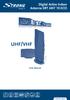 Digital Active Indoor Antenna SRT ANT 10 ECO Picture similar User Manual Table of contents 1.0 INTRODUCTION 1 2.0 PACKAGE CONTENT 1 3.0 SAFETY NOTES 2 4.0 CONNECTING THE ANTENNA 2 1.0 INTRODUCTION Thank
TV connection guide. Para español, ver al reverso
 TV connection guide Para español, ver al reverso Version 1.1 COL0816TV34881 Let s get started. This easy-to-follow guide will show you how to quickly connect your cable box to your TV. Complete every step
FiOS Self-Installation guide for ADDING OR EXCHANGING EQUIPMENT
 In just a few simple steps you can add or replace FiOS TV equipment. Video Media Server To exchange, see page. To add additional units, see page 11. FiOS Self-Installation guide for ADDING OR EXCHANGING
EC4.8. BalancedReferencePreamplifier. Owner smanual ENG
 EC4.8 BalancedReferencePreamplifier Owner smanual ENG Unpacking the EC 4.8 Immediately upon receipt of the EC 4.8, inspect the carton for possible damage during shipment. The carton and packaging have
Charter Digital Cable and Charter HD Easy Install Guide
 Charter Digital and Charter HD Easy Install Guide Your guide to installing and setting up your Charter HD and Digital Charter Digital and Charter HD Easy Install Guide -888-GET CHARTER (-888-8-7) charter.com
Parts of a Computer. Preparation. Objectives. Standards. Materials. 1 1999 Micron Technology Foundation, Inc. All Rights Reserved
 Parts of a Computer Preparation Grade Level: 4-9 Group Size: 20-30 Time: 75-90 Minutes Presenters: 1-3 Objectives This lesson will enable students to: Identify parts of a computer Categorize parts of a
PRODUCTIVITY THROUGH INNOVATION 600 CONTROL DIRECT DRIVE TECHNICAL/OPERATION MANUAL
 Rev. D PRODUCTIVITY THROUGH INNOVATION 600 CONTROL DIRECT DRIVE TECHNICAL/OPERATION MANUAL 10 BORIGHT AVENUE, KENILWORTH NEW JERSEY 07033 TELEPHONE: 800-524-0273 FAX: 908-686-9317 TABLE OF CONTENTS Page
DTA INSTALLATION PROCESS & USER GUIDE FOR CHARTER BUSINESS CUSTOMERS
 DTA INSTALLATION PROCESS & USER GUIDE FOR CHARTER BUSINESS CUSTOMERS This guide is intended for owners or managers and front desk personnel. This guide is not intended for guests. Customer Care 1-800-314-7195
AGES 8+ b e g g i n ʼ f o r t h e b e a t USER S GUIDE
 AGES 8+ b e g g i n ʼ f o r t h e b e a t USER S GUIDE Thank you for purchasing I-DOG. Be sure to read and follow all instructions carefully before using this product. Feed this robotic pooch your music
Troubleshooting the Verizon MI424WR Router
 Troubleshooting the Verizon MI424WR Router You can use the Power, Internet, and Ethernet lights on the front panel of the Verizon router to help diagnose home networking connectivity problems. Follow the
DTA100. Digital Transport Adapter. Quick Start Guide. Downloaded from www.manualslib.com manuals search engine
 DTA100 Digital Transport Adapter Quick Start Guide Before You Begin READ THIS FIRST Connecting Your DTA100 1. Connect the DTA100 to your cable service. Connect the coaxial cable from your wall outlet to
STEREO PREAMPLIFIER INSTRUCTIONS FOR USE
 XX STEREO PREAMPLIFIER INSTRUCTIONS FOR USE Thank you for purchasing the Musical Fidelity A5 CR Preamplifier. Used properly and carefully, it should give many years of outstanding musical reproduction.
Troubleshooting Guide
 Poor or Distorted Picture Troubleshooting Guide Poor picture quality compared to what was seen in the store. Picture is distorted. (Macroblock, small block, dots, pixelization.) Wrong or missing color
IMPORTANT SAFETY INSTRUCTIONS
 IMPORTANT SAFETY INSTRUCTIONS When using this electronic device, basic precautions should always be taken, including the following: 1. Read all instructions before using the product. 2. Do not use this
QUICK SETUP GUIDE SETUP FOR ICONNEX SOUNDCARD AND AUDACITY RECORDING SOFTWARE
 QUICK SETUP GUIDE SETUP FOR ICONNEX SOUNDCARD AND AUDACITY RECORDING SOFTWARE SETUP GUIDE Congratulations on your purchase of the ikey Audio iconnex soundcard. This guide will help you setup the iconnex
SVC400P/SVC800P. 4/8 Camera Live Tracking Vehicle DVR Installation Manual. Version 1.0
 SVC400P/SVC800P 4/8 Camera Live Tracking Vehicle DVR Installation Manual Version 1.0 1. MAIN FEATURES... 2 2. PRODUCT OVERVIEW... 2 3. DIMENSIONS... 4 4. PACKAGE CONTENTS... 5 5. MOUNTING AND ENVORNMENTAL
Connecting Keyboards to the Miditzer Virtual Organ
 Connecting Keyboards to the Miditzer Virtual Organ The term MIDI will be used frequently throughout this document. It stands for Musical Instrument Digital Interface. This is the MIDI in Miditzer. MIDI
Fi TV Gold Quick Start Guide
 Quick Start Guide Fi TV Gold Quick Start Guide Welcome to Fi TV! We re happy that you chose EPB Fiber Optics to bring the best movies, sports, news and television programming into your home and we will
2 Port KVM Switch. If anything is damaged or missing, contact your dealer.
 2 Port KVM Switch User Manual CS-82A Read this guide thoroughly and follow the installation and operation procedures carefully in order to prevent any damage to the units and/or any devices that connect
This Document Contains:
 Instructional Documents Video Conference >> PolyCom >> VSX 7000 Extension Computing Technology Unit This Document Contains: A Device Description An Installation Guide Instructions for Use Best Practices
How to Connect a Computer to Your TV Set Overview Many people already know that you can connect a computer to a plasma TV, but it is not as well
 How to Connect a Computer to Your TV Set Overview Many people already know that you can connect a computer to a plasma TV, but it is not as well known that you can also hook up a computer to almost any
Troubleshooting. Before you call for assistance
 Do not open the LitePro case! Opening the case may cause electric shock! Except for the projection lamp, there are no userserviceable parts inside. If you are having problems with your LitePro, read through
Terayon DOCSIS Modem Installation. Guide
 Terayon DOCSIS Modem Installation Model: TJ 700 Series Modem Guide Power Cable PC Data Test 4988 Great America Parkway Santa Clara, CA 95054 www.terayon.com 8500229 Rev A Table of Contents Table of Contents
DVB-T2 DIGITAL TV BOX
 DVB-T2 DIGITAL TV BOX QUALITY OF DIGITAL TELEVISION MT4159 User Manual EN 2 Index Index...2 Introduction...3 Front panel...3 Rear panel...3 Remote control...4 Hardware configuration...5 Connecting tuner
Contents For your safety........................2 Welcome to digital satellite TV!...........3
 Contents For your safety........................2 Welcome to digital satellite TV!...........3 Updates to your box........................ 3 Inserting the batteries in your remote control... 3 Your remote
WIRELESS INTERNET TROUBLESHOOTING GUIDE. 320.834.5151 888.236.3574 www.gctel.com. Help Desk 320.834.5155
 WIRELESS INTERNET TROUBLESHOOTING GUIDE 320.834.5151 888.236.3574 www.gctel.com Help Desk 320.834.5155 Table of Contents Check Physical Connection Connection Diagram - Page 1 Power Inserter - Page 2 Identify
INSTRUCTIONS FOR USE Pro-Ject Phono Box II USB
 INSTRUCTIONS FOR USE Pro-Ject Phono Box II USB Dear music lover, thank you for purchasing a PRO-JECT AUDIO phono amplifier. In order to achieve maximum performance and reliability you should study these
Lynx Broadband Installation Manual for Residential Packages with a 20 db Amp Quick Start Guide (first two pages)
 Lynx Broadband Installation Manual for Residential Packages with a 20 db Amp Quick Start Guide (first two pages) 1. Be sure that your kit includes all the parts shown in the Check the Equipment section
InFocus Projector Setup Guide for Digital Cable TV How to connect digital cable TV to an InFocus projector
 InFocus ojector Setup Guide for Digital Cable TV How to connect digital cable TV to an InFocus projector Digital Cable Box Coax Outlet S-232 Table of Contents Good Better - For the quickest setup using
IMPORTANT SAFETY INSTRUCTIONS
 IMPORTANT SAFETY INSTRUCTIONS Before you install or use the apparatus, you must read and understand these Important Safety Instructions. At all times when using the apparatus you must follow these Important
INSTRUCTIONS FOR THE INSTALLATION AND OPERATION OF ACTIVATOR II
 INSTRUCTIONS FOR THE INSTALLATION AND OPERATION OF ACTIVATOR II ELECTRONIC TRAILER BRAKE CONTROL 5500 FOR 2, 4, 6 & 8 BRAKE SYSTEMS IMPORTANT: READ AND FOLLOW THESE INSTRUCTIONS CAREFULLY. KEEP THESE INSTRUCTIONS
AM/FM Component Stereo Receiver System (120-1470) Preparation Faxback Doc. # 18708
 AM/FM Component Stereo Receiver System (120-1470) Preparation Faxback Doc. # 18708 POWER REQUIREMENTS Connect the AC line cord into any outlet furnishing 117 volts 50-60 cycles AC current. CONNECTING SPEAKERS
B890 4G LTE Smart Hub Getting Started Guide
 B890 4G LTE Smart Hub Getting Started Guide HUAWEI TECHNOLOGIES CO., LTD. Thank You for Purchasing the B890 4G LTE Smart Hub! Before You Begin What s in the Box : 1. B890 4G LTE Smart Hub 2. Power adapter
MyM 3T. User Manual. English
 User Manual Compact unit with 2 DVB-T tuners MPEG-2 and MPEG-4 compliant 3 analogue modulators Two CI for decryption or multidecryption NICAM or A2 stereo 12-volt power supply Low power consumption MyM
TR7322U-OR RDS / MP3-USB TUNER (24 Volt)
 www.vdo.com TR7322U-OR RDS / MP3-USB TUNER (24 Volt) OWNER'S MANUAL Safety Information Safety Information Thank you for purchasing this product, please read the manual carefully before operating, and reserve
THE ELEMENT SUPPORT OPERATING INSTRUCTIONS AMP+DACS ONLINE BY PHONE BY MAIL [email protected] 314-252-0936
 OPERATING INSTRUCTIONS AMP+S THE ELEMENT SUPPORT ONLINE BY PHONE BY MAIL [email protected] JDSLABS.COM/SUPPORT 314-252-0936 9:30AM-6PM CST, MONDAY THROUGH FRIDAY 909 N BLUFF RD COLLINSVILLE, IL 62234
WARNING: To prevent fire or electric shock, do not expose this appliance to rain or moisture.
 BeoVision 4 1 Guide CAUTION: To reduce the risk of electric shock, do not remove cover (or back). No User-serviceable parts inside. Refer servicing to qualified service personnel. WARNING: To prevent fire
Leaf River Outdoor Products Vibrashine, Inc. P.O. Box 557 Taylorsville, MS 39168 (601) 785-9854 FAX (601) 785-9874 www.vibrashine.
 MULTI-CARD PICTURE VIEWER Model PV-2.5 Leaf River Outdoor Products Vibrashine, Inc. P.O. Box 557 Taylorsville, MS 39168 (601) 785-9854 FAX (601) 785-9874 www.vibrashine.com 2 THANKS and WELCOME What does
Point of View SmartTV-500 Center - Android 4.2. General notices for use...2 Disclaimer...2 Box Contents...2
 Point of View SmartTV-500 Center - Android 4.2 English Table of Contents General notices for use...2 Disclaimer...2 Box Contents...2 1.0 Product basics...3 1.1 Buttons and connections... 3 1.2 Connecting
MixMeister EZ Converter Setup & Troubleshooting Contents:
 MixMeister EZ Converter Setup & Troubleshooting Contents: Windows Vista and Windows 7 Setup Instructions... 2 Windows XP Setup Instructions... 4 Macintosh OSX - Setup Instructions... 6 Troubleshooting...